MobileView Navigator Mobile View How To Create Evidence Media
2015-09-28
: InterLogix Mobileview Navigator How To Create Evidence Media MobileView Navigator How to Create Evidence Media mobileview-training resources
Open the PDF directly: View PDF  .
.
Page Count: 7
MobileView Navigator: How to Create Evidence Media - 1
MobileView Navigator: How to Create Evidence Media
Before beginning MobileView Navigator should be installed on your computer. This document will
cover how to burn a video file to CD/DVD and also to USB.
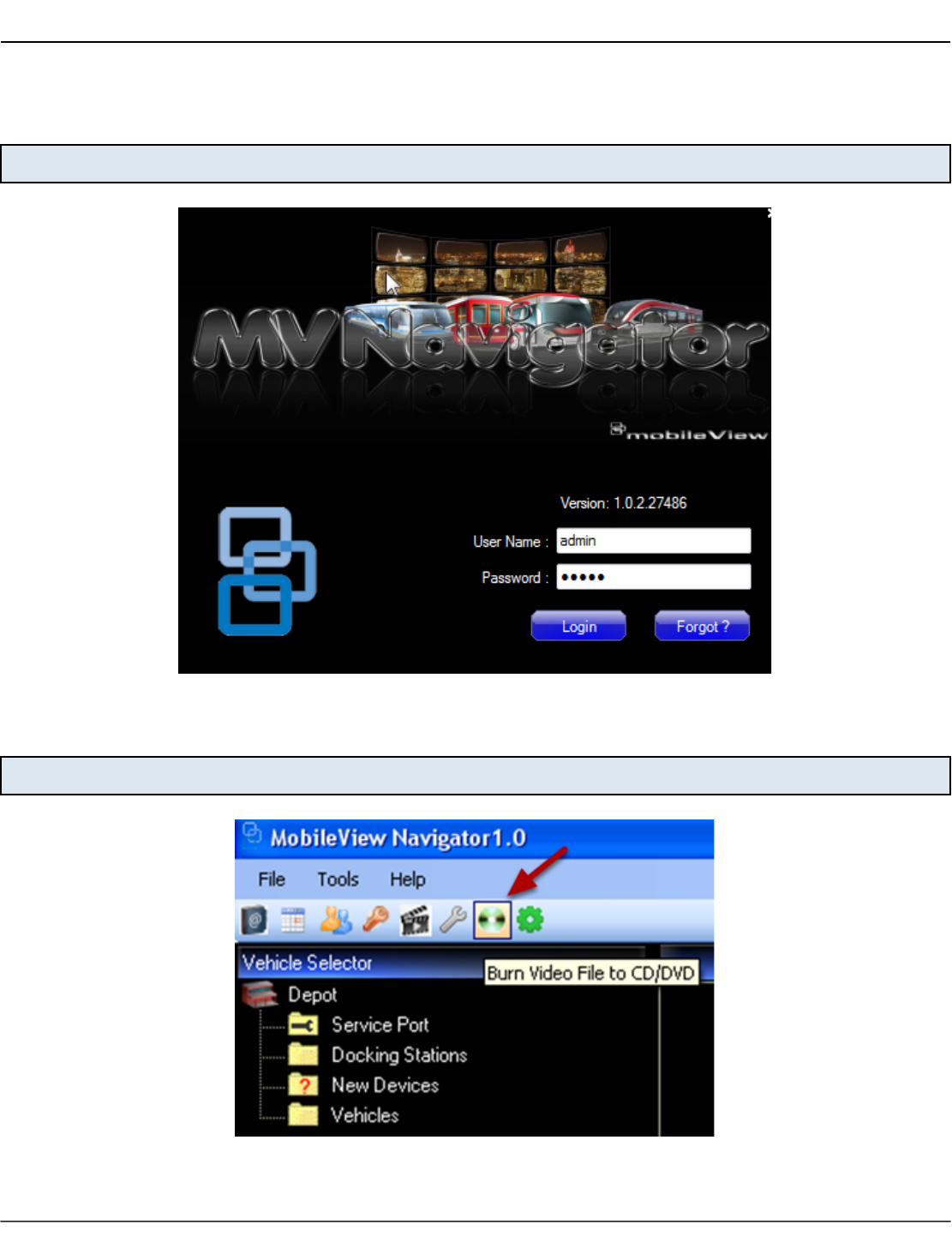
Open Navigator
Login to MobileView Navigator with your username and password.
Launch Burner
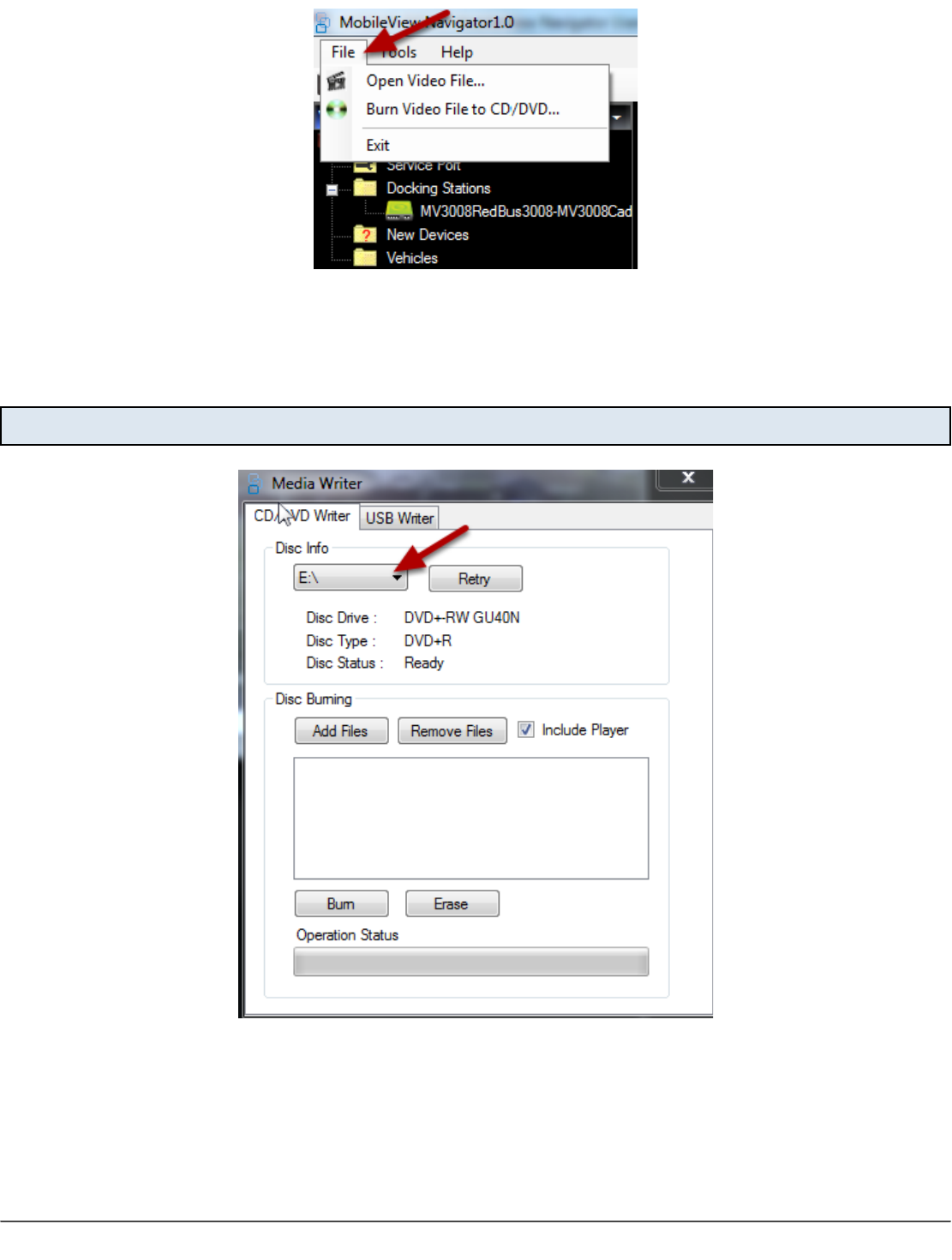
Click on Burn CD/DVD Button in tool bar
MobileView Navigator: How to Create Evidence Media - 2
or
Select File > Burn to CD/DVD to launch burner
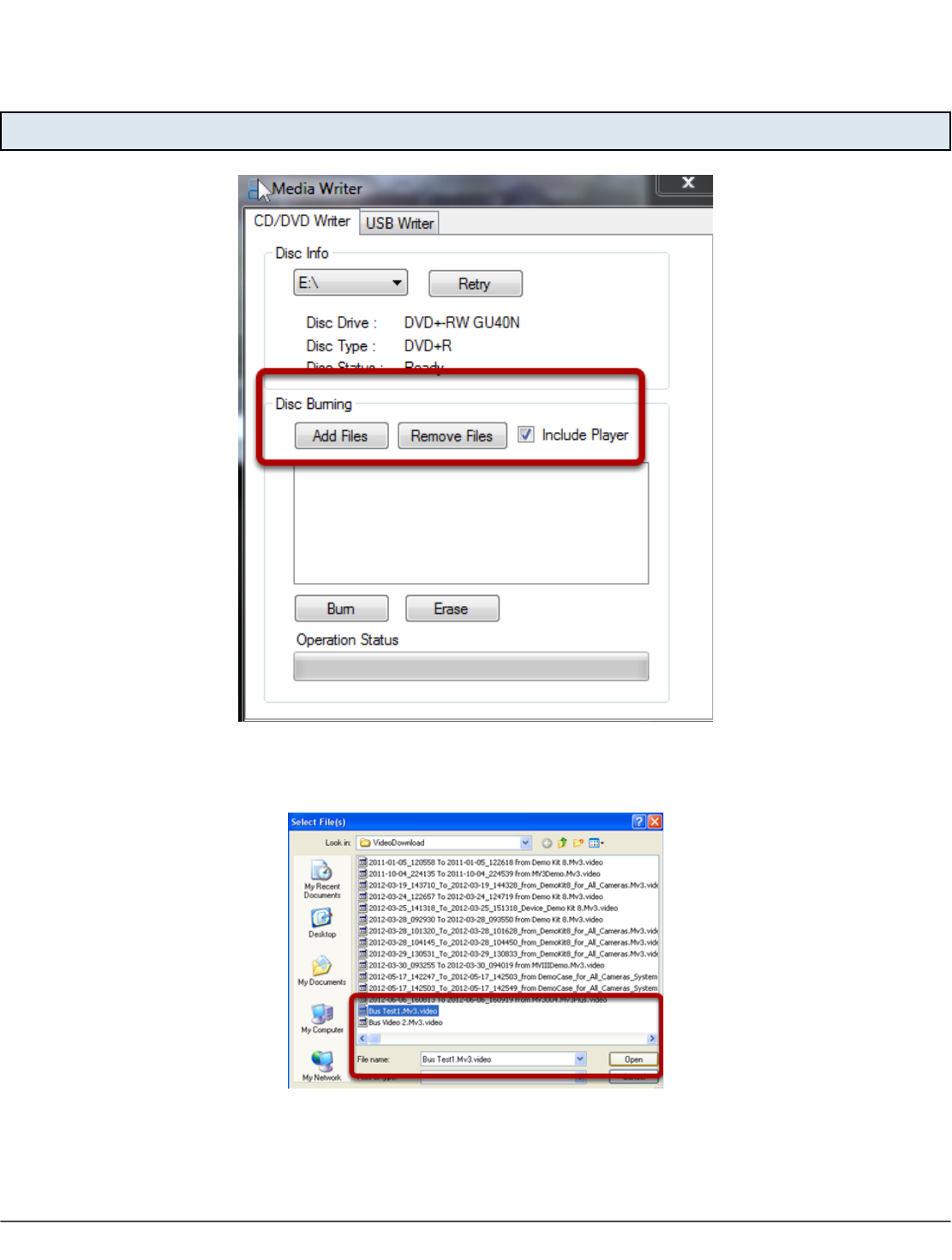
To Burn to CD/DVD: Select CD/DVD Writer
1. Click on the drop down aarow next to "Disc Drives". Select correct disk drive.
Once selected Disc Drive, Disc Type, and Disc Status will display as shown below.
MobileView Navigator: How to Create Evidence Media - 3
If Disc Status reads "Disk Not Available" insert CD/DVD. Status will then change to Ready.
Add File
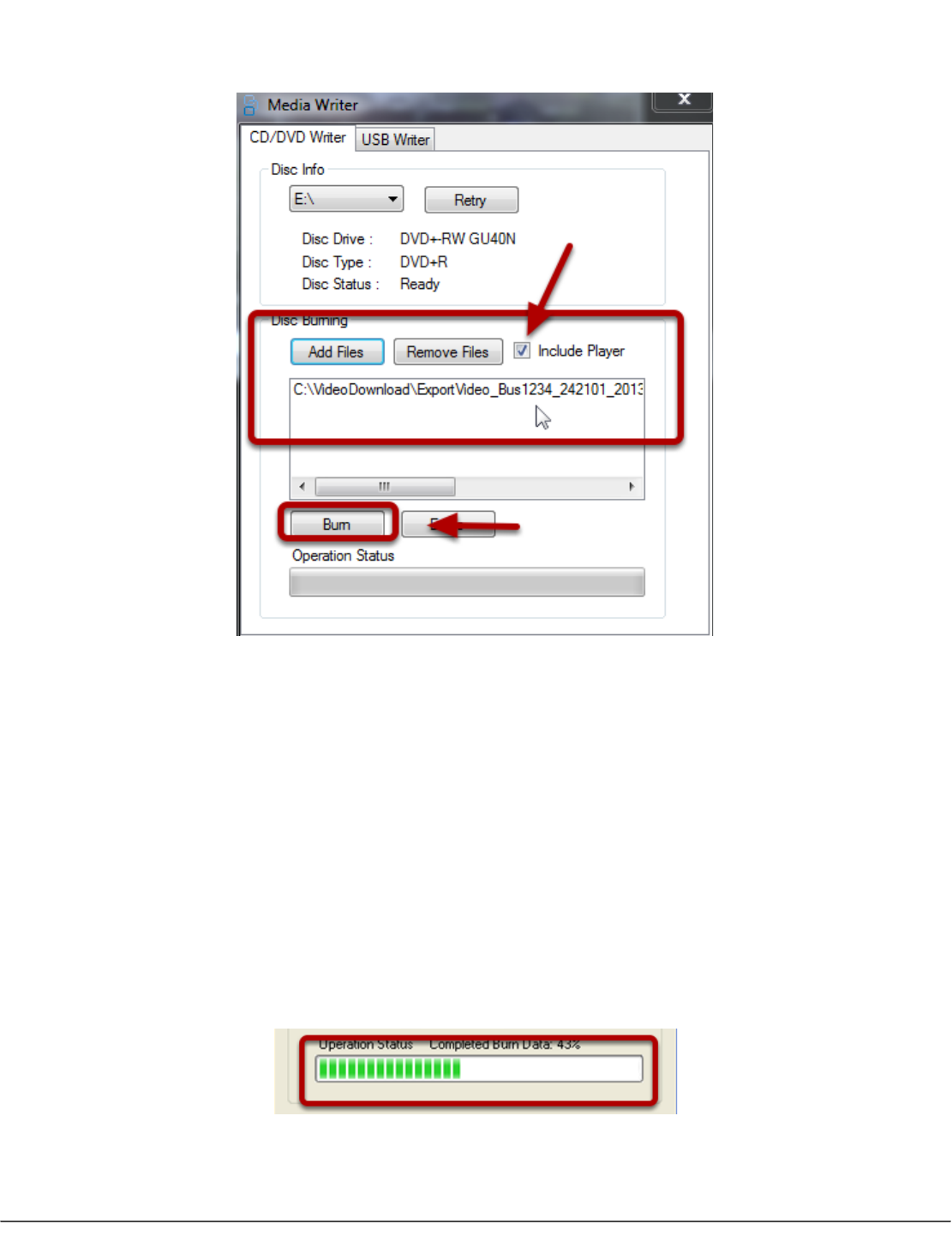
Click Add Files button to add video file to disk.
1. Browse to location where Video File is saved
2. Select file
3. Click Open
MobileView Navigator: How to Create Evidence Media - 4
Note: Default Video location is C:\VideoDownload
Selected Video File will appear.
1. Leave the "Include Player" box checked if you wish to include the player. The player allows
users to view the MobileView Navigator video file on a computer where Navigator is not
installed. If you do not select "Include Player" only the selected Video file will write to disk
and only computers that have MobileView Navigator installed may view the file.
2. Click Burn
You can earase the CD/DVD and erase all data on a rewriteable CD/DVD by clicking the erase
button.
Progress will be displayed at the bottom of the screen. When completed disk will finalize and
then may be ejected.
MobileView Navigator: How to Create Evidence Media - 5
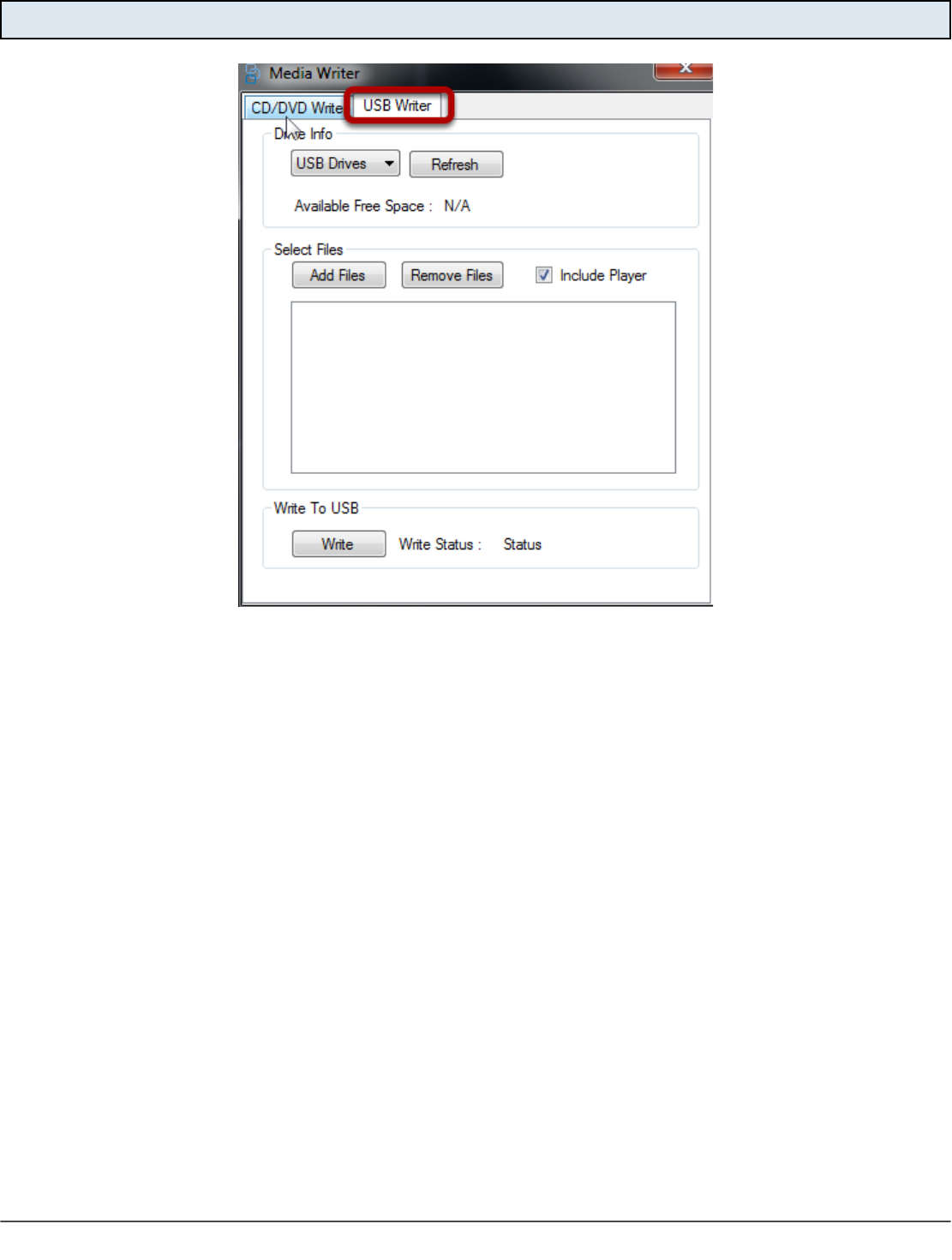
To Burn to USB select USB Writer:
1. Insert Memory stick into open USB port on computer.
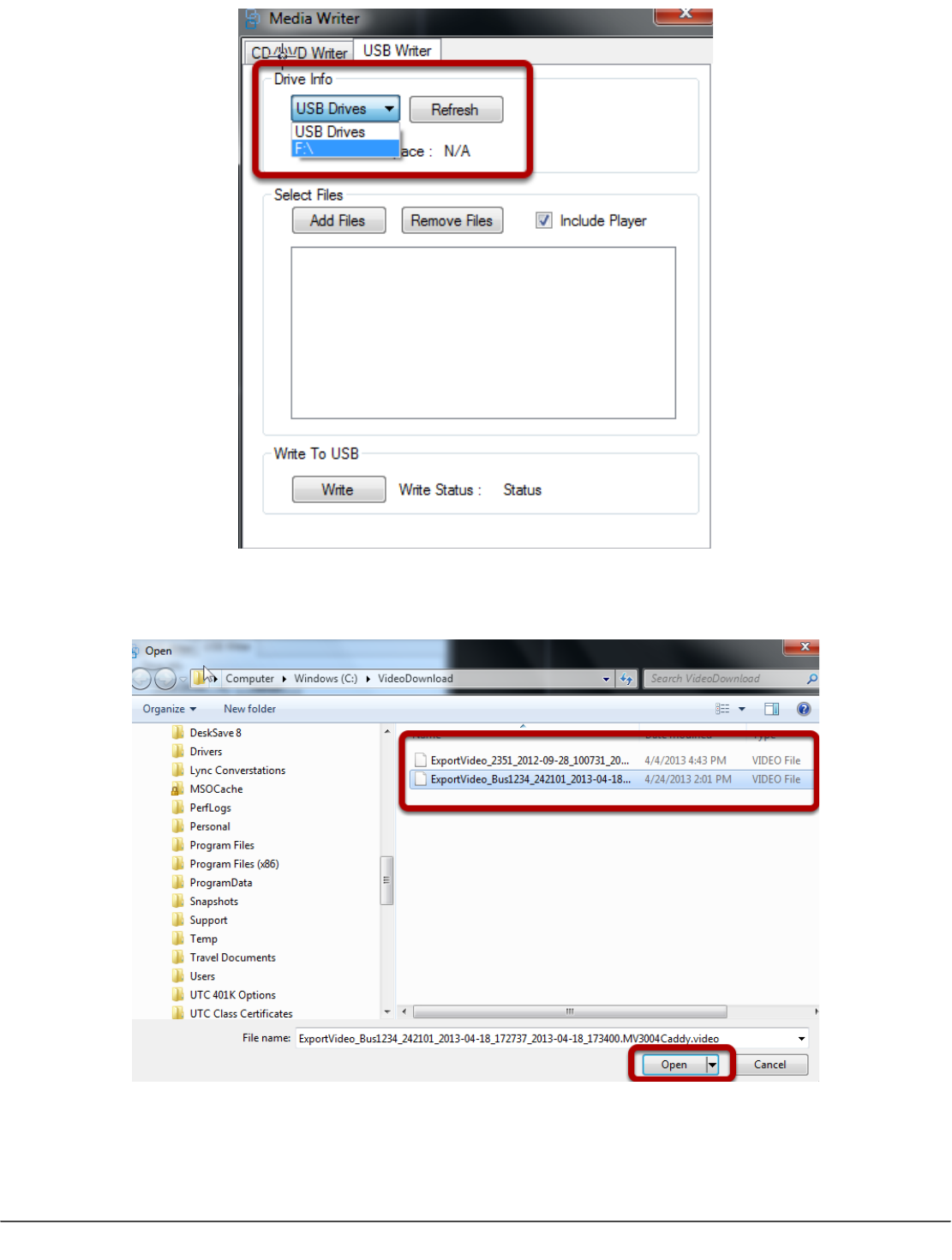
2. Select USB Drive from the available dropdown.
TIP: If Memory stick is inserted into computer does not appear as available when selecting USB
drive click Refresh.
MobileView Navigator: How to Create Evidence Media - 6
Click Add Files button to add video file.
1. Browse to location where Video File is saved
2. Select file
3. Click Open
MobileView Navigator: How to Create Evidence Media - 7
Note: Default Video location is C:\VideoDownload
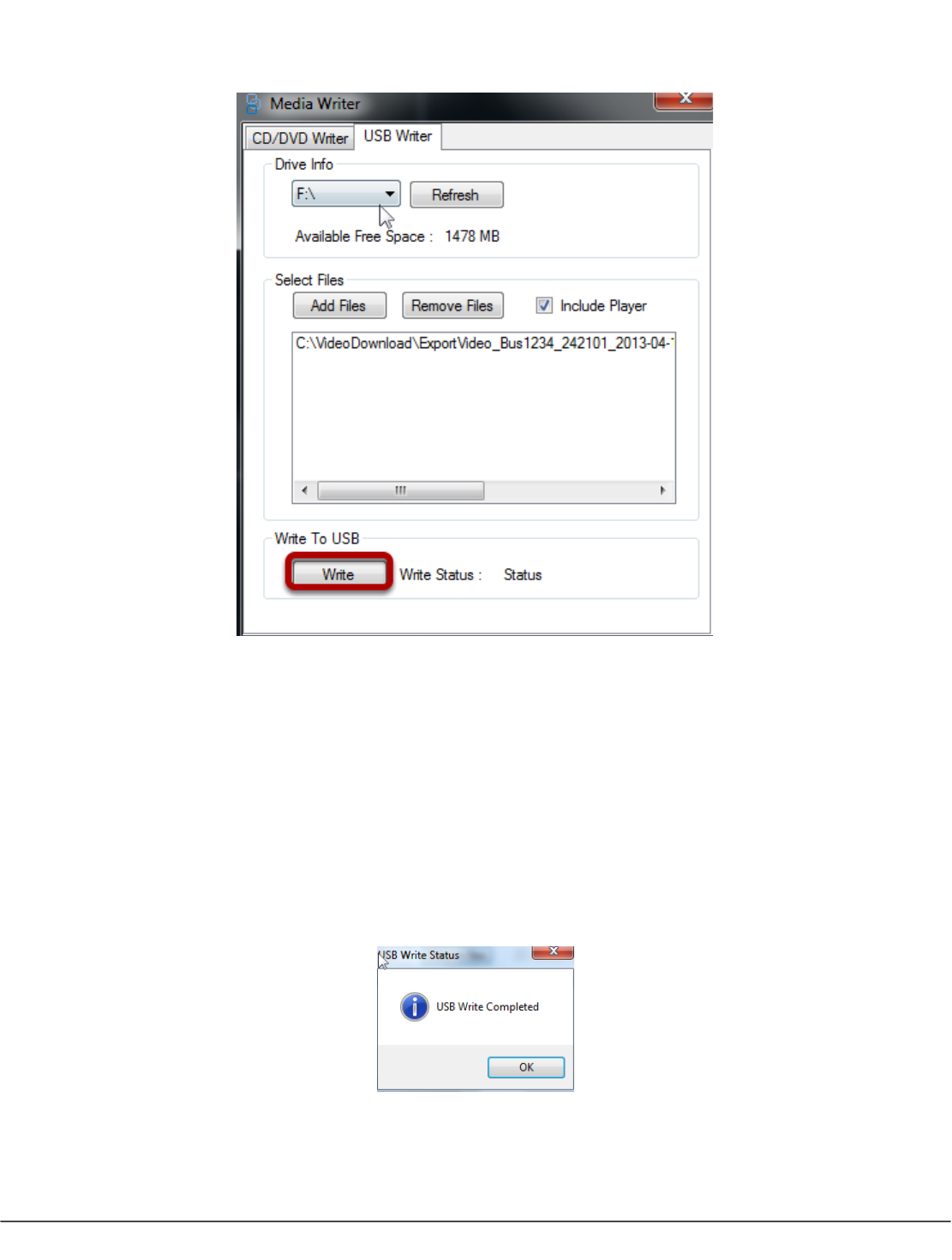
Selected Video File will appear.
1. Leave the "Include Player" box checked if you wish to include the player. The player allows
users to view the MobileView Navigator video file on a computer where Navigator is not
installed. If you do not select "Include Player" only the selected Video file will write to disk
and only computers that have MobileView Navigator installed may view the file.
2. Click Write
Progress will be displayed at the bottom of the screen. When complete click OK.
