InterLogix Truvision Nvr 21 21S 21P Quick Start Guide En User Manual
2016-06-14
User Manual: InterLogix Truvision-Nvr-21-Nvr-21S-Nvr-21P-Quick-Start-Guide-En
Open the PDF directly: View PDF  .
.
Page Count: 8
P/N 1072630-EN • REV H • ISS 13JUN16
© 2016 United Technologies Corporation. Interlogix is part of UTC Climate, Controls & Security, a unit of United
Technologies Corporation. All rights reserved.
TruVision NVR 21 (S/P) Quick Start
Guide
Figure
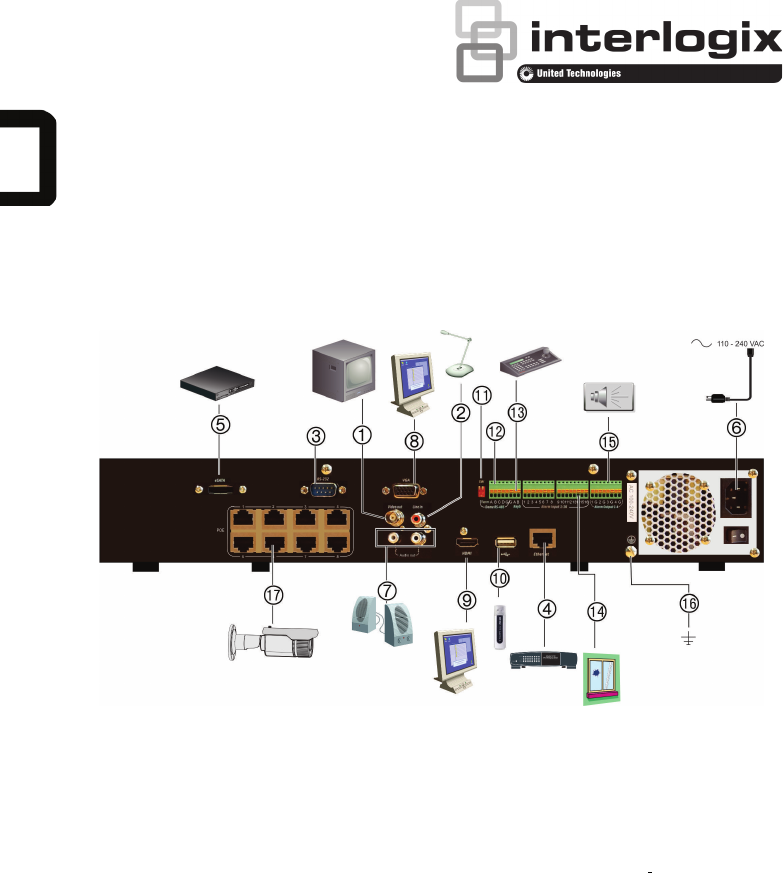
1: Back panel connections
1. Connect to one CCTV monitors (BNC-type
connectors).
2. Connect one audio input to RCA connectors.
3. Connect to a RS-232 device.
4. Connect to a network.
5. Connect to an optional eSATA device such as
SATA HDD, CD/DVD-RM.
6. Connect to a power cord.
7. Connect to speakers for audio output.
8. Connect to a VGA monitor.
9. Connect to a HDTV. The HDMI connection
supports both digital audio and video.
10. Universal Serial Bus (USB). Connect to an
additional device such as a USB mouse,
CD/DVD burner or USB HDD.
11. Not used.
12. Not used.
13. Connect to a keyboard (KTD-405 shown)
14. Connect up to 16 alarm inputs.
15. Connect up to four alarm relay outputs.
16. Connect to ground.
17. 8/16 PoE ports
2 TruVision NVR 21 (S/P) Quick Start Guide
Figure
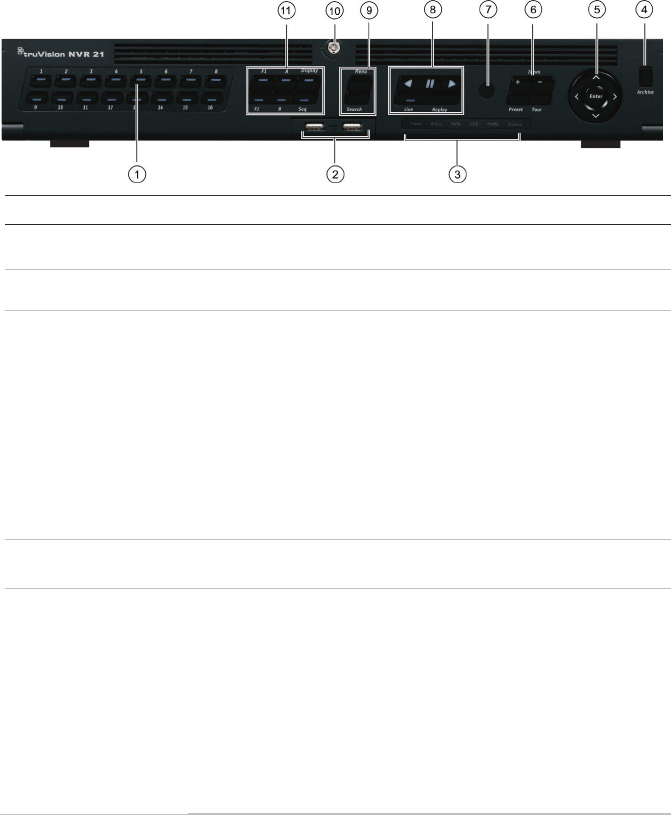
2: Front panel controls
For detailed information on all the button functions, please refer to the user manual.
Name Description
1
. Channel buttons Switch between different cameras in live, PTZ control or playback modes.
Enter numerals 0 to 9 when using the virtual keyboard.
2
. USB Interfaces Universal Serial Bus (USB) ports for additional devices such as a USB mouse, CD/DVD
burner, and USB Hard Disk Drive (HDD).
3
. Status LEDs Power: A flashing green light
indicates the recorder is working correctly. Red indicates a
fault.
Alarm: A steady red light
indicates that there is a sensor Alarm In or another alarm such
as motion or tampering. A steady green light means there is no alarm.
Tx/Rx:
Flashing green indicates a normal network connection. No light indicates that the
recorder is not connected to any network.
HDD: HDD indicator blinks red when data is being read from or written to the HDD. A
steady red light indicates an HDD exception or error.
Ready: A steady green light indicates the device is functioning properly.
Archive: Blinking green indicates archiving is in progress.
4
. Archive button Press once to enter quick archive mode. Press twice to start archiving. Indicator blinks
green when data is being written to backup device.
5
. Direction
The DIRECTION buttons are used to navigate between different fields and items in
menus.
In the Playback mode, the left and right buttons are used to speed up and slow down
recorded video. The up and down buttons are used to jump recorded video forwards or
backwards by 30 s.
In Pause mode, the left and right buttons are used to jump recorded video forwards or
backwards by one frame. The up and down buttons are used to jump recorded video
forwards or backwards by one second.
In Live View mode, these buttons can be used to cycle through channels.
In PTZ Control mode, it can control the movement of the PTZ camera.
6.
PTZ buttons Zoom: In live view, playback, and PTZ control modes mode, use + and – to zoom in and
out. Also used to navigate within menus. See the user manual for more information.
Preset: In PTZ control mode, press Preset and a numeric button to call up a
preprogrammed preset position.
Tour: In PTZ control mode, press Tour and a numeric button to call up preprogrammed
shadow tours.
TruVision NVR 21 (S/P) Quick Start Guide 3
Name Description
7.
IR receiver Receiver for IR remote control.
8.
Playback buttons Reverse: In live view, play the earliest video file of the current camera; In video
playback mode, playback a camera in reverse direction; In picture playback mode, view
pictures in reverse direction.
Pause: In live view mode, freeze the last image of the live display for all cameras
in the selected display mode. In playback mode, stop playing the video.
Play: In live view mode, play all-day playback of the current camera (upper left
video tile if in multiview mode); In playback mode, play back a camera in the forward
direction; In search mode, play back a selected video or view a snapshot; In PTZ mode,
do an auto tour. See the user manual for more information.
Instantly playback the currently selected file. Default time is 1 minute.
Live: Switch to live view mode. Hold for five seconds to lock or unlock the front panel.
Replay: In playback mode, start play back at the beginning of the file in the current
display mode.
9.
Menu and Search buttons Menu: Enter/exit the main menu.
Search: In live view mode, enter the advanced search menu.
10.
Front panel lock You can lock or unlock the front panel with a key.
11.
Display buttons Display: Toggle through the various multiviews: full, quad, 1+5, 1+7, 9, and 16.
Seq: Start/stop sequencing cameras on the current monitor.
A: In live view mode, select the main monitor.
B: In live view mode, select the event monitor.
F1: In playback mode, click to start and stop video clipping.
F2: In live view, all-day playback and playback modes press to display/hide the time or
control bar. In PTZ mode, stop all ongoing operations.
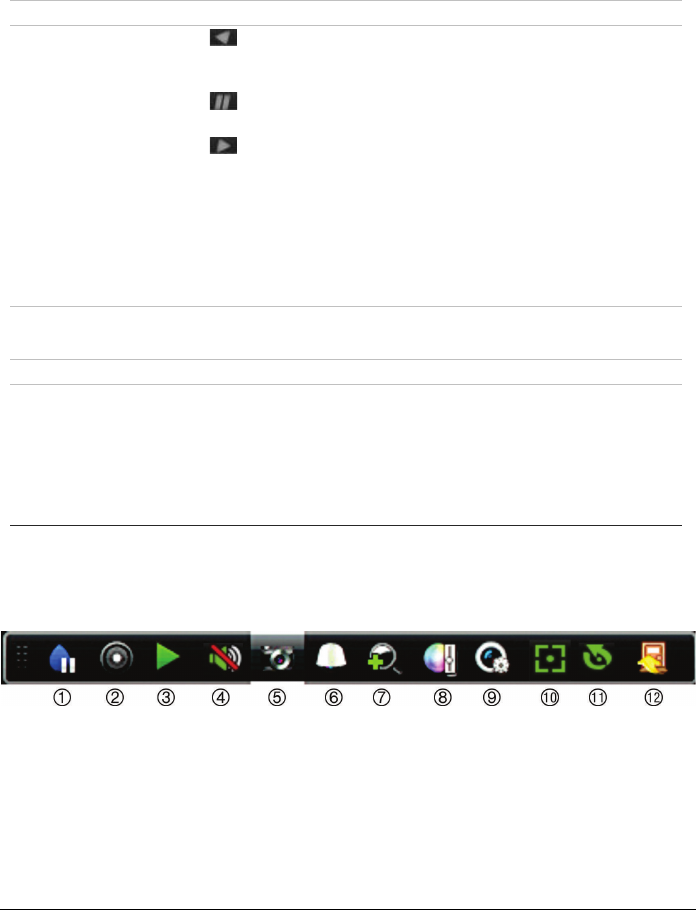
Figure
3: Quick access toolbar
1. Pause: Freeze live image of the selected
camera.
2. Start Manual recording: Start/stop manual
recording.
3. Instant Playback: Play back the recorded
video from the last five minutes.
4. Audio On: Enable/disable audio output.
5. Snapshot: Capture a snapshot of a video
image.
6. PTZ Control: Enter PTZ control mode.
7. Digital Zoom: Enter digital zoom mode.
8. Image Settings: Modify the image lighting levels.
9. Show Text: Display inserted text on screen.
10. Auxiliary Focus: Automatically focus the camera
lens
11. Lens Initialization: Initialize the lens of a camera
with a motorized lens
12. Close: Close the toolbar.

4 TruVision NVR 21 (S/P) Quick Start Guide
Package contents
The TruVision NVR 21(S/P) (model TVN 21
(S/P) is shipped with the following items:
• IR (infrared) remote control
• Two AAA batteries for the remote control
• AC power cords (US, Europe, UK)
• USB mouse
• NVR
• CD with software and manuals
• TruVision NVR 21(S/P) Quick Start Guide
• TruVision NVR 21(S/P) User Manual (on
CD)
• TruVision Recorder Operator Guide (on
CD)
Installation environment
Refer to the user manual for detailed
information, but observe these important
requirements:
• Place the unit in a secure location.
• Ensure that the unit is in a well-ventilated
area.
• Do not expose the unit to rain or moisture.
Quick install
Recommended steps for setting up the
recorder:
1. Connect all the devices required to the
back panel of the recorder. See Figure 1
on page 1.
Basic connections:
Connect monitor A to the VGA or HDMI
output. Connect the mouse to the USB port
in the front panel.
Optional connections:
All the other connections shown are
optional and depend upon installation
requirements.
2. Connect the power supply to the unit and
turn on the power.
3. Set up the unit with the required settings
using the setup Wizard.
First-time use
The recorder has an express installation
wizard that lets you easily configure basic
recorder settings when first used. It configures
all cameras simultaneously. The configuration
can then be customized as required.
By default, the setup wizard will start once the
recorder has loaded. The wizard walks you
through some of the more important settings
of your recorder. Select the preferred
language for the system and then enter the
administrator password. The default admin
password is 1234. It is strongly recommended
that this password is changed.
The wizard will then guide you through the
menus to set the time and date, network
configuration, HDD management, and
recording configuration.
When all the required changes have been
entered, click Finish to exit the wizard. The
recorder is now ready to use. Recording starts
automatically.
Important: Your TruVision device is
delivered with default user name
and password credentials for initial
access, easy configuration and auto
discovery. For security reasons, it is
highly recommended to change the
default credentials.
Operating the recorder
There are several ways to control the unit:
• Front panel control
• IR remote control
• Mouse control
• TVK-800 keypad
• Web browser control
• Software (TruVision Navigator, TVRmobile
or other video management or integration
software platforms)
Front panel
The buttons on the front panel control most
functions. See Figure 2 on page 3 for the
locations of the controls.
TruVision NVR 21 (S/P) Quick Start Guide 5
IR remote control
The IR remote control buttons are similar to
those on the front panel. Place the two AAA
batteries in the remote control.
To connect the remote control to the
recorder:
1. Press Menu on the front panel or right-click
the mouse and select Menu. The main
menu screen appears.
2. Select Display Mode Settings > Monitor.
3. Check the recorder’s device address value.
The default value is 255. The device
address is valid for all IR controls.
4. On the remote control press the Device
button.
5. Enter the device address value. It must be
the same as that on the recorder.
6. Press OK on the remote control.
USB mouse
The USB mouse provided with the recorder
operates all the functions of the recorder,
unlike the front panel, which has limited
functionality. The mouse lets you navigate and
make changes to settings in the user
interface.
Connect the mouse to the recorder by
plugging the mouse USB connector into the
USB port on the back or front panel. The
mouse is immediately operational and the
pointer should appear.
Web browser control
The recorder’s Web browser lets you view,
record, and play back videos as well as
manage all aspects of the recorder from any
PC with Internet access. The browser’s easy-
to-use controls give you quick access to all
recorder functions.
To access the unit, open a web browser and
enter the IP address assigned to the recorder
as a web address. In the logon screen, enter
the default user ID and password:
• User ID: admin
• Password: 1234
The default values for recorder network
settings are:
• DHCP: Disabled by default.
• IP address - 192.168.1.82
• Subnet mask - 255.255.255.0
• Gateway address - 192.168.1.1
• Server Port: 8000
• HTTP Port: 80
• RTSP port: 554
Note: The following ports need to be
forwarded in the router in order to connect
properly: Server port and RTSP port.
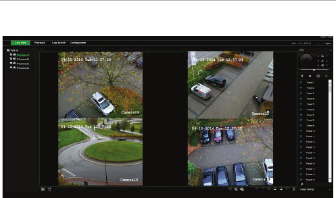
Figure 4: Web browser interface
Live view mode
Live mode is the normal operating mode of the
unit where you watch live pictures from the
cameras.
Regularly used functions in live view can be
quickly accessed by clicking the left-button of
the mouse when its cursor is on the camera
image. The shortcut pop-up toolbar appears.
See Figure 3 on page 3 for a description of
the functions available.
Configuring the recorder
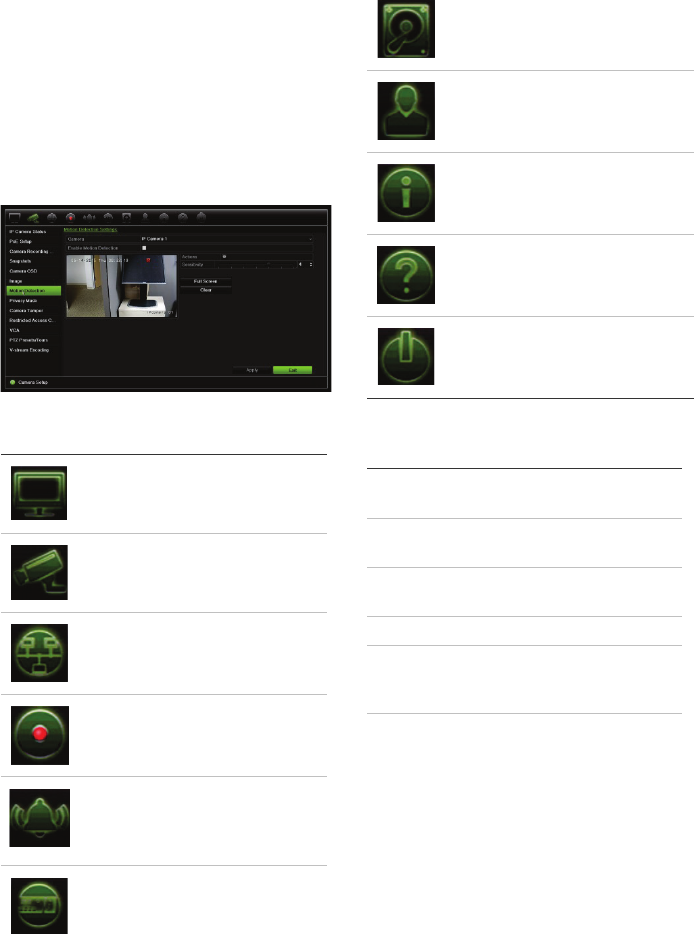
The recorder has an icon-driven menu
structure that allows you to configure the unit’s
parameters. Each command icon displays a
screen that lets you edit a group of settings.
Most menus are available only to system
administrators.
Refer to the recorder user manual for detailed
information on configuring the unit.
6 TruVision NVR 21 (S/P) Quick Start Guide
To access the main menu from live view:
• Press the Menu button on the remote
control or front panel.
- Or -
• Right-click the mouse and select Menu
from the pop-up menu.
The main menu screen appears. Move the
mouse over a command icon in the menu
toolbar and click to select it.
Description of the command icons in the
menu toolbar:
Configures display settings.
Configures analog and IP
camera settings.
Configures standard network
settings.
Configures recording settings.
Configures alarm and event
settings such as alarm
inputs/outputs, notifications, and
intrusion panel/zone setup.
Configures system settings.
Configures storage
management.
Configures user settings.
View system information.
Provides reference information
to the various toolbars and
menus within the interface.
Provides access to logout,
reboot and shutdown options.
Specifications
Power supply
100 to 240 VAC,
6.3 A, 50 to 60 Hz
Power cons
umption
(without HDD)
<= 45 W
Operating
temperature
-10 to +55 ºC
(50 to 131 °F)
Relative humidity
10 to 90%
Dimensions
(W x D x H)
445 × 470 × 90 mm
(17.5 × 18.5 × 3.5
in.)
Weight
≤ 8 kg (≤ 17.6 lb.)
(without HDD)
Contact information
For contact information, go to
www.interlogix.com, or
www.utcfssecurityproducts
