Iriver Ifp 300 Series Users Manual
iFP-300 Series to the manual 282dc273-3427-4509-a719-ff44c866d832
2015-02-05
: Iriver Iriver-Ifp-300-Series-Users-Manual-396811 iriver-ifp-300-series-users-manual-396811 iriver pdf
Open the PDF directly: View PDF  .
.
Page Count: 36
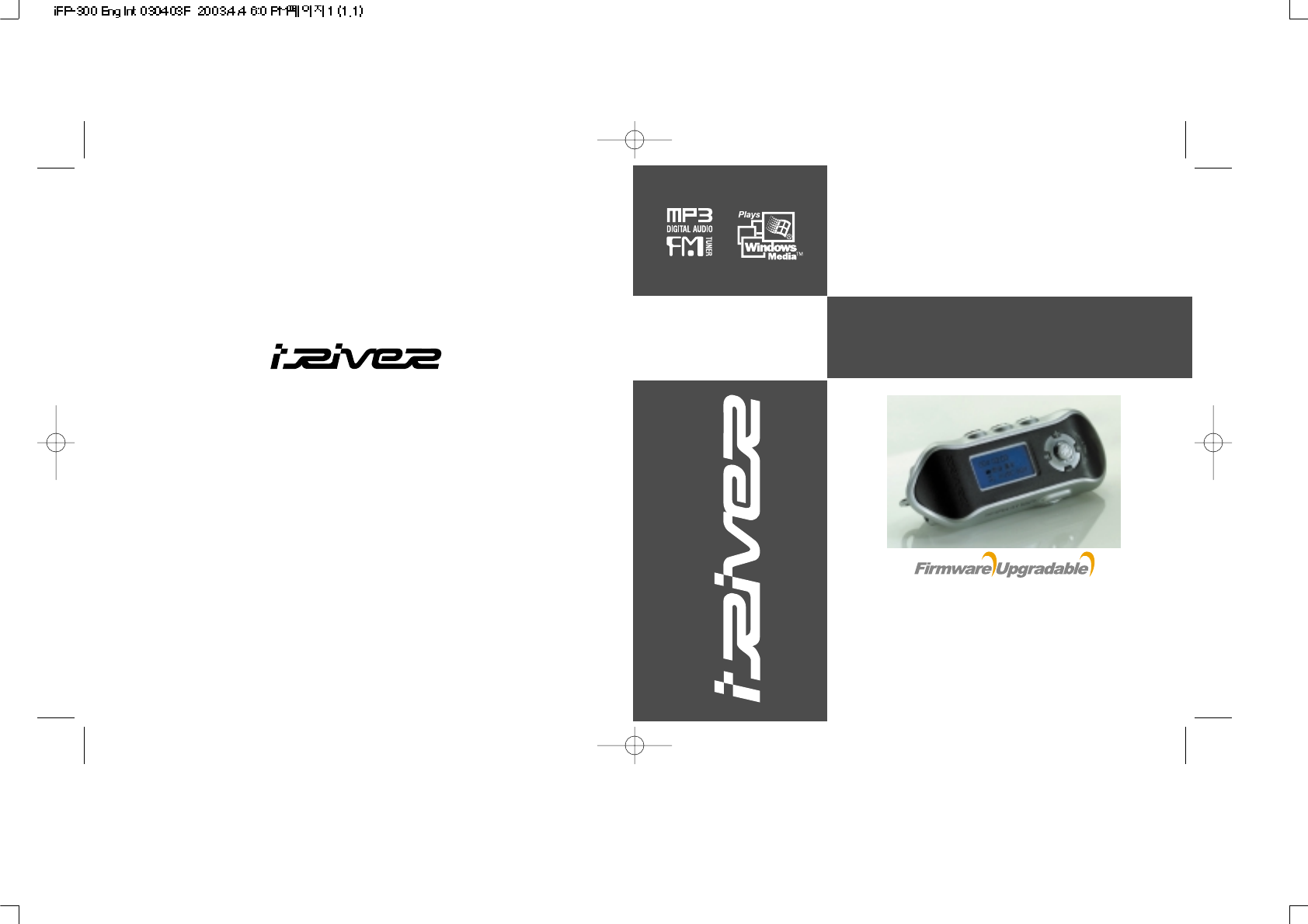
iFP-300 Series
Instruction Manual
MP3 PLAYER/FM TUNER
Model iFP-300 Series
Thank you for your purchase.
Please read this manual carefully
before using your new player.
www.iRiver.com
www.iRiver.com
THIS DEVICE COMPLIES WITH PART 15 OF THE FCC RULES. OPERATION IS
SUBJECT TO THE FOLLOWING TWO CONDITIONS: (1) THIS DEVICES MAY NOT
CAUSE HARMFUL INTERFERENCE, AND (2) THIS DEVICE MUST ACCEPT ANY
INTERFERENCE, RECEIVED, INCLUDING INTERFERENCE THAT MAY CAUSE
UNDESIRED OPERATION.
Note : This equipment has been tested and found to comply with the limits for a Class
B digital device, pursuant to part 15 of the FCC Rules. These limits are designed to
provide reasonable protection against harmful interference in a residential installation.
This equipment generates, uses and can radiate radio frequency energy and, if not
installed and used in accordance with the instructions, may cause harmful interference
to radio communications. However, there is no guarantee that interference will not
occur in a particular installation. If this equipment does cause harmful interference
to radio or television reception, which can be determined by turning the equipment
off and on, the user is encouraged to try to correct the interference by one or more
of the following measures :
- Reorient or relocate the receiving antenna.
- Increase the separation between the equipment and receiver.
- Connect the equipment into an outlet on a circuit different from that to which the
receiver is connected.
- Consult the dealer or an experienced radio/TV technician for help.
NOTE: THE MANUFACTURER IS NOT RESPONSIBLE FOR ANY RADIO OR
TV INTERFERENCE CAUSED BY UNAUTHORIZED MODIFICATIONS TO THIS
EQUIPMENT. SUCH MODIFICATIONS COULD VOID THE USER'S AUTHORITY
TO OPERATE THE EQUIPMENT.
1
URL : www.iRiver.com
Find information on our company, products, and customer and technical
support.
Update your player with firmware downloads. Firmware upgrades offer
support for new CODECS and deliver new product features.
Consult the product FAQ.
Register your iRiver product online so that our Customer Service is able to
provide support as efficiently as possible.
iRiver Limited does not assume any responsibility for errors or omissions in
this document or make any commitment to update the information contained
herein.
iRiver is a registered trademark of iRiver Limited in the Republic of Korea and
/or other countries and is used under license. Microsoft Windows Media and the
Windows Logo are trademarks or registered trademarks of Microsoft
Corporation in the United States and /or other countries.
All other brand and product names are trademarks of their respective
companies or organization. All other product names may be trademarks of the
companies with which they are associated.
1999-2003 iRiver Limited. All right reserved.
Unique Design
Multi-Codec Player
: Supports MP3, WMA, ASF formats.
Firmware Upgrade
: Provides the latest updated features via firmware upgrade.
Graphic LCD supporting Multiple Languages
: iFP-300 Series comes with graphic LCD which can support multiple
languages
FM Function (not supported on iFP-340):
You can easily listen to FM stations and set your favorite stations by using
Auto Preset and Frequency Memory functions.
6 Preset EQ : Normal, Rock, Jazz, Classic, U Bass, Metal
Xtreme EQ
Make your EQ as the way you like by adjusting five frequency zones.
Each frequency zone's bandwidth can be set from -12dB to +12dB with 3 dB stepping.
GUI (Graphic User Interface) MENU SYSTEM
Easy Navigation
The simple navigation makes it easy to find any song.
Supports 8 levels of subfolders, 500 folders total and up to 1500 files at
one time.
Create your own playlists.
Support MP3 Direct Encoding (not supported on iFP-340):
11.025KHz ~44.1KHz, 8Kbps ~ 320Kbps
Record FM Radio, Voice, or line-in from another device
Voice record level is automatically controlled by AGC function. (iFP-340 feature
only voice record)
Convenient neck strap.
23
2
3
4
5
6
7
8~11
12~16
17
18~23
24~27
28~31
32~33
34~37
38
39~40
41~44
45~46
46~47
48~50
51
52~62
63
64
65
66
67
FRONT VIEW
SIDE VIEW 1
INTERNET...........................................................................................................................
UNIQUE FEATURES...........................................................................................................
CONTENTS.........................................................................................................................
1. LOCATING THE CONTROLS
FRONT VIEW, SIDE VIEW 1...............................................................................................
SIDE VIEW 2........................................................................................................................
LCD WINDOW.....................................................................................................................
2. BASIC OPERATION
BASIC OPERATION............................................................................................................
INSTALLING SOFTWARE ON THE PC..............................................................................
BASIC SOFTWARE OPERATION.......................................................................................
PLAYER & FILE TRANSFERRING......................................................................................
HANDLING FOLDERS & FILES..........................................................................................
ADDITIONAL FUNCTIONS..................................................................................................
LISTENING TO MUSIC.......................................................................................................
OPERATING THE FM TUNER............................................................................................
RECORDING FM.................................................................................................................
RECORDING VOICE...........................................................................................................
RECORDING EXTERNAL AUDIO SOURCE......................................................................
3. USEFUL FEATURES
NAVIGATION (SEARCHING)..............................................................................................
PLAYBACK MODE..............................................................................................................
PROGRAM MODE...............................................................................................................
EQ MODE............................................................................................................................
MENU...................................................................................................................................
4. ADDITIONAL INFORMATION
POWER SUPPLY................................................................................................................
TROUBLE SHOOTING........................................................................................................
PRECAUTIONS...................................................................................................................
ACCESSORIES...................................................................................................................
SPECIFICATIONS...............................................................................................................
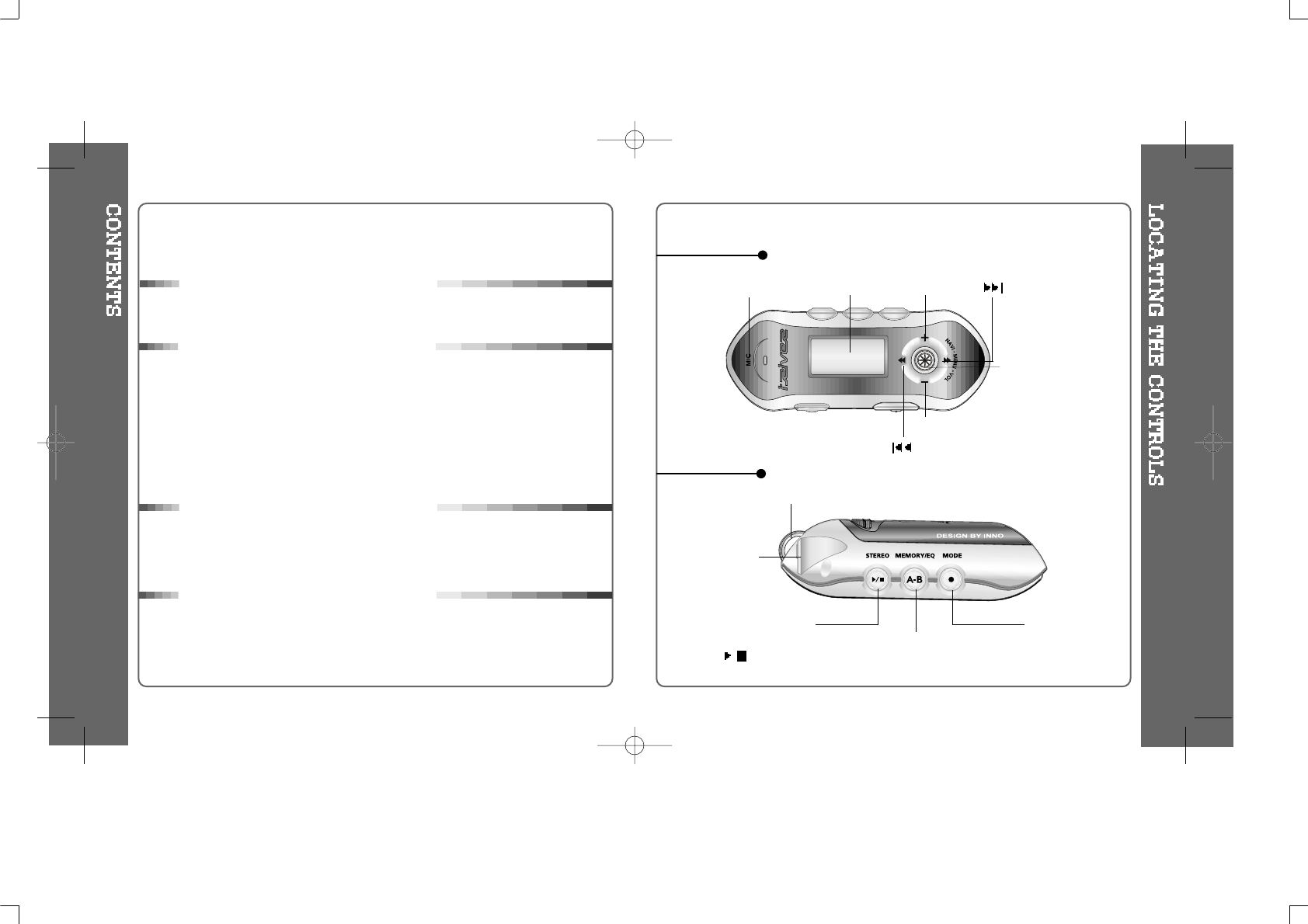
Neck Strap
MIC LCD Window Volume +
Volume -
NAVI/MENU
STEREO
Power ON/OFF
/(Play/Stop) MEMORY/EQ
A-B
Mode/REC
LINE IN
(iFP-340 is not built in)
45
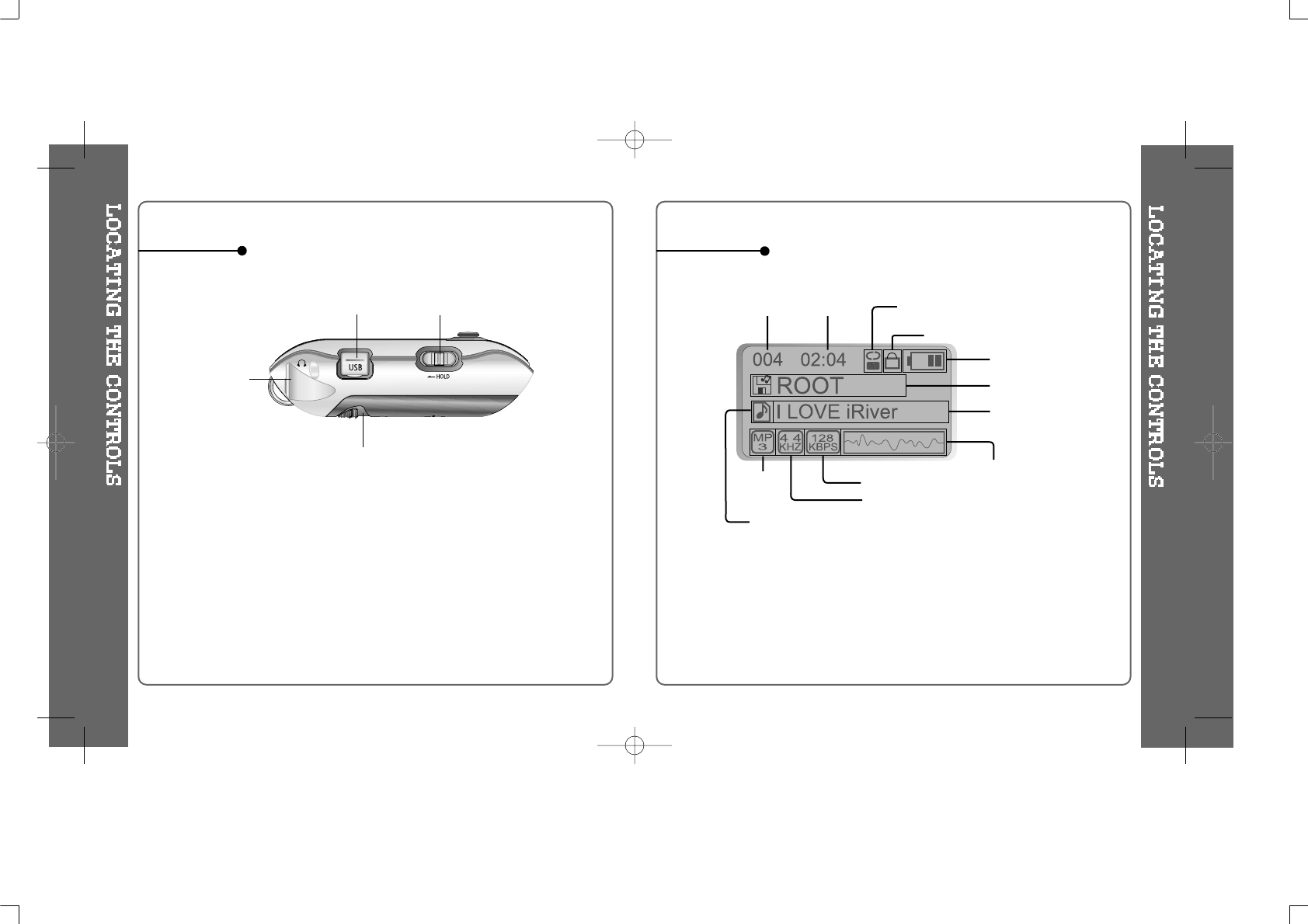
SIDE VIEW 2 LCD Window
THE ORDER
OF SONGS
BIT RATE
PLAY
TIME PLAYBACK MODE
BATTERY INDICATOR
VOLUME
EQUALIZER
WAVEFORM
FOLDER NAME
SAMPLE RATE
PROGRAM
FILE
FORMAT
ARTIST/TITLE NAME
HOLD
USB Connection Port Hold
Earphone
Battery Compartment
67
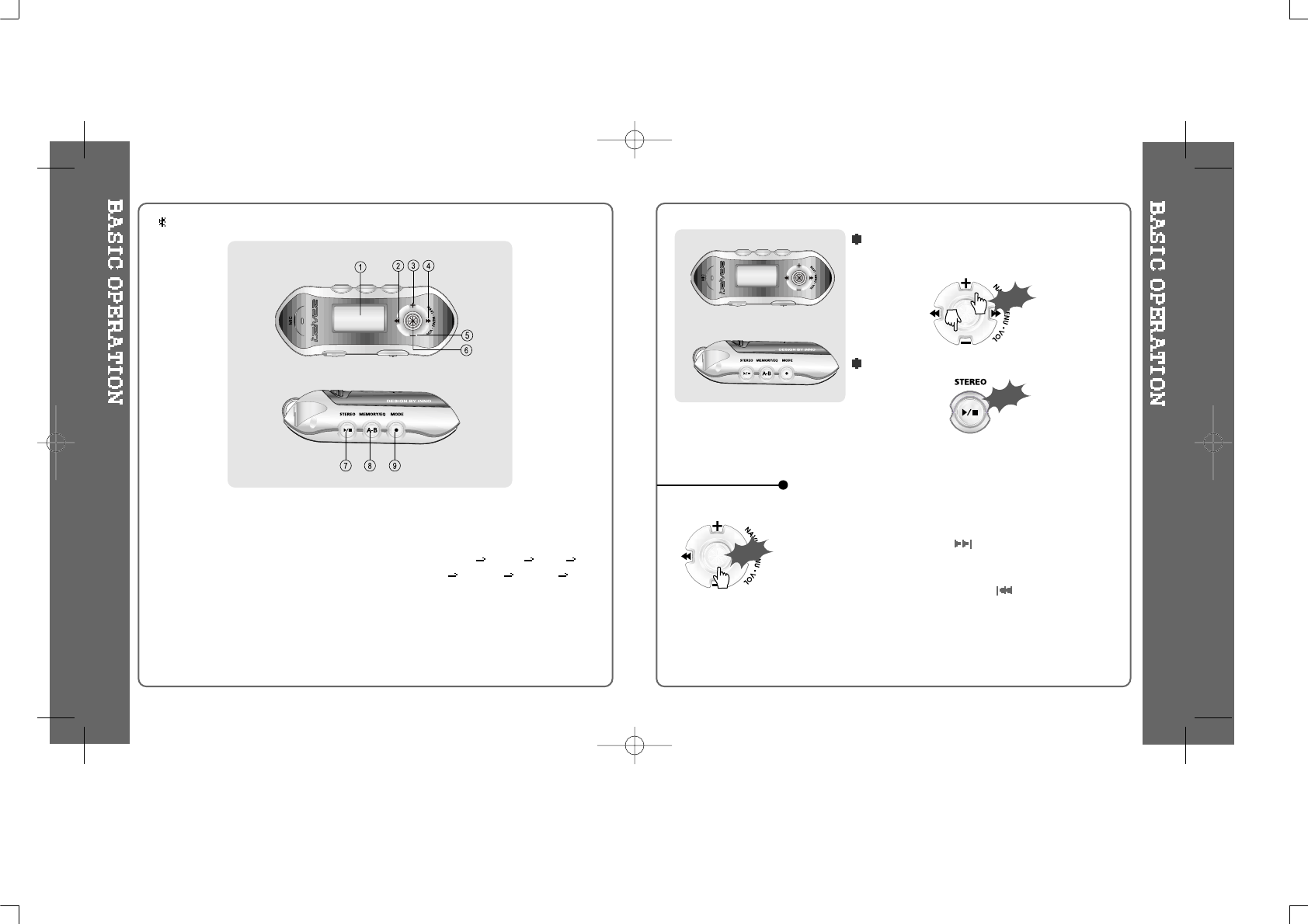
1. LCD window.
2. To select the previous music for
MP3 or station for FM.
3. To increase volume.
4. To select the next music for MP3 or
station for FM.
5. To decrease volume.
6. To select NAVI/MENU function.
7. To start or stop playback for MP3,
to select mode for FM or turn off.
8. To select EQ mode, A-B repeat or
memory stations for FM
automatically.
EQ:NORMAL ROCK JAZZ
CLASSIC UBASS METAL
Xtrm EQ
9. To select function, playback mode,
or record/stop recording.
Press NAVI/MENU button and find the desired track by
pressing the VOL + or VOL – button. To select the track,
press the NAVI/MENU button, or the PLAY/STOP
button.
To move to the upper folder, push the switch.
If there is no upper folder, NAVIGATION stops.
To adjust the volume
Press + on volume button to increase volume
and press – on button to decrease volume.
Selecting FM Mode when listening FM :
(Refer to page 34)
Push
Click
NAVIGATION
iFP-340 doesn’t feature FM Tuner or Line-in recording.
Click
89
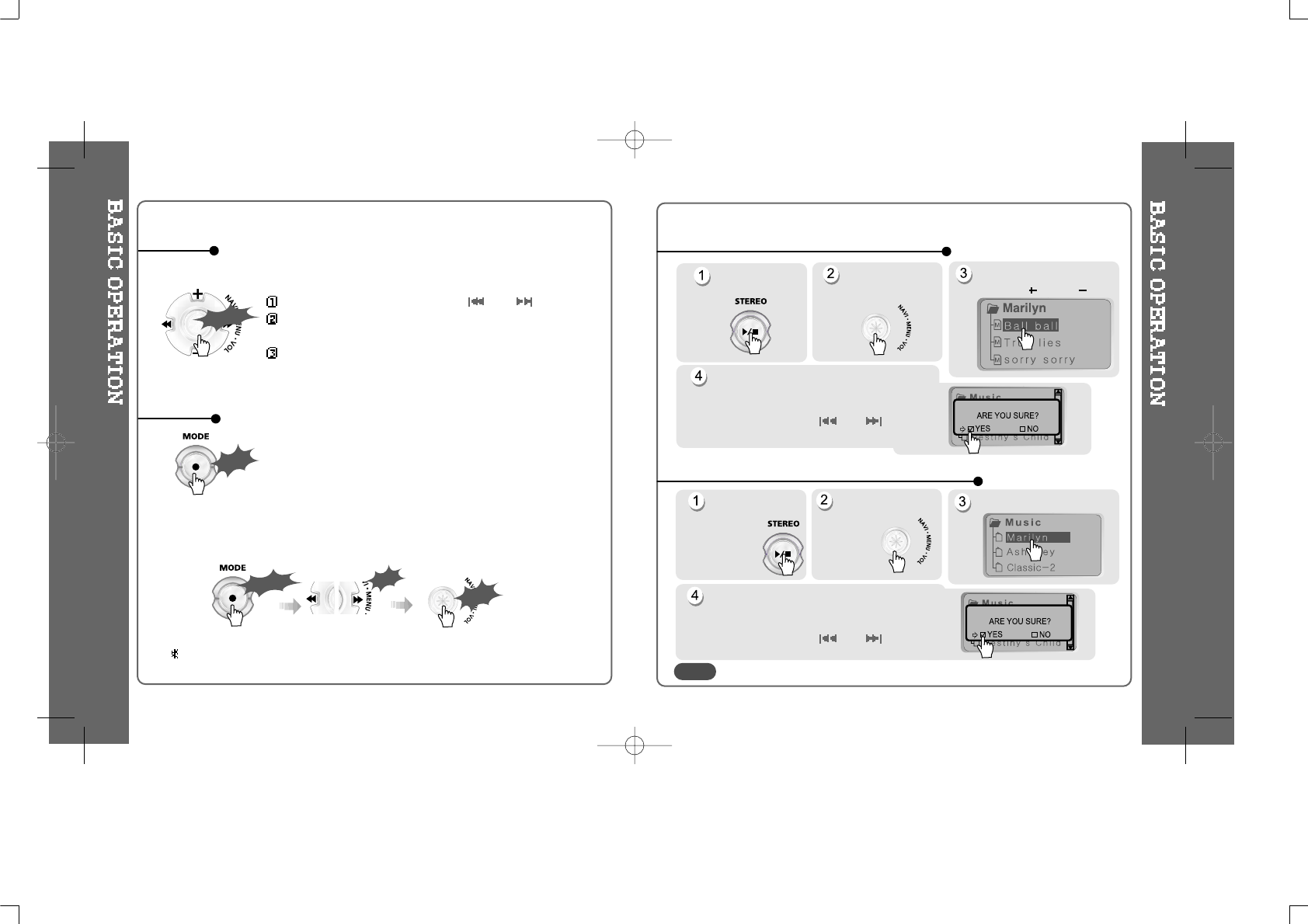
Scrolling between menus : Press and .
Exit : Push the VOL - switch down or hold down the
NAVI/MENU button.
Select Function: Press the NAVI/MENU button.
While an MP3 file is playing, press MODE/REC to activate
selected modes, such as Repeat or Shuffle.
MENU
MODE
Stop playback. Click the
“NAVI/MENU”
button.
Select the files to delete by
using VOL or VOL .
Click the “MODE” button.
“FILE DELETE ARE YOU SURE?” is
displayed on the LCD.
Select “YES”by using
and
to
delete. Then click NAVI/MENU button.
FILE DELETE
Stop playback. Select the folder to delete.
Click the “MODE” button.
“FOLDER DELETE ARE YOU SURE?” is
displayed on the LCD.
Select “YES” by using
and
to delete.
Then click NAVI/MENU button.
You can only delete a blank folder. In order to delete a folder, you must first delete the files in the folder.
FOLDER DELETE
Click the
“NAVI/MENU” button.
DELETING FILES ON THE PLAYER
DELETING FOLDERS ON THE PLAYER
NOTE
Long Click
A long press of
the
NAVI/MENU button will enter
the
menu system.
Long Click
Push
Click
Press and hold the MODE/REC button:
You can select MP3 or FM or voice or Line-in recording functions
(Play mode is automatically activated when MP3 is selected).
Click
iFP-340 doesn’t feature FM Tuner or Line-in recording.
10 11
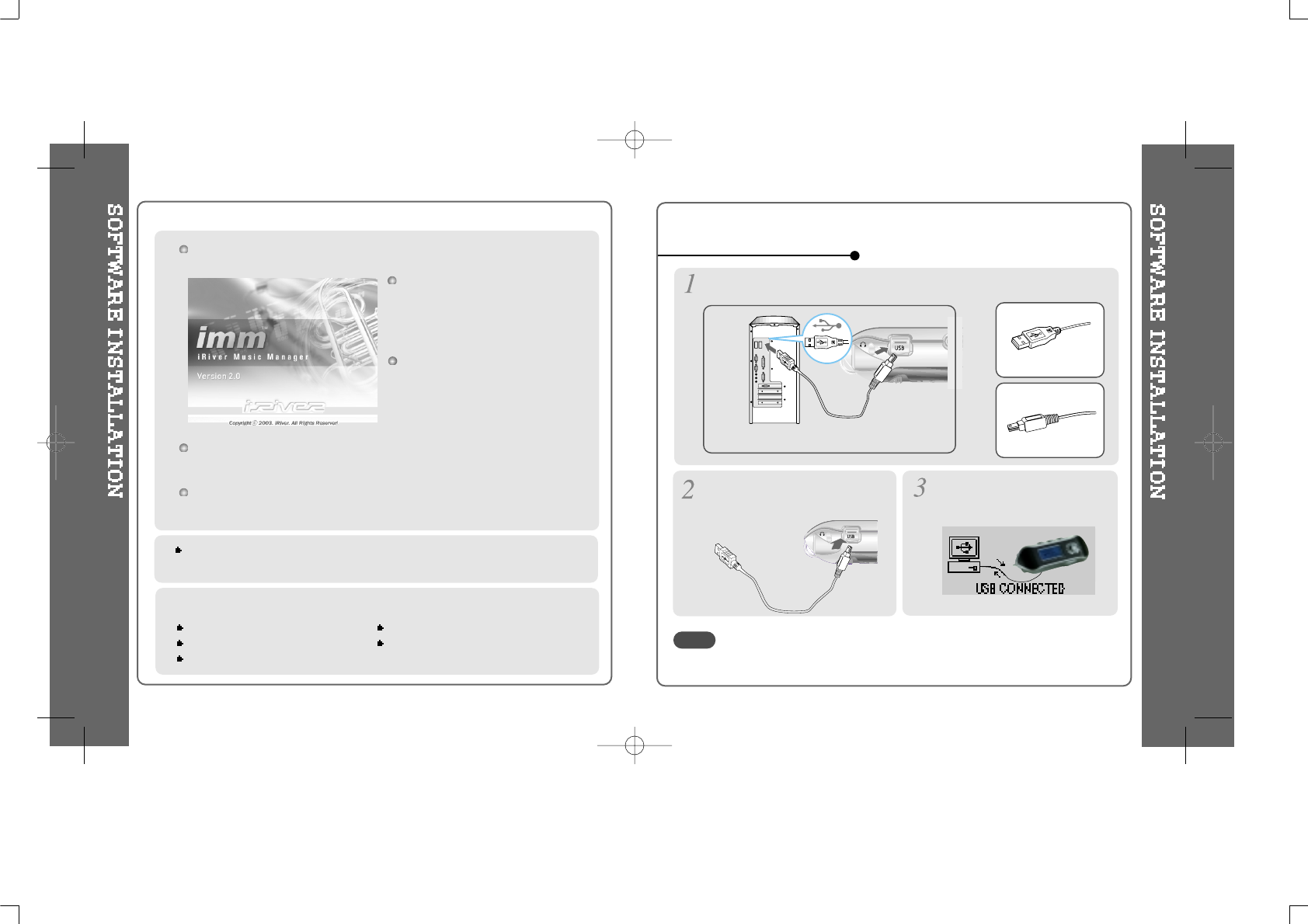
Insert the Installation CD into the CD-ROM drive. The following
screen appears after inserting the CD.
The player can store MP3 files or files of any type. You can upload files, other
than music (MP3, WMA, ASF), to the PC using the iRiver Music Manager
Program.
Download latest versions of drivers and iRiver Music Manager at
www.iRiver.com
The installation CD contains the
following contents :
- Device Driver
- iRiver Music Manager
System Requirements
Pentium 133MHz or faster CD-ROM drive
USB port 10MB free hard disk space
Window 98SE / ME / 2000 / XP
If installation doesn't automatically
begin, execute the "setup.exe" file of
the installation CD. The installation
program will begin.
The users having O/S more than Microsoft Windows 2000 are recommended to log
in as Administrator privileges and install iRiver Music Manager.
Connect the USB cable to the PC after playback stops to avoid errors.
Connect the USB cable (provided) to the USB port of your computer.
Type “A”
Type “B”
USBportonthePC USBportontheiFP-300Series
USB cable
Type “A”
Type “B”
Turn on the player, remove the
protective cover of USB port, and
connect the USB cable.
“USB CONNECTED” will appear on
the LCD of the player.
To install “New hardware”
NOTE
12 13
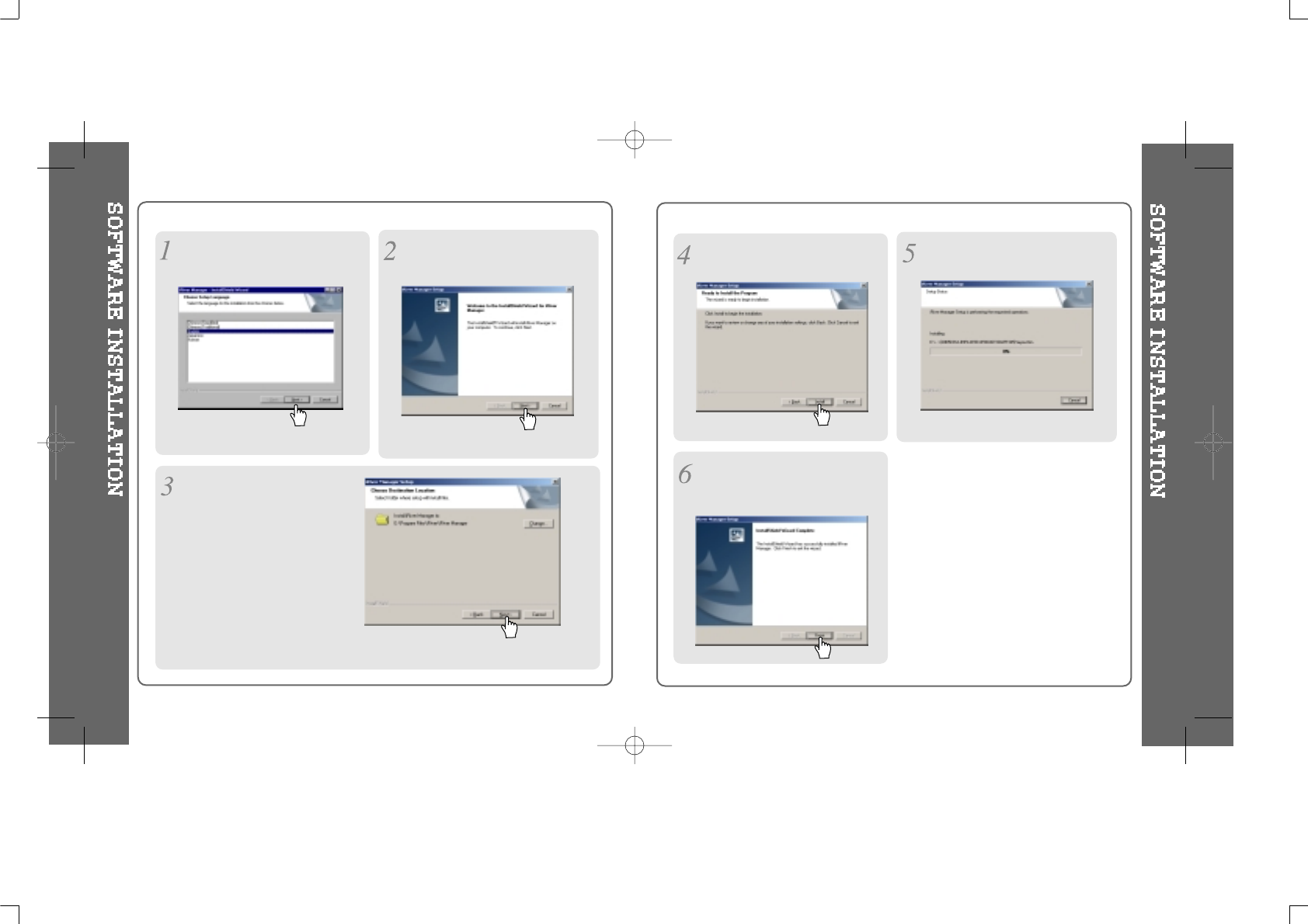
Click “Next” to Install iRiver Music
Manager.
Click “Next” after selecting the
language to install.
Select the folder to Install.
Click “Next”.
Installation is progressing.
Click “Install” to install.
Click “Finish”
Completed the installation of “New
hardware”.
14 15
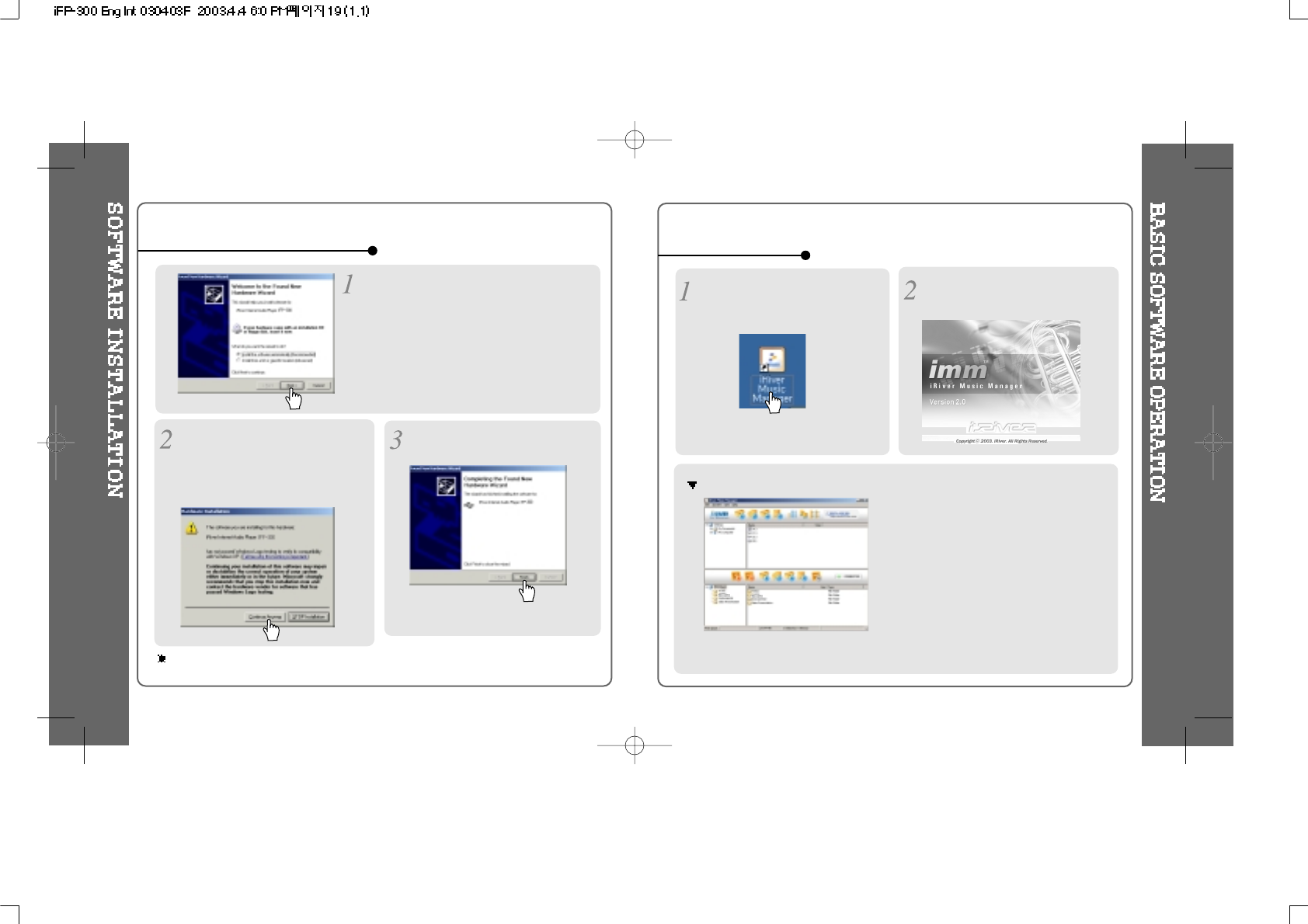
After installation of Manager that is included in
the install CD and connect your player with PC,
the pop-up window like left image comes up.
Select 'Install the software automatically
(Recommended)' and click 'Next'.
When installing in Windows XP 1. Basic operation
IRiver Music Manager version installed
is displayed.
Initial activated iRiver Music Manager window
Double click the iRiver Music Manager
icon on the PC to start the Manager
program.
16 17
When the warning screen like below
image pops up, please click 'Continue
Anyway'. (The CD comes with iRiver
player is iRiver's official software to
ensure the safe installation of product.)
Click 'Finish' will complete the new
hardware installation.
O/S with windows 98 se, windows me, windows 2000 do not have to install device driver
with separate.
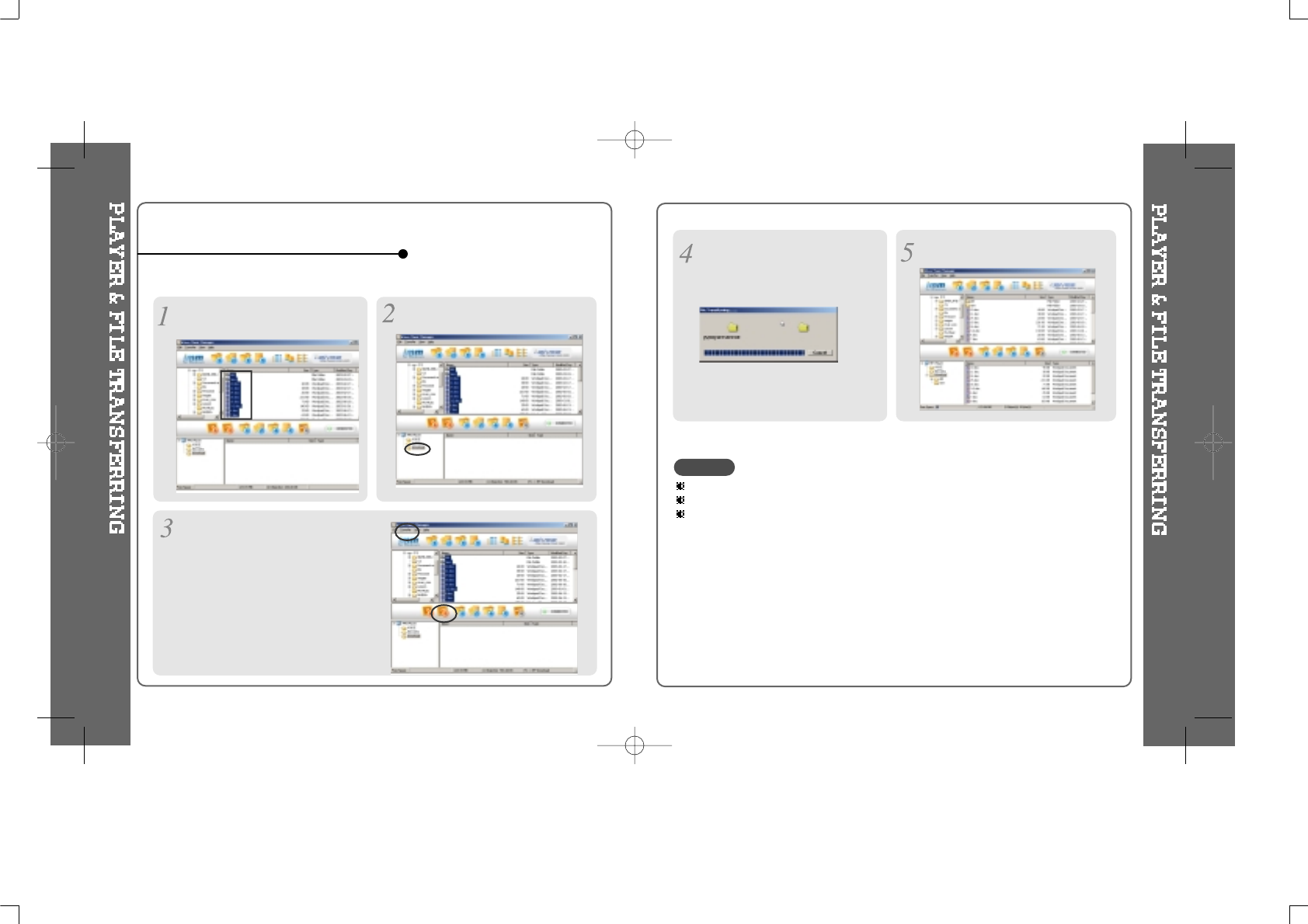
1) Downloading from the PC
Activate the Manager program after connecting the USB cable between the player and PC.
Select the folders or files on the PC to
transfer to the player. Select the destination folder on the
player.
2. PLAYER & FILE TRANSFERRING
Click the “Download” icon or select
“Download” in the Transfer menu to
transfer the selected files to the player.
Files with a name over 127 English characters (Korean: 63 characters) will not transfer.
Files over 511 English characters (including path name and file names) will not transfer.
The ROOT folder is limited to 1024 (iFP-340 : 256) files and folders total.
Subfolders do not have a limit to the number of files.
Download is processing. Download is completed.
CAUTION
18 19
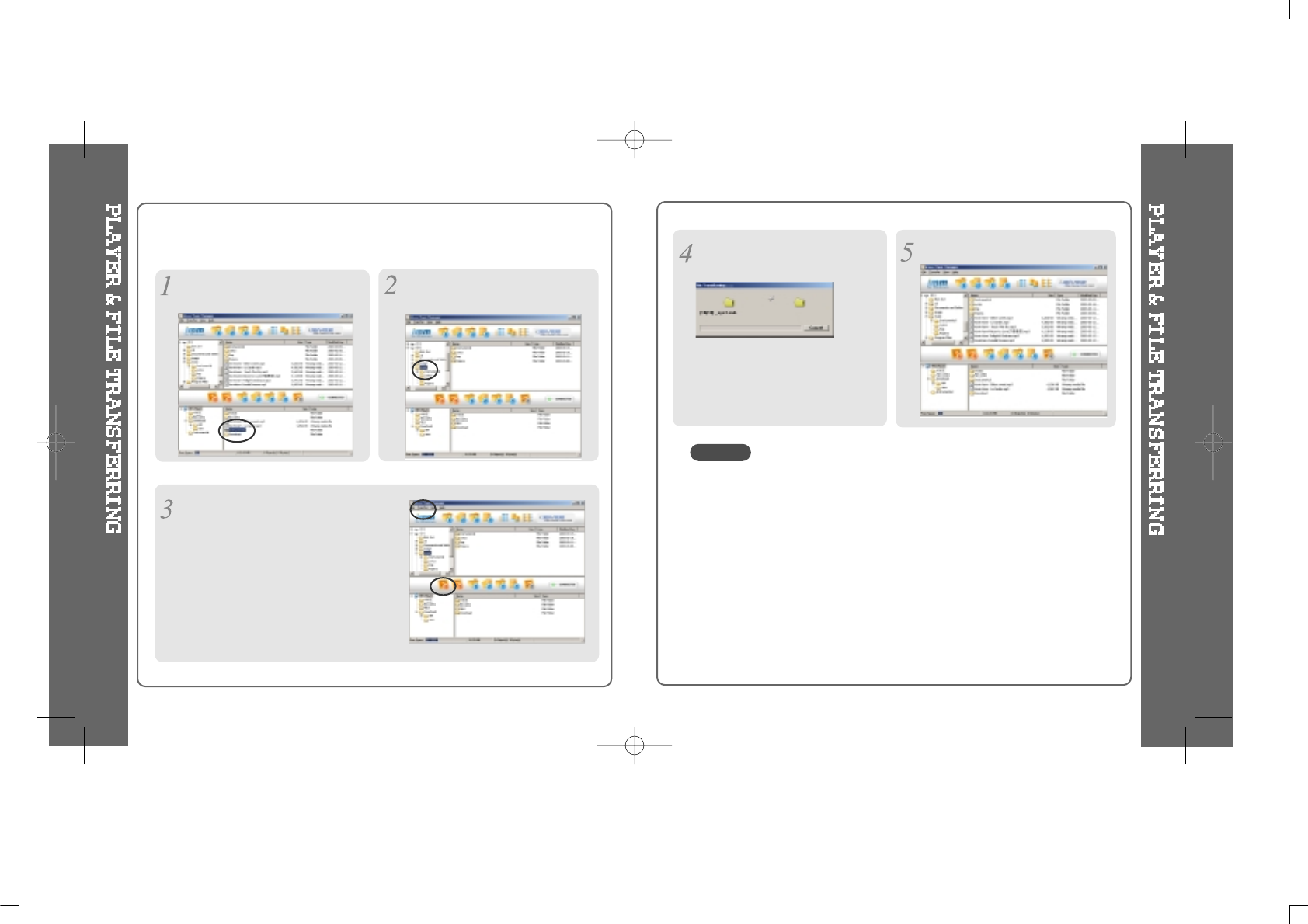
2) Uploading to the PC
Activate the Manager program after connecting the USB cable between the player and PC.
Select the destination folder on the PC.
Click the “Upload” icon or select “Upload” in
the Transfer menu to transfer the selected
files from the player to your PC.
Select files or folders in the player
to save.
- Music Files (MP3, WMA, ASF) can be uploaded from the player to the PC in accordance
with current copyright laws.
- You can upload recorded FM, Line in, or Voice files to your PC as well as any data files.
Music files (MP3, WMA, ASF) may not be transferred to your PC from the player.
Upload is completed.
Upload is processing.
CAUTION
20 21
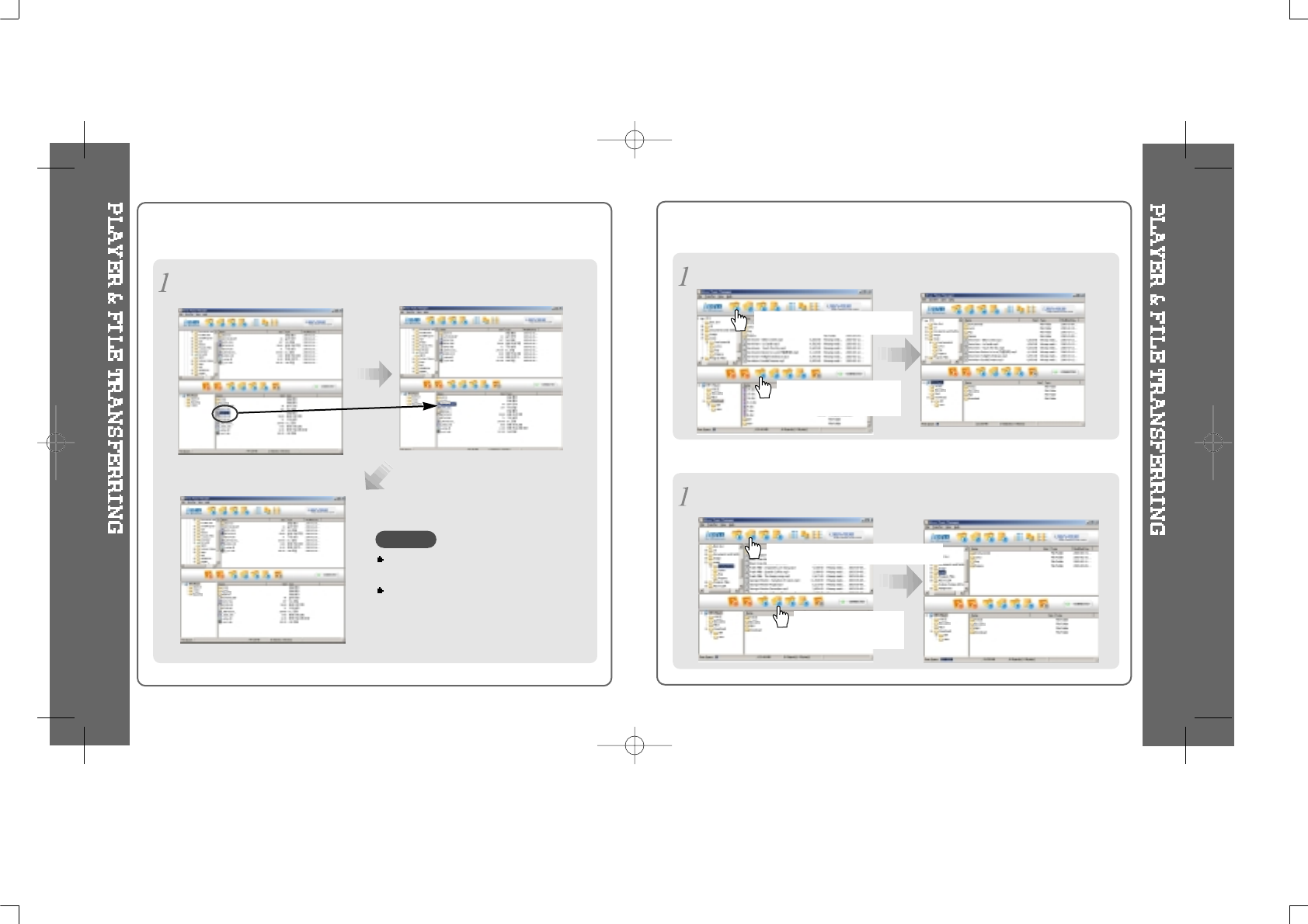
3) Change position of folders or files on the player
Left
Click &
Drag
Click and Drag to move folders or files to the desired location.
4) Moving to upper folder (PC & Player)
Move to upper folder on the PC
Move to upper folder on
the player
Click the “Refresh” icon
to display the contents of the PC or player.
5) Refresh (PC & Player)
Refresh to current folder on the PC.
Refresh to current
folder on the player.
Click the move to “upper folder” icon in the menu bar of the iRiver Music Manager.
Only one file or one folder moving is
allowed.
Moving more than one file or folder is
not allowed.
NOTE
22 23
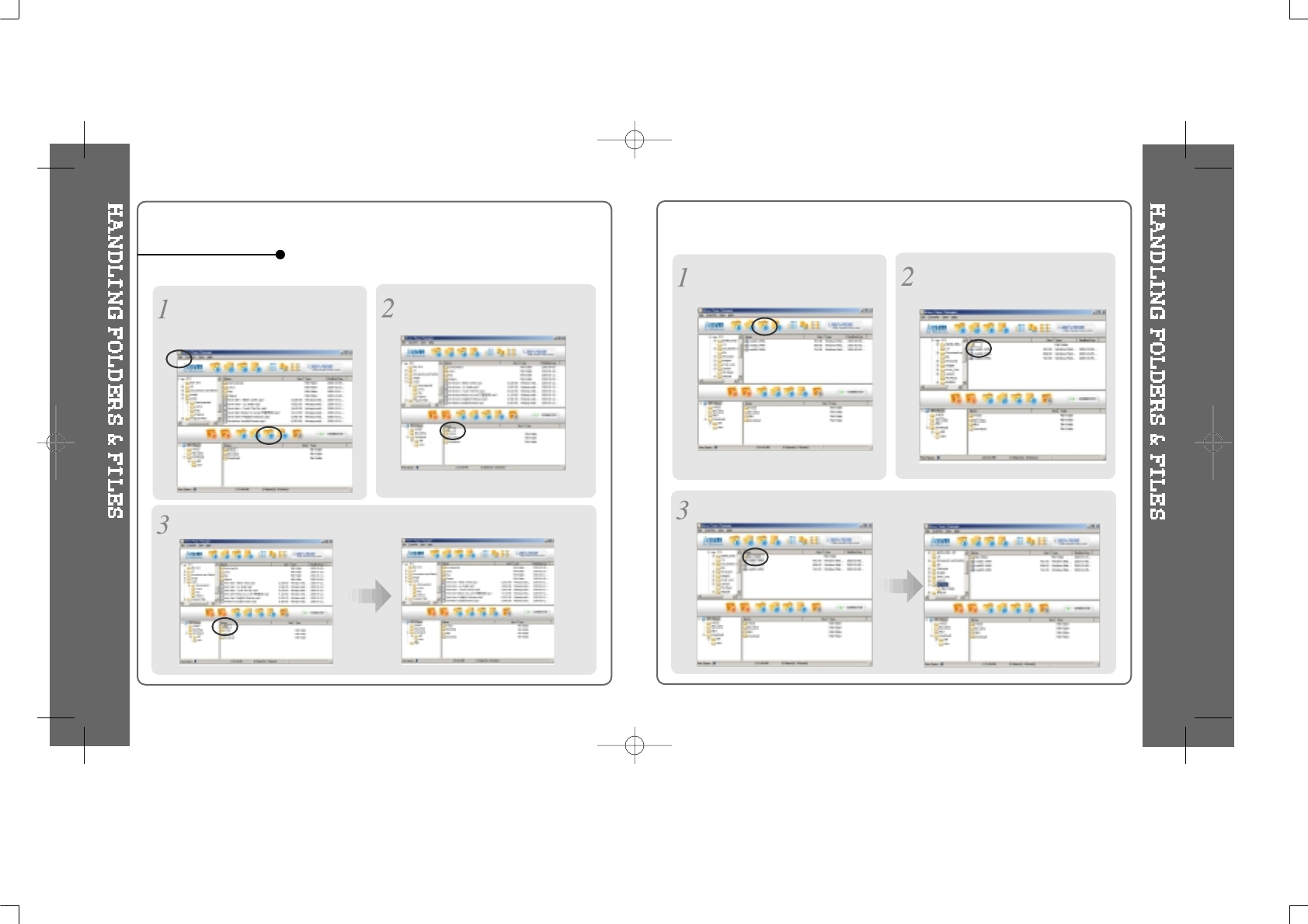
1)Tomakeanewfolderontheplayer
Type the name in the new folder.
3. Managing files
New folder is created.
Click the “New Folder” icon or select
“File-New folder” in the file menu to
make a new folder.
2) Making new folders on the PC
Type the name in the new folder.
New folder is created.
Click the “New Folder” icon to make a
new folder.
24 25
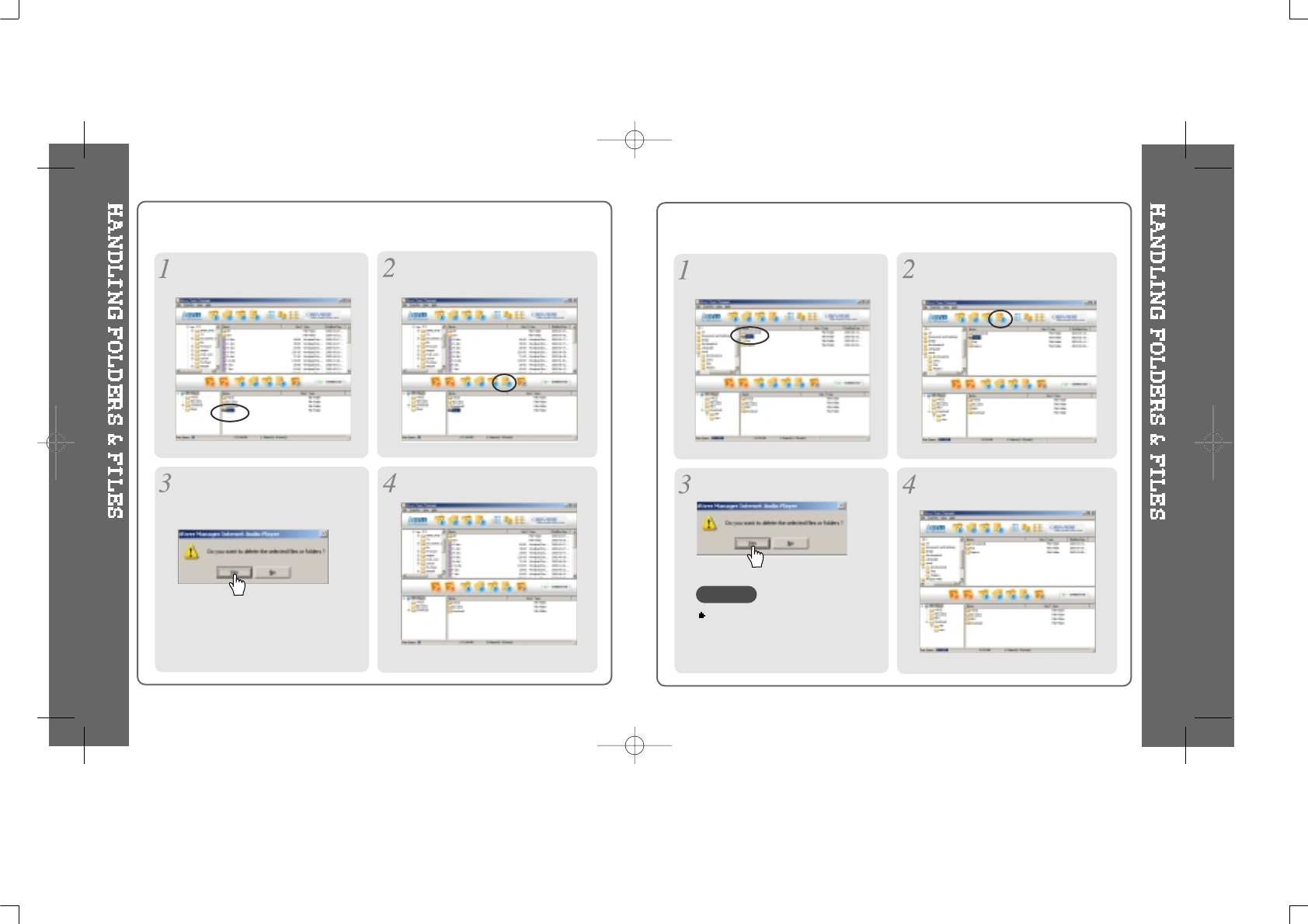
3) Deleting folders or files of the player
After starting the “Manager” program,
select the files or folders to delete. Click the “Delete” icon or the menu
option "File-Delete".
Files are deleted.
4) Deleting folders or files of the PC
After starting the “Manager” program,
select the files or folders to delete.
Delete is completed.
Click the “Delete” icon.
Click “Yes”.
Click “Yes”.
Note this will delete files
permanently from your hard drive.
Use with caution.
NOTE
26 27
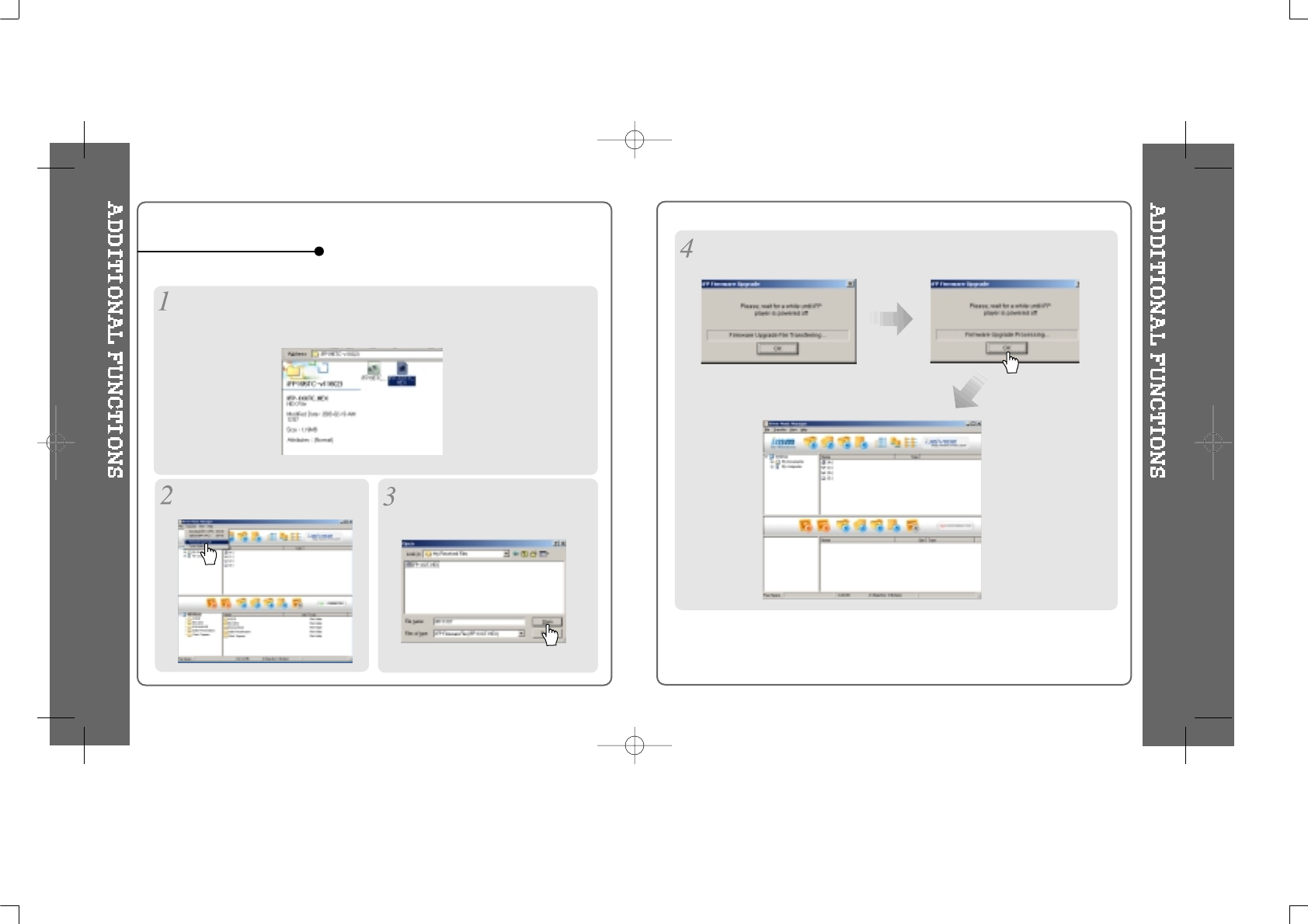
1) Upgrading the firmware
Download the latest Firmware from our website.
Unzip it. Execute the “*** .EXE” file. IFP-3XXT.HEX or IFP-3XX.HEX (for iFP-340
only) file is created.
4. Additional functions
Click the "Transfer-Firmware Upgrade"
menu option. Locate and select the IFP-3XXT.HEX
or IFP-3XX.HEX file then click Open.
The window below is displayed as the firmware upgrade is processing.
Click “OK” after the player turns off.
28 29
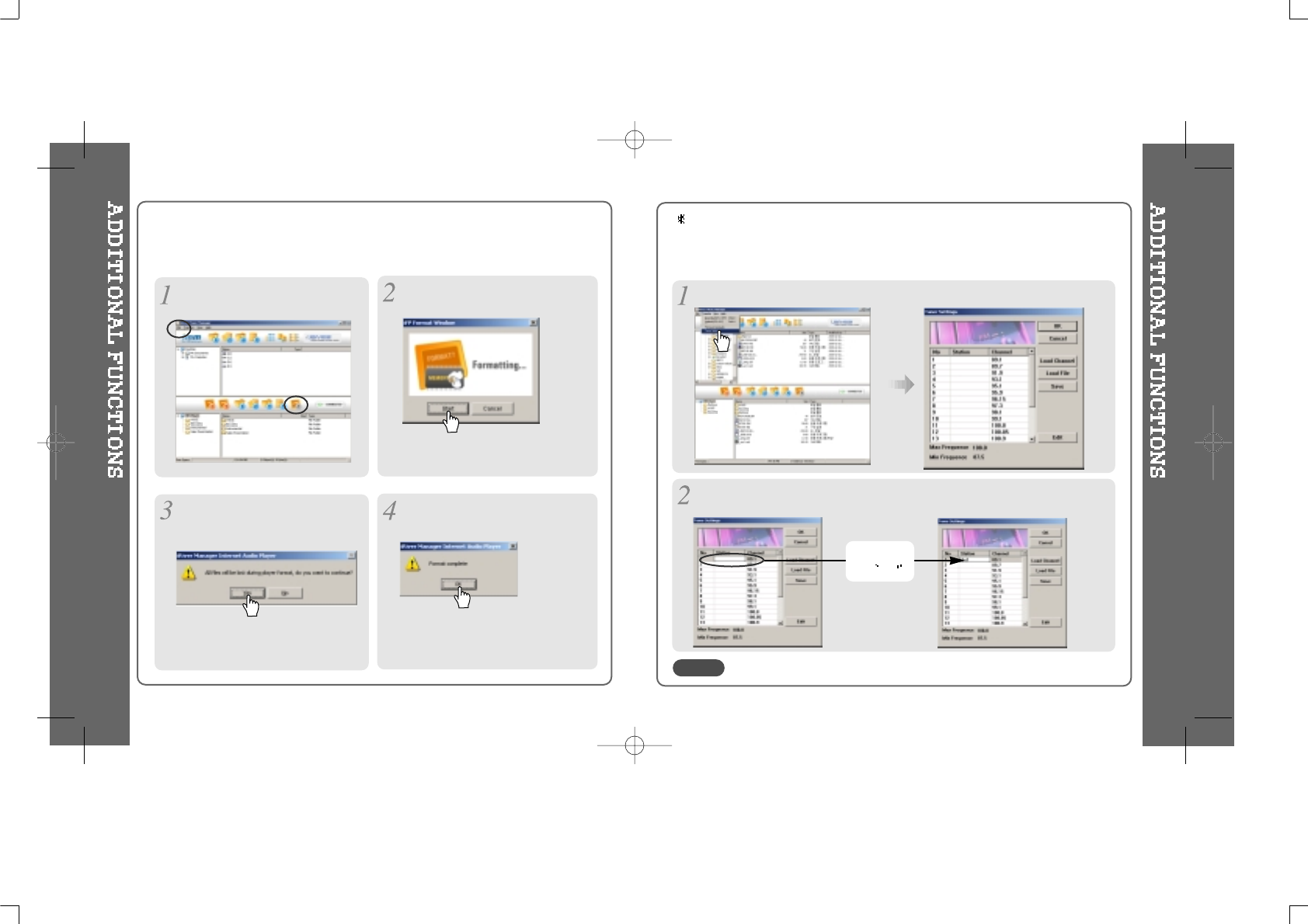
2) Format
Format will erase all files in your player memory.
Click “Start”.
The alert below is displayed. Click
“Yes” to initialize. Format is completed.
Click the “format” icon or select “File-
format”
in the file menu to format.
You can edit the list of your FM stations.
You can also load and save different preset files.
3) Modifying the Radio Stations
You can modify the FM Radio stations with the iRiver Music Manager.
Select “Transfer-Tuner Setting”
in the menu to modify radio channels.
Left Click
Or Edit
NOTE
The station name cannot exceed 6 characters including alphabet and number.
iFP-340 doesn’t feature FM Tuner or Line-in recording.
30 31
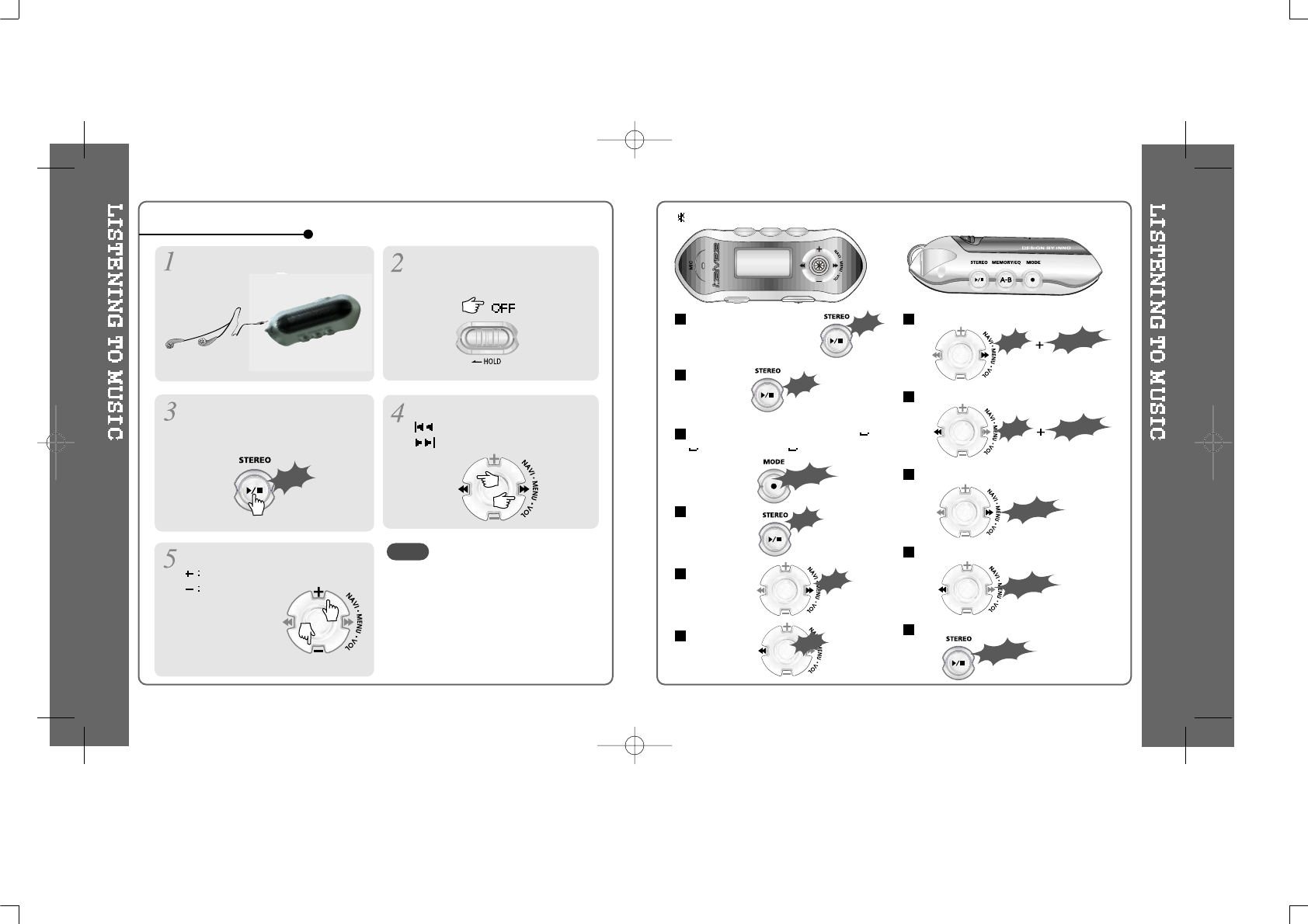
Put the HOLD switch to “OFF”.
Press the PLAY/STOP button to
turn on the player.
Press it again to play.
To select music
: To select previous music
: To select next music
Click
To adjust the volume
To increase volume
To decrease volume - When "Hold" is ON, the buttons on the
player will not function.
- In case of stop status of MP3 or standby
status of Voice recording, the player
automatically turns off according to the
setting of “STOP POWER OFF” on the
MENU.(Refer to page 58)
Connect the earphones as shown
below.
NOTE
Listening to music
To turn on the player
To play
To change the function (MP3 FM
Voice recording LINE IN)
To stop
To advance
To reverse
To play the next folder
To play the previous folder
To fast forward
To fast reverse
To turn off the player
Long Push
Long Push
Click
Long Click
Click
Push
Long Push
Long Push
Long Click
Push
Click
Push
Push
iFP-340 doesn’t feature FM Tuner or Line-in recording.
32 33
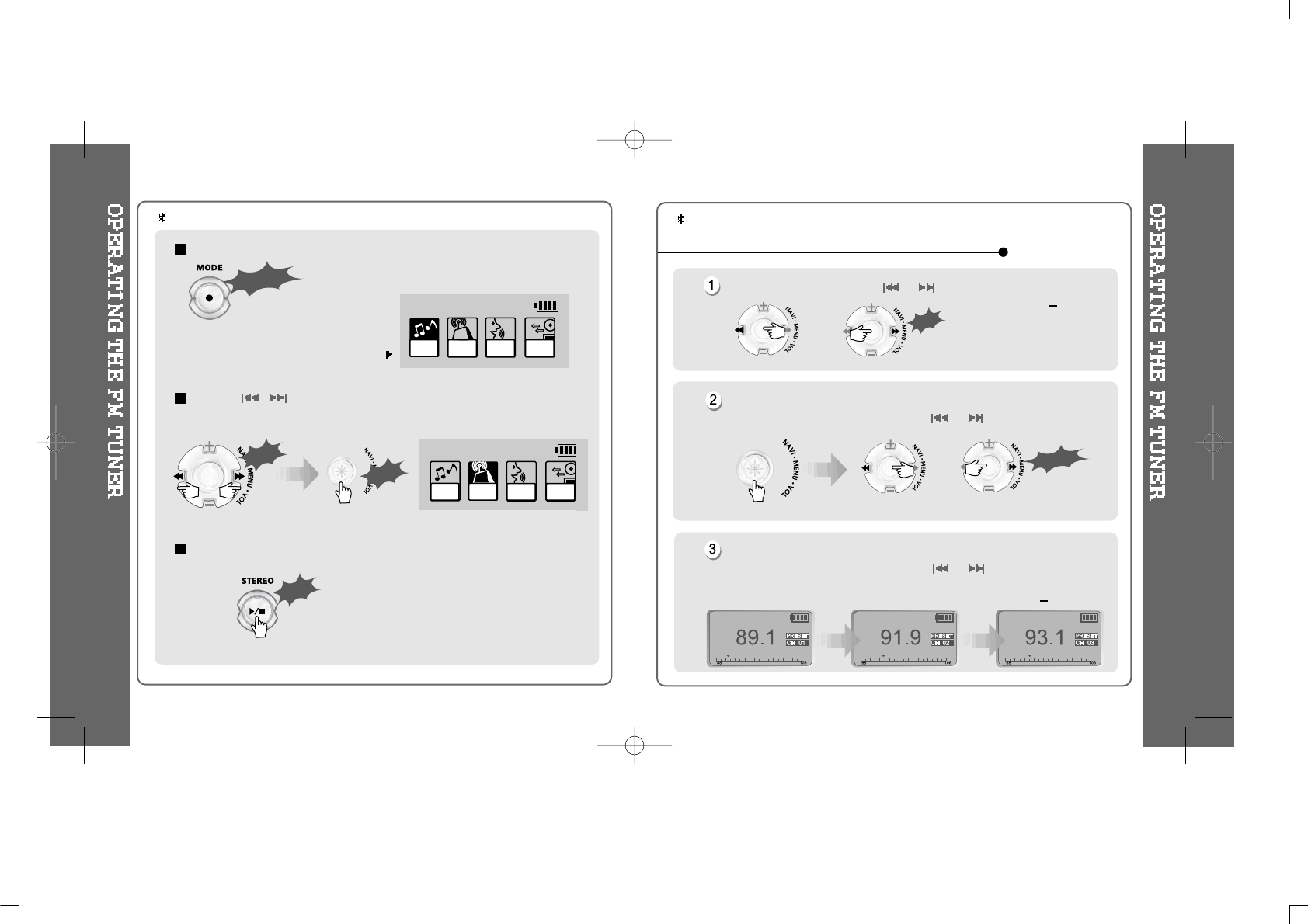
While playing MP3, Press and hold the MODE/REC button.
The function selection graphic displays
on the LCD.
Push the
,
buttontoselectFMRADIO.
Press the NAVI/MENU button to confirm.
Press the STEREO/PLAY/STOP button to select Stereo/Mono.
MP3 FM
RADIO VOICE LINE
IN
Push
Click
Long Click
Click
VOICE LINE
IN
MP3 FM
RADIO
To change frequency, push the or switch to the left or the right.
Auto Scan function: To select a memorized station, press the Navi/Menu
button and find the station by pushing the or switch to the left or the
right.
PRESET Mode : To select a station saved in memory, press the Navi/Menu
button and find the station by pushing the or switch to the left or the
right.
(ex : 87.5 87.6)
(ex : 89.1 91.9)
Push
or
Long Push
or
Tune to your favorite station (FM 87.5~108MHz)
iFP-340 doesn’t feature FM Tuner or Line-in recording. iFP-340 doesn’t feature FM Tuner or Line-in recording.
34 35
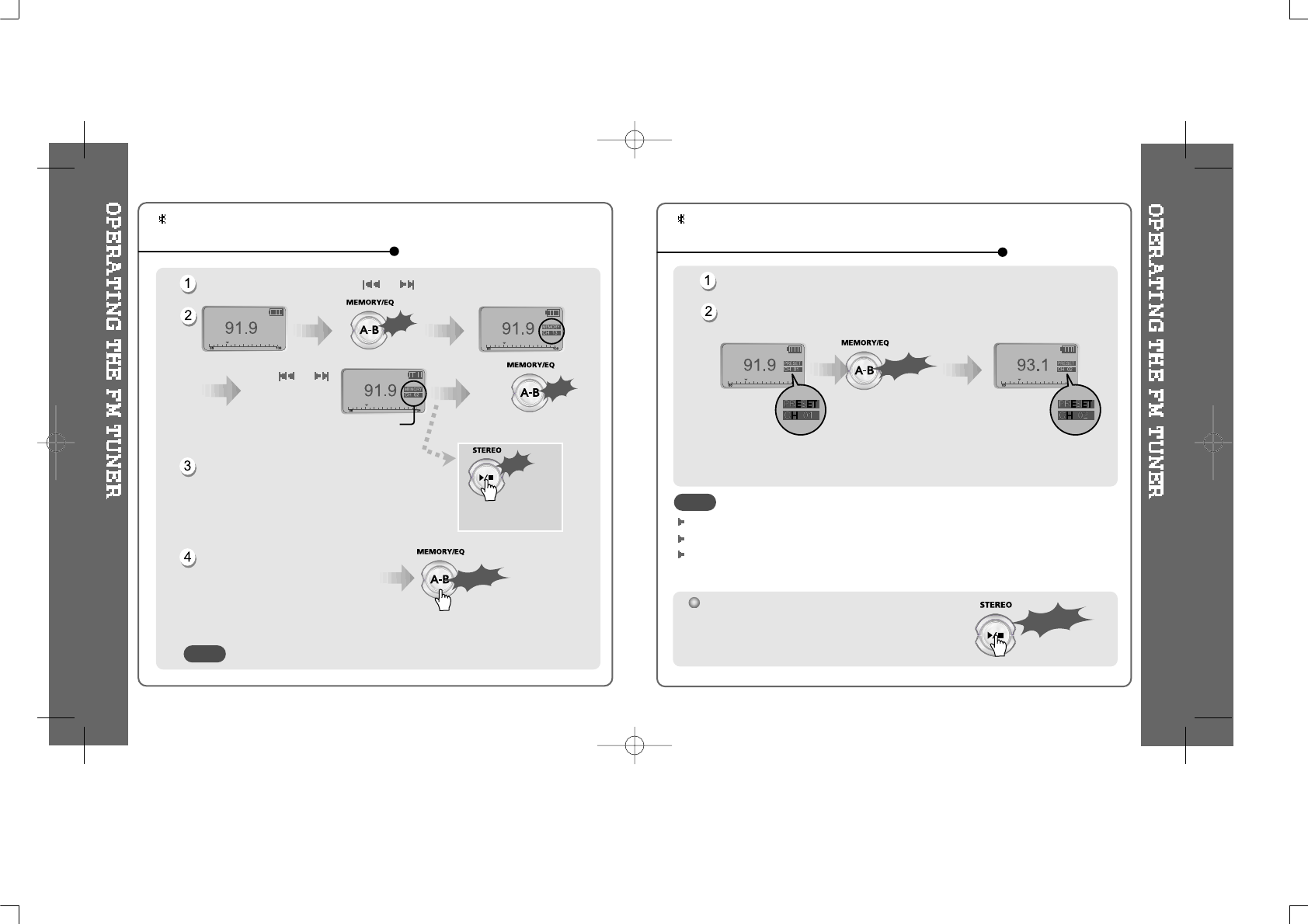
Select the station by pushing the
or
switch to the left or the right.
Up to 20 stations can be saved.
Auto memory function :
Automatically select stations
and save them in sequential
order.
(It only activates while the player is not in PRESET mode)
Auto memory may not work within weak transmission areas.
Push
or
and select the
desired stations.
Select CH02
Save complete
again
will exit the
memory function
without saving.
Click
Click
Long Click
Click
Memory Function (Save stations)
Select the station to be deleted at preset mode
Press and hold the memory button.
- The next station will appear when station delete is completed.
Push the memory button if you also want to delete the next station.
FM Tuner reception may vary in different areas.
While in Preset mode, auto scan and auto memory functions are not available.
When the player doesn’t have any preset stations, EMPTY will be displayed at
preset mode then fade out.
Press the PLAY/STOP button to turn the player off.
Long Click
Long Click
Memory delete function (Delete saved stations)
NOTE
NOTE
iFP-340 doesn’t feature FM Tuner or Line-in recording. iFP-340 doesn’t feature FM Tuner or Line-in recording.
36 37
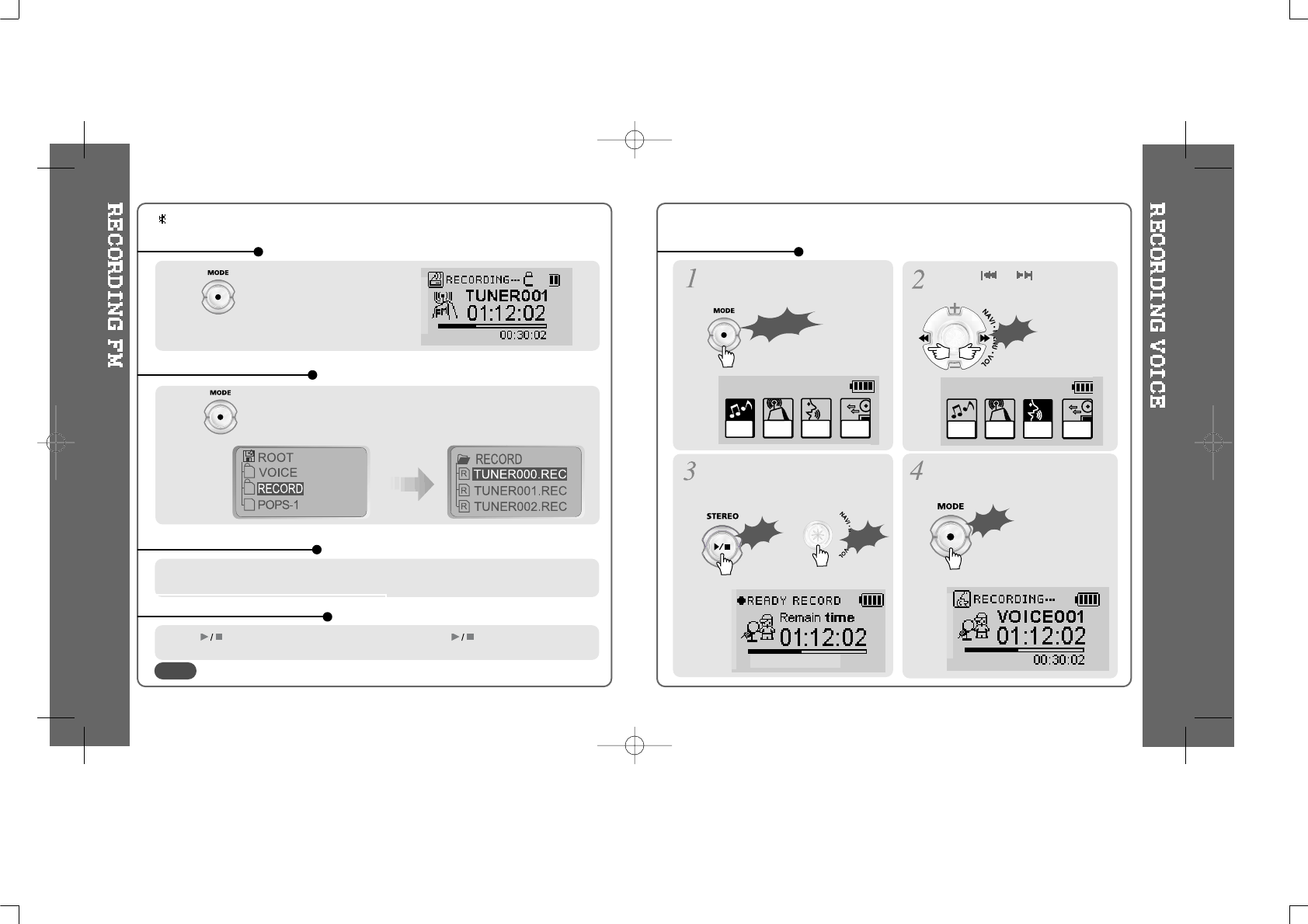
Press the MODE/REC button during FM
reception.
Press the MODE/REC button again to stop recording.
The recorded file is saved as TUNER000.REC.
It is saved in the RECORD folder.
To record FM
To stop FM recording
To play a recorded file
To pause FM recording.
After changing to MP3 mode, select a Tuner file in the RECORD folder, press the
PLAY/STOP button.
Press button to pause the recording process. Press button again to restart
recording.
Volume can not be controlled while recording.
MP3 FM
RADIO VOICE LINE
IN VOICE LINE
IN
MP3 FM
RADIO
MONO 32KHz 32KBPS
Press and hold the MODE/REC
button.
Press the NAVI/MENU button (or
PLAY/STOP) to go to Voice recording
mode.
Press the MODE/REC button and
voice recording starts.
Press the
or
switch to select
Voice mode.
Long Click
Push
Click
Click
Click
or
Recording Voice
NOTE
iFP-340 doesn’t feature FM Tuner or Line-in recording.
38 39
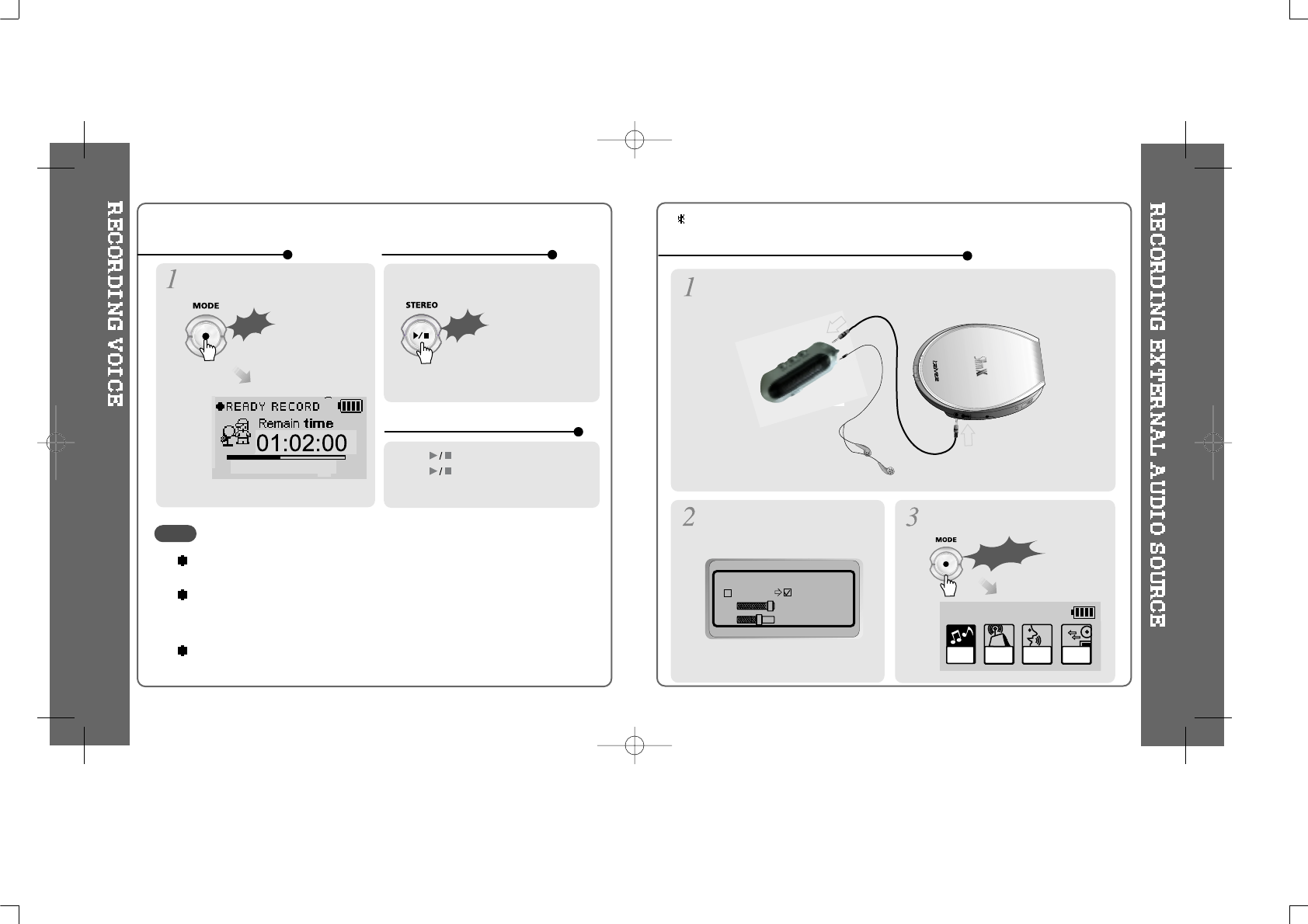
Click
MONO 32KHz 32KBPS
Click
The recorded file is saved as VOICE000.REC in the VOICE folder.
If “00:00:00” is displayed on the LCD, the player’s memory is full. To record, delete
files and/or folders on the player to make some space available.
(Refer to page 11, 26)
Keep the player far enough away from the source to avoid distortion in the recording.
Press the MODE/REC button. Press the PLAY/STOP button.
Press button during recording.
Press button again to restart
recording.
To stop recording To play a recorded file
To pause voice recording
Connect LINE OUT jack of the external equipment to LINE IN jack of the
player.
LINEIN RECORDING MODE
MONO STEREO
44.1KHz
128KBPS
Set “Line In Recording Mode” in
the MENU.(Refer to p. 60 for
details)
MP3 FM
RADIO VOICE LINE
IN
Press and hold the MODE/REC
button.
Long Click
Recording from the external audio source
NOTE
iFP-340 doesn’t feature FM Tuner or Line-in recording.
40 41
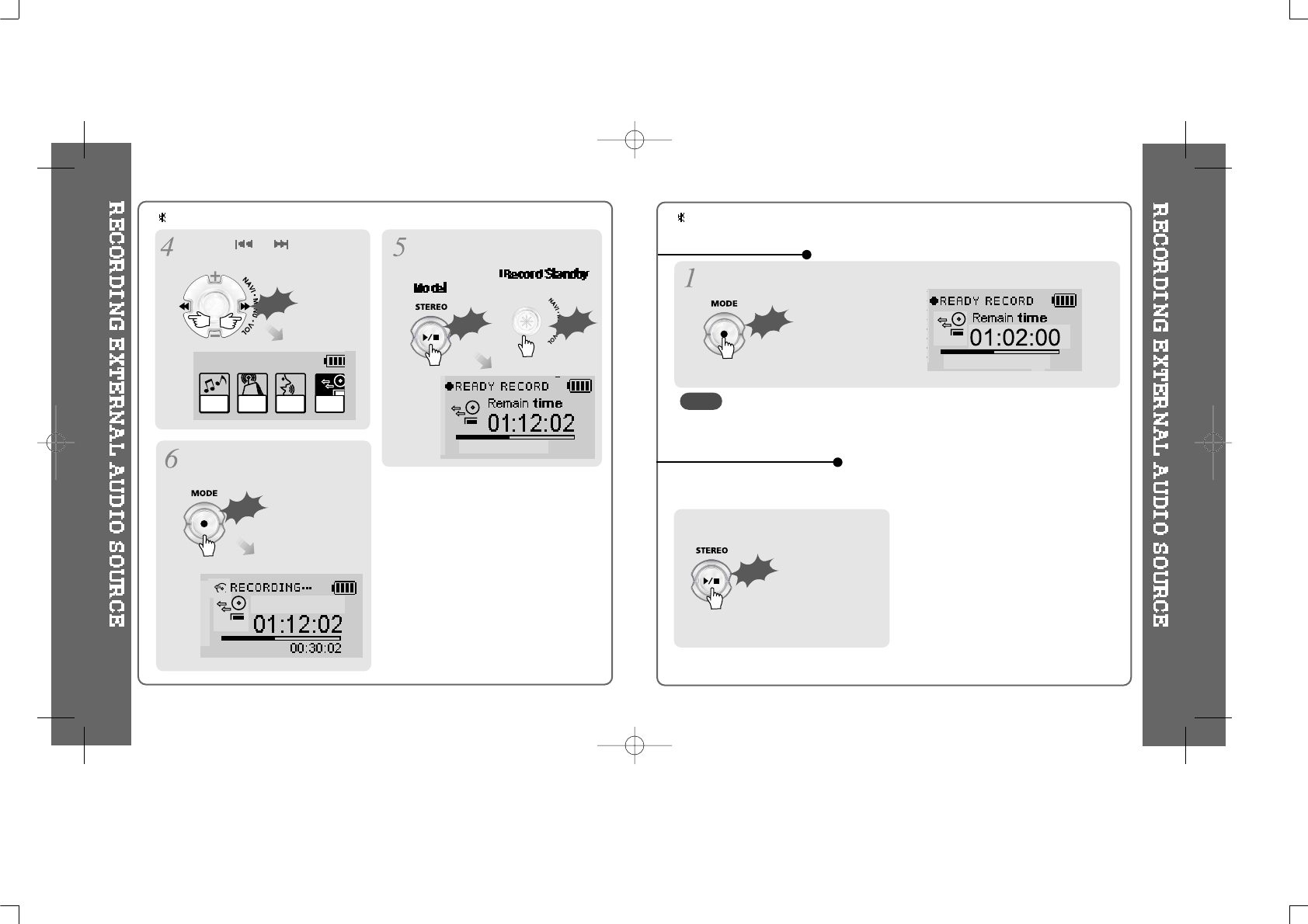
STEREO 44.1KHz 128KBPS
Press the NAVI/MENU button (or
PLAY/STOP) to go to Line-In
recording mode.
Press the MODE/REC button and
voice recording is started.
AUDIOOO1
Click
Click
Click
or
VOICE LINE
IN
MP3 FM
RADIO
Press the
or
switch to
select Line-In mode.
Push
To play a recorded file
STEREO 44.1KHz 128KBPS
Click
Press the MODE/REC button.
To stop recording
The recorded file is saved as AUDIO000.REC, AUDIO001.REC... in
sequential order. It is saved in the RECORD folder.
NOTE
iFP-340 doesn’t feature FM Tuner or Line-in recording. iFP-340 doesn’t feature FM Tuner or Line-in recording.
Click
Press the PLAY/STOP button.
< Method 1>
42 43
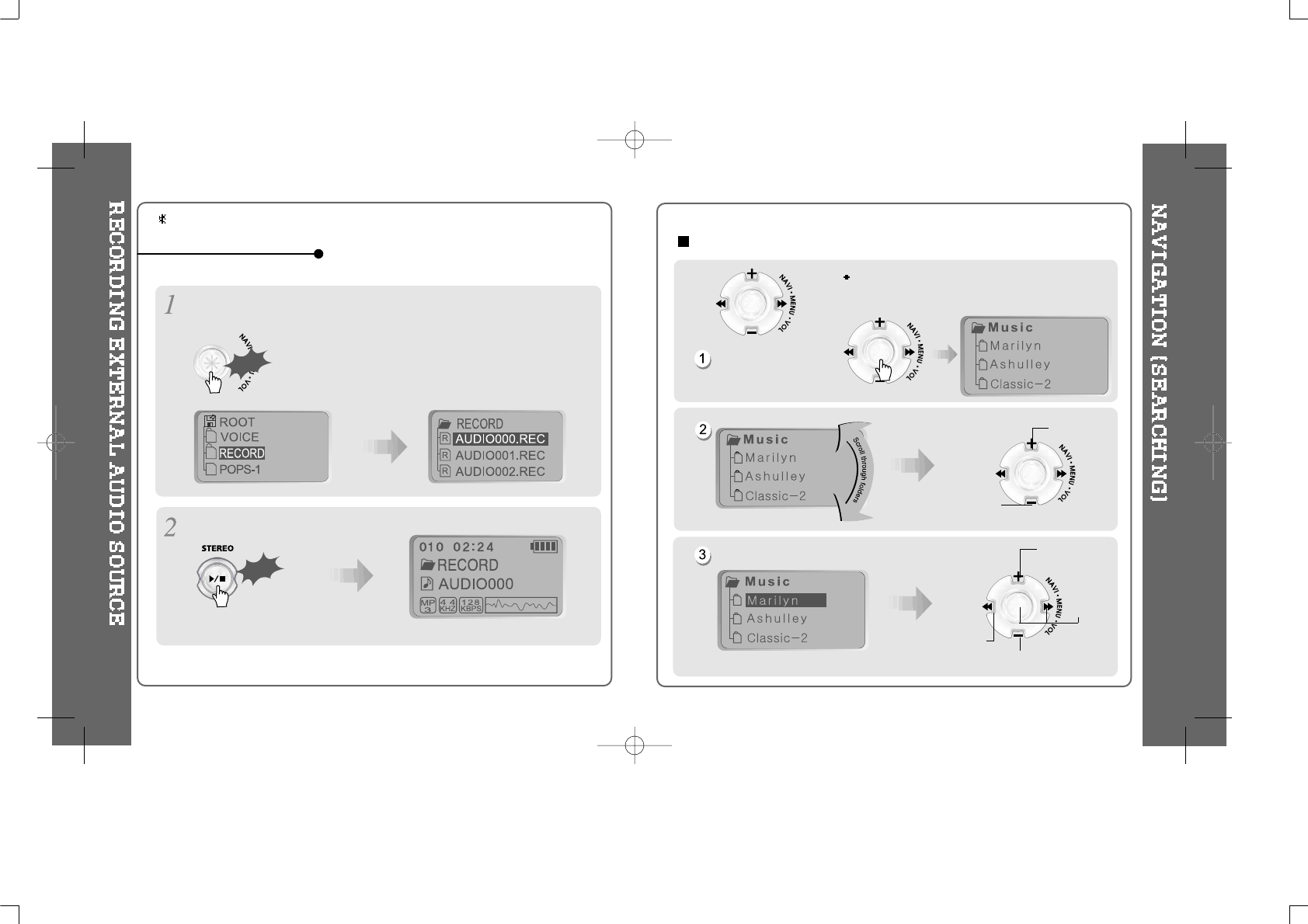
After pressing the NAVI/MENU button, select a recorded file using
VOL +
or
VOL -
button.
Click
Click
Press the PLAY/STOP button.
Navigation is the function used to search for tracks.
You can select a song by pressing the
NAVI/MENU button and using the VOL +,
VOL - buttons.
NAVI/MENU button
Scroll up
Scroll down
Select Folder or Scroll to Upper Folder
Select upper folder
Scroll up
Select
folder or
file
Scroll down
iFP-340 doesn’t feature FM Tuner or Line-in recording.
To play a recorded file
< Method 2>
44 45
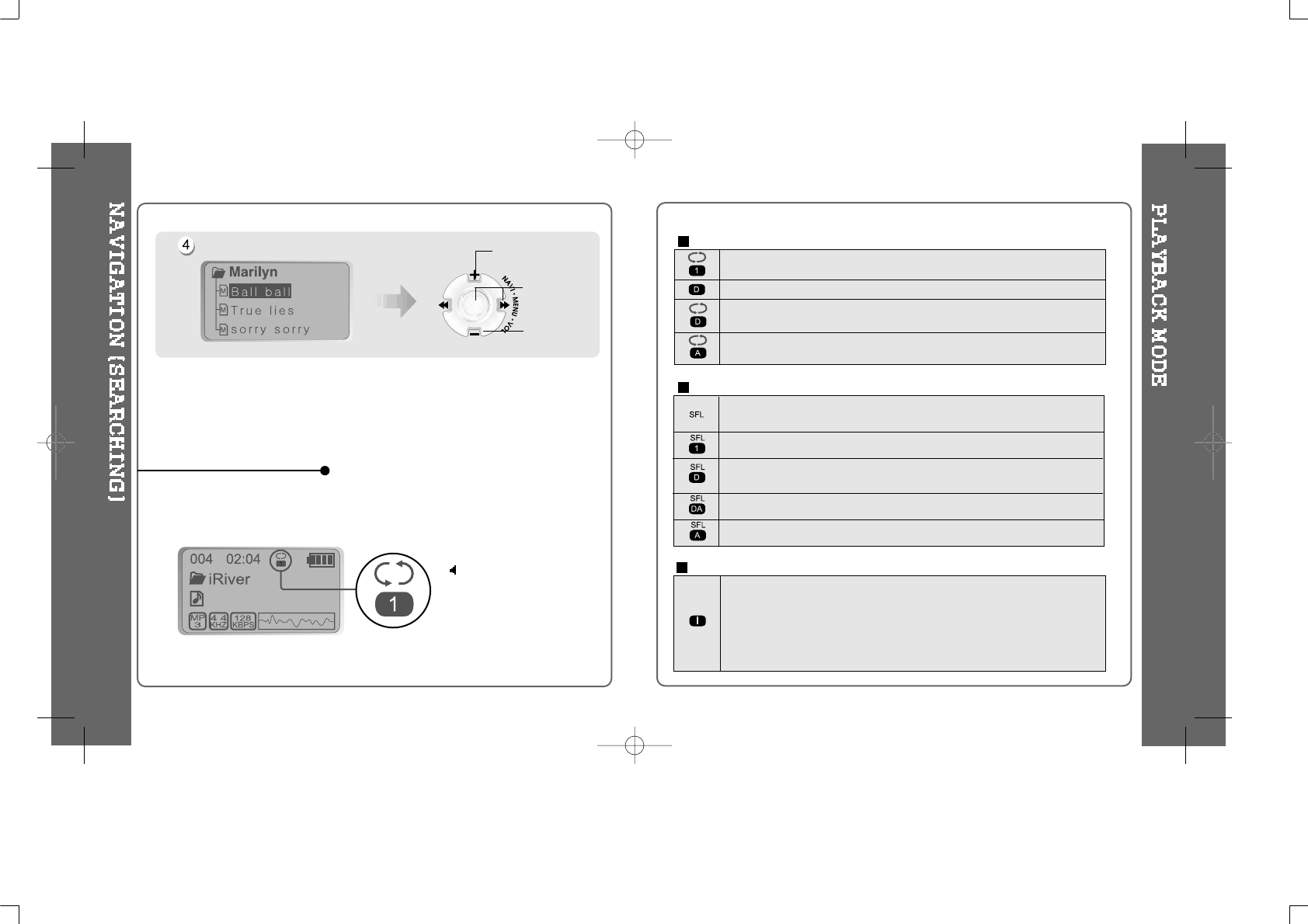
You can set various Repeat and Shuffle options by choosing these selections
under Mode.
Please refer to the function controls (page 61) for user-defined configuration.
When the MODE/REC
button is pushed, the icon
in the playback mode
indicator is changed.
iFP-300
Select the track Scroll up
Scroll down
Select the
track
MODE (Playback Mode)
Randomly play all tracks in the player and stop.
Play a single track repeatedly.
Randomly play all tracks in the folder and stop.
Randomly play all tracks in the folder repeatedly.
Randomly play all tracks in the player repeatedly.
INTRO: Plays the beginning 10 seconds of each track in sequential order.
INTRO HIGHLIGHT: Plays 10 seconds from 1 minute into each track in
sequential order. You can set this function in the MENU function.
Play a single track repeatedly.
Play all tracks in the folder and stop.
Play all tracks in the folder repeatedly.
Play all tracks in the player repeatedly.
INTRO
REPEAT
SHUFFLE
46 47
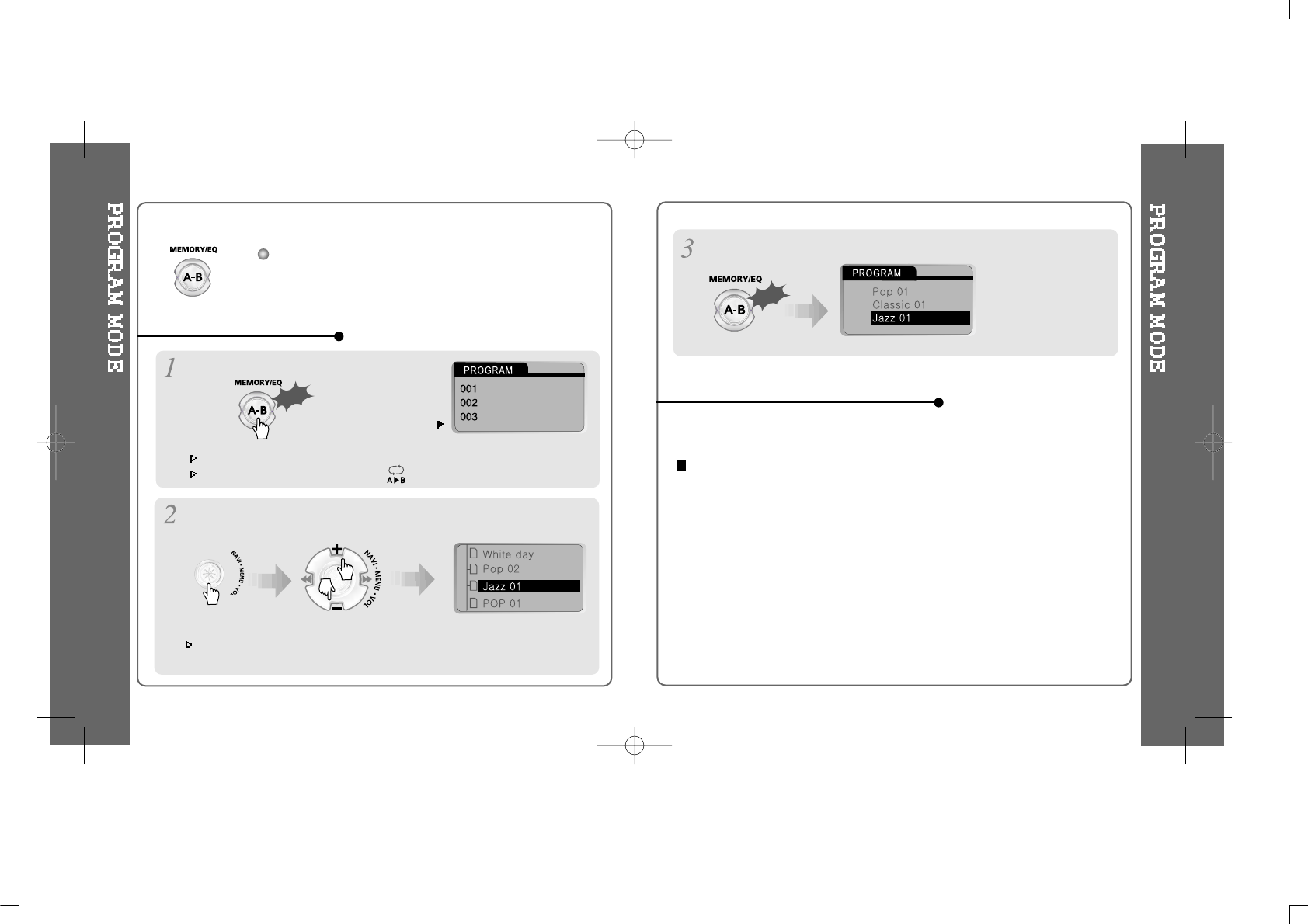
Program mode: Create your own playlists.
Program mode is activated while in Stop Mode.
Repeat A-B is activated while playing.
At stop mode
Scroll to Program mode
Click
Activating Program mode
001
002
003
Click
Press the MEMORY/EQ button to save the program list.
Press the NAVI/MENU button, then select the music to program by
using the VOL+, VOL - switch.
Press the MODE/REC button after selecting the file to be deleted using the MEMORY/EQ
button. The program list is automatically changed.
To delete all programmed songs, press MEMORY/EQ button for a while.
Push the VOL + or VOL - switch to select a folder, then press the MEMORY/EQ
button to save all files in the folder. Sub folders are not added.
To remove files from the program list.
48 49
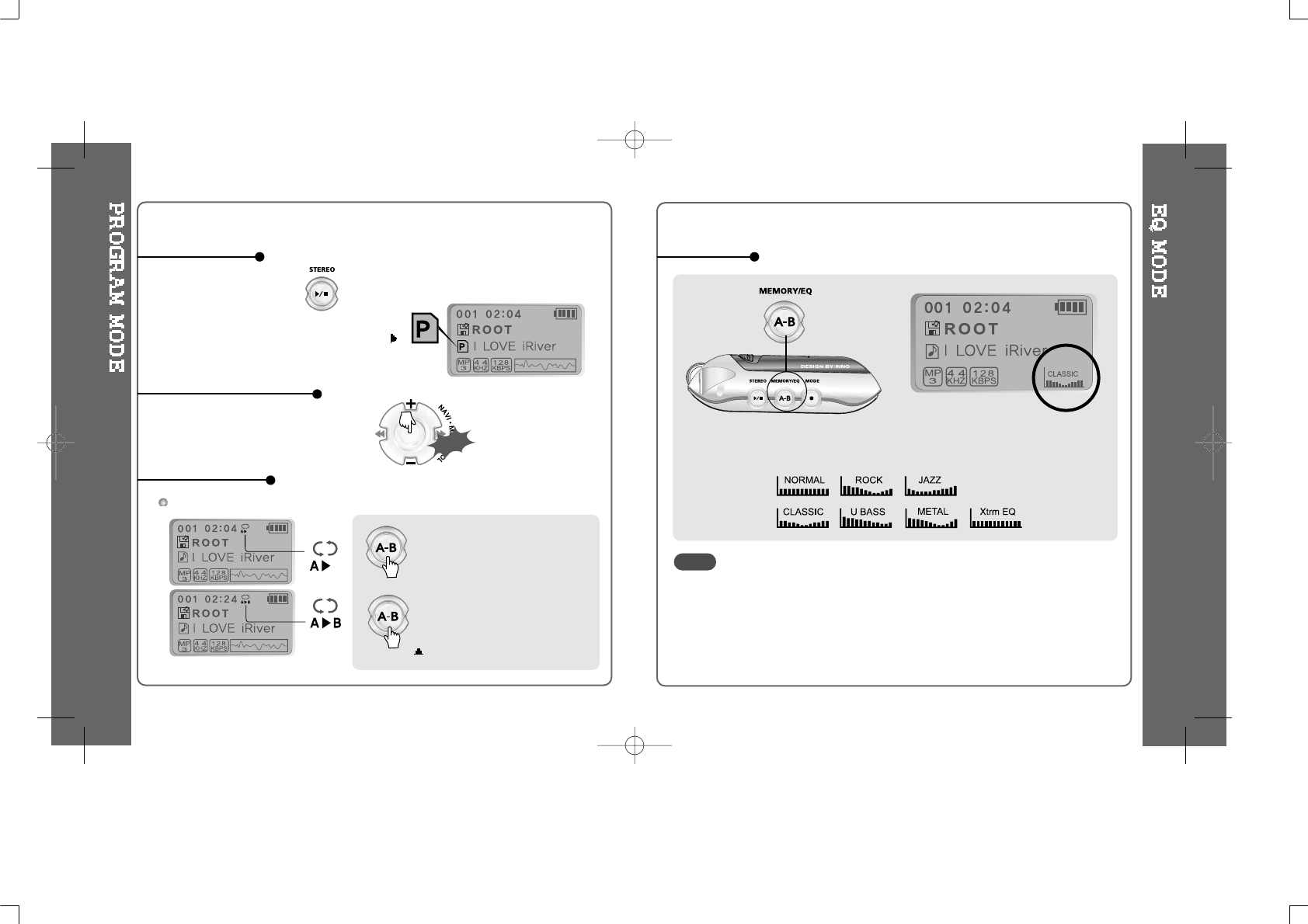
After programming, press to play the tracks in sequential order.
Press button again to cancel.
Pressbuttononcetoselect
the beginning <A> Point.
Press button again to select
the ending <B> Point.
Push
The program mode
icon appears
Press stop then
Play a selected interval repeatedly
Program Play
Cancel Program Mode
Interval Repeat
Press and hold the MEMORY/EQ button to display the current EQ.
Every time you click this button, the EQ mode scrolls in sequential order.
Please refer to the Function Control (Page 62) for configuring
Xtreme EQ.
EQ MODE
NOTE
50 51
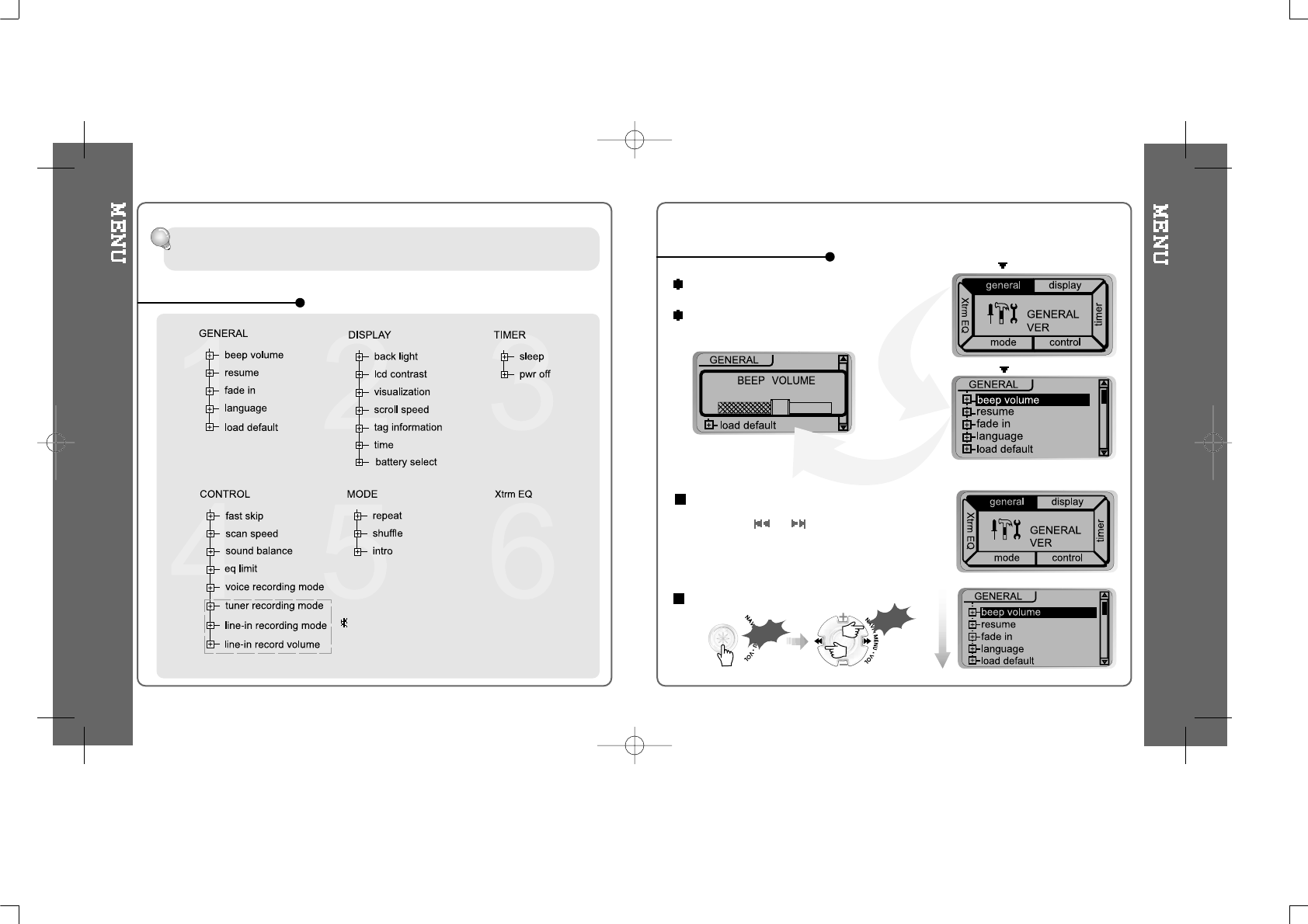
Menu is subject to change with different firmware versions.
Users can configure their own settings.
CONFIGURATION
MAIN MENU
SUB MENU
1.00
2
When you select a sub menu, you can set your
preference to be displayed.
Press and hold the NAVI/MENU button to
display the menu system.
It is composed of 6 main menus with sub-
menus.
From Main Menu to Sub Menu
Shift between Menus
1.00
Press the or button to move
between main menu and sub menu.
Click
Push
MENU OPERATION
iFP-340 doesn’t feature FM Tuner or
Line-in recording.
52 53
Threebuttonmarkingsarerather
buried with this picture. Maybe
enlarge or otherwise highlight those
buttons, maybe use the “Hand” icon.
Exit Sub Menu
2
2
Enter Sub Menu
Click
Push
Push
Exit Main Menu
Push
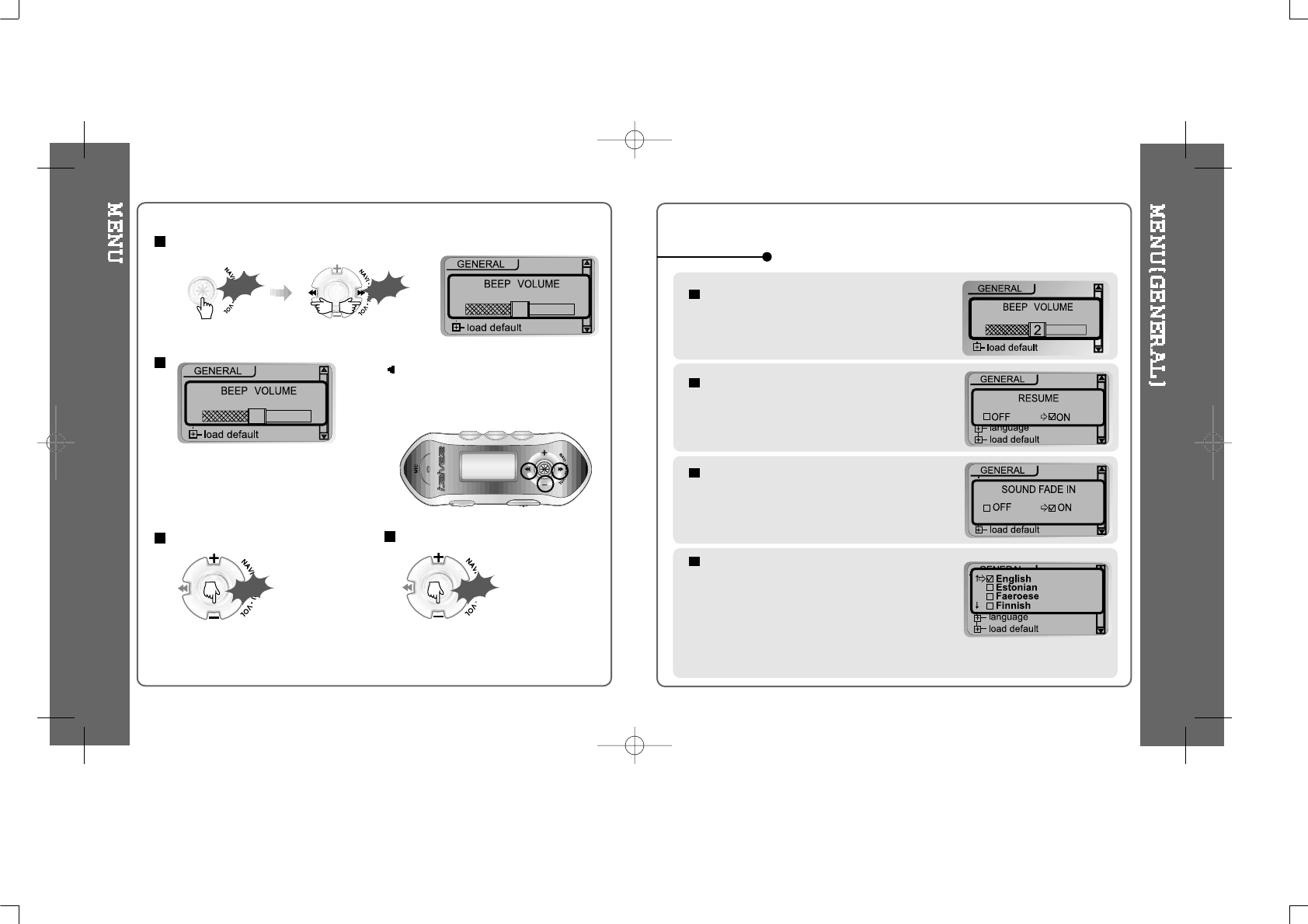
RESUME
: When ON, player resumes to previous
place in song after STOP or Power OFF.
FADE IN
: When activated, volume increases
gradually at playback mode to prevent
sudden loudness.
LANGUAGE (Supports 39 languages)
: Song title and ID3 tag information for the
MP3 files is dependent on the version of the
PC operating system that was used to
create it. (For example, if a MP3 files is
created in a Korean version of Windows, the
language setting should be Korean for
proper title display)
BEEP VOLUME
: Set beep volume level. Set to "0" for OFF.
GENERAL
54 55
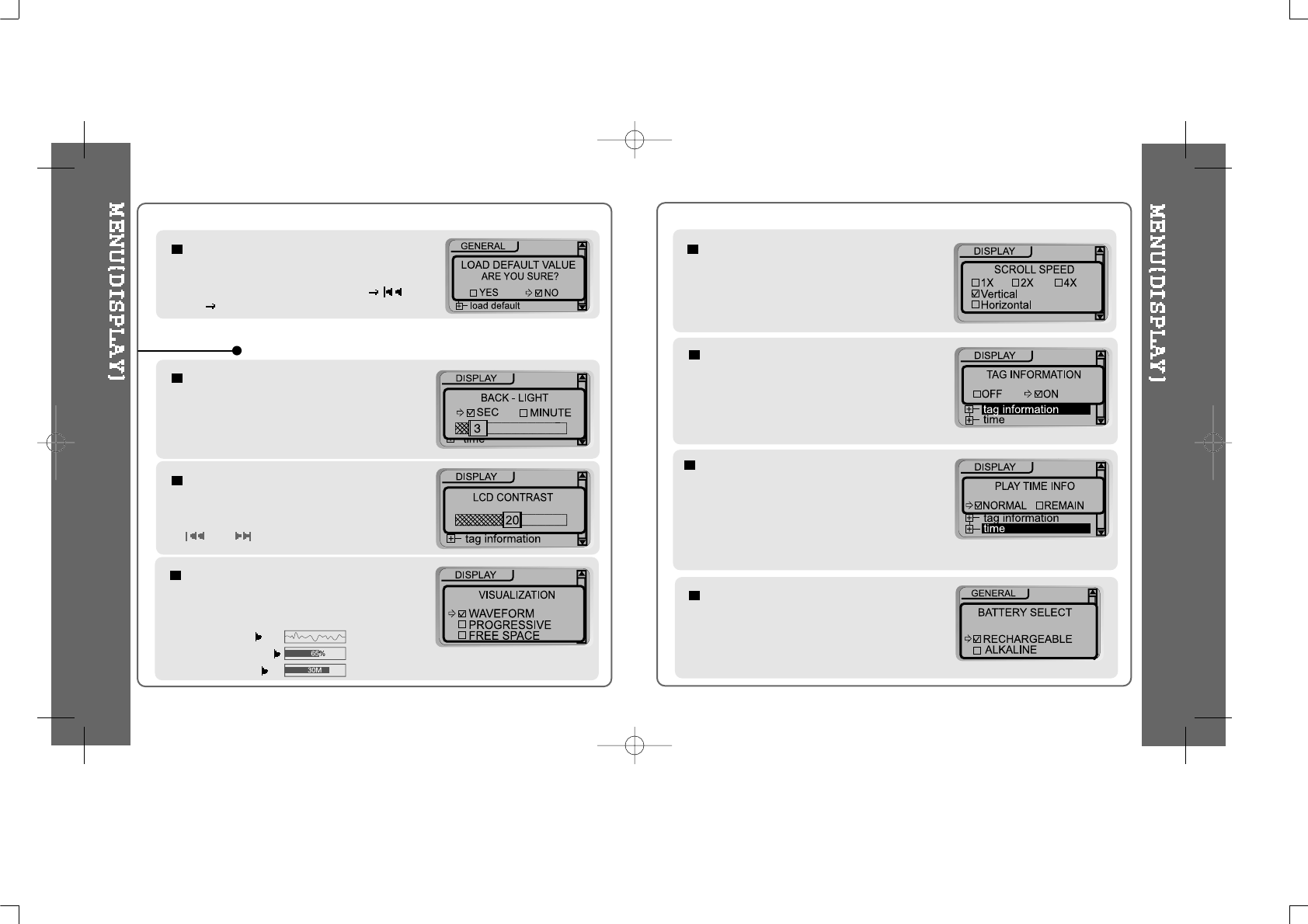
LOAD DEFAULT VALUE
: Initialize Menus to the original factory settings.
Button operation order is as below.
Click NAVI/MENU (select default menu) (select
YES) Click NAVI/MENU (select YES : Initialization)
LCD CONTRAST
: Adjust LCD contrast of remote control.
Contrast can be adjusted by using the
and buttons.
BACK LIGHT
: You can adjust the time that the Backlight
stays on.
SEC : Backlight stays on from 0 to 30 seconds.
MINUTE : Backlight stays on from 0 to 30 minutes.
Press the NAVI/MENU button to set SEC/MINUTE.
DISPLAY
VISUALIZATION
: Can display the visualization of the audio
signal in play mode, the elapsed time of a
track,orthefreespaceinmemory.
WAVEFORM
PROGRESSIVE
FREE SPACE
TIME
Normal : display elapsed time.
Remain : display remaining time.
Note:IfthetrackformatisVBR,thetime
may not be accurate.
TAG INFORMATION
On : Display track with ID3 tag information
Off : Display track with filename
SCROLL SPEED
Adjust scroll speed by
1x/2x/4x/Vertical/Horizontal.
Vertical : The scroll goes up and down
Horizontal : The scroll goes from the left to
the right.
BATTERY SELECT
: Select the current battery.
The player will manage the battery
indicator icon to better match the usage
level.
56 57
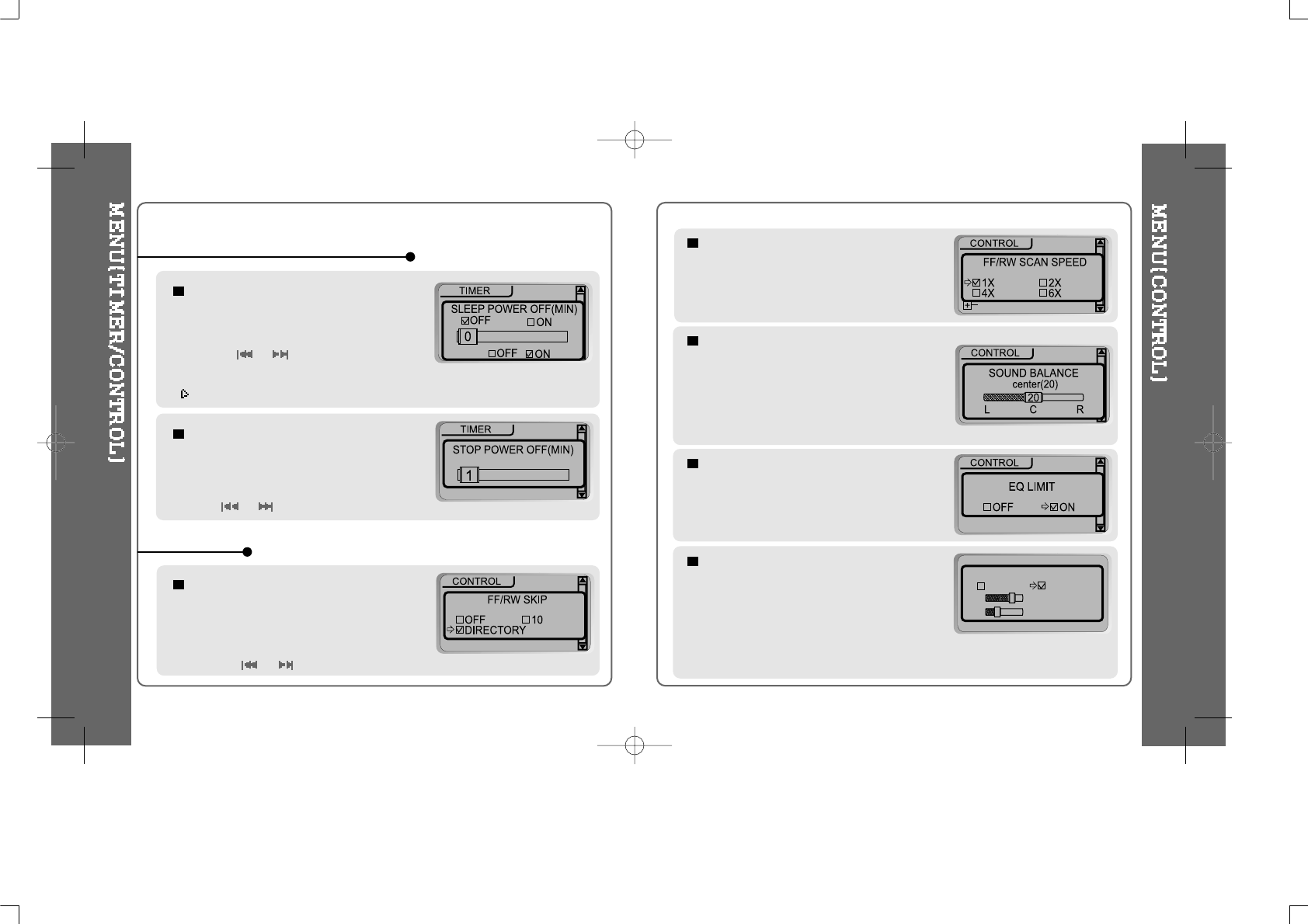
FAST SKIP
OFF : Skip doesn’t activate.
10 : Skip 10 tracks at time.
DIRECTORY : Skip to previous or next folder.
This defines the operating method of short or
long click of or lever.
STOP POWER OFF
: Automatically turns power off at stop
mode.
(Timerangecanbesetfrom1to60
minutesbyaminute)
Use the or button to adjust time.
SLEEP POWER OFF
: Automatically turns power off after a fixed
time. (Time range can be set from 0 to
180 minutes by a minute)
Use the or button to adjust time.
Set BEEP ON/ OFF by pressing the NAVI/MENU button.
When the power is off, the sleep power off setting goes back to Zero setting.
BEEP
TIMER (SET AUTO POWER OFF)
CONTROL
FF/RW SCAN SPEED
The fast scan speed can range from 1x/2x/
4x/6x.
recording quality
VOICE RECORDING MODE
You can adjust recording quality when
recording Voice.
Bit Rate : 8Kbps~160Kbps
Sampling Frequency : 11.025KHz ~44.1KHz
VOICE RECORDING MODE
32KHz
32KBPS
AGC ON AGC OFF
EQ LIMIT
ON : Limit the control of equalizer frequency
to prevent distortion of sound.
OFF : You can enjoy original sound though
distortion of sound may occur.
ON : When recording voice, the recording level is automatically controlled and the
sound from a long distance is normally recorded.
OFF: AGC Control not activated.
SOUND BALANCE
Balance your sound to the right or left or keep it in
the center according to your preference. When
Sound Balance bar is moved to L (Left, 0),the sound
outputs at the left earphone. When the lever is
moved to R (Right, 40) the sound outputs at the right
earphone. The default value is 20 and the sound
outputs the same level at both earphones.
58 59
TUNER RECORDING MODE
You can adjust recording quality when
recording from the FM Tuner.
Bit Rate : 8Kbps~320Kbps
Sampling Frequency : 11.025KHz ~44.1KHz
TUNER RECORDING MODE
MONO STEREO
32KHz
128KBPS
LINE-IN RECORDING MODE
You can adjust recording quality when
recording from External equipment.
Bit Rate : 8Kbps~320Kbps
Sampling Frequency : 11.025KHz ~44.1KHz
LINEIN RECORDING MODE
MONO STEREO
44.1KHz
128KBPS
LINE-IN RECORDING VOLUME
You can adjust recording level when
recording from External equipment.
(Youcansetfrom0to64.)
LINEIN RECORD VOLUME
45
Setting the Recording Mode
- Voice recording mode/Tuner recording mode/Linein recording mode
Push
Click
Click
1. Select Recording Mode to
set.
Push
3. Set or select AGC ON/AGC
OFF, MONO/STEREO, Sample
rate or Bit rate using or
button.
2. Press the NAVI/MENU button
repeatedly to select item(AGC
ON/AGC OFF, Mono/Stereo,
Sample rate or Bit rate) to set.
4. Push the VOL - lever to EXIT repeatedly.
You can not record when battery indicator is blinking indicating a low battery.
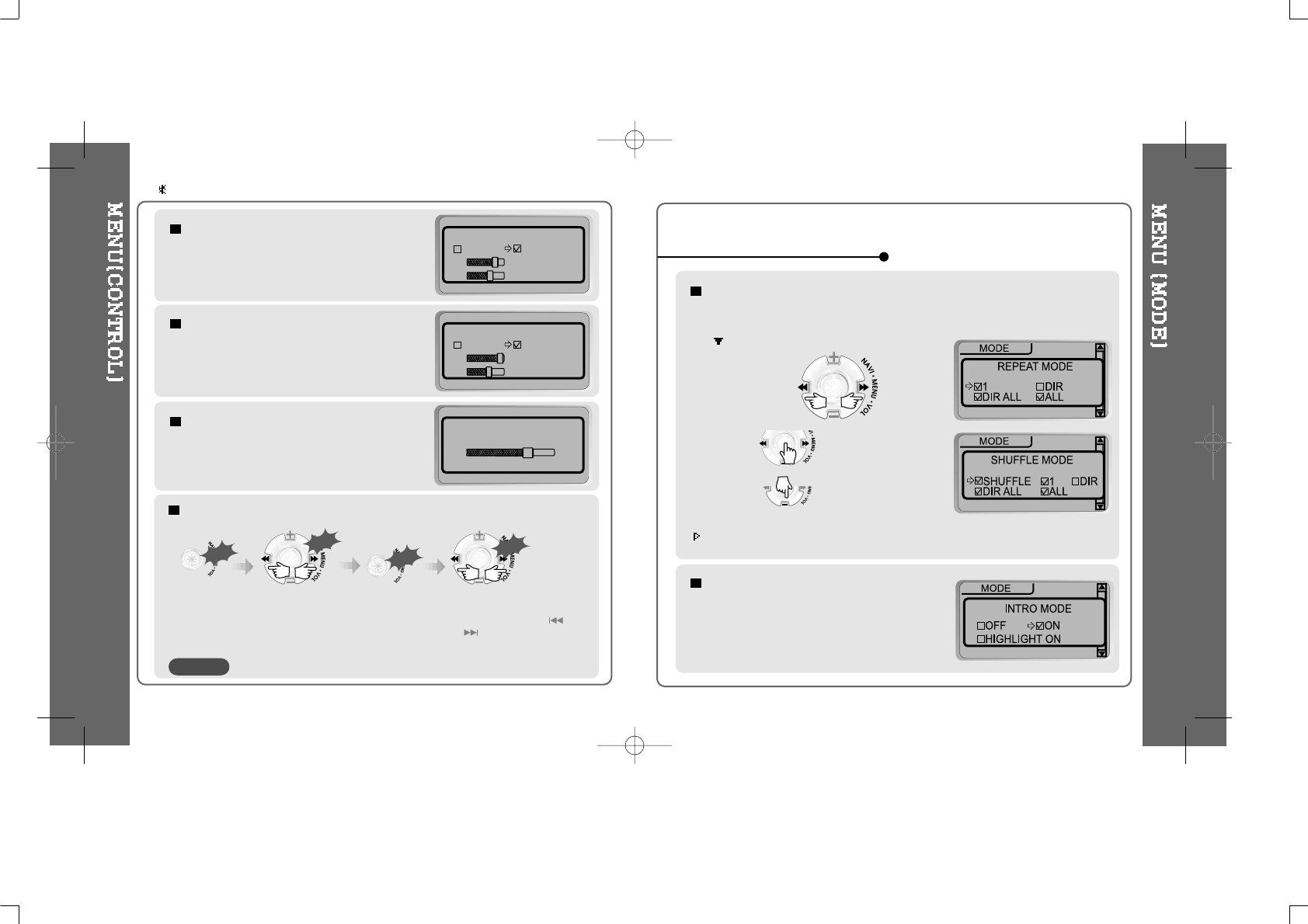
INTRO MODE
Intro: Plays the beginning 10 seconds of each
track.
Intro Highlight : Plays 10 seconds from 1 minute
into each track in sequential order.
REPEATMODE/SHUFFLEMODE
: A number of Repeat and Shuffle modes are available. Select the one you
want by pressing MODE button (Multi selecting available)
After push
How to select
And button for selection.
Only the selected play mode will be available when you press the MODE/REC
button (For details, please refer p. 46~47)
And buttontoexit.
MODE (PLAYBACK MODE)
CAUTION
iFP-340 doesn’t feature FM Tuner or Line-in recording.
60 61
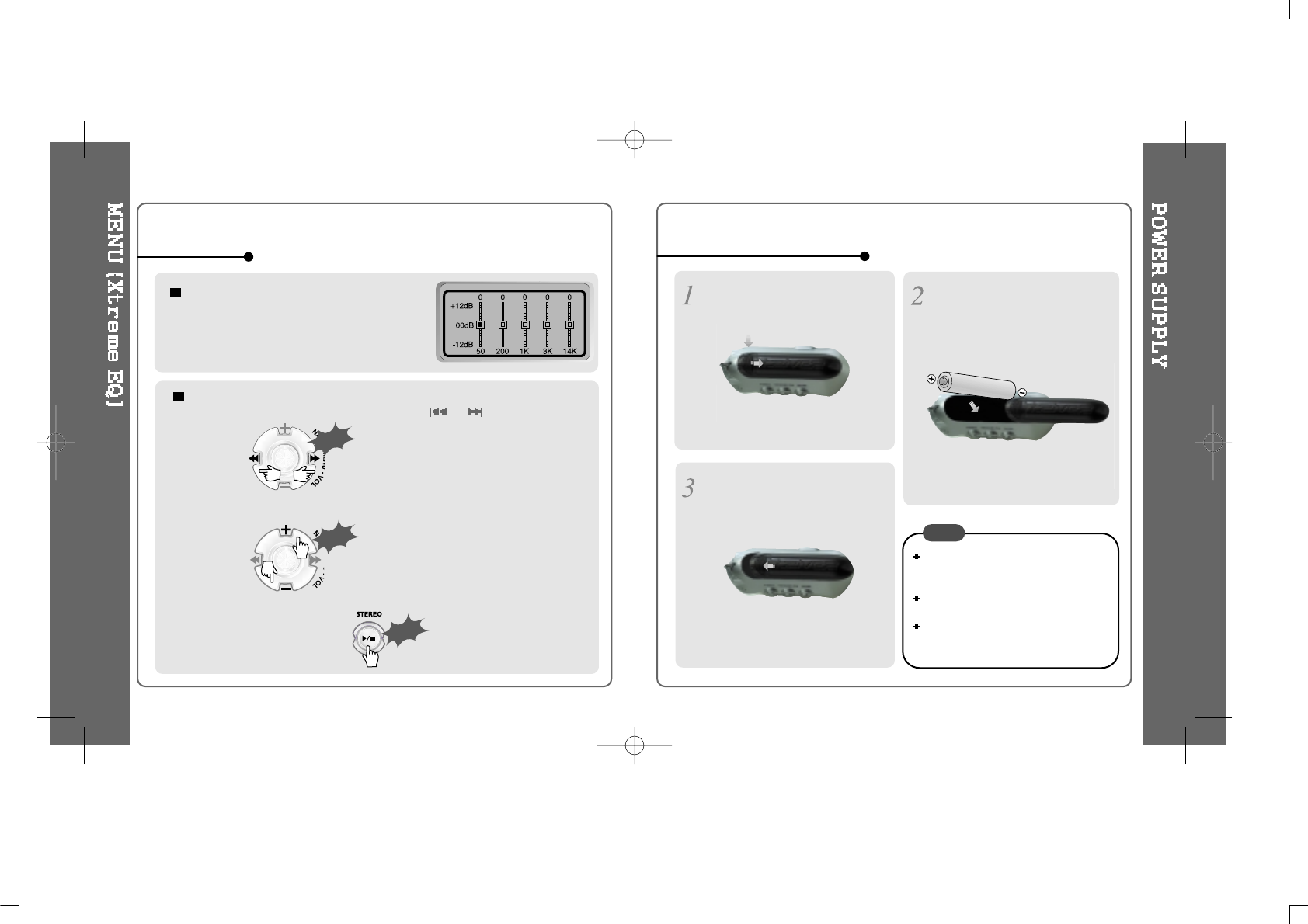
Xtreme EQ
You can adjust the sound to your
preference.
There are 5 band frequency steps, set from
-12dB to +12dB by 3dB step.
Xtreme EQ
HOW TO SET Xtreme EQ
1. Select the Frequency step to set using the or button
2. Adjust the level using the VOL + or VOL - button.
3. To exit Xtreme EQ setting
Push
Push
Click
Open the battery cover.
Close the battery cover.
Insert the battery.
Be sure to match the + and -
ends of the battery with the
diagram inside the battery
compartment.
To avoid corrosion, remove the
battery if the player is not to be used
for a long time.
Remove dead battery immediately to
avoid damage from corrosion.
When corrosion occurs, wipe the
battery compartment immediately with
a dry cloth and insert a new battery.
INSERTING A BATTERY
NOTE
62 63
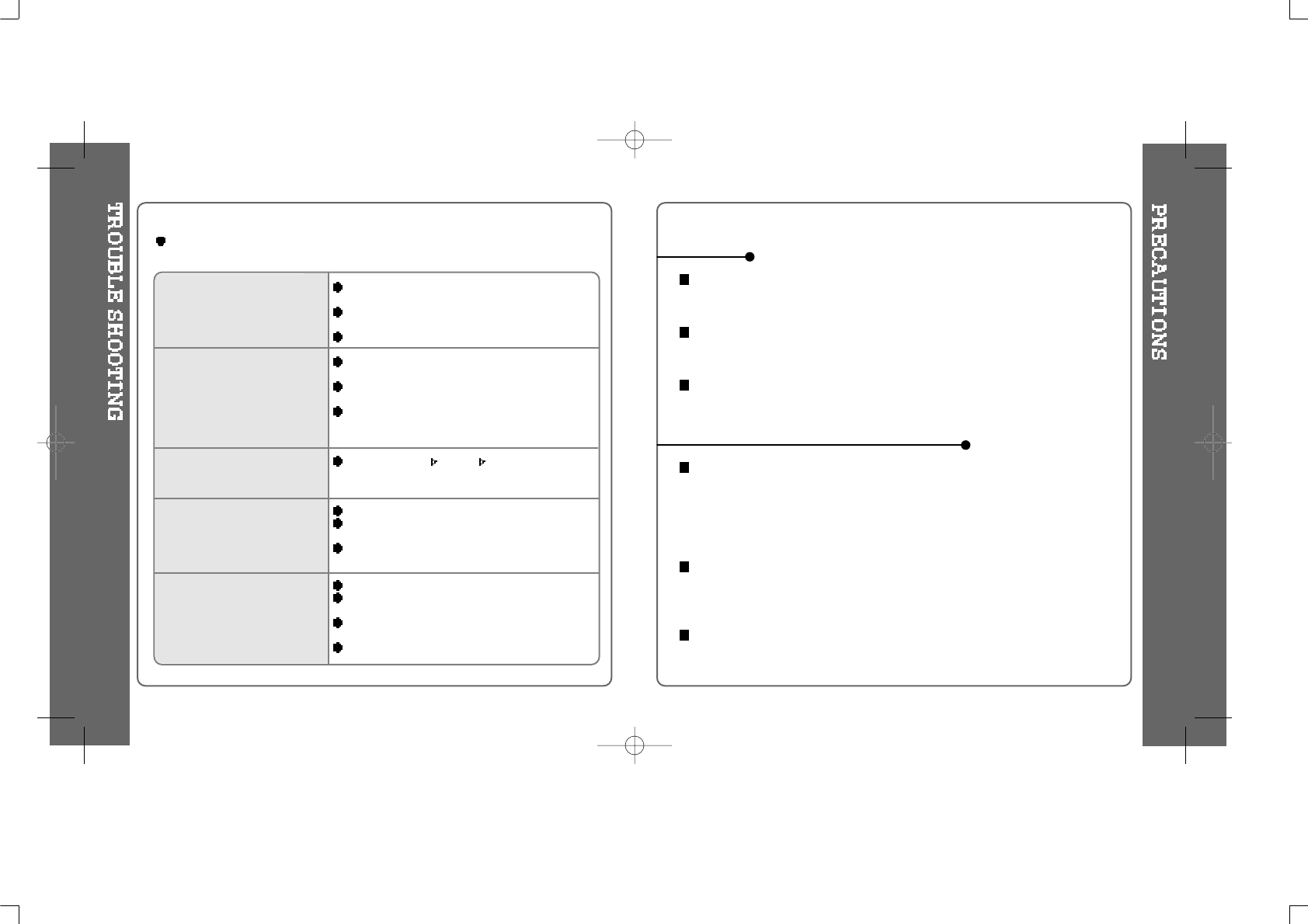
Should any problem persist after you have checked these symptoms, consult
your iRiver dealer or contact support at iRiver.com.
No Power
No sound is heard from the
player or distortion is heard
during playback.
Characters in LCD are
corrupted.
Poor FM Reception.
Failed download of MP3 file
Check whether the battery have been inserted
properly.
Check whether the HOLD switch on the player is ON
(Switch to OFF position)
Insert a fresh battery.
Check whether VOLUME is set to "0". Connect the
earphones/remote plug firmly.
Check whether plug is dirty. Clean the plug with a dry
and soft cloth.
Corrupted MP3 or WMA files may make a static
noise and the sound may cut off. Listen to your files
on the PC to see if they are corrupted.
Check out Menu Display Language and confirm
whether the right language has been selected.(Refer
to page 55)
Adjust the position of the player and earphones.
Turn off the power of other electric devices near the
player.
The Earphone cord functions as the antenna, they
must be plugged in for best reception.
Check the condition of the battery.
Check the connection between your computer and
theplayertoensurethatthecableissecure.
Check the Manager program to make sure it is
operating.
Checkwhethertheplayer’smemoryisfull.
Avoid dropping or impacting the player.
The player is designed to operate while walking or running, but dropping or excessively
impacting the player maybe cause damage.
Avoid contacting the player with water.
Damage to the internal parts of the player may occur if the player comes into contact with
water. If your player gets wet, dry the outside with a soft cloth as soon as possible.
Remove the battery if player is unused for long periods of time.
Battery left in the player for a long time can corrode and damage the device.
Road Safety
Do not use headphones/earphones while driving, cycling, or operating any motorized vehicle.
It may create a traffic hazard and is illegal in some areas. It can also be potentially
dangerous to play your headsets at high volume while walking, especially at pedestrian
crossings. You should exercise extreme caution or discontinue use in potentially hazardous
situations.
Preventing hearing damage
Avoid using headphones/earphones at high volume. Hearing experts advise against
continuously loud and extended play. If you experience a ringing in your ears, reduce volume
or discontinue use.
Consideration for others
Keep the volume at a moderate level. This will allow you to hear outside sound and to be
considerate of the people around you.
SAFETY
ON HEADPHONES AND EARPHONES
64 65
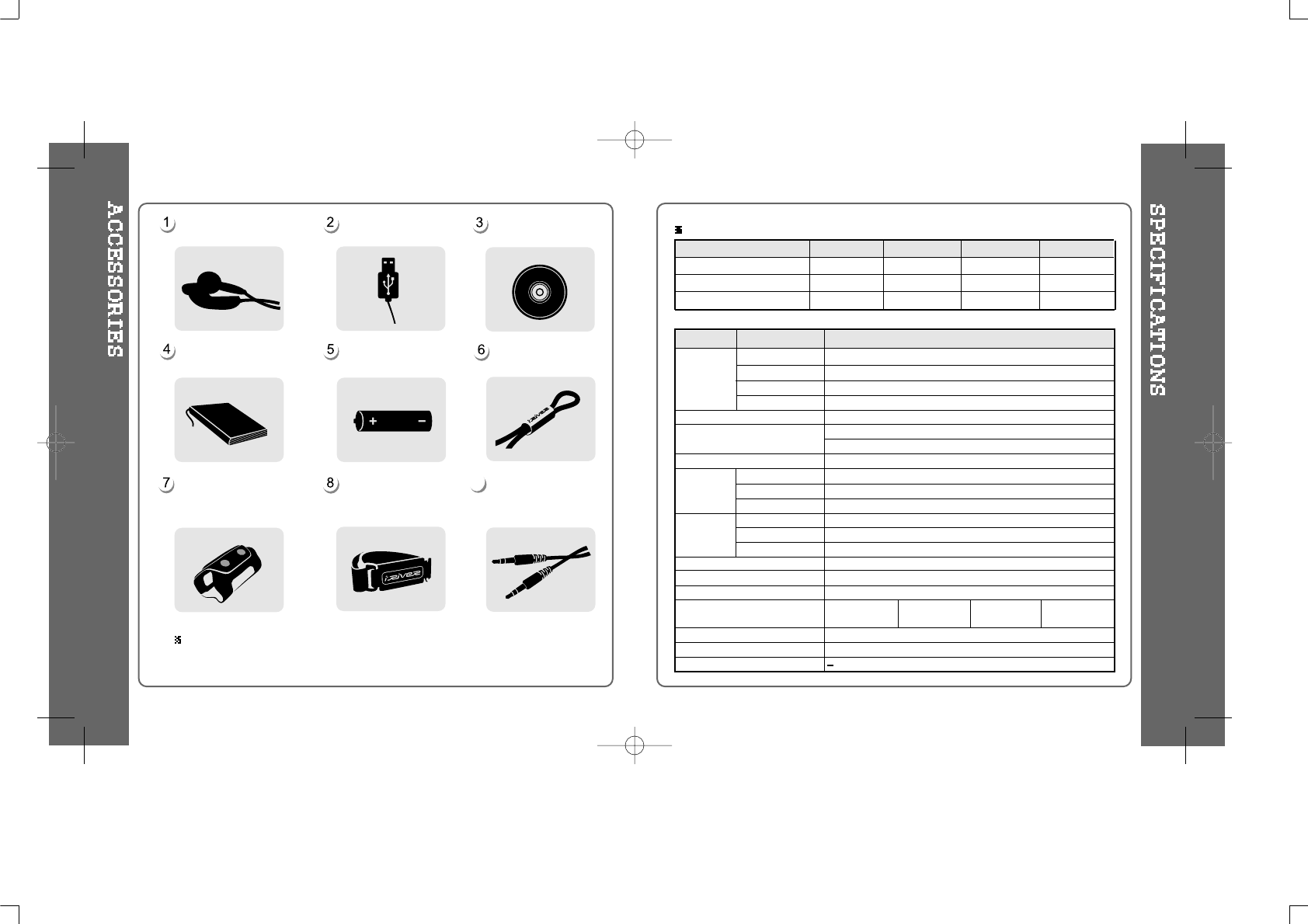
Earphone/
Earphone cover USB cable
Battery(AA type 1EA)
User Manual/
Warranty card
8
Installation CD
Neck strap for
carrying
9
Dimension
Weight
Battery
FM TUNER
Audio
FILE
SUPPORT
87.5 MHz ~ 108 MHz
(L)12 mW + (R)12 mW (16 Ohm) max. Volume
50 dB
Headphone/Earphone-Cord Antenna
91 x 35 x 26.7 mm
Approx. 35 g (without Battery)
Approx. 55 g (with Battery)
1 AA size Alkaline battery
20 Hz ~ 20 KHz
(L)12 mW + (R)12 mW (16 Ohm) max. Volume
90 dB(MP3)
MPEG 1/2/2.5 Layer 3, WMA, ASF
8 Kbps ~ 320 Kbps
ID3VI,ID3V22.0,ID3V23.0,ID3V24.0
MPEG 1 / 2 / 2.5 Layer3
Full Graphic 4 Line with Backlight
39 Languages
Approx. 24 hours(128 kbps, MP3, Volume : 20, EQ Normal)
USB 1.1
5 degrees ~ 40 degrees Celsius
Category ITEM Specifications
MP3 Encoding
LCD
Language
Voice Recording
Max. Playtime
USB
Operational Temperature
Memory
Model No.
Tuner
MP3 Direct Encoding
128MB
iFP-380T
INCLUDED
INCLUDED
256MB
iFP-390T
INCLUDED
INCLUDED
FM Frequency range
Headphone Output
S/N ratio
Antenna
Frequency range
Headphone Output
S/N ratio
File Type
Bit Rate
Tag Info
512MB
iFP-395T
INCLUDED
INCLUDED
Distributing copies of MP3 tracks without permission is a violating of international copyright law.
Approx. 36:00 hrs
(8kbps, 128 MB) Approx. 72:00 hrs
(8kbps, 256 MB) Approx. 144:00 hrs
(8kbps, 512 MB)
64MB
iFP-340
NO
NO
Approx. 18:20 hrs
(8kbps, 64 MB)
Accessories subject to change without notice and may vary from image shown.
Carrying Case
(Not included with iFP-340,
iFP-380T)
Audio Cable
(Not included with iFP-340)
Arm Band
(Not included with iFP-340,
iFP-380T)
66 67
68 69
