J P Sa Couto MG133-JP TABLET PC User Manual

J P Sa Couto SA TABLET PC

User manual

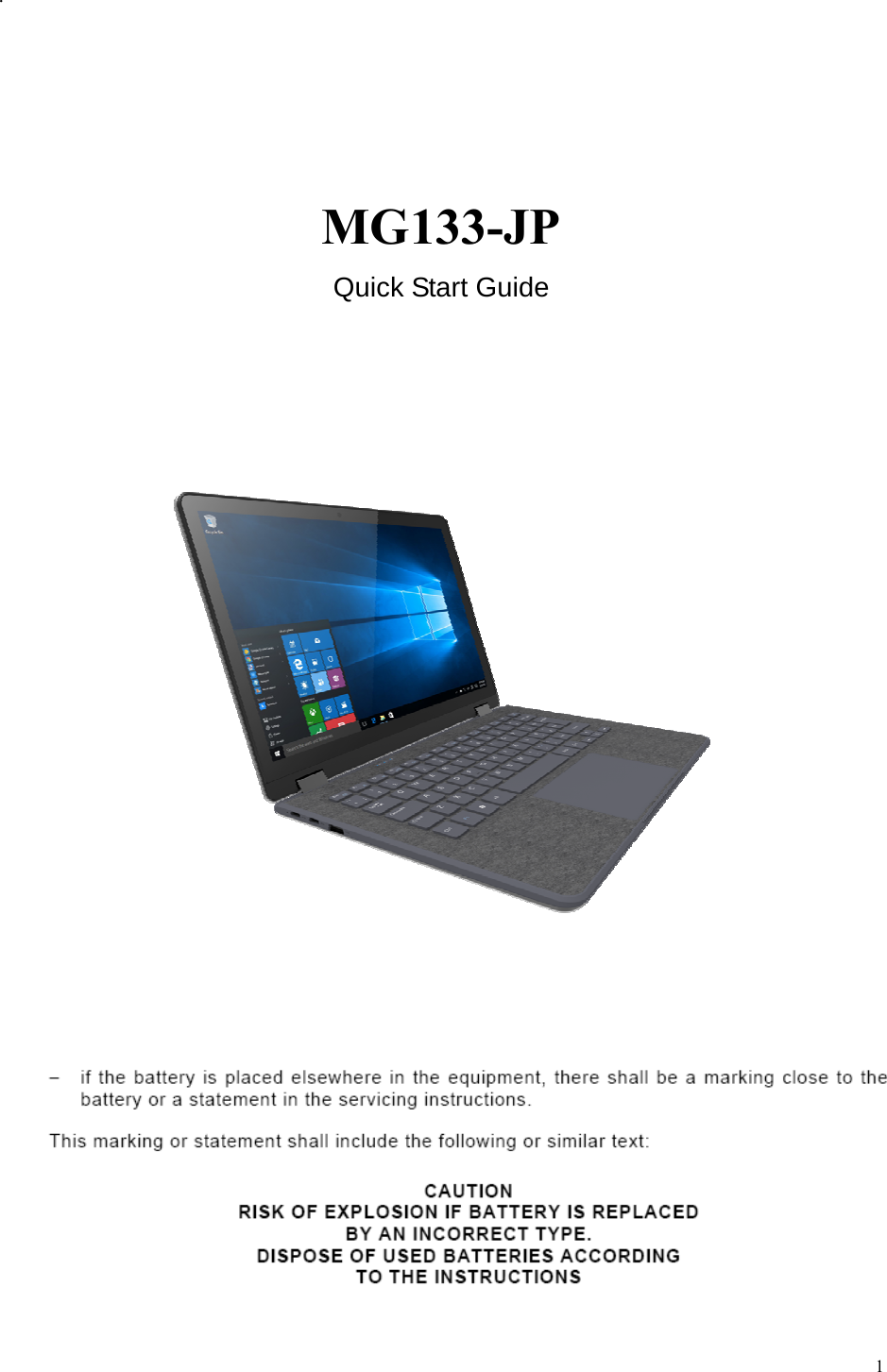
 1  .       MG133-JP Quick Start Guide
 2            Introduction Thank you for your choosing the new Notebook PC. This guide serves to enable users to get to know and familiar with our product as s oon as possible. Here we have made a brief introduction to the key layout and definitions in figures and words.      Contents  . ⅠPrecautions before Use .............................................................................................................3 Ⅱ. Key Layout and Definitions .....................................................................................................4 Ⅲ. Descriptions of Keys..................................................................................................................5 Ⅳ. Introduction to Desktop............................................................................................................ 6 1. Image Slide Application........................................................................................................6 2. Cortana..................................................................................................................................6 3. Introduction to app Interface.................................................................................................7 4. Start Menu............................................................................................................................. 9 5. Multitasking operating interface ......................................................................................... 11 . Basic OperationsⅤ.....................................................................................................................12 1.Sleep, Shut down and Restart...............................................................................................12
 3          . ⅠPrecautions before Use 1. This production is suitable for use in non-tropic areas below 2,000 meters, and the mark   in  the nameplate indicates the product is suitable for use in non-tropic areas. 2. Prevent the Notebook PC from falling to the ground or being strongly impacted otherwise. 3. Do not use it in the long term in any environment where the air is too cold, too hot (<35℃), too humid or with too much dust. Do not expose the Notebook PC to sunlight.   4. Avoid using it in the strong magnetic and strong static environment as much as possible. 5. Once any water or other liquid splashes onto the Notebook PC, close it immediately and do not use it until it dries out. 6. Do not clean the Notebook PC with any detergent containing chemical element or other liquid to avoid causing damage due to corrosion and becoming damp. If cleaning is really necessary, clean it with dry soft cloth tissue paper. 7. Our company shall not bear any and all responsibilities for loss or deletion of material inside the machine caused due to abnormal software and hardware operation, maintenance or any other accident. 8. Please back up your important material at any time to avoid loss. 9. Please do not disassemble the Notebook PC by yourself; otherwise you will lose the right to warranty. 10. This product supports the overwhelming majority of mainstream brands of 3G DONGLE network cards. The cases for 3G Dongle may be different. It is suggested that you test it to make sure it is OK before buying it.   11. Quick Use Guide and the relevant software shall be updated at any time. For updated software version, visit www.xxx.com for downloading by yourself, and no notice shall be given otherwise. If any anything is found to be inconsistent with the Quick Use Guide, the material object shall prevail. 12. Replacement with incorrect type batteries may cause explosion. Make sure to use original batteries.
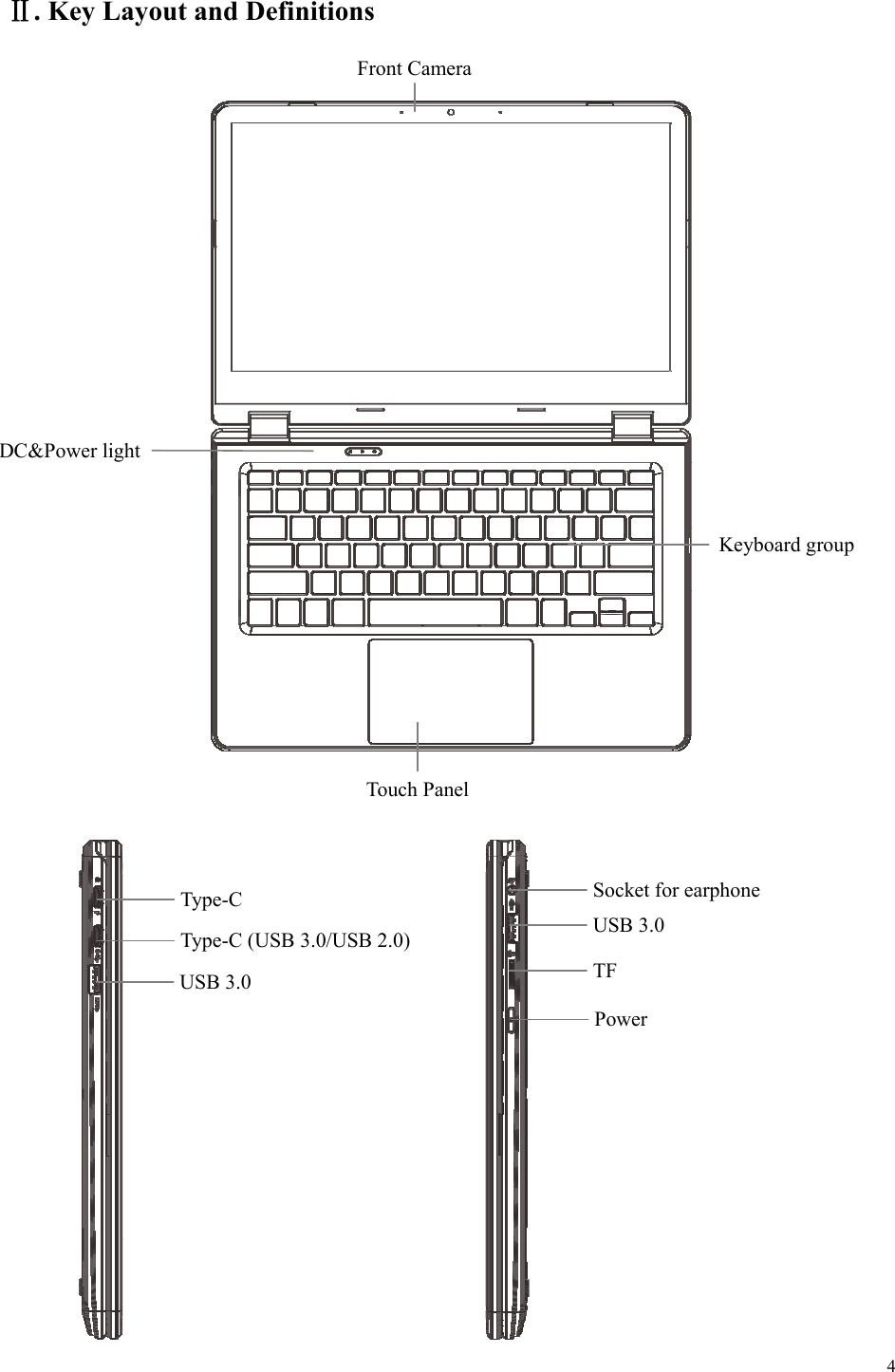
 4  Ⅱ. Key Layout and Definitions                                                  DC&Power light Keyboard groupTouch Panel Front Camera Type-C USB 3.0 Type-C (USB 3.0/USB 2.0) Socket for earphone USB 3.0 TF Power
 5  Ⅲ. Descriptions of Keys    USB Interface: USB3.0×2(5V/0.9A) HDMI Interface: High-Definition Multimedia Interface   Micro SD card slot: The built-in storage card reader slot supports MicroSD and MicroSDHC format. Type-C Interf ace: full functi on(Power Delivery +  DP alternate  mode MU X)*1pcs;only dat a*1pcs (5V/1.5A)          Base-C Base-D Speaker Speaker
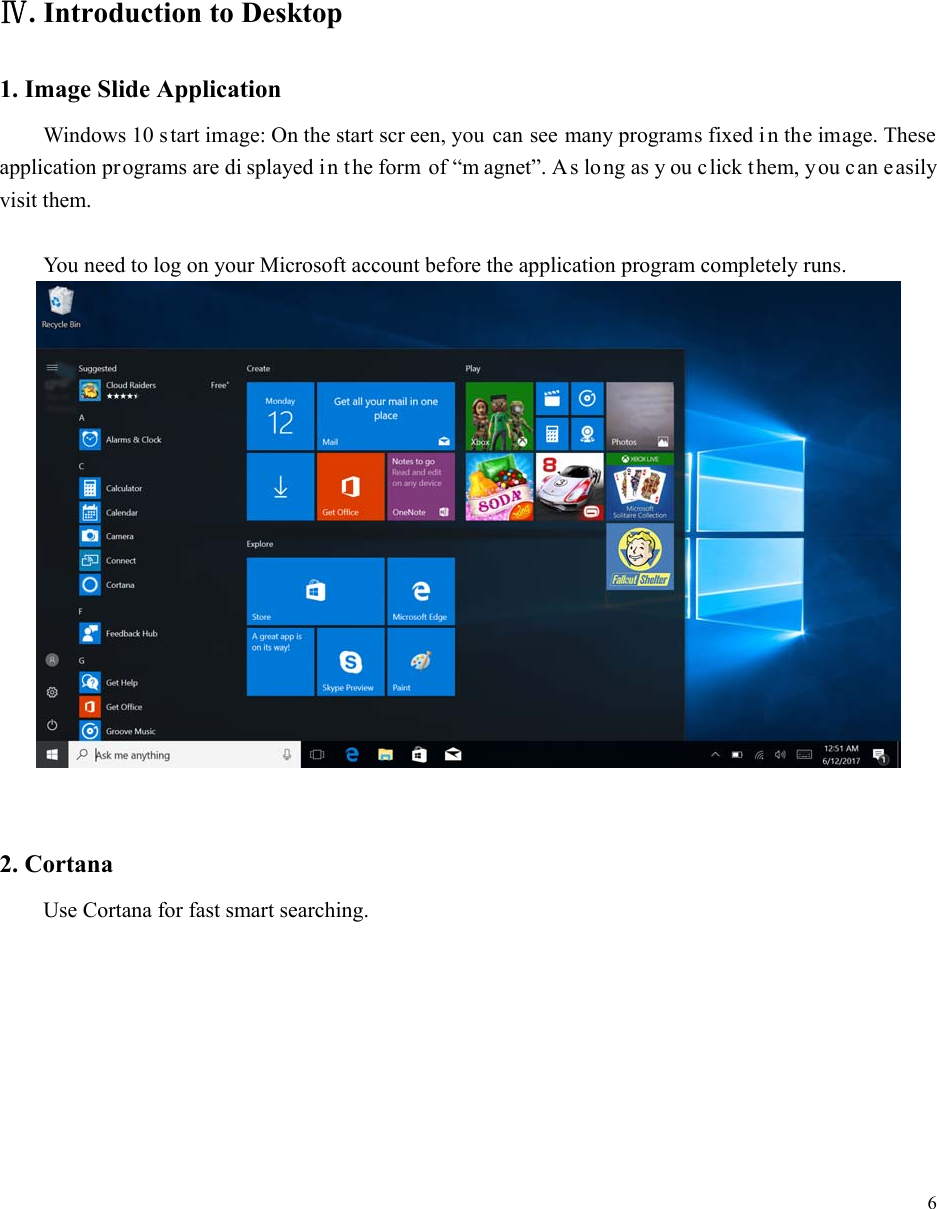
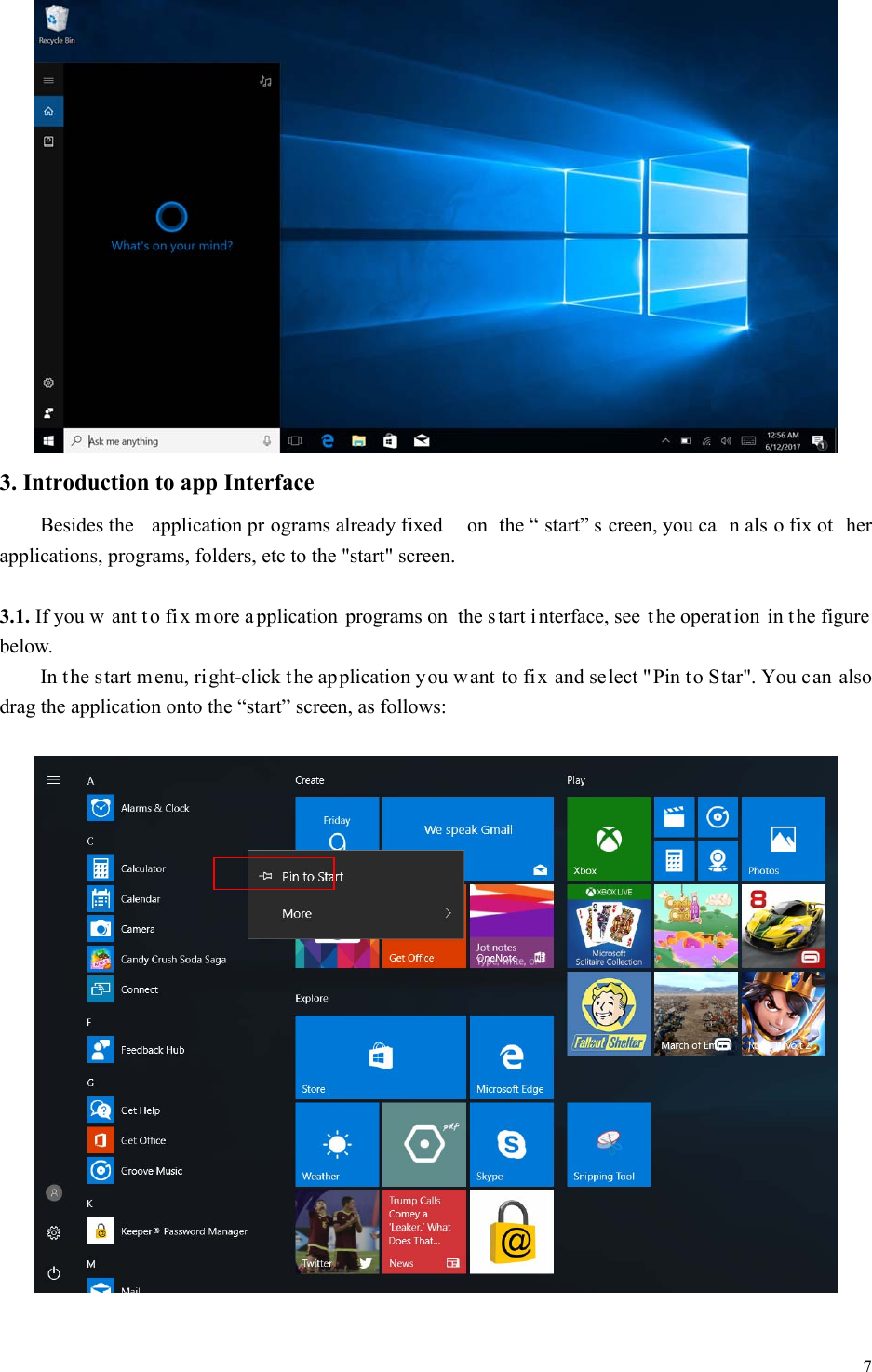
 6         Ⅳ. Introduction to Desktop 1. Image Slide Application Windows 10 s tart image: On the start scr een, you can see many programs fixed i n the image. These application programs are di splayed i n the form of “m agnet”. As long as y ou click them, you c an easily visit them.  You need to log on your Microsoft account before the application program completely runs.    2. Cortana Use Cortana for fast smart searching.
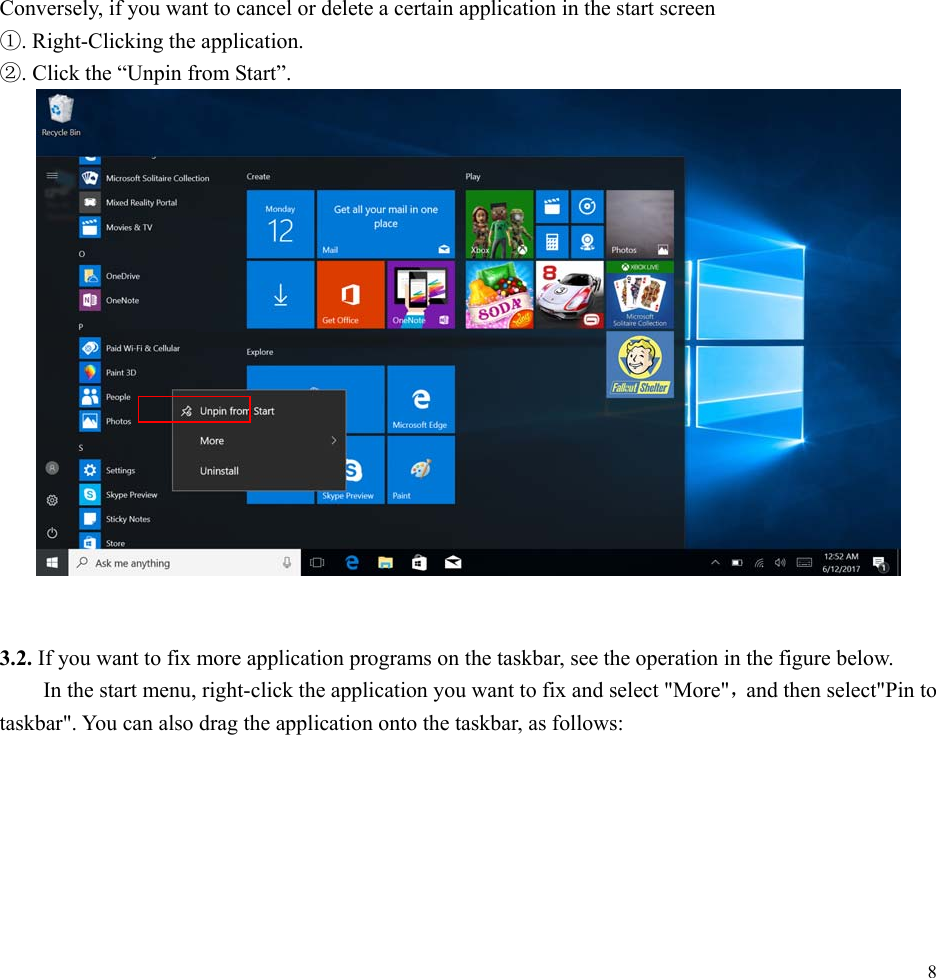
 7   3. Introduction to app Interface   Besides the  application pr ograms already fixed  on the “ start” s creen, you ca n als o fix ot her applications, programs, folders, etc to the "start" screen.  3.1. If you w ant t o fi x m ore a pplication programs on the s tart i nterface, see  t he operat ion in t he figure below. In the s tart menu, right-click the ap plication you want to fix and select "Pin t o Star". You c an also drag the application onto the “start” screen, as follows:
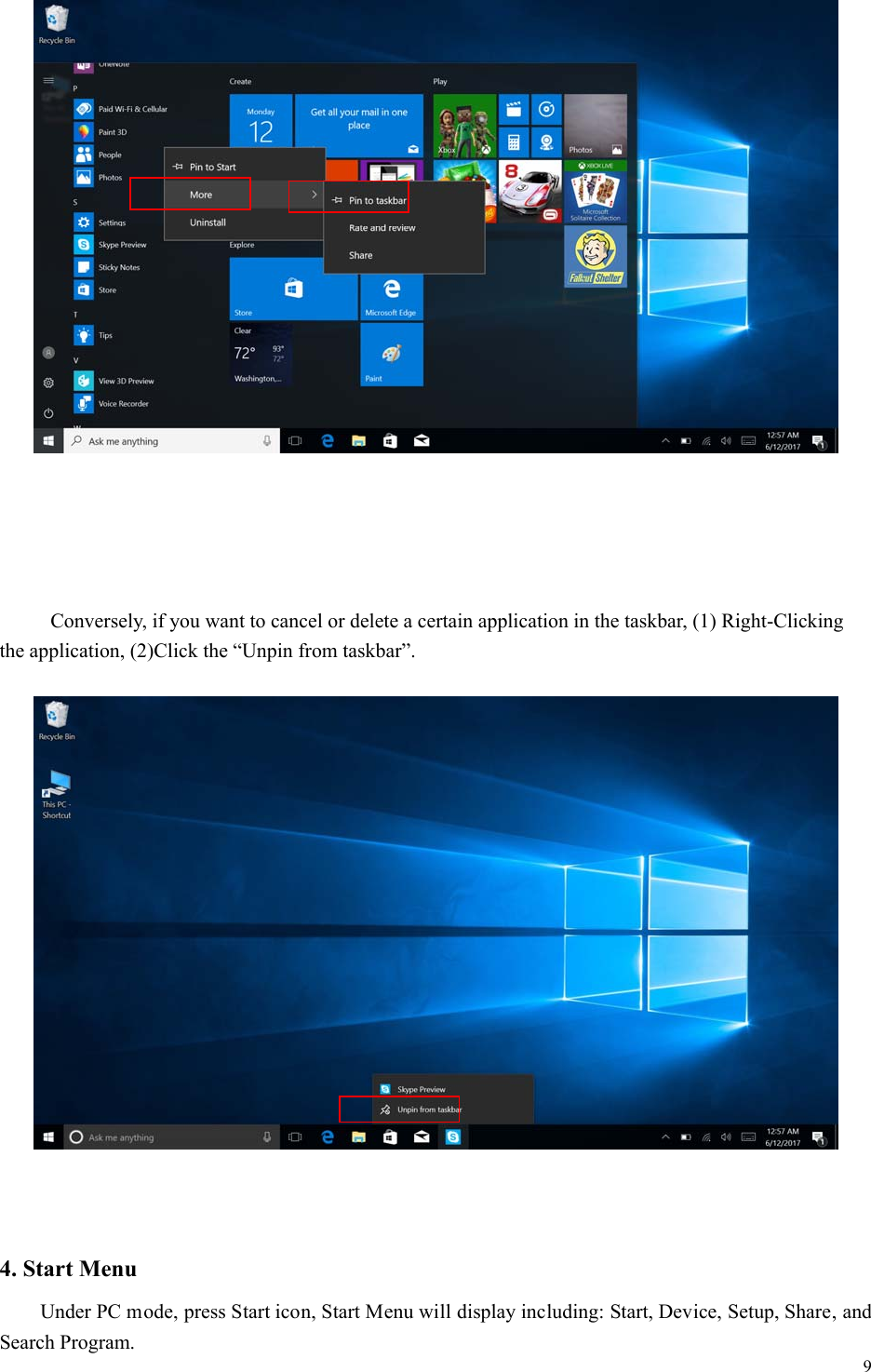
 8                 Conversely, if you want to cancel or delete a certain application in the start screen   ①. Right-Clicking the application. ②. Click the “Unpin from Start”.    3.2. If you want to fix more application programs on the taskbar, see the operation in the figure below. In the start menu, right-click the application you want to fix and select "More",and then select"Pin to taskbar". You can also drag the application onto the taskbar, as follows:
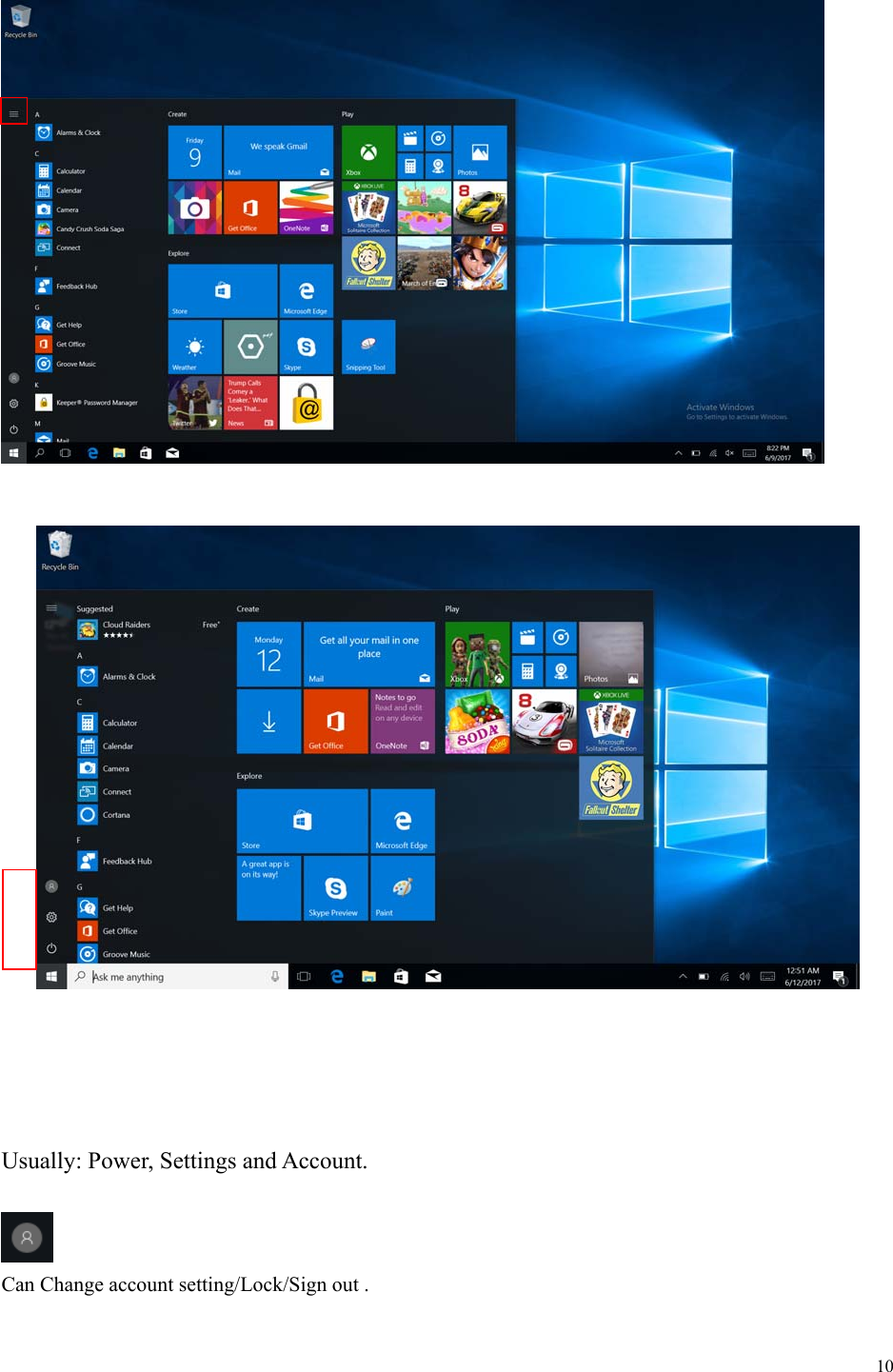
 9        Conversely, if you want to cancel or delete a certain application in the taskbar, (1) Right-Clicking the application, (2)Click the “Unpin from taskbar”.      4. Start Menu   Under PC mode, press Start icon, Start Menu will display including: Start, Device, Setup, Share, and Search Program.
 10            Usually: Power, Settings and Account.   Can Change account setting/Lock/Sign out .
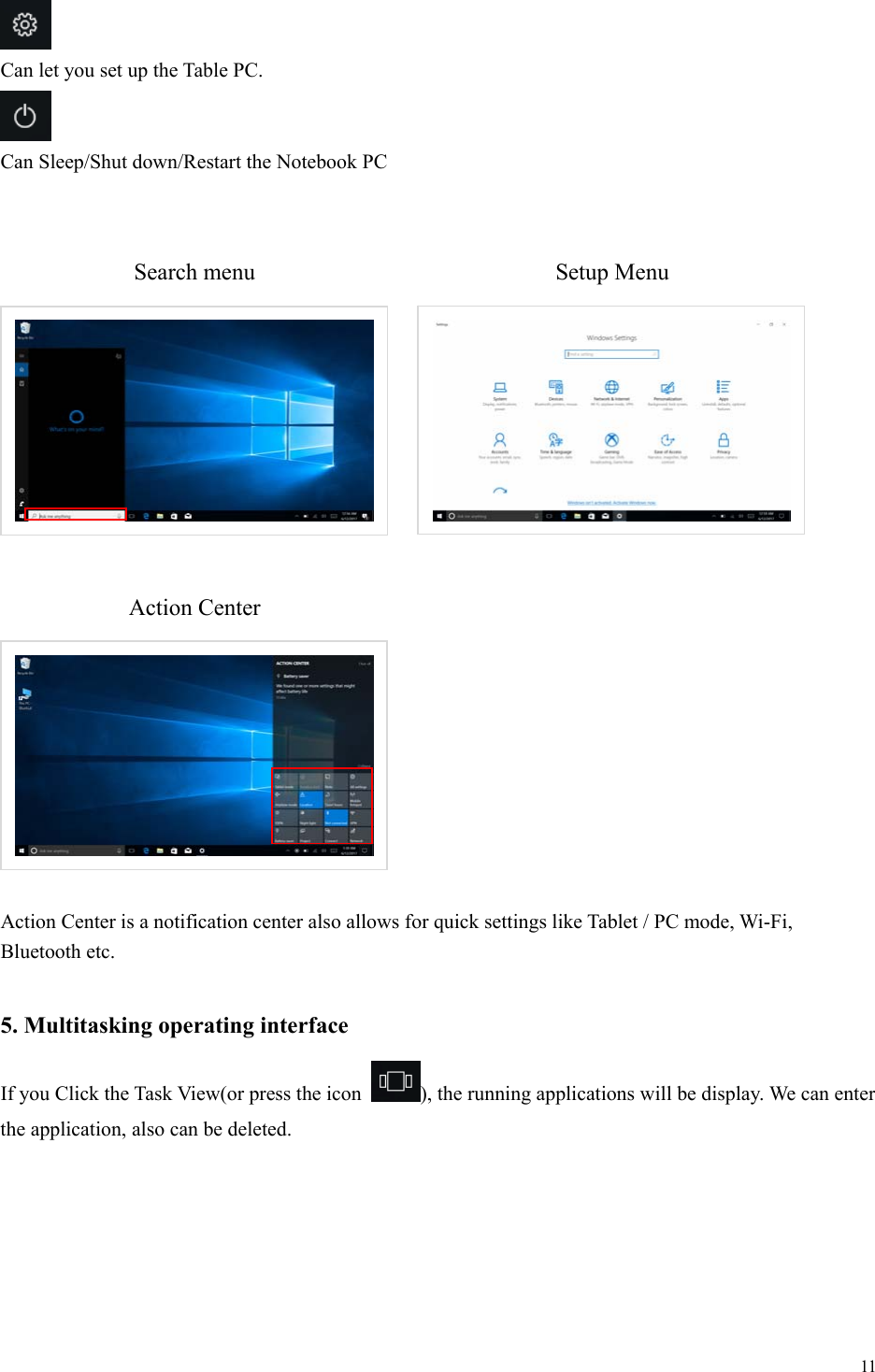
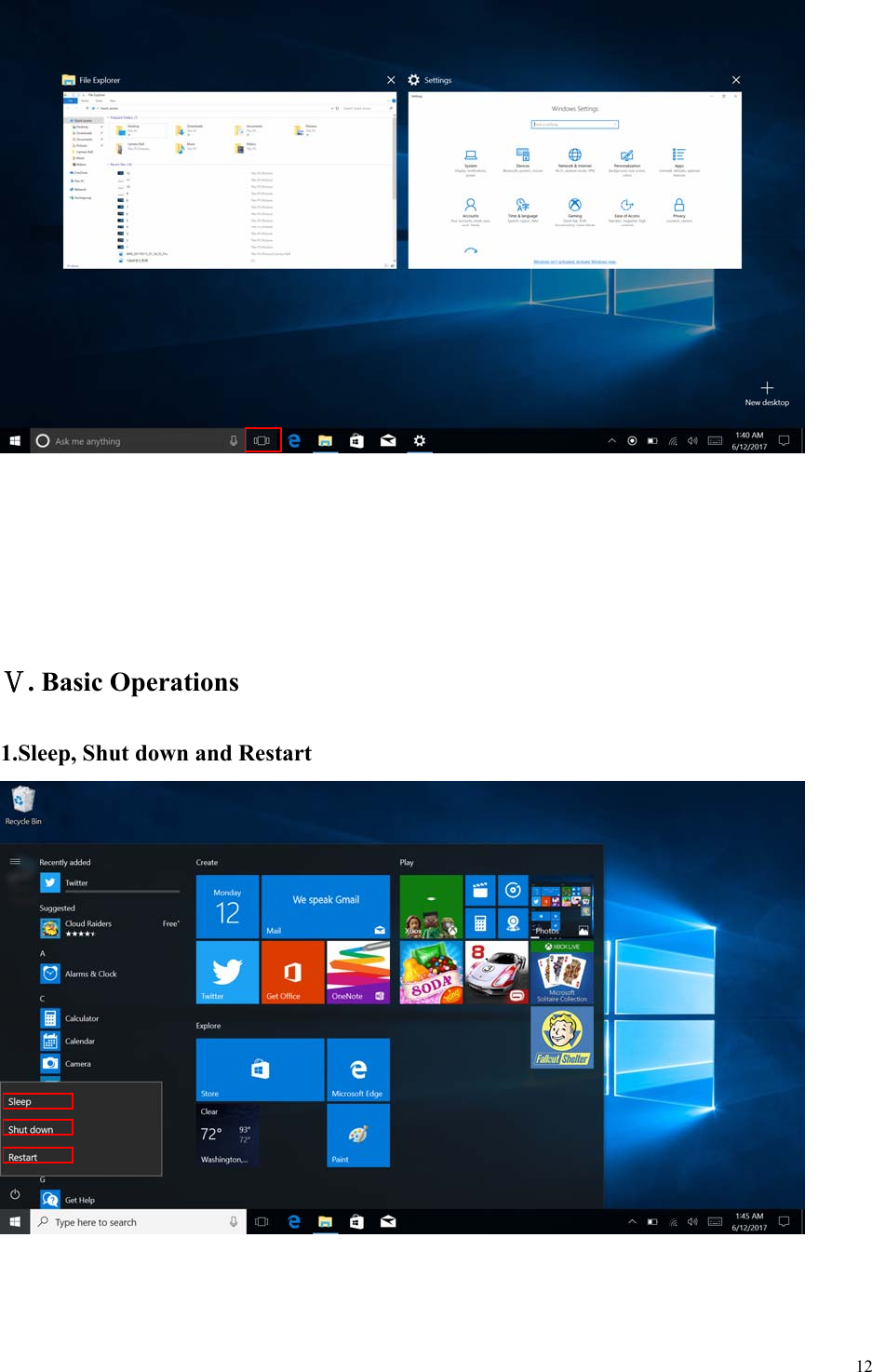
 11   Can let you set up the Table PC.   Can Sleep/Shut down/Restart the Notebook PC                         Action Center is a notification center also allows for quick settings like Tablet / PC mode, Wi-Fi, Bluetooth etc.  5. Multitasking operating interface If you Click the Task View(or press the icon  ), the running applications will be display. We can enter the application, also can be deleted.  Search menu  Setup Menu Action Center
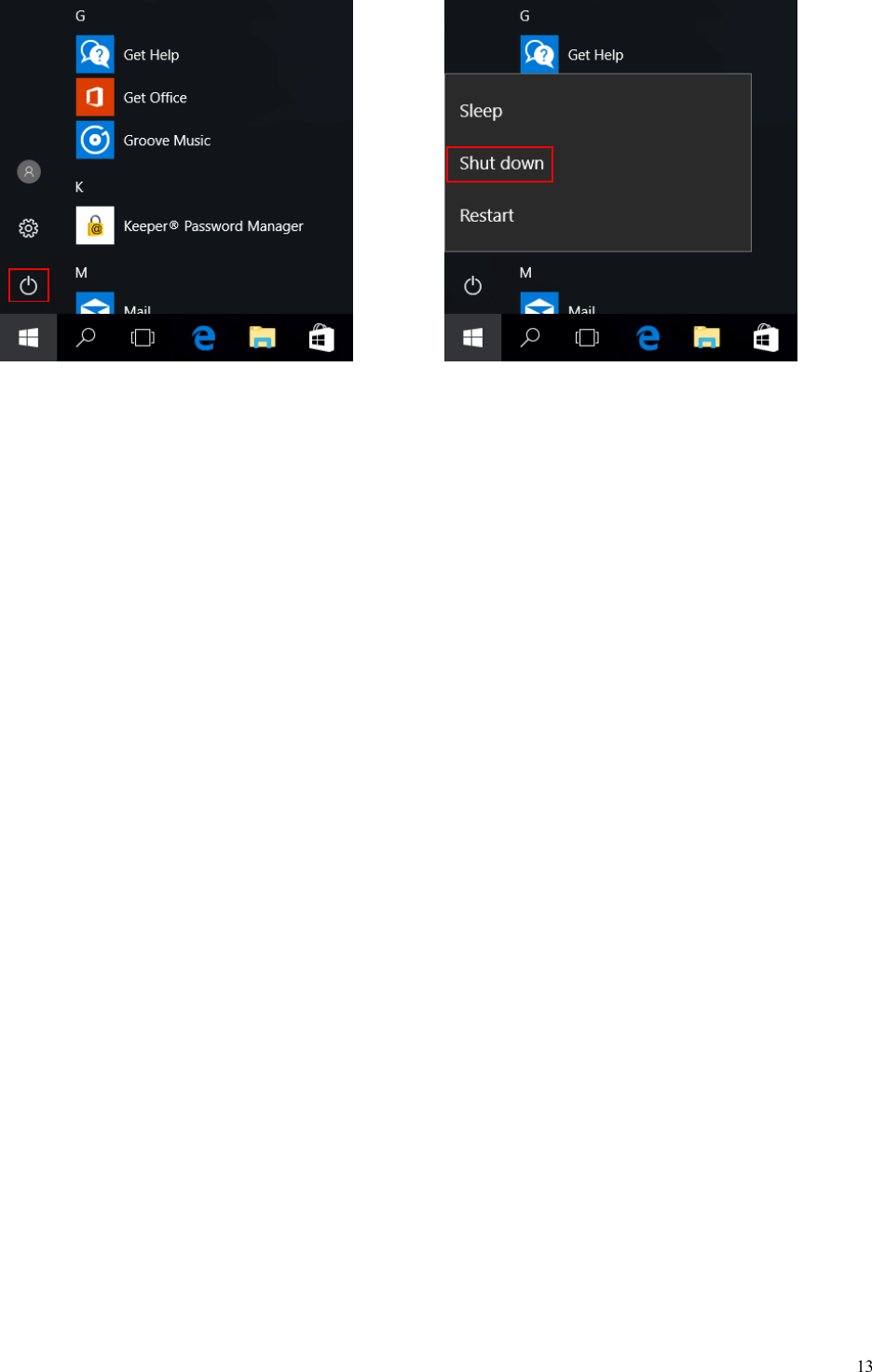
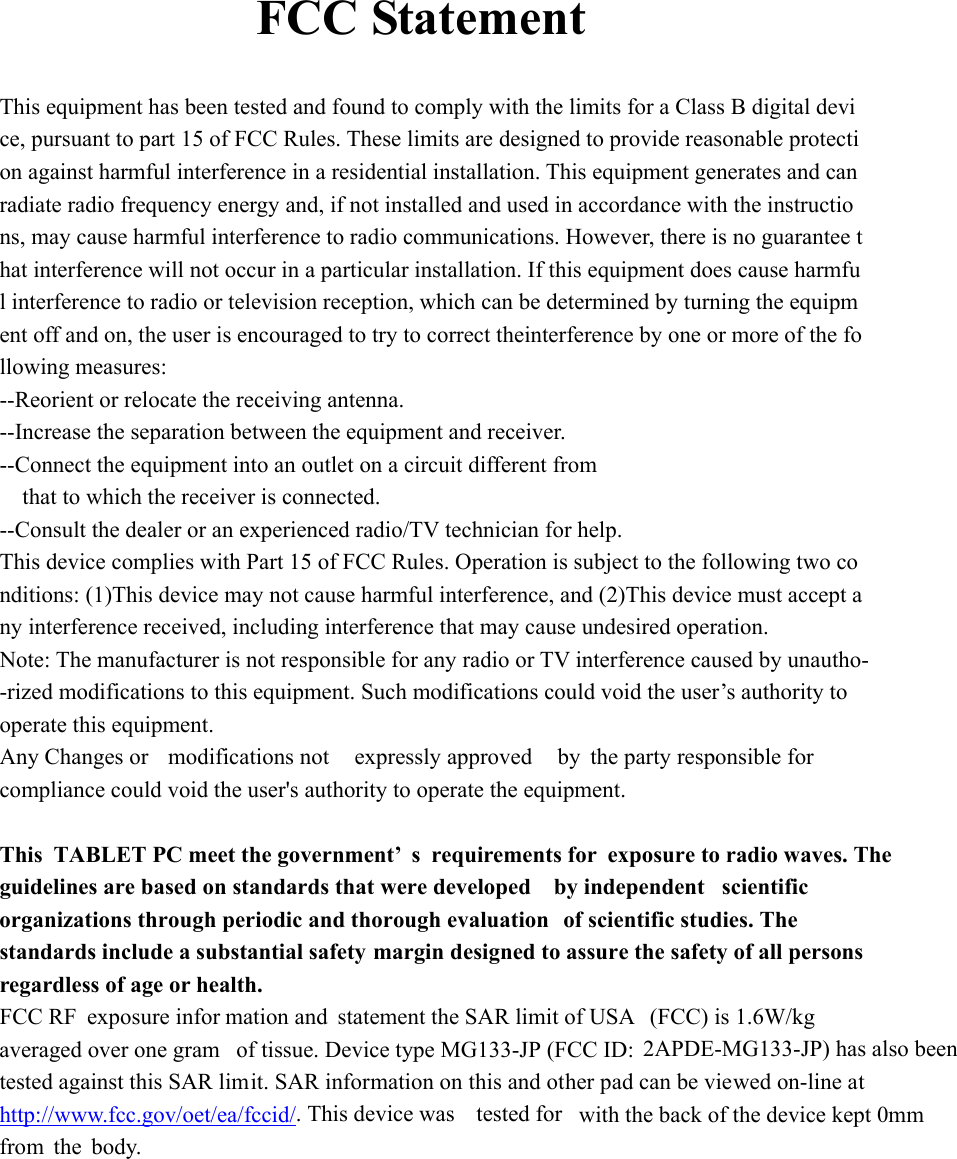
 12         . Basic OperationsⅤ 1.Sleep, Shut down and Restart
 13
     FCC Statement  This equipment has been tested and found to comply with the limits for a Class B digital device, pursuant to part 15 of FCC Rules. These limits are designed to provide reasonable protection against harmful interference in a residential installation. This equipment generates and can radiate radio frequency energy and, if not installed and used in accordance with the instructions, may cause harmful interference to radio communications. However, there is no guarantee that interference will not occur in a particular installation. If this equipment does cause harmful interference to radio or television reception, which can be determined by turning the equipment off and on, the user is encouraged to try to correct theinterference by one or more of the following measures:  --Reorient or relocate the receiving antenna.   --Increase the separation between the equipment and receiver.   --Connect the equipment into an outlet on a circuit different from  that to which the receiver is connected.  --Consult the dealer or an experienced radio/TV technician for help.  This device complies with Part 15 of FCC Rules. Operation is subject to the following two conditions: (1)This device may not cause harmful interference, and (2)This device must accept any interference received, including interference that may cause undesired operation.  Note: The manufacturer is not responsible for any radio or TV interference caused by unautho--rized modifications to this equipment. Such modifications could void the user’s authority tooperate this equipment.  Any Changes or modifications not  expressly approved  by the party responsible for compliance could void the user's authority to operate the equipment.  This TABLET PC meet the government’ s requirements for  exposure to radio waves. The  guidelines are based on standards that were developed  by independent scientific organizations through periodic and thorough evaluation  of scientific studies. The standards include a substantial safety margin designed to assure the safety of all persons regardless of age or health. FCC RF exposure infor mation and statement the SAR limit of USA  (FCC) is 1.6W/kg averaged over one gram  of tissue. Device type MG133-JP (FCC ID:  2APDE-MG133-JP) has also been  tested against this SAR limit. SAR information on this and other pad can be viewed on-line at http://www.fcc.gov/oet/ea/fccid/. This device was tested for  with the back of the device kept 0mm from the body.

Navigation menu