JJPlus JR24UAX USB Adapter User Manual Manual JR24UAUD 20090814
JJPlus Corporation USB Adapter Manual JR24UAUD 20090814
JJPlus >
User Manual

Clipper
User Manual
150Mbps Wireless USB
Version: 2.0
2009. August
No part of this publication may be reproduced, transmitted, transcribed, stored
in a retrieval system, or translated into any language or computer language, in
any form or by any means, electronic, mechanical, magnetic, optical, chemical,
manual or otherwise, without the prior written permission of this company.
This company makes no representations or warranties, either expressed or
implied, with respect to the contents hereof and specifically disclaims any
warranties, merchantability or fitness for any particular purpose. Any software
described in this manual is sold or licensed "as is". Should the programs prove
defective following their purchase, the buyer (and not this company, its
distributor, or its dealer) assumes the entire cost of all necessary servicing,
repair, and any incidental or consequential damages resulting from any defect
in the software. Further, this company reserves the right to revise this
publication and to make changes from time to time in the contents hereof
without obligation to notify any person of such revision or changes.
The software and specifications are subject to change without notice. All right
reserved including all brand and product names mentioned in this manual are
trademarks and/or registered trademarks of their respective holders.

2
Index
1. Product Information ......................................................................................................................3
1.1 Introduction and safety information .......................................................................................... 3
1.2 System Requirements .............................................................................................................. 3
1.3 Package Contents ..................................................................................................................... 4
2. Driver Installation and Configuration .........................................................................................5
2.1 Network Card Installation .......................................................................................................... 5
2.2 Connection to Wireless Devices ............................................................................................ 10
2.3 Profile Management ................................................................................................................ 23
2.4 Advanced Settings .................................................................................................................. 25
2.5 View Network Statistics .......................................................................................................... 27
2.6 WMM Settings ......................................................................................................................... 28
2.7 WPS Configuration ................................................................................................................. 30
2.8 Radio On/Off ........................................................................................................................... 32
2.9 About ........................................................................................................................................ 32
2.10 On-line Help .......................................................................................................................... 33
3. Specification ............................................................................................................................... 34

3
1. Product Information
1.1 Introduction and safety information
Thank you for purchasing this high-speed wireless network card! This wireless
network card supports the common 802.11b/g wireless standards. In addition, this
network card is also able to access 802.11n wireless networks – with a data
transfer rate of 150Mbps. That is nearly six times faster than an 802.11g wireless
network.
With easy-to-install USB 2.0 interface - a very common expansion port of
computers – plug this wireless network card into any empty USB port of your
computer, just that simple!
Main features
1. Compatible with wireless IEEE 802.11n standard with data rates up to
150Mbps
2. Complies with wireless 802.11b/g standards
3. Supports 1T1R MIMO architecture
4. Increases wireless coverage 3 times further*
5. Supports USB 2.0/1.1 interface
6. Supports WMM, WMM-PS (IEEE 802.11e QoS standard)
7. Supports 64/128-bit WEP, WPA (TKIP with 802.1x), WPA2 (AES with IEEE
802.1x) for high security level
8. Operating system supports for: Windows 2000/XP/Vista, MAC 10.4.x and
above & Linux
*Maximum performance may vary depending on network conditions and
environmental factors.
1.2 System Requirements
1. CPU: Pentium III 1G above or similar
2. Memory size: 256MB RAM
3. One CD-ROM drive
4. Hard disk: more than 100MB available space
5. One available USB 2.0 port (USB 1.0 port will largely degrade the
performance)
6. Operating system: Windows 2000/XP/Vista, MAC 10.4.x and above & Linux
4
1.3 Package Contents
1. Clipper 802.11b/g/n wireless USB device x 1
2. USB Y-cable x 1
3. CD-ROM x 1 (driver and user manual)
4. Antenna x 1
5
2. Driver Installation and Configuration
2.1 Network Card Installation
Please follow these instructions to install your new wireless network card:
1. Insert the USB cable into an empty USB 2.0 port of your computer after the
computer is switched on. Never use force to insert the cable. If there is
difficulty inserting the cable, flip it over and try again.
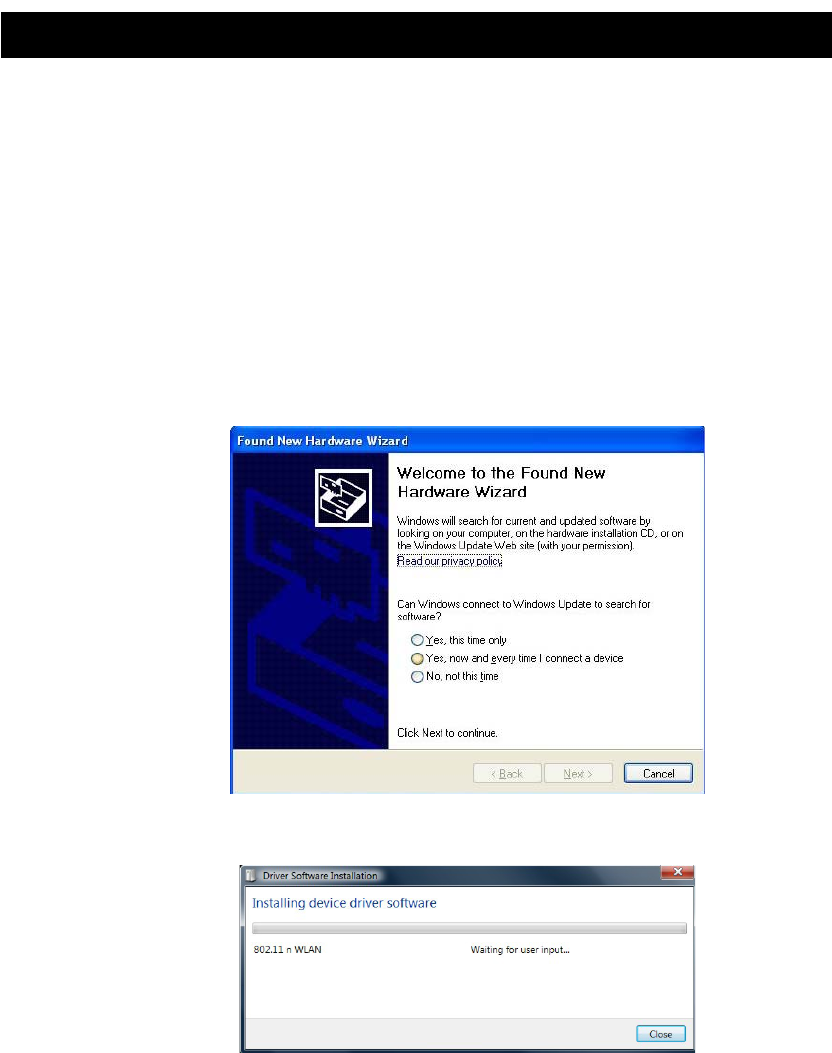
2. The following message will appear on your computer, click ‘Cancel / Close’.
Under Windows XP
Under Windows Vista
3. Software Installation. This autorun wizard can be run in Windows
2000/XP/Vista. The procedures shown are for a Windows XP installation. You
can install the Wireless Adapter using the Setup Wizard on the CD-ROM
included in the package. The wizard is an easy and quick configuration tool for
internet connection with step-by-step process.
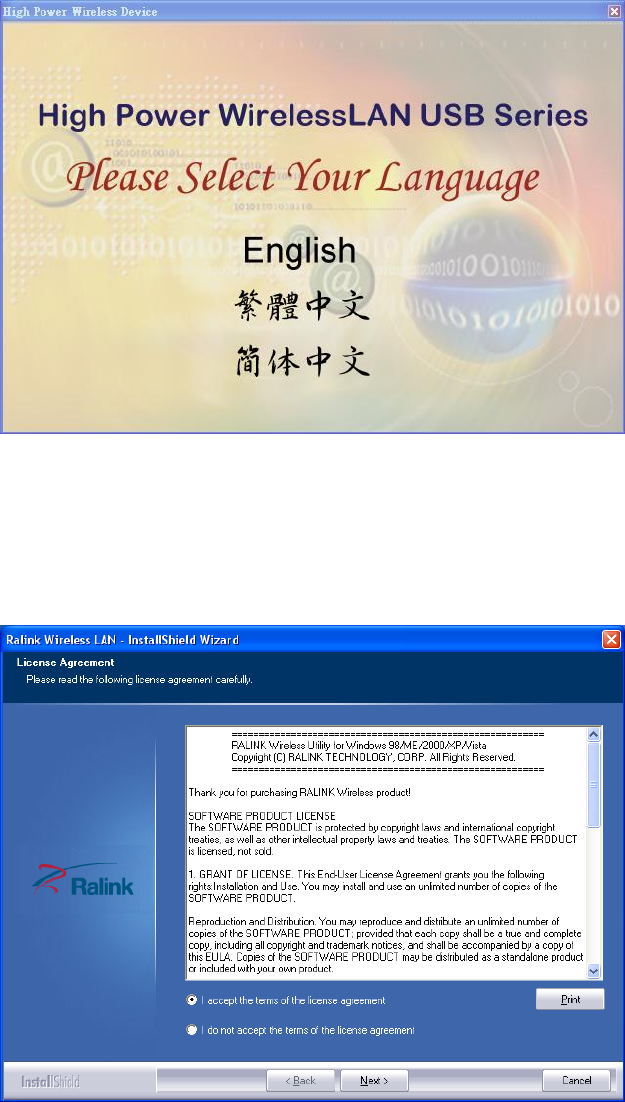
When you start the Setup Wizard, you will get the following welcome screen.
Please choose the language to start the configuration. The wizard will guide
you to finish your network connection. We will not provide any instruction for
the Setup Wizard here.
6
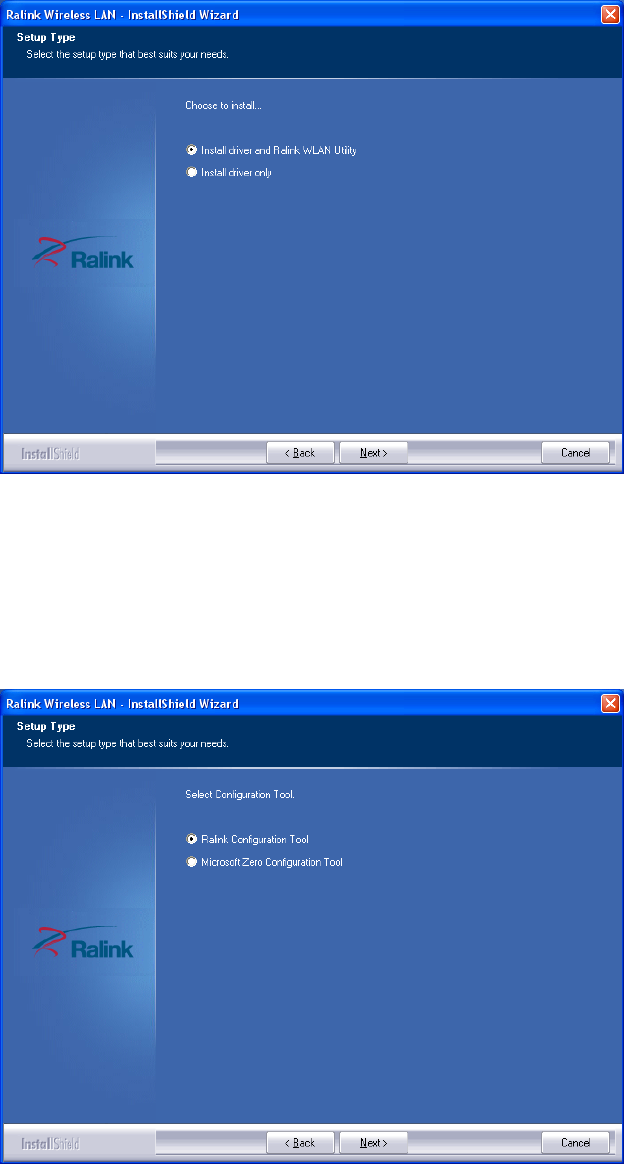
4. Select the desired installation language in the auto-run menu window, and the
programs will appear. Please read the end user license agreement and click ‘I
accept the terms of the license agreement’ then click ‘Next’ button, to accept
license agreement.
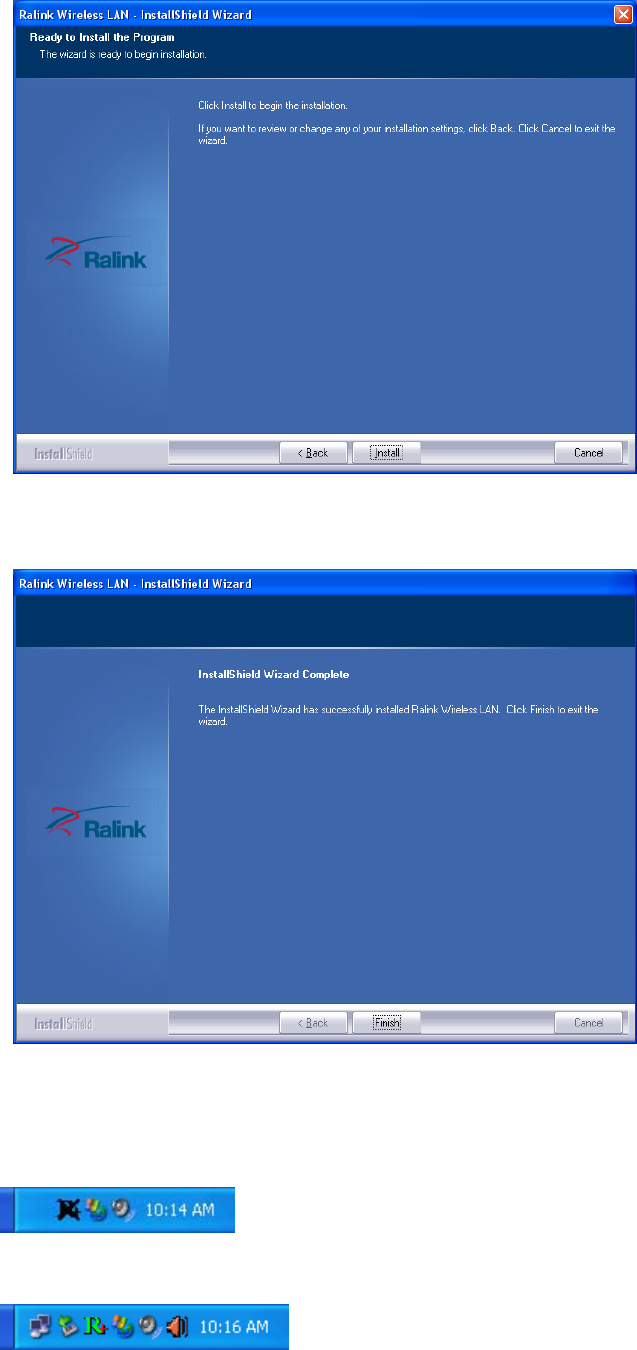
5. It is recommended to install the driver and utility if the device is installed for
the first time. If you want to update the driver only, choose ’Install driver only’.
Click ‘Next’ to continue.
7
6. You can choose the configuration tool used to configure the wireless network
card here. It’s recommended to select ‘Ralink Configuration Tool’, which
provides fully access to all functions of this wireless network card. If you prefer
to use the wireless configuration tool provided by Windows XP or Vista,
please select ‘Microsoft Zero Configuration Tool’ then click ‘Next’.
7. Now you’ll see the following message, please click ‘Install’ to start utility
installation. If you see ‘Found New Hardware’ message again, please
ignore it and wait.
8
8. Please wait while the install procedure is running. When you see this
message, please click ‘Finish’ to complete the driver installation process.
9. After installation is complete, a wireless configuration utility will be shown in
the desktop of your computer automatically. You will also see an icon at the
lower-right corner of your windows system. If you put the mouse cursor on the
icon, the status of wireless card will be displayed as a popup balloon.
When the wireless adaptor is inserted into the USB port, the icon becomes
green.
9
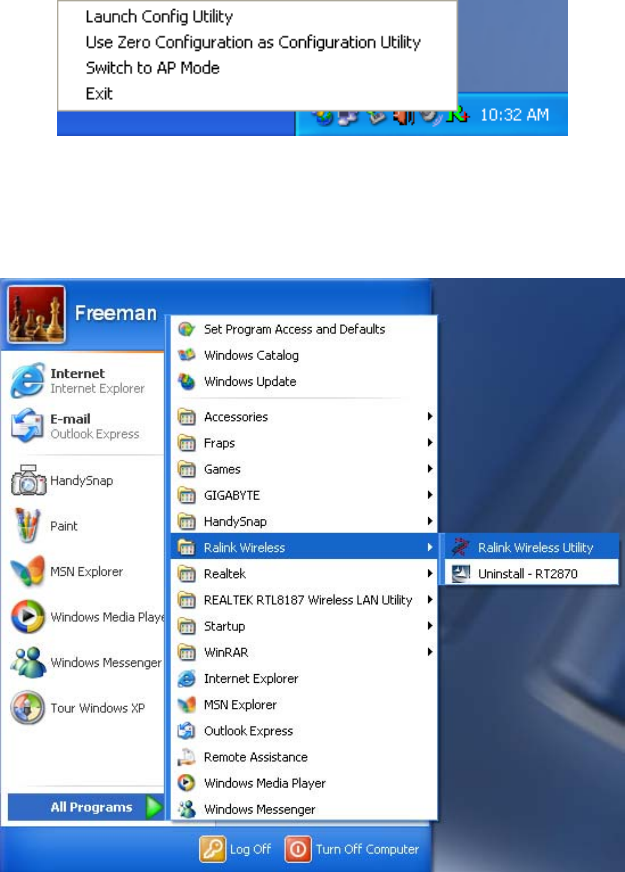
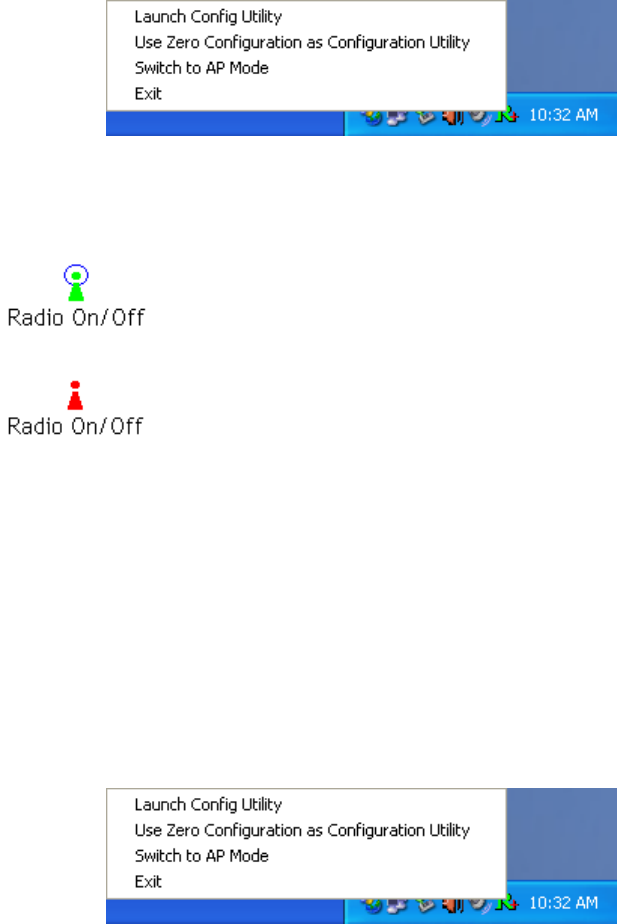
10. When you want to configure your wireless connection, please right click on
this icon, and a popup menu will appear. You can click ‘Launch Config Utility’
to start configuration program.
If you want to close the configuration utility, please click ‘Exit’.
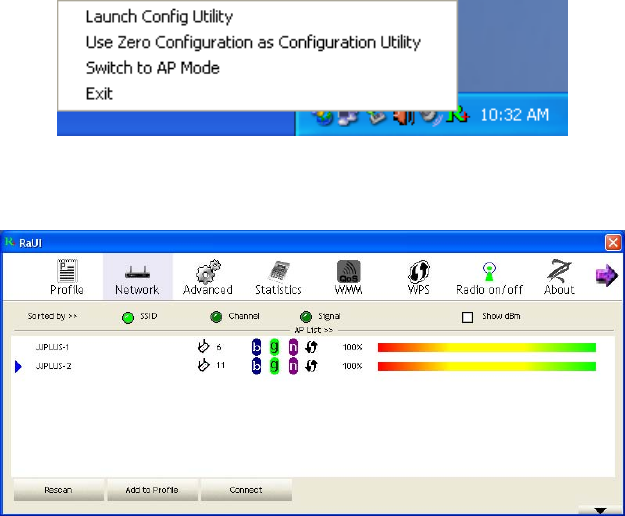
11. Please note that if you stopped config utility using the ‘Exit’ function, you’ll not
be able to maintain the wireless link to the access point you wish to use. In
this case, you can start config utility again by clicking ‘Ralink Wireless Utility’
icon from ‘Start’ -> ‘All Programs’ -> ‘Ralink Wireless’, as shown below.
1
0
2.2 Connection to Wireless Devices
After the driver is correctly installed, it will try to connect to any unencrypted
wireless access point automatically. If you want to connect to a specific wireless
access point, or the access point you wish to connect uses encryption, you have
to configure the wireless USB adaptor and input the required parameters.
To configure the wireless network card for connection with an access point, the
configuration utility can be launched for parameter settings.
1. Right-click the configuration utility icon located at lower-right corner of
computer desktop and then click ‘Launch Config Utility’.
The setup utility (RaUI) will launch, and begin to scan for all wireless access
points automatically.
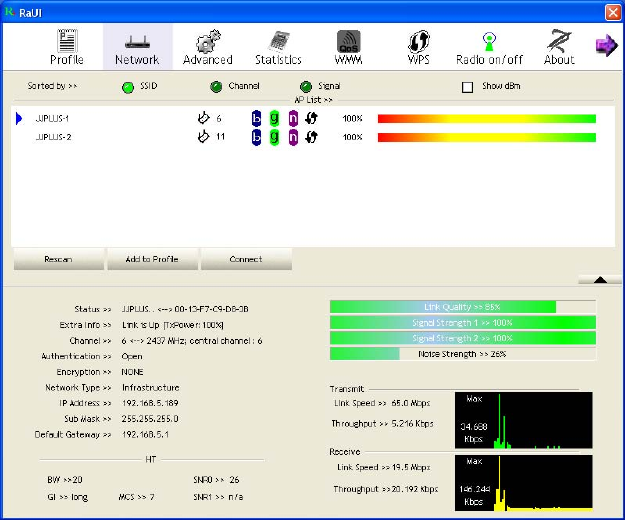
RaUI consists two parts: a menu and setup area. You can select a setup function
(Profile, Network, etc.) from menu, and the corresponding setup items will be
displayed in the setup area. Some function includes more information, and can not
be fitted in setup area. In this case, you can click ‘More / less’ button to expand the
setup utility window, to display more information:
11
You can click ‘More / Less’ button again, and setup utility window will return to its
original size.
2.2.1 Network Card Installation
There are two kinds of wireless connection modes: Infrastructure and Ad-Hoc.
Infrastructure mode is used by wireless access points which establish wireless
connections for you and other wireless / wired network clients.
Ad-Hoc mode is also know as ‘point-to-point’ mode, and in this mode, wireless
devices such as computer or PDA will not be capable to establish wireless
connection with more than one wireless device, and is suitable for establishing a
one-to-one wireless connection between two wireless devices.
Before you can connect to any wireless access point or device by infrastructure or
Ad-Hoc mode, there two things you must know:
a. The SSID of a Wireless device (Service Set Identifier, also known as the
‘access point’s name’).
You can scan for the SSID of other wireless devices nearby, but if the
SSID of the wireless device you wish to connect is hidden, you must
know the exact SSID before you can establish connection with it.
b. If the wireless device which you wish to connect uses encryption, you
must know its encryption key.
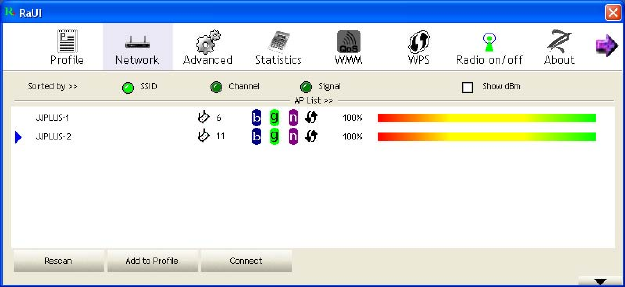
Please launch the setup utility and it will scan for wireless access points near by:
1
2
Scan results will be displayed here. Please check here for the SSID of the wireless
device (access point or another computer) you wish to connect to.
Scan result includes 6 types of information, they are:
a. The SSID (Service Set Identifier) of wireless device. If nothing is
displayed here, it means the SSID of this wireless device is hidden.
If a symbol appears in front of the name of wireless device, means
you’ve established connected with that wireless device.
b. The type of this wireless device and the channel number of this wireless
device.
c. The wireless standards supported by this access point. ‘n’ for 802.11n ,
‘g’ for 802.11g , and ‘b’ for 802.11b . WPS icon will appear when the
access point supports WPS. If the access point uses encryption, a key
icon will appear.
Note: When the access point supports WPS and the WPS icon is
appeared, you will not see the key icon here even through the access
point uses encryption.
d. Shows the signal strength of access point as a percentage.
e. Shows the bar graph of the signal strength.
If you cannot see the access point you wish to connect to here, please click
‘Rescan’ button to scan for access point again, until the one you preferred is
displayed. If you cannot see the access point you wish connect to, please click
‘Rescan’ button again until the one you prefer is displayed. You may have to click
‘Rescan’ more than two times before the preferred access point appears.
If you still can not see the access point you wish to use after clicking ‘Rescan’ for
more than five times, please move your computer closer of the location.
If you wish to see detailed information for a specific access point, please
double-click on it, and you’ll be provided with its detailed information.

13
There are 4 types of technical information:
General: Displays basic information about this access point, such as SSID, MAC
address, authentication / encryption type, channel etc.
WPS: If this access point supports WPS (Wi-Fi Protected Setup), related
information will be displayed here.
CCX: If this access point supports CCX (Cisco Compatible extension), related
information will be displayed here.
802.11n: If this access point complies with 802.11n draft specifications, the related
information will be displayed here.

1
4
Descriptions of all the item in setup area:
Item Name Description
Sorted by >> You can decide how to sort all listed access point by ‘SSID’,
‘Channel’, or ‘Signal’ (signal strength).
Show dBm Check this box to show the signal strength of the access point,
instead of percentage.
Rescan Click this button to rescan access points. You can click this
button several times if the access point you wish to use does
not show in the list.
Add to Profile
You can store a specific access point to a profile. A profile will
store the authentication keys. All future connections to that
access point will be made automatically without reentering the
authentication key.
To add an access point to profile, you have to select an
access point from the list first, then click ‘Add to Profile’ button.
Detailed instructions will be given below.
Connect Connect to a selected access point you wish to connect to is
found, and you can establish a connection to it by clicking the
‘Connect’ button.

15
2.2.2 Scan for an Access Point
If the wireless access point you wish to connect is found, you can establish
connection with it by clicking ‘Connect’ button. Instructions will be given as follow:
1. Click the wireless access point or network device you wish to connect, it will
be highlighted, then click ‘Connect’.
If the access point you selected does not use encryption, you’ll be connected to
this wireless access point within one minute. If the access point you selected uses
encryption, please proceed to step 3.
2. If the wireless access point does not have a SSID, you’ll be prompted to input
it now. Please ask the owner of wireless access point for the exact SSID and
input it here, then click ‘OK’ when ready. If the SSID you provided here is
wrong, you’ll not be able to connect to this access point.
3. If the wireless access point uses encryption, you will be prompted to input its
WEP key or WPA pre-shared key.
4. Please ask the owner of the wireless access point you want to connect, and
input the correct key here and then click ‘OK’. By checking the ‘Show
Password’ box, the encryption key you entered here will be displayed.
If the value you inputted here is wrong, you will not be able to connect to this
wireless access point.
1
6
The Authentication type is set by the access point automatically, please don’t
change it.
However, if you’re connecting to an access point uses 802.1x authentication,
you have to check ‘802.1x’ box and input related information. Instructions for
802.1x authentication will be given later.
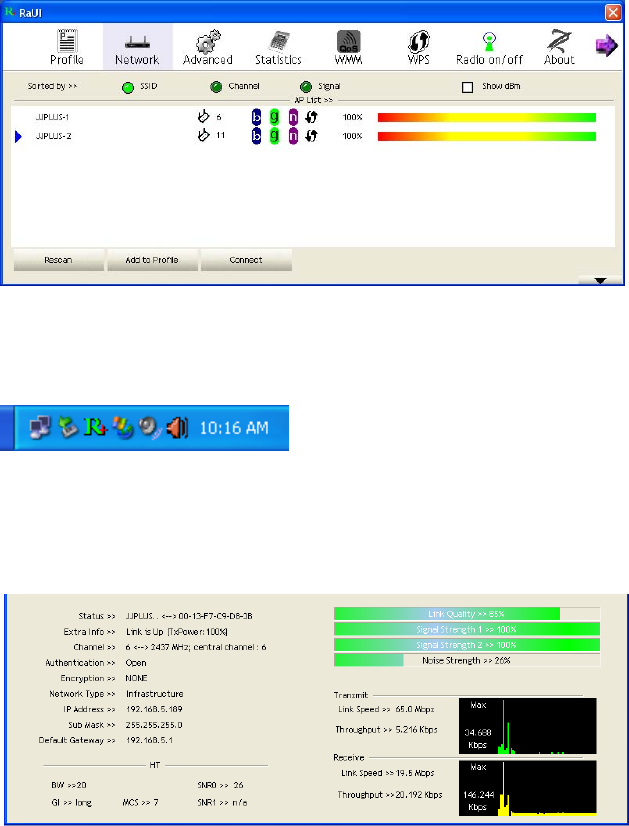
5. If the connection to the wireless access point is successful, you’ll see an icon
appear to the left of the name of wireless device.
You can put the mouse cursor over the configuration utility icon, and the brief
information about link status and signal strength of current wireless
connection will be shown as a popup balloon.
You can also click More / Less button to see detailed information about the
connected access point:
2.2.3 Add an Access Point to a Profile
If you will be connecting to specific wireless access points frequently, you can add
their information to the profile. Just like the telephone directory, the profile saves
all information of access points, and you can recall them anytime you wish to
establish connection.
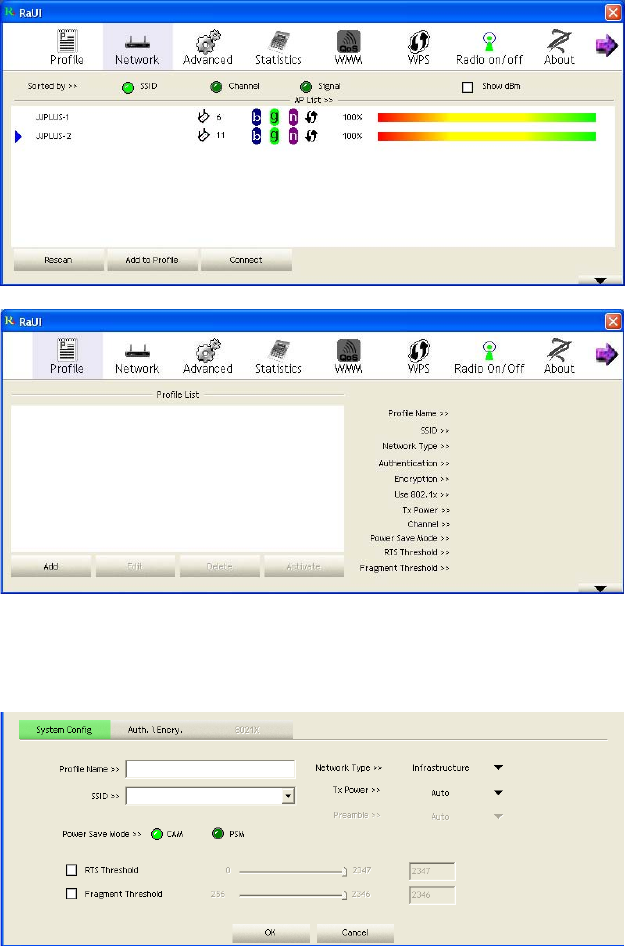
You can add a found access point to profile, or input all information of an access
point by yourself.
17
You can add an access point in the list to a profile, or enter all the information for
an access point connection manually. To add an access point from the list to a
profile, please highlight the access point in the list and click the 'Add to Profile'
button. To enter the information manually, please go to the 'Profile' drop down
menu and click the 'Add' button
The setup utility will expand:

18
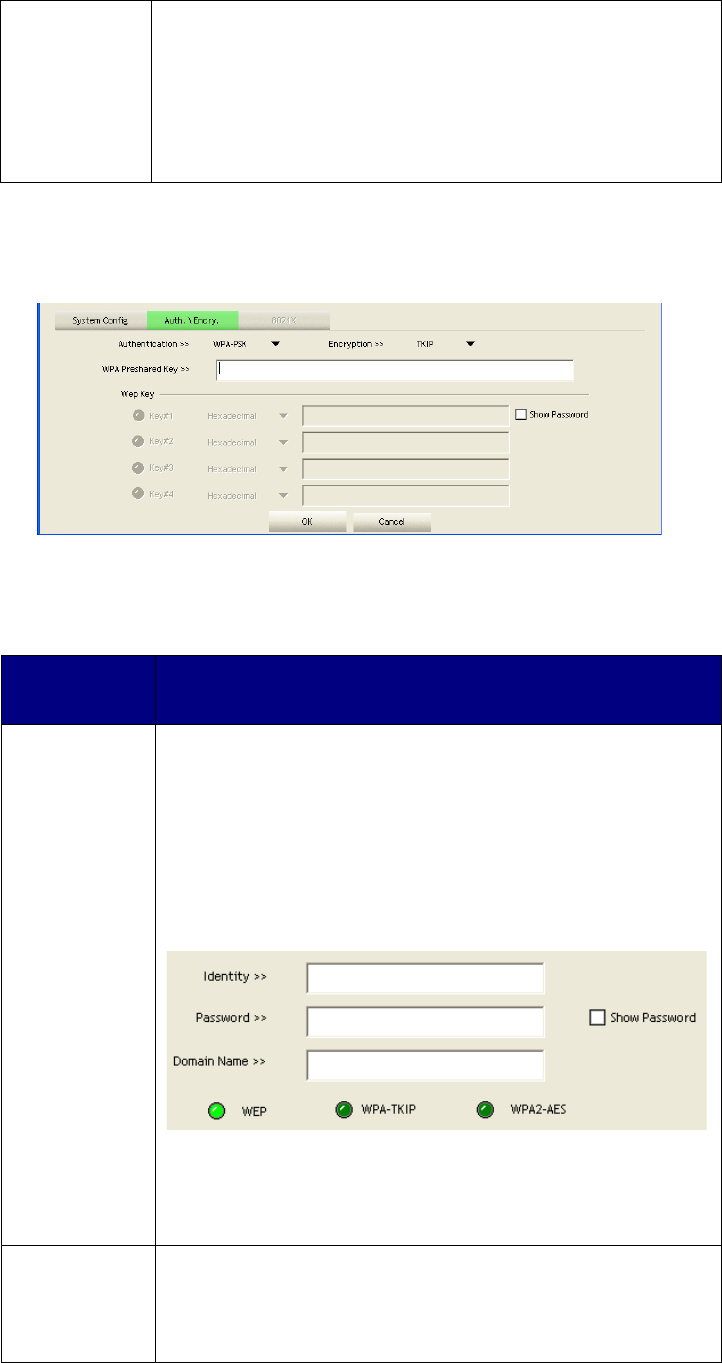
Here are descriptions of every setup item:
Item Name Description
Profile Name You can give this profile a name. Every profile needs a unique
name.
SSID
Please input the SSID of this access point. If you selected an
access point from the list, and its SSID is not hidden, the SSID
will be entered automatically; however, you can edit the SSID
by yourself.
Network Type
Please select the network type: Ad hoc or Infrastructure. If
you’re connecting to an access point, please select
‘Infrastructure’; for point-to-point wireless connection (i.e.
connecting to another computer using Ad Hoc mode), please
select Ad hoc here.
If you selected an access point from the list above, please
keep this field unchanged.
Tx Power
You can select the wireless output power here. If you’re not
too far from access point (good signal reception), you can
select a lower output power to save energy; for a distant
access point, you can select a higher output power.
It’s suggested to select ‘Auto’ to let setup utility decide the
best output power for you.
Preamble Select the preamble for Ad hoc mode here. Available options
are ‘Auto’ and ‘Long’. It’s suggested to select ‘Auto’ to let
setup utility decide the preamble for you.
Channel You can select the radio channel number for Ad-Hoc mode
here.
Power Save
Mode
Please select CAM (constantly awake mode, keep wireless
radio activity even when not transferring data), or PSM (Power
saving mode, switches radio off when not transferring data).
It’s recommended to choose ‘PSM’ if you’re using this network
card with notebook computer to help the battery live longer.
RTS
Threshold
Check this box to set the RTS threshold by yourself. You can
drag the slider to set the threshold value, or input the value in
the box located at right.
It’s recommended to keep this value untouched unless you
know the effect of changing this value.
1
9
Fragment
Threshold
Check this box to set the packet fragment threshold by
yourself. You can drag the slider to set the threshold value, or
input the value in the box located at right.
It’s recommended to keep this value untouched unless you
know the effect of changing this value.
To set authentication / encryption information for the access point. Please click
‘Auth. \ Encry.’ tab:
Here are descriptions of every setup item:
Item Name Description
Authentication
Select the authentication type of the wireless access point or
wireless device you wish to connect. When you’re adding a
profile from an existing access point or wireless device,
authentication type 25 will be selected automatically, and
please do not change it.
If you select ‘LEAP’, you’ll be prompted to input LEAD specific
settings:
Please input LEAP identity, password, domain name, and select
encryption type. You can check ‘Show Password’ box so the
password you inputted will be displayed as you type, but not
replace by asterisk.
Encryption Select the encryption type of the wireless access point or
wireless device you wish to connect. When you’re adding a
profile from an existing access point or wireless device, the
encryption type will be selected automatically, and please do

2
0
not modify it.
WPA
Preshared Key
Input WPA preshared key here. If encryption is not enabled,
or you select ‘WEP’ as encryption type, this field will be
disabled and grayed out.
WEP Key
You can select key type (Hexadecimal or ASCII) and input
WEP key here. If encryption is not enabled, or you select
‘WPA’ as encryption type, this field will be disabled and
grayed out. You can set up to 4 WEP keys here.
There are two types of WEP key: Hexadecimal and ASCII.
For Hexadecimal key, you can input number 0-9 and alphabet
a-f; for example, ‘123456abcdef’; For ASCII key, you can
input number 0-9 and alphabet a-z; for example,
54321mywepkey.
The length of WEP key depends on the type of WEP key you
selected. You can input 10 or 26 hexadecimal characters and
5 or 13 ASCII characters as WEP key.
Show
Password
Check this box and all passphrases or security keys you
inputted will be displayed as you type, but not replace your
input with asterisk.
Use 802.1x If the access point you wish to connect requires 802.1x
authentication, please click on ‘Use 802.1x’ box, then click
‘802.1X’ tab to set 802.1x parameters.
To set 802.1x authentication for the access point. Please click ‘802.1x’ tab:

21
Here are descriptions of every setup item:
Item Name Description
EAP Method Select 802.1x EAP method from dropdown menu. Please ask
the administrator of the access point you wish to connect to
select a correct EAP method
Tunnel
Authentication
Select 802.1x tunnel authentication type from dropdown
menu. Please ask the administrator of the access point you
wish to connect to select a correct tunnel authentication
method. This pull down menu is only available when
authentication type you use is 'PEAP', ‘TLS / Smart Card', or
'TTLS'.
When you use 'EAP-FAST' as authentication type, the
protocol setting is always 'Generic Token Card' and can not
be changed. You also need to select ‘Soft Token’ or ‘Static
Password’ as password in ‘ID \ Password’ setting.
’EAP Fast’ authentication type also have a sub-menu to set
EAPfast-specific parameters:
If you need to use protected authentication credential, check
‘Use protected authentication credential’ box, and click
‘Import’ to 27 load .pac credential file; to remove a loaded
credential file, click ‘Remove’.
Session
Resumption
You can enable or disable session resumption here. If you
don’t know if you should enable session resumption or not,
please ask your 802.1x authentication administrator.
ID \ Password
tab
Input 802.1x username (ID) and password and other
information if it is required here. Click ‘Show Password’ to
show the password you typed.
Client
Certification
tab
Use this tab to select a local certificate from dropdown menu.
If the access point you wish to connect required a specific
client certificate, the certificate must be installed on your
computer, and you can select the certificate here.
Server
Certification
tab
Use this tab to use server-based certification. Please select a
CA (Certificate Authority) from dropdown menu. If
intermediate certificates are allowed, please select ‘Allow
intermediate certificates’. Also, if you need to specify CA
server’s name, you can specify it in ‘Server name’ field. You
can select ‘Server name must match’, so the CA server’s
name must be the same with the value you set in ‘Server

2
2
name’ field; If only the domain name part of full server name
must the same with the value you set in ‘Server name’ field,
select ‘Domain name must end in specified name’.
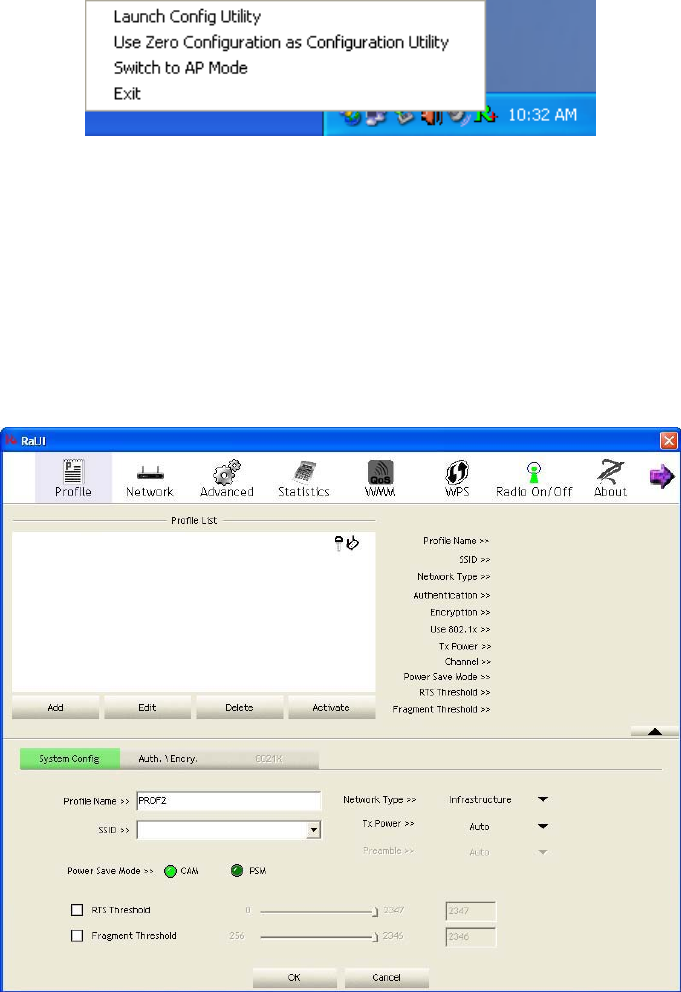
After you complete all information related to the access point, click ‘OK’ to save
the profile, or click ‘cancel’ to cancel adding a new profile.
If the profile is created, you will see the information in the Profile List.
23
2.3 Profile Management
If you need to connect to different wireless access points at different time, like of
access point of your home, office, cybercafe, or public wireless service, you can
store the connection parameters (encryption, passphrase, security etc, etc.) as a
profile for every access point, so you don’t have to input these parameters every
time when you want to connect to a specific wireless access point. To manage
profiles, right-click the configuration utility icon located at lower-right corner of
computer desktop, then click ‘Launch Config Utility’.
Click the ‘Profile’ menu. All profiles will be listed in ‘Profile List’, and you can select
a profile from the list, all information about selected profile will be listed.
2.3.1 Add a profile
If you want to click new profile, click ‘Profile’ menu, then click ‘Add’ button. You’ll
be prompted to input detailed information of access point, as described in Section
2-2-1-3.
PROF1 JJPLUS-1
2
4
2.3.2 Edit an existing profile
If you have added a profile before, and you wish to change the content of the
profile, you can use this function. Please select a profile from the list first, then
click ‘Edit’ button. You’ll be provided with the contents of selected profile, and you
can edit them. Click ‘OK’ to save changes, or click ‘Cancel’ to discard changes.
2.3.3 Delete an existing profile
If you no longer need a profile, you can delete it. Select the profile you wish to
delete from the list, and click ‘Delete’ button to delete it.
2.3.4 Activate a profile
When you want to connect to a specific wireless device in the profile list, you can
select it and click ‘Activate’ button, to establish connection with it.
When you selected a profile and click ‘Activate’ button to activate the profile, an
icon will be displayed in front of the profile to show that the connection is failed;
When the connection is successfully established, a icon will be displayed.
25
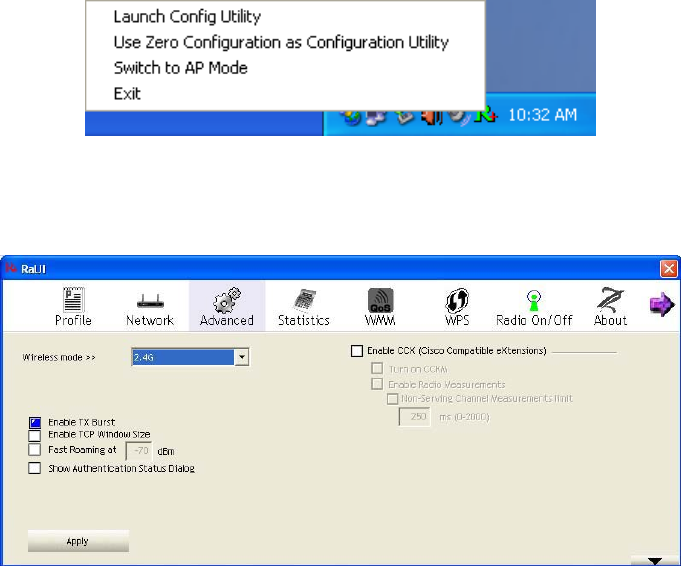
2.4 Advanced Settings
This wireless network card provides several advanced settings for experienced
wireless users. You can change these settings to increase data transfer
performance, or change operation mode.
Please follow the following instructions to set advanced wireless settings:
1. Right-click the configuration utility icon located at lower-right corner of
computer desktop and then click ‘Launch Config Utility’.
2. Click ‘Advanced’ menu, and the following settings will appear:

2
6
Here are descriptions of every setup item:
Item Name Description
Wireless mode Display the wireless operation mode of the network card.
Enable Tx Burst Check this box to accelerate the data transmit rate. It may
not work with all wireless access point and wireless devices.
Enable TCP
Window Size
Check this box and the configuration utility will adjust TCP
window size automatically to get better performance. It
should be safe for most of wireless environments, but if you
found some problem on data transfer, uncheck this box.
Fast Roaming
Check this box and you can control the threshold that the
wireless network card should switch to another wireless
access point with better signal quality. Only adjust value
when you understand what it means and you need to roam
between multiple access points.
Show
Authentication
Status Dialog
When your computer is being authenticated by wireless
authentication server, a dialog window with the process of
authentication will appear. This function is helpful to find out
the problem when you can not be authenticated, and you can
provide this information to authentication server’s
administrator for debugging purpose.
Enable CCX
Enable Cisco Compatible eXtensions. CCX is a wireless
feature developed by Cisco used to improve the wireless
performance with CCX compatible wireless devices. Check
this box if you need to connect to CCX-compatible wireless
devices. When you enabled CCX, the following setup items
will become available:
Turn on CCKM: Check this box to enable CCKM (Cisco
Centralized Key Management), which enables wireless
clients to roam between CCKM-enabled access points in
very short time.
Enable Radio Measurements: When you’re connecting to
CCX-compatible access point, check this box to enable radio
measurement function to improve wireless connectivity.
Non-Serving Channel Measurements Limit: When you’re
connecting to CCX-compatible access point, check this box
to enable measurement on unused radio channels to
improve wireless connectivity.
After you finish the settings, click ‘Apply’ to apply new settings.
27
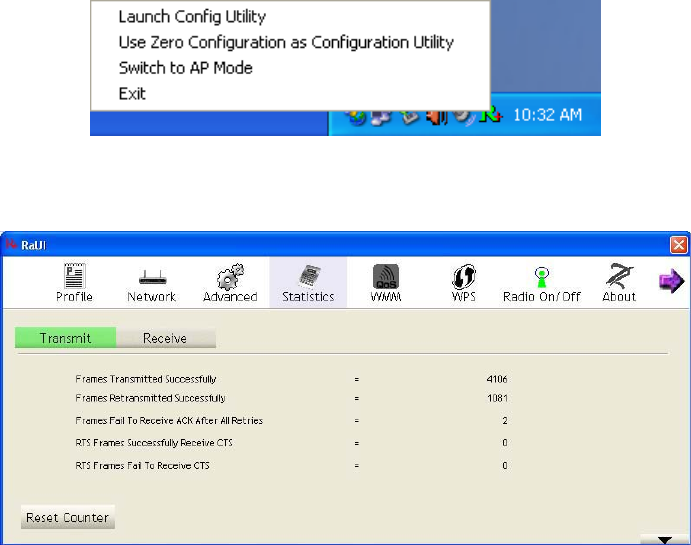
2.5 View Network Statistics
The configuration utility provides information about network statistics and link
status. If you want to know how your wireless network card works, you can use
these functions to get detailed information about the wireless connection you’re
using.
Please follow the following instructions to check network statistics:
1. Right-click the configuration utility icon located at lower-right corner of
computer desktop and then click ‘Launch Config Utility’.
2. Click ‘Statistics’ menu and the statistics of wireless connection will be
displayed:
All connection-related statistics is displayed here. You can click ‘Transmit’ or
‘Receive’ tab, to view the statistics of transmitted or received packets. You can
also click ‘Reset Counter’ button, to reset the statistics of all items back to 0.
28
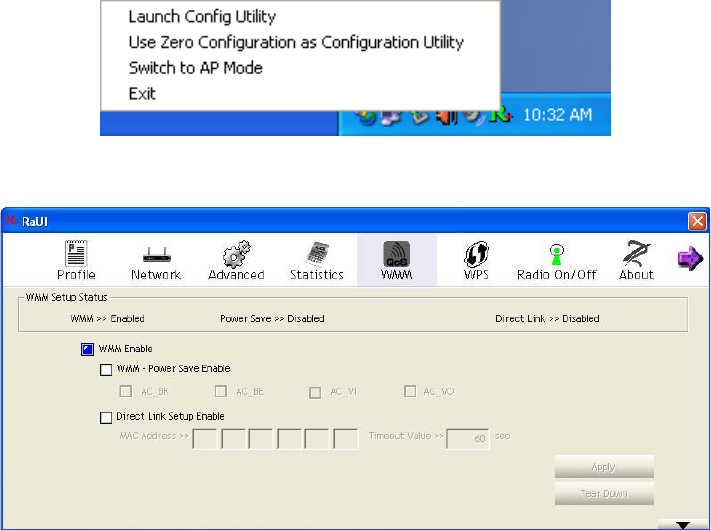
2.6 WMM Settings
This wireless network card provides WMM (Wi-Fi Multimedia) function, which can
improve the performance of certain network applications, like audio/video
streaming, network telephony (VoIP), and others. When you enable the WMM
function of this network card, you can define the priority of different kinds of data,
to give higher priority to applications which require instant responding. Therefore
you can improve the performance of such network applications.
Please follow the following instructions to set advanced wireless settings:
1. Right-click the configuration utility icon located at lower-right corner of
computer desktop and then click ‘Launch Config Utility’.
2. Click ‘WMM’ menu, and the following settings will appear:

2
9
In ‘WMM Setup Status’ block, current WMM settings will be displayed. And here
are descriptions of every setup item:
Item Name Description
WMM Enable
Check this box to enable WMM function. Please click
‘Apply’ button on the right of this check box after you check
or uncheck this box, so corresponding settings in this
window will be activated or deactivated respectively.
WMM–Power
Save Enable
Check this box to enable WMM power saving mode to save
energy, and let your computer’s battery live longer.
You also have to select WMM power save modes here:
AC_BE: Best Performance
AC_BK: Worst Performance
AC_VI: Video data has priority
AC_VO: Voice data has no priority
Direct Link Setup
Enable
If you have another WMM-enabled wireless device, you can
enter its MAC address here, then click ‘Apply’ button, and
this network card will establish a direct link to the wireless
device you specified here.
You also have to specify the timeout value of this
directly-linked wireless device. Valid values are from 1 to
65535 (seconds), and input ‘0’ for infinity.
If you want to remove a specific wireless device from direct
link table, select the device and click this button to remove
it.
3
0
2.7 WPS Configuration
Wi-Fi Protected Setup (WPS) is the latest wireless network technology which
makes wireless network setup become very simple. If you have WPS-enabled
wireless access point, and you want to establish a secure connection to it, you
don’t have to configure the wireless access point and setup data encryption by
yourself. All you have to do is to go to the WPS setup page of this wireless card,
click a button, and then press a specific button or enter a set of 8-digit code on the
wireless access point you wish to establish a secure connection - just three simple
steps!
For older wireless access points, it’s possible to perform a firmware upgrade to
become a WPS-enabled access point. Since they may not have a hardware
button to press for WPS setup, you can use an alternative WPS setup method -
input the pin code. Every WPS-compatible wireless network card support pin code
configuration method; you can just input the code to wireless access point, and
the wireless access point and wireless network card will do the rest for you.
This wireless network card is compatible with WPS. To use this function, the
wireless access point you wish to connect to must support WPS function too. Now,
please follow the following instructions to establish secure connection between
WPS-enabled wireless access point and your wireless network card.
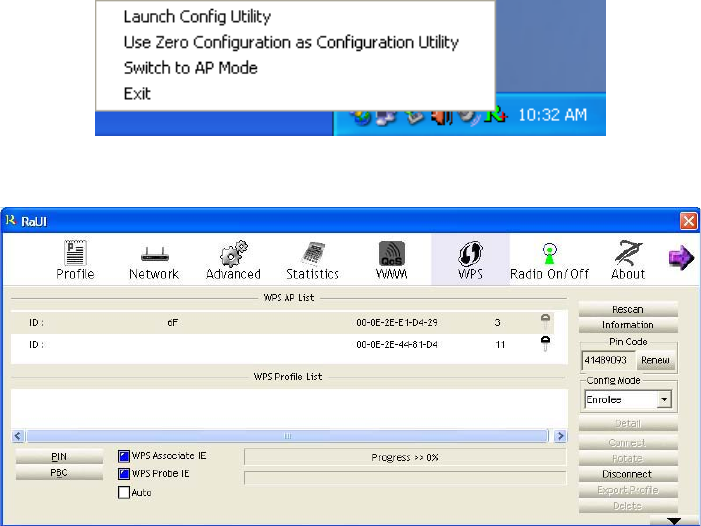
2.7.1 WPS Setup – PIN
If the wireless access point you wish to connect supports PIN, please follow the
following instructions to establish connection to it:
1. Right-click the configuration utility icon located at lower-right corner of
computer desktop and then click ‘Launch Config Utility’.
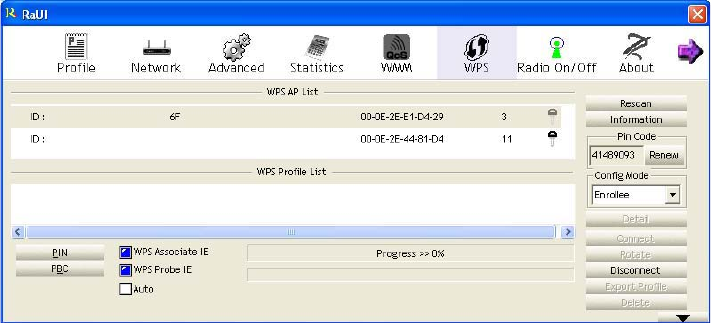
2. Click ‘WPS Configuration’ menu, and the following settings will appear.
31
3. The PIN code of your wireless network card is an eight-digit number located at
the upper-right position of configuration utility. Remember it, and input the
number to your wireless access point as the WPS PIN code (Please refer to
the user manual of your wireless access point for instructions about how to do
this).
4. Click ‘PIN’ button now, and wait for few seconds to one minute. If a wireless
access point with correct PIN code is found, you’ll be connected to that access
point.
5. You may have to click ‘PIN’ for few more times to try again. If you still can not
connect to access point by this way, please make sure the PIN code you
provided to access point is correct.
There are also some options available for WPS configuration:
WPS associate IE: Check this box to send the association request with WPS IE
during WPS setup. This is optional and you can use default value if you don’t
know what will be affected.
WPS probe IE: Check this box to send the WPS probe request with WPS IE
during WPS setup. This is optional and you can use default value if you don’t
know what will be affected.
Auto: When in PIN mode, wireless access point to be connected will be selected
automatically if this box is checked.
3
2
2.8 Radio On/Off
You can switch the wireless radio transceiver on and off by the utility, so if you
want to disable wireless network function, you don’t have to remove the network
card physically.
1. Right-click the configuration utility icon located at lower-right corner of
computer desktop and then click ‘Launch Config Utility’.
2. To switch wireless radio on/off, please click ‘Radio On/Off’ button.
Wireless radio is on (Green)
Wireless radio is off (Red)
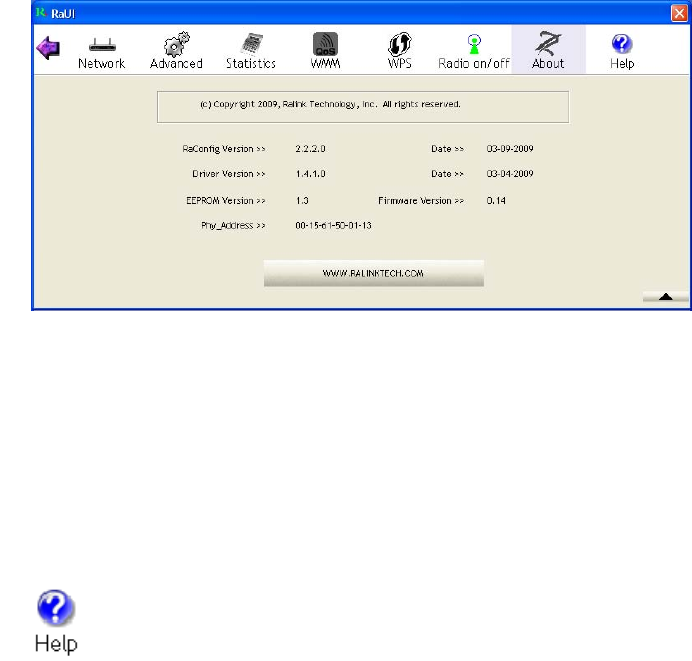
2.9 About
The ‘About’ tab provides you the information about version number of the
configuration utility, driver, and other important information about your wireless
network card.
Please follow the following instructions to see the information:
1. Right-click the configuration utility icon located at lower-right corner of
computer desktop and then click ‘Launch Config Utility’.
2. Click ‘About’ tab, and the following information will appear.
33
2.10 On-line Help
If you need to know the directions of how to use specific function in the utility,
please click ‘Help’ button. On-line help documents will be presented in Windows
help format.
Click this button to view on-line help documents.

3
4
3. Specification
Standards: IEEE 802.11b/g/n
Interface: USB 2.0 (USB 1.1 Compatible)
Frequency Band: 2.4000~2.4835GHz (ISM Band)
Data Rate:
11b: 1 / 2 / 5.5 / 11Mbps
11g: 6 / 9 / 12 / 18 / 24 / 36 / 48 / 54 Mbps
11n (20MHz): MCS0-7 (up to 150Mbps)
11n (40MHz): MCS0-7 (up to 150Mbps)
Securities: WEP 64/128, WPA, WPA2, Cisco CCX Support
Antenna: External dipole antenna
Driver: Windows 2000/XP/2003/Vista; Linux; MAC
Temperature: 0~70°C

This equipment has been tested and found to comply with the limits for a Class B digital device,
pursuant to Part 15 of the FCC Rules. These limits are designed to provide reasonable
protection against harmful interference in a residential installation. This equipment generates,
uses and can radiate radio frequency energy and, if not installed and used in accordance with
the instructions, may cause harmful interference to radio communications. However, there is
no guarantee that interference will not occur in a particular installation. If this equipment does
cause harmful interference to radio or television reception, which can be determined by turning
the equipment off and on, the user is encouraged to try to correct the interference by one of the
following measures:
Reorient or relocate the receiving antenna.
Increase the separation between the equipment and receiver.
Connect the equipment into an outlet on a circuit different from that to which the receiver is
connected.
Consult the dealer or an experienced radio/TV technician for help.
FCC Caution: Any changes or modifications not expressly approved by the party responsible
for compliance could void the user's authority to operate this equipment.
This device complies with Part 15 of the FCC Rules. Operation is subject to the following two
conditions: (1) This device may not cause harmful interference, and (2) this device must
accept any interference received, including interference that may cause undesired operation.
This device and its antenna must not be co-located or operating in conjunction with any other
antenna or transmitter.
The use of belt-clips, holsters and similar accessories should not contain metallic components
in its assembly.
IMPORTANT NOTE:
Federal Communication Commission (FCC) Radiation Exposure Statement
This EUT is compliance with SAR for general population/uncontrolled exposure limits in
ANSI/IEEE C95.1-1999 and had been tested in accordance with the measurement methods
and procedures specified in OET Bulletin 65 Supplement C.