JJPlus JWAP223 802.11 b/g/n High Power 2T2R WiFi Repeater User Manual QSG for jjPlus

JJPlus Corporation 802.11 b/g/n High Power 2T2R WiFi Repeater QSG for jjPlus

User manual

Repeater ManualYour repeater default settings:SSID and PasswordSticker LocationTechnical SupportThe support team can help you with setup, or questions about range and performance.Email: service@jjplus.com
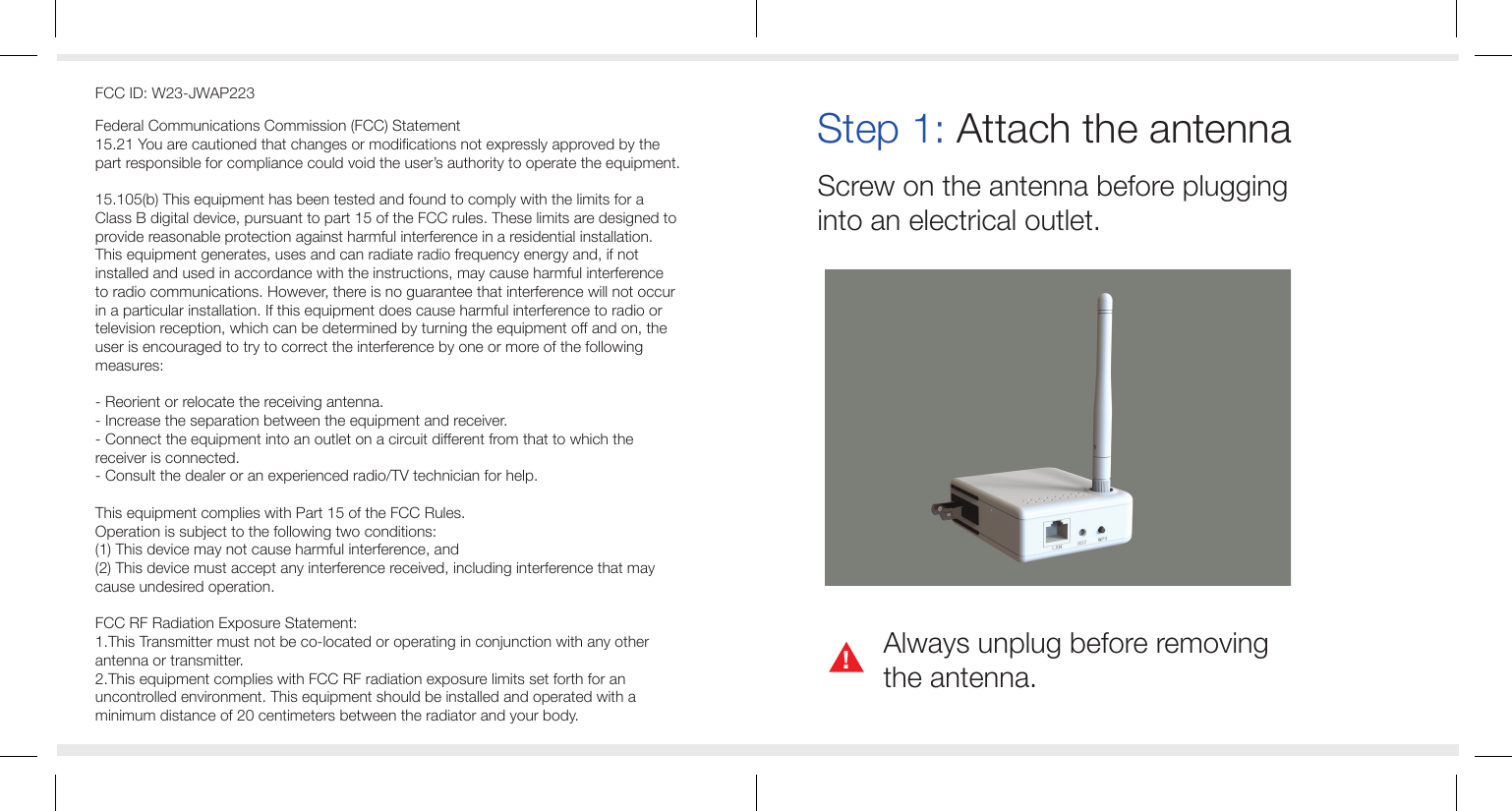
Step 1: Attach the antennaScrew on the antenna before plugging into an electrical outlet.Always unplug before removingthe antenna.!FCC ID: W23-JWAP223Federal Communications Commission (FCC) Statement15.21 You are cautioned that changes or modifications not expressly approved by the part responsible for compliance could void the user’s authority to operate the equipment.15.105(b) This equipment has been tested and found to comply with the limits for a Class B digital device, pursuant to part 15 of the FCC rules. These limits are designed to provide reasonable protection against harmful interference in a residential installation. This equipment generates, uses and can radiate radio frequency energy and, if not installed and used in accordance with the instructions, may cause harmful interference to radio communications. However, there is no guarantee that interference will not occur in a particular installation. If this equipment does cause harmful interference to radio or television reception, which can be determined by turning the equipment off and on, the user is encouraged to try to correct the interference by one or more of the following measures:- Reorient or relocate the receiving antenna.- Increase the separation between the equipment and receiver.- Connect the equipment into an outlet on a circuit different from that to which the receiver is connected.- Consult the dealer or an experienced radio/TV technician for help.This equipment complies with Part 15 of the FCC Rules. Operation is subject to the following two conditions:(1) This device may not cause harmful interference, and(2) This device must accept any interference received, including interference that may cause undesired operation.FCC RF Radiation Exposure Statement:1.This Transmitter must not be co-located or operating in conjunction with any other antenna or transmitter.2.This equipment complies with FCC RF radiation exposure limits set forth for an uncontrolled environment. This equipment should be installed and operated with a minimum distance of 20 centimeters between the radiator and your body.
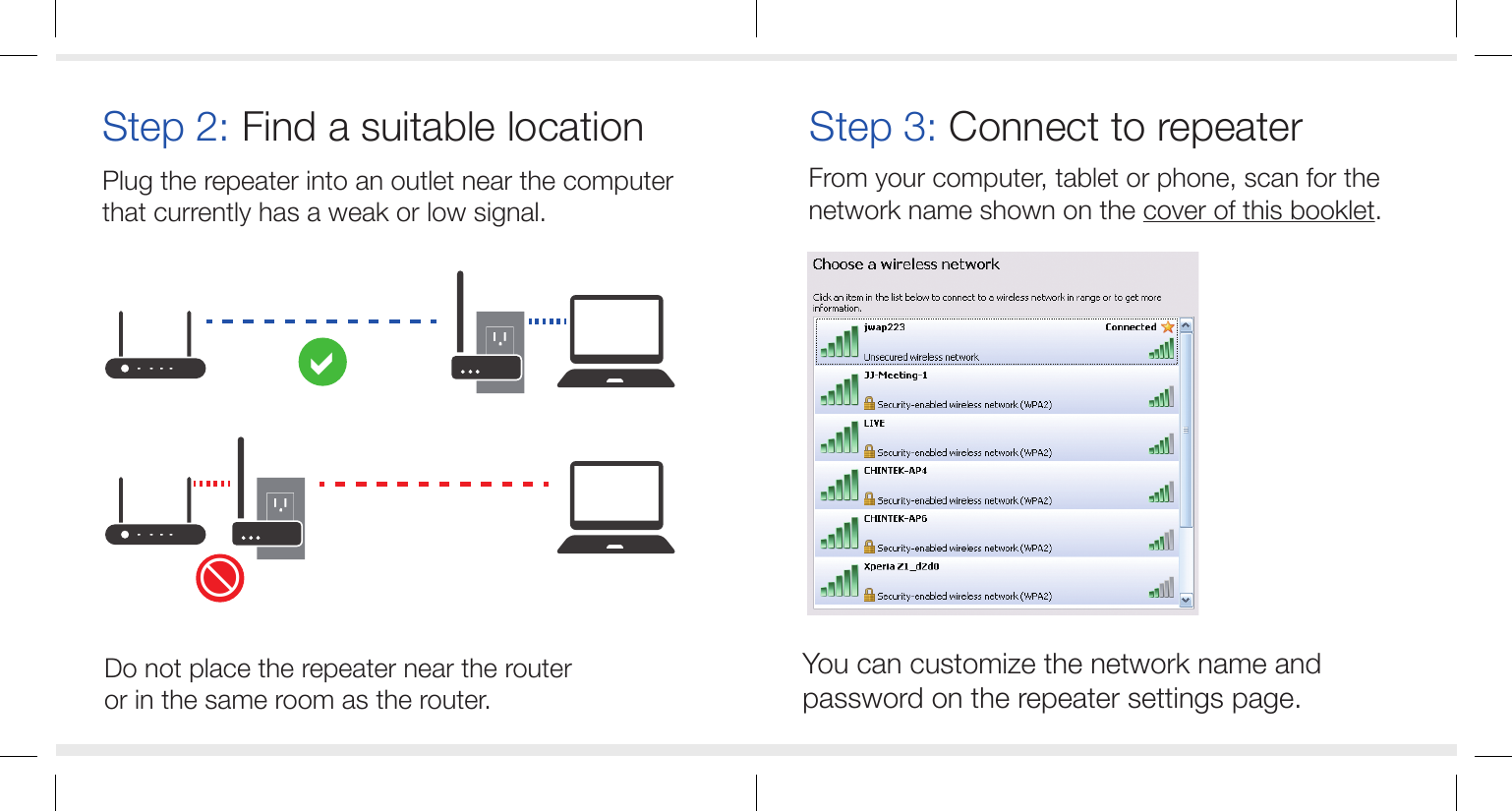
Step 2: Find a suitable locationPlug the repeater into an outlet near the computer  that currently has a weak or low signal.From your computer, tablet or phone, scan for the network name shown on the cover of this booklet.Step 3: Connect to repeaterDo not place the repeater near the router or in the same room as the router.You can customize the network name and password on the repeater settings page.
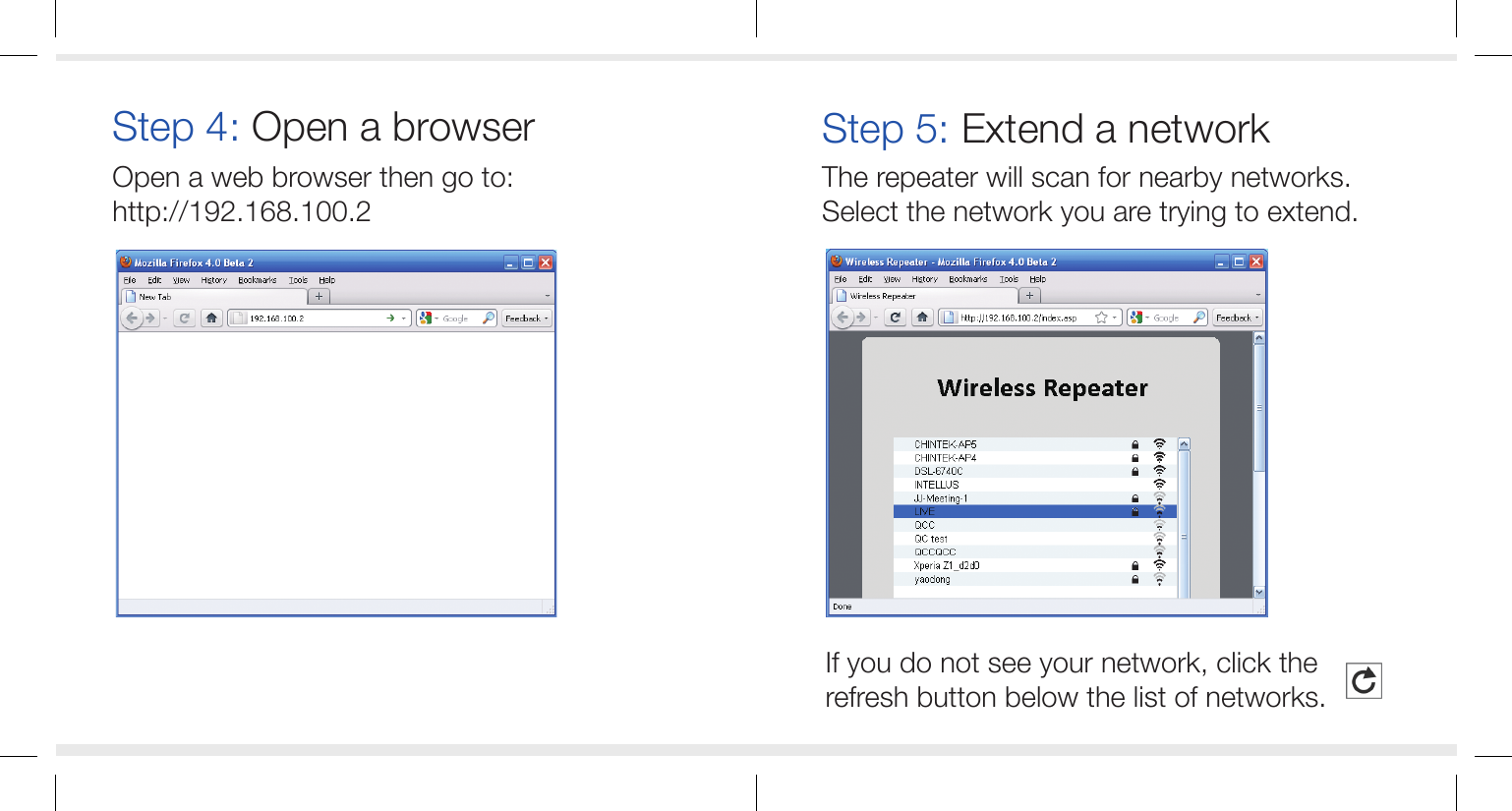
If you do not see your network, click the refresh button below the list of networks.Open a web browser then go to:http://192.168.100.2Step 4: Open a browserThe repeater will scan for nearby networks. Select the network you are trying to extend.Step 5: Extend a network
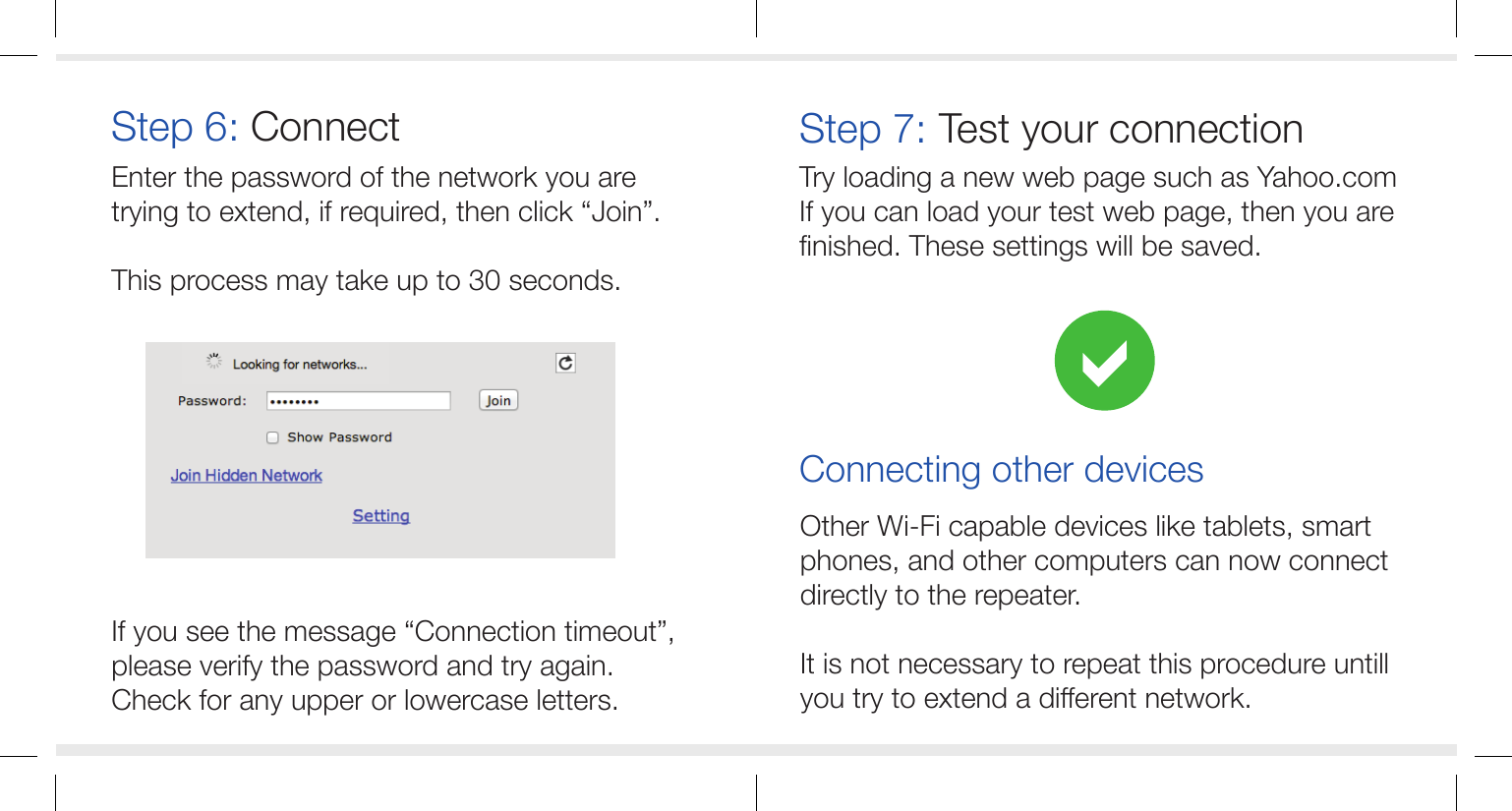
Other Wi-Fi capable devices like tablets, smart phones, and other computers can now connect directly to the repeater.It is not necessary to repeat this procedure untill you try to extend a different network.Enter the password of the network you are trying to extend, if required, then click “Join”.This process may take up to 30 seconds.If you see the message “Connection timeout”,please verify the password and try again.Check for any upper or lowercase letters.Step 6: ConnectTry loading a new web page such as Yahoo.comIf you can load your test web page, then you are finished. These settings will be saved.Step 7: Test your connectionConnecting other devices
Power BoostEnabling this option will increase the amplifier power.This option should only be used if you are very far away fromthe router, or there are many obstructions or solid objects.At closer distances high power will reduce performance.Compatibility ModeEnable this option if you have issues with wireless printing, scanning, or wireless backup.PasscodeYou can set a 4 digit passcode to prevent other usersfrom changing the settings of your repeater.LED Status LightYou can disable the lights for use in a bedroom or other area.1. Connection timeout errorVerify the password. If the signal strength shown in the repeater window is very low, move the repeater closer to the router. Try adjusting the antenna angle.2. Connection is very slowMove the repeater to another electrical outlet.Adjust the antenna angle. Try enabling or disabling Power Boost in the Advanced Settings page. 3. Reset the repeaterIf you forgot your password or otherwise need to reset the repeaer to factory defaults, follow these instructions. Plug it in, then use a pen to press and hold the reset button for 5 seconds. Wait 30 seconds, then scan for a network called “jwap223”. After you connect, set a new password and network name on the settings page.TroubleshootingSupport information is on the back of this page.Settings

Navigation menu