JVC GR D50AA(Install) M3D3/D1 DSC User Manual LYT1086 001A
GR-D50AH(Install) GR-D50AH(Install), GR-DX35AH (Install) LYT1086-001A English,
GR-D40E+(Install) GR-D40E (Install), GR-D40EK (Install), GR-D50AA(Install), GR-D50AG(Install), GR-D50AH(Install), GR-D50AS(Install), GR-D50E (Install), GR-D50EK (Install), GR-D51AG (Install), GR-DX25E (Install), GR-DX25EK (Install), GR-DX35AH (Install), GR-DX35E (Install), LYT1086-001A glish,
GR-D50AG(Install) GR-D50AG(Install), GR-D51AG (Install) LYT1086-001A English,
GR-D50AS(Install) GR-D50AS(Install) LYT1086-001A English,
GR-DX25E+(Install) GR-DX25E (Install), GR-DX25EK (Install) LYT1086-001A glish,
User Manual: JVC GR-D50AA(Install) GR-D50AA(Install) English, Simplified Chinese,
Open the PDF directly: View PDF  .
.
Page Count: 16

Master Page: Sheet-Cov
_001EN_SHEET_M3D1_D3-DSC-Sheet_p1-7.fm Page 1
ENGLISH
—1—
SOFTWARE INSTALLATION AND
USB CONNECTION GUIDE
LYT1086-001A Printed in Japan
COPYRIGHT © 2003 VICTOR COMPANY OF JAPAN, LTD. 1202-HO-ID-VP
M3D3/D1 –DSC
The right to use the Program is granted by Victor Company of Japan, Limited (“JVC”) to You only on the
condition that You agree to the following.
Should You not agree to the terms hereof, You may not install or use the Program. HOWEVER, INSTALLING
OR USING THE PROGRAM INDICATES YOUR ACCEPTANCE OF THESE TERMS AND CONDITIONS.
1COPYRIGHT; OWNERSHIP
You acknowledge that all copyrights and other intellectual property rights in the Program are owned by
JVC and its licensor, and remain vested in JVC and such licensor. The Program is protected under the
copyright law of Japan and other countries, and related Conventions.
2GRANT OF LICENSE
(1) Subject to the conditions of this Agreement, JVC grants to You a non-exclusive right to use the Program.
You may install and use the Program on a HDD or other storage devices incorporated in Your PC.
(2) You may make one (1) copy of the Program solely for your personal backup or archival purposes.
3RESTRICTION ON THE PROGRAM
(1) You may not reverse engineer, decompile, disassemble, revise or modify the Program, except to the
extent that expressly permitted by applicable law.
(2) You may not copy or use the Program, in whole or in part, other than as expressly specified in this
Agreement.
(3) You have no right to grant a license to use the Program, and may not distribute, rent, lease or transfer
the Program to any third party or otherwise let them use the Program.
4LIMITED WARRANTY
JVC warrants that any media in which the Program is embodied are free from any defects in materials and
workmanship for a period of thirty (30) days from the date of Your purchasing any our products
accompanying the Program. JVC’s entire liability and your exclusive remedy in connection with the
Program shall be replacement of such defective media. EXCEPT FOR THE EXPRESS WARRANTIES STATED
HEREIN AND TO THE EXTENT PERMITTED BY APPLICABLE LAW, JVC AND ITS LICENSORS DISCLAIM
ANY OTHER WARRANTIES, EITHER EXPRESS OR IMPLIED, INCLUDING BUT NOT LIMITED TO
IMPLIED WARRANTIES OF MERCHANTABILITY AND FITNESS FOR A PARTICULAR PURPOSE IN
REGARD TO THE PROGRAM AND THE ACCOMPANYING PRINTED MATERIALS. SHOULD THERE BE
ANY PROBLEM ARISING FROM OR CAUSED BY THE PROGRAM, YOU SHOULD SETTLE ALL SUCH
PROBLEM AT YOUR OWN COST AND EXPENSE.
JVC SOFTWARE LICENSE AGREEMENT
IMPORTANT TO CUSTOMERS:
PLEASE MAKE SURE TO READ THIS CAREFULLY BEFORE INSTALLING
OR USING THE SOFTWARE PROGRAM NAMED “DIGITAL PHOTO
NAVIGATOR” (“Program”) ON YOUR PC.
_001EN_SHEET_M3D1_D3-DSC-Sheet_p1-7.fm Page 1 Monday, December 2, 2002 1:27 PM

Master Page: Right
_001EN_SHEET_M3D1_D3-DSC-Sheet_p1-7.fm Page 2
—2—
5LIMITED LIABILITY
TO THE EXTENT PERMITTED BY APPLICABLE LAW, IN NO EVENT SHALL JVC AND ITS LICENSORS BE
LIABLE FOR ANY INDIRECT, SPECIAL, INCIDENTAL OR CONSEQUENTIAL DAMAGES WHATSOEVER,
REGARDLESS OF THE FORM OF ACTION WHETHER IN CONTRACT, TORT OR OTHERWISE ARISING
OUT OF OR IN CONNECTION WITH THE USE OF OR INABILITY TO USE THE PROGRAM, EVEN IF
JVC HAS BEEN ADVISED OF THE POSSIBILITY OF SUCH DAMAGES. YOU WILL INDEMNIFY AND
HOLD HARMLESS JVC FROM ANY LOSS, LIABILITY OR COST ARISING OUT OF OR IN ANY WAY
CONNECTED TO CLAIMS FROM ANY THIRD PARTY RELATING TO THE USE OF THE PROGRAM.
6TERM
This Agreement will become effective on the date when You install and use the Program on Your machine,
and continue to be in effect until the termination under the following provision.
Should You breach any provision of this Agreement, JVC may terminate this Agreement without giving any
notice to You. In this event, JVC may claim against You for any damages caused by Your breach. Should
this Agreement be terminated, You must immediately destroy the Program stored in Your machine
(including the erasing from any memory in Your PC), and no longer own such Program.
7EXPORT CONTROL
You agree that You will not ship, transfer or export the Program or underlying information and technology
to any countries to which Japan and other relevant countries have initiated an embargo on such goods.
8U.S. GOVERNMENT USER
If You are an agency of the United States of America (the “Government”), You acknowledge JVC’s
representation that the Program is a “Commercial Item” as defined in Federal Acquisition Regulation (FAR)
part 2.101 (g) consisting unpublished “Commercial Computer Software” as those items are used at FAR
part 12.212 and is only licensed to You with the same use rights JVC grants all commercial end users
pursuant to the terms of this Agreement.
9GENERAL
(1) No modification, change, addition, deletion or other alternation of or to this Agreement will be valid
unless reduced to writing and signed by an authorized representative of JVC.
(2) If any part of this Agreement is held invalid by or in conflict with any law having jurisdiction over this
Agreement, the remaining provisions will remain in full force and effect.
(3) This Agreement shall be governed by and interpreted under the laws of Japan. The Tokyo District Court
has jurisdiction over all disputes which may arise with respect to the execution, interpretation and
performance of this Agreement.
Victor Company of Japan, Limited
Note:
If You acquired the Program in Germany, the provisions of Sections 4 (Limited Warranty) and 5 (Limited
Liability) provided above will be replaced with those of the German version of this Agreement.
●You can find the latest information (in English) on the provided software program at our world wide web
server at http://www.jvc-victor.co.jp/english/index-e.html
CAUTION:
●Operate this equipment according to the operating procedures described in this manual.
●Use only the provided CD-ROM. Never use any other CD-ROM to run this software.
●Do not attempt to modify this software.
●Changes or modifications not approved by JVC could void user’s authority to operate the equipment.
How to handle a CD-ROM
●Take care not to soil or scratch the mirror surface (opposite to the printed surface). Do not write anything
or put a sticker on either the front or back surface. If the CD-ROM gets dirty, gently wipe it with a soft
cloth outward from the center hole using a circular motion.
●Do not use conventional disc cleaners or cleaning spray.
●Do not bend the CD-ROM or touch its mirror surface.
●Do not store your CD-ROM in a dusty, hot or humid environment. Keep it away from direct sunlight.
_001EN_SHEET_M3D1_D3-DSC-Sheet_p1-7.fm Page 2 Monday, December 2, 2002 1:27 PM
Master Page: Right
_001EN_SHEET_M3D1_D3-DSC-Sheet_p1-7.fm Page 3
—3—
Use of this software is authorized according to the terms of the software license.
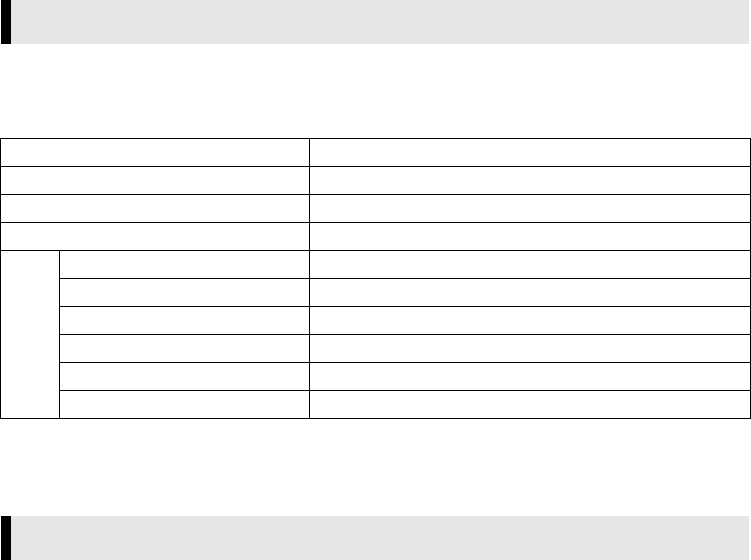
When contacting the nearest JVC office or agency in your country about this software (refer to the JVC
Worldwide Service Network at http://www.jvc-victor.co.jp/english/worldmap/index-e.html), please fill out the
following and have the appropriate information ready.
Please note that it may take some time to respond to your questions, depending on their subject matter.
JVC cannot answer questions regarding basic operation of your PC, or questions regarding specifications or
performance of the OS, other applications or drivers.
The following requirements must be satisfied to connect a camcorder to a PC and to use Digital Photo
Navigator.
Windows®
Notice for Users
Product Name
Model
Problem
Error Message
PC
Manufacturer
Model □Desktop □Laptop
CPU
OS
Memory MB
Available Hard Disk Space MB
Operating Environment
OS : Windows® 98 (pre-installed),
Windows® 98 Second Edition (98SE) (pre-installed),
Windows® Millennium Edition (Me) (pre-installed),
Windows® 2000 Professional (2000) (pre-installed),
Windows® XP Home Edition (XP) (pre-installed),
or Windows® XP Professional (XP) (pre-installed)
CPU : Intel MMX® Pentium®, at least 200 MHz
RAM : At least 64 MB recommended
Free hard disk space : At least 10 MB for installation, at least 500 MB recommended
Connector : USB connector
Display : Must be capable of displaying 800 x 600 dots with 16-bit color
Miscellaneous : Internet Explorer 5.5 or later
CONTINUED ON NEXT PAGE
_001EN_SHEET_M3D1_D3-DSC-Sheet_p1-7.fm Page 3 Monday, December 2, 2002 1:27 PM
Master Page: Right
_001EN_SHEET_M3D1_D3-DSC-Sheet_p1-7.fm Page 4
—4—
䡲For ImageMixer with VCD
In addition to the requirements on the previous page, the following requirements must be satisfied to use
ImageMixer with VCD.
Macintosh
䡲For ImageMixer with VCD
In addition to the requirements above, the following requirements must be satisfied to use ImageMixer with
VCD.
●The system requirements information above is not a guarantee that the provided software will work on all
personal computers meeting those requirements.
●Microsoft® and Windows® are either registered trademarks or trademarks of Microsoft Corporation in the
United States and/or other countries.
●Macintosh is a registered trademark of Apple Computer, Inc.
●Other product and company names included in this instruction manual are trademarks and/or registered
trademarks of their respective holders.
OS : The same as requirements on the previous page.
However, Windows® 98 cannot be used when you connect a camcorder to the
PC with a USB cable.
Windows® 98, Windows® 98SE cannot be used when you connect a camcorder
to the PC with a IEEE1394 (DV) cable.
CPU : For capturing video via a USB cable or IEEE1394 (DV) cable, Intel Pentium® III, at
least 500 MHz, at least 800 MHz recommended
Free hard disk space : At least 300 MB for installation, at least 1 GB recommended
Connector : IEEE1394 (i.LINK) connector
Miscellaneous : DirectX 8.0a or later
Hardware : iMac, iBook, eMac, Power Mac G4, PowerBook G3 or G4 equipped with a USB
connector
OS : Mac OS 9.0.4 to 9.2.2
Exclude Mac OS X and Mac OS X [Classic]
RAM : At least 64 MB recommended
CPU : At least PowerPC G3/400 MHz or PowerPC G4/400 MHz
RAM : At least 128 MB recommended
Free hard disk space : At least 150 MB for installation, at least 1 GB recommended
Display : Must be capable of displaying 800 x 600 dots with 32,000 color
Miscellaneous : QuickTime 4 or later
_001EN_SHEET_M3D1_D3-DSC-Sheet_p1-7.fm Page 4 Tuesday, December 17, 2002 7:58 PM

Master Page: Right
_001EN_SHEET_M3D1_D3-DSC-Sheet_p1-7.fm Page 5
—5—
Follow the procedure described below to install the software. From the [Setup] screen in step 3, you can
install the following drivers or software. Quit any other software you are using. (Check that there are no other
application icons on the status bar.)
USB Video Streaming driver
This driver allows you to record camcorder’s audio and video output on your PC’s hard disk instead of
camcorder’s video tape. You can also use the camcorder to conduct a video conference over the Internet.
NOTES:
●Windows® 98/98SE/Me/2000: Be sure not to connect the USB cable between the camcorder and the PC
before installing the driver.
●Windows® XP: The installation procedure differs from that of other operating systems and the item is not
displayed. For details, see “Installing USB Video Streaming driver for Windows® XP users” (墌pg. 8).
ImageMixer with VCD 1.1
This application is used to capture still images and video clips from a camcorder through a USB connector or
IEEE1394 (i.LINK) connector, and is also used to manage and edit the still images and video clips, and to
create Video CDs.
Digital Photo Navigator 1.0
This application is used to organise still images on your PC and convert them into a variety of formats.
Adobe® Acrobat® Reader 5.0
This application is used to read PDF files.
1Load the provided CD-ROM in the PC.
After a moment, the [Important Notice] screen appears.
●If the [Important Notice] screen does not appear, double-click [My Computer] and then double-click the
CD-ROM icon.
2Confirm the contents and then click [Next].
After a moment, the [Setup] screen appears.
From the [Setup] screen, you can install the desired driver or software.
Software Installation (Windows®)
CONTINUED ON NEXT PAGE
_001EN_SHEET_M3D1_D3-DSC-Sheet_p1-7.fm Page 5 Friday, December 13, 2002 8:35 PM
Master Page: Right
_001EN_SHEET_M3D1_D3-DSC-Sheet_p1-7.fm Page 6
—6—
3Click [Install] on the right side of the desired software and follow the on screen instructions to
complete the installation.
The installation of the selected driver or software starts. The procedure differs depending on the driver or
the software.
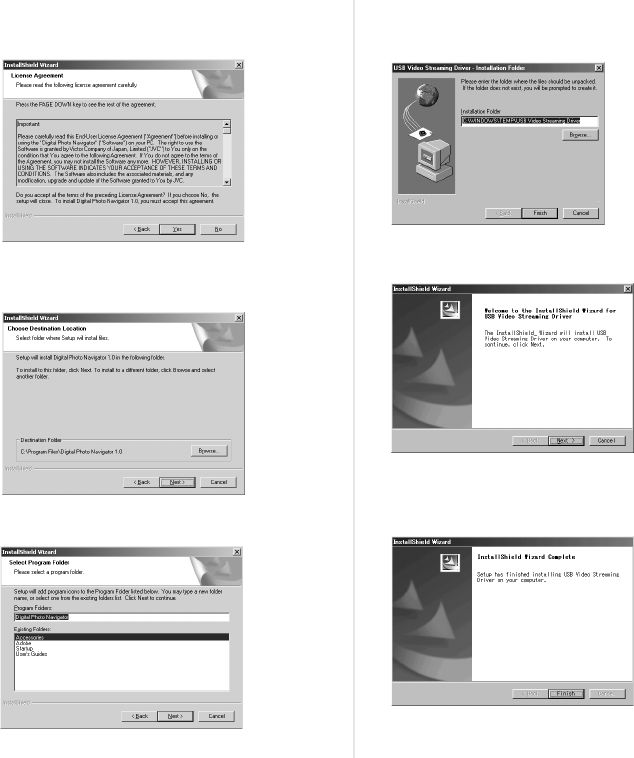
The following is the example of Digital Photo
Navigator on Windows® 98SE.
[License Agreement] screen appears.
Click [Yes].
Then, [Choose Destination Location] screen
appears.
Click [Next].
Next, [Select Program Folder] screen appears.
Click [Next].
The following is the example of USB Video
Streaming driver on Windows® 98SE.
[Installation Folder] screen appears.
Click [Finish].
Then, [InstallShield Wizard] screen appears.
Click [Next].
When the installation is finished, [InstallShield
Wizard Complete] screen appears.
Click [Finish] and then [Setup] screen re-
appears.
CONTINUED ON NEXT PAGE
_001EN_SHEET_M3D1_D3-DSC-Sheet_p1-7.fm Page 6 Monday, December 2, 2002 1:27 PM
Master Page: Right
_001EN_SHEET_M3D1_D3-DSC-Sheet_p1-7.fm Page 7
—7—
4When the message asking whether it is OK to restart the PC appears, click [Yes].
The PC restarts, and after a moment the [Setup] screen from step 1 appears.
5Repeat steps 3 and 4 to install all of the desired software.
Installing [ImageMixer with VCD 1.1]
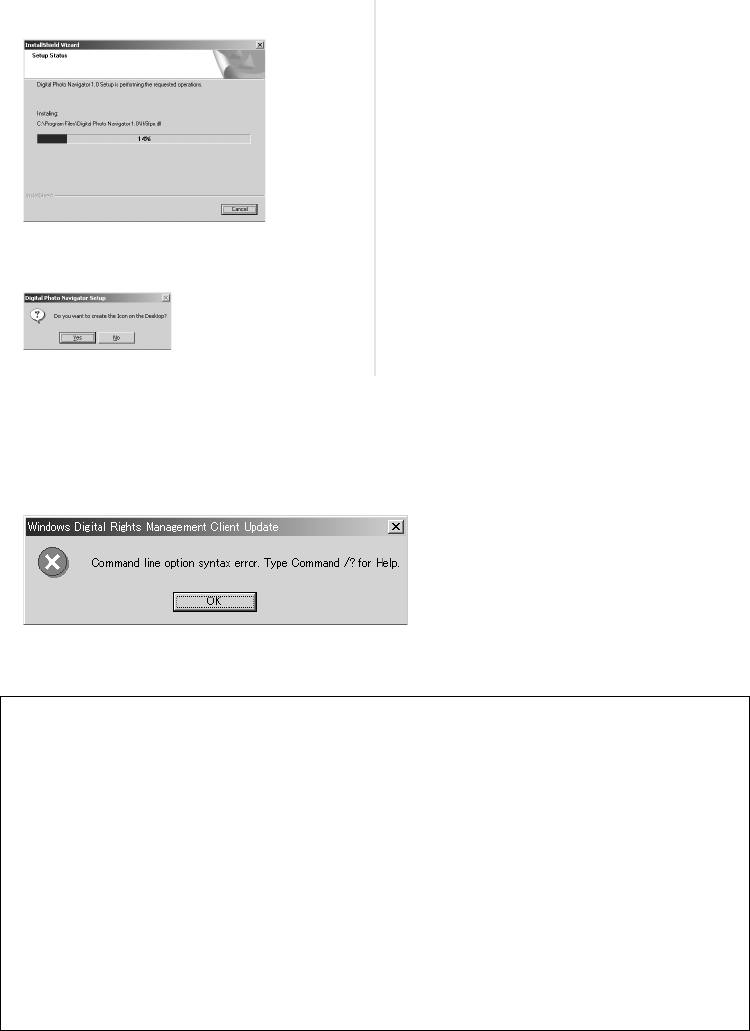
When the error message below appears while installing ImageMixer, click [OK] to complete installation.
[Setup Status] screen appears. Wait for a
moment until the installation is finished.
When the installation is finished, [Digital Photo
Navigator Setup] screen appears and asks you if
you want to create the icon on the desktop.
If you need it, click [Yes]. If not, click [No].
NOTES:
●The Digital Photo Navigator and ImageMixer with VCD instruction manual is included on the CD-ROM
in PDF format. Double-click the [JVC] folder and then double-click the [Docs] folder. Open the
“Start.pdf” file and click the button of the desired language. Note that Adobe® Acrobat® Reader must be
installed to read PDF files.
●For details on how to use Windows® NetMeeting® or Windows® Messenger (Windows® XP only), refer to
“Appendix” in the Digital Photo Navigator instruction manual on the CD-ROM.
●When installing the [ImageMixer with VCD 1.1], select the desired language in the [Choose Setup
Language] screen.
●If you perform installation of a software that is already installed, uninstallation will start. In this case,
perform the installation again after uninstallation is finished.
●DirectX is necessary so that USB Video Streaming driver works properly. To install DirectX, select
“DirectX” on the installation screen of ImageMixer with VCD 1.1.
●When you install USB Video Streaming driver with Windows® 2000 and Windows® XP, a warning
message dialog box on digital signature may appear. In this case, click [OK] to continue installation
because this problem has no effect on the use of the driver.
●When you install ImageMixer with VCD 1.1 with Windows® 2000 and Windows® XP, the [Microstaff
WINASPI] screen appears. Click [Next] to continue installation.
CONTINUED ON NEXT PAGE
_001EN_SHEET_M3D1_D3-DSC-Sheet_p1-7.fm Page 7 Friday, December 13, 2002 12:14 PM

Master Page: Right
_001EN_SHEET_M3D1_D3-DSC-Sheet_p8-10.fm Page 8
—8—
If the camcorder is connected to the PC with the USB cable before installing [USB Video Streaming driver],
the installation might not be performed properly.
In this case, follow the procedure described below to update the [Device Manager] and install [USB Video
Streaming driver] properly.
NOTE:
Disconnect any other USB audio devices from PC before performing the following procedure.
Installing [USB Video Streaming driver]
1Use the USB cable to connect the camcorder to the PC. (墌pg. 9)
2Select [Start] – [Settings] – [Control Panel]. Double click the [System] icon.
3Windows® 98/98SE/Me: Select the [Device Manager] tab.
Windows® 2000/XP: Select the [Hardware] tab and click [Device Manager].
Installing USB Video Streaming driver for Windows® XP users
When you connect the camcorder to the PC, four drivers are installed in succession by following the
procedures below.
NOTES:
Click [Continue Anyway] when the message [Has not passed Windows Logo testing] appears. Be sure not
to select [Stop Installation]. If you do so, the USB Video Streaming drivers will not be installed correctly.
1Connect the camcorder to the PC with a USB cable.
After a moment, the [Found New Hardware Wizard] screen appears.
●Refer to “Connecting the USB cable” (墌pg. 9).
2Click [Install from a list or specific location (Advanced)] and then click [Next].
The driver search screen appears.
3Click the next three items in the order below.
●[Search for the best driver in these location]
●[Include this location in the search]
●[Browse]
4Double-click [My Computer] on the desktop.
5Double-click the CD-ROM drive icon and the [XP] folder, and then click [OK].
6Click [Next].
●The warning message dialog box appears.
7Click [Continue Anyway].
After a moment, the [Found New Hardware Wizard] screen appears.
8Click [Finish].
After a moment, the [Found New Hardware Wizard] screen appears again.
9Repeat steps 2 to 8 until the [Found New Hardware Wizard] screen is cleared.
After you repeat steps 2 to 8 four times, the installation of the USB Video Streaming driver is complete.
Updating [Device Manager] (Windows®)
CONTINUED ON NEXT PAGE
_001EN_SHEET_M3D1_D3-DSC-Sheet_p8-10.fm Page 8 Monday, December 2, 2002 1:26 PM
Master Page: Right
_001EN_SHEET_M3D1_D3-DSC-Sheet_p8-10.fm Page 9
—9—
4Delete [GR-D50*] in [Other devices].
* The model name depends on the connected camcorder.
5Disconnect the USB cable from the camcorder. Restart the PC.
6Load the provided CD-ROM in the PC. Install [USB Video Streaming driver]. (墌pg. 5)
●Windows® XP: Refer to “Installing USB Video Streaming driver for Windows® XP users” (墌pg. 8) for
installation.
7Use the USB cable to connect the camcorder to the PC.
Device driver is installed.
●Windows® 2000: When a warning message dialog box on digital signature appears, click [OK] to
continue installation.
8Confirm the following devices are displayed in [Device Manager] by performing steps 2 – 3.
●[JVC PIX-MCV Video Capture] in [Imaging Devices]
●[JVC PIX-MCV Audio Capture] in [Sound, video and game controllers]
●[JVC Composite PIX-MCV Device] and [JVC Communication PIX-MCV Video Driver] in [Universal
Serial Bus Controllers]
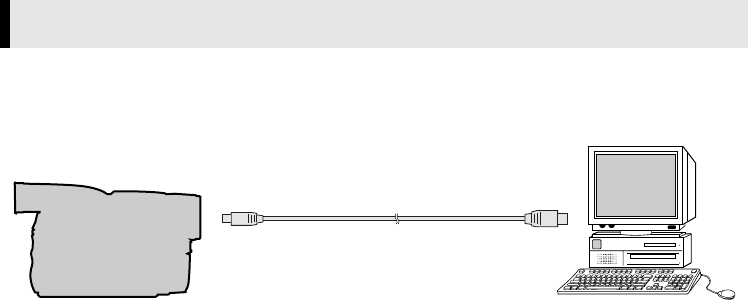
Connecting the USB cable
Connect the USB cable to use ImageMixer in capturing video.
1To assure safety, make sure all units are turned off before making any connections.
2Use the USB cable to connect the camcorder to the PC.
●We recommend that you use the AC Adapter.
NOTES:
●When the USB cable is connected, turning on or off the camcorder causes malfunctions of the PC.
●If you connect the camcorder to the PC through a USB hub, compatibility issues between the hub and the
PC may result in instability in the operation of the PC. If this happens, connect the camcorder directly to the
PC, not through the hub.
●Do not use an extension USB cable.
●For Windows® 2000/Me/XP, you can also use a DV cable instead of a USB cable to capture video from a
tape when using ImageMixer. For more details, refer to the online help. (墌“For more detailed information”
in the ImageMixer instruction manual on the CD-ROM)
Connections (Windows®/Macintosh)
To USB connector
PC
To USB connector
USB cable
Camcorder
_001EN_SHEET_M3D1_D3-DSC-Sheet_p8-10.fm Page 9 Friday, December 13, 2002 12:16 PM
Master Page: Right
_001EN_SHEET_M3D1_D3-DSC-Sheet_p8-10.fm Page 10
—10—
Follow the procedure described below to install the software.
Quit any other software you are using.
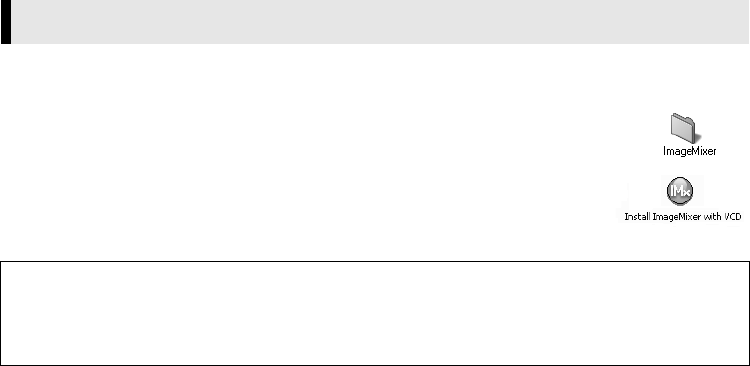
1Load the provided CD-ROM into the PC. Double click the CD-ROM icon.
2Double-click the [ImageMixer] folder in the CD-ROM.
3Double-click the [Install ImageMixer with VCD] icon.
The installer starts up. Follow the instructions which appear on the screen.
Software Installation (Macintosh)
NOTE:
The ImageMixer with VCD instruction manual is included on the CD-ROM in PDF format. Double-click
the [Docs] folder. Open the “Start.pdf” file and click the button of the desired language. Note that Adobe®
Acrobat® Reader must be installed to read PDF files. The Installer of Adobe® Acrobat® Reader is included
within the [Reader] folder on the CD-ROM.
_001EN_SHEET_M3D1_D3-DSC-Sheet_p8-10.fm Page 10 Wednesday, December 4, 2002 6:53 PM

Master Page: Right
_001EN_SHEET_M3D1_D3-DSC-Sheet_p8-10.fm Page 11
—11—
_001EN_SHEET_M3D1_D3-DSC-Sheet_p8-10.fm Page 11 Monday, December 2, 2002 1:26 PM

Master Page: Right
_001EN_SHEET_M3D1_D3-DSC-Sheet_p8-10.fm Page 12
—12—
_001EN_SHEET_M3D1_D3-DSC-Sheet_p8-10.fm Page 12 Monday, December 2, 2002 1:26 PM

Master Page: Right
_001EN_SHEET_M3D1_D3-DSC-Sheet_p8-10.fm Page 13
—13—
_001EN_SHEET_M3D1_D3-DSC-Sheet_p8-10.fm Page 13 Monday, December 2, 2002 1:26 PM

Master Page: Right
_001EN_SHEET_M3D1_D3-DSC-Sheet_p8-10.fm Page 14
—14—
_001EN_SHEET_M3D1_D3-DSC-Sheet_p8-10.fm Page 14 Monday, December 2, 2002 1:26 PM

Master Page: Right
_001EN_SHEET_M3D1_D3-DSC-Sheet_p8-10.fm Page 15
—15—
.
_001EN_SHEET_M3D1_D3-DSC-Sheet_p8-10.fm Page 15 Monday, December 2, 2002 1:26 PM

Master Page: Right
_001EN_SHEET_M3D1_D3-DSC-Sheet_p8-10.fm Page 16
—16—
_001EN_SHEET_M3D1_D3-DSC-Sheet_p8-10.fm Page 16 Monday, December 2, 2002 1:26 PM
