JVC GR SXM515U User Manual CAMCORDER Manuals And Guides L0902593
JVC Compact VHS C Camcorder Manual L0902593 JVC Compact VHS C Camcorder Owner's Manual, JVC Compact VHS C Camcorder installation guides
User Manual: JVC GR-SXM515U GR-SXM515U JVC CAMCORDER - Manuals and Guides View the owners manual for your JVC CAMCORDER #GRSXM515U. Home:Electronics Parts:Jvc Parts:Jvc CAMCORDER Manual
Open the PDF directly: View PDF  .
.
Page Count: 68
JVC
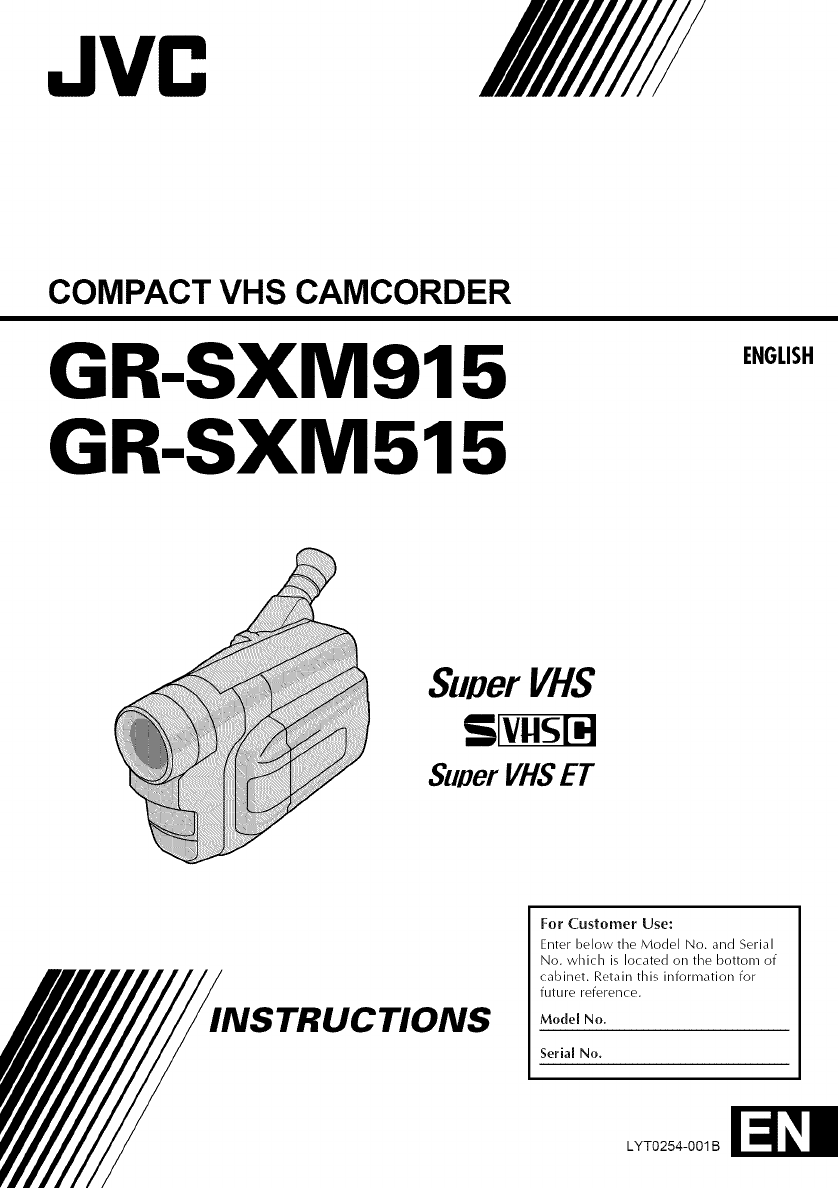
COMPACT VHS CAMCORDER
GR-SXM915
GR-SXM515
ENGLISH
SunerVHS
Super VHSET
STRUCTIONS
For Customer Use:
Enter below tile Model No. and Serial
No. which is located on the bottom of
cabinet. Retain this information for
future reference.
LYTO254-OO1B
2EN iii
Dear Customer,
Thank you for lourchasing tile JVC Compact VHS
camcorder. Before use, please read the safety
information and precautions contained in the
following pages to ensure safe use of this product.
Using This Instruction Manual
• All major sections and subsections are listed in the
Table Of Contents (:__ 10g.7).
• Notes appeaF after most subsections. Be sure to read
these as well.
• Basic and advanced features/oloeration are separated
for easier reference.
It is recommended that you...
..... refer to the Index C7 logs. 55 - 58) and familiarize
yourself with button locations, etc, before use.
..... read thoroughly the Safety Precautions and Safety
Instructions that follow. They contain extremely
important information regarding the safe use of this
product.
You are recommended to carefully read the cautions
on pages 59 and 60 before use.
SAFETY
PRECAUTIONS
CAUTION: TO REDUCE THE RISK OF ELECTRIC SHOCK,
DO NOT REMOVE COVER (OR BACK).
NO USER-SERVICEABLE PARTS INSIDE.
REFER SERVICING TO QUALIFIED SERVICE PERSONNEL.
WARNING:
TO PREVENT FIRE OR SHOCK
HAZARD, DO NOT EXPOSE
THIS UNITTO RAIN OR
MOISTURE.
warning on lithium battery
(for clock operation and remote control unit)
The battery used in this device may present a fire or
chemical burn hazard if mistreated. Do not
rechal_ge, disassemble, heat above 100°C (212%) or
incinerate.
Replace the battery with Maxell, Panasonic
(Matsushita Electric), Sanyo or Sony CR2025; use of
another battery may present a Fisk of fire or
explosion.
m Dispose of used battery promptly,
m Keep away from children,
g Do not disassemble and do not dispose of in fire,
NOTES:
•The rating plate (serial number plate) and safety
caution are on the bottom and/or the back of the
main unit,
eThe rating plate (serial number plate) of the AC
Power Adbpter/Charger is on its bottom,
This Class B digital apparatus complies with
Canadian ICES-003
Cet appareil num6rique de la classe Best confon_ne
_ la norme NMB-003 du Canada.
The lightning flash with arrowhead symbol, within an
equilateral triangle, is intended to alert the user to the
presence of uninsulated "dangerous voltage" within the
product's enclosure that may be of sufficient magnitude
to constitute a risk of electric shock to persons.
The exclamation point within an equilateral triangle is
intended to alert the user to the presence of important
operating and maintenance (servicing) instructions in
the literature accompanying the appliance.
The AA-V15U AC Power Adapter/Charger should be
used with:
AC 120 V_, 60 Hz in the USA and Canada,
AC 110 - 240 V,, 50/60 Hz in other countries.
CAUTION (applies to the AA-V15U)
TO PREVENT ELECTRIC SHOCK MATCH WIDE
BLADE OF PLUG TO WIDE SLOT, FULLY INSERT.
ATTENTION (s'applique fi.I'AA-Vl 5U)
POUR EVITER LES CHOCS ELECTRIQUES,
INTRODUIRE LA LAME LA PLUS LARGE DE LA
FICHE DANS LA BORNE CORRESPONDANTE DE
LA PRISE ET POUSSER IUSQU'AU FOND.
This camcorder is designed to be used with NTSC-
type color television signals. It cannot be used for
playback with a television of a different standard,
However, live recording and LCD monitor/
viewfinder playback are possible anywhere, Use the
BN-Vll U/V12U/V20U battery packs and, to
recharge them, the provided multi-voltage AC
Power Adaloter/Chargel_ (An appropriate conversion
adaloter may be necessary to accommodate different
designs of AC outlets in different countries.)
ATTENTION:
The product that you have pul_:hased is powered by
a rechargeable battery. The battery is recyclable. At
the end of its useful life, under various state and
local laws, it may be illegal to dispose of this battery
into the municipal waste stream, Check with your
local solid waste officials for details in your area for
recycling options or proper disposal.
IMPORTANTPRODUCT
SAFETYINSTRUCTIONS
Electrical energy can perform many useful functions.
But improper use can result in potential electrical
shock or fire hazards. This product has been
engineered and rnanufactured to assure your
personal safety. In order not to defeat time built-in
safeguards, observe the following basic rules for its
installation, use and servicing.
ATTENTION:
Follow and ()bey all warnings and instructions
marked on your product and its operating instruc-
tions. For your safety, please read all timesafety and
operating instructions before you operate this
product and keep this manual for future reference.
INSTALLATION
1. Grounding or Polarization
(A) Your product may be equipped with a polarized
alternating-current line plug (a plug having one blade
wider than the other). This plug will fit into the
power outlet only one way. This is a safety feature.
If you are unable to insert the plug fully into the
outlet, try reversing the plug. If the plug should still
fail to fit, contact your electrician to replace your
obsolete outlet. Do not defeat the safety purpose of
the polarized plug.
(B) Your product may be equipped with a 3-wire
grounding-type plug, a plug having a third (ground-
ing) pin. This plug will only fit into a grounding-type
power outlet. This is a safety feature.
If you are unable to insert the plug into the outlet,
contact your electrician to replace your obsolete
outlet. Do not defeat the safety purpose of the
grounding-type plug.
2. Power Sources
Operate your product only from the type of power
source indicated on the rnarl<ing label. If you are not
sure of the type of power supply to your home, consult
your product dealer or local power company. If your
product is intended to operate from battery powel; or
other sources, refer to the operating instructions.
3, Overloading
Do not overload wall outlets, extension cords, or integral
convenience receptacles as this can result in a risk of fire
or electric shock.
4. Power Cord Protection
Power supply cords should be routed so that they are
not likely to be walked on or pinched by items placed
upon or against them, paying particular attention to
cords at plugs, convenience receptacles, and the point
where they exit from the product.
5. Ventilation
Slots and openings in the cabinet are provided for
ventilation. To ensure reliable operation of the product
and to protect it from overheating, these openings must
not be blocked or covered.
• Do not block the openings by placing the product on a
bed, sofa, rug or other similar surface.
• Do not place the product in a built-in installation such
as a bookcase or rack unless proper ventilation is
provided or the manufacturer's instructions have been
adhered to.
6. Wall or Ceiling Mounting
The product should be mounted to a wall or ceiling only
as recommended by the rnanufacturel:
ANTENNA INSTALLATION
INSTRUCTIONS
1. Outdoor Antenna Grounding
If an outside antenna or cable system is connected to the
product, be sure the antenna or cable system is
grounded so as to provide some protection against
voltage surges and built-up static chalges. Article 810 of
the National Electrical Code, ANSI/NFPA 70, provides
information with regard to proper grounding of the mast
and supporting structure, grounding of the lead-in wire
to an antenna discharge unit, size of grounding
conductors, location of antenna dischaige unit,
connection to grounding electrodes, and
requiremerlts for the grourlding electrode.
2. Lightning
For added protection for this product during a lightning
storm, or when it is left unattended and unused for long
periods of time, unplug it from the wall outlet and
disconnect the antenna or cable system. This will
prevent damage to the product due to lightning and
poweMine surges.
3. Power Lines
An outside antenna system should not be located in the
vicinity of overhead power lines or other electric light or
power circuits, or where it can fall into such power lines
or circuits. When installing an outside antenna system,
extreme care should be taken to keep from touching
such power lines or circuits as contact with them might
be fatal.
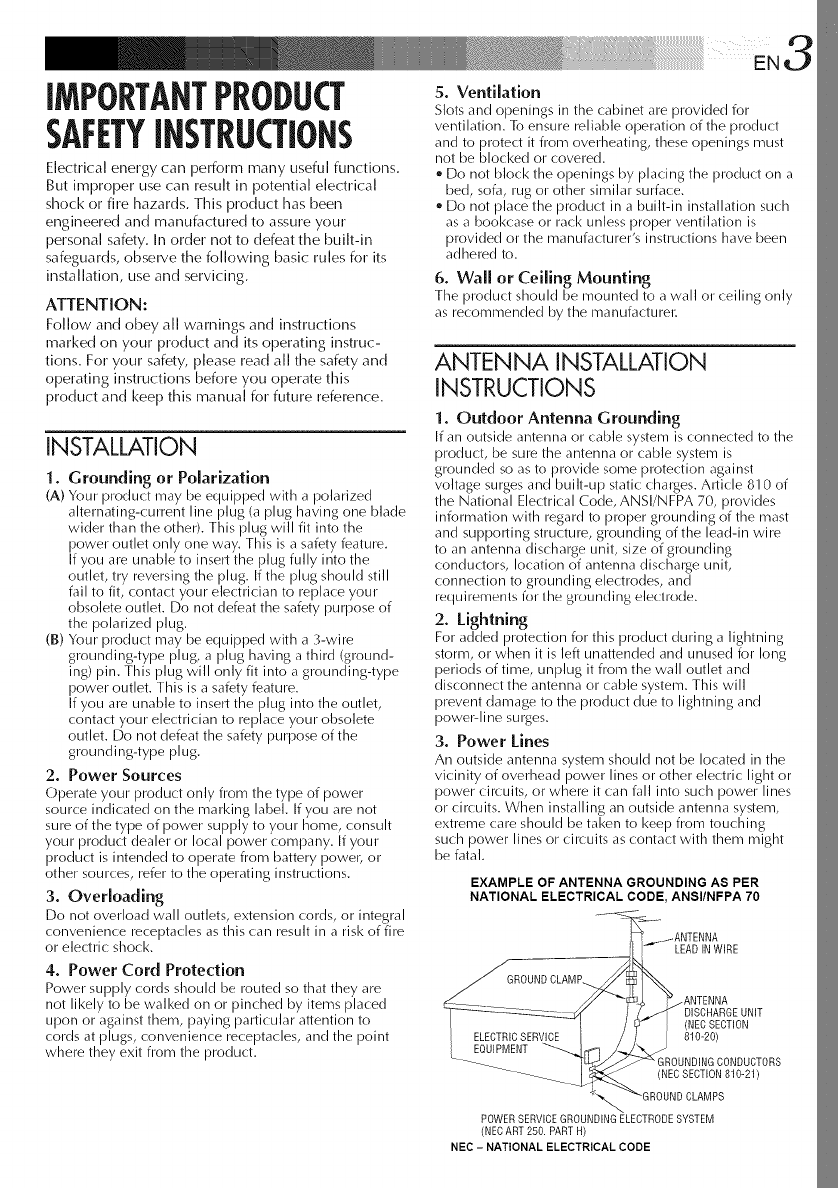
EXAMPLE OF ANTENNA GROUNDING AS PER
NATIONAL ELECTRICAL CODE, ANSI/NFPA 70
LEADIN WIRE
ELECTRICSERVICE
EOUIPMENT
.ANTENNA
DISCHARGEUNIT
(NECSECTION
810-20)
GROUNDINGCONDUCTORS
(NECSECTION810-21)
POWERSERVICEGROUNDINGELECTRODESYSTEM
(NECART 250. PARTH)
NEC -NATIONAL ELECTRICAL CODE
4ENq iii ....
USE SERVICING
1. Accessories
To avoid personal injury:
e Do not place this product on aimunstable cart,
stand, tripod, bracket or table. It may fall, causing
serious injury to a child or adult, and serious
damage to timeproduct.
Use only with a cart, stand, tripod, bracket, or table
recommended by the manufacturer or sold with the
product.
Use a mounting accessory recommended by the
manufacturer and follow the manufacturer's
instructions for any mounting of timeproduct.
Do not try to roll a cart with small casters across
thresholds or deep-pile carpets.
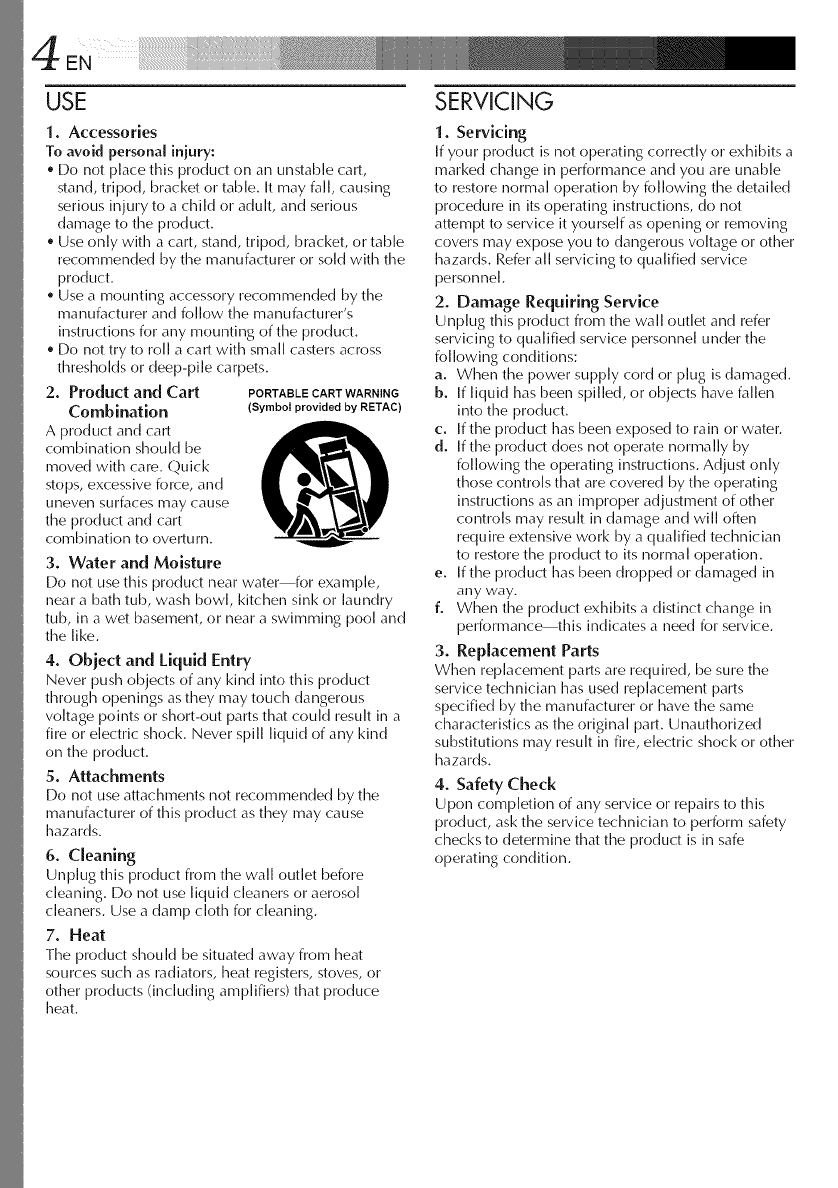
2. Product and Cart PORTABLECARTWARNING
Combination (Symbol provided by RBTAC)
A product and cart
combination should be
moved with care. Quick
stops, excessive force, and
uneven surfaces may cause
the product and cart
combination to overturn.
3. Water and Moisture
Do not use this product near water for example,
near a bath tub, wash bowl kitchen sink or laundry
tub, in a wet basement, or near a swimming pool and
the like.
4. Object and Liquid Entry
Never push objects of any kind into this product
through openings as they may touch dangerous
voltage points or short-out parts that could result in a
fire or electric shock. Never spill liquid of any kind
on the product.
5. Attachments
Do not use attachments not recommended by the
manufacturer of this product as they may cause
hazards.
6. Cleaning
Unplug this product from the wall outlet before
cleaning. Do not use liquid cleaners or aerosol
cleaners. Use a damp cloth for cleaning.
7. Heat
Timeproduct should be situated away from [meat
sources such as radiators, [meatregisters, stoves, or
other products (including amplifiers) that produce
[meat.
I. Servicing
If your product is not operating correctly or exhibits a
marked change in performance and you are unable
to restore normal operation by following timedetailed
procedure in itsoperating instructions, do not
attempt to service it yourself as opening or removing
covers may expose you to dangerous voltage or other
hazards. Refer all servicing to qualified service
personnel.
2. Damage Requiring Service
Unplug this product from the wall outlet and refer
servicing to qualified service personnel under the
folk)wing conditions:
a. When the power supply cord or plug is damaged.
b. If liquid has been spilled, or objects have fallen
into the product.
c. If the product has been exposed to rain or water.
d. If timeproduct does not operate normally by
folk)wing timeoperating instructions. Adjust only
those controls that are covered by timeoperating
instructions as aimimproper adjustment of other
controls may result in damage and will often
require extensive work by a qualified technician
to restore the product to its normal operation.
e. If timeproduct has been dropped or damaged in
any way.
f. When the product exhibits a distinct change in
performance this indicates a need for service.
3. Replacement Parts
When replacement parts are required, be sure the
service technician has used replacement parts
specified by the manufacturer or have the same
characteristics as the original part. Unauthorized
substitutions may result in fire, electric shock or other
hazards.
4. Safety Check
Upon completion of any service or repairs to this
product, ask timeservice technician to perform safety
checks to determine that the product is in safe
operating condition.
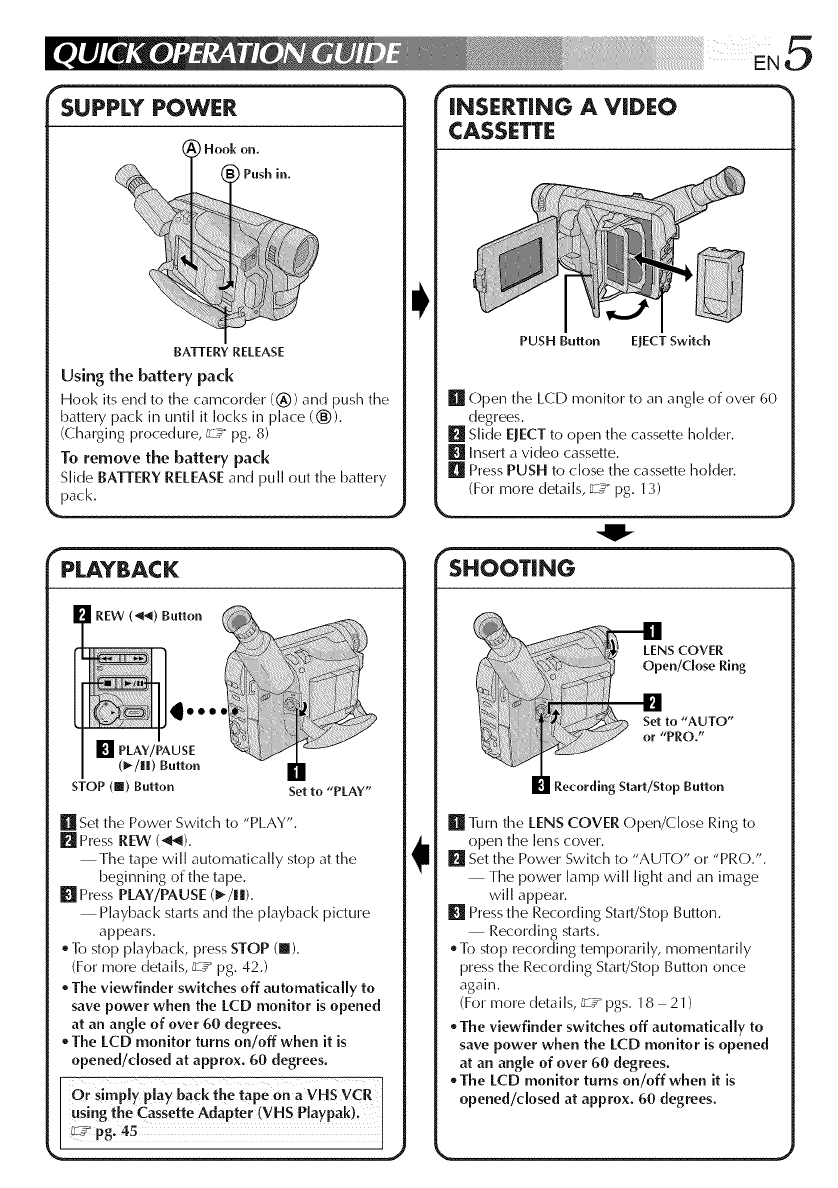
SUPPLY POWER
Hook on.
PPush in.
BATTERY RELEASE
Using the battery pack
Hook its end to the camcorder (_)) and push the
battery pack in until it locks in place (®).
(Charging procedure, _zT pg. 8)
To remove the battery pack
Slide BATTERYRELEASEand puII out timebattery
pack.
r _- -_
PLAYBACK
(_-/lll) Button
STOP (lI) Button Set to "PLAY"
[] Set timePower Switch to "PLAY".
l_l Press REW (_).
Timetape wiI[ automatically stop at the
beginning of timetape.
[] Press PLAY/PAUSE (1_/!1).
Playback starts and the playback picture
appears.
To stop playback, press STOP (I).
(For more details, _ pg. 42.)
The viewfinder switches off automatically to
save power when the LCD monitor is opened
at an angle of over 60 degrees.
The LCD monitor turns on/off when it is
opened/dosed at approx. 60 degrees.
Orsim y play back the tape on a VHS VCR
usingthe Cassette Adapter (VH S Playpak)_I
_pg. 45 I
J
INSERTING A VIDEO
CASSETTE
PUSH Button EJECTSwitch
[] Open time LCD monitor to an angle of over 60
degrees.
[] Slide EJECT to open the cassette holder.
[] Insert a vide() cassette.
[] Press PUSH to dose the cassette holder.
(For more details, _:Y" pg. 13)
SHOOTING
SCOVER
en/Ciose Ring
to "AUTO"
[or "PRO,"
Recording Start/Stop Button
[] ]]mmtimeLENSCOVER Open/Close Ring to
open the lens cover.
[] Set the Power Switch to "AUTO" or "PRO.".
Timepower lamp will light and an image
will appeal.
[] PresstimeRecording Start/Stop Button.
Recording starts.
To stop recording temporarily, momentarily
press timeRecording Start/Stop Button once
again.
(For more details, _7 pgs. 18 21)
The viewfinder switches off automatically to
save power when the LCD monitor is opened
at an angle of over 60 degrees.
The LCD monitor turns on/off when it is
opened/closed at approx. 60 degrees.
¸¸¸¸¸¸¸¸¸¸¸¸¸¸¸¸i¸i¸i¸i¸i¸i¸i¸i¸i¸i¸i¸i¸i¸i¸i¸i¸i¸i¸i¸i¸i¸1%¸¸ ii i¸¸¸/ ¸"¸ ¸"¸ _ .... _'
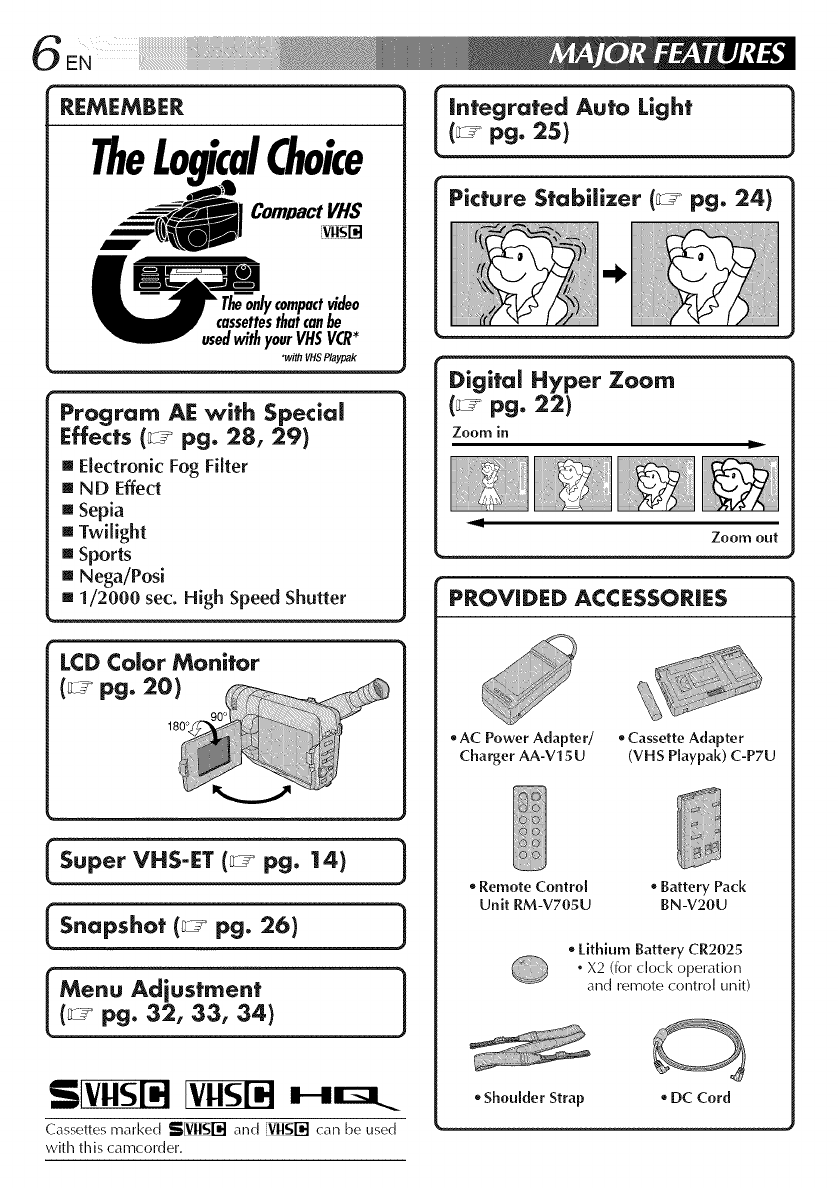
REMEMBER
TheLogicalChoice
Com/JactVHS
compactvideo
thaicanbe
usedwithyourVHSVCR*
_vithVHSPlaypak
Iintegrated Auto Light 1
(_ pg. 25)
Picture Stabilizer (_-_ pg. 24)
p • •
rogram AE with Special
Effects (_ pg. 28, 29)
[] Electronic Fog Filter
[] N D Effect
[] Sepia
[] Twilight
[] Sports
[] Nega/Posi
[] 1/2000 sec. High Speed Shutter
LCD Color Monitor
(_ pg. 20)
180°
Super VHS-ET (_°_ pg. 14) 1
[s.op,ho,pg.26t ]
(_-_ pg. 32, 3:3, 34)
Cassettes marked SIVNI$1-_I and VnNl--'d can be used
with this camcorder.
Digital Hyper Zoom
Zoom in
Zoom out
PROVIDED ACCESSORIES
oAC Power Adapter/ oCassette Adapter
Charger AA-V15U (VHS Playpak) C-P7U
Remote Control , Battery Pack
Unit RM-V705U BN-V20U
oLithium Battery CR2025
.X2 (for dock operation
and remote control titbit)
• Shoulder Strap • DC Cord
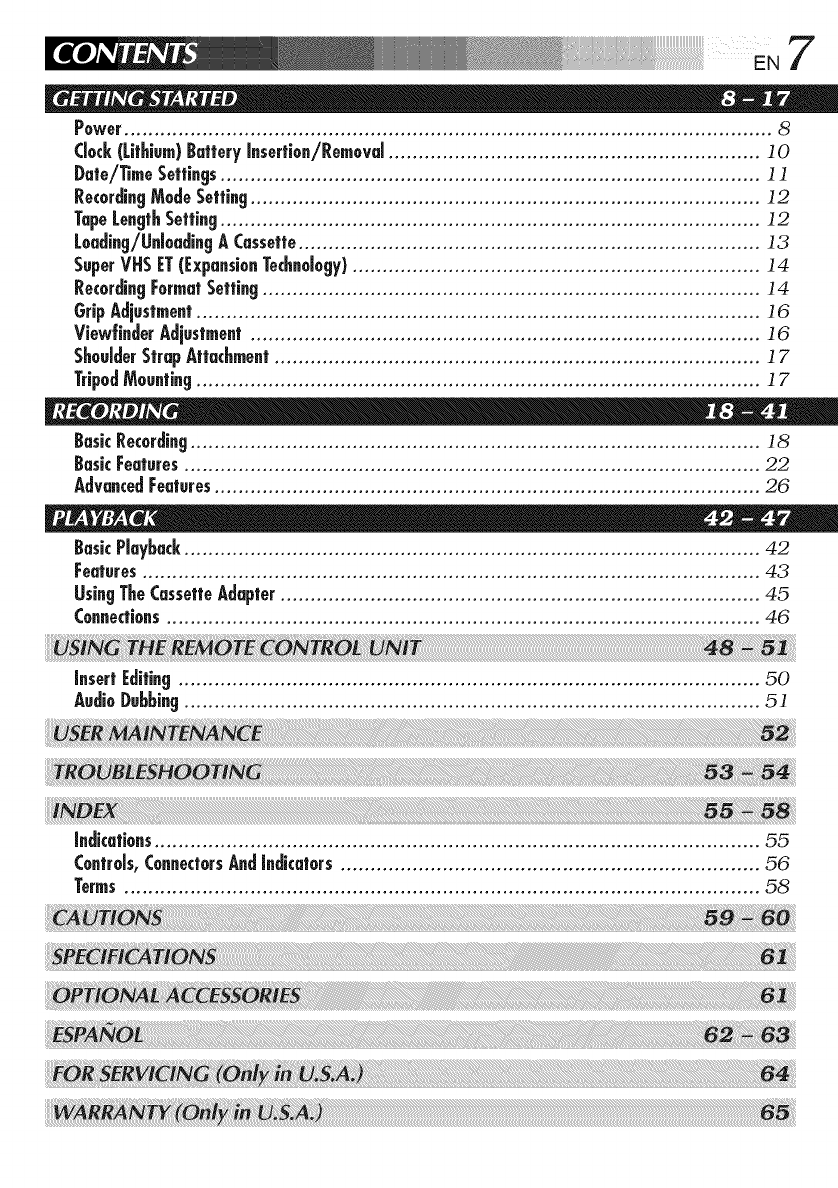
7
Power............................................................................................................ 8
Clock(Lithium)BatteryInsertion/Removal.............................................................. ]0
Date/TimeSettings.......................................................................................... ] ]
RecordingModeSetting..................................................................................... ]2
TapeLengthSetting.......................................................................................... 12
Loading/UnloadingA Cassette............................................................................. 13
SuperVHSET(ExpansionTechnology).................................................................... 14
RecordingFormatSetting................................................................................... 14
GripAdjustment.............................................................................................. 16
View|inderAdjustment..................................................................................... 16
ShoulderStrapAttachment................................................................................. ]7
TripodMounting.............................................................................................. ]7
BasicRecording............................................................................................... 18
BasicFeatures................................................................................................ 22
AdvancedFeatures........................................................................................... 26
BasicPlayback................................................................................................ 42
Features....................................................................................................... 43
UsingTheCassetteAdapter................................................................................ 45
Connections................................................................................................... 46
Insert Editing................................................................................................. 50
AudioDubbing................................................................................................ 51
Indications..................................................................................................... 55
Controls,ConnectorsAndIndicators...................................................................... 56
Terms.......................................................................................................... 58
8EN i_ii_ii!i!_i!_i!_i!_i!_i!_i!_i!_i!_i!_i!_i!_i!_i!_i!_i!_i!_i!_i!_i!_i!_i!_i!_i!_i!_i!_i!_i!_i!_i!_i!i!i!iiiiiiiiHi_i_iiii!i!!!i!!!i!_i_....
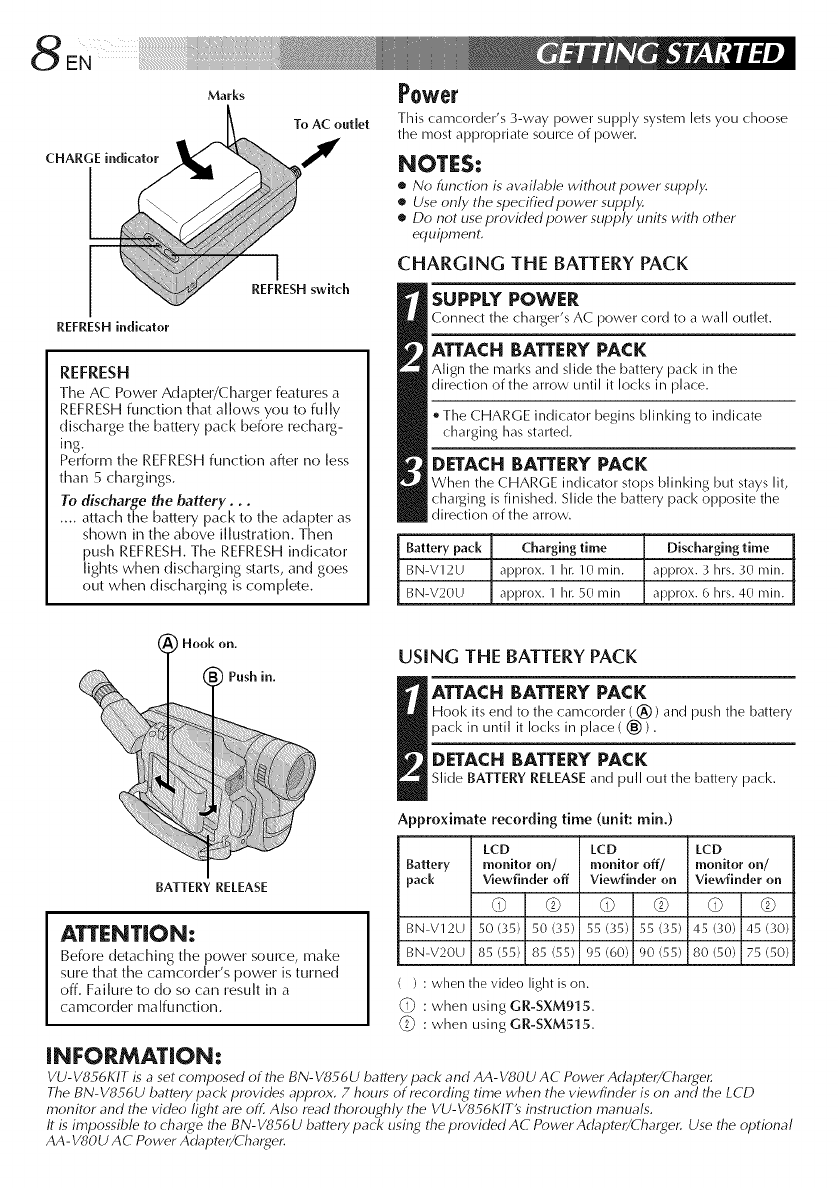
Marks
To AC outlet
CHARGE indicator I
Power
This camcorder's 3-way power supply system lets you choose
the most appropriate source of power.
NOTES:
•No function is awd/ab/e without power supply.
•Use only the specified power supply.
•Do not use provk/ed power supply units with other
erluilJment.
CHARGING THE BATTERY PACK
SUPPLY POWER
Connect the charger% AC power cord to a wall outlet.
ATTACH BATTERYPACK
Align the marl<s and slide the battery pack in the
direction of the arrow until it locks in place.
* The CHARGE indicator begins blinking to indicate
charging has started.
DETACH BATTERYPACK
When the CHARGE indicator stops blinking but stays lit,
charging is finished. Slide the battery pack opposite the
direction of the arrow.
Battery pack Charging time Discharging time
BN-V12U approx. 1 hi: 10 rain. approx. 3 hrs. 30 rain.
BN-V20U approx. 1 his 50 rain approx. 6 hrs. 40 rain.
USING THE BATTERY PACK
ATTACH BATTERY PACK
Hool< its end to the camcorder ((_)) and push the battery
pack in until it Iocl<s in place ( (_)).
DETACH BATTERY PACK
Slide BATTERY RELEASE and pull out the battery pack,
Approximate recording time (unit: rain,)
LCD LCD LCD
Battery monitor on/ monitor off/ monitor on/
pack Viewfinder off Viewfinder on Viewfinder on
d) © d) © d) ©
BN-V12U 50 (35) 50 (35) 55 (35) 55 (35) 45 (30) 45 ('gO)
BN-V20U 85 (55) 85 (55) 95 (60) 90 (55) 80 (50) 75 (50)
REFRESH h_dicator
REFRESHswitch
REFRESH
The AC Power Adapter/Charger features a
REFRESH function that allows you to fully
discharge the battery pack before recharg-
ing.
Perform the REFRESH function after no less
than 5 chargings.
To discharge the battery...
.... attach the battery pack to the adapter as
shown in the above illustration. Then
push REFRESH. The REFRESH indicator
lights when discharging starts, and goes
out when discharging is complete.
i Hook on.
Push in.
BATTERY RELEASE
ATTENT|ON:
Before detaching the power source, make
sure that the camcorder's power is turned
off. Failure to do so can result in a
camcorder malfunction.
( ) : when the video light is on.
: when using GR-SXM915.
_i_ : when using GR-SXM515.
iNFORMATiON:
VU-VS_6KIT is a set composed of the BN-V856U battery pack and AA-VSOU AC Power Adapter/Cha_4er.
The BN-VS S6U battery pack provides aplJrox. 7 hours of recording time when the viewfinder is on and the LCD
monitor and the video light are off. Also read thoroughly the VU-V856KIT9 instruction manuals.
It is impossible to charge the BN-V856U battery pack using the provided AC Power Adapter/(harger. Use the optional
AA-VSOU AC Power Adapter/Charger.
...... I!iiii iii ill¸EN9
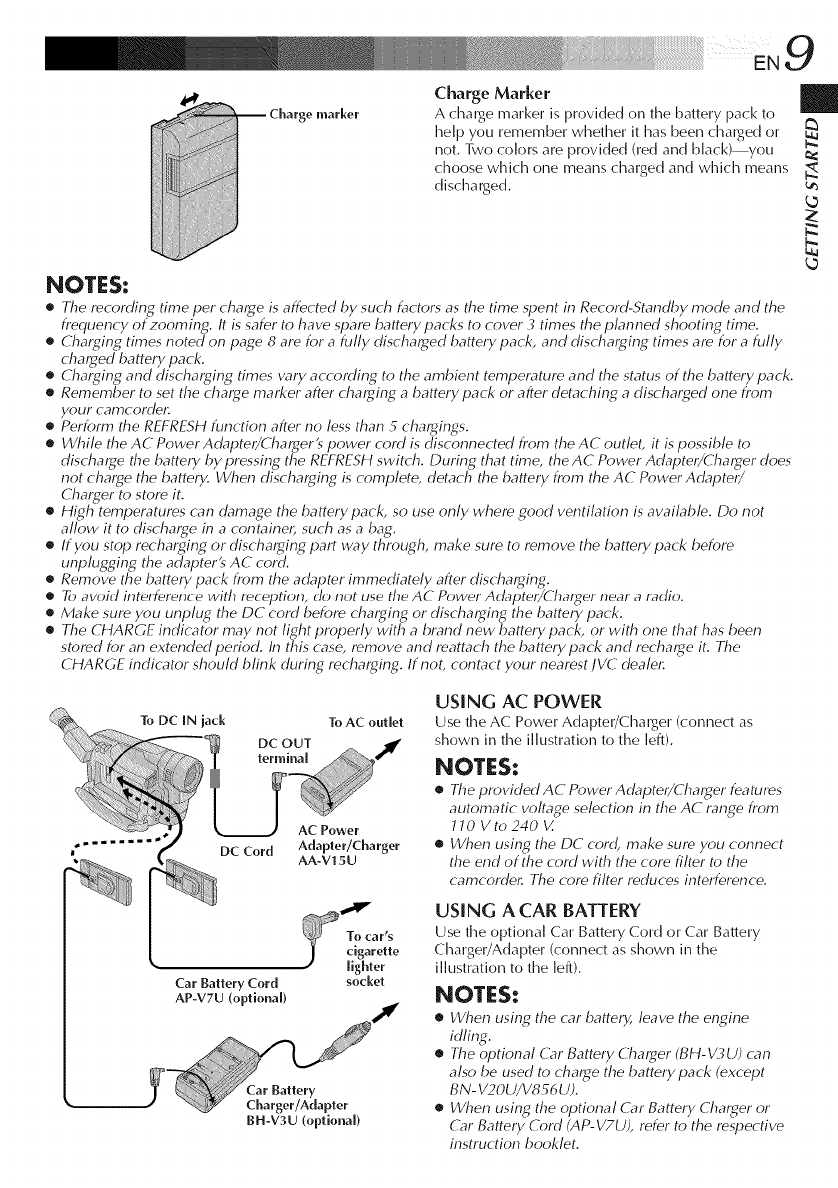
_Charge marker
Charge Marker
A charge marker is provided on the battery pack to
help you remember whether it has been charged or
not. Two colors are provided (red and black) you
choose which one means charged and which means
discharged.
NOTES:
•The recording time per charge is affected by such factors as the time spent in Record-Standby mode and the
frequency of zooming. It is safer to have spare battery packs to cover 3 times the plam_ed shooting time.
• Charging times noted on page 8 are for a fully discharged batterypack, and discharging times are for a fully
charged battery pack.
• Charging and discharging times w_ry according to the ambient temperature and the status of the battery pack.
•Remember to set the charge marker after charging a batterypack or after detaching a discharged one from
your camcordel:
•Perform the REFRESH function after no less than 5 chargings.
•While the AC Power Adapter/Charger's power cord is disconnected from the AC outlet, it is possible to
discharge the battery by pressing the REFRESH switch. During that time, the AC Power Adapter/Charger does
not charge the battery. When discharging is complete, detach the battery from the AC Power Adapter/
Charger to store it.
•High temperatures can damage the battery pack, so use only where good ventilation is available. Do not
allow it to discharge in a containel, such as a bag.
•If you stop recharging or discharging part way through, make sure to remove the battery pack before
unplugging the adapterts AC cord.
•Remove the battery pack from the adapter immediately after discharging.
eTo avoid intelfelence with reception, do not use the AC Power Adapte_/(hat_er near aradio.
•Make sure you unplug the DC cord before charging or discharging the battery pack.
•The CHARGE indicator may not light properly with a brand new battery pack, or with one that has been
stored for an extended period. In this case, remove and mattach the battery pack and recharge it. The
CHARGE indicator should blink during recharging. If not, contact your nearest JVC dealel:
k_
N.
k_
Car Battery Cord socket
AP-V7U (optional)
BH-V3U (optional)
USING AC POWER
Use the AC Power Adapter/Charger (connect as
shown in the illustration to the left).
NOTES:
•The providedAC PowerAdapter/Charger features
automatic voltage selection in the AC range from
JJO Vto240 V.
•When using the DC cord, make sure you connect
the end of the cord with the core filter to the
camcordel: The core filter reduces interference.
USING A CAR BATTERY
Use the optional Car Battery Cord or Car Battery
Charger/Adapter (connect as shown in the
illustration to the left).
NOTES:
•When using the car battery, leave the engine
idling.
•The optional G_r Battery Charger (BH-_/_,U) can
also be used to charge the battery pack (except
BN- V20U/V856 U).
•When using the optional G_r Battery Charger or
G_r Battery Cord (AP- V7U), refer to the respective
instruction booklet.
]
Slot
Battery holder
©-,©
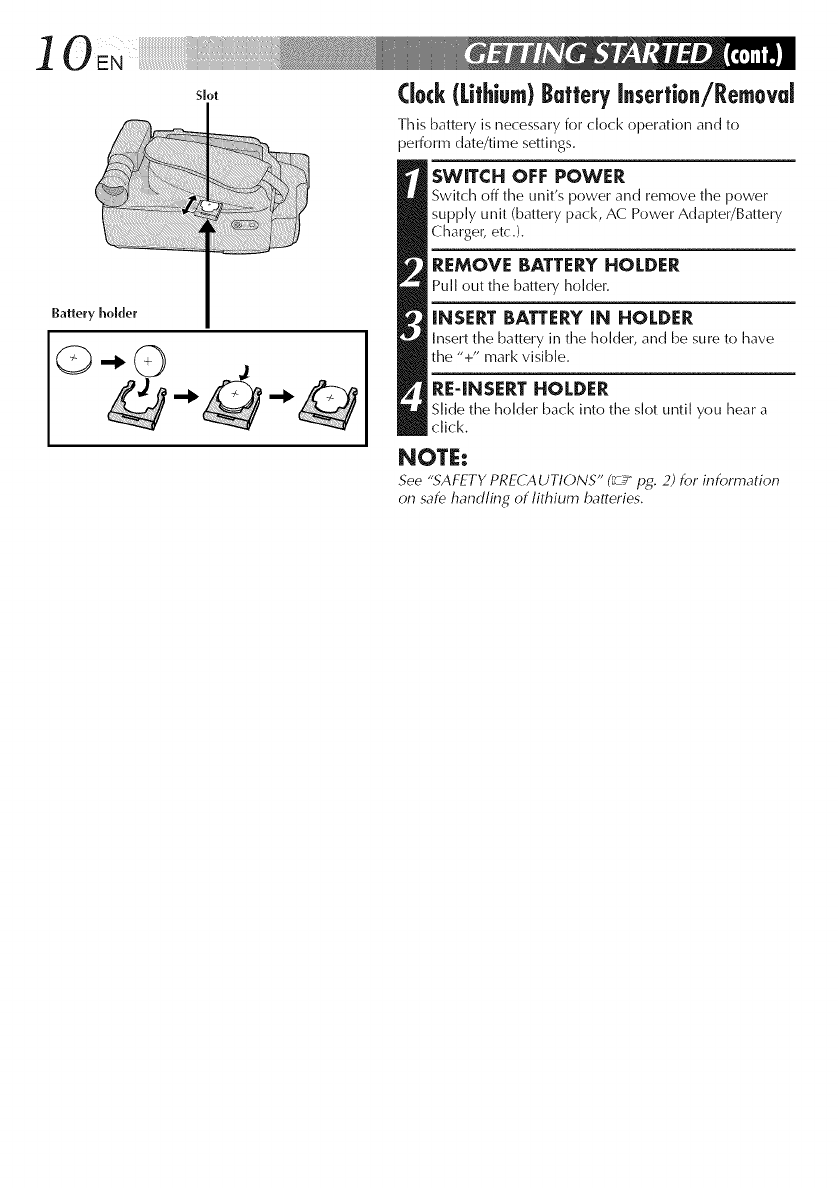
Clock(Lithium)ButteryInsertion/Removal
This battery is necessary for clock operation and to
perform date/time settings.
SWITCH OFF POWER
Switch off time unit's power and remove time power
supply unit (battery pack, AC Power Adapter/Battery
Charger, etc.).
REMOVE BATTERYHOLDER
Pull out the battery holder.
INSERT BATTERY[N HOLDER
Insert time battery in time holder, and be sure to have
the "+" mark visible.
RE4NSERT HOLDER
Slide the holder back into the slot until you hear a
click.
NOTE:
See ".SAFETY PRECAUTIONS" (_ pg. 2) for information
on safe handling of lithium batteries.
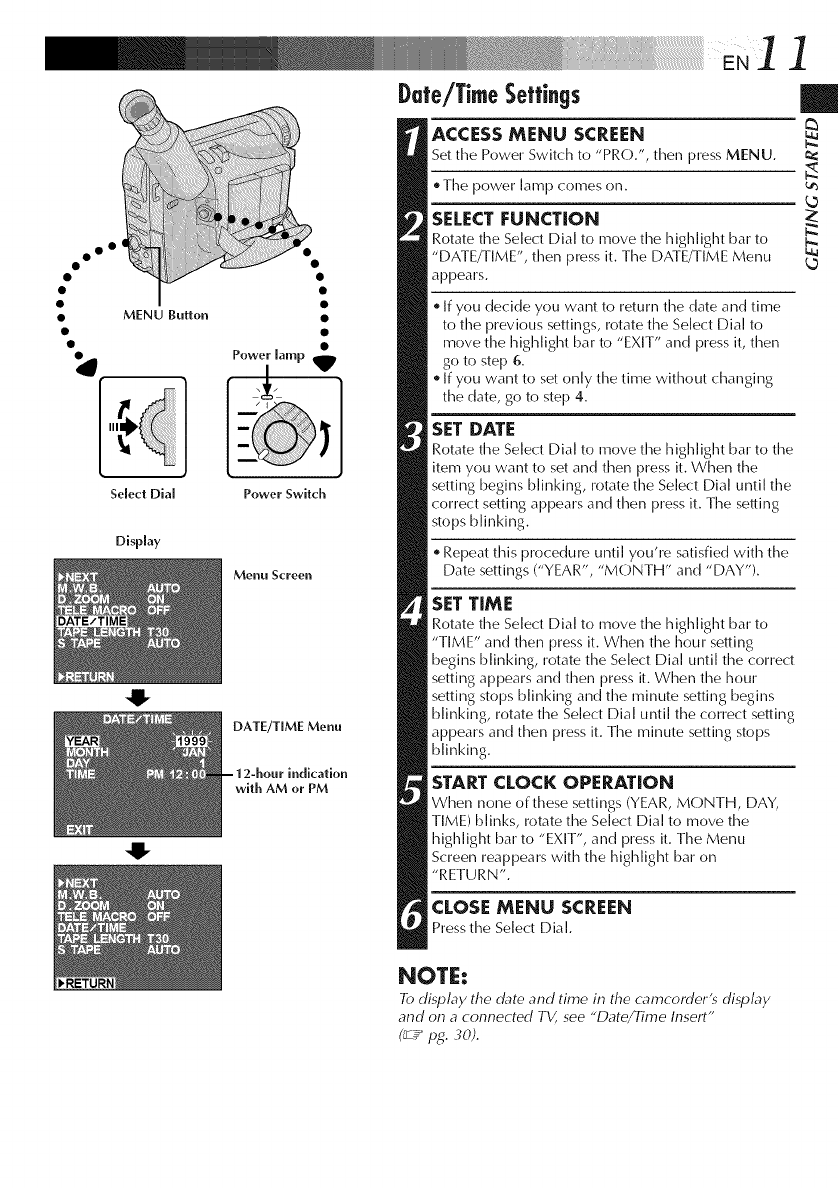
Date/TimeSettings
oo °
•MENU Button
I
Q
Select DIM
Power lamp
Power Switch
Menu Screen
DATE/TIME Menu
indication
with AM or PM
Display
O
]|
ACCESS MENU SCREEN
Set the Power Switch to "PRO.", then press MENU.
. Time power lamp comes on.
SELECT FUNCTION
Rotate the Select Dial to move time highlight bar to
"DATE/TIME", then press it. Time DATE/TIME Menu
appears.
If you decide you want to returntime date and time
to the previous settings, rotate the Select Dial to
move time highlight bar to "EXIT" and press it, then
go to step 6.
If you want to set only the time without changing
the date, go to step 4.
SET DATE
Rotate time Select Dial to move time highlight bar to the
item you want to set and then press it. When the
setting begins blinking, rotate the Select Dial until the
correct setting appears and then press it. Time seiling
stops blinking.
Repeat this procedure until you're satisfied with the
Date settings ("YEAR", "MONTH" and "DAY").
SET TIME
Rotate time Select Dial to move the highlight bar to
"TIME" and then press it. When the hour setting
begins blinking, rotate the Select Dial until the correct
setting appears and then press it. When time hour
setting stops blinking and time minute setting begins
blinking, rotate the Select Dial until the correct setting
appears and then press it. Time minute setting stops
blinking.
STARTCLOCK OPERATION
When none of these settings (YEAR, MONTH, DAY,
TIME) blinks, rotate the Select Dial to move the
highlight bar to "EXIT", and press it. Time Menu
Screen reappears with the highlight bar on
"RETURN".
CLOSE MENU SCREEN
Press the Select Dial.
NOTE:
To display the date and time in the camcorderts display
and on a connected TV, see "Date/Time Insert"
(_Y pg. 3d).
]2EN¸ .... o
oo °
• MENU Button
•SP/EP Recording Mode Button
Select Dial
Viewfiuder
Display
0
0
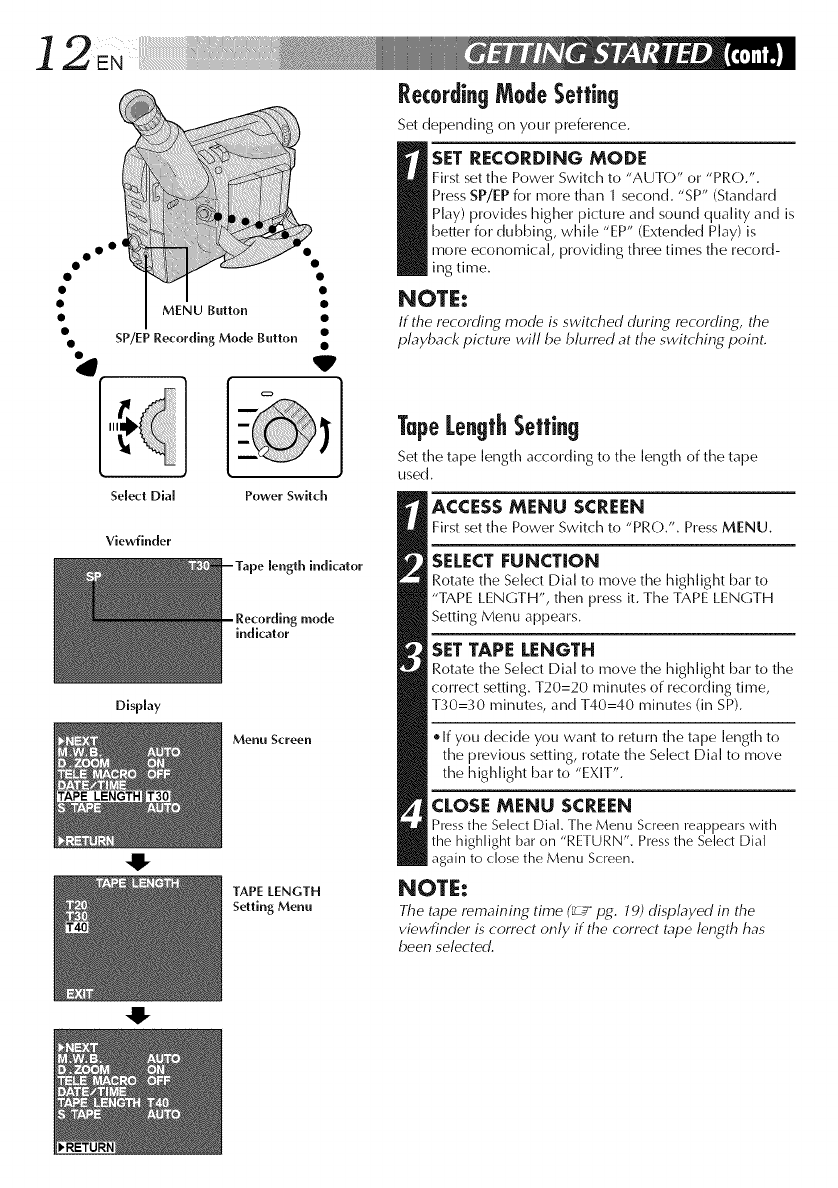
RecordingModeSetting
Set depending on your preference.
SET RECORDING MODE
First set the Power Switch to "AUTO" or "PRO.".
Press SP/EP for more than 1 second. "SP" (Standard
Play) provides higher picture and sound quality and is
beiler for dubbing, while "EP" (Extended Play) is
more economical, providing three times the record-
ins time.
NOTE:
If the recording mode is switched during recording, the
playback picture will be blurred at the switching point.
Power Switch
TapeLengthSetting
Set the tape length according to the length of the tape
used.
ACCESS MENU SCREEN
Firstsetthe PowerSwitchto "PRO.". PressMENU.
indicator
mode
SELECT FUNCTION
Rotate the Select Dial to move the highlight bar to
"TAPE LENGTH", then press it. The TAPE LENGTH
Setting Menu appears.
SETTAPE LENGTH
Rotate the Select Dial to move the highlight bar to the
correct setting. T20=20 minutes of recording time,
T30=30 minutes, and T40=40 minutes (in SP).
Menu Screen e If you decide you want to return the tape length to
the previous setting, rotate the Select Dial to move
the highlight bar to "EXIT".
TAPE LENGTH
Setting Menu
CLOSE MENU SCREEN
Press the Select Dial. The Menu S(-reen reappears with
the highlight bar on "RETURN". Press the Select Dial
gain to close the Menu Screen.
NOTE:
The tape remaining time (_ pg. 79) displayed in the
viewfinder is correct only if the correct tape length has
been selected.
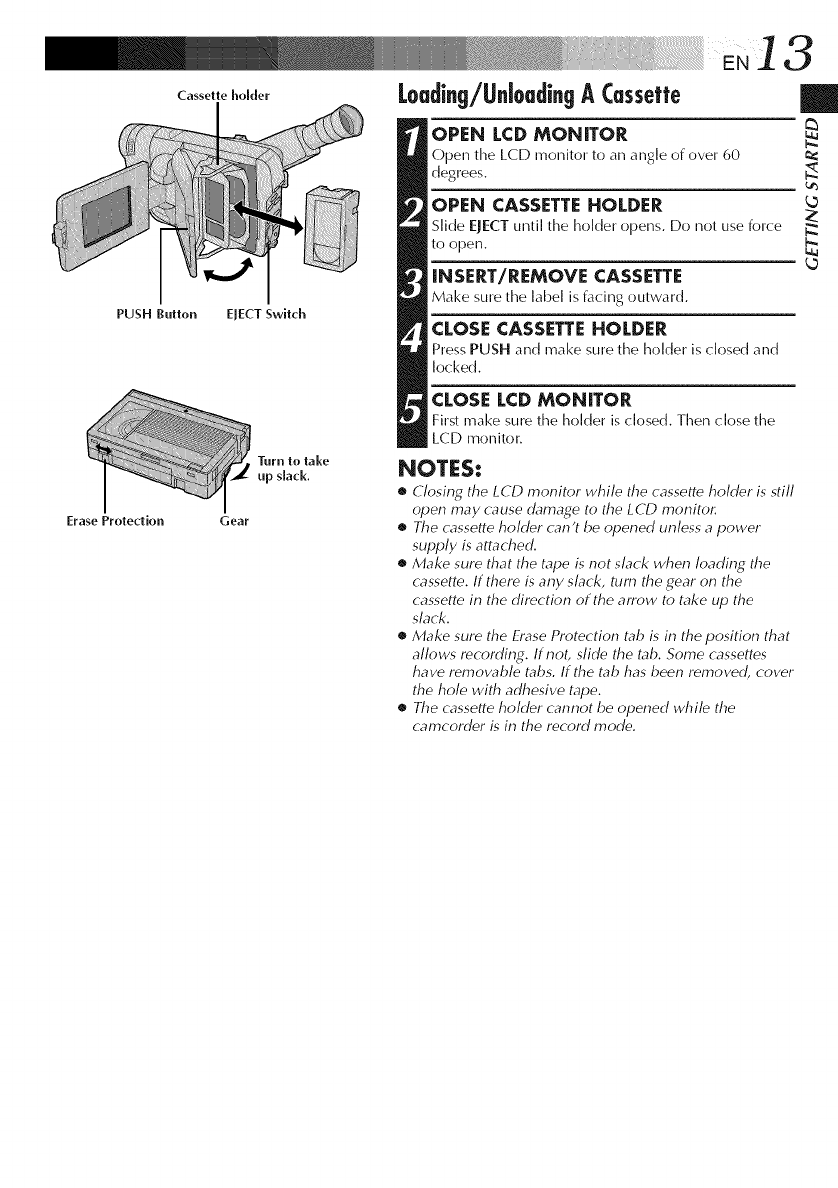
Erase Proledion
Casselle holder
I
EJECT Swilch
Turn to lake
up slack.
Gear
PUSH Bullon
Loading/UnloadingA Cessette
OPEN LCD MONITOR
Open the LCD monitor to an angle of over 60
d%rees.
OPEN CASSETTE HOLDER
Slide EJECT until the holder ()pens. Do not use force
to open.
INSERT/REMOVE CASSETTE
Make snre the label is facing outward.
CLOSE CASSETTE HOLDER
Press PUSH and make snre the holder is closed and
locked.
|
N.
L_
CLOSE LCD MONITOR
First make sure the holder is closed. Then close the
LCD monitor.
NOTES:
•Closing the LCD monitor while the cassette holder is still
open may cause damage to the LCD monitor.
•The cassette holder can't be opened unless a power
supply is attached.
•Make sure that the tape is not slack when loading the
cassette. If there is any slack, turn the gear on the
cassette in the direction of the arrow to take up the
slack.
•Make sure the Erase Protection tab is in the position that
allows recording. If not, slide the tab. Some cassettes
have removable tabs. If the tab has been removed, cover
the hole with adhesive tape.
•The cassette holder cannot be opened while the
cam(order is in the record mode.
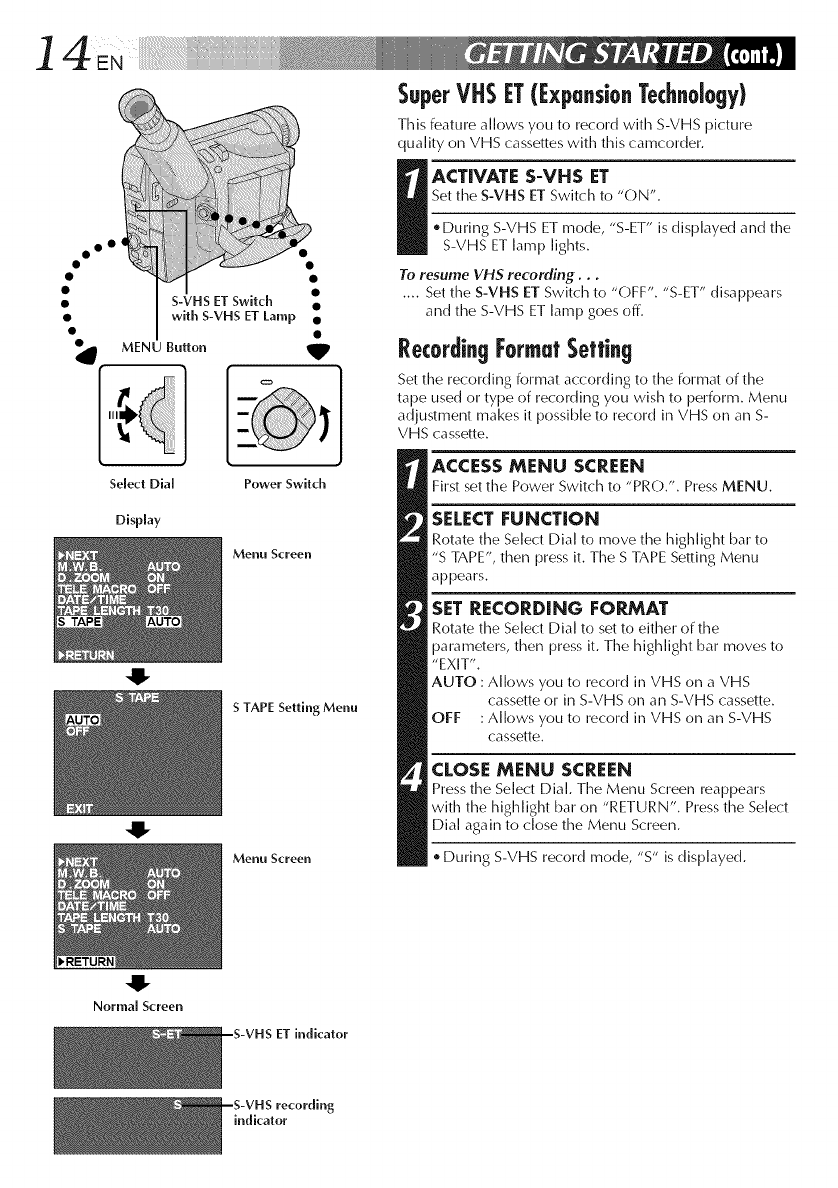
14 ....
oo °
Z
S-VHS ET Switch I
with S-VHS ET Lamp •
MENU Button _IP
SuperVHSIT ([xpansionTechnology)
This feature allows you to record with S-VHS picture
quality on VHS cassettes with this camcorder.
I ACTIVATE S-VHS ET
Set the S-VHS ET Switch to "ON".
. During S-VHS ET mode, "S-ET" is displayed and the
S-VHS ET lamp lights.
To resume VHS recording...
.... Set the S-VHS ET Switch to "OFF". "S-ET" disappears
and the S-VHS ET lamp goes off.
RecordingFormatSetting
Set the recording format according to the format of the
tape used or type of recording you wish to perform. Menu
adjustment makes it possible to record in VHS on an S-
VHS cassette.
Select Dial
Display
-U-
4!-
4!"
Normal Screen
Power Switch
Menu Screen
S TAPE Setting Menu
Menu Screen
ACCESS MENU SCREEN
First set the Power Switch to "PRO.". Press MENU.
SELECTFUNCTION
Rotate the Select Dial to move the highlight bar to
"S TAPE", then press it. Time S TAPE Setting Menu
appears.
SET RECORDING FORMAT
Rotate the Select Dial to set to either of the
parameters, then press it. Time highlight bar moves to
"EXIT".
AUTO : Allows you to record in VHS on a VHS
cassette or in S-VHS on an S-VHS cassette.
OFF : Allows you to record in VHS on an S-VHS
cassette.
CLOSE MENU SCREEN
Press the Select Dial. Time Menu Screen reappears
with the highlight bar on "RETURN". Press the Select
Dial again to close the Menu Screen.
. During S-VHS record mode, "S" is displayed.
--S-VHS ET indicator
indicator
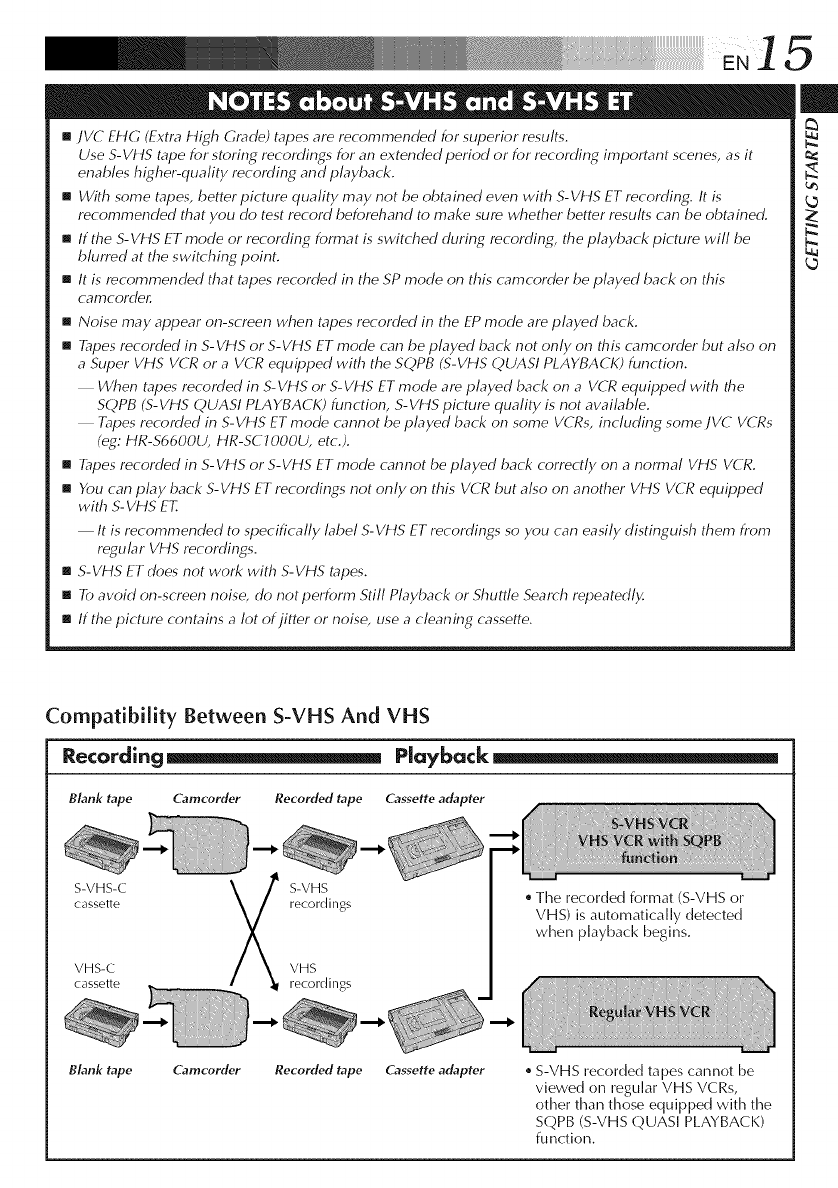
[]JVC EHG (Extra High Grade) tapes are recommended for superior results.
Use S-Vf t5 tape for storing recordings for an extended period or for recording important scenes, as it
enables higher-quality recording and playback.
[] With some tapes, better picture quality may not be obtained even with S-VHS ET recording. It is
recommended that you do test record beforehand to make sure whether better results can be obtained.
[] If the S-VHS ET mode or recording format is switched during recording, the playback picture will be
blurred at the switching point.
[] It is recommended that tapes recorded in the SP mode on this camcorder be played back on this
cafT]cordeg
[] Noise may appear on-screen when tapes recorded in the EP mode are played back.
[] Tapes recorded in S-WffS or S-VHS ET mode can be played back not only on this camcorder but also on
a Super VHS VCR or a VCR equipped with the SQPB (S-VHS QUASI PLAYBACK) function.
When tapes recorded in S-VHS or S-VHS ET mode are played back on a VCR equipped with the
SQPB (S-VHS QUASI PLAYBACK) function, S-VHS picture quality is not available.
Tapes recorded in S-VHS ET mode cannot be played back on some VCRs, including some JVC VCRs
(eg: HR-S6600U, HR-SCJ 000U, etc.).
[] Tapes recorded in S-VHS or S-VHS ET mode cam_ot be played back correctly on a normal VHS VCR.
[] Ybu can play back S-VHS ET recordings not only on this VCR but also on another VHS VCR equipped
with S- VHS ET.
It is recommended to specifically label S-VHS ET recordings so you can easily distinguish them from
regular VHS recordings.
[] S-VHS ET does not work with S-VHS tapes.
[] To avoid on-screen noise, do not perform Still Playback or Shuttle Search repeatedly.
[] If the picture contains a lot of jitter or noise, use a cleaning cassette.
Compatibility Between S-VHS And VHS
Recording_ Playback
BLink tape Camcorder Recorded tape Cassette adapter
S-VHS-C S-VHS
cassette recordings
VHS-C VHS
cassette recordings
The recorded format (S-VHS or
VHS) is automatically detected
when playback begins.
BLink tape Camcorder Recorded tape Cassette adapter S-VHS recorded tapes cannot be
viewed on regular VHS VCRs,
other than those equipped with the
SQPB (S-VHS QUASI PLAYBACK)
function.
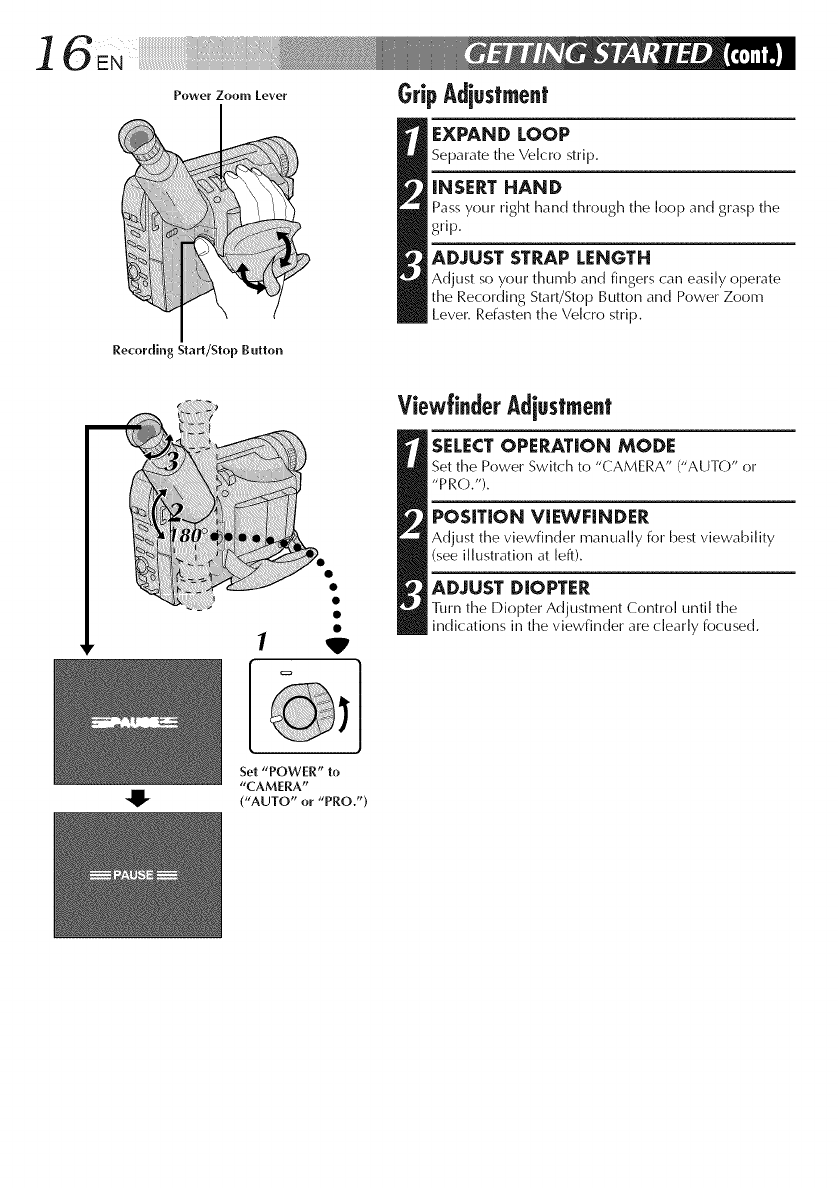
_eworZoo.,_o_or GripAdiuslment
EXPAND LOOP
Separate the Velcro strip.
iNSERT HAND
Pass your right hand through the loop and grasp the
grip.
ADJUST STRAP LENGTH
Adjust so your thumb and fingers can easily operate
the Recording Start/Stop Button and Power Zoom
Lever. Refasten the Ve[cro strip.
Recording Start/Step Button
1'W'
ViewtinderAdiustment
[SELECT OPERATION MODE
Set time Power Switch to "CAMERA" ("AUTO" or
"PRO.").
POSiTiON ViEWFINDER
Adjust the viewfinder manually for best viewability
(see illustration at left).
ADJUST DIOPTER
1]irn time Diopter Adjustment Control until the
indications in the viewfinder are dearly focused.
Set "POWER" to
"CAMERA"
("AUTO" or "PRO.")
7
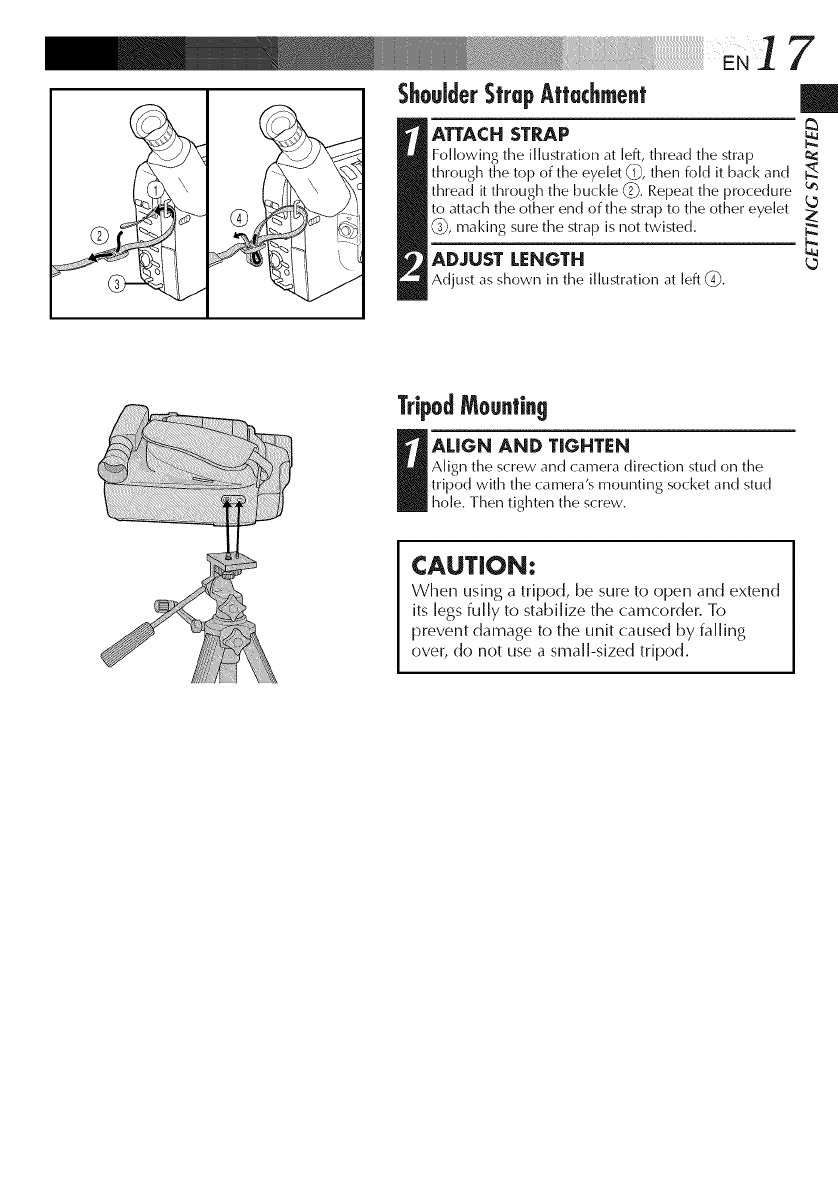
ShouJderSfrupAffachmenf
ATTACH STRAP
Following the illustration at left, thread the strap
through the top of the eyelet 0,_,then fold it back and
thread it through the buckle (2-_.Repeat the procedure _
to attach the other end of the strap to the other eyelet
(9, making sLirethe strap is not twisted.
ADJUST LENGTH
Adjust as shown in the illustration at [eft (-O.
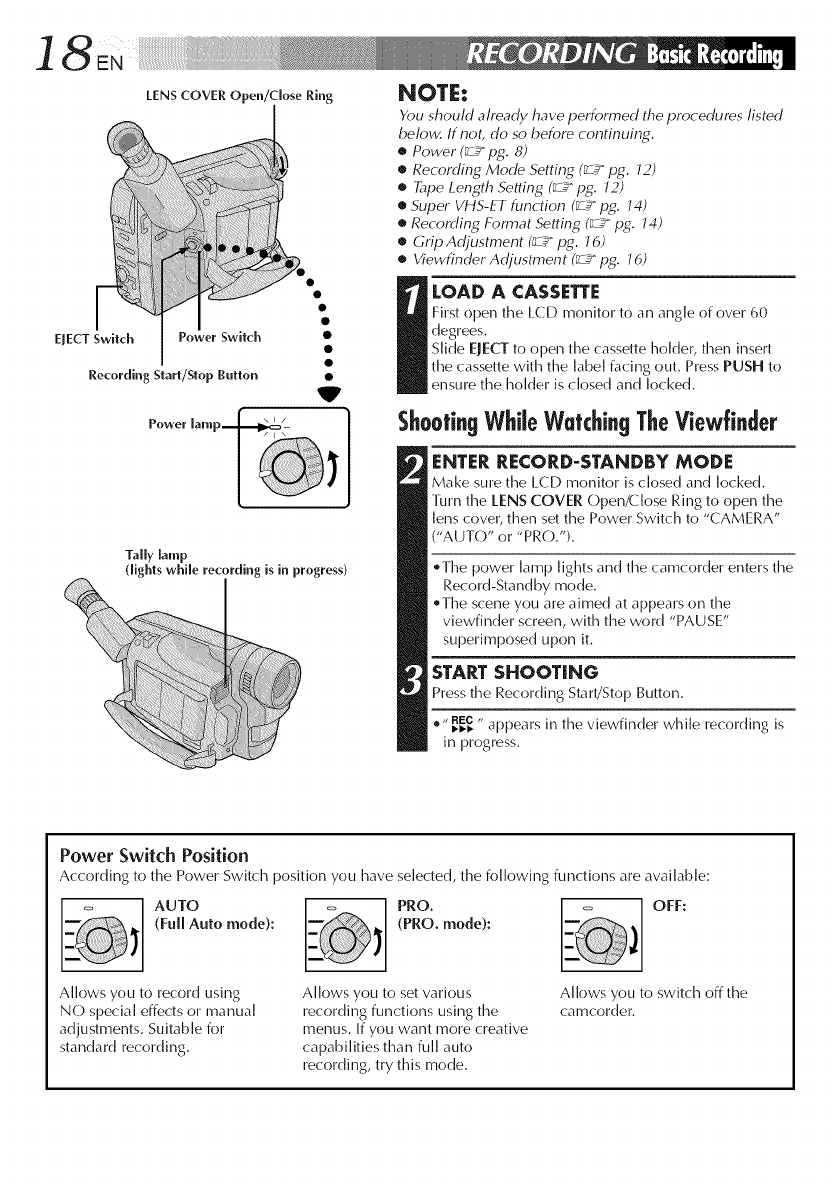
TripodMounting
R hole.tripodwith tileAligl_theALlGNThenSCrewandANDtightenCamera'smounting socketalldTlGHTJ_NttleCal_el'as_.rew.directi()l_stud on studthe
CAUTION:
When using a tripod, be sure to open and extend
its legs fully to stabilize the camcorder. To
prevent damage to the unit caused by falling
over, do not use a small-sized tripod.
/
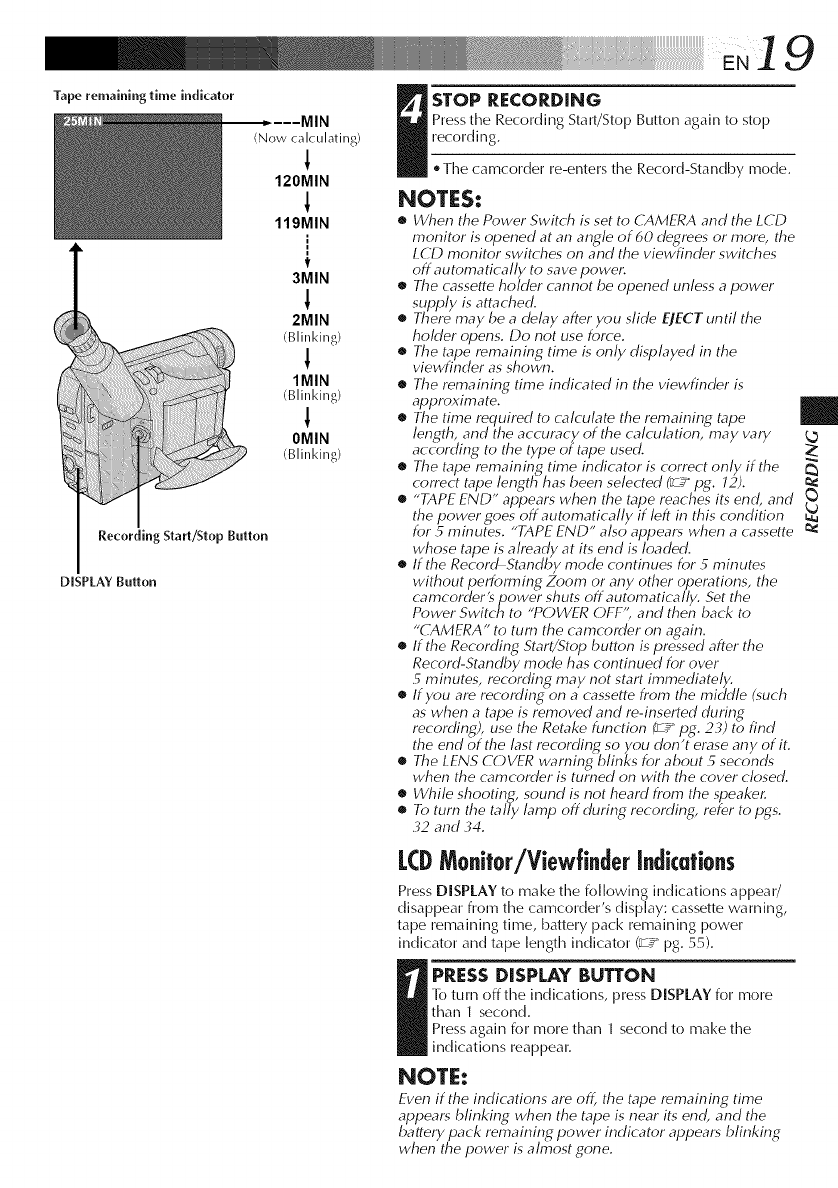
LENS COVER Open/close Ring
EJECT Switch PoWer SWitch
Recording Start/Slop Button V
Tally lamp
(lights while recording is in progress)
NOTE:
Ybu should already have performed the procedures listed
below. If not, do so before continuing.
•Power (_ pg. 8)
•Recording Mode Setting (_ pg. J2)
•Tape Length Setting (_ pg. J2)
•Super VHS-ET function (_ pg. J4)
•Recording Format Setting (_ pg. J4)
•Grip Adjustment (_ pg. J6)
•Viewfinder Adjustment (_ pg. J6)
IOAD A CASSETTE
First open the LCD monitor to an angle of over 60
degrees.
Slide EJECT to open the cassette holder, then insert
the cassette with the [abe[ facing out. Press PUSH to
ensure the holder is closed and locked.
ShootingWhileWatchingTheViewfinder
ENTER RECORD-STANDBY MODE
Make sure the LCD monitor is closed and locked.
Turn the lENS COVER Open/Close Ring to open the
lens cover, then set the Power Switch to "CAMERA"
("AUTO" or "PRO.").
.The power lamp lights and the camcorder enters the
Record-Standby mode.
_The scene you are aimed at appears on the
viewfinder screen, with the word "PAUSE"
superimposed upon it.
STARTSHOOTING
Press the Recording Start/Stop Button.
.,, _REc,, appears in the viewfinder while recording is
in progress.
Power Switch Position
According to the Power Switch position you have selected, the following functions are available:
AUTO PRO. OFF:
(Full Auto mode): (PRO. mode):
Allows you to record using
NO special effects or manual
adjustments. Suitable for
standard recording.
Allows you to set various
recording functions using the
menus. If you want more creative
capabilities than full auto
recording, try this mode.
Allows you to switch off the
camcorder.
19
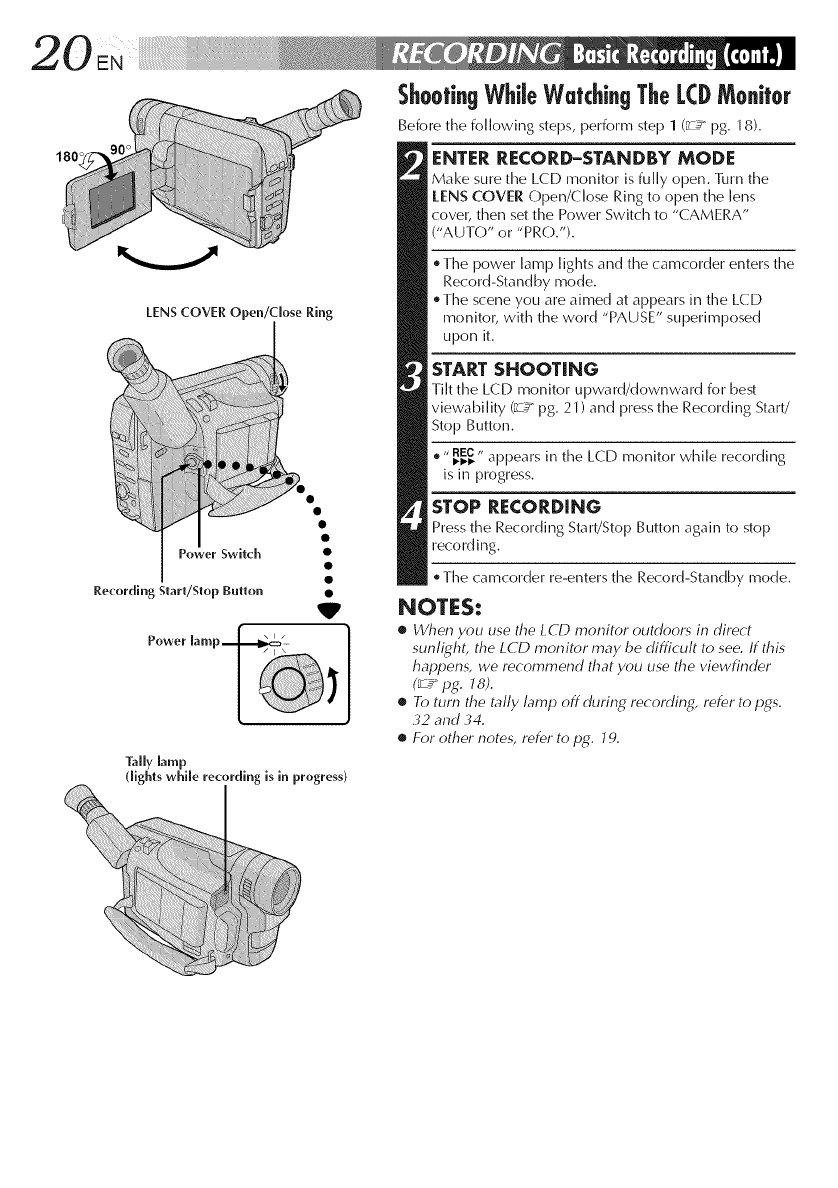
Tape remaining time indicator
Recording Start/Stop Button
DISPLAY Button
(Now calculating)
!
120MIN
119MIN
t
3MIN
2MIN
(Blinking)
1MIN
(Blinking)
1
OMIN
(Blinking)
I TOP RECORDING
Press the Recording StaWStop Button again to stop
recording.
, Timecamcorder re-enters the Record-Standby mode.
NOTES:
•When the Power Switch is set to CAMERA and the LCD
monitor is opened at an angle of 60 degrees or more, the
LCD monitor switches on and the viewfinder switches
off automatically to save powel:
•The cassette hokler cmmot be opened unless a power
supply is attached.
•There may be a delay after you slide EJECT until the
holder opens. Do not use force.
•The tape remaining time is only displayed in the
viewfinder as shown.
•The remaining time indicated in the viewfinder is
approximate.
•The time required to calculate the remaining tape
length, and the accuracy of the calculation, may vary
according to the type of tape used.
|
•The tape remaining time indicator is correct only if the
correct tape length has been selected _pg. 12).
•"TAPE END" appears when the tape reaches its end, and
the power goes off automatically if left in this condition
for 5 minutes. "TAPE END" also appears when a cassette
whose tape is already at its end is loaded.
•If the RecordStandby mode continues for 5 minutes
without performing Zoom or any other operations, the
camcorder'spower shuts off automatically. Set the
Power Switch to "POWER OFF", and then back to
"CAMERA" to turn the camcorder on again.
•If the Recording Start/Stop button is pressed after the
Record-Standby mode has continued for over
5minutes, recordiny_ may not start immediately.
•If you are recordingon acassette from the middle (such
as when a tape is removed and re-inserted during
recording), use the Retake function _zg pg. 23) to find
the end of the last recording so you don't erase any of it.
•The LENS COVER warning blinks for about 5 seconds
when the camcorder is turned on with the cover closed.
•While shooting, sound is not heard from the speaker.
•To turn the tally lamp off during recording, refer to pgs.
,32 and ,34.
LCDMonitor/Viewfinderindications
Press DISPLAY to make the following indications a ppea r/
disappear from time camcorder's display: cassette warning,
tape remaining time, battery pack remaining power
indicator and tape length indicator (_,2_pg. 55).
I RESS DISPLAY BUTTON
l-o turn off time indications, press DISPLAY for more
than 1 second.
Press again for more than 1 second to make the
indications reappear.
NOTE:
Even if the indications are off, the tape remaining time
appears blinking when the tape is near its end, and the
battery pack remaining power indicator appears blinking
when the power is almost gone.
180'
LENS COVER Open/close Ring
V
Tally lamp
dights while recording is in progress)
Shoofi.gWhileWatchi.gTheLCDMo.itor
Before the following steps, perform step 1 (_ pg. 18).
ENTER RECORD-STANDBY MODE
Make sure the LCD monitor is fully open. 111rn the
tENS COVER Open/Close Ring to open the lens
cover, then set the Power Switch to "CAMERA"
("AUTO" or "PRO.").
The power lamp lights and the camcorder enters the
Record-Standby mode.
The scene you are aimed at appears in the LCD
monitor, with the word "PAUSE" superimposed
upon it.
STARTSHOOTING
Tilt the LCD monitor upward/downward for best
viewability (_ pg. 21) and press the Recording Start/
Stop Button.
® " I_I_REC,, appears in the LCD monitor while recording
is in progress.
STOP RECORDING
Press the Recording Start/Stop Button again to stop
recording.
The camcorder re-enters the Record-Standby mode.
NOTES:
•When you use the LCD monitor outdoors in direct
sunfighL the LCD monitor may be difficult to see. If this
happens, we recommend that you use the viewfinder
(_ pg. J8).
•To turn the tally lamp offdurir Nrecording, refer to pgs.
32 and 34.
•For other notes, refer to pg. 19.
2 ]
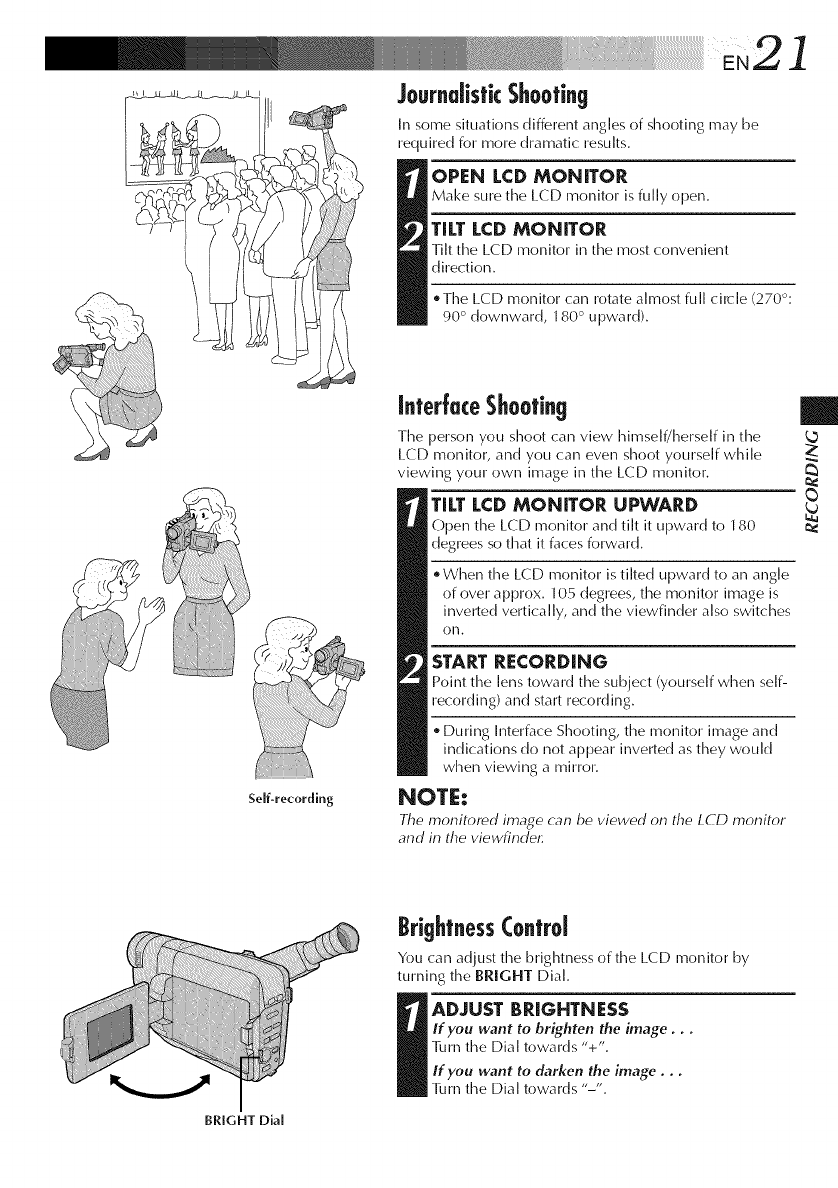
JournalisticShooting
Insome situations different angles of shooting may be
required for more dramatic results.
OPEN LCD MONITOR
Make SLIre the LCD monitor is fully open.
TILT LCD MONITOR
Tilt time L(:D monitor in the most convenient
direction.
* Time LCD monitor calm rotate almost full circle (270°:
90 ° downward, 180 ° upward).
Self-recording
InterJuceShooting
The person you shoot can view hh_self/herself in the
L(:D monitor, and you can even shoot yourself while
viewing your own image in the LCD monitor.
TILTLCD MONITOR UPWARD
Open time LCD monitor and tilt it upward to 180
degrees so that it faces forward.
When the LCD monitor is tilted upward to an angle
of over approx. 105 degrees, time monitor image is
inverted vertically, and the viewfinder also switches
olm.
START RECORDING
point the lens toward the subject (yourself when self-
recording) and start recording.
During Interface Shooting, the monitor image and
indications do not appear inverted as they would
when viewing a mirror.
NOTE:
The monitored image can be viewed on the L(?D monitor
and in the viewfind¢
|
2:
BRIGHT Dial
BrightnessControl
You can adjust the brightness of the LCD monitor by
turningthe BRIGHT Dial.
IDJUST BRIGHTNESS
If you want to brighten the image, , ,
]_mm the Dial towards "+".
If you want to darken the image, ,,
]imm the Dial towards "-".
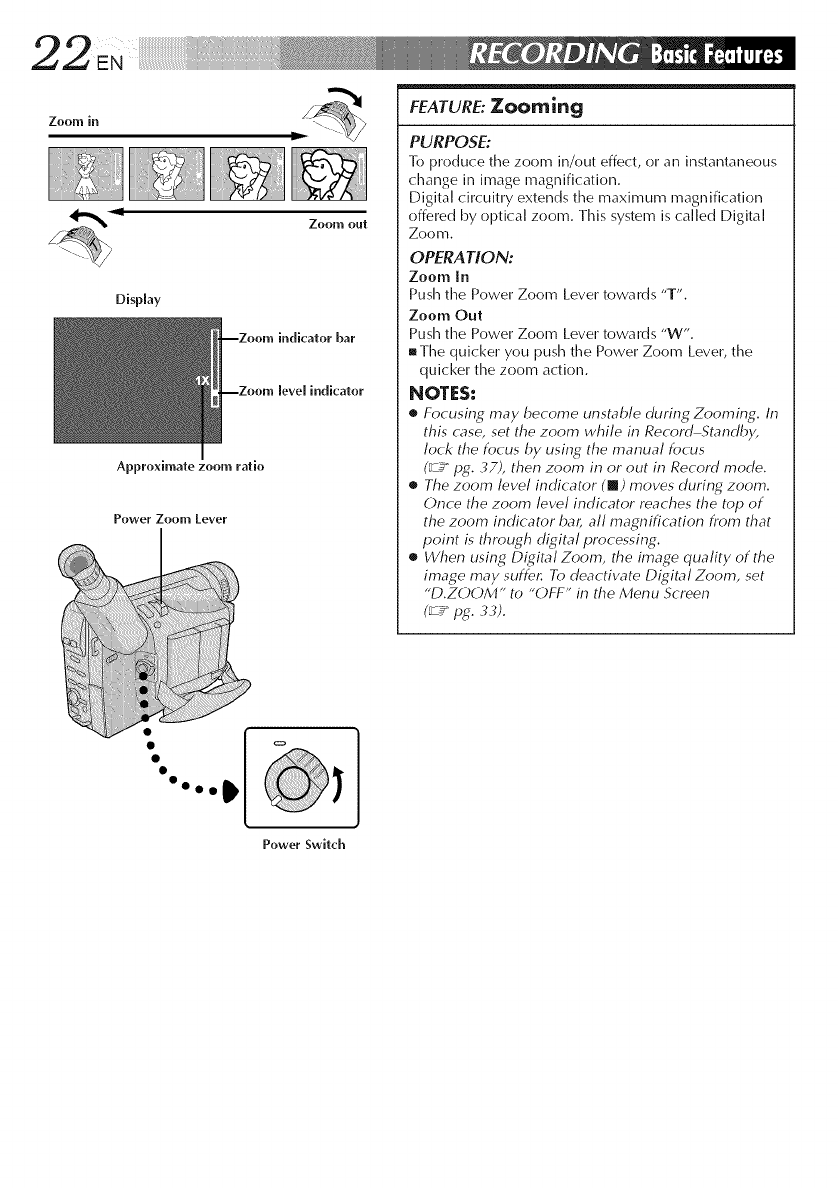
Zoom in
Zoom out
Display
indicator bar
[eve[indicator
Approximate zoom ratio
Power Zoom [_ever
".[
00000
Power Switch
FEATURE: ZOOm log
PURPOSE:
]i) produce the zoom in/out effect, or an instantaneous
change in image magnification.
Digital circuitry extends the maximum magnification
offered by optical zoom. This system is called Digital
Zoom.
OPERA lION:
Zoom In
Push the Power Zoom Lever towards "T".
Zoom Out
Push time Power Zoom Lever towards "W".
[] Time quicker you push the Power Zoom Lever, the
quicker the zoom action.
NOTES:
•Focusing may become unstable during Zooming. In
this case, set the zoom while in Record Standby,
lock the focus by using the manual focus
(_ pg. .37), then zoom in or out in Record mode.
•The zoom level indicator (@) moves during zoom.
Once the zoom level indicator reaches the top of
the zoom indicator ba_ all magnification from that
point is through digital processing.
•When using Digital Zoom, the image quality of the
image may suffer. To deactivate Digital Zoom, set
"D.ZOOM" to "OFF" in the Menu Screen
(_ pg. 33).
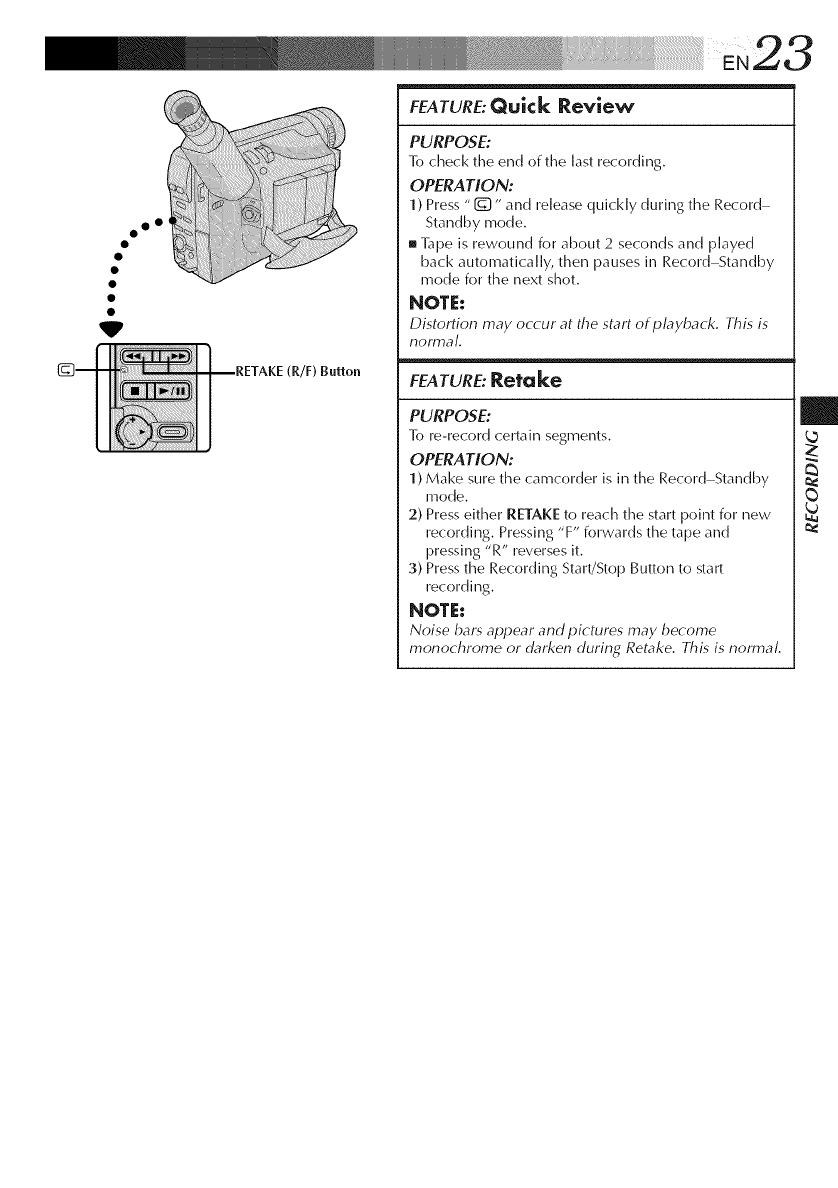
FEATURE:Quick Review
,Button
oo °
V
PURPOSE:
lb check the end of the last recording.
OPERATION:
1) Press "1_" and release quickly during the Record
Standby mode.
[] ]7_peis rewound for about 2 seconds and played
back automatically, then pauses in Record Standby
mode for the next shot.
NOTE:
Distortion may occur at the start of playback. This is
FEATURE: Retake
PURPOSE:
]_ re-record certain segments.
OPERATION:
1) Make sure the camcorder is in the Record Standby
mode.
2) Press either RETAKE to reach the start point for rlew
recording. Pressing "F" forwards the tape and
pressing "R" reverses it.
3) Press the Recording Start/Stop Button to start
recording.
NOTE:
Noise bars appear and pictures may become
monochrome or darken during Retake. This is normal.
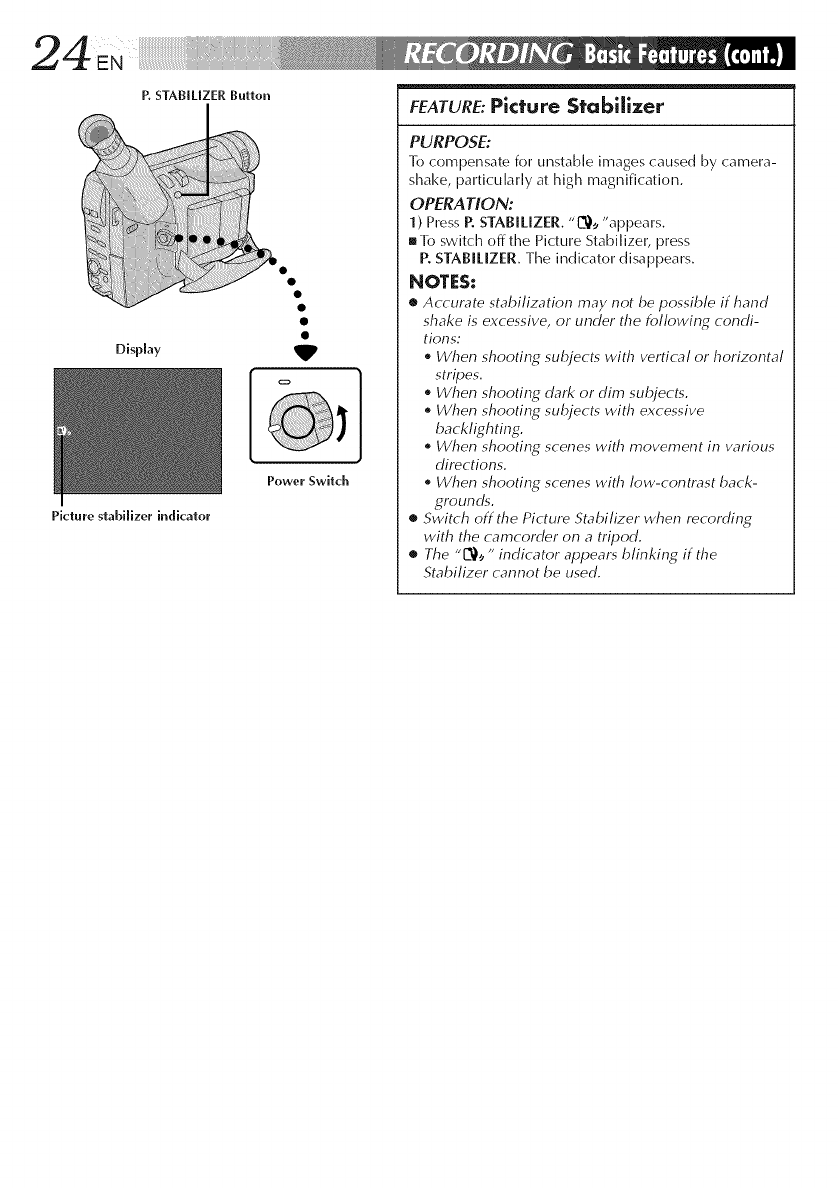
P.STABILIZER Button
Display
Picture stabilizer h_dicator
V
Power Switch
FEATURE:Picture Stobi[ixer
PURPOSE:
1_ compensate for unstable images caused by camera-
shake, particularly at high magnification.
OPERA DON:
1) Press P. STABILIZER. "L-"O,_"appears.
[] ]_ switch off the Picture Stabilizer, press
P. STABILIZER. The indicator disappears.
NOTES:
•Accurate stabilization may not be possible if hand
shake is excessive, or under the following condi-
tions:
When shooting subjects with vertical or horizontal
stripes.
When shooting dark or dim subjects.
When shooting subjects with excessive
backlighting.
When shooting scenes with movement in various
directions.
When shooting scenes with low-contrast back-
grounds.
•Switch off the Picture Stabilizer when recording
with the camcorder on a tripod.
•The "L_,," indicator appears blinking if the
Stabilizer cannot be used.
.............................................2 5
iii!i!i!!i!!!I
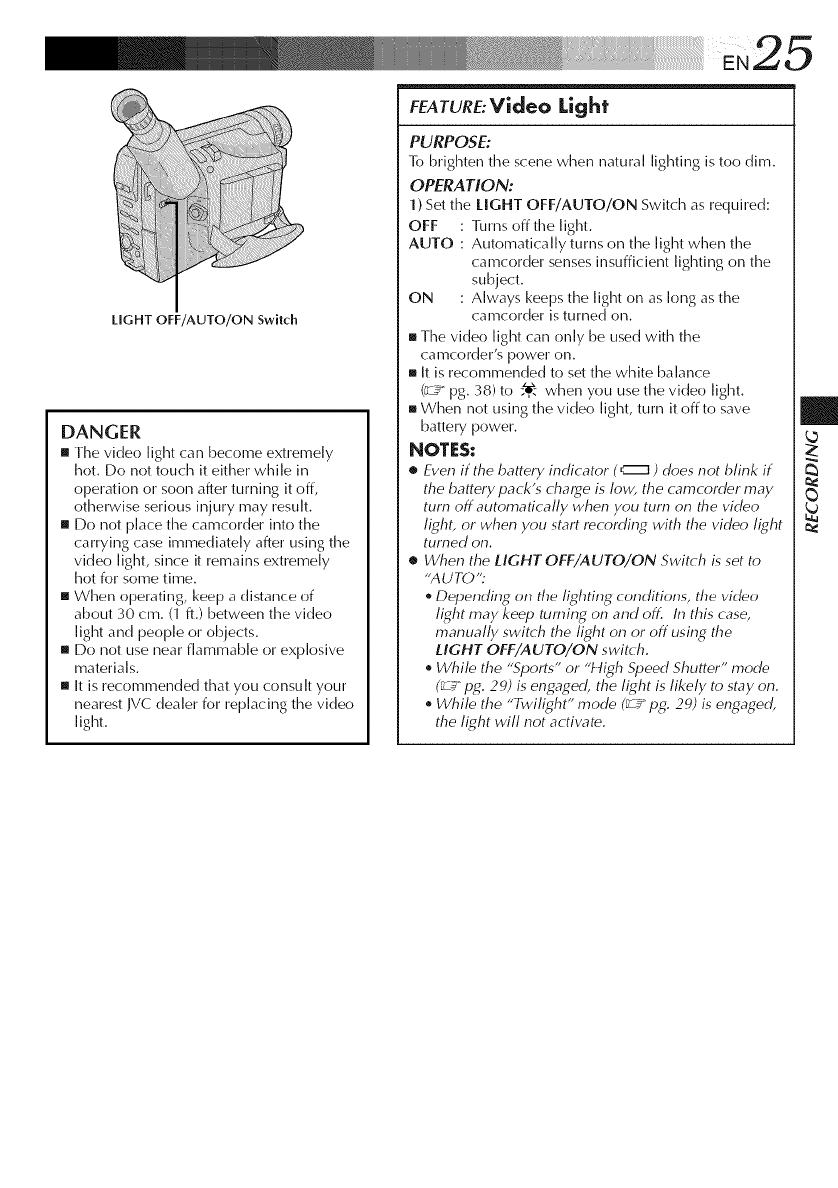
LIGHT OFF/AUTO/ON SwItch
DANGER
I The vide() light can become extremely
hot. Do not touch it either while in
operation or soon after turning it off,
otherwise serious injury may result.
I Do not place time camcorder into the
carrying case immediately after using the
vide() light, since it remains extremely
hot for some time.
IWhen opelating, keep a distance of
about 30 cm. (1 ft.) between the vide()
light and people or objects.
I DO Imot use near flammable or explosive
materials.
I It is recommended that you consult your
nearest/VC dealer for replacing the vide()
light.
EeATuRE:Video Light
PURPOSE:
1-o brighten the scene when natural lighting is too dim.
OPERATION:
1)Set the LIGHT OFF/AUTO/ON Switch as required:
OFF : lilrns off the light.
AUTO : Automatically turns on the light when time
cam(order senses insufficient lighting on the
subject.
ON : Always keeps the light on as k)ng as the
camcorder is turned on.
[] Time vide() light can only be used with the
camcorder's power on.
[] It is recommended to set the white balance
(L_ pg. 38)to ;_ when you use the vide() light.
[] When not using the vide() light, turn it ()fit() save
battery power.
NOTES:
•Even if the battery indicator (czz]) does not blink if
the battery pack's charge is low, the cam(order may
turn off automatically when you turn on the video
light, or when you start recording with the video light
turned on.
•When the HGHT OFF/AUTO/ON Switch is set to
"AUTO":
Depending on the lighting conditions, the video
light may keep turning on and off. In this case,
manually switch the light on or off using the
LIGHT OFF/AUTO/ON switch.
•While the "Sports" or "High Speed Shutter" mode
(_ pg. 2g) is engaged, the light is likely to stay on.
•While the "Twilight" mode (_" pg. 29) is engaged,
the light will not actiw_te.
Power Switch
SNAPSHOT
=
SNAPSHOT Button
V
Display
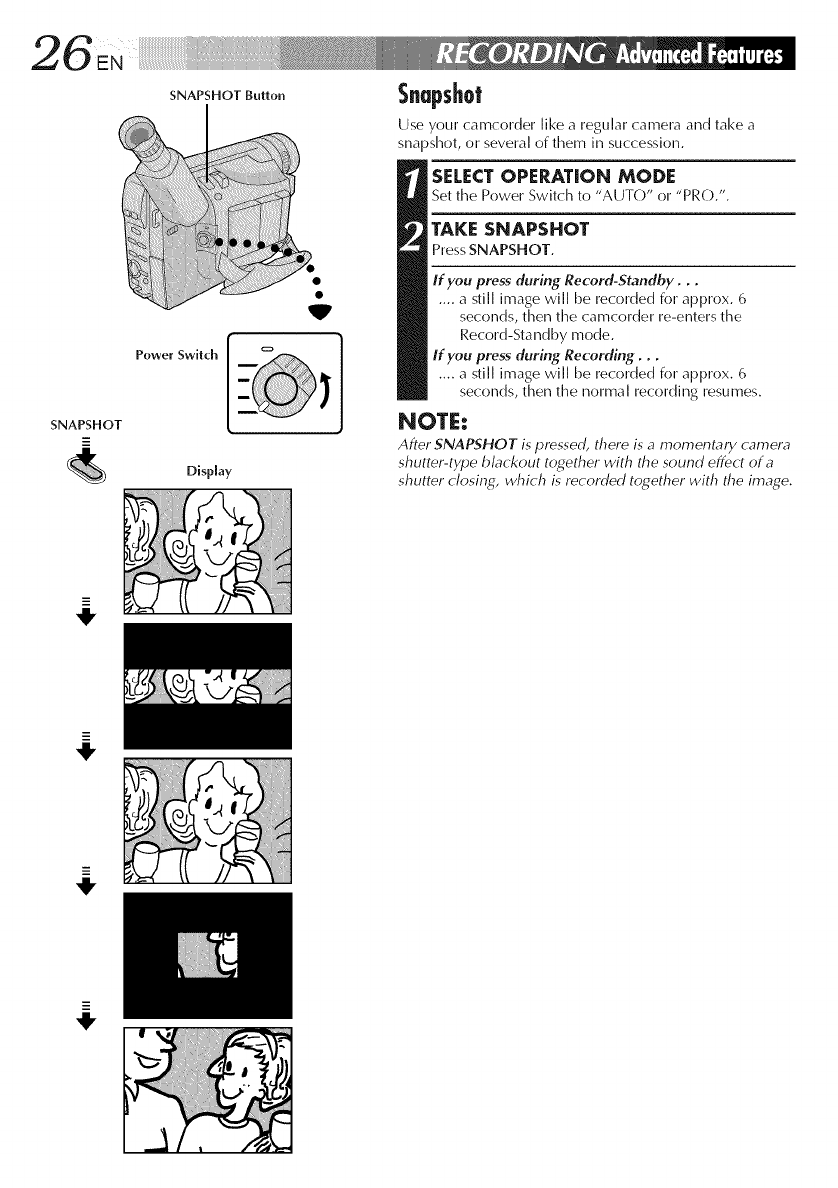
Snapshot
Use your camcorder like a regular camera and take a
snapshot, or several of them in succession.
SELECT OPERAT[ON MODE
Setthe Power Switch to "AUT(Y' or "PRO.".
TAKE SNAPSHOT
PressSNAPSHOT.
If you press during Record-Standby...
.... a still image will be recorded for approx. 6
seconds, then the camcorder re-enters the
Record-Standby mode.
If you press during Recording,..
.... a still image will be recorded for approx. 6
seconds, then the normal recording resumes.
NOTE:
After SNAPSHOT is pressed, there is ,_momentary camera
shutter-type blackout together with the sound effect of a
shutter closing, which is recorded together with the image.
4,
.... EN2 7
Im
[Ex.:Fader]
Fade in
9
Fadeout
Display
After 2 sec.
_]FADER '
I
MOSAIC
F_SHUTTER
_--_SLIDE
OFF
!
o o
•EFFECT Bu_on
Fade/Wipe
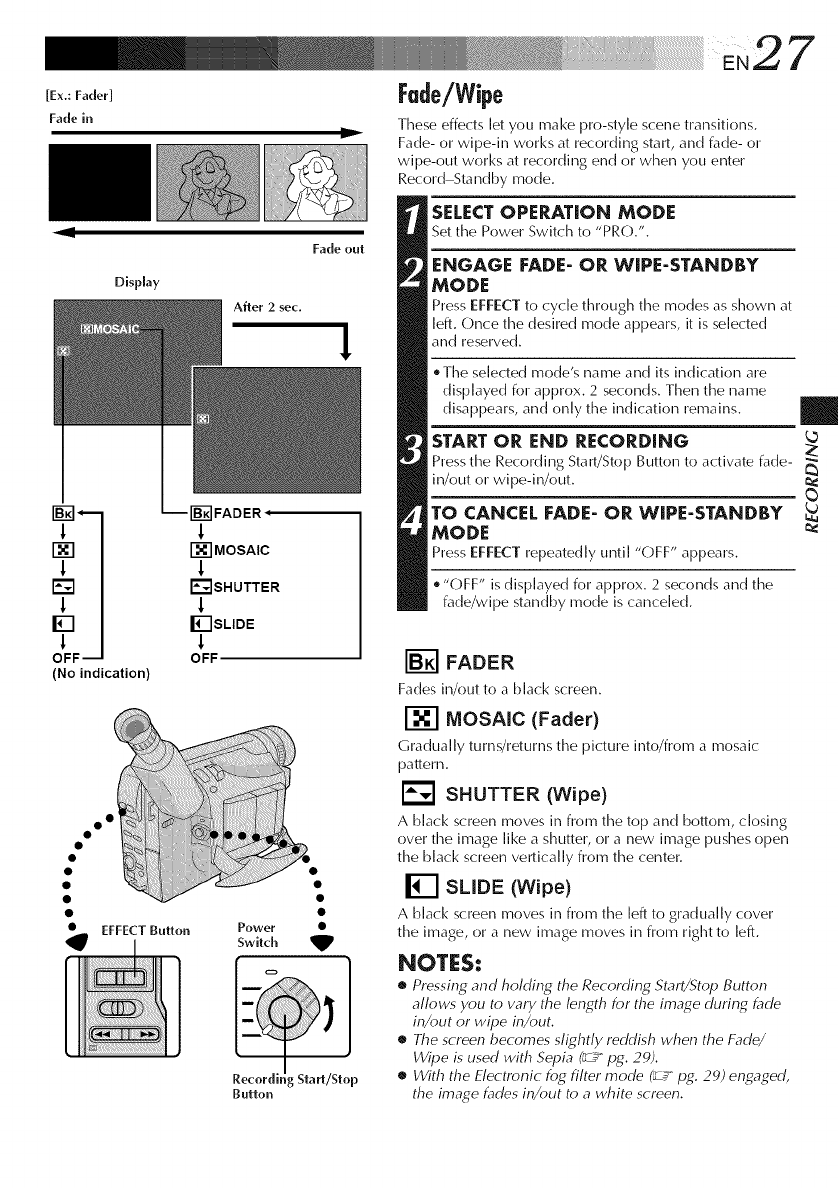
These effects let you make pro-style scene transitions.
Fade- or wipe-in works at recording start, and fade- or
wipe-out works at recording end or when you enter
Record Standby mode.
SELECTOPERATION MODE
Set the Power Switch to "PRO.".
ENGAGE FADE- OR WIPE-STANDBY
MODE
Press EFFECT to cycle through time modes as shown at
left. Once the desired mode appears, it is selected
and reserved.
Time selected mode's name and its indication are
displayed for approx. 2 seconds. Then the name
disappears, and only the indication remains. I
STARTOR END RECORDING -_L_
Press the Recording Start/Stop Button to activate fade-
in/out or wipe-in/out.
TO CANCEL FADE- OR WIPE-STANDBY
MODE
Press EFFECT repeatedly until "OFF" appears.
. "OFF" is displayed for approx. 2 seconds and the
fade/wipe standby mode is canceled.
Power •
Switch
Button
FADER
Fades in/out to a black screen.
MOSAIC (Fader)
Gradually turns/returns the picture into/from a mosaic
pattern.
[_ SHUTTER (Wipe)
A black screen moves in from the top and bottom, closing
over the image like a shutter, or a new image pushes ()pen
the black screen vertically from the center.
_--_ SLIDE (Wipe)
A black screen moves in from the left to gradually cover
the image, or a new image moves in from right to left.
NOTES:
•Pressing and holding the Recording Start/Stop Button
allows you to vary the length for the image during fade
in/out or wipe in/out.
•The screen becomes slightly reddish when the Fade/
Wipe is used with Sepia _pg. 29).
•With the Electronic fog filter mode _ pg. 29) engaged,
the image fades in/out to a white screen.
Display
I--_ SEPIA_
!
•_SPORTS
t
ND:ND EFFECT
t
FG: FOG
t
•,,,) TWILIGHT
1
_'2 s 1/2ooo
t
[] NEGA/POSI
1
OFF
After 2 sec.
1
1
ND
1
FG
!
,j
t
_'2
t
[]
t
OFF-
(No indication
!
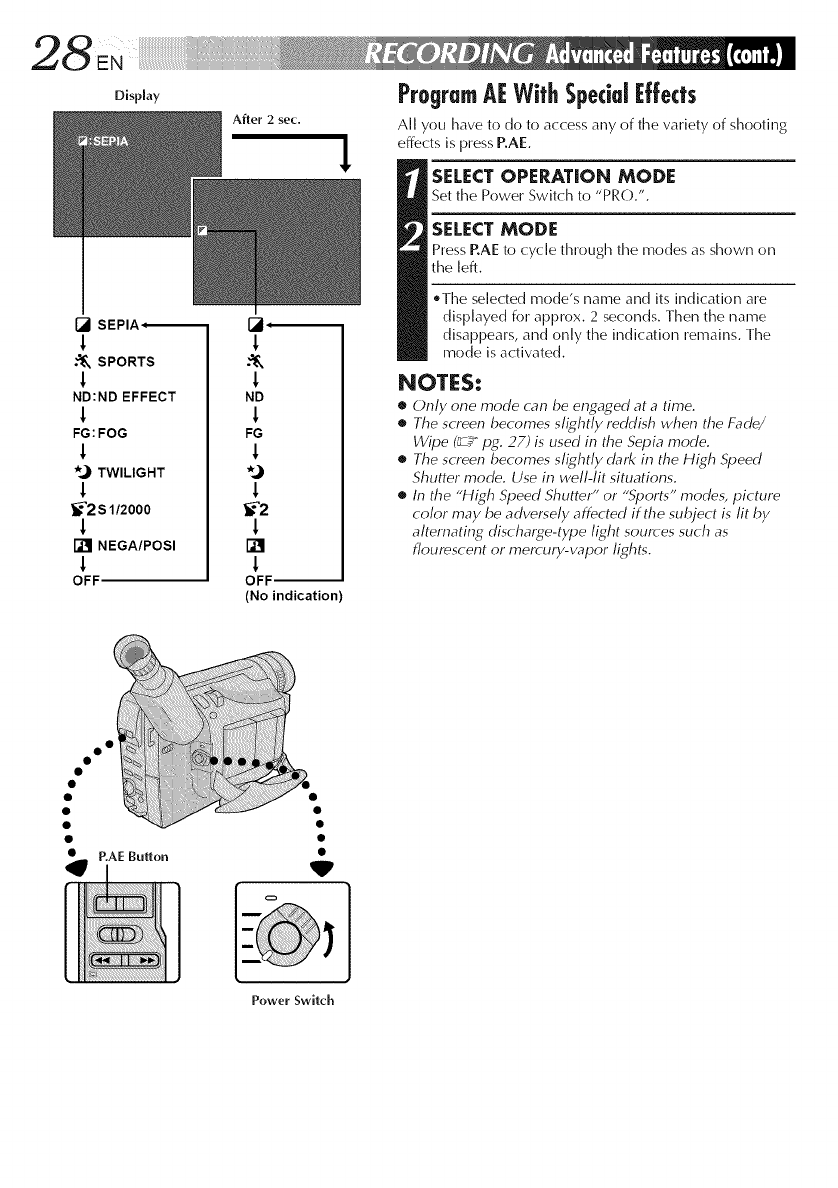
ProgramA[ WithSpeciali:ffects
All you have to do to access any of the variety of shooting
effects is press RAE.
SELECTOPERATION MODE
Set the Power Switch to "PRO.".
SELECTMODE
Press RAE to cycle through time modes as shown on
the left.
,Time selected mode's name and its indication are
displayed for approx. 2 seconds. Then the name
disappears, and only the indication remains. Time
mode is activated.
NOTES:
•Only one mode can be engaged at a time.
•The screen becomes slightly reddish when the Fade/
Wipe (_ pg. 27) is used in the Sepia mode.
•The screen becomes slightly dark in the High Speed
Shutter mode. Use in well-lit situations.
•In the "High Speed Shutter" or "Sports" modes, picture
color may be adversely affected if the subject is lit by
alternating discharge-type light sources such as
floumscent or mercury-vapor lights.
V
Power Switch
,i?iii i!!!!!!i!i!ili!!iii!!!iiii¸¸EN2 9
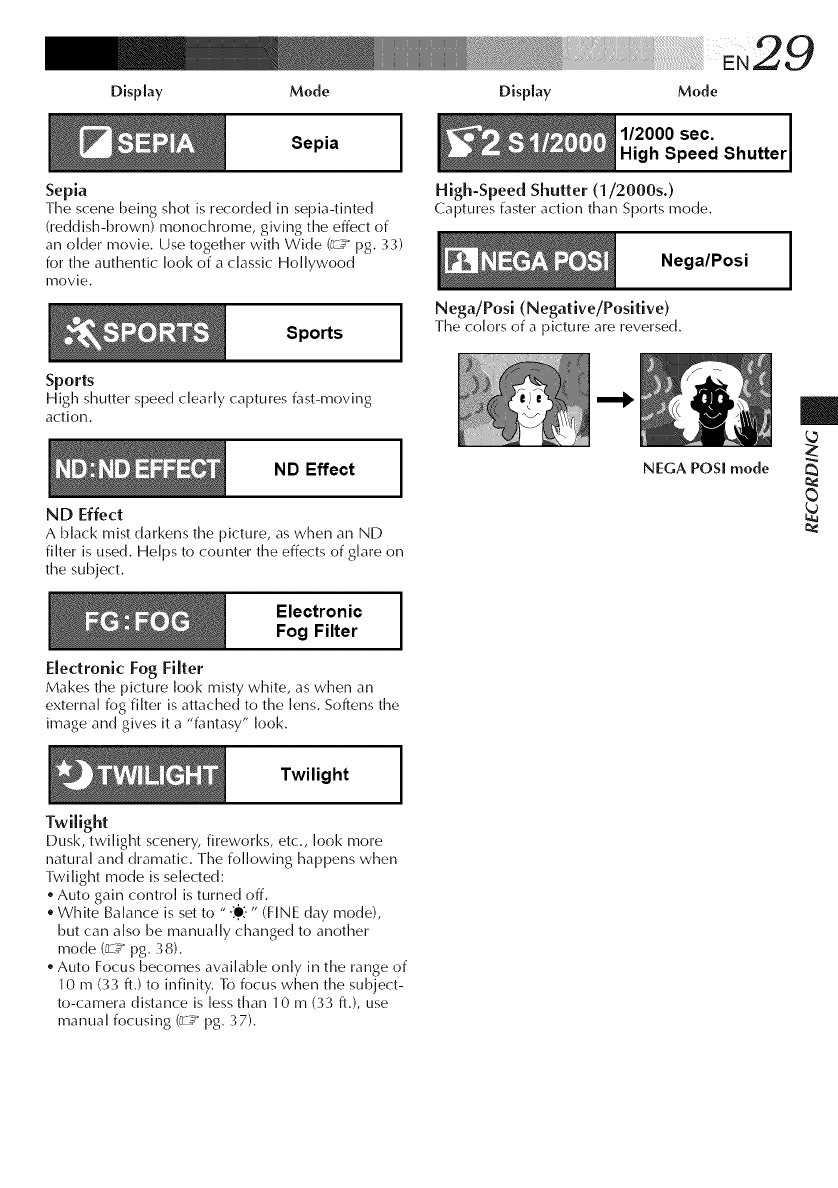
Display Mode Display Mode
Sepia
Sepia
Time scene being shot is recorded in sepia-tinted
(reddish-brown) monochrome, giving time effect of
aim older movie. Use together with Wide (_ pg. 33)
for time authentic look of a classic Hollywood
movie.
Sports
Sports
1/2000 sec.
High Speed Shutter
High-Speed Shutter (1/2000s.)
Captures faster action than Sports mode.
Nega/Posi
Nega/Posi (Negative/Positive)
Timecolors of a picture are reversed.
High shutter speed clearly captures fast-moving
action.
ND Effect
ND Effect
A black mist darkens tile picture, as when an ND
filter is used. Helps to counter the effects of glare on
the subject.
Electronic Fog Filter
Electronic
Fog Filter
NEGA POSl mode
Makes tile picture look misty white, as when an
external fog filter is attached to the lens. Softens the
image and gives it a "fantasy" look.
Twilight
Twilight
Dusk, twilight scenery, fireworks, etc., [()ok more
natural and dramatic. Tile following happens when
Twilight mode is selected:
.Auto gain control is turned off.
.White Balance is set to "-:e:-" (FINE day mode),
but can also be manually changed to another
mode (_ pg. 38).
Auto Focus becomes available only in the range of
10 m (33 ft.) to infinity. To focus when the subject-
to-camera distance is less than 10 m (33 ft.), use
manual focusing (_z_pg. 37).
oo
V'W'
Select Dial
Display
O
O
Power Switch
Menu Screen
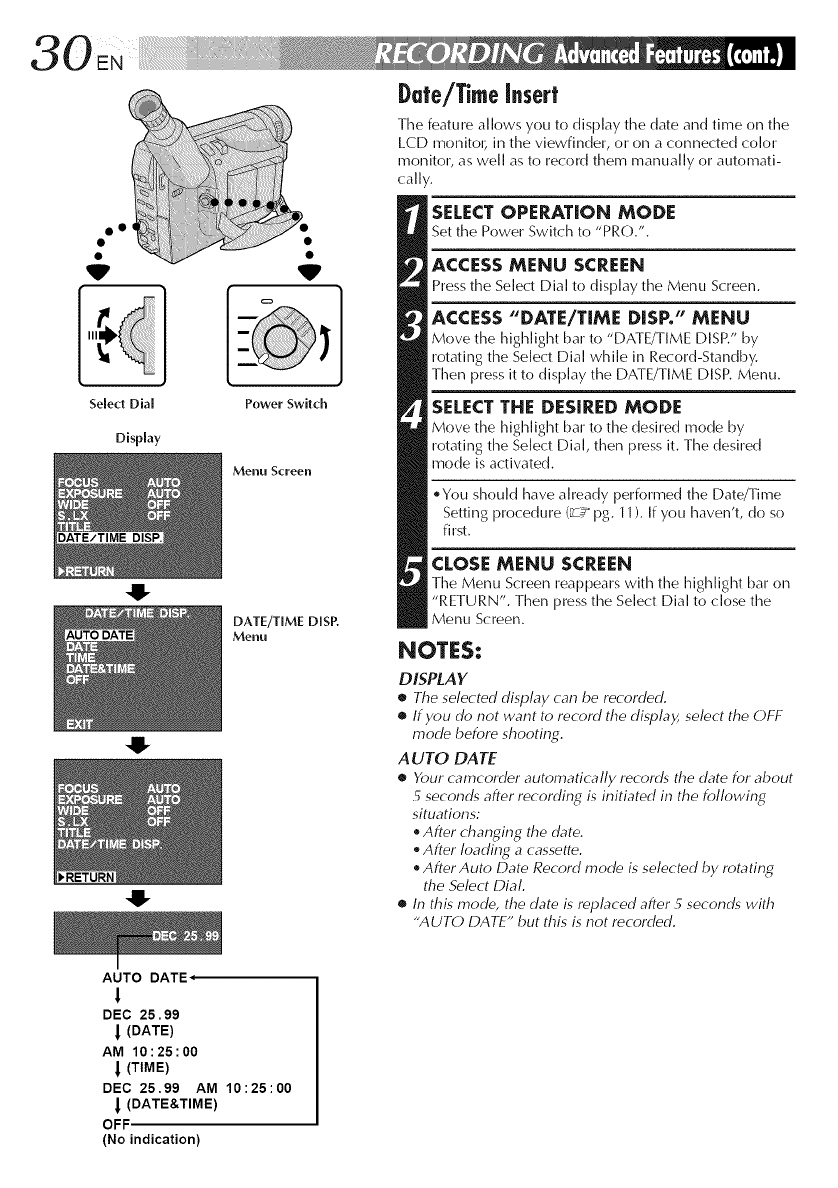
DATE/TIME DISP.
Menu
AUTO DATE
1
DEC 25,99
(DATE)
AM 10:25:00
| (TIME)
DEC 25,99 AM 10:25:00
I (DATE&TIME)
OFF
(No indication)
Date/Time insert
The feature allows you to display the (late and time on the
LCD monitoc in the viewfinder, or on a connected color
monitor, as well as to record them manually or automati-
cally.
SELECTOPERATION MODE
Set the Power Switch to "PRO.".
ACCESS MENU SCREEN
Press the Select Dial to display the Menu Screen.
ACCESS "DATE/TiME DiSP." MENU
Move the highlight bar to "DATE/TIME DISP." by
rotating the Select Dial while in Record-Standby.
Then press it to display the DATE/TIME DISR Menu.
SELECTTHE DESIRED MODE
Move the highlight bar to the desired mode by
rotating the Select Dial, then press it. The desired
mode is activated.
_You should have already performed the Date/Time
Setting procedure (_ pg. 11 ). If you haven't, do so
first.
CLOSE MENU SCREEN
The Menu Screen reappears with the highlight bar on
"RETURN". Then press the Select Dial to close the
Menu Screen.
NOTES:
DISPLAY
•The selected display can be recorded.
•If you do not want to record the display, select the OFF
mode before shooting.
A UTO DATE
•Ybur camcorder automatically records the date for about
5 seconds after recording is initiated in the following
situations:
After changing the date.
After loading a cassette.
After Auto Date Record mode is selected by rotating
the Select Dial.
•In this mode, the date is replaced after 5 seconds with
"AUTO DATE" but this is not recorded.
oo •
Select Dial
Display
Power Switch
Menu Screen
b
4!-
0
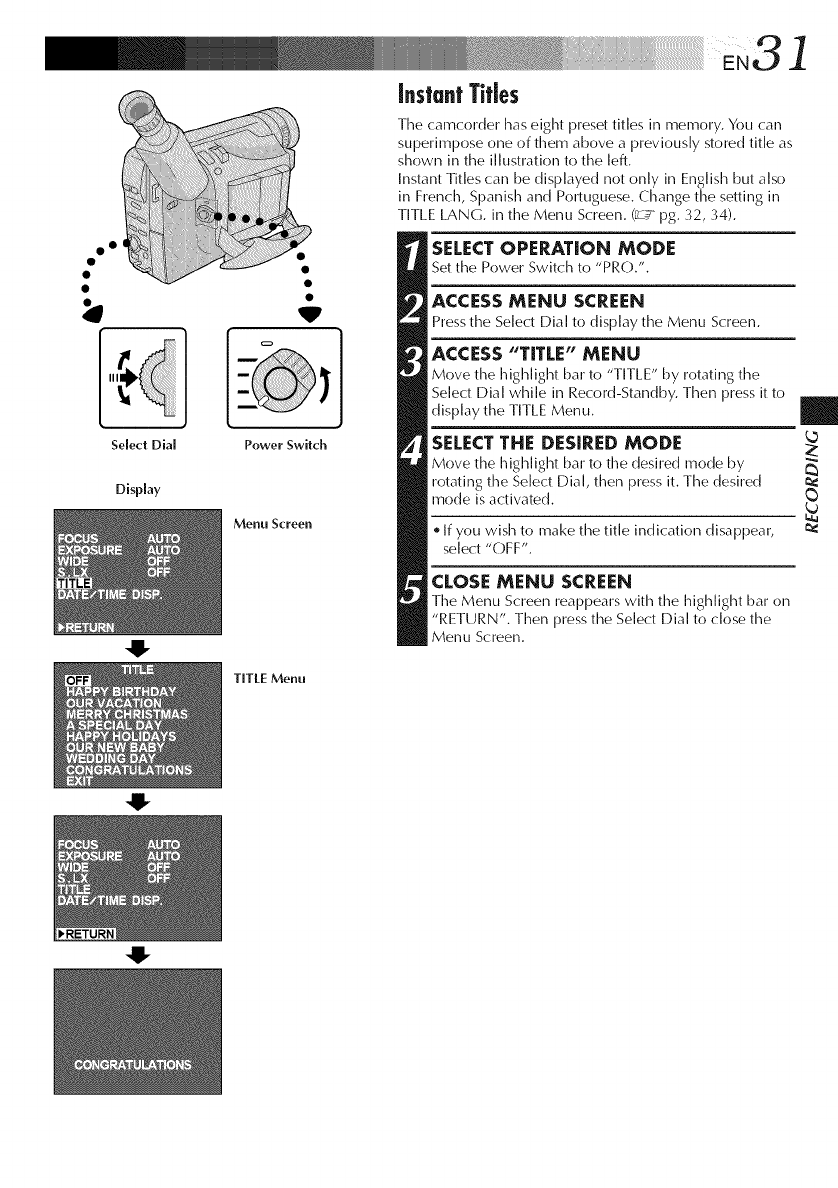
Instant Titles
The camcorder has eight preset titles in memory. You can
superimpose one of them above a previously stored title as
shown in the illustration to the left.
Instant Titles can be displayed not only in English but also
in French, Spanish and Portuguese. Change timesetting in
TITLE LANG. in the Menu Screen. (_,z_pg. 32, 34).
SELECTOPERATION MODE
Set the Power Switch to "PRO.".
ACCESS MENU SCREEN
Press the Select Dial to display the Menu Screen.
ACCESS "TITLE" MENU
Move time highlight bar to "TITLE" by rotating the
Select Dial while in Record-Standby. Then press it to
display the TITLE Menu.
SELECT THE DESIRED MODE
Move the highlight bar to time desired mode by
rotating the Select Dial, then press it. The desired
mode is activated.
If you wish to make the title indication disappear,
select "OFF".
|L_
CLOSE MENU SCREEN
Time Menu Screen reappears with the highlight bar on
"RETURN". Then press the Select Dial to close the
Menu Screen.
TITLE Menu
MENU Button
Display
(ex. Menu Screen available
using the MENU Button)
Menu Screen 1
0
0
0
Menu Screen 2
%
So|ring Menu
(ex. TITLE LANG.)
%
%
Normal Screen
NOTE:
No menu functions except "FOCUS" and
"EXPOSURE" are awdlable while in the Record
mode.
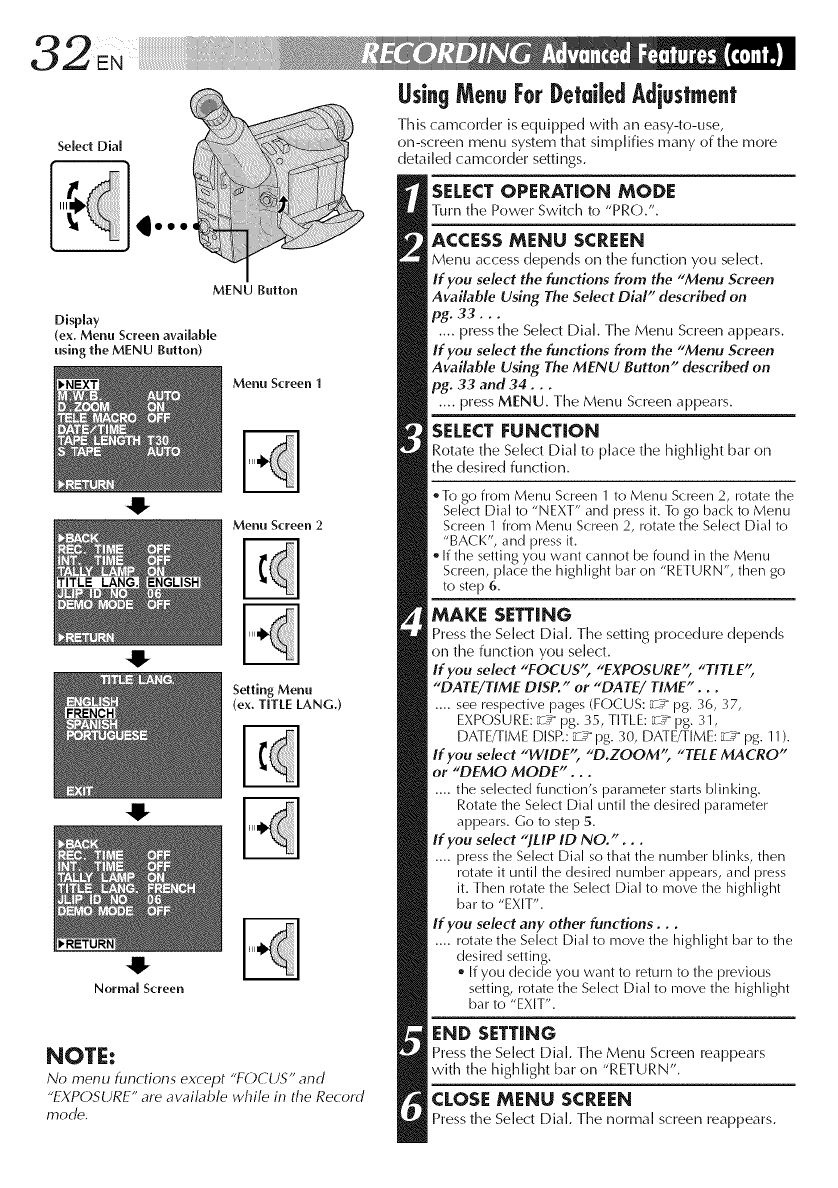
Using MenuForDetailedAdjustment
This camcorder is equipped with an easy-to-use,
on-screen menu system that simplifies many of the more
detailed camcorder settings.
SELECTOPERATION MODE
l]un the Power Switch to "PRO.".
ACCESS MENU SCREEN
Menu access depends on the function you select.
If you select the functions from the "Menu Screen
Available Using The Select Dial" described on
pg. 33...
.... press the Select Dial. The Menu Screen appears.
If you select the functions from the "Menu Screen
Available Using The MENU Button" described on
pg. 33 and 34.,,
.... press MENU. The Menu Screen appears.
SELECTFUNCTION
Rotate the Select Dial to place the highlight bar on
the desired function.
oTo go from Menu Screen 1 to Menu Screen 2, rotate the
Select Dial to "NEXT" and press it. To go back to Menu
Screen 1 from Menu Screen 2, rotate the Select Dial to
"BACK", and press it
• If the setting you want cannot be found in the Menu
Screen, place the highlight bar on "RETURN", then go
to step 6.
MAKE SETTING
Press the Select Dial. The setting procedure depends
on the function you so]oct.
If you select "FOCUS", "EXPOSURE", "TITLE';
"DATE/TIME DISP." or "DATE/TIME"...
.... see respective pages (FOCUS: _"< pg. 36, 37,
EXPOSURE: _"< pg. 35, TITLE: _"< pg. 31,
DATE/TIME DISR: _ 7 pg. 30, DATE/TIME: _"< pg. 11).
If you select "WIDE'; "D.ZOOM'; "TELE MACRO"
or "DEMO MODE"..,
.... the selected function's parameter starts blinking.
Rotate the Select Dial until the desired parameter
appears. Go to step 5.
If you select "JLIP ID NO."...
.... press the Select Dial so that the number blinl<s, then
rotate it until the desired number appears, and press
it. Then rotate the Select Dial to move the highlight
bar to "EXIT".
If you select any other functions,,.
.... rotate the Select Dial to move the highlight bar to the
desired setting.
• If you decide you want to return to the previous
setting, rotate the Select Dial to move the highlight
bar to "EXIT".
END SETTING
Press the Select Dial. The Menu Screen reappears
with the highlight bar on "RETURN".
CLOSE MENU SCREEN
Press the Select Dial. The normal screen reappears.
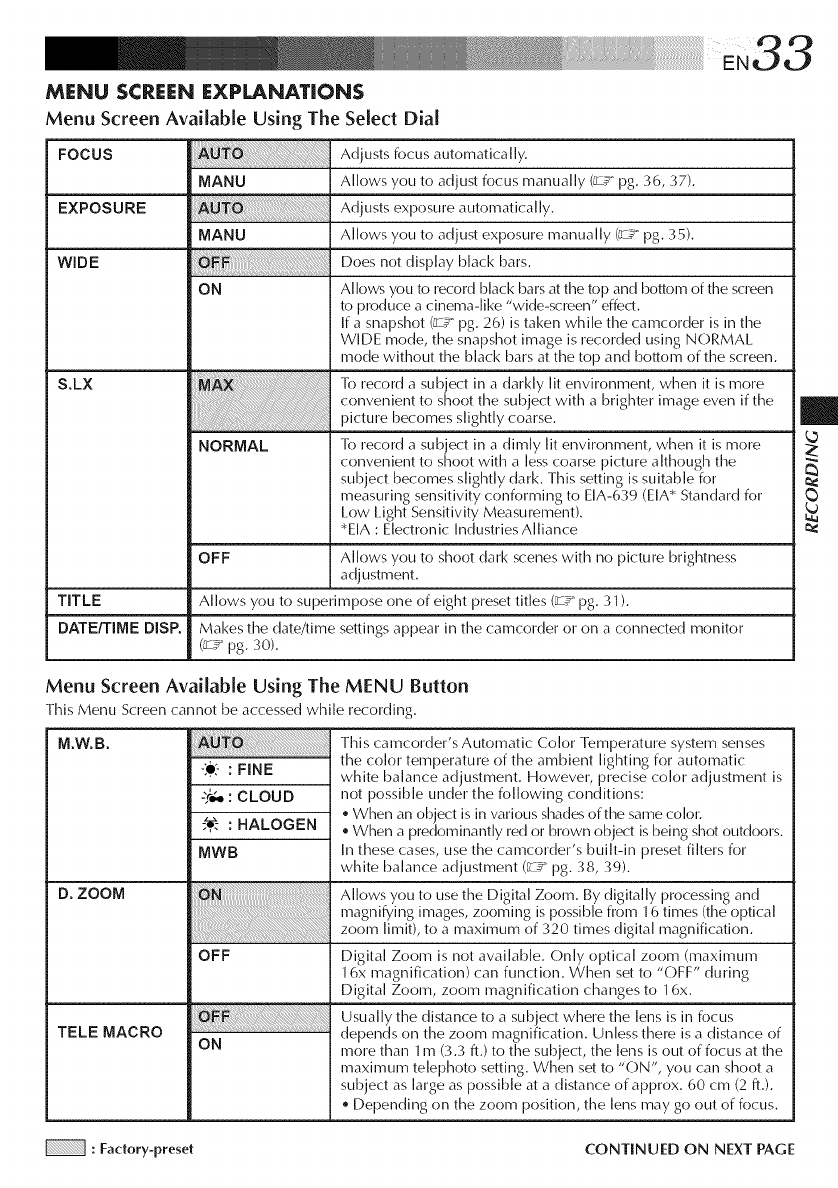
MENU SCREEN EXPLANATIONS
Menu Screen Available Using The Select Dial
FOCUS
EXPOSURE
WIDE
S.LX
TITLE
DATE/TIME DISP.
MANU
MANU
ON
NORMAL
Adjusts focus automatically.
Allows you to adjust focus manually (r_ pg. 36, 37).
Adjusts exposure automatically.
Allows you to adjust exposure manually (_.z_pg. 35).
Does not display black bars.
Allows you to record black bars at timetop and bottom of the screen
to produce a cinema-like "wide-screen" effed.
If a snapshot (_" pg. 26) is taken while the camcorder is in the
WIDE mode, the snapshot image is recorded using NORMAL
mode without the black bars at the top and bottom of the screen.
To record a subject in a darkly lit environment, when it is more
convenient to shoot time subject with a brighter image even if the
picture becomes slightly coarse.
To record a subject in a dimly lit environment, when it is more
convenient to shoot with a less coarse picture although the
subject becomes slightly dark. This setting is suitable for
measuring sensitivity conforming to EIA-639 (EIA* Standard for
Low Light Sensitivity Measurement).
*EIA: Electronic Industries Alliance
OFF Allows you to shoot dark scenes with no picture brightness
adjustment.
Allows you to superimpose one of eight preset titles (_ pg. 31 ).
Makes timedate/time settings appear in the camcorder or on a connected monitor
(_ pg. 30).
Menu Screen Available Using The MENU Button
This Menu Screen cannot be accessed while recording.
M.W.B.
D. ZOOM
TELE MACRO
-_€- :FINE
-_ : CLOUD
:HALOGEN
MWB
OFF
ON
This camcorder's Automatic Color Temperature system senses
time color temperature of time ambient lighting for automatic
white ba]ance adjustment. However, precise color adjustment is
not possible under the following conditions:
When an object is in various shades of the same color.
When a predominantly red or brown object is being shot outdoors.
In these cases, use the camcorder's built-in preset filters for
white balance adjustment (_ pg. 38, 39).
Allows you to use timeDigital Zoom. By digitally processing and
magnifying images, zooming is possible from 16 times (the optical
zoom limit), to a maximum of 320 times digital magnification.
Digital Zoom is not available. Only optical zoom (maximum
16x magnification) can function. When set to "OFF" during
Digital Zoom, zoom magnification changes to 16x.
Usually the distance to a subject where the lens is in focus
depends on the zoom magnification. Unless there is a distance of
more than 1m (3.3 ft.) to the subject, the lens is out of focus at the
maximum telephoto setting. When set to "ON", you can shoot a
subject as large as possible at a distance of approx. 60 cm (2 ft.).
Depending on the zoom position, the lens may go out of focus.
:Fadory-preset CONTINUED ON NEXT PAGE
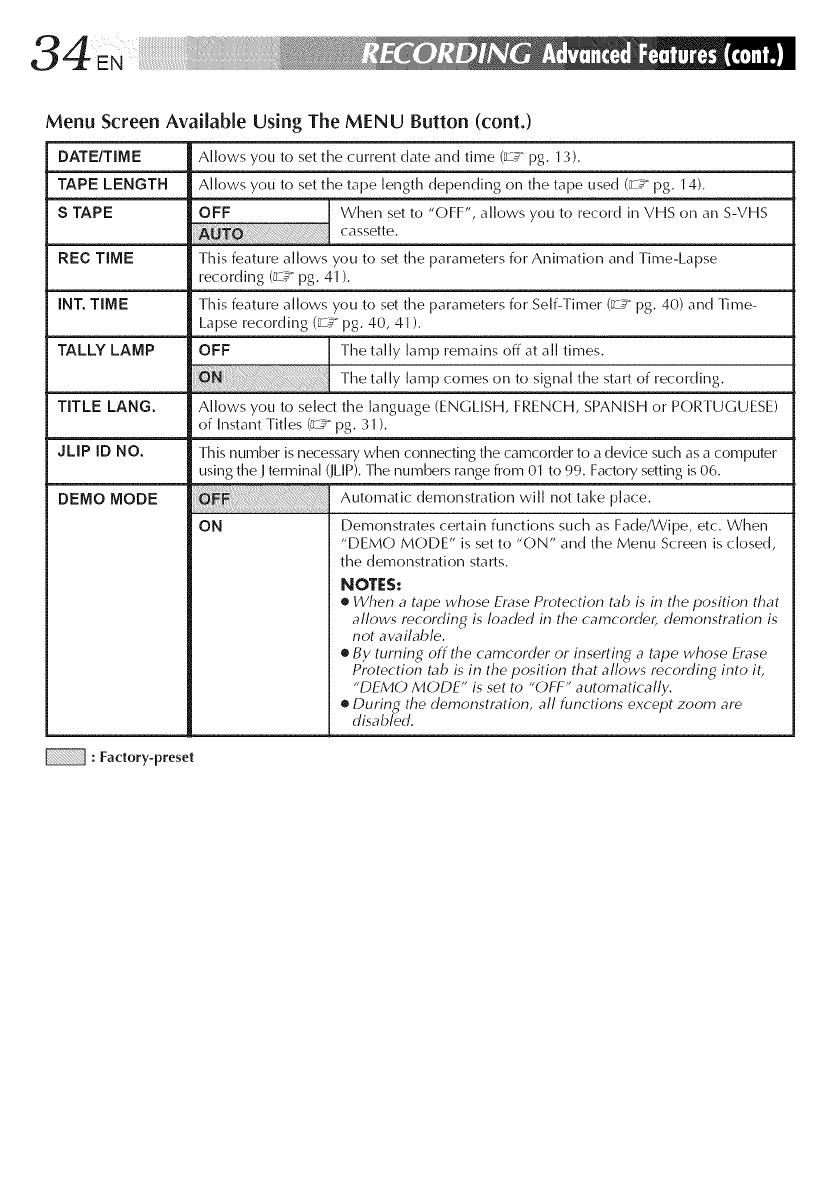
Menu Screen Available Using The MENU Button (cont.)
DATE/TIME
TAPE LENGTH
STAPE
REC TiME
iNT. TiME
TALLY LAMP
TITLE LANG.
JLIP ID NO.
DEMO MODE
Allows you to set the current date and time (_ pg. 13).
Allows you to set the tape length depending on the tape used (_ pg. 14).
OFF When set to "OFF", allows you to record in VHS on an S-VHS
cassette.
This feature allows you to set the parameters for Animation and Time-Lapse
recording (_ pg. 41 ).
This feature allows you to set timeparameters for Self-Timer (_ pg. 40) and Time-
Lapse recording (_ pg. 40, 41 ).
OFF Timetally lamp remains off at all times.
Timetally lamp comes on to signal the start of recording.
Allows you to select the language (ENGLISH, FRENCH, SPANISH or PORTUGUESE)
of Instant Titles (;z_ pg. 31 ).
This number is necessary when connecting the camcorder to a device such as a computer
using the Jterminal (JLIP). Time numbers range from 01 to 99. Factory setting is 06.
Automatic demonstration will not take place.
ON Demonstrates certain functions such as Fade/Wipe, etc. When
"DEMO M()DE" is set to "ON" and the Menu Screen is closed,
the demonstration starts.
NOTES:
•When atape whose Erase Protection tab is in the position that
allows recording is loaded in the camcorder, demonstration is
not aw_ilab le.
•By turning off the camcorder or inserting a tape whose Erase
Protection tab is in the position that allows recording into it,
"DEMO MODE" is set to "OFF" automatically.
•During the demonstration, all functions except zoom are
disabled.
:Factory-preset
oo •
Select DiM
Display
O
'V
Power Switch
Menu Screen
EXPOSURE Menu
Manual Exposure
Screen
level counter
To brighten the image
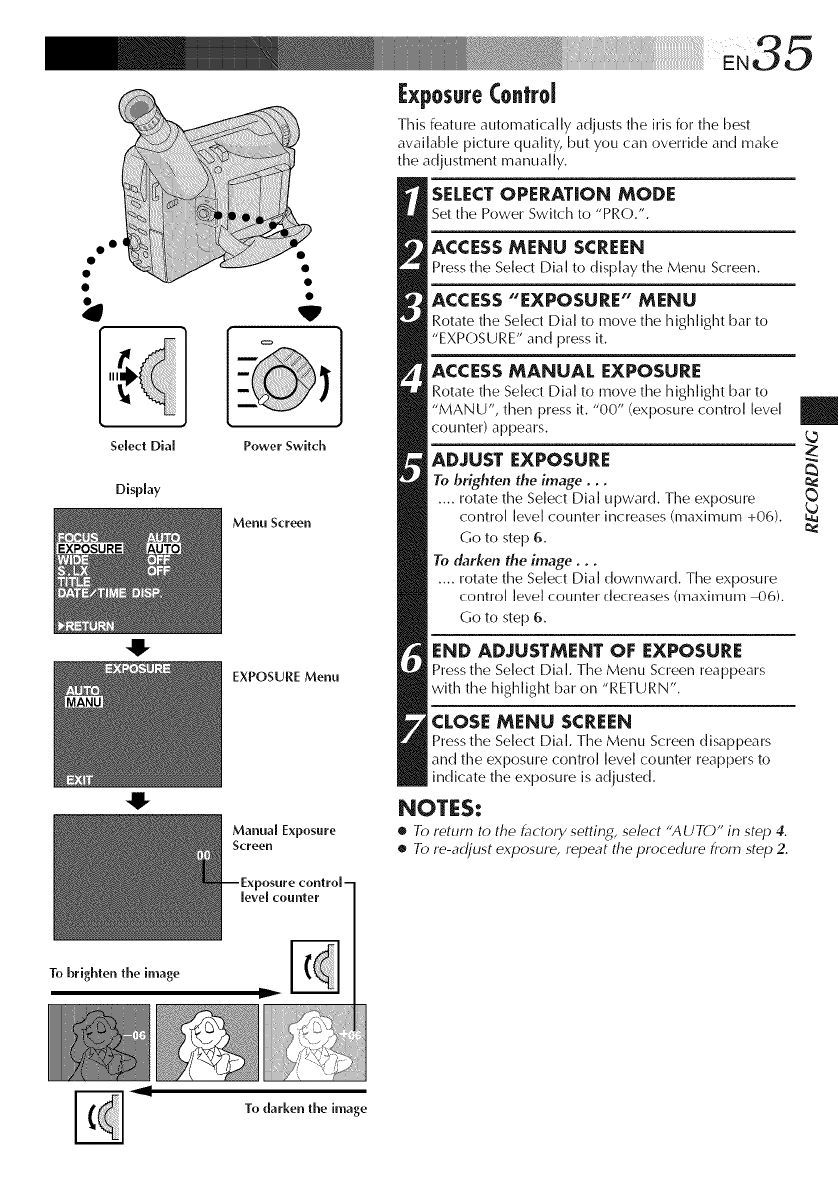
i:xposureControl
This feature automatically adjusts the Ms for the best
available picture quality, but you can override and make
the adjustment manually.
SELECTOPERATION MODE
Set the Power Switch to "PRO.".
ACCESS MENU SCREEN
Press the Select Dial to display the Menu Screen.
ACCESS "EXPOSURE" MENU
Rotate the Select Dial to move the highlight bar to
"EXPOSURE" and press it.
ACCESS MANUAL EXPOSURE
Rotate time Select Dial to move time highlight bar to
"MANU", then press it. "00" (exposure control level
counter) appears.
ADJUST EXPOSURE
To brighten the image...
.... rotate the Select Dial upward. The exposure
control [eve[ counter increases (maximum +06).
Go to step 6.
To darken the image...
.... rotate the Select Dial downward. The exposure
conhol level counter decreases (maximum 4)6).
Go to step 6.
END ADJUSTMENT OF EXPOSURE
Press the Select Dial. Time Menu Screen reappears
with the highlight bar on "RETURN".
CLOSE MENU SCREEN
Press the Select Dial. Time Menu Screen disappears
and time exposure control level counter reappers to
indicate the exposure is adjusted.
NOTES:
•To return to the factory setting, select "AUTO" in step 4.
•To re-adjust exposure, repeat the procedure from step 2.
|
III
To darken the image
zo. Focusing
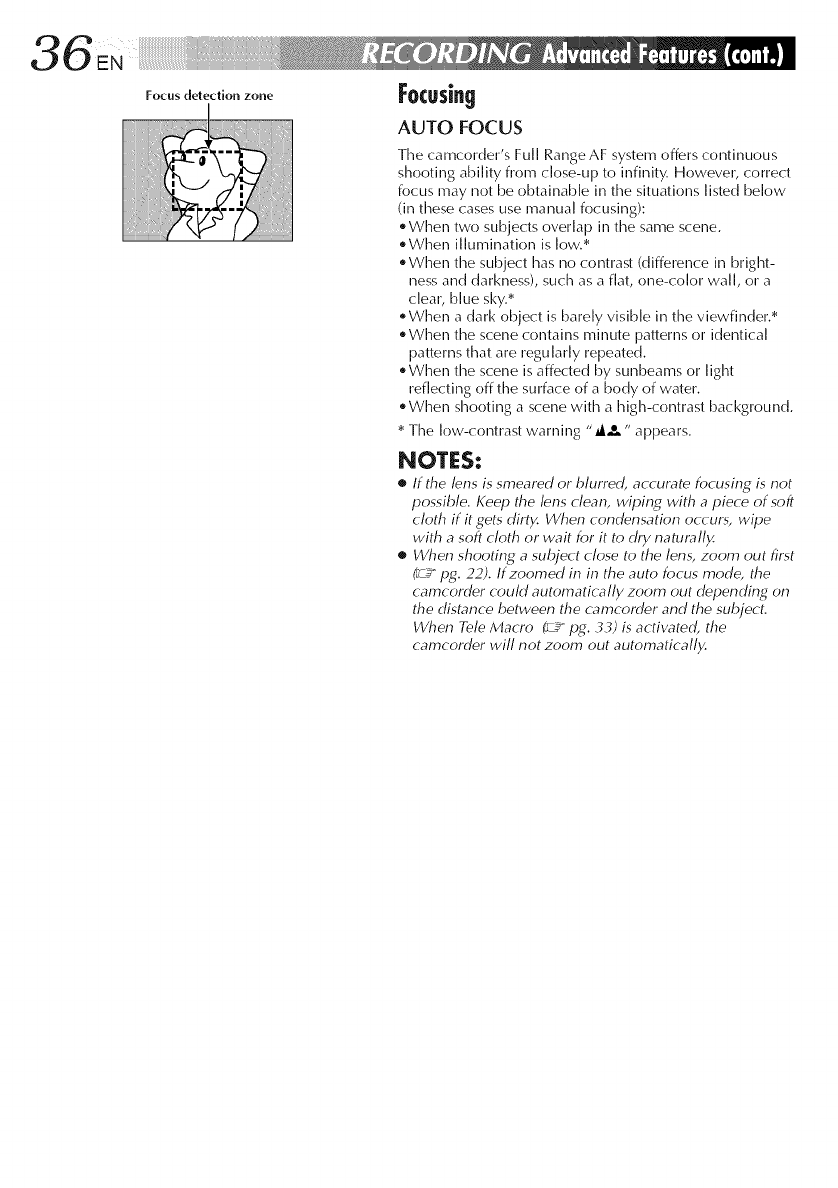
AUTO FOCUS
The camcorder's Full Range AF system offers continuous
shooting ability from c]ose-up to infinity. However, correct
focus may not be obtainable in the situations listed below
(in these cases use manual focusing):
+ When two subjects overlap in the same scene.
+When illumination is low.*
+ When the subject has no contrast (difference in bright-
ness and darkness), such as a flat, one-color wall, or a
clear, blue sky.*
+ When a dark object is barely visible in the viewfinder.*
e When the scene contains minute patterns or identical
patterns that are regularly rel)eated+
+ When the scene is affected by sunbeams or light
reflecting off the surface of a body of water.
+ When shooting a scene with a high-contrast background.
* The low-contrast warning "_-'- " al)l)ears.
NOTES:
•If the lens is smeared or blurred, accurate focusing is not
possible. Keep the lens clean, wiping with a piece of soft
cloth if it gets dirty. When cor_der_sation occurs, wipe
with a soft cloth or wait for it to dry naturally.
•When shooting a subject close to the lens, zoom out first
_pg. 22). If zoomed in in the auto focus mode, the
camcorder could automatically zoom out depending on
the distance between the camcorder and the subject.
When Tele Macro ff_-¢ pg. 33) is actiw_ted, the
camcorder will not zoom out automatically.
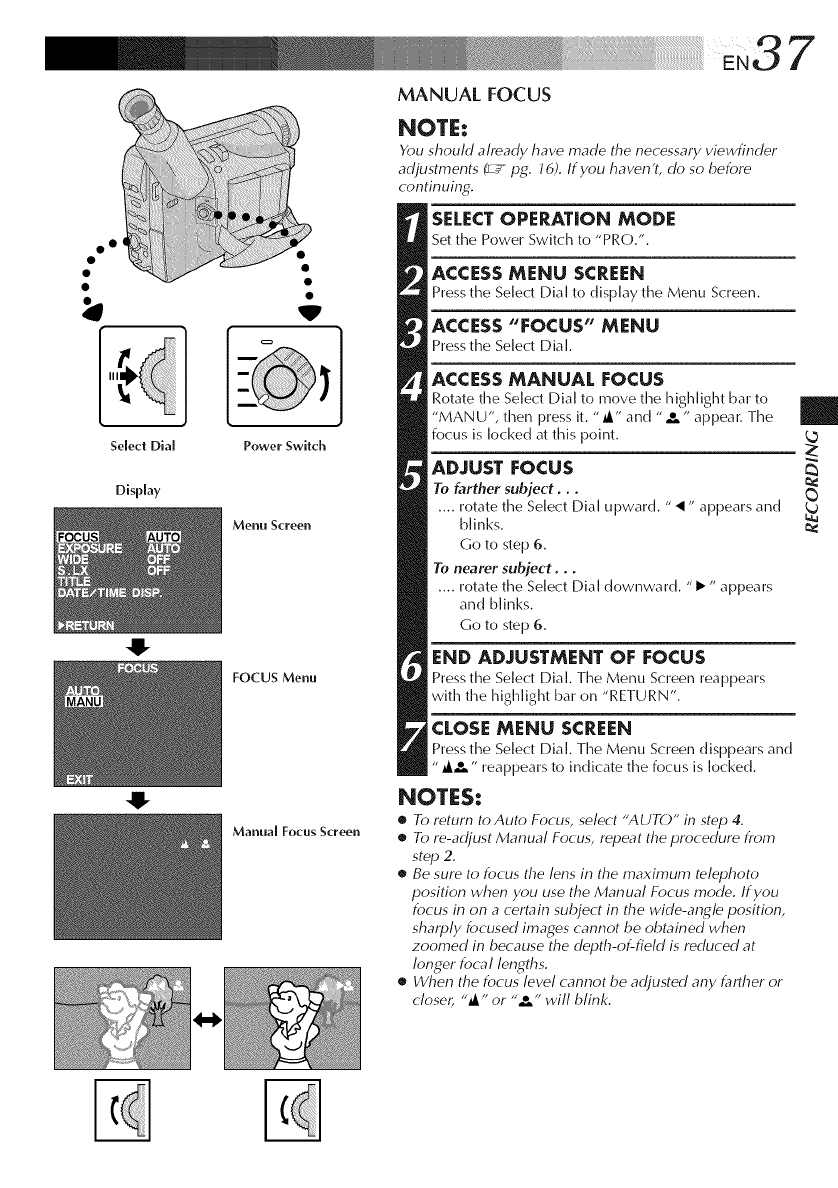
MANUAL FOCUS
NOTE:
Ybu should already have made the necessary viewfinder
adjustments _ p& JO). If you haven't, do so before
continuing.
SELECT OPERATION MODE
Set the Power Switch to "PRO.".
° o •
Select Dial Power Switch
Display
/_enu Screen
FOCUS Menu
Manual Focus Screen
ACCESS MENU SCREEN
Press the Select Dial to display the Menu Screen.
ACCESS "FOCUS" MENU
Press the Select Dial.
ACCESS MANUAL FOCUS
Rotate time Select Dial to move time highlight bar to
"MANU", then press it. "@" and "2," appear. Time
focus is locked at this point.
ADJUST FOCUS
To farther subject...
.... rotate the Select Dial upward. "•" appears and
blinks.
Go to step 6.
To nearer subject...
.... rotate the Select Dial downward. "I_" appears
and blinks.
Go to step 6.
END ADJUSTMENT OF FOCUS
Press the Select Dial. Time Menu Screen reappears
with the highlight bar on "RETURN".
CLOSE MENU SCREEN
Press the Select Dial. Time Menu Screen disppears and
,A_ ,' reappears to indicate the focus is locked.
NOTES:
•To return to Auto Focus, select "AUTO" in step 4.
•To re-adjust Manual Focus, repeat the procedure from
step 2.
•Be sure to focus the lens in the maximum telephoto
position when you use the Manual Focus mode. If you
focus in on a certain subject in the wide-angle position,
sharply focused images cannot be obtained when
zoomed in because the depth-of-field is reduced at
longer focal lengths.
•When the focus level cannot be adjusted any farther or
close_ "_ "or "2," will blink.
|
% %
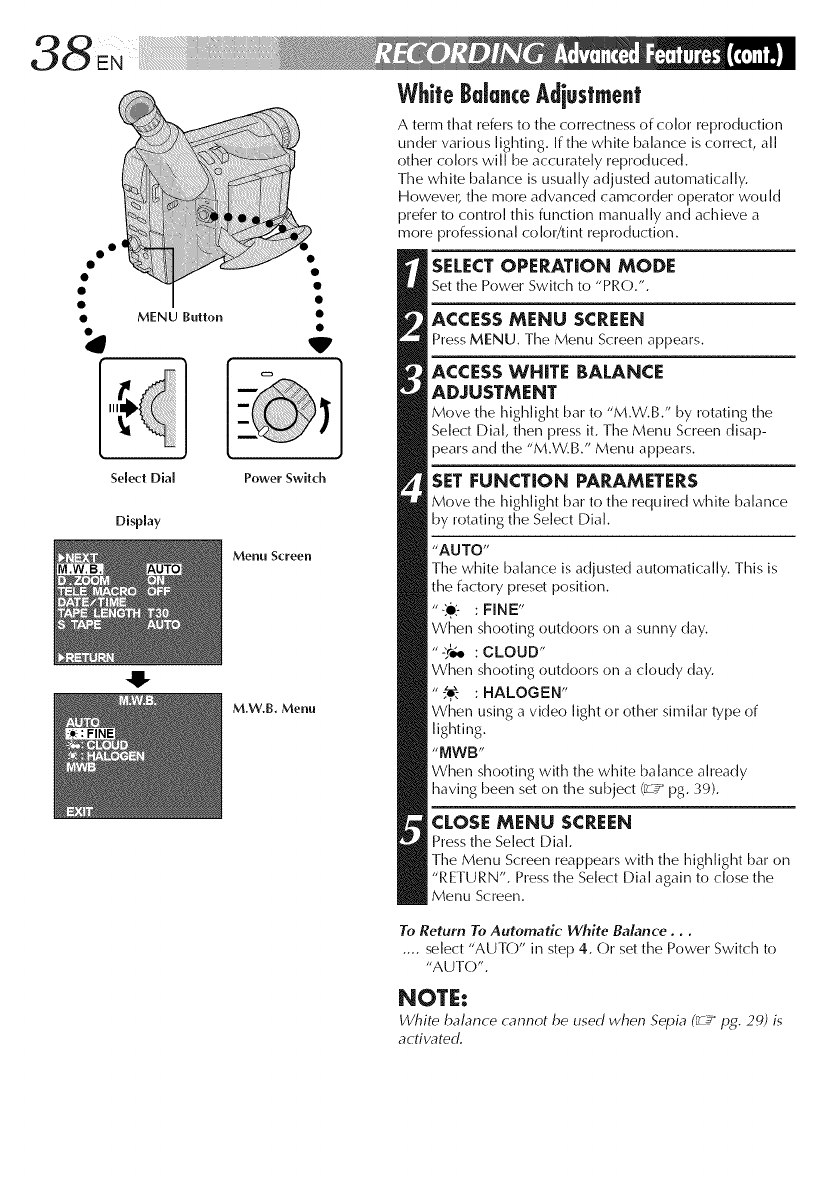
•0
•MENU Button
Select DiM
Display
O
Power Switch
Menu Screen
M.W.B. Menu
White BalanceAdiusfment
A term that refers to the correctlless of color reprod/iction
under various lighting. If the white balance is correct, all
other colors will be accurately reproduced.
Time white balance is usually adjusted automatically.
Howevel; time more advanced camcorder operator would
prefer to control this furlction manually and achieve a
more professional color/tint reproduction.
SELECTOPERATION MODE
Set the Power Switch to "PRO.".
ACCESS MENU SCREEN
Press MENU. The Menu Screen appears.
ACCESSWHITE BALANCE
ADJUSTMENT
Move the highlight bar to "M.W.B." by rotating time
Select Dial, then press it. Time Menu Screen disap-
pears and the "M.W.B." Menu appears.
SETFUNCTION PARAMETERS
Move time highlight bar to time required white balance
by rotating the Select Dial.
"AUTO"
Timewhite balance is adjusted automatically. This is
the factory preset position.
"_:e:- : FINE"
Wl'menshooting outdoors on a sunny clay.
"-'._4,. : CLOUD"
When shooting outdoors on a cloudy day.
"@ : HALOGEN"
When using a video light or other similar type of
lighting.
"MWB"
When shooting with the white balance already
having been set on the subject (_.z_pg. 39).
CLOSE MENU SCREEN
Press the Select Dial.
Time Menu Screen reappears with the high]ight bar on
"RETURN". Press the Select Dial again to close the
Menu Screen.
To Return To Automatic White Balance...
.... select "AUTO" in step 4. Or set the Power Switch to
"AUTO".
NOTE:
White balance cat,not be used when Sepia (_Jg pg. 29) is
activated.
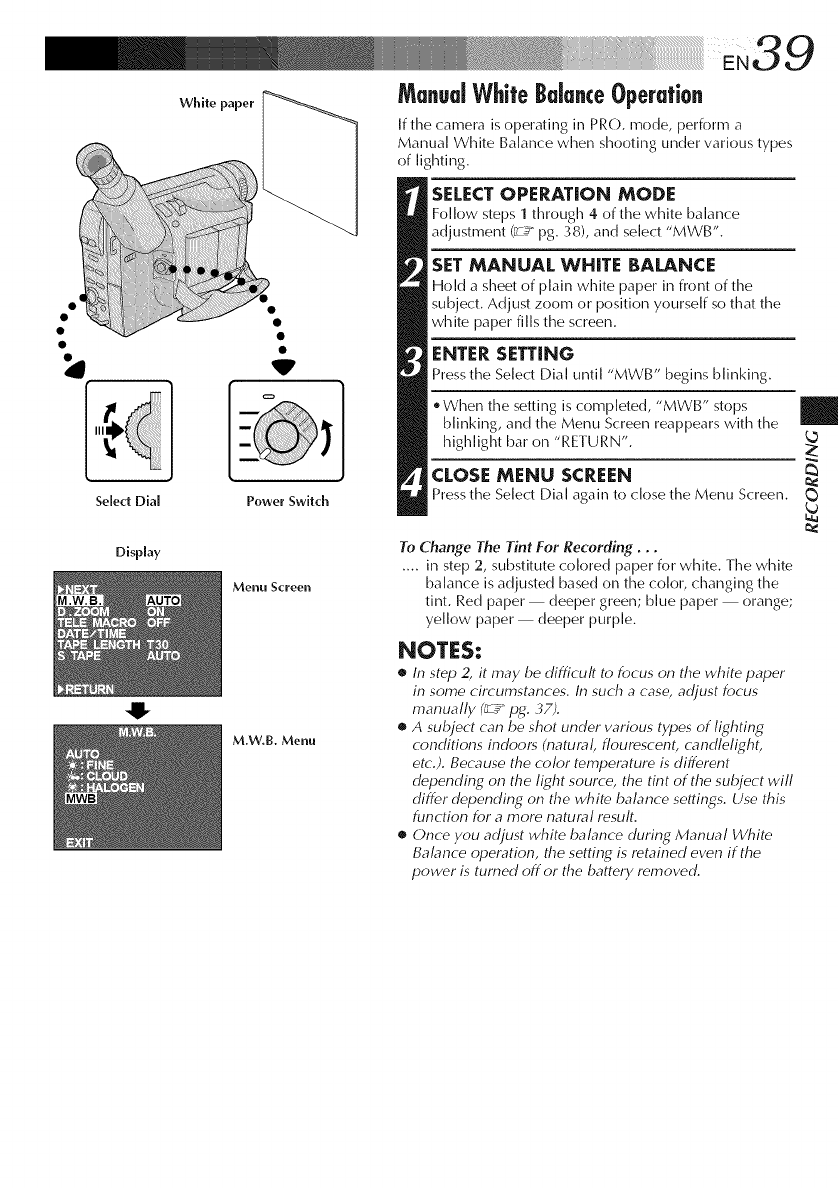
Select DiM
Display
V
Power Switch
Menu Screen
M.W,B. Menu
ManualWhite Balance Operation
If time camera is operating in PRO. mode, perform a
Manual White Balance when shooting under various types
of lighting.
SELECTOPERATION MODE
Folk)w steps 1 through 4 of the white balance
adjustment (_z_ pg. 38), and select "MWB".
SETMANUAL WHITE BALANCE
Hokl a sheet of plain white paper in front of the
subject. Adjust zoom or position yourself so that the
white paper fills the screen.
ENTER SETTING
Press the Select Dial until "MWB" begins blinking.
When the setting is completed, "MWB" stops
blinking, and the Menu Screen reappears with the
highlight bar on "RETURN".
CLOSE MENU SCREEN
Press the Select Dial again to close the Menu Screen.
To Change The Tint For Recording...
.... in step 2, substitute colored paper for white. Time white
balance is adjusted based on the cok)r, changing the
tint. Red paper deeper green; blue paper orange;
yellow paper deeper purple.
NOTES:
•In step 2, it may be difficult to focus on the white paper
in some circumstances. In such a case, adjust focus
manually (_ pg. 37).
•A subject can be shot under various types of lighting
conditions indoors (natured, floumscent, candlelight,
etc.). Because the color tempet_ture is different
depending on the light source, the tint of the subject will
differ depending on the white balance settings. Use this
function for a more natural result.
•Once you adjust white balance during Manual White
Balance operation, the setting is retained even if the
power is turned off or the battery removed.
|
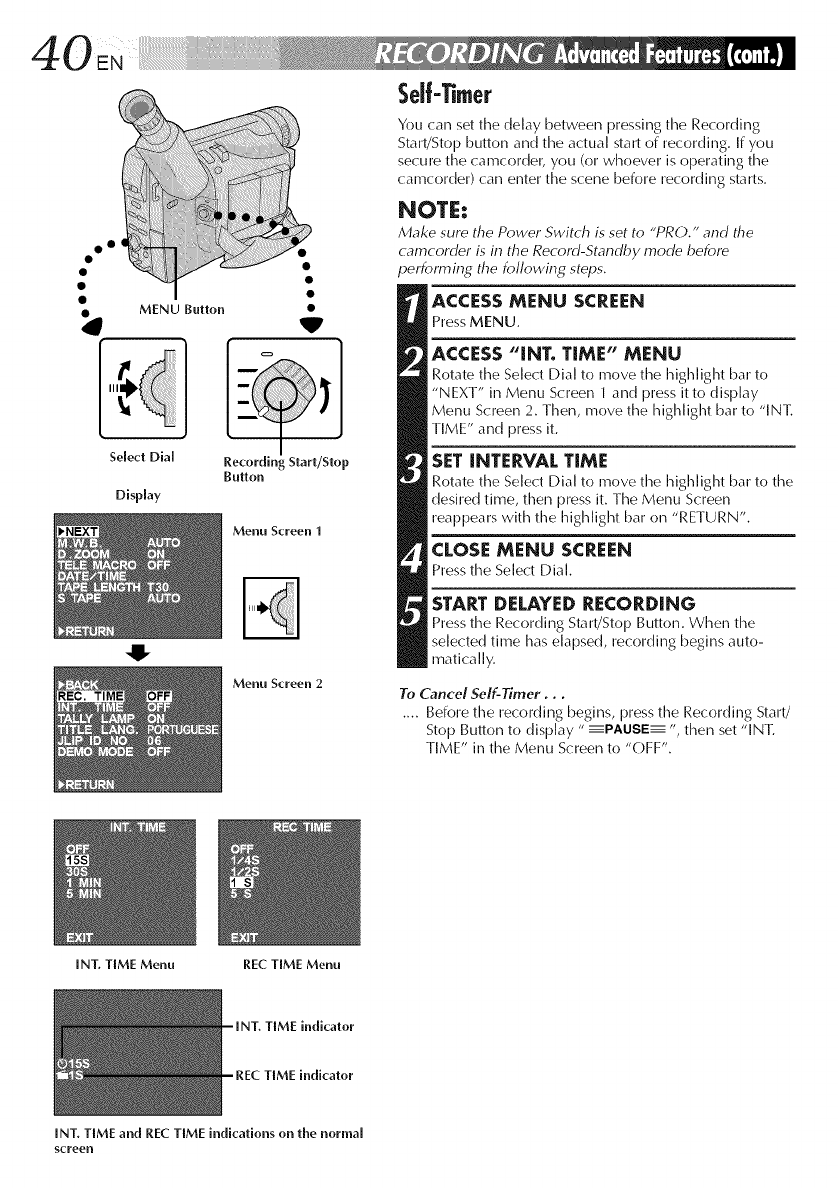
2•• !i •
MENU Button
I
Select Dial Recording Start/Stop
Button
Display
O
Menu Screen 1
Menu Screen 2
Serf-Timer
You can set the delay between pressing time Recording
Sta rt/Stop button and time actua I start of recording. If you
secure the camcorder, you (or whoever is operating time
camcorder) can enter the scene before recording starts.
NOTE:
Make sure the Power Switch is set to "PRO." and the
camcorder is in the Record-Standby mode before
performing the following steps.
ACCESS MENU SCREEN
Press MENU.
ACCESS "INT. TIME" MENU
Rotate the Select Dial to move the highlight bar to
"NEXT" in Menu Screen 1 and press itto display
Menu Screen 2. Then, move the highlight bar to "IN]_
TIME" and press it.
lSET INTERVAL TIME
Rotate the Select Dial to move the highlight bar to the
desired time, then press it. TimeMenu Screen
reappears with the highlight bar on "RETURN".
CLOSE MENU SCREEN
Press the Select Dial.
STARTDELAYEDRECORDING
Press the Recording Start/Stop Button. When time
selected time has elapsed, recording begins auto-
matically.
To Cancel Self-Timer...
.... Before timerecording begins, press the Recording Start/
Stop Button to display "----PAUSE---- ", then set "IN]_
TIME" in the Menu Screen to "OFF".
INT. TIME Menu REC TIME Menu
TIME indicator
indicator
INT. TIME and REC TIME indications on the normal
screen
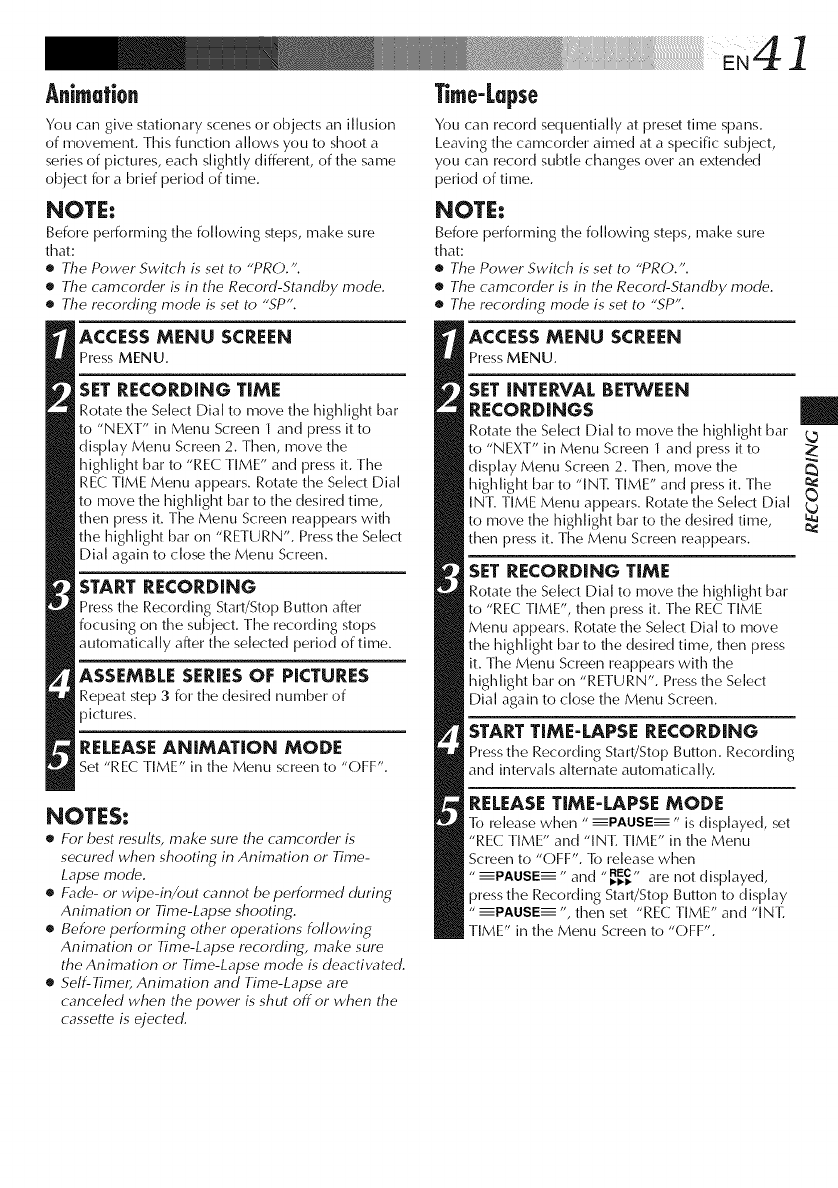
Animation
You can give stationary scenes or objects aim illusion
of movement. This function allows you to shoot a
series of pictures, each slightly different, of the same
object for a brief period of time.
NOTE:
Before performing time following steps, make sure
that:
•The Power Switch is set to "PRO.".
•The camcorder is in the Record-Standby mode.
•The recording mode is set to "SP'.
ACCESS MENU SCREEN
Press MENU.
SET RECORDING TIME
Rotate time Select Dial to move time highlight bar
to "NEXT" in Menu Screen 1 and press it to
display Menu Screen 2. Then, move the
higMight bar to "REC TIME" and press it. Time
REC TIME Menu appears. Rotate the Select Dial
to move time highlight bar to time desired time,
then press it. The Menu Screen reappears with
the highlight bar on "RETURN". Press the Select
Dial again to dose the Menu Screen.
START RECORDING
Press time Recording Start/Stop Button after
focusing on the subject. Time recording stops
automatically after the selected period of time.
ASSEMBLE SERIES OF PICTURES
Repeat step 3 for the desired number of
pictures.
RELEASEANIMATION MODE
Set "REC TIME" in the Menu screen to "OFF".
NOTES:
•For best results, make sure the camcorder is
secured when shooting in Animation or Time-
Lapse mode.
•Fade- or wipe-in/out cannot be performed during
Animation or Time-Lapse shooting.
•Before performing other operations following
Animation or Time-Lapse recording, make sure
the Animation or Time-Lapse mode is deactiw_ted.
•Self-Timel, Animation and Time-Lapse are
canceled when the power is shut off or when the
cassette is ejected.
Time-Lapse
You (:aimrecord sequentially at preset time spans.
Leaving time camcorder aimed at a specific subject,
you can record subtle changes over an extended
period of time.
NOTE:
Before performing the following steps, make sure
that:
•The Power Switch is set to "PRO.'.
•The camcorder is in the Record-Standby mode.
•The recording mode is set to "SP'.
ACCESSMENU SCREEN
Press MENU.
SET INTERVAL BETWEEN
RECORDINGS
Rotate time Select Dial to move time highlight bar
to "NEXT" in Menu Screen 1 and press it to
display Menu Screen 2. Then, move time
highlight bar to "IN]_ TIME" and press it. Time
INT. TIME Menu appears. Rotate time Select Dial
to move the highlight bar to time desired time,
then press it. Time Menu Screen reappears.
SET RECORDING TIME
Rotate the Select Dial to move the highlight bar
to "REC TIME", then press it. Time REC TIME
Menu appears. Rotate the Se]ect Dia] to move
the high]ight bar to the desired time, then press
it. Time Menu Screen reappears with the
highlight bar on "RETURN". Press time Select
Dial again to close the Menu Screen.
START TIME-LAPSE RECORDING
Press the Recording Start/Stop Button. Recording
and intervals alternate automatically.
RELEASE TIME-LAPSE MODE
To release when " ----PAUSE----" is displayed, set
"REC TIME" and "IN]: TIME" in the Menu
Screen to "OFF". To release when
"----PAUSE----" and "REC,,
_-_-t, are not displayed,
press the Recording Start/Stop Button to display
"zPAUSEZ ", then set "REC TIME" and "IN]:
TIME" in the Menu Screen to "OFF".
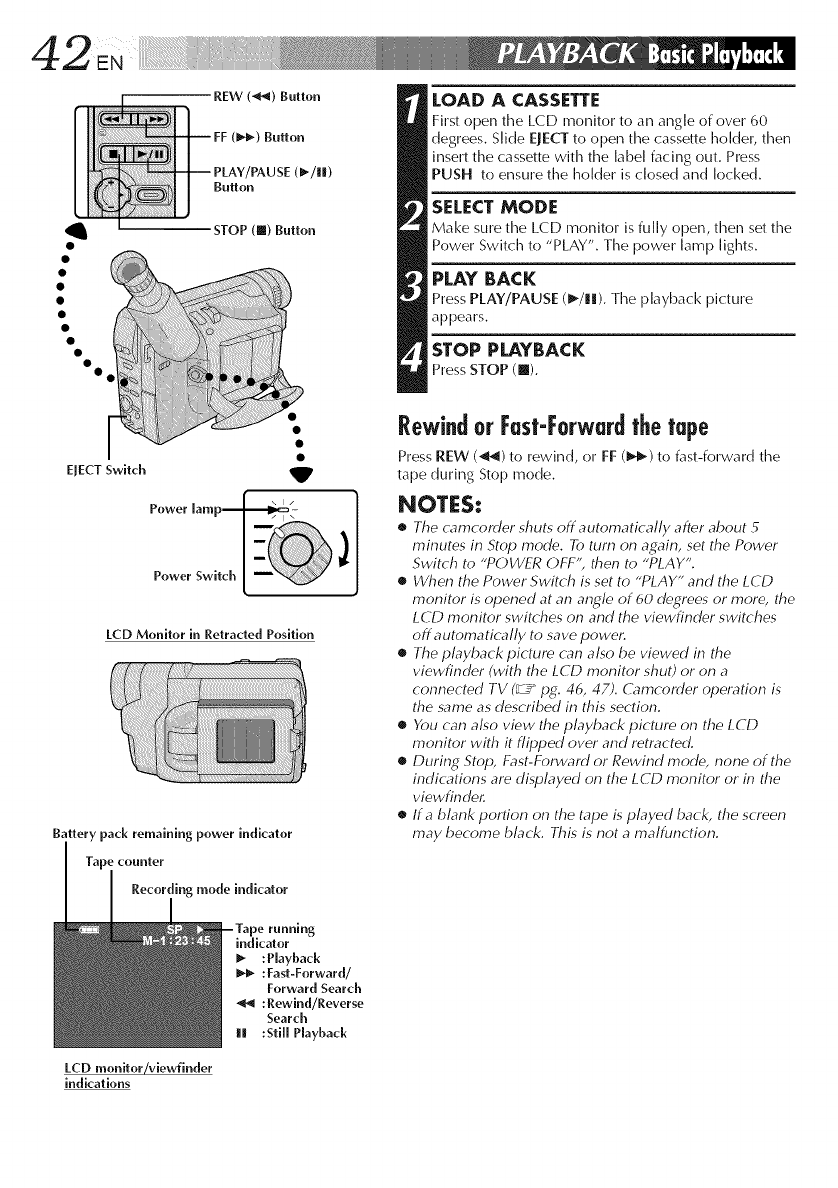
REW (._1) Button
EJECT Switch
STOP (I) Button
Power lamp----_:_" _-
PowerSwi, )
LCD Monitor in Retracted Position
Battery pack remaining power indicator
Tape counter
Recording mode indicator
LOAD A CASSETTE
First open the LCD monitor to aimangle of over 60
degrees. Slide EJECT to open the cassette holder, then
insert the cassette with the label facing out. Press
PUSH to ensure the holder is closed and locked.
SELECT MODE
Make sure time LCD monitor is fully open, then set the
Power Switch to "PLAY". Time power lamp lights.
PLAY BACK
Press PLAY/PAUSE (1_/!1). The playback picture
appears.
STOP PLAYBACK
Press STOP ([]).
Rewindor Fast-Forwardthetape
Press REW (_) to rewind, or FF (1,_) to fast-forward the
tape during Stop mode.
NOTES:
•The camcorder shuts off automatically after about 5
minutes in Stop mode. To turn o/7 again, set the Power
Switch to "POWER OFF", then to "PLAY".
•When the Power Switch is set to "PLAY" and the LCD
monitor is opened at an angle of 60 degrees or more, the
LCD monitor switches on and the viewfinder switches
off automatically to save powel:
•The playback picture can also be viewed in the
viewfinder (with the LCD monitor shut) or on a
connected TV (_.5_ pg. 46, 47). Camcorder operation is
the same as described in this section.
•Ybu can also view the playback picture o/7 the LCD
monitor with it flipped over and retracted.
•During Stop, Fast-Forward or Rewind mode, none of the
indications are displayed on the LCD monitor or in the
viewfinder.
•Ira blank portion o/7 the tape is played back, the screen
may become black. This is not a malfunction.
LCD monitor/viewfinder
indications
indicator
I_ :Playback
1_ :Fast-Forward/
Forward Search
_1 :Rewind/Reverse
Search
Ill :Still Playback
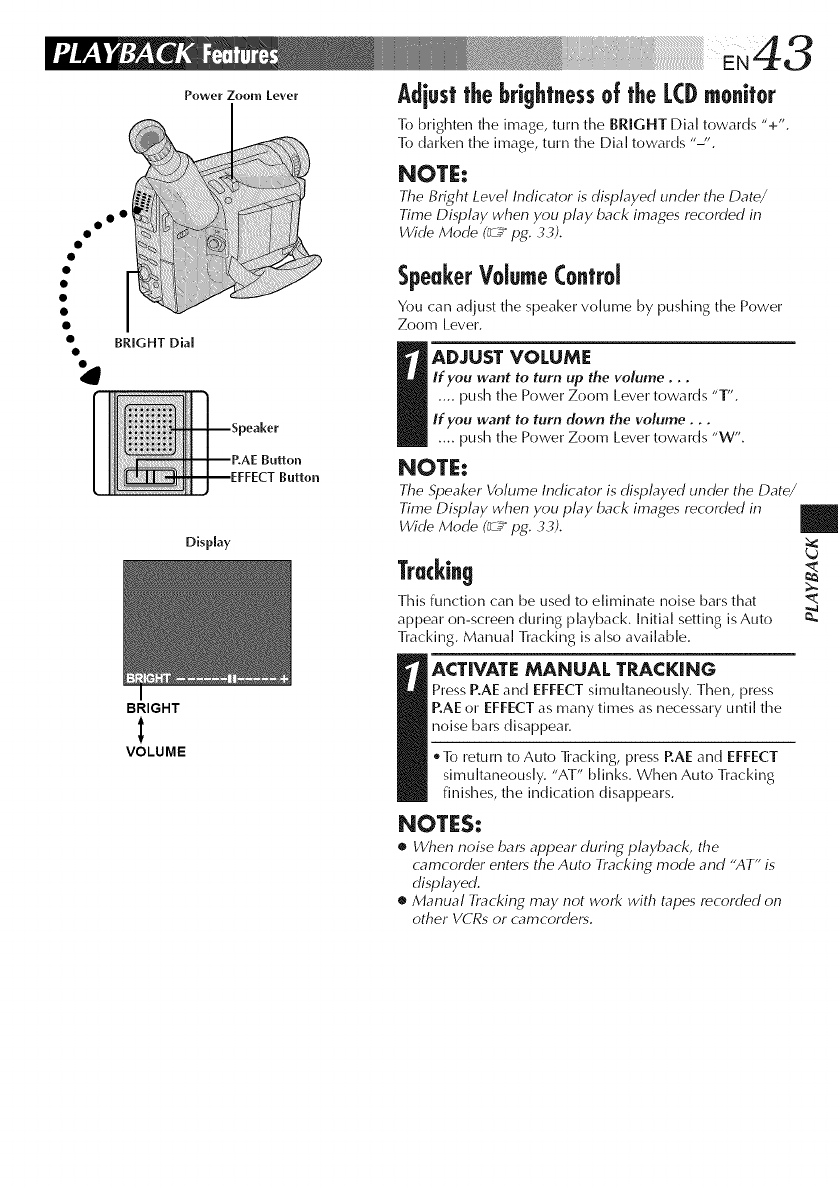
.43
Powo,zoomLevo, Adjustthe brightnessof the LCDmonitor
To brighten the image, turrl the BRIGHT Dial towards "+'.
To darken the image, turn the Dial towards "-'.
NOTE:
The Br_ht Level Indicator is displayed under the Date/
Time Display when you play back images recorded in
Wide Mode (_ pg. 33).
Display
° o !i_!i!il_!_
iil, _iii_i_i_iiiiiii
: iiiii/ii!!iiii
o
o
go BRIGHT Dial
BRIGHT
VOLUME
SpeakerVolumeControl
You can adjust the speaker volume by l_ushing the Power
Zoom Lever.
AD JUST VOLUME
If you want to turn up the volume.,,
.... push the Power Zoom Level" towards "T".
If you want to turn down the volume,..
.... push the Power Zoom Lever towards "W".
NOTE:
The Speaker Volume Indicator is displayed under the Date/
Time Display when you play back images recorded in
Wide Mode (_ pg. 33).
Tracking
This fLinction can be used to eliminate noise bars that
appear on-screen during playback. Initial setting is Auto
]]acking. Manual ]]acking is also available.
_CTIVATE MANUAL TRACKING
Press P.AE and EFFECT simultaneously. Then, press
EAE or EFFECT as many times as necessary until the
noise bars disappear.
® To retLirn to Auto ]iacking, press RAE and EFFECT
simultaneously. "AT" blinks. When Auto ]]acking
finishes, the indication disappears.
|
NOTES:
•When noise bars appear during playback, the
camcorder enters the Auto Tracking mode and "AT" is
displayed.
•Manual Tracking may not work with tapes recorded on
other VCRs or camcorders.
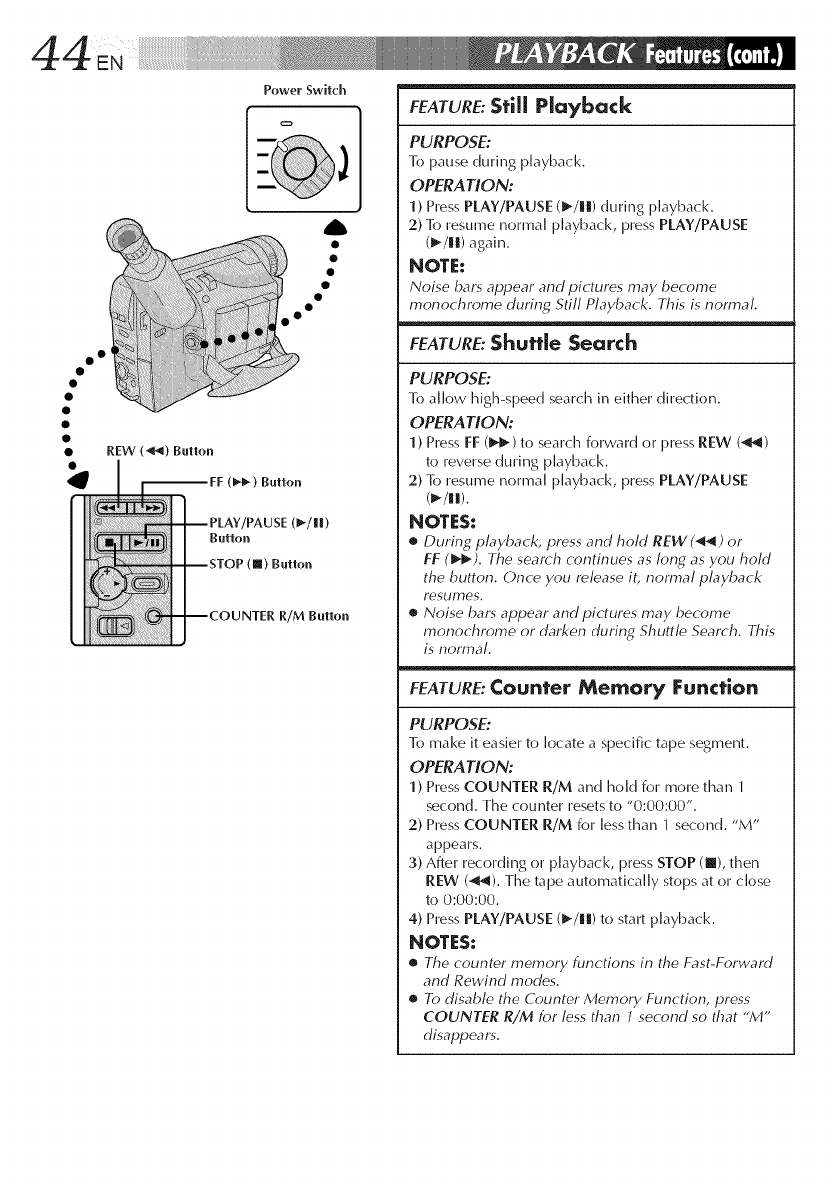
oo •
Power Switch
-- PLAY/PAUSE (_/R)
Button
STOP (111)Button
--COUNTER R/M Button
FEATURE:Still Playback
PURPOSE:
To pause during playback.
OPERA TION:
1) Press PLAY/PAUSE (1_/||) during playback.
2) To resume normal playback, press PLAY/PAUSE
(l_/|i) again.
NOTE:
Noise bars appear and pictures may become
monochrome during Still Playback. This is normal.
FEATURE:Shut?[e Search
PURPOSE:
To allow high-speed search in either direction.
OPERA lION:
1) Press FF (1_-) to search forward or press REW (_)
to reverse during playback.
2) To resume normal playback, press PlAY/PAUSE
(P-/lm).
NOTES:
•During playback, press and hold REW (_) or
FF (_). The search continues as long as you hold
the button. Once you release it, normal playback
resumes.
•Noise bars appear and pictures may become
monochrome or darken during Shuttle Search. This
is normal.
FEATURE:Coun?er Memory Func?[on
PURPOSE:
To make it easier to locate a specific tape segment.
OPERA TION:
1) Press COUNTER R/M and hold for more than 1
second. The counter resets to "0:00:00".
2) Press COUNTER R/M for less than 1 second. "M"
appears.
3) After recording or p]ayback, press STOP (m), then
REW (_ql). Timetape automatically stops at or dose
to 0:00:00.
4) Press PLAY/PAUSE (1_/||) to start playback.
NOTES:
•The counter memory functions in the Fast-Forward
and Rewind modes.
•To disable the Counter Memory Function, press
COUNTER R/M for less than 7 second so that "M"
disappears.
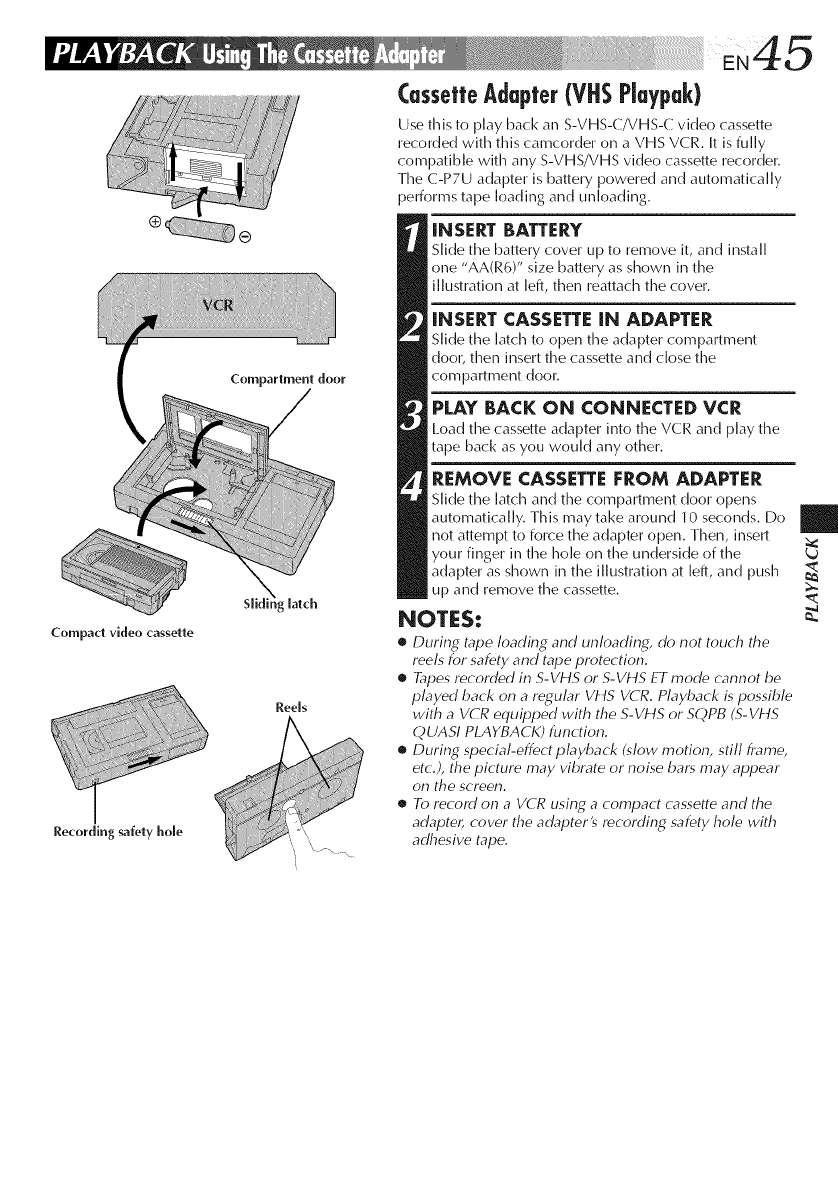
Compact video cassette
Compartment door
latch
Ree[s
Recording safety hole
CassetteAdapter(VHSPiaypak)
Use this to play back aim S-VHS-C/VHS-C video cassette
recorded with this camcorder on a VHS VCR. It is fully
compatible with any S-VHS/VHS vide() cassette recorder.
Time C-P7U adapter is battery powered and automatically
performs tape loading and unloading.
INSERT BATTERY
Slide time battery cover up to remove it, and install
one "AA(R6)" size battery as shown in the
illustration at left, then reattach the cover.
INSERT CASSETTEIN ADAPTER
Slide the latch to open the adapter compartment
door, then insert the cassette and close the
compartment door.
PLAY BACK ON CONNECTED VCR
Load timecassette adapter into the VCR and play the
tape back as you would any other.
REMOVE CASSETTEFROM ADAPTER
Slide time latch and time compartment door opens
automatically. This may take around 10 seconds. Do
not attempt to force the adapter open. Then, insert
your finger in the hole on time underside of the
adapter as shown in time illustration at left, and push
up and remove the cassette.
NOTES:
•During tape loading and unloading, do not touch the
reels for safety and tape protection.
•Tapes recorded in S-VHS or S-VHS ET mode cannot be
played back on a regular VHS VCR. Playback is possible
with a VCR equipped with the S-VHS or SQPB (S-VHS
QUASI PLAYBACK) function.
•During special-effect playback (slow motion, still frame,
etc.), the picture may vibrate or noise bars may appear
on the screen.
•To record on a VCR using a compact cassette and the
adapte_ cover the adapter's recording safety hole with
adhesive tape.
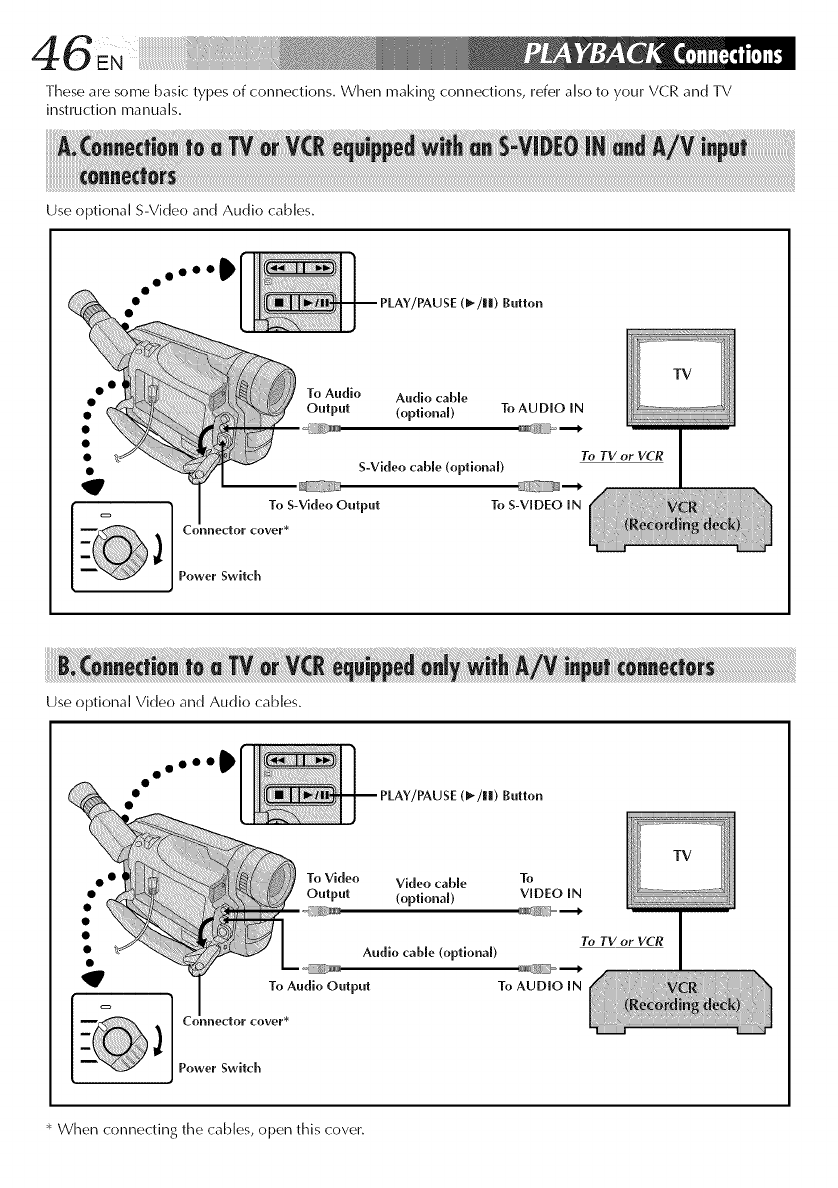
These are some basic types of connections. When making connections, refer also to your VCR and TV
instruction manua]s.
Use optional S-Video and Audio cables.
PLAY/PAUSE (_-/ml) Button
TV
To Audio Audio cable
Output (optional) To AUDIO IN
To TV or VCR
S-Video cab[e (optiona[)
To S-Video Output To S-VIDEO IN
Counector cover*
Power Switch
Use optional Video and Audio cables.
00000_
PLAY/PAUSE (_-/ll) Button
q
Video cable To
(optional) VIDEO IN
To TV or VCR
Audio cab[e (optiona[)
r_g; -b -_
To Audio Output To AUDIO IN
Connector cover*
Power Switch
* When connecting the cables, open this cover.
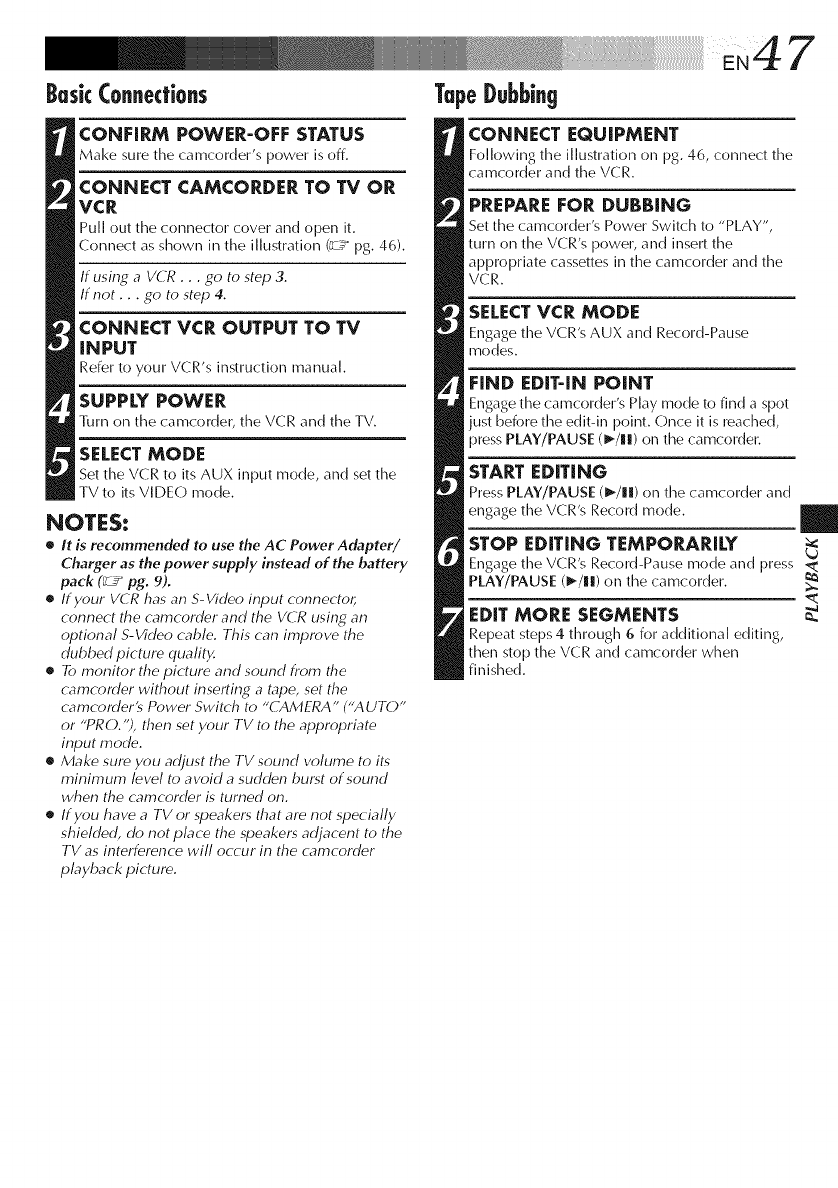
BaskCo.necfio.s TapeDubbi.g
CONFIRM POWER-OFF STATUS
Make sure the camcorder's power is off.
CONNECT CAMCORDER TO TV OR
VCR
Pull out the connector cover and open it.
Connect as shown in the illustration (_ pg. 46).
If using a VCR . . . go to step 3.
If not.., go to step 4.
CONNECT VCR OUTPUT TO TV
iNPUT
Refer to your VCR's instruction manual.
SUPPLY POWER
Turn on the camcorder, the VCR and the TV.
SELECT MODE
Set the VCR to its AUX input mode, and set the
TV to its VIDEO mode.
NOTES:
•it is recommended to use the AC Power Adapter/
Charger as the power supply instead of the battery
pack (_ pg. 9).
•If your VCR has an S-Video input connecto_
connect the camcorder and the VCR using an
optional S-Video cable. This can improve the
dubbed picture quality.
•To monitor the picture and sound from the
camcorder without insefling a tape, set the
camcorder's Power Switch to "CAMERA" ("AUTO"
or "PRO. "), then set your TV to the appropriate
input mode.
•Make sure you adjust the TVsound volume to its
minimum level to avoid a sudden burst of sound
when the camcorder is turned on.
•If you have a TV or speakers that are not specially
shielded, do not place the speakers adjacent to the
TV as interference will occur in the camcorder
playback picture.
CONNECT EQUIPMENT
Following time illustration on pg. 46, connect the
camcorder and the VCR.
PREPARE FOR DUBBING
Set the camcorder's Power Switch to "PLAY",
turn on the VCR's power, and insert the
appropriate cassettes in the camcorder and the
VCR.
SELECT VCR MODE
Engage timeVCR's AUX and Record-Pause
modes.
FIND EDIT-IN POINT
Engage the camcorder's Play mode to find a spot
just before the edit-in point. Once it is reached,
i_ress PLAY/PAUSE (_/|1) on the camcorder.
START EDiTiNG
Press PLAY/PAUSE (_/|i) on the camcorder and
engage the VCR's Record mode.
STOP EDITING TEMPORARILY
Engage timeVCR's Record-Pause mode and press
PLAY/PAUSE (1_/|1) on the camcorder.
EDIT MORE SEGMENTS _.
Repeat steps 4through 6 for additional editing,
then stop the VCR and camcorder when
finished.
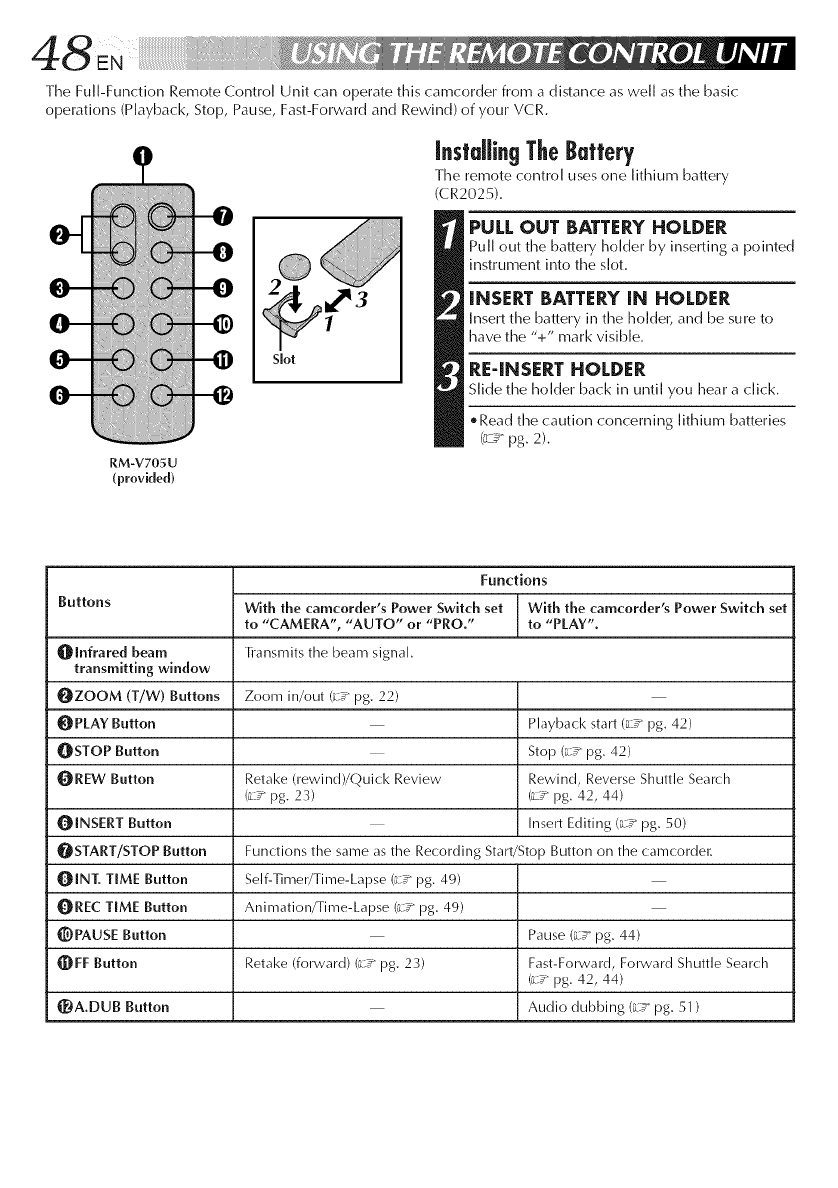
TheFull-FunctionRemoteControlUnitcanoperatethiscamcorderfromadistanceaswellasthebasic
operations(Playback,Stop,Pause,Fast-ForwardandRewind)ofyourVCR.
0-
0-
0-
0-
0-
-0
-0
-@
--0 S[ot
[.sta[[ing TheButtery
The remote control uses or)e lithium battery
(CR2025).
PULL OUT BATTERYHOLDER
Pull out the battery holder by inserting a pointed
instrument into the slot.
iNSERT BATTERY IN HOLDER
Insert the battery in the holder, and be sure to
have the "+" mark visible.
RE4NSERT HOLDER
Slide the holder back in until you hear a click.
. Read the caution concerning lithium batteries
(;-_g pg. 2).
RM-V7OSU
(provided)
Buttons
{[_lnfrared beam
transmitting window
OZOOM (T/W) Buttons Zoom in/out (67_pg. 22)
OPLAY Button Playback start (67_pg. 42)
q[_STOP Button Stop (67 _ pg. 42)
_[_REW Button Retake (rewind)/Quick Review Rewind, Reverse Shuttle Search
(67_pg. 23) (_7_pg. 42, 44)
{[_INSERT Button Insert Editing (67 _pg. 50)
_[_START/STOP Button Functions the same as the Recording Start/Stop Button on the camcordel:
OINT. TIME Button Self-Timer/Time-Lapse (67" pg. 49)
_IREC TIME Button Animation/Time-Lapse (67_pg. 49)
{]_)PAUSE Button Pause (67" pg. 44)
_FF Button Retake (forward) (67" pg. 23) Fast-Forward, Forward Shuttle Search
(67_pg. 42, 44)
_A.DUB Button Audio dubbing (67" pg. 51 )
Functions
With the camcorder's Power Switch set With the camcorder's Power Switch set
to "CAMERA", "AUTO" or "PRO." to "PLAY".
_'ansmits the beam signal.
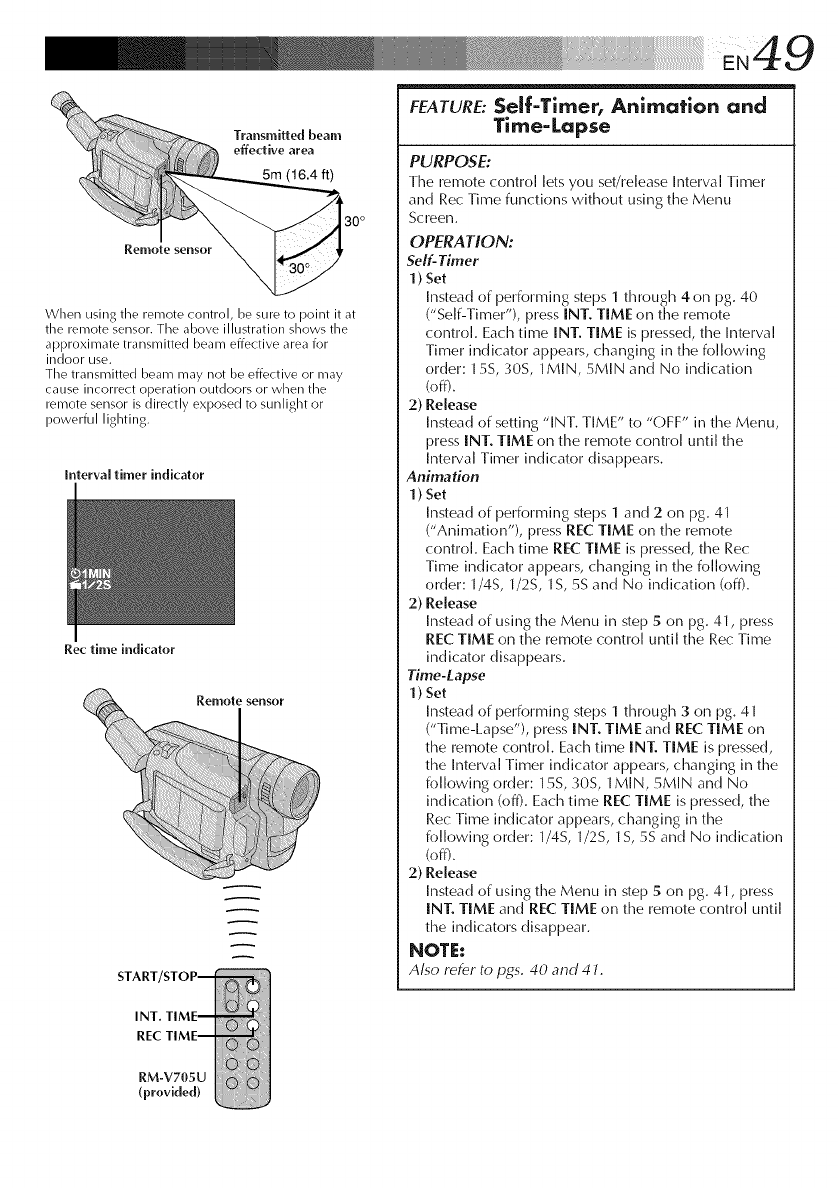
........! .49
Transmitted beam
effective area
5m (16.4 ft)
When using the remote control, be sure to point it at
the remote sensor. The above illustration shows the
approximate transmitted beam effective area for
indoor use.
Tile transmitted beam may not be effective or may
cause incorrect operation outdoors or when the
remote sensor is directly exposed to sunlight or
powerful lighting.
Interval timer indicator
Rec time indicator
A
FEATURE:Serf-Timer, Anima¢ion and
Time-Lapse
PURPOSE:
The remote control lets you set/release Interval Timer
and Rec Time functions without using the Menu
Screen.
OPERATION:
Self-Timer
1) Set
Instead of performing steps 1 through 4 on pg. 40
("Self-Timer"), press INT. TIME on the remote
control. Each time INT. TIME is pressed, the Interval
Timer indicator appears, changing in the folk>wing
order: 15S, 30S, 1MIN, 5MIN and No indication
(off).
2) Release
Instead of setting "INT. TIME" to "OFF" in time Menu,
press INT. TIME on time remote control until the
Interval Timer indicator disappears.
Animation
1) Set
Instead of performing steps 1 and 2 on pg. 41
("Animation"), press REC TIME on time remote
contro[. Each time REC TIME is pressed, time Rec
Time indicator appears, changing in time following
order: 1/45, 1/2S, 1S, 5S and No indication (off).
2) Release
Instead of using time Menu in step 5 on pg. 41, press
REC TIME on the remote control until the Rec Time
indicator disappears.
Time-Lapse
1 ) Set
Instead of performing steps 1 tlmrough 3on pg, 41
("Time-Lapse"), press INT. TIME and REC TIME on
the remote control. Each time INT. TIME is pressed,
the Interval Timer indicator appears, changing in the
following order: 15S, 30S, 1MIN, 5MIN and No
indication (off). Each time REC TIME is pressed, the
Rec Time indicator appears, changing in the
following order: 1/45, 1/2S, 1S, 5S and No indication
(off).
2) Release
Instead of using the Menu in step 5 on pg. 41, press
INT. TIME and REC TIME on the remote control until
the indicators disappear.
NOTE:
ALso refer to pg_s. 40 and 47.
INT.
REC
RM-V705U
(provided)
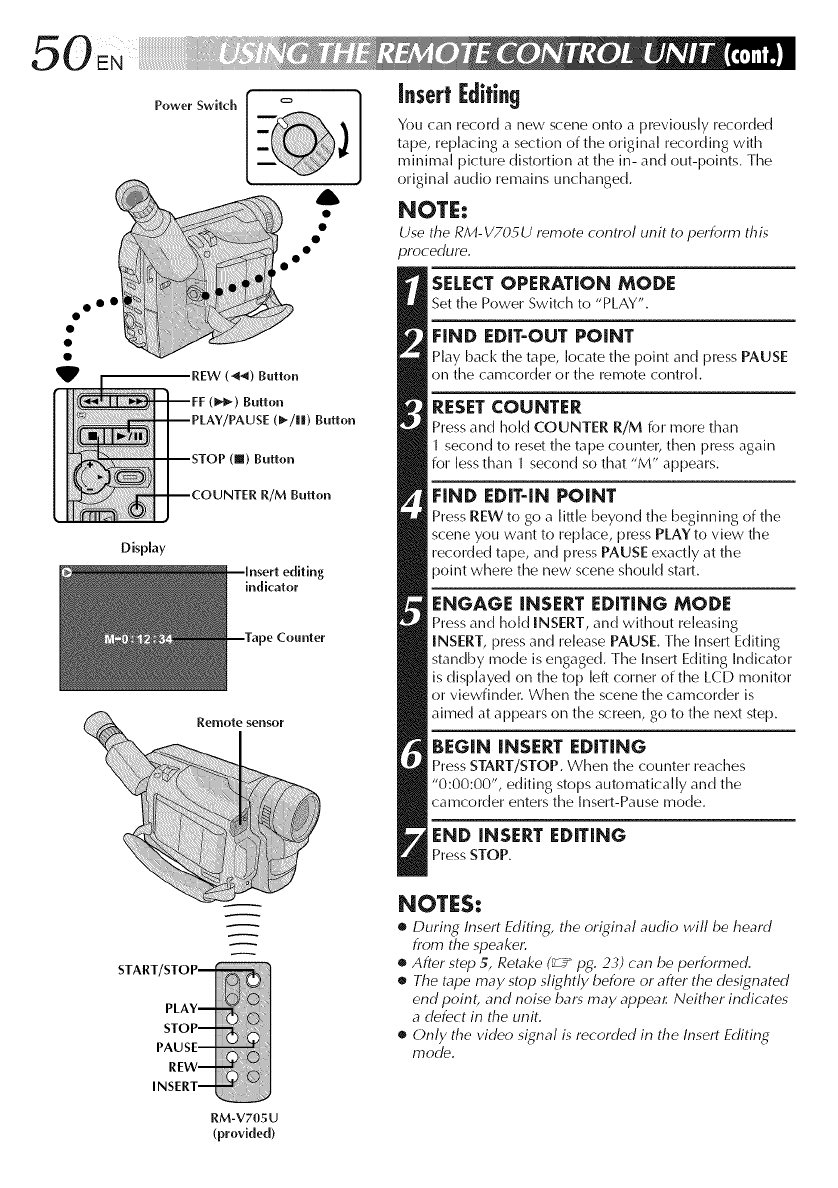
Display
Power Switch
Button
R/M Button
Jg
indicator
Counter
Remote sensor
insert @ifing
You can record a new scene onto a previously recorded
tape, replacing a section of the original recording with
minimal picture distortion at the in- and out-points. The
original audio remains unchanged.
NOTE:
Use the RM-V705U remote control unit to perform this
procedure.
SELECTOPERATION MODE
Set the Power Switch to "PLAY".
FEND EDIT-OUT POINT
Play back the tape, locate time point and press PAUSE
on the camcorder or the remote control.
RESETCOUNTER
Press and hoH COUNTER R/M for more than
second to reset time tape counter, then press again
for less than 1 second so that "M" appears.
FIND EDIT4N POINT
Press REW to go a little beyond time beginning of time
scene you want to replace, press PLAY to view the
recorded tape, and press PAUSE exactly at the
point where the new scene should start.
ENGAGE iNSERT EDITING MODE
Press and hold INSERT, and without releasing
INSERT, press and release PAUSE. Time Insert Editing
standby mode is engaged. Time Insert Editing Indicator
is displayed on timetop left corner of time LCD monitor
or viewfinder. When time scene the camcorder is
aimed at appears on the screen, go to the next step.
BEGIN INSERT EDITING
Press START/STOP. When the counter reaches
"0:00:00", editing stops automatically and the
camcorder enters the Insert-Pause mode.
END iNSERT EDiTiNG
Press STOP.
START/STOP
PLAY
STOP
PAUSE
REW
INSERT
RM-V705U
(provided)
NOTES:
•During Insert Editing, the original audio will be heard
from the speaker:
•After step 5, Retake (_,z_ pg. 23) can be performed.
•The tape may stop slightly before or after the designated
end point, and noise bars may appea_ Neither indicates
adefect in the unit.
•Only the video signal is recorded in the Insert Editing
mode.
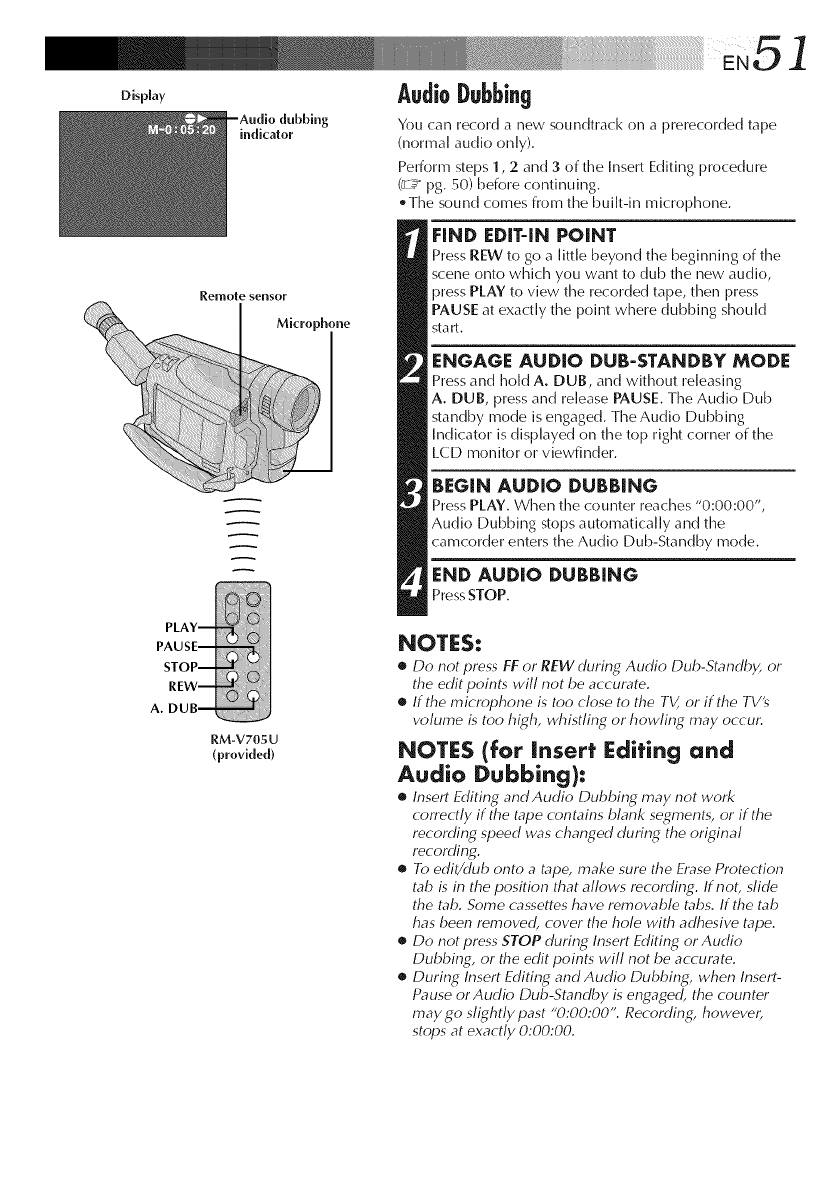
..... i!!!!!!!!i!!!!I !!!!!!!!! iiiiiiiiiiiiiiiiiiiiiiiiiiiiiiiiiiiiiiiiiiiiiiiiiiiiiiiiiiiiii iEN51
indicator
Display AudioDubbing
Yon can record a new sonndtrack on a prerecorded tape
(normal audio only).
Perform steps 1,2 and 3of the Insert Editing procedure
(_z_ pg. 50) before continuing.
The sound comes from the built-in microphone.
Remote sensor
Microphone
FIND EDIT-IN POINT
Press REW to go a little beyond the beginrlirlg of tlme
scene onto which you want to dub the new audio,
press PLAY to view the recorded tape, then press
PAUSE at exactly the point where dubbing should
sta rL
ENGAGE AUDIO DUB-STANDBY MODE
Press and llold A. DUB, and witl_ont releasing
A. DUB, press and release PAUSE. The Audio Dub
standby mode is engaged. The Audio Dubbing
Indicator is displayed on the top right corner of the
LCD monitor or viewfinder.
BEGIN AUDIO DUBBING
Press PLAY. When the counter reaches "0:00:00",
Audio Dubbing stops automatically and the
camcorder enters the Audio Dub-Standby mode.
END AUDIO DUBBING
Press STOP.
RM-V705U
(provided)
NOTES:
•Do not press FF or REW during Audio Dub-Standby, or
the edit points will not be accurate.
•If the microphone is too close to the TV, or if the TV's
volume is too high, whistfing or howfing may occur.
NOT[S (for Insert [diting and
Audio Dubbing):
•Insert Editing and Audio Dubbing may not work
conectly if the tape contains blank segments, or if the
recording speed was changed during the original
recording.
•To edit/dub onto a tape, make sure the Erase Protection
tab is in the position that allows recording. If noL sfide
the tab. Some cassettes have remow_ble tabs. If the tab
has been removed, cover the hole with adhesive tape.
•Do not press STOP during Insert Editing or Audio
Dubbing, or the edit points will not be accurate.
•During Insert Editing and Audio Dubbing, when Insert-
Pause or Audio Dub-Standby is engaged, the counter
may go slightly past "0:00:00". Recording, however,
stops at exactly 0:00:00.
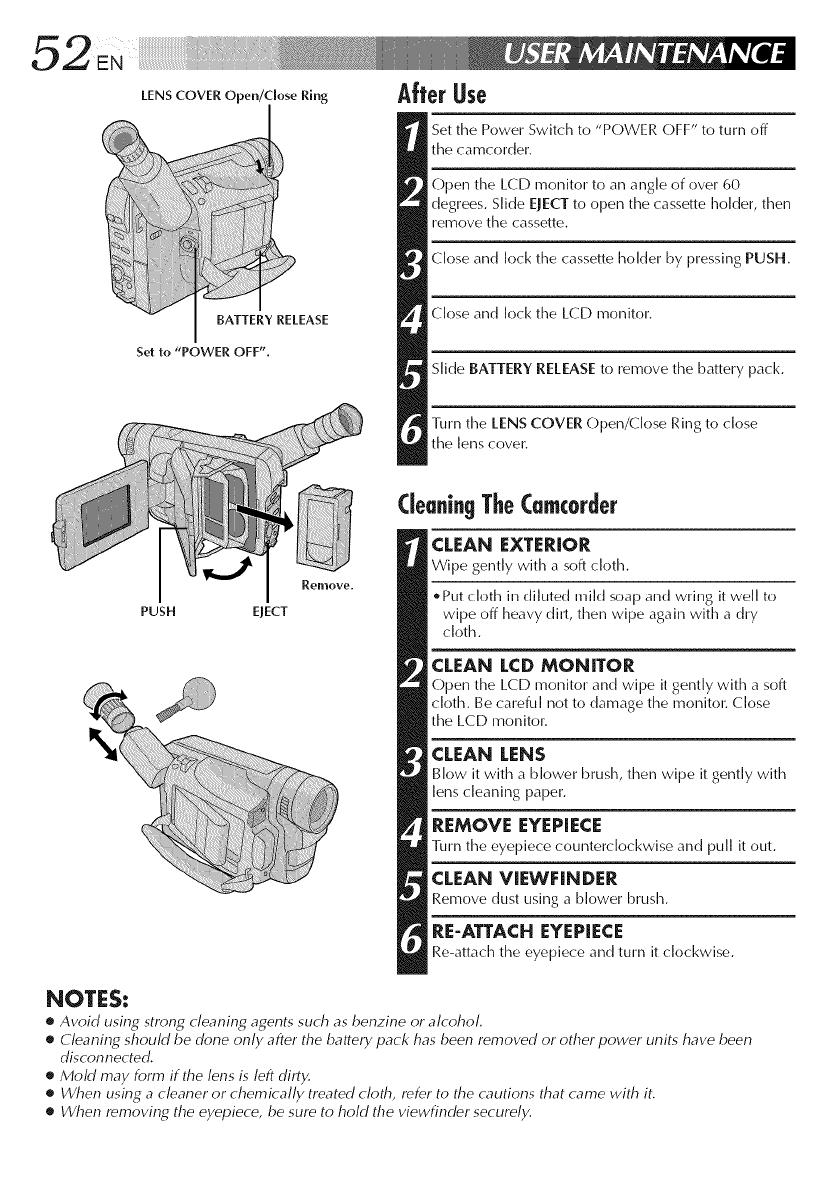
LENSCOVEROpe,,/C o er ,,g AfterUse
BATTERY RELEASE
Set to "POWER OFF".
PUSH
Remove.
EJECT
Set the Power Switch to "POWER OFF" to turn off
the camcorder.
Open time LCD monitor to aimangle of over 60
degrees. Slide EJECT to open the cassette holder, then
remove the cassette.
Close and lock the cassette holder by pressing PUSH.
Close and lock the LCD monitor.
Slide BATTERY RElEASE to remove the battery pack.
]]un timeLENS COVER Open/Close Ring to close
the lens cover.
deu.i.g TheCmcorder
CLEAN EXTERIOR
Wipe gently with a soft cloth.
Put cloth in diluted mild soap and wling it well to
wipe off heavy dilt, then wipe again with a dry
cloth.
CLEAN LCD MONITOR
Open the LCD monitor and wipe it gently with a soft
cloth. Be carefn] not to damage the monitor. Close
the LCD monitor.
CLEAN LENS
Blow it with a blower brush, then wipe it gently with
lens cleaning paper.
REMOVE EYEPIECE
Turn the eyepiece connterckwkwise and pull it ont.
CLEAN VIEWFINDER
Remove dust using a blower brush.
RE-ATTACH EYEPIECE
Re-attach the eyepiece and turn it clockwise.
NOTES:
•Avoid using strong cleaning agents such as benzine or alcohol.
•Cleaning should be done only after the battery pack has been removed or other power units have been
disconnected.
•Mold may form if the lens is left dirty.
•When using a cleaner or chemically treated cloth, refer to the cautions that came with it.
•When removing the eyepiece, be sure to hold the viewfinder securely.
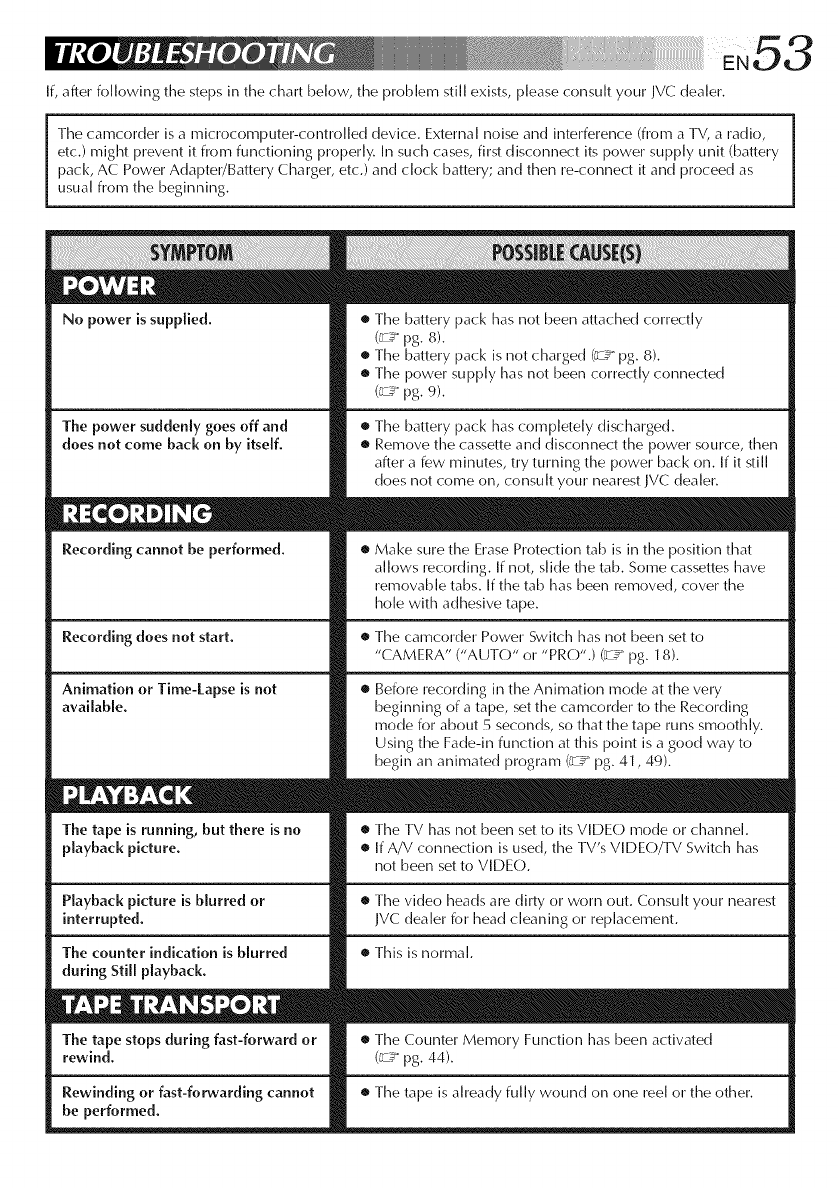
N53
If, after folk)wing the steps in the chart bek)w, the problem still exists, please consult your JVCdealer.
Timecamcorder is a microcomputer-controlled device. External noise and interference (from a TV, a radio,
etc.) might prevent it from functioning properly. In such cases, first disconnect its power supply unit (battery
pack, AC Power Adapter/Battery Charger, etc.) and clock battery; and then re-connect it and proceed as
usual from the beginning.
No power is supplied,
The power suddenly goes off and
does not come back on by itself,
Recording cannot be performed,
Recording does not start.
Animation or Time-Lapse is not
available,
The tape is running, but there is no
playback picture,
Playback picture is blurred or
interrupted,
The counter indication is blurred
during Still playback,
The tape stops during fast-forward or
rewind.
Rewinding or fast-forwarding cannot
be performed,
• Timebattery pack has not been attached correctly
(_ pg. 8).
• The battery pack isnot charged (_ pg. 8).
• Timepower supply has not been correctly connected
(_z_pg. 9).
• Timebattery pack has completely discharged.
• Remove the cassette and disconnect the power source, then
after a few minutes, try turning the power back on. If it still
does not come on, consult your nearest JVC dealer.
Make sure the EraseProtection tab is in the position that
alk)ws recording. If not, slide the tab. Some cassettes have
removable tabs. If the tab has been removed, cover the
hole with adhesive tape.
• The camcorder Power Switch has not been setto
"CAMERA" ("AUTO" or "PRO".) (_,:__Ypg. 18).
®Before recording in the Animation mode at the very
beginning of a tape, set the camcorder to the Recording
mode for about 5 seconds, so that the tape runs smoothly.
Using the Fade-in function at this point is a good way to
begin an animated program (_z_ pg. 41,49).
• The TV has not been set to its VIDE(-) mode or channel.
• If A/V connection is used, the TV's VIDEO/TV Switch has
not been setto VIDEO.
• The vide() heads are dirty or worn out. Consult your nearest
IV( dealer for head cleaning or replacement.
• This is normal.
• The Counter Memory Function has been activated
(_zgpg. 44).
• Timetape is already fully wound on one reel or the other.
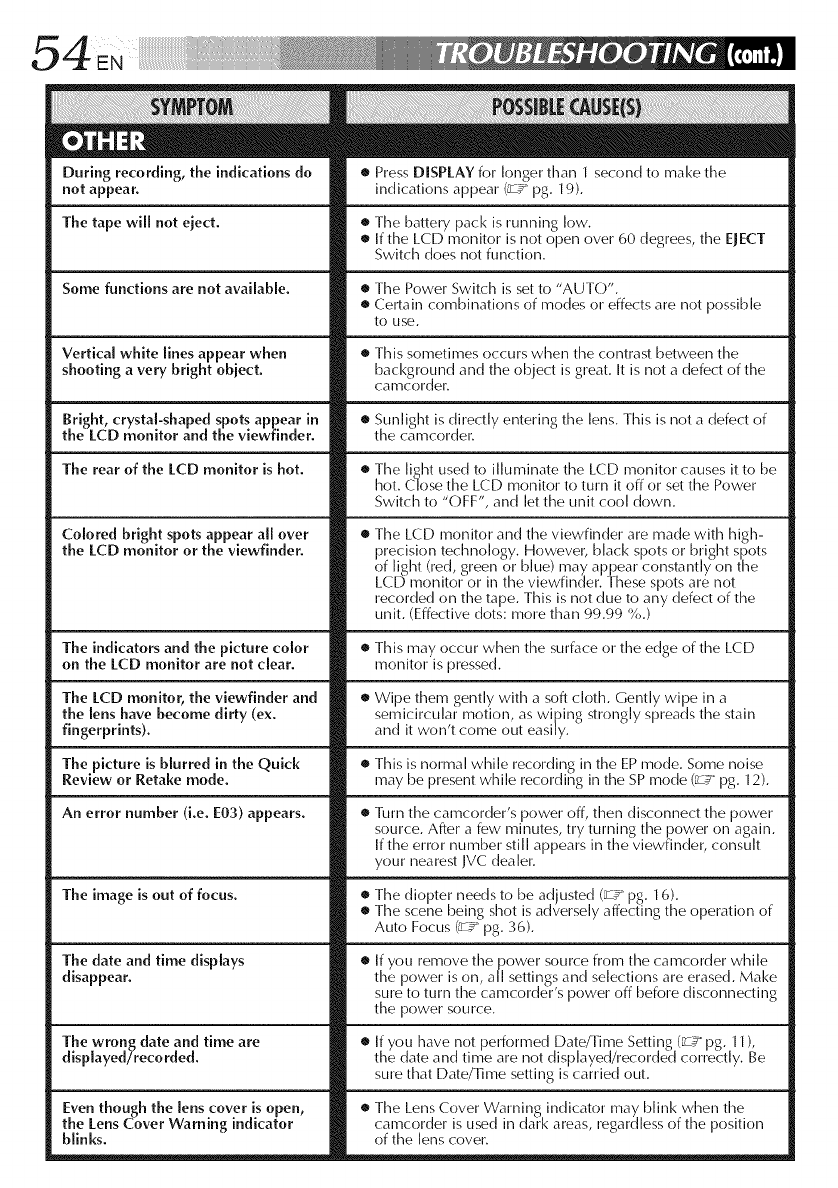
During recording, the indications do
not appear,
The tape wiI[ not eied+
Some functions are not available+
Vertical white lines appear when
shooting a very bright obied.
Bright, crystal-shaped spots appear in
the LCD monitor and the viewfinder+
The rear of the LCD monitor is hot+
Colored bright spots appear a[[ over
the LCD monitor or the viewfinder.
The indicators and the picture color
on the LCD monitor are not clear.
The LCD monitor, the viewfinder and
the lens have become dirty (ex+
fingerprints).
The picture is blurred in the Quick
Review or Retake mode.
An error number (i+e+ E03) appears.
The image is out of focus.
The date and time displays
disappear.
The wrong date and time are
displayed/recorded+
Even though the lens cover is open,
the Lens Cover Warning indicator
blinks.
• Press DISPLAY for longer than 1 second to make the
indications appear (_€ pg. 19).
• Time battery pack is running low.
• If the LCD monitor is not open over 60 degrees, the EJECT
Switch does not function.
• The Power Switch is set to "AUTO".
• Certain combinations of modes or effects are not possible
to use.
• This sometimes occurs when the contrast between the
background and the object is great. It is imota defect of the
camcorder.
• Sunlight is directly entering the lens. This is not a defect of
the camcorder.
• Time light used to illuminate the LCD monitor causes it to be
hot. Close time LCD monitor to turn it off or set the Power
Switch to "OFF", and let the unit cool down.
• Time LCD monitor and the viewfinder are made with high-
precision technok>gy. However, black spots or bright spots
of light (red, green or Hue) may appear constantly on the
LCD monitor or in the viewfinder. These spots are not
recorded on timetape. This is not due to any defect of the
unit. (Effective dots: more than 99.99 %.)
• This may occur when the surface or the edge of the LCD
monitor is pressed.
• Wipe them gently with a soft cloth. Gently wipe in a
semicircular motion, as wi[_ing strongly spreads the stain
and it won't come out easily.
• This is normal while recording in the EP mode. Some noise
may be present while recording in the SP mode (_ pg. 12).
• 11u+ntimecamcorder's power off, then disconnect the power
SOLirce. After a few i]qilmutes, try turning the power on again.
If the error imul]lber still appears in the viewfinder, colmsult
your nearest JVC dealer.
• Time diopter needs to be adjusted (_ _g. 16).
• Time scene )eing smot is ac verse y affecting the operation of
Auto Focus (;z¢ pg. 36).
• If you remove time power source from time camcorder while
the _ower is on, all settings and selections are erased. Make
sure to ttlrlm t me camcorc er's power off )efore c isconnecting
the power source.
• If you have not performed Date/Time Setting (_€ pg. 11 ),
the date and time are not displayed/recorded correctly. Be
sure that Date/Time setting is carried out.
• Time Lens Cover Warning indicator may blink when time
camcorder is used in dark areas, regardless of the position
of the lens cover.
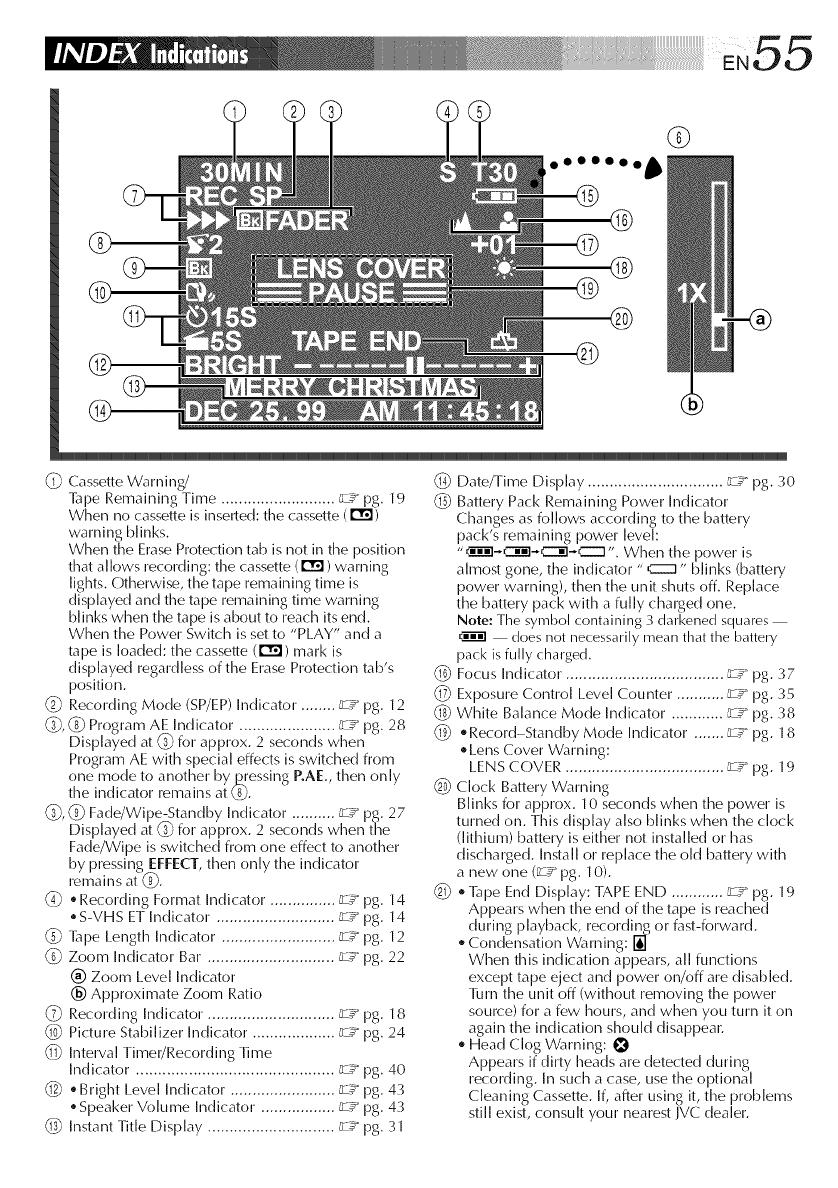
@
0000000 b
®
®
®@
@
(1_ Cassette Warning/
Tape Remaining Time .......................... &:_ pg. 19
When no cassette is inserted: the cassette (r_)
warning blinks.
When the Erase Protection tab is not in time position
that allows recording: timecassette (r_) warning
lights. Otherwise, the tape remaining time is
displayed and the tape remaining time warning
b]inks when the tape is about to reach its end.
When the Power Switch is set to "PLAY" and a
tape is loaded: timecasseile (r_) mark is
displayed regardless of the Erase Protection tab's
position.
(2-_ Recording Mode (SP/EP) Indicator. ....... z_ pg. 12
(3, (_) Program AE Indicator ...................... z_ pg. 28
Displayed at (3 for approx. 2 seconds when
Program AE with special effects is switched from
one mode to anotl]er by.L_essing RAE., then only
the indicator remaums at ks).
(3, (_ Fade/Wipe-Standby Indicator. ......... r.z:_pg. 27
Displayed at (3 for approx. 2 seconds when time
Fade/Wipe is switched from one effect to another
by pressing EFFECT, then only the indicator
remains at (3.
_-O "Recording Format Indicator. .............. _ pg. 14
, S-VHS ET Indicator ........................... _.z:_pg. 14
(_ ]hpe Length Indicator .......................... _ pg. 12
(_ Zoom Indicator Bar ............................. _-£:_pg. 22
(_) Zoom Level Indicator
(_) Approximate Zoom Ratio
(_ Recording Indicator. ............................ _z:_pg. 18
Picture Stabilizer Indicator. .................. _ pg. 24
(_ Interval Timer/Recording Time
Indicator ............................................. _ pg. 40
_2_ , Bright Level Indicator. ....................... _ pg. 43
, Speaker Volume Indicator ................. _-£:_pg. 43
_._ Instant Title Display ............................. _.z:_pg. 31
_ Date/Time Display ............................... _z:_ pg. 30
_c_ Battery Pack Remaining Power Indicator
Changes as follows according to the battery
pack's remaining power level:
"_]-C]@-C::::::@-C::::::_". When the power is
almost gone, the indicator "C:Z3" blinks (battery
power warning), then the unit shuts off. Replace
the battery pack with a fully charged one.
Note: The symbol containing 3 darkened squares
does not necessarily mean that the battery
pack is fully charged.
Focus Indicator. ................................... _:_ pg. 37
(_ Exposure Control Level Counter ........... _.z:_pg. 35
(_ White Balance Mode Indicator ............ _ pg. 38
lq_ _Record-Standby Mode Indicator ....... _ pg. 18
Lens Cover Warning:
LENS COVER .................................... _ pg. 19
Clock Battery Warning
Blinks for approx. 10 seconds when the power is
turned on. This display also blinks when the clock
(lithium) battery is either not installed or has
discharged. Install or replace the old battery with
a new one (_ pg. 10).
_ ,Tape End Display: ]-APE END ............ ;_ pg. 19
Appears when time end of time tape is reached
during playback, recordin2g or fast-forward.
Condensation Warning:
When this indication appears, all functions
except tape eject and power on/off are disabled.
TIIrn the unit off (without removing the power
source) for a few hours, and when you tunm it on
again the indication should disappear.
Head Clog Warning:
Appears if dirty heads are detected during
recording. Jimsuch a case, use the optional
Cleaning Cassette. If, after using it, time problems
still exist, consult your nearest IVC dealer.
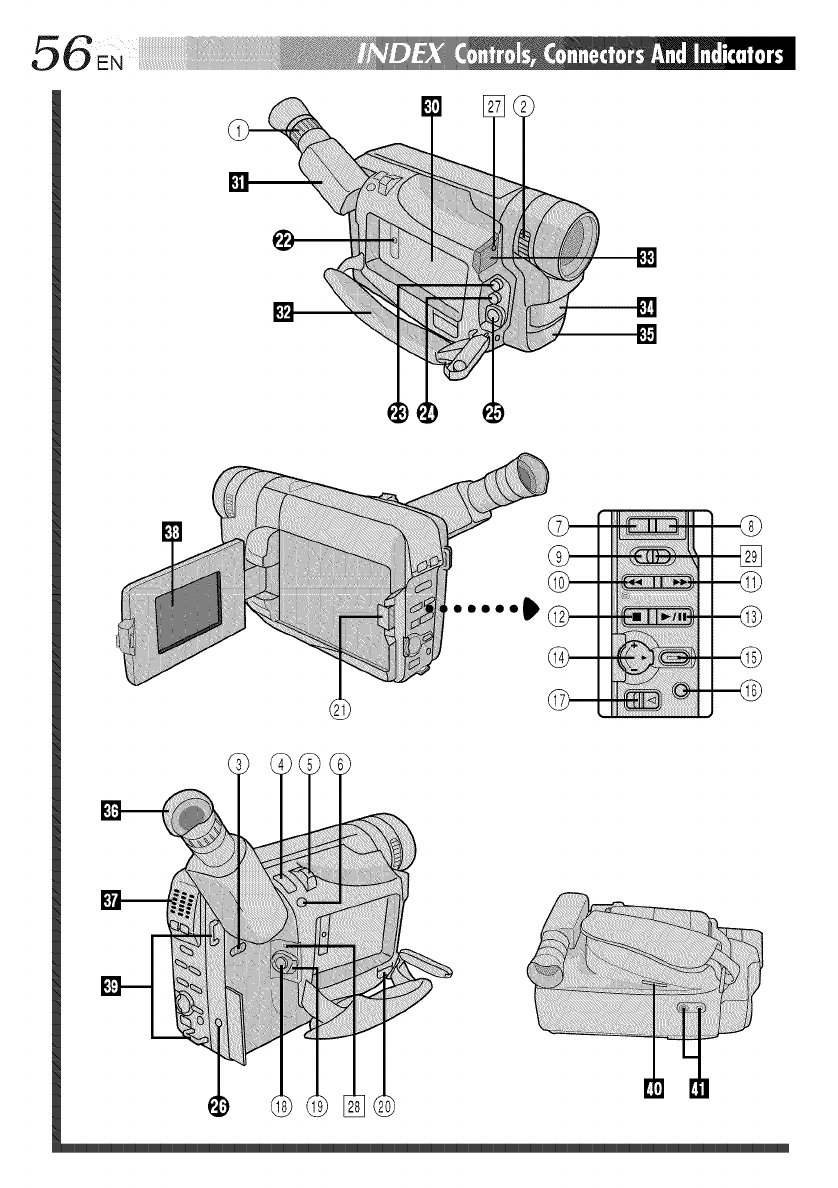
00000_
3
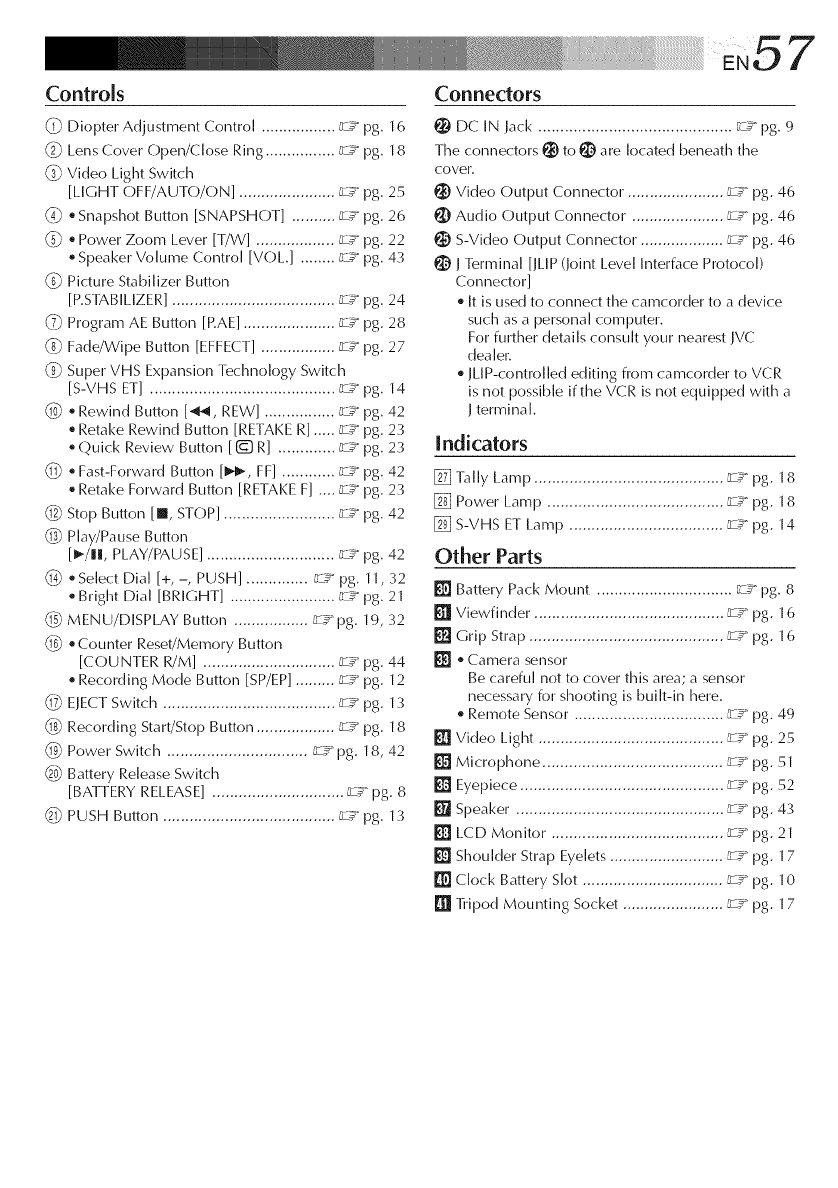
Controls Connectors
(2 Diopter Adjustment Control ................. _Z_ pg. 16
_2-_Lens Cover Open/Close Ring ................ _.z:_pg. 18
(_ Video Light Switch
[LIGHT OFF/AUTO/ON] ...................... _.z_pg. 25
_ Snapshot Button [SNAPSHOT] .......... _Z_ pg. 26
e Power Zoom Lever IT/W] .................. _-£:_pg. 22
e Speaker Volume Control [VOL.] ........ F-£:_pg. 4:¢
(_ Picture Stabilizer Button
[P.STABILIZER] ..................................... ;.z_ pg. 24
(7_ Program AE Button [RAE] ..................... F.Z:_pg. 28
(_) Fade/Wipe Button [EFFECT] ................. _ pg. 27
(9_ Super VHS Expansion Technology Switch
[S-VHS ET] .......................................... _¢ pg. 14
_ , Rewind Button [_, REW] ................ ;_" pg. 42
, Retake Rewind Button [RETAKE R] ..... F.Z:_pg. 23
, Quick Review Button [ I_ R] ............. ff_ pg. 2:¢
(_ , Fast-Forward Button [ll_, FF] ............ _.z:_pg. 42
, Retake Forward Button [RETAKE F] .... _.z:_pg. 2:¢
_2_ Stop Button [l STOP] ......................... _ pg. 42
_ Play/Pause Button
[_/!1, PLAY/PAUSE] ............................. _.z_pg. 42
(_ , Select Dial [% -, PUSH] .............. _ pg. 11, :¢2
- Blight Dial [BRIGHT] ........................ [:-_ pg. 21
_ MENU/DISPLAY Button ................. _.Z:_pg. 19, :¢2
(_) e Counter Reset/Memory Button
[COUNTER R/M] .............................. _.z_pg. 44
, Recording Mode Button [SP/EP] ......... _.z:_pg. 12
q_ ELECT Switch ....................................... _ pg. 13
(_ Recording Start/Stop Button .................. _-£:_pg. ] 8
1_ Power Switch ................................ _.z:_pg. 18, 42
Battery Release Switch
[BATTERY RELEASE] .............................. _g pg. 8
_ PUSH Button ....................................... _z_ pg. 13
DC IN rack ............................................ _.z_ pg. 9
The connectors _ to _ are located beneath the
cover.
Vide() Output Connector. ..................... _z_ pg. 46
_) Audio Output Connector ..................... _-£_ pg. 46
_) S-Video Output Cor_nector. .................. _z:_ pg. 46
_ Terminal [_LIP (kfint Level Interface Protocol)
Connector]
It is used to connect the camcorder to a device
such as a personal computer.
For further details consult your nearest ]VC
dealer.
JLIP-controlled editing from camcorder to VCR
is not possible if the VCR is not equipped with a
J terminal.
Indicators
[] ]ally Lamp ........................................... _Zg pg. 18
[] Power Lamp ........................................ _::_ pg. 18
[] S-VHS ET Lamp ................................... _::_ pg. 14
Other Parts
[] Battery Pack Mount ............................... _.z:_pg. 8
[] Viewfinder. .......................................... _z_ pg. 16
[] Grip Strap ............................................ _.z:_pg. 16
[] ®Camera sensor
Be careful not to cover this area; a sensor
necessary for shooting is built-in here.
Remote Sensor .................................. _Z_ pg.49
[] Vide() Light .......................................... _z_" pg. 25
[] Microphone ......................................... _.z:_pg. 51
[] Eyepiece .............................................. _ pg. 52
[] Speaker ............................................... _ pg. 4:¢
[] LCD Monitor ....................................... _ pg. 21
[] Shoulder Strap Eyelets .......................... _.z:_pg. 17
[] Clock Battery Slot ................................ _.z:_pg. 10
[] ]]ipod Mounting Socket ....................... _-£_ pg. ] 7
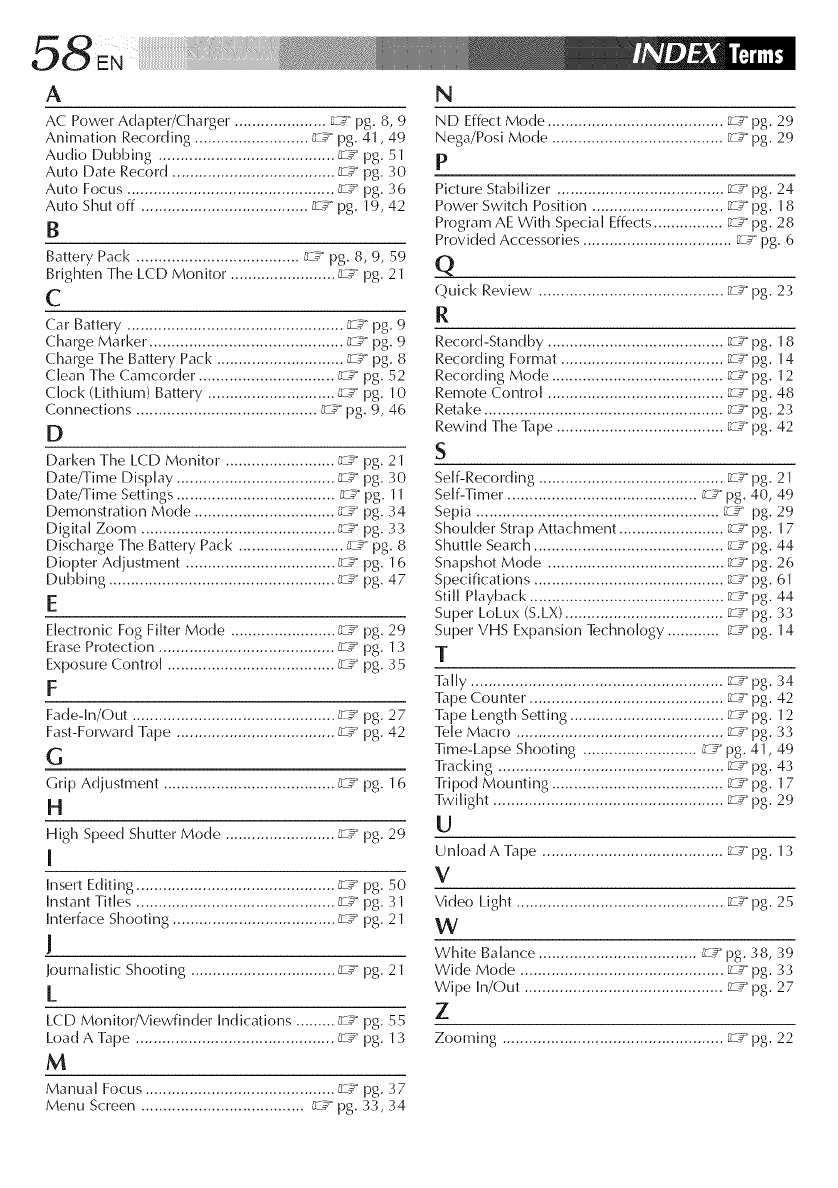
A N
AC Power Adapter/Charger. .................... L_ pg. 8, 9
Animation Recording .......................... _ pg, 41,49
Audio Dubbing ........................................ L_ pg, 51
Auto Date Record ..................................... _.z_ pg, 30
Auto Focus ............................................... _/€" pg. 36
Auto Shut off ...................................... _/€ pg, 19, 42
B
Battery Pack ..................................... _z_ pg, 8, 9, 59
Brighten Time LCD Monitor. ....................... _/€ pg. 21
C
Car Battery ................................................. L:_ pg. 9
Charge Marker. ........................................... L:_ pg. 9
Charge The Battery Pack ............................. _ pg. 8
Clean Time Camcorder. .............................. _,z:_pg. 52
Clock (Lithium) Battery ............................. _:_ pg. 10
Connections ......................................... _/€ pg. 9, 46
D
Darken Time LCD Monitor, ........................ L_ pg, 21
Date/Time Display .................................... L_ pg, 30
Date/Time Settings .................................... _:_ pg. 11
Demonstratiorl Mode ................................ L:_ pg. 34
Digital Zoom ............................................ _:_ pg. 33
Discharge Time Battery Pack ........................ _,z:_pg. 8
Diopter Adjustment .................................. _/€ pg. 16
Dubbing ................................................... _/€ pg. 47
E
Electronic Fog Filter Mode ........................ _:_ pg. 29
Erase Protection ........................................ _/€ pg. 13
Exposure Control ...................................... _/€ pg. 35
F
Fade-In/Out .............................................. _,z:_pg. 27
Fast-Forward Tape .................................... _/€ pg. 42
G
(;rip Adjustment ....................................... _/€ pg. 16
H
High Speed Shutter Mode ......................... _,z:_pg. 29
I
Insert Editing ............................................. _ pg. 50
hmstant Titles ............................................. _,z:_pg. 31
Interface Shooting ..................................... _/€ pg. 21
!
k)urnalistic Shooting ................................. _/€ pg. 21
L
LCD MonitolTViewfinder Indications ......... _/€ pg. 55
Load A Tape ............................................. _/€ pg. 13
M
Manual Focus ........................................... _ pg. 37
Menu Screen ..................................... _,z:_pg. 33, 34
ND Effect Mode ........................................ _ pg. 29
Nega/Posi Mode ....................................... _,z:_pg. 29
P
Picture Stabilizer ...................................... _:_ pg. 24
Power Switch Position .............................. _ pg. 18
Program AE With Special Effects ................ _,z:_pg. 28
Provided Accessories .................................. _/€ pg. 6
Q
Quick Review .......................................... _/€ pg. 23
R
Record-Standby ........................................ L:_ pg. 18
Recording Format ..................................... _:_ pg. 14
Recording Mode ....................................... _:_ pg. 12
Remote Control ........................................ _:_ pg. 48
Retake ...................................................... _ pg. 23
Rewind The ]T_pe ...................................... _:_ pg. 42
S
Self-Recording .......................................... _/€ pg. 21
Self-Timer. .......................................... _ pg. 40, 49
Sepia ....................................................... _:_ pg. 29
Shoulder Strap Attachment ........................ L:_ pg. 17
Shuttle Search ........................................... _:_ pg. 44
Snapshot Mode ........................................ _ pg. 26
Specifications ........................................... _,z:_pg. 61
Still Playback ............................................ r_ pg. 44
Super LoLux (S.LX) .................................... _ pg. 3>;
Super VHS Expansion Technology ............ _:_ pg. 14
T
]ally ......................................................... L_ pg, 34
1T_pe Counter. ........................................... L_ pg. 42
]T_pe Length Settilmg ................................... _-_:_pg. 12
Tele Macro ............................................... _" pg. 33
lime-Lapse Shooting .......................... _ pg. 41,49
]Yacking ................................................... _:_ pg. 43
]Yipod Mounting ....................................... r_ pg. 17
Twilight .................................................... r,z:_pg. 29
U
Unload A ]ape ......................................... r_ pg, 13
V
Video Light ............................................... F/€ pg, 25
W
White Balance .................................... L_ pg. 38, 39
Wide Mode .............................................. _/€ pg. 33
Wipe In/Out ............................................. _/€ pg. 27
Z
Zooming .................................................. _,z:_pg. 22
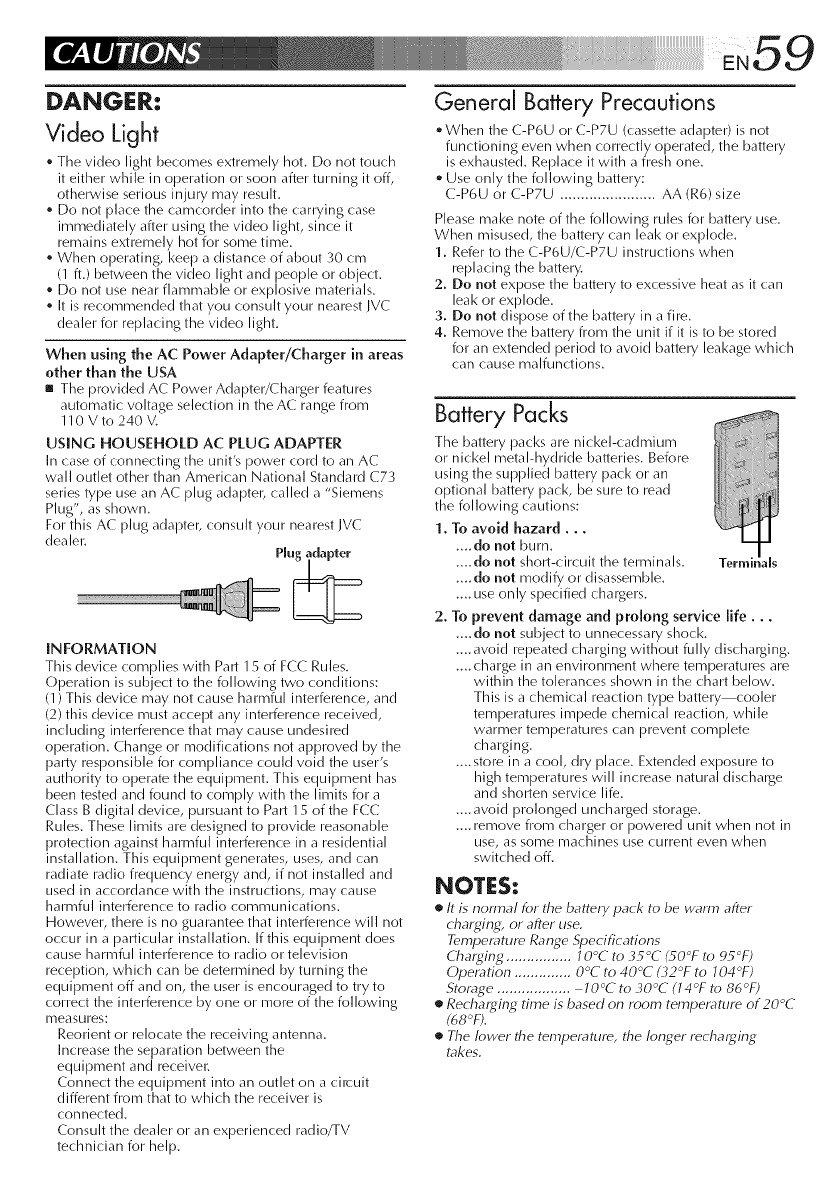
DANGER:
Video Light
• The video light becornes extrernely hok Do not touch
it either while in operation or soon after turning it off,
otherwise serious injury may result.
• Do not place the camcorder into the carrying case
immediately after using the video light, since it
remains extremely hot for some time.
• When operating, keep a distance of about 30 cm
(1 ft.) between the video light and people or object.
• Do not use near flammable or explosive materials.
• It is recommended that you consult your nearest JVC
dealer for replacing the video light.
When using the AC Power Adapter/Charger in areas
other than the USA
m The provided AC Power Adapter/Charger features
automatic voltage selection in the AC range from
110 V to 240 V.
USING HOUSEHOLD AC PLUG ADAPTER
In case of connecting the unit's power cord to an AC
wall outlet other than American National Standard C73
series type use an AC plug adaptel; called a "Siemens
Plug", as shown.
For this AC plug adapter, consult your nearest IVC
dealer.
INFORMATION
This device complies with Part 1S of FCC Rules.
Operation is subject to the following two conditions:
(1) This device may not cause harmful interference, and
(2) this device must accept any interference received,
including interference that may cause undesired
operation. Change or modifications not approved by the
party responsible for compliance could void the user's
authority to operate the equipment. This equipment has
been tested and found to comply with the limits for a
Class B digital device, pursuant to Part 1S of the FCC
Rules. These limits are designed to provide reasonable
protection against harmful interference in a residential
installation. This equipment generates, uses, and can
radiate radio frequency energy and, if not installed and
use(] in accordance with the instructions, may cause
harmful interference to radio communications.
However, there is no guarantee that interference will not
occur in a particular installation. If this equipment does
cause ham]ful interference to radio or television
reception, which can be determined by turning the
equipment off and on, the user is encourage(] to try to
correct the interference by one or more of the following
measures:
Reorient or relocate the receiving antenna.
Increase the separation between the
equipment and receivel:
Connect the equipment into an outlet on a circuit
different from that to which the receiver is
connected.
Consult the dealer or an experienced radio/TV
technician for help.
General Battery Precautions
• When the C-P6U or C-P7U (cassette adapter) is not
functioning even when correctly operated, the battery
is exhausted. Replace it with a fresh one.
• Use only the following battery:
C-P6U or C-P7U ....................... AA (R6) size
Please make note of the following rules for battery use.
When misused, the battery can leak or explode.
1. Refer to the C-P6U/C-P7U instructions when
replacing the battery.
2. Do not expose the battery to excessive heat as it can
leak or explode.
3. Do not dispose of the battery in a fire.
4. Remove the battery from the unit if it is to be stored
for an extended period to avoid battery leakage which
can cause malfunctions.
Battery Packs
The battery packs are nickel-cadmium
or nickel metal-hydride batteries. Before
using the supplied battery pack or an
optional battery pack, be sure to read
the following cautions:
1, To avoid hazard,,,
.... do not burn.
.... do not short-circuit the terminals. Termir al_
.... do not modify or disassemble.
.... use only specified chargers.
2, To prevent damage and prolong service life,,,
.... do not subject to unnecessary shock.
.... avoid repeated charging without fully discharging.
.... charge in an environment where temperatures are
within the tolerances shown in the chart below.
This is a chemical reaction type battery cooler
temperatures impede chemical reaction, while
warmer temperatures can prevent complete
charging.
.... store in a cool, dry place. Extended exposure to
high temperatures will increase natural discharge
and shorten service life.
.... avoid prolonged uncharged storage.
.... remove from charger or powered unit when not in
use, as some machines use current even when
switched off.
NOTES:
•It is normal for the battery pack to be warm after
chaq4in[4, or after use,
Temperature Rant_e ,Specifications
Chaq4in_ ................ 10°C to 35°C _50°F to 95°F)
Operation .............. O°C to 40°C ( }2°F to 104°F)
Storat4e .................. 10°C to 30°C (14°F to 86°F)
•Rechar_in8 time is based on room temperature of 20°C
(68°F).
•The lower the temperature, the longer rechar_in_
takes.
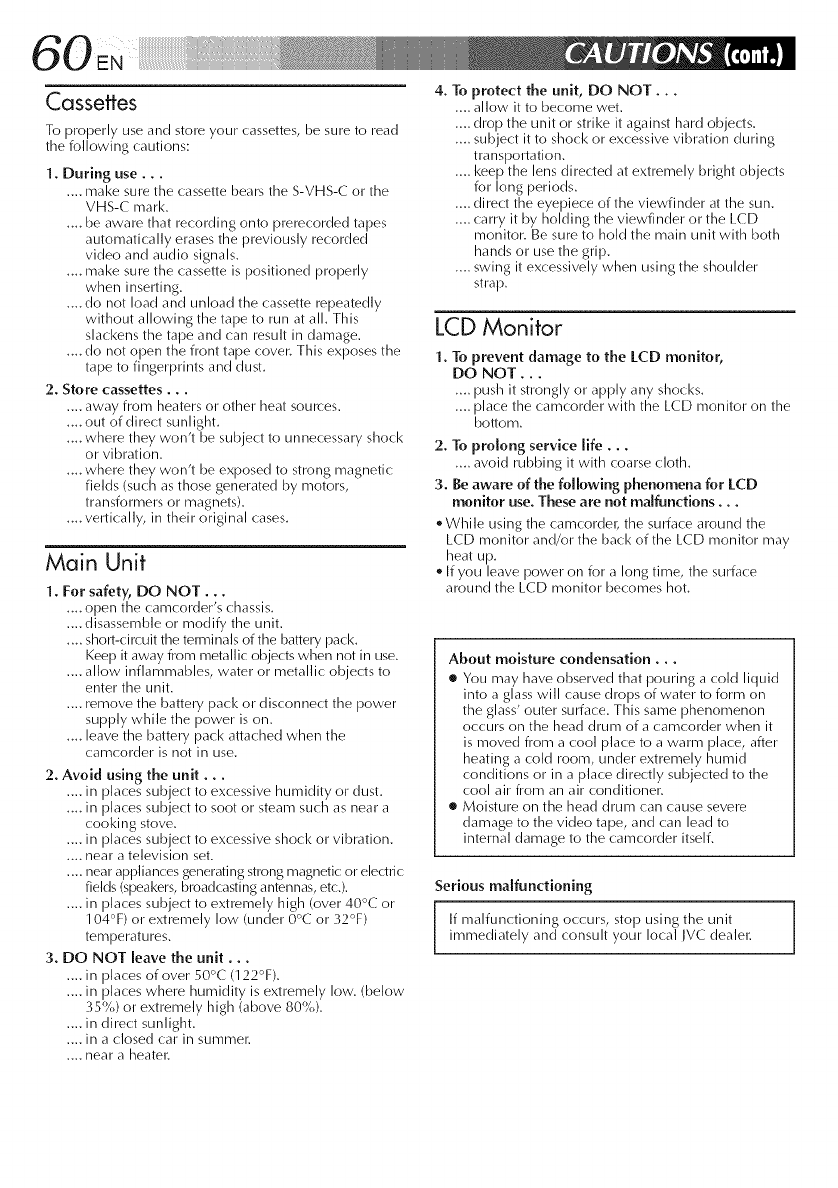
Cassettes
To properly use and store your cassettes, be sure to read
the following cautions:
1. During use...
.... make sure the cassette bears the S-VHS-C or the
VHS-C mark.
.... be aware that recording onto prerecorded tapes
automatically erases the previously recorded
video and audio signals.
.... make sure the cassette is positioned properly
when inserting.
.... do not load and unload the cassette repeatedly
without allowing the tape to run at all. This
slackens the tape and can result in damage.
.... do not open the front tape cover. This exposes the
tape to fingerprints and dust.
2. Store cassettes...
.... away from heaters or other heat sources.
.... out of direct sunlight.
.... where they won't be subject to unnecessary shocl<
or vibration.
.... where they won't be exposed to strong magnetic
fields (such as those generated by motors,
transformers or magnets).
.... vertically, in their original cases.
Main Unit
1. For safety, DO NOT...
.... open the camcorder's chassis.
.... disassemble or modify the unit.
.... short-circuit the terminals of the battery pack.
Keep it away from metallic objects when not in use.
.... allow inflammables, water or metallic objects to
enter the unit.
.... remove the battery pack or disconnect the power
supply while the power is on.
.... leave the battery pack attache(] when the
camcorder is not in use.
2. Avoid using the unit...
.... in places subject to excessive humidity or dust.
.... in places subject to soot or steam such as near a
cooking stove.
.... in places subject to excessive shock or vibration.
.... near a television set.
.... near appliances generating strong magnetic or electric
fields (speakers, broadcasting antennas, etc.).
.... in places subject to extremely high (over 40°C or
104°F) or extremely low (under 0°C or 32°F)
temperatures.
3. DO NOT leave the unit...
.... in places of over 50°C (122°F).
.... in places where humidity is extremely low. (below
35%) or extremely high (above 80%).
.... in direct sunlight.
.... in a closed car in summer.
.... near a heatel:
4. To protect the unit, DO NOT...
.... allow it to become wet.
.... drop the unit or strike it against hard objects.
.... subject it to shock or excessive vibration during
transportation.
.... keep the lens directed at extremely bright objects
for long periods.
.... direct the eyepiece of the viewfinder at the sun.
.... carry it by holding the viewfinder or the LCD
monitor. Be sure to hold the main unit with both
hands or use the grip,
.... swing it excessively when using the shoulder
strap.
LCD Monitor
1. To prevent damage to the LCD monitor,
DO NOT...
.... push it strongly or apply any shocks.
.... place the camcorder with the LCD monitor on the
bottom.
2. To prolong service life...
.... avoid rubbing it with coarse cloth.
3. Be aware of the following phenomena for LCD
monitor use. These are not malfunctions...
,, While using the camcordel; the surface around the
LCD monitor and/or the back of the LCD monitor may
heat up.
,, If you leave power on for a long time, the surface
around the LCD monitor becomes hot.
About moisture condensation...
• You may have observed that pouring a cold liquid
into a glass will cause drops of water to form on
the glass' outer surface. This same phenomenon
occurs on the head drum of a camcorder when it
is moved from a cool place to a warm place, after
heating a cold room, under extremely humid
conditions or in a place directly subjected to the
cool air from an air conditionen
• Moisture on the head drum can cause severe
damage to the video tape, and can lead to
internal damage to the camcorder itself.
Serious malfunctioning
If malfunctioning occurs, stop using the unitimmediately and consult your local IVC dealel:
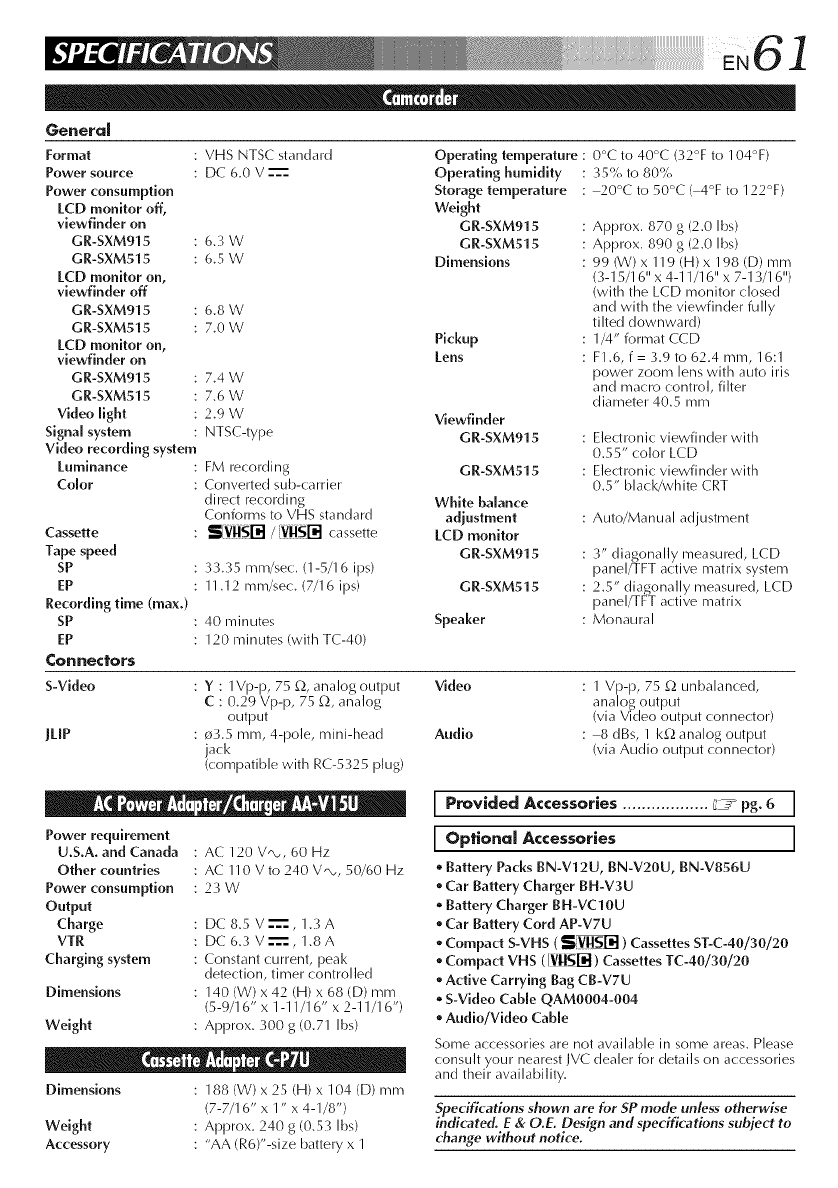
....
VHS NTSC standard Operating temperature :
DC 6,0 V --'==- Operating humidity
Storage temperature
Weight
GR-SXM915
6.3 W GR-SXM515
6.5 W Dimensions
6.8W
7.0W Pickup
Lens
General
7.4W
7.6W
2.9 W Vlewfinder
NTSC-type GR-SXM915
Format
Power source
Power consumption
LCD monitor off,
viewfinder on
GR-SXM915
GR-SXM515
LCD monitor on,
viewfinder off
GR-SXM915
GR-SXM515
LCD monitor on,
viewfinder on
GR-SXM915
GR-SXM515
Video light
Signal system
Video recording system
Luminance
Color
Cassette
Tape speed
SP
EP
Recording time (max.)
SP
EP
Connectors
FM recording GR-SXM515
Converted sub-carrier
direct recording White balance
Conforms to VHS standard adjustment
,S[_ri_ /[_ri] cassette LCD monitor
GR-SXM915
33.35 mm/sec. (1-5/16 ips)
11.12 mm/sec. (7/16 ips)
40 minutes
120 minutes (with TC-40)
GR-SXM515
Speaker
0°C to 40°C (32% to 104%)
35% to 80%
-20°C to 50°C ( 4% to 122%)
Approx. 870 g (2.0 Ibs)
Approx. 890 g (2.0 Ibs)
99 (W) x 119 (H) x 198 (D) mm
(3-15/16" x 4-11/16" x 7-13/16")
(with the LCD monitor closed
and with the viewfinder fully
tilted downward)
1/4" format CCD
F1.6, f= 3.9 to 62.4 mm, 16:1
power zoom lens with auto iris
and macro control, filter
diameter 40.5 mm
Electronic viewfinder with
0.55" color LCD
Ele_-tronic viewfinder with
0.5" black/white CRT
Auto/Manual adjustment
3" diagonally measured, LCD
panel/TFT active matrix system
2.5" diagonally measured, LCD
panel/TFT active matrix
Monaural
S-Vldeo : Y : 1Vp-p, 75 £2,analog output Video
C : 0.29 Vp-p, 75 £2, analog
output
ILIP : o3.5 mm, 4-pole, mini-head Audio
jack
(compatible with RC-5325 plug)
1 Vp-p, 75 £2 unbalanced,
analog output
(via Video output connector)
-8 dBs, 1 I<£_analog output
(via Audio output connector)
Power requirement
U.S.A. and Canada
Other countries
Power consumption
Output
Charge
VTR
Charging system
Dimensions
: AC 120 VQ., 60 Hz
: AC 110 V to 240 VQ., 50/60 Hz
: 23W
DC 8.5 V -"==-, 1.3 A
DC 6.3 V-"==-, 1.8A
Constant current, peal<
detection, timer controlled
140 (W) x 42 (H) x 68 (D) mm
(5-9/16" x 1-11/16" x 2-11/16")
Weight : Approx. 300 g (0.71 Ibs)
Dimensions 188 (W) x 25 (H) x 104 (D) mm
(7-7/16" x 1" x 4-1/8")
Weight Approx. 240 g (0.53 Ibs)
Accessory "AA (R6)'-size battery x 1
L Provided Accessories .................. L:J_ pg. 6J
[ Optional Accessories J
*Battery Packs BN-V12U, BN-V20U, BN-V856U
*Car Battery Charger BH-V3U
"Battery Charger BH-VC10U
,, Car Battery Cord AP-V7U
,, Compact S-VHS ( _ ) Cassettes ST-C-40/30/20
,, Compact VHS ([VIISI-_) Cassettes TC-40/30/20
,, Active Carrying Bag CB-V7U
,, S-VMeo Cable QAM0004-004
,, Audlo/Vldeo Cable
Some accessories are not available in some areas. Please
consult your nearest JVC dealer for details on accessories
and their availability.
Specifications shown are for SP mode unless otherwise
indicated. E& O.E. Design and specifications subject to
change without notice.
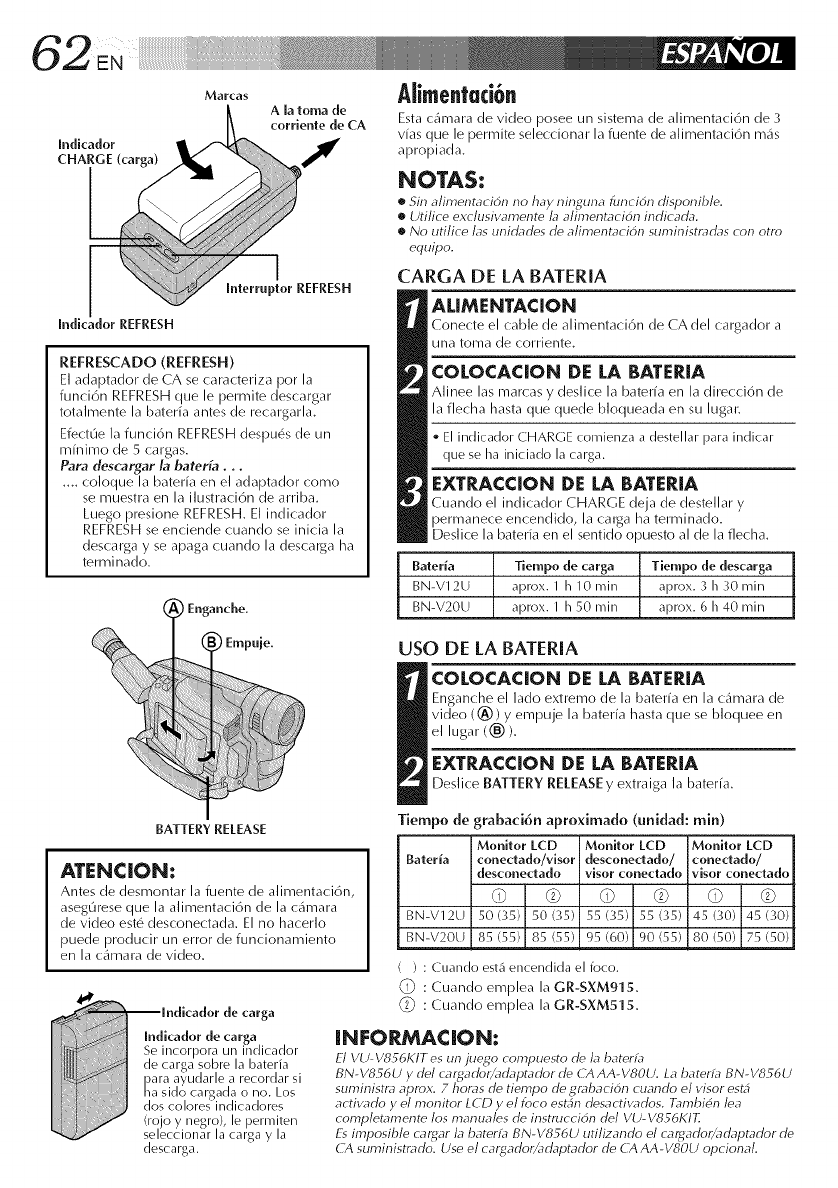
Indicador
CHARGE (carga)
Marcas
AJaloma de
corriente de CA
Indicador REFRESH
Interruptor REFRESH
REFRESCADO (REFRESH)
El adaptador de CA se caracteriza pot la
funci6n REFRESH que le perrnite descargar
totalrnente la bateria antes de recargarla.
EfectOe la funci6n REFRESH despu@s de un
mfnirno de 5 cargas.
Para descargar la baterfa...
.... coloque la baterfa en el adaptador corno
se muestra en la ilustraci6n de arriba.
Luego presione REFRESH. El indicador
REFRESH se enciende cuando se inicia la
descarga y se apaga cuando la descarga ha
terminado.
Enganche.
)Empuje.
Alimentacibn
Esta e_irnara de video pc)see un sisterna de alimentaci6n de 3
vias que le permite seleccionar la fuente de alimentaci6n mi_s
apropiada.
NOTAS:
•Sin alimentacidn no hay ninguna hmcidn disponihle.
•Utilice exclusiw_mente la alimentacidn indicada.
•No utilice las unidades de alimentacidn suministradas con otro
equipo.
cARGA DE LA BATERIA
ALIMENTACION
Conecte el cable de alirnentaci6n de CA del cargador a
una toma de corriente.
COLOCACION DE LA BATERIA
Alinee las mamas y desliee la bateria en la direcci6n de
la fiecha hasta que quede bloqueada en su lugar.
El indicador CHARGE comienza a destellar para indicar
clue se ha iniciado la carga.
EXTRACCION DE LA BATERIA
Cuando el indicador CHARGE deja de destellar y
permanece encendido, la carga ha ten_ninado.
Deslice la baterfa en el sentido o )uesto al de la flecha.
Baterla Tiempo de carga Tiempo de descarga
BN-VI2U aprox. I h 10 rain aprox. 3 h 30 rain
BN-V20U aprox. I h 50 rain aprox. 6 h 40 rain
USO DE LA BATERIA
COLOCACION DE LA BATERIA
_nche el lado extremo de la bateria en la c:/u_lara de
((_)) y empuje la bateffa hasta que se bloquee en
_r(®).
EXTRACCION DE LA BATERIA
Deslice BATTERY RELEASE y extraiga la bateria.
Tiempo de grabaci6n aproximado (unidad: min)
Monitor LCD Monilor LCD Monitor LCD
Baterla conedado/visor desconectado/ conedado/
desconectado visor conectado visor conectado
BN-V12U 50(35) 50 (35) 55(35) 55 (35) 45(30) 45 (30)
BN-V20U 85 (55) 85 (55) 95 (60) 90 (55) 80 (50) 75 (50)
BATTERY RELEASE
ATENCION:
Antes de desmontar la fuente de alimentaci6n,
aseg0rese que la alimentaci6n de la c_imara
de video est_ desconectada. El no hacerlo
puede producir un error de funcionamiento
en la cltmara de video.
de carga
Indicador de carga
Se incorpora un indicador
de carga sobre la bateria
)ara ayudarle a recordar si
na sido cargada o no. Los
dos coloresindicadores
(rojo y negro), le )ermiten
seleccionar la carga y la
descarga.
( ) : Cuando est_ encendida el foco.
:Cuando emplea la GR-SXM915.
_i_ : Cuando emplea la GR-SXM515.
INFORMACION:
El VU- V856KIT es un juego compuesto de la baterfa
BN-V856U y del carg_dor/adaptador de CA AA-VSOU. La baterfa BN-V856U
suministra aprox. 7 horas de tiempo de grabacidn cuando el visor est4
activado y el monitor LCD y el foco est4n desactivados. Tambi6n lea
completamente los manua/es de instruccidn del VU-V856KIT]
Es imposible carg_r la baterfa BN-V856U utilizando el cargador/adaptador de
CA suministrado. Use el cargadorZ_daptador de CA AA-VSOU opcional.
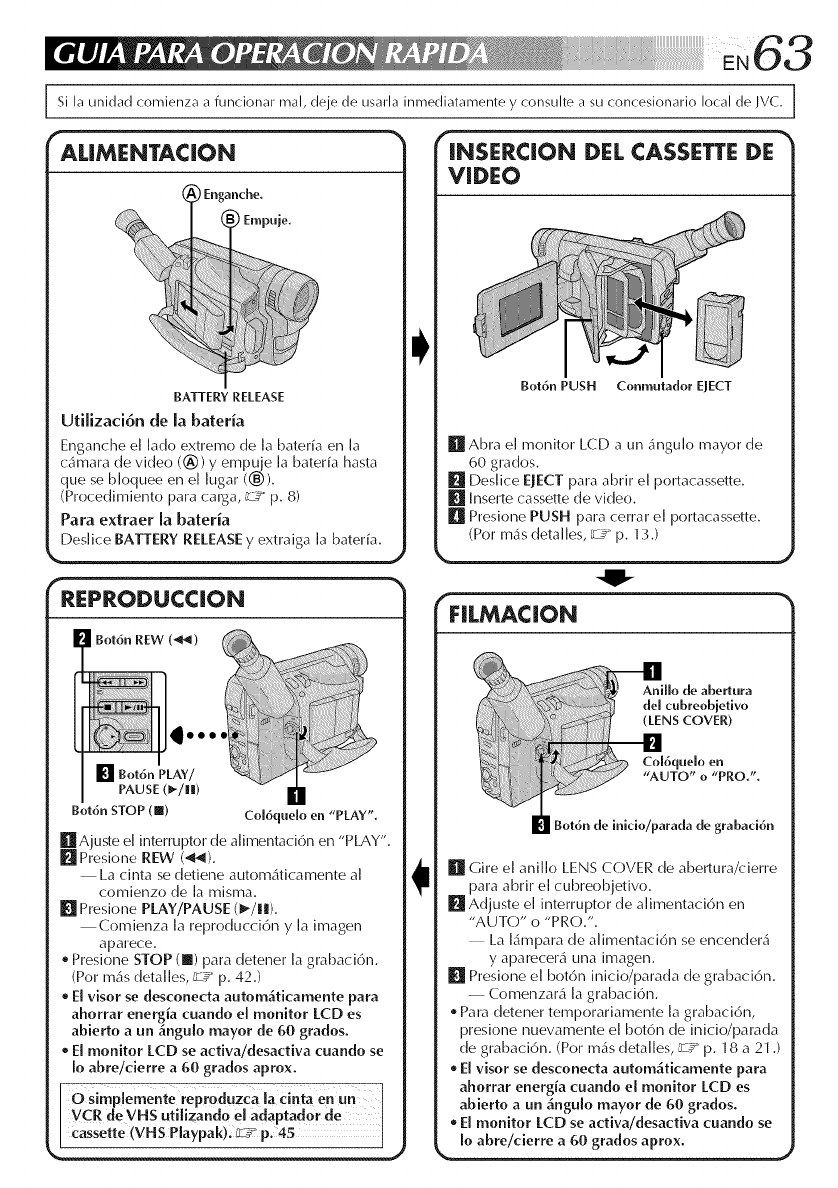
Si la uniclad comienza a funcionar real, deje tie usarla inmecliatamente y consulte a su concesionario local tie JVC.
ALIMENTACION
BATTERY RELEASE
Ufilizad6n de la bateria
Enganche el lado extremo de la bateria en la
c_imara de video ((_) y empLjje la bater[a hasta
que se bk)quee en el lugar ((,@),
(Procedimiento para carga, _,z:_p, 8)
Para extraer la baterh
Deslice BATTERY RELEASE y extraiga ]a bateria.
fREPRODIJCCION
PAUSE (_/ml)
Bot6n STOP (@) Co[6quelo en "PLAY",
ill Ajuste e] interrupter de alimentaci6n en "PLAY",
I_[ Presione REW (,_1),
La cinta se detiene autom_iticamente al
comienzo de ]a rnisma,
[] Presione PLAY/PAUSE (1_/||).
Comienza la reproducci6n y la imagen
aparece.
Presione STOP (ll) para detener ]a grabaci6n,
(Per m_s deta[les, _z:_ p, 42,)
El visor se desceneda autem__ticamente para
aherrar energia cuande el monitor LCD es
abierto a un __ngule mayor de 60 grades,
* El monitor LCD se adiva/desadiva cuando se
le abre/cierre a 60 grades @rex,
o Simplementerep,od.zcalaci.taen ]
VCR deVHS utilizandQ el adaptade r de
Casseffe (VHS Phypak). _ p. 45
INSERCION DEL CASSETTE DE
VIDEO
Bot6n PUSH Conmutador EJECT
1[11Abra el monitor LCD a un _%gulo mayor de
60 grades,
[] Deslice EJECT para abrir el portacassette,
[] Inserte cassette de vide(),
ill Presione PUSH para cerrar e] portacassette,
(Per m_s detalles, _ p, 13,)
FILMACION
lie de abertura
cubreobietivo
NS COVER)
6quelo en
"AUTO" o "PRO,",
Bot6n de inkio/parada de grabad6n
[] Gire el anillo LENS COVER de abertura/cierre
para abrir el cubreobjetivo.
[] Adjuste el interrupter de alimentaci6n en
"AUTO" o "PRO,",
La Limpara de alimentaci6n se encender_i
y aparecer_i una imagen,
[] Presione el bot6n inicio/parada de grabaci6n.
-- Comerlzar_ la grabaci6n,
e Para detener temporariamente ]a grabaci6n,
presione nuevamente e[ botOn de inicio/parada
de grabaci6n, (Per m_is deta][es, d_ p, 18 a 21 .)
El visor se desconeda autom__ticamente para
aherrar energh cuande el monitor LCD es
abierte a un __ngule mayor de 60 grades.
®El monitor LCD se adiva/desadiva cuande se
le abre/cierre a 60 grades @rex.

HOW TO LOCATE YOUR JVC SERVICE CENTER
TOLL FREE: 1-800-252-5722.
Dear customer:
In order to receive the most satisfaction from your purchase, read the instruction booklet before
operating the unit. In the event that repair is necessary, or for the address nearest your location,
please refer to the factory service center list below or within the Continental United States, call 1-800-
252-5722 for your authorized servicer. Remember to retain your Bill of Sale for Warranty Service.
mJVC
JVC SERVICE & ENGINEERING
COMPANY OF AMERICA
DIVISION OF US JVC CORP.
FACTORY SERVICE CENTER LOCATIONS
107 Little Falls Road
Fairfield, NJ 07004-2105
(973) 808-9279
5665 Corporate Avenue
Cypress, CA 90630-4727
(714) 229-8011
230 Eliot Street
Ashland, MA 01721-2377
(508) 881-5923
1500 Lakes Parkway
Lawrenceville, GA 30243-5857
(770) 339-2522
10700 Hammerly Blvd., Suite 110
Houston, TX 77043-2310
(713) 935-9331
8192 West State Road 84
Davie, FL 33324-4611
(954) 472-1960
705 Enterprise Street
Aurora, IL 60504-8135
(630) 851-7855
2969 Mapunapuna Place, Suite 101
Honolulu, HI 96819-2000
(808) 833-5828
890 Dubuque Avenue
South San Francisco, CA 94080-1804
(415) 871-2666
Sophisticated electronic products may require occasional service. Just as quality is a keyword in the
engineering and production of the wide array of JVC products, service is the key to maintaining the
high level performance for which JVC is world famous. The JVC service and engineering organization
stands behind our products.
NATIONAL HEADQUARTERS
JVC SERVICE & ENGINEERING COMPANY OF AMERICA
DIVISION OF US JVC CORP.
107 Little Falls Road
Fairfield, NJ 07004-2105
If you ship the product...
Pack your JVC unit in the original carton or one of equivalent size and strength. Enclose, with the unit,
a letter stating the problem or symptom that exists and also a copy of the receipt or bill of sale you
received when you purchased your JVC unit. Print your home return address on the outside and the
inside of the carton. Send to the appropriate JVC Factory Service Center as listed above.
ACCESSORIES
To purchase accessories for your JVC product, you
may contact your local JVC Dealer.
Or from the 48 Continental United States call toll free:
1-800-882-2345.
Don't service it yourself.
CAUTION
To prevent electrical shock, do not open the
cabinet. No user serviceable parts inside.
Refer servicing to qualified service personnel.
...... i;! iiiiiiiiiiiiiiiiiiiiiiiiiiiiiiiiiiiiiiiiiiiiiiiiiiiiiii ii ii i!ii i¸¸¸EN6,.5
LIMITEDWARRANTY CONSUMERVIDEO1-90
JVC COMPANY OF AMERICA warrants this product and all parts thereof, except as set forth below ONLY TO
THE ORIGINAL PURCHASER AT RETAIL to be FREE FROM DEFECTIVE MATERIALS AND WORKMANSHIP
from the date of original retail purchase for the period as shown below. ("The Warranty Period")
IPARTs1YR ILABOR90DAYsl
THIS LIMITED WARRANTY IS VALID ONLY IN THE FIFTY (50) UNITED STATES, THE DISTRICT OF
COLUMBIA AND IN THE COMMONWEALTH OF PUERTO RICO.
WHAT WE WILL DO:
If this product is found to be defective, JVC will repair or replace defective parts at no charge to the original owner.
Such repair and replacement services shall be rendered by JVC during normal business hours at JVC authorized
service centers. Parts used for replacement are warranted only for the remainder of the Warranty Period. Atl
products and parts thereof may be brought to a JVC authorized service center on a carry-in basis except for
Television sets having a screen size 25 inches and above which are covered on an in-home basis.
WHAT YOU MUST DO FOR WARRANTY SERVICE:
Return your product to a JVC authorized service center with a copy of your bill of sale. For your nearest JVC
authorized service center, please call toll free: (800) 252-5722.
If service is not available locally, box the product carefully, preferably in the original carton, and ship, insured, with
a copy of your bill of sale plus a letter of explanation of the problem to the nearest JVC Factory Service Center,
the name and location of which will be given to you by the toll-free number.
If you have any questions concerning your JVC Product, please contact our Customer Relations Department.
WHAT IS NOT COVERED:
This limited warranty provided by JVC does not cover:
1. Products which have been subject to abuse, accident, alteration, modification, tampering, negligence, misuse,
faulty installation, lack of reasonable care, or if repaired or serviced by anyone other than a service facility
authorized by JVC to render such service, or if affixed to any attachment not provided with the products, or if
the model or serial number has been altered, tampered with, defaced or removed;
2. Initial installation and installation and removal for repair;
3. Operational adjustments covered in the Owner's Manual, normal maintenance, video and audio head cleaning;
4. Damage that occurs in shipment, due to act of God, and cosmetic damage;
5. Signal reception problems and failures due to line power surge;
6. Video Pick-up Tubes/CCD Image Sensor, Cartridge, Stylus (Needle) are covered for 90 days from the date of
purchase;
7. Accessories;
8. Batteries (except that Rechargeable Batteries are covered for 90 days from the date of purchase);from the date
of purchase);
There are no other express warranties except as listed above.
THE DURATION OF ANY IMPLIED WARRANTIES INCLUDING THE IMPLIED WARRANTY OF
MERCHANTABILITY, IS LIMITED TO THE DURATION OF THE EXPRESS WARRANTY HEREIN.
JVC SHALL NOT BE LIABLE FOR THE LOSS OF USE OF THE PRODUCT, INCONVENIENCE, LOSS OR ANY
OTHER DAMAGES, WHETHER DIRECT, INCIDENTAL OR CONSEQUENTIAL (INCLUDING, WITHOUT
LIMITATION, DAMAGE TO TAPES, RECORDS OR DISCS) RESULTING FROM THE USE OF THIS PRODUCT,
OR ARISING OUT OF ANY BREACH OF THIS WARRANTY. ALL EXPRESS AND IMPLIED WARRANTIES,
INCLUDING THE WARRANTIES OF MERCHANTABILITY AND FITNESS FOR PARTICULAR PURPOSE, ARE
LIMITED TO THE WARRANTY PERIOD SET FORTH ABOVE.
Some states do not allow the exclusion of incidental or consequential damages or limitations on how long an
implied warranty lasts, so these limitations or exclusions may not apply to you. This warranty gives you specific
legal rights and you may also have other rights which vary from state to state.
JVC COMPANY OF AMERICA 1700 Valley Road
DIVISION OF US JVC CORP. Wayne, N.J. 07470
REFURBISHED PRODUCTS CARRY A SEPARATE WARRANTY, THIS WARRANTY DOES NOT APPLY. FOR
DETAILS OF REFURBISHED PRODUCT WARRANTY, PLEASE REFER TO THE REFURBISHED PRODUCT
WARRANTY INFORMATION PACKAGED WITH EACH REFURBISHED PRODUCT.
For customer use:
Enter below the Model No. and Serial No. which is located either on the rear, bottom or side of the cabinet. Retain
this information for future reference.
Model No,: Serial No:
Purchase date: Name of dealer:



6363
XX
t,tl €,O
t,tl O1
JVC
VICTOR COMPANY OF JAPAN, LIMITED
COPYRIGHT@ 1998 VICTOR COMPANY OF JAPAN, LTD. _0_ _" Printed in Japan
'_' 1298MKV*UN*YP
