JVC GZ MG330AA M8E3 User Manual MG330AA, MG345AA, MG465AA LYT1837 001C
GZ-MG465AA GZ-MG465AA LYT1837-001C English,
GZ-MG345AA GZ-MG345AA LYT1837-001C English,
User Manual: JVC GZ-MG330AA GZ-MG330AA, GZ-MG345AA, GZ-MG465AA English,
Open the PDF directly: View PDF  .
.
Page Count: 40
GZ-MG465
GZ-MG345
GZ-MG330
AA
AA
AA
ENGLISH
HARD DISK CAMCORDER
INSTRUCTIONS
Dear Customer
Thank you for purchasing this hard
disk camera. Before use, please read
the safety information and precautions
contained in pages 4 and 5 to ensure
safe use of this product.
EN
2
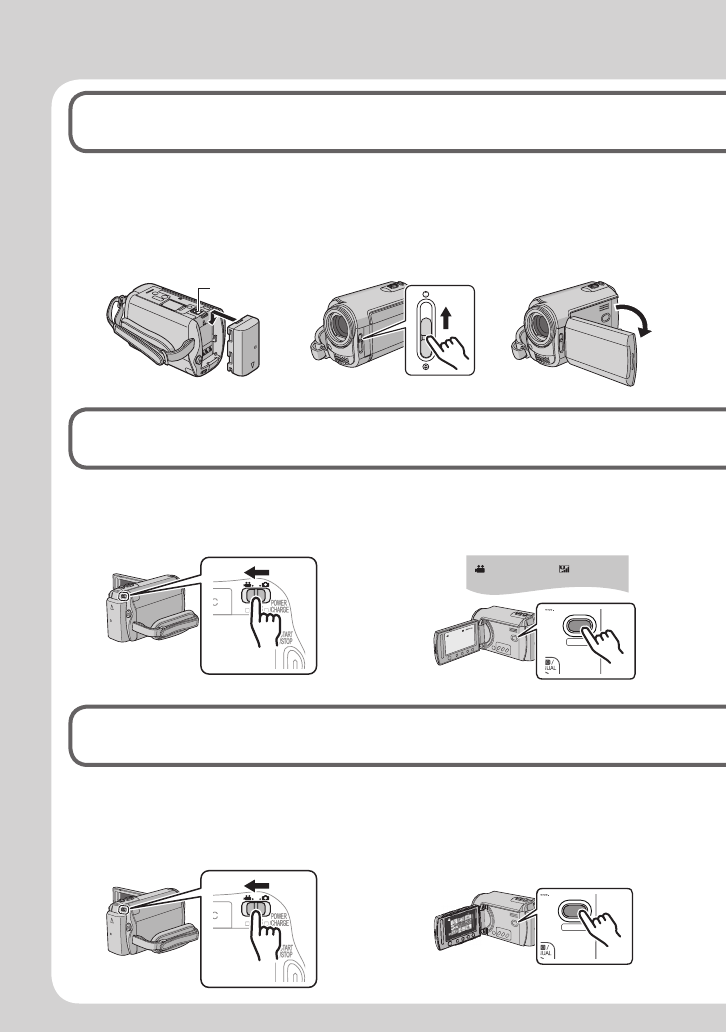
Easy Start Guide
Video recording
2
Q Select ! (video) mode R Select recording (REC) mode
BATT.
PLAY/REC
SELECT
[5h56m]
PLAY/REC
SELECT
Playing back
3
Q Select ! (video) mode R Select playback (PLAY) mode
to display thumbnails on the
screen
Preparation
1
Q Attach the battery
pack
Charge the Battery Pack.
( pg. 14)
R Open the lens
cover
S Open the LCD monitor
The camera turns on
automatically.

3
ENGLISH
S Press the START/STOP button to start recording
S Select the desired fi le using the touch sensor. And then
touch the OK button to start playback
• To stop playback
Select L.
T When [SET DATE/TIME!] appears,
select [YES] within 10 seconds.
U Set the date and time
( pg. 14)
CAUTION: Touch the sensors with your fi nger. The sensors do not function if you touch
them with your fi nger nail or with gloves on.
SET DATE/TIME!
YES
NO
DATE TIME
31 01
11 07
2007
( pg. 6)

4
Safety Precautions
WARNING: TO PREVENT FIRE OR SHOCK
HAZARD, DO NOT EXPOSE THIS UNIT TO RAIN
OR MOISTURE.
CAUTIONS:
• If you notice smoke or a peculiar smell coming
from the camcorder or AC Adapter, shut it
down and unplug it immediately. Continue using
the camcorder or AC Adapter under these
conditions could lead to fi re or electric shock.
Contact your JVC dealer. Do not attempt to
repair the malfunction yourself.
• To prevent shock, do not open the cabinet. No
user serviceable parts inside. Refer servicing to
qualifi ed personnel.
• When you are not using the AC adapter for a
long period of time, it is recommended that you
disconnect the power cord from AC outlet.
• In certain areas, use the conversion plug
depending on the type of your AC wall outlet.
NOTES:
• The rating plate and safety caution are on the
bottom and/or the back of the main unit.
• The serial number plate is on the battery pack
mount.
• The rating information and safety caution of the
AC adapter are on its upper and lower sides.
WARNING:
The battery pack, the camera with battery
installed, and the remote control with battery
installed should not be exposed to excessive heat
such as direct sunshine, fi re or the Iike.
CAUTION:
The mains plug shall remain readily operable.
Caution on Replaceable lithium battery
The battery used in this device may present a fi re
or chemical burn hazard if mistreated.
Do not recharge, disassemble, heat above 100°C
or incinerate.
Replace battery with Panasonic (Matsushita
Electric), Sanyo, Sony or Maxell CR2025.
Danger of explosion or Risk of fi re if the battery is
incorrectly replaced.
• Dispose of used battery promptly.
• Keep away from children.
• Do not disassemble and do not dispose of in fi re.
When the equipment is installed in a cabinet or on
a shelf, make sure that it has suffi cient space on
all sides to allow for ventilation (10 cm or more on
both sides, on top and at the rear).
Do not block the ventilation holes.
(If the ventilation holes are blocked by a
newspaper, or cloth etc. the heat may not be able
to get out.)
No naked fl ame sources, such as lighted candles,
should be placed on the apparatus.
When discarding batteries, environmental
problems must be considered and the local rules
or laws governing the disposal of these batteries
must be followed strictly.
The apparatus shall not be exposed to dripping
or splashing.
Do not use this equipment in a bathroom or
places with water.
Also do not place any containers fi lled with water
or liquids (such as cosmetics or medicines, fl ower
vases, potted plants, cups etc.) on top of this unit.
(If water or liquid is allowed to enter this
equipment, fi re or electric shock may be caused.)
5
ENGLISH
Remember that this camera is intended for
private consumer use only.
Any commercial use without proper permission
is prohibited. (Even if you record an event such
as a show, performance or exhibition for personal
enjoyment, it is strongly recommended that you
obtain permission beforehand.)
Trademarks
• Manufactured under licence from Dolby
Laboratories. Dolby and double-D symbol are
trademarks of Dolby Laboratories.
• Windows® is either registered trademark or
trademark of Microsoft Corporation in the United
States and/or other countries.
• Macintosh is a registered trademark of Apple
Inc.
• Other product and company names included
in this instruction manual are trademarks
and/or registered trademarks of their respective
holders.
Do not point the lens directly into the sun. This
can cause eye injuries, as well as lead to the
malfunctioning of internal circuitry. There is also a
risk of fi re or electric shock.
CAUTION!
The following notes concern possible physical
damage to the camera and to the user.
Carrying or holding the camera by the LCD
monitor can result in dropping the unit, or in a
malfunction.
Do not use a tripod on unsteady or unlevel
surfaces. It could tip over, causing serious damage
to the camera.
CAUTION!
Connecting cables (Audio/Video, S-Video, etc.)
to the camera and leaving it on top of the TV is
not recommended, as tripping on the cables will
cause the camera to fall, resulting in damage.
CAUTION:
To avoid electric
shock or damage to
the unit, fi rst fi rmly
insert the small end
of the power cord
into the AC Adapter
until it is no longer
wobbly, and then
plug the larger end of the power cord into an AC
outlet.
If this symbol is shown, it is only
valid in the European Union.
6
NOTE
The cursor moves from 1 to 9 on the index
screen when you slide your fi nger on the
touch sensor.
1 2 3
4 5 6
7 8 9
123
456
789
CAUTION
Touch the sensors with your fi nger. The
sensors do not function if you touch them with
your fi nger nail or with gloves on.
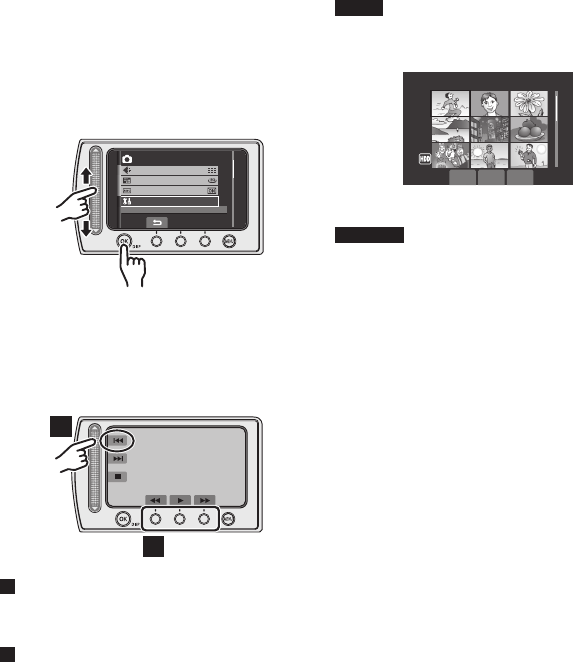
How to Select an Item Using the
Touch Sensor
An example screen in English is used for the
guidance below.
L Selecting an item from the menu list
(on the menu screen)
MENU
IMAGE SIZE
GAIN UP
IMAGE QUALITY
BASIC SETTINGS
Q
R
Q Slide your fi nger up and down on the
sensor.
R Touch the OK button.
L Using on-screen buttons
(e.g. during playback pg. 18)
A
B
A To select an on-screen button appearing
on the left side, touch the portion of the
sensor next to the on-screen button.
B To select an on-screen button appearing at
the bottom of the screen, touch the touch
sensor under the on-screen button you
want to select.

7
ENGLISH
Make a backup of important recorded data
JVC will not be responsible for any lost data. It is recommended to copy your important
recorded data to a DVD or other recording media for storage. ( pg. 22)
Make a trial recording
Before the actual recording of important data, make a trial recording and play back the
recorded data to check that the video and sound have been recorded correctly.
Reset the camera if it does not operate correctly
This camera uses a microcomputer. Factors such as background noise and interference
can prevent it from operating correctly. If the camera does not operate correctly, reset the
camera. ( pg. 33)
Precautions on handling batteries
• Be sure to use the JVC BN-VF808U/VF815U/VF823U battery packs.
• If the camera is subjected to electrostatic discharge, turn the power off before using it
again.
If a malfunction occurs, stop using the camera immediately
and consult your local JVC dealer
• If a problem occurs when using the microSD card, take the card together with the
camera for repair. If one of them is not included, the cause of the malfunction cannot be
diagnosed, and the camera cannot be repaired.
• Recorded data may be erased while the camera is being repaired or inspected. Back up
all data before requesting repairs or inspections.
Because the camera may be used for demonstration in a shop,
the demonstration mode is set to [ON] by default
To deactivate the demonstration mode, set [DEMO MODE] to [OFF] from the MENU.
When connecting the camera to other devices using an
optional DV cable, make sure to follow the procedure below.
Connecting the cable incorrectly may cause malfunctions to
the camera and/or other devices.*
• Connect the DV cable fi rst to the device, and then to the camera.
• Connect the DV cable (plugs) correctly according to the shape of the DV connector.
* This does not apply to the GZ-MG330 model.

8
Contents
GETTING STARTED
Accessories ............................................ 9
How to Use the Everio Dock .........................9
Attaching the Core Filter to the USB Cable ...9
Index ...................................................... 10
Indications on LCD Monitor ................. 12
Necessary Settings before Use ........... 14
Charging the Battery Pack ...........................14
Date/Time Setting ........................................14
Other Settings ....................................... 15
Attaching the Shoulder Strap .......................15
Checking the Remaining Battery Power ......15
Preparing the Remote Control .....................15
RECORDING
Recording Files ..................................... 16
Video Recording ..........................................16
Still Image Recording .................................. 17
Playing Back Files ................................ 18
Video/Still Image Playback .......................... 18
Watching Images on TV........................ 19
EDITING/COPYING
Managing Files ...................................... 20
Deleting/Protecting Files ..............................20
Copying Files ........................................ 22
Using a DVD Burner to Copy Files from the
Camera ......................................................22
PC OPERATION
File Backup on a Windows® PC ........... 23
System Requirements .................................23
Software Installation ....................................24
Connecting the Camera to the PC ...............25
File Backup on the PC .................................26
File Backup on the PC without Using
Software .....................................................27
Other Windows® PC Operations .......... 28
Getting More Use of the Software ...............28
Folder Structure and Extensions ........ 29
File Backup on a Macintosh® .............. 30
System Requirements .................................30
Connecting the Camera to the Macintosh ...30
File Backup on the Macintosh ..................... 31
Customer Support Information ........... 32
FURTHER INFORMATION
Troubleshooting .................................... 33
Cleaning ................................................ 34
Warning Indications ............................. 35
Specifi cations ....................................... 36
Cautions ................................................ 38
Terms ..................................................... 40
Read these INSTRUCTIONS to enjoy your CAMCORDER.
For more details on the operations, refer to the GUIDEBOOK in the
supplied CD-ROM.
In order to view the GUIDEBOOK, Adobe® Acrobat® ReaderTM or Adobe®
Reader® must be installed.
Adobe® Reader® can be loaded from Adobe’s web site:
http://www.adobe.com/
NOTE
Select your desired language with a single click.
The model name is indicated on the bottom of your camcorder.
9
ENGLISH
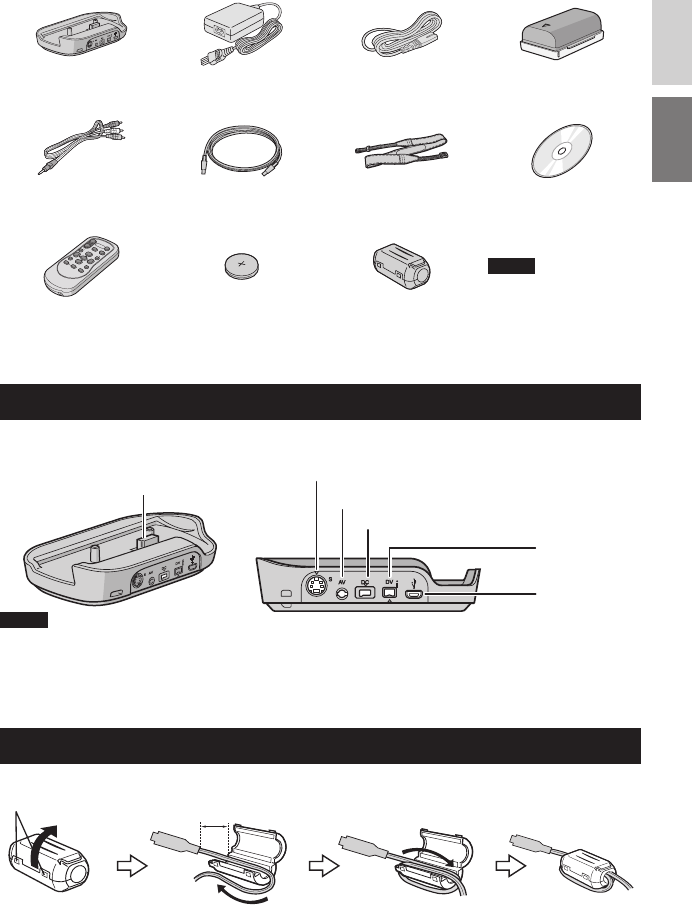
Accessories
GETTING STARTED
Everio Dock*
CU-VC4U ( below)
AC Adapter
AP-V14E
Power Cord Battery Pack
BN-VF808U
Audio/Video Cable USB Cable
( pg. 22, 25 and 30)
Shoulder Strap
( pg. 15)
CD-ROM
( pg. 24, 28)
NOTE
Make sure to use the
provided cables for
connections. Do not
use any other cables.
Remote Control Unit
RM-V751U ( pg. 15)
Lithium Battery
CR2025
Pre-installed in the
remote control unit.
Core Filter
How to Use the Everio Dock*
You can connect cables to the connectors of the Everio dock. The connection is completed when you
place the camera on the dock.
NOTE
For the connection using the S-Video jack and DV jack, an optional S-Video cable and DV cable are needed.
Consult the JVC Service Centre described on the sheet included in the package for details on its availability.
Make sure to connect the end with a core fi lter to the camera. The core fi lter reduces interference.
• The S-Video cable (optional) enables even higher playback quality on TV. ( pg. 19)
* GZ-MG330 model does not include the Everio dock.
Attaching the Core Filter to the USB Cable
Connect the end of the cable with the core fi lter to the camera.
Camera Connection Terminal
S-Video Jack
AV Jack
DC Jack
DV Jack
USB Jack
Release the stopper. 3 cm
Wind once.
10
Index
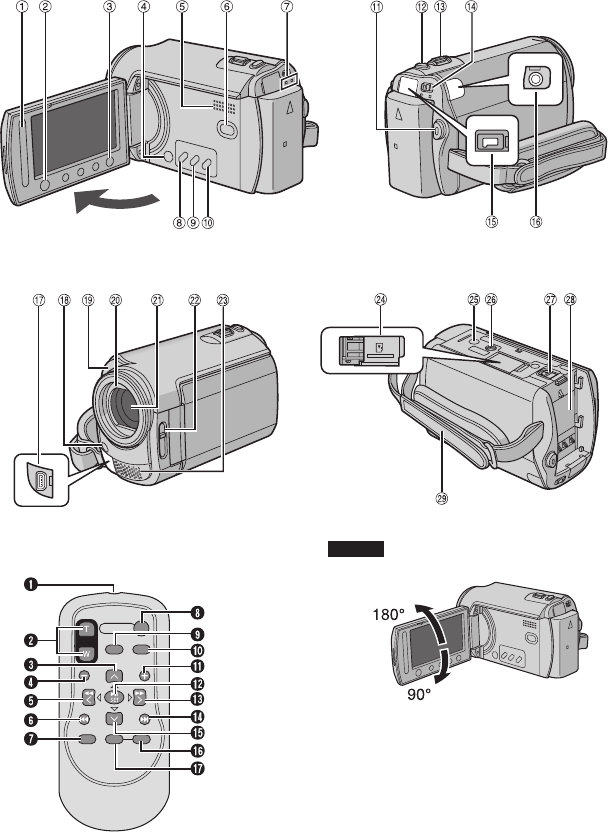
NOTES
• The LCD monitor can rotate 270°.
• Power-linked operation
You can also turn the camera on/off by
opening/closing the LCD monitor during the
recording mode.
• Be careful not to cover 4, 5, 7 and 9
during shooting.

11
ENGLISH
Camera
! Touch Sensor ( pg. 6)
# OK (DISP) Button [OK/DISP] ( pg. 13)
$ Menu Button [MENU]
% Power Switch [POWER]
(You can turn off the camera by pressing
and holding this button.)
& Speaker
( Playback/Recording Mode Switching
Button [SELECT PLAY/REC] ( pg. 16)
) Access/Charge Lamp [ACCESS/CHARGE]
(Blinks when you access fi les or charge
the battery. Do not turn off the power or
remove the battery pack/AC adapter while
accessing fi les.)
* Direct DVD Button [DIRECT DVD]
( pg. 22)/Title Button [TITLE]
+ Direct Backup Button [DIRECT BACK
UP] ( pg. 26)/Information Button [INFO]
( pg. 15)
, Auto/Manual Mode Button [AUTO/
MANUAL]
- Video Recording Start/Stop Button [START/
STOP] ( pg. 16)
. Still Image Shooting Button [SNAPSHOT]
( pg. 17)
/ Zoom Lever [W 7 , T ,]
Speaker Volume Control [–VOL+]
( pg. 18)
0 Mode Switch [!, #]
1 DC Jack [DC] ( pg. 14)
2 Audio/Video Jack [AV]
3 USB (Universal Serial Bus) Jack [ 2 ]
( pg. 22, 25 and 30)
4 LED Light
5 Camera Sensor
Remote Sensor ( pg. 15)
6 Lens Cover
7 Lens
8 Lens Cover Switch [ =, > ]
9 Stereo Microphone
: microSD Card Slot
; Stud Hole
< Tripod Mounting Socket
= Battery Release Button [BATT.] ( pg. 14)
> Battery Pack Mount ( pg. 14)
? Grip Strap
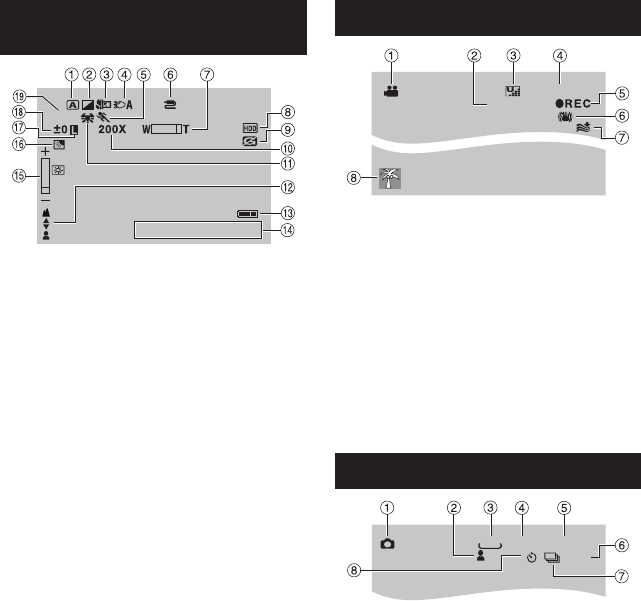
Remote Control
Q Infrared Beam Transmitting Window
R ZOOM (T/W) Buttons
Zoom In/Out
S Up Button
Rotate Button (counterclockwise)
( pg. 18)
T Skip Backward Button
U Left Button
V Back Button
W PLAYLIST Button
X START/STOP Button
Y SNAPSHOT Button ( pg. 17)
Z INFO Button ( pg. 15)
a Skip Forward Button
b PLAY/PAUSE Button
c Right Button
d Next Button
e Down Button
Rotate Button (clockwise) ( pg. 18)
f INDEX Button
g DISP Button
12
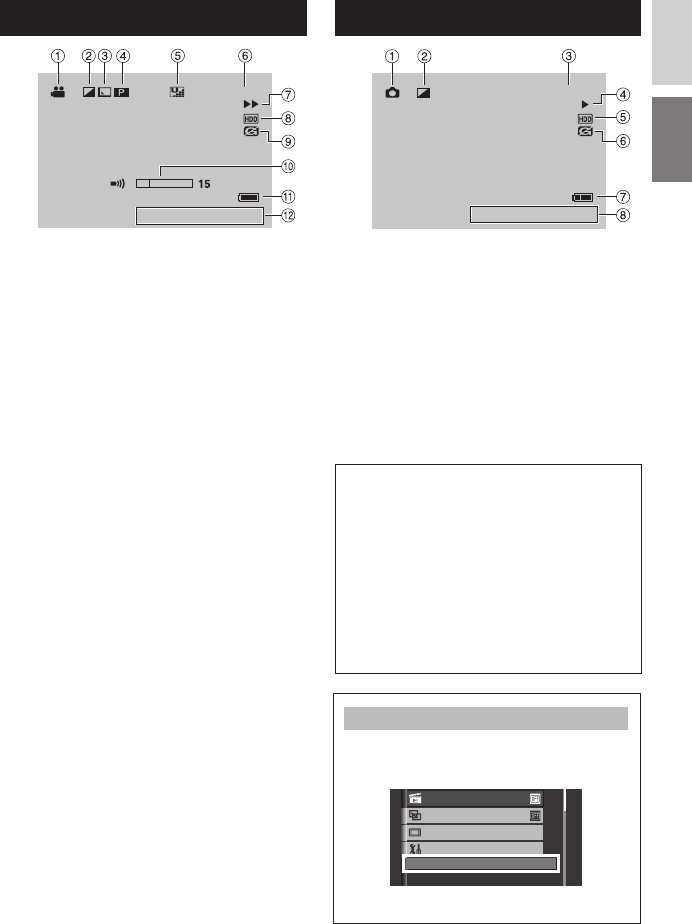
During both Video and Still Image
Recording
1/250
20. 01. 2007
16:55
! Selected Operation Mode Indicator
4 : Auto Mode
3 : Manual Mode
# Effect Mode Indicator
$ Tele Macro Mode Indicator
% LED Light Indicator
& Program AE Mode Indicator
( AV/S-Video Input Jack Indicator*
) Zoom Indicator
* Selected Medium Indicator
+ Drop Detection Indicator (Appears when
[DROP DETECTION] is set to [OFF].)
, Approximate Zoom Ratio
- White Balance Indicator
. Manual Focus Adjustment Indicator
/ Battery Indicator ( pg. 35)
0 Date/Time ( pg. 14)
1 Brightness Control Indicator
2 Backlight Compensation Indicator
3 Iris Lock Indicator
4 ± : Exposure Adjustment Indicator
. : Photometry Area Control Indicator
5 Shutter Speed
* This does not apply to the GZ-MG330 model.
Indications on LCD Monitor
During Video Recording Only
0:04:01
[5h56m]
! Mode Indicator
# Counter
$ Picture Quality: B (ULTRA FINE),
C (FINE), D (NORMAL), E (ECONOMY)
% Remaining Time ( pg. 16, 37)
& MREC: (Appears during recording.)
( pg. 16)
MQ: (Appears during record-standby
mode.)
( Digital Image Stabiliser (DIS) Indicator
(Appears when [DIS] is set to [OFF].)
) Wind Cut Indicator
* Event Indicator
During Still Image Recording Only
PHOTO
[9999]
FINE
10
640
! Mode Indicator
# Focus Indicator
$ Image Size
% Picture Quality: FINE (fi ne) or STD
(standard)
& Remaining Number of Shots ( pg. 37)
( Shooting Indicator ( pg. 17)
) Shutter Mode Indicator
* Self-Timer Recording Indicator
13
ENGLISH
During Video Playback
X-60
9:55:01
20. 01. 2007
16:55
! Mode Indicator ( pg. 18)
# Effect Mode Indicator
$ Wipe/Fader Effect Indicator
% 6 : Playlist Playback Indicator (Appears
when playing back a playlist.)
¨ª : Event Search Playback Indicator
(Appears when playing back a video fi le
from the event search.)
¨© : Date Search Playback Indicator
(Appears when playing back a video fi le
from the date search.)
& Picture Quality: B (ULTRA FINE),
C (FINE), D (NORMAL), E (ECONOMY)
( Counter
) Playback Mode ( pg. 18)
F: Playback
Q: Pause
K: Forward Search
J: Reverse Search
G: Forward Slow-Motion
E: Reverse Slow-Motion
(The number on the left shows speed.)
* Selected Medium Indicator
+ Drop Detection Indicator (Appears when
[DROP DETECTION] is set to [OFF].)
, Volume Level Indicator
- Battery Indicator ( pg. 35)
. Date/Time ( pg. 14)
During Still Image Playback
101-0098
20. 01. 2007
16:55
! Mode Indicator ( pg. 18)
# Effect Mode Indicator
$ Folder/File Number
% Slide Show Playback Indicator ( pg. 18)
& Selected Medium Indicator
( Drop Detection Indicator (Appears when
[DROP DETECTION] is set to [OFF].)
) Battery Indicator ( pg. 35)
* Date/Time ( pg. 14)
Switching indication modes on LCD
monitor
Each time you touch the DISP button,
indications on LCD monitor switch as
shown below;
In recording mode:
All indications/Indications for selected
functions
In playback mode:
All indications/Only date and time/
No indications
On-screen function guide
The on-screen function guide is displayed
at the bottom of the screen during menu
display, etc.
EFFECT
WIPE/FADER
BASIC SETTINGS
MONITOR OFF
ADD EFFECT TO IMAGE
14
Necessary Settings before Use
Charging the Battery Pack
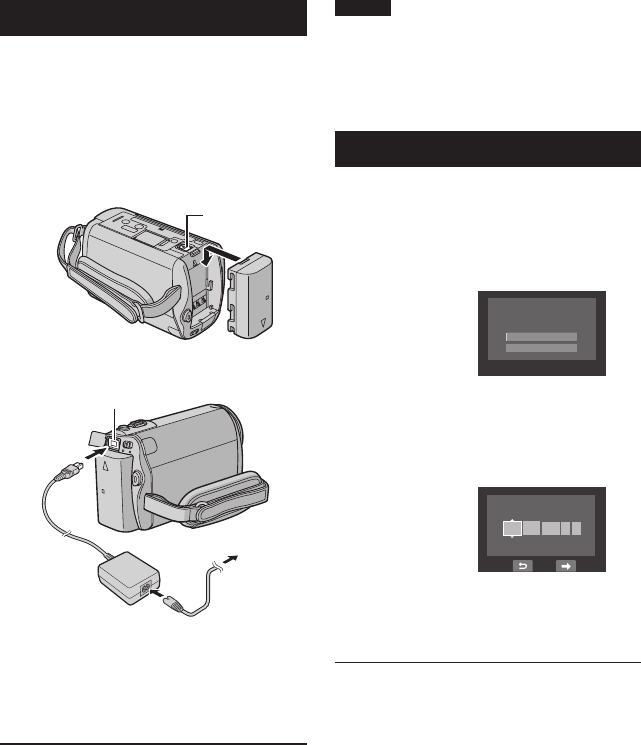
1Close the LCD monitor to turn off the
camera.
2Attach the battery pack.
Slide the battery pack down until it locks
in place.
Bottom of the Camera
BATT.
3Connect the AC adapter.
• You can also connect the AC adapter using
the Everio dock connector.* ( pg. 9)
* GZ-MG330 model does not include the
Everio dock.
• The charge lamp blinks to indicate charging
has started.
L To detach the battery pack
Slide and hold BATT. ( step 2), then
remove the battery pack.
L To check the remaining battery power
See page 15.
NOTES
• You can also use the camera with just the
AC adapter.
• Please do not pull or bend the AC adapter
plug and cable. This may damage the AC
adapter.
Date/Time Setting
1Open the LCD monitor to turn on the
camera.
2When [SET DATE/TIME!] appears,
select [YES] within 10 seconds.
SET DATE/TIME!
YES
NO
If you do not select within 10 seconds, the
screen disappears. In such case, press
and hold the POWER button and turn the
camera on again.
3Set the date and time.
DATE TIME
31 01
11 07
2007
Repeat this step to input the day, month,
year, hour and minute.
4Touch the OK button to fi nish.
L To change the date and time
1) Touch the MENU button.
2) Select [BASIC SETTINGS], and then
[CLOCK ADJUST].
3) Set the date and time.
L To return to the previous screen
Select @.
L To quit the screen
Touch the MENU button.
DC Jack
AC Adapter
To AC Outlet
(110V to 240V)
15
ENGLISH
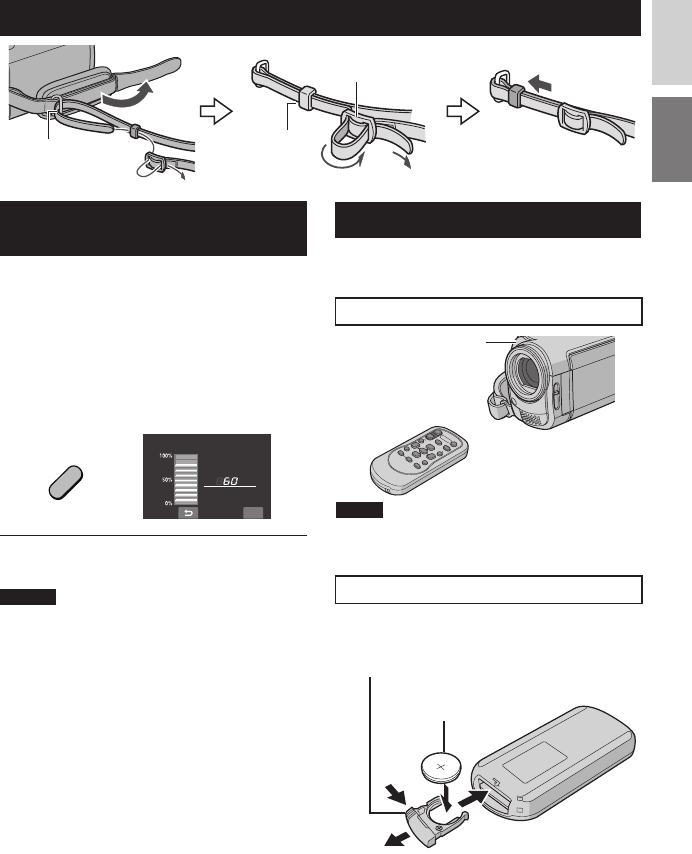
Checking the Remaining Battery
Power
Preparation:
• Attach the battery pack.
• Press the SELECT PLAY/REC button to
select recording mode.
For ! mode:
Press the INFO button twice or the INFO
button and then select ;.
For # mode:
Press the INFO button.
DIRECT
BACK UP
INFO
BATTERY CONDITION
MAX TIME
min
QUIT
L To return to the normal screen
Press the INFO button again.
NOTES
• If “COMMUNICATING ERROR” appears,
there may be a problem with your battery.
In such a case, consult your nearest JVC
dealer.
• The recordable time display should only be
used as a guide. It is displayed in 10 minute
units.
Preparing the Remote Control
A battery is included inside the remote control at
the time of purchase.
Remove the insulation sheet before use.
Beam Effective Area
NOTE
The transmitted beam may not be effective or may
cause incorrect operation when the remote sensor
is directly exposed to sunlight or powerful lighting.
To Reinsert the Battery
Pull out the battery holder by pressing the lock
tab.
Lock Tab
Lithium Battery
(CR2025)
Effective distance:
5 m (16 ft)
Remote Sensor
Other Settings
Attaching the Shoulder Strap
Eyelet Strap Guide
Buckle
16
Recording Files
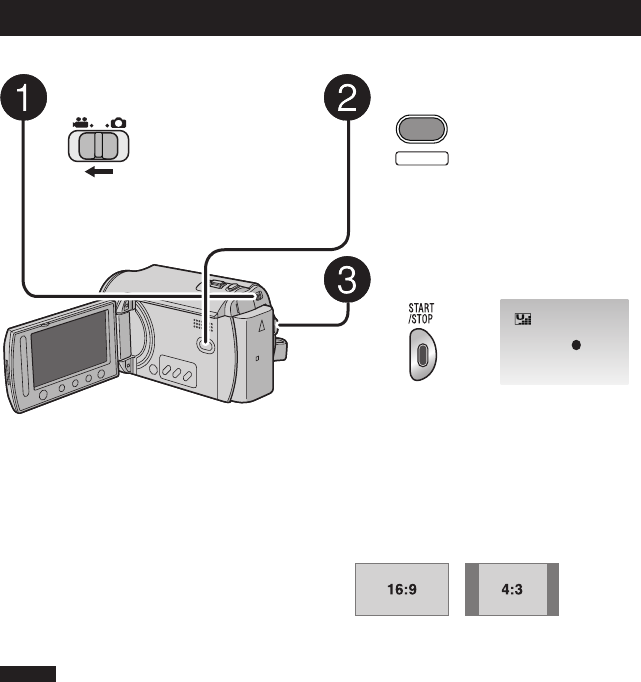
Video Recording
Preparation: Open the LCD monitor to turn on the camera.
Press the SELECT PLAY/REC
button to select recording mode.
PLAY/REC
SELECT
Press the START/STOP button to
start recording.
REC
[5h56m]
Approximate remaining time for
recording appears.
L To stop recording
Press the START/STOP button again.
L To view the video you just recorded
Select A during pause.
During the preview, you can delete the
video by selecting *.
L To change the picture quality
Change the settings in [VIDEO QUALITY]
from the MENU.
L To change the aspect ratio of the image
(16:9/4:3)
Change the settings in [SELECT ASPECT
RATIO] from the MENU.
Slide the mode switch to select
! (video) mode.
NOTES
• Video fi les are given the names MOV001.MOD to MOV009.MOD, MOV00A.MOD to MOV00F.MOD,
and MOV010.MOD in order of recording.
• After recording video for 12 consecutive hours, recording stops automatically.
• A new fi le will be created for every 4 GB of continuous shooting.
• This camera records video in MPEG2 format compliant with SD-VIDEO format. This camera is not
compatible with other digital video formats.
RECORDING
17
ENGLISH
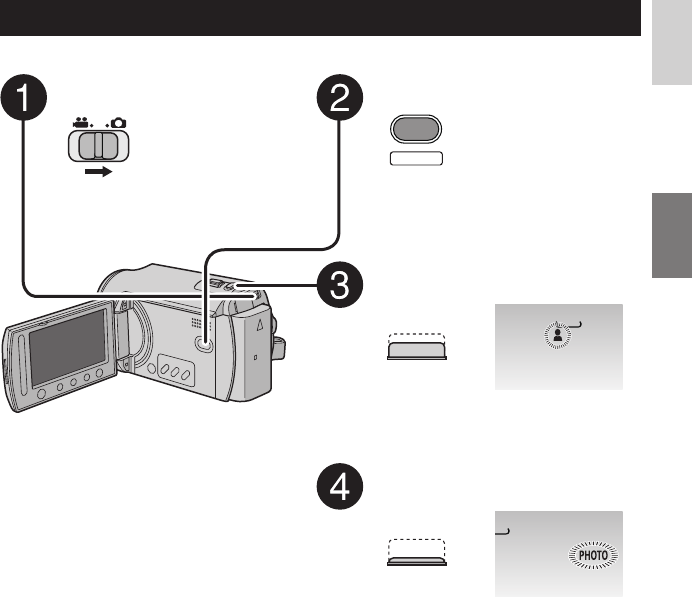
Still Image Recording
Preparation: Open the LCD monitor to turn on the camera.
Slide the mode switch to select
# (still image) mode.
Press the SELECT PLAY/REC
button to select recording mode.
PLAY/REC
SELECT
Press and hold the SNAPSHOT
button halfway.
[
FINE
640
The ? indicator becomes green when
the captured image is focused.
Press the SNAPSHOT button fully
to take the photo/picture.
[9999]
FINE
4
0
L To view the image you just recorded
Select A after shooting.
During the preview, you can delete the
image by selecting *.
L To change the picture quality
Change the settings in [IMAGE
QUALITY] from the MENU.
L To record still images continuously
Set to [CONTINUOUS SHOOTING] in
[SHUTTER MODE] from the MENU.
L To change the image size
Change the settings in [IMAGE SIZE]
from the MENU.
18
Playing Back Files
Video/Still Image Playback
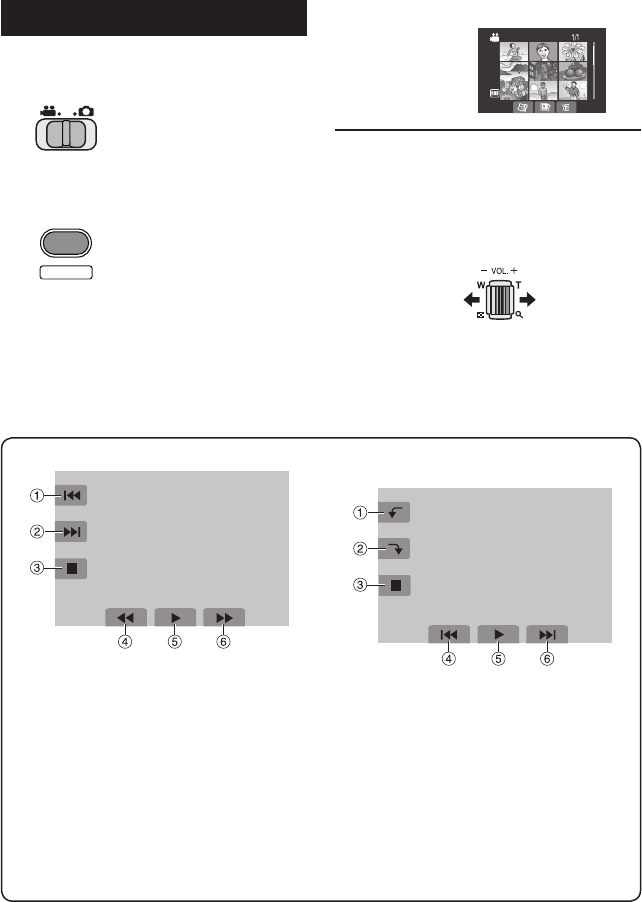
1Slide the mode switch to select !
(video) or # (still image) mode.
2Press the SELECT PLAY/REC button
to select playback mode.
PLAY/REC
SELECT
The index screen for videos appears.
3Select the desired fi le.
VIDEO PLAYBACK
L To watch on TV
See page 19.
L To check the fi le information
Press the INFO button when playback is
paused.
L To adjust the sound volume of videos
Turn down the
volume
Turn up the
volume
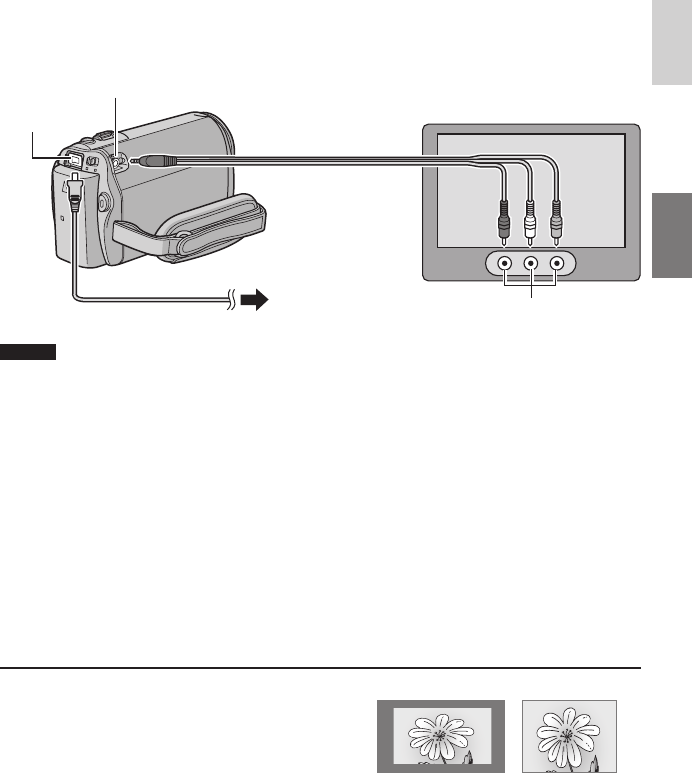
L Operations during Video Playback
!N: Return to the fi rst scene of the fi le
#O: Go to the fi rst scene of the next fi le
$L: Return to the index screen
%J: Reverse search (during playback)
E: Frame-by-frame playback in reverse
direction (during pause)*
&F: Playback
Q: Pause
(K: Forward search (during playback)
G: Frame-by-frame playback in forward
direction (during pause)*
* Slow playback starts when you keep
touching the sensor button under E / G
for a while.
L Operations during Still Image
Playback
!(: Rotate 90 degrees counterclockwise
P: Change playback order of slide show
in reverse direction
#): Rotate 90 degrees clockwise
F: Change playback order of slide show
in forward direction
$L: Return to the index screen
%N: Display the previous fi le
&F: Start/end the slide show
(O: Display the next fi le
19
ENGLISH
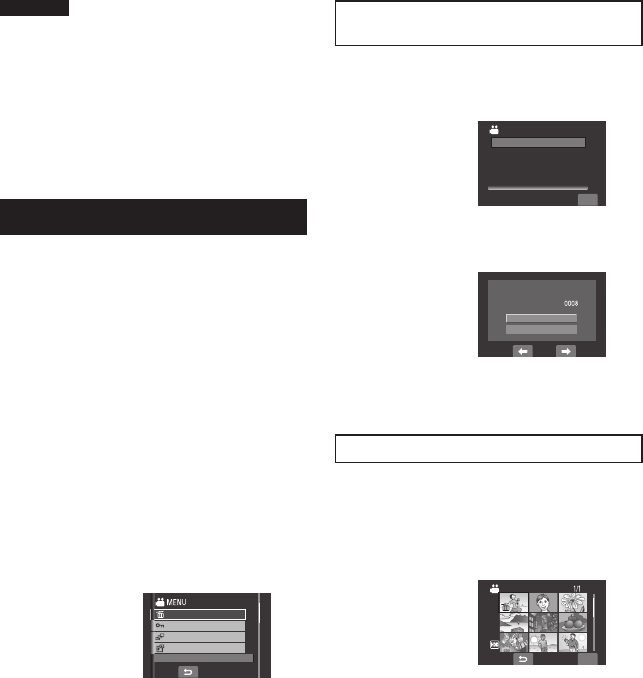
Preparation:
• Set [SWITCH TO ANALOG I/O] to [OUTPUT]. (Factory-preset = [OUTPUT])*
• Turn off all units.
* This does not apply to the GZ-MG330 model.
NOTES
• You can also connect the cables using the Everio dock connectors. The S-Video cable
(optional) enables even higher playback quality. ( pg. 9) When other devices such as a DVD
burner are connected to the Everio dock, turn the power of these devices off.*
• This camera is designed to be used with PAL-type color television signals. It cannot be used
with a television of a different standard.
* GZ-MG330 model does not include the Everio dock.
1Turn on the camera and the TV.
2Set the TV to its VIDEO mode.
3(Only when connecting the camera to the VCR/DVD recorder)
Turn on the VCR/DVD recorder, and set it to its AUX input mode.
4Start playback on the camera. ( pg. 18)
16:9 TV 4:3 TV
L If the aspect ratio of the image is not correct as
shown on the right
Change the settings in [SELECT TV TYPE] from
the MENU.
L To display the camera’s on-screen display on
TV
Set [DISPLAY ON TV] to [ON] from the MENU.
Watching Images on TV
AV Input Jack
AV Cable
AV Jack
DC Jack
AC Adapter
To AC Outlet
20
Managing Files
EDITING/COPYING
CAUTION
Do not remove the recording medium or
perform any other operation (such as turning
off the power) while accessing fi les. Also,
be sure to use the provided AC adapter, as
the data on the recording medium may be
corrupted if the battery becomes exhausted
during operation. If the data on the recording
medium becomes corrupted, format the
recording medium.
Deleting/ Protecting Files
• Protected fi les cannot be deleted. To delete
them, release the protection fi rst.
• Once fi les are deleted, they cannot be
restored. Check fi les before deleting.
Preparation:
• Slide the mode switch to select ! or #
mode.
• Press the SELECT PLAY/REC button to
select playback mode.
The following screen illustrations are
examples when performing [DELETE].
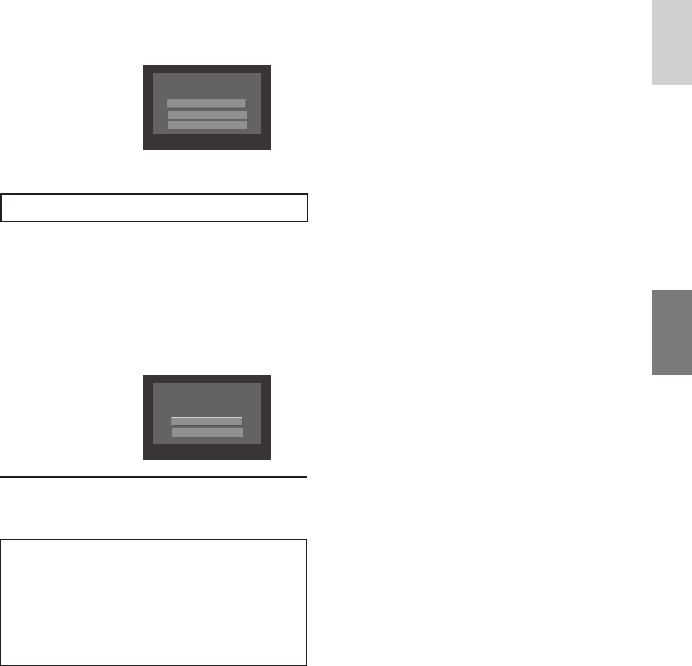
1Touch the MENU button.
You can skip directly to the delete menu by
selecting *.
2Select [DELETE] or [PROTECT/
CANCEL].
DELETE
PROTECT/CANCEL
PLAYBACK MPG FILE
PLAYBACK PLAYLIST
DELETE RECORDED FILES
Deleting/Protecting the Currently
Displayed File
After performing steps 1-2
3Select [CURRENT].
QUIT
DELETE
FILE SELECT
DELETE ALL
SELECT FILES ONE BY ONE
CURRENT
4When [DELETE?] or [PROTECT?]
appears, select [YES].
DELETE?
Remaining files:
NO
YES
You can select the previous or next fi le by
selecting { or }.
Deleting/Protecting Files
After performing steps 1-2
3Select [FILE SELECT].
4Select the desired fi le.
QUIT
VIDEO DELETE
• The * (deletion) or x (protection) mark
appears on the fi le. To select other fi les,
repeat this step.
• If you slide the zoom lever towards T,
the preview screen is displayed. Sliding
the zoom lever towards W returns to the
index screen.
5Select [QUIT].
21
ENGLISH
6Select [EXECUTE AND QUIT] (when
performing [DELETE]) or [YES]
(when performing [PROTECT]).
DELETE?
EXECUTE AND QUIT
QUIT
RETURN
Deleting/Protecting All Files
After performing steps 1-2 ( pg. 20)
3Select [DELETE ALL] or [PROTECT
ALL].
4When [DELETE ALL?] or [PROTECT
ALL?] appears, select [YES].
DELETE ALL?
(EXCEPT PROTECTED FILE)
YES
NO
L To quit the screen
Select [QUIT].
L To release protection
Select the protected fi le in step 4
(“Deleting/Protecting Files” pg. 20).
L To release protection of all fi les
1) In step 3, select [CANCEL ALL].
2) Select [YES].
22
Copying Files
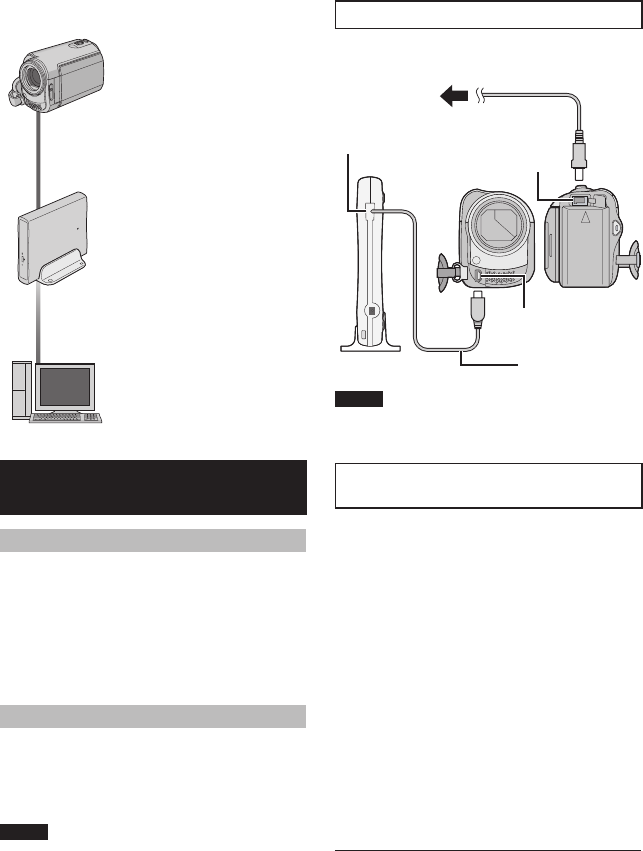
Types of Copying and Connectable Device
The Camera
You can copy video/still
images from HDD onto
microSD card or from
microSD card to HDD with
this camera alone.
DVD Burner
(CU-VD3)
You can copy video fi les
recorded on this camera
onto DVD discs. (墌 right
column)
PC
You can copy video/still
image fi les on this camera
onto your PC. (墌 pg. 23
to 32)
Using a DVD Burner to Copy Files
from the Camera
Supported discs: 12cm DVD-R, DVD-RW
• Regarding DVD-R discs, only unused DVD-
R discs can be used. Regarding DVD-RW
discs, used DVD-RW discs can also be
used, but they need to be formatted before
recording. Formatting a disc deletes all
content recorded on the disc up until that
time.
• Dual-layer discs cannot be used.
Regarding fi nalisation after copying
The disc is automatically fi nalised so that
it can be played on other devices. After
fi nalising, the disc is a play-only disc, so no
more fi les can be added.
NOTE
When using the optional DVD Burner, read its
instructions.
Connection with a DVD Burner
Preparation:
Close the LCD monitor to turn off the camera.
NOTE
Use the USB cable that came with the DVD
burner.
Copying Video Files that Have Never
Been Copied
Files that have never been copied to the DVD
discs are automatically selected and copied.
1Open the LCD monitor to turn on the
camera.
2Press the DIRECT DVD button.
3Select [EXECUTE].
• The DVD disc begins to be created.
When [COMPLETED] appears, touch
the OK button.
• When [COMPLETED. CHANGE DISC]
appears, change the disc. The second
DVD disc begins to be created.
• To cancel the DVD creation, select
[CANCEL].
L To quit the screen
1) Select [QUIT].
2) When [QUIT?] appears, select [YES].
DC Jack
USB Jack
AC Adapter
To AC Outlet
USB Cable
USB Jack
DVD Burner

23
ENGLISH
Install the software that came with the camera
to your PC.
You can back up your fi les on your PC with a
simple one-touch operation, edit your fi les on
your PC, and also create discs.
Even if you do not install the software, you
can still back up your fi les on your PC.
( pg. 27)
System Requirements
OS:
Either one of the following OS should be pre-
installed (32-bit):
Windows® XP Home Edition (SP2), Windows®
XP Professional (SP2), Windows VistaTM
Home Basic, Windows VistaTM Home Premium
CPU:
Intel® Pentium® 4, at least 1.6 GHz
(at least 2.2 GHz recommended)
Intel® Pentium® M, at least 1.4 GHz
Intel® CoreTM Duo, at least 1.5 GHz
RAM:
[XP] At least 256 MB (For creating DVD Video
by PowerCinema, 1 GB or more)
[Vista] At least 1 GB (2 GB or more
recommended)
Free hard disk space:
At least 550 MB for installation
For creating DVD Video, at least 10 GB
recommended
For creating VCD, at least 1 GB
recommended
USB port:
USB 2.0 port
Display:
Must be capable of displaying at least
1024 x 768 (XGA) in high colour 16 bit or
higher
(1280 x 1024 (SXGA) or higher is recommended)
Miscellaneous:
Internet Explorer 5.5 or later
DirectX 9.0 or later
Supported media:
DVD-Video: DVD-R/-RW, DVD+R/+RW
DVD-VR: DVD-RW, DVD-RAM
DVD+VR: DVD+RW
VideoCD: CD-R/RW
For the compatible DVD burners, refer to
CyberLink web site:
http://www.cyberlink.com/english/products/
powerproducer/3/comp_dvd_drives.jsp
NOTE
The system requirements information is not
a guarantee that the provided software will
work on all personal computers meeting those
requirements.
PC OPERATION
File Backup on a Windows® PC
24
File Backup on a Windows® PC (Continued)
Software Installation
Please read the “JVC SOFTWARE LICENCE
AGREEMENT” in the CD-ROM instruction
before you install software.
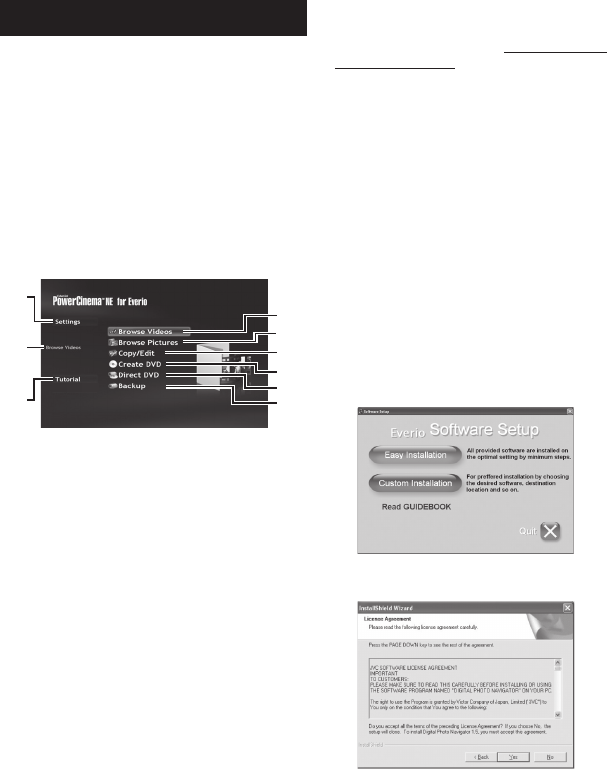
The following software is included in the CD-
ROM that came with your camera.
• CyberLink DVD Solution
Comprehensive application software that
consists of the following three kinds of
software.
PowerCinema NE for Everio
The main fi le managing software. You can
perform various operations such as fi le
backup, playback, and DVD authoring.
Q
R
S
T
U
V
W
X
Y
Q You can perform detailed settings for each
item.
R Select a function on the right, and the
explanation of function is displayed.
S Displays operating procedure for each
function. (internet connection is required)
T Plays back video fi les on the PC
U Plays back still image fi les on the PC
V Copies/edits fi les on the PC
W Burns fi le that are backed up on the PC
onto a DVD
X Creates a DVD-Video
Y Backs up camera fi les onto the PC
( pg. 26)
PowerProducer 3 NE
Allows you to create discs. Automatically
starts from an operation in PowerCinema
NE for Everio.
PowerDirector 5 NE Express
Allows you to edit fi les on your PC.
Automatically starts from an operation in
PowerCinema NE for Everio.
• Digital Photo Navigator 1.5
Allows you to change the format of still
image fi les backed up on your PC.
You can fi nd the latest information on the
provided software program at CyberLink’s
world wide web server at http://www2.cli.
co.jp/products/ne/
Preparation:
Quit any other software you are using. (Check
that there are no other application icons on
the status bar.)
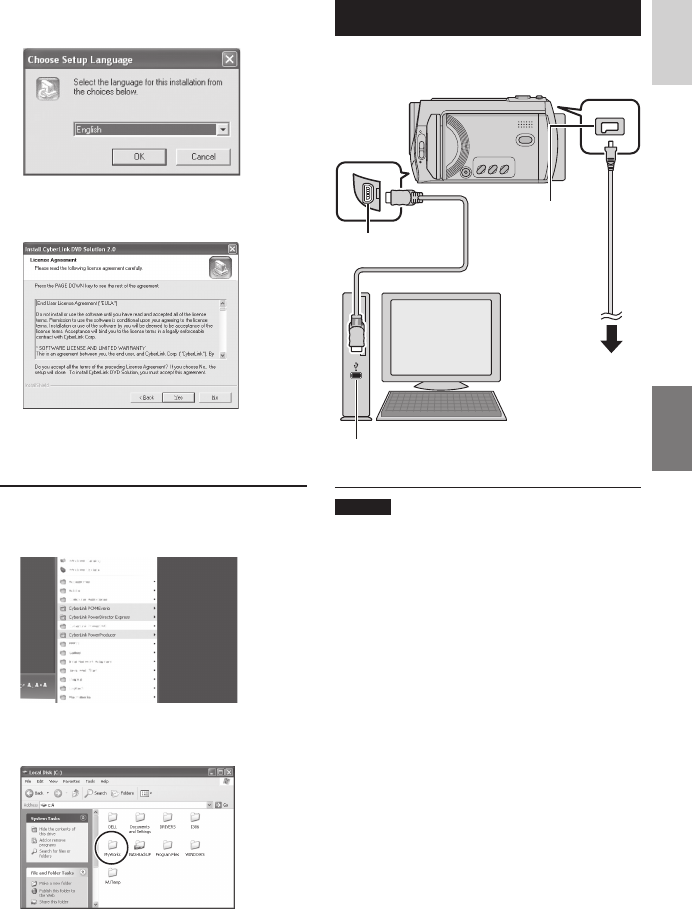
1Load the provided CD-ROM into the
PC.
After a moment, the [SETUP] screen
appears. If the [SETUP] screen does not
appear, double-click the CD-ROM icon in
[My Computer].
2Click [Easy Installation].
If you want to specify the type of software
to install or the installation destination
folder etc., select [Custom Installation].
Follow the instructions on the screen to
install the software.
3Click [Yes].
25
ENGLISH
Connecting the Camera to the PC
Preparation:
Close the LCD monitor to turn off the camera.
NOTES
• Never disconnect the USB cable while the
access/charge lamp on the camera lights or
blinks.
• Do not turn off the camera when the USB
cable is connected, to prevent malfunctions
of the PC.
• Connect the camera directly to the USB jack
on the PC, not through a hub.
• Do not use an extension USB cable.
• Saving the wrong kinds of fi les in a
recording medium or deleting fi les or
folders from a recording medium can cause
problems with the operation of the camera.
When it is necessary to delete a fi le from
a recording medium, delete it through the
camera. Also, do not move or rename
folders and fi les in the medium on PC.
AC Adapter
DC Jack
USB Jack
To AC Outlet
USB Cable
USB Port
4Select the desired language and
click [OK].
5Click [Yes].
The software installation starts.
6Click [Finish].
L When installation is completed
The installed software is displayed in [All
Programs].
The backup destination folder [MyWorks]
for fi les is created on the hard disk drive
that has the most free space.
26
File Backup on a Windows® PC (Continued)
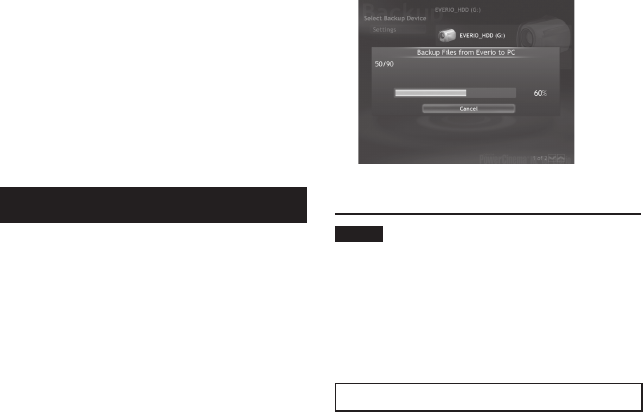
1Open the LCD monitor to turn on the
camera.
2On the camera, press the DIRECT
BACK UP button.
Although a dialog box appears on the PC,
you do not need to use it. File copy starts
automatically.
When the progress bar disappears, the
process is complete.
NOTE
When backup is performed, folders for each
medium (HDD or microSD) are created in the
[MyWorks] folder ( pg. 25), and the fi les are
backed up inside those folders. (If backup is
performed from more than one camera HDD,
individual HDD folders are created.)
File Backup from a Specifi ed Media
Preparation:
• Install the software from the provided CD-
ROM. ( pg. 24)
• Connect the camera to the PC with the USB
cable. ( pg. 25)
1Open the LCD monitor to turn on the
camera.
2On the camera, select [BACK UP].
L When you have fi nished operation
Always follow the procedures below when
disconnecting the camera, or turning off
the power of the camera/PC.
Failing to do so may cause damage to the
camera and PC.
1) Confi rm that the access/charge lamp on
the camera does not light or blink. (If the
access/charge lamp lights or blinks, wait
until it is turned off before proceeding.)
2) Double-click the [Safely Remove
Hardware] or [Unplug or Eject
Hardware] icon in the status bar.
3) Select [USB Mass Storage Device] or
[USB Disk], and then click [Stop].
4) Click [OK].
5) Disconnect the USB cable.
6) Turn off the camera and PC.
File Backup on the PC
This method uses the software on the
provided CD-ROM to back up fi les onto your
PC.
Video fi les that have never been backed up
onto the connected PC are automatically
selected from the back up history and backed
up.
If you could not install the software, turn to
page 27 for details of how to back up your
fi les without using this software.
Preparation:
• Install the software from the provided CD-
ROM. ( pg. 24)
• Connect the camera to the PC with the USB
cable. ( pg. 25)
27
ENGLISH
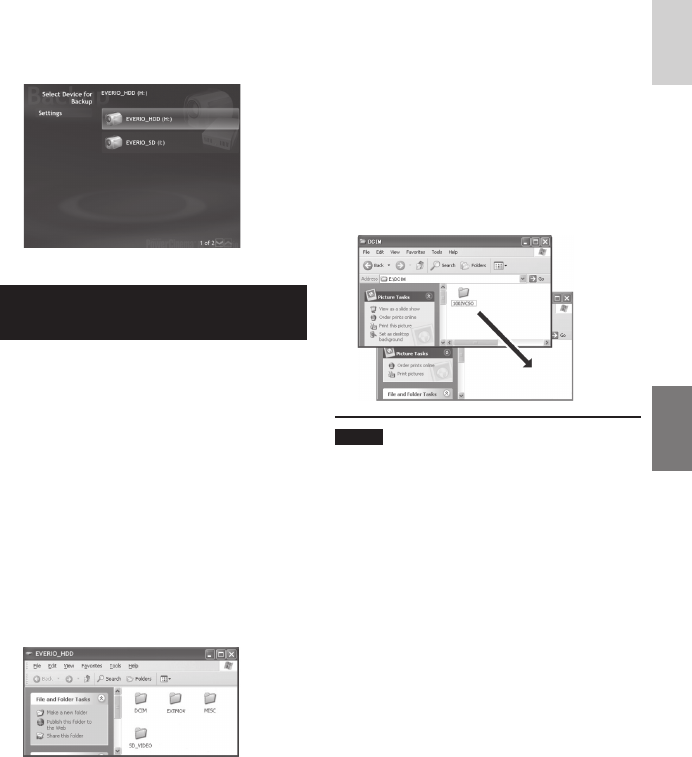
3Click [EVERIO_HDD] or [EVERIO_
SD].
When the progress bar disappears, the
process is complete.
File Backup on the PC without Using
Software
Preparation:
Connect the camera to the PC with the USB
cable. ( pg. 25)
1On the PC, create a folder to back up
fi les into.
2Open the LCD monitor to turn on the
camera.
3On the camera, select [PLAYBACK
ON PC].
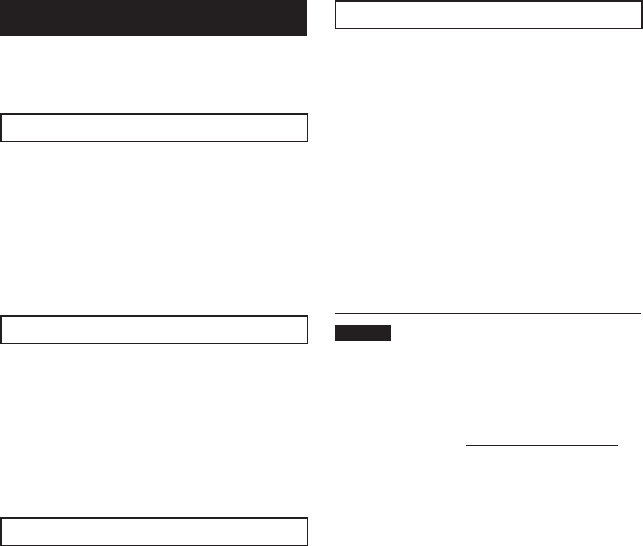
4Double-click [EVERIO_HDD] or
[EVERIO_SD] icon.
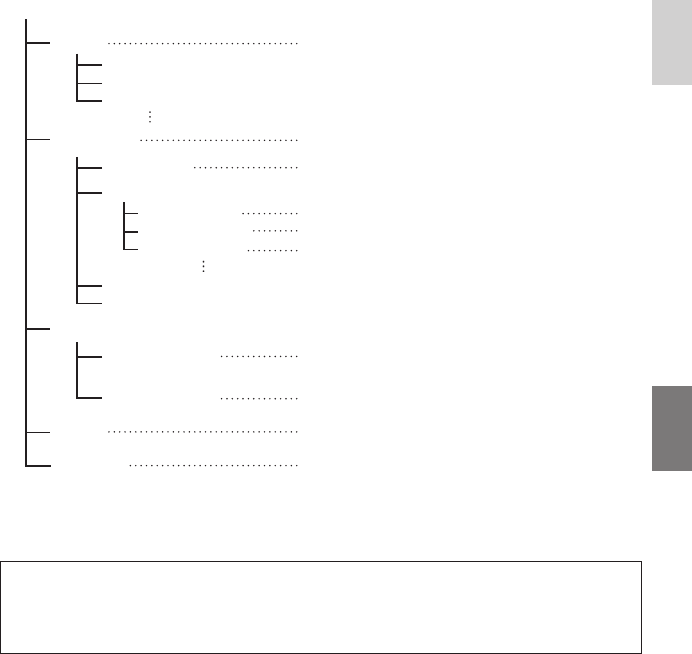
5Select the folder you want to back
up, and drag & drop it into the folder
you created in step 1.
• SD_VIDEO:
Folder that contains video fi les. If you
want to back up fi les individually, open
this folder, and drag & drop fi les such as
[PRG001] one by one.
• DCIM:
Folder that contains still image fi les. If
you want to back up fi les individually,
open this folder, and drag & drop fi les
such as [PIC_0001.JPG] one by one.
NOTE
For further details on the use of folders, see
page 29.
28
Other Windows® PC Operations
Getting More Use of the Software
For more information on operations of the
software, see the Tutorials for each software
program or the User’s Guides.
PowerCinema NE for Everio
1Double-click the PowerCinema NE
for Everio icon.
Start PowerCinema NE for Everio.
2Click [Tutorial].
PowerProducer 3 NE
1Click [Start], go to [All Programs],
select [CyberLink PowerProducer].
2Click [PowerProducer User’s Guide]
or [Readme].
PowerDirector 5 NE Express
1Click [Start], go to [All Programs],
select [CyberLink PowerDirector
Express].
2Click [PowerDirector Express User’s
Guide] or [Readme].
Digital Photo Navigator 1.5
The User’s Guide is included on the CD-ROM
in PDF format.
1Load the provided CD-ROM into the
PC.
2Right-click the CD-ROM icon in [MY
Computer], then click [Open].
3Double-click the [DOCS] folder.
4Open the “Start.pdf” fi le and click the
button of the desired language.
NOTES
• You need to connect to the Internet to see
the Tutorial.
• Adobe® Acrobat® ReaderTM or Adobe®
Reader® must be installed to read PDF
fi les. Adobe® Reader® can be loaded from
Adobe’s web site: http://www.adobe.com/
29
ENGLISH
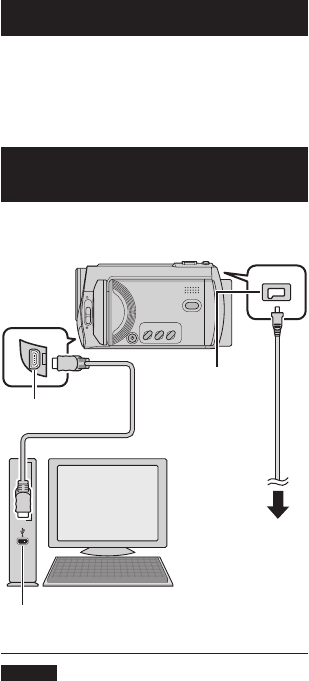
Folder Structure and Extensions
[XXXJVCSO]
[XXXJVCSO]
[XXXJVCSO]
[DCIM]
[SD_VIDEO]
[EXTMOV]
[MISC]
[PRIVATE]
[MGR_INFO]
[PRGXXX]
[PRGXXX]
[PRGXXX]
[PRGXXX.PGI]
[MOVXXX.MOD]
[MOVXXX.MOI]
[MOV_XXX.MOD]
[DEM_XXX.MPG]
* Information such as the date and time of recording, recorded with the video fi le.
Extensions
Video fi les : “.MOD”
Still image fi les : “.jpg”
For Windows®, the fi le extension may not appear depending on the [FOLDER] option setting.
Recording medium X = number
Management information*
Contains the video fi le folders.
Contains the still image folders.
Management information* for the media as a
whole
Video fi le
Management information* for the video fi les
Demo video fi le
Contains management information fi les of event
and/or DVD creation information for the fi les taken
with the camera.
Contains folders with DPOF setting data.
Video fi le which management information is
corrupted.
30
You can back up camera fi les onto your
computer.
System Requirements
Hardware:
Macintosh must be standard equipped with
USB 2.0 port
OS:
Mac OS X (v10.3.9, v10.4.2 to v10.4.10)
Connecting the Camera to the
Macintosh
Preparation:
Close the LCD monitor to turn off the camera.
NOTES
• Never disconnect the USB cable while the
access/charge lamp on the camera lights or
blinks.
• Do not turn off the camera when the USB
cable is connected, to prevent malfunctions
of the PC.
• Connect the camera directly to the
computer, not through a hub.
• Do not use an extension USB cable.
• When you copy fi les from the computer to
the recording medium on the camera, do not
include any other fi les than those recorded
with the camera.
• Do not delete, move, or rename the fi les and
folders in the camera from the computer.
L When you have fi nished operation
Always follow the procedures below when
disconnecting the camera, or turning the
power of the camera/computer off.
Failing to do so may cause damage to the
camera and computer off.
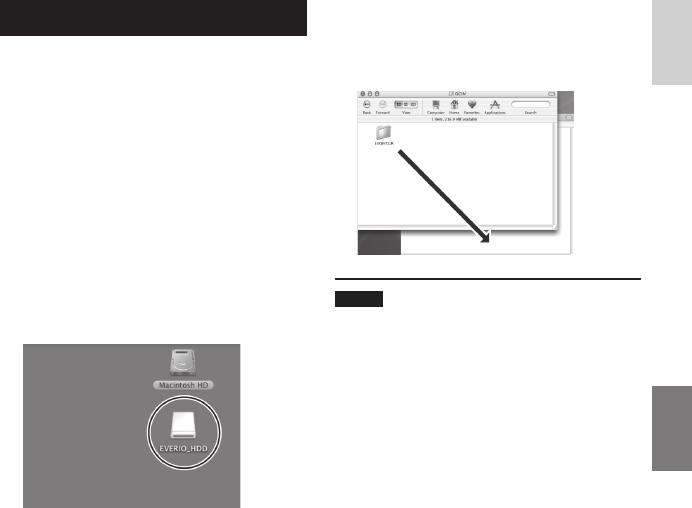
1) Drag & drop the recording medium icon
on the desktop into the [Trash] icon.
If the confi rmation message appears,
click [OK].
2) Confi rm that the access/charge lamp on
the camera does not light or blink.
If the access/charge lamp lights or
blinks, wait until it is turned off before
proceeding.
3) Disconnect the USB cable.
4) Turn off the camera and computer.
File Backup on a Macintosh®
DC Jack
USB Jack
AC Adapter
To AC Outlet
USB Cable
USB Port
31
ENGLISH
• DCIM:
Folder that contains still image fi les. If
you want to back up fi les individually,
open this folder, and drag & drop fi les
such as [PIC_0001.JPG] one by one.
NOTE
For further details on the use of folders, see
page 29.
File Backup on the Macintosh
Preparation:
Connect the camera to the computer with the
USB cable. ( pg. 30)
1On the computer, create a folder to
back up fi les into.
2Open the LCD monitor to turn on the
camera.
3On the camera, select [PLAYBACK
ON PC].
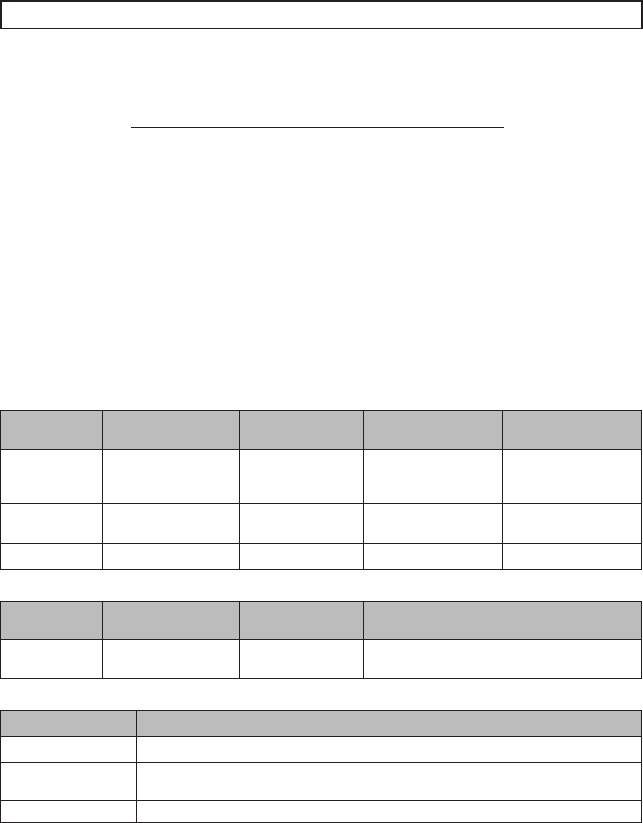
4Double-click [EVERIO_HDD] or
[EVERIO_SD] icon.
5Select the folder you want to back
up, and drag & drop it into the folder
you created in step 1.
• SD_VIDEO:
Folder that contains video fi les. If you
want to back up fi les individually, open
this folder, and drag & drop fi les such as
[PRG001] one by one.
32
Contact us for Information on the Provided Software
Use of this software is authorized according to the terms of the software licence.
JVC
When contacting the nearest JVC offi ce or agency in your country (refer to the JVC Worldwide
Service Network at http://www.jvc-victor.co.jp/english/worldmap/index-e.html) about this
software, please have the following information ready.
• Product Name
• Model
• Problem
• Error Message
• PC
Manufacturer
Model (Desktop/Laptop)
CPU
OS
Memory (MB)
Available Hard Disk Space (GB)
Please note that it may take some time to respond to your questions, depending on their subject
matter.
JVC cannot answer questions regarding basic operation of your PC, or questions regarding
specifi cations or performance of the OS, other applications or drivers.
CyberLink
Telephone/fax support
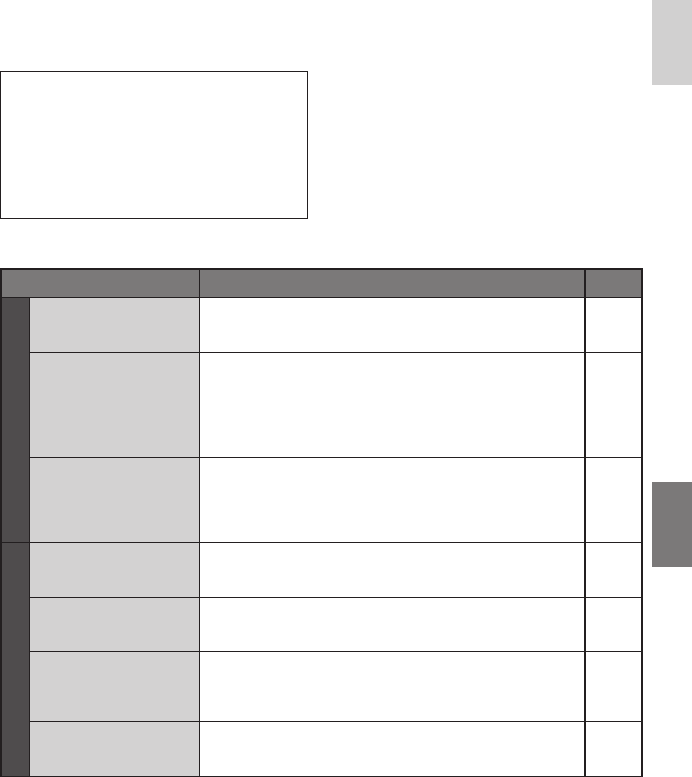
Location Language Offi ce hours
(Mon. to Fri.) Phone # Fax #
Germany
English / German /
French / Spanish /
Italian
9:00 to 17:00 +49-700-462-92375 +49-241-70525-25
Taiwan Mandarin 9:00 to 18:00 +886-2-8667-1298
ext. 333 +886-2-8667-1300
Japan Japanese 10:00 to 17:00 +81-3-3516-9555 –
Paid voice support
Location Language Lines are open
(Mon. to Fri.) URL
U.S.A. English 13:00 to 22:00
CST
http://www.cyberlink.com/english/cs/
support/new_site/voice_support.jsp
Support web/e-mail
Language URL/e-mail address
English http://www.cyberlink.com/english/cs/support/new_site/support_index.html
German / French /
Spanish / Italian goCyberlink@aixtema.de
Japanese http://jp.cyberlink.com/support/
Customer Support Information
33
ENGLISH
FURTHER INFORMATION
The camera is a microcomputer-controlled
device. External noise and interference (from
a TV, a radio, etc.) might prevent it from
functioning properly.
The following phenomena are not
malfunctions.
• The camera heats up when it is used for a
long time.
• The battery heats up during charging.
• When playing back a video fi le, the
image stops momentarily or the sound is
interrupted at junctions between scenes.
• To solve the problem, fi rst follow the
instructions below.
• If the problem is not solved, reset the
camera. ( below)
• If the problem persists, please consult your
nearest JVC dealer.
L To reset the camera
1) Close the LCD monitor to turn off the
camera and remove the power supply
(battery pack or AC adapter) from the
camera, then reattach it.
2) Select [FACTORY PRESET] from the
MENU.
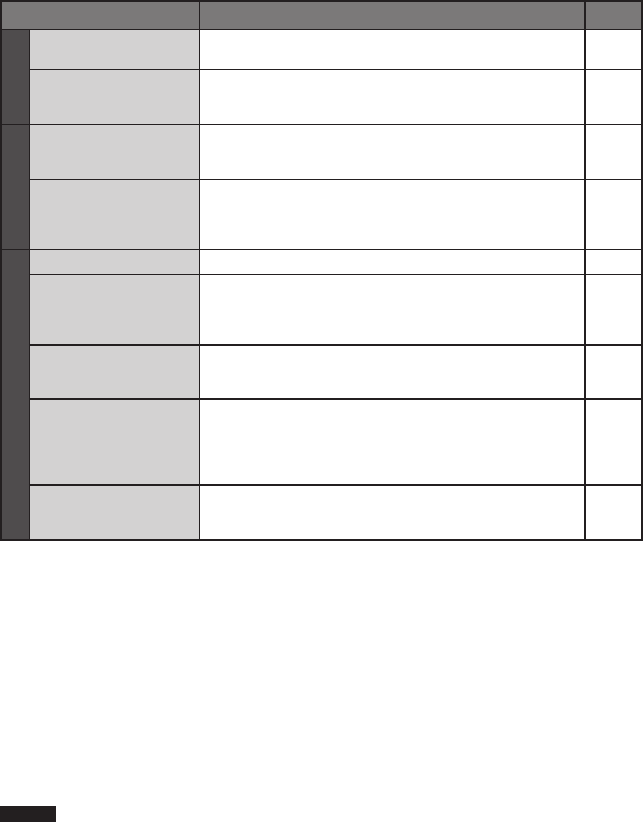
Trouble Action
Power
No power is supplied. • Connect the AC adapter securely.
• Detach the battery pack once again and reattach it fi rmly.
• Replace the dead battery with a fully charged one.
14
14
–
The power does not
turn on, or the battery
operation time is
extremely short even
after the battery is fully
charged.
• Make sure to use the camera under appropriate operating
temperatures.
• The battery is worn out and needs to be replaced. Please
purchase a new one.
36
–
The access/charge
lamp on the camera
does not light during
charging.
• Charging may stop in places subject to extremely high/low
temperatures to protect the battery. It is recommended to
charge it in places with a temperature of 10°C to 35°C.
• When the battery is already fully charged, the lamp does
not light. Check the remaining battery power.
–
15
Recording
Recording cannot be
performed.
• Recording medium is full. Delete unnecessary fi les or
replace the microSD card.
• Select the recording medium properly.
20
–
During recording, the
date/time does not
appear.
• Touch the DISP button once. 13
During video recording,
the 7REC indicator
fl ashes.
• The temperature of the camera is increasing. If the
camera continues to heat up, recording may be stopped
to protect the recording medium. In this case, turn off the
power, and then wait until the camera cools down.
–
Digital zoom does not
work.
• Change the settings in [ZOOM].
• Digital zoom is not available in the still image recording
mode.
–
–
Troubleshooting
34
Cleaning
Before cleaning, turn off the camera and remove the battery pack and AC adapter.
L To clean the exterior
Wipe gently with a soft cloth. If the camera is particularly dirty, dip the cloth into diluted mild
soap and wring it out well before wiping. Then wipe again with a dry cloth.
L To clean the LCD monitor
Wipe gently with a soft cloth. Be careful not to damage the monitor.
L To clean the lens
Wipe gently with lens cleaning paper.
NOTES
• Avoid using strong cleaning agents such as benzine or alcohol.
• Mould may form if the lens is left dirty.
• When using a cleaner or chemically treated cloth, refer to the cautions for each product.
Trouble Action
Recording
The focus is not
adjusted automatically. • Set [FOCUS] to [AUTO].
• Clean the lens and check the focus again.
–
34
The continuous
shooting speed is slow.
• The continuous shooting speed will drop after repeated
continuous shots, depending on the recording media, or
under certain recording conditions.
–
Playback
Playback cannot be
performed.
• Select the recording medium properly.
• To watch images on a TV, set the TV’s input mode or
channel that is appropriate for video playback.
–
19
During video playback,
the Findicator fl ashes.
• The temperature of the camera is increasing. If the
camera continues to heat up, playback may be stopped
to protect the recording medium. In this case, turn off the
power, and then wait until the camera cools down.
–
Other problems
Files cannot be deleted. • Remove protection from the fi les and delete them. 21
The data process is too
slow after the power
is switched on or the
mode is changed.
• There is a large number of still images (approx. 1,000 or
more) stored in the recording medium. Copy the stored
fi les to other devices, and delete them from the recording
medium.
20
The microSD card
cannot be removed
from the camera.
• Push the microSD card in a few more times. –
The [CREATE DVD]
screen is displayed in
the LCD monitor, and
no other operations
can be performed.
• Another operation is being attempted while a DVD burner
that is turned on is connected. Turn off the camera
connected to the DVD burner, or disconnect the USB
cable.
–
The touch sensor or
sensor button does not
function.
• Touch the sensors with your fi nger. The sensors do not
function if you touch them with your fi nger nail or with
gloves on.
6
Troubleshooting (Continued)
35
ENGLISH
Warning Indications
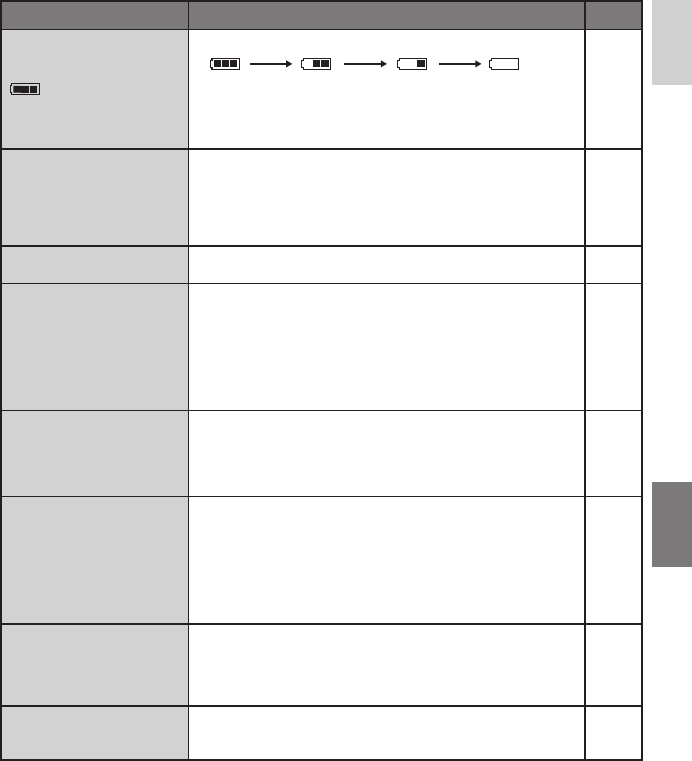
Indication Meaning/Action
(Battery indicator)
• Displays the remaining battery power. –
• As the battery power comes close to nil, the battery
indicator blinks. When the battery power is exhausted,
power turns off automatically.
–
SET DATE/TIME!
• Appears when the date/time is not set.
• The built-in clock’s rechargeable lithium battery is
discharged, so the previously set date/time is erased.
Connect the camera to an AC outlet using the AC adapter
for over 24 hours to charge the clock’s lithium battery. Then
set the date/time.
14
14
CHECK LENS COVER • Appears for 5 seconds after power is turned on in recording
mode if the lens cover is closed or when it is dark.
–
HDD ERROR!
MEMORY CARD ERROR!
•
Perform clean up to restore the capacity of the recording media.
• Turn off the camera. Remove the microSD card and insert it
again. Turn on the camera after inserting the microSD card.
If the error message appears again, replace the card with
one that is certifi ed to operate correctly.
• It is also recommended to run check disc regularly on the
PC, providing that there is no data on the hard disk of the
camera.
–
–
–
VIDEO MANAGEMENT
FILE IS BROKEN. TO
RECORD/PLAYBACK
VIDEO, RECOVERY IS
REQUIRED. RECOVER?
• The video management fi le is broken. Recovery is required
to record or play back video fi les. Select [YES], then touch
the OK button to recover the video management fi le.
–
RECORDING FAILURE
• The writing speed of recording medium is slow, or the
recording medium is corrupted. Use a microSD card that is
guaranteed to operate correctly.
• The hard disk was subjected to vibrations or jolts. Be careful
not to subject the hard disk to vibrations or jolts.
• Appears when the recording medium is full and recording
is not possible. Delete unnecessary fi les, or replace the
microSD card.
–
–
20
POWER IS OFF,
OR USB DEVICE IS
UNSUPPORTED
• Appears when an incompatible USB device is connected to
the camera.
• Appears when a DVD burner that is switched off is
connected. If you want to use the DVD burner, switch the
power on.
–
–
DROP DETECTION
WORKED AND THE
POWER IS TURNED OFF
• To turn on the camera again, close the LCD monitor and
open it again.
–
High Exhausted

36
Specifi cations
Camera
L For general
Power supply
DC 11 V (Using AC adapter)
DC 7.2 V (Using battery pack)
Power consumption
[GZ-MG465]
Approx. 3.2 W*
[GZ-MG345/330]
Approx. 2.7 W*
* When the LED light is off and the monitor
backlight is set to [STANDARD] mode.
Dimensions (W x H x D)
113 mm x 68 mm x 54 mm
Weight
Approx. 315 g
(incl. grip belt)
Approx. 360 g
(incl. battery and grip belt)
Operating temperature
0°C to 40°C
Operating humidity
35% to 80%
Storage temperature
–20°C to 50°C
Pickup
[GZ-MG465]
1/6" (1,070,000 pixels) CCD
[GZ-MG345/330]
1/6" (800,000 pixels) CCD
Lens
[GZ-MG465]
Video: F 1.8 to 4.5, f = 2.5 mm to 80 mm, 32:1
power zoom lens
Still image: F 1.9 to 4.5, f = 2.9 mm to 80 mm,
27:1 power zoom lens
[GZ-MG345/330]
F 1.8 to 4.0, f = 2.2 mm to 77 mm, 35:1 power
zoom lens
Filter diameter
ø30.5 mm
LCD monitor
2.7" diagonally measured, LCD panel/TFT
active matrix system
Speaker
Monaural
LED Light
Within 1.5 m
(recommended shooting distance)
Language
English/French/German/Spanish/Italian/
Dutch/Portuguese/Russian/Polish/Czech/
Turkish/Simplifi ed Chinese
L For video/Audio
Format
SD-VIDEO
Recording/Playback format
Video: MPEG-2
Audio: Dolby Digital (2 ch)
Signal format
PAL standard
Recording mode (video)
ULTRA FINE: 720 x 576 pixels, 8.5 Mbps (VBR)
FINE: 720 x 576 pixels, 5.5 Mbps (VBR)
NORMAL: 720 x 576 pixels, 4.2 Mbps (VBR)
ECONOMY: 352 x 288 pixels, 1.5 Mbps (VBR)
Recording mode (audio)
ULTRA FINE: 48 kHz, 384 kbps
FINE: 48 kHz, 384 kbps
NORMAL: 48 kHz, 256 kbps
ECONOMY: 48 kHz, 128 kbps
L For still image
Format
JPEG
Image size
[GZ-MG465]
2 modes (1152 x 864 / 640 x 480)
[GZ-MG345/330]
1 mode (640 x 480)
Picture quality
2 modes (FINE/STANDARD)
L For connectors
AV input/output*
Video input: 0.8 V (p-p) ~ 1.2 V (p-p), 75 Ω
Video output: 1.0 V (p-p), 75 Ω
Audio intput: 300 mV (rms), 50 kΩ
Audio output: 300 mV (rms), 1 kΩ
* Only GZ-MG465/345
USB
Mini USB type A and B, USB 2.0 compliant
AC Adapter
Power requirement
AC 110 V to 240 Vd, 50 Hz/60 Hz
Output
DC 11 V
§
, 1 A
37
ENGLISH
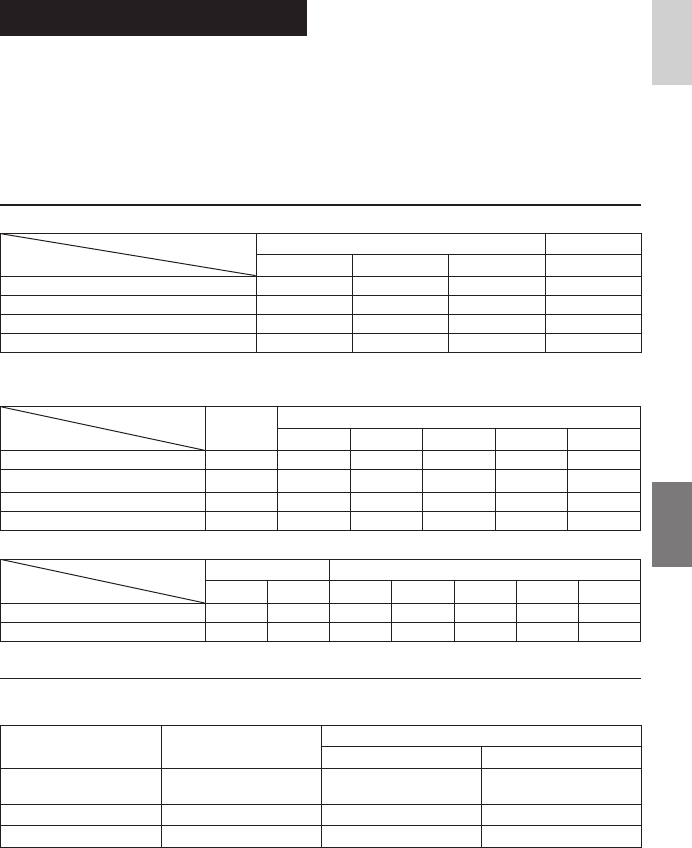
Approximate recording time (minutes) (for video)
Recording medium
Quality
HDD microSD Card
30 GB*140 GB*260 GB*34 GB
ULTRA FINE 430 570 860 57
FINE 640 850 1280 85
NORMAL 850 1130 1700 113
ECONOMY 2250 3000 4500 298
*1 GZ-MG330 *2 GZ-MG345 *3 GZ-MG465
[GZ-MG465] Approximate number of storable images (for still image)
Recording medium
Image size/Quality HDD microSD Card
256 MB 512 MB 1 GB 2 GB 4 GB
1152 x 864 / FINE 9999 535 1065 2140 4095 8045
1152 x 864 / STANDARD 9999 820 1625 3265 6145 9999
640 x 480 / FINE 9999 1555 3090 6205 9999 9999
640 x 480 / STANDARD 9999 2225 4420 8865 9999 9999
[GZ-MG345/330] Approximate number of storable images (for still image)
Recording medium
Image size/Quality
HDD microSD Card
30 GB*140 GB*2256 MB 512 MB 1 GB 2 GB 4 GB
640 x 480 / FINE 9999 9999 1035 2060 4135 7680 9999
640 x 480 / STANDARD 9999 9999 2225 4440 8865 9999 9999
*1 GZ-MG330 *2 GZ-MG345
Required charging/recording time (approx.)
* When the LED light is off and the monitor backlight is set to [STANDARD] mode.
Battery pack Charging time Recording time
GZ-MG465 GZ-MG345/330
BN-VF808U
(Provided) 1 hr. 30 min. 1 hr. 30 min.* 1 hr. 50 min.*
BN-VF815U 2 hr. 40 min. 3 hr. 5 min.* 3 hr. 40 min.*
BN-VF823U 3 hr. 50 min. 4 hr. 35 min.* 5 hr. 30 min.*
Remote Control
Power supply
DC 3 V
Battery life
Approx. 1 year (depending on the frequency of
use)
Operating distance
Within 5 m
Operating temperature
0°C to 40°C
Dimensions (W x H x D)
42 mm x 14.5 mm x 91 mm
Weight
Approx. 30 g
(incl. battery)
Design and specifi cations subject to change
without notice.
38
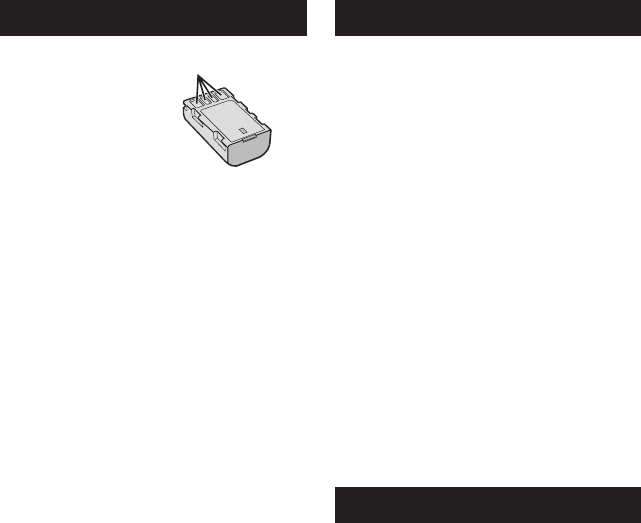
Battery Packs
The supplied battery
pack is a lithium-ion
battery. Before using
the supplied battery
pack or an optional
battery pack, be sure
to read the following
cautions:
Terminals
• To avoid hazards
... do not burn.
... do not short-circuit the terminals. Keep it away
from metallic objects when not in use. When
transporting, make sure the provided battery
cap is attached to the battery. If the battery
cap is misplaced, carry the battery in a plastic
bag.
... do not modify or disassemble.
... do not expose the battery to temperatures
exceeding 60°C, as this may cause the battery
to overheat, explode or catch fi re.
... use only specifi ed chargers.
• To prevent damage and prolong service life
... do not subject to unnecessary shock.
... charge within the temperature range of
10°C to 35°C. This is a chemical reaction
type battery — cooler temperatures impede
chemical reaction, while warmer temperatures
can prevent complete charging.
... store in a cool, dry place. Extended exposure
to high temperatures will increase natural
discharge and shorten service life.
... fully charge and then fully discharge the
battery every 6 months when storing the
battery pack over a long period time.
... remove from charger or powered unit when
not in use, as some machines use current
even when switched off.
Recording Medium
• Be sure to follow the guidelines below
to prevent corruption or damage to your
recorded data.
• Do not bend or drop the recording medium, or
subject it to strong pressure, jolts or vibrations.
• Do not splash the recording medium with water.
• Do not use, replace, or store the recording
medium in locations that are exposed to strong
static electricity or electrical noise.
• Do not turn off the camera power or remove
the battery or AC adapter during shooting,
playback, or when otherwise accessing the
recording medium.
• Do not bring the recording medium near objects
that have a strong magnetic fi eld or that emit
strong electromagnetic waves.
• Do not store the recording medium in locations
with high temperature or high humidity.
• Do not touch the metal parts.
• When formatting or erasing data using the
camera, only the fi le administration information
is changed. The data is not completely erased
from the hard disk. If you want to completely
erase all of the data, we recommend either
using commercially available software that
is specially designed for that purpose, or
by physically destroying the camera with a
hammer etc.
LCD Monitor
• To prevent damage to the LCD monitor, DO
NOT
... push it strongly or apply any shocks.
... place the camera with LCD monitor on the
bottom.
• To prolong service life
... avoid rubbing it with coarse cloth.
Cautions

39
ENGLISH
Main Unit
• For safety, DO NOT
... open the camera’s chassis.
... disassemble or modify the unit.
... allow infl ammables, water or metallic objects
to enter the unit.
... remove the battery pack or disconnect the
power supply while the power is on.
... leave the battery pack attached when the
camera is not in use.
... place naked fl ame sources, such as lighted
candles, on the apparatus.
... expose the apparatus to dripping or splashing.
... leave dust or metal objects adhered to the
power plug or an AC wall outlet.
... insert any objects in the camera.
• Avoid using the unit
... in places subject to excessive humidity or dust.
... in places subject to soot or steam such as
near a cooking stove.
... in places subject to excessive shock or
vibration.
... near a television set.
... near appliances generating strong magnetic
or electric fi elds (speakers, broadcasting
antennas, etc.).
... in places subject to extremely high (over 40°C)
or extremely low (under 0°C) temperatures.
... in places subject to the air pressure is low
(more than 3000 m above the sea level).
• DO NOT leave the unit
... in places of over 50°C.
... in places where humidity is extremely low
(below 35%) or extremely high (above 80%).
... in direct sunlight.
... in a closed car in summer.
... near a heater.
... in high places such as on a TV. Leaving the
unit in high places while a cable is connected
may result in a malfunction if the cable is
caught and the unit falls onto the fl oor.
• To protect the unit, DO NOT
... allow it to become wet.
... drop the unit or strike it against hard objects.
... subject it to shock or excessive vibration
during transportation.
... keep the lens directed at extremely bright
objects for long periods.
... expose the lens to direct sunlight.
... swing it excessively when using the hand
strap.
... swing the soft camera case excessively when
the camera is inside it.
• To prevent the unit from dropping,
• Attach the shoulder strap securely and fasten
the grip belt securely.
• When using the camera with a tripod, attach the
camera to the tripod securely.
If the camera drops, you may be injured and
the camera may be damaged.
When a child uses the unit, there must be
parental guidance.

© 2008 Victor Company of Japan, Limited
Printed in Malaysia
0608FOH-AL-VM
AA
Terms
A
AC Adapter ............................................................ 14
B
Battery Pack .............................................. 14, 15, 38
C
Clock Adjust ........................................................... 14
Copying (Moving) Still Images ......................... 23, 30
Copying Video Files ......................................... 23, 30
D
Deleting Files ......................................................... 20
DVD Burner ........................................................... 22
E
Everio Dock ............................................................. 9
H
Hard Disk ............................................................... 38
I
Image Rotation ...................................................... 18
L
LCD Monitor .............................................. 10, 12, 38
M
Macintosh .............................................................. 30
P
Power-Linked Operation ........................................ 10
Protecting Files ...................................................... 20
R
Recordable Time/Number of Images ..................... 37
Recording Medium ................................................ 38
Remote Control ............................................... 10, 15
Resetting the Camera ............................................ 33
S
Slide Show ............................................................. 18
Speaker Volume ..................................................... 18
Still Image .............................................................. 17
T
TV .......................................................................... 19
V
Video ..................................................................... 16
W
Windows PC .......................................................... 23
