JVC LT 26X506 User Manual TV LCD Manuals And Guides L0520138
JVC LCD Television Manual L0520138 JVC LCD Television Owner's Manual, JVC LCD Television installation guides
LT-26X506 L0520138
User Manual: JVC LT-26X506 LT-26X506 JVC TV LCD - Manuals and Guides View the owners manual for your JVC TV LCD #LT26X506. Home:Electronics Parts:Jvc Parts:Jvc TV LCD Manual
Open the PDF directly: View PDF  .
.
Page Count: 56

For Models:
L T-3 2X506
LT-26X506
Illustration of LT-32X506 and RM-C1271G
Important NOte:
In the Spaces below, enter the model and serial number Of your television (located at the
rear of the television cabinet). Staple your sales receipt or invoice to the inside cover of this
guid e. Keep this user!s guide in a convenient place for future reference. Keep the carton
and origina! packaging for futu[e use,
Model Number:
Serial Number: LCT1899-001A-A
0605TNH-II-IM
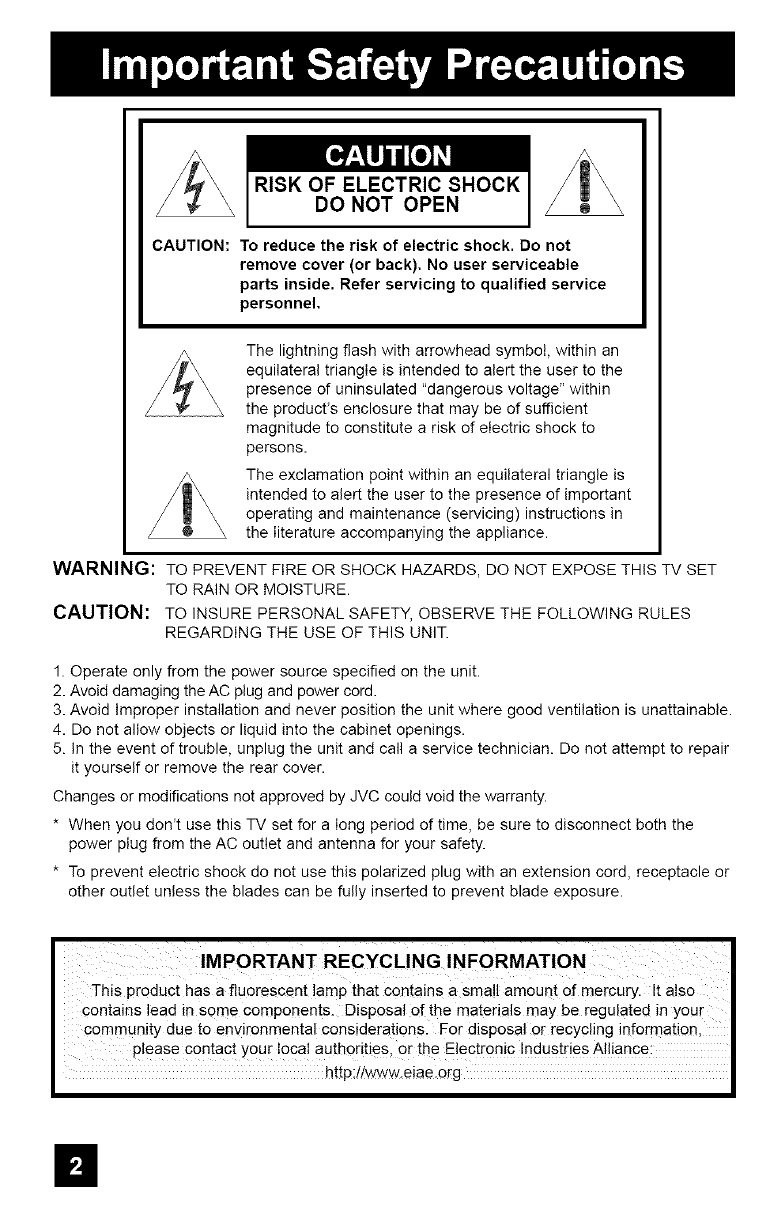
RISK OF ELECTRIC SHOCK
DO NOT OPEN
CAUTION: To reduce the risk of electric shock. Do not
remove cover (or back). No user serviceable
parts inside. Refer servicing to qualified service
personnel,
The lightning flash with arrowhead symbol, within an
equilateral triangle is intended to alert the user to the
presence of uninsulated "dangerous voltage" within
the product's enclosure that may be of sufficient
magnitude to constitute a risk of electric shock to
persons.
The exclamation point within an equilateral triangle is
intended to alert the user to the presence of important
operating and maintenance (servicing) instructions in
the literature accompanying the appliance.
WARNING: TO PREVENT FIRE OR SHOCK HAZARDS, DO NOT EXPOSE THIS TV SET
TO RAIN OR MOISTURE.
CAUTION: TO INSURE PERSONAL SAFETY, OBSERVE THE FOLLOWING RULES
REGARDING THE USE OF THIS UNIT.
1. Operate only from the power source specified on the unit.
2. Avoid damaging the AC plug and power cord.
3. Avoid Improper installation and never position the unit where good ventilation is unattainable.
4. Do not allow objects or liquid into the cabinet openings.
5. In the event of trouble, unplug the unit and call a service technician. Do not attempt to repair
it yourself or remove the rear cover.
Changes or modifications not approved by JVC could void the warranty.
* When you don't use this TV set for a long period of time, be sure to disconnect both the
power plug from the AC outlet and antenna for your safety.
* To prevent electric shock do not use this polarized plug with an extension cord, receptacle or
other outlet unless the blades can be fully inserted to prevent blade exposure.
This product has a fluorescent !amp that contains a small amount of mercury. It a!so
contains lead in some components. Disposal of the materials may be regulated in your
community due to enwonmental considerations. For disposal or recycling information,
please contact your local authorities, or the Electronic !ndustries A!liance:
http://www.eiae.org
m
• As an "ENERGY STAR ®,' partner, JVC has determined
that this product or product model meets the
"ENERGY STAR ®'' guidelines for energy efficiency.
1) Read these instructions.
2) Keep these instructions.
3) Heed all warnings.
4) Follow all instructions.
5) Do not use this apparatus near water.
6} Clean only with dry cloth.
7) Do not block any ventilation openings. Install in accordance with the manufacturer's
instructions.
8) Do not install near any heat sources such as radiators, heat registers, stoves, or other
apparatus (including amplifiers) that produce heat.
9) Do not defeat the safety purpose of the polarized or grounding-type plug. A polarized plug
has two blades with one wider than the other. A grounding type plug has two blades and
a third grounding prong. The wide blade or the third prong are provided for your safety. If
the provided plug does not fit into your outlet, consult an electrician for replacement of the
obsolete outlet.
10) Protect the power cord from being walked on or pinched particularly at plugs, convenience
receptacles, and the point where they exit from the apparatus.
11) Only use attachments/accessories specified by the manufacturer.
12) Use only with a cart, stand, tripod, bracket, or table specified by the manufacturer, or
sold with the apparatus. When a cart is used, use caution when moving the cart/apparatus
combination to avoid injury from tip-over.
II
13) Unplug this apparatus during lightning storms or when unused for long periods of time.
14} Refer all servicing to qualified service personnel. Servicing is required when the apparatus has
been damaged in any way, such as power-supply cord or plug is damaged, liquid has been
spilled or objects have fallen into the apparatus, the apparatus has been exposed to rain or
moisture, does not operate normally, or has been dropped.
15) Apparatus shall not be exposed to dripping or splashing and no objects filled with liquids, such as
vases, shall be placed on the apparatus.
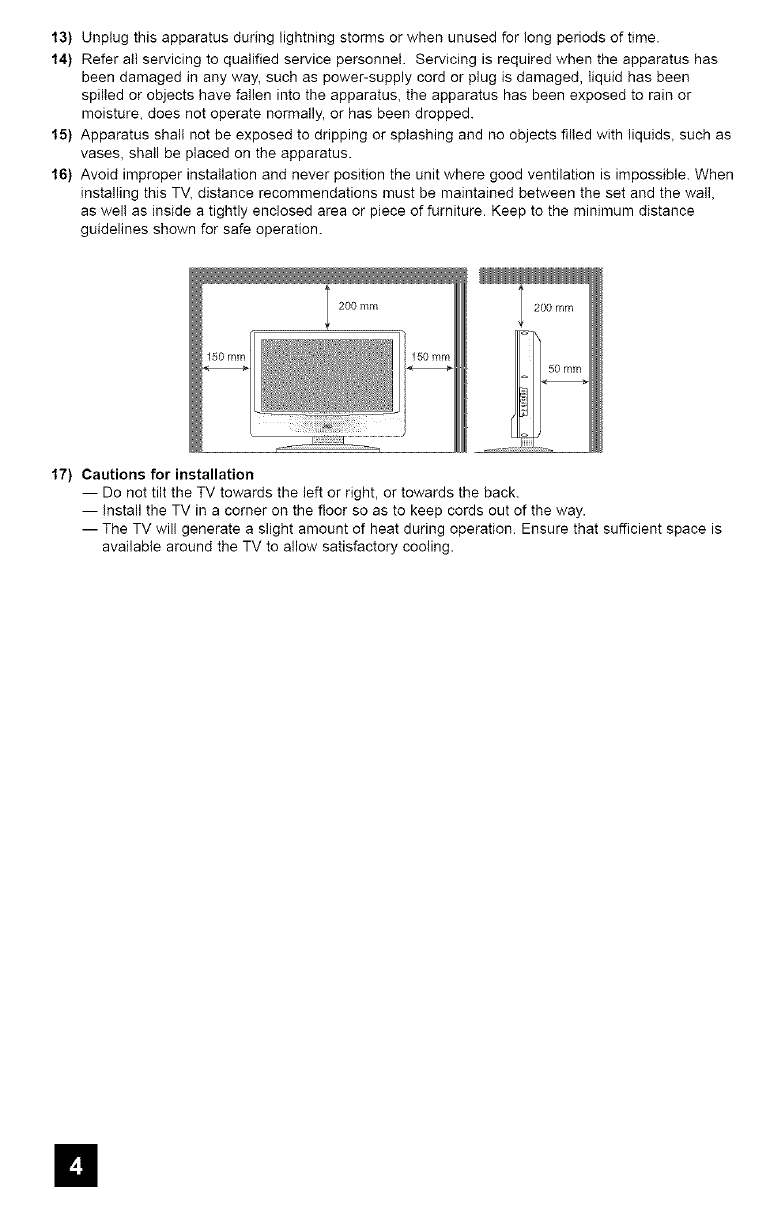
16} Avoid improper installation and never position the unit where good ventilation is impossible. When
installing this TV, distance recommendations must be maintained be'b,,veen the set and the wall,
as wel! as inside a tightly enclosed area or piece of furniture. Keep to the minimum distance
guidelines shown for safe operation.
200 mm
17) Cautions for installation
-- Do not tilt the TV towards the left or right, or towards the back.
-- Install the TV in a corner on the floor so as to keep cords out of the way.
-- The TV will generate a slight amount of heat during operation. Ensure that sufficient space is
available around the TV to allow satisfactory cooling.
=l
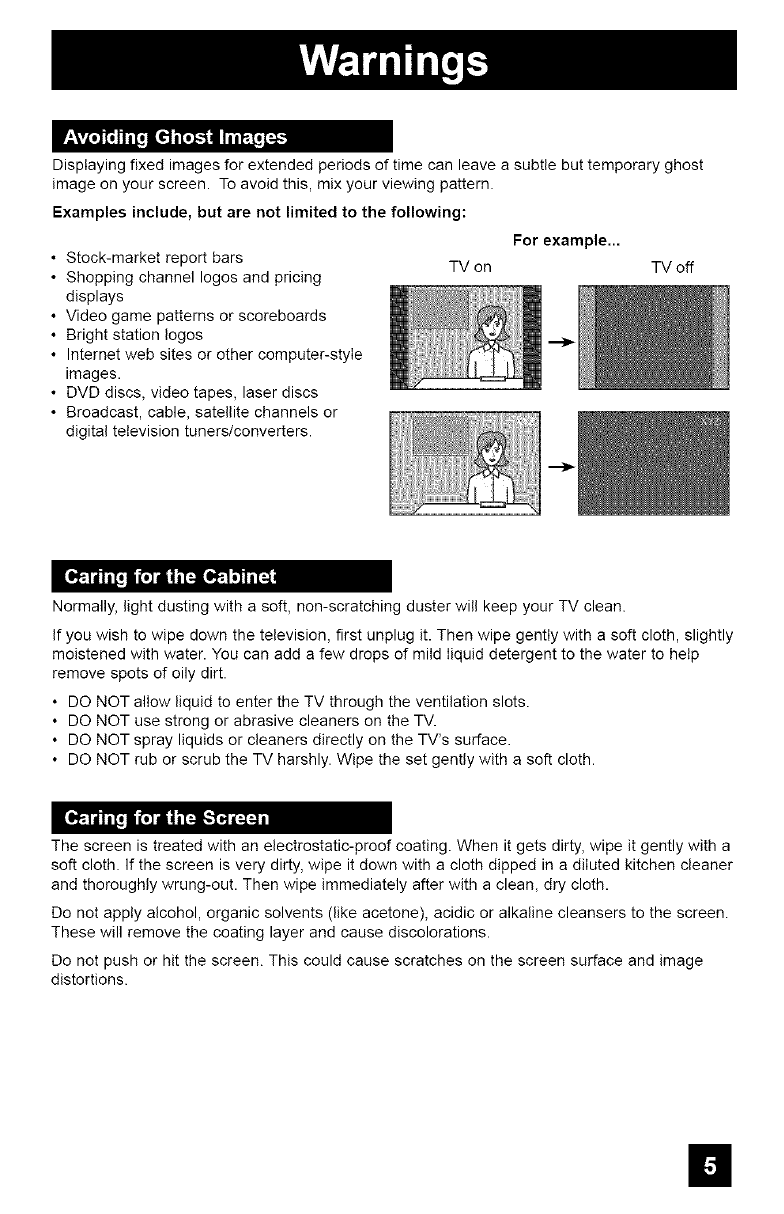
Displaying fixed images for extended periods of time can leave a subtle but temporary ghost
image on your screen. To avoid this, mix your viewing pattern.
Examples include, but are not limited to the following:
• Stock-market report bars
• Shopping channel Iogos and pricing
displays
• Video game patterns or scoreboards
• Bright station Iogos
• Internet web sites or other computer-style
images.
• DVD discs, video tapes, laser discs
• Broadcast, cable, satellite channels or
digital television tuners/converters.
TV on
For example...
TV off
Normally, light dusting with a soft, non-scratching duster will keep your TV clean.
If you wish to wipe down the television, first unplug it. Then wipe gently with a soft cloth, slightly
moistened with water. You can add a few drops of mild liquid detergent to the water to help
remove spots of oily dirt.
• DO NOT allow liquid to enter the TV through the ventilation slots.
• DO NOT use strong or abrasive cleaners on the TV.
• DO NOT spray liquids or cleaners directly on the TV's surface.
• DO NOT rub or scrub the TV harshly. Wipe the set gently with a soft cloth.
The screen is treated with an electrostatic-proof coating. When it gets dirty, wipe it gently with a
soft cloth. If the screen is very dirty, wipe it down with a cloth dipped in a diluted kitchen cleaner
and thoroughly wrung-out. Then wipe immediately after with a clean, dry cloth.
Do not apply alcohol, organic solvents (like acetone), acidic or alkaline cleansers to the screen.
These will remove the coating layer and cause discolorations.
Do not push or hit the screen. This could cause scratches on the screen surface and image
distortions.
m
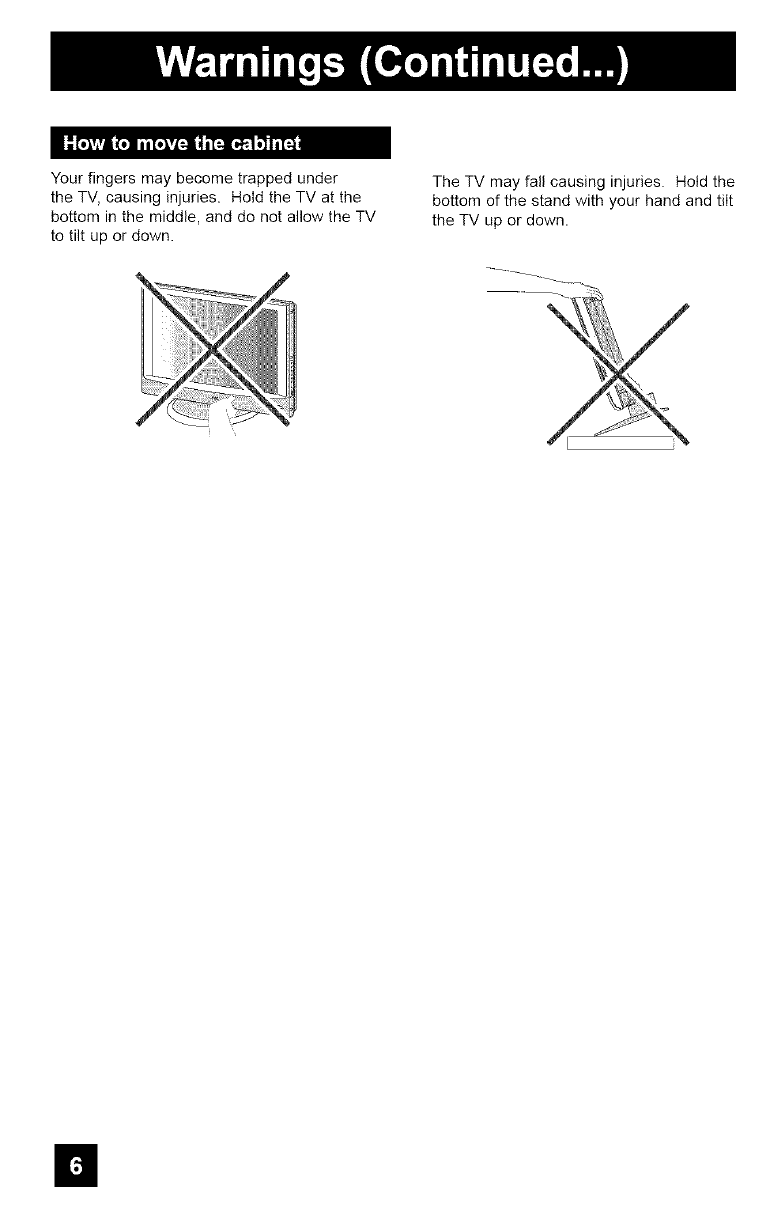
Your fingers may become trapped under
the TV, causing injuries. Hold the TV at the
bottom in the middle, and do not allow the TV
to tilt up or down.
The TV may fall causing injuries. Hold the
bottom of the stand with your hand and tilt
the TV up or down.
n
mii(!io]ii_imLi_'.f'_"__)ji "iN(_i.(_.|! It|[.1i) _ _ _ -'[o] ! I i[ i |-A'_P'; I I! [,-'+1......... )
rili':.l(illi[i__
I,o_ _ml, .............
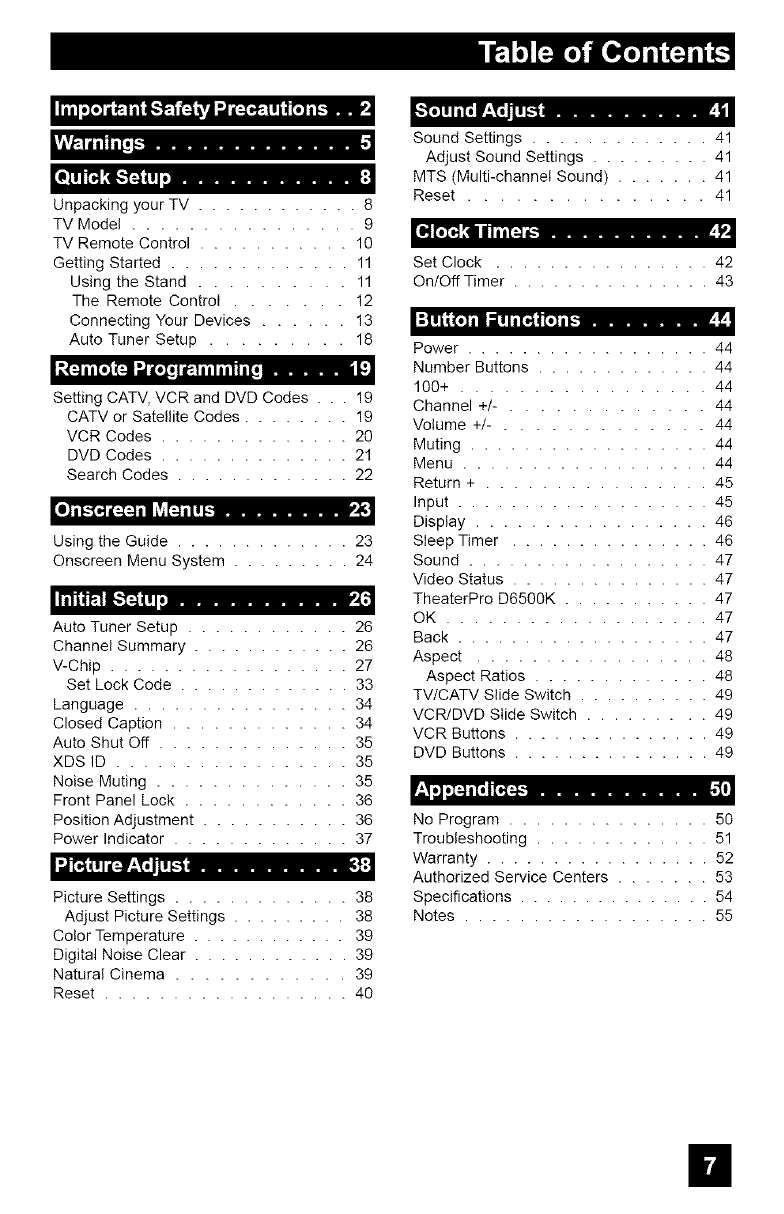
Unpacking your TV ............ 8
TV Mode( ................ 9
TV Remote Control ........... 10
Getting Started ............. 11
Using the Stand .......... 11
The Remote Control ....... !2
Connecting Your Devices ...... 13
Auto Tuner Setup ......... 18
((=,,]ilEOlj_l-l_J(o(illP:-lillillllTo ...... i
Setting CATV, VCR and DVD Codes . . . 19
CATV or Satellite Codes ........ 19
VCR Codes .............. 20
DVD Codes .............. 21
Search Codes ............. 22
[oJ mI.-"[_(_=4 mIIk++1=4mIm[.-......... k__
Using the Guide ............. 23
Onscreen Menu System ......... 24
_i'_")l[',,_(!Ii...........
Auto Tuner Setup ............ 26
Channel Summary ............ 26
V-Chip .................. 27
Set Lock Code ............. 33
Language ................ 34
Closed Caption ............. 34
Auto Shut Off .............. 35
XDS ID ................. 35
Noise Muting .............. 35
Front Panel Lock ............ 36
Position Adjustment ........... 36
Power Indicator ............. 37
"JT'_,L,I(_ it,[-i ........... ]
Picture Settings ............. 38
Adjust Picture Settings ......... 38
Color Temperature ............ 39
Digital Noise Clear ............ 39
Natural Cinema ............ 39
Reset .................. 40
Sound Settings ............. 41
Adjust Sound Settings ......... 41
MTS (Multi-channel Sound) ....... 41
Reset ............... 41
[il'](;'_ [i dlii[_ i_........... )l
Set Clock ................ 42
On/Off Timer ............... 43
i"[mllit'[O]mllleIm[_,l[o]ml_........ ,r
Power .................. 44
Number Buttons ............. 44
100+ ................. 44
Channel +/- . ............ 44
Volume +/- . ............ 44
Muting .................. 44
Menu .................. 44
Return + ................ 45
Input ................... 45
Display ................. 46
Sleep Timer ............... 46
Sound .................. 47
Video Status ............... 47
TheaterPro D6500K ........... 47
OK ................... 47
Back ................... 47
Aspect ................. 48
Aspect Ratios ............. 48
TV/CATV Slide Switch .......... 49
VCR/DVD Slide Switch ......... 49
VCR Buttons ............... 49
DVD Buttons ............... 49
No Program ............... 50
Troubleshooting ............. 51
Warranty ................. 52
Authorized Service Centers ....... 53
Specifications ............... 54
Notes .................. 55
U
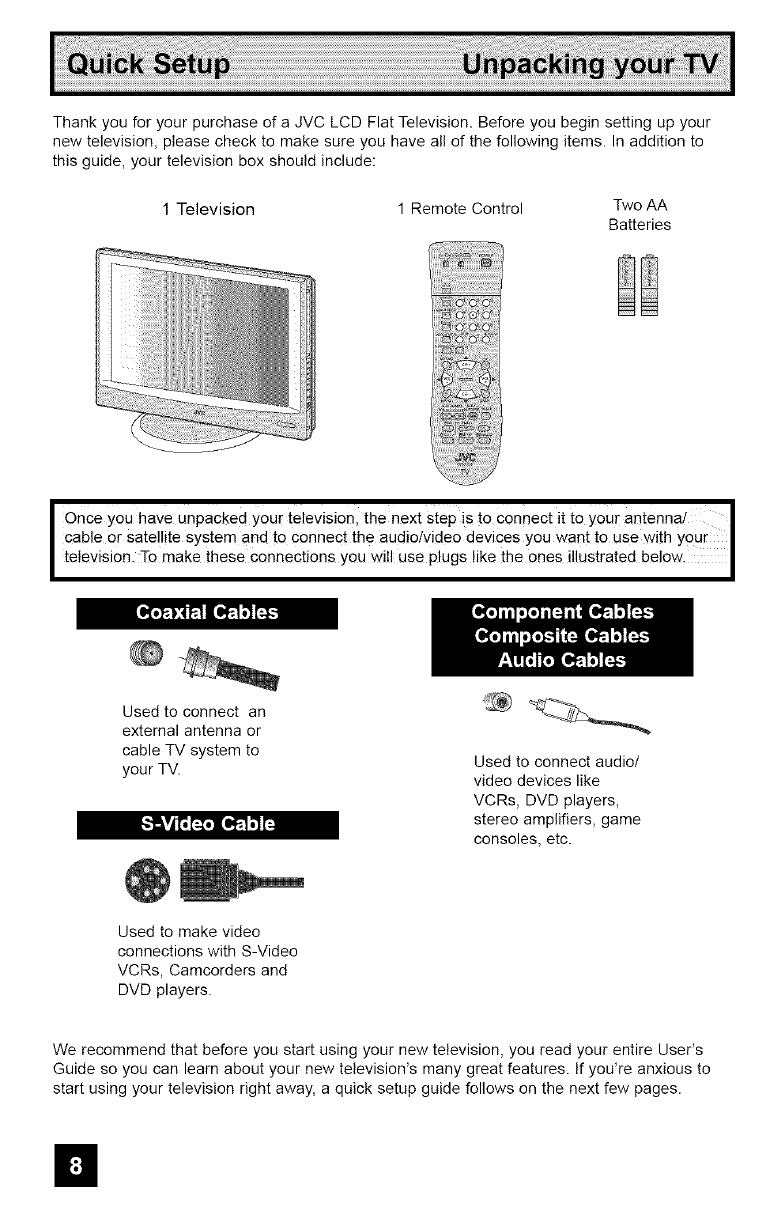
Thank you for your purchase of a JVC LCD Flat Television. Before you begin setting up your
new television, please check to make sure you have all of the following items. In addition to
this guide, your television box should include:
1 Television 1 Remote Control Two AA
Batteries
IOnce you have unpacked your television, the next Step is to connect it to your antenna/
cable 0r Satellite sYstem and to Connect the audiolvideo devices you want to use with Your I
television. To make these connections you wilI use plugs like the ones illustrated below. I
Used to connect an
external antenna or
cable TV system to
your TV. Used to connect audio/
video devices like
VCRs, DVD players,
stereo amplifiers, game
consoles, etc.
Used to make video
connections with S-Video
VCRs, Camcorders and
DVD players.
We recommend that before you start using your new television, you read your entire User's
Guide so you can learn about your new television's many great features. If yodre anxious to
start using your television right away, a quick setup guide follows on the next few pages.
II
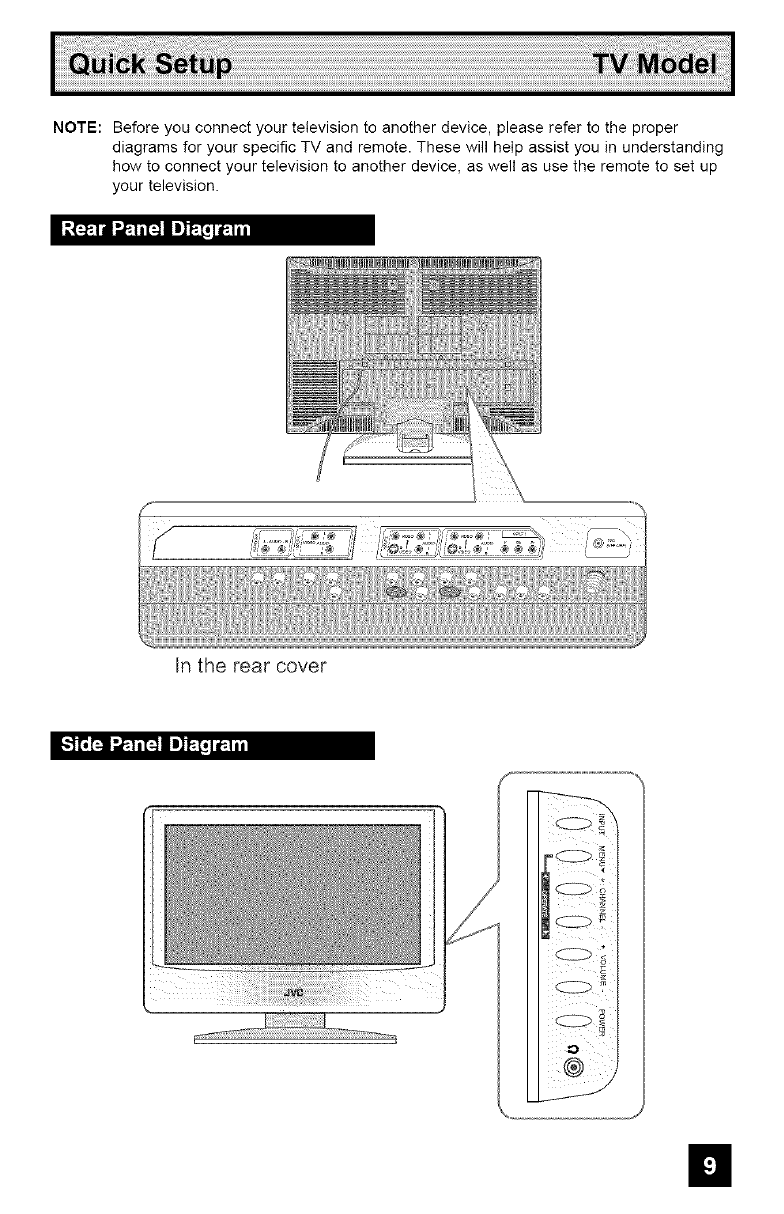
NOTE: Before you connect your television to another device, please refer to the proper
diagrams for your specific TV and remote. These will help assist you in understanding
how to connect your television to another device, as well as use the remote to set up
your television.
Ir,.t":"-_"f'iI".,_"1'_t'_I Im]_'._L_lJlt
In the rear cover
[.,,."]1"_L_Ii ".,,_"1Tl_ I D]FT_J_.1iil
Ha
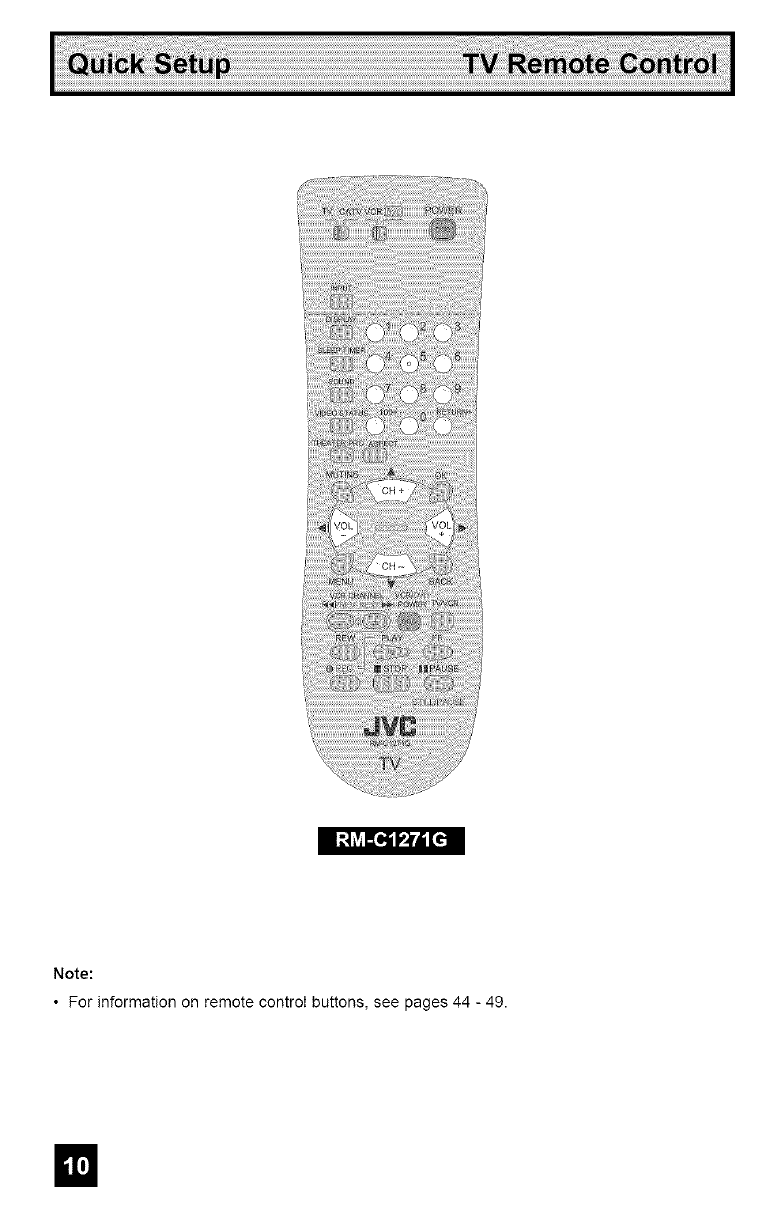
Note:
• For information on remote control buttons, see pages 44 49
m
_'_;k'11"iI_111
These quick setup pages will provide you, in three easy steps, with the basic information you
need to begin using your new television right away.
If you have questions, or for more detailed information on any of these steps, please consult
other sections of this manual.
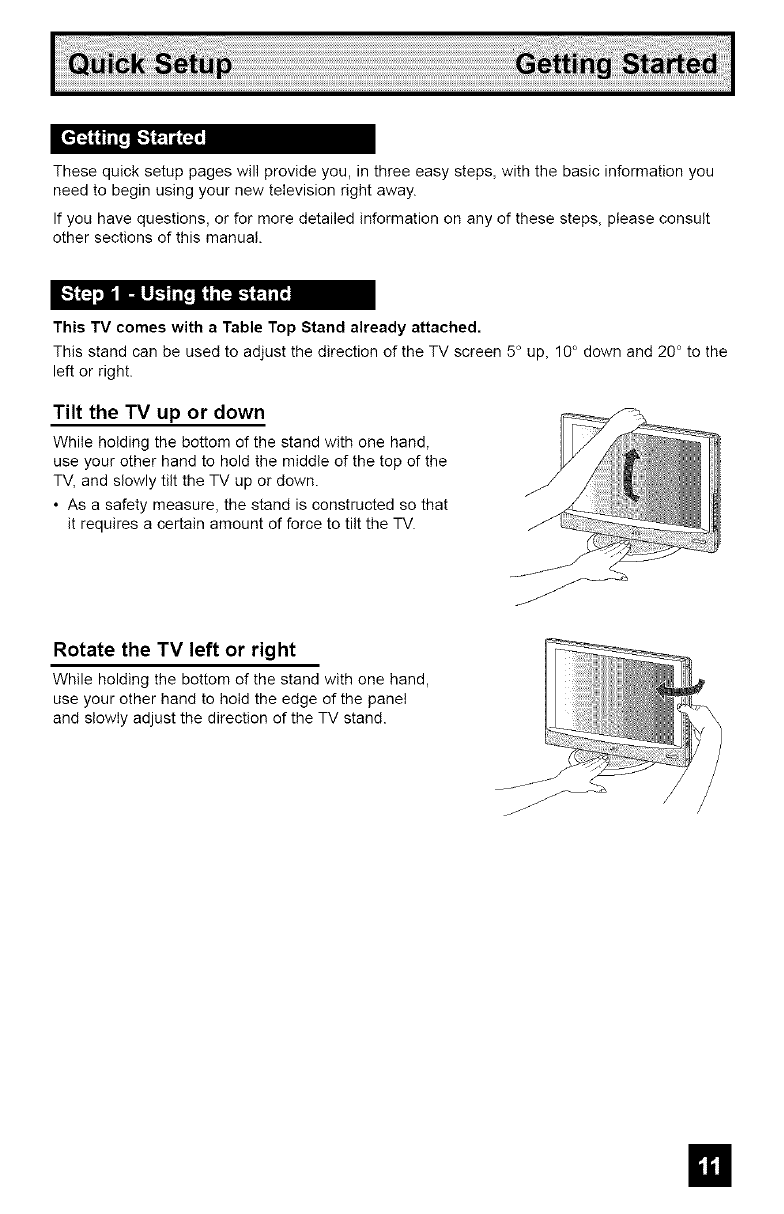
This TV comes with a Table Top Stand already attached,
This stand can be used to adjust the direction of the TV screen 5 ° up, 10° down and 20 ° to the
left or right.
Tilt the TV up or down
While holding the bottom of the stand with one hand,
use your other hand to hold the middle of the top of the
TV, and slowly tilt the TV up or down.
• As a safety measure, the stand is constructed so that
it requires a certain amount of force to tilt the TV.
Rotate the TV left or right
While holding the bottom of the stand with one hand,
use your other hand to hold the edge of the panel
and slowly adjust the direction of the TV stand.
I!
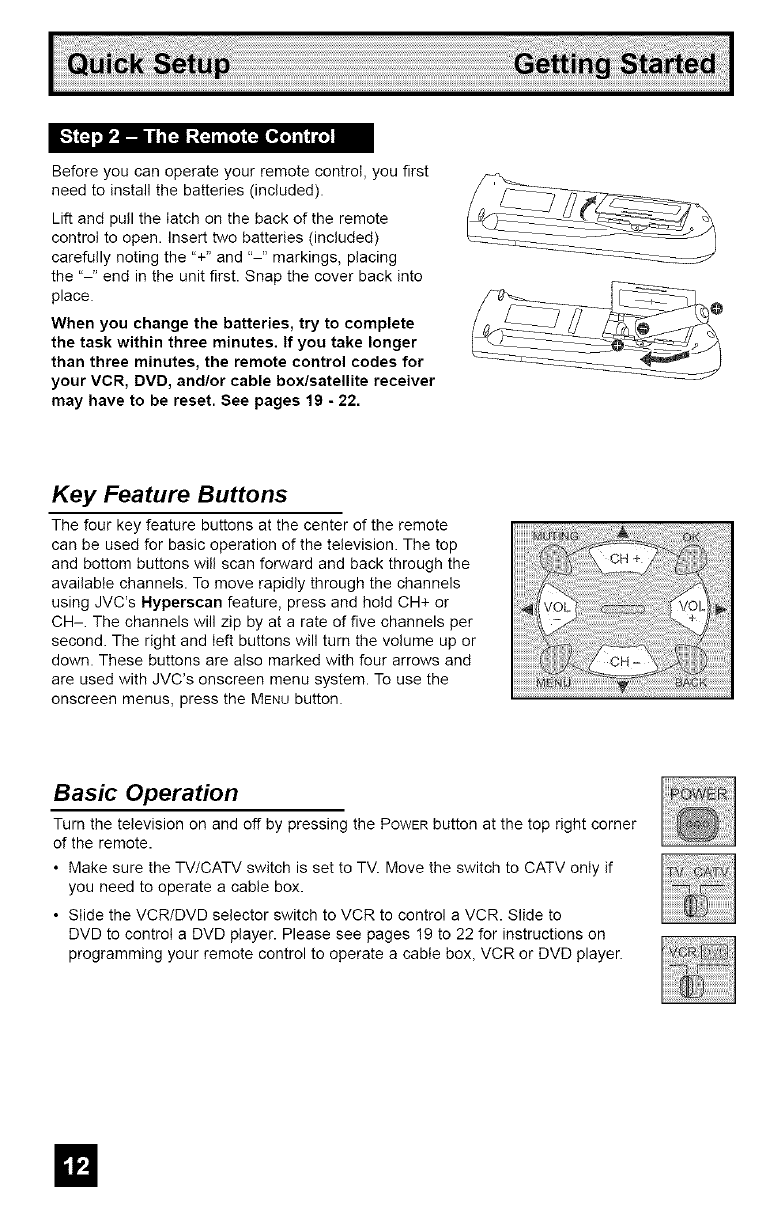
Before you can operate your remote control, you first
need to install the batteries (included).
Lift and pull the latch on the back of the remote
control to open. Insert two batteries (included)
carefully noting the "+" and "-" markings, placing
the "-" end in the unit first. Snap the cover back into
place.
When you change the batteries, try to complete
the task within three minutes. If you take longer
than three minutes, the remote control codes for
your VCR, DVD, and/or cable box/satellite receiver
may have to be reset. See pages 19 - 22.
Key Feature Buttons
The four key feature buttons at the center of the remote
can be used for basic operation of the television. The top
and bottom buttons will scan forward and back through the
available channels. To move rapidly through the channels
using JVC's Hyperscan feature, press and hold CH+ or
CH-. The channels will zip by at a rate of five channels per
second. The right and left buttons will turn the volume up or
down. These buttons are also marked with four arrows and
are used with JVC's onscreen menu system. To use the
onscreen menus, press the MENU button.
Basic Operation
Turn the television on and off by pressing the POWERbutton at the top right corner
of the remote.
• Make sure the TV/CATV switch is set to TV. Move the switch to CATV only if
you need to operate a cable box.
• Slide the VCR/DVD selector switch to VCR to control a VCR. Slide to
DVD to control a DVD player. Please see pages 19 to 22 for instructions on
programming your remote control to operate a cable box, VCR or DVD player.
m
m
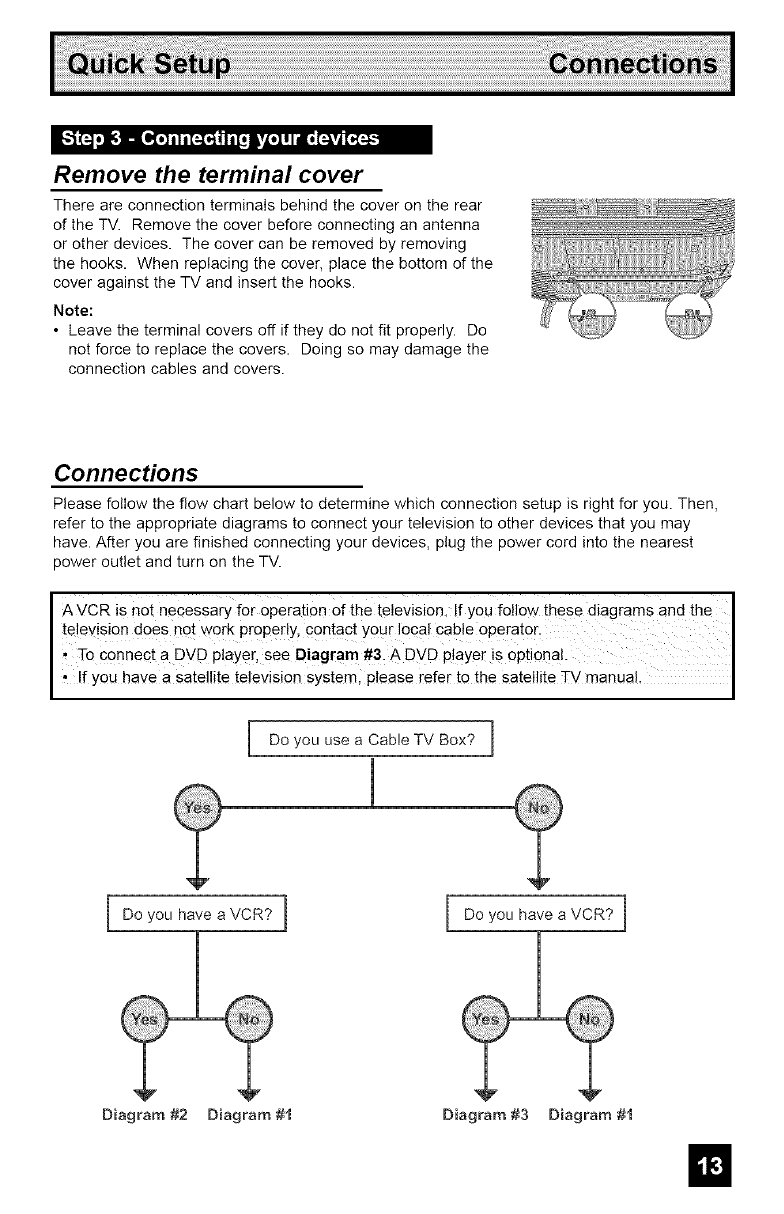
Remove the terminal cover
There are connection terminals behind the cover on the rear
of the TV. Remove the cover before connecting an antenna
or other devices. The cover can be removed by removing
the hooks. When replacing the cover, place the bottom of the
cover against the TV and insert the hooks.
Note:
• Leave the terminal covers off if they do not fit properly. Do
not force to replace the covers. Doing so may damage the
connection cables and covers.
Connections
Please follow the flow chart below to determine which connection setup is right for you. Then,
refer to the appropriate diagrams to connect your television to other devices that you may
have. After you are finished connecting your devices, plug the power cord into the nearest
power outlet and turn on the TV.
A VCR is not necessary for Operation Of the television, !f yOu follow these diagram s and th e
te!ey!si0n d°es n°! w°[k Pr°per!y' c0ntac! y°ur !°ca! cab!e 0perat°[: I
To connect a DVD player, see Diagram #3. A DVD player is oPtional.
' f you havea Sate te teiev s on SYstem, P ease rdeF to the sate te T',/rnanua,
Do you use a Cable TV Box? ]
Do you have a VCR? ] Do you have a VCR? I
Diagram #2 Diagram #t Diagram #3 Diagram #t
m
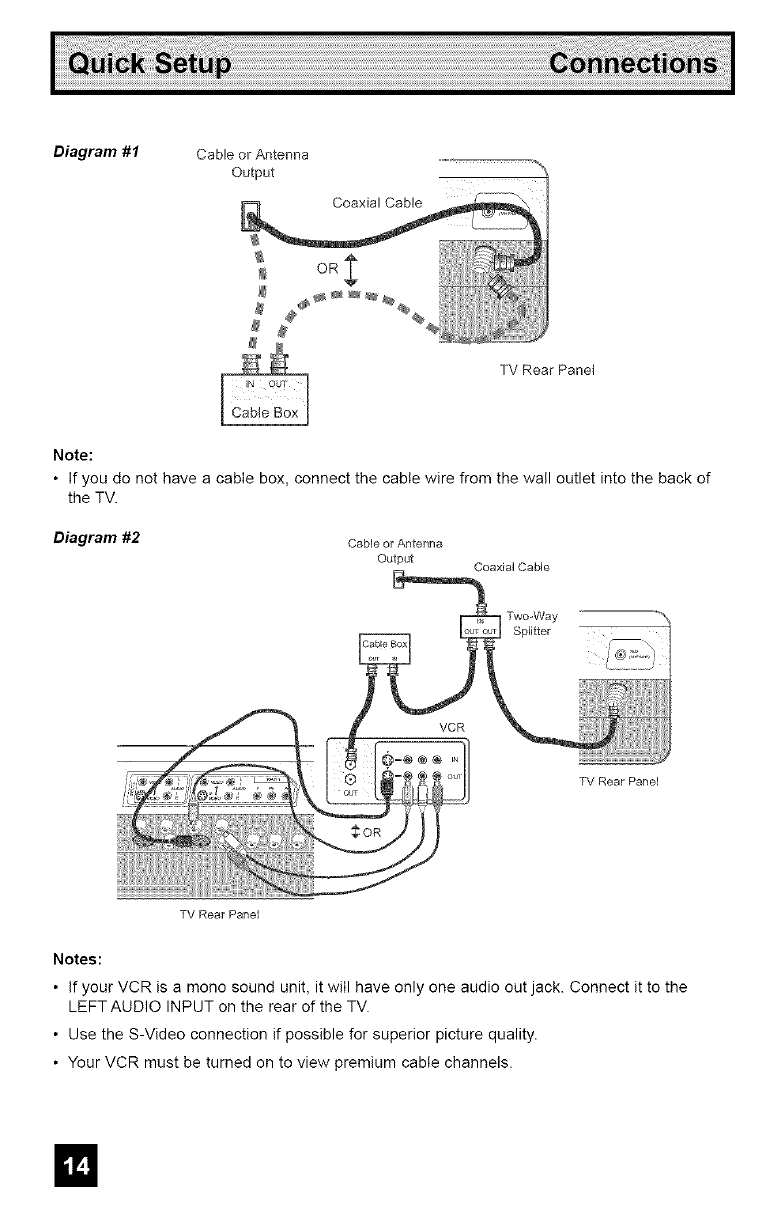
Diagram #I Cable or Antenna
Output
Coaxial Cable
TV Rear Panel
Note:
• If you do not have a cable box, connect the cable wire from the wall outlet into the back of
the TV.
Diagram #2 Cable or Antenna
Output Coaxial Cable
Two-Way
Splitter
TV Rear Panel
TV Rear Panel
Notes:
• If your VCR is a mono sound unit, it will have only one audio out jack. Connect it to the
LEFT AUDIO INPUT on the rear of the TV.
• Use the S-Video connection if possible for superior picture quality.
• Your VCR must be turned on to view premium cable channels.
In
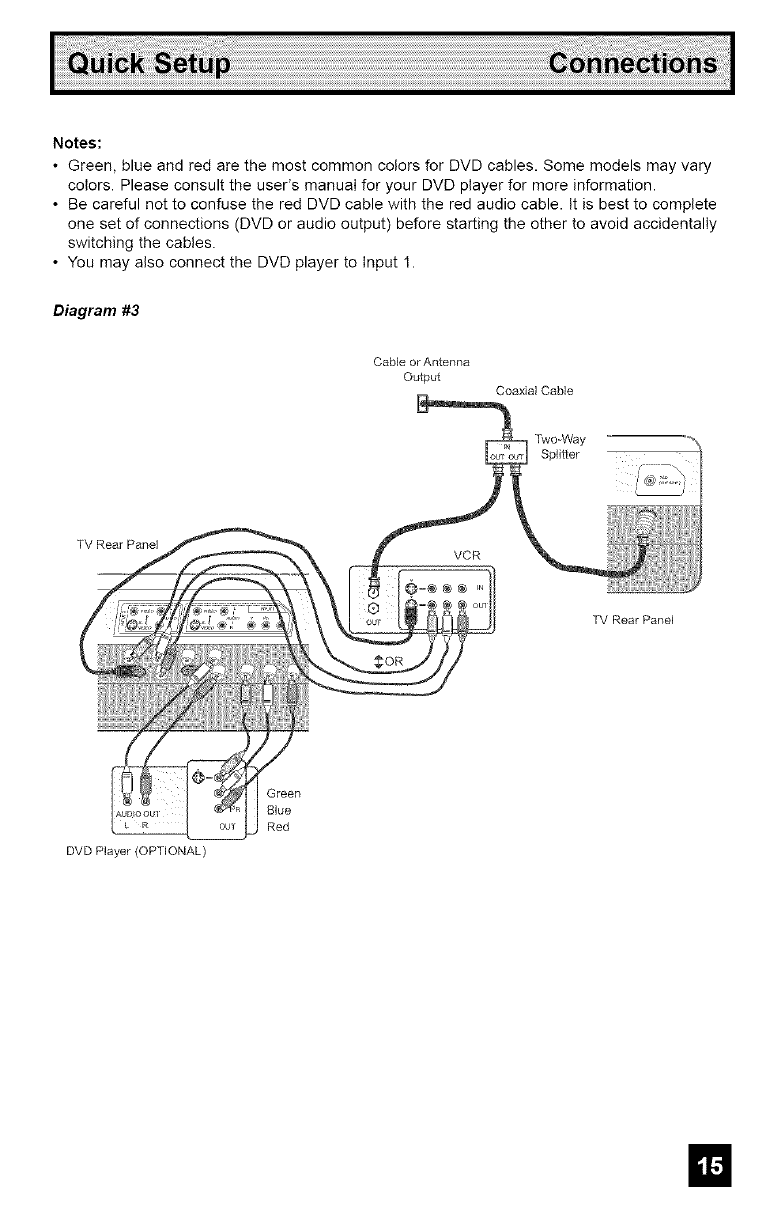
Notes:
• Green, blue and red are the most common colors for DVD cables. Some models may vary
colors. Please consult the user's manual for your DVD player for more information.
• Be careful not to confuse the red DVD cable with the red audio cable. It is best to complete
one set of connections (DVD or audio output) before starting the other to avoid accidentally
switching the cables.
• You may also connect the DVD player to Input 1.
Diagram #3
Cable or Antenna
Output
Coaxial Cable
TwoWYay
Splitter
TV Rear Panel
TV Rear Panel
DVD Player (OPTIONAL)
Green
Blue
Red
ID
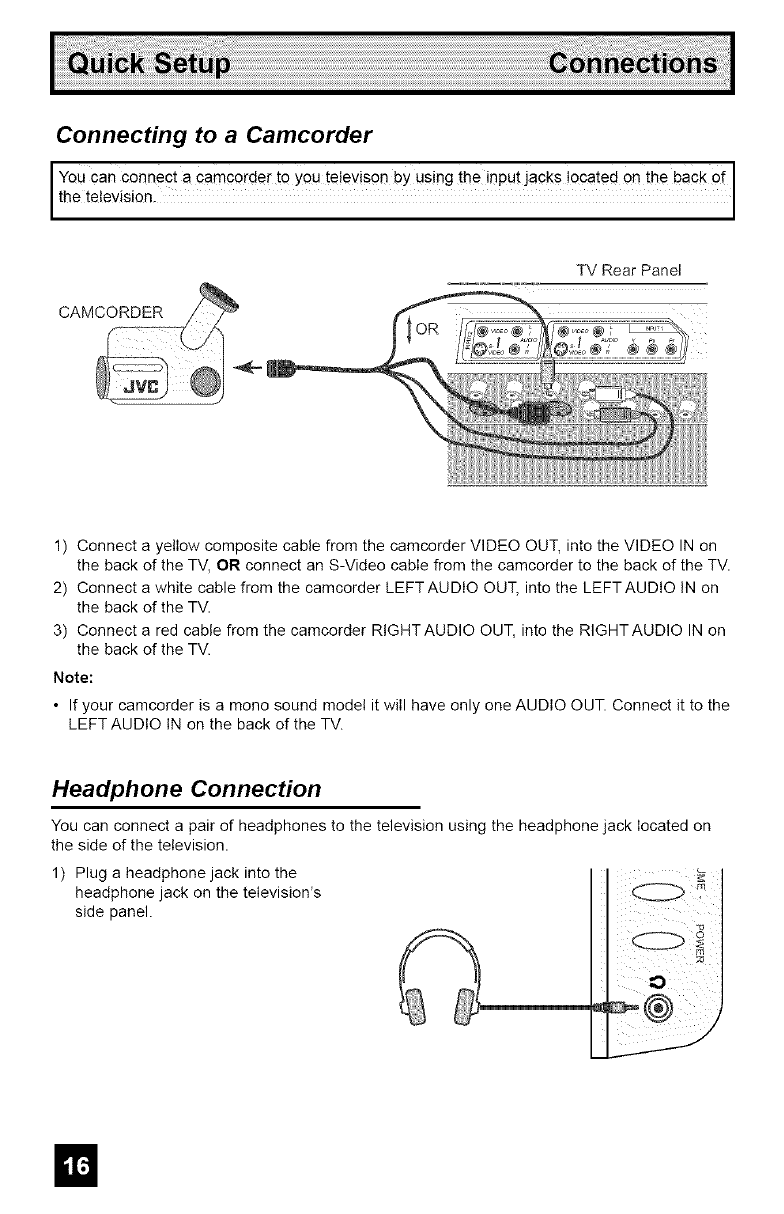
Connecting to a Camcorder
You can connec t a camcorder to you te!eyison by using the inpu!jacks ocated on th e bac k o i
the te ev s on,
CAMCORDER
TV Rear Panel
@® ....
1) Connect a yellow composite cable from the camcorder VIDEO OUT, into the VIDEO IN on
the back of the TV, OR connect an S-Video cable from the camcorder to the back of the TV.
2) Connect a white cable from the camcorder LEFTAUDIO OUT, into the LEFTAUDIO IN on
the back of the TV.
3) Connect a red cable from the camcorder RIGHTAUDIO OUT, into the RIGHTAUDIO IN on
the back of the TV.
Note:
• If your camcorder is a mono sound model it will have only one AUDIO OUT. Connect it to the
LEFT AUDIO IN on the back of the TV.
Headphone Connection
You can connect a pair of headphones to the television using the headphone jack located on
the side of the television.
1) Plug a headphone jack into the
headphone jack on the television's
side panel.
ID
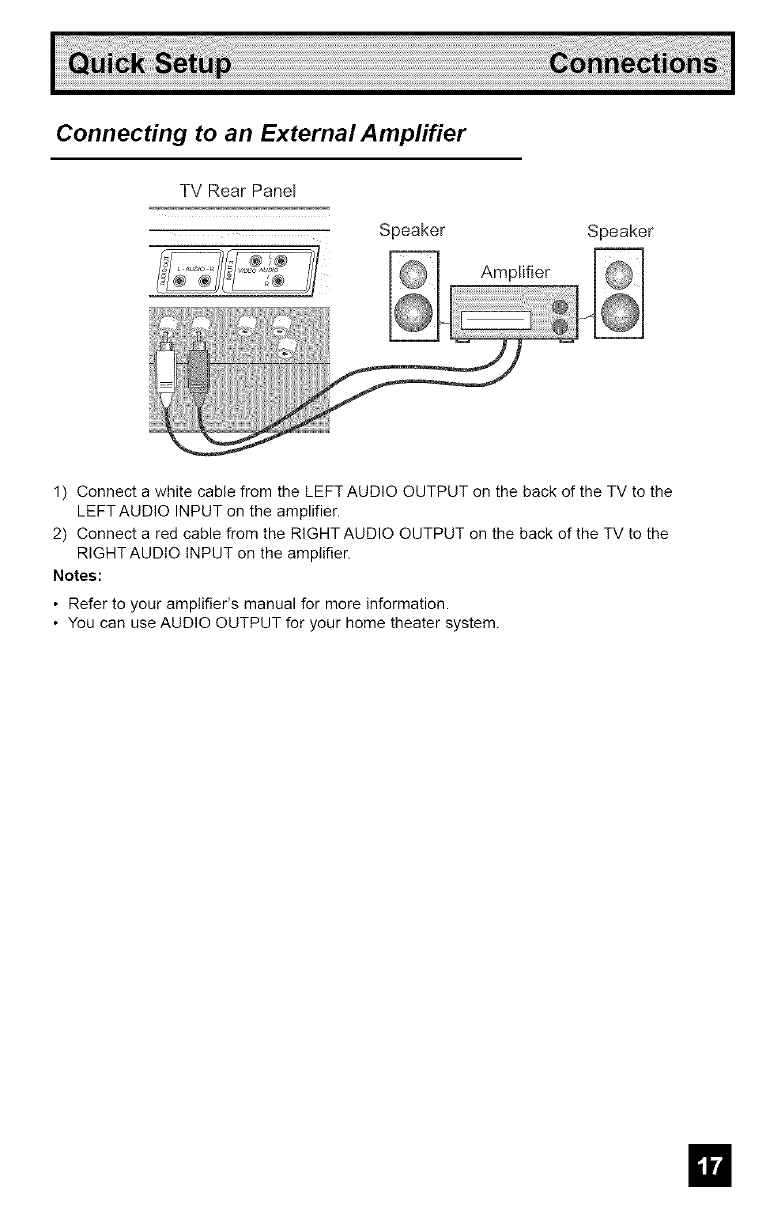
Connecting to an External Amplifier
TV Rear Paner
Speaker
Amplifier
Speaker
1) Connect a white cable from the LEFT AUDIO OUTPUT on the back of the TV to the
LEFTAUDIO INPUT on the amplifier.
2) Connect a red cable from the RIGHT AUDIO OUTPUT on the back of the TV to the
RIGHT AUDIO INPUT on the amplifier.
Notes:
• Refer to your amplifier's manual for more information.
• You can use AUDIO OUTPUT for your home theater system.
II
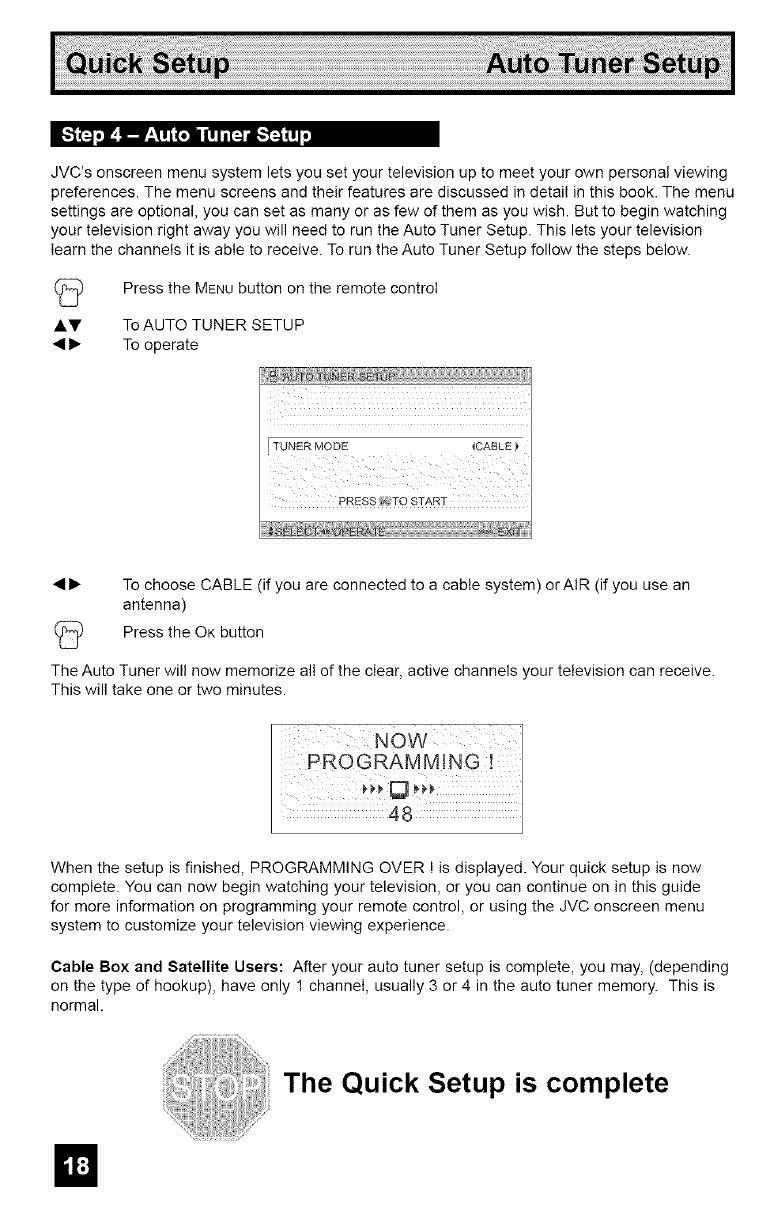
JVC's onscreen menu system lets you set your television up to meet your own personal viewing
preferences. The menu screens and their features are discussed in detail in this book. The menu
settings are optional, you can set as many or as few of them as you wish. But to begin watching
your television right away you will need to run the Auto Tuner Setup. This lets your television
learn the channels it is able to receive. To run the Auto Tuner Setup follow the steps below.
J.y To AUTO TUNER SETUP
• I_ To operate
Press the MENU button on the remote controi
ii
iiiiiiiiill
FTUNER MODE
PRES8'_ TO START
• 1_ To choose CABLE (if you are connected to a cable system) orAIR (if you use an
antenna)
Press the OK button
The Auto Tuner will now memorize all of the clear, active channels your television can receive.
This will take one or two minutes.
NOW I
PROGRAMMING
48
When the setup is finished, PROGRAMMING OVER ! is displayed. Your quick setup is now
complete. You can now begin watching your television, or you can continue on in this guide
for more information on programming your remote control, or using the JVC onscreen menu
system to customize your television viewing experience.
Cable Box and Satellite Users: After your auto tuner setup is complete, you may, (depending
on the type of hookup), have only 1 channel, usually 3 or 4 in the auto tuner memory. This is
normal.
The Quick Setup is complete
El
r I
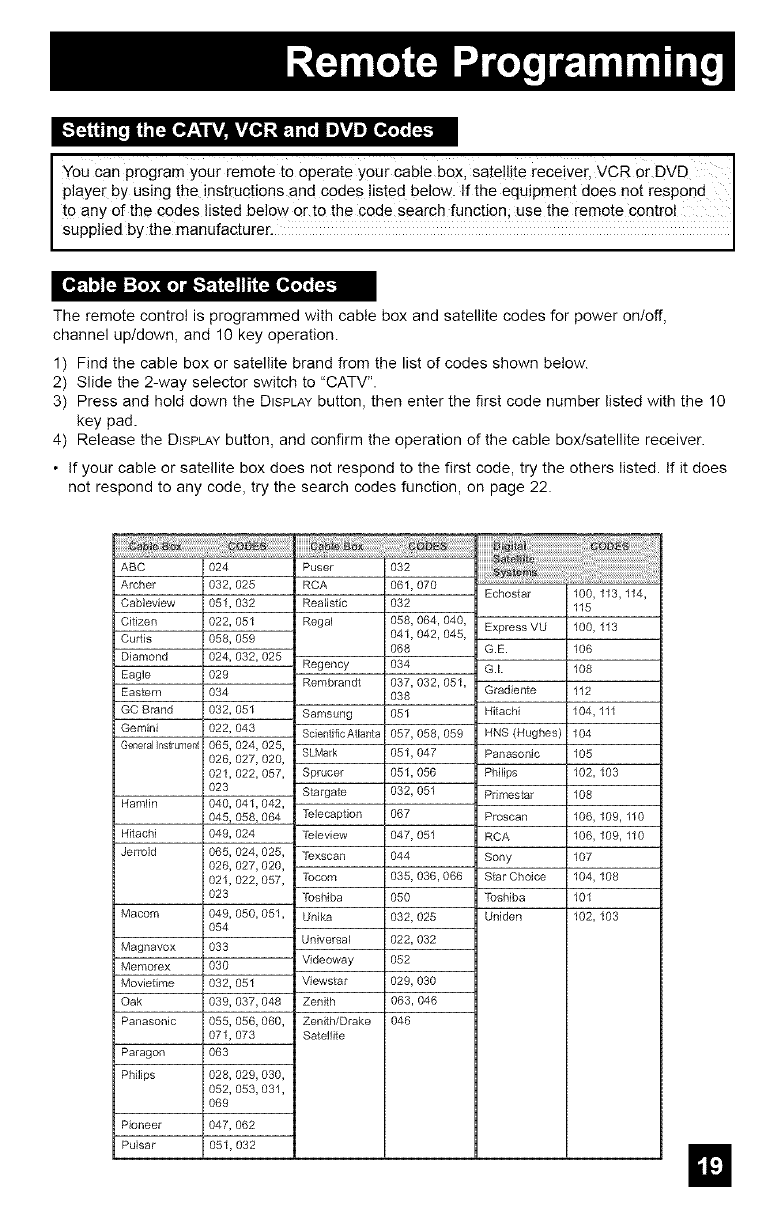
IYou Can prQgram your remote to Operate your Cable box, sate!lite receiver, VCR or DVD
player by using the instructions and COdes listed below. If the equipment does not respond I
to any of the codes listed below or to the code search function, use the remote control
Supped by the manufacturer.
[_3 _ltl1-11_3[11"I!-"r51_ II[IP-I[_t; [_
The remote control is programmed with cable box and satellite codes for power on/off,
channel up/down, and 10 key operation.
1) Find the cable box or satellite brand from the list of codes shown below.
2) Slide the 2-way selector switch to "CATV".
3) Press and hold down the DISPLAYbutton, then enter the first code number listed with the 10
key pad.
4) Release the DISPLAYbutton, and confirm the operation of the cable box/satellite receiver.
• If your cable or satellite box does not respond to the first code, try the others listed. If it does
not respond to any code, try the search codes function, on page 22.
ABC
Archer
Cableview
Citizen
Cudis
Diamond
Eagle
Easlem
GC Brand
Gemini
GeneralInstrumer_
HamIin
Hitachi
Jerrold
Macom
Magnavox
Memorex
Movietime
Oak
Panasonic
Paragon
Philips
Pioneer
Pulsar
i024
i032,025
i051,032
i022,051
i058,059
i024,032,025
i029
i034
i032,051
i022,043
i065,024,025,
i026,027,020,
i021,022,057,
i023
i040,041,042,
i045,058,064
i049,024
i065,024,025,
i026,027,020,
i021,022,057,
i023
i049,050,051,
i054
i033
i030
i032,051
i039,037,048
i055,056,060,
i071,073
i063
i028,029,030,
i052,053,031,
i069
i047,062
i051,032
Puser
RCA
Realistic
Regal
Regency
Rembrandt
Samsung
Scientific Atlanta
SLMark
Sprucer
Stargate
Telecaption
Teleview
Texscan
Tocom
Toshiba
Unika
Universal
Videoway
Viewstar
Zenith
Zenith/Drake
Satellite
032
061,070
032
058,064,040,
041,042,045,
O68
034
037,032,051,
O38
051
057,058,059
051,047
051,056
032,051
067
047,051
044
035, 036,066
050
032,025
022,032
052
029,030
063,046
046
Echostar 100,
115
Express VU 100,
G.E. 106
G.I. 108
Gradiente 112
Hitachi 104,
HNS (Hughes) 104
Panasonic 105
PhiIips 102,
Primes_r 108
Proscan 106,
RCA 106,
Sony 107
S_r Choice 104,
Toshiba 101
Uniden 102,
113,114,
113
111
103
109, 110
109,110
108
103
kVLo,]:_o,],_',_,;L,'_-'_
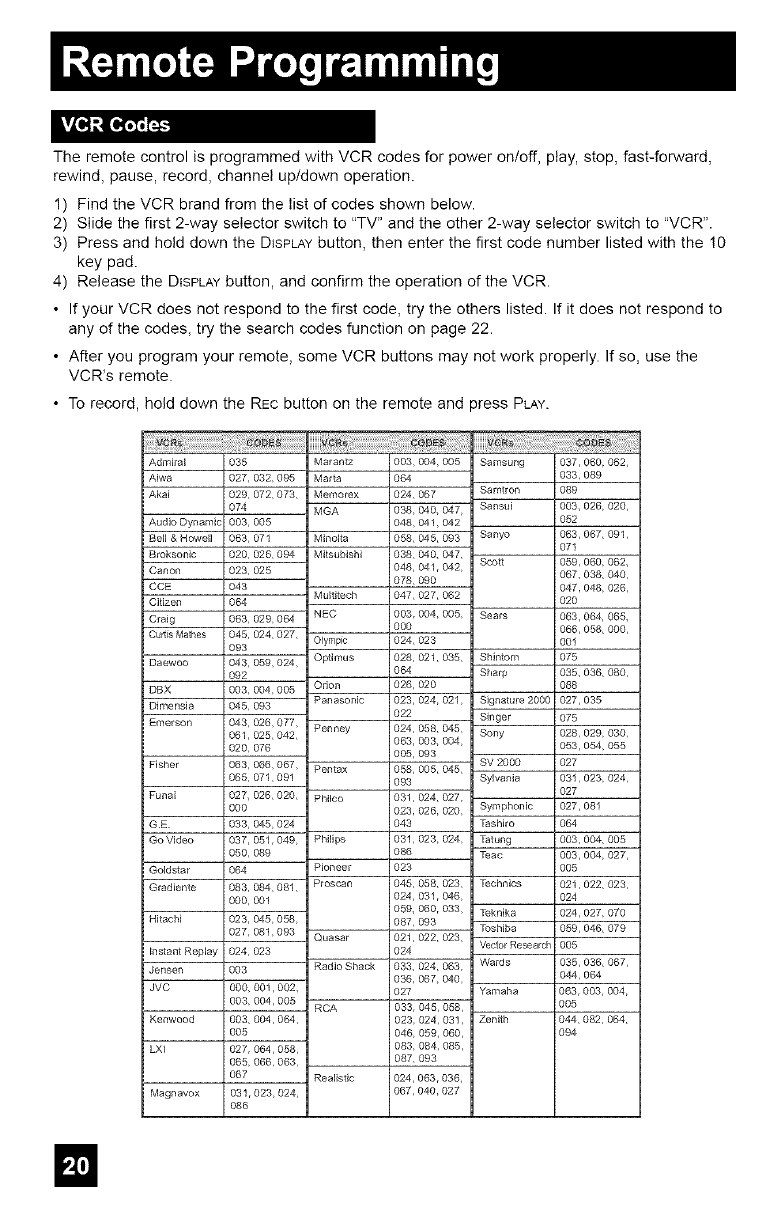
The remote control is programmed with VCR codes for power on/off, play, stop, fast-forward,
rewind, pause, record, channel up/down operation.
1) Find the VCR brand from the Iist of codes shown below.
2) Slide the first 2-way selector switch to "TV" and the other 2-way selector switch to "VCR".
3) Press and hold down the DISPLAYbutton, then enter the first code number listed with the !0
key pad.
4) Release the DISPLAYbutton, and confirm the operation of the VCR.
• If your VCR does not respond to the first code, try the others listed. If it does not respond to
any of the codes, try the search codes function on page 22.
• After you program your remote, some VCR buttons may not work properly. If so, use the
VCR's remote.
• To record, hold down the REc button on the remote and press PLAY.
iiiiiiii_i_i_iiii_iiiiiiiiiiiiiiii!iiiiiiiiiiiiii!:i!ii!_!_iiiiiiiiiiii!l
Admiral 035
Aiwa 027,032,095
Akai 029, 072,073,
074
AudioDynamic 003, 005
Bell & Howell 063, 071
Broksonic 020, 026, 094
Canon 023, 025
CCE 043
Citizen 064
Craig 063, 029, 064
Cuds Mathes 045, 024, 027,
093
Daewoo 043, 059,024,
092
DBX 003, 004,005
DJmensJa 045, 093
Emerson 043,026,077,
061,025,042,
020, 076
Fisher 063,066,067,
065, 071,091
Funai 027, 026,020,
000
G E 033, 045,024
Go Video 037,051,049,
050, 089
Goidstm 064
GradJente 083, 084,081,
000, 001
Hitachi 023,045,058,
027,081,093
Instant Replay 024, 023
Jensen 003
JVC 000, 001,002,
003, 004,005
Kenwood 003,004,064,
005
LXI 027,064,058,
065, 066,063,
067
Magnavox 031,023,024,
O86
........_:_@iii!_i_i_i_i_i_i_i_i_i_i_i_i_i_ii_i_i_i_i_i_ii_iil;!il;!¢i,i_!i¸i_i@i_!i_i!ii_iiii_!_!!i_!I_,_
Ma_antz 003,004, 005
Maria 064
Memorex 024,067
MGA 038, 040, 047
048,041,042
Minolta 058,045, 093
Mitsubishi 038,040, 047,
048, 041,042,
078,090
Muititech 047,027,062
NEC 003,004, 005,
000
Oiymprc 024,023
OptJmus 028, 021,035,
064
Orion 026, 020
Panasonic 023,024, 021,
022
Penney 024,058, 045,
063, 003, 004,
005, 093
Pentax 058, 005, 045,
093
Philco 031,024, 027,
023,026, 020,
043
Philips 031,023, 024,
086
Pioneer 023
PIoscan 045, 058, 023,
024, 0gl, 046,
059, 060, 033,
087,093
Quasar 021,022,023,
O24
Radio Shack 033, 024, 063,
036, 067,040,
027
RCA 033,045, 058,
023,024,031,
046, 059, 060,
083,084, 085,
087,093
Realistic 024,063,036,
067,040,027
Samsung
Samtron
Sansui
Sanyo
Sco_
Sears
Shintom
Sharp
Signature 2000
Singer
Sony
SV 2000
Sylvania
Symphonic
Teshiro
Tatung
Teac
Technics
Teknika
Toshiba
Vecior Research
Wards
Yamaha
Zenith
037,060 062,
033,089
O89
003,026, 020,
O52
063,067, 091,
071
059,060, 062,
067,038, 040,
047,048, 026,
020
063,064, 065,
066,058, 000,
0el
O75
035, 036, 080,
088
027,035
075
028,029, 030,
053, 05,4,055
027
031,023, 024,
027
027,081
064
003,004, 005
003,004,027,
005
021,022,023,
O24
024,027,070
059,046, 079
005
035,036, 067,
044,064
063,003, 004,
005
044,082,064,
O94
El
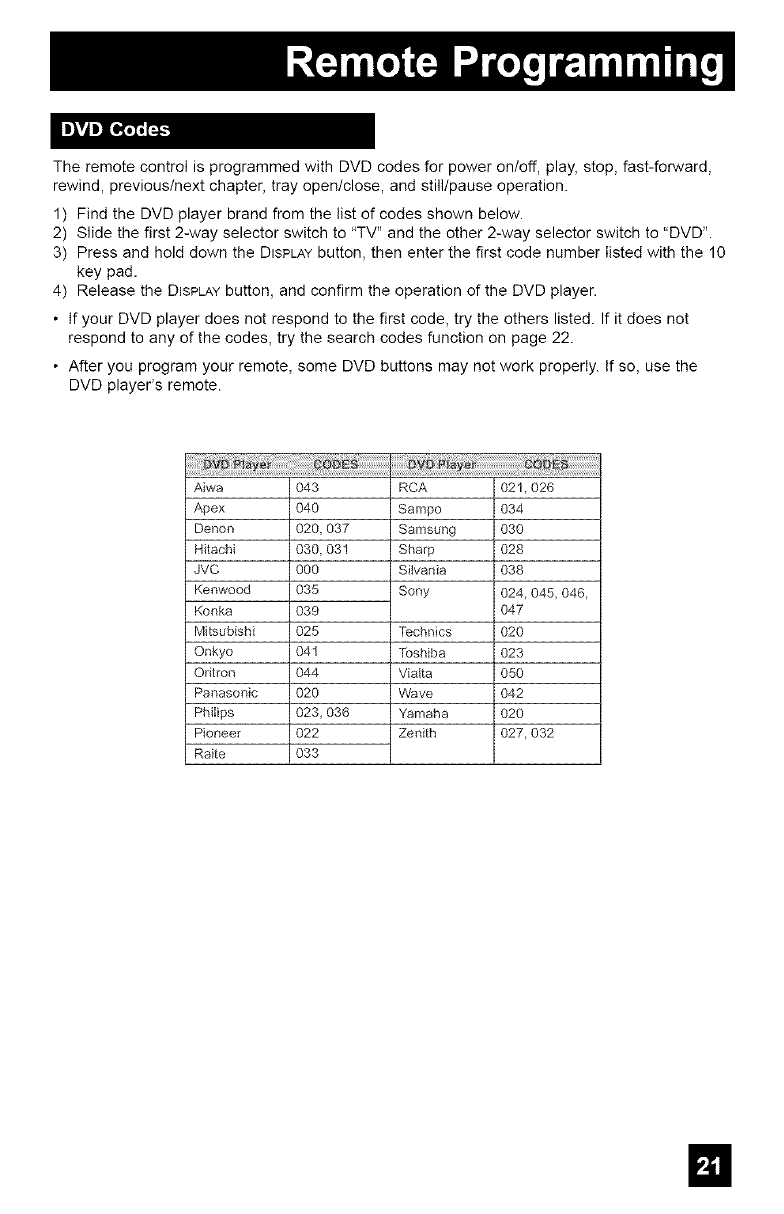
The remote control is programmed with DVD codes for power on/off, play, stop, fast-forward,
rewind, previous/next chapter, tray open/close, and stilltpause operation.
1) Find the DVD player brand from the list of codes shown below.
2) Slide the first 2-way selector switch to "TV" and the other 2-way selector switch to "DVD".
3) Press and hold down the DISPLAYbutton, then enter the first code number listed with the 10
key pad.
4) Release the DISPLAYbutton, and confirm the operation of the DVD player.
• If your DVD player does not respond to the first code, try the others listed. If it does not
respond to any of the codes, try the search codes function on page 22.
• After you program your remote, some DVD buttons may not work properly. If so, use the
DVD player's remote.
Aiwa
Apex
aenon
Hitachi
JVC
Kenwood
Konka
Mitsubishi
Onkyo
Odtron
Panasonic
Philips
Pioneer
Raite
O43
O4O
020,037
030,031
000
O35
O39
O25
041
O44
O2O
023,036
O22
O33
RCA
Sampo
Samsur_g
Sharp
Sitvania
Sony
Technics
Toshiba
Vialta
Wave
Yamaha
Zenith
02!,026
O34
O3O
O28
O38
024,045,046,
O47
O2O
O23
O5O
O42
O2O
027,032
E!
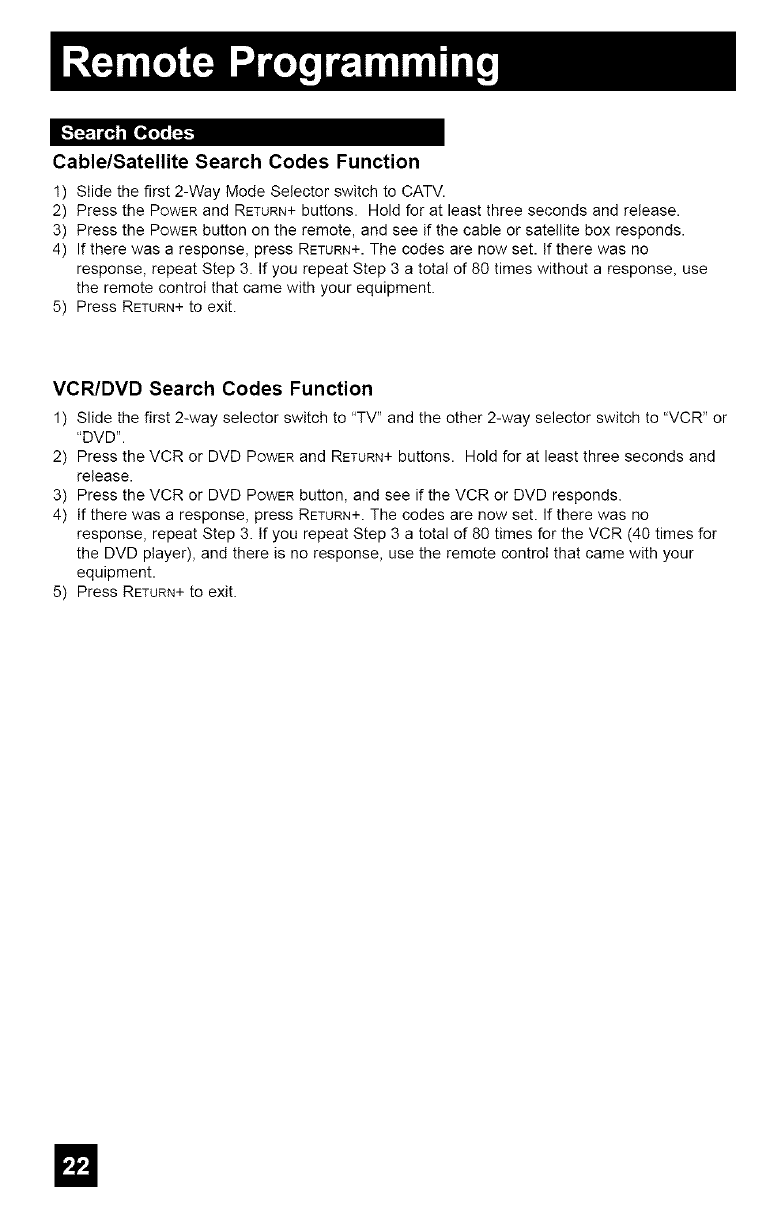
Cable/Satellite Search Codes Function
1) Slide the first 2-Way Mode Selector switch to CATV.
2) Press the POWERand RETURN+buttons. Hold for at least three seconds and release.
3) Press the POWERbutton on the remote, and see if the cable or satellite box responds.
4) If there was a response, press RETURN+.The codes are now set. If there was no
response, repeat Step 3. If you repeat Step 3 a total of 80 times without a response, use
the remote control that came with your equipment.
5) Press RETURN+to exit.
VCR/DVD Search Codes Function
1) Slide the first 2-way selector switch to "TV" and the other 2-way selector switch to "VCR" or
"DVD".
2) Press the VCR or DVD POWERand RETURN+buttons. Hold for at least three seconds and
release.
3) Press the VCR or DVD POWERbutton, and see if the VCR or DVD responds.
4) If there was a response, press RETURN+.The codes are now set. If there was no
response, repeat Step 3. If you repeat Step 3 a total of 80 times for the VCR (40 times for
the DVD player), and there is no response, use the remote control that came with your
equipment.
5) Press RETURN+to exit.
m
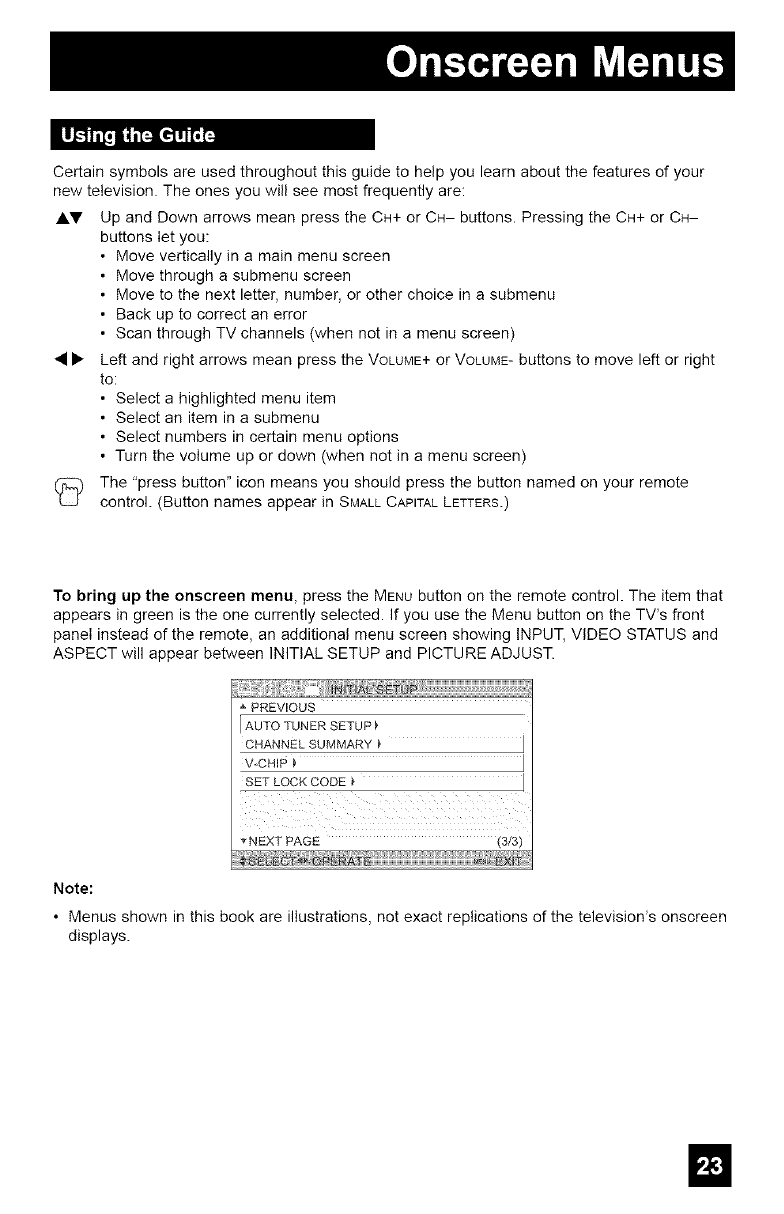
Certain symbols are used throughout this guide to help you learn about the features of your
new television. The ones you will see most frequently are:
J.V Up and Down arrows mean press the CH+ or CH-- buttons. Pressing the CH+ or CH-
buttons let you:
• Move vertically in a main menu screen
• Move through a submenu screen
• Move to the next letter, number, or other choice in a submenu
• Back up to correct an error
• Scan through TV channels (when not in a menu screen)
• • Left and right arrows mean press the VOLUME+or VOLUME-buttons to move left or right
to:
• Select a highlighted menu item
• Select an item in a submenu
• Select numbers in certain menu options
• Turn the volume up or down (when not in a menu screen)
(_ The "press button" icon means you should press the button named on your remote
control. (Button names appear in SMALLCAPITALLETTERS.)
To bring up the onscreen menu, press the MENU button on the remote control. The item that
appears in green is the one currently selected. If you use the Menu button on the TV's front
panel instead of the remote, an additional menu screen showing INPUT, VIDEO STATUS and
ASPECT will appear between INITIAL SETUP and PICTURE ADJUST.
PREVIOUS
IAUTO TUNER SETUP
V-CHIP
SET LOCK CODE
_'NEXT PAGE (3/3)
Note:
• Menus shown in this book are illustrations, not exact replications of the television's onscreen
displays.
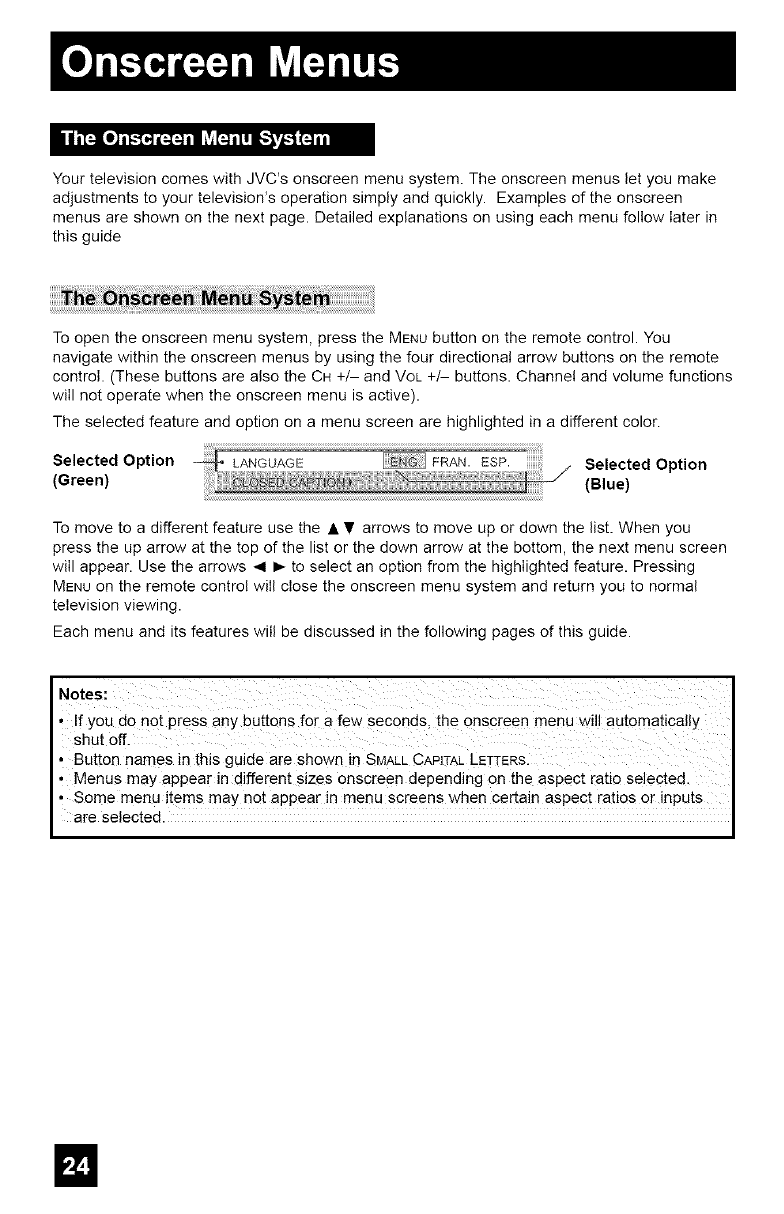
YourtelevisioncomeswithJVC'sonscreenmenusystem.Theonscreenmenusletyoumake
adjustmentstoyourtelevision'soperationsimplyandquickly.Examplesoftheonscreen
menusareshownonthenextpage.Detailedexplanationsonusingeachmenufollowlaterin
thisguide
Toopentheonscreenmenusystem,presstheMENUbuttonontheremotecontrol.You
navigatewithintheonscreenmenusbyusingthefourdirectionalarrowbuttonsontheremote
control.(ThesebuttonsarealsotheCH+/-andVOL+/-buttons.Channelandvolumefunctions
willnotoperatewhentheonscreenmenuisactive).
Theselectedfeatureandoptiononamenuscreenarehighlightedinadifferentcolor.
SelectedOption SelectedOption
(Green) (Blue)
To move to a different feature use the • • arrows to move up or down the list. When you
press the up arrow at the top of the list or the down arrow at the bottom, the next menu screen
will appear. Use the arrows 41 I_ to select an option from the highlighted feature. Pressing
MENU on the remote control will close the onscreen menu system and return you to normal
television viewing.
Each menu and its features will be discussed in the following pages of this guide.
• If you de nOt press any buttons for a few seconds, the onspreen menu wil! automatically
Shutoff.
,Button names in this guide are shown in SMALLCAPITALLETTERS.
,Menus may appear in different sizes onscreen depending on the aspect ratio selected.
• Some menu items may net appear in menu screens when certain aspect ratios or inputs
are selected.
El
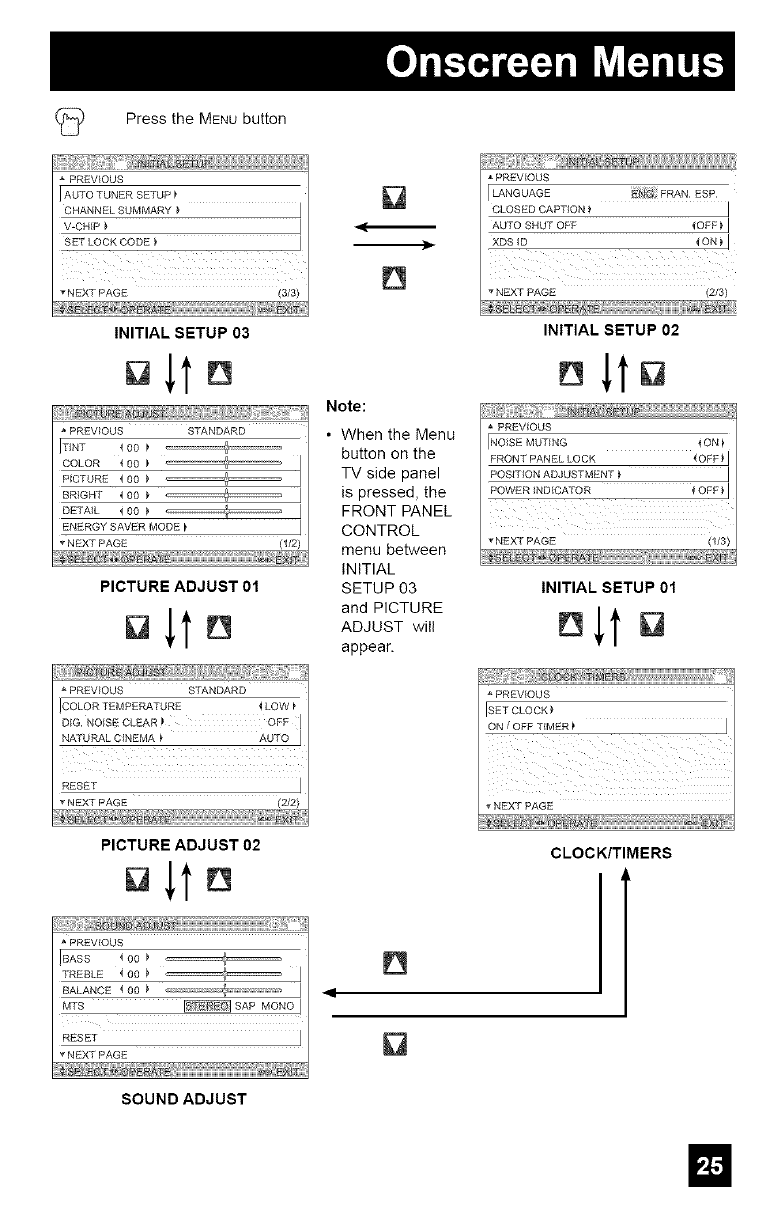
(_ Press the MENU button
PREVIOUS
I AUTO TUNER SETUP
CHANNEL SUMMARY
V-CHiP _ I
SF'r LOCK CODE _ I
_NEXT PAGE (3/3)
INITIAL SETUP 03
aite
[ ;
PREVIOUS STANDARD
ITINT <O0 _ 6'
COLOR _ 00
PICTURE 400
BRIGHT 400 )
DETAIL _ 00 _
ENERGY SAVER MODE _ I
NEXT [SAGE ('1/2)
PICTURE ADJUST 01
Dlte
PREVIOUS STANDARD
4LOW_
D_G, NOISE CLEAR _ OFF
NATURAL CINEMA _ AUTO
ii iii _: _:iii!_!_!_!_!_!_!_!_!_!_!_!_
RESET I
_ NEXT PAGE 12i2_
PICTURE ADJUST 02
PREVIOUS
IBASS 400
TREBLE _ 00 _ _ I
BALANCE 4 O0
MTS _ SAP MONO
RESE'f
NEXT PAGE
SOUND ADJUST
Note:
D
When the Menu
button on the
TV side panel
is pressed, the
FRONT PANEL
CONTROL
menu between
INITIAL
SETUP 03
and PICTURE
ADJUST will
appear.
PREVIOUS
LANGUAGE FRAN ESP
CLOSED CAPTION _ I
AUTO SHUT OFF iOFFt I
XDS_D _ON_ I
NEXT PAGE (2/3)
INITIAL SETUP 02
Blta
PREVIOUS
NOISE MUTING { ON
PANEL LOCK (o£Pq
FRONT
POSITION ADJUSTMENT } I
POWER iNDICATOR
_NEXT PAGE (1/3)
INITIAL SETUP 01
PREVIOUS
SET CLOCK
ON / OFF TIMER
iiii_ i _ i _ iiiiiiiiii
NEXT PAGE
CLOCK/TIMERS
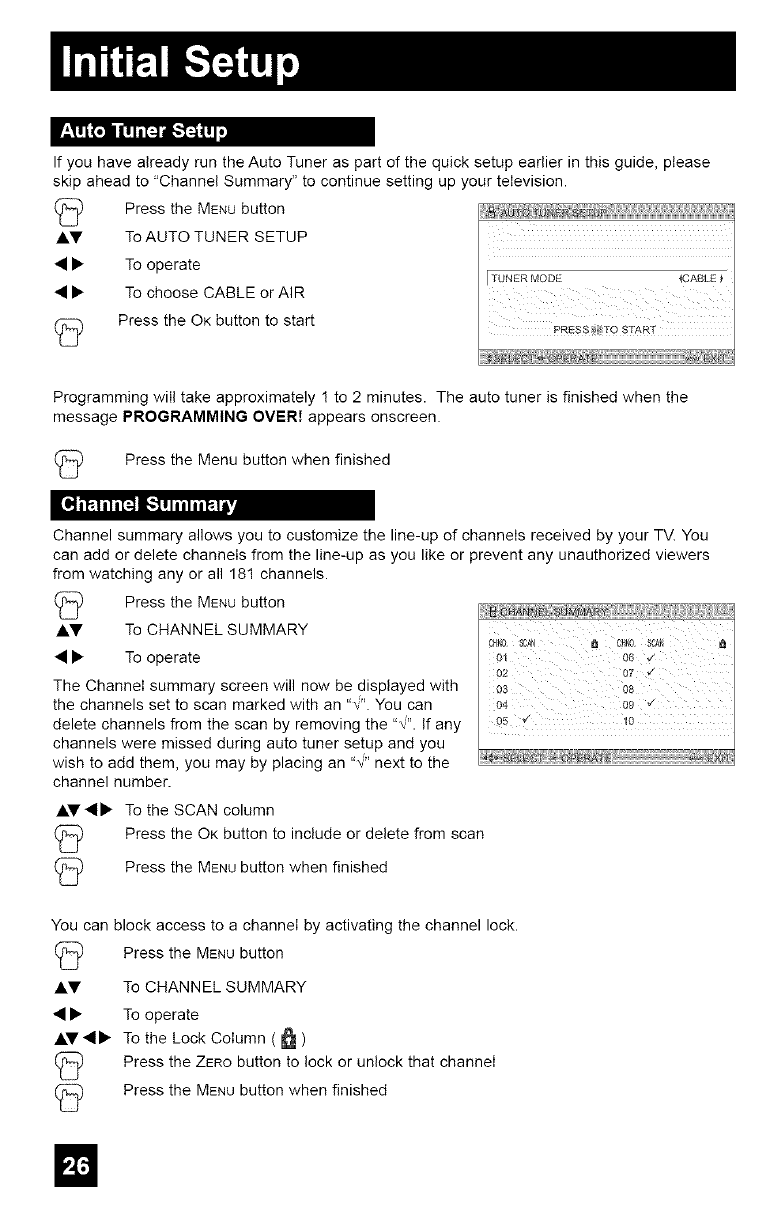
IfyouhavealreadyruntheAutoTuneraspartofthequicksetupearlierinthisguide,please
skipaheadto"Channel Summary" to continue setting up your television.
Press the MENUbutton
J.V To AUTO TUNER SETUP
• • To operate
• • To choose CABLE or AIR
(_ Press the OK button to start
TUNER MODE
PRESS_TO START
Programming will take approximately ! to 2 minutes. The auto tuner is finished when the
message PROGRAMMING OVER! appears onscreen.
Press the Menu button when finished
Channel summary allows you to customize the line-up of channels received by your TV. You
can add or delete channels from the line-up as you like or prevent any unauthorized viewers
from watching any or all 181 channels.
Press the MENUbutton
AV To CHANNEL SUMMARY
• • To operate
The Channel summary screen will now be displayed with
the channels set to scan marked with an "_". You can
delete channels from the scan by removing the ",,'". If any
channels were missed during auto tuner setup and you
wish to add them, you may by placing an "\" next to the
channel number.
o_ 00v
02 07 _/
0s o0
o9 ¢
AV4• To the SCAN column
(_ Press the OK button to include or delete from scan
(_ Press the MENUbutton when finished
You can block access to a channel by activating the channel lock.
Press the MENU button
AV To CHANNEL SUMMARY
• • To operate
AV•• To the Lock Column ( _ )
Press the ZERO button to lock or unlock that channel
Press the MENU button when finished
m
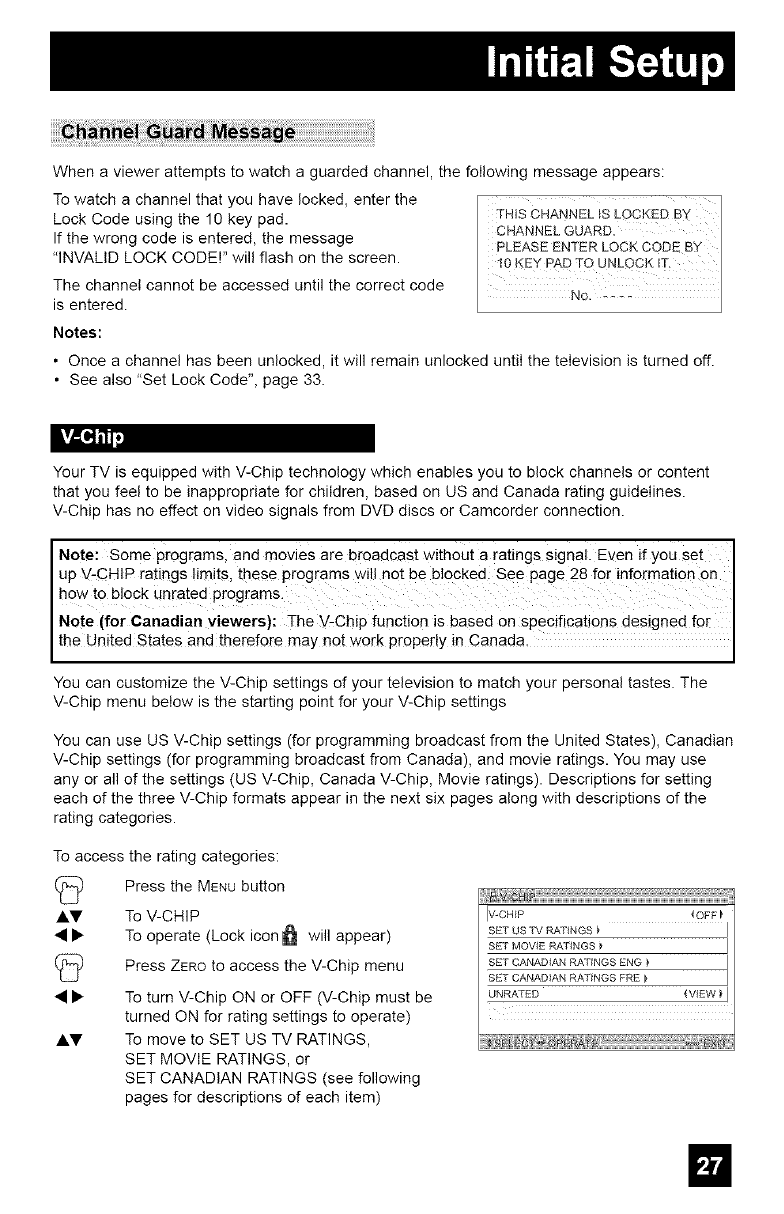
When a viewer attempts to watch a guarded channel, the following message appears:
To watch a channel that you have locked, enter the
Lock Code using the 10 key pad.
If the wrong code is entered, the message
"INVALID LOCK CODE!" will flash on the screen.
The channel cannot be accessed until the correct code
is entered.
Notes:
• Once a channel has been unlocked, it will remain unlocked until the television is turned off.
• See also "Set Lock Code", page 33.
Your TV is equipped with V-Chip technology which enables you to block channels or content
that you feel to be inappropriate for children, based on US and Canada rating guidelines.
V-Chip has no effect on video signals from DVD discs or Camcorder connection.
Note: Some Programs, and movies are broadcast without a ratings signal. Even if you set
up V-CHIP ratings limits, these program s wi!! no t be blocked Se e Page 28 for information on
how to block unrated programs.
Note (for Canadian viewers}: ]-he V-Chip function is based OnSpecificatJ0ns designed for
the Un ted States and therefore may not work proper y n Canada,
You can customize the V-Chip settings of your television to match your personal tastes. The
V-Chip menu below is the starting point for your V-Chip settings
You can use US V-Chip settings (for programming broadcast from the United States), Canadian
V-Chip settings (for programming broadcast from Canada), and movie ratings. You may use
any or all of the settings (US V-Chip, Canada V-Chip, Movie ratings). Descriptions for setting
each of the three V-Chip formats appear in the next six pages along with descriptions of the
rating categories.
_access
AY
AV
the rating categories:
Press the MENUbutton
To V-CHIP
To operate (Lock icon &_ will appear)
Press ZEROto access the V-Chip menu
To turn V-Chip ON or OFF (V-Chip must be
turned ON for rating settings to operate)
To move to SET US TV RATINGS,
SET MOVIE RATINGS, or
SET CANADIAN RATINGS (see following
pages for descriptions of each item)
IV-CHIP 4OFF)
SFT US l"V _RNGS _ J
SET MOVIE Fb_,TINGS _ J
SET CANADIAN RAI"INGS ENG _ J
SET CANADIAN RATINGS FRE _ J
III
Unrated programming refers to any programming which does not contain a rating signal.
Programming on television stations which do not broadcast rating signals will be placed in the
"Unrated Programming" category.
Examples of Unrated programs:
• Emergency Bulletins
• News
• Public Service Announcements
• Sports
• Some Commercials
Note:
• Locally Originated Programming
• Political Programs
• Religious Programs
• Weather
• TV programs or movies that do not have rating signals will be blocked if the unrated category
is set to BLOCK.
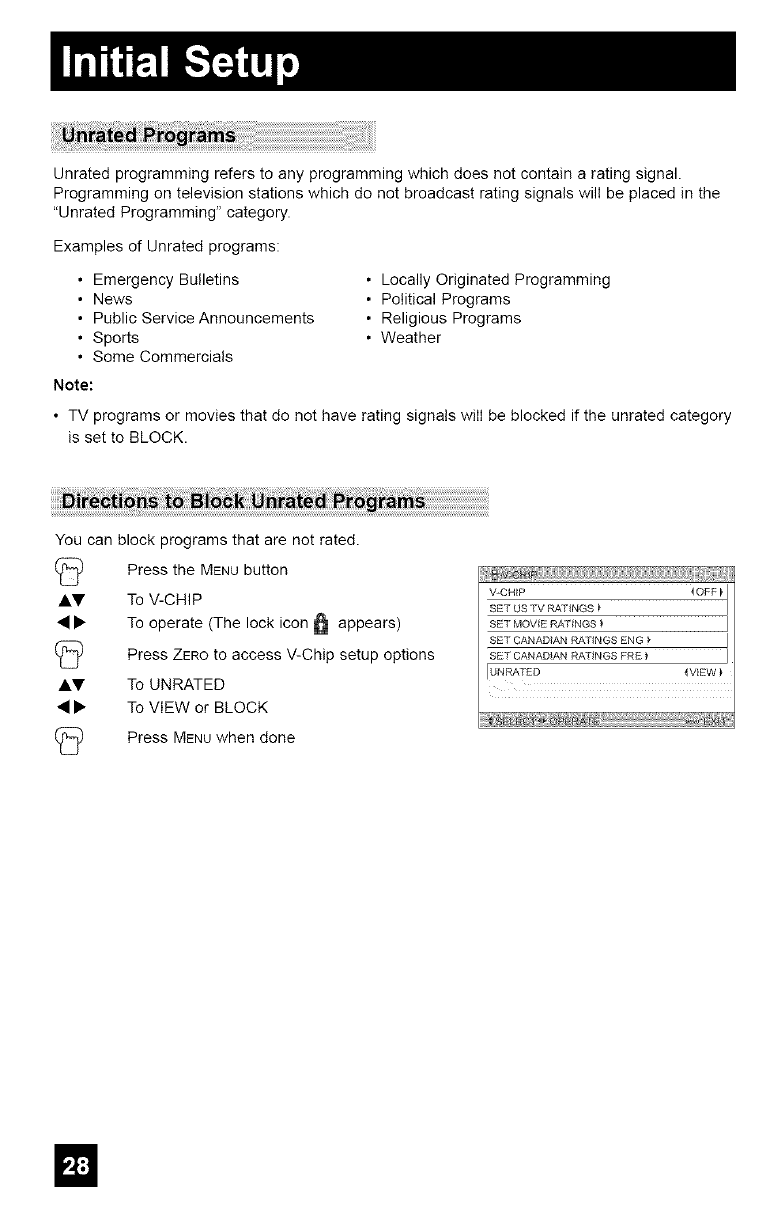
You can block programs that are not rated.
AV
AY
Press the MENU button
To V-CHIP
To operate (The lock icon _ appears)
Press ZEROto access V-Chip setup options
To UNRATED
To VIEW or BLOCK
Press MENUwhen done
ttttttttttttttttttttt
V-CHIP
SET US TV RATINGS )
SET MOVIE RATINGS _ J
SET CANADIAN RATINGS ENG } J
SET CANADIAN RATINGS FRE } I
IUN RATED { VIEW )
El
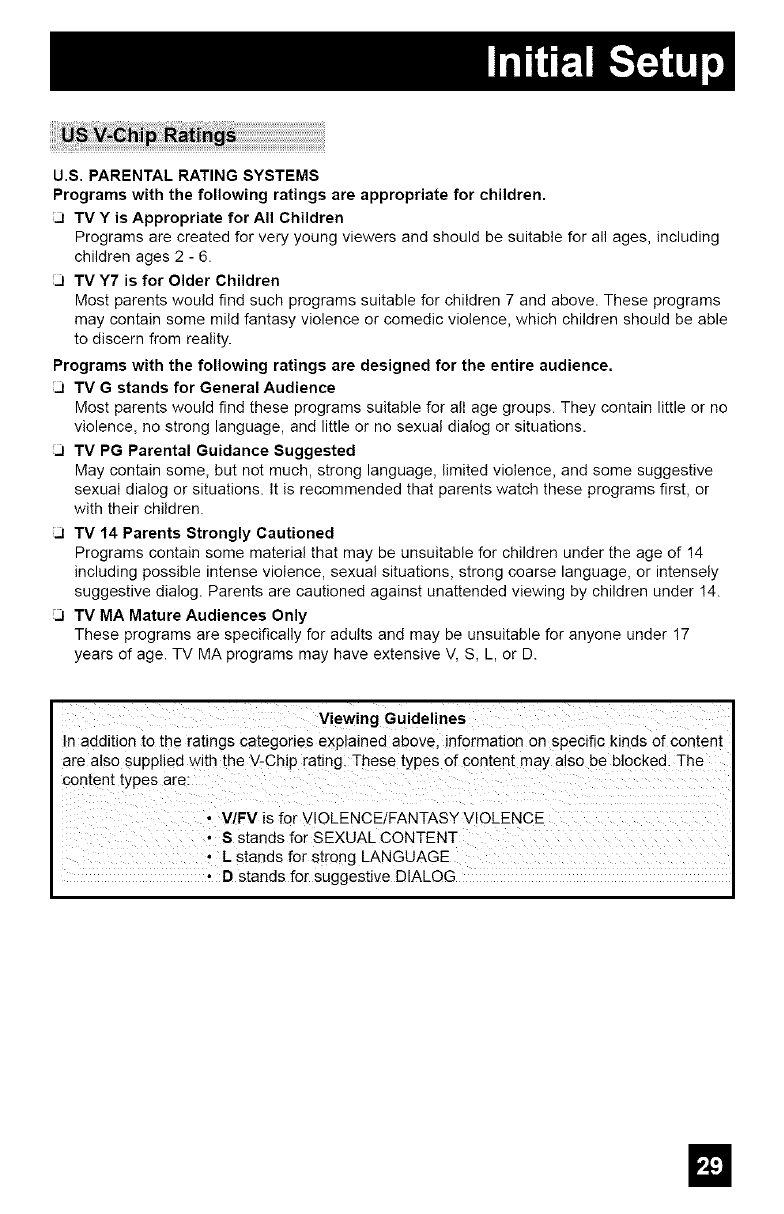
U.S. PARENTAL RATING SYSTEMS
Programs with the following ratings are appropriate for children.
TV Y is Appropriate for All Children
Programs are created for very young viewers and should be suitable for all ages, including
children ages 2 - 6.
3TV Y7 is for Older Children
Most parents would find such programs suitable for children 7 and above. These programs
may contain some mild fantasy violence or comedic violence, which children should be able
to discern from reality.
Programs with the following ratings are designed for the entire audience.
TV Gstands for General Audience
Most parents would find these programs suitable for alI age groups. They contain little or no
violence, no strong language, and little or no sexual dialog or situations.
3TV PG Parental Guidance Suggested
May contain some, but not much, strong language, limited violence, and some suggestive
sexual dialog or situations. It is recommended that parents watch these programs first, or
with their children.
3TV 14 Parents Strongly Cautioned
Programs contain some material that may be unsuitable for children under the age of 14
including possible intense violence, sexual situations, strong coarse language, or intensely
suggestive dialog. Parents are cautioned against unattended viewing by children under !4.
3TV MA Mature Audiences Only
These programs are specifically for adults and may be unsuitable for anyone under !7
years of age. TV MA programs may have extensive V, S, L, or D.
Viewing Guidelines
n addition to the ratings categories explained above, information on specific kinds of content
are also supplied with the V-Chip rating. These types of content may also be blocked. The
content types are:
•V/FV is for VIOLENCE/FANTASYVlOLENCE
• S stands for SEXUAL CONTENT
•Lstands for strong LANGUAGE
•Dstands for suggestive DIALOG
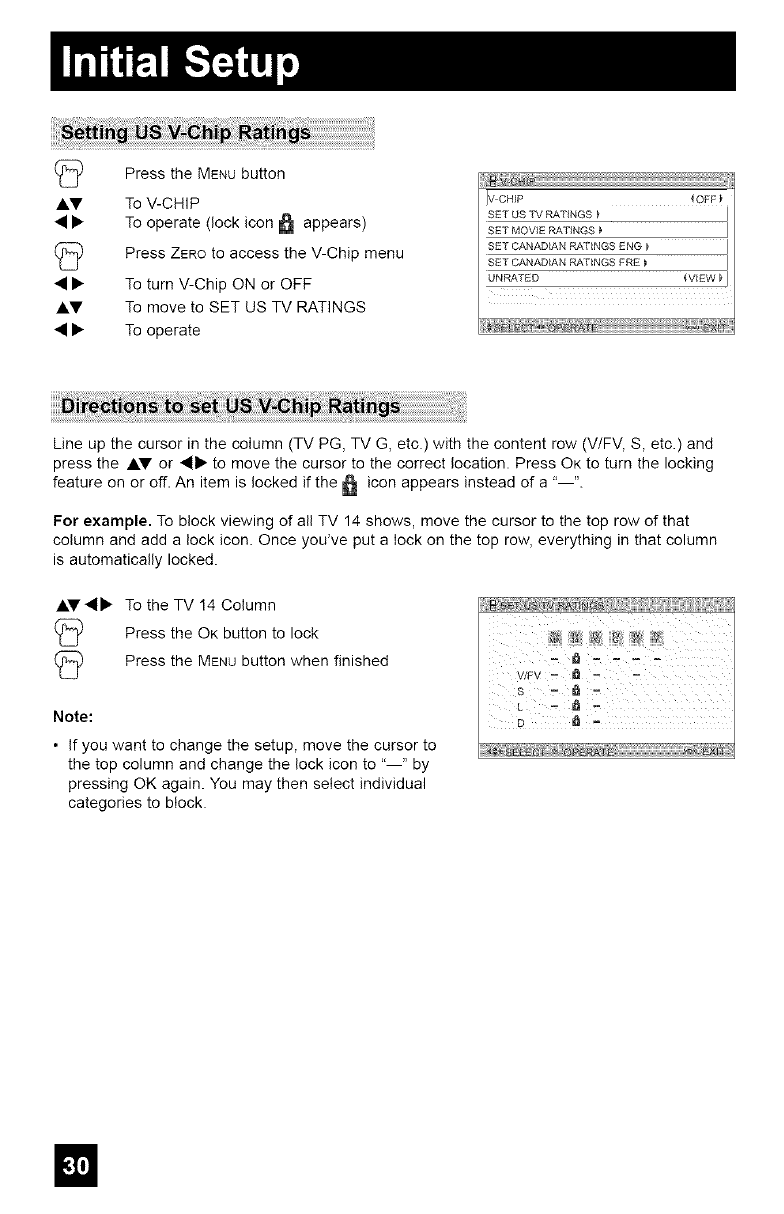
PresstheMENUbutton
I2
Ay To V-CHIP
• • To operate (lock icon _ appears)
2 Press ZEROto access the V-Chip menu
• • To turn V-Chip ON or OFF
J.V To move to SET US TV RATINGS
• • To operate
IV CHIP 4OFF
SET US TV RATINGS _ J
J
SET MOVIE RATINGS
SET CANADIAN RATINGS ENG _ J
SET CANADIAN RATINGS FRE _ J
UNRATED (VIEW _J
Line up the cursor in the column (TV PG, TV G, etc.) with the content row (V/FV, S, etc.) and
press the J.V or •• to move the cursor to the correct location. Press OK to turn the locking
feature on or off. An item is locked if the _ icon appears instead of a "--".
For example. To block viewing of all TV 14 shows, move the cursor to the top row of that
column and add a lock icon. Once yodve put a lock on the top row, everything in that column
is automatically locked.
Ay4• To the TV 14 Column
2 Press the OK button to lock
2 Press the MENUbutton when finished
Note:
• If you want to change the setup, move the cursor to
the top column and change the lock icon to "--" by
pressing OK again. You may then select individual
categories to block.
V/FV -I_ -.
s -- _
El
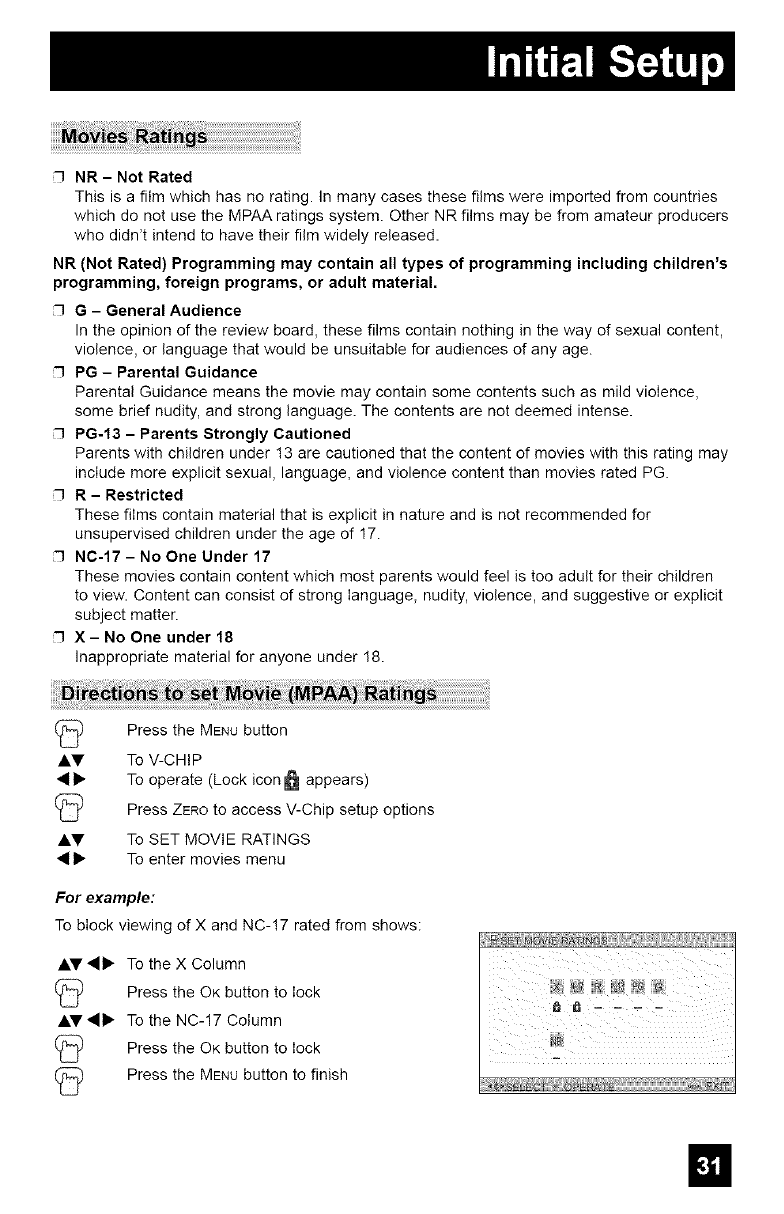
NR - Not Rated
This is a film which has no rating. In many cases these films were imported from countries
which do not use the MPAA ratings system. Other NR films may be from amateur producers
who didn't intend to have their film widely released.
NR (Not Rated) Programming may contain all types of programming including children's
programming, foreign programs, or adult material.
G - General Audience
In the opinion of the review board, these films contain nothing in the way of sexual content,
violence, or language that would be unsuitable for audiences of any age.
PG - Parental Guidance
Parental Guidance means the movie may contain some contents such as mild violence,
some brief nudity, and strong language. The contents are not deemed intense.
PG-13 - Parents Strongly Cautioned
Parents with children under 13 are cautioned that the content of movies with this rating may
include more explicit sexual, language, and violence content than movies rated PG.
R - Restricted
These films contain material that is explicit in nature and is not recommended for
unsupervised children under the age of 17.
NC-17- No One Under 17
These movies contain content which most parents would feel is too adult for their children
to view. Content can consist of strong language, nudity, violence, and suggestive or explicit
subject matter.
X- No One under 18
Inappropriate material for anyone under 18.
Press the MENUbutton
J.V To V-CHIP
4 I_ To operate (Lock icon appears)
Press ZEROto access V-Chip setup options
AV To SET MOVIE RATINGS
I_ To enter movies menu
For example:
To block viewing of X and NC-!7 rated from shows:
AV_II_ To the X Column
Press the OK button to lock
AV_II_ To the NC-17 Column
Press the OK button to lock
Press the MENUbutton to finish
_ - . - =
m
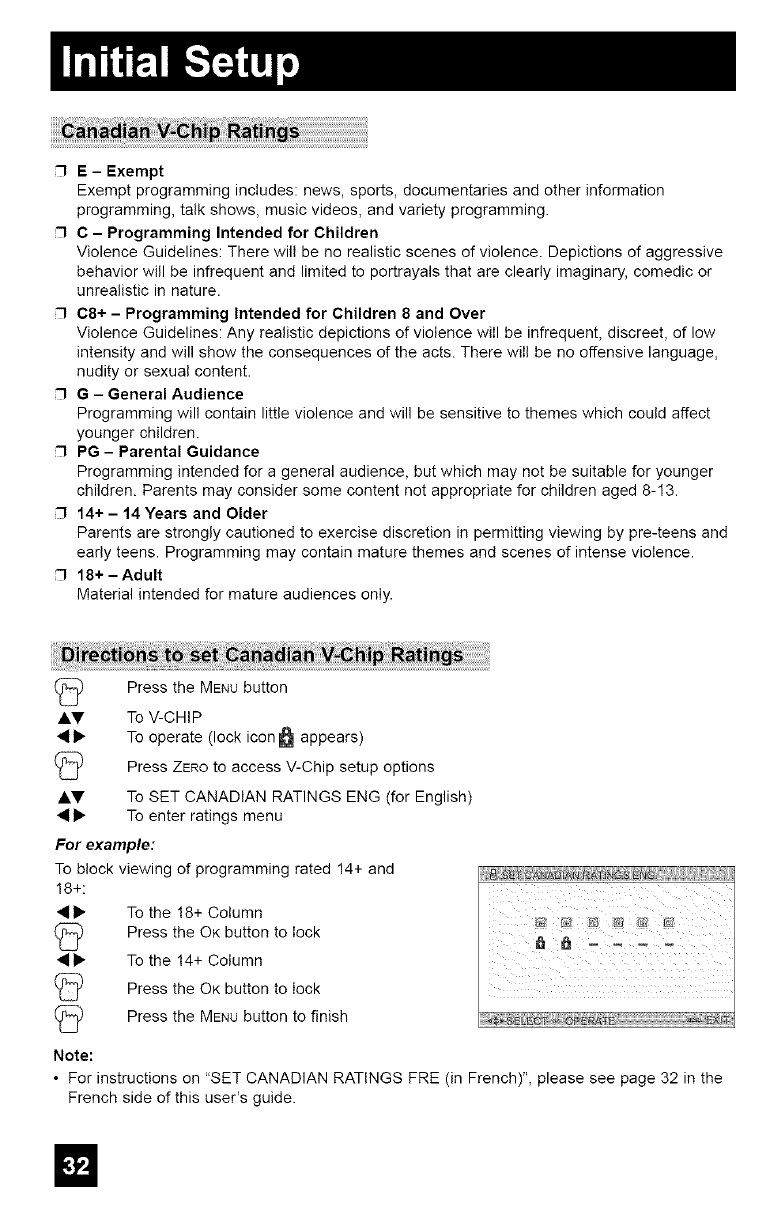
E- Exempt
Exempt programming includes: news, sports, documentaries and other information
programming, talk shows, music videos, and variety programming.
C - Programming Intended for Children
Violence Guidelines: There will be no realistic scenes of violence. Depictions of aggressive
behavior will be infrequent and limited to portrayals that are clearly imaginary, comedic or
unrealistic in nature.
C8+ - Programming Intended for Children 8 and Over
Violence Guidelines: Any realistic depictions of violence will be infrequent, discreet, of low
intensity and will show the consequences of the acts. There will be no offensive language,
nudity or sexual content.
G-General Audience
Programming will contain little violence and will be sensitive to themes which could affect
younger children.
PG - Parental Guidance
Programming intended for a general audience, but which may not be suitable for younger
children. Parents may consider some content not appropriate for children aged 8-13.
14+ - 14 Years and Older
Parents are strongly cautioned to exercise discretion in permitting viewing by pre-teens and
early teens. Programming may contain mature themes and scenes of intense violence.
18+- Adult
Material intended for mature audiences only.
(_ Press the MENUbutton
AV To V-CHIP
• I_ To operate (lock icon _ appears)
Press ZEROto access V-Chip setup options
J.V To SET CANADIAN RATINGS ENG (for English)
• I_ To enter ratings menu
For example:
To block viewing of programming rated 14+ and
18+:
• i_ To the !8+ Column
(_ Press the OK button to lock
• I_ To the 14+ Column
Press the OK button to lock
Press the MENUbutton to finish
Note:
• For instructions on "SET CANADIAN RATINGS FRE (in French)", please see page 32 in the
French side of this user's guide.
m
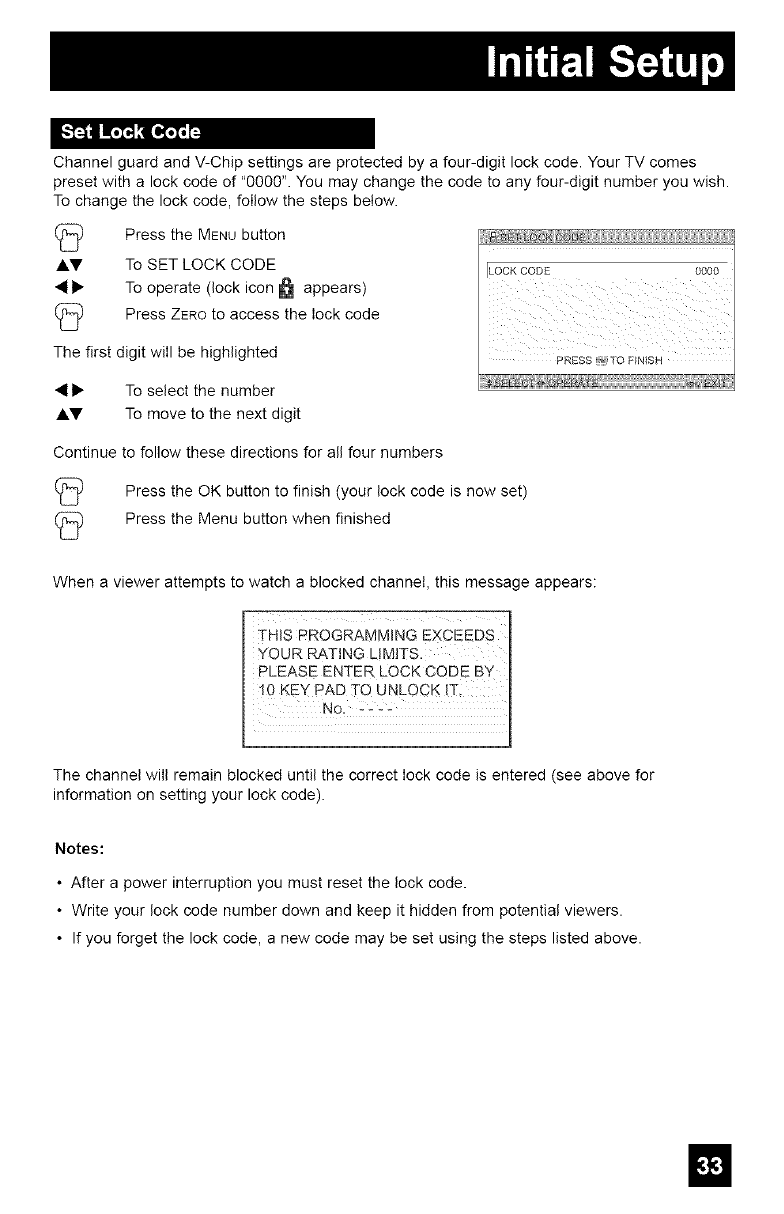
[_'_l IIl_,q[_ _
Channel guard and V-Chip settings are protected by a four-digit lock code. Your TV comes
preset with a lock code of "0000". You may change the code to any four-digit number you wish.
To change the lock code, follow the steps below.
12
AV
I2
Press the MENUbutton
To SET LOCK CODE
To operate (lock icon _ appears)
Press ZEROto access the lock code
The first digit will be highlighted
• I_ To select the number
Ay To move to the next digit
Continue to follow these directions for all four numbers
2 Press the OK button to finish (your lock code is now set)
2 Press the Menu button when finished
When a viewer attempts to watch a blocked channel, this message appears:
The channel will remain blocked until the correct lock code is entered (see above for
information on setting your lock code).
Notes:
• After a power interruption you must reset the lock code.
• Write your lock code number down and keep it hidden from potential viewers.
• If you forget the lock code, a new code may be set using the steps listed above.
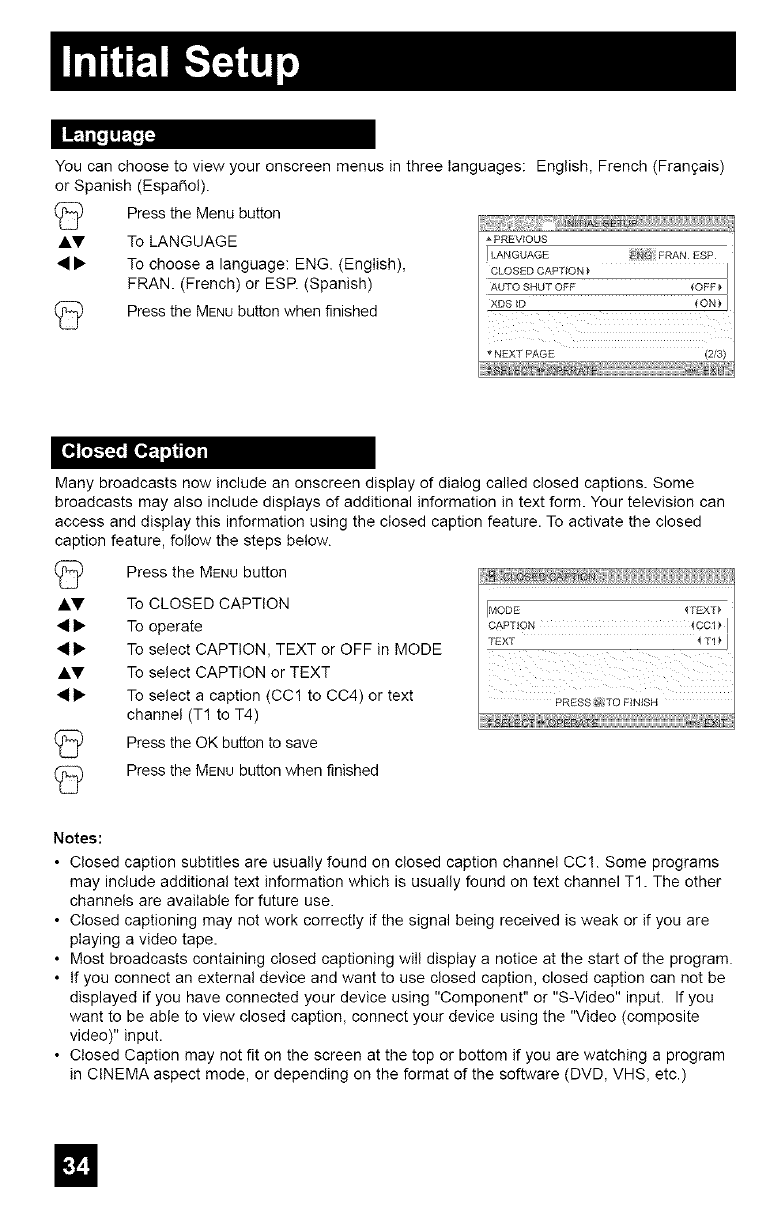
Youcanchoosetoviewyouronscreenmenusinthreelanguages:English,French(Frangais)
orSpanish(Espa_ol).
(_ PresstheMenubutton
J.V To LANGUAGE
• • To choose a language: ENG. (English),
FRAN. (French) or ESR (Spanish)
Press the MENUbutton when finished
PREVIOUS
LANGUAGE FRAN ESP
CLOSED CAPTION _ J
AUTO SHUT OFF 4OFF _ J
XDS ID _ON_ I
NEXT PAGE (2/3)
Many broadcasts now include an onscreen display of dialog called closed captions. Some
broadcasts may also include displays of additional information in text form. Your television can
access and display this information using the closed caption feature. To activate the closed
caption feature, follow the steps below.
Press the MENU button
&V To CLOSED CAPTION
• • To operate
• • To select CAPTION, TEXT or OFF in MODE
&V To select CAPTION or TEXT
• • To select a caption (CC1 to CC4) or text
channel (T1 to T4)
(_ Press the OK button to save
Press the MENU button when finished
MODE {TEXT_
TEXT
PRESS _ TO FINISH
Notes:
• Closed caption subtitles are usually found on closed caption channel CC!. Some programs
may include additional text information which is usually found on text channel T1. The other
channels are available for future use.
• Closed captioning may not work correctly if the signal being received is weak or if you are
playing a video tape.
• Most broadcasts containing closed captioning will display a notice at the start of the program.
• If you connect an external device and want to use closed caption, closed caption can not be
displayed if you have connected your device using "Component" or "S-Video" input. If you
want to be able to view closed caption, connect your device using the "Video (composite
video)" input.
• Closed Caption may not fit on the screen at the top or bottom if you are watching a program
in CINEMA aspect mode, or depending on the format of the software (DVD, VHS, etc.)
II
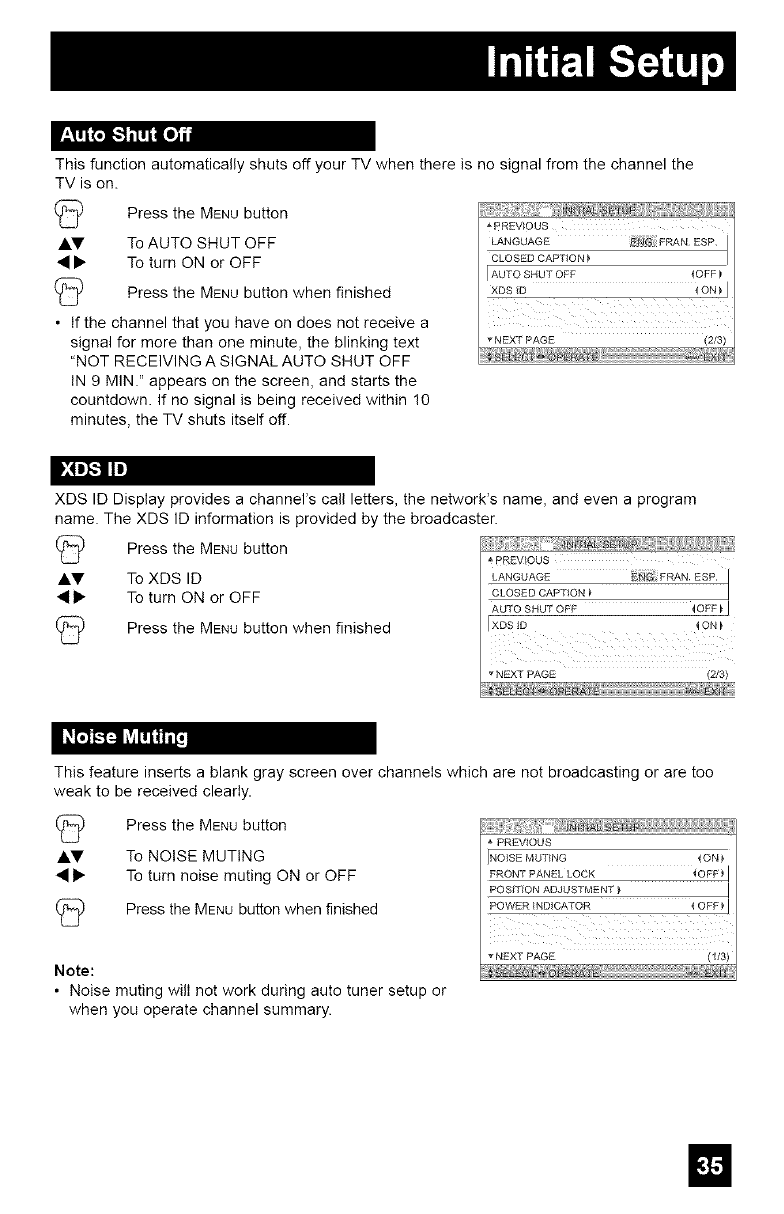
This function automatically shuts off your TV when there is no signal from the channel the
TV is on.
Press the MENU button
AV To AUTO SHUT OFF
• • To turn ON or OFF
(_ Press the MENU button when finished
• If the channel that you have on does not receive a
signal for more than one minute, the blinking text
"NOT RECEIVING A SIGNAL AUTO SHUT OFF
IN 9 MIN." appears on the screen, and starts the
countdown. If no signal is being received within 10
minutes, the TV shuts itself off.
_ PREVIOUS
LANGUAGE _N_:FRAN ESP. j
J
CLOSED CAPTION
r AUTO SHUT OFF _OFF
XDS_D _ON_J
_NEXT PAGE (2/3)
!,:4D]-"]IIm]
XDS ID Display provides a channel's call letters, the network's name, and even a program
name. The XDS ID information is provided by the broadcaster.
Press the MENUbutton P_EVIOUS
J.V To XDS ID LANGUAGE N FRANESP I
• • To turn ON or OFF CLOSEDCAPTION_ I
AUTO SHUT OFF 4 OFF _J
_'_ Press the MENUbutton when finished XDS_D _ON_
NEXT PAGE (2/3)
This feature inserts a blank gray screen over channels which are not broadcasting or are too
weak to be received clearly.
Press the MENU button
AV To NOISE MUTING
• • To turn noise muting ON or OFF
(_ Press the MENU button when finished
Note:
• Noise muting will not work during auto tuner setup or
when you operate channel summary.
PREVIOUS
NOISE MUTING _ON}
FRONT PANEL LOCK 4OFF } i
POSITION ADJUSTMENT _ i
POWER INDICATOR _ OFF_ i
vNEXT PAGE
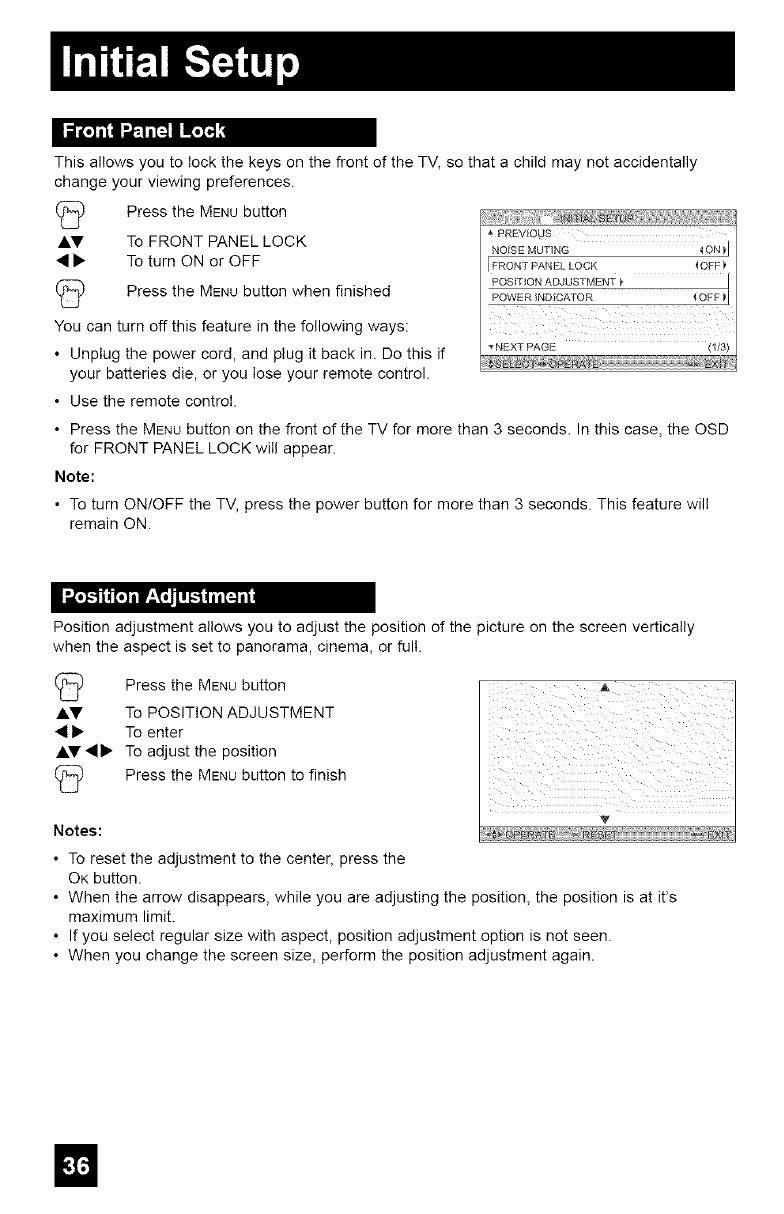
This allows you to Iock the keys on the front of the TV, so that a child may not accidentally
change your viewing preferences.
Press the MENU button
Ay To FRONT PANEL LOCK
• To turn ON or OFF
(_ Press the MENU button when finished
You can turn off this feature in the following ways:
• Unplug the power cord, and plug it back in. Do this if
your batteries die, or you Iose your remote control.
• Use the remote control.
PREVIOU_<
NOISE MUTING { ON I
I FRONT PANEL LOCK 4OFF
_NEXT PAGE (1/3)
• Press the MENU button on the front of the TV for more than 3 seconds. In this case, the OSD
for FRONT PANEL LOCK wilI appear.
Note:
• To turn ON/OFF the TV, press the power button for more than 3 seconds. This feature will
remain ON.
I"._"_ lt_ r-'_;l[_i_F_i
Position adjustment allows you to adjust the position of the picture on the screen vertically
when the aspect is set to panorama, cinema, or full.
(_ Press the MENUbutton
Ay To POSITION ADJUSTMENT
• To enter
AY_I• To adjust the position
Press the MENUbutton to finish
Notes:
• To reset the adjustment to the center, press the
OK button.
• When the arrow disappears, while you are adjusting the position, the position is at it's
maximum limit.
• If you select regular size with aspect, position adjustment option is not seen.
• When you change the screen size, perform the position adjustment again.
ii i ii i
v
m
I_ iI'_lr-._tTfi
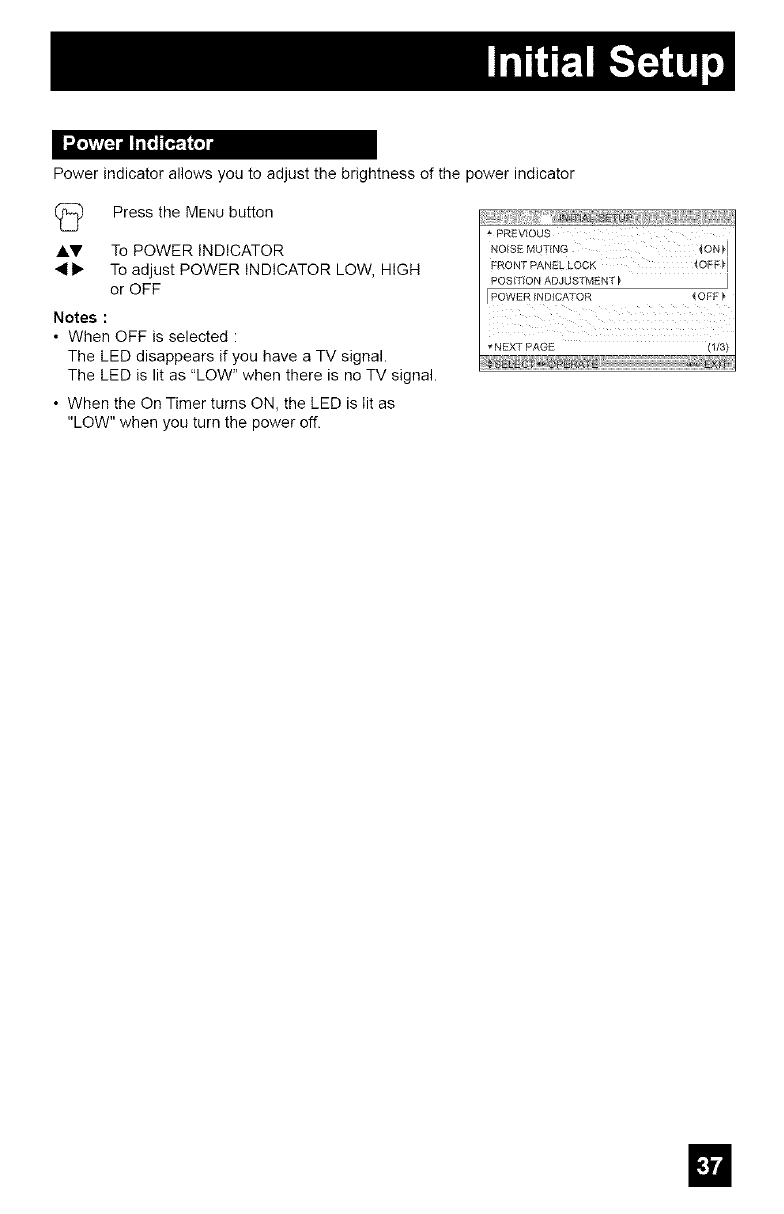
Power indicator allows you to adjust the brightness of the power indicator
(_ Press the MENUbutton
a.V To POWER INDICATOR
• I_ To adjust POWER INDICATOR LOW, HIGH
or OFF
Notes :
• When OFF is selected :
The LED disappears if you have a TV signal.
The LED is lit as "LOW" when there is no TV signal.
• When the On Timer turns ON, the LED is lit as
"LOW" when you turn the power off.
PREVIOUS
NOISE MUTING {ON_I
FRONT PANEL LOCK {OFF_ I
POSITION ADJUSTMENT _ ]
{OPF_
_ NEXt" PAGE (1/3)
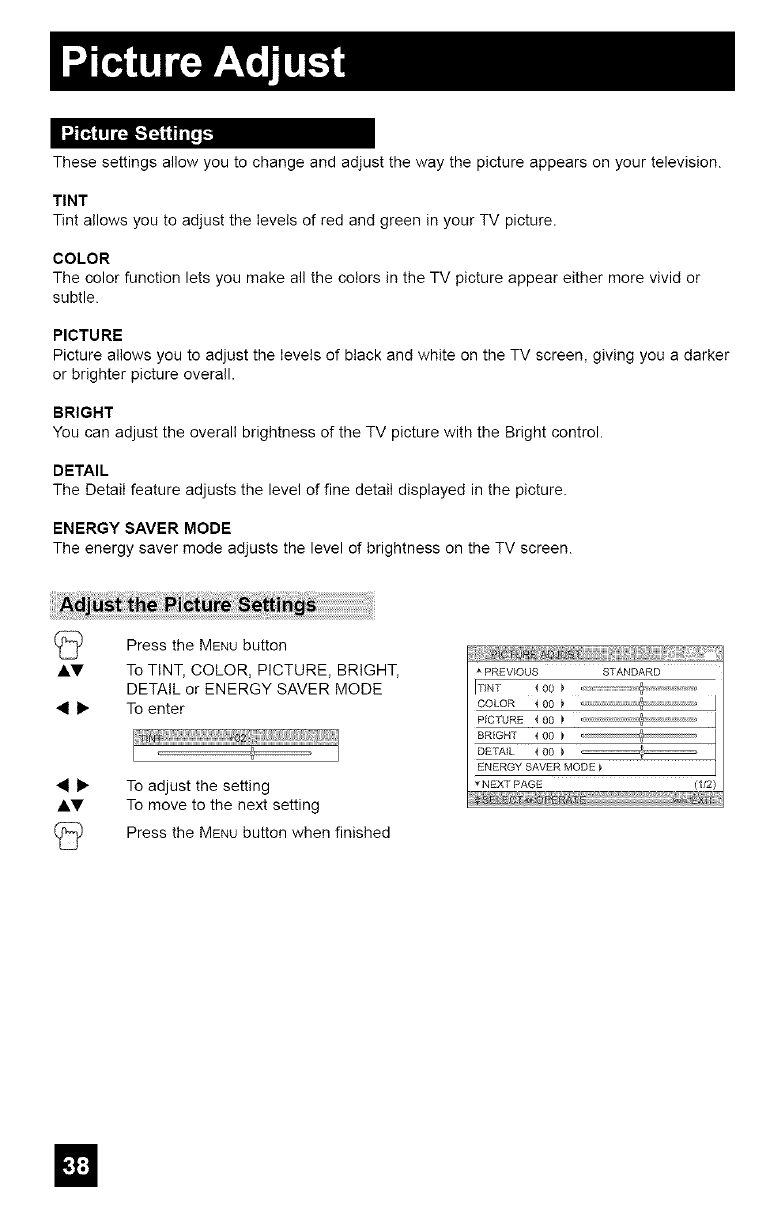
These settings allow you to change and adjust the way the picture appears on your television.
TINT
Tint allows you to adjust the levels of red and green in your TV picture.
COLOR
The color function lets you make all the colors in the TV picture appear either more vivid or
subtle.
PICTURE
Picture allows you to adjust the levels of black and white on the TV screen, giving you a darker
or brighter picture overall.
BRIGHT
You can adjust the overall brightness of the TV picture with the Bright control.
DETAIL
The Detail feature adjusts the level of fine detail displayed in the picture.
ENERGY SAVER MODE
The energy saver mode adjusts the level of brightness on the TV screen.
Press the MENU button
J.V To TINT, COLOR, PICTURE, BRIGHT,
DETAIL or ENERGY SAVER MODE
• I_ To enter
• I_ To adjust the setting
J.V To move to the next setting
Press the MENU button when finished
PREVIOUS STANDARD
I-NNT { O0
COLOR < 00 _ I
PICTURE 4 00 _ I
BR{GHT 4 00
DETAIL < 00
ENERGY SAVER MODE _ I
NEXT PAGE (1/2)
El
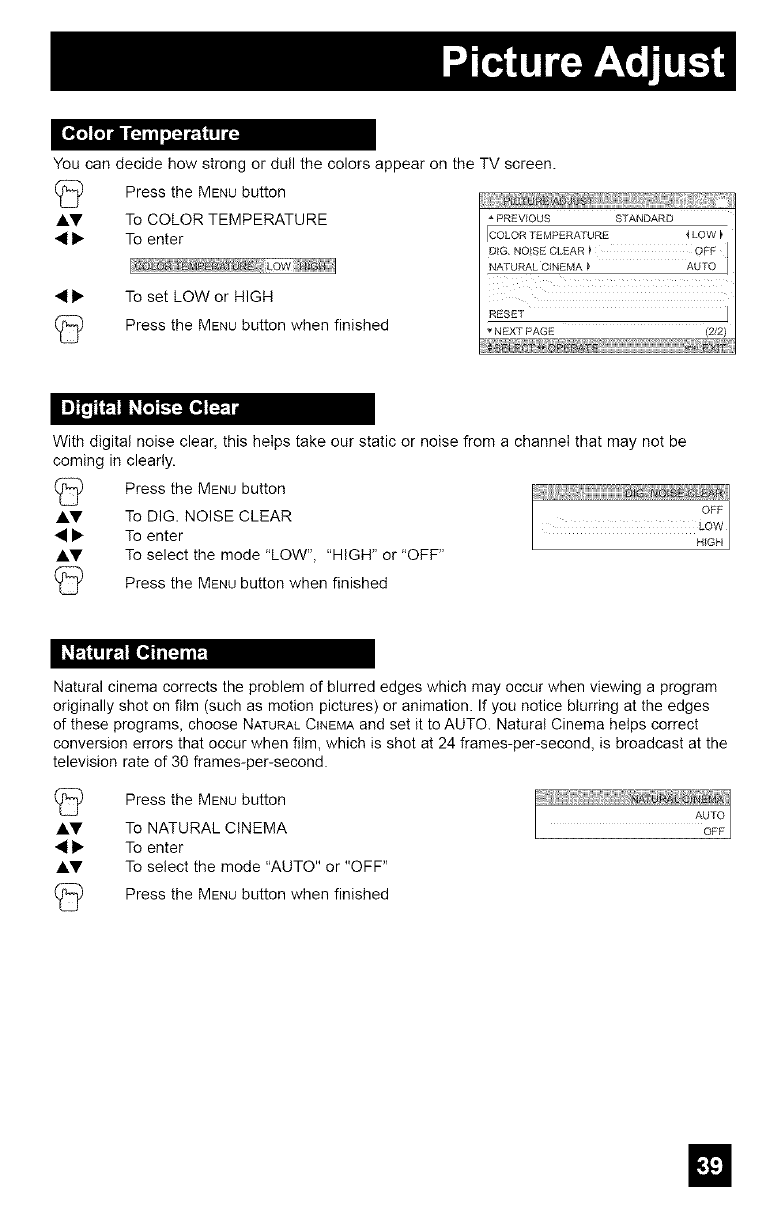
You can decide how strong or dull the colors appear on the TV screen.
C_ Press the MENUbutton
a.y To COLOR TEMPERATURE
4• To enter
• • To set LOW or HIGH
Press the MENUbutton when finished
PREVIOUS STANDARD
COLOR TEMPERATURE 4 LOW
RESE'f 1
NEXT PAGE (2/2)
With digital noise clear, this helps take our static or noise from a channel that may not be
coming in clearly.
Press the MENUbutton
Ay To DIG. NOISE CLEAR
• • To enter
a.V To select the mode "LOW", "HIGH" or "OFF"
Press the MENUbutton when finished
I_k"1111"_I[€";t'tl/_
Natural cinema corrects the problem of blurred edges which may occur when viewing a program
originally shot on film (such as motion pictures) or animation. If you notice blurring at the edges
of these programs, choose NATURALCINEMAand set it to AUTO. Natural Cinema helps correct
conversion errors that occur when film, which is shot at 24 frames-per-second, is broadcast at the
television rate of 30 frames-per-second
Press the MENUbutton
a.y To NATURAL CINEMA
• • To enter
Ay To select the mode "AUTO" or "OFF"
(_) Press the MENUbutton when finished
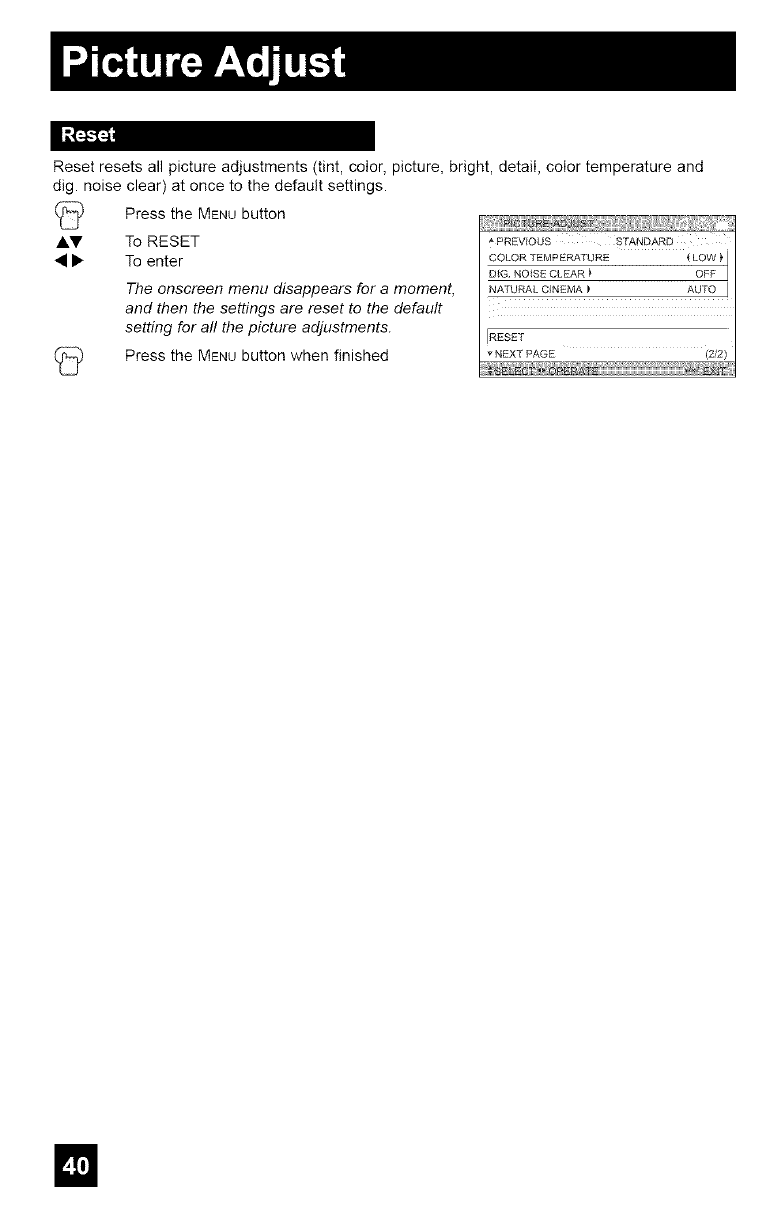
Resetresetsallpictureadjustments(tint,color,picture,bright,detail,colortemperatureand
dig.noiseclear)atoncetothedefaultsettings.
AV
PresstheMENUbutton
ToRESET
Toenter
The onscreen menu disappears for a moment,
and then the settings are reset to the default
setting for all the picture adjustments.
Press the MENUbutton when finished
_ PREVIOUS STANDARD
COLOR TEMPERATURE { LOW _tDIG NOISE CLEAR _ OFF
NATUF_IAL C_NEIVIA_ AUT_ J
RESET
_NEXTPAGE
El
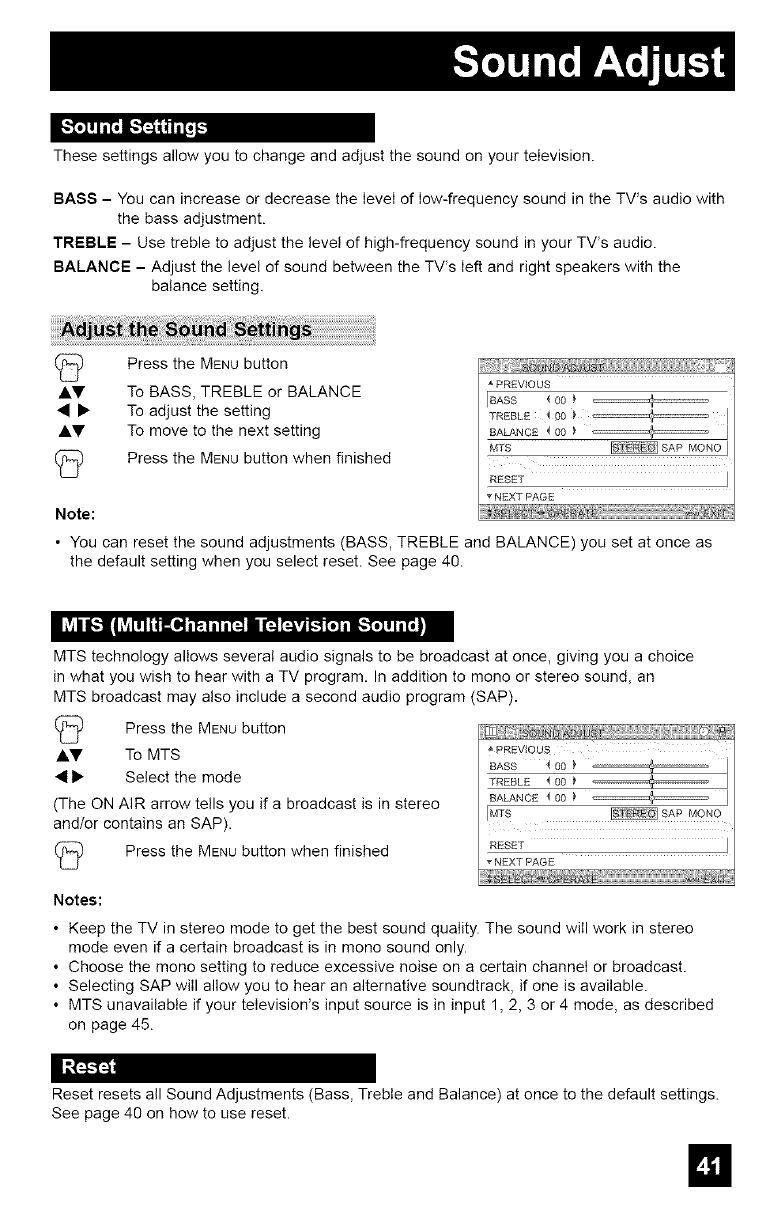
These settings allow you to change and adjust the sound on your television.
BASS - You can increase or decrease the level of Iow-frequency sound in the TV's audio with
the bass adjustment.
TREBLE - Use treble to adjust the level of high-frequency sound in your TV's audio.
BALANCE - Adjust the level of sound between the TV's Ieft and right speakers with the
balance setting.
Press the MENU button
Ay To BASS, TREBLE or BALANCE
• • To adjust the setting
J.y To move to the next setting
(_ Press the MENU button when finished
Note:
PREVIOUS
[BASS _ 00 }
TREBLE 4 O0 _ _========_ I
BALANCE _ O0 _ I
MTS _ SAP I_4ONO_
RESET J
NEXT PAGE
• You can reset the sound adjustments (BASS, TREBLE and BALANCE) you set at once as
the default setting when you select reset. See page 40.
h'_il_ll i'm
MTS technology allows several audio signals to be broadcast at once, giving you a choice
in what you wish to hear with a TV program. In addition to mono or stereo sound, an
MTS broadcast may also include a second audio program (SAP).
(_ Press the MENUbutton
J.V To MTS
• • Select the mode
(The ON AIR arrow tells you if a broadcast is in stereo
and/or contains an SAP).
(_ Press the MENUbutton when finished
Notes:
! Ji iH_iiiiiiiii_.....
PREVIOUS
BASS 400
TREBLE _ 00 _
BALANCE 400 _ _ I
IMTB _SAP MONO
_NEXTPAGE
• Keep the TV in stereo mode to get the best sound quality. The sound wilI work in stereo
mode even if a certain broadcast is in mono sound only.
• Choose the mono setting to reduce excessive noise on a certain channel or broadcast.
• Selecting SAP will allow you to hear an alternative soundtrack, if one is available.
• MTS unavailable if your television's input source is in input 1, 2, 3 or 4 mode, as described
on page 45.
i:_--41,_1
Reset resets all Sound Adjustments (Bass, Treble and Balance) at once to the default settings.
See page 40 on how to use reset.
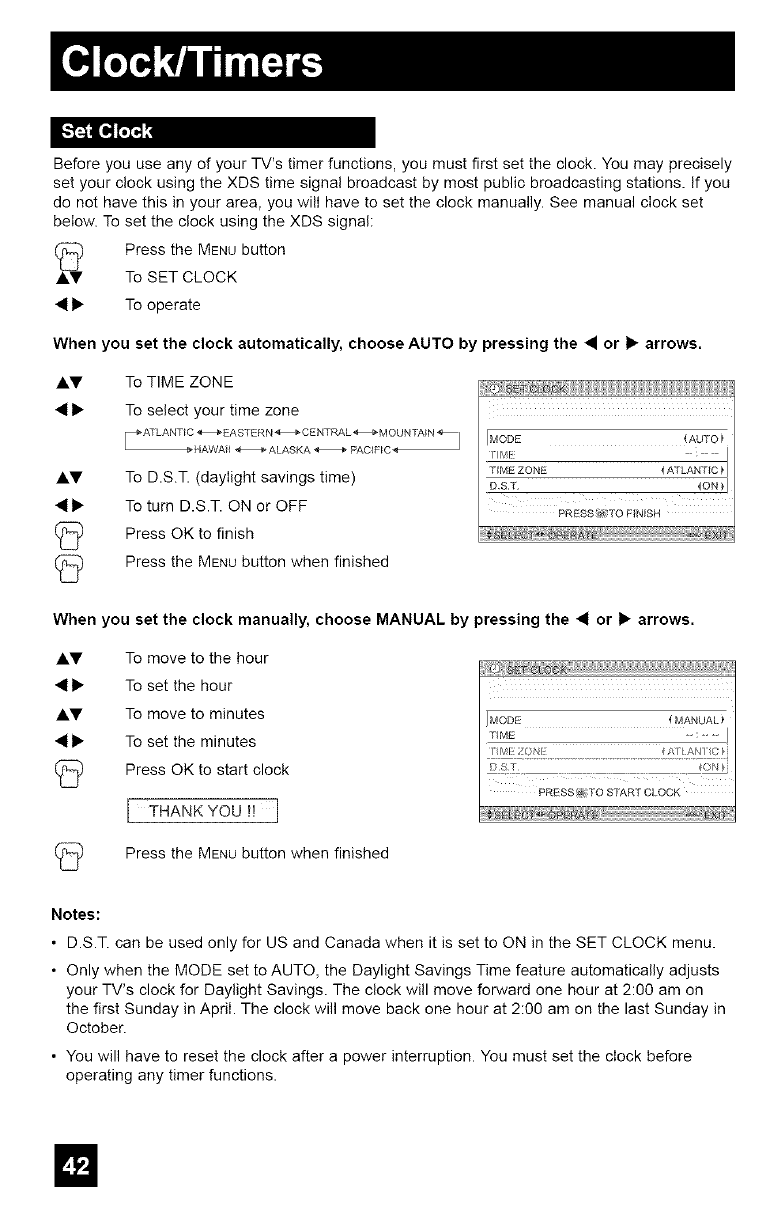
BeforeyouuseanyofyourTV'stimerfunctions,youmustfirstsettheclock.Youmayprecisely
setyourclockusingtheXDStimesignalbroadcastbymostpublicbroadcastingstations.Ifyou
donothavethisinyourarea,youwillhavetosettheclockmanually.Seemanualclockset
below.TosettheclockusingtheXDSsignal:
PresstheMENUbutton
J.V To SET CLOCK
• I_ To operate
When you set the clock automatically, choose AUTO by pressing the •or I_ arrows.
J.V To TIME ZONE
• I_ To select your time zone
AV To D.S.T. (daylight savings time)
• I_ To turn D.S.T. ON or OFF
(_ Press OK to finish
(_) Press the MENUbutton when finished
MODE
PRESS _ TO FINISH
When you set the clock manually, choose MANUAL by pressing the • or I_ arrows.
AV To move to the hour
• I_ To set the hour
J.V To move to minutes
• i_ To set the minutes
(_) Press OK to start clock
[ THANKYOUH I
MODE 4 MANUAL )
TIME • : • • I
D!.s _ON
PRESS _ TO START CLOCK
C_.? Press the MENUbutton when finished
Notes:
• D.S.T. can be used only for US and Canada when it is set to ON in the SET CLOCK menu.
• Only when the MODE set to AUTO, the Daylight Savings Time feature automatically adjusts
your TV's clock for Daylight Savings. The clock will move forward one hour at 2:00 am on
the first Sunday in April. The clock will move back one hour at 2:00 am on the last Sunday in
October.
• You will have to reset the clock after a power interruption. You must set the clock before
operating any timer functions.
m
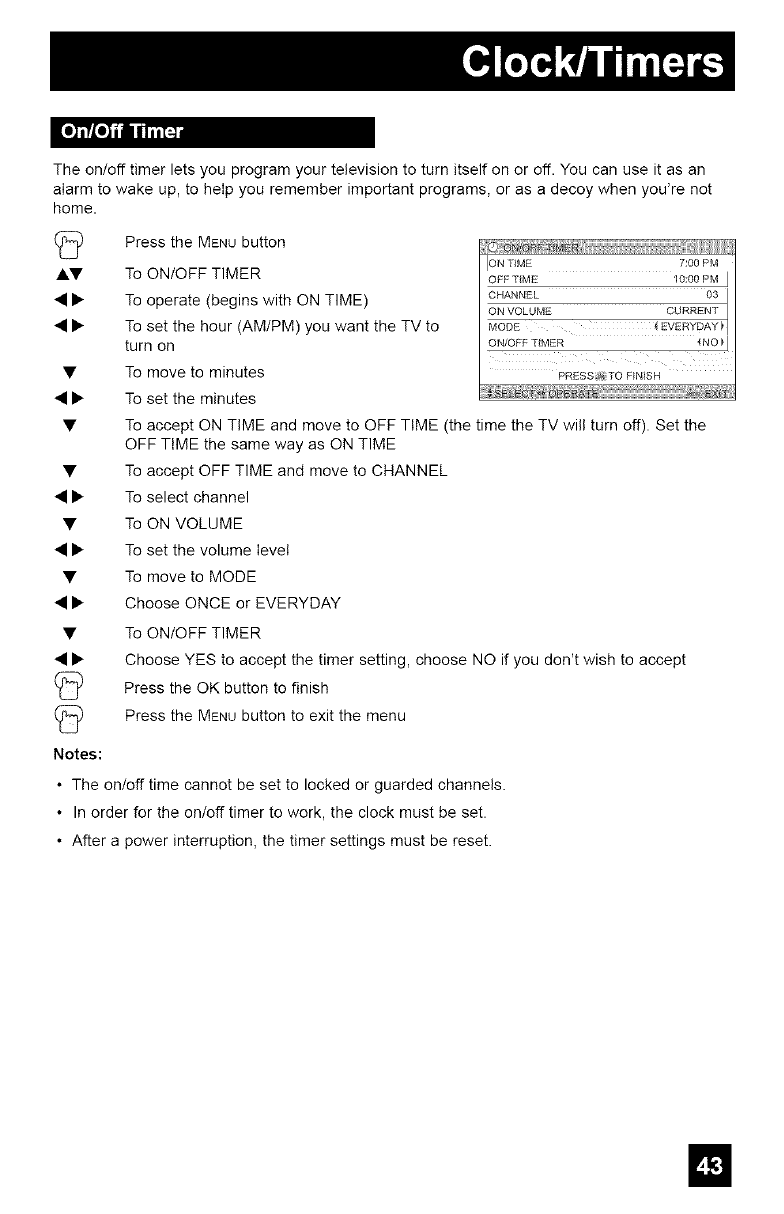
[o]'TYLo]ilu_
The on/off timer lets you program your television to turn itself on or off. You can use it as an
alarm to wake up, to help you remember important programs, or as a decoy when you're not
home.
(_ Press the MENUbutton
AV To ONIOFF TIMER
• • To operate (begins with ON TIME)
• • To set the hour (AM/PM) you want the TV to
turn on
Notes:
ION TIME 7:00 PM
OFF TIME 10:00 PM J
CHANNEL 03
ON/OFF TIMER _NO_J
To move to minutes PRESS1TOFINISH
TO set the minutes
To accept ON TIME and move to OFF TIME (the time the TV will turn off). Set the
OFF TIME the same way as ON TIME
To accept OFF TIME and move to CHANNEL
To select channel
To ON VOLUME
To set the volume level
To move to MODE
Choose ONCE or EVERYDAY
To ON/OFF TIMER
Choose YES to accept the timer setting, choose NO if you don't wish to accept
Press the OK button to finish
Press the MENUbutton to exit the menu
• The on/off time cannot be set to locked or guarded channels.
• In order for the on/off timer to work, the clock must be set.
• After a power interruption, the timer settings must be reset.
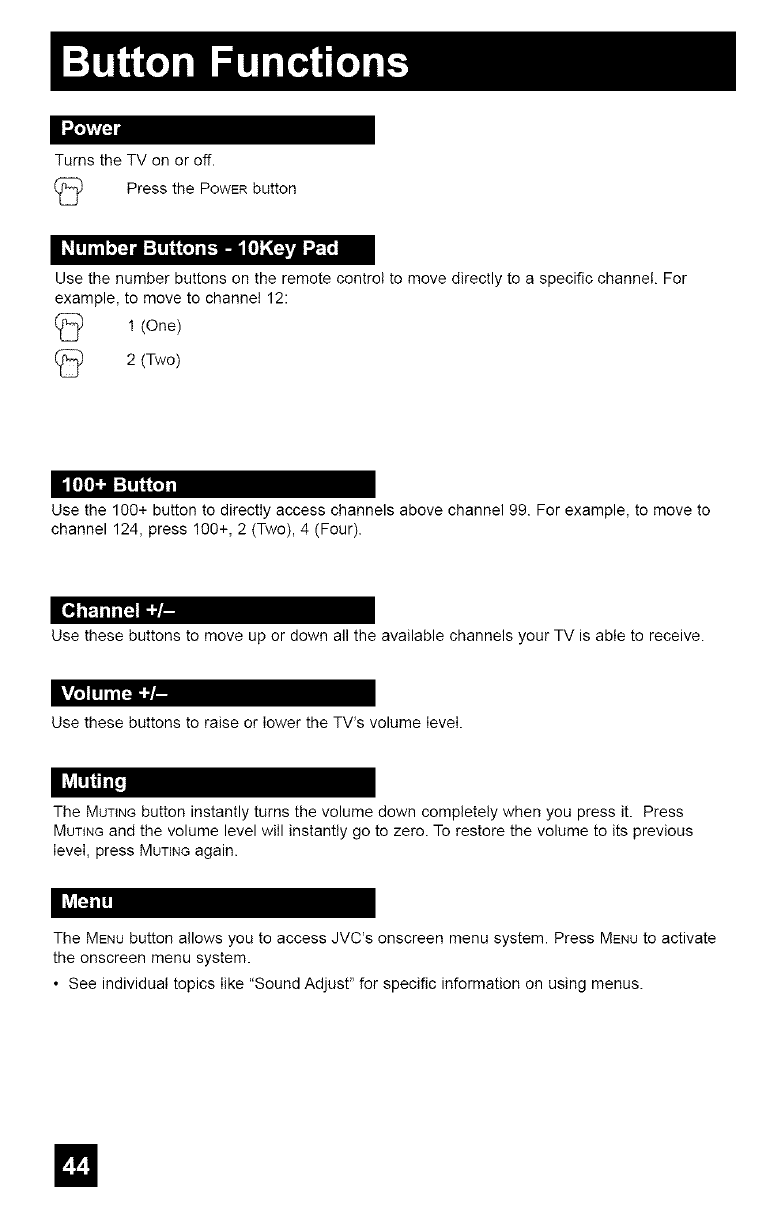
I'.,_
Turns the TV on or off.
_) Press the POWERbutton
Use the number buttons on the remote control to move directly to a specific channel. For
example, to move to channel 12:
_) 1 (One)
2 (Two)
Use the 100+ button to directly access channels above channel 99. For example, to move to
channel 124, press 100+, 2 (Two), 4 (Four).
Use these buttons to move up or down all the available channels your TV is able to receive.
Use these buttons to raise or lower the TWs volume level.
The MUTINGbutton instantly turns the volume down completely when you press it. Press
MUTINGand the volume level will instantly go to zero. To restore the volume to its previous
level, press MUTINGagain.
The MENUbutton allows you to access JVC's onscreen menu system. Press MENUto activate
the onscreen menu system.
• See individual topics like "Sound Adjust" for specific information on using menus.
III
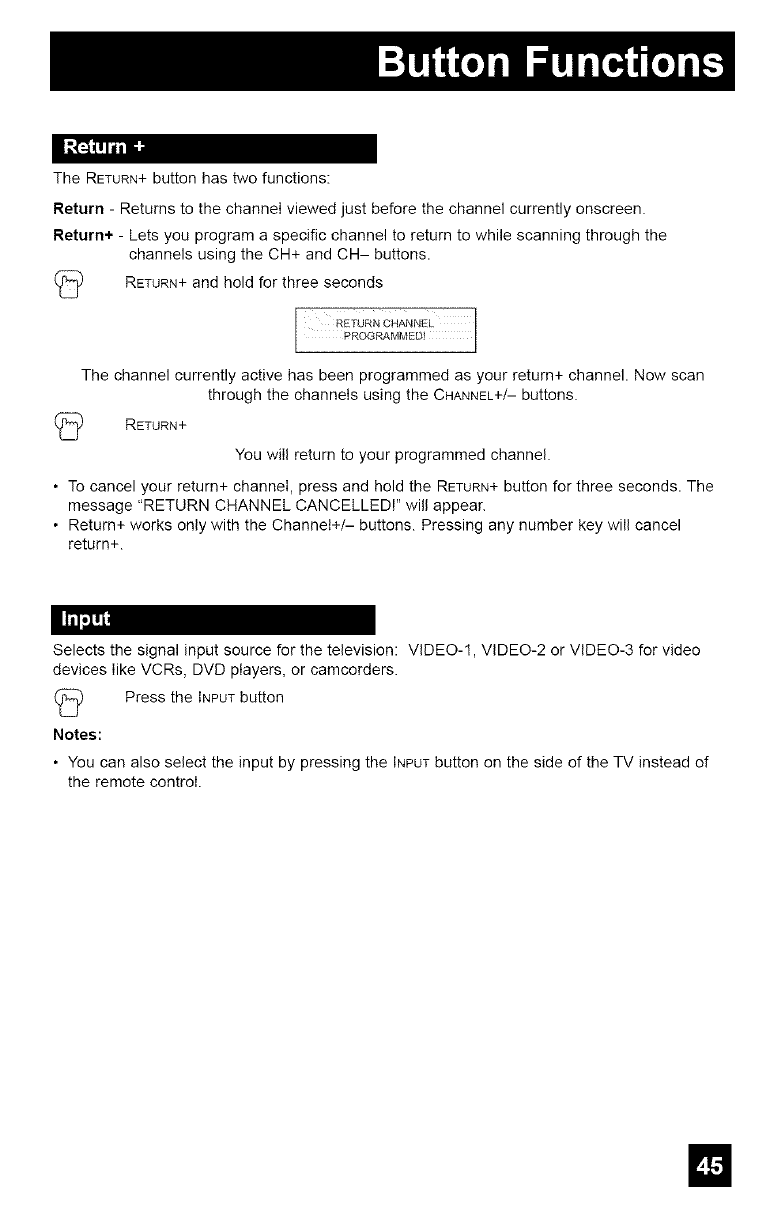
The RETURN+button has two functions:
Return - Returns to the channel viewed just before the channel currently onscreen.
Return+ - Lets you program a specific channel to return to while scanning through the
channels using the CH+ and CH- buttons.
(_ RETURN+and hold for three seconds
The channel currently active has been programmed as your return+ channel. Now scan
through the channels using the CHANNEL+/--buttons.
(_ RETURN+
You wilI return to your programmed channel,
• To cancel your return+ channel, press and hold the RETURN+button for three seconds, The
message "RETURN CHANNEL CANCELLED!" will appear.
• Return+ works only with the Channel+/- buttons. Pressing any number key will cancel
return+.
Selects the signal input source for the television: VIDEO-l, VIDEO-2 or VIDEO-3 for video
devices Iike VCRs, DVD players, or camcorders.
(_ Press the INPUTbutton
Notes:
•You can also select the input by pressing the INPUTbutton on the side of the TV instead of
the remote control.
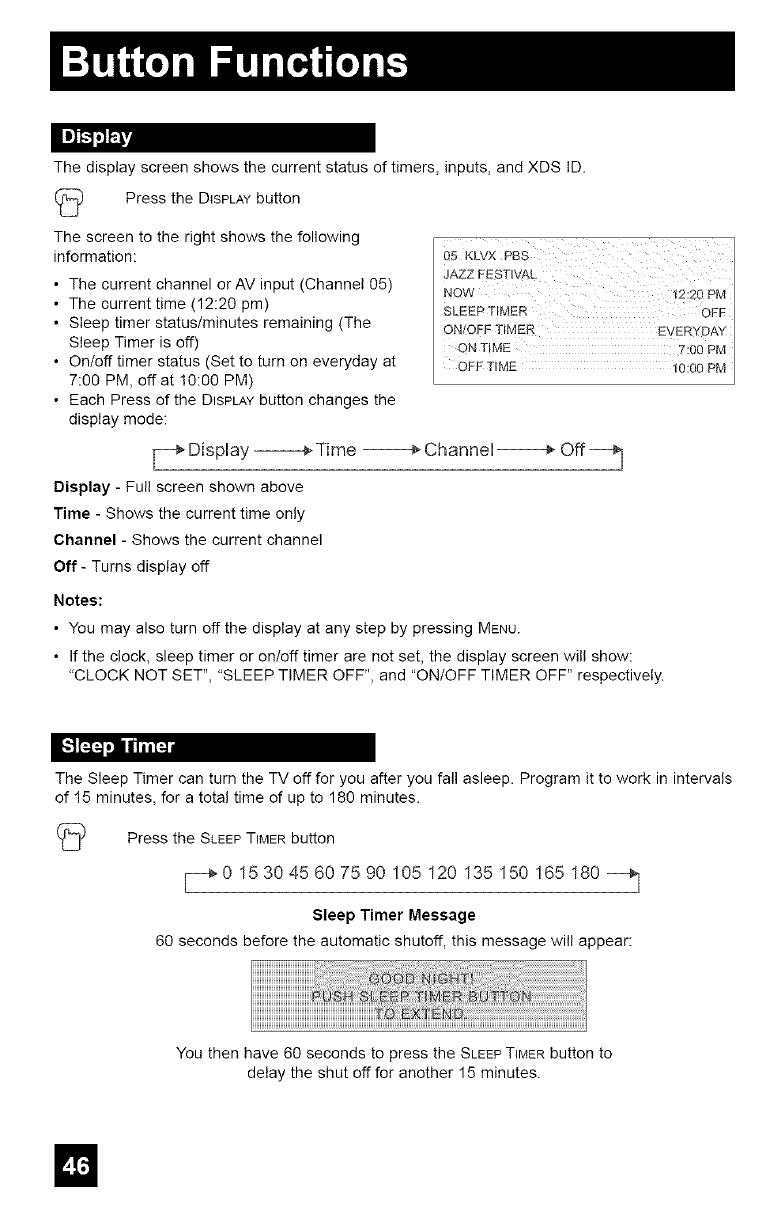
Thedisplayscreenshowsthecurrentstatusoftimers,inputs,andXDSID.
12 PresstheDISPLAYbutton
Thescreentotherightshowsthefollowing
information:
• ThecurrentchannelorAVinput(Channel05)
• Thecurrenttime(12:20pm)
• Sleeptimerstatus/minutesremaining(The
SleepTimerisoff)
• On/offtimerstatus(Settoturnoneverydayat
7:00PM,offat10:00PM)
• EachPressoftheDISPLAYbuttonchangesthe
displaymode:
-F_" DispHay _ Time _ ChanneH _ Off _]
Display - Full screen shown above
Time - Shows the current time only
Channel - Shows the current channel
Off - Turns display off
JAZZ FESTIVAL
SLEEP TIMER OFF
ON'OFF TIMER EVERYDAY
ON TIME 7:00 PM
OFF TIME 10:00 PM
Notes:
• You may also turn off the display at any step by pressing MENU.
• If the clock, sleep timer or on/off timer are not set, the display screen will show:
"CLOCK NOT SET", "SLEEP TIMER OFF", and "ON/OFF TIMER OFF" respectively.
The Sleep Timer can turn the TV off for you after you fall asleep. Program it to work in intervals
of 15 minutes, for a total time of up to 180 minutes.
I2 Press the SLEEPTIMER button
_0 153045607590 105 120 135 150 165 180 _]
Sleep Timer Message
60 seconds before the automatic shutoff, this message will appear:
You then have 60 seconds to press the SLEEPTIMER button to
delay the shut off for another 15 minutes.
m
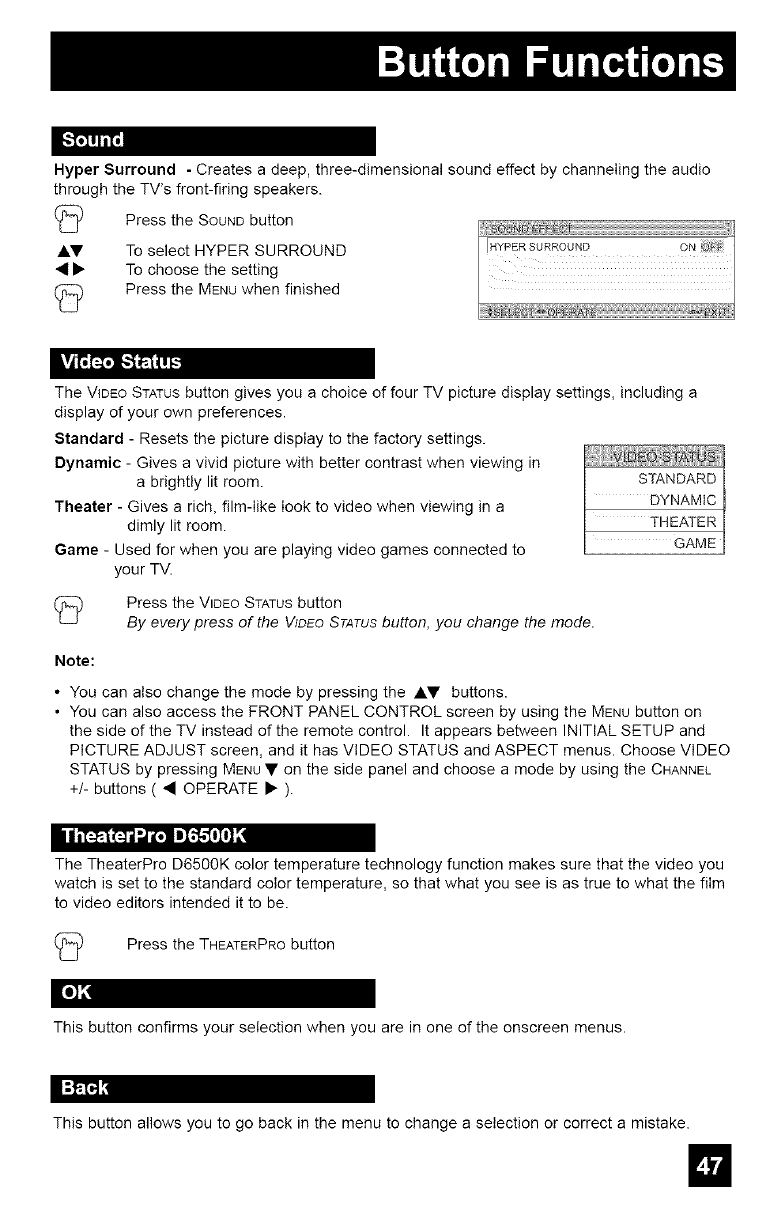
[,."1_!1"i_I
Hyper Surround - Creates a deep, three-dimensional sound effect by channeling the audio
through the TV's front-firing speakers.
Press the SOUNDbutton
J.V To select HYPER SURROUND
• • To choose the setting
Press the MENUwhen finished
The VIDEOSTATUSbutton gives you a choice of four TV picture display settings, including a
display of your own preferences.
Standard - Resets the picture display to the factory settings.
Dynamic - Gives a vivid picture with better contrast when viewing in
a brightly lit room.
Theater - Gives a rich, film-like look to video when viewing in a
dimly lit room.
Game - Used for when you are playing video games connected to
your TV.
(_ Press the VIDEO STATUSbutton
By every press of the VIDEOSTATUSbutton, you change the mode.
Note:
• You can also change the mode by pressing the A• buttons.
• You can also access the FRONT PANEL CONTROL screen by using the MENU button on
the side of the TV instead of the remote control. It appears between INITIAL SETUP and
PICTURE ADJUST screen, and it has VIDEO STATUS and ASPECT menus. Choose VIDEO
STATUS by pressing MENU• on the side panel and choose a mode by using the CHANNEL
+/- buttons ( • OPERATE • ).
i l ,'?_'_]i _ImI,%_,I,][4
The TheaterPro D6500K color temperature technology function makes sure that the video you
watch is set to the standard color temperature, so that what you see is as true to what the film
to video editors intended it to be.
(_ Press the THEATERPRObutton
This button confirms your selection when you are in one of the onscreen menus.
This button allows you to go back in the menu to change a selection or correct a mistake.
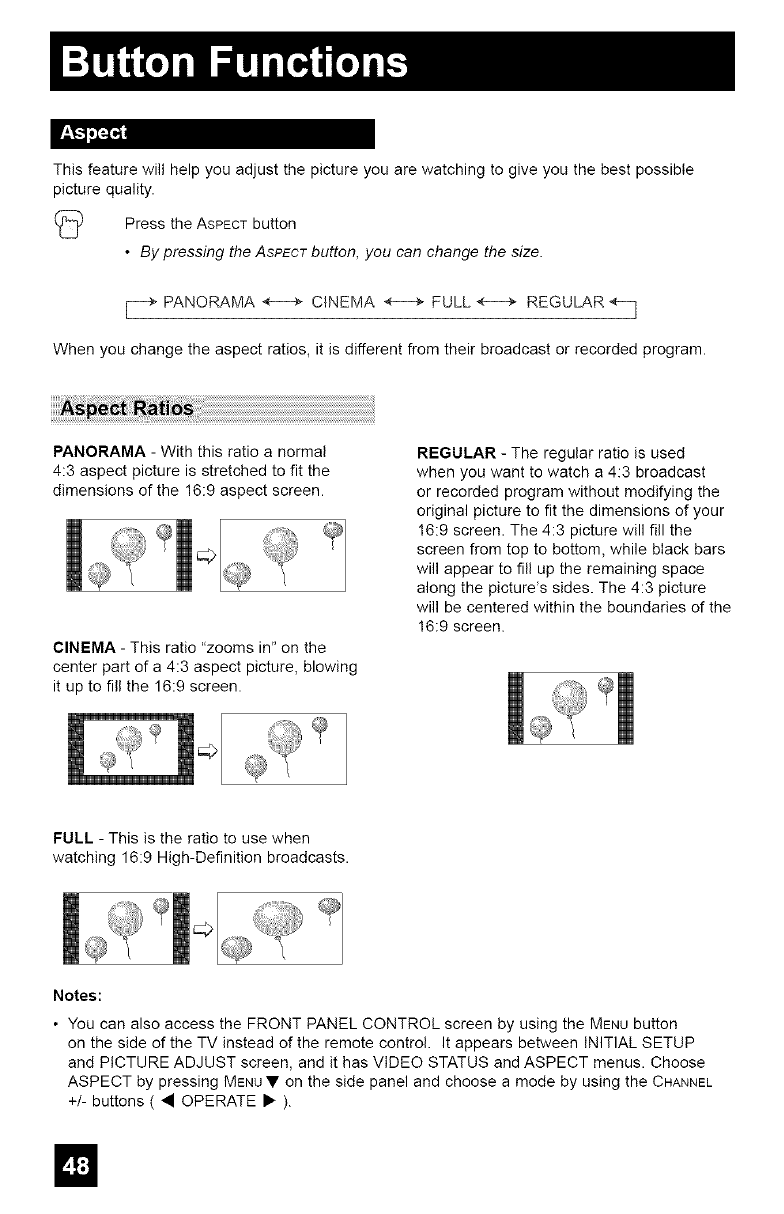
Thisfeaturewillhelpyouadjustthepictureyouarewatchingtogiveyouthebestpossible
picturequality.
(_}) PresstheASPECTbutton
•By pressing the ASPECTbutton, you can change the size.
_-_ PANORAMA H CINEMA _ FULL _ REGULAR _]
When you change the aspect ratios, it is different from their broadcast or recorded program.
PANORAMA - With this ratio a normal
4:3 aspect picture is stretched to fit the
dimensions of the 16:9 aspect screen.
CINEMA - This ratio "zooms in" on the
center part of a 4:3 aspect picture, blowing
it up to fill the 16:9 screen.
REGULAR - The regular ratio is used
when you want to watch a 4:3 broadcast
or recorded program without modifying the
original picture to fit the dimensions of your
16:9 screen. The 4:3 picture will fill the
screen from top to bottom, while black bars
will appear to fill up the remaining space
along the picture's sides. The 4:3 picture
will be centered within the boundaries of the
16:9 screen.
FULL - This is the ratio to use when
watching 16:9 High-Definition broadcasts.
c#
Notes:
• You can also access the FRONT PANEL CONTROL screen by using the MENU button
on the side of the TV instead of the remote control. It appears between INITIAL SETUP
and PICTURE ADJUST screen, and it has VIDEO STATUS and ASPECT menus. Choose
ASPECT by pressing MENU• on the side panel and choose a mode by using the CHANNEL
+/- buttons ( • OPERATE • ).
El
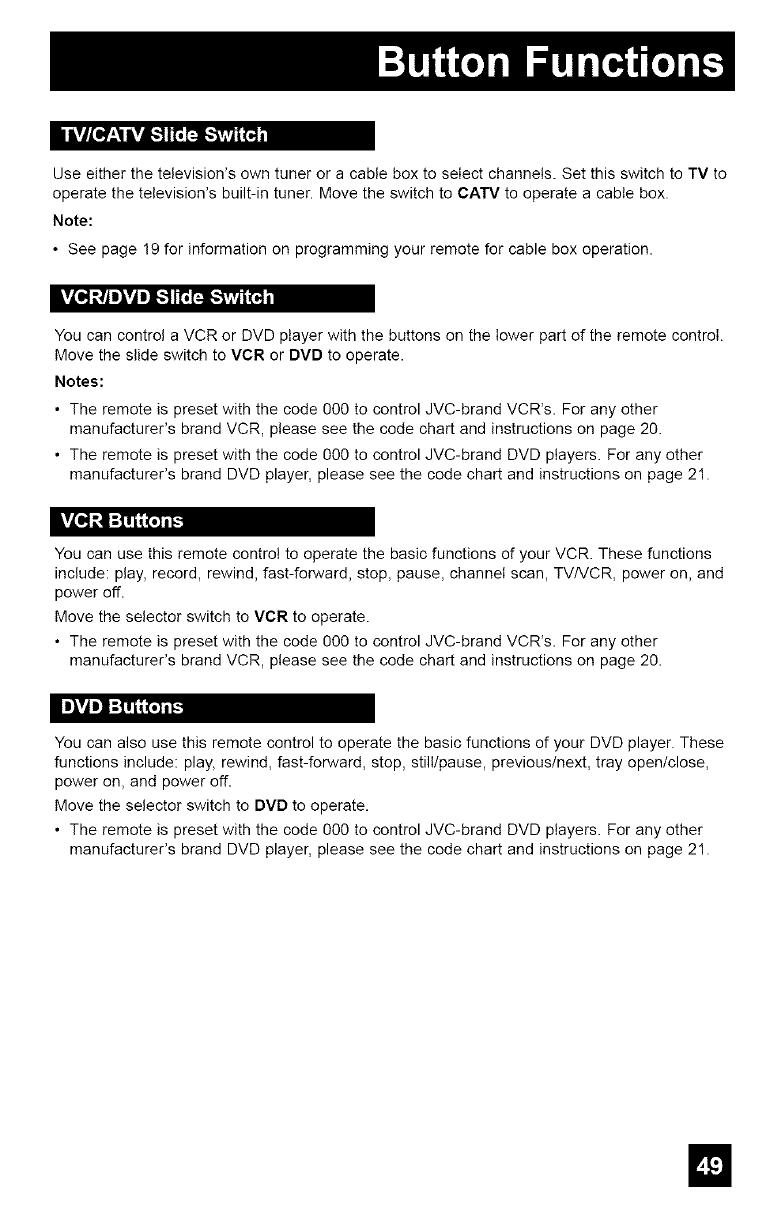
Use either the television's own tuner or a cable box to select channels. Set this switch to TV to
operate the television's built-in tuner. Move the switch to CATV to operate a cable box.
Note:
•See page 19 for information on programming your remote for cable box operation.
You can control a VCR or DVD ptayer with the buttons on the Iower part of the remote controI.
Move the slide switch to VCR or DVD to operate.
Notes:
• The remote is preset with the code 000 to control JVC-brand VCR%. For any other
manufacturer's brand VCR, ptease see the code chart and instructions on page 20.
• The remote is preset with the code 000 to control JVC-brand DVD ptayers. For any other
manufacturer's brand DVD player, please see the code chart and instructions on page 21.
You can use this remote control to operate the basic functions of your VCR. These functions
include: play, record, rewind, fast-forward, stop, pause, channeI scan, TV/VCR, power on, and
power off.
Move the selector switch to VCR to operate.
• The remote is preset with the code 000 to control JVC-brand VCR%. For any other
manufacturer's brand VCR, ptease see the code chart and instructions on page 20.
Im_VAm]l:r!3i;_J_J
You can also use this remote control to operate the basic functions of your DVD player. These
functions include: play, rewind, fast-forward, stop, stilI/pause, previous/next, tray open/close,
power on, and power off.
Move the selector switch to DVD to operate.
• The remote is preset with the code 000 to control JVC-brand DVD ptayers. For any other
manufacturer's brand DVD player, please see the code chart and instructions on page 21.

IftheTVchannelyouselected,orwerewatchingisnotreceivingasignal,"NOPROGRAM"
appearsonthetelevisionscreen.Itappearswhenthatchannelisnotreceivingasignalandyou
havetheNoiseMutingfunctionOFFandyouhaveasinglescreen.Itmovesautomaticallyevery
twoseconds.
Note:
• Evenif"NOPROGRAM"appearsonthescreen,yourtimerfunctionsandautoshutoff
functionsthatyouset,arestilIactive.
/

There is no power , See if the power cord became unplugged.
, Check fur a blown fuse or circuit breaker or a power outage,
There is no picture , The antenna could be disconnected.
or sound , The input mode could be set improperly. See page 45.
, The tuner (Auto Tuner Setup) could be set improperly. See page 26.
, The TV station may be having difficulties. Check to see if other stations are working.
Remote control Js not , Check to see that the batteries are still working and propedy installed,
operating properly or , Make sure the remote has a dear sight path to the TV.
at all , Check that the TV/CATV switch is in the proper position.
, You may be too far from the TV. 'You must be within 23 feet (7 meters).
You cannot select a , Make sure the channels have been programmed. See '*Channel Summary", page 26,
certain channel , Check to see if the channel is locked, See "Channel Summary - Lock'* page 27,
The power turns off , Make sure the set did not become unplugged.
by itself , Perhaps the On/Off Timer is set. See page 43.
, Check to see if the Sleep Timer was set. See page 46,
The clock is wrong , The power was interrupted and the clock was not reset. See page 42,
The color quality , "lint and Color may be improperly adjusted. See page 38.
is poor , The Video Status mode may be turned to the wrong setting. See page 47,
There are lines , There could be interference from another electrical appliance, such as a computer,
across the piclure another TV or VCR, Move any such appliances further away from the TV.
The picture is spotted , There could be interference from a high-wattage appliance, like a hairdryer or vacuum,
operating nearby. Move the antenna away from the appliance or change to a coaxial
cable connection which is less prone to interference,
There are double , A building or passing airplane can retied the original signal and produce a second,
pidures (ghosts) slightly delayed one, Adiust your antenna position,
Picture is snowy , Your antenna may be damaged, disconnected or turned Check the antenna
(image noise) connecfion, If the antenna is damaged, replace it.
Screen is 40% black , The Closed Caption Text mode is on, Turn it off in the Closed Caption Menu, page 34,
Stereo or bilingual , Make sure the MTS settings are correct. See '*MTS'* on page 41
programs can't be
heard
Static eledricity , It is normal to feel static electricity if you brush or touch the screen,
You hear occasional , It is normal for the TV to make crackling sounds when first turned on or of[ Unless
crackling sounds the sound or picture become abnormal, this is fine,
m
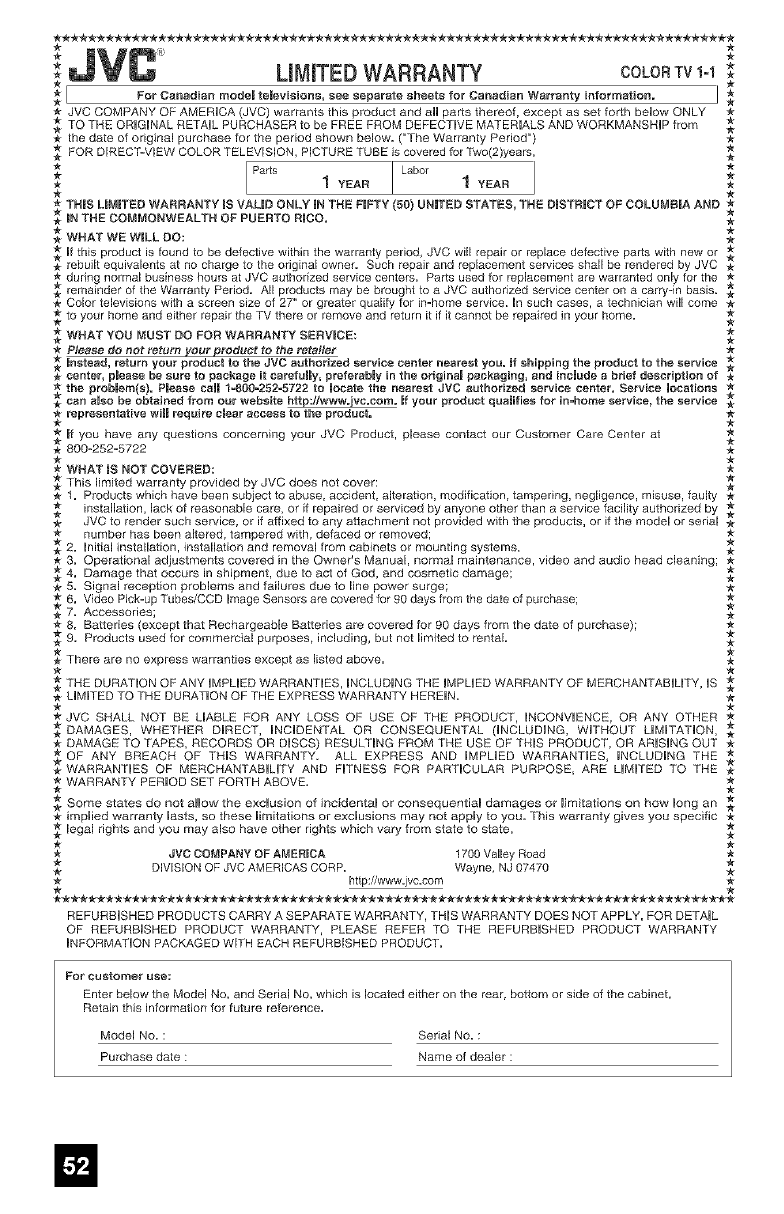
i JVC" ;*
LiMiTED WARRANTY C0LO_TV1ol*
[ For Canadian r_odeJ televisions, see separate sheets for Canadian Warranty information. I ,_
JVC COMPANY OF AMERICA (JVC) warrants this product and all parts thereof, except as set forth below ONLY
,_ TO THE ORiGiNAL RETAIL PURCHASER to be FREE FROM DEFECTIVE MATERIALS AND WORKMANSHP from _
_- the date of original purchase for the period shown below. ("The Warranty Period") -_
FOR DIRECT-VIEW COLOR TELEVISION, PICTURE TUBE is covered for Two(2)years.
•1Y_R 1 "_AR *
TH_S L_M_TED WARRANTY _S VALID ONLY _NTHE FIFTY (50) UNITED STATES, THE D_STR_CT OF COLUMBIA AND
_NTHE COMMONWEALTH OF PUERTO R_DO.
WHAT WE W_LL DO: -_'_"
,_ _f this product is found to be defective within the warranty peliod, JVC will repair or replace defective parts with new or
-_ rebuilt equivalents at no charge to the original owner. Such repair and replacement services shall be rendered by JVC
during normal business hours at JVC authorized service centers. Parts used for replacement are warranted only for the
remainder of the Warranty Period. All products may be brought to a JVC authorized service center on a carry-in basis.
Color televisions with a screen size of 27" or greater qualify for in=home service. _n s_ch cases, a technician will come
to your home and either repair the TV there or remove and return it if it cannot be repaired in your home.
WHAT YOU I_UST DO FOR WARRANTY SERVICE
Please do not return your prod_ct te the retailer
_netead, return yeu_ prod_ct to the JVC authorized service center nearest you. _t shipping the product te the service
center, p_ease be sure to package it carefully, preferably in the origina_ packaging, and include a brief description of
the probJem(s). P_ease cs_J 1-800=252-5722 to _oeate the nearest JVC authorized service center. Service _oeations
carl a_so be obtained fl'orn o_" website http://www.jvc.com. If your pt'oduct quaJifies for in-home service, the service
_tepreeentative will require c_ear access to the product.
_: _f you have any questions concerning your dVC Product, please contact our Customer Care Center at
•*SOO-B_B=B_B *
WHAT IS NOT COVERED:
This limited warranty provided by JVC does not cover:
1. Products which have been subject to abuse, accident, alteration, modification, tampering, negligence, misuse, faulty -_
"_ installation, lack of reasonable care, or if repaired or serviced by anyone other than a service facility authorized by
-_ JVC to render such set,dice, or if affixed to any attachment not provided with the products, or if the model or serial -_
number has been altered, tampered with, defaced or removed;
2. initial installation, installation and removal from cabinets or mounting systems.
_r 3. Operational adjustments covered in the Owner's Manual, normal maintenance, video and audio head cleaning;
_" 4. Damage that occurs in shipment, due to act of God, and cosmetic damage;
5. Signal reception problems and failures due to line power surge;
_" 6. Video Pick=up Tubes/CCD _mage Sensors are covered for 90 days from the date of purchase; _"
_7. Accessories;
8. Batteries (except that Rechargeab[e Batteries are covered fo_ 90 days from the date of purchase);
9. Products used for commercial purposes, including, but not limited to rental.
There are no express warranties except as listed above.
THE DURATON OF ANY _MPLED WARRANTES, _NCLUD_NG THE _MPL_ED WARRANTY OF MERCHANTABiLiTY, _S
-_ UM_TED TO THE DURATION OF THE EXPRESS WARRANTY HERE_N. .#
_JVC SHALL NOT BE UABLE FOR ANY LOSS OF USE OF THE PRODUCT, _NCONV_ENCE, OR ANY OTHER
DAMAGES, WHETHER D_RECT, HC_BENTAL OR CONSEQUENTAL (_NCLUD_NG, W_THOUT UM_TAT_ON,
-_ DAMAGE TO TAPES, RECORDS OR D_SCS) RESULTING FROM THE USE OF TH_S PRODUCT, OR ARiSiNG OUT "_-
OF ANY BREACH OF TH_S WARRANTY. ALL EXPRESS AND _MPMED WARRANTES, _NCLUD_NG THE
WARRANT_ES OF MERCHANTABHTY AND FFNESS POR PARTCULAR PURPOSE, ARE L_M_TED TO THE
_, WARRANTY PERIOD SET FORTH ABOVE.
Some states do not allow the exclusion of incidenta_ or consequentia_ damages or _imitations on how _ong an
implied warranty _asts, so these _irnitations or exclusions may not apply to you. This warranty gives you specific -_
legal rights and you may also have other rights which vary from state to state.
JVC COMPANY OF AMERICA 1700 Valley Road
DIVISION OF JVC AMERICAS CORP. Wayne, NJ 07470
http://www.jvc=com
REFURBISHED PRODUCTS CARRY A SEPARATE WARRANTY, TH_S WARRANTY DOES NOT APPLY. FOR DETAIL
OF REFURBISHED PRODUCT WARRANTY, PLEASE REFER TO THE REFURBISHED PRODUCT WARRANTY
_NPORMAT_ON PACKAGED WITH EACH REFURBISHED PRODUCT.
Pot' euetome_ use:
Enter below the Model No. and Serial No. which is located either on the rear, bottom or side of the cabinet.
Retain this information for future reference=
Model No. : Serial No. :
Purchase date : Name of dealer :
TO OUR VALUED CUSTOMER
THANK YOU FOR PURCHASING THIS JVC PRODUCT.
WE WANT TO HELP YOU ACHIEVE A PERFECT EXPERIENCE.
NEED HELP ON HOWTO HOOK UP?
NEED ASSISTANCE ON HOW TO OPERATE?
NEED TO LOCATE A JVC SERVUCE CENTER?
LUKE TO PURCHASE ACCESSORIES?
TOLL
®IS HERE TO HELP!
FREE: 1(800)252-5722
Remember to retain your Bill of SaHe for Warranty Service.
Do not attempt to service the product yourself
Caution
To prevent emectrical shock, do not open the cabinet.
There are no user serviceabHe parts inside.
Pmease refer to quamified service personnem for repairs.
BT-51011=8
(0504)
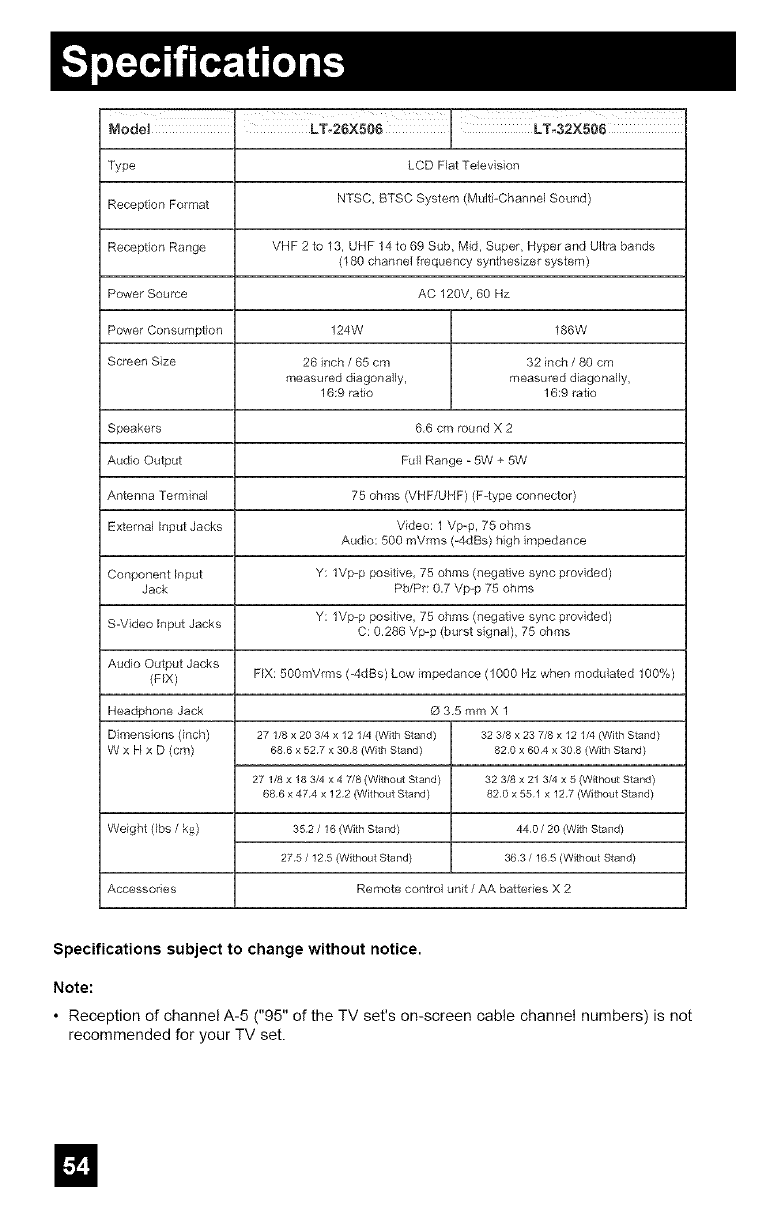
Type LCD Flat Television
Reception Format NTSC, BTSC System (Multi-Channel Sound)
Reception Range VHF 2 to 13, UHF 14 to 69 Sub, M_d, Super, Hyper and Ultra bands
(180 channel frequency synthesizer system)
Power Source AC 120V, 60 Hz
Power Consumption 124W 186W
Screen Size 26 inch /65 cm 32 inch /80 cm
measured diagonally, measured diagollally,
16:9 ratio 16:9 ratio
Speakers 6,6 cm round X 2
Audio Output Full Range - 5W + 5W
Antenna Terminal 75 ohms (VHF/UHF) (F-type connector)
External input Jacks Video: 1 Vp-p, 75 ohms
Audio: 500 mVrms (=4dBs) high impedance
Conponent Input Y: 1Vp-p positive, 75 ohms (negative sync provided)
Jack Pb/Pr: 0,7 Vp-p 75 ohms
S-Video Input Jacks Y: 1Vp-p positive, 75 ohms (negative sync provided)
C: 0,286 Vp-p (burst signal), 75 ohms
Audio Output Jacks
(FIX) FiX: 500mVrms (_IdBs) Low impedance (1000 Hz when modulated 100%)
O3,5mmX1
Headphone Jack
Dimensions (inch)
W x FIx D (cm)
27 1/8 x 20 3/4 x 12 1/4 (With Stand)
686 x 527 x 308 (With Stand)
32 3/8 x 23 7/8 x 12 1/4 (With Stand)
820 x 604 x 308 (With Stand)
27 1/8 x 18 3/4 x 4 7/8 (Without Stand) 32 3/8 x 21 3/4 x 5 (Without Stand)
686 x 474 x 12 2 (Without Stand) 820 x 551 x 12 7 (Without Stand)
Weight (Ibs /kg) 352 /16 (With Stand) 440 /20 (With Stand)
275 /125 (Without Stand) 363 /165 (Without Stand)
Accessories Remote control unit /AA batteries X 2
Specifications subject to change without notice.
Note:
• Reception of channel A-5 ("95" of the TV set's on-screen cable channe[ numbers) is not
recommended for your TV set.
m


JVC COMPANY OF AMERICA
Division of JVC Americas Corp.
1700 Valley Road
Wayne, New Jersey, 07470
JVC CANADA, INC.
21 Finchdene Square
Scarborough, Ontario
Canada, M1X 1A7
