JVC LT 32DP8BJ 42DP8BJ/LT 37DP8BJ/ User Manual 32DP8BJ, 37DP8BJ, 42DP8BJ LCT2288 001B U
LT-37DP8BJ LT-37DP8BJ LCT2288-001B-U English,
User Manual: JVC LT-32DP8BJ LT-32DP8BJ, LT-37DP8BJ, LT-42DP8BJ English,
Open the PDF directly: View PDF  .
.
Page Count: 52
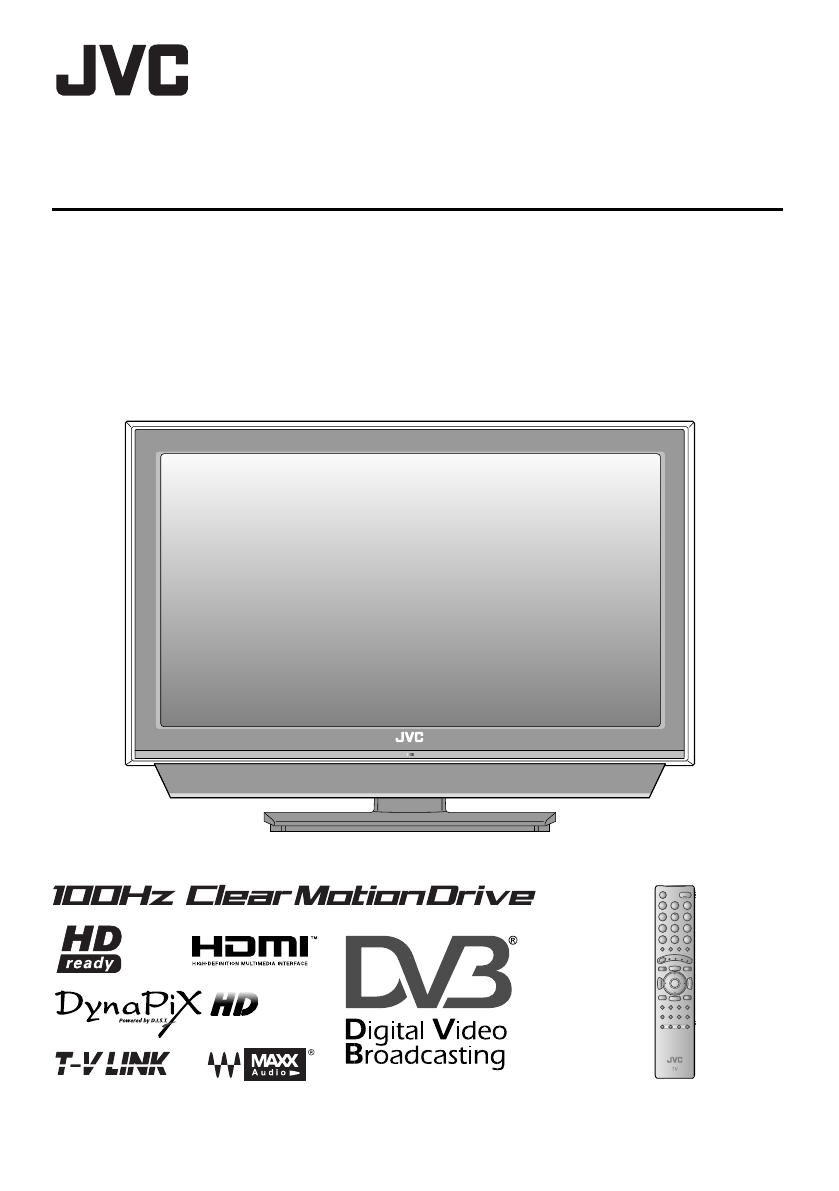
Trade Mark of the DVB Digital Video Broadcasting
Project (1991 to 1996) Number : 4820, 4821, 4822
INSTRUCTIONS
WIDE LCD PANEL TV
LT-42DP8BJ
LT-37DP8BJ
LT-32DP8BJ
LCT2288-001B-U
LT-42DP8BJ.book Page 0 Tuesday, September 4, 2007 11:51 AM
LT-42DP8BJ.book Page 0 Tuesday, September 4, 2007 11:51 AM
i
Dear Customer,
This apparatus is in conformance with the valid European directives and standards regarding electromagnetic
compatibility and electrical safety.
European representative of Victor Company of Japan, Limited is:
JVC Technology Centre Europe GmbH
Postfach 10 05 52
61145 Friedberg
Germany
Information for Users on Disposal of Old Equipment
Attention:
This symbol is only
valid in the European
Union.
[European Union]
This symbol indicates that the electrical and electronic equipment should not be disposed as
general household waste at its end-of-life. Instead, the product should be handed over to the
applicable collection point for the recycling of electrical and electronic equipment for proper
treatment, recovery and recycling in accordance with your national legislation.
By disposing of this product correctly, you will help to conserve natural resources and will
help prevent potential negative effects on the environment and human health which could
otherwise be caused by inappropriate waste handling of this product. For more information
about collection point and recycling of this product, please contact your local municipal
office, your household waste disposal service or the shop where you purchased the product.
Penalties may be applicable for incorrect disposal of this waste, in accordance with national
legislation.
(Business users)
If you wish to dispose of this product, please visit our web page www.jvc-europe.com to
obtain information about the take-back of the product.
[Other Countries outside the European Union]
If you wish to dispose of this product, please do so in accordance with applicable national
legislation or other rules in your country for the treatment of old electrical and electronic
equipment.
LT-42DP8BJ.book Page i Tuesday, September 4, 2007 11:51 AM
1
Edit
Message Board ABC
Off
Close
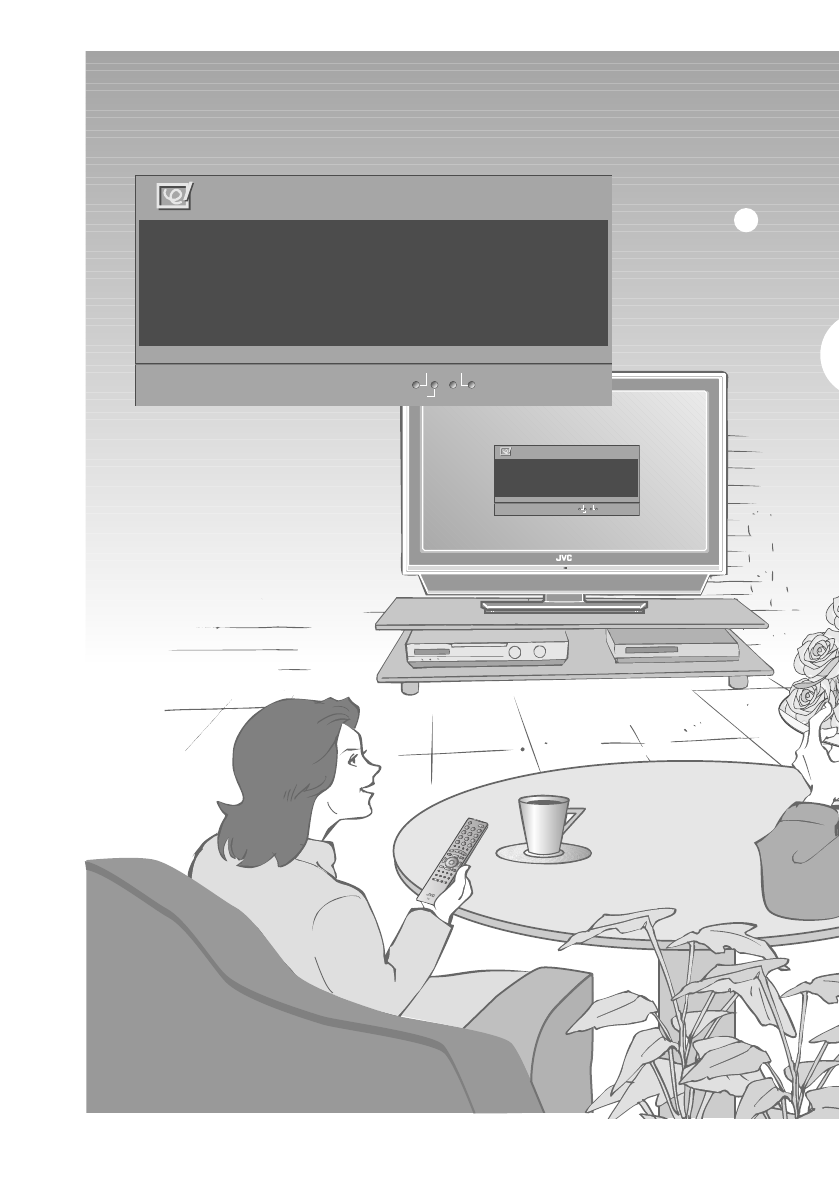
To my lovely wi fe
Happy B i r t hday !
Wi t h a l l my l ove t oday and
always:-)
Edit
Message Board ABC
Off
Close
To my l ov e l y w i f e
Happ y B i r t hd ay !
Wi t h a l l my l ove t oday and
always :-)
As a small surprise on special
LT-42DP8BJ.book Page 1 Tuesday, September 4, 2007 11:51 AM
2
PREPARE USE SETTING TROUBLE?IMPORTANT
Contents
First things first!
z
Warning.........................................................3
Getting started
z
Names of all the parts ...................................5
z
Basic connections .........................................7
z
Connecting external devices.........................9
z
Initial settings .............................................. 11
z
Editing analogue channels..........................15
Let’s try it out
z
Enjoy your new TV!.....................................17
z
Watching analogue channels......................19
z
Viewing teletext...........................................21
z
Watching videos / DVDs .............................23
z
Message board ...........................................25
Try the advanced features
z
Useful functions ..........................................27
z
Operate JVC recorders and other devices ..... 29
Just the way you like it
z
Customising your TV...................................31
When you have trouble
z
Troubleshooting ..........................................39
z
Technical Information ..................................42
z
“CH/CC” List................................................45
z
Specifications ..............................................46
Digital terrestrial broadcasting (DVB-T)
g Digital channels
Analogue terrestrial broadcasting
(VHF / UHF) and analogue cable TV
g Analogue channels
WATCHING DIGITAL
CHANNELS (Separate manual)
z
Watching digital channels .......................... 1
z
Using EPG................................................. 5
z
Customising your TV ................................. 7
z
Troubleshooting ....................................... 19
z
Technical Information............................... 21
occasions!
25
PAGE
Message board
LT-42DP8BJ.book Page 2 Tuesday, September 4, 2007 11:51 AM
3
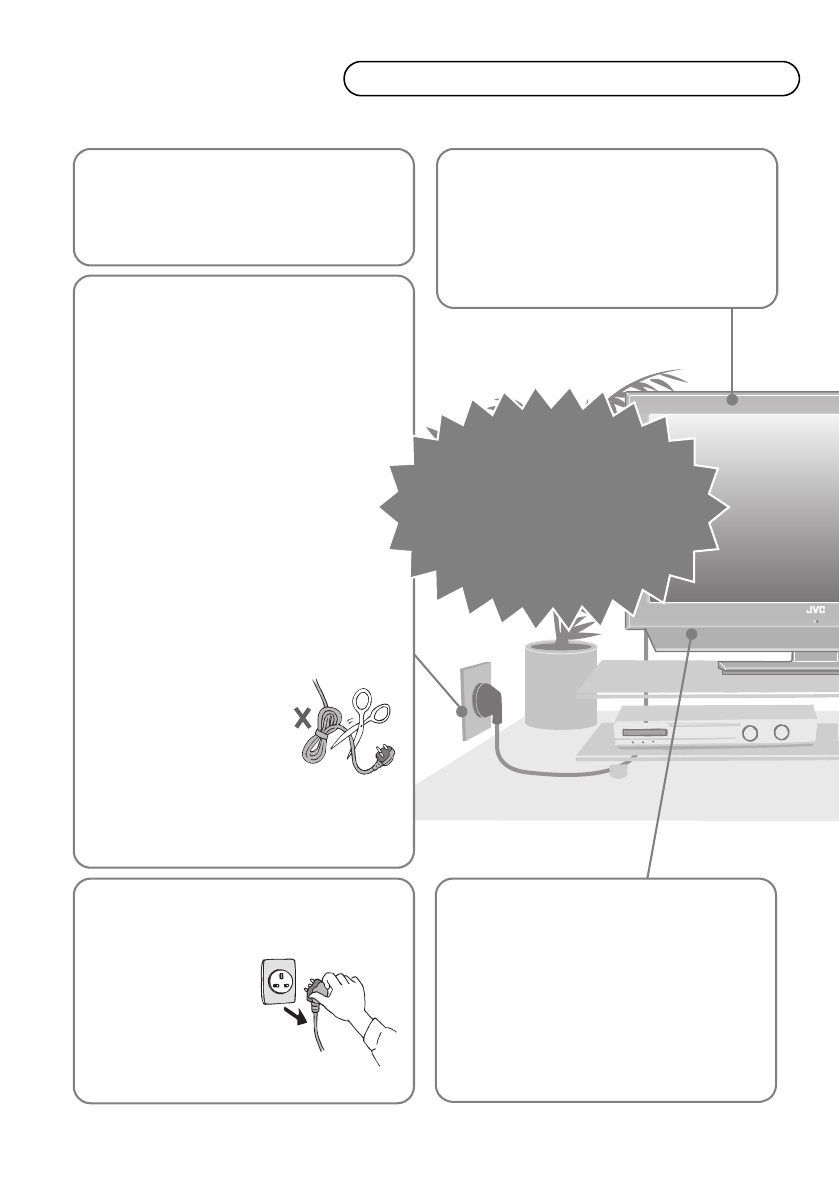
Warning Please follow all the guidelines below
Follow this manual
regarding setup!
zConnect only to a 220 - 240 V, 50 Hz AC
outlet.
Do not allow the TV to
fall!
zDo not rest your elbows on, or allow children to
hang from the TV.
There is a risk that the TV will fall and cause
injuries.
When attaching the TV
to the wall, use the
optional JVC wall
mounting unit!
zConsult a qualified technician.
zSee the included manual on mounting
procedures.
zJVC assumes no responsibility for damage due
to improper mounting.
Unplug the power cord
when going out!
zThe power buttons on
the remote control and
the TV unit cannot
completely turn off the
TV. (Make appropriate
arrangements for
bedridden people.)
Never try to repair
the TV yourself!
gIf the problem cannot be solved
in “Troubleshooting” (P. 39),
unplug the power cord and
contact your retailer.
Make enough room for
inserting and
removing the power
plug!
Place the TV as close
to the outlet as
possible!
zEven if the TV’s power lamp is unlit, the
main power supply is not cut off unless the
power cord is unplugged. The main power
supply for this TV is controlled by inserting or
removing the power plug.
Never cut or damage
the power cord!
zIf the power plug is not the
right shape, or the power
cord is not long enough,
use an appropriate plug
adapter or extension cable.
(Consult your retailer.)
zIf you have cut or damaged
the power cord.
g“Technical Information” (P. 42)
zTo change the fuse in power plugs
g“Technical Information” (P. 42)
For more details on installation, usage and safety g Consult your retailer
LT-42DP8BJ.book Page 3 Tuesday, September 4, 2007 11:51 AM
4
IMPORTANT PREPARE USE SETTING TROUBLE?
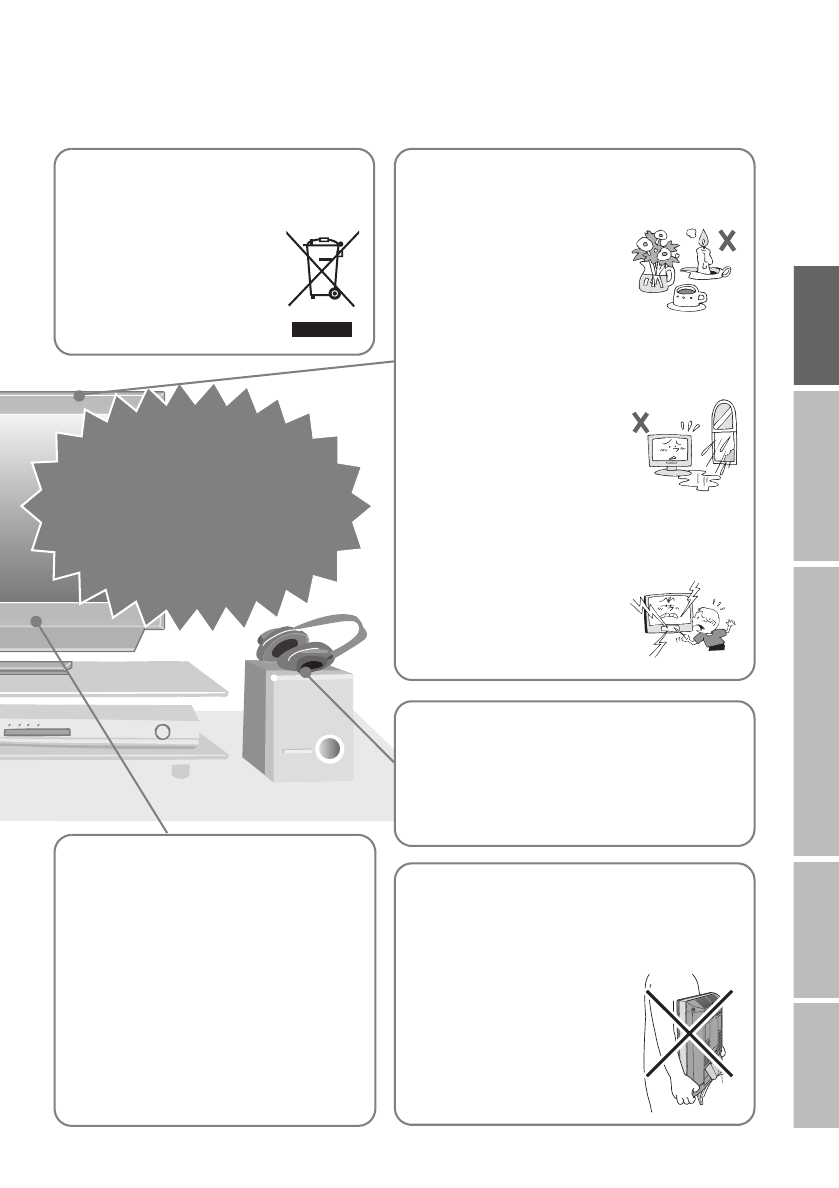
On disposal of the
TV!
zFollow the instruction in
“Information for Users on
Disposal of Old Equipment”
(P. i).
Never place anything on
the TV!
Never expose to rain or
moisture!
Never insert objects into
the cabinet openings!
zIt may cause a fatal electric
shock. Take care when
children are near.
zPlacing liquids, naked flames,
cloths, paper, etc. on the TV
may cause a fire.
zTo prevent fire or electric
shock, never allow liquids to
enter the unit.
Never listen to
headphones at high
volume!
zIt may damage your hearing.
Hold the TV so as not to
scratch the screen!
zDo not touch the screen when carrying the TV.
Do not carry the
TV on your own!
zIn order to prevent accidents,
ensure that the TV is carried by
two or more people.
Never dismantle the
rear panel!
zIt may cause an electric shock.
Never obstruct the
ventilation holes!
zIt may cause overheating or a fire.
Handle LCD panel
with care!
zUse a soft, dry cloth when cleaning.
If the TV is damaged
or behaving
strangely, stop using
it at once!
gUnplug the power cord and
contact your retailer.
LT-42DP8BJ.book Page 4 Tuesday, September 4, 2007 11:51 AM
5
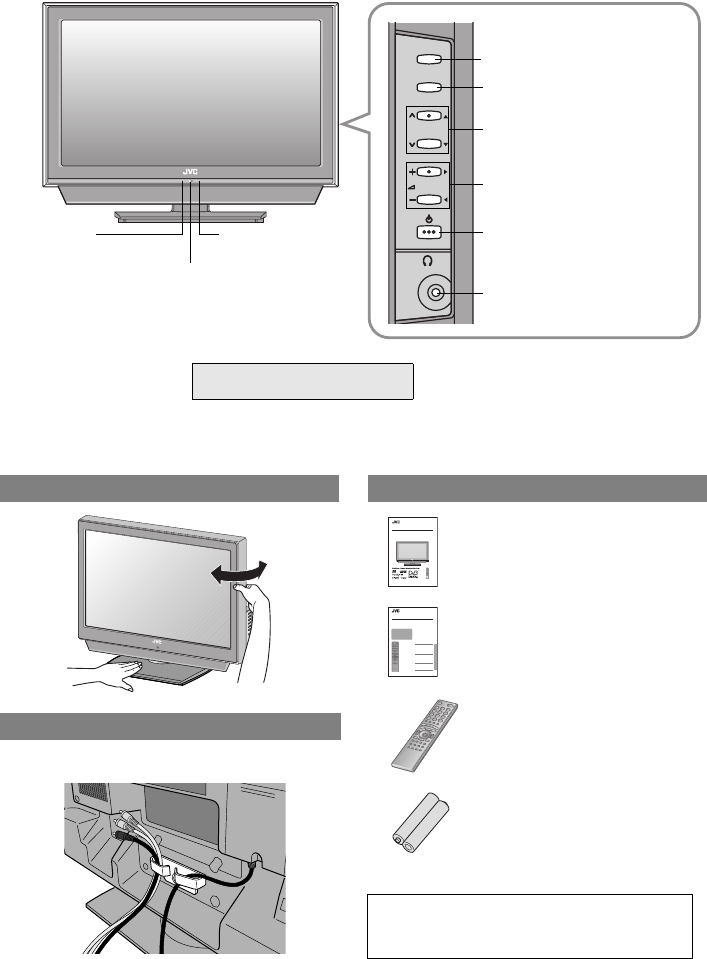
Names of all the parts
TV/AV
MENU/OK
P
Remote control
sensor
Power lamp
ON: Lit (Green)
OFF: Unlit
zThe power lamp will light in
green or orange during
recording. g
zWhen “Power Lamp” is set to “Off”, the
Power lamp will not light up.
g“Power Lamp” (P. 36)
WATCHING DIGITAL CHANNELS
“Timer” (P. 10)
Switch between TV
(digital / analogue channels)
and AV devices (P. 24)
Display on-screen menu /
set
Change channel / page
Volume
Power On / Off
To headphones (P. 9)
Eco Sensor
g“What is “Eco
Mode”?” (P. 43)
Change the direction of TV Check accessories
WARNING:
Batteries shall not be exposed to excessive
heat such as direct sunshine, fire or the like.
TradeMarkof the DVB Digital Video Broadcasting
Project(1991to 1996) Number : 4820, 4821, 4822
INSTRUCTIONS
WIDELCD PANEL TV
LT-42DP8BJ
LT-37DP8BJ
LT-32DP8BJ
LCT2288-001A-U
Remote control
(RM-C1911)
“AAA/R03” Batteries
(For confirming the TV works)
User manual
“INSTRUCTIONS”
(this book)
Before reading this manual
Read the separate user manual (INSTRUCTIONS), “IMPORTANT” section (P. 3 - 4),
and understand how to use the TV safely. After that follow the instructions in the
“PREPARE” section (P. 5 - 16) to connect the aerial and other external devices to
the TV, and configure the settings for the TV.
LCT2289-001A-U
Digital terrestrial broadcasting (DVB-T)
g Digital channels
Analogue terrestrial broadcasting
(VHF / UHF) and analogue cable TV
g Analogue channels
Contents
Watching digital channels.................................1
Display the programme information..............3
View subtitles................................................3
Select audio language..................................4
View teletext information...............................4
Using EPG........................................................5
Customising your TV........................................7
Timer ................ ......................... .................... 9
Edit PR (Edit PR List)................................. 11
Configuration .................. ............................13
Setup ..................... ..................................... 15
Installation .................... .............................. 17
Troubleshooting..............................................19
Technical Information......................................21
USE SETTING TROUBLE?
This manual only provides
information on watching digital
channels. Other information is
explained in the
“INSTRUCTIONS”. Please read
both this manual and the
“INSTRUCTIONS” manual.
WATCHING DIGITAL CHANNELS Separate manual
“WATCHING DIGITAL
CHANNELS”
Tidying the cables
LT-37DP8BJ / LT-42DP8BJ
zLT-32DP8BJ is not equipped with cable clamp.
LT-42DP8BJ.book Page 5 Tuesday, September 4, 2007 11:51 AM
6
IMPORTANT PREPARE USE SETTING TROUBLE?
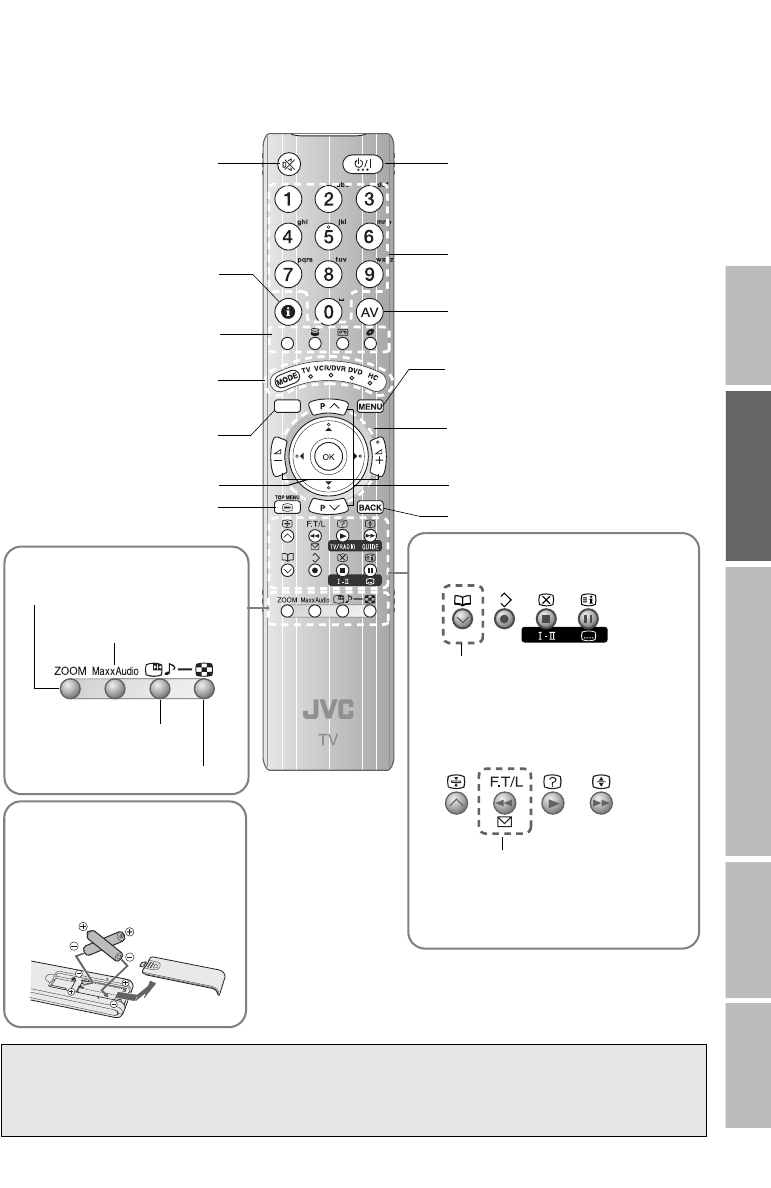
TV/DTV
When watching TV / Video
Insert the batteries
Use two “AAA/R03” dry cell
batteries. Insert the batteries from
the - end, making sure the + and
- polarities are correct.
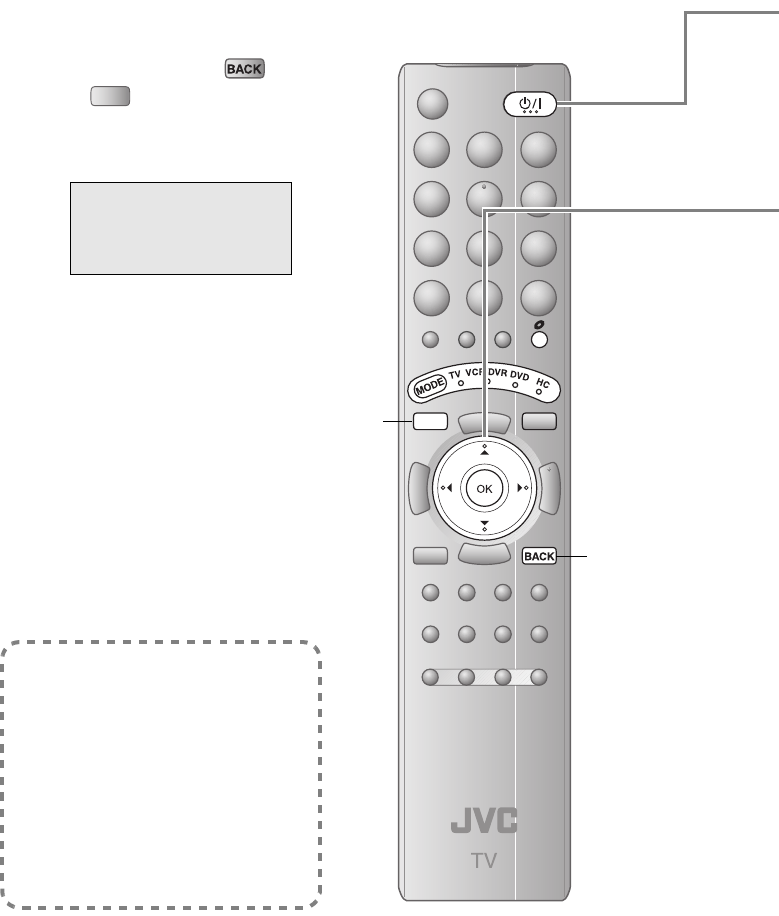
Power On / Off
Switch between “TV / VCR /
DVR / DVD / HC” (P. 29)
Change channel / page
To input characters (P. 25)
Watch video, etc. (P. 23)
Select and confirm settings in
menus
To the previous menu
Change channel / page
Mute
Channel information
(P. 19)
Switch digital / analogue
channels
View teletext (P. 21)
Volume
Colour buttons
Display on-screen menu
(P. 31)
Change the aspect ratio (P. 27)
Change the “MaxxAudio”
setting (P. 27)
Take a snapshot of the
screen (P. 28)
View in multi-picture mode (P. 28)
Display the message board
When viewing analogue channels
When viewing teletext (P. 21)
(Analogue channels)
Choose a favourite channel (P. 19)
Message Board (P. 25)
Operate JVC recorders and other
devices (P. 29)
For more information, please read the separate manual (WATCHING DIGITAL
CHANNELS).
“Watching digital channels” (P. 1)
LT-42DP8BJ.book Page 6 Tuesday, September 4, 2007 11:51 AM

7
Basic connections
Please read the user manuals of each device carefully before setup.
It is necessary to connect an aerial to watch TV.
Connect with other devices g “Connecting external devices” (P. 9)
Care when setting
Power requirements
zConnect the power cord only to a 220 - 240 V, 50 Hz
AC outlet.
When attaching the TV to the wall, use the
optional JVC wall mounting unit
zConsult a qualified technician.
zSee the included manual on mounting procedures.
zJVC assumes no responsibility for damage due to
improper mounting.
z200 mm x 200 mm mount which conforms to VESA
standards.
Installation requirements
zTo avoid overheating, ensure the unit has ample
room.
AERIAL
zAfter all the connections have been made, insert the plug into an AC outlet.
Connect the aerial
200 mm
150 mm 50 mm 150 mm 50 mm
LT-42DP8BJ.book Page 7 Tuesday, September 4, 2007 11:51 AM
8
IMPORTANT PREPARE USE SETTING TROUBLE?
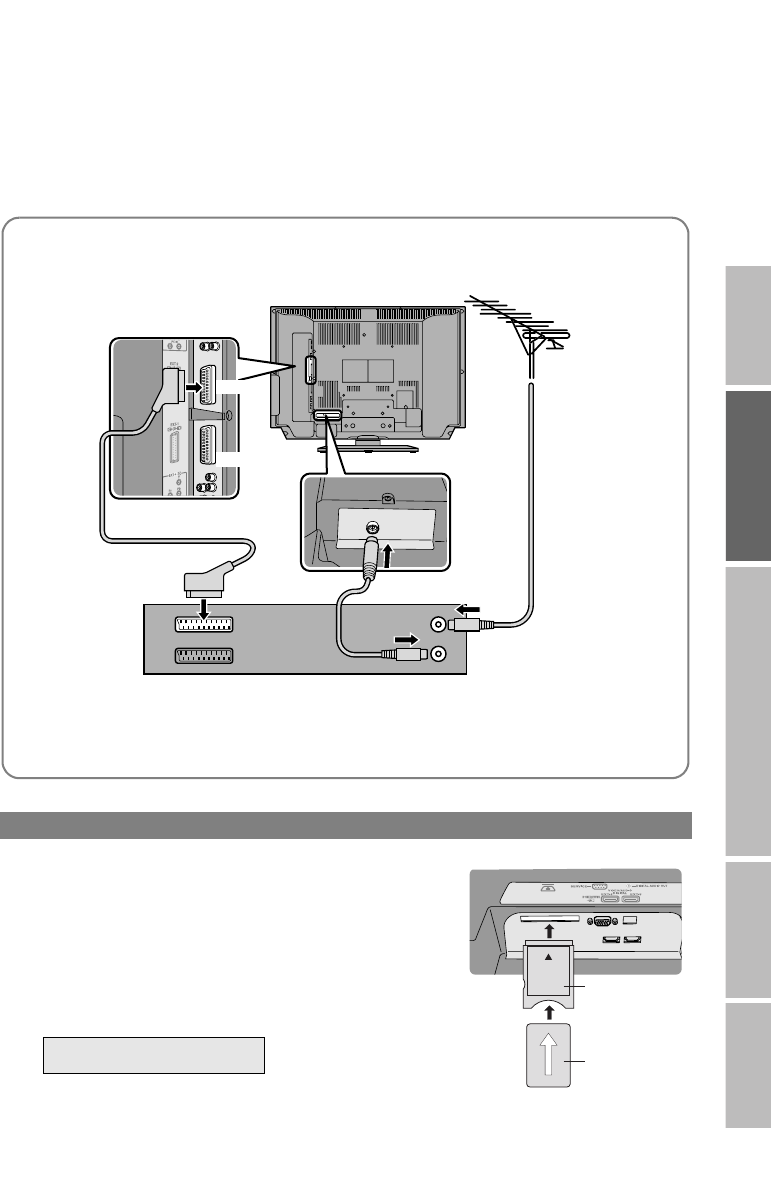
Watch pay-TV digital channels
Subscribe to a broadcasting company beforehand. A Viewing Card
(B) will be sent by the broadcasting company after subscribing to it.
It may be necessary for you to purchase a CAM (Conditional Access
Module) (A) in addition to the Viewing Card.
Consult your broadcasting company or retailer.
AUnplug the power cord
BInsert “B” into “A”.
CInsert “A”.
DPlug the power cord, and turn the power on.
EPerform necessary settings using “Common Interface”.
g
zPay-TV analogue channels cannot be watched.
AERIAL
Connect a VCR / DVD recorder
zAfter all the connections have been made, insert the plug into an AC outlet.
zConnect “T-V LINK” compatible recording device to EXT-2.
z“T-V LINK” g “What is “T-V LINK”?” (P. 11)
VCR / DVD recorder
EXT-2
EXT-1
WATCHING DIGITAL CHANNELS
“Common Interface” (P. 16)
A
B
LT-42DP8BJ.book Page 8 Tuesday, September 4, 2007 11:51 AM
9
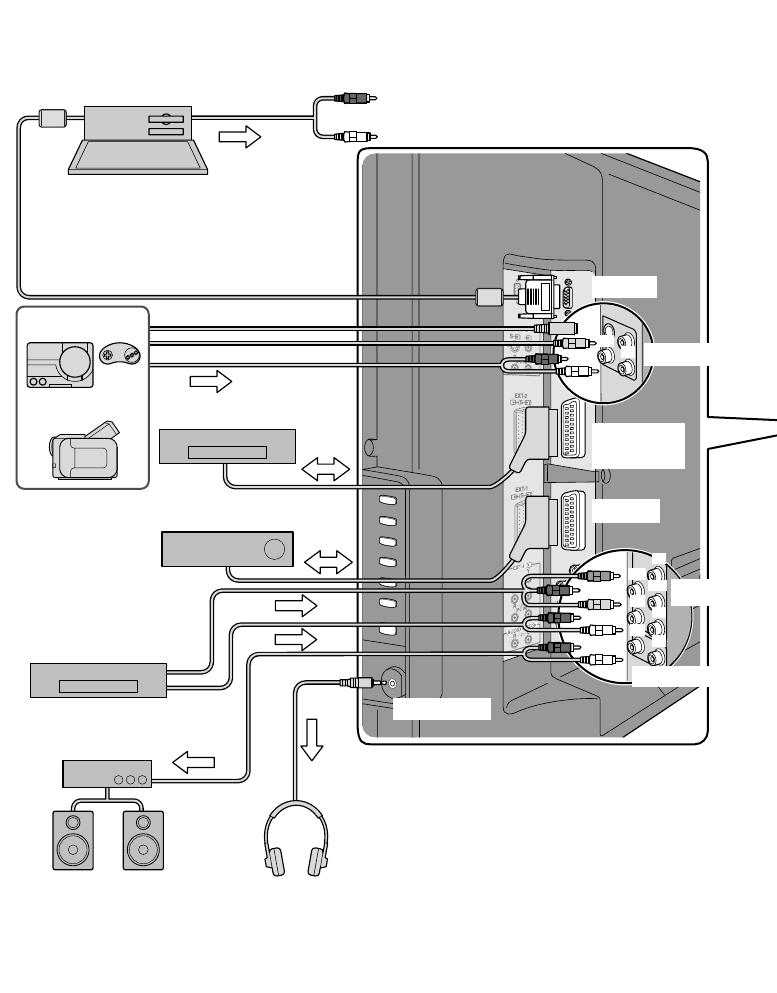
You can connect many different devices to the rear panel of the TV.
Please read the user manuals of each device before setting up.
(Connecting cables are not supplied with this TV.)
Connecting external
EXT-4
EXT-1
EXT-2
(T-V LINK)
EXT-3
PC IN
Headphone
Headphones
zAudio signals received from
EXT-5 and EXT-6 cannot be
sent to the AUDIO OUT
terminal.
DVD player
Satellite broadcast / Digital
broadcast tuner
VCR / DVD recorder
(“T-V LINK” compatible)
Video camera
Game consoles
To “EXT-3”
R / L (PC IN)
zCheck for PC compatibility
g“PC signals that can be displayed” (P. 42)
zUse cable with ferrite cores and no longer than
of 3 m to avoid electromagnetic disturbance.
Amplifier
(L) (R)
PC
AUDIO OUT
(R)
(L)
(Pr)
(Pb)
(R)
(L)
(R)
(L)
(Y)
LT-42DP8BJ.book Page 9 Tuesday, September 4, 2007 11:51 AM

10
IMPORTANT PREPARE USE SETTING TROUBLE?
devices VCR / DVD / other devices
zUse S-VIDEO g “S-In” (P. 24)
zUse S-VIDEO g “S-In” (P. 24)
zSelect dubbing sources
g “Dubbing” (P. 24)
zConnect a decoder
g “Decoder(EXT-2)” (P. 38)
zUse S-VIDEO g “S-In” (P. 24)
z“Component Auto Select” g (P. 38)
z“HDMI Setting” g (P. 38)
zEXT-6 input does not support analogue
sound.
zUse HDMI CEC
g “What is “HDMI CEC”?” (P. 43)
AUDIO OUT
Listening to the TV on external speakers
DIGITAL AUDIO OUT
Listening to the digital audio of digital
channels on external speakers
zThe sound from analogue channels and
external devices cannot be output.
EXT-1 Watching videos
Output jInput h
•Composite signal
•Sound L / R
•Composite signal
/ RGB / S-VIDEO
•Sound L / R
EXT-2 Dubbing videos using
“T-V LINK”
Output jInput h
•Composite signal
•Sound L / R
•Composite signal
/ RGB / S-VIDEO
•Sound L / R
EXT-3 Watching videos
Output jInput h
•Composite signal
/ S-VIDEO
•Sound L / R
EXT-4 Watching DVDs
Output jInput h
•Component signal
(P. 46)
•Sound L / R
EXT-5
EXT-6
Connecting HDMI
device
Output jInput h
•HDMI signal
(P. 46)
Output j
•Sound L / R
Output j
•Digital sound
(P. 46)
: Signal direction
DVD player
(HDMI compatible)
EXT-6
(HDMI)
EXT-5
(HDMI)
Satellite broadcast / Digital broadcast tuner
(HDMI compatible)
AERIAL
CI (Common Interface) slot
“Watch pay-TV digital channels” (P. 8)
DVI devices g “Connect DVI devices” (P. 42)
“T-V LINK” g “What is “T-V LINK”?” (P. 11)
Amplifier
(Digital optical
compatible)
DIGITAL
AUDIO OUT
Not available.
(For service adjustments)
g
WATCHING DIGITAL CHANNELS
““Dolby Digital” output
from the DIGITAL AUDIO
OUT terminal” (P. 22)
LT-42DP8BJ.book Page 10 Tuesday, September 4, 2007 11:51 AM
11
TV/DTV
TV/DTV
BACK
Initial settings
What is “T-V LINK”?
Connecting the TV to a “T-V LINK”
compatible device allows:
zChannels on the TV to be instantly
registered on the device.
zThe “Direct Rec” function to be used.
g“Technical Information” (P. 42)
“T-V LINK” variations
“T-V LINK” (JVC), “Q-LINK” (Panasonic),
“Megalogic” (Grundig), “Data Logic” (Metz),
“SMARTLINK” (Sony), “Easy Link” (Philips)
To the previous screen g
Exit g
If the “JVC” logo does not appear or if you
wish to make changes later
zDigital channel settings:
g
zAnalogue channel settings:
g “Auto Program” (P. 37)
“Language” (P. 37)
TV/DTV
WATCHING DIGITAL CHANNELS
“Factory Settings” (P. 18)
“Service Scan” (P. 17)
“Menu Language” (P. 13)
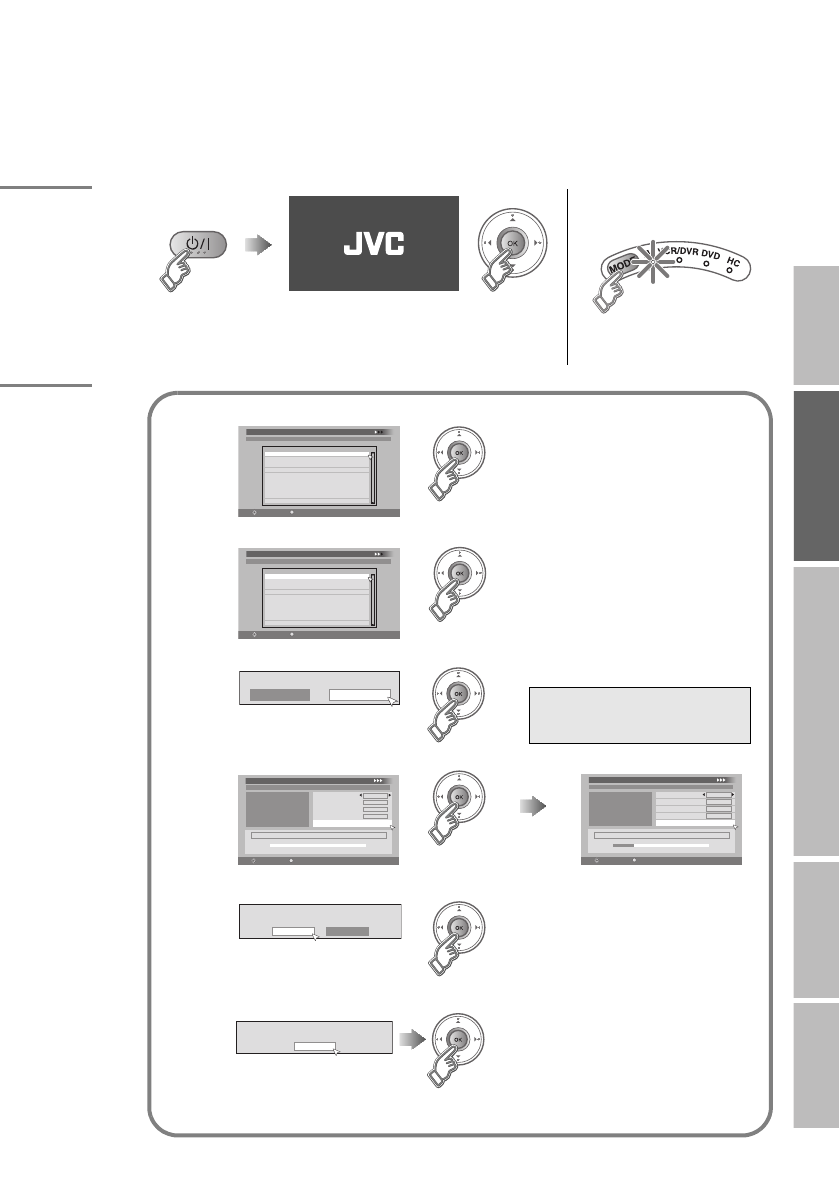
Register digital / analogue channels on TV. These channels can be edited later.
(In this manual, digital terrestrial broadcasting is indicated as digital channels,
analogue terrestrial broadcasting and analogue cable TV as analogue channels.)
LT-42DP8BJ.book Page 11 Tuesday, September 4, 2007 11:51 AM
12
IMPORTANT PREPARE USE SETTING TROUBLE?
ABegin
The remote control doesn’t
work
zConfirm the mode is set to
“TV”.
BSet digital channels
zShown only when powering on for the first time.
1Confirm “English” is set
zLanguage for on-screen displays when
watching digital channel including the
DTV menus.
2Confirm “United Kingdom” is set
zThis TV can only receive British digital
channels.
3Set the aerial power supply zOnly when using an aerial which
requires external power, select “On”.
g
4Scan digital channels
5Register digital channels
If digital channels are not found, the following message will appear.
zAfter completing following steps, read “When the TV cannot find the digital
channels” (P. 14) and try scanning digital channels again
English
First Time Installation > Language Setting
Step 1: Please choose language
Language
Select
OK
Navigate
First Time Installation > Country Setting
Step 2: Please choose country
Country
Select
OK
Navigate
United Kingdom
Mode
Start Scan
On Off
Antenna Power
WATCHING DIGITAL CHANNELS
“Power supply for the
indoor aerial” (P. 21)
First Time Installation > Service Scan
Step 3: Please press OK
Select
OK
Navigate
Automatic
Service
Scan
_ _
Start Channel
_ _
Stop Channel
Add
Mode
Start Scan
First Time Installation > Service Scan
Step 3: Please press OK
Select
OK
Navigate
Automatic
Service
Scan
_ _
Start Channel
_ _
Stop Channel
Add
Mode
Start Scan
UHF33 : 3 Services found
BBC ONE
BBC THREE
BBC TWO
Scan completed! Store services?
Yes No
No services found!
OK gC(Next page)
LT-42DP8BJ.book Page 12 Tuesday, September 4, 2007 11:51 AM
13
Initial settings
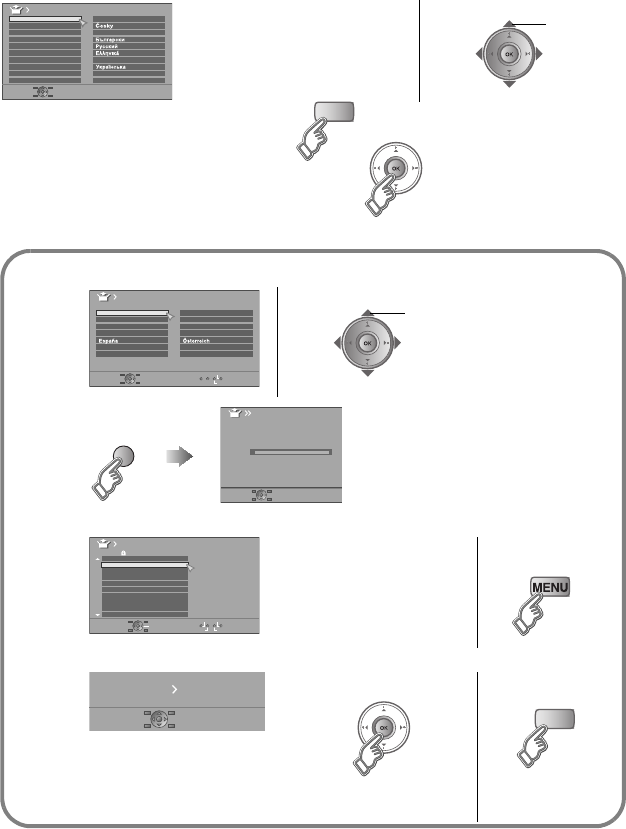
CConfirm the language
When change a language
When not using analogue channels g g E
When using analogue channels (or cable TV) g g D
DSet analogue channels
Language
Suomi
Svenska
Norsk
Dansk
Nederlands
Castellano
Italiano
Deutsch
Français
English
Català
Türkçe
Português
Magyar
Polski
zLanguage for Message Board and
menus (excluding the DTV menus) select
TV/DTV
1Register analogue channels
To change the country
2Check what was registered
To edit channels
g“Editing analogue
channels” (P. 15)
If not editing
channels
3Set T-V LINK
When using “T-V LINK”
zIf “Feature Not Available”
appears g (P. 41)
When not using
“T-V LINK”
Auto Program
Belgium
Nederland
Italia
France
Deutschland
United Kingdom
Country
Suomi
Norge
Sverige
Danmark
Switzerland
Ireland
Start
More
select
Auto Program
CH
21
0%
zIf “ACI Start” appears, select and start
settings.
(This will set up cable television
channels.)
g“What is “ACI” (Automatic Channel
Installation)?” (P. 42)
(blue)
Manual
Move ID
DeleteInsert
BBC1
BBC2
ITV
CH4
CH5
______
______
AV
PR ID
Edit
CH
01 21CH
02 22CH
03 23CH
04
05
06
07
08
09
24CH
25CH
26CH
27CH
28CH
T-V LINK
Recording DeviceDownload TV
TV/DTV
LT-42DP8BJ.book Page 13 Tuesday, September 4, 2007 11:51 AM
14
IMPORTANT PREPARE USE SETTING TROUBLE?
If you still cannot watch digital channels after following the steps above, there may be a problem
with your aerial or its cable. Or, the signal may be too weak. g Consult your retailer
The “Missing or weak signal” message appears.
You can check the broadcast signal level of the channel you are watching using “Signal Check”.
g
If you still cannot watch digital channels after following the steps above, there may be a problem
with your aerial or its cable. Or, the signal may be too weak. g Consult your retailer
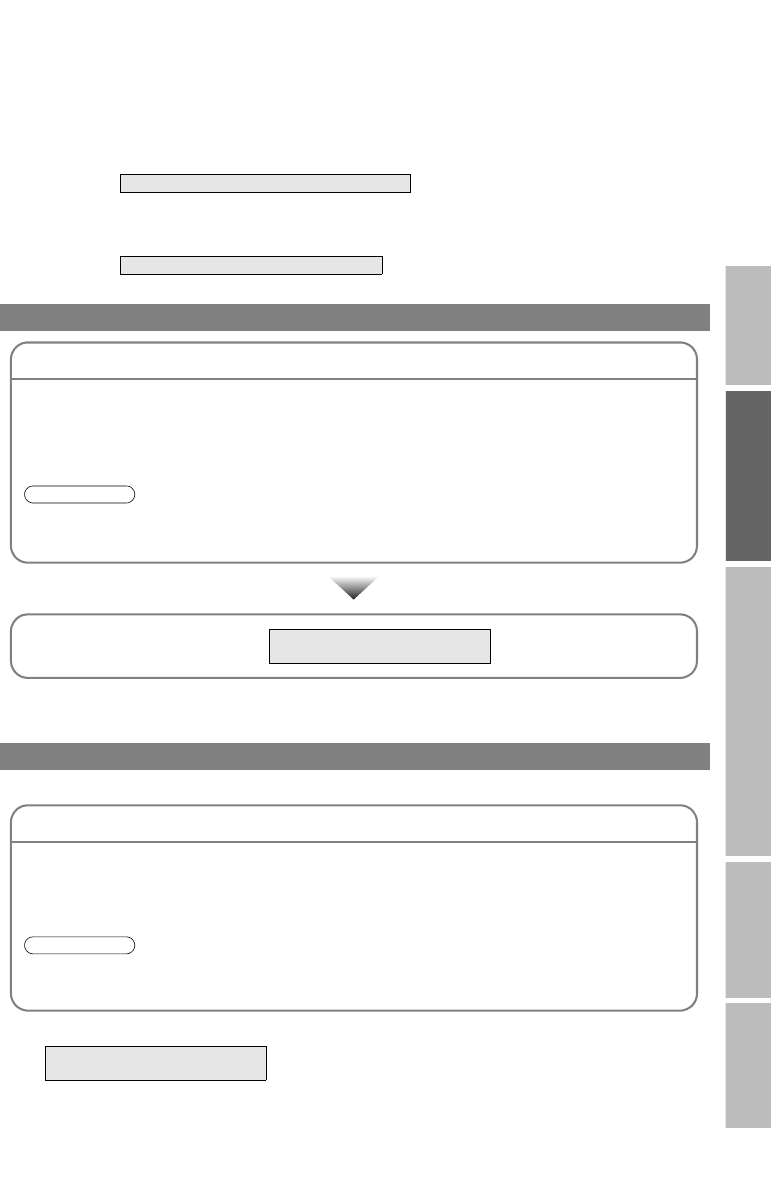
EInitial setting is complete
Edit digital channels using “Edit PR”
g
If digital channel reception is poor g “When the digital channel reception is poor” (P. 14)
If analogue channel reception is poor g “Troubleshooting” (P. 39)
Some digital channels cannot be watched on this TV.
g
When the TV cannot find the digital channels
When the digital channel reception is poor
WATCHING DIGITAL CHANNELS P. 11 - 1 2
WATCHING DIGITAL CHANNELS P. 2 1
Check the following points
zIs the TV connected correctly to the aerial?
zChange the direction of the indoor aerial.
zIs there a digital channels transmission tower nearby?
g Turn “Attenuator” to “On” (P. 38), since the radio waves are too strong.
z“Attenuator” attenuates the radio waves of analogue broadcast as well as those of digital broadcast. If
some noise or snow appears when watching an analogue channel, please set “Attenuator” to “Off”
temporarily.
Note
zRe-configure the initial settings
using “Factory Settings” gWATCHING DIGITAL CHANNELS
P. 1 8
Check the following points
zIs the TV connected correctly to the aerial?
zChange the direction of the indoor aerial.
zIs there a digital channels transmission tower nearby?
gTurn “Attenuator” to “On” (P. 38), since the radio waves are too strong.
z“Attenuator” attenuates the radio waves of analogue broadcast as well as those of digital broadcast. If
some noise or snow appears when watching an analogue channel, please set “Attenuator” to “Off”
temporarily.
Note
WATCHING DIGITAL CHANNELS
P. 1 8
LT-42DP8BJ.book Page 14 Tuesday, September 4, 2007 11:51 AM
15
Editing analogue channels
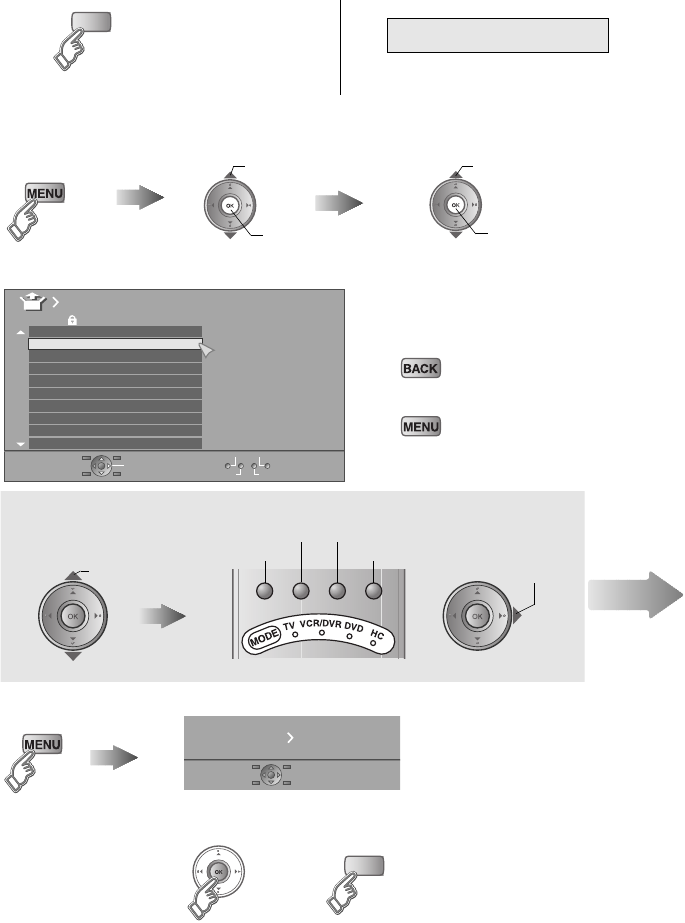
Edit the channels registered with “Auto Program” in “Initial settings” (P. 13).
ASwitch to analogue channels
To edit digital channels
g
BDisplay the “Edit” menu
Display the menu bar Select “Set Up” Select “Edit/Manual”
CEdit channels
To the previous menu
g
Exit
g
DFinish
zIf “Feature Not Available”
appears g (P. 41)
z“T-V LINK” g “What is
“T-V LINK”?” (P. 11)
When using
“T-V LINK”
When not using
“T-V LINK”
TV/DTV
WATCHING DIGITAL CHANNELS
P. 11 - 1 2
Aselect
Bnext Bnext
Aselect
Manual
Move ID
DeleteInsert
BBC1
BBC2
ITV
CH4
CH5
______
______
AV
PR ID
Edit
CH
01 21CH
02 22CH
03 23CH
04
05
06
07
08
09
24CH
25CH
26CH
27CH
28CH
select a channel
Select channel Select edit function
ID
Insert Delete
Manual
Move
Next
7 9 /,1.
5HFRUGLQJ'HYLFH'RZQORDG79
TV/DTV
LT-42DP8BJ.book Page 15 Tuesday, September 4, 2007 11:51 AM
16
IMPORTANT PREPARE USE SETTING TROUBLE?
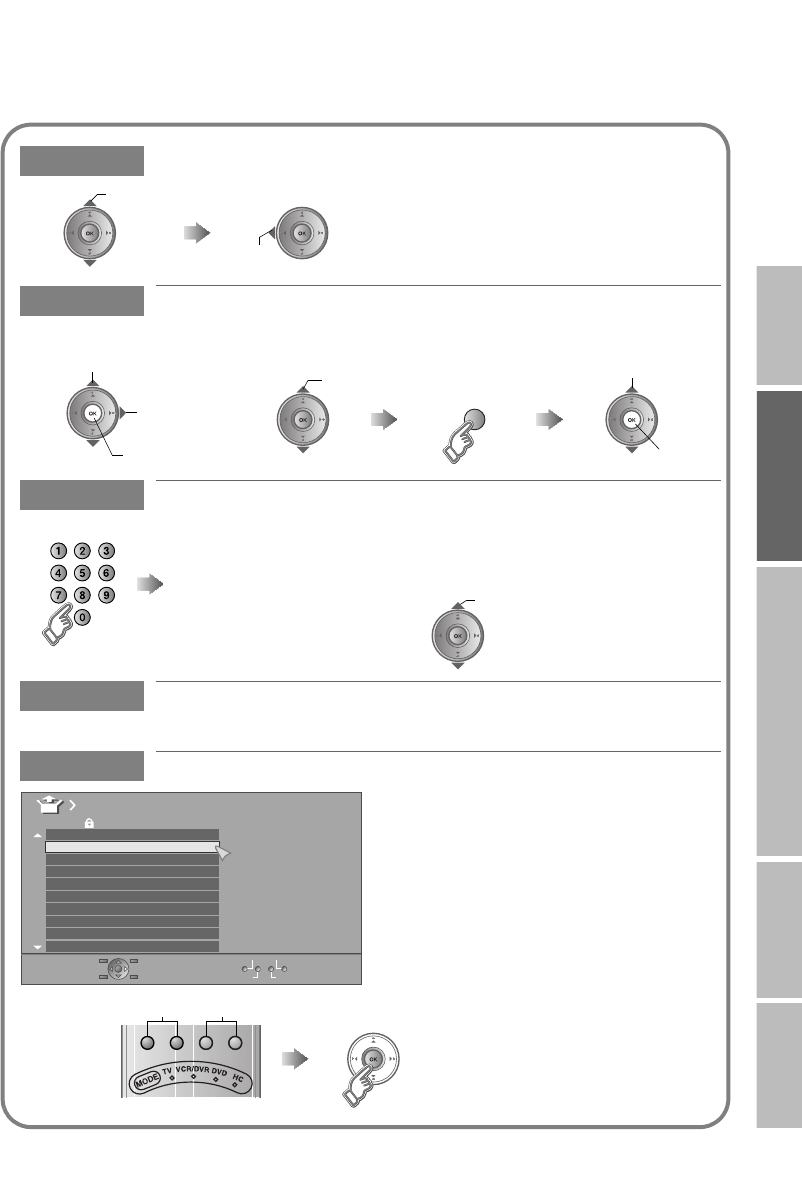
Move Move a channel's position (PR)
ID Edit a channel name (ID)
Insert Insert a new channel directly by entering the CH/CC number
Delete Delete a channel
zPressing the button deletes the channel.
Manual Register a new channel
set
select
When selecting a preset name from the “ID List”
Bset
Aselect character
Bmove position
Cset
Aselect
enter the first
character (blue)
Naming a channel
Receives the broadcast signal.
z“CH/CC” List g(P. 45)
Select a “CH/CC”
Enter a number In United Kingdom, you cannot enter
“CC” numbers.
In Ireland, you can select “CH” or “CC”
before entering a number.
Fine-Search+
Fine+Search-
AV
PR ID
Manual
CH
01
02 22CH
03 23CH
04
05
06
07
08
09
24CH
25CH
26CH
27CH
28CH
21CH
BBC1
BBC2
ITV
CH4
CH5
______
______
zPress the red or green button. Auto-search
begins, and the nearest frequency is
imported.
g Repeat the previous steps until the
desired channel is displayed.
ASearch a channel Fine tune BSet
LT-42DP8BJ.book Page 16 Tuesday, September 4, 2007 11:51 AM
17
Enjoy your new TV!
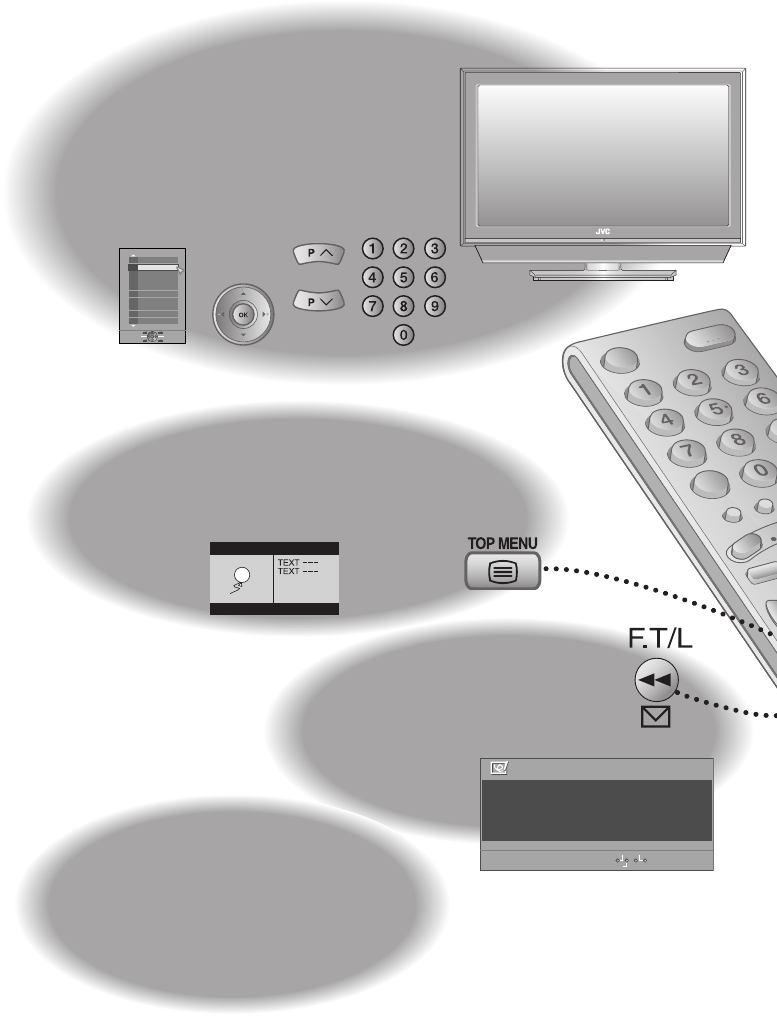
Viewing teletext
(Analogue channels)
21
PAGE
19
PAGE
Message
board
25
PAGE
Edit
Message Board ABC
Off
Close
To my l ove l y wi f e
Hap py B i r t hda y !
Wi t h a l l my l ov e t oday and
always :- )
Watching analogue
channels
Change the aspect ratio
Enjoy the good sound
Take snapshots of the screen
Watch in multi-picture mode
27
PAGE
Useful
functions
+10-10
PR List
09
08
07
06
05
04
03
02
01 BBC1
______
BBC2
ITV
CH4
CH5
______
AV
LT-42DP8BJ.book Page 17 Tuesday, September 4, 2007 11:51 AM

18
IMPORTANT PREPARE USE SETTING TROUBLE?
Picture settings
(Picture Mode, Features, etc.)
Sound settings
(Stereo/ t·u, MaxxAudio, etc.)
Set Up settings
(Auto Program, Language, etc.)
Features settings
(Sleep Timer / Child Lock, etc.)
Customising your TV
31
PAGE
Watching videos / DVDs
23
PAGE
Picture
Watching digital
channels
Customising your TV
(Digital channels)
WATCHING DIGITAL CHANNELS
P. 1 - 4
WATCHING DIGITAL CHANNELS
P. 7 - 18
LT-42DP8BJ.book Page 18 Tuesday, September 4, 2007 11:51 AM
19
TV/DTV
Watching analogue channels
Switch between mono / stereo / bilingual
broadcasting
g “Stereo/ t·u” (P. 34)
zTo completely turn off the TV, unplug the power plug.
zUsing the TV buttons g “Names of all the parts” (P. 5).
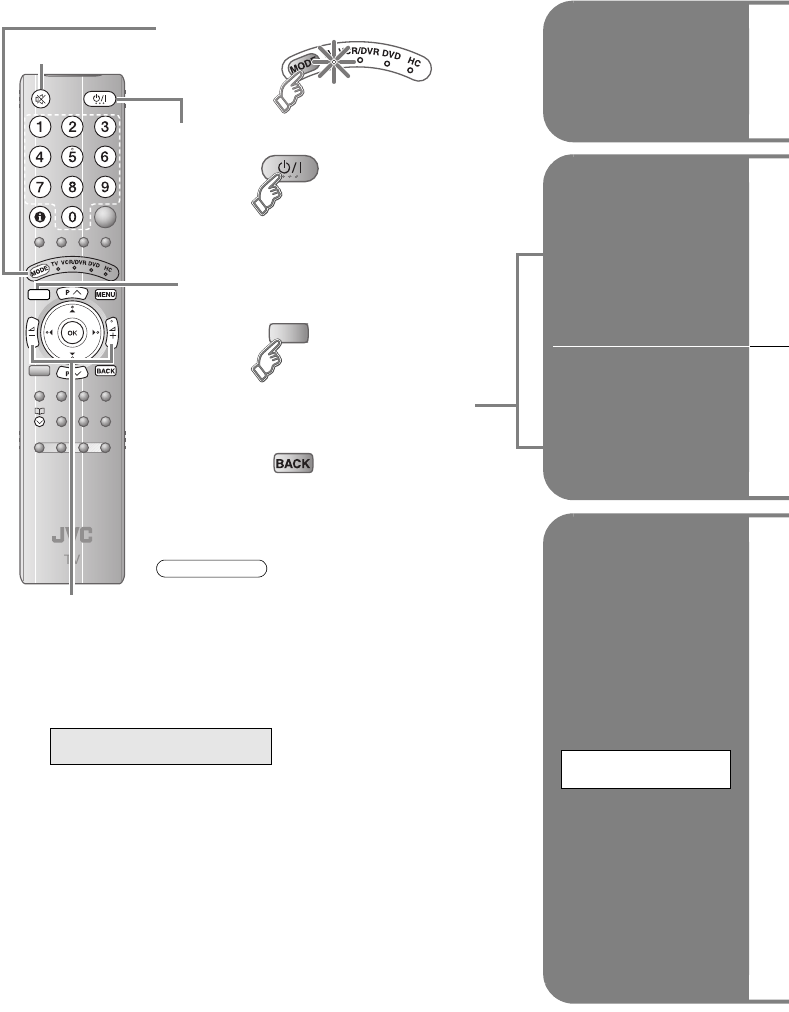
ASet to “TV”
BPower on
zPress again to turn the screen off and
put the TV into standby mode.
CSwitch to analogue
channels
DSelect a channel
To the previous channel
g
The green power
lamp on the TV lights
TV/DTV
Note
Register a channel
to a button
FAVOURITE
CHANNEL
Using the number
buttons, up / down
buttons
Using PR list
Channel information
and clock
Volume
Mute
Watching digital channels
gWATCHING DIGITAL CHANNELS
P. 1 - 4
LT-42DP8BJ.book Page 19 Tuesday, September 4, 2007 11:51 AM

20
IMPORTANT PREPARE USE SETTING TROUBLE?
Press a channel number Move up or down a channel
E.g.
15 :
1 :
up
down
PR List
+10-10
PR List
09
08
07
06
05
04
03
02
01 BBC1
______
BBC2
ITV
CH4
CH5
______
AV
zSelect a page g select
Bview
Aselect
Close PR List
BBC1
1
12 : 00
Channel information
zTime is displayed only when teletext
broadcasting can be received.
(No indication)
Time
zPressing the button once displays the
“PR List”.
While the channel is displayed Press the number to register it on
The following “Picture” and “Sound” menu settings applied to the channel will be stored in the favourite channel as
well.
zPicture Mode / Super DigiPure / Colour System (P. 32 - 33)
zMaxxVolume / Voice Enhancer (P. 34)
Recall the favourite channel
Check your favourite channels
g Press “ ” and confirm that the channels you have registered have a beside them
Delete a favourite channel g “Favourite Setting” (P. 36)
Set 1 - 4 ?
Hold down for 3 seconds
Programmed!
Disappears after a few seconds
Note
Favourite 1 - 4 ?
Press the number you registered
zTo soften the picture for daily use, change the setting in “Picture Mode”
g“Picture Mode” (P. 32)
Note
LT-42DP8BJ.book Page 20 Tuesday, September 4, 2007 11:51 AM
21
Viewing teletext
(Analogue channels)
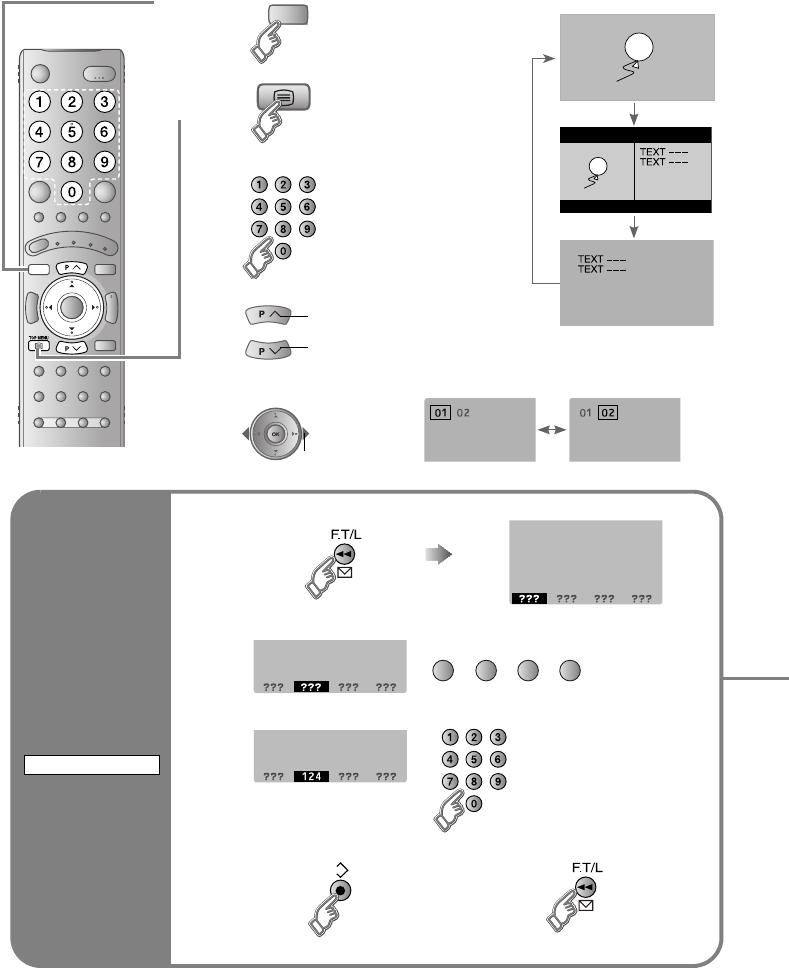
This TV can display TV broadcasts and teletext on the same analogue channel in two windows.
Bookmark
your favourite
page
1Display your favourites list
2Select a coloured button to save your page to
3Enter the number of the page to save
4Save
Exit g
Recall your favourite page g Press the coloured button as in step 2
LIST MODE
LIST MODE
(red) (green) (yellow) (blue)
A
Switch to analogue channels
When watching analogue
channel
B
Enter a teletext page
Move up or down a page
View sub-pages
TV/DTV
TEXT
TV TEXT
up
down
.....
to sub-page
TV/DTV
Viewing
teletext
LT-42DP8BJ.book Page 21 Tuesday, September 4, 2007 11:51 AM
22
IMPORTANT PREPARE USE SETTING TROUBLE?
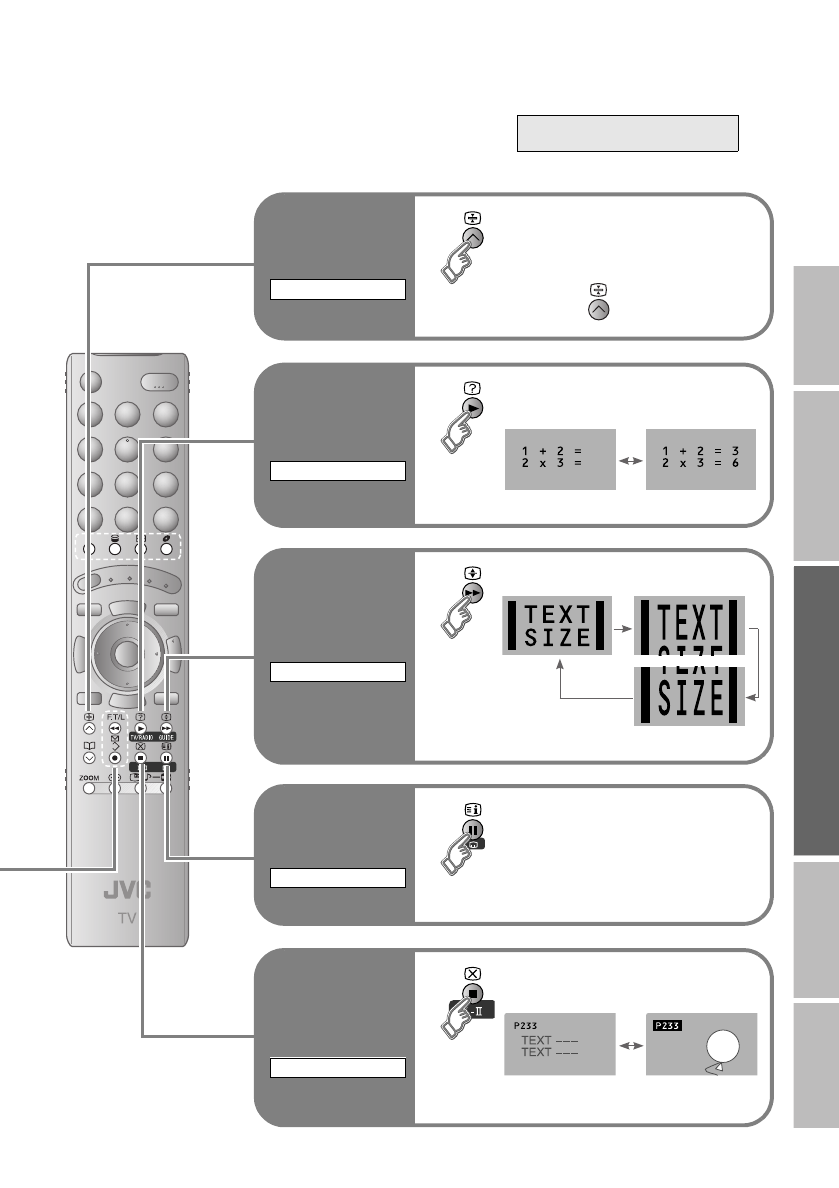
Hold the
current page
Hold the current page
Release g Press “ ” again
HOLD
Reveal hidden
pages
Display hidden information
(answers to quizzes, etc.)
REVEAL
Switch briefly
from teletext
to TV
Leave the current page open, while
you switch to watch TV
zUseful when running a page search.
CANCEL
To the index
page
Returns to page “100” or a
previously designated page
INDEX
Enlarge the
text
Double the size of the displayed text
SIZE
For teletext information
on digital channels gWATCHING DIGITAL CHANNELS
P. 4
LT-42DP8BJ.book Page 22 Tuesday, September 4, 2007 11:51 AM
23
Watching videos / DVDs
To T V
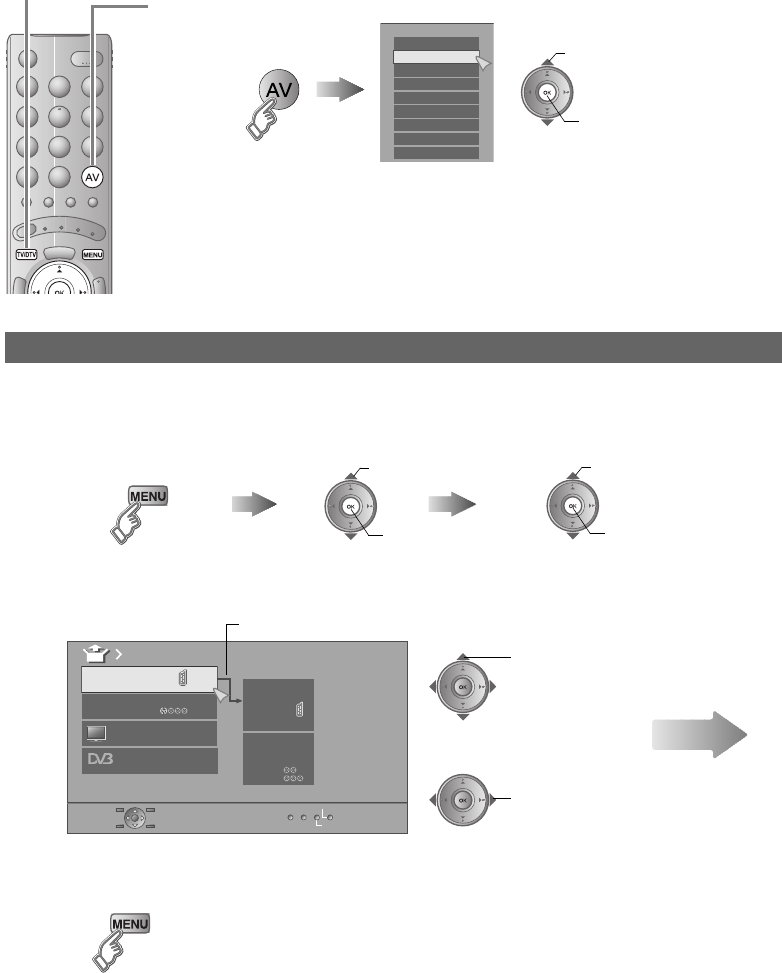
Setting external terminals
1Display the “EXT Setting” menu
Display the menu bar Select “Set Up” Select “EXT Setting”
2Select an “EXT” or arrow, and then proceed with setting
3Finish
zAdjust the position of the PC image g “PC Position” (P. 38)
zHDMI terminal setting g “HDMI Setting” (P. 38)
Aselect
Bnext Bnext
Aselect
DTV
EXT Setting
EXT-1
EXT-2
Dubbing
EXT-4
EXT-3
TV
ID List
S-In
Arrow Select an “EXT”
Select the arrow
select
select
Next
ASelect the video source
BOperate the connected device and play a video
Operate JVC recorders and other devices (P. 29)
E.g. For EXT-1
Bwatch
Aselect
EXT Mode
0AV
1
EXT- 1
2
EXT- 2
3
EXT- 3
4
EXT- 4
5
HDMI1
6
HDMI2
7
PC
8
DTV
LT-42DP8BJ.book Page 23 Tuesday, September 4, 2007 11:51 AM
24
IMPORTANT PREPARE USE SETTING TROUBLE?
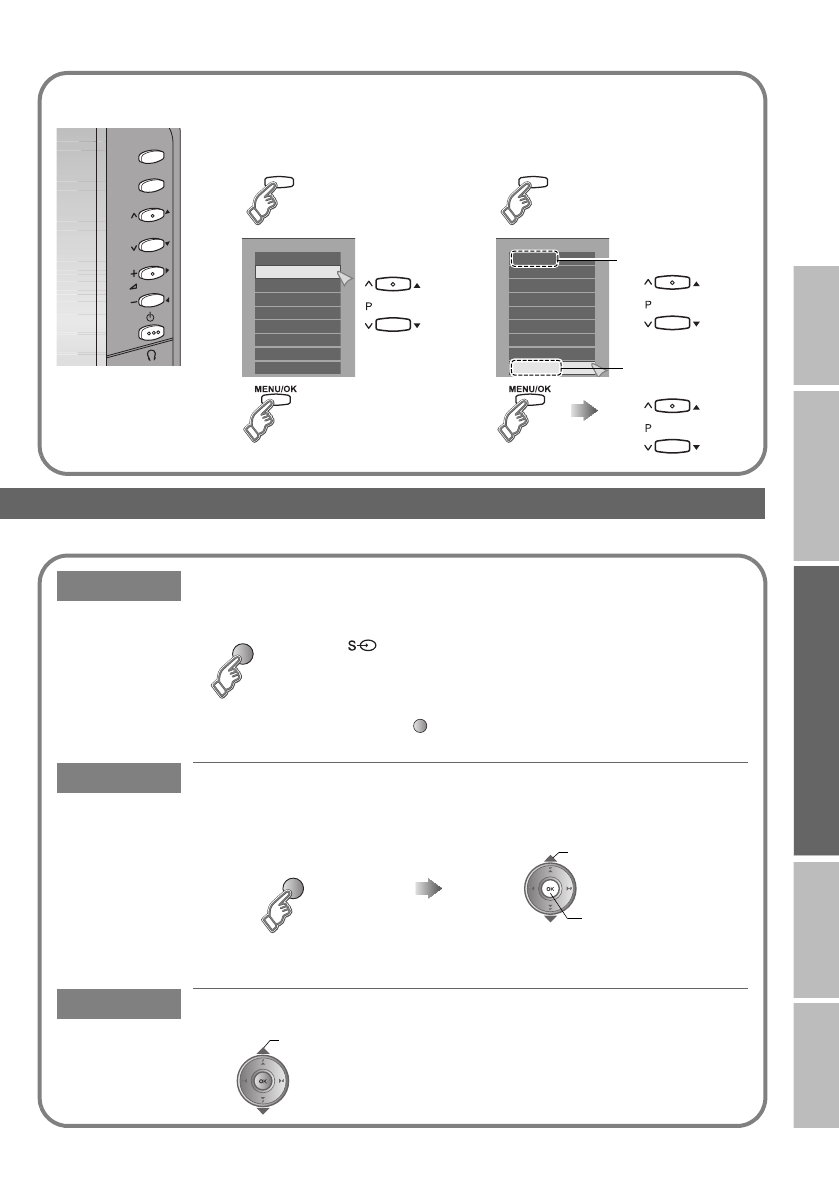
Using the TV’s buttons
P
MENU/OK
TV/AV
Select a video source
A
B
C
TV/AV
EXT Mode
0AV
1
EXT- 1
2
EXT- 2
3
EXT- 3
4
EXT- 4
5
HDMI1
6
HDMI2
7
PC
8
DTV
Select a digital / analogue channel
A
B
CSelect a channel
TV/AV
EXT Mode
0AV
1
EXT- 1
2
EXT- 2
3
EXT- 3
4
EXT- 4
5
HDMI1
6
HDMI2
7
PC
8
DTV
To analogue channels
To digital channels
S-In Switch to S-Video input
ID List Edit names of connected devices
Dubbing Set up dubbing on “EXT-2”
Cancel this mode g Press “ ” (yellow) again
z“ ” mark will appear at the selected “EXT”.
zThe device selection display will change from “E1” to “S1”.
(yellow)
Clear the name g Select the blank space in the list
A Show the name list B Select a name from the list
(blue)
Bset
Aselect
select the dubbing source
LT-42DP8BJ.book Page 24 Tuesday, September 4, 2007 11:51 AM
25
Message board
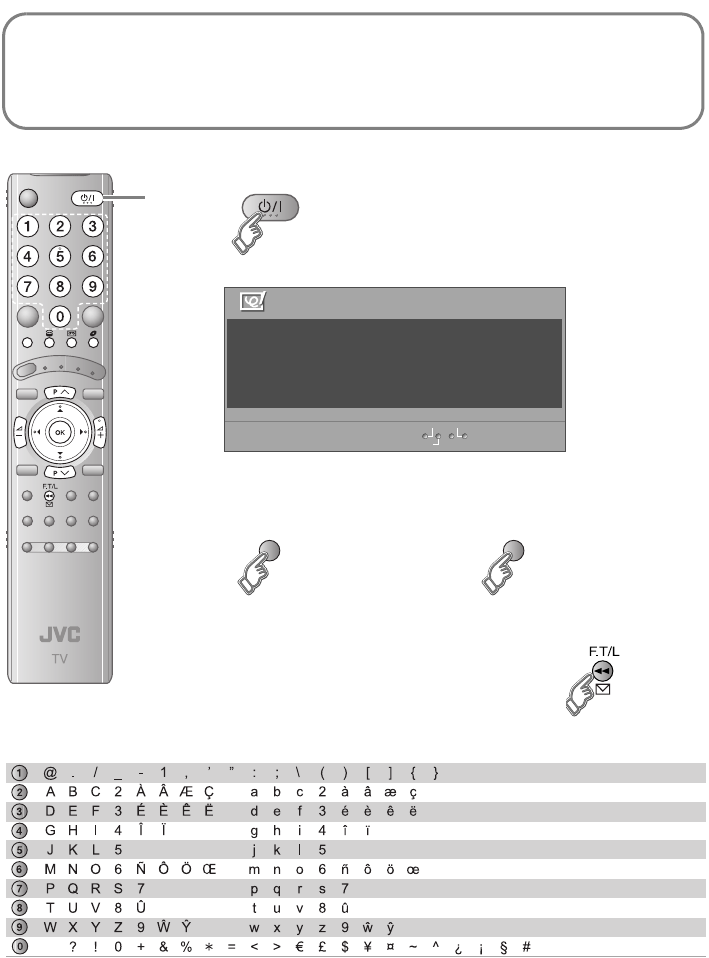
The message board function allows you to display the message that were input beforehand on the
TV screen when the TV is turned on.
Times when the message board comes in handy!
zOn occasions such as birthdays (e.g. Happy birthday!)
zMessage to your children (e.g. I’m going out between 3 and 4 pm.)
zAn alternative to calendar (timetable) (e.g. 12/7 remember 7 o’clock parent night.)
A
BHide the message board
To hide temporarily
zThe message board is displayed
whenever the TV is turned on.
To turn off
zThe message board is not displayed
even if the TV is turned on.
zTo dis p l a y g
zThe message board will not be displayed the first time you
turn on the TV upon purchased.
zIf you have trouble viewing the message board with its
translucent background, in the “Features” menu, change
“Appearance” to “Type B”. (P. 36)
Edit
Message Board ABC
Off
Close
To my l ove l y wi f e
Happy B i r t hday !
Wi t h a l l my l ove t oday and
always:- )
(green) (red)
Key code table
LT-42DP8BJ.book Page 25 Tuesday, September 4, 2007 11:51 AM
26
IMPORTANT PREPARE USE SETTING TROUBLE?
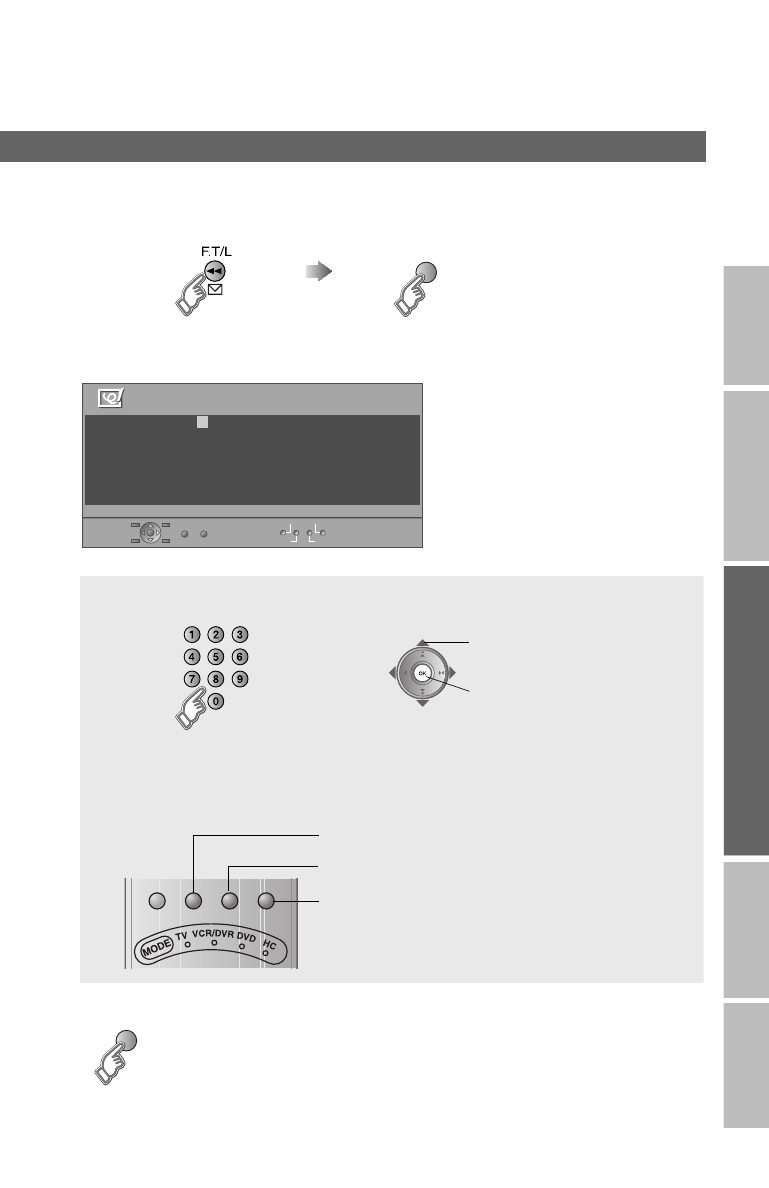
ADisplay the message-editing screen
BInput the message
CSave the message
Composing message
(blue)
Display the message board Switch to the editing screen
~
ABC / abc
Message Board ABC
Set
All ClearDelete
09
To my l ove l
zYou can enter up to maximum 210
characters (7 rows, 30 characters per
row).
zInserting a character in the text is not
allowed. The existing character will be
overwritten.
zTo input characters in a different
language, in the “Set Up” menu, change
the “Language” selection. (P. 37)
To enter the characters To move the cursor
To clear or change character
To clear all characters (press for more than 1 second)
To delete a character
To switch between uppercase and lowercase characters
zFor characters that can be input, see “Key code table” (P. 25).
Move the cursor
Start a new line
(red) zOnly one message can be saved. To compose a new
message, re-edit the current message.
LT-42DP8BJ.book Page 26 Tuesday, September 4, 2007 11:51 AM
27
Useful functions
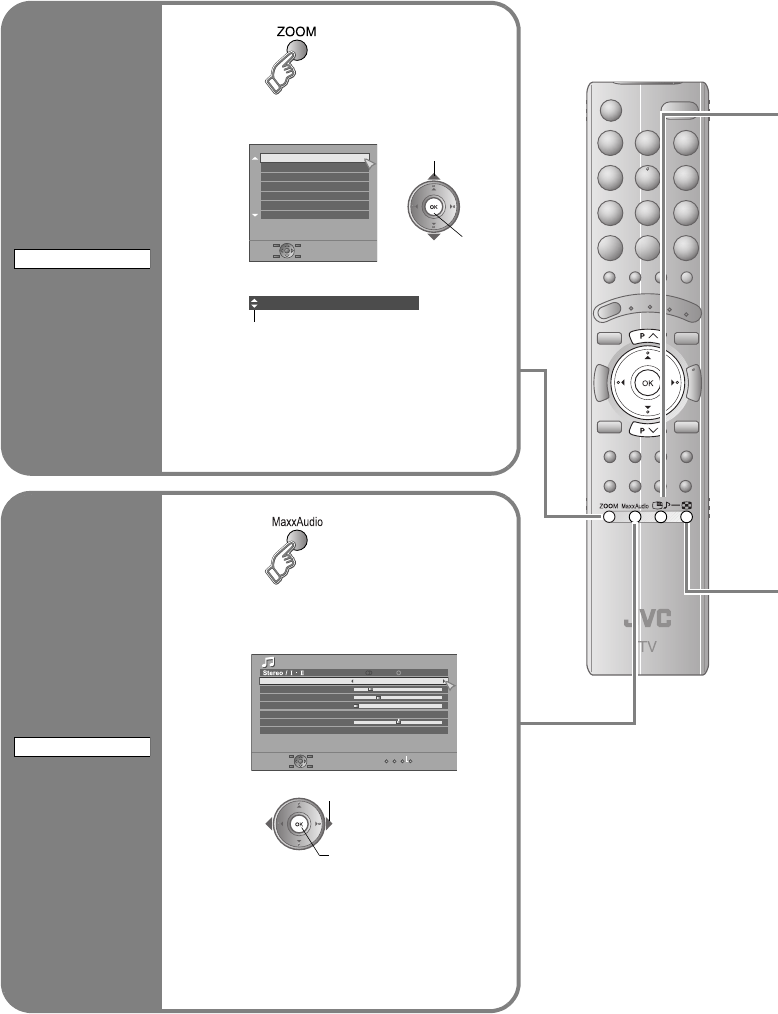
Change the
aspect ratio
1
2Select the aspect ratio
3Move the picture with S or T while this
bar is displayed
zWhen 720p (750p) or 1080i (1125i) signal is
received, the signal will be displayed as “Full”.
The zoom menu will not be displayed.
zIn PC mode, “Regular” and “Full” can be selected.
zUsing “Auto” g “Auto in “Zoom”” (P. 44)
ZOOM
Zoom
Auto
Regular
Panoramic
14 : 9 Zoom
16 : 9 Zoom
16 : 9 Zoom Subtitle
Full
Aselect
Bset
16 : 9 Zoom
Enjoy the
good sound
1
2Select the “MaxxAudio”
setting
zYou can adjust the “MaxxAudio” settings in the
“Sound” menu. (P. 34)
zIf you connect the Headphone to the TV,
“MaxxAudio” setting is turned to “Off”.
MaxxAudio
Aselect
Bset
Sound
MaxxAudio Low
Off
Off
Reset
MaxxBass
MaxxTreble
MaxxStereo
MaxxVolume
Balance
Voice Enhancer
LT-42DP8BJ.book Page 27 Tuesday, September 4, 2007 11:51 AM
28
IMPORTANT PREPARE USE SETTING TROUBLE?
Take
snapshots of
the screen
(Not available for digital
channels and PC)
Cancel
gPress “ ” again, or change the channel
zNot available when the SUB-PICTURE is displayed, or when in digital channels
or PC mode.
zYou cannot save or export the snapshot.
FREEZE Still picture
Current programme
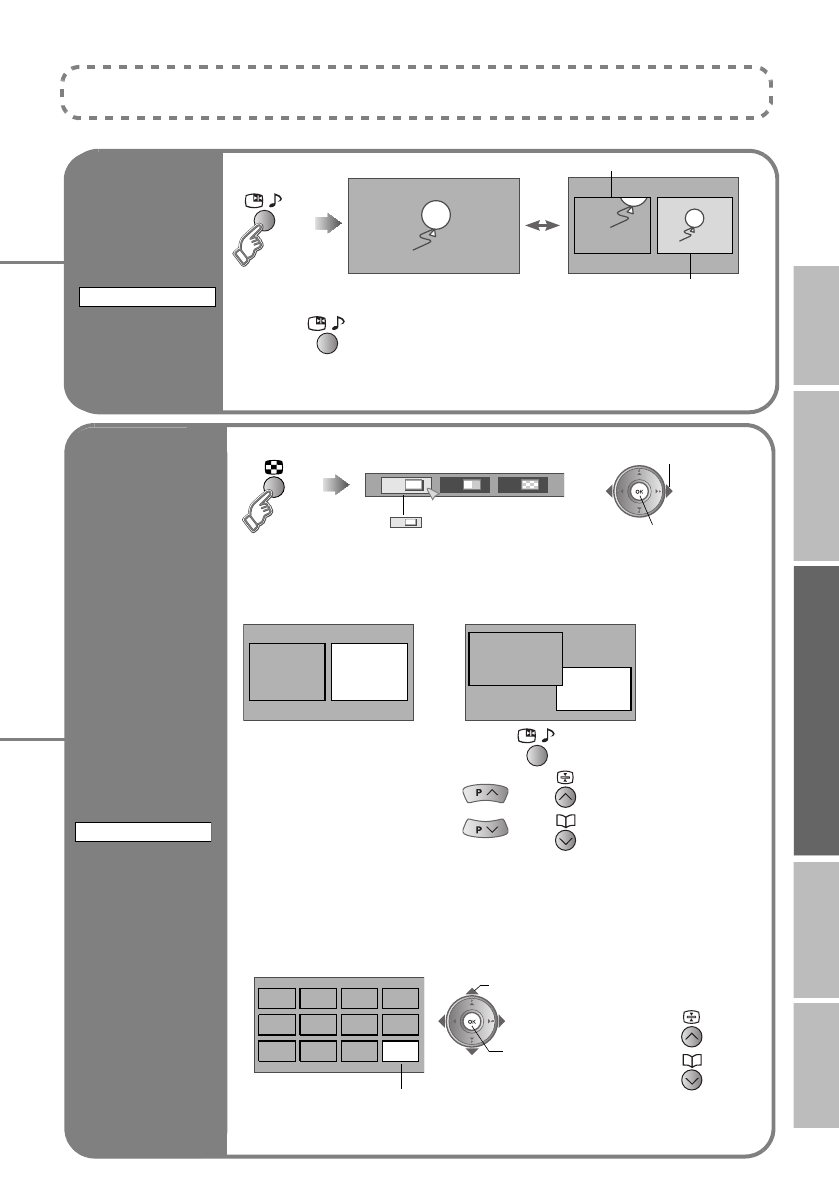
Watch in
multi-picture
mode
Watch in dual-picture mode
E.g. You can watch TV and video at the same time.
zSwitch between the sound sources g
zChange the channel g (Main) , (Sub)
zWhen watching digital channels, there may be occasions where the aspect
ratio changes, for example during commercials. In this case, the layout of the
screen in dual-picture mode changes automatically according to the aspect
ratio signal.
Select an analogue channel in 12-screen mode
All registered analogue channels are displayed as still images.
MULTI-PICTURE
Bset
1212
Select the number of screens
Selecting “ ” returns to normal
viewing mode
zNot available in PC mode.
1
Aselect
Main Sub Main
Sub
(For wide aspect ratio signals)
Bwatch
Aselect a channel
Main
zMove up or
down a page
Only the selected frame has a moving picture.
zNot available for digital channels, EXT-5, or EXT-6 input.
zFor more functions g “Customising your TV” (P. 31 - 38)
LT-42DP8BJ.book Page 28 Tuesday, September 4, 2007 11:51 AM
29
Operate JVC recorders
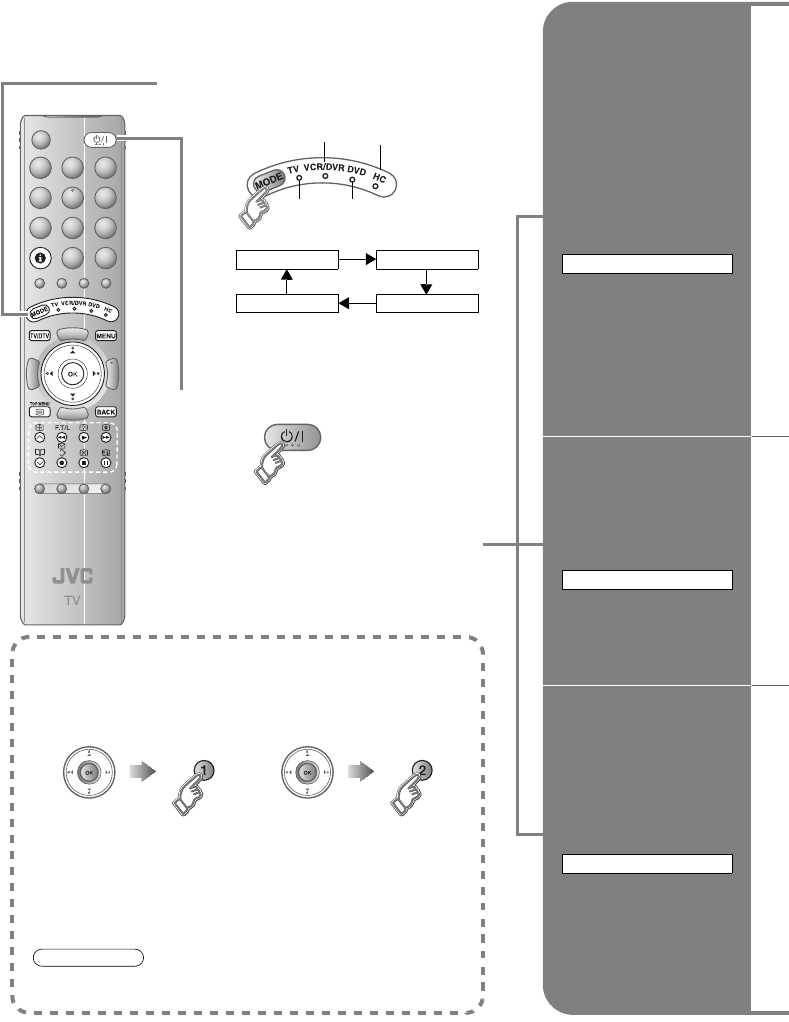
Try changing the remote control code
if you cannot operate a recorder.
zConfirm the code for your recorder by checking the manual it came
with.
zSome models of JVC devices cannot be operated with this remote
control.
zJVC DVD recorders and HDD recorders are set to code “C” or “3” by
default.
zIf the battery is removed, the remote control code reverts back to
code A or 1.
Code A or 1 (Default) Code C or 3
Press and hold Press and hold
Note
Operate the VCR,
DVD recorder or
HDD recorder
Operate the DVD
Player
Operate the home
theatre system
VCR/DVR
DVD
HC
ASelect a device
zThe indicator lights for 3 seconds
each time the remote control is
operated.
BTurn on the device
COperate the device
zOther buttons can be used to operate
the TV at any time.
VCRs
DVD recorders
HDD recorders
Home theatre
system
TV DVD Players
TV VCR/DVR
HC DVD
The included remote control can be used to operate JVC recorders
and other devices.
LT-42DP8BJ.book Page 29 Tuesday, September 4, 2007 11:51 AM
IMPORTANT PREPARE USE SETTING TROUBLE?
30
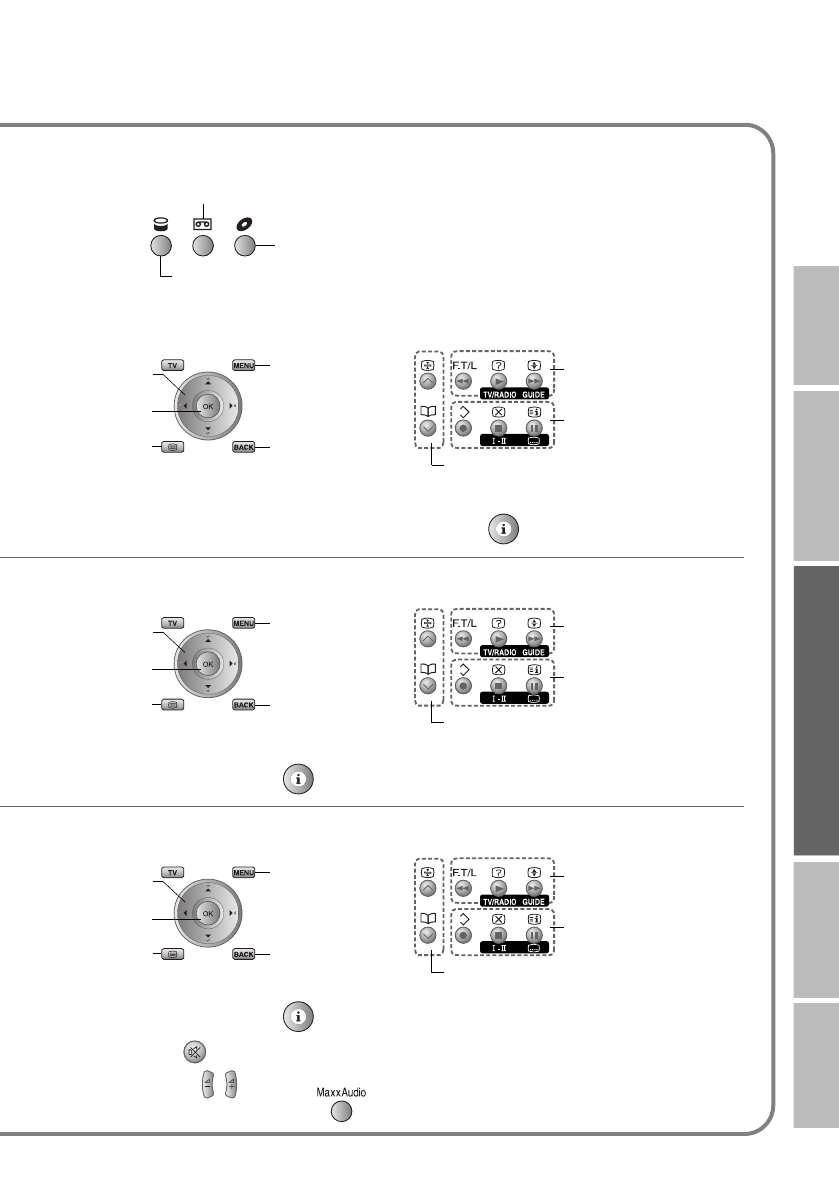
Select VCR / DVD recorder / HDD recorder
Operate DVD / HDD recorder menus Playback / Record etc.
Display the subtitle (DVD / HDD recorder mode) g Press “ ”
Operate DVD menus Playback etc.
Display the subtitle g Press “ ”
Operate HC menus Playback etc.
Display the subtitle g Press “ ”
Mute g Press “ ”
Volume g Press “ ”
Select a surround mode g Press “ ”
VCR
HDD recorders
DVD recorders
Display menu
Back to
previous menu
Display top
menu
Select
OK
Rewind / Playback /
Fast-forward
Record / Stop / Pause
Select a chapter
Display menu
Back to
previous menu
Display top
menu
Select
OK
Rewind / Playback /
Fast-forward
Stop / Pause
Select a chapter
Display menu
Back to
previous menu
Display top
menu
Select
OK
Rewind / Playback /
Fast-forward
Stop / Pause
Select a chapter
and other devices
LT-42DP8BJ.book Page 30 Tuesday, September 4, 2007 11:51 AM
31
TV/DTV
Customising your TV
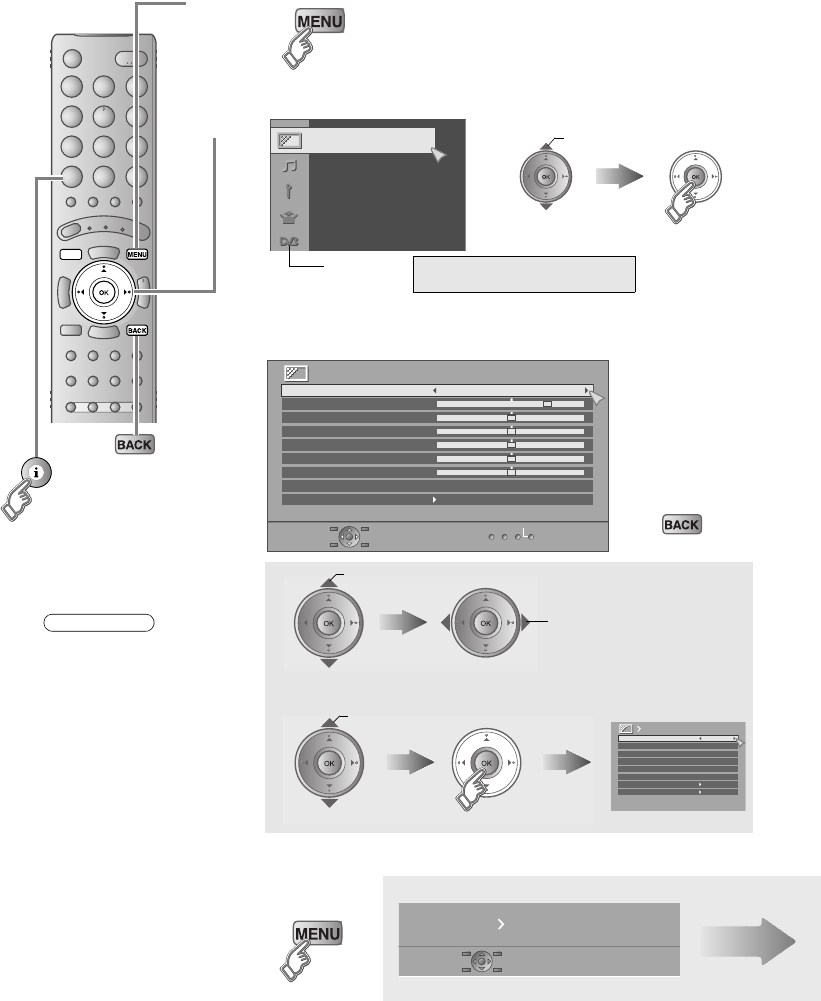
ADisplay the menu bar
BDisplay the desired menu
CChange or adjust the setting
zThe menu
(excluding DTV
menus)
disappears after
one minute of
inactivity.
To the previous
screen
g
To enter an item’s menu
DClose the menu
select
Picture
DTV menu gWATCHING DIGITAL CHANNELS
P. 7 - 18
Picture
Picture Mode
Bright- 1
Standard
Normal
Reset
Contrast
Bright- 2
Sharp
Colour
Hue
Colour Temp.
Features
select
change / adjust
select
Super DigiPure Auto
Movie Theatre Auto
Colour Management On
Picture Management On
Smart Picture On
MPEG Noise Reduction On
Colour System
4 : 3 Auto Aspect
Features
7 9 /,1.
5HFRUGLQJ'HYLFH'RZQORDG79
When “T-V LINK” menu appears.
Next
Press to hide the
bottom area of the
menu (excluding
DTV menus). Press
again to display it.
zDepending on the
situation
(analogue
channels, digital
channels, video
signal formats,
external inputs,
etc.), some items
will be displayed
in gray colour
and will not work.
You will not be
able to change
their setting as
well.
Note
(E.g. Features)
LT-42DP8BJ.book Page 31 Tuesday, September 4, 2007 11:51 AM
32
IMPORTANT PREPARE USE SETTING TROUBLE?
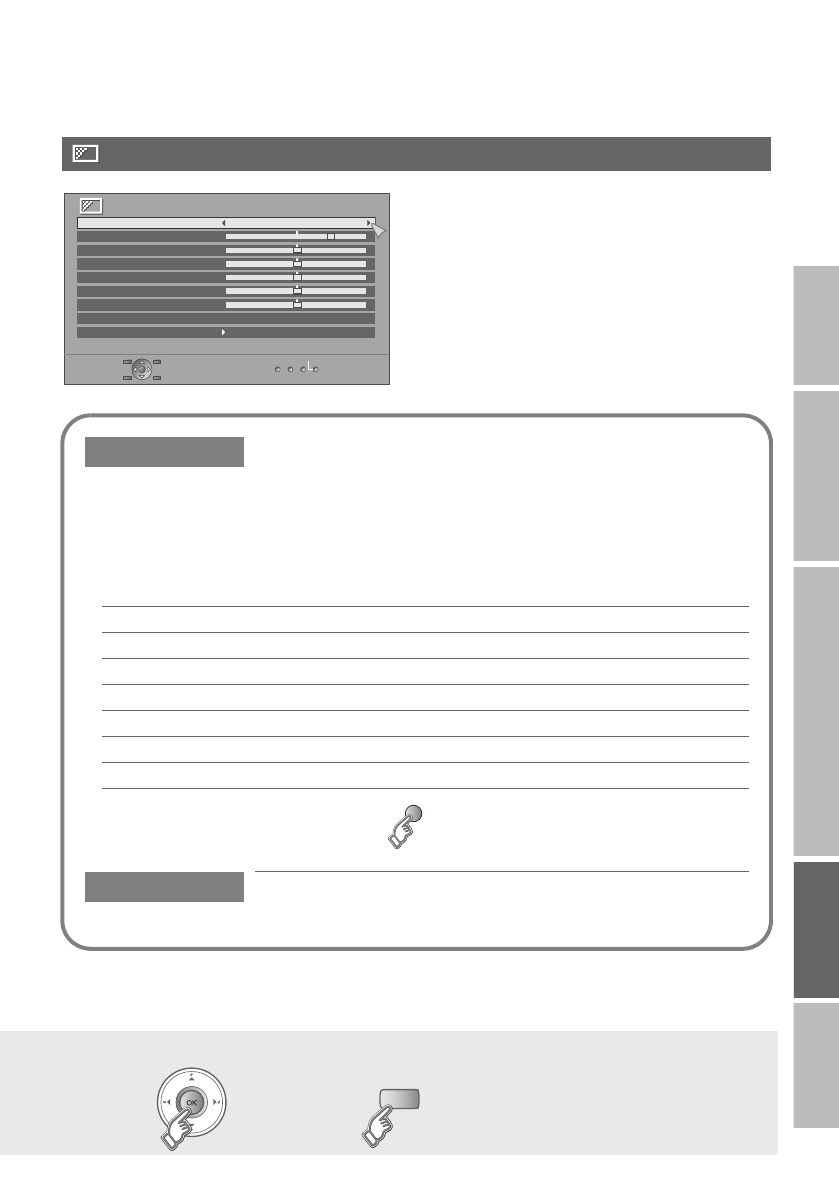
You can select a preset picture setting according to the brightness of your room.
You can make further adjustments to the selected preset “Picture Mode” to your liking.
To return to the default adjustments g (blue)
Picture Mode
Bright : in a fairly bright room
Standard : in a room with standard brightness
Soft : in a dark room
Bright-1 Backlight brightness (Darker l Brighter)
Contrast Contrast (Lower l Higher)
Bright-2 Brightness (Darker l Brighter)
Sharp Sharpness (Softer l Sharper)
Colour Colour (Lighter l Deeper)
Hue Tint (Reddish l Greenish) (NTSC only)
Colour Temp. Colour temperature (Warm / Normal / Cool)
Features g “Features (sub menu)” (P. 33)
Picture
Picture Mode
Bright- 1
Standard
Normal
Reset
Contrast
Bright- 2
Sharp
Colour
Hue
Colour Temp.
Features
TV/DTV
When using “T-V LINK” When not using
“T-V LINK” z“What is “T-V LINK”?” (P. 11)
zIf “Feature Not Available” appears
g (P. 41)
Picture
LT-42DP8BJ.book Page 32 Tuesday, September 4, 2007 11:51 AM
33
Customising your TV
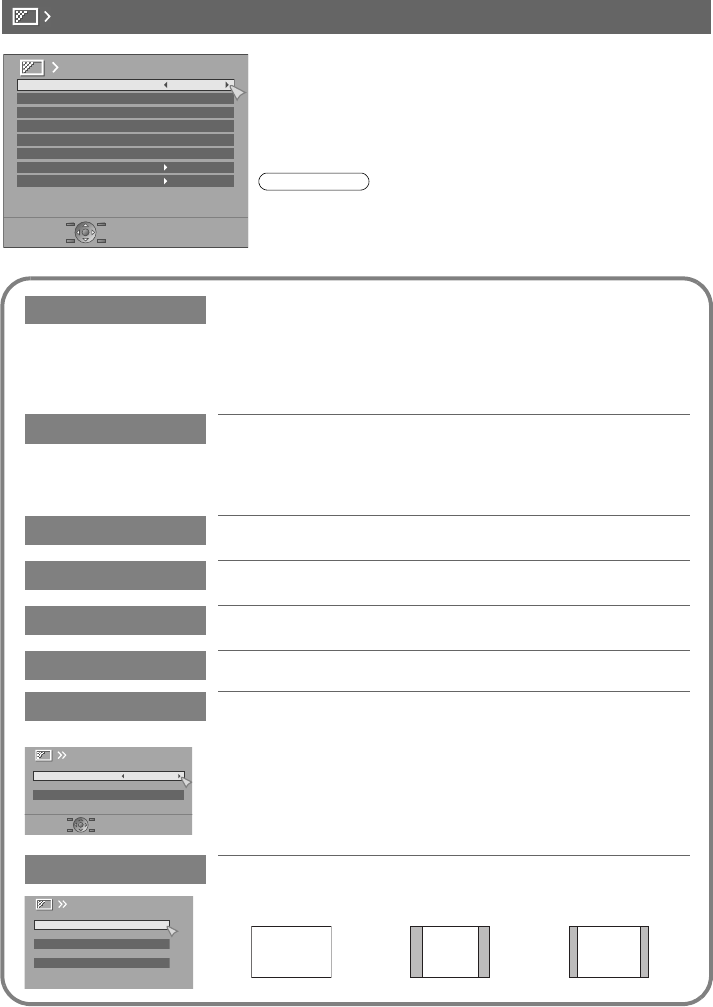
Super DigiPure For natural-looking outlines
Min : When the picture loses
sharpness Auto : Automatically adjusts
Max : When noise appears Off : Function is turned off
Movie Theatre For smooth cinema film
On : Function is always on Off : Function is turned off
Auto : Automatically adjusts
Colour Management
Maintain a natural colour balance (On / Off)
Picture Management
Make it easier to view bright / dark pictures (On / Off)
Smart Picture Make it easier to view white areas (On / Off)
MPEG Noise Reduction
Reduce MPEG video noise (On / Off)
Colour System When there is no colour, change the colour system
(PAL, NTSC3.58, NTSC4.43)
Main : Main picture
Sub : Sub-picture in MULTI-PICTURE mode (P. 28)
zWhen watching videos etc., you can select “Auto”
(Automatically selects the colour system)
4:3 Auto Aspect Select a default aspect ratio for Auto in “Zoom” (P. 27)
Panoramic Regular 14:9 Zoom
:
Main PAL
Sub Auto
Colour System
Panoramic
Regular
14 : 9
Zoom
4 : 3 Auto Aspect
16 : 9 4 : 3 14 : 9
Features (sub menu)
z“Smart Picture” is not available when “Picture Mode” is set to “Bright”
(P. 32).
Note
Super DigiPure Auto
Movie Theatre Auto
Colour Management On
Picture Management On
Smart Picture On
MPEG Noise Reduction On
Colour System
4 : 3 Auto Aspect
Features
LT-42DP8BJ.book Page 33 Tuesday, September 4, 2007 11:51 AM
34
IMPORTANT PREPARE USE SETTING TROUBLE?
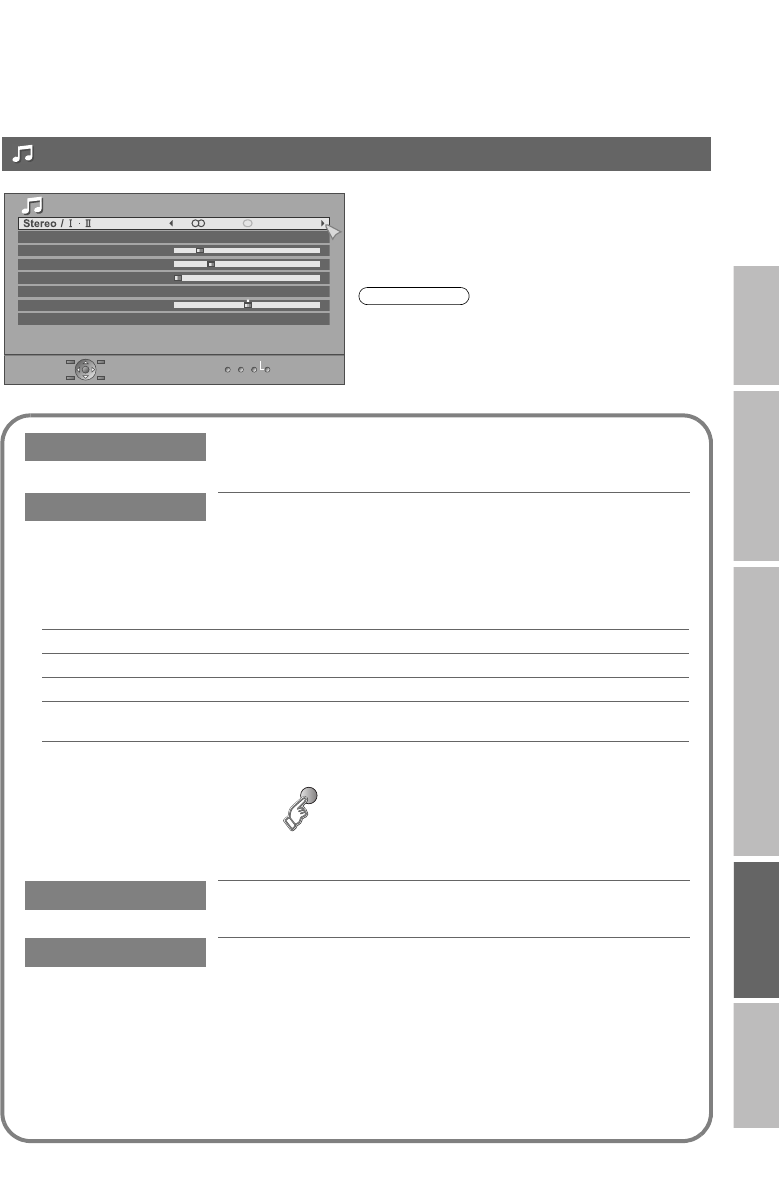
MaxxAudio improves sound performance with four sound features (MaxxBass, MaxxTreble, MaxxStereo
and MaxxVolume).
You can select one of the four “MaxxAudio” settings. (Off, Low, Mid, High)
You can make further adjustments to the four sound features of the selected preset
“MaxxAudio” to your liking.
Stereo/ t·uSelect stereo, monaural or language (analogue channels)
(v: Monaural / s: Stereo / t: SUB1 / u: SUB2)
MaxxAudio
MaxxBass Compensates low frequencies to widen the frequency band.
MaxxTreble Compensates high frequencies to widen the frequency band.
MaxxStereo Expands the stereo sound naturally.
MaxxVolume Maintains a uniform sound volume even if the sound becomes loud suddenly
(during commercial breaks etc.).
zAdjustments made to the three sound features (MaxxBass, MaxxTreble and MaxxStereo) will be stored
in the selected “MaxxAudio” setting.
zTo return to the default settings g (blue)
MaxxAudio is a registered trademark of Waves Audio Ltd. in the USA, Japan and other countries.
Balance Speaker balance (Left stronger l Right stronger)
Voice Enhancer Enhances the voice levels to make vocals or dialogues clearer
when the volume is set to low level. (On / Off)
Sound
MaxxAudio Low
Off
Off
Reset
MaxxBass
MaxxTreble
MaxxStereo
MaxxVolume
Balance
Voice Enhancer zIf you connect the Headphone to the TV, “MaxxAudio”
setting is turned to “Off”.
Note
Sound
LT-42DP8BJ.book Page 34 Tuesday, September 4, 2007 11:51 AM
35
Customising your TV
Cancel g Set the time to “0”
Remaining time g Display this menu again
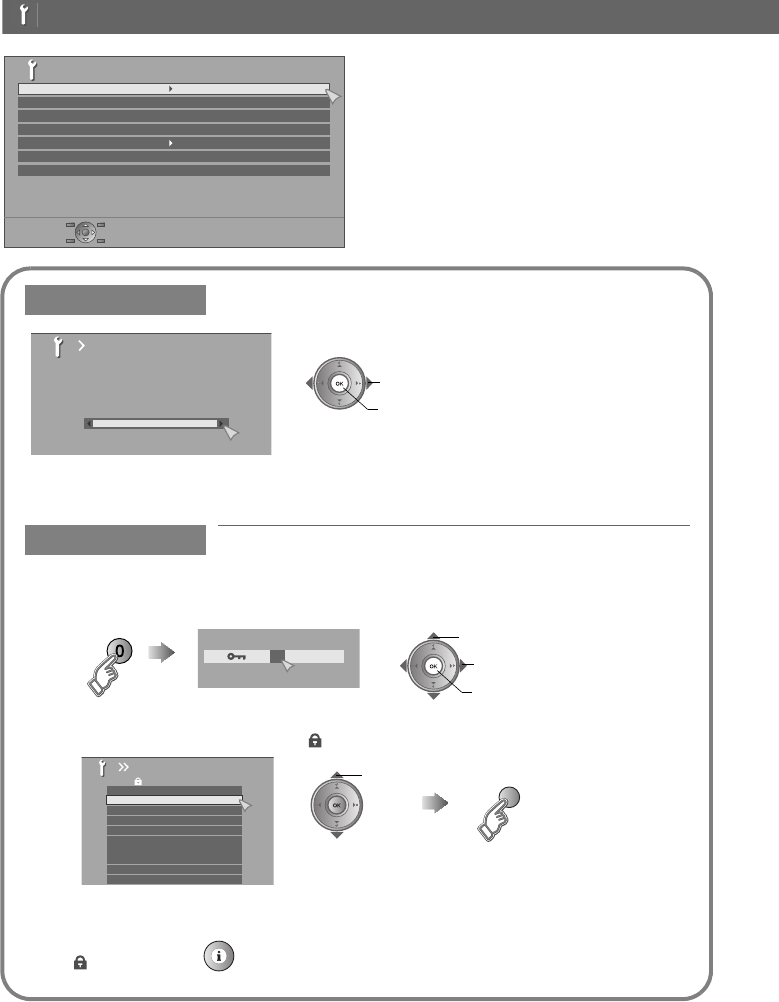
Lock a channel
Sleep Timer Timer for turning off the TV
Child Lock Stop children from watching specific channels (analogue channels)
1Display the menu
zOK button does not work.
Set an “ID No.”
2Select a channel and lock it. ( : locked)
View a locked channel
Use the number buttons to enter the channel number.
When “ ” appears, press “ ” and enter your “ID No.” with the number buttons.
zIf you forget your “ID No.”, perform step 1 again.
Sleep Timer
0 120
Off
Bset
Aselect
0400
Cset
Aselect a number
Bto the next column
BBC1
BBC2
ITV
CH4
CH5
______
______
AV
PR ID CH/CC
01 21CH
02 22CH
03 23CH
04
05
06
07
08
09
24CH
25CH
26CH
27CH
28CH
Child Lock
select
(blue)
Lock / Release
Features
Sleep Timer
Child Lock
Type AAppearance
OnBlue Back
Favourite Setting
OnPower Lamp
OffEco Mode
Features
LT-42DP8BJ.book Page 35 Tuesday, September 4, 2007 11:51 AM
36
IMPORTANT PREPARE USE SETTING TROUBLE?
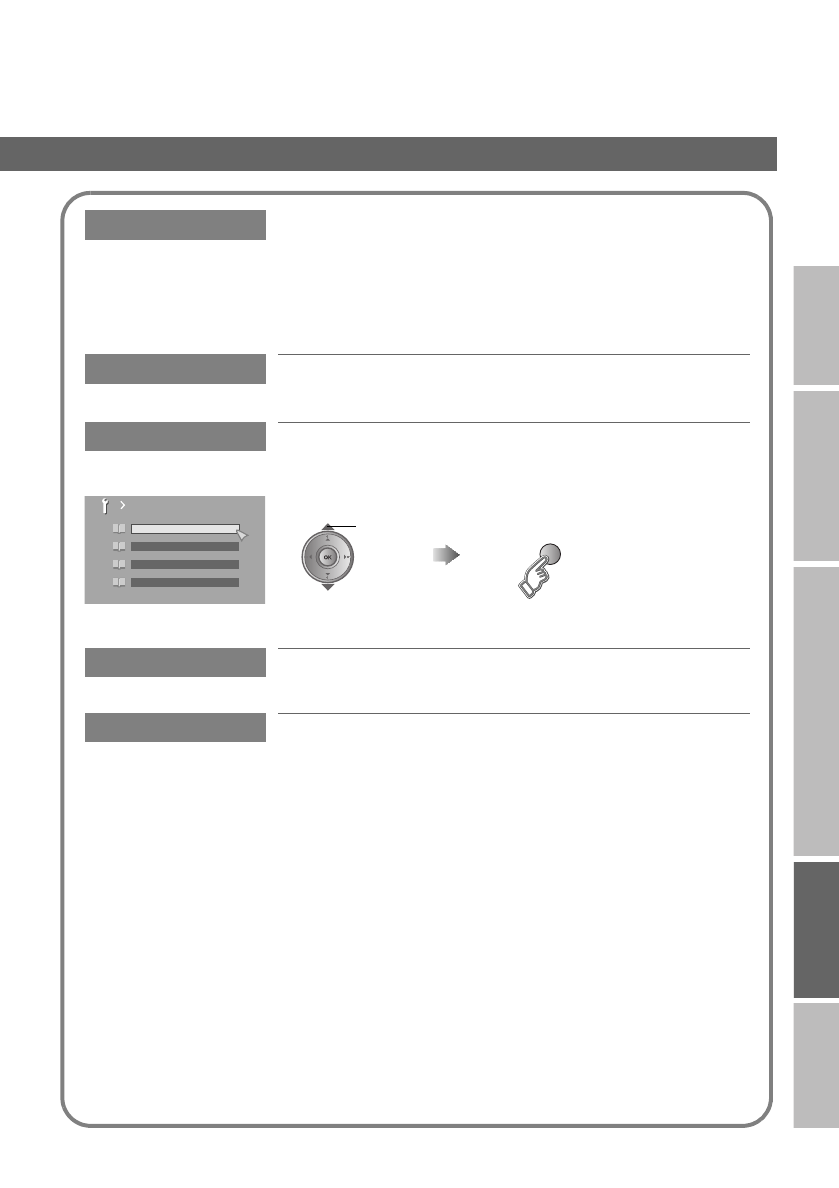
Appearance Type of the on-screen displays, Message Board and menus
(excluding on-screen displays for digital channels and DTV menus)
Type A : translucent
Type B : not translucent
zYou cannot change this setting when viewing a digital channel. Switch to
an analogue channel or an EXT mode.
Blue Back Displays a blue screen and mutes the sound when the signal is
weak or absent (On / Off) (analogue channels)
Favourite Setting Remove a channel from the Favourite channel list (analogue
channels)
For more details g “FAVOURITE CHANNEL” (P. 19)
Power Lamp Lights the power lamp (P. 5) while the TV is on (On / Off)
Eco Mode Automatically adjusts the picture contrast according to the
brightness of your room (On / Off / Demo)
For more details g “What is “Eco Mode”?” (P. 43)
Favourite Setting
PR 01
1
PR 03
2
PR 05
3
PR 07
4
select
(blue)
Remove
LT-42DP8BJ.book Page 36 Tuesday, September 4, 2007 11:51 AM
37
Customising your TV
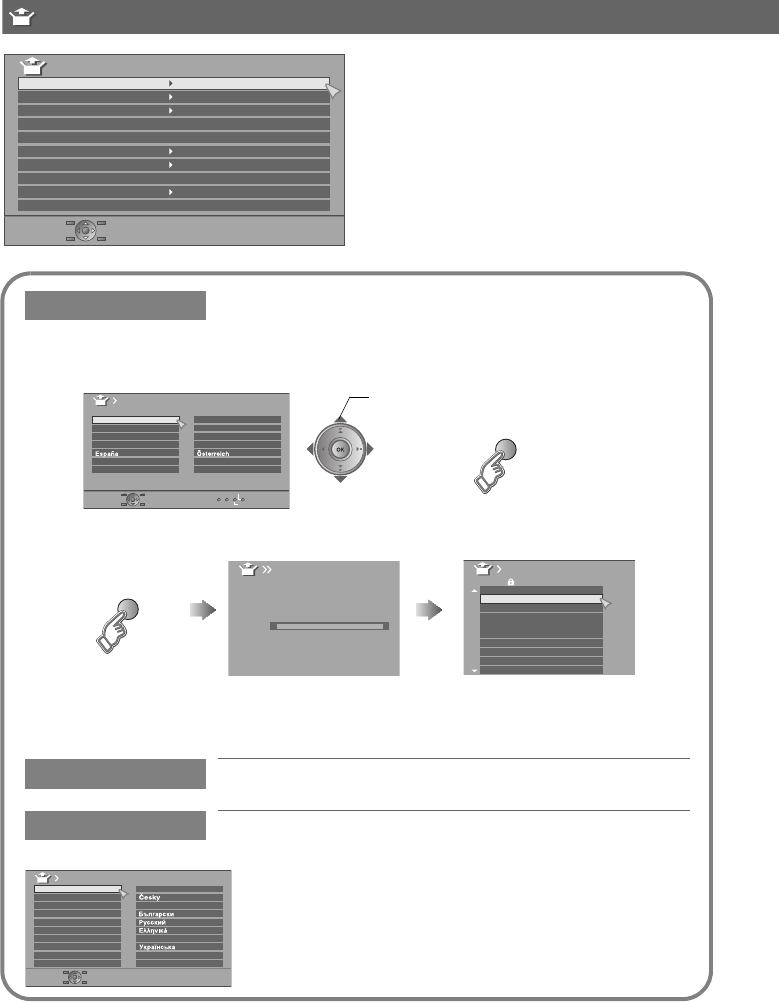
To change the country, perform step 1 only.
Auto Program Automatically registers the channels (analogue channels)
1Select the country of installation
2Start “Auto Program”
zIf “ACI Start” appears, select and start settings.
(This will set up cable television channels.)
g“What is “ACI” (Automatic Channel Installation)?” (P. 42)
Edit channels
g“Editing analogue channels”
(P. 15)
Edit/Manual g “Editing analogue channels” (P. 15)
Language Select a language for the Message Board and menus (excluding
DTV menus)
Auto Program
Belgium
Nederland
Italia
France
Deutschland
United Kingdom
Country
Suomi
Norge
Sverige
Danmark
Switzerland
Ireland
Start
More
(yellow)
select
zFor the next page
(blue)
Auto Program
CH
21
0%
BBC1
BBC2
ITV
CH4
CH5
______
______
AV
PR ID
Edit
CH
01 21CH
02 22CH
03 23CH
04
05
06
07
08
09
24CH
25CH
26CH
27CH
28CH
Language
Suomi
Svenska
Norsk
Dansk
Nederlands
Castellano
Italiano
Deutsch
Français
English
Català
Türkçe
Português
Magyar
Polski
Auto Program
Edit/Manual
Language
OffDecoder
(EXT-2)
Component Auto Select Off
EXT Setting
HDMI Setting
Attenuator
PC Position
Set Up
Off
Off
Auto Demonstration
Set Up
LT-42DP8BJ.book Page 37 Tuesday, September 4, 2007 11:51 AM
38
IMPORTANT PREPARE USE SETTING TROUBLE?
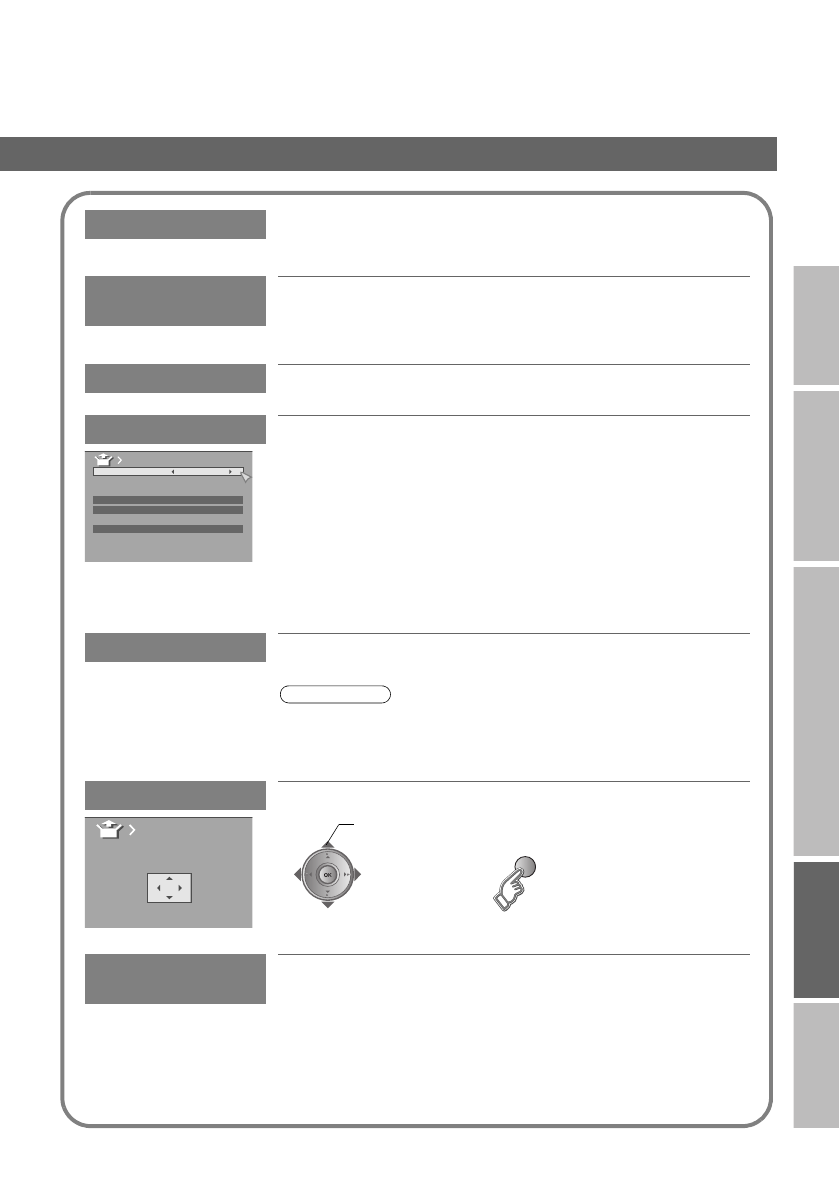
Decoder(EXT-2) Select “On” when connecting the Decoder to EXT-2 through the
VCR (On / Off)
Component Auto
Select
Changes the TV input to “EXT-4” when a component signal is input
to EXT-4 (On / Off)
zNot available when viewing PC
EXT Setting g “Setting external terminals” (P. 23)
HDMI Setting Size :
If picture size is not correct in 480p(525p), change this setting to 1
or 2. Normally set to “Auto”.
Audio :
If there is no sound, change this setting to “Digital” or “Analogue”.
Normally set to “Auto”.
HDMI CEC :
If you use a HDMI CEC compatible device, set this setting to “On”.
zFor more details g “What is “HDMI CEC”?” (P. 43)
Attenuator Select “On” when digital channels are not received because of too
strong radio waves (On / Off)
z“Attenuator” attenuates the radio waves of analogue broadcast as well as
those of digital broadcast. If some noise or snow appears when watching
an analogue channel, please set “Attenuator” to “Off” temporarily.
PC Position Adjust the position of the PC image
Auto
Demonstration Starts the “100Hz Clear Motion Drive” demonstration (On / Off)
(P. 44)
HDMI CEC
HDMI
-1
Auto
Auto
Size
Audio Auto
On
Size
HDMI Setting
HDMI
-2
Note
adjust
(blue)
Reset
PC Position
LT-42DP8BJ.book Page 38 Tuesday, September 4, 2007 11:51 AM
39
For problems concerning digital
channels
g WATCHING DIGITAL CHANNELS
P. 19 - 20
Troubleshooting
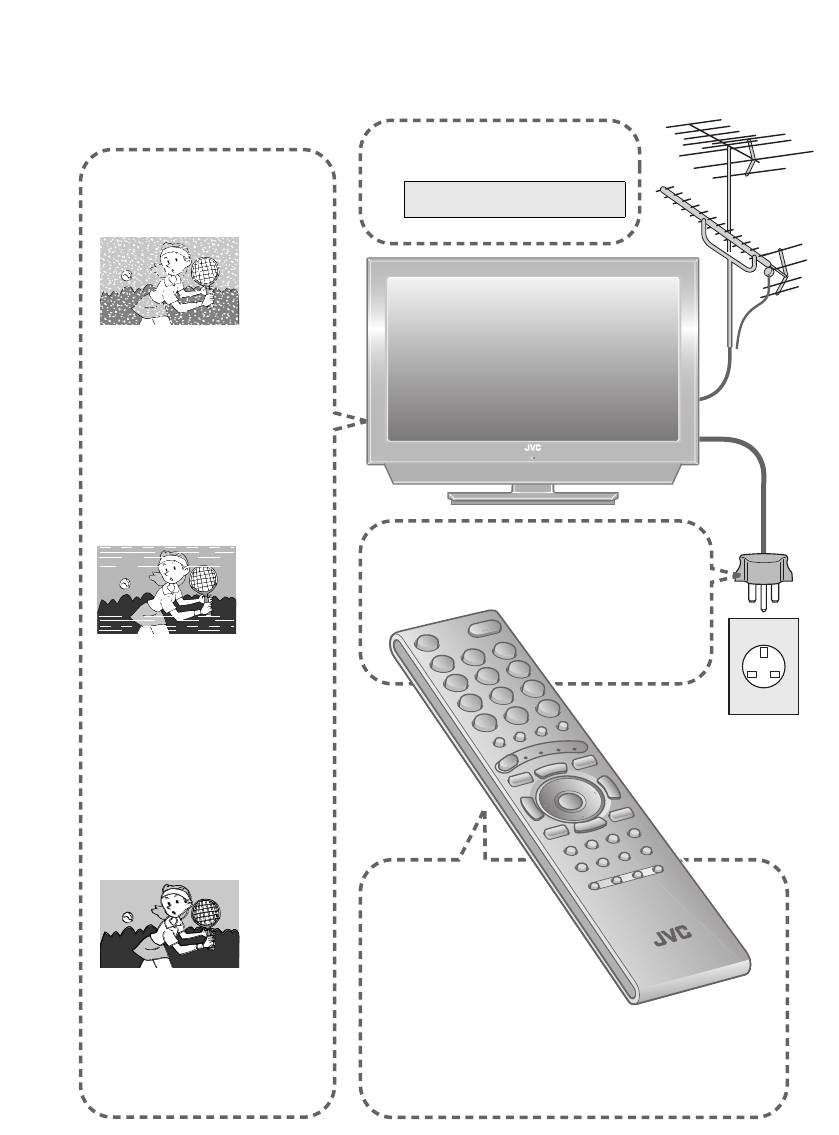
I can’t turn it on!
zIs the power cord connected to the AC outlet
correctly?
Analogue channels
Severe noise or snow
zIs the TV connected correctly to
the aerial?
zChange the direction of the aerial.
zIs the aerial or its cable
damaged?
gConsult your retailer
zIs the “Attenuator” set to “On”?
g“Attenuator” (P. 38)
Patterns, stripes or
noise
zIs the aerial receiving interference
from high-voltage power lines or
wireless transmitters?
gConsult your retailer
zAre connected devices too close
to the TV?
gInsert the minimum distance
between the aerial and the
cause of interference until no
interference
Ghosting
(Doubling of images)
zAre you receiving interference
from signals reflected off
mountains or buildings?
gAdjust the direction of your
aerial, or change to a
good-quality directional aerial
The remote
control doesn’t
work!
zAre the batteries flat?
zAre you more than 7 meters
away from the TV?
zIs the “MODE (TV, VCR/DVR, DVD,
HC)” set to “TV”?
zWhen viewing teletext, the TV menu bar does not appear.
zDepending on the stability of the signal, there may be a time
lag when changing channels.
LT-42DP8BJ.book Page 39 Tuesday, September 4, 2007 11:51 AM
40
IMPORTANT PREPARE USE SETTING TROUBLE?
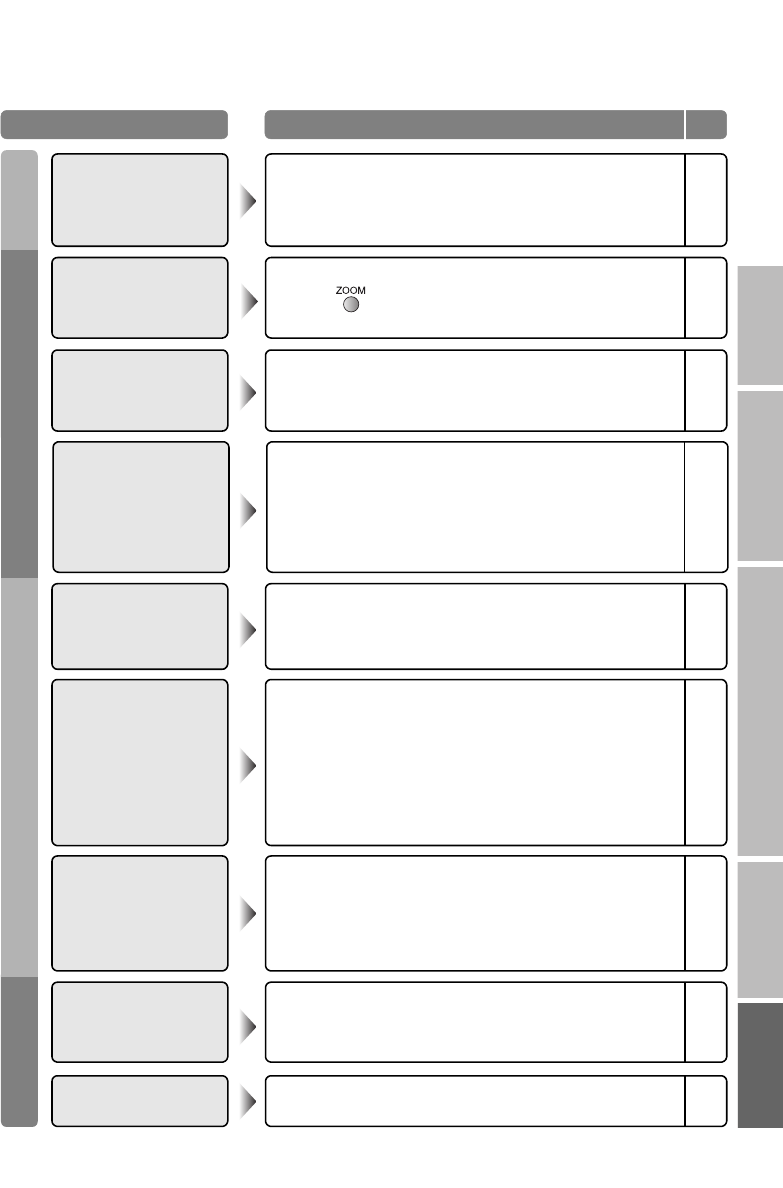
Problem Actions
Page
Basics Screen Picture Sound
Remote control stops
working zUnplug TV, several minutes later plug it in again. –
Aspect ratio changes
unintentionally zPress “ ” to return to your settings. 27
Poor picture quality
zChange the “Picture Mode” setting.
zUnnatural colour >>> Adjust “Colour” and “Bright-1”.
Check your “Colour System”.
zNoise >>> Set to the following functions.
Picture Mode: Standard
Super DigiPure: Max
zDull picture >>> Set to the following functions.
Picture Mode: Bright
Super DigiPure: Min
32
32
33
32
33
32
33
Strange picture when
using an external
device
z
If you connected S-Video output device, check the “S-In” setting.
z
If the top of the image is distorted, check the video signal quality
itself.
z
If movement appears unnatural when receiving a signal from a
DVD player etc., with 576p (625p), change the output setting of
the external device to 576i (625i).
24
–
–
Poor sound
zAdjust the “MaxxAudio” setting.
zIf receiving a poor signal in “Stereo/ t·u”, switch to “v”
(monaural).
34
34
PC screen alignment is
off zAdjust the “PC Position”. 38
No sound from the
audio component
zAudio signals received from EXT-5 and EXT-6 cannot be sent
to the AUDIO OUT terminal. –
Enters “100Hz Clear
Motion Drive”
demonstration when
watching TV.
zSet “Auto Demonstration” to “Off”. 38
Black or white dots
appear on the screen
zLCD panels use fine dots (“pixels”) to display images.
While more than 99.99% of these pixels function properly, a
very small number of pixels may not light, or may light all the
time.
Please understand that this is not a malfunction.
–
LT-42DP8BJ.book Page 40 Tuesday, September 4, 2007 11:51 AM

41
Troubleshooting
HDMI
Problem Actions
Page
No picture, no sound zUse the cable marked with HDMI logo. –
Wrong screen size
zSwitch “Size” in “HDMI Setting” to “1” or “2”. (480p (525p) only)
zRead the user manual of the connected device and perform the
following:
gCheck if the output setting of the device is correct.
gChange the signal format of the device to other format.
38
–
No sound
zCheck if the device is compliant with HDMI.
zSwitch “Audio” in “HDMI Setting” to “Digital” or “Auto” for HDMI
devices, or “Analogue” or “Auto” for DVI devices.
(Not available for EXT-6)
–
38
Green and distorted
screen
zWait a little for the signal to stabilize when switching the signal
format for an HDMI device. –
Some inputs cannot be
selected in the sub-
picture
z“EXT-4”, “EXT-5”, “EXT-6” inputs and PC mode cannot be
selected in the sub-picture.
zRGB input signal of “EXT-1” and “EXT-2” are not available in
dual-picture mode.
–
“Feature Not Available”
appears
zIs the “T-V LINK” compatible device connected to EXT-2?
zIs the SCART CABLE “Fully Wired”?
zIs the “T-V LINK” compatible device turned on?
After confirming all the conditions above, press “OK” button
again.
–
“ACI Error” appears
zPress W to start “ACI” again.
If you still receive the “ACI Error” after numerous tries, press X
to cancel “ACI”.
–
“No Recording” zA problem occurs at the recorder. –
Some functions do not
work
zIt is not a malfunction. Depending on the situation, some
function items will be displayed in gray colour and will not work. 31
“No Recording
Possible” zThe displayed video cannot be recorded. –
“No Recording Media
Problem”
zThe recorder is not ready for recording.
Check the videotape or DVD disc. –
“No Recording Device
Busy” zThe recorder is recording another programme, or is playing. –
Functions Error message
LT-42DP8BJ.book Page 41 Tuesday, September 4, 2007 11:51 AM
42
IMPORTANT PREPARE USE SETTING TROUBLE?
What is “T-V LINK”?
“T-V LINK” allows the TV to share information easily with a connected “T-V LINK” compatible device.
By using T-V LINK:
zYou can send the channel information programmed on the TV to the “T-V LINK” compatible device, so that both
the TV and the external device have the same channel settings. When connecting a new external device,
channel information is loaded into it, allowing channel setup to be completed very quickly. For more details,
refer to the external device’s manual.
zYou can easily record the TV programme you are viewing on a “T-V LINK” compatible device by using the
“Direct Rec” feature. For more details, refer to the external device’s manual.
What is “ACI” (Automatic Channel Installation)?
Some cable companies transmit a signal called “ACI” which contains information that allows TV channels to be
registered automatically on your TV.
When an ACI signal is received, “ACI Start / ACI Skip” appears in the “Auto Program” screen.
If you accidentally cut the power cord
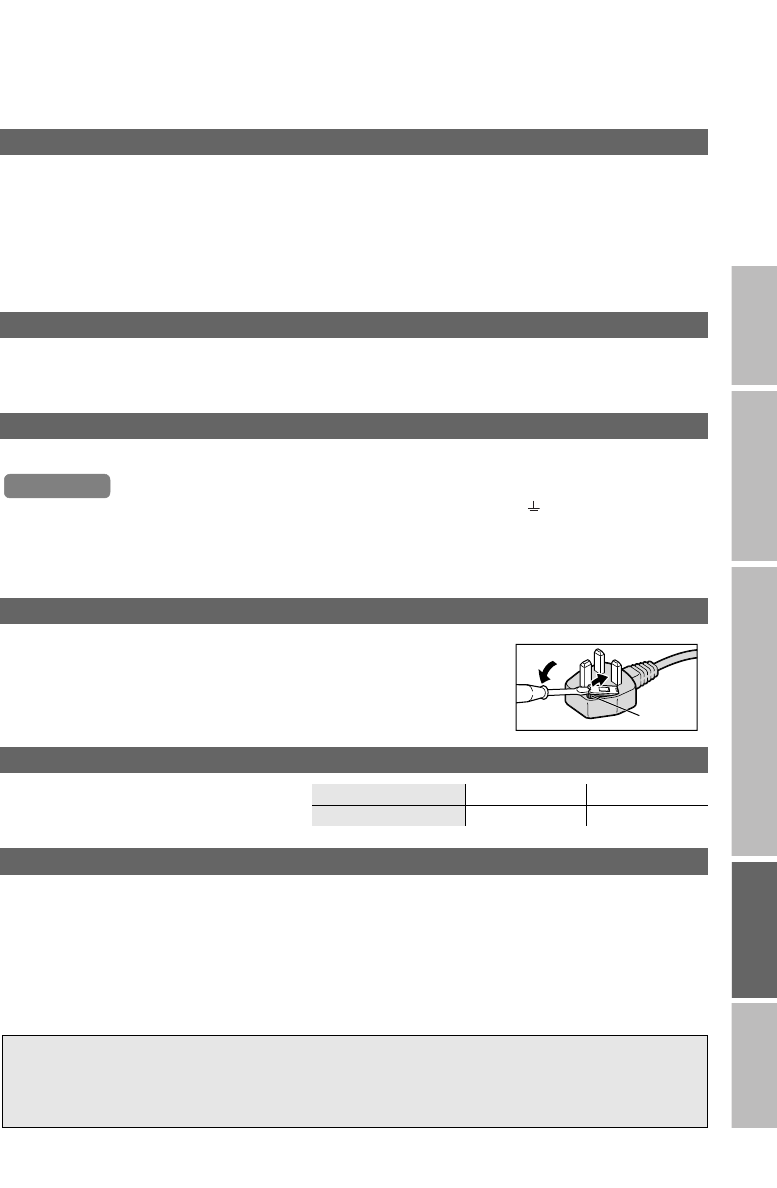
Attach a new plug following the steps below. If in doubt, contact your local retailer.
zNever connect to the larger terminal marked with an “E”, the safety earth symbol “ ” or coloured green or
green-and-yellow.
zThe wires in the mains lead on this product are coloured with the following code:
•Blue: Neutral wire (connect to the black terminal, or one marked “N”)
•Brown: Live wire (connect to the red terminal, or one marked “L”)
Change the fuse in the plug
Open the plug as illustrated on the right.
zWhen replacing the fuse, always use a correctly rated and approved type and
re-fit the fuse cover when finished.
If in doubt, contact your local retailer.
PC signals that can be displayed
zIf the signal doesn’t appear, check that the
vertical frequency on the PC is set to “60Hz”.
Resolution 640 x 480 (VGA) 1024 x 768 (XGA)
Vertical frequency (Hz) 60.0 60.0
Connect DVI devices
Connect a DVI device to EXT-5 (HDMI) using DVI-HDMI conversion cable. Connect analogue sound output of the
DVI device to L and R terminals in EXT-4.
zSet “Audio” in “HDMI Setting” to “Analogue” or “Auto” g (P. 38)
zEXT-6 input does not support analogue sound (EXT-4).
Important
Fuse
Technical Information
For more information, please read the separate manual (WATCHING DIGITAL
CHANNELS).
“Technical Information” (P. 21 - 22)
LT-42DP8BJ.book Page 42 Tuesday, September 4, 2007 11:51 AM
43
Technical Information
What is “Eco Mode”?
You can adjust this TV so that the screen automatically adjusts to the optimum contrast of light and dark according
to the brightness of your room. This function reduces eyestrain and the power consumption of this TV.
zSet “Eco Mode” g “Eco Mode” (P. 36)
zMake sure not to block the Eco Sensor on front of the TV (P. 5)
zTo fully reduce eyestrain and the power consumption of this TV. Set to the following functions.
Eco Mode: On or Demo (P. 36)
Smart Picture: On (P. 33)
Using “Demo” in “Eco Mode”, you can display the effect of the “Eco Mode” on the screen
What is “HDMI CEC”?
HDMI CEC (Consumer Electronics Control) allows the TV to connect and control multiple HDMI CEC enabled
devices with a single remote. CEC (Consumer Electronics Control) is an optional protocol used in HDMI.
zHDMI CEC on this TV is compliant with “High-Definition Multimedia Interface Specification”.
zThe TV does not support HDMI CEC functions that are not listed below.
zThe TV does not guarantee to support use of all HDMI CEC enabled devices.
zDevices that are not enabled to HDMI CEC cannot be controlled with this TV.
Control the TV using the HDMI CEC enabled device
zTurn the TV on and switch to the video source of the operating device.
zSwitch to the video source of the operating device.
zTurn the TV off with the HDMI CEC enabled device you are viewing.
* For operating instructions of the device, refer to the device’s manual.
Control the HDMI CEC enabled device using the TV
zTurn off the operating device by turning off the TV.
* Some device may not support this function. For more details refer to the device’s manual.
Send status of the TV to the HDMI CEC enabled device
zWhen switching the TV’s external input or channel.
zWhen switching the TV’s menu language.
* Information regarding behaviour of the device when status is received, refer to the external device’s manual.
Turning On / Off HDMI CEC:
zSet HDMI CEC g “HDMI Setting” (P. 38)
* Factory default setting is “On”.
If “HDMI CEC” does not work correctly:
zWhen HDMI CEC enabled device is connected to EXT-1 or EXT-2 with SCART cable and EXT-5 or EXT-6 with
HDMI cable, you may not be able to control TV’s external input. To solve the problem set “HDMI CEC” to “Off”.
Eco Mode
LightDark
LT-42DP8BJ.book Page 43 Tuesday, September 4, 2007 11:51 AM
44
IMPORTANT PREPARE USE SETTING TROUBLE?
Auto in “Zoom”
When “Auto” is selected in Zoom, the aspect ratio will turn to the ratio obtained from the information the TV
received.
zThe aspect ratio will turn to the ratio obtained from WSS (Wide Screen Identification Signal), video signal, or
control signal of the external devices. Without receiving the aspect information, it will be the setting in “4:3 Auto
Aspect” (P. 33)
zNot available in PC mode.
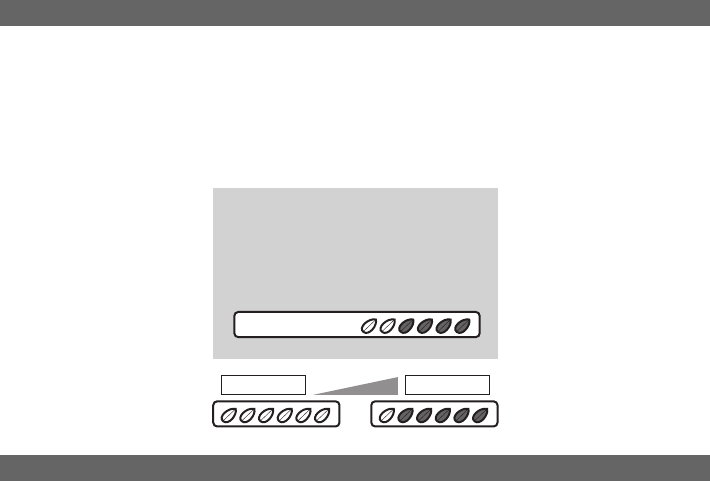
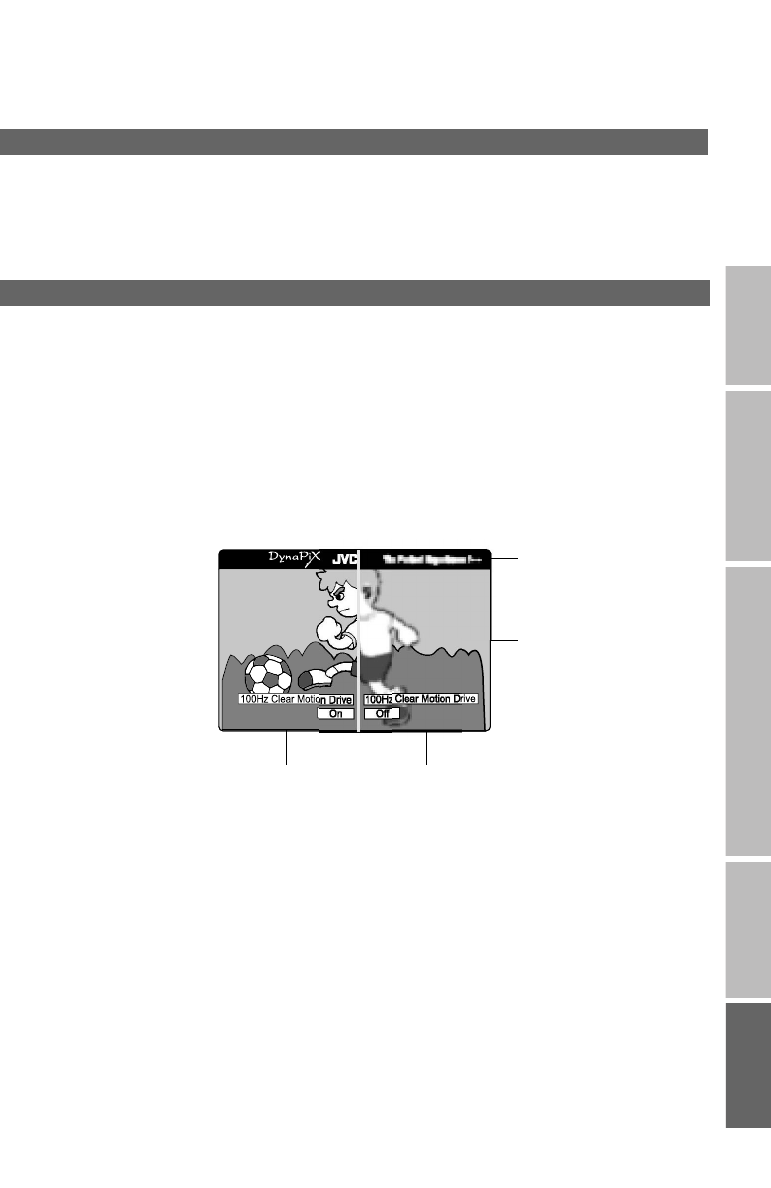
100Hz Clear Motion Drive
Most conventional LCD panel uses 50 frames per second (50 Hz) to display an image which needs long holding
time (time it takes to display single frame), causing blurring or ghost images when there is rapid or complex
movement across the screen - a phenomenon common to all LCD panels.
This TV is equipped with JVC’s original “100Hz Clear Motion Drive” technology, which displays two frames (the
original plus the new interpolated frame) in the time a 50 Hz set displays a single frame. Resulting to double the
typical rate, 100 frames per second (100 Hz) and half the holding time without reducing brightness or contrast.
By using this technology you will be able to reduce blurring or ghost images when there is rapid or complex
movement across the screen.
By using “Auto Demonstration”, you can display the differences between conventional LCD (50 Hz) and LCD panel
equipped with “100Hz Clear Motion Drive”.
*1 To simulate Moving image of conventional LCD, the TV will display two same frames at a time.
* The illustrations are emphasized to make clear differences between LCD panel equipped with “100Hz Clear
Motion Drive” and conventional LCD.
zSet “Auto Demonstration” to “On” “Off”. g “Auto Demonstration” (P. 38)
zWhen set to “On”, it automatically enters demonstration every time no operation is made for approximately 3
minutes. To stop automatic demonstration, set “Auto Demonstration” to “Off”.
zWhen the images are 60 frames per second (60 Hz), it will be produced as 120 frames per second (120 Hz).
erience /---- The “DynaPix” ticker will run
right to left
You can confirm the
differences of the two LCD’s
with actual moving images
Moving image of LCD panel equipped with “100Hz
Clear Motion Drive” (100 frames per second)
Moving image of 50 Hz conventional LCD (50
frames per second)*1
LT-42DP8BJ.book Page 44 Tuesday, September 4, 2007 11:51 AM

45
“CH/CC” List
To use the “Insert” function (P. 16), find the “CH/CC” number corresponding to the TV’s Channel number from this
table. If you want to know a particular TV channel’s menu, look in TV listings magazines or contact the broadcaster.
zWhen the Country setting is “United Kingdom”, the CC number channels and channels from CH 02 to CH 12
cannot be received.
CH Channel CH Channel CC Channel CC Channel
CH 02 E2, IR A CH 40 E40 CC 01 S1 CC 31 S31
CH 03 E3, IR B CH 41 E41 CC 02 S2 CC 32 S32
CH 04 E4, IR C CH 42 E42 CC 03 S3 CC 33 S33
CH 05 E5, IR D CH 43 E43 CC 04 S4 CC 34 S34
CH 06 E6, IR E CH 44 E44 CC 05 S5 CC 35 S35
CH 07 E7, IR F CH 45 E45 CC 06 S6 CC 36 S36
CH 08 E8, IR G CH 46 E46 CC 07 S7 CC 37 S37
CH 09 E9 CH 47 E47 CC 08 S8 CC 38 S38
CH 10 E10, IR H CH 48 E48 CC 09 S9 CC 39 S39
CH 11 E11, IR J CH 49 E49 CC 10 S10 CC 40 S40
CH 12 E12 CH 50 E50 CC 11 S11 CC 41 S41
CH 21 E21 CH 51 E51 CC 12 S12 CC 75 X
CH 22 E22 CH 52 E52 CC 13 S13 CC 76 Y
CH 23 E23 CH 53 E53 CC 14 S14 CC 77 Z
CH 24 E24 CH 54 E54 CC 15 S15 CC 78 Z+1
CH 25 E25 CH 55 E55 CC 16 S16 CC 79 Z+2
CH 26 E26 CH 56 E56 CC 17 S17
CH 27 E27 CH 57 E57 CC 18 S18
CH 28 E28 CH 58 E58 CC 19 S19
CH 29 E29 CH 59 E59 CC 20 S20
CH 30 E30 CH 60 E60 CC 21 S21
CH 31 E31 CH 61 E61 CC 22 S22
CH 32 E32 CH 62 E62 CC 23 S23
CH 33 E33 CH 63 E63 CC 24 S24
CH 34 E34 CH 64 E64 CC 25 S25
CH 35 E35 CH 65 E65 CC 26 S26
CH 36 E36 CH 66 E66 CC 27 S27
CH 37 E37 CH 67 E67 CC 28 S28
CH 38 E38 CH 68 E68 CC 29 S29
CH 39 E39 CH 69 E69 CC 30 S30
LT-42DP8BJ.book Page 45 Tuesday, September 4, 2007 11:51 AM

46
IMPORTANT PREPARE USE SETTING TROUBLE?
zA CAM (Conditional Access Module) for watching pay-TV digital channels can be installed. (P. 8)
zDC power can be supplied to the indoor aerial. g
zWe may change the design and specifications without notice.
Main unit
Model LT-42DP8BJ LT-37DP8BJ LT-32DP8BJ
Broadcasting systems CCIR I
Colour systems TV broadcast: PAL
External input: PAL, NTSC 3.58/4.43 MHz
Channels and frequencies
zDigital:
E21-E68 (Frequency: 470-854 MHz)
zAnalogue:
UNITED KINGDOM: E21-E69 (UHF)
IRELAND: IR A-IR J, E2-E12, E21-E69 (VHF/UHF)
Sound-multiplex systems NICAM (I )
Teletext systems Digital: MHEG 5 UK profile
Analogue: FLOF (Fastext), WST (World Standard System)
Power requirements AC 220 V - 240 V, 50 Hz
Audio output (Rated power output)
10 W + 10 W
Speakers (5.5 cm x 20 cm) oval x 2 (5.5 cm x 15 cm) oval x 2 (5.5 cm x 15 cm) oval x 2
Power consumption
[standby]
220 W
[0.5 W]
164 W
[0.5 W]
156 W
[1.0 W]
Screen size
(visible area size measured
diagonally)
105 cm 94 cm 80 cm
Dimensions (W x H x D: mm)
[without stand]
1030 x 719.2 x 296
[1030 x 672 x 122.4]
919 x 654.2 x 230
[919 x 603.8 x 124.1]
800 x 595.4 x 230
[800 x 545 x 115.4]
Weights
[without stand]
28.5 kg
[26.4 kg]
20.3 kg
[18.8 kg]
16.6 kg
[15.1 kg]
Accessories (See “Check accessories”, P. 5)
Terminals / Connectors
Terminal name Terminal typ e Signal type (IN) Signal type
(OUT) Notes
Input /
Output
terminals
EXT-1 Euroconnector x 1
(SCART connector)
Composite video, S-Video,
Analogue RGB
Audio L / R
TV out
EXT-2 Euroconnector x 1
(SCART connector)
Composite video, S-Video,
Analogue RGB
Audio L / R
Dubbing out “T-V LINK”
compatible
Input
terminals
EXT-3 RCA connectors x 3,
S-VIDEO connector x 1
Composite video, S-Video
Audio L / R
EXT-4 RCA connectors x 5
Analogue component
(576i (625i), 480i (525i),
Progressive: 576p (625p), 480p
(525p),
HD: 1080i (1125i), 720p (750p))
Audio L / R
EXT-5
(HDMI-1) HDMI connector x 2
HDMI
(576i (625i), 480i (525i),
576p (625p), 480p (525p),
1080i (1125i), 720p (750p))
“HDMI CEC”
compatible
(P. 43)
EXT-6
(HDMI-2)
PC IN D-SUB (15 pins) x 1 Analogue PC signal (P. 42)
Output
terminals
AUDIO OUT RCA connectors x 2 Audio L / R
DIGITAL
AUDIO OUT OPTICAL connector x 1
Digital audio
(48 kHz, 16 bit
linear PCM /
Dolby Digital)
Headphone Stereo mini-jack x 1
(3.5 mm in diameter)
Headphone
output
WATCHING DIGITAL CHANNELS P. 2 1
Specifications
LT-42DP8BJ.book Page 46 Tuesday, September 4, 2007 11:51 AM

LT-42DP8BJ.book Page 47 Tuesday, September 4, 2007 11:51 AM
LT-42DP8BJ.book Page 48 Tuesday, September 4, 2007 11:51 AM
0807KTH-SW-MU
© 2007 Victor Company of Japan, Limited
LT-42DP8BJ.book Page 49 Tuesday, September 4, 2007 11:51 AM
