JVC LT 32DR9BJ / 42DR9BJ User Manual GGT0205 003A L
User Manual: JVC LT-32DR9BJ LT-32DR9BJ English,
Open the PDF directly: View PDF  .
.
Page Count: 48
Trade Mark of the DVB Digital Video Broadcasting
Project (1991 to 1996) Number : 5227, 5808
INSTRUCTIONS
WIDE LCD PANEL TV
LT-32DR9BJ
LT-42DR9BJ
GGT0205-003A-L
LT-42DR9BJ_003A.book Page 0 Thursday, September 11, 2008 3:03 PM
LT-42DR9BJ_003A.book Page 0 Thursday, September 11, 2008 3:03 PM
1
USE SETTING
TROUBLE?
PREPARE
IMPORTANT
Please refer to the separate manual
when watching digital channels.
Before reading the separate manual
Read this manual’s “Warning” section
(P. 2), and understand how to use the
TV safely. After that follow the
instructions in the “Getting started”
section (P. 8 - 17) to connect the aerial
and other external devices to the TV,
and configure the settings for the TV.
A separate manual “WATCHING
DIGITAL CHANNELS” is provided.
USE TROUBLE?
SETTING
WATCHING DIGITAL CHANNELS
Before reading this manual
Read the separate user manual (INSTRUCTIONS), “Warning”
(P. 2), and understand how to use th e TV safely. After that follow the
instructions in “Getting started” (P. 8) to connect the aerial and other
external devices to the TV, and configure the settings for the TV.
Digital terrestrial broadcasting (DVB-T)
g Digital channels
Analogue terrestrial broadcasting (VHF / UHF) and
analogue cable TV
g Analogue channels
This TV can receive digital terrestrial broadcasting (DVB-T)
in the United Kingdom. Digital terrestrial broadcasting
(DVB-T) reception in other countries is not guaranteed.
The on-screen displays (including DTV menus) are in
English. No other languages are available.
Contents
This manual only provides information on
watching digital channels. Other information is
explained in the “INSTRUCTIONS”. Please read
both this manual and the “INSTRUCTIONS”
manual.
Note
Watching digital channels........................................... ..... ........2
Display the programme information ....................................................4
View subtitles ......................................................................................4
Select audio language ........................................................................5
View teletext information..................................................................... 5
Using EPG (Electronic Programme Guide) ...............................6
Customising your TV ............................................................. ..8
Edit PR (Edit PR List).......................................................................... 9
Timer................................................................................................. 10
Configuration..................................................................................... 12
Setup................................................................................................. 13
Installation......................................................................................... 14
Troubleshooting................................................................. . ..16
Technical information ............................................................ 17
LCD
STB
AUDIO
F.T/L
TV/RADIO
GUIDE
TV/DTV
TOP MENU
GUIDE
nf
Information for Users on Disposal of Old
Equipment and Batteries
Notice:
Products
Battery
The sign Pb below
the symbol for
batteries indicates
that this battery
contains lead.
[European Union]
These symbols indicate that the electrical and electronic equipment
and the battery with this symbol should not be disposed of as
general household waste at its end-of-life. Instead, the products
should be handed over to the applicable collection points for the
recycling of electrical and electronic equipment as well as batteries
for proper treatment, recovery and recycling in accordance with your
national legislation and the Directive 2002/96/EC and 2006/66/EC.
By disposing of these products correctly, you will help to conserve
natural resources and will help to prevent potential negative effects
on the environment and human health which could otherwise be
caused by inappropriate waste handling of these products.
For more information about collection points and recycling of these
products, please contact your local municipal office, your household
waste disposal service or the shop where you purchased the product.
Penalties may be applicable for incorrect disposal of this waste, in
accordance with national legislation.
[Business users]
If you wish to dispose of this product, please visit our web page
www.jvc-europe.com to obtain information about the take-back of
the product.
[Other Countries outside the European Union]
These symbols are only valid in the European Union.
If you wish to dispose of these items, please do so in accordance
with applicable national legislation or other rules in your country for
the treatment of old electrical and electronic equipment and batteries.
ENGLISH
Dear Customer,
This apparatus is in conformance with the valid European directives and standards
regarding electromagnetic compatibility and electrical safety.
European representative of Victor Company of Japan, Limited is:
JVC Technical Services Europe GmbH
Postfach 10 05 04
61145 Friedberg
Germany
LT-42DR9BJ_003A.book Page 1 Thursday, September 11, 2008 3:03 PM
2
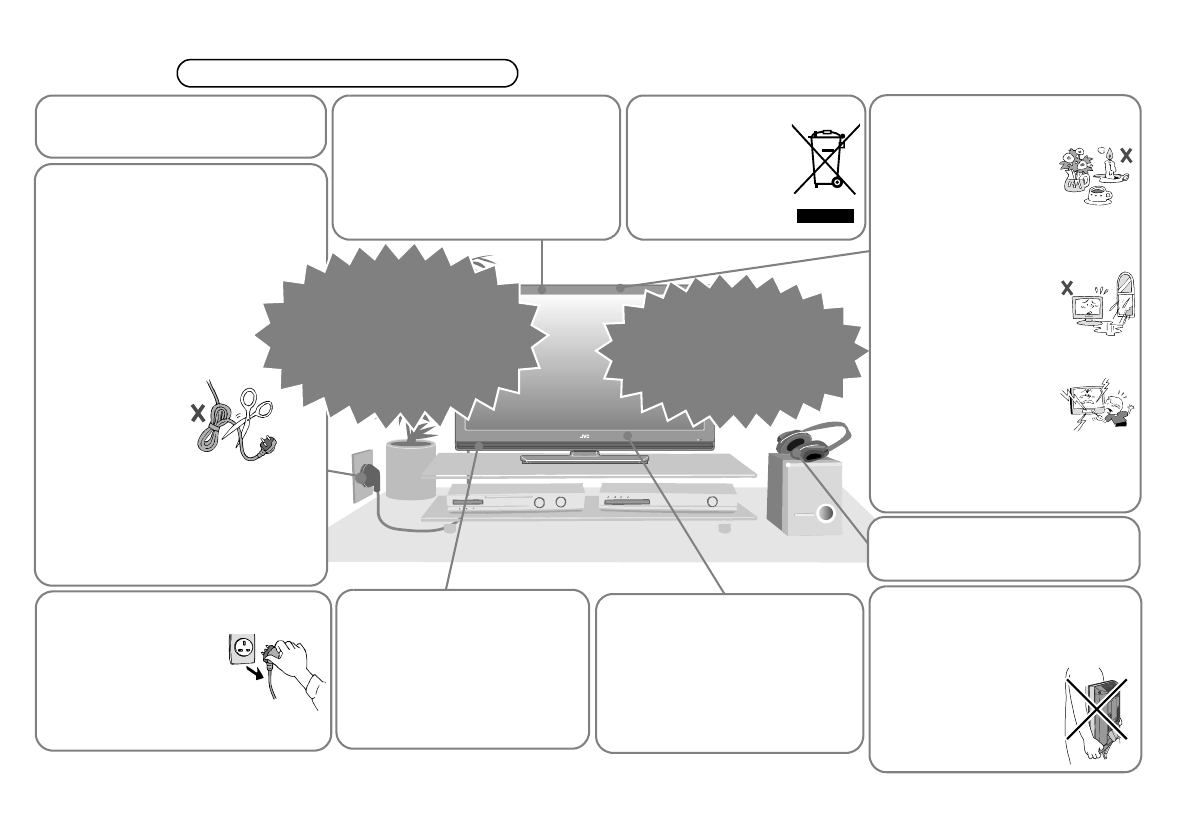
Warning Please follow all the guidelines below
Follow this manual regarding setup!
zConnect only to a 220 - 240 V, 50 Hz
AC outlet.
Unplug the power cord when
going out!
zThe power buttons on
the remote control and
the TV unit cannot
completely turn off the
TV. (Make appropriate
arrangements for
bedridden people.)
Make enough room for inserting
and removing the power plug!
Place the TV as close to the outlet
as possible!
zEven if the TV’s power lamp is unlit,
the main power supply is not cut
off unless the power cord is
unplugged. The main power
supply for this TV is
controlled by inserting or
removing the power plug.
Never cut or damage the
power cord!
zIf the power plug
is not the right
shape, or the
power cord is not
long enough, use
an appropriate
plug adapter or extension cable.
(Consult your retailer.)
zIf you have cut or damaged the
power cord.
g “Technical information” (P. 34)
zTo change the fuse in power plug
g “Technical information” (P. 34)
Never try to repair the TV
yourself!
gIf the problem cannot be
solved in
“Troubleshooting” (P. 32),
unplug the power cord and
contact your retailer.
For more details on installation, usage and safety g Consult your retailer
When attaching the TV to the
wall, use the optional JVC
wall mounting unit!
zConsult a qualified technician.
zSee the included manual on
mounting procedures.
zJVC assumes no responsibility
for damage due to improper
mounting.
Do not allow the TV to fall!
zDo not rest your elbows on, or allow
children to hang from the TV.
There is a risk that the TV will fall
and cause injuries.
zMake use of the hole on the back of
the stand to prevent the TV from
falling easily. (P. 8)
If the TV is damaged or
behaving strangely, stop
using it at once!
gUnplug the power cord
and contact your retailer.
Take care when handling the
glossy finish!
zFor more details, see P. 7.
Handle LCD panel with care!
zUse a soft, dry cloth when
cleaning.
Never dismantle the rear panel!
zIt may cause an electric shock.
Never place anything on the
TV!
Never expose to rain or
moisture!
Never insert objects into the
cabinet openings!
zIt may cause a fatal
electric shock. Take
care when children
are near.
Never obstruct the ventilation
holes!
zIt may cause overheating or a
fire.
zPlacing liquids,
naked flames,
cloths, paper, etc. on
the TV may cause a
fire.
zTo prevent fire or
electric shock, never
allow liquids to enter
the unit.
Never listen to headphones at
high volume!
zIt may damage your hearing.
Hold the TV so as not to scratch
the screen!
zDo not touch the screen when
carrying the TV.
Do not carry the TV on
your own!
zIn order to prevent
accidents, ensure that
the TV is carried by
two or more people.
On disposal of the TV!
zFollow the
instruction in
“Information for
Users on Disposal
of Old Equipment
and Batteries”
(P. 1).
LT-42DR9BJ_003A.book Page 2 Thursday, September 11, 2008 3:03 PM
USE SETTING
TROUBLE?
PREPARE
IMPORTANT
3
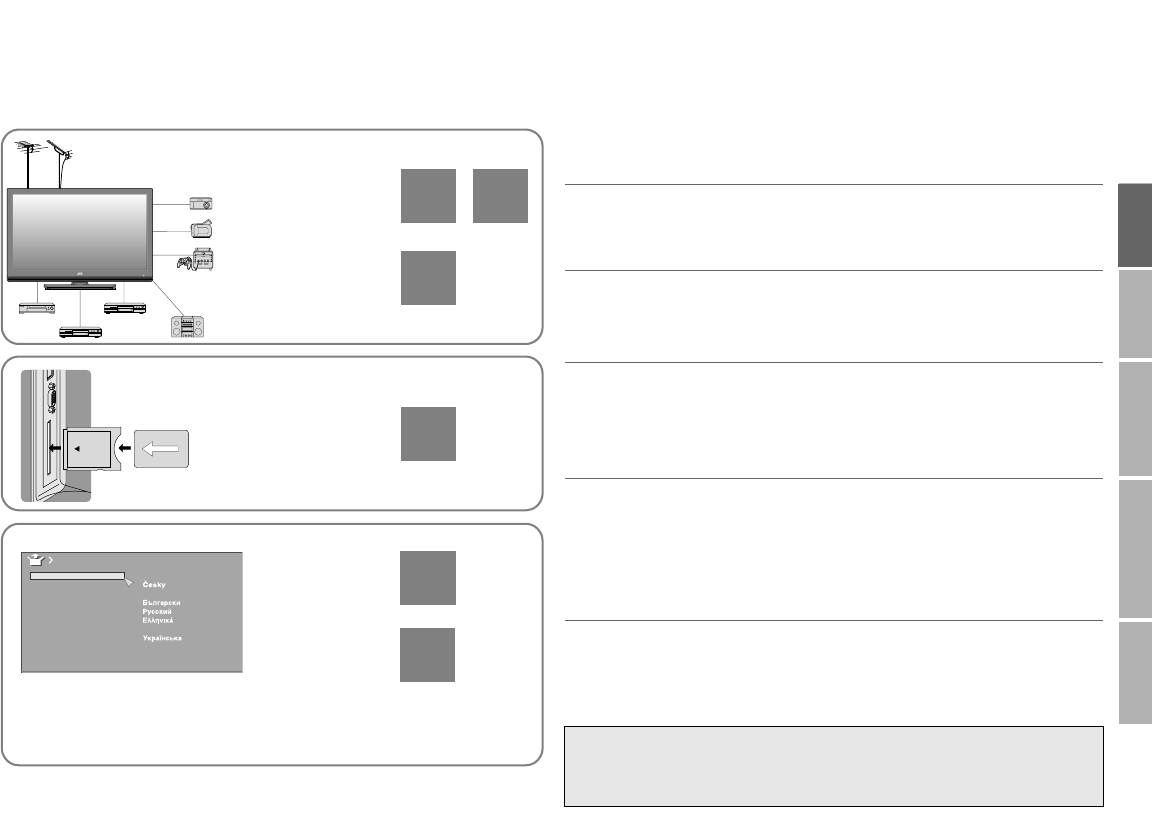
Please read “Getting started” (P. 8 - 17).
The main descriptions are in the following pages.
Analogue terrestrial broadcasting (VHF / UHF) and analogue cable TV
g Analogue channels
Digital terrestrial broadcasting (DVB-T) g Digital channels
Connecting the
external devices
and aerial
Choosing a video
connection
Watch pay-TV
digital channels
Initial settings
Editing analogue
channels
zIf you want to edit the digital channels, refer to “Edit PR (Edit PR List)”
(P. 9) on the separate manual “WATCHING DIGITAL CHANNELS”.
9
PAGE
12
PAGE
10
PAGE
8
PAGE
Suomi
Română
Türkçe
Language
Svenska
Norsk
Dansk
Nederlands
Castellano
Italiano
Deutsch
Français
English
Català
Português
Magyar
Polski
13
PAGE
15
PAGE
First things first! zWarning ........................................... 2
Getting started zRemote control.................................. 4
zNames and functions of parts ........... 6
zGetting started .................................. 8
z“CH/CC” list..................................... 17
Let’s try it out
Try the advanced features
zEnjoy your new TV!......................... 18
zWatching analogue channels .......... 19
zViewing teletext on the
analogue channel............................ 20
zWatching videos / DVDs ................. 21
zUseful functions .............................. 22
Just the way you like it zConfiguring your remote control...... 24
zCustomising your TV....................... 26
Picture............................................ 26
Features (sub menu)...................... 27
Sound............................................. 28
Features......................................... 29
Set Up ............................................ 30
When you have trouble zTroubleshooting .............................. 32
zTechnical information ...................... 34
zSpecifications .................................. 35
WATCHING DIGITAL CHANNELS (Separate manual)
zWatching digital channels ..........2
zUsing EPG .................................6
zCustomising your TV..................8
zTroubleshooting....................... 16
zTechnical Information .............. 17
To set up your TV Contents
LT-42DR9BJ_003A.book Page 3 Thursday, September 11, 2008 3:03 PM
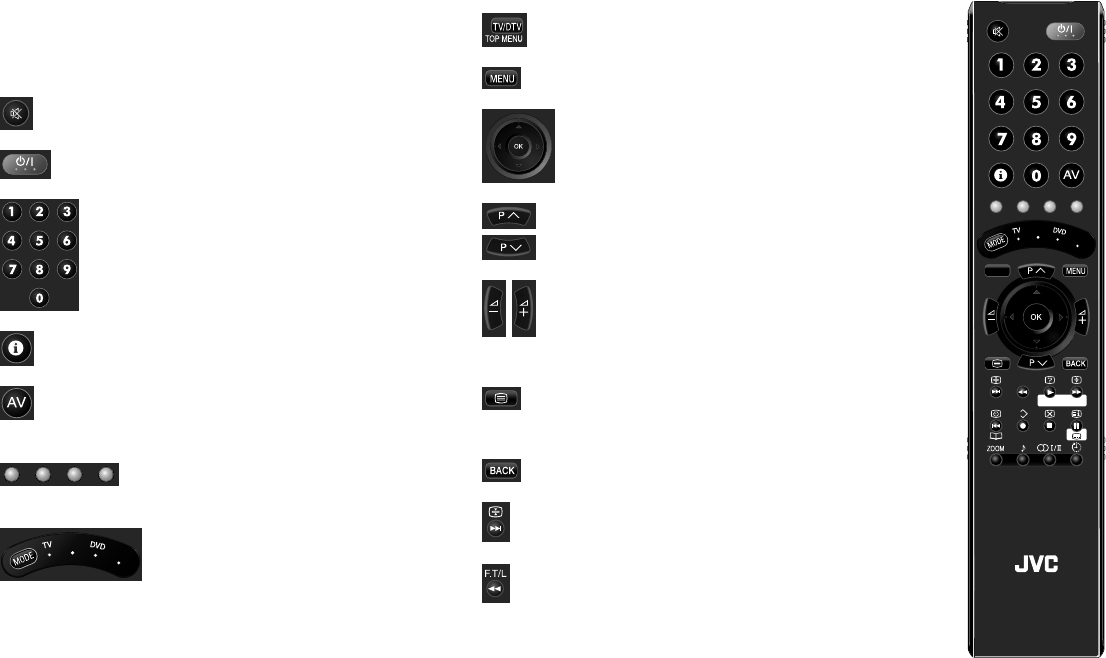
4
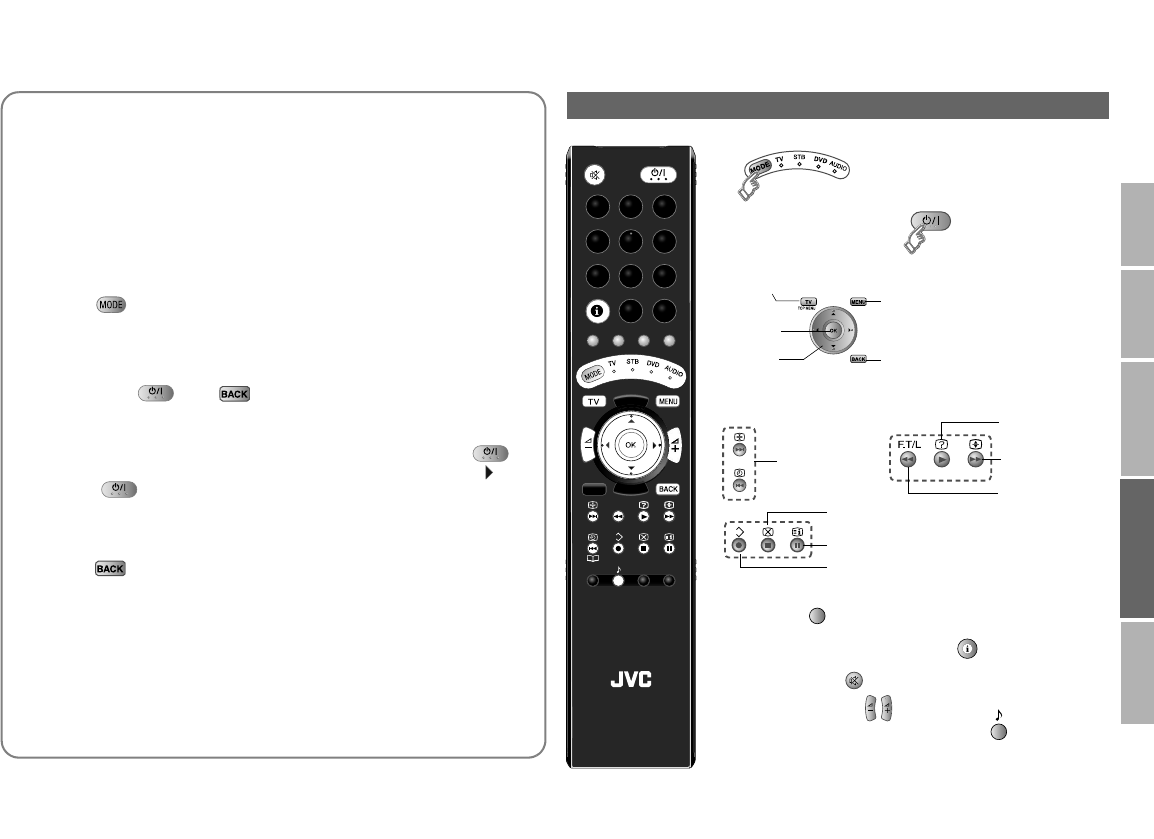
The functions of the remote control buttons are explained as
follows.
This remote control can be configured to operate up to four
different devices simply by changing the remote code.
“Configuring your remote control” (P. 24)
Mute.
Turn on / off (standby) the TV.
Enter channel number.
Enter teletext page number on the analogue
channel.
Channel information. “Watching analogue channels”
(P. 19)
Watch video etc. “Watching videos / DVDs” (P. 21)
Colour buttons:
Select a page when viewing teletext on the
analogue channel.
Operate functions in menus.
Switch between “TV / STB / DVD / AUDIO”.
(P. 24)
STB
AUDIO
Switch between digital / analogue channels.
Display on-screen menu. “Customising your TV” (P. 26)
Select and confirm settings in menus.
Select channel.
Select teletext page on the analogue channel.
Volume control.
View teletext on the analogue channel.
“Viewing teletext on the analogue channel” (P. 20)
View teletext information on the digital channel. (Refer to
page 5 on the separate manual “WATCHING DIGITAL
CHANNELS”.)
To the previous menu.
Hold the current page when viewing teletext on the
analogue channel. (P. 21)
Display your favourite list when viewing teletext on the
analogue channel. (P. 20)
Remote control
LCD
STB
AUD IO
F.T/L
TV/RADIO
GUIDE
TV/DTV
TOP MENU
GUIDE
LT-42DR9BJ_003A.book Page 4 Thursday, September 11, 2008 3:03 PM
5
USE SETTING
TROUBLE?
PREPARE
IMPORTANT
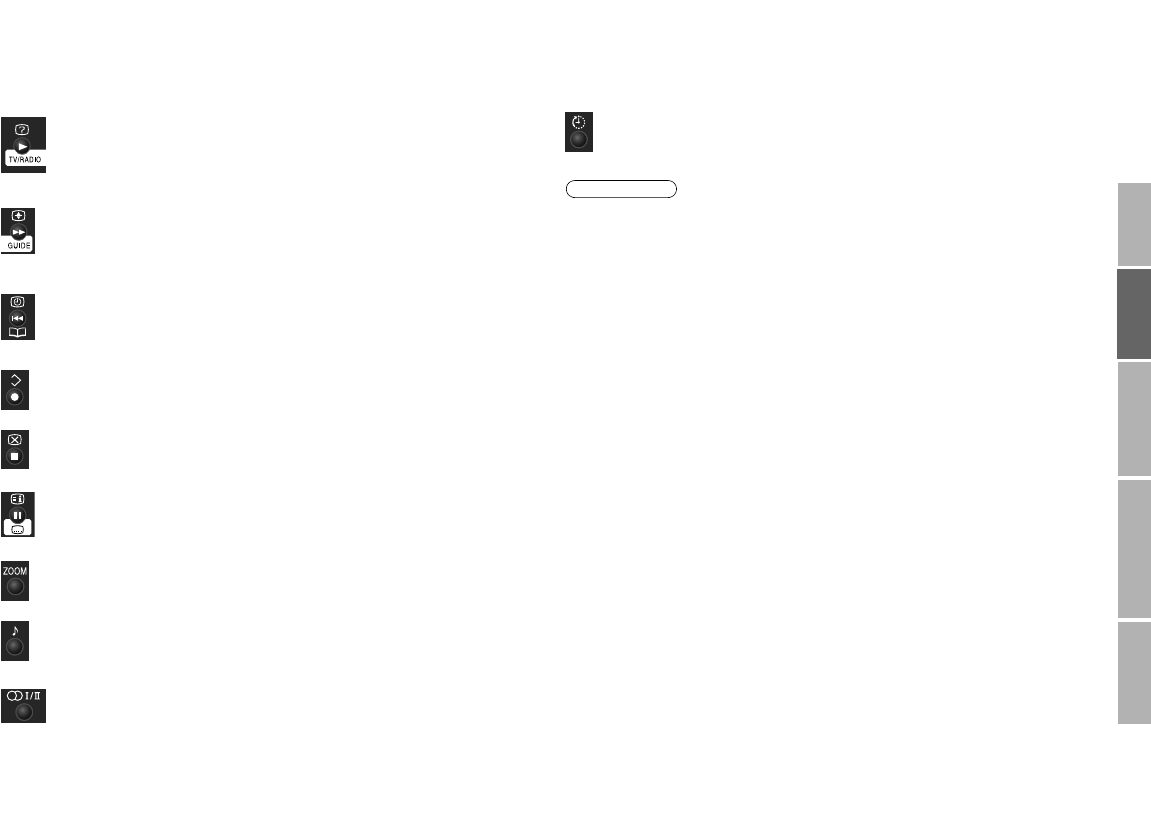
zFor buttons that can be used to operate other devices, refer to
“Configuring your remote control” (P. 24).
zFor more details on using the remote control when viewing digital
channels, refer to the separate manual “WATCHING DIGITAL
CHANNELS”.
Display hidden information when viewing teletext on the
analogue channel. (P. 21)
Switch between TV / Radio when watching digital
channels.
Enlarge the text when viewing teletext on the analogue
channel. (P. 21)
Display the Electronic Programme Guide when watching
digital channels.
Choose a favourite channel when viewing analogue
channels. (P. 19)
Display sub-pages when viewing teletext on the analogue
channel. (P. 20)
Save your favourite page when viewing teletext on the
analogue channel. (P. 20)
Switch briefly from teletext to TV when viewing teletext on
the analogue channel. (P. 21)
Display the index page when viewing teletext on the
analogue channel. (P. 21)
View subtitles when watching digital channels.
Change the aspect ratio. (P. 22)
Turn on “3D Cinema Sound”. (P. 22)
Change the sound mode or language. (P. 23)
Change the audio language when viewing digital
channels.
Set the sleep timer. (P. 23)
Note
LT-42DR9BJ_003A.book Page 5 Thursday, September 11, 2008 3:03 PM

6
Power lamp
ON: Lit
OFF: Unlit
zWhen “Power Lamp” is set to “Off”, the Power lamp will not light up.
g“Power Lamp” (P. 29)
zThe power lamp will blink before the “Record” timer starts to function.
When the “Record” timer is in progress, the power lamp lights even though
the TV is off (standby). For details, refer to “Timer” (P. 11) on the separate
manual “WATCHING DIGITAL CHANNELS”.
zPeel off the protection films pasted on the glossy finish of the TV after the
TV has been placed properly. (P. 7)
Remote control sensor
Switch between digital / analogue channels.
Turn on / off (standby) the TV.
Headphone jack (stereo mini jack R3.5 mm)
Change channel / EXT terminal.
To switch to an external input, press P repeatedly.
Volume
Eco Sensor
g“What is “Eco Sensor”?”
(P. 34)
Note
Names and functions of parts
LT-42DR9BJ_003A.book Page 6 Thursday, September 11, 2008 3:03 PM
7
USE SETTING
TROUBLE?
PREPARE
IMPORTANT
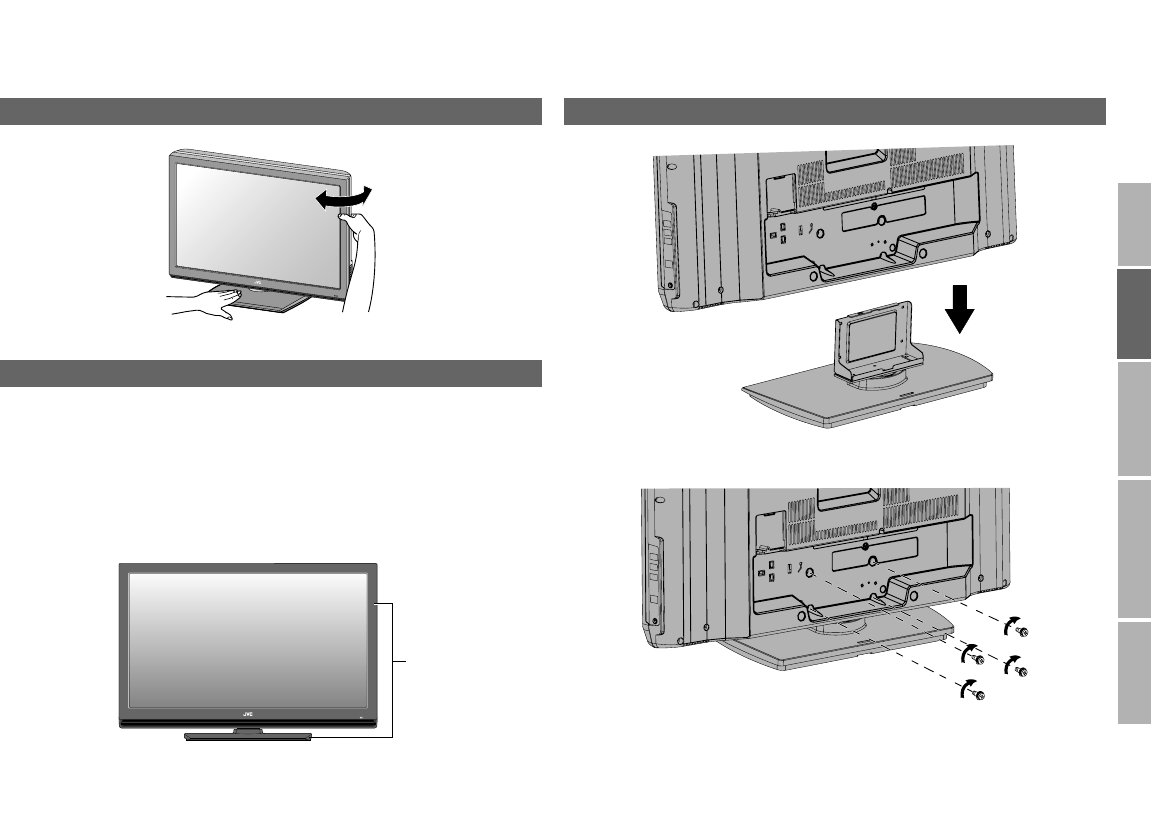
Be careful when handling the glossy finish of the TV
The glossy finish of the TV scratches easily.
zProtection films have been pasted onto the glossy finish of the TV to
prevent scratches. Peel off the films after the TV has been placed properly.
zIf the glossy finish gets dirty, clear the dust off the glossy finish first. Then
wipe softly with the cleaning cloth provided. If you do not clear the dust
first, or you wipe the glossy finish too hard, or a cleaning cloth other than
the one provided is used, the glossy finish may be scratched.
Change the direction of TV
Handling the glossy finish of the TV
Glossy finish
Attach the stand to the TV (LT-32DR9BJ only)
1
2
LT-42DR9BJ_003A.book Page 7 Thursday, September 11, 2008 3:03 PM
8
Please read P. 9 - 17 of this manual to set up your TV.
zStand and screws are also included. For details, refer to page 7.
(LT-32DR9BJ only)
Power requirements
zConnect the power cord only to a 220 - 240 V, 50 Hz AC outlet.
When attaching the TV to the wall, use the optional JVC wall mounting unit
zConsult a qualified technician.
zSee the included manual on mounting procedures.
zJVC assumes no responsibility for damage due to improper mounting.
zMounting holes for wall mounting unit:
LT-32DR9BJ:
M5 x 4, 200 mm x 200 mm
Depth of screw hole is 7 mm from the surface of the TV.
LT-42DR9BJ:
M5 x 4, 400 mm x 200 mm
Depth of screw hole is 13 mm from the surface of the TV.
Installation requirements
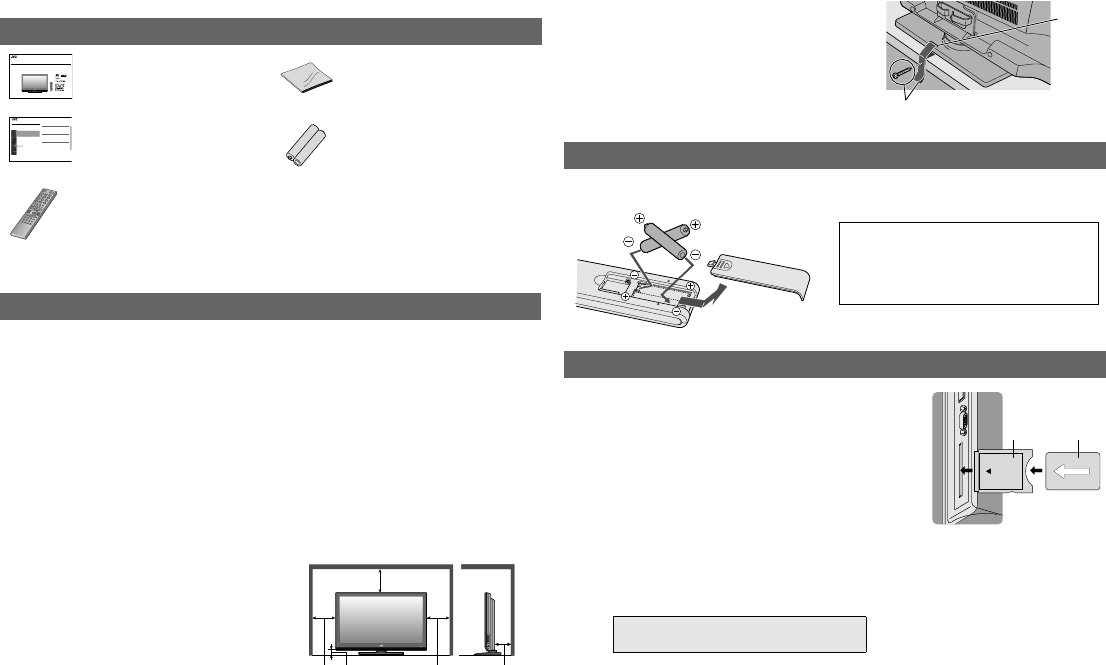
zPlace the TV on a flat and stable
location.
zTo avoid overheating, ensure the
unit has ample room.
zTo prevent the TV from falling, thread
the belt through the hole on the back of
the stand and secure it to the TV rack,
etc.
Use two “AAA/R03” dry cell batteries. Insert the batteries from the - end,
making sure the + and - polarities are correct.
Check accessories
Install your TV
INSTRUCTIONS
WIDELCD PANEL TV
LT-32DR9BJ
LT-42DR9BJ
Trade Mark of the DVB Digital Video Broadcasting
Project (1991 to 1996) Number : 5227, 5808
User Manual
“INSTRUCTIONS”
(this book)
“AAA/R03” Batteries
(For confirming the TV
works)
Separate Manual
“WATCHING DIGITAL
CHANNELS”
Remote control
RM-C1931
Cleaning cloth
(For details on using the
cleaning cloth, see P. 7.)
USE TROUBLE?
SETTING
WATCHING DIGITAL CHANNELS
Before reading this manual
Read the separate user manual (INSTRUCTIONS), “Warning”
(P.2), and understand how to use the TV safely. After that follow the
instructions in “Getting started” (P.8) to connect the aerial and other
external devices to the TV, and configure the settings for the TV.
Digital terrestrial broadcasting (DVB-T)
g Digital channels
Analogue terrestrial broadcasting (VHF / UHF) and
analogue cable TV
g Analogue channels
This TV can receive digital terrestrial broadcasting (DVB-T)
in the United Kingdom. Digital terrestrial broadcasting
(DVB-T) reception in other countries is not guaranteed.
The on-screen displays (including DTV menus) are in
English. No other languages are available.
Contents
This manual only provides information on
watching digital channels. Other information is
explained in the “INSTRUCTIONS”. Please read
both this manual and the “INSTRUCTIONS”
manual.
Note
Watching digital channels...........................................................2
Display the programme information....................................................4
View subtitles......................................................................................4
Select audio language........................................................................5
View teletext information.....................................................................5
Using EPG (Electronic Programme Guide)................................6
Customising your TV..................................................................8
Edit PR (Edit PR List)..........................................................................9
Timer.................................................................................................10
Configuration.....................................................................................12
Setup.................................................................................................13
Installation.........................................................................................14
Troubleshooting........................................................................16
Technical information...............................................................17
200 mm
150 mm 50 mm 150 mm 50 mm
Insert the batteries
Watch pay-TV digital channels
Subscribe to a broadcasting company
beforehand. A Viewing Card (B) will be sent by
the broadcasting company after subscribing to it.
It may be necessary for you to purchase a CAM
(Conditional Access Module) (A) in addition to the
Viewing Card.
Consult your broadcasting company or retailer.
AUnplug the power cord
BInsert “B” into “A”.
CInsert “A”.
DPlug the power cord, and turn the power on.
EPerform necessary settings using “Common Interface”.
g
zPay-TV analogue channels cannot be watched.
Hole
Belt and screw (not provided)
WARNING:
Batteries shall not be exposed to
excessive heat such as direct
sunshine, fire or the like.
AB
WATCHING DIGITAL CHANNELS
“Common Interface” (P. 13)
Getting started
LT-42DR9BJ_003A.book Page 8 Thursday, September 11, 2008 3:03 PM
9
USE SETTING
TROUBLE?
PREPARE
IMPORTANT
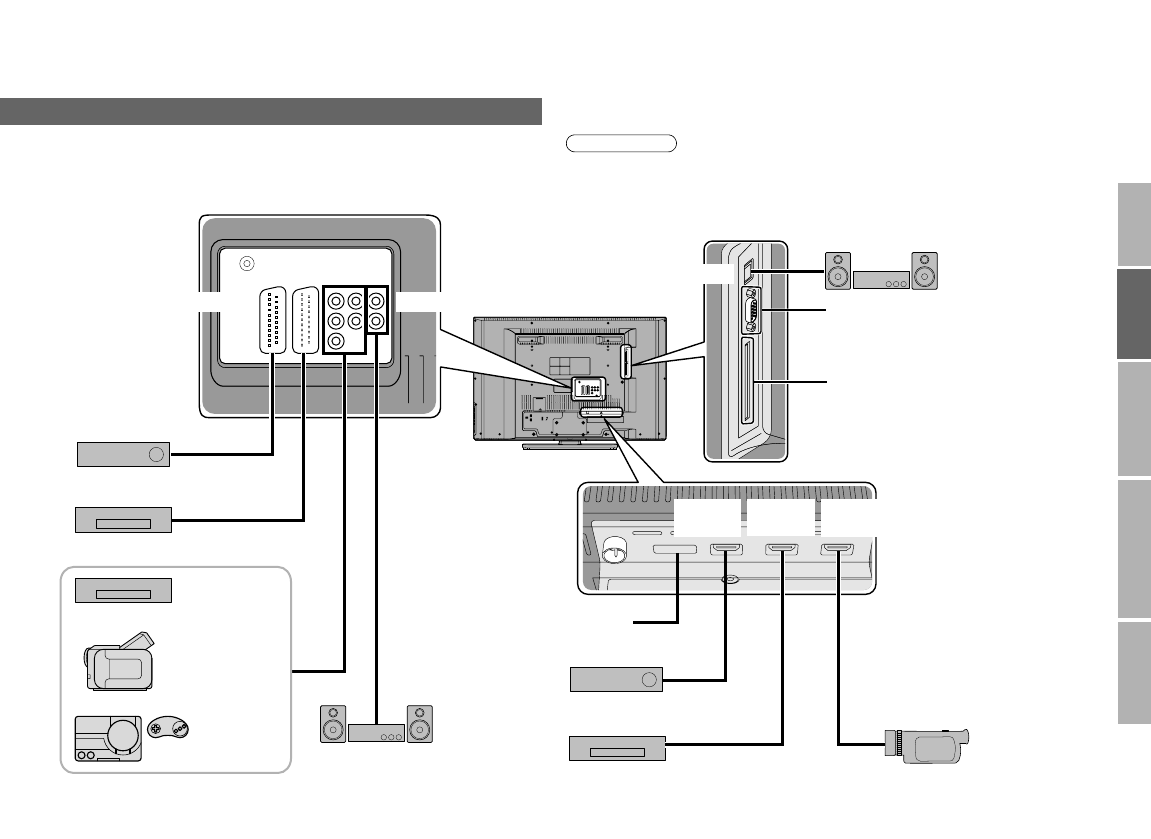
Make sure all the devices and the TV are turned off.
The names of the devices shown in the following illustration are examples.
The alphabets A, B, C, D, E, F and G indicate the type of connections. Refer
to P. 10 - 11 to find the best connections that are possible with your devices.
zPlease read the user manuals of each device before setting up.
zConnecting cables are not supplied with this TV.
Connecting your external devices
Note
Audio system
Satellite broadcast tuner
VCR / DVD recorder
EXT-1 AUDIO OUT
EXT-4
(HDMI 1)
EXT-5
(HDMI 2)
EXT-6
(HDMI 3)
Not available.
(For service adjustments)
CI (Common Interface) slot
Refer to “Watch pay-TV
digital channels” (P. 8)
HD Video camera
Digital Satellite broadcast tuner
DVD player
Video camera
Game consoles
Not available.
(For service adjustments)
DVD player
D
D
C/E A/B
AA
G
F
EXT-2 EXT-3
Audio system
DIGITAL AUDIO OUT
LT-42DR9BJ_003A.book Page 9 Thursday, September 11, 2008 3:03 PM
10
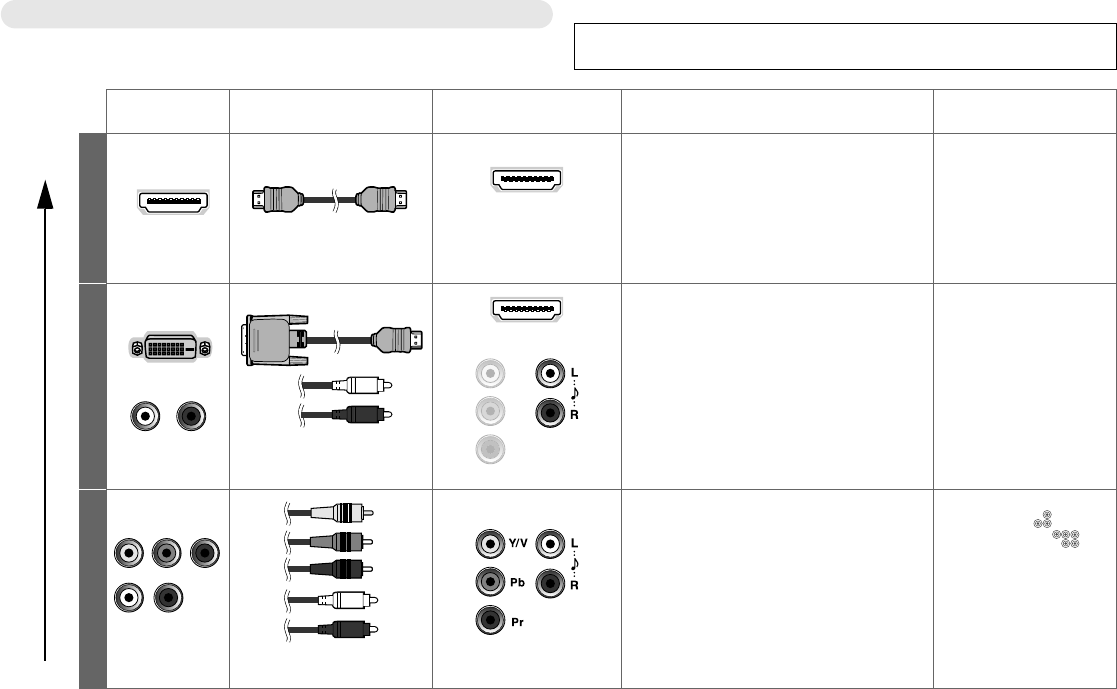
Choose your best connection
You can connect your TV to other devices in different ways. Check your
devices and choose the best connection. In addition, please read “Notes”
before using.
Please do not change any of the menu settings before completing the “Initial
settings” (P. 13). Otherwise, the “Initial settings” will not start automatically.
Picture
quality Other devices Connecting cables Connect to your TV Available signals Notes
Best
A
HDMI HDMI cable
EXT-4
EXT-5
EXT-6
Input
zHDMI (digital)
SD: 576i (625i), 480i (525i)
ED: 576p (625p), 480p (525p)
HD: 1080i (1125i),
1080p (1125p) / 24Hz,
1080p (1125p) / 50Hz,
1080p (1125p) / 60Hz, 720p (750p)
Audio L / R
If there is no sound,
change the “HDMI-1
Audio Setting” (P. 30).
BDVI
Audio DVI-HDMI cable,
Audio cable
EXT-4
EXT-3: L and R jacks
Input
zDVI (digital)
ED: 576p (625p), 480p (525p)
HD: 1080i (1125i),
1080p (1125p) / 24Hz,
1080p (1125p) / 50Hz,
1080p (1125p) / 60Hz, 720p (750p)
zAudio L / R (analogue)
If there is no sound,
change the “HDMI-1
Audio Setting” (P. 30).
Better
C
Component
video and Audio
Component video cable,
Audio cable
EXT-3
Input
zComponent (analogue)
SD: 576i (625i), 480i (525i)
ED: 576p (625p), 480p (525p)
HD: 1080i (1125i), 720p (750p)
zAudio L / R (analogue)
Change the EXT-3
setting from “ ”
(composite) to “ ”
(component). (P. 31)
Getting started
LT-42DR9BJ_003A.book Page 10 Thursday, September 11, 2008 3:03 PM
11
USE SETTING
TROUBLE?
PREPARE
IMPORTANT
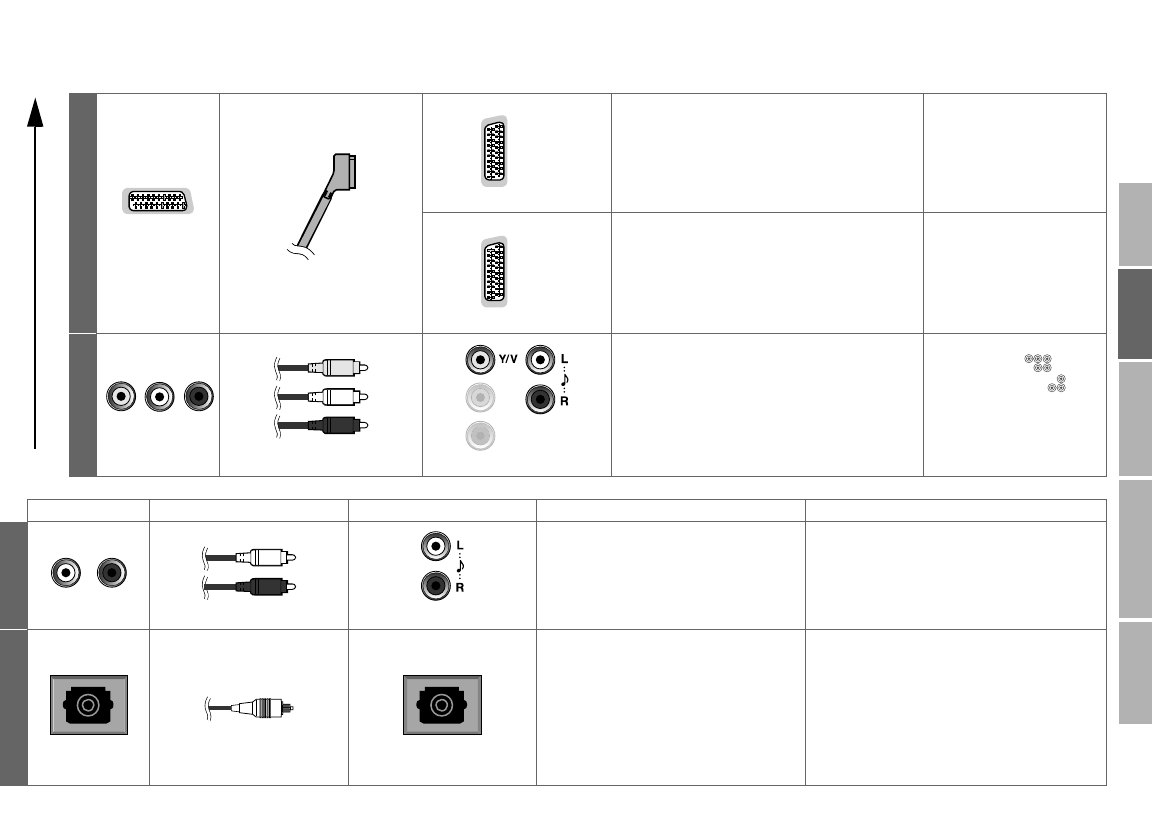
D
SCART
(Euroconnector)
SCART cable
EXT-1
Input
zComposite video (analogue)
zRGB input (analogue)
zAudio L / R (analogue)
Output
zAnalogue TV out (composite video and
audio L/R) (analogue)
EXT-2
Input
zComposite video (analogue)
zS-Video (analogue)
zAudio L / R (analogue)
Output
zDubbing out (composite video and audio
L/R) (analogue)
If you want to input the
S-Video signal, change
the “Ext Setting”. (P. 31)
Select the dubbing
source in “Ext Setting”.
(P. 31)
Good
E
Video and audio
Video and audio cable EXT-3: V, L, R jacks
Input
zComposite video (analogue)
zAudio L / R (analogue)
Change the EXT-3
setting from “ ”
(component) to “ ”
(composite). (P. 31)
Audio system Connecting cables Connect to your TV Available signals Notes
F
Audio input Audio cable AUDIO OUT
Output
zAudio L / R (analogue)
You cannot listen to the sound from a
device with connection A and B.
G
Optical input Optical audio cable DIGITAL AUDIO OUT
Output
zAudio (digital)
(16 bit linear PCM or Dolby Digital)
The sound from the analogue channels
and the external devices cannot be
output.
Please refer to the ““Dolby Digital” output
from the DIGITAL AUDIO OUT terminal”
(P. 18) on the separate manual
“WATCHING DIGITAL CHANNELS”.
“Dolby” and the double-D symbol are
trademarks of Dolby Laboratories.
LT-42DR9BJ_003A.book Page 11 Thursday, September 11, 2008 3:03 PM
12
Power supply for the indoor aerial
When using an indoor aerial which requires external power, set “Antenna
Power” to “On” in step 3 of “Initial settings” (P. 13). The TV will supply DC 5V,
50mA (max) from the aerial socket through the cable to the aerial.
zSupplying power to outdoor and indoor aerials which does not require
external power, may cause damage to the aerial. If you are uncertain
whether the aerial needs external power, select “Off”.
zConnect the aerial directly to the TV. When a recording device is
connected between the aerial and the TV, power cannot be supplied to the
aerial.
zPower is supplied to the aerial only when the TV is on.
zYou can change the “Antenna Power” setting later.
For details, refer to “Antenna Power” (P. 13) on the separate manual
“WATCHING DIGITAL CHANNELS”.
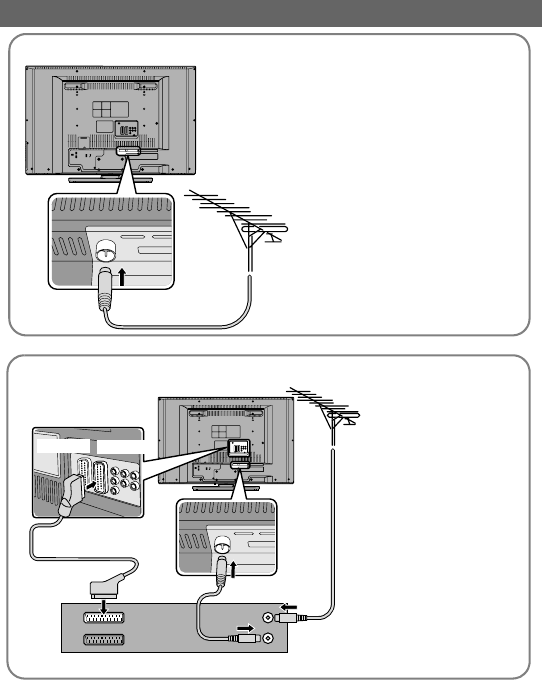
Connecting the aerial
AERIAL
zAfter all the connections
have been made, insert the
plug into an AC outlet.
Connect the aerial
AERIAL
Connect a VCR / DVD recorder
zAfter all the
connections have
been made, insert
the plug into an AC
outlet.
VCR / DVD recorder
EXT-2
EXT-1
Getting started
LT-42DR9BJ_003A.book Page 12 Thursday, September 11, 2008 3:03 PM
13
USE SETTING
TROUBLE?
PREPARE
IMPORTANT
I
n
i
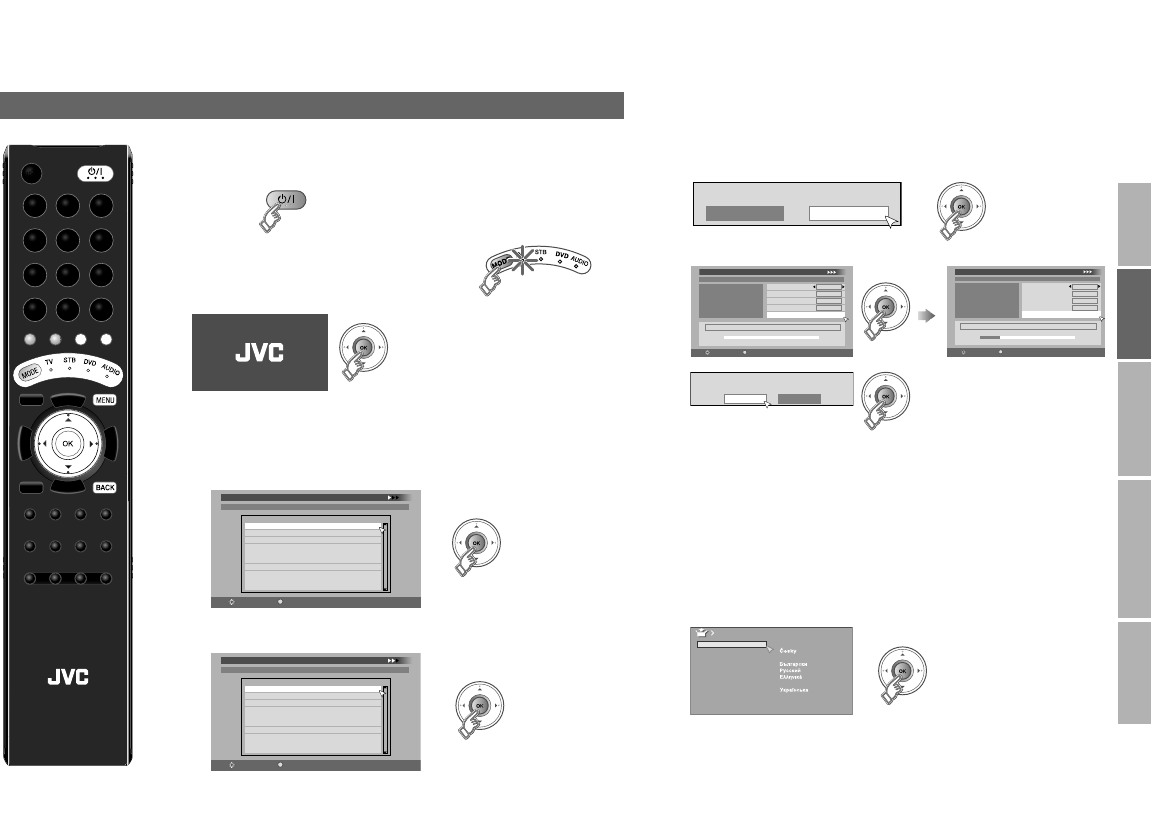
The initial settings will begin automatically when the TV is turned
on for the very first time. Follow the on-screen instructions to
perform the settings.
1Turn on
zIf the remote control doesn’t work,
confirm that the mode is set to “TV”.
2Start initial settings
zIf the JVC logo does not appear, refer to “To perform initial
settings again” (P. 14).
3Set digital channels
1 Confirm “English” is set for on-screen displays and DTV
menus.
2 Confirm “United Kingdom” is set.
This TV can only receive British digital channels.
3 Confirm that the aerial power supply is set to “Off”.
Select “On” only when using an aerial which requires
external power. (P. 12)
4 Register digital channels
zIf “No services found” appears, press the “OK” button to
proceed to the next step to complete the other settings.
Then, refer to “No digital channels” (P. 14).
zYou can edit the digital channels after the initial settings.
For details, refer to “Edit PR (Edit PR List)” (P. 9) on the
separate manual “WATCHING DIGITAL CHANNELS”.
zSome digital channels cannot be watched on this TV.
For details, refer to page 17 on the separate manual
“WATCHING DIGITAL CHANNELS”.
4Confirm the language for menus (excluding the
DTV menus)
zIf you want to change the language, select a language and
press the “OK” button.
Initial settings
English
First Time Installation > Language Setting
Step 1: Please choose language
Language
Select
OK
Navigate
First Time Installation > Country Setting
Step 2: Please choose country
Country
Select
OK
Navigate
United Kingdom
Mode
Start Scan
On Off
Antenna Power
First Time Installation > Service Scan
Step 3: Please press OK
Select
OK
Navigate
Automatic
Service
Scan
_ _
Start Channel
_ _
Stop Channel
Add
Mode
Start Scan
First Time Installation > Service Scan
Step 3: Please press OK
Select
OK
Navigate
Automatic
Service
Scan
_ _
Start Channel
_ _
Stop Channel
Add
Mode
Start Scan
UHF33 : 3 Services found
BBC ONE
BBC TWO
BBC THREE
Scan completed! Store services?
Yes No
Suomi
Română
Türkçe
Language
Svenska
Norsk
Dansk
Nederlands
Castellano
Italiano
Deutsch
Français
English
Català
Português
Magyar
Polski
LCD
(Continue on page 14)
LT-42DR9BJ_003A.book Page 13 Thursday, September 11, 2008 3:03 PM
14
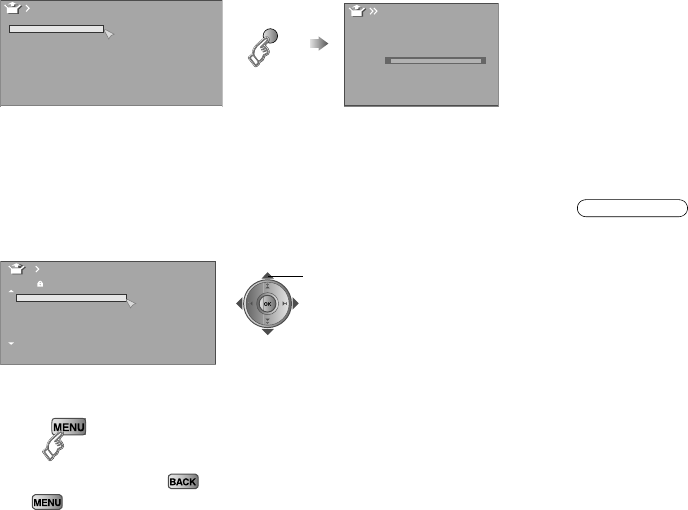
5Set analogue channels
1 Register analogue channels
zIf you do not want to register the analogue channels (including cable
TV channels), press the “MENU” button to complete the settings.
zTo change the country setting, select a country and press the blue
button.
zIf “ACI Start” appears, start ACI. The cable channels will be
registered quickly. For details, refer to “What is “ACI” (Automatic
Channel Installation)?” (P. 34).
2 Check what was registered
To edit channels
g“Editing analogue channels” (P. 15)
6Finish
To the previous screen g
Exit g
To perform initial settings again
Take note that performing initial settings again will cause all channel
related settings and DTV menu settings to be lost. Press the “MENU”
button to display the menu, then press and hold the number button “1” for
more than 3 seconds to start initial settings. If initial setting does not start,
switch to the analogue channel and try again.
If you wish to make changes later, refer to “Service Scan” (P. 14) on the
separate manual “WATCHING DIGITAL CHANNELS” for digital channel
settings, or “Language” (P. 30) and “Auto Program” (P. 30) on this manual
for analogue channel settings.
No digital channels or “Missing or weak signal” message
appears
(blue)
Belgium
Nederland
Italia
España
France
Deutschland
United Kingdom
Country
Norge
Suomi
Sverige
Österreich
Danmark
Switzerland
Ireland
Auto Program
Auto Program
CH 21
0%
select a channel
BBC1
BBC2
ITV
CH4
CH5
_ _ _ _ _ _
_ _ _ _ _ _
AV
PR ID
Edit
CH
01 CH
02 CH
03 CH
04
05
06
07
CH
CH
CH
21
22
23
24
25
26
1Check the following points
zIs the TV connected correctly to the aerial?
zChange the direction of the indoor aerial.
zIs there a digital channels transmission tower nearby?
gTurn “Attenuator” to “On” (P. 30), since the radio waves are too
strong.
z“Attenuator” attenuates the radio waves of analogue broadcast as
well as those of digital broadcast. If some noise or snow appears
when watching an analogue channel, please set “Attenuator” to
“Off” temporarily.
zYou can check the broadcast signal level of the channel you are
watching. For details, refer to “Signal Check” (P. 15) on the
separate manual “WATCHING DIGITAL CHANNELS”.
2Set digital channels using “Factory Settings”. For details, refer to
“Factory Settings” (P. 15) on the separate manual “WATCHING
DIGITAL CHANNELS”.
If you still cannot watch digital channels after following the steps above,
there may be a problem with your aerial or its cable. Or, the signal may
be too weak. g Consult your retailer
N
Note
Getting started
LT-42DR9BJ_003A.book Page 14 Thursday, September 11, 2008 3:03 PM
15
USE SETTING
TROUBLE?
PREPARE
IMPORTANT
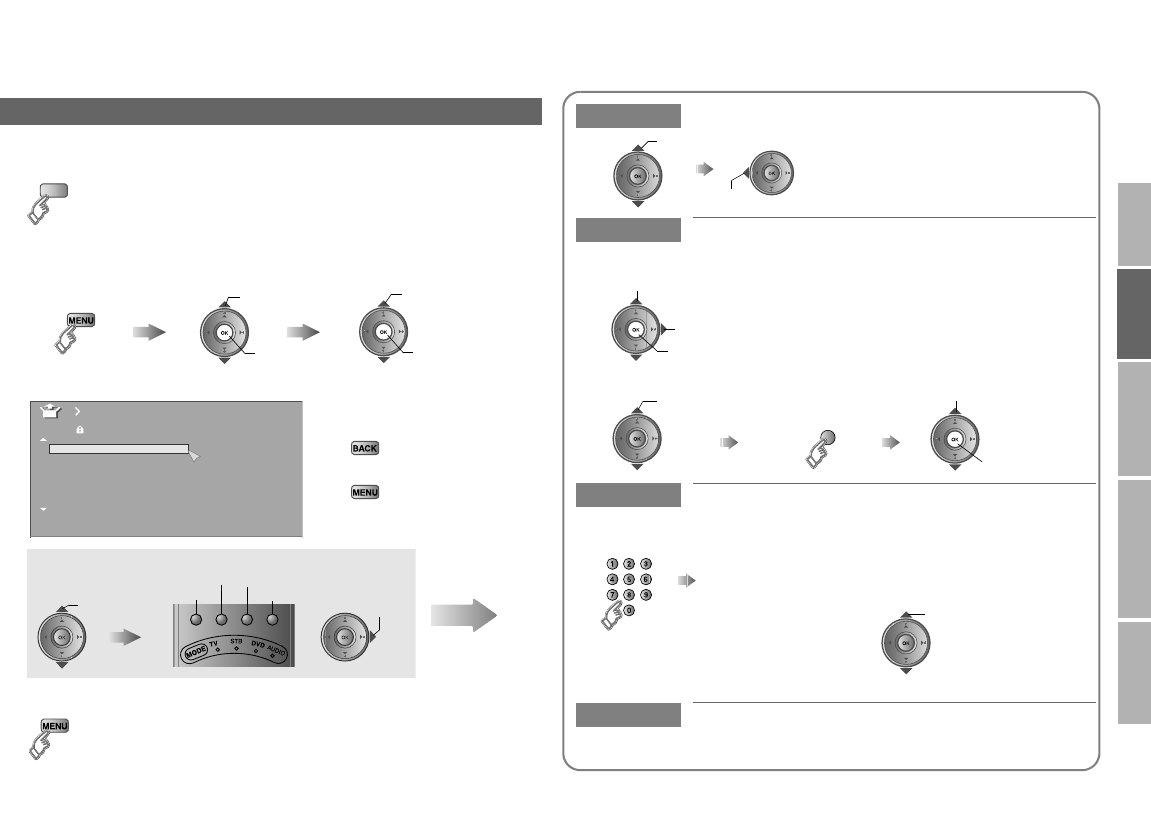
You can edit the analogue channel list.
Editing analogue channels
1Switch to analogue channels
2Display the “Edit” menu
3Edit channels
To the previous menu
g
Exit
g
4Finish
TV/DTV
Aselect
Bnext Bnext
Aselect
Select “Set Up” Select “Edit/Manual”
Display the menu bar
BBC1
BBC2
ITV
CH4
CH5
_ _ _ _ _ _
_ _ _ _ _ _
AV
PR ID
Edit
CH
01 21CH
02 22CH
03 23CH
04
05
06
07
24CH
25CH
26CH
select a
channel
Select channel Select edit function
ID
Insert Delete
Manual Move Next
Move Move a channel’s position (PR)
ID Edit a channel name (ID)
Insert Insert a new channel directly by entering the
CH/CC number
Delete Delete a channel
zPressing the button deletes the channel.
set
select
When selecting a preset name from the “ID List”
Bset
Aselect character
Bmove position
Cset
Aselect
enter the first
character (blue)
N
am
i
ng a c
h
anne
l
z“CH/CC” list g(P. 17)
Receives the
broadcast signal.
Enter a number
Select a “CH/CC”
In United Kingdom, you cannot
enter “CC” numbers. In Ireland,
you can select “CH” or “CC”
before entering a number.
(Continue on page 16)
LT-42DR9BJ_003A.book Page 15 Thursday, September 11, 2008 3:03 PM
16
To edit digital channels
g
To register a digital channel manually
g
WATCHING DIGITAL CHANNELS
P. 9
WATCHING DIGITAL CHANNELS
“Service Scan” (P. 14)
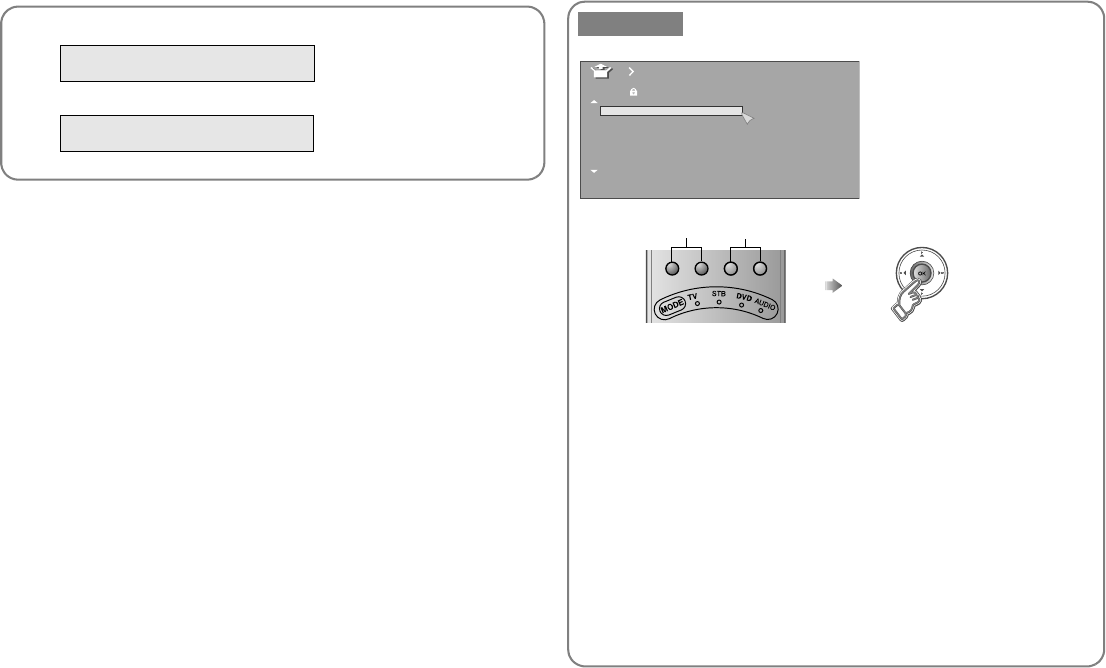
Manual Register a new channel
zPress the red or green button. Auto-search begins, and the nearest
frequency is imported.
g Repeat the previous steps until the desired channel is displayed.
ASearch a channel Fine tune BSet
AV
PR ID
Manual
CH
01
02 22CH
03 23CH
04
05
06
07
24CH
25CH
26CH
BBC1
BBC2
ITV
CH4
CH5
_ _ _ _ _ _
_ _ _ _ _ _
21CH
Getting started
LT-42DR9BJ_003A.book Page 16 Thursday, September 11, 2008 3:03 PM
17
USE SETTING
TROUBLE?
PREPARE
IMPORTANT
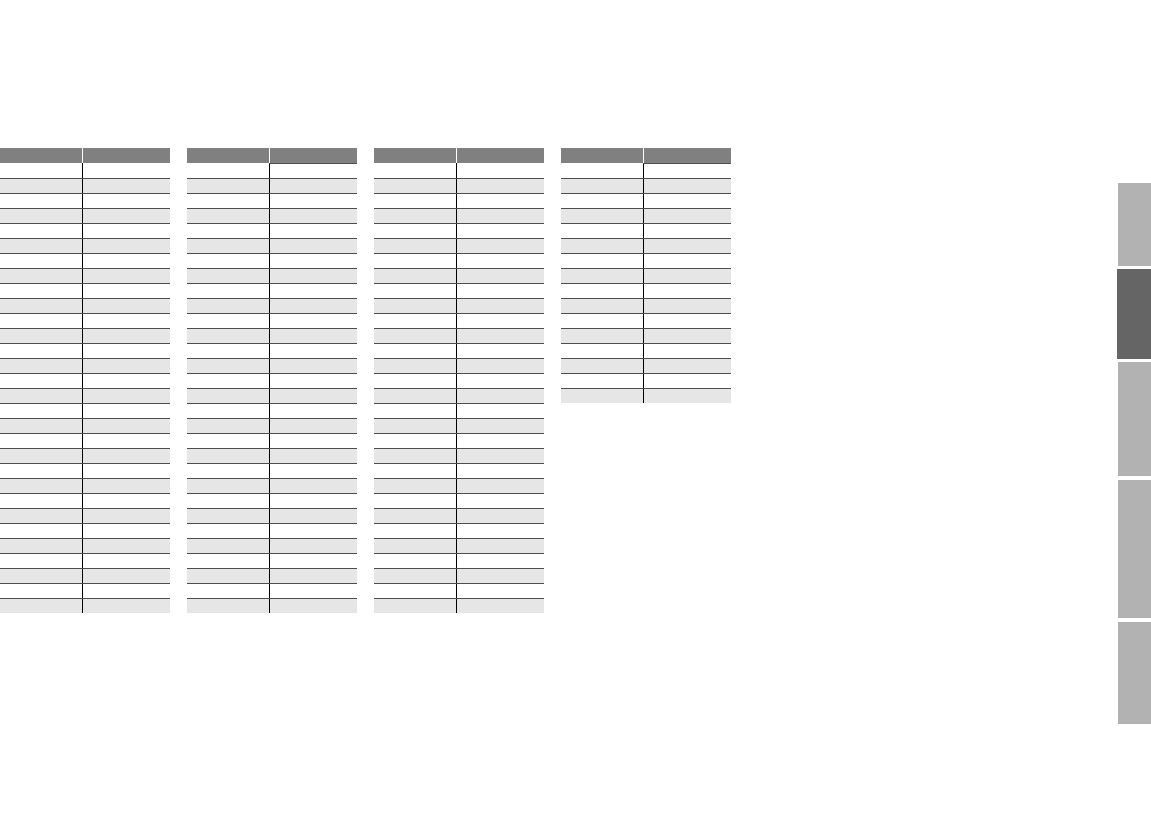
To use the “Insert” function (P. 15), find the “CH/CC” number corresponding to the TV’s Channel number from this table.
If you want to know a particular TV channel’s menu, look in TV listings magazines or contact the broadcaster.
zWhen the Country setting is “United Kingdom”, the CC number channels and channels from CH 02 to Ch 12 cannot be received.
CH Channel CH Channel CC Channel CC Channel
CH 02 E2, IR A CH 40 E40 CC 01 S1 CC 31 S31
CH 03 E3, IR B CH 41 E41 CC 02 S2 CC 32 S32
CH 04 E4, IR C CH 42 E42 CC 03 S3 CC 33 S33
CH 05 E5, IR D CH 43 E43 CC 04 S4 CC 34 S34
CH 06 E6, IR E CH 44 E44 CC 05 S5 CC 35 S35
CH 07 E7, IR F CH 45 E45 CC 06 S6 CC 36 S36
CH 08 E8, IR G CH 46 E46 CC 07 S7 CC 37 S37
CH 09 E9 CH 47 E47 CC 08 S8 CC 38 S38
CH 10 E10, IR H CH 48 E48 CC 09 S9 CC 39 S39
CH 11 E11, IR J CH 49 E49 CC 10 S10 CC 40 S40
CH 12 E12 CH 50 E50 CC 11 S11 CC 41 S41
CH 21 E21 CH 51 E51 CC 12 S12 CC 75 X
CH 22 E22 CH 52 E52 CC 13 S13 CC 76 Y
CH 23 E23 CH 53 E53 CC 14 S14 CC 77 Z
CH 24 E24 CH 54 E54 CC 15 S15 CC 78 Z+1
CH 25 E25 CH 55 E55 CC 16 S16 CC 79 Z+2
CH 26 E26 CH 56 E56 CC 17 S17
CH 27 E27 CH 57 E57 CC 18 S18
CH 28 E28 CH 58 E58 CC 19 S19
CH 29 E29 CH 59 E59 CC 20 S20
CH 30 E30 CH 60 E60 CC 21 S21
CH 31 E31 CH 61 E61 CC 22 S22
CH 32 E32 CH 62 E62 CC 23 S23
CH 33 E33 CH 63 E63 CC 24 S24
CH 34 E34 CH 64 E64 CC 25 S25
CH 35 E35 CH 65 E65 CC 26 S26
CH 36 E36 CH 66 E66 CC 27 S27
CH 37 E37 CH 67 E67 CC 28 S28
CH 38 E38 CH 68 E68 CC 29 S29
CH 39 E39 CH 69 E69 CC 30 S30
“CH/CC” list
LT-42DR9BJ_003A.book Page 17 Thursday, September 11, 2008 3:03 PM
LCD
18
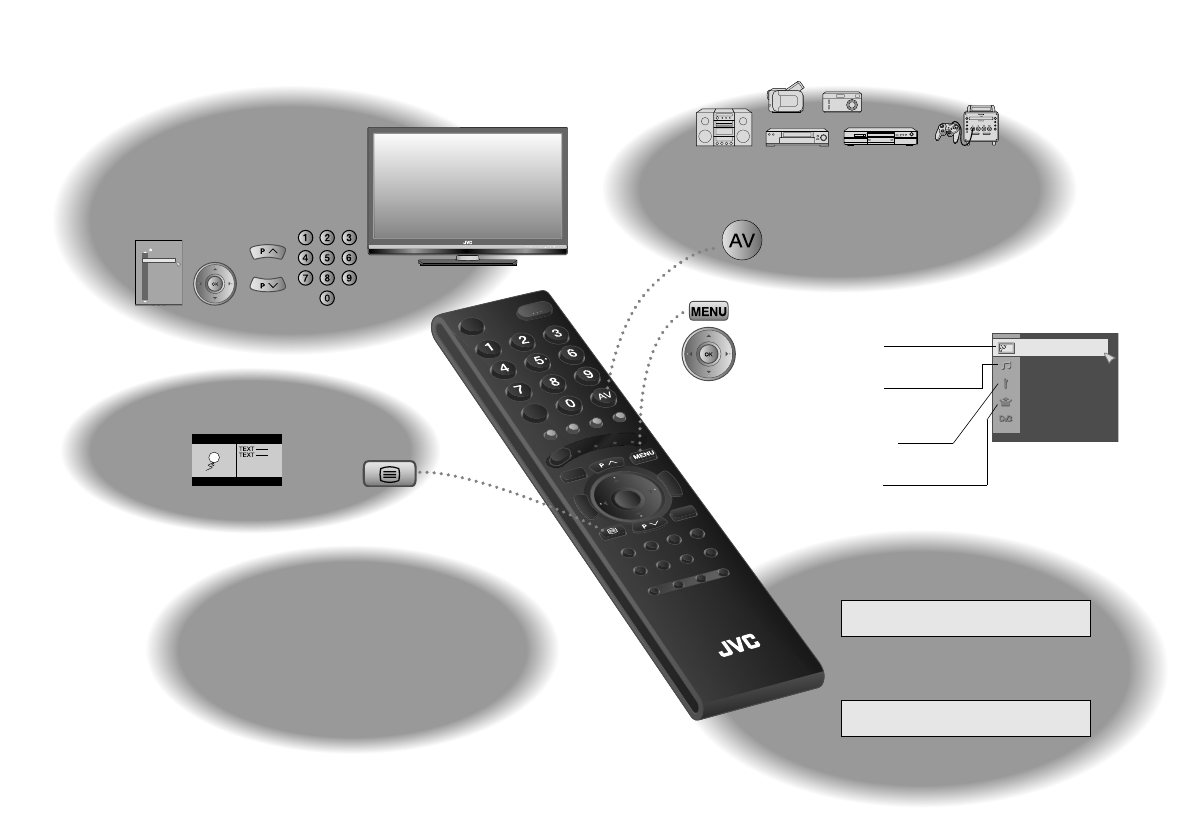
Enjoy your new TV!
19
PAGE
Watching analogue
channels
20
PAGE
Change the aspect ratio
Change the sound mode or language
3D Cinema Sound
Emphasize the bass sound
Set the sleep timer
22
PAGE
Useful functions
Viewing teletext on
the analogue channel
Picture settings
(Picture Mode, Features, etc.)
Sound settings
(Stereo/t-u, 3D Cinema Sound,
etc.)
Set Up settings
(Auto Program, Language, etc.)
Features settings
(Sleep Timer / Child Lock, etc.)
Customising your TV
26
PAGE
Watching videos / DVDs
Picture
Watching digital
channels
WATCHING DIGITAL CHANNELS
P. 2 - 5
Customising your TV
DTV menu settings
WATCHING DIGITAL CHANNELS
P. 8 - 1 5
21
PAGE
PR List
09
08
07
06
05
04
03
02
01 BBC1
BBC2
ITV
CH4
CH5
_ _ _ _ _ _
_ _ _ _ _ _
AV
PR ID
LT-42DR9BJ_003A.book Page 18 Thursday, September 11, 2008 3:03 PM
19
USE SETTING
TROUBLE?
PREPARE
IMPORTANT
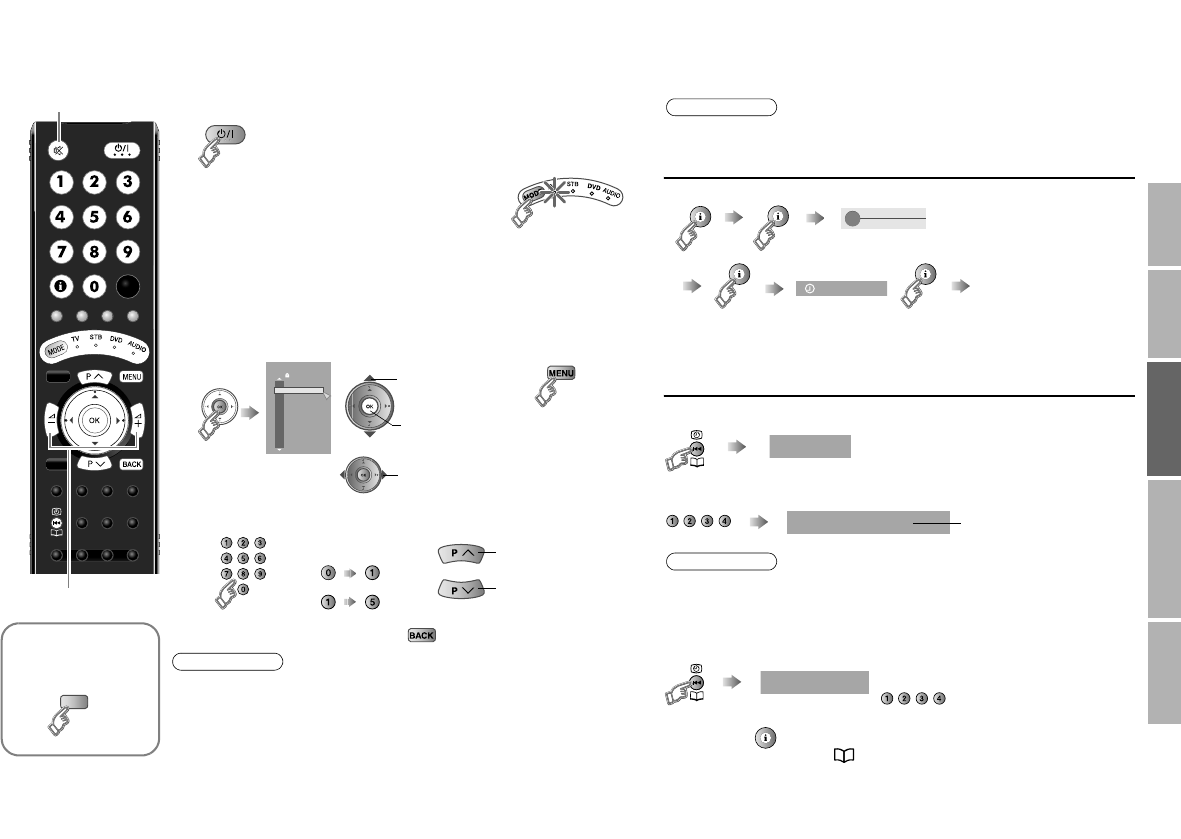
zSwitch between mono / stereo / bilingual broadcasting
g“Stereo/t-u” (P. 23)
zUsing the TV buttons
g“Names and functions of parts” (P. 6).
zTo soften the picture for daily use, change the setting in
“Picture Mode” g “Picture Mode” (P. 26)
Channel information and clock
Register a channel to a button (Favourite channel)
1Turn on
zIf the remote control doesn’t work,
confirm that the mode is set to “TV”.
zPress again to turn the screen off and
put the TV into standby mode.
zTo completely turn off the TV, unplug the power plug.
2Select a channel
Using PR list
To the previous channel g
The power lamp on the TV lights.
PR List
09
08
07
06
05
04
03
02
01 BBC1
BBC2
ITV
CH4
CH5
_ _ _ _ _ _
_ _ _ _ _ _
AV
PR ID
PR List
zSelect a page g select
Bview
Aselect
zClose PR List
Press a channel number Move up or down a channel
E.g.
15 :
1 :
up
down
Note
While the channel is displayed
Press the number to register it on
The following “Picture” and “Sound” menu settings applied to the
channel will be stored in the favourite channel as well.
zPicture Mode / Digital VNR / DigiPure (P. 26 - 27)
zSurround / Bass Boost / MaxxBass (P. 28)
Recall the favourite channel
Check your favourite channels
gPress “ ” and confirm that the channels you have
registered have a beside them.
Delete a favourite channel g “Favourite Setting” (P. 29)
Note
12:00
BBC1
1
zPressing the button once displays the “PR List”.
zTime is displayed only when teletext broadcasting can be
received.
(No indication)
Time
Channel information
Set 1-4?
Hold down for 3 seconds
Programmed! Disappears after a
few seconds
Note
Favourite 1-4?
Press the number you registered
Watching analogue channels
Volume
Mute
Switch between
digital / analogue
channels
g
TV/DTV
LT-42DR9BJ_003A.book Page 19 Thursday, September 11, 2008 3:03 PM
20
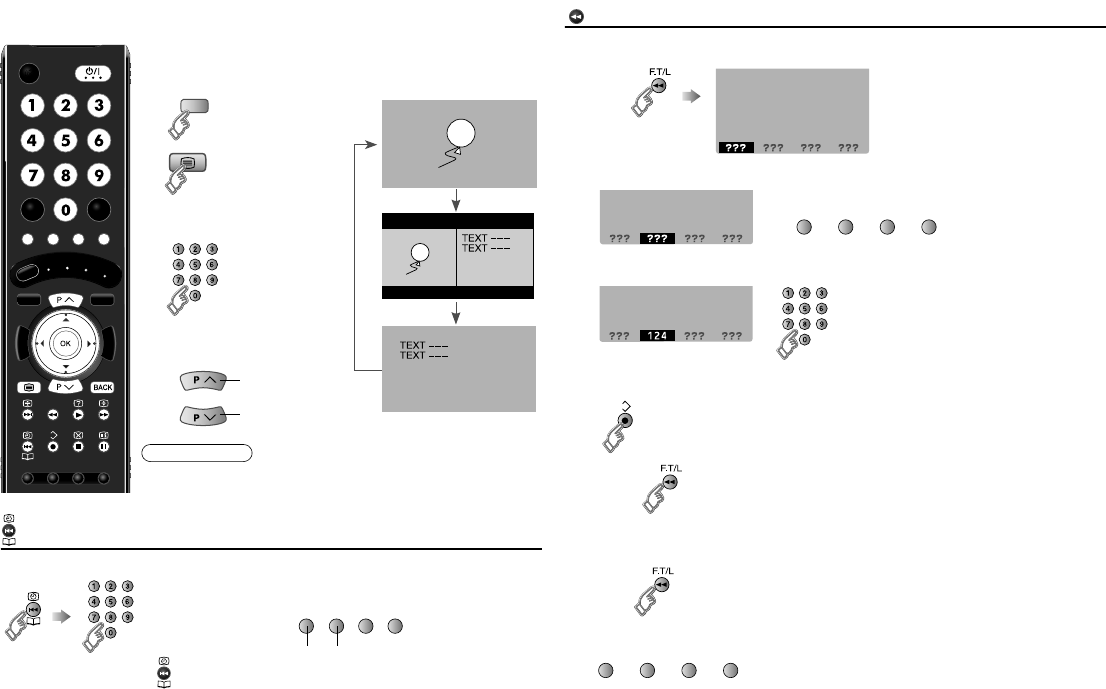
This TV can display TV broadcasts and teletext on the same analogue
channel in two windows.
View sub-pages
Display sub-pages
Bookmark your favourite page
F.T/L
(red) (green)
updown
Move up or down a page
Release g Press “ ” again
F.T/L
1Display your favourites list
2 Select a coloured button to save your page to
3Enter the number of the page to save
4Save
Recall your favourite page
1 Display your favourites list
2 Press a coloured button
(red) (green) (yellow) (blue)
Exit g
(red) (green) (yellow) (blue)
Viewing teletext on the analogue channel
zTo view teletext information on the digital channel,
refer to page 5 on the separate manual “WATCHING
DIGITAL CHANNELS”.
1Switch to analogue
channels
2
3Enter a teletext page
Move up or down a
page
TV/DTV
TEXT
TV TEXT
up
down
Note
When watching
analogue channel
LT-42DR9BJ_003A.book Page 20 Thursday, September 11, 2008 3:03 PM
21
USE SETTING
TROUBLE?
PREPARE
IMPORTANT
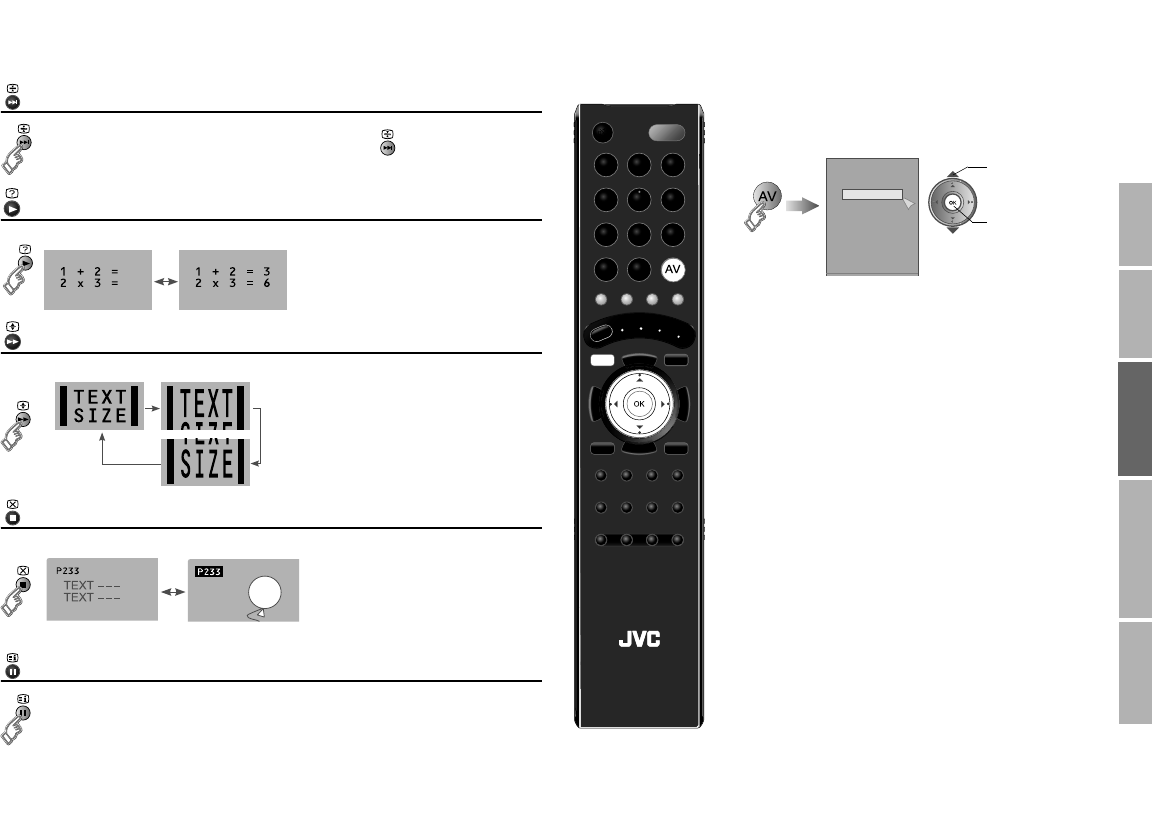
Hold the current page
Reveal hidden pages
Enlarge the text
Switch briefly from teletext to TV
To the index page
Hold the current page
Release g Press “ ” again
Display hidden information (answers to quizzes, etc.)
Double the size of the displayed text
Leave the current page open, while you switch to watch TV
zUseful when running a page search.
Returns to page “100” or a previously designated page
To return to TV channels
zPress the “TV/DTV” button or select “DTV” from the
“Ext Mode” menu for digital channels.
zSelect “ATV” from the “Ext Mode” menu for
analogue channels.
1Select the video source
2Operate the connected device and play a
video
Ext Mode
ATV
EXT-1
EXT-2
EXT-3
HDMI1
HDMI2
HDMI3
0
1
2
3
4
5
6
7 DTV
E.g. For EXT-1
Bwatch
Aselect
Ext Mode
LCDLCD
TV
Watching videos / DVDs
LT-42DR9BJ_003A.book Page 21 Thursday, September 11, 2008 3:03 PM
22
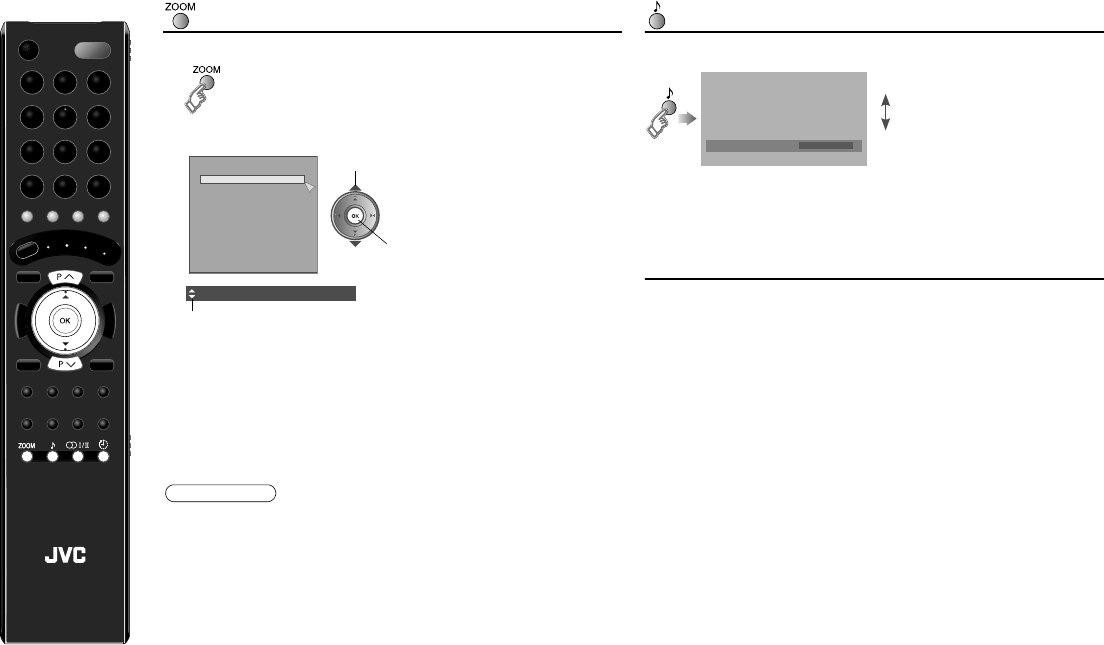
Zoom
Change the aspect ratio
zDepending on the signal formats, some zoom modes will be
displayed in black and will not be selectable.
zIf an image is displayed in an aspect ratio that differs from its
original aspect ratio, the image will be distorted or portions of
the image will be cut off.
3D Cinema Sound
Enjoy ambient sound
zYou can adjust the “3D Cinema Sound” settings in the “3D
Cinema Sound” menu. (P. 28)
z“3D Cinema Sound” does not work with headphones.
Other sound functions
MaxxBass (P. 28)
Compensates low frequencies to widen the frequency band.
z“MaxxBass”does not work with headphones.
Hyper Sound (P. 28)
Ambient sound.
z“Hyper Sound” and “3D Cinema Sound” cannot be set to “On”
simultaneously.
z“Hyper Sound” does not work with headphones.
1
2Select the aspect ratio
3
zWhen “Slim” is selected, a 4:3 image stretched out to 16:9 will
revert back to its original aspect ratio with black bands.
zWhen “Panoramic Zoom” is selected, a 4:3 image with black
bands will be stretched out to 16:9.
z“Full Native” g “What is “Full Native”?” (P. 34)
zUsing “Auto” g “Auto in “Zoom”” (P. 34)
Zoom
Auto
Regular
Panoramic
14:9 Zoom
16:9 Zoom
16:9 Zoom Subtitle
Full
Full Native
Slim
Panoramic Zoom
Aselect
Bset
16:9 Zoom
Move the picture with S or T while this bar is displayed
Note
On3D Cinema Sound
On
Off
Useful functions
LCD
GUIDEGUIDE
LT-42DR9BJ_003A.book Page 22 Thursday, September 11, 2008 3:03 PM
23
USE SETTING
TROUBLE?
PREPARE
IMPORTANT
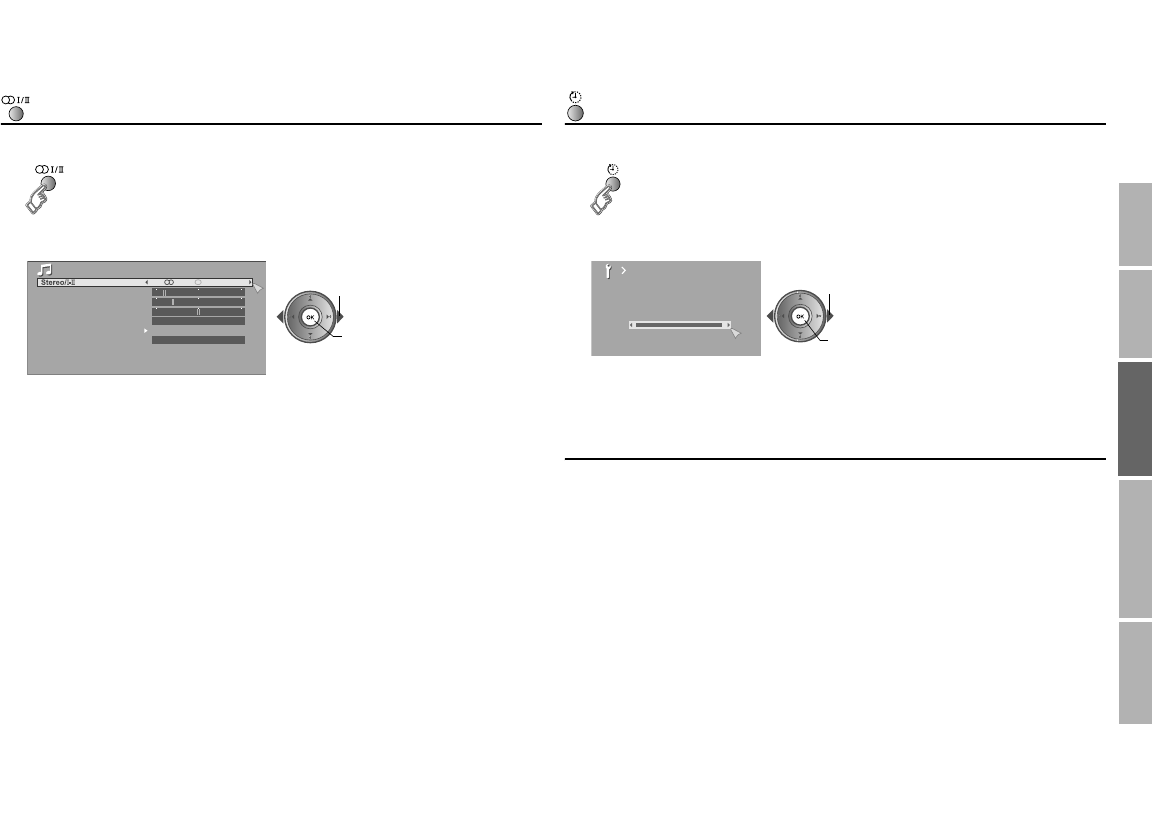
Stereo/t-u
Change the sound mode or language (analogue channels)
Sleep Timer
Set a time for the TV to turn off automatically
Other functions
Picture Mode (P. 26)
You can select a preset picture setting according to the brightness of your
room or when playing video games.
Eco Sensor (P. 29)
Automatically adjust the picture contrast according to the brightness of the
room.
zThere are more functions available in the menus, see “Customising your
TV” (P. 26 - 31).
1
2Select the sound mode or language
zWhen viewing a bilingual broadcast programme, you can select either
Bilingual I (Sub I) or Bilingual II (Sub II) sound.
zIf the stereo broadcast reception is poor, you can change to mono sound
for clearer sound.
zThis button can also be used when watching digital channels. For details,
refer to “Select audio language” (P. 5) on the separate manual
“WATCHING DIGITAL CHANNELS”.
Aselect
Bset
Sound
Off
Off
Bass
Treble
Balance
Hyper Sound
3D Cinema Sound
MaxxBass
1
2Set the time
Cancel g Set the time to “0”.
Remaining time g Display this menu again.
Aselect
Bset
Sleep Timer
0120
Off
LT-42DR9BJ_003A.book Page 23 Thursday, September 11, 2008 3:03 PM
24
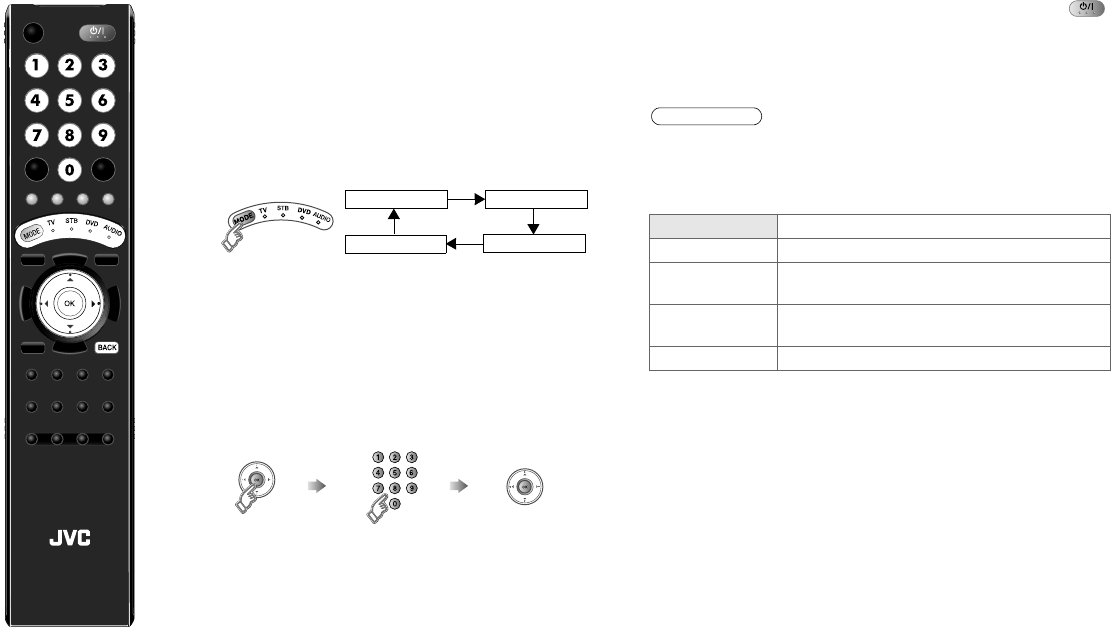
You can configure your TV’s remote control to operate your other
devices.
Configure your remote control.
zIf your device does not respond, try all the available codes for
the device’s brand.
zIf none of the code works, or the brand is not listed, refer to
“Using the search code function” (P. 25).
1Turn on the device manually.
2Switch the remote control mode to a mode that
matches your device. Refer to the table on the
right to select an appropriate mode.
zThe indicator lights for 3 seconds each time the remote
control is operated.
3Find the remote control code for your device
according to its brand from the “Remote control
codes” list. (Refer to P. I - X at the back of this
manual.)
4Set the remote control code.
zThe indicator will unlit for a second after entering the four
digit remote control code number.
TV STB
AUDIO DVD
Press and hold Enter four digit
number
Release the button
5Point the remote control at your device, press
and confirm that your device is turned off. If your
device does not respond, try entering another
available code.
MODE Applicable devices
TV This TV only
STB Cable Set Top Box, Cable/PVR Combination,
Satellite Set Top Box, SAT/PVR Combination
DVD DVD, Blu-Ray DVD, HD DVD, DVD-R, Home
Theater in Box, TV/DVD Combination
AUDIO Amplifier, Receiver, Home Theater in Box
Note
Configuring your remote control
LCD
STB
AUD IO
LT-42DR9BJ_003A.book Page 24 Thursday, September 11, 2008 3:03 PM
25
USE SETTING
TROUBLE?
PREPARE
IMPORTANT
Change the remote control mode
Turn on/off the device
Navigate the menus
Playback / Record, etc.
Display the Electronic Programme Guide
g Press “ ”
Display information g Press “ ”
Mute g Press “ ”
Volume g Press “ ”
Select a surround mode g Press “ ”
zDepending on your device, some functions may not be
operable with this remote control.
Using the search code function
This function searches through the codes one by one, beginning from the
first code in the list.
1Turn on the device manually.
2Switch the remote control mode to a mode that matches
your device.
Press to select the mode.
3Activate the search code function.
Hold down and until the mode indicator blinks.
4Point the remote control at your device and press . If
there is no response, try the next code by pressing and
press again. Repeat the process until your device
turns off.
5Press to register the code.
The code is now set. Confirm that the mode indicator goes
out.
If your TV’s remote control still does not work even after using the
search code function, use your device’s own remote control. The TV’s
remote control is not guaranteed to work with all models, brands or
operations.
Button functions
Display top menu
OK
Select
Display menu
Back to previous menu
Play
Forward
Reverse
Select a
chapter
Stop
Pause
Record
GUIDE
LCD
F.T/LF.T/L
TOP MENU
GUIDE
LT-42DR9BJ_003A.book Page 25 Thursday, September 11, 2008 3:03 PM
26
Customising your TV
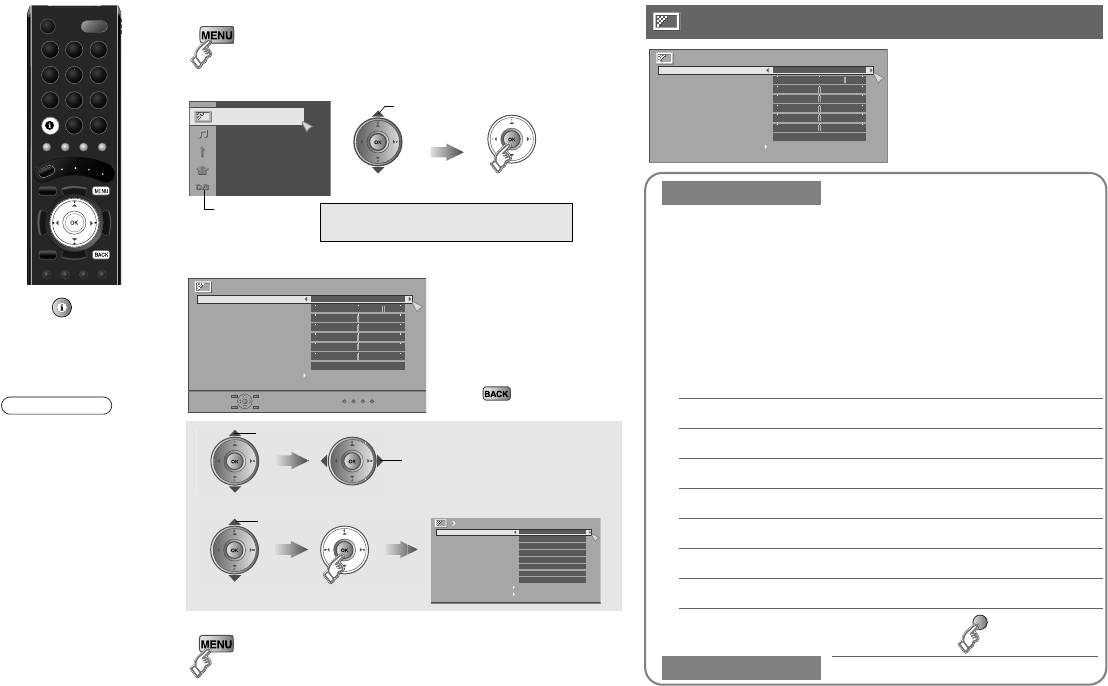
You can select a preset picture setting according to the
brightness of your room or when playing video games.
You can make further adjustments to the selected preset
“Picture Mode” to your liking.
To return to the default adjustments g (blue)
1Display the menu bar
2Display the desired menu
gWATCHING DIGITAL CHANNELS
P. 8 - 15
3Change or adjust the setting
zThe menu (excluding
DTV menus)
disappears after one
minute of inactivity.
To the previous
screen
g
4Close the menu
Picture
select
DTV menu
Picture
Picture Mode Standard
Colour Temp. Normal
Features
Backlight
Contrast
Brightness
Sharpness
Hue
Colour
select
To enter an item’s menu
change / adjust
select
(E.g. Features)
Features
Digital VNR
DigiPure
Movie Theatre
Colour Management
Picture Management
Smart Picture
Dynamic Backlight
MPEG Noise Reduction
Colour System
4:3 Auto Aspect
Off
Off
Auto
On
On
On
On
On
Picture Mode
Bright : in a fairly bright room
Soft : in a dark room
Standard : in a room with standard brightness
Game Mode : when playing video games
Backlight Backlight brightness (Darker l Brighter)
Contrast Contrast (Lower l Higher)
Brightness Brightness (Darker l Brighter)
Sharpness Sharpness (Softer l Sharper)
Colour Colour (Lighter l Deeper)
Hue Tint (Reddish l Greenish) (NTSC only)
Colour Temp. Colour temperature (Warm / Normal / Cool)
Features g “Features (sub menu)” (P. 27)
Picture
Picture
Picture Mode Standard
Colour Temp. Normal
Features
Backlight
Contrast
Brightness
Sharpness
Hue
Colour
Press “ ” to hide
the bottom area of the
menu (excluding DTV
menus). Press again
to display it.
zDepending on the
situation (analogue
channels, digital
channels, video
signal formats,
external inputs,
etc.), some items
will be displayed in
black colour and
will not work. You
will not be able to
change their
setting as well.
Note
LT-42DR9BJ_003A.book Page 26 Thursday, September 11, 2008 3:03 PM
27
USE SETTING
TROUBLE?
PREPARE
IMPORTANT
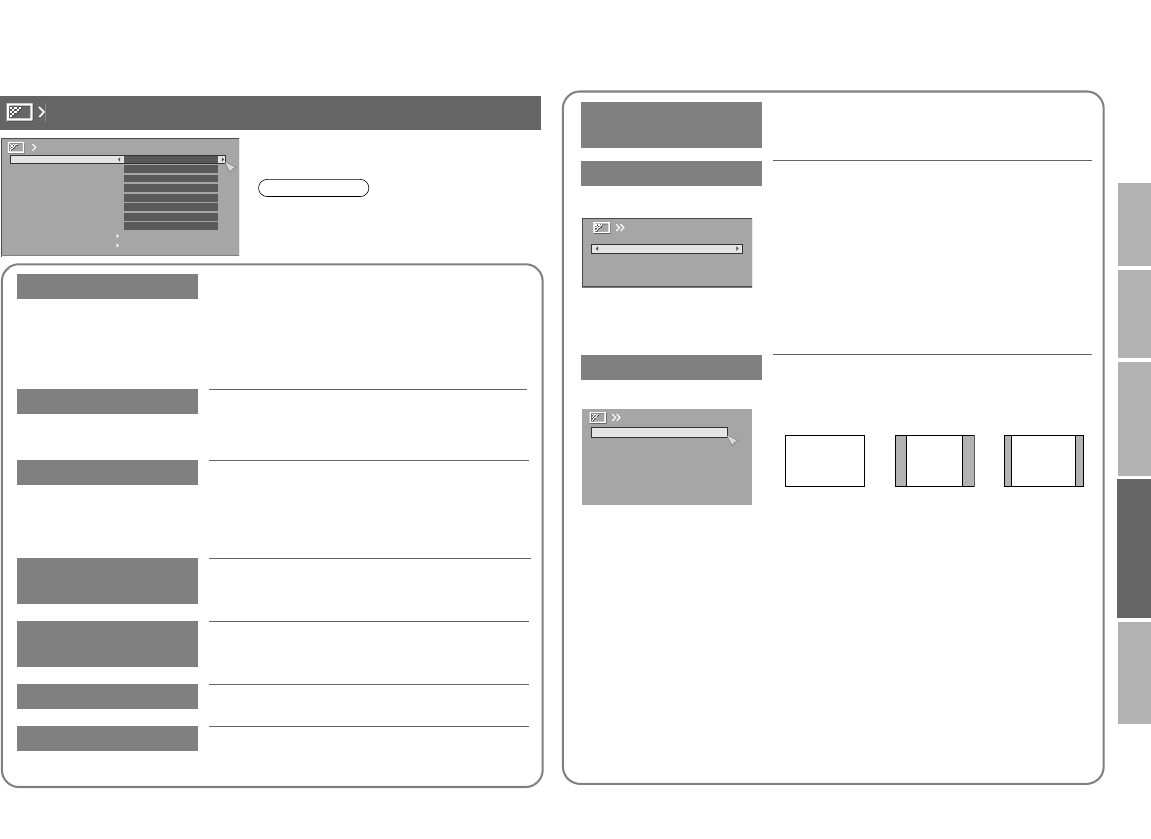
Digital VNR Reduce noise
On : Maintain constant effect
level
Off : Function is turned off
Auto* : Automatically adjusts the effect level
* “Auto” can be selected only when viewing analogue channels.
DigiPure For natural-looking outlines
On : When the picture loses
sharpness
Off : Function is turned off
Movie Theatre For smooth cinema film
On : Function is always on Off : Function is turned off
Auto : Turn on / off the function automatically
Colour
Management
Maintain a natural colour balance (On / Off)
Picture
Management
Make it easier to view bright / dark pictures
(On / Off)
Smart Picture Make it easier to view white areas (On / Off)
Dynamic Backlight Reduce the brightness of the backlight when
the screen is dark (On / Off)
Features (sub menu)
Digital VNR
DigiPure
Movie Theatre
Colour Management
Picture Management
Smart Picture
Dynamic Backlight
MPEG Noise Reduction
Colour System
4:3 Auto Aspect
Features
Off
Off
Auto
On
On
On
On
On
MPEG Noise
Reduction
Reduce MPEG video noise (On / Off)
Colour System When there is no colour, change the colour
system
PAL : Western Europe (excluding
France)
NTSC3.58* : USA 3.58 MHz
NTSC4.43* : USA 4.43 MHz
Auto* : When watching videos etc.
* Select in video mode only.
4:3 Auto Aspect Select a default aspect ratio for Auto in
“Zoom” (P. 22)
Panoramic Regular 14:9 Zoom
PAL
Colour System
Panoramic
Regular
14:9 Zoom
4:3 Auto Aspect
16 : 9 4 : 3 14 : 9
z“Smart Picture” is not available when
“Picture Mode” is set to “Bright”
(P. 26).
Note
LT-42DR9BJ_003A.book Page 27 Thursday, September 11, 2008 3:03 PM
28
Customising your TV
z“Hyper Sound” does not work with headphones.
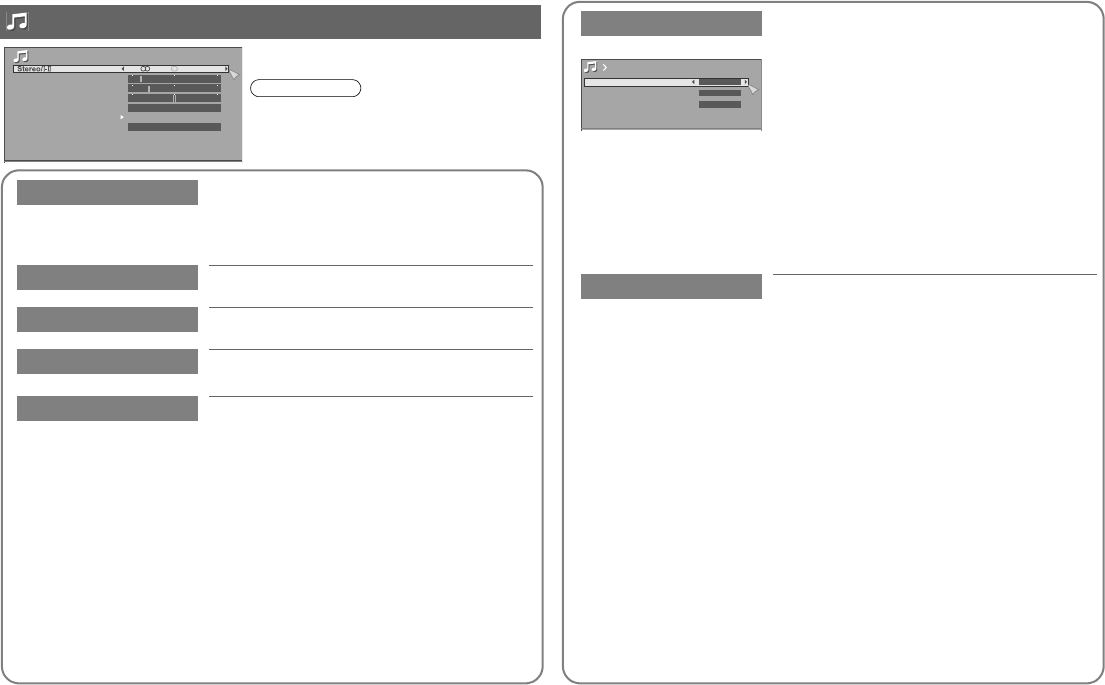
Stereo/t-uSelect stereo, monaural or language
(analogue channels)
(v: Monaural / s: Stereo / t: SUB1 /
u:SUB2)
Bass Low tones (Weaker l Stronger)
Treble High tones (Weaker l Stronger)
Balance Speaker balance (Left stronger l Right
stronger)
Hyper Sound Ambient sound (On / Off)
Sound
Sound
Off
Off
Bass
Treble
Balance
Hyper Sound
3D Cinema Sound
MaxxBass
3D Cinema Sound Adjust “3D Cinema Sound” setting to your
liking
Surround:
Adjust the surround level (Low / Mid / High)
Bass Boost:
Emphasize the bass sound (Low / Mid / High)
Auto Volume Control:
Maintains a uniform sound volume even if the
sound becomes loud suddenly during
commercial breaks etc. (On / Off)
zTo turn on / off the “3D Cinema Sound”, refer to “3D Cinema Sound”
(P. 22).
z“3D Cinema Sound” does not work with headphones.
MaxxBass Compensates low frequencies to widen the
frequency band (Low / High / Off)
z“MaxxBass” does not work with headphones.
MaxxBass is a registered trademark of Waves Audio Ltd. in the USA,
Japan and other countries.
3D Cinema Sound
Auto Volume Control Off
Bass Boost Mid
Surround Mid
z“Hyper Sound” and “3D Cinema
Sound” cannot be set to “On”
simultaneously.
Note
LT-42DR9BJ_003A.book Page 28 Thursday, September 11, 2008 3:03 PM
29
USE SETTING
TROUBLE?
PREPARE
IMPORTANT
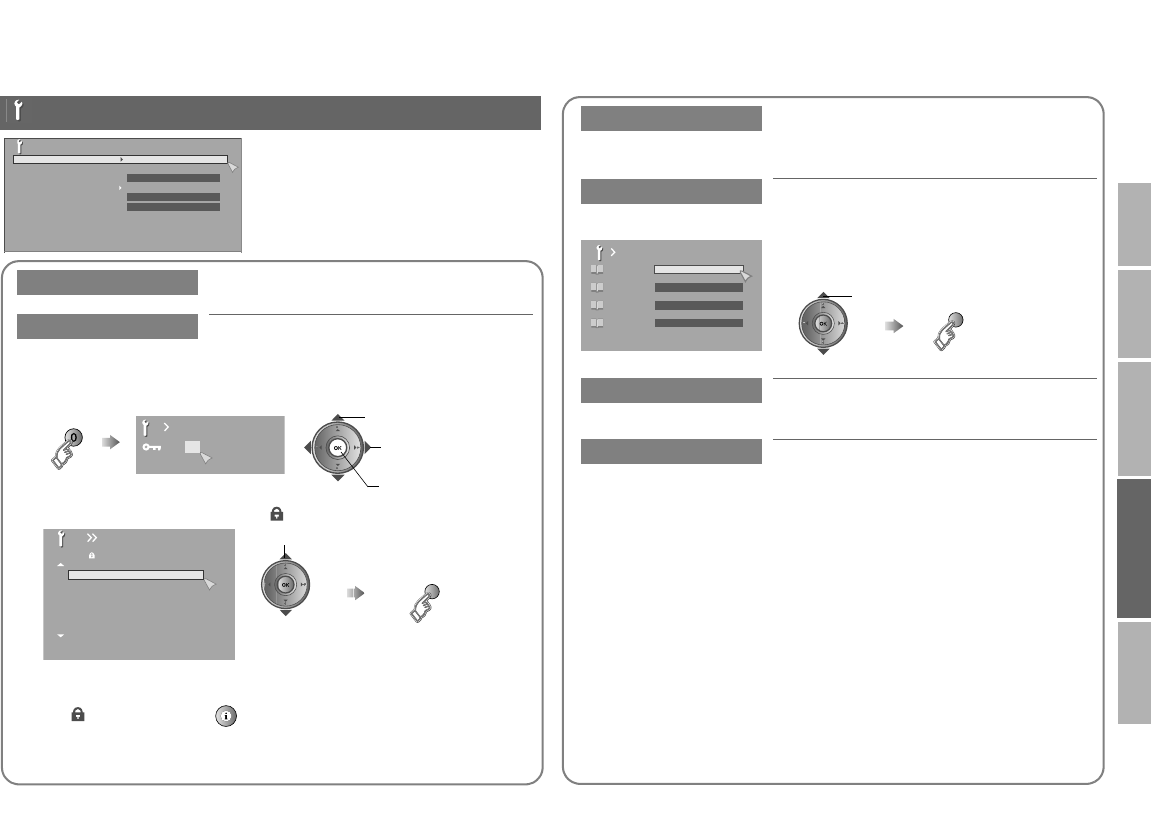
Lock a channel
Sleep Timer Timer for turning off the TV (P. 23)
Child Lock Stop children from watching specific channels
(analogue channels)
1Display the menu
zOK button does not work.
Set an “ID No.”
2Select a channel and lock it. ( : locked)
View a locked channel
Use the number buttons to enter the channel number.
When “ ” appears, press “ ” and enter your “ID No.” with the
number buttons.
zIf you forget your “ID No.”, perform step 1 again.
Features
Features
Sleep Timer
Child Lock
Blue Back
Favourite Setting
Power Lamp
Eco Sensor
On
On
Off
Set ID No.
000
0
Cset
Aselect a number
Bto the next
column
BBC1
BBC2
ITV
CH4
CH5
_ _ _ _ _ _
_ _ _ _ _ _
AV
PR ID CH
01 21CH
02 22CH
03 23CH
04
05
06
07
24CH
25CH
26CH
Child Lock select
(blue)
Lock / Release
Blue Back Displays a blue screen and mutes the sound
when the signal is weak or absent (On / Off)
(analogue channels)
Favourite Setting Remove a channel from the Favourite
channel list (analogue channels)
For more details
g “Register a channel to a button
(Favourite channel)” (P. 19)
Power Lamp Lights the power lamp (P. 6) while the TV is
on (On / Off)
Eco Sensor Automatically adjusts the picture contrast
according to the brightness of your room
(On / Off / Demo)
For more details
g “What is “Eco Sensor”?” (P. 34)
Favourite Setting
PR 01
1
PR 03
2
PR 05
3
PR 07
4
select
(blue)
Remove
LT-42DR9BJ_003A.book Page 29 Thursday, September 11, 2008 3:03 PM
30
Customising your TV
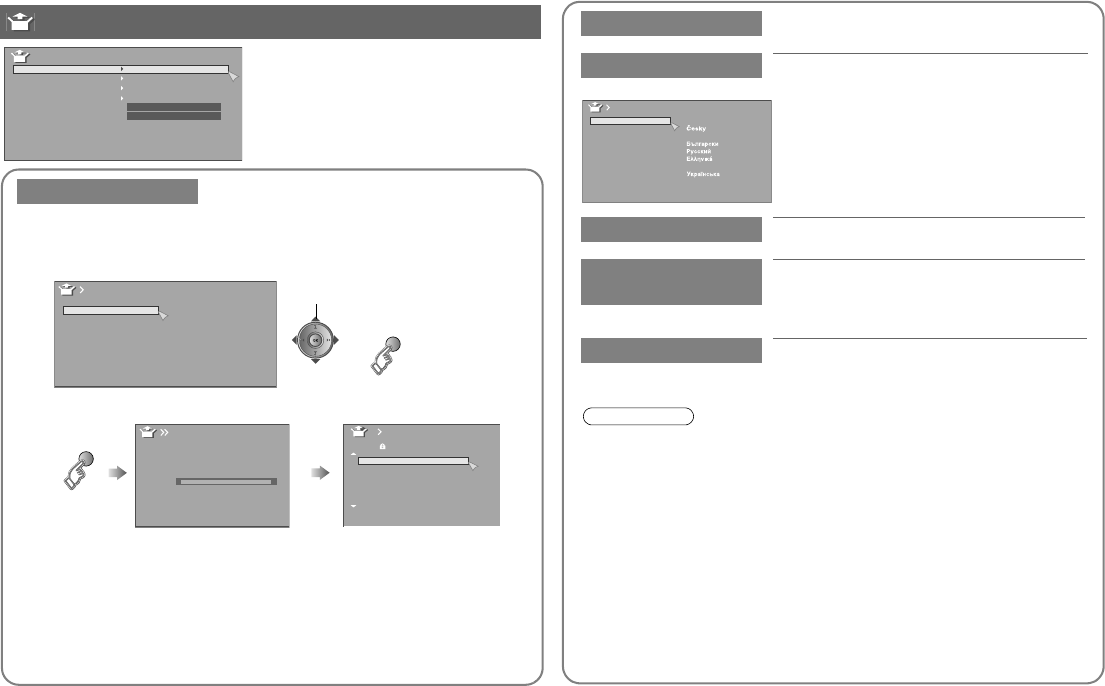
To change the country, perform step 1 only.
Auto Program Automatically registers the channels
(analogue channels)
1Select the country of installation
2Start “Auto Program”
zIf “ACI Start” appears, select and
start settings.
(This will set up cable television
channels.)
g“What is “ACI” (Automatic
Channel Installation)?” (P. 34)
Edit channels
g“Editing analogue
channels” (P. 15)
Set Up
Set Up
Auto Program
Edit / Manual
Language
Ext Setting
HDMI-1 Audio Setting
Attenuator
Auto
Off
select
zFor the next page
(yellow)
Belgium
Nederland
Italia
España
France
Deutschland
United Kingdom
Country
Norge
Suomi
Sverige
Österreich
Danmark
Switzerland
Ireland
Auto Program
(blue) Auto Program
CH 21
0%
BBC1
BBC2
ITV
CH4
CH5
_ _ _ _ _ _
_ _ _ _ _ _
AV
PR ID
Edit
CH
01 CH
02 CH
03 CH
04
05
06
07
CH
CH
CH
21
22
23
24
25
26
Edit/Manual g “Editing analogue channels” (P. 15)
Language Select a language for the menus (excluding
DTV menus)
Ext Setting g “Setting external terminals” (P. 31)
HDMI-1 Audio
Setting Set to “Digital” or “Auto” for HDMI devices,
or “Analogue” or “Auto” for DVI devices.
(Not available for EXT-5 and EXT-6.)
Attenuator Select “On” when digital channels are not
received because of too strong radio waves
(On / Off)
z“Attenuator” attenuates the radio waves of analogue broadcast as
well as those of digital broadcast. If some noise or snow appears
when watching an analogue channel, please set “Attenuator” to “Off”
temporarily.
Suomi
Română
Türkçe
Language
Svenska
Norsk
Dansk
Nederlands
Castellano
Italiano
Deutsch
Français
English
Català
Português
Magyar
Polski
Note
LT-42DR9BJ_003A.book Page 30 Thursday, September 11, 2008 3:03 PM
31
USE SETTING
TROUBLE?
PREPARE
IMPORTANT
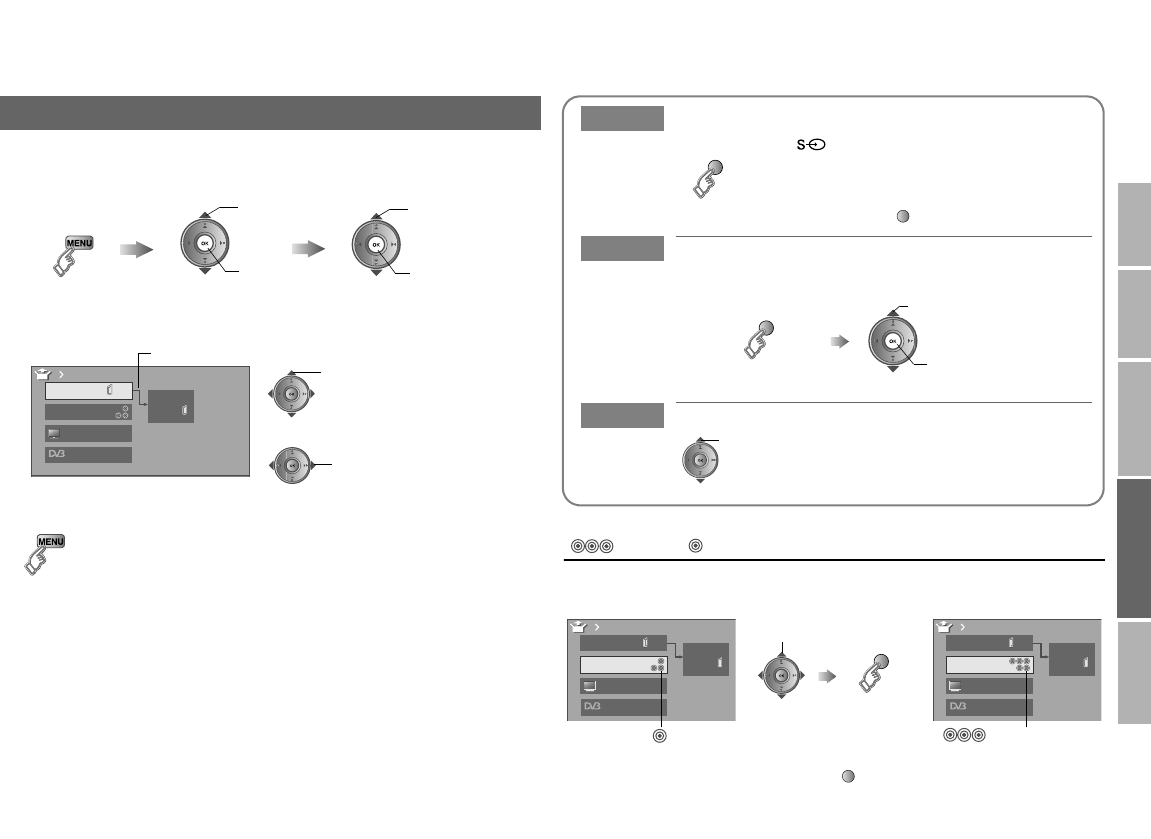
Switch between component and composite input
( Pr/Pb/Y, V)
Return to composite input g Press “ ” (yellow) in B again.
1Display the “Ext Setting” menu
2Select an “EXT” or arrow, and then proceed with setting
3Finish
zHDMI terminal setting g “HDMI-1 Audio Setting” (P. 30)
Setting external terminals
Aselect
Bnext
Display the menu
bar
Select “Ext Setting”
Select “Set Up”
Aselect
Bnext
DTV
Ext Setting
EXT-1
EXT-2
Dubbing
EXT-3
TV
ID List
S-In
Arrow Select an “EXT”
Select the arrow
select
select
S-In Switch to S-Video input
ID List Edit names of connected devices
Dubbing
Set up dubbing on “EXT-2”
ASelect “EXT-3” BSet to component input
Cancel this mode g Press “ ” (yellow) again
z“ ” mark will appear at the selected
“EXT”.
zThe device selection display will change
from “E2” to “S2”.
(yellow)
AShow the name list BSelect a name from the list
Clear the name g Select the blank space in the list
(blue)
Bset
Aselect
select the dubbing source
DTV
Ext Setting
EXT-1
EXT-2
Dubbing
EXT-3
TV
DTV
Ext Setting
EXT-1
EXT-2
Dubbing
EXT-3
TV
select (yellow)
VPr/Pb/Y
LT-42DR9BJ_003A.book Page 31 Thursday, September 11, 2008 3:03 PM
32
Problem Actions
Basics
Remote control stops
working
zUnplug TV, several minutes later plug it in
again.
Screen
Aspect ratio changes
unintentionally zPress “ ” to return to your settings. (P. 22)
Black or white dots
appear on the screen
zLCD panels use fine dots (“pixels”) to display
images.
While more than 99.99% of these pixels
function properly, a very small number of
pixels may not light, or may light all the time.
Please understand that this is not a
malfunction.
Picture
Poor picture quality
zChange the “Picture Mode” setting. (P. 26)
zUnnatural colour >>>
Adjust “Colour” and “Backlight”. (P. 26)
Check your “Colour System”. (P. 27)
zNoise >>> Set to the following functions.
Picture Mode: Standard (P. 26)
Digital VNR: On (P. 27)
DigiPure: Off (P. 27)
zDull picture >>> Set to the following
functions.
Picture Mode: Bright (P. 26)
Digital VNR: Off (P. 27)
DigiPure: On (P. 27)
Strange picture when
using an external
device
zIf you connected S-Video output device,
check the “S-In” setting. (P. 31)
zIf the top of the image is distorted, check the
video signal quality itself.
zIf movement appears unnatural when
receiving a signal from a DVD player etc.,
with 576p (625p), change the output setting
of the external device to 576i (625i).
LCD
Troubleshooting
Analogue channels
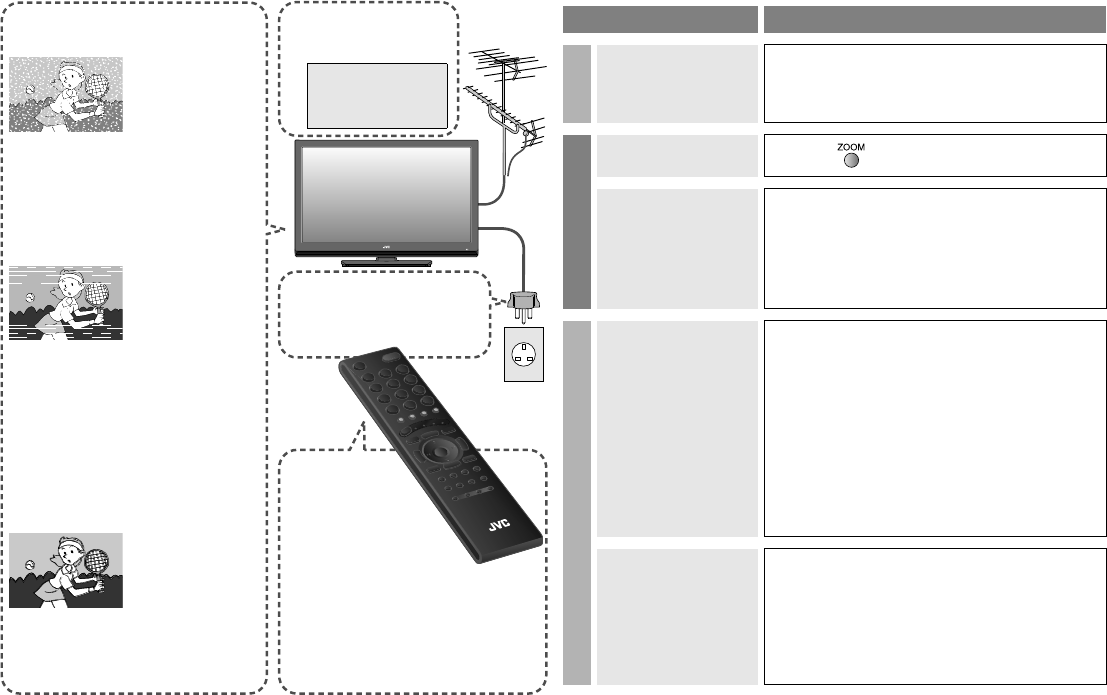
Severe noise or snow
zIs the TV
connected
correctly to the
aerial?
zChange the
direction of the
aerial.
zIs the aerial or its cable
damaged?
gConsult your retailer
zIs the “Attenuator” set to “On”?
g“Attenuator” (P. 30)
Patterns, stripes or noise
zIs the aerial
receiving
interference
from high-
voltage power
lines or wireless
transmitters?
gConsult your retailer
zAre connected devices too close
to the TV?
gPlace a minimum distance
between the aerial and the
cause of interference until no
interference
Ghosting
(Doubling of images)
zAre you
receiving
interference
from signals
reflected off
mountains or
buildings?
gAdjust the direction of your
aerial, or change to a
good-quality directional aerial
For problems
concerning digital
channels
gWATCHING
DIGITAL
CHANNELS
P. 16 - 17
I can’t turn it on!
zIs the power cord
connected to the AC
outlet correctly?
The remote
control
doesn’t work!
zAre the batteries
flat?
zAre you more than 7
meters away from the
TV?
zIs the “MODE (TV, STB, DVD,
AUDIO)” set to “TV”?
zWhen viewing teletext, the TV
menu bar does not appear.
zDepending on the stability of the
signal, there may be a time lag
when changing channels.
LT-42DR9BJ_003A.book Page 32 Thursday, September 11, 2008 3:03 PM
33
USE SETTING
TROUBLE?
PREPARE
IMPORTANT
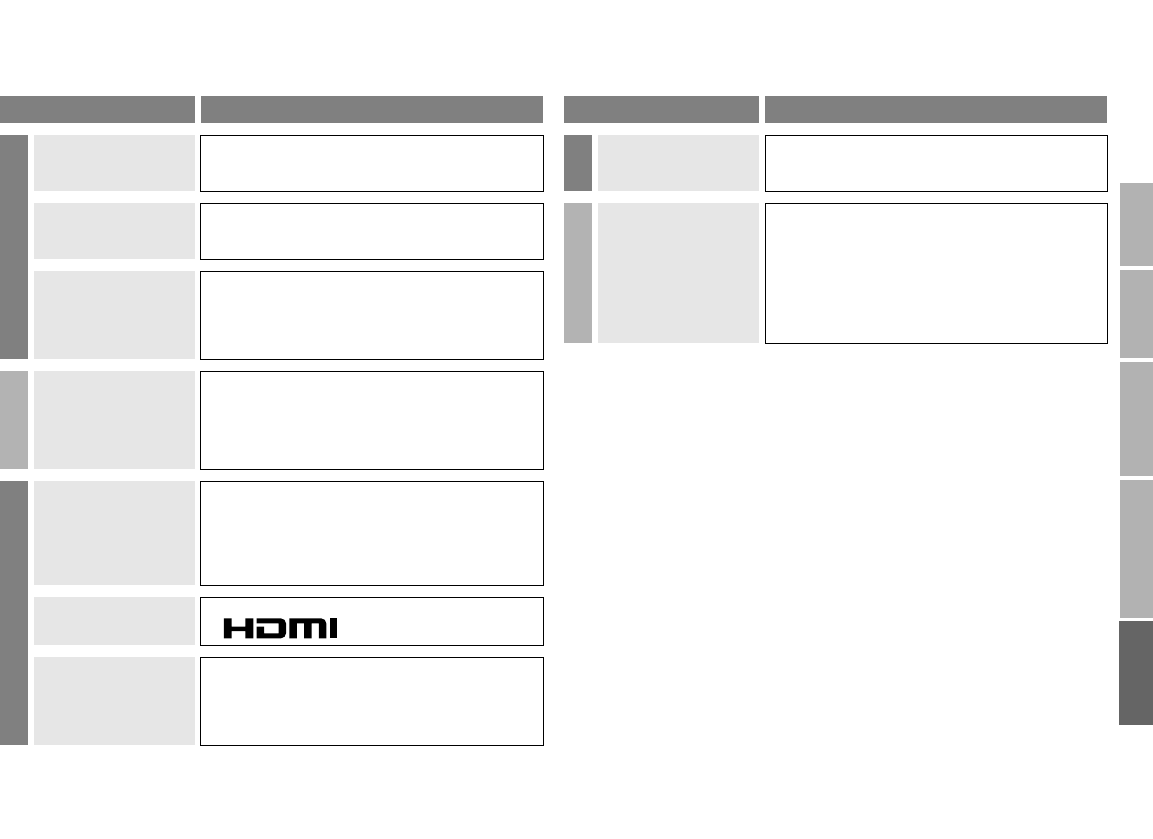
Problem Actions
Sound
Poor sound
zAdjust “Bass” and “Treble”. (P. 28)
zIf receiving a poor signal in “Stereo/t-u”,
switch to “v” (monaural). (P. 23)
No sound from the
audio component
zAudio signals received from EXT-4, EXT-5
and EXT-6 cannot be sent to the
AUDIO OUT terminal.
Left and right sound
coming from one side
of the speaker
zIf you hear both the left and right sound from
one side of the speaker even after adjusting
the speaker balance to one side, set
“Hyper Sound” and “3D Cinema Sound” to
“Off”. (P. 22, 28)
Functions
Some functions do
not work
zIt is not a malfunction. Depending on the
situation, some function items will be
displayed in black colour and will not work.
(P. 26)
HDMI
Wrong screen size
zRead the user manual of the connected
device and perform the following:
gCheck if the output setting of the device is
correct.
gChange the signal format of the device to
other format.
No picture, no sound
zUse the cable marked with HDMI logo.
No sound
zCheck if the device is compliant with HDMI.
zSet “HDMI-1 Audio Setting” to “Digital” or
“Auto” for HDMI devices, or “Analogue” or
“Auto” for DVI devices.
(Not available for EXT-5 and EXT-6.) (P. 30)
Problem Actions
HDMI
Green and distorted
screen
zWait a little for the signal to stabilize when
switching the signal format for an HDMI
device.
Error message
“ACI Error” appears
zPress W to start “ACI” again.
If you still receive the “ACI Error” after
numerous tries, press X to cancel “ACI”.
LT-42DR9BJ_003A.book Page 33 Thursday, September 11, 2008 3:03 PM
34
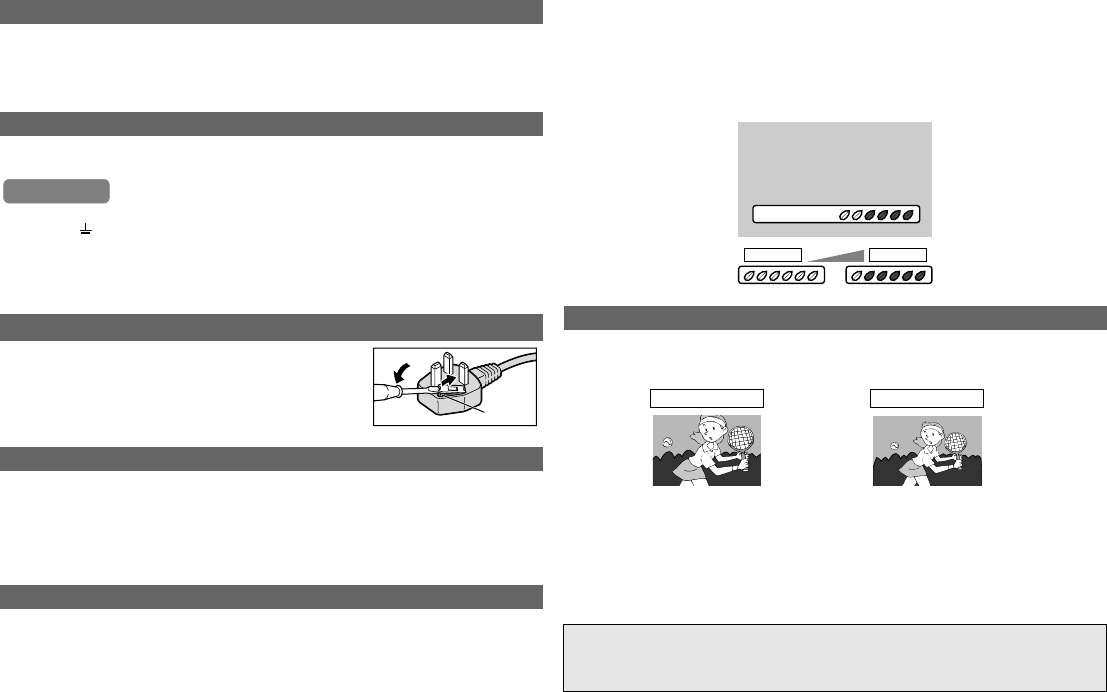
Some cable companies transmit a signal called “ACI” which contains
information that allows TV channels to be registered automatically on your TV.
When an ACI signal is received, “ACI Start / ACI Skip” appears in the “Auto
Program” screen.
Attach a new plug following the steps below. If in doubt, contact your local
retailer.
zNever connect to the larger terminal marked with an “E”, the safety earth
symbol “ ” or coloured green or green-and-yellow.
zThe wires in the mains lead on this product are coloured with the following
code:
•Blue: Neutral wire (connect to the black terminal, or one marked “N”)
•Brown: Live wire (connect to the red terminal, or one marked “L”)
When “Auto” is selected in Zoom, the aspect ratio will turn to the ratio
obtained from the information the TV received.
zThe aspect ratio will turn to the ratio obtained from WSS (Wide Screen
Identification Signal), video signal, or control signal of the external devices.
Without receiving the aspect information, it will be the setting in “4:3 Auto
Aspect”. (P. 27)
You can adjust this TV so that the screen automatically adjusts to the
optimum contrast of light and dark according to the brightness of your room.
This function reduces eyestrain and the power consumption of this TV.
zSet “Eco Sensor” g “Eco Sensor” (P. 29)
zMake sure not to block the Eco Sensor on front of the TV (P. 6)
zTo fully reduce eyestrain and the power consumption of this TV. Set to the
following functions.
Eco Sensor: On or Demo (P. 29)
Smart Picture: On (P. 27)
Using “Demo” in “Eco Sensor”, you can display the effect of the “Eco
Sensor” on the screen
zWith the full HD LCD display and “Full Native”, you can enjoy full native HD
resolution of 1920 x 1080. It exposes flaws in the video that were hidden
when viewing on “Full”.
* The illustrations are emphasised to make clear differences between “Full”
and “Full Native”.
zDark bar or noise may appear at the edges of the screen when viewing in
“Full Native” for some videos. This is resulted from the signal itself, not due
to TV malfunction.
What is “ACI” (Automatic Channel Installation)?
If you accidentally cut the power cord
Change the fuse in the plug
Open the plug as illustrated on the right.
zWhen replacing the fuse, always use a correctly
rated and approved type and re-fit the fuse cover
when finished.
If in doubt, contact your local retailer.
Auto in “Zoom”
What is “Eco Sensor”?
Important
Fuse
What is “Full Native”?
For more information, please read the separate manual
(WATCHING DIGITAL CHANNELS).
“Technical Information” (P. 17 - 18)
Eco Sensor
LightDark
Full Full Native
Technical information
LT-42DR9BJ_003A.book Page 34 Thursday, September 11, 2008 3:03 PM
35
USE SETTING
TROUBLE?
PREPARE
IMPORTANT
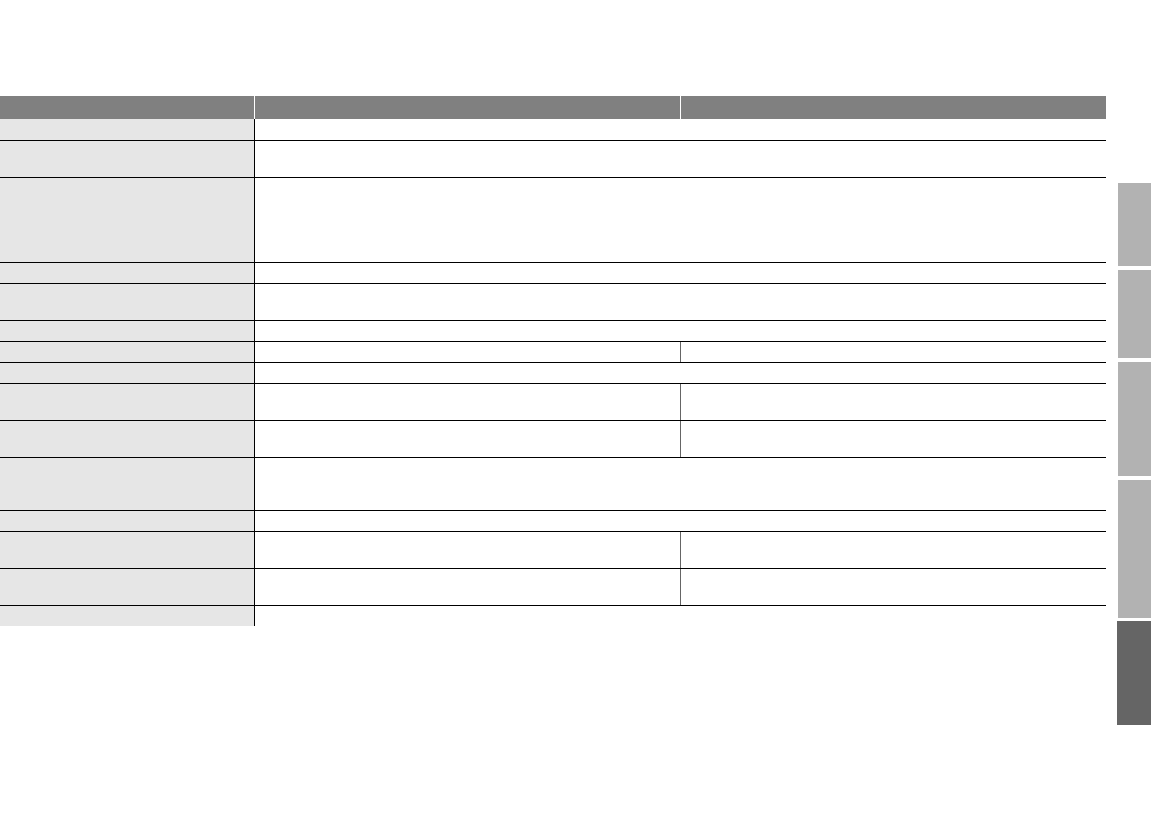
Model LT-32DR9BJ LT-42DR9BJ
Broadcasting systems CCIR I
Colour systems TV broadcast: PAL
External input: PAL, NTSC 3.58/4.43 MHz
Channels and frequencies Digital:
E21-E68 (Frequency: 470-854 MHz)*
Analogue:
UNITED KINGDOM: E21-E69 (UHF)
IRELAND: IR A-IR J, E2-E12, E21-E69 (VHF/UHF)
Sound-multiplex systems NICAM (I)
Teletext systems Digital: MHEG 5 UK profile
Analogue: FLOF (Fastext), WST (World Standard System)
Power requirements AC 220 V - 240 V, 50 Hz
Audio output (Rated power output) 6 W + 6 W 10 W + 10 W
Speakers (4 cm x 16 cm) oblique x 2
Power consumption
[standby]
150 W
[0.4 W]
220W
[0.6W]
Screen size (visible area size
measured diagonally)
81 cm 105 cm
Connectors HDMI x 3, RCA x 7 (component or composite video, audio L/R), Euroconnector (SCART) x 2,
Optical connector (digital audio output) x 1
For details g (P. 10, 11)
Headphone jack Stereo mini jack (3.5 mm in diameter) x 1
Dimensions (W x H x D: mm)
[without stand]
791 x 574 x 230
[791 x 521 x 104]
1014 x 698 x 296
[1014 x 646 x 109]
Weights
[without stand]
14.4 kg
[12.7 kg]
26.1 kg
[23.1 kg]
Accessories (See “Check accessories”, P. 8)
zA CAM (Conditional Access Module) for watching pay-TV digital channels can be installed. (P. 8)
zDC power can be supplied to the indoor aerial. g (P. 12)
* This TV can receive digital terrestrial broadcasting (DVB-T) in the United Kingdom. Digital terrestrial broadcasting (DVB-T) reception in other countries is
not guaranteed.
zWe may change the design and specifications without notice.
Specifications
LT-42DR9BJ_003A.book Page 35 Thursday, September 11, 2008 3:03 PM
I
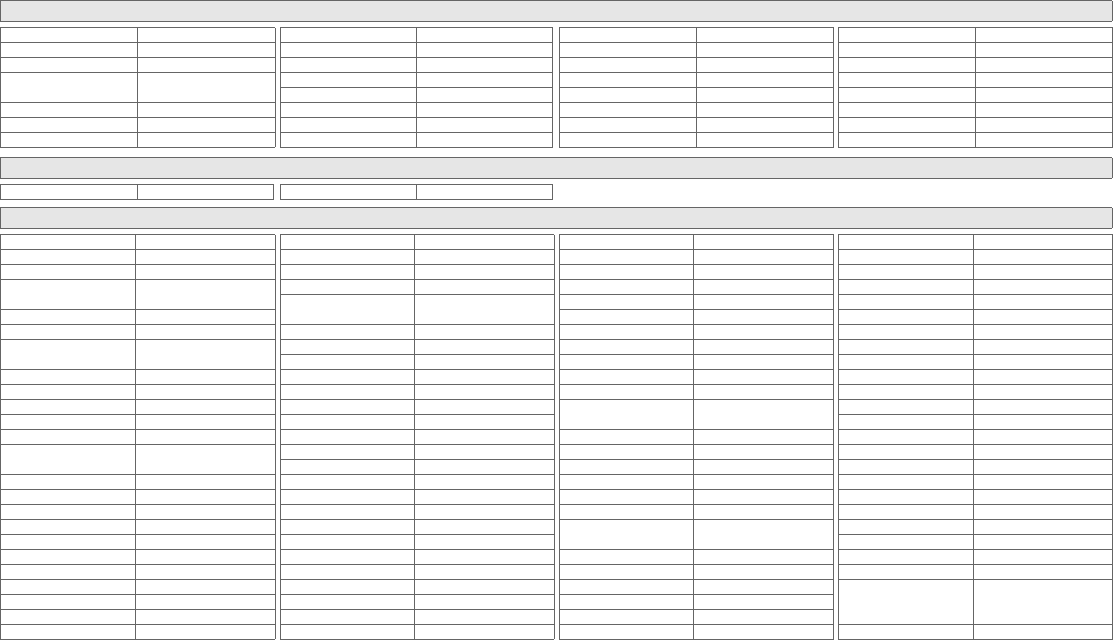
Remote control codes (P. 24)
Cable Set Top Box
ADB 1230, 1269
Auna 1230
Austar 0276
Birmingham Cable
Communications 0276
Cable & Wireless 1068
Fosgate 0276
France Telecom 0817
Freebox 1482, 1976
General Instrument 0276
HyperVision 0619
Jerrold 0276
Macab 0817
Madritel 1230
Motorola 0276
Nokia 1569
Noos 0817
NTL 0276, 1060, 1068
Ono 1068
Optus 0276
Pace 1060, 1068, 1577
Philips 0619, 0817
Sagem 0817
Samsung 1060, 1666
Scientific Atlanta 0477
StarHub 0276
Supercable 0276
Tele Danmark 0619
Telewest 1068
Tudi 0619
US Electronics 0276
Visiopass 0817
Cable/PVR Combination
Freebox 1482, 1976 Nokia 1569
Satellite Set Top Box
@sat 1300
@Sky 1334
ABsat 0713
ADB 0642, 1259, 1367, 1418,
1473, 1491
Akai 0200
Akura 1705
Alba 0455, 0613, 0713, 1284,
1659
Allsat 0200
Alltech 0713
Allvision 1232, 1334, 1412
Amitronica 0713
Ampere 0132, 0396
Amstrad 0132, 0396, 0501, 0713,
0847, 1113, 1175, 1693
Anglo 0713
Ankaro 0713
Anttron 0613
Apollo 0455
Apro 1672
Arcon 1075
Armstrong 0200
Arnion 1300
Asat 0200
ASCI 0114, 1334
ASLF 0713
AssCom 0853
Aston 1261
Astra 0607, 0713
Astratec 1743
Astro 0173, 0501, 0607, 0613,
0658, 1099, 1100, 1113
Atsat 1300
AtSky 1334
Audioline 1672
Audioton 0613
Austar 0642, 1259
Avalon 0396
Axil 1457, 1659
Axis 1111
B@ytronic 1412
Beko 0455
Best Buy 1993
Big Sat 1457
Black Diamond 1284
Blaupunkt 0173
Blue Sky 0713
Boca 0132, 0713, 1232, 1366
Boston 1251
Brainwave 0658, 1294, 1672
British Sky Broadcasting 0847, 1175, 1662
Broco 0713
BskyB 0847, 1175, 1662
BT 1296
Bubu Sat 0713
Bush 1284, 1645, 1672, 1743
Cambridge 0501
Canal Digital 0853
Canal Satellite 0292, 0853, 1339, 1853
Canal+ 0853, 1339
CGV 1413, 1567
Cherokee 1480
Chess 0114, 0713, 1334, 1626
Chili 1718
CityCom 0299, 0607, 0818, 1075,
1176, 1232
Clark 0613
Classic 1672
Clatronic 1413
Clemens Kamphus 0396
Cobra 0396
Colombia 0132
Comag 0132, 1232, 1366, 1412,
1413, 1579
Condor 0607
Connexions 0396
Conrad 0132, 0501, 0607
Coship 1457
Crown 1284
Cryptovision 0455
Cyrus 0200
D-box 0723, 1114, 1127
Daewoo 0713, 1111, 1296, 1743
DAK 1993
Deltasat 1075
Digatron 1294
Digenius 0299, 1161
Digiality 0607
Digifusion 1581, 1645, 1743
Digihome 1284
DigiLogic 1284
DigiQuest 1300, 1457, 1473
DigiSat 1232
Digisky 1457
Dijam 1296
DiPro 1367, 1543
DirecTV 0099
Discovery 1480
Distratel 1283, 1704, 1705
DMT 1075
DNT 0200, 0396
Dream Multimedia 1237
Durabrand 1284
Echostar
0167, 0396, 0455, 0610,
0713, 0853, 1200, 1323,
1409, 1418, 1473
Einhell 0132, 0501, 0713
RemoteControlCodes.fm Page I Friday, August 29, 2008 5:07 PM

II
Elap 0713, 1567
Elsat 0713
Elta 0200, 1659
Engel 0713, 1251
EP Sat 0455
Eurocrypt 0455
EuroLine 1251
Europa 0501, 0607
Europhon 0132, 0299, 0607
Eurosky 0114, 0132, 0299, 0501,
0607
Eurostar 0607, 0818
Eutelsat 0713
Exator 0613
Fenner 0713
Ferguson 0455, 1291, 1743
Fidelity 0501
Finlandia 0455
Finlux 0455
Flair Mate 0713
FMD 0114, 1251, 1413, 1457
Freecom 0501
FTEmaximal 0713
Fuba 0173, 0299, 0396, 1161,
1214, 1251
Galaxis 0853, 1111, 1557
Gardiner 0818
Garnet 1075
GbSAT 1214
Gecco 1273, 1412
General Satellite 1176
Globo 1251, 1334, 1412, 1429,
1626
GOD Digital 0200
Gold Box 0292, 0853
Golden Interstar 1283
Goodmans 0455, 1284, 1291, 1591,
1705
Granada 0455
Grandin 1626
Grundig 0173, 0847, 0853, 1284,
1291, 1330
Haensel & Gretel 0132
Hanseatic 1099, 1100
Hauppauge 1294, 1672
HB 1214
HDT 1159
Heliocom 0607
Helium 0607
Hirschmann 0173, 0299, 0396, 0501,
0607, 1111, 1232, 1412
Hitachi 0455, 1284
HNE 0132
Hornet 1300
Houston 0396
Humax 1176, 1427, 1675, 1743,
1788, 1808, 1915
Huth 0132, 0607, 1075
Hyundai 1075, 1159
iCan 1367
ID Digital 1176
ILLUSION sat 1557
Imperial 1334, 1429, 1672
Ingelen 0114, 0396
International 0132
Interstar 1214
Intervision 0607
ITT Nokia 0455, 0723
Jaeger 1334
K-SAT 0713
Kamm 0713
Kaon 1300
KaTelco 1111
Kathrein
0114, 0173, 0200, 0480,
0504, 0553, 0613, 0658,
0713, 0818, 1416, 1561,
1567
Kenwood 0853
Key West 0132
Kiton 0114
Konig 0607
KR 0613
Kreiling 0114, 0658, 1480
Kreiselmeyer 0173
Kyostar 0613
L&S Electronic 0132, 1334
Labgear 1296
LaSAT 0132, 0173, 0299, 0607
Legend 1718
Lemon 1334
Lenco 0607, 0713
Lenson 0501
LG 1075
Lifesat 0132, 0299, 0713
Listo 1626
Lodos 1284
Logik 1284
Logix 1075
Lorenzen 0132, 0299, 0607, 1161,
1294, 1579
Luxor 0501
M Electronic 0818
M vision 1557
Manata 0132, 0713
Manhattan 0455
Marantz 0200
Maspro 0173, 0713
Matsui 0173, 1284, 1591, 1743
Max 0607
Maxim 1705
Maximum 1075, 1334
Mediabox 0292, 0853
Mediacom 1206
MediaSat 0292, 0501, 0853, 1339
Medion 0132, 0299, 0713, 1075,
1232, 1334, 1412, 1626
Medison 0713
Mega 0200
Metronic
0132, 0613, 0713, 0818,
1283, 1334, 1375, 1704,
1705
Metz 0173
Micro 0501, 0607, 0613, 0713,
1294
Micro Elektronic 0713
Micro Technology 0713
Micromaxx 0299
Microstar 1075
Microtec 0713
Mitsubishi 0455
Morgan's 0132, 0200, 0713, 1232,
1412
Motorola 1473
MTEC 1214
Multibroadcast 0642
Multichoice 0642
Mx Onda 1659
Myryad 0200
Mysat 0713
MySky 1693, 1848, 1850
Neom 1993
NEOTION 1334
Netgem 1322
Netsat 0099
Neuf TV 1322
Neuhaus 0501, 0607, 0713
Neuling 0132, 1232
Neusat 0713
Neveling 1161
Nevir 1659
Newton 0396
Nikko 0200, 0713, 0723
Noda Electronic 1704
Nokia
0455, 0723, 0751, 0853,
1023, 1127, 1223, 1310,
1723
Nordmende 0455
Octagon 0613
OctalTV 1294
Oggle 1705
Opentel 1232, 1412
Optex 0114, 0713, 1283, 1611,
1626
Orbis 1232, 1334, 1412
Orbitech 0114, 0501, 1099, 1100
P/Sat 1232
Pace
0200, 0241, 0329, 0455,
0847, 0853, 1175, 1323,
1423, 1693, 1717, 1848,
1850
Pacific 1284, 1375
Packard Bell 1111
Palcom 0299, 1161, 1409
Palladium 0396, 0501
Palsat 0501
Panasonic 0455, 0847, 1304
Panda 0173, 0455, 0607
Patriot 0132
peeKTon 1457
RemoteControlCodes.fm Page II Friday, August 29, 2008 5:07 PM
III
Satellite Set Top Box
Philips
0099, 0133, 0173, 0200,
0292, 0455, 0613, 0818,
0853, 1114, 1339, 1499,
1543, 1672
Phonotrend 1200
Pilotime 1339
Pino 1334
Pioneer 0292, 0329, 0853, 1308
Planet 0396
PMB 0713, 1611
Polytron 0396
Portland 1296
Preisner 0132, 0396, 1113, 1366
Premier 0292, 0723, 0853, 1429
Primacom 1111
Proline 1659
Promax 0455
Quelle 0299, 0607
Radiola 0200
Radix 0396, 1113
Rainbow 0613
Rebox 1214
Regal 1251
RFT 0200
Roadstar 0713, 0853
Rollmaster 1413
Rover 0713
Rownsonic 1567
S-ZWO 1207
SAB 1251
Saba 0607, 0820
Sabre 0455
Sagem 0820, 1114, 1339, 1690
Samsung 0853, 1206, 1243, 1458,
1570, 1916
SAT 0501
Sat Control 1300
Sat Partner 0501, 0613
Sat Team 0713
SAT+ 1409
Satcom 0607
Satec 0713
Satelco 1232
Satplus 1100
Schaecke 0613
Schaub Lorenz 1214
Schneider 1206, 1251
Schwaiger 0132, 0504, 0607, 1075,
1111, 1334, 1412, 1457
SCS 0299
Sedea Electronique 0132, 1206, 1283, 1626
Seeltech 1993
Seemann 0396
SEG 0114, 1075, 1251, 1626,
1993
Septimo 1375
Serd 1412
Serino 0610
Servimat 1611
ServiSat 0713, 1251
Siemens 0173, 0396, 1334, 1429
Silva 0299
Skantin 0713
SKR 0713
SKY 0099, 0847, 1175, 1662,
1693, 1848, 1850
SKY Italia 0853, 1693, 1848
Sky XL 1251, 1412
Sky+ 1175
Skymaster 0713, 1075, 1200, 1334,
1409, 1567, 1611
Skymax 0200
Skyplus 1232, 1334, 1412
SkySat 0114, 0501, 0607, 0713
Skyvision 1334
SL 0132, 0299, 1294, 1672
SM Electronic 0713, 1200, 1409
Smart 0132, 0396, 0713, 1113,
1232, 1273, 1404, 1413
Sony 0282, 0292, 0455, 0847,
0853, 1558
SR 0132
Starland 0713
Starlite 0200
Stream 1848
Strong
0132, 0613, 0713, 0820,
0853, 1159, 1284, 1409,
1626, 1765
Sunny 1300
Sunsat 0713
Sunstar 0132, 0642
Supratech 1413
Systec 1334
Tantec 0455
Tatung 0455
Tboston 1659
Tecatel 1200
TechniSat
0114, 0396, 0455, 0501,
1099, 1100, 1195, 1197,
1322
Technomate 1283, 1610
Technosonic 1672
Technotrend 1429
Technowelt 0132, 0607
Techwood 0114, 1284, 1626
Telasat 0607
TELE System 0396, 1251, 1409, 1611
Teleciel 0613
TeleClub 1367
Teleka 0396, 0501, 0607, 0613
Telesat 0607
Telestar
0114, 0501, 1099, 1100,
1251, 1334, 1610, 1626,
1672
Teletech 0114
Televes 0132, 0455, 0501, 1214,
1300, 1334
Telewire 1232
Tevion 0713, 1409, 1672
Thomson
0292, 0455, 0607, 0713,
0820, 0847, 0853, 1046,
1175, 1291, 1339, 1534,
1543, 1662
Thorn 0455
Tiny 1672
Tioko 0132
Tividi 1429
Tokai 0200
Tonna 0455, 0501, 0713, 1611
Topfield 1206, 1207, 1208, 1545
Toshiba 0455, 1284
TPS 0820
Triasat 0501
Triax
0114, 0132, 0200, 0396,
0501, 0713, 0853, 1113,
1251, 1291, 1296, 1611,
1626
TT-micro 1429
Turnsat 0713
Twinner 0713, 1611
Unisat 0132, 0200
United 1251
Universum 0114, 0173, 0299, 0607,
1099, 1251
Van Hunen 1161
Vaova 1993
Variosat 0173
Ventana 0200
Vestel 0114, 1251
VH Sat 0299
Visionic 1283
VisionNet 1557
Visiosat 0114, 0713, 1413, 1457,
1718
VTech 0818
Wetekom 0501
Wewa 0455
Wharfedale 1284
Wisi 0132, 0173, 0299, 0396,
0455, 0501, 0607, 1232
Worldsat 0114, 1214, 1251, 1480,
1543
Xsat 0713, 0847, 1214, 1323
Xtreme 1300
Yakumo 1413
Yamada 1718, 1993
Zehnder
0114, 0504, 0818, 1075,
1232, 1251, 1334, 1412,
1413
Zeta Technology 0200
Zodiac 0396, 0613
Remote control codes
RemoteControlCodes.fm Page III Friday, August 29, 2008 5:07 PM
IV
SAT/PVR Combination
@sat 1300
Allvision 1412
Amstrad 1175
Atsat 1300
B@ytronic 1412
Best Buy 1993
British Sky Broadcasting 1175
BskyB 1175, 1662
Bush 1645
Canal Satellite 1339
Comag 1412
DAK 1993
Digifusion 1645
DigiQuest 1300
DMT 1075
Dream Multimedia 1237
Echostar 0610
GbSAT 1214
Gecco 1412
Globo 1412
HDT 1159
Hirschmann 1412
Humax 1176, 1427, 1675, 1788,
1808
Huth 1075
Hyundai 1075, 1159
Kathrein 0658, 1561
LG 1075
Maximum 1334
Mediacom 1206
Medion 1412
Microstar 1075
Morgan's 1412
MTEC 1214
MySky 1693, 1848, 1850
NEOTION 1334
Nokia 1023, 1310
Opentel 1412
Orbis 1412
Pace 1175, 1423, 1850
Panasonic 1304
Philips 0099
Pilotime 1339
Rebox 1214
Samsung 1206, 1570
Sat Control 1300
Schneider 1206
Schwaiger 1075, 1412
Sedea Electronique 1206
SEG 1993
Serd 1412
SKY 1175, 1693, 1848, 1850
SKY Italia 1848
Sky XL 1412
Skymaster 1075
Skyplus 1334, 1412
Sunny 1300
TechniSat 1195, 1197
Thomson 1175, 1534, 1662
Topfield 1206, 1545
Vaova 1993
Xtreme 1300
Yamada 1993
Zehnder 1075, 1412
DVD
3D LAB 0539
4Kus 1158
A-Trend 0714
Acoustic Solutions 0713, 0730, 1316
AEG 0770, 0788, 0790, 1233,
1434, 1923
AFK 1051, 1152, 1923
Airis 0672, 1005, 1224, 1321
Aiwa 0533
Akai 0788, 0790, 0898, 1115,
1233, 1557, 1695
AKI 1005
Akura 0898, 1051, 1140, 1233,
1367
Alba
0539, 0672, 0695, 0699,
0713, 0730, 0783, 1140,
1530, 1695
Alize 1151
All-Tel 1451
Altacom 1224
Amitech 0770, 0850
Amoi 0852
Amstrad 0713, 0770, 1151, 1367
AMW 0872
Ansonic 0774, 0831, 1316
Apex Digital 0672, 1004
Arena 1115
Aria 0893
Arianet 0818, 0893
Aristona 0539, 0646
ASCOMTEC 1923
Asono 1224
Astro 1513
Atacom 1224
Audiola 1660
Audiosonic 1923
Audix 0713
Autovox 0713
Auvio 0843
Axion 0730
Basic Line 0713, 1994
Baze 0898
BBK 1224
Beep 1163
Bellagio 1004
Belson 1923
Berthen 1643
Binatone 1923
Black Diamond 0713
Blu:sens 1233, 1321
Blue Nova International 1321
Blue Sky 0651, 0672, 0695, 0713,
0790, 0843, 1423
Boghe 1004, 1221
Boman 0783, 0898, 1005
Bose 2023
Brainwave 0770, 1115
Brandt 0503, 0551, 0651
Broksonic 0695
Bush
0672, 0699, 0713, 0723,
0730, 0733, 0831, 0879,
1051, 1128, 1140, 1367,
1419, 1436, 1483, 1695,
1832
Cambridge Audio 0751, 1109
Campomatic Digital 1051
Cat 0699, 0786, 0789, 1421,
1923
CCE 0730
cello 1730
Centrum 0713, 0779, 0789, 1005,
1227, 1923, 1994
CGV 0733, 0751, 1115
Cinea 0841
Cinetec 0713, 0872
cineULTRA 0699
Classic 0730, 1730
Clatronic 0672, 0675, 0788, 0818,
1233, 1434
Clayton 0713
Coby 0730, 0852
Codex 1233
Commax 1321
Conia 0852
Contel 0788
Continental Edison 0831, 0872
Crown 0713, 0770, 1115
Cybercom 0831
CyberHome 0714, 0816, 1502
Cytron 0651, 0774, 1347
D-Vision 1115, 1367
Daenyx 0872
Daewoo 0490, 0714, 0770, 0870,
0872, 1436, 1483
Dalton 0786, 1036
Dansai 0770, 0783, 1115, 1695
Dantax 0539, 0713, 0723, 0790
Daytek 0872, 1005
Dayton 0872
DCE 0831
RemoteControlCodes.fm Page IV Friday, August 29, 2008 5:07 PM
V
DVD
Decca 0770, 1115
Denon 0490, 0634, 1634
Denver 0672, 0699, 0788, 0898,
1316, 1321, 1923
Denzel 0665
Desay 0843
Dgtec 0672
Diamond 0651
Digihome 0713
DigiLogic 0713
Digital i 0893
Digitech 1832
DiK 0831
Dinamic 0788
Disney 0831
DK Digital 0831, 1557, 1660
DMTech 0783, 1271
Dragon 0831
DreamX 1151
DSE 1730
Dual
0651, 0665, 0713, 0730,
0779, 0783, 0790, 0831,
1436, 1530
Durabrand 0713, 0831, 1502
E:max 1233, 1321, 1643
eBench 1152
ECC 0730
Eclipse 0723, 0751
Elfunk 0713, 0850
Elin 0770
Ellion 0850, 1421
Elta 0672, 0770, 0788, 0850,
1051, 1115, 1151, 1233
Eltax 1233, 1321
Emerson 0591
Energy Sistem 1513
Enterprise 0591
EuroLine 0675, 0788, 1115, 1233
Excello 1513
Fenner 0651
Ferguson 0651, 0695, 0713, 0898,
1695, 1730
Finlux 0591, 0672, 0741, 0751,
0770, 0783
Fintec 1530
Firstline 0713, 0843, 0869, 1530
Fisher 0670
Funai 0675, 0695
Gateway 1158
Germatic 1051
Giec 1221
Global Link 1224
Global Solutions 0768
Global Sphere 1152
Go Video 0783, 0869
GoldStar 0591, 0741
Goodmans
0651, 0713, 0723, 0730,
0783, 0790, 0879, 1004,
1140, 1221, 1316, 1423,
1530, 1730, 1923, 2014
GoWell 1643
GPX 0699, 0741
Graetz 0665
Gran Prix 0831, 0898
Grandin 0713, 1233
Grundig
0539, 0551, 0651, 0670,
0695, 0713, 0775, 0790,
1004, 1036, 1128, 1436,
1465, 1643, 1695, 1730,
1832
Grunkel 0770, 0790, 0831, 1316
H & B 0713, 0818, 0841, 0850,
1233, 1421
Hanseatic 0741, 0783, 0790
Harman/Kardon 0702
Haus 0786
HCM 0788
HE 0730, 1163, 1923
Henss 0713
HiMAX 0843
Hitachi 0573, 0664, 0665, 0713,
1664, 1835, 1994
Hiteker 0672, 1923
Hoeher 0651, 0713, 0831, 1004,
1224
Home Electronics 0730, 0770
Home Tech Industries 1224
HotMedia 1152
Humax 0646
Hyundai 0850, 1660
IISonic 1508
Ingelen 0788
Inno Hit 0713
Irradio 0869, 1115, 1224, 1233
IRT 0783
ISP 0695
Jamo 1036
Jaton 0665
JDB 0730
JDV 1367
Jeken 0699
JMB 0695
JVC
0503, 0539, 0623, 1164,
1241, 1275, 1550, 1597,
1602, 1701, 1860, 1863,
1940
jWin 1051
Kansas Technologies 1233, 1530
Karcher 0783
Kendo 0672, 0699, 0713, 0831
Kennex 0713, 0770, 0898
Kenwood 0490, 0534
Kiiro 0770
King Vision 1643
Kingavon 0818
Kiss 0665, 0841, 1523
Kotron 0879
Kreisen 1421
KXD 1321, 1923
Lawson 0768
Leiker 0872, 1513
Lenco 0651, 0699, 0713, 0770,
0774, 1513
Lenoxx 2014
Lenoxx Sound 2014
Lexia 0699, 0768
LG 0591, 0741, 0790, 0869,
1906
Lifetec 0651, 0831, 1347
Limit 0768
LiteOn 1158, 1416
LM 1643
Lodos 0713
Loewe 0539, 0741
Logik 0713
Logix 0783
Loomax 1487
Luker 1367
Lumatron 0695, 0713, 0741, 1115,
1321, 1832
Lunatron 0741
Luxman 0573
Luxor 0713, 1004, 1695, 1730
Magnat 1923
Magnavox 0503, 0539, 0646, 0675,
0713, 1140
Magnex 0723
Magnum 1436, 2014
Manhattan 0713
Marantz 0539
Mark 0713
Marquant 0770
Mastec 1221, 1434
Matsui 0651, 0672, 0695, 0713,
1004, 1316, 1695, 1730
Maxim 0713, 0872, 1367
MBO 0730, 1730
MDS 0713
Mecotek 0770
Medion
0630, 0651, 0774, 0783,
0831, 0879, 1006, 1347,
1423
MEI 0790
Memorex 0831
Metz 0525, 0571, 0713, 1994
MiCO 0723, 0751, 1221, 1223
Micromaxx 0695, 1695
Micromedia 0503, 0539
Micromega 0539, 1005
Microsoft 0522, 1708
Microstar 0831
Minato 0752
Minax 0713
Minoka 0770, 1115
Mirror 0752, 0879
Mitsubishi 0713
Remote control codes
RemoteControlCodes.fm Page V Friday, August 29, 2008 5:07 PM

VI
Mizuda 0770, 0818, 1451
Monyka 0665
MPX 0843
Mustek 0730, 1730
Muvid 1643
Mx Onda 0651, 0751, 1223
Mystral 0831
NAD 0741
Naiko 0770, 1004, 1367
Narita 1367
Neom 1643
Neovia 1271
Neufunk 0665
Nevir 0770, 0831, 1484
Nikkai 1923
Nintaus 1051
Norcent 1923
Nordmende 0774, 0831
Noriko 0752
Okano 0752
Olidata 0672
Onkyo 0503, 0627, 1769
Oopla 1158
Optim 0843
Optimus 0525
Orava 0818
Orbit 0872
Orion 0695, 1128, 1233, 1419,
1434, 1695
Oritron 0651
Ormond 0713
P&B 0818, 1451
Pacific 0695, 0713, 0768, 0790,
0831
Packard Bell 0831, 1321, 1648
Palladium 0695, 0713, 0779, 1906
Panasonic
0490, 1010, 1011, 1579,
1641, 1661, 1834, 1905,
1908
Panda 0789
peeKTon 0898, 1224, 1484
Philco 0733
Philips
0503, 0539, 0646, 0675,
1158, 1340, 1354, 1813,
2084
Phonotrend 0699
Pioneer 0142, 0525, 0571, 0631,
1571, 1965
Play It 1643
Plu2 0850
Powerpoint 0872, 1005
Prinz 0831
Prism 0831
ProCaster 1004, 1513
Proline 0651, 0672, 0710, 1004,
1316, 1483
Proscan 0522
Proson 0713
Prosonic 0699, 0752
ProVision 0699, 0730, 1163, 1321,
1484, 1923
Pye 0539, 0646
QONIX 1051
Radionette 0741, 0869, 1906, 2024
Raite 0665
RCA 0522
REC 0490
Redstar 0763, 0770, 0788, 0898,
1394, 1923
Relisys 1347
Reoc 0752, 0768
Revoy 0699, 0841
Richmond 1233
Roadstar
0672, 0699, 0713, 0730,
0818, 0879, 0898, 1051,
1227, 1434, 2014
Ronin 0710, 0872
Rotel 0623
Rownsonic 0789
Saba 0551, 0651
Saivod 0831, 1367
Salora 0741
Sampo 1321
Samsung 0199, 0490, 0573, 0744,
1075, 1635, 1932
Sansui 0695, 0751, 1316
Sanyo 0670, 0713
Scan 0850
ScanMagic 0730, 1730
ScanSonic 1695
Schaub Lorenz 0770, 0788, 1115, 1151
Schneider
0539, 0646, 0651, 0713,
0774, 0779, 0783, 0788,
0790, 0831, 0869, 1367
Schoentech 0713
Schwaiger 0752
Scientific Labs 0768
Scott 0651, 0672, 1005, 1036,
1233, 1394, 1423, 1923
Seeltech 1224, 1451, 1513, 1643
SEG 0665, 0713, 0763, 0872,
1483, 1530, 1994
Shanghai 0672
Sharp 0630, 0675, 0713, 0752,
1419, 2015, 2024
Sherwood 0741
Siemssen 1382
Sigmatek 1005, 1224
Siltex 1224
Silva 0788, 0898
Silva Schneider 0831, 0898
SilverCrest 0131, 1152
Sinudyne 1221, 1316
Sistemas 0672
Skantic 0539, 0713
Skymaster 0730, 0768
Skyworth 0898
Sliding 1115
SM Electronic 0730, 0768, 1152
Smart 0713
Sonic Blue 0783
Sony
0533, 0573, 0864, 1033,
1070, 1433, 1516, 1533,
1536, 1633, 1824, 1934,
1981, 2020, 2043, 2132
Sound Color 1233
Soundmaster 0768
Soundwave 0783
Standard 0651, 0768, 0788, 0831,
0898
Star Clusters 1152, 1227
Starlogic 1005
Starmedia 0818, 1005, 1224
Stevison 1367
Strato 1382
Strong 0713
Sunkai 0770, 0850
Sunstech 0831, 1513
Sunwood 0788, 0898
Supervision 0768, 1152
Supratech 0893, 1513
SVA 0672, 0752
Sylvania 0675
Synn 0768
Tamashi 1394
Tandberg 0713, 1695, 1994
Tangent 1321
Targa 1227, 1906
Tatung 0770, 1695
Tchibo 0741
TCM 0741, 0790
Teac 0741, 0768, 1227
Tec 0898
Technica 1367, 1695
Technics 0490, 1905
Technika 0770, 0831, 1115, 1316,
1695
Technisson 1115
Technosonic 1051, 1115
Techwood 0713, 1530, 1994
Tecnimagen 1233
Teletech 0713, 0768
Tensai 0651, 0770
Tesco 1316
Tevion
0651, 0898, 1036, 1227,
1382, 1483, 1730, 1923,
2014
Theta Digital 0571
Thomson 0522, 0551
Tokai 0665, 0788, 0790, 0898,
1557
Tom-Tec 0789
Top Suxess 1224
Toshiba 0503, 0695, 1045, 1459,
1510, 1769, 2006
TRANS-continents 0831, 0872, 1233, 1321
Tredex 0843
TSM 1224
Umax 1151
RemoteControlCodes.fm Page VI Friday, August 29, 2008 5:07 PM
VII
DVD
United
0675, 0695, 0699, 0713,
0730, 0788, 1115, 1152,
1233, 1367, 1643, 1832
Universum
0591, 0713, 0741, 0779,
0790, 0869, 1227, 1530,
1913
Uptek 0763
Venturer 0790
Vestel 0713, 1530, 1994
Victor 1241
Voxson 0730, 0831
Waitec 1151, 1224, 1233
Waltham 1530
Welkin 0831
Wellington 0713
Welltech 1221
Weltstar 0713
Wesder 0699
Wharfedale 0713, 0751, 0752, 0790,
1832, 1835
Wilson 0831, 1233
Windsor 0713
Windy Sam 0573
Woxter 1005, 1151, 1224
X-Waves 1513
Xbox 0522, 1708
Xenius 0790
Xoro 1183, 1221
Yakumo 1004
Yamada 0872, 1004, 1151, 1158,
1416
Yamaha 0490, 0539, 0646
Yamakawa 0665, 0710, 0872
Yukai 0730, 1730
Zenith 0503, 0591
Blu-Ray DVD
LG 0741
Panasonic 1641
Philips 2084
Pioneer 0142
Samsung 0199
Sony 1516
HD DVD
LG 0741 Onkyo 1769 Toshiba 1769
DVD-R
4Kus 1158
Airis 1321
Alba 1530
Aristona 0646
Boghe 1221
Bush 1436
Cat 1421
cello 1730
Centrum 1227
Classic 1730
Commax 1321
CyberHome 1502
Cytron 1347
DSE 1730
Dual 1530
Durabrand 1502
E:max 1321
Ellion 1421
Eltax 1321
Ferguson 1730
Fintec 1530
Firstline 1530
Funai 0675
Gateway 1158
Giec 1221
Goodmans 1221, 1530, 1730
GPX 0741
Grundig 1436, 1730
H & B 1421
Humax 0646
JVC 1164, 1275, 1597
Kansas Technologies 1530
Kreisen 1421
KXD 1321
LG 0741
Lifetec 1347
LiteOn 1158, 1416
Loewe 0741
Lumatron 1321
Luxor 1730
Mastec 1221
Matsui 1730
MBO 1730
Medion 1347
MiCO 0751, 1221
Mustek 1730
Oopla 1158
Packard Bell 1321
Panasonic 0490, 1010, 1011, 1579
Philips 0646, 1158
Pioneer 0631
ProVision 1321
Pye 0646
Relisys 1347
Roadstar 1227
Samsung 1635
ScanMagic 1730
Schneider 0646
SEG 1530
Sharp 1419
Sinudyne 1221
Sony 1033, 1070, 2132
Star Clusters 1227
Sylvania 0675
Tangent 1321
Targa 1227
Teac 1227
Techwood 1530
Tevion 1227, 1730
Thomson 0551
Toshiba 1510
Universum 1227, 1530
Vestel 1530
Waltham 1530
Welltech 1221
Xoro 1221
Yamada 1158, 1416
Yamaha 0646
Yukai 1730
Remote control codes
RemoteControlCodes.fm Page VII Friday, August 29, 2008 5:07 PM
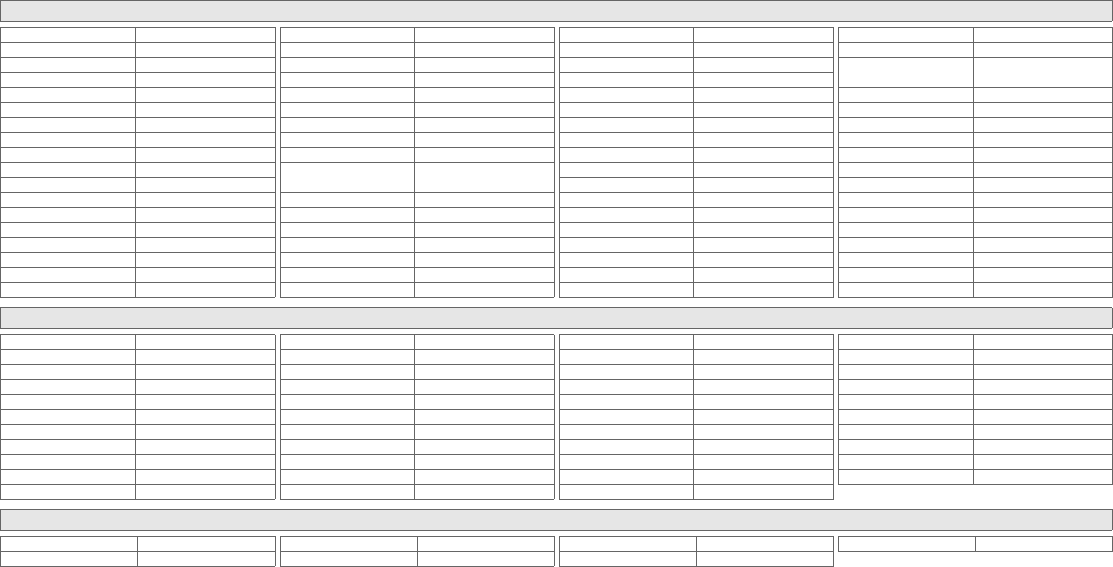
VIII
Home Theater in Box (DVD)
AEG 0790, 1923
AFK 1923
Akai 0790
ASCOMTEC 1923
Audiosonic 1923
Basic Line 1994
Belson 1923
Binatone 1923
Blue Sky 0790
Bose 2023
Bush 1832
Cat 1923
Centrum 1923, 1994
Dantax 0790
Denon 0634, 1634
Denver 1923
Digitech 1832
Dual 0779, 0790
Finlux 0672
Goodmans 0790, 1923, 2014
Grundig 1832
Grunkel 0790
Hanseatic 0790
HE 1923
Hitachi 1835, 1994
Hiteker 1923
Irradio 1233
JVC 0623, 1701, 1860, 1863,
1940
KXD 1923
Lenoxx 2014
Lenoxx Sound 2014
LG 0790, 1906
Lumatron 1832
Magnat 1923
Magnum 2014
Marquant 0770
MEI 0790
Metz 1994
Nikkai 1923
Norcent 1923
Onkyo 0627
Palladium 0779, 1906
Panasonic 1834, 1905, 1908
Philips 1813
Pioneer 1965
ProVision 1923
Radionette 1906, 2024
Redstar 1923
Roadstar 2014
Samsung 1932
Sanyo 0670
Schneider 0779, 0790
Scott 1923
SEG 1994
Sharp 2015, 2024
Sony 1824, 1934, 1981, 2020,
2132
Tandberg 1994
Targa 1906
Technics 1905
Techwood 1994
Tevion 1923, 2014
Thomson 0522
Tokai 0790
Toshiba 2006
United 1832
Universum 0779, 0790, 1913
Venturer 0790
Vestel 1994
Wharfedale 0790, 1832
Xenius 0790
TV/DVD Combination
Akura 1367
Alba 0695
Amstrad 1367
Black Diamond 0713
Blue Sky 0713
Bush 0713, 0879, 1367
Centrum 0713
Crown 0713
D-Vision 1367
Daewoo 0870
DMTech 1271
Elfunk 0713
Ferguson 0695, 0713
Goodmans 0713, 0879
Grandin 0713
Grundig 0539, 0695
Hitachi 0713
JDV 1367
Kotron 0879
Logik 0713
Luker 1367
Luxor 0713
Matsui 0713
Maxim 1367
Medion 0879
Mirror 0879
Naiko 1367
Narita 1367
Neovia 1271
Orion 0695
Pacific 0695
Philips 0539
Roadstar 0879
Saivod 1367
Schneider 1367
SEG 0713
Sliding 1115
Stevison 1367
Technica 1367
Thomson 0551
Toshiba 0695
United 0713, 1367
Universum 0713
Amplifier
Curtis Mathes 0300
Denon 0272
Optimus 0300
Pioneer 0300
RCA 0300
Sony 0689
Yamaha 0848
RemoteControlCodes.fm Page VIII Friday, August 29, 2008 5:07 PM

IX
Receiver
AEG 1389, 1390
AFK 1389
Aiwa 0121, 1189, 1269, 1405
Akai 0609, 1390
All-Tel 1390
Amstrad 0744
Anam 0609
ASCOMTEC 1389
Audiolab 1189
Audiosonic 1389
Audiotronic 1189
Bang & Olufsen 0799
Basic Line 1554
Belson 1389
Binatone 1389
Blue Sky 1390
Bose 1229, 1355, 1933
Bush 0797, 1772
Cat 1389
CCE 1352
Centrum 1220, 1389
Clatronic 0797
Cosmotron 0797
Dantax 1390
Denon 1104, 1360
Denver 1389
Digitech 1772
DiK 0797
DK Digital 1420
Dual 1220, 1390, 1420
eBench 0744, 0797
Elta 0744, 0797, 1390
Ferguson 1154
Fine Arts 1189
Genexxa 0186
Goodmans 0609, 0744, 0797, 1389,
1390, 1420, 1611
Grundig 0797, 1089, 1189, 1344,
1772
Grunkel 0744, 1390
Hanseatic 1390
Harman/Kardon 1189, 1304, 1310
Harwood 0744
HCM 1390
HE 1389
Hitachi 1344, 1554, 1801
Hitech 0744
Hiteker 1389
Intersound 0744
JVC 0074, 1374, 1676, 2000,
2001
Kenwood 0186, 1027, 1313
Kioto 0797
Kompernass 0797
KXD 1389
Lenoxx 1611
Lenoxx Sound 1611
LG 1293, 1869
Lifetec 0797
Lumatron 1772
LXI 0744
Magnat 1389
Magnavox 1089, 1189
Magnum 1611
Marantz 1089, 1189, 1269, 1289
Matsui 0744, 0797
MBO 1352
Medion 0797, 1420
MEI 1390
Metz 1554
Micromaxx 1420
Micromega 1189
Microstar 0797
Musicmagic 1089
Mustek 1352
Mx Onda 0744, 0797
Myryad 1189
NAD 0320, 0609
Nikkai 1389
Nikkei 0744
Norcent 1389
NTDE Geniesom 0744
Onkyo 0135, 1320
Optimus 0186, 0744, 1023
Orient Power 0744
Palladium 0797, 1220, 1293, 1344,
1390
Panasonic 1308, 1309, 1316, 1518,
1763, 1765, 1779
Philips 1089, 1189, 1269, 1289,
1673
Pioneer 0186, 1023, 1459, 1623
Prima Electronic 0797
Proline 0797, 1390
ProVision 1389
QONIX 1420
Radionette 1293, 1634
RCA 1154
Recco 0797
Redstar 1389
Revox 0186, 1089
Roadstar 0797, 1611
Samsung 1295
Sansui 0609, 1089
Sanyo 0744, 1801
Schneider 0744, 1220, 1390
Scott 1389
SEG 1554
Sharp 0186, 0653, 1614, 1634
Sherwood 0653
Siemens 0609
Silva Schneider 1390
Sony
1058, 1112, 1158, 1258,
1441, 1454, 1658, 1722,
1758, 1759, 1822, 1858,
1882
Soundwave 0609
Stereophonics 1023
Sumida 0744
Sunfire 1313
Sunstech 1420
TAG McLaren 1189
Tandberg 1554
Targa 1293
TCM 0797
Teac 0609
Technics 1308, 1309, 1518, 1763,
1765
Techwood 1554
Tevion 1389, 1611
Thomson 1154, 1354
Thorens 1189
Thorn 0744
Tokai 1390
Toshiba 1572
United 1390, 1772
Universum 0609, 0744, 0797, 1220,
1390, 1609
Venturer 0797, 1390
Vestel 1554
Victor 0074
Waitec 1352
Watson 0797
Welltech 0797
Wharfedale 1390, 1772
Xenius 1390
Yamaha 0176, 0186, 0712, 1276,
1331, 1949
Yukai 1352
Zenith 0744
Remote control codes
RemoteControlCodes.fm Page IX Friday, August 29, 2008 5:07 PM
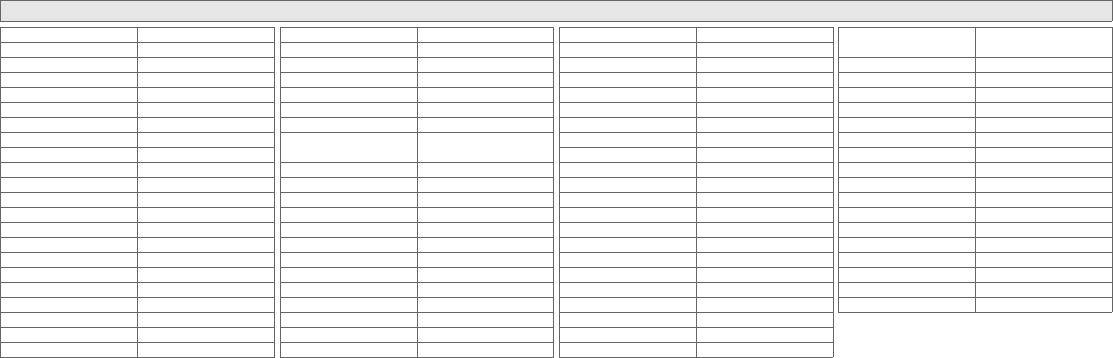
X
Home Theater in Box
AEG 1389, 1390
AFK 1389
Akai 1390
All-Tel 1390
ASCOMTEC 1389
Audiosonic 1389
Basic Line 1554
Belson 1389
Binatone 1389
Blue Sky 1390
Bose 1229, 1933
Bush 1772
Cat 1389
CCE 1352
Centrum 1389
Dantax 1390
Denver 1389
Digitech 1772
DK Digital 1420
Dual 1220, 1390, 1420
Elta 1390
Goodmans 1389, 1390, 1420, 1611
Grundig 1344, 1772
Grunkel 1390
Hanseatic 1390
HCM 1390
HE 1389
Hitachi 1344, 1554, 1801
Hiteker 1389
JVC 0074, 1374, 1676, 2000,
2001
Kenwood 1313
KXD 1389
Lenoxx 1611
Lenoxx Sound 1611
LG 1293, 1869
Lumatron 1772
Magnat 1389
Magnum 1611
MBO 1352
Medion 1420
MEI 1390
Metz 1554
Micromaxx 1420
Mustek 1352
NAD 0609
Nikkai 1389
Norcent 1389
Onkyo 0135
Palladium 1220, 1293, 1344, 1390
Panasonic 1316, 1763, 1765, 1779
Philips 1269, 1673
Pioneer 1459
Proline 1390
ProVision 1389
QONIX 1420
Radionette 1293, 1634
Redstar 1389
Roadstar 1611
Samsung 1295
Sanyo 1801
Schneider 1220, 1390
Scott 1389
SEG 1554
Sharp 1614, 1634
Silva Schneider 1390
Sony 1454, 1658, 1758, 1822,
1858, 1882
Sunstech 1420
Tandberg 1554
Targa 1293
Technics 1763, 1765
Techwood 1554
Tevion 1389, 1611
Tokai 1390
Toshiba 1572
United 1390, 1772
Universum 1220, 1390, 1609
Venturer 1390
Vestel 1554
Waitec 1352
Wharfedale 1390, 1772
Xenius 1390
Yamaha 0712, 1331
Yukai 1352
RemoteControlCodes.fm Page X Friday, August 29, 2008 5:07 PM
0808TKH-SW-BL© 2008 Victor Company of Japan, Limited
LT-42DR9BJ_003A.book Page 0 Thursday, September 11, 2008 3:03 PM
