JVC LT 32EX19 GGT0308 002A H EN User Manual 32EX19, 42EX19
User Manual: JVC LT-32EX19 LT-32EX19, LT-42EX19 nglish,
Open the PDF directly: View PDF  .
.
Page Count: 20
- Safety precautions
- Remote control buttons and functions
- Set up and connections
- Initial Settings
- Registering / Editing channels
- Channel Summary
- Operating the menus
- Picture setting
- Sound setting
- Useful functions
- Viewing Teletext
- Viewing Closed Caption
- Watching Video or DVDs
- Troubleshooting
- Technical information
- CH / CC List
- Specification
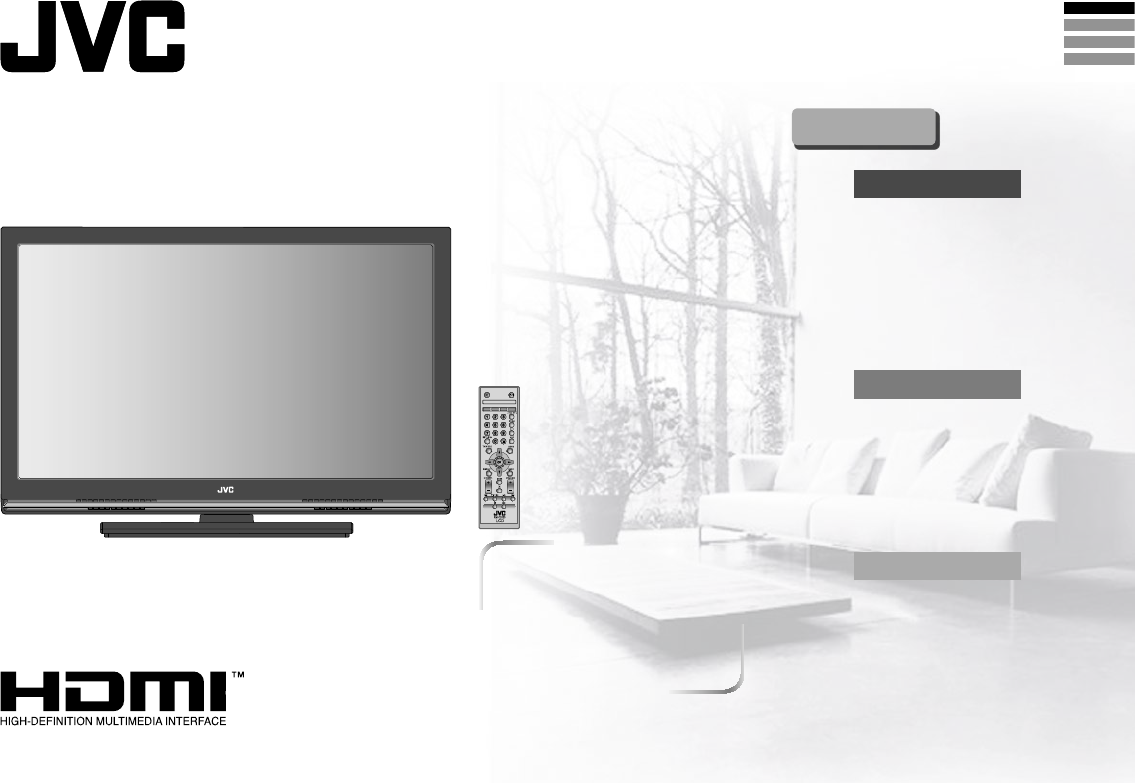
WIDE LCD PANEL TV
INSTRUCTIONS
LT - 32EX19
LT - 42EX19
GGT0308-002A-H
Safety precautions ............................... 2
Remote control buttons and functions
... 3
Set up and connections ....................... 4
Initial settings ....................................... 6
Registering / Editing channels ............. 7
Channel Summary ............................... 7
Operating the menus ........................... 8
PREPARATION
Picture setting ...................................... 9
Sound setting .....................................11
Useful functions ................................. 12
Viewing Teletext ................................. 14
Viewing Closed Caption .................... 14
Watching Video or DVDs ................... 15
Troubleshooting ................................. 16
Technical information ......................... 17
CH/CC List ......................................... 18
Specification ...................................... 19
FUNCTIONS
REFERENCE
Contents
ENGLISH
PУCCKИЙ
CASTELLANO
PORTUGUÊS
This illustration shows LT-32EX19.
The illustrations of LT-32EX19 is used in this instruction manual
for explanation purpose. Your TV may not look exactly the same
as illustrated.
2
JVC
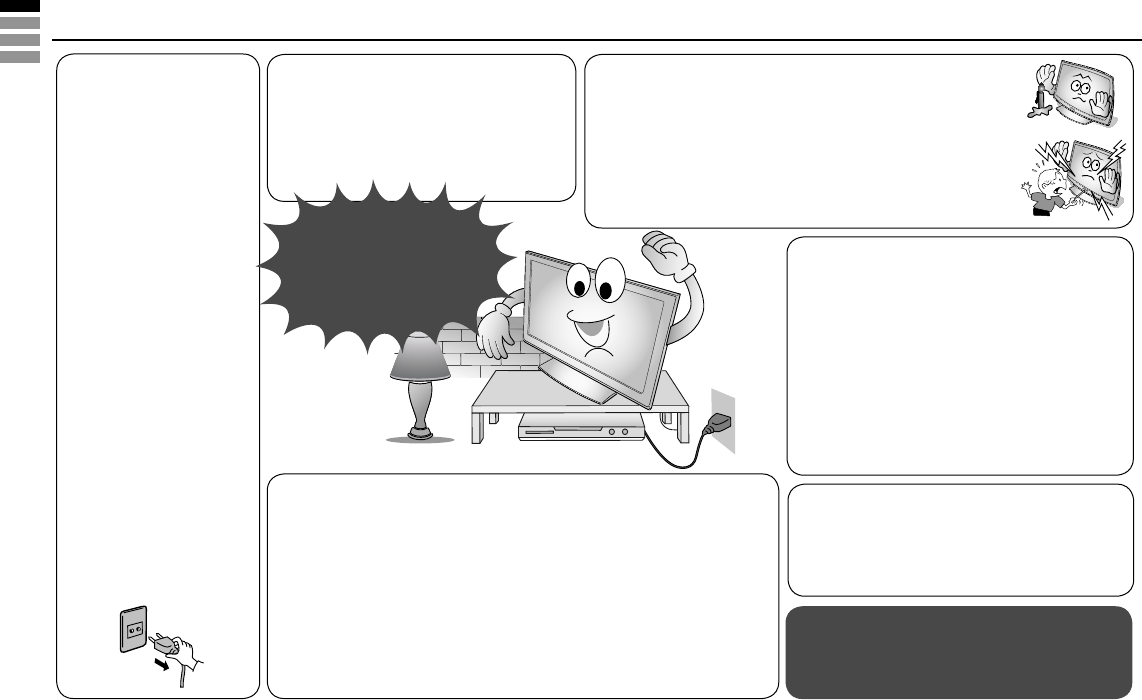
• Follow this manual
regarding setup!
-
Connect only to a 110-240 V,
50/60Hz AC outlet.
• Make enough room for
inserting and removing
the power plug!
• Place the TV as close to
the outlet as possible!
- The main power supply
for this TV is controlled by
inserting or removing the
power plug.
• Never cut or damage the
power cord!
- If the AC plug is not the
right shape, or the power
cord is not long enough,
use an appropriate plug
adapter or extension
cable. (Consult your
retailer.)
• Unplug the power cord
when going out!
- The power buttons on the
remote control and the
TV unit cannot completely
turn off the TV. (Make
appropriate arrangements
for bedridden people.)
Thank you for buying this JVC LCD panel television.
To make sure you understand how to use your new TV, please read this manual thoroughly before you begin.
• Do not allow the TV to fall!
- Do not rest your elbows on, or allow
children to hang from the TV.
- There is a risk that the TV will fall and
cause injuries.
- Make use of the hole on the back of the
stand to prevent the TV from falling easily.
(P. 4)
• For more details on installation, usage and safety ➡ Consult your retailer.
• Never place anything on the TV!
- Placing liquid, naked flames, cloths, paper, etc. on the TV
may cause a fire.
• Never expose to rain or moisture!
- To prevent fire or electric shock, never allow liquids to enter
the unit.
• Never insert objects into the cabinet openings!
- It may cause a fatal electric shock.
- Take care when children are near.
• Hold the TV so as not to scratch the screen!
- Do not touch the screen when carrying the TV.
• Do not carry the TV on your own!
- In order to prevent accidents, ensure that the TV
is carried by two or more people.
• When attaching the TV to the wall, use the
optional JVC wall mounting unit!
- Consult a qualified technician.
- See the included manual on mounting
procedures.
- JVC assumes no responsibility for damage due
to improper mounting.
• Never listen to headphones at high volume!
- It may damage your hearing.
Never try repair the TV yourself!
➡
If the problem cannot be solved in “Troubleshooting”
(P. 16), unplug the power cord and contact your
retailer.
• Never dismantle the rear panel!
- It may cause an electric shock.
• Never obstruct the ventilation holes!
- It may cause overheating or a fire.
• Handle LCD panel with care!
- Use a soft, dry cloth when cleaning.
If a television is not positioned in a sufficiently stable location, it can be potentially
hazardous due to falling. Many injuries, particularly to children, can be avoided by
taking simple precautions such as:
• Using cabinets or stands recommended by the manufacturer of the television.
• Only using furniture that can safely support the television.
• Ensuring the television is not overhanging the edge of the supporting furniture.
• Not placing the television on tall furniture (for example, cupboards or bookcases)
without anchoring both the furniture and the television to a suitable support.
• Not standing the televisions on cloth or other materials placed between the television
and supporting furniture.
• Educating children about the dangers of climbing on furniture to reach the television or
its controls.
If the TV is damaged or
behaving strangely, stop
using it at once!
➡ Unplug the power cord and
contact your retailer.
3
OK
16:9 Zoom
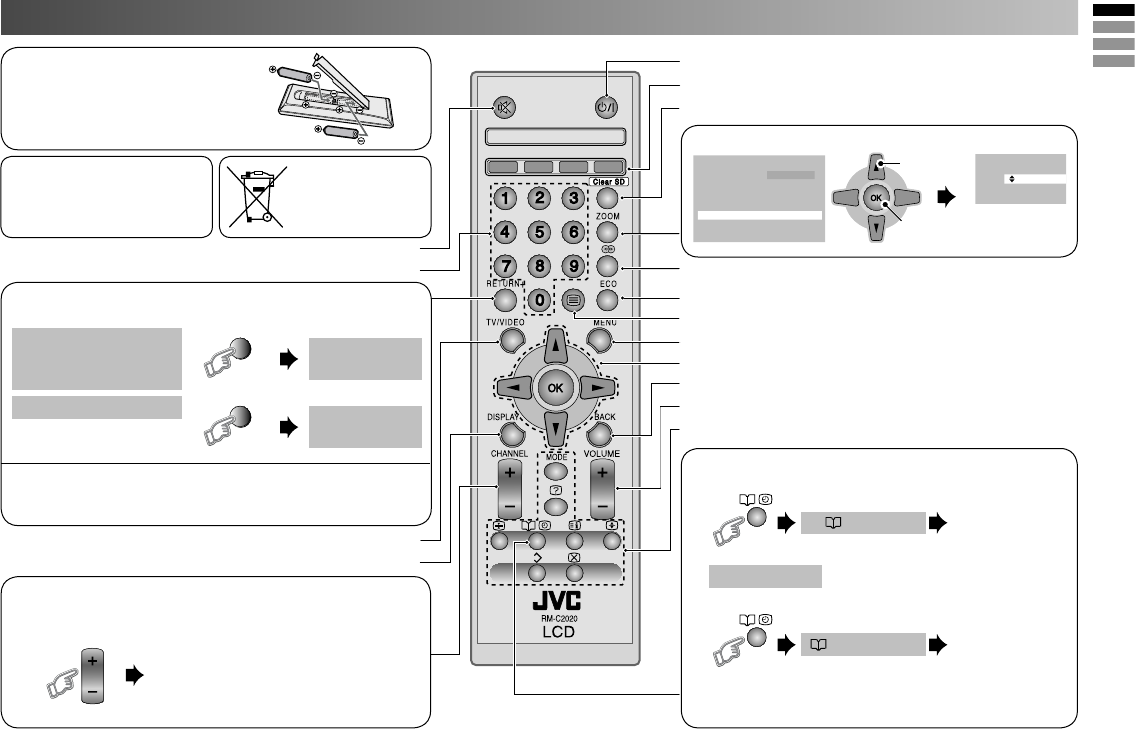
• Insert the batteries
Use two “AAA/R03” dry cell
batteries. Insert the batteries from
the · end, making sure the · and
ª polarities are correct.
“AAA/R03”
Batteries
Turn the volume off/on
Change channel/page
Channel selection
Select the desired channel number.
For Hyper Scan
Press and hold
Turn the TV on from standby
Color button
Turn on “Clear SD”
Turn on “Sound Meister”
Turn on “Eco Mode”
To Teletext (P. 14)
Display on-screen menu
Operate the menu
To previous screen
Adjust the volume, Turn off muting
View the Teletext (P. 14)
Change the aspect ratio (P. 10)
1. Select
2. Set
Favorite channel setting. (P. 13)
1. Register the favorite channel
2. Recall the favorite channel
• If the favorite channel has not been registed
then “No Memory” will be displayed.
will be displayed.Programmed!
Press and hold
Press
Set 1-4 ?
Favorite 1-4 ?
Press number
button (1-4 only)
Press number
button (1-4 only)
Move the picture with
5 or ∞ while this bar
is displayed.
V-Scroll
WARNING:
Batteries shall not be exposed
to excessive heat such as
direct sunshine, fire or the like.
RETURN PLUS function
Return to the frequently viewed channel.
Choose the channel
you want to
programme
Return Plus
Programmed!
Return Plus
Canceled!
To cancel
RETURN function
If you have not set or have cancelled the RETURN PLUS
channel, this will return to the previously viewed channel.
Press and hold
RETURN +
Press and hold
RETURN +
If this symbol
is shown, it is
only valid in the
European Union.
Remote control buttons and functions
PR changes without changing the
picture. Once you stop pressing
CHANNEL+ or CHANNEL - button,
picture will change to the desired PR.
CHANNEL
Select TV or Video input
Channel information,
Turn the on-screen guide off / on. (While on-screen menu is displayed)
4
TV/VIDEO
MENU/OK
CHANNEL
VOLUME
VIDEO-2
R
L
V
1
2
Set up and connections
Care when setting
Hole for belt
Belt
(not provided)
Screw (not provided)
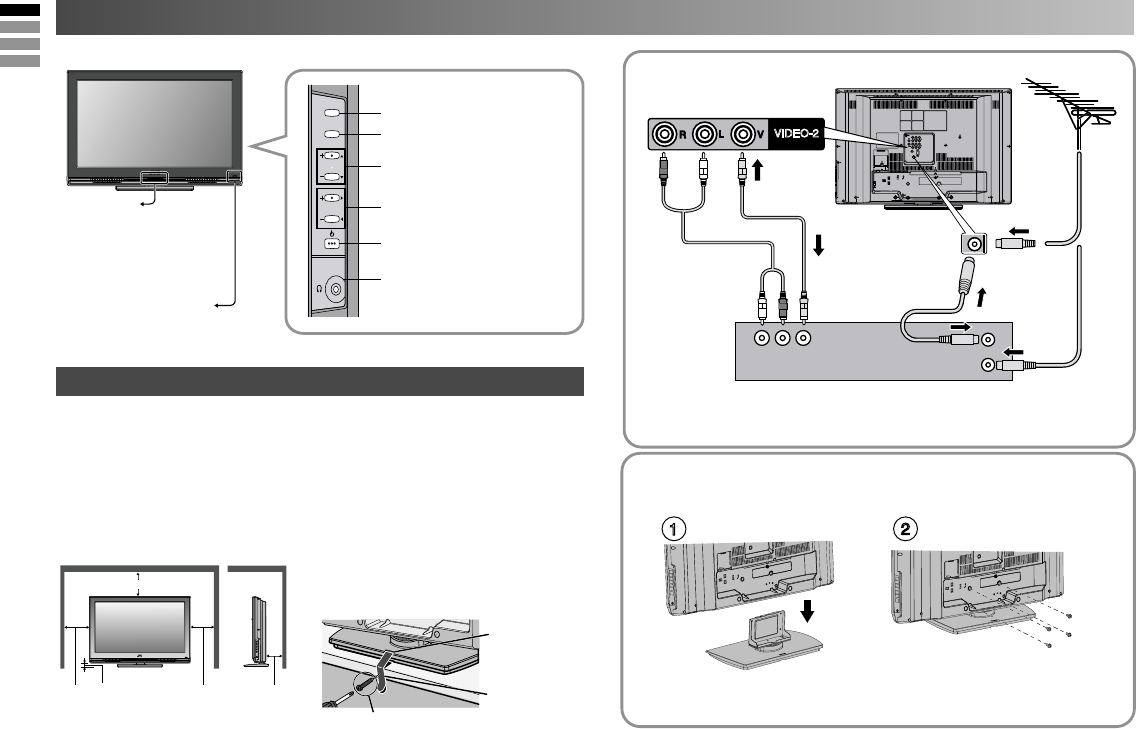
Power lamp
ON : Lit (Blue)
OFF : Unlit
Power lamp lights
while the TV is on.
• “Power Lamp” (P. 13)
Remote control sensor
Switch between TV / VIDEO
devices
Display on-screen menu / set
Change channel / Page /
Hyper Scan Function (P. 3)
Volume / Adjust
Power On / Off
To Headphone (P. 5)
■ Power requirements
• Connect the power cord only to a 110-240V, 50/60Hz AC outlet.
■ When attaching the TV to the wall, use the optional JVC wall
mounting unit
• Consult a qualified technician.
• JVC assumes no responsibility for damage due to improper mounting.
• 200 mm x 200 mm mount which conforms to VESA standards.
■ Installation requirements
• To avoid overheating, ensure the unit has ample room.
• After all the connections have been made, insert the plug into an
AC outlet.
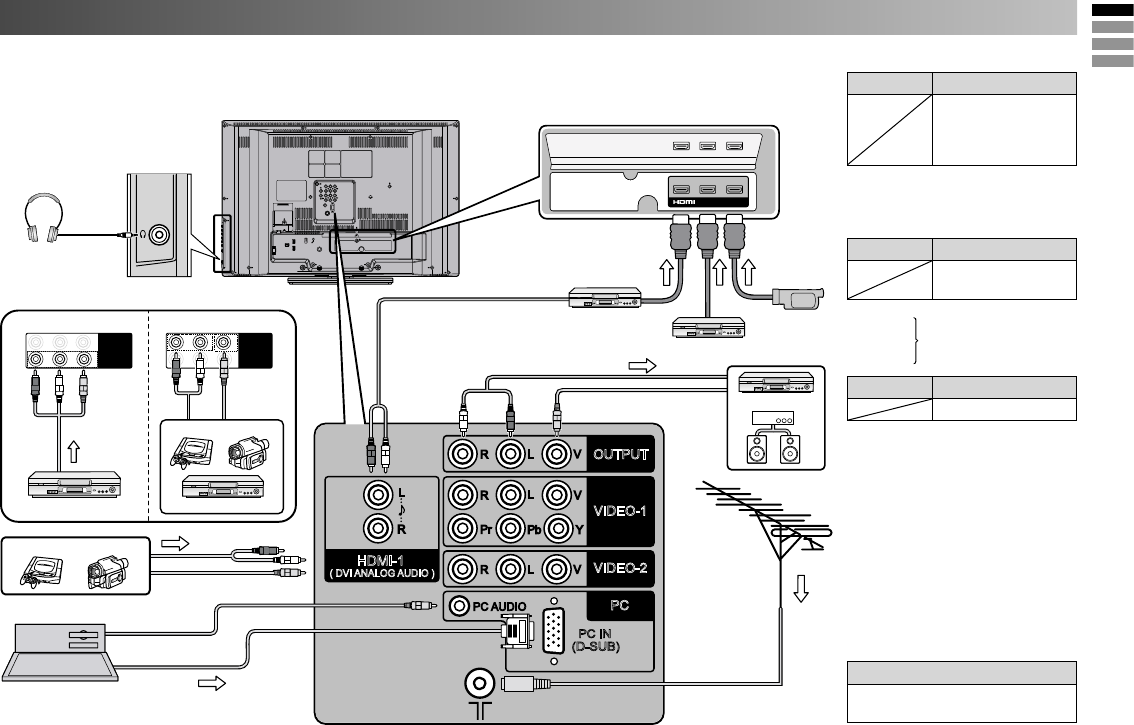
Connect an aerial and VCR / DVD Player
AERIAL
OR
VCR (DVD Player)
- If you have any problem with assembly, please contact a retailer or
a dealership.
Note: 4 screws included.
Stand Assembly
- Insert the stand into the panel at the position where the screw
holes are, and fasten the screws.
• To prevent the TV from falling thread
the belt through the hole on the back of
the stand and secure it to the TV rack.
LT-32EX19
LT-32EX19
LT-32EX19
LT-32EX19
5
OUTPUT
VIDEO-2
VIDEO-1
PC
PCAUDIO
HDMI-1
( DVI ANALOGAUDIO )
RLV
RL
R
L
V
PrPbY
PC IN
(D-SUB)
RLV
JVC
(L) (R)
VIDEO-1
RLV
Pr Pb Y
VIDEO-1
RLV
Pr Pb Y
JVC
HDMI-1 HDMI-2 HDMI-3
DIGITAL VIDEO/AUDIO
You can connect many different devices to the rear panel of the TV.
Please read the user manuals of each device before setup.
(Connecting cables are not supplied with this TV.)
Component input
Game consoles Video camera
PC
VIDEO-1 Watching videos
Output Input
•
Composite signal /
Component signal
(P. 19)
•
Sound L / R
• Use Component signal
“Video - 1 Setting” (P. 15)
VIDEO-2 Watching videos
Output Input
• Composite signal
• Sound L / R
HDMI-1
HDMI-2
Connecting HDMI devices
HDMI-3
Output Input
• HDMI signal (P. 19)
• “HDMI Setting” (P. 15)
• HDMI-2 and HDMI-3 inputs do not
support analogue sound.
• Connect a “DVI” device to
“HDMI-1” (P.17)
• Please use a High Speed HDMITM
Cable. High Speed HDMITM Cables
are tested to carry an HD signal up
to 1080p and higher.
OUT
Video and sound signal of a TV
channel you are viewing outputs
from this terminal
Output
• Composite signal
• Sound L / R
Composite input
Game Video
VCR
PC input line in
HDMITM Connector.
DVD Player
Amplifier
VCR / DVD recoder
Headphones
DVD player
(HDMI compatible)
HD Video camera
Set up and connections (continued)
DVD player
(HDMI compatible)
To “HDMI-1” To “HDMI-3”
To “HDMI-2”
• Check for PC compatibility.
“PC signals that can be displayed” (P. 17)
To Video-2
LT-32EX19
6
OK
OK
Teletext Language
>
Group - 1
Group - 2
Group - 3
Group - 4
Group - 5
Group - 6
01
02
03
04
05
06
07
08
09
10
CH 02
CH 03
CH 07
CH 76
CH 12
CH 09
CH 05
CH 02
CH 15
CH 28
>Edit
PR ID CH/CC
OK
OK
OK
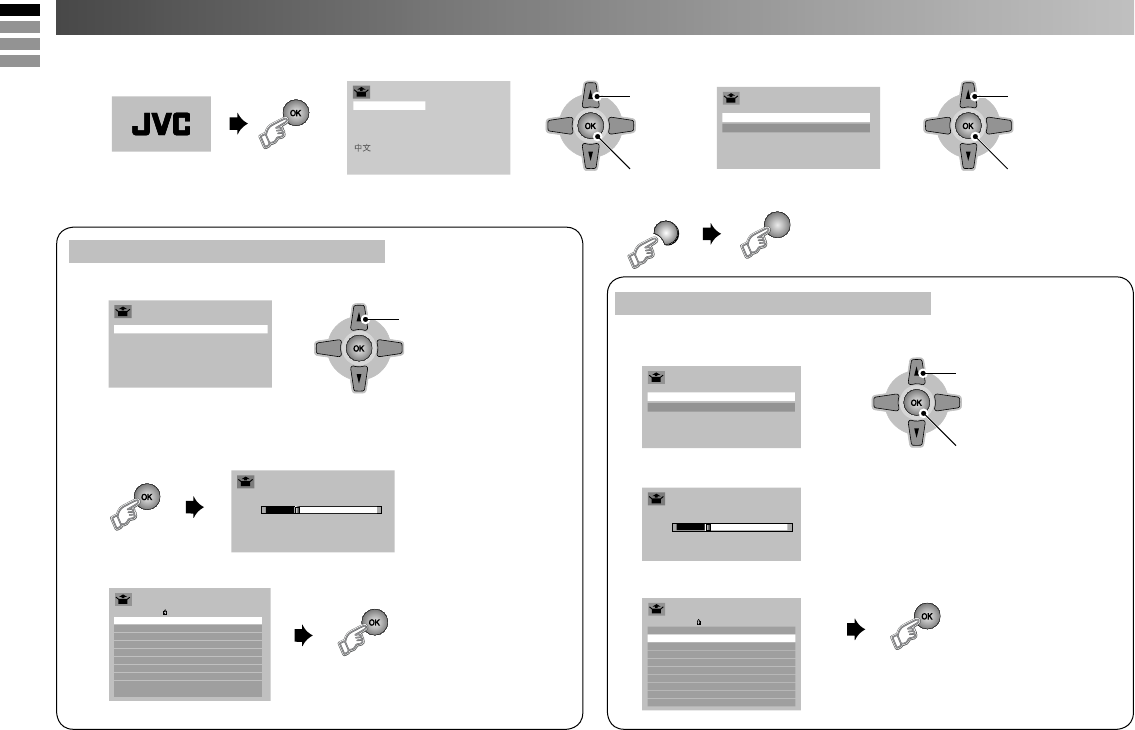
Initial Settings
Select
OK
OK
OK
> Auto Program
Air
Cable
1
MENU
1. Select
2. Set
JVC logo appears
• If you want to edit channel, see
“Registering / Editing channels” (P. 7)
4. Select the teletext language group.
5. Automatically register channels (Auto Program)
6. Check what was registered.
• See “Language group for teletext” (P. 17)
• The power on the unit can also be used.
1. Turn on the TV
4. Select Air or Cable.
1. Select
2. Set
5. Searching for the channels (Auto Program)
6. Check what was registered.
• If you want to set undesired channels
to be skiped, see “Channel Summary”
(P. 7)
1. Select
2. Set
2. Select a language 3. Select Country Area
• To select the new Country Area after Initial Setting has completed.
(While the cursor is pointing to Picture
menu and hold for 3 seconds.)
If you select Country Area to “Area-1”
If you select Country Area to “Area-2”
7
OK
Manual
Insert/Delete
ID
Move
Registering / Editing channels
OK
OK
OK
OK
OK
01
02
03
04
05
06
07
08
09
10
CH 02
CH 03
CH 07
CH 76
CH 12
CH 09
CH 05
CH 02
CH 15
CH 28
>
Edit
PR ID CH/CC
01
02
03
04
05
06
07
08
09
10
CH 02
CH 03
CH 07
CH 76
CH 12
CH 09
CH 05
CH 02
CH 15
CH 28
>
Edit
PR ID CH/CC
A
ABCDEF
01
02
03
04
05
06
07
08
09
10
CH 02
CH 03
CH 07 (B/G)
CH 76
CH 12
CH 09
CH 05
CH 02
CH 15
CH 28
BBCABC
ABCDEF
>
Manual
PR ID CH/CC
01
02
03
04
05
06
07
08
09
10
CH 02
CH 03
CH 07
CH 76
CH 12
CH 09
CH 05
CH 02
CH 15
CH 28
>
Edit
PR ID CH/CC
OK
ID
Cancel
Skip
Channel Summary
(Red)
(Blue)
(Green)
(Red)
(Green)
CH 02
CH 03
CH 04
CH 05
CH 06
CH 07
CH 08
CH 09
CH 10
CH 11
_ _ _ _ _ _
■■■■■■
_ _ _ _ _ _
_ _ _ _ _ _
_ _ _ _ _ _
_ _ _ _ _ _
_ _ _ _ _ _
_ _ _ _ _ _
_ _ _ _ _ _
_ _ _ _ _ _
>
Channel Summary
CH/CC ID Skip
Yes
Yes
Yes
Yes
Yes
Yes
Yes
Yes
Yes
OK
(Yellow)
CH 02
CH 03
CH 04
CH 05
CH 06
CH 07
CH 08
CH 09
CH 10
CH 11
_ _ _ _ _ _
_ _ _ _ _ _
_ _ _ _ _ _
_ _ _ _ _ _
_ _ _ _ _ _
_ _ _ _ _ _
_ _ _ _ _ _
_ _ _ _ _ _
_ _ _ _ _ _
_ _ _ _ _ _
>Channel Summary
CH/CC ID Skip
Yes
Yes
Yes
Yes
Yes
Yes
Yes
Yes
Yes
Yes
CH 02
CH 03
CH 04
CH 05
CH 06
CH 07
CH 08
CH 09
CH 10
CH 11
_ _ _ _ _ _
_ _ _ _ _ _
_ _ _ _ _ _
_ _ _ _ _ _
_ _ _ _ _ _
_ _ _ _ _ _
_ _ _ _ _ _
_ _ _ _ _ _
_ _ _ _ _ _
_ _ _ _ _ _
>Channel Summary
CH/CC ID Skip
Yes
Yes
Yes
Yes
Yes
Yes
Yes
Yes
Yes
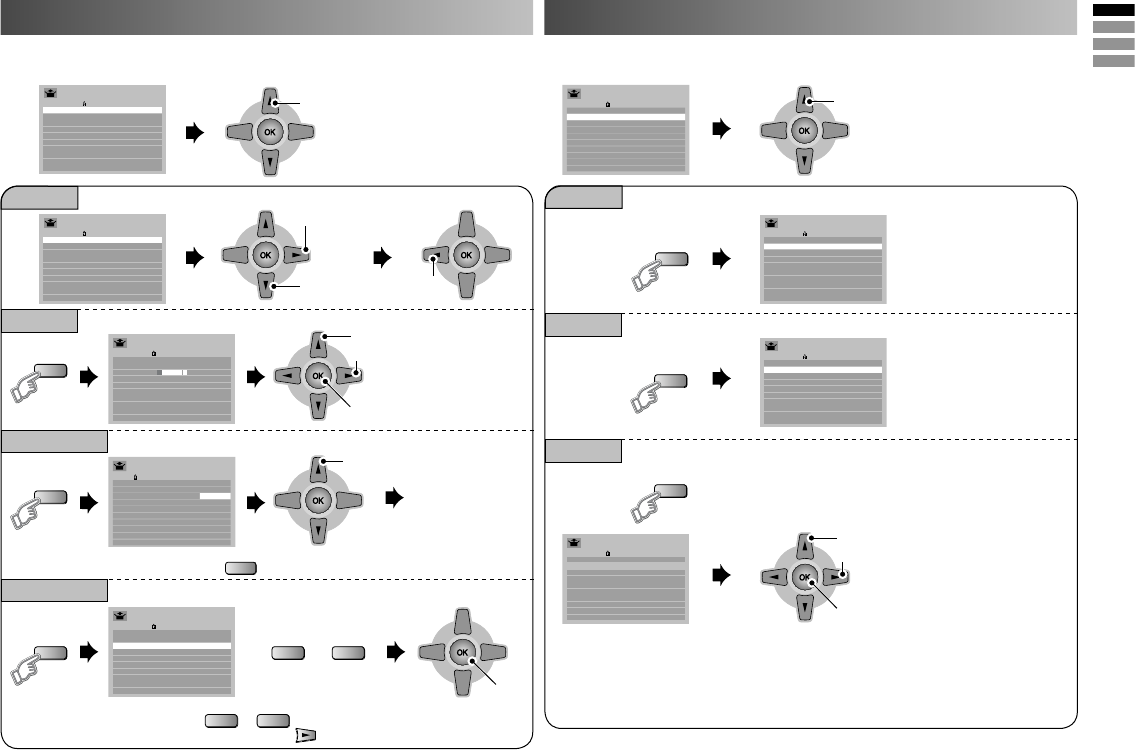
This function is available when select Country Area to “Area-1” only.
You can edit the channel list or register new channel manually.
Select a channel
1. Start
2. Move Finish
1. Select the character
2.
Move to the next column
3. Set
1. Select a
CH/CC
2.
Enter a
number 0-9
button then,
receives the
broadcast
signal.
2. Set
• Channel fine tunning ➡
(Yellow)
/
(Blue)
• If the picture or sound is unnatural ➡ for select a system.
or
(Green)
From high
frequencies
From low
frequencies
Register a new channel
Insert / Delete a channel
Edit a channel name
Move a channel position
• Delete a channel by press
(Yellow)
button.
1. Beginning channel search
• “CH/CC List” (P. 18)
This function is available when select Country Area to “Area-2” only.
You can edit the channel list.
Select a channel
Edit a channel name.
Cancel the skip channel.
Skip the channel.
• Channels are to be skipped cannot be selected by the CHANNEL -/+
button.
• The skip can be set to all channels of Air (CH02 - CH69) and Cable
(CC01 - CC125)
1. Select the character
2. Move to the next column
3. Set
8
Operating the menus
Set Country Area to “Area-1”
Top Menu 2nd Menu Page
Picture Picture Mode 9
Backlight 9
Picture 9
Brightness 9
Detail 9
Color 9
Tint 9
White Balance 9
Features 10
Sound Stereo / I■II 11
- -
Sound Meister 11
Treble 11
Bass 11
Surround 11
Balance 11
Voice Enhancer 11
AI Volume 11
Features On Timer 12
Sleep Timer 12
Channel Guard 12
Blue Back 13
Child Lock 13
Auto Shutoff 13
Favorite Setting 13
Power Lamp 13
Eco Mode 13
Set Up Auto Program 6
Edit / Manual 7
- -
Language 6
Video-1 Setting 15
Appearance 13
Teletext Language 6
HDMI Setting 15
PC Setting 15
- -
Set Country Area to “Area-2”
Top Menu 2nd Menu Page
Picture Picture Mode 9
Backlight 9
Picture 9
Brightness 9
Detail 9
Color 9
Tint 9
White Balance 9
Features 10
Sound - -
MTS 11
Sound Meister 11
Treble 11
Bass 11
Surround 11
Balance 11
Voice Enhancer 11
AI Volume 11
Features On Timer 12
Sleep Timer 12
Channel Guard 12
Blue Back 13
Child Lock 13
Auto Shutoff 13
Favorite Setting 13
Power Lamp 13
Eco Mode 13
Set Up Auto Program 6
- -
Channel Summary 7
Language 6
Video-1 Setting 15
Appearance 13
- -
HDMI Setting 15
PC Setting 15
Closed Caption 14
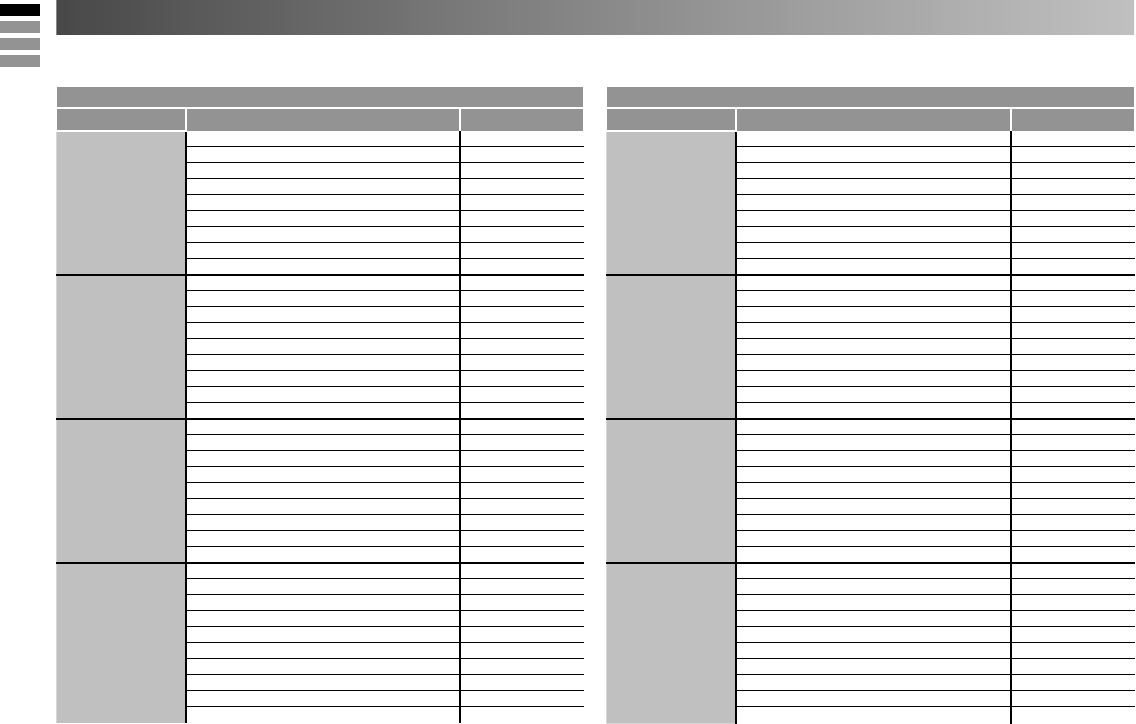
You can select the Country Area between Area-1 and Area-2. See in item 3 of “Initial setting” (P. 6)
See the menus location in the below table.
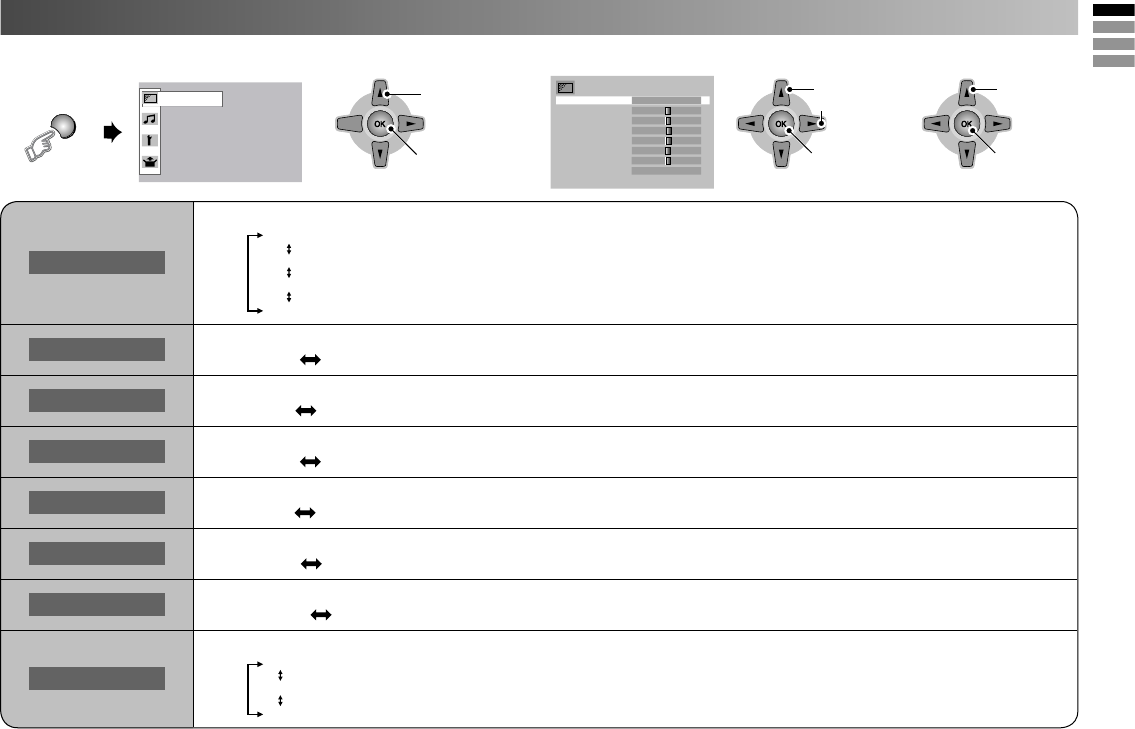
9
OK
OK
OK
1. Display “Picture” menu 2. Select item and setting or adjust
Picture
• To enter an items menu
MENU
Picture Mode
You can select a preset picture setting according to your favour.
Bright : Hightens contrast and sharpness.
Game Mode : Adjust sharpness of the picture when play the game.
Soft : Softens contrast and sharpness.
Standard : Standardize picture adjustment.
Backlight You can change the backlight brightness.
Darker Brighter
Picture You can change the contrast of the picture.
Lower Higher
Brightness You can change the brightness of the picture.
Darker Brighter
Detail You can change the sharpness of the picture.
Softer Sharper
Color You can change the color of the picture.
Lighter Deeper
Tint You can change tint only in NTSC.
Reddish Greenish
White Balance
You can change the white balance of the picture to better match the type of video being view.
Cool : Bluish white color.
Warm : Reddish white color.
Mid : Normal white color.
1. Select
2. Enter
1. Select
3. Finish
1. Select
2. Enter
2. Adjust
Picture setting
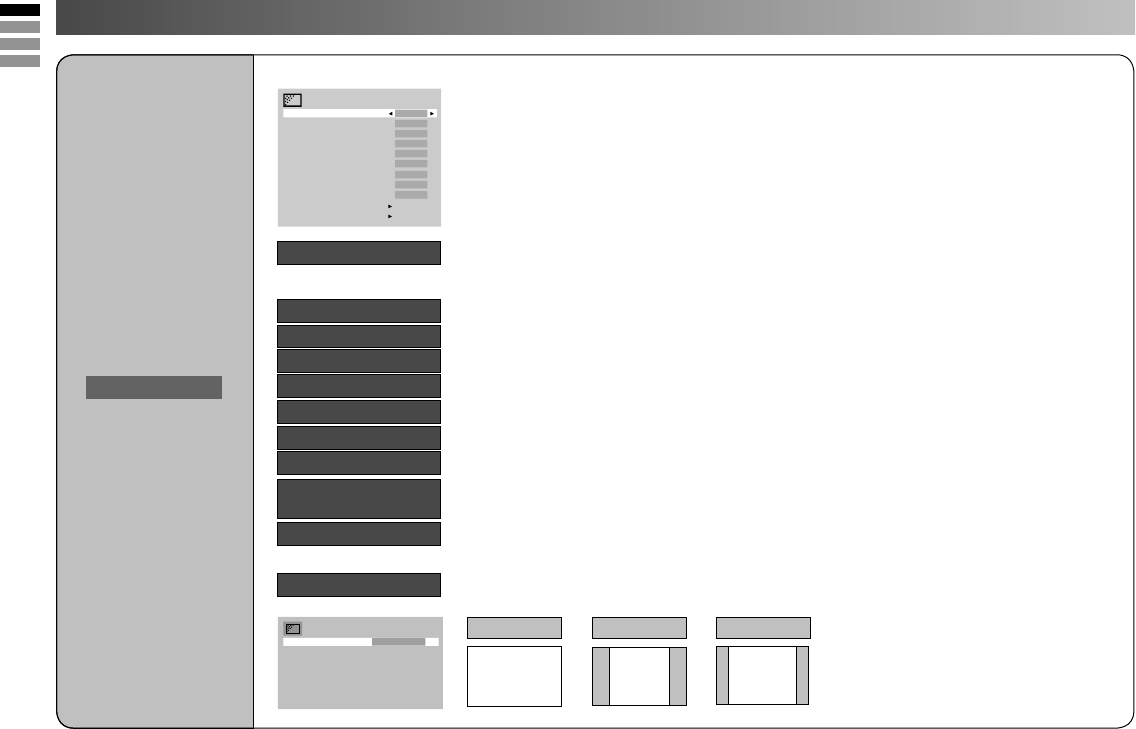
10
16 : 9 4 : 3 14 : 9
Panoramic Regular/Slim 14:9 Zoom
• When 720p or 1080i or 1080p signal is
received, “Full”, “Slim” and “Panoramic
Zoom” can be selected.
• In PC mode, “Regular” and “Full” can
be selected.
Features
Finer Picture adjustment
: For clearly picture (Off / Mode-1 / Mode-2)
When Clear SD set to Mode-1 or Mode-2, then Digital VNR, DigiPure, Picture Management
and MPEG Noise Reduction cannot operate.
: Reduce the amount of noise in original picture. (Off / On)
: For natural - looking outlines (Off / On)
: For smooth cinema film (Auto / Off / On)
: For natural - looking pictures (Off / On)
: Fix bright / dark pictures. (Off / On)
: Make it easier to view white areas (Off / On)
: Reduce the brightness of the backlight when the screen is dark (Off / On)
: Reduce MPEG video noise (Off / On)
: When there is no color, change the color system.
(Area-1 : PAL / SECAM / NTSC 3.58 / NTSC 4.43 / Auto, Area-2 : PAL-M / PAL-N / NTSC / Auto)
: Change the aspect ratio.
Clear SD
Digital VNR
DigiPure
Pull Down
Color Management
Picture Management
Smart Picture
Dynamic Backlight
MPEG Noise
Reduction
Color System
Zoom
Picture setting (continued)
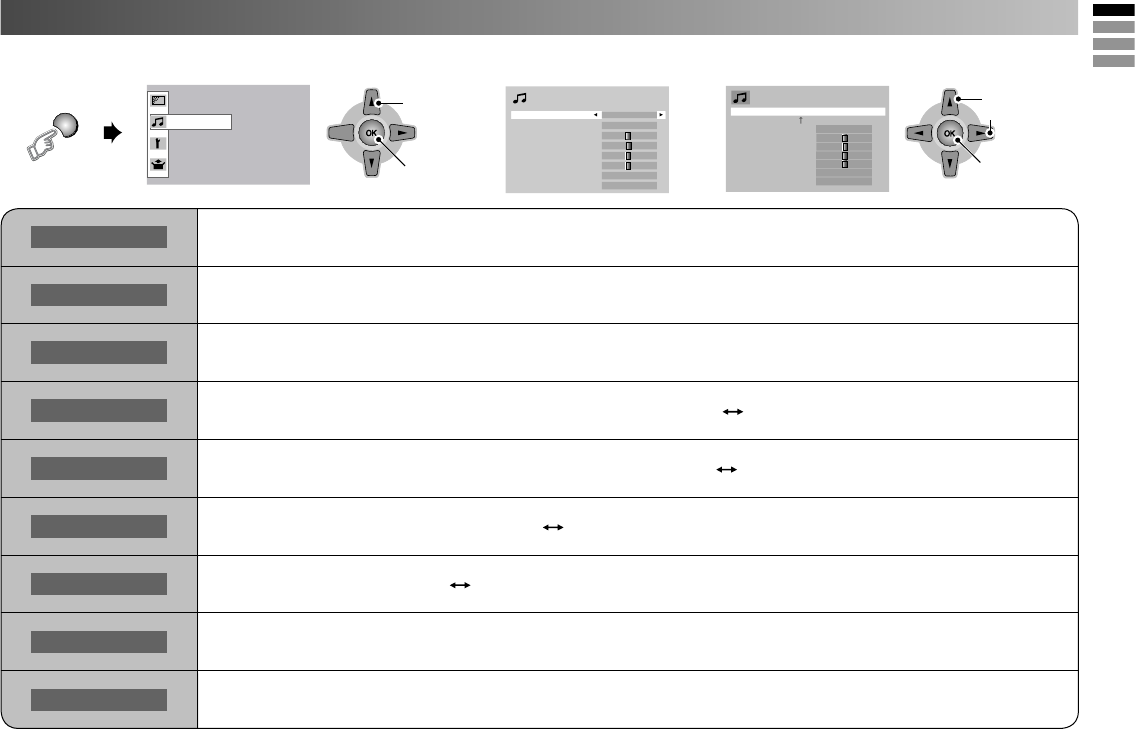
11
OK
1. Select
2. Enter
Sound
Stereo/I■II
Sound
Sound Meister
Voice Enhancer
Al Volume
Treble
Surround
Bass
Balance
Off
Off
Off
I II Mono
Stereo/I■II Select the broadcast sound stereo, mono or bilingual language (u: Mono / m : Stereo / I : SUB1 / II : SUB2 / Mono)
MTS Select the stereo and SAP broadcasted programs.
(Stereo : Stereo sound / SAP : Second Audio Programs / Mono : mono sound)
Sound Meister Ambience (Off / Dynamic / Pure / Living)
Treble Compensates high frequencies to widen the frequency band. (Weaker Stronger)
Bass Compensates low frequencies to widen the frequency band. (Weaker Stronger)
Surround Expands the stereo sound naturally. (Narrow Wide)
Balance Speaker balance (Left Stronger Right Stronger)
Voice Enhancer Sound enhancement technology (On/Off)
Al Volume Prevent sudden increase or decrease of sound when changing channels. (On/Off)
MENU
1. Display “Sound” menu.
Sound setting
OK
1. Select
3. Finish
2. Adjust
2. Select item and setting or adjust.
• Set Country Area to “Area-1” • Set Country Area to “Area-2”
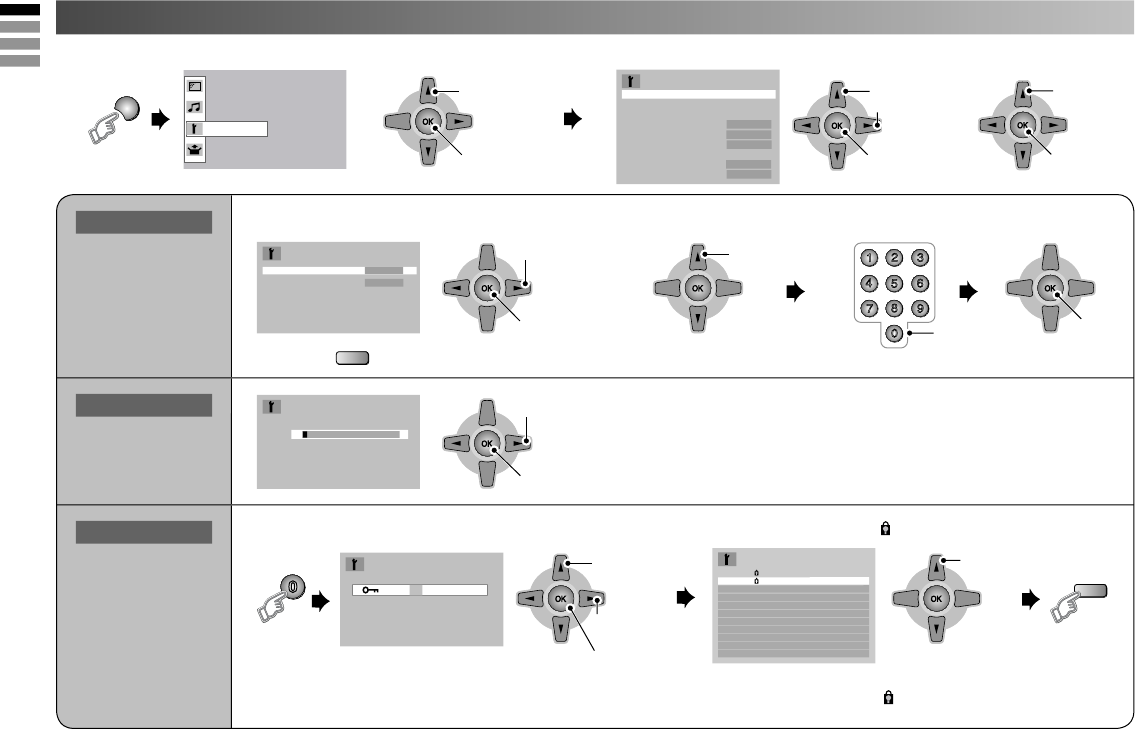
12
OK
1. Select
2. Enter
Features
OK
1. Select PR
channel
2. Set
OK
1. Select “On
Timer”
OK
3. Set
OK
1. Select a time in minutes
2. Set
OK
1. Select a
number
OK
1. Select a
channel
Features
>
>
PR 02
On Timer 00 : 00
On Timer
>
>
>
9
1
7
23
456
8
0
Sleep Timer
>
Off 0120
>
>
Set ID No.
>
0 0 0 0
2. Select item
2. To the next
column
3. Enter
(Blue)
Lock / Release
0
OK
• To enter an items menu
1. Select
2. Enter
OK
1. Select
3. Finish
2. Adjust
MENU
1. Display “Features” menu. 2. Select item and setting or adjust.
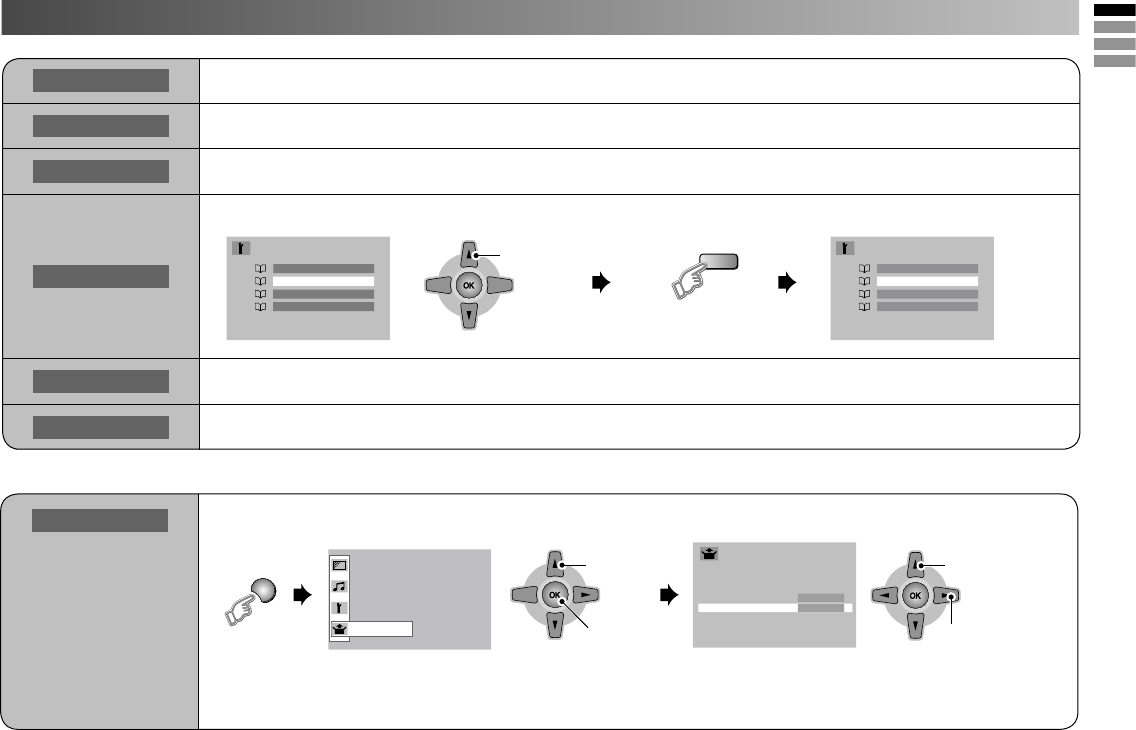
1. Select PR channel that you want to watch. 2. Set the On time to your desired period at time.
1. Select “Channel Guard”
Note : Press
(Blue)
for reset time setting.
2. Select a channel and lock it ( : locked )
Note : When the remaining elapse is one minute,
“Good Night!” appears on the screen.
Useful functions
On Timer
TV to turn on
automatically from
standby mode at
a set channel and
time.
Sleep Timer
TV to turn off
automatically to
standby mode after
a set time.
Channel Guard
Stop children from
watching specific
channels.
• This on screen is show for Area-2 of Country Area. For Area-1, see in ‘’Operating the menus” (P. 8)
• View a locked channel by use the numerical buttons to enter the channel number. When appears, press “DISPLAY”
button and enter your “ID No.”
13
OK
1. Select
OK
1. Select
2. Enter
OK
1. Select
2. Adjust to
Size-1 / Size-2
MENU
(Blue)
To delete
Set Up
Useful functions (continued)
Blue Back Display a blue screen and mute the sound when the signal is weak or absent. (On / Off)
Child Lock Disables the side control buttons of the TV. (On / Off)
Auto Shutoff Set the power to turn off if no signal is received and no operation is performed for about 15 minute. (On / Off)
Favorite Setting
Delete the favorite channel that you registered.
Power Lamp Power lamp lights while the TV is on. (On / Off) (P. 4)
Eco Mode Adjust contrast of light and dark according to the brightness of your room. (Off / Eco-1 / Eco-2)
Appearance
Change the on-screen
menu size.
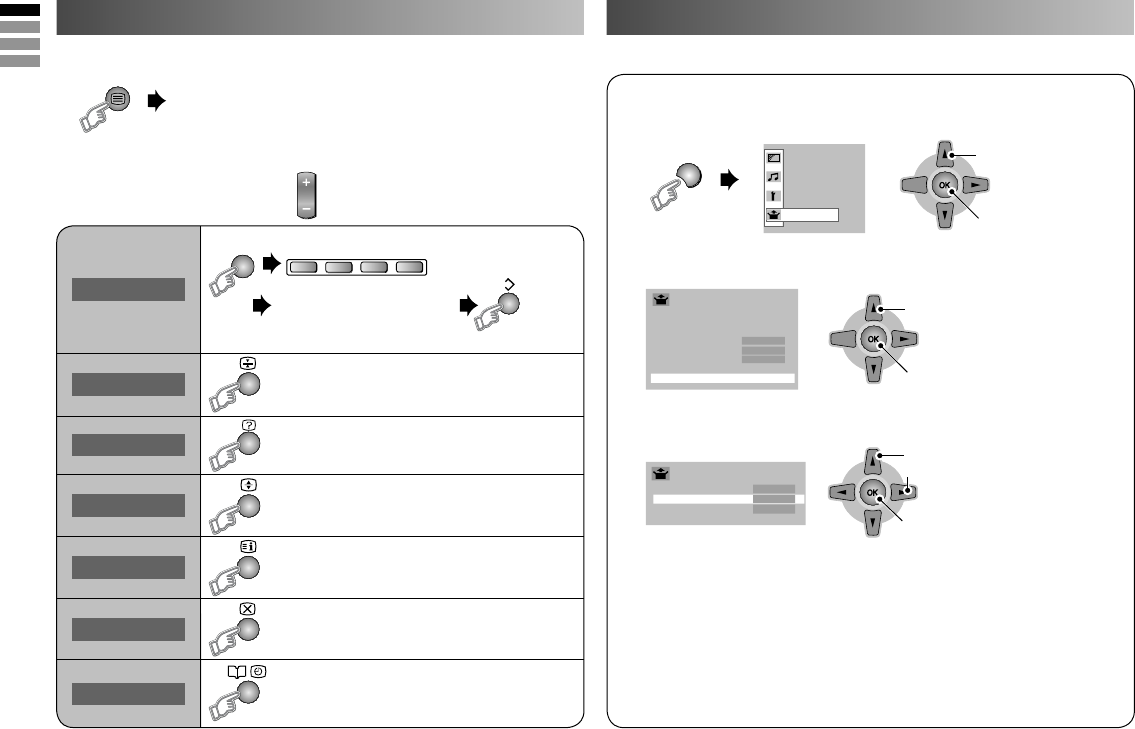
1. Display “Set Up” menu.
• Change the on screen menu size.
2. Select “Appearance”
• This on screen is show for Area-2 of Country Area.
For Area-1, see in “Operating the menus” (P. 8)
14
Set Up
OK
1. Select
2. Enter
> Closed Caption
Closed Caption Off
Caption < CC1 >
Text T1
OK
1. Select item
2. Setting
OK
1. Select
2. Enter
MENU
List Mode
Hold
Reveal
Size
Index
Cancel
Sub-page
Select the input Source.
1. Select “Set Up”
2. Select “Closed Caption”
Bookmark your favorite page.
MODE
to bookmark
Press number button for
enter the number of page
(Red) (Green) (Yellow) (Blue)
Save
Hold the current page.
• Cancel by press this button again.
Display hidden information.
• Example : answer to a quiz, etc.
Double the size of the displayed text.
Returns to page “100” or a
previously designated page.
Leave the current page open,
while you switch to watch TV.
• Useful when running a page search.
Display the number of Sub-page.
• Cancel by press this button again.
• Recall your favorite page by press the color button.
3. Select the desired caption or text channel.
Closed Caption : Select to view close caption or text information.
(Off / CC / Text)
Caption : Select the desired caption
(CC1 / CC2 / CC3 / CC4)
Text : Select the desired text channel.
(T1 / T2 / T3 / T4)
This function is available when select Country Area to “Area-1” only.
You can watch the Teletext broadcast channel with Text Functions.
1. TV mode <--> TEXT mode
2. Select a teletext page by press number button (0-9)
• Move up or down a page by
CHANNEL
This function is available when select Country Area to “Area-2” only.
Viewing Teletext Viewing Closed Caption
3. Set
15
Watching Video or DVDs
MENU
Set Up
TV/VIDEO
OK
1. Select
2. Set
OK
1. Select
2. Enter
OK
1. Select item
3. Set
2. Setting or Adjust
Set Up
Auto Program >
Channel Summary >
Language >
Video-1 Setting Video
Appearance Size-1
HDMI Setting >
PC Setting >
Closed Caption >
PC Position
Phase
Pixel
PC Setting
>
>
OK
OK
1. Select item 1. Adjust
2. Set
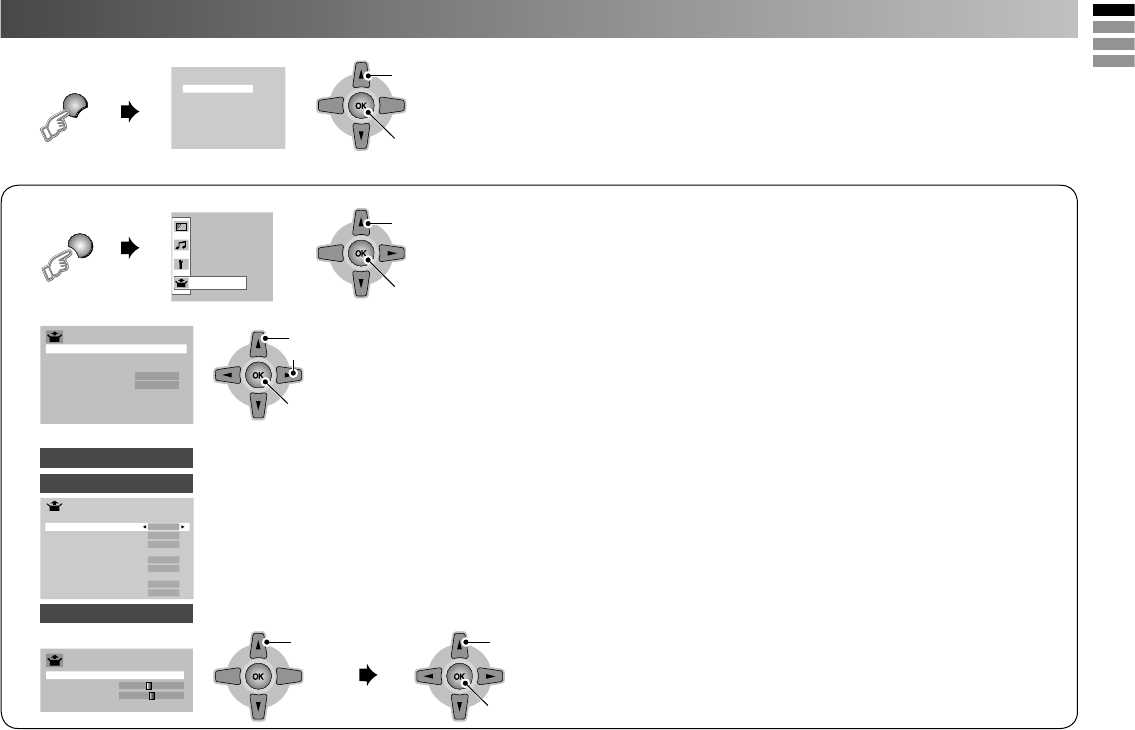
Select the input Source.
• Operate the connected device and play video.
1. Select “Set Up”
2. Select item
Switch between video and component signal (Video / Component)
Setting for HDMI input
Size : Normally set to “Auto.” If wrong screen size appears in 480p (525p), change to “1” or “2”
Audio : Normally set to “Auto.” If no sound, change to “Analog” or “Digital.”
Mode : If no picture, change to “1” or “2”.
Setting for PC input
PC Position : Adjust screen position.
Phase : Sets the focus of screen.
Pixel : Adjusts the horizontal feature of screen.
Note: TV/VIDEO button select the video source by move
down or use button 0-6 for selection.
This on screen is show for Area-2 of Country Area. For Area-1, see in “Operating the menus” (P. 8)
Video - 1 Setting
HDMI Setting
PC Setting
16
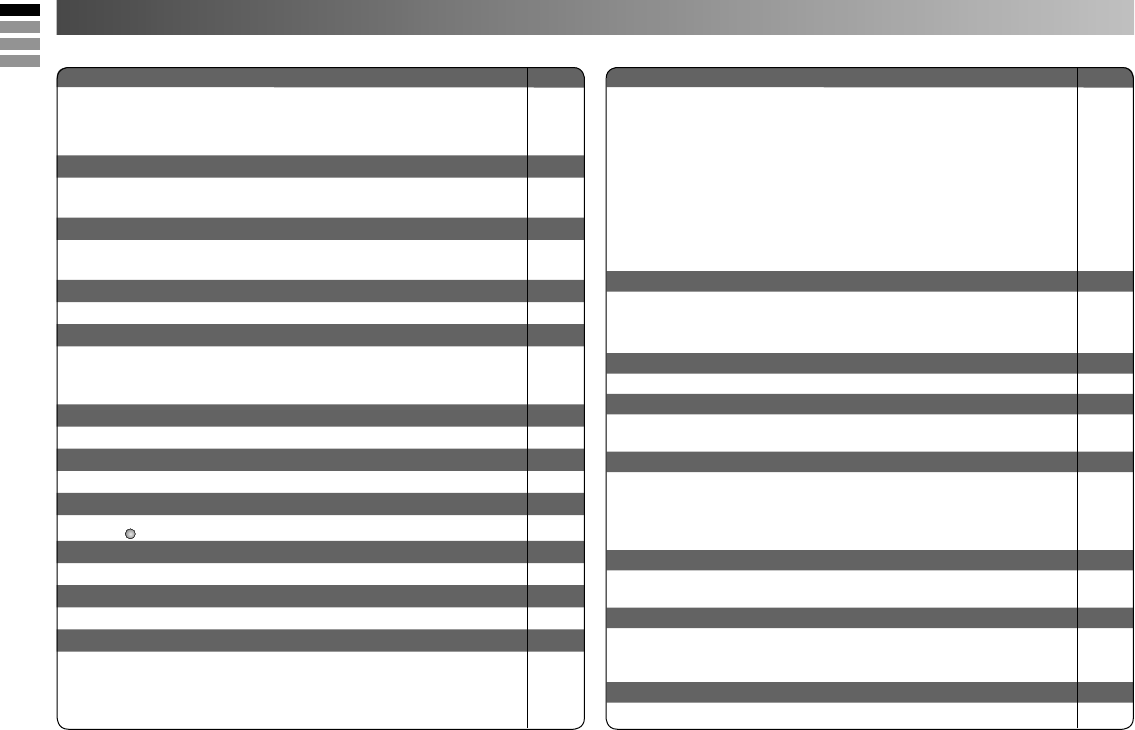
Severe noise or snow Page
Check the aerial cable and TV connections . P. 4
Check the direction of the aerial. P. 4
Check the aerial or its cable damaged or not. --
Patterns, stripes or noise
Interference caused by devices such as an amplifier, personal computer,
or a hair drier, Move it away from TV.
--
Ghosting ( Doubling of images )
Interference occurs caused by signal reflection from mountains or
building. Try to adjust the aerial’s direction or use another antenna.
--
Cannot turn it on
Ensure the power cord is connected to the AC outlet correctly. --
Cannot operate the remote control.
The batteries may be exhausted. Replace with new batteries.
Ensure that you are operation the remote control at less than 7 meters
from the front of your TV.
--
Remote control stops working
Unplug TV, several minutes later plug it in again. --
Side control buttons do not work
Switch “Child Lock” to “Off”. P. 13
Aspect ratio changed unintentionally
Press “
ZOOM
” button to return to your settings. P. 10
PC screen alignment is off
Adjust the “PC Position” in “PC Setting” of Set Up menu. P. 15
Blue screen appears on the screen
Switch “Blue Back” to “Off”. P. 13
Strange picture when using an external device
If the top of the image is distorted, check the video signal quality itself.
If movement appears unnatural when receiving a signal from a DVD
player, etc. with 625p (progressive-scanning), change the output setting
of the external device to 625i (interlace-scanning)
--
--
Poor picture quality Page
Unnatural color >> Adjust “Color” and “Backlight” P. 9
Check “Color System”. If “Auto” is selected P. 10
select the specific color system manually.
Noise >> Set to the following functions.
Picture Mode : Standard P. 9
DigiPure : On P. 10
Dull picture >> Set to the following functions.
Picture Mode : Bright P. 9
DigiPure : On P. 10
Poor sound
Adjust the “Bass” and “Treble”. P. 11
If receiving a poor signal in “Stereo/I■II” switch to “Mono”. P. 11
Adjust the channel reception using “Manual”. P. 7
For HDMI signal, wrong screen size in 480p (525p).
Switch “Size” in “HDMI Setting” to “1” or “2”. P. 15
For HDMI signal, green and distorted screen
Wait a little for the signal to stabilize when switching the signal format
for an “HDMI” device.
--
For HDMI signal, No picture / No sound
Use the cable marked with HDMI logo. --
Check if the device is compliant with HDMI. P. 15
Switch “Audio” in “HDMI Setting” to “Digital” or “Auto” for HDMI devices,
or “Analog” or “Auto” for DVI devices.
Some functions do not work.
It is not a malfunction. Some functions (dark background) in the menu
do not work depending on the situation.
--
Black or white dots appear on the screen.
LCD panels use fine dots (“pixels”) to display images. While more than
99.99% of these pixels function properly, a very small number of pixels
may not light, or may light all the time. It is not a malfunction.
--
No picture, No sound
Some input do not output from OUT terminal. --
Troubleshooting
If a problem occurs when you are using the TV, check the below troubleshooting guide before calling for repair.
17
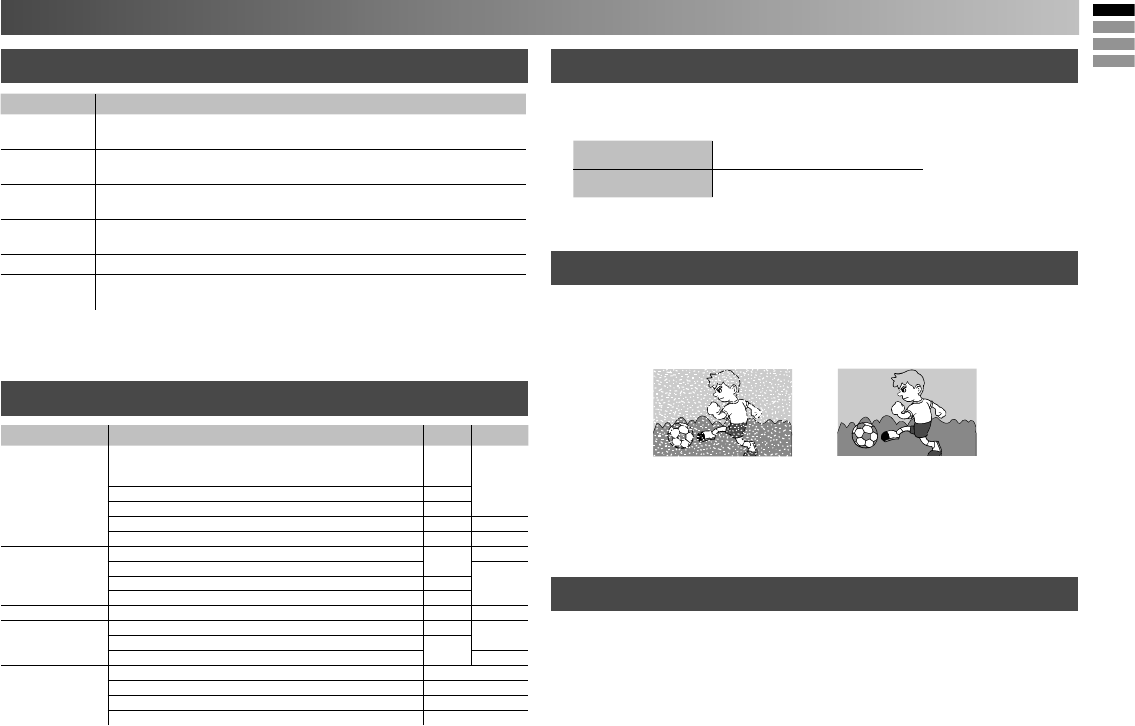
No use "Clear SD" Use "Clear SD"
Technical information
Language group for Teletext PC Signals that can be displayed
Sound and Color system in your country or region
What is “Clear SD”
Connect “DVI” devices
LCD picture is unstable due to a large number of signal noise. Such noise
appears extensively especially when an LCD displays SD signals. Clear
SD mode resolves disadvantage for better picture quality.
• If the signal doesn’t appear, check that the vertical frequency on the
PC is set to “60Hz”.
Resolution 640 x 480(VGA) / 1024 x 768(XGA)
Vertical frequency (Hz) 60.0
Connect a “DVI” device to “HDMI” using “DVI-HDMI” conversion cable.
Connect analogue sound output of the DVI device to L and R terminals in
HDMI-1.
• Set “Audio” in “HDMI Setting” to “Analog” or “Auto” (P. 15)
•
HDMI-2 and HDMI-3 input does not support analogue sound (IN HDMI-1).
• HDMI-2 and HDMI-3 input does not support DVI devices.
Group Languages
Group-1 Turkish, Hungarian, English, German, French, Italian, Spanish, Portuguese,
Greek, Swedish, Finnish
Group-2 Polish, Serbian, Croatian, Slovenian, Czech, Slovak, Rumanian, Hungarian,
German, French, Italian, Swedish, Finnish
Group-3 Russian, Bulgarian, Lettish, Lithuanian, Estonian, Ukrainian, Serbian, Croatian,
Slovenian, Czech, Slovak, English, German
Group-4 Arabic, Czech, Slovak, Hungarian, English, German, French, Italian, Spanish,
Portuguese, Swedish, Finnish
Group-5 Farsi, English, French, Turkish
Group-6 Lettish, Lithuanian, Estonian, Ukrainian, Czech, Slovak, English, German,
Serbian, Croatian, Slovenian
• If the characters are unreadable. ➡ Select different Teletext language
group. (P. 6)
Area Country or Region System System
Asia, Middle East
Bahrain, Kuwait, Oman, Qatar, United Arab Emirates,
Yemen, Indonesia, Malaysia, Singapore,
Thailand, India, etc.
B/G
PAL
China, Vietnam, etc. D/K
Hong Kong, etc. I
Islamic Republic of Iran, Lebanon, Saudi Arabia, etc. B/G SECAM
Philippines, Taiwan, Myanmar, etc. M NTSC
Europe
Russia, etc. D/K SECAM
Czech Republic, Poland, etc.
PALGermany, Holland, Belgium, etc. B/G
UK, etc. I
Oceania Australia, New Zealand, etc. B/G PAL
Africa
Republic of South Africa, etc. I PAL
Nigeria, etc. B/G
Egypt, Morocco, etc. SECAM
South America
Argentina, Paraguay, Uruguay PAL-N
Brazil PAL-M
Chile, Peru, Colombia, Venezuela, Ecuador, etc. NTSC-M
Bolivia NTSC-N
18
CH / CC List
This information is used for Area-1 setting only.
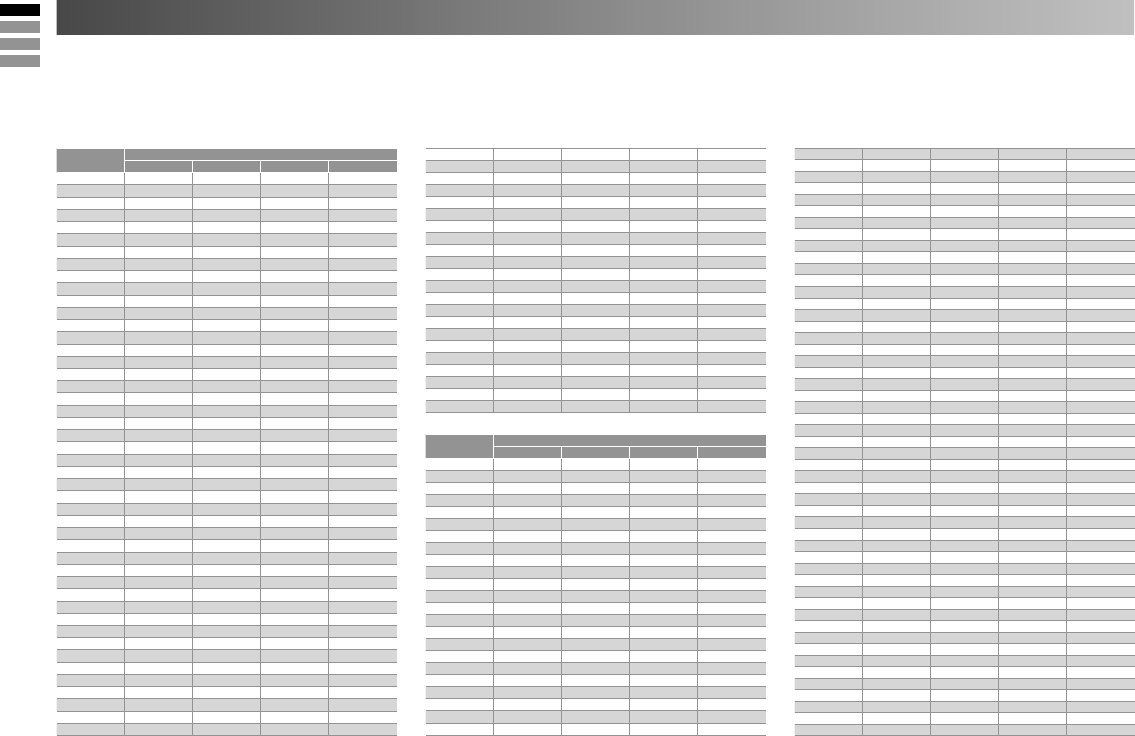
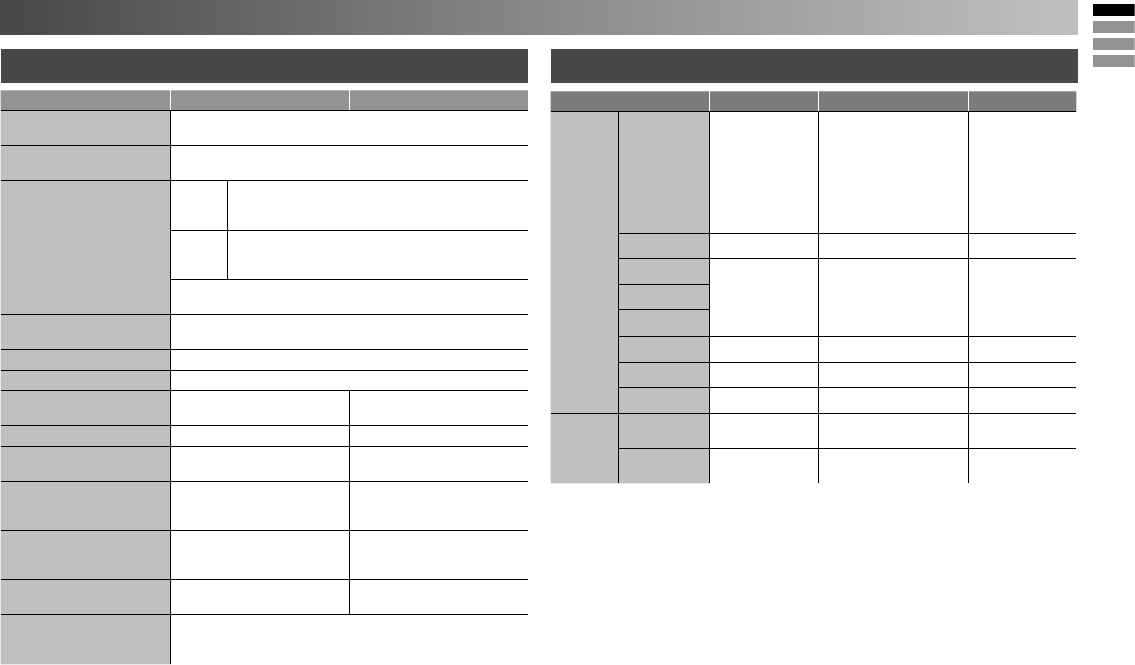
To use the Insert function (P. 7), find the “CH/CC” number corresponding to the TV’s channel number from this table.
US: The US channel numbers are the channel numbers used in the United States, Philippines, etc.
CCIR: The CCIR channel numbers are the channel numbers used in the Middle East, Southeast Asia, etc.
OIRT: The OIRT channel numbers are the channel numbers used in Eastern Europe, Russia, Vietnam, etc.
AUSTRALIA: The AUSTRALIA channel numbers are the channel numbers used in Australia, etc.
CC 24 K S-24
CC 25 L S-25
CC 26 M S-26
CC 27 N S-27
CC 28 O S-28
CC 29 P S-29
CC 30 Q S-30
CC 31 R S-31
CC 32 S S-32
CC 33 T S-33
CC 34 U S-34
CC 35 V S-35
CC 36 W S-36
CC 37 W+1 S-37
CC 38 W+2 S-38
CC 39 W+3 S-39
CC 40 W+4 S-40
CC 41 W+5 S-41
CC 42 W+6
CC 43 W+7
CC 44 W+8
CC 45 W+9
CC 46 W+10
CC 47 W+11
CC 48 W+12
CC 49 W+13
CC 50 W+14
CC 51 W+15
CC 52 W+16
CC 53 W+17
CC 54 W+18
CC 55 W+19
CC 56 W+20
CC 57 W+21
CC 58 W+22
CC 59 W+23
CC 60 W+24
CC 61 W+25
CC 62 W+26
CC 63 W+27
CC 64 W+28
CC 75 X
CC 76 Y R3
CC 77 Z R4 AU-3
CC 78 Z+1 R5
CC 79 Z+2 AU-4
CC 95 A-5
CC 96 A-4
CC 97 A-3
CC 98 A-2
CC 99 A-1
CH 48 US-48, W+63 E48
CH 49 US-49, W+64 E49
CH 50 US-50, W+65 E50
CH 51 US-51, W+66 E51
CH 52 US-52, W+67 E52
CH 53 US-53, W+68 E53
CH 54 US-54, W+69 E54
CH 55 US-55, W+70 E55
CH 56 US-56, W+71 E56
CH 57 US-57, W+72 E57
CH 58 US-58, W+73 E58
CH 59 US-59, W+74 E59
CH 60 US-60, W+75 E60
CH 61 US-61, W+76 E61
CH 62 US-62, W+77 E62
CH 63 US-63, W+78 E63
CH 64 US-64, W+79 E64
CH 65 US-65, W+80 E65
CH 66 US-66, W+81 E66
CH 67 US-67, W+82 E67
CH 68 US-68, W+83 E68
CH 69 US-69, W+84 E69
CC Channel
US CCIR OIRT AUSTRALIA
CC 01 S-1 AU-5
CC 02 S-2
CC 03 S-3
CC 04 S-4
CC 05 S-5
CC 06 S-6 AU-5A
CC 07 S-7
CC 08 S-8
CC 09 S-9
CC 10 S-10
CC 11 S-11
CC 12 S-12
CC 13 S-13
CC 14 A S-14
CC 15 B S-15
CC 16 C S-16
CC 17 D S-17
CC 18 E S-18
CC 19 F S-19
CC 20 G S-20
CC 21 H S-21
CC 22 I S-22
CC 23 J S-23
CH Channel
US CCIR OIRT AUSTRALIA
CH 02 US-02 E2 R1 AU-0
CH 03 US-03 E3 AU-1
CH 04 US-04 E4 R2 AU-2
CH 05 US-05 E5 R6 AU-6
CH 06 US-06 E6 R7 AU-7
CH 07 US-07 E7 R8 AU-8
CH 08 US-08 E8 R9 AU-9
CH 09 US-09 E9
CH 10 US-10 E10 R10 AU-10
CH 11 US-11 E11 R11 AU-11
CH 12 US-12 E12 R12
CH 13 US-13
CH 14 US-14, W+29
CH 15 US-15, W+30
CH 16 US-16, W+31
CH 17 US-17, W+32
CH 18 US-18, W+33
CH 19 US-19, W+34
CH 20 US-20, W+35
CH 21 US-21, W+36 E21
CH 22 US-22, W+37 E22
CH 23 US-23, W+38 E23
CH 24 US-24, W+39 E24
CH 25 US-25, W+40 E25
CH 26 US-26, W+41 E26
CH 27 US-27, W+42 E27
CH 28 US-28, W+43 E28
CH 29 US-29, W+44 E29
CH 30 US-30, W+45 E30
CH 31 US-31, W+46 E31
CH 32 US-32, W+47 E32
CH 33 US-33, W+48 E33
CH 34 US-34, W+49 E34
CH 35 US-35, W+50 E35
CH 36 US-36, W+51 E36
CH 37 US-37, W+52 E37
CH 38 US-38, W+53 E38
CH 39 US-39, W+54 E39
CH 40 US-40, W+55 E40
CH 41 US-41, W+56 E41
CH 42 US-42, W+57 E42
CH 43 US-43, W+58 E43
CH 44 US-44, W+59 E44
CH 45 US-45, W+60 E45
CH 46 US-46, W+61 E46
CH 47 US-47, W+62 E47
19
Specification
Main unit Terminals / Connectors
Terminal name Terminal type Signal type (IN) Signal type (OUT)
Input
terminals
VIDEO-1
RCA connectors x 6
Composite video, Analogue
component 576i (625i) / 480i
(525i),
Progressive : 576p (625p) /
480p (525p),
HD : 1080i (1125i), 720p
(750p) / 1080p (1125p)
Audio L / R
VIDEO-2
RCA connectors x 3
Composite video, Audio L / R
HDMI-1
HDMI connector x 1
HDMI
576i (625i) / 480i (525i)
/ 576p (625p) / 480p (525p),
720p (750p) / 1080p (1125p) /
1080i (1125i)
HDMI-2
HDMI-3
IN HDMI -1
RCA connectors x 2
Audio L/R
PC INPUT
D-SUB (15 pins) x 1
Analogue PC signal
PC AUDIO
PC-IN (3.5 pinjack) x 1
Audio
Output
terminals
MONITOR OUT
RCA connectors x 3
Composite video,
Audio L / R
Headphone
Stereo mini-jack x 1
(3.5 mm in diameter)
Headphone
output
• We may change the design and specifications without notice.
• HDMI, the HDMI Logo and High-Definition Multimedia Interface are
trademarks or registered trademarks of HDMI Licensing LLC.
Model LT-32EX19 LT-42EX19
Broadcasting systems For Area-1 setting : B / G / I / D / K / M
For Area-2 setting : M / N
Color systems For Area-1 setting : PAL / SECAM / NTSC 3.58 / NTSC 4.43 MHz
For Area-2 setting : NTSC / PAL-M / PAL-N
Channels and frequencies
Area-1
VHF low channel ( VL) =46.25 to 140.25 MHz
VHF high channel ( VH) = 147.25 to 423.25 MHz
UHF channel ( U ) = 431.25 to 863.25 MHz
Area-2
VHF low channel ( VL) =55.25 to 127.25 MHz
VHF high channel ( VH) = 133.25 to 361.25 MHz
UHF channel ( U ) = 367.25 to 801.25 MHz
Receives cable channels in mid band (X to Z+2, S1 to S10),
super band (S11 to S20) and hyper band (S21 to S41).
Sound-multiplex systems NICAM (I / B / G / D / K), A2 (B / G / D / K)
MTS (Multi-channel Television Sound)
Teletext systems FLOF (Fastext), WST (World Standard System)
Power requirements AC 110 V - 240 V, 50/60Hz
Audio output
(Rated power output) 6 W + 6 W 10 W + 10 W
Speakers (4 cm x 16 cm ) x 2 (4 cm x 16 cm ) x 2
Power consumption
[standby]
131 W
[1.8 W]
190 W
[1.3 W]
Screen size
(visible area size measured
diagonally)
80 cm 105 cm
Dimensions
(W x H x D: mm)
[without stand]
791 x 571.7 x 230.5
[791 x 520.5 x 103.9]
1014 x 698 x 296
[1014 x 646.5 x 108.7]
Weights
[without stand]
12.5 kg
[11.5 kg]
21.5 kg
[19.5 kg]
Accessories Remote control unit : RM-C2020 x 1
AAA/R03 dry cell battery x 2
Screw x 4
© 2009 Victor Company of Japan, Limited 0409NWT-NF-MT
