JVC NX PS1B PS1 User Manual LVT1633 003A
User Manual: JVC NX-PS1B NX-PS1B English,
Open the PDF directly: View PDF  .
.
Page Count: 27
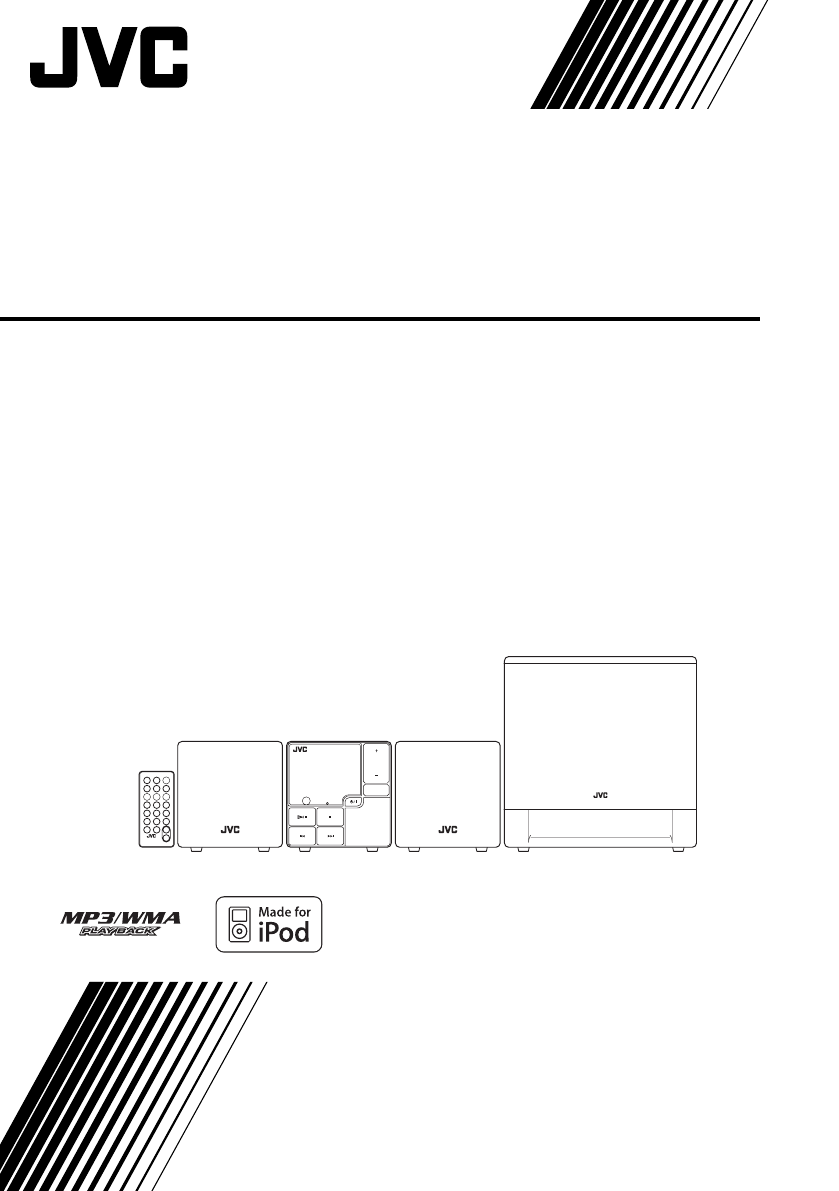
COMPACT COMPONENT SYSTEM
NX-PS1
—Consists of CA-NXPS1, SP-NXPS1F and SP-NXPS1W
STANDBY
COMPACT COMPONENT SYSTEM
NX-PS1
VOLUME
FUNCTION
CA-NXPS1 SP-NXPS1F SP-NXPS1WSP-NXPS1F
INSTRUCTIONS
LVT1633-003A
[B]
COVERC.FM Page 1 Sunday, September 3, 2006 7:57 PM
G-1
Warnings, Cautions and Others
IMPORTANT for the U.K.
DO NOT
cut off the mains plug from this equipment. If the
plug fitted is not suitable for the power points in your home
or the cable is too short to reach a power point, then obtain
an appropriate safety approved extension lead or consult
your dealer.
BE SURE
to replace the fuse only with an identical approved
type, as originally fitted.
If nonetheless the mains plug is cut off ensure to remove the
fuse and dispose of the plug immediately, to avoid a possible
shock hazard by inadvertent connection to the mains supply.
If this product is not supplied fitted with a mains plug then
follow the instructions given below:
IMPORTANT:
DO NOT
make any connection to the terminal which is
marked with the letter E or by the safety earth symbol or
coloured green or green-and-yellow.
The wires in the mains lead on this product are coloured in
accordance with the following code:
Blue: Neutral
Brown: Live
As these colours may not correspond with the coloured
markings identifying the terminals in your plug proceed as
follows:
The wire which is coloured blue must be connected to the
terminal which is marked with the letter N or coloured black.
The wire which is coloured brown must be connected to the
terminal which is marked with the letter L or coloured red.
IF IN DOUBT - CONSULT A COMPETENT ELECTRICIAN.
NX-PS1[B].BOOK Page 1 Monday, October 30, 2006 9:26 AM
G-2
CAUTION
• Do not block the ventilation openings or holes.
(If the ventilation openings or holes are blocked by a newspaper or cloth, etc., the heat may not be
able to get out.)
• Do not place any naked flame sources, such as lighted candles, on the apparatus.
• When discarding batteries, environmental problems must be considered and local rules or laws
governing the disposal of these batteries must be followed strictly.
• Do not expose this apparatus to rain, moisture, dripping or splashing and that no objects filled with
liquids, such as vases, shall be placed on the apparatus.
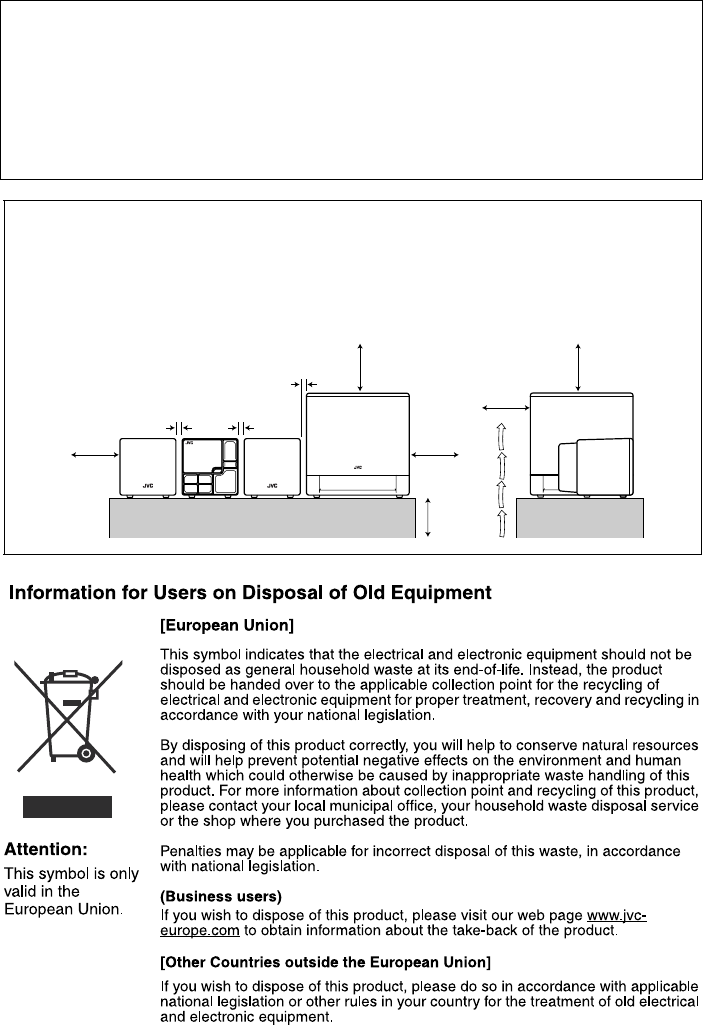
Caution: Proper Ventilation
To avoid risk of electric shock and fire, and to prevent damage, locate the apparatus as follows:
1. Front: No obstructions and open spacing.
2. Sides/ Top/ Back: No obstructions should be placed in the areas shown by the dimensions below.
3. Bottom: Place on the level surface. Maintain an adequate air path for ventilation by placing on a
stand with a height of 10 cm or more.
10 cm
15 cm
15 cm
15 cm
2 cm 2 cm
15 cm
15 cm
2 cm
Front Side
NX-PS1[B].BOOK Page 2 Monday, October 30, 2006 9:26 AM

G-3
SAFETY INSTRUCTIONS
“SOME DOS AND DON’TS ON THE SAFE USE OF EQUIPMENT”
This equipment has been designed and manufactured to meet international safety
standards but, like any electrical equipment, care must be taken if you are to obtain the best
results and safety is to be assured.
Do read the operating instructions before you attempt to use the equipment.
Do ensure that all electrical connections (including the mains plug, extension leads and
interconnections between pieces of equipment) are properly made and in accordance with
the manufacturer’s instructions. Switch off and withdraw the mains plug when making or
changing connections.
Do consult your dealer if you are ever in doubt about the installation, operation or safety of
your equipment.
Do be careful with glass panels or doors on equipment.
DON’T continue to operate the equipment if you are in any doubt about it working normally,
or if it is damaged in any way—switch off, withdraw the mains plug and consult your dealer.
DON’T remove any fixed cover as this may expose dangerous voltages.
DON’T leave equipment switched on when it is unattended unless it is specifically stated
that it is designed for unattended operation or has a standby mode.
Switch off using the switch on the equipment and make sure that your family know how to
do this.
Special arrangements may need to be made for infirm or handicapped people.
DON’T use equipment such as personal stereos or radios so that you are distracted from
the requirements of traffic safety. It is illegal to watch television whilst driving.
DON’T listen to headphones at high volume as such use can permanently damage your
hearing.
DON’T obstruct the ventilation of the equipment, for example with curtains or soft
furnishings.
Overheating will cause damage and shorten the life of the equipment.
✮✮✮✮✮✮✮✮✮✮✮✮✮✮✮✮✮✮✮✮✮✮✮✮✮✮✮✮✮✮✮✮✮✮✮✮✮✮✮✮✮✮✮✮✮✮✮
✮✮✮✮✮✮✮✮✮✮✮✮✮✮✮✮✮✮✮✮✮✮✮✮✮✮✮✮✮✮✮✮✮✮✮✮✮✮✮✮✮✮✮✮✮✮✮
NX-PS1[B].BOOK Page 3 Monday, October 30, 2006 9:26 AM

G-4
DON’T use makeshift stands and NEVER fix legs with wood screws—to ensure complete
safety always fit the manufacturer’s approved stand or legs with the fixings provided
according to the instructions.
DON’T allow electrical equipment to be exposed to rain or moisture.
ABOVE ALL
– NEVER let anyone, especially children, push anything into holes, slots or any
other opening in the case —this could result in a fatal electrical shock.;
– NEVER guess or take chances with electrical equipment of any kind—it is better
to be safe than sorry!
Dear Customer,
This apparatus is in conformance with the valid European directives and standards
regarding electromagnetic compatibility and electrical safety.
European representative of Victor Company of Japan, Limited is:
JVC Technology Centre Europe GmbH
P.O. Box 10 05 52
61145 Friedberg
Germany
NX-PS1[B].BOOK Page 4 Monday, October 30, 2006 9:26 AM

1
Contents
Introduction ............................................. 2
Precautions ..............................................................2
Getting Started ........................................ 3
Connection ..............................................................5
Basic Operations ...................................... 7
Unit .........................................................................7
Remote Control .......................................................9
Setting the Clock and Daily Timer ...... 11
Setting the Clock ...................................................11
Setting the Daily Timer .........................................11
Playing Back from iPod ........................ 13
To Connect iPod ...................................................13
Basic Operations ...................................................14
Playing Back from USB mass storage class
device ................................................... 15
To connect the USB mass storage class device ....15
Basic Operations ...................................................15
Playing Back from the PC .................... 17
How to install the USB drivers .............................17
To playback sounds on the PC ..............................18
Playing Back from Other Equipment .. 19
To connect other equipment .................................19
Troubleshooting ..................................... 20
Specifications ......................................... 21
NX-PS1[B].BOOK Page 1 Monday, October 30, 2006 9:26 AM
2
Introduction
Thank you for purchasing a JVC product.
Please read all instructions carefully before operation, to ensure your complete understanding and
to obtain the best possible performance from the unit.
Precautions
Installation
• Install in a place which is level, dry and neither too hot nor too cold–between 5°C and 35°C.
• Install the System in a location with adequate ventilation to prevent internal heat buildup inside
the System.
• Leave sufficient distance between the System and the TV.
• Keep the speakers away from the TV to avoid interference with TV.
Power sources
• When unplugging the System from the wall outlet, always pull on the plug, not the AC adaptor.
Internal heat
Others
• Should any metallic object or liquid fall into the System, unplug the AC adaptor and consult your
dealer before operating any further.
• If you are not going to operate the System for an extended period of time, unplug the AC adaptor
from the wall outlet.
If anything goes wrong, unplug the AC adaptor and consult your dealer.
DO NOT install the System in a location near heat sources, or in a place subject to
direct sunlight, excessive dust or vibration.
DO NOT handle the AC adaptor with wet hands.
For safety, observe the following carefully:
• Make sure there is good ventilation the main unit. Poor ventilation could overheat
and damage the System.
• DO NOT block the ventilation openings or holes. If they are blocked by a newspaper
or cloth, etc., the heat may not be able to get out.
DO NOT disassemble the System since there are no user serviceable parts inside.
NX-PS1[B].BOOK Page 2 Monday, October 30, 2006 9:26 AM
3
Getting Started
Supplied Accessories
After unpacking, check to be sure that you have all the following items. The number in parentheses
indicates the quantity of each piece supplied.
• Remote control (1)
• Lithium coin battery CR2025 (1) (The battery has been installed when shipped from the factory.)
• Speaker cords 1.5m (2)
• Speaker cord 2.5m (1)
• AC power cord (1)
• AC adaptor (AA-R2401) (1)
• iPod connection cable (Audio) (1)
• iPod stand (1)
If anything is missing, consult your dealer immediately.
CAUTION:
To avoid risk of fire, and to prevent damage.
• Do not use AC adaptors except the supplied AC adaptor.
• Do not use the supplied AC adaptor for other equipment.
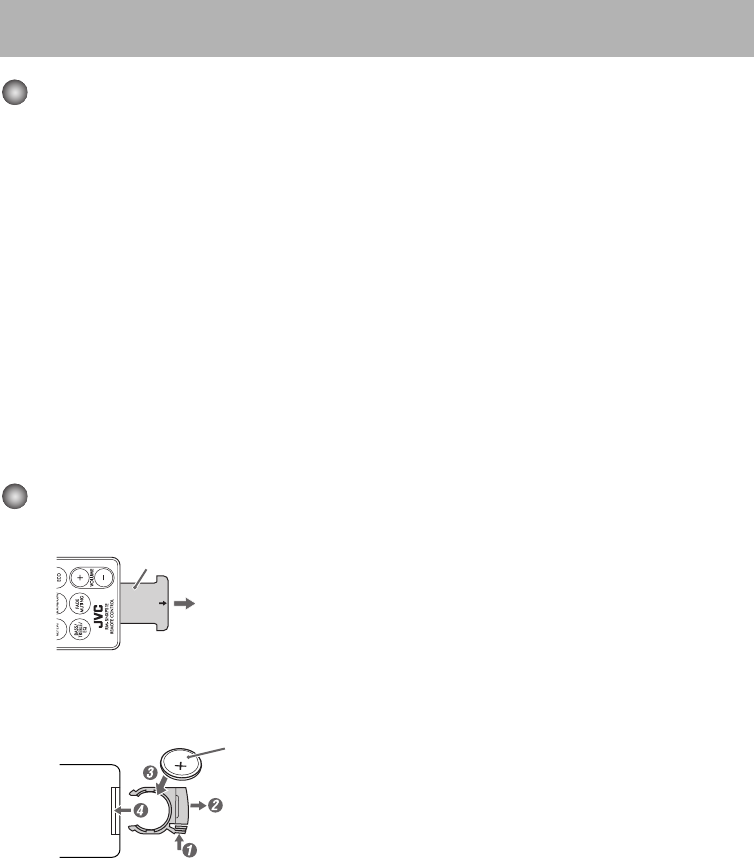
Prepare the Remote Control
When you use the remote control for the first time, pull out the insulation sheet.
Replacing the Battery in the Remote Control
Insert the battery into the remote control by matching the polarity (+ and -) correctly.
Insulation sheet
(Front side)
Lithium coin battery
(product number: CR2025)
(Rear side)
NX-PS1[B].BOOK Page 3 Monday, October 30, 2006 9:26 AM
4
Warning
• Store the battery in a place where children cannot reach. If a child accidentally
swallows the battery, consult a doctor immediately.
• Do not recharge, short, disassemble or heat the battery or dispose of it in a fire. Doing
any of these things may cause the battery to give off heat, crack, or start a fire.
• Do not leave the battery with other metallic materials. Doing this may cause the
battery to give off heat, crack, or start a fire.
• When throwing away or saving the battery, wrap it in tape and insulate; otherwise, the
battery may start to give off heat, crack, or start a fire.
• Do not poke the battery with tweezers or similar tools. Doing this may cause the
battery to give off heat, crack, or start a fire.
• Dispose of battery in the proper manner, according to federal, state, and local
regulations.
CAUTION:
Danger of explosion if battery is incorrectly replaced.
Replace only with the same or equivalent type.
NX-PS1[B].BOOK Page 4 Monday, October 30, 2006 9:26 AM
5
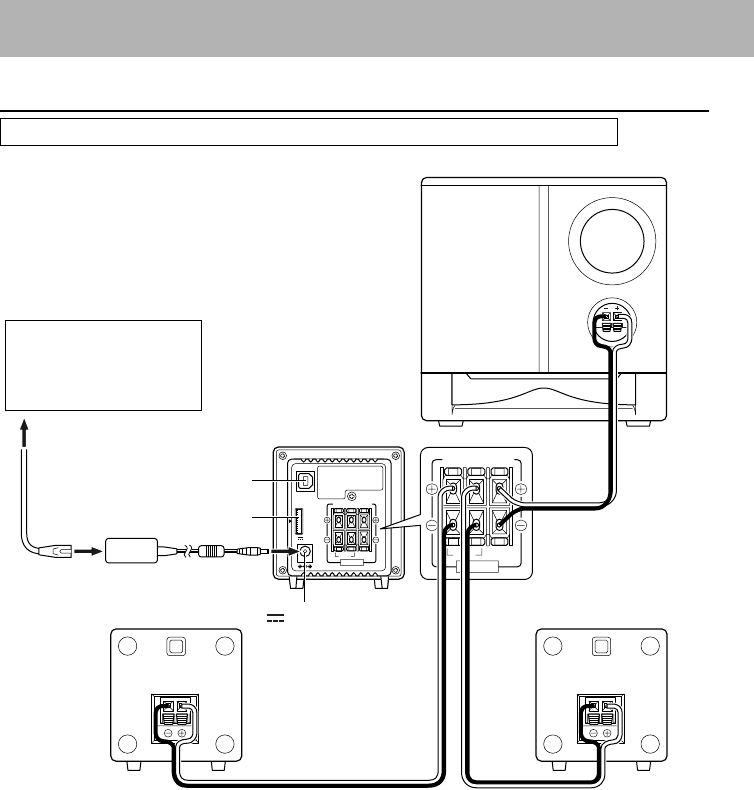
Connection
Do not connect the AC power cord until all other connections have been made.
USB
AUDIO
i Pod
DC IN
SPEAKERS
RIGHT LEFT WOOFER
6-16Ω8-16Ω
23V 2.5A
INPUT
SPEAKERS
RIGHT LEFT WOOFER
6-16Ω8-16Ω
Subwoofer
Unit
To a wall outlet
Plug the AC power cord
only after all connections
are complete.
AC adaptor
USB AUDIO
terminal
iPod terminal
DC IN
23V 2.5A
Main speaker
Speaker cord (1.5m) Speaker cord (1.5m)
AC adaptor
AC power
cord
Main speaker
Speaker cord (2.5m)
NX-PS1[B].BOOK Page 5 Monday, October 30, 2006 9:26 AM
6
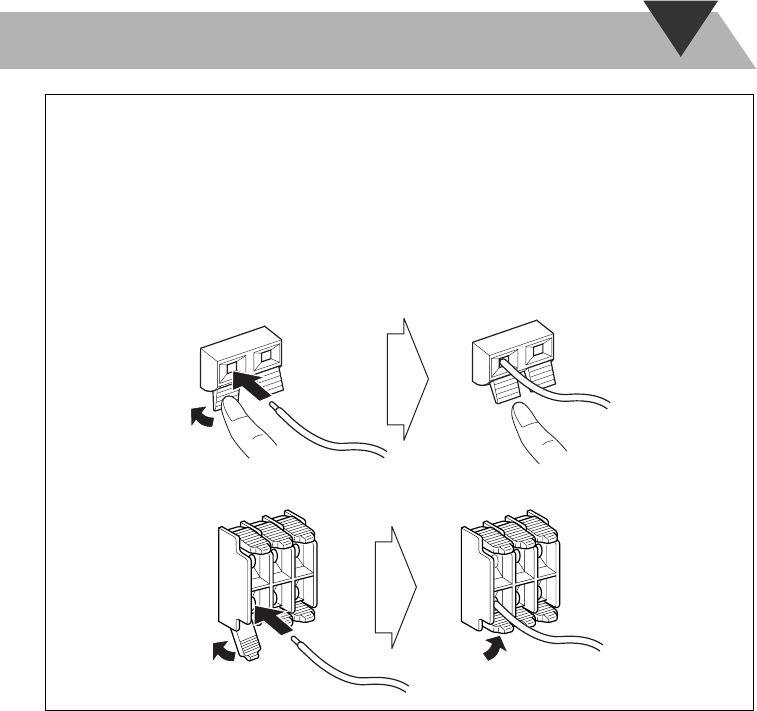
To connect the speaker cords
Make sure the unit, main speakers, and subwoofer are connected correctly and firmly.
When connecting the speaker cords, match the polarity of the speaker terminals: white cord to
(+) and white cord with black stripe to (-).
NOTES
• DO NOT connect more than one speaker to each terminal.
• DO NOT allow the conductor of the speaker cords to be in touch with the metallic parts of the
System.
e.g. Speaker
2 Insert
1 Hold
3 Release
e.g. Unit
1 Unlock
2 Insert
3 Lock
NX-PS1[B].BOOK Page 6 Monday, October 30, 2006 9:26 AM
7
Basic Operations
Unit
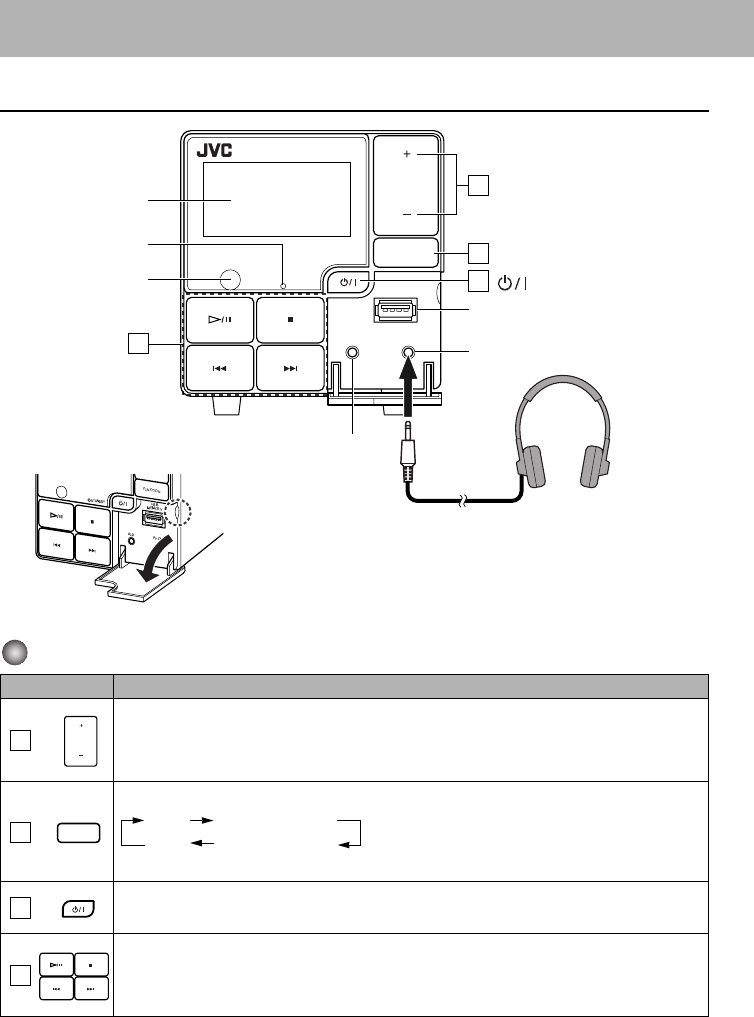
Operating on the Unit
Buttons Functions
Adjusts the volume level VOLUME MIN / 1 to 29 / VOLUME MAX.
Selects a source. See “Playing Back from iPod” (
P.13
).
See “Playing Back from USB mass storage class
device” (P.15).
See “Playing Back from the PC” (P.17).
See “Playing Back from Other Equipment” (P.19).
Turns on or off (standby) the power.
Operates music.
See “Playing Back from iPod” (
P.13
).
See “Playing Back from USB mass storage class device” (P.15).
STANDBY
COMPACT COMPONENT SYSTEM
NX-PS1
VOLUME
FUNCTION
AUX PHONES
USB
MEMORY
4
3
2
1
Display
STANDBY lamp
Remote control
sensor
Operation
buttons
Adjust the volume
Select a source
STANDBY/ON button
AUX jack
PHONES jack
USB MEMORY terminal
Opening the front panel cover
Using Headphones
Be sure to turn down the volume before
connecting or wearing the headphones.
• Connecting the headphones will
deactivate the speakers.
VOLUME
1
FUNCTION
2iPod USB MEMORY
AUX USB AUDIO
3
4
NX-PS1[B].BOOK Page 7 Monday, October 30, 2006 9:26 AM
8
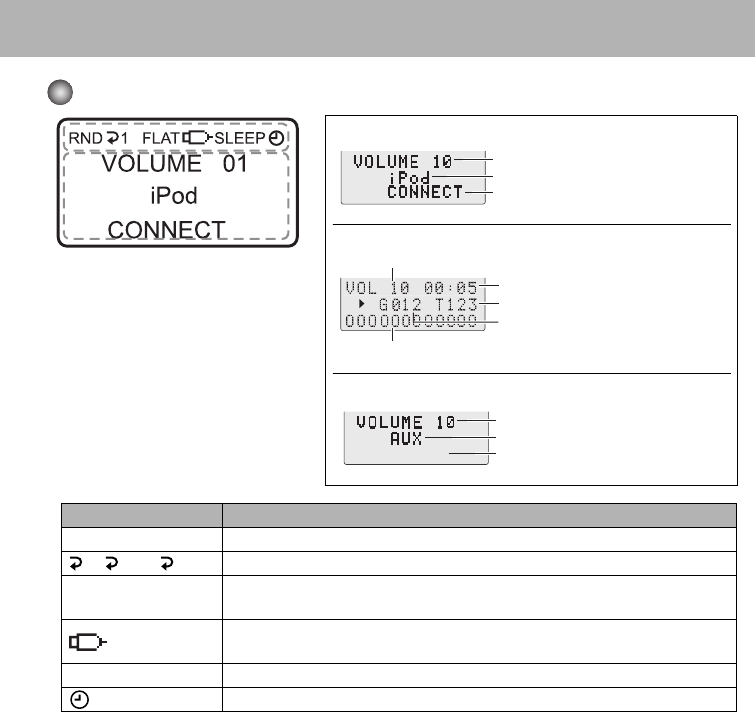
Display Information
While selecting iPod / USB AUDIO:
While selecting USB MEMORY:
While selecting AUX:
Volume level
Source name
Current status
⇔
Clock display
Elapsed playing time
Current track number
Current group number
File information ⇔ Clock display
Volume level
Volume level
Source name
No display ⇔ Clock display
Symbols Description
RND Lights when Random Play mode is activated in USB MEMORY mode. (P.17)
1/ ALL/ GR Lights when Repeat mode is activated in USB MEMORY mode. (P.17)
FLAT/ROCK/POP/
JAZZ/CLAS(CLASSIC)
Displays an selected EQ setting. (P.10)
Lights when the USB mass storage class device is connected and the USB
MEMORY mode is selected.
SLEEP Lights when the Sleep Timer is activated. (P.10)
Lights when Daily Timer is set. (P.11)
BASIC.FM Page 8 Monday, October 30, 2006 9:41 AM
9
Remote Control
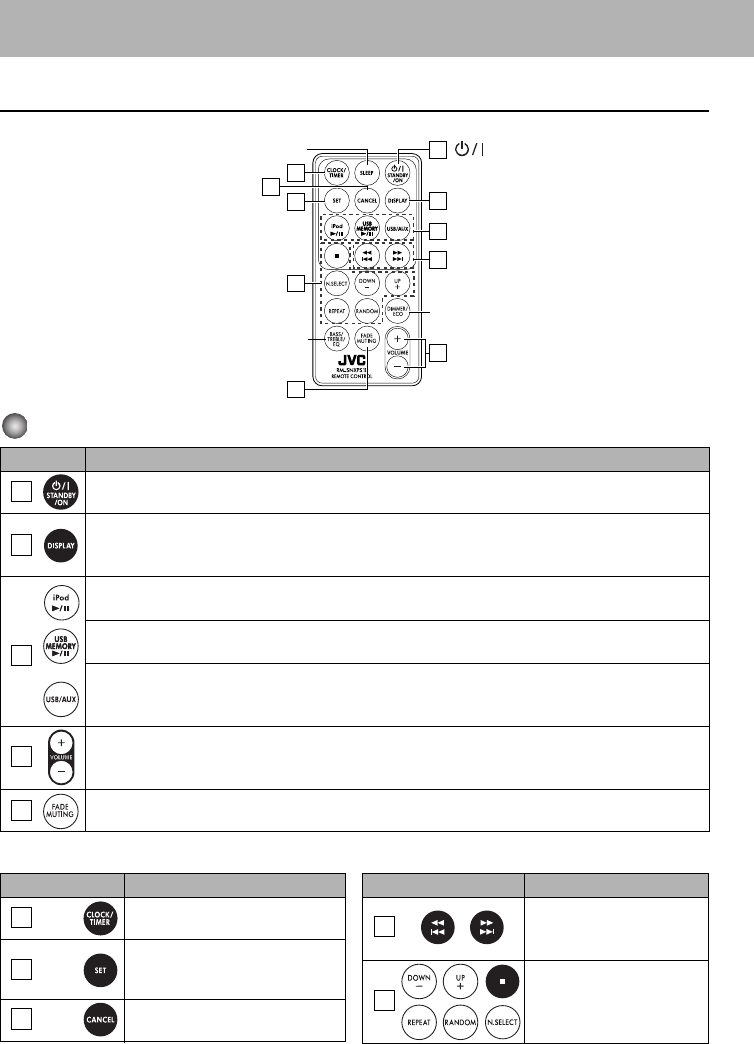
Operating on the Remote Control
Others
4
3
9
2
1
5
6
7
10
8
Sleep timer
Adjust the volume
STANDBY/ON button
Change the display information
Select a source
Dimmer/ECO mode
Adjust the tone
FADE MUTING button
Buttons Functions
Turns on or off (standby) the power
Changes the display information.
USB MEMORY mode : Clock display
⇔
File information
Other mode : Clock display ⇔ Source information
Changes source to iPod.
See “Playing Back from iPod” (
P.13
).
Changes source to USB MEMORY.
See “Playing Back from USB mass storage class device” (P.15).
Changes source to USB AUDIO and AUX.
See “Playing Back from the PC” (P.17).
See “Playing Back from Other Equipment” (P.19).
Adjusts the volume level VOLUME MIN / 1 to 29 / VOLUME MAX.
Drops the volume in a moment.
To restore the volume, press again, or adjust the volume level.
1
2
3
4
5
Buttons Reference pages
CLOCK/TIMER set (P.11)
CLOCK/TIMER set (P.11)
USB MEMORY (P.15)
AUX (P.19)
CLOCK/TIMER set (P.11)
USB MEMORY (P.15)
6
7
8
Buttons Reference pages
CLOCK/TIMER set (P.11)
iPod (
P.13
)
USB MEMORY (P.15)
USB MEMORY (P.15)
9
10
NX-PS1[B].BOOK Page 9 Monday, October 30, 2006 9:26 AM
10
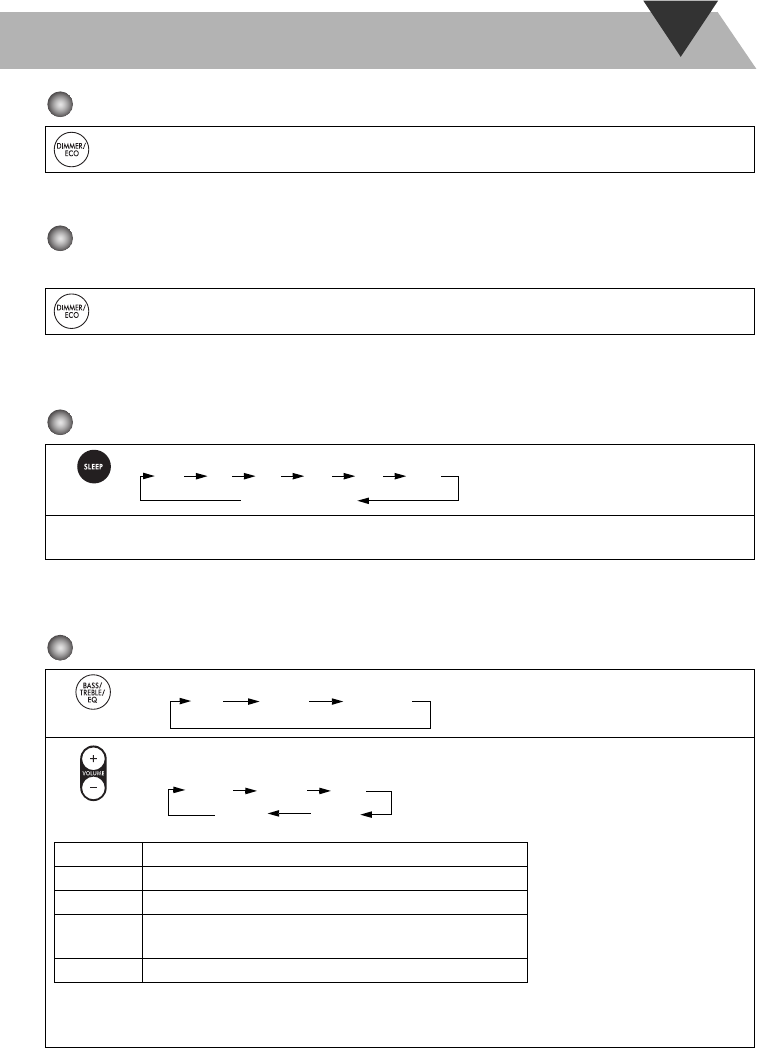
To dim the display—DIMMER
• To cancel this function, press DIMMER/ECO again. “DIMMER OFF” appears.
To set the ECO mode.
In ECO mode, the dispaly goes off and the least power is consumed.
• To cancel this function, press DIMMER/ECO again.
“ECO OFF” appears and then the clock is displayed.
To turn off the System after a certain period of time—Sleep Timer
• To check the time remaining before the shut-off time, press SLEEP once.
If you press the button repeatedly, you can change the shut-off time
To adjust the tone
Press while the System is turned on. “DIMMER ON” appears.
Press While the System is turned off. “ECO ON” appears and then nothing is displayed.
1Press repeatedly to specify the time (in minutes) as follows:
2Wait until the set time goes off.
1Selects an item as follows :
2
• Adjust the bass and treble level with VOLUME +/- from -5 to +5.
• Select a EQ setting as follows with VOLUME +/-:
When the bass or treble level is adjusted, EQ is not effective and EQ symbol disappears.
BASS/TREBLE adjustment will not work at the same time as the EQ. The last setting made will become
effective.
10 20 30 60 90 120
OFF (Canceled)
EQ BASS TREBLE
FLAT
CLAS JAZZ
ROCK
ROCK POP
ROCK Boosts low and high frequency. Good for acoustic music.
POP Good for vocal music.
JAZZ Good for jazz music.
CLAS
(CLASSIC)
Good for classical music.
FLAT Normal sound.
NX-PS1[B].BOOK Page 10 Monday, October 30, 2006 9:26 AM
11
Setting the Clock and Daily Timer
Setting the Clock
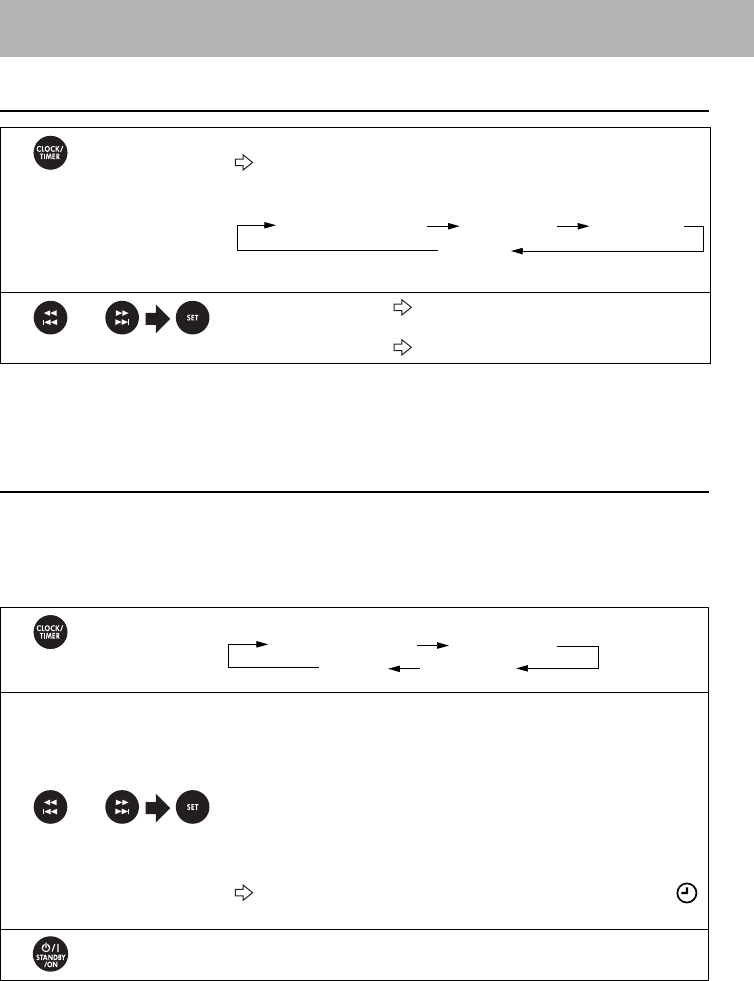
• To go back to the previous step, press CANCEL.
• If there is a power failure, the clock loses the setting and is reset to “0:00”. You need to set the
clock again.
Setting the Daily Timer
Without setting the built-in clock, you cannot use Daily Timer.
Using Daily Timer, you can wake up with music, etc.
Connect the iPod or USB mass storage device, or other equipment, to the Unit beforehand. (P.13,
P.15, P.19)
• To exit from the timer setting, press CLOCK/TIMER as required.
• To correct a misentry during the process, press CANCEL. You can return to the previous step.
1Activate the clock setting mode (“Clock Adjust” appears).
The hour digit of the time indication blinks on the display.
• If you have already adjusted the clock before, press the button repeatedly
until “Clock Adjust” appears.
If the clock has not been adjusted, “Clock Adjust” appears first.
21 Adjust the hour. The minute digits of the time indication blink
on the display.
2 Adjust the minute. The built-in clock starts working.
1Select the timer setting mode.
2
1 Adjust the hour then the minute for Daily Timer on-time.
2 Adjust the hour then the minute for Daily Timer off-time.
• The on-time and off-time of the Daily Timer cannot be set to the same time.
3 Select the playback source—“iPod,” “USB MEMORY,” or “AUX.”
• If “USB MEMORY” is selected, select the GROUP number (“001” to
“500” and “---”) and then select the TRACK number (“001” to “999”
and “---”).
If you select “---,” TRACK1 in GROUP1 is set.
4 Select the volume level (“VOLUME MIN / 1 to 29 / VOLUME MAX”).
“SET OK” appears briefly followed by setting information, then the
icon appears on the display.
3Turn off the System (on standby).
Current timer settings
Canceled
Timer setting Clock Adjust
or
(Twice) Current timer settings Timer setting
Canceled Clock Adjust
or
NX-PS1[B].BOOK Page 11 Monday, October 30, 2006 9:26 AM
12
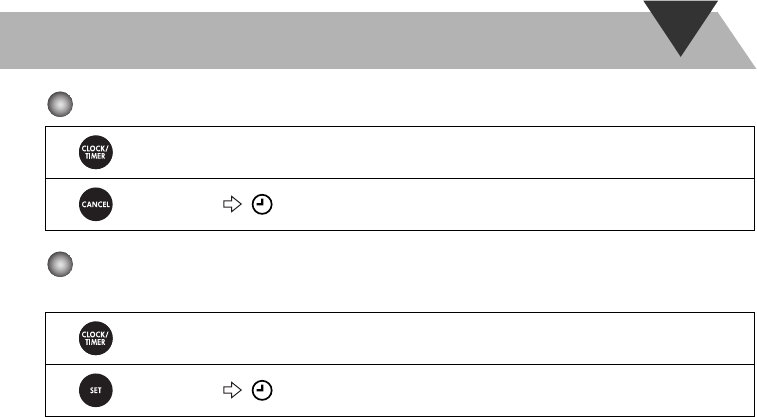
To cancel the Daily Timer
To turn on the Daily Timer again (Turn on a timer setting you have made
beforehand.)
1Select the current timer settings mode.
2 icon disappears.
1Select the current timer settings mode.
2 icon appears on the display.
NX-PS1[B].BOOK Page 12 Monday, October 30, 2006 9:26 AM
13
Playing Back from iPod
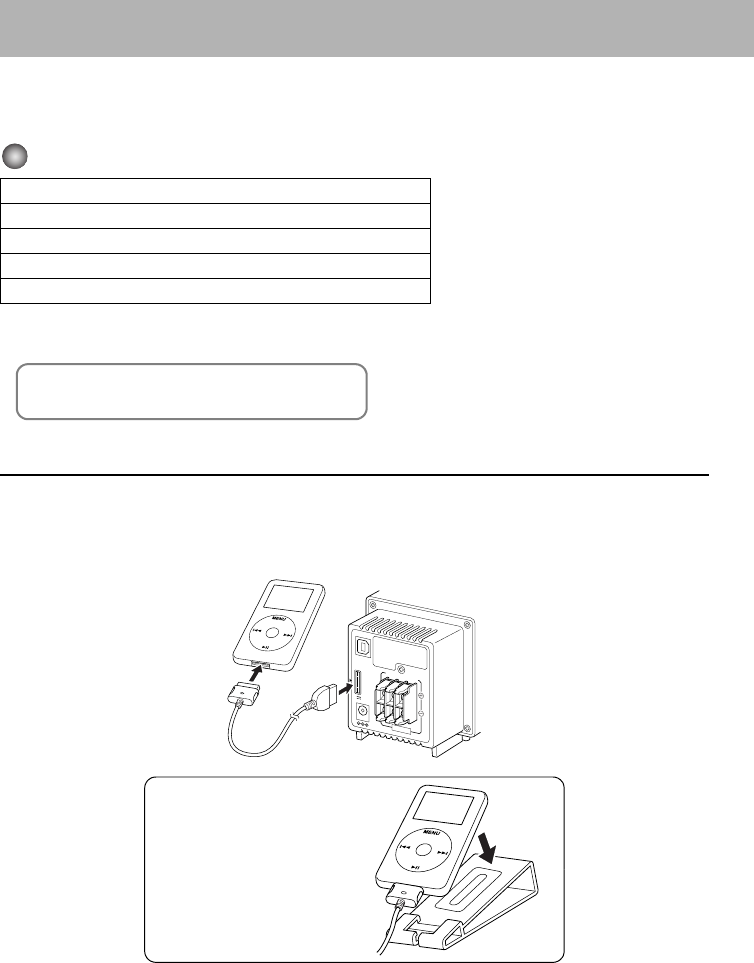
This system is equipped with an iPod terminal on the rear panel. You can connect your iPod to this
terminal and enjoy the sound from your iPod.
Compatible iPod types:
If the iPod does not play correctly, please update your iPod software to the latest version.
• For details about updating your iPod, check on the Apple web site <http://www.apple.com>.
To Connect iPod
Connect the iPod to the System using the supplied cable.
Make sure the System is turned off when you connect it.
Connect the arrow of iPod terminal and the arrow of the connector facing each other.
iPod nano 1G/2G/4G
iPod mini
iPod (4th Generation) 20G/40G
iPod photo (4th Generation) 20G/30G/40G/60G
iPod video (5th Generation) 30G/60G
iPod is a trademark of Apple Computer, Inc.,
registered in the U.S. and other countries.
USB
AUDIO
i Pod
DC IN
SPEAKERS
RIGHT LEFT WOOFER
8-16Ω
23V 2.5A
1
2
You can place the iPod on
the supplied iPod stand.
NX-PS1[B].BOOK Page 13 Monday, October 30, 2006 9:26 AM
14
When disconnecting the iPod, make sure that the System is turned off.
Basic Operations
NOTES
• The iPod battery is charged while the System is turned on or on standby (except in ECO mode).
See the iPod instruction manual about battery charging.
• If you connect an iPod to the iPod terminal and a USB mass storage class device to the USB
MEMORY terminal at the same time, the system might be overloaded.
• Sound distortion may occur when playing back audio sources with high recording levels. When
distortion occurs, it is recommended to turn off the equalizer of the iPod. For information on
operating the iPod, see the iPod instruction manual.
• JVC is not responsible for any loss of or damage to iPod that might result from the use of this
product.
• When you connect your iPod to the cable, make sure it connects all the way in.
• Do not carry the System with iPod connected. You might drop it down or it might cause damages
to the connector part.
• Do not touch or hit the iPod terminal pins or the connector pins directly. It might cause damages
to the connector part.
• Remove the iPod from the cable when you do not use.
• Always set volume to the minimum level when connecting or disconnecting the other equipment.
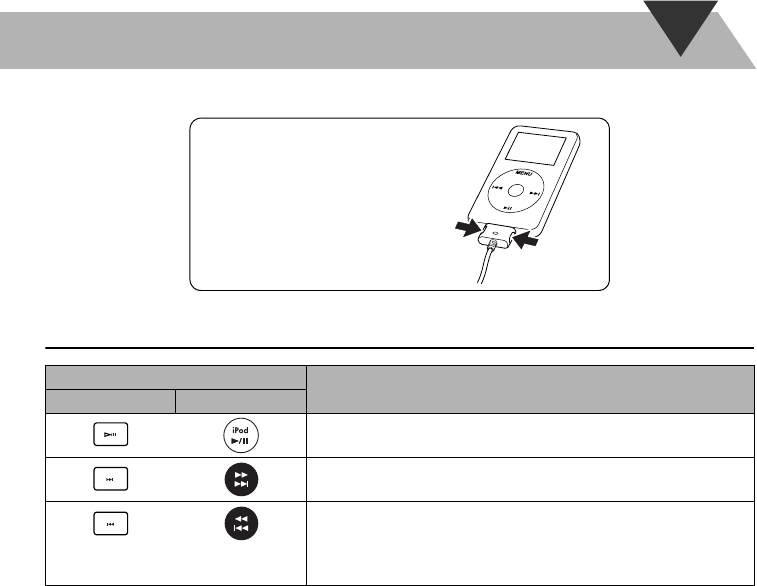
Button Function
On the Unit On the remote
Start playback / Pause
Press and hold : The iPod is in sleep mode
Increase the track numbers
Press and hold : Fast forward search
Decrease the track numbers
Press and hold : Fast reverse search
(Press this button during playback to jump back to the beginning of
the track.)
To remove the connector from
your iPod, squeeze the buttons
on the sides and pull.
NX-PS1[B].BOOK Page 14 Monday, October 30, 2006 9:26 AM
15
Playing Back from USB mass storage class device
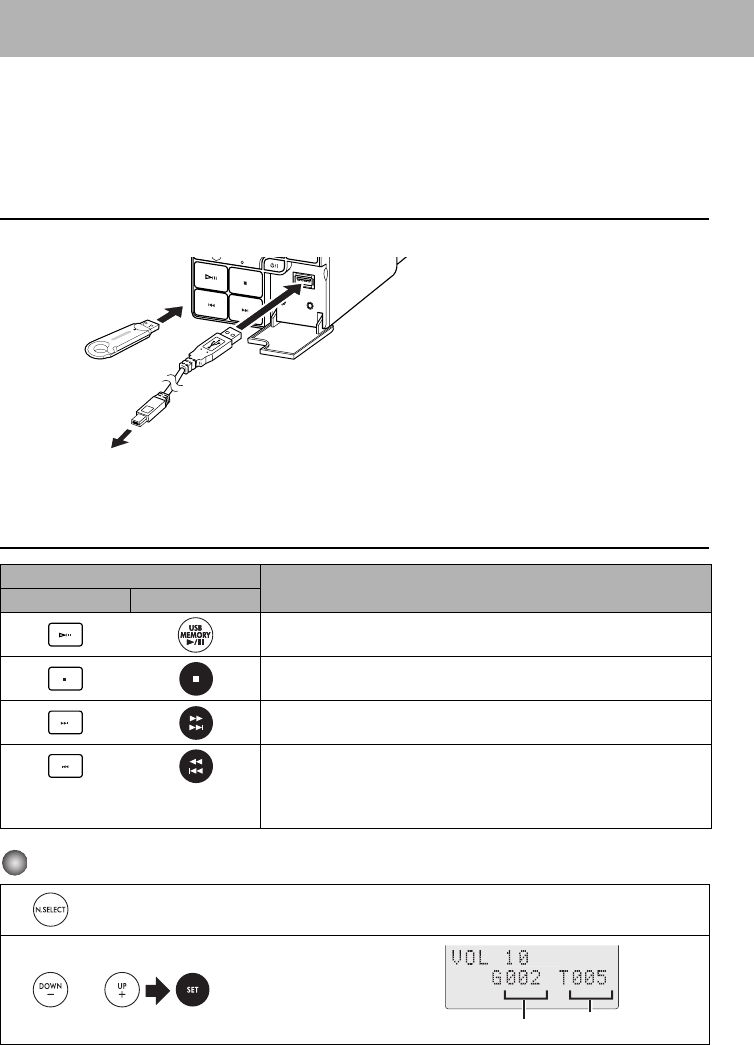
This System is equipped with a USB MEMORY terminal on the front panel. You can connect a
USB mass storage class device such as a USB flash memory device, Digital Audio Player (DAP),
etc. to this System.
This System cannot recognize a USB mass storage class device whose rating exceeds 5V/500mA.
To connect the USB mass storage class device
When connecting a USB mass storage class device, refer also to its manual.
• When disconnecting the USB mass storage class device, make sure that the System is in the stop condition.
Basic Operations
For MP3/WMA playback
Button Function
On the Unit On the remote
Starts playback / Pauses
Stops playback
Increases the track numbers.
Press and hold : Fast forward search
Decreases the track numbers.
Press and hold : Fast reverse search
(Press this button during playback to jump back to the beginning of
the track.)
1Set Number select mode.
2
Input the Group number, then
input the Track number.
STANDBY
AUX PHONES
USB
MEMORY
DAP
or
or
Track number
Group number
NX-PS1[B].BOOK Page 15 Monday, October 30, 2006 9:26 AM

16
• To exit from the Number select mode, press CANCEL.
NOTES
• You cannot send any data to your USB mass storage class device from this System.
• Always set volume to the minimum level when connecting or disconnecting the other equipment.
• Connect the USB mass storage class device directly to the system. Using a USB hub may result in
malfunction.
• Coded or encrypted tracks in a special method cannot be played on the unit.
• The USB mass storage device's battery is charged while the System is turned on or on standby (except
in ECO mode).
• An iPod does not play on the USB MEMORY terminal. “RESTRICT” appears on the display when an
iPod is connected to the USB MEMORY terminal while USB MEMORY is selected for the source.
• This System may not playback some USB mass storage devices and does not support DRM (Digital
Rights Management).
• Some MP3/WMA files cannot be played back and will be skipped.
This result from their recording processes and conditions.
• This System can play back MP3/WMA files with the extension code <.mp3> or <.wma> (regardless of
the letter case–upper/lower).
• Some characters or symbols will not be shown correctly on the display.
The maximum character number shown on the display is 32 (without the extension code) for files, and
30 for ID3 tag.
• It is recommended that you make each MP3 file at a sampling rate of 44.1 kHz and at a bit rate of 128
kbps. Similarly each WMA file at a sampling rate of 44.1 kHz and at a bit rate of 96 kbps.
• Playback order of MP3/WMA tracks may be different from the one you have intended while recording.
If a folder does not include MP3/WMA tracks, they are ignored.
3Start playback.
NX-PS1[B].BOOK Page 16 Monday, October 30, 2006 9:26 AM
17
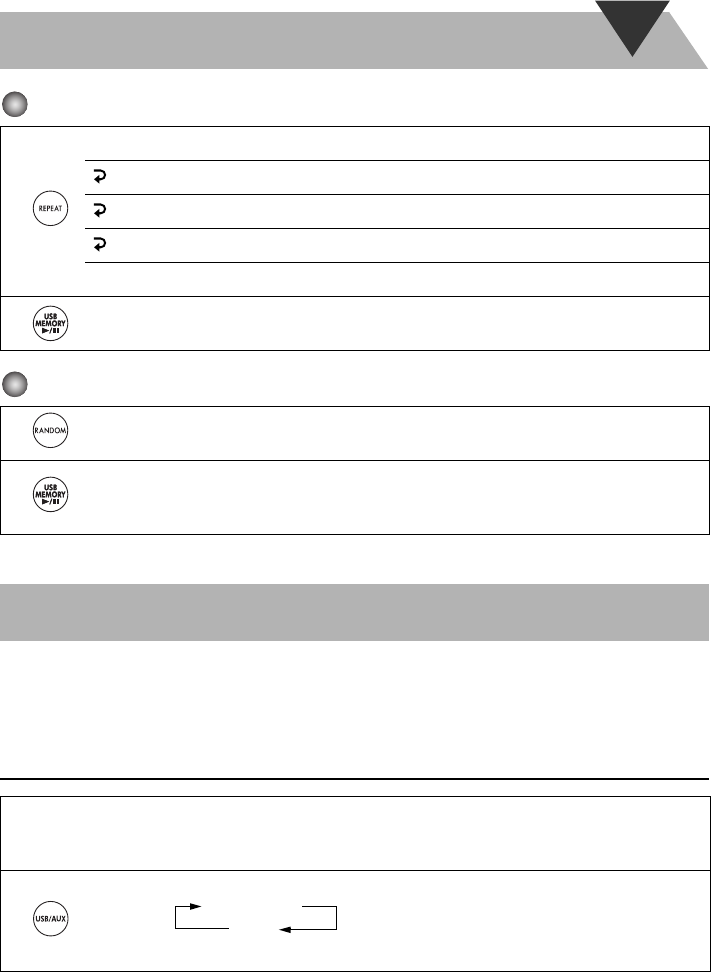
Repeat Play
Random Play
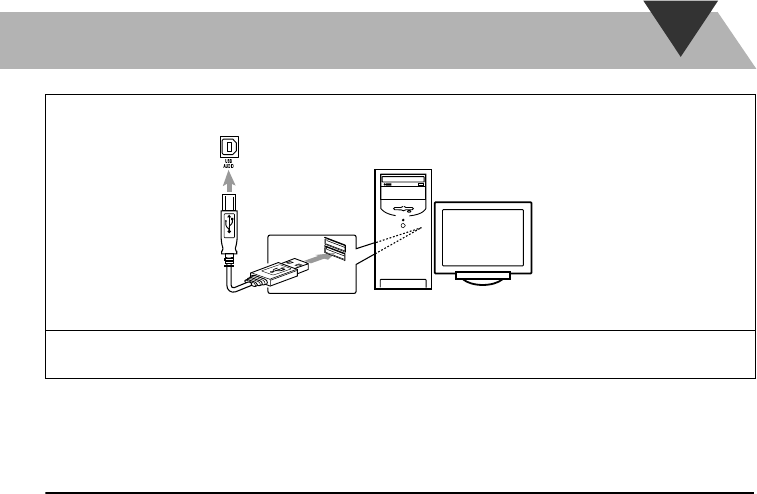
This System is equipped with a USB AUDIO terminal on the rear panel. You can connect your PC
to this terminal and enjoy the sound from your PC. When you connect your PC for the first time,
follow the procedure below.
How to install the USB drivers
1
Press repeatedly before you start playback to specify the repeat mode as follows:
1Repeats the current track.
ALL Repeats all tracks.
GR Repeats all tracks in the current group.
Cancel
2Start playback.
1RND appears on the display before you start playback.
• To cancel, press again.
2Playback starts in random order.
Random Play ends when all tracks are played.
• To repeat random play, press REPEAT.
1Turn on your PC and start running Windows ® 98SE, Windows ® Me, Windows ® 2000, or
Windows ® XP.
• If the PC has been turned on, close all the applications running.
2
Select USB AUDIO for the source.
• USB AUDIO can be selected also by the FUNCTION button on the unit.
Playing Back from the PC
USB AUDIO
AUX
NX-PS1[B].BOOK Page 17 Monday, October 30, 2006 9:26 AM
18
NOTE
• Always set volume to the minimum level when connecting or disconnecting the other equipment.
To playback sounds on the PC
Refer to the manuals supplied with the media player application installed on the PC.
* Microsoft ®, Windows ® 98SE, Windows ® Me, Windows ® 2000 and Windows ® XP are
registered trademarks of Microsoft corporation.
NOTES
• You cannot send any signal or data to your PC from this System.
• DO NOT turn off the unit or disconnect the USB cable while installing the drivers and for several
seconds while your PC is recognizing the receiver.
• Use a full speed USB cable (version 1.1).
Recommended cord length is shorter than approximately 2 m.
• If your PC does not recognize the unit, disconnect the USB cable and connect it again. If it does
not work yet, restart Windows.
• The installed drivers can be recognized only when the USB cable is connected between the unit
and your PC.
• The sound may not be played back correctly— interrupted or degraded—due to your PC settings
and PC specifications.
3
Connect the System to the PC using a USB cable (not supplied).
• Use “USB series A plug to B plug” cable.
4The USB drivers are installed automatically.
(rear panel)
USB cable
(not supplied)
PC
NX-PS1[B].BOOK Page 18 Monday, October 30, 2006 9:26 AM
19
Playing Back from Other Equipment
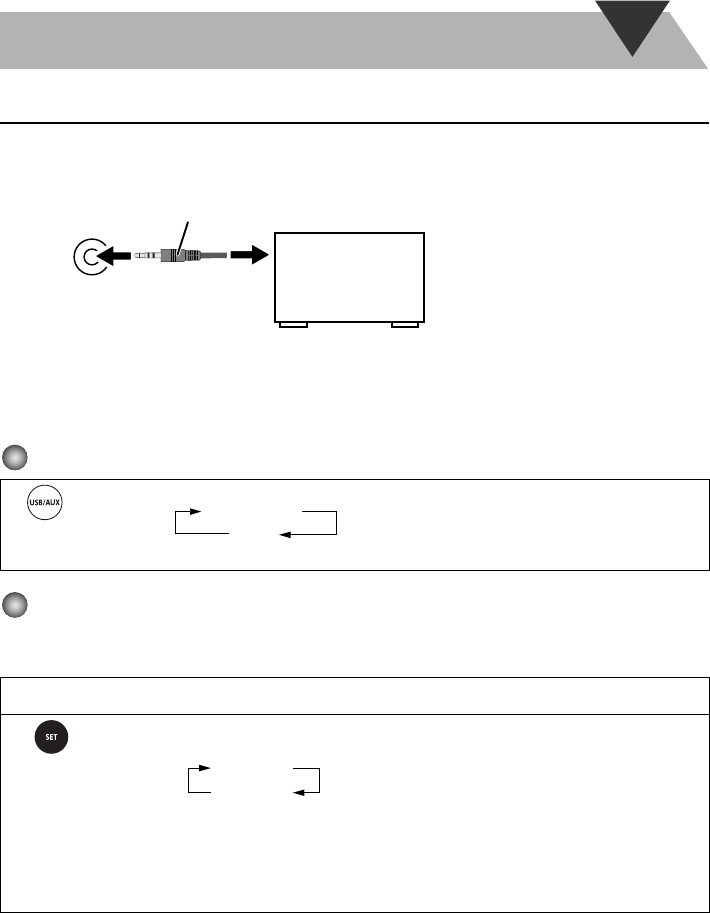
To connect other equipment
By using a stereo mini plug cord (not supplied), you can connect other equipment with analog audio
output jacks, such as Digital Audio Player, a TV, etc.
• Refer to the manuals supplied with the other equipment.
NOTE
• Always set volume to the minimum level when connecting or disconnecting the other equipment.
To select other equipment for the source
To adjust the sound input level from other equipment
You can adjust the sound input level from the connected equipment, if the incoming signal is too
small or too large.
Select AUX for the source.
• AUX can be selected also by the FUNCTION button on the unit.
1Select AUX for the source.
2Press and hold until the indicator appears on the display. Then press and hold until setting is
changed.
LEVEL 1:
Decreased input level. Suitable for equipment with high output level (such as a DVD player).
LEVEL 2:
Ordinary input level (factory setting). Suitable for equipment with low output level (such as a portable audio
device).
Stereo mini plug cord (not supplied)
AUX
(front panel)
Portable audio
device, Game
machine, etc.
USB AUDIO
AUX
LEVEL 1
LEVEL 2
NX-PS1[B].BOOK Page 19 Monday, October 30, 2006 9:26 AM
20
Troubleshooting
If you are having a problem with your System, check this list for a possible solution before calling
for service.
General:
Power does not come on.
Power plug is not inserted securely. Plug in securely.
Adjustments or settings are suddenly canceled before you finish.
There is a time limit. Repeat the procedure again.
Operations are disabled.
The built-in microprocessor may malfunction due to external electrical interference. Unplug
the AC power cord and then plug it back in.
Unable to operate the System from the remote control.
The path between the remote control and the remote sensor on the System is blocked.
Point it at the remote sensor on the font panel.
Signals cannot reach the remote sensor.
More closer to the System.
The batteries are exhausted.
No sound is heard from the speakers.
Speaker connections are incorrect or loose (P.5).
Headphones are connected (P.7).
Sound from PC connected with a USB cable has some noise (P.17).
PC is subjected to excessive load due to using other applications. Close the applications you do
not use.
PC is connected via USB Hub. Connect the PC directly to the main unit with a USB cable.
iPod/USB mass storage class device Operations:
The iPod doesn’t playback although the display indicates CONNECT.
The battery is empty. Let stand for more than approximately ten minutes on the connecting
condition.
Timer Operations:
Daily Timer does not work.
The System has been turned on when the ontime comes.
Timer starts working only when the System is turned off.
There might have been a power failure.
Set the clock first, then the timer again.
NX-PS1[B].BOOK Page 20 Monday, October 30, 2006 9:26 AM
21
Specifications
Amplifier
Output Power
Main Speaker 10 W per channel, min. RMS,
driven into 6Ω at 1kHz, with
no more than 10% total
harmonic distortion (IEC268-
3)
Subwoofer 30W, min. RMS, driven into
8Ω at 100Hz, with no more
than 10% total harmonic
distortion (IEC268-3)
Terminals
Input Sensitivity/Impedance (1 kHz)
AUX IN LEVEL1 500 mV/47 kΩ
LEVEL2 125 mV/47 kΩ
USB AUDIO Ver. 1.1
USB MEMORY Ver. 1.1
Compatible device Mass Storage Class
Compatible file system FAT16, FAT32
Bus power supply Max. 5V/500 mA
iPod
Compatible iPod types See Page 13
Bus power supply Max. 5V/500 mA
Speaker terminals Main speaker 6Ω-16Ω
Subwoofer 8Ω-16Ω
PHONES 32Ω - 1 kΩ
15 mW/ch output into 32Ω
Unit
Dimensions 90mm × 96mm × 137mm
(W/H/D)
Mass Approx. 0.5kg
Speaker Specifications
Main speaker SP-NXPS1F (each unit)
Type Full range bass-reflex type
Speaker Unit 7.5 cm cone × 1
Power handling Capacity
10 W
Impedance 6Ω
Frequency Range 150 Hz - 20 kHz
Sound pressure level 83 dB/W • m
Dimensions 90mm × 96mm × 90mm
(W/H/D)
Mass Approx. 0.63kg
Subwoofer SP-NXPS1W
Type Bass Reflex Type
Speaker Unit 16 cm cone × 1
Power handling Capacity
30 W
Impedance 8Ω
Frequency Range 35 Hz - 150Hz
Sound pressure level 80 dB/W • m
Dimensions 221mm × 221mm × 222mm
(W/H/D)
Mass Approx. 3.5kg
Accessories
See Page 3
Power Specifications
NX-PS1 (System)
Power Requirements
AC 110V-240V 50Hz/60Hz
Power Consumption 19 W (power on mode)
12 W (in Standby mode)
1 W (in ECO mode)
AC Adaptor (AA-R2401)
INPUT AC 110V-240V
50Hz/60Hz 1.5A
OUTPUT DC 23V 2.5A, 57.5VA
CA-NXPS1 (Main Unit)
Power Requirements DC IN 23V 2.5A
Design and specifications are subject to change with-
out notice.
NX-PS1[B].BOOK Page 21 Monday, October 30, 2006 9:26 AM

NX-PS1 COMPACT COMPONENT SYSTEM
EN
© 2006 Victor Company of Japan, Limited 0906NSMCREBET
COVERC.FM Page 2 Sunday, September 3, 2006 7:57 PM
