JVC UX QD7MUB QD7_UB User Manual LVT1220 002A
UX-QD7WUB UX-QD7WUB LVT1220-002A English, Simplified Chinese,
User Manual: JVC UX-QD7MUB UX-QD7MUB English, Simplified Chinese,
Open the PDF directly: View PDF  .
.
Page Count: 161 [warning: Documents this large are best viewed by clicking the View PDF Link!]
- Introduction
- Preparation
- Basic Operations
- Listening to Radio Broadcasts
- Listening to Discs
- Basic Operations of the DVD Player
- Playback
- Changing the Display in the Display Window
- Playing Back from a Position 10 Seconds Before (One Touch Replay)
- Stopping Playback
- Resuming Playback (RESUME)
- Pausing Playback
- Advancing Picture Frame by Frame
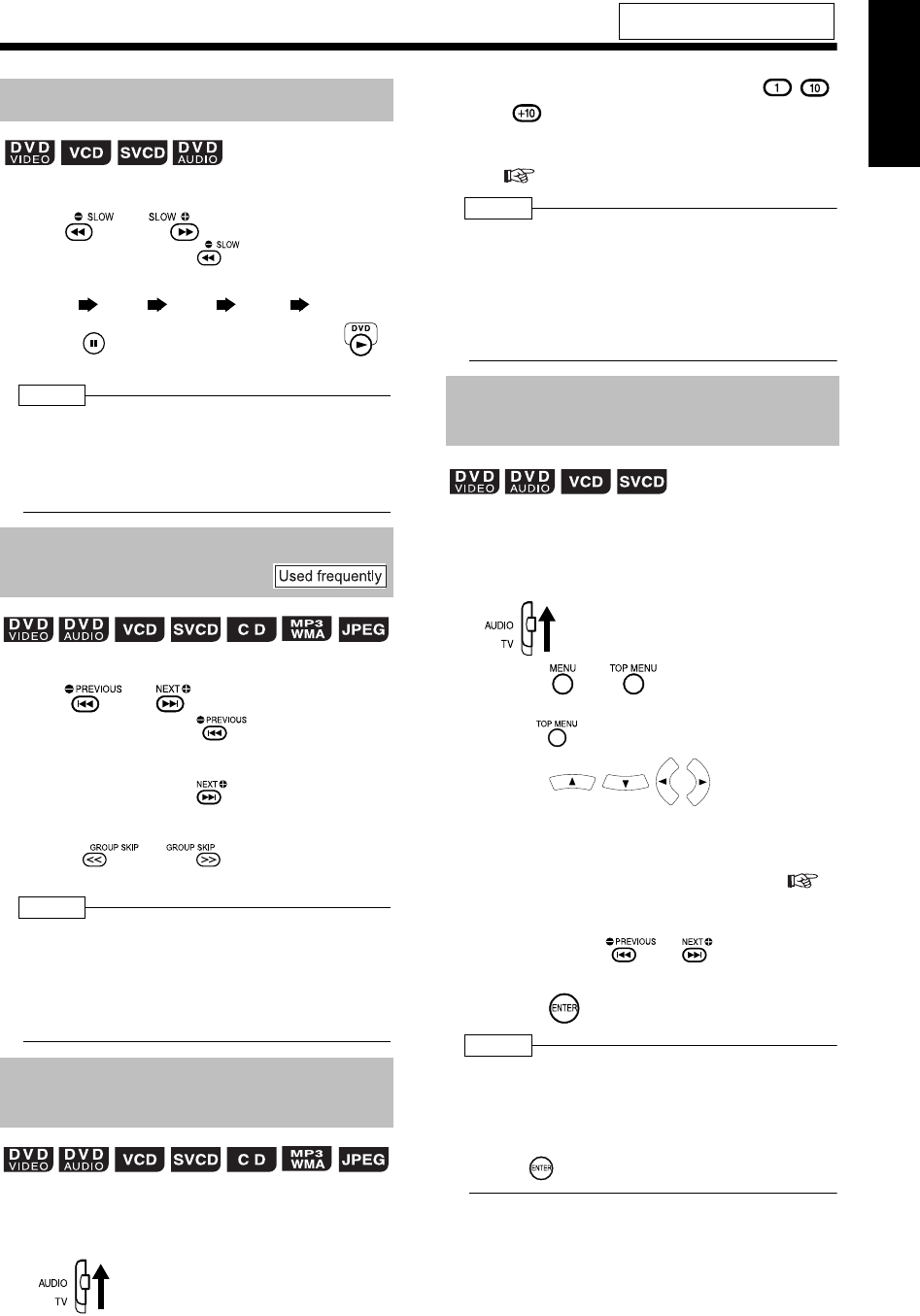
- Fast Reverse/Fast Forward Search
- Slow Motion Playback
- Skipping to the Beginning of a Track
- Skipping to the Beginning of a Track with the Number Buttons
- Selecting a Track from the Menu Screen
- Convenient Functions of the DVD Player
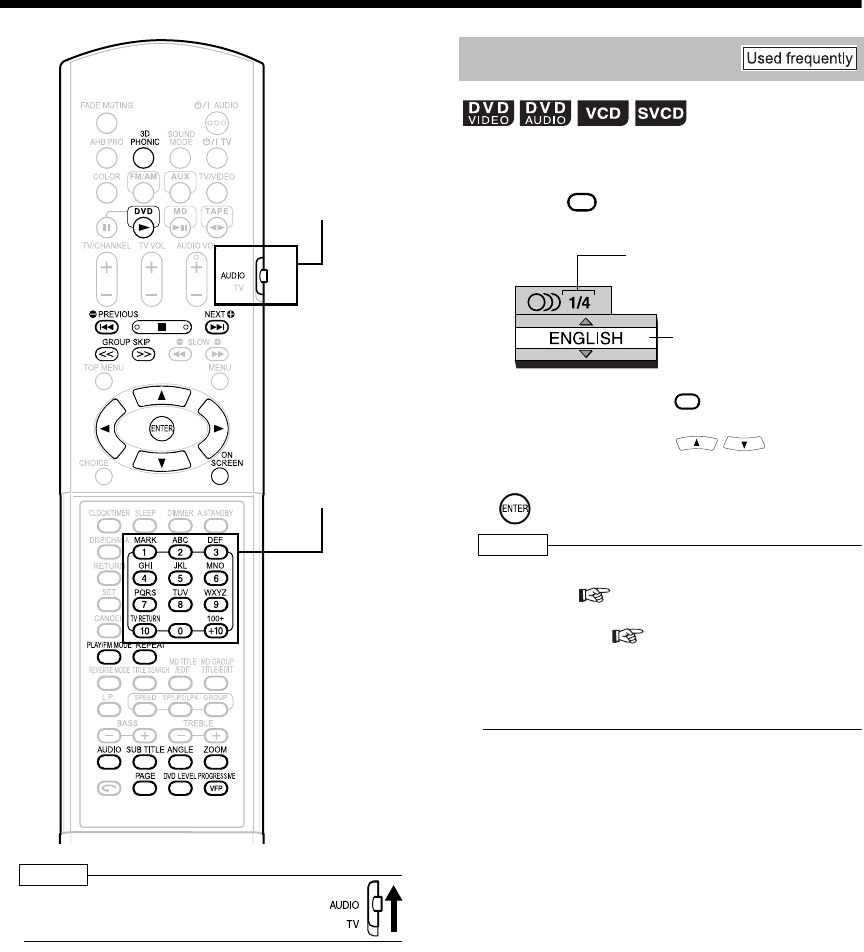
- Selecting the Audio
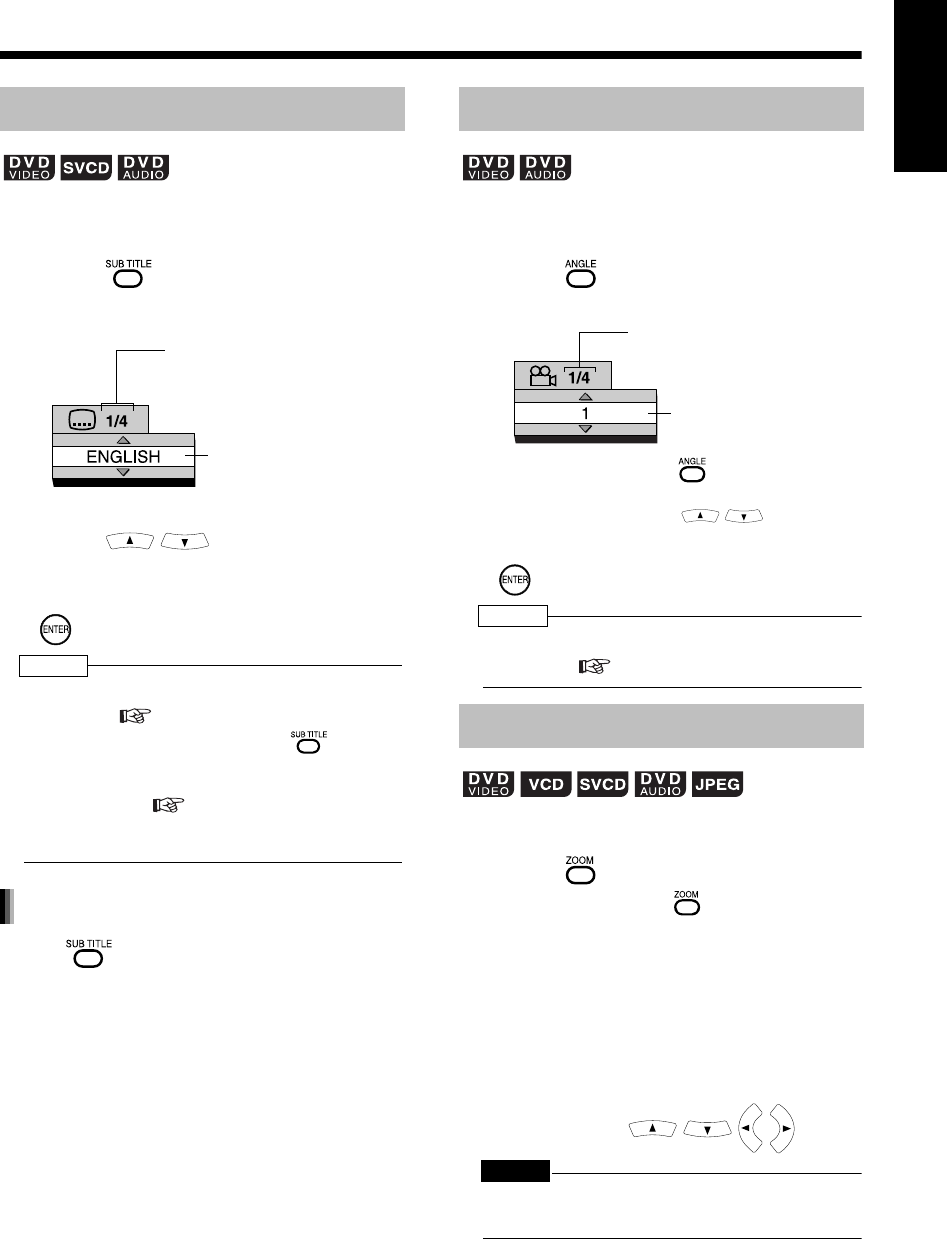
- Selecting the Subtitle
- Selecting a View Angle
- Magnifying the Picture (ZOOM)
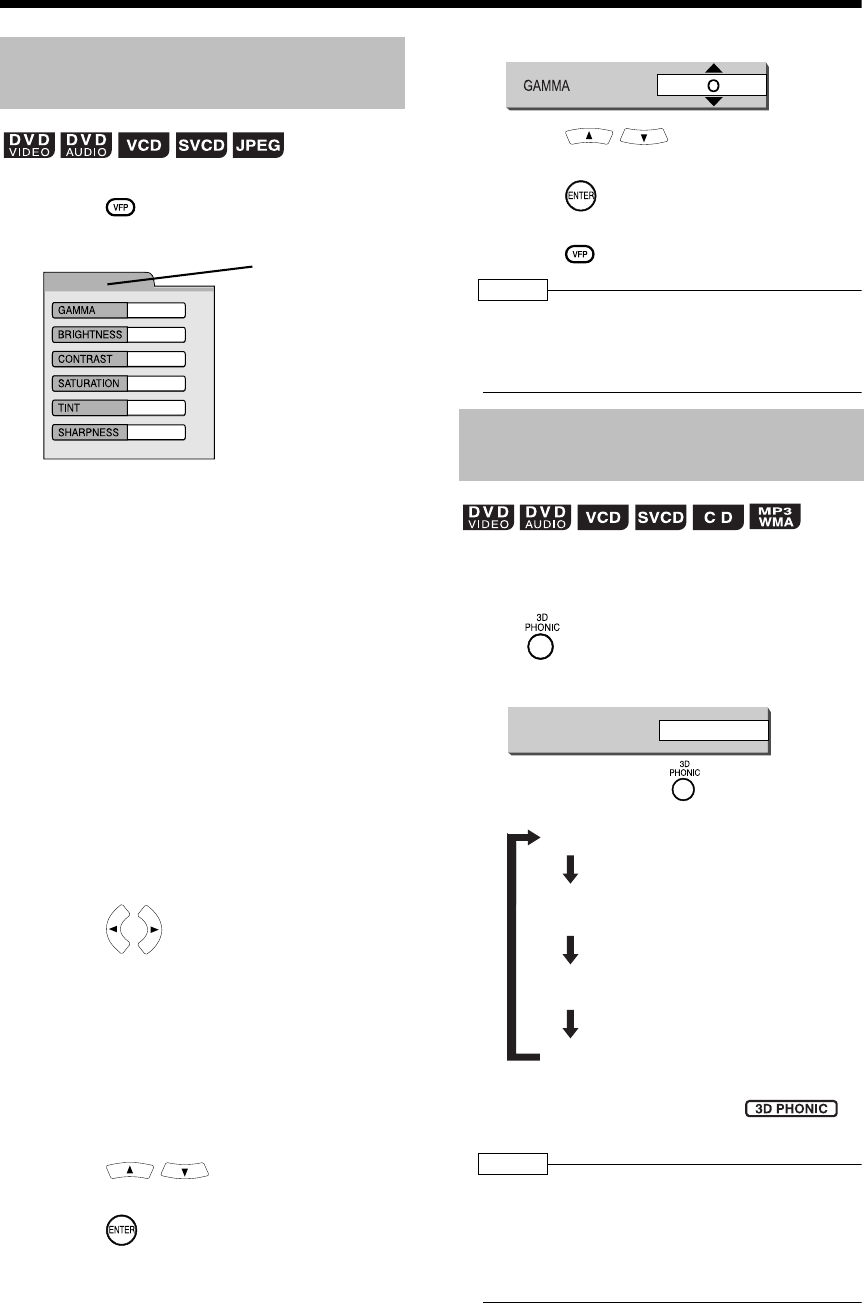
- Adjusting the Picture Quality (VFP)
- Creating Realistic Sound (3D PHONIC)
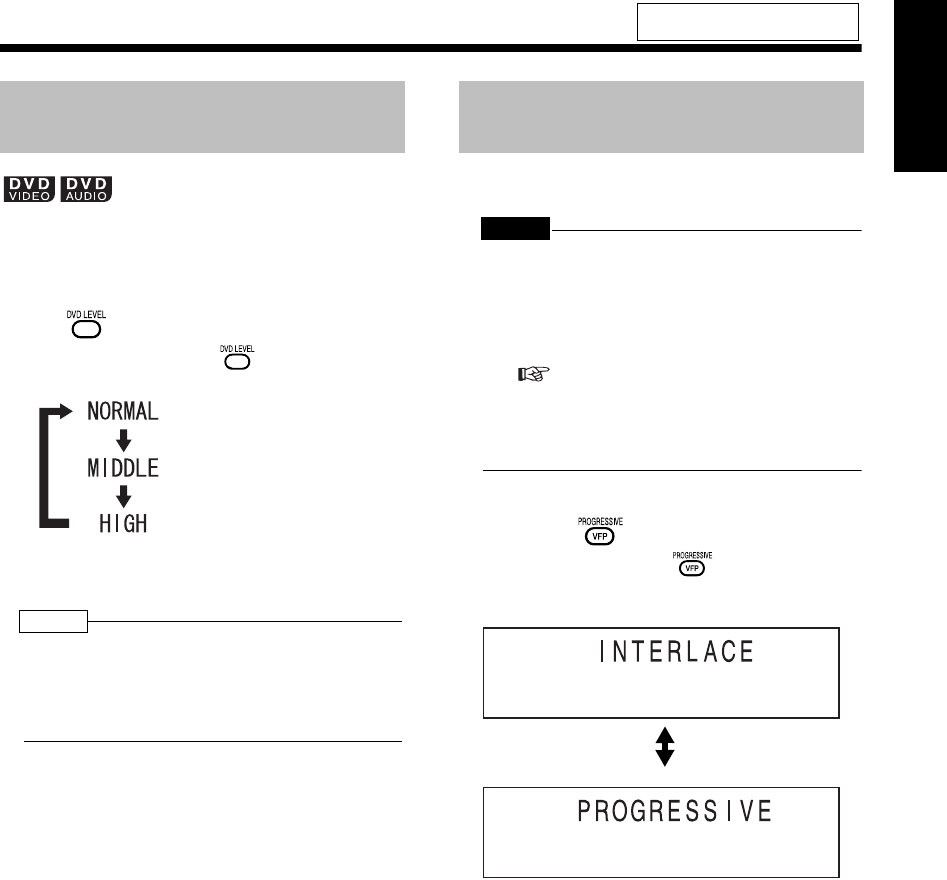
- Adjusting Playback Level (DVD LEVEL)
- Enjoying Better Pictures (PROGRESSIVE)
- Playing Back the Bonus Group
- Browsable Still Pictures (B.S.P.)
- Playing Back the Disc in the Desired Order (Program Playback)
- Random Playback
- Repeat Playback
- Status Bar and Menu Bar
- Playing Back MP3/WMA and JPEG Discs
- Preferences
- Country/Area Codes
- Language Codes
- Basic Operations of the DVD Player
- Listening to Cassette Tapes
- Listening to Other Equipment
- Listening to MDs
- Recording Sound
- Recording Sound to MDs
- Recording All Tracks from a Disc to an MD
- Quitting Recording
- Recording Only One Track from a Disc
- Recording the Second or Subsequent Track to the Last Track from a Disc
- Program Recording from a Disc
- Things You Should Know about MD Recording
- Recording Sound from Radio, Cassette Tape or Other Equipment
- Quitting Recording
- Recording Sound to Cassette Tapes
- Recording Sound to MDs
- Editing MDs
- Convenient Functions
- Reference
- 简介
- 准备
- 基本操作
- 聆听广播
- 聆听光盘
- 聆听磁带
- 聆听其他设备
- 聆听 MD
- 录音
- 编辑 MD
- 易用功能
- 参考
MICRO COMPONENT MD SYSTEM
MD 微型组合音响
For hiding the demonstration
display, refer to page 16.
有关隐藏演示显示的详情,请参阅
第16 页。
UX-QD7M
Consists of CA-UXQD7M and SP-UXQD6M
由CA-UXQD7M 和SP-UXQD6M 组成
UX-QD7W
Consists of CA-UXQD7W and SP-UXQD6W
由CA-UXQD7W 和SP-UXQD6W 组成
INSTRUCTIONS
使用说明书
LVT1220-002A
[UB]
English
中
文
UX-QD7[UB]-01.fm Page 1 Thursday, September 2, 2004 8:34 AM
G-1
IMPORTANT FOR LASER PRODUCTS / 镭射产品的重要说明
CAUTION
To reduce the risk of electrical shocks, fire, etc.:
1. Do not remove screws, covers or cabinet.
2. Do not expose this appliance to rain or moisture.
注意
为了减少触电、火灾等危险:
1. 请勿擅自卸下螺丝钉、盖子或机壳。
2. 请勿让本机受雨淋或置于潮湿环境中。
CAUTION — F button!
Disconnect the mains plug to shut the power off
completely.
The F button in any position does not disconnect the
mains line.
The power can be remote controlled.
注意- F 开关!
想要完全关闭电源,须将电源插头从插座上拔下。
无论 F键处于何种位置,主电路仍旧没有关闭。
电源开关可用遥控器进行控制。
CAUTION
• Do not block the ventilation openings or holes.
(If the ventilation openings or holes are blocked by a
newspaper or cloth, etc., the heat may not be able to
get out.)
• Do not place any naked flame sources, such as lighted
candles, on the apparatus.
• When discarding batteries, environmental problems
must be considered and local rules or laws governing
the disposal of these batteries must be followed strictly.
• Do not expose this apparatus to rain, moisture, dripping
or splashing and that no objects filled with liquids, such
as vases, shall be placed on the apparatus.
注意
•切勿堵塞通风口或通风孔。
(如果通风口或通风孔被报纸或布等物堵塞,热量将无
法散出。)
•切勿在本系统上放置明火,如点燃的蜡烛。
•想要丢弃电池时,务必考虑环保问题以及严格遵守当地
关于处理废旧电池相关的法律规定和条例。
•切勿让本机受雨淋、受潮湿、落上或溅上水滴,亦勿在
本机上面放置盛满液体的容器,如花瓶。
1. CLASS 1 LASER PRODUCT
2. CAUTION: Do not open the top cover. There are no
user serviceable parts inside the unit; leave all
servicing to qualified service personnel.
3. CAUTION: Visible and invisible laser radiation when
open and interlock failed or defeated. Avoid direct
exposure to beam.
4. REPRODUCTION OF LABEL: CAUTION LABEL,
PLACED INSIDE THE UNIT.
1. 一级镭射产品。
2. 注意:请勿打开顶盖板,本机内部没有用户可自行维修
的部件;所有维修工作应由有资格的人员完成。
3. 注意:当内部锁定装置失效或者损坏后,打开盖板可能
会产生可见或不可见的镭射辐射。 应避免受到镭射光
束的直接照射。
4. 标签的复制标示: 注意标签位于机内。
Introd uction
Warnings, Cautions and Others
/
警告,注意及其他须知事项
UX-QD7[UB]-02.fm Page 1 Wednesday, July 14, 2004 1:25 PM
G-2
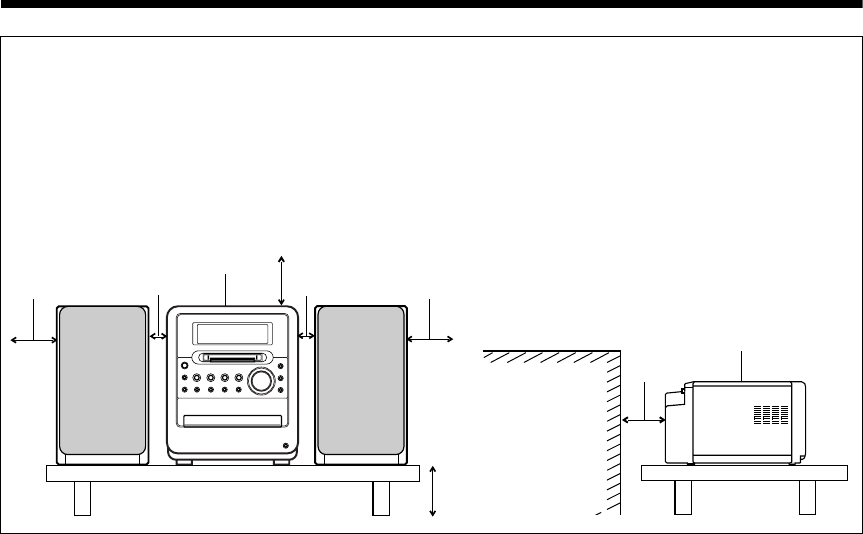
CAUTION — Proper Ventilation
To avoid risk of electric shock and fire and to protect from
damage, locate the apparatus as follows:
Top/Front/Back/Sides: No obstructions should be placed in
the areas shown by the dimensions
below.
Bottom: Place on the level surface. Maintain
adequate air path for ventilation by
placing on a stand with a height of
10 cm or more.
In addition, maintain the best possible air circulation.
注意 —正确的通风方法
为了防止触电,火灾及避免损坏,
按如下要求放置机器:
上面 /前面 /后面 /侧面: 在图中所示范围中,不应放置任何障
碍物。
底部: 放置在水平面上。 放置在一个高
10 cm
或更高的台上以保留足够的通风道。
此外,如图所示,尽可能保持最佳的空气循环。
15cm
15cm
10cm
15cm
15cm 1cm
1cm
Wall or
obstructions
墙壁或障碍物 Front
前面
Main unit
本机
Main unit
本机
Front view
前视图
Side view
侧视图
UX-QD7[UB]-02.fm Page 2 Thursday, September 2, 2004 8:36 AM
1
Table of Contents
marks refer to operation used frequently. You can quickly learn the general usage of this
product by reading those parts only.
Notes on Operation ............................. 3
Suitable Locations for the Main Unit ................. 3
Condensation.................................................... 3
Cleaning the Main Unit ..................................... 3
Listener’s Etiquette ........................................... 3
Playable Disc Types ......................................... 4
Disc Structure ................................................... 5
Selecting the Color System .............................. 6
Special Cautions.................................. 7
Notes on Handling ............................................ 7
Supplied Accessories ....................................... 7
Part Description ................................... 8
Remote Control ................................... 9
Inserting Batteries into the Remote Control...... 9
Operating the TV Using the Remote Control.... 10
Connections.........................................11
Connecting the Antennas ................................. 11
Connecting the Speakers ................................. 13
Connecting Other Equipment ........................... 14
Connecting with a TV........................................ 15
When a Clearer Picture Is Desired ................... 15
Connecting the Power Plug .............................. 16
Basic Operations .................................17
Setting the Clock............................................... 17
Turning On/Off the Main Unit...... 18
Adjusting the Volume.................. 18
Temporarily Turning Off the Sound
(FADE MUTING).......................................... 18
Emphasizing Heavy Bass Sound (AHB PRO).. 18
Adjusting the Sound Quality ............................. 18
Changing the Color Patterns for the Display
Window and Disc Tray ................................. 19
Listening to Radio Broadcasts
.............................................. 20
Setting the AM Tuner Spacing.......................... 20
Selecting a Radio Station ................................. 20
Storing Radio Stations (Preset) ........................ 21
Tuning In to a Preset Radio Station.................. 21
Changing the Display in the Display Window ... 21
Basic Operations of the DVD Player ... 22
Playback ..................................... 22
Changing the Display in the Display Window... 24
Playing Back from a Position 10 Seconds
Before (One Touch Replay)......................... 24
Stopping Playback...................... 25
Resuming Playback (RESUME) ....................... 25
Pausing Playback ............................................. 25
Advancing Picture Frame by Frame ................. 25
Fast Reverse/Fast Forward
Search ................................... 25
Slow Motion Playback ...................................... 26
Skipping to the Beginning of
a Track................................... 26
Skipping to the Beginning of a Track with
the Number Buttons..................................... 26
Selecting a Track from the Menu Screen ......... 26
Convenient Functions of the DVD
Player ................................................27
Selecting the Audio..................... 27
Selecting the Subtitle........................................ 28
Selecting a View Angle..................................... 28
Magnifying the Picture (ZOOM)........................ 28
Adjusting the Picture Quality (VFP) .................. 29
Creating Realistic Sound (3D PHONIC)........... 29
Adjusting Playback Level (DVD LEVEL) .......... 30
Enjoying Better Pictures (PROGRESSIVE)...... 30
Playing Back the Bonus Group......................... 31
Browsable Still Pictures (B.S.P.) ...................... 31
Playing Back the Disc in the Desired Order
(Program Playback) ..................................... 32
Random Playback ............................................ 33
Repeat Playback .............................................. 34
Status Bar and Menu Bar ....................35
Using the Status Bar and Menu Bar ................. 35
Playing Back the Designated Part Repeatedly
(A-B Repeat Playback) ................................ 36
Designate the Time (Time Search)................... 36
Playing Back MP3/WMA and JPEG
Discs..................................................37
Playback ........................................................... 37
Repeat Playback .............................................. 38
Preferences .........................................39
Basic Operations .............................................. 39
LANGUAGE...................................................... 39
PICTURE.......................................................... 39
AUDIO .............................................................. 40
OTHERS........................................................... 40
Country/Area Codes............................41
Language Codes .................................42
Introduction
Preparation
Basic Operations
Listening to Radio Broadcasts
Listening to Discs
UX-QD7[UB].book 1 ページ 2004年9月3日 金曜日 午後2時43分
2
English Introduction
Listening to Cassette Tapes
.............................................. 43
Changing the Display in the Display Window
..................................................................... 44
Listening to Other Equipment..............45
Adjusting the Sound Input Level from
Other Equipment.......................................... 45
Changing the Display in the Display Window ... 45
Listening to MDs..................................46
Listening to MDs......................... 46
Changing the Display in the Display Window ... 47
Specifying the Track (Direct Track Selection)... 47
Group Playback of an MD................................. 47
Program Playback ............................................ 48
Random Playback............................................. 48
Repeat Playback............................................... 49
Searching Titles................................................ 49
Recording Sound to
MDs..................................... 51
Recording All Tracks from a Disc to an MD...... 51
Quitting Recording............................................ 52
Recording Only One Track from a Disc............ 52
Recording the Second or Subsequent Track
to the Last Track from a Disc....................... 52
Program Recording from a Disc ....................... 52
Things You Should Know about
MD Recording.............................................. 53
Recording Sound from Radio, Cassette Tape
or Other Equipment...................................... 53
Quitting Recording............................................ 54
Recording Sound to Cassette Tapes
.............................................. 55
Quitting Recording............................................ 56
Recording Only One Track from
a Disc or MD ................................................ 56
Recording the Second or Subsequent Track
to the Last Track from a Disc or MD ........... 56
Program Recording from a Disc or MD............. 56
Recording with No Blank Time between
Tracks .......................................................... 56
Erasing Recorded Sound from
a Cassette Tape........................................... 56
Giving (Editing) Titles ..........................58
Things You Should Know about Editing ........... 58
Giving (Editing) Titles ....................................... 58
Entering Titles................................................... 59
Available Characters ........................................ 59
Editing Tracks......................................60
Dividing a Track into Two Tracks (DIVIDE)...... 60
Joining Tracks (JOIN)....................................... 61
Moving a Track (MOVE)................................... 61
Erasing a Track (ERASE) .......... 62
Erasing All Tracks
(ALL ERASE)......................... 62
Editing Tracks by Group......................63
Forming a Group (FORM GR).......................... 63
Adding a Track to a Group (ENTRY GR) ......... 64
Dividing a Group into Two Groups
(DIVIDE GR)................................................ 64
Joining Groups (JOIN GR) ............................... 65
Moving a Group (MOVE GR)............................ 65
Canceling a Group (UNGROUP/UNGR ALL)... 66
Erasing a Group (ERASE GR) ......................... 67
Using the Timers .................................68
Sleep Timer...................................................... 68
Recording Timer............................................... 68
Playback Timer................................................. 70
Auto Standby.......................................72
Disc/MD Ejection Lock ........................72
Using AV COMPU LINK......................73
Connection and Setting .................................... 73
Operations ........................................................ 73
Restrictions on MDs ............................74
Serial Copy Management System (SCMS) ...... 74
Handling Discs/MDs/Cassette Tapes..75
MD/Disc Messages .............................76
Troubleshooting...................................77
Specifications ......................................78
Listening to Cassette Tapes
Listening to Other Equipment
Listening to MDs
Recording Sound
Editing MDs
Convenient Functions
Reference
UX-QD7[UB]TOC.fm 2 ページ 2004年9月16日 木曜日 午後1時13分
Introduction
3
Introduction
Notes on Operation
To minimize the need for servicing and maintain
the high quality of this product, do not place the
main unit in the following locations:
• In a position subject to high humidity or consid-
erable dust
• On an uneven or unstable surface
• Near a heat source
• Near a computer, fluorescent light or other elec-
tric appliance
• In a small room with insufficient ventilation
• In a position exposed to direct sunlight
• In a position exposed to excessive cold
• In a position exposed to strong vibration
• Near a TV, other amplifier, or tuner
• Near a magnetic source
CAUTION
• The operating temperature of this product is 5°C to
35°C. Use in temperatures outside this range may
cause a malfunction or damage the product.
Under the following conditions, you may not be
able to operate this product properly due to con-
densation formed on the lens of the main unit:
• When you have just started an air conditioner to
warm your room
• When you have placed the main unit at an area
with high humidity
• When you have moved the main unit from a cold
place to a warm place
When condensation forms, leave the main unit
turned on, wait for approximately 1 or 2 hours, and
then operate the main unit.
When the operation panel becomes dirty, dust it
with a soft dry cloth. When the operation panel is
very dirty, wipe it with a cloth dampened with a
small amount of a neutral detergent, and then wipe
it with a soft dry cloth.
CAUTION
• Do not wipe the operation panel with thinners, ben-
zenes or other chemical agents. Do not spray
insecticides onto the operation panel. These may
cause discoloration and damage to the surface.
When using headphones, keep the volume at a
moderate level so as not to over-stimulate your
ears.
■When enjoying sound from the speakers,
adjust the volume to a suitable level to
avoid disturbing your neighbors.
Even low-volume sound carries a long way,
especially at night. Show consideration to
your neighbors by closing windows or using
headphones.
Suitable Locations for the
Main Unit
Condensation
• Manufactured under license from Dolby Laboratories. "Dolby", "MLP Lossless", and the double-D symbol are trade-
marks of Dolby Laboratories.
• "DTS" and "DTS 2.0+DIGITAL OUT" are registered trademarks of Digital Theater Systems, Inc.
• This product incorporates copyright protection technology that is protected by method claims of certain U.S. patents
and other intellectual property rights owned by Macrovision Corporation and other rights owners. Use of this copyright
protection technology must be authorized by Macrovision Corporation, and is intended for home and other limited
viewing uses only unless otherwise authorized by Macrovision Corporation. Reverse engineering or disassembly is
prohibited.
Cleaning the Main Unit
Listener's Etiquette
UX-QD7[UB].book 3 ページ 2004年9月3日 金曜日 午後2時43分
4
English Introduction English
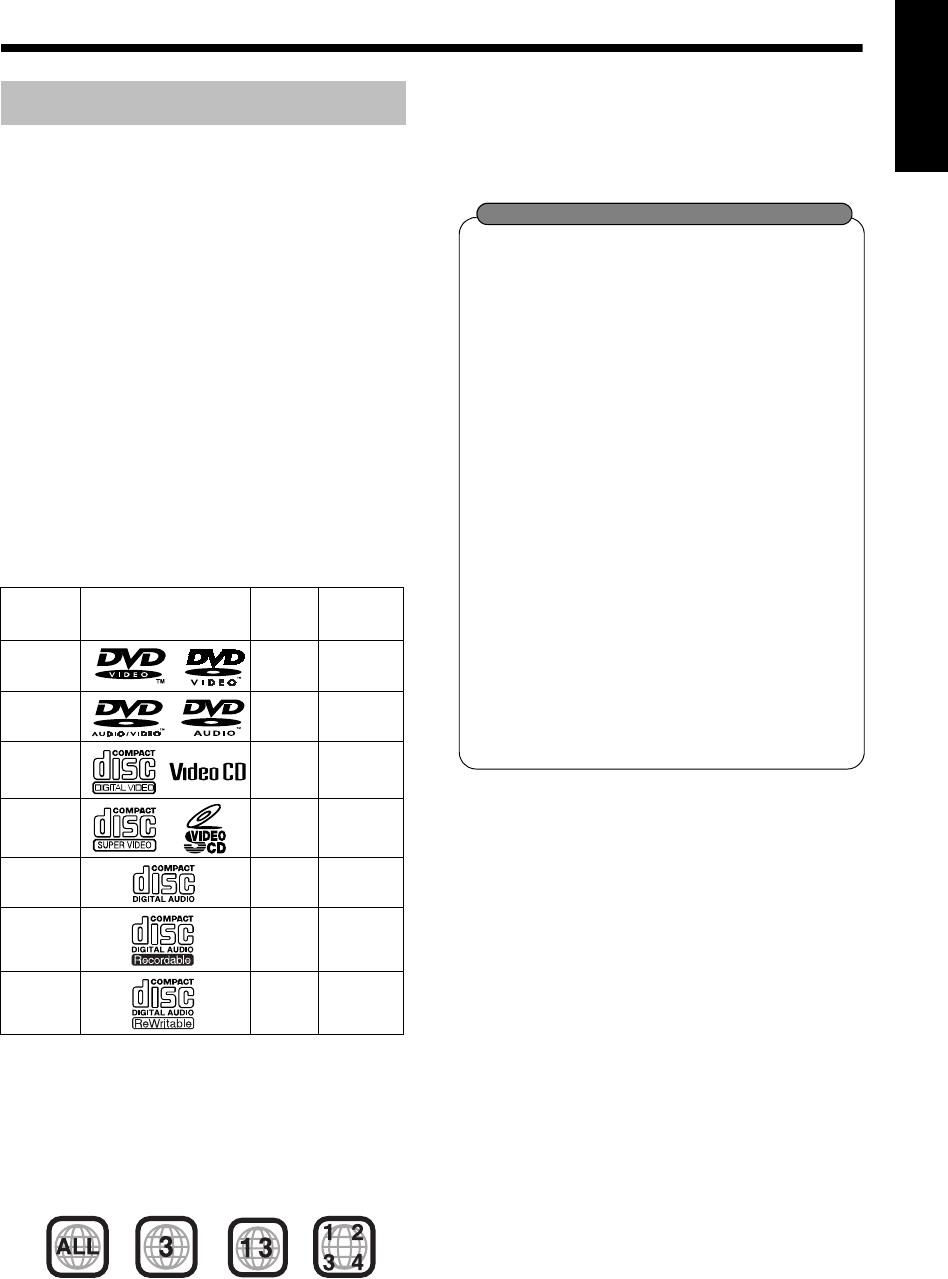
This product has been designed to play back the
following discs:
DVD VIDEO, DVD AUDIO, VCD, SVCD, CD
This product can also play back the following
discs:
• Finalized DVD-R/RW discs recorded in the DVD
VIDEO format.
• CD-R/RW discs recorded in the following for-
mats
- Music CDs (finalized discs)
- VCDs
- SVCDs
- MP3/WMA/JPEG discs recorded in ISO 9660 (for
details, refer to "About MP3/WMA/JPEG discs")
However, some discs may not be played back
because of their disc characteristics, recording
conditions, or damage or stain on them.
Only sounds can be played back from the following
discs:
MIX-MODE CD CD-G
CD-EXTRA CD TEXT
Discs you can play:
DVD Logo is a trademark of DVD Format/Logo
Licensing Corporation.
*Note on Region Code
DVD players and DVD VIDEOs have their own
region code numbers. This product can only play
back a DVD VIDEO recorded with the region
code number and video format mentioned
above.
If a DVD VIDEO with an improper region code
number is loaded, "REGION CODE ERROR!"
appears on the TV screen and playback cannot
start.
• On some DVD VIDEOs, DVD AUDIOs, VCDs
or SVCDs, their actual operation may be dif-
ferent from what is explained in this manual.
This is due to the disc programming and disc
structure, not a malfunction of this product.
You can play back a CD-R/CD-RW only
when the disc is finalized.
• You can play back a CD-R/CD-RW which
has been recorded in the audio CD for-
mat and a CD-R/CD-RW to which audio
data (MP3/WMA) or a still picture data
(JPEG) file is recorded.
However, playback is impossible in some
cases due to the disc characteristics,
recording condition, scratches or dirt on
the disc, or dirt or condensation on the
lens.
• Before using a CD-R/CD-RW, carefully
read the cautions regarding the disc.
• This product does not support playback
or CD text display of sound files such as
MP3s.
• To play back a CD-RW on this product,
erase all tracks if the CD-RW was
recorded in a format other than the audio
CD format. Using the CD-RW without
erasing all tracks may result in damage to
the speakers or other parts caused by
sudden loud volume.
Discs that cannot be played back
• The following discs cannot be played back:
DVD-ROM, DVD-RAM, DVD-RW (recorded in
VR format), CD-ROM, CD-I (CD-I Ready), Photo
CD, SACD, etc.
Playing back these discs will generate noise and
damage the speakers.
• Damaged discs and discs in an extraordinary
shape (other than a disc of 12 cm or 8 cm in
diameter) cannot be played back.
• JVC do not guarantee the operation and sound
quality of discs not authorized by CD-DA, which
is a CD specification.
Before playback, confirm that the disc complies
with this CD specification by checking the marks
and reading notes printed on the package.
Playable Disc Types
Disc Type Mark (Logo) Video
Format
DVD
VIDEO
PAL/
NTSC 3/ALL
DVD
AUDIO ——
VCD PAL/
NTSC —
SVCD PAL/
NTSC —
CD — —
CD-R — —
CD-RW — —
Region
Code
Number*
Examples:
About CD-Rs/CD-RWs
UX-QD7[UB].book 4 ページ 2004年9月3日 金曜日 午後2時43分
Introduction
5
(Continued)
Notes on Operation
About MP3/WMA/JPEG discs
Playable MP3/WMA/JPEG discs and files
• Discs recorded in the ISO 9660 format are play-
able (except discs recorded in the "packet write"
format (UDF format)).
• Discs recorded in the multi-session format are
also playable.
• Files with an extension of ".mp3", ".wma", ".jpg"
or ".jpeg" (extensions with uppercase and lower-
case letters mixed are also acceptable) are play-
able.
Notes on MP3/WMA/JPEG discs and files
• A disc may not be played back, or reading it may
take a long time depending on its recording con-
ditions or properties.
• The time needed for reading varies with the num-
ber of groups or tracks (files) recorded on the disc.
• If a character other than single byte English
characters is used in the file name of an MP3/
WMA/JPEG file, the track/file name will not be
displayed correctly.
• The order of tracks/groups displayed on the
MP3/WMA Control screen, and the order of files/
groups displayed on the JPEG Control screen
may be different from that of files/folders dis-
played on PC's monitor screen.
• In the case of MP3/WMA discs, since groups/
tracks are played back in alphabetical order, an
off-the-shelf MP3/WMA disc may be played back
in an order different from that indicated on the
label attached to the disc.
• Playing back an MP3/WMA file including a still
image may take a long time. The elapsed time is
not displayed until playing back starts. If playing
back starts, the elapsed time may not be dis-
played correctly.
• For an MP3/WMA file, a disc with a sampling fre-
quency of 44.1 kHz and transmission rate of 128
kbps is recommended.
• This product is not compatible with MP3i or
MP3PRO.
• This product can play back a baseline JPEG file,
excluding monochromatic JPEG files.
• This product can play back JPEG data taken with a
digital camera conforming to the DCF (Design
Rule for Camera File System) standard (when a
function is applied such as the automatic rotation
function of a digital camera, data goes beyond the
DCF standard, so the image may not be dis-
played).
• If data has been processed, edited and restored
with PC image editing software, the data may
not be displayed.
• This product cannot play back animations such
as MOTION JPEG, or still pictures (TIFF etc.)
other than JPEG, and image data with sound.
• The resolution of 640 x 480 pixels is recom-
mended for JPEG files. If a file has been
recorded at a resolution of more than 640 x 480
pixels, display may take a long time. An image
with a resolution of more than 8 192 x 7 680 pix-
els cannot be displayed.
• Files recorded on DVD-R/RW discs cannot be
played back.
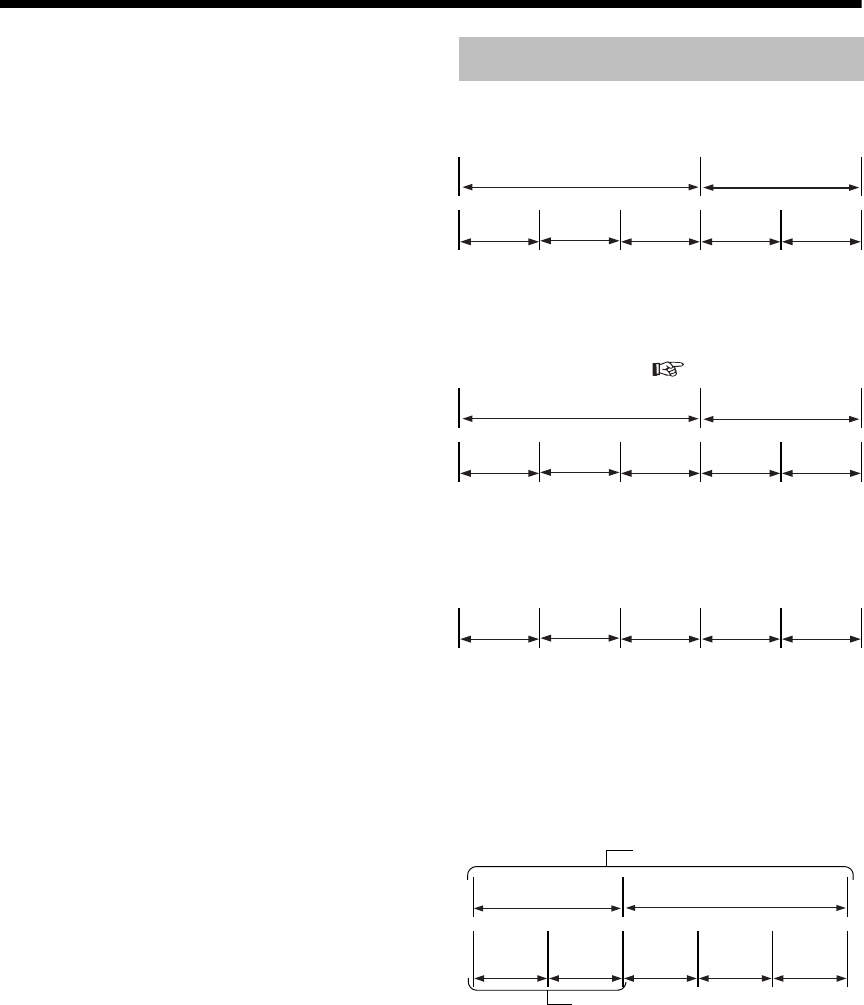
DVD VIDEO
A DVD VIDEO consists of "titles" and each title
may be divided into "chapters".
DVD AUDIO
A DVD AUDIO consists of "groups" and each
group may be divided into "tracks".
Some discs include a "bonus group" that requires
a password for playing ( page 31).
VCD/SVCD/CD
VCD, SVCD and CD consist of "tracks".
In general, each track has its own track number.
(On some discs, each track may also be further
divided by indexes.)
MP3/WMA [JPEG] discs
On an MP3/WMA [JPEG] disc, each still picture
(material) is recorded as a track [file]. Tracks
[Files] are usually grouped into a folder. Folders
can also include other folders, creating hierarchical
folder layers.
This unit simplifies the hierarchical construction of
a disc and manages folders by "groups".
This product can recognize up to 1 000 tracks
[files] in a disc. Also, the product can recognize up
to 150 tracks [files] per group and up to 99 groups
in a disc. Since the unit ignores the tracks [files]
whose numbers are exceeding 150 and the groups
whose numbers are exceeding 99, they cannot be
played back.
• If there is any type of files other than MP3/WMA
[JPEG] files in a disc, those tracks [files] are also
counted in the total file number.
Disc Structure
Title 1 Title 2
Chapter 1 Chapter 2 Chapter 3 Chapter 1 Chapter 2
Group 1 Group 2
Track 1Track 2Track 3Track 1Track 2
Track 1Track 2Track 3Track 4Track 5
Up to 99 groups
Up to 150 files
Group 1 Group 2
Track 1
[File 1]
Track 2
[File 2] Group 3 Group 4 Group 5
UX-QD7[UB]-03.fm 5 ページ 2004年9月27日 月曜日 午後1時6分
6
English Introduction English
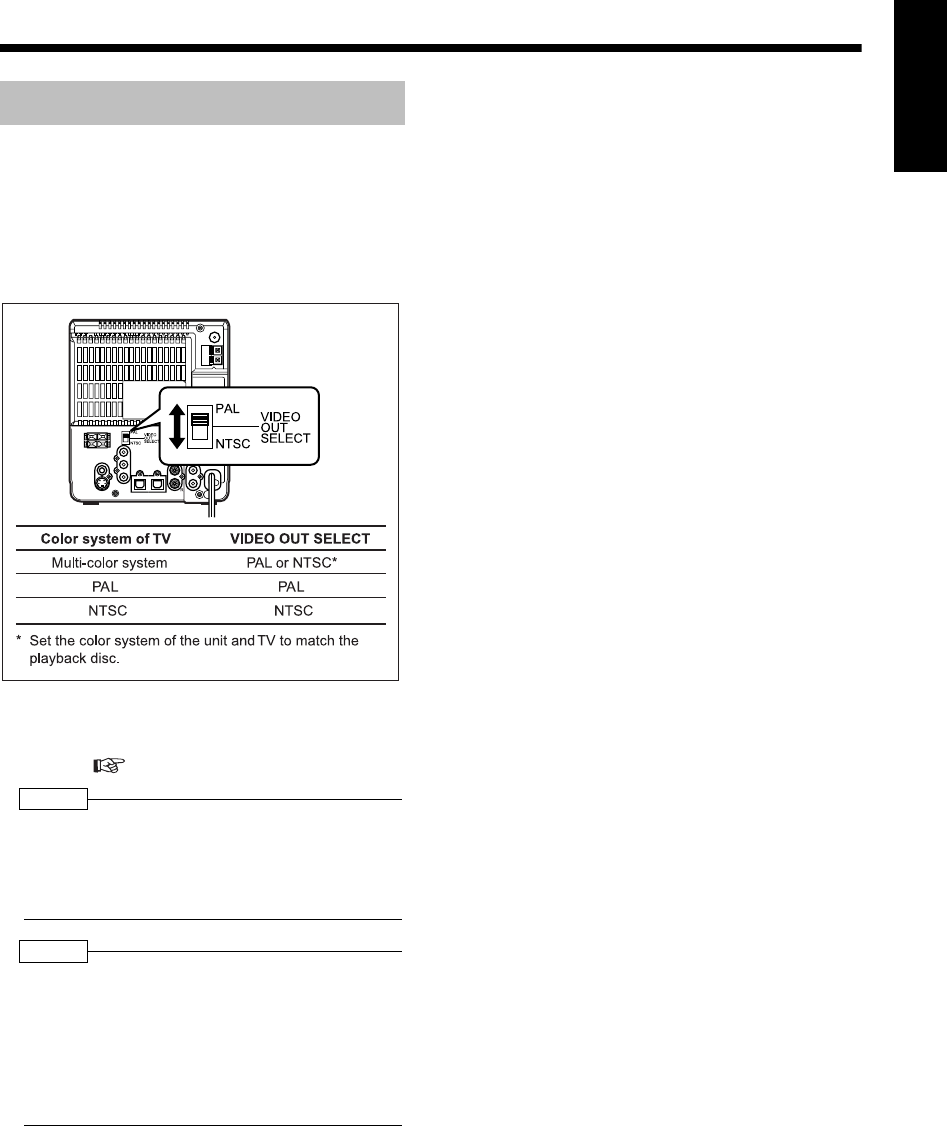
This product is compatible with PAL and NTSC
color systems.
In standby mode, select PAL or NTSC to match
your TV.
If the VIDEO OUT SELECT switch is switched
over when the power is on, turn off the power, and
then turn it on again.
• Before playing back a disc, it is also required to
select the correct MONITOR TYPE in the
PICTURE menu according to the aspect ratio of
your TV ( page 39).
NOTE
• If you play back an NTSC disc with this setting set
to "PAL", you can watch the playback pictures (the
disc will be reproduced using "PAL 60" format), but
the TV screen may rolls over upward and down-
ward rapidly.
NOTE
• If you play back a PAL disc with this setting set to
"NTSC", you can watch the playback pictures, but
the following symptoms may occur:
• The items on the disc menu will be blurred, and
be shown slightly shifted when highlighted.
• The aspect ratio of the picture may differ from
the original aspect ratio.
• The picture movement is not smooth.
Selecting the Color System
UX-QD7[UB]-03.fm 6 ページ 2004年9月7日 火曜日 午前10時33分
Introduction
7
Special Cautions
■Important cautions
Installation of the system
• Select a place which is level, dry and neither too
hot nor too cold; between 5°C and 35°C.
• Leave sufficient distance between the system
and the TV.
• Do not use the system in a place subject to
vibration.
Power cord
• Do not handle the power cord with wet hands!
• A small amount of power is always consumed
while the power cord is connected to the wall
outlet.
• When unplugging the power cord from the wall
outlet, always pull on the plug, not the power
cord.
To prevent malfunctions of the system
• There are no user-serviceable parts inside. If
anything goes wrong, unplug the power cord and
consult your dealer.
• Do not insert any metallic object into the system.
• Do not use any non-standard shape disc (like a
heart, flower or credit card, etc.) available on the
market, because it may damage the system.
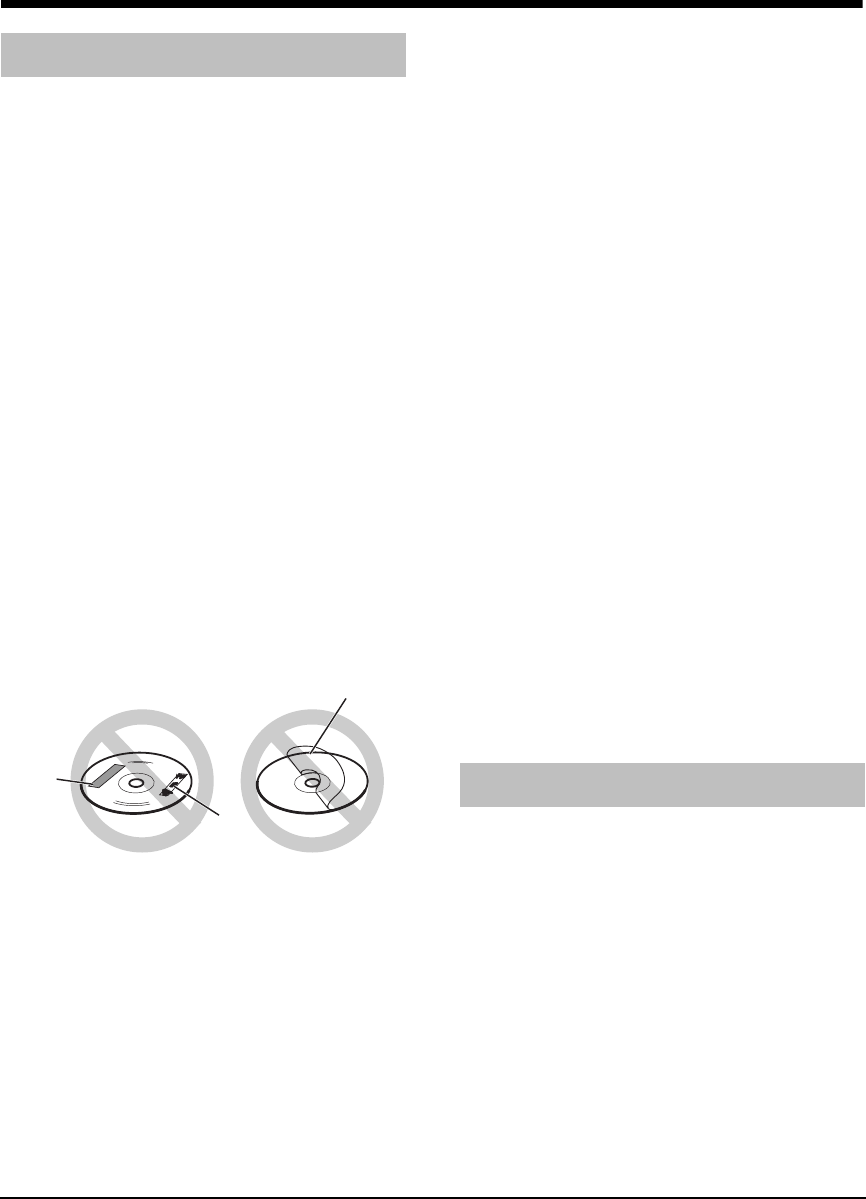
• Do not use a disc with tape, stickers, or paste on
it, because it may damage the system.
Note about copyright laws
Check the copyright laws in your country before
recording from CDs. Recording of copyrighted
material may infringe copyright laws.
■Safety precautions
Avoid moisture, water and dust
Do not place the system in moist or dusty places.
Avoid high temperatures
Do not expose the system to direct sunlight and do
not place it near a heating equipment.
When you are away
When away on travel or for other reasons for an
extended period of time, disconnect the power
cord plug from the wall outlet.
Do not block the vents
Blocking the vents may damage the system.
Care of the cabinet
When cleaning the system, use a soft cloth and fol-
low the relevant instructions on the use of chemi-
cally-coated cloths. Do not use benzene, thinner or
other organic solvents including disinfectants.
These may cause deformation or discoloring.
If water gets inside the system
Turn the system off and disconnect the power cord
plug from the wall outlet, then call the store where
you made your purchase. Using the system in this
condition may cause fire or electrical shock.
■When condensation or water drops adhere
to the lens
In any of the following cases, condensation or
water drops may adhere to the lens to prevent the
system from working properly:
• Immediately after roomheating starts
• When the system is installed in a steamy or
damp space
• When the system is suddenly moved from a cold
place to a warm space
In any of these cases, leave the system turned on
for 1 or 2 hours before use.
Check to be sure you have all of the supplied
accessories.
The number in parentheses is the quantity of the
pieces supplied. If anything is missing, contact
your dealer immediately.
Remote control (1)
Batteries (2)
FM antenna (1)
AM loop antenna (1)
Video cord (1)
Notes on Handling
Label sticker
Sticker
Paste
• This product incorporates copyright protection technology that is protected by method claims of certain
U.S. patents and other intellectual property rights owned by Macrovision Corporation and other rights
owners. Use of this copyright protection technology must be authorized by Macrovision Corporation, and is
intended for home and other limited viewing uses only unless otherwise authorized by Macrovision
Corporation. Reverse engineering or disassembly is prohibited.
Supplied Accessories
UX-QD7[UB].book 7 ページ 2004年9月3日 金曜日 午後2時43分
8
English Introcution/Preparation English
Introcution/ Preparation
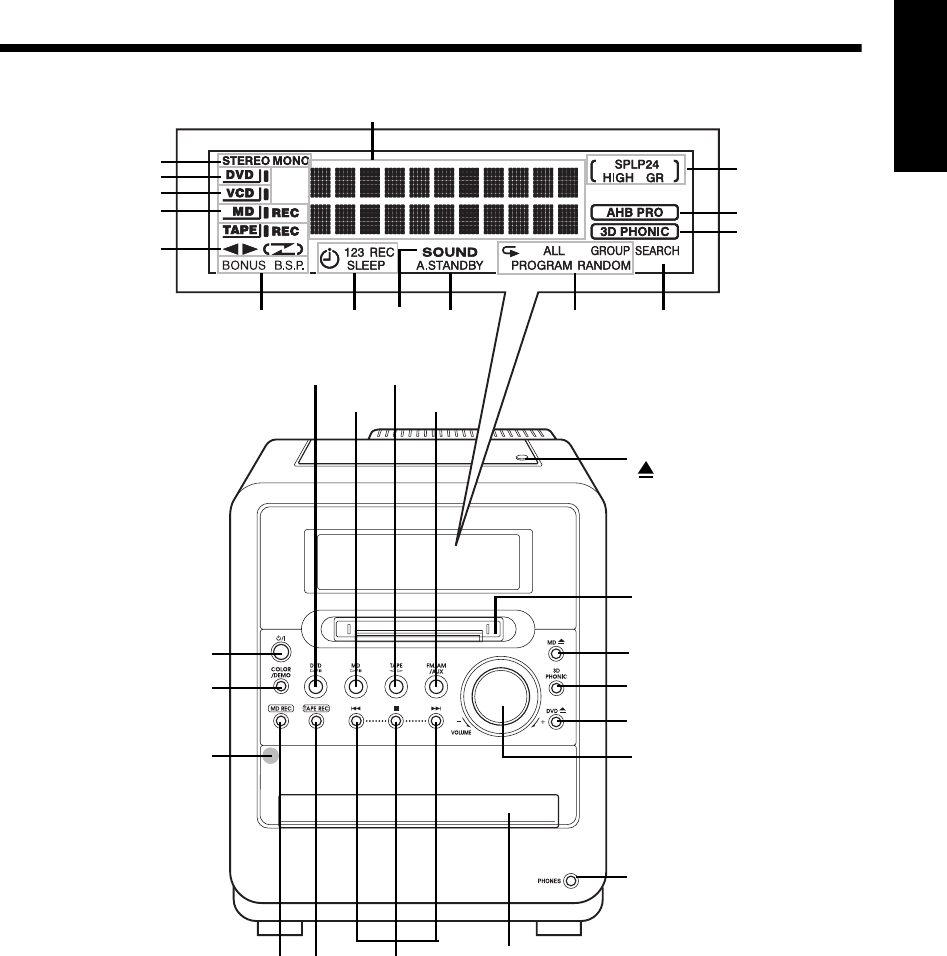
Part Description
* This terminal is for connecting a pair of headphones equipped with a stereo mini plug (not supplied). While
the headphones are connected, the speakers do not produce any sound.
The numbers refer to the pages in which the parts are explained.
Cassette holder: 43
PUSH-OPEN
MD slot: 46
Disc tray: 22
Remote control sensor: 9
19
68, 70 18 72 32, 33, 34,
48, 49
49
22 44
46 20, 45
18
16, 19
55 25, 43, 4651
18
22
29
46
29
18
52
20
22
46, 51
43, 55
31
*
23
UX-QD7[UB]-03.fm 8 ページ 2004年9月16日 木曜日 午後1時22分
Introduction
9
Preparation
Remote Control
CAUTION
• Do not use a used battery and a new battery
together.
• Do not use different types of batteries at the
same time.
• Take out the batteries if the remote control is not
to be used for a long time. Otherwise it may
cause a leakage.
• When operating the remote control, point it at
the front panel of the main unit.
• The effective distance between the remote con-
trol and the remote control sensor on the main
unit is approximately 5 m maximum.
• When the effective distance decreases, replace
the batteries.
• Do not drop the remote control or subject it to
excessive shock.
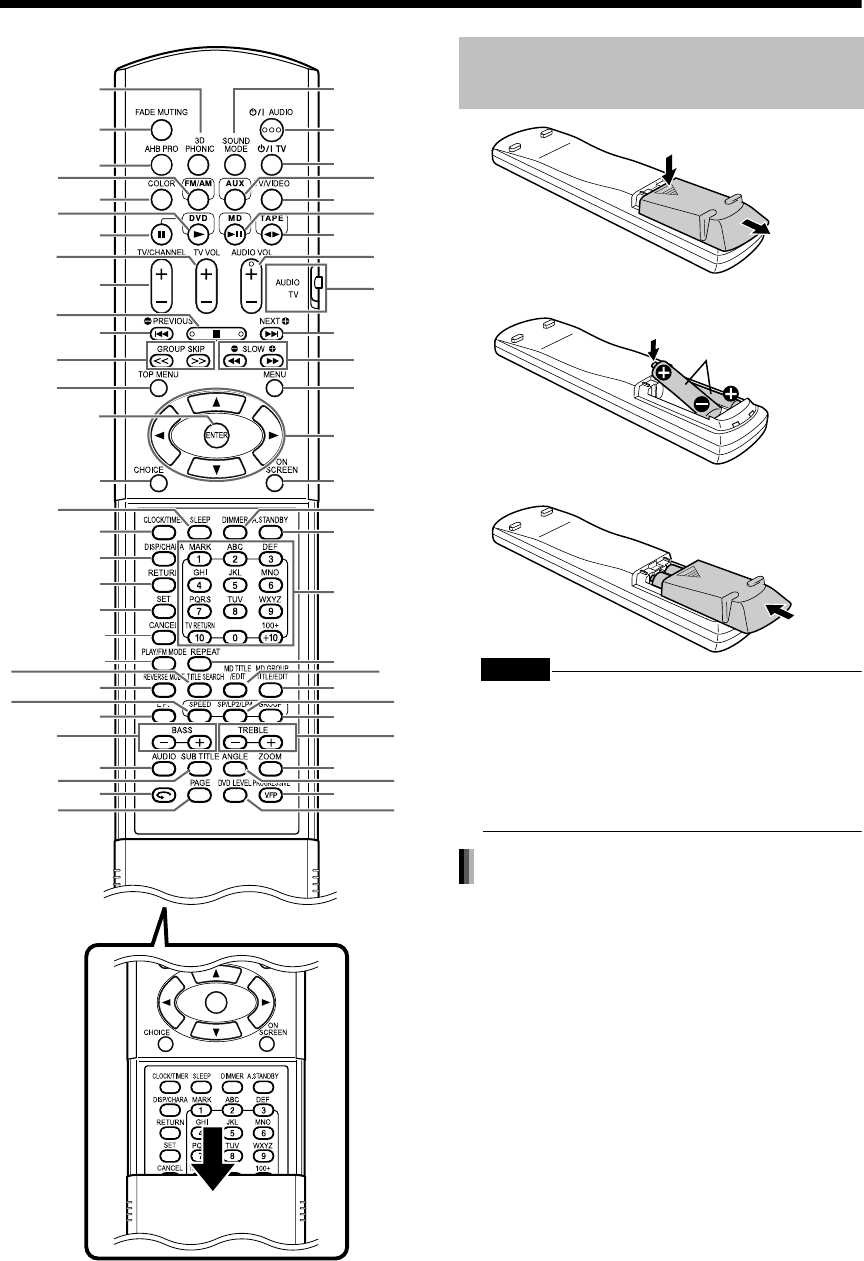
The numbers refer to the pages in which the parts are explained.
18
18
10 45
10
43
26
35
72
17, 21, 26,
32, 59
34, 49
58, 63-67
46
18
25, 43, 46
25, 26
26
19
51
18
28
30
28
29, 30
29
18
18
19
25
25, 43, 46
39
17, 69
24
20, 32, 47, 48
43, 55
53
27
24
20
10
47, 64
26
21, 23,
27, 58
10
51
58-62
49
51
18
21, 58, 65, 70
33, 58, 59, 62-67
21, 24, 44,
45, 59
25, 43, 46
10
22
31
Opening the cover
68
28
Inserting Batteries into the
Remote Control
R6P (SUM-3) /AA (15F)
type dry-cell batteries (2)
Remote control operation
UX-QD7[UB].book 9 ページ 2004年9月3日 金曜日 午後2時43分
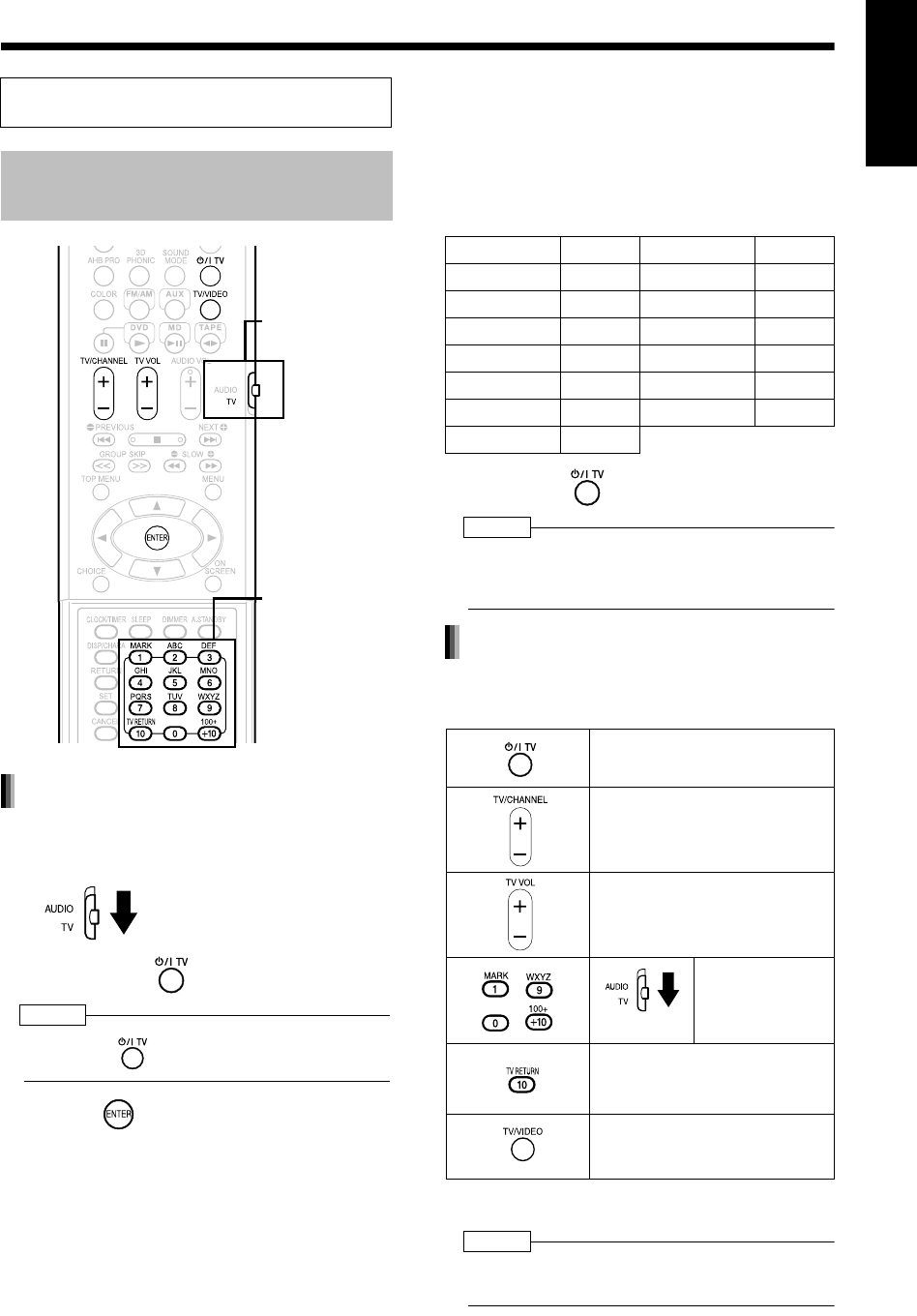
10
English Preparation English
1Slide the remote control mode
selector to the TV side.
2Hold down .
NOTE
• Hold down until step 4 is completed.
3Press and release.
4Press number buttons (1-9, 0).
Examples:
For a Hitachi TV: Press 1, then 0.
For a Toshiba TV: Press 0, then 8.
If there are two or more manufacturer's codes, try
them in turn and select the one that causes the
product to work properly.
5Release .
NOTE
• The manufacturer's codes may be changed without
notice. You may not be able to operate a TV
produced by the manufacturer shown above.
Operate the remote control by pointing it towards
the TV.
*1 Make sure to slide the remote control mode selector
to the TV side in advance.
NOTE
• When the batteries are replaced, perform the man-
ufacturer's code setting again.
This page is for when operating your TV using
the remote control of this product.
Operating the TV Using the
Remote Control
Remote control
mode selector
Number buttons
Setting the manufacturer's code
Manufacturer Code Manufacturer Code
JVC 01 Samsung 12
Hitachi 10 Sanyo 13
Magnavox 02 Sharp 06
Mitsubishi 03 Sony 07
Panasonic 04, 11 Toshiba 08
Philips 14 Zenith 09
RCA 05
Turn on/off the power.
Change channels.
Adjust volume.
- /
/
Select channels.
Change between the previously
selected channel and the cur-
rent channel.
Change between TV and video
input.
For TV operation
*1
UX-QD7[UB]-03.fm 10 ページ 2004年9月17日 金曜日 午後4時27分
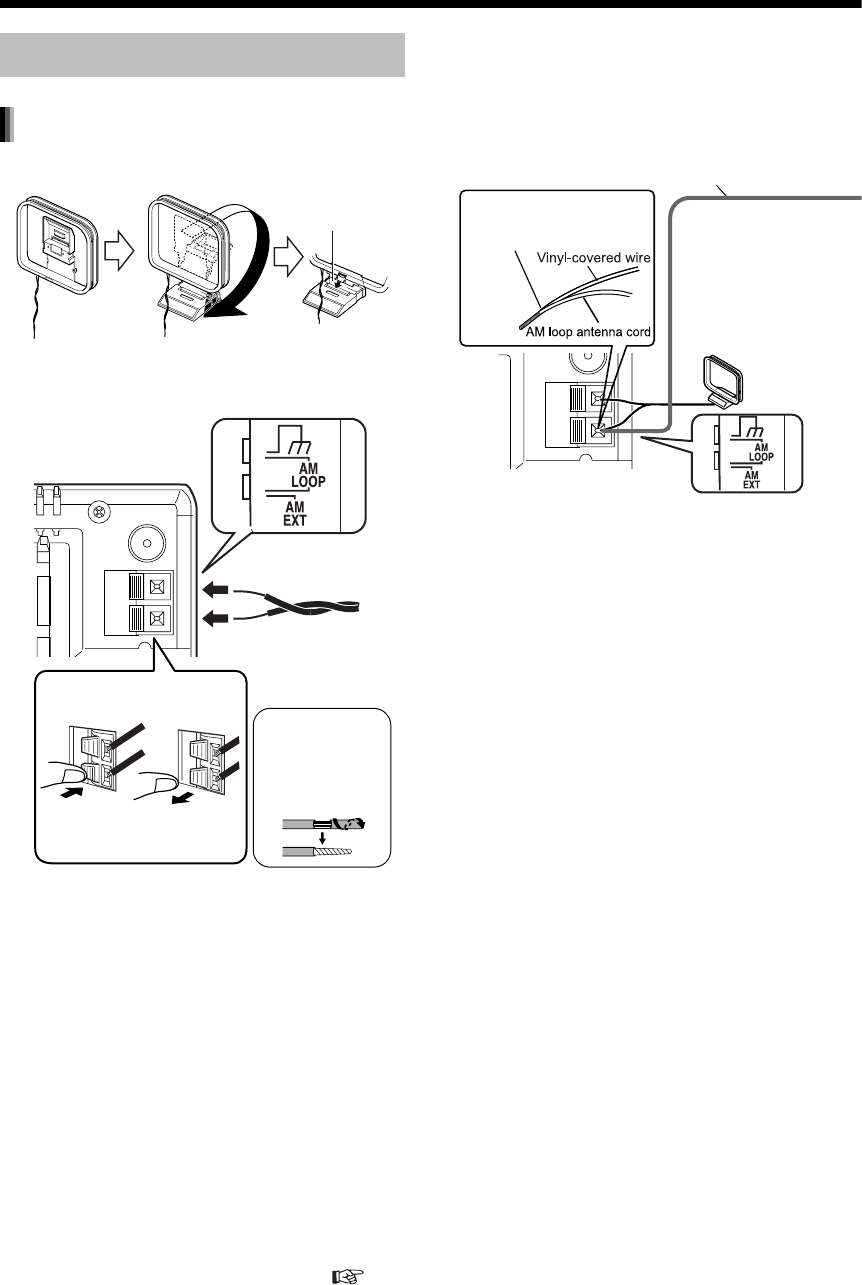
Introduction
11
Connections
1Set up the AM antenna (supplied).
2Connect the antenna cord.
3Turn the AM loop antenna to find
the best position for radio
reception.
Place the AM loop antenna as far
from the main unit as possible.
• Do not place the AM loop antenna on a
metallic table or close to a TV, computer, or
other electric appliances. Doing so may
affect radio reception.
■When radio reception with the supplied AM
loop antenna is poor
Connect all necessary parts before connecting the power plug.
Connecting the Antennas
Connecting the AM antenna
Insert the tab into
the slot.
Main unit (rear view)
Main unit (side view)
Connecting the antenna
cord
Connect the ends of
the antenna cord as
shown above.
When insulation
covers the tips of
the antenna cord,
twist and pull off
the insulation.
When positioning the antennas, find the best position for reception while listening to an actual radio program
(refer to "Listening to Radio Broadcasts" ( page 20)).
Vinyl-covered wire: 3 - 5 m
(not supplied)
Twist together vinyl-
covered wire and the AM
loop antenna cord.
Stretch out the vinyl-
covered wire horizontally,
preferably in a high place
such as above a window
or outdoors.
Connect the AM loop
antenna cord to the main
unit together with the
vinyl-covered wire.
Main unit (rear view)
UX-QD7[UB]-03.fm 11 ページ 2004年9月7日 火曜日 午前10時33分
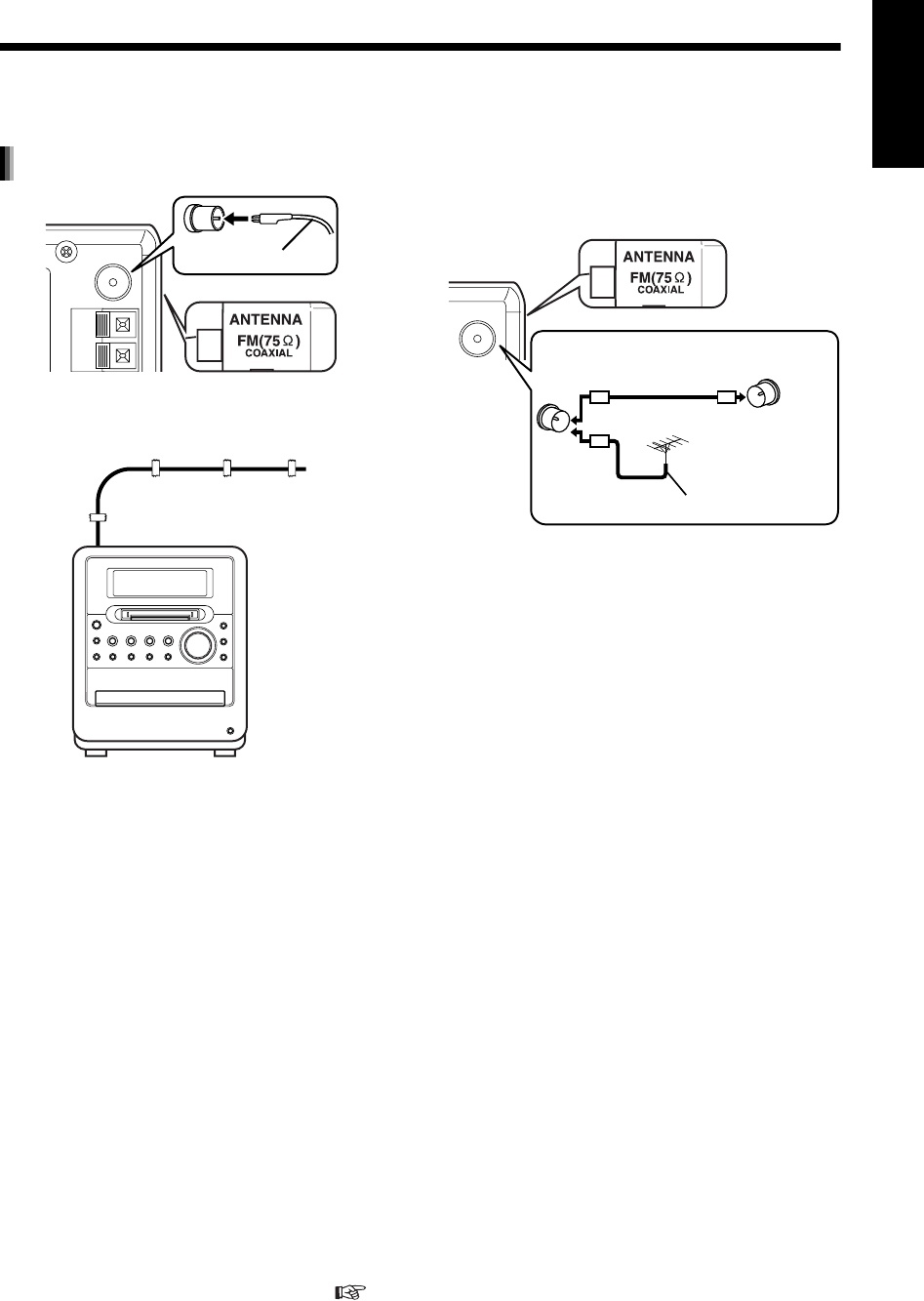
12
English Preparation English
Stretch out the FM antenna to the best position for
radio reception, and then fix it with adhesive tape.
■When radio reception with the supplied FM
antenna is poor, or when using a communal
antenna
When using an antenna other than those
supplied with this product, refer to the operation
manuals for the antenna for details of
connection.
Connecting the FM antenna
Main unit (rear view)
FM antenna
(supplied)
Main unit (side view)
When positioning the antennas, find the best position for reception while listening to an actual radio program
(refer to "Listening to Radio Broadcasts" ( page 20)).
Main unit
(rear view)
Antenna cord
(not supplied)
Communal
antenna terminal
or
Outdoor FM antenna
(not supplied)
Coaxial cable
(not supplied)
Main unit (side view)
UX-QD7[UB]-03.fm 12 ページ 2004年9月6日 月曜日 午後5時36分
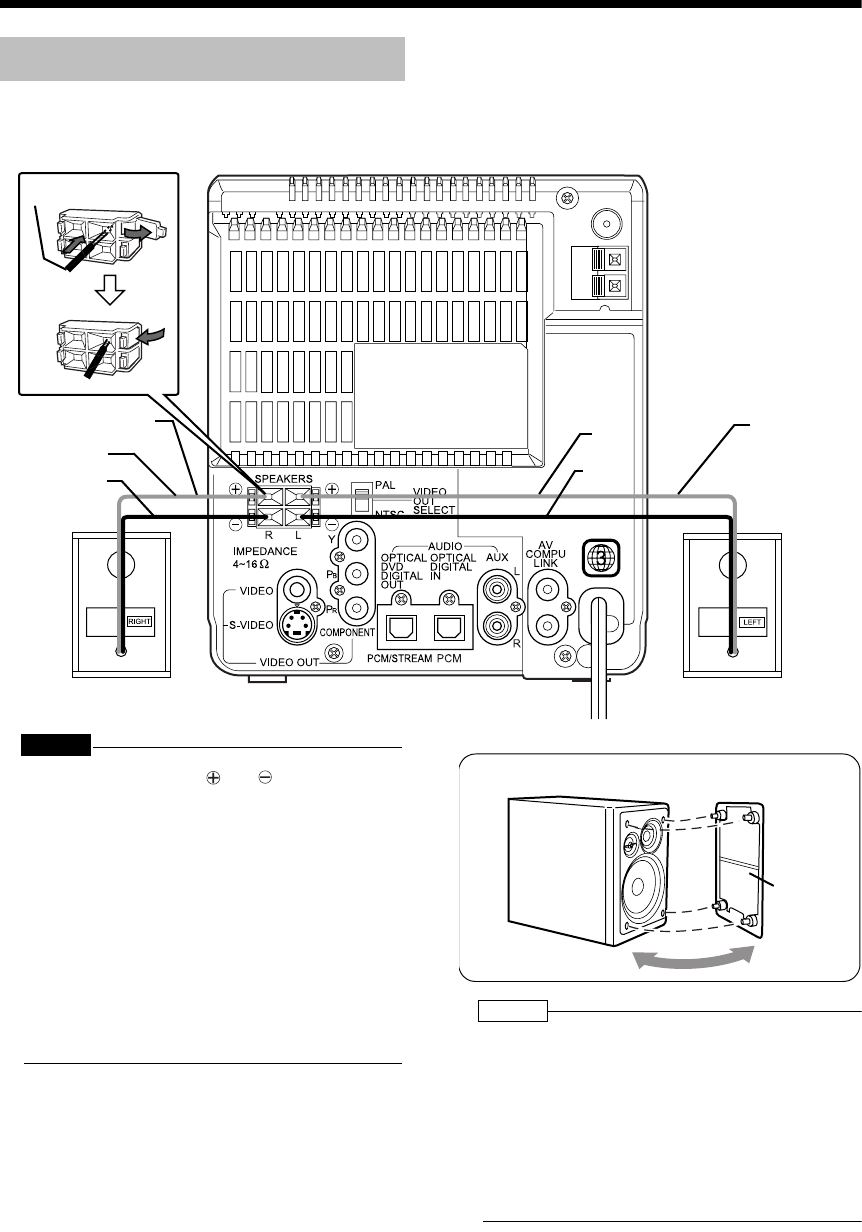
Introduction
13
(Continued)
Connections
CAUTION
• Do not short-circuit the and speaker termi-
nals. Doing so may damage the speakers.
• Do not connect other speakers together with the
supplied speakers. The change in impedance
may damage the main unit and the speakers.
• The speakers of this product are magnetically
shielded, but color irregularities may occur on the
TV depending on how the speakers are installed.
Keep in mind the following.
1. Turn off the main power of your TV before
installing the speakers. Wait for about 30 min-
utes before turning on the TV again.
2. If color irregularity occurs in pictures, keep a
distance of more than 10 cm between the TV
and the speakers.
NOTE
• Improper speaker cord connection spoils the stereo
effect and sound quality.
• The impedance of speakers connected to this
product must be within the range of 4 Ω to 16 Ω.
• Cooling fan is built into the main unit for emitting
generated heat. The internal cooling fan auto-
matically rotates and stops. To ensure sufficient
cooling, leave a space of more than 1 cm
between the main unit and the speakers or other
objects.
Connect all necessary parts before connecting the power plug.
Connecting the Speakers
After connecting the speakers, gently pull on the
speaker cords to make sure the cords are firmly
connected and do not pull out.
Speaker cord
Speaker cord
Red
Black
Red
Black
Right speaker (rear view) Left speaker (rear view)
Speaker cord
Main unit (rear view)
You can detach the speaker cover.
Speaker
cover
UX-QD7[UB].book 13 ページ 2004年9月3日 金曜日 午後2時43分
14
English Preparation English
CAUTION
• Before connecting other equipment, turn off both
the main unit and the equipment.
CAUTION
• For details of signals to be output, refer to page 40.
• If connecting the main unit to equipment that has
the function of a Dolby Digital decoder, the set-
ting in "D. RANGE COMPRESSION" of "AUDIO"
( page 40) will be invalid regarding sound
from the digital audio output of the main unit.
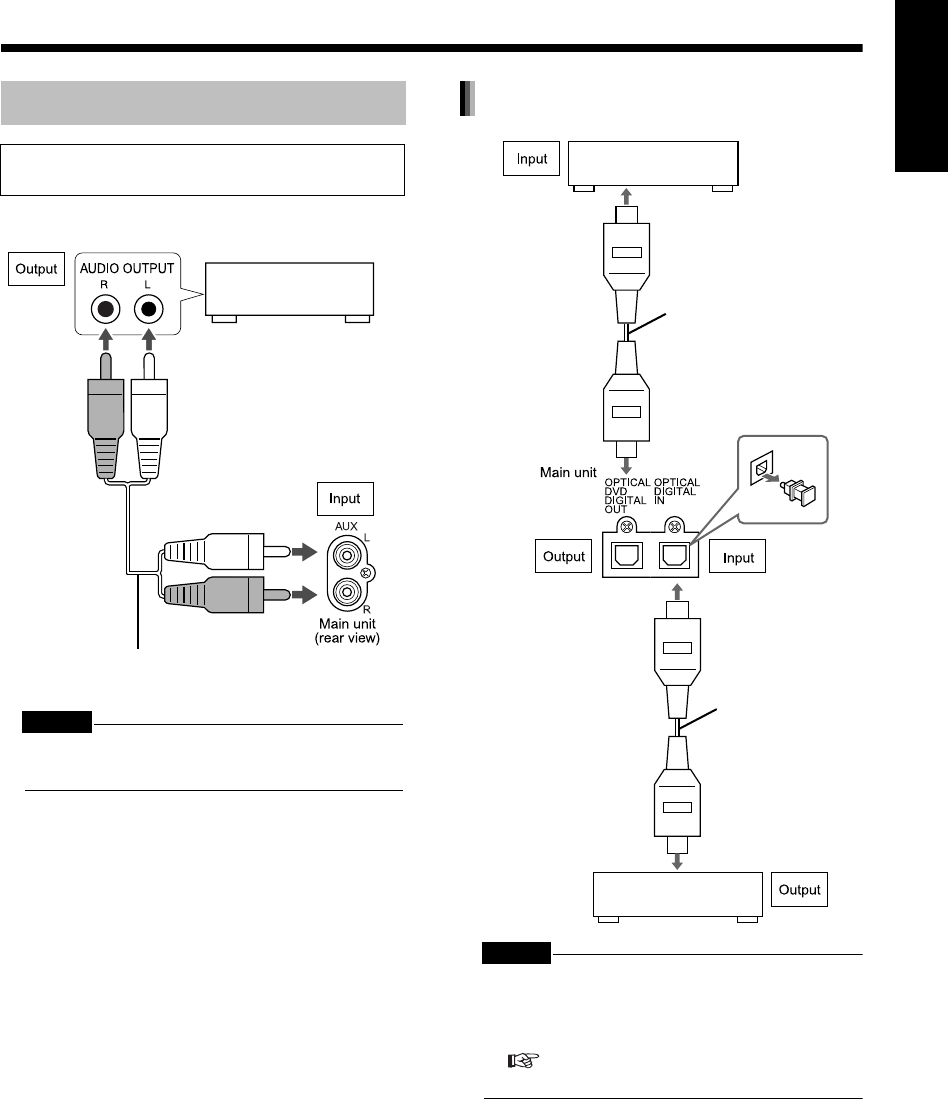
Connecting Other Equipment
Read this section when connecting other audio
equipment to this product.
Other audio
equipment
Audio cord (not supplied)
Connecting with digital equipment
AV amplifier with a built-in
decoder (not supplied)
To an optical digital input
terminal
Optical digital cable
(not supplied)
Optical digital cable
(not supplied)
MD player or CS tuner
(not supplied)
From an optical digital
input terminal
UX-QD7[UB].book 14 ページ 2004年9月3日 金曜日 午後2時43分
Introduction
15
(Continued)
Connections
CAUTION
• Connect the main unit directly with a TV (or a
monitor) without routing through a VCR. Otherwise
it may cause picture distortion while playing back.
(Such picture distortion is caused by a copy
protection system, and thus it is not a malfunction.)
Also, if the main unit is connected to a TV with a
built-in VCR, there may be picture distortion during
playback.
NOTE
• Please check that the setting for VIDEO OUT
SELECT (PAL/NTSC) on the rear panel of the main
unit and the color system on your TV set are the
same. ( page 6)
You need to set "MONITOR TYPE" in the
"PICTURE" menu correctly according to the aspect
ratio of your TV. ( page 39)
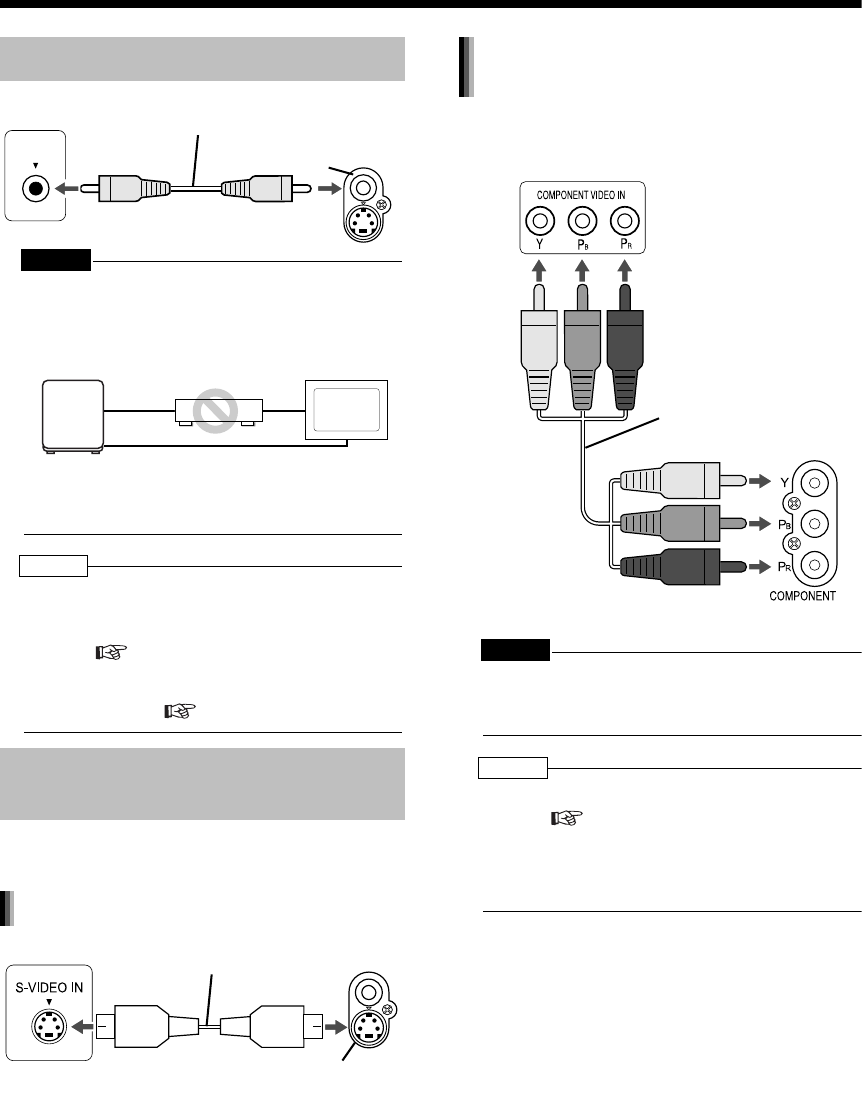
You can enjoy pictures of better quality using the
following cord instead of the supplied video cord.
You can enjoy better quality pictures than when
using the S-video cord.
CAUTION
• Use one of either the S-video cord or the compo-
nent video cord. If both cords are used, pictures
may not be played back properly.
NOTE
• In order to enjoy pictures with the progressive
mode ( page 30), the TV is required to have
progressive video input.
• If the component video input jacks of your TV are
BNC type, use a plug adapter (not supplied) to
convert the plugs.
Connect all necessary parts before connecting the power plug.
Connecting with a TV
When a Clearer Picture Is
Desired
TV Supplied video cord
Main unit
VIDEO IN
VIDEO
Main unit
Connecting directly
TV
(or monitor)
VCR
Connecting by using the S-video cord
TV Main unit
S-video cord
(not supplied)
S-VIDEO
Connect the ends of S-video cord making
sure that each end matches its compatible
terminal.
Connecting by using the component
video cord
TV
Main unit
Component video cord
(not supplied)
UX-QD7[UB].book 15 ページ 2004年9月3日 金曜日 午後2時43分
16
English Preparation English
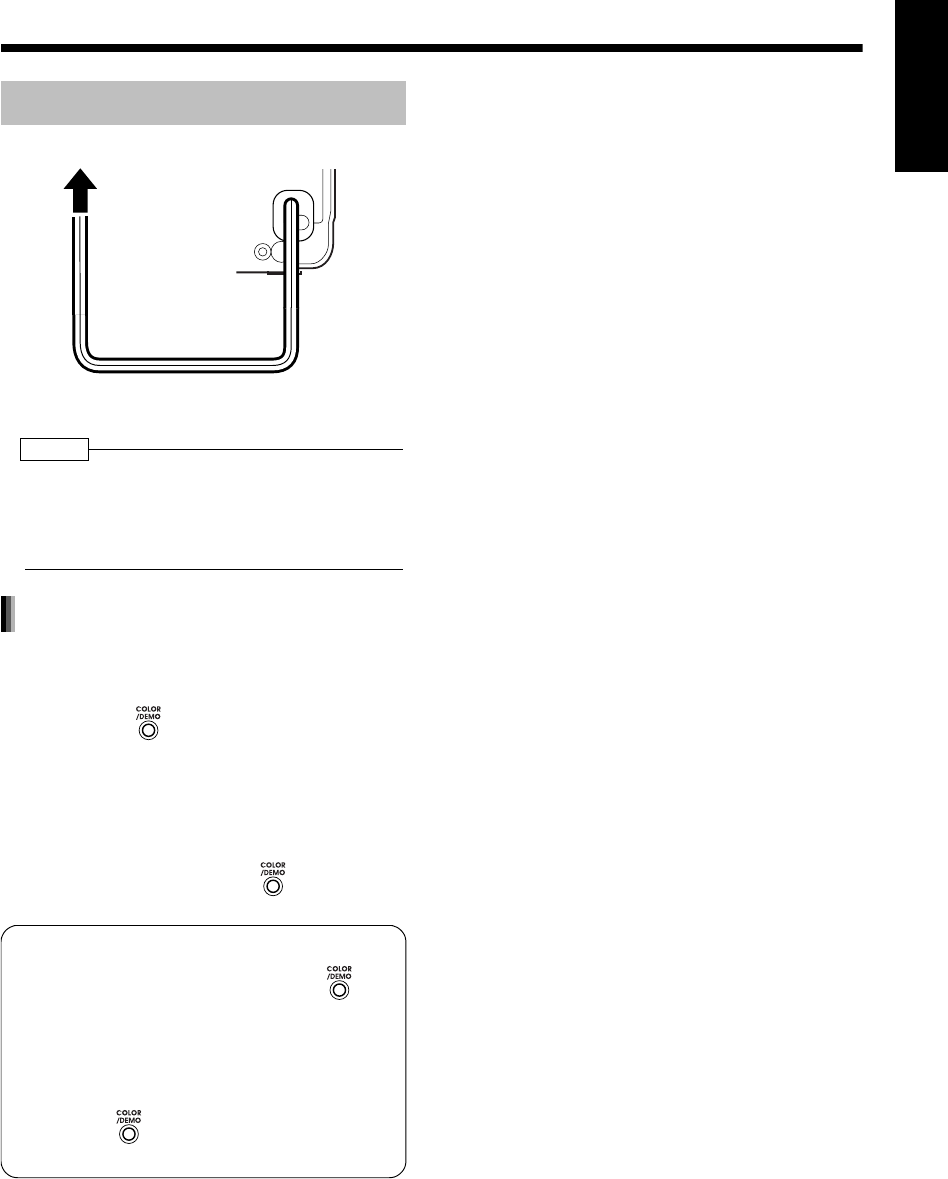
• After making all other necessary connections,
connect in the power plug.
NOTE
• The preset setting such as preset channels and
sound adjustment may be erased in a few days in
the following cases:
- When you disconnect the power plug.
- When a power failure occurs.
When you connect the power plug into the AC out-
let, "DEMO START!" appears in the display win-
dow and the demonstration display starts.
When you press on the main unit, "DEMO
OFF" appears in the display window and the dem-
onstration display is canceled.
Turning on the main unit automatically cancels the
demonstration display.
Resuming the demonstration display
With the power turned off, press on the main
unit.
Connecting the Power Plug
AC outlet Main unit (rear view)
Demonstration display function
Hiding the demonstration display
With the power turned off, hold down
until "DEMO CLEAR" appears.
Disconnecting and then reconnecting the
power plug does not start the demonstration
display.
To activate the demonstration display again,
hold down until "DEMO START!"
appears.
UX-QD7[UB]-03.fm 16 ページ 2004年9月16日 木曜日 午後1時29分
Introduction
17
Basic Operations
Basic Operations
This manual explains the operations assuming that
you will use the remote control. Some buttons on
the main unit are the same as those on the remote
control. You can use either button in this case.
CAUTION
• Set the remote control mode selector to
AUDIO before using the number buttons.
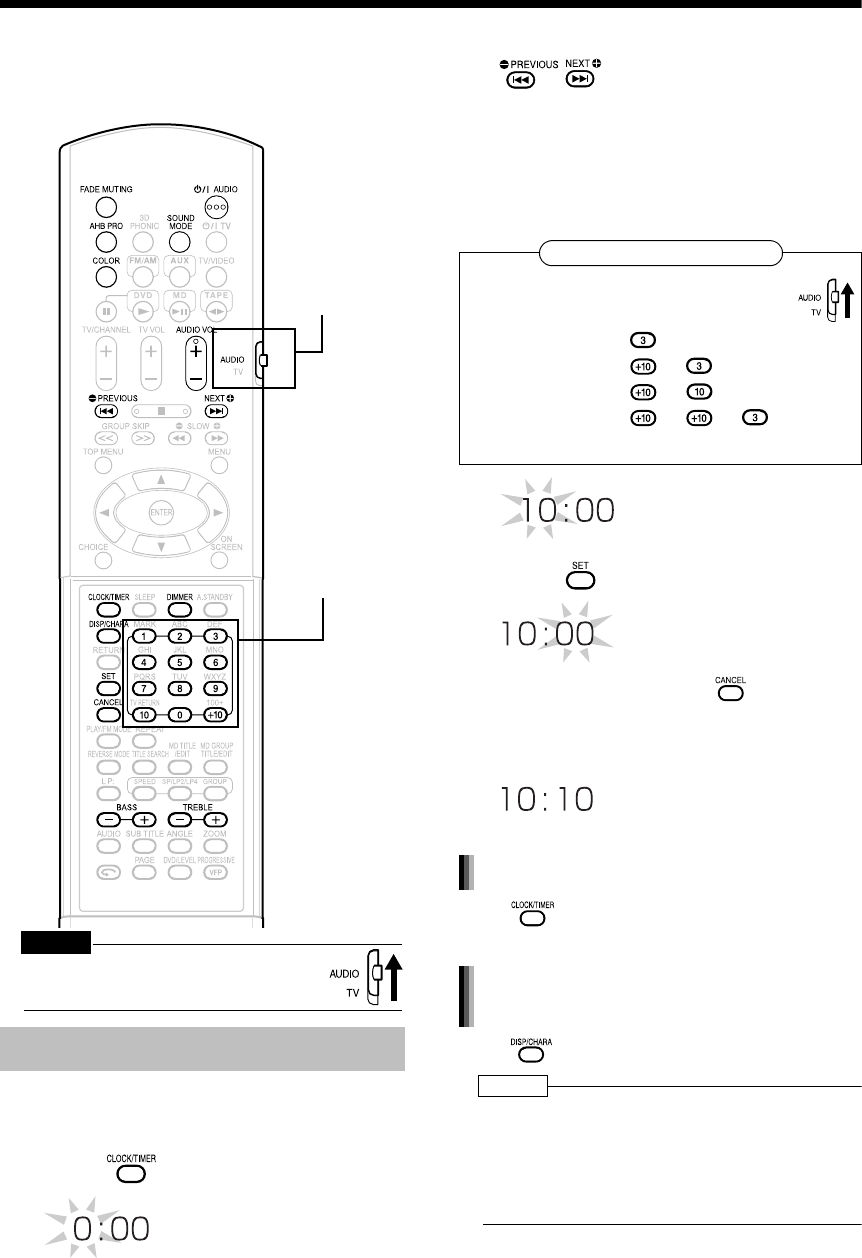
You can set the clock while the main unit is turned
either on or off.
Example: To set the clock to 10:10 a.m.
1Press .
2Set the hour.
Back Next
• Holding down the button causes the hour to
increment.
• You can use the number buttons to specify
the hour.
Refer to "Using the number buttons" shown
below.
3Press .
• To return to step 2, press .
4Set the minute in the same manner
as steps 2 and 3.
Press four times to display the clock, and
then adjust the clock starting from step 2.
Press repeatedly.
NOTE
• The time display on the main unit is a 24-hour
clock.
• The clock will gain or lose approximately 1 minute
per month.
• Set the clock again after you have disconnected
the power plug or a power cut has occurred.
Setting the Clock
Number buttons
Remote control
mode selector
Using the number buttons
Examples:3:
13: →
20: →
23: → →
Set the remote control mode selector to
AUDIO before using the number buttons.
Adjusting the clock
Displaying the clock while using the
main unit
UX-QD7[UB].book 17 ページ 2004年9月3日 金曜日 午後2時43分
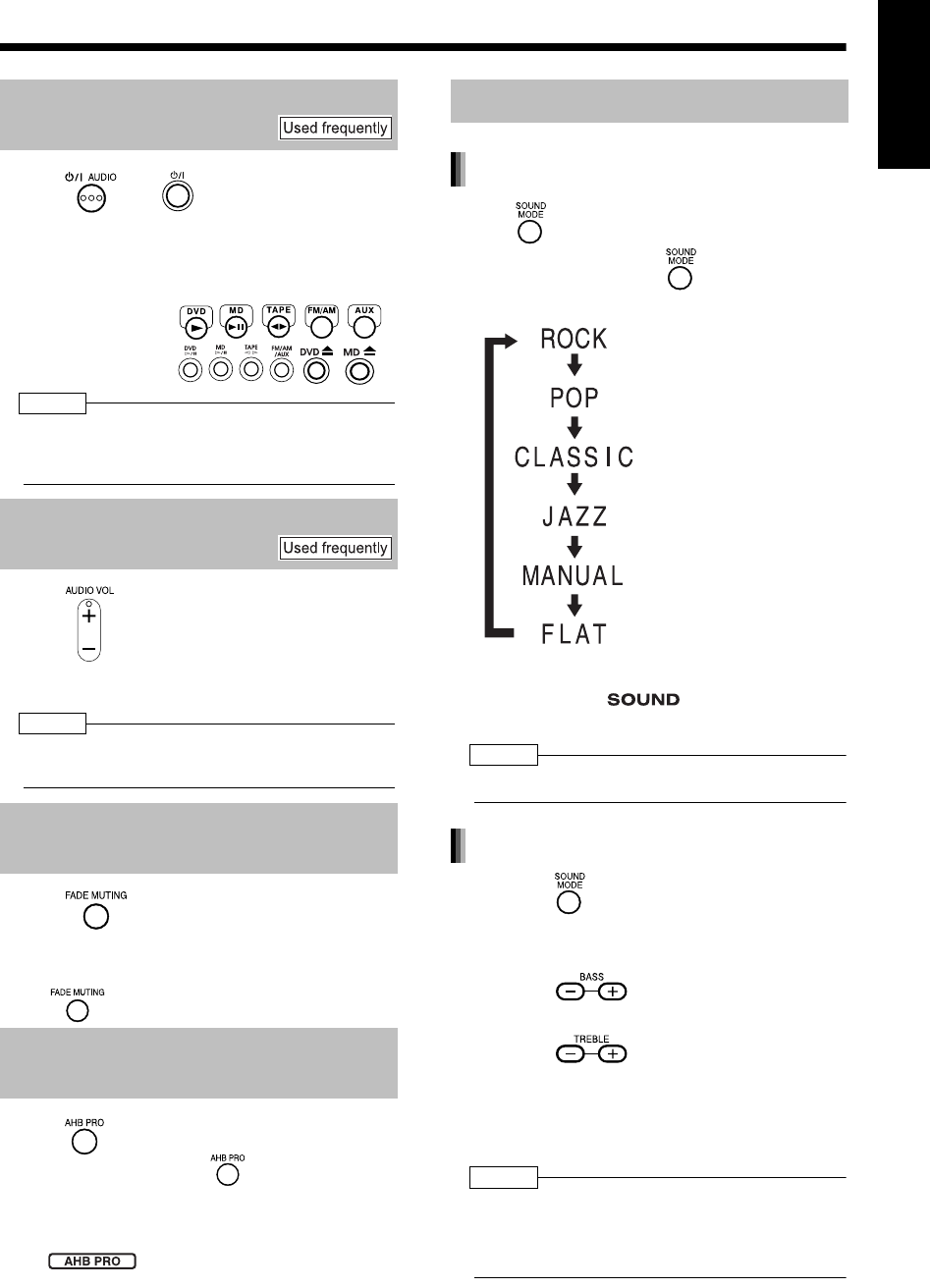
18
English Basic Operations English
Press (or on the main unit).
• With the power off, pressing either button
also turns on the main unit. The function
assigned to the button starts working at the
same time.
Remote control:
Main unit:
NOTE
• Cooling fan is built into the main unit for emitting
generated heat. The internal cooling fan automati-
cally rotates and stops.
Press .
• You can also adjust the volume by turning
the VOLUME control on the main unit.
NOTE
• You can adjust the volume within the range of 0 to
40.
Press .
• "FADE MUTING" appears and the volume
reduces to "0".
• To return to the previous volume, press
again.
Press .
• Each time you press , AHB PRO
function toggles between "ON" and
"OFF".
• While AHB PRO function is activated,
is displayed in the display
window.
• "AHB PRO" stands for "Active Hyper
Bass PRO".
Press .
• Each time you press , the display tog-
gles as follows.
• While the sound mode is set to an item other
than "FLAT", is displayed in the
display window.
NOTE
• This function does not affect recording sound.
1Press repeatedly to display
"MANUAL".
2For adjusting bass sound;
Press .
For adjusting treble sound;
Press .
• You can adjust the sound quality within the
range of -5 to +5.
• The display returns to the sound source dis-
play in a few seconds.
NOTE
• While the sound mode is set to an item other than
"MANUAL", "NO OPERATE" is displayed in the dis-
play window and you cannot adjust bass/treble
sound.
Turning On/Off the Main Unit
Adjusting the Volume
Temporarily Turning Off the
Sound (FADE MUTING)
Emphasizing Heavy Bass
Sound (AHB PRO)
Adjusting the Sound Quality
Selecting the sound mode
: For emphasizing treble
and bass sounds.
: Adequate for songs
and narrations.
: For emphasizing treble
sound.
: For uplifting a feeling
of being at a live per-
formance.
: For adjusting treble and
bass sounds of your
choice (shown below).
: Cancels the sound
mode (initial setting).
Adjusting bass/treble sound
UX-QD7[UB]-03.fm 18 ページ 2004年9月16日 木曜日 午後1時31分
Introduction
19
(Continued)
Basic Operations
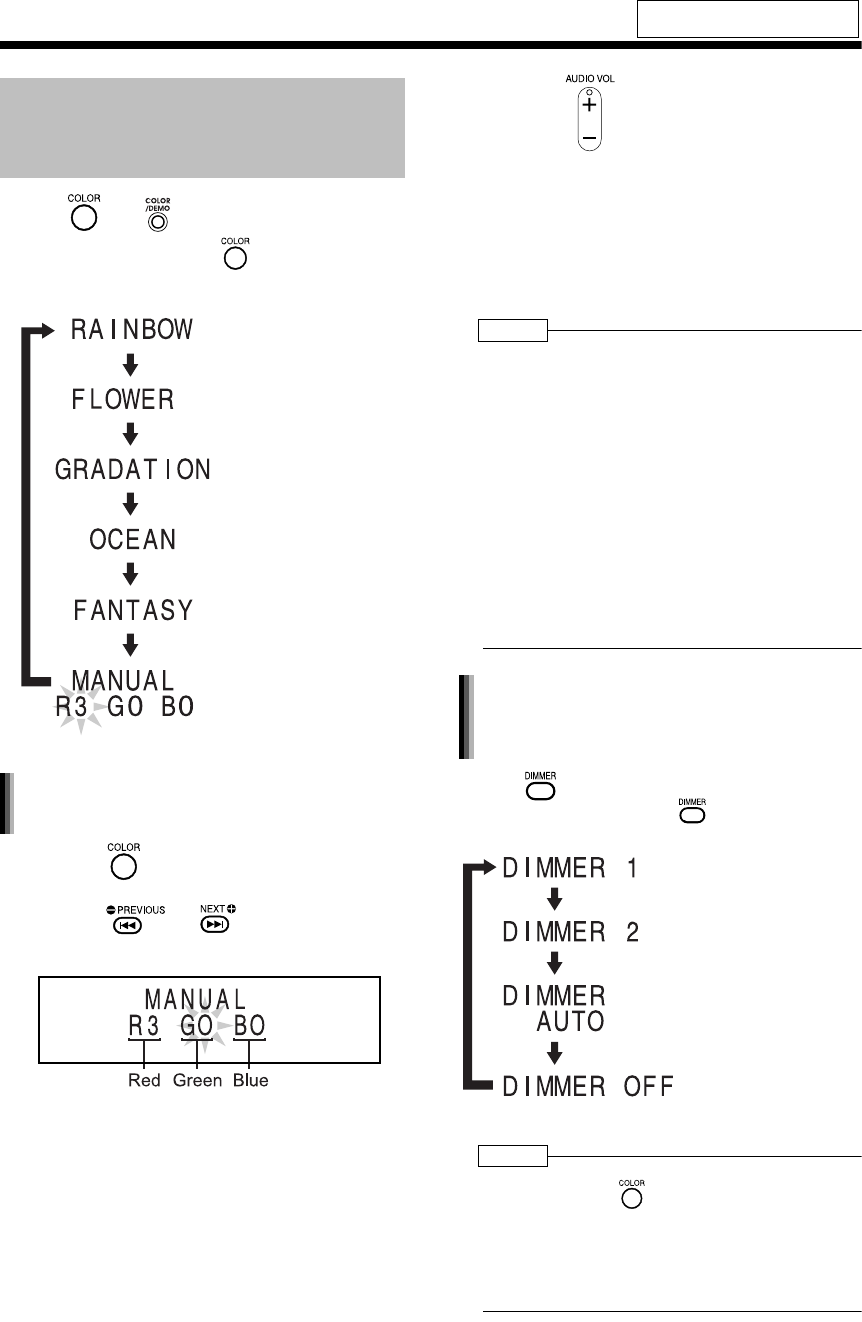
Press (or on the main unit).
• Each time you press , the display tog-
gles as follows.
1Press repeatedly to display
"MANUAL".
2Press or to select a
component color.
• Numerical value of the selected component
color flashes.
3Press to adjust the intensity
of the component color.
• You can also adjust the color intensity by turn-
ing the VOLUME control on the main unit.
• You can adjust the color intensity within the
range of "0" to "3".
You cannot set all three component colors
(red, green, and blue) to "0" at the same time.
NOTE
• After you have adjusted each component color, the
display returns to the sound source display in
approximately 8 seconds.
• You cannot set different colors for the display
window and disc tray.
• When you operate a button on the main unit or
remote control, the display window and disc tray
light in pale blue for approximately 2 seconds.
• When recording finishes, the color of the display
window and disc tray switches to the color set in
"MANUAL" to inform you that recording has
finished. (With an item other than "MANUAL"
selected)
When you operate the main unit after recording
finishes, the color pattern for the display window
and disc tray returns to the selected pattern.
Press .
• Each time you press , the display tog-
gles as follows.
NOTE
• Once you press to change the color pattern,
the brightness returns to the initial setting. (except
for DIMMER AUTO)
• When you turn off the main unit, the brightness
also returns to the initial setting.
• You cannot turn off the color pattern.
For the locations of remote control
buttons, refer to page 17.
Changing the Color Patterns
for the Display Window and
Disc Tray
: For the color of your
choice. (The setting
shown on the left is
initial setting.)
: For a rainbow-like
pattern.
: For a flower-image
pattern.
: Gradually changes
the color pattern in a
cycle of approximately
20 seconds.
: For an ocean-image
pattern.
: For a fantasy pattern.
Setting your favorite color for the
display window and disc tray
Changing the brightness of the
display window and disc tray
(DIMMER)
: Color pattern becomes
dimmer.
: Color pattern
becomes darker, and
switches to blue.
: DIMMER 2 is automat-
ically selected during
video playback, and is
canceled when the
playback stops.
: Cancels the brightness
adjustment
(initial setting).
UX-QD7[UB].book 19 ページ 2004年9月3日 金曜日 午後2時43分
20
English Basic Operations/Listening to Radio Broadcasts English
Basic Opera tions/Listening to Radio B roadcasts
Listening to Radio Broadcasts
This product can receive FM and AM radio broad-
casts.
CAUTION
• Set the remote control mode selector to
AUDIO before using the number buttons.
Some countries space AM stations 9 kHz apart,
and other countries use 10 kHz spacing.
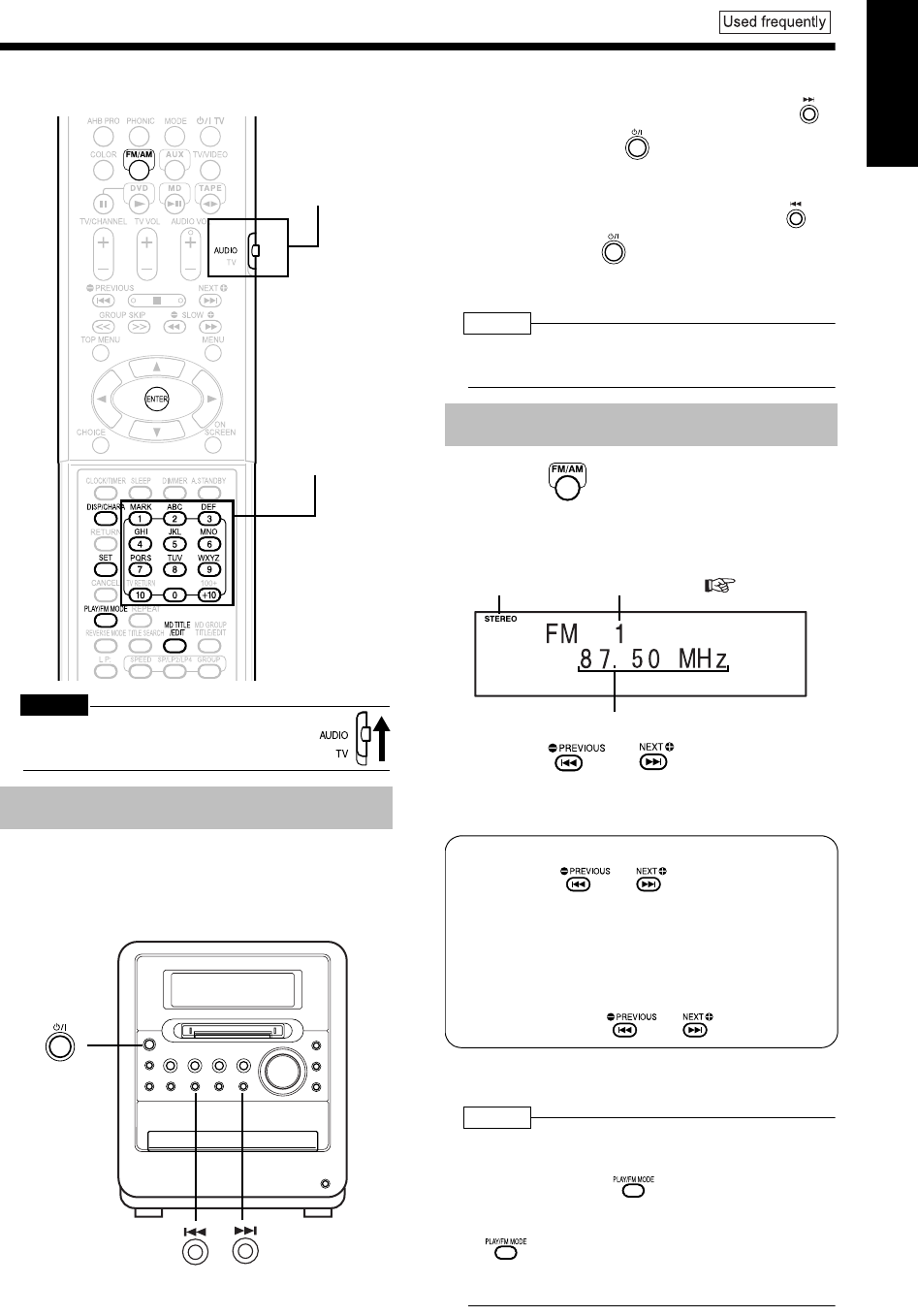
On the main unit ONLY:
■When the main unit is turned off
To select 10 kHz spacing, while holding down
on the main unit, press on the main unit to turn
on the power. "AM 10 kHz" appears in the display
window.
To select 9 kHz spacing, while holding down on
the main unit, press on the main unit to turn on
the power. "AM 9 kHz" appears in the display
window.
NOTE
• If the spacing is switched, the memory in which the
radio stations were stored will be erased.
1Press repeatedly to select
"FM" or "AM".
Example: Display while an FM radio broadcast
is received
2Press or repeatedly to
select a radio station (frequency).
• You can also select a radio station using the
automatic tuning.
• When the main unit has received an FM
stereo broadcast, "STEREO" lights up.
NOTE
• If an FM stereo broadcast is difficult to hear
because of noise, you may be able to hear more
easily by pressing to switch the sound to
monaural reception. In this case, "MONO" lights up.
To return the sound to stereo reception, press
again or select another FM radio station.
• This product is not compatible with AM stereo
broadcasts.
Setting the AM Tuner Spacing
Number buttons
Remote control
mode selector
Selecting a Radio Station
Stereo indicator Preset number ( page 21)
Frequency
Automatic tuning:
Hold down or until the fre-
quency starts changing, and then release
the button.
When the main unit has received a broad-
cast, the frequency automatically stops
changing.
To quit the function while searching for a
broadcast, press or .
UX-QD7[UB].book 20 ページ 2004年9月3日 金曜日 午後2時43分
Introduction
21
(Continued)
Listening to Radio Broadcasts
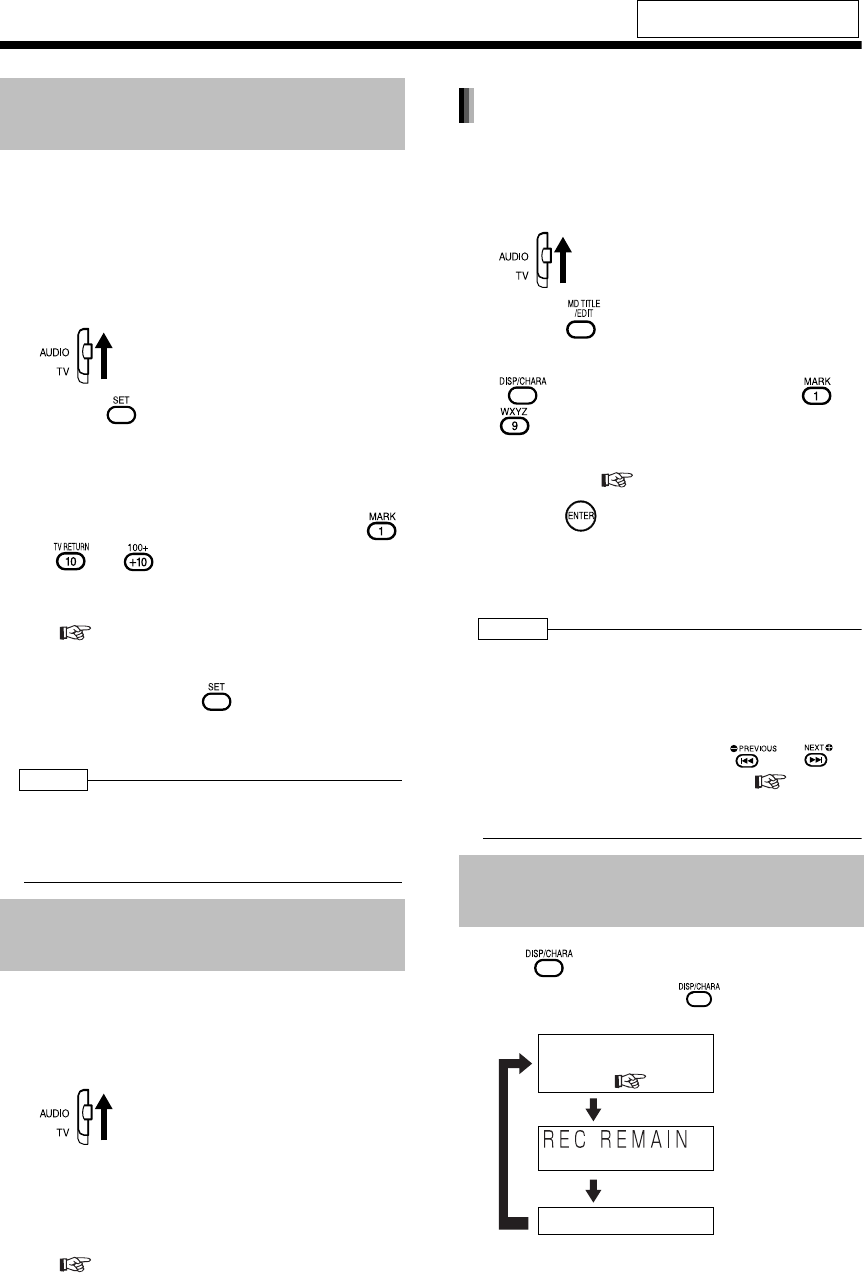
You can store up to 30 FM radio stations and up to
15 AM radio stations.
■While the broadcast from the radio station
you want to preset is being received
1Set the remote control mode
selector to AUDIO.
2Press .
• The preset number flashes for approxi-
mately 5 seconds.
3While the preset number is flash-
ing, press the number buttons (
- or ) to select the preset
number you want to use.
• Refer to "Using the number buttons"
( page 17).
4While the selected number is
flashing, press .
• "STORED" appears and the selected radio
station is stored.
NOTE
• When you store a radio station to a preset number
to which another radio station has previously been
stored, the newly set radio station replaces the pre-
viously stored radio station.
■While an FM or AM broadcast is being
received
1Set the remote control mode
selector to AUDIO.
2Use the number buttons to select
the preset number of the radio sta-
tion to which you want to tune in.
• Refer to "Using the number buttons"
( page 17).
You can enter the name of a stored radio station
using up to 8 characters.
1Set the remote control mode
selector to AUDIO.
2Press .
3Entering a radio station name with
or the number buttons ( -
).
• To enter radio station names, refer to "Enter-
ing Titles" ( page 59).
4Press .
• "STORED" appears in the display window
and the entered radio station name is
registered.
NOTE
• When you store a radio station after you have
entered a radio station name, the entered radio
station name with the same preset number is
erased.
• You cannot enter radio station names after
selecting a radio broadcast with or .
• If you change the AM tuner spacing ( page 20),
radio station names remain unchanged.
Enter radio station names again, if necessary.
Press .
• Each time you press , the display tog-
gles as follows.
For the locations of remote control
buttons, refer to page 20.
Storing Radio Stations
(Preset)
Tuning In to a Preset Radio
Station
Changing the Display in the
Display Window
Entering radio station names
Display while a radio
broadcast is being
received ( page 20)
(Time display)
Clock display
(With an MD loaded)
Display of remaining
time for MD recording
UX-QD7[UB].book 21 ページ 2004年9月3日 金曜日 午後2時43分
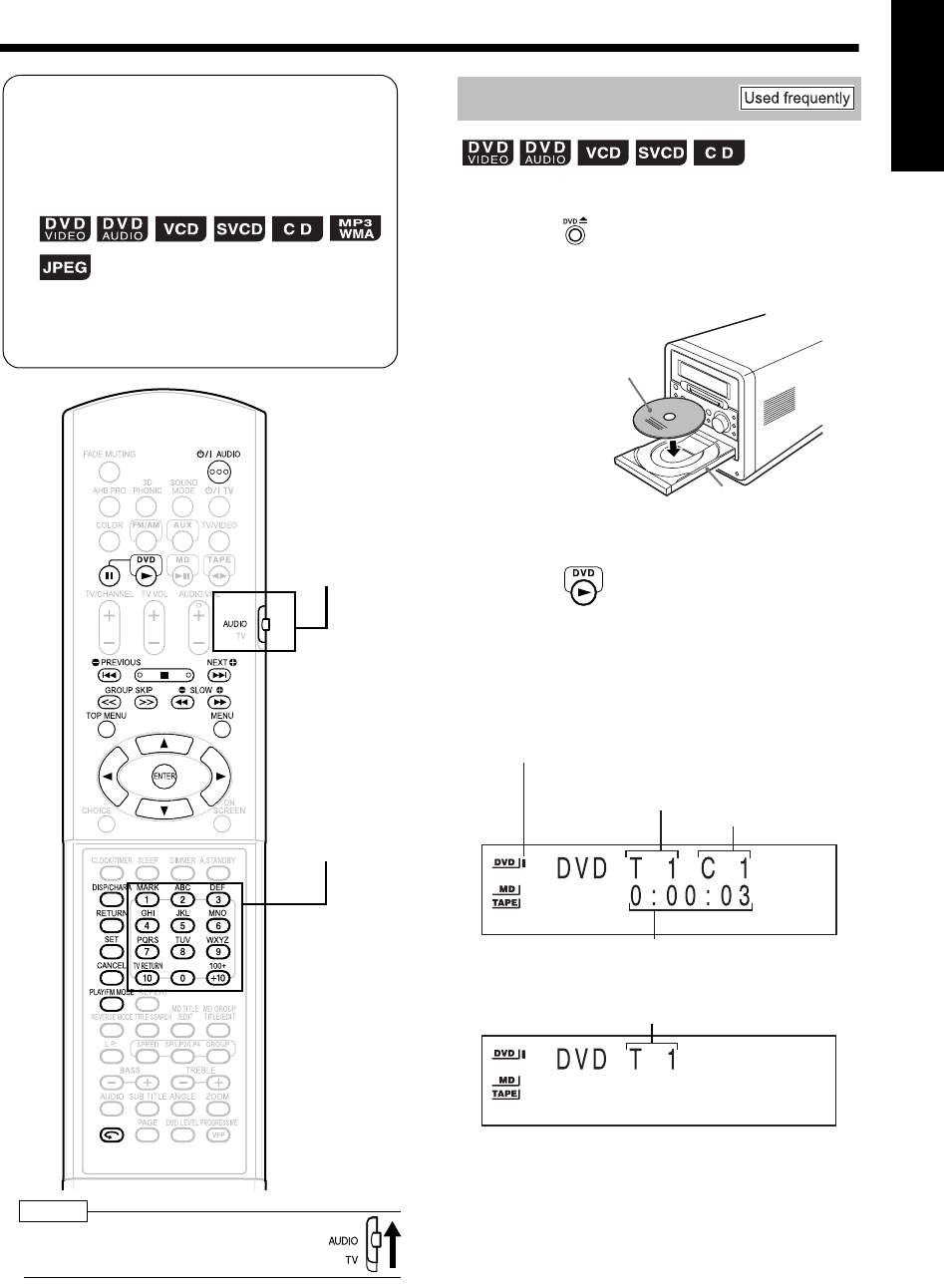
22
English Listening to Radio Broadcasts/Listening to Discs English
Listening to Radio Broadcasts/Listening to Discs
Basic Operations of the DVD Player
NOTE
• Set the remote control mode selector to
AUDIO before using the number buttons.
(Refer to page 37 for playing back MP3/WMA and
JPEG.)
1Press on the main unit.
• The disc tray comes out.
2Place a disc on the disc tray.
• When you want to listen to an 8 cm disc,
place it on the inner hollow of the disc tray.
3Press .
■Display for DVD VIDEO
Display while a DVD VIDEO is being played
back:
Display while the DVD VIDEO is stopped:
(Continued on next page)
How to read this manual
• Operations are described by mainly using the
remote control buttons. If there are the same
marks on the main unit, the buttons on the main
unit can also be used.
• The following marks tell you for which type of the
discs the operation can be made.
• The illustrations and TV screens may be different
between the actual case and the description.
• "VCD" stands for "Video CD".
• "SVCD" stands for "Super Video CD".
Number buttons
Remote control
mode selector
Playback
Letter-printed surface
Disc tray
Elapsed playing time
Title number
Chapter number
DVD indicator
(The DVD indicator lights up while the DVD VIDEO is
stopped. The DVD indicator flashes while the DVD
VIDEO is being played back or paused.)
Total number of titles
UX-QD7[UB].book 22 ページ 2004年9月3日 金曜日 午後2時43分
Introduction
23
(Continued)
Basic Operations of the DVD Player
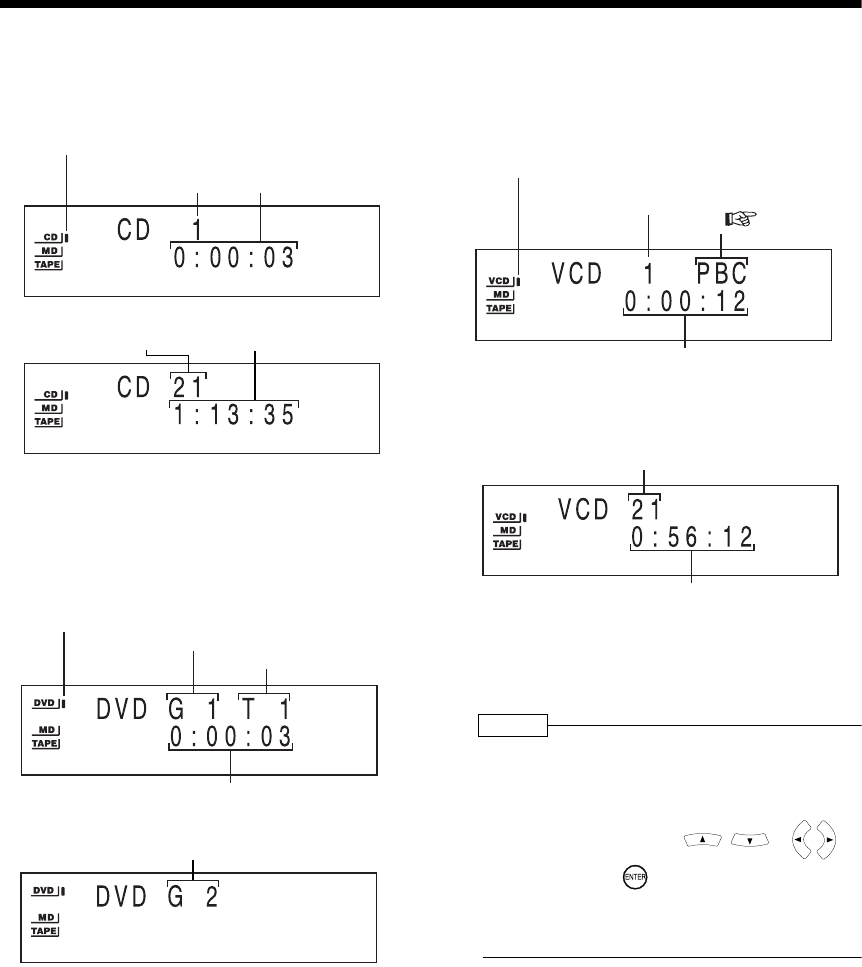
■Display for CD
Display while a CD is being played back:
Display while the CD is stopped:
■Display for DVD AUDIO
Display while a DVD AUDIO is being played
back:
Display while the DVD AUDIO is stopped:
• "G1" and "T1" will appear after the total
number of groups is displayed.
■Display for VCD/SVCD
Display while a VCD/SVCD is being played
back:
• PBC indicator is displayed while PBC is acti-
vated.
Display while the VCD/SVCD is stopped:
*1 "1" will appear after the total number of
tracks is displayed.
*2 "PBC" will appear when the disc is PBC-
compatible.
NOTE
• The menu may appear in the display window after
DVD playback starts. In such a case, select the
desired menu item by using the following buttons
on the remote control.
• Select a menu item with , or ,
and then press .
• Select a menu item with the number buttons.
• Operation may differ from the explanation given
here, depending on the disc type.
Elapsed playing time
CD indicator
(The CD indicator lights up while the CD is
stopped. The CD indicator flashes while the
CD is being played back or paused.)
Track number
Total number of tracks Total playing time
Elapsed playing time
DVD indicator
(The DVD indicator lights up while the DVD AUDIO is
stopped. The DVD indicator flashes while the DVD
AUDIO is being played back or paused.)
Group number
Track number
Total number of groups
Elapsed playing time
VCD indicator
(The VCD indicator lights up while the VCD/SVCD
is stopped. The VCD indicator flashes while the
VCD/SVCD is being played back or paused.)
Track number PBC indicator
( page 24)
Total number of tracks (*1, *2)
Total playing time
UX-QD7[UB].book 23 ページ 2004年9月3日 金曜日 午後2時43分
24
English Listening to Discs English
Listening to Discs
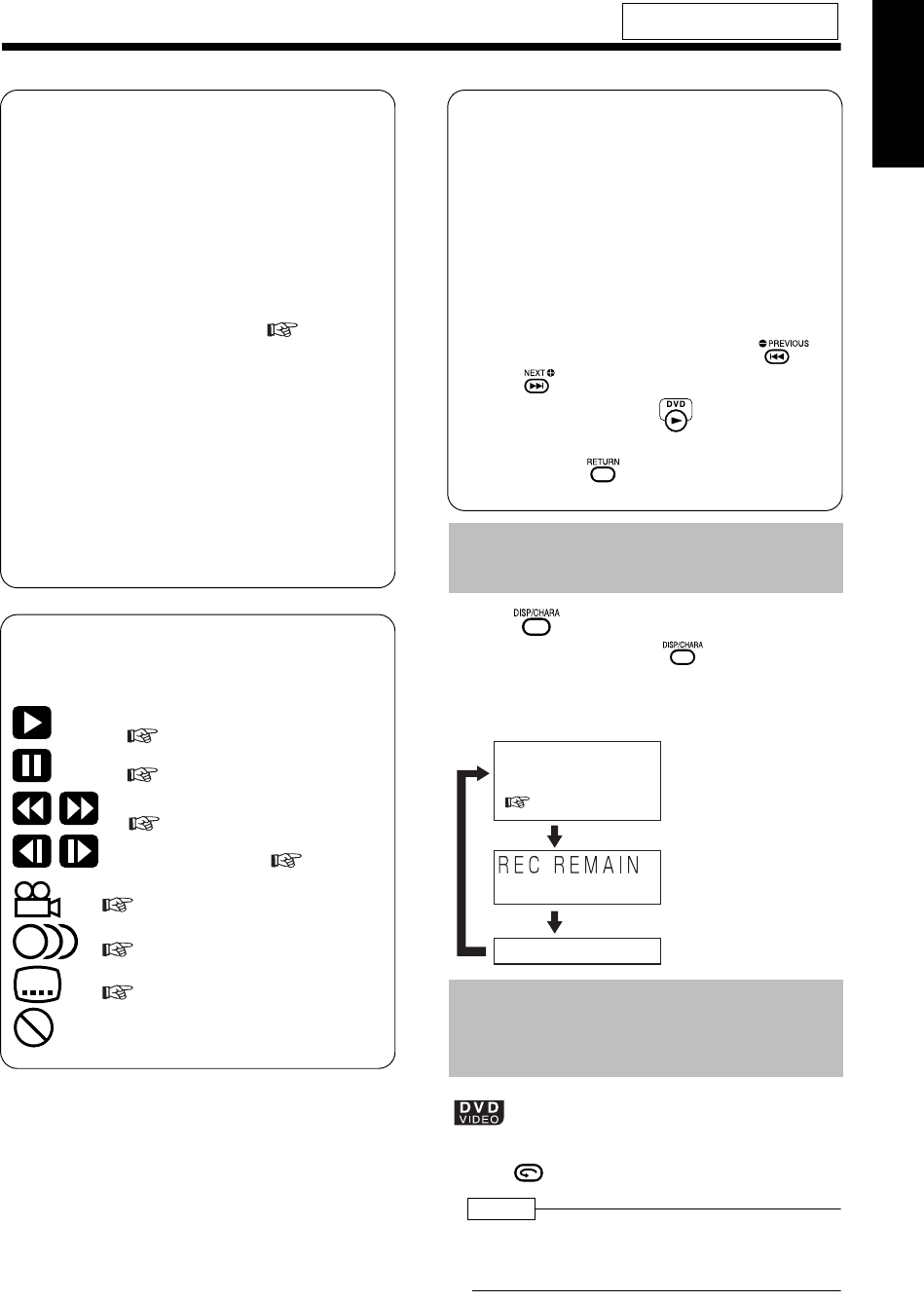
Press .
• Each time you press , the display tog-
gles as follows.
■While a disc is being played back (or
stopped)
■While a disc is being played back
Press .
NOTE
• This operation may not be carried out for some
discs.
• You cannot return to the previous title.
For the locations of remote control
buttons, refer to page 22.
Messages displayed on the TV screen
While a DVD is selected as the sound
source, the messages shown below are dis-
played, depending on the status.
NOW READING
The main unit is reading the disc. Wait for a
while.
REGION CODE ERROR!
The disc cannot be played back because its
region code is not compatible. ( page 4)
NO DISC
No disc is loaded.
OPEN
The disc tray is opening.
CLOSE
The disc tray is closing.
CANNOT PLAY
You are trying to play back an unplayable
disc.
Guide icons temporarily displayed on
the TV screen (on-screen guide)
: Containing multi-angle views
( page 28)
: Containing multi-audio
( page 27)
: Containing multi-subtitle
( page 28)
: The disc cannot accept the operation
you have attempted.
: Play
( page 22)
: Pause
( page 25)
: Fast reverse/Fast forward search
( page 25)
:
Slow motion playback (reverse/
forward directions)( page 26)
Changing the Display in the
Display Window
Playing Back from a Position
10 Seconds Before
(One Touch Replay)
PBC (Playback control)
• PBC is a signal recorded in a VCD (ver-
sion 2.0) for controlling VCD playback.
You can operate software that has inter-
active or search functions using the menu
display recorded in a PBC-compatible
VCD. To play back a VCD without PBC,
follow the operation below.
• Select the desired track number with the
number buttons while playback is
stopped.
• While playback is stopped, press
or to select the desired track num-
ber, and then press .
• While a VCD or SVCD is being played
back, press to return to the higher
menu group.
Display while a disc is
being played back or
stopped
( pages 22 and 23)
(Time display)
Clock display
(With an MD loaded)
Display of remaining
time for MD recording
UX-QD7[UB].book 24 ページ 2004年9月3日 金曜日 午後2時43分
Introduction
25
(Continued)
Basic Operations of the DVD Player
■While a disc is being played back
Press .
When playback is stopped in the middle, playback
can be started from the stopped scene.
How to suspend playback
■While a disc is being played back
Perform any of the following operations during
playback.
* Even if the power is turned off by pressing
after this, the position where playback has
been stopped will be stored.
How to start playback from the stored
position
NOTE
• This function does not work in program playback or
random playback.
• The position where playback starts again may be
a little different from the stopped position.
• When a disc menu is displayed, the resume func-
tion may not work.
• The audio, the subtitle and the angle at that time
are stored as well as the stopped position.
• The stored position will be cleared if the disc tray
is opened. Further, if is pressed during
playback, "RESUME" appears. If is
pressed at this time, "RESUME" will disappear
and the stored information will be cleared.
• Resume function is set to on as the initial
preset. You can set the function to off
( page 40).
■While a disc is being played back
Press .
To resume normal playback, press .
• Playback cannot be paused by pressing
on the main unit during JPEG disc slide-show.
■While a disc is paused
Press .
• Each time you press , picture will be
advanced frame by frame.
• You cannot operate this function with on
the main unit.
There are two methods.
■While a disc is being played back
Press or .
• Each time you press or , the speed
increases as shown below.
• To restore the normal speed, press .
Hold down or .
• Fast reverse/fast forward search can be car-
ried out only while the button is pressed.
NOTE
• For a DVD VIDEO, SVCD or VCD, no sound comes
out during fast reverse/fast forward search.
• For a CD or DVD AUDIO, sound is intermittent
during fast reverse/fast forward search.
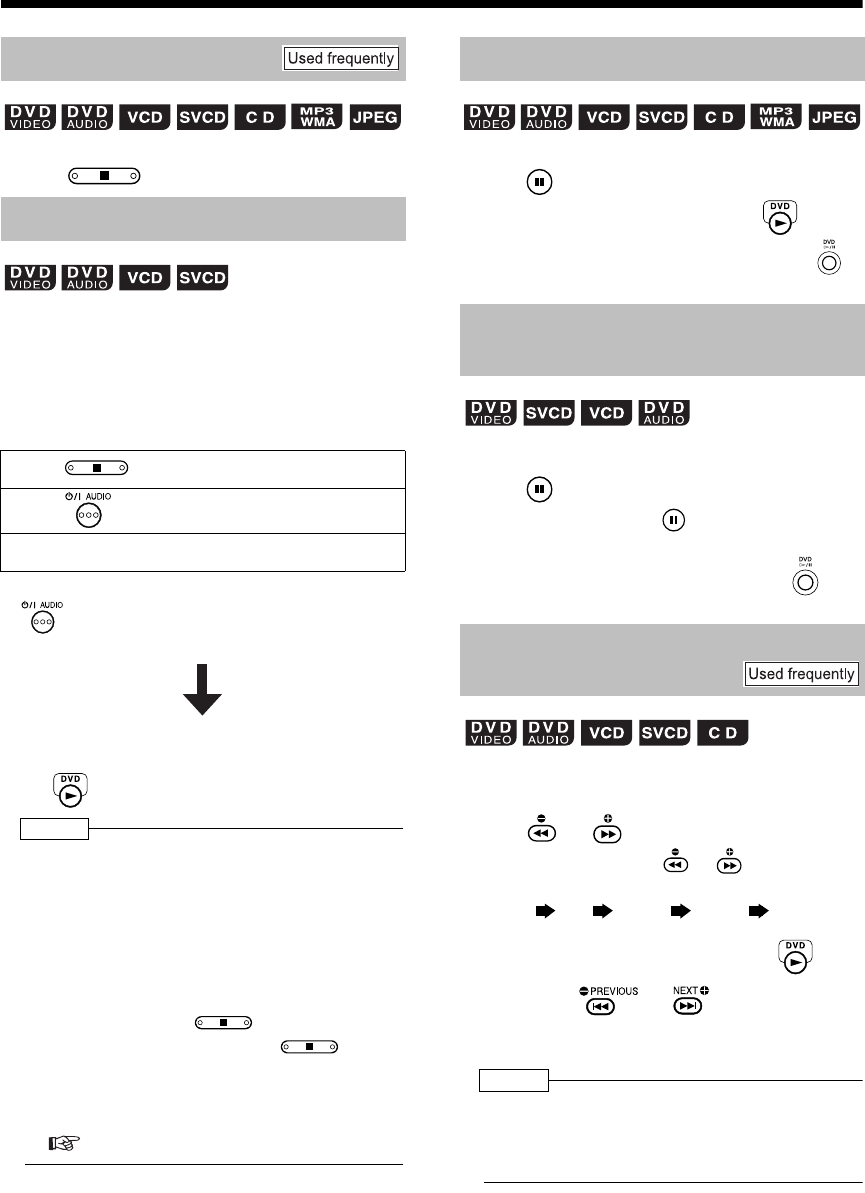
Stopping Playback
Resuming Playback (RESUME)
Press once.*
Press to turn off the power.
Change the source to FM/AM or AUX.*
Press .
Pausing Playback
Advancing Picture Frame by
Frame
Fast Reverse/Fast Forward
Search
(only for moving image)
×2×5×10 ×20 ×60
UX-QD7[UB].book 25 ページ 2004年9月3日 金曜日 午後2時43分
26
English Listening to Discs English
■While a disc is paused
Press or .
• Each time you press , the speed
increases as shown below.
• Press to pause playback, and press
to resume normal playback.
NOTE
• No sound will be produced.
• The picture motion in the reverse direction may
not be smooth.
• For a VCD or SVCD, slow motion playback can
be carried out in the forward direction only.
■While a disc is being played back*
Press or .
• Each time you press , the current
chapter/track/file skips to the beginning of the
previous chapter/track/file.
• Each time you press , the current chapter/
track/file skips to the beginning of the next
chapter/track/file.
•Press or to select a title or
group.
NOTE
* For a VCD or SVCD, this operation can be carried
out only during playback without the PBC function.
• Except for a DVD VIDEO, this operation can also
be carried out while the disc is stopped.
• This operation may not be carried out for some
discs.
■While a disc is being played back
1Set the remote control mode
selector to AUDIO.
2Press the number buttons ( -
or ) to select the track/chapter
you want to listen to.
• Refer to "Using the number buttons"
( page 17).
NOTE
• You can operate a VCD or SVCD while the disc is
stopped or played back with PBC off.
• You can operate a DVD AUDIO, CD, MP3, WMA,
or JPEG while the disc is either played back or
stopped.
• This operation may not be carried out for some
discs.
■While a disc is stopped or being played
back*
1Set the remote control mode
selector to AUDIO.
2Press or .
• A menu screen of the disc appears.
• Only can be used for DVD AUDIOs.
3Press (only for a
DVD VIDEO or a DVD AUDIO) or
the number buttons to select a
track you want to listen to.
• Refer to “Using the number buttons” (
page 17).
• If there are two or more pages of menu
screen, press or to change the
pages (only for a VCD or SVCD).
4Press .
NOTE
* You can operate a VCD or SVCD while PBC is set
to off.
• You cannot perform this function with discs to
which a menu screen is not recorded.
• Some disc may start playback even if you do not
press .
For the locations of remote control
buttons, refer to page 22.
Slow Motion Playback
Skipping to the Beginning of a
Track
Skipping to the Beginning of a
Track with the Number Buttons
(only for moving image)
32
/
116
/
18
/
14
/
12
/
1
Selecting a Track from the
Menu Screen
UX-QD7[UB]-03.fm 26 ページ 2004年9月16日 木曜日 午後1時35分
Introduction
27
Listening to Discs
Convenient Functions of the DVD Player
NOTE
• Set the remote control mode selector to
AUDIO before using the number buttons.
■While a disc containing two or more audio
is being played back
1Press .
Example: TV screen
• Each time you press , the audio will
be changed. The audio can also be
changed by pressing .
2Wait for a few seconds or press
.
NOTE
• You can also operate this function by using the
menu bar ( page 35).
• For a language code such as "AA", refer to "Lan-
guage Codes" ( page 42).
• When 2 channel sounds are recorded in 1/2 and
multi channel sounds with down-mix prohibited
are recorded in 2/2 in a DVD AUDIO, you can
select 1/2 only.
Remote control
mode selector
Number buttons
Selecting the Audio
AUDIO
Selected audio/Total
number of audio
Selected audio
AUDIO
UX-QD7[UB].book 27 ページ 2004年9月3日 金曜日 午後2時43分
28
English Listening to Discs English
■While a disc containing two or more subti-
tles is being played back
1Press .
Example: TV screen
2Press to select a
subtitle.
3Wait for a few seconds or press
.
NOTE
• You can also operate this function by using the
menu bar ( page 35).
• For an SVCD, each time you press in step
1, the subtitle type and ON/OFF will be changed.
• For a language code such as "AA", refer to "Lan-
guage Codes" ( page 42).
• The manner of displaying subtitles may be differ-
ent depending on the disc.
Press to select "OFF".
■While a disc containing two or more view
angles is being played back
1Press .
Example: TV screen
• Each time you press , the angle will
be changed. The angle can also be
changed by pressing .
2Wait for a few seconds or press
.
NOTE
• You can also operate this function by using the
menu bar ( page 35).
■While a disc is played back or paused
1Press .
• Each time you press , the picture
magnification will be changed (OFF,
ZOOM1 - 6).
• When a JPEG disc is used, the picture
magnification changes through "ZOOM
1", "ZOOM 2" to "OFF". You cannot
change the picture magnification during
slide-show playback.
2Select the portion you want to see
by pressing .
CAUTION
• When you magnify a picture, image quality may be
deteriorated or image may be distorted.
Selecting the Subtitle
(only for moving image)
Selected subtitle/Total
number of subtitles
(When no subtitle is
set in the disc, "--"
appears.)
Selected subtitle
(When no
subtitle is set in
the disc, "OFF"
appears.)
Canceling the subtitle
Selecting a View Angle
Magnifying the Picture (ZOOM)
(only for moving image)
Selected view angle/
Total number of view
angles
Selected
view angle
(only for moving image)
UX-QD7[UB].book 28 ページ 2004年9月3日 金曜日 午後2時43分
Introduction
29
(Continued)
Convenient Functions of the DVD Player
■While a disc is played back or paused
1Press .
Example: TV screen
Setting items
GAMMA : Controls the brightness of neutral
tints while maintaining the
brightness of dark and light
portions.
(Setting range: –3 - +3)
BRIGHTNESS : Controls the brightness of the
display.
(Setting range: –8 - +8)
CONTRAST : Controls the contrast of the
display.
(Setting range: –7 - +7)
SATURATION : Controls the saturation of the
display.
(Setting range: –7 - +7)
TINT : Controls the tint of the display.
(Setting range: –7 - +7)
SHARPNESS : Controls the sharpness of the
display.
(Setting range: –8 - +8)
2Press to select VFP mode.
NORMAL : For normal playback.
(You cannot adjust the image
quality.) → Go to step 7.
CINEMA : Suitable when viewing a movie in
a dim room.
(You cannot adjust the image
quality.) → Go to step 7.
USER1/USER2: You can adjust the image quality.
→ Go to step 3.
3Press to select an item
you want to adjust.
4Press .
Example:
5Press to change the
value.
6Press .
• To adjust other items, go back to step 3.
7Press .
NOTE
• If no operation is made for several seconds during
the procedure, the settings made so far will be
automatically stored.
• "VFP" stands for "video fine processor".
The two speakers produce an effect resembling
surround-sound.
■While a disc is being played back
Press .
Example: TV screen
• Each time you press , the display toggles
as follows.
• While 3D phonic is activated, is
displayed in the display window.
NOTE
• 3D phonic is effective for both the speakers and
headphones.
• When noise is produced or sound is distorted,
set
"
3D PHONIC
"
to
"
OFF
"
.
• You cannot operate some types of DVD AUDIO
discs.
Adjusting the Picture Quality
(VFP)
USER1
0
0
0
0
0
0
Current VFP mode
Creating Realistic Sound
(3D PHONIC)
ACTION
3D PHONIC
: Suitable for action movies,
sport programs or other
lively programs.
: You can relax with a natural
atmosphere.
: You can enjoy the sound
effect as if you were
watching the movie in a
theater.
: Cancels 3D phonic (initial
setting).
ACTION
DRAMA
THEATER
OFF
UX-QD7[UB].book 29 ページ 2004年9月3日 金曜日 午後2時43分
30
English Listening to Discs English
The audio of a DVD VIDEO and DVD AUDIO may
be recorded at a lower level (volume) than for
other types of disc. You can adjust the DVD level.
■While a disc is being played back
Press .
• Each time you press , the display
toggles as follows in the display window.
• Select the level while listening to the
sound played back.
NOTE
• DVD level is effective only for playback of a DVD.
• Even if the DVD level is changed, the output
level from the digital audio output terminal will not
be changed.
• This function does not affect recording sound.
In the progressive mode, you can enjoy better
pictures.
CAUTION
• In order to enjoy pictures in the progressive mode,
the following requirements should be met.
• There must be component video input termi-
nals on the TV set connected to the main unit.
• The main unit and the TV set must be con-
nected using a component video cord
( page 15).
When the above requirements are not satisfied,
leave the main unit in the Interlace mode. If the
progressive mode is set, pictures may be
distorted.
■While the disc is played back or paused
Hold down .
• Each time you press , the display
toggles as follows.
For the locations of remote control
buttons, refer to page 27.
Adjusting Playback Level
(DVD LEVEL)
: Sound level recorded in the
DVD.
: Enhances the sound level
(initial setting).
: Enhances the sound level to the
highest level.
Enjoying Better Pictures
(PROGRESSIVE)
Interlace mode (initial setting)
Progressive mode
UX-QD7[UB].book 30 ページ 2004年9月3日 金曜日 午後2時43分
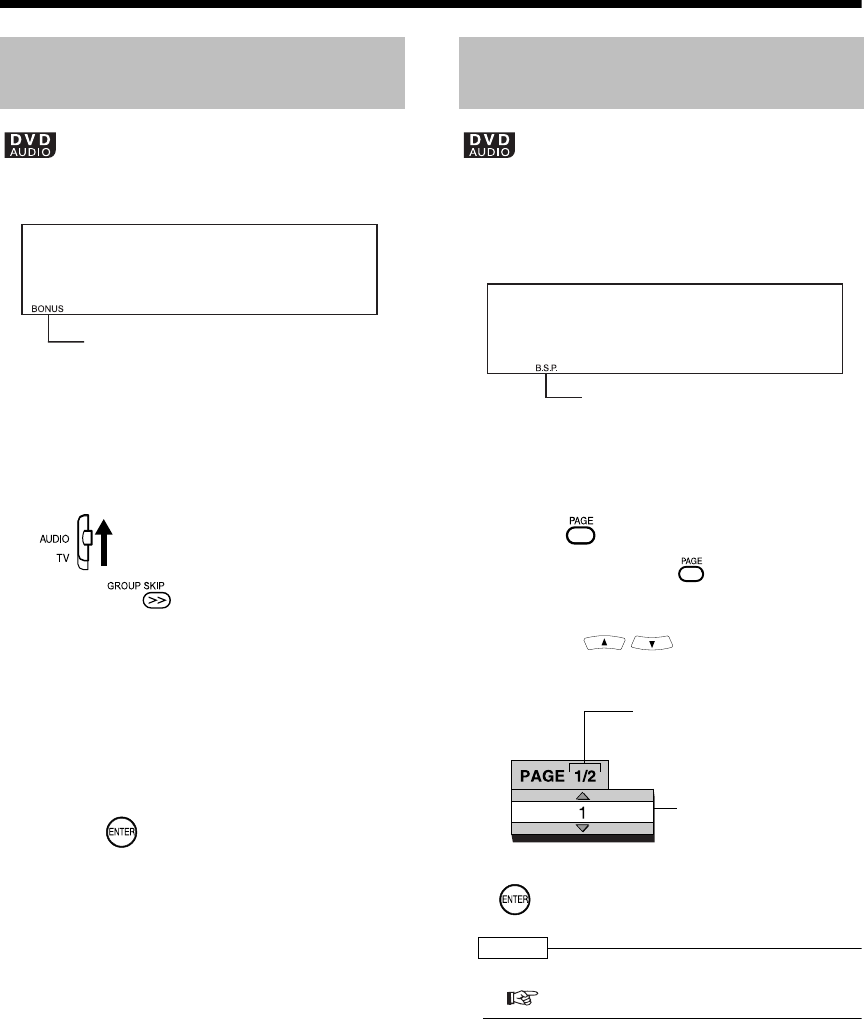
Introduction
31
(Continued)
Convenient Functions of the DVD Player
There are some DVD AUDIO discs with a special
group, called "bonus group", recorded.
• This operation can be carried out when
"BONUS" is lit in the display window on
the main unit.
■While a disc is being played back
1Set the remote control mode
selector to AUDIO.
2Press repeatedly during
playback to select a bonus group.
• "KEY_ _ _ _" appears on the TV screen
and in the display window on the main
unit.
3Press the number buttons to enter
a pin code (4 digits).
• The method of getting a pin code is
different depending on the disc.
4Press .
• When a correct pin code is entered,
"BONUS" disappears and the playback
of the bonus group starts.
• If an incorrect pin code is entered, try
entering a correct pin code again.
There are some DVD AUDIO discs with still pic-
tures recorded. Among the still pictures, there are
pictures called B.S.P. (browsable still pictures).
You can change these pictures as if turning over
pages.
• This operation can be carried out when
"B.S.P." is lit in the display window on the
main unit.
■While a disc is being played back
1Press .
• Each time you press , the still picture
will be switched over.
• You can also change the pictures by
pressing .
Example: TV screen
2Wait for a few seconds or press
.
NOTE
• You can operate this function on the menu bar
( page 35).
Playing Back the Bonus
Group
Bonus indicator
Browsable Still Pictures
(B.S.P.)
B.S.P. indicator
Selected page/
Total number of
pages
Selected page
(still picture)
UX-QD7[UB].book 31 ページ 2004年9月3日 金曜日 午後2時43分
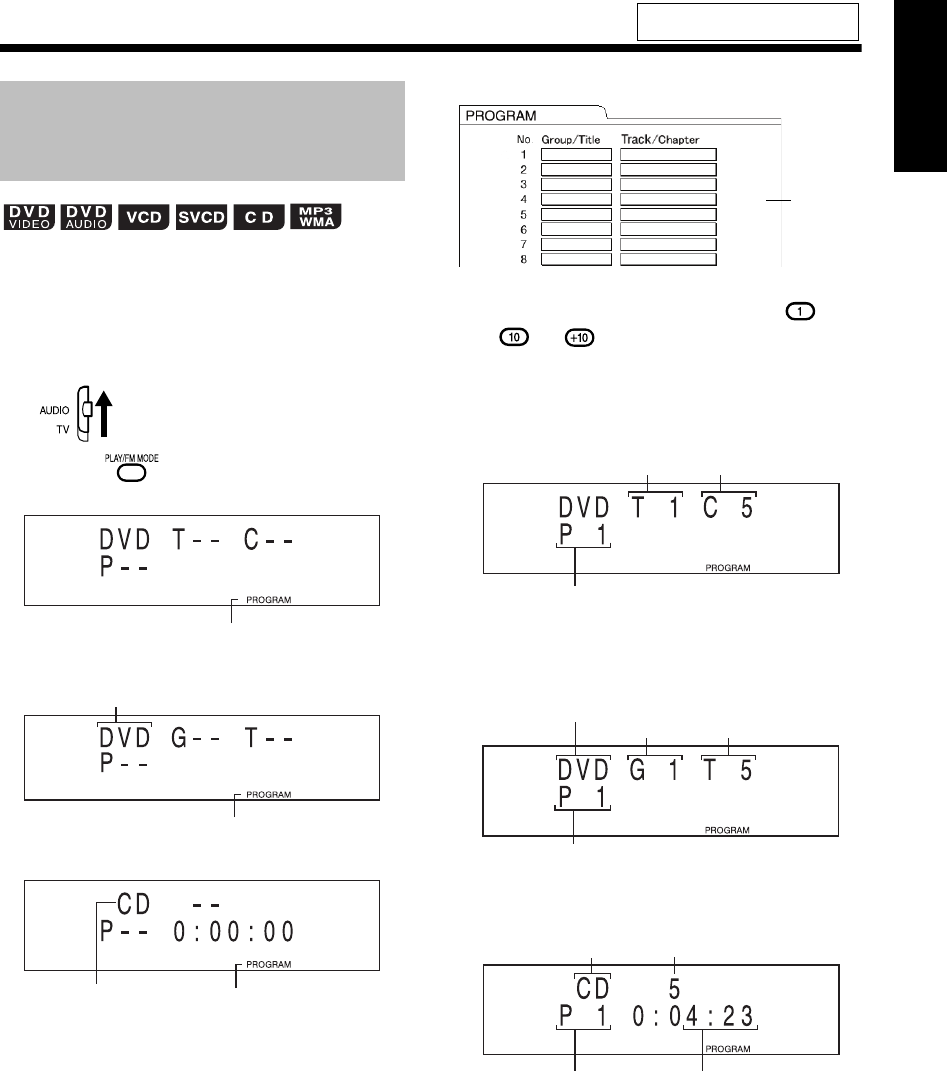
32
English Listening to Discs English
You can program a maximum of 99 chapters or
tracks. You can program the same chapter or track
more than once.
■While a disc is stopped
1Set the remote control mode
selector to AUDIO.
2Press to select "PROGRAM".
■Display for DVD VIDEO
■Display for DVD AUDIO/MP3/WMA
■Display for CD/VCD/SVCD
Example: For DVD VIDEO
3Press the number buttons ( -
or ) to program chapters/
tracks.
■Display for DVD VIDEO
• Select a title number, and then select a
chapter number.
■Display for DVD AUDIO/MP3/WMA
• Select a group number, and then select a
track number.
■Display for CD/VCD/SVCD
• Select a track number.
(Continued on next page)
For the locations of remote control
buttons, refer to page 27.
Playing Back the Disc in the
Desired Order (Program
Playback)
Program indicator
Program indicator
DVD, MP3 or WMA
Program indicator"VCD" is displayed while
VCD/SVCD is selected.
TV screen
Program
screen
Program number
Title number Chapter number
Group number Track number
Program number
DVD, MP3 or WMA
Program number Total time for
program playback
Track numberCD or VCD
UX-QD7[UB].book 32 ページ 2004年9月3日 金曜日 午後2時43分
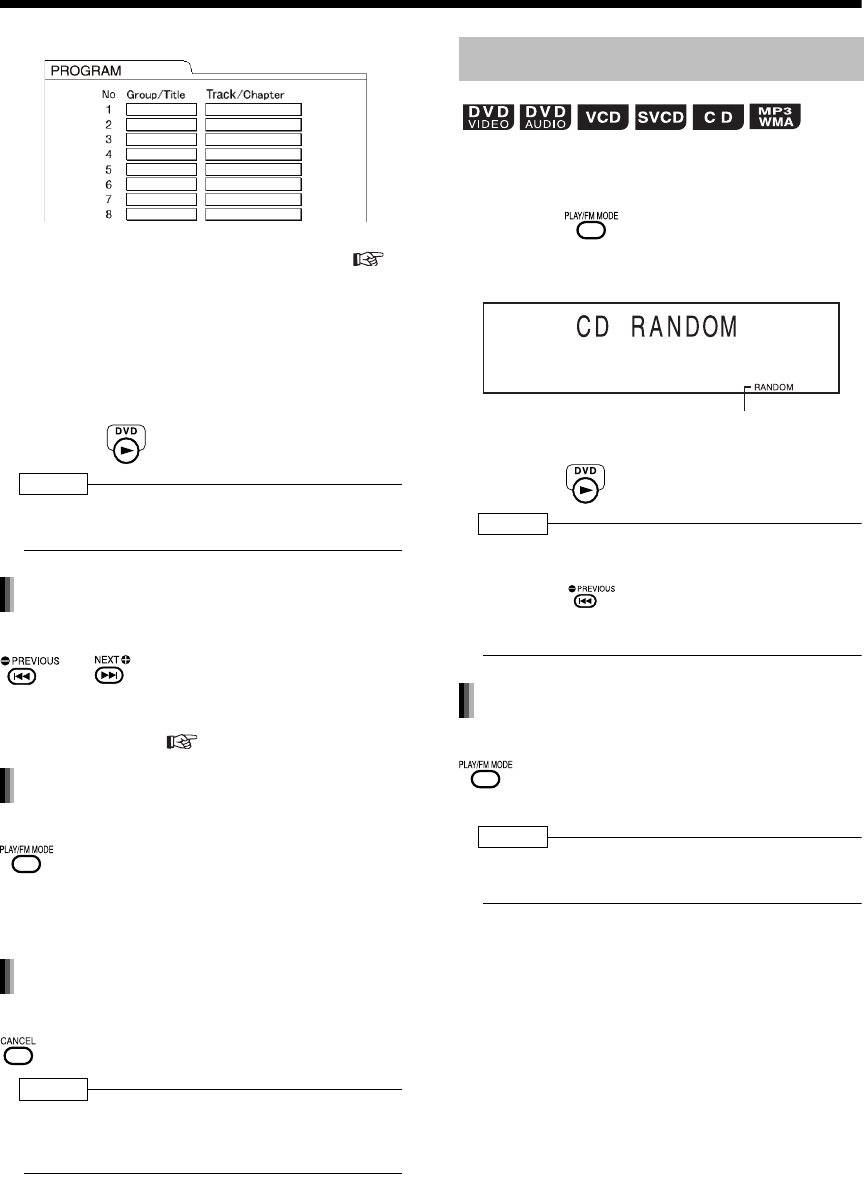
Introduction
33
(Continued)
Convenient Functions of the DVD Player
Example: For DVD VIDEO
• Refer to "Using the number buttons" (
page 17).
• Before selecting a bonus group of a DVD
AUDIO, cancel the "BONUS" display as
explained in "Playing back the Bonus
Group" on page 31.
• When you try to enter more than 99 chap-
ters or tracks, "MEMORY FULL" appears.
4Press .
NOTE
• You can set tracks from either a disc or MD in a
program playback setting.
While playback is stopped, press
or repeatedly.
• During this operation, you can add a
track as the last in the program, or erase
the last track. ( step 3)
While playback is stopped, press
repeatedly to display an item
other than "PROGRAM".
• This operation does not erase the pro-
grammed content.
While playback is stopped, hold down
.
NOTE
• Ejecting the disc or turning off the main unit also
erases the programmed content. This operation
also cancels program playback.
You can listen to tracks or chapters in random
order.
■ While playback is stopped
1Press repeatedly to select
"RANDOM".
Example: For CD
• "RANDOM" appears in the TV screen.
2Press .
NOTE
• You can set tracks in random playback from either
a disc or MD.
• Pressing repeatedly does not return
playback to the previous track.
• Each track is played back once.
While playback is stopped, press
repeatedly to display an item
other than "RANDOM".
NOTE
• Ejecting the disc or turning off the main unit also
cancels random playback.
TV screen
15
Confirming programmed content
Canceling program playback
Erasing the whole program
Random Playback
Random indicator
Canceling random playback
UX-QD7[UB].book 33 ページ 2004年9月3日 金曜日 午後2時43分
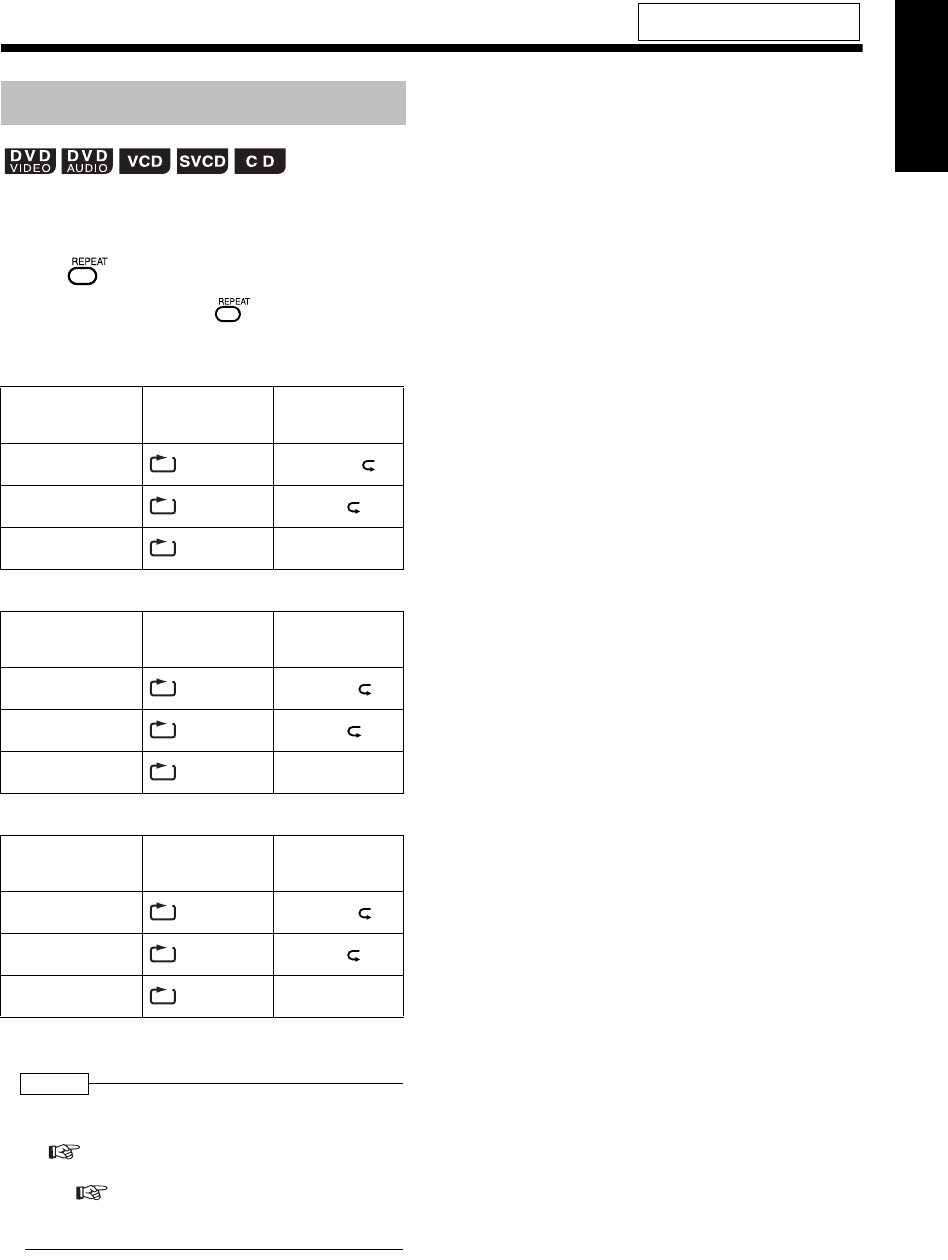
34
English Listening to Discs English
Refer to page 38 for repeat playback of MP3/WMA
and JPEG files.
■While a disc is being played back
Press .
• Each time you press , the repeat type
will be changed.
For DVD VIDEO
For DVD AUDIO
For CD/VCD/SVCD
* "STEP" is displayed during program playback or
random playback.
NOTE
• For a VCD and SVCD, the operation can be carried
out during playback without the PBC function
( page 24).
• You can also operate this function on the menu
bar ( page 35).
• For details on A-B repeat (repeat playback of a
designated part), refer to page 36.
For the locations of remote control
buttons, refer to page 27.
Repeat Playback
Repeat types Display on the
TV screen
Display in the
display window
on the main unit
Repeats the
current chapter CHAP* REPEAT
CHAPTER*
Repeats the
current title TITLE REPEAT
TITLE
Cancels repeat OFF REPEAT
OFF
Repeat types Display on the
TV screen
Display in the
display window
on the main unit
Repeats the
current track TRACK* REPEAT
TRACK*
Repeats the
current group GROUP REPEAT
GROUP
Cancels repeat OFF REPEAT
OFF
Repeat types Display on the
TV screen
Display in the
display window
on the main unit
Repeats the
current track TRACK* REPEAT
TRACK*
Repeats all
tracks ALL REPEAT
ALL
Cancels repeat OFF REPEAT
OFF
ALL
GROUP
ALL
UX-QD7[UB].book 34 ページ 2004年9月3日 金曜日 午後2時43分
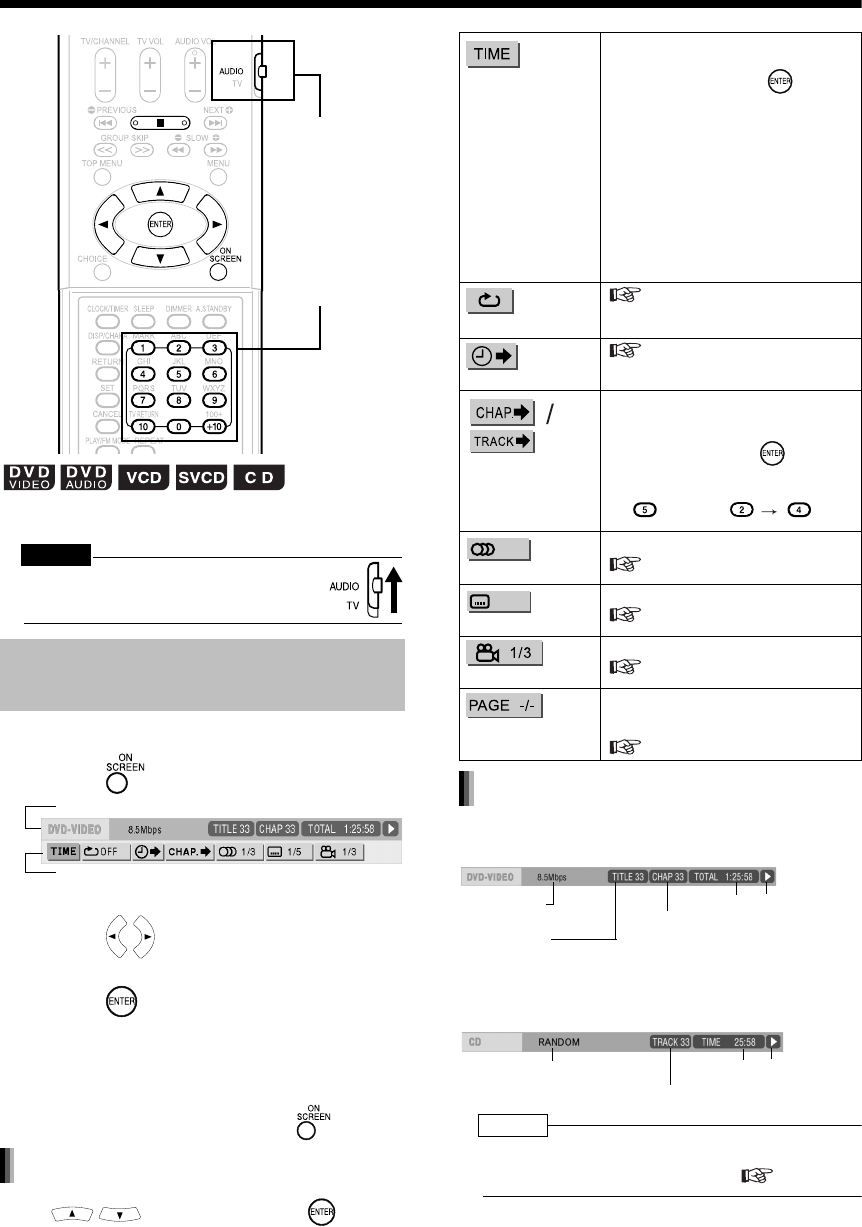
Introduction
35
Status Bar and Menu Bar
You can display the status bar and menu bar on
the TV screen, and can control discs with the bars.
CAUTION
• Set the remote control mode selector to
AUDIO before using the number buttons.
■While a disc is being played back
1Press twice.
• The above is an example for a DVD VIDEO.
2Press to select an item you
want to operate.
3Press .
• You can set the selected function. For the
setting items, refer to the following "Function
list".
• The currently active function shows blue.
• To cancel the menu bar, press .
Press to select, and press to
determine unless otherwise noted.
DVD VIDEO/DVD AUDIO (the example below is
for a DVD VIDEO)
VCD/SVCD/CD (the example below is for a CD)
NOTE
• The playback status mark has the same meaning of
the mark on the on-screen guide ( page 24).
Using the Status Bar and
Menu Bar
Number buttons
Remote control
mode selector
Status bar
Menu bar
Function list
Time display
selection
Changes time information displayed in
the display window on the main unit and
the status bar. Each time is
pressed, the display will be changed.
DVD VIDEO/DVD AUDIO
TOTAL : Elapsed playing time of current title/
group
T.REM : Remaining time of current title/group
TIME : Elapsed playing time of current
chapter/track
REM : Remaining time of current chapter/track
CD/VCD/SVCD
TIME : Elapsed playing time of current track
REM : Remaining time of current track
TOTAL : Elapsed playing time of disc
T.REM : Remaining time of disc
Repeat mode
page 34
Time search
page 36
Chapter search/
Track search
DVD VIDEO/DVD AUDIO
Selects a chapter/track. Press the
number buttons to enter the chapter/
track number and press .
Examples:
Audio
DVD VIDEO/DVD AUDIO/VCD/SVCD
page 27
Subtitle
DVD VIDEO/DVD AUDIO/SVCD
page 28
View angle
DVD VIDEO/DVD AUDIO
page 28
Page switch
DVD AUDIO
Switches the still pictures (B.S.P.)
recorded on a DVD AUDIO disc.
page 31
5: 24:
Information displayed on the status bar
Transfer rate
(only for DVD VIDEO)
(DVD VIDEO)
Current title number
(DVD AUDIO)
Current group number
Time Playback status
(DVD VIDEO)
Current chapter number
(DVD AUDIO)
Current track number
Playback mode
Current track number
Time Playback status
UX-QD7[UB]-04.fm 35 ページ 2004年9月16日 木曜日 午後1時37分
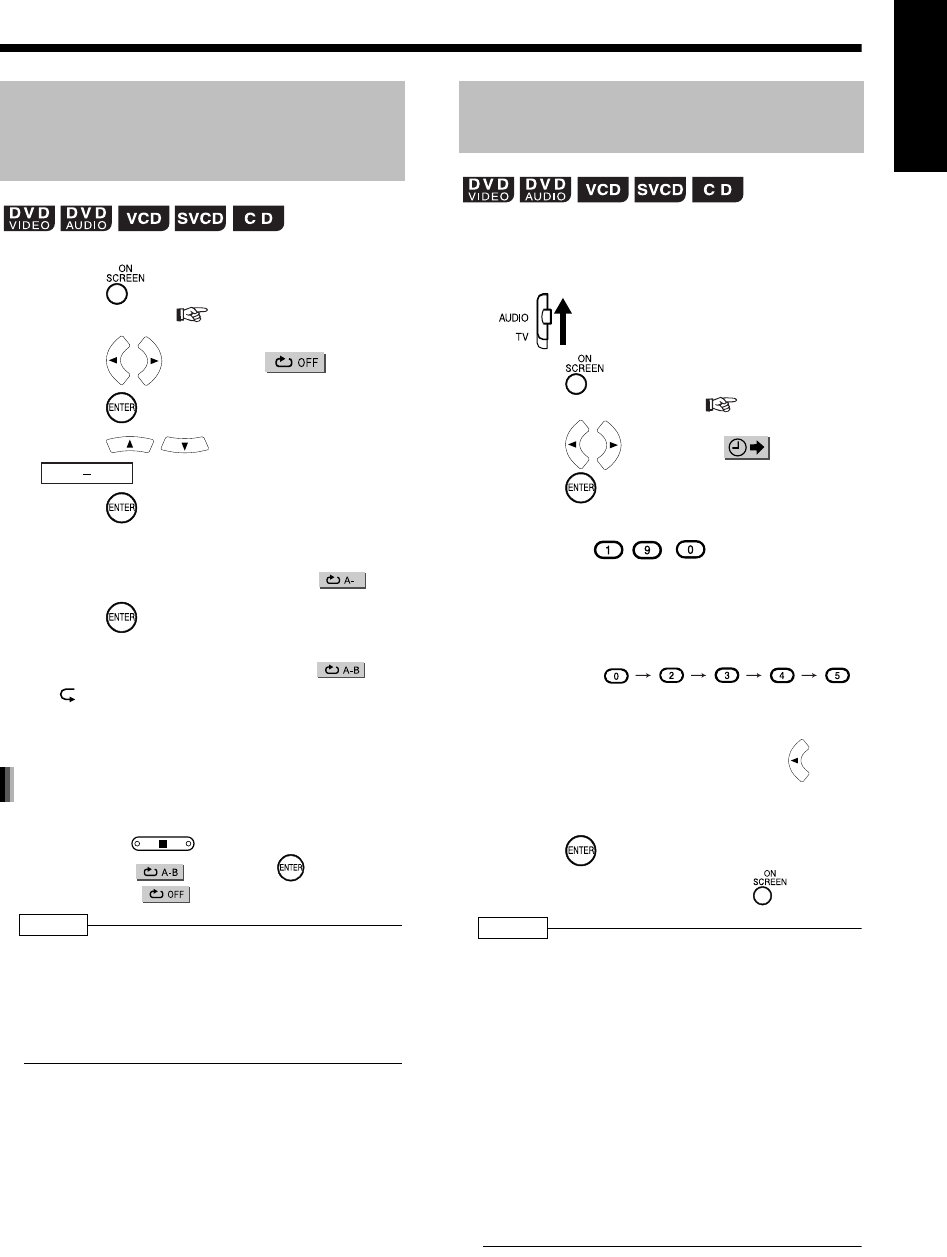
36
English Listening to Discs English
■While a disc is being played back
1Press twice.
• The menu bar ( page 35) appears.
2Press to select .
3Press .
4Press to select
.
5Press at the starting point of
the part to be repeated (designat-
ing A point).
• The icon on the menu bar will be .
6Press at the end of the part to
be repeated (designating B point).
• The icon on the menu bar will be .
" A-B" appears in the display window on
the main unit and the part between A and B
points is played back repeatedly.
• To cancel A-B repeat playback:
• Press .
• Select and press twice.
(Select .)
NOTE
• You can operate a VCD and SVCD while the disc is
played back with PBC off.
• A-B repeat playback is possible only within the
same title or track. A-B repeat playback cannot
be carried out during PBC playback, program
playback, random playback and repeat playback.
■While a disc is being played back
1Set the remote control mode
selector to AUDIO.
2Press twice.
• The menu bar appears ( page 35).
3Press to select .
4Press .
5Enter the time using the number
buttons ( - , ).
Example: When you want to play back a
disc from the position of (0 hour)
23 minutes 45 seconds, press
the buttons in the order:
• You can skip entering "minutes" and
"seconds".
• If you enter wrong numbers, press to
delete the numbers, and then enter the
numbers again.
6Press .
• To delete the menu bar, press .
NOTE
• You may not be able to operate this function
depending on the disc.
• This function does not work during program play-
back or random playback.
• For a CD, this operation can always be carried
out. For a VCD or SVCD, the operation can be
carried out when the disc is stopped or during
playback without the PBC function.
• Time search for a DVD VIDEO is from the begin-
ning of the title, for a DVD AUDIO is from the
beginning of the track being played back. Time
search for a VCD, SVCD and a CD is as follows:
• When the disc is stopped, time search is from
the beginning of the disc.
• When the disc is being played back, time search
is within the track currently being played back.
Playing Back the Designated
Part Repeatedly
(A-B Repeat Playback)
OFF
A B
Canceling A-B repeat playback
Designate the Time
(Time Search)
UX-QD7[UB].book 36 ページ 2004年9月3日 金曜日 午後2時43分
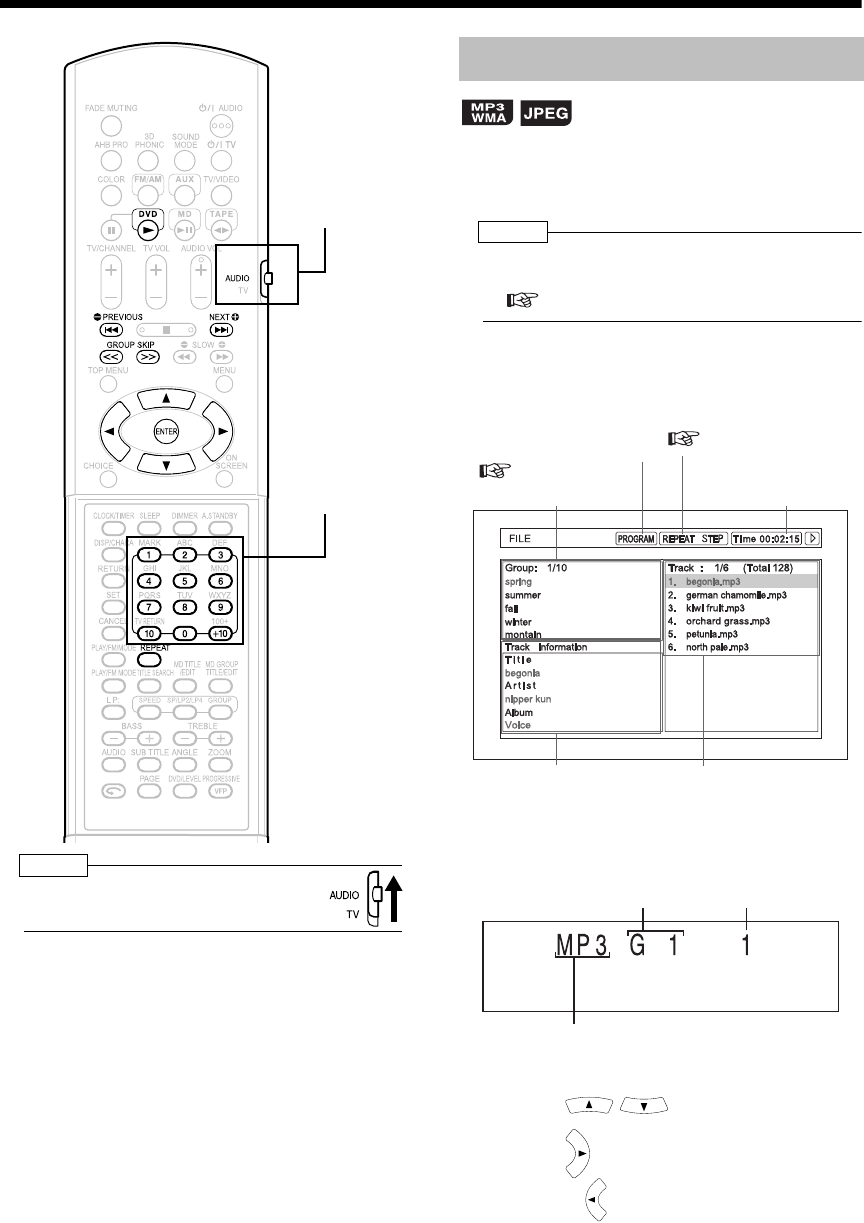
Introduction
37
Playing Back MP3/WMA and JPEG Discs
NOTE
• Set the remote control mode selector to
AUDIO before using the number buttons.
Display of an MP3/WMA disc is described here as
an example.
For a JPEG disc, read "track" as "file".
NOTE
• When playing back a disc containing both MP3/
WMA and JPEG files, set one of them to be played
( page 39).
1Insert a disc.
Example: TV screen
Example: Display window
2Press to select a group.
3Press to move to the track list.
• Pressing returns to the group list.
Number buttons
Remote control
mode selector
Playback
Elapsed playing time of
the selected track
(only for MP3/WMA).
Tag information of the
selected track
(only for MP3s/WMAs)
Group list
Track list (Tracks con-
tained in the selected
group)
This indicator lights up
during program playback
(
page 32).
This indicator lights up
during repeat playback
(
page 38).
Group number Track number
"WMA" is displayed when a WMA disc
is loaded, and "JPG" is displayed when
a JPEG disc is loaded.
UX-QD7[UB]-04.fm 37 ページ 2004年9月16日 木曜日 午後1時38分
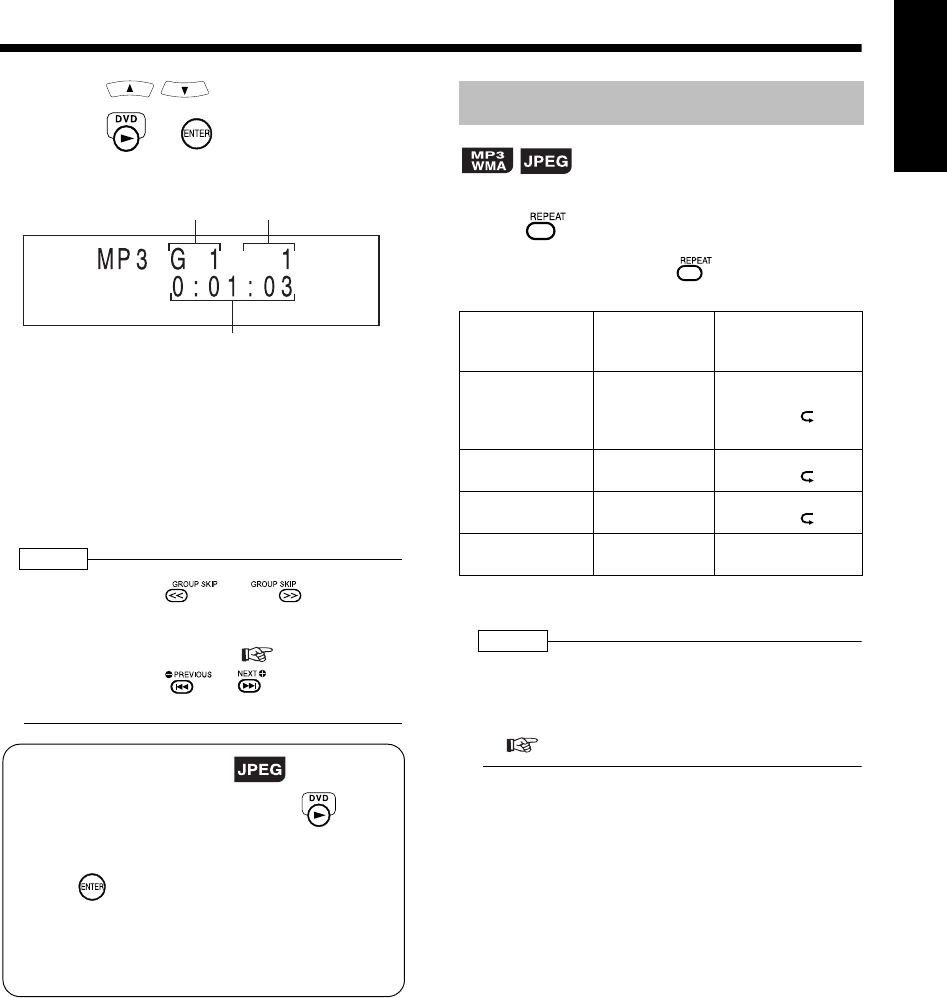
38
English Listening to Discs English
4Press to select a track.
5Press or .
Example: Display during playback
• At first, a track title (file name) is scrolled.
• When an MP3 or WMA is loaded, tag information
(title/artist/album) is scrolled followed by a track
title.
• Only alphanumerical one-byte characters are
displayed properly as a track title or tag informa-
tion.
NOTE
• You can also use and in step 2.
•
You can also use t
he number buttons in step 4. In
this case, steps 3 and 5 are not needed. Refer to
“Using the number buttons” ( page 17).
• You can also use or in step 4. In this
case, step 3 is not needed.
■While a disc is being played back
Press .
• Each time you press , the repeat type is
changed.
NOTE
• The repeat types can also be changed while the
disc is stopped.
• The repeat playback is automatically canceled if
there is a file that cannot be played back
( page 4).
Group number Track number
Elapsed playing time
(This indicator is not displayed
while a JPEG is loaded.)
Slide-show playback
• For a JPEG disc, when you press in step
5, files are continuously played back from the
selected file (slide-show playback). When you
press , only a selected file is played back.
• A file is displayed for approximately 3 seconds
in a slide-show playback.
• After all files are played back, the playback is
automatically stopped.
Repeat Playback
Repeat types Display on the
TV screen
Display in the
display window on
the main unit
Repeats the
current track
(only for MP3/
WMA)
REPEAT
TRACK*
REPEAT*
TRACK
Repeats the
current group
REPEAT
GROUP
REPEAT
GROUP
Repeats the
entire disc REPEAT ALL REPEAT
ALL
Cancels repeat
playback No display REPEAT
OFF
GROUP
ALL
* "STEP" is displayed during program playback and
random playback.
UX-QD7[UB].book 38 ページ 2004年9月3日 金曜日 午後2時43分
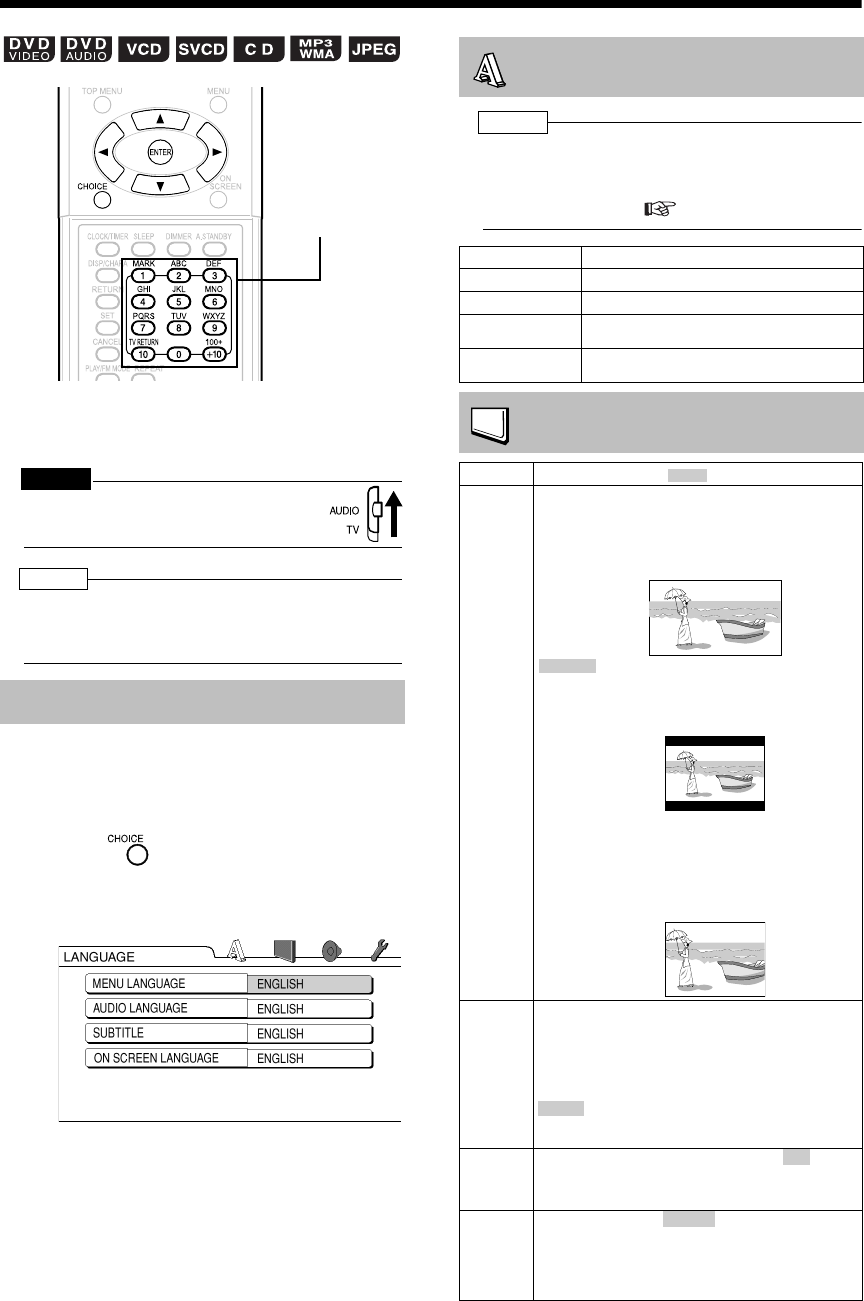
Introduction
39
Preferences
You can change the initial settings of this product
according to the environment the product is used
in.
CAUTION
• Set the remote control mode selector to
AUDIO before using the number buttons.
NOTE
• The top and bottom of the preference screen may
not be displayed on a wide TV. Adjust the picture
size on the TV.
This section explains basic operation for changing
various settings.
■While a disc is stopped or no disc is loaded
(while "NO DISC" is displayed)
1Press .
• "SETTING" appears in the display window
on the main unit and the following screen
appears on the TV.
• Proceed with operations by following the
description on the TV screen.
NOTE
• If the selected language is not recorded on the disc,
the optimum language set for the disc appears.
• For a language code such as "AA", refer to the
"Language Codes" ( page 42).
Basic Operations
Number buttons
LANGUAGE
Items Contents
MENU LANGUAGE
Select the language for the DVD VIDEO menu.
AUDIO LANGUAGE
Select the audio language for the DVD VIDEO.
SUBTITLE
Select the subtitle language for the DVD
VIDEO.
ON SCREEN
LANGUAGE
Select the language displayed on the preference
screens.
PICTURE
Items Contents ( : initial setting)
MONITOR
TYPE
Select a display method suitable for your TV.
16 : 9 /16 : 9 MULTI (wide TV):
Select this item when the aspect ratio of your wide
TV is fixed to 16:9 (when playing back a DVD
VIDEO recorded at 4:3, this product automatically
adjusts the screen width of the output signal).
:
Select this item when the aspect ratio of your TV is
conventional 4:3. While viewing a wide screen
picture, the black bars appear on the top and
bottom of the screen.
4 : 3 PS/4 : 3 MULTI PS (pan scan):
Select this item when the aspect ratio of your TV is
conventional 4:3. While viewing a wide screen
picture, the left and right edges of the picture will not
be shown on the screen. (If the disc is not
compatible with the pan scan, the picture will be
displayed at the letter box ratio.)
PICTURE
SOURCE
Select an item suitable to the video source.
VIDEO:
Select this item when you want to view a normal
video.
FILM:
Select this item when you want to view a film or
video recorded with the progressive scan method.
The video source type (a video or film) is
automatically selected.
SCREEN
SAVER
Select the screen saver mode between /OFF
(screen saver activates when there is no operation
made for about 5 minutes since a still picture was
last displayed).
FILE
TYPE
If a disc includes an file (MP3/WMA) and a
still picture file (JPEG), select which file is played
back. If you change this setting, open and close the
disc tray, or momentarily turn off the main unit. (A
disc either with audio files or still picture files can be
played back regardless of this setting.)
4 : 3 LB/4 : 3 MULTI LB
(
letter box
)
AUTO:
ON
AUDIO
UX-QD7[UB].book 39 ページ 2004年9月3日 金曜日 午後2時43分
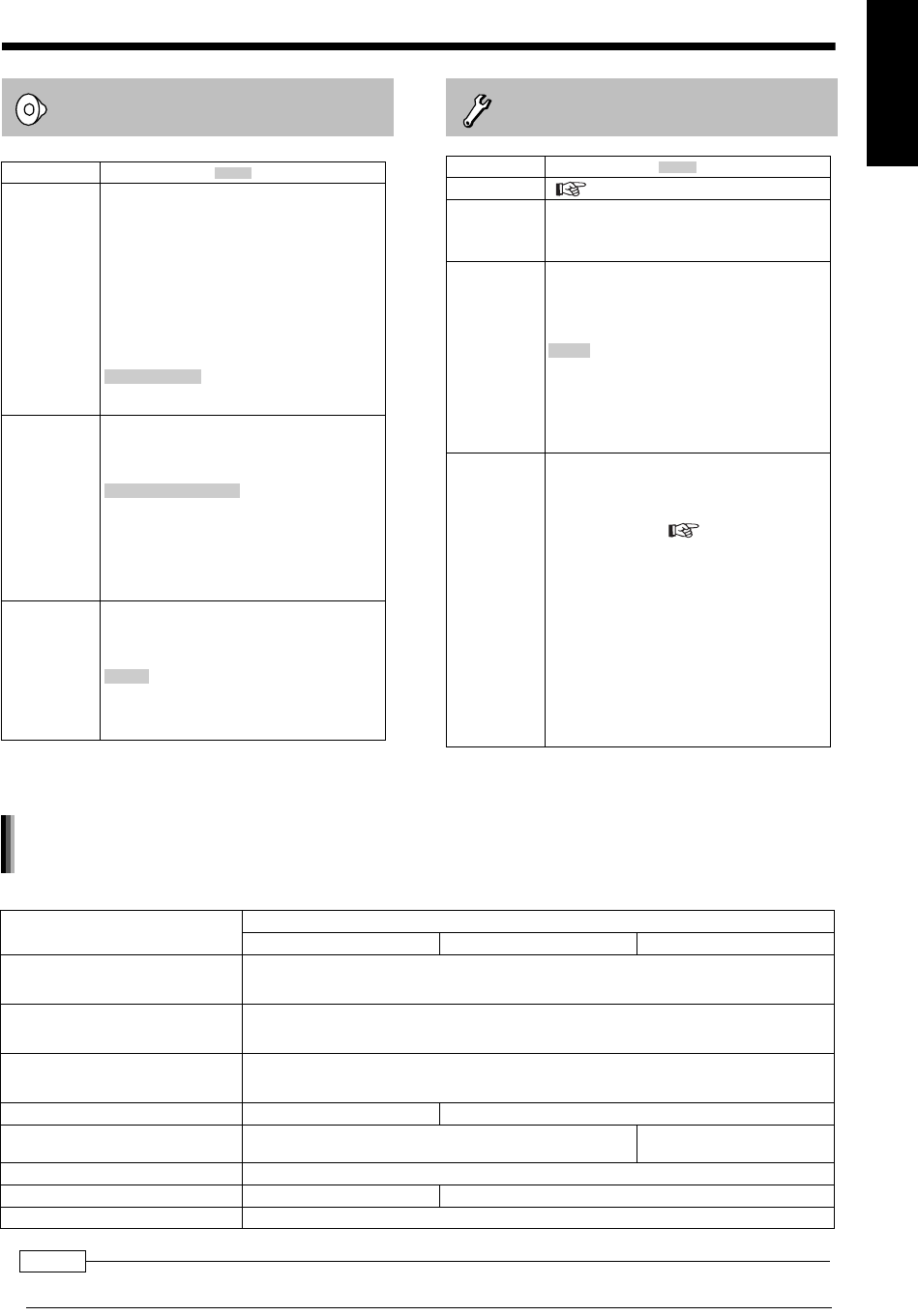
40
English Listening to Discs English
AUDIO
Items Contents ( : initial setting)
DIGITAL
AUDIO
OUTPUT
Select an output signal type from the
following in accordance with the
equipment connected to the digital audio
output terminal (AV amplifier, etc.). (See the
list below for the preference items and
output signal.)
PCM ONLY:
Equipment corresponding only to linear PCM.
DOLBY DIGITAL/PCM:
Dolby digital decoder or equipment having the
same function.
:
DTS/Dolby digital decoder or equipment
having the same function.
DOWN MIX Switch signal from the digital output
terminal of the DVD VIDEO according to
the connected equipment. Select this when
Digital Audio Output is set to "PCM ONLY".
:
A dolby pro logic decoder-built-in equipment.
STEREO:
An ordinary equipment.
• When 3D phonic is activated, Down Mix
does not work.
D (Dynamic).
RANGE
COMPRESSION
To make adjustments for the difference
between a high volume and a low volume
when playing back with low volume (only
for a DVD recorded with Dolby digital).
:
D. range compression automatically works.
ON:
D. range compression always works.
STREAM/PCM
DOLBY SURROUND
AUTO
OTHERS
Items Contents ( : initial setting)
RESUME ( page 25)
ON SCREEN
GUIDE
Select whether you display guide icons on
the on-screen guide indicating status of a
disc/main unit (For details on the guide
icons, refer to page 24)
AV COMPU
LINK MODE
When you want to control JVC TV by using
this product, select a mode that matches
the terminal from the following. (For more
details, refer to "Using AV COMPU LINK"
on page 73.)
:
Connect to the video-3 input on the TV set.
DVD2:
Connect to the video-1 input of the TV set.
DVD3:
Connect to the video-2 input of the TV set.
PARENTAL
LOCK
Set the parental lock function to cut off
violent scenes or replace the scenes with
others. (This is effective only for discs
equipped with the parental lock function.)
COUNTRY CODE ( page 41)
Select your country or area.
SET LEVEL:
The restriction is stricter as the number
becomes smaller. "NONE" is no restriction.
PASSWORD (essential):
Enter four-digit number as your password
using the number buttons (1-9, 0) every time.
(Enter "8888" if you forget your password.)
The password is required at the time of
playback.
• If you enter a wrong password three times,
"EXIT" will be automatically selected.
DVD1
NOTE
• For a DVD VIDEO without content protection set, there is a 20 bit or 24 bit output at the digital audio output terminal.
Playback disc DIGITAL AUDIO OUTPUT preference
STREAM/PCM DOLBY DIGITAL/PCM PCM ONLY
48 kHz, 16/20/24 bits
Linear PCM DVD VIDEO
96 kHz linear PCM DVD VIDEO
48 kHz, 16 bits stereo linear PCM
48/96/192 kHz,
16/20/24 bits linear PCM DVD AUDIO 48 kHz, 16 bits stereo linear PCM
44.1/88.2/176.4 kHz,
16/20/24 bits linear PCM DVD AUDIO 44.1 kHz, 16 bits stereo linear PCM
DTS DVD VIDEO DTS bit stream 48 kHz, 16 bits stereo linear PCM
DOLBY DIGITAL DVD VIDEO/
DVD AUDIO DOLBY DIGITAL bit stream 48 kHz, 16 bits stereo linear
PCM
CD/VCD/SVCD 44.1 kHz, 16 bits stereo linear PCM/48 kHz, 16 bits linear PCM
DTS CD DTS bit stream 44.1 kHz, 16 bits linear PCM
MP3/WMA disc 32/44.1/48 kHz, 16 bits linear PCM
List of relationships of DIGITAL AUDIO OUTPUT preference items and output
signal
UX-QD7[UB]-04.fm 40 ページ 2004年9月16日 木曜日 午後1時48分
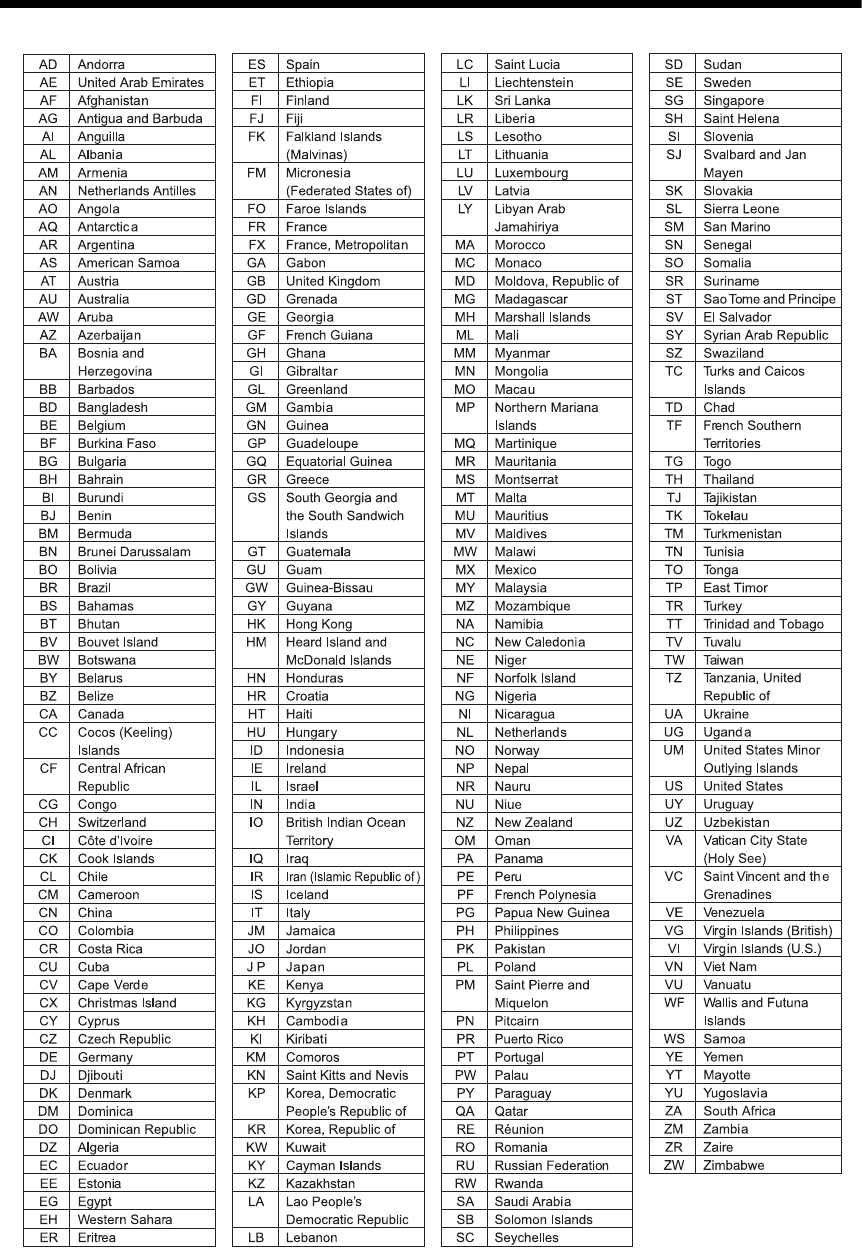
Introduction
41
Country/Area Codes
UX-QD7[UB]-04.fm 41 ページ 2004年9月7日 火曜日 午前10時38分
42
English Listening to Discs English
Language Codes
Code Language Code Language
AA Afar MK Macedonian
AB Abkhazian ML Malayalam
AF Afrikaans MN Mongolian
AM Ameharic MO Moldavian
AR Arabic MR Marathi
AS Assamese MS Malay (MAY)
AY Aymara MT Maltese
AZ Azerbaijani MY Burmese
BA Bashkir NA Nauru
BE Byelorussian NE Nepali
BG Bulgarian NL Dutch
BH Bihari NO Norwegian
BI Bislama OC Occitan
BN Bengali, Bangla OM (Afan) Oromo
BO Tibetan OR Oriya
BR Breton PA Panjabi
CA Catalan PL Polish
CO Corsican PS Pashto, Pushto
CS Czech PT Portuguese
CY Welsh QU Quechua
DA Danish RM Rhaeto-Romance
DZ Bhutani RN Kirundi
EL Greek RO Rumanian
EO Esperanto RU Russian
ET Estonian RW Kinyarwanda
EU Basque SA Sanskrit
FA Persian SD Sindhi
FI Finnish SG Sangho
FJ Fiji SH Serbo-Croatian
FO Faroese SI Singhalese
FY Frisian SK Slovak
GA Irish SL Slovenian
GD Scots Gaelic SM Samoan
GL Galician SN Shona
GN Guarani SO Somali
GU Gujarati SQ Albanian
HA Hausa SR Serbian
HI Hindi SS Siswati
HR Croatian ST Sesotho
HU Hungarian SU Sundanese
HY Armenian SV Swedish
IA Interlingua SW Swahili
IE Interlingue TA Tamil
IK Inupiak TE Telugu
IN Indonesian TG Tajik
IS Icelandic TH Thai
IW Hebrew TI Tigrinya
JI Yiddish TK Turkmen
JW Javanese TL Tagalog
KA Georgian TN Setswana
KK Kazakh TO Tonga
KL Greenlandic TR Turkish
KM Cambodian TS Tsonga
KN Kannada TT Tatar
KO Korean (KOR) TW Twi
KS Kashmiri UK Ukrainian
KU Kurdish UR Urdu
KY Kirghiz UZ Uzbek
LA Latin VI Vietnamese
LN Lingala VO Volapuk
LO Laothian WO Wolof
LT Lithuanian XH Xhosa
LV Latvian, Lettish YO Yoruba
MG Malagasy ZU Zulu
MI Maori
UX-QD7[UB].book 42 ページ 2004年9月3日 金曜日 午後2時43分
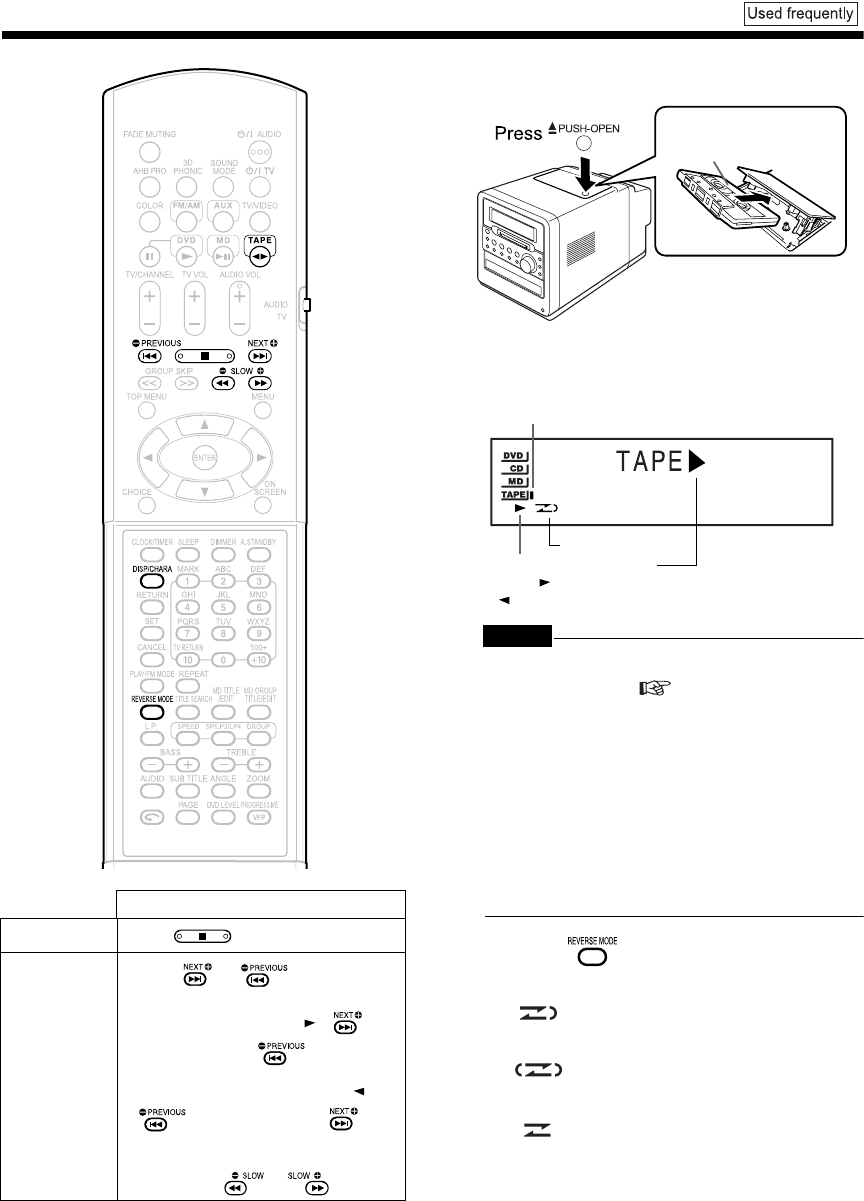
Introduction
43
Listening to Cassette Tapes
1Insert a cassette tape.
CAUTION
• Before using a cassette tape, wind up any slack in
the cassette tape. ( page 75)
• Do not use long cassette tapes such as C-120 or
C-150. Long cassette tapes are thin and stretch
easily, and may become tangled in the inner part
of the main unit.
• This product is compatible with playback of
TYPE I cassette tapes. Playback of TYPE II or
TYPE IV cassette tapes is not recommended,
because this product does not meet the specifi-
cations for these tapes. The main unit does not
produce the proper sound from these cassette
tape types.
2Press repeatedly to select
the reverse mode.
Operation
Stop Press .
Fast forward/
Rewind
Press or .
• When a cassette tape is played back
in the normal direction ( ), is
fast forward and is rewind.
• When the cassette tape is played
back in the opposite direction ( ),
is fast forward and is
rewind.
• You can perform the same operation
by pressing or .
Insert a cassette tape
with the side you want to
listen to facing up.
Cassette tape indicator
(The cassette tape indicator lights up while the cas-
sette tape is stopped. The cassette tape indicator
flashes while the cassette tape is being played back.)
Reverse mode
Cassette tape playback
direction ( : normal direc-
tion/ : opposite direction)
: For one return playback of both
sides.
: For repeated playback of both sides
(Playback continues until playback is
stopped.)
: For one-way playback of either side.
UX-QD7[UB].book 43 ページ 2004年9月3日 金曜日 午後2時43分
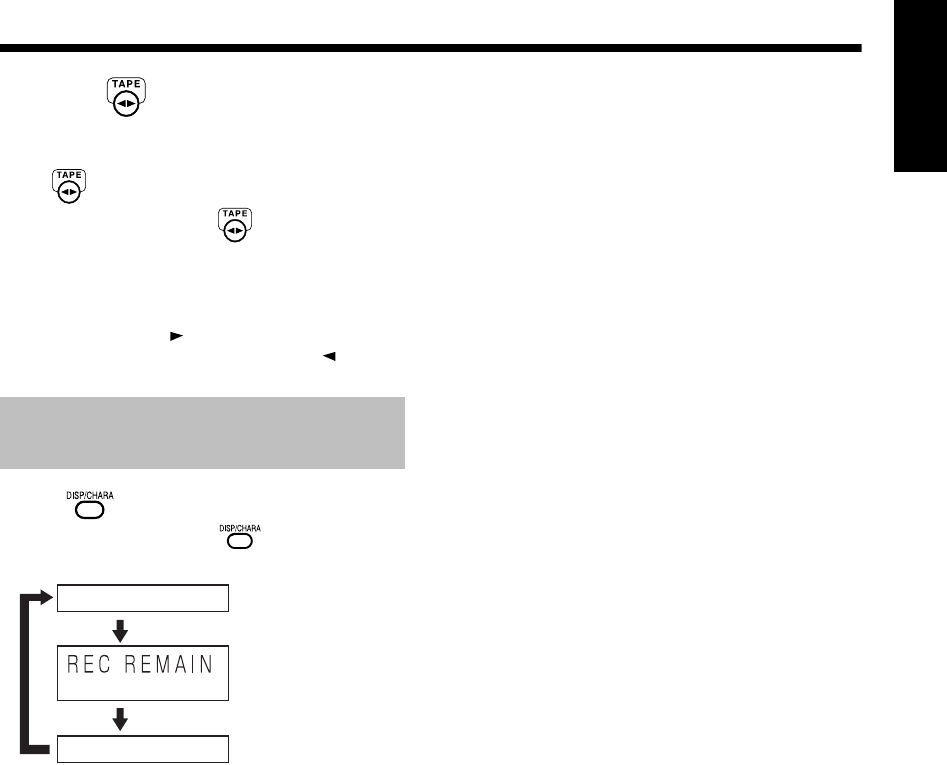
44
English Listening to Cassette Tapes English
Listening to Cassette Tapes
3Press .
• Playback starts.
• When the main unit is turned off, pressing
automatically turns on the main unit.
• Each time you press , the cassette tape
playback direction changes. The initial play-
back direction after you have inserted a cas-
sette tape is always the normal direction.
• The cassette tape playback direction indica-
tor facing right is displayed during normal
playback. The indicator facing left is dis-
played during reverse playback.
Press .
• Each time you press , the display tog-
gles as follows.
Changing the Display in the
Display Window
(Time display)
Clock display
Sound source name
(With an MD loaded)
Display of remaining
time for MD recording
UX-QD7[UB].book 44 ページ 2004年9月3日 金曜日 午後2時43分
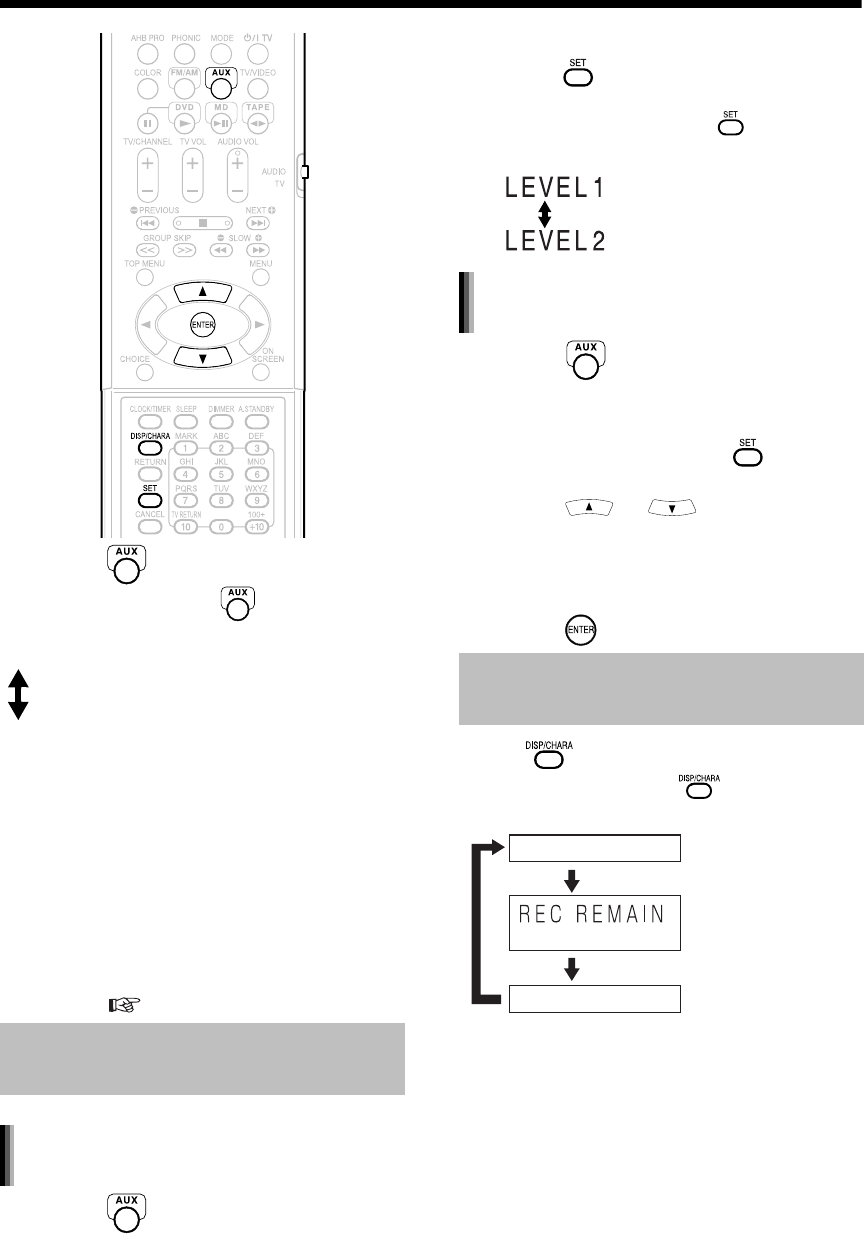
Introduction
45
Listening to Cassette Tapes/Listening to Other Equipment
Listening to Other Equipment
1Press .
• Each time you press , the display tog-
gles as follows.
AUX : To listen to sound from other
equipment connected to the
AUX terminals on the main
unit.
AUX-DIGITAL : To listen to sound from other
equipment connected to the
OPTICAL DIGITAL IN termi-
nal on the main unit.
2Start other equipment playback.
• Refer to the operation manual for the con-
nected equipment.
3Adjust the volume and make other
necessary settings.
• For adjusting the volume and making other
necessary settings, refer to "Basic Opera-
tions" ( page 18).
1Press repeatedly to select
"AUX".
2(With "AUX" being displayed) Hold
down until the input level
appears.
• Each time you hold down , the display
toggles as follows.
1Press repeatedly to select
"AUX-DIGITAL".
2(With "AUX-DIGITAL" being
displayed) Hold down until the
input level appears.
3Press or to adjust the
input level.
• You can adjust the input level within the
range of -12 dB to 12 dB (in increments of 2
dB). The initial setting is 0 dB.
4Press .
Press .
• Each time you press , the display tog-
gles as follows.
Adjusting the Sound Input
Level from Other Equipment
Adjusting the sound input level of the
AUX
Changing the Display in the
Display Window
For ordinary use.
(initial setting)
For increasing the level.
Adjusting the sound input level of the
AUX-DIGITAL
(Time display)
Clock display
Sound source name
(With an MD loaded)
Display of remaining
time for MD recording
UX-QD7[UB].book 45 ページ 2004年9月3日 金曜日 午後2時43分
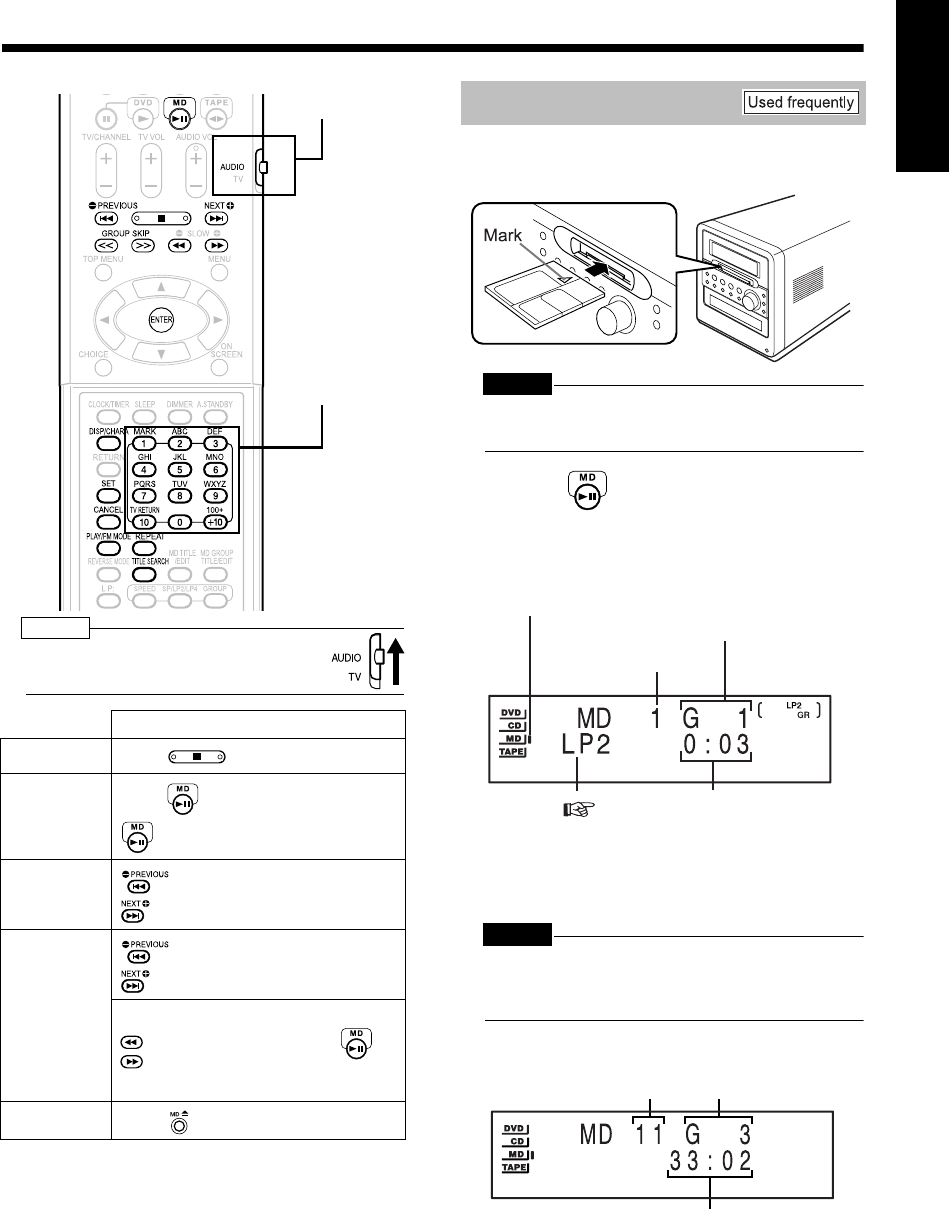
46
English Listening to Other Equipment/Listening to MDs English
Listening to Other Equipmen t/Listening to MDs
Listening to MDs
NOTE
• Set the remote control mode selector to
AUDIO before using the number buttons.
■When the main unit is turned on
1Insert an MD.
CAUTION
• Do not insert an MD while the main unit is turned off.
Forcibly inserting an MD may damage the main unit.
2Press .
■Display while an MD is being played back
• When the track title has been set to the
track, the track title appears first.
* When the track being played back does not
belong to a group, "G - -" appears.
CAUTION
• Do not insert another MD while the MD indicator is
lighting up or flashing. Forcibly inserting an MD
may damage the main unit.
■Display while the MD is stopped
• When the MD title (the disc title) has been
set to the MD, the MD title appears first.
• Long titles are scrolled.
* When no group belongs to the MD, "G - -"
appears.
Operation
Stop Press .
Pause
Press during playback. Pressing
again resumes playback.
Skip :
:
Press the button repeatedly.
Fast for-
ward/
Rewind
(Search)
:
:
Hold down the button during
playback.
:
:
Press the button during
playback. (Pressing
during search resumes
normal playback.)
Eject Press on the main unit.
Number buttons
Remote control
mode selector
Listening to MDs
MD indicator
(The MD indicator lights up while the MD is
stopped. The MD indicator flashes while the MD
is being played back or paused.)
Track number
Group number*
Elapsed playing time
MDLP mode ( page 51)
Total number of tracks
Total number of
groups*
Total playing time
UX-QD7[UB].book 46 ページ 2004年9月3日 金曜日 午後2時43分
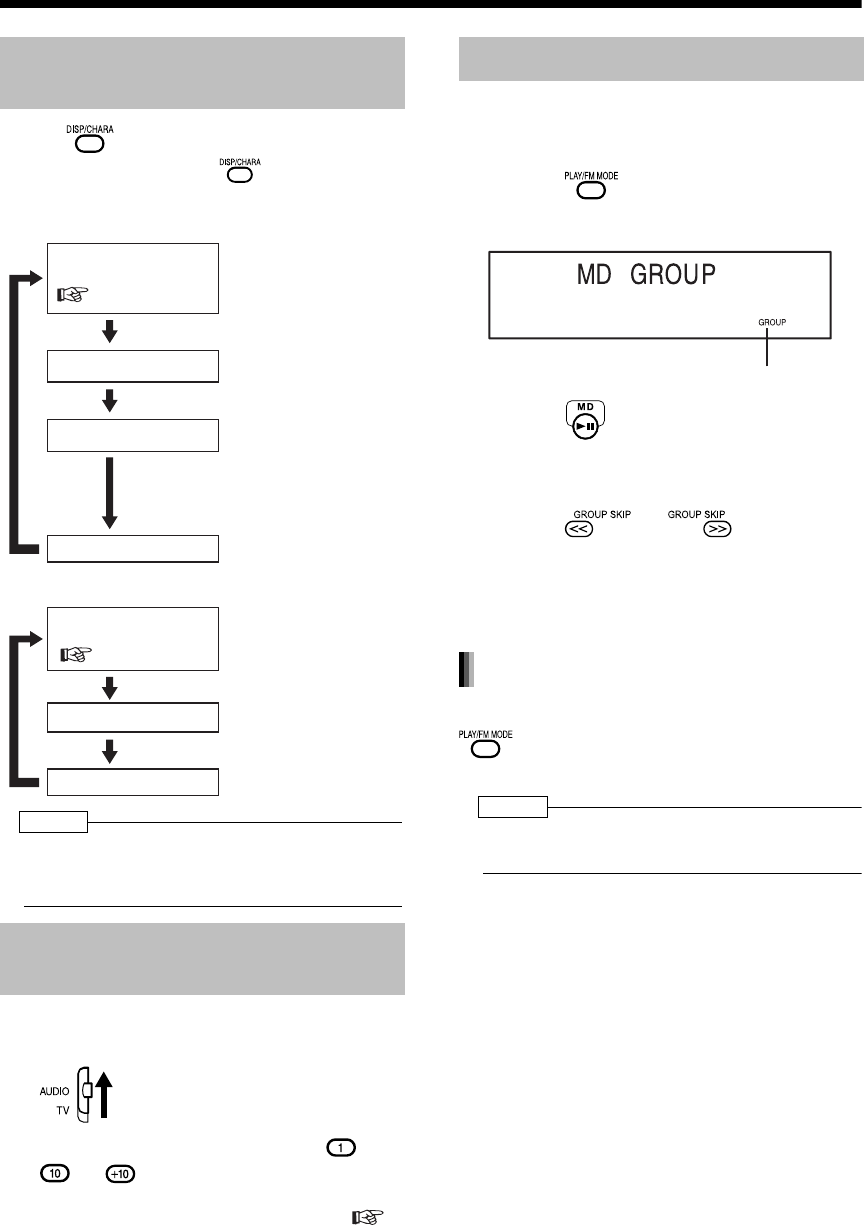
Introduction
47
(Continued)
Listening to MDs
Press .
• Each time you press , the display tog-
gles as follows.
■While an MD is being played back
■While an MD is stopped
NOTE
• While an MD is selected as the sound source,
when you insert an MD to which nothing has been
recorded, "BLANK DISC" appears.
1Set the remote control mode
selector to AUDIO.
2Press the number buttons ( -
or ) to select the track you
want to listen to.
• Refer to "Using the number buttons" (
page 17).
You can play back just the tracks from a group
which you want to listen to.
■While an MD is stopped
1Press repeatedly to select
"GROUP".
2Press .
• Group 1 playback starts.
• If there is no group, "GROUP" disappears
and normal playback starts.
3Press or to select a
group.
• When playback of all tracks in the selected
group finishes, playback automatically
stops.
While playback is stopped, press
repeatedly to select an item
other than "GROUP".
NOTE
• Ejecting the MD or turning off the main unit also
cancels group playback.
Changing the Display in the
Display Window
Specifying the Track
(Direct Track Selection)
Display while an MD is
being played back
( page 46)
Track title display
Group title display
Clock display
When no title has been
set to a track, "NO TR
TITLE" appears.
When the track being
played back does not
belong to a group, no
group title display
appears. When no title
has been set to a group,
"NO GR TITLE" appears.
Display while an MD is
stopped
( page 46)
Disc title display
Clock display
When no title has been
set to an MD, "NO
TITLE" appears.
Group Playback of an MD
Group indicator
Canceling group playback
UX-QD7[UB].book 47 ページ 2004年9月3日 金曜日 午後2時43分

48
English Listening to MDs English
Listening to MDs
This function allows you to program up to 32
tracks.
■While the MD is stopped
1Set the remote control mode
selector to AUDIO.
2Press to select "PROGRAM".
Example: Display while MD program playback
is selected
3Press the number buttons ( -
or ) to select the track num-
bers.
• Refer to "Using the number buttons"
( page 17).
NOTE
• When you want to erase the program, press
while playback is stopped. Programmed tracks are
erased one by one from the last track. Holding
down erases all programmed tracks.
• When you try to program the 33rd track, "MEM-
ORY FULL" appears in the display window to
indicate that 33 or more tracks cannot be pro-
grammed.
• When total time for program playback reaches 2
hours 31 minutes for an MD, "--:--" appears.
4Press .
NOTE
• You can set tracks for program playback either from
a CD, MD or DVD.
While playback is stopped, press
or repeatedly.
• You can add a track as the last track in the
program, or erase the last track.
( step 3)
While playback is stopped, press
repeatedly to display an item
other than "PROGRAM".
• This operation does not erase the program.
While playback is stopped, hold down
.
NOTE
• Ejecting the MD or turning off the main unit also
erases all the programmed tracks. This operation
also cancels program playback.
This function allows you to listen to tracks in ran-
dom order.
■While a disc is stopped
1Press repeatedly to select
"RANDOM".
Example: Display while MD random playback is
selected
2Press .
NOTE
• You can set tracks for random playback either from
a CD, MD or DVD.
• Pressing repeatedly does not return
playback to the previous track.
• Each track is played back once.
For the locations of remote control
buttons, refer to page 46.
Program Playback
Program indicator
Track number Program number
Total time for program playback
Random Playback
Confirming the programmed track
order
Canceling the program playback
Erasing all the programmed tracks
Random indicator
UX-QD7[UB].book 48 ページ 2004年9月3日 金曜日 午後2時43分
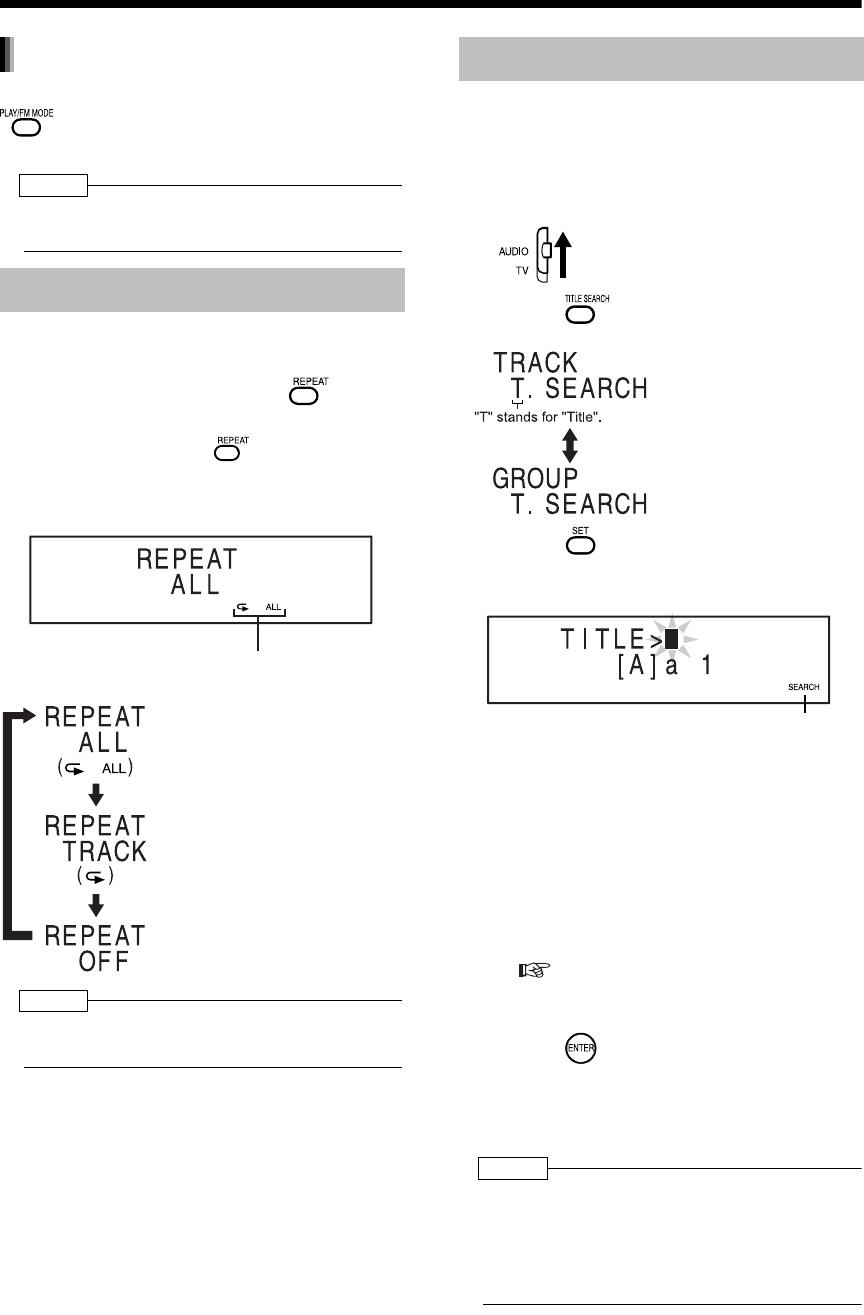
Introduction
49
(Continued)
Listening to MDs
While playback is stopped, press
repeatedly to display an item
other than "RANDOM".
NOTE
• Ejecting the MD or turning off the main unit also
cancels random playback.
This function allows you to repeatedly listen to the
same track.
During MD playback, press
repeatedly to select the repeat mode.
• Each time you press , the display
toggles as follows.
Example: While "REPEAT ALL" is selected
NOTE
• Ejecting the MD or turning off the main unit also
cancels repeat playback.
This function allows you to search titles for tracks
or groups in an MD.
■While a disc is stopped
1Set the remote control mode
selector to AUDIO.
2Press repeatedly to select the
search type.
3Press .
Example:Display while track titles are being
searched
4Enter the title you want to search.
• Enter the first one to five characters of the title.
Example: Entering "F" searches titles
starting with "F" in order of track
number.
Entering "Frien" searches titles
starting with "Frien" in order of
track number.
• For entering titles, refer to "Entering Titles"
( page 59).
• When searching tracks or groups with no titles,
enter nothing, and then proceed to step 5.
5Press .
• "SEARCH" appears and the title search
starts. When the title is found, playback of
the track starts. When playback finishes, the
next title search automatically starts.
NOTE
• A space is treated as a character. However, when
no character exists after the space, the space is
ignored.
• Capital letters and small letters are distinguished.
• When no corresponding titles are found,
"SEARCH END" appears.
Repeat Playback
Canceling the random playback
Repeat indicator
: For repeating all tracks in an
MD. For repeating all tracks in
the selected group when MD
group playback is selected.
: For repeating one track.
: For canceling repeat playback.
Searching Titles
For searching track titles.
For searching group titles.
(This function is available
only when there are
groups.)
While group titles are being searched,
"GROUP SEARCH" is displayed.
UX-QD7[UB].book 49 ページ 2004年9月3日 金曜日 午後2時43分

50
English Listening to MDs English
Press (or ).
Press .
• The title search is canceled and playback
returns to the beginning of the current track.
For the locations of remote control
buttons, refer to page 46.
Searching another track or group title
Quitting the title search
UX-QD7[UB].book 50 ページ 2004年9月3日 金曜日 午後2時43分
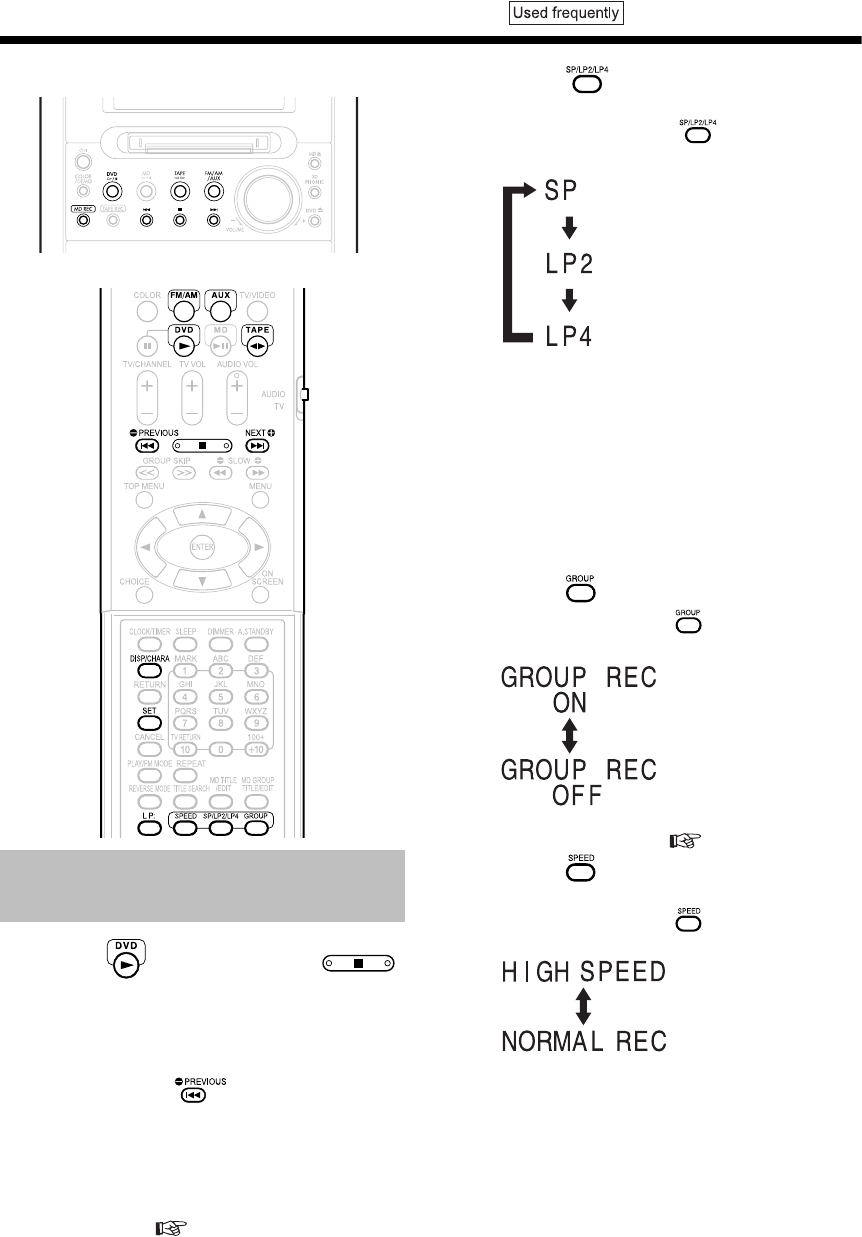
Introduction
51
Recording Sound
Recording Sound to MDs
Main unit
Remote control
1Press , and then press .
• The DVD is selected as the sound source
and playback is stopped.
■When recording sound from DVD VIDEOs
• Play back a title or chapter, pause playback,
and then press to return to the begin-
ning of the first title/chapter.
• You may not be able to record a DVD
VIDEO depending on the disc.
2Insert an MD.
• Close the write protect knob on the MD
beforehand ( page 75).
3Press to select the MDLP
mode.
• Each time you press , the display tog-
gles as follows.
• As you change the MDLP mode
(SP→LP2→LP4), the sound quality also
changes. When you want to record sound at
the best possible quality, select the SP
mode.
• When you use an MD car audio system,
portable MD player or other MD player that
is not compatible with the MDLP mode,
select the SP mode.
4Press to set group recording.
• Each time you press , the display toggles
as follows.
• You can form or cancel a group after the
recording finishes. ( pages 63 and 66)
5Press to select the recording
speed.
• Each time you press , the display toggles
as follows.
• Select "NORMAL REC" when you want to
play back a disc other than a CD.
• Recorded sound quality is the same for both
"HIGH SPEED" and "NORMAL REC".
• You cannot listen to the sound during ×5
high speed recording.
Recording All Tracks from a
Disc to an MD
: For standard stereo recording
(Maximum recording time is 80
minutes with an MD 80).
:For
×
2 extended stereo recording
(Maximum recording time is 160
minutes with an MD 80).
:For
×
4 extended stereo recording
(Maximum recording time is 320
minutes with an MD 80).
: Activates group record-
ing (initial setting).
: Cancels group recording.
: ×5 high speed recording
(only for CDs)
: Normal speed recording
UX-QD7[UB]-04.fm 51 ページ 2004年9月16日 木曜日 午後1時49分
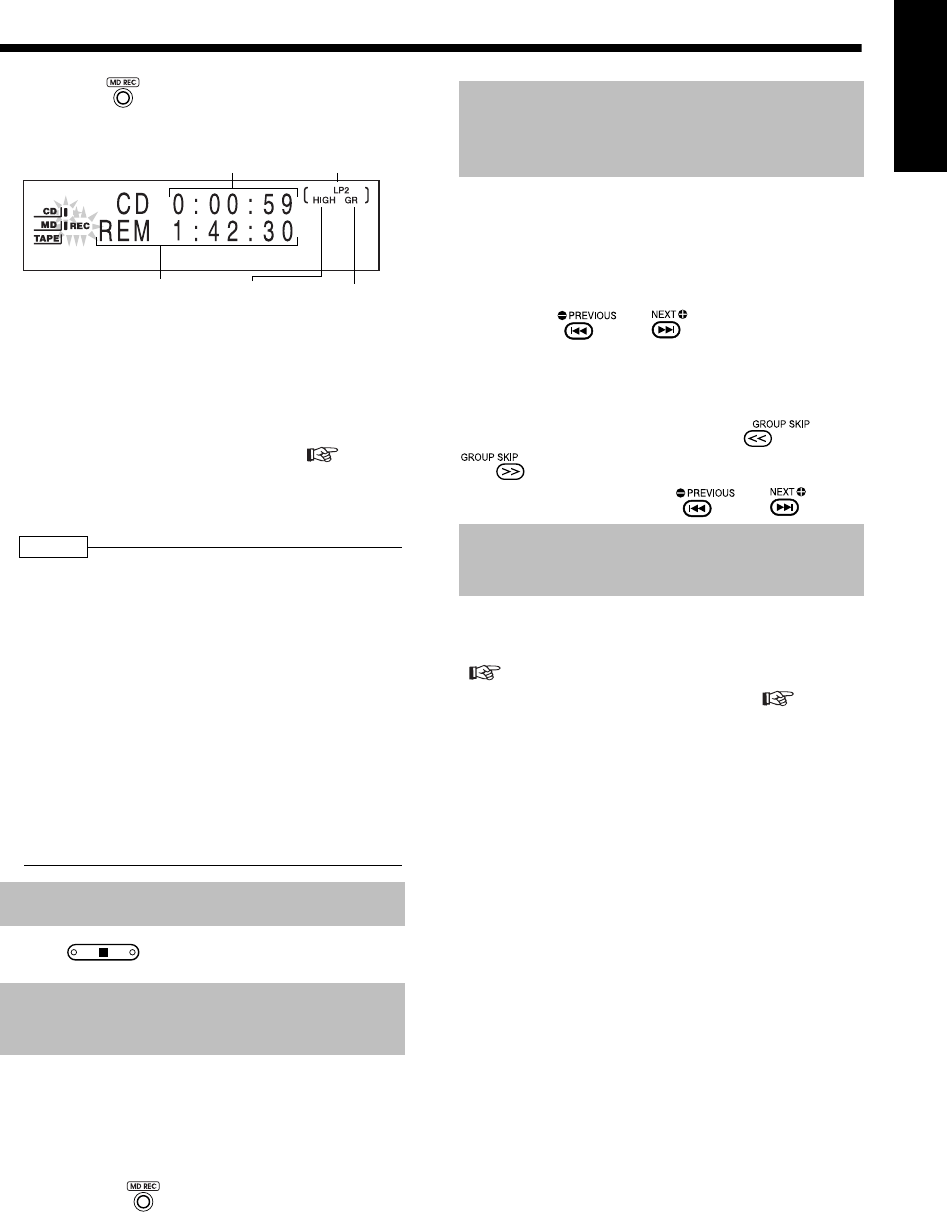
52
English Recording Sound English
6Press on the main unit.
Example: Display while CD is recorded
• When recording finishes, the color pattern of
the display window and disc tray changes to
the color pattern set in "MANUAL" to inform
you that recording has finished ( page
19).
• When "HCMS CANNOT COPY" appears,
refer to pages 74 and 76.
NOTE
• The recorded sound level is automatically adjusted.
• The CD rotates at high speed during x5 high
speed recording. Therefore, depending on the
condition of the CD, the sound may be recorded
improperly and affected by noise. If the sound is
not recorded properly, select normal speed
recording.
• The remaining time for recording differs depend-
ing on the selected MDLP mode.
• You cannot record sound while the repeat play-
back function is on. Starting the recording func-
tion automatically cancels repeat playback.
• While recording a DVD video, you cannot make
settings on the DVD including audio, subtitle,
view angles, picture magnification and 3D
PHONIC selection.
Press .
(Excluding DVD VIDEOs)
Before proceeding to step 6, start
playback of the track you want to
record.
• Pressing in step 6 returns playback to
the beginning of the track, and only that
track is recorded.
• This one-track recording is not available for
DVD VIDEOs.
■When recording CDs/VCDs/SVCDs/DVD
VIDEOs (For a DVD VIDEO: while the disc
is paused)
Before proceeding to step 6, select the
starting track or chapter number by
pressing or .
■When recording DVD AUDIOs/MP3s/
WMAs
Before proceeding to step 6, select the
group number by pressing
, and then select the track
number by pressing or .
Before performing step 1 on page 51,
program the tracks you want to record
( page 48).
•
Select normal speed recording ( step 5
on page 51).
When you select "HIGH SPEED" and pro-
ceed to step 6, "CANNOT REC × 1 REC
ONLY" appears in the display window and
recording does not start.
Quitting Recording
Recording Only One Track
from a Disc
MDLP mode
Remaining time
for recording
This indica-
tor lights up
during
×
5
high speed
recording.
This indicator
lights up during
group recording.
Elapsed playing time of the
track being recorded
Recording the Second or
Subsequent Track to the Last
Track from a Disc
Program Recording from a
Disc
UX-QD7[UB].book 52 ページ 2004年9月3日 金曜日 午後2時43分
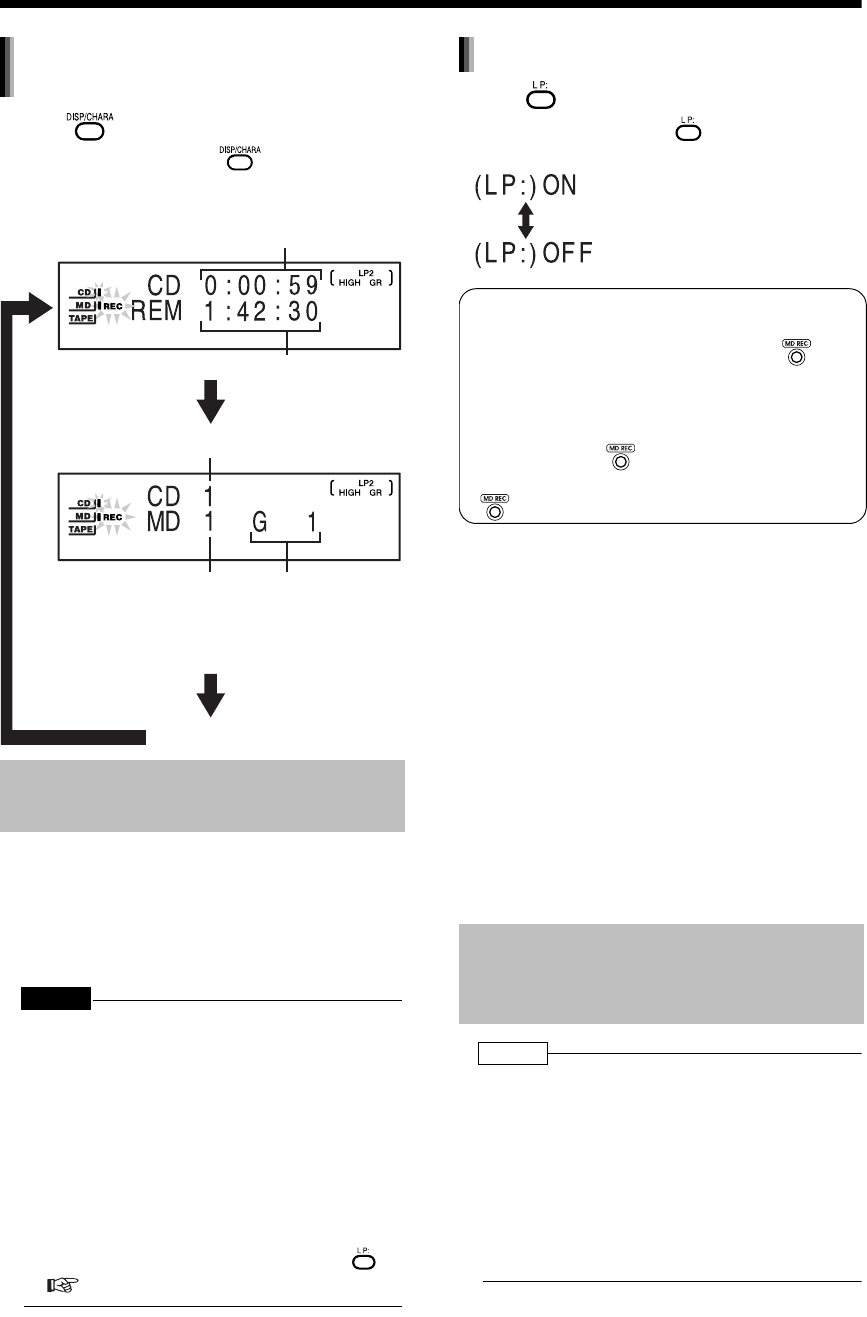
Introduction
53
Recording Sound
(Continued)
Recording Sound to MDs
Press .
• Each time you press , the display tog-
gles as follows.
• It may be unlawful to record or playback
copyright material without the consent of the
copyright owner.
• You can record tracks having different MDLP
modes onto an MD.
• You cannot use the monaural extended record-
ing function with this product.
CAUTION
• Do not bump or sway the main unit during MD
recording. Be especially careful while "WRITING" is
displayed. Such movement may interfere with MD
playback.
• You cannot play back tracks recorded in LP2 or
LP4 with audio equipment that is not compatible
with MDLP. When you attempt playback, "LP: "
appears in front of the track title, and the main
unit does not produce any sound. When you play
back tracks recorded in LP2 or LP4 with audio
equipment that is compatible with MDLP, "LP: "
does not appear.
To activate or cancel the "LP: " indicator, press .
( on the right)
Press .
• Each time you press , the display toggles
as follows.
• You can record up to 254 tracks to an MD. If you
try to record 255 or more tracks, "DISC FULL"
appears.
• When you use a partially-recorded MD, this
product searches for the blank portion and
records the new tracks to that portion.
Unlike cassette tape recording, you cannot
record over old tracks on an MD.
• Changing in sound volume and quality on this
product during recording does not affect the
recorded sound.
• Sound from a CD is recorded as digital signals to
an MD. Sound from the radio or AUX is con-
verted from analog signals to digital signals dur-
ing recording.
• When you record a disc, track marks are auto-
matically inserted between tracks. However,
track marks may not be inserted when a DVD
VIDEO or DVD AUDIO is recorded.
NOTE
• The recorded sound level is automatically adjusted.
• Sound-synchronized recording is employed for
recording sound from other equipment (AUX).
With sound-synchronized recording, this product
automatically identifies sound signals from the
sound source and starts recording. When sound
from the sound source pauses for 30 or more
seconds, this product automatically quits record-
ing. The blank time between the last recorded
track and the next recorded track is approxi-
mately 2 seconds.
Things You Should Know
about MD Recording
Changing the display in the display
window during recording
Clock display
Elapsed playing time
of the chapter or
track being recorded
Remaining MD recording time
Recording disc track number
Recording MD track
number
Recording MD group
number
(When tracks have not
been recorded in a
group, "G - -" appears.
)
Recording Sound from Radio,
Cassette Tape or Other
Equipment
"LP: " indicator setting
: For deleting "LP: " from the track
title.
: For adding "LP: " to the track title.
CD-R/CD-RW/DVD AUDIO recording
• When you record sound from a CD-R, CD-RW
or DVD AUDIO onto an MD, pressing
may display "SCMS CANNOT COPY" in the
display window, and digital recording may not
be available.
In such a case, set the recording speed to nor-
mal, hold down for 4 or more seconds.
While ”ANALOG REC?” is displayed, press
once again to select analog recording.
UX-QD7[UB].book 53 ページ 2004年9月3日 金曜日 午後2時43分
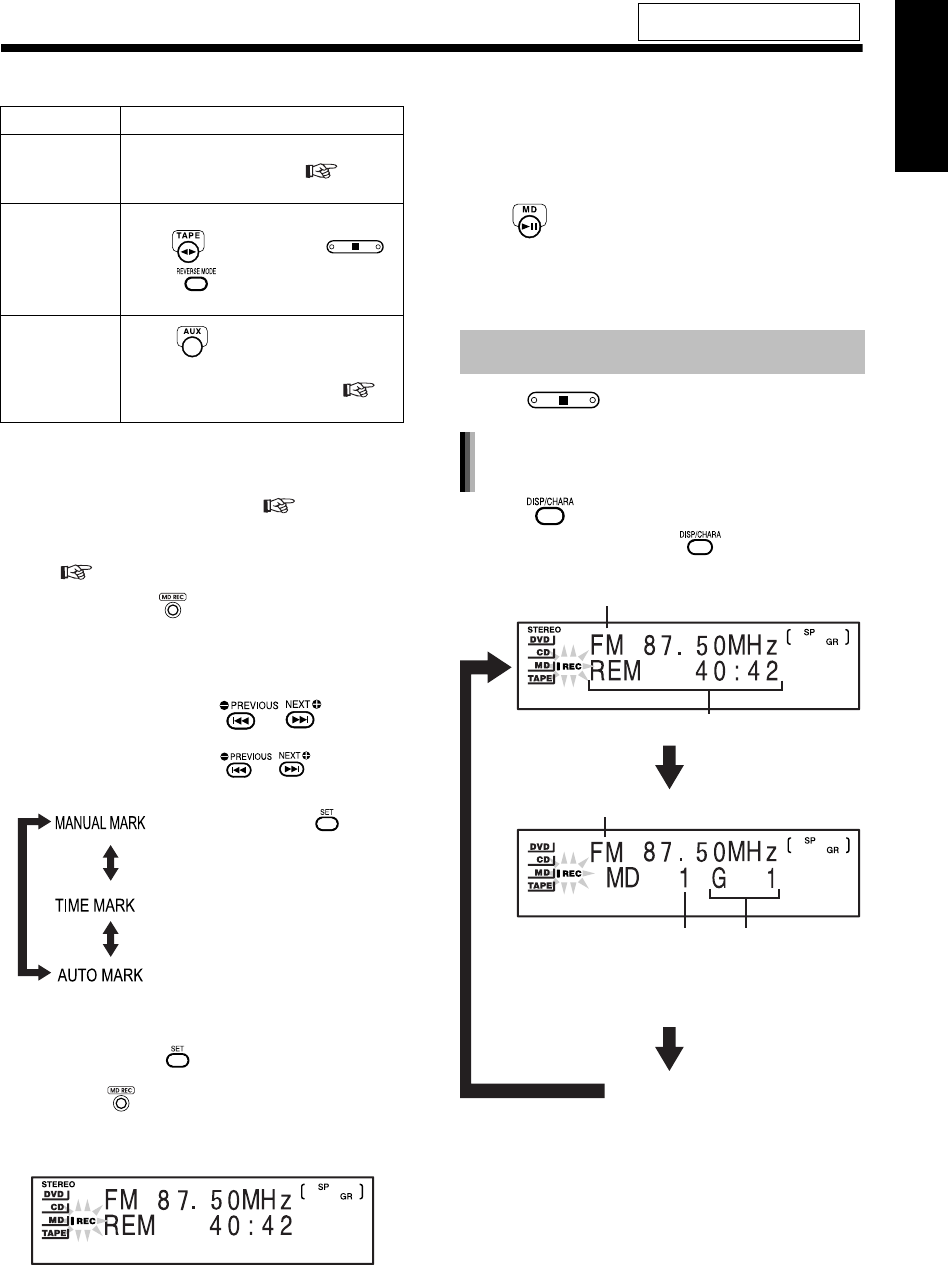
54
English Recording Sound English
1Select a sound source.
2Insert an MD for recording.
• Confirm the MDLP, "LP: " indicator and
group recording settings. ( pages 51
and 53)
• Close the write protect knob on the MD
( page 75).
3Hold down on the main unit for
approximately 4 seconds to dis-
play the track mark options.
4While the track mark options are
displayed, press to
select a track mark option.
• Each time you press , the dis-
play toggles as follows.
5Press on the main unit.
Example: Display while FM radio broadcast is
recorded
• When recording the sound from other equip-
ment, wait until "AUX → MD" appears, and
then start playback of the connected equip-
ment. Recording automatically starts when
sound is input to the main unit.
You can also start recording by pressing
.
With this method, even when sound from
the connected equipment pauses for 30 or
more seconds, the main unit does not auto-
matically quit recording.
Press .
Press .
• Each time you press , the display tog-
gles as follows.
For the locations of remote control
buttons, refer to page 51.
Sound source Operation
Radio
broadcast
Select the radio station whose broad-
cast you want to record ( page
20).
Cassette
tape
playback
Insert a cassette tape for playback,
press , and then press .
Press to select the reverse
mode when necessary.
Sound from
other equip-
ment (AUX/
AUX-DIGITAL)
Press repeatedly to select AUX
or AUX-DIGITAL, and prepare play-
back on the other equipment (
page 45).
: When no sound is produced for 3
or more seconds, a track mark is
automatically set. You can also
insert a track mark by pressing
.
: Each time you press during
recording, a track mark is set
(initial setting).
: Track marks are automatically set
in 5-minute intervals.
Quitting Recording
Changing the display in the display
window during recording
Recording sound source name
Recording MD track
number
Clock display
Recording sound source name
Remaining time for recording
Recording MD group
number
(When tracks are not
recorded in a group,
" - -" appears.)
UX-QD7[UB].book 54 ページ 2004年9月3日 金曜日 午後2時43分
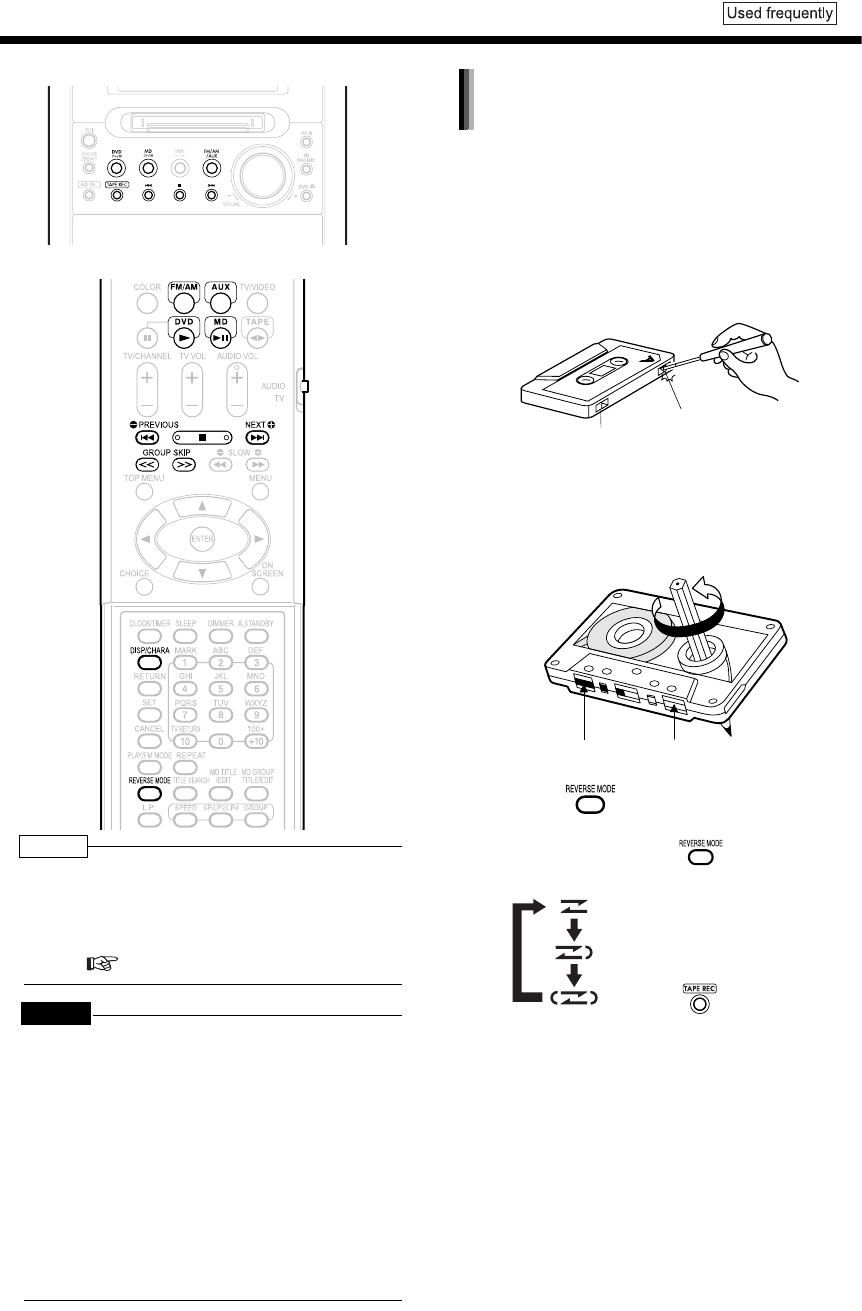
Introduction
55
Recording Sound to Cassette Tapes
Main unit
Remote control
NOTE
• The sound input level during recording is automati-
cally adjusted.
• When you record tracks from a disc or MD, a 4-
second blank is inserted between tracks in the
recording. You can record tracks with no blank
time. ( page 56)
CAUTION
• It may be unlawful to record or playback
copyright material without the consent of the
copyright owner.
• Do not use long cassette tapes such as C-120 or
C-150. Long cassette tapes are thin and stretch
easily, and may become tangled in the inner part
of the main unit.
• Since this product is not compatible with TYPE II
and TYPE IV cassette tapes, do not use these
types of cassette tapes. This product does not
meet the specifications for these tapes, so sound
is not properly recorded to these types of cas-
sette tapes. You cannot obtain proper playback
sound.
• Write protect tags are attached to a cassette
tape for preventing the erasing of recorded
sound. They enable you to avoid losing impor-
tant recordings because once you snap off the
write protect tags, you cannot record to the cas-
sette tape or erase recorded material.
• When you want to use the cassette tape for
recording again, cover the tag holes with adhe-
sive tape.
1Insert a cassette tape for record-
ing.
• Before inserting the cassette tape, wind the
tape past the leader part of the cassette
tape.
2Press to select the reverse
mode.
• Each time you press , the display tog-
gles as follows.
• You can change the reverse mode during
recording.
Preventing recorded sound from
being erased
Write protect
tag for side A
Write protect
tag for side B
Magnetic tape
(recordable part) Leader tape (unrecordable part)
: For one-way recording on either
side.
: Pressing automatically
starts one return recording on
both sides.
: For one return recording on both
sides.
UX-QD7[UB].book 55 ページ 2004年9月3日 金曜日 午後2時43分
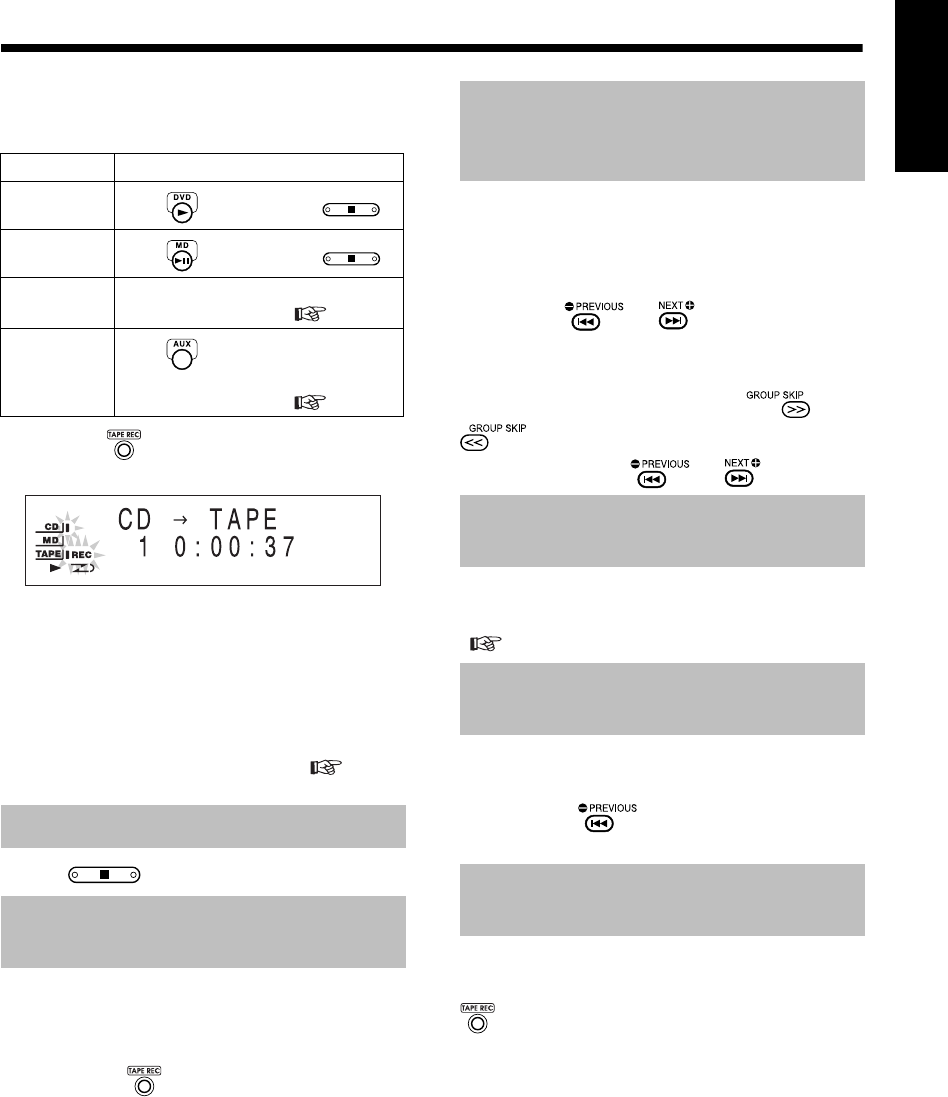
56
English Recording Sound English
3
Select a sound source for recording.
• Before selecting a sound source, make
sure to stop a disc and MD.
4Press on the main unit.
Example: Display while CD sound is recorded
• When you record from a disc or MD, all
tracks are recorded to the cassette tape.
• When you want to record sound from other
equipment, start playback on the connected
equipment.
• When recording finishes, the color pattern of
the display window and disc tray switches to
the color pattern set in "MANUAL" to inform
you that recording has finished (
page
19).
Press .
(Excluding DVD VIDEOs)
Before proceeding to step 4, play back
the track you want to record.
• Pressing in step 4 returns playback to
the beginning of the track and only that track
is recorded.
(For a DVD VIDEO: while the disc is paused)
■For a CD/VCD/SVCD/DVD VIDEO
Before proceeding to step 4, select the
starting track/chapter number by
pressing or .
■For a DVD AUDIO/MP3/WMA
Before proceeding to step 4, select the
group number by pressing or
, and then select the track num-
ber by pressing or .
Before proceeding to step 4, program
the tracks you want to record
( pages 32 and 48).
Before proceeding to step 4, play back
a disc or MD, pause the playback, and
then press to return to the
beginning of the first track.
Select the sound from other equip-
ment (AUX) in step 3, and then press
.
• Do not play back any tracks on the
connected equipment.
Sound source Operation
Disc Press , and then press .
MD Press , and then press .
Radio broad-
cast
Select the radio station whose broad-
cast you want to record ( page 20).
Sound from
other equip-
ment (AUX/
AUX-DIGTAL)
Press repeatedly to select AUX or
AUX-DIGITAL, and prepare playback
on the other equipment ( page 45).
Quitting Recording
Recording Only One Track
from a Disc or MD
Recording the Second or
Subsequent Track to the Last
Track from a Disc or MD
Program Recording from a
Disc or MD
Recording with No Blank Time
between Tracks
Erasing Recorded Sound
from a Cassette Tape
UX-QD7[UB].book 56 ページ 2004年9月3日 金曜日 午後2時43分
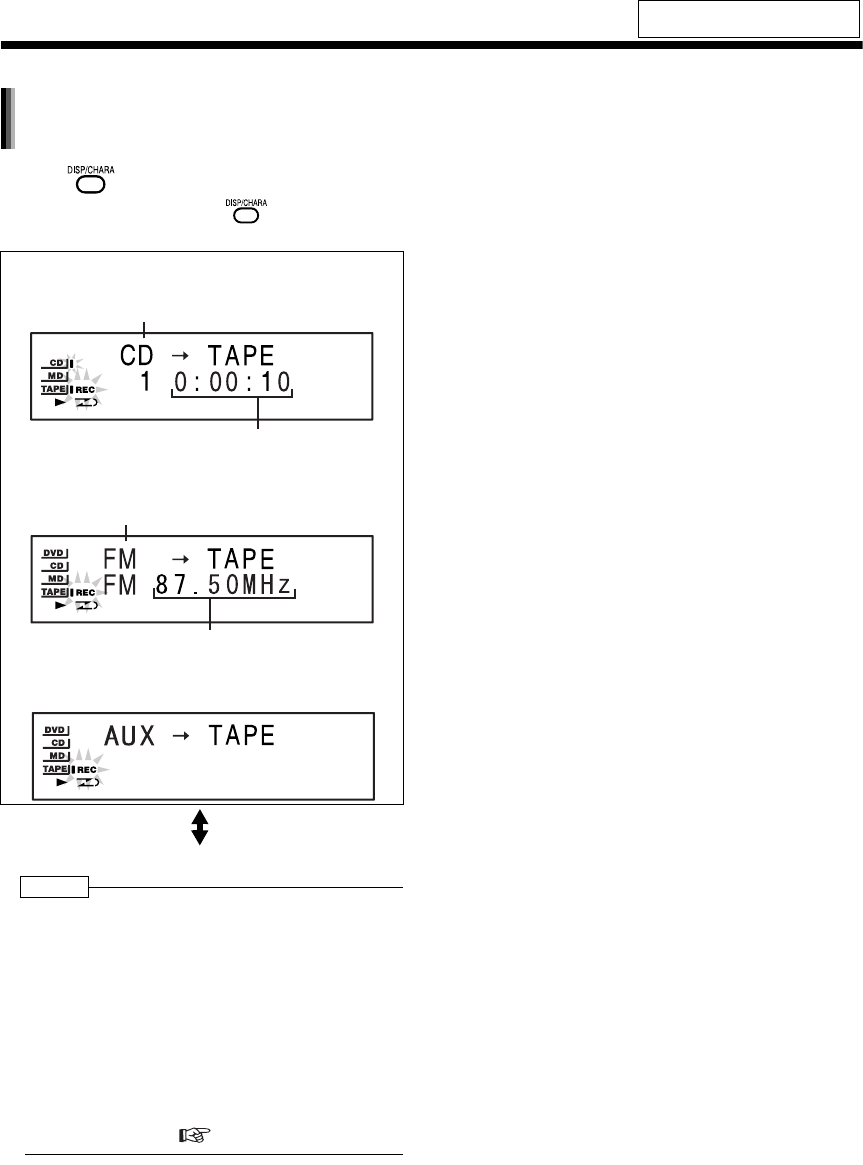
Introduction
57
(Continued)
Recording Sound to Cassette Tapes
Press .
• Each time you press , the display tog-
gles as follows.
■While tracks from a disc or MD are
being recorded
■While a radio broadcast (FM/AM) is
being recorded
■While sound from other equipment
(AUX) is being recorded
Clock display
NOTE
• If the cassette tape reverses direction while a track
is being recorded from a disc or MD, this product
starts recording that track again from the beginning
onto the reverse side of the cassette tape. How-
ever, if 12 or less seconds of that track were
recorded onto the first side of the cassette tape,
recording to the reverse side of the cassette tape
starts from the beginning of the previous track.
• Before recording a long track from an MD, such
as a recorded concert, using one return record-
ing, use the divide function to divide the track into
sections equal to the length of one side of
the cassette tape. ( page 32)
For the locations of remote control
buttons, refer to page 55.
Changing the display in the display
window during recording
DVD, CD or MD
Elapsed playing time
FM or AM
Frequency
UX-QD7[UB].book 57 ページ 2004年9月3日 金曜日 午後2時43分
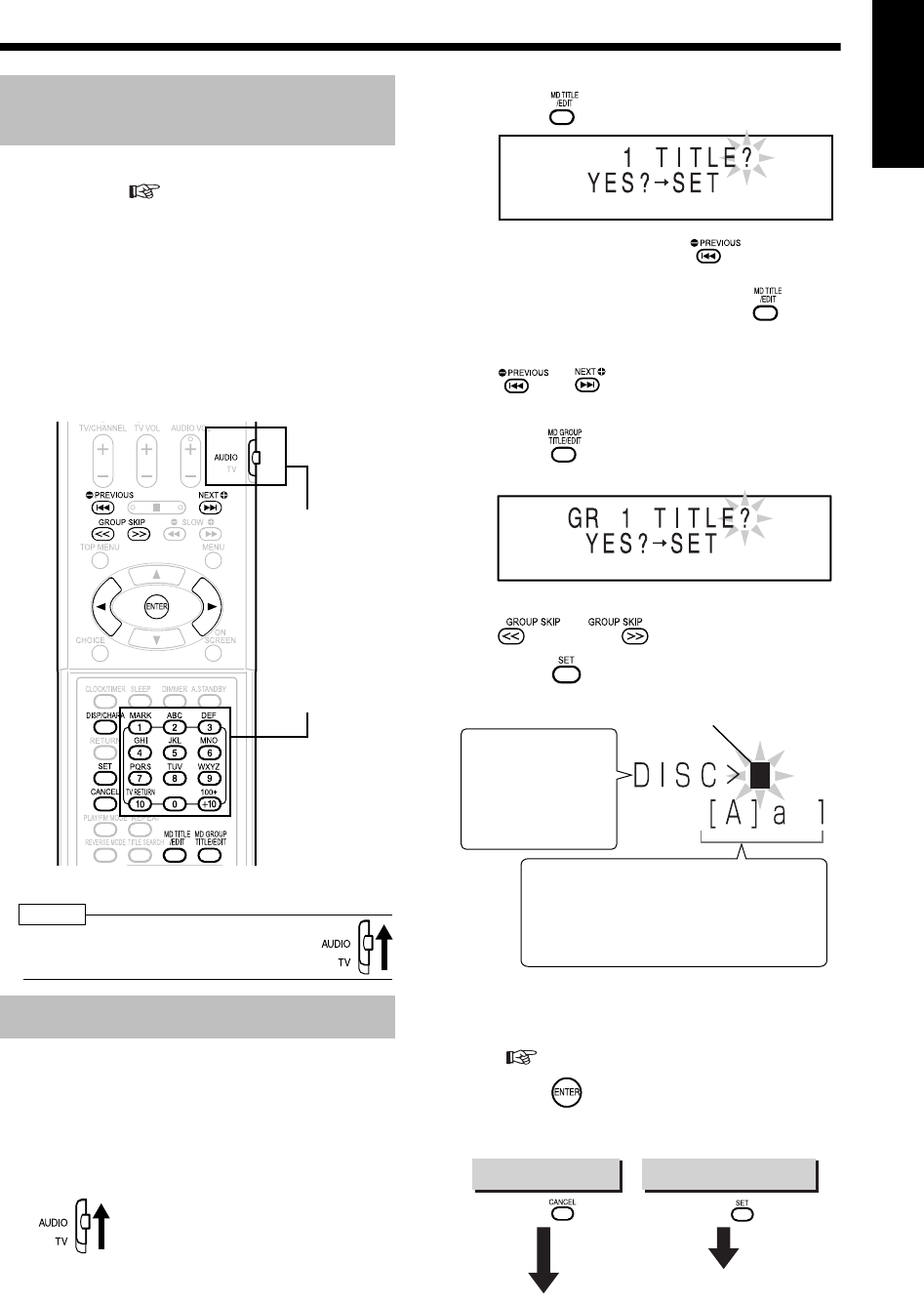
58
English Recording Sound/Editing MDs English
Recording Sound/Editing MDs
Giving (Editing) Titles
• You cannot edit an MD while its write protect
knob is open ( page 75). When you attempt
to edit a protected MD, "DISC PROTECTED"
appears.
• When you finish editing, "EDITING" appears,
then "WRITING" flashes and the edited setting is
recorded to the MD.
While "WRITING" is displayed, be careful not to
bump or sway the main unit. Such movement
may interfere with MD playback.
• You cannot edit an MD during program playback,
random playback, or group playback.
NOTE
• Set the remote control mode selector to
AUDIO before using the number buttons.
You can give titles to an MD (disc), tracks and
groups.
■While the track or group to which you want
to give a title is being played back
1Set the remote control mode
selector to AUDIO.
2Display the title editing mode.
For editing an MD (disc) title or track titles
• Press to display the title editing mode.
• To edit a disc title, press repeatedly
to display "DISC TITLE?". You can also dis-
play "DISC TITLE?" by pressing while
the disc is stopped.
• You can also select track number with
or .
For editing group titles
• Press twice to display the group title
editing mode.
• You can also select a group number with
or .
3Press .
4Enter a title using the number
buttons.
• For entering a title, refer to "Entering Titles"
( page 59).
5Press .
• The entered title is given to an MD, track or
group.
(Continued on next page)
Things You Should Know
about Editing
Giving (Editing) Titles
Remote control
mode selector
Number buttons Character entry position
(flashing)
A track number
appears for entering
a track title, or "GR"
and a group number
appear for entering a
group title.
Available character types:
[ ] indicates the selected character type.
[A]:Uppercase characters or symbols
[a]:Lowercase characters or symbols
[1]:Numerical characters
To quit title editing To give next title
Press .Press .
Go to step 4.
UX-QD7[UB].book 58 ページ 2004年9月3日 金曜日 午後2時43分
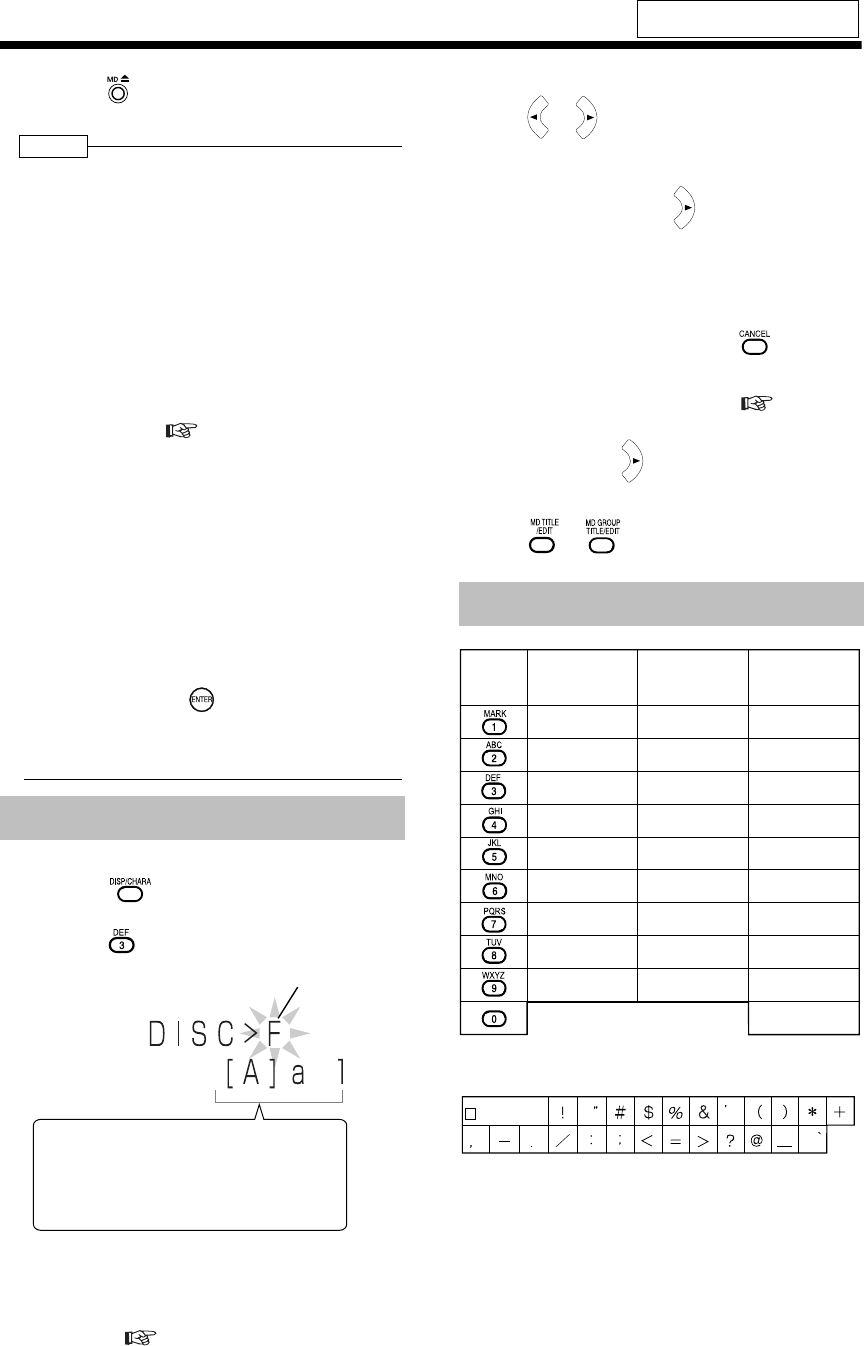
Introduction
59
(Continued)
Giving (Editing) Titles
6Press on the main unit to eject
the MD.
NOTE
• Number of characters that can be entered to an MD
You can enter up to 1 792 characters to each
MD, with up to 61 characters to each track.
However, the actual number of characters that
you can enter is less than the number indicated
here because of restrictions of the MD writing
method.
Spaces are counted as characters.
When you use long-play stereo recording (LP2 or
LP4), the larger the number of tracks is, the
smaller the number of characters that you can
enter, because "LP: " and 4 spaces are automati-
cally added to each track.
You can set this product so that "LP: " is not
added to tracks. ( page 53)
Example: When editing 120 tracks recorded
using long-play stereo recording to an
MD, you can enter 10 characters to
each track.
• You cannot edit a title consisting of 62 or more
characters. When you want to edit a title contain-
ing 62 or more characters, edit the title on the
equipment on which the title was entered.
• You can set a title during recording.
• While recording from a CD (except when
recording only one track from a CD), you can
enter up to 16 track titles before recording
finishes.
• If you do not press before recording
finishes, the entered titles are not stored.
• During group recording, you can enter titles for
the group.
Example: To enter "F"
1) Press repeatedly until [ ] appears on
"A".
2) Press repeatedly to display "F".
• Several characters are assigned to one button.
Press the button repeatedly until the desired
character is displayed.
• For the available characters, refer to "Available
Characters" ( on the right).
To move the character entry position
• Press or .
• When you want to enter "NO", "TV" or two char-
acters which are assigned to one button, enter
the first character, press to move the charac-
ter entry position to the right, and then enter the
second character.
To erase a character
• Move the character entry position to the charac-
ter you want to erase, and press .
To enter a space
• Select the space from "Symbol" ( the chart
below). You can also enter a space at the end of
a title by pressing .
To quit title entry
• Press or . The entered titles are not
stored.
*Available symbols
For the locations of remote control
buttons, refer to page 58.
Entering Titles
Character entry position
(flashing)
Available character types:
[ ] indicates the selected character type.
[A]:Uppercase characters or symbols
[a]:Lowercase characters or symbols
[1]:Numerical characters
Available Characters
Button
Symbol*
Numerical
character
Uppercase
character
Lowercase
character
Symbol*
ABC
DEF
GHI
JKL
MNO
PQRS
TUV
WXYZ
abc
def
ghi
jkl
mno
pqrs
tuv
wxyz
1
2
3
4
5
6
7
8
9
0
Space
UX-QD7[UB]-05.fm 59 ページ 2004年9月6日 月曜日 午後5時41分
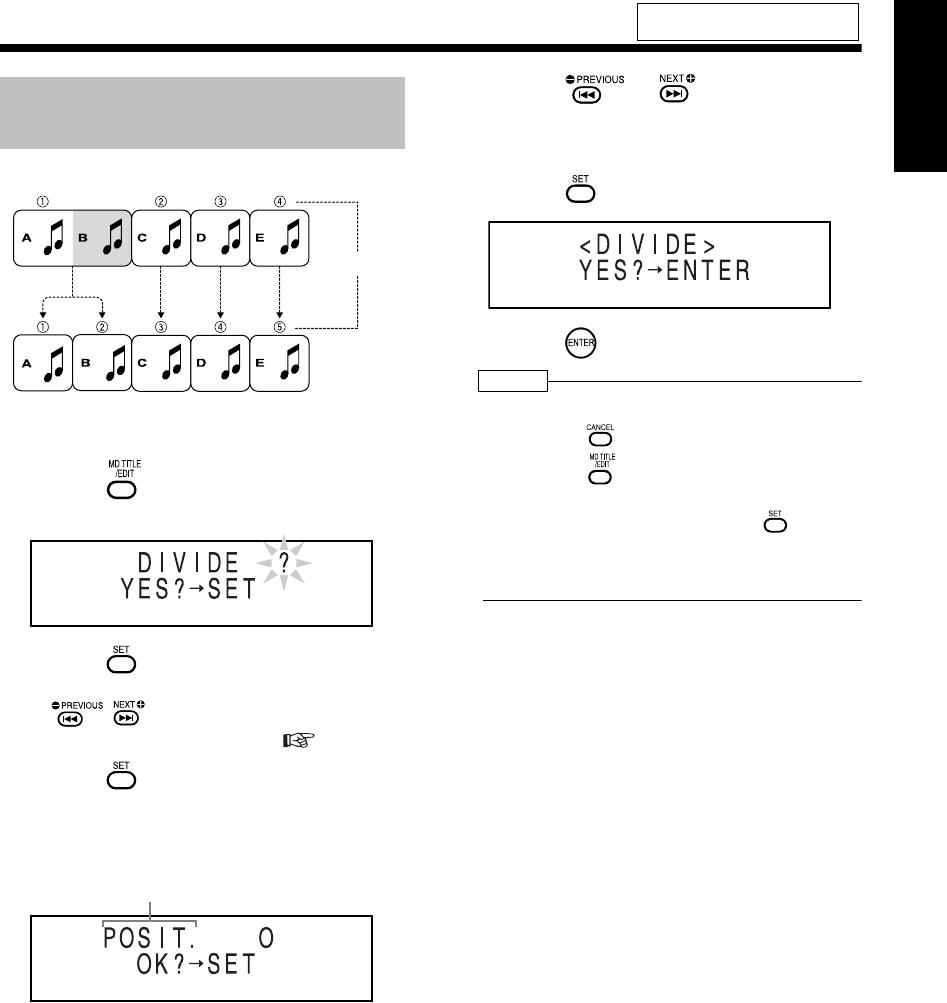
60
English Editing MDs English
Editing MDs
Editing Tracks
Example: Dividing a tune into tune A and tune B
■While the track you want to divide is being
played back
1Press repeatedly to select
"DIVIDE?".
2Press .
• You can also select the track number with
, or the number buttons. Refer to
"Using the number buttons" ( page 17).
3Press to specify the dividing
point.
• This product repeatedly plays back the 4
seconds of sound immediately following the
dividing point.
• When the dividing point does not have to be
adjusted, proceed to step 5.
• When you want to adjust the dividing point,
proceed to step 4.
4Press or .
• You can adjust the dividing point within the
range of -128 to +128 position (approxi-
mately -8 to +8 seconds in SP mode).
5Press .
6Press .
NOTE
• During editing, you can return to the previous step
by pressing . You can quit the editing operation
by pressing .
• You cannot divide a track in an MD containing
254 or more tracks. When you press in step
3, "DISC FULL" appears.
•
When you divide a track that has a title, the title is
added to both divided tracks.
For the locations of remote control
buttons, refer to page 58.
Dividing a Track into Two
Tracks (DIVIDE)
Track
number
"POSIT." stands for "POSITION".
UX-QD7[UB].book 60 ページ 2004年9月3日 金曜日 午後2時43分
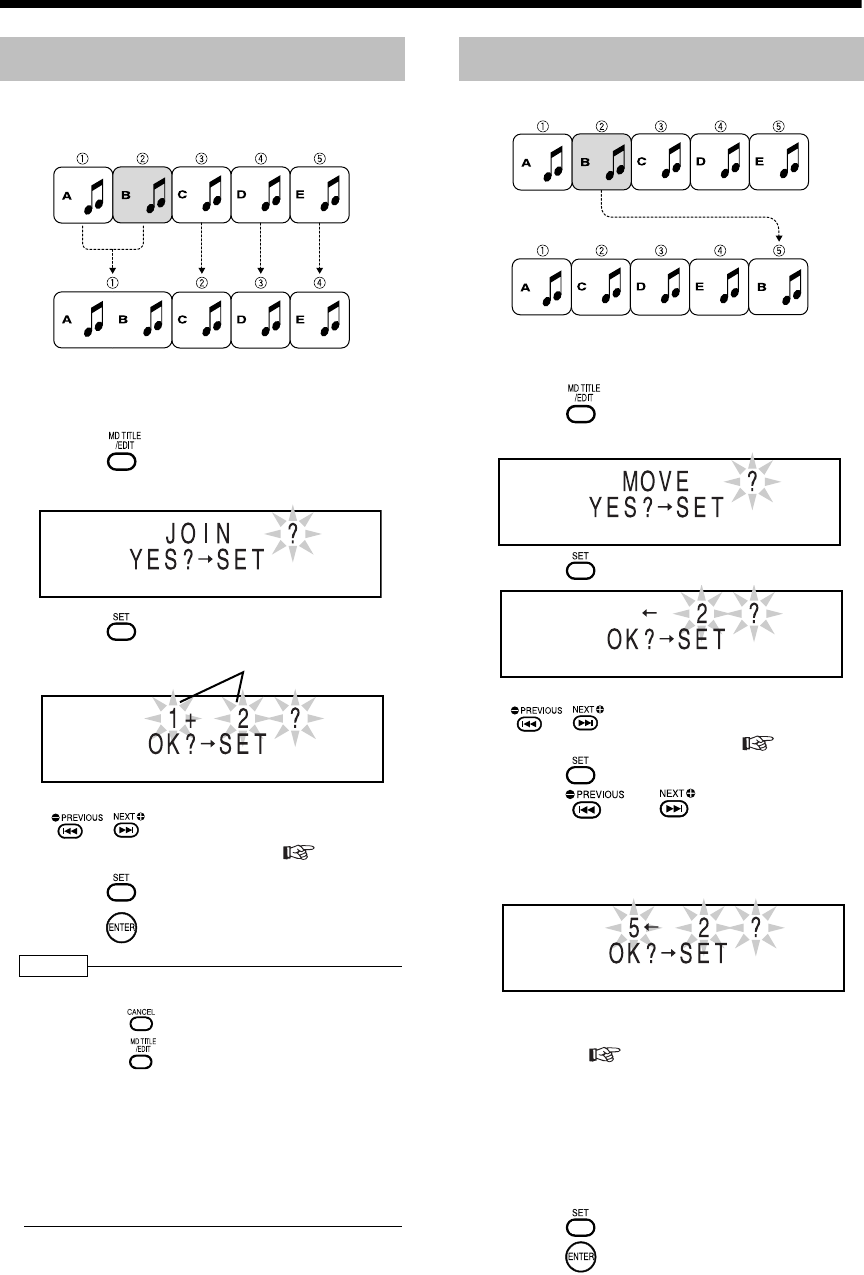
Introduction
61
(Continued)
Editing Tracks
You can join two adjacent tracks into one track.
Example: Joining tune A and tune B
■While the second track (track 2 in the exam-
ple shown above) to which you want to join
the first track is being played back
1Press repeatedly to select
"JOIN?".
2Press .
• You can also select a track number with
, or the number buttons. Refer to
"Using the number buttons" ( page 17).
3Press .
4Press .
NOTE
• During editing, you can return to the previous step
by pressing . You can quit the editing operation
by pressing .
• You cannot join tracks that have different MDLP
modes (SP/LP2/LP4), or tracks that have differ-
ent recording types (digital/analog). If you
attempt to join such tracks, "CANNOT JOIN"
appears.
• When you join two tracks that have titles, the title
of the first track remains as the title of the joined
track.
Example: Moving tune B
■While the track you want to move (track 2 in
the example shown above) is being played
back
1Press repeatedly to select
"MOVE?".
2Press .
• You can also select a track number with
, or the number buttons. Refer to
"Using the number buttons" ( page 17).
3Press .
4Press or to select the
track number to which you want to
move the specified track.
(Track 5 is selected in the example shown
above)
• You can also select a track number with the
number buttons. Refer to "Using the number
buttons" ( page 17).
• When you move a track to a track number
which is registered in a group, the track is
registered in the group. When you move a
track which is registered in a group to a track
number which is not registered in a group,
the track is removed from the group registra-
tion.
5Press .
6Press .
Joining Tracks (JOIN)
Track number
Moving a Track (MOVE)
UX-QD7[UB].book 61 ページ 2004年9月3日 金曜日 午後2時43分
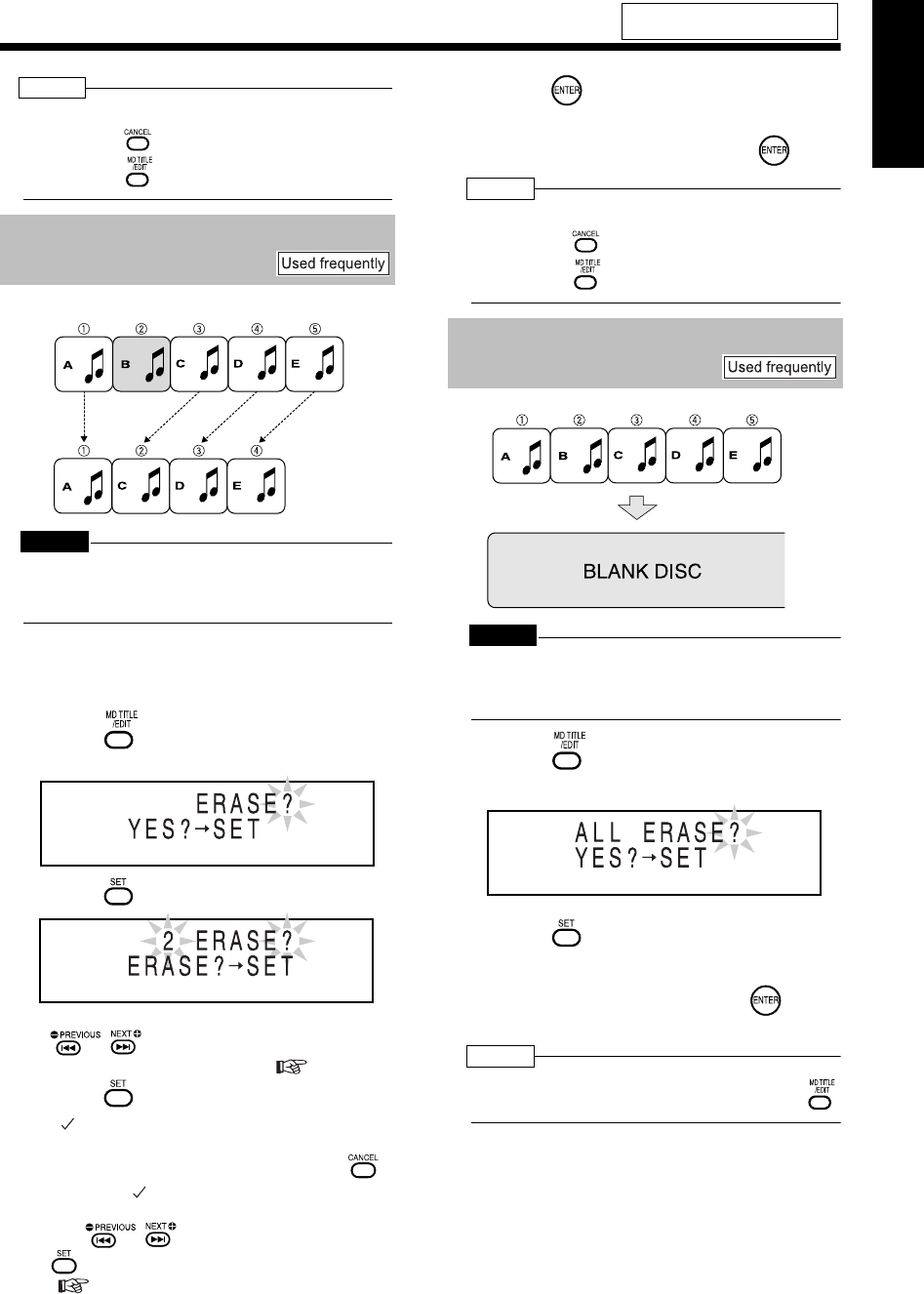
62
English Editing MDs English
NOTE
• During editing, you can return to the previous step
by pressing . You can quit the editing operation
by pressing .
Example: Erasing tune B
CAUTION
• Once you erase a track, you cannot retrieve it.
Before erasing a track, confirm that you no longer
need it.
■While the track you want to erase (track 2 in
the example shown above) is being played
back
1Press repeatedly to select
"ERASE?".
2Press .
• You can also select a track number with
, or the number buttons. Refer to
"Using the number buttons" ( page 17).
3Press .
• " " is added in front of the selected track
number.
• When you select a wrong track, press
to delete “ “.
• You can select up to 15 tracks to be erased
with , or the number buttons, and
. Refer to "Using the number buttons"
( page 17).
4Press .
5Confirm that you no longer need
the tracks, and then press .
NOTE
• During editing, you can return to the previous step
by pressing . You can quit the editing operation
by pressing .
CAUTION
• Once you erase a track, you cannot retrieve it.
Before erasing a track, confirm that you no longer
need it.
1Press repeatedly to select
"ALL ERASE?".
2Press .
3Confirm that you no longer need
all tracks, and then press .
NOTE
• You can quit the editing operation by pressing .
For the locations of remote control
buttons, refer to page 58.
Erasing a Track (ERASE)
Erasing All Tracks
(ALL ERASE)
All tracks are erased.
UX-QD7[UB].book 62 ページ 2004年9月3日 金曜日 午後2時43分
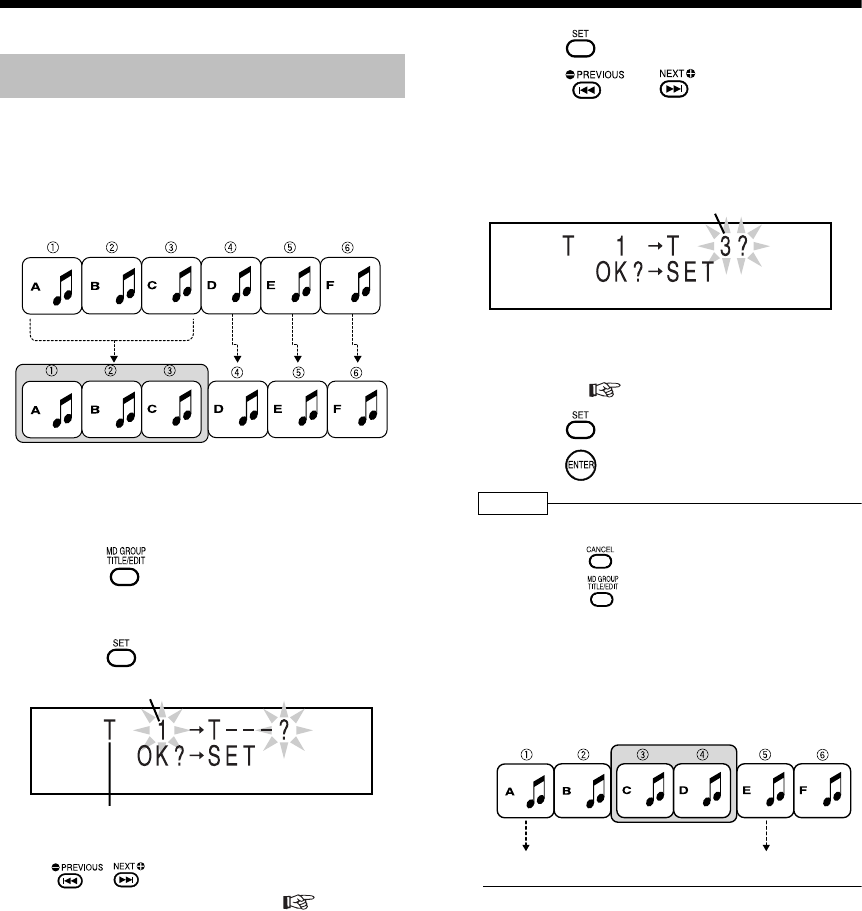
Introduction
63
Editing Tracks by Group
You can sort tracks into 99 groups maximum.
You can group tracks together. A sequence of
tracks that is not registered in any group can be
grouped.
Example: Forming tune A, tune B and tune C
into a group
■While the track which you want to specify
as the first in the group (track 1 in the exam-
ple shown above) is being played back
1Press repeatedly to select
"FORM GR?".
• "GR" stands for "GROUP".
2Press .
• You can also select a track number with
, or the number buttons. Refer to
"Using the number buttons" ( page 17).
3Press .
4Press or to select the
track number which you want to
specify as the last in the group.
(Track number 3 is selected in the example
shown on the left.)
• You can also select a track number with the
number buttons. Refer to "Using the number
buttons" ( page 17).
5Press .
6Press .
NOTE
• During editing, you can return to the previous step
by pressing . You can quit the editing operation
by pressing .
• If you select a track in another group, "GROUP
TRACK" appears and you cannot proceed to the
next step.
• If you select a sequence including a track that is
registered in another group, "CANNOT FORM!"
appears and you cannot proceed to the next
step.
Forming a Group (FORM GR)
Group 1
The first track number in the group
"T" stands for "TRACK".
The last track number in the group
The first track
Group 1
The last track
UX-QD7[UB].book 63 ページ 2004年9月3日 金曜日 午後2時43分
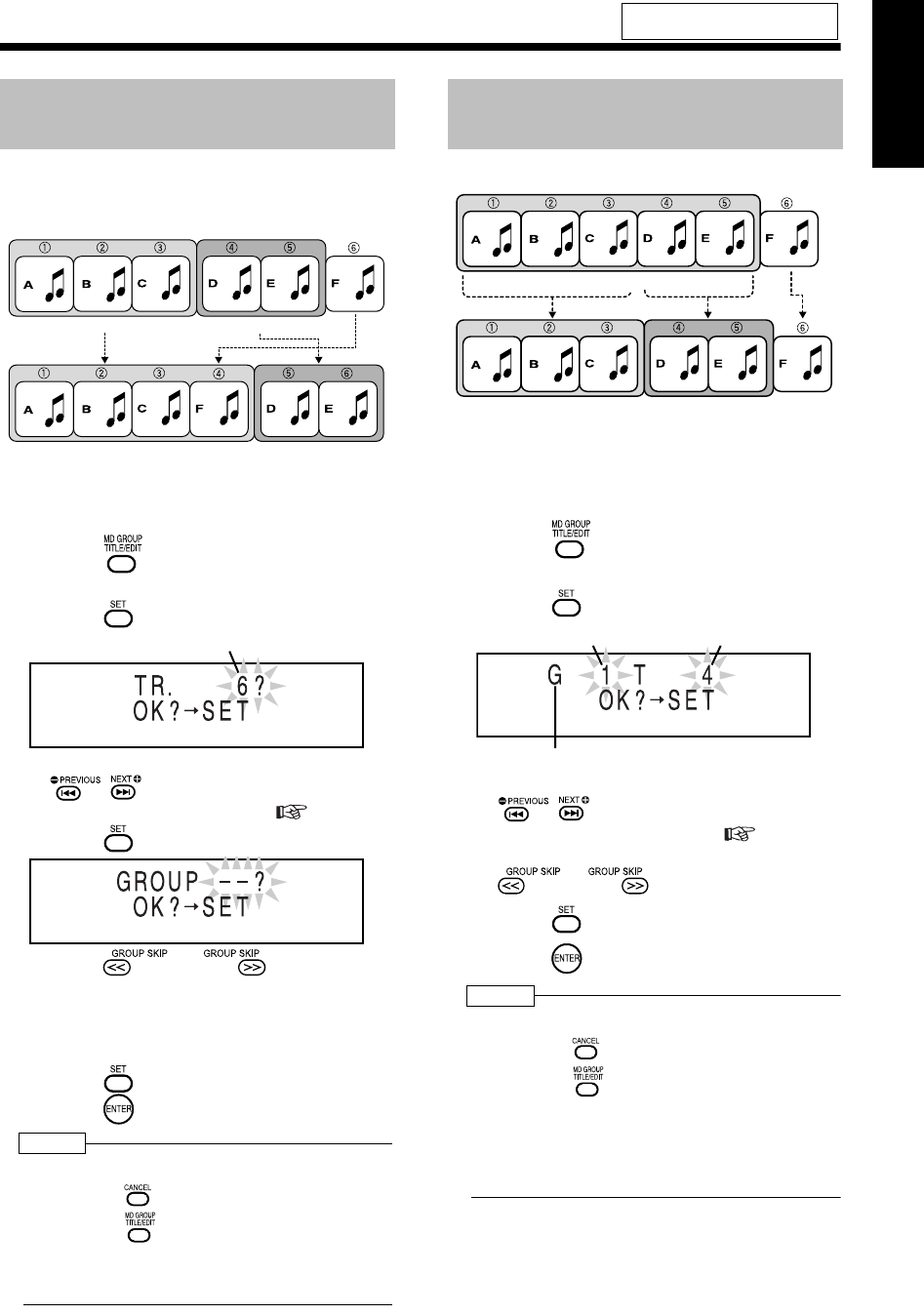
64
English Editing MDs English
You can add a track to the specified group as the
last track of the group.
Example: Adding tune F to group 1
■While the track which you want to add to a
group (track 6 in the example shown above)
is being playeds back
1Press repeatedly to select
"ENTRY GR?".
2Press .
• You can also select a track number with
, or the number buttons. Refer to
"Using the number buttons" ( page 17).
3Press .
4Press or to select
the group to which you want to
add the track.
(Group 1 is selected in the example shown
above)
5Press .
6Press .
NOTE
• During editing, you can return to the previous step
by pressing . You can quit the editing operation
by pressing .
• If you select a track already belonging to the
group, "CANNOT ENTRY!" appears and you
cannot proceed to the next step.
Example: Dividing group 1 into two groups
■While the track which you want to specify
as the first in the second group (track 4 in
the example shown above) is being played
back
1Press repeatedly to select
"DIVIDE GR?".
2Press .
• You can also select a track number with
, or the number buttons. Refer to
"Using the number buttons" ( page 17).
• You can also select a group number with
or .
3Press .
4Press .
NOTE
• During editing, you can return to the previous step
by pressing . You can quit the editing operation
by pressing .
• If you select the first track in the group or a track
not belonging to the group, you cannot proceed
to the next step.
• When you divide a group that has a title, the
same title is given to both divided sections.
For the locations of remote control
buttons, refer to page 58.
Adding a Track to a Group
(ENTRY GR)
Group 1 Group 2
Group 1 Group 2
Track number
Dividing a Group into Two
Groups (DIVIDE GR)
Group 1
Group 1 Group 2
Group number Track number
"G" stands for "GROUP".
UX-QD7[UB].book 64 ページ 2004年9月3日 金曜日 午後2時43分
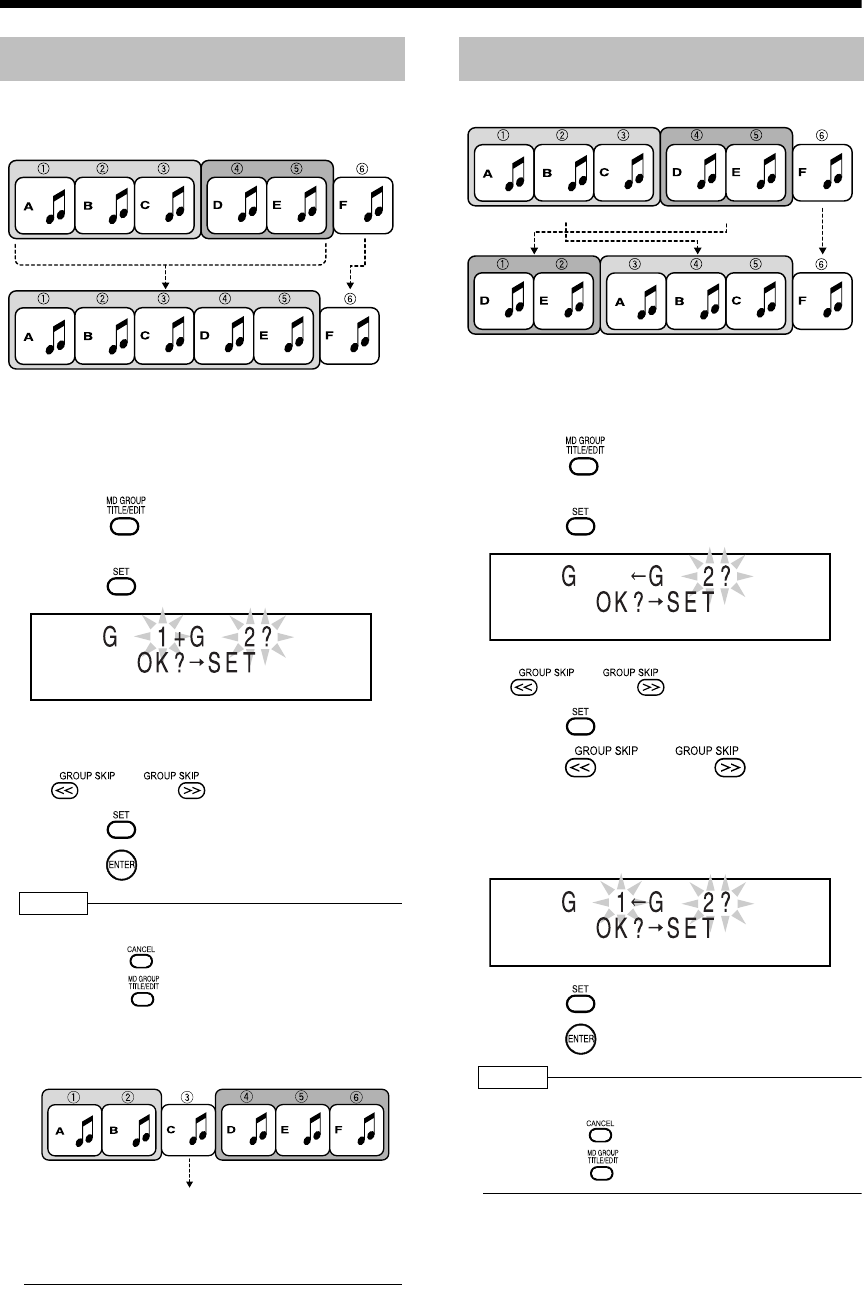
Introduction
65
(Continued)
Editing Tracks by Group
You can join two adjacent groups.
Example: Joining group 1 and group 2
■While the track in the second group to
which you want to join the first group (group
2 in the example shown above) is being
played back
1Press repeatedly to select
"JOIN GR?".
2Press .
• Two adjacent group numbers appear. When
no group is formed in the MD, "--" appears.
• You can also select a group number with
or .
3Press .
4Press .
NOTE
• During editing, you can return to the previous step
by pressing . You can quit the editing operation
by pressing .
• You cannot join two groups separated by a track
not belonging to either group. "CANNOT JOIN"
appears, and display returns to the previous
step.
• When you join two groups that have titles, the
title of the first group remains as the title of the
joined group.
Example: Moving group 2
■While a track in the group you want to move
(group 2 in the example shown above) is
being played back
1Press repeatedly to select
"MOVE GR?".
2Press .
• You can also select a group number with
or .
3Press .
4Press or to select
the group number to which you
want to move the specified group.
(Group 1 is selected in the example shown
above)
5Press .
6Press .
NOTE
• During editing, you can return to the previous step
by pressing . You can quit the editing operation
by pressing .
Joining Groups (JOIN GR)
Group 1 Group 2
Group 1
Group 1 Group 2
Track not belonging to either group
Moving a Group (MOVE GR)
Group 1 Group 2
Group 1 Group 2
UX-QD7[UB].book 65 ページ 2004年9月3日 金曜日 午後2時43分
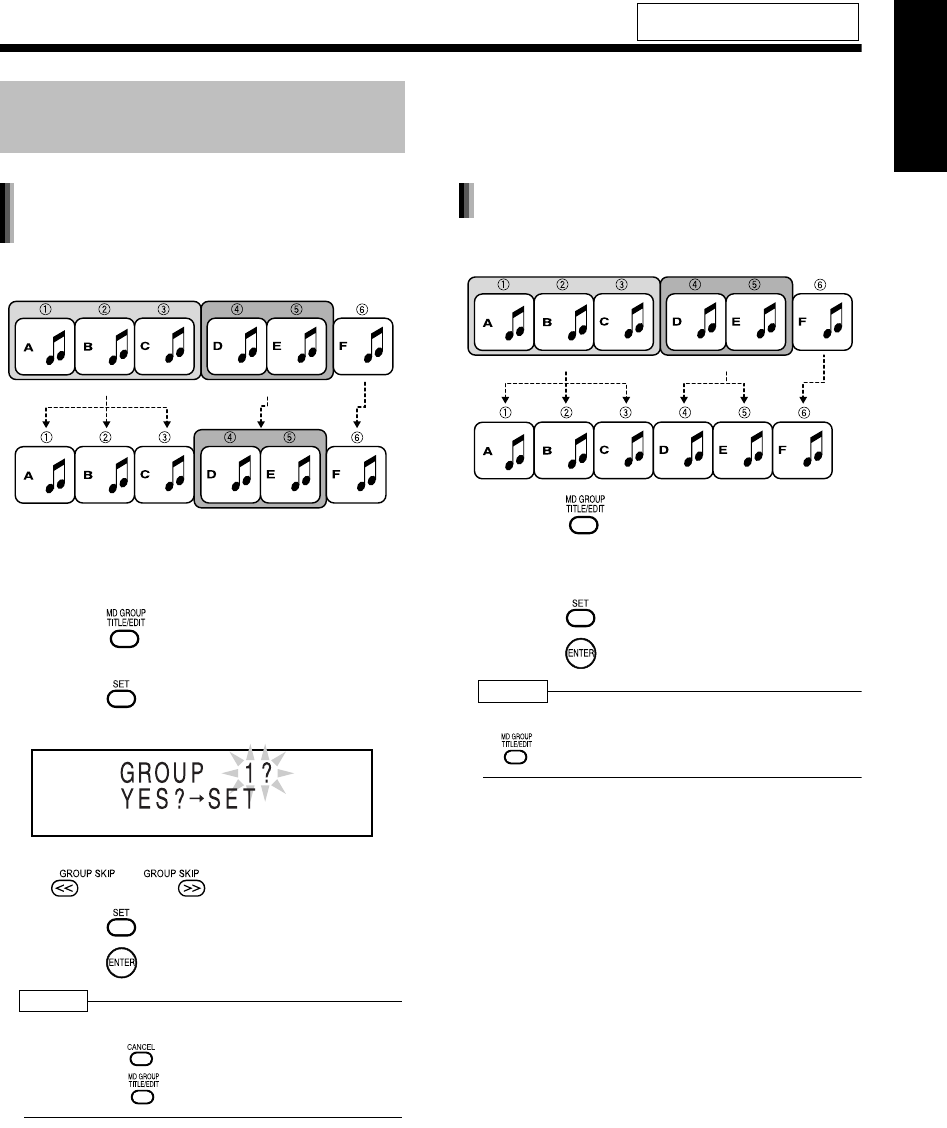
66
English Editing MDs English
Example: Canceling group 1
■While a track in the group you want to can-
cel (group 1 in the example shown above)
is being played back
1Press repeatedly to select
"UNGROUP?".
2Press .
Example: When you want to cancel group 1
• You can also select a group number with
or .
3Press .
4Press .
NOTE
• During editing, you can return to the previous step
by pressing . You can quit the editing operation
by pressing .
Example: Canceling all groups
1Press repeatedly to select
"UNGR ALL?".
• "UNGR" stands for "UNGROUP".
2Press .
3Press .
NOTE
• You can quit the editing operation by pressing
.
For the locations of remote control
buttons, refer to page 58.
Canceling a Group
(UNGROUP/UNGR ALL)
Canceling a specified group
(UNGROUP)
Group 1 Group 2
Group 1
Canceling all groups (UNGR ALL)
Group 1 Group 2
UX-QD7[UB].book 66 ページ 2004年9月3日 金曜日 午後2時43分
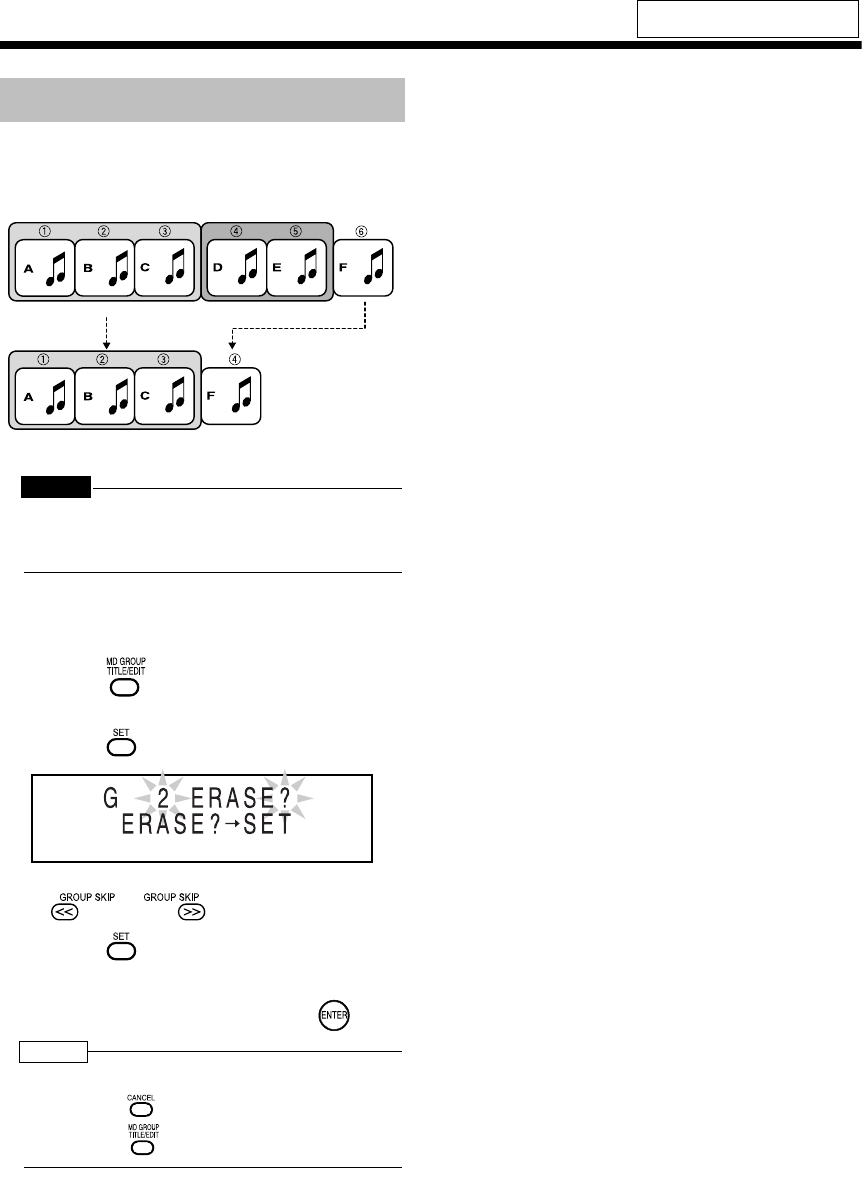
Introduction
67
(Continued)
Editing Tracks by Group
You can erase a group including all tracks in the
group.
Example: Erasing group 2
CAUTION
• Once you erase a track, you cannot retrieve it.
Before erasing a track, confirm that you no longer
need it.
■While a track in the group you want to erase
(group 2 in the example shown above) is
being played back
1Press repeatedly to select
"ERASE GR?".
2Press .
• You can also select a group number with
or .
3Press .
4Confirm that you no longer need
the tracks, and then press .
NOTE
• During editing, you can return to the previous step
by pressing . You can quit the editing operation
by pressing .
For the locations of remote control
buttons, refer to page 58.
Erasing a Group (ERASE GR)
Group 1 Group 2
Group 1
UX-QD7[UB].book 67 ページ 2004年9月3日 金曜日 午後2時43分
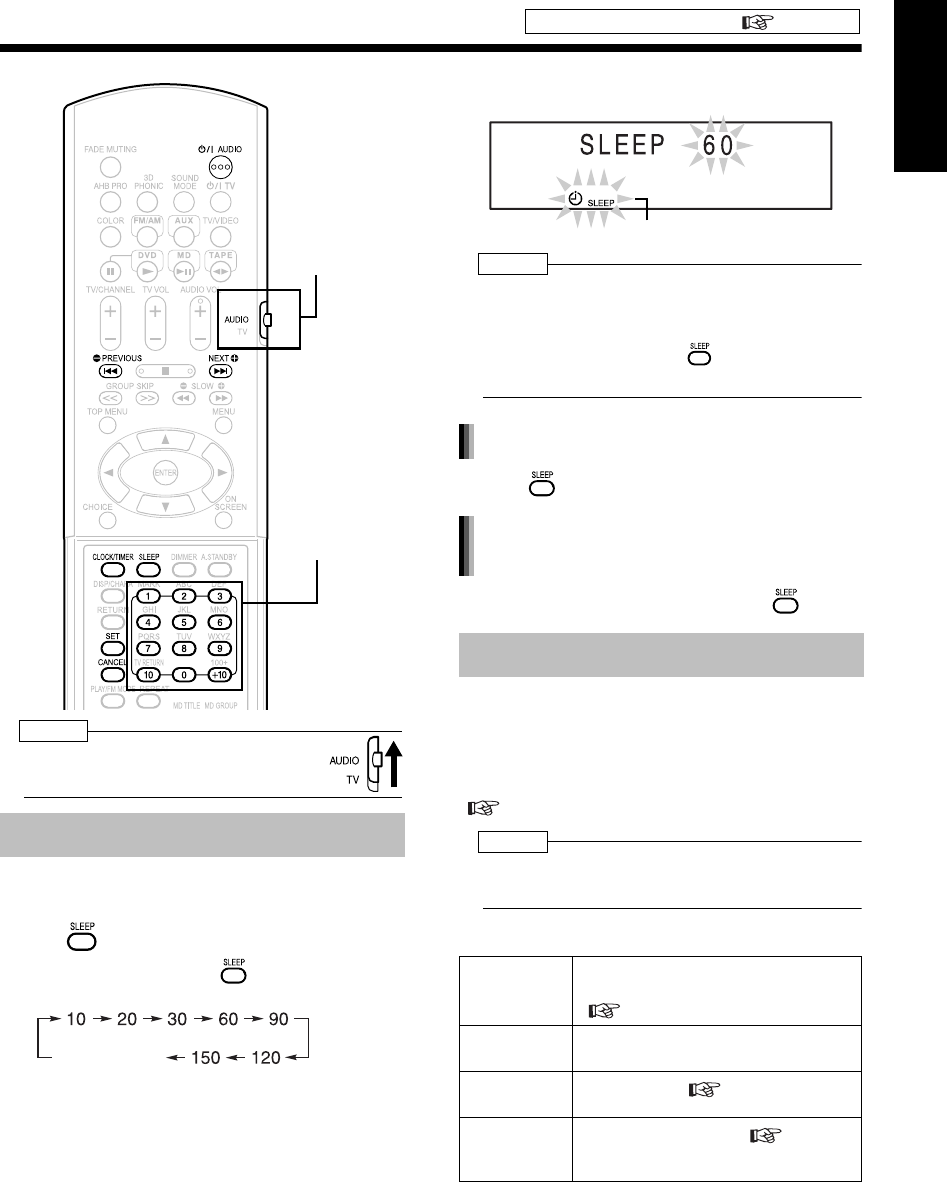
68
English Editing MDs/Convenient Functions English
Editing MDs/Convenient Functions
Using the Timers
NOTE
• Set the remote control mode selector to
AUDIO before using the number buttons.
When the specified time passes, the main unit
automatically turns off.
Press .
• Each time you press , the time display
(in minutes) toggles as follows.
Example: Display while the sleep timer is set to
60 minutes
NOTE
• When you set the sleep timer, the display window
automatically dims.
• Before the clock has been set (While "0:00" is
flashing), when you press , "CLOCK
ADJUST!" appears.
• Press repeatedly to select the time again.
• With the sleep timer activated, press once.
You can use the recording timer function to record
FM/AM broadcasts or sound from other equipment
to an MD or cassette tape.
You can enter up to three timer settings in total for
the recording timer and the playback timer
( page 70).
NOTE
• Timer settings remain unchanged until the timer is
replaced by new setting.
1Prepare to record.
(Continued on next page)
Set the clock beforehand ( page 17).
Sleep Timer
Number buttons
Remote control
mode selector
Cancel (Sleep
indicator disappears.)
Recording Timer
Radio Preset the radio station whose
broadcast you want to record.
( page 21)
Other
equipment
Follow the operation manual for the
equipment.
MD
recording Insert an MD. ( page 46)
Cassette
tape
recording
Insert a cassette tape. ( page 43)
Sleep indicator
Changing the sleep timer setting
Confirming the sleep timer setting
(remaining time)
UX-QD7[UB]-05.fm 68 ページ 2004年9月6日 月曜日 午後5時44分
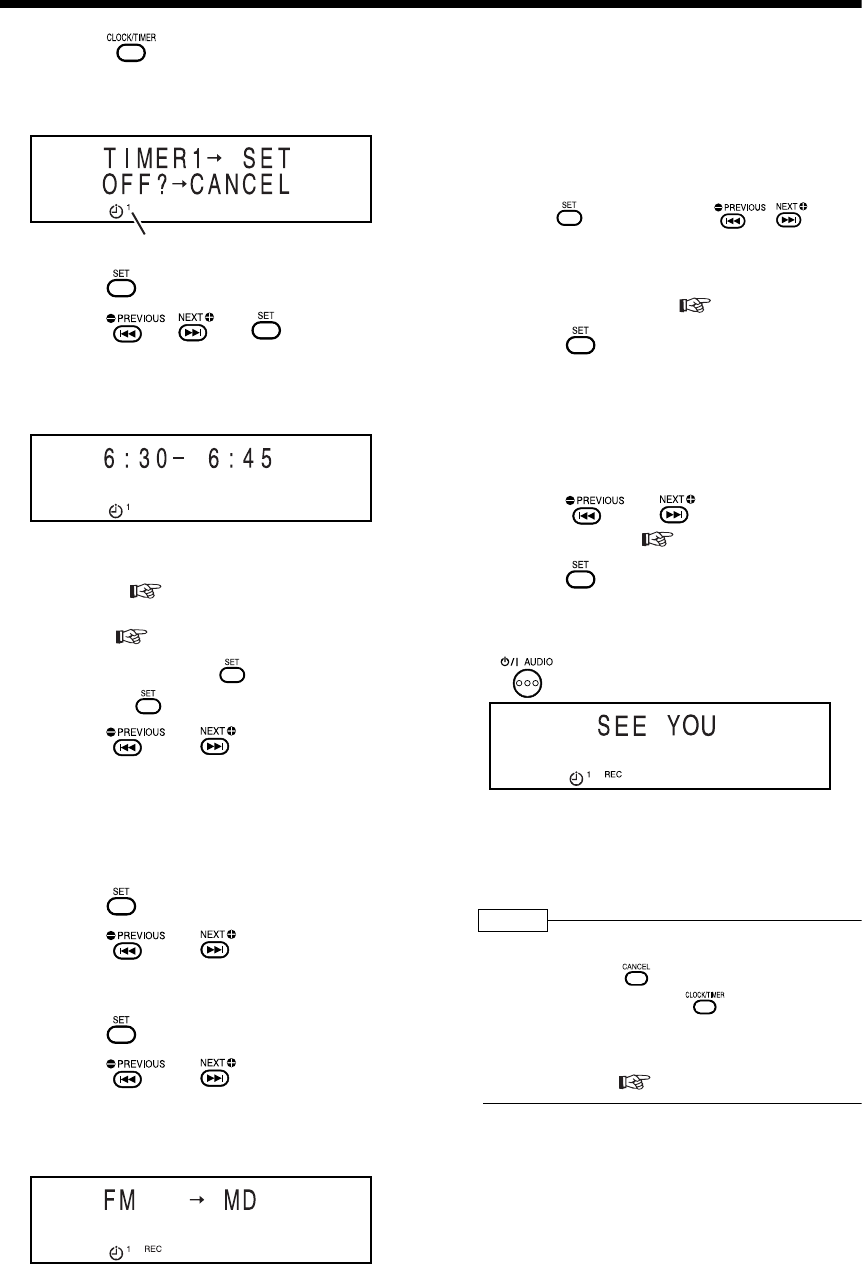
Introduction
69
(Continued)
Using the Timers
2Press repeatedly to select
"TIMER1", "TIMER2" or "TIMER3".
Example: When "TIMER1" is selected
3Press .
4Press , or to set the
starting time and ending time.
Example:To set the recording time from 6:30
a.m. to 6:45 a.m.
• You can use the number buttons to set the
recording time. Refer to "Using the number
buttons" ( page 17).
• For setting the clock, refer to "Setting the
Clock" ( page 17).
Entering the "hour" → → Entering the
"minute" →
5Press or to select
"ONCE" or "EVERYDAY".
ONCE : The recording timer works
once.
EVERYDAY : The recording timer works
every day.
6Press .
7Press or to select "REC
TIMER".
• "REC" stands for "Recording".
8Press .
9Press or to select the
combination of a sound source
and recording medium.
Example: To record an FM broadcast to an MD
• When you want to record sound from other
equipment, you cannot use the recording
timer function to start playback on any
equipment other than this product.
• "AUX-D" stands for "AUX-DIGITAL".
■When you want to record an FM/AM radio
broadcast
• Press , and then press , or
the number buttons to select the preset
number of the radio station whose broad-
cast you want to record. Refer to "Using
the number buttons" ( page 17).
10 Press .
• When you use an MD as the recording
medium, proceed to step 11.
• When you use a cassette tape as the
recording medium, the settings appear in
the display window. Confirm the settings,
and then proceed to step 13.
11 Press or to select the
MDLP mode ( page 51).
12 Press .
• The settings appear in the display window.
13 When the main unit is on, press
to turn off the main unit.
• While the recording timer is functioning, the
volume is set to "0" and no sound is pro-
duced from the speakers or headphones.
• The recording timer is available only when
the main unit is turned off.
NOTE
• During operation, you can return to the previous
step by pressing . You can quit the recording
timer settings by pressing . The settings are
not stored.
• When you want to change the track mark options,
make the change before or after setting the
recording timer. ( step 3 and 4 on page 54)
Timer number
UX-QD7[UB].book 69 ページ 2004年9月3日 金曜日 午後2時43分
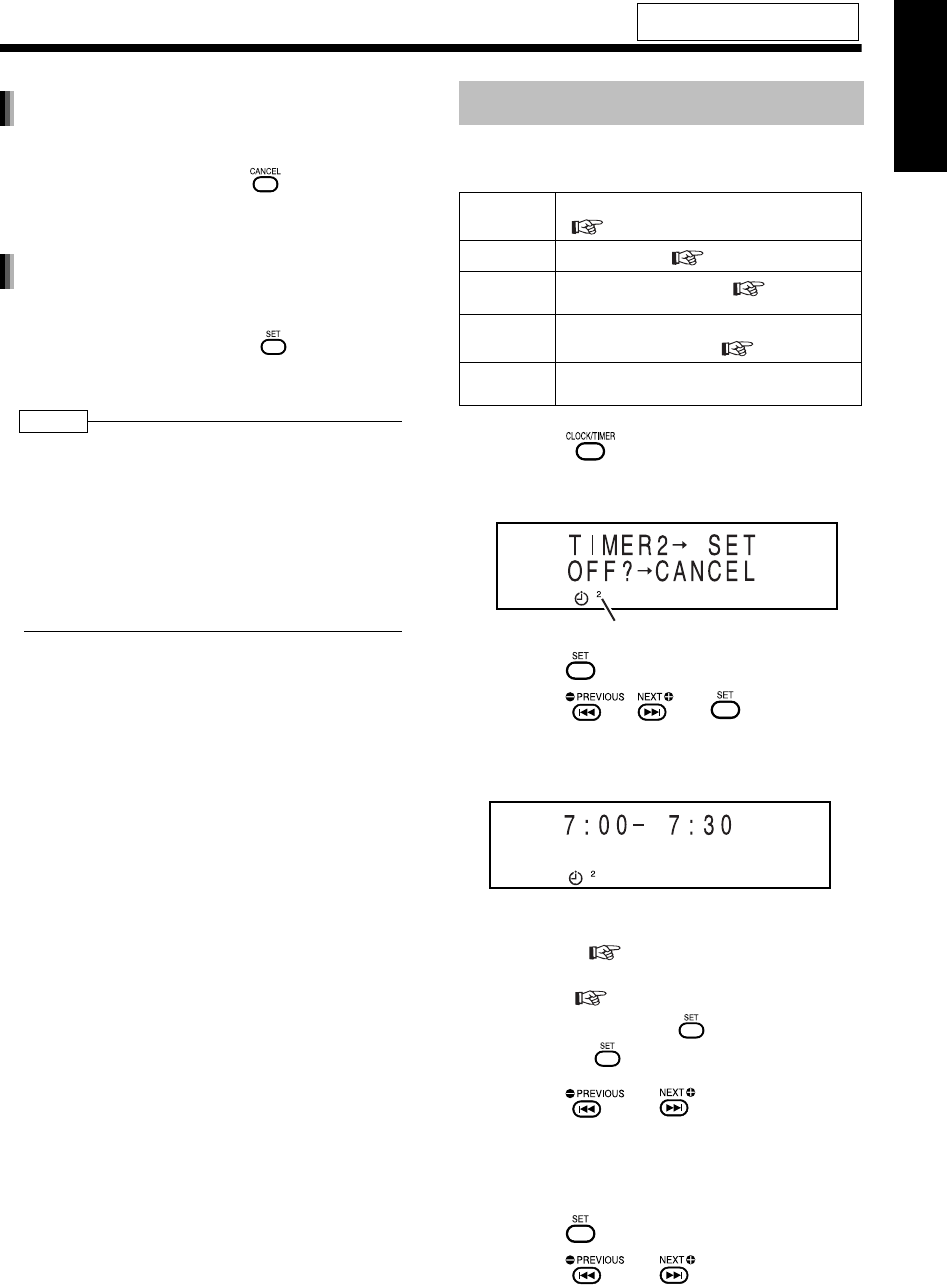
70
English Convenient Functions English
Convenient Functions
In step 2 on page 69, select the timer number you
want to cancel, and then press .
Even when you cancel the recording timer, the set-
ting remains stored.
In step 2 on page 69, select the timer number you
want to activate, and then press repeatedly
until all of the setting procedure finishes. Then turn
off the main unit.
NOTE
• When you want to activate two or three recording
timers, leave a blank time of 2 or more minutes
between the ending time of the first recording timer
and the starting time of the second recording timer.
If the blank time is less than 2 minutes, the second
recording timer does not work.
• When the power plug is disconnected or the
power is cut, the recording timer settings may be
lost. If the settings are lost, set the clock and
recording timer again.
1Prepare the sound source you
want to play back.
2Press repeatedly to select
"TIMER1", "TIMER2" or "TIMER3".
Example: When "TIMER2" is selected
3Press .
4Press , or to set the
starting time and ending time.
Example: When you want to set the playback
time from 7:00 a.m. to 7:30 a.m.
• You can use the number buttons to set the
playback time. Refer to "Using the number
buttons" ( page 17).
• For setting the clock, refer to "Setting the
Clock" ( page 17).
Entering the "hour" → → Entering the
"minute" →
5Press or to select
"ONCE" or "EVERYDAY".
ONCE : The playback timer works once.
EVERYDAY : The playback timer works every
day.
6Press .
7Press or to select
"PLAY TIMER".
(Continued on next page)
For the locations of remote control
buttons, refer to page 68.
Canceling the recording timer
Activating the recording timer again
Playback Timer
Disc Make sure that a disc is loaded.
( page 22)
MD Insert an MD. ( page 46)
Cassette
tape Insert a cassette tape. ( page 43)
Radio Preset the radio station whose broadcast
you want to listen to. ( page 21)
Other
equipment
Follow the operation manual for the
equipment.
Timer number
UX-QD7[UB].book 70 ページ 2004年9月3日 金曜日 午後2時43分
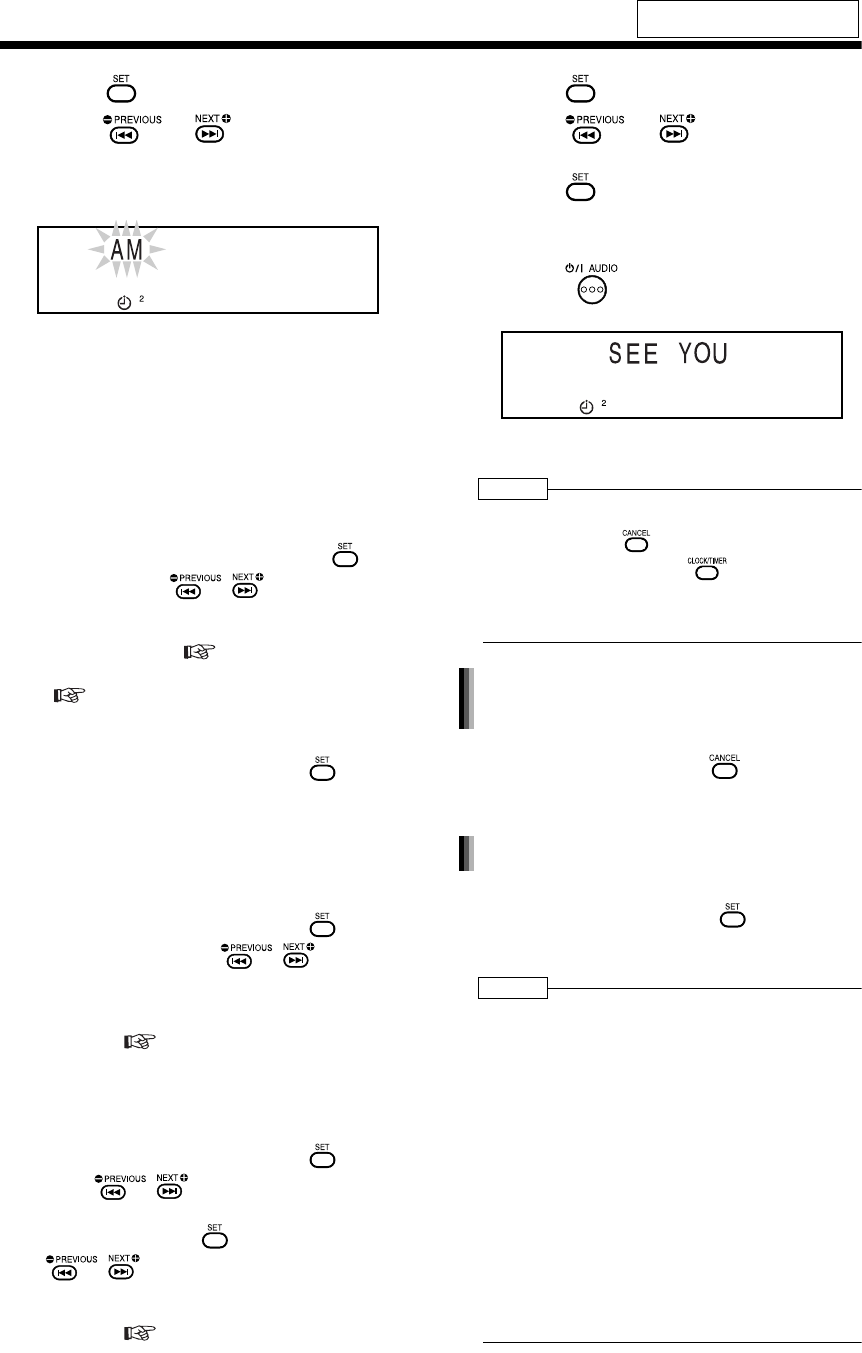
Introduction
71
(Continued)
Using the Timers
8Press .
9
Press or to select the
sound source you want to play back.
Example: When you want to listen to an AM
broadcast
• When you want to listen to sound from other
equipment, you cannot use the playback
timer function to start playback on any
equipment other than this product.
• You cannot use the playback timer function
together with program playback, repeat
playback, random playback, or group play-
back of a disc or MD.
■When you want to listen to an FM/AM radio
broadcast
• (With "FM" or "AM" selected) Press ,
and then press , or the num-
ber buttons to select the preset number
of the radio station whose broadcast you
want to listen to ( page 21). Refer to
"Using the number buttons"
( page 17).
■When you want to play back a DVD VIDEO
or DVD AUDIO
• (With "DVD/CD" selected) Press
twice. Regardless of the displayed num-
bers of group (G) and track (T), you can
play back a DVD VIDEO or DVD AUDIO
only from the beginning of the disc.
■When you want to play back a CD, VCD,
SVCD or MD
• (With "DVD/CD" selected) Press
twice, and then press , or the
number buttons to select the number of a
track (T) from which you want to start
playback. Refer to "Using the number
buttons" ( page 17). The group
number (G) is ignored.
■When you want to specify a track from
which you want to start playback on an MP3
or WMA
• (With "DVD/CD" selected) Press ,
press , or the number buttons
to select the group number (G) to be
played back, press , and then press
, or the number buttons to
select the track number (T) to be played
back. Refer to "Using the number
buttons" ( page 17).
10 Press .
11 Press or to adjust the
playback volume.
12 Press .
• The settings appear in the display window.
13 When the main unit is turned on,
press to turn off the main
unit.
• The playback timer is available only when
the main unit is turned off.
NOTE
• During operation, you can return to the previous
step by pressing . You can quit the playback
timer settings by pressing . The settings are
not stored.
• When the playback timer starts, the volume
gradually increases to the selected level.
In step 2 on page 70, select the timer number you
want to cancel, and then press .
Even when you cancel the playback timer, the set-
ting remains stored.
In step 2 on page 70, select the timer number you
want to activate, and then press repeatedly
until all of the setting procedure finishes. Then turn
off the main unit.
NOTE
• When you want to activate two or three playback
timers, leave a blank time of 2 or more minutes
between the ending time of the first playback timer
and the starting time of the second playback timer.
If the blank time is less than 2 minutes, the second
playback timer does not work.
• When the power plug is disconnected or the
power is cut, the playback timer settings may be
lost. If the settings are lost, set the clock and
playback timer again.
• When you operate the playback timer with a DVD
VIDEO, DVD AUDIO or VCD, sound and video
may not be played back automatically. A DVD
VIDEO, DVD AUDIO or VCD may contain a disc
menu that appears first when played back.
Sound or video will not come out before you
select the desired item to be played back on the
disc menu.
For the locations of remote control
buttons, refer to page 68.
Canceling the playback timer
function
Activating the playback timer again
UX-QD7[UB].book 71 ページ 2004年9月3日 金曜日 午後2時43分
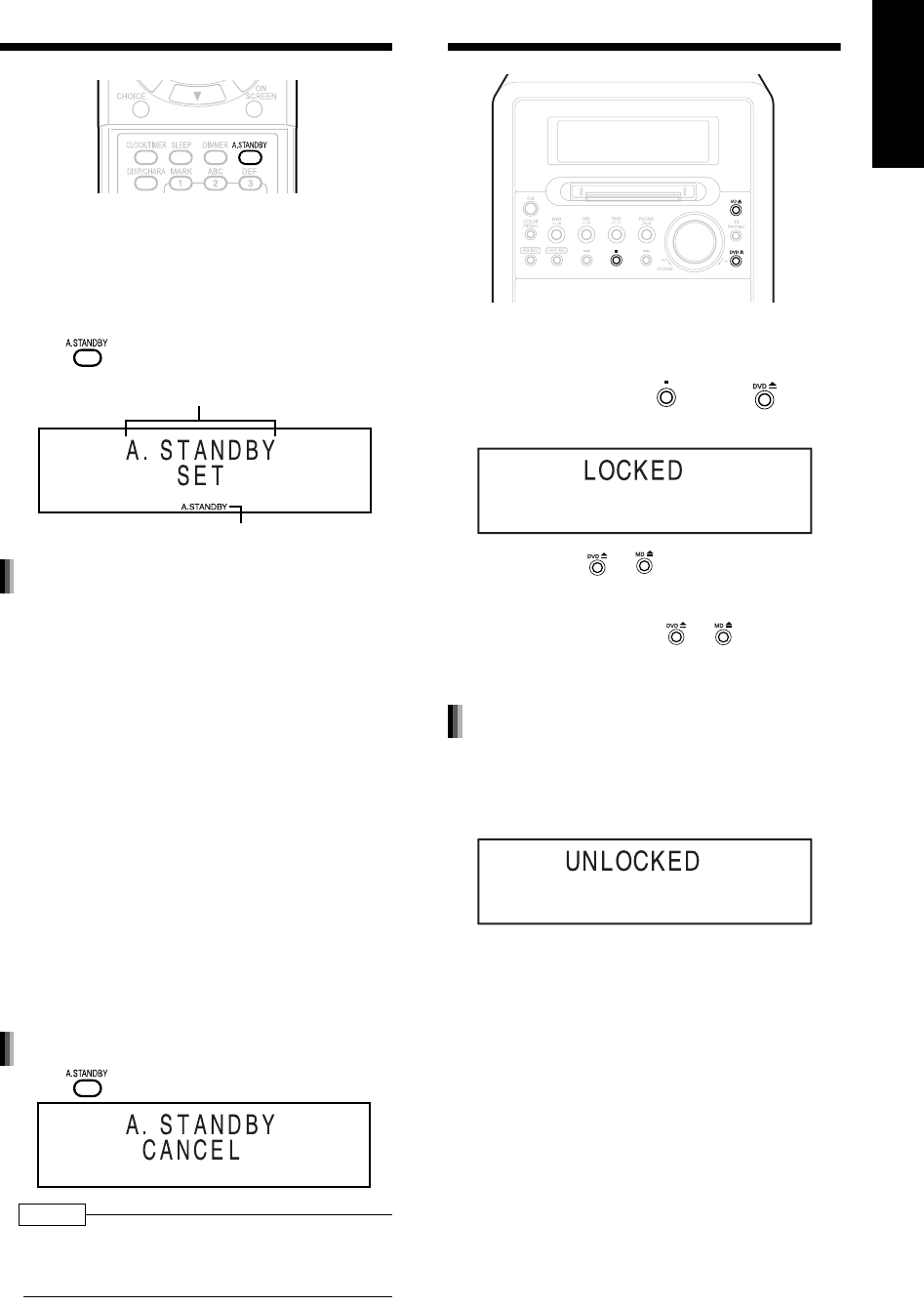
72
English Convenient Functions English
Auto Standby
If no sound is produced for 3 minutes when a
sound source other than the FM/AM radio is
selected, the main unit automatically turns off.
■When a sound source other than the FM/
AM radio is selected
Press .
While a disc, MD, or cassette tape is being
played back or recorded:
When playback or recording finishes, auto standby
starts the countdown (the "A. STANDBY" indicator
flashes). When no operation is carried out within 3
minutes, the main unit automatically turns off.
When you start playback or recording within 3 min-
utes, auto standby starts the countdown again
after playback or recording finishes.
When an operation other than playback and record-
ing finishes and no operation is carried out within 3
minutes, the main unit automatically turns off.
While you are listening to sound from other
equipment:
When no sound is produced, auto standby starts
the countdown (the "A. STANDBY" indicator
flashes). When no operation is carried out within 3
minutes, the main unit automatically turns off.
"A. STANDBY OFF" indicator starts to flash 20
seconds before the main unit is to turn off.
Press once again.
NOTE
• Leaving the volume at "0" is not the same as produc-
ing no sound, and therefore does not start the auto
standby function.
Disc/MD Ejection Lock
You can prohibit ejection of a disc and MD.
■When the main unit is turned off
While holding down , press on
the main unit.
Even if you press or , "LOCKED" appears in
the display window and the disc or MD does not
come out.
In addition, when you press or , while the
main unit is turned off, "LOCKED" appears in the
display window and the main unit does not turn on.
■When the main unit is turned off
Carry out the operation explained above once
again.
"A. STANDBY" stands for "Auto Standby".
Auto standby indicator
Auto standby performance
Canceling auto standby
Canceling the disc/MD ejection lock
UX-QD7[UB].book 72 ページ 2004年9月3日 金曜日 午後2時43分
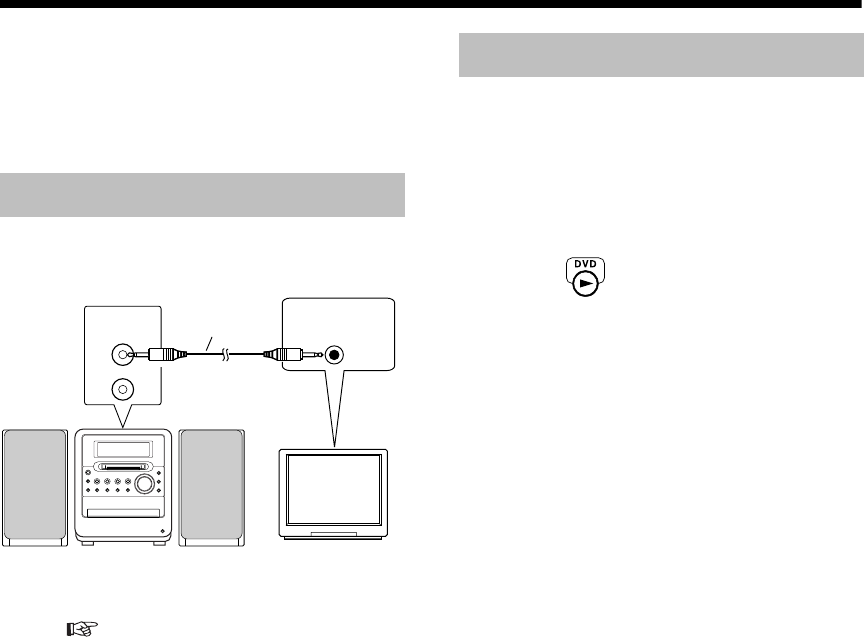
Introduction
73
Using AV COMPU LINK
The JVC AV COMPU LINK system allows you to
enjoy video or audio with the simplest operation. If
your JVC TV set supports the JVC AV COMPU
LINK system, simply starting the main unit will
automatically make all necessary settings on the
TV to allow you to enjoy the playback.
• Carefully read manuals of equipment to be
connected.
Set the main unit's AV COMPU LINK MODE
setting ( page 40) as follows.
• When connecting to the VIDEO-1 input terminal
of the TV: DVD 2
• When connecting to the VIDEO-2 input terminal
of the TV: DVD 3
• When connecting to the VIDEO-3 input terminal
of the TV: DVD 1
You can enjoy sound or video simply by starting
playback on the main unit. You do not have to
select the input setting for the TV, or turn on the TV
beforehand.
1Turn on the main power to the TV.
2Insert a disc into the main unit.
3Press on the main unit.
The following operation is performed
automatically.
• The TV set will be turned on.
• TV input will be switched to external input
(Video 1, 2 or 3) of the main unit.
When you turn off the main unit, power to the
TV is not turned off.
Connection and Setting
AV
COMPU LINK
Audio cord with
monaural mini-
plugs
(not supplied)
AV COMPU
LINK -II or -III
Main unit JVC-made TV set
Operations
UX-QD7[UB]-05.fm 73 ページ 2004年9月16日 木曜日 午後1時50分
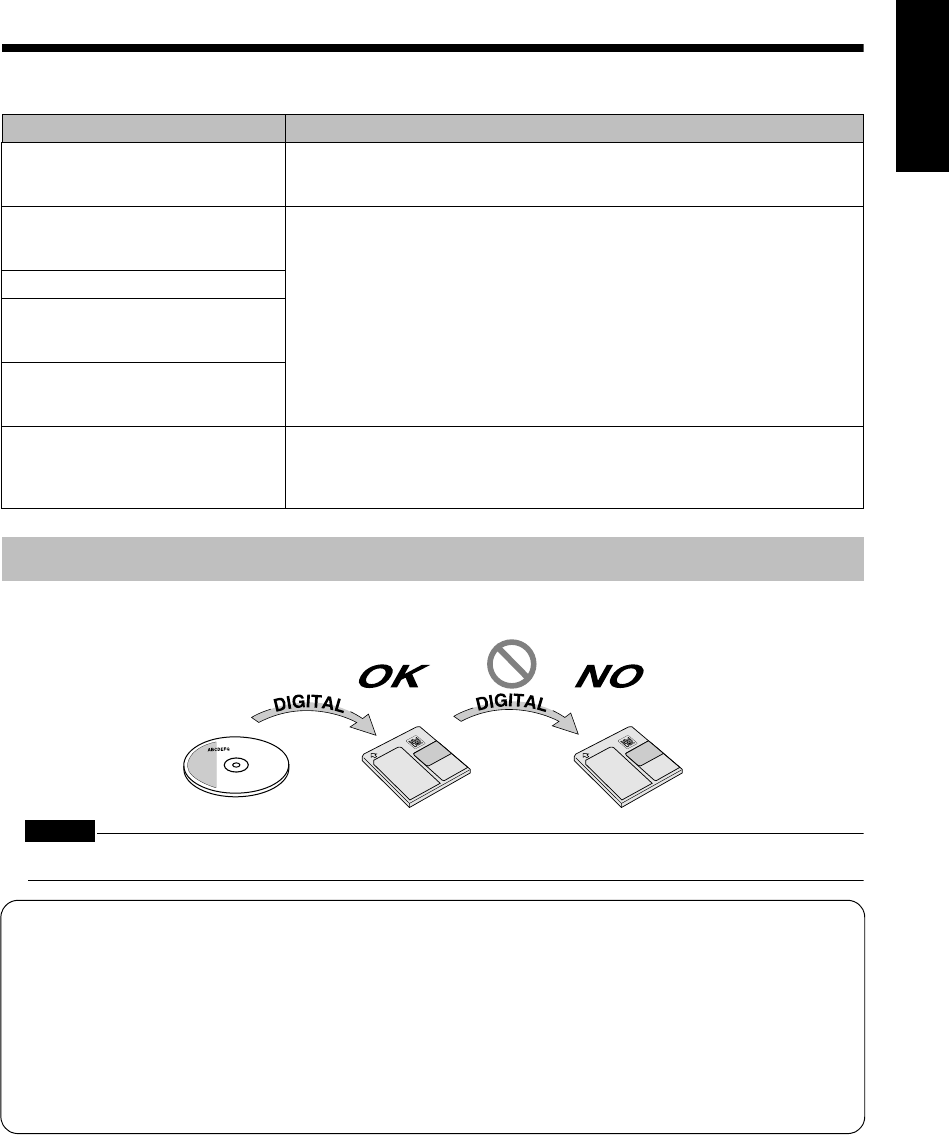
74
English Convenient Functions/Reference English
Convenient Fu nctions/Reference
Restrictions on MDs
Because the MD recording method has some restrictions, the following phenomena may occur. The phenom-
ena are not a malfunction of this product.
The Serial Copy Management System protects copyright and allows only first-generation digital copies from
the digitally recordable source.
CAUTION
• The SCMS does not permit you to record sound from a digitally recorded MD to other media as digital sound.
High Speed Copy Management System (HCMS)
You can record sound to an MD at a higher speed than normal recording. Therefore, restrictions are
required in order to protect copyright.
When you use this product to record a track of a CD with the high speed recording function, this
product does not then permit you to use the high speed recording function to record the same track of
the CD to an MD within 74 minutes of the start of the first recording.
For instance, when you record the track 1 of a CD to an MD with the high speed recording function,
you cannot record the track 1 again to an MD with the high speed recording function for 74 minutes
after the first high speed recording started. In addition, you cannot record 101 or more tracks within 74
minutes with the high speed recording function.
Phenomenon Possible cause
"DISC FULL" appears even though
recordable time as printed on the MD
remains.
Regardless of remaining recordable time, MDs have a limit on the number of
recordable tracks. You cannot record 255 or more tracks to an MD. (You can
record up to 254 tracks to an MD.)
"DISC FULL" appears even though
the track numbers and recordable
time have not reached the limit.
Repeated partial erasure and recording creates many blanks on an MD.
When you record a track to such an MD, the track is split up and a small portion
of the track is recorded into each blank.
When the number of such split portions increases, "DISC FULL" may appear.
When a split portion is 8 or less seconds (in SP mode (the standard stereo
recording mode)), you cannot join the track with another track.
In addition, when you erase such portions, remaining recordable time does not
increase.
With a track split into many portions, fast forward or fast reverse may produce
intermittent sound dropouts.
You cannot join tracks that have different MDLP modes (SP/LP2/LP4).
You cannot join tracks or groups.
The remaining recordable time does
not increase even after you have
erased some tracks.
Sound drops out intermittently during
fast forward or fast reverse.
Recorded time plus remaining time is
shorter than the total recordable time
printed on the MD.
MD recording is possible only when there is a blank of consecutive 12 or more
seconds (in SP mode) on the MD. Actual recording time is shortened on an MD
that contains many blanks.
Serial Copy Management System (SCMS)
UX-QD7[UB].book 74 ページ 2004年9月3日 金曜日 午後2時43分
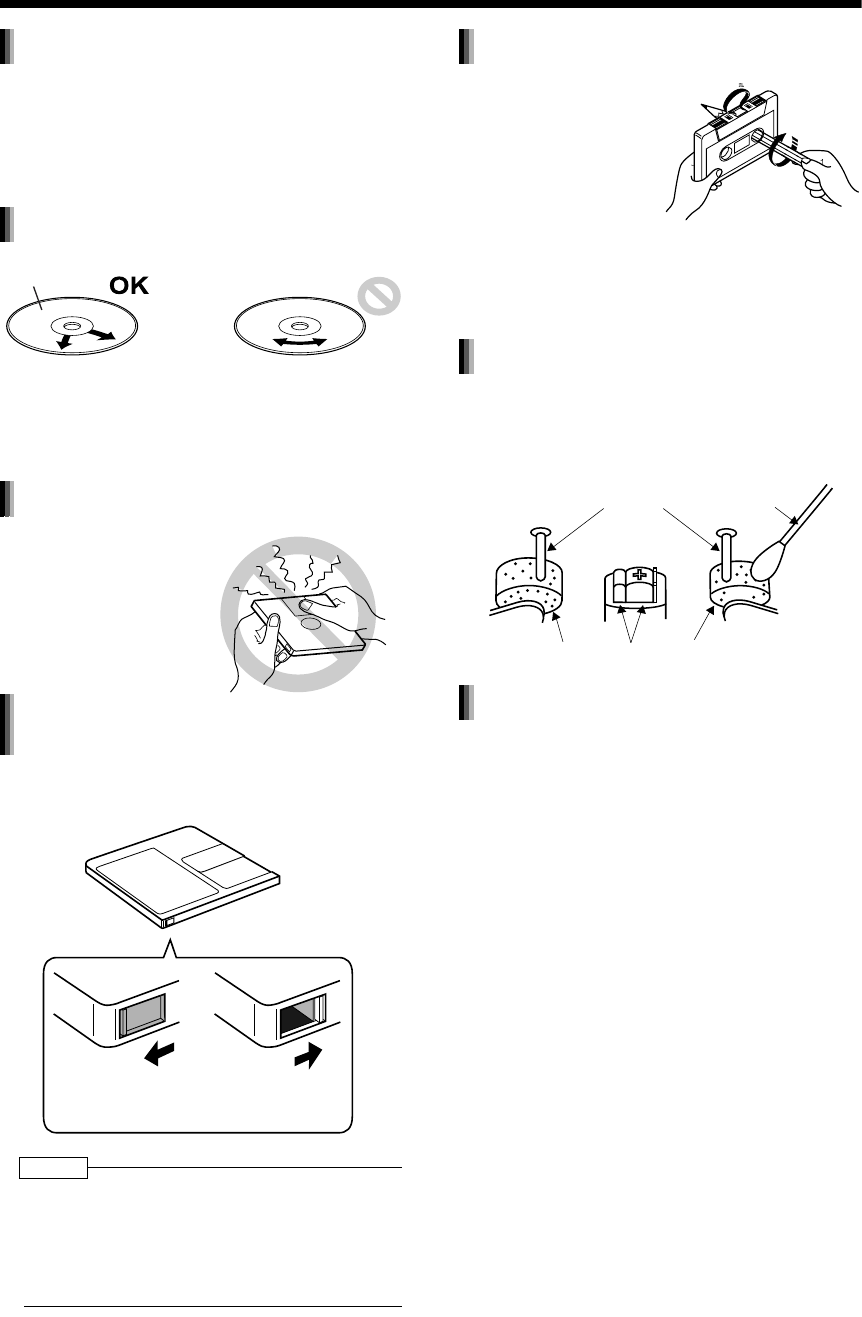
Introduction
75
Handling Discs/MDs/Cassette Tapes
• Do not put adhesive tape or stickers, or write on
a disc.
• Do not bend a disc.
• Be sure not to use heart/flower shaped discs or
other irregularly shaped discs. The use of such
discs damages the main unit.
• Be sure not to use thinners, benzenes, cleaners
for analog records, or other chemical agents.
• A write protect knob is attached to an MD for
preventing accidental erasure of recorded
sound.
NOTE
• Do not put labels such as those indicating CD/track
titles or other notes on any part of an MD other than
the specified position. If you insert an MD with a
label extending beyond the specified area, a label
that is peeling off, or any other improperly attached
label, it may damage the main unit.
• Clean the head, pinch rollers and capstans
approximately every 10 hours of playback time
before the volume falls or sound quality
deteriorates
• Gently dust the cabinet surface with a soft dry
cloth. When the cabinet is very dirty, dampen the
cloth with a neutral detergent diluted with water,
wring out the cloth well, and then wipe the cabi-
net with the dampened cloth followed by a soft
dry cloth.
• Do not wipe the cabinet with thinners or ben-
zenes. Wiping it with these agents may cause
discoloration of the cabinet or removal of the
paint. Do not spray insecticides or other highly
volatile agents onto the cabinet. Do not leave
pieces of rubber or plastic on the cabinet for a
long period.
Handling discs
Cleaning discs
Signal surface
Wipe a disc from the
center outward with a
soft cloth.
Scratches concentrated
on a certain part cause
sound dropout.
Handling MDs
• Do not open the shut-
ter. Forcibly opening
the shutter will break
the MD.
Preventing the loss of important
recorded sound
Write protect knob
Close the write
protect knob before
recording or editing.
Open the write
protect knob to avoid
erasing sound.
Handling cassette tapes
• A slack tape may become
caught in the inner part of
the main unit and dam-
age the main unit.
Before using a cas-
sette tape, wind up
any slack in the cas-
sette tape as shown
on the right. Do not pull out the tape
or touch the tape's surface.
Cleaning the tape deck head
Capstans
Cotton-tipped
swab moistened
with alcohol
Pinch roller Head Pinch roller
Cleaning the main unit cabinet
UX-QD7[UB].book 75 ページ 2004年9月3日 金曜日 午後2時43分
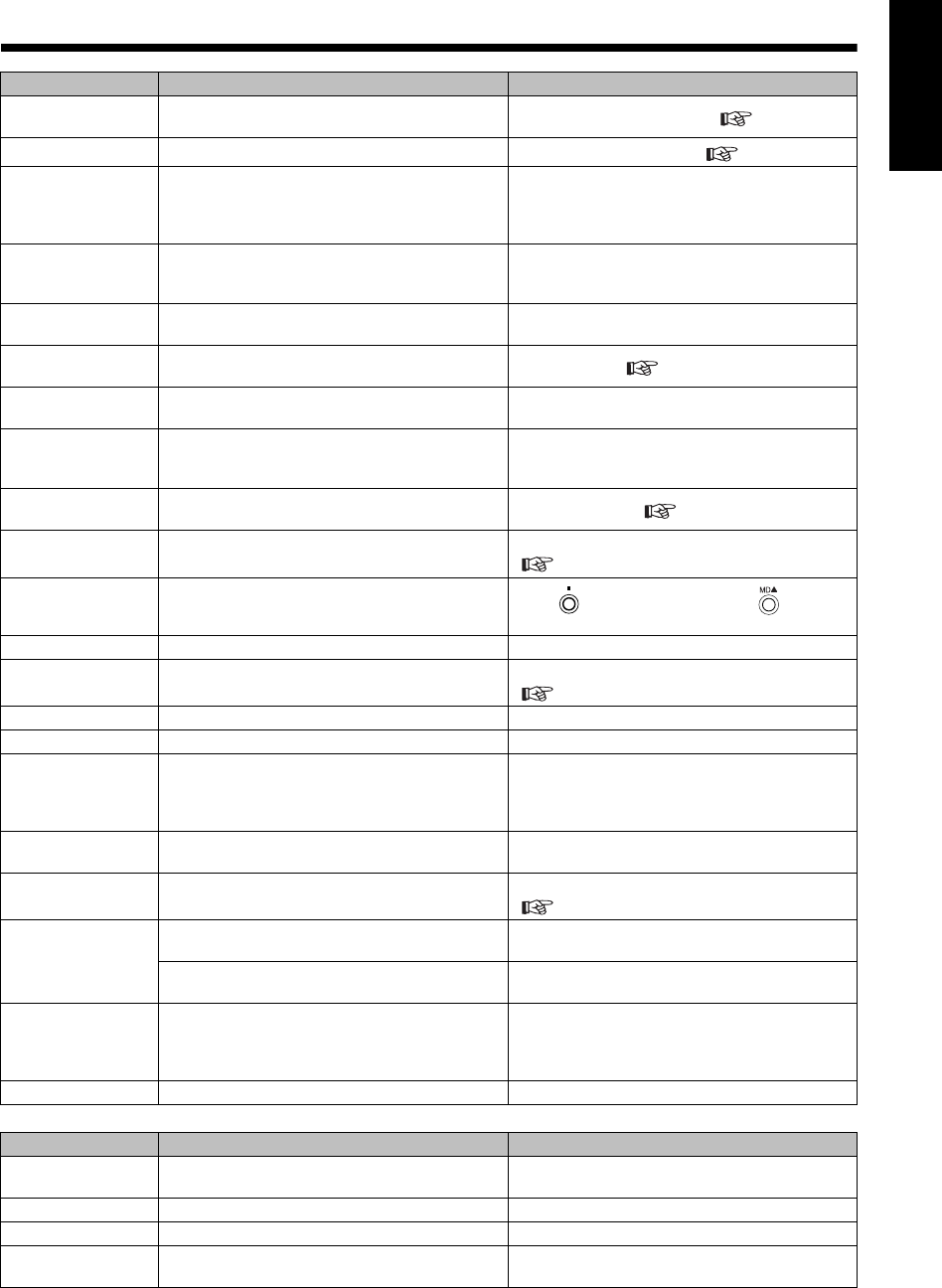
76
English Reference English
Reference
MD/Disc Messages
MD message Meaning Possible solution
CANNOT ENTRY! The track has already been in the selected
group. Select an appropriate track. ( page 64)
CANNOT FORM! There is a group between the selected tracks. Select appropriate tracks. ( page 63)
CANNOT GROUP!
There is no space for storing more group
information.
(Group information is stored in the same area
as title information.)
You cannot form a group any more on the MD.
(Erase the disc or track titles you do not need.)
CANNOT JOIN
You are trying to join tracks that have different
MDLP modes (SP/LP2/LP4), or tracks of only 8
or less seconds (in SP mode).
The MD system restricts such operation.
CANNOT LISTEN You are trying to adjust the volume during high
speed recording.
You cannot listen to sound from a CD during
high speed recording.
CANNOT REC You are trying to operate one-track-recording
with a VCD or SVCD during PBC playback. Set PBC to off ( page 24).
CANNOT TITLE You are trying to enter a total of 1 793 or more
characters to an MD. You cannot enter more titles.
READ ERROR The main unit cannot read the MD.
Turn off the main unit. If the same message
appears again, the MD may be damaged.
Replace the MD.
DISC FULL There is no more space in the MD, or you are
trying to record 255 or more tracks. Replace the MD. ( page 74).
DISC PROTECTED The MD is write-protected. Close the write protect knob on the MD.
( page 75).
EMERGENCY
STOP A malfunction occurred during recording. Press to quit recording, press to eject
the MD, and then start recording again.
GROUP FULL You are trying to form 100 or more groups. You can form up to 99 groups.
GROUP TRACK You are trying to form a group with a track
already belonging to another group.
Select tracks that do not belong to any groups.
( page 63)
LOAD ERROR The MD is not properly loaded. Insert the MD properly.
MD NO DISC No MD is loaded. –
NON-AUDIO
CANNOT COPY
You are trying to record digital sound other than
linear PCM from the connected equipment to an
MD.
Set digital output to linear PCM on the
connected digital equipment. (Refer to the
instruction manual for the connected equipment
for details.)
PLAYBACK DISC You are trying to edit or record to an MD which
is designed only for playback. Replace the MD with a recordable MD.
SCMS CANNOT
COPY
You are trying to make a digital audio duplica-
tion of a CD-R or CD-RW.
Operate analog recording at normal speed.
( page 53)
TRACK
PROTECTED
You are trying to divide, join, or erase tracks
which are recorded in the Net MD format.
Edit the tracks on equipment compatible with
Net MD.
The tracks are write-protected by equipment
other than this product.
Edit the tracks with the equipment on which the
tracks were recorded.
HCMS CANNOT
COPY
You are trying to record a track with the high
speed recording function within 74 minutes of
starting to record the same track with the high
speed recording function.
Wait 74 minutes, or change from high speed
recording to normal speed recording.
BLANK DISC There are no tracks in the MD. –
Disc message Meaning Possible solution
CANNOT PLAY You are trying to play back an unplayable disc or
a disc that has many scratches. Replace the disc.
NO DISC No disc is loaded. –
NO AUDIO The disc may be an illegally copied disc. You cannot listen to the disc.
LR ONLY You are playing back a multi-channel track for
which down-mix is prohibited. This is normal operation.
UX-QD7[UB]-05.fm 76 ページ 2004年9月6日 月曜日 午後5時49分
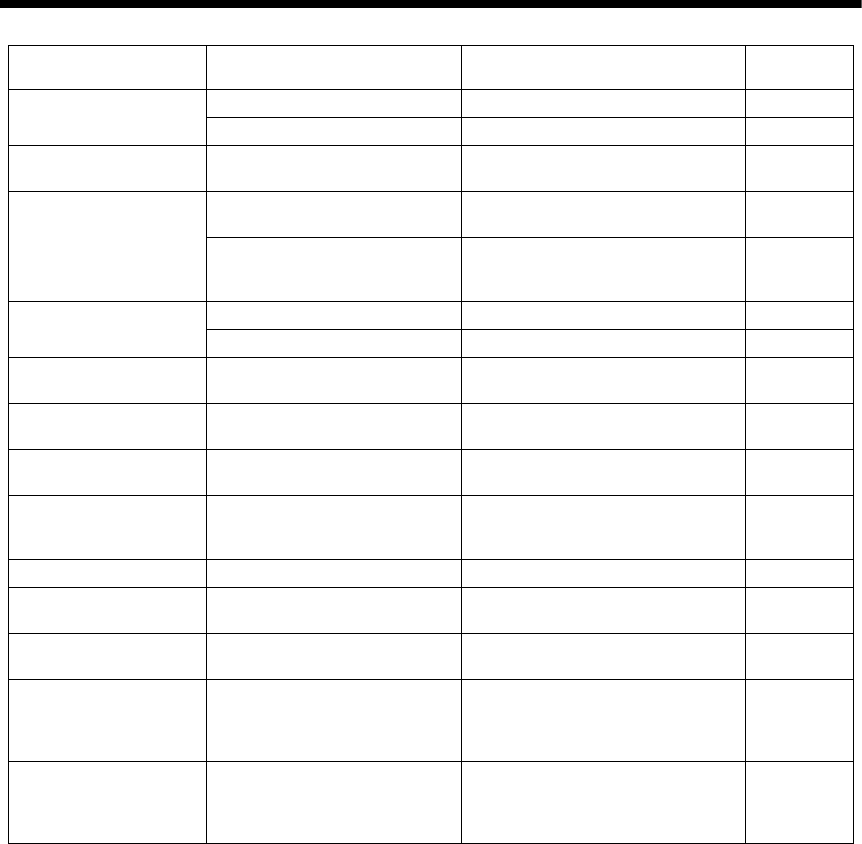
Introduction
77
Troubleshooting
●If this product does not function properly even after you have implemented the possible
solutions given above
Many functions of this product are implemented by microcomputers. If malfunction is caused by
thunder or static electricity, or the main unit does not function properly even when you press a
button, disconnect the power plug from the AC outlet, wait for a while, and then connect this
product again. Then reset the clock.
Problem Possible cause Possible solution Reference
page
No sound/video is
produced.
Improper connection. Connect all cords properly. 11
Headphones are connected. Disconnect the headphone plug. 8
The clock display is
flashing.
A power failure occurred or the
power plug was disconnected. Reset the clock. 17
Disc playback does not
start.
The disc is upside down. Place the disc on the disc tray with
the letter-printed surface facing up. 22
Moisture has condensed on the
lens.
Leave the main unit turned on, wait
for approximately 1 or 2 hours, and
then operate the main unit.
3
A certain point cannot be
played back properly.
The disc is scratched or dirty. Clean or replace the disc. 75
An error occurred on the MD. Record to the MD again. 51
The volume of cassette
tape playback is low. The head or capstans are dirty. Clean the head or capstans. 75
You cannot record an
MD/cassette tape.
The MD/cassette tape is write-
protected. Cancel the write-protection. 55, 75
A radio broadcast cannot
be received. No antenna is connected. Connect an antenna. 11
A whirring noise is
produced.
The main unit is located close to a
TV, computer, or other electric
appliance.
Place the main unit away from a TV,
computer, or other electric appliance. 3
You cannot set the timer. You did not set the clock. Set the clock. 17
The timer does not work. The main unit is turned on. After setting the timer, turn off the
main unit. 69, 71
You cannot operate the
remote control.
The remote control batteries are
running low.
Replace the batteries with new
batteries. 9
You cannot operate the
main unit with the number
buttons on the remote
control.
The remote control mode selector
on the remote control is set to TV.
Set the remote control mode selector
to AUDIO. 17
When you turn on the
main unit, a noise comes
out from the rear of the
main unit.
The internal cooling fan produces
the noise as it rotates.
The noise is not a malfunction. This is
to prevent excessive heat. 13, 18
UX-QD7[UB]-05.fm 77 ページ 2004年9月6日 月曜日 午後5時49分
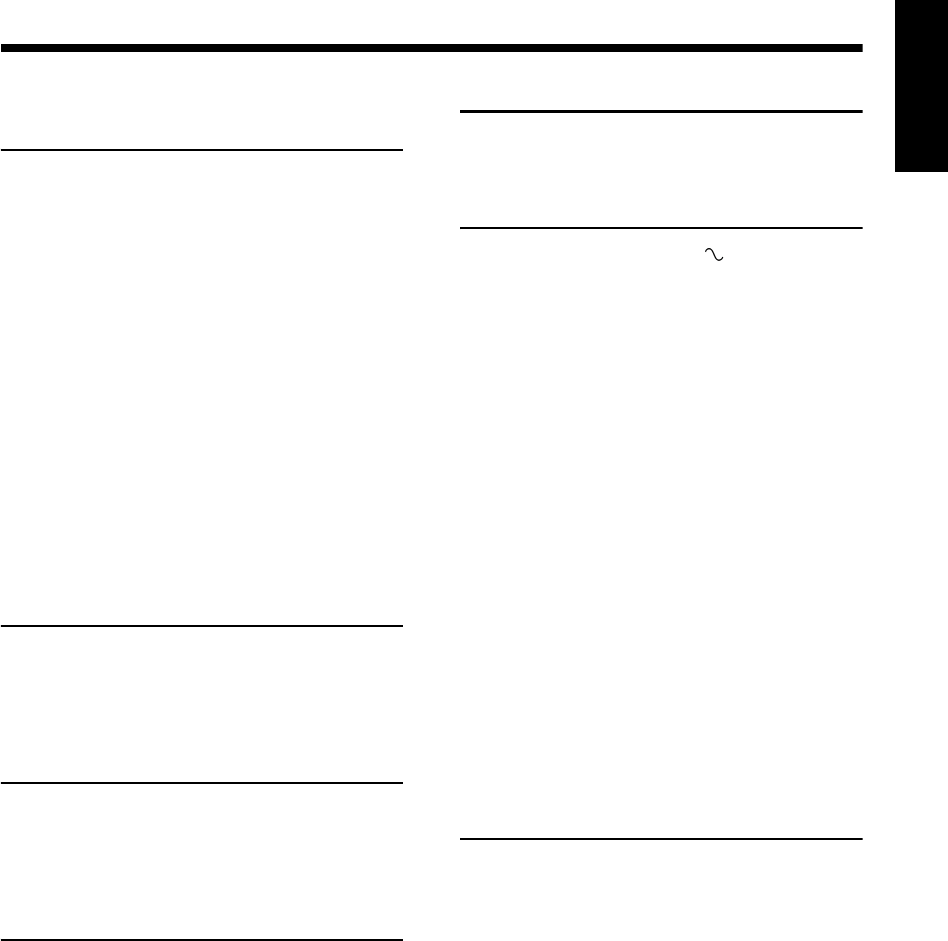
78
English Reference English
Specifications
■MD/DVD receiver (CA-UXQD7)
Amplifier
Output power 20 W + 20 W at 4
Ω
(10% THD)
Input terminals
<Analog> AUX×1,
500 mV/47 k
Ω
:LEVEL1
250 mV/47 k
Ω
:LEVEL2
<Digital> Digital optical input × 1
-23 dBm to -15 dBm
(Optical square terminal)
(Compatible with frequency of
32 kHz, 44.1 kHz and
48 kHz)
Output terminals
<Analog> Speaker×1, 20 W/4
Ω
Impedance 4
Ω
- 16
Ω
Headphone (×1), 25 mW/32
Ω
Impedance 16
Ω
- 1 k
Ω
<Digital> DVD/CD optical input × 1
-23 dBm to -15 dBm
(Optical square terminal)
<Other> AV COMPU LINK × 2 (
φ
3.5)
Tuner
Frequency FM:87.50 MHz - 108.00 MHz
AM:531 kHz - 1 710 kHz
(9 kHz spacing)
530 kHz - 1 710 kHz
(10 kHz spacing)
DVD player
Playable discs DVD VIDEO, DVD AUDIO,
CD, VCD, SVCD, CD-R/CD-
RW (CD, VCD, SVCD, MP3/
WMA/JPEG format), DVD-R/
DVD-RW (video format)
MD recorder
Audio playing MiniDisc digital audio system
system
Recording system Magneto-optical overwrite
system
Reading system Non-contact, semiconductor
laser pickup
Recording/Playback time (when using an 80-minute MD)
SP: 80 minutes
LP2: 160 minutes
LP4: 320 minutes
Sampling frequency 44.1 kHz
Audio compression ATRAC (Adaptive TRansform
system Acoustic Coding)/ATRAC3
(MDLP)
Cassette deck
Frequency response
Normal (type I) 60 Hz - 14 000 Hz
Wow and flutter 0.15% (WRMS)
General
Power source AC 220 V , 50 Hz
Power consumption 70 W (at operation)
1.3 W (on standby)
Dimensions 165 mm (W) × 200 mm (H)
× 355 mm (D)
Mass (approx.) 5.1 kg
■Speaker (SP-UXQD6)
System 3-way bass reflex type,
Magnetically shielded type
Speakers Woofer: 10 cm × 1
Midrange: 4 cm × 1
Tweeter: 1.5 cm × 1
Power handling 20 W
capacity
Impedance 4
Ω
Frequency range 58 Hz - 40 kHz
Sound pressure 85 dB/W•m
level
Dimensions 135 mm (W) × 200.5 mm (H)
× 211.5 mm (D)
Mass (approx.) 2.0 kg
(1 unit)
■Micro component MD system
(UX-QD7)
General
Dimensions 435 mm (W) × 200.5 mm (H)
× 355 mm (D)
Mass (approx.) 9.1 kg
• U.S. and foreign patents licensed from Dolby
Laboratories.
UX-QD7[UB]-05.fm 78 ページ 2004年9月24日 金曜日 午後2時52分
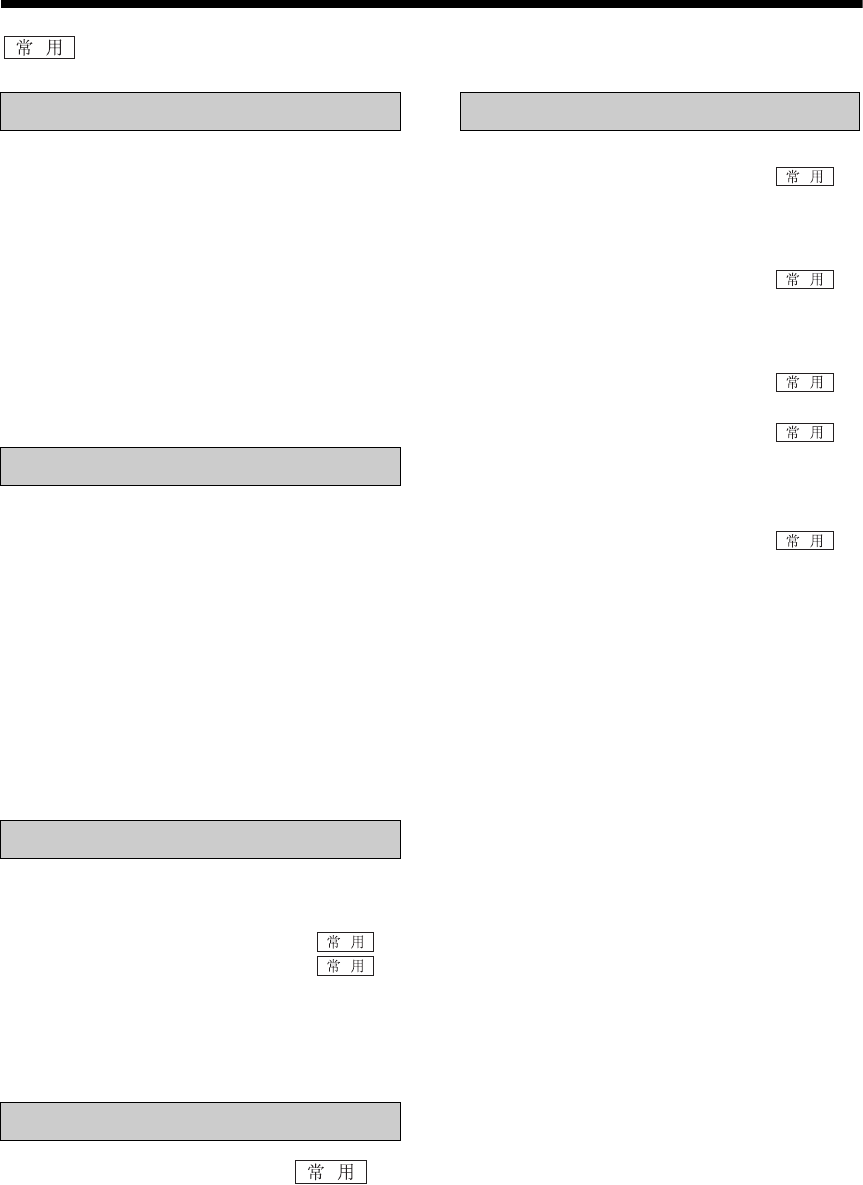
简介
1
目录
标记表示经常使用的操作。仅需阅读这些部分即可快速掌握本产品的常规使用。
操作须知 ............................................... 3
本机的适当放置................................................... 3
结露..................................................................... 3
清洁本机 ............................................................. 3
聆听规则 ............................................................. 3
可供播放的光盘类型 ........................................... 4
光盘结构 ............................................................. 5
选择彩色制式 ...................................................... 6
特别注意事项 ........................................ 7
使用须知 ............................................................. 7
随机附件 ............................................................. 7
部件说明 ............................................... 8
遥控器................................................... 9
将电池插入遥控器............................................... 9
使用遥控器操作电视机...................................... 10
连接 .................................................... 11
连接天线 ........................................................... 11
连接扬声器........................................................ 13
连接其他设备 .................................................... 14
连接电视机........................................................ 15
需要更为清晰的图像时...................................... 15
连接电源插头 .................................................... 16
基本操作 ............................................. 17
设置时钟 ........................................................... 17
打开 / 关闭本机.................................. 18
调节音量 ........................................... 18
暂时关闭声音 (FADE MUTING)......................... 18
增强重低音 (AHB PRO)..................................... 18
调节音质 ........................................................... 18
更改显示器窗口和光盘托架的颜色图案............. 19
聆听广播........................................ 20
设置 AM 调谐器间隔 ......................................... 20
选择电台 ........................................................... 20
保存电台 (预设)............................................. 21
调到预设电台 .................................................... 21
更改显示器窗口中的显示 .................................. 21
DVD 播放机的基本操作 .......................22
播放 .................................................. 22
更改显示器窗口中的显示...................................24
播放从 10 秒之前的位置开始
(单触重播)..................................................24
停止播放 ........................................... 25
继续播放 (RESUME) ..........................................25
暂停播放 ............................................................25
逐帧播放图像.....................................................25
快倒 /快进搜索 .................................. 25
慢动作播放.........................................................26
跳到曲目的开始位置 .......................... 26
使用数字键跳到曲目的开始位置 ........................26
从菜单屏幕选择曲目 ..........................................26
DVD 播放机的易用功能 .......................27
选择音频 ........................................... 27
选择字幕 ............................................................28
选择视角 ............................................................28
放大图像 (ZOOM ) .............................................28
调节图像质量 (VFP) ...........................................29
创建真实声音 (3D PHONIC) ..............................29
调节播放电平 (DVD LEVEL)...............................30
欣赏更好的图像 (PROGRESSIVE) .....................30
播放赠送群组.....................................................31
可浏览的静止图像 (B.S.P.) .................................31
按想要的顺序播放光盘
(编程播放)..................................................32
随机播放 ............................................................33
重复播放 ............................................................34
状态条和菜单条 ...................................35
使用状态条和菜单条 ..........................................35
重复播放指定的部分 (A-B 重复播放)..............36
指定时间 (时间搜索).......................................36
播放 MP3/WMA 和 JPEG 光盘.............37
播放 ...................................................................37
重复播放 ............................................................38
个人偏好 ..............................................39
基本操作 ............................................................39
语言 ...................................................................39
图像 ...................................................................39
音频 ...................................................................40
其他 ...................................................................40
国家 /地区代码 ....................................41
语言代码 ..............................................42
简介
准备
基本操作
聆听广播
聆听光盘
UX-QD7[UB]TOC.fm Page 1 Monday, September 27, 2004 12:58 PM
中
文
2
简
介
聆听磁带........................................ 43
更改显示器窗口中的显示 .................................. 44
聆听其他设备 ...................................... 45
调节其他设备的声音输入电平........................... 45
更改显示器窗口中的显示 .................................. 45
聆听 MD.............................................. 46
聆听 MD ............................................ 46
更改显示器窗口中的显示 .................................. 47
指定曲目 (直接选择曲目)............................... 47
MD 的群组播放 ................................................. 47
编程播放 ........................................................... 48
随机播放 ........................................................... 48
重复播放 ........................................................... 49
搜索标题 ........................................................... 49
将声音录制到 MD ...................... 51
将光盘上的所有曲目录制到 MD........................ 51
退出录制 ........................................................... 52
仅录制光盘的单首曲目...................................... 52
录制光盘的第 2 首或随后的曲目
到最后一首曲目............................................ 52
光盘的编程录制................................................. 52
MD 录制须知..................................................... 53
录制电台、磁带或其他设备的声音.................... 53
退出录制 ........................................................... 54
将声音录制到磁带 ...................... 55
退出录制 ........................................................... 56
仅录制光盘或 MD 的单首曲目........................... 56
录制光盘或 MD 的第 2 首或随后的曲目
到最后一首曲目............................................ 56
光盘或 MD 的编程录制 ..................................... 56
曲目之间不带空白时间的录制........................... 56
删除磁带录制的声音 ......................................... 56
添加 (编辑)标题.............................. 58
编辑须知 ........................................................... 58
添加 (编辑)标题 ............................................ 58
输入标题 ............................................................59
可用的字符.........................................................59
编辑曲目 ..............................................60
将单首曲目分割为两首曲目 (DIVIDE) ................60
合并曲目 (JOIN).................................................61
移动曲目 (MOVE)...............................................61
删除单首曲目 (ERASE)....................... 62
删除所有曲目 (ALL ERASE)................ 62
按群组编辑曲目 ...................................63
制作群组 (FORM GR) ........................................63
将曲目添加到群组 (ENTRY GR) .........................64
将单个群组分割为两个群组 (DIVIDE GR) ..........64
合并群组 (JOIN GR) ..........................................65
移动群组 (MOVE GR) ........................................65
取消群组
(UNGROUP/UNGR ALL)...............................66
删除群组 (ERASE GR) .......................................67
使用定时器 ..........................................68
睡眠定时器.........................................................68
录制定时器.........................................................68
播放定时器.........................................................70
自动待机 ..............................................72
光盘 /MD 弹出锁定 ..............................72
使用 AV 电脑连动 ................................73
连接和设置.........................................................73
操作 ...................................................................73
有关 MD 的限制...................................74
连续复制管理系统 (SCMS) ................................74
使用光盘 /MD/ 磁带 .............................75
MD/ 光盘讯息.......................................76
故障排除 ..............................................77
规格 .....................................................78
聆听磁带
聆听其他设备
聆听 MD
录音
编辑 MD
易用功能
参考
UX-QD7[UB]TOC.fm Page 2 Friday, September 24, 2004 12:43 PM
简介
3
简介
操作须知
为减少维修并保持本产品的高品质,请勿将本机放
置于下列地方:
•高湿度或多尘的地方
•不平稳的表面
•靠近热源
•靠近电脑、荧光灯或其他电器
•通风不足的狭小房间
•阳光直射的地方
•极冷的地方
•强烈震动的地方
•靠近电视机、其他放大器或调谐器
•靠近磁源
注 意
•本产品的操作温度为 5°C 到 35°C。在该温度范围
之外使用可能导致本产品故障或损坏。
在下列情况下,由于本机的镜头上形成结露,可能
导致无法正确操作本产品:
•刚刚打开空调加热房间时
•将本机放置于高湿度地方时
•将本机从冷的地方搬到暖的地方时
结露形成时,请将本机电源打开,等待 1 至 2 小时,
然后操作本机。
操作面板变脏时,请使用柔软、干燥的布掸去灰尘。
操作面板非常脏时,请使用由少量中性洗涤剂润湿
的布擦拭操作面板,然后用柔软、干燥的布擦拭。
注 意
•请勿使用稀释剂、苯或其他化学试剂擦拭操作面
板。请勿将杀虫剂喷洒到操作面板上。否则,可能
导致褪色和表面的损坏。
使用耳机时,请将音量保持适当,避免过度刺激您
的耳朵。
■通过扬声器欣赏声音时,请将音量调节到合
适大小,避免打扰您的邻居。
即使低音量也会传得很远,尤其是在夜晚。
请关闭窗户或使用耳机,避免打扰您的邻
居。
本机的适当放置
结露
•经 Dolby Laboratories 授权制造。“Dolby”、“MLP Lossless”和 双 D 标志是 Dolby Laboratories 的商标。
•“DTS”和 “DTS 2.0+DIGITAL OUT”是 Digital Theater Systems, Inc. 的注册商标。
•本产品的防止拷贝技术属 Macrovision Corporation 和其他权利所有者所有,并受美国专利法和其他知识产
权保护法的保护。任何使用本技术的行为必须经过 Macrovision Corporation 批准,未经 Macrovision
Corporation 特别批准时,不可用于家用或其他私用之外的目的。使用本机时不可进行违规操作或分解。
清洁本机
聆听规则
UX-QD7[UB].book Page 3 Friday, September 10, 2004 10:56 AM
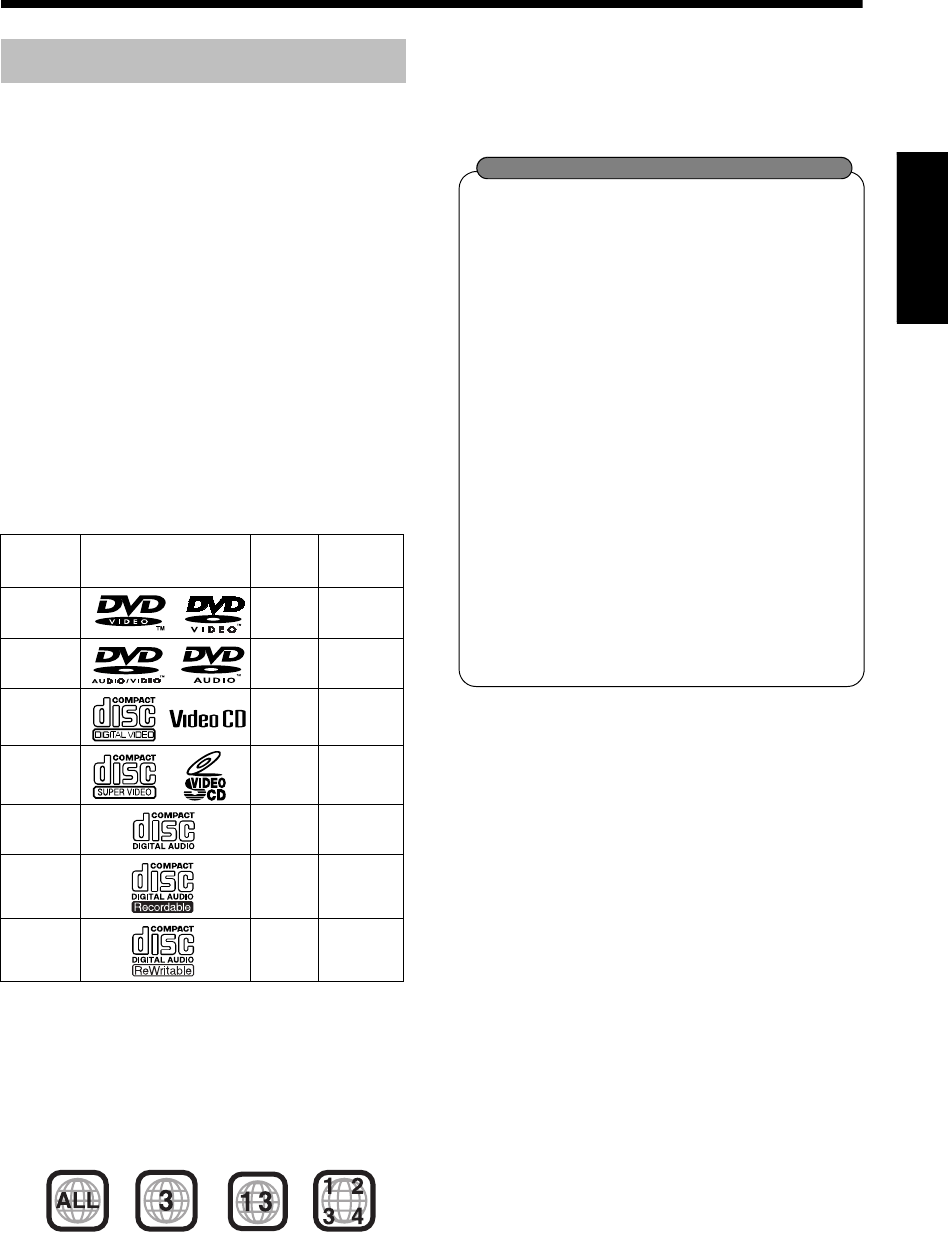
中
文
4
简
介
本产品设计用于播放下列光盘:
DVD 视频, DVD 音频, VCD, SVCD, CD
本产品也可播放下列光盘:
•以 DVD 视频格式终结录制的 DVD-R/RW 光盘。
•以下列格式录制的 CD-R/RW 光盘
- 音乐 CD (终结录制)
- VCD
- SVCD
- 依照 ISO 9660 标准录制的 MP3/WMA/JPEG 光盘
(有关详情,请参阅“有关 MP3/WMA/JPEG 光盘”)
但是,某些光盘因其特性、录制条件或光盘损坏、
染污而无法播放。
下列光盘只能播放声音:
MIX-MODE CD CD-G
CD-EXTRA CD TEXT
您可以播放的光盘:
DVD 图标是 DVD Format/Logo Licensing
Corporation 的商标。
*有关地区代码的说明
DVD 播放机和 DVD 视频光盘均有各自的地区代
码编号。本产品只能播放使用上述地区代码编号
和视频格式录制的 DVD 视频。
如果装载了地区代码编号不正确的 DVD 视频光
盘,“区域代码错误 !”会出现在电视机屏幕上,
并且无法播放光盘。
•对于某些 DVD 视频、DVD 音频、VCD 或 SVCD
光盘,它们实际的操作可能与本说明书中的说明
有所不同。这是由于光盘编程和结构的原因,并
非产品出现故障。
仅当光盘已经终结时,才可以播放 CD-R/
CD-RW。
•
可以播放以音频
CD
格式录制的
CD-R/CD-
RW
和录制视频数据
(MP3/WMA)
或静止图
像数据
(JPEG)
的
CD-R/CD-RW
。
但是,由于光盘特性、录制条件、光盘上的
擦伤或污垢、镜头上的污垢或结露等原因,
某些情况下可能无法播放。
•
使用
CD-R/CD-RW
之前,请仔细阅读有关
光盘的注意事项。
•
本产品不支持声音文件(如
MP3
)的 播 放 或
CD
文本显示。
•
在本产品上播放
CD-RW
时,如果
CD-RW
以其他音频
CD
格式录制,则请清除所有曲
目。使用未清除所有曲目的
CD-RW
时,可
能会由于突然的高音量导致扬声器或其他部
件损坏。
无法播放的光盘
•下列光盘无法播放:
DVD-ROM, DVD-RAM, DVD-RW (VR 格式录
制), CD-ROM, CD-I (CD-I Ready),相片 CD,
SACD 等。
播放这些光盘会产生噪声和损坏扬声器。
•损坏的光盘和特殊形状的光盘 (除直径为 12 cm
或 8 cm 的光盘外)无法播放。
•JVC 并不保证未经 CD-DA(一种 CD 规格)授权
的光盘的操作和音质。
播放之前,请检查标记和阅读包装上印刷的注意
事项确认光盘符合该 CD 规格。
可供播放的光盘类型
光盘类型 标记 (图标)
视频格式
DVD 视频 PAL/
NTSC 3/ALL
DVD 音频 ——
VCD PAL/
NTSC —
SVCD PAL/
NTSC —
CD — —
CD-R — —
CD-RW — —
地区代码
编号 *
例如:
关于 CD-R/CD-RW
UX-QD7[UB]-03.fm Page 4 Monday, September 27, 2004 11:49 AM
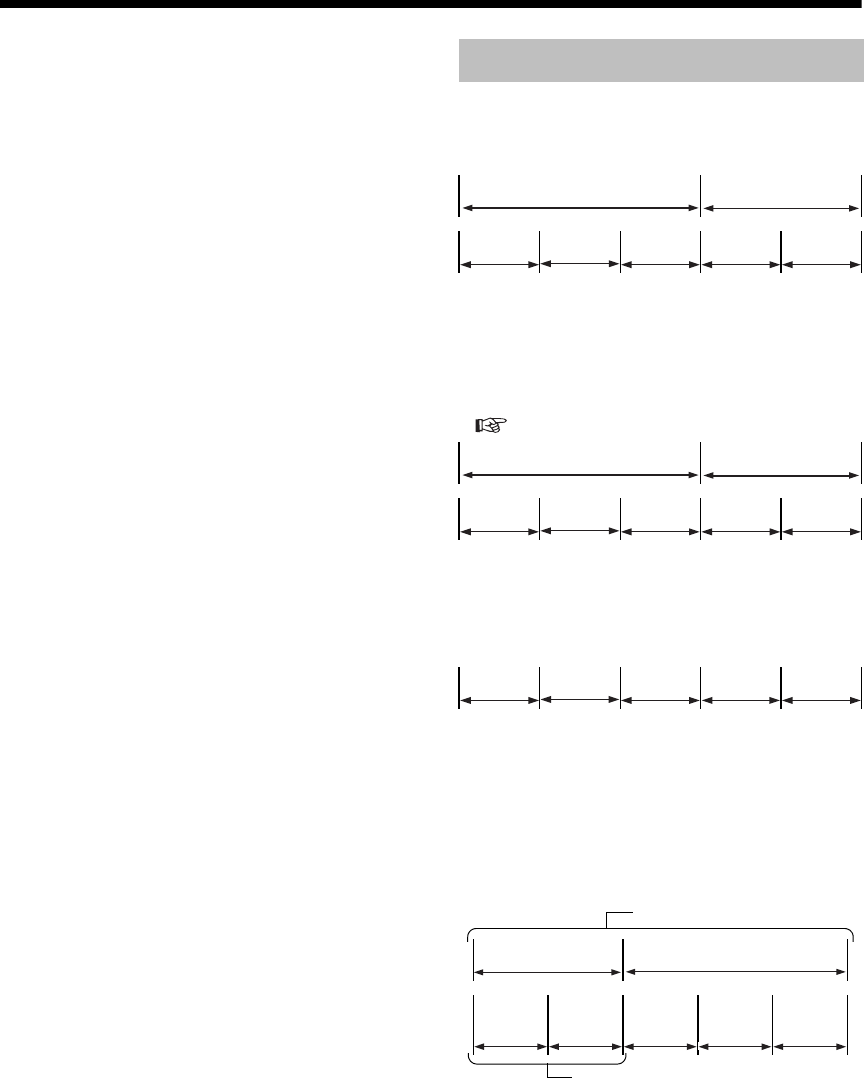
简介
5
(续)
操作须知
有关 MP3/WMA/JPEG 光盘
可播放的 MP3/WMA/JPEG 光盘和文件
•可播放 ISO 9660 格式录制的光盘(“包写入”格
式(UDF 格式)录制的光盘除外)。
•也可播放多重区段格式录制的光盘。
•可播放以 “.mp3”、“.wma” 、“.jpg” 或 “.jpeg” 扩
展名 (大小写字母混用也可)结尾的文件。
有关 MP3/WMA/JPEG 光盘和文件的说明
•光盘可能无法播放,或因录制条件或特性而需要
花较长时间读取。
•读取时间因录制在光盘上的群组数或曲目 (文
件)数而不同。
•如果在 MP3/WMA/JPEG 文件名中使用除单字节
英语字符之外的字符,曲目 / 文件名称将无法正
确显示。
•MP3/WMA 控制屏幕上显示的曲目/群组顺序以及
JPEG 控制屏幕上显示的文件/群组顺序可能与显
示在 PC 显示器屏幕上的文件 / 文件夹顺序不同。
•对于 MP3/WMA 光盘,由于群组/曲目以字母顺序
显示,当前 MP3/WMA 光盘的播放顺序可能与光
盘标签上指示的顺序不同。
•播放含有静止图像的 MP3/WMA 文件可能需要更
多的时间。消逝的时间从播放开始时显示。如果
播放开始,消逝的时间可能无法正确显示。
•对于 MP3/WMA 文件,推荐取样率为 44.1 kHz、
数据传输率为 128 kbps 的光盘。
•本产品不兼容 MP3i 或 MP3PRO。
•
本产品可以播放基线
JPEG
文件,不包括单色
JPEG
文件。
•本产品可以播放遵循 DCF (Design Rule for
Camera File System) 标准拍摄的 JPEG 数据(运
用诸如数码相机的自动翻转功能时,数据超出
DCF 标准,因而无法显示图像)。
•如果数据已经 PC 图像编辑软件处理、编辑和存
储,数据可能无法显示。
•本产品无法播放诸如 MOTION JPEG 的动画图
像、除 JPEG 以外的静止图像 (TIFF 等)和带有
声音的图像数据。
•推荐 JPEG 文件使用 640 × 480 像素的分辨率。
如果文件以超过 640 × 480 像素的分辨率录制,
显示可能花费较长的时间。超过 8 192 × 7 680
像素分辨率的图像无法显示。
•无法播放录制在 DVD-R/RW 光盘上的文件。
DVD 视频
DVD 视频光盘由“标题”组成并且每个标题可能分
为 “章节”。
DVD 音频
DVD 音频光盘由“群组”组成并且每个群组可能分
为 “曲目”。
某些光盘包含 “赠送群组” ,需要密码才能播放
(第 31 页)。
VCD/SVCD/CD
VCD、SVCD 和 CD 由 “曲目”组成。
一般来说,每个曲目均有各自的曲目号。(在有些光
盘上,每个曲目可能进一步分成若干个索引。)
MP3/WMA[JPEG] 光盘
在 MP3/WMA[JPEG] 光盘上,每张静止图像 (素
材)以曲目 [ 文件 ] 录制。曲目 [ 文件 ] 通常被组
合成一个文件夹。文件夹可包含其他文件夹,并产
生分层结构。
本机简化光盘分层结构并且以 “群组”的方式管理
文件夹。
本产品可以识别单张光盘最多
1 000
首曲目[文件]。
另外,本产品可以识别每个群组最多
150
首曲目[文
件 ] 以及每张光盘最多
99
个群组。由于本机忽略超
过
150
的曲目 [ 文件 ] 号和超过
99
的群组号,这些
曲目[文件]和群组无法播放。
•如果光盘中存在除 MP3/WMA[JPEG] 文件外的某
种类型的文件,这些曲目 [ 文件 ] 也将计入文件
总数。
光盘结构
标题 1标题 2
章节 1章节 2章节 3章节 1章节 2
群组 1群组 2
曲目 1曲目 2曲目 3曲目 1曲目 2
曲目 1曲目 2曲目 3曲目 4曲目 5
最多 99 个群组
最多 150 个文件
群组 1群组 2
曲目 1
[文件1]
曲目 2
[文件2]群组 3群组 4群组 5
UX-QD7[UB]-03.fm Page 5 Friday, September 24, 2004 2:12 PM
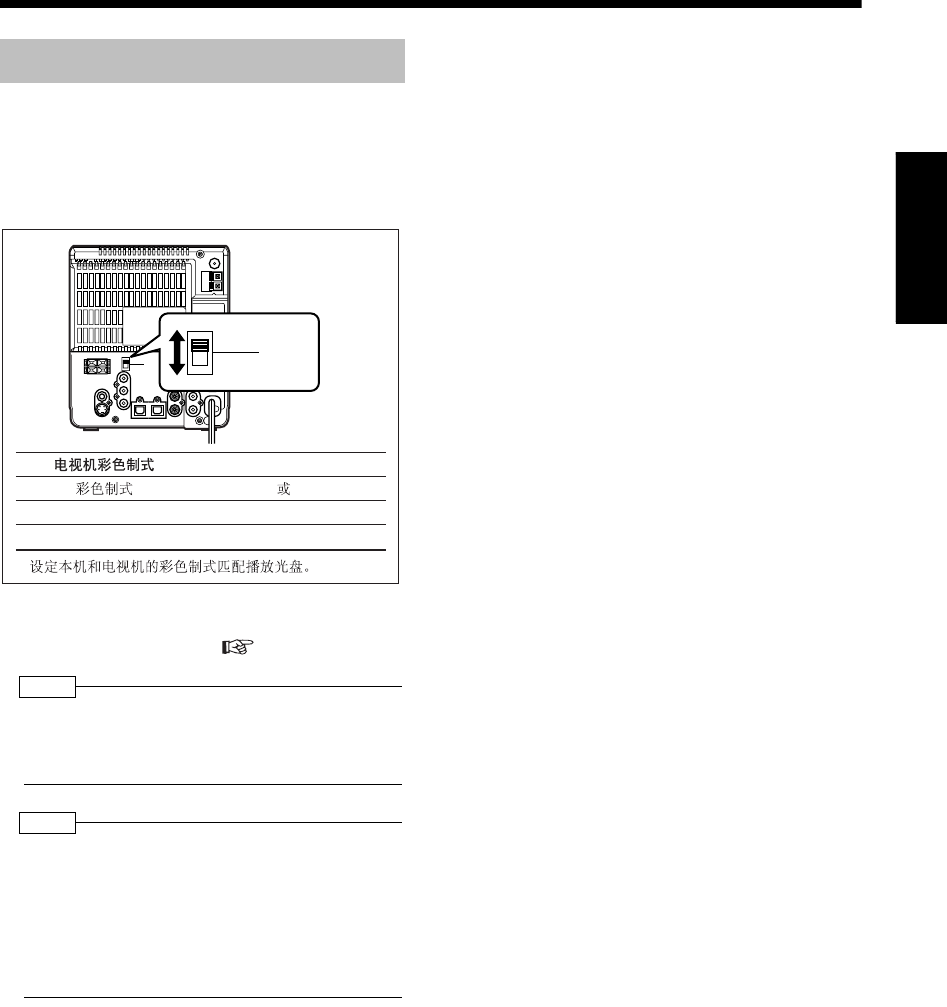
中
文
6
简
介
本产品兼容 PAL 和 NTSC 彩色制式。
待机模式时,选择 PAL 或 NTSC 匹配您的电视机。
如果在电源打开时对 VIDEO OUT SELECT 开关进
行了切换,请关闭电源,然后再次打开。
•播放光盘前,根据您电视机的宽高比在图像菜单
中选择正确的屏幕类型 ( 第 39 页)。
注
•
如果在该设置设为
“PAL” 时
播放
NTSC
光盘,虽然可
以观看播放的图像 (使用
“PAL 60”
制式再现该光
盘),但是,电视机屏幕快速向上和向下回滚。
注
•
如果在该设置设为
“NTSC” 时
播放
PAL
光盘,虽然可
以观看播放的图像,但是可能出现下列现象。
•光盘菜单上的项目变模糊,在高亮时显得有些移
位。
•图像的宽高比可能与原来的宽高比不同。
•图像移动不平滑。
选择彩色制式
VIDEOOUTSELECT
PALNTSC*
PA L PA L
NTSC NTSC
*
R
L
3
AV
COMPU
LINK
AUX
VIDEO
OUT
SELECT
PAL
NTSC
VIDEO
OUT
SELECT
PAL
NTSC
UX-QD7[UB]-03.fm Page 6 Friday, September 24, 2004 12:44 PM

简介
7
特别注意事项
■重要注意事项
系统安装
•选择平稳、干燥、温度适中的地方进行安装-介
于 5°C 和 35°C 之间。
•在本系统和电视机之间保持足够的距离。
•请勿在易受震动的地方使用本系统。
电源线
•请勿用湿手握持电源线!
•电源线连接到墙上插座时,总会消耗少量的电
量。
•从墙上插座断开电源线时,请拔插头而不是拔电
源线。
为了避免系统出现故障
•使用者不可以自行维修内部部件。如果出现故
障,请拔出电源线并联络您的经销商。
•请勿将任何金属物体插入系统。
•请勿使用市售的任何非标准形状的光盘 (如心
形、花形或信用卡形等),否则可能损坏系统。
•请勿使用粘有胶带、标签或粘贴的光盘,否则可
能损坏系统。
有关版权法的说明
从 CD 上录制之前,请查看您所在国家的版权法。
录制有版权的材料可能会侵犯版权法。
■安全注意事项
避免潮湿、水和灰尘
不要将本系统放在潮湿或充满灰尘的地方。
避免高温
请勿将本系统暴露于直射阳光和将本系统放置于加
热设备旁边。
当您出门时
当您要出门旅行或者由于其他原因需要较长时间外
出时,请将电源线插头从墙上插座拔出。
请勿堵塞通风口
堵塞通风口可能会损坏系统。
机壳的保养
清洁系统时,请使用软布并遵循使用化学涂层软布
的有关指示说明。请勿使用苯、稀释剂或其他有机
溶剂,包括杀毒剂。否则,可能会导致变形或褪色。
如果有水进入系统
关闭系统,将电源线插头从墙上插座拔出,然后联
络您购买本系统的商店。在这种情况下使用本系统
可能会引起火灾或触电。
■结露或水滴黏附在镜头上时
下列任何情况中,结露或水滴可能黏附在镜头上,
导致系统工作不正常:
•房间加热开始后
•系统安装在蒸汽多或潮湿的地方时
•系统突然从冷的地方搬到暖的地方时
在上述情况情况下,请在使用前将系统电源打开,
放置 1 至 2 个小时。
请查看以确保您拥有所有随机附件。
括号内的数字是这些附件的数量。如果缺少任何附
件,请立刻和您的经销商联系。
遥控器 (1)
电池 (2)
FM 天线 (1)
AM 环形天线 (1)
视频导线 (1)
使用须知
标签贴膜
标签
粘贴
•本产品的防止拷贝技术属 Macrovision Corporation 和其他权利所有者所有,并受美国专利法和其他知识产
权保护法的保护。任何使用本技术的行为必须经过 Macrovision Corporation 批准,未经 Macrovision
Corporation 特别批准时,不可用于家用或其他私用之外的目的。使用本机时不可进行违规操作或分解。
随机附件
UX-QD7[UB].book Page 7 Friday, September 10, 2004 10:56 AM
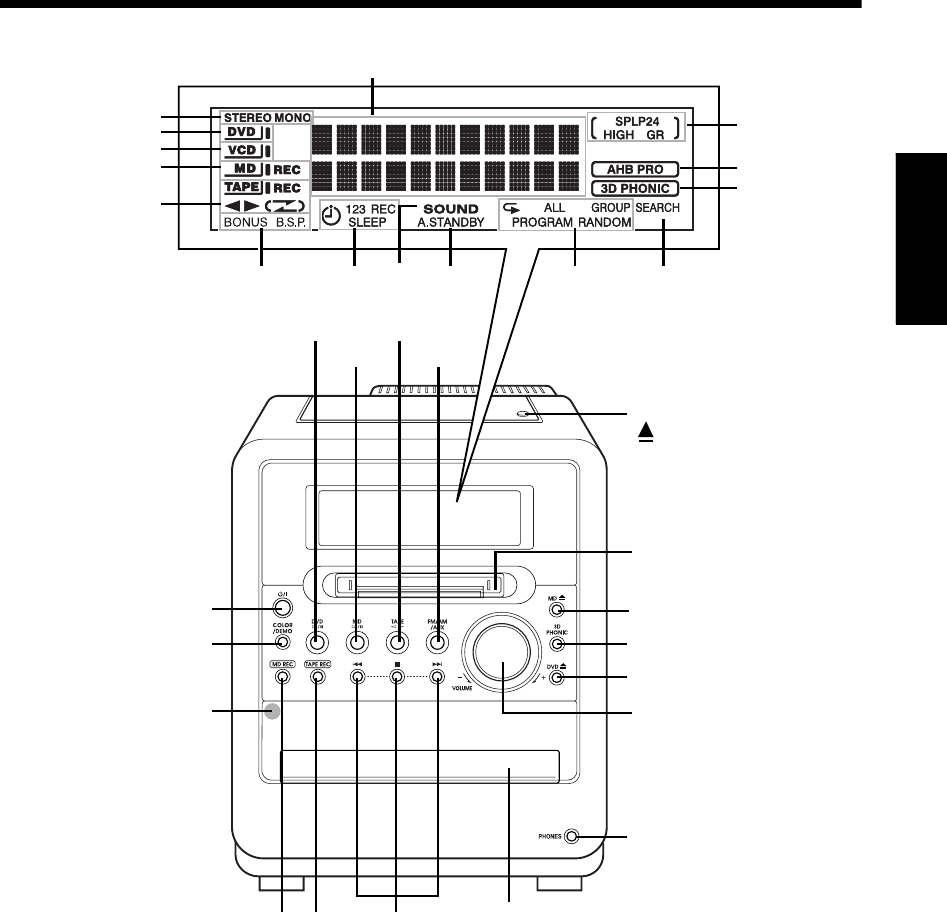
中
文
8
简
介
/
准
备
简介 /准备
部件说明
*本端子用于连接一对配备立体声微型插头的耳机 (未提供)。连接耳机时,扬声器不会产生任何声音。
数字代表说明该部件的页码。
磁带带仓:43
PUSH-OPEN
MD 插槽:46
光盘托架:22
遥感器: 9
19
68, 70 18 72 32, 33, 34,
48, 49
49
22 44
46 20, 45
18
16, 19
55 25, 43, 4651
18
22
29
46
29
18
52
20
22
46, 51
43, 55
31
*
23
UX-QD7[UB].book Page 8 Friday, September 10, 2004 10:56 AM
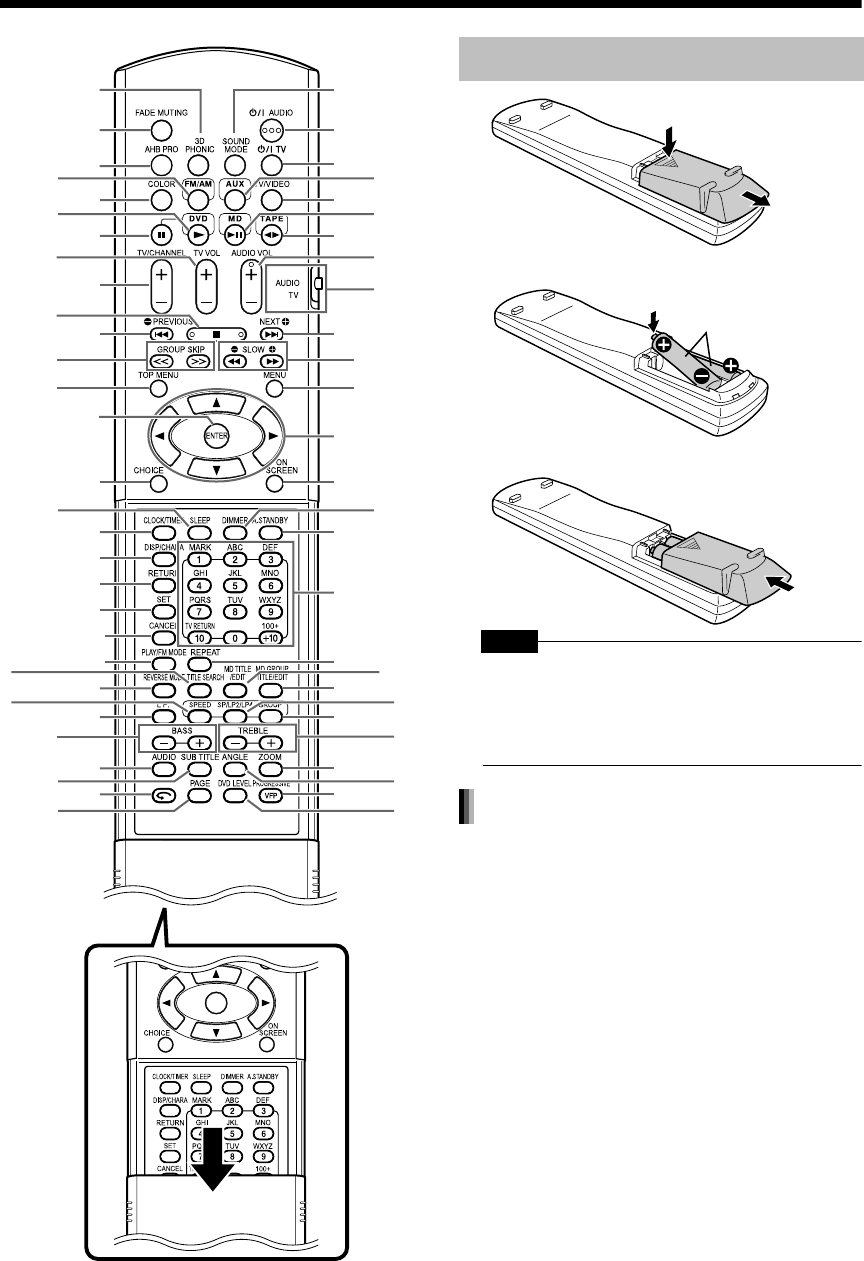
简介
9
准备
遥控器
注 意
•请勿混用新旧电池。
•请勿同时使用不同类型的电池。
•如果遥控器长时间不用,请取出电池。否则电池可
能漏液。
•操作遥控器时,请将其对准本机的前面板。
•遥控器和本机上的遥感器之间的有效距离最大约
5 m。
•有效距离减小时,请更换电池。
•请勿跌落遥控器或使其受到过度震动。
数字代表说明该部件的页码。
18
18
10 45
10
43
26
35
72
17, 21, 26,
32, 59
34, 49
58, 63-67
46
18
25, 43, 46
25, 26
26
19
51
18
28
30
28
29, 30
29
18
18
19
25
25, 43, 46
39
17, 69
24
20, 32, 47, 48
43, 55
53
27
24
20
10
47, 64
26
21, 23,
27, 58
10
51
58-62
49
51
18
21, 58, 65, 70
33, 58, 59, 62-67
21, 24, 44,
45, 59
25, 43, 46
10
22
31
68
28
打开盖子
将电池插入遥控器
R6P(SUM-3)/AA(15F)
类型的干电池 (2)
遥控器操作
UX-QD7[UB].book Page 9 Friday, September 10, 2004 10:56 AM
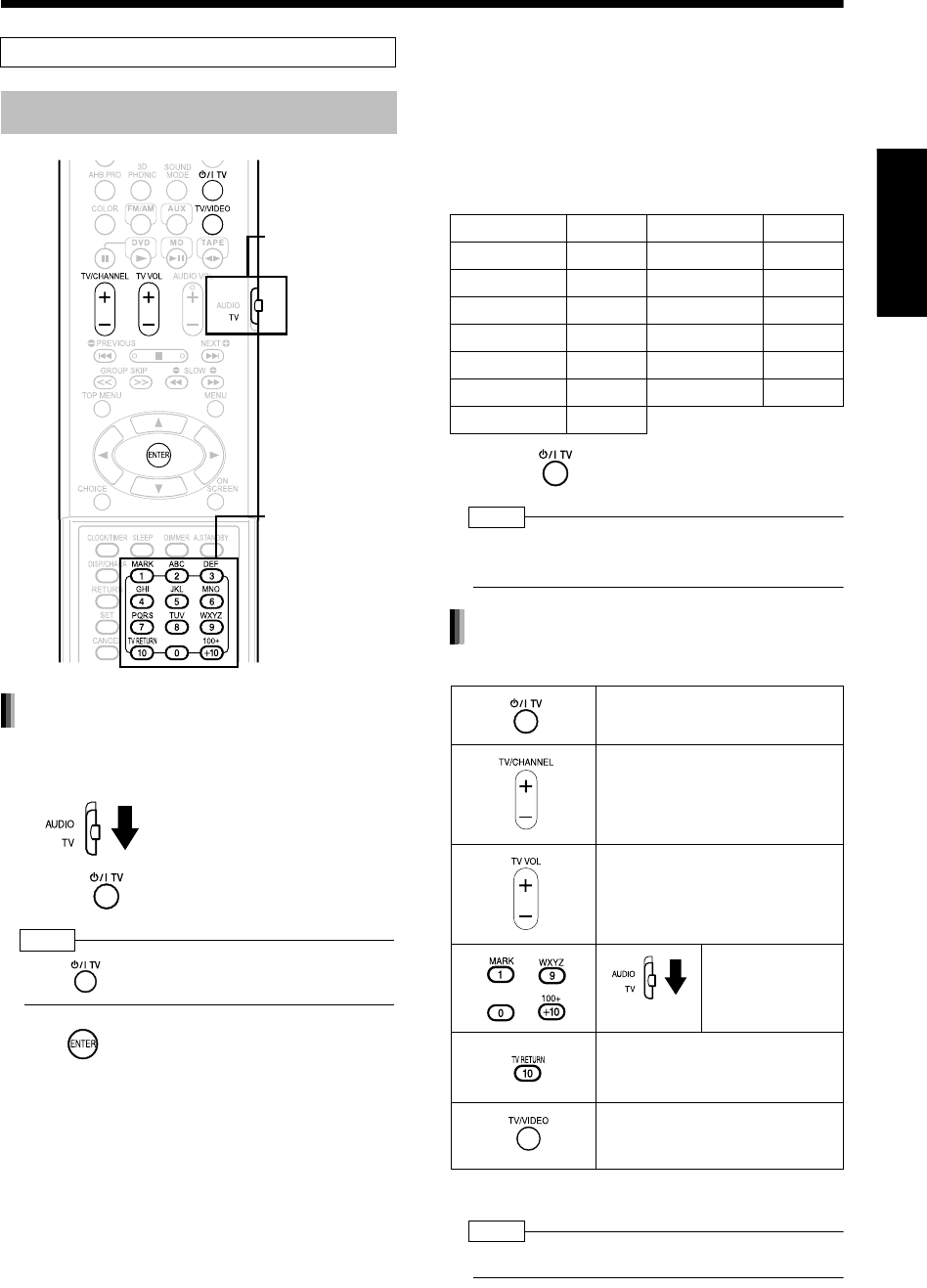
中
文
10
准
备
1将遥控模式选择器滑至 TV 侧。
2按住 。
注
•
按住 直到步骤
4
完成。
3按 ,然后松开。
4按数字键 (1-9, 0)。
例如:
对于 Hitachi 电视机: 按 1,然后按 0。
对于 Toshiba 电视机: 按 0,然后按 8。
如果存在两个或以上的厂商代码,依次尝试,然后
选择能使本产品正确工作的厂商代码。
5松开 。
注
•
厂商代码如有变更,恕不另行通知。可能无法操作由
上述厂商制造的电视机。
将遥控器指向电视机进行操作。
*1 请确保先将遥控模式选择器滑至 TV 侧。
注
•
更换电池后,请重新进行厂商代码设置。
本页介绍使用本产品的遥控器操作您的电视机。
使用遥控器操作电视机
遥控模式选择器
数字键
设置厂商代码
厂商 代码 厂商 代码
JVC 01 Samsung 12
Hitachi 10 Sanyo 13
Magnavox 02 Sharp 06
Mitsubishi 03 Sony 07
Panasonic 04, 11 Toshiba 08
Philips 14 Zenith 09
RCA 05
打开 /关闭电源。
改变频道。
调节音量。
- /
/
选择频道。
在先前所选的频道和当前频道之
间更改。
在电视和视频输入之间更改。
对于电视机操作
*1
UX-QD7[UB]-03.fm Page 10 Friday, September 17, 2004 9:52 AM
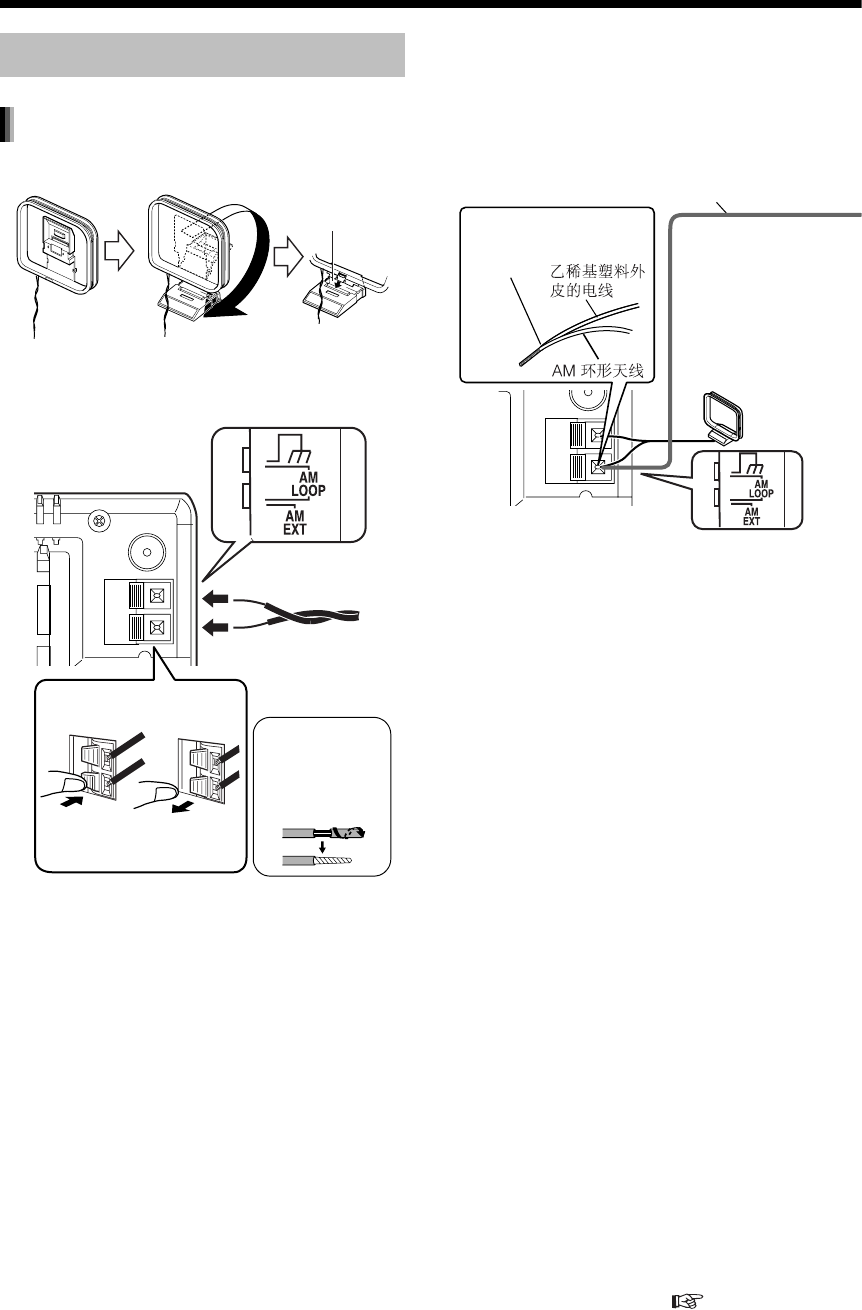
简介
11
连接
1安装 AM 天线 (随机附件)。
2连接天线。
3将 AM 环形天线转向能获得最佳收听
效果的位置。
将 AM 环形天线尽可能安装在离本机
较远的位置。
•请勿将 AM 环形天线安装在金属台面上或靠
近电视机、电脑或其他电器的地方。否则,可
能影响收听效果。
■使用随机提供的 AM 环形天线时,如果收听
广播的效果较差
连接电源插头之前,请连接所有必须的部件。
连接天线
连接 AM 天线
请将接头插
入插槽。
本机 (后视图)
本机 (侧视图)
连接天线
如上所示连接天
线末端。
绝缘体覆盖在天
线末端时,请扭
动绝缘体并将其
拔下。
请在收听实际的电台节目时定位天线,寻找收听的最佳位置 (请参阅 “聆听广播”(第 20 页))。
乙稀基塑料外皮的电线:
3-5 m (未提供)
将乙稀基塑料外皮的电
线和 AM 环形天线扭绞
在一起。
水平拉伸乙稀基塑料外
皮的电线,最好在较高
的位置,如高于窗户或
位于户外。
将 AM 环形天线和乙稀
基塑料外皮的电线连接
到本机。
本机 (后视图)
UX-QD7[UB]-03.fm Page 11 Monday, September 13, 2004 12:52 PM
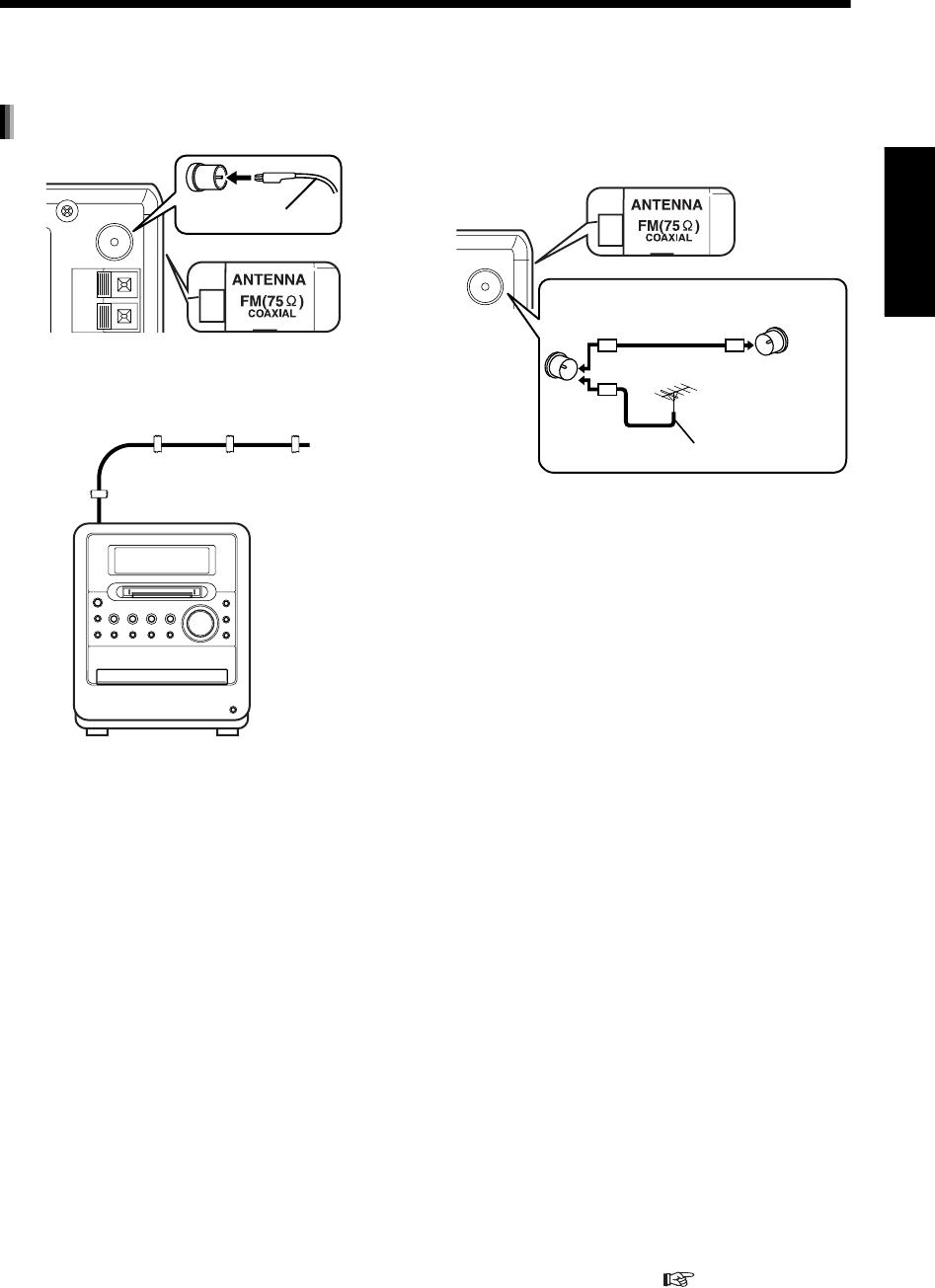
中
文
12
准
备
将 FM 天线拉伸到收听电台的最佳位置,然后用胶
带将其固定。
■使用随机提供的 FM 天线时,如果收听广播
效果较差,或者使用公用天线时
使用随机提供天线以外的天线时,请参阅天线的操
作说明书,获取连接的详情。
连接 FM 天线
本机 (后视图)
FM 天线
(随机附件)
本机 (侧视图)
请在收听实际的电台节目时定位天线,寻找收听的最佳位置 (请参阅 “聆听广播”(第 20 页))。
本机
(后视图)
天线 (未提供) 公用天线端子
或户外 FM 天线
(未提供)
同轴电缆
(未提供)
本机 (侧视图)
UX-QD7[UB].book Page 12 Friday, September 10, 2004 10:56 AM
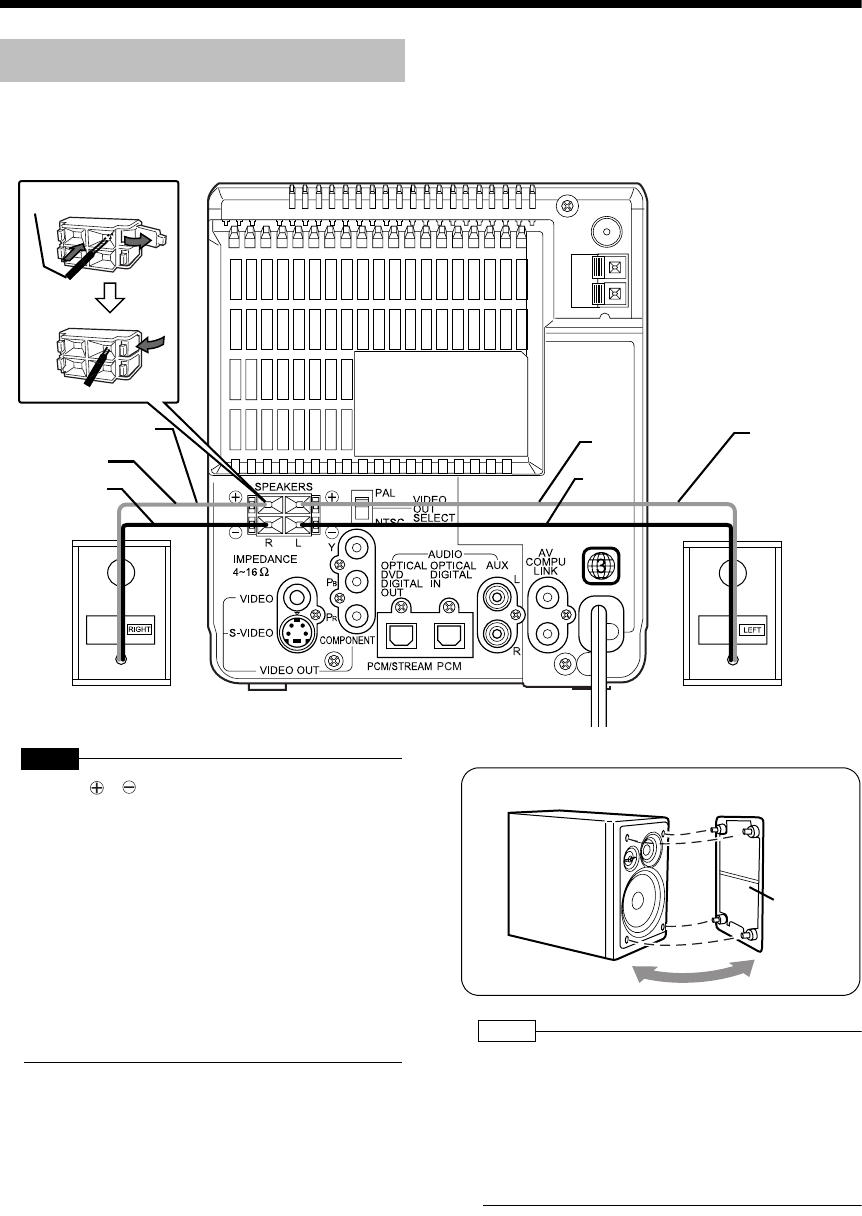
简介
13
(续)
连接
注 意
•请勿将 和 扬声器端子短路。否则,可能损坏扬
声器。
•请勿将其他扬声器连接到随机提供的扬声器。阻抗
的改变可能损坏本机和扬声器。
•本产品的扬声器是防磁化的,但是根据扬声器安装
的位置可能会在电视上产生颜色彩不规则性。请牢
记下列情形:
1. 安装扬声器之前请关闭电视机的主电源。再次打
开电视机之前请等待 30 分钟。
2. 如果图像产生色彩不规则性,请在电视机和扬声
器之间空出 10 cm。注
•
扬声器导线连接不当会影响立体声效果和音质。
•连接到本产品的扬声器的阻抗必须处于 4 Ω 到 16 Ω
的范围内。
•本机内置冷却风扇,用于排出产生的热量。内部冷
却风扇自动旋转并停止。为确保有效冷却,请在本
机和扬声器或其他物体之间预留多于 1 cm 的空间。
连接电源插头之前,请连接所有必须的部件。
连接扬声器
连接扬声器后,轻拉扬声器导线,确保导线牢固地连
接,避免将其拉出。
扬声器导线
扬声器导线
红
黑
红
黑
右扬声器 (后视图) 左扬声器 (后视图)
扬声器导线
本机 (后视图)
可以取下扬声器盖子。
扬声器
盖子
UX-QD7[UB].book Page 13 Friday, September 10, 2004 10:56 AM
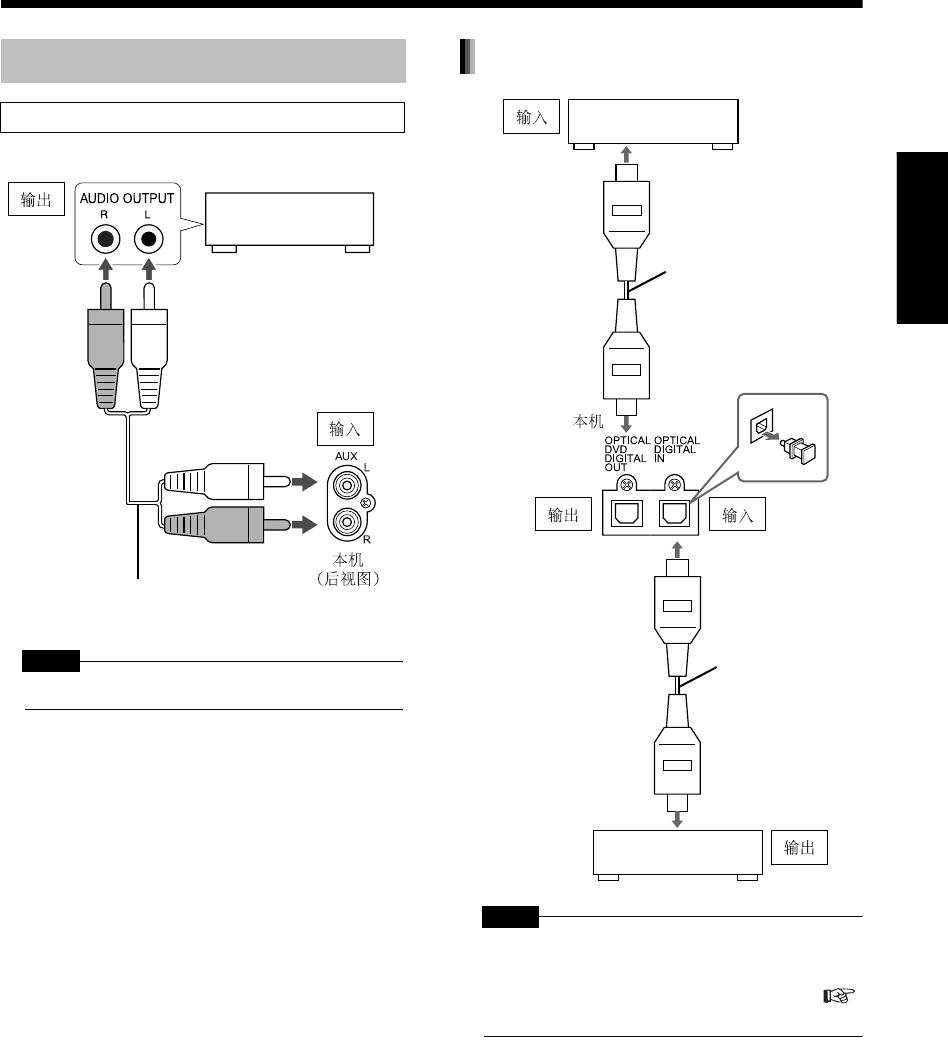
中
文
14
准
备
注 意
•连接其他设备之前,请关闭本机和设备。
注 意
•有关输出信号的详情,请参阅第 40 页。
•如果将本机连接到具有杜比数码解码器功能的设
备,对于本机数字音频输出的声音,“音频”(
第 40 页)下 “动态范围控制”的设置无效。
连接其他设备
将其他音频设备连接到本产品时,请阅读本节。
其他音频设备
音频导线 (未提供)
连接数码设备
内置解码器的 AV 放
大器 (未提供)
到光纤数字输入端子
光纤数字电缆
(未提供)
光纤数字电缆
(未提供)
MD 播放机或 CS 调谐器
(未提供)
自光纤数字
输入端子
UX-QD7[UB]-03.fm Page 14 Friday, September 24, 2004 2:30 PM
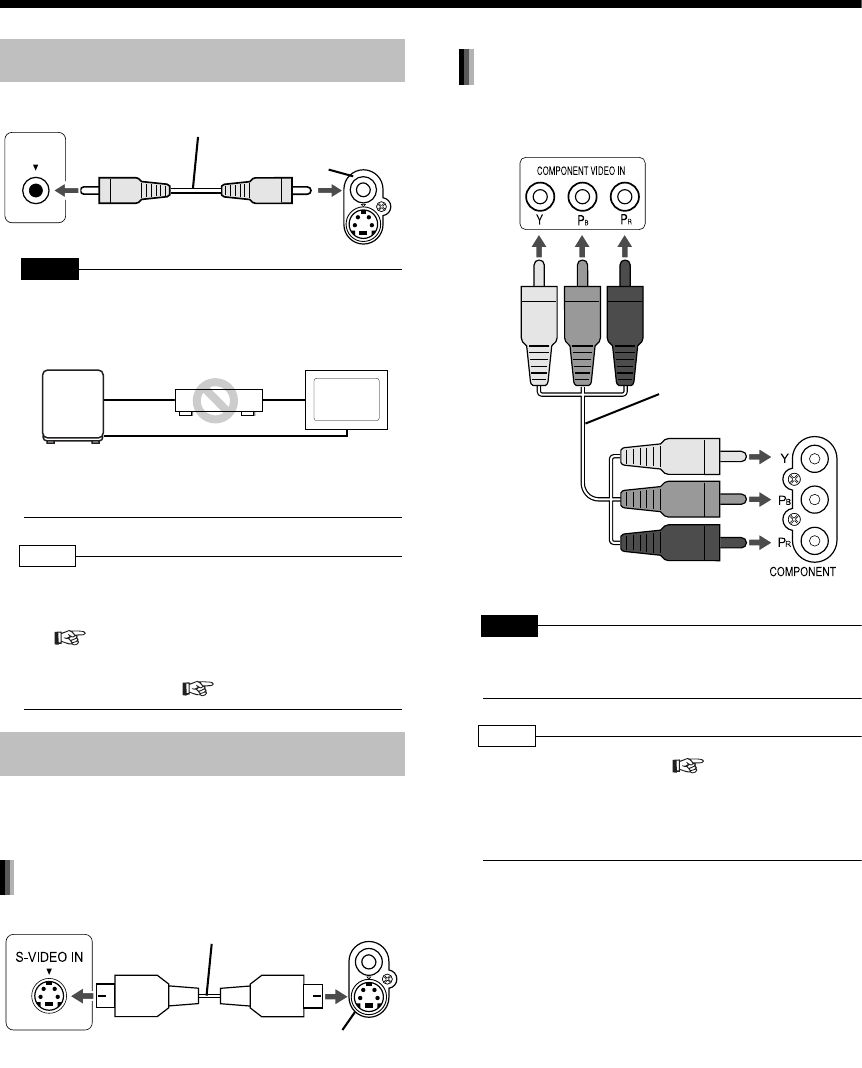
简介
15
(续)
连接
注 意
•不通过录像机,直接连接本机和电视机 (或显示
器)。否则,播放时可能产生图像失真。(此类图像
失真是由复制保护系统所导致,并非故障。)
另外,如果本机连接到内置录像机的电视机时,播
放时可能出现图像失真。
注
•
请检查本机后面板上的
VIDEO OUT SELECT (PAL/
NTSC)
设置和您的电视机彩色制式是否相同。
(第 6 页)
根据您的电视机的宽高比正确设置 “图像”菜单中
的 “屏幕类型”。( 第 39 页)
使用下列导线代替随机提供的视频导线您可以享受
更好质量的图像。
使用 S视频时您可以享受更好质量的图像。
注 意
•使用 S 视频导线或分量视频导线之一。如果同时使
用两条导线,图像可能无法正常播放。
注
•
为了使用逐行扫描模式 ( 第
30
页)观看图像,
电视机需要拥有逐行扫描视频输入。
•如果您电视机的分量视频输入插孔是 BNC 型,请
使用插头适配器 (未提供)来转换插头。
连接电源插头之前,请连接所有必须的部件。
连接电视机
需要更为清晰的图像时
电视机 随机提供的视频导线
本机
VIDEO IN
VIDEO
本机
直接连接
电视机
(或显示器)
录像机
使用
S
视频导线连接
电视机 本机
S 视频导线 (未提供)
S-VIDEO
请确保 S 视频导线的各端均匹配其兼容的
端子,然后连接 S 视频导线的各端。
使用分量视频导线连接
电视机
本机
分量视频导线
(未提供)
UX-QD7[UB]-03.fm Page 15 Friday, September 24, 2004 2:30 PM
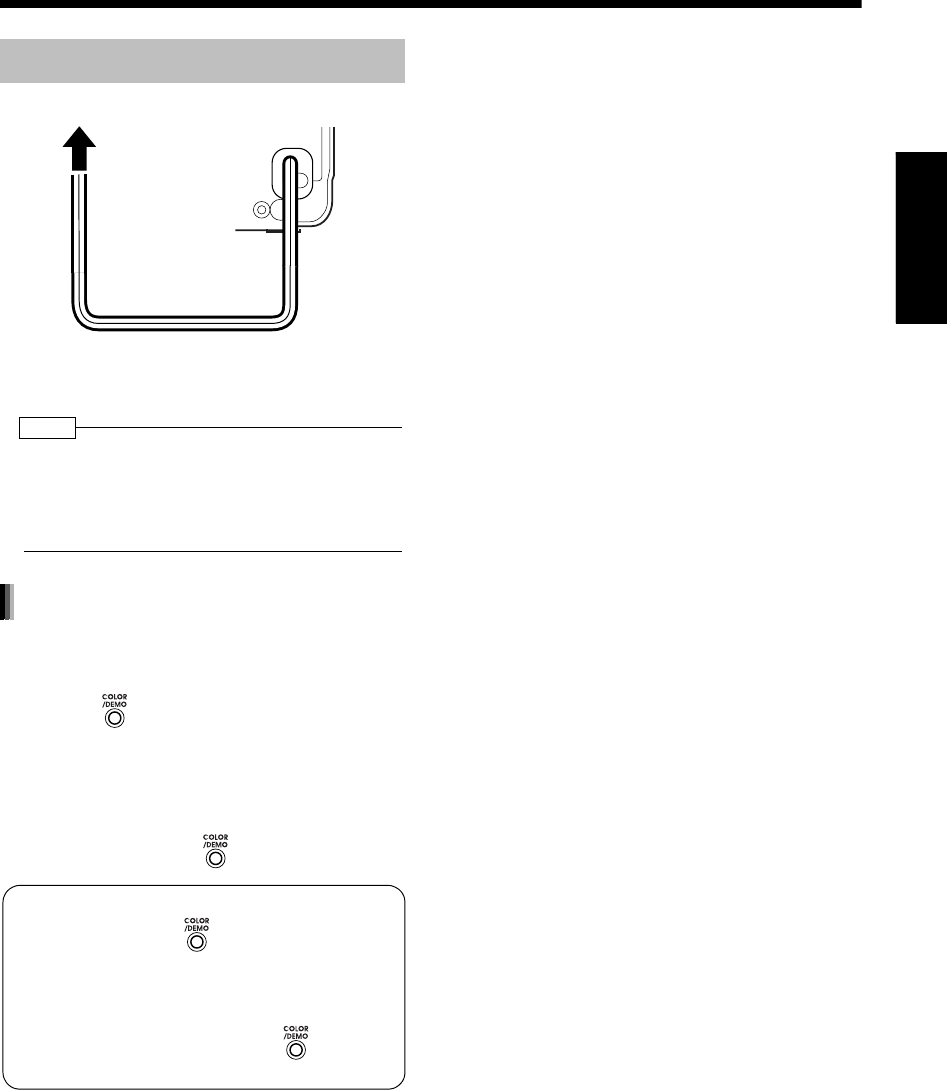
中
文
16
准
备
•进行所有其他必须的连接之后,请连接电源插
头。
注
•
在下列情况中,预设设置 (如预设频道和声音调节)
可能在若干天后被清除 :
- 拔下电源插头时。
- 发生电源故障时。
将电源插头连接到 AC 插座时,显示器窗口中出现
“DEMO START!”,开始演示显示。
按本机上的 时,显示器窗口中出现 “DEMO
OFF”,并退出演示显示。
自动打开本机将退出演示显示。
重新开启演示显示
电源关闭时,按本机上的 。
连接电源插头
AC 插座 本机 (后视图)
演示显示功能
隐藏演示显示
电源关闭时,按住 ,直至出现 “DEMO
CLEAR”。
断开并重新连接电源插头不会开始演示显
示。
如需再次激活演示显示,请按住 ,直至出
现“DEMO START!”。
UX-QD7[UB]-03.fm Page 16 Thursday, September 16, 2004 11:23 AM
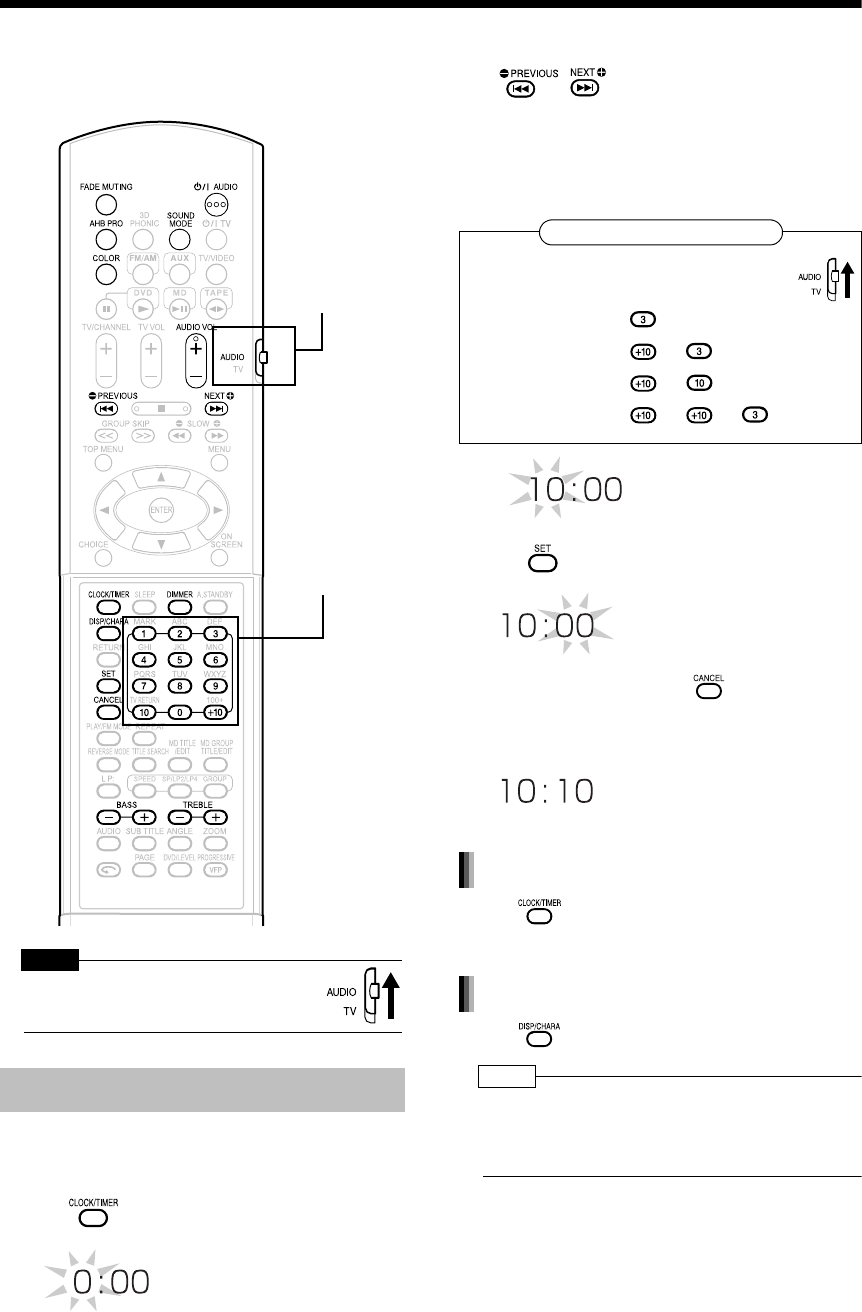
简介
17
基本操作
基本操作
本说明书的操作说明以使用遥控器为前提。本机上
的某些键与遥控器上的键相同。此时两者皆可使
用。
注 意
•将遥控模式选择器设为AUDIO,然 后 使
用数字键。
本机打开或关闭时均可设置时钟。
例如:如需将时钟设为 10:10 a.m.
1按 。
2设置小时。
后 前
•按住按键增加小时。
•用数字键可以指定小时。
请参阅以下所示的 “使用数字键”。
3按 。
•如需返回步骤 2,请按 。
4以步骤 2 和 3 相同的方式设置分钟。
按 4 次 显示时钟,然后从步骤 2 开始调节时
钟。
反复按 。
注
•
本机的时间显示为
24
小时制。
•时钟每月误差约为 1 分钟。
•断开电源插头或发生断电后,请重新设置时钟。
设置时钟
数字键
遥控模式选择器
使用数字键
例如: 3:
13: →
20: →
23: → →
用数字键之前,请将遥控模式选择器设
为 AUDIO。
调节时钟
使用本机时显示时钟
UX-QD7[UB].book Page 17 Friday, September 10, 2004 10:56 AM

中
文
18
基
本
操
作
按
(或本机上的
)。
•电源关闭时,按上述键之一打开本机。同时,分配
给该键的功能开始启用。
遥控器:
本机:
注
•
本机内置冷却风扇,用于排出产生的热量。内部冷却
风扇自动旋转并停止。
按
。
•旋转本机上的 VOLUME 控制钮也可以调节
音量。
注
•
可以在
0
到
40
的范围内调节音量。
按
。
•出现“FADE MUTING”,音量减小到“0”。
•如需返回到先前的音量,请再次按 。
按
。
•每按一次 ,AHB PRO 功能在“ON”
和“OFF”之间切换。
•激活 AHB PRO 功能时,显示器窗口中显
示 。
•“AHB PRO”代表 “Active Hyper Bass
PRO”。
按
。
•每按一次 ,显示变化如下。
•声音模式设为 “FLAT”以外的项目时,显示
器窗口中显示 。
注
•
本功能并不影响录制声音。
1反复按 显示 “MANUAL”。
2调节低音;
按 。
调节高音;
按
。
•可以在 -5 到 +5 的范围内调节音质。
•显示几秒钟后返回到音源显示。
注
•
声音模式设为 “
MANUAL
”以外的项目时,显示器窗
口中显示 “
NO OPERATE
”,无法调节低音
/
高音。
打开 / 关闭本机
调节音量
暂时关闭声音 (FADE MUTING)
增强重低音 (AHB PRO)
调节音质
选择声音模式
: 增强高音和低音。
: 适合歌曲和叙述。
: 增强高音。
: 增强实况演出的感觉。
:调节您所选择曲目的高
音和低音 (显示如下)。
: 取消声音模式 (初始设
置)。
调节低音 / 高音
UX-QD7[UB].book Page 18 Friday, September 10, 2004 10:56 AM
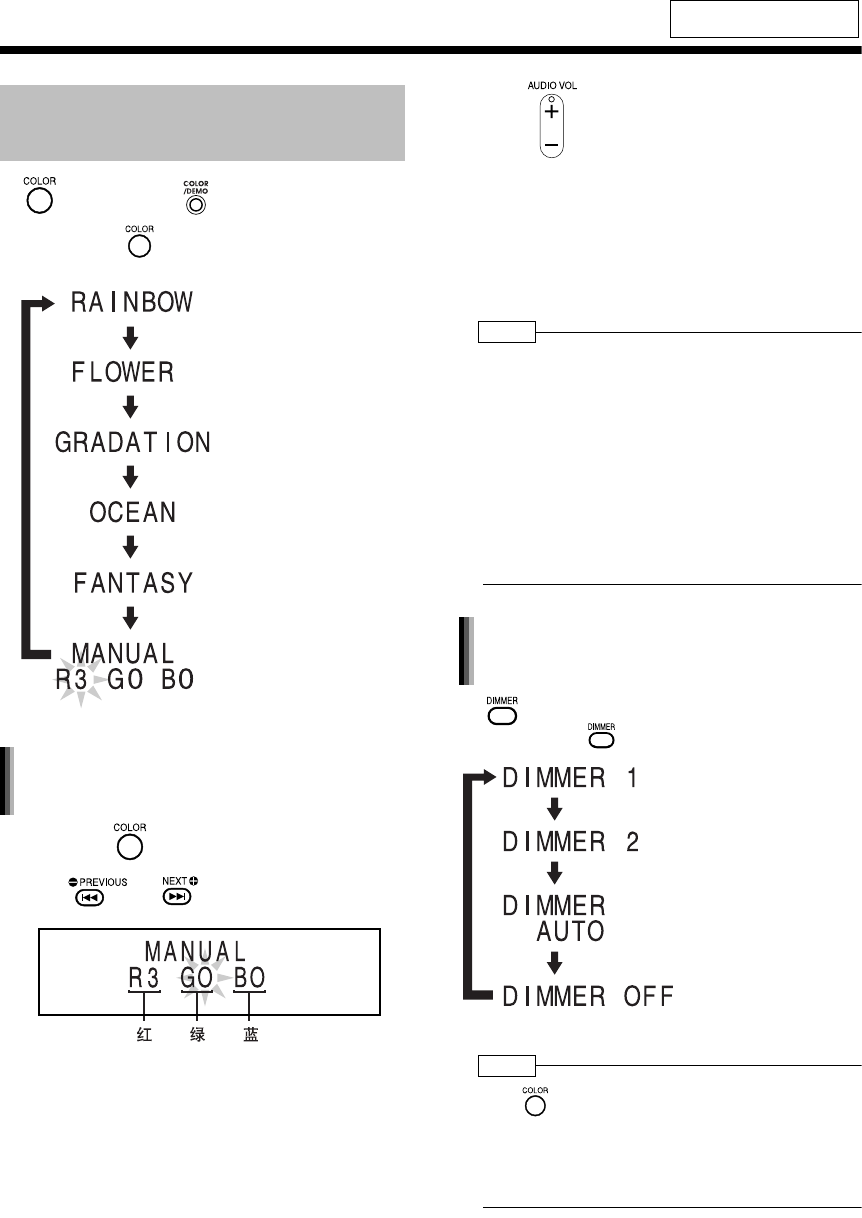
简介
19
(续)
基本操作
按 (或本机上的 )。
•每按一次 ,显示变化如下。
1反复按 显示 “MANUAL”。
2按 或 选择原色。
•所选原色的数值闪烁。
3按 调节原色的强度。
•
旋转本机上的
VOLUME
控制钮也可以调节颜
色强度。
•可以在“0”到“ 3”的范围内调节颜色强度。
无法同时将所有
3
种原色 (红、绿和蓝)设为
“
0
”。
注
•
调节完各个原色后,显示约
8
秒钟后返回到音源显示。
•无法为显示器窗口和光盘托架设置不同的颜色。
•操作本机或遥控器上的按键时,显示器窗口和光盘
托架将点亮淡蓝色约 2 秒。
•录制结束时,显示器窗口和光盘托架的颜色切换到
“MANUAL”设置的颜色,提示录制已经结束。(选
择“MANUAL”以外的项目时)
在录制结束后操作本机时,显示器窗口和光盘托架
的颜色图案返回到所选择的图案。
按
。
•每按一次 ,显示变化如下。
注
•
按
更改颜色图案后,亮度立即返回到初始设置。
(
DIMMER AUTO
除外)
•关闭本机时,亮度也将返回到初始设置。
•无法关闭颜色图案。
有关遥控键的位置,请参阅
第 17 页。
更改显示器窗口和光盘托架的
颜色图案
:您选择的颜色。(左图
所示的设置为初始设
置。)
: 类似彩虹的图案。
: 花卉图案。
: 颜色图案逐渐更改,约
20 秒更改 1 次。
: 海洋图案。
: 科幻图案。
设置显示器窗口和光盘托架的喜好
颜色
更改显示器窗口和光盘托架的亮度
(DIMMER)
: 颜色图案变淡。
:颜色图案变暗,并切
换为蓝色。
:视频播放期间自动选
择 DIMMER 2,播放停
止时取消 DIMMER 2。
: 取消亮度调节
(初始设置)。
UX-QD7[UB].book Page 19 Friday, September 10, 2004 10:56 AM
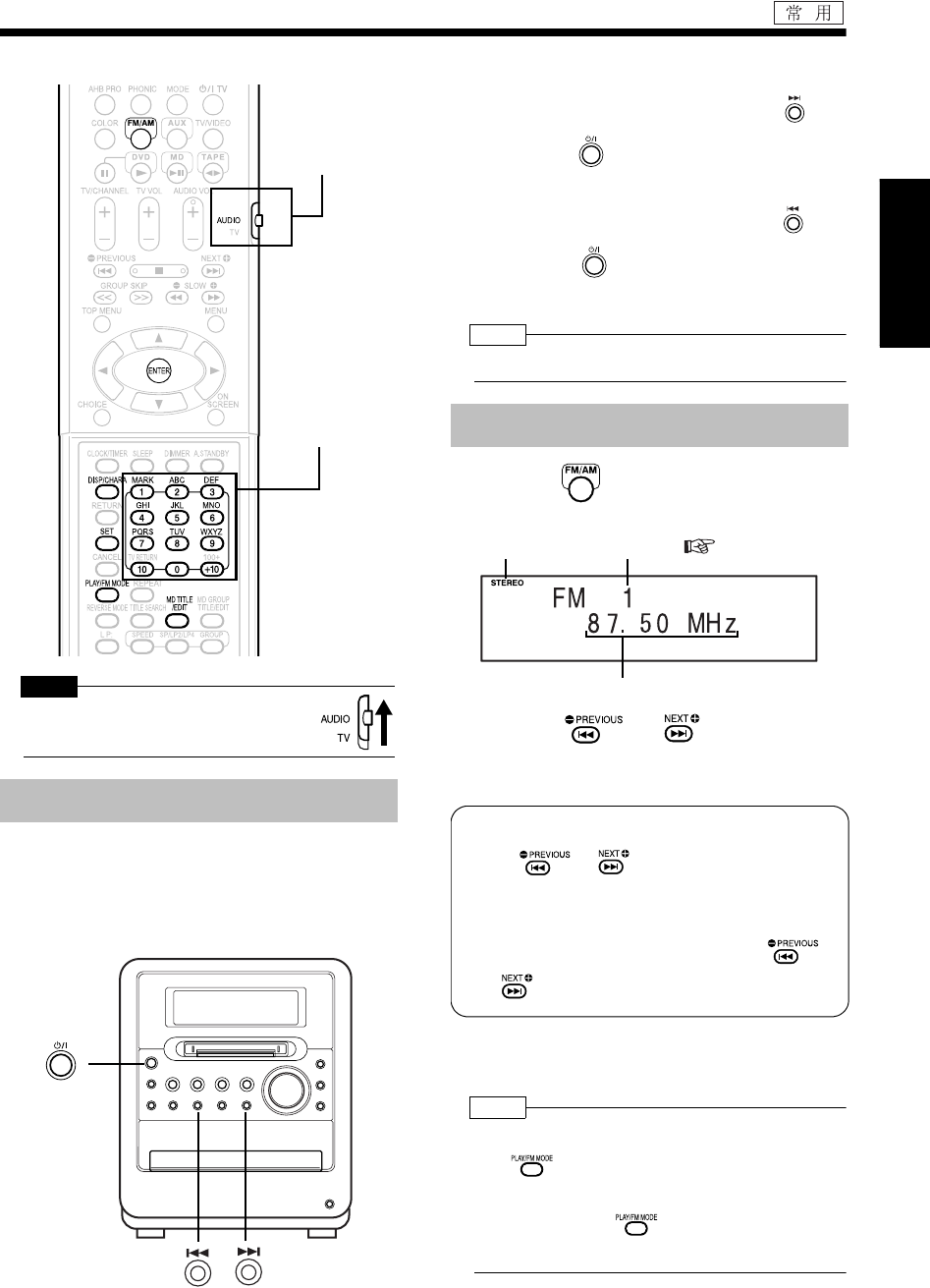
中
文
20
基
本
操
作
/
聆
听
广
播
基本操作 /聆听广播
聆听广播
本产品可以接收 FM 和 AM 广播。
注 意
•将遥控模式选择器设为 AUDIO,然后
使用数字键。
某些国家使用的 AM 电台间隔为 9 kHz,而其他国
家则使用 10 kHz 间隔。
仅在本机上:
■本机关闭时
如需选择 10 kHz 间隔,请在按住本机上的 的同
时,按本机上的 打开电源。“AM 10 kHz”出 现
在显示器窗口中。
如需选择 9 kHz 间隔,请在按住本机上的 的同
时,按本机上的 打开电源。“AM 9 kHz”出现
在显示器窗口中。
注
•
如果切换了间隔,记忆中保存的电台将会被清除。
1反复按 选择 “FM”或 “AM”。
例如:接收 FM 广播时的显示
2反复按 或 选择电台 (频
率)。
•用自动调谐也可以选择电台。
•本机接收到 FM 立体声广播时,“STEREO”
点亮。
注
•
如果由于噪声导致收听
FM
立体声广播困难,则通过
按
将声音切换到单声道接收,可以比较容易地
收听。此时,“
MONO
”点亮。如需将声音返回到立
体声接收,再次按
或选择另一个
FM
电台。
•本产品不兼容 AM 立体声广播。
设置 AM 调谐器间隔
数字键
遥控模式选择器
选择电台
立体声指示 预设数字 ( 第 21 页)
频率
自动调谐:
按住 或 ,直到频率开始更改,然
后放开该键。
本机接收到广播时,频率自动停止更改。
如需在搜索广播时退出本功能,请按
或 。
UX-QD7[UB].book Page 20 Friday, September 10, 2004 10:56 AM
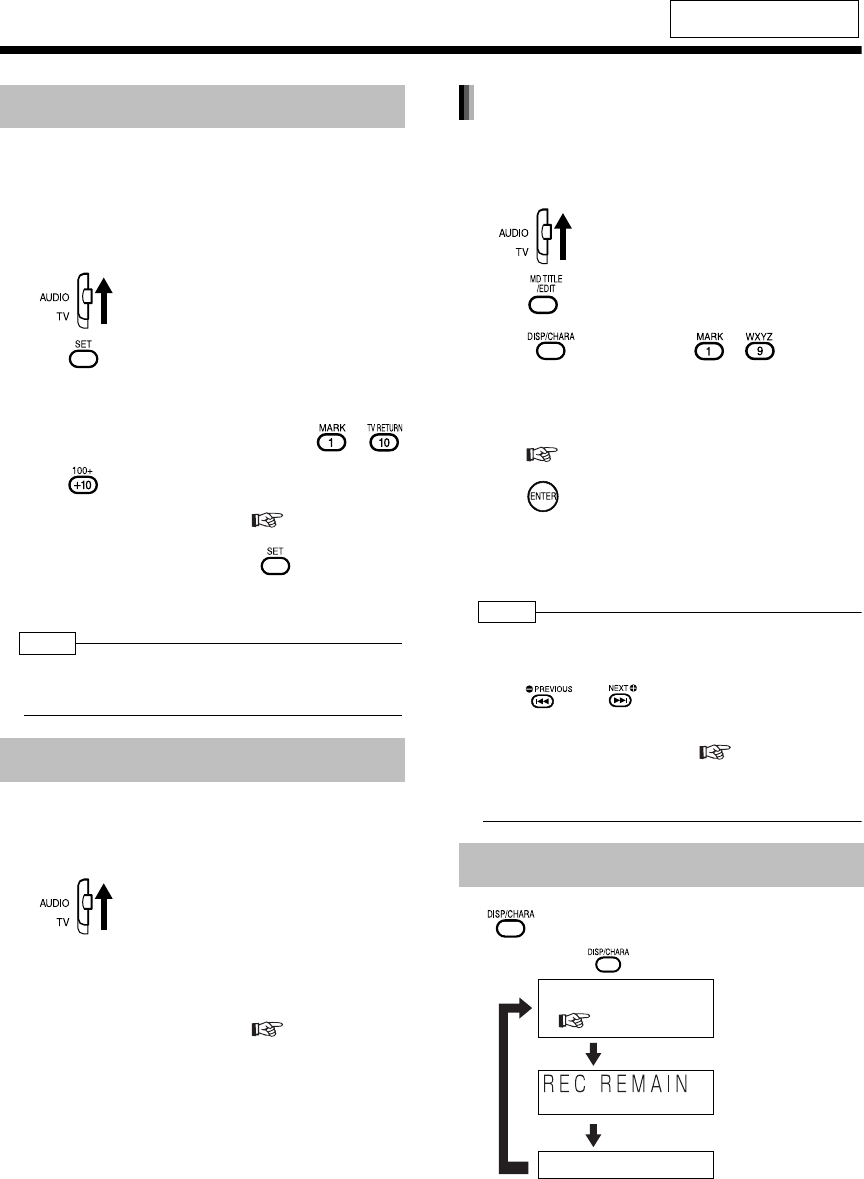
简介
21
(续)
聆听广播
可以最多保存 30 个 FM 电台和 15 个 AM 电台。
■正在接收想要预设的电台的广播时
1将遥控模式选择器设为 AUDIO。
2按 。
•预设号码闪烁约 5 秒。
3预设号码闪烁时,按数字键( -
或 )选择想要使用的预设号码。
•请参阅 “使用数字键”( 第 17 页)。
4所选的数字闪烁时,按 。
•出现 “STORED”并保存所选的电台。
注
•
将电台保存到预设号码而该预设号码先前已经保存另
一电台时,最新设置的电台将覆盖先前保存的电台。
■正在接收 FM 或 AM 广播时
1将遥控模式选择器设为 AUDIO。
2用数字键选择想要调到的电台的预设
号码。
•请参阅 “使用数字键”( 第 17 页)。
可以用最多 8 个字符输入保存的电台的名称。
1将遥控模式选择器设为 AUDIO。
2按 。
3用 或数字键( - )输入电
台名称。
•如需输入电台名称,请参阅 “输入标题”
(第 59 页)。
4按 。
•显示器窗口中出现 “STORED”并登记输入
的电台名称。
注
•
输入电台名称后保存电台时,输入的具有相同预设号
码的电台名称被清除。
•用 或 选择广播后,无法输入电台名
称。
•如果更改 AM 调谐器间隔 ( 第 20 页),电台
名称保持不变。
如有必要,请再次输入电台名称。
按
。
•每按一次 ,显示变化如下。
有关遥控键的位置,请参阅
第 20 页。
保存电台 (预设)
调到预设电台
更改显示器窗口中的显示
输入电台名称
正在接收广播时的显示
(
第
20
页
)
(时间显示)
时钟显示
(装载 MD 时) MD
录制剩余时间的显示
UX-QD7[UB].book Page 21 Friday, September 10, 2004 10:56 AM

中
文
22
聆
听
广
播
/
聆
听
光
盘
聆听广播
/
聆听光盘
DVD 播放机的基本操作
注
•将遥控模式选择器设为 AUDIO,然后
使用数字键。
(有关播放 MP3/WMA 和 JPEG 的详情,请参阅第
37 页。)
1按本机上的 。
•光盘托架弹出。
2将光盘放置在光盘托架上。
•想要聆听 8 cm 光盘时,请将其放置在光盘托
架的内凹陷部分。
3按 。
■DVD 视频的显示
播放 DVD 视频时的显示:
DVD 视频停止时的显示:
(接下页)
数字键
遥控模式选择器
如何阅读本使用说明书
•主要使用遥控器按键说明操作。如果本机上存在相
同的标记,也可使用本机上的按键。
•下列标记告诉您可读取的光盘类型。
•实际的图形和电视机屏幕可能与说明的不同。
•“VCD”表示 “视频 CD”。
•“SVCD”表示 “超级视频 CD”。
播放
印字面
光盘托架
消逝的播放时间
标题号
章节号
DVD 指示
(DVD 视频停止播放时, DVD 指示点亮。 DVD 视频
正在播放或暂停时, DVD 指示闪烁。)
标题总数
UX-QD7[UB].book Page 22 Friday, September 10, 2004 10:56 AM
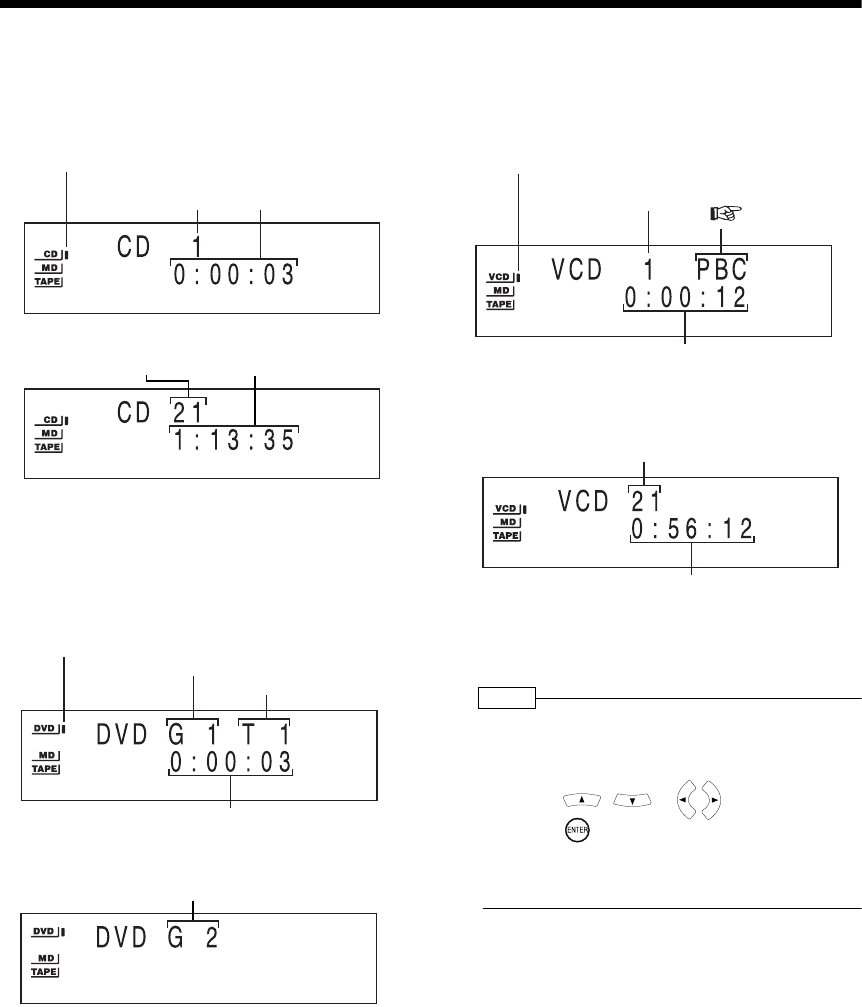
简介
23
(续)
DVD 播放机的基本操作
■CD 的显示
播放 CD 视频时的显示:
CD 停止时的显示:
■DVD 音频的显示
播放 DVD 音频时的显示:
DVD 音频停止时的显示:
•“G1”和 “T1”将显示在群组总数之后。
■VCD/SVCD 的显示
播放 VCD/SVCD 时的显示:
•激活 PBC 时,显示 PBC 指示。
VCD/SVCD 停止时的显示:
*1“1”将显示在曲目总数之后。
*2 光盘兼容 PBC 时,会出现 “PBC”指示。
注
•DVD
播放开始后,显示器窗口中可能出现菜单。在这
种情况下,请使用遥控器上的下列键选择需要的菜单
项目。
•请使用 、 或 选择菜单项目,
然后按 。
•请使用数字键选择菜单项目。
•操作可能不同于此处所述,视光盘类型而异。
消逝的播放时间
CD 指示
(CD 停止播放时, CD 指示点亮。 CD 正在
播放或暂停时, CD 指示闪烁。)
曲目号
曲目总数 总播放时间
消逝的播放时间
DVD 指示
(DVD 音频停止播放时, DVD 指示点亮。 DVD 音频
正在播放或暂停时, DVD 指示闪烁。)
群组号 曲目号
群组总数
消逝的播放时间
VCD 指示
(VCD/SVCD 停止播放时, VCD 指示点亮。 VCD/
SVCD 正在播放或暂停时, VCD 指示闪烁。)
曲目号 PBC 指示
(第 24 页)
曲目总数 (*1, *2)
总播放时间
UX-QD7[UB].book Page 23 Friday, September 10, 2004 10:56 AM

中
文
24
聆
听
光
盘
聆听光盘
按
。
•每按一次 ,显示变化如下。
■播放 (或停止播放)光盘时
■播放光盘时
按
。
注
•
对于某些光盘可能无法进行本操作。
•无法返回到先前的标题。
有关遥控键的位置,请参阅
第 22 页。
电视机屏幕上显示的讯息
音源选择 DVD 时,出现下列显示讯息,视状
态而异。
读取中
本机正在读取光盘。请稍候。
区域代码错误 !
由于地区代码不符,无法播放光盘。
(第
4
页)
无碟片
没有装载光盘。
打开
光盘托架正在打开。
关闭
光盘托架正在关闭。
无法播放
试图播放不可播放的光盘。
暂时显示在电视机屏幕上的指导图标
(屏幕显示指导)
: 包含多角度浏览
( 第28 页)
: 包含多音频
( 第27 页)
: 包含多字幕
( 第28 页)
: 光盘无法接受您的操作。
:播放
(第22 页)
:暂停
(第25 页)
: 快倒 / 快进搜索
(第25 页)
:
慢动作播放 (倒退
/
前进)
(
第
26
页)
更改显示器窗口中的显示
播放从 10 秒之前的位置开始
(单触重播)
PBC (播放控制)
•PBC 是录制于 VCD (2.0 版)上的信号,
用于控制 VCD 的播放。使用录制于兼容
PBC 的 VCD 中的菜单显示可以操作具有
互动和搜索功能的软件。如需播放不带
PBC 的 VCD,请遵循下列操作。
•停止播放时,使用数字键选择所需的曲
目号。
•停止播放时,请按 或 选择所
需的曲目号,然后按 。
•正在播放 VCD 或 SVCD 时,请按 返
回到上一级菜单群组。
播放或停止播放光盘时
的显示
(第 22 和 23 页)
(时间显示)
时钟显示
(装载 MD 时) MD 录
制剩余时间的显示
UX-QD7[UB]-03.fm Page 24 Friday, September 24, 2004 12:49 PM
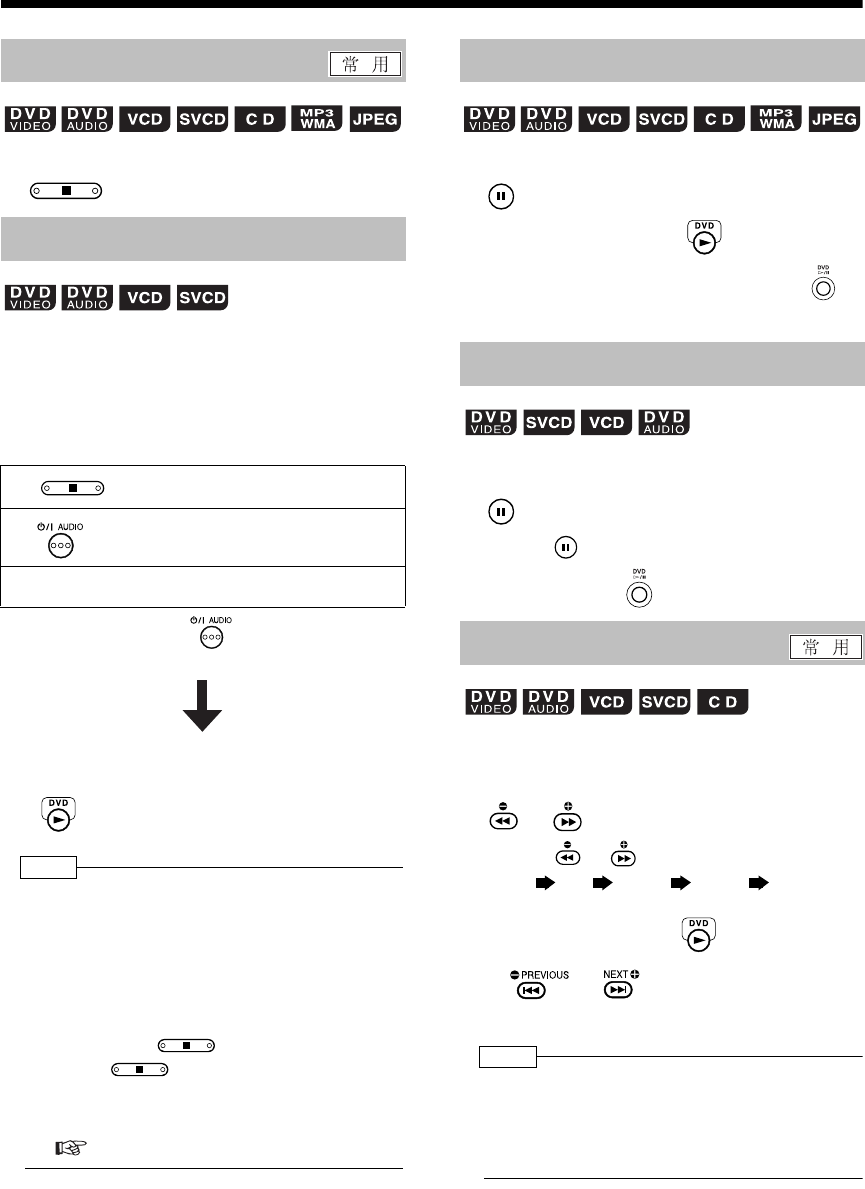
简介
25
(续)
DVD 播放机的基本操作
■播放光盘时
按
。
播放在中间位置停止时,播放可从停止场景开始。
如何延缓播放
■播放光盘时
播放期间进行下列任意操作。
*即使在本操作之后按 关闭电源,播放的停
止位置也会保存。
如何从保存位置开始播放
注
•
本功能在编程播放或随机播放时不起作用。
•播放再次开始的位置可能与停止位置稍有不同。
•显示光盘菜单时,续播功能不起作用。
•音频语言、字幕语言、当时的角度以及停止位置被
保存。
•
如果光盘托架打开,保存位置将会被清除。还有,如
果在播放期间按
,将显示“
RESUME
”。如
果此时按
,“
RESUME
”将会消失,保存的
信息将会被清除。
•续播功能作为初始预设打开。可以将其关闭
(第 40 页)。
■播放光盘时
按
。
如需继续正常播放,请按 。
•在 JPEG 光盘幻灯片显示期间按本机上的 无
法暂停播放。
■暂停播放光盘时
按
。
•每按一次 ,将会逐帧播放图像。
•无法使用本机上的 操作本功能。
存在两种方法。
■播放光盘时
按
或
。
•每按一次 或 ,速度如下增加。
•如需恢复正常速度,请按 。
按住
或
。
•按该键可进行快倒 /快进搜索。
注
•
对于
DVD
视频、
SVCD
或
VCD
,在快倒
/
快进搜索期
间无声音输出。
•对于 CD 或 DVD 音频,在快倒 /快进搜索期间声音
间歇输出。
停止播放
继续播放 (RESUME)
按 一次。 *
按 关闭电源。
将播放源改为 FM/AM 或 AUX。*
按 。
暂停播放
逐帧播放图像
快倒 /快进搜索
(仅动态图像)
×2×5×10 ×20 ×60
UX-QD7[UB].book Page 25 Friday, September 10, 2004 10:56 AM
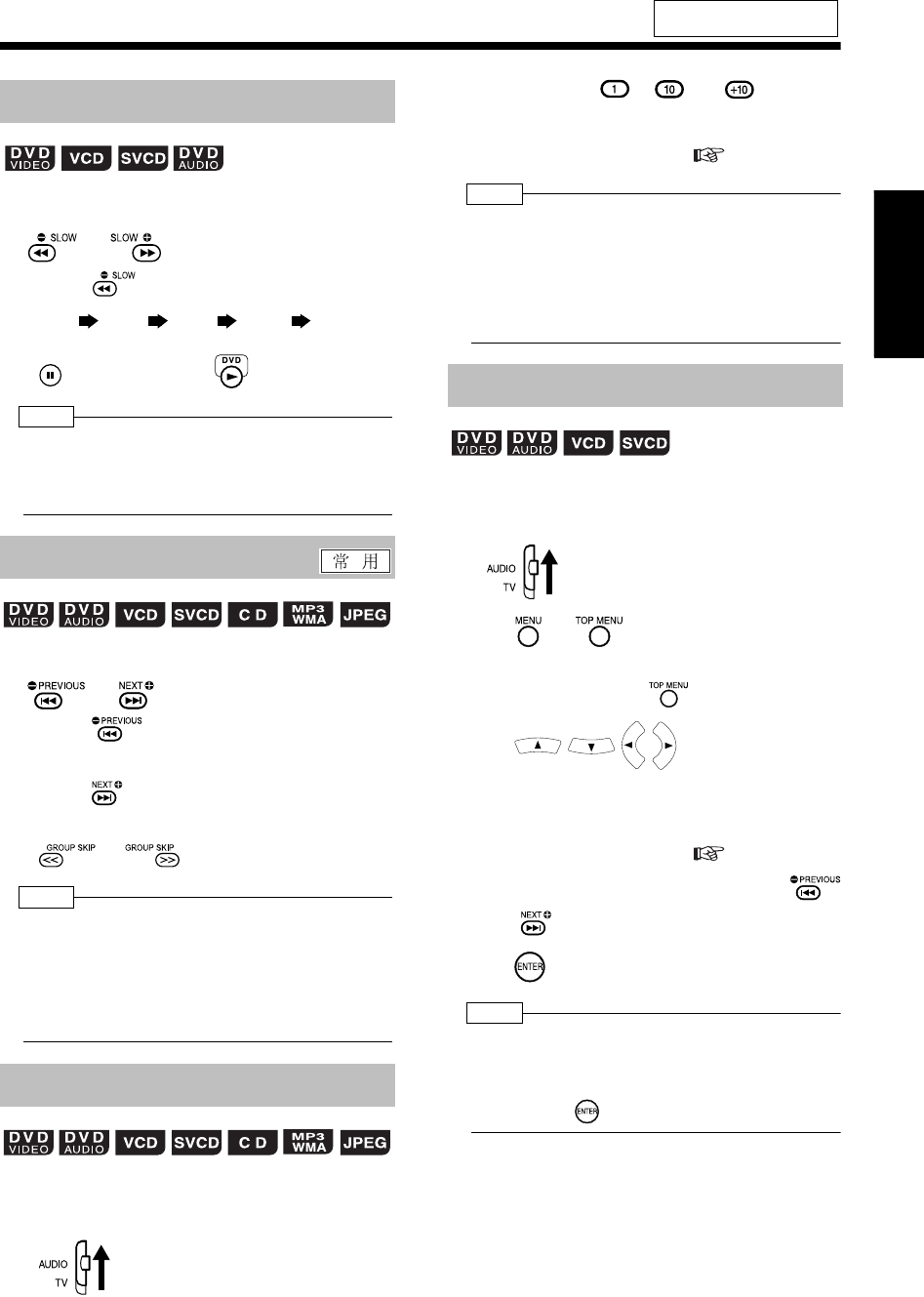
中
文
26
聆
听
光
盘
■暂停播放光盘时
按
或
。
•每按一次 ,速度如下增加。
•按 暂停播放,然后按 继续正常播放。
注
•
无声音产生。
•以相反方向运动的图像可能不平滑。
•对于 VCD 或 SVCD,仅可向前播放慢动作。
■播放光盘时 *
按
或
。
•每按一次 ,当前章节 /曲目 /文件跳到前一
章节 /曲目 /文件的开始位置。
•每按一次 ,当前章节/曲目/文件跳到下一章节
/曲目 /文件的开始位置。
•按 或 选择标题或群组。
注
*
对于
VCD
或
SVCD
,仅在无
PBC
功能播放期间可以
进行本操作。
•除 DVD 视频之外,光盘停止播放时也可以进行本操
作。
•对于某些光盘,可能无法进行本操作。
■播放光盘时
1将遥控模式选择器设为 AUDIO。
2按数字键 ( - 或 )选择想
要聆听的曲目 /章节。
•请参阅 “使用数字键”( 第 17 页)。
注
•
停止播放光盘或关闭
PBC
播放光盘时,可以操作
VCD
或
SVCD
。
•播放或停止播放光盘时,可以操作 DVD 音频、CD、
MP3、WMA 或 JPEG。
•对于某些光盘,可能无法进行本操作。
■停止播放或播放光盘时 *
1将遥控模式选择器设为 AUDIO。
2按 或 。
•出现光盘的菜单屏幕。
•DVD 音频仅可使用 。
3按 (仅 DVD 视频或
DVD 音频)或数字键选择要聆听的曲
目。
•请参阅 “使用数字键”( 第 17 页)。
•如果菜单屏幕含有双页或多页,请按
或 改变页面 (仅 VCD 和SVCD)。
4按 。
注
*PBC
设为关时,可以操作
VCD
或
SVCD
。
•对于没有录制菜单屏幕的光盘,则无法操作本功
能
。
•即使没有按 ,某些光盘可能也会开始播放。
有关遥控键的位置,请参阅
第 22 页。
慢动作播放
跳到曲目的开始位置
使用数字键跳到曲目的开始位置
(仅动态图像)
32
/
116
/
18
/
14
/
12
/
1
从菜单屏幕选择曲目
UX-QD7[UB]-03.fm Page 26 Thursday, September 16, 2004 12:31 PM
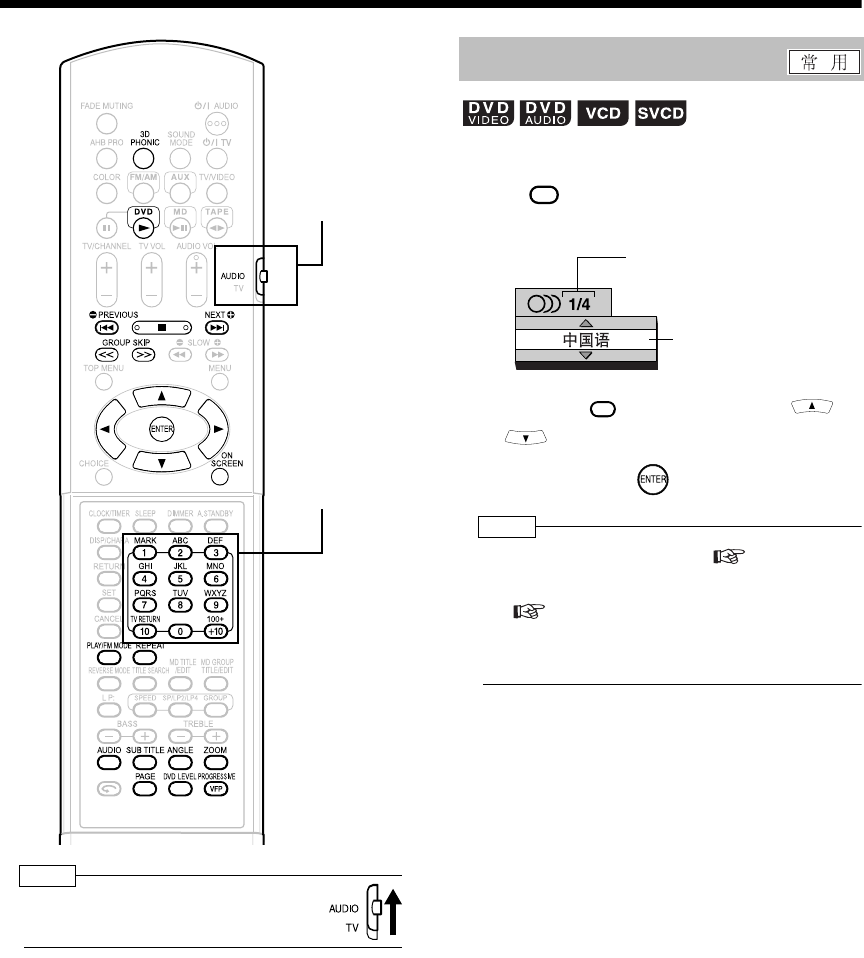
简介
27
聆听光盘
DVD 播放机的易用功能
注
•将遥控模式选择器设为 AUDIO ,然后
使用数字键。
■播放包含双音频或多音频的光盘时
1按 。
例如: 电视机屏幕
•每按一次 ,音频将会更改。按
也可以更改音频。
2等待几秒或按 。
注
•用菜单条也可以操作本功能 ( 第 35 页)。
•有关诸如 “AA”的语言代码,请参阅 “语言代码”
( 第 42 页)。
•DVD 音频中的 2 声道声音以 1/2 录制和禁止向下混
音的多声道声音以 2/2 录制时,仅可以选择 1/2。
遥控模式选择器
数字键
选择音频
AUDIO
所选音频 / 音频总数
所选音频
AUDIO
UX-QD7[UB]-04.fm Page 27 Monday, September 27, 2004 11:56 AM
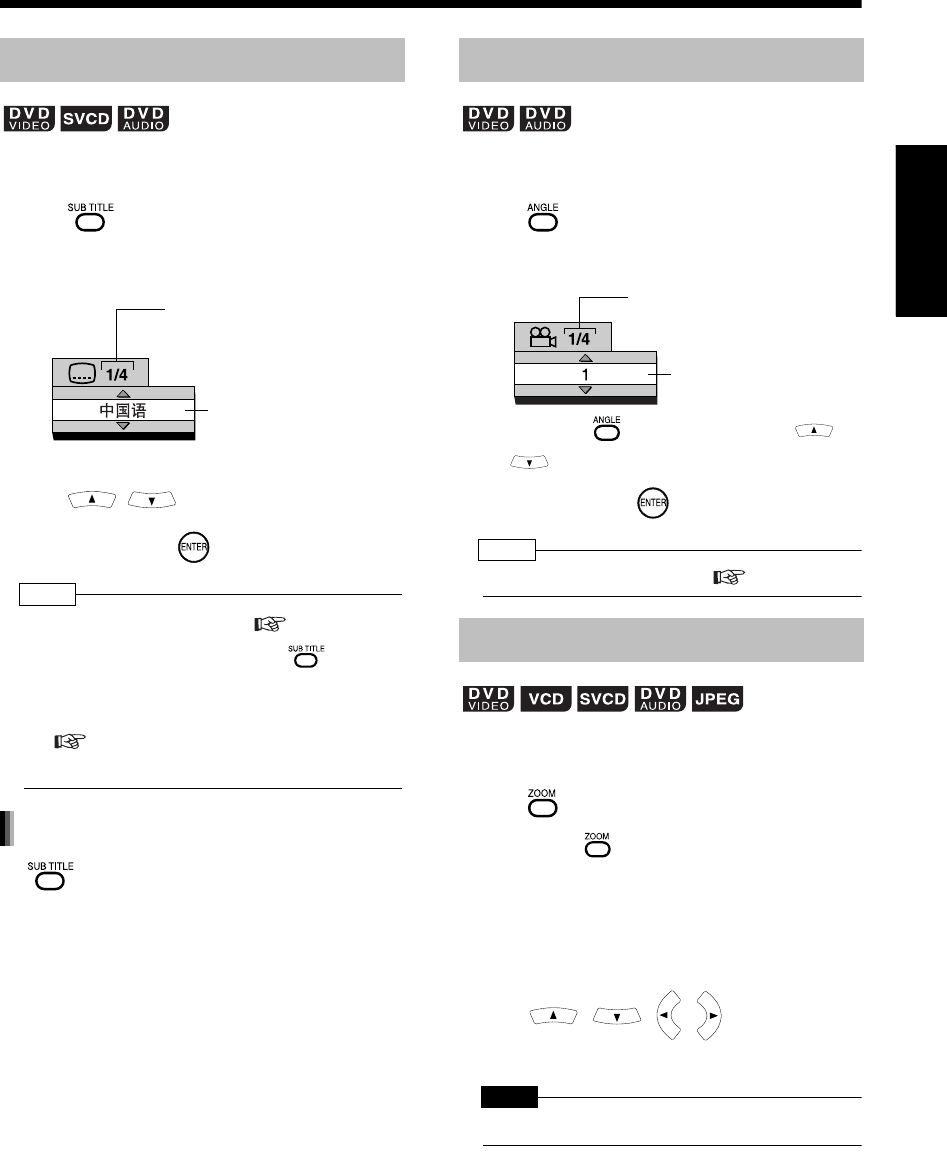
28
中
文
聆
听
光
盘
■播放包含双字幕或多字幕的光盘时
1按 。
例如: 电视机屏幕
2按 选择一个字幕。
3等待几秒或按 。
注
•用菜单条也可以操作本功能 ( 第 35 页)。
•对于 SVCD,在步骤 1 中每按一次 ,将更改
字幕类型和 ON/OFF。
•有关诸如 “AA”的语言代码,请参阅 “语言代码”
( 第42 页)。
•显示字幕的方式可能因光盘而异。
按
选择 “
OFF
”。
■播放包含双视角或多视角的光盘时
1按 。
例如: 电视机屏幕
•每按一次 ,角度将会更改。按
也可以更改角度。
2等待几秒或按 。
注
•用菜单条也可以操作本功能 ( 第 35 页)。
■播放或暂停播放光盘时
1按 。
•每按一次 图像放大率将会更改 (OFF,
放大 1 - 6 )。
•
使用
JPEG
光盘时,图像放大率可在 “
放大
1
”、“
放大 2
”至 “
OFF
”之间更改。幻灯
片播放期间无法更改图像放大率。
2按 选择您想要观
看的部分。
注 意
•放大图像时,图像质量可能变差或图像可能失真。
选择字幕
(仅动态图像)
所选字幕 / 字幕总数
(光盘中没有字幕时,
出现 “- -”。)
所选字幕
(光盘中没有字幕时,
出 现 “ 断 ”。)
取消字幕
选择视角
放大图像
(ZOOM )
(仅动态图像)
所选视角 / 视角总数
所选视角
(仅动态图像)
UX-QD7[UB]-04.fm Page 28 Monday, September 27, 2004 11:56 AM
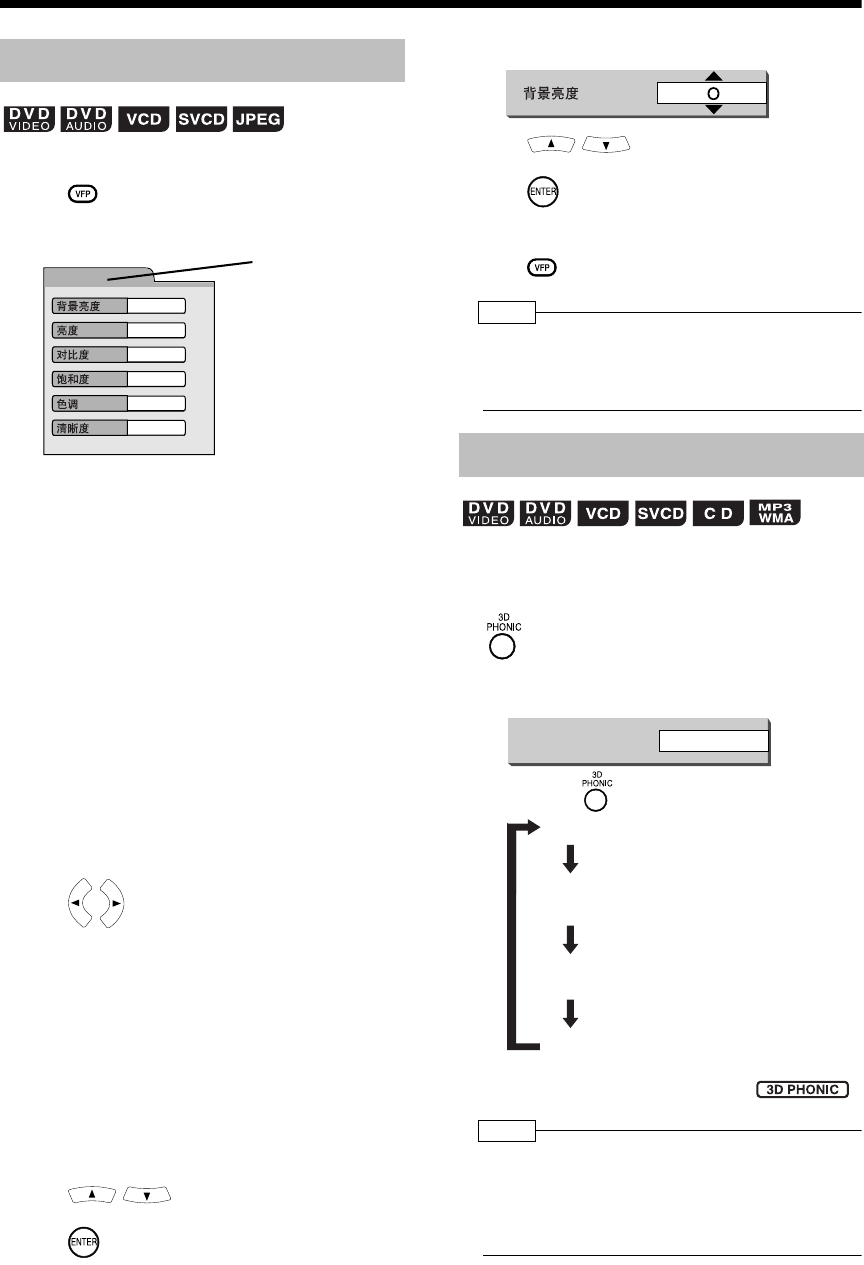
简介
29
(续)
DVD 播放机的易用功能
■播放或暂停播放光盘时
1按 。
例如: 电视机屏幕
设置项目
背景亮度 : 在保持明暗部分亮度的同时,控制灰
色的亮度。
(设置范围:–3 - +3 )
亮度 : 控制显示器的亮度。
(设置范围:–8 - +8 )
对比度 : 控制显示器的对比度。
(设置范围:–7 - +7 )
饱和度 : 控制显示器的饱和度。
(设置范围:–7 - +7 )
色调 : 控制显示器的色调。
(设置范围:–7 - +7 )
清晰度 : 控制显示器的锐度。
(设置范围:–8 - +8 )
2按 选择 VFP 模式。
标准 : 正常播放。
(无法调节图像质量。)→跳到步
骤 7。
影剧院 : 适合于在黑暗的房间观看电影。
(无法调节图像质量。)→跳到步
骤 7。
用户 1/ 用户 2: 可以调节图像质量。
→跳到步骤 3。
3按 选择要调节的项目。
4按 。
例如:
5按 改变调节值。
6按 。
•如需调节其他项目,请返回步骤 3。
7按 。
注
•在该过程中如果几秒内未进行操作时,则迄今为止
进行的设置将会自动保存。
•
“
VFP
”代表 “
video fine processor
”。
两个扬声器产生类似环绕声的效果。
■播放光盘时
按
。
例如: 电视机屏幕
•每按一次 ,显示变化如下。
•激活 3D 音效时,显示器窗口中显示 。
注
•3D 音效对于扬声器和耳机均有效。
•产生噪声或声音失真时,请将
“
3D PHONIC
”
设为
“
断
”
。
•无法操作某些类型的 DVD 音频光盘。
调节图像质量 (VFP)
用户 1
0
0
0
0
0
0
当前 VFP 模式
创建真实声音 (3D PHONIC)
动作
3D PHONIC
: 适用于动作影片、体育节目
或其他实况节目。
: 可以享受现场的气氛。
: 可以享受类似于在电影院观
看电影的声音效果。
:取消 3D 音效 (初始设置)。
动作
舞台
剧院
断
UX-QD7[UB]-04.fm Page 29 Monday, September 27, 2004 11:56 AM
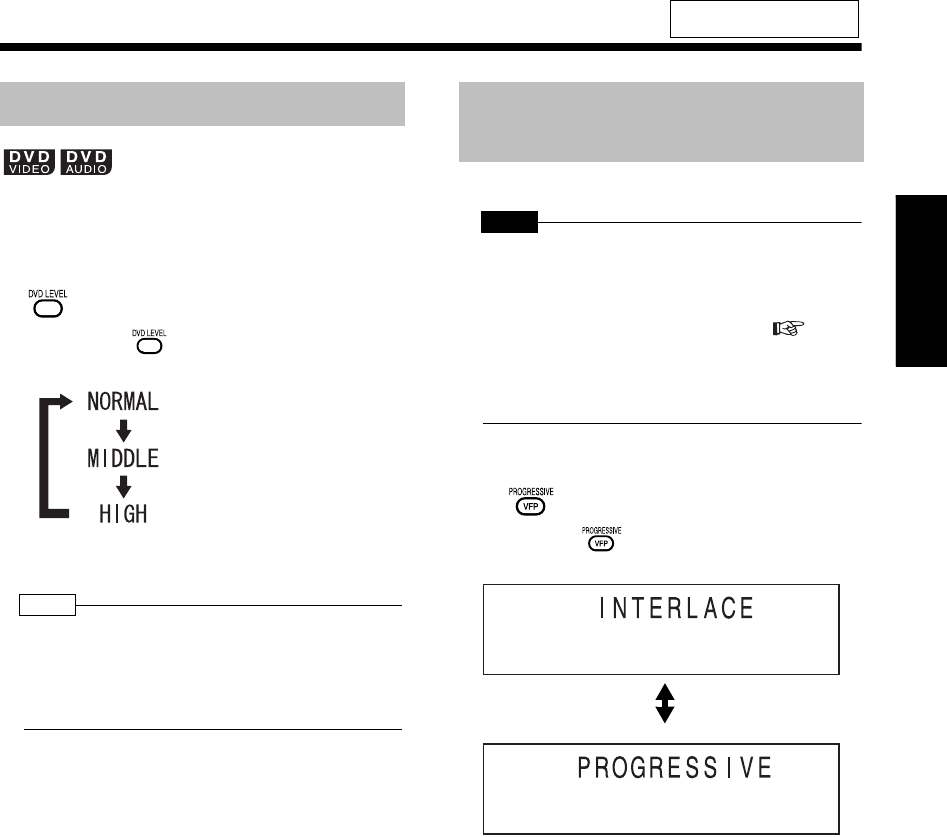
30
中
文
聆
听
光
盘
DVD 视频和 DVD 音频的声音可能以比其他类型光
盘录制的声音要低。可以调节 DVD 电平。
■播放光盘时
按
。
•每按一次 ,显示器窗口中显示变化
如下。
•聆听播放的声音时选择电平。
注
•DVD 电平仅对 DVD 播放有效。
•即使 DVD 电平改变,数字音频输出端子的输出电平
也将不会改变。
•本功能并不影响录制声音。
逐行扫描模式时,可以欣赏更好的图像。
注 意
•为了在逐行扫描模式欣赏图像,需要符合下列要求。
•必须将电视机的分量视频输入端子连接到本机
上。
•用分量视频导线连接本机和电视机 ( 第 15
页)。
上述要求未满足时,将本机设为隔行扫描模式。如
果设为逐行扫描模式,图像可能失真。
■播放或暂停播放光盘时
按住
。
•每按一次 ,显示变化如下。
有关遥控键的位置,请参阅
第 27 页。
调节播放电平 (DVD LEVEL)
: DVD 中录制的声音电平。
: 增强声音电平 (初始设置)。
: 将声音电平增强到最高等级。
欣赏更好的图像
(PROGRESSIVE)
隔行扫描模式 (初始设置)
逐行扫描模式
UX-QD7[UB].book Page 30 Friday, September 10, 2004 10:56 AM
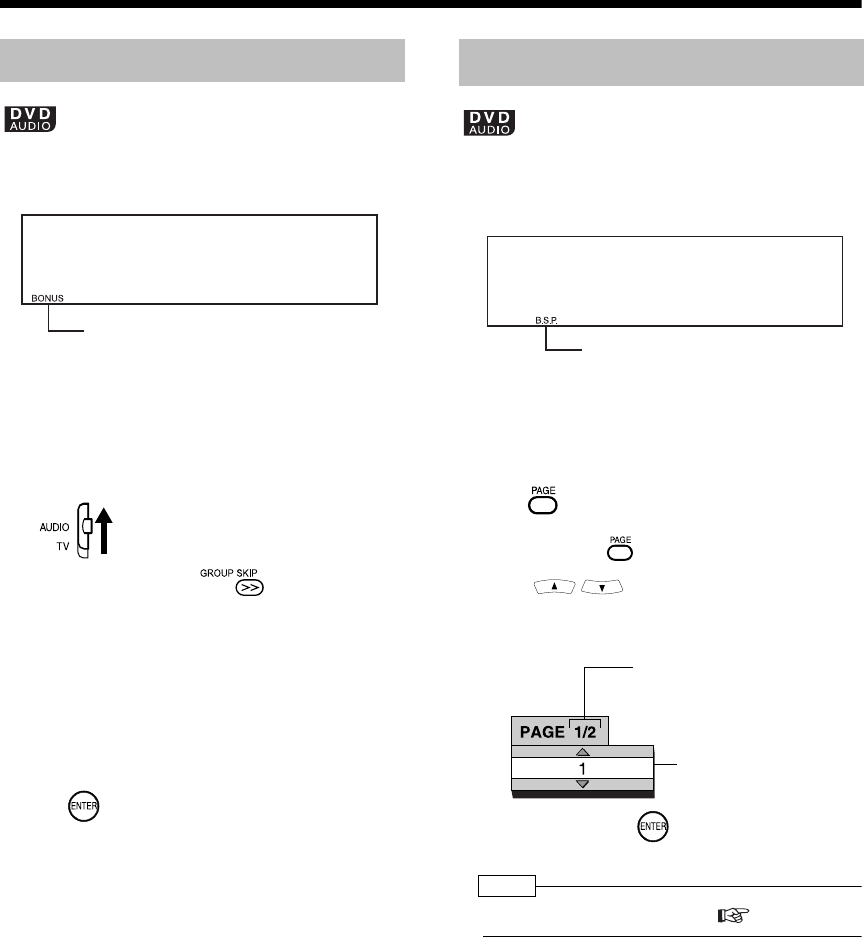
简介
31
(续)
DVD 播放机的易用功能
有些 DVD 音频光盘录有特殊群组,称作 “赠送群
组”。
•本机的显示器窗口上点亮“BONUS”时,
可进行本操作。
■播放光盘时
1将遥控模式选择器设为 AUDIO。
2播放期间反复按 选择一个赠送
群组。
•“KEY_ _ _ _”出现在电视机屏幕上和本
机显示器窗口中。
3按数字键输入密码 (4位)。
•获得密码的方式视光盘而异。
4按 。
•输入正确的密码后,“BONUS”消失,赠
送群组的播放开始。
•如果输入的密码错误,请再次尝试输入正
确的密码。
某些 DVD 音频光盘录有静止图像。在这些静止的图
像中,存在称为 B.S.P (可浏览的静止图像)的图
像。可以切换这些图像,就如同翻页一样。
•本机的显示器窗口上点亮 “B.S.P.”时,
可进行本操作。
■播放光盘时
1按 。
•每次按一次 静止图像将会交替变化。
•按 也可以更改图像。
例如: 电视机屏幕
2等待几秒或按 。
注
•可以在菜单条上操作本功能 ( 第 35 页)。
播放赠送群组
赠送指示
可浏览的静止图像 (B.S.P.)
B.S.P. 指示
所选页面 / 页面
总数
所选页面
(静止图像)
UX-QD7[UB].book Page 31 Friday, September 10, 2004 10:56 AM
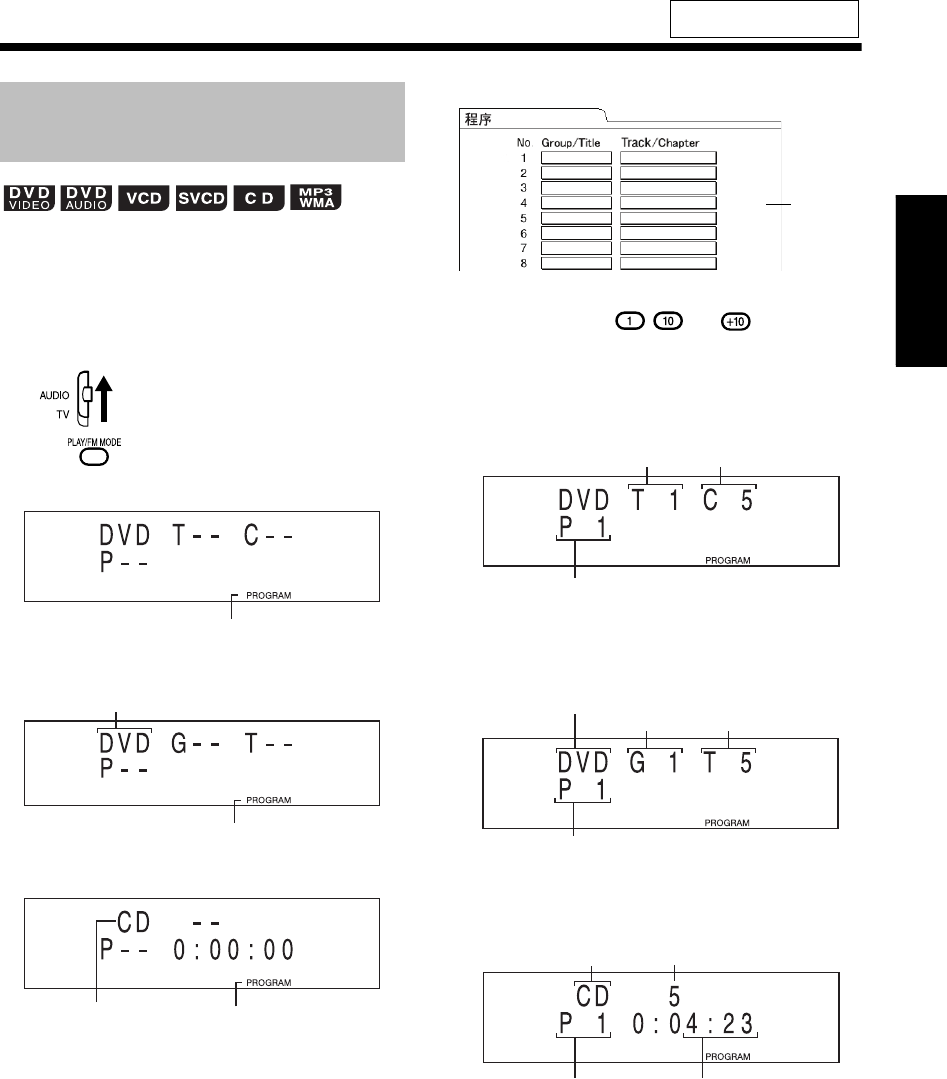
32
中
文
聆
听
光
盘
最多可以编辑 99 个章节或曲目。可以多次编辑同一
章节或曲目。
■停止播放光盘时
1将遥控模式选择器设为 AUDIO。
2按 选择 “PROGRAM”。
■ DVD 视频的显示
■ DVD 音频 /MP3/WMA 的显示
■ CD/VCD/SVCD 的显示
例如: 对于 DVD 视频
3按数字键 ( - 或 )编程章节
/曲目。
■ DVD 视频的显示
•选择标题号,然后选择章节号。
■ DVD 音频 /MP3/WMA 的显示
•选择群组号,然后选择曲目号。
■ CD/VCD/SVCD 的显示
•选择一个曲目号。
(接下页)
有关遥控键的位置,请参阅
第 27 页。
按想要的顺序播放光盘
(编程播放)
编程指示
编程指示
DVD, MP3 或 WMA
编程指示
选择 VCD/SVCD 时
显示 “VCD”。
电视机屏幕
编程屏幕
编程号
标题号 章节号
群组号 曲目号
编程号
DVD, MP3 或 WMA
编程号 编程播放的总时间
曲目号CD 或 VCD
UX-QD7[UB]-04.fm Page 32 Monday, September 27, 2004 11:58 AM
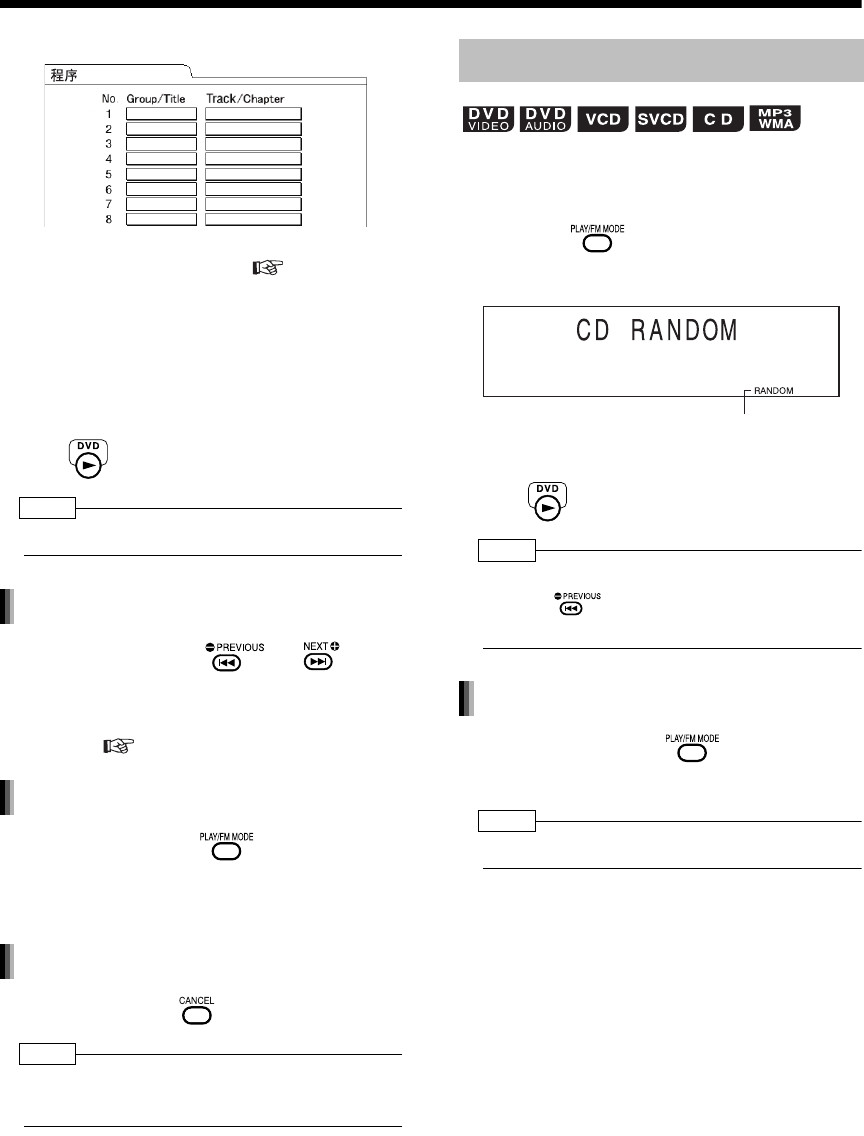
简介
33
(续)
DVD 播放机的易用功能
例如: 对于 DVD 视频
•请参阅 “使用数字键”( 第 17 页)。
•选择 DVD 音频的赠送群组之前,请按照第 31
页“播放赠送群组”所述取消“BONUS”显
示。
•试图输入 99 个以上的章节或曲目时,出现
“MEMORY FULL ”。
4按 。
注
•在编程播放设置中可以从光盘或 MD 设置曲目。
停止播放时,反复按 或
。
•进行本操作时,可以将一首曲目添加为编
程中的最后一首曲目,或删除最后一首曲
目。( 步骤 3 )
停止播放时,反复按
显示 “程序”
以外的项目。
•本操作并不删除编程的内容。
停止播放时,按住
。
注
•弹出光盘或关闭本机也会删除编程的内容。本操作
也会取消编程播放。
可以按照随机顺序聆听曲目或章节。
■停止播放时
1反复按 选择 “
任意
”。
例如: 对于 CD
•电视机屏幕中出现 “任意”。
2按 。
注
•可以从光盘或 MD 设置随机播放的曲目。
•反复按 不会将播放返回到上一首曲目。
•每首曲目播放一次。
停止播放时,反复按 显示 “
任意
”
以外的项目。
注
•弹出光盘或关闭本机也会取消随机播放。
电视机屏幕
15
确认编程的内容
取消编程播放
删除整个编程
随机播放
随机指示
取消随机播放
UX-QD7[UB]-04.fm Page 33 Monday, September 27, 2004 11:58 AM
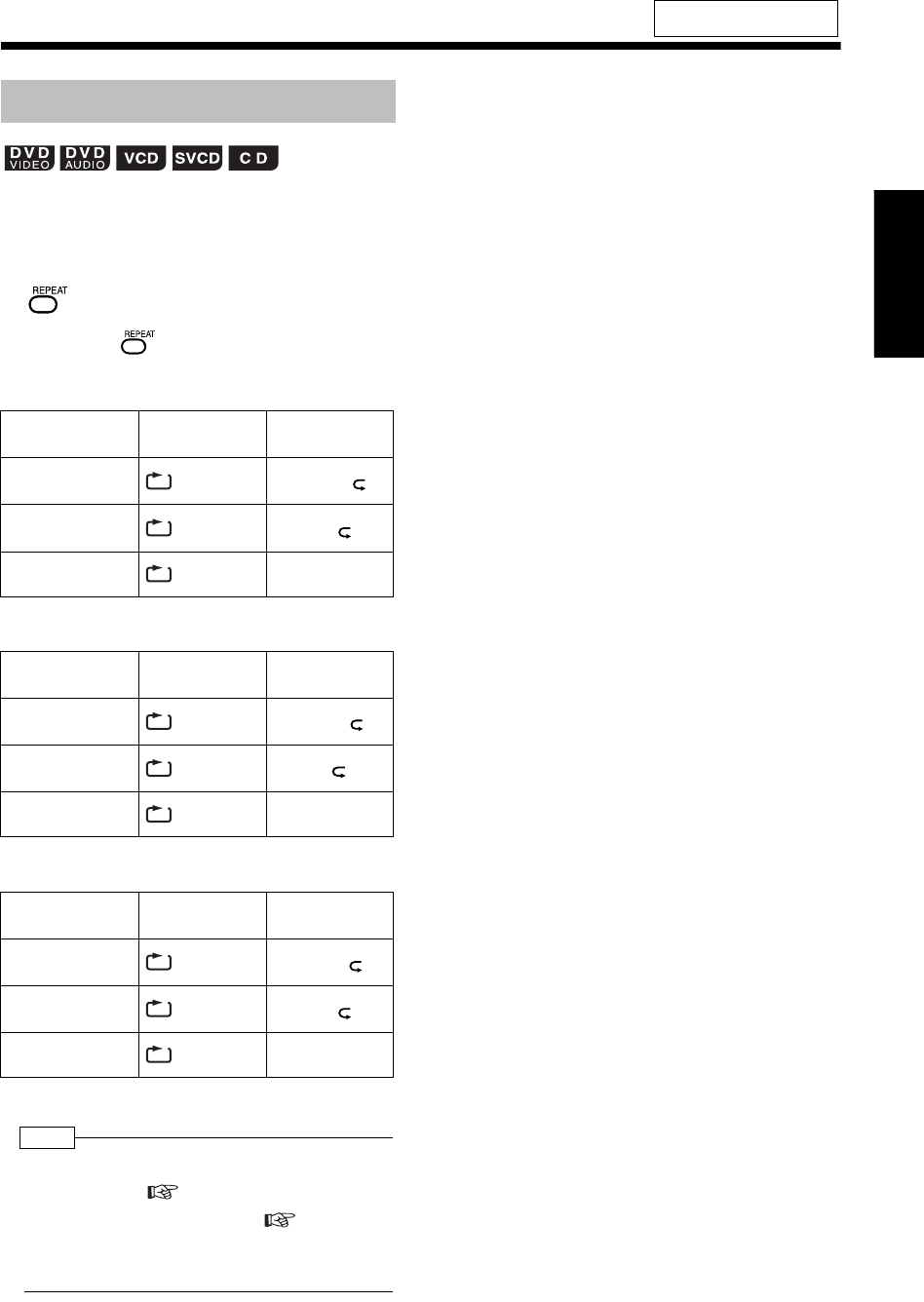
34
中
文
聆
听
光
盘
有关 MP3/WMA 和 JPEG 文件的重复播放,请参阅
第 38 页。
■播放光盘时
按
。
•每按一次 ,重复播放的类型将会更改。
对于 DVD 视频
对于 DVD 音频
对于 CD/VCD/SVCD
*编程播放或随机播放期间,显示 “STEP”。
注
•对于 VCD 和 SVCD ,在无 PBC 功能播放期间可以
进行本操作。( 第 24 页)。
•也可以在菜单条上操作本功能 ( 第 35 页)。
•有关 A-B 重复播放(指定部分的重复播放)的详情,
请参阅第 36 页。
有关遥控键的位置,请参阅
第 27 页。
重复播放
重复播放的类型 电视机屏幕上的
显示
本机显示器窗口
中的显示
重复播放当前章节 CHAP* REPEAT
CHAPTER*
重复播放当前标题 TITLE REPEAT
TITLE
取消重复播放 OFF REPEAT
OFF
重复播放的类型 电视机屏幕上的
显示
本机显示器窗口
中的显示
重复播放当前曲目 TRACK* REPEAT
TRACK*
重复播放当前群组 GROUP REPEAT
GROUP
取消重复播放 OFF REPEAT
OFF
重复播放的类型 电视机屏幕上的
显示
本机显示器窗口
中的显示
重复播放当前曲目 TRACK* REPEAT
TRACK*
重复播放所有曲目 ALL REPEAT
ALL
取消重复播放 OFF REPEAT
OFF
ALL
GROU
P
ALL
UX-QD7[UB].book Page 34 Friday, September 10, 2004 10:56 AM
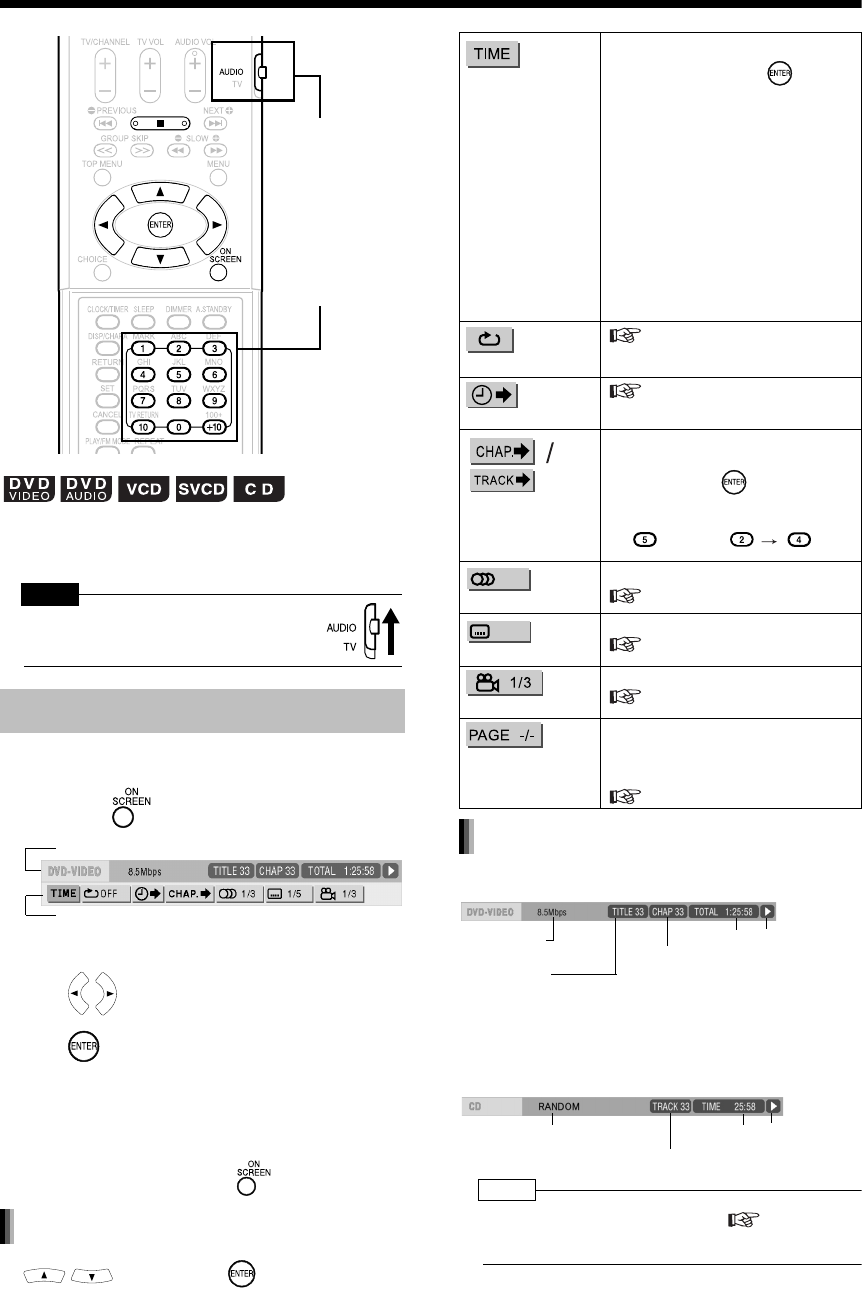
简介
35
状态条和菜单条
可以在电视机屏幕上显示状态条和菜单条,并使用
它们控制光盘。
注 意
•将遥控模式选择器设为 AUDIO ,然后
使用数字键。
■播放光盘时
1按两次 。
•上述为 DVD 视频的例子。
2按 选择想要操作的项目。
3按 。
•可以设置所选的功能。有关设置项目,请参阅
下面的 “功能列表”。
•当前功能显示蓝色。
•如需取消菜单条,请按 。
按 选择,然后按 确定,除非另有说
明。
DVD 视频 /DVD 音频 (以下为 DVD 视频的例子)
VCD/SVCD/CD (以下为 CD 的例子)
注
•播放状态标记与屏幕显示指导 ( 第 24 页)上
的标记具有相同的意义。
使用状态条和菜单条
数字键
遥控模式选择器
状态条
菜单条
功能列表
时间显示选择
更改显示在本机显示器窗口中和状态条
上的时间信息。每按一次 ,显示将
更改。
DVD 视频 /DVD 音频
TOTAL :当前标题 /群组消逝的播放时间
T. R E M :当前标题 /群组剩余的播放时间
TIME : 当前章节 /曲目消逝的播放时间
REM : 当前章节 /曲目剩余的播放时间
CD/VCD/SVCD
TIME : 当前曲目消逝的播放时间
REM : 当前曲目剩余的播放时间
TOTAL:光盘消逝的播放时间
T. R EM :光盘剩余的播放时间
重复播放模式
第 34 页
时间搜索
第36 页
章节搜索 /
曲目搜索
DVD 视频 /DVD 音频
选择一个章节 / 曲目。按数字键输入章节
/ 曲目号,然后按 。
例如:
音频
DVD 视频 /DVD 音频 /VCD/SVCD
第27 页
字幕
DVD 视频 /DVD 音频 /SVCD
第28 页
视角
DVD 视频 /DVD 音频
第28 页
页面切换
DVD 音频
切换录制在 DVD 音频光盘上的静止图像
(B.S.P.)。
第 31 页
5: 24:
显示在状态条上的信息
传输率
(仅 DVD 视频)
(DVD 视频)
当前标题号
(DVD 音频)
当前群组号
时间 播放状态
(DVD 视频)
当前章节号
(DVD 音频)
当前曲目号
播放模式
当前曲目号
时间 播放状态
UX-QD7[UB].book Page 35 Friday, September 10, 2004 10:56 AM

36
中
文
聆
听
光
盘
■播放光盘时
1按两次 。
•出现菜单条 ( 第35 页)。
2按 选择 。
3按 。
4按 选择 。
5在要重放的开始位置按 (指定 A
位置)。
•菜单条上的图标将为 。
6在要重放的结束位置按 (指定 B
位置)。
•菜单条上的图标将为 。本机的显示器
窗口中出现“ A-B”并重复播放 A和B位
置之间的部分。
•如需取消 A-B 重复播放:
•按 。
•选择 ,然后按两次 。(选择
。)
注
•关闭 PBC 播放光盘时,可以操作 VCD 和 SVCD 。
•A-B 重复播放仅在相同的标题或曲目中有效。 PBC
播放、编程播放和重复播放期间,无法进行 A-B 重
复播放。
■播放光盘时
1将遥控模式选择器设为 AUDIO。
2按两次 。
•出现菜单条 ( 第35 页)。
3按 选择 。
4按 。
5用数字键 ( -, )输入时间。
例如: 想要从 (0 时) 23 分 45 秒的位置播
放光盘时,依次按下列键:
•可以跳过输入 “分”和 “秒”。
•如果输入错误的数字,按 删除数字,然后
重新输入数字。
6按 。
•如需删除菜单条,请按 。
注
•可能无法操作本功能 ,视光盘而异。
•本功能在编程播放或随机播放时不起作用。
•
对于
CD
,总是可以进行本操作。对于
VCD
或
SVCD
,
光盘停止播放时或无
PBC
功能进行播放期间,可以进行
本操作。
•DVD 视频的时间搜索从标题的开始位置开始,DVD
音频的时间搜索从正在播放的曲目开始位置开始。
VCD、SVCD 和 CD 的时间搜索如下:
•光盘停止播放时,时间搜索从光盘开始位置开始。
•
光盘正在播放时,可在当前播放的曲目范围内进行时
间搜索。
重复播放指定的部分
(A-B 重复播放)
OFF
A B
取消 A-B 重复播放
指定时间 (时间搜索)
UX-QD7[UB].book Page 36 Friday, September 10, 2004 10:56 AM

简介
37
播放 MP3/WMA 和 JPEG 光盘
注
•将遥控模式选择器设为 AUDIO ,然后
使用数字键。
这里将描述 MP3/WMA 光盘显示作为一个例子。
对于 JPEG 光盘,将 “曲目”读取为 “文件”。
注
•播放同时包含 MP3/WMA 和 JPEG 文件的光盘时,
将设置其中之一进行播放 ( 第 39 页)。
1插入光盘。
例如: 电视机屏幕
例如: 显示器窗口
2按 选择一个群组。
3按 移动到曲目列表。
•按 返回到群组列表。
数字键
遥控模式选择器
播放
所选曲目消逝的播放时
间(仅 MP3/WMA)。
所选曲目的标记信息
(仅 MP3/WMA)
群组列表
曲目列表 (包含在所
选群组中的曲目)
程序播放期间,该指示
点亮。( 第 32 页)。
程序播放期间,该指示
点亮。( 第 38 页)。
群组号 曲目号
装载 WMA 光盘时显示 “WMA”, 装 载
JPEG 光盘时显示 “JPG”。
UX-QD7[UB]-04.fm Page 37 Thursday, September 16, 2004 10:33 AM
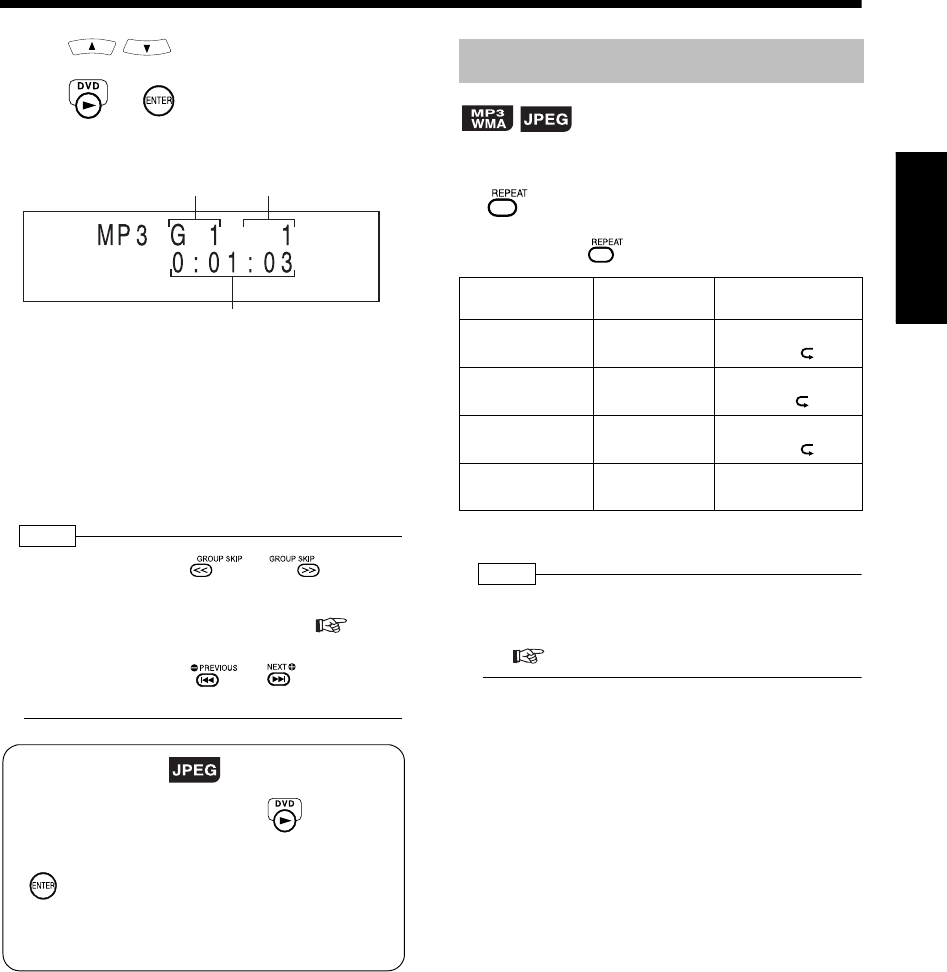
38
中
文
聆
听
光
盘
4按 选择一个曲目。
5按 或 。
例如: 播放期间的显示
•首先,曲目标题 (文件名)滚动。
•装载 MP3 或 WMA 时,标记信息(标题 /艺术家 /
专辑)在曲目标题后滚动。
•仅正确显示作为曲目标题或标记信息的单字节字
母数字字符。
注
•也可在步骤 2 中使用 和 。
•也可以在步骤 4
中使用数字键。在这种情况下,无需
步骤
3
和
5
。请参阅 “使用数字键”(
第
17
页)。
•也可在步骤 4 中使用 或 。在这种情况
下,无需步骤 3 。
■播放光盘时
按
。
•每按一次 ,重复播放的类型将会更改。
注
•停止播放光盘期间,重复播放类型可改变。
•
如果存在无法播放的文件,则自动取消重复播放。
(
第
4
页)。
群组号 曲目号
消逝的播放时间
(装载 JPEG 时不显示本指示。)
幻灯片显示播放
•对于 JPEG 光盘,在步骤 5 按 时,从所选
的文件连续播放文件 (幻灯片显示播放)。按
时,仅播放所选的文件。
•在幻灯片显示播放中,单个文件显示约为 3 秒。
•播放完所有文件后,自动停止播放。
重复播放
重复播放的类型 电视机屏幕上的
显示
本机显示器窗口中的
显示
重复播放当前曲目
(仅 MP3/WMA)
REPEAT
TRACK*
REPEAT*
TRACK
重复播放当前群
组
REPEAT
GROUP
REPEAT
GROUP
重复播放整张光
盘REPEAT ALL REPEAT
ALL
取消重复播放 无显示 REPEAT
OFF
GROUP
ALL
*编程播放和随机播放期间,显示 “STEP”。
UX-QD7[UB].book Page 38 Friday, September 10, 2004 10:56 AM
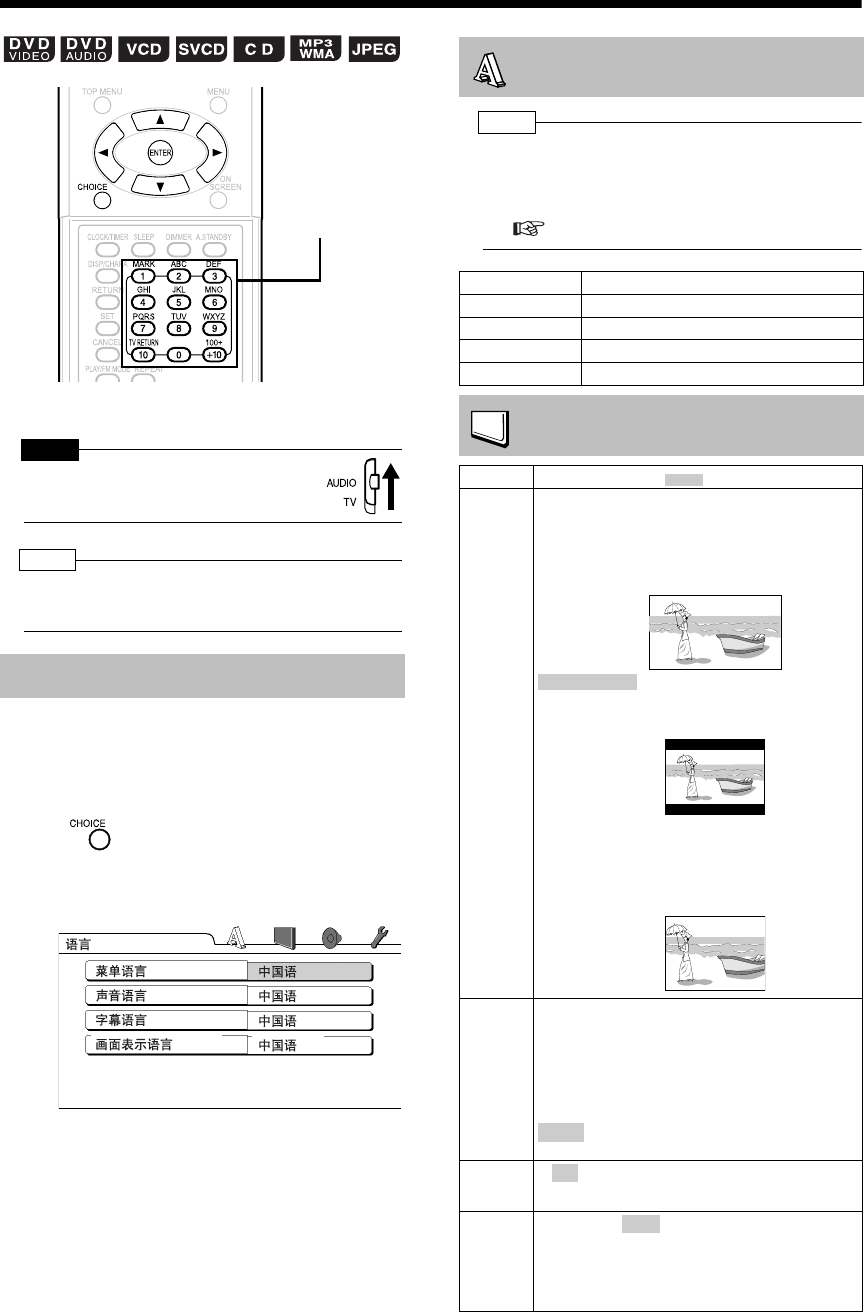
简介
39
个人偏好
根据产品使用的环境可以更改本产品的初始设置。
注 意
•将遥控模式选择器设为 AUDIO ,然后
使用数字键。
注
•个人偏好屏幕的上方和下方可能无法显示在宽屏幕
电视机上。在电视机上调节图像尺寸。
本节介绍更改各种设置的基本操作。
■光盘停止播放或无光盘装载 (显示 “NO
DISC”时)时
1按 。
•“SETTING”出现在本机显示器窗口上,然后
下列屏幕将会出现在电视机上。
•按电视机屏幕上的说明继续进行操作。
注
•如果所选的语言未录制在光盘上,则出现光盘最合
适的语言。
•有关诸如 “AA”的语言代码,请参阅 “语言代码”
( 第 42 页)。
基本操作
数字键
语言
项目 说明
菜单语言 选择 DVD 视频菜单的语言。
声音语言 选择 DVD 视频的音频语言。
字幕语言 选择 DVD 视频的字幕语言。
画面表示语言 选择显示在个人偏好屏幕的语言。
图像
项目 说明 ( : 初始设置)
屏幕类型 为电视机选择合适的显示模式。
16 : 9 /16 : 9 多制式 (宽屏幕电视机):
宽屏幕电视机的宽高比固定为 16:9 时,选择本项目
(播放以 4:3 录制的 DVD 视频时,本产品自动调节输
出信号的屏幕宽度)。
/4 : 3 多制式信箱屏幕 :
电视机宽高比为传统 4:3 时,选择本项目。浏览宽屏
幕图像时,黑条出现在屏幕的上下边缘。
4 : 3 全景屏幕 /4 : 3 多制式全景屏幕 :
电视机宽高比为传统 4:3 时,选择本项目。浏览宽屏
幕图像时,图像的左右边缘将不会出现在屏幕上。
(如果光盘不兼容全景屏幕,图像将不会以信箱比率
显示。)
图像来源 选择适合视频源的项目。
视频 :
想要观看正常视频时选择本项目。
电影 :
想要观看电影或以逐行扫描方式录制的视频时选择
本项目。
自动选择视频源类型 (视频或电影)。
映像
储存器 在/断之间选择屏幕保护模式 (从静止图像最后
显示开始 5 分钟未进行操作时,屏幕保护启动)。
文件类型 如果光盘包括 文件(MP3/WMA)和静止图像文
件(JPEG),请选择播放的文件。如果更改本设置,
请打开并关闭光盘托架,或暂时关闭本机。(无论本
设置如何,均可播放带音频文件或静止图像文件的光
盘。)
4 : 3 信箱屏幕
自动 :
通
音频
UX-QD7[UB]-04.fm Page 39 Monday, September 27, 2004 12:47 PM
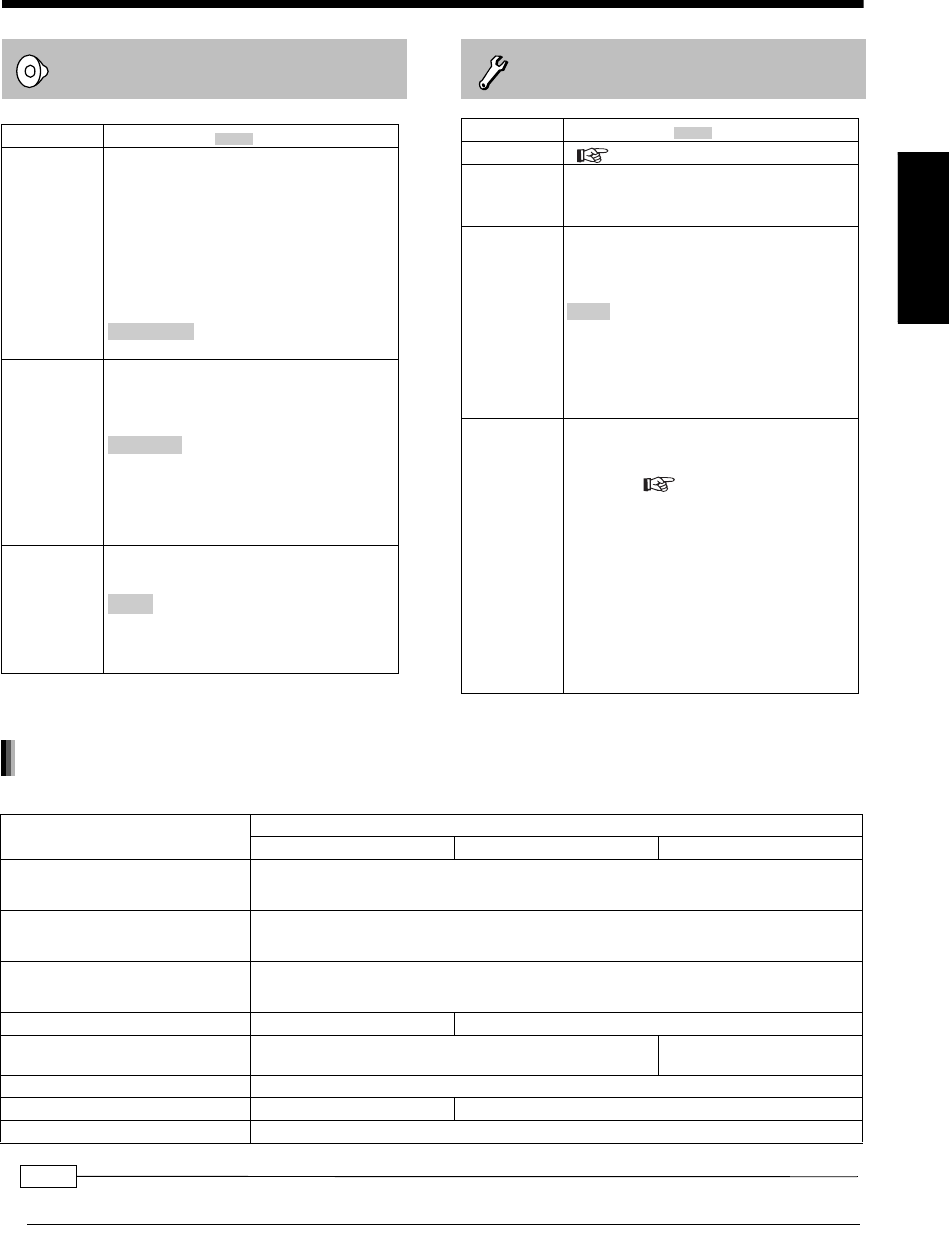
40
中
文
聆
听
光
盘
音频
项目 说明 ( : 初始设置)
数码音频输出 根据连接到数字音频输出端子(AV 音频放大器
等)的设备情况,从下列项目中选择输出信号
的类型。(有关个人偏好项目和输出信号,请参
阅以下列表。)
PCM:
仅与线性 PCM 相关的设备。
DOLBY DIGITAL/PCM:
杜比数码解码器或拥有相同功能的设备。
:
DTS/ 杜比数码解码器或拥有相同功能的设备。
下行混合 根据所连接的设备情况,切换 DVD 视频数字输
出端子输出的信号。数字音频输出设为“PCM ”
时,选择本项目。
:
内置杜比专业逻辑解码器的设备。
立体声:
普通设备。
•激活 3D 音效时,向下混音不起作用。
动态范围控制 低音量播放时,调节高音量和低音量的音量差
(仅以杜比数码录制的 DVD)。
:
动态范围补偿自动起作用。
通:
动态范围补偿总是起作用。
光束 /PCM
杜比环绕
自动
其他
项目 说明 ( : 初始设置)
记忆播放 (第 25 页)
屏幕指南 选择是否在屏幕显示指导上显示指导图标,指
示光盘 / 本机的状态 (有关指导图标的详情,
请参阅第 24 页)
AV 电脑连动
功能
想要使用本产品控制 JVC 电视机时,请从以下
选择匹配端子的模式。(有关详情,请参阅第
73 页的 “使用 AV 电脑连动”。)
:
连接到电视机上的视频 3 输入。
DVD2 :
连接到电视机的视频 1 输入。
DVD3 :
连接到电视机的视频 2 输入。
父母锁定 设置家长锁定功能关闭暴力场景或以其他场景
代替。(仅对配备家长锁定功能的光盘有效。)
区域代码 ( 第 41 页)
选择您的国家或地区。
等级:
数字越小限制越严格。“无”为没有限制。
密码 (要点):
用数字键 (1-9, 0) 输入 4 位数字作为您的密码。
(如果忘记密码,请输入 “8888”。)
播放时需要密码。
•如果输入错误密码 3 次,将会自动选择 “退
出”。
DVD 1
注
•对于无内容保护设置的 DVD 视频,在数字音频输出端子存在 20 位或 24 位输出。
播放光盘 DIGITAL AUDIO OUTPUT 个人偏好
光束 /PCM DOLBY DIGITAL/PCM PCM
48 kHz, 16/20/24 位
线性 PCM DVD 视频
96 kHz 线性 PCM DVD 视频 48 kHz, 16 位线性立体声 PCM
48/96/192 kHz,
16/20/24 位线性 PCM DVD 音频 48 kHz, 16 位线性立体声 PCM
44.1/88.2/176.4 kHz,
16/20/24 位线性 PCM DVD 音频 44.1 kHz, 16 位线性立体声 PCM
DTS DVD 视频 DTS 比特流 48 kHz, 16 位线性立体声 PCM
杜比数码 DVD 视频 /
DVD 音频 杜比数码比特流 48 kHz, 16 位线性立体声 PCM
CD/VCD/SVCD 44.1 kHz, 16 位线性立体声 PCM/48 kHz, 16 位线性 PCM
DTS CD DTS 比特流 44.1 kHz, 16 位线性 PCM
MP3/WMA 光盘 32/44.1/48 kHz, 16 位线性 PCM
DIGITAL AUDIO OUTPUT 个人偏好项目和输出信号的关系列表
UX-QD7[UB]-04.fm Page 40 Monday, September 27, 2004 12:47 PM

简介
41
国家 /地区代码
AD ࣴᩈऴ ER ؆፞ႯЋ LA ᓢОຜຜϜԞڔދ RW ׳᧷
AE ᯾டѡᔌىᮿދ ES ᠲᄪႢ LB ᷧূࣈ SA ໟႯ᯾டѡ
AF ᯾चເ ET ߝࠈҦຈЋ LC ޖ׳ᠲЋ SB ᒪᯀᓃॱ
AG ࣴటᅞڔূৈ᧷ FI ᘁԝ LI ղಀಗࠠሃ SC ࠈᖸऴ
AI ࣴޛட FJ ಡ༽ LK ರԝײ SD ᘗϚ
AL ᯾ऴূॆЋ FK ጆԎԝᓃॱ ơᳮऴᑢᐧರƢ LR ջຈЋ SE ᅉԤ
AM ЋᒼॆЋ FM घԎᒪॆᠲЋ ơᔌᩥƢ LS ᚅᐇ୩ SG ಱ֨
AN ᙰक़ࣴሇղರᓃॱ FO ᒪᓃॱ LT ፞ᰚࣾ SH ޖ᥇ּॱ
AO ࣴۋட FR ދ LU ׳߽ SI ರ༤ಞॆЋ
AQ ൚ޞך FX ދƥ࠵ߟে LV டᕯᑢЋ SJ ರᅤऴূॱڔ࠺ොॱ
AR ᯾ටਡ GA ֨ᛳ LY ջຈЋ SK ರ༤ѐԎ
AS ᒼक़ᚹЋ GB ᘫދ MA ༤ۋ SL ࠈடջ
AT ࡕޞջ GD ඨൡᐧ᧷ MC ᐧۋ SM ޖᳮ֤ᢰ
AU ဉ࠵ջЋ GE ඨᵒيЋ MD ऴ࠰ᅤԞڔދ SN ࠈԬ֨ऴ
AW ᯾ᵒূॱ GF क़ޛЋᩤ MG ᳮ᧷֨ರ֨ SO ᐇᳮ
AZ ᯾ࠈமᆛ GH ֨ᐧ MH ᳮᐾऴᓃॱ SR ᘗ
BA ༆ರॆЋڔᷩࠈۋᑢᩤ GI ርৈᒪ᯿ ML ᳮ ST ޖ࠰ᒼڔൡᠲຈ
BB ূূ࠰ರ GL ඨᰙԝ MM ᑲᆂ SV ᚹऴᅤ࠰
BD ࣞ֨டދ GM ԭຈЋ MN ᛙخ SY ةջЋ
BE ຈջ GN ՔԬЋ MO ဉᯀ SZ ರࢌࠠԝ
BF ৈ߰ᐧᐇ GP ᅞੱ༤ MP ᳮЋᐧᓃॱ TC ႯԎರڔՙರᓃॱ
BG ұ֨ջЋ GQ ᥄ᩈՔԬЋ MQ ᳮటॆԎॱ TD ϧ੧
BH ূൡ GR ৌᕶ MR ຍࠆॆЋ TF क़᪇Ეޞ
BI ৈᰝᨑ GS ϭЋॱڔࠫࢌ࠾ᓃॱ MS ᛙႯࠈடႯॱ TG ࠰ۋ
BJ ᤂ࣮ GT ޞᳮட MT ᳮᓼв TH ༎ދ
BM ህଠ࠵ GU ԟॱ MU ຍຸರ TJ ࠆيԎರ
BN ಞᚅ᧷ᵒᚹԝދ GW ՔԬЋຈᐾ MV ᳮऴк࠸ TK ୩Ԏִᓃॱ
BO ᄚջᑢЋ GY ޛЋᩤ MW ᳮடᑢ TM ޕഞರ
BR ূᠲ HK ᳫྞ MX ࠘ᠲۋ TN ፇॆರ
BS ূڸᳮ HM ᥇ੱॱڔᷞԎ۞ᐧᓃॱ MY ᳮൌᠲЋ TO ່֨ᢣ
BT νϚ HN ༨டರ MZ ᚃමຈԎ TP ω
BV ᑢႯॱ HR ԎᒪޞЋ NA ᐧᏘຈЋ TR ޕᓼԢ
BW ᙄᅤᐧ HT ཏޞ NC ಱ܌࠰ॆЋ TT Ⴏ፞ॆ᧷ڔ࠰ূۋ
BY ሄҦᒪರ HU Ⴂջ NE ॆೃऴ TV ތᅤ׳
BZ ѡջԥ ID ॆᠲЋ NF ᢰጆԎॱ TW عྯ
CA ֨࠵ IE ႓ऴԝ NG ॆೃջЋ TZ මॆЋᔌىԞڔދ
CC ظظᓃॱ IL мᗡղ NI ॆ֨டᅞ UA ϦԎԝ
CF ϔᱡԞڔދ IN NL ᙰԝ UG Ϧ৭᧷
CG յ IO ᘫक़༝ޞך NO ࢌ UM ᒼक़ळಚއॱॣ
CH ᅉࠠ IQ ьடԎ NP ॆऴ US ᒼދ
CI Ⴏᨑᅤ IR ьപ ơьರԝԞڔދƢ NR ᅅᵒᢣ UY Ϧடޛ
CK Ԏᓃॱ IS Կॱ NU ᐮߝॱ UZ ϦԥռԎರ
CL ംջ IT ଐ࠵ջ NZ ಱᠲԝ VA ෙᛑԭ ơޖƢ
CM ܌ᷞᰝ JM ႢϹ֨ OM ᯾ഞ VC ޖಞႯڔඨൡᐧεರ
CN ϔދ JO ᐛೄ PA ূᳮ VE ࡿԬᅉட
CO ۋѝຈЋ JP ೃല PE ጙᵒ VG ᑢऴИᓃॱ ơᘫक़Ƣ
CR ۋರ᧷ᷧ֨ KE ᔭॆЋ PF क़༆ջॆᠲЋ VI ᑢऴИᓃॱ ơᒼक़Ƣ
CU خূ KG يऴيರ PG ূৈЋಱՔԬЋ VN ᥒ
CV ѷ੧ᡅ KH ඉߢत PH ᚤओ VU ᅤ֮᯾ތ
CX ޖᢕॱ KI ߰ূರ PK ূ߰ರ WF ᅤջರᓃॱڔचތᐧᓃॱ
CY ࠈཉರ KM ᒪ PL ༆ԝ WS ᚹЋ
CZ ௶ԎԞڔދ KN ޖԎರ୩ڔॆᑢರᔌᩥ PM ޖሒߝऴॱڔघԎᰝॱ YE ϴᯀ
DE ੱދ KP ബᵢ PN ሒႯԎૄॱ YT ᳮᐛႯ
DJ يৈట KR ᱻދ PR ༆࠰ᷧه YU ರட࠸
DK Ϛᷞ KW ࢌႯ PT ᛅᚪႢ ZA ᱡ
DM ࠰Ꮨॆ֨ᔌᩥ KY ਥഞᓃॱ PW ִᓃॱ ZM ຈЋ
DO ࠰Ꮨॆ֨Ԟڔދ KZ ڸᚹԎ PY ূடޛ ZR ьऴ
DZ ᯾ऴؠջЋ QA ײࠆऴ ZW ༦ূৈᱹ
EC ؆ᅞ࠰ऴ RE ᆎॆ໋ॱ
EE ႓ໟॆЋ RO ᒪᳮॆЋ
EG ߝؠ RU Ҧᒪರᔌᩥ
EH ᠲڸட
UX-QD7[UB].book Page 41 Friday, September 10, 2004 10:56 AM
42
中
文
聆
听
光
盘
语言代码
代码 语言 代码 语言
AA 阿法尔语 MK 马其顿语
AB 阿布哈西亚语 ML 马拉雅拉姆语
AF 南非公用荷兰语 MN 蒙古语
AM 阿埃哈里语 MO 摩尔多瓦语
AR 阿拉伯语 MR 马拉地语
AS 阿萨姆语 MS 马来语 (MAY)
AY 艾马拉语 MT 马耳他语
AZ 阿塞拜疆语 MY 缅甸语
BA 巴什基尔语 NA 瑙鲁语
BE 白俄罗斯语 NE 尼泊尔语
BG 保加利亚语 NL 荷兰语
BH 比哈里语 NO 挪威语
BI 比斯克混合语 OC 欧西坦语
BN 孟加拉语 OM 库希特语
BO 西藏语 OR 奥里雅语
BR 布列塔尼语 PA 旁遮普语
CA 加泰罗尼亚语 PL 波兰语
CO 科西嘉语 PS 普什图语
CS 捷克语 PT 葡萄牙语
CY 威尔士语 QU 凯楚阿语
DA 丹麦语 RM 列托罗曼斯语
DZ 不丹语 RN 基隆迪语
EL 希腊语 RO 罗马尼亚语
EO 世界语 RU 俄语
ET 爱沙尼亚语 RW 金亚旺达语
EU 巴斯克语 SA 梵语
FA 波斯语 SD 信德语
FI 芬兰语 SG 佛兰卡国际混合语
FJ 斐济语 SH 塞尔维亚克罗地亚语
FO 法罗语 SI 僧伽罗语
FY 弗里斯兰语 SK 斯洛伐克语
GA 爱尔兰语 SL 斯洛文尼亚语
GD 苏格兰盖尔语 SM 萨摩亚语
GL 加利西亚语 SN 修纳语
GN 瓜拉尼语 SO 索马里语
GU 古吉拉特语 SQ 阿尔巴尼亚语
HA 豪撒语 SR 塞尔维亚语
HI 印地语 SS 希斯瓦梯语
HR 克罗地亚语 ST 塞索托语
HU 匈牙利语 SU 巽他语
HY 亚美尼亚语 SV 瑞典语
IA 拉丁国际语 SW 斯瓦希里语
IE 拉丁国际语 TA 泰米尔语
IK 伊努皮克语 TE 泰卢固语
IN 印度尼西亚语 TG 塔吉克语
IS 冰岛语 TH 泰国语
IW 希伯来语 TI 蒂格尼亚语
JI 依地语 TK 土库曼语
JW 爪哇语 TL 塔加拉语
KA 格鲁吉亚语 TN 茨瓦纳语
KK 哈萨克语 TO 汤加语
KL 格陵兰语 TR 土耳其语
KM 柬埔寨语 TS 聪加语
KN 卡纳达语 TT 鞑靼语
KO 韩国语 (KOR) TW 契维语
KS 克什米尔语 UK 乌克兰语
KU 库尔德语 UR 乌尔都语
KY 吉尔吉斯语 UZ 乌兹别克语
LA 拉丁语 VI 越南语
LN 林格拉语 VO 沃拉普克语
LO 老挝语 WO 沃洛夫语
LT 立陶宛语 XH 科萨语
LV 拉脱维亚语,列特语 YO 约鲁巴语
MG 马尔加什语 ZU 祖鲁语
MI 毛利语
UX-QD7[UB].book Page 42 Friday, September 10, 2004 10:56 AM
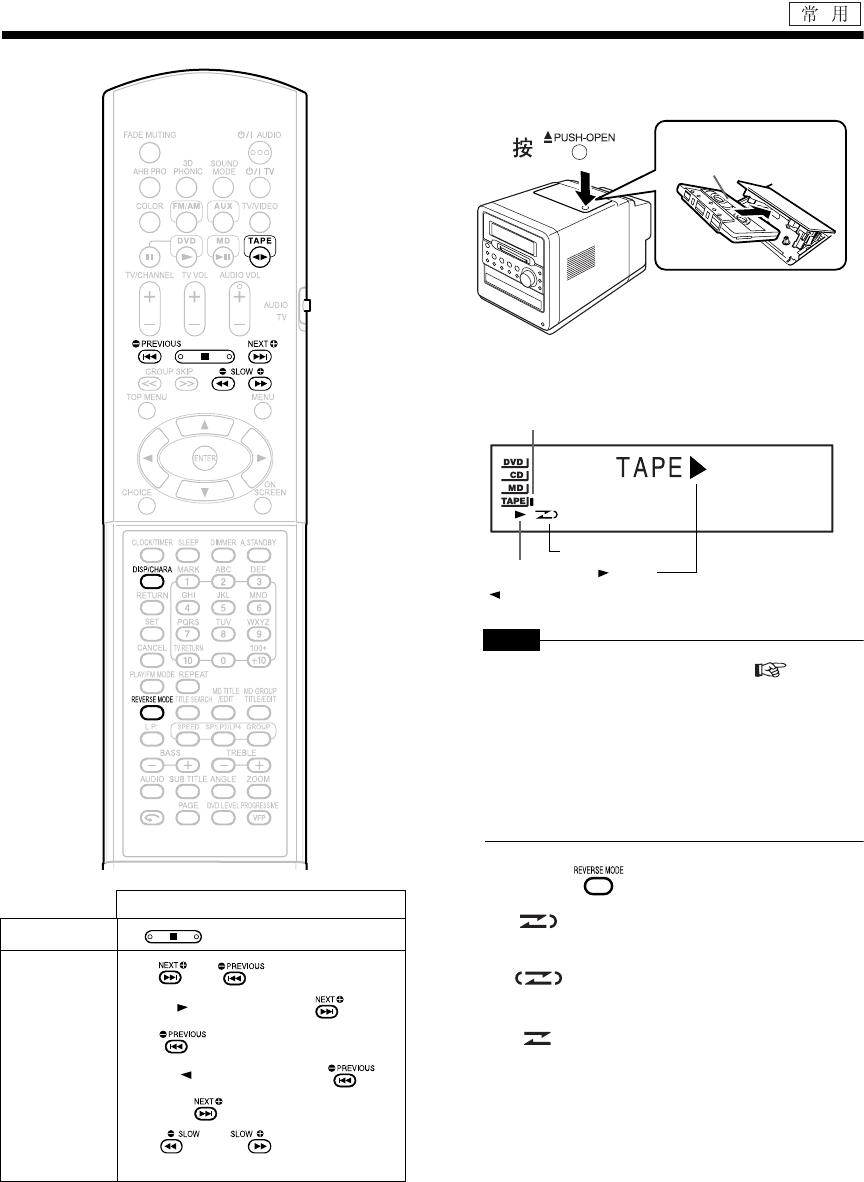
简介
43
聆听磁带
1插入磁带。
注 意
•使用磁带之前,卷紧松弛的磁带。( 第 75 页)
•请勿使用长磁带(如 C-120 或 C-150 )。长磁带细
且易拉伸,并可能在本机内部缠结。
•本产品兼容 TYPE I 磁带的播放。由于本产品不符
合 TYPE II 或 TYPE IV 规格,因此不建议播放上述
磁带。本机播放上述类型的磁带时,无法产生正确
的声音。
2反复按 选择倒退模式。
操作
停止 按。
快进 / 倒退
按 或 。
•正向 ()播放磁带时,按 快进,
按 倒退。
•反向 ( ) 播放磁带时,按 快
进,按 倒退。
•按 或 可以进行相同的
操作。
想要聆听的面向上插入
磁带。
磁带指示
(磁带停止播放时,磁带指示点亮。磁带播放时,磁带
指示闪烁。)
倒退模式
磁带播放方向 ( :正向
/ :反向)
: 单次往返播放磁带的两面。
: 重复播放磁带的两面 (停止播放时结
束。)
: 单次播放磁带的单面。
UX-QD7[UB].book Page 43 Friday, September 10, 2004 10:56 AM
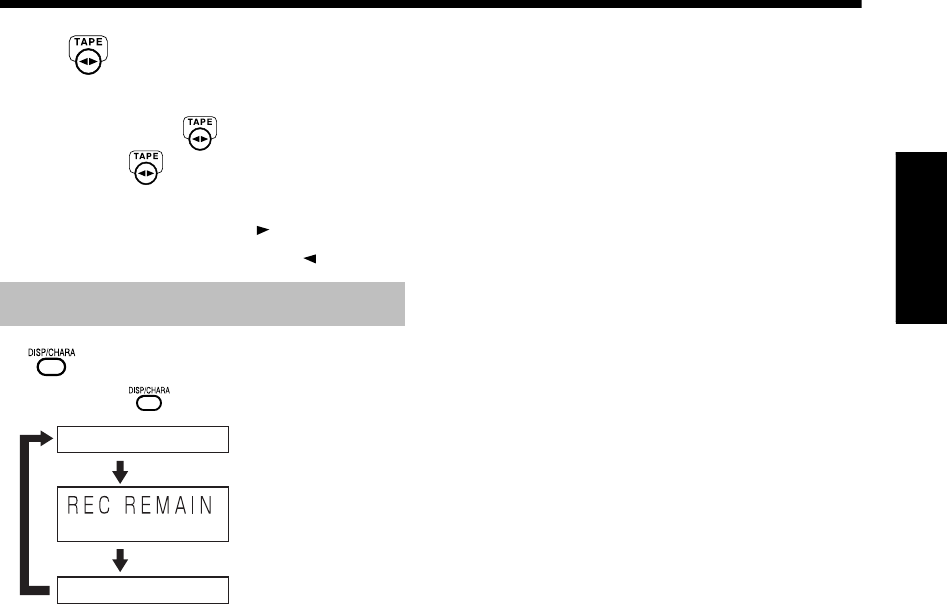
44
中
文
聆
听
磁
带
聆听磁带
3按 。
•播放开始。
•本机关闭时,按 自动打开本机。
•每按一次 ,磁带播放方向改变一次。插
入磁带后的初始播放方向总为正向。
•正常播放时,显示面向右 的磁带播放方向
指示。倒退播放时,显示面向左 的指示。
按
。
•每按一次 ,显示变化如下。
更改显示器窗口中的显示
(时间显示)
时钟显示
音源名称
(装载 MD 时) MD 录
制剩余时间的显示
UX-QD7[UB].book Page 44 Friday, September 10, 2004 10:56 AM
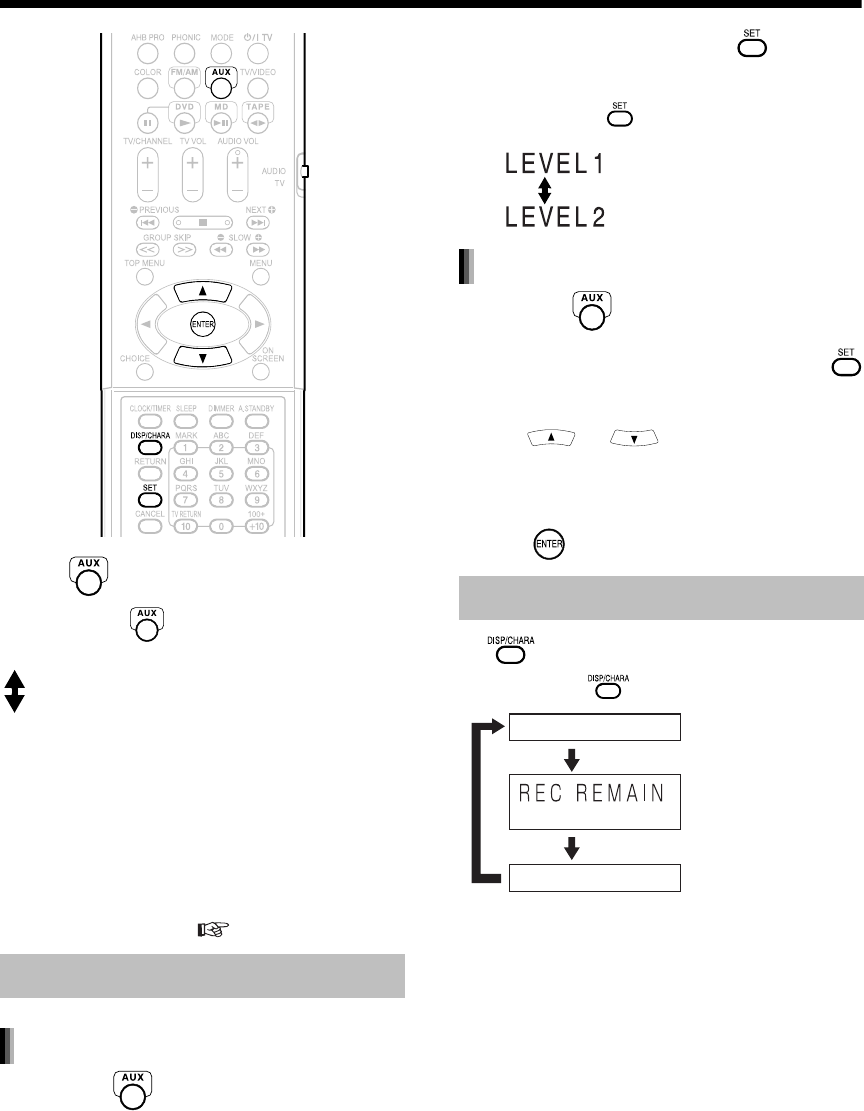
简介
45
聆听盒式磁带 /聆听其他设备
聆听其他设备
1按 。
•每按一次 ,显示变化如下。
AUX : 从连接到本机 AUX 端子的其他设
备聆听声音。
AUX-DIGITAL : 从连接到本机 OPTICAL DIGITAL
IN 端子的其他设备聆听声音。
2开始其他设备的播放。
•请参阅所连设备的操作说明书。
3调节音量并进行其他必须的设置。
•有关调节音量并进行其他必须的设置,请参
阅 “基本操作”( 第 18 页)。
1反复按 选择 “AUX”。
2(显示“AUX”时)按住 直到出现
输入电平。
•每按下一次 ,显示变化如下。
1反复按 选择 “AUX-DIGITAL”。
2(显示“AUX-DIGITAL”时)按住
直到出现输入电平。
3按 或 调节输入电平。
•可以在 -12 dB 到12 dB 的范围内调节输入电
平 (增量为 2 dB)。初始设置是 0 dB。
4按 。
按
。
•每按一次 ,显示变化如下。
调节其他设备的声音输入电平
调节 AUX 的声音输入电平
更改显示器窗口中的显示
一般使用。
(初始设置)
增加电平。
调节 AUX-DIGITAL 的声音输入电平
(时间显示)
时钟显示
音源名称
(装载 MD 时) MD 录
制剩余时间的显示
UX-QD7[UB].book Page 45 Friday, September 10, 2004 10:56 AM
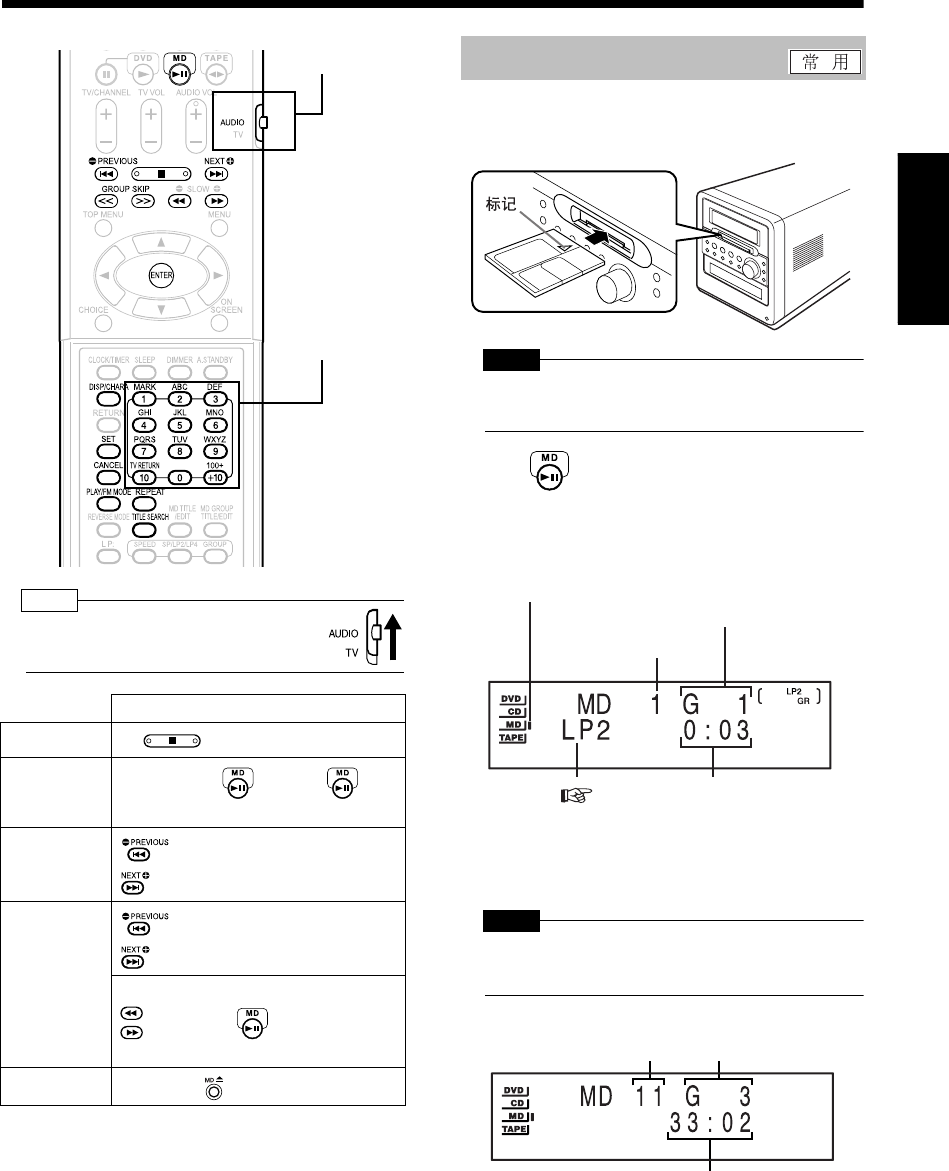
46
中
文
聆
听
其
他
设
备
/
聆
听
M
D
聆听其他设备 /聆听 MD
聆听 MD
注
•将遥控模式选择器设为 AUDIO ,然后
使用数字键。
■本机电源打开时
1插入 MD。
注 意
•
本机关闭时,请勿插入
MD
。强行插入
MD
可能损坏
本机。
2按 。
■播放 MD 时的显示
•曲目已经设置曲目标题时,首先出现曲目标
题。
*正在播放的曲目不属于群组时,出现“G - -”。
注 意
•MD 指示点亮或闪烁时,请勿插入另一 MD。强行插
入 MD 可能损坏本机。
■MD 停止播放时的显示
•MD 已经设置 MD 标题 (光盘标题)时,首
先出现 MD 标题。
•长标题会滚动。
*没有群组属于 MD 时,出现 “G - -”。
操作
停止 按 。
暂停 在播放期间按 。再次按 继续
播放。
跳过 :
:
反复按该键。
快进 / 倒退
(搜索)
:
:
播放期间按住该键。
:
:
播放期间按该键。(搜索期
间按 时,继续正常播
放 。)
弹出 按本机上的 。
数字键
遥控模式选择器 聆听 MD
MD 指示
(MD 停止播放时, MD 指示点亮。 MD 正在播
放或暂停播放时, MD 指示闪烁。)
曲目号
群组号 *
消逝的播放时间
MDLP 模式( 第51 页)
曲目总数 群组总数 *
总播放时间
UX-QD7[UB].book Page 46 Friday, September 10, 2004 10:56 AM
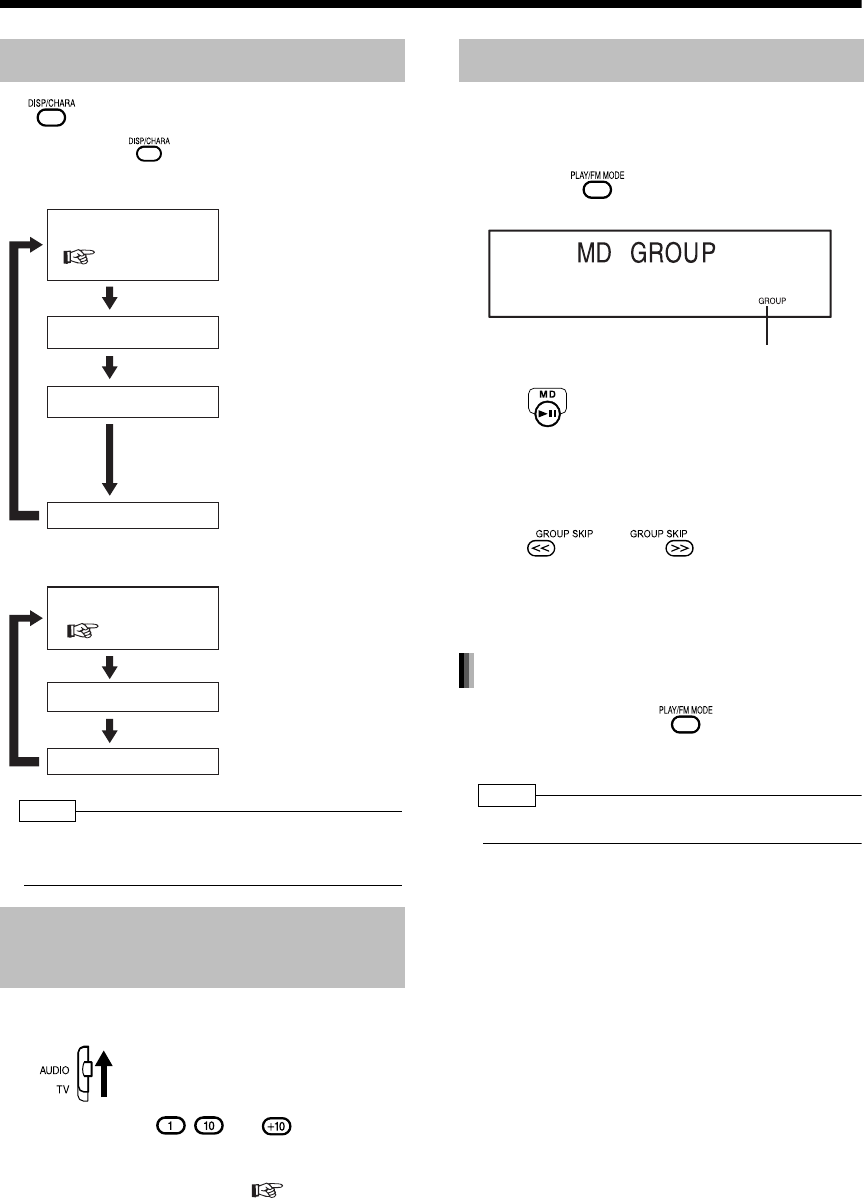
简介
47
(续)
聆听 MD
按
。
•每按一次 ,显示变化如下。
■播放 MD 时
■ MD 停止播放时
注
•音源选择 MD 时,如果插入没有录制任何声音的
MD,则出现 “BLANK DISC”。
1将遥控模式选择器设为 AUDIO。
2按数字键 ( - 或 )选择想要
聆听的曲目。
•请参阅 “使用数字键”( 第 17 页)。
可以从群组中仅播放想要聆听的曲目。
■ MD 停止播放时
1反复按 选择 “GROUP”。
2按 。
•开始播放群组 1 。
•如果不存在群组,则 “GROUP”消失,开始
正常播放。
3按 或 选择群组。
•所选群组中的所有曲目播放完毕时,自动停
止播放。
停止播放时,反复按
选择
“
GROUP
”以外的项目。
注
•弹出 MD 或关闭本机也会取消群组播放。
更改显示器窗口中的显示
指定曲目
(直接选择曲目)
播放
MD
时的显示
(
第
46
页)
曲目标题显示
群组标题显示
时钟显示
曲目没有设置标题时,
出现 “NO TR TITLE”。
正在播放的曲目不属于
群组时,不出现群组标
题显示。群组没有设置
标题时,
出现 “
NO GR
TITLE
”。
MD 停止播放时的显示
( 第 46 页)
光盘标题显示
时钟显示
MD 没有设置标题时,出
现“NO TITLE”。
MD 的群组播放
群组指示
取消群组播放
UX-QD7[UB].book Page 47 Friday, September 10, 2004 10:56 AM
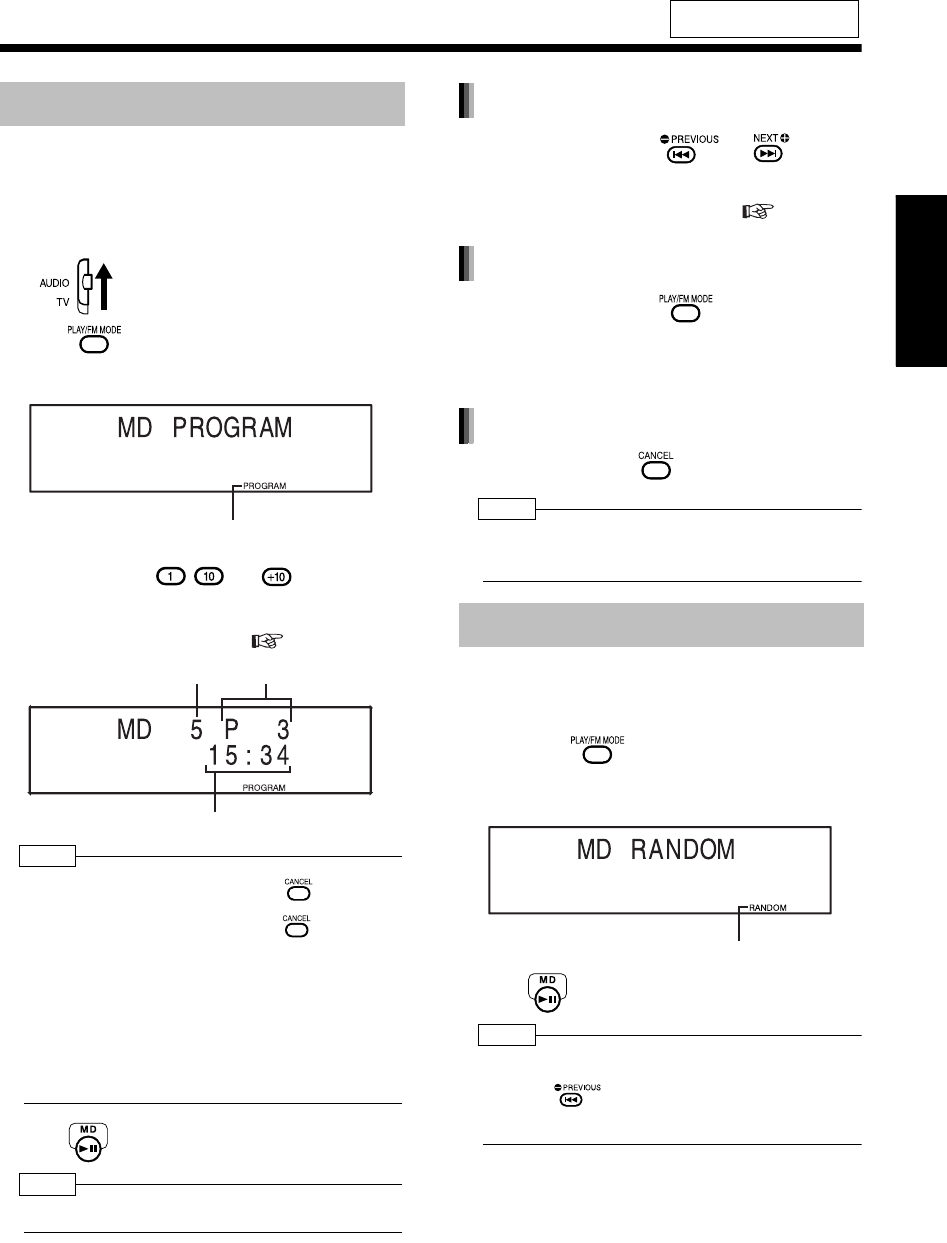
48
中
文
聆
听
M
D
聆听
MD
本功能用于最多编程 32 首曲目。
■ MD 停止播放时
1将遥控模式选择器设为 AUDIO。
2按 选择 “PROGRAM”。
例如: 选择 MD 编程播放时的显示
3按数字键 ( - 或 )选择曲目
号。
•请参阅 “使用数字键”( 第 17 页)。
注
•如需删除编程,请在停止播放时按 。从最后一
首曲目逐个删除编程的曲目。按住 删除所有编
程的曲目。
•试图编程第 33 首曲目时,显示器窗口中出现
“MEMORY FULL”,表示无法编程 33 首或更多的
曲目。
•MD 编程播放的总时间达到 2 小时 31 分钟时,出现
“--:--”。
4按 。
注
•可以从 CD, MD 或 DVD 设置编程播放的曲目。
暂停播放时,反复按
或
。
•可以将一首曲目添加为编程中的最后一首曲
目,或删除最后一首曲目。( 步骤 3 )
停止播放时,反复按
显示
“
PROGRAM
”以外的项目。
•本操作并不删除编程。
暂停播放时,按住
。
注
•弹出 MD 或关闭本机也会删除编程的曲目。本操作
也会取消编程播放。
本功能用于随机聆听曲目。
■停止播放光盘时
1反复按 选择 “RANDOM”。
例如: 选择 MD 随机播放时的显示
2按 。
注
•可以从 CD, MD 或 DVD 设置随机播放的曲目。
•反复按 不会将播放返回到上一首曲目。
•每首曲目播放一次。
有关遥控键的位置,请参阅
第 46 页。
编程播放
编程指示
曲目号 编程号
编程播放的总时间
随机播放
确认编程曲目顺序
取消编程播放
删除所有编程的曲目
随机指示
UX-QD7[UB].book Page 48 Friday, September 10, 2004 10:56 AM

简介
49
(续)
聆听 MD
停止播放时,反复按
显示
“
RANDOM
”以外的项目。
注
•弹出 MD 或关闭本机也会取消随机播放。
本功能用于反复聆听同一曲目。
播放
MD
期间,反复按
选择重复播放
模式。
•每按一次 ,显示变化如下。
例如:选择 “REPEAT ALL”时
注
•弹出 MD 或关闭本机也会取消重复播放。
本功能用于搜索 MD 中的曲目标题或群组标题。
■停止播放光盘时
1将遥控模式选择器设为 AUDIO。
2反复按 选择搜索类型。
3按 。
例如:搜索曲目标题时的显示
4输入想要搜索的标题。
•
输入标题的前
1
至
5
个字符。
例如: 输入 “F”按照曲目号顺序搜索以
“F”开头的标题。
输入 “Frien”按照曲目号顺序搜
索以 “Frien”开头的标题。
•有关输入标题,请参阅 “输入标题”(
第 59 页)。
•
搜索没有标题的曲目或群组时,无需输入任何
字符,然后跳到步骤
5
。
5按 。
•出现“SEARCH”,然后开始标题搜索。搜索
到标题时,开始播放该曲目。播放结束时,自
动开始下一标题搜索。
注
•空格被视为字符。但是,空格后没有任何字符时,
该空格被忽略。
•字母区分大小写。
•没有搜索到相关标题时,出现 “SEARCH END”。
重复播放
取消随机播放
重复指示
:重复播放 MD 中的所有曲目。
用于选择 MD 群组播放时重复
所选群组中的所有曲目。
:重复单首曲目。
:取消重复播放。
搜索标题
用于搜索曲目标题。
用于搜索群组标题。
(本功能仅存在群组时可
用。)
搜索群组标题时,显示 “GROUP
SEARCH”。
UX-QD7[UB].book Page 49 Friday, September 10, 2004 10:56 AM
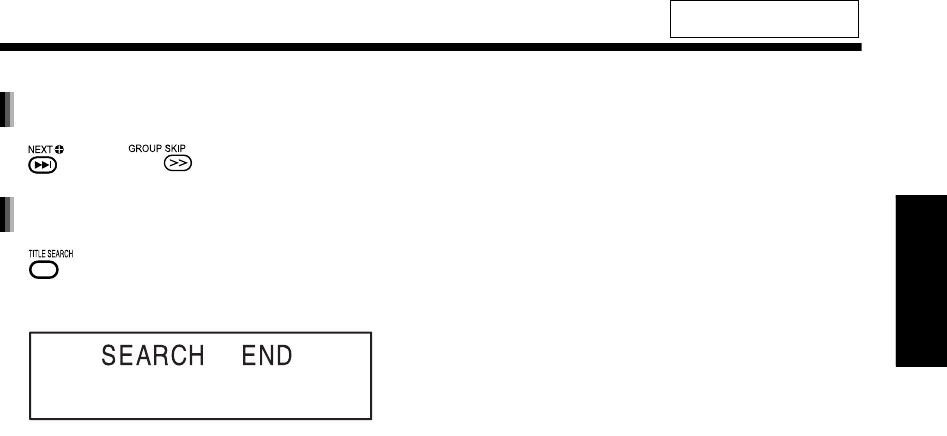
50
中
文
聆
听
M
D
按
(或
)。
按
。
•标题搜索被取消,播放返回到当前曲目开头。
有关遥控键的位置,请参阅
第 46 页。
搜索另一曲目标题或群组标题
退出标题搜索
UX-QD7[UB].book Page 50 Friday, September 10, 2004 10:56 AM

简介
51
录音
将声音录制到 MD
本机
遥控器
1按 ,然后按 。
•音源选择 DVD 并停止播放。
■从 DVD 视频录制声音时
•播放一个标题或章节,暂停播放,然后按
返回到首个标题 / 章节的开始位置。
•可能无法录制 DVD 视频,视光盘而异。
2插入 MD。
•预先关闭 MD 上的防写片( 第 75 页)。
3按 选择 MDLP 模式。
•每按一次 ,显示变化如下。
•改变 MDLP 模式 (SP→LP2→LP4) 时,音质
也会改变。想要尽可能以最佳音质录制声音
时,请选择 SP 模式。
•使用不兼容 MDLP 模式的 MD 汽车音频系
统、便携式 MD 播放机或其他 MD 播放机
时,请选择 SP 模式。
4按 设置群组录制。
•每按一次 ,显示变化如下。
•可以在录制结束后制作或取消群组。
( 第 63 和 66 页)
5按 选择录制速度。
•每按一次 ,显示变化如下。
•想要播放 CD 以外的光盘时,请选择
“NORMAL REC”。
•“HIGH SPEED”和 “NORMAL REC”录制
的音质相同。
•在×5 高速录制时,无法聆听声音。
将光盘上的所有曲目录制到 MD
: 标准立体声录制
(MD 80 最长录制时间为 80 分钟)。
:× 2 延长立体声录制
(MD 80 最长录制时间为 160 分钟)。
:
× 4
延长立体声录制
(
MD 80
最长录制时间为
320
分钟)
。
: 激活群组录制 (初始
设置)。
: 取消群组录制。
:
× 5
高速录制 (仅
CD
)
: 常速录制
UX-QD7[UB].book Page 51 Friday, September 10, 2004 10:56 AM
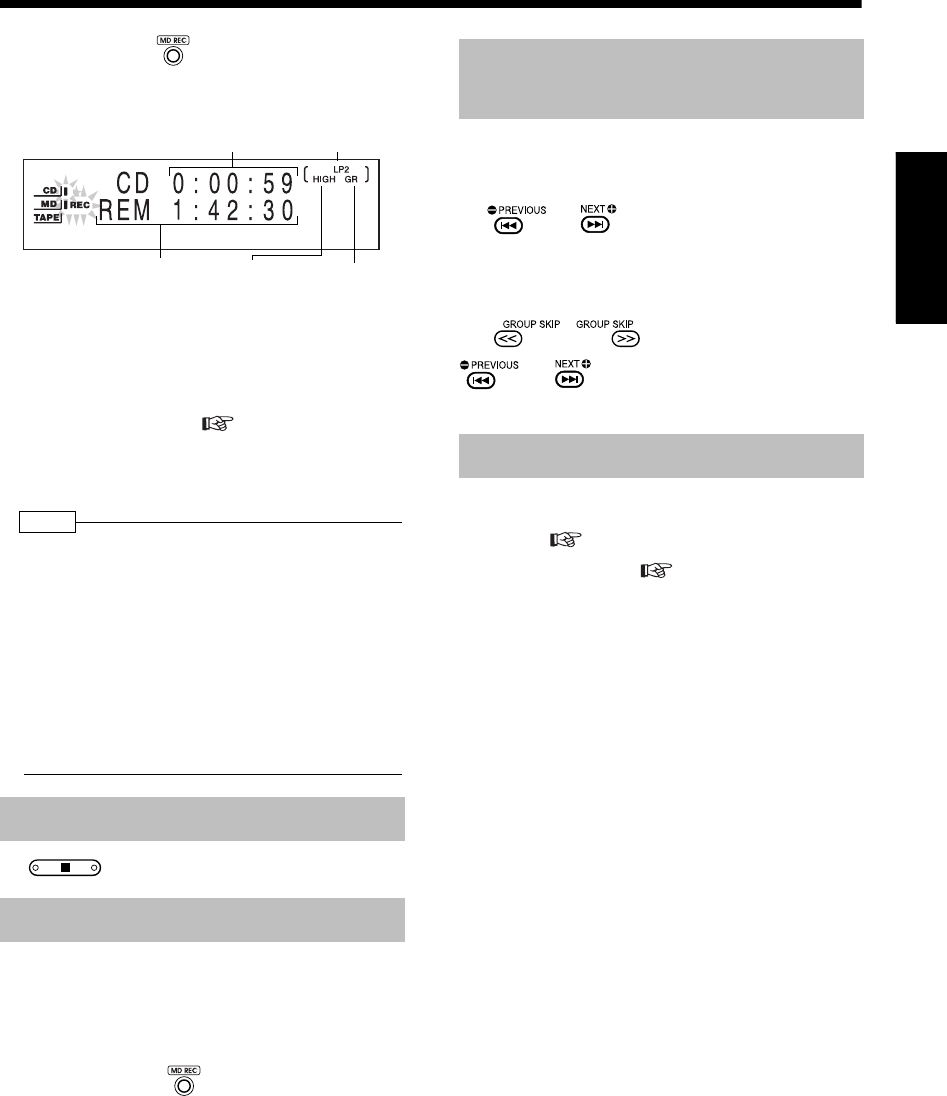
52
中
文
录
音
6按本机上的 。
例如: 录制 CD 时的显示
•录制结束时,显示器窗口和光盘托架的颜色
图案变为 “MANUAL”设置的颜色图案,提
示录制已经结束 ( 第 19 页)。
•出现 “HCMS CANNOT COPY”时,请参阅
第 74 和 76 页。
注
•自动调节录制的声音电平。
•× 5 高速录制时, CD 高速旋转。因此,声音可能录
制错误并受噪音的影响,视 CD 状况而异。如果声
音录制错误,请选择常速录制。
•录制的剩余时间视所选 MDLP 模式而异。
•启用重复播放功能时,无法录制声音。启动录制功
能将自动取消重复播放。
•录制 DVD 视频时,无法在包含音频、字幕、视角、
图像放大率和 3D 音效选择的 DVD 上进行设置。
按
。
(不包括
DVD
视频)
开始播放想要录制的曲目,然后跳到步骤
6
。
•在步骤 6 中按 将播放返回到曲目开头,
仅录制当前曲目。
•单首曲目录制对于 DVD 视频不可用。
■录制CD/VCD/SVCD/DVD视频时(对于 DVD
视频:暂停播放光盘时)
按
或
选择开始的曲目号或章节
号,然后跳到步骤
6
。
■录制 DVD 音频 /MP3/WMA
按
选择群组号,接着按
或
选择曲目号,然后跳到步骤
6
。
编程想要录制的曲目,然后执行第
51
页的
步骤
1
(
第
48
页)。
•
选择常速录制 (
第
51
页的步骤
5
)。
选择 “HIGH SPEED”并跳到步骤 6 时,显
示器窗口中出现 “CANNOT REC × 1 REC
ONLY”而录制并未开始。
退出录制
仅录制光盘的单首曲目
MDLP 模式
录制的剩余时间 × 5 高速录
制时,该指
示点亮。
群组录制时,该
指示点亮。
正在被录制的曲目
消逝的播放时间
录制光盘的第 2 首或随后的曲
目到最后一首曲目
光盘的编程录制
UX-QD7[UB].book Page 52 Friday, September 10, 2004 10:56 AM
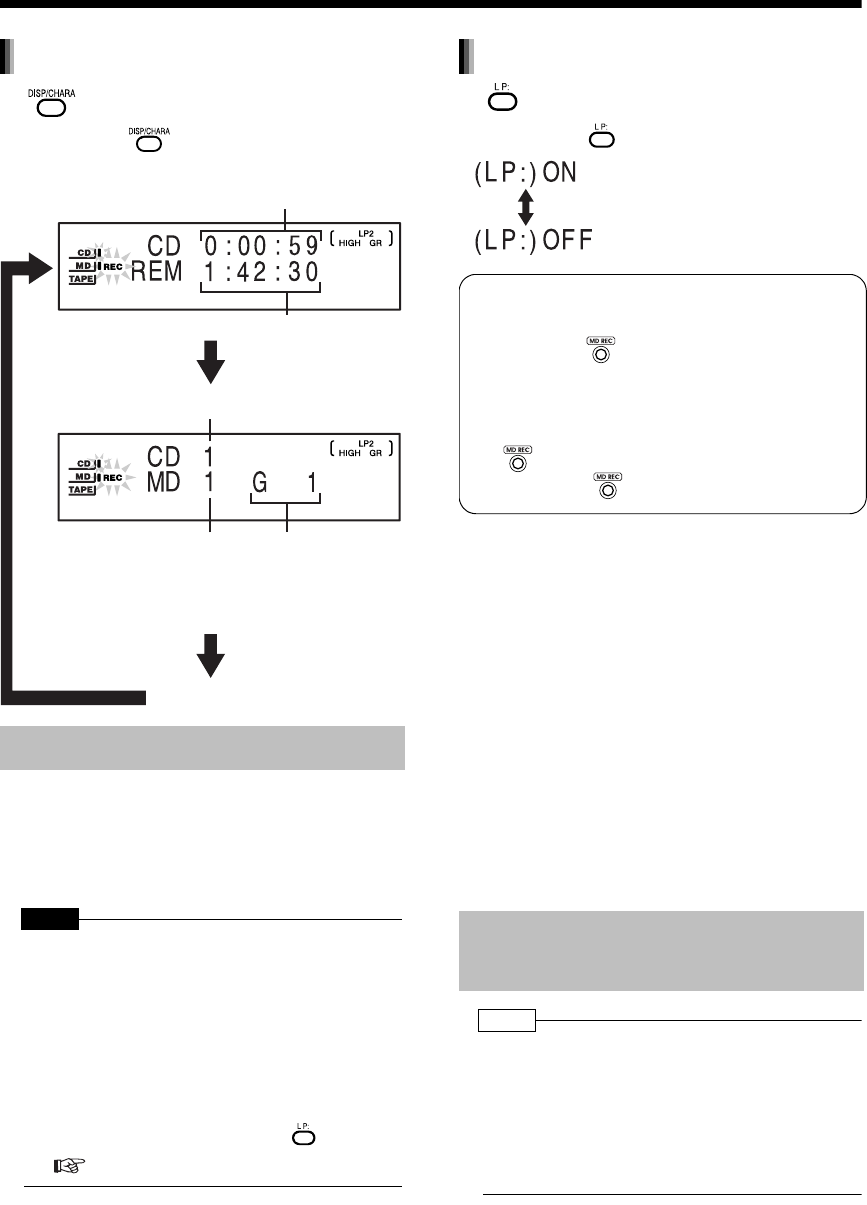
简介
53
录音
(续)
将声音录制到 MD
按
。
•每按一次 ,显示变化如下。
•未经版权拥有者的同意而录制或播放具有版权的
素材可能违法。
•可以将不同 MDLP 模式的曲目录制到 MD。
•本产品无法使用单声道扩展录制功能。
注 意
•录制 MD 时,请勿撞击或摇晃本机。显示“WRITING”
时,请特别注意。撞击或摇晃本机可能干扰 MD 播放。
•无法使用不兼容 MDLP 的音频设备播放以 LP2 或
LP4 录制的曲目。尝试播放时,曲目标题前出现
“LP:”,本机不会发出任何声音。使用兼容
MDLP 的音频设备播放以 LP2 或 LP4 录制的曲目
时,不会出现 “LP:”。
如需激活或取消 “
LP
:”指示,请按
。
( 右页)
按
。
•每按一次 ,显示变化如下。
•单张 MD 最多可以录制 254 首曲目。如果试图录
制 255 首或更多的曲目,出现 “DISC FULL”。
•使用已经部分录制的 MD 时,本产品搜索空白部
分并将新的曲目录制到该部分。
不同于磁带录制,录制时,无法覆盖 MD 上的旧
曲目。
•本产品在录制时更改音量或音质并不影响录制的
声音。
•CD 的声音以数字信号录制到 MD。录制时,电台
或 AUX 的声音从模拟信号转换到数字信号。
•录制光盘时,曲目间自动插入曲目标记。但是,录
制 DVD 视频或 DVD 音频时,可能无法插入曲目
标记。
注
•自动调节录制的声音电平。
•声音同步录制用于录制其他设备 (AUX)的声音。声音
同步录制时,本产品自动识别音源的声音信号,然后
开始录制。音源的声音暂停 30 秒或以上时,本产品
自动退出录制。最后录制的曲目和下一录制的曲目之
间的空白时间约为 2 秒。
MD 录制须知
更改录制时显示器窗口中的显示
时钟显示
正在被录制的章节或
曲目消逝的播放时间
剩余 MD 录制时间
录制光盘曲目号
录制 MD 曲目号 录制 MD 群组号
(曲目没有录制在群组
中时,出现 “
G - -
”。)
录制电台、磁带或其他设备的
声音
“LP:”指示设置
:将 “LP:”从曲目标题删除。
:将 “LP:”添加到曲目标题。
CD-R/CD-RW/DVD 音频录制
•将 CD-R、CD-RW 或 DVD 音频的声音录制到
MD 时,按 可能在显示器窗口中显示
“SCMS CANNOT COPY” ,并可能无法进行
数字录制。
在这种情况下,请将录制速度设为常速,并按
住 4 秒钟或以上。显示“ANALOG REC?”
时,再按一次 选择模拟录制。
UX-QD7[UB].book Page 53 Friday, September 10, 2004 10:56 AM
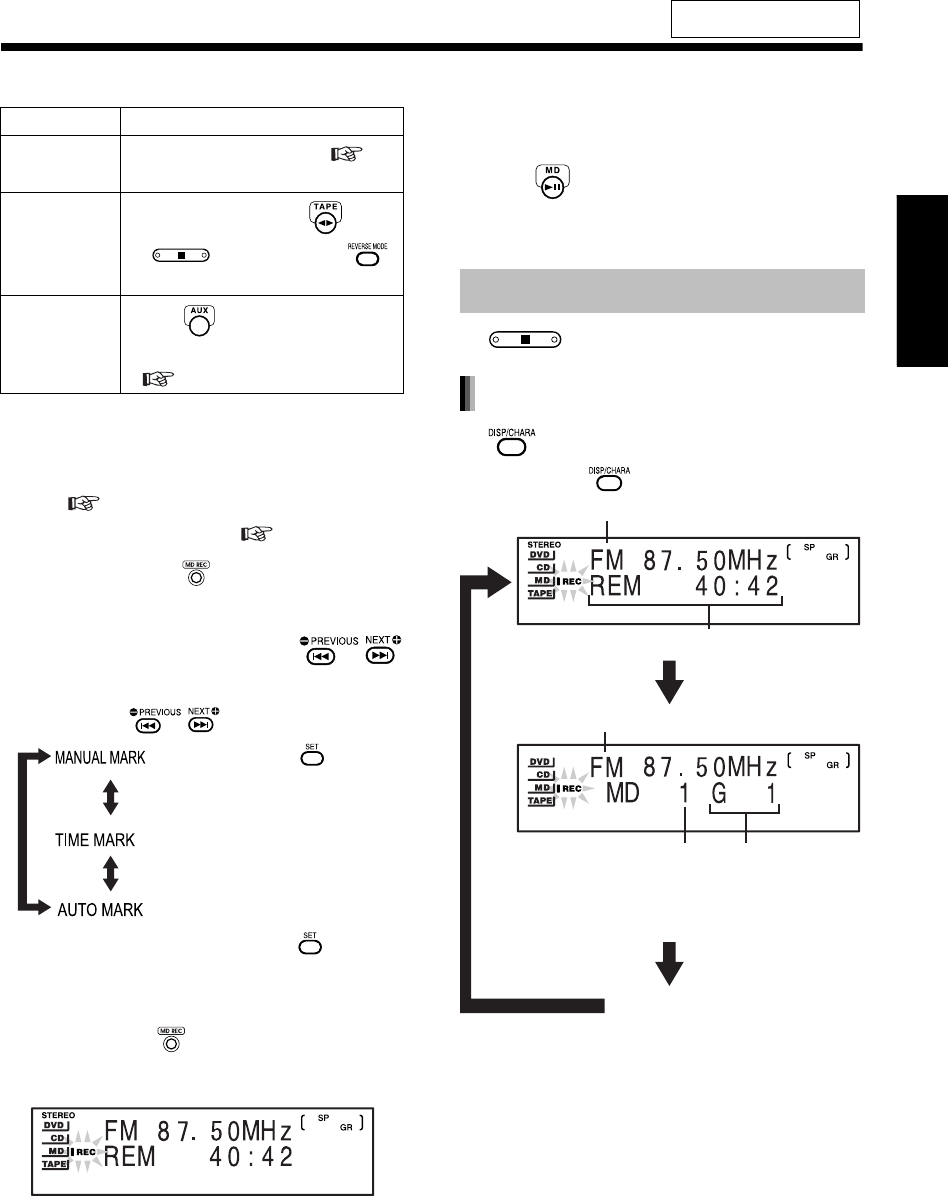
54
中
文
录
音
1选择音源。
2插入用于录制的 MD。
•确认 MDLP 、“ LP:”指示和群组录制设置。
( 第 51 和 53 页)
•关闭 MD 上的防写片 ( 第 75 页)。
3按住本机上的 约 4 秒显示曲目标
记选项。
4显示曲目标记选项时,按
选择曲目标记选项。
•每按一次 ,显示变化如下。
5按本机上的 。
例如: 录制 FM 广播时的显示
•录制其他设备的声音时,请等到出现 “AUX
→ MD”,然后开始所连设备的播放。将声音
输入本机时,自动开始录制。
按 也可开始录制。
使用该方法时,即使所连设备的声音暂停 30
秒或以上,本机也不会自动退出录制。
按
。
按
。
•每按一次 ,显示变化如下。
有关遥控键的位置,请参阅
第 51 页。
音源 操作
广播 选择想要录制的广播电台 ( 第
20 页)。
磁带播放
插入用于播放的磁带,按 ,然后
按 。如有必要,请按
选择倒退模式。
其他设备
(AUX/AUX-
DIGITAL) 的声
音
反复按 选择 AUX 或 AUX-
DIGITAL ,然后准备其他设备的播放
( 第 45 页)。
:3 秒或以上没有发出声音时,自动
设置曲目标记。按 也可插入
曲目标记。
: 录制时,每按一次 ,设置 1
个曲目标记 (初始设置)。
:以 5 分钟间隔自动设置曲目标记。
退出录制
更改录制时显示器窗口中的显示
录制音源名称
录制 MD 曲目号
时钟显示
录制音源名称
录制的剩余时间
录制 MD 群组号
(曲目没有录制在群组
中时,出现 “- -”。)
UX-QD7[UB].book Page 54 Friday, September 10, 2004 10:56 AM
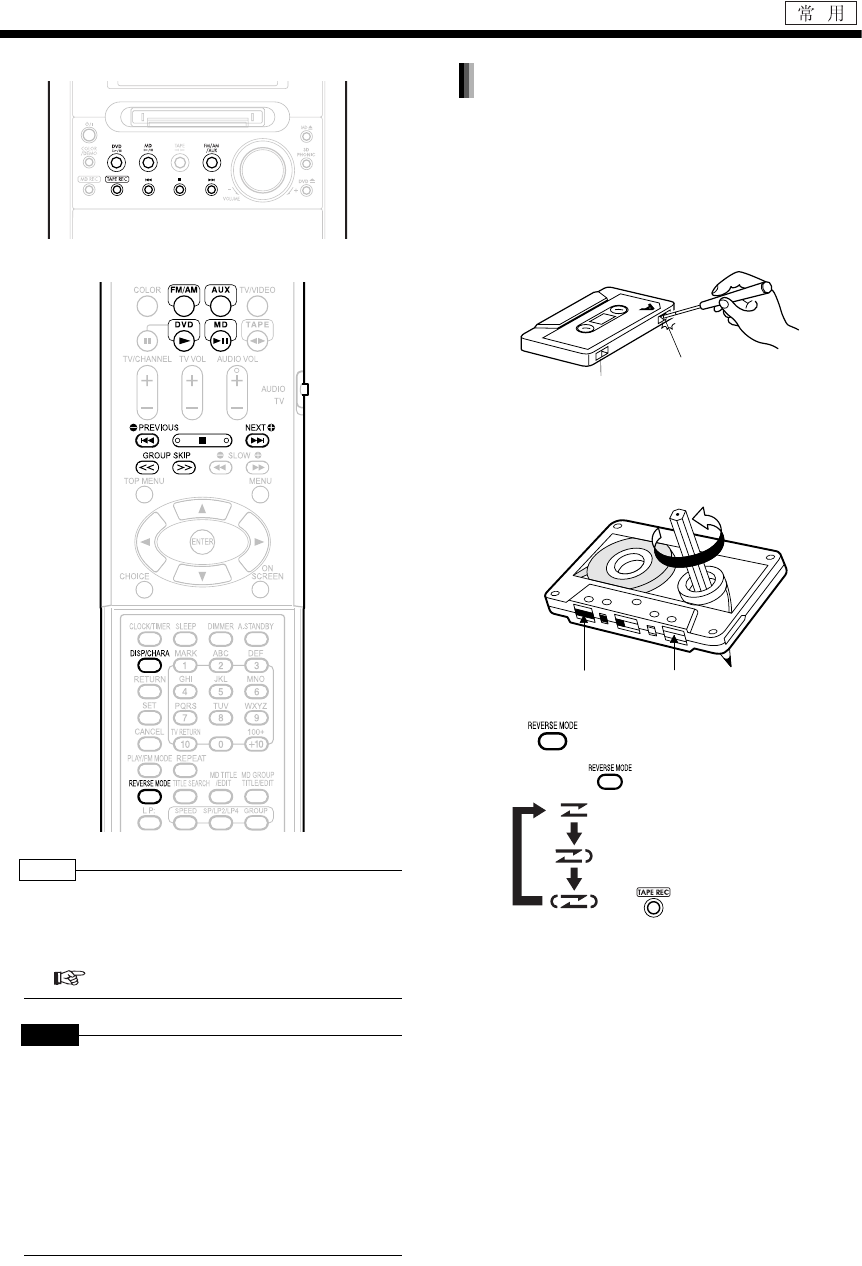
简介
55
将声音录制到磁带
本机
遥控器
注
•自动调节录制时的声音电平。
•录制光盘或 MD 的曲目时,录制期间的曲目之间插入
4 秒的空白。可以录制不带空白时间的曲目。
( 第 56 页)
注 意
•未经版权拥有者的同意而录制或播放具有版权的素
材可能违法。
•请勿使用长磁带 (如 C-120 或 C-150)。长磁带细
且易拉伸,并可能在本机内部缠结。
•由于本产品不兼容 TYPE II 和 TYPE IV 磁带,因
此,请勿使用上述类型的磁带。本产品不符合上述
磁带的规格,因此,无法正确将声音录制到上述类
型的磁带。无法获得正确播放的声音。
•磁带上装有防写片可以防止删除录制的声音。由
于折断防写片将无法录制到磁带或删除录制的素
材,因此防写片可用于防止遗失重要的录制内
容。
•想要使用磁带再次录制时,请使用胶带覆盖片
孔。
1插入用于录制的磁带。
•在插入磁带之前,请将磁带卷过磁带的引导
部分。
2按 选择倒退模式。
•每按一次 ,显示变化如下。
•可以在录制时更改倒退模式。
防止删除录制的声音
A 面的防写片
B 面的防写片
磁带
(可录制部分) 引导带 (不可录制部分)
: 单次录制磁带的单面。
:按 自动开始单次往返录制磁
带的两面。
: 单次往返录制磁带的两面。
UX-QD7[UB].book Page 55 Friday, September 10, 2004 10:56 AM

56
中
文
录
音
3
选择用于录制的音源。
•选择音源之前,请确保停止播放光盘和 MD。
4按本机上的 。
例如: 录制 CD 声音时的显示
•从光盘或 MD 录制时,所有曲目都被录制到
磁带。
•想要录制其他设备的声音时,请开始所连设
备的播放。
•录制结束时,显示器窗口和光盘托架的颜色
图案切换到 “MANUAL”设置的颜色图案,
提示录制已经结束 ( 第 19 页)。
按
。
(不包括
DVD
视频)
播放想要录制的曲目,然后跳到步骤
4
。
•在步骤 4 中按 将播放返回到曲目开头,
仅录制当前曲目。
(对于 DVD 视频:暂停播放光盘时)
■对于 CD/VCD/SVCD/DVD 视频
按
或
选择开始的曲目号 / 章节
号,然后跳到步骤
4
。
■对于 DVD 音频 /MP3/WMA
按
或
选择群组号,接着按
或
选择曲目号,然后跳到步骤
4
。
编程想要录制的曲目,然后跳到步骤
4
(
第
32
和
48
页)。
播放光盘或
MD
,暂停播放,接着按
返回到首个曲目的开始位置,然后跳到步
骤
4
。
在步骤
3
选择其他设备
(AUX)
的声音,然
后按
。
•请勿播放所连设备上的任何曲目。
音源 操作
光盘 按 ,然后按 。
MD 按 ,然后按 。
广播 选择想要录制的广播电台 ( 第 20
页)。
其他设备
(AUX/AUX-
DIGITAL)的声
音
反复按 选择 AUX 或 AUX-
DIGITAL ,然后准备其他设备的播放
( 第 45 页)。
退出录制
仅录制光盘或 MD 的单首曲目
录制光盘或 MD 的第 2 首或随
后的曲目到最后一首曲目
光盘或 MD 的编程录制
曲目之间不带空白时间的录制
删除磁带录制的声音
UX-QD7[UB].book Page 56 Friday, September 10, 2004 10:56 AM
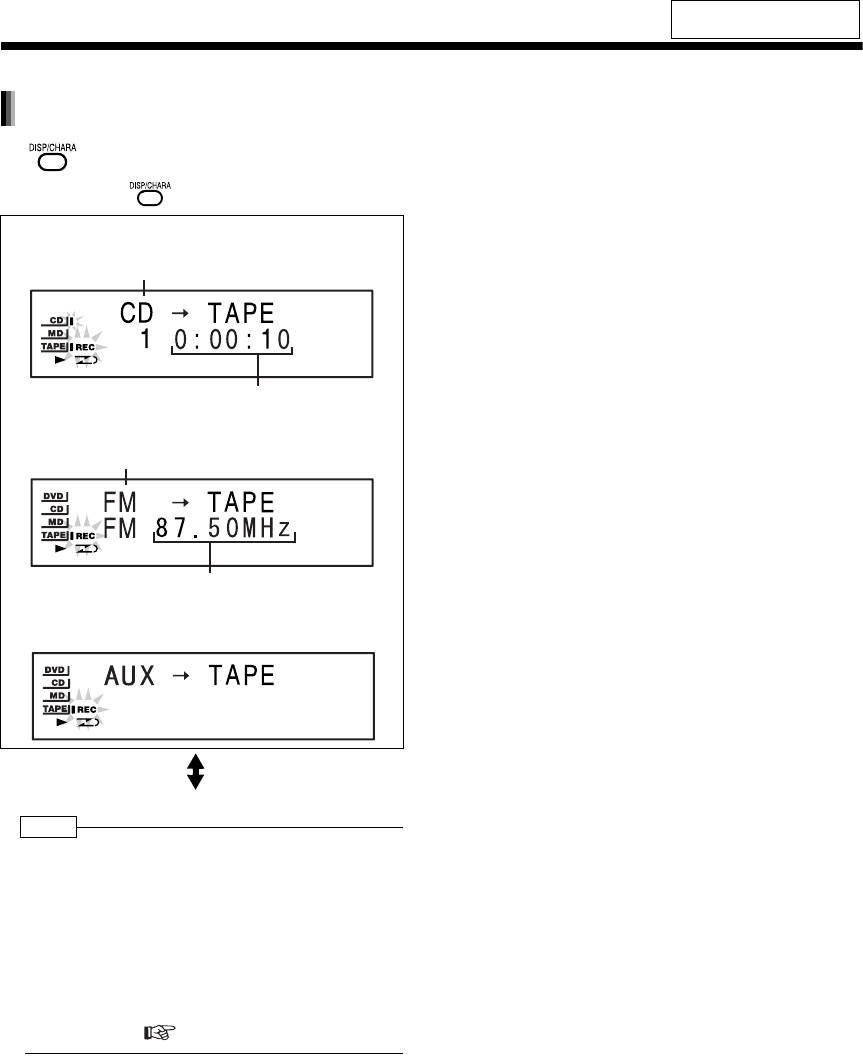
简介
57
(续)
将声音录制到磁带
按
。
•每按一次 ,显示变化如下。
■录制光盘或 MD 的曲目时
■录制广播 (FM/AM)时
■录制其他设备 (AUX) 的声音时
时钟显示
注
•录制光盘或 MD 的曲目时,如果磁带倒退,则本产
品重新从开头录制该曲目并录制到磁带的反面。但
是,如果该曲目在磁带首面的录制时间不足 12 秒,
则录制到磁带反面时,将从上一首曲目的开头开始
录制。
•使用分割功能将曲目分为若干等同于磁带单面长度的
部分,然后使用单次往返录制 MD 的长曲目(如录制
的音乐会)。( 第 32 页)
有关遥控键的位置,请参阅
第 55 页。
更改录制时显示器窗口中的显示
DVD, CD 或MD
消逝的播放时间
FM 或 AM
频率
UX-QD7[UB].book Page 57 Friday, September 10, 2004 10:56 AM
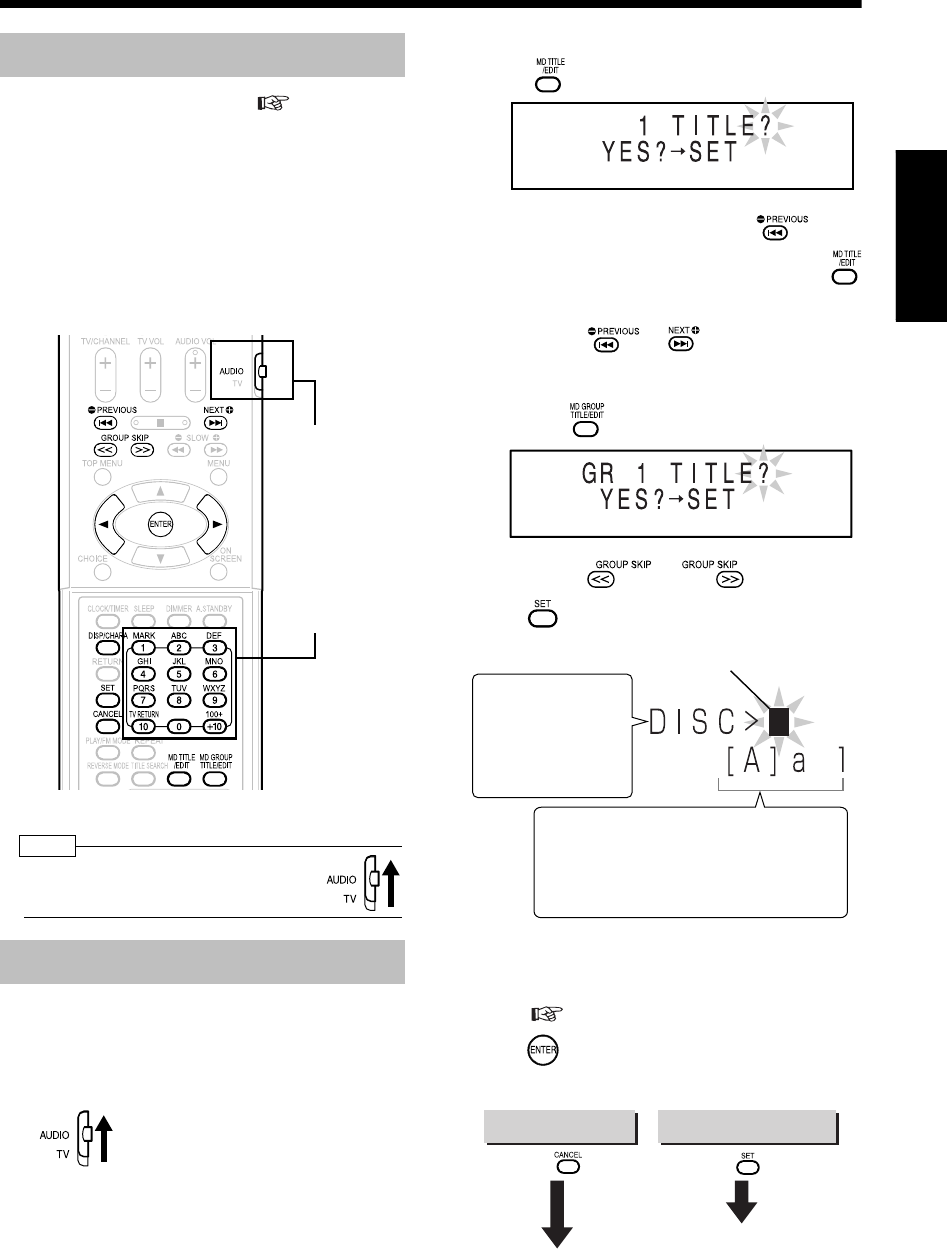
58
中
文
录
音
/
编
辑
M
D
录音 / 编辑 MD
添加 (编辑)标题
•
防写片打开时,无法编辑
MD
(
第
75
页)。试
图编辑保护的
MD
时,出现
“DISC PROTECTED”
。
•完成编辑时,出现“EDITING”,然 后 “WRITING” 闪
烁,编辑的设置录制到 MD 。
显示 “WRITING” 时,请勿撞击或摇晃本机。撞击
或摇晃本机可能干扰 MD 播放。
•编程播放、随机播放或群组播放时,无法编辑
MD 。
注
•将遥控模式选择器设为 AUDIO ,然后
使用数字键。
可以将标题添加到 MD (光盘)、曲目和群组。
■想要添加标题的曲目或群组正在播放时
1将遥控模式选择器设为 AUDIO 。
2显示标题编辑模式。
对于编辑 MD (光盘)标题或曲目标题
•按 显示标题编辑模式。
•如需编辑光盘标题,请反复按 显示
“DISC TITLE?”。 停止播放光盘时,按
也可以显示 “DISC TITLE?”。
•也可以用 或 选择曲目号。
对于编辑群组标题
•按两次 显示群组标题编辑模式。
•也可以用 或 选择群组号。
3按 。
4用数字键输入标题。
•有关输入标题,请参阅 “输入标题”
( 第 59 页)。
5按 。
•输入的标题被添加到 MD 、曲目或群组。
(接下页)
编辑须知
添加 (编辑)标题
遥控模式选择器
数字键
字符输入位置 (闪烁)
出现用于输入曲目
标题的曲目号,或
出现用于输入群组
标题的 “GR”和群
组号。
可用的字符类型:
[ ] 表示所选字符类型。
[A]: 大写字符或符号
[a]: 小写字符或符号
[1]: 数字字符
如需退出标题编辑 如需添加下一标题
按 。按 。
跳到步骤 4 。
UX-QD7[UB]-05.fm Page 58 Friday, September 10, 2004 11:38 AM
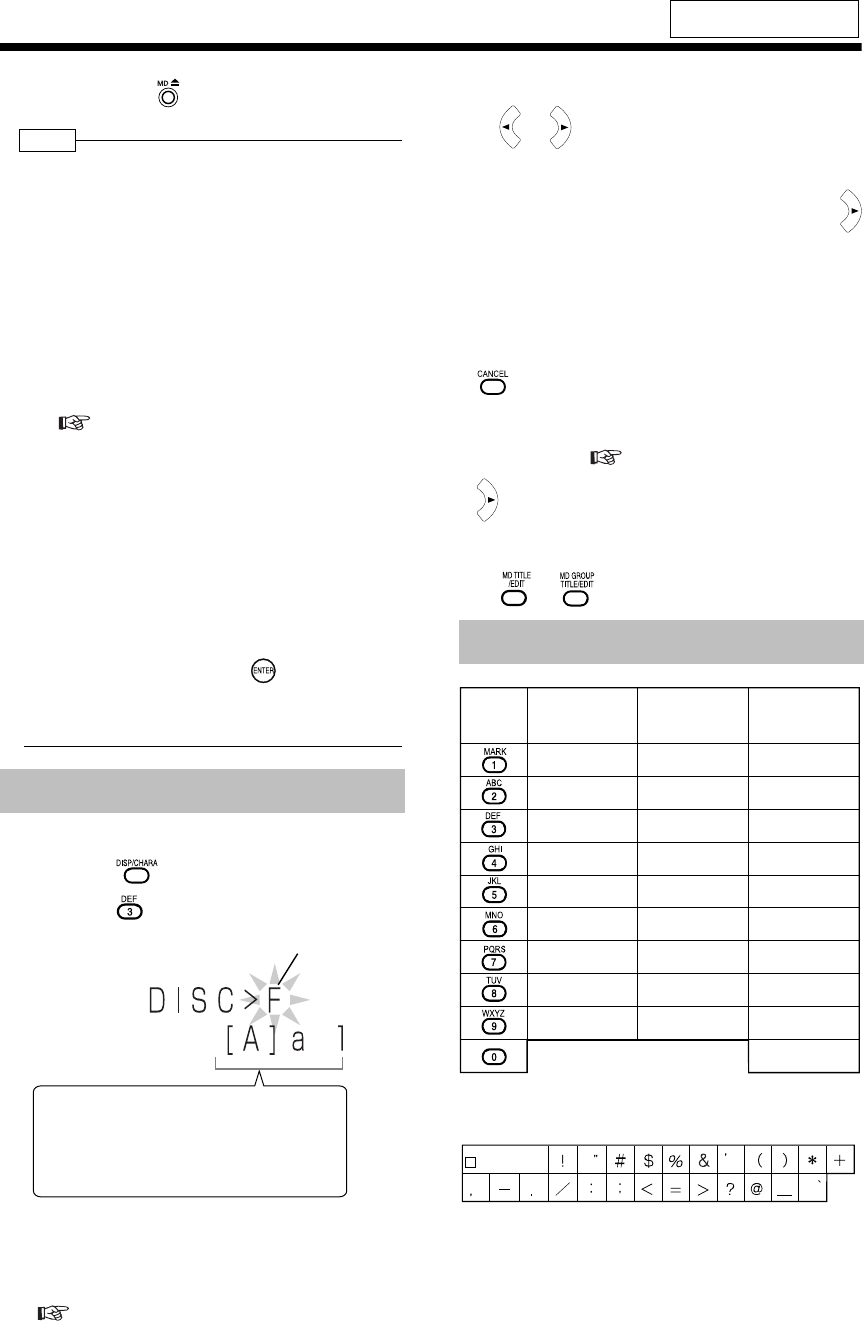
简介
59
(续)
添加 (编辑)标题
6按本机上的 弹出 MD 。
注
•可以输入 MD 的字符数
每张 MD 最多可以输入 1 792 个字符,每首曲目最
多可以输入 61 个字符。但是,由于 MD 写入方法的
限制,实际可以输入的字符数少于此处所给的数
量。
空格算作字符。
由于 “LP:”和 4 个空格自动添加到每首曲目,因
此使用长时间立体声录制( LP2 或 LP4 )时 ,曲 目
数量越多,可以输入的字符数越少。
可以设置本产品,以便不将 “LP:”添加到曲目。
( 第 53 页)
例如: 编辑使用长时间立体声录制到 MD 的120
首曲目时,每首可以输入 10 个字符。
•无法编辑包含 62 个或更多字符的标题。 想要编辑
包含 62 个或更多字符的标题时,请在原来输入标
题的设备上编辑标题。。
•可以在录制时设置标题。
•从 CD 录制时 (仅录制 CD 的单首曲目时除外),
可以在录制结束之前输入最多 16 首曲目标题。
•如果在录制结束之前没有按 ,则不保存输入
的标题。
•群组录制时,可以输入群组的标题。
例如:如需输入 “ F”
1) 反复按 直到 “A”上出现 [ ]。
2) 反复按 显示 “F”。
•单个键分配了若干个字符。反复按该键,直到显
示所需的字符。
•有关可用的字符,请参阅 “可用的字符”
( 右页)。
如需移动字符输入位置
•按 或 。
•想要输入 “NO”、“ TV”或两个分配到同一个键
的字符时,请首先输入第 1 个字符,然后按
将字符输入位置移到右边,接着输入第 2 个字
符。
如需删除字符
•将字符输入位置移到想要删除的字符,然后按
。
如需输入空格
•从 “符号”( 下表)中选择空格。也可以按
在标题末尾输入空格。
如需退出标题输入
•按 或 。不保存输入的标题。
*可用的符号
有关遥控键的位置,请参阅
第 58 页。
输入标题
字符输入位置 (闪烁)
可用的字符类型:
[ ] 表示所选字符类型。
[A]: 大写字符或符号
[a]: 小写字符或符号
[1]: 数字字符
可用的字符
键
符号 *
数字字符
大写
字符
小写
字符
符号 *
ABC
DEF
GHI
JKL
MNO
PQRS
TUV
WXYZ
abc
def
ghi
jkl
mno
pqrs
tuv
wxyz
1
2
3
4
5
6
7
8
9
0
空格
UX-QD7[UB]-05.fm Page 59 Friday, September 10, 2004 11:38 AM
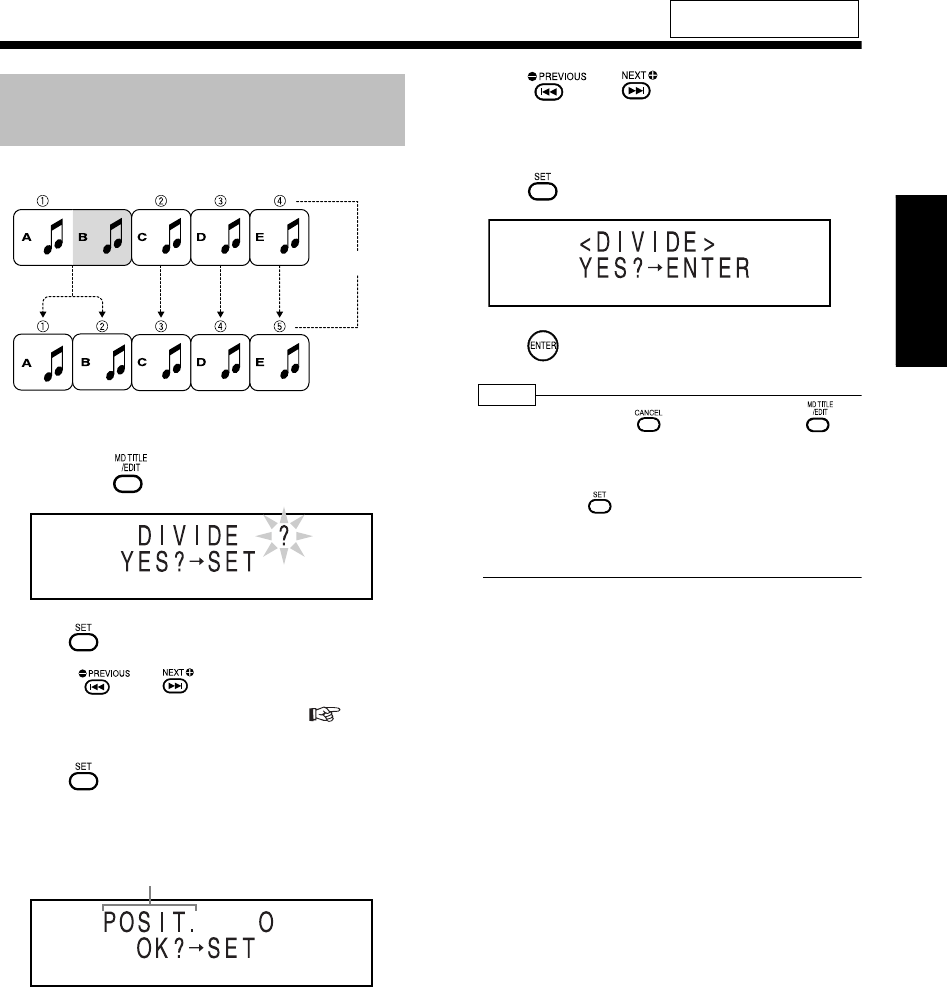
60
中
文
编
辑
M
D
编辑 MD
编辑曲目
例如: 将单首曲调分割为曲调
A
和曲调
B
■想要分割的曲目正在播放时
1反复按 选择 “DIVIDE?”。
2按 。
•用 、 或数字键也可以选择曲目
号。请参阅 “使用数字键”( 第 17
页)。
3按 指定分割点。
•本产品反复播放紧接分割点之后的 4 秒钟声
音。
•无需调节分割点时,请跳到步骤 5 。
•想要调节分割点时,跳到步骤 4 。
4按 或 。
•可以在 -128 到 +128 位置 ( SP 模式约为
-8 到 +8 )范围内调节分割点。
5按 。
6按 。
注
•编辑期间,可以按 返回到上一步。按 可
以退出编辑操作。
•无法分割包含 254 首或更多曲目的 MD 中的曲目。
在步骤 3 按 时,出现 “DISC FULL”。
•
分割带标题的曲目时,该标题
被同时添加到被分割
的曲目。
有关遥控键的位置,请参阅
第 58 页。
将单首曲目分割为两首曲目
(DIVIDE)
曲目号
“POSIT.”代表 “POSITION”。
UX-QD7[UB]-05.fm Page 60 Friday, September 10, 2004 11:38 AM
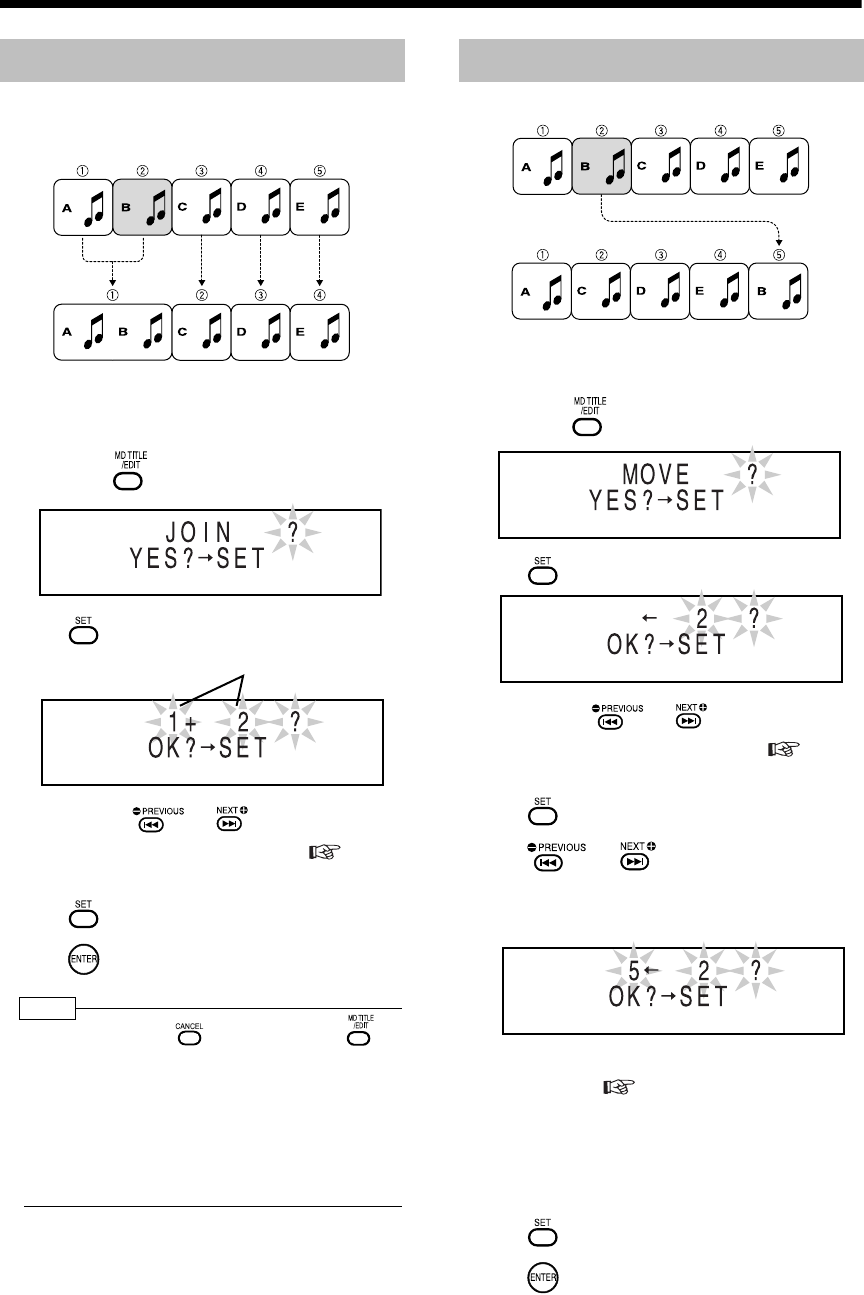
简介
61
(续)
编辑曲目
可以将两首相邻的曲目合并为一首。
例如:合并曲调 A 和曲调 B
■想要将第 1 首曲目合并到第 2 首曲目,而第
2 首曲目 (如上所示的曲目 2 )正在播放时
1反复按 选择 “JOIN?”。
2按 。
•也可以用 、 或数字键选择曲目
号。请参阅 “使用数字键”( 第 17
页)。
3按 。
4按 。
注
•编辑期间,可以按 返回到上一步。按 可
以退出编辑操作。
•无法合并具有不同 MDLP 模式 (SP/LP2/LP4)的曲
目或具有不同录制类型 (数字 / 模拟)的曲目。如
果试图合并此类曲目,出现 “CANNOT JOIN”。
•合并带有标题的两首曲目时,第 1 首曲目的标题将
保留为合并后曲目的标题。
例如:移动曲调 B
■想要移动的曲目 (如上所示的曲目 2 )正在
播放时
1反复按 选择 “MOVE?”。
2按 。
•也可以用 、 或数字键选择曲目
号。请参阅 “使用数字键”( 第 17
页)。
3按 。
4按 或 选择想要移动指定曲
目的曲目号。
(选择如上所示的曲目 5 )
•也可以用数字键选择曲目号。请参阅 “使用
数字键”( 第 17 页)。
•将曲目移动到群组中登记的曲目号时,该曲
目被登记在群组中。 将群组中登记的曲目移
动到群组中没有登记的曲目号时,该曲目从
群组登记中删除。
5按 。
6按 。
合并曲目 (JOIN)
曲目号
移动曲目 (MOVE)
UX-QD7[UB]-05.fm Page 61 Friday, September 10, 2004 11:38 AM
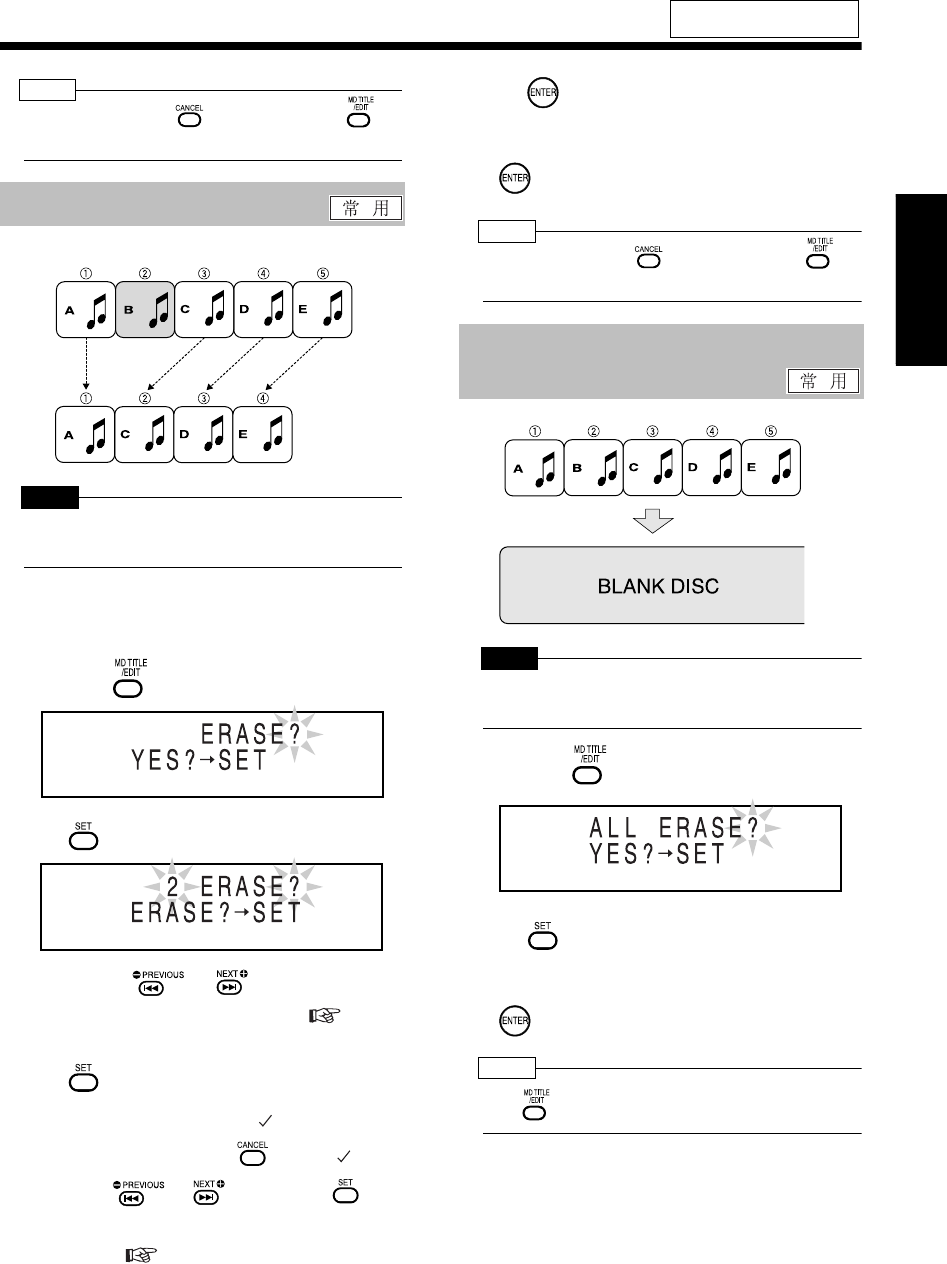
62
中
文
编
辑
M
D
注
•编辑期间,可以按 返回到上一步。按 可
以退出编辑操作。
例如:删除曲调 B
注 意
•删除曲目后,无法恢复该曲目。删除曲目之前,请
确定已经不再需要该曲目。
■想要删除的曲目 (如上所示的曲目 2 )正在
播放时
1反复按 选择 “ ERASE? ”。
2按 。
•也可以用 、 或数字键选择曲目
号。请参阅 “使用数字键”( 第 17
页)。
3按 。
•在所选曲目号之前添加 “ ”。
•选择曲目错误时,请按 删除 “ ”。
•可以用 、 或数字键和 选择
最多 15 首要删除的曲目。 请参阅 “使用数
字键”( 第 17 页)。
4按 。
5确定已经不再需要这些曲目,然后按
.
注
•编辑期间,可以按 返回到上一步。按 可
以退出编辑操作。
注 意
•删除曲目后,无法恢复该曲目。删除曲目之前,请
确定已经不再需要该曲目。
1反复按 选择 “ALL ERASE?”。
2按 。
3确定已经不再需要所有曲目,然后按
.
注
•按 可以退出编辑操作。
有关遥控键的位置,请参阅
第 58 页。
删除单首曲目 (ERASE)
删除所有曲目 (ALL ERASE)
所有曲目都被删除。
UX-QD7[UB]-05.fm Page 62 Friday, September 10, 2004 11:38 AM
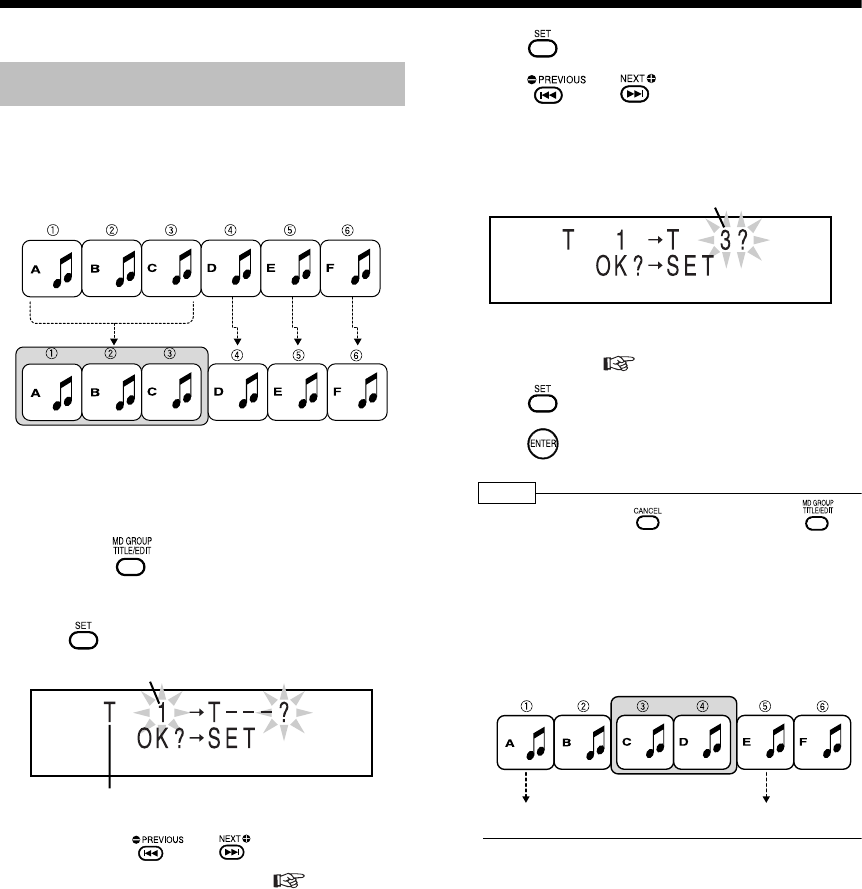
简介
63
按群组编辑曲目
可以将曲目整理到最多 99 个群组中。
可以将曲目编组。可以编组没有登记到任何群组中
的连续曲目。
例如:将曲调 A 、曲调 B 和曲调 C 编入群组
■想要指定为群组第 1 首的曲目 (如上所示的
曲目 1)正在播放时
1反复按 选择 “FORM GR?”。
•“GR”代表 “GROUP”。
2按 。
•
也可以用
、
或数字键选择曲目
号。请参阅“使用数字键”(
第
17
页)。
3按 。
4按 或 选择想要指定为群组
最后一首曲目的曲目号。
(选择如左所示中的曲目号 3 )
•也可以用数字键选择曲目号。请参阅 “使用
数字键”( 第 17 页)。
5按 。
6按 。
注
•编辑期间,可以按 返回到上一步。按 可
以退出编辑操作。
•如果选择另一群组中的某首曲目,则出现“GROUP
TRACK”并无法跳到下一步。
•如果选择的连续曲目包括已经登记到另一群组中的
某首曲目,则出现 “CANNOT FORM!”并无法跳
到下一步。
制作群组 (FORM GR)
群组 1
群组中的第 1 首曲目号
“T”代表 “TRACK”。
群组中的最后一首曲目
第 1 首曲
群组 1
最后一首曲目
UX-QD7[UB]-05.fm Page 63 Friday, September 10, 2004 11:38 AM
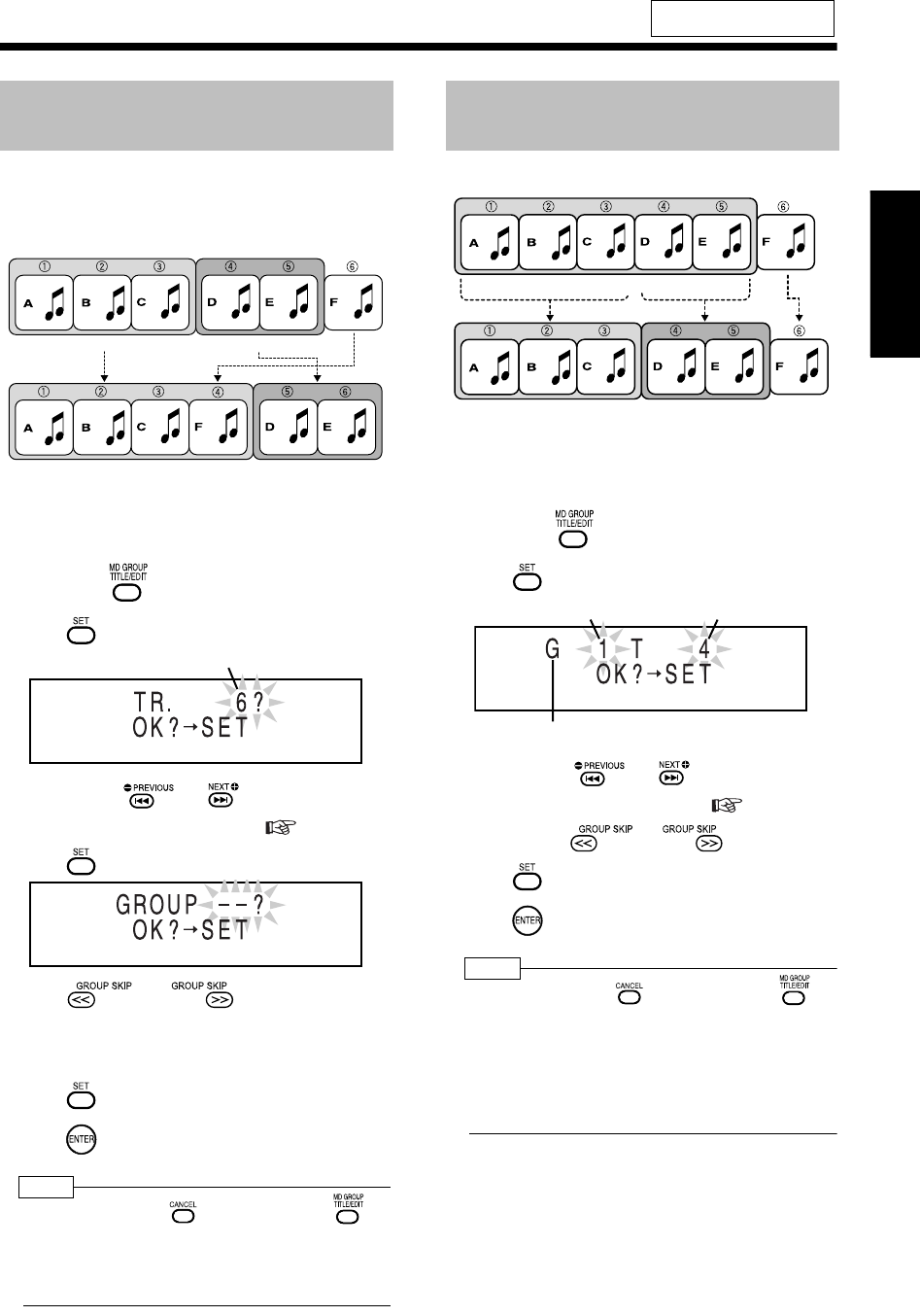
64
中
文
编
辑
M
D
可以将曲目作为群组的最后一首曲目添加到指定的
群组。
例如:将曲调 F 添加到群组 1
■想要添加到群组的曲目 (如上所示的曲目
6 )正在播放时
1反复按 选择 “ENTRY GR?”。
2按 。
•
也可以用
、
或数字键选择曲目
号。请参阅“使用数字键”(
第
17
页)。
3按 。
4按 或 选择想要添加曲
目的群组。
(选择如上所示的群组 1 )
5按 。
6按 。
注
•编辑期间,可以按 返回到上一步。按 可
以退出编辑操作。
•如果选择已经属于群组的某首曲目,则出现
“CANNOT ENTRY!”并无法跳到下一步。
例如:将群组 1 分割为两个群组
■想要指定为第 2 个群组第 1 首的曲目(如上
所示的曲目 4 )正在播放时
1反复按 选择 “DIVIDE GR?”。
2按 。
•
也可以用
、
或数字键选择曲目
号。请参阅“使用数字键”(
第
17
页)。
•也可以用 或 选择群组号。
3按 。
4按 。
注
•编辑期间,可以按 返回到上一步。按 可
以退出编辑操作。
•如果选择群组中的第 1 首曲目或不属于该群组的某
首曲目,则无法跳到下一步。
•分割带标题的群组时,相同的标题被同时添加到被
分割的群组。
有关遥控键的位置,请参阅
第 58 页。
将曲目添加到群组
(ENTRY GR)
群组 1 群组 2
群组 1 群组 2
曲目号
将单个群组分割为两个群组
(DIVIDE GR)
群组 1
群组 1 群组 2
群组号 曲目号
“G”代表 “GROUP”。
UX-QD7[UB]-05.fm Page 64 Friday, September 10, 2004 11:38 AM
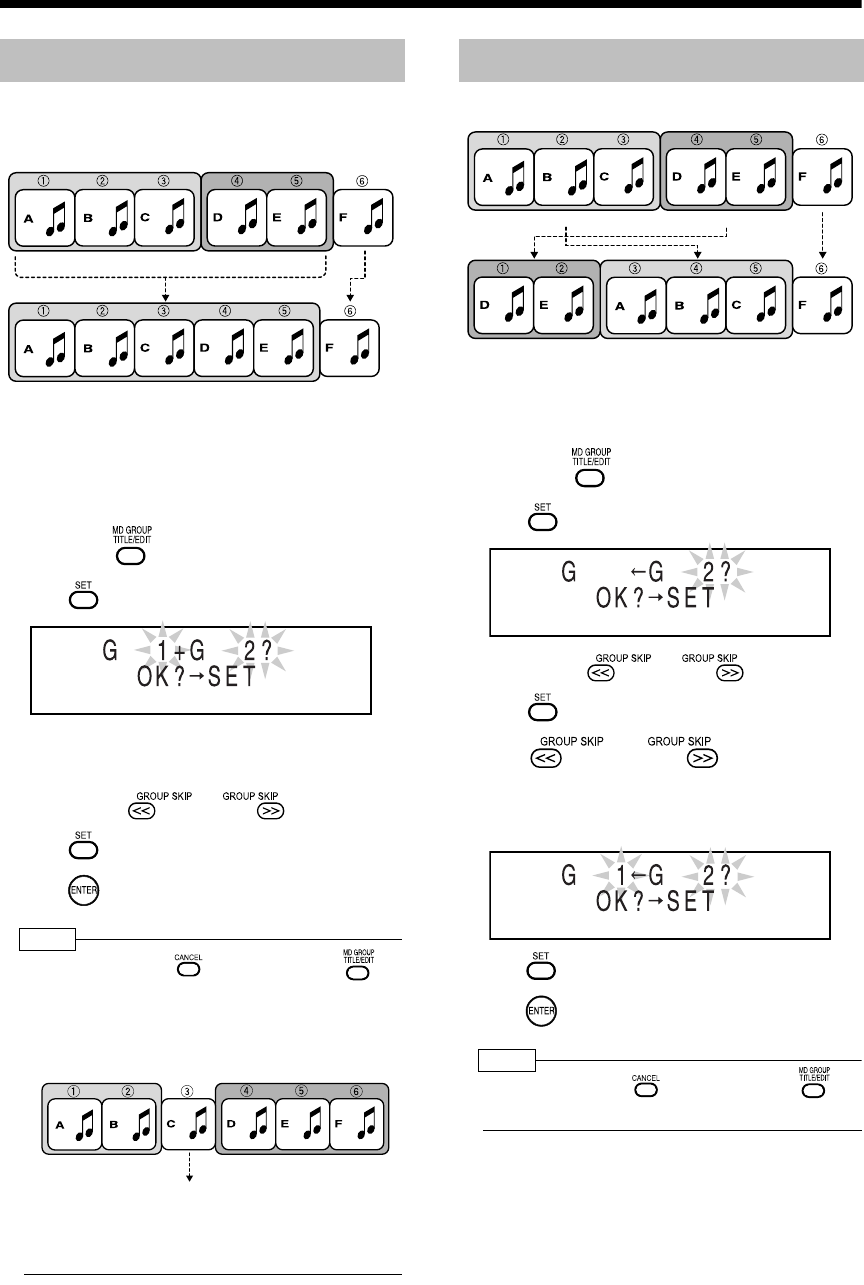
简介
65
(续)
按群组编辑曲目
可以合并两个相邻的群组。
例如:合并群组 1 和群组 2
■想要将第 1 个群组合并到第 2 个群组,而第
2 个群组中的曲目 (如上所示的群组 2 )正
在播放时
1反复按 选择 “JOIN GR?”。
2按 。
•出现两个相邻的群组号。 MD 中没有群组时,
出现 “- -”。
•也可以用 或 选择群组号。
3按 。
4按 。
注
•编辑期间,可以按 返回到上一步。按 可
以退出编辑操作。
•无法合并由不属于任何群组的曲目分割的两个群
组。出现“CANNOT JOIN”,然后显示返回到上一
步。
•合并带有标题的两个群组时,第 1 个群组的标题将
保留为合并后群组的标题。
例如:移动群组 2
■想要移动的群组中的某首曲目 (如上所示的
群组 2 )正在播放时
1反复按 选择 “MOVE GR?”。
2按 。
•也可以用 或 选择群组号。
3按 。
4按 或 选择指定群组
所要移动到的群组号。
(选择如上所示的群组 1 )
5按 。
6按 。
注
•编辑期间,可以按 返回到上一步。按 可
以退出编辑操作。
合并群组 (JOIN GR)
群组 1 群组 2
群组 1
群组 1 群组 2
不属于任何群组的曲目
移动群组 (MOVE GR)
群组 1群组 2
群组 1群组 2
UX-QD7[UB]-05.fm Page 65 Friday, September 10, 2004 11:38 AM
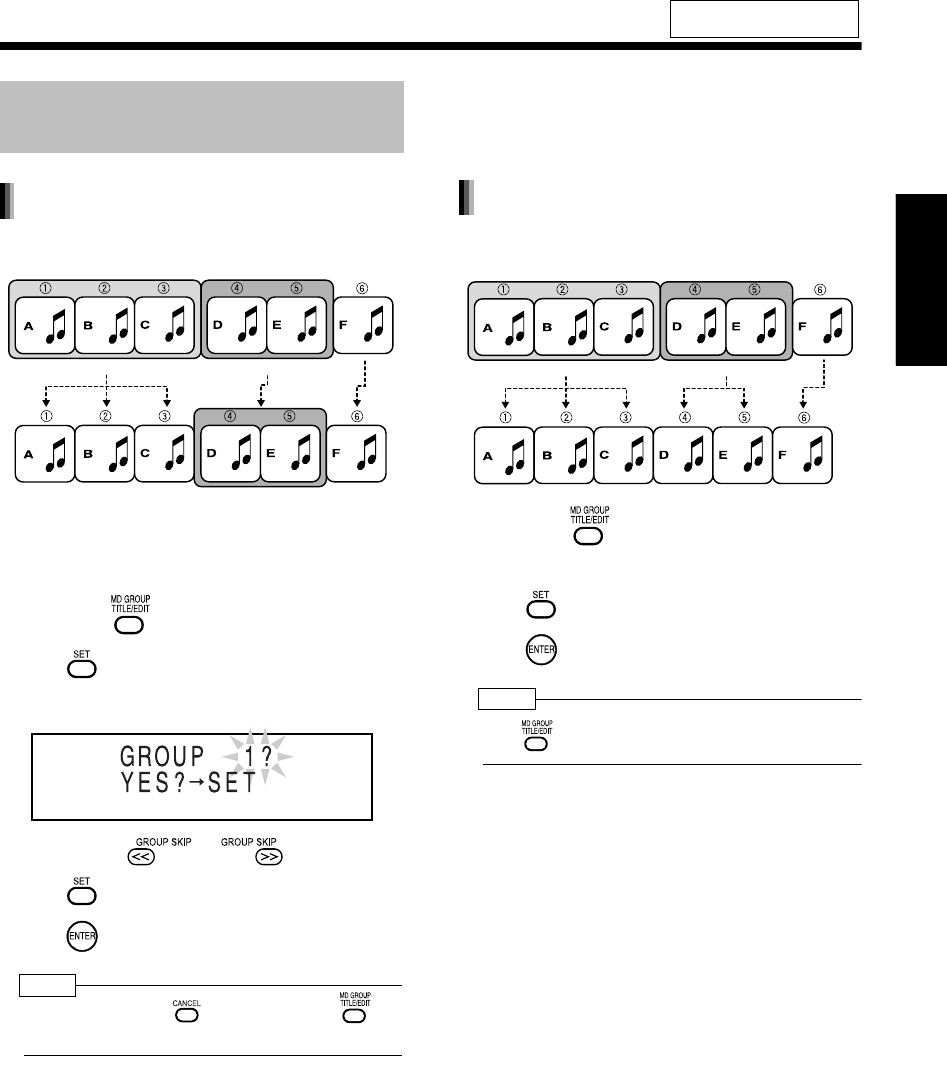
66
中
文
编
辑
M
D
例如:取消群组 1
■想要取消的群组中的某首曲目 (如上所示的
群组 1 )正在播放时
1反复按 选择 “UNGROUP?”。
2按 。
例如: 想要取消群组 1 时
•也可以用 或 选择群组号。
3按 。
4按 。
注
•编辑期间,可以按 返回到上一步。按 可
以退出编辑操作。
例如:取消所有群组
1反复按 选择 “UNGR ALL?”。
•“UNGR”代表 “UNGROUP”。
2按 。
3按 。
注
•按 可以退出编辑操作。
有关遥控键的位置,请参阅
第 58 页。
取消群组
(UNGROUP/UNGR ALL)
取消指定的群组 (UNGROUP)
群组 1 群组 2
群组 1
取消所有群组 (UNGR ALL)
群组 1 群组 2
UX-QD7[UB]-05.fm Page 66 Friday, September 10, 2004 11:38 AM
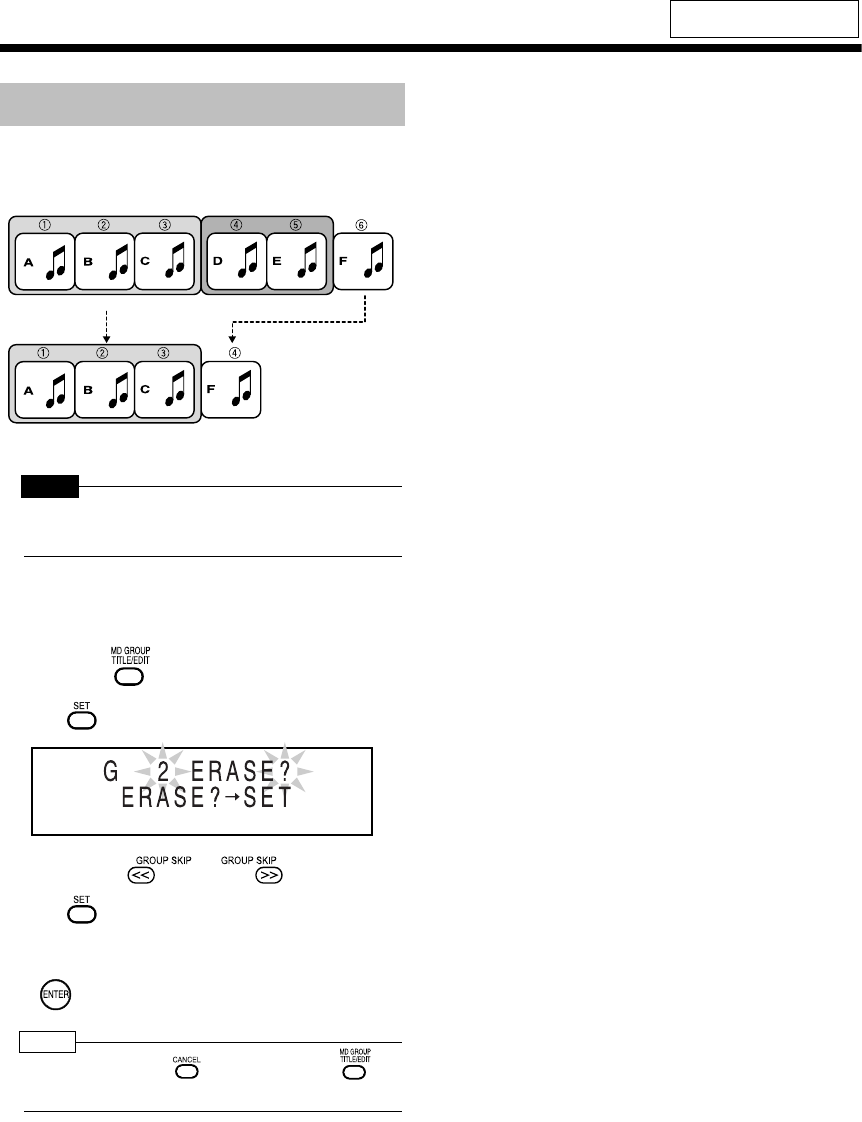
简介
67
(续)
按群组编辑曲目
可以删除群组 (包括群组中的所有曲目)。
例如:删除群组 2
注 意
•删除曲目后,无法恢复该曲目。删除曲目之前,请
确定已经不再需要该曲目。
■想要删除的群组中的某首曲目 (如上所示的
群组 2 )正在播放时
1反复按 选择 “ERASE GR?”。
2按 。
•也可以用 或 选择群组号。
3按 。
4确定已经不再需要这些曲目,然后按
。
注
•编辑期间,可以按 返回到上一步。按 可
以退出编辑操作。
有关遥控键的位置,请参阅
第 58 页。
删除群组 (ERASE GR)
群组 1 群组 2
群组 1
UX-QD7[UB]-05.fm Page 67 Friday, September 10, 2004 11:38 AM

68
中
文
编
辑
M
D
/
易
用
功
能
编辑 MD/ 易用功能
使用定时器
注
•将遥控模式选择器设为 AUDIO ,然后
使用数字键。
指定的时间过后,本机自动关闭。
按
。
•每按一次 ,时间显示(分钟)变化如下。
例如:睡眠定时器设为 60 分钟时的显示
注
•设置睡眠定时器后,显示器窗口自动变暗。
•设置时钟之前 ( “0:00”正在闪烁时) ,如果按
,出现 “CLOCK ADJUST!”。
•反复按 再次选择时间。
•激活睡眠定时器时,按 一次。
可以使用录制定时器功能将 FM/AM 广播或其他设备
的声音录制到 MD 或磁带。
录制定时器和播放定时器设置共计 3 种
( 第 70 页)。
注
•新的设置代替原先的定时器设置后,定时器设置才
会更改。
1准备录制。
(接下页)
预先设置时钟 ( 第 17 页)。
睡眠定时器
数字键
遥控模式选择器
取消 (睡眠指示
消失。)
录制定时器
广播 预设想要录制的广播电台。
( 第 21 页)
其他设备 请参阅设备的操作说明书。
MD 录制 插入 MD。( 第 46 页)
磁带录制 插入磁带。( 第 43 页)
睡眠指示
更改睡眠定时器设置
确认睡眠定时器设置 (剩余时间)
UX-QD7[UB]-05.fm Page 68 Friday, September 10, 2004 11:38 AM
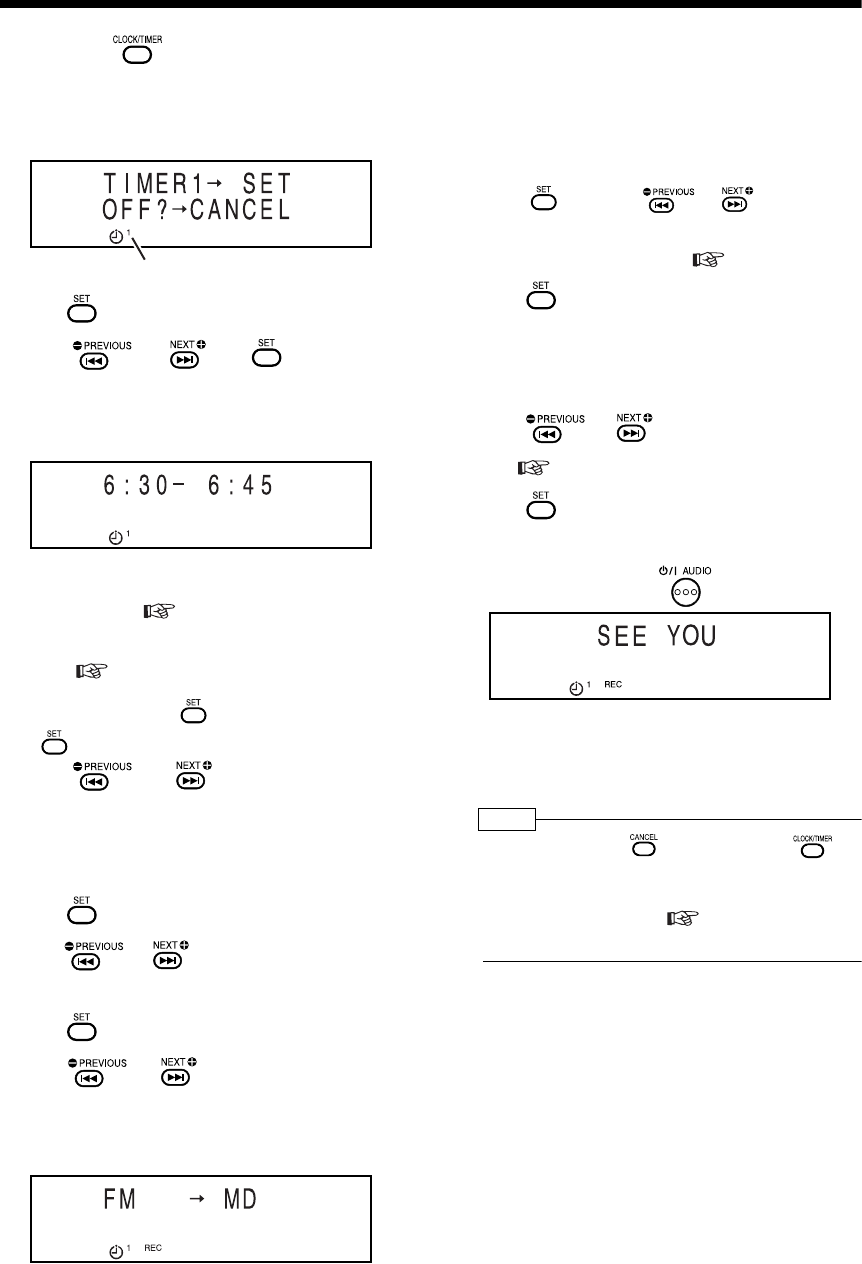
简介
69
(续)
使用定时器
2反复按 选择 “TIMER1”、
“TIMER2”或 “TIMER3”。
例如:选择 “TIMER1”时
3按 。
4按 、 或 设置开始时
间和结束时间。
例如:如需将录制时间设为 6:30 a.m. 到 6:45 a.m.
•用数字键可以设置录制时间。请参阅 “使用
数字键”( 第 17 页)。
•有关设置时钟,请参阅 “设置时钟”
( 第 17 页)。
输入 “小时” → →输入 “分钟” →
5按 或 选择 “ONCE”或
“EVERYDAY”。
ONCE :录制定时器工作一次。
EVERYDAY :录制定时器每天工作。
6按 。
7
按
或
选择“
REC TIMER
”。
•“REC”代表 “录制”。
8按 。
9按 或 选择音源和录制媒体
的组合。
例如: 将 FM 广播录制到 MD
•想要录制其他设备的声音时,无法使用录制
定时器功能在本产品以外的任何设备上进行
播放。
•“AUX-D”代表 “AUX-DIGITAL”。
■想要录制 FM/AM 广播时
•按 ,然后按 、 或数字键
选择想要录制的广播的电台预设号码。请
参阅 “使用数字键”( 第 17 页)。
10 按 。
•使用 MD 作为录制媒体时,请跳到步骤 11 。
•使用磁带作为录制媒体时,显示器窗口中出
现设置。确认设置,然后跳到步骤 13 。
11 按 或 选择 MDLP 模式
(第 51 页)。
12 按 。
•显示器窗口中出现设置。
13 本机打开时,按 关闭本机。
•录制定时器正在工作时,音量被设为 “0”,
扬声器或耳机没有发出任何声音。
•录制定时器仅在本机关闭时可用。
注
•操作期间,可以按 返回到上一步。按 可
以退出录制定时器设置。设置不被保存。
•想要更改曲目标记选项时,请在设置录制定时器之
前或之后进行更改。( 第 54 页的步骤 3 和
4 )
定时器号
UX-QD7[UB]-05.fm Page 69 Friday, September 10, 2004 11:38 AM
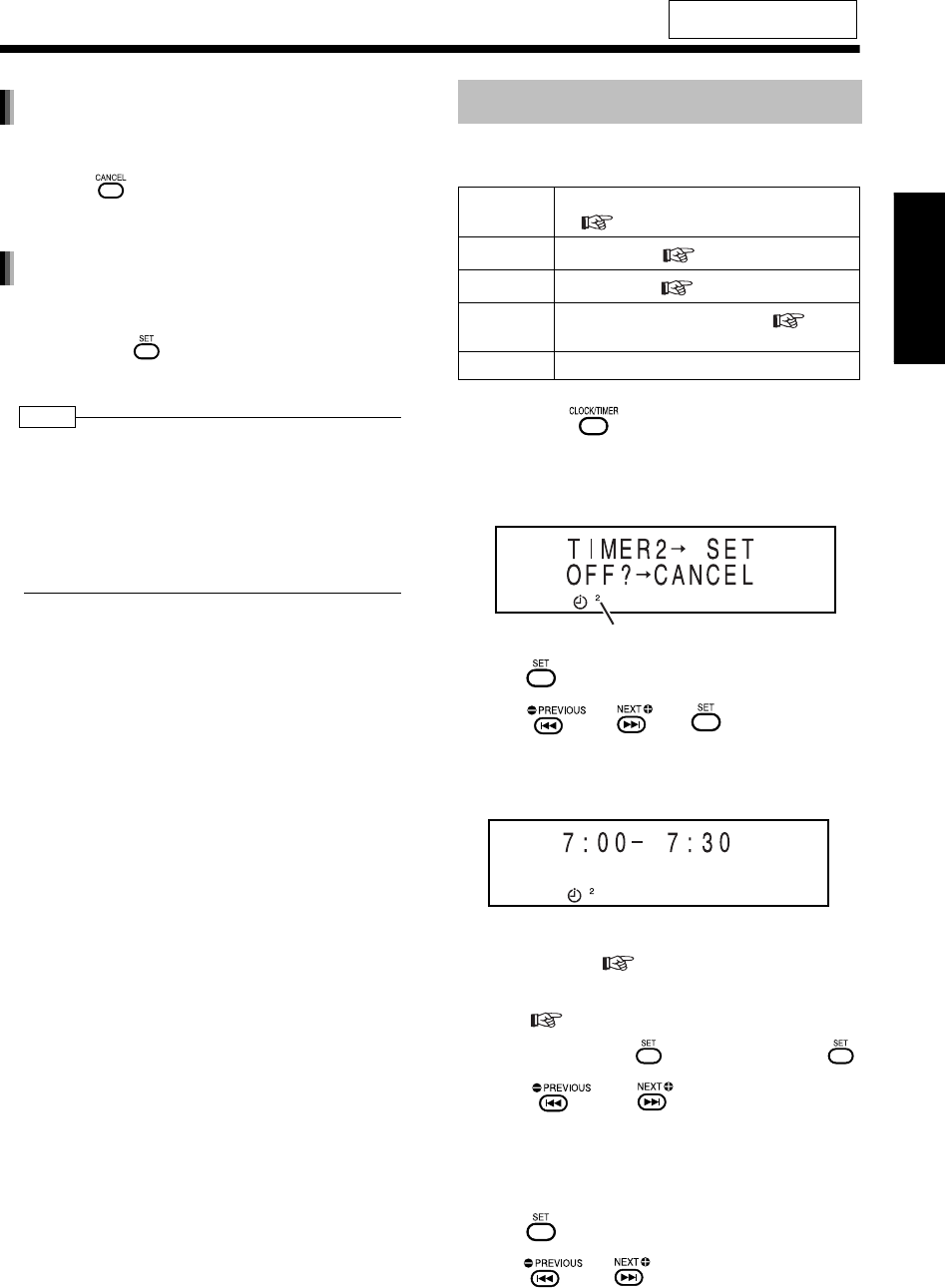
70
中
文
易
用
功
能
易用功能
编
在第 69 页上的步骤 2 中,选择想要取消的定时器编
号,然后按 。
即使取消录制定时器,设置依旧被保存。
在第 69 页上的步骤 2 中,选择想要激活的定时器编
号,然后反复按 ,直到所有设置操作结束。然
后关闭本机。
注
•想要激活两个或三个录制定时器时,请在第 1 个录
制定时器的结束时间和第 2 个录制定时器的开始时
间之间预留 2 分钟或更多空白时间。如果空白时间
少于 2 分钟,则第 2 个录制定时器不起作用。
•电源插头断开或断电时,录制定时器设置可能丢
失。如果设置丢失,请再次设置时钟和录制定时器。
1准备想要播放的音源。
2反复按 选择 “TIMER1”、
“TIMER2”或 “TIMER3”。
例如:选择 “TIMER2”时
3按 。
4按 、 或 设置开始时间
和结束时间。
例如:如需将播放时间设为 7:00 a.m. 到 7:30 a.m.
•用数字键可以设置播放时间。请参阅 “使用
数字键”( 第 17 页)。
•有关设置时钟,请参阅 “设置时钟”
( 第 17 页)。
输入 “小时” → →输入 “分钟” →
5按 或 选择 “ONCE”或
“EVERYDAY”。
ONCE : 播放定时器工作一次。
EVERYDAY : 播放定时器每天工作。
6按 。
7
按
或
选择“
PLAY TIMER
”。
(接下页)
有关遥控键的位置,请参阅
第 68 页。
取消录制定时器
再次激活录制定时器
播放定时器
光盘 确保已经装载光盘。
( 第 22 页)
MD 插入 MD 。( 第 46 页)
磁带 插入磁带。( 第 43 页)
广播 预设想要聆听的广播电台。( 第 21
页)
其他设备
请参阅设备的操作说明书。
定时器号
UX-QD7[UB]-05.fm Page 70 Friday, September 10, 2004 11:38 AM
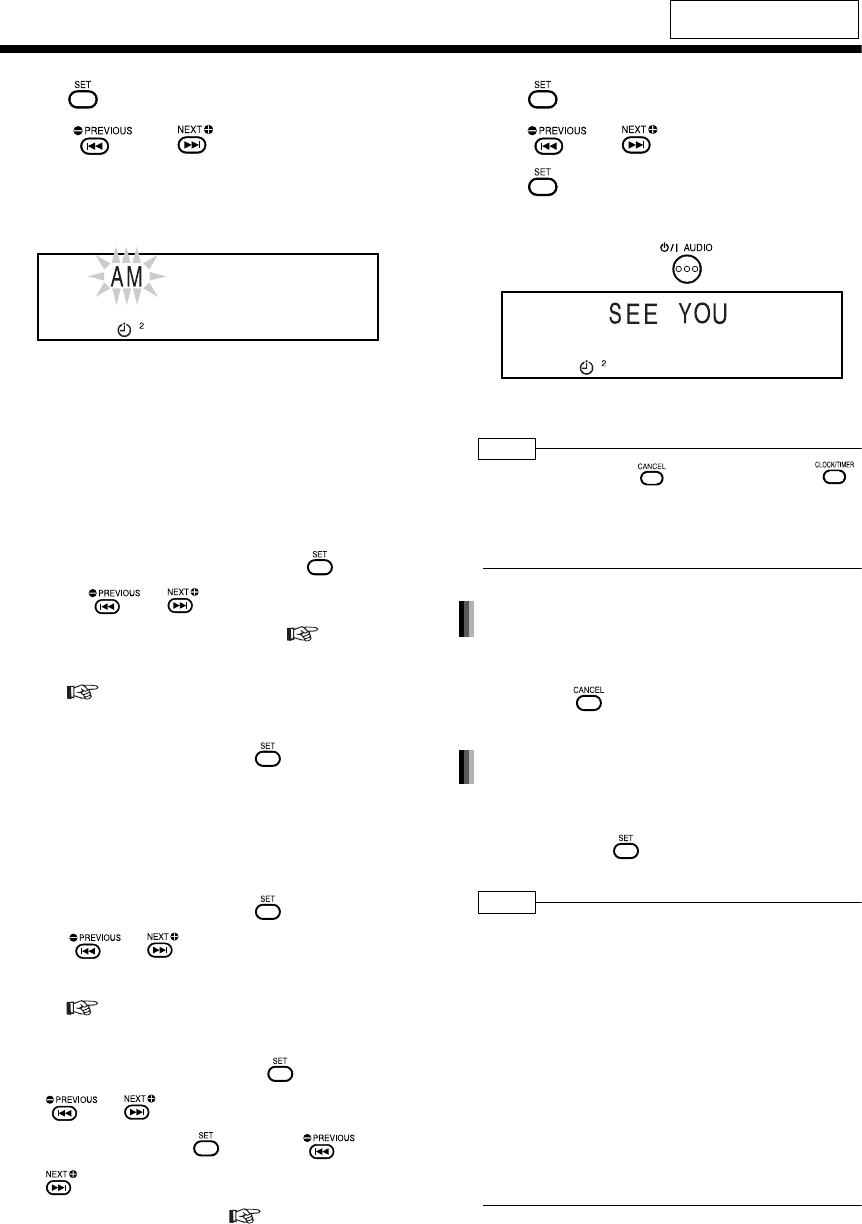
简介
71
(续)
使用定时器
8按 。
9按 或 选择想要播放的音
源。
例如: 想要聆听 AM 广播时
•想要聆听其他设备的声音时,无法使用播放
定时器功能在本产品以外的任何设备上进行
播放。
•播放定时器功能无法与光盘或 MD 的编程播
放、重复播放、随机播放、或群组播放同时使
用。
■想要聆听 FM/AM 广播时
•(选择 “FM”或 “AM”时)按 ,然
后按 、 或数字键选择想要聆
听的广播的电台预设号码 ( 第 21
页)。请参阅 “使用数字键”
( 第 17 页)。
■想要播放 DVD 视频或 DVD 音频时
•(选择“DVD/CD”时 )按 两次。无论
显示的群组号 (G) 和曲目号 (T) 如何,仅可
以从光盘的开始位置播放 DVD 视频或
DVD 音频。
■想要播放 CD 、 VCD 、 SVCD 或 MD 时
•(选择“DVD/CD”时 )按 两次,然后
按 、 或数字键选择想要开始
播放的曲目号 (T)。请参阅“使用数字键”
( 第 17 页)。 群组号 (G) 被忽略。
■想要指定 MP3 或 WMA 的起始播放曲目时
•(选择 “DVD/CD”时)按 ,然后按
、 或数字键选择要播放的群
组号 (G),接着按 ,然后按 、
或数字键选择要播放的曲目号 (T)。请
参阅“使用数字键”( 第 17 页)。
10 按 。
11 按 或 调节播放音量。
12 按 。
•显示器窗口中出现设置。
13 本机打开时,按 关闭本机。
•播放定时器仅在本机关闭时可用。
注
•操作期间,可以按 返回到上一步。按
可以退出播放定时器设置。设置不被保存。
•播放定时器开始工作时,音量逐步增加到所选的电
平。
在第 70 页上的步骤 2 中,选择想要取消的定时器
编号,然后按 。
即使取消播放定时器,设置依旧被保存。
在第 70 页上的步骤 2 中,选择想要激活的定时器
编号,然后反复按 ,直到所有设置操作结束。
然后关闭本机。
注
•想要激活两个或三个播放定时器时,请在第 1 个播
放定时器的结束时间和第 2 个播放定时器的开始时
间之间预留 2 分钟或更多空白时间。如果空白时间
少于 2 分钟,则第 2 个播放定时器不起作用。
•电源插头断开或断电时,播放定时器设置可能丢
失。如果设置丢失,请再次设置时钟和播放定时器。
•对 DVD 视频、 DVD 音频或 VCD 操作播放定时器
时,可能无法自动播放声音和视频。 DVD 视频、
DVD 音频或 VCD 可能包含光盘菜单,该菜单在首
次播放时出现。只有在光盘菜单上选择了需要播放
的项目时,才会出现声音或视频。
有关遥控键的位置,请参阅
第 68 页。
取消播放定时器功能
再次激活播放定时器
UX-QD7[UB].book Page 71 Friday, September 10, 2004 10:56 AM
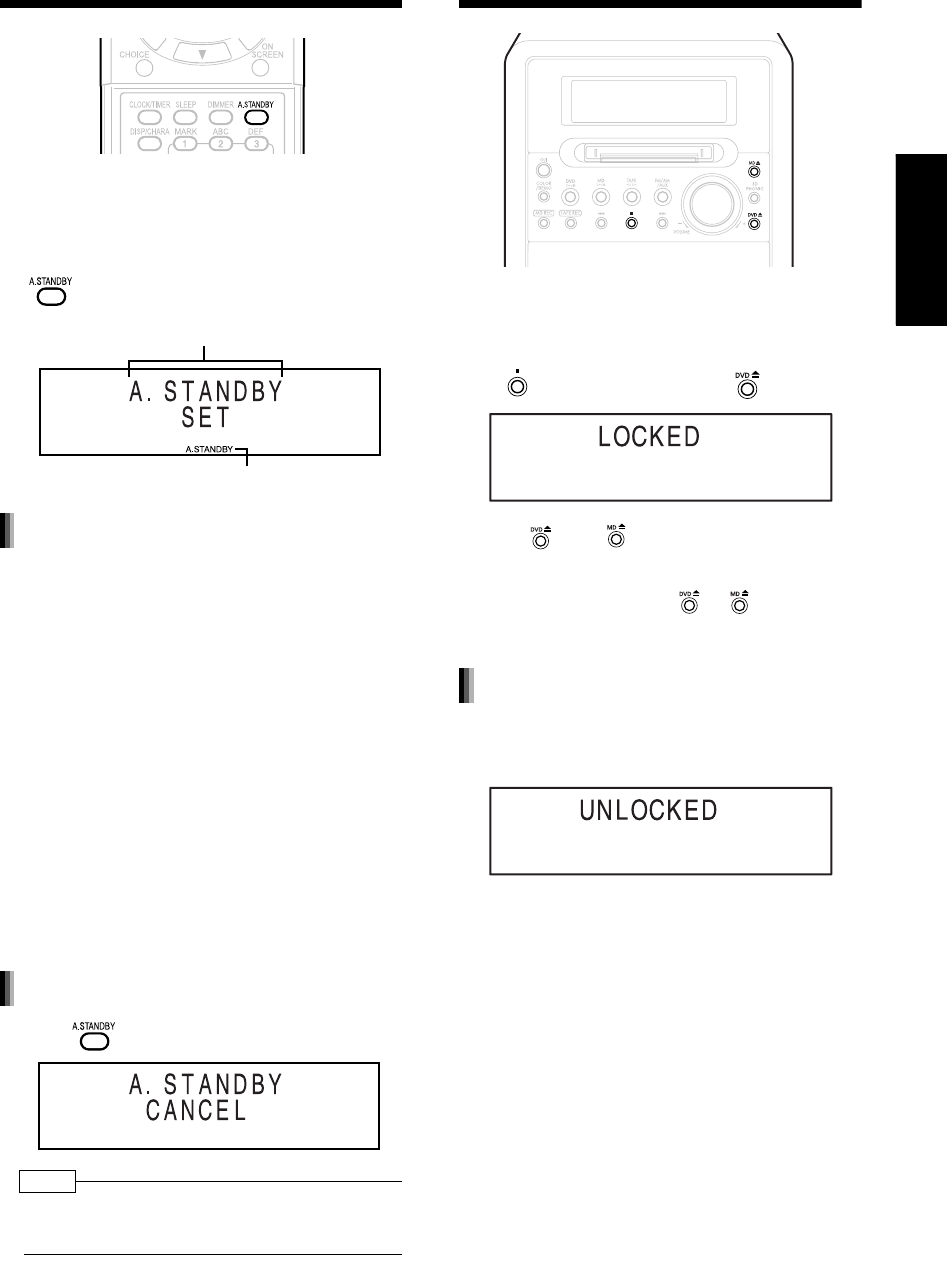
72
中
文
易
用
功
能
自动待机
选择 FM/AM 广播以外的音源时,如果 3 分钟内没
有发出声音,则本机自动关闭。
■选择 FM/AM 广播以外的音源时
按
。
播放或录制光盘、 MD 或磁带时:
播放或录制结束时,自动待机开始倒计时
(“A. STANDBY”指示闪烁)。 3 分钟内没有进行
任何操作时,本机自动关闭。
在 3 分钟内开始播放或录制时,播放或录制结束
后,自动待机再次开始倒计时。
播放和录制以外的操作结束且
3
分钟内没有进行任何
操作时,本机自动关闭。
聆听其他设备的声音时:
没有产生任何声音时,自动待机开始倒计时 ( “A.
STANDBY”指示闪烁)。 3 分钟内没有进行任何操
作时,本机自动关闭。
关闭本机前 20 秒,“A. STANDBY OFF”指示开始
闪烁。
再次按
。
注
•
将音量保持在“
0
”并不等同于没有发出声音,因此,
不会启动自动待机功能。
光盘
/MD
弹出锁定
可以禁止光盘和 MD 的弹出。
■本机关闭时
按住
的同时,按本机上的
。
即使按 或 ,显示器窗口中也会出现
“LOCKED”,光盘或 MD 不会弹出。
此外,本机关闭时,如果按 或 ,显示器窗口
中出现 “LOCKED”且本机不会打开。
■本机关闭时
再次进行上述操作。
“A. STANDBY”代表 “自动待机”。
自动待机指示
自动待机性能
取消自动待机
取消光盘 /MD 弹出锁定
UX-QD7[UB].book Page 72 Friday, September 10, 2004 10:56 AM
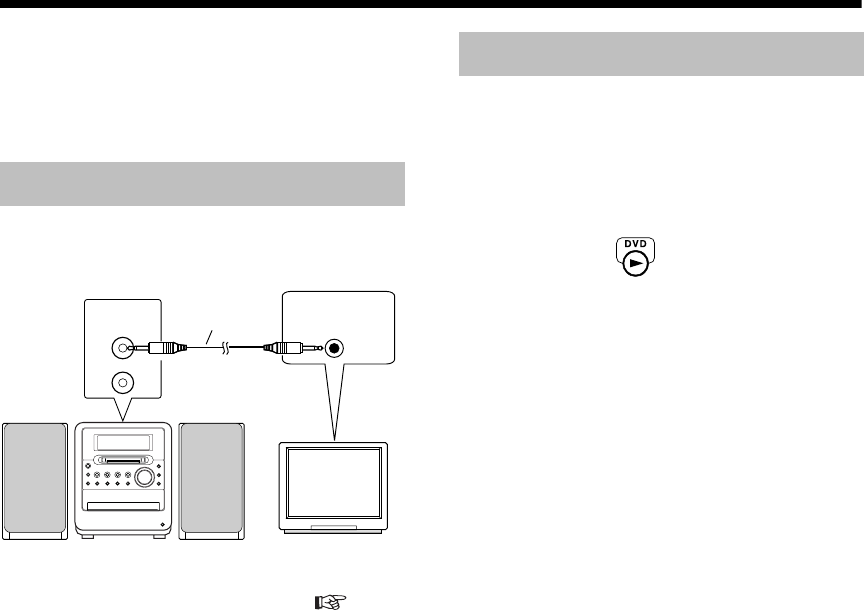
简介
73
使用 AV 电脑连动
JVC AV 电脑连动系统能让您通过最简单的操作即
可欣赏视频或音频。如果您的 JVC 电视机支持 JVC
AV 电脑连动系统,则只需启动本机即可自动进行电
视机上所有必需的设置,让您享受播放的乐趣。
•需要仔细阅读所连接设备的说明书。
如下设置本机的 AV 电脑连动功能 ( 第 40
页)。
•连接到电视机的 VIDEO-1 输入端子时: DVD 2
•连接到电视机的 VIDEO-2 输入端子时: DVD 3
•连接到电视机的 VIDEO-3 输入端子时: DVD 1
只需在本机开始播放即可欣赏声音或视频。 无需选
择电视机的输入设置,或预先打开电视机。
1打开电视机的主电源。
2将光盘插入本机。
3按本机上的 。
自动进行以下操作。
•电视机将会打开。
•电视机输入将会切换到本机的外部输入 (视
频 1、 2 或 3)。
关闭本机时,电视机的电源不会关闭。
连接和设置
AV
COMPU LINK
带单声道微型插
头的音频导线
(未提供) AV 电脑连动 -II
或-III
本机 JVC 牌电视机
操作
UX-QD7[UB]-05.fm Page 73 Friday, September 24, 2004 2:04 PM
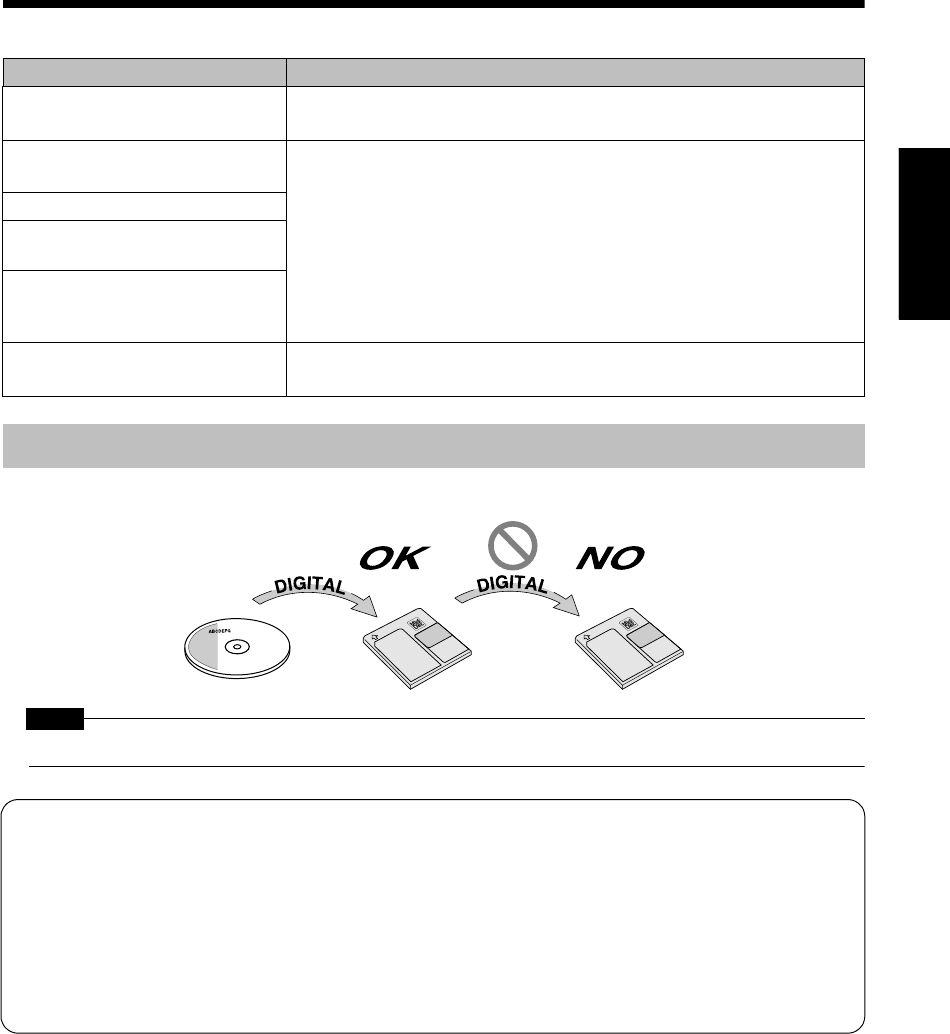
74
中
文
易
用
功
能
/
参
考
易用功能 / 参考
有关
MD
的限制
由于 MD 录制方法存在某些限制,可能发生下列现象。下列现象并非是本产品的故障。
连续复制管理系统保护版权,仅允许从数字可录制源复制原版数字副本。
注 意
• SCMS 不允许将数字录制 MD 的声音作为数字声音录制到其他媒体。
高速复制管理系统 (HCMS)
能够以高于正常录制的速度将声音录制到 MD 。因此,为了保护版权,需要进行限制。
本产品使用高速录制功能录制 CD 的曲目时,在第 1 次录制开始的 74 分钟之内,本产品不允许使用高
速录制功能将 CD 的同一曲目录制到 MD 。
例如,使用高速录制功能将 CD 的曲目 1 录制到 MD 时,第 1 次高速录制开始后的 74 分钟之内,无法
以高速录制功能将曲目 1 再次录制到 MD。此外,在 74 分钟之内,无法使用高速录制功能录制 101 首
或更多的曲目。
现象 可能的原因
即使 MD 上显示的可录制时间存在剩
余,仍然出现 “DISC FULL”。
无论可录制时间是否有剩余, MD 都将限制可录制曲目的数目。无法将 255 首或
更多曲目录制到单张 MD 。(单张 MD 最多可以录制 254 首曲目。)
即使曲目数量和可录制时间都没有达
到限制,仍然出现 “DISC FULL”。
反复进行片断删除和录制将在 MD 上造成许多空白。
将曲目录制到该 MD 时,曲目被分割,曲目的小片断将被录制到各个空白。
此类分割片断的数量增加时,可能出现 “DISC FULL”。
(在 SP 模式 (标准立体声录制模式)下),分割片断为 8 秒或以下时,无法将
该片断合并到另一曲目。
此外,删除该片断时,剩余可录制时间不会增加。
对于分割到许多空白中的曲目,快进或快倒可能产生断断续续的声音丢失。
无法合并具有不同 MDLP 模式 (SP/LP2/LP4) 的曲目。
无法合并曲目或群组。
即使删除某些曲目后,剩余可录制时
间也不会增加。
快进或快倒时,声音会断断续续丢
失。
录制时间和剩余时间之和短于 MD 显
示的可录制总时间。
仅 MD 上存在连续 12 秒或更多时间空白 ( SP 模式)时,才可进行 MD 录制。
包含许多空白的 MD 的实际录制时间缩短。
连续复制管理系统
(SCMS)
UX-QD7[UB]-05.fm Page 74 Monday, September 13, 2004 1:05 PM
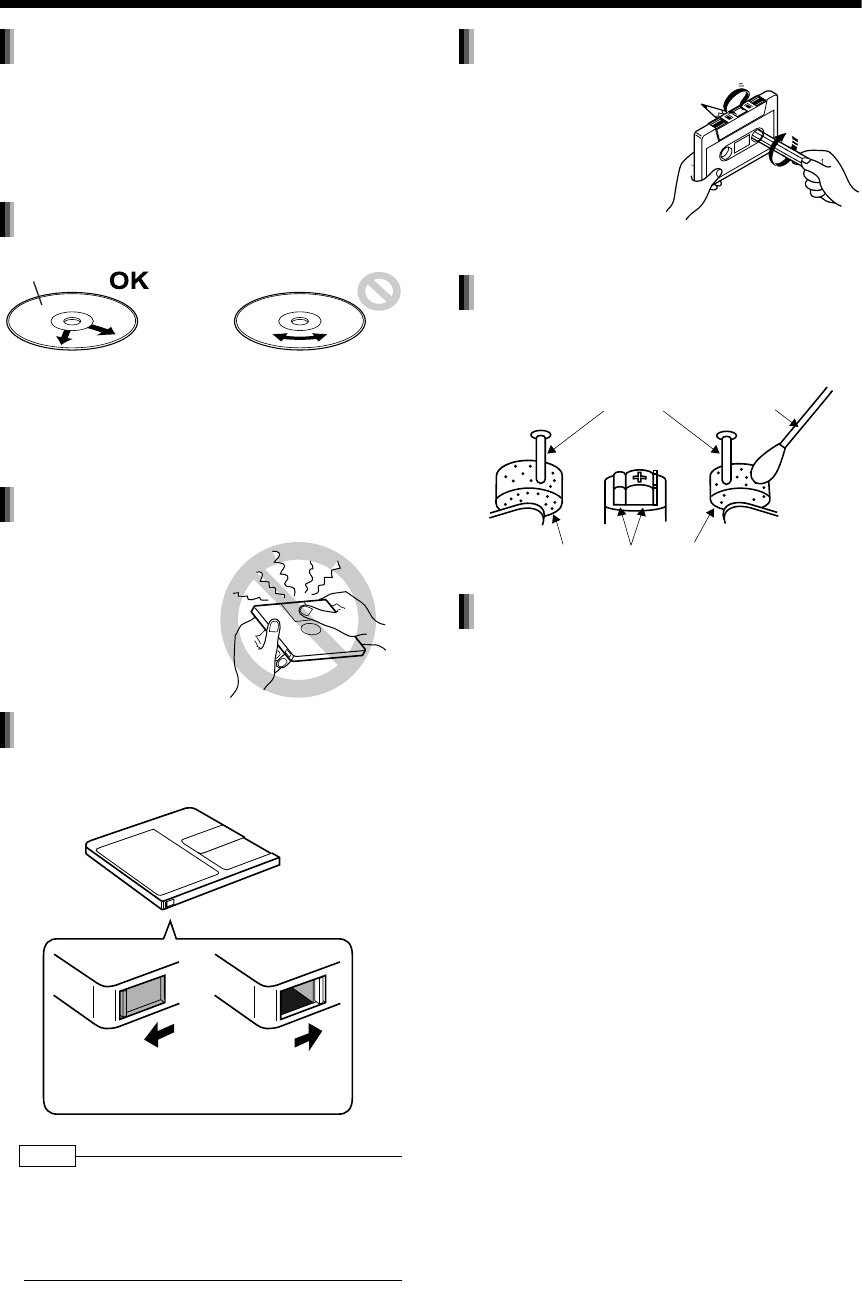
简介
75
使用光盘
/MD/
磁带
•请勿将胶带或标签粘贴到光盘或在光盘上书写。
•请勿弯曲光盘。
•请勿使用心形 / 花形光盘或其他不规则形状的光
盘。 使用上述光盘会损坏本机。
•请勿使用稀释剂、苯、模拟唱片清洁剂或其他化
学溶剂。
•MD 装有防写保护片,可以防止意外删除录制的
声音。
注
•请勿将标签 (如指示 CD/ 曲目标题或其他注释)粘
贴在 MD 指定位置以外的任何部位。在标签超出指
定区域、剥落、或者粘贴不正确的情况下插入 MD
可能损坏本机。
•在音量下降或声音质量降低之前,约每播放 10 小
时清洁一次磁头、压带轮和主动轮。
•使用柔软的干布轻轻掸掉机壳表面的灰尘。 机壳
非常脏时,请用水稀释的中性洗涤剂润湿布,拧
干润湿的布,然后使用该布擦拭机壳,最后使用
柔软的干布擦拭。
•请勿使用稀释剂或苯擦拭机壳。使用上述物品擦
拭机壳可能导致机壳褪色或油漆剥落。请勿将杀
虫剂或其他易挥发的物品喷洒到机壳上。请勿将
橡胶或塑料长时间遗留在机壳上。
使用光盘
清洁光盘
信号面
使用软布自中心向外擦
拭光盘。
集中于某部分的擦伤导致
声音丢失。
使用 MD
•请勿打开挡板。强行打
开挡板将损坏 MD 。
防止丢失重要的录音
防写片
录制或编辑之前,
请关闭防写片。
打开防写片防止删
除声音。
使用磁带
•松弛的磁带可能缠绕在本
机内部并损坏本机。 使
用磁带之前,如右所示
卷紧松弛的磁带。请勿
拉出磁带或触摸磁带
表面。
清洁磁头
主动轮 蘸有酒精的
棉花棒
压带轮 磁头 压带轮
清洁本机机壳
UX-QD7[UB]-05.fm Page 75 Friday, September 24, 2004 2:05 PM
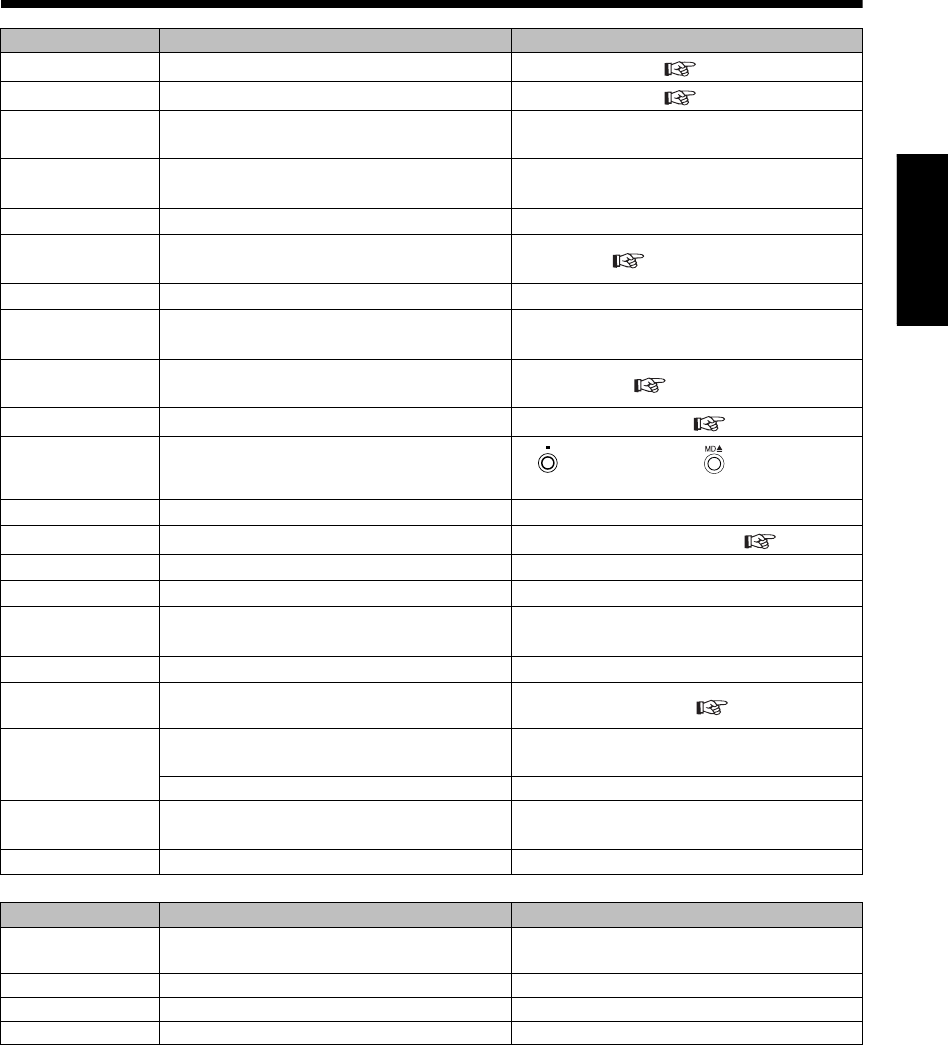
76
中
文
参
考
参考
MD/
光盘讯息
MD 讯息 含义 可能的解决方法
CANNOT ENTRY! 曲目已经属于所选群组中。 选择适当的曲目。( 第 64 页)
CANNOT FORM! 所选曲目之间存在某个群组。 选择适当的曲目。( 第 63 页)
CANNOT GROUP! 用于保存群组信息的空间不足。
(群组信息和标题信息保存的位置相同。)
无法在 MD 上制作更多的群组。(删除不需要的
光盘标题或曲目标题。)
CANNOT JOIN 试图合并具有不同 MDLP 模式 (SP/LP2/LP4)的
曲目、仅 8 秒或更少时间的曲目 (SP 模式)。 MD 系统限制此类操作。
CANNOT LISTEN 试图在高速录制时调节音量。 在高速录制时,无法聆听 CD 的声音。
CANNOT REC 试图在 PBC 播放期间操作以 VCD 或 SVCD 录制
的曲目。 关闭 PBC ( 第 24 页)。
CANNOT TITLE 试图将总共 1 793 或更多的字符输入 MD。无法输入更多的标题。
READ ERROR 本机无法读取 MD。关闭本机。 如果再次出现相同的讯息,可能是
MD 出现故障。请更换 MD 。
DISC FULL MD 中没有更多的空间,试图录制 255 首或更多
的曲目。 请更换 MD 。( 第 74 页)
DISC PROTECTED MD 写保护。 关闭 MD 上的防写片。( 第75 页)。
EMERGENCY STOP 录制期间发生的故障。 按 退出录制,然后按 弹出 MD,接着
重新开始录制。
GROUP FULL 试图制作 100 个或更多的群组。 可以最多制作 99 个群组
GROUP TRACK 试图使用包含于另一群组中的曲目制作群组。 选择未属于任何群组的曲目。( 第 63 页)
LOAD ERROR MD 没有正确装载。 请正确插入 MD 。
MD NO DISC 没有装载 MD 。—
NON-AUDIO
CANNOT COPY
试图将所连设备的非线性 PCM 数字声音录制到
MD。
将数字输出设置到所连数字设备的线性 PCM 。
(有关详情,请参阅所连设备的使用说明书。)
PLAYBACK DISC 试图编辑或录制到仅限于播放的 MD。 请用可录制的 MD 更换该 MD 。
SCMS CANNOT
COPY 试图进行 CD-R 或 CD-RW 的数字音频复制。 以常速操作模拟录制。( 第 53 页)
TRACK
PROTECTED
试图分割、合并或删除以 Net MD 格式录制的曲
目。 请在兼容 Net MD 的设备上编辑曲目。
曲目在本产品以外的设备上处于写保护状态。 在录制这些曲目的设备上编辑曲目。
HCMS CANNOT
COPY
使用高速录制功能开始录制某首曲目的 74 分钟
之内,试图使用高速录制功能录制同一曲目。
请等待 74 分钟,或从高速录制更改为常速录
制。
BLANK DISC MD 中没有曲目。 —
光盘讯息 含义 可能的解决方法
CANNOT PLAY 试图播放不可播放的光盘或带有许多擦痕的光
盘。 请更换光盘。
NO DISC 没有装载光盘。 —
NO AUDIO 光盘可能为非法复制的光盘。 无法聆听光盘。
LR ONLY 正在播放禁止向下混音的多声道曲目。 这是正常操作。
UX-QD7[UB]-05.fm Page 76 Monday, September 13, 2004 1:05 PM
简介
77
故障排除
●即使采用上述可能的解决方案后本产品依然无法正确工作
本产品的许多功能都通过微机实现。如果故障是由于雷电或静电所导致,或即使按了某个键本机也
无法正确工作,请从 AC 插座拔下电源插头,稍等片刻,接着重新连接本产品。然后重置时钟。
问题 可能的原因 可能的解决方法 参考页
没有声音 / 视频。 错误连接。 正确连接所有导线。 11
连接耳机。 拔下耳机插头。 8
时钟显示闪烁。 电源故障,或电源插头被拔下。 重置时钟。 17
光盘播放没有开始。
光盘上下倒置。 印字面向上将光盘放置到光盘托架
上。 22
镜头结露。 打开本机电源,约等待 1 或 2 小时,
然后操作本机。 3
某处无法正确播放。 光盘被擦伤或脏了。 请清洁或更换光盘。 75
MD 上发生错误。 再次录制到 MD 。51
磁带播放的音量低。 磁头或主动轮脏了。 请清洁磁头或主动轮。 75
无法录制 MD/ 磁带。 MD/ 磁带写保护。 请取消写保护。 55, 75
无法接收广播。 没有连接天线。 连接天线。 11
产生啸声。 本机放置在电视机、电脑或其他
电器附近。
将本机远离电视机、电脑或其他电器
放置。 3
无法设置定时器。 没有设置时钟。 请设置时钟。 17
定时器不工作。 本机被打开。 设置定时器后,请关闭本机。 69, 71
无法操作遥控器。 遥控器电池电量较低。 请用新电池予以更换。 9
无法使用遥控器上数字键
操作本机。
将遥控器上的遥控模式选择器拨
到 TV 侧。 将遥控模式选择器设为 AUDIO 。17
打开本机时,噪声从本机
后方传出。 内部冷却风扇旋转时产生噪声。 噪声并非故障。风扇旋转是为了防止
本机过热。 13, 18
UX-QD7[UB]-05.fm Page 77 Monday, September 13, 2004 1:05 PM
78
中
文
参
考
规格
■ MD/DVD 接收器 (CA-UXQD7)
放大器
输出功率
20 W + 20 W
,
4
Ω
(10% THD)
输入端子
<模拟>
AUX
×
1
,
500 mV/47 k
Ω
: LEVEL1
250 mV/47 k
Ω
: LEVEL2
< 数字 > 数字光纤输入
×
1
-23 dBm
到
-15 dBm
(光纤方形端子)
(兼容
32 kHz
、
44.1 kHz
和
48 kHz
的频率)
输出端子
< 模拟 > 扬声器
×
1
,
20 W/4
Ω
阻抗
4
Ω
- 16
Ω
耳机 (
×
1
),
25 mW/32
Ω
阻抗
16
Ω
- 1 k
Ω
<数字>
DVD/CD
光纤输入
×
1
-23 dBm
到
-15 dBm
(光纤方形端子)
<其他>
AV COMPU LINK
×
2 (
φ
3.5)
调谐器
频率
FM
:
87.50 MHz-108.00 MHz
AM
:
531 kHz -1 710 kHz
(
9 kHz
间隔)
530 kHz -1 710 kHz
(
10 kHz
间隔)
DVD 播放机
可播放的光盘
DVD
视频、
DVD
音频、
CD
、
VCD
、
SVCD
、
CD-R/
CD-RW
(
CD
、
VCD
、
SVCD
、
MP3/WMA/JPEG
格
式)、
DVD-R/DVD-RW
(视
频格式)
MD 录制机
音频播放系统 微型光盘数字音频系统
录制系统 磁光覆写系统
读取系统 无接触,半导体激光拾音
录制 / 播放时间 (使用单张
80
分钟
MD
时)
SP: 80
分钟
LP2: 160
分钟
LP4: 320
分钟
取样率
44.1 kHz
音频压缩系统
ATRAC
(自适应声学转换编
码)/
ATRAC3 (MDLP)
盒式录音机
频率响应
正常 (
I
型)
60 Hz - 14 000 Hz
抖晃
0.15% (WRMS)
一般规格
电源
AC 220 V
,
50 Hz
功耗
70 W
(工作时)
1.3 W
(待机时)
尺寸
165 mm
(宽)
×
200 mm
(高)
×
355mm
(深)
质量 (约)
5.1 kg
■扬声器 (SP-UXQD6)
系统
3
路低音反射型,磁屏蔽型
扬声器 低音扬声器 :
10 cm
×
1
中音扬声器 :
4 cm
×
1
高音扬声器 :
1.5 cm
×
1
最大输出功率
20 W
阻抗
4
Ω
频率范围
58 Hz -40 kHz
声压级
85 dB/W
•
m
尺寸
135 mm
(宽)
×
200.5 mm
(高)
×
211.5 mm
(深)
质量 (约)
2.0 kg
(单个)
■ MD 微型组合音响 (UX-QD7)
一般规格
尺寸
435 mm
(宽)
×
200.5 mm
(高)
×
355mm
(深)
质量 (约)
9.1 kg
•经 Dolby Laboratories 许可的美国和其他国家的
专利。
UX-QD7[UB]-05.fm Page 78 Friday, September 24, 2004 2:37 PM
0904SKMMODJEM
2004VictorCompanyofJapan,Limited
EN,CS
c
UX-QD7[UB]-BackCov.fm Page 42 Thursday, September 16, 2004 10:36 AM

Instructions MICRO COMPONENT MD SYSTEM UX-QD7M/UX-QD7W
