Jablotron JA82R Radio module for control unit JA-82K User Manual manual JA82K new

Jablotron Ltd Radio module for control unit JA-82K manual JA82K new

Contents

User Manual

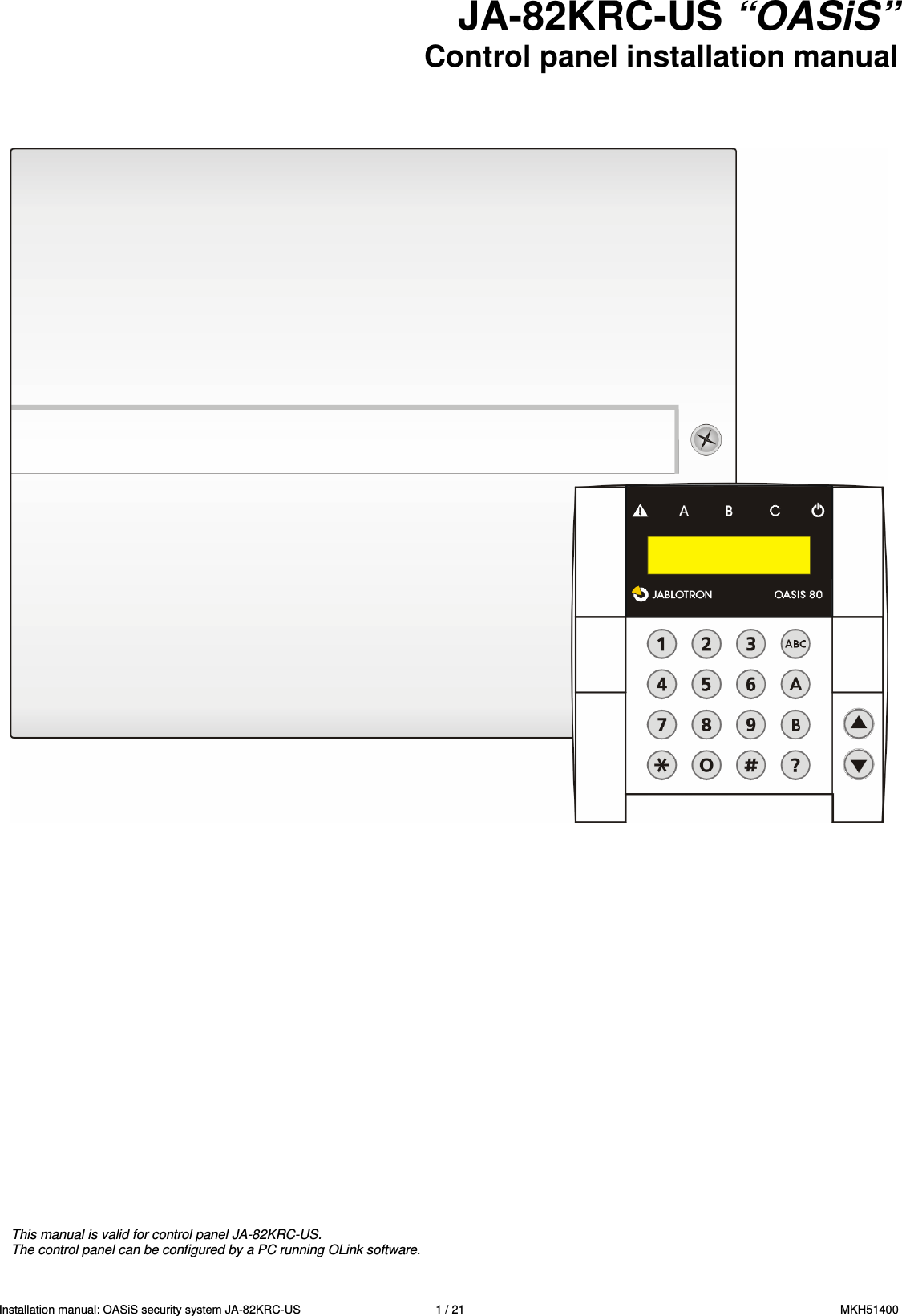
Installation manual: OASiS security system JA-82KRC-US    1 / 21  MKH51400 JA-82KRC-US “OASiS”  Control panel installation manual                           This manual is valid for control panel JA-82KRC-US. The control panel can be configured by a PC running OLink software.
Installation manual: OASiS security system JA-82KRC-US    2 / 21  MKH51400 Contents: 1. Control panel architecture .......................................3 1.1. Main features .................................................................... 3 1.1.1. Modes............................................................................. 4 1.2. Optional system configurations.......................................... 4 2. Installation .................................................................4 2.1. Power inlet ........................................................................ 4 3. Control panel memory unit ......................................4 4. Control panel connectors and terminals ................5 5. Wired keypad connection.........................................5 6. Back-up battery .........................................................6 7. Powering-up the control panel for the first time ....6 7.1. Wireless keypad enrollment............................................... 6 8. Language selection of the keypad ..........................6 9. Resetting the control panel......................................6 10. Closing the control panel cover ..............................7 11. Enrolling wireless devices .......................................7 11.1. Installing wireless devices ................................................. 7 11.2. Enrolling wireless devices to the control panel................... 7 11.3. Testing enrolled devices.................................................... 7 11.4. Measuring signal strength.................................................. 7 11.5. Erasing enrolled devices ................................................... 8 11.6. Enrolling the control panel to UC and AC modules ............ 8 12. Control panel programming.....................................8 12.1. Control panel programming sequences ............................. 8 12.2. Exit delay time................................................................. 11 12.3. Entrance delay time......................................................... 11 12.4. Alarm duration time ......................................................... 11 12.5. PGX and PGY functions .................................................. 11 12.6. Changing telephone numbers in maintenance mode ....... 11 12.7. Radio interference indication ........................................... 11 12.8. Radio communications supervision ................................. 11 12.9. RESET enabled............................................................... 12 12.10. Enrollment  to  a  sub  control  panel  for  setting  (arming) control ............................................................................. 12 12.11. Master code reset............................................................ 12 12.12. Control panel enrollment to UC or AC modules or to a sub control panel.................................................................... 12 12.13. Setting (Arming) without an access code......................... 12 12.14. Triggered-detector indication ........................................... 12 12.15. Confirmation of intruder alarms........................................ 12 12.16. Exit delay beeps.............................................................. 13 12.17. Exit delay beeps while partially setting (arming)............... 13 12.18. Entrance delay beeps...................................................... 13 12.19. Setting (arming) confirmation by wired-siren chirp ........... 13 12.20. Sirens always sound during audible alarms ..................... 13 12.21. Wireless siren alarm enabled (IW and EW) ..................... 13 12.22. Auto-bypass user approval via the ∗ key ......................... 13 12.23. Final-door detectors ........................................................ 13 12.24. Partial setting (arming) or system splitting ....................... 14 12.25. Automatic summer time (daylight saving time)................. 14 12.26. Tamper alarm in response to an increase in the number of triggered tamper sensors................................................. 14 12.27. Operating the PG outputs using ∗8 and ∗9 ...................... 14 12.28. Permanent alarm status display for a set system............. 15 12.29. Tamper alarm if unset...................................................... 15 12.30. Recording PG output activation to memory...................... 15 12.31. Engineer reset................................................................. 15 12.32. Annual check notification................................................. 15 12.33. Only single alarm indication............................................. 15 12.34. Setting (arming) by service code ..................................... 15 12.35. Audible panic alarm......................................................... 15 12.36. Higher control-panel receiver-sensitivity .......................... 16 12.37. Access by code plus card................................................ 16 12.38. Audible 24 hour intruder alarm ........................................ 16 12.39. Service mode only with service code and master code.... 16 12.40. Device reactions and section assignment........................ 16 12.41. Code/card reactions and section assignment .................. 17 12.42. Enrollment by keying in production codes........................ 17 12.43. Automatic setting/unsetting schedule............................... 17 12.44. Changing the service code. ............................................. 17 12.45. Go to maintenance mode ................................................ 18 12.46. Setting the internal clock ................................................. 18 12.47. Editing keypad text.......................................................... 18 13. Operating the system .............................................18 13.1. The system keypad ......................................................... 18 13.1.1. Keypad indicators: ........................................................ 18 13.1.2. LCD display .................................................................. 18 13.1.3. Keypad display sleep-mode .......................................... 18 13.1.4. Keys ............................................................................. 18 13.1.5. Functions beginning with the  ∗ key............................... 19 13.2. Programming access codes and cards ............................ 19 13.2.1. Programming access codes and cards.......................... 19 13.3. Setting and unsetting (arming/disarming) the system....... 20 13.4. Maintenance Mode.......................................................... 20 13.4.1. Displaying which user/card positions are occupied........ 20 13.4.2. Bypassing devices ........................................................ 20 13.4.3. Protecting a car near the system................................... 20 14. Operating and programming the system by PC.. 20 15. Basic guidance for installers ................................ 21 16. Trouble-shooting .................................................... 21 17. Control panel technical specifications................. 21
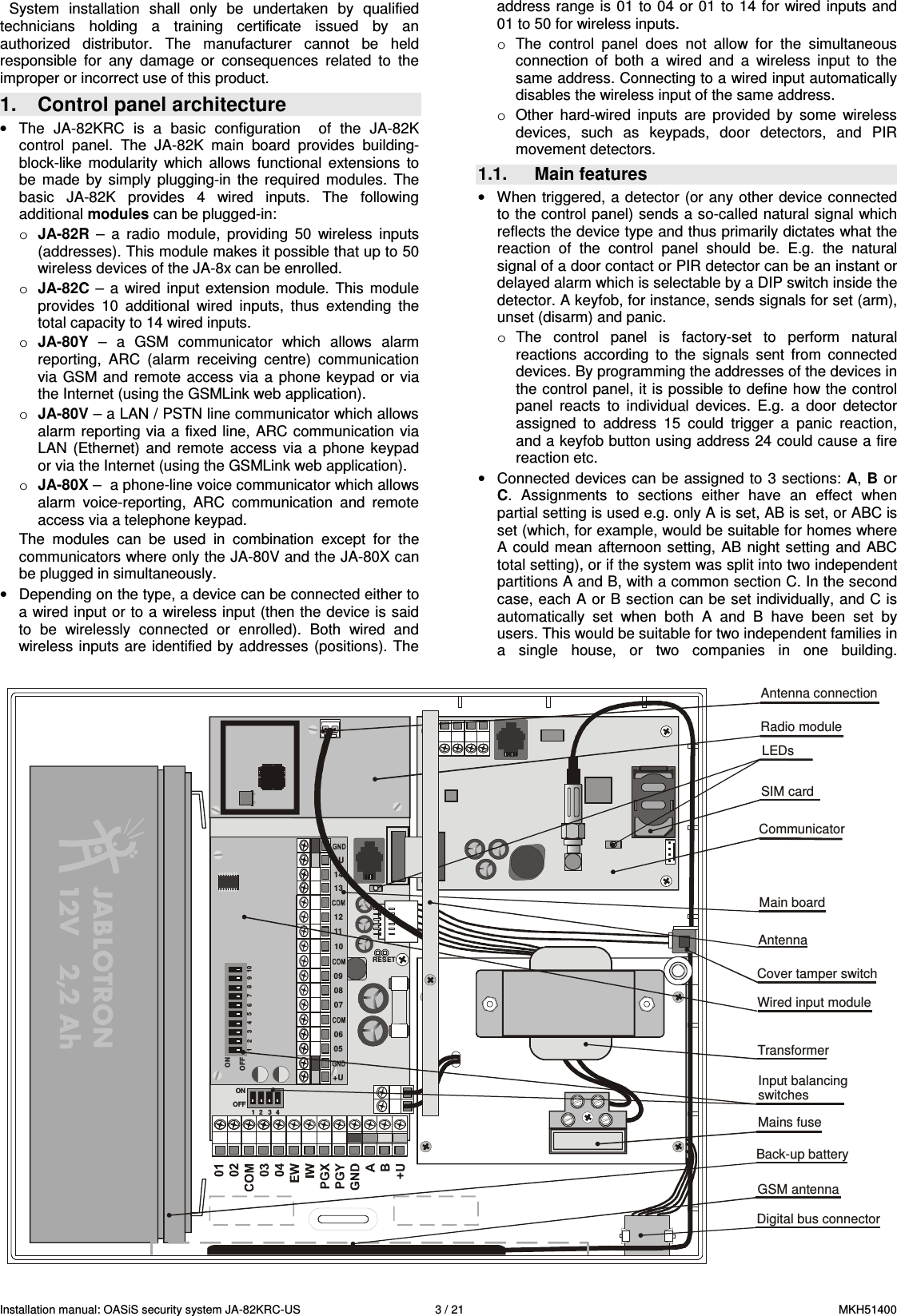
Installation manual: OASiS security system JA-82KRC-US    3 / 21  MKH51400 System  installation  shall  only  be  undertaken  by  qualified technicians  holding  a  training  certificate  issued  by  an authorized  distributor.  The  manufacturer  cannot  be  held responsible  for  any  damage  or  consequences  related  to  the improper or incorrect use of this product. 1.  Control panel architecture •  The  JA-82KRC  is  a  basic  configuration    of  the  JA-82K control  panel.  The  JA-82K  main  board  provides  building-block-like  modularity  which  allows  functional  extensions  to be  made  by  simply  plugging-in  the  required  modules.  The basic  JA-82K  provides  4  wired  inputs.  The  following additional modules can be plugged-in: o JA-82R  –  a  radio  module,  providing  50  wireless  inputs (addresses). This module makes it possible that up to 50 wireless devices of the JA-8x can be enrolled. o JA-82C  – a wired  input  extension  module.  This  module provides  10  additional  wired  inputs,  thus  extending  the total capacity to 14 wired inputs. o JA-80Y  –  a  GSM  communicator  which  allows  alarm reporting,  ARC  (alarm  receiving  centre)  communication via  GSM and  remote access  via  a  phone  keypad  or  via the Internet (using the GSMLink web application). o JA-80V – a LAN / PSTN line communicator which allows alarm reporting  via  a fixed line, ARC communication  via LAN  (Ethernet)  and  remote  access  via a  phone  keypad or via the Internet (using the GSMLink web application). o JA-80X –  a phone-line voice communicator which allows alarm  voice-reporting,  ARC  communication  and  remote access via a telephone keypad. The  modules  can  be  used  in  combination  except  for  the communicators where only the JA-80V and the JA-80X can be plugged in simultaneously. •  Depending on the type, a device can be connected either to a wired input or to a wireless input (then the device is said to  be  wirelessly  connected  or  enrolled).  Both  wired  and wireless inputs are identified by addresses  (positions). The address range is 01 to 04 or 01 to 14 for wired inputs and 01 to 50 for wireless inputs.  o  The  control  panel  does  not  allow  for  the  simultaneous connection  of  both  a  wired  and  a  wireless  input  to  the same address. Connecting to a wired input automatically disables the wireless input of the same address. o  Other  hard-wired  inputs  are  provided  by  some  wireless devices,  such  as  keypads,  door  detectors,  and  PIR movement detectors. 1.1.  Main features •  When  triggered, a detector (or any  other  device  connected to the control panel) sends a so-called natural signal which reflects the device type and thus primarily dictates what the reaction  of  the  control  panel  should  be.  E.g.  the  natural signal of a door contact or PIR detector can be an instant or delayed alarm which is selectable by a DIP switch inside the detector. A keyfob, for instance, sends signals for set (arm), unset (disarm) and panic. o  The  control  panel  is  factory-set  to  perform  natural reactions  according  to  the  signals  sent  from  connected devices. By programming the addresses of the devices in the control panel, it is possible to define how the control panel  reacts  to  individual  devices.  E.g.  a  door  detector assigned  to  address  15  could  trigger  a  panic  reaction, and a keyfob button using address 24 could cause a fire reaction etc. •  Connected devices can be assigned to 3 sections: A, B or C.  Assignments  to  sections  either  have  an  effect  when partial setting is used e.g. only A is set, AB is set, or ABC is set (which, for example, would be suitable for homes where A could mean afternoon setting, AB  night setting  and  ABC total setting), or if the system was split into two independent partitions A and B, with a common section C. In the second case, each A or B section can be set individually, and C is automatically  set  when  both  A  and  B  have  been  set  by users. This would be suitable for two independent families in a  single  house,  or  two  companies  in  one  building.  CommunicatorMain boardTransformerBack-up batteryMains fuseDigital bus connectorGSM antennaCover tamper switchSIM cardLEDsAntenna connectionRESET1 2 3 4ONOFFONOFF1    2 3 4 56 7 8910+U+U05060708091011121314Wired input moduleRadio moduleAntennaInput balancingswitches
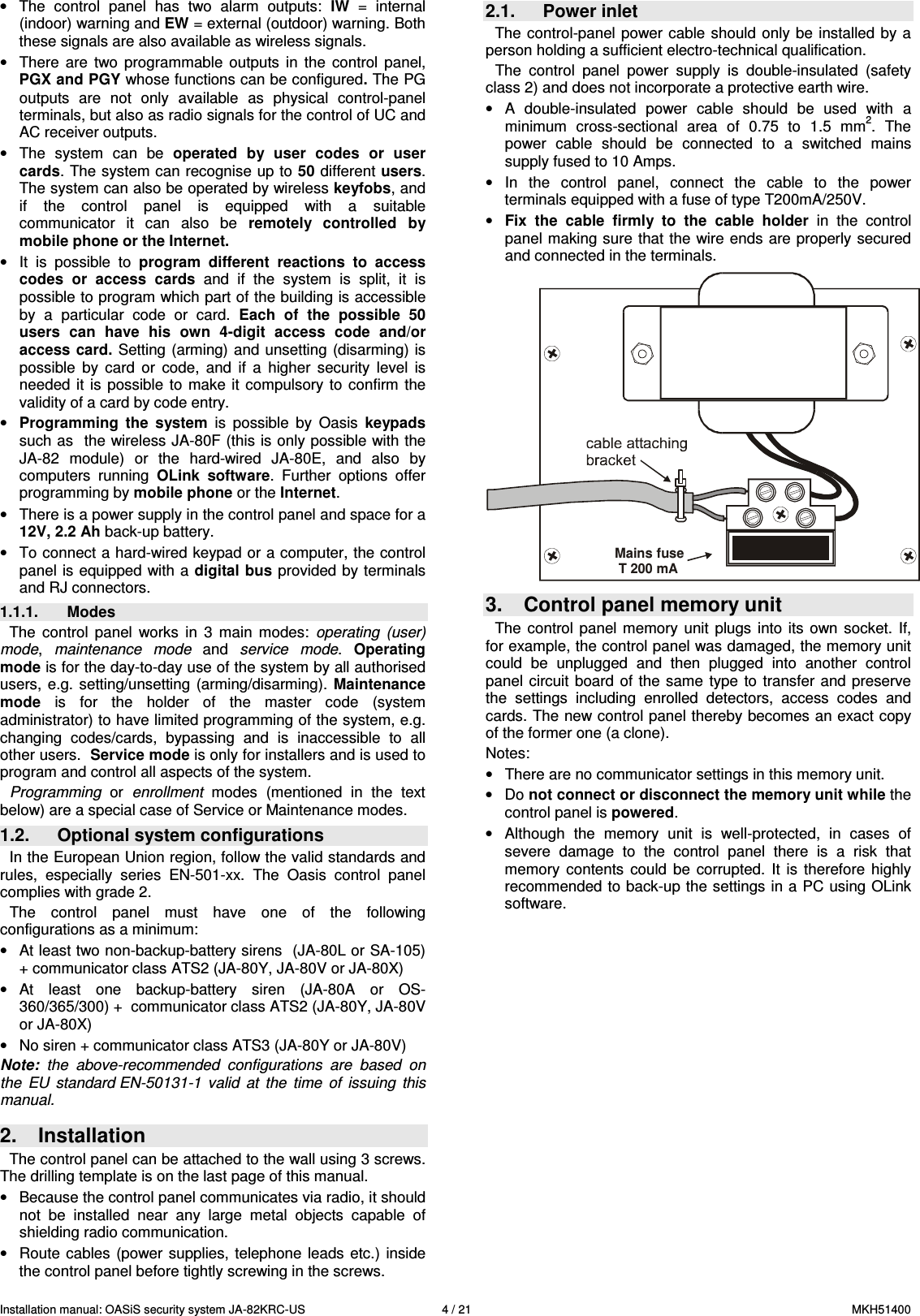
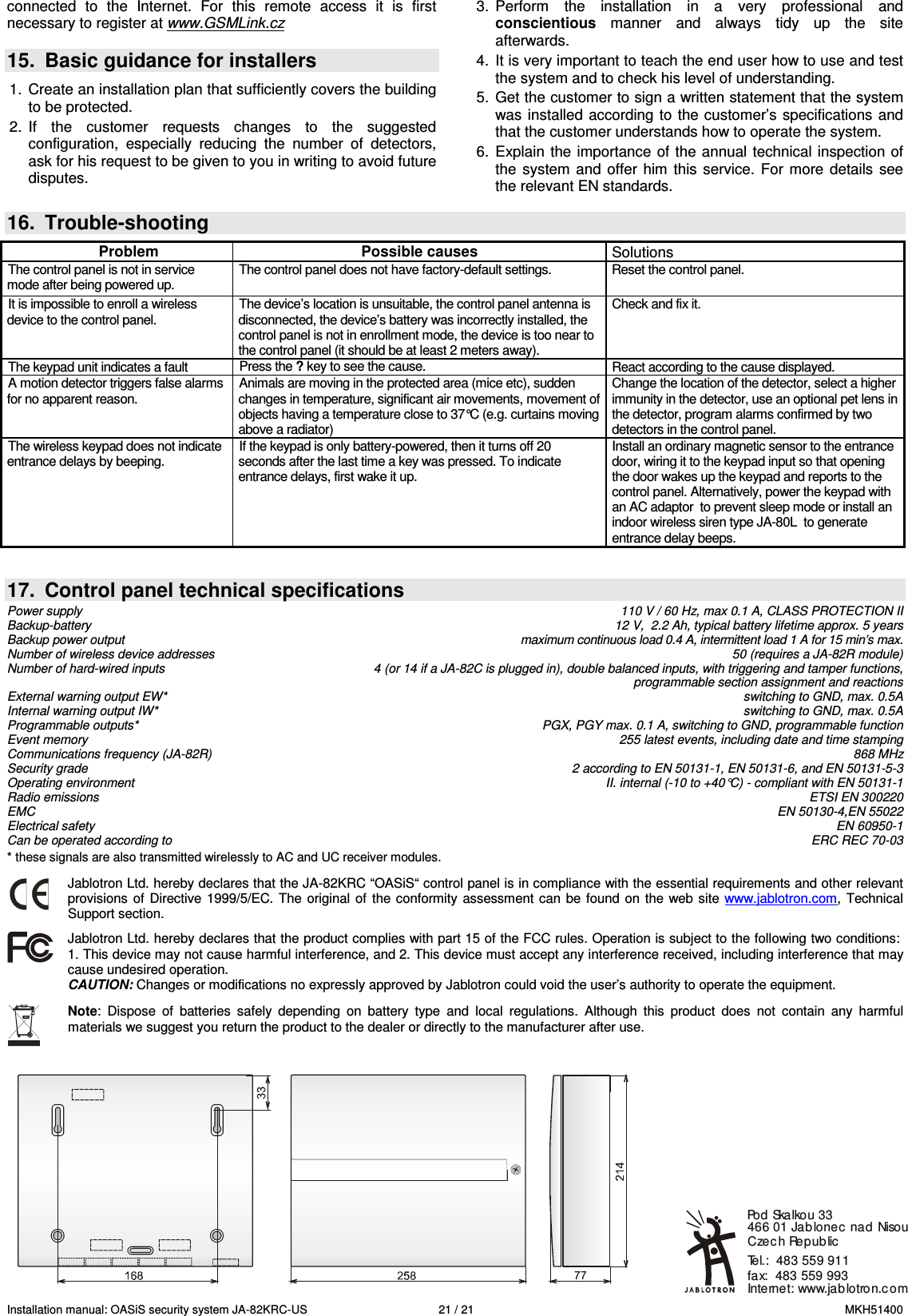
Installation manual: OASiS security system JA-82KRC-US    4 / 21  MKH51400  •  The  control  panel  has  two  alarm  outputs:  IW  =  internal (indoor) warning and EW = external (outdoor) warning. Both these signals are also available as wireless signals. •  There  are  two  programmable  outputs  in  the  control  panel, PGX and PGY whose functions can be configured. The PG outputs  are  not  only  available  as  physical  control-panel terminals, but also as radio signals for the control of UC and AC receiver outputs. •  The  system  can  be  operated  by  user  codes  or  user cards. The system can recognise up to 50 different users. The system can also be operated by wireless keyfobs, and if  the  control  panel  is  equipped  with  a  suitable communicator  it  can  also  be  remotely  controlled  by mobile phone or the Internet. •  It  is  possible  to  program  different  reactions  to  access codes  or  access  cards  and  if  the  system  is  split,  it  is possible to program which part of the building is accessible by  a  particular  code  or  card.  Each  of  the  possible  50 users  can  have  his  own  4-digit  access  code  and/or access  card.  Setting  (arming) and unsetting  (disarming) is possible  by  card  or  code,  and  if  a  higher  security  level  is needed  it is  possible  to  make it  compulsory to  confirm  the validity of a card by code entry. • Programming  the  system  is  possible  by  Oasis  keypads such as  the wireless JA-80F (this is only possible with the JA-82  module)  or  the  hard-wired  JA-80E,  and  also  by computers  running  OLink  software.  Further  options  offer programming by mobile phone or the Internet. •  There is a power supply in the control panel and space for a 12V, 2.2 Ah back-up battery.  •  To connect a hard-wired keypad or a computer, the control panel is equipped with a digital bus provided by terminals and RJ connectors. 1.1.1.  Modes The  control  panel  works  in  3  main  modes:  operating  (user) mode,  maintenance  mode  and  service  mode.  Operating mode is for the day-to-day use of the system by all authorised users,  e.g. setting/unsetting  (arming/disarming).  Maintenance mode  is  for  the  holder  of  the  master  code  (system administrator) to have limited programming of the system, e.g. changing  codes/cards,  bypassing  and  is  inaccessible  to  all other users.  Service mode is only for installers and is used to program and control all aspects of the system. Programming  or  enrollment  modes  (mentioned  in  the  text below) are a special case of Service or Maintenance modes. 1.2.  Optional system configurations In the European Union region, follow the valid standards and rules,  especially  series  EN-501-xx.  The  Oasis  control  panel complies with grade 2.  The  control  panel  must  have  one  of  the  following configurations as a minimum:  •  At least two non-backup-battery sirens  (JA-80L or SA-105) + communicator class ATS2 (JA-80Y, JA-80V or JA-80X) •  At  least  one  backup-battery  siren  (JA-80A  or  OS-360/365/300) +  communicator class ATS2 (JA-80Y, JA-80V or JA-80X)  •  No siren + communicator class ATS3 (JA-80Y or JA-80V)  Note:  the  above-recommended  configurations  are  based  on the  EU  standard EN-50131-1  valid  at  the  time  of  issuing  this manual.   2.  Installation The control panel can be attached to the wall using 3 screws. The drilling template is on the last page of this manual.   •  Because the control panel communicates via radio, it should not  be  installed  near  any  large  metal  objects  capable  of shielding radio communication. •  Route cables  (power  supplies, telephone  leads etc.)  inside the control panel before tightly screwing in the screws. 2.1.  Power inlet The control-panel power cable  should only  be  installed by a person holding a sufficient electro-technical qualification.  The  control  panel  power  supply  is  double-insulated  (safety class 2) and does not incorporate a protective earth wire. •  A  double-insulated  power  cable  should  be  used  with  a minimum  cross-sectional  area  of  0.75  to  1.5  mm2.  The power  cable  should  be  connected  to  a  switched  mains supply fused to 10 Amps. •  In  the  control  panel,  connect  the  cable  to  the  power terminals equipped with a fuse of type T200mA/250V.  • Fix  the  cable  firmly  to  the  cable  holder  in  the  control panel making sure that the wire ends  are properly secured and connected in the terminals.  Mains fuse T 200 mA 3.  Control panel memory unit The  control panel  memory  unit  plugs  into its  own socket.  If, for example, the control panel was damaged, the memory unit could  be  unplugged  and  then  plugged  into  another  control panel  circuit  board  of the same  type to  transfer and  preserve the  settings  including  enrolled  detectors,  access  codes  and cards. The new control panel thereby becomes an exact copy of the former one (a clone). Notes: •  There are no communicator settings in this memory unit. •  Do not connect or disconnect the memory unit while the control panel is powered. •  Although  the  memory  unit  is  well-protected,  in  cases  of severe  damage  to  the  control  panel  there  is  a  risk  that memory  contents  could  be  corrupted.  It  is  therefore  highly recommended to back-up the settings in a PC using OLink software.
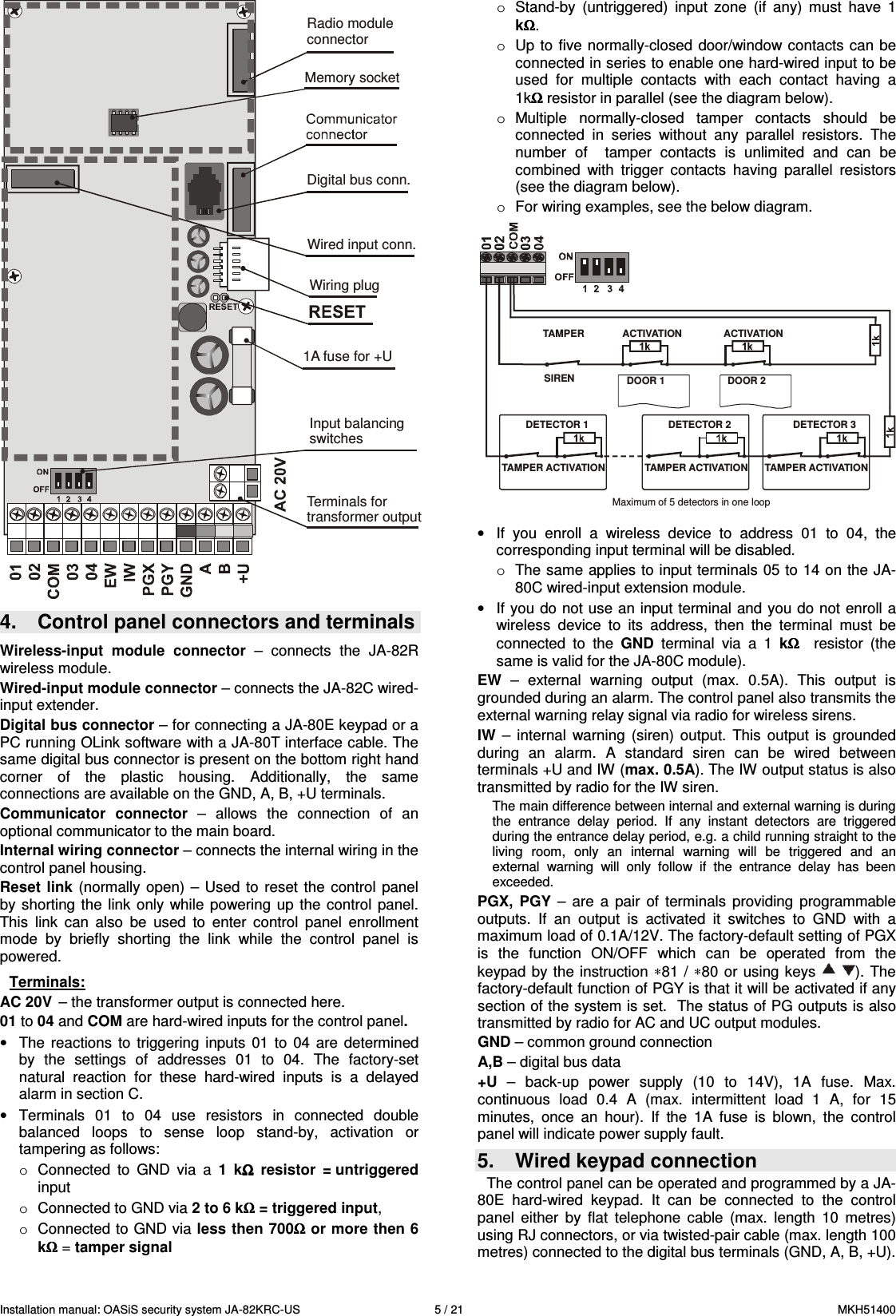
Installation manual: OASiS security system JA-82KRC-US    5 / 21  MKH51400 Radio moduleconnectorMemory socketDigital bus conn.Wired input conn.Wiring plug1A fuse for +UInput balancingswitchesTerminals fortransformer output 4.  Control panel connectors and terminals  Wireless-input  module  connector  –  connects  the  JA-82R wireless module. Wired-input module connector – connects the JA-82C wired-input extender. Digital bus connector – for connecting a JA-80E keypad or a PC running OLink software with a JA-80T interface cable. The same digital bus connector is present on the bottom right hand corner  of  the  plastic  housing.  Additionally,  the  same connections are available on the GND, A, B, +U terminals. Communicator  connector  –  allows  the  connection  of  an optional communicator to the main board. Internal wiring connector – connects the internal wiring in the control panel housing. Reset link  (normally open)  – Used  to  reset the  control  panel by  shorting  the  link  only while  powering  up  the  control  panel. This  link  can  also  be  used  to  enter  control  panel  enrollment mode  by  briefly  shorting  the  link  while  the  control  panel  is powered.  Terminals: AC 20V  – the transformer output is connected here. 01 to 04 and COM are hard-wired inputs for the control panel.  •  The  reactions  to  triggering  inputs  01 to  04  are  determined by  the  settings  of  addresses  01  to  04.  The  factory-set natural  reaction  for  these  hard-wired  inputs  is  a  delayed alarm in section C.  •  Terminals  01  to  04  use  resistors  in  connected  double balanced  loops  to  sense  loop  stand-by,  activation  or tampering as follows:  o  Connected  to  GND  via  a  1  kΩΩΩΩ  resistor  = untriggered input  o  Connected to GND via 2 to 6 kΩΩΩΩ = triggered input,  o  Connected to GND via less then 700ΩΩΩΩ or more then 6 kΩΩΩΩ = tamper signal  o  Stand-by  (untriggered)  input  zone  (if  any)  must  have  1 kΩΩΩΩ. o  Up to  five normally-closed door/window contacts can be connected in series to enable one hard-wired input to be used  for  multiple  contacts  with  each  contact  having  a 1kΩΩΩΩ resistor in parallel (see the diagram below). o  Multiple  normally-closed  tamper  contacts  should  be connected  in  series  without  any  parallel  resistors.  The number  of    tamper  contacts  is  unlimited  and  can  be combined  with  trigger  contacts  having  parallel  resistors (see the diagram below). o  For wiring examples, see the below diagram.  TAMPERSIRENACTIVATIONTAMPER ACTIVATION TAMPER ACTIVATIONTAMPER ACTIVATIONACTIVATIONDOOR 1 DOOR 2DETECTOR 1 DETECTOR 2 DETECTOR 3Maximum of 5 detectors in one loop  •  If  you  enroll  a  wireless  device  to  address  01  to  04,  the corresponding input terminal will be disabled. o  The same applies to input terminals 05 to 14 on the JA-80C wired-input extension module. •  If you do not use an input terminal and you do not enroll a wireless  device  to  its  address,  then  the  terminal  must  be connected  to  the  GND  terminal  via  a  1  kΩΩΩΩ   resistor  (the same is valid for the JA-80C module). EW  –  external  warning  output  (max.  0.5A).  This  output  is grounded during an alarm. The control panel also transmits the external warning relay signal via radio for wireless sirens.   IW  –  internal  warning  (siren)  output.  This  output  is  grounded during  an  alarm.  A  standard  siren  can  be  wired  between terminals +U and IW (max. 0.5A). The IW output status is also transmitted by radio for the IW siren. The main difference between internal and external warning is during the  entrance  delay  period.  If  any  instant  detectors  are  triggered during the entrance delay period, e.g. a child running straight to the living  room,  only  an  internal  warning  will  be  triggered  and  an external  warning  will  only  follow  if  the  entrance  delay  has  been exceeded.   PGX,  PGY  –  are  a  pair  of  terminals  providing  programmable outputs.  If  an  output  is  activated  it  switches  to  GND  with  a maximum load of 0.1A/12V. The factory-default setting of PGX is  the  function  ON/OFF  which  can  be  operated  from  the keypad  by  the instruction ∗81 / ∗80  or  using  keys  ). The factory-default function of PGY is that it will be activated if any section of the system is set.  The status of PG outputs is also transmitted by radio for AC and UC output modules. GND – common ground connection A,B – digital bus data +U  –  back-up  power  supply  (10  to  14V),  1A  fuse.  Max. continuous  load  0.4  A  (max.  intermittent  load  1  A,  for  15 minutes,  once  an  hour).  If  the  1A  fuse  is  blown,  the  control panel will indicate power supply fault. 5.  Wired keypad connection  The control panel can be operated and programmed by a JA-80E  hard-wired  keypad.  It  can  be  connected  to  the  control panel  either  by  flat  telephone  cable  (max.  length  10  metres) using RJ connectors, or via twisted-pair cable (max. length 100 metres) connected to the digital bus terminals (GND, A, B, +U).
Installation manual: OASiS security system JA-82KRC-US    6 / 21  MKH51400 When equipped with a JA-82R module, the control panel also allows for a JA-80F wireless keypad connection.  Modular connectioncableControl and programmingkeypad JA-80E We  recommend  only  having  a  single  JA-80E  hard-wired keypad in the system. 6.  Back-up battery It is possible to use a Jablotron-brand 12V back-up battery in the control panel with a capacity of 2.2 Ah. The capacity to use depends on the total power consumption of the system and the desired back-up period.   Euro-standard  EN  50131-1  specifies  a  12  hour  minimum back-up time for grade 2 systems. The standby consumption of all system devices is shown in Table 1.  •  With a 2.2Ah back-up battery 12 hours of back-up time can be realised if current consumption does not exceed 150mA. This only takes 80% of the battery capacity into account as 20% has to be reserved for battery aging effects. •  The  average  back-up  battery  lifetime  is  up  to  5  years after  which  it  must  be  replaced.  The  back-up  battery  is automatically charged and its condition is monitored by the system.  If  the  system  is  being  run  on  only  the  back-up battery a technical alarm occurs when the battery is  nearly discharged.  If  the  voltage  gets  too  low  the  battery  will  be disconnected.  After  the  mains  supply  has  been  restored battery  charging  starts  again  and  the  system  will  begin  to function again. Table 1-  standby consumption of system devices    Ensure that the battery is correctly connected (Polarity: RED = positive +, BLACK = negative -). WARNING – the battery is sold charged – to maintain safety, avoid shorting out the terminals !!!  7.  Powering-up  the  control  panel  for  the first time •  First  check  all  the  wiring,  and  if  a  GSM  communicator  is installed, insert its SIM card (PIN code disabled).  •  Carefully connect the back-up battery, •  Carefully  connect  up  the  mains.  A  green  LED  will  start flashing on the control panel board. •  If  a  hard-wired  keyboard  is  connected  it  will  indicate  Service mode. If not, the control panel is not set to the factory default and should be reset (see section 9.). 7.1.  Wireless keypad enrollment If  no  hard-wired  keypad  is  connected  to  the  control  panel, and the wireless keypad was  not supplied as part of a JK kit, the  wireless keypad must be enrolled to the control panel as follows:   1.  Have an opened keypad and its battery ready. 2.  Check that the green LED in the control panel is flashing.  3.  Short  the reset  link in  the control  panel  for  1  second (e.g. using a screwdriver). This will enter enrollment mode on the control panel. 4.  Install  batteries  into  the  keypad  not  far  from  the  control panel. 5.  The keypad generates a beep sound and enrolls to address 05 (or 15). After that it indicates “Enrollment 06: Device” (or “Enrollment 16: Device”). 6.  Press  the # key to exit enrollment mode and “Service” will be indicated on the keypad. Warning: •  If the keypad does not enroll, then the control panel settings are not the factory-defaults. In this case perform a reset and repeat the enrollment procedure. •  If  you  want  to  assign  the  keypad  to  another  address,  re-enter enrollment mode  via the “1” key, then use the arrow keys  to  select  the  desired  address.  Then  disconnect  the keypad battery and reconnect it. Recommendation:  it  is  highly  recommended  to  install  the wireless keypad with a magnetic door sensor wired to its hard-wired  input terminal.  This  way the  keypad  will  wake up  every time after opening the door and it will produce entrance delay beeps and will be ready to read access cards. It will also save money on a wireless door detector.  8.  Language selection of the keypad If  the  ∗   key  is  kept  pressed  during  battery  connection,  the internal  keypad  menu  will  be displayed  allowing  the  selection of  the  desired  language.  Using  the  arrows,  choose  your language and confirm selection by the ∗  key. In this menu the  door bell function can also  be  enabled or disabled  (if  enabled  the  keypad  makes  a  sound  when  its  IN input is triggered). Notes: •  for  the  JA-80E  wired  keypad  the  power  can  be  connected by  connecting  its  cable  or  by  turning  on  the  control  panel power  •  if  the  wireless  keypad  has  already  had  its  battery connected,  it  is  necessary  to  disconnect  the  battery  for  a while before pressing and holding the ∗ key •  the language can be selected for each individual  keypad in the  system  (i.e.  different  keypads  can  display  different languages  –  for  example  if  foreigners  are  working  in  the company) 9.  Resetting the control panel If  you  need  to  return  the  control  panel  to  the  factory-default settings perform the following:   1.  Disconnect the back-up battery and the mains (for example by removing the fuse from its terminals). 2.  Connect the RESET link and leave it connected. 3.  Connect the back-up battery and the mains. 4.  Wait till the green LED starts flashing and then disconnect the RESET link. Device  mA  Note Control panel JA-82K  10  No communicator Module JA-82R  20   Module JA-80C  15   Keypad JA-80E  30   Keypad JA-80H (N)  60  Including a WJ-80 interface  Communicator JA-80Y  35   Communicator JA-80V  30   Communicator JA-80X  15   Wireless devices are not powered from the control panel.
Installation manual: OASiS security system JA-82KRC-US    7 / 21  MKH51400 Warning: •  After  a  RESET,  all  wireless  devices  are  erased  from  the control  panel  and  all  user  codes  and  access  cards  are “forgotten”. •  After  a  RESET,  the  Master  code  returns  to  1234,  and  the service code to 8080. •  If resetting is disabled (see 12.9) it is impossible to reset the control panel. 10.  Closing the control panel cover After  the  keypad  has  started  working  it  is  possible  to  close the  control  panel  cover.  Before  this  is  done,  check  that  the control panel has an antenna connected. 11.  Enrolling wireless devices The control  panel has 50  addresses (01  to  50)  provided  by the radio module, allowing the enrollment of up to 50 wireless devices  i.e.  detectors,  keypads,  keyfobs,  sirens,  etc.    A wireless  device  can be assigned  to an address by  enrollment via  radio  communication  or  by  entering  its  production  code (see 12.42).  11.1.  Installing wireless devices Wireless  devices  can  either  be  installed  at  their  desired locations  first  and  then  enrolled  to  the  control  panel  or  vice versa.  If  there  any  doubts  as  to  the  suitability  of  device  locations  for  radio  communication,  temporarily  attach  the devices  (e.g.  using  adhesive  tape)  and  test  radio communication  before  finalizing  installation.  Follow  the manuals of the particular devices during their installation. 11.2.  Enrolling  wireless  devices  to  the  control panel 1.  The  control  panel  should  be  in  Service  mode.  If  it  is  not, then  enter  ∗0  service  code  (factory  default:  8080).  The control panel must be unset (disarmed). 2.  Press the “1” key, enrollment mode will be entered and the first vacant address will be offered. For a new control panel it  will  be  05  or  15  (depending  on  whether  the  JA-80C module is plugged in or not). 3.  Using  the  arrows  keys    and  ,  you  may  select  the desired  address. If  the address  is  already occupied this  is indicated by the A indicator being lit. 4.  The device will enroll to the selected address just after its battery (power) is connected . 5.  Enrollment  is  confirmed  by  the  A  indicator  and  the  next vacant address is then offered.  6.  By  connecting  batteries  to  all  devices  one  after  the  other they will all be enrolled to the control panel. Press the # key to exit enrollment mode. Notes: •  If a wireless device is enrolled to address 01 to 04  (or 01 to 14 if the JA-80C module is plugged in) this will disable the corresponding hard-wired input terminal (if a wireless device is erased from address 01 to 04 (or 01 to 14, respectively), the hard-wired terminal will be re-enabled).  • Keyfobs  type  RC-8x  can  be  enrolled  by  pressing  and holding  a  pair  of  buttons  simultaneously,  i.e.: +  or + . This means that a 4-button keyfob can be enrolled to the control panel twice but to two different addresses with different features –see 12.40.  •  Only a single device can be enrolled to each address. •  When  indicator  A  lights, it  means  the  displayed address  is occupied and therefore no more devices can be enrolled to this address.  •  If a device has already been enrolled to an address, and it is then  re-enrolled  to  another  address,  the  device’s  address assignment will change from the original address to the new one. •  If a device cannot be enrolled to the control panel, either it does  not  have  a  good  wireless  connection  to  the  control panel possibly due to excessive distance or it could be too close  to  the  control  panel  (closer  than  2  meters  is  not permitted),  •  To re-enroll a device, first disconnect its battery. Then wait about  10  seconds  or,  to  save  time,  press  and  release  its tamper switch to quickly discharge any remaining energy. •  A sub-control panel can be enrolled to a master control panel by keying in the sequence 299 on the keypad of the sub  control  panel  which  must  be  in  Service  mode.  (see 12.10), •  If you intend to use final-door detectors in the system, they must  be  enrolled  to  addresses  01  to  05  or  46  to  50  (see 12.23).  11.3.  Testing enrolled devices 1.  The control panel must have its antenna connected and be in  Service  mode.    If  not  in  Service  mode,  then  key  in  ∗0 service code  (factory-default 8080). To enter Service mode the control panel must be initially unset (disarmed). 2.  Trigger the device to be tested (if it is a detector close its cover first and then wait until it is ready for testing). 3.  The keypad will beep and display a description of the signal received  from  the  device  under  test  (the  keypad  cover should  be  flipped  open).  We  recommend  technicians  to carry the wireless keypad around while testing  to ease the process. Notes: •  Motion  detectors  JA-80P  and  JA-85P  can  be  tested  for  a maximum of 15 minutes after closing their covers. After this period  the  detector  will  ignore  frequent  movements  (see detector manuals for details). •  Devices  can  also  be  tested  in  maintenance  mode  –  see 13.4. 11.4.  Measuring signal strength  1.  The control panel must have its antenna connected and be in  Service  Mode.  If  it  is  not,  then  enter  ∗0  service  code (factory  default:  8080).  The  control  panel  must  be  unset (disarmed) to enter Service Mode.  2.  Key  in  298,  and  the  lowest  enrolled  address  will  be displayed.  3.  Trigger the device enrolled to the displayed address. The keypad display will show the received signal strength  on a scale  of  0/4  to  4/4.  Keep  the  keypad  cover  flipped  open while measuring  signals. 4.  Other  addresses  for  devices  can  be  selected  using  the arrow keys to measure their signals too.  5.  Exit signal measuring by pressing the # key.  Notes: •  Motion  detectors  JA-80P  and  JA-85P  can  be  tested  for  a maximum of 15 minutes after closing their covers. After this period  the  detector  will  ignore  frequent  movements  (see detector manuals for details). •  Measuring  the signals  from a JA-80L  internal  siren can  be activated  by  pressing  its  button.  A  JA-80A  outdoor  siren  can  be  activated  for  signal  strength  measurement  by opening its cover thereby triggering its cover tamper switch.  •  Each  installed  device  should  have  a  minimum  signal strength of 2/4. If the signal is too weak, the device should be  relocated  or  a  higher  control  panel  sensitivity  can  be selected. (see 12.36) Alternatively the control panel can be equipped with an external antenna (see 10). •  This measurement shows the quality of the signal received from the device at the control panel. •  The  wireless  keypad  can  be  carried  during  installation  or testing  by disabling  its  tamper contact  via  the  jumper  near the tamper contact – do not  forget to re-enable the tamper before  finishing  the  installation  –  Note:  the  keypad  usually has  a  slightly  shorter  working  range  than  the  detectors. Therefore, if carried to more-distant detectors the triggering of the detectors might not be shown. •  The most convenient way of measurement is via a computer running OLink SW.
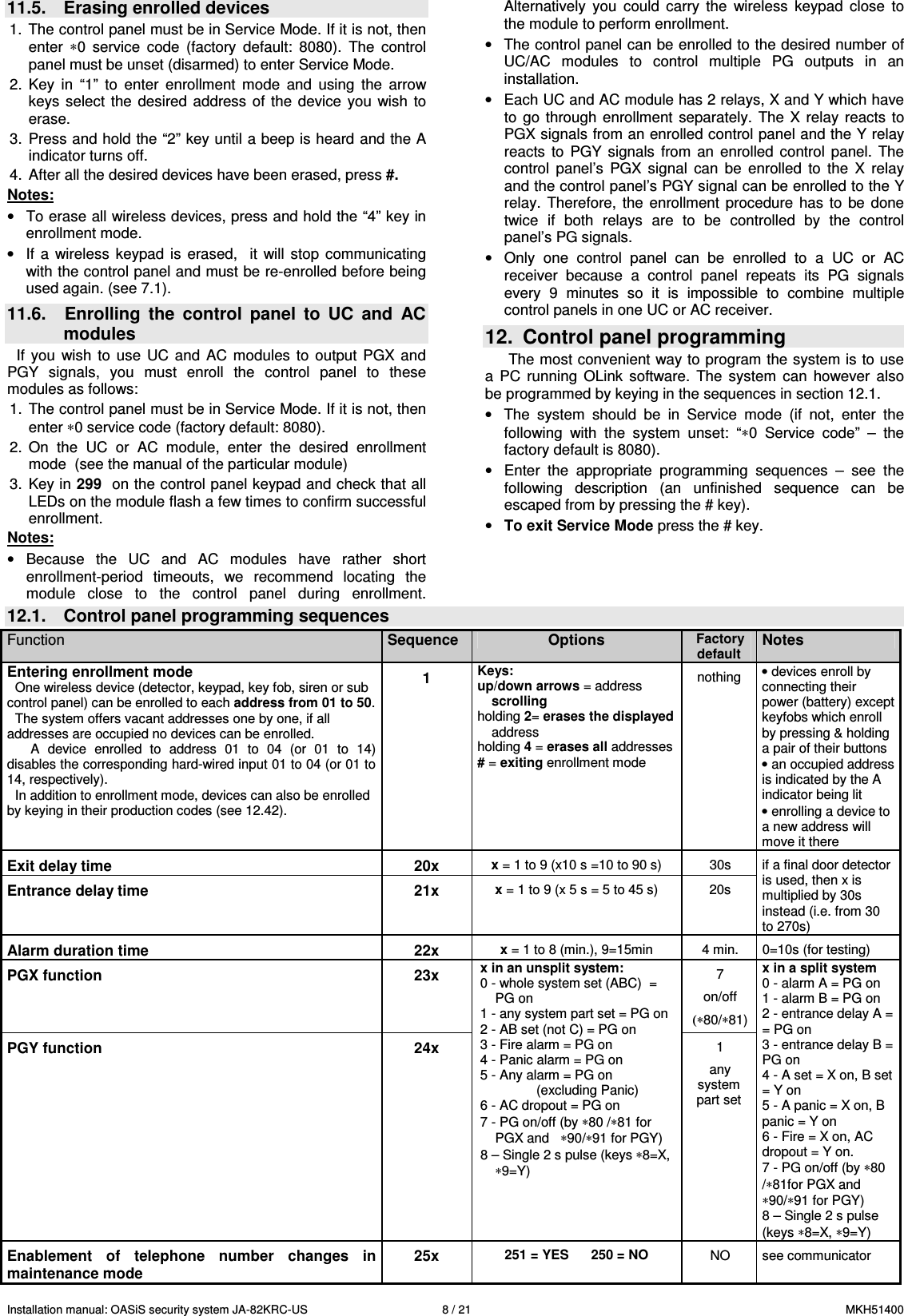
Installation manual: OASiS security system JA-82KRC-US    8 / 21  MKH51400 11.5.  Erasing enrolled devices  1.  The control panel must be in Service Mode. If it is not, then enter  ∗0  service  code  (factory  default:  8080).  The  control panel must be unset (disarmed) to enter Service Mode. 2.  Key  in  “1”  to  enter  enrollment  mode  and  using  the  arrow keys  select the  desired address  of the  device  you  wish  to erase. 3.  Press and hold the “2” key until a beep is heard and the A indicator turns off. 4.  After all the desired devices have been erased, press #.   Notes: •  To erase all wireless devices, press and hold the “4” key in enrollment mode.  •  If  a wireless  keypad  is  erased,    it  will  stop  communicating with the control panel and must be re-enrolled before being used again. (see 7.1).  11.6.  Enrolling  the  control  panel  to  UC  and  AC modules If  you  wish  to  use  UC and  AC  modules  to  output  PGX  and PGY  signals,  you  must  enroll  the  control  panel  to  these modules as follows:  1.  The control panel must be in Service Mode. If it is not, then enter ∗0 service code (factory default: 8080). 2.  On  the  UC  or  AC  module,  enter  the  desired  enrollment mode  (see the manual of the particular module) 3.  Key in 299  on the control panel keypad and check that all LEDs on the module flash a few times to confirm successful enrollment. Notes: •  Because  the  UC  and  AC  modules  have  rather  short enrollment-period  timeouts,  we  recommend  locating  the module  close  to  the  control  panel  during  enrollment. Alternatively  you  could  carry  the  wireless  keypad  close  to the module to perform enrollment. •  The control panel can be enrolled to the desired number of UC/AC  modules  to  control  multiple  PG  outputs  in  an installation. •  Each UC and AC module has 2 relays, X and Y which have to  go through  enrollment  separately.  The  X  relay  reacts  to PGX signals from an enrolled control panel and the Y relay reacts  to  PGY  signals  from  an  enrolled  control  panel.  The control  panel’s  PGX  signal  can  be  enrolled  to  the  X  relay and the control panel’s PGY signal can be enrolled to the Y relay.  Therefore,  the  enrollment  procedure  has  to  be  done twice  if  both  relays  are  to  be  controlled  by  the  control panel’s PG signals. •  Only  one  control  panel  can  be  enrolled  to  a  UC  or  AC receiver  because  a  control  panel  repeats  its  PG  signals every  9  minutes  so  it  is  impossible  to  combine  multiple control panels in one UC or AC receiver. 12.  Control panel programming The most convenient way to program the system is to use a  PC  running  OLink  software.  The  system  can  however  also be programmed by keying in the sequences in section 12.1.  •  The  system  should  be  in  Service  mode  (if  not,  enter  the following  with  the  system  unset:  “∗0  Service  code”  –  the  factory default is 8080). •  Enter  the  appropriate  programming  sequences  –  see  the following  description  (an  unfinished  sequence  can  be escaped from by pressing the # key). • To exit Service Mode press the # key. 12.1.  Control panel programming sequences Function  Sequence  Options Factory default Notes Entering enrollment mode  One wireless device (detector, keypad, key fob, siren or sub control panel) can be enrolled to each address from 01 to 50. The system offers vacant addresses one by one, if all addresses are occupied no devices can be enrolled. A  device  enrolled  to  address  01  to  04  (or  01  to  14) disables the corresponding hard-wired input 01 to 04 (or 01 to 14, respectively).  In addition to enrollment mode, devices can also be enrolled by keying in their production codes (see 12.42). 1 Keys:  up/down arrows = address scrolling  holding 2= erases the displayed address holding 4 = erases all addresses # = exiting enrollment mode      nothing  • devices enroll by connecting their power (battery) except keyfobs which enroll by pressing & holding a pair of their buttons  • an occupied address is indicated by the A indicator being lit • enrolling a device to a new address will move it there Exit delay time  20x x = 1 to 9 (x10 s =10 to 90 s)  30s Entrance delay time  21x x = 1 to 9 (x 5 s = 5 to 45 s)  20s if a final door detector is used, then x is multiplied by 30s instead (i.e. from 30 to 270s) Alarm duration time  22x x = 1 to 8 (min.), 9=15min   4 min.  0=10s (for testing) PGX function  23x   7 on/off (∗80/∗81) PGY function  24x x in an unsplit system: 0 - whole system set (ABC)  = PG on 1 - any system part set = PG on 2 - AB set (not C) = PG on 3 - Fire alarm = PG on 4 - Panic alarm = PG on 5 - Any alarm = PG on     (excluding Panic) 6 - AC dropout = PG on 7 - PG on/off (by ∗80 /∗81 for PGX and   ∗90/∗91 for PGY) 8 – Single 2 s pulse (keys ∗8=X, ∗9=Y) 1 any system part set x in a split system 0 - alarm A = PG on 1 - alarm B = PG on 2 - entrance delay A = = PG on 3 - entrance delay B = PG on 4 - A set = X on, B set = Y on 5 - A panic = X on, B panic = Y on 6 - Fire = X on, AC dropout = Y on. 7 - PG on/off (by ∗80 /∗81for PGX and   ∗90/∗91 for PGY) 8 – Single 2 s pulse (keys ∗8=X, ∗9=Y) Enablement  of  telephone  number  changes  in maintenance mode 25x 251 = YES      250 = NO  NO  see communicator
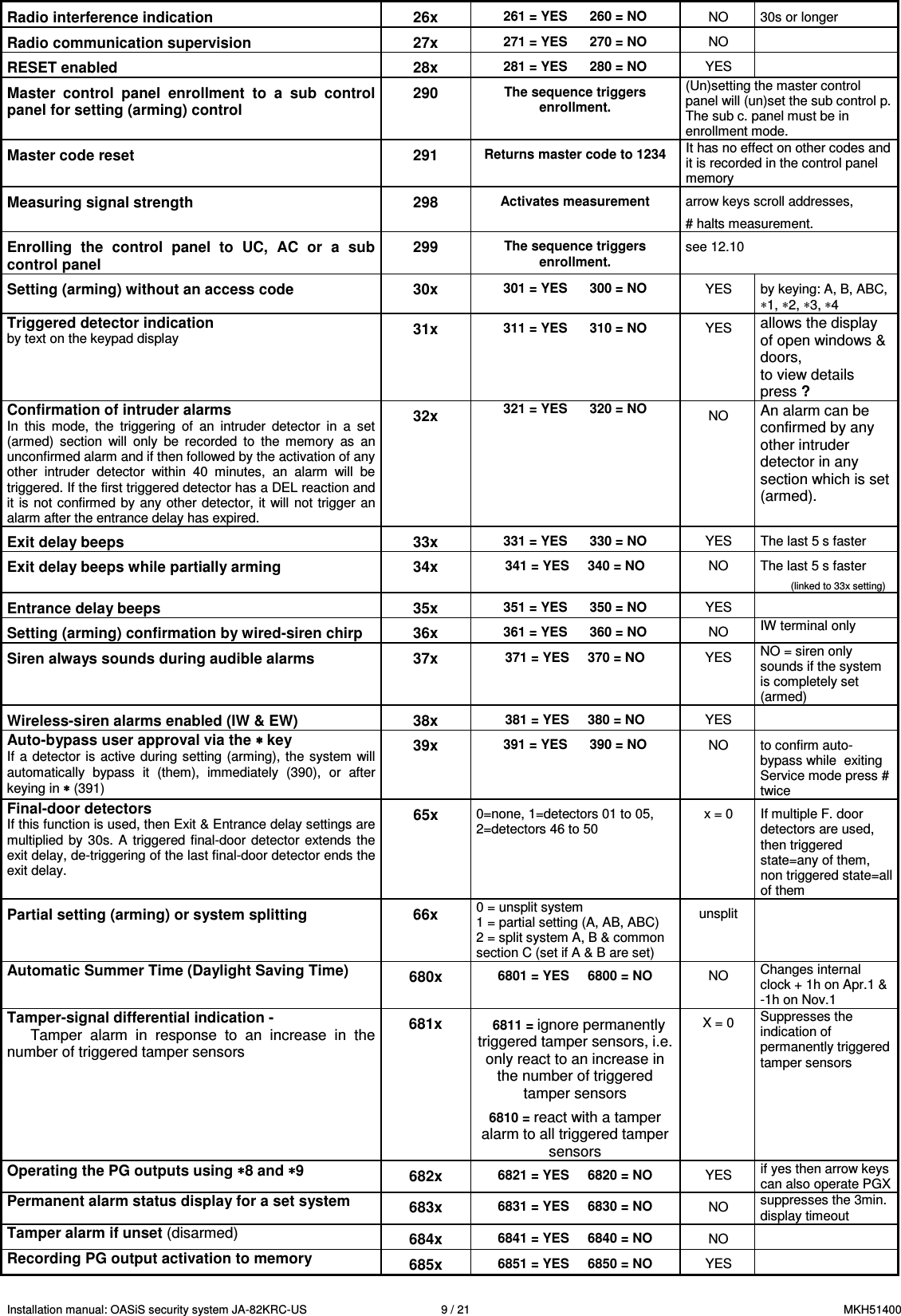
Installation manual: OASiS security system JA-82KRC-US    9 / 21  MKH51400 Radio interference indication   26x 261 = YES      260 = NO  NO  30s or longer Radio communication supervision  27x 271 = YES      270 = NO  NO   RESET enabled  28x 281 = YES      280 = NO  YES   Master  control  panel  enrollment  to  a  sub  control panel for setting (arming) control 290 The sequence triggers enrollment. (Un)setting the master control panel will (un)set the sub control p. The sub c. panel must be in enrollment mode. Master code reset  291 Returns master code to 1234  It has no effect on other codes and it is recorded in the control panel memory Measuring signal strength   298 Activates measurement  arrow keys scroll addresses, # halts measurement. Enrolling  the  control  panel  to  UC,  AC  or  a  sub control panel 299 The sequence triggers enrollment. see 12.10  Setting (arming) without an access code  30x 301 = YES      300 = NO  YES  by keying: A, B, ABC, ∗1, ∗2, ∗3, ∗4 Triggered detector indication by text on the keypad display 31x 311 = YES      310 = NO  YES allows the display of open windows & doors,  to view details press ? Confirmation of intruder alarms In  this  mode,  the  triggering  of  an  intruder  detector  in  a  set (armed)  section  will  only  be  recorded  to  the  memory  as  an unconfirmed alarm and if then followed by the activation of any other  intruder  detector  within  40  minutes,  an  alarm  will  be triggered. If the first triggered detector has a DEL reaction and it is not confirmed by any other detector, it  will not trigger  an alarm after the entrance delay has expired. 32x 321 = YES      320 = NO  NO An alarm can be confirmed by any other intruder detector in any section which is set (armed).  Exit delay beeps  33x 331 = YES      330 = NO  YES  The last 5 s faster Exit delay beeps while partially arming  34x 341 = YES     340 = NO  NO  The last 5 s faster            (linked to 33x setting) Entrance delay beeps  35x 351 = YES      350 = NO  YES   Setting (arming) confirmation by wired-siren chirp  36x 361 = YES      360 = NO  NO  IW terminal only Siren always sounds during audible alarms   37x 371 = YES     370 = NO  YES  NO = siren only sounds if the system is completely set (armed) Wireless-siren alarms enabled (IW & EW)  38x 381 = YES     380 = NO  YES   Auto-bypass user approval via the ∗ ∗ ∗ ∗ key If  a detector  is  active during setting (arming),  the  system will automatically  bypass  it  (them),  immediately  (390),  or  after keying in ∗∗∗∗ (391) 39x 391 = YES      390 = NO  NO  to confirm auto-bypass while  exiting Service mode press # twice Final-door detectors If this function is used, then Exit & Entrance delay settings are multiplied by  30s. A  triggered  final-door detector  extends  the exit delay, de-triggering of the last final-door detector ends the exit delay.   65x 0=none, 1=detectors 01 to 05, 2=detectors 46 to 50  x = 0  If multiple F. door detectors are used, then triggered state=any of them, non triggered state=all of them Partial setting (arming) or system splitting  66x 0 = unsplit system 1 = partial setting (A, AB, ABC) 2 = split system A, B & common section C (set if A & B are set) unsplit   Automatic Summer Time (Daylight Saving Time)  680x 6801 = YES     6800 = NO  NO  Changes internal clock + 1h on Apr.1 & -1h on Nov.1 Tamper-signal differential indication - Tamper  alarm  in  response  to  an  increase  in  the number of triggered tamper sensors 681x   6811 = ignore permanently triggered tamper sensors, i.e. only react to an increase in the number of triggered tamper sensors  6810 = react with a tamper alarm to all triggered tamper sensors X = 0  Suppresses the  indication of permanently triggered tamper sensors  Operating the PG outputs using ∗∗∗∗8 and ∗∗∗∗9  682x 6821 = YES     6820 = NO  YES  if yes then arrow keys can also operate PGX Permanent alarm status display for a set system  683x 6831 = YES     6830 = NO  NO  suppresses the 3min. display timeout Tamper alarm if unset (disarmed) 684x 6841 = YES     6840 = NO  NO   Recording PG output activation to memory  685x 6851 = YES     6850 = NO  YES
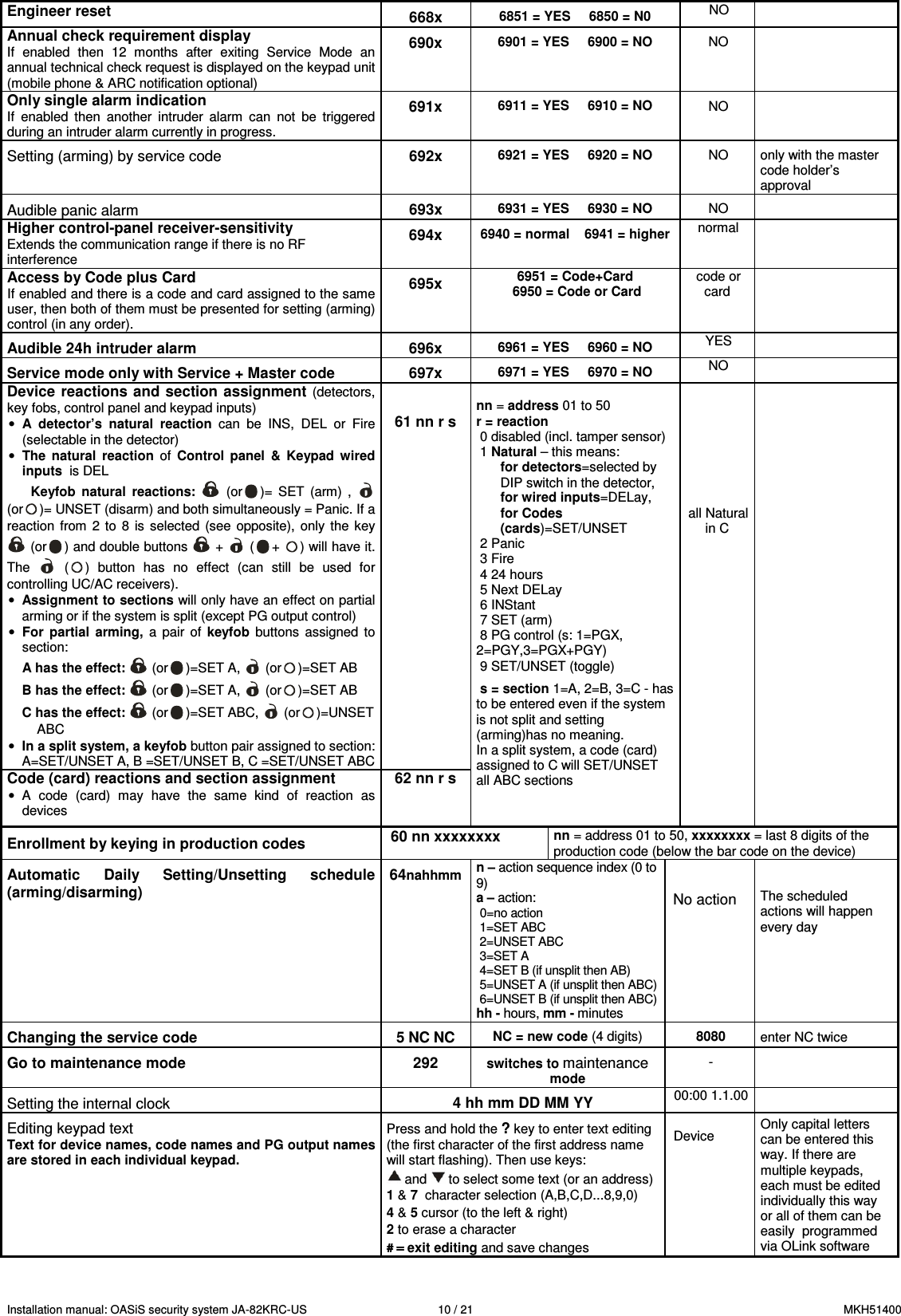
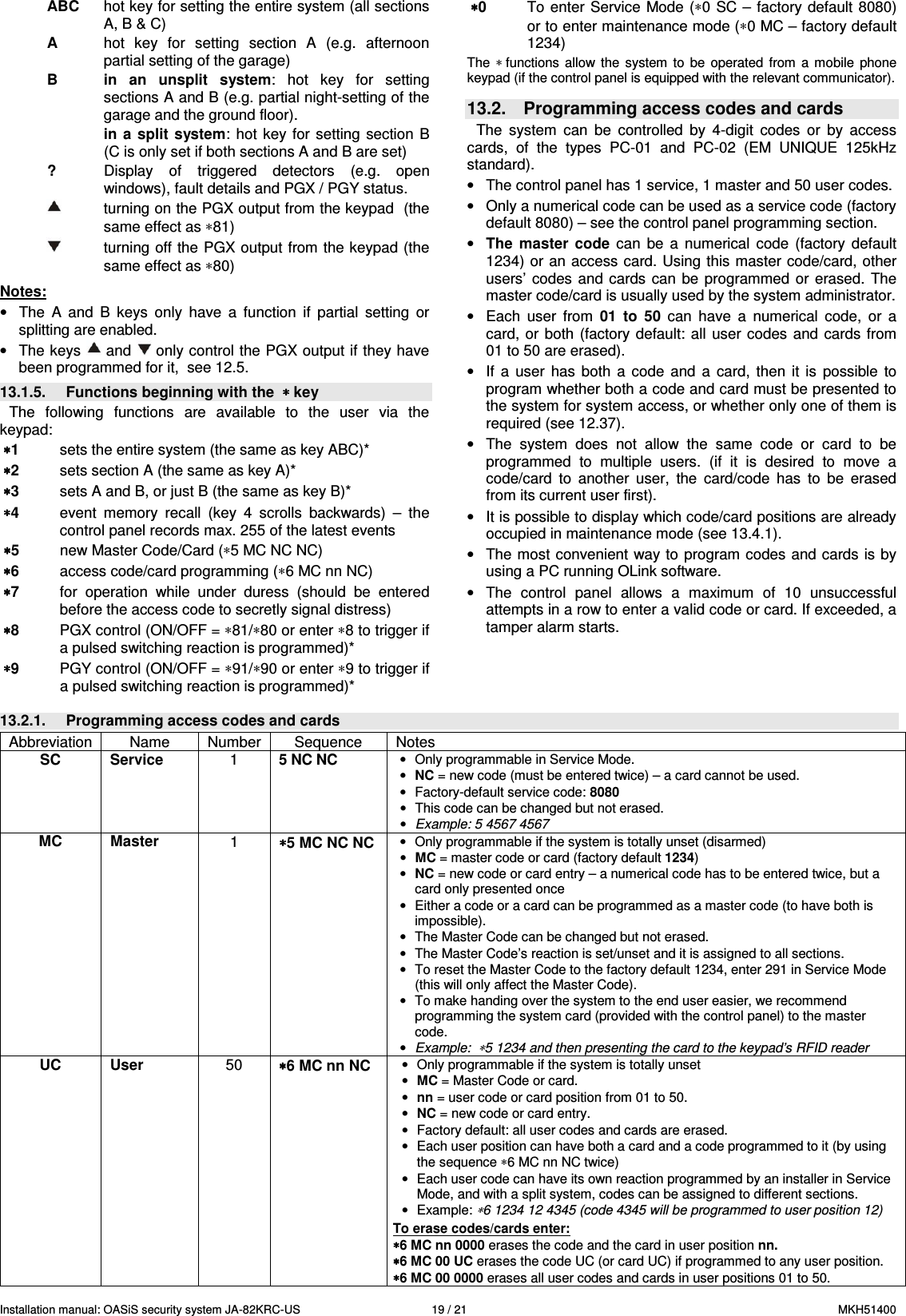
Installation manual: OASiS security system JA-82KRC-US    10 / 21  MKH51400 Engineer reset  668x 6851 = YES     6850 = N0 NO  Annual check requirement display If  enabled  then  12  months  after  exiting  Service  Mode  an annual technical check request is displayed on the keypad unit (mobile phone & ARC notification optional) 690x 6901 = YES     6900 = NO  NO   Only single alarm indication If  enabled  then  another  intruder  alarm  can  not  be  triggered during an intruder alarm currently in progress. 691x 6911 = YES     6910 = NO  NO   Setting (arming) by service code  692x 6921 = YES     6920 = NO  NO  only with the master code holder’s  approval  Audible panic alarm  693x 6931 = YES     6930 = NO  NO   Higher control-panel receiver-sensitivity Extends the communication range if there is no RF interference  694x 6940 = normal    6941 = higher  normal   Access by Code plus Card  If enabled and there is a code and card assigned to the same user, then both of them must be presented for setting (arming) control (in any order). 695x 6951 = Code+Card      6950 = Code or Card code or card  Audible 24h intruder alarm 696x 6961 = YES     6960 = NO  YES   Service mode only with Service + Master code  697x 6971 = YES     6970 = NO  NO   Device reactions and section assignment (detectors, key fobs, control panel and keypad inputs) • A  detector’s  natural  reaction  can  be  INS,  DEL  or  Fire (selectable in the detector) • The  natural  reaction  of  Control  panel  &  Keypad  wired inputs  is DEL Keyfob  natural  reactions:    (or )=  SET  (arm)  ,   (or )= UNSET (disarm) and both simultaneously = Panic. If a reaction  from  2 to  8  is  selected  (see  opposite),  only  the  key  (or ) and double buttons   +   ( + ) will have it. The    ( )  button  has  no  effect  (can  still  be  used  for controlling UC/AC receivers). • Assignment to sections will only have an effect on partial arming or if the system is split (except PG output control)   • For  partial  arming,  a pair  of  keyfob  buttons  assigned  to section: A has the effect:   (or )=SET A,   (or )=SET AB  B has the effect:   (or )=SET A,   (or )=SET AB C has the effect:   (or )=SET ABC,   (or )=UNSET ABC • In a split system, a keyfob button pair assigned to section: A=SET/UNSET A, B =SET/UNSET B, C =SET/UNSET ABC   61 nn r s Code (card) reactions and section assignment •  A  code  (card)  may  have  the  same  kind  of  reaction  as devices 62 nn r s  nn = address 01 to 50  r = reaction  0 disabled (incl. tamper sensor)  1 Natural – this means: for detectors=selected by DIP switch in the detector,  for wired inputs=DELay, for Codes (cards)=SET/UNSET  2 Panic  3 Fire  4 24 hours  5 Next DELay  6 INStant  7 SET (arm)  8 PG control (s: 1=PGX,         2=PGY,3=PGX+PGY)  9 SET/UNSET (toggle)    s = section 1=A, 2=B, 3=C - has to be entered even if the system is not split and setting (arming)has no meaning.  In a split system, a code (card) assigned to C will SET/UNSET all ABC sections          all Natural in C       Enrollment by keying in production codes   60 nn xxxxxxxx nn = address 01 to 50, xxxxxxxx = last 8 digits of the production code (below the bar code on the device)  Automatic  Daily  Setting/Unsetting  schedule (arming/disarming) 64nahhmm n – action sequence index (0 to 9)  a – action:  0=no action  1=SET ABC  2=UNSET ABC  3=SET A  4=SET B (if unsplit then AB)  5=UNSET A (if unsplit then ABC)  6=UNSET B (if unsplit then ABC) hh - hours, mm - minutes  No action  The scheduled actions will happen every day Changing the service code  5 NC NC NC = new code (4 digits)   8080  enter NC twice  Go to maintenance mode  292 switches to maintenance mode -   Setting the internal clock  4 hh mm DD MM YY 00:00 1.1.00  Editing keypad text Text for device names, code names and PG output names are stored in each individual keypad.   Press and hold the ? key to enter text editing (the first character of the first address name will start flashing). Then use keys:  and   to select some text (or an address)  1 & 7  character selection (A,B,C,D...8,9,0) 4 & 5 cursor (to the left & right) 2 to erase a character # = # = # = # = exit editing and save changes  Device  Only capital letters can be entered this way. If there are multiple keypads, each must be edited individually this way or all of them can be easily  programmed via OLink software
Installation manual: OASiS security system JA-82KRC-US    11 / 21  MKH51400 12.2.  Exit delay time   An  exit  delay  time  occurs  while  setting  (arming)  the  system. During this time period delayed or next-delayed detectors can be triggered without an alarm occurring. To program the delay time, enter: 20x where x  is a number from 1 to 9 determining the duration in steps of tens of seconds (1=10 s, 2=20 s,....) If there is a final-door detector in the system then the exit delay is multiplied by 30 s instead (1=30 s, 2=60 s,...). Example:  To  program  a  20  seconds  exit  delay,  use  the sequence  202  (if  there  is  a  final  door  detector,  a  60  seconds delay will result).  Factory default setting: x = 3   12.3.  Entrance delay time   The  entrance  delay  time  is  provided  to  unset  (disarm)  the system  after  a  first  delayed  detector  has  been  triggered.  To program this time, enter: 21x where x  is a number from 1 to 9 determining the delay in multiples of 5 seconds (1=5 s, 2=10 s,....) If the entrance delay is triggered by a final-door detector, then parameter x is multiplied by 30 s instead. (1=30 s, 2=60 s,...) – in this case it means that the entrance delay would be six times longer than if it had been triggered by an ordinary detector.   Example:  To  program  a  20 seconds  entrance  delay,  enter  the sequence  214  (if  the  delay  has  been  activated  by  a  final-door detector, a 120 seconds delay will result instead). Factory default setting: x = 4   12.4.  Alarm duration time This  parameter  limits  the  duration  of  a  triggered  alarm.  After the  alarm  state  expires,  the  control  panel  will  return  to  its previous  state,  i.e.  as  before  the  alarm  occurred.  The  alarm state can also be terminated by an authorised user. To program the alarm duration enter:  22x where x  is a  number  from  0  to  9  determining  the  alarm duration: 0 = 10 s, 1 = 1 min., 2 = 2 min. up to 8 = 8 min., 9 = 15 min.   Note:  There  can  be  up  to  5  different  alarms  in  the  system: intruder, tamper, fire, panic, and technical alarm.    Example: Alarm duration of  5 min. = sequence 225 Factory default setting:  4 minutes  12.5.  PGX and PGY functions   The  functions  of  PGX  and  PGY  can  be  programmed  by entering sequences: 2 3 x   for PGX 2 4 x   for PGY  where  x  determines the PG function or the event which triggers a change of PG state:  x  Unsplit system  Split system 0  Completely (ABC) set = PG on Alarm A = PG on 1  Anything set = PG on  Alarm B = PG on 2  AB set (not ABC) = PG on Entrance delay A = PG on 3  Fire alarm = PG on  Entrance delay B = PG on 4  Panic = PG on  A set = PGX on, B set = PGY on 5  Any alarm = PG on (excluding Panic) Panic A = PGX on Panic B = PGY  on 6  AC dropout = PG on  Fire = PGX on, dropout =PGY on  7*  ON/OFF   8*  2 seconds pulse    *  The  ON/OFF  and  2  second  pulse  functions  can  be controlled from the keypad by keying in * 8, *9 or using the arrow keys    (see 12.27) or they can be operated by a code or  card.  These  PG  output  functions  can  also  controlled  by signals from keyfobs or detectors (see 12.41). Notes:  • The  PGX  and PGY  outputs are  not only  provided as  control panel  terminals,  but  the  signals  are  also  wirelessly transmitted for UC and AC modules. • The  status  of  PGX  and  PGY    outputs  can  be  displayed  by pressing the “?” key. The names of the outputs can be edited  – see 12.47. Example (for unsplit systems): Assigning an ON/OFF function to the PGX output = sequence 237. Assigning a panic function to the PGY output = sequence 244. Factory default setting: PgX= ON/OFF, PgY= anything set  12.6.  Changing  telephone  numbers  in maintenance mode If the control panel  is  equipped with a  JA-80Y, JA-80V or JA-80X communicator, then this sequence enables the holder of the master  code  (system  administrator)  to  program  telephone numbers  for  alarm  reporting  in  maintenance  mode. Programming  telephone  numbers  is  the  same  as  in  Service mode (see communicator manual): 2 5 1  programming enabled 2 5 0  programming disabled  Factory default setting: programming disabled.  12.7.  Radio interference indication The  control  panel  is capable  of  detecting  and indicating  radio communication  jamming.  If  this  function  is  enabled,  any  radio jamming longer than 30 s will trigger fault indication. 2 6 1  enabled 2 6 0  disabled   Factory default setting: disabled.  Note:  In  some  places  the  system  can  be  permanently  or  occasionally  affected  by  radio  interference,  e.g.  by  nearby  radar  stations,  TV transmitters etc. In most cases the system can tolerate such effects, but with this anti-jamming function disabled.  12.8.  Radio communications supervision If  enabled,  the  control  panel  can  routinely  check  wireless connections  to  its  devices.  If  communication  with  a  particular device  is  lost,  the  control  panel  can  communicate  a  fault indication to the user:   2 7 1  indication enabled 2 7 0  indication disabled  Notes:  • In the Oasis system, communication is checked every 9 mins. • In  detectors  used  for  car  protection,  (JA-85P,  JA-85B)  it  is possible to disable radio communication supervision. It allows car detectors to be excluded from supervision to avoid alarm triggering when driving the car away from the system. • Random  dropouts  in  communication  can  occur  in  some installations  near  e.g.  airports  or  TV  towers.  The  system  is still  reliable  in  such  situations  as  high-priority  transmissions
Installation manual: OASiS security system JA-82KRC-US    12 / 21  MKH51400 are  repeated  often.  We  recommend  disabling communications supervision in cases like this.  Factory default setting: supervision disabled. 12.9.  RESET enabled If resetting is enabled, it is possible to return the control panel to  its  original  factory-default  settings  via  the  reset  link  on  the main board. (see section 9.). 2 8 1  RESET enabled 2 8 0  RESET disabled  Warning: If resetting is disabled and the service code has been forgotten, it would no longer be possible to enter Service mode. If this happens, send the control panel back to the manufacturer. Factory default setting: RESET enabled.   12.10.  Enrollment to a sub control panel for setting (arming) control   If the control panel has another Oasis control panel enrolled as a sub-system, then the sub-system reports all alarms, tampering and faults to the master control panel. The master control panel reacts  to  particular  signals  accordingly,  and  displays  the  sub control panel’s address as the source.  After sub control panel enrollment to the master control panel, these  two  panels  are  independent  concerning  setting  control. Each  panel can  be  operated  by  its  own  keypads  or  keyfobs.  If there  is  an  alarm  or  fault  in  the  sub  control  panel,  it  is  also indicated  on the  master  control  panel.  In  this configuration  it is impossible  to  control  the  sub  control  panel  from  the  master control panel.. If  it  is  desired  to  control  a  sub  control  panel  from  a  master control panel (i.e. setting/unsetting), it is possible to enroll a JA-8x Oasis master control panel to a sub control panel as a remote control as follows:  1.  First enroll the sub control panel to the desired address in the master  control  panel  by  entering  299  on  the  sub  control panel’s keypad in Service Mode - see 11.2 for full details. 2.  Switch the master control panel to Service Mode. 3.  In the sub control panel, enter enrollment mode by keying in “1” in Service Mode and select the desired address. 4.  In  the  master  control  panel  enter  290.  This  way  the  control panel  will  enroll  to  the  sub  control  panel  to  the  desired address as a remote control.  5.  Switch both control  panels  to maintenance mode  and check that  all-section  setting  of the  master  control panel  also  sets the sub control panel and unsetting the master control panel unsets  the  sub  control  panel  too.  Expect  approximately  2 seconds of delay between control panels.  Notes for operating the sub control panel: • The sub control panel can still be operated independently via its keyfob or keypad e.g. it can be set while the master control panel is unset. If the master control panel changes its status later  on, it  will  then  control  the  sub control  panel  to  achieve synchronisation. • To disable the master control panel’s ability to control the sub control panel, enter the sub control panel’s enrollment mode, select the address where the master control panel is enrolled and  erase  the  master  control  panel  from  this  address  by pressing and holding key 2.   12.11.  Master code reset If  the  master  code  has  been  forgotten  or  a  card  lost,  it  is possible to use the following sequence to reset the master code to the factory-default 1234:  291  Note: Resetting  the master  code  has  no effect  on other  codes and cards. Resets are recorded in the control panel memory and sent  to  the  ARC  if  used  (Alarm  Receiving  Centre,  previously called a central monitoring station).  12.12.  Control  panel  enrollment  to  UC  or  AC modules or to a sub control panel  Keying in 299 sends an enrollment signal to enroll the control panel  to  UC-82  or  AC-82  receiving  modules    (see  11.6).  This sequence  can  also  be  used  to  enroll  a  sub  control  panel  to  a master control panel (see 12.10).   12.13.  Setting (Arming) without an access code   “Hot”  setting  keys  (short-cut  keys  for  setting)  A,  B,  ABC  or entering  “∗  number”  can  be  enabled  for  use  without  a  valid access code or card. If disabled, then hot key use or entering “∗ number”  has  to  be  followed  by  a  valid  access  code  or  card  to have any effect:   Function/sequence 301  300 All-section setting  ABC key  Code/card Setting of A  A key  A key,  code/card Setting of AB (or B)  B key  B  key, code/card Event memory recall   ∗ ∗ ∗ ∗4  ∗∗∗∗4 code/card •  If you remotely operate the system by mobile phone, you can press ∗1 for the ABC key, ∗2 for key A, and ∗3 for key B. •  Controlling the PG outputs by keying in ∗8 or ∗9 or pressing   and      is  unaffected  by  these  settings.  These  keys  can however be disabled by a special sequence (see 12.27).  Factory  default  setting:  Setting  (arming)  without  an  access code enabled.   12.14.  Triggered-detector indication Pressing  the  ?  key checks  if  any  detectors  are  permanently triggered,  e.g.  if any doors or windows are  open. The following sequence  enables  the  display  of  text  concerning  active detectors.     3 1 1  indication enabled 3 1 0   indication disabled Factory default setting: indication enabled 12.15.  Confirmation of intruder alarms To  reduce  the  risk  of  false  alarms  and  to  comply  with  British standard  BSI  DD243,  the  control  panel  allows  alarm confirmation logic to be enabled as follows:    3 2 1  confirmation logic enabled 3 2 0   confirmation logic disabled  Confirmation logic: •  If  the  system  is  set  (armed)  and  any  intruder  detector  gets triggered,  i.e.  a  detector  with  an  instant,  delayed,  or  next-delayed reaction, an alarm will not be caused but the control panel will record a so-called unconfirmed alarm. •  If  any  other  intruder  detector  is  triggered  in  a  set  section within  40  minutes  of  the  above  event,  an  intruder alarm  will be  triggered.  If  no  other  detector  is  triggered  during  this period, the control panel will stop waiting for confirmation. •  The  alarm  must  be  confirmed  by  another  detector  than  the first  one,  and  if  the  second  one  is  a  motion  detector  its detection  area  must  not  cover  the  same  area  as  the  first detector to be triggered. This must be ensured by the proper location of detectors. •  An  unconfirmed  alarm  is  recorded  in  control  panel  memory but  can  also  be  sent  to  the  ARC,  or  to  the  user  by  SMS report. •  If  the  first  triggered  detector  has  a  delayed  reaction,  it  will start  a  so-called  unconfirmed  entrance  delay.  This  delay  is indicated the same way as an ordinary entrance delay, but if no other delayed detector is triggered during this delay, there will  be  no  alarm  if  the  unconfirmed  entrance  delay  is exceeded, with another unconfirmed alarm being recorded in the  control  panel  memory.    If  there  is  any  other  delayed  or next-delayed  detector  triggered  during  the  entrance  delay period,  it will confirm  the entrance delay,  and if  this  delay is exceeded  (due  to  no  unsetting  being  done)  it  will  trigger  an intruder alarm at the end of the delay.
Installation manual: OASiS security system JA-82KRC-US    13 / 21  MKH51400 •  If the unconfirmed entrance delay is  confirmed  by  an  instant detector  it  will  trigger  an  internal  warning  alarm  immediately (e.g.  an  internal  siren)  and  if  the  entrance  delay  times  out then an external alarm will be triggered. •  An unconfirmed alarm can be confirmed by any other intruder detectors in the system as long as the detectors are assigned to a set (armed) section. •  The  confirmation  of  intruder  alarms  has  no  effect  on  fire, panic, 24-hour, tamper, or technical alarms. These alarms are triggered immediately without confirmation.  Note:  When  the  first  detector  is  triggered  it  begins  a  process which  waits  40  minutes  for  any  possible  confirmation  of  the alarm (unconfirmed alarm status) during which the system works exactly  the  same  way  as  if  the  confirmation  function  had  not been enabled.      Warning:    If  intruder  alarm  confirmation  is  enabled,  it  is necessary to install enough detectors in the building to detect an intruder even if he/she is only moving in one particular place.  Factory default setting: confirmation disabled  12.16.  Exit delay beeps The exit delay can be indicated by beeps from the keypad and internal siren. The beeps get faster in the last 5 seconds.  3 3 1  Beeps enabled 3 3 0  Beeps disabled  Factory default setting: Beeps enabled.  12.17.  Exit  delay  beeps  while  partially  setting (arming) The exit delay caused by partial setting, e.g. using  the A or B key,  can  also  be  indicated  by  keypad  beeps  and  internal-siren beeps. The beeps get faster in the last 5 seconds. The feature is linked to 33x setting.  3 4 1  Beeps enabled 3 4 0  Beeps disabled  Factory default setting: Beeps disabled.  12.18.  Entrance delay beeps The  entrance  delay  can  be  indicated  by  keypad  beeps  and internal-siren beeps:  3 5 1  Beeps enabled 3 5 0  Beeps disabled  Factory default setting: Beeps enabled.  12.19.  Setting (arming) confirmation by wired-siren chirp A hard-wired siren connected to the IW terminal of the control panel can audibly indicate setting by one beep, unsetting by two beeps and unsetting after an alarm by three beeps. Four beeps mean an invalid attempt at setting the system has occurred.   3 6 1  Chirps enabled 3 6 0  Chirps disabled  Note: In JA-80L wireless sirens, this function can be individually enabled for each siren. (see the siren manual). Factory default setting: Hard-wired siren chirps disabled  12.20.  Sirens always sound during audible alarms Using  this  sequence  it  is  possible  to  disable  internal  and external  sirens  (IW  and  EW) if  any part  of the  system  is  unset (partial setting), i.e. when someone is home. 3 7 1  Sirens always sound during audible alarms 3 7 0  Sirens  only  sound  during  audible  alarms  when all sections are set, i.e. no one is home  Factory  default  setting:  Sirens  always  sound  during  audible alarms.  12.21.  Wireless siren alarm enabled (IW and EW) This setting is for enabling and disabling wireless sirens in the system:   3 8 1  wireless sirens enabled 3 8 0  wireless sirens disabled  Note: This setting has no effect on wired output terminals. Factory default setting: wireless sirens enabled  12.22.  Auto-bypass user approval via the ∗∗∗∗ key   The  system  has  a  built-in  auto-bypass  function  so  that  if  any number of detectors are being triggered during setting (arming) then they will be bypassed and ignored automatically. If  auto-bypass  approval  by  the  user  is  disabled,  then  during setting (arming) the system notes which detectors are currently triggered  and  automatically  bypasses  them  without  consulting the user.  If however, auto-bypass user approval is enabled, then during setting (arming), the system notes which detectors are currently triggered  and  displays  informative  text on  the  keypad  and  only bypasses them if the user approves the bypassing by keying in a ∗ within 6 seconds of being notified.  3 9 1  Approval is requested from the user 3 9 0  Bypassing  occurs  automatically  without  user approval  Notes regarding setting the system with (a) triggered detector(s): • Details  on  currently  triggered  detectors  can  be  viewed  by pressing the ? key (e.g. open doors or windows). • If  a  wireless  keyfob  is  used  to  set  the  system  and  auto-bypass user  approval  is  enabled,  the  system will set without bypass  approval,  i.e.  setting  by  keyfob  does  not  trigger  an approval request.  • The automatic bypass of a detector will end  after the detector has been de-triggered (for example if a door is closed) • If auto-bypass user approval is enabled and Service mode is being  exited  while a  detector is  being  triggered,  the installer will  be  notified  about  the  bypass.  The  installer  can  then approve the bypass by pressing #  twice. • To comply with the EN-50131-1standard 391 should be set.  Factory  default  setting:  Bypassing  occurs  automatically without user approval.  12.23.  Final-door detectors   In  this  mode,  up  to  5  detectors  can  be  defined  as  final-door detectors  and  assigned  to  addresses  01  to  05  or  46  to  50  in order  to  make  leaving  a  building  much  easier,  especially  via  a garage:  65x where x = 0  none,  x = 1  detectors on addresses 01 to 05, x = 2  detectors on addresses 46 to 50.  Description of final-door detector mode: •  If a final-door detector is used in the system then the value of x for exit delay programming is multiplied by 30 s (see 12.1) thereby  extending  the  delay,  and  if  an  entrance  delay  is triggered  by a  final-door  detector  then  the  value  of x for  the entrance delay is also multiplied by a larger value of 30 s. •  A final-door detector should be programmed to have a natural reaction.  •  Door/window  detectors,  hard-wired  control  panel  inputs  or hard-wired inputs in the wireless keypad unit can be used as final-door detectors. •  If a  final-door  detector  is used  for a  garage door,  no instant detectors  should  be  inside  the  garage.  Next-delay  detectors would however be acceptable.  Setting (arming) the system with a final-door detector:
Installation manual: OASiS security system JA-82KRC-US    14 / 21  MKH51400 •  After  entering  a  request  to  set  the  system,  an  exit  delay  of between 30 to 270 seconds will begin and be indicated.  •  If a  final-door  detector is  triggered during  the  exit  delay, the exit delay will be extended by the time in which the detector is still triggered. So, if for example, the door is left continuously open, the exit delay will never end. •  If a final-door detector is de-triggered, the system will wait five more  seconds  during  which  beeping  gets  faster,  and  if  the door  is  not  opened  again  during  this  short  period,  the  exit delay will terminate and the system will be set immediately. •  The duration of the exit delay therefore depends on the time the  final  door  stays  open.  For  instance,  in  winter  if  the driveway  in  front  of  a  garage  needs  to  be  cleared  of  snow there  will  be  plenty  of  time  to  do  it,  and  in  summer  when garages  can  be  exited  easily  and  therefore  quickly,  the  exit delay  can be  rather  shorter.  The  exit  delay  only depends  on the length of time  the garage door is left open. •  If  no final-door  detectors are  triggered  during  the  exit  delay, the system will provide an exit delay and then set.  •  If  the  final  door  detector  stays  continuously  triggered,  an endless exit delay will result with the system never being set. This means all delayed and next-delayed detectors will not be set (armed). •  If there are multiple final-door detectors in the system, the exit delay is extended if any of them is triggered and ends after all final-door detectors have been de-triggered.  Unsetting (disarming) the system with a final door detector: •  If a final-door detector gets triggered in a set (armed) system, an  entrance  delay  will  begin  with  a  duration  of  between  30 and 270 seconds. •  If  a  normal  delayed  detector  gets  triggered  while  the  user enters  a  building,  the  system  starts  an  ordinary  entrance delay of between 5 and 45 seconds.  •  If  a  final-door  detector  is  triggered  first,  a  longer  entrance delay  will  begin.  If  during  this  delay  an  ordinary  delayed detector  is  then  triggered,  the  remaining  entrance  delay  will then  be  shortened  to  the  delay  associated  with  detectors  of this kind. Note:  Only  use  status-reporting  detectors  such  as  the  JA-80M or JA-82M, or the hard-wired inputs of wireless keypads, or the hard-wired inputs of a control panel as final-door detectors.  This mode  is  unsuitable  for  pulse  detectors  such  as  JA-80P  motion detectors,  or  the  hard-wired  inputs  of  JA-80E  hard-wired keypads which also have a pulse reaction. Factory default setting: No final-door detectors in the system. 12.24.  Partial setting (arming) or system splitting  The control panel can be configured in three ways as follows: •  the entire system sets and unsets together or, •  the  system  partially  sets  and  unsets  to  protect  only certain parts of a house during the day, while people are still present in the unset parts or, •  the system  can be  split into two independently set/unset sections for two separate users and also with a common section if desired.  Program as follows to configure the system as desired: 66x where x = 0  unsplit  system  (setting/unsetting  as  an  entire system)   x = 1  partial  setting  (for  setting  sections  A,  AB,  or ABC) x = 2  split system (sections A and B can be set/unset independently by separate users, with section C only being automatically set when both A and B are manually set) Notes: • For  an  unsplit  system,  all  intruder  detectors  are  set/unset immediately after the user sets/unsets the system. Assigning wireless devices, access codes and keyfobs to various sections of the system has no effect in this mode. • Partial  setting  is  especially  suitable for  homes  and  apartments where  the  user  wishes  to  protect  different  parts  of  the  premises during the day. Detectors can be assigned to three sections, A, B and C. Using setting (arming) key  A  on the system  keypad, you can  set section A, e.g. setting the garage area in the afternoon. Using setting key  B  you  can  set  sections  A  and  B  simultaneously  e.g.  in  the evening before going to sleep  to protect the garage (section A) and the  ground  floor  of  the  house  (section  B).  The  ABC  total-setting button is used when leaving the home to set all sections, A,B and C. If you then use a valid access code or card for unsetting (disarming), all  sections  will  be  unset.  The  assignment  of  codes  or  cards  to sections has no effect in this mode.   • A keyfob can also be used for partial setting control. Buttons   and   can  be  programmed  to  set  and  unset  the  entire  system,  and buttons  +   can  be  programmed  for  setting  (arming)  sections  A and AB respectively to partially set the system. (see 12.40 for details on partial setting by keyfob). • Split system mode is especially suitable where two families (A and B)  live  in  a  single  house  or  two  companies  (A  and  B)  share  one building.  The  system  behaves  as  two  independent  systems,  one being  section  A  and  the  other,  section  B.  There  is  also  a  common section C which is only set if section A and section B are set at the same time. and is  commonly  used  for  shared  entrances,  doors  etc. Detectors can be assigned to sections A, B or C. Access codes and cards can be assigned to operate either section A or B (not both), or alternatively to section C  to  access the  entire building.  The same is true for keyfob access. • Partial setting only has an effect on intruder detectors, i.e. detectors with  instant,  delayed  or  next-delayed   reactions. Detectors with  fire, tamper, panic  and 24-hour reactions are always able to trigger their kind of alarm immediately, whether their section is set (armed) or not.  Factory default setting: Unsplit system.  12.25.  Automatic  summer  time  (daylight  saving time) If enabled, this feature automatically offsets the system time to that of summer time, or daylight saving time as it is also known:    6801  automatic summer time enabled 6800  automatic summer time disabled  Note: If  automatic summer time is  enabled, the control panel’s internal clock is automatically offset by +1 hour on March 31st at midnight.  The offset  is  then  removed  on  October  31st  at  midnight  to  return  to  winter time.  Factory default setting: automatic summer time disabled   12.26.  Tamper alarm in response to an increase in the number of triggered tamper sensors This feature allows permanently triggered tamper sensors to be ignored:   6811  ignore  permanently  triggered  tamper  sensors, i.e.  only  react  to  an  increase  in  the  number  of triggered tamper sensors. 6810  react with a tamper alarm to all triggered tamper sensors  Note:  Ignoring  permanently  triggered  tamper  sensors  is  useful  for example  when  carrying  a  detached    wireless  keypad  around  with  you during installation as this avoids unnecessary tamper indication.   Factory  default  setting:  react  with  a  tamper  alarm  to  all triggered tamper sensors  12.27.  Operating the PG outputs using ∗∗∗∗8 and ∗∗∗∗9 Using this feature the PGX and PGY outputs can be controlled from the keypad by pressing the ∗8 and ∗9 keys (or keys  and ). 6821  control enabled 6820  control disabled  Notes: • The PG  outputs can only  be operated from the keypad if they  have their ON/OFF or pulse functions enabled.
Installation manual: OASiS security system JA-82KRC-US    15 / 21  MKH51400 • In  addition  to controlling the  PG  outputs  using keys ∗8  and ∗9,  PG outputs  can  also  be  controlled  by  access  codes,  access  cards, keyfobs and detector signals (see 12.40 and 12.41 for details). • If  a  PG  output  should  only  be  operated  by  a  valid  access  code  or card, then control by ∗8 and ∗9 should be disabled and the codes and cards should be programmed to control the PG outputs instead (see 12.41).  Factory default setting: control enabled  12.28.  Permanent  alarm  status  display  for  a  set system The  below sequence  enables  the permanent  display  of alarm status on the keypad unit, even if the system is set.  6831  permanent status display enabled 6830  display  time  a  maximum  of  3  minutes  if  any section is set (armed) Notes:  • European  legislation  requires  status  displaying  to  be  suppressed within  three  minutes  of  setting  (arming)  the  system,  no  matter  how much or little of the system is set. This feature can be used to ignore this requirement if appropriate. • The wireless keypad can continuously display  the status if powered by  an  external  power  supply.  If  powered  by  internal  batteries  the keypad will turn off its display after 20 seconds of not being used ( in Service Mode the display turns off after 15 minutes of no use by the installer).  Factory default setting: only 3 minutes of display time  12.29.  Tamper alarm if unset According to EU legislation an unset (disarmed) system should not  audibly  sound  a  tamper  alarm  if  tampering  occurs.  If  the audible indication of tamper alarms is required while the system is  unset  (disarmed)  then  this  can  be  enabled  by  the  following sequence: 6841  audible tamper alarm even for an unset system 6840  silent tamper alarm for an unset system  Notes:  • Even if tamper alarms are silent, they are still recorded in the control panel memory and reported to the end user by SMS, and also to the ARC if used. • If the sequence 370 has been programmed, then tamper alarms will be silent if the system is unset or partially set.  Factory  default  setting:  silent  tamper  alarms  for  an  unset system 12.30.  Recording PG output activation to memory The activation of PGX and PGY outputs can be recorded in the control panel’s memory (for example if the outputs are used for access control). This can be enabled by the following sequence:    6851  enabled 6850  disabled  Factory default setting: recording enabled  12.31.  Engineer reset This  is  a  special  function  requested  by  the  DD243:2004 standard.  It  can  only  be  used  when  the  alarm  system  is connected  to  an  alarm-receiving  centre.  When  a  confirmed alarm  is  activated  the  control  panel  is  completely  blocked  –  it cannot be operated by any user, master or service code until an engineering reset is performed by an ARC code. 6861  Engineer reset enabled 6860  Engineer reset disabled  Factory default setting: Engineer reset disabled  Notes:  • To enable the confirmation of intruder alarms (requires two detectors to  be  triggered  in  different  zones  within  a  definite  period)  –  use sequence 3 2 1  • Reporting to ARCs must be locked by a digital code. • The keypad shows the text  “Eng. reset req’d” and the  system stays blocked  until  the  ARC  code  is  used  via  the  communicator  (see manual). • The feature is supported when a JA-80Y version XA61008 or higher, or a JA-80V version XA64005 or higher is installed.  12.32.  Annual check notification This sequence enables  the user  and installer to  be  notified of the necessary time for an annual technical check: 6900  notification disabled 6901  notification enabled Notes:  • An annual technical inspection notification is displayed as text on the keypad  display  and  can  also  be  sent  as  an  SMS  to  the  end  user and/or installer and/or as a report code to an ARC, if used. • Annual  technical  inspection  notification  text  disappears  on  entering Service Mode. • When  this  notification  is  enabled,  exiting  Service  Mode  will  cause  a notification to occur in the next year on the first day of the month in which it  was  set.  (e.g.  if  you  set  the  annual  check  notification  on  the  15th October 2007, the notification is displayed on the 1st October 2008.) • When this notification  is  enabled, exiting  Service Mode will  cause a notification  to  occur  every  twelve  months  later  (the  same  day  and month). • If you wish to receive a notification earlier than a year later, change the    internal  clock  settings  to  the  day  and  month  you  prefer before exiting  Service  Mode  by  entering  4hhmmDDMMYY,  and  then  re-adjust the clock to the correct time in maintenance mode. By tricking the  system  this  way,  you  can  be  notified  on the  desired  date.  (see 12.45, entering and exiting maintenance mode does not change the notification date).  Example: If the date is 10 January 2007 and you wish to receive a notification  6  months  later  on  10  July  2007,  while  still  in  Service Mode    change  the system  clock  to  10  July  2007,  i.e.  the  day  and month of the desired notification date. Then exit Service Mode and re-adjust the clock to the correct time in maintenance mode.  Factory default setting: Annual inspection notification disabled.  12.33.  Only single alarm indication    If this function is enabled, then only one intruder alarm may be indicated  at  a time. Once an  intruder alarm  has  been triggered and  has still  not  ended, then no  more alarms  can be  indicated no  matter  how  many  more  times  triggering  occurs.  After  the alarm has ended, the system is then ready  to indicate the next single intruder alarm. This  is  to  limit  the  number  of  SMS  reports  sent  if  hard-wired PIR detectors capable of being frequently triggered are installed in  the  system  and  the  system  is  not  unset  (disarmed)  properly when someone enters the building. 6 9 1 0   multiple simultaneous intruder alarms allowed   6 9 1 1   single intruder alarm allowed only   Note:  Apart  from  this  limitation  in  the  number  of  simultaneous intruder alarms, the system also checks to see if any detector is triggering multiple alarms during the period in which the alarm is set.  Any  such  undesirable  detector  is  then  automatically bypassed every time the system is set, if it has caused at least  four alarms in a row.  Factory  default setting:  multiple  simultaneous intruder  alarms allowed  Note:  A  panic  alarm  can  always  be  triggered  with  no  limits (except when in service and maintenance modes).  12.34.  Setting (arming) by service code      Using this sequence, the installer can be authorized to set and unset the system by means of a valid service code. This feature should  only  be  enabled  with  the  explicit approval of  the  master code holder (system administrator):    6 9 2 0    disabled 6 9 2 1    enabled  Factory default setting: disabled  12.35.  Audible panic alarm   If  enabled,  panic  alarms  can  be  indicated  by  internal  and external warning devices (sirens on IW and EW):     6 9 3 0   silent panic alarm
Installation manual: OASiS security system JA-82KRC-US    16 / 21  MKH51400 6 9 3 1   audible panic alarm  Note: If the sequence 370 is used, panic alarms are silent if any section of the system is unset.  Factory default setting: silent panic alarm  12.36.  Higher control-panel receiver-sensitivity If  enabled,  this  feature  can  extend  the  communication  range between the control panel and its wireless devices if there is no radio frequency interference in the premises.     6 9 4 0   standard control  panel sensitivity  6 9 4 1   higher control  panel sensitivity  Note:  The  sensitivity  of  the  control  panel  receiver  should  only  be increased if there is no RF interference as the radio range would only be reduced if interference was present.   Factory default setting: standard control  panel sensitivity  12.37.  Access by code plus card This  feature  increases  security  against  unauthorised setting/unsetting (arming/disarming):   6950  system access by code or card 6951  system  only accessed  by code  and  card if  both are assigned to the same user position  Notes: • The system has  up to  50  user positions (01  to  50) each  capable  of having an  access code and an  access card assigned to it. If  both a code  and  a card are  assigned  to  a  user  then  the  above sequences (6950  and  6951)  determine  whether  the  user  can  use  a  code  or  a card  or  whether  he  must  present  both  a  card  and  a  code  to  gain control  over  the  system.  If  both  a  card  and  a  code  have  to  be presented, the order in which they are done is unimportant. • If  only  a  card  or  only  a code  is  assigned  to  a  user,  then  the  above settings have no effect on users like this.  Factory default setting: system operated by code or card  12.38.  Audible 24 hour intruder alarm   The 24-hour intruder alarm which can be triggered whether the system is set  or not,  and  can  also  be silent or audible (IW and EW) according to the following sequences:     6 9 6 0   silent 24-hour intruder alarm 6 9 6 1   audible 24-hour intruder alarm  Note: If sequence 370 is programmed, the intruder alarm will be silent if any section in the system is unset.  Factory default setting: audible 24 hour intruder alarm  12.39.  Service  mode  only  with  service  code  and master code To prevent the installer from accessing Service Mode without a user’s permission, this feature (if enabled) makes it compulsory for  the  master  code  (or  any  valid  user  code)  to  be  entered directly after entering the service code to access Service mode. Service Mode can then be entered by keying in  ∗0 service-code master-code(or user-code). 6 9 7 0    Only service code needed. 6 9 7 1    Service  code  and  master  code  (or  user  code) needed.  Factory default setting: Only service code needed.  12.40.  Device reactions and section assignment   The following sequence programs the characteristics of system devices :  61 nn r s where nn  is the device address from 01 to 50 (01 to 04 or 01  to  14  can  either  be  the  hard-wired  input terminals in the control panel or enrolled wireless devices) r  is the reaction index from 0 to 9 – see Table 2 s   is  the  section 1  =  A, 2 =  B,  3  =  C (only  has  an effect if partial setting or system splitting is used – except for PG output control)     Guidance on assignment to sections:  Assigning keyfobs with natural reactions to sections   s  button Unsplit system Partial setting Split system  (or )  set  set A  set A 1  (or )  unset  set AB  unset A  (or )  set  set A  set B 2  (or )  unset  set AB  unset B  (or )  set  set ABC  set ABC 3  (or )  unset  unset ABC  unset ABC •  If  partial  setting  is  programmed  then  detectors  can  be assigned  to  sections:  A  (s=1),  B  (s=2)  a  C  (s=3).  The  three possible setting (arming) options are as follows: o A (using the A key on the keypad, e.g. setting (arming) the garage in the afternoon), o AB (using  the  B  key on  the keypad,  e.g. setting  (arming) the garage and the ground floor during the night) o ABC  (using  the  ABC  key  on  the  keypad,  e.g.  to  set  the entire system when leaving the house). •  In  a  split  system,  detectors  can  be  assigned  to  sections:  A (s=1),  B  (s=2)  a  C  (s=3).  Sections  A  and  B  can  be  set independently and section C is a common section which only sets when A and B are set.  •  Partially setting and splitting a system only have an effect on intruder  detectors  with  instant,  delayed  or  next-delayed reactions.  Detectors  with  fire,  tamper,  panic,  and  24-hour reactions are continuously ready to trigger an alarm no matter which section they are assigned to or whether their section is set or not. •  If  the  selected  reaction  is  PG  output  control  then  the  s parameter  defines  which  PG  output  is  controlled:  s=1  PGX, s=2 PGY, s=3 PGX and PGY.  Guidance on programming reactions: •  The  reaction  selected  in  a  detector  by  its  internal  DIP switches  is  only  obeyed  by  the  control  panel  if  the  reaction programmed in the detector’s address is a natural one (r=1).  • Keyfobs always enroll a pair of buttons ( + ) or ( + ). The natural reaction of such a pair of buttons is shown in the above table. If any other reaction is selected for a keyfob, this reaction  will  only apply  to the  first  button  of  the pair,  i.e.   or   ,  or  to  double  buttons   +   or  +.  The    ( ) button  has no effect  (can still  be used  for controlling UC/AC receivers).  Factory  default  setting:  All  addresses  from  01  to  50  have  a natural reaction (r=1) and are assigned to section C (s=3).  Table 2  Control panel reactions R Reaction   Notes 0 Disabled For temporarily disabling codes or devices including tamper sensors 1 Natural  For detectors = instant, delayed or fire (selectable in detectors by DIP switch) For hard-wired inputs of the control panel or keypad = delayed Keyfobs   (or ) =set,   (or  ) =unset, both buttons = panic  Code = set/unset (see reaction r=9) 2 Panic  Triggers a panic alarm (audible or silent, see 12.35) 3 Fire  Triggers a fire alarm 4 24 hours  Triggers an intruder alarm even if the system is unset (audible or silent – see 12.38) 5 Next delay  Always provides an exit delay. An entrance delay is only provided if it is triggered shortly after a delayed detector. 6 Instant  If activated in a set (armed) section, it triggers an intruder alarm instantly
Installation manual: OASiS security system JA-82KRC-US    17 / 21  MKH51400 7 Set  Sets its own section of the system 8 PG output control The value of the s parameter determines which PG output is controlled: s= 1= PGX,  s=2=PGY or s=3=PGX & PGY. To use this function the PG output involved has to be programmed to the ON/OFF or pulse functions. If the reaction is triggered by: a code (card) – the PG output changes its state (ON,OFF,ON,OFF……) or a pulsed switching event is generated after a valid code or card is used. If a code or card is programmed this way, it cannot be used for setting (arming) control. Many different codes can be programmed to operate PG outputs, if desired. a keyfob – one button in a pair is used to switch a PG output ON, the second one to switch it off or each of them generates a pulsed switching event.  If a keyfob is programmed this way, it cannot be used for setting (arming) control.  Each PG output can have as many associated keyfobs as desired. If both buttons of the remote control are pressed simultaneously, they will trigger a panic alarm a detector – the PG output copies the status of the detector or it generates a pulsed switching event when the detector is triggered. The detector also effects the control panel which responds with a natural reaction. Only one detector should be programmed to a PG output ON/OFF reaction and should not be combined with keyfob or keypad control as the detector repeats its status every 9 minutes and it would override the signal from the keypad or keyfob. 9 Set/unset  Toggles the system status SET,UNSET,SET,UNSET etc 12.41.  Code/card reactions and section assignment  The following sequence programs the features of access codes or cards:  62 nn r s where: nn  is the user position from 01 to 50  r  is the reaction index from 0 to 9 – see Table 2 s  is  the  section 1  =  A, 2 =  B,  3  =  C (only  has  an effect  in  a  split  system  –  except  for  the  PG output control reaction).  Guidance on assigning codes or cards to sections: • In partial setting (arming) mode assigning codes or cards to sections  has  no  effect  (except  for  the  PG  output  control reaction). If anything in the system is set and  a card/code is used,  the  system  will  then  be  unset,  and  if  all  sections  are unset  then  the  whole  system  will  be  set  by  a  card/code. Partial  setting  keys  A  and  B  on  the  keypad  can  be programmed to be followed by a valid access code if required (see 12.13). • For a split system, a code assigned to section: o A controls section A  o B controls section B o C controls section A, B and C. •  If the system is not split then the  assignment of codes/cards to  sections  has  no  effect,  but  the  s  parameter  must  be entered  in  the  programming  section.  Enter  s=3  if  splitting  is not desired.   Guidance on code/card reactions: •  If a code/card has a natural reaction, i.e. r=1, then its reaction is set,unset,set etc. (the same as reaction r=9 in table 2). •  A code/card can also have an alarm reaction designated to it, similar to detectors.  Factory  default setting: all  codes/cards from  01  to 50  have  a natural reaction (set/unset) and are assigned to section C.  12.42.  Enrollment by keying in production codes This  sequence  allow  the  enrollment  of  devices  by  keying  in their production codes: 60 nn xx..x where: nn  is the address of the device from 01 to 50  xx...x   is  the  production  code  of  the  device  (the  last eight digits of the bar code, see the label on the PCB inside the device) Notes: •  If  the  address  nn  is  already  occupied,  the  current  device  will  be erased, and the new device will then be enrolled instead. •  If a device with production code xx…x has already been enrolled  to another  address  in  the  past,  and  if  the  device  is  now  enrolled  to  a new address, then it will be moved to the new address, releasing the old address. •  If  you  enter  nn  =  01  or  02,  the  device  will  enroll  instead  of  the corresponding hard-wired input in the control panel (the terminal will be disabled). • If  eight  zeros  are  entered  as  a  production  code,  the device  already assigned to the address nn  will be erased   12.43.  Automatic setting/unsetting schedule This  can  be  used to  program an  automatic  sequence of  daily setting/unsetting  events.  Up  to  10  daily  events  can  be programmed. Events will occur every day of the week:  64 n a hh mm where:   n   is the event number from  0 to 9     a   is the type of event from 0 to 6 (see the following table) hh  hours (time of event) mm   minutes (time of event) Erase the automatic schedule setting by:  64 n 0   *   the same event in an unsplit system ** only possible if partial setting (arming) is programmed (see 12.24)  Notes:  •  The  automatic  setting/unsetting  event  schedule  can  also  be programmed in maintenance mode.  •  If automatic event scheduling is not used for setting/unsetting control and the  system is  not split, then it can be programmed as a  daily timer to switch equipment connected to the PGY output on and off at the desired daily times. To do this, split the system (see 12.24) but do not  enroll  any  detectors  to  section  B  (keeping  this  section  empty). Then program the PGY output to be triggered by the setting (arming) of  section  B  (see  12.5)  and  program  the  automatic  daily  event schedule (with a=4) to set/unset the empty section B which will then switch the PGY output on and off at the required times every day.  Factory default setting: All automatic events switched off.  12.44.  Changing the service code.   To change the service code enter: 5 NC NC where: NC  new  code  (4  digits),  the  new  code  has  to  be entered twice.   Example:  The  code  1276  can  be  programmed  by  entering:   5  1276  1276  Factory default setting: 8080  a  Unsplit system  Split system 0  No event  No event 1  Set all (ABC)  Set all (ABC) 2  Unset all (ABC) *  Unset all (ABC) 3  Set A**  Set A 4  Set AB**  Set B 5  Unset all (ABC) *  Unset A 6  Unset all (ABC) *  Unset B
Installation manual: OASiS security system JA-82KRC-US    18 / 21  MKH51400 12.45.  Go to maintenance mode By entering 292 while in Service Mode the system switches to maintenance  mode.  In  maintenance  mode  it  is  possible  to program  the  devices  to  be  bypassed  and  to  adjust  the  control panel internal clock (see 13.4).   12.46.  Setting the internal clock   The control panel has a built in real-time clock which is used to time-stamp  all  recorded  events  in  the  control  panel  memory. Adjust the clock after installation by entering:  4 hh mm DD MM YY where:   hh   is the time in hours (00 to 23) mm   is the time in minutes (00 to 59) DD  is the day (01 to 31) MM   is the month (01 to 12) YY   is the year (00 to 99)  Note: The internal clock can also be adjusted in maintenance mode.  Example: On 30 June 2012 at 17:15 enter: 4 17 15 30 06 12  After the control panel is powered up, the clock is set to  00 00 01 01 00. 12.47.  Editing keypad text   The names of devices and programmable outputs as displayed on the keypad unit can be edited as follows:  •  Pressing and holding the ? key (in service mode) enters text editing mode and the name of the device enrolled to address 01  is  then  displayed  with  a  flashing  cursor  on  the  first  text character. •  Key functions:  and    text scrolling (see table)  1 and 7    character-selection (A,B,C,D.......8,9,0) 4 and 5    cursor control (left/right) 2    delete selected character ####         exit editing (& save changes)  List of editable text: text   Description 01: to 50: Devices Names of devices in addresses 01 to 50 Control panel Name of control panel (e.g. displayed if its cover is opened) Keypad Name of hard-wired keypad Communicator Name of the communicator in the control panel Master code Name of the master code 01: to 50: Code Names of user codes  ARC Code Names of ARC code Service code Name of the service code PGX  and PGY Names of programmable outputs OASIS JA-82 The default text displayed in operating mode if no other text needs to be displayed. If erased then nothing will be displayed.  Notes: •  Only capital letters can be entered. •  The length of text is limited to the length of the display. •  The  text  is  only  stored  in  the  keypad  used  for  editing  (different keypads in the system can show different text if desired). •  Text  is  stored  in  the  non-volatile  memory  of  keypads,  so  power disconnection will not erase any stored text. •  Convenient  text  editing  is  possible  using  a  PC  running  OLink software. •  Besides device names, keypads also use so-called internal text such as  “service”,  “maintenance  mode”  etc,  and  this  text  can  also  be edited  via  OLink  software  by  selecting  “Settings”  on  the  menu  and then “keypad text”.  •  After editing keypad text using OLink software, all keypads (including wireless  ones)  must  be  connected  to  the  digital  bus  to  save  the changes  to  the  keypad  units  by  clicking  on  the  OK  button  in  the software.  Factory default setting: in addresses 01 to 50 there is the text “Device”.  Other  default  text:  “Control  panel”,  “Keypad”, “Communicator”,  “Master  code”,  users  01  to  50  “Code”,”ARC Code”, “Service code”, “PGX”, “PGY” and “OASIS JA-82”.  13.  Operating the system  The Oasis system can be operated locally using a keypad or a keyfob and it can also be operated remotely by mobile phone or the Internet (if equipped with a suitable communicator). 13.1.  The system keypad Indoor keypads model JA-80F (wireless) or JA-80E (wired) can be used to operate and program the system. Both keypad types provide the same functionality:   13.1.1.  Keypad indicators: ABC  setting (arming) status of sections – if all sections are set then all these indicators (A B & C) are lit.   Flashing  = alarm,  with  the  simultaneous display  of  alarm  details  on  the  LCD, e.g.:      Alarm    03: Kitchen Constantly lit  = fault  –  details  are  displayed  by pressing the “?” key  Power.  Constantly  lit  =  mains  ok.  Flashing  =  no mains,  control  panel  powered  by  back-up  battery only.   13.1.2.  LCD display The  1st  line  displays  the  status:  triggered  detector,  Service mode  etc.  In  standby  mode,  it  shows  the  text  “OASIS  JA-80” (editable, see 12.47). The  2nd  line  displays  the  name  of  a  device.(e.g.  01:  Main Door etc.). The text can be edited, see 12.47.  Displaying  the  status  of  detectors  and  programmable outputs:  Details on permanently triggered detectors (e.g. open windows)  and  the  status  of  the  PGX  and  PGY  outputs  can  be displayed by pressing the ? key. 13.1.3.  Keypad display sleep-mode In  operating  mode,  the  wireless  keypad  unit  displays  the system status  for 20 seconds  (if  battery-powered) after the last interaction with a user, and then goes into sleep mode. Pressing any key, triggering the keypad input or opening the keypad’s flip cover re-activates the display.   13.1.4.  Keys 0–9  digital code entry ∗∗∗∗   function sequences #   escape
Installation manual: OASiS security system JA-82KRC-US    19 / 21  MKH51400 ABC  hot key for setting the entire system (all sections A, B & C)  A  hot  key  for  setting  section  A  (e.g.  afternoon partial setting of the garage)  B in  an  unsplit  system:  hot  key  for  setting sections A and B (e.g. partial night-setting of the garage and the ground floor).   in  a split  system:  hot key  for setting  section  B (C is only set if both sections A and B are set)   ?  Display  of  triggered  detectors  (e.g.  open windows), fault details and PGX / PGY status.          turning on the PGX output from the keypad  (the same effect as ∗81)     turning off the PGX output from the keypad (the same effect as ∗80)  Notes: •  The  A  and  B  keys  only  have  a  function  if  partial  setting  or splitting are enabled. •  The keys   and  only control the PGX output if they have been programmed for it,  see 12.5. 13.1.5.  Functions beginning with the  ∗ ∗ ∗ ∗ key The  following  functions  are  available  to  the  user  via  the keypad: ∗∗∗∗1  sets the entire system (the same as key ABC)* ∗∗∗∗2  sets section A (the same as key A)* ∗∗∗∗3  sets A and B, or just B (the same as key B)* ∗∗∗∗4  event  memory  recall  (key  4  scrolls  backwards)  –  the control panel records max. 255 of the latest events ∗∗∗∗5  new Master Code/Card (∗5 MC NC NC) ∗∗∗∗6  access code/card programming (∗6 MC nn NC) ∗∗∗∗7  for  operation  while  under  duress  (should  be  entered before the access code to secretly signal distress) ∗∗∗∗8  PGX control (ON/OFF = ∗81/∗80 or enter ∗8 to trigger if a pulsed switching reaction is programmed)* ∗∗∗∗9  PGY control (ON/OFF = ∗91/∗90 or enter ∗9 to trigger if a pulsed switching reaction is programmed)* ∗∗∗∗0  To enter  Service Mode (∗0 SC –  factory default 8080) or to enter maintenance mode (∗0 MC – factory default 1234) The ∗ functions  allow  the  system  to  be  operated  from  a  mobile  phone keypad (if the control panel is equipped with the relevant communicator).   13.2.  Programming access codes and cards The  system  can  be  controlled  by  4-digit  codes  or  by  access cards,  of  the  types  PC-01  and  PC-02  (EM  UNIQUE  125kHz standard).  •  The control panel has 1 service, 1 master and 50 user codes.   •  Only a numerical code can be used as a service code (factory default 8080) – see the control panel programming section. • The  master  code  can  be  a  numerical  code  (factory  default 1234) or an access card. Using this master code/card, other users’  codes and  cards can  be programmed  or erased.  The master code/card is usually used by the system administrator. •  Each  user  from  01  to  50  can  have  a  numerical  code,  or  a card,  or  both (factory  default: all  user codes  and  cards from 01 to 50 are erased). •  If  a  user  has  both  a  code  and  a  card,  then  it  is  possible  to program whether both a code and card must be presented to the system for system access, or whether only one of them is required (see 12.37). •  The  system  does  not  allow  the  same  code  or  card  to  be programmed  to  multiple  users.  (if  it  is  desired  to  move  a code/card  to  another  user,  the  card/code  has  to  be  erased from its current user first).  •  It is possible to display which code/card positions are already occupied in maintenance mode (see 13.4.1). •  The most convenient way to  program codes  and cards is by using a PC running OLink software. •  The  control  panel  allows  a  maximum  of  10  unsuccessful attempts in a row to enter a valid code or card. If exceeded, a tamper alarm starts.    13.2.1.  Programming access codes and cards Abbreviation  Name   Number  Sequence  Notes SC  Service   1  5 NC NC •  Only programmable in Service Mode. • NC = new code (must be entered twice) – a card cannot be used. •  Factory-default service code: 8080 •  This code can be changed but not erased. • Example: 5 4567 4567 MC  Master   1  ∗∗∗∗5 MC NC NC •  Only programmable if the system is totally unset (disarmed) • MC = master code or card (factory default 1234)  • NC = new code or card entry – a numerical code has to be entered twice, but a card only presented once •  Either a code or a card can be programmed as a master code (to have both is impossible). •  The Master Code can be changed but not erased. •  The Master Code’s reaction is set/unset and it is assigned to all sections. •  To reset the Master Code to the factory default 1234, enter 291 in Service Mode (this will only affect the Master Code). •  To make handing over the system to the end user easier, we recommend programming the system card (provided with the control panel) to the master code. • Example:  ∗5 1234 and then presenting the card to the keypad’s RFID reader UC  User   50  ∗∗∗∗6 MC nn NC •  Only programmable if the system is totally unset  • MC = Master Code or card.  • nn = user code or card position from 01 to 50. • NC = new code or card entry.  •  Factory default: all user codes and cards are erased. •  Each user position can have both a card and a code programmed to it (by using the sequence ∗6 MC nn NC twice) •  Each user code can have its own reaction programmed by an installer in Service Mode, and with a split system, codes can be assigned to different sections.  •  Example: ∗6 1234 12 4345 (code 4345 will be programmed to user position 12)   To erase codes/cards enter: ∗∗∗∗6 MC nn 0000 erases the code and the card in user position nn. ∗∗∗∗6 MC 00 UC erases the code UC (or card UC) if programmed to any user position.   ∗∗∗∗6 MC 00 0000 erases all user codes and cards in user positions 01 to 50.
Installation manual: OASiS security system JA-82KRC-US    20 / 21  MKH51400  13.3.  Setting  and  unsetting  (arming/disarming) the system The system can be  set and unset from a keypad, a keyfob or remotely  by  phone  or  the  Internet  or  from  a  PC running  OLink software.  To set the system from a keypad: •  Press key ABC, A or B,  •  Enter a code (or present a card) •  If the system is partially set (section A is set), and you wish to extend the proportion of the system which is set, press the B or ABC key. If you extend the proportion of the system which is  set,  then  all  delayed  or  next-delayed  detectors  in  the section(s) going to be set and in the section currently set, will provide  an  exit  delay  which  means  that  if  a  user  has  his system partially set (e.g. night setting) and wishes to exit the house by walking through the sections that are still set, he will not need to unset the whole system before leaving the house and setting the whole system. The route used by the user to leave the house must be covered by delayed or next-delayed detectors  to  make  this  possible  and  must  be  considered  at the system design stage.  To unset the system from a keypad: •  Enter a valid access code (or present a card).  Operating the system from an outdoor keypad: If  the system  is  equipped with a  JA-80H outdoor  keypad or  a JA-80N  external  card  reader  then  the  outdoor  device  could either work the same way as an indoor keypad unit or it could be programmed only to operate an electric door lock (known as an outdoor-bypass  feature),  i.e.  an  indoor  keypad  would  then  be used to control the alarm system. If the outdoor-bypass feature is enabled then: •  Setting and unsetting the alarm system is only possible using a JA-80F or JA-80E indoor keypad or a keyfob. •  Entering a valid access code or presenting a valid card to the outdoor  keypad  or  card  reader  will  always  only  open  the electric door lock. •  If the  system is  set,  and the door  is opened  via  the outdoor keypad  or  reader,  an  entrance  delay  will  begin.  During  this delay the system has to be unset using an indoor keypad unit (or keyfob).  13.4.  Maintenance Mode Maintenance  mode  can  be  entered  using  a  master  code  or master card by entering: ∗∗∗∗0 MC where  MC = master code (card) – factory default 1234 In maintenance mode it is possible to: •  Test devices (an alarm cannot be triggered). •  Display which code/card positions are currently occupied. •  Bypass  individual  devices  (for  one  setting/unsetting  cycle  or indefinitely)  - see 13.4.2. •  Program the real-time system clock – see 12.46. •  Program  the  automatic  setting/unsetting  schedule  –  see 12.43. •  Program telephone numbers for event reports to the end user (see 12.6). • Exit maintenance mode by pressing the # key.  13.4.1.  Displaying which user/card positions are occupied Which positions in the range 01 to 50 are occupied by codes or cards can be displayed in maintenance mode as follows: 1.  The control panel must be in maintenance mode – if not then enter ∗0 master code or card (factory default: 1234) while the system is totally unset. 2.  Press key 5 (the display indicates “Codes 01: Code”), 3.  Using  the  arrow  keys  all  user  positions  (01  to  50)  can  be scrolled through, with the A indicator showing whether a code is programmed or not, and the B indicator showing whether a card is programmed or not. 4.  To exit this code/card display mode press the  # key. 5.  To exit maintenance mode press the # key.  To change access codes and cards use sequence ∗∗∗∗6 MC nn NC (see 13.2). The most convenient way to administer codes is by using a PC running OLink software. 13.4.2.  Bypassing devices In  maintenance  mode  it  is  possible  to  bypass  (disable) individual  system  devices  (permanently  or  only  for  one setting/unsetting cycle): 1.  The control panel must be in maintenance mode – if it is not, then  enter  ∗0  master  code  (factory  default:  1234)  while  the system is totally unset. 2.  Press key 1, to display the control panel’s bypass menu. 3.  Using  the arrow keys  you can  scroll  through  all the  devices able to trigger alarms.   4.  To bypass a device use key:  2  to  bypass  the  device  for  one  setting/unsetting cycle (the   indicator will start flashing) 3  to  permanently  bypass  a  device (the   indicator will light continuously) To cancel the bypassing of a device use the same button as was originally used for bypassing (2 or 3). Using key 4 will cancel all device bypasses in the system. 5.  All  the  desired  bypasses  can  be  programmed  by  repeating step 3 and 4. 6.  Press  the  # key  to  exit  the  bypass  menu.  Pressing  # again exits maintenance mode.  If a system with bypasses programmed is being set, then bypass text will be displayed on the keypad unit.  13.4.3.  Protecting a car near the system The  Oasis  system can  also protect  a  car  (cars)  parked in the proximity of the house.  1.  If the car has  a  built-in car alarm  then  an RC-85 transmitter unit  can  be  connected  to  the  car  alarm  output  and  the transmitter unit can be enrolled to a free address in the Oasis control panel. An alarm triggered in the car can be indicated as an Oasis panic alarm 24 hours a day whether the system is set or not. Note: if the car alarm confirms setting (arming) by  siren  chirps  appearing  on  the  alarm  output,  then  these should be disabled to avoid false alarms. 2.  If the car has no built-in car alarm then JA-85P or JA-85B detectors  can  be installed  in  the  car.  The  car detectors can be  assigned  to  their  own  dedicated  section  in  the  system, e.g.  a  split  system  where  section  A  could  be  for  the  car detectors,  and  section  B  for  the  house  detectors,  with  no detectors  assigned  to  section  C,  and  the  entry  codes/cards assigned to section C to access the whole system. So when the user enters the house he can set section A to protect the car, and unset section B to be able to enter the house. Radio communication  supervision  should  be  disabled  for  the  car detectors  to  avoid  fault  notifications  when  the  car  is  driven away from the house.  14.  Operating  and  programming  the  system by PC The  Oasis  system  can  be  operated  and  programmed  locally using a PC running OLink software. To connect the control panel to  the  PC  use  a  JA-80T  interface  or  a  JA80-BT  wireless Bluetooth interface.  OLink  software can  be used  by  installers and  end users. The software  only  allows  access  to  features  allowed  by  the  access code (service or user). If  the  control  panel  is  equipped  with  a  suitable  communicator such  as  the  JA-80Y  (GSM/GPRS)  or  JA-80V  (LAN/Telephone line)  then  the  system  can  also  be  accessed  from  a  PC
Installation manual: OASiS security system JA-82KRC-US    21 / 21  MKH51400 connected  to  the  Internet.  For  this  remote  access  it  is  first necessary to register at www.GSMLink.cz   15.  Basic guidance for installers  1.  Create an installation plan that sufficiently covers the building to be protected. 2.  If  the  customer  requests  changes  to  the  suggested configuration,  especially  reducing  the  number  of  detectors, ask for his request to be given to you in writing to avoid future disputes.  3.  Perform  the  installation  in  a  very  professional  and conscientious  manner  and  always  tidy  up  the  site afterwards. 4.  It is very important to teach the end user how to use and test the system and to check his level of understanding.  5.  Get the customer to sign a written statement that the system was installed according to  the customer’s specifications and that the customer understands how to operate the system. 6.  Explain  the  importance of the annual technical inspection  of the  system  and  offer  him  this  service.  For more  details  see the relevant EN standards.   16.  Trouble-shooting  Problem  Possible causes  Solutions The control panel is not in service mode after being powered up. The control panel does not have factory-default settings.  Reset the control panel. It is impossible to enroll a wireless device to the control panel. The device’s location is unsuitable, the control panel antenna is disconnected, the device’s battery was incorrectly installed, the control panel is not in enrollment mode, the device is too near to the control panel (it should be at least 2 meters away).  Check and fix it. The keypad unit indicates a fault  Press the ? key to see the cause.  React according to the cause displayed. A motion detector triggers false alarms for no apparent reason. Animals are moving in the protected area (mice etc), sudden changes in temperature, significant air movements, movement of objects having a temperature close to 37°C (e.g. curtains moving above a radiator) Change the location of the detector, select a higher immunity in the detector, use an optional pet lens in the detector, program alarms confirmed by two detectors in the control panel. The wireless keypad does not indicate entrance delays by beeping. If the keypad is only battery-powered, then it turns off 20 seconds after the last time a key was pressed. To indicate entrance delays, first wake it up. Install an ordinary magnetic sensor to the entrance door, wiring it to the keypad input so that opening the door wakes up the keypad and reports to the control panel. Alternatively, power the keypad with an AC adaptor  to prevent sleep mode or install an indoor wireless siren type JA-80L  to generate entrance delay beeps.     17.  Control panel technical specifications Power supply    110 V / 60 Hz, max 0.1 A, CLASS PROTECTION II Backup-battery    12 V,  2.2 Ah, typical battery lifetime approx. 5 years  Backup power output    maximum continuous load 0.4 A, intermittent load 1 A for 15 min’s max.  Number of wireless device addresses    50 (requires a JA-82R module) Number of hard-wired inputs    4 (or 14 if a JA-82C is plugged in), double balanced inputs, with triggering and tamper functions,      programmable section assignment and reactions External warning output EW*    switching to GND, max. 0.5A Internal warning output IW*    switching to GND, max. 0.5A Programmable outputs*    PGX, PGY max. 0.1 A, switching to GND, programmable function Event memory    255 latest events, including date and time stamping Communications frequency (JA-82R)    868 MHz Security grade    2 according to EN 50131-1, EN 50131-6, and EN 50131-5-3 Operating environment     II. internal (-10 to +40°C) - compliant with EN 50131-1 Radio emissions    ETSI EN 300220 EMC    EN 50130-4,EN 55022 Electrical safety    EN 60950-1 Can be operated according to    ERC REC 70-03 * these signals are also transmitted wirelessly to AC and UC receiver modules.   Jablotron Ltd. hereby declares that the JA-82KRC “OASiS“ control panel is in compliance with the essential requirements and other relevant provisions of  Directive 1999/5/EC.  The  original  of  the conformity  assessment can  be  found on  the web site  www.jablotron.com,  Technical Support section.  Jablotron Ltd. hereby declares that the product complies with part 15 of the FCC rules. Operation is subject to the following two conditions:  1. This device may not cause harmful interference, and 2. This device must accept any interference received, including interference that may cause undesired operation.  CAUTION: Changes or modifications no expressly approved by Jablotron could void the user’s authority to operate the equipment.   Note:  Dispose  of  batteries  safely  depending  on  battery  type  and  local  regulations.  Although  this  product  does  not  contain  any  harmful materials we suggest you return the product to the dealer or directly to the manufacturer after use.    Internet: www.jablotron.comTel.:  483 559 911  fax:  483 559 993Pod Skalkou 33 466 01 Jablonec nad NisouCzec h Republic

Navigation menu