users manual
Thank you for purchasing this monitor, a high-resolution multi-scan color
LCD-TV-monitor.
Please read this guide thoroughly before installation.
FCC RADIO FREQUENCY INTERFERENCE STATEMENT
WARNING: (FOR FCC CERTIFIED MODELS)
This monitor has been tested and found compliant with the limits for a Class
B digital device, pursuant to part 15 of the FCC Rules. These limits are
designed to provide proper protection against harmful interference to a
residential installation. This monitor generates, uses, and can radiate radio
frequency energy. Harmful interference to radio communication may be led
as a result if it‘s not properly installed and used. However, there is no
guarantee that interference will not occur in a particular installation. If this
monitor does cause serious interference to radio or television reception,
resetting the monitor may determine it. Moreover, users are encouraged to
correct interference by doing one or more of the following:
Reorient or relocate the receiving antenna.
Move the monitor and the receiver further away from each other.
Connect the monitor into an outlet on a circuit different from that to which
the receiver is connected.
Consult your local dealer or an qualified technician.
FCC Warning:
To assure a continued FCC compliance, a user must use a grounded power
supply cord and the provided shielded video interface cable with bonded
ferrite cores. Also, any unauthorized changes or modifications to this moni-
tor would void the user‘s authority to operate this device.
Note: If necessary, shielded interface cables and AC power cord must be
used to meet the emission level limits.
EMI Certification:
The Class B digital apparatus meets all requirements of the Canadian
Interference-Causing Equipment Regulation.
Cet appareil numerique de class B respecte toutes les exigences du
Reglement sur le materiel brouilleur du Canada.
Operation Instructions
Fisrt Setup ........................................................................ 3
Front Panel Control .......................................................... 4
Installation ........................................................................ 5
Remote Control ................................................................ 6
Using the OSD functions .................................................. 7
-TV mode ......................................................................... 7
-Video (Include-YPbPr, AV).............................................12
-PC mode ........................................................................14
Timing modes..................................................................20
TV-Frequency table.........................................................21
Technical Information ......................................................23
Safety Precaution ............................................................24
Care and Maintenance ....................................................25
Content
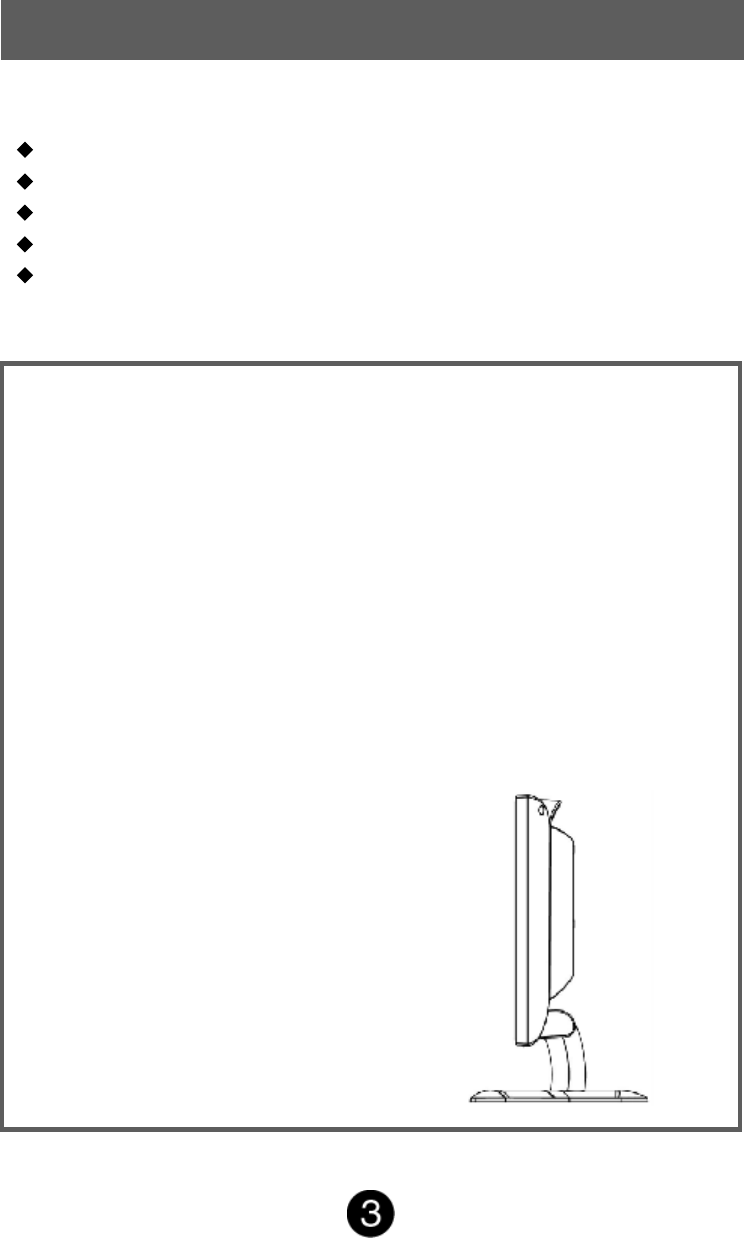
First Step
Thank you for purchasing this monitor of high performance!
This monitor package comes with:
Power Cable
User Guidebook or CD-ROM (You’re reading now)
Remote control 29 key
Audio Cable for PC type 1.5m.
VGA Cable
Quick Installation
1. Connect TV ANTANA or CATV
Cable or Connect video cable
Make sure both the monitor and
computer are powered OFF.
Connect to TV antenna jack or
CATV box by 75-ohm coaxial
cable. Connect the VGA cable
to the computer, then to the
monitor.
2. Connect Power Cord
Connect the power cord to a
properly grounded AC outlet,
then to the monitor.
3. Power-ON computer and
monitor
Power-ON the computer, then
Power-ON the monitor.
4. Setting input source for LCD-
TV-monitor from source of
remote, or OSD menu.
5. If in PC mode Windows Users:
Setting the Timing Mode
(Resolution and Refresh Rate)
Example: 800 x 600 @ 75 Hz
Resolution Right-click on the
Windows desktop > Porperties >
Settings >”Desktop Area”. Set
the resolution.
Refresh Rate (vertical frequency)
See your graphic card’s user
guide for instructions.
6. If in TV mode you can auto scan
TV channel from OSD menu
(page 7.)
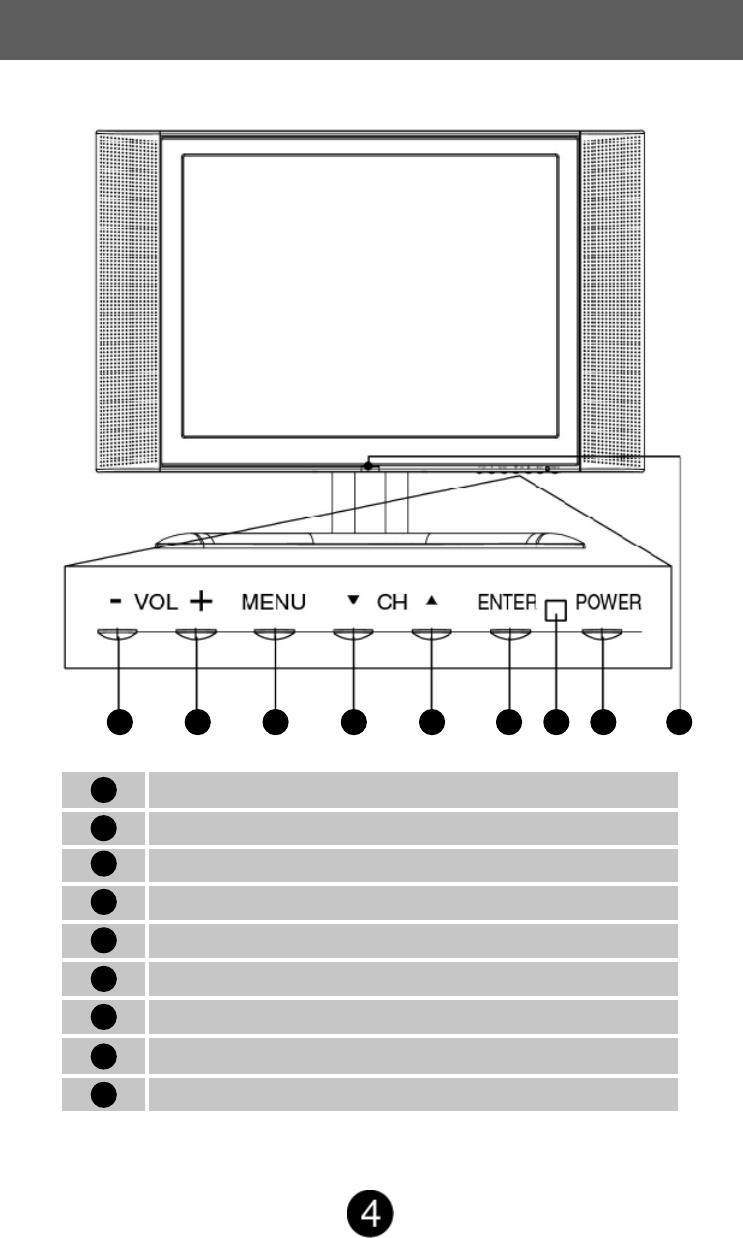
Front Panel Control
Volume Down or adjust decrease
Volume Up or adjust increase
Menu Key OSD ON/OFF
Scroll Down
Scroll UP
Enter
Power LED indicator
Power ON/OFF switch
Remote control receiver
1
2
3
4
5
6
7
8
9
1 2 3 4 5 678 9
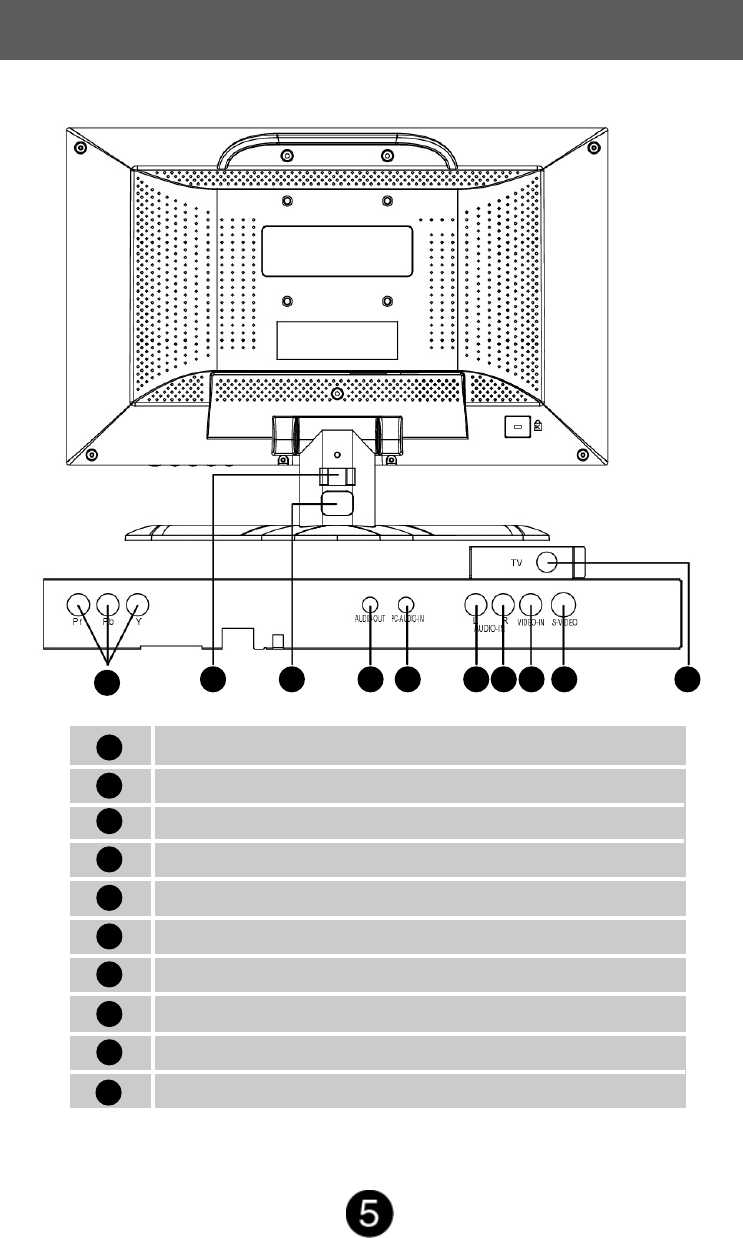
Installation
AJB C D E F G HI
YPbPr signal input
VGA signal input
Power input (AC input)
Audio output
Audio input of PC
Video signal Audio input (left)
Video signal Audio input (right)
AV Video input
S-Video input
TV signal input
B
C
D
E
F
G
H
I
A
J
Remote Control
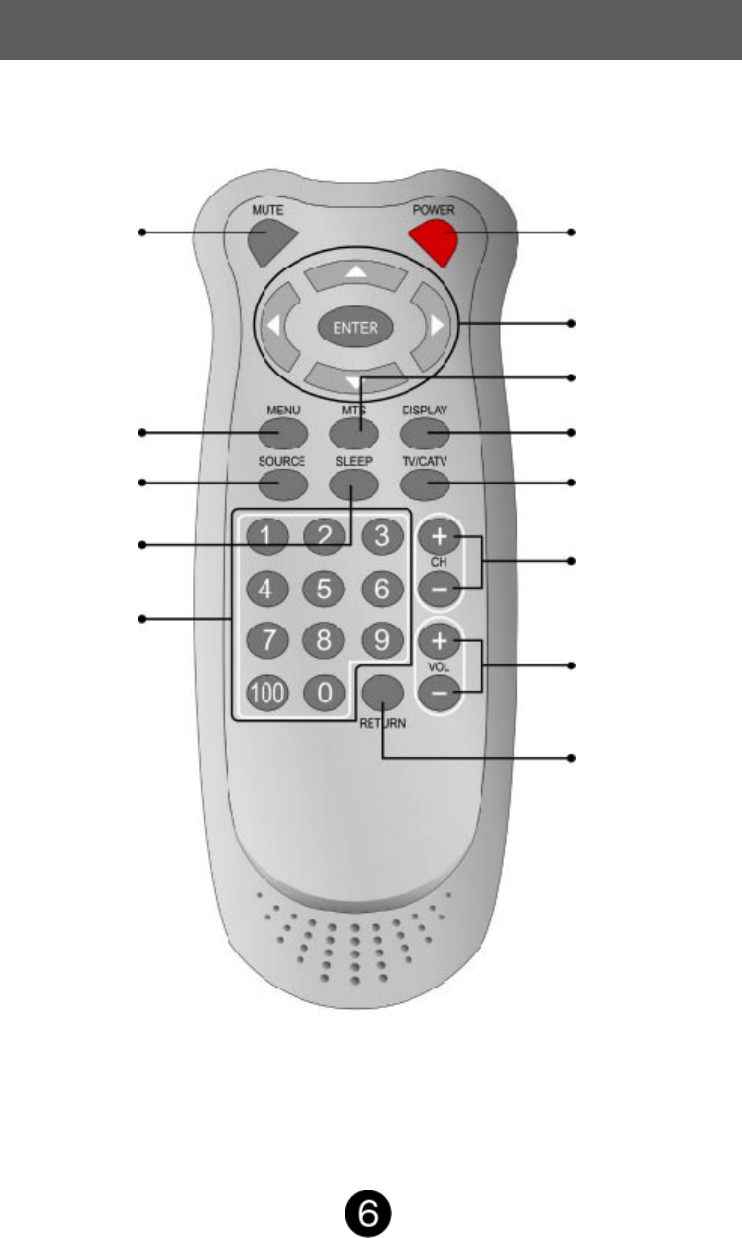
Power ON/OFF
Function UP/DOWN
Select and Left/Right
adjust and enter
Source and channel
display
MTS Select
Switch TV or CATV
Channel UP/DOWN
adjust
Volume UP/DOWN
adjust
Return to previous
channel
Switch channel
number key
TV Sleep time setting
Source select
OSD Menu ON/
OFF
Mute ON/OFF
Using the OSD Functions
TV mode
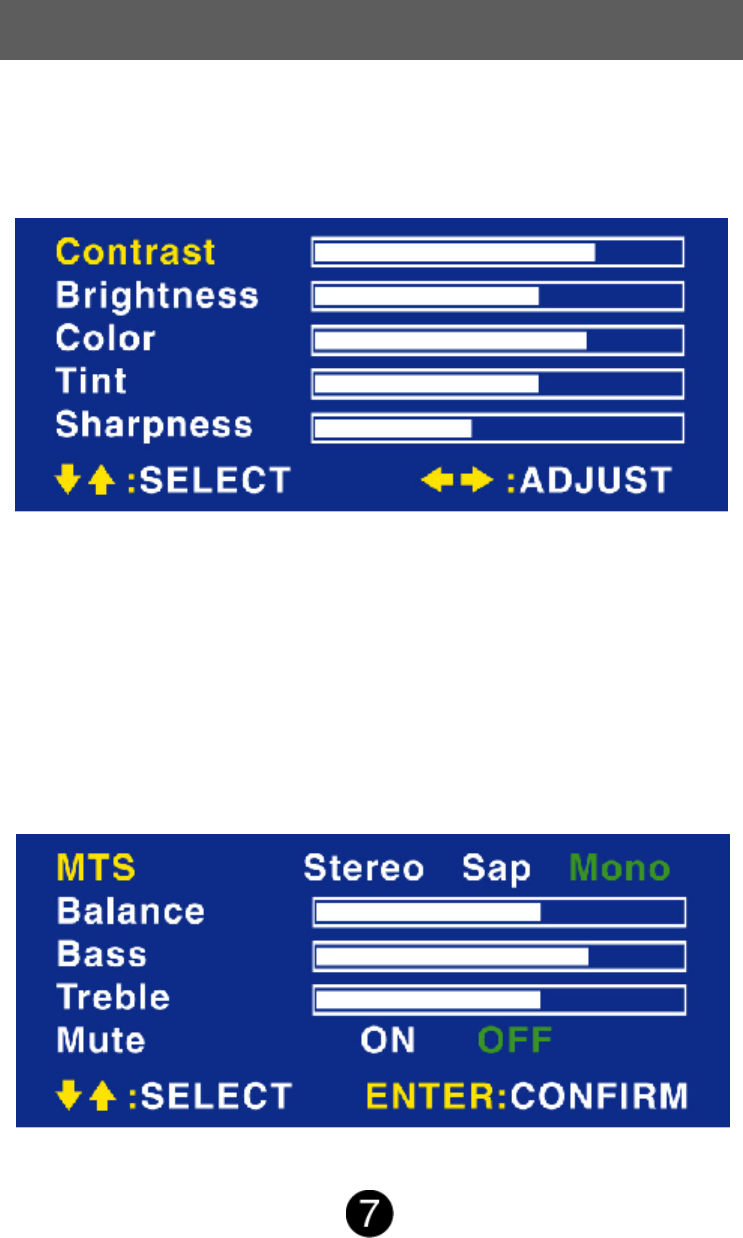
Picture Menu:
Press menu key to display OSD Menu, and press menu key again to
change menu page.
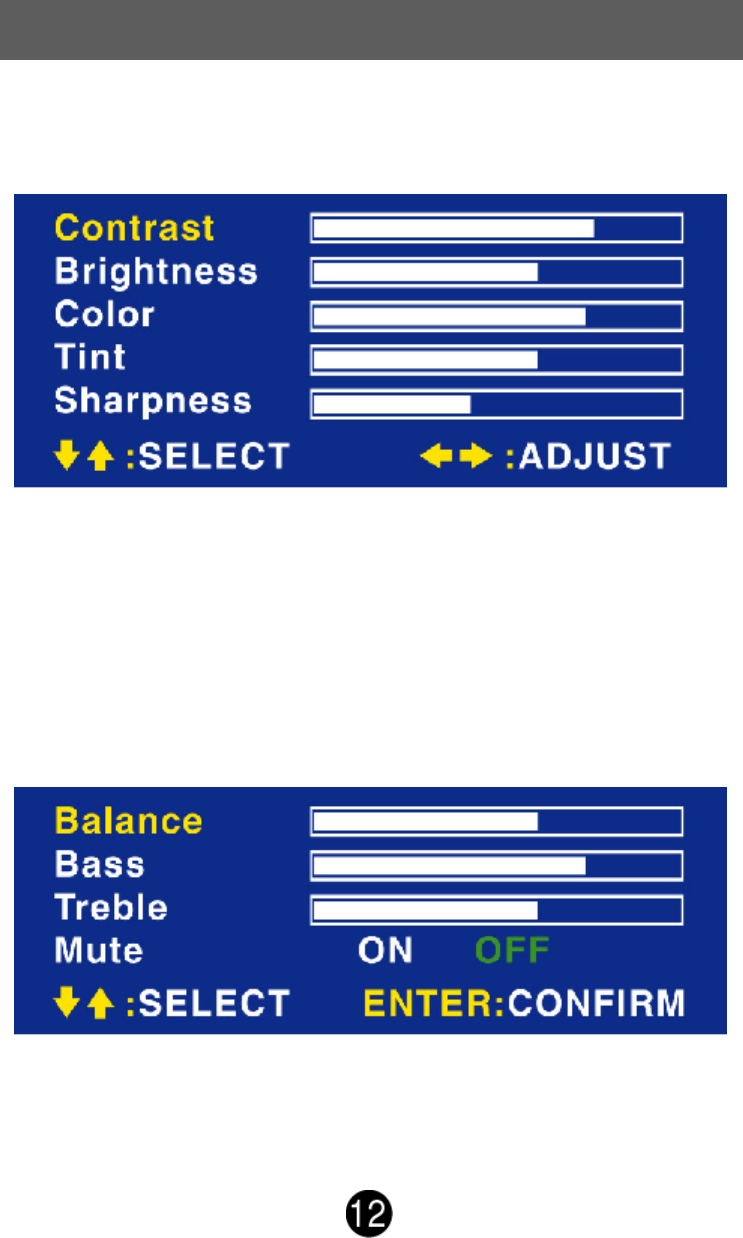
This submenu is to adjust Contrast, Brightness, Color, Tint and
sharpness.
Contrast: To adjust the contrast of the video. (right: low contrast, left:
high contrast)
Brightness: To adjust the Luminance of the Video. (right: low, left:
Max)
Color: To adjust color saturation. (right: pale color, left: brilliant color)
Tint: To adjust the tint level. (right: greenish tone, left: reddish tone)
Sharpness: To adjust the picture sharpness of display.
This submenu can adjust MTS, Balance, Bass, Treble, and mute ON/
OFF.
Using the OSD Functions
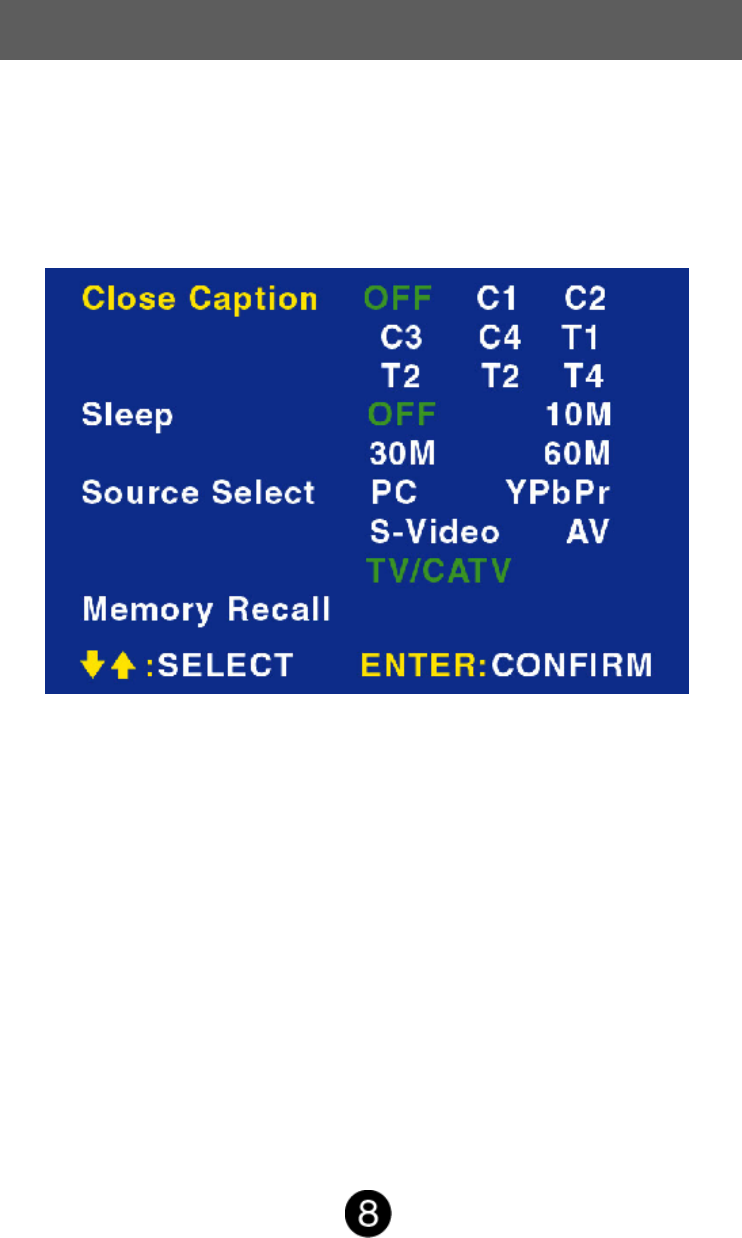
This submenu can set Close Caption, Sleep time, and Source Select
(PC, YPbPr, S-Video, AV)
Close Caption: To select the close caption.
Sleep: To select the TV sleep time.
Source Select: To select the input source (PC, YPbPr, S-Video, AV).
Memory Recall: Recall factory setting condition, about video & Audio
setting.
MTS: To select audio output condition to stereo, SAP or mono.
Balance: To adjust the left and right audio balance.
Bass: To adjust the bass.
Treble: To adjust the treble.
Mute: To adjust the Mute ON/OFF.
Using the OSD Functions
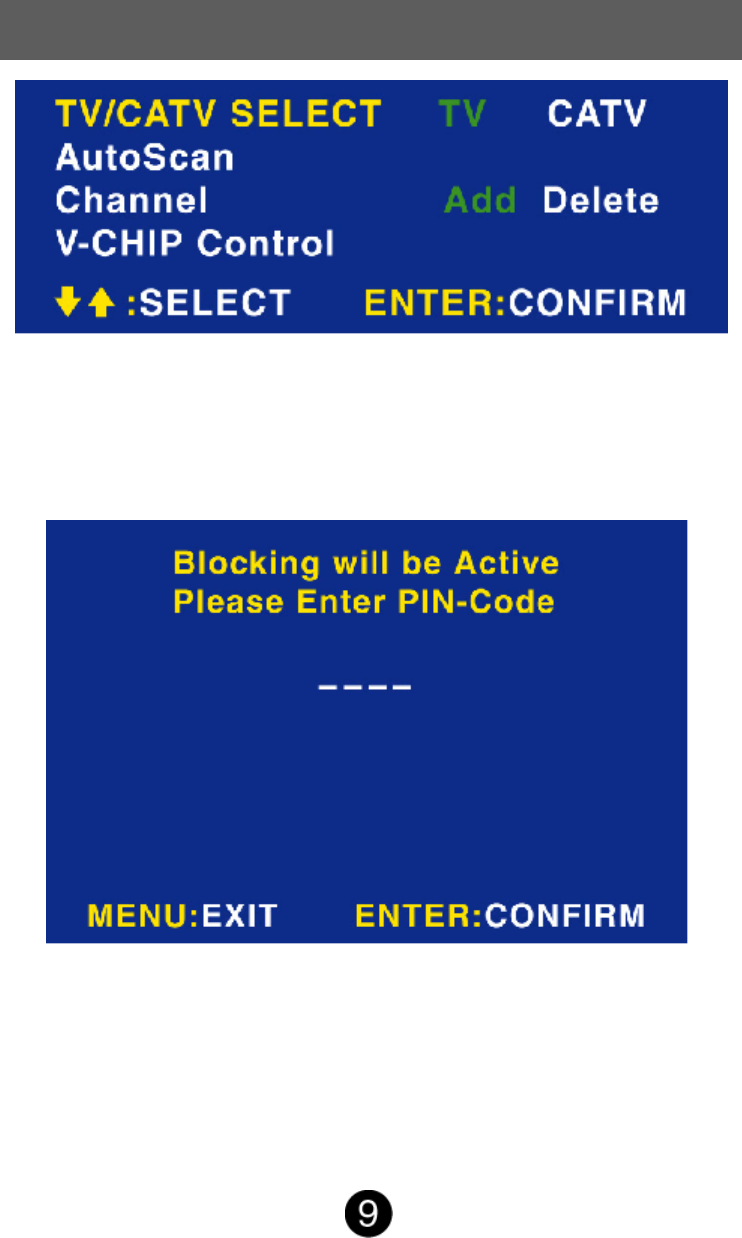
TV/CATV SELECT: To select TV signal input between TV and CATV.
AutoScan: To autoscan the TV channel (TV or CATV).
Channel: Add or delete TV channel.
V-CHIP Control: To set V-Chip condition and password.
V-Chip setting: To enable V-Chip functions, please enter 1234 if you
have not assigned the special password.
Using the OSD Functions
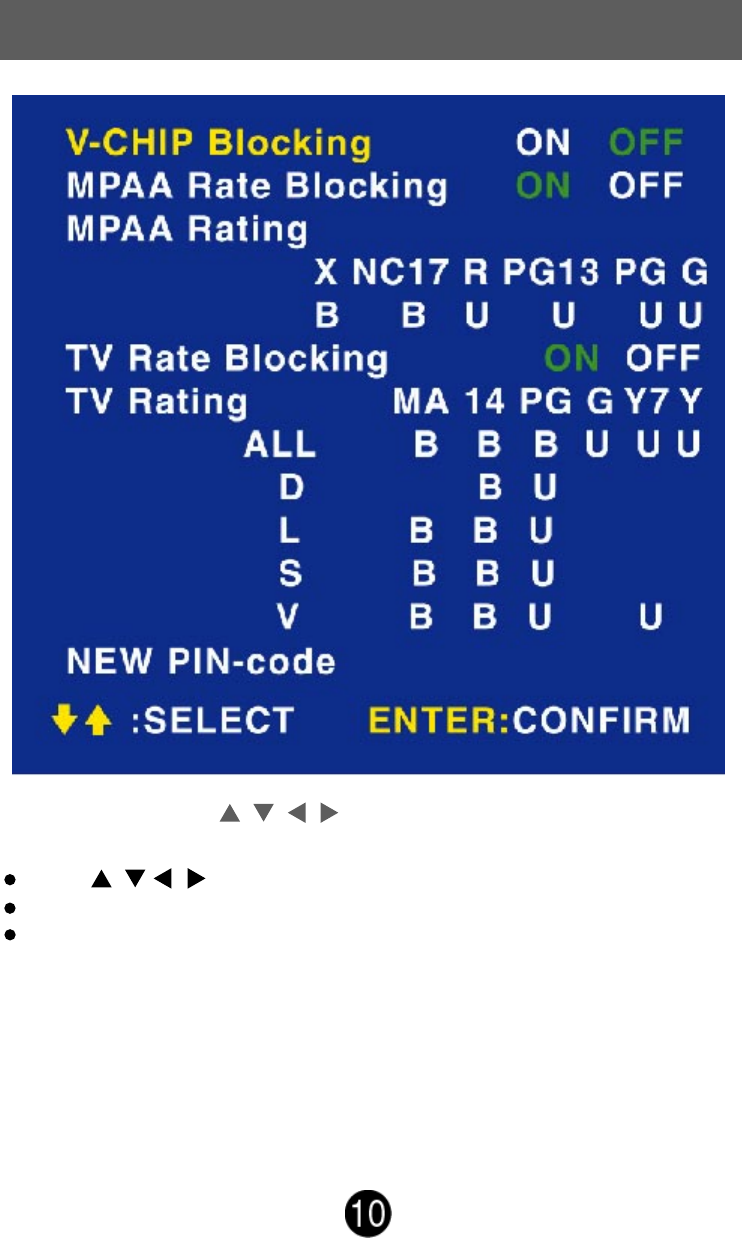
Use remote control , , , and enter key to set parental
guidelines.
Press , , , key to move the cursor.
When the text is yellow, press enter key to set block or unblock condition.
New PIN-Code: You can change the password.
Using the OSD Functions
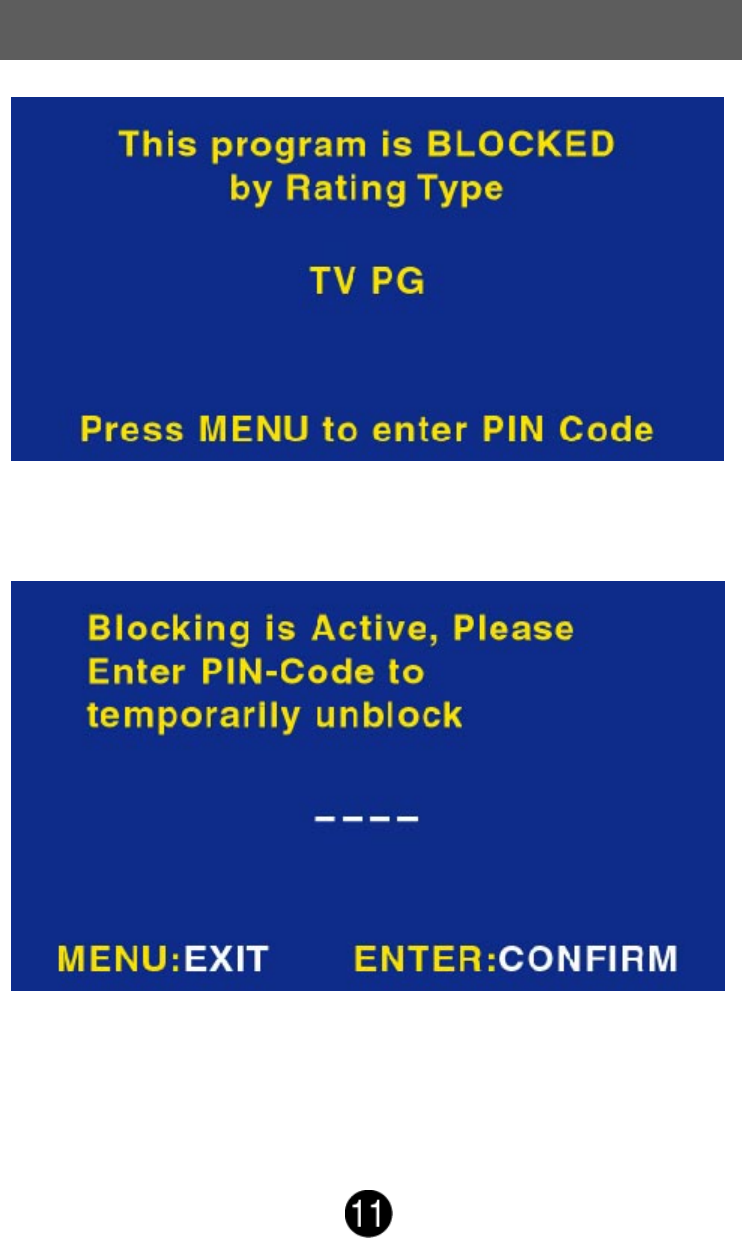
In case TV receives V-Chip protected program, following message
appears on the screen.
If you want to release V-Chip protection.
1. Press Menu-Key.
2. Press password from remote control, The V-Chip block OSD will
disapear.
Using the OSD Functions
Video mode (Include-YPbPr, AV)
Picture Menu:
Press menu key to display OSD Menu.
This submenu can to adjust Contrast, Brightness, Color, Tint and
sharpness.
Contrast: To adjust the contrast level.
Brightness: To adjust the brightness level.
Color: To adjust color saturation. (right: pale color, left: brilliant color)
Tint: To adjust the tint level. (right: greenish tone, left: reddish tone)
Sharpness: To adjust the picture sharpness of display. (right: soft,
left: sharper)
This submenu can to adjust Balance, Bass, Treble, and to mute ON/
OFF.
Balance: To adjust the left and right audio balance.
Bass: To adjust the bass.
Using the OSD Functions
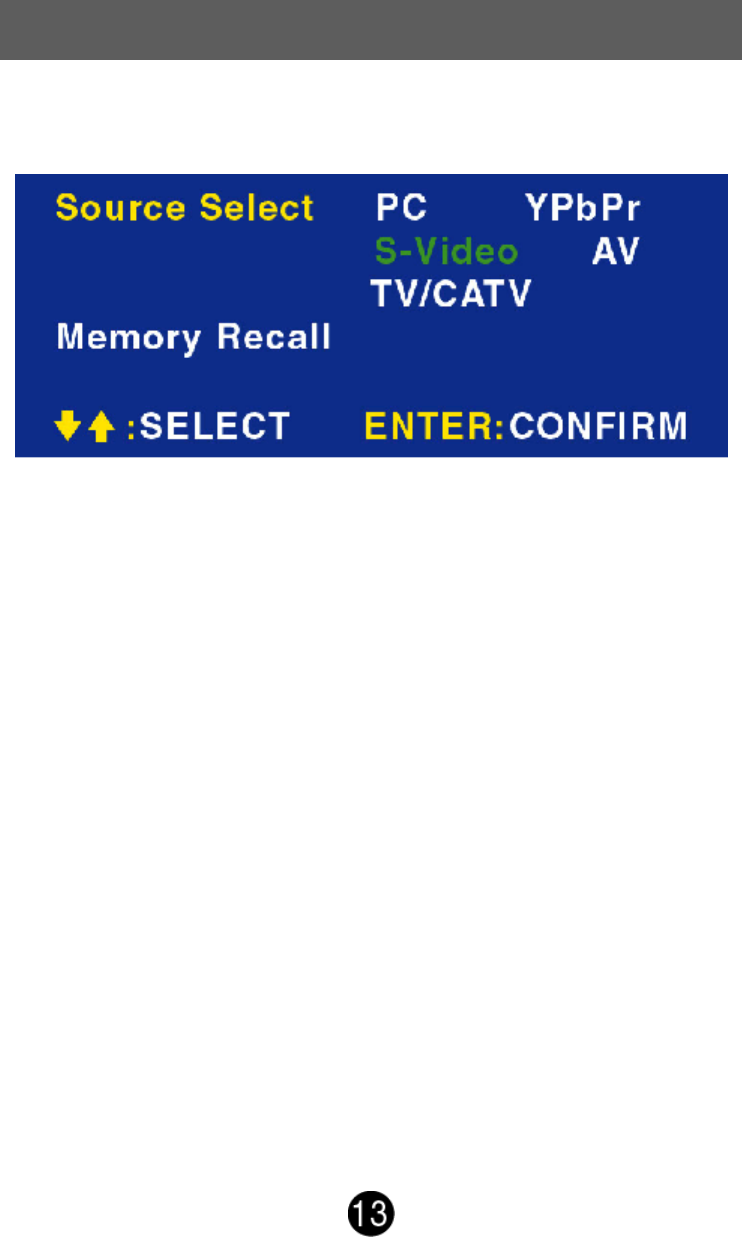
Source Select: To select the source (PC, YPbPr, S-Video, AV).
Memory Recall: Recall factory setting condition, about video & Audio
setting.
Treble: To adjust the treble.
Mute: To select the Mute ON/OFF.
Using the OSD Functions
PC mode
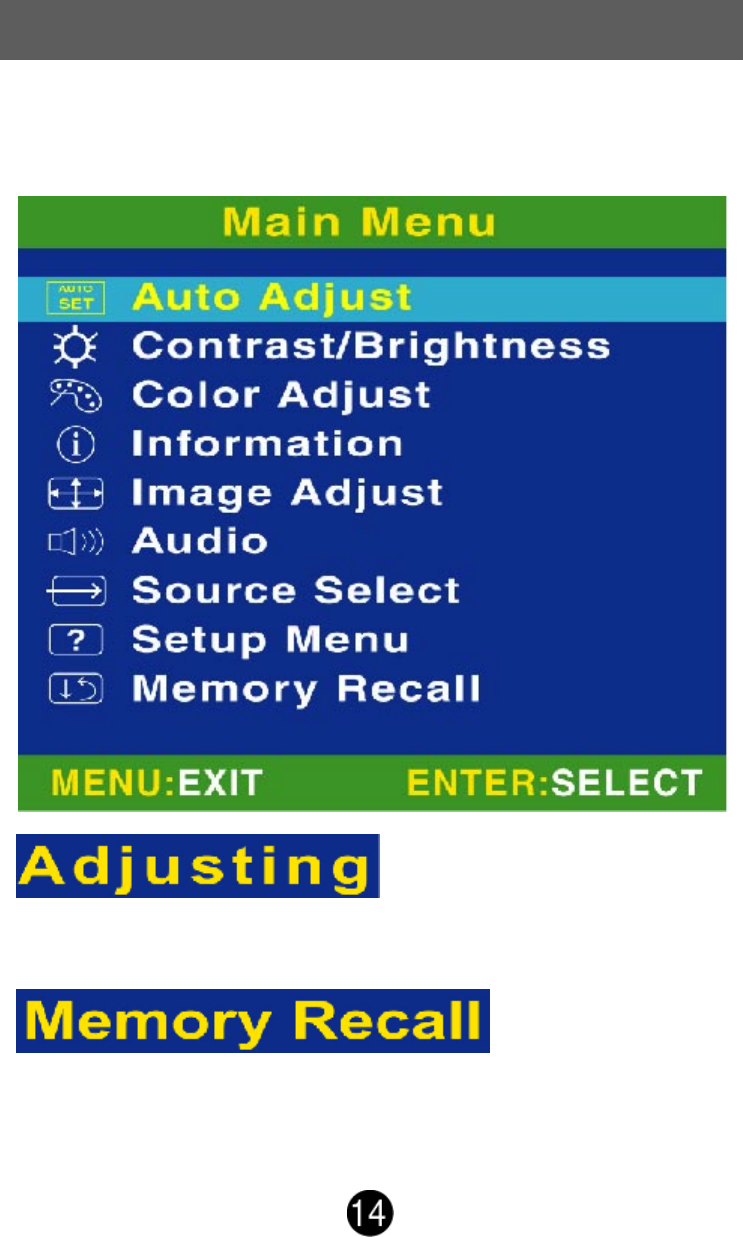
Main Menu:
Auto Adjust: Auto adjust picture’s horizontal position, vertical
position, fine tune and H-Size.
Memory Recall: Restore default settings of contrast (Max),
brightness (Middle), color temperature (preset color), OSD Position
(Center), Sharpness (Min) and Volume (Middle).
Press menu key to display OSD Menu.
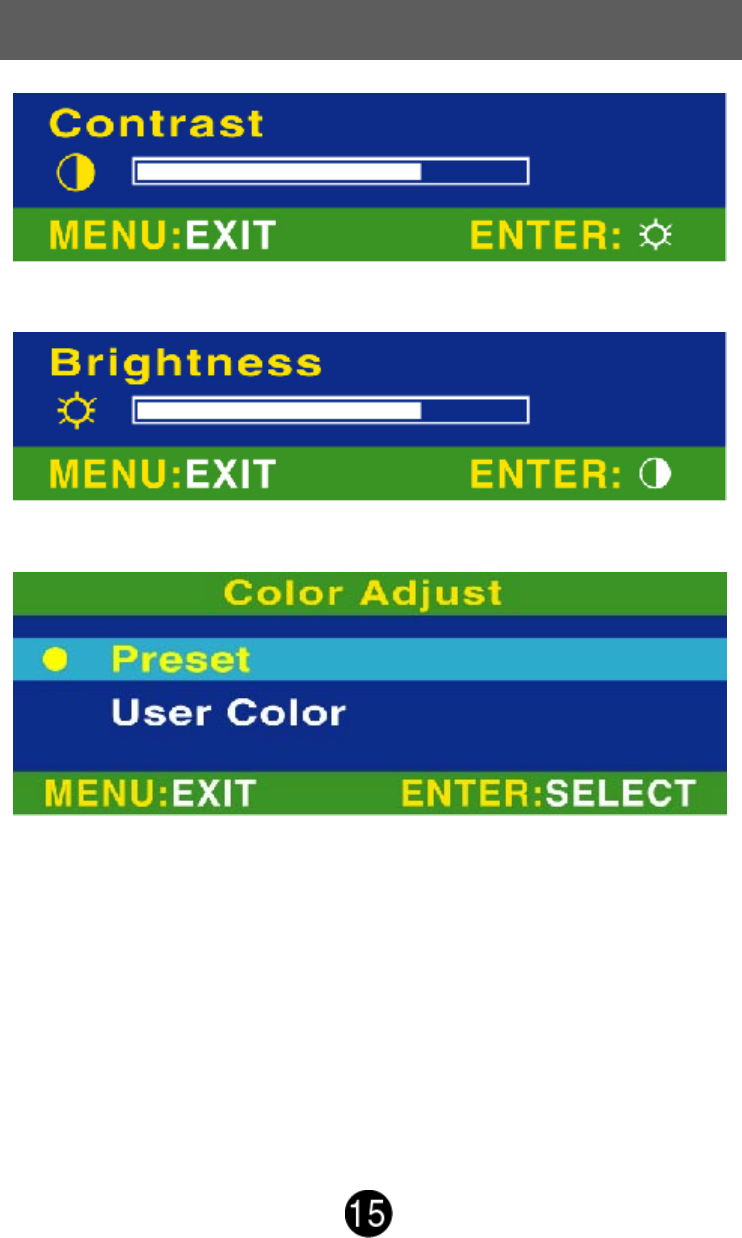
Contrast: To adjust the contrast level.
Using the OSD Functions
Brightness: To adjust the brightness level.
Color Adjust: To select the preset color temperature or user color
setting.
Using the OSD Functions
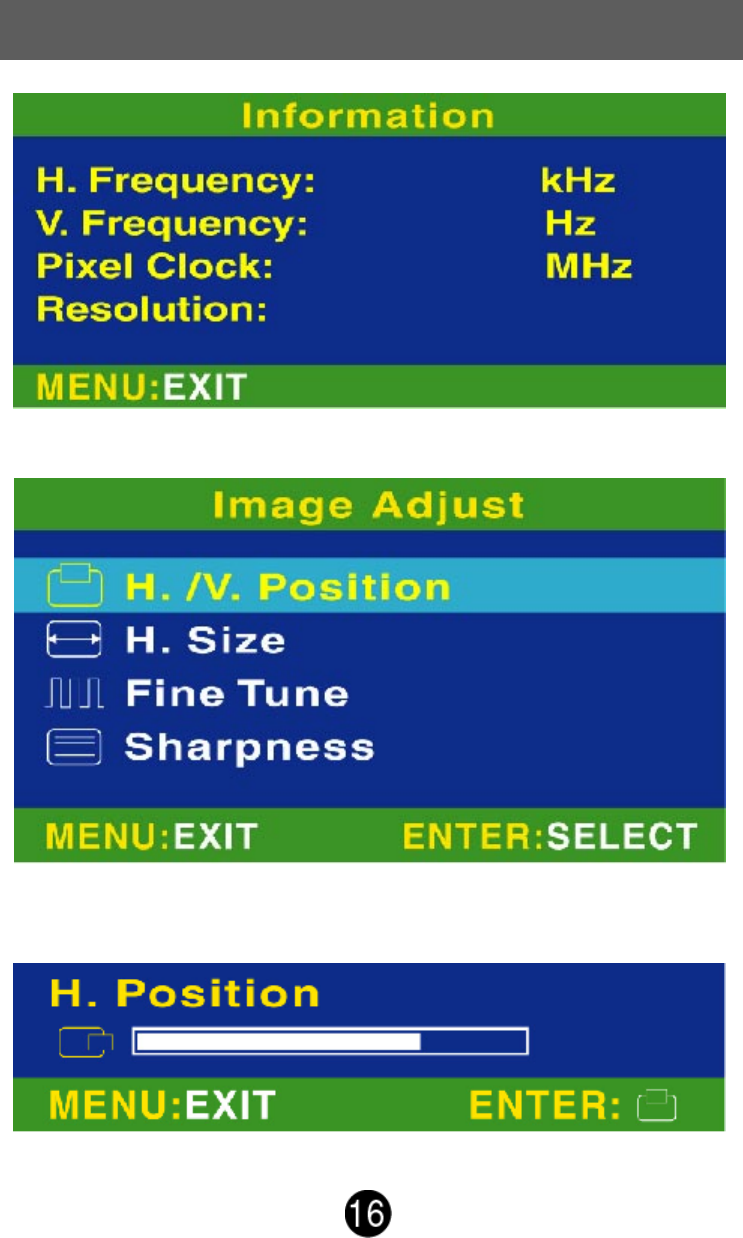
Information: Show current mode condition.
Image adjust: adjust horizontal /vertical position ,fine tune and
H-size and sharpness.
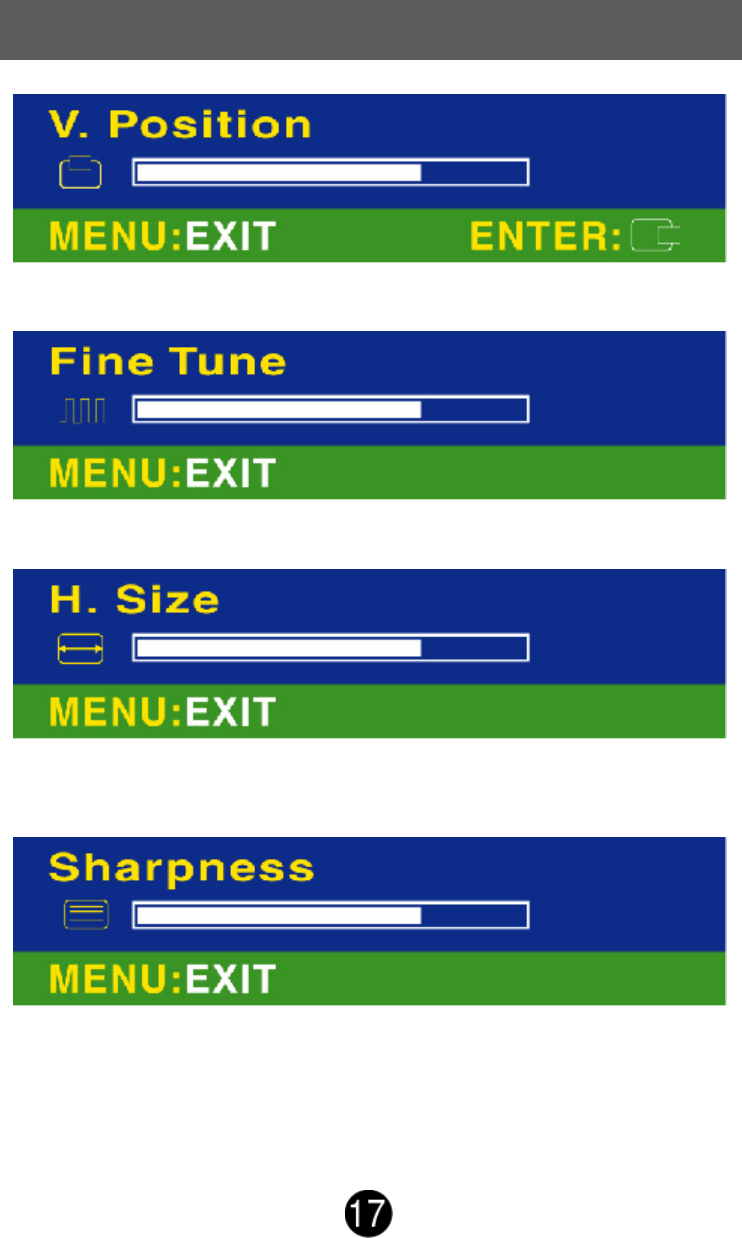
H. Position: To adjust the horizontal position of the video.
Using the OSD Functions
V. Position: To adjust the vertical position of the video.
Fine Tune: To adjust the delay time.
H. Size: To adjust the delay time between horizontal synchronous
signal and video.
Sharpness: To adjust the picture sharpness of display.
Using the OSD Functions
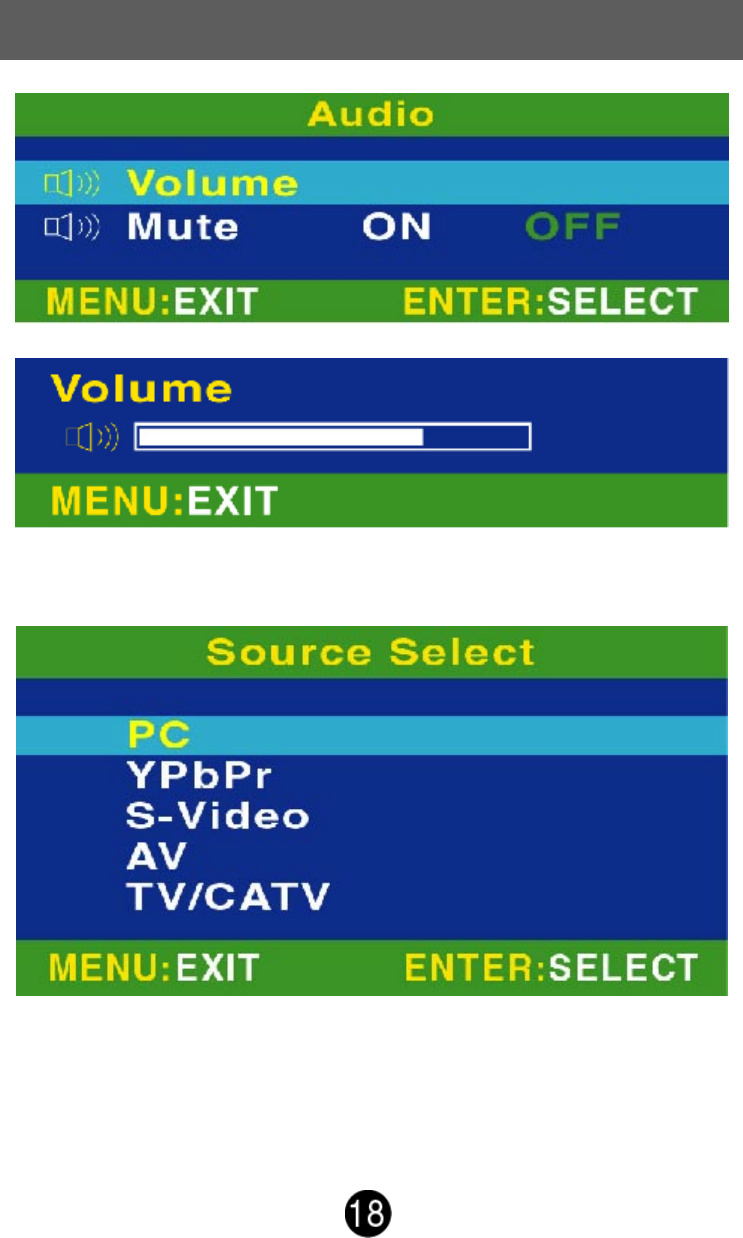
Volume: To adjust the volume.
Mute: To select the Mute ON/OFF.
Source Select: To select input source is PC, YPbPr, S-Video, AV, or
TV/CATV.
Using the OSD Functions
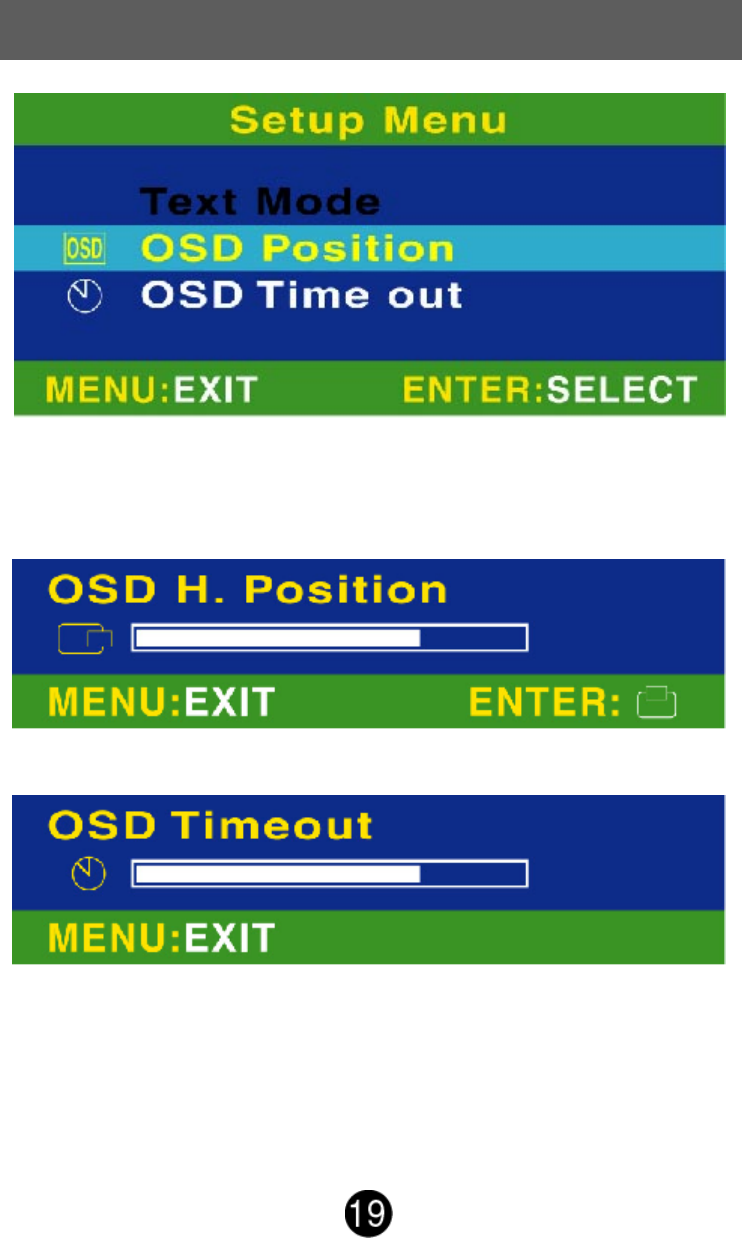
Setup Menu: To setting text mode, OSD position, OSD timeout.
Text Mode: To switch DOS Text and graphic mode for 640x400 and
720x400.
OSD Position: To adjust OSD H/V position.
OSD Timeout: Setting OSD display time.
Timing Modes
VESA 640 x 400 @ 70HZ
VESA 640 x 480 @ 60HZ
VESA 640 x 480 @ 67HZ
VESA 640 x 480 @ 75HZ
VESA 800 x 600 @ 56HZ
VESA 800 x 600 @ 60HZ
VESA 800 x 600 @ 72HZ
VESA 800 x 600 @ 75HZ
MAC 832 x 624 @ 75HZ
VESA 1024 x 768 @ 60HZ
VESA 1024 x 768 @ 70HZ
VESA 1024 x 768 @ 75 Hz
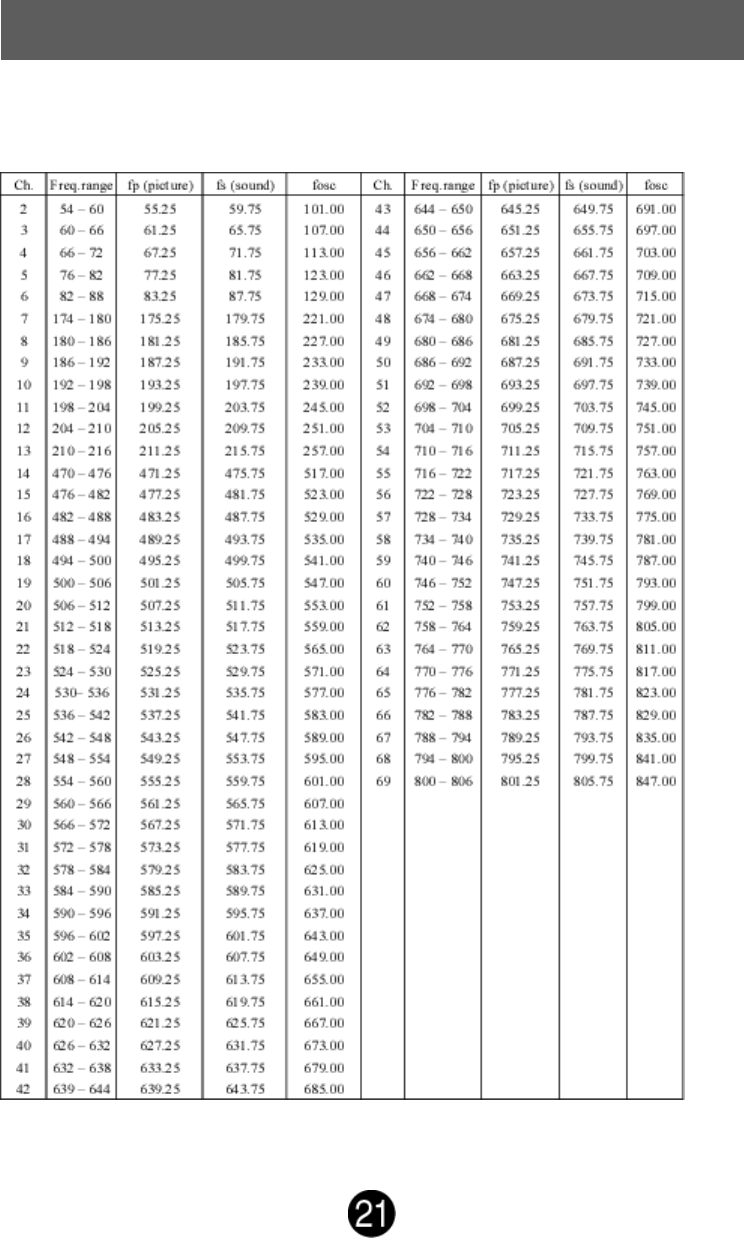
TV Frequency Table
U.S.A Channel
VIF 45.75 MHz, SIF 41.25 MHZ
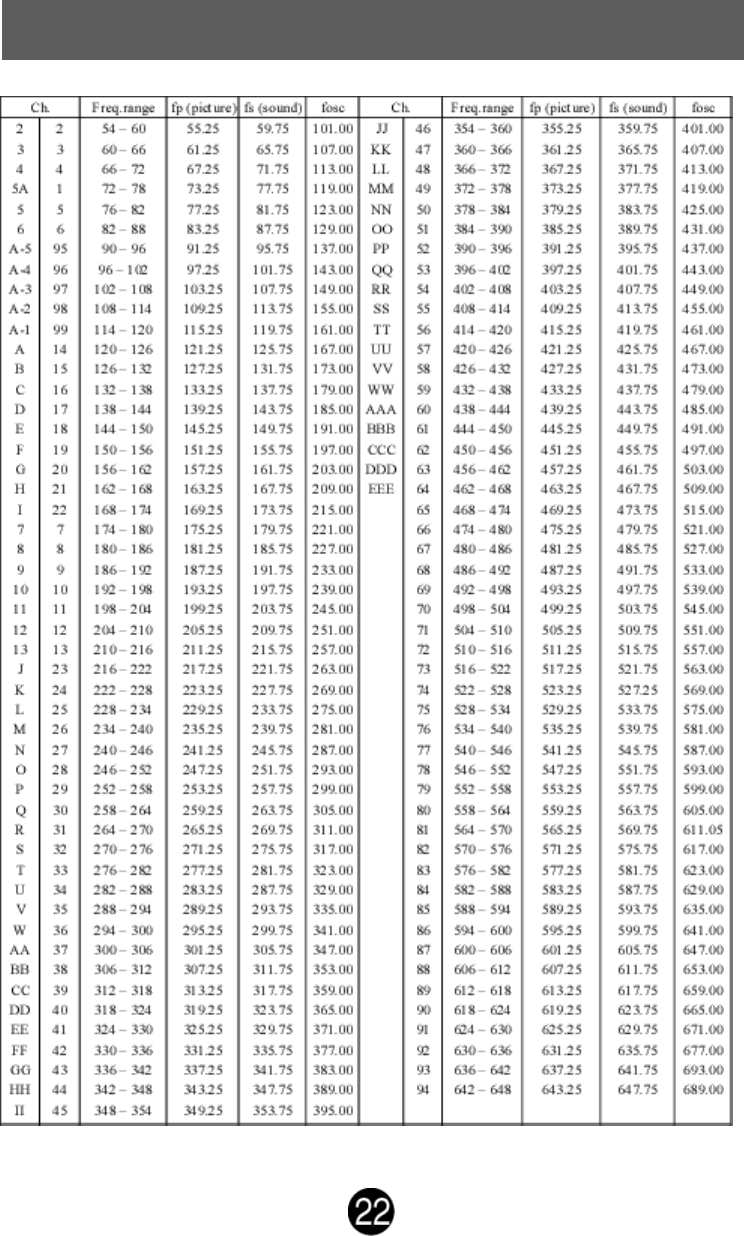
TV Frequency Table
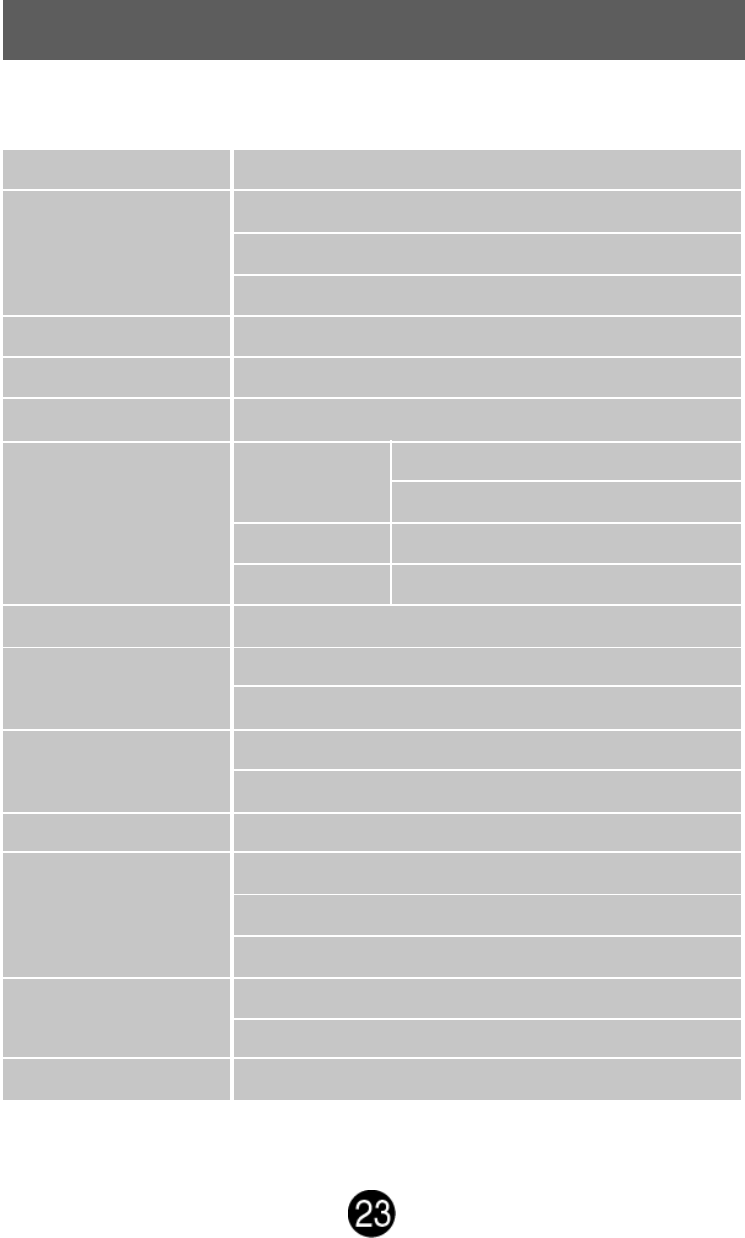
Technical Information
Technical Specification
18.1" TFT
Energy Star compliant VESA
DPMS compatible
< 8 W ( Monitor mode only )
XVGA 1024 x 768 max. Vertical Frequecy 75Hz max.
0.3585 x 0.3585 mm
16.7M(8 bits/color)
18.1" (typical)
CR≧10
Horizontal -75° + 75° (typical)
Vertical -50° + 60° (typical)
+20° , -5°
350 : 1 (typical)
450 cd /m2 (typical)
Tr= 6 ms (typical)
Tf=19 ms (typical)
367 mm x 276 mm
Operating: 0° C ~ +40° C
Storage: -20° C ~ +60° C
UL, FCC-B, Energy Star, VCCI
Voltage 100-240 V
Consumption 55 Watts (max)
3W x 2
LCD Panel
Power
Management
Displayable Resolution
Pixel Dimension
LCD Display Color
Viewing Angle
Tilt
Contrast Ratio
Brightness
Response Time
Active Display Area
Temperature
Compliance
Power
Speaker
Safety Precautions
This monitor is manufactured and tested on a ground principle that a
user’s safety comes first. However, improper use or installation may
result danger to the monitor as well as to the user. Carefully go over
the following WARNINGS before installation and keep this guide
handy.
WARNINGS:
This monitor should be operated only at the correct power
sources indicated on the label on the rear end of the monitor. If
you’re unsure of the power supply in your residence, consult
your local dealer or power company.
Do not try to repair the monitor yourself as it contains no user-
serviceable parts. The monitor should only be repaired by a
qualified technician.
Do not remove the monitor cabinet. There is high-voltage parts
inside that may cause electric shock to human bodies, even
whenthe power cord is disconnected .
Stop using the monitor if the cabinet is damaged. Have it
checked by a service technician.
Put your monitor only in a clean, dry environment. Unplug the
monitor immediately if gets wet and consult your service
technician.
Always unplug the monitor before cleaning it. Clean the cabinet
with a clean, dry cloth. Apply non-ammonia based cleaner onto
the cloth, not directly onto the glass screen.
Keep the monitor away from magnetic objects, motors, TV sets,
and transformer.
Do not place heavy objects on the cable or power cord.
For PLUGGABLE EQUIPMENT, the Socket-outlet shall be
installed near the equipment and shall be easily accessible.
Care and Maintenance
Care
Avoid exposing your monitor directly to sunlight or other heat
source.
Place your monitor away from diret ray of the sun to reduce glare.
Put your monitor in a well ventilated area. Do not place anything
heavy on top of your monitor.
Make certain your monitor is installed in a clean and moisture-free
area.
Keep your monitor away from magnets, motors, transformers,
speakers,and TV sets.
If smoke, abnormal noise or odor came out of your monitor, switch
off the power immediately and call your service center.
Never remove the rear cover of your monitor cabinet. The display
unit inside contains high-voltage parts and may cause electric
shock to human bodies.
Never try to repair your monitor yourself. Always call your service
center or a qualified technician to fix it.
Safety Tips