JiangSu HuiTong Group HTSF2203 RealityAdapter User Manual

JiangSu HuiTong Group Co.,Ltd RealityAdapter

User Manual

RealityAdapterrrr©2018 Third Reality Inc. All rights reserved.Life can be Smarter than You Think!
What’s in the boxFeatures1.Work with Amazon Alexa and Google HomeAssistant2.No extra hub required3.Snap! Zero wiring required4.Wi-Fi and ZigBee connectivityDC 4.0 Output Line*1RealityAdapter*1User Guide*1Micro USB Output Line*1DC 3.5 Output Line*1
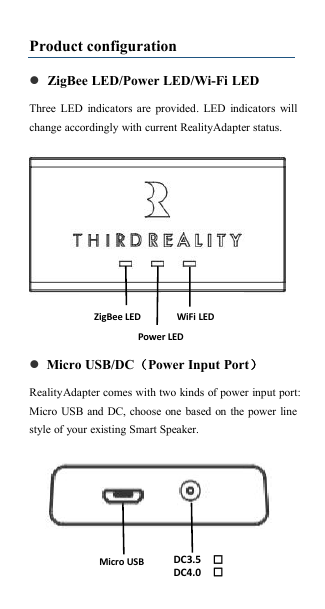
Product configurationZigBee LED/Power LED/Wi-Fi LEDThree LED indicators are provided. LED indicators willchange accordingly with current RealityAdapter status.Micro USB/DC(Power Input Port)RealityAdapter comes with two kinds of power input port:Micro USB and DC, choose one based on the power linestyle of your existing Smart Speaker.Power LEDWiFi LEDZigBee LEDMicro USBDC3.5DC4.0
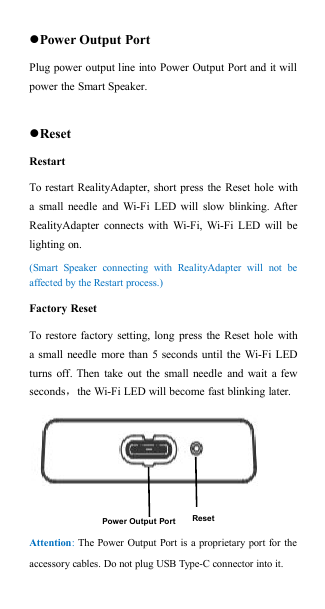
Power Output PortPlug power output line into Power Output Port and it willpower the Smart Speaker.ResetRestartTo restart RealityAdapter, short press the Reset hole witha small needle and Wi-Fi LED will slow blinking. AfterRealityAdapter connects with Wi-Fi, Wi-Fi LED will belighting on.(Smart Speaker connecting with RealityAdapter will not beaffected by the Restart process.)Factory ResetTo restore factory setting, long press the Reset hole witha small needle more than 5 seconds until the Wi-Fi LEDturns off. Then take out the small needle and wait a fewseconds,the Wi-Fi LED will become fast blinking later.Attention:The Power Output Port is a proprietary port for theaccessory cables. Do not plug USB Type-C connector into it.Power Output PortReset
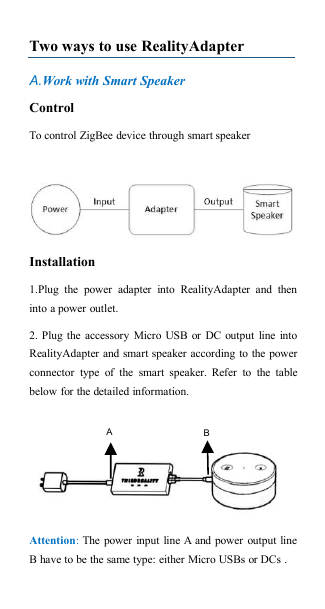
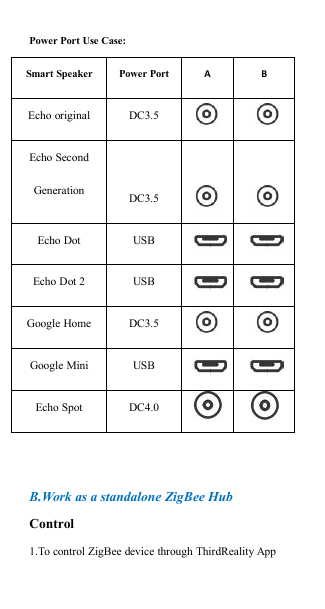
Two ways to use RealityAdapterA.Work with Smart SpeakerControlTo control ZigBee device through smart speakerInstallation1.Plug the power adapter into RealityAdapter and theninto a power outlet.2. Plug the accessory Micro USB or DC output line intoRealityAdapter and smart speaker according to the powerconnector type of the smart speaker. Refer to the tablebelow for the detailed information.Attention:The power input line A and power output lineB have to be the same type: either Micro USBs or DCs .AB
Power Port Use Case:B.Work as a standalone ZigBee HubControl1.To control ZigBee device through ThirdReality AppSmart SpeakerPower PortABEcho originalDC3.5Echo SecondGenerationDC3.5Echo DotUSBEcho Dot 2USBGoogle HomeDC3.5Google MiniUSBEcho SpotDC4.0
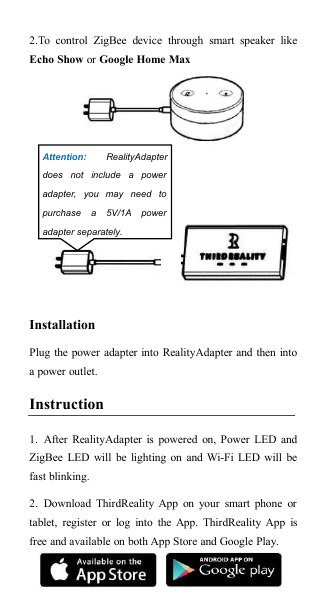
2.To control ZigBee device through smart speaker likeEcho Show or Google Home MaxInstallationPlug the power adapter into RealityAdapter and then intoa power outlet.Instruction1. After RealityAdapter is powered on, Power LED andZigBee LED will be lighting on and Wi-Fi LED will befast blinking.2. Download ThirdReality App on your smart phone ortablet, register or log into the App. ThirdReality App isfree and available on both App Store and Google Play.Attention: RealityAdapterdoes not include a poweradapter, you may need topurchase a 5V/1A poweradapter separately.
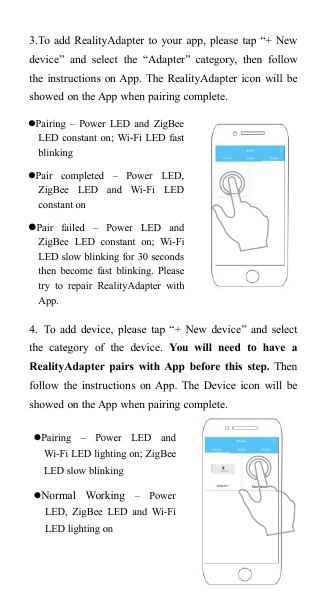
3.To add RealityAdapter to your app, please tap “+ Newdevice” and select the “Adapter” category, then followthe instructions on App. The RealityAdapter icon will beshowed on the App when pairing complete.4. To add device, please tap “+ New device” and selectthe category of the device. You will need to have aRealityAdapter pairs with App before this step. Thenfollow the instructions on App. The Device icon will beshowed on the App when pairing complete.Pairing – Power LED and ZigBeeLED constant on; Wi-Fi LED fastblinkingPair completed – Power LED,ZigBee LED and Wi-Fi LEDconstant onPair failed – Power LED andZigBee LED constant on; Wi-FiLED slow blinking for 30 secondsthen become fast blinking. Pleasetry to repair RealityAdapter withApp.Pairing – Power LED andWi-Fi LED lighting on; ZigBeeLED slow blinkingNormal Working – PowerLED, ZigBee LED and Wi-FiLED lighting on
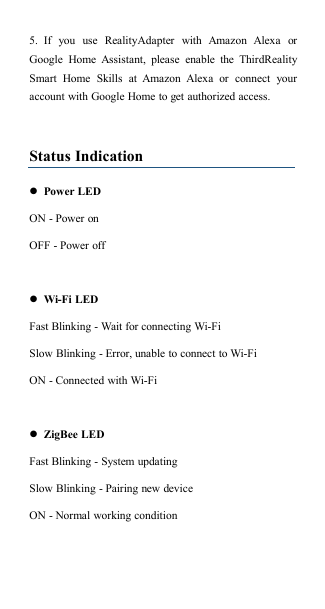
5. If you use RealityAdapter with Amazon Alexa orGoogle Home Assistant, please enable the ThirdRealitySmart Home Skills at Amazon Alexa or connect youraccount with Google Home to get authorized access.Status IndicationPower LEDON - Power onOFF - Power offWi-Fi LEDFast Blinking - Wait for connecting Wi-FiSlow Blinking - Error, unable to connect to Wi-FiON - Connected with Wi-FiZigBee LEDFast Blinking - System updatingSlow Blinking - Pairing new deviceON - Normal working condition
Troubleshooting1.Adapter is unable to connect to Wi-Fi,Wi-Fi LED slow blinkingPlease check the status of your network and the routerPlease scroll down the App page to refresh AdapterstatusIf there is no problem with network, please try to restartthe Adapter.2.Unable to pair RealityAdapter with ThirdReality AppIf RealityAdapter has been paired with other ThirdReality App account, enable to pair RealityAdapter withyour account, please factory reset the RealityAdapterfirst.3.Adapter is updating system, ZigBee LEDfast blinkingYou will receive a notification when a system updating isready. In order to avoid information losing, please do notdisconnect power and Wi-Fi during the updating.
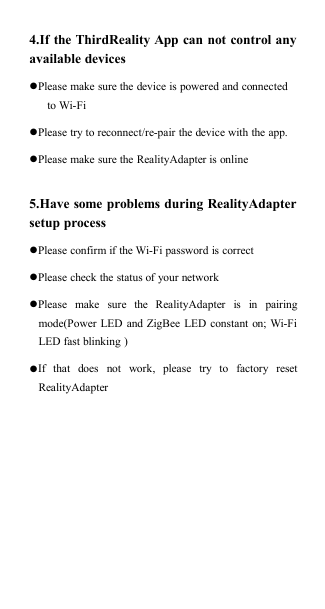
4.If the ThirdReality App can not control anyavailable devicesPlease make sure the device is powered and connectedto Wi-FiPlease try to reconnect/re-pair the device with the app.Please make sure the RealityAdapter is online5.Have some problems during RealityAdaptersetup processPlease confirm if the Wi-Fi password is correctPlease check the status of your networkPlease make sure the RealityAdapter is in pairingmode(Power LED and ZigBee LED constant on; Wi-FiLED fast blinking )If that does not work, please try to factory resetRealityAdapter
Limited WarrantyIf you have any further questions, please contact us atsupport@3reality.com, orvisit FAQ at www.3reality.com/faqFor more detail about the limited warranty, please visit:www.3reality.com/warrantyQR code area
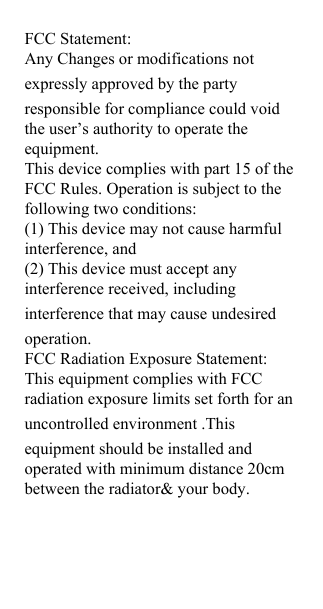
FCC Statement: Any Changes or modifications not expressly approved by the partyresponsible for compliance could void the user’s authority to operate the equipment. This device complies with part 15 of the FCC Rules. Operation is subject to the following two conditions: (1) This device may not cause harmful interference, and (2) This device must accept any interference received, including interference that may cause undesiredoperation. FCC Radiation Exposure Statement: This equipment complies with FCC radiation exposure limits set forth for an uncontrolled environment .This equipment should be installed and operated with minimum distance 20cm between the radiator& your body.
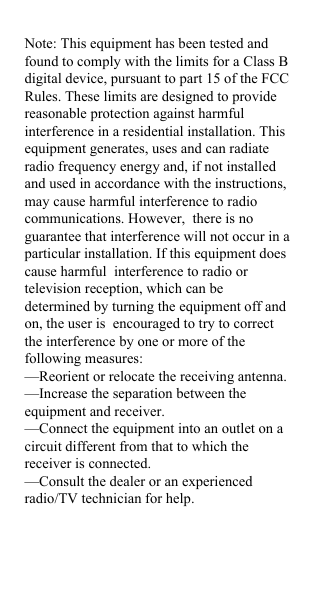
Note: This equipment has been tested and found to comply with the limits for a Class B digital device, pursuant to part 15 of the FCC Rules. These limits are designed to provide reasonable protection against harmful interference in a residential installation. This equipment generates, uses and can radiate radio frequency energy and, if not installed and used in accordance with the instructions, may cause harmful interference to radio communications. However,  there is no guarantee that interference will not occur in a particular installation. If this equipment does cause harmful  interference to radio or television reception, which can be determined by turning the equipment off and on, the user is  encouraged to try to correct the interference by one or more of the following measures:   —Reorient or relocate the receiving antenna.—Increase the separation between the equipment and receiver.—Connect the equipment into an outlet on a circuit different from that to which the receiver is connected.   —Consult the dealer or an experienced radio/TV technician for help.

Navigation menu