JiangSu HuiTong Group HTSF2205 RealitySwitch Plus User Manual

JiangSu HuiTong Group Co.,Ltd RealitySwitch Plus

User Manual

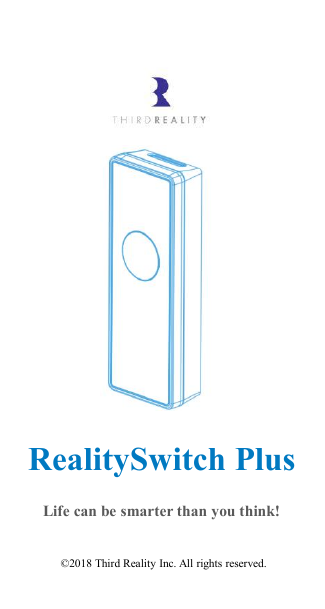
RealitySwitch Plus©2018 Third Reality Inc. All rights reserved.Life can be smarter than you think!
AccessoriesFeatures1. Voice control via Amazon Echo series2. Direct connectivity with Echo Plus3. Compatibility with toggle and rocker panels4. Compatibility with multiple devices on asingle panel5. ZigBee connectivity6. Low power consumptionSwitch bodyRocker backplaneToggle backplaneBattery *2Screw *2Spacer *2Gasket *4User Manual *17.Wireless protocol: ZigBee8.Operating frequency:2405-2480MHz
InstructionsWelcome to your ThirdReality smart home!RealitySwitch Plus can be used with one of thefollowing configurations:A. A RealityAdapter.B. An Amazon Echo Plus.C. An Amazon Echo series or Google Homewith a 3rd compatible Wi-Fi to ZigBee Hub.1. ConfigurationA. You can talk with any echo devices andcontrol the switch through a RealityAdapter.1) Download the ThirdReality App on yoursmartphone or tablet, register or log into theApp.
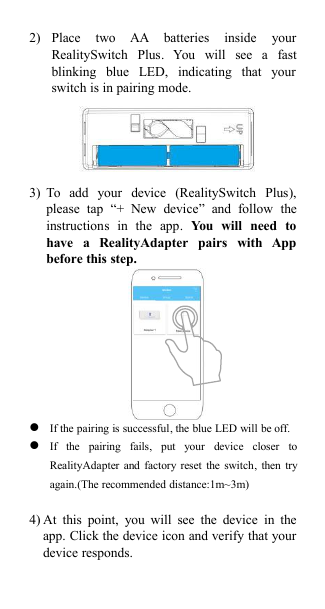
2) Place two AA batteries inside yourRealitySwitch Plus. You will see a fastblinking blue LED, indicating that yourswitch is in pairing mode.3) To add your device (RealitySwitch Plus),please tap “+ New device” and follow theinstructions in the app. You will need tohave a RealityAdapter pairs with Appbefore this step.If the pairing is successful, the blue LED will be off.If the pairing fails, put your device closer toRealityAdapter and factory reset the switch, then tryagain.(The recommended distance:1m~3m)4) At this point, you will see the device in theapp. Click the device icon and verify that yourdevice responds.
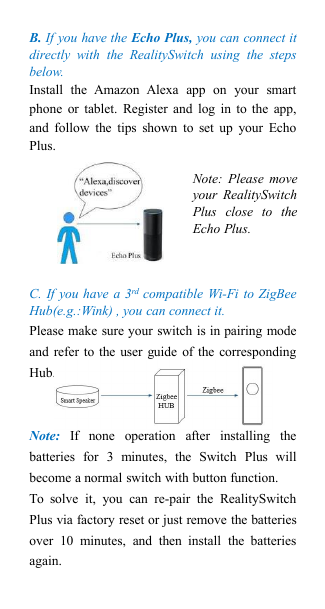
B. If you have the Echo Plus, you can connect itdirectly with the RealitySwitch using the stepsbelow.Install the Amazon Alexa app on your smartphone or tablet. Register and log in to the app,and follow the tips shown to set up your EchoPlus.C. If you have a 3rd compatible Wi-Fi to ZigBeeHub(e.g.:Wink) , you can connect it.Please make sure your switch is in pairing modeand refer to the user guide of the correspondingHub.Note: If none operation after installing thebatteries for 3 minutes, the Switch Plus willbecome a normal switch with button function.To solve it, you can re-pair the RealitySwitchPlus via factory reset or just remove the batteriesover 10 minutes, and then install the batteriesagain.Note: Please moveyour RealitySwitchPlus close to theEcho Plus.
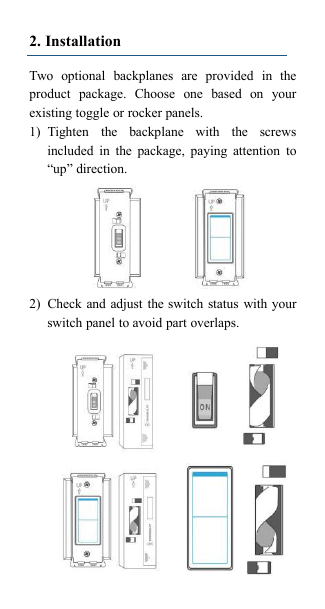
2. InstallationTwo optional backplanes are provided in theproduct package. Choose one based on yourexisting toggle or rocker panels.1) Tighten the backplane with the screwsincluded in the package, paying attention to“up” direction.2) Check and adjust the switch status with yourswitch panel to avoid part overlaps.
Please remove the protection films on thesurface of the switch body.3) Place the switch body onto your backplane,making sure to match the “up” direction (youcan remove it first from the down direction).4) In some special cases, it is necessary to insertspacers and/or gaskets in the backplane. Youmay adjust the screws in the backplane toensure proper contact.Note: The spacers are only used by the Rocker Backplane.InstallTake offInstallTake offRockerToggleRockerBackplaneSpacers and/orgaskets inserted
Status IndicationPairing - LED fast blinking (two blinksevery second)Reconnect - LED slow blinking (blink onceevery three seconds)Low Battery - LED double blinking (twoshort blinks every two seconds)AttentionDo NOT press the product button duringbattery installation to avoid setting anunintended modeKeep spacers away from childrenDo NOT put your finger into the switch’s“helical rotating lever”Troubleshooting1. Inverted On/Off statusIf you find that your on/off status is inverted,press the RealitySwitch Plus button more than10 seconds until the blue LED lights up.2. Factory resetIf you want to factory reset RealitySwitch Plus,long press the button more than 30 seconds until
the blue LED changes from on to fast blinking.(Attention: please make sure you press thebutton longer enough till the blue LED statuskeeps fast blinking.)3. Missing wireless connectionGenerally it will be automatically reconnectedwhen putting the device close to the Echo Plusor Hub. If the problem persists (LED blinkingslowly), please try to reconnect/re-discover yourdevice with the Echo plus or Hub.4. How to pair again with Echo Plus clearlySometimes you need to reset the device and theEcho Plus to pair again clearly with steps below:Reset the Echo Plus for 15 seconds until itsorange LED lights up.Reset the device for 30 seconds until theLED changes from on to fast blinking.Reconnect/re-pair the device with the app.5. Tips to enlarge wireless working distanceYou can try to optimize the mesh net by keepingany two of the device, Echo Plus or router closerto get a better connectivity performance.6. Battery with low voltageIf the LED double blinks indicating the batterieslow status, please replace the batteries.
7. Suggestions for pairing with Wink HUBTo avoid interference, it is recommended tofollow the user manual of Wink HUB during thesetup process.8. How to adapt the height between theswitch body and your existing panel.In some special cases, you may need to addspacers and/or gaskets to increase the distancebetween the RealitySwitch Plus body and theunderlying switch.WarningThere are two AA batteries in our product,please pay attention to safety and discard theused batteries in the recyclable trash can.Limited WarrantyIf you have any further questions, please contactus at support@3reality.com, or visit FAQ atwww.3reality.com/faqFor more detail about the limited warranty,please visit:www.3reality.com/warranty
FCC Statement: Any Changes or modifications not expressly approved by the party responsible for compliance could void the user’s authority to operate the equipment. This device complies with part 15 of the FCC Rules. Operation is subject to the following two conditions: (1) This device may not cause harmful interference, and (2) This device must accept any interference received, including interference that may cause undesired operation. FCC Radiation Exposure Statement: This equipment complies with FCC radiation exposure limits set forth for an uncontrolled environment .This equipment should be installed and operated with minimum distance 20cm between the radiator& your body.

Navigation menu