Jimi Electronic JI06 Kids phone User Manual UserMan

Shenzhen Jimi Electronic Co., Ltd. Kids phone UserMan

UserMan

JI06 GPS Kid’s Phone User Manual (Version J201409-V1.0) 1 Accessories Charger; Battery; USB Cable; Lanyard; User Manual; Screwdriver;   2 Buttons Power; Family  Number  1# /  Up;  Family Number  2#  /  Right; Family Number  3#  /  Down; Family Number 4# / Left; SOS Button; Menu / OK / Unlock / Answer (A); Back / Cancel / Family (B). 3 Installation 1. Unscrew back cover; 2. Lift up the cover; 3. Insert SIM card and battery; 4. Cover it back and tighten the screw. 4 Operation   4.1 Set APN   Please send SMS command to the device number to set up the APN parameter. The device will reply “OK” automatically after setting successful. The SMS command is as follows: APN,APN’s name# E.g. APN,internet# Note:  The  APN of  some  countries  have  user  name  and  password, you  may  need to  send  SMS command as following: APN,APN name,user name,password# E.g. APN,internet,CLIENTE,AMENA#
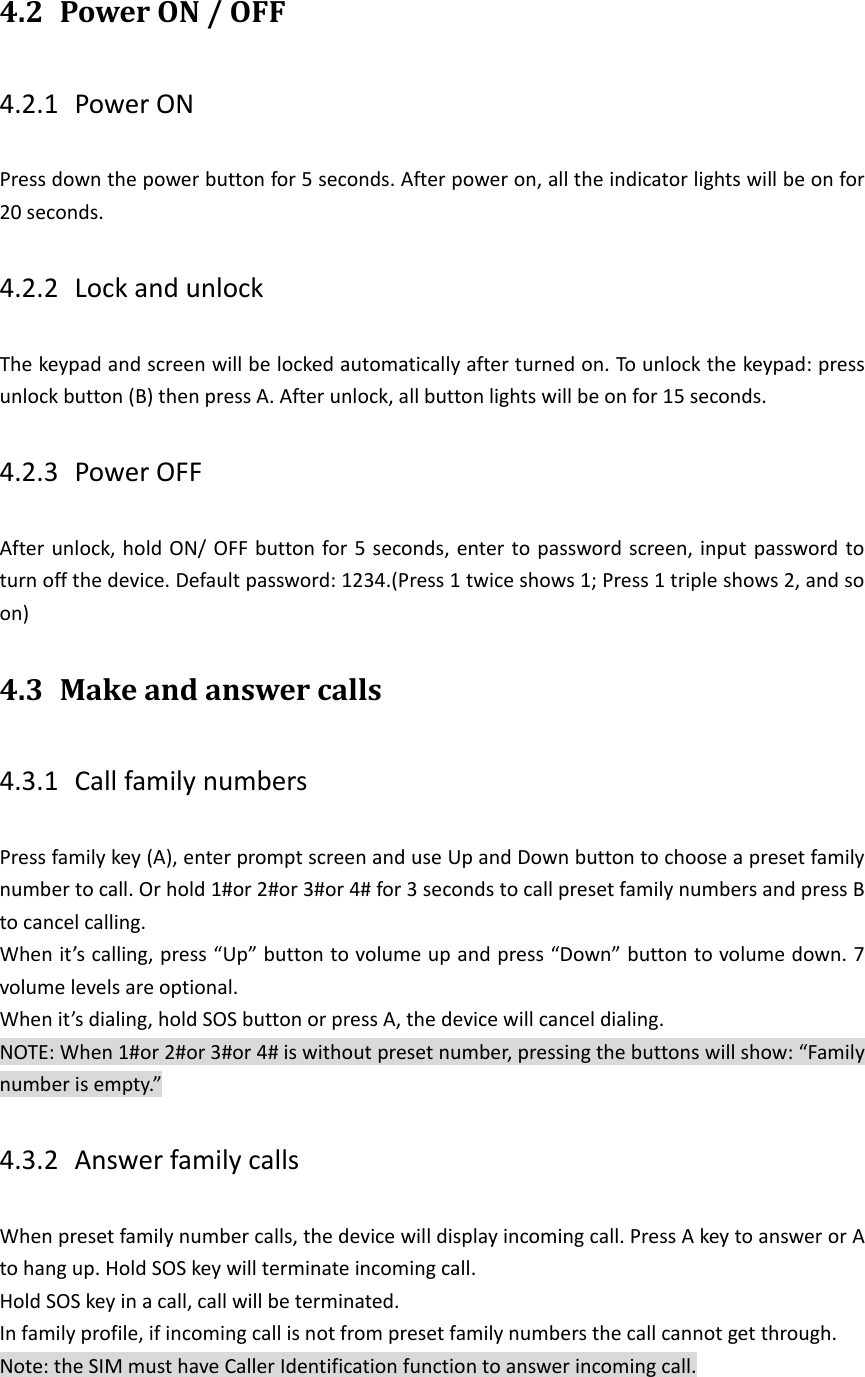
4.2 Power ON / OFF   4.2.1 Power ON Press down the power button for 5 seconds. After power on, all the indicator lights will be on for 20 seconds.   4.2.2 Lock and unlock     The keypad and screen will be locked automatically after turned on. To unlock the keypad: press unlock button (B) then press A. After unlock, all button lights will be on for 15 seconds. 4.2.3 Power OFF   After unlock, hold ON/ OFF button for 5 seconds, enter to password screen, input password to turn off the device. Default password: 1234.(Press 1 twice shows 1; Press 1 triple shows 2, and so on) 4.3 Make and answer calls   4.3.1 Call family numbers Press family key (A), enter prompt screen and use Up and Down button to choose a preset family number to call. Or hold 1#or 2#or 3#or 4# for 3 seconds to call preset family numbers and press B to cancel calling. When it’s calling, press “Up” button to volume up and press “Down” button to volume down. 7 volume levels are optional. When it’s dialing, hold SOS button or press A, the device will cancel dialing. NOTE: When 1#or 2#or 3#or 4# is without preset number, pressing the buttons will show: “Family number is empty.” 4.3.2 Answer family calls When preset family number calls, the device will display incoming call. Press A key to answer or A to hang up. Hold SOS key will terminate incoming call. Hold SOS key in a call, call will be terminated. In family profile, if incoming call is not from preset family numbers the call cannot get through. Note: the SIM must have Caller Identification function to answer incoming call.
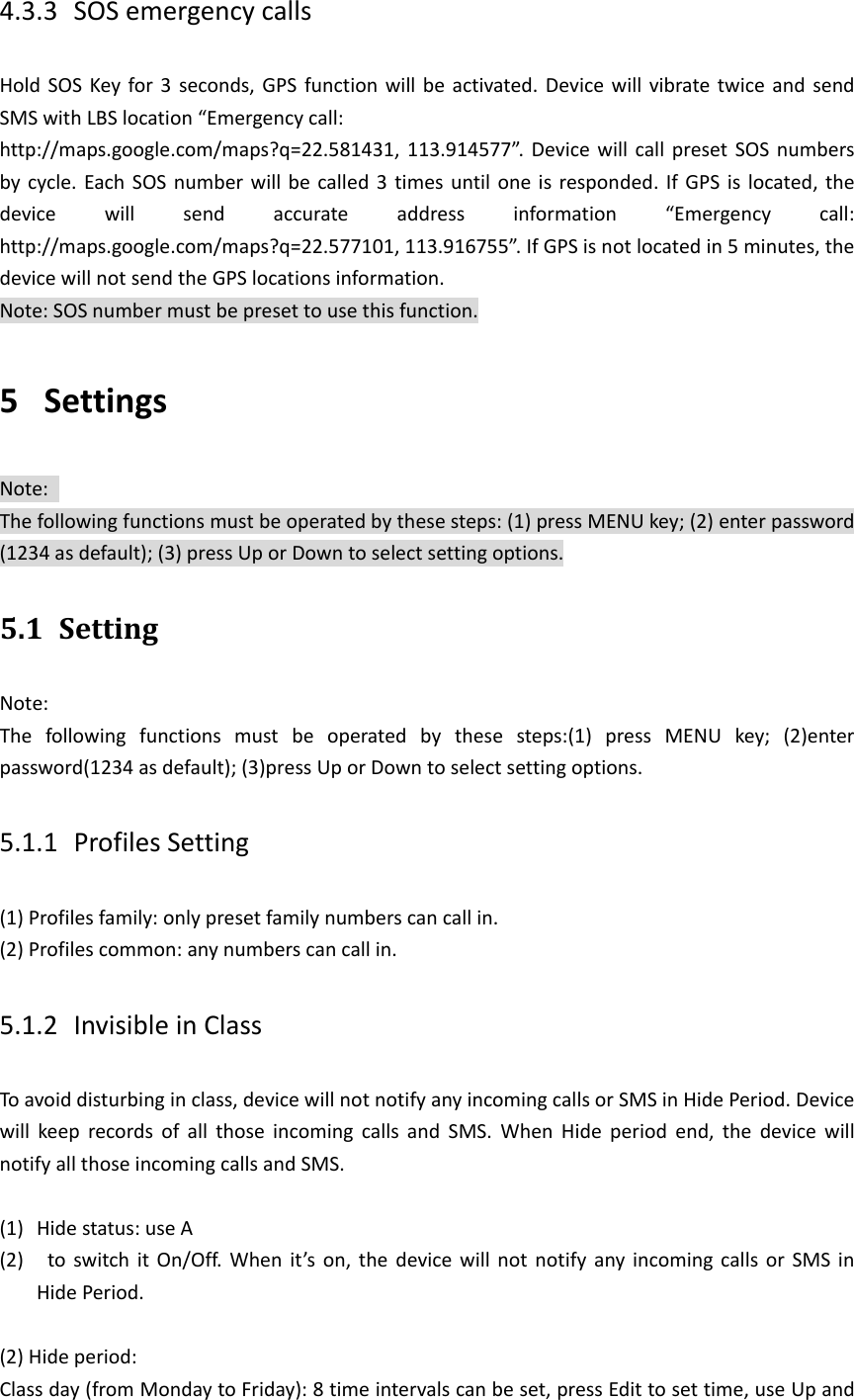
4.3.3 SOS emergency calls Hold SOS Key for 3  seconds, GPS function  will be activated. Device will vibrate twice  and  send SMS with LBS location “Emergency call: http://maps.google.com/maps?q=22.581431, 113.914577”. Device will  call  preset  SOS  numbers by cycle. Each SOS  number will be called 3 times until one is responded. If GPS is  located, the device  will  send  accurate  address  information  “Emergency  call: http://maps.google.com/maps?q=22.577101, 113.916755”. If GPS is not located in 5 minutes, the device will not send the GPS locations information.   Note: SOS number must be preset to use this function. 5 Settings   Note:   The following functions must be operated by these steps: (1) press MENU key; (2) enter password (1234 as default); (3) press Up or Down to select setting options. 5.1 Setting Note:   The  following  functions  must  be  operated  by  these  steps:(1)  press  MENU  key;  (2)enter password(1234 as default); (3)press Up or Down to select setting options. 5.1.1 Profiles Setting (1) Profiles family: only preset family numbers can call in. (2) Profiles common: any numbers can call in. 5.1.2 Invisible in Class To avoid disturbing in class, device will not notify any incoming calls or SMS in Hide Period. Device will  keep  records  of  all  those  incoming  calls  and  SMS.  When  Hide  period  end,  the  device  will notify all those incoming calls and SMS.    (1) Hide status: use A (2)   to  switch it  On/Off.  When  it’s on, the  device  will  not  notify any incoming calls or SMS  in Hide Period.  (2) Hide period:   Class day (from Monday to Friday): 8 time intervals can be set, press Edit to set time, use Up and
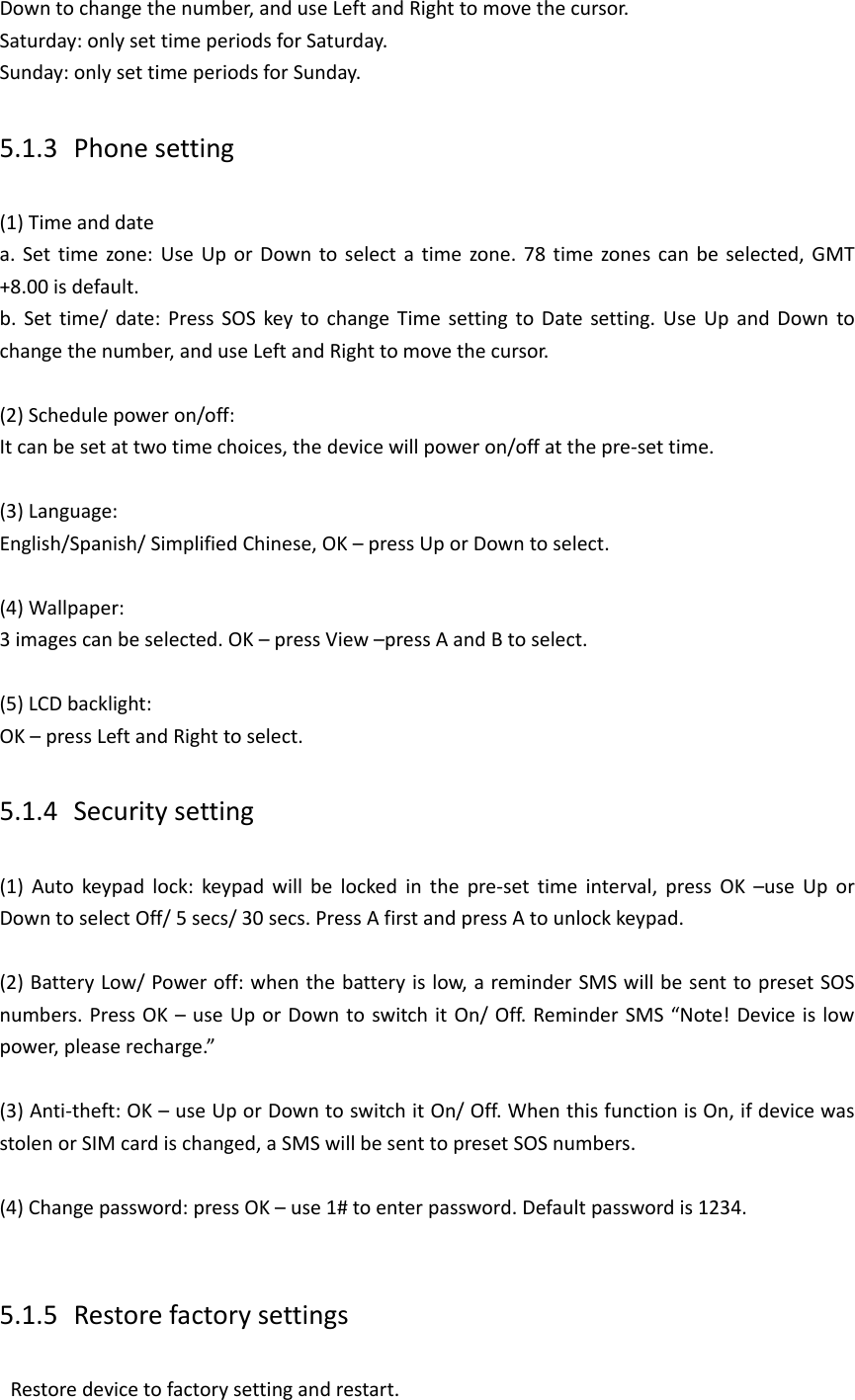
Down to change the number, and use Left and Right to move the cursor. Saturday: only set time periods for Saturday. Sunday: only set time periods for Sunday. 5.1.3 Phone setting (1) Time and date a. Set time  zone: Use Up or  Down  to select  a  time  zone. 78  time  zones can be selected, GMT +8.00 is default. b.  Set  time/  date:  Press  SOS  key to change Time  setting to Date  setting. Use  Up  and Down  to change the number, and use Left and Right to move the cursor.    (2) Schedule power on/off: It can be set at two time choices, the device will power on/off at the pre-set time.  (3) Language:   English/Spanish/ Simplified Chinese, OK – press Up or Down to select.  (4) Wallpaper:   3 images can be selected. OK – press View –press A and B to select.  (5) LCD backlight:   OK – press Left and Right to select. 5.1.4 Security setting (1)  Auto  keypad  lock:  keypad  will  be  locked  in  the  pre-set  time  interval,  press  OK  –use  Up  or   Down to select Off/ 5 secs/ 30 secs. Press A first and press A to unlock keypad.    (2) Battery Low/ Power off: when the battery is low, a reminder SMS will be sent to preset SOS numbers. Press OK – use Up or Down to switch it On/ Off. Reminder SMS “Note! Device is low power, please recharge.”    (3) Anti-theft: OK – use Up or Down to switch it On/ Off. When this function is On, if device was stolen or SIM card is changed, a SMS will be sent to preset SOS numbers.  (4) Change password: press OK – use 1# to enter password. Default password is 1234.  5.1.5 Restore factory settings   Restore device to factory setting and restart.
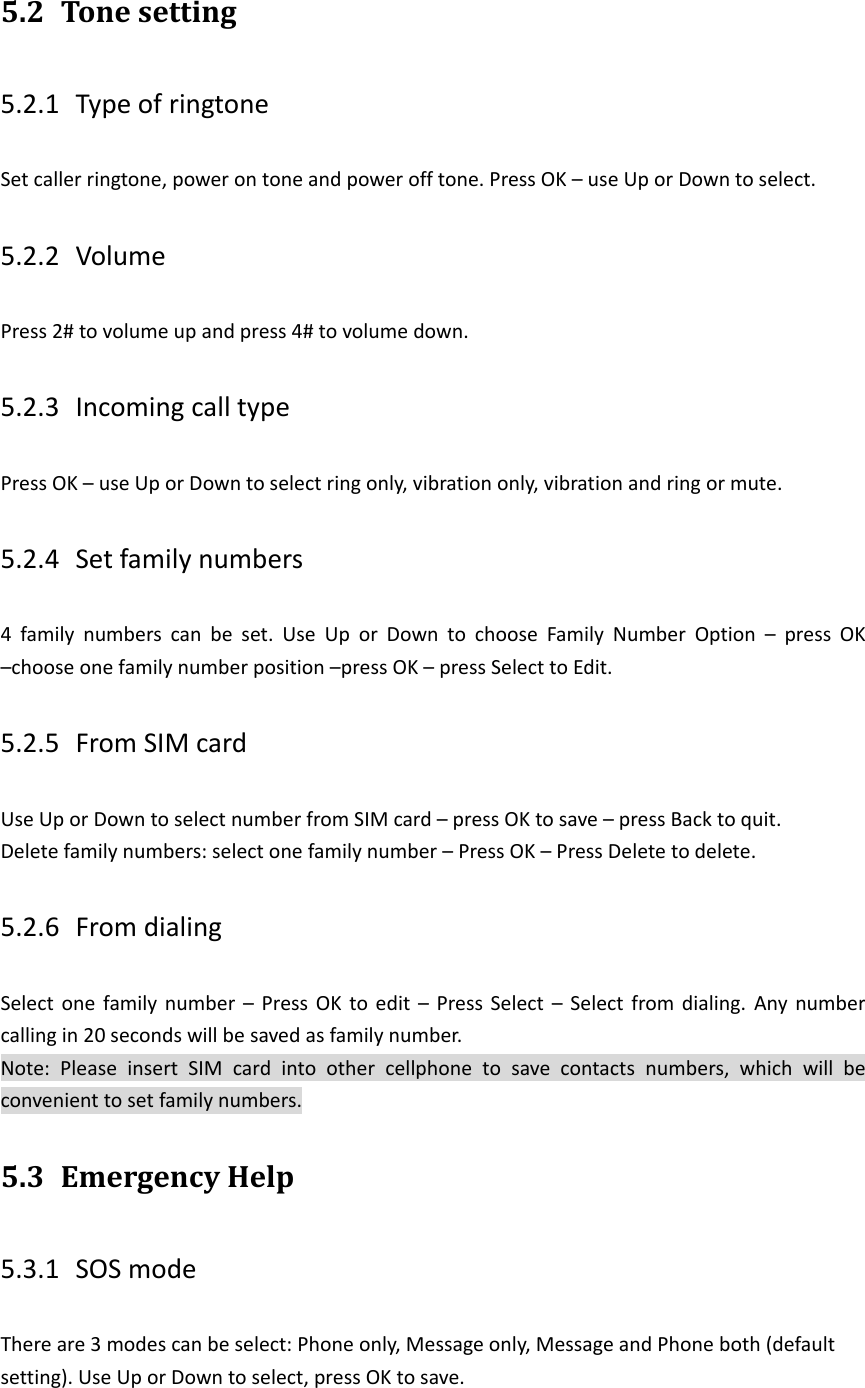
5.2 Tone setting 5.2.1 Type of ringtone Set caller ringtone, power on tone and power off tone. Press OK – use Up or Down to select. 5.2.2 Volume Press 2# to volume up and press 4# to volume down. 5.2.3 Incoming call type Press OK – use Up or Down to select ring only, vibration only, vibration and ring or mute. 5.2.4 Set family numbers 4  family  numbers  can  be  set.  Use  Up  or  Down  to  choose  Family  Number  Option  –  press  OK –choose one family number position –press OK – press Select to Edit. 5.2.5 From SIM card   Use Up or Down to select number from SIM card – press OK to save – press Back to quit. Delete family numbers: select one family number – Press OK – Press Delete to delete. 5.2.6 From dialing Select  one  family  number  –  Press OK to edit  –  Press  Select  –  Select  from dialing.  Any  number calling in 20 seconds will be saved as family number. Note:  Please  insert  SIM  card  into  other  cellphone  to  save  contacts  numbers,  which  will  be convenient to set family numbers. 5.3 Emergency Help   5.3.1 SOS mode There are 3 modes can be select: Phone only, Message only, Message and Phone both (default setting). Use Up or Down to select, press OK to save.
5.3.2 Set SOS numbers 4 SOS numbers can be set. Press Set SOS Number – Press OK – select one empty position – press OK –    Press Edit – select from family/ from SIM/ from dialing – press OK to set with prompts. Delete SOS numbers: select one SOS number – Press OK – Press Delete – Press OK.   5.4 Location Service 5.4.1 GPRS Connect setting (1) Close: GPRS disconnected. (2) Always connect: GPRS is always connected. (3) Connect on demand: GPRS only connected when it is locating or getting SOS alert. 5.4.2 Timing LBS report Set LBS report time interval, press OK– use Up or Down to select close, one minute, two minutes, three minutes or five minutes. 5.4.3 GPS setting (1) Work time: School day: 8 time intervals can be set according to kids’ school hours. Saturday and Sunday: 8 time intervals can be set, press Edit to set time – use Up and Down to change the number – use Left and Right to move the cursor.  (2) Position reporting way:   a. Report way: press SOS key to set – use Up or Down to select Regularly, Spacer and Timing or spacer – press Select to save. b. Timing parameter (seconds):  press SOS key to set –  press Up or Down to select report time interval 20, 40, 60, 80 and 100 –  press Select to save. c. Spacing parameter (meters): press SOS key to set – use Up or Down to select report distance interval 100, 200, 300, 400 and 500 – use Select to save.  3. Alarm report: a. GPS blind areas: press OK to switch it On/ Off. When this function is On, device will send SMS to SOS numbers when user gets into a GPS signal blind zone. b. Cross-border alarm: set status On/ Off and Cross-border alarm method press SOS key to set – use  Up  or  Down  to  select  Into  regional  remind,  Leave  regional  remind  or  Entry/  leave  areas remind. This function works with Fence set parameters. c. Fence setting: press OK to set Sets the current coordinate or Manual input – use Up or Down to
select latitude, Latitude value, longitude, Longitude value and Radius value (m) – press SOS key to set – use Up to enter number – press Clear to delete number, and use Left and Right to move the cursor – press Save. 6 Check location NOTE:  Users  can  log  on  to  www.jimicare.com  to  check  with  online  browser.  Login details please contact your local supplier.    To check location via SMS command, please read the following methods:   6.1.1 Check GPS longitude and latitude location   SOS or Family numbers can send SMS command to the device: WHERE# to get the longitude and latitude of the device.   Replying examples of longitude and latitude SMS: “Lat:N22.571285,Lon:E113.877115,Course:42.20,Speed:0.0740,DateTime:10-11-23 22:28:51” 6.1.2 Check GPS location web link SOS or Family numbers can send SMS command to the device: URL# to get the google link.   Replying examples of google link SMS: “<DateTime:10-11-23 23:42:51>http://maps.google.com/maps?q=N22.571490,E113.877103” Note: GPS can only be located outdoor. It cannot be located indoor, or under the shade of tree, or around  tall  buildings  where  has  low  GPS  or  even  no  GPS  signal,  while  LBS  can  be  located anywhere with GSM signal. 7 Monitor Monitoring function is only available for 4 family numbers and SOS number. SMS command: Monitor#   The device will dial the number which just sent the command. The user of the specific number can answer the phone and then enter monitoring state. 8 Troubleshooting If  there  is  trouble  during  using  the  phone,  please  read  the  solution  as  follow  or  contact  your suppliers.
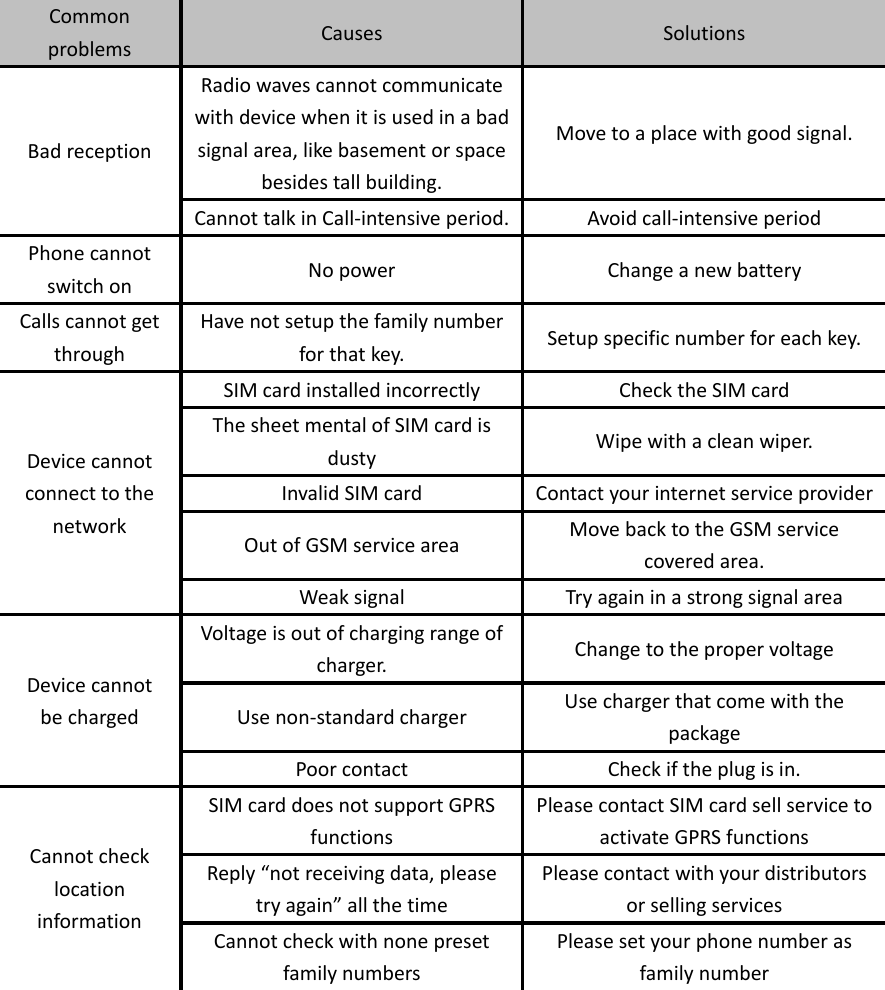
Common problems Causes Solutions Bad reception Radio waves cannot communicate with device when it is used in a bad signal area, like basement or space besides tall building. Move to a place with good signal. Cannot talk in Call-intensive period. Avoid call-intensive period Phone cannot switch on No power Change a new battery Calls cannot get through Have not setup the family number for that key. Setup specific number for each key. Device cannot connect to the network SIM card installed incorrectly Check the SIM card The sheet mental of SIM card is dusty Wipe with a clean wiper. Invalid SIM card Contact your internet service provider Out of GSM service area Move back to the GSM service covered area. Weak signal Try again in a strong signal area Device cannot   be charged Voltage is out of charging range of charger. Change to the proper voltage Use non-standard charger Use charger that come with the package Poor contact Check if the plug is in. Cannot check location information SIM card does not support GPRS functions Please contact SIM card sell service to activate GPRS functions Reply “not receiving data, please try again” all the time Please contact with your distributors or selling services Cannot check with none preset   family numbers Please set your phone number as family number
FCC Statement: 1.  This  device  complies  with  Part  15  of  the  FCC  Rules.  Operation  is  subject  to  the following two conditions: (1) This device may not cause harmful interference. (2) This device must accept any interference received, including interference that may cause undesired operation. 2.  Changes  or  modifications  not  expressly  approved  by  the  party  responsible  for compliance could void the user's authority to operate the equipment. NOTE:   This equipment has been tested and found to comply with the limits for a Class B digital device,  pursuant  to  Part  15  of  the  FCC  Rules.  These  limits  are  designed  to  provide reasonable protection against harmful interference in a residential installation. This  equipment  generates  uses  and  can  radiate  radio  frequency  energy  and,  if  not installed and used in accordance with the instructions, may cause harmful interference to radio communications. However, there is no guarantee that interference will not occur in a particular  installation.  If  this  equipment  does  cause  harmful  interference  to  radio  or television reception,  which  can  be  determined  by  turning  the  equipment  off  and  on,  the user  is  encouraged  to  try  to  correct  the  interference  by  one  or  more  of  the  following measures: Reorient or relocate the receiving antenna. Increase the separation between the equipment and receiver. Connect  the  equipment  into  an  outlet  on  a  circuit  different  from  that  to  which  the receiver is connected.   Consult the dealer or an experienced radio/TV technician for help. SAR Information Statement Your Kids phone is a radio transmitter and receiver. It is designed and manufactured not to exceed the emission limits for exposure to radiofrequency (RF) energy set by the Federal Communications  Commission  of  the  U.S.  Government.  These  limits  are  part  of comprehensive  guidelines  and  establish  permitted  levels  of  RF  energy  for  the  general population.  The  guidelines  are  based  on  standards  that  were  developed  by  independent scientific organizations through periodic and thorough evaluation  of  scientific studies. The standards  include a substantial safety margin designed to assure the safety of all persons, regardless  of  age  and  health.  The  exposure  standard  for  Kids  phone  semploys  a  unit  of measurement known as the Specific Absorption Rate, or SAR. The SAR limit set by the FCC is 1.6  W/kg.  *  Tests  for  SAR  are  conducted  with  the  Kids  phone  transmitting  at  its  highest certified power level in all tested frequency bands. Although the SAR is determined at the highest certified power level, the actual SAR level of the Kids phone while operating can be well below the  maximum  value. This  is  because the Kids  phone  is designed to  operate at multiple power levels so as to use only the power required to reach the network. In general, the closer you are to a wireless base station antenna, the lower the power output. Before a Kids phone model is available for sale to the public, it must be tested and  certified to the FCC that it does not exceed the limit established by the government adopted requirement for safe  exposure. The  tests are performed  in  positions and locations (e.g.,  at the ear  and
worn on the body)  as  required by  the  FCC for each model. The highest SAR value  for this model  Kids  phone  when  tested  for use  at  the ear  is    0.260W/Kg and  when  worn on  the body,  as  described  in  this  user  guide,  is    0.255W/Kg(Body-worn  measurements  differ among  Kids  phone  models,  depending  upon  available accessories  and  FCC  requirements). While there may be differences between the SAR levels of various Kids phone and at various positions, they all meet the government requirement for safe exposure. The FCC has granted an Equipment Authorization for this model Kids phone with all reported SAR levels evaluated as in compliance with the FCC RF exposure guidelines. SAR information on this model Kids phone  is  on  file  with  the  FCC  and  can  be  found  under  the  Display  Grant  section  of http://www.fcc.gov/ oet/fccid after searching on   FCC  ID:  2AEIE-JI06  Additional  information  on  Specific  Absorption  Rates  (SAR)  can  be found  on  the  Cellular  Telecommunications  Industry  Asso-ciation  (CTIA)  web-site  at http://www.wow-com.com. * In the United States and Canada, the SAR limit for Kids phone used  by  the  public  is  1.6watts/kg (W/kg)  averaged  over  one  gram  of  tissue. The  standard incorporates a sub-stantial margin of safety to give additional protection for the public and to account for any variations in measurements. Body-worn Operation This device was tested for typical body-worn operations. To comply with RF exposure requirements, a  minimum  separation distance of 15mm must be  maintained between the user’s  body  and  the  handset,  including  the  antenna.  Third-party  belt-clips,  holsters,  and similar  accessories  used  by  this  device  should  not  contain  any  metallic  components. Body-worn  accessories  that  do  not  meet  these  requirements  may  not  comply  with  RF exposure  requirements  and  should  be  avoided.  Use  only  the  supplied  or  an  approved antenna.

Navigation menu