Jinan USR IOT Technology USRRELAY WIFI Remote Control Device User Manual USR WIFI232 T
Jinan USR IOT Technology Limited WIFI Remote Control Device USR WIFI232 T
User Manual

USR-WP1 User Manual www.usr.so
Jinan USR IOT Technology Limited 2 / 25 tec@usr.cn
1、 Quick start ............................................................................................................................ 3
1.1 WLAN Control Operation ......................................................................................................... 3
1.2 Equipment Network Settings.................................................................................................... 5
1.3 Remote control ...................................................................................................................... 8
2、 Product Introduction ............................................................................................................ 10
2.1 Product Description .............................................................................................................. 10
2.2 Product features .................................................................................................................. 10
2.3 Hardware specifications ........................................................................................................ 10
2.3 Indicator and Key Function Introduction .................................................................................... 11
2.4 Smartlink Instructions ........................................................................................................... 12
2.5 WPS Instructions .................................................................................................................. 13
3、 Instructions for Use .............................................................................................................. 14
3.1 Hardware Instructions ........................................................................................................... 14
3.2 Connect the wireless router via Webpage configuration ................................................................ 14
3.2.1 The configuration process of USR-WP1+WINXP .................................................................. 14
3.2.2 USR-WP1 smartphone configuration process ..................................................................... 17
4、 LonHand of Windows Introduction ............................................................................................ 20
Contact Information.................................................................................................................... 24
Disclaimer ................................................................................................................................. 24
Update History ........................................................................................................................... 25
USR-WP1 User Manual www.usr.so
Jinan USR IOT Technology Limited 3 / 25 tec@usr.cn
1、Quick start
Preparation conditions:
1. Insert the USR-WP1 into the power socket.
2. Installation LonHand software to mobile phone
User can find LonHand software from the product CD, and install to the mobile phone. The IOS
system can be downloaded and installed from App Store search for "LonHand". User also can scan
two-dimensional code to download and install.
IOS Android
1.1 WLAN Control Operation
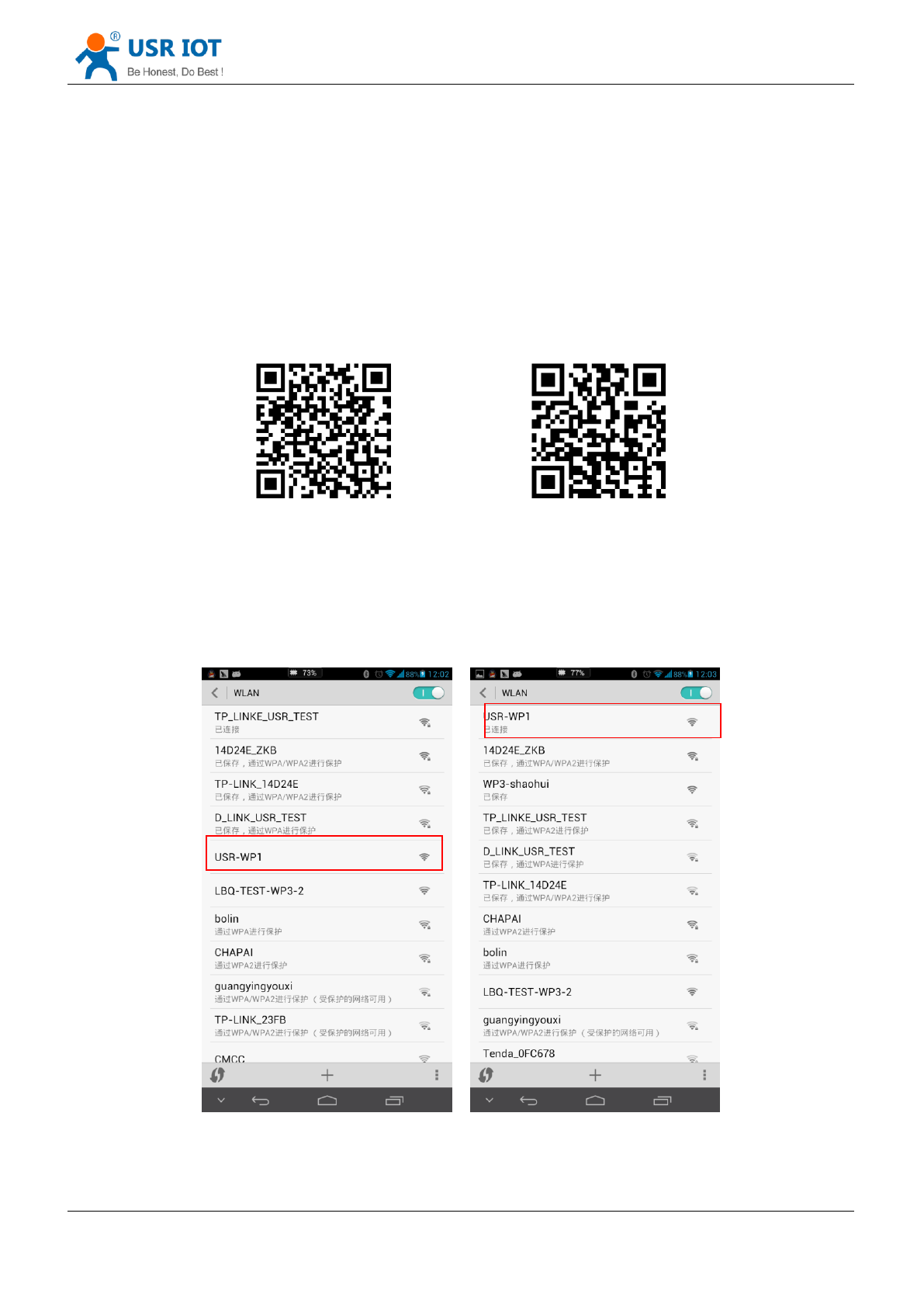
1. Connect Smartphone to USR-WP1’s wireless network
Open the settings, find USR-WP1 in WLAN, connected to the network, as shown below.
2. Open LonHand software
Click the icon to start the software, click Start.

USR-WP1 User Manual www.usr.so
Jinan USR IOT Technology Limited 5 / 25 tec@usr.cn
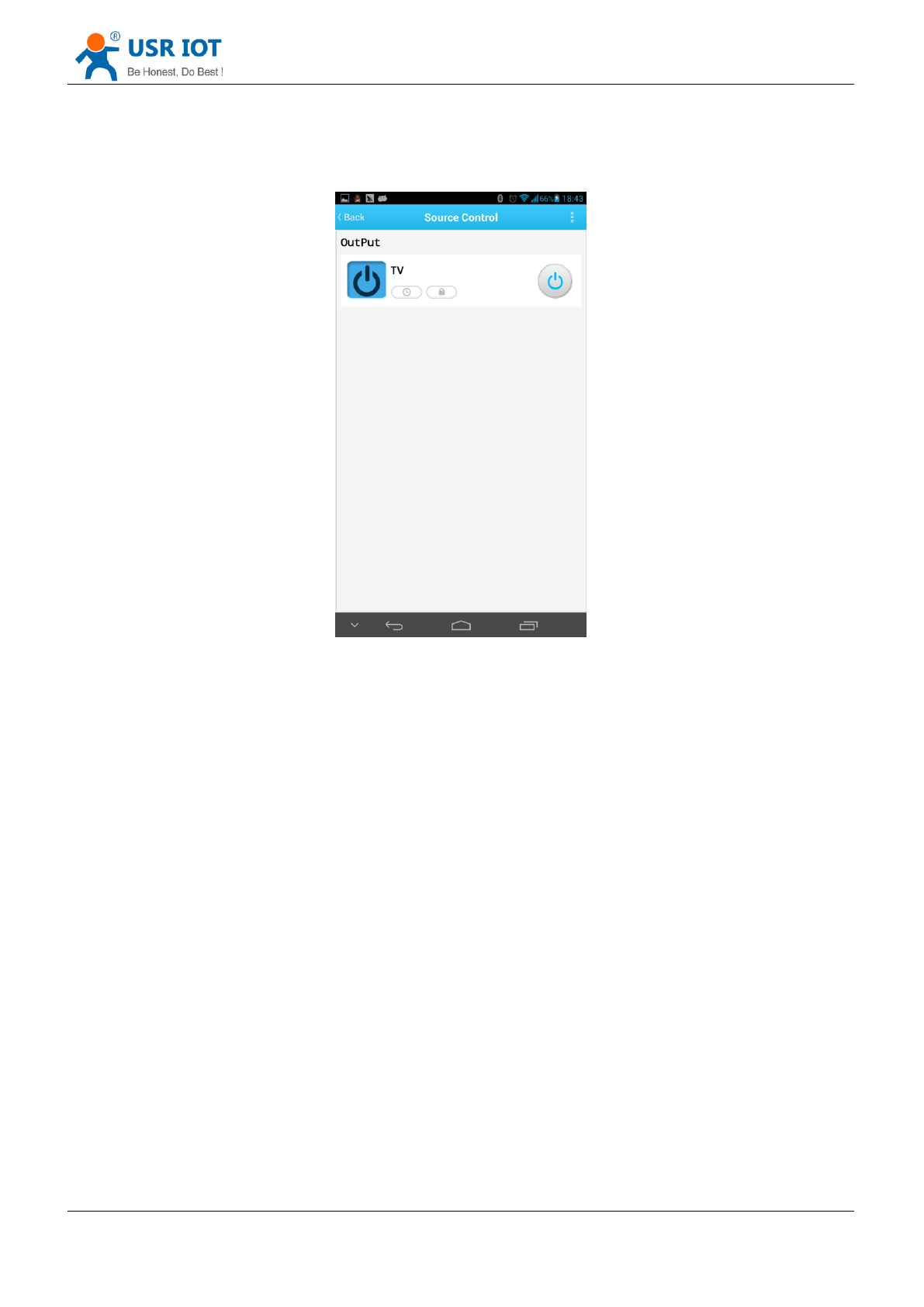
User can control the USR-WP1 now.Via click the switch button,User can open or close the
output.User can simply experience the control by smartphone, The following will be a detailed
introduction.
1.2 Equipment Network Settings
1. Open LonHand software,refresh the equipment list,Long press equipment information icon,
select Web config.

USR-WP1 User Manual www.usr.so
Jinan USR IOT Technology Limited 6 / 25 tec@usr.cn
2. After click web config, enter the default user name and password (admin) into pop-up window ,
enter the fast setting page. The web Webpage default is Chinese Webpage, users can click on
the English to switch to the English Webpage。
3. Click Scan router to get the router information list, and then select the router which want to
connect, click sure.

USR-WP1 User Manual www.usr.so
Jinan USR IOT Technology Limited 8 / 25 tec@usr.cn
1.3 Remote control
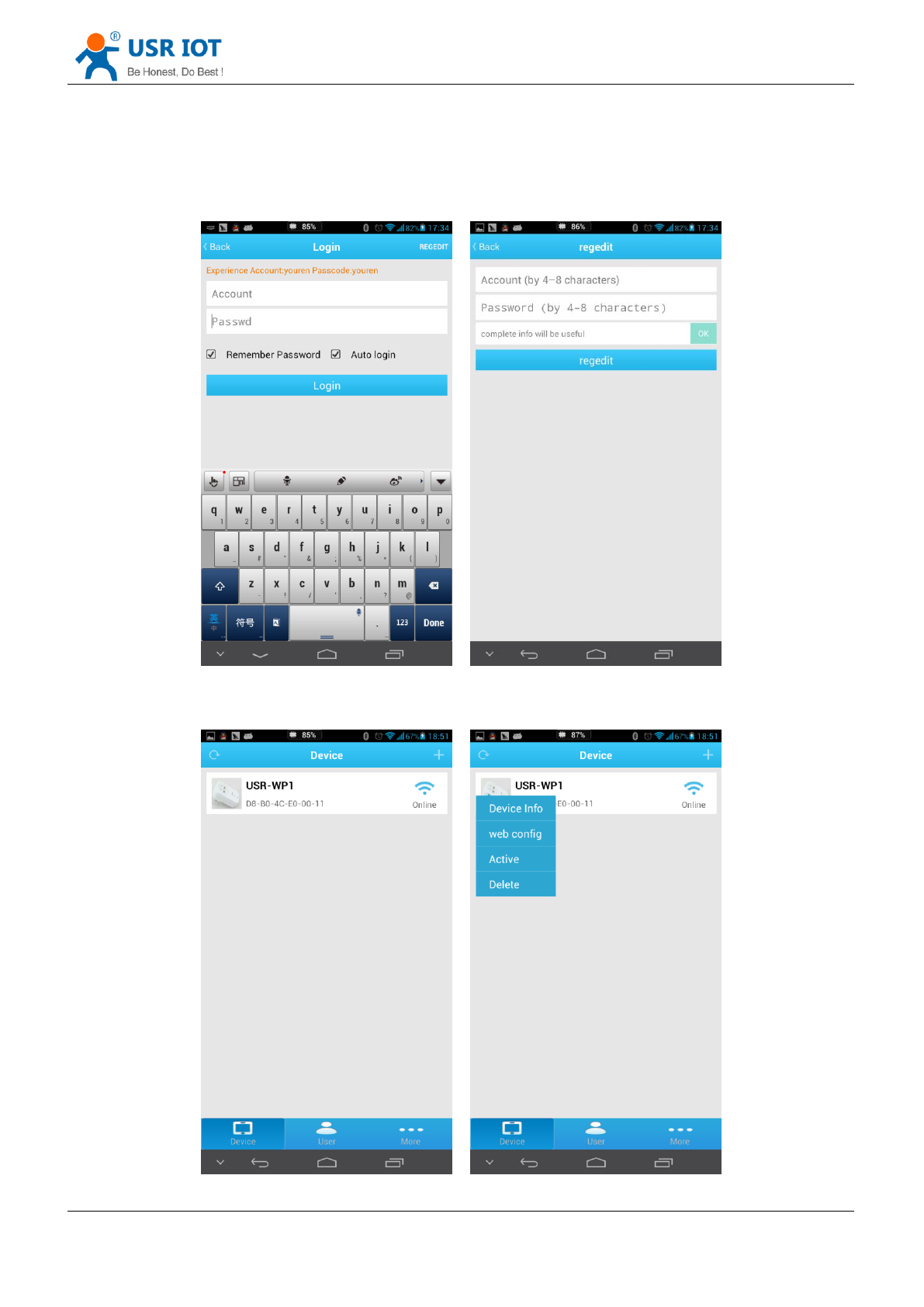
1. After WP1 connected to the router, please let mobile phone also connect to the same router.
Select the user center in LonHand software, regist remote control account, and then login in.
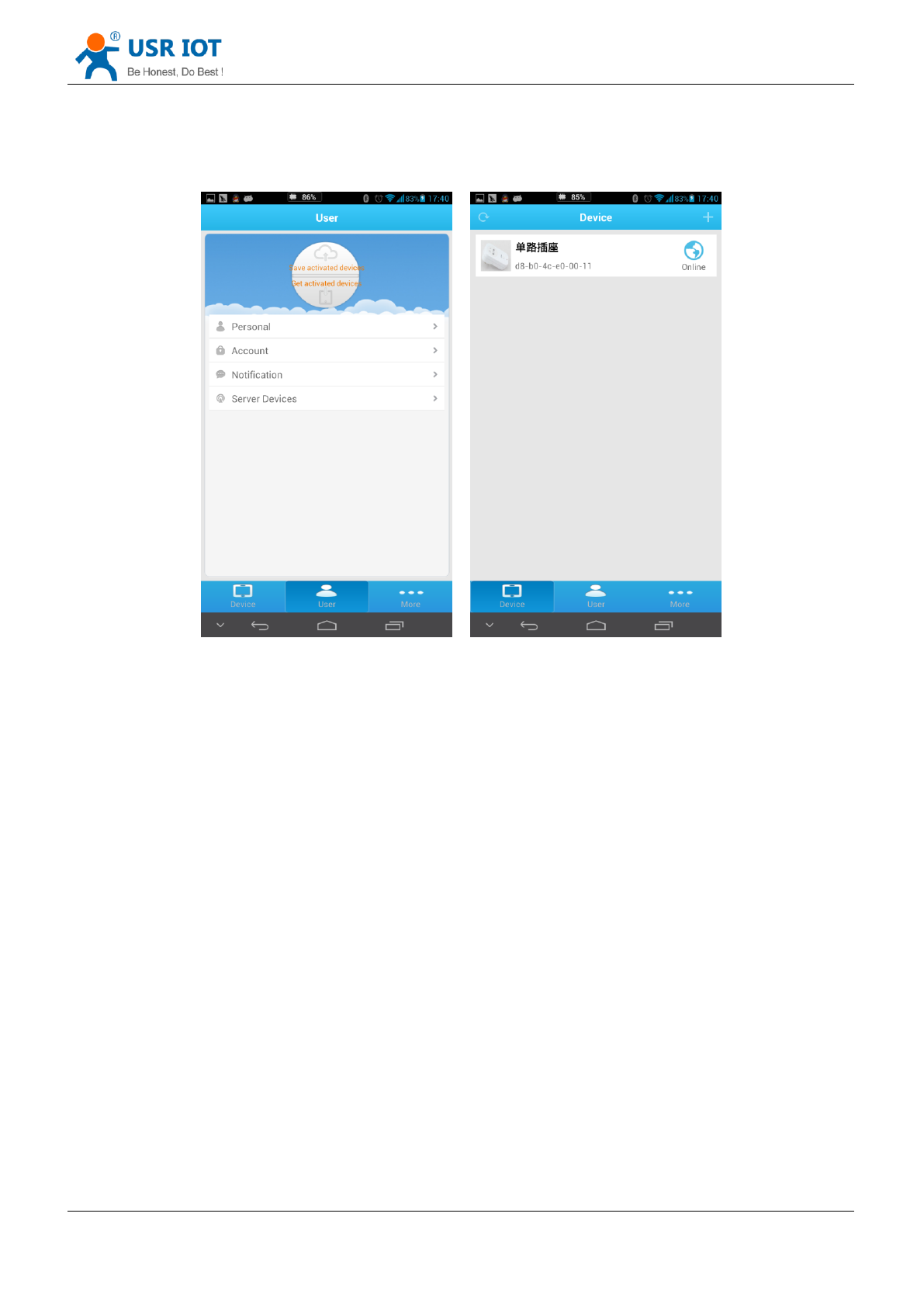
2. Return device interface, refresh the list of equipment, can see the USR-WP1 equipment. Long
press equipment information icon, click activate.
USR-WP1 User Manual www.usr.so
Jinan USR IOT Technology Limited 9 / 25 tec@usr.cn
3. After activate the device, click get activated devices in the user center. Then disconnect the
wireless network, using 2G/3G Internet,, refresh the equipment list, you can see the device
icon into a remote icon, now you can control the devices via internet.

USR-WP1 User Manual www.usr.so
Jinan USR IOT Technology Limited 10 / 25 tec@usr.cn
2、Product Introduction
2.1 Product Description
The USR-WP1 power outlet whose relays can be switched on or switched off by remote control, is
WIFI branch of LonHand series product, and is designed for smart-home application.
LonHand series control terminals are developed for the application in the field of smart home,
Internet of Things, industrial controlling and so on. They are suitable for rapid deployment, especially
for mobile application because the USR-WP1 can be controlled by your cell phone. They can operate
with WIFI connection compared to traditional wired connection. These devices are an ideal choice to
realize remote control.
These series product are suitable for household application to build smart home for more
comfortable life. Also it can be used in industry and agriculture for low cost, high efficiency in intelligent
control of the devices. Users are capable to carry out more effective cost control and gain higher profits,
because there’s no big change and upgrading of your owned equipment under wireless remote control,
users can make full use of your original product without more costs for you.
2.2 Product features
WIFI interface, remote control switch
Support AP/STA/AP+STA three network connections, users realize wireless control diversification
Support fast network configuration function of Smartlink, WPS
Support device password authentication, the equipment safety control
1 high current output jack
5 timer switch function
Control software supports five platform: Windows, MAC, IOS, Android, Webpage, users can freely
choose
2.3 Hardware specifications
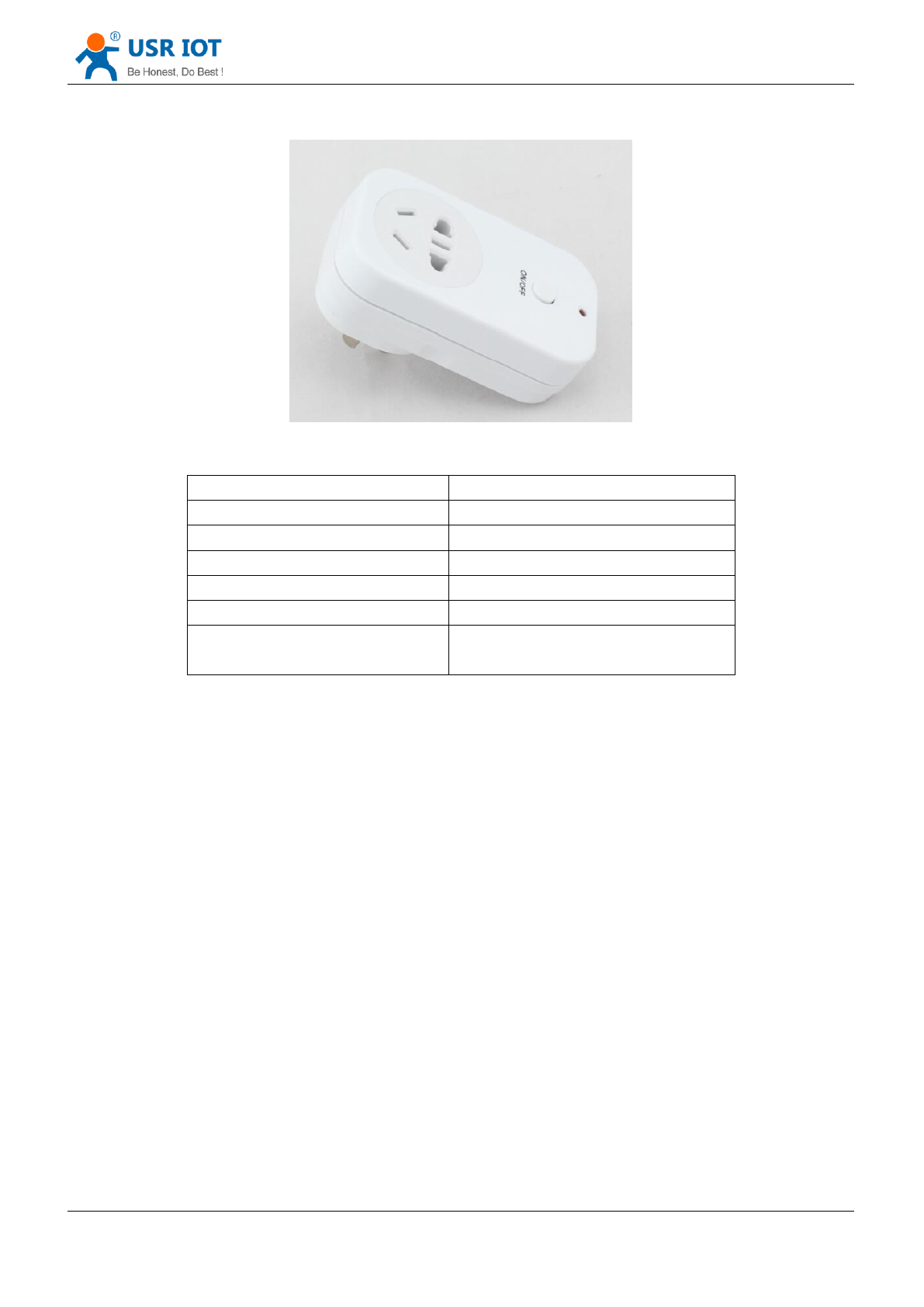
USR-WP1 supports 110V/220V two kinds of power input; 1 way power output, each with two jacks.
Table.1 USR-WP1 Parameter table
Mechanical Dimensions
95*53*38mm(L*W*H)
Working voltage
AC 110V/220V 60Hz/50Hz
Power consumption
Typical:2W Max: 3W
Working temperature
-30-85°C
Preservation
environment
temperature : -40-85°C
Humidity: 5%-95%RH
Maximum output
voltage / current
AC 250V/10A
Maximum power output
2200W
Packing List
USR-WP1*1
USR-WP1 User Manual www.usr.so
Jinan USR IOT Technology Limited 11 / 25 tec@usr.cn
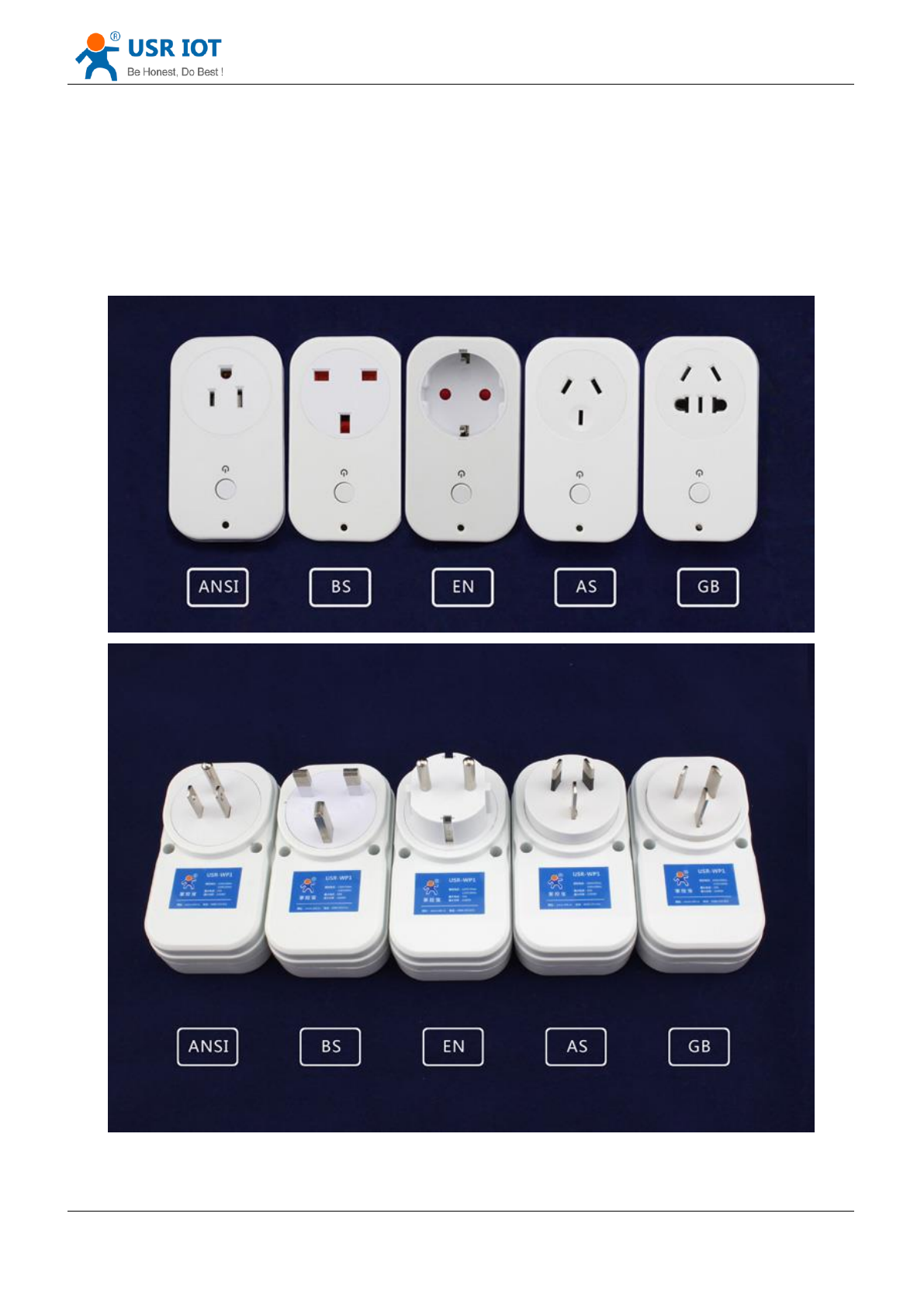
Picture.1 Product graph
Table.2 Default settings
Network Mode
AP
AP SSID
USR-WP1
AP Password
null
Device Name
USR-WP1
Device Password
admin
Webpage address in AP mode
10.10.100.254
Account / Password of Webpage
Account : admin
Password: the same to Device Password
2.4 Indicator and Key Function Introduction
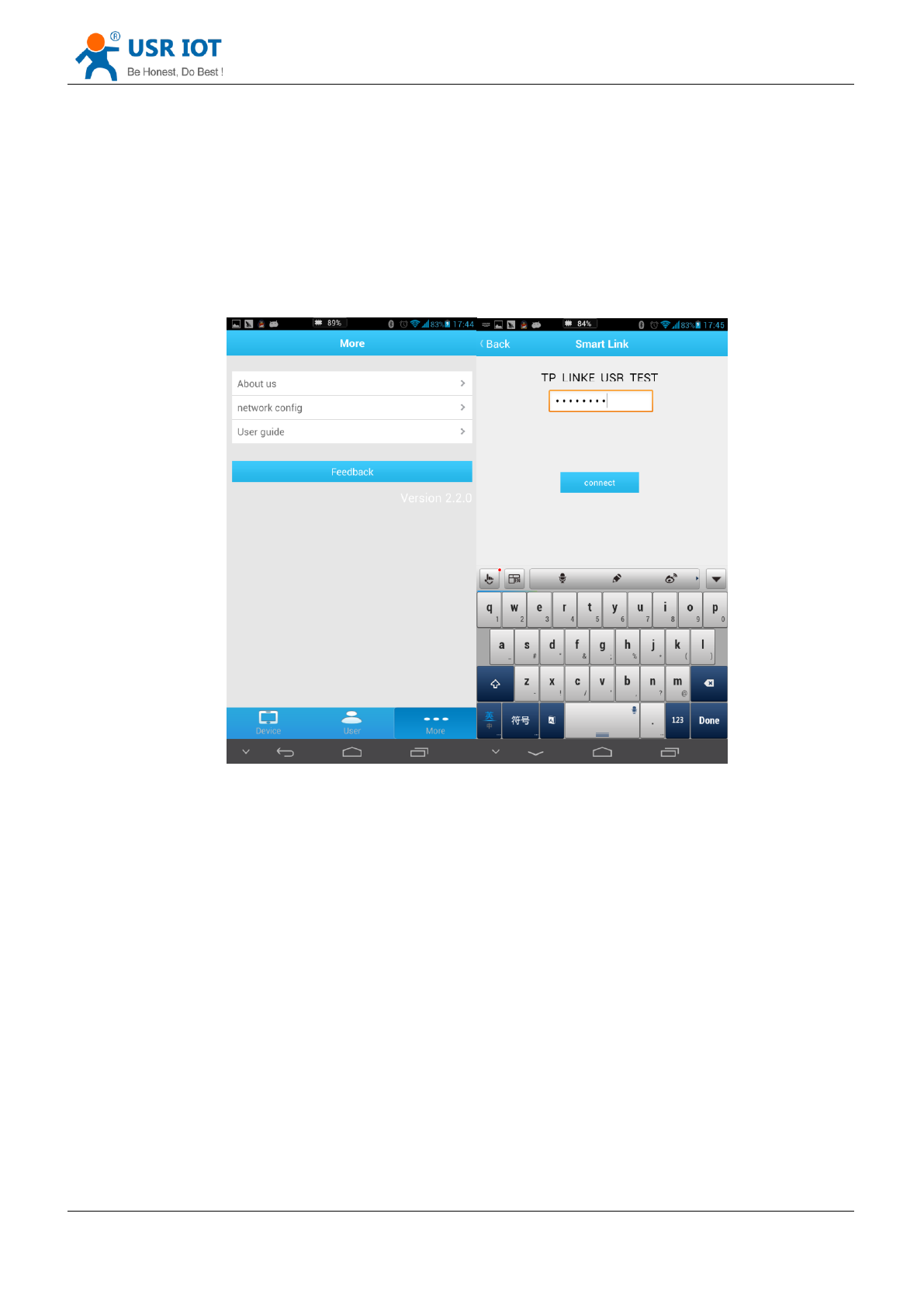
A. Indicator light
Red indicator light: The relay switch indicator in Normal work;
Indicates the action which will execute when Key is long press;
Blue indicator light: Network connection status indicator.
B. Key
Short Press(0~3s): Relay on or off
Long press(5~10s):
Release the key when the red indictor light single flashing, device will execute the
SmartLink intelligent network configuration, if failed configuration after 45s, device
will restart.
Long press(10~15s):
Release the key when the red indictor light twice flashing, device will execute the WPS
intelligent network configuration, if failed configuration after 45s, device will restart.
Long press(15~20s):
Release the key when the red indictor light three times flashing, the device will return
to factory settings, after 8~10s, the device information will be the default settings.
USR-WP1 User Manual www.usr.so
Jinan USR IOT Technology Limited 12 / 25 tec@usr.cn
2.5 Smartlink Instructions
Smartlink is a fast and simple method to quickly connect the device to router by smartphone, user
can complete the device network configuration conveniently. The method was not successful in some
routers, if users attempt failed, please choose to use the Webpage to configurate.
The Smartlink configuration process is as follows:
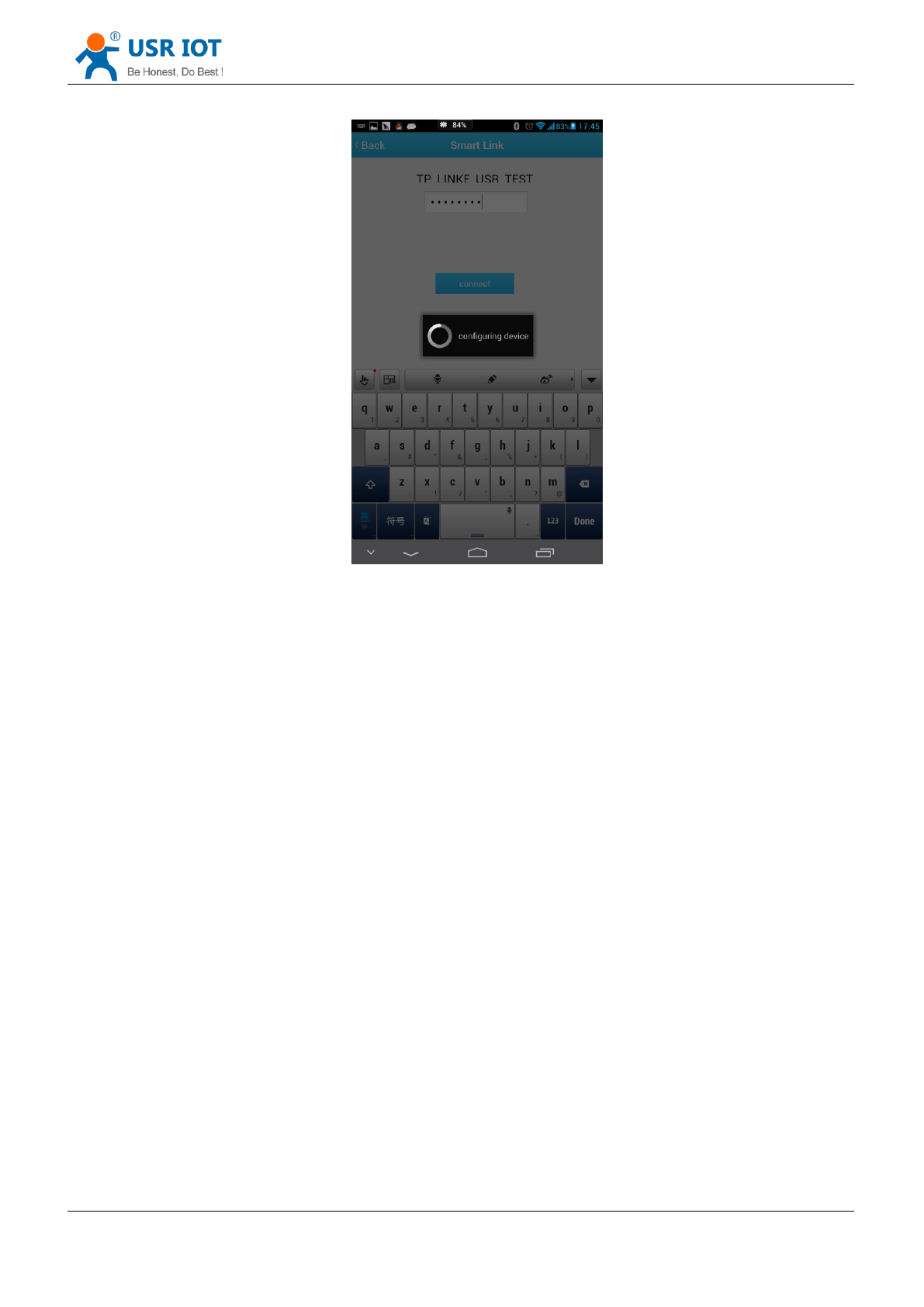
1. Connect the smartphone to the router, open LonHand software, select the network
configuration in more bar, and fill in the router password.
Picture.2 Smartlink Configuration interface
2. Press the key 5~10s, until the red indicator light single flashing, release the key, the device will
go into SmartLink working mode, the blue indicator lights is flashing, device is waitting for the
configuration.
3. Click the connect button LonHand software, start network configuration,the blue indicator
light will become slow flash in the configuration process.
USR-WP1 User Manual www.usr.so
Jinan USR IOT Technology Limited 13 / 25 tec@usr.cn
Picture.3 Smartlink configurating
4. When the blue indicator light lighting stably, the network configuration is success, mobile
phone will be prompted to configure the success. if failed configuration after 45s, device will
restart.
2.6 WPS Instructions
WPS is a directly matching method for connection between the device and the router, it require
the router support WPS function. Because of the differences of router WPS function, some WPS
configuration is not successful, if WPS configuration failed, please select Webpage configuration.
The WPS configuration process is as follows:
1. Start the WPS function of router
2. Press key 10~15s, until the red indicator light double flashing ,release the key to start WPS
function.
3. When device searched the WPS signal, the blue indicator would flashing. If the equipment is
not found WPS signal within 1 minutes, will end configuration.
4. When the blue indicator light lighting stably, the network configuration is success, mobile
phone will be prompted to configure the success. if failed configuration after 45s, device will
restart.
USR-WP1 User Manual www.usr.so
Jinan USR IOT Technology Limited 14 / 25 tec@usr.cn
3、Instructions for Use
3.1 Hardware Instructions
USR-WP1 starts work after the power supply 3~6 seconds. Now you can open or close the socket
switch (see product diagram) by the key. Short press the key, the socket power on, press again, the
socket power off.
If the socket is not working properly or you set the wrong parameters when used, can restore
factory settings to let the socket working properly . Restore factory setting method, please refer to
chapter 2.3.
3.2 Connect the wireless router via Webpage configuration
3.2.1 The configuration process of USR-WP1+WINXP
Other computer operating system can refer to this configuration process. The configuration,
require the computer has a wireless network card.
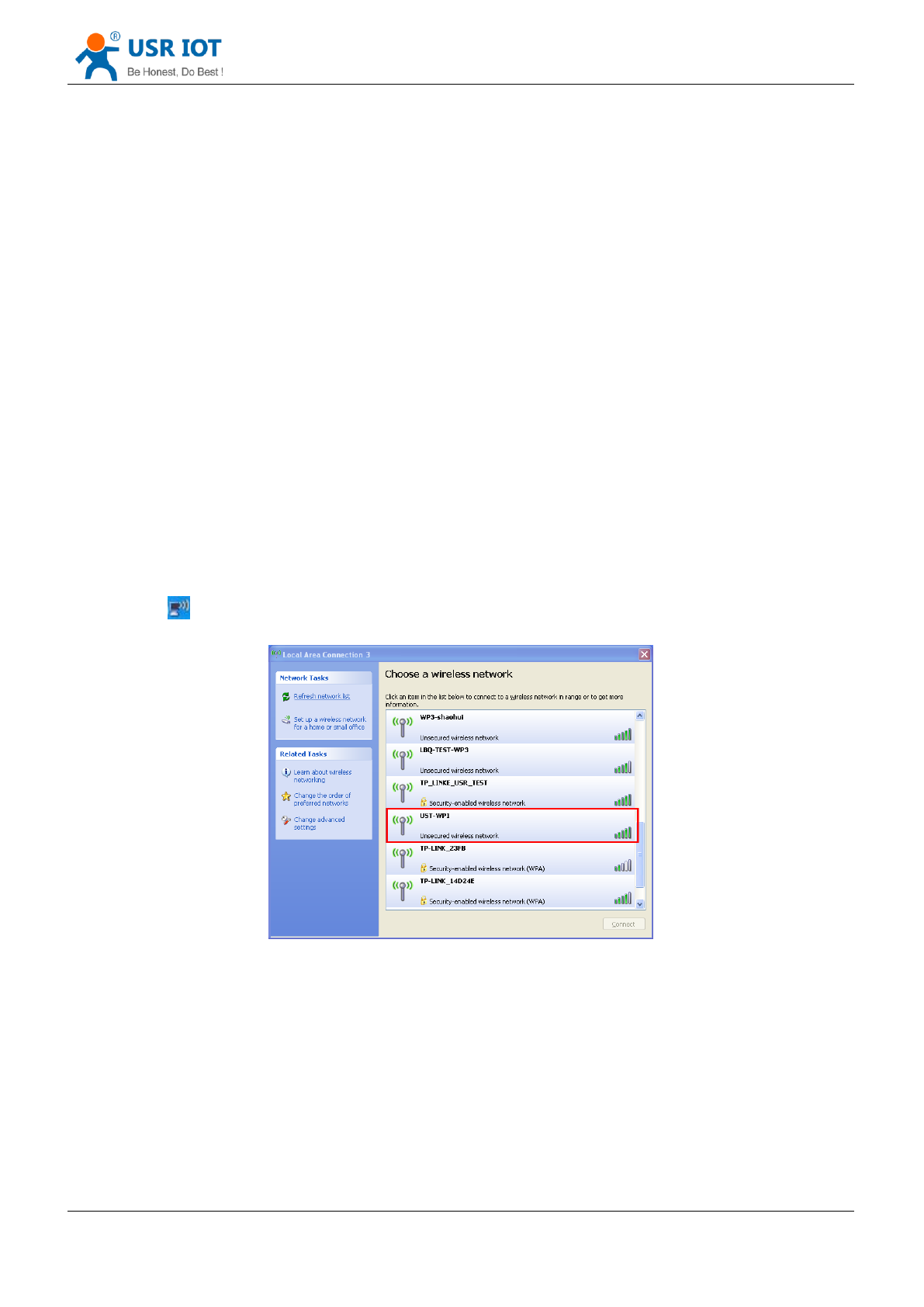
1. The WP1’s default work mode is AP mode. After the WP1 work, double-click wireless network
button to get the wireless list.
Picture.4 get wireless list
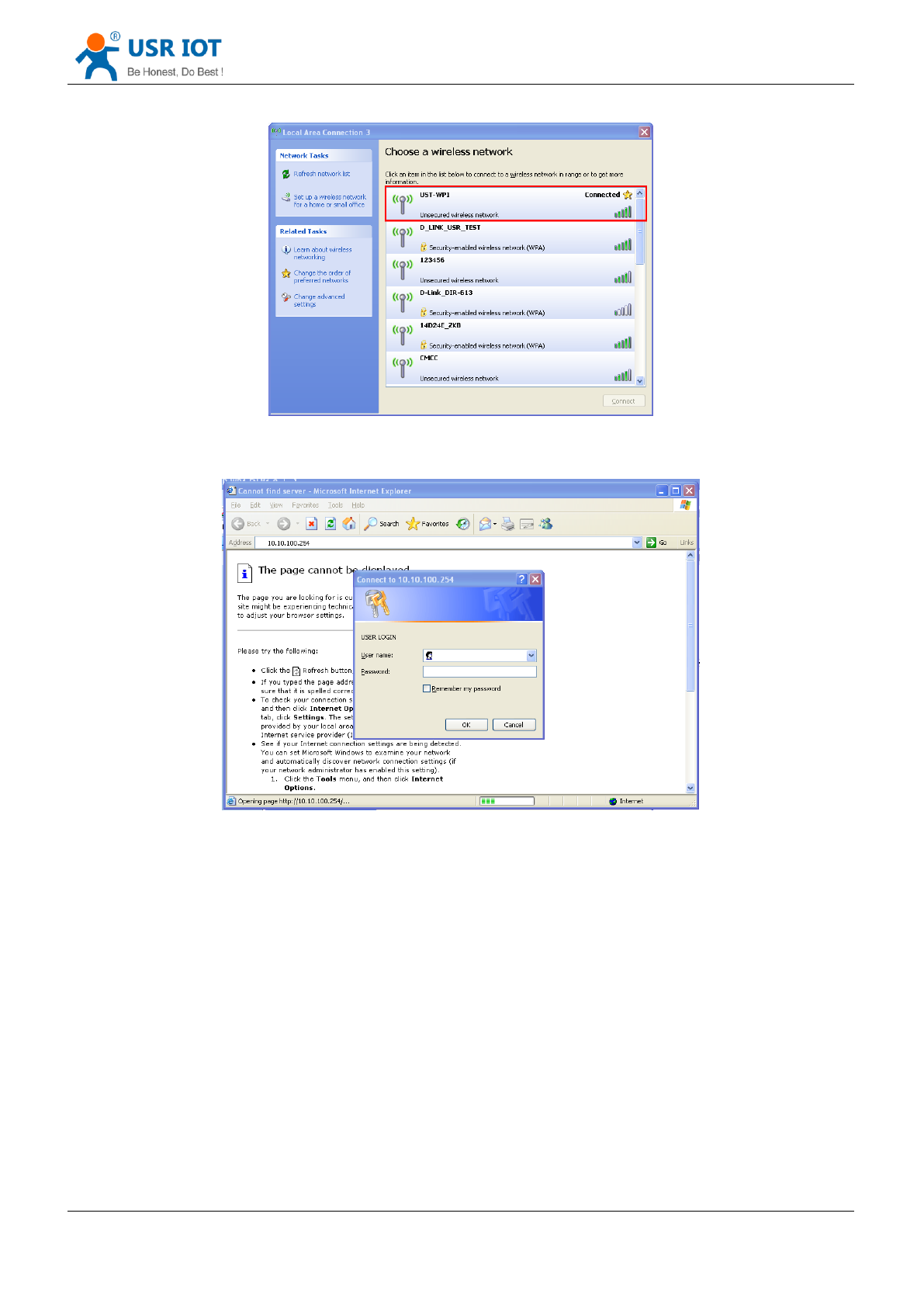
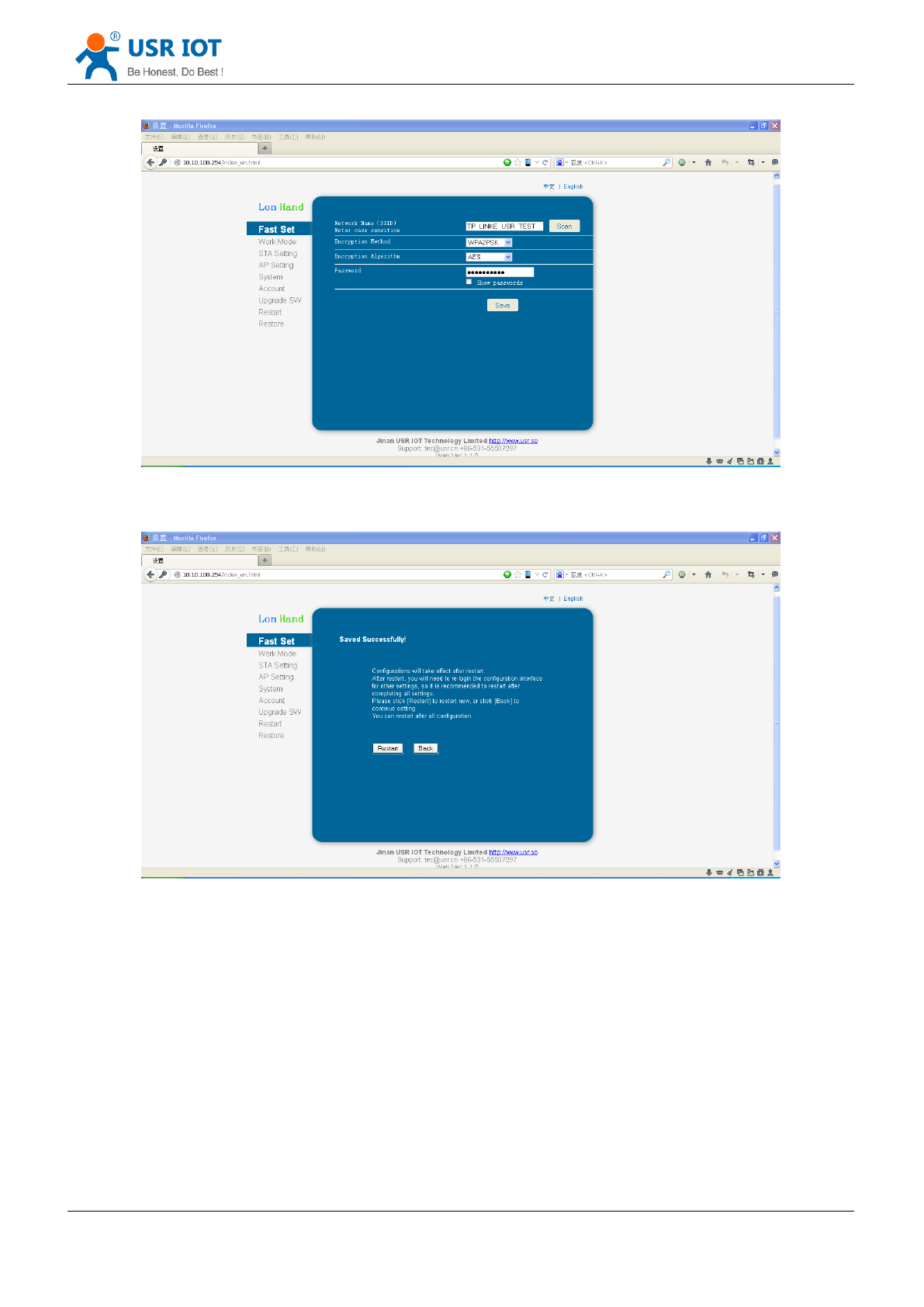
2. Find “USR-WP1” and connect it.

USR-WP1 User Manual www.usr.so
Jinan USR IOT Technology Limited 17 / 25 tec@usr.cn
Picture.9 Input the router password
7. Restart WP1.
Picture.10 restart
WP1 will connect to the router automatically after restart, the blue indicator will light up. Now you
can control WP1 via internet. The detailed operation please refer to the manual of LonHand.
3.2.2 USR-WP1 smartphone configuration process
USR provides the control software of Android and IOS system,the following described the
configuration process via android mobile phone as an example.
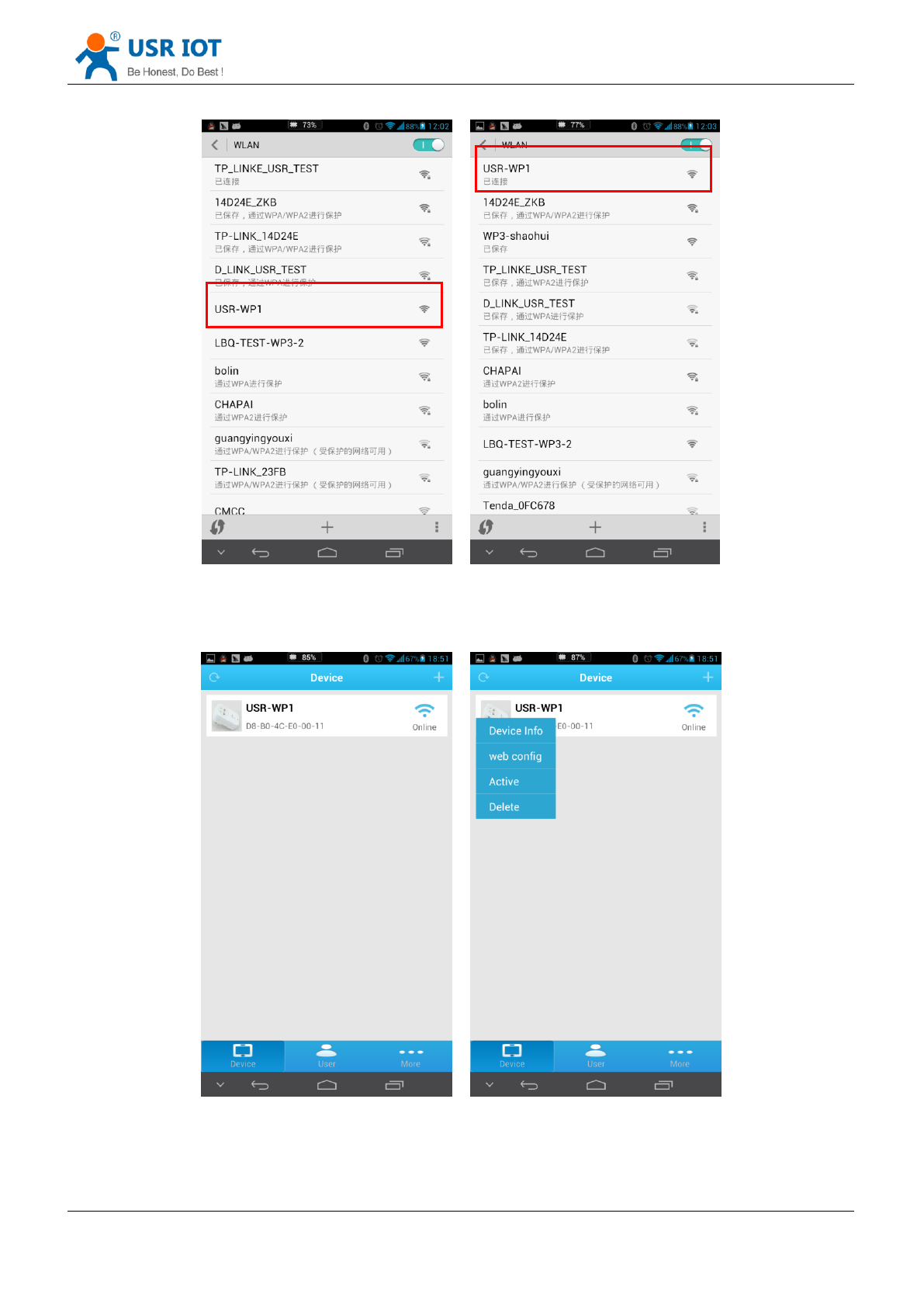
1. Connect Smartphone to USR-WP1’s wireless network
Open the settings, find USR-WP1 in WLAN, connected to the network, as shown below
USR-WP1 User Manual www.usr.so
Jinan USR IOT Technology Limited 19 / 25 tec@usr.cn
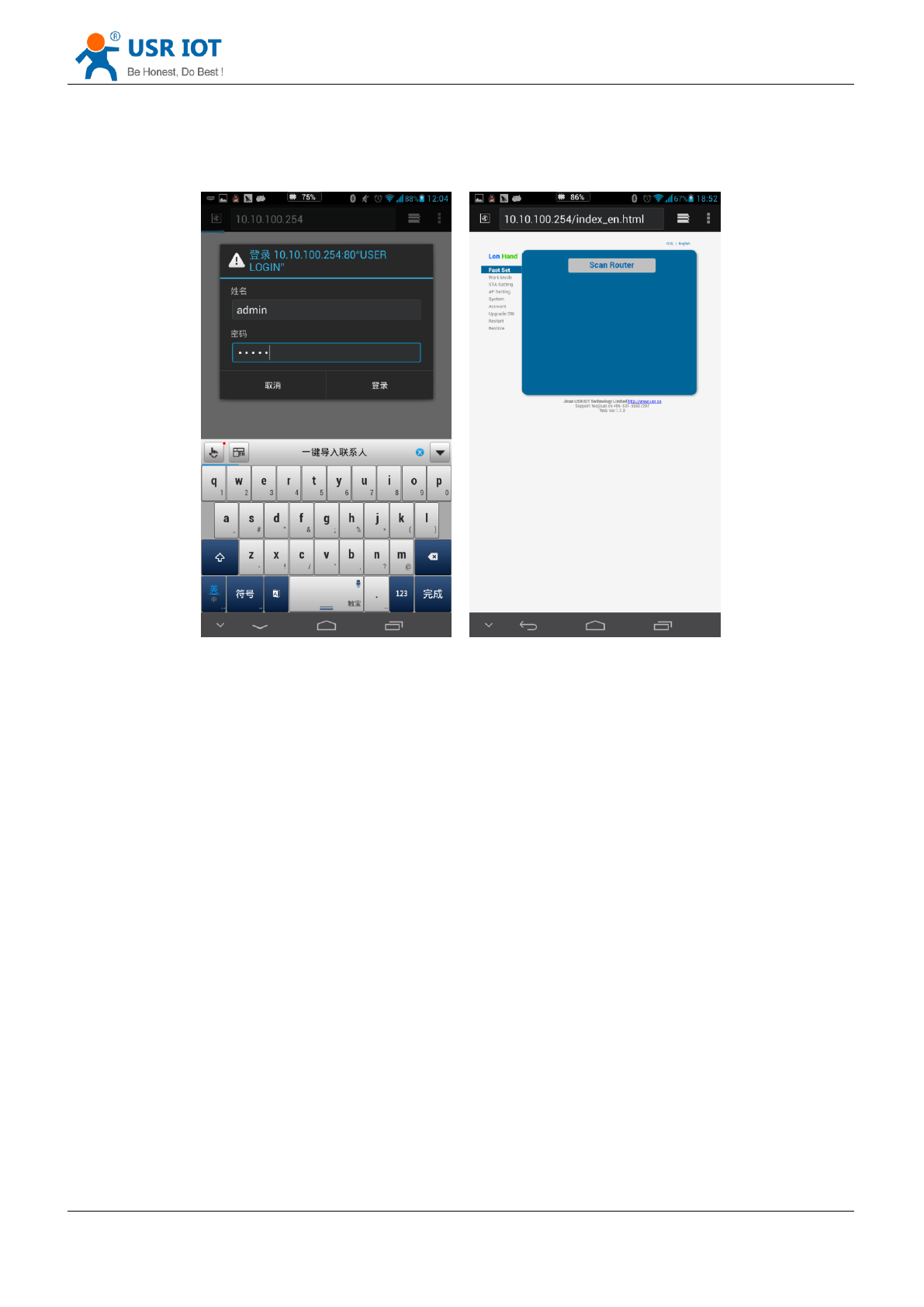
3. After click web config, enter the default user name and password (admin) into pop-up window ,
enter the fast setting page. The web Webpage default is Chinese Webpage, users can click on the
English to switch to the English Webpage。
Picture.13 Enter website of WP1
The follow steps is similar to computer, can refer to 3.2.1 to continue setup.

USR-WP1 User Manual www.usr.so
Jinan USR IOT Technology Limited 20 / 25 tec@usr.cn
4、LonHand of Windows Introduction
The computer and USR-WP1 socket need to connect to the same router. The detailed operation
please refer to the manual of LonHand.
1. Open the LonHand software
Picture.14 LonHand interface
2. The software will search WP1 automatically.If you don’t see WP1 in software,please click to
search again.
3. After searched WP1,you can see the information as following. If the WIFI symbol is gray, means
WP1 is not connected to computer. If the WIFI logo is blue, means WP1 is connected to computer.
Picture.15 Device list
4. Click WP1,enter into control menu.

USR-WP1 User Manual www.usr.so
Jinan USR IOT Technology Limited 21 / 25 tec@usr.cn
Picture.16 control menu
The control menu display the control button, the default is closed state, you can click button, as
shown in the diagram, to control socket.When the socket correctly execute the action, software
interface button will have state indicator:
Open Close
5. you can also set WP1 all open or closed by the upper right button , the interface is as follows:
Picture.17 all on/off
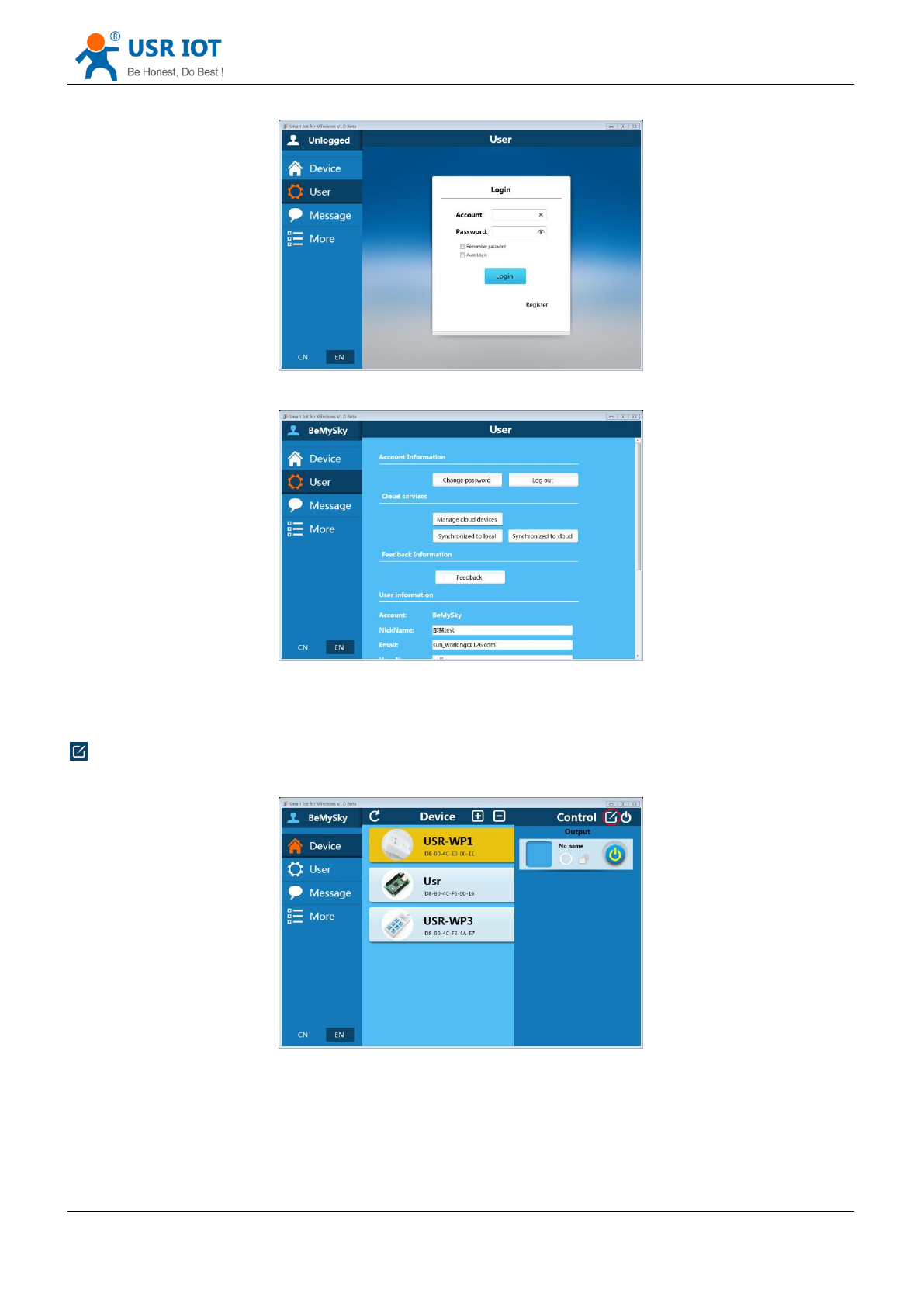
6. Remote control
First,you need to register a user account (account number and the password 4-8 characters, can be
numbers, letters, combination of numbers and letters, case sensitive),and then login.
USR-WP1 User Manual www.usr.so
Jinan USR IOT Technology Limited 22 / 25 tec@usr.cn
Picture.18 User menu interface
Picture.19 remote account management interface
7. Active WP1
Return device interface, refresh the list of equipment, can see the USR-WP1 equipment. Click
,then click active.After active device success,click Synchronized to local, refresh the equipment list,
you can see the device icon into a remote icon, now you can control the devices via internet.
Picture.20 Active interface

USR-WP1 User Manual www.usr.so
Jinan USR IOT Technology Limited 24 / 25 tec@usr.cn
Contact Information
-----------------------------------------------------------------------------------
Company: Jinan USR IOT Technology Limited
Address: 1-728, Huizhan Guoji Cheng, Gaoxin Qu, Jinan, Shandong, China
Tel: 86-531-55507297 86-531-88826739-803
Web: http://en.usr.cn
Email: sales@usr.cn, order@usr.cn
-----------------------------------------------------------------------------------
Disclaimer
This document provides information about USR-WP1, this document does not grant any
license to intellectual property rights. Except the responsibility declared in the product sale
clause, USR does not assume any other responsibilities. In addition, USR does not make any
warranties for the sale and use of this product, including the suitability of the product for a
particular purpose, merchantability or fitness for any patent, copyright or other intellectual
property infringement, etc. USR may make changes to specifications and product
descriptions without notice.
FCC Statement
1. This device complies with Part 15 of the FCC Rules. Operation is subject to the following
two conditions:
(1) This device may not cause harmful interference.
(2) This device must accept any interference received, including interference that may
cause undesired operation.
2. Changes or modifications not expressly approved by the party responsible for compliance
could void the user's authority to operate the equipment.
NOTE:
This equipment has been tested and found to comply with the limits for a Class B digital
device, pursuant to Part 15 of the FCC Rules. These limits are designed to provide
reasonable protection against harmful interference in a residential installation.
This equipment generates uses and can radiate radio frequency energy and, if not installed
and used in accordance with the instructions, may cause harmful interference to radio
communications.
However, there is no guarantee that interference will not occur in a particular installation.
If this equipment does cause harmful interference to radio or television reception, which can
be determined by turning the equipment off and on, the user is encouraged to try to correct
the interference by one or more of the following measures:
Reorient or relocate the receiving antenna.
USR-WP1 User Manual www.usr.so
Jinan USR IOT Technology Limited 25 / 25 tec@usr.cn
Increase the separation between the equipment and receiver.
Connect the equipment into an outlet on a circuit different from that to which the
receiver is connected.
Consult the dealer or an experienced radio/TV technician for help.
FCC Radiation Exposure Statement
This equipment complies with FCC radiation exposure limits set forth for an uncontrolled
environment. This equipment should be installed and operated with minimum distance 20cm
between the radiator & your body
Update History
V 1.0 06-30-2014 First Version
V 1.1 07-12-2014 update product features
V 1.2 07-25-2014 updated product five kinds of specifications.
<END>