Jingwah Information Technology M1015GR Tablet PC User Manual M1015GR 5 1 EN MANUAL
Shenzhen Jingwah Information Technology Co., Ltd. Tablet PC M1015GR 5 1 EN MANUAL
Users Manual
10.1" TABLET
MODEL: M1015GR
USER MANUAL
Preface
Thank you for buying the MID. We wish you enjoy using it.
Please read and retain all the operating instructions before operating the unit, we do not assume
any liability arising out of improper operation or incidental damages.
For better services, the content of this operation manual may be changed.
If the actual setup and usage of the unit are different from this operation manual, please view
1
the website of our company to inquire about the latest product information.
Do not allow water or foreign objects to enter the unit.
I. Note:
1. Avoid the unit being dropped. Avoid the display been shake seriously, or the display
will be damaged or unusual.
2. Do not use metal object to touch the device to prevent it from short circuit.
3. Please backup your data in case your important data is lost, especially before you
upgrade the firmware. The company will not take charge in any loss that caused by
lost of data.
4. Do not disassemble. Do not wipe the surface of the unit by alcohol, thinner or
benzene.
5. Do not disconnect the unit while it is formatting or uploading/downloading, or the
procedures may lead to errors
6. We do not take responsibility to the flash damage caused by product broken, repair or
other reasons. Please operate strictly as per the user guide.
2
7. Avoid water or foreign objects enter the unit.
8. Do not use the unit in places that are extremely hot, cold, dusty, or humid.
9. Avoid the unit being dropped. Avoid the display been shake seriously, or the display
will be damaged or unusual.
10. Specifications are subject to change and improvement without notice
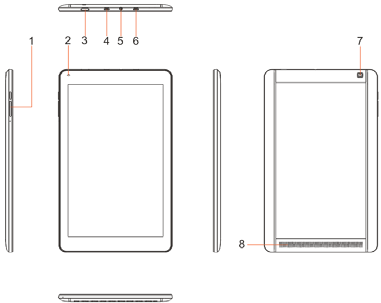
II. Introduction of cover:
1. Power on/off/Vol +/Vol –
2. Front Camera
3. HDMI
4. Micro USB OTG
5. Earphone Jack
6. Micro USB Host
7. Back Camera
8. Loudspeaker
3
III. Operation Instruction
1. Basic Operation
1.1. SIM card installed
Power off, open the bottom shell, the SIM card into the SIM card slot in the
direction indicated by and Installation Bottom.
1.2. Power on/Power off
Power on:
Press and hold the power switch for 5 seconds; the unit displays the start-up logo
and enters the working mode.
Power off:
Press and hold the power switch for 3 seconds to turn the unit off.
Sleep:
While the device is at working status, press the power switch, it enters the sleeping
mode, and the screen will be off then. Press the power switch again, it shift to the
normal mode. You may use this function when you don’t’ use the device temporary
to save power.
1.3. Charging
When the device prompts low battery, please charge it by provided charger.

4
Note:
To improve the longevity of the battery, you may charge for another 30
minutes after it prompts the battery is full.
1.4. Main menu
Click the icon in the main interface, the main menu is appeared. It including the
system setting, music playback, video playback, web browser and other applications you
installed in the main menu.
2. Settings
Click “ ” in the main interface to enter the setting interface. Click the corresponding
setting items to operate.

5
6
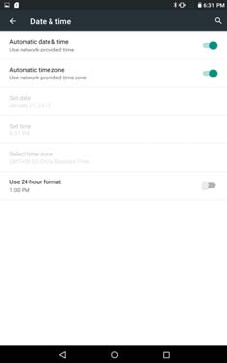
2.1.Date and Time Setting
Click “Date & Time” in the setting interface to set the date and time. You may set
the date, time zone, time, time format and date format etc. in the menu.
7
8
2.2. Brightness
Select “Display” in the setting interface. Click “Brightness” to enter, and slide the
bar to adjust the brightness.

9
10
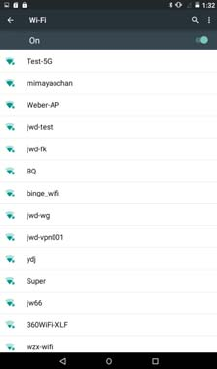
3. Wi-Fi connection
Click “Settings” in the main interface and click “Wireless & network” to enter the
wireless and network setting interface. Click Wi-Fi to turn on the WIFI. Click Wi-Fi
setting to set and manage wireless access.
11
12
Click “Network Notification”, it lists the open network it searched. Click the name
of the network; it pops up the setting window. You may connect it to WIFI according to
the prompts. You need to input the user name and password if networks are encrypted.
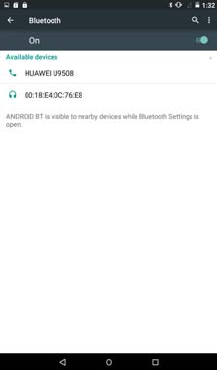
4. Bluetooth
Turn on the Bluetooth,Click Bluetooth setting to set and manage Blutooth Devices
access.Click “SEARCH FOR DEVICES”,it lists the open devices.Click the name of the
devices;it pops up the setting window.choose the device ,pairing it,then you can transfer
pictures,movies,music etc with it.
13
14
5. Install, Uninstall and Run applications
5.1 Install
There are many ways to install applications under Android, such as via USB, by
third party program. We introduce installation by Apps Installer here.
Click the “File Manager” in the main interface.
Select the APK file you want and enter the application installation interface. Click
“Install” to install the application automatically. After installation, it prompts “Open” and
“Finish”. Click “Open” to open the application. Click “Finish” to exit.
5.2 Uninstall
You may use the corresponding third party software management tool or the
installed application management software of the device to install applications.
Select “Setting/Apps” to select the installed applications and check the attribute of
it or uninstall it.
6. Connect to internet
6.1. After connecting with WIFI, open the browser and input the web address, you can
browse the web then.

15
6.2. Click the icon to enter the bookmark to view the browse history. Click the
web page you want to open it.
To save the web page into bookmark, you may click to enter and click “add”
to save it.
7. Audio and video playback
8.1. Audio playback
Click the “Music” in the main menu to enter the audio playback interface. It lists
the audio files in the device, and you may click the file name to play it. in the audio
playing interface, click the icons to play/pause/ FF/ REW….

16
17
7.2. Video Playback
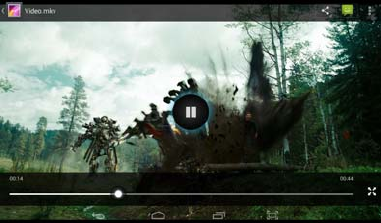
Click the “Video” in the main menu to enter the video playback interface. It lists
the video files in the device, and you may click the file name to play it. in the video
playing interface, touch the screen to pop-up the operation icons and click the icons to
play/pause/ increase volume/ decrease volume/ skip to next file/skip to previous file….
8. Picture viewing
Click “Gallery” in the main menu to enter the picture folder list. Select and click
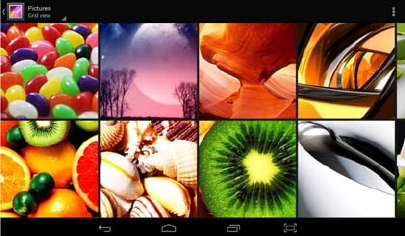
18
the folder you want to enter, it displays the . click the thumbnail of the picture to view it.
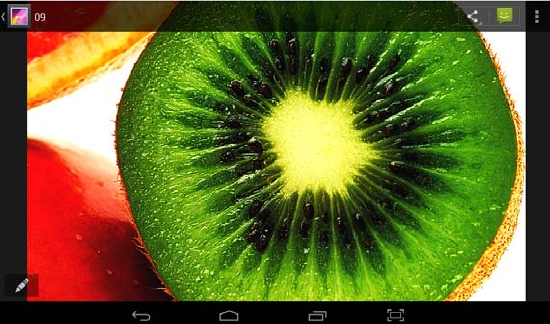
Touch the screen to pop-up the operation icons while viewing the picture, you may
zoom in/zoom out/ skip to next picture/skip to previous picture/ rotate/ delete the
picture…
19

20
9. Camera
Click “Camera” in the main interface.
9.1 Camera
Click to take picture.
Click to set the scene mode, Picture size, Picture quality, and color effect.
Click to select back or front camera.
9.2 DV
Click to take picture.
Click to set the color effect or restore to default settings.
10. 3G calling
Please plug/unplug the SIM card when the device is power off, or the system can’t
recognize the SIM card.
10.1 phone
21
On power off status, insert the SIM card, and then turn on the device. It appears the
2G/3G network signal icon after entering the system. Click to enter the
“phone” function. There are 3options:
phone:input the phone number and then click to dial.
Call log:check the call history in the call list and dial the number again.
Contacts:click the name of the contact to dial.
10.2 People
Click to enter the “People” function,click icon to Add an account,
click icon to pop up 7 options:Delete contact,Contacts to display,
Import/Export,Groups,Accounts,Settings,Share visible contacts. You may make the
corresponding setups based on your requirement.
22
10.3 Messaging
Click to enter the “Messaging” function, click icon to Edit a new
message,click icon to Search messaging,click icon to pop 2 options:
Settings,Wappush messages. You may make the corresponding setups based on your
requirment.
10.4 3G Network
Under power off status, insert the SIM card, and then turn on the device. It appears the
2G/3G network signal icon after entering the system. Since you can only choose
either 2G/3G or WIFI, you have to turn off WIFI first. You may select settings →
Wireless&networks→ Mobile networks to setup.
23
11. Connect with external device
11.1. Connect with PC
Connect the device and the PC, with the USB cable to the Micro USB OTG port of the
device to connect with the PC. My computer will be a new media device, after opening
will see two disks, one is the TF card, and the other is the built-in flash.
Note: when the USB OTG is connected to the PC, the USB Host is not used at the same
time.
11.2. Use of OTG and SD card
It supports the movable device with FAT32 format, such as U disk and MP3.
Connect the movable device to the MID. (Note: OTG and Host could support USB
mouse and keyboard)

24
12.GPS
25
Click “Settings” in the main interface and click “Location access” to enter the
Location access setting interface. Click Access to my location , open the GPS satellites.

26
27
IV. Troubleshooting
1. What if the device is abnormal during operation?
Answer: 1). Reboot the device to see if it works OK.
2). Charge the device by the charger to activate the battery. Make sure it has
power before you operate it.
3). It is suggested to upgrade the OS of the device by professional.
2. Why the standby time is so short sometimes?
Answer: the use time of the battery is all depend on the temperature and use instance. If
the temperature is too high or too low, the use time of the battery might be effected. It is
suggest using the device in normal temperature.
The using time is also affected by increased volume and frequently operation.

28
VI. Specifications
Ite
m
M1015GR
Dimension 261*161*10 mm
Displa
y
10.1” TFT touch panel
OS Android 5.1 or up
Input metho
d
Soft keypa
d
Capacity XXGB (Take the object as the standard)
External Capacit
y
TF card, up to 16GB
Audio WAV,MP3,MP2,AAC,AMR-NB,AMR-WB,MIDI,Vorbis,APE,AAC-plus
v1,AAC-
p
lus-v2,FLAC,WMA,ADPCM
Video MPEG4,H.264,H.263,VP8,DIVX,VC-1:1080p @ 30fps
E-book Support
Wireless networ
k
Support WIFI
Language Multi-language
USB USB2.0 high spee
d
OTG Support
Temperature -20℃ to40℃
Power suppl
y
AC 100~240V 50/60Hz; DC 5V/1.5
A
Batter
y
7000mAh
p
ol
y
-lithium batter
y
Note: The pictures list in the manual are for reference only!
The design and the specification of the unit are subject to change without notice.
29
Changes or modifications not expressly approved by the party responsible for
compliance could void the user's authority to operate the equipment. This equipment has
been tested and found to comply with the limits for a Class B digital device, pursuant to
Part 15 of the FCC Rules. These limits are designed to provide reasonable protection ag
ainst harmful interference in a residential installation.
This equipment generates uses and can radiate radio frequency energy and, if not installe
d and used in accordance with the instructions, may cause harmful interference to radio c
ommunications. However, there is no guarantee that interference will not occur in a parti
cular installation. If this equipment does cause harmful interference to radio or televisio
n reception, which can be determined by turning the equipment off and on, the user is
encouraged to try to correct the interference by one or more of the following
30
measures:
--Reorient or relocate the receiving antenna.
--Increase the separation between the equipment and receiver.
--Connect the equipment into an outlet on a circuit different from that to which the
receiver is connected.
--Consult the dealer or an experienced radio/TV technician for help
This Tablet PC meets the government’s requirements for exposure to radio waves.
This phone is designed and manufactured not to exceed the emission limits for exposure
to radio frequency (RF) energy set by the Federal Communications Commission of the
U.S. Government. The exposure standard for Tablet PC employs a unit of measurement
31
known as the Specific Absorption Rate, or SAR.
The SAR limit set by the FCC is 1.6W/kg. *Tests for SAR are conducted using
standard operating positions accepted by the FCC with the phone transmitting at its
highest certified power level in all tested frequency bands. Although the SAR is determin
ed at the highest certified power level, the actual SAR level
of the phone while operating can be well below the maximum value. This is because the
phone is designed to operate at multiple power levels so as to use only the poser required
to reach the network. In general, the closer you are to a wireless base station antenna,
the lower the power output.
The highest SAR values for the Tablet PC as
reported to the FCC when tested for use at the head and on the body are:
32
Body‐worn: 1.148W/kg
Hotspot: 1.148W/kg
Simultaneous Transmission: 1.148W/kg
(Measurements differ among phone models, depending upon available accessories and F
CC requirements.)
While there may be differences between the SAR levels of various phones and at various
positions, they all meet the government requirement.
The FCC has granted an Equipment Authorization for this model phone with all reported
SAR levels evaluated as in compliance with the FCC RF exposure guidelines. SAR info
rmation on this model phone is on file with the FCC and can be found under the Display
Grant section of www.fcc.gov/oet/ea/fccid after searching on
33
FCC ID: RBD-M1015GR
For body worn operation, this Tablet
PC has been tested and meets the FCC RF exposure guidelines for use with an accessory
that contains no metal and the positions the handset a minimum of 1.0 cm
from the body. Use of other accessories may not ensure compliance with
FCC RF exposure guidelines. If you do no t use a body-worn accessory and are not hold
ing the phone at the ear, position the handset a minimum of 1.0 cm from your body when
the phone is switched on.