John Deere Pfp11260 Users Manual
PFP11260 to the manual 00d80aa9-aa81-459c-b4a3-d2bf4cf8edcf
2015-02-03
: John-Deere John-Deere-Pfp11260-Users-Manual-466138 john-deere-pfp11260-users-manual-466138 john-deere pdf
Open the PDF directly: View PDF  .
.
Page Count: 12

AgLogic™SSIAdapter
INSTALLATIONINSTRUCTIONS
AgLogic™SSIAdapter
PFP1126008JUN11(ENGLISH)
JohnDeereAgManagementSolutions
PFP11260(08JUN11)
LITHOINU.S.A
COPYRIGHT©2011
DEERE&COMPANY
Moline,Illinois
Allrightsreserved.
AJohnDeereILLUSTRUCTION®Manual
PFP112601908JUN11
MM97743,000031B1913SEP101/1
MM97743,000031C1908SEP101/1
ContinuedonnextpageCZ76372,00002A11904MAR111/3
Overview
Thisdocumentisaninstallationinstructionforthe
AgLogic™SSIAdapterwhichallowsdatatocomeacross
fromtheAgvance®SystemfromSoftwareSolutions
Integrated,LLC(SSI)intotheAgLogic™System.Itis
tobeusedbyITpersonnelandNetworkAdministrators.
Ingeneral,thestepsdirectlyfollowingwillconfigurethe
SSIAdapter.
DatabasePreparation
TheAgLogic™SSIAdapterrequiresMSSQLServer
2000orgreater.
Theusernameandpasswordofa“SQLServer
AuthenticationAccount”forthedatabasewillbeneeded
duringinstallation.Ifsuchauserdoesnotyetexist,anew
usershouldbecreatedthathasaccesstotheAgvance®
databaseandwillneeddb_datareaderanddb_datawriter
permissions.Additionallywheninstallingtheadapter
thisuserwillneedthedb_ddladimpersmission.This
additionalpermissioncanberemovedwhenthesetup
iscomplete.
The“SQLServerAuthenticationAccount”shouldbe
configuredsuchthatitspasswordneverexpiresandnever
needstobechanged.Servernameanddatabaseinstance
(ifused)oftheMicrosoftSQLServerusedtostorethe
Agvance®datawillbeneededduringinstallation.Please
havethisinformationreadilyavailable.
AgLogic™WebApplicationSetup
PC13099—UN—04MAR11
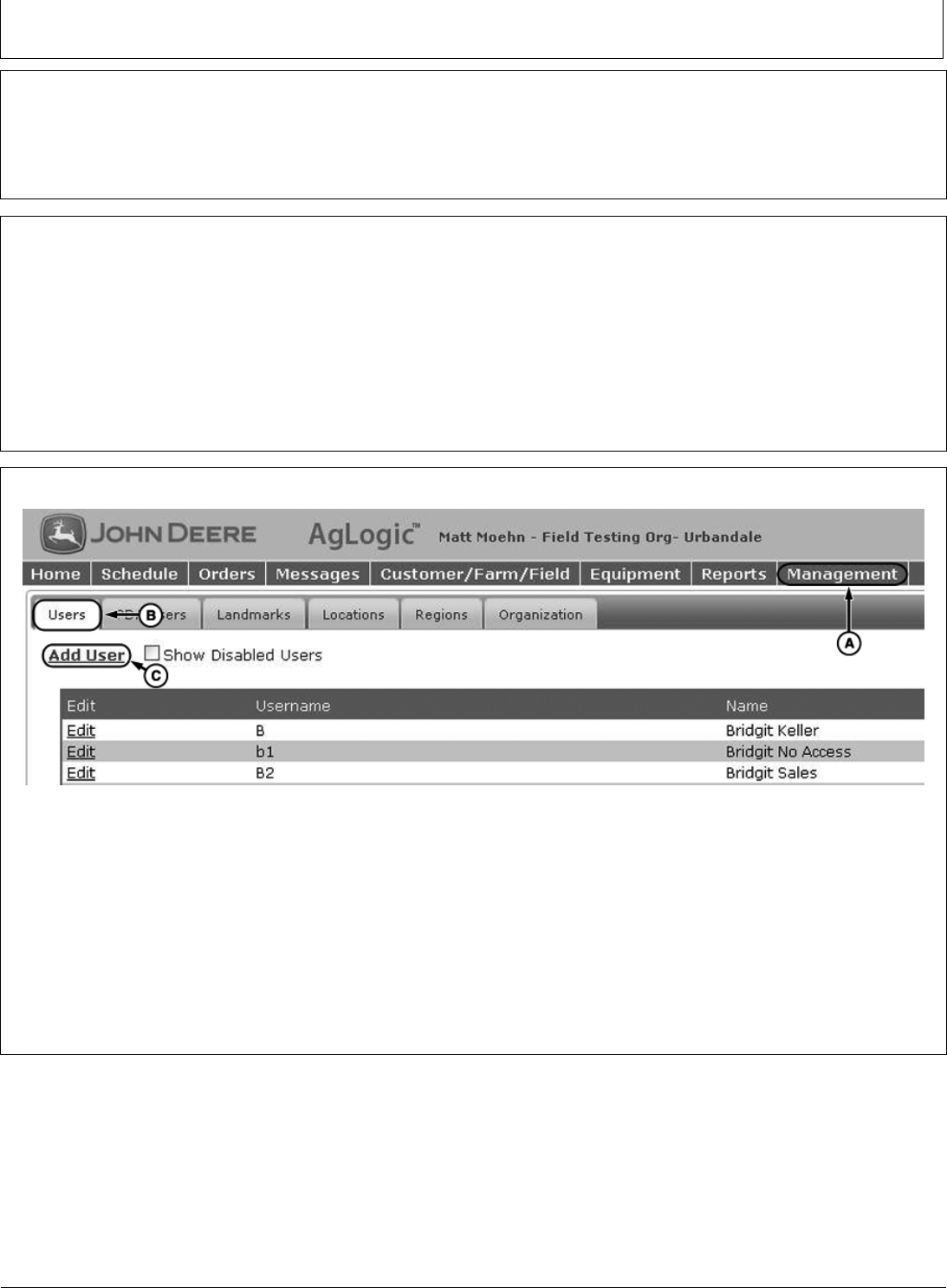
AddUser
EnsureyourOrganizationhasbeencreatedinthe
AgLogic™webapplication.Pleaserefertotheemailwith
subjectline“YourJohnDeereAgLogic™Order–Action
Required”forfurtherdetails.
Auniqueusernameandpassword(example:SSI_myOrg)
createdintheAgLogicwebapplicationwillbeneeded
duringtheinstallation.Ifsuchauserdoesnotyetexist,
pleasefollowtheseinstructions:
1.LogintotheAgLogic™Systemat
https://aglogic.deere.com
2.Clickonthe“Management”tab
3.Clickonthe“Users”tab
4.Select“AddUser”
5.FillintheUsername,Password,FirstName,Last
Name
6.Checkthe“OrganizationAdmin”box
7.Click“Save”
PFP11260(08JUN11)1060811
PN=3
CZ76372,00002A11904MAR112/3
CZ76372,00002A11904MAR113/3
PC13101—UN—06DEC10
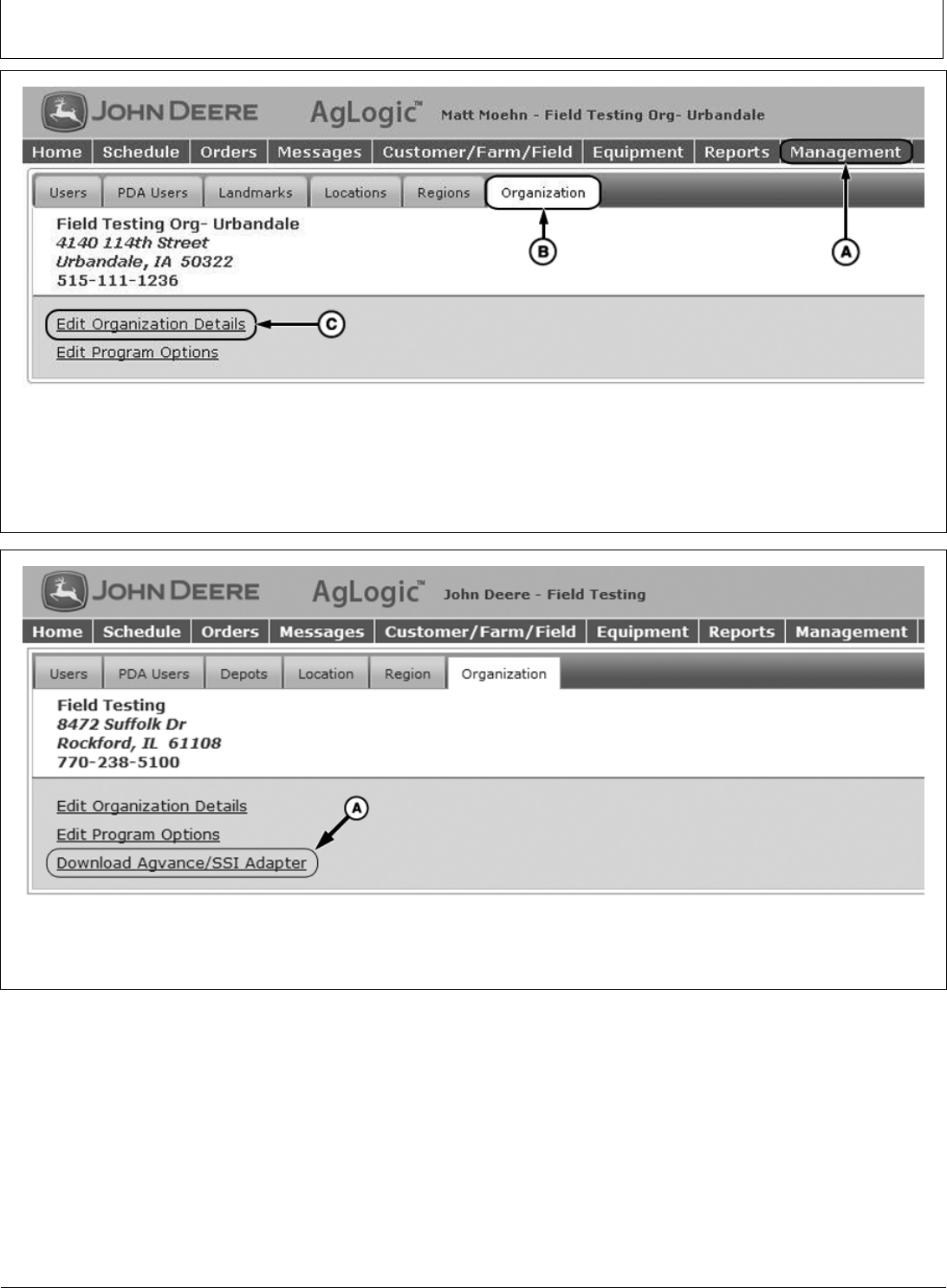
EditOrganizationDetail
TheOrganization’sBackOfficewillneedtobesetsothat
theAgvance/SSIadapterwillbeavailabletodownload.
1.Clickonthe“Management”tab
2.Clickonthe“Organization”tab
3.Select“EditOrganizationDetails”
4.IntheBackOfficedropdownselect“Agvance/SSI”
5.Click“Save”
PC13100—UN—04MAR11
DownloadAgvance/SSIAdapter
AnewlinkwillbecomeavailableontheOrganizationtab.
Thislinkwillbeusedinthenextsection.
PFP11260(08JUN11)2060811
PN=4
CZ76372,00002A21904MAR111/1
ContinuedonnextpageCZ76372,00002BE1905APR111/8
Installation
1.LogontotheServerwhichcontainstheAgvance®
ProgramFiles
2.Createa“SSI_Adapter”folderwhereazipfile
willbeplaced.Thisfolderwillbereferredtoas
<adapterFolder>inthisdocfromnowontoavoid
confusionwithanySSIinstallationfolders.
3.DownloadtheAgLogic™SSIAdapterfromthelink
shownintheprevioussection.
4.Unzipthe“AgLogic_SSIAdapter.zip”fileinto
<adapterFolder>whichwascreatedinstep2.
5.Oncethe“AgLogic_SSIAdapter.zip”filehasbeen
unzipped,openthe<adapterFolder>
6.IfyouplantoexportShapefilesfromAgvance®into
AgLogic™pleasefollowtheseadditionalsteps:(Ifyou
donotplantoexportshapefilesfromAgvance®then
pleaseproceedtotheConfigurationstep.)
a.CopyAgv2Shp.exe(thisfileislocatedinthe
<adapterFolder>)intotheProgramFiles\AgVance
onthesameserver
b.OncetheAgv2Shp.exeisintheProgram
Files\AgVancefolder,rightclickthefileandselect:
createshortcut.Nametheshortcut:Agv2Shp.exe
andplacetheshortcutinsideofthe<adapterFolder>
createdinstep2.
c.RightclickthenewshortcutforAgv2Shp.exeand
selectProperties,changetheT arget:towhere
theAgv2Shpe.exewasplaced,intheProgram
FilesofAgvance®.(Example:“E:\Program
Files\AgVance\Agv2Shp.exe”)Alsochangethe
StartIn:towheretheAgVance®Databaseresides.
NOTE:ThiscouldbeaMappeddrive.
(Example:“I:\AvData”)
NOTE:Theinformationtosetuptheshortcutwill
matchthepropertiesoftheAgVance®
Iconproperties.
d.OncetheAgv2Shp.exeshortcuthasbeensetup,
savethechangesforthePropertiesoftheshortcut.
e.DoubleClicktheNewAgv2Shp.exeshortcut(the
shortcutwillbeinthe<adapterFolder>)anda“Map
ExportType”popupwillappear.
f.SelectthemapexporttypeforyourAgVance®
installationandclick"Save".
NOTE:IfyouareunawareoftheMapExportType
thattheshapefilesarecreatedin,please
contactAgvance®forassistance.
Configuration:
UsetheAgLogic™SSIAdapterWizardtocomplete
theinstallationandconfigurationoftheadapter.The
wizardcanbestartedbyclickingonSSIWizard.batinthe
<adapterFolder>.
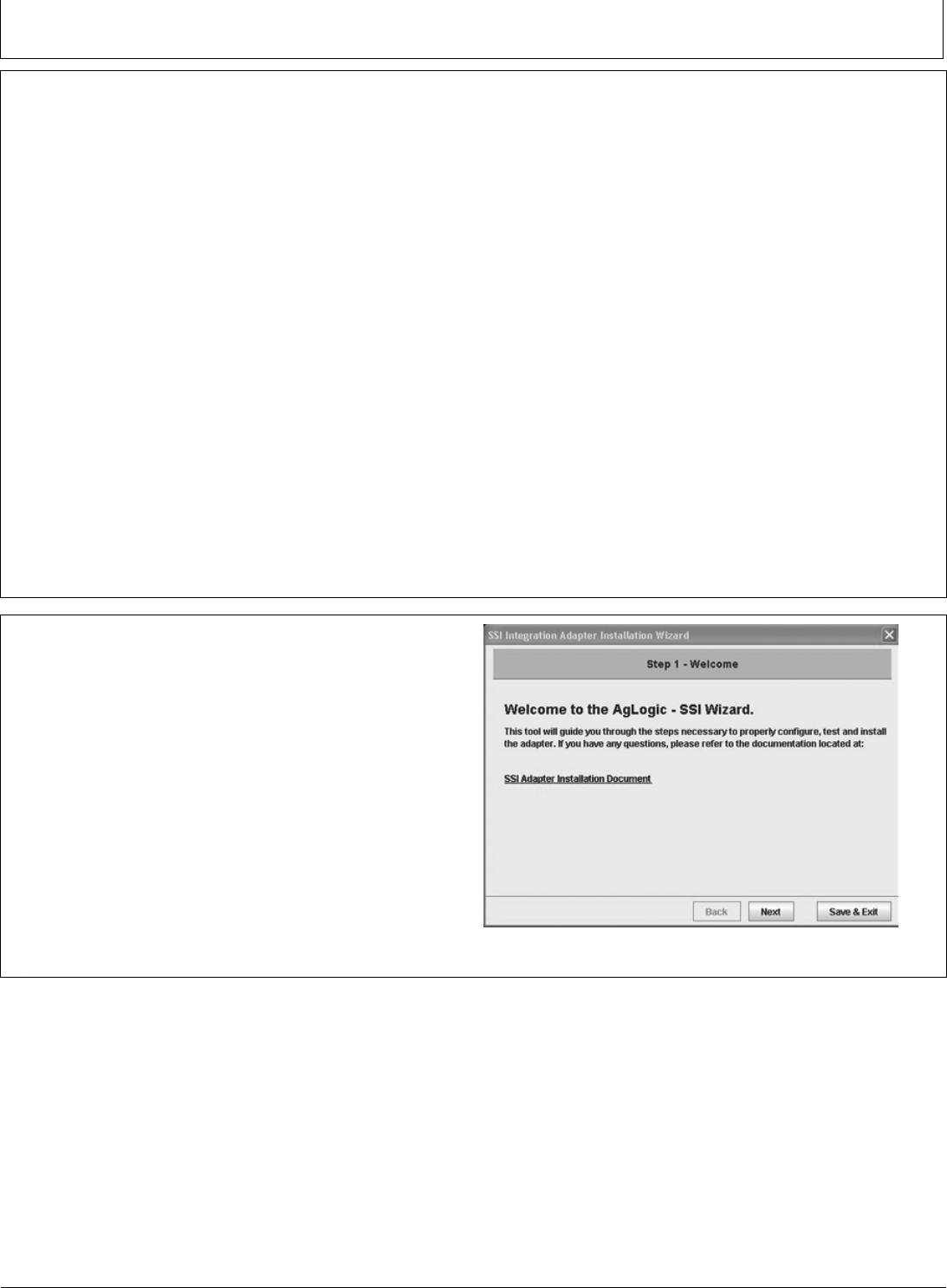
Step1:Welcome
•Thisdocument,andanyupdatesmadetoit,can
befoundbyclickingthe“SSIAdapterInstallation
Document”link.
•ClickSave&Exitatanytimetosaveyourchangesand
exittheinstallationwizard.
PC12808—UN—24AUG10
Welcome
PFP11260(08JUN11)3060811
PN=5
CZ76372,00002BE1905APR112/8
CZ76372,00002BE1905APR113/8
ContinuedonnextpageCZ76372,00002BE1905APR114/8
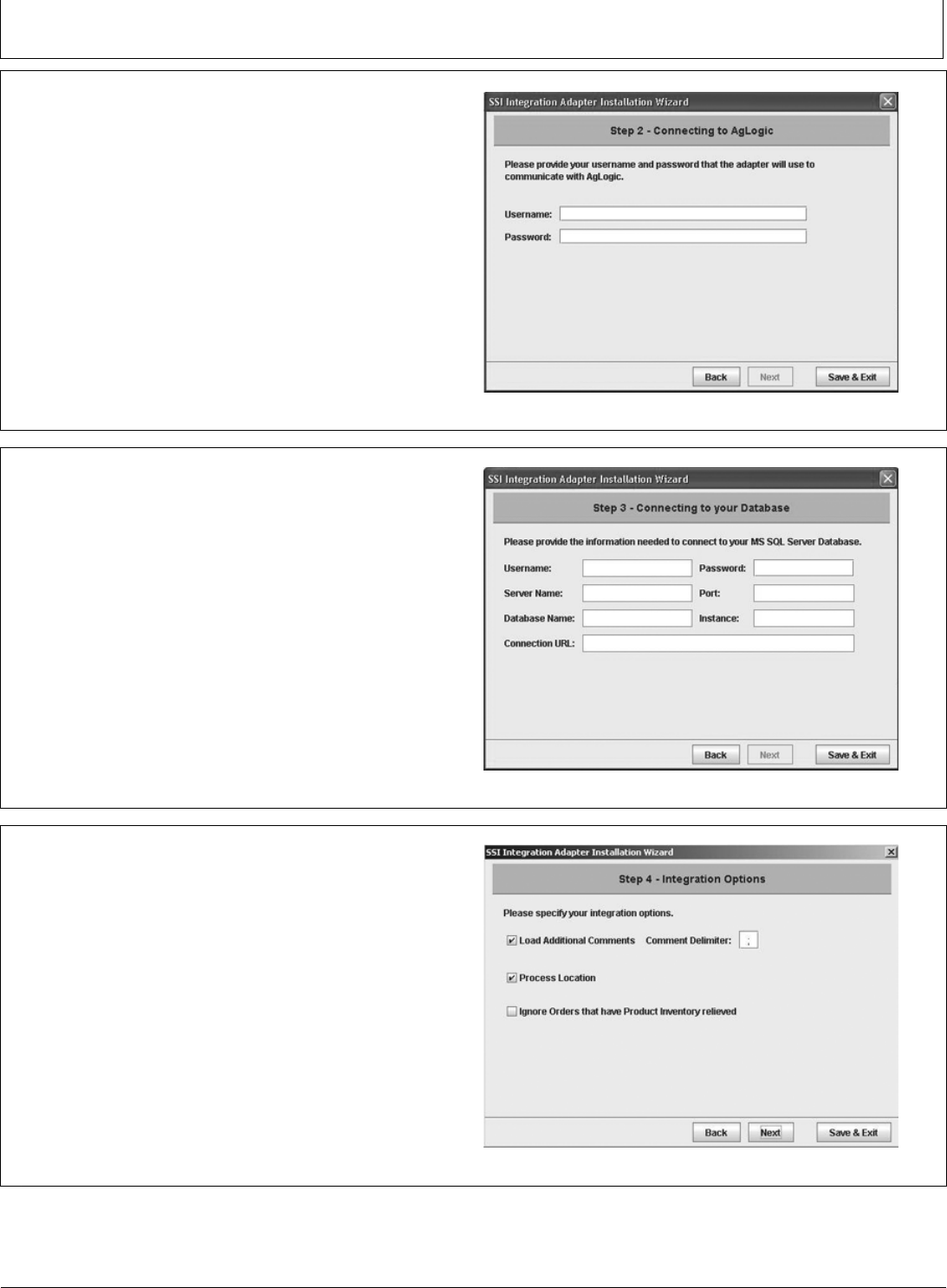
Step2:ConnectingtoAgLogic™
•EnterintheUsername/Passwordcreatedaboveunder
“AgLogic™WebApplicationSetup”
•TheUsername/Passwordwillbevalidatedagainstthe
AgLogic™WebApplicationwhenthe‘Next’buttonis
clicked.Anerrorwillappearifthevalidationcouldnot
becompletedorinvaliddatahasbeenentered.
•Bothfieldsarerequired
PC12809—UN—24AUG10
Step3:ConnectingtoyourDatabase
•EnterintheinformationthatconnectstoyourMSSQL
ServerDatabase
•TheConnectionURLwillautomaticallyupdateasyou
enterinyourinformation,butcanbemodified,ifneeded.
•1433isthedefaultvalueforthePortinMSSQLServer.
NOTE:Instanceisoptionalandshouldbesuppliedonly
ifyourMSSQLServerconfigurationrequiresit.
•Theadapterwillattempttoconnecttoyourdatabase
whenthe‘Next’buttonisclicked.Anerrorwillappearif
theadapterwasunabletoconnect.
PC12810—UN—24AUG10
Step4:IntegrationOptions
•LoadAdditionalCommentsischeckedbydefault.This
optioninstructstheadaptertoloadanyadditionalWork
OrdercommentsfromAgvance®.
•CommentDelimiterdefaultstoasemicolon(;).
•ProcessLocationischeckedbydefault.Thisindicates
thattheadaptershouldcreateaLocationforaWork
OrderbasedondatainAgvance®.Ifyourorganization
doesnotuseLocationsinAgLogic™thisoptionshould
beunchecked.
•IgnoreOrdersthathaveProductInventoryrelievedis
uncheckedbydefault.Thisoptionshouldbechecked
ifworkordersthathavebeendeliveredonshouldnot
appearinAgLogic™.
PC13094—UN—24JAN11
PFP11260(08JUN11)4060811
PN=6
CZ76372,00002BE1905APR115/8
ContinuedonnextpageCZ76372,00002BE1905APR116/8
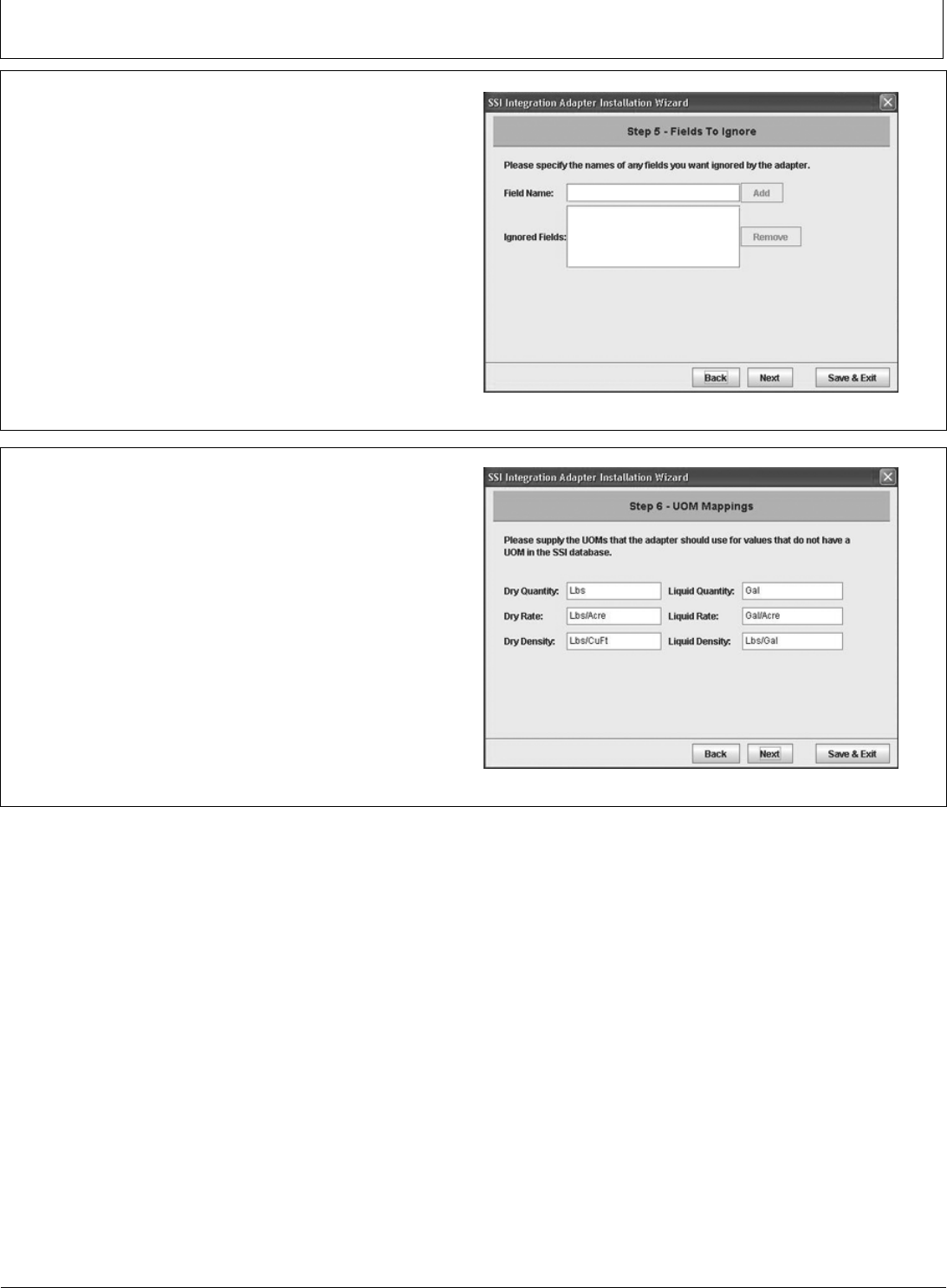
Step5:FieldstoIgnore
•Agvance®mayuseplaceholderfieldstoensuredata
integrity.Theseplaceholdersareunnecessaryin
AgLogic™.Ifyouwishtoignorethoseplaceholdersyou
canspecifytheirnameshere.Forexamplemanywork
ordersarecreatedwithFieldName“All”.Specifynames
ofanyFieldsthatyouwouldliketheadaptertoignore.
•ToremoveafieldfromtheIgnoredFieldsList,highlight
thefieldandclick‘Remove’
•Thesefieldsarenotrequired
PC12812—UN—24AUG10
Step6:UOMMappings
•ConfiguretheUnitOfMeasureMappingsforDryand
LiquidWorkOrders
•Allfieldshavedefaultvalues.Changethesevaluesto
matchtheUOMsyouwishtouseinAgLogic™.
Thesefieldsarenotrequired
PC12813—UN—24AUG10
PFP11260(08JUN11)5060811
PN=7
CZ76372,00002BE1905APR117/8
CZ76372,00002BE1905APR118/8
MM97743,00003201925AUG101/1
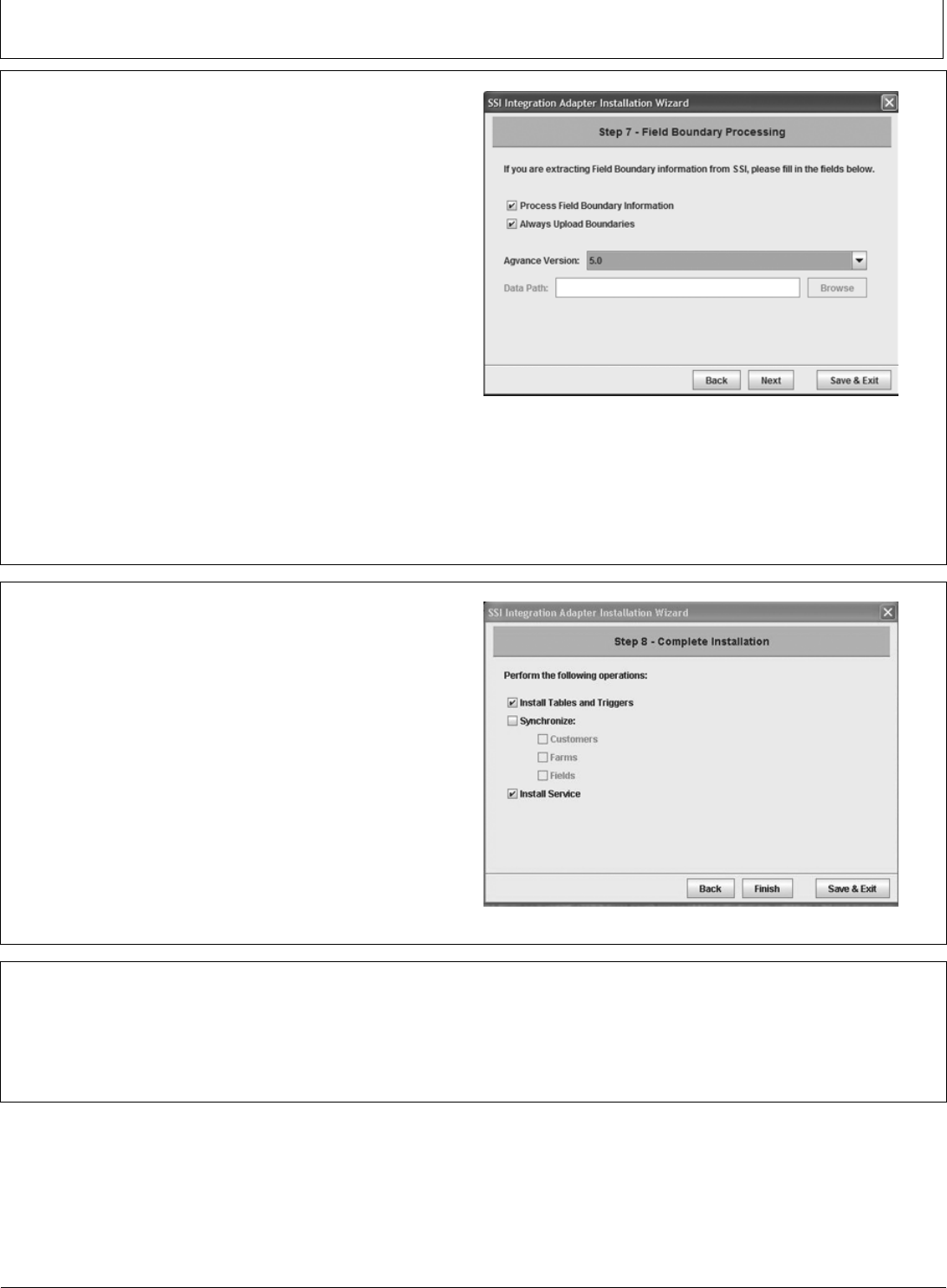
Step7:FieldBoundaryProcessing
IfyouplantoexportShapefilesfromAgvance®into
AgLogic™,check"ProcessFieldBoundaryInformation".
“AlwaysUploadBoundaries”ischeckedbydefault.Ifthe
boundaryisavailable,thisoptionwilluploadboundaries
intoAgLogicwhenanworkorderischangedforthe
associatedfield.
•IntheAgvance®Versiondropdownselectyourcurrent
versionofAgvance®.
Ifversion5.0isselected,theDataPathentrybecomes
greyedout,becauseitisnotrequired.
However,ifversion4.Xisselected,theDataPathis
required.
•EnterorbrowsetothelocationoftheAgvance®
Database.Thisshouldbethesamepathprovidedinthe
"StartIn"propertyoftheAgv2Shp.exe.lnk.
•If"ProcessFieldBoundaryInformation"ischeckedthe
“Next”ButtonwillnotbeavailableuntilavalidData
Pathhasbeenentered.
NOTE:Ifneeded,referencestep6oftheInstallation
sectionearlierinthisinstruction.
PC13229—UN—30MAR11
Step8:CompleteInstallation
•InstallT ablesandTriggerswillcreatethetablesand
triggersintheMSSQLServerdatabaseneededfor
integration.
•ToassociateSSIinformationwithAgLogic,please
checkthesynchronizeboxalongwithCustomers,
Farms,andFields.
•InstallServicewillcreatethewindowsservicethatruns
theadapter.
•ClickFinish,tocompletetheinstallprocess.Apopup
windowwillappear,indicating“InstallSuccessful”.
PC12815—UN—24AUG10
StartingtheService
Tostarttheaglogicintegratorservice:
1.InwindowsclickStart>>Settings>>ControlPanel>>
AdministrativeT ools>>Services
2.Intheservicesdialogfindaglogicintegrator,rightclick
and“Start”theservice.
3.Theserviceshouldalreadybesettoautomaticto
ensuretheservicewillstillrunifthemachineis
restarted.
PFP11260(08JUN11)6060811
PN=8

MM97743,00003211908SEP101/1
MM97743,00003221925AUG101/1
MM97743,00003231925AUG101/1
MM97743,00003241925AUG101/1
Test
ToensurethattheinstallationoftheAgLogicSSIAdapter
wassuccessful,followthesesteps:
1.CreateordersinAgvance®.Theseordersneedtobe
markedas“CustomApply”inordertobedisplayed
inAgLogic™
2.ValidateontheAgLogic™SchedulePagethatopen
ordersweretransferredsuccessfully.
a.LogintoAgLogic™
b.ClickontheScheduletab
c.Verifythatthenewordersareavailableonthe
righthandpaneandonthemap
3.ReviewtheCustomer/Farm/FieldtabinAgLogic™to
ensurethatinformationcameinfromAgvance®.
a.LogintoAgLogic™
b.ClickontheCustomer/Farm/Fieldtab
c.SearchforaCustomer,Farmand/orField
d.Viewresults
4.Viewthe“IntegrationErrors”boxtoseeifanyopen
ordershaderrorswhencomingintotheAgLogic™
System.
The“IntegrationErrors”boxcanbefoundonthe
AgLogic™Homepage.Ifthenumberinthisboxis“0,”
therearenoerrors.Ifthenumberisgreaterthan“0”
pleaseproceedthroughthefollowingsteps:
a.Clickonthehyperlinkednumberinthe“Integration
Errors”box.
b.Viewthereportdescribingtheerrorsand
troubleshootasneeded.
NOTE:Ifyouneedadditionalinformationorhelpplease
seetheAdditionalHelpsection
FAQ’s
Q:IfIhostmultiplelocationswithinmyorganizationon
oneserver,canIlimittheworkordersthatcomeintothe
AgLogic™System?
A:Yes,anyworkordermarkedas“CustomApply”from
AgVance®willcomeintotheAgLogic™System.Marking
anyworkorderas“Loaded”willnotsendtheworkorder
intotheAgLogic™System.
AdditionalHelp
Ifyouneedmorehelpincompletinganyofthesteps,
pleasecontactourCustomerContactCenterat
888GRNSTARorGreenStar@JohnDeere.com
ForgeneralusequestionsabouttheAgLogic™Mobile
andWebapplications,acompletehelplibrarycanbe
foundintheupperrighthandcornerofanypageinthe
AgLogic™webapplication.
UpgradeInstructions
UpgradestotheAgLogic™SSIAdapterwillbeautomatic
toyoursystem.NotificationsthattheAgLogic™SSI
Adapterhasbeenupdatedwilldisplayinthe“What’sNew”
ontheAgLogic™SystemHomescreen.
PFP11260(08JUN11)7060811
PN=9

PFP11260(08JUN11)8060811
PN=10

PFP11260(08JUN11)9060811
PN=11

PFP11260(08JUN11)10060811
PN=12
