Jvc 0503 Ah Id Jve Users Manual HM HDS4EX
HM-HDS4E to the manual 2d40c72e-a9a4-4e0e-bfa2-a4add787e9ac
2015-01-26
: Jvc Jvc-0503-Ah-Id-Jve-Users-Manual-322862 jvc-0503-ah-id-jve-users-manual-322862 jvc pdf
Open the PDF directly: View PDF  .
.
Page Count: 104 [warning: Documents this large are best viewed by clicking the View PDF Link!]
- Cover
- SAFETY FIRST
- CONTENTS
- INDEX
- INSTALLING YOUR NEW RECORDER
- INITIAL SETTINGS
- SAT CONTROL SET
- T-V LINK
- RECORDING/PLAYBACK ON HDD DECK
- RECORDING/PLAYBACK ON VHS DECK
- TIMER RECORDING
- REMOTE CONTROL FUNCTIONS
- EDITING
- SYSTEM CONNECTIONS
- SUBSIDIARY SETTINGS
- HELP
- TROUBLESHOOTING
- QUESTIONS AND ANSWERS
- SPECIFICATIONS
- LIST OF TERMS
EN
LPT0736-001B
Filename [HM-HDS4EX_01Cov1.fm]
HDD & S-VHS
VIDEO RECORDER
HM-HDS4E
INSTRUCTIONS
HM-HDS4EX_01Cov1.fm Page 1 Tuesday, April 15, 2003 4:32 PM

Masterpage:Left-FullCol
2 EN
Filename [HM-HDS4EX_02Safety.fm]
Page 2 March 26, 2003 5:34 pm
SAFETY FIRST
Safety Precautions
The rating plate and the safety caution are on the rear of the unit.
WARNING: DANGEROUS VOLTAGE INSIDE
WARNING: TO PREVENT FIRE OR SHOCK HAZARD, DO NOT EXPOSE THIS UNIT
TO RAIN OR MOISTURE.
●Cassettes marked “S-VHS” and “VHS” can be used with this video cassette recorder. However, S-VHS recordings are possible only
with cassettes marked “S-VHS”.
By using the S-VHS ET function, it is possible to record and play back with S-VHS picture quality on VHS cassettes with this recorder.
●SHOWVIEW is a registered trademark of Gemstar Development Corporation. The SHOWVIEW system is manufactured under licence
from Gemstar Development Corporation.
●This product incorporates copyright protection technology that is protected by method claims of certain U.S. patents and other
intellectual property rights owned by Macrovision Corporation and other rights owners. Use of this copyright protection technology
must be authorized by Macrovision Corporation, and is intended for home and other limited viewing users only unless otherwise
authorized by Macrovision Corporation. Reverse engineering or disassembly is prohibited.
CAUTION
8When you are not using the recorder for a long period of time, it is recommended that you disconnect
the power cord from the mains outlet.
8Dangerous voltage inside. Refer internal servicing to qualified service personnel. To prevent electric
shock or fire hazard, remove the power cord from the mains outlet prior to connecting or
disconnecting any signal lead or aerial.
WARNING
There are two different types of SECAM colour systems: SECAM-L, used in FRANCE (also called
SECAM-West), and SECAM-B, used in Eastern European countries (also called SECAM-East).
1. This recorder can also receive SECAM-B colour television signals for recording and playback.
2. Recordings made of SECAM-B television signals produce monochrome pictures if played back on a
video recorder of SECAM-L standard, or do not produce normal colour pictures if played back on a
PAL video recorder with SECAM-B system incorporated (even if the TV set is SECAM-compatible).
3. SECAM-L prerecorded cassettes or recordings made with a SECAM-L video recorder produce
monochrome pictures when played back with this recorder.
4. This recorder cannot be used for the SECAM-L standard. Use a SECAM-L recorder to record SECAM-L
signals.
IMPORTANT
8Please read the various precautions on pages 2 – 4 before installing or operating the recorder.
8It should be noted that it may be unlawful to re-record pre-recorded tapes, records, or discs without
the consent of the owner of copyright in the sound or video recording, broadcast or cable programme
and in any literary, dramatic, musical, or artistic work embodied therein.
HM-HDS4EX.book Page 2 Wednesday, April 2, 2003 3:55 PM

Masterpage:Right-Full-NoTitle0
EN 3
Filename [HM-HDS4EX_02Safety.fm]
Page 3 March 26, 2003 5:34 pm
When the equipment is installed in a cabinet or a shelf, make sure that it has sufficient space on all sides to
allow for ventilation (10 cm or more on both sides, on top and at the rear.)
When discarding batteries, environmental problems must be considered and the local rules or laws
governing the disposal of these batteries must be followed strictly.
Failure to heed the following precautions may result in damage to the recorder, remote control or video
cassette.
1. DO NOT place the recorder ...
... in an environment prone to extreme temperatures or humidity.
... in direct sunlight.
... in a dusty environment.
... in an environment where strong magnetic fields are generated.
... on a surface that is unstable or subject to vibration.
2. DO NOT block the recorder’s ventilation openings or holes.
(If the ventilation openings or holes are blocked by a newspaper or cloth, etc., the heat may not be able
to get out.)
3. DO NOT place heavy objects on the recorder or remote control.
4. DO NOT place anything which might spill on top of the recorder or remote control.
(If water or liquid is allowed to enter this equipment, fire or electric shock may be caused.)
5. DO NOT expose the apparatus to dripping or splashing.
6. DO NOT use this equipment in a bathroom or places with water. Also DO NOT place any containers
filled with water or liquids (such as cosmetics or medicines, flower vases, potted plants, cups, etc.) on
top of this unit.
7. DO NOT place any naked flame sources, such as lighted candles, on the apparatus.
8. AVOID violent shocks to the recorder during transport.
MOISTURE CONDENSATION
Moisture in the air will condense on the recorder when you move it from a cold place to a warm place, or
under extremely humid conditions—just as water droplets form in the surface of a glass filled with cold
liquid. Moisture condensation on the head drum will cause damage to the tape. In conditions where
condensation may occur, keep the recorder turned on for a few hours to let the moisture dry.
For Italy:
“It is declared that this product, brand JVC, conforms to the Ministry Decree n. 548 of 28 Aug.’95
published in the Official Gazette of the Italian Republic n. 301 of 28 Dec.’95”
The STANDBY/ON 1 button does not completely shut off mains power from the unit, but switches
operating current on and off. “`” shows electrical power standby and “!” shows ON.
Video tapes recorded with this video recorder in the LP (Long Play) mode cannot be played back on a
single-speed video recorder.
ATTENTION:
To mobile phone users:
Using a mobile phone in the vicinity of the recorder may cause picture vibration on the TV screen or
change the screen to a blue back display.
On placing the recorder:
Some TVs or other appliances generates strong magnetic fields. Do not place such appliance on top of
the recorder as it may cause picture disturbance.
HM-HDS4EX.book Page 3 Wednesday, April 2, 2003 3:55 PM

Masterpage:Left-FullCol
4 EN
Filename [HM-HDS4EX_02Safety.fm]
Page 4 April 7, 2003 2:43 pm
SAFETY FIRST (cont.)
PRECAUTION FOR Hard Disk Drive
1. Before installing the recorder
This recorder has a built-in hard disk drive,
which is a device to read minute magnetic
changes.
The inside of the device is precision-built,
which, when installing the recorder, requires
you to note the following:
●DO NOT use the recorder in a location prone to
vibration or dust.
●DO NOT place the recorder where difference in
temperatures is large (condensation can occur), or
where humidity is high.
– When condensation occurs
Water droplets form on the hard disc or head
drums inside, possibly causing hard disc and
heads to be damaged.
– About condensation
When well-cooled beer is poured into a glass,
water droplets often form around its outside.
This phenomenon is called condensation.
●DO NOT install the recorder where the cooling
fans in its back may be blocked, or where the
recorder may be closed in.
●DO NOT use the recorder placed vertically.
NOTES:
●When you connect the recorder’s power plug to the mains
outlet, the HDD starts its setup and it continues for a while.
Press 1 on the recorder to use it after the HDD completes
its setup.
●The hard disk may produce mechanical noise, but it is not a
malfunction.
2. Before using the recorder
When the power of the unit is on, the hard disc
is constantly rotating at high speed.
This requires you to note the following:
●DO NOT impart vibration or shock.
If given a heavy shock, not only is the data recorded
damaged but also the hard disk itself can be
damaged.
●DO NOT allow anything having strong magnetism
or emitting strong electromagnetic waves (cell
phones, etc.) near the recorder.
●DO NOT disconnect the power plug from the wall
outlet when the power of the recorder is on.
If the power supply is cut off while the hard disc is
in operation, it can be damaged or the data stored
on it may be damaged. Be sure to push the power
button before turning off the power.
3. While using the recorder
When viewing a program by selecting HDD
(Hard Disk Drive), there occurs a slight time lag
relative to the actual program being broadcast.
This is because pictures received are once
stored on the hard disk, and then played back.
The time lag is about three seconds. If you turn
the power on with the hard disk already
selected, it will take about 30 seconds before
the pictures received appear on the screen. Up
until then, any operation is disabled. But it is not
a malfunction.
HM-HDS4EX_02Safety.fm Page 4 Monday, April 7, 2003 2:44 PM

Masterpage:Right
EN 5
Filename [HM-HDS4EXTOC.fm]
Page 5 April 7, 2003 3:47 pm
CONTENTS
SAFETY FIRST 2
Safety Precautions ............................................... 2
INDEX 6
INSTALLING YOUR NEW RECORDER 12
Basic Connection .............................................. 12
S-VIDEO Connection ........................................ 13
INITIAL SETTINGS 14
Auto Set Up ....................................................... 14
Preset Download ............................................... 16
Language ........................................................... 18
SAT CONTROL SET 19
Satellite Receiver Control Setting ....................... 19
T-V LINK 21
T-V Link Functions ............................................ 21
RECORDING/PLAYBACK ON HDD DECK 22
Basic Recording ................................................ 22
Basic Playback .................................................. 23
Playback with HDD Navigation ........................ 24
Live Memory Features ....................................... 28
Playback Features .............................................. 30
Recording Features ............................................ 33
RECORDING/PLAYBACK ON VHS DECK 34
Basic Recording ................................................ 34
Basic Playback .................................................. 35
Playback with VCR Navigation .......................... 36
Playback Features .............................................. 39
Recording Features ............................................ 42
B.E.S.T. Picture System ...................................... 45
TIMER RECORDING 46
SHOWVIEW® Timer Programming ....................... 46
Express Timer Programming .............................. 48
Automatic Satellite Programme Recording ......... 51
REMOTE CONTROL FUNCTIONS 52
EDITING 55
About Hybrid Navigation .................................. 55
Modify Information ............................................ 56
Play List Features ............................................... 60
Dubbing ............................................................ 63
Normal Dubbing (from HDD to VHS) ................ 65
Normal Dubbing (from VHS to HDD) ................ 66
Edit From A Camcorder ..................................... 67
Output/Input Set ................................................ 68
Edit To Or From Another Video Recorder .......... 70
DV Dubbing ...................................................... 72
Audio Dubbing .................................................. 74
SYSTEM CONNECTIONS 76
Connecting To A Satellite Receiver .................... 76
Connecting/Using A Decoder ............................ 78
Connecting/Using A Stereo System .................... 79
SUBSIDIARY SETTINGS 80
Mode Set ........................................................... 80
SHOWVIEW® System Setup ................................. 85
Clock Set ........................................................... 86
Tuner Set ........................................................... 88
HELP 95
Help Function ................................................... 95
TROUBLESHOOTING 96
QUESTIONS AND ANSWERS 101
SPECIFICATIONS 102
LIST OF TERMS 103
HM-HDS4EXTOC.fm Page 5 Monday, April 7, 2003 3:47 PM
Filename [HM-HDS4EX_03Names.fm]
Masterpage:Left
6 EN
Page 6 April 2, 2003 3:20 pm
INDEX
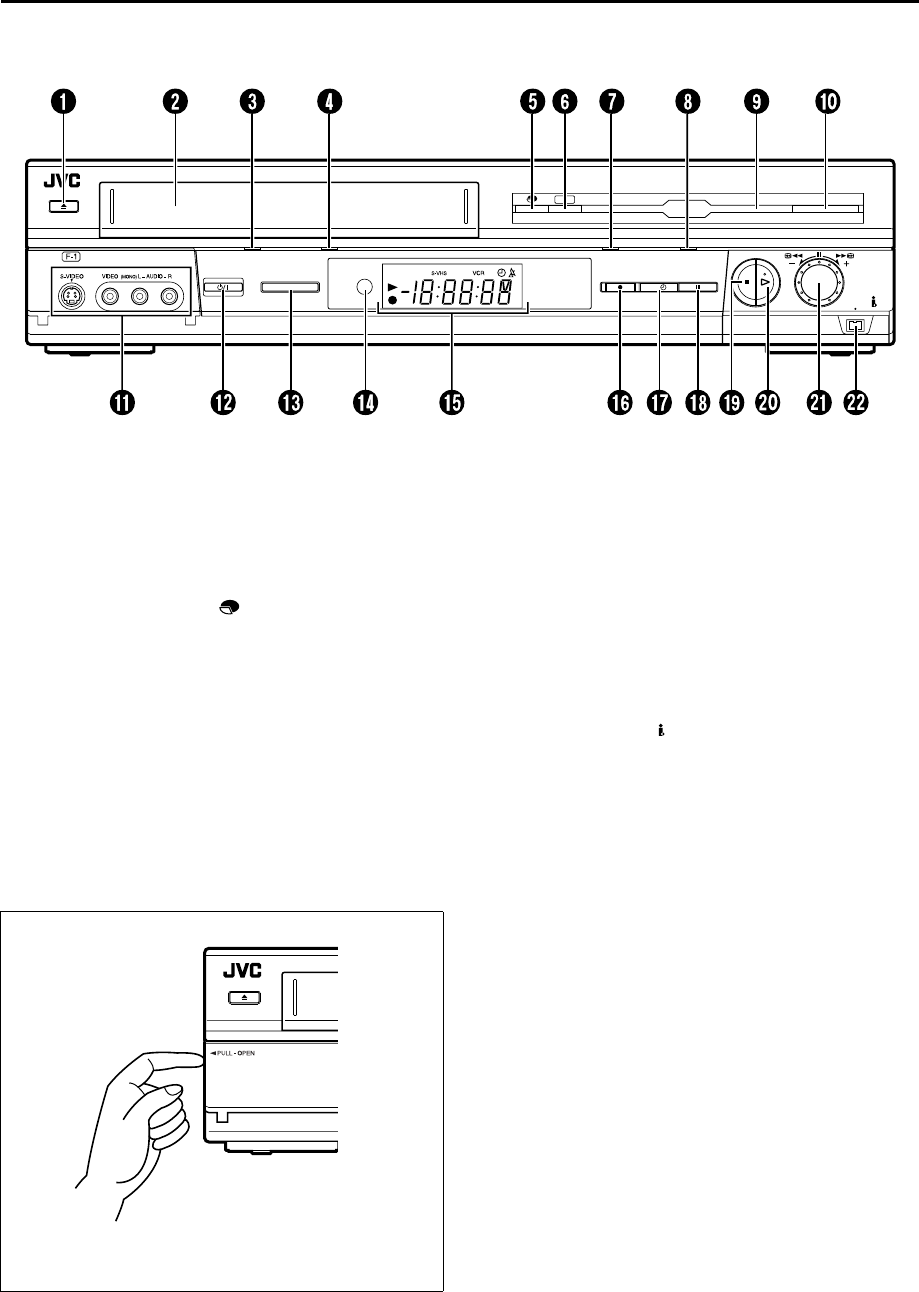
FRONT VIEW
AEject x Button 墌pg. 34
BCassette Loading Slot
CS-VHS mode Indicator 墌pg. 34
DS-VHS/VHS Recording Mode Indicator (S-VHS/
VHS REC) 墌pg. 34
EMODE Button 墌pg. 9, 22
HDD Capacity Check Button 墌pg. 9
FLIVE Button* 墌pg. 41
* Press this button to return to on air programme screen. When a
confirmation message appears by pressing this button during timer
programming or title editing, etc., follow the instruction to return to
the previous screen.
GHDD Recording Mode Indicator (HDD REC)
墌pg. 22
HHDD Mode Indicator 墌pg. 22
IHard Disk Drive Illumination 墌pg. 81
JNAVIGATION Button 墌pg. 25
KS-VIDEO/VIDEO/AUDIO Input Connectors
墌pg. 67
LSTANDBY/ON 1 Button 墌pg. 14
MS-VHS/HDD Button 墌pg. 22
NInfrared Beam Receiving Window
OFront Display Panel 墌pg. 7
PRecord 7 Button 墌pg. 22
QSAT# Button 墌pg. 51
RPause 9 Button 墌pg. 23
SStop 8 Button 墌pg. 22
TPlay 4 Button 墌pg. 23
UAdvanced JOG Dial 墌pg. 25
VDV IN/OUT Connector (i.Link*) 墌pg. 72
* i.Link refers to the IEEE1394-1995 industry specification and
extensions thereof. The logo is used for products compliant with
the i.Link standard.
SAT
HDD REC HDDS-VHS / VHS RECS-VHS
MODE
LIVE
NAVIGATION
PR
-
/
+
PUSH
/
TURN
DV IN
/
OUT
S-VHS
/
HDD
To access covered connectors, pull and open the connector
cover.
HM-HDS4EX.book Page 6 Wednesday, April 2, 2003 3:55 PM
Masterpage:Right-index2
EN 7
Filename [HM-HDS4EX_03Names.fm]
Page 7 April 2, 2003 3:20 pm
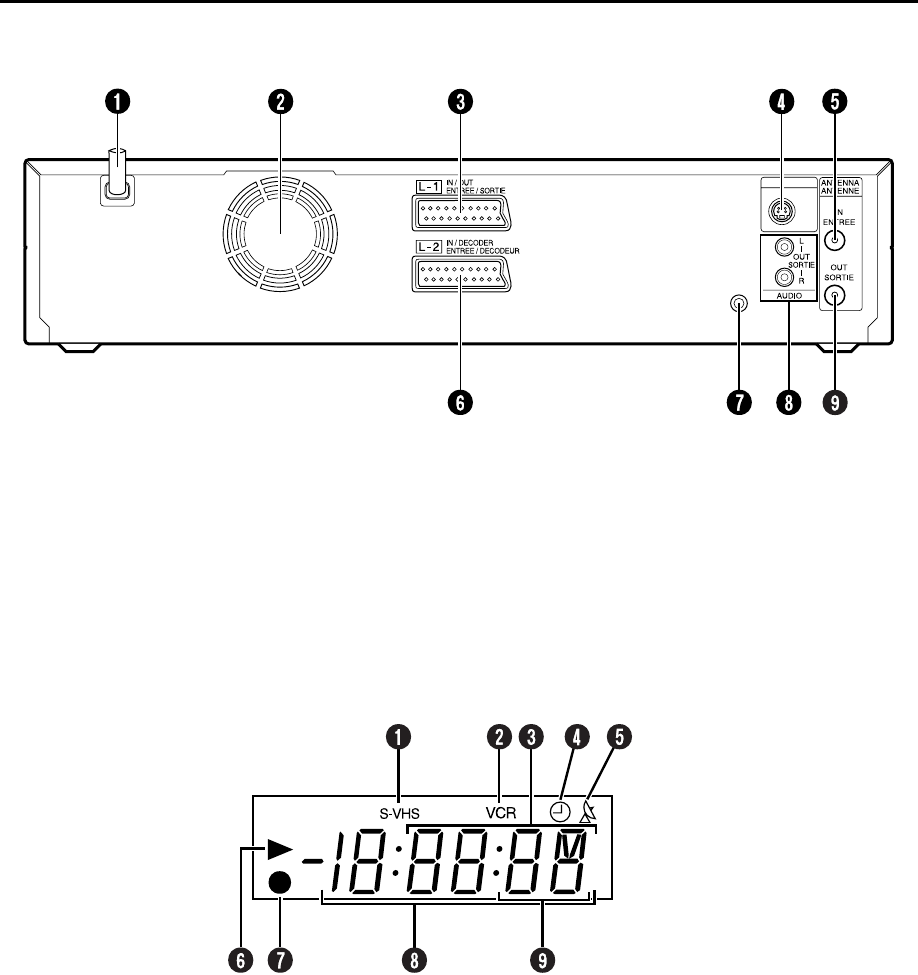
REAR VIEW
SAT CONTROL
CONTROLEUR SAT
S VIDEO
OUT
SORTIE
AMains Power Cord 墌pg. 12
BCooling Fan
●This prevents the temperature from rising inside the
recorder. Do not remove it.
●Install the recorder so as not to block the area around the
fan.
●The fan may be activated even if the recorder is turned off.
CL-1 IN/OUT Connector 墌pg. 12, 68, 70, 75, 76
DS VIDEO OUT Connector 墌pg. 13
EANTENNA IN Connector 墌pg. 12
FL-2 IN/DECODER Connector 墌pg. 19, 70, 75,
76, 78
GSAT CONTROL Connector 墌pg. 19
HAUDIO OUT (L/R) Connectors 墌pg. 13, 79
IANTENNA OUT Connector 墌pg. 12
FRONT DISPLAY PANEL
AS-VHS Indicator (S-VHS deck only) 墌pg. 82
BVCR Indicator (S-VHS deck only) 墌pg. 76
CChannel/Clock
Remain Display (S-VHS deck only) 墌pg. 43
Mode Display (L-1, L-2 (or SAt*), F-1, d-1, or
dub)
* When “L-2 SELECT” is set to “SAT” (墌pg. 69), “SAt” appears
instead of “L-2”.
D“Timer” Indicator 墌pg. 47
EAutomatic Satellite Programme Recording
Indicator (N) (S-VHS deck only) 墌pg. 51
FPlay Indicator
GRecord Indicator 墌pg. 33
HCounter Display
ITape Speed SP/LP (S-VHS deck only) 墌pg. 34
HM-HDS4EX.book Page 7 Wednesday, April 2, 2003 3:55 PM
Filename [HM-HDS4EX_03Names.fm]
Masterpage:Left
8 EN
Page 8 April 7, 2003 2:46 pm
INDEX (cont.)
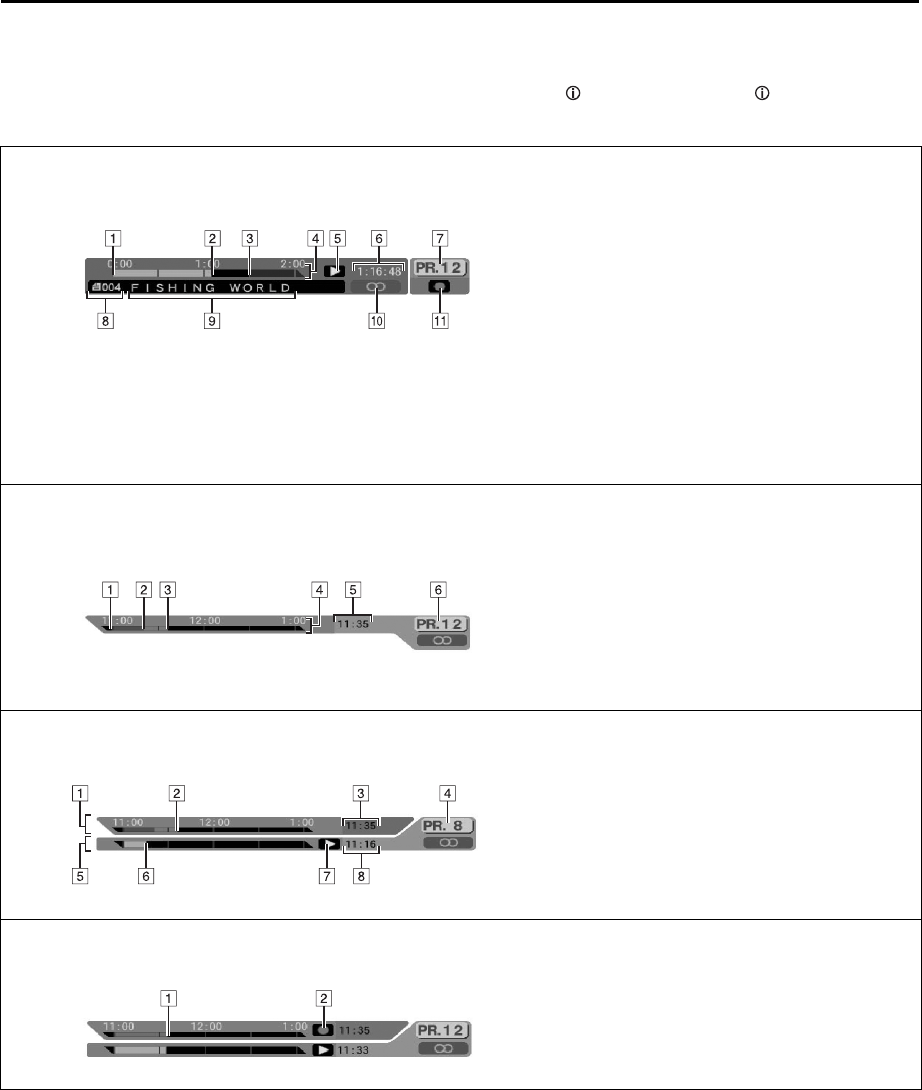
ON-SCREEN DISPLAY (for HDD deck)
When “O.S.D.” is set to “ON” (墌pg. 84), various operational information appear on the TV screen.
You can show or clear the following operational information by pressing . Each time you press , the information
appears and disappears alternately.
When playing back a recorded programme AProgramme start
BCurrent playback point
CProgramme end
DTime scale (This programme is an hour and
a half long.)
EPlay mode
FElapsed playing time
GCurrent received (recording) channel
position number
(On playback background)
HRecorded programme (or play list) number
currently being played back
ITitle of programme currently being played
back
JAudio mode
KLive Memory mode (recording)
When watching a programme on air APossible start point from where Live
Memory Playback can be performed
BPossible start point from where Live
Memory Recording can be performed
(Receive channel has changed at this
point.)
CCurrently viewed point
DTime scale
ECurrent time
FCurrent received channel position number
When using Live Memory playback ATime scale for Temporary Recording
BCurrent Temporary Recording point
CCurrent time
DCurrent playback channel position number
ETime scale for Live Memory Playback
FCurrent playback point
GLive Memory playback mode
HCurrent playback time
When recording ALive Memory Recording point
BLive Memory Recording mode
HM-HDS4EX_03Names.fm Page 8 Monday, April 7, 2003 2:46 PM
Masterpage:Right-NoTitle0
EN 9
Filename [HM-HDS4EX_03Names.fm]
Page 9 April 7, 2003 2:46 pm
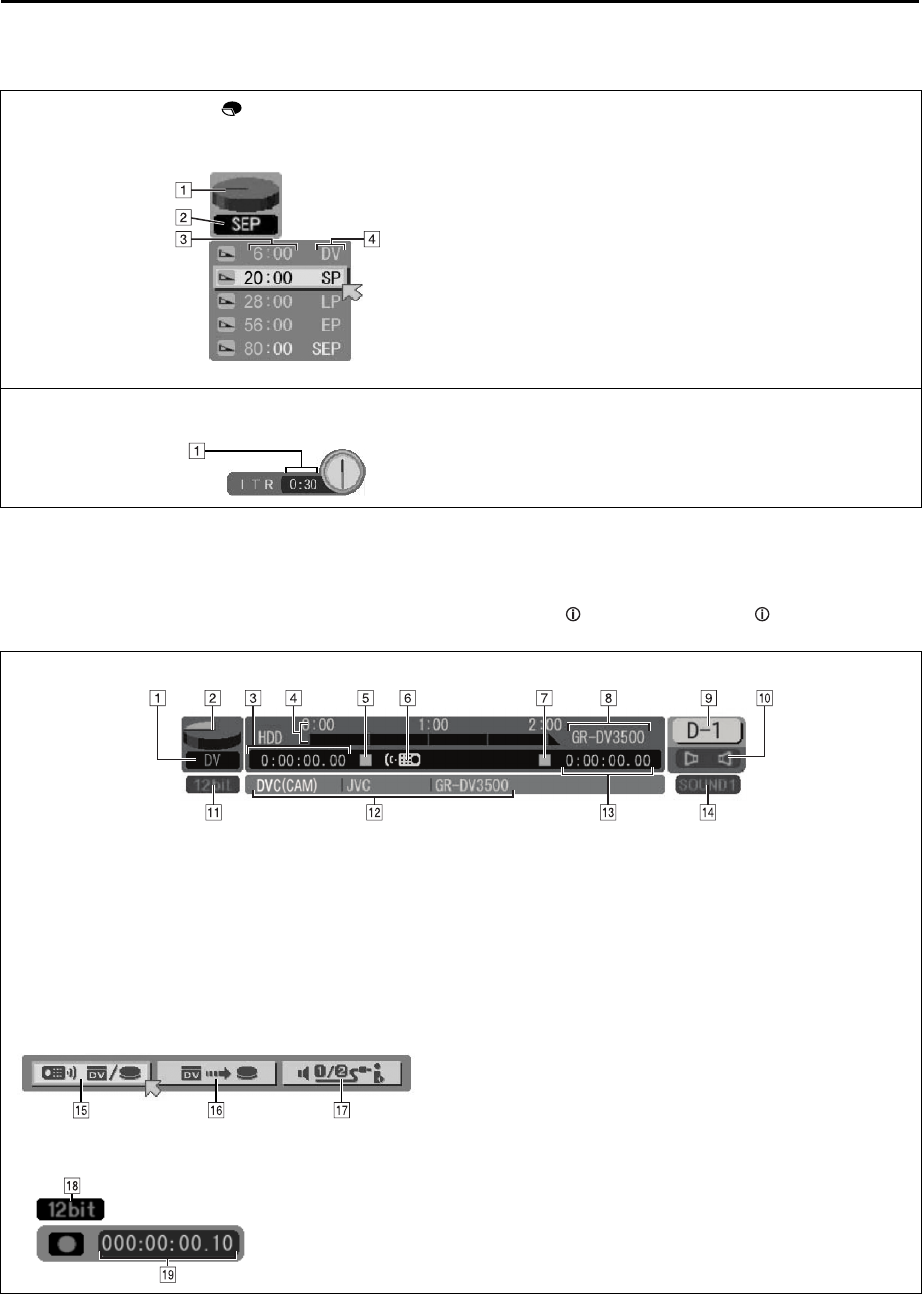
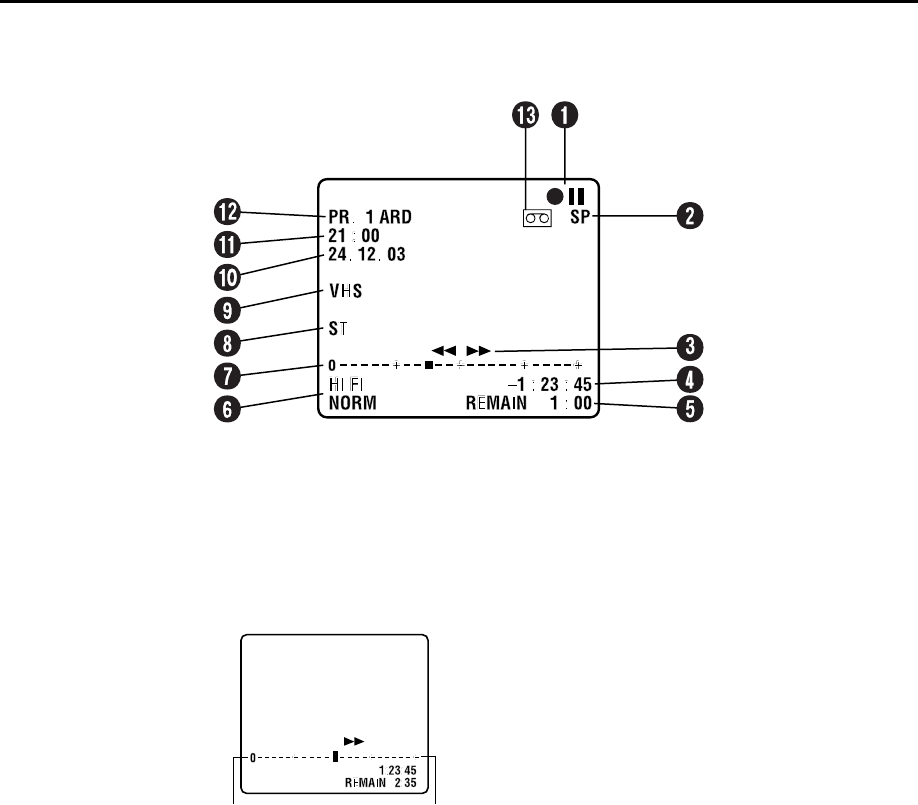
ON-SCREEN DISPLAY (for HDD deck)
When “O.S.D.” is set to “ON” (墌pg. 84), various operational information appear on the TV screen.
ON-SCREEN DISPLAY (for DV dubbing)
When “O.S.D.” is set to “ON” (墌pg. 84), various operational information appear on the TV screen.
You can show or clear the following operational information by pressing . Each time you press , the information
appears and disappears alternately.
When pressing MODE ( )
(Appears for eight seconds.)
AHDD capacity graph
(Six conditions (full, 60 hours or less open,
40 hours or less open, 20 hours or less
open, 10 hours or less open, empty) is
displayed in SEP mode.)
BCurrent recording speed
CRemaining HDD time for each recording
speed
DRecording speed
When pressing 7 during recording ARecording time for Instant Timer Recording
(ITR) mode*
* When “d-1” is selected as an input source, this ITR
display does not appear on the TV screen.
When capturing images from the external DV equipment
ARecording speed
BHDD capacity graph
CHDD time counter
DRecording time scale
EHDD mode
FRemote control mode
GConnected DV equipment mode
HConnected DV equipment model information
IInput channel
JSound mode
KSound input bit-rate*
* Indicates the sound bit-rate of the connected DV equipment
LConnected DV equipment information*
* Maker name and model name, etc. may not appear depending on
the connected equipment.
MTime counter for the connected DV equipment
NSound monitor mode
ORemote control switch
PAuto capture button
QSound monitor switch
RSound bit-rate*
* Set in DV AUDIO REC setting
SElapsed recording time
HM-HDS4EX_03Names.fm Page 9 Monday, April 7, 2003 2:46 PM
Filename [HM-HDS4EX_03Names.fm]
Masterpage:Left
10 EN
Page 10 April 2, 2003 3:20 pm
INDEX (cont.)
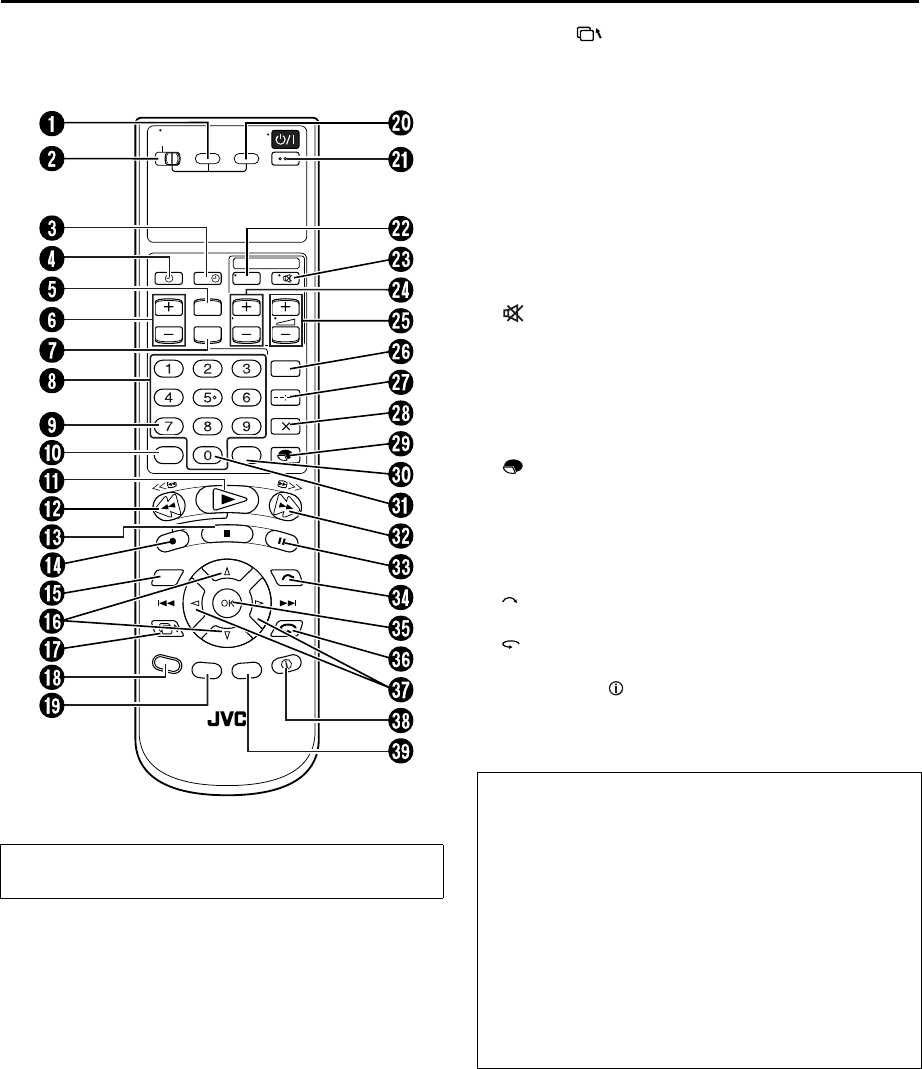
ON-SCREEN DISPLAY (for VHS deck)
When “O.S.D.” is set to “ON” (墌pg. 84), various operational indicators appear on the TV screen.
AOperation Mode Indicators
BTape Speed SP/LP
CTape Direction
DCounter Display
ETape Remaining Time Indicator 墌pg. 43
FAudio Mode Display 墌pg. 41
GTape Position Indicator
The tape position indicator
appears on the TV screen
when you press 3 or
5from the Stop mode
or perform an Index Search
(墌pg. 40). The position of
“q” in relation to “0”
(beginning) or “+” (end)
shows you where you are
on the tape.
NOTE:
Depending on the type of tape being used, the tape position
indicator may not appear correctly.
HType of Broadcast 墌pg. 44
IVHS Indicator
JCurrent Day/Month/Year
KClock Display
LChannel Position Number and Station Name/
Auxiliary Input Indicator (L-1, L-2 (or SAT*), F-1,
D-1, or DUB)
* When “L-2 SELECT” is set to “SAT” (墌pg. 69), “SAT” appears
instead of “L-2”.
M“Cassette Loaded” Mark
Beginning End
HM-HDS4EX.book Page 10 Wednesday, April 2, 2003 3:55 PM
Masterpage:Right-NoTitle0
EN 11
Filename [HM-HDS4EX_03Names.fm]
Page 11 April 2, 2003 3:20 pm
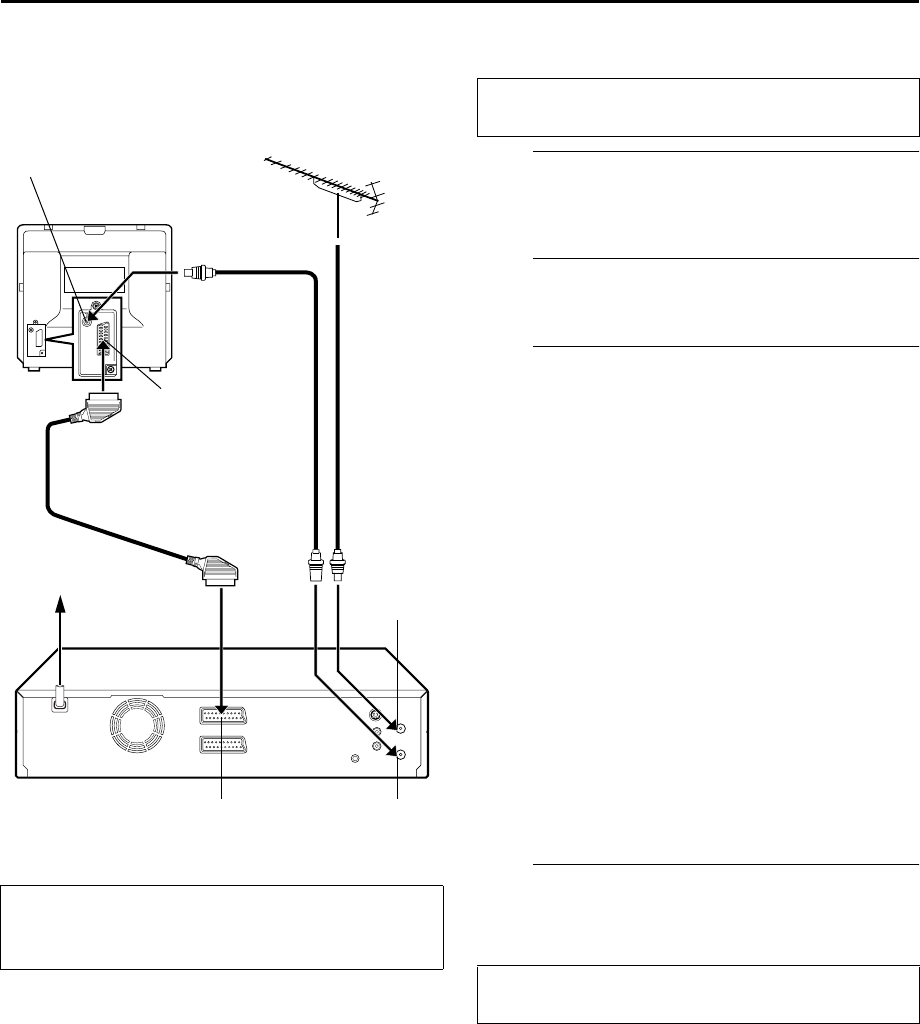
REMOTE CONTROL
AS-VHS Button 墌pg. 34
BTV/CABLE/SAT Switch 墌pg. 53, 54
CSAT # Button 墌pg. 51
DTimer # Button 墌pg. 47
EMENU Button 墌pg. 18
FVCR PR +/– Button 墌pg. 22
GHelp ? Button 墌pg. 95
HNumber Keys 墌pg. 22, 46
IVPS/PDC Button 墌pg. 47
JTV/VCR Button 墌pg. 53
KPlay 4 Button 墌pg. 23
LRewind 3 Button 墌pg. 30
MStop 8 Button 墌pg. 22
NRecord 7 Button 墌pg. 22
ONAVIGATION Button 墌pg. 25
Pr t Button 墌pg. 14
QResume Button*
墌pg. 95
* Press this button to return to the previous screen on the Navigation
screen. When a confirmation message appears by pressing this
button during timer programming or title editing, etc., follow the
instruction to return to the previous screen.
RLIVE Button*
Auto Tracking Button 墌pg. 41
* Press this button to return to on air programme screen. When a
confirmation message appears by pressing this button during timer
programming or title editing, etc., follow the instruction to return to
the previous screen.
SPROG. Button 墌pg. 46, 48
THDD Button 墌pg. 22
USTANDBY/ON 1 Button 墌pg. 14
VTV AV Button 墌pg. 53
W (TV Muting) Button 墌pg. 53
XTV PR +/– Button 墌pg. 53
YTV % +/– Button 墌pg. 53
ZAUDIO Button 墌pg. 32, 41
aDisplay – –:– – Button 墌pg. 43
bCounter Reset 0000 Button 墌pg. 43
Cancel & Button 墌pg. 53, 63, 91
c Button 墌pg. 9
MODE Button 墌pg. 9, 22
dMEMO Button 墌pg. 26
eAUX Button 墌pg. 67
fFast Forward 5 Button 墌pg. 30
gPause 9 Button 墌pg. 30
h Button 墌pg. 31
iOK Button 墌pg. 15
j Button 墌pg. 31
kw e Button 墌pg. 18, 31
lInformation Button*
墌pg. 8, 9
* If you press this button when “O.S.D.” is set to “ON” (墌pg. 84),
you can see the current recorder status on the TV screen.
mEDIT Button 墌pg. 56
Buttons with a small dot on the left side of the name can also
be used to operate your TV. (墌pg. 53)
PROG.
LIVE
NAVI
GATION
TV/
CABLE/SAT
TVAV
TV
TV PRVCR PR
AUDIO
MODE
AUX
MEMO
TV/
VCR
0000
VPS/PDC
VCR PR/ TVPR
SAT
S-VHS HDD
MENU
?
EDIT
How To Use
The remote control can operate most of your video recorder’s
functions, as well as basic functions of TV sets and satellite
receivers of JVC and other brands. (墌pg. 53, 54)
●Point the remote control toward the receiving window.
●The maximum operating distance of the remote control is
about 8 m.
NOTES:
●When inserting the batteries, be sure to insert in the correct
directions as indicated under the battery cover.
●If the remote control doesn’t work properly, remove its
batteries, wait a short time, replace the batteries and then
try again.
HM-HDS4EX.book Page 11 Wednesday, April 2, 2003 3:55 PM
Filename [HM-HDS4EX_03Names.fm]
Masterpage:Left
12 EN
Page 12 April 2, 2003 3:20 pm
INSTALLING YOUR NEW RECORDER
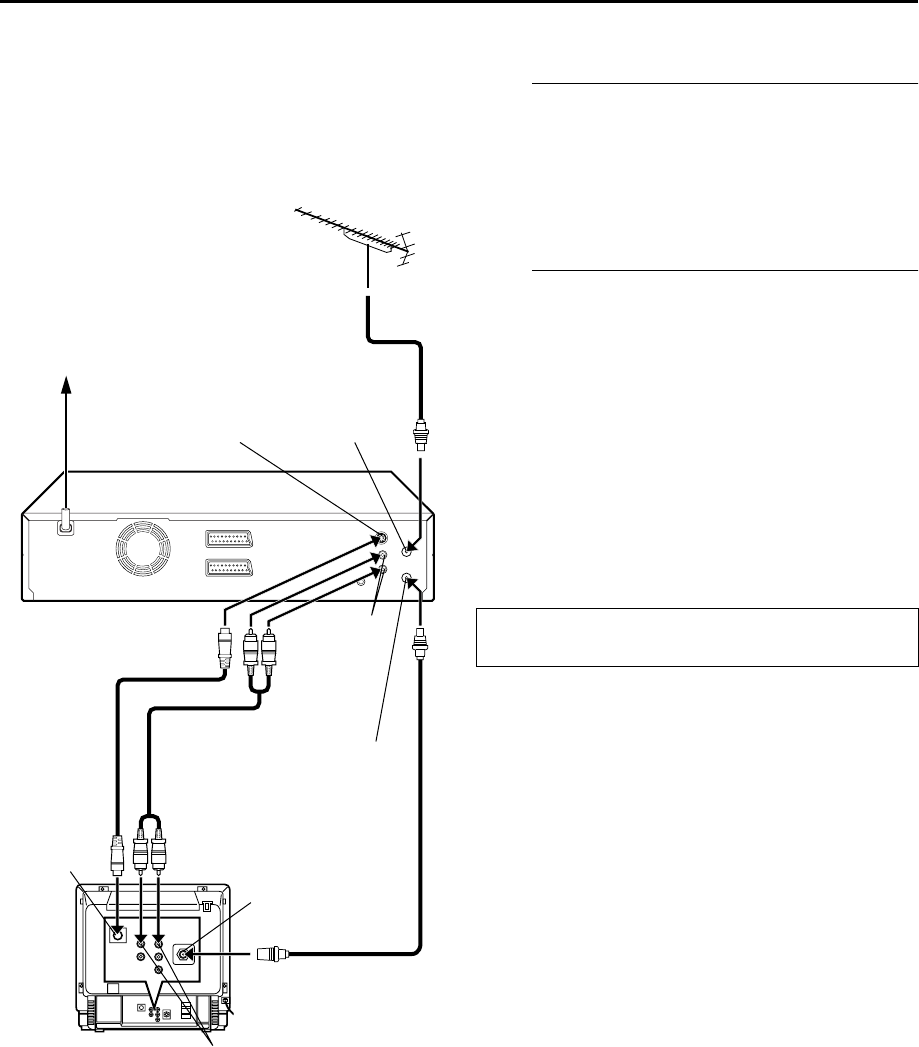
Basic Connection It’s essential that your video recorder be properly
connected.
ACheck the contents.
Make sure the package contains all of the accessories
listed in “SPECIFICATIONS” on page 102.
BSituate the recorder.
Place the recorder on a stable, horizontal surface.
CConnect the recorder to TV.
ADisconnect the TV aerial cable from the TV.
BConnect the TV aerial cable to the ANTENNA IN
connector on the rear panel of the recorder.
CConnect the provided RF cable between the
ANTENNA OUT connector on the rear panel of the
recorder and the TV’s aerial connector.
DConnect the provided 21-pin SCART cable between
the L-1 IN/OUT connector on the rear panel of the
recorder and the TV’s 21-pin SCART connector.
●The L-1 IN/OUT connector accepts and delivers either a
composite signal (regular video signal) or a Y/C signal (a signal
in which the luminance and chrominance signals are
separated). If your TV’s 21-pin AV input connector (SCART) is
compatible with the Y/C signal, set “L-1 OUTPUT” to
“S-VIDEO” after the connection and the initial settings are
completed (墌pg. 68). You can obtain high-quality S-VHS
pictures. (For connection, be sure to use a 21-pin SCART cable
that is compatible with the Y/C signal.)
●Set your TV to the VIDEO (or AV), Y/C, or RGB mode
according to the type of your TV’s SCART connector.
●For switching the TV’s mode, refer to the instruction manual of
your television.
●To obtain high-quality S-VHS pictures, you can also use the
S-VIDEO connection described on page 13.
DConnect the recorder to mains.
Plug the end of the mains power cord into a mains outlet.
ATTENTION:
Your TV must have a 21-pin AV input connector
(SCART) for the connection to the recorder.
Aerial connector
Back of TV
21-pin SCART
connector
TV aerial cable
RF cable
(provided)
21-pin SCART
cable
(provided)
Mains power cord
Mains outlet
Back of recorder L-1 IN/OUT
ANTENNA
IN
ANTENNA
OUT
THESE STEPS MUST BE COMPLETED BEFORE ANY
VIDEO OPERATION CAN BE PERFORMED.
After the connection is completed, perform “Auto Set
Up” on page 14.
HM-HDS4EX.book Page 12 Wednesday, April 2, 2003 3:55 PM
Masterpage:Right-NoTitle0
EN 13
Filename [HM-HDS4EX_03Names.fm]
Page 13 April 2, 2003 3:20 pm
S-VIDEO
Connection
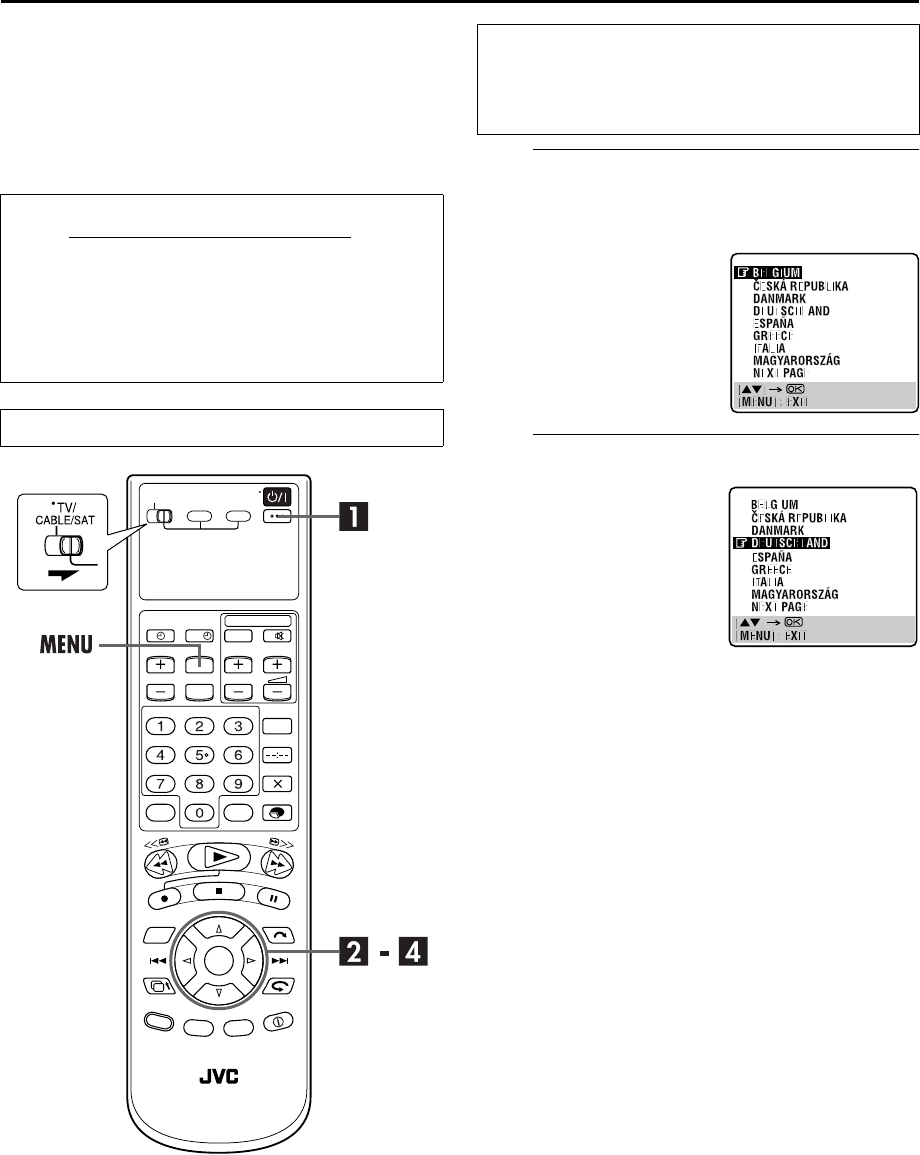
8To connect to a TV with S-VIDEO/AUDIO IN
connectors . . .
AConnect the recorder to TV.
AConnect the aerial, recorder and TV as per “Basic
Connection” (墌pg. 12).
BConnect the recorder’s S VIDEO OUT connector to
the TV’s S-VIDEO IN connector.
CConnect the recorder’s AUDIO OUT connectors to the
TV’s AUDIO IN connectors.
BConnect the recorder to mains.
Plug the end of the mains power cord into a mains outlet.
NOTES:
●You can obtain high-quality S-VHS pictures.
●With S-VIDEO connection, you cannot use the Preset
Download function (墌pg. 16).
●If your TV is not stereo-capable, use the recorder’s AUDIO
OUT connectors to connect to an audio amplifier for Hi-Fi
stereo sound reproduction. (墌pg. 79)
●To operate the recorder with your TV using the S-VIDEO
connection, set your TV to its AV mode.
●For switching the TV’s mode, refer to the instruction manual of
your television.
Back of TV
Aerial connector
S-VIDEO IN
connector
AUDIO IN connectors
S-Video cable
(not provided)
Audio cable
(not provided)
Mains outlet
Mains
power cord
Back of recorder
RF cable (provided)
S VIDEO OUT
AUDIO OUT
TV aerial cable
ANTENNA IN
ANTENNA OUT
After the connection is completed, perform “Auto Set
Up” on page 14.
HM-HDS4EX.book Page 13 Wednesday, April 2, 2003 3:55 PM
Filename [HM-HDS4EX_04Basic.fm]
Masterpage:Left
14 EN
Page 14 April 2, 2003 2:20 pm
INITIAL SETTINGS
Auto Set Up
Auto Channel Set/Auto Clock Set/
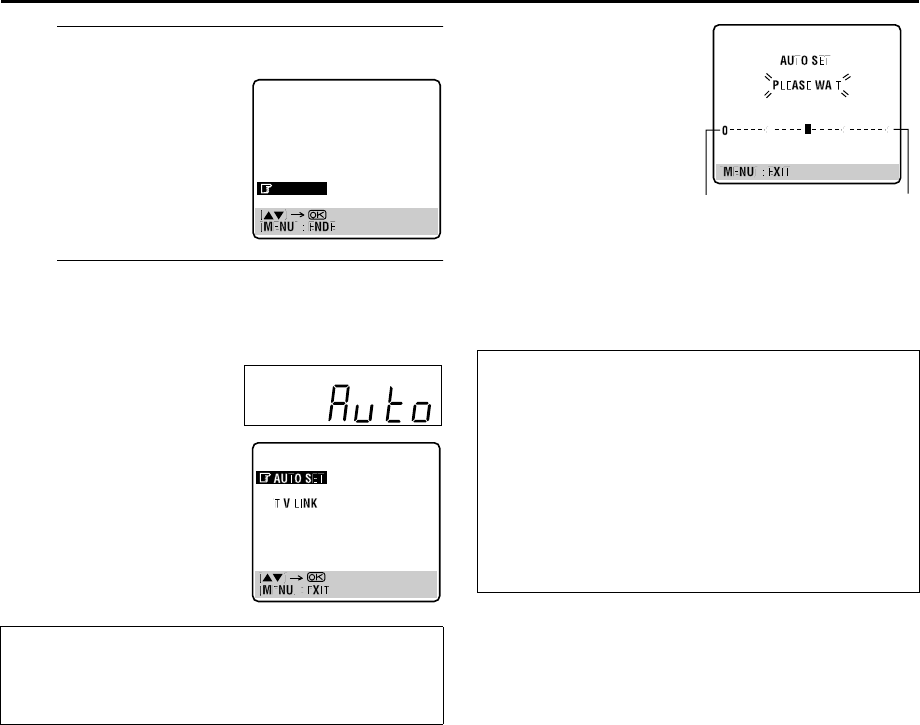
Auto Guide Program Number Set ATurn on the recorder.
Press 1 on the recorder or remote control. The Country
Set display appears on the TV screen.
BSelect your country.
NOTES:
●If you have selected BELGIUM or SUISSE, go to step C.
●If you have selected MAGYARORSZÁG,
C
ESKÁ REPUBLIKA,
POLSKA or OTHER EASTERN EUROPE, press OK. The Clock
Set screen appears. Set the clock manually (墌pg. 86), then
go to step D.
●If you have selected any other country name, press OK and go
to step D.
After the 1 button on the recorder or remote control is
pressed for the first time to power on the recorder, by simply
selecting your country*, the Auto Set Up function sets the
tuner channels, clock** and Guide Program numbers
automatically.
* If you live in Belgium (BELGIUM) or Switzerland (SUISSE), you also
need to select your language.
**If you live in Hungary (MAGYARORSZÁG), Czech Republic (
C
ESKÁ
REPUBLIKA), Poland (POLSKA) or other countries in Eastern Europe
(OTHER EASTERN EUROPE), set the clock manually.
Slide TV/CABLE/SAT switch to the right.
?
Before starting, make sure of the following:
●The TV aerial cable should be connected to the recorder.
●The recorder’s mains power cord should be connected to a
mains outlet.
●The TV should be set to its AV mode.
NOTE:
For a few seconds after you
pressed 1, you can not stop
Auto Set Up, even if you press
MENU to cancel this procedure.
Press rt to move the
highlight bar (pointer) to your
country’s name.
(Example) DEUTSCHLAND is
selected.
HM-HDS4EX.book Page 14 Wednesday, April 2, 2003 3:55 PM
Masterpage:Right-NoTitle0
EN 15
Filename [HM-HDS4EX_04Basic.fm]
Page 15 April 2, 2003 2:20 pm
CSelect the language.
DPerform Auto Set Up.
Press OK. The AUTO SET/T-V LINK display appears on
the front display panel and/or on the TV screen.
●If you have connected the recorder to a TV offering T-V Link
via a 21-pin SCART cable (墌pg. 12) and the TV is turned on,
the recorder automatically performs “Preset Download”
(墌pg. 16) even if you select “Auto” or “AUTO SET” in step D.
NOTES:
●In the area where no TV station transmits a PDC (Programme
Delivery Control) signal, the recorder can perform neither
Auto Clock Set nor Auto Guide Program Number Set.
●If there is a power cut, or if you press 1 or MENU while Auto
Set Up is in progress, Auto Set Up will be interrupted; be sure
to turn off the recorder power once and try again from step A.
●Auto Clock Set may not function properly depending on the
reception condition.
●If no sound accompanies the picture or the audio sounds
unnatural on some channels that have been stored by Auto Set
Up, the TV system setting for those channels may be incorrect.
Select the appropriate TV system for those channels
(墌pg. 93, “INFORMATION”).
Press OK. The Language Set
display appears on the TV
screen.
Press rt to move the
highlight bar (pointer) to the
language of your choice.
(Example) DEUTSCH is selected.
On the front display panel
Press rt to select “Auto”
and press OK or e.
On the on-screen display
Press rt to move the
highlight bar (pointer) to
“AUTO SET” and press OK or
e.
“Auto” blinks on the front display panel; do NOT
press any button on the recorder or remote control
until the front display panel shows clock time,
“(CH) 1” or “– –:– –” as illustrated on page 17.
DANSK
SUOMI
NORSK
SVENSKA
NEDERLANDS
CASTELLANO
ITALIANO
FRANCAIS
DEUTSCH
ENGLISH
●If you are using the on-screen
display, the AUTO SET
screen will appear. As Auto
Set Up progresses, the “q”
mark on the TV screen
moves from left to right.
When the Auto Set Up is
completed, “SCAN
COMPLETED” appears for
about 5 seconds, then the
normal screen appears.
ATTENTION
Once you have performed Auto Set Up, even if the recorder’s
memory backup has expired, all the stored stations and their
Guide Program numbers remain in the recorder’s memory
and the recorder will not perform Auto Set Up again. You
only need to set the clock. (墌pg. 86)
If you have moved to a different area, perform each setting as
required.
●Tuner Set (墌pg. 88)
●Clock Set (墌pg. 86)
If a new station starts broadcasting in your area, perform
tuner setting (墌pg. 88).
Beginning End
HM-HDS4EX.book Page 15 Wednesday, April 2, 2003 3:55 PM
Filename [HM-HDS4EX_04Basic.fm]
Masterpage:Left
16 EN
Page 16 April 2, 2003 2:20 pm
INITIAL SETTINGS (cont.)
Preset Download
Auto Channel Set by Downloading
from TV/Auto Clock Set/Auto Guide
Program Number Set
NOTES:
●For details, refer to the instruction manual of your TV.
●In the area where no TV station transmits a PDC (Programme
Delivery Control) signal, the recorder can perform neither
Auto Clock Set nor Auto Guide Program Number Set.
●If there is a power cut, or if you press 1 or MENU while
downloading or set up is in progress, it will be interrupted; be
sure to turn off the recorder power once and try again from the
beginning.
●Auto Clock Set may not function properly depending on the
reception condition.
●On this recorder, the characters available for station names
(ID) are A–Z, 0–9, –, f, + and I (space). Some names of
downloaded stations may differ from those of your TV
(墌pg. 92).
If you have connected the recorder to your TV via a 21-pin
SCART cable (墌pg. 12), the recorder will automatically
perform Preset Download instead of the Auto Set Up in step D
on page 15. After downloading, the recorder sets the clock and
Guide Program numbers automatically.
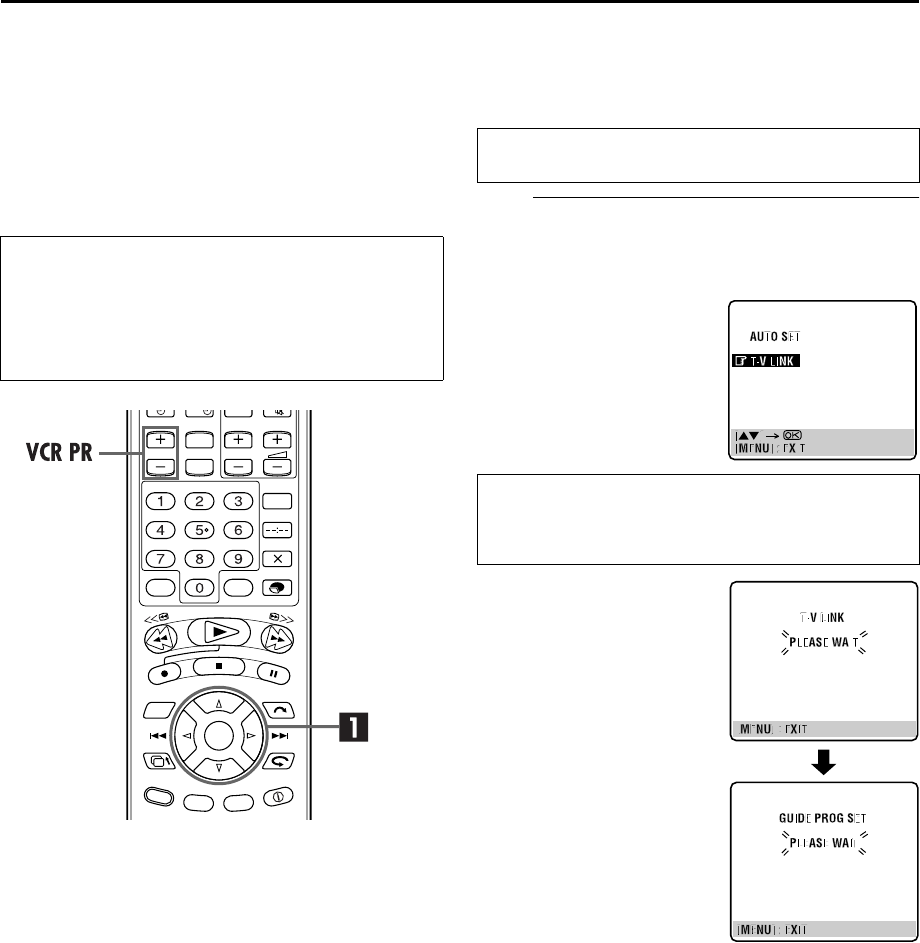
APerform Preset Download.
Press OK. The AUTO SET/T-V LINK display appears on
the TV screen.
ATTENTION
You can use this function only with a TV offering T-V Link,
etc.* Be sure to use a fully-wired 21-pin SCART cable.
* Compatible with TVs offering T-V Link, EasyLink, Megalogic,
SMARTLINK, Q-Link or DATA LOGIC via fully-wired 21-pin SCART
cable. The degree of compatibility and available functions may
differ by system.
?
Perform steps A to C of “Auto Set Up” on page 14 before
continuing.
Press rt to move the
highlight bar (pointer) to
“T-V LINK” and press OK or
e.
Preset positions on the front display panel increase from
“CH1”; do NOT press any button on the recorder or remote
control until the front display panel shows clock time,
“(CH) 1” or “– –:– –” as illustrated on page 17.
●If you are using the on-screen
display, the T-V LINK screen
will appear. Then the GUIDE
PROG SET screen will appear
during Guide Program
Number Set. When Preset
Download is completed,
“COMPLETED” appears for
about 5 seconds, then the
normal screen appears.
●If you press any button on the
recorder or remote control
while downloading is in
progress, it will be interrupted.
HM-HDS4EX.book Page 16 Wednesday, April 2, 2003 3:55 PM
Masterpage:Right-Full-NoTitle0
EN 17
Filename [HM-HDS4EX_04Basic.fm]
Page 17 April 2, 2003 2:20 pm
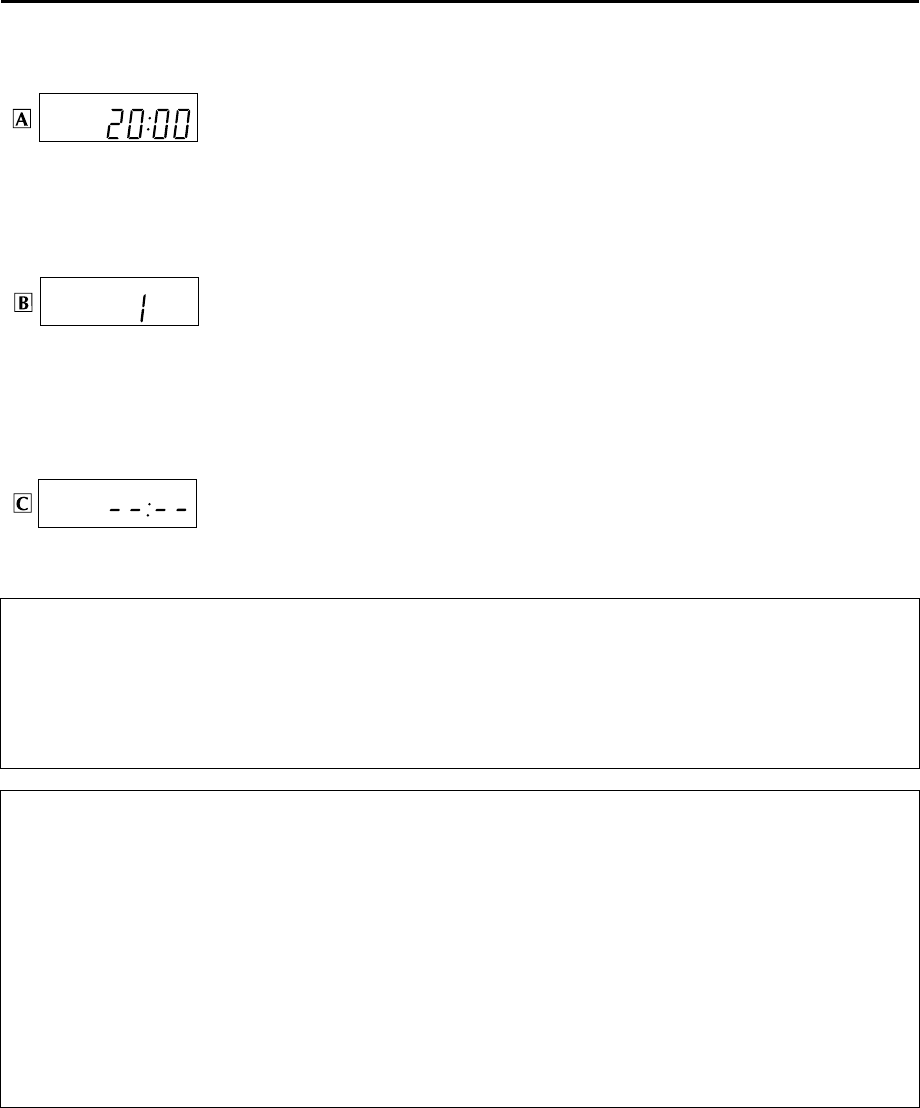
Results of Auto Set Up/Preset Download appear on the front display panel
If both Auto Channel Set and Auto Clock Set have been performed successfully, the
correct current time is displayed.
Turn on the TV and select its AV mode, then make sure that all necessary stations have been stored
in the recorder’s memory by using the VCR PR button(s).
●If station names (ID – 墌pg. 94) have also been stored in the recorder’s memory, the station name
will be displayed at the top left corner of the TV screen for about 5 seconds when the recorder is
tuned to a different station.
●If you want to set the tuner manually such as to add or skip channels, to change channel
positions, or to set or change station names, see pages 90 – 94.
If Auto Channel Set has succeeded but Auto Clock Set has not, “1” (channel position) is
displayed.
ATurn on the TV and select its AV mode, then make sure that all necessary stations have been
stored in the recorder’s memory by using the VCR PR button(s).
●If station names (ID – 墌pg. 94) have also been stored in the recorder’s memory, the station name
will be displayed at the top left corner of the TV screen for about 5 seconds when the recorder is
tuned to a different station.
●If you want to set the tuner manually such as to add or skip channels, to change channel
positions, or to set or change station names, see pages 90 – 94.
BPerform “Clock Set” on page 86.
If both Auto Channel Set and Auto Clock Set have failed, “– –:– –” is displayed.
Make sure the cables are connected properly and turn off the recorder’s power once, then turn the
recorder’s power back on again.
The Country Set display appears on the front display panel and/or on the TV screen; perform “Auto
Set Up” on page 14 or “Preset Download” on page 16 again.
IMPORTANT
●To check if the Guide Program numbers have been set correctly, perform the SHOWVIEW Timer Programming (墌pg. 46).
●In certain reception conditions, station names may not be stored correctly, and auto Guide Program Number Set may not work
properly. If the Guide Program numbers are not set properly when you timer-record a TV programme using the SHOWVIEW
system, the recorder will record a TV programme of a different station. When programming the timer using the SHOWVIEW
system, be sure to check the desired channel is selected correctly (墌pg. 46, “SHOWVIEW® Timer Programming”).
●Your video recorder memorizes all detected stations even if reception of some of them is poor. You can delete those stations with
an unacceptable picture (墌pg. 91, “Delete A Channel”).
INFORMATION
Language for the on-screen display
Auto Set Up also selects the language automatically for the on-screen display depending on the Country setting you have made in
step B on page 14 (unless you have selected BELGIUM or SUISSE), as shown below.
If you want to change the language setting manually, see “Language” on page 18.
Just Clock
Your recorder is equipped with the Just Clock function which provides accurate time keeping through automatic adjustments at
regular intervals, by reading data from a PDC signal. If you want to take advantage of this function, simply set it to “ON”
(墌pg. 86, “Just Clock”).
SUOMI ]SUOMI DANMARK ]DANSK NEDERLAND ]NEDERLANDS
PORTUGAL ]ENGLISH ÖSTERREICH ]DEUTSCH GREECE ]ENGLISH
DEUTSCHLAND ]DEUTSCH CESKÁ REPUBLIKA ]CEcTINA OTHER WESTERN EUROPE]ENGLISH
POLSKA ]POLSKI ITALIA ]ITALIANO OTHER EASTERN EUROPE ]ENGLISH
NORGE ]NORSK MAGYARORSZÁG ]MAGYAR
SVERIGE ]SVENSKA ESPAÑA ]CASTELLANO
HM-HDS4EX.book Page 17 Wednesday, April 2, 2003 3:55 PM
Filename [HM-HDS4EX_04Basic.fm]
Masterpage:Left
18 EN
Page 18 April 2, 2003 2:20 pm
INITIAL SETTINGS (cont.)
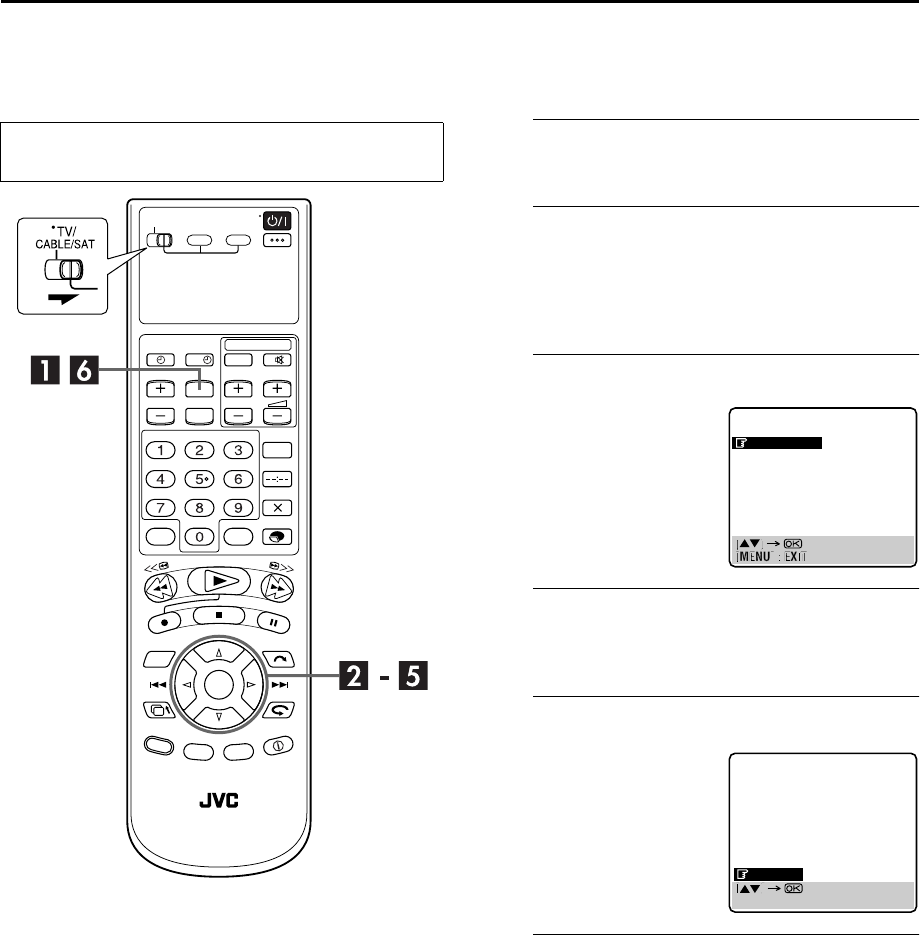
Language This recorder offers you the choice to view on-screen
messages in 10 different languages. Though Auto Set Up
selects the language automatically (墌pg. 17), you can
change the language setting manually as required.
AAccess the Main Menu screen.
Press MENU.
BAccess the Tuner Set screen.
APress w e to move the arrow to “INITIAL SET UP”,
then press t.
BPress w e to move the arrow to “TUNER SET”, then
press OK.
CAccess the Country Set screen.
DSelect your country.
Press rt to move the highlight bar (pointer) to your
country’s name, then press OK or e.
ESelect the language.
FReturn to the normal screen.
Press MENU.
●Turn on the TV and select the AV mode.
●Slide TV/CABLE/SAT switch to the right.
?Press rt to move the
highlight bar (pointer) to
“AUTO CH SET”, then press
OK or e.
Press rt to move the
highlight bar (pointer) to the
language of your choice.
●You do not have to press OK;
pressing OK enters AUTO SET/
T-V LINK screen.
TUNER SET
AUTO CH SET
MANUAL CH SET
DANSK
SUOMI
NORSK
SVENSKA
NEDERLANDS
CASTELLANO
ITALIANO
FRANCAIS
DEUTSCH
ENGLISH
[MENU] : EXIT
HM-HDS4EX.book Page 18 Wednesday, April 2, 2003 3:55 PM
Masterpage:Right
EN 19
Filename [HM-HDS4EX_04Basic.fm]
Page 19 April 2, 2003 2:20 pm
SAT CONTROL SET
Satellite Receiver
Control Setting
The following procedure is required if you receive
satellite channels through a satellite receiver.
Approximately 20 seconds before the SHOWVIEW timer
programming (墌pg. 46) or Express timer programming
(墌pg. 48) starts, the recorder sets its input mode to “L-2”
and automatically switches the satellite receiver’s
channels using the provided Satellite Controller.
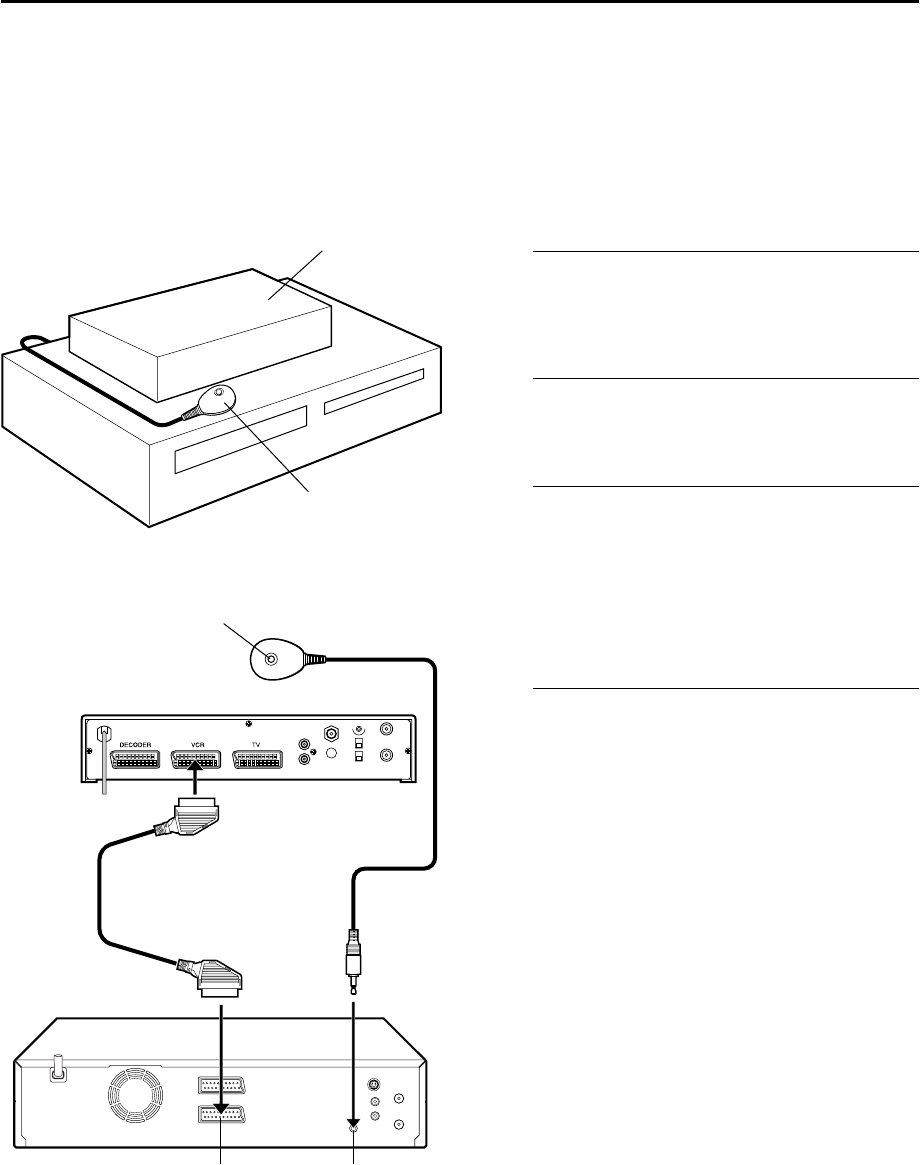
Installing Satellite Controller
ASituate the Satellite Controller.
Place the Satellite Controller so that the path between its
transmitter and the satellite receiver’s remote sensor is
unobstructed.
BAttach the Satellite Controller.
Fix securely using the adhesive strip attached on the back
of the Satellite Controller.
CMake connections.
Be sure to connect the recorder’s L-2 IN/DECODER
connector to the satellite receiver’s 21-pin SCART
connector.
NOTE:
When connecting your satellite receiver, refer to its instruction
manual.
DConnect the Satellite Controller to the
recorder.
Connect the Satellite Controller to the SAT CONTROL
connector on the rear panel.
Satellite receiver
Satellite Controller
(suggested locations)
Transmitter
21-pin SCART cable
(provided)
Your recorder
Satellite Controller
Satellite receiver
Back of recorder L-2 IN/DECODER SAT CONTROL
HM-HDS4EX.book Page 19 Wednesday, April 2, 2003 3:55 PM
Filename [HM-HDS4EX_04Basic.fm]
Masterpage:Left
20 EN
Page 20 April 2, 2003 2:20 pm
SAT CONTROL SET (cont.)
Setting satellite receiver’s brand and
channel
After installation, set the satellite receiver’s brand and
channel correctly; otherwise, the Satellite Controller
cannot work correctly.
ATurn on the satellite receiver.
Turn on the satellite receiver’s power.
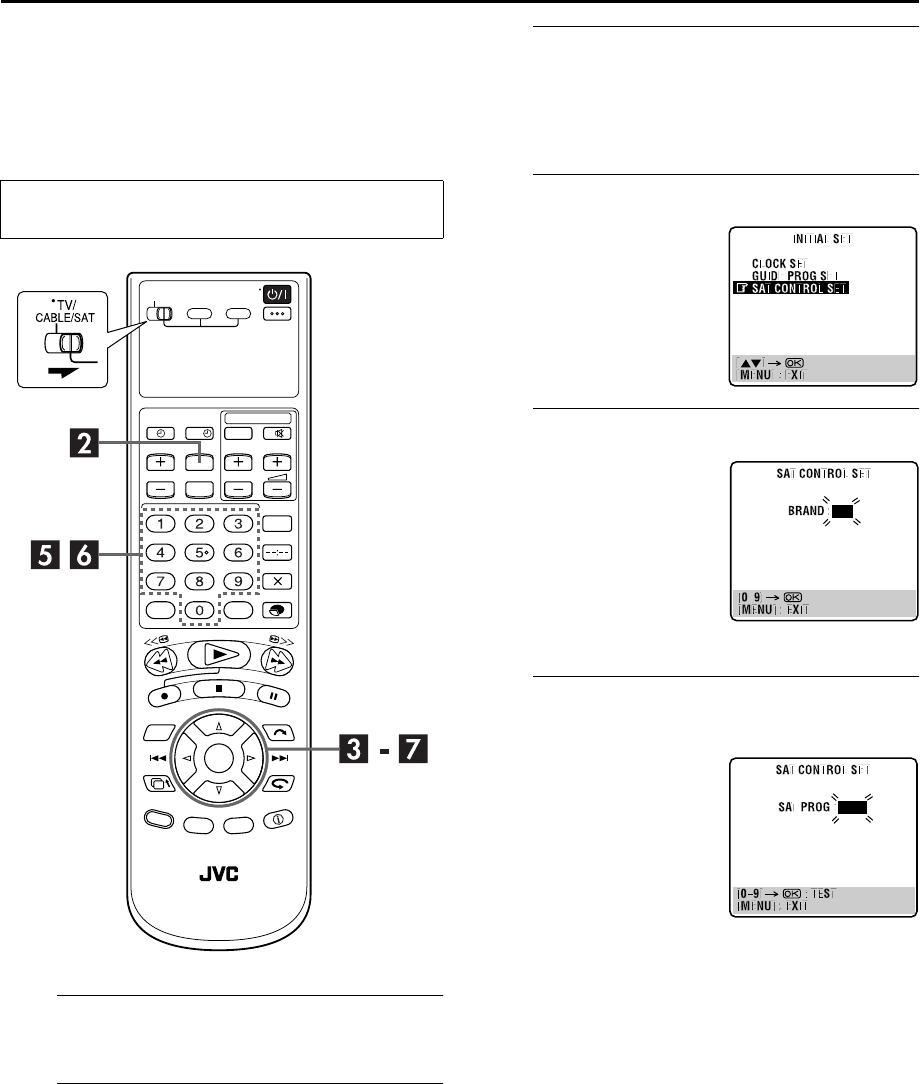
BAccess the Main Menu screen on the
recorder.
Press MENU.
CAccess the Initial Set screen.
APress w e to move the arrow to “INITIAL SET UP”,
then press t.
BPress w e to move the arrow to “INITIAL SET”, then
press OK.
DAccess the Sat Control Set screen.
EEnter the satellite receiver’s brand.
FSelect the satellite receiver’s channel for
testing.
●Turn on the TV and select the AV mode.
●Slide TV/CABLE/SAT switch to the right.
?
Press rt to move the
highlight bar (pointer) to
“SAT CONTROL SET”, then
press OK or e.
Press the appropriate number
keys to enter the brand code
from the list on page 21, then
press OK.
●If the brand code you entered
is invalid, the code field will
be reset. Enter the correct
brand code again.
●If the recorder is in playback or
recording mode, you cannot
set the brand code.
Press the appropriate number
keys to enter one of the
channel positions on the
satellite receiver, then press
OK.
●You can select the channel
position between 1 to 999.
●After pressing OK, the recorder
enters the Test mode.
HM-HDS4EX.book Page 20 Wednesday, April 2, 2003 3:55 PM
Masterpage:Right-2lineTitle0
EN 21
Filename [HM-HDS4EX_04Basic.fm]
Page 21 April 2, 2003 2:20 pm
SAT CONTROL SET (cont.)
T-V LINK
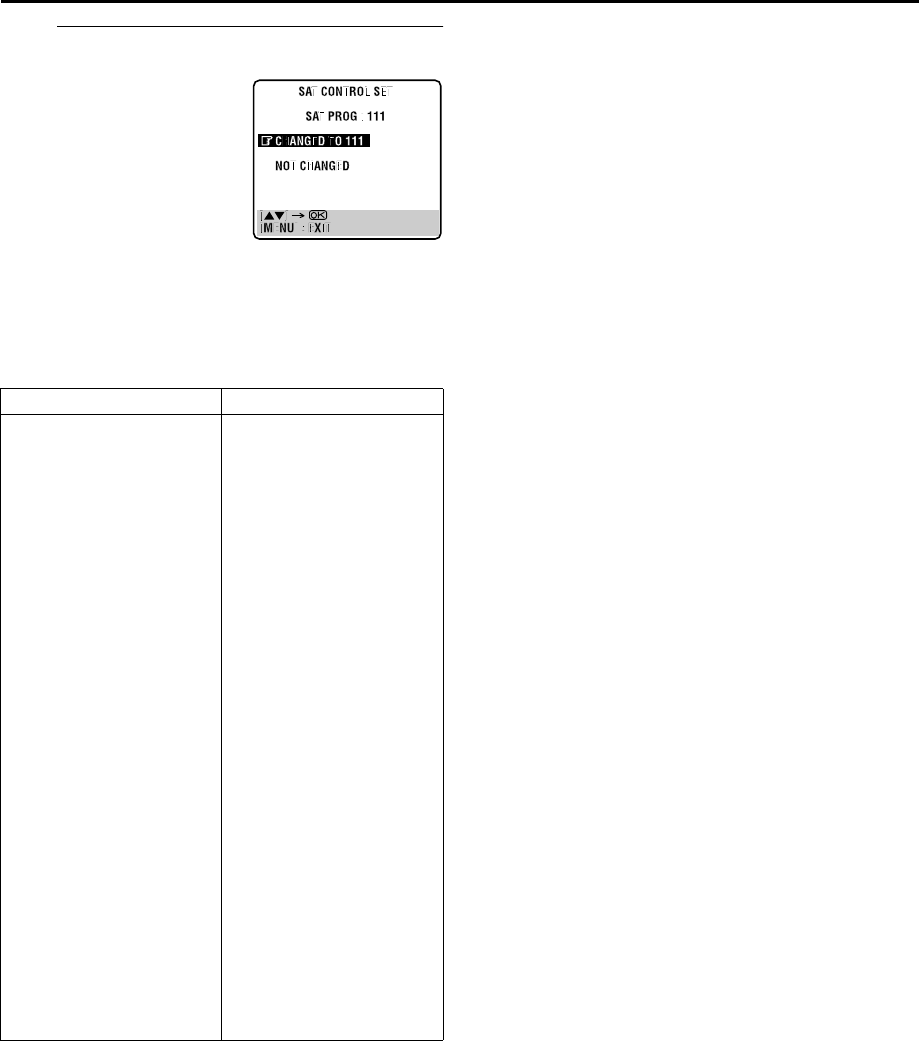
GCheck the result of the test.
If the satellite receiver’s channel number has not been
changed correctly ...
Press rt to move the highlight bar (pointer) to “NOT
CHANGED”, then press OK or e. Then perform the
procedure again from step E.
NOTES:
●The Satellite Controller may not work with all types of satellite
receiver.
●For some satellite receivers, you need to set its channel input
mode to 2-digit.
●If your satellite receiver has more than two channel modes, be
sure to set to “All Channel Mode”. For details, refer to the
instruction manual of the satellite receiver.
●When selecting the satellite receiver’s channel (墌 step F),
signals from the remote control may interfere with signals
transmitted from the Satellite Controller. In this case, move the
remote control as close to the recorder’s infrared beam
receiving window as possible.
T-V Link Functions
When you connect the recorder to your TV via a fully-wired
21-pin SCART cable (墌pg. 12), the following functions are
available. You can use these functions only with a TV offering
T-V Link, etc.*
For details, refer to the instruction manual of your TV.
* Compatible with TVs offering T-V Link, EasyLink, Megalogic,
SMARTLINK, Q-Link or DATA LOGIC via fully-wired 21-pin SCART
cable. The degree of compatibility and available functions may differ by
system.
TV Auto Power On
The TV will turn on and be set to its AV mode automatically
whenever you play a tape.
For details, refer to the instruction manual of your TV.
VCR Auto Standby
You can use your TV’s remote control to turn off the recorder.
For details, refer to the instruction manual of your TV.
Direct Rec
You can easily start recording the programme that you are
watching on your TV. When you use this function, set “DIRECT
REC” to “ON” (墌pg. 84).
If the satellite receiver’s
channel number has been
changed to the same one as
you set in step F ...
Press rt to move the
highlight bar (pointer) to
“CHANGED TO ...”, then
press OK or e to finish the
Sat Control Set mode.
BRAND NAME CODE
JVC
AMSTRAD
CANAL SATELLITE
CANAL +
D-BOX
ECHOSTAR (VIA DIGITAL)
FINLUX
FORCE
GALAXIS
GRUNDIG
HIRSCHMANN
HUMAX
ITT NOKIA
KATHREIN
LUXOR
MASCOM
MASPRO
NOKIA
PACE
PANASONIC
PHILIPS
RADIX
RFT
SABA
SAGEM
SALORA
SAMSUNG
SIEMENS
SKYMASTER
TECHNISAT
THOMSON
TPS
TRIAX
WISI
73
60, 61, 62, 63, 92
81
81
85
82
68
89
88
64, 65, 102
64, 78, 99
88
68
70, 71, 96
68
93
70
87, 94
65, 67, 74, 86, 92
74, 92
66, 84, 101
78
69
97
83, 90
68
83
64
69, 98
66, 100
97
83
91
64
HM-HDS4EX.book Page 21 Wednesday, April 2, 2003 3:55 PM
Filename [HM-HDS4EX_04Basic.fm]
Masterpage:Left
22 EN
Page 22 April 2, 2003 2:20 pm
RECORDING/PLAYBACK ON HDD DECK
Basic Recording ATurn on the recorder.
Press 1.
●The button corresponding to the previously selected deck
lights on the recorder.
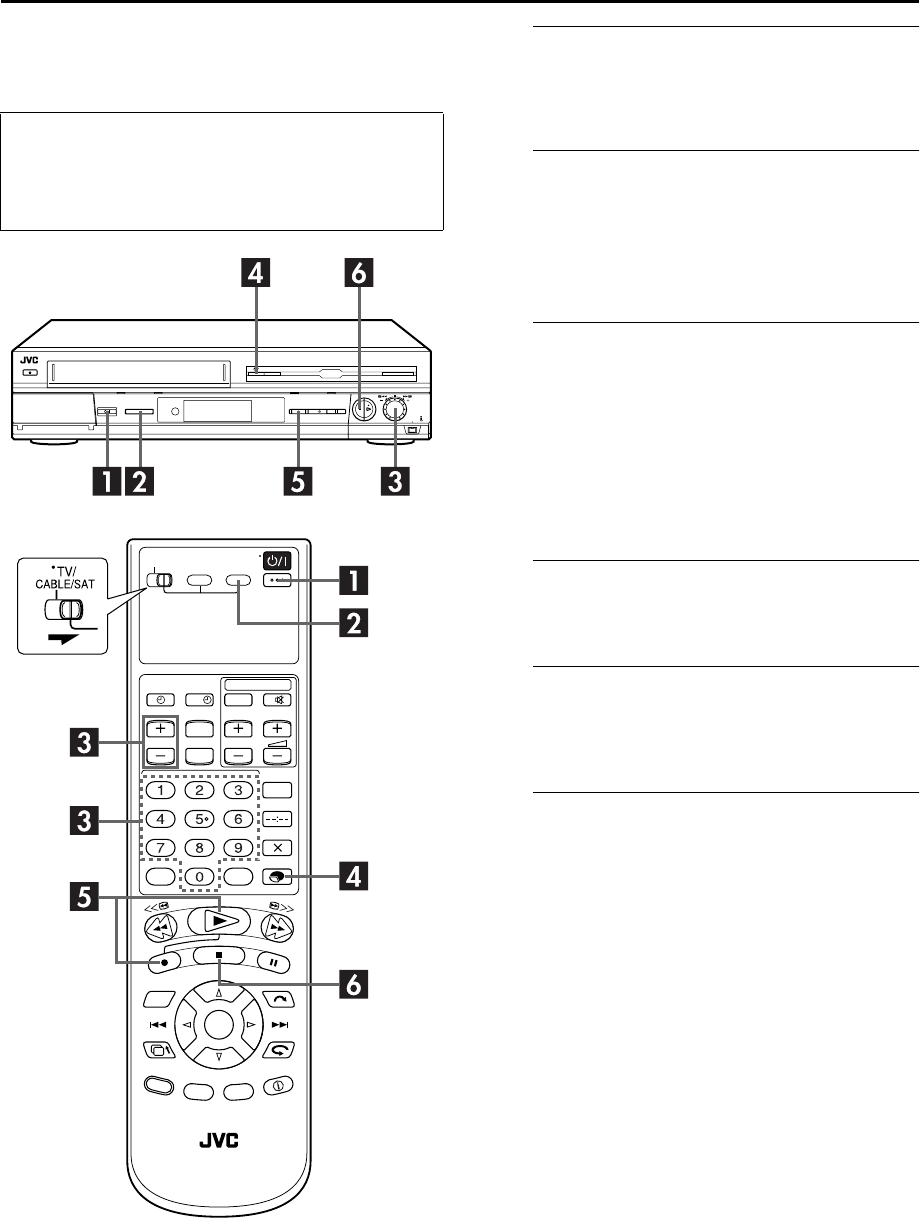
BSelect the HDD deck.
On the recorder
Press S-VHS/HDD repeatedly until HDD indicator lights.
On the remote control
Press HDD.
●The HDD indicator lights on the recorder.
CChoose a programme.
Press VCR PR +/– or the number keys. Or turn the JOG
dial clockwise or counterclockwise to select the channel
you wish to record while a TV channel is displayed on
the front display panel.
●To change the indication on the front display panel, press the
JOG dial while the HDD deck is stopped. Each time you press
the JOG dial, TV channel and clock display alternate.
●When you switch channels on the HDD deck, the picture
appears a few seconds behind. It is not a malfunction.
DSet the recording speed.
Press MODE.
●For details on the recording speed, see page 23.
EStart recording.
Press and hold 7 and press 4 on the remote control, or
press 7 on the recorder.
●The HDD REC mode indicator lights on the recorder.
FStop recording.
Press 8.
●The HDD REC mode indicator turns off.
●There may be a few seconds’ delay in resuming normal screen.
It is not a malfunction.
NOTES:
●It is not possible to record a TV programme on both the HDD
deck and the VHS deck simultaneously. In addition, it is not
possible to record simultaneously from the same external
input.
●It is not possible to pause recording on the HDD deck while
recording from the channels other than “L-1”, “L-2”, “F-1”,
“D-1”, or “DUB”. (墌pg. 66, 67)
●While recording a programme, you can play back the
previously recorded part by “Live Memory Playback”
(墌pg. 28).
●Turn on the TV and select the AV mode.
●Slide TV/CABLE/SAT switch to the right.
●If the recorder is turned on with HDD deck selected,
there may be about 30 seconds’ delay in starting to
show pictures on the screen.
?
HM-HDS4EX.book Page 22 Wednesday, April 2, 2003 3:55 PM
Masterpage:Right-NoTitle0
EN 23
Filename [HM-HDS4EX_04Basic.fm]
Page 23 April 2, 2003 2:20 pm
Basic Playback
ATurn on the recorder.
Press 1.
●The button corresponding to the previously selected deck
lights on the recorder.
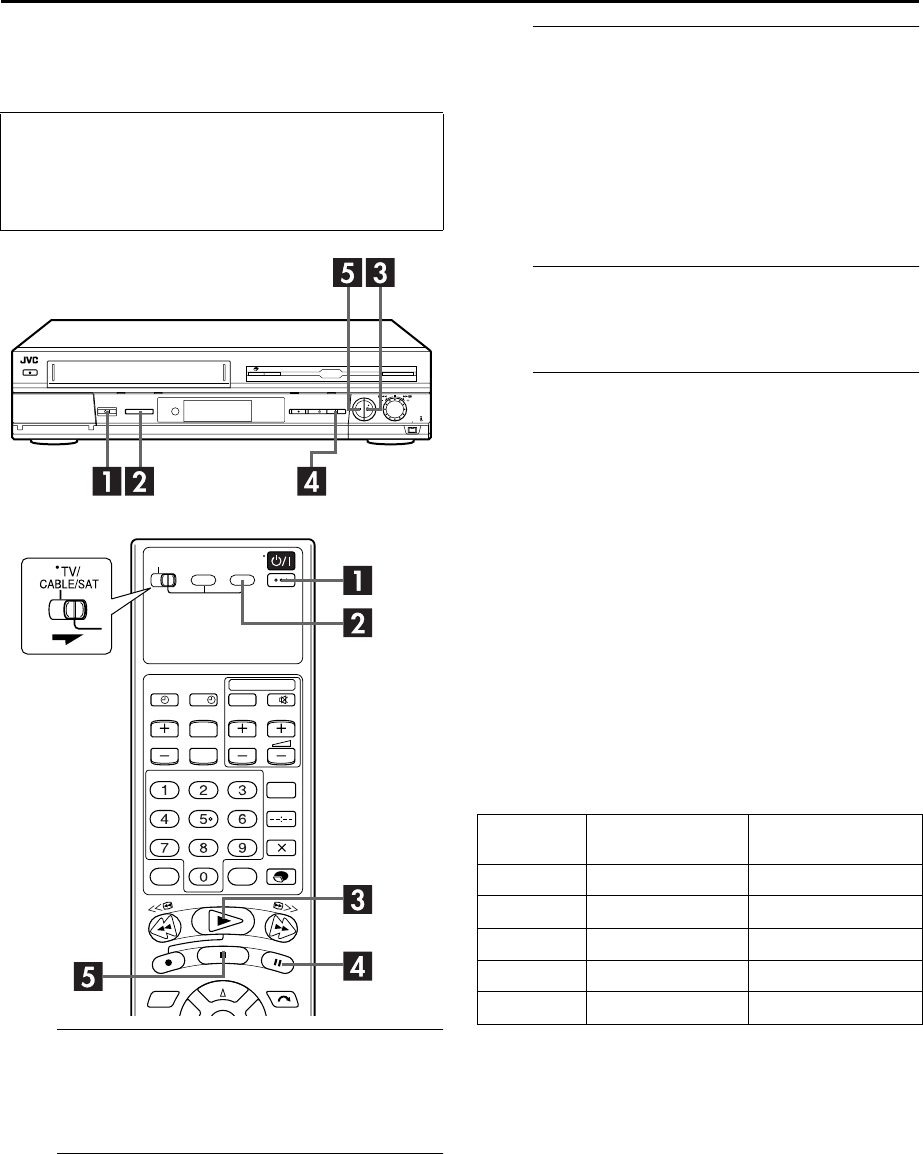
BSelect the HDD deck.
On the recorder
Press S-VHS/HDD repeatedly until HDD indicator lights.
On the remote control
Press HDD.
●The HDD indicator lights on the recorder.
CStart playback.
Press 4.
One of the following screens will appear:
– the programme which has been recorded on the HDD deck at
last time and has not been played back yet
– the programme which has been stopped during playback
– the HDD Navigation screen (墌pg. 24)
●There are some programmes for demonstration on the HDD
deck when it is shipped from the factory.
DPause playback.
Press 9.
●To resume normal playback, press 4.
EStop playback.
Press 8.
●The HDD play indicator turns off.
NOTE:
While recording a programme, you can play back the previously
recorded part by “Live Memory Playback” (墌pg. 28).
Recording Speed on the HDD deck
This recorder has a 80 Gbyte hard disk drive. The pictures and
sounds recorded on the HDD deck and other information are
written down on the hard disk drive.
As recording format for the HDD deck, MPEG2 format, the same
for DVD, is used. As a guide for picture quality, the “bps” unit is
used to represent how much data can be recorded per second.
The larger this value, the better the picture quality is but the
more capacity is required for recording. Select SP for
programmes where quick movement occurs, such as sports
programmes, and SEP for talk shows, etc. where relativity less
movement.
The recording speeds of the recorder are set as follows:
* When “LIVE MEMORY” is set to “OFF”. (墌pg. 81)
NOTE:
The picture may be blurred or distorted when you start recording
or playback in DV recording speed. However, this is not a
malfunction of the recorder.
●Turn on the TV and select the AV mode.
●Slide TV/CABLE/SAT switch to the right.
●If the recorder is turned on with HDD deck selected,
there may be about 30 seconds’ delay in starting to
show pictures on the screen.
?
Recording
speed
Recording amount
(approx.)
Maximum recording
time (approx.)
DV 25 Mbps 7 hours*
SP 6.4 Mbps 20 hours
LP 4.5 Mbps 28 hours
EP 3.2 Mbps 56 hours
SEP 2.2 Mbps 80 hours
HM-HDS4EX.book Page 23 Wednesday, April 2, 2003 3:55 PM
Filename [HM-HDS4EX_04Basic.fm]
Masterpage:Left
24 EN
Page 24 April 2, 2003 2:20 pm
RECORDING/PLAYBACK ON HDD DECK (cont.)
Playback with HDD
Navigation
The HDD Navigation enables you to search and select the
desired programmes recorded on the HDD deck very easily.
There is a 80 Gbyte hard disk drive on this recorder. You can
record up to 100 programmes for the HDD deck.
Each time a programme is recorded on the HDD deck, the
information of the programme are registered for the HDD
Navigation automatically.
So, you can confirm the information of the programmes
recorded on the HDD with the HDD Navigation screen. And,
you can also select one of the programmes recorded on the
HDD deck using the HDD Navigation.
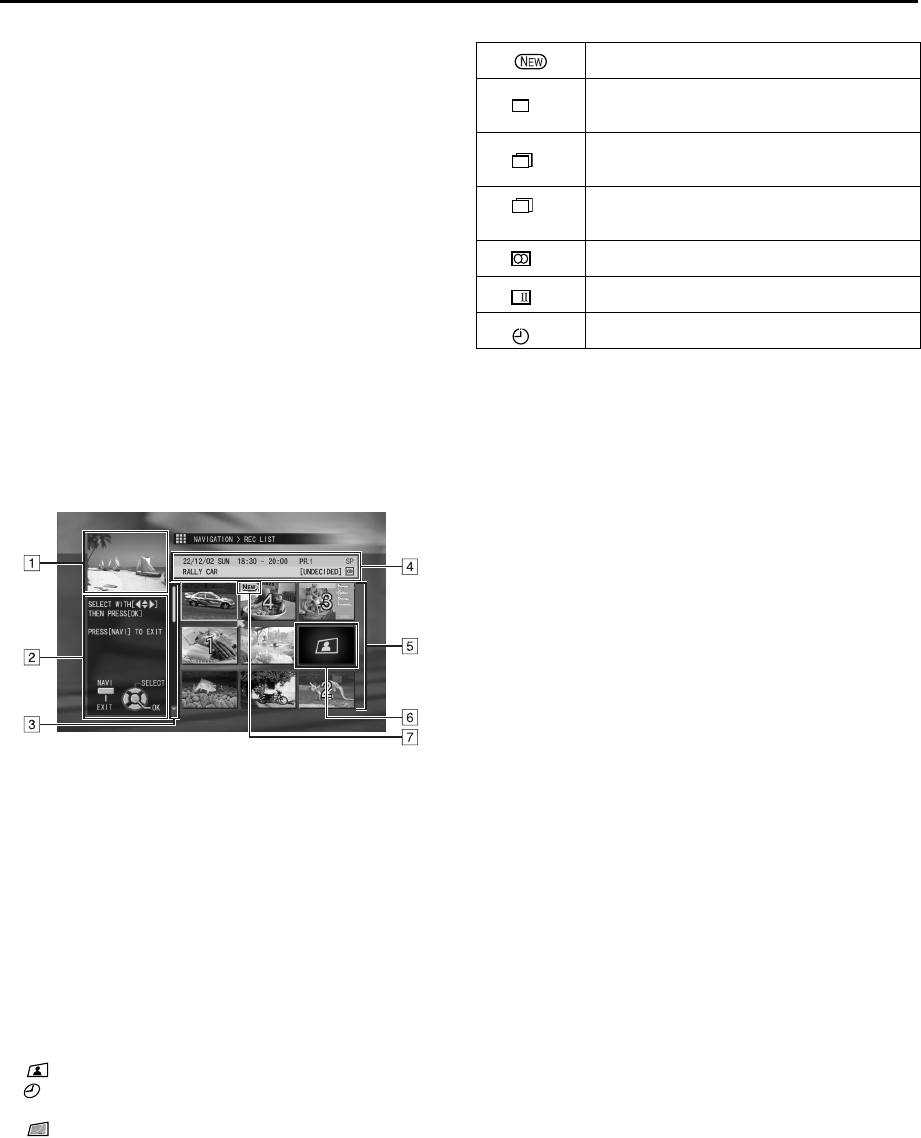
The following screen appears as the HDD Navigation
screen when you select a programme (or play list)
(墌pg. 25). For details of the play list, refer to “Play List
Features” (墌pg. 60).
APlayback screen
(Indicates currently received TV programme.)
BGuidance for operations
CScroll bar
(Appears when there are over nine registered
programmes (or play lists). The scroll bar only
indicates that there are more programmes (or play
lists) hidden off the current screen display. To show
hidden programmes (or play lists), press wret
repeatedly.)
DRecording information for the programme indicated
by the arrow
EIndex
(Thumbnail still of each programme)
FIndex
: Indicates no index is registered.
: Indicates programme in standby for timer
recording.
: Indicates no programme is registered.
GIcons
(Indicate the record condition of each programme.)
The Icons and their meanings
This programme has never been played back.
This programme was recorded using timer
daily recording (daily overwrite) mode.
This programme was recorded using timer
daily recording (weekly overwrite) mode.
This programme was recorded using timer
weekly recording mode.
This programme has stereo sounds.
This programme has bilingual sounds.
This programme was timer recorded.
D
D
W
I
HM-HDS4EX.book Page 24 Wednesday, April 2, 2003 3:55 PM
Masterpage:Right-NoTitle0
EN 25
Filename [HM-HDS4EX_04Basic.fm]
Page 25 April 2, 2003 2:20 pm
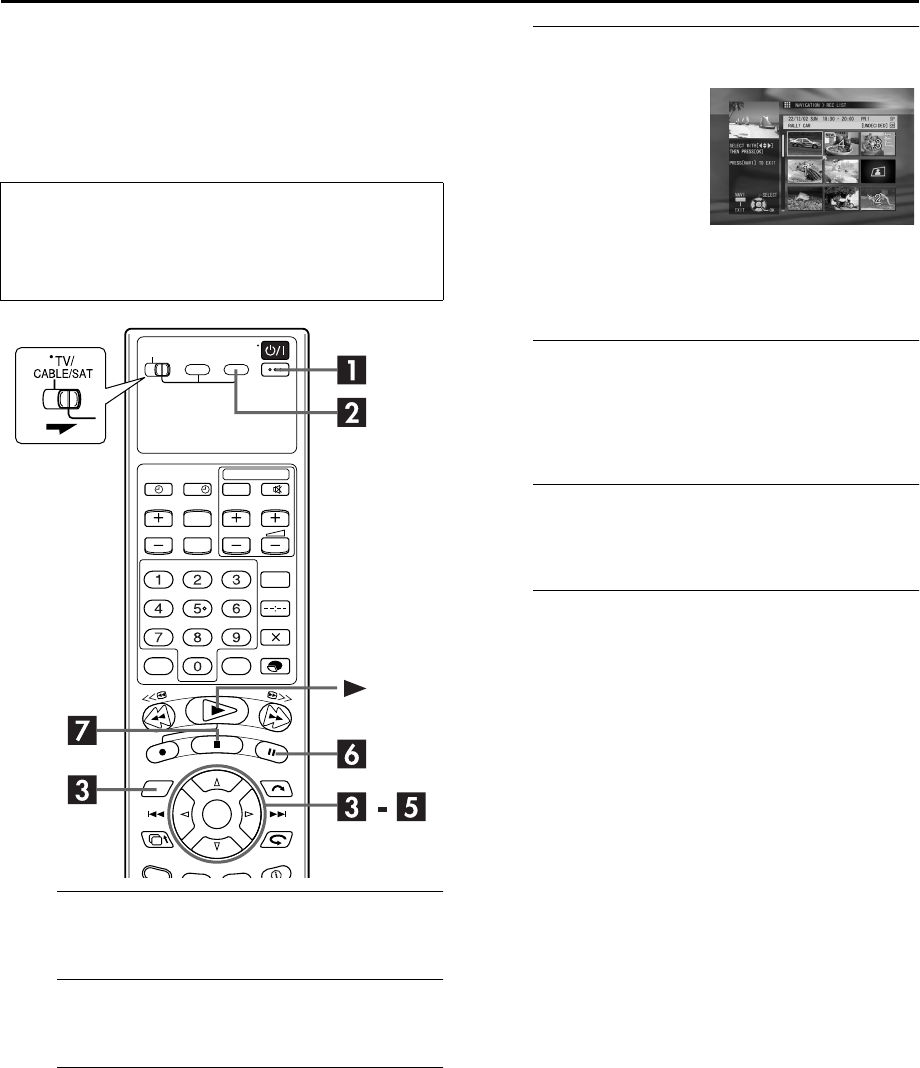
Scan for Beginning of Programme (or
Play List)
You can scan the beginning of the programme (or play list) easily
with the HDD Navigation. For details of the play list, refer to
“Play List Features” (墌pg. 60).
ATurn on the recorder.
Press 1.
BSelect the HDD deck.
Press HDD.
CAccess the Index screen.
On the recorder
Press NAVIGATION.
On the remote control
APress NAVIGATION. The HDD Navigation screen
appears.
BPress w e to move the arrow to “REC LIST”, then press
OK.
●When you wish to play back a play list, select “PLAY LIST”,
then press OK.
DSelect the programme.
●When you wish to play back a programme during recording
from the beginning, press wr
e t to move the arrow to the
top left corner index of the recording programme.
EStart playback.
Press w e to move the arrow to “BEGINNING”, then
press OK again.
●To repeat playback of a selected programme (or play list), refer
to “Repeat Playback” (墌pg. 32).
FPause playback.
Press 9.
●To resume normal playback, press 4.
GStop playback.
Press 8.
●To resume playback from the point where playback was
previously stopped, press w e to move the arrow to
“RESUME”, then press OK.
●Turn on the TV and select the AV mode.
●Slide TV/CABLE/SAT switch to the right.
●If the recorder is turned on with HDD deck selected,
there may be about 30 seconds’ delay in starting to
show pictures on the screen.
?
On the recorder
Turn the JOG dial to select
the programme (or play list),
then press the JOG dial.
On the remote control
Press wr
e t to move the
arrow on the index (small
still pictures) of the desired
programme, then press OK.
HM-HDS4EX.book Page 25 Wednesday, April 2, 2003 3:55 PM
Filename [HM-HDS4EX_04Basic.fm]
Masterpage:Left
26 EN
Page 26 April 2, 2003 2:20 pm
RECORDING/PLAYBACK ON HDD DECK (cont.)
Playing Two or More Programmes (or
Play Lists) Continuously in Desired
Order
You can select up to eight programmes (or play lists) for
continuous programme play.
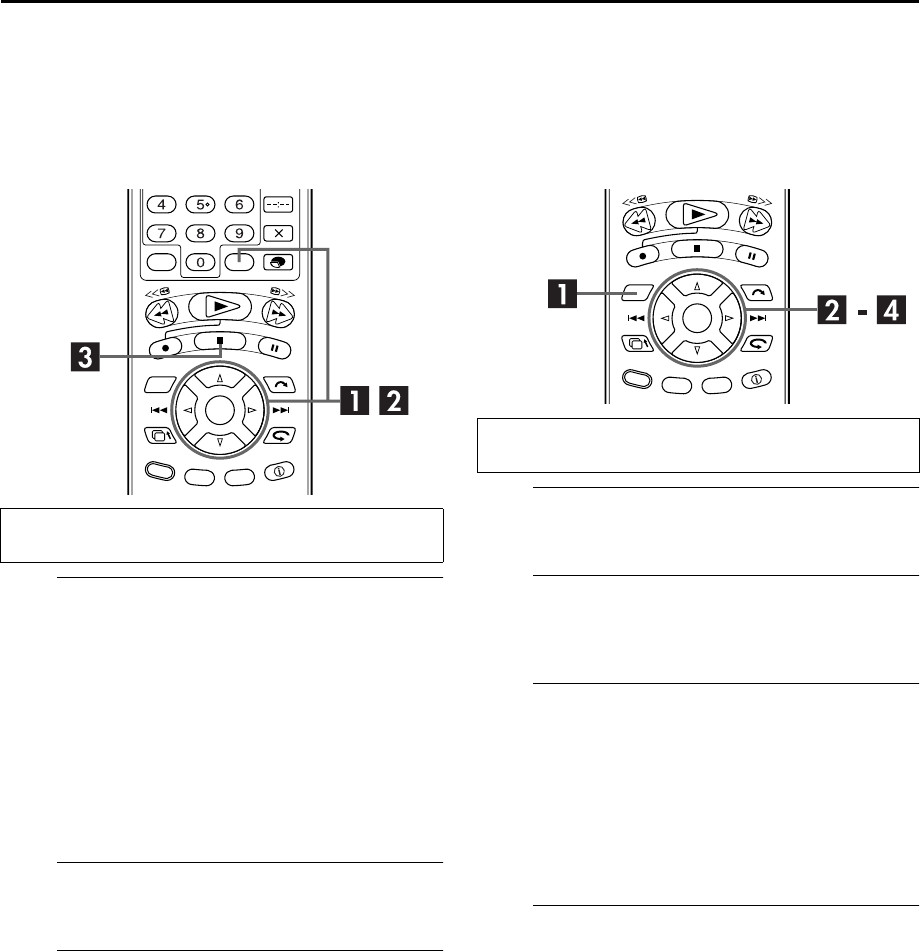
ASelect the programmes (or play lists).
APress wr
e t to move the arrow to the index of the
desired programme (or play list), then press MEMO.
●The number of the programme (or play list) order appears on
the index.
BRepeat step A to select more programmes (or play
lists).
●To cancel a selection, move the arrow to the programme (or
play list) to be cancelled, then press MEMO. The selected
number of the order disappears from the index and the
recorder automatically renumbers the other programmes (or
play lists).
BStart playback.
Press OK.
CStop playback.
Press 8
88
8.
Sort Recorded Programmes (or Play
Lists) by Category and Playback
You can easily search for a desired programme (or play list) in
the Index screen by sorting according to the category option
registered during recording (or after recording). For details of the
play list, refer to “Play List Features” (墌pg. 60).
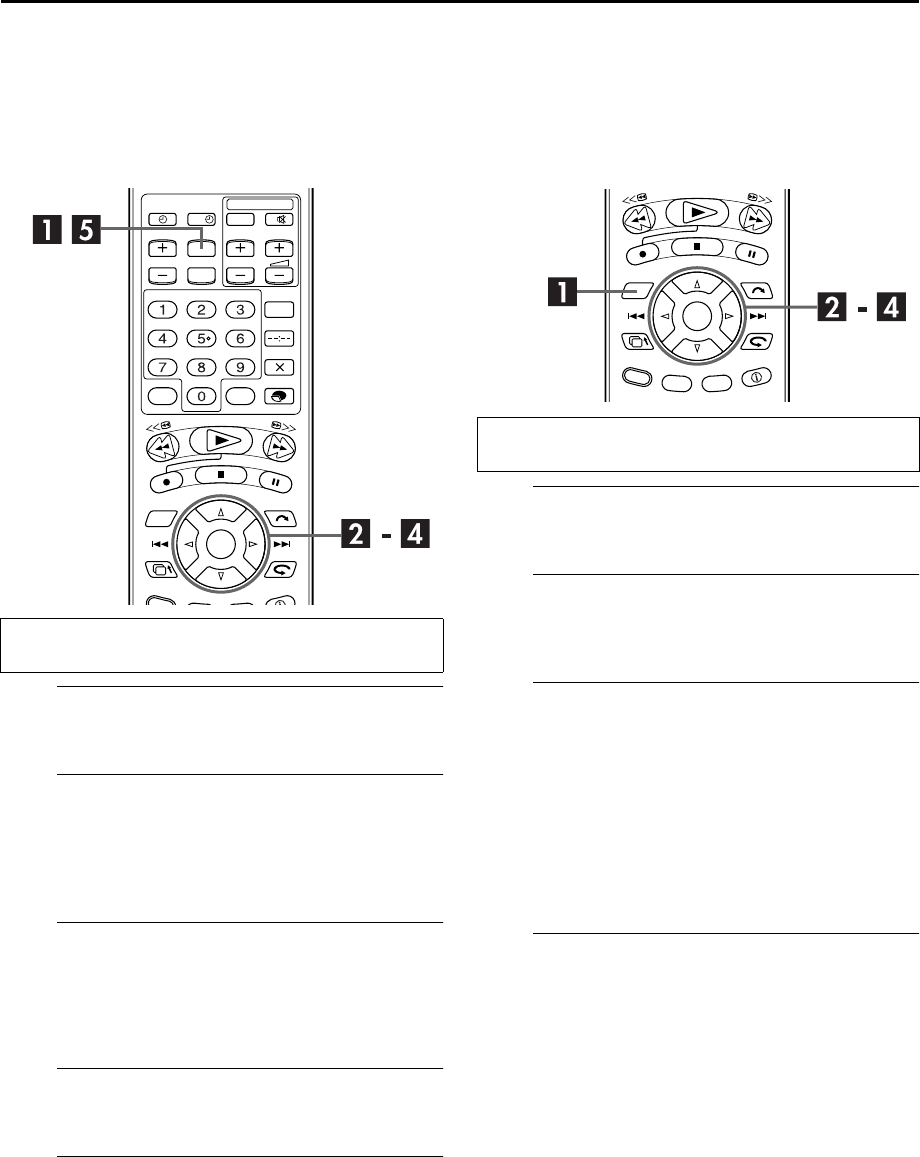
AAccess the Navigation screen.
Press NAVIGATION.
BAccess the Category screen.
Press wr
e t to move the arrow to “CATEGORY”, then
press OK.
CSelect the category, then the programme.
APress wr
e t to move the arrow to the desired
category, then press OK. Programmes (or play lists)
having the selected category option appear in the list.
●To register the category option, refer to “Family Option Preset”
(墌pg. 27) and step J of “SHOWVIEW® Timer Programming”
(墌pg. 46).
BPress wr
e t to move the arrow to the desired
programme (or play list), then press OK.
DStart playback.
Press we
to move the arrow to “BEGINNING”, then
press OK.
●When playback of the entire programme is finished, normal
screen resumes.
●When the end of the programme is reached by pressing 5,
deck goes to pause mode.
Perform steps A to C of “Scan for Beginning of Programme
(or Play List)” (墌pg. 25) before continuing.
Perform steps A to B of “Scan for Beginning of Programme
(or Play List)” (墌pg. 25) before continuing.
HM-HDS4EX.book Page 26 Wednesday, April 2, 2003 3:55 PM
Masterpage:Right-NoTitle0
EN 27
Filename [HM-HDS4EX_04Basic.fm]
Page 27 April 2, 2003 2:20 pm
Family Option Preset
You can easily search for a desired programme (or play list) using
this option. (“Sort Recorded Programmes (or Play Lists) by
Category and Playback” (墌pg. 26)) Before using this feature, it
is recommended to disengage the unnecessary options using the
following procedure to eliminate the labor of selection among
many options.
AAccess the Main Menu screen.
Press MENU.
BAccess the Family screen.
APress wr
e t to move the arrow to “FUNCTION
SET UP”, then press t.
BPress wr
e t to move the arrow to “FAMILY”, then
press OK.
CDisengage the option.
APress wr
e t to move the arrow to the unnecessary
option, then press OK.
BPress r t to select “OFF”, then press OK.
●To engage the option, select “ON” in step A.
DDisengage other options.
Repeat step C as necessary.
EReturn to the normal screen.
Press MENU.
Sort the Recorded Programmes (or
Play Lists) by Title and Playback
You can easily search for a desired programme (or play list) in
the Index screen by sorting according to the title registered
during recording (or after recording). For details of the play list,
refer to “Play List Features” (墌pg. 60).
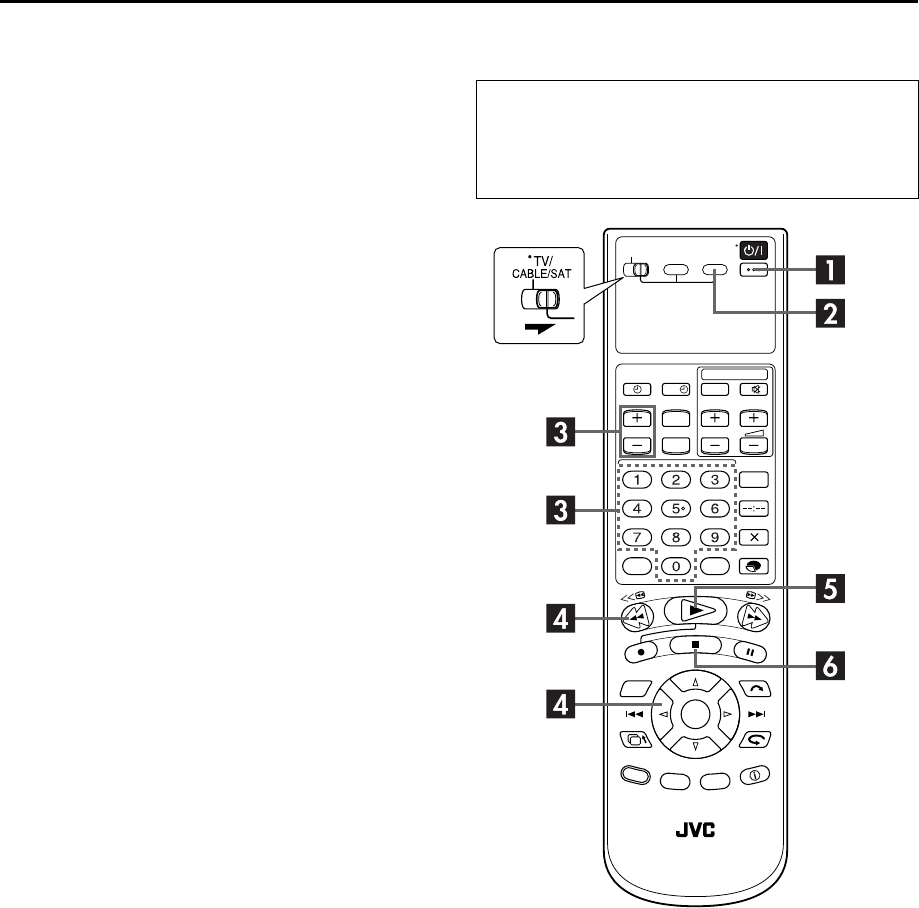
AAccess the Navigation screen.
Press NAVIGATION.
BAccess the Title screen.
Press wr
e t to move the arrow to “TITLE”, then press
OK.
CSelect the initial letter of the title, then the
programme.
APress wr
e t to move the arrow to the desired letter,
then press OK. Programmes (or play lists) having the
selected initial letter in their titles appear in the list
among other programmes (or play lists).
●When there is no title that fits your requirements, the next
available selections will appear in alphabetical order.
BPress wr
e t to move the arrow to the desired
programme (or play list), then press OK.
DStart playback.
Press we
to move the arrow to “BEGINNING”, then
press OK.
●When playback of the entire programme is finished, normal
screen resumes.
●When the end of the programme is reached by pressing 5,
deck goes to pause mode.
Perform steps A to B of “Scan for Beginning of Programme
(or Play List)” (墌pg. 25) before continuing.
?
Perform steps A to B of “Scan for Beginning of Programme
(or Play List)” (墌pg. 25) before continuing.
HM-HDS4EX.book Page 27 Wednesday, April 2, 2003 3:55 PM
Filename [HM-HDS4EX_04Basic.fm]
Masterpage:Left
28 EN
Page 28 April 2, 2003 2:20 pm
RECORDING/PLAYBACK ON HDD DECK (cont.)
Live Memory
Features
Equipped with a hard disk drive, this recorder allows
information to be written to and read from the hard disk at high
speeds. Taking advantage of this feature, you can temporarily
record programmes received with the tuner or from an externally
connected equipment, and can watch them only a few seconds
behind actual air time.
In this recorder, viewing a programme through HDD (not a
recorded programme) means you are always watching the
programme temporarily recorded on it.
This feature enables you to reverse the programme back to view
or record any previous part of it. This is called “Live Memory
Playback” or “Live Memory Recording”, which was impossible
until now.
You can select the length of the time for temporary recording
from off, 30 minutes, 1 hour, and 3 hours (墌pg. 81).
About “Live Memory Playback”
With a certain amount of space (for 30 minutes, 1 hour and 3
hours) reserved on the hard disk, the recorder records broadcasts
being received or signals input from an externally connected
equipment.
Even while you are reversing the programme to review any
previous part, the recorder continues recording the same
programme or externally-input signals.
NOTE:
When the reserved amount of time (or space) runs out, the
recorder overwrites the previous recordings on the hard disk,
starting with the oldest one, repeatedly if necessary. After having
recorded a certain number of programmes, if you try to increase
the amount of your reserved time on HDD, you may not be
allowed to do so because of possible lack of available space,
and the recorder will inform you of this by displaying a message
on the screen.
Live Memory Playback
●Turn on the TV and select the AV mode.
●Slide TV/CABLE/SAT switch to the right.
●If the recorder is turned on with HDD deck selected,
there may be about 30 seconds’ delay in starting to
show pictures on the screen.
?
HM-HDS4EX.book Page 28 Wednesday, April 2, 2003 3:55 PM
Masterpage:Right-NoTitle0
EN 29
Filename [HM-HDS4EX_04Basic.fm]
Page 29 April 2, 2003 2:20 pm
ATurn on the recorder.
Press 1.
BSelect the HDD deck.
Press HDD.
CChoose a programme.
Press VCR PR +/– or the number keys to select the
channel you wish to record.
●The temporary recording begins.
DLocate the point to start playback from.
Press w or 3 to search for the previous part of the
currently viewing programme (temporary recorded on the
background).
EStart Live Memory Playback.
Press 4.
FStop Live Memory Playback.
Press 8.
●The on-air screen resumes.
NOTES:
●You can use various playback features during Live Memory
Playback. (墌pg. 30)
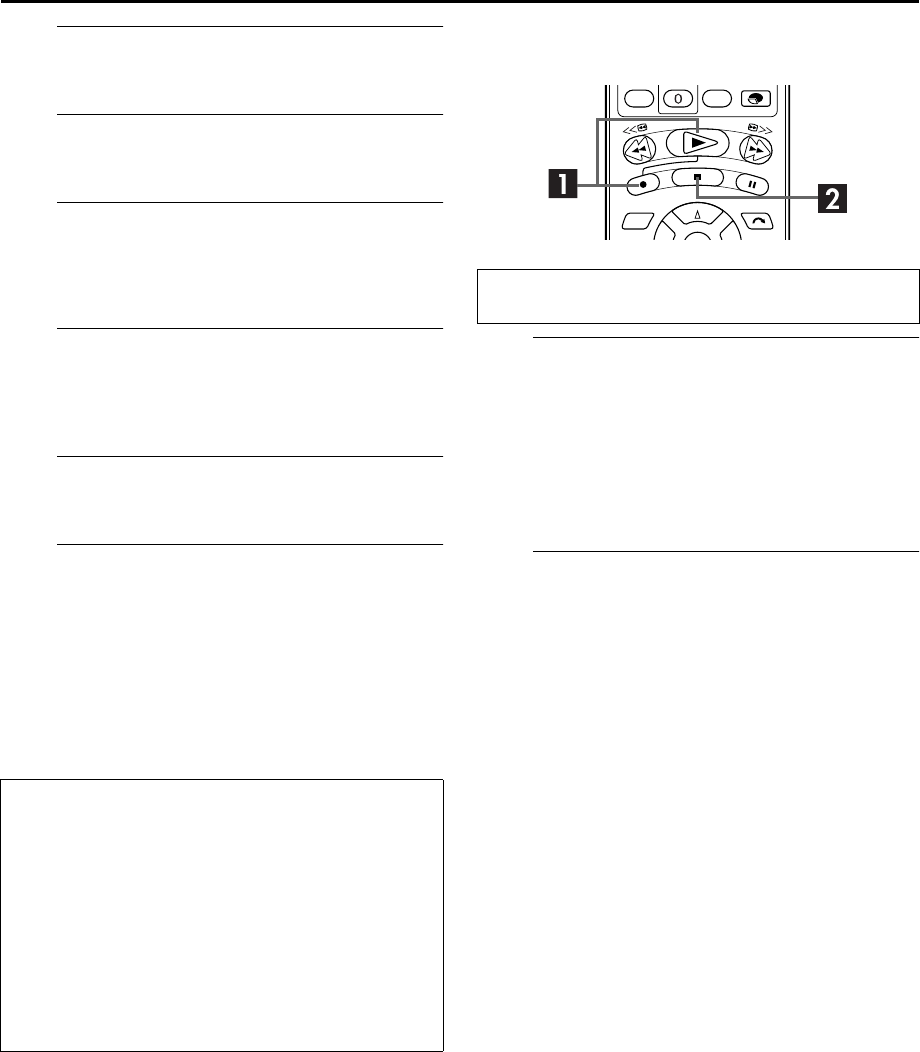
●If you have started actual recording by pressing 7, pressing 8
in step F only resumes the on-air screen. To stop actual
recording, press 8 again.
Live Memory Recording
AStart Live Memory Recording.
On the recorder
Press 7.
On the remote control
Press and hold 7, then press 4.
●HDD REC indicator and the record indicator on the front
display panel blinks, then after a few seconds, the current
broadcast screen resumes.
BStop Live Memory Recording.
Press 8.
NOTES:
●You cannot use Live Memory Recording for channels other
than the channel you are currently watching.
●Recording speed is automatically set to SP mode when Live
Memory Recording is started.
●Temporarily recorded data prior to the beginning of Live
Memory Recording is erased when Live Memory Recording
started.
About limitation on Live Memory Playback
The temporary recording for Live Memory is cancelled in the
following cases, and will start all over again when it is to
resume.
●When the power is turned off
●When the system is powered again after a power failure
was occurred
●When normal recording (墌pg. 22), timer programme
recording (墌pg. 46, 48), live memory recording
(墌pg. 29), or automatic satellite programme recording
(墌pg. 51) is performed
●When the thumbnails are changed (墌pg. 56)
●When the “LIVE MEMORY” setting is changed (墌pg. 81)
●When tuner channel setting is performed (墌pg. 14, 88)
Perform steps A to D of “Live Memory Playback” (墌pg. 29)
before continuing.
HM-HDS4EX.book Page 29 Wednesday, April 2, 2003 3:55 PM
Filename [HM-HDS4EX_04Basic.fm]
Masterpage:Left
30 EN
Page 30 April 2, 2003 2:20 pm
RECORDING/PLAYBACK ON HDD DECK (cont.)
Playback Features
Still Picture/Frame-By-Frame
Playback
1Pause during playback.
Push the JOG dial.
OR
Press 9.
2Activate frame-by-frame playback.
Turn the JOG dial to the right for forward frame-by-frame
playback, or to the left for reverse frame-by-frame
playback.
OR
Press 5 repeatedly to advance one frame at a time.
Press 3 repeatedly to reverse one frame at a time.
●To resume normal playback, press 4.
Slow Motion
1Pause during playback.
Push the JOG dial.
OR
Press 9.
2Activate slow motion playback.
Press and hold 5 or 3for over 2 seconds.
●The playback speed changes for each direction by pressing
5 or 3 repeatedly.
●To resume normal playback, press 4.
Variable Speed Search
During playback, turn the JOG dial to the right for
forward variable-speed search, or to the left for reverse
variable-speed search.
OR
During playback (or Live Memory Playback), press 5
for forward variable-speed search, or 3 for reverse
variable-speed search.
●The playback speed changes for each direction by pressing
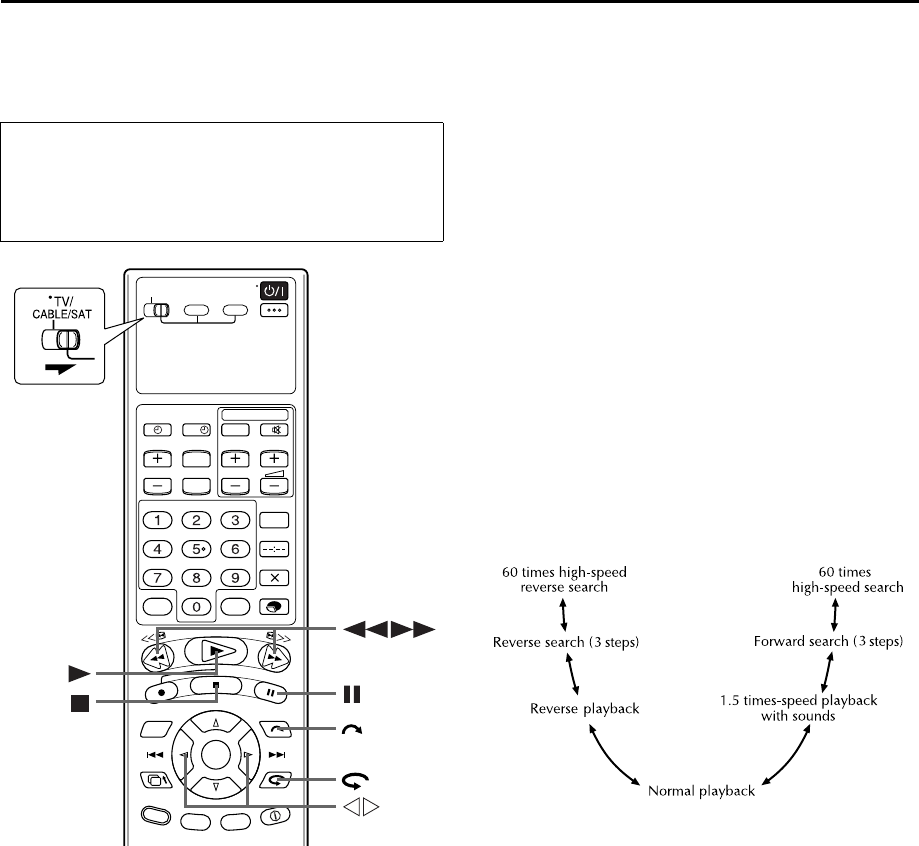
5 or 3 repeatedly. Refer to the illustration below.
●To resume normal playback, press 4.
NOTE:
1.5 times-speed playback with sound is not possible when
recording speed set to DV.
●Turn on the TV and select the AV mode.
●Slide TV/CABLE/SAT switch to the right.
●If the recorder is turned on with HDD deck selected,
there may be about 30 seconds’ delay in starting to
show pictures on the screen.
?
HM-HDS4EX.book Page 30 Wednesday, April 2, 2003 3:55 PM
Masterpage:Right-NoTitle0
EN 31
Filename [HM-HDS4EX_04Basic.fm]
Page 31 April 2, 2003 2:20 pm
Jump search
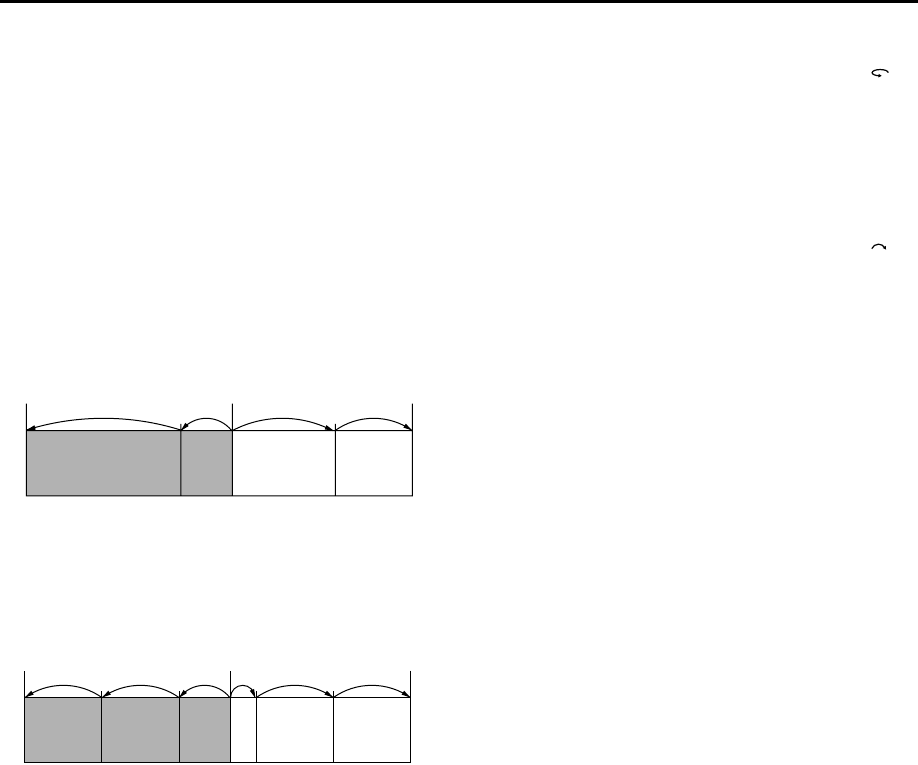
You can locate a scene ahead or behind the current one by
jumping scenes according to selected time intervals (墌pg. 81)
during playback (or Live Memory Playback). This feature is also
available during recording (or Live Memory Recording) or when
watching a TV received programme.
Press w e.
●To advance forward or back, press w e repeatedly within 5
seconds of each press to continue jump.
●When you cannot advance any farther (beginning or end of
programme reached), the recorder pauses and the message
“UNABLE TO GO BACK ANYMORE” appears on the screen.
In such a case, press w or 8.
Example 1:
Playback search when jump interval set to 30 MIN jumps
Example 2:
Recording search when jump interval set to 15 MIN jumps
Quick Rewind a little
During playback (or Live Memory Playback), press .
The recorder rewinds the picture a little (about 7 seconds)
and resumes playback.
●If the button is pressed repeatedly, the recorder rewinds the
pictures continuously and resumes playback.
Quick Skip Forward
During playback (or Live Memory Playback), press .
The recorder skips forward (about 30 seconds at a time)
and resumes playback.
●If the button is pressed repeatedly, the recorder skips
continuously and resumes playback.
Time counter
Beginning of
programme Current scene End of
programme
0 min 30 min 1 h
40 min 1 h 15 min
9:00 9:15 9:30 9:40
9:45 10:00 10:15
Clock time
Beginning of
programme Current scene End of
programme
HM-HDS4EX.book Page 31 Wednesday, April 2, 2003 3:55 PM
Filename [HM-HDS4EX_04Basic.fm]
Masterpage:Left
32 EN
Page 32 April 2, 2003 2:20 pm
RECORDING/PLAYBACK ON HDD DECK (cont.)
Repeat Playback
Your recorder can automatically play back the desired
programme(s) repeatedly.
1Select the desired programme.
Perform steps A to D of “Scan for Beginning of Programme (or
Play List)” (墌pg. 25) before continuing.
2Start Repeat Playback.
Press we
to move the arrow to “REPEAT”, then press
OK.
●The Play indicator (4) on the front display panel blinks slowly.
●To resume normal playback, press 4.
●To stop playback, press 8.
NOTE:
Repeat playback is not possible during Live Memory Playback.
Soundtrack Selection
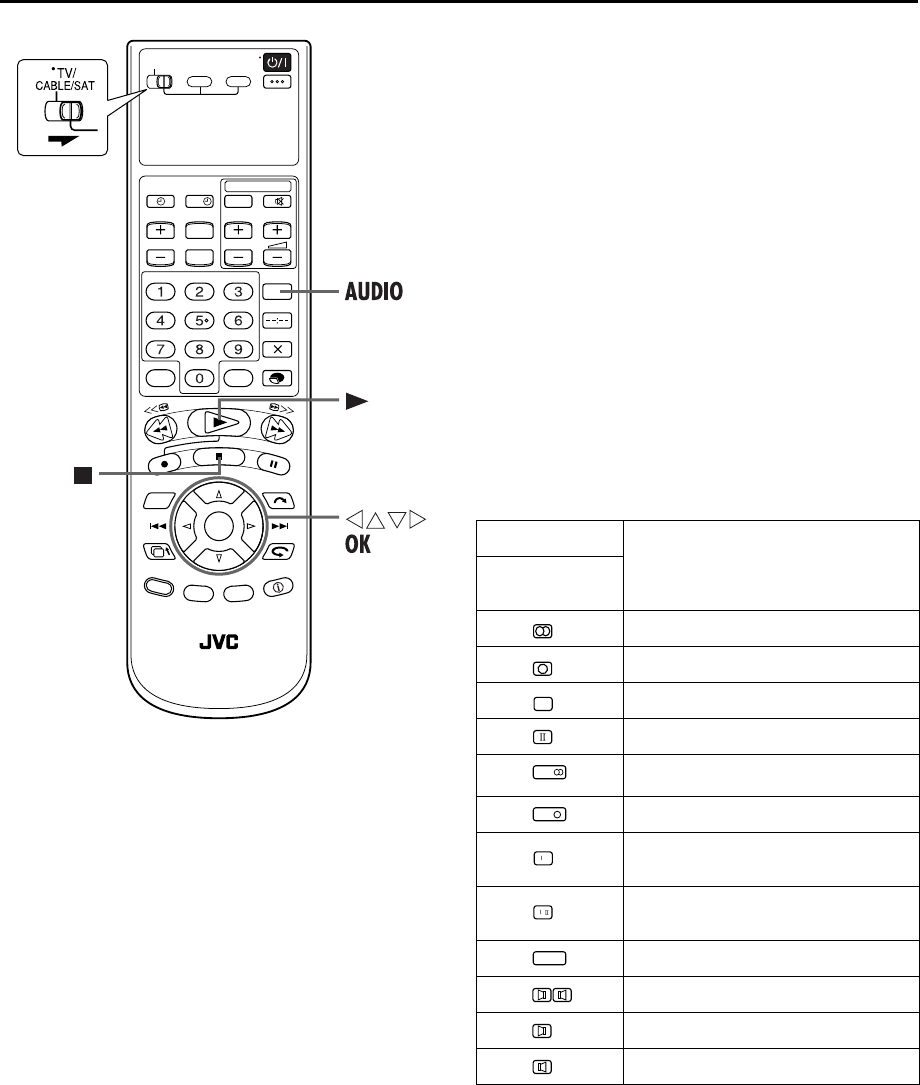
The HDD deck can record 2 soundtracks (L and R).
During Playback
Pressing AUDIO changes the soundtrack as follows:
?
TRACK
USE
On-Screen
Display
For stereo programme
For monaural programme
For main audio of bilingual programme
For sub audio of bilingual programme
For NICAM stereo programme
For NICAM monaural programme
For NICAM main audio of bilingual
programme
For NICAM sub audio of bilingual
programme
For NICAM FM programme
For AUX input sounds (L+R)
For AUX input sound (L)
For AUX input sound (R)
I
NICAM
NICAM
N .
I
N .
NICAM
HM-HDS4EX.book Page 32 Wednesday, April 2, 2003 3:55 PM
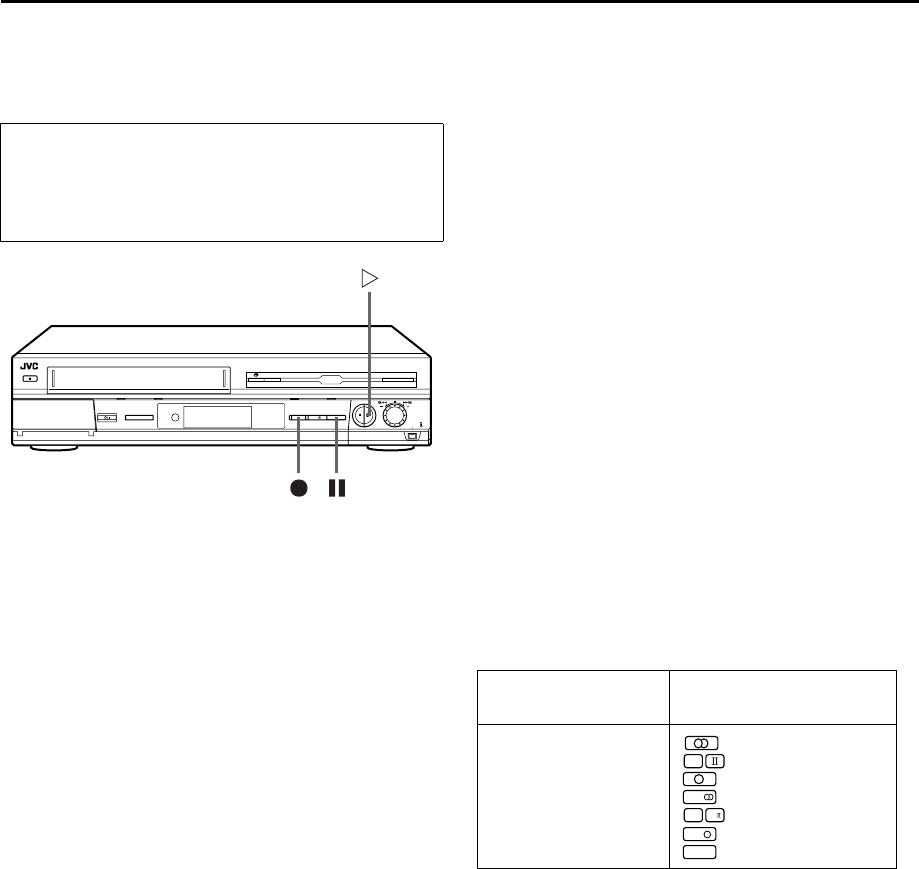
Masterpage:Right-NoTitle0
EN 33
Filename [HM-HDS4EX_04Basic.fm]
Page 33 April 7, 2003 3:07 pm
Recording Features
Pausing During Recording
While you are recording a TV programme and watching it, you
can pause Live Memory Playback to answer a phone call or so
on without missing any scene in the programme. Only the image
on the screen pauses and recording still continues background.
This feature is also available while watching a TV programme.
1Pause Live Memory Playback.
Push the JOG dial.
OR
Press 9 during Live Memory Playback.
2Resume Live Memory Playback.
Press 4 from the pause point.
Record One Programme While
Watching Another
Once recording is in progress, all you need to do is to set
the channel controls on the TV for the station you wish to
view.
●The programme selected with the TV’s channel controls
appears on the TV screen, while the one selected with the
recorder’s VCR PR buttons is recorded on the tape.
●If a decoder is connected to the recorder (墌pg. 78), you can
select a scrambled channel as well with the TV channel
controls.
Instant Timer Recording (ITR)
This easy method lets you record for from 30 minutes to 6 hours
(selectable in 30-min. increments), and shuts the recorder off
after recording is finished.
1Start recording.
Press 7 on the recorder.
2Engage the ITR mode.
Press 7 again. “7” blinks and “0:30” appears on the front
display panel.
●ITR timer duration also appears in the TV screen. (墌pg. 9)
3Set the recording duration.
If you want to record for more than 30 minutes, press 7
to extend the time. Each press extends recording time by
30 minutes.
NOTE:
You can only perform ITR using the 7 button on the recorder’s
front panel.
Receiving Stereo and Bilingual
Programmes
Your recorder is equipped with a Sound-Multiplex decoder (A2)
and a Digital stereo sound decoder (NICAM) making reception
of stereo and bilingual broadcasts possible.
When the channel is changed, the type of broadcast being
received will be displayed on the TV screen for a few seconds.
NOTE:
“O.S.D.” must be set to “ON” or the on-screen displays will not
appear (墌pg. 84).
To Record Stereo and Bilingual Programmes (A2)
Stereo programmes are automatically recorded in stereo.
●Bilingual programmes are automatically recorded in bilingual.
To Record NICAM Bilingual Programmes
Set “AUDIO REC” to “NICAM” to record the NICAM bilingual
programme (墌pg. 81).
NOTES:
●If the quality of stereo sound being received is poor, the
broadcast will be received in monaural with better quality.
●Before playing back a programme recorded in stereo, or a
bilingual programme, refer to “Soundtrack Selection” on
page 32.
●Turn on the TV and select the AV mode.
●Slide TV/CABLE/SAT switch to the right.
●If the recorder is turned on with HDD deck selected,
there may be about 30 seconds’ delay in starting to
show pictures on the screen.
Type of Broadcast Being
Received On-screen Display
A2 Stereo
A2 Bilingual
Regular Monaural
NICAM Stereo
NICAM Bilingual
NICAM Monaural
NICAM FM Sound
I
NICAM
NI.
I
NI.
NICAM
NICAM
HM-HDS4EX_04Basic.fm Page 33 Monday, April 7, 2003 3:07 PM
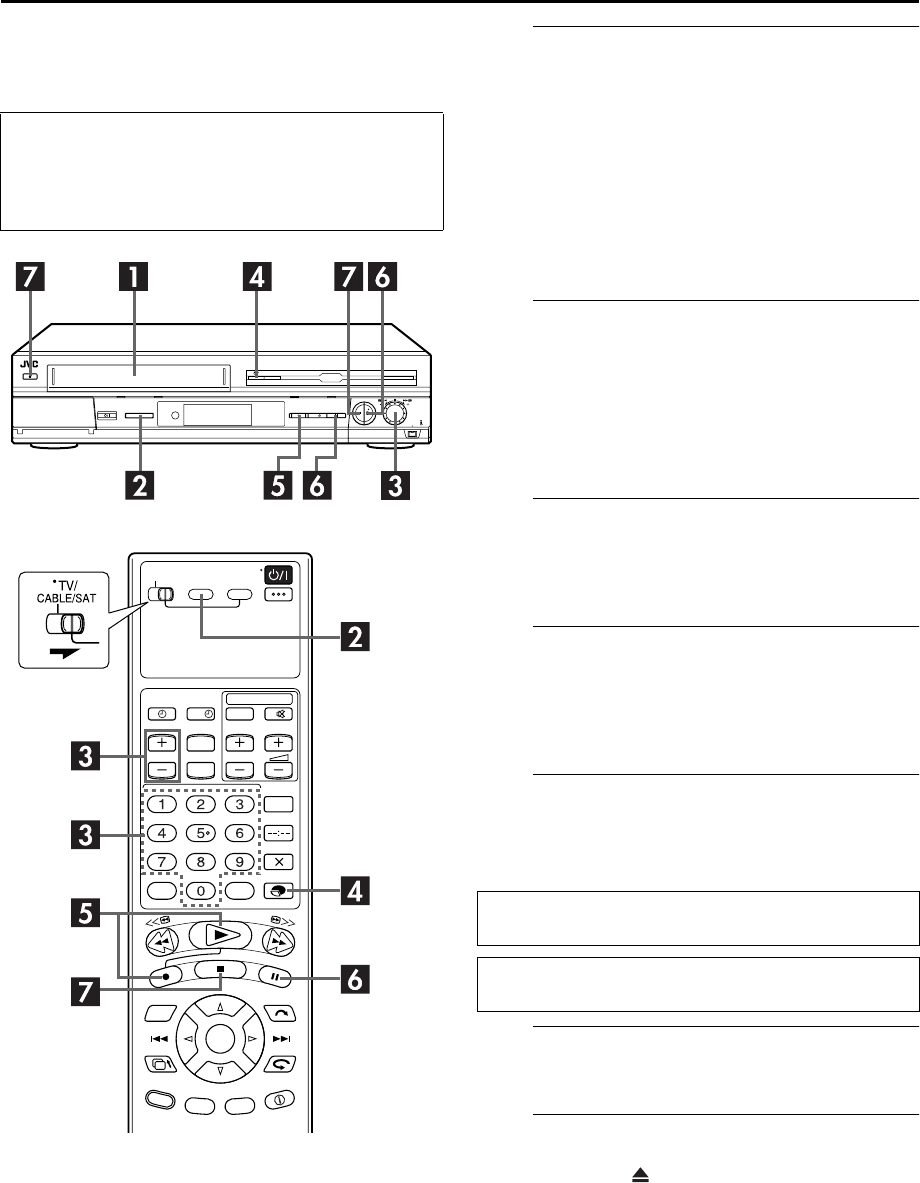
Filename [HM-HDS4EX_04Basic.fm]
Masterpage:Left
34 EN
Page 34 April 2, 2003 2:20 pm
RECORDING/PLAYBACK ON VHS DECK
Basic Recording
NOTES:
●It is not possible to record a TV programme on both the HDD
deck and the VHS deck simultaneously. In addition, it is not
possible to record simultaneously from the same external
input.
●When the end of the tape is reached during recording, the
VHS deck start to rewind the tape automatically.
ALoad a cassette.
Insert a cassette with the record safety tab intact.
Make sure the window side is up, the rear label side is
facing you and the arrow on the front of the cassette is
pointed toward the recorder.
●Do not apply too much pressure when inserting.
●The recorder’s power comes on automatically.
●While “– – – –“ is blinking on the front display panel, the tape
will run for a few seconds to search for the tape number.
●If you want to use VCR Navigation to select the programme
after recording with this recorder, set “NAVIGATION” to “ON”
(墌pg. 81).
BSelect the VHS deck.
On the recorder
Press S-VHS/HDD repeatedly until S-VHS indicator lights
on the recorder.
On the remote control
Press S-VHS.
●The S-VHS indicator lights on the recorder.
CChoose a programme.
Press VCR PR +/– or the number keys. Or push the JOG
dial and turn it to the left or right to select the channel
you wish to record.
DSet the tape speed.
Press MODE. The current setting appears on the front
display panel or TV screen. Press MODE again to change
the setting while the tape speed is displayed on the TV
screen.
EStart recording.
Press and hold 7 and press 4 on the remote control, or
press 7 on the recorder.
●The S-VHS/VHS REC mode indicator lights on the recorder.
FPause/Resume recording.
Press 9. Press 4 to resume recording.
GStop recording.
Press 8. Then press to remove the cassette.
●Turn on the TV and select the AV mode.
●Slide TV/CABLE/SAT switch to the right.
●If the recorder is turned on with HDD deck selected,
there may be about 30 seconds’ delay in starting to
show pictures on the screen.
?
B.E.S.T. takes place at the beginning of both the first SP and
the first LP recording after inserting the cassette. (墌pg. 45)
If “DIRECT REC” is set to “ON”, the programme that appears
on the TV screen will be recorded (墌pg. 84).
HM-HDS4EX.book Page 34 Wednesday, April 2, 2003 3:55 PM
Masterpage:Right-NoTitle0
EN 35
Filename [HM-HDS4EX_04Basic.fm]
Page 35 April 2, 2003 2:20 pm
Basic Playback ALoad a cassette.
Make sure the window side is up, the rear label side is
facing you and the arrow on the front of the cassette is
pointed toward the recorder.
●Do not apply too much pressure when inserting.
●The recorder’s power comes on automatically.
●While “– – – –“ is blinking on the front display panel, the tape
will run for a few seconds to search for the tape number.
●If the record safety tab has been removed, playback begins
automatically.
BSelect the VHS deck.
On the recorder
Press S-VHS/HDD repeatedly until S-VHS indicator lights
on the recorder.
On the remote control
Press S-VHS.
●The S-VHS indicator lights on the recorder.
CFind the programme start point.
If the tape is advanced past the start point, press 3 or
turn the JOG dial to the left. To go forward, press 5 or
turn the JOG dial to the right.
DStart playback.
Press 4. During automatic tracking, ”bESt” appears
blinking in the recorder’s front display panel. (墌pg. 45)
EStop playback.
Press 8. Then press to remove the cassette.
●Turn on the TV and select the AV mode.
●Slide TV/CABLE/SAT switch to the right.
●If the recorder is turned on with HDD deck selected,
there may be about 30 seconds’ delay in starting to
show pictures on the screen.
?
4
3
5
2
Usable cassettes
●Compact VHS camcorder recordings
can be played on this video recorder.
Simply place the recorded cassette
into a VHS Cassette Adapter and it
can be used just like any full-sized
VHS cassette.
●This video recorder can record on
regular VHS and Super VHS cassettes. While only VHS
signals can be recorded on regular VHS cassettes*, both
VHS and Super VHS signals can be recorded and played
back using Super VHS cassettes.
* By using the S-VHS ET function, it is possible to record and
play back with S-VHS picture quality on VHS cassettes with
this recorder.
HM-HDS4EX.book Page 35 Wednesday, April 2, 2003 3:55 PM
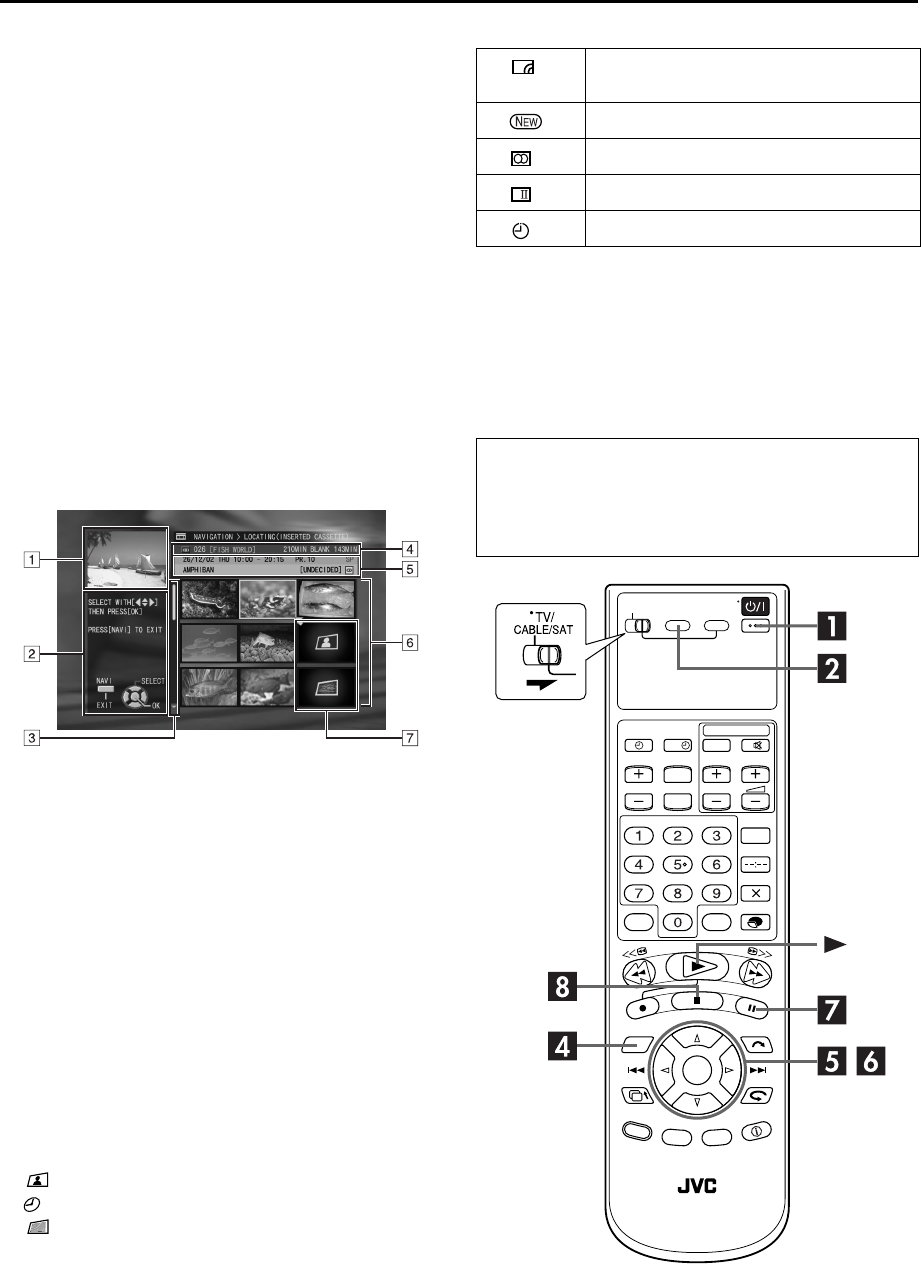
Filename [HM-HDS4EX_04Basic.fm]
Masterpage:Left
36 EN
Page 36 April 2, 2003 2:20 pm
RECORDING/PLAYBACK ON VHS DECK (cont.)
Playback with VCR
Navigation
The VCR Navigation enables you to search and select the desired
programmes recorded on the VHS deck very easily.
When you record a programme with the VHS deck for more than
8 minutes in SP mode for more than 15 minutes in LP mode)
with “NAVIGATION” set to “ON” (墌pg. 81), its information
are registered for the VCR Navigation automatically.
When the first programme is recorded on a cassette, the VCR
Navigation gives the register number to the cassette. The VCR
Navigation memorizes the cassette by the number. You can
confirm the register number of the cassette when the cassette is
loaded or ejected.
The VCR Navigation can register up to 2000 programmes or up
to 680 cassettes.
The following screen appears as the VCR Navigation
screen when you select a programme. (墌pg. 37)
APlayback screen
(Indicates currently received TV programme.)
BGuidance for operations
CScroll bar
(Appears when there are over nine registered
programmes (or play lists). The scroll bar only
indicates that there are more programmes (or play
lists) hidden off the current screen display. To show
hidden programmes (or play lists), press r t
repeatedly.)
DInserted cassette information
(Loaded cassette number, title, total recorded time and
remaining recording time based on the currently
selected speed.)
ESelected programme information
(Recorded date, time, channel position number,
recording speed, title)
FIndex
(Thumbnail still of each programme)
GIndex
:Indicates no index is registered.
: Indicates programme in standby for timer recording.
: Indicates no programme is registered.
The Icons and their meanings
Scan for Beginning of Programme
The VCR Navigation can take effect for the programme
which has been recorded, and whose information has
been registered with this recorder. Once the VHS (S-VHS)
cassettes have been used for recording with this recorder,
they have the register number given by this recorder.
This programme has a little gap at the
beginning.
This programme has never been played back.
This programme has stereo sounds.
This programme has bilingual sounds.
This programme was timer recorded.
●Turn on the TV and select the AV mode.
●Slide TV/CABLE/SAT switch to the right.
●If the recorder is turned on with HDD deck selected,
there may be about 30 seconds’ delay in starting to
show pictures on the screen.
I
?
HM-HDS4EX.book Page 36 Wednesday, April 2, 2003 3:55 PM
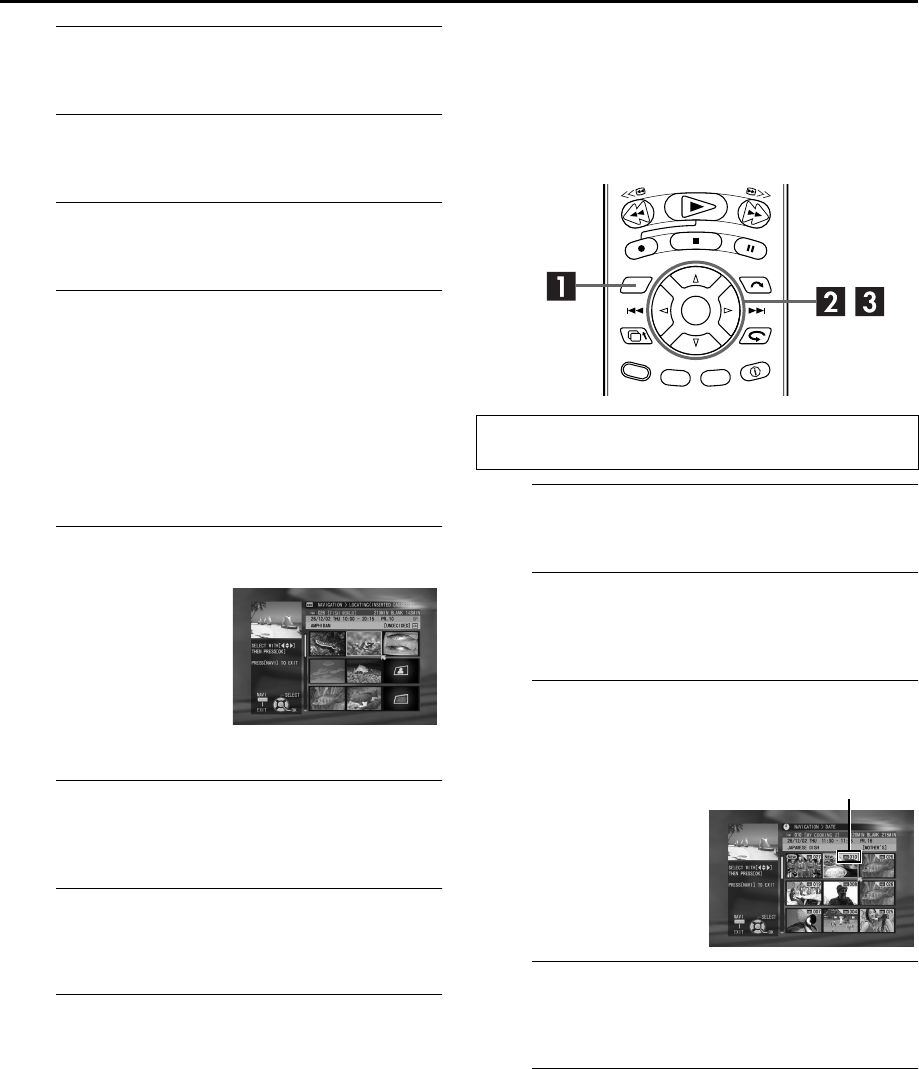
Masterpage:Right-NoTitle0
EN 37
Filename [HM-HDS4EX_04Basic.fm]
Page 37 April 2, 2003 2:20 pm
ATurn on the recorder.
Press 1.
BSelect the VHS deck.
Press S-VHS.
CLoad the cassette.
Insert a cassette with the record safety tab intact.
DAccess the Index screen.
On the recorder
Press NAVIGATION.
On the remote control
APress NAVIGATION. The VCR Navigation screen
appears.
BConfirm the arrow is on “INDEX”, then press OK.
●If a registered cassette has been loaded, the contents of the
loaded cassette will appear.
ESelect the programme.
FStart playback.
Press w e to move the arrow to “PLAY” on the Index
screen, then press OK again.
GPause playback.
Press 9.
●To resume normal playback, press 4.
HStop playback.
Press 8.
Sort Recorded Programmes by Record
Date/Cassette Number and Playback
You can easily search for a desired programme in the Index
screen by sorting according to the record date or cassette
number registered during recording.
AAccess the Navigation screen.
Press NAVIGATION.
BAccess the date/title screen.
Press wr
e t to move the arrow to “DATE” or
“CASSETTE #”, then press OK.
CSelect the programme and confirm the
cassette number.
DLoad the cassette.
After you have found the programme and checked the
related cassette number, insert the cassette.
ESelect the programme and start playback.
Perform steps D to E of “Scan for Beginning of
Programme” (墌pg. 37).
On the recorder
Turn the JOG dial to select
the programme, then press
the JOG dial.
On the remote control
Press w r e t to move the
arrow on the index (small
still pictures) of the desired
programme, then press OK.
Perform steps A and B of “Scan for Beginning of
Programme”(墌pg. 37) before continuing.
Press wr
e t to move the
arrow to the desired
programme (cassette), then
press OK.
Cassette number
HM-HDS4EX.book Page 37 Wednesday, April 2, 2003 3:55 PM
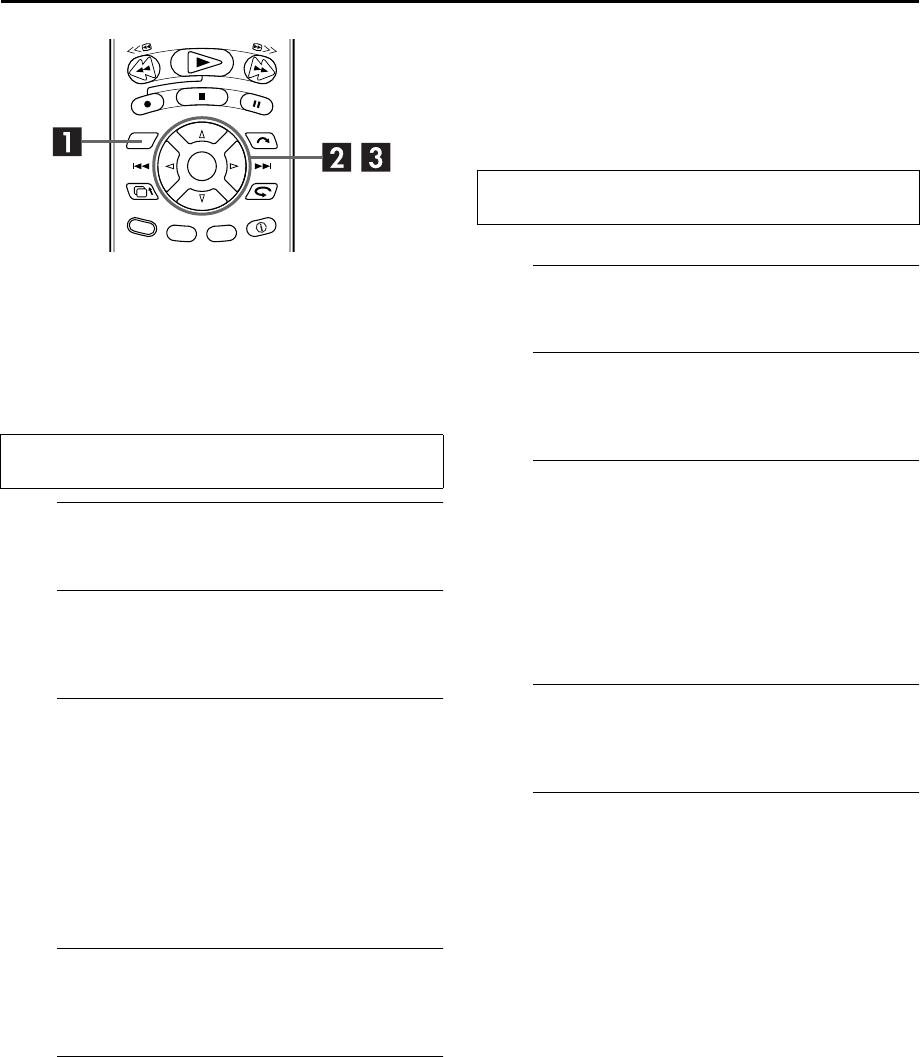
Filename [HM-HDS4EX_04Basic.fm]
Masterpage:Left
38 EN
Page 38 April 2, 2003 2:20 pm
RECORDING/PLAYBACK ON VHS DECK (cont.)
Sort Recorded Programmes by
Category and Playback
You can easily search for a desired programme in the Index
screen by sorting according to the category option registered
during recording (or after recording).
AAccess the Navigation screen.
Press NAVIGATION.
BAccess the date/title screen.
Press wr
e t to move the arrow to “CATEGORY”, then
press OK.
CSelect the category, then the programme,
then confirm the cassette number.
APress wr
e t to move the arrow to the desired
category, then press OK. Programmes having the
selected category option appear in the list.
●To register the category option, refer to “Family Option Preset”
(墌pg. 27) and step J of “SHOWVIEW® Timer Programming”
(墌pg. 46).
BPress wr
e t to move the arrow to the desired
programme, then press OK.
DLoad the cassette.
After you have found the programme and checked its
cassette number, insert the cassette.
ESelect the programme and start playback.
Perform steps D to C of “Scan for Beginning of
Programme”(墌pg. 37) before continuing.
Sort Recorded Programmes by Title
and Playback
You can easily search for a desired programme in the Index
screen by sorting according to the title registered at recording (or
after recording).
AAccess the Navigation screen.
Press NAVIGATION.
BAccess the Title screen.
Press wr
e t to move the arrow to “TITLE”, then press
OK.
CSelect the initial letter of the title, then the
programme, then confirm the cassette
number.
APress wr
e t to move the arrow to the desired letter,
then press OK. Programmes having the selected initial
letter in their titles appear in the list.
BPress wr
e t to move the arrow to the desired
programme, then press OK.
DLoad the cassette.
After you have found the programme and checked the
related cassette number, insert the cassette.
ESelect the programme and start playback.
Perform steps D to C of “Scan for Beginning of
Programme”(墌pg. 37) before continuing.
Perform steps A and B of “Scan for Beginning of
Programme”(墌pg. 37) before continuing.
Perform steps A and B of “Scan for Beginning of
Programme”(墌pg. 37) before continuing.
HM-HDS4EX.book Page 38 Wednesday, April 2, 2003 3:55 PM
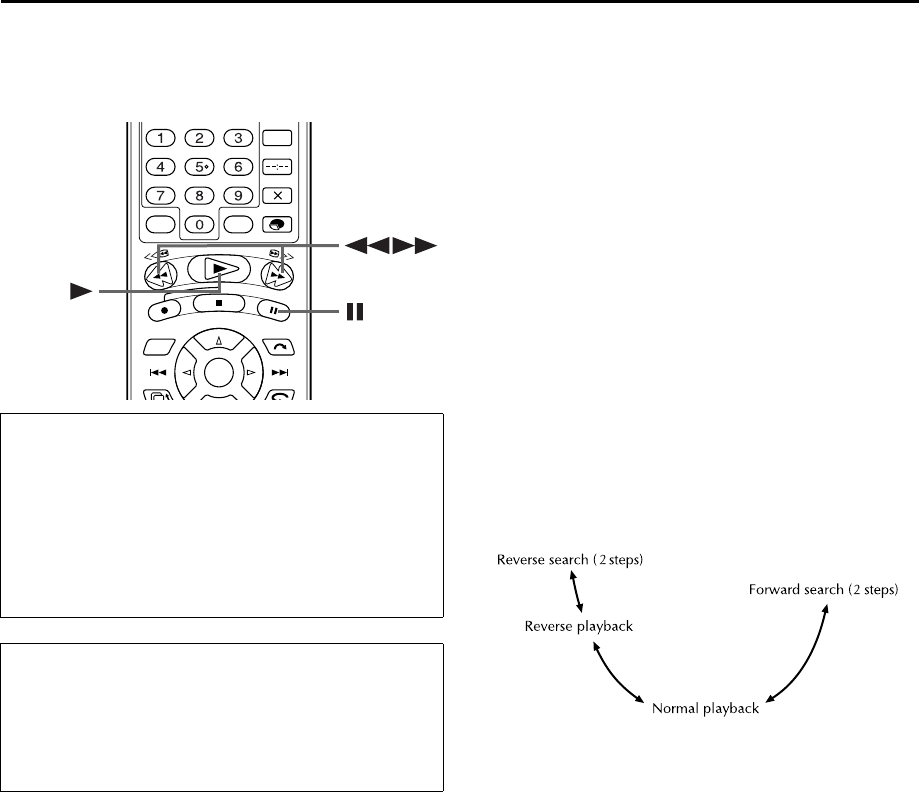
Masterpage:Right-NoTitle0
EN 39
Filename [HM-HDS4EX_04Basic.fm]
Page 39 April 2, 2003 2:20 pm
Playback Features
Still Picture/Frame-By-Frame
Playback
1Pause during playback.
Push the JOG dial.
OR
Press 9.
2Activate frame-by-frame playback.
Turn the JOG dial to the right for forward frame-by-frame
playback, or to the left for reverse frame-by-frame
playback.
OR
Press 5 repeatedly to advance one frame at a time.
Press 3 repeatedly to reverse one frame at a time.
Slow Motion
1Pause during playback.
Push the JOG dial.
OR
Press 9.
2Activate slow motion playback.
Press and hold 5 or 3for over 2 seconds.
●The playback speed changes for each direction by pressing
5 or 3 repeatedly.
●To resume normal playback, press 4.
Variable Speed Search
During playback, turn the JOG dial to the right for
forward variable-speed search, or to the left for reverse
variable-speed search.
OR
During playback, press 5 for forward variable-speed
search, or 3 for reverse variable-speed search.
●The playback speed changes for each direction by pressing
5 or 3 repeatedly. Refer to the illustration below.
●To resume normal playback, press 4.
ATTENTION
●Picture may not appear during variable speed search with
an LP-recorded tape.
●In the variable speed search, still, slow motion or
frame-by-frame playback mode, the picture will be
distorted, and there will be a loss of colour.
●When normal playback resumes from search, still, slow
motion or frame-by-frame playback, the picture may jitter
vertically momentarily depending on the type of TV being
used.
Clean the video heads using a dry cleaning
cassette — ECL-3F — when:
●Rough, poor picture appears while a tape is played back.
●The picture is unclear or no picture appears.
●“USE CLEANING CASSETTE” appears on the screen (only
with “O.S.D.” set to “ON” (墌pg. 84)).
HM-HDS4EX.book Page 39 Wednesday, April 2, 2003 3:55 PM
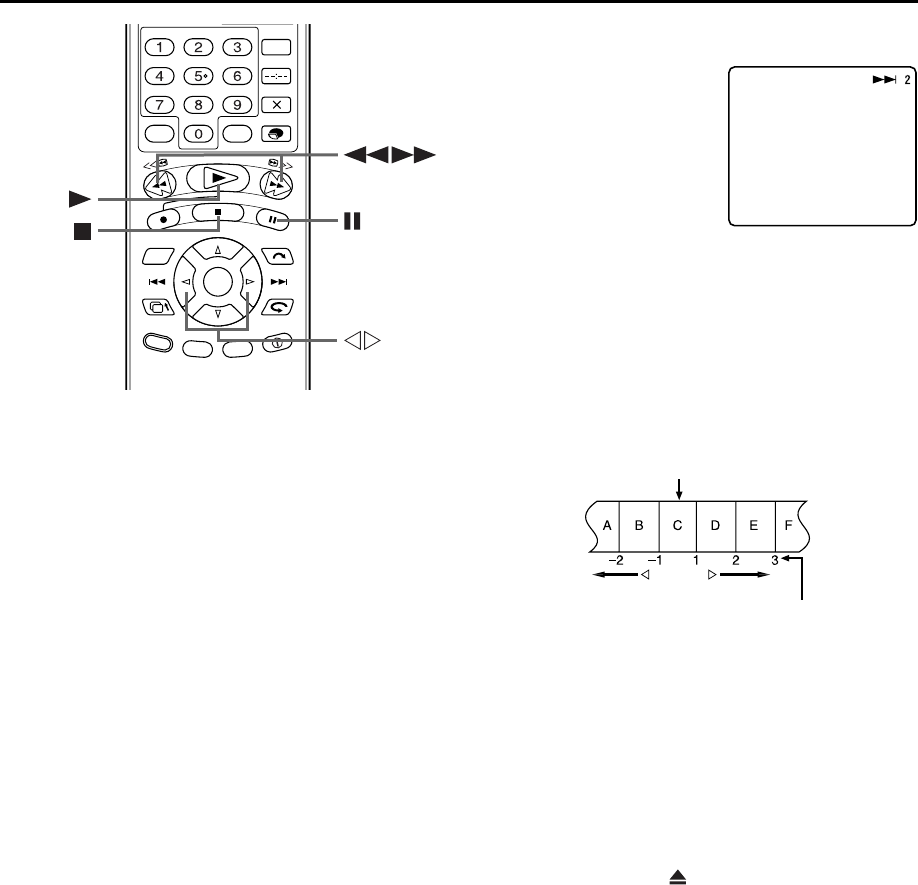
Filename [HM-HDS4EX_04Basic.fm]
Masterpage:Left
40 EN
Page 40 April 2, 2003 2:20 pm
RECORDING/PLAYBACK ON VHS DECK (cont.)
Repeat Playback
Your recorder can automatically play back the whole tape 100
times repeatedly.
1Start playback.
Press 4.
2Activate Repeat Playback.
Press 4 and hold for over 5 seconds, then release.
●The Play indicator (4) on the front display panel blinks slowly.
●After playing back a tape 100 times, the recorder stops
automatically.
3Stop Repeat Playback.
Press 8 at any time.
●Pressing 4, 3, 5 or 9 also stops Repeat Playback.
Index Search
Your recorder automatically marks
index codes at the beginning of
each recording. This function gives
you quick access to any one of 9
index codes in either direction.
NOTE:
Before starting, make sure the
recorder is in the Stop mode.
Activate Index Search.
Press w or e (2 or 6). “2 1” or “6 1” is
displayed on the TV screen and search begins in the
corresponding direction.
●To access index codes 2 through 9, press w or e repeatedly
until the correct index number is displayed.
Example:
To locate the beginning of B from the current position, press w
twice.
To locate the beginning of D from the current position, press e
once.
●When the specified index code is located, playback begins
automatically.
Next Function Memory
The Next Function Memory “tells” the recorder what to do after
rewinding. Before continuing, make sure the recorder is in the
Stop mode.
a- For Automatic Start Of Playback
Press 3, then press 4 within 2 seconds.
b- For Automatic Cassette Ejection After Tape Rewind
Press 3, then press within 2 seconds.
Current position
Index number
HM-HDS4EX.book Page 40 Wednesday, April 2, 2003 3:55 PM
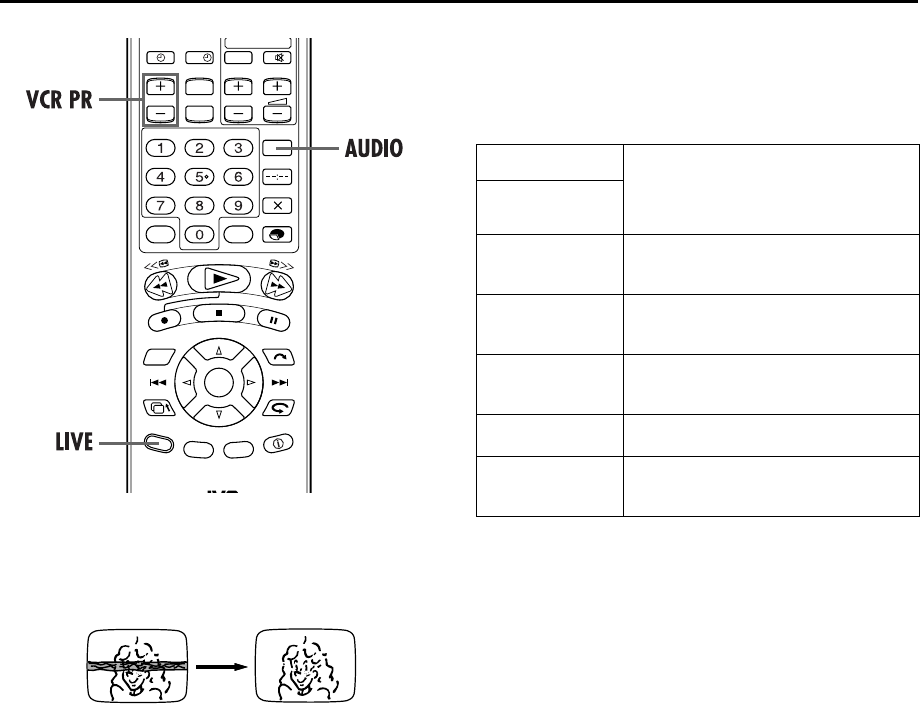
Masterpage:Right-NoTitle0
EN 41
Filename [HM-HDS4EX_04Basic.fm]
Page 41 April 2, 2003 2:20 pm
Manual Tracking
Your recorder is equipped with automatic tracking control.
During playback, you can override this and adjust the tracking
manually by pressing the VCR PR buttons.
1Override automatic tracking.
Press LIVE on the remote control.
2Adjust the tracking manually.
Press VCR PR + or –.
●Press LIVE again to return to automatic tracking.
NOTE:
When a new tape is inserted, the recorder enters the automatic
tracking mode automatically.
Soundtrack Selection
Your recorder is capable of recording three soundtracks (HI-FI L,
HI-FI R and NORM) and will play back the one you select.
During Playback
Pressing AUDIO changes the soundtrack as follows:
NOTES:
●“HIFI L jhR” should normally be selected. In this mode,
Hi-Fi stereo tapes are played back in stereo, and the normal
audio track is played back automatically for tapes with only
normal audio.
●For instructions on recording stereo and bilingual
programmes, refer to page 44.
●“O.S.D.” must be set to “ON” or the on-screen displays will
not appear (墌pg. 84).
?
TRACK
USE
On-Screen
Display
HI FI
L j h R For Hi-Fi stereo tapes
HI FI
L j For main audio of Bilingual tapes
HI FI
h R For sub audio of Bilingual tapes
NORM For audio-dubbed tapes
HI FI
NORM For audio-dubbed tapes
HM-HDS4EX.book Page 41 Wednesday, April 2, 2003 3:55 PM
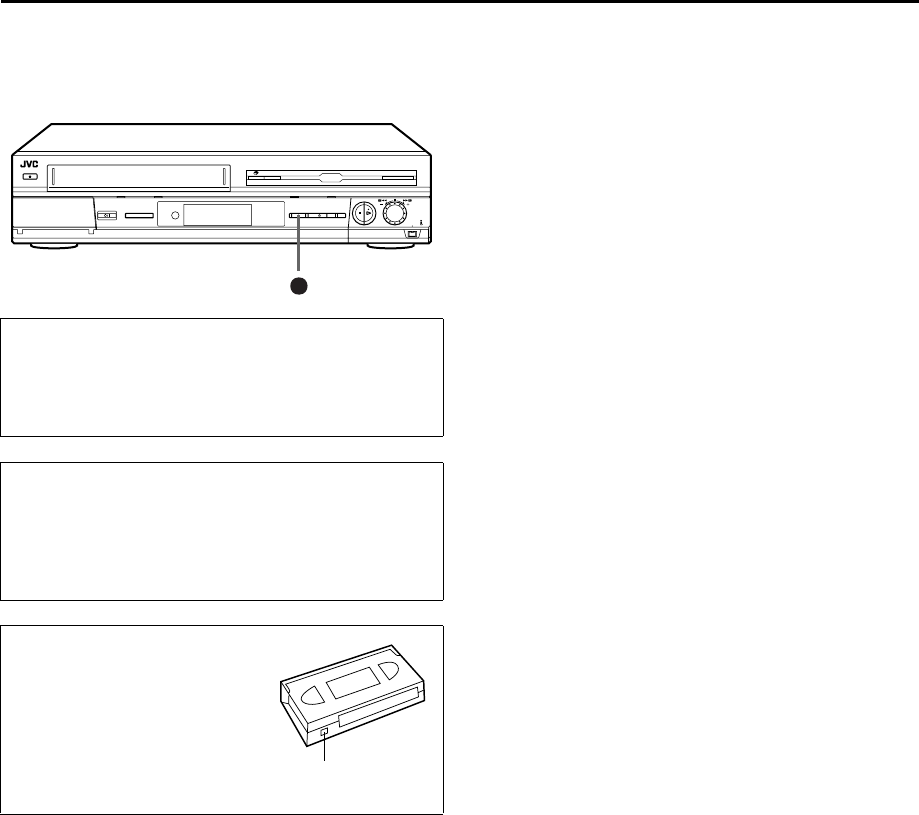
Filename [HM-HDS4EX_04Basic.fm]
Masterpage:Left
42 EN
Page 42 April 2, 2003 2:20 pm
RECORDING/PLAYBACK ON VHS DECK (cont.)
Recording Features Record One Programme While
Watching Another
Once recording is in progress, all you need to do is to set
the channel controls on the TV for the station you wish to
view.
●The programme selected with the TV’s channel controls
appears on the TV screen, while the one selected with the
recorder’s VCR PR buttons is recorded on the tape.
●If a decoder is connected to the recorder (墌pg. 78), you can
select a scrambled channel as well with the TV channel
controls.
Instant Timer Recording (ITR)
This easy method lets you record for from 30 minutes to 6 hours
(selectable in 30-min. increments), and shuts the recorder off
after recording is finished.
1Start recording.
Press 7 on the recorder.
2Engage the ITR mode.
Press 7 again. “7” blinks and “0:30” appears on the front
display panel.
3Set the recording duration.
If you want to record for more than 30 minutes, press 7
to extend the time. Each press extends recording time by
30 minutes.
NOTES:
●You can only perform ITR using the 7 button on the recorder’s
front panel.
●When the end of the tape is reached during instant timer
recording, the cassette is ejected, then the recorder is powered
off automatically.
●Turn on the TV and select the AV mode.
●Slide TV/CABLE/SAT switch to the right.
●If the recorder is turned on with HDD deck selected,
there may be about 30 seconds’ delay in starting to
show pictures on the screen.
Recording Resume Function
If there is a power outage during recording, Instant Timer
Recording (in the right column) or timer recording
(墌pg. 46, 48), the recording will resume automatically
when power is restored to the recorder unless the recorder’s
memory backup has expired.
Accidental erasure prevention
To prevent accidental recording on a
recorded cassette, remove its safety
tab. To record on it later, cover the
hole with adhesive tape.
Record safety tab
HM-HDS4EX.book Page 42 Wednesday, April 2, 2003 3:55 PM
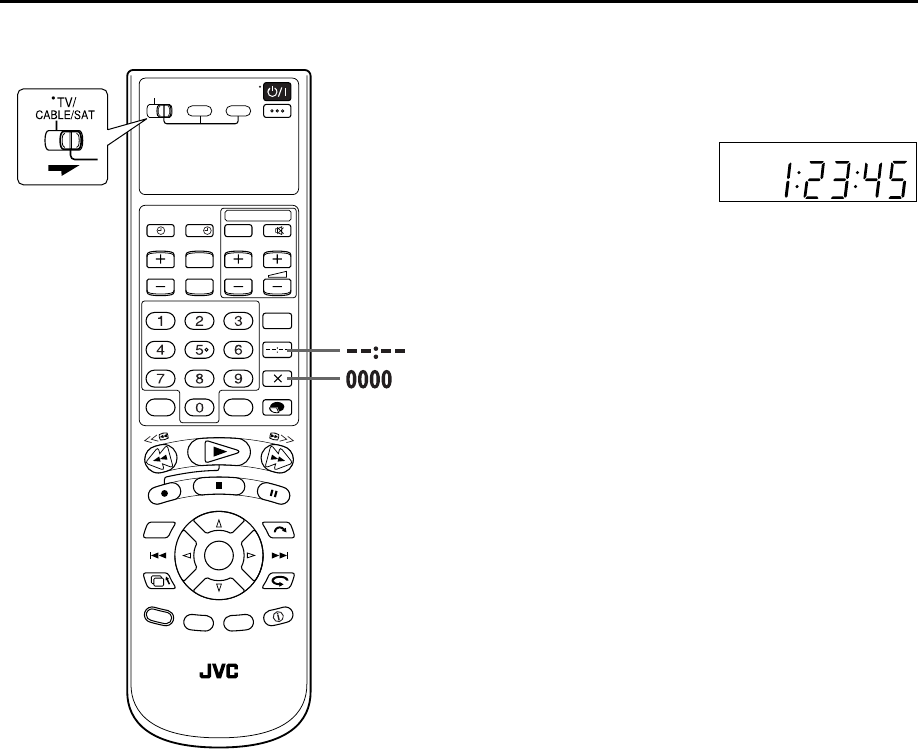
Masterpage:Right-NoTitle0
EN 43
Filename [HM-HDS4EX_04Basic.fm]
Page 43 April 2, 2003 2:20 pm
Elapsed Recording Time Indication
1Set the counter display.
Press – –:– – so that a counter reading appears on the TV
screen and the front display panel.
●The front display panel shows
the counter reading with “:”
lit.
2Reset the counter.
Press 0000 before starting recording or playback.
●The counter is reset to “0:00:00” and shows the exact elapsed
time as the tape runs. You can check the exact time of a
recording or playback.
Tape Remaining Time
Press MODE.
●The current tape remaining time and the current recording
speed alternate in the front display panel. You can also confirm
the information on the TV screen. (墌pg. 10)
NOTE:
Depending on the type of tape being used, the tape remaining
time reading may not appear right away, or is not correct.
“– –:– –” may sometimes appear, or the display may blink on
occasion.
Super VHS ET (S-VHS ET)
— Recording on VHS cassettes with
S-VHS quality
You can record in SP mode on VHS cassettes with S-VHS picture
quality. Set “S-VHS ET“ to the desired mode (墌pg. 82).
?
HM-HDS4EX.book Page 43 Wednesday, April 2, 2003 3:55 PM
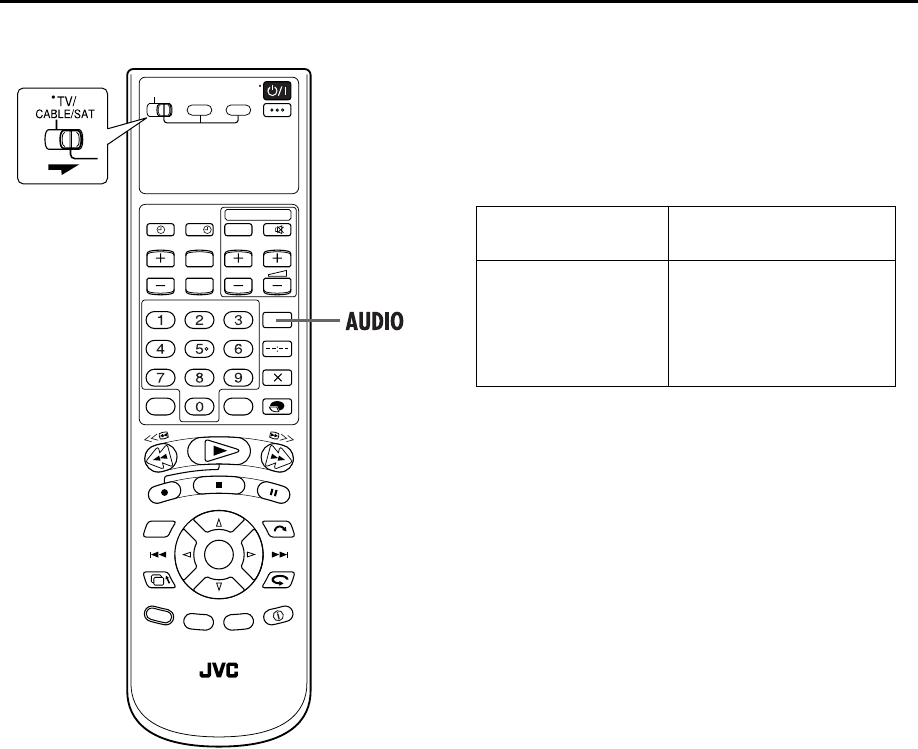
Filename [HM-HDS4EX_04Basic.fm]
Masterpage:Left
44 EN
Page 44 April 2, 2003 2:20 pm
RECORDING/PLAYBACK ON VHS DECK (cont.)
Receiving Stereo and Bilingual
Programmes
Your recorder is equipped with a Sound-Multiplex decoder (A2)
and a Digital stereo sound decoder (NICAM) making reception
of stereo and bilingual broadcasts possible.
When the channel is changed, the type of broadcast being
received will be displayed on the TV screen for a few seconds.
●To listen to a stereo programme, press AUDIO until
“HIFI L jhR” appears on the TV screen.
●To listen to a bilingual programme, press AUDIO until
“HIFI L j” or “HIFI hR” appears on the TV screen (as
required).
●To listen to the standard (Regular Monaural) audio while
receiving a NICAM broadcast, press AUDIO until “NORM”
appears on the TV screen.
NOTE:
“O.S.D.” must be set to “ON” or the on-screen displays will not
appear (墌pg. 84).
To Record Stereo and Bilingual Programmes (A2)
Stereo programmes are automatically recorded in stereo on the
Hi-Fi audio track (with the normal audio track recording mixed L
and R channel sound).
●Bilingual programmes are automatically recorded in bilingual
on the Hi-Fi audio track. The main soundtrack will be
recorded on the normal audio track.
To Record NICAM Stereo and Bilingual
Programmes
The NICAM audio programme will be recorded on the Hi-Fi
audio track, and the standard audio programme will be recorded
on the normal audio track.
NOTES:
●If the quality of stereo sound being received is poor, the
broadcast will be received in monaural with better quality.
●Before playing back a programme recorded in stereo, or a
bilingual programme, refer to “Soundtrack Selection” on
page 41.
?
Type of Broadcast Being
Received On-screen Display
A2 Stereo
A2 Bilingual
Regular Monaural
NICAM Stereo
NICAM Bilingual
NICAM Monaural
ST
BIL.
(none)
ST NICAM
BIL. NICAM
NICAM
HM-HDS4EX.book Page 44 Wednesday, April 2, 2003 3:55 PM
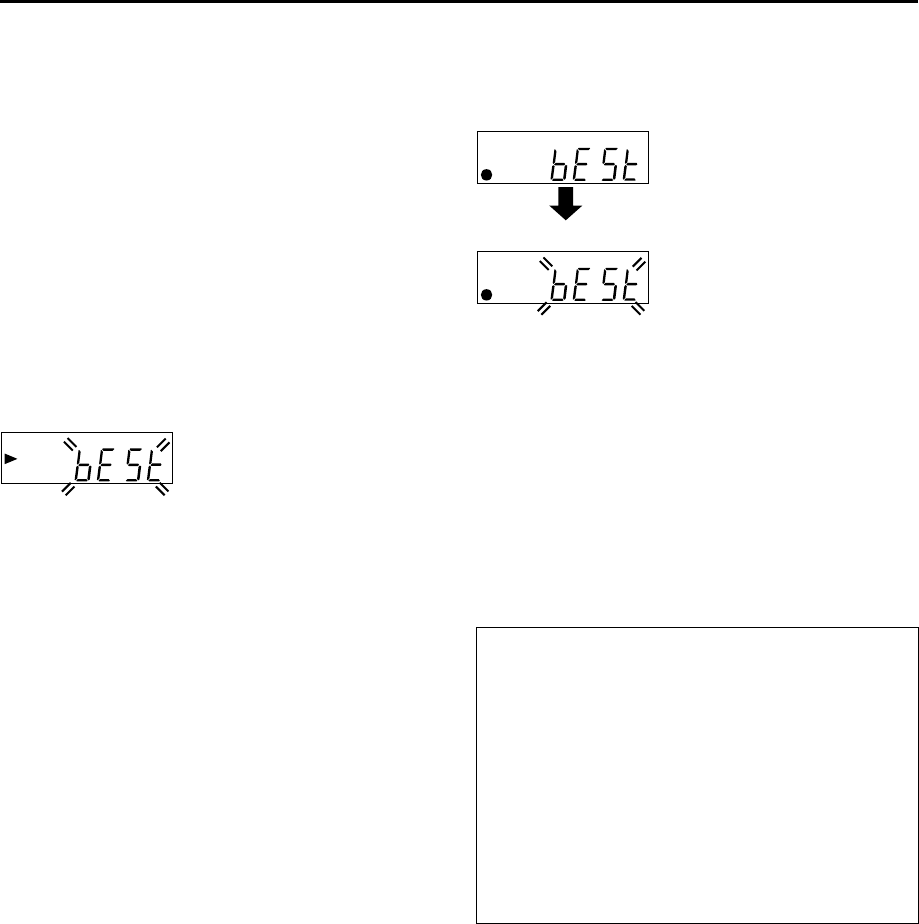
Masterpage:Right-NoTitle0
EN 45
Filename [HM-HDS4EX_04Basic.fm]
Page 45 April 2, 2003 2:20 pm
B.E.S.T. Picture
System
The B.E.S.T. (Biconditional Equalised Signal Tracking)
system checks the condition of the tape in use during
playback and recording, and compensates to provide the
highest-possible playback and recording pictures. You
can set “B.E.S.T.” to “ON” or “OFF” to your preference
(墌pg. 83).
Playback
The recorder assesses the quality of the tape once you
initiate playback.
●The recorder adjusts the playback picture quality based on the
quality of the tape in use.
●B.E.S.T. is active during automatic tracking. ”bESt” appears
blinking on the recorder’s front display panel.
NOTES:
●When watching a tape recorded with “B.E.S.T.” set to “ON”, it
is recommended that you leave B.E.S.T. on during playback as
well.
●When watching a rental tape or one recorded on another
video recorder, or when using this recorder as the player for
editing, set B.E.S.T. to your preference (墌pg. 83).
●”bESt” only appears at the beginning of automatic tracking.
Even though it doesn’t appear after that, the B.E.S.T. function is
operative.
Recording
The recorder assesses the quality of the tape once you
initiate recording.
DURING B.E.S.T.
●The recorder spends approximately 7 seconds assessing the
condition of the tape, then begins recording.
NOTES:
●The B.E.S.T. system works for both SP and LP modes only after
a tape has been inserted and the Record mode is first initiated.
It does not work during recording.
●The B.E.S.T. system does not work while Automatic Satellite
Programme Recording is in progress (墌pg. 51).
●In the case of timer recordings, the B.E.S.T. system works
before recording is initiated.
●Once the cassette is ejected, the B.E.S.T. data is cancelled. The
next time the cassette is used for recording, B.E.S.T. is
re-performed.
●Pressing the recorder’s 7 button while ”bESt” is displayed
does not start Instant Timer Recording (墌pg. 42).
ATTENTION
Since the B.E.S.T. system works before recording actually
starts, there is a delay of approximately 7 seconds after 7
and 4 on the remote control are pressed, or 7 on the
recorder is pressed. To make sure you record the desired
scene or programme in its entirety, first perform the following
steps:
APress and hold 9 and press 7 to engage the Record
Pause mode.
●The recorder then automatically checks the condition of
the tape and, after approximately 7 seconds, re-enters
Record Pause mode.
BPress 4 to start recording.
If you want to bypass the B.E.S.T. system and begin recording
immediately, set “B.E.S.T.” to “OFF” (墌pg. 83).
B.E.S.T. COMPLETE
HM-HDS4EX.book Page 45 Wednesday, April 2, 2003 3:55 PM
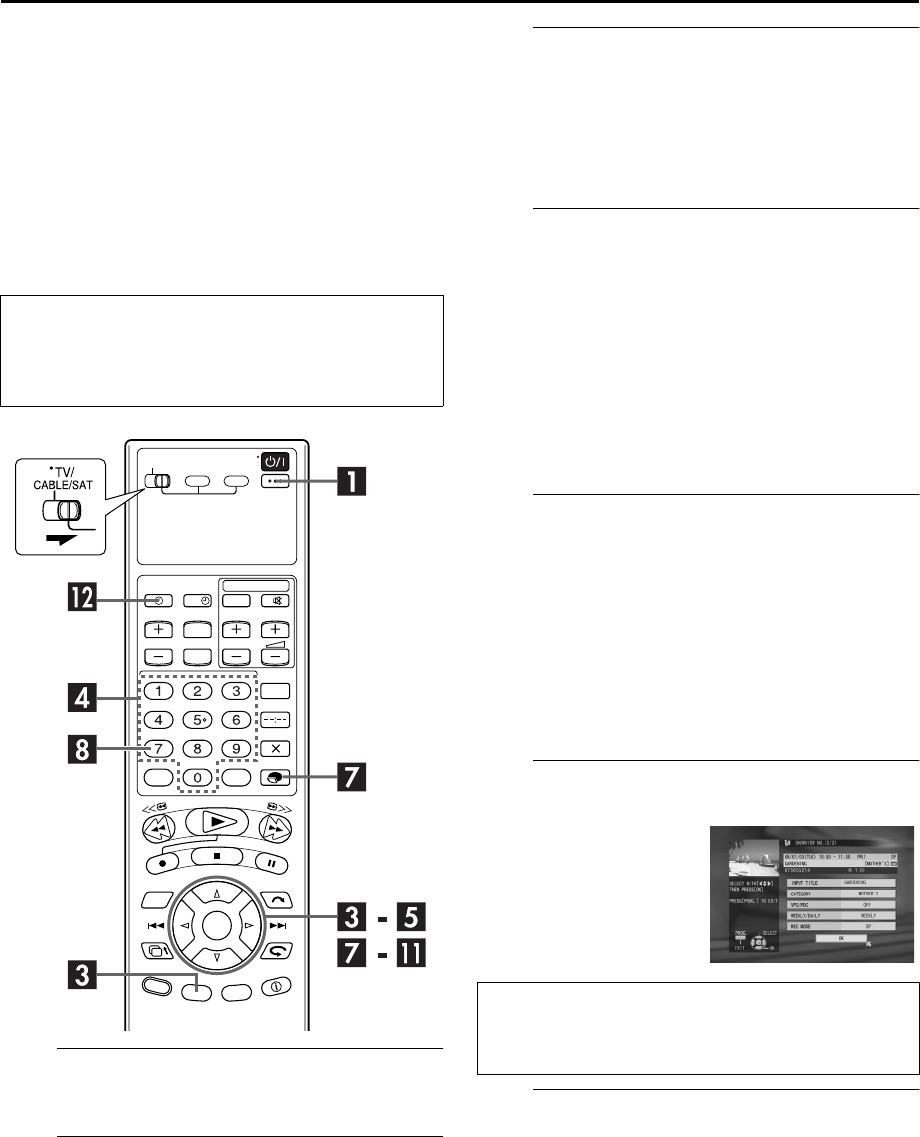
Filename [HM-HDS4EX_05Timer.fm]
Masterpage:Left
46 EN
Page 46 April 7, 2003 2:48 pm
TIMER RECORDING
SHOWVIEW® Timer
Programming
You can programme this recorder to timer-record as many as 16
programmes.
With the SHOWVIEW system, timer programming is greatly
simplified because each TV programme has a corresponding
code number which your recorder is able to recognize.
ATurn on the recorder.
Press 1.
BLoad a cassette.
Insert a VHS (or S-VHS) cassette with the record safety
tab intact.
CAccess the SHOWVIEW screen.
APress PROG.
BPress w e to move the arrow to “SHOWVIEW”, then
press OK.
●When “PROGRAMME FULL DELETE UNWANTED TIMER
PROGRAMME” appears on the TV screen, you need to cancel
some of the currently set programmes. (墌pg. 50)
DEnter the SHOWVIEW number.
Press the number keys to enter the SHOWVIEW number of
a programme you wish to record.
OR
APress w r e t to move the arrow to the desired
number key, then press OK.
BRepeat step A to enter all needed numbers.
●If you make a mistake and needed to delete the last entered
number, press w r e t to move the arrow to “DELETE”, then
press OK.
●To delete all entered numbers at the same time, press w r e
t to move the arrow to “DELETE ALL”, then press OK.
ESelect the recording deck, then confirm the
SHOWVIEW number.
APress w r e t to move the arrow to “RECORD TO”,
then press OK.
BPress r t to select “HDD” or “VHS”, then press OK.
CPress t to select “CONFIRM”, then press OK.
●If the number you entered is invalid, “SHOWVIEW NO.
ERROR CONFIRM SHOWVIEW NO. THEN RETRY” appears
on the TV screen. Input a valid SHOWVIEW number.
●If “SET GUIDE PROG THEN RETRY” appears on the TV
screen, set Guide Program Numbers (墌pg. 85) manually.
FCheck the programme data.
GSet the recording speed.
APress r t to move the arrow to “REC MODE”, then
press OK.
BPress r t to select the desire mode, then press OK.
Before performing the SHOWVIEW Timer
Programming:
●Make sure that the recorder’s built-in clock is set properly.
●Turn on the TV and select the AV mode.
●Slide TV/CABLE/SAT switch to the right.
?
The SHOWVIEW number you
entered and the matching
timer-recording information
are displayed on the TV
screen. Check they are
correct.
●To cancel this setting, press
PROG.
IMPORTANT
Make sure the channel position number you wish to record is
displayed; if not, see “SHOWVIEW® System Setup” on page 85
and set the Guide Program number correctly.
HM-HDS4EX_05Timer.fm Page 46 Monday, April 7, 2003 2:48 PM
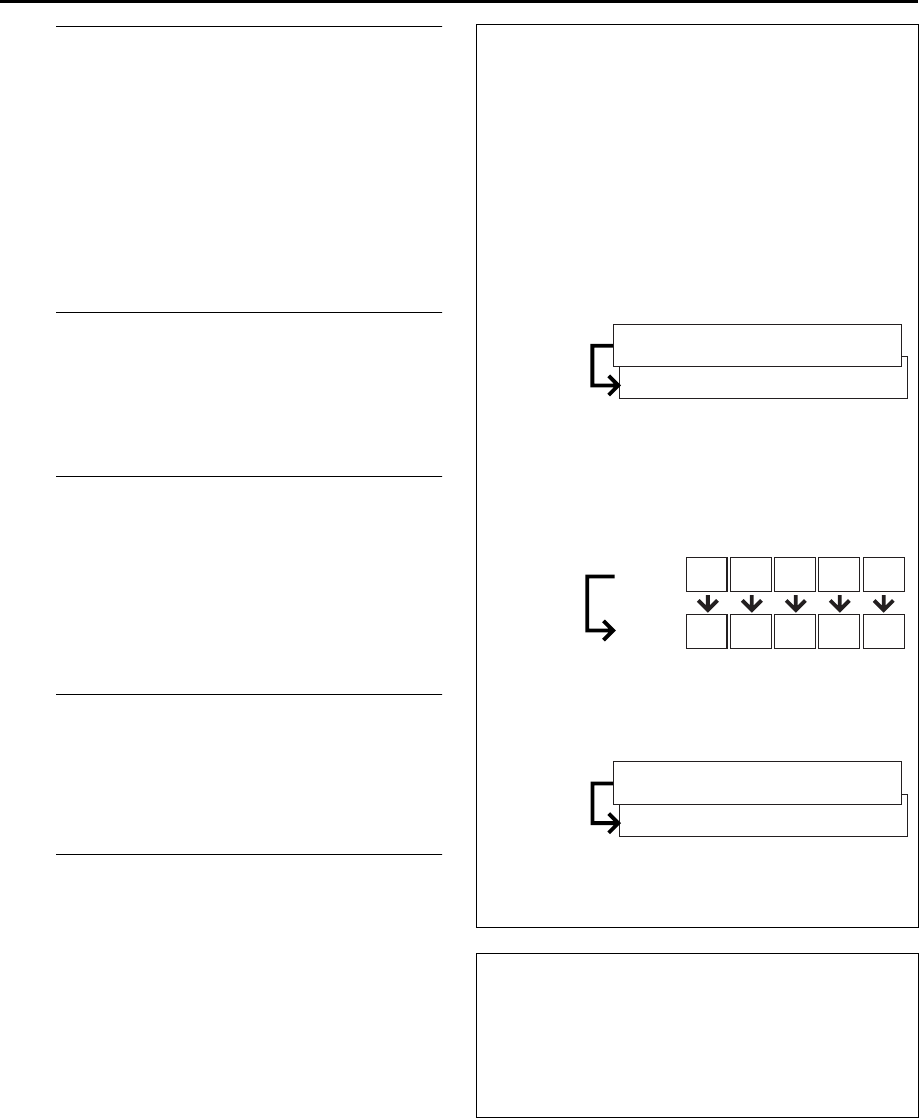
Masterpage:Right-NoTitle0
EN 47
Filename [HM-HDS4EX_05Timer.fm]
Page 47 April 2, 2003 3:53 pm
HSet the VPS/PDC mode.
APress r t to move the arrow to “VPS/PDC”.
BPress VPS/PDC to select “ON” or “OFF”.
OR
APress r t to move the arrow to “VPS/PDC”, then
press OK.
BPress r t to select the desired setting, then press OK.
●If “VPS/PDC ON” is displayed on the TV screen, VPS/PDC is
set to ON.
●If “VPS/PDC OFF” is displayed on the TV screen, VPS/PDC is
set to OFF.
墌“VPS/PDC Recording” on page 49.
ISet the WEEKLY/DAILY programme mode.
APress r t to move the arrow to “WEEKLY/DAILY”,
then press OK.
BPress r t to select the desire mode, then press OK.
●For details on each mode, see “WEEKLY/DAILY programme
timer settings” (墌pg. 47).
JSet other options.
APress r t to move the arrow to the desired option,
then press OK.
BSet each option as required.
●To modify a programme title, perform steps B and C of
“Modify Programme Title” (墌pg. 57).
●To modify the category option, press w r e t to select the
desired category, press OK, press w r e t to move the
arrow to “EXIT”, then press OK.
KReturn to the normal screen.
Press r t to move the arrow to “EXIT”, then press OK.
●If “PROGRAMME OVERLAPPED” appears on the TV screen,
see page 50.
●To continue timer programming for other programmes, press
w e to move the arrow to “CONTINUE”, then press OK.
LEngage the recorder’s timer mode.
●For the HDD deck (with the VPS/PDC mode is OFF):
No operation is required to engage the recorder’s mode.
●For the VHS deck and the HDD deck (with the VPS/
PDC mode is ON):
Press # (TIMER). The recorder turns off automatically and
“#” appears on the front display panel.
●To disengage the timer mode, press # (TIMER) again.
NOTES:
●During timer recording with “#“ appearing on the front
display panel, it is not possible to change the recording deck
(HDD or VHS).
●It is not possible to timer-record a TV programme with a
SHOWVIEW number which starts with “0”.
WEEKLY/DAILY programme timer settings
●For the HDD deck
When you select a mode other than ONCE, the space on the
hard disk drive is saved for new recordings by overwriting
previous recordings. To prevent loss of a needed recording,
backup programmes you wish to save by dubbing them to
tape before overwriting previous recordings.
ONCE (One time recording)
In this mode a programme will not be automatically
overwritten.
WEEKLY (OVERWRITE) (Weekly Recording/Weekly
Overwrite)
When the set weekly programme is broadcast, the
programme recorded last week is automatically deleted and
overwritten by the new programme.
MON-SUN (FOR A WEEK)/ MON-SAT (FOR A WEEK)/
MON-FRI (FOR A WEEK) (Daily Recording/Weekly
Overwrite)
When the set weekly programme is broadcast, the
programme recorded on the same day last week is
automatically deleted and overwritten by the new
programme.
MON-SUN (OVERWRITE)/ MON-SAT (OVERWRITE)/
MON-FRI (OVERWRITE) (Daily Recording/Daily Overwrite)
When the set daily programme is broadcast, yesterday’s
programme is automatically deleted and overwritten by the
new programme.
●For the VHS deck
ONCE (Once Recording)
WEEKLY (Weekly Recording)
MON-SUN/MON-SAT/MON-FRI (Daily Recording)
Satellite Receiver Users
To timer-record a satellite broadcast using the SHOWVIEW
system:
APerform “Satellite Receiver Control Setting” on page 19.
BPerform steps A – L. In step F, the front display panel
shows “L2” for the channel position. In step H, you
cannot set “VPS/PDC” to “ON”.
CLeave the satellite receiver’s power on.
Overwritten
This week’s drama
Last week’s drama
Overwritten
This
week
Last
week
MON TUE WED THU FRI
MON TUE WED THU FRI
Overwritten
Tuesday’s programme
Monday’s programme
HM-HDS4EX.book Page 47 Wednesday, April 2, 2003 3:55 PM
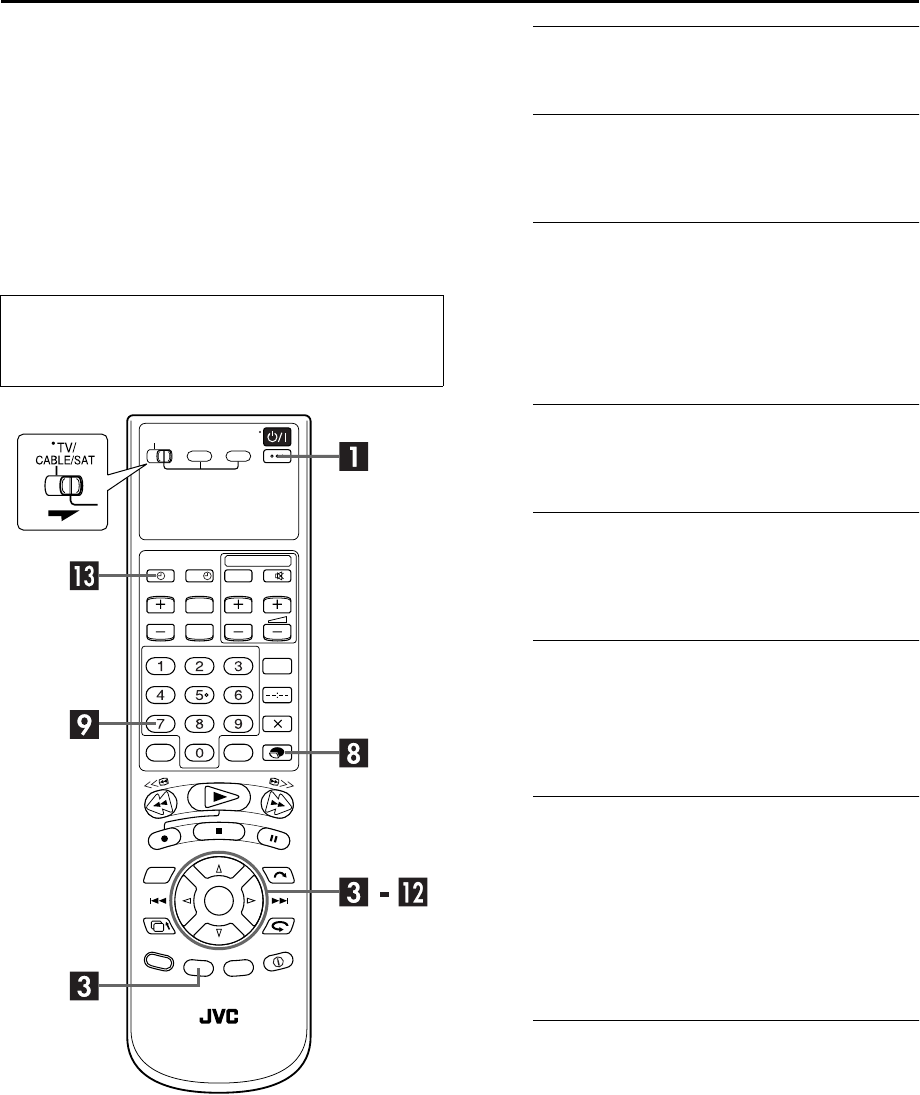
Filename [HM-HDS4EX_05Timer.fm]
Masterpage:Left
48 EN
Page 48 April 2, 2003 3:53 pm
TIMER RECORDING (cont.)
Express Timer
Programming
You can programme this recorder to timer-record as many as 16
programmes.
If you do not know the SHOWVIEW number for the programme
you wish to record, use the following procedure to set your
recorder to timer-record the programme.
ATurn on the recorder.
Press 1.
BLoad a cassette.
Insert a VHS (or S-VHS) cassette with the record safety
tab intact.
CAccess the programme screen.
APress PROG.
BPress w e to move the arrow to “PROGRAMME”, then
press OK.
●When “PROGRAMME FULL DELETE UNWANTED TIMER
PROGRAMME” appears on the TV screen, you need to cancel
some of the currently set programmes. (墌pg. 50)
DSelect the programme date.
Press w r e t to move the arrow to the desired date,
then press OK.
ESelect the recording deck.
APressr t to move the arrow to “RECORD TO”, then
press OK.
BPress r t to select “HDD” or “VHS”, then press OK.
FSet the start time and stop time of the
programme.
APress t to move the arrow to “START” or “STOP”,
then press OK.
BPress r t to select the desired time, then press OK.
GSelect the channel position.
APress t to move the arrow to “TV PROG”, then press
OK.
BPress r t to select the desired channel, then press
OK.
●If you want to set a satellite programme, press the number key
“0” to change “TV PROG” to “SAT”, then press VCR PR+/–.
CPress t to move the cursor to “CONFIRM”, then press
OK.
HSet the recording speed.
APress r t to move the arrow to “REC MODE”, then
press OK.
DPress r t to select the desire mode, then press OK.
Before performing Express Timer Programming:
●Make sure that the recorder’s built-in clock is set properly.
●Turn on the TV and select the AV mode.
●Slide TV/CABLE/SAT switch to the right.
?
HM-HDS4EX.book Page 48 Wednesday, April 2, 2003 3:55 PM

Masterpage:Right-NoTitle0
EN 49
Filename [HM-HDS4EX_05Timer.fm]
Page 49 April 2, 2003 3:53 pm
ISet the VPS/PDC mode.
APress r t to move the arrow to “VPS/PDC”.
BPress VPS/PDC to select “ON” or “OFF”.
OR
APress r t to move the arrow to “VPS/PDC”, then
press OK.
BPress r t to select the desired setting, then press OK.
●If “VPS/PDC ON” is displayed on the TV screen, VPS/PDC is
set to ON.
●If “VPS/PDC OFF” is displayed on the TV screen, VPS/PDC is
set to OFF.
墌“VPS/PDC Recording” on page 49.
JSet the WEEKLY/DAILY programme mode.
APress r t to move the arrow to “WEEKLY/DAILY”,
then press OK.
BPress r t to select the desire mode, then press OK.
●For details on each mode, see “WEEKLY/DAILY programme
timer settings” (墌pg. 47).
KSet other options.
APress r t to move the arrow to the desired option,
then press OK.
BSet each option as required.
●To modify a programme title, perform steps B and C of
“Modify Programme Title” (墌pg. 57).
●To modify the category option, press w r e t to select the
desired category, press OK, press w r e t to move the
arrow to “EXIT”, then press OK.
LReturn to the normal screen.
Press w e to move the arrow to “EXIT”, then press OK.
●If “PROGRAMME OVERLAPPED” appears on the TV screen,
see page 50.
●To continue timer programming for other programmes, press
w e to move the arrow to “CONTINUE”, then press OK.
MEngage the recorder’s timer mode.
●For the HDD deck (with the VPS/PDC mode is OFF):
No operation is required to engage the recorder’s mode.
●For the VHS deck and the HDD deck (with the VPS/
PDC mode is ON):
Press # (TIMER). The recorder turns off automatically and
“#” appears on the front display panel.
●To disengage the timer mode, press # (TIMER) again.
NOTES:
●During timer recording with “#“ appearing on the front
display panel, it is not possible to change the recording deck
(HDD or VHS).
●When you check , cancel, or change programme, see page 50.
Satellite Receiver Users
To timer-record a satellite broadcast using Express Timer
Programming:
APerform “Satellite Receiver Control Setting” on page 19.
BPerform steps A – M. In step G, change “TV PROG” to
“SAT”. The front display panel shows “L-2” for the
channel position. Then select the channel position for the
satellite broadcast. In step I, you cannot set “VPS/PDC”
to “ON”.
CLeave the satellite receiver’s power on.
VPS/PDC Recording
Now available from some TV stations, PDC (Programme
Delivery Control) and VPS (Video Programme System) are
service designed to assure safe, accurate timer recording.
With this system, special code signals are transmitted
together with the audio/video signals. These code signals
control your video recorder and have precedence over the
advertised times you may have preset into the timer. This
means that your recorder will start and stop recording when
the preset TV programmes actually start and end — even if
the broadcast time of a preset TV programme is changed.
NOTES:
●When you use Express Timer Programming, set the start
time (VPS or PDC time) exactly as advertised in the TV
listing. A different time than advertised will result in no
recording.
●VPS/PDC recording is also possible when a satellite
receiver or a cable system is connected to L-2 IN/
DECODER connector on your recorder.
●VPS/PDC recording is also possible via the L-1 IN/OUT
connector.
How to check if the station being received transmits a
VPS/PDC signal (VHS deck only)
APress ––:–– until the channel position appears on the
front display panel.
BHold down for about 5 seconds.
“VPS/PDC” appears blinking on the front display panel.
If a VPS/PDC signal is detected from the station,
“VPS/PDC” will stop blinking.
If no VPS/PDC signal is detected from the station,
“VPS/PDC” will blink at a slower rate.
CPress ––:–– or again to return to normal display.
HM-HDS4EX.book Page 49 Wednesday, April 2, 2003 3:55 PM
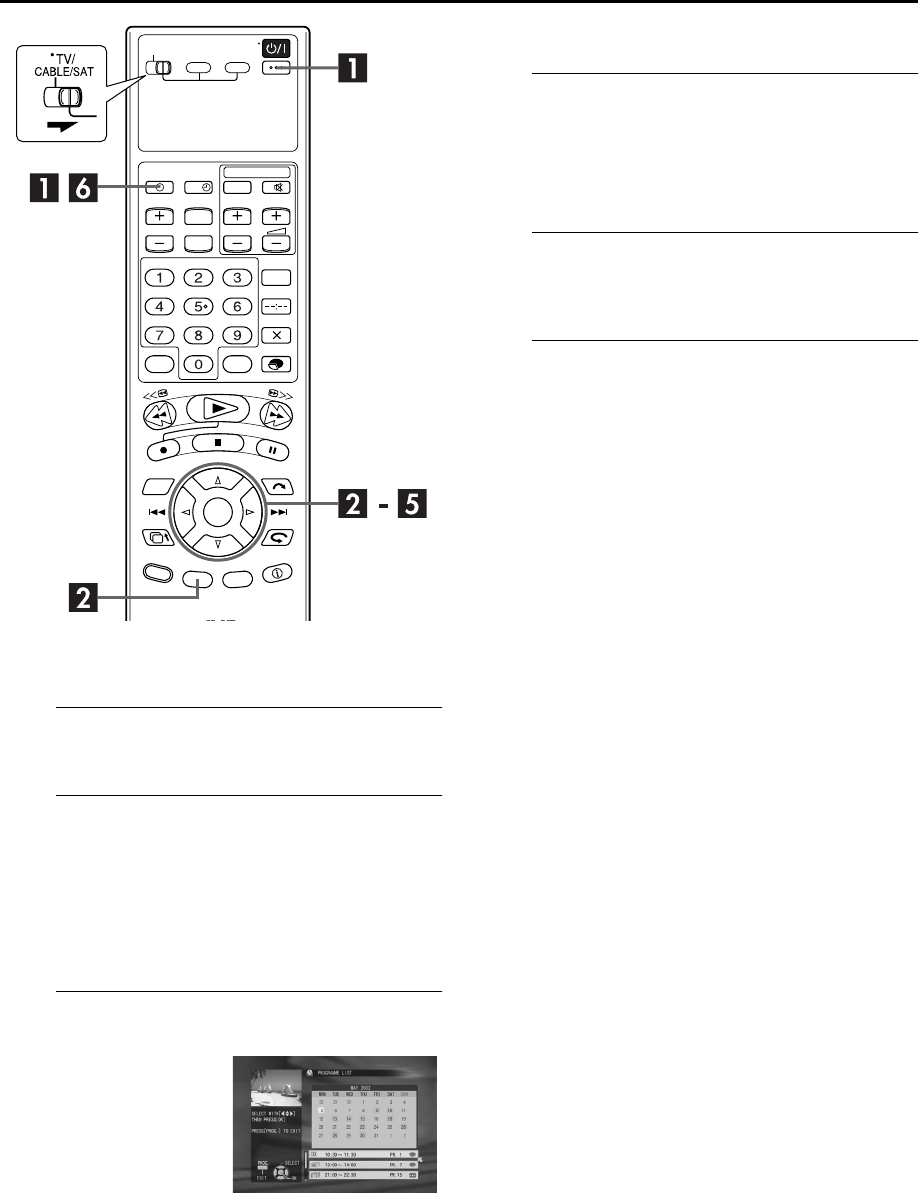
Filename [HM-HDS4EX_05Timer.fm]
Masterpage:Left
50 EN
Page 50 April 2, 2003 3:53 pm
TIMER RECORDING (cont.)
Check, cancel and change programmes
ADisengage the timer mode. (VHS deck only)
Press # (TIMER), then press 1.
BAccess the Programme Check screen, then
select the date.
APress PROG.
BPress w r e t to move the arrow to “PROGRAMME
LIST”, then press OK.
CPress w r e t to move the arrow to the desired date,
then press OK.
CAccess the Programme screen.
To cancel or change a programme...
DCancel or change a programme.
To cancel the programme, press w r e t to move the
arrow to “CANCEL“, then press OK.
To change programme settings, perform steps D to K of
“Express Timer Programming”. (墌pg. 48)
EReturn to the normal screen.
Press w r e t to move the arrow to “EXIT”, then press
OK.
FReturn to the timer mode.
●For the HDD deck (with the VPS/PDC mode is OFF):
No settings are required to engage recorder’s mode.
●For the VHS deck and the HDD deck (with the VPS/
PDC mode is ON):
Press # (TIMER).
NOTE:
When you make a timer programming, see page 48.
Press r t to select the
programme, then press OK.
?
HM-HDS4EX.book Page 50 Wednesday, April 2, 2003 3:55 PM
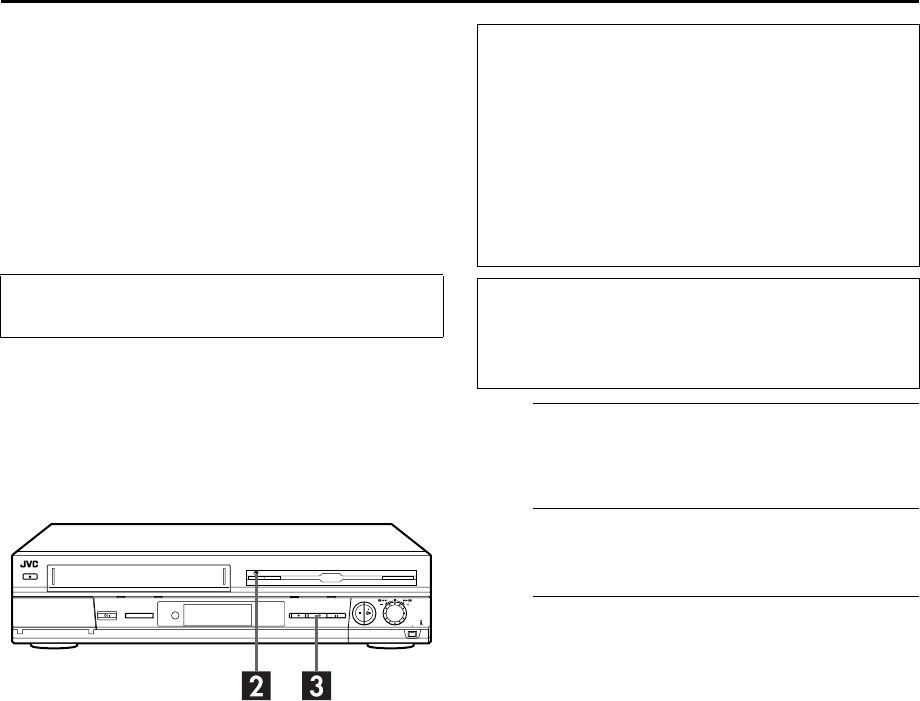
Masterpage:Right-NoTitle0
EN 51
Filename [HM-HDS4EX_05Timer.fm]
Page 51 April 2, 2003 3:53 pm
Automatic Satellite
Programme
Recording
This function allows you to automatically record a
satellite programme which is timer-programmed on your
external satellite receiver. Connect a satellite receiver to
the recorder’s L-2 IN/DECODER connector and
programme the timer on the satellite receiver. When the
signals come into the recorder from the satellite receiver,
the recorder automatically turns on and starts recording
on HDD deck.
ASelect the L-2 SELECT mode.
Set “L-2 SELECT” to “A/V” or “SAT” (墌pg. 69).
●When you select “SAT”, refer to “IMPORTANT” on page 76.
BSet the recording speed.
Press MODE.
CEngage the Automatic Satellite Programme
Recording mode.
Press and hold SAT# for about 2 seconds. The “N” and
“#” indicators will light in the front display panel.
NOTES:
●To disengage the Automatic Satellite Programme Recording mode, press SAT#.
●If the recorder’s power is off, it is not possible to engage the Automatic Satellite Programme Recording mode.
●In step C, if the N and # indicators do not light but instead blinks quickly even though your satellite receiver’s power is off,
Automatic Satellite Programme Recording will not work properly with that satellite receiver*. If this is the case, perform “Express
Timer Programming” (墌pg. 48) to timer-record a satellite programme.
* Some satellite receivers output signals even if the power is off. Automatic Satellite Programme Recording is not possible with those satellite receivers.
●The N and # indicators blink while Automatic Satellite Programme Recording is in progress.
●For timer programming of the satellite receiver, refer to the instruction manual of the satellite receiver.
●Automatic Satellite Programme Recording is not possible if your satellite receiver does not have a timer.
●Pressing the recorder’s 1 button while Automatic Satellite Programme Recording is in progress turns off the recorder’s power and
disengages the Automatic Satellite Programme Recording mode.
●If there are more than one satellite programmes you wish to record with Automatic Satellite Programme Recording, it is not possible
to set different recording speeds for each programme.
●Depending on the type of satellite receiver, the recorder may not record a slight portion of the beginning of the programme or may
record slightly longer than the actual length of the programme.
●If you engage the Automatic Satellite Programme Recording mode when the satellite receiver’s power is on, the recorder will not
start Automatic Satellite Programme Recording even though the N and # indicators blink. When the satellite receiver shuts off once
and is turned back on again, the recorder starts recording.
●You can also record a programme from your cable system in the same way if the system has a timer.
●Just Clock (墌pg. 86) does not work when the Automatic Satellite Programme Recording mode is engaged.
●When the Automatic Satellite Programme Recording mode is engaged, or the recorder’s power is turned off after Automatic Satellite
Programme Recording is finished, the recorder will not enter the Timer mode even though “AUTO TIMER” is set to “ON”
(墌pg. 84).
NOTE:
This function is available for the HDD deck only.
ATTENTION
●Be sure not to turn on the satellite receiver before the
programme is executed; otherwise, the recorder will start
recording when the satellite receiver’s power is turned on.
●If you have connected another appliance other than a
satellite receiver to the L-2 IN/DECODER connector, be
sure not to engage the Automatic Satellite Programme
Recording mode; otherwise, the recorder will start
recording when the connected appliance’s power is turned
on.
●Automatic Satellite Programme Recording and
timer-recording cannot be done at the same time.
Before performing the following steps:
●Make sure the satellite receiver is connected to the recorder’s
L-2 IN/DECODER connector. (墌pg. 76, 77)
●Programme the timer on the satellite receiver.
●Slide TV/CABLE/SAT switch to the right.
HM-HDS4EX.book Page 51 Wednesday, April 2, 2003 3:55 PM
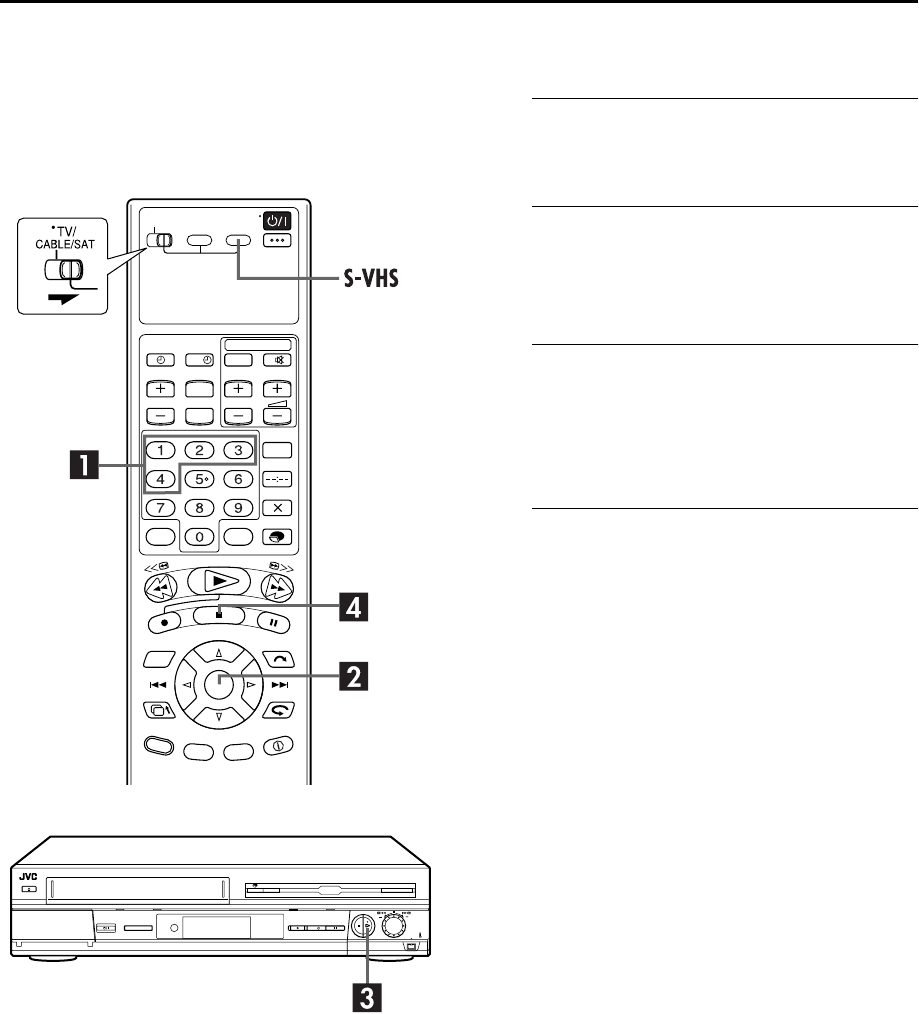
Filename [HM-HDS4EX_05Timer.fm]
Masterpage:Left
52 EN
Page 52 April 2, 2003 3:53 pm
REMOTE CONTROL FUNCTIONS
Remote A/B/C/D Code Switching
The remote control is capable of controlling four JVC video
recorders independently. Each of recorders can respond to one
of four codes (A, B, C or D). The remote control is preset to send
A code signals because your video recorder is initially set to
respond to A code signals. You can easily modify your video
recorder to respond to B, C or D code signals.
On the remote control
●Slide TV/CABLE/SAT to the right, then press and hold S-VHS
during steps A through B.
AChange the remote control code.
Press the number key “1” for A, “2” for B, “3” for C or “4”
for D.
BSet the remote control code.
Press OK to set the code.
On the recorder
CDisplay the code.
Press 4 on the recorder for over 5 seconds while the
recorder is turned off. The code currently set appears on
the front display panel.
●If the code displayed on the front display panel is different
from the code set on the remote control, go to step D.
DChange the recorder’s code.
Press 8 on the remote control. The code currently set on
the remote control will be applied to the recorder.
?
HM-HDS4EX.book Page 52 Wednesday, April 2, 2003 3:55 PM
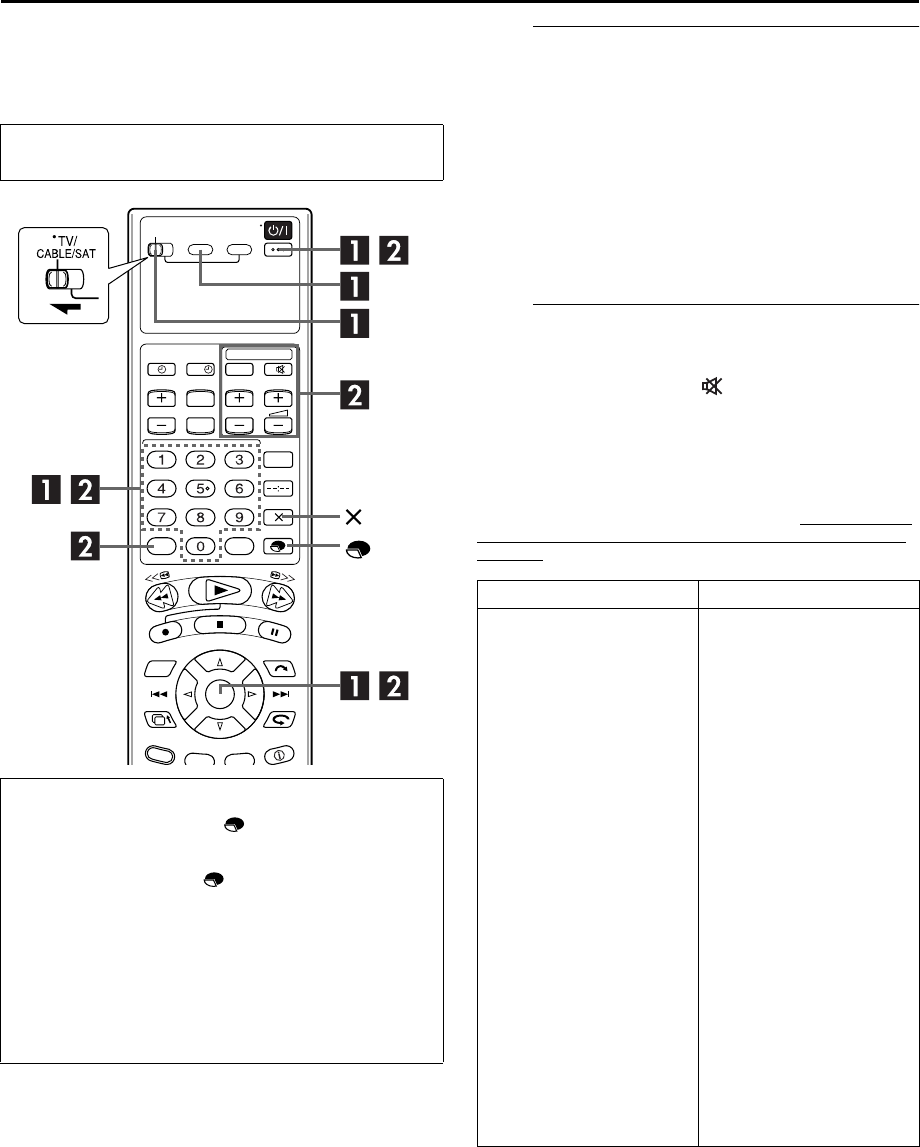
Masterpage:Right-NoTitle0
EN 53
Filename [HM-HDS4EX_05Timer.fm]
Page 53 April 2, 2003 3:53 pm
TV Multi-Brand Remote Control
Your remote control can operate the basic functions of your TV
set. In addition to JVC TVs, other manufacturer’s TVs can also be
controlled.
ASet the TV brand code.
Slide TV/CABLE/SAT to the left and keep S-VHS pressed
during this step.
Enter your TV’s brand code using the number keys, then
press OK.
Press 1 on the recorder’s remote control to turn on the
TV and try operations (墌 step B).
●Once you have set the remote control to operate the TV, you
do not have to repeat this step until you replace your remote
control’s batteries.
●Some brands of TV have more than one code. If the TV does
not function with one code, try entering another.
BOperate the TV.
Press the corresponding button: 1, TV/VCR, TV PR +/–,
TV AV, TV %+/– (Volume), (TV Muting), number
keys.
●For some brands of TV, you must press OK after having pressed
the number keys.
IMPORTANT
Although the provided remote control unit is compatible with
JVC televisions, as well as many other models, it may not work
with your TV, or in some instances, may have limited function
capability.
Before performing the following steps:
Turn off the TV using its remote control.
Control Your TV Using Additional Buttons
Use the number keys, and the button, & button to select
the TV’s channel.
●With televisions under Code 01, 02, 07, 10, 11, 14, 20, 23,
24, 25, 27, 33 or 35, the button corresponds to the
1-digit/2-digit entry switching button (often labelled – /– –)
of your TV’s remote control.
●With televisions under Code 01, 28, 29 or 34, the &
button corresponds to the 10 + button of your TV’s remote
control.
NOTE:
The way these buttons are used is determined by your TV.
Use these buttons as instructed for your TV’s remote control.
?
BRAND NAME CODE
JVC
BLAUPUNKT
BRANDT
FERGUSON
FINLUX
FUNAI
LG/GOLDSTAR
GRAETZ
GRUNDIG
HITACHI
ITT
LUXOR
MITSUBISHI
MIVAR
NEC
NOKIA
NORDMENDE
PANASONIC
PHILIPS
SABA
SALORA
SAMSUNG
SELECO
SHARP
SONY
TELEAVIA
TELEFUNKEN
THOMSON
TOSHIBA
01, 23, 24, 25
19
26
27
30
32
18
28
19
10
28
28
03
29
20
31
26
11
02
26
28
02, 12, 33, 34, 35
28
06
07
26
26
26
14
HM-HDS4EX.book Page 53 Wednesday, April 2, 2003 3:55 PM
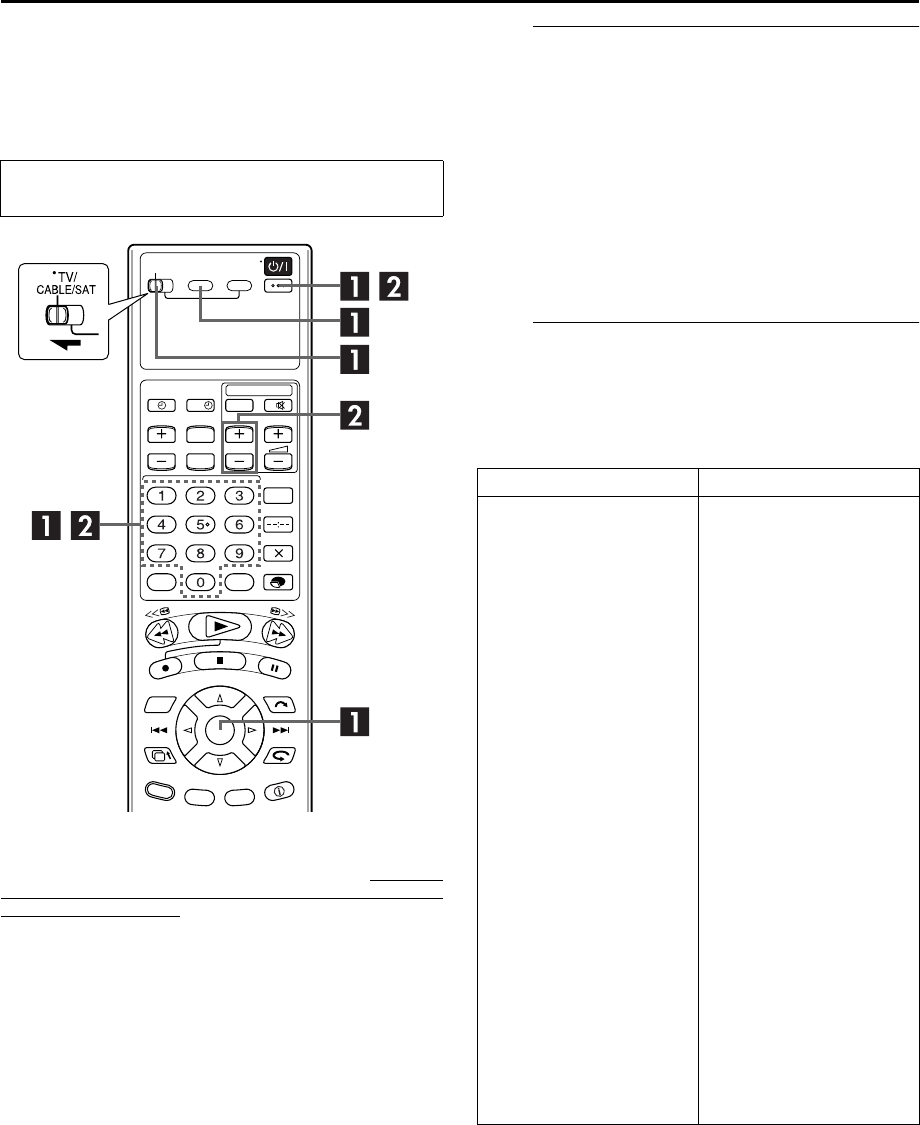
Filename [HM-HDS4EX_05Timer.fm]
Masterpage:Left
54 EN
Page 54 April 2, 2003 3:53 pm
REMOTE CONTROL FUNCTIONS (cont.)
Satellite Receiver Multi-Brand Remote
Control
Your remote control can operate the basic functions of your
satellite receiver set. In addition to JVC satellite receivers, other
manufacturer’s satellite receivers can also be controlled.
IMPORTANT
Although the provided remote control unit is compatible with
JVC satellite receivers, as well as many other models, it may not
work with your satellite receiver, or in some instances, may have
limited function capability.
ASet the satellite receiver brand code.
Slide TV/CABLE/SAT to the left and keep S-VHS pressed
during this step.
Enter your satellite receiver’s brand code using the
number keys, then press OK.
Press 1 on the recorder’s remote control to turn on the
satellite receiver and try operations (墌 step B).
●Once you have set the remote control to operate the satellite
receiver, you do not have to repeat this step until you replace
your remote control’s batteries.
●Some brands of satellite receiver have more than one code. If
the satellite receiver does not function with one code, try
entering another.
BOperate the satellite receiver.
Press the corresponding button: 1, TV PR +/–, number
keys.
●The number keys may not function with some satellite
receivers.
Before performing the following steps:
Turn off the satellite receiver using its remote control.
?
BRAND NAME CODE
JVC
AMSTRAD
CANAL SATELLITE
CANAL +
D-BOX
ECHOSTAR (VIA DIGITAL)
FINLUX
FORCE
GALAXIS
GRUNDIG
HIRSCHMANN
HUMAX
ITT NOKIA
KATHREIN
LUXOR
MASCOM
MASPRO
NOKIA
PACE
PANASONIC
PHILIPS
RADIX
RFT
SABA
SAGEM
SALORA
SAMSUNG
SIEMENS
SKYMASTER
TECHNISAT
THOMSON
TPS
TRIAX
WISI
73
60, 61, 62, 63, 92
81
81
85
82
68
89
88
64, 65, 102
64, 78, 99
88
68
70, 71, 96
68
93
70
87, 94
65, 67, 74, 86, 92
74, 92
66, 84, 101
78
69
97
83, 90
68
83
64
69, 98
66, 100
97
83
91
64
HM-HDS4EX.book Page 54 Wednesday, April 2, 2003 3:55 PM
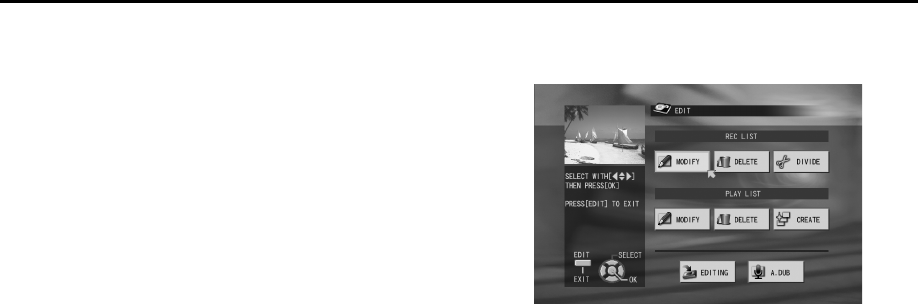
Masterpage:Right
EN 55
Filename [HM-HDS4EX_05Timer.fm]
Page 55 April 2, 2003 3:53 pm
EDITING
About Hybrid
Navigation
In the sections “Playback with HDD Navigation” (墌pg. 24)
and “Playback with VCR Navigation” (墌pg. 36), it is briefly
described how to search for the beginning of each recorded
programme using the Navigation functions. More detailed
explanations are provided in this section using HDD Navigation
by way of example.
This recorder has a built-in Hybrid Navigation system, which
consists of two Navigation systems (HDD Navigation and VCR
Navigation). Using Navigation system, you can easily modify
registered information or edit the programme when dubbing
from the HDD deck to VHS deck, as well as search for the
beginning of each programme.
About registration of information
The following information is automatically registered for each
programme when ordinary recording or timer recording is
performed, then stored in an area specified on the hard disk. For
the VHS deck, set “NAVIGATION” to “ON” (墌pg. 81).
●index* (reduced still pictures to show programme titles)
●programme title*
●category*
●date and time
●channel
●recording speed
●length of recording time
The items marked with an asterisk (*) can be easily modified and
registered again after recording by using Navigation system.
About editing of programmes
Navigation system has six functions for editing of programmes.
●“Modify Information” (墌pg. 56)
●“Delete Programme Information” (墌pg. 58)
●“Divide Programme (available only for HDD Navigation)”
(墌pg. 58)
●“Play List Features” (墌pg. 60)
●“Easy Dubbing from HDD deck to VHS deck” (墌pg. 63)
●“Audio Dubbing” (墌pg. 74)
The limitations of registration
You can register information up to 100 programmes in HDD
Navigation. In VCR Navigation, you can register information up
to 2000 programmes or up to 680 cassettes.
To register the information for VCR Navigation, you need to
record a programme for more than 5 minutes in SP mode (for
more than 15 minutes in LP mode.
When the amount of information is at the limits of registration,
you cannot record new programme any more. In this case, you
need to delete old programmes to register new one (墌pg. 58).
HM-HDS4EX.book Page 55 Wednesday, April 2, 2003 3:55 PM
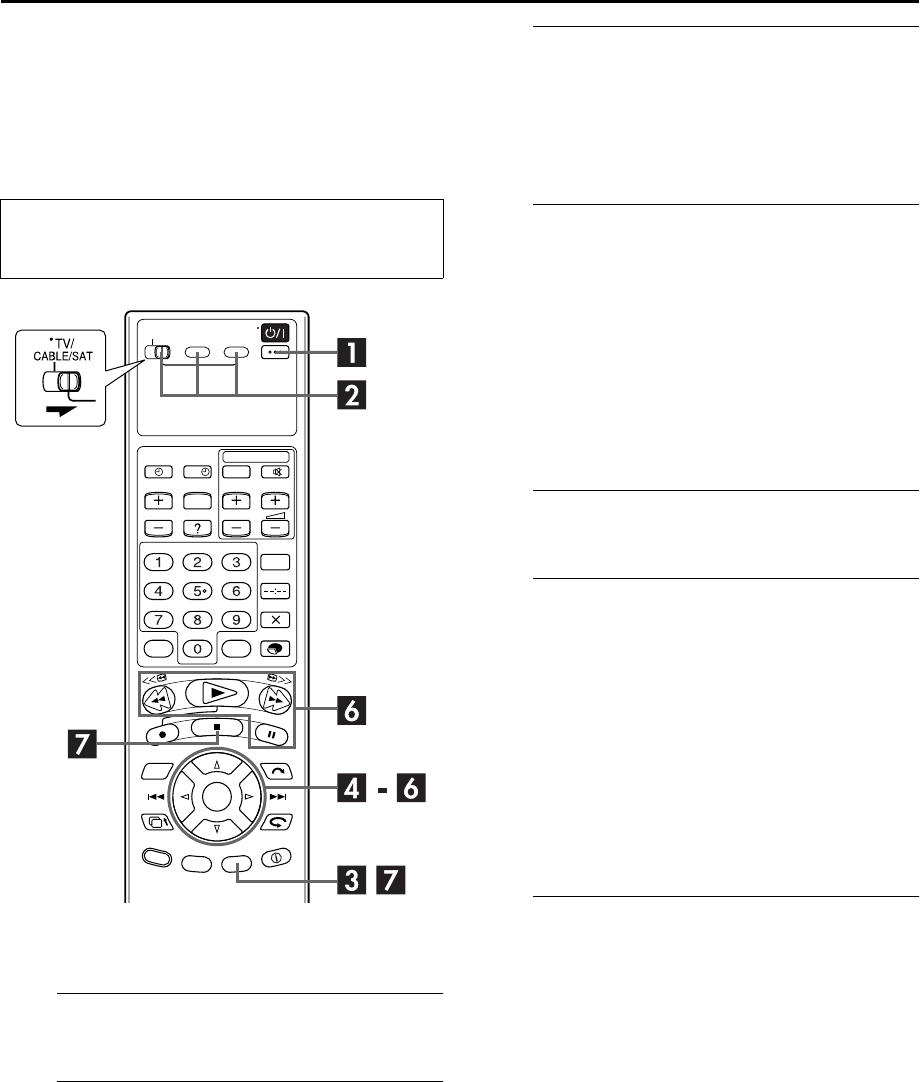
Filename [HM-HDS4EX_05Timer.fm]
Masterpage:Left
56 EN
Page 56 April 2, 2003 3:53 pm
EDITING (cont.)
Modify
Information
Modify Index
ATurn on the recorder.
Press 1.
BSelect the deck.
Slide TV/CABLE/SAT to the right, then press HDD or
S-VHS.
●For the VHS deck:
Insert a cassette with the record safety tab intact.
CAccess the Navigation screen.
Press EDIT
.
●The Navigation screen corresponding to the selected deck
appears.
●For the VHS deck:
When “NAVIGATION” is set to “OFF” (墌pg. 81), the
Navigation screen does not appear.
DSelect the programme.
APress w e to move the arrow to “MODIFY” under
“REC LIST”, then press OK.
BPress w r e t to move the arrow to the desired
programme index, then press OK.
●For the VHS deck:
APress w e to move the arrow to “MODIFY” under
“PROGRAMME”, then press OK.
BPress w r e t to move the arrow to the desired
cassette index, then press OK.
CPress w r e t to move the arrow to the desired
programme index, then press OK.
EAccess the modify screen.
Press w e to move the arrow to “INDEX”, then press OK.
FRegister new index.
AConfirm the arrow is on “REPLACE”. Playback starts in
the left large window.
BSearch for the needed programme picture by pressing
the appropriate buttons (4, 9, 3, or 5). You can
also search for the picture by turning and pressing the
JOG dial.
CPress OK to register the new index. New index
appears in the right window.
●When you press OK with the arrow on “RETURN” you can
return to the previous screen.
●While your are editing a programme in DV mode, the
distortion of the picture on the small window (showing the
result of the edition) does not affect the actual edited picture.
GReturn to the normal screen.
Press EDIT
.
●For the VHS deck:
Press 8 to cancel pause mode after pressing EDIT
.
NOTE:
The Navigation systems cannot work during recording on the
HDD deck or in SAT# mode (墌pg. 51).
HM-HDS4EX.book Page 56 Wednesday, April 2, 2003 3:55 PM

Masterpage:Right-NoTitle0
EN 57
Filename [HM-HDS4EX_05Timer.fm]
Page 57 April 2, 2003 3:53 pm
Modify Category
AAccess the modify screen.
Press w e to move the arrow to “CATEGORY”, then press
OK.
BSelect new category.
Press w r e t to move the arrow to the desired category,
then press OK.
CReturn to the normal screen.
Press EDIT
.
Modify Programme Title
AAccess the modify screen.
Press w e to move the arrow to “TITLE”, then press OK.
BEnter new title.
Press w r e t to move the arrow to the desired letter or
command, then press OK. Repeat this process to
complete the title.
●To select the letter to be corrected, press w r e t to move
the arrow to “<” or “>”, then press OK repeatedly until the
desired letter is selected.
●To delete the selected letter, press w r e t to move the
arrow to “DELETE”, then press OK.
●To cancel the modification, press w r e t to move the
arrow to “CANCEL”, then press OK. Title remains as previously
set.
●You can enter up to 26 letter for each title.
CRegister new title.
Press w r e t to move the arrow to “SAVE“, then press
OK.
DReturn to the normal screen.
Press EDIT
.
Modify Cassette Title (available only
for VHS Navigation)
ASelect the programme and access the modify
screen.
APress w e to move the arrow to “MODIFY TITLE”
under “LIBRARY”, then press OK.
BPress w r e t to move the arrow to the desired
cassette index, then press OK.
BEnter and register new title.
Perform steps B to C of “Modify Programme Title”
(墌pg. 57).
CReturn to the normal screen.
Press EDIT
.
Perform steps A to D of “Modify Index” (墌pg. 56) before
continuing.
Perform steps A to D of “Modify Index” (墌pg. 56) before
continuing.
Perform steps A to C of “Modify Index” (墌pg. 56) before
continuing.
HM-HDS4EX.book Page 57 Wednesday, April 2, 2003 3:55 PM

Filename [HM-HDS4EX_05Timer.fm]
Masterpage:Left
58 EN
Page 58 April 2, 2003 3:53 pm
EDITING (cont.)
Delete Programme Information
For HDD Navigation:
When you delete the registered information of a programme, the
recorder delete the programme itself on the hard disk drive. The
deleted programme is never resumed.
For VCR Navigation:
When you delete the registered information of a programme, the
recorder delete only the information on the hard disk drive. The
programme itself cannot be deleted with VCR Navigation.
ASelect the programme and access the delete
screen.
APress w e to move the arrow to “DELETE” under “REC
LIST”, then press OK.
BPress w r e t to move the arrow to the desired
programme index, then press OK.
●For the VHS deck:
APress w e to move the arrow to “MODIFY” under
“PROGRAMME”, then press OK.
BPress w r e t to move the arrow to the desired
cassette index, then press OK.
CPress w r e t to move the arrow to the desired
programme index, then press OK.
DPress w e to move the arrow to “DELETE”, then press
OK.
●A message appears for your confirmation.
BConfirm the deletion.
Press w e to select “DELETE”, then press OK.
●When you cancel the deletion, select “CANCEL”, then press
OK.
CReturn to the normal screen.
Press EDIT
.
Delete Cassette Information (available
only for VHS Navigation)
ASelect the programme and access the delete
screen.
APress w e to move the arrow to “DELETE” under
“LIBRARY”, then press OK.
BPress w r e t to move the arrow to the desired
cassette index, then press OK.
BConfirm the deletion.
Press w e to move the arrow to “DELETE”, then press OK.
CReturn to the normal screen.
Press EDIT
.
Divide Programme (available only for
HDD Navigation)
ASelect the programme and access the divide
screen.
APress w e to move the arrow to “DIVIDE” under “REC
LIST”, then press OK.
BPress w r e t to move the arrow to the desired
programme index, then press OK.
Perform steps A to C of “Modify Index” (墌pg. 56) before
continuing.
Perform steps A to C of “Modify Index” (墌pg. 56) before
continuing.
Perform steps A to C of “Modify Index” (墌pg. 56) before
continuing.
HM-HDS4EX.book Page 58 Wednesday, April 2, 2003 3:55 PM
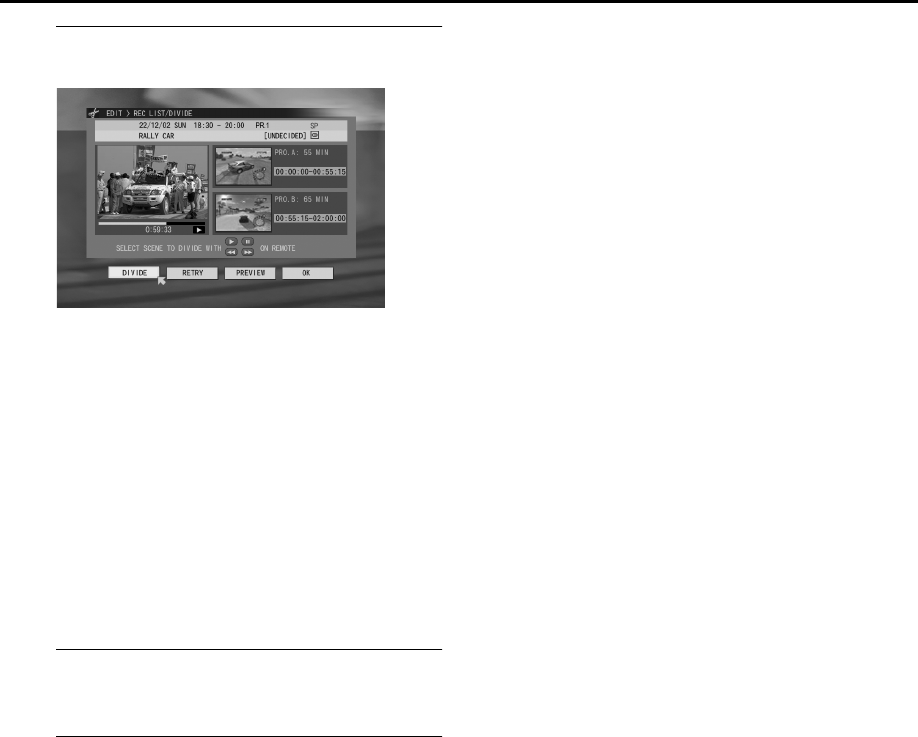
Masterpage:Right-NoTitle0
EN 59
Filename [HM-HDS4EX_05Timer.fm]
Page 59 April 2, 2003 3:53 pm
BLocate the divide point.
AConfirm the arrow is on “DIVIDE”. Playback starts in
the left large window.
BPress the appropriate buttons (4, 9, 5, or 3) to
search for the divide point. You can also search for the
divide point by turning and pressing the JOG dial.
CPress OK at the divide point. The first picture (start) of
the newly created programme appears in the right
bottom window.
●To play the first 10 seconds of the newly created programme,
press w e to move the arrow to “PREVIEW”, then press OK.
●To cancel the divide point and set another one, press w e to
move the arrow to “RETRY”, press OK, then perform step B
again.
●While your are editing a programme in DV mode, the
distortion of the picture on the small window (showing the
result of the edition) does not affect the actual edited picture.
CRegister the new programme.
Press w e to move the arrow to “OK”, then press OK.
DReturn to the normal screen.
Press EDIT
.
NOTE:
The indexes of programmes in record, registered in the play list,
or recorded using daily/weekly timer recording do not appear in
the list window in step A and you cannot select these
programmes to divide.
HM-HDS4EX.book Page 59 Wednesday, April 2, 2003 3:55 PM
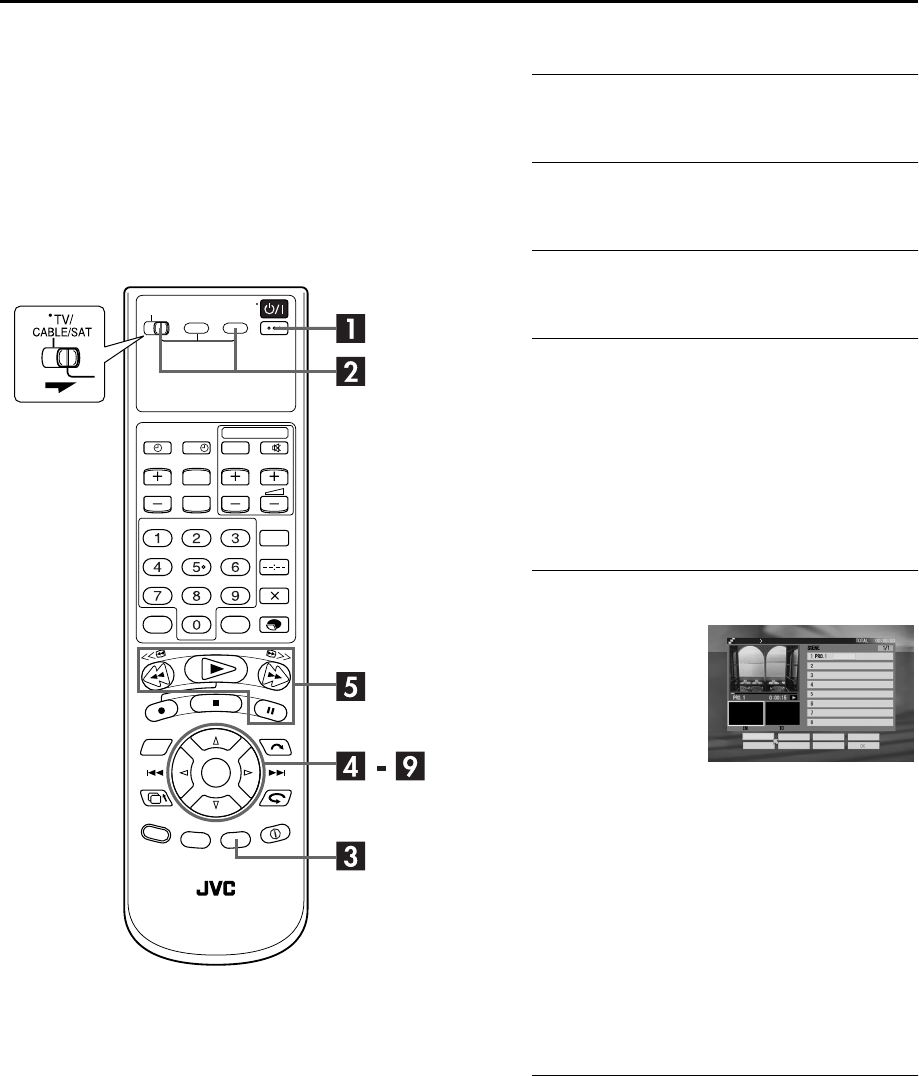
Filename [HM-HDS4EX_05Timer.fm]
Masterpage:Left
60 EN
Page 60 April 2, 2003 3:53 pm
EDITING (cont.)
Play List Features
A play list is a collection of the scenes selected from original
recorded programmes. A play list can be freely edited and
played back without ever changing any original recorded data. A
play list includes information such as the beginning and ending
time of the scenes, indexes for checking the contents of the
recorded data, category information, and more. Playback
according to the play list you have created allows you to enjoy
various combinations of video images from programmes
recorded on the hard disk drive.
Create Play List
ATurn on the recorder.
Press 1.
BSelect the deck.
Slide TV/CABLE/SAT to the right, then press HDD.
CAccess the Navigation screen.
Press EDIT
.
DSelect the programme and access the play
list screen.
APress w r e t to move the arrow to “CREATE” under
“PLAY LIST”, then press OK.
BPress w r e t to move the arrow to the original
programme index for the play list to reference, then
press OK.
●Playback of the selected programme starts in the left large
window.
ESelect the desired scene.
BPress the appropriate buttons (4, 9, 5, or 3) to
search for the desired point. You can also search for
the desired point by turning and pressing the JOG dial.
CPress OK when beginning picture of the desired scene
is found.
DPerform steps A to C again to locate the ending
picture for the desired scene. The picture selected as
the ending scene appears in the right bottom “TO”
window.
●The selected scene information (original programme number,
beginning time and ending time) appears in the scene list and
playback of the programme after the selected scene starts.
●While your are editing a programme in DV mode, the
distortion of the picture on the small window (showing the
result of the edition) does not affect the actual edited picture.
FSelect other scenes.
Repeat step E as required.
●To select a scene in another programme, press w r e t to
move the arrow to “SELECT PROG.”, then press OK. After that,
repeat steps B of D and E.
?
AConfirm the arrow is on
“IN/OUT”. The picture for
the beginning of the
selected scene appears in
the left bottom “IN”
window.
SEITE
ANF./ENDE ÄNDERN VERSCHIEBEN VORSCHAU
PROG. WÄHLEN LÖSCHEN NEUVERSUCH
EDITIEREN WIEDERGABELISTE ÄNDERN
HM-HDS4EX.book Page 60 Wednesday, April 2, 2003 3:55 PM
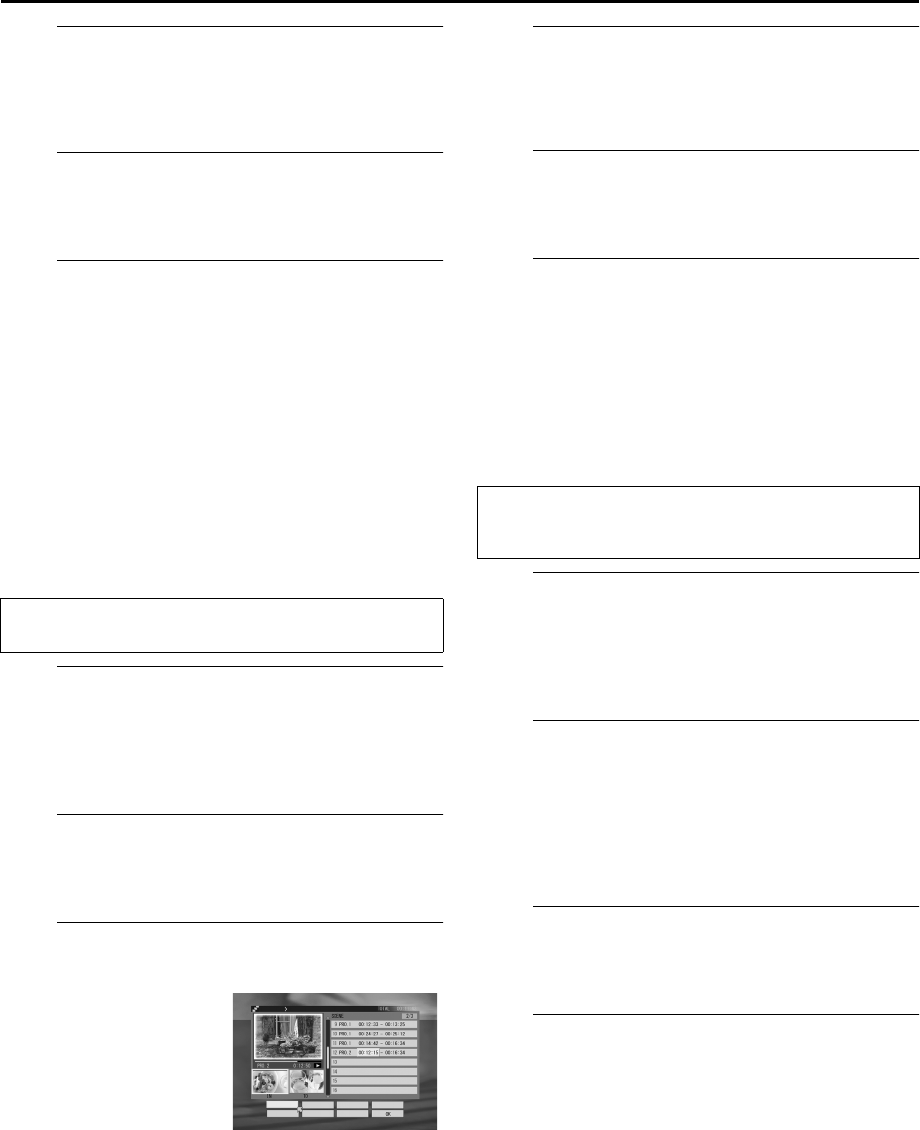
Masterpage:Right-NoTitle0
EN 61
Filename [HM-HDS4EX_05Timer.fm]
Page 61 April 2, 2003 3:53 pm
GConfirm the play list.
Press w r e t to move the arrow to “PREVIEW”, then
press OK.
●Playback of current play list starts in the left large window.
HRegister the selected scenes.
Press w r e t to move the arrow to “OK”, then press
OK.
IReturn to the normal screen.
Press w e to move the arrow to “EXIT”, then press OK.
●When you edit the play list, press w e to move the arrow to
“MODIFY”, then press OK.
●To play back the play list you have created, refer to “Scan for
Beginning of Programme (or Play List)” (墌pg. 25).
NOTE:
You cannot include scenes recorded in DV mode and scenes
recorded in another mode in the same play list.
Edit Scenes
You can change beginning and ending scene time in the play list.
ASelect the play list.
APress w r e t to move the arrow to “MODIFY” under
“PLAY LIST”, then press OK.
BPress w r e t to move the arrow to the desired play
list index, then press OK.
BAccess the play list screen.
Press w r e t to move the arrow to “SCENE”, then press
OK.
CSelect the beginning or ending time.
DChange the beginning or ending time.
Perform step E of “Create Play List”.
●To cancel the change, press w r e t to move the arrow to
“RETRY”, then press OK.
ERegister the modified play list.
Press w r e t to move the arrow to “OK”, then press
OK.
FReturn to the normal screen.
Press w e to move the arrow to “EXIT”, then press OK.
●To continue to edit the play list, press w e to move the arrow
to “MODIFY”, then press OK.
Move scenes
You can change the order of the scenes in a play list.
ASelect the scene.
APress w r e t to move the arrow to “MOVE”, then
press OK.
BPress r t to move the arrow to the desired scene to
move in the scene list, then press OK.
BSelect the insert destination.
Press r t to move the arrow to the desired scene that is
to be inserted next to the inserted scene selected in step
A, then press OK.
●The selected scene moves down after inserted scene.
●To cancel move scene operation, press w r e t to move the
arrow to “RETRY”, then press OK.
CRegister the modified play list.
Press w r e t to move the arrow to “OK”, then press
OK.
DReturn to the normal screen.
Press w e to move the arrow to “EXIT”, then press OK.
●To continue to edit the play list, press w e to move the arrow
to “MODIFY”, then press OK.
Perform steps A to C of “Create Play List” (墌pg. 60) before
continuing.
APress w r e t to move
the arrow to “MODIFY”,
then press OK.
BPress w r e t to move
the arrow to the desired
beginning/ending time,
then press OK.
SEITE
ANF./ENDE ÄNDERN VERSCHIEBEN VORSCHAU
PROG. WÄHLEN LÖSCHEN NEUVERSUCH
EDITIEREN WIEDERGABELISTE ÄNDERN
Perform steps A to C of “Create Play List” (墌pg. 60), then
steps A and B of “Edit Scenes” (墌pg. 61) before
continuing.
HM-HDS4EX.book Page 61 Wednesday, April 2, 2003 3:55 PM

Filename [HM-HDS4EX_05Timer.fm]
Masterpage:Left
62 EN
Page 62 April 2, 2003 3:53 pm
EDITING (cont.)
Delete scenes
ADelete the scene.
APress w r e t to move the arrow to “DELETE”, then
press OK.
BPress r t to move the arrow to the desired scene to
be deleted in the scene list, then press OK.
●To cancel delete scene operation, press w r e t to move the
arrow to “RETRY”, then press OK.
BRegister the modified play list.
Press w r e t to move the arrow to “OK”, then press
OK.
CReturn to the normal screen.
Press w e to move the arrow to “EXIT”, then press OK.
●To continue to edit the play list, press w e to move the arrow
to “MODIFY”, then press OK.
Modify Index
APerform steps A to C of “Create Play List” (墌pg. 60).
BPerform step A of “Edit Scenes” (墌pg. 61).
CPerform steps E to G of “Modify Index” (墌pg. 56).
●For this procedure, “programme” described in step F of
“Modify Index” must be read as “play list”.
Modify Category
APerform steps A to C of “Create Play List” (墌pg. 60).
BPerform step A of “Edit Scenes” (墌pg. 61).
CPerform steps A to C of “Modify Category”
(墌pg. 57).
Modify Play List Title
APerform steps A to C of “Create Play List” (墌pg. 60).
BPerform step A of “Edit Scenes” (墌pg. 61).
CPerform steps A to D of “Modify Programme Title”
(墌pg. 57).
Delete Play List
ASelect the play list and access the delete
screen.
APress w e to move the arrow to “DELETE” under
“PLAY LIST”, then press OK.
BPress w r e t to move the arrow to the desired play
list index, then press OK.
BConfirm the deletion.
Press w e to move the arrow to “DELETE”, then press OK.
CReturn to the normal screen.
Press EDIT
.
Perform steps A to C of “Create Play List” (墌pg. 60), then
steps A and B of “Edit Scenes” (墌pg. 61) before
continuing.
Perform steps A to C of “Create Play List” (墌pg. 60) before
continuing.
HM-HDS4EX.book Page 62 Wednesday, April 2, 2003 3:55 PM
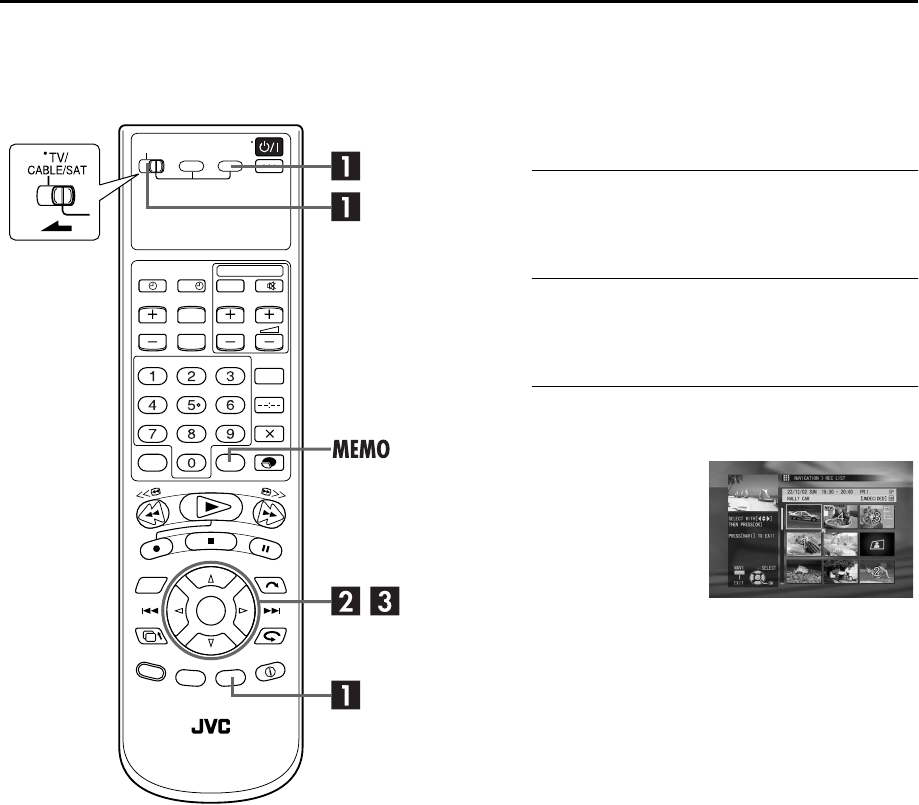
Masterpage:Right-NoTitle0
EN 63
Filename [HM-HDS4EX_05Timer.fm]
Page 63 April 2, 2003 3:53 pm
Dubbing Easy Dubbing from HDD deck to VHS
deck
Because this recorder includes both HDD deck and VHS deck,
you can easily use it for dubbing up to eight programmes (or
play lists) without connecting any other equipment.
AAccess the HDD Navigation screen.
Slide TV/CABLE/SAT to the right, then press HDD, then
press EDIT
.
BAccess the Easy Dubbing screen.
Press w r e t to move the arrow to “EDITING”, then
press OK.
CSelect the programme(s).
●When you want to select more programmes, press MEMO
instead of pressing OK after selecting the desired programme.
The playback order numbers appear on the index. After all the
programmes (or play lists) desired for dubbing are selected,
press OK.
●If you want to correct playback order, move the arrow to the
desired index and press MEMO. The number is deleted and
the recorder automatically renumbers the other programmes
(or play lists).
●If you want to cancel the current playback order, press &.
?
Press w r e t to move the
arrow to the desired
programme index, then press
OK when you dub only one
programme (or play list).
The message for preparing a
cassette appears.
HM-HDS4EX.book Page 63 Wednesday, April 2, 2003 3:55 PM
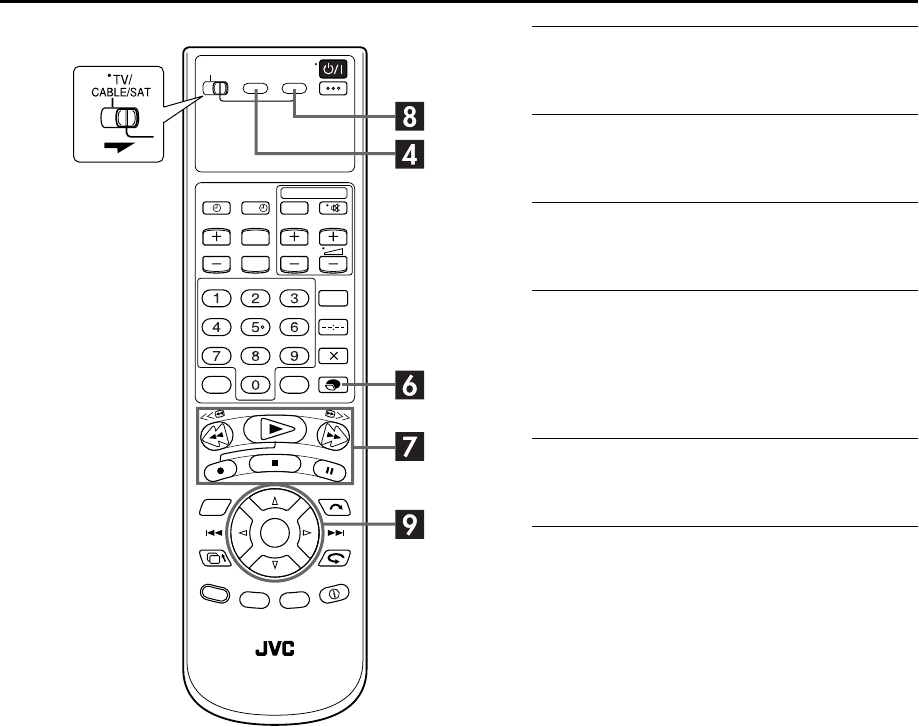
Filename [HM-HDS4EX_05Timer.fm]
Masterpage:Left
64 EN
Page 64 April 2, 2003 3:53 pm
EDITING (cont.)
DSelect the VHS deck.
Press S-VHS.
ELoad a cassette.
Insert a cassette with the record safety tab intact.
FSet the recording speed.
Press MODE.
GLocate the start point.
ASearch for the point where you want to start dubbing
by pressing 4, 5 or 3 then press 8.
BPress 7 and 9 simultaneously to enter the Record-
Pause mode.
HSelect the HDD deck.
Press HDD. The Easy Dubbing screen appears again.
IStart dubbing.
Press w e to move the arrow to “DUB START”, then press
OK. When the dubbing completes successfully, the
message “DUBBING COMPLETED” appears on the TV
screen.
●To stop dubbing, press 8.
●Once the dubbing is stopped, it can not be resumed. In this
case, the message appears on the TV screen.
NOTE:
If you start dubbing without setting the VHS deck to Record
Pause mode in step G, you can watch the preview.
?
HM-HDS4EX.book Page 64 Wednesday, April 2, 2003 3:55 PM
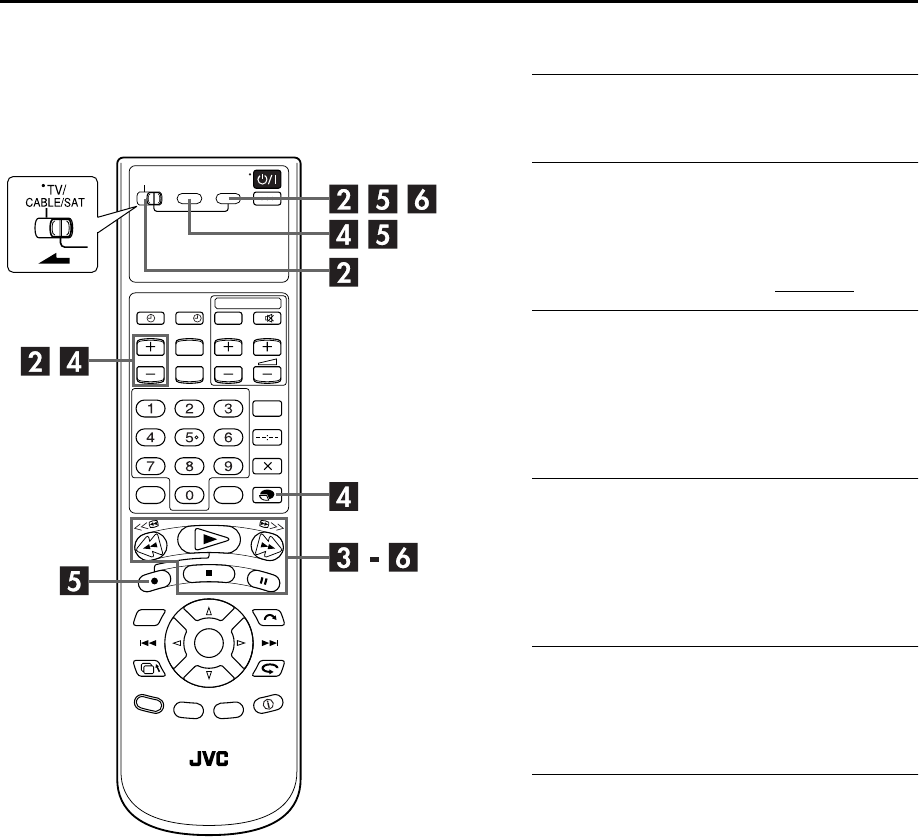
Masterpage:Right-NoTitle0
EN 65
Filename [HM-HDS4EX_05Timer.fm]
Page 65 April 2, 2003 3:53 pm
Normal Dubbing
(from HDD to VHS)
You can dub selected scenes from the HDD deck to a cassette,
starting and stopping wherever you wish.
ALoad a cassette.
Insert a cassette with the record safety tab intact.
BPrepare the HDD deck for dubbing.
ASlide TV/CABLE/SAT to the right, then press HDD and
select the programme to be dubbed. You can select the
programme by HDD Navigation. (墌pg. 24)
BPress VCR PR+/– to set the channel other than “DUB”.
CLocate the start point.
ASearch for the point where you want to start dubbing
by pressing 4, 5 or 3 then press 8.
BPress 3 a little, then press 4 to start playback.
CPress 9 to pause playback a little before the start
point.
DPrepare the VHS deck for dubbing.
APress S-VHS.
BPress VCR PR+/– to set the channel “DUB”.
CPress MODE to select tape speed.
DSearch for the point where you want to start dubbing
by pressing 4, 5 or 3 then press 8.
EStart dubbing.
APress HDD and 4 to start playback.
BPress S-VHS and 7 (7 and 4 on the remote control)
to start dubbing.
FEnd dubbing.
Press 8. Then press HDD and press 8.
NOTES:
●There may be a discrepancy of several seconds between where
you intend editing to start, and where it actually starts.
●The superimposed indication during the operation or dubbing
is not recorded.
?
HM-HDS4EX.book Page 65 Wednesday, April 2, 2003 3:55 PM
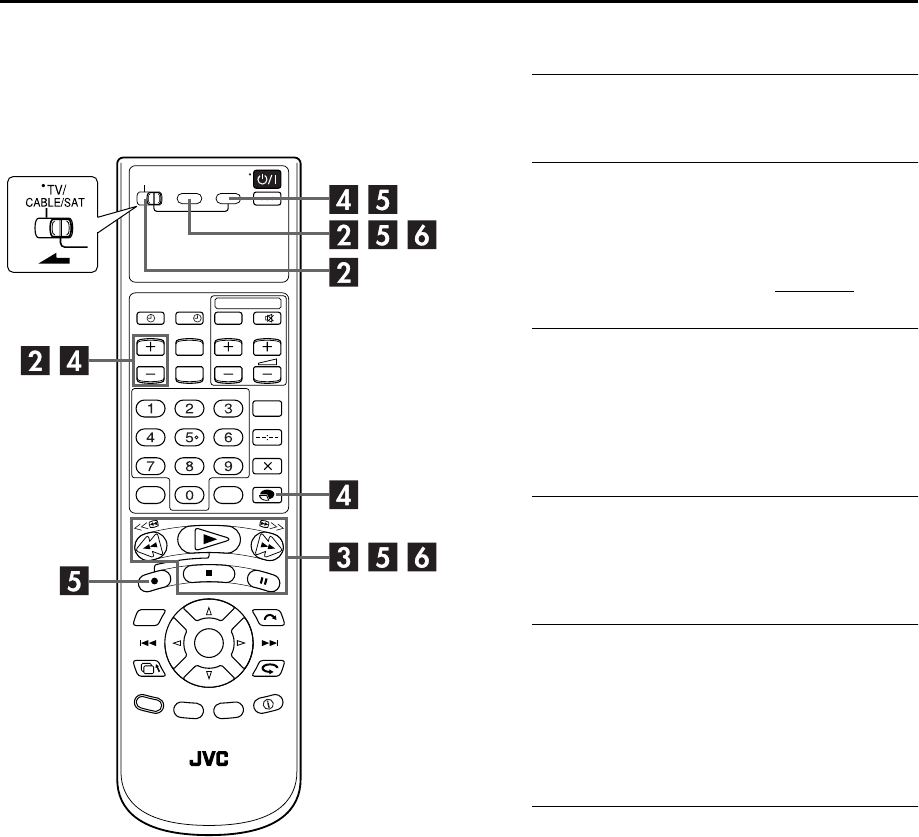
Filename [HM-HDS4EX_05Timer.fm]
Masterpage:Left
66 EN
Page 66 April 2, 2003 3:53 pm
EDITING (cont.)
Normal Dubbing
(from VHS to HDD)
You can dub selected scenes from a cassette to the HDD deck,
starting and stopping wherever you wish.
ALoad a cassette.
Insert a cassette with the record safety tab intact.
BPrepare the VHS deck for dubbing.
ASlide TV/CABLE/SAT to the right, then press S-VHS
and select the programme to be dubbed. You can
select the programme by VCR Navigation. (墌pg. 36)
BPress VCR PR+/– to set the channel other than “DUB”.
●Set “PICTURE CONTROL” to “EDIT” (墌pg. 83).
CLocate the start point.
ASearch for the point where you want to start dubbing
by pressing 4, 5 or 3 then press 8.
BPress 3 a little, then press 4 to start playback.
CPress 9 to pause playback a little before the start
point.
DPrepare the HDD deck for dubbing.
APress HDD.
BPress VCR PR+/– to set the channel “DUB”.
CPress MODE to select recording speed.
EStart dubbing.
APress S-VHS and 4 to start playback.
BPress HDD and 7 (7 and 4 on the remote control) to
start dubbing.
●To enter Record-Pause mode, press and hold 7 and press 9
on the remote control. To resume recording, press and hold 7
and press 4 on the remote control.
FEnd dubbing.
Press 8 twice. Then press S-VHS and press 8.
NOTES:
●There may be a discrepancy of several seconds between where
you intend editing to start, and where it actually starts.
●The superimposed indication during the operation or dubbing
is not recorded.
●For HDD deck, the recording pause takes effect only when the
recorder is recording on the HDD deck with the channel set to
“L-1”, “F-1”, or “DUB”. The recording pause is released in 5
minutes automatically. Picture and sound may be distorted at
the point where the recording pause is released.
●Dubbing copyright guarded tape is not possible.
●When you select “EDIT” to dub tapes in step B, be sure to
select “AUTO” (or “NORM” when “B.E.S.T.” is set to “OFF”)
after you finish dubbing the tapes.
?
HM-HDS4EX.book Page 66 Wednesday, April 2, 2003 3:55 PM
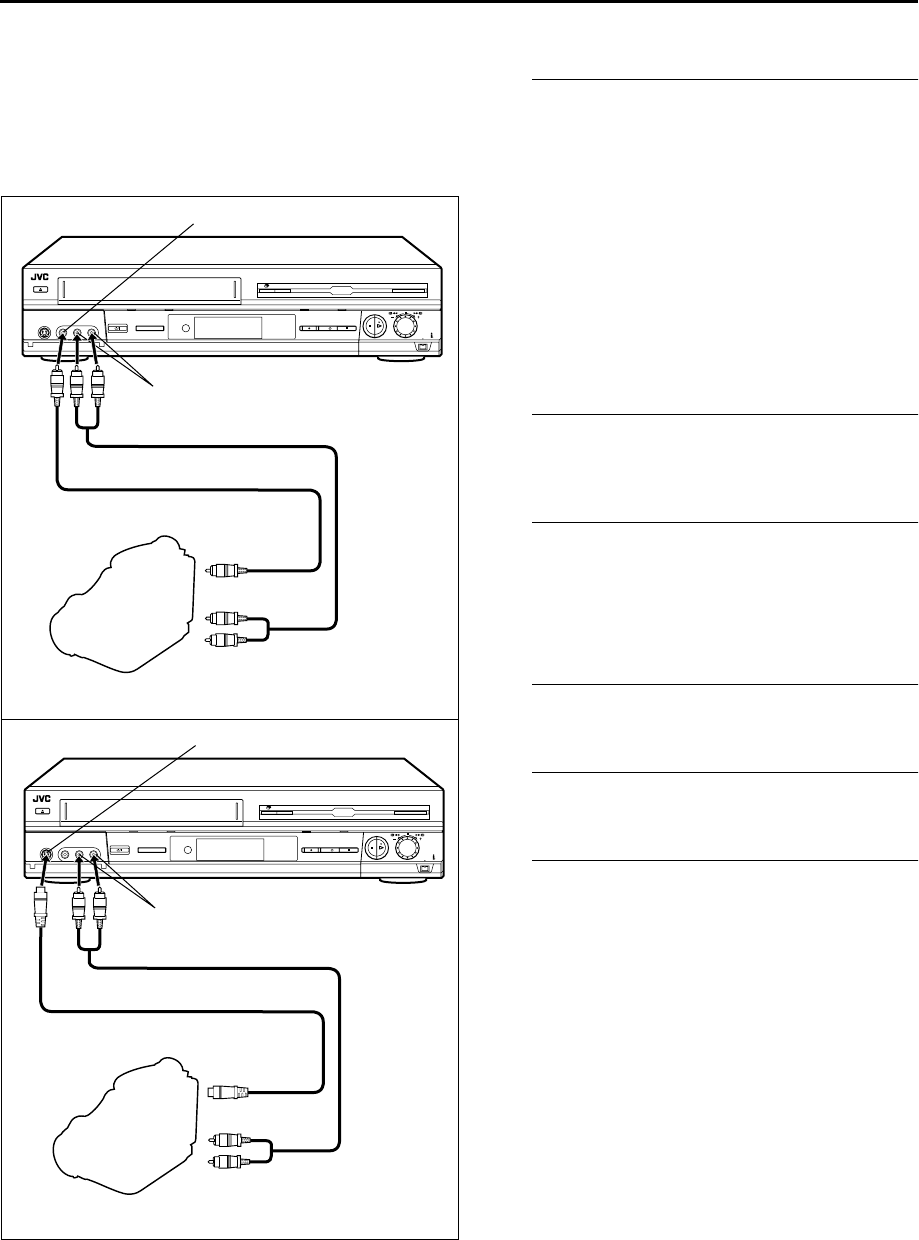
Masterpage:Right-NoTitle0
EN 67
Filename [HM-HDS4EX_06Edit.fm]
Page 67 April 2, 2003 3:20 pm
Edit From A
Camcorder
You can use a camcorder as the source player and your
recorder as the recording deck.
AMake connections.
AIf the camcorder has no S-VIDEO output connector ...
... connect the camcorder’s AUDIO OUT and VIDEO
OUT connectors to the recorder’s front panel AUDIO
and VIDEO input connectors.
BIf the camcorder has an S-VIDEO output connector ...
... connect the camcorder’s AUDIO OUT and
S-VIDEO OUT connectors to the recorder’s front panel
AUDIO and S-VIDEO input connectors.
●When using a monaural camcorder, connect its AUDIO OUT
connector to the AUDIO L input connector on your recorder.
●For the VHS deck:
When a Master Edit Control-equipped JVC camcorder is used,
the camcorder is capable of controlling the recorder. Refer to
the camcorder’s instruction manual for operating procedure.
BSelect the recording deck.
Slide TV/CABLE/SAT to the right, then press HDD or S-
VHS.
CSet the recorder’s input mode.
Press AUX (number key “0”) and/or VCR PR to select
“F-1”.
●Set “F-1 INPUT” to “VIDEO” for the VIDEO input connector,
or “S-VIDEO” for the S-VIDEO input connector, depending on
the connector being used (墌pg. 69).
DSet the edit mode. (VHS deck only)
See “PICTURE CONTROL” on page 83.
EStart the camcorder.
Engage the Play mode of the camcorder.
FStart the recorder.
Engage the Record mode of the recorder.
NOTES:
●All necessary cables can be obtained from your dealer.
●When you select “EDIT” to dub tapes in step D, be sure to
select “AUTO” (or “NORM” when “B.E.S.T.” is set to “OFF”)
after you finish dubbing the tapes.
●For HDD deck, the recording pause takes effect only when the
recorder is recording on the HDD deck with the channel set to
“L-1”, “F-1”, or “DUB”. The recording pause is released in 5
minutes automatically. Picture and sound may be distorted at
the point where the recording pause is released.
●It is not possible to record only the audio of the connected
equipment (without pictures) on the HDD deck.
A
B
Recorder
AUDIO OUT
VIDEO OUT
Camcorder
Player
VIDEO input
Recorder
Camcorder
S-VIDEO input
AUDIO input
Audio cable (not provided)
Video cable (not provided)
AUDIO input
Audio cable (not provided)
S-Video cable (not provided)
S-VIDEO OUT
AUDIO OUT
Player
HM-HDS4EX.book Page 67 Wednesday, April 2, 2003 3:55 PM
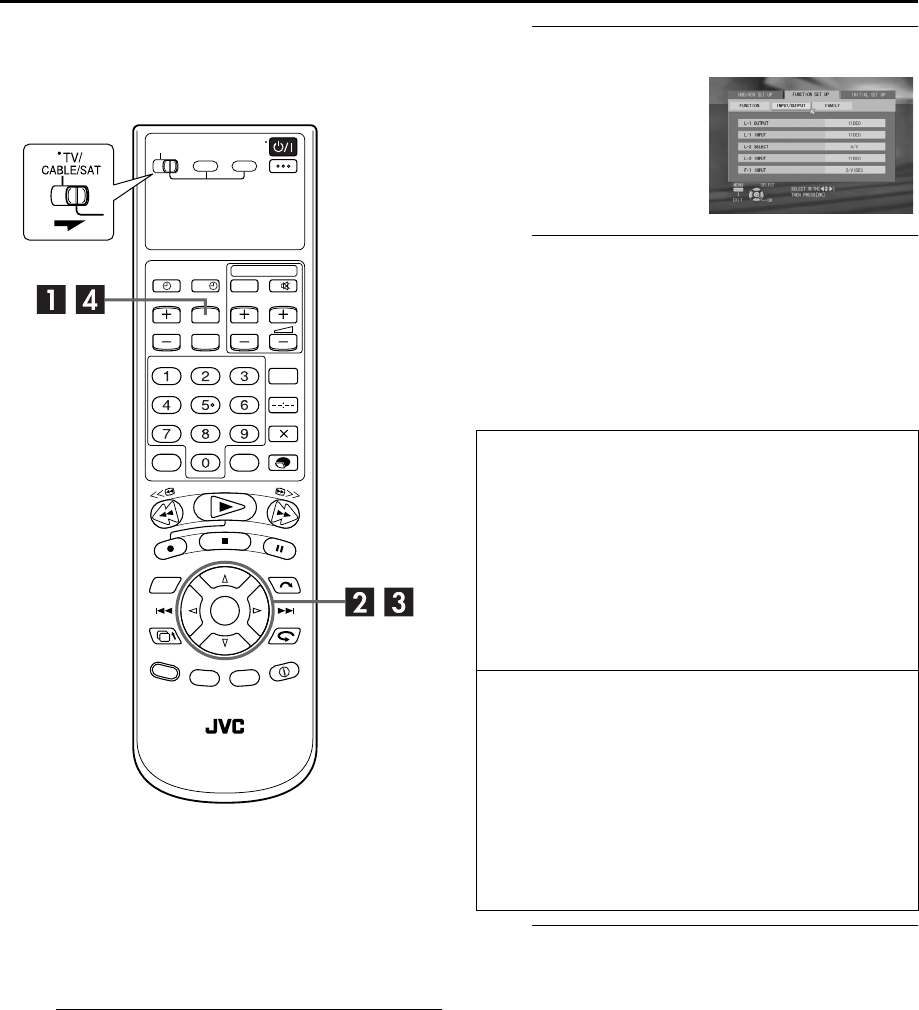
Filename [HM-HDS4EX_06Edit.fm]
Masterpage:Left
68 EN
Page 68 April 2, 2003 3:20 pm
EDITING (cont.)
Output/Input Set
L-1 OUTPUT and L-1 INPUT Setting
The L-1 IN/OUT connector accepts and delivers either a
composite signal (regular video signal) or a Y/C signal (a signal
in which the luminance and chrominance signals are separated).
Set “L-1 OUTPUT” and “L-1 INPUT” to the appropriate mode
depending on the type of appliance connected to the recorder’s
L-1 IN/OUT connector.
AAccess the Main Menu screen.
Press MENU.
BAccess the Input/Output Set screen.
CSelect the output or input mode for the L-1
IN/OUT connector.
APress rt to move the arrow to “L-1 OUTPUT” or “L-1
INPUT”, then press OK.
BPress rt to select the appropriate setting, then press
OK.
* The default setting is bold in the table below.
DReturn to the normal screen.
Press MENU.
NOTES:
●If “L-1 OUTPUT” is set to “S-VIDEO”, it is impossible to set
“L-1 INPUT” to “S-VIDEO”.
●If “L-2 SELECT” is set to “DECODER”, it is impossible to set
“L-1 INPUT” to “S-VIDEO”.
?
APress w e to move the
arrow to “FUNCTION SET
UP”, then press t.
BPress w e to move the
arrow to “INPUT/
OUTPUT”.
8L-1 OUTPUT
VIDEO: If a connected appliance’s input is
compatible only with regular video
signals, set to “VIDEO”.
S-VIDEO: If a connected appliance’s input is
compatible with Y/C signals, set to
“S-VIDEO”. You can obtain
high-quality S-VHS picture. (For
connection, be sure to use a 21-pin
SCART cable that is compatible with
the Y/C signal.)
8L-1 INPUT
VIDEO: If a connected appliance’s output is
compatible only with regular video
signals, set to “VIDEO”.
S-VIDEO: If a connected appliance’s output is
compatible with Y/C signals, set to
“S-VIDEO”. You can obtain
high-quality S-VHS picture. (For
connection, be sure to use a 21-pin
SCART cable that is compatible with
the Y/C signal.)
HM-HDS4EX.book Page 68 Wednesday, April 2, 2003 3:55 PM

Masterpage:Right-NoTitle0
EN 69
Filename [HM-HDS4EX_06Edit.fm]
Page 69 April 2, 2003 3:20 pm
L-2 SELECT and L-2 INPUT Setting
Set “L-2 SELECT” and “L-2 INPUT” to the appropriate mode
depending on the type of appliance connected to the recorder’s
L-2 IN/DECODER connector.
ASelect the input mode for the L-2 IN/
DECODER connector.
APress rt to move the arrow to “L-2 SELECT”, then
press OK.
BPress rt to select the appropriate setting, then press
OK.
* The default setting is bold in the table below.
BReturn to the normal screen.
Press MENU.
NOTES:
●If you have a satellite receiver or a decoder connected to the
L-2 IN/DECODER connector, be sure to set “L-2 SELECT” back
to appropriate mode after editing.
●If you are not connecting a satellite receiver or a decoder to
the L-2 IN/DECODER connector, leave “L-2 SELECT” set to “A/
V”.
●The default setting is “A/V”; if the recorder’s memory backup
has expired due to a power cut or because the AC was
removed from the recorder, “A/V” will be automatically
selected when the power is restored to the recorder. If you are
using a satellite receiver or a decoder, be sure to set “L-2
SELECT” back to appropriate mode.
●When “L-2 SELECT” is set to “SAT”, “SAT” appears on TV
screen or front display panel instead of “L-2” or “L2”.
●If “L-1 OUTPUT” is set to “S-VIDEO”, it is impossible to set
“L-2 SELECT” to “DECODER”.
F-1 INPUT Setting
Set “F-1 INPUT” to the appropriate mode depending on the
connector (VIDEO or S-VIDEO) being used on the front panel.
ASelect the input mode for the VIDEO/S-
VIDEO connector.
APress rt to move the arrow to “F-1 INPUT”, then
press OK.
BPress rt to select the appropriate setting, then press
OK.
* The default setting is bold in the table below.
BReturn to the normal screen.
Press MENU.
Perform steps A and B of “L-1 OUTPUT and L-1 INPUT
Setting” on page 68.
8L-2 SELECT
A/V: To use this recorder as the recording
deck with the player connected to
the L-2 IN/DECODER connector, or
to use the satellite receiver
connected to the L-2 IN/DECODER
connector.
DECODER: To use a decoder connected to the
L-2 IN/DECODER connector.
SAT: To view a satellite programme with
the TV set while the recorder is
turned off. (墌pg. 76)
8L-2 INPUT
VIDEO: If a connected appliance’s output is
compatible only with regular video
signals, set to “VIDEO”.
S-VIDEO: If a connected appliance’s output is
compatible with Y/C signals, set to
“S-VIDEO”. You can obtain
high-quality S-VHS picture. (For
connection, be sure to use a 21-pin
SCART cable that is compatible with
the Y/C signal.)
Perform steps A and B of “L-1 OUTPUT and L-1 INPUT
Setting” on page 68.
8F-1 INPUT
VIDEO: When connecting an appliance to
the VIDEO input connector, set to
“VIDEO”.
S-VIDEO: When connecting an appliance to
the S-VIDEO input connector, set to
“S-VIDEO”.
HM-HDS4EX.book Page 69 Wednesday, April 2, 2003 3:55 PM
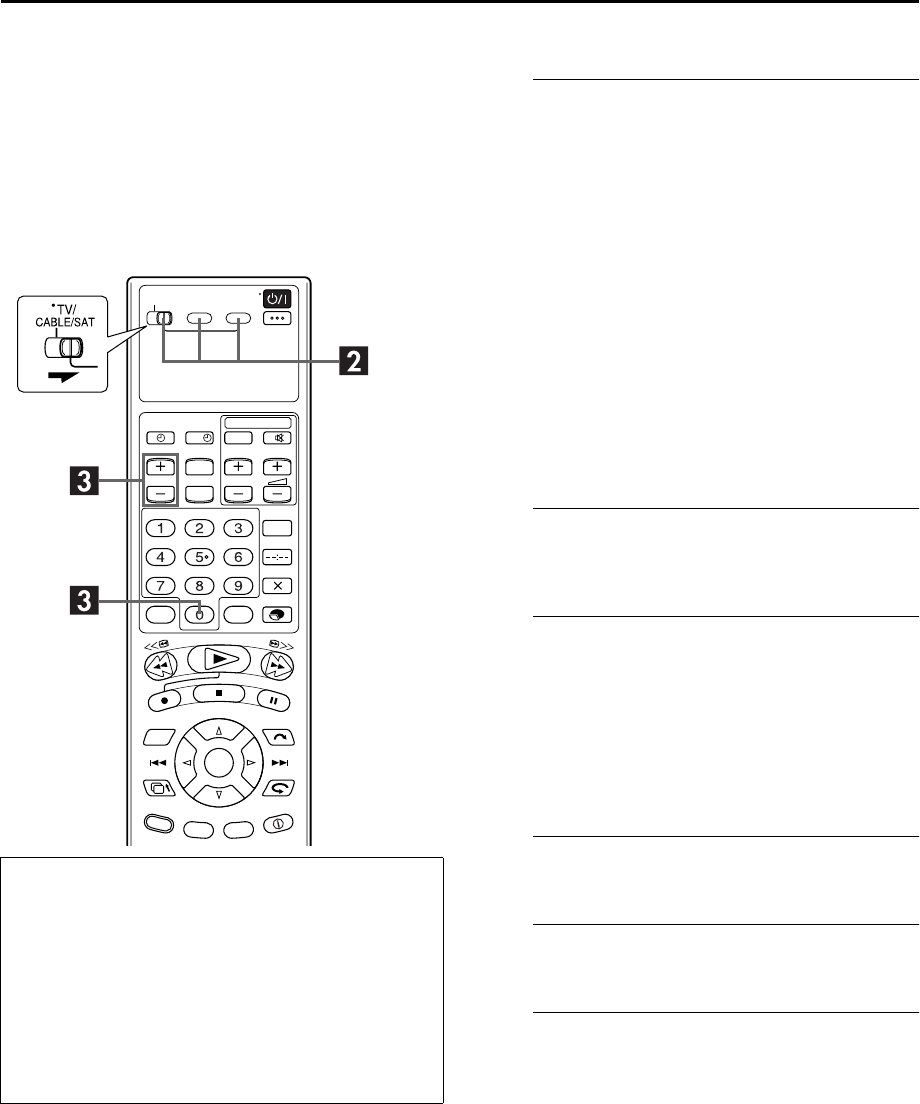
Filename [HM-HDS4EX_06Edit.fm]
Masterpage:Left
70 EN
Page 70 April 2, 2003 3:20 pm
EDITING (cont.)
Edit To Or From
Another Video
Recorder
You can use your recorder as the source player or as the
recording deck.
AMake connections.
Connect the player’s 21-pin SCART connector to the
recorder’s 21-pin SCART connector as illustrated on
page 71.
AWhen using your recorder as the source player ...
... connect its L-1 IN/OUT connector to the recording
deck.
BWhen using your recorder as the recording deck ...
... connect its L-1 IN/OUT or L-2 IN/DECODER
connector to the source player.
CIf another recorder is compatible with the Y/C signal ...
... connect your recorder’s L-1 IN/OUT connector to
another recorder.
With C connection ...
●When using your recorder as the recording deck, set “L-1
INPUT” to “S-VIDEO” and “L-2 SELECT” to “A/V” (墌pg. 68,
69).
●When using your recorder as the source player, set “L-1
OUTPUT” to “S-VIDEO” (墌pg. 68).
BSelect the recording deck.
Slide TV/CABLE/SAT to the right, then press HDD or S-
VHS.
CSet the input mode of recording deck.
With this video recorder, press AUX (number key “0”)
and/or VCR PR to select “L-1” for the L-1 IN/OUT
connector, or “L-2” for the L-2 IN/DECODER connector,
depending on the connector being used.
●When using another recorder as the recording deck, refer to its
instruction manual.
●When using the L-2 IN/DECODER connector, set “L-2
SELECT” to “A/V” (墌pg. 69).
DSet the edit mode.
See “PICTURE CONTROL” on page 83.
EStart the source player.
Engage the Play mode of the source player.
FStart the recording deck.
Engage the Record mode of the recording deck.
Advantages of S-VHS video recorders
You can edit from VHS to S-VHS, S-VHS to VHS, or, from
S-VHS to S-VHS.
●From VHS to S-VHS: Record VHS playback signals in the
S-VHS mode. Although the picture quality is inherently
limited by that of the original, the edited tape has better
picture quality than those made by VHS-to-VHS editing.
●From S-VHS to VHS: Because the picture quality of the
source material is very high, the edited tape has better
picture quality than those made by VHS-to-VHS editing.
●From S-VHS to S-VHS: All signals will be transferred with
minimum degradation.
?
HM-HDS4EX.book Page 70 Wednesday, April 2, 2003 3:55 PM
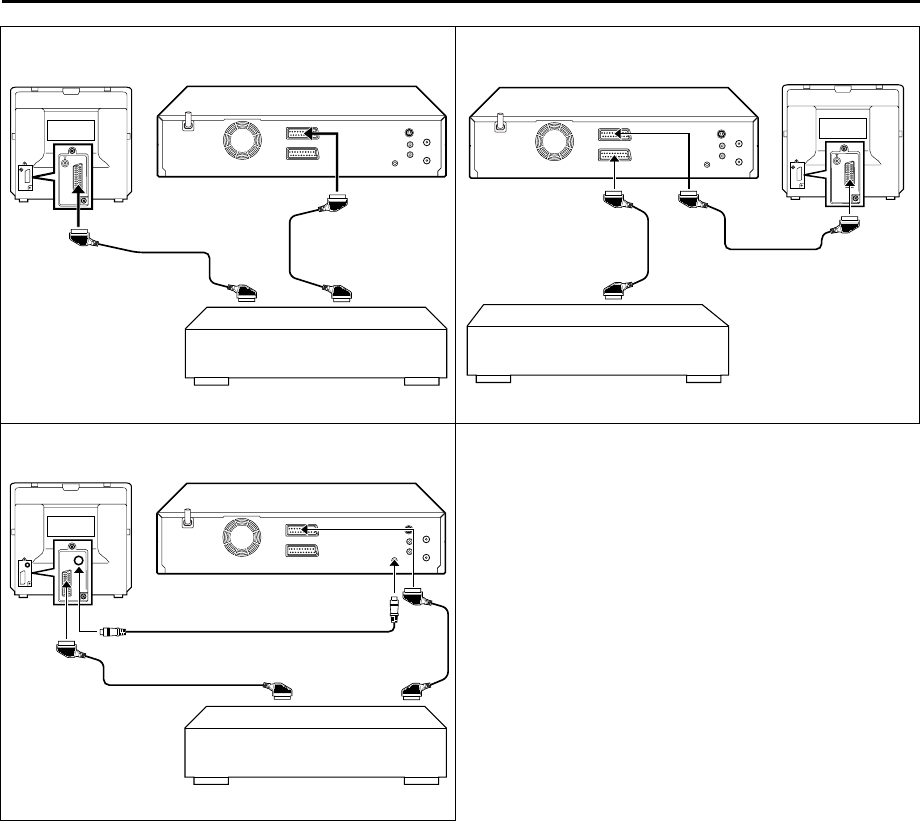
Masterpage:Right-NoTitle0
EN 71
Filename [HM-HDS4EX_06Edit.fm]
Page 71 April 2, 2003 3:20 pm
NOTES:
●All necessary cables can be obtained from your dealer.
●For Y/C signal input/output, be sure to use a 21-pin SCART cable that is compatible with the Y/C signal.
●When you select “EDIT” to dub tapes in step D, be sure to select “AUTO” (or “NORM” when “B.E.S.T.” is set to “OFF”) after you
finish dubbing the tapes.
●When you use this recorder as the source player for editing, be sure to set “O.S.D.” to “OFF” before starting (墌pg. 84).
●If you are using another recorder with S-Video and Audio input/output connectors, you can connect those connectors to this
recorder’s S-VIDEO and AUDIO input/output connectors.
When using your recorder as the source player ...
... connect its rear panel S OUT and AUDIO OUT connectors to the recording deck’s S-Video and Audio input connectors.
When using your recorder as the recording deck ...
... connect its front panel S-VIDEO and AUDIO input connectors to the source player’s S-Video and Audio output connectors. Then,
set the recorder’s input mode to “F-1”, and set “F-1 INPUT” to “S-VIDEO” (墌pg. 69).
AV mode
21-pin SCART cable
(not provided)
Recorder Your recorder
Another recorder
Player
TV receiver
AB
AV mode
21-pin SCART cable
(not provided)
Recorder
Your recorder
Another recorder
Player
TV receiver
C
Player
Your recorder
Another recorder
Recorder
TV receiver
S-Video cable (provided)
21-pin SCART cable (not provided)
HM-HDS4EX.book Page 71 Wednesday, April 2, 2003 3:55 PM
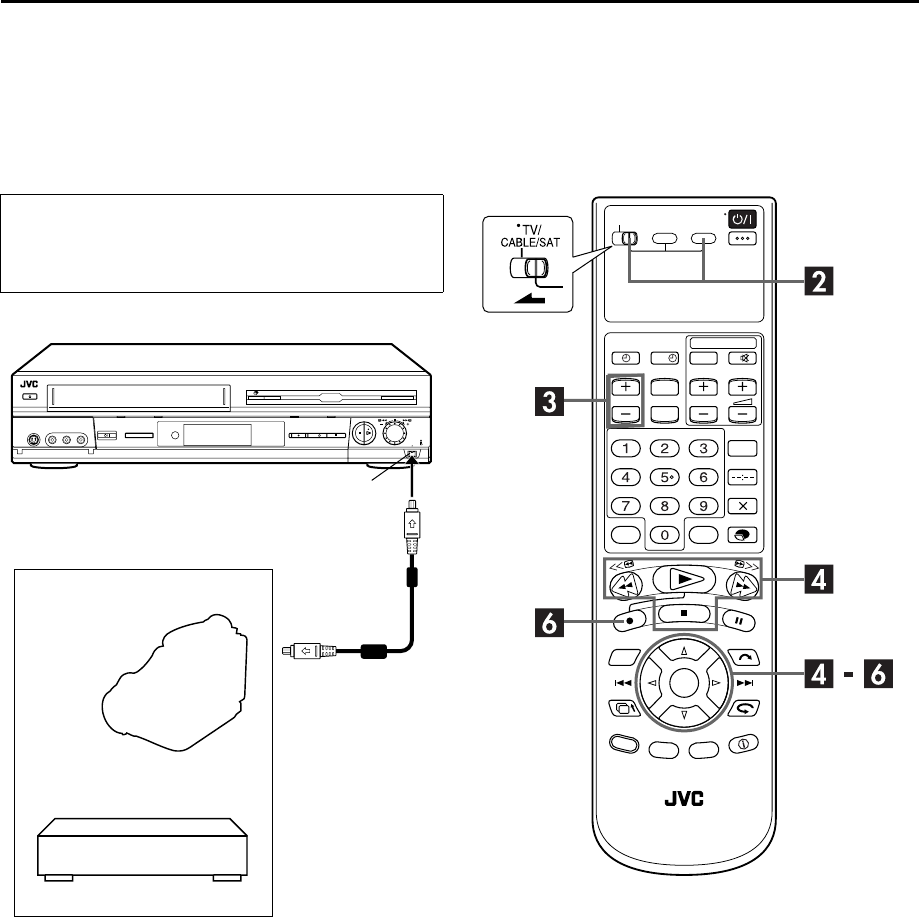
Filename [HM-HDS4EX_06Edit.fm]
Masterpage:Left
72 EN
Page 72 April 2, 2003 3:20 pm
EDITING (cont.)
DV Dubbing
You can dub programmes from a camcorder or DV equipment
connected to the recorder with a DV cable. The recorder’s
remote control allows you the limited control of the connected
camcorder or DV equipment functions during dubbing.
NOTE:
When you use a PC connecting to the DV IN/OUT
connector, we do not assure the normal operation of this
recorder.
DV IN/OUT connector
DV cable
(not provided)
Camcorder
DV connector
Your recorder
DV equipment
?
HM-HDS4EX.book Page 72 Wednesday, April 2, 2003 3:55 PM
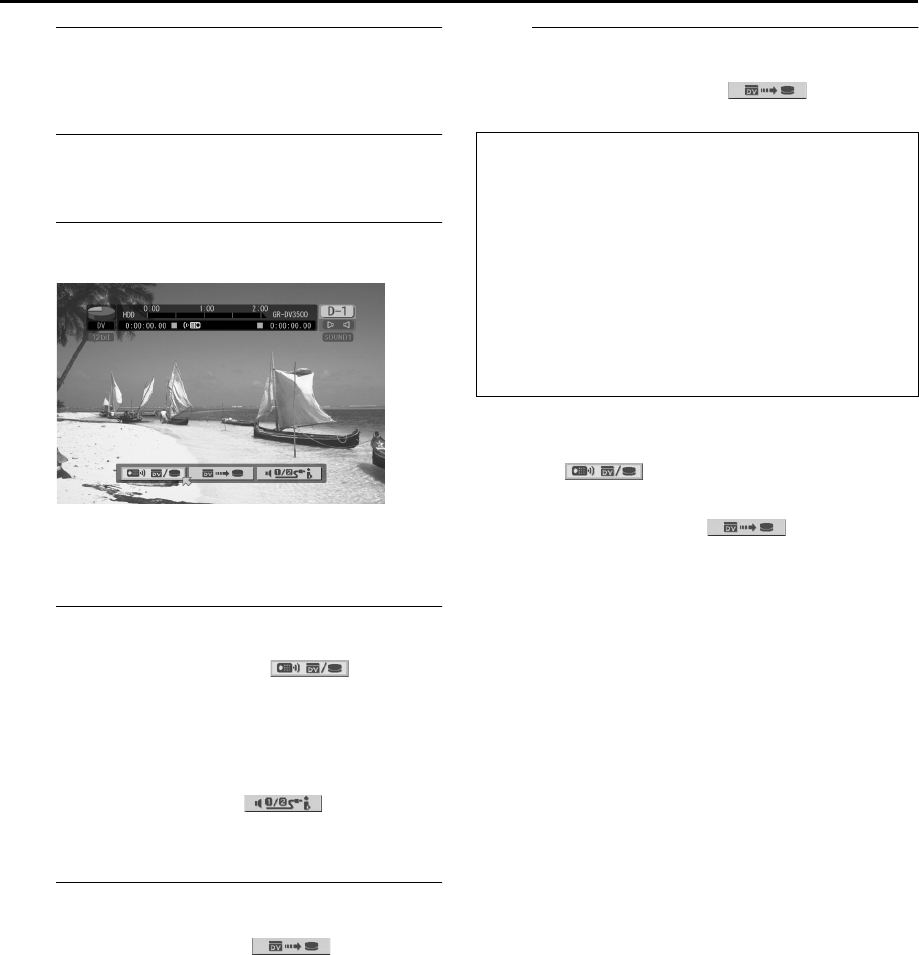
Masterpage:Right-NoTitle0
EN 73
Filename [HM-HDS4EX_06Edit.fm]
Page 73 April 17, 2003 12:17 pm
AMake connections.
Connect the camcorder to the DV IN/OUT connector on
the recorder’s front panel.
BSelect the HDD deck.
Slide TV/CABLE/SAT to the right, then press HDD.
CPrepare the HDD deck for dubbing.
Press VCR PR+/– to set the channel to “D-1”.
●The on-screen display for DV dubbing appears.
●Recording speed is automatically set to DV and “DV” appears
under the HDD capacity graph.
DPrepare the DV equipment for dubbing.
APress w e to move the arrow to , then press
OK to display the remote icon (facing to the right) for
the DV equipment.
BSearch for the point from where you want to start
dubbing by pressing 4, 5, or 3, then press 8.
●If you select the camcorder’s sound mode (“SOUND1”,
“SOUND2”, or “MIX”), during playback of the camcorder,
press we
to move the arrow to , then press OK
repeatedly until the desired mode appears on the TV screen
(墌pg. 81). Note that this selection is not available when the
source programme is recorded in 16BIT mode.
EStart dubbing.
Press w e to move the arrow to , then press
OK.
●Playback on the external DV equipment and recording on the
HDD deck should start simultaneously.
●When “NO SIGNAL HDD ENTERS RECORD STANDBY
MODE” or “CAN NOT RECORD CAN NOT RECOGNIZE
CONNECTED DEVICE” appears, the HDD deck stops
recording.
●Original DV information other than just time code is also
recorded to the HDD along with the programme.
FEnd dubbing.
Press w e to move the arrow to , then press
OK.
To skip unwanted part of the source picture
APress OK to stop both equipment, then press w to move the
arrow to .
BSearch for the point where you want to restart dubbing by
pressing 4, 5, or 3, then press 8.
CPress e to move the arrow to , then press OK to
restart dubbing.
NOTES:
●It is recommended that you locate the dubbing start point a
little before the actual start point on the external DV
equipment in step D since the beginning of the programme (a
few frames) won’t be recorded. And you may encounter
unwanted pictures inserted at the beginning of the recorded
programme. In such cases, edit the recorded programme to
delete the unwanted part by using divide and delete features.
(墌pg. 58)
●When you dub a programme on the recorder to the connected
DV equipment, refer to the operating instructions supplied
with the DV equipment.
●When the playback picture is distorted or noise appears on the
picture, attach a separately sold ferrite core to the DV cable.
●When you dub a programme that was recorded in a recording
speed other than “DV” (“SP”, “LP”, “EP”, or “SEP”) on the
HDD deck into a connected DV equipment, the dubbed
programme will be recorded in 16BIT mode. In such a case,
note that you cannot replace the sound of the dubbed
programme with Audio dubbing feature.
When you dab form DV equipment other than a
camcorder
APerform step A to C.
BSearch for the point from where you want to start
dubbing, then stop on the DV equipment.
●If you pause the DV equipment in this step, a few second’s
still picture will be recorded at the beginning of the
recorded programme.
CSet the input mode to “DV INPUT” on the DV equipment.
●If you select an input mode other than “DV INPUT”,
unwanted pictures may be recorded at the beginning of the
recorded programme.
DPerform step E to F.
HM-HDS4EX_06Edit.fm Page 73 Thursday, April 17, 2003 12:18 PM
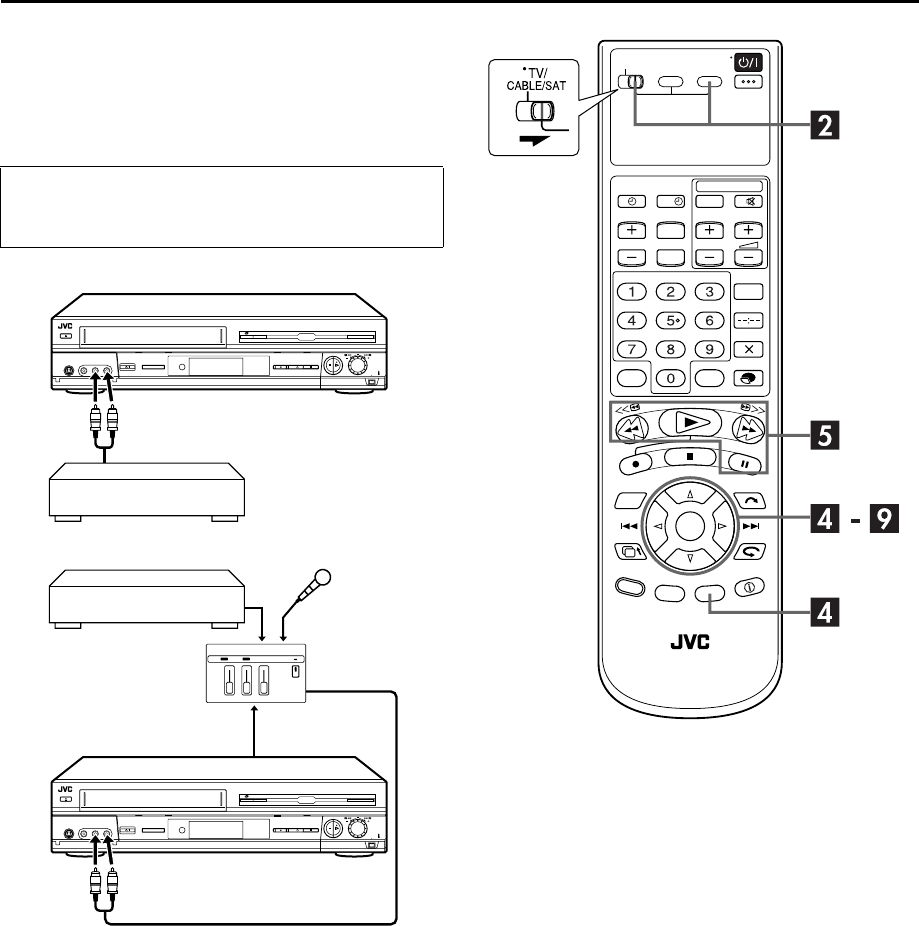
Filename [HM-HDS4EX_06Edit.fm]
Masterpage:Left
74 EN
Page 74 April 2, 2003 3:20 pm
EDITING (cont.)
Audio Dubbing
Audio Dubbing replaces the sound of a recorded programme in
the recording speed of “DV” on the HDD deck with the sound
played back from external audio equipment.
ATTENTION:
Audio dubbing is only possible for the programme having the
recording speed of “DV” (12BIT) on the HDD deck.
CD player, etc.
Your recorder
CD player, etc.
Mixer output
Audio mixer
Original sound
AUDIO OUT
Your recorder
?
HM-HDS4EX.book Page 74 Wednesday, April 2, 2003 3:55 PM
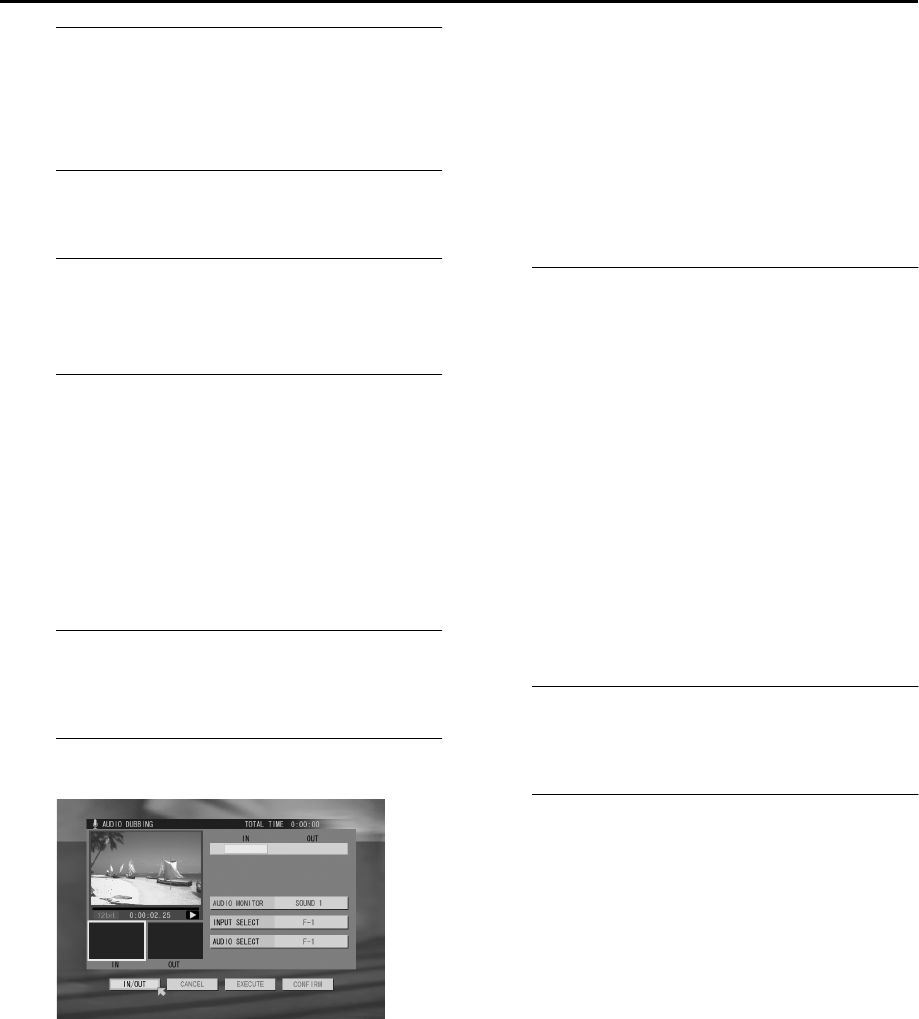
Masterpage:Right-NoTitle0
EN 75
Filename [HM-HDS4EX_06Edit.fm]
Page 75 April 17, 2003 12:42 pm
AMake connections.
Connect an audio component to the AUDIO L + R input
connectors on the recorder’s front panel.
●When connecting a monaural audio component, use only the
recorder’s AUDIO L input connector.
BSelect the HDD deck.
Slide TV/CABLE/SAT to the right, then press HDD.
CSelect the audio track to monitor the
recorded programme’s original sound.
Set “AUDIO MDE” to “SOUND1”. (墌pg. 80, 81)
DSelect the programme and access the A. DUB
screen.
APress EDIT
.
BPress w r e t to move the arrow to “A. DUB”, then
press OK.
●Only the programmes having the recording speed of DV
(12BIT) on the HDD appear in the list.
CPress w r e t to move the arrow to the desired
programme index, then press OK.
●The index of the selected programme appears in the left large
window.
EPrepare the audio component.
Search for the point where you want to start playback and
pause playback.
FSelect the desired scene.
APress r t to move the arrow to “AUDIO SELECT”,
then press OK.
BPress w e to select “HDD”, then press OK.
CPress r t to move the arrow to “IN/OUT”, then press
4 to start playback.
DPress the appropriate buttons (4, 9, 5, or 3) to
search for the desired point. You can also search for
the point by turning and pressing the JOG dial.
EPress OK when beginning picture of the desired scene
is found. The picture for the selected scene appears in
the left bottom “IN” window.
●To cancel the setting, press w r e t to move the arrow to
“CANCEL”, then press OK.
FPerform steps D to E again to locate the ending
picture of the desired scene. The picture for the ending
of the selected scene appears in the right bottom
“OUT” window.
●While your are editing a programme in DV mode, the
distortion of the picture on the small window (showing the
result of the edition) does not affect the actual edited picture.
GStart audio dubbing.
APress w r e t to move the arrow to “EXECUTE”, then
press OK.
●Countdown images appears 5 seconds before the beginning of
the scene.
●You can select the monitoring sound from among the recorded
original sound (“SOUND 1”), the sound of the external audio
component (“SOUND 2”), and both “SOUND 1” and
“SOUND 2” at the same time (“MIX”). Press rt to move the
arrow to “AUDIO MONITOR”, press OK, press w e to select
the desired sound, then press OK.
BAt the actual beginning of the scene, start playback on
the audio component.
●Countdown images appears 5 seconds before the ending of
the scene.
CStop playback on the audio component.
●When you play and check the dubbed programme, press w e
to move the arrow to “PREVIEW”, then press OK.
●When you quite dubbing or previewing, press r t to move
the arrow to “STOP”, then press OK.
HConfirm the edited scene.
Press w r e t to move the arrow to ”CONFIRM”, then
press OK.
IReturn to the normal screen.
Press w e to move the arrow to “EXIT”, then press OK.
●To edit other programmes, press w e to move the arrow to
“CONTINUE”, press OK, then perform steps F to I.
NOTES:
Audio Dubbing is also possible using the rear panel L-1 IN/OUT
or L-2 IN/DECODER connector. When using these 21-pin
SCART connectors, be sure to select the appropriate input mode
in the A.DUB screen as follows;
AAfter step D, press w r e t to move the arrow to
“INPUT SELECT”, then press OK.
BPress w e to select “L-1” or “L-2” , then press OK.
●When “HDD” is selected as “AUDIO SELECT” option, the
sound of the original programme selected in step D is heard
during audio dubbing. If you wish to monitor sound from the
external audio component, perform the following procedure;
APress w r e t to move the arrow to “AUDIO
SELECT”, then press OK.
BPress w e to select the input connector (“L-1”, “L-2”,
or “F-1“) to which the external audio component is
connected, then press OK.
HM-HDS4EX_06Edit.fm Page 75 Thursday, April 17, 2003 12:43 PM
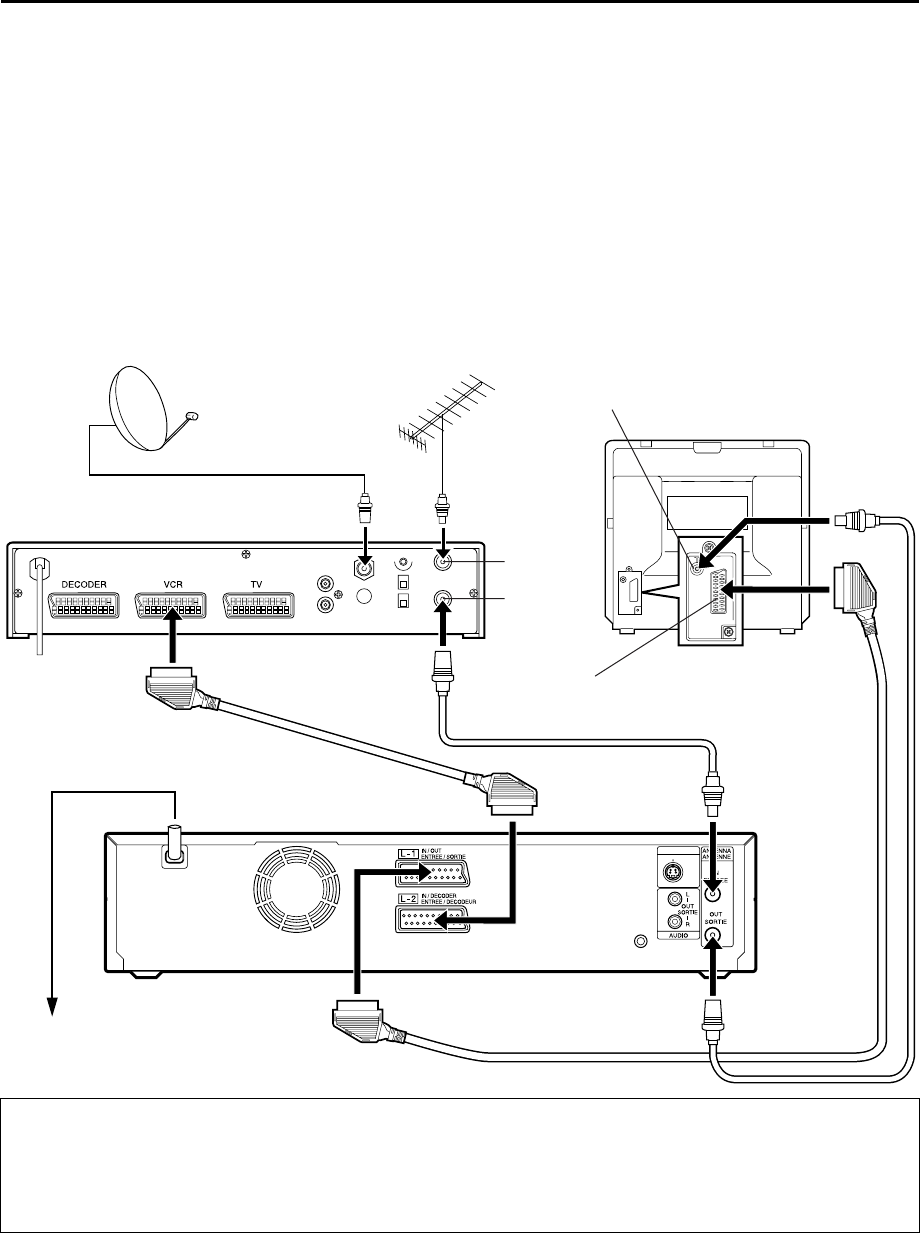
Filename [HM-HDS4EX_06Edit.fm]
Masterpage:Left
76 EN
Page 76 April 2, 2003 3:20 pm
SYSTEM CONNECTIONS
Connecting To A Satellite Receiver
Simple Connections
This is an example of simple connection if your TV has
one 21-pin AV input (SCART) connector.
Connect the satellite receiver to the L-2 IN/DECODER
connector, then connect the L-1 IN/OUT connector to the
TV’s connector.
NOTES:
●Be sure to use a 21-pin SCART cable (not an S-Video cable) for
the satellite receiver connection.
●Set “L-2 SELECT” to “A/V” (墌pg. 69).
●You can use Automatic Satellite Programme Recording
function (墌pg. 51) with this connection.
●To record a programme via the satellite receiver, select L-2
mode by pressing AUX (number key “0”) and/or VCR PR so
that “L-2” appears on the front display panel.
●For details, refer to the instruction manual of the satellite
receiver.
IMPORTANT
When you set “L-2 SELECT” to “SAT” (墌pg. 69), it is possible to view a satellite broadcast with the TV set to its AV mode even if
the recorder is turned off. When the recorder is in Stop mode or recording, press TV/VCR on the remote control to turn off the VCR
indicator on the front display panel.
●If you turn on the recorder when the satellite receiver’s power is off, nothing appears on the TV screen. In this case, turn on the
satellite receiver, or set the TV to its TV mode, or press TV/VCR on the remote control to set the recorder to the video mode.
SAT CONTROL
CONTROLEUR SAT
S VIDEO
OUT
SORTIE
Outdoor unit
Satellite cable
Satellite receiver
Aerial
TV aerial cable
21-pin SCART connector
Back of TV
ANTENNA
IN
ANTENNA
OUT
Aerial connector
Mains outlet
Back of recorder
HM-HDS4EX.book Page 76 Wednesday, April 2, 2003 3:55 PM
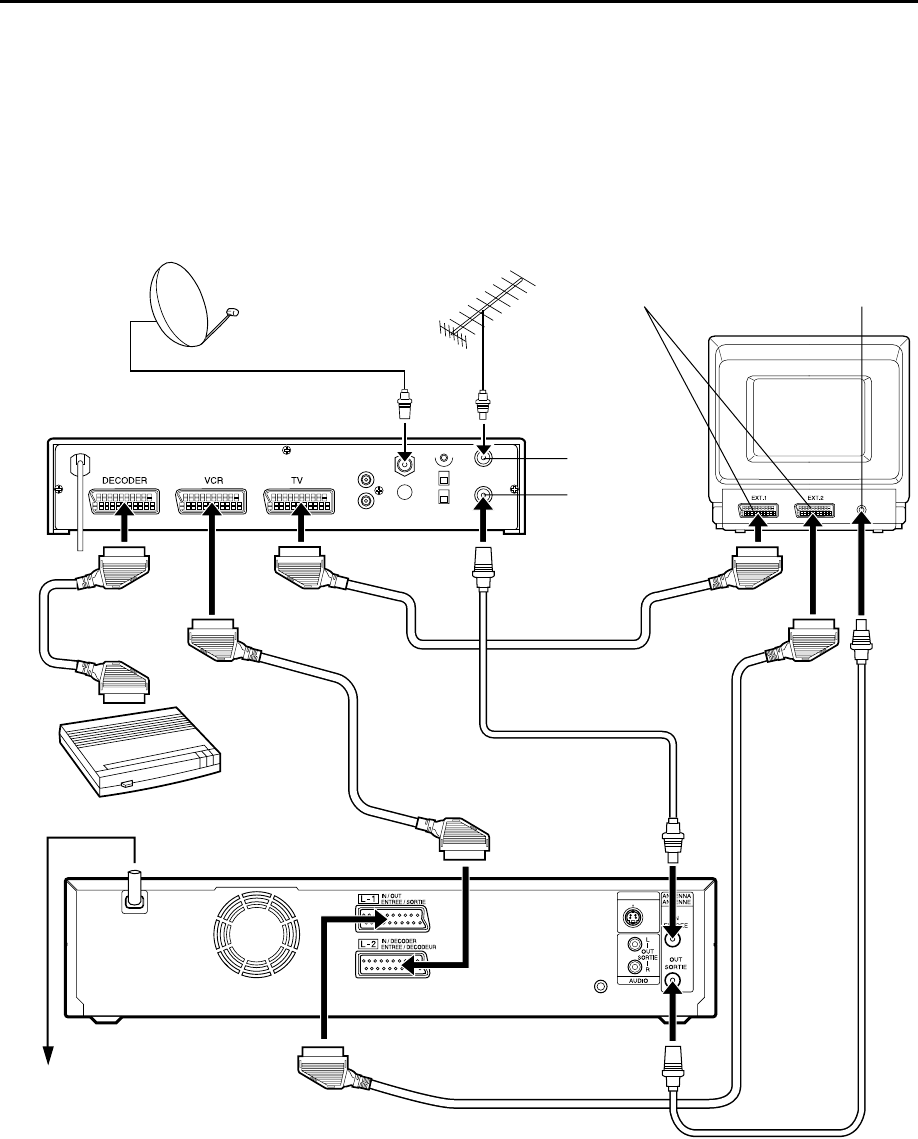
Masterpage:Right-NoTitle0
EN 77
Filename [HM-HDS4EX_06Edit.fm]
Page 77 April 2, 2003 3:20 pm
Perfect Connections
This is an example of recommended connection if your
TV has two 21-pin AV input (SCART) connectors.
Connect the decoder to the satellite receiver’s connector
if you have a decoder, L-1 IN/OUT connector to TV’s
connector, and L-2 IN/DECODER connector to the
satellite receiver’s connector. Then connect the satellite
receiver and TV.
NOTES:
●Set “L-2 SELECT” to “A/V” (墌pg. 69).
●You can use Automatic Satellite Programme Recording
function (墌pg. 51) with this connection.
●To record a programme via the satellite receiver, select L-2
mode by pressing AUX (number key “0”) and/or VCR PR so
that “L-2” appears on the front display panel.
●To receive a scrambled broadcast, descramble the signal with
the satellite receiver.
●For details, refer to the instruction manual of the satellite
receiver and decoder.
SAT CONTROL
CONTROLEUR SAT
S VIDEO
OUT
SORTIE
Outdoor unit
Satellite cable
Satellite receiver
Aerial
TV aerial cable
21-pin SCART connector
Back of TV
Aerial
connector
Decoder
Mains outlet
Back of recorder
ANTENNA IN
ANTENNA OUT
HM-HDS4EX.book Page 77 Wednesday, April 2, 2003 3:55 PM
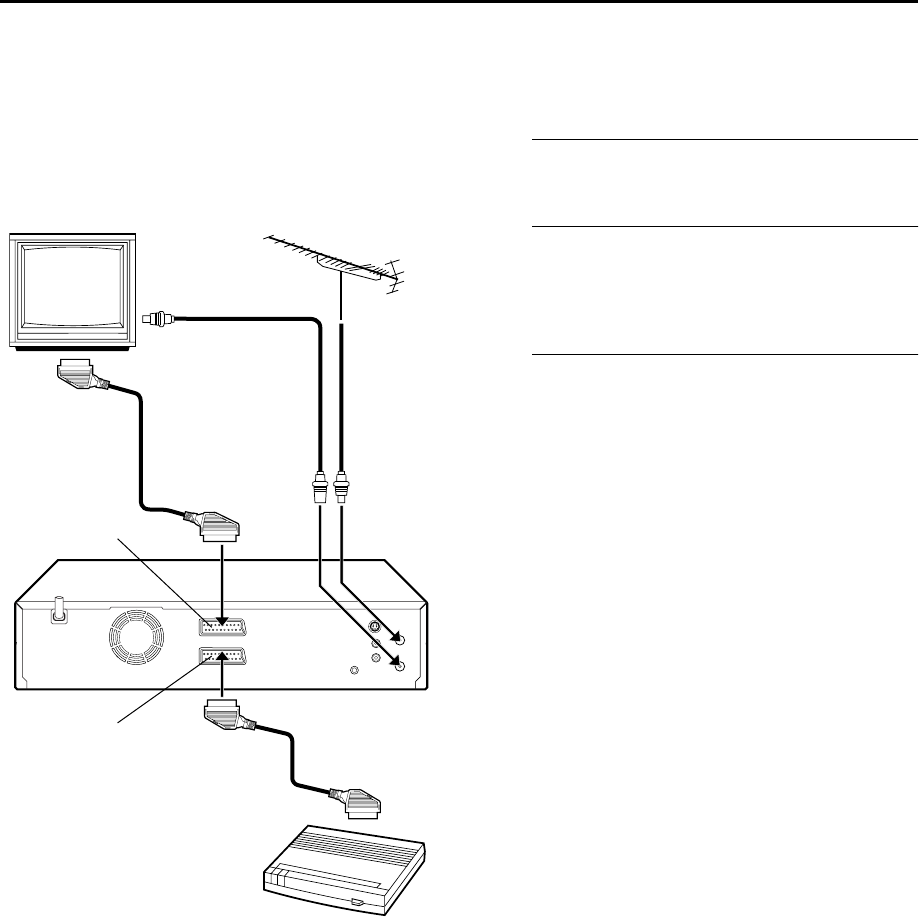
Filename [HM-HDS4EX_06Edit.fm]
Masterpage:Left
78 EN
Page 78 April 2, 2003 3:20 pm
SYSTEM CONNECTIONS (cont.)
Connecting/Using
A Decoder
The L-2 IN/DECODER connector can be used as an input
connector for an external decoder (descrambler). Simply
connect a decoder and you can enjoy the variety of
programming that is available through scrambled
channels.
ASelect the input mode.
Set “L-2 SELECT” to “DECODER”. (墌pg. 69)
BConnect the decoder.
Connect your recorder’s L-2 IN/DECODER connector to
the decoder’s 21-pin SCART connector using a 21-pin
SCART cable.
CSet the tuner.
Perform the procedure as described in “When Receiving
A Scrambled Broadcast” on page 93.
TV receiver
RF cable
(provided)
TV aerial
cable
L-1 IN/OUT
L-2 IN/DECODER
Decoder
HM-HDS4EX.book Page 78 Wednesday, April 2, 2003 3:55 PM
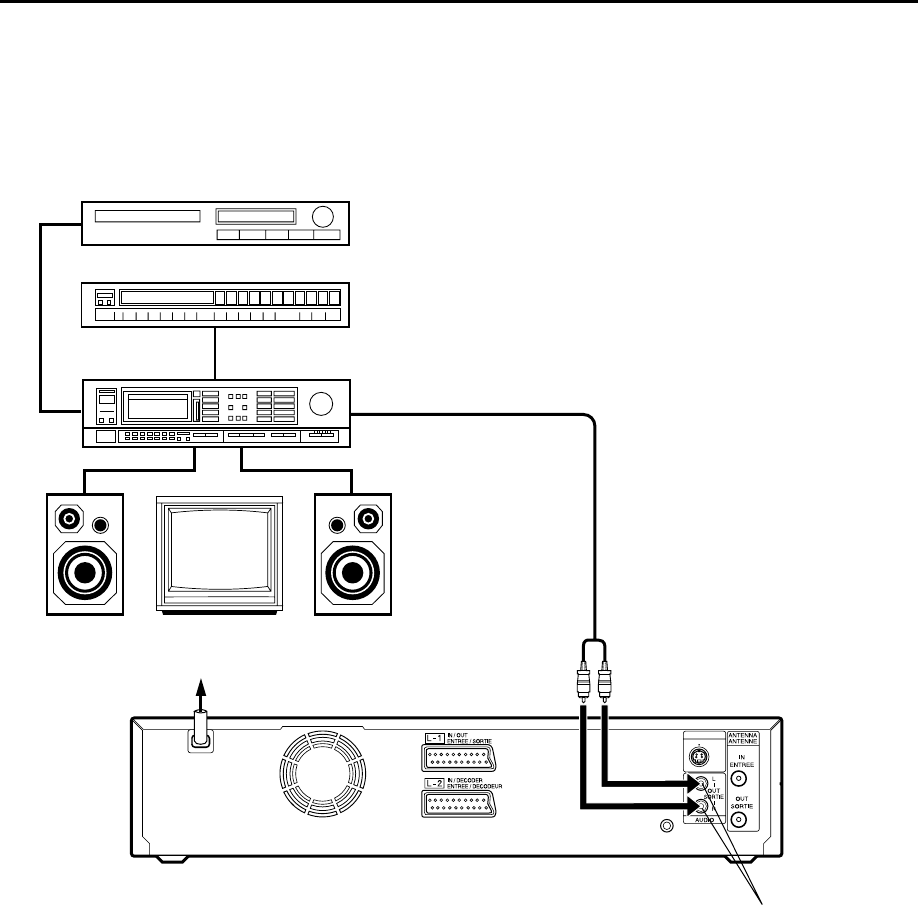
Masterpage:Right-NoTitle0
EN 79
Filename [HM-HDS4EX_06Edit.fm]
Page 79 April 2, 2003 3:20 pm
Connecting/Using A Stereo System
These instructions enable you to connect your video recorder to your Hi-Fi stereo system (if you have one) and listen to
the soundtrack through the stereo.
Make connections.
Connect the AUDIO OUT L and R connectors on your
video recorder to the AUX IN or TAPE MONITOR
connectors on your stereo system’s receiver or amplifier.
NOTE:
When listening to sound through the connected stereo system,
turn the TV’s volume down completely.
CAUTIONS:
●This recorder has a dynamic range of more than 80 dB with
regards to its Hi-Fi audio capability. It is recommended that
you check the maximum level if you are going to listen to the
Hi-Fi audio signals through a stereo amplifier. A sudden surge
in the input level to the speakers may damage them.
●Some speakers and televisions are specially shielded to
prevent television interference. If both are of the non-shielded
type, do not place the speakers adjacent to the TV set as this
can adversely affect the video playback picture.
SAT CONTROL
CONTROLEUR SAT
S VIDEO
OUT
SORTIE
I
I
I
I
I
I
I
I
I
I
I
I
I
I
I
I
I
I
I
I
I
I
I
I
I
I
I
I
I
I
I
I
I
I
I
I
I
I
I
I
I
I
I
FM tuner
CD player
Stereo amplifier
AUX IN or TAPE MONITOR
Audio cable
(not provided)
Speaker Television Speaker
Mains outlet
Back of recorder
AUDIO OUT
HM-HDS4EX.book Page 79 Wednesday, April 2, 2003 3:55 PM
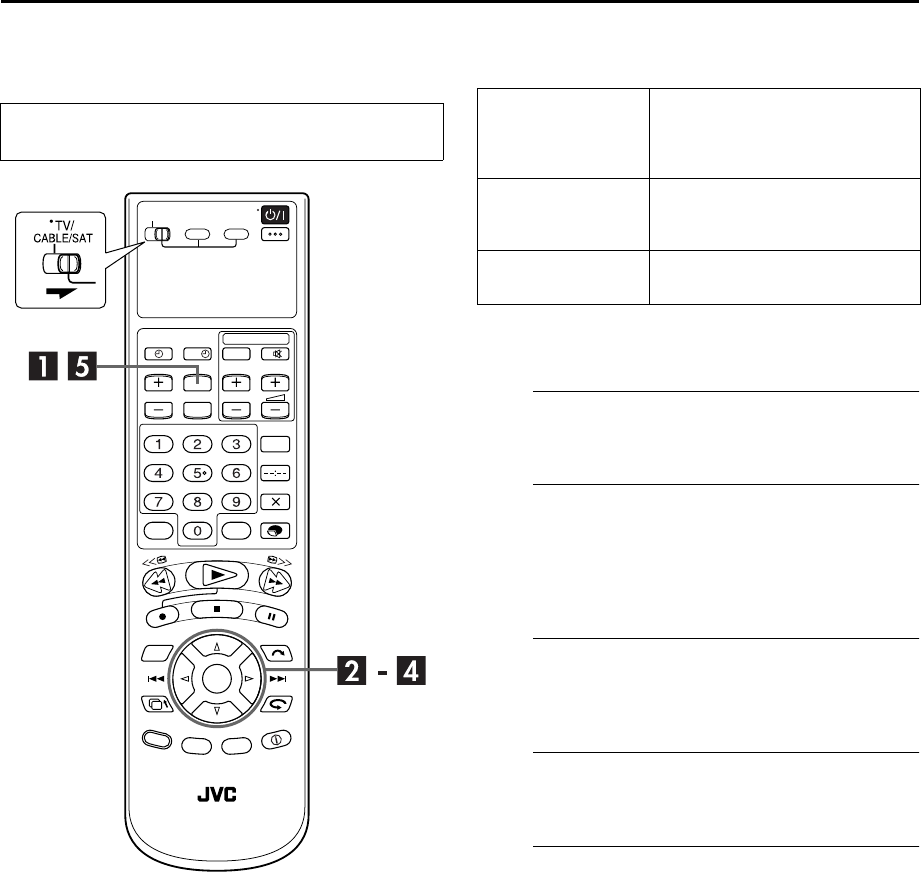
Filename [HM-HDS4EX_07Sub.fm]
Masterpage:Left
80 EN
Page 80 April 2, 2003 3:11 pm
SUBSIDIARY SETTINGS
Mode Set You can change various mode settings on the TV screen
by following the procedure described below.
The table below shows the structure of the menu system.
●For each mode setting, see pages 81 to 84.
●The procedure shows how to set “LIVE MEMORY” to
“3HR” on the “HDD SET UP 1” screen as an example.
AAccess the Main Menu screen.
Press MENU.
BAccess the HDD Set Up screen.
A
Press
w
e
to move the arrow to “HDD/VCR SET UP”,
then press
t
.
B
Press
w
e
to move the arrow to “HDD SET UP 1”, then
press
OK
.
CSelect the mode.
Press rt to move the arrow to “LIVE MEMORY”, then
press OK.
DSelect the mode setting.
Press rt to select “3HR”, then press OK.
EReturn to the normal screen.
Press MENU.
●Turn on the TV and select the AV mode.
●Slide TV/CABLE/SAT switch to the right.
?
HDD/VCR SET UP
HDD SET UP 1 (墌pg. 81)
HDD SET UP 2 (墌pg. 81)
VCR SET UP 1 (墌pg. 81)
VCR SET UP 2 (墌pg. 83)
FUNCTION SET UP
FUNCTION (墌pg. 84)
INPUT/OUTPUT (墌pg. 68)
FAMILY (墌pg. 27)
INITIAL SET UP TUNER SET (墌pg. 88)
INITIAL SET (墌pg. 20, 85, 86)
HM-HDS4EX.book Page 80 Wednesday, April 2, 2003 3:55 PM

Masterpage:Right-Full-NoTitle0
EN 81
Filename [HM-HDS4EX_07Sub.fm]
Page 81 April 2, 2003 3:11 pm
HDD SET UP 1 * The default setting is bold in the table below.
HDD SET UP 2 * The default setting is bold in the table below.
VCR SET UP 1 * The default setting is bold in the table below.
8
LIVE MEMORY
OFF
30MIN
1HR
3HR
When this function is set to “30MIN”, “1HR” or “3HR”, hard disk drive illumination lights blue and
you can apply the selected time length to the “Live Memory Features” (墌pg. 28).
8
AUDIO REC
NICAM
MONO
When this function is set to “NICAM”, the NICAM audio programmes will be recorded.
When this function is set to “MONO”, the Standard (monaural) audio programmes will be
recorded.
NOTE:
This function works only on NICAM bilingual programme.
8
JUMP TIME
15 MIN
30 MIN
1 HR
You can locate a scene ahead or behind of the currently viewed one by jumping a selected time
interval during playback (or Live Memory Playback) or recording (or Live Memory Recording).
8
DV AUDIO REC
12BIT
16BIT
Select the appropriate mode before recording to the HDD deck.
12BIT: Enables Audio Dubbing later.
16BIT: Audio Dubbing later is impossible but recorded sound quality is higher than
“12BIT”.
NOTES:
●When input mode is set to “D-1”, you cannot change “DV AUDIO REC” setting.
8
AUDIO MODE
SOUND1
SOUND2
MIX
Select the appropriate mode when playing back an audio-dubbed programme on the HDD deck.
SOUND1: Original recorded sound
SOUND2: Audio-dubbed sound
MIX: Original recorded sound and Audio-dubbed sound
NOTES:
●When “AUDIO MODE” is set to “MIX”, both the main and sub audio tracks will be audible on
bilingual tapes.
●To select only the main audio or only the sub audio track on bilingual tapes, set “AUDIO MODE” to
“SOUND1”.
8
NAVIGATION
ON
OFF
When a programme is recorded on the cassette with this function set to “ON”, you can use VCR
Navigation (墌pg. 36, 55).
HM-HDS4EX.book Page 81 Wednesday, April 2, 2003 3:55 PM

Masterpage:Left-FullCol
82 EN
Filename [HM-HDS4EX_07Sub.fm]
Page 82 April 2, 2003 3:11 pm
SUBSIDIARY SETTINGS (cont.)
VCR SET UP 1 (cont.) * The default setting is bold in the table below.
8
S-VHS ET
ON
OFF
You can record in SP mode on VHS cassettes with S-VHS picture quality. Tapes recorded using this
function can be played back on a recorder equipped with the S-VHS ET function.
When this function is set to “ON”, the S-VHS indicator lights up on the front display panel.
NOTES:
●You can activate the S-VHS ET function only before you start recording on a VHS cassette.
●Before recording, make sure that “B.E.S.T.” is set to “ON”. (墌 below)
●You cannot activate the S-VHS ET function...
... while recording is in progress.
...while timer-recording or Instant Timer Recording (墌pg. 33, 46, 48) is in progress.
...while B.E.S.T. (墌pg. 45) is in progress.
●The S-VHS ET function does not work...
...with S-VHS cassettes.
...with recordings in LP mode.
●To keep the highest quality recording and playback pictures over a long period of time, S-VHS
recording on S-VHS cassettes is recommended.
●Use of high grade tapes is recommended for S-VHS ET recordings. On some tapes, picture quality
will not improve even if the S-VHS ET function is used. Check the recording quality before you start
important recordings.
●You can play back a tape recorded using the S-VHS ET function on most of S-VHS recorders and of
VHS recorders equipped with SQPB (S-VHS QUASI PLAYBACK) function. (Notice some recorders
are not compatible with the S-VHS ET function.)
●While playing back a tape recorded using the S-VHS ET function on some recorders, noise may
appear. (If playback picture becomes blurred or interrupted, use a cleaning cassette.)
●In the variable speed search, still, slow-motion or frame-by-frame playback modes (墌pg. 39), noise
may appear. If these modes are performed frequently on a tape recorded using the S-VHS ET
function, the tape may be damaged and the picture may be deteriorated.
8
S-VHS
AUTO
OFF
Your recorder can record in S-VHS (Super VHS), S-VHS ET or VHS.
●To record in S-VHS:
Set “S-VHS” to “AUTO”. Then, insert a cassette marked “S-VHS”. The S-VHS indicator lights up on the
front display panel.
The S-VHS recording mode is selected.
●To record in S-VHS ET on a VHS cassette:
Set “S-VHS ET” to “ON”. (See above)
●To record in VHS:
Insert a cassette marked “VHS”.
Set “S-VHS ET” to “OFF”. (See above)
The VHS recording mode is automatically selected regardless of the “S-VHS” mode setting.
●To record in VHS on an S-VHS cassette:
Insert a cassette marked “S-VHS”. The S-VHS indicator lights up on the front display panel. Then, set
“S-VHS” to “OFF”. The S-VHS indicator goes off.
The VHS recording mode is selected.
NOTE:
When playing back a tape that has been recorded in S-VHS or S-VHS ET, the S-VHS indicator lights up
on the front display panel regardless of the “S-VHS” mode setting.
HM-HDS4EX.book Page 82 Wednesday, April 2, 2003 3:55 PM

Masterpage:Right-Full-NoTitle0
EN 83
Filename [HM-HDS4EX_07Sub.fm]
Page 83 April 2, 2003 3:11 pm
VCR SET UP 2 * The default setting is bold in the table below.
8
AUTO SP
]
LP TIMER
ON
OFF
When this function is set to “ON”, the recorder automatically switches to LP mode to allow complete
recording if there is not enough tape to record the entire programme while timer-recording in SP
mode.
For Example . . .
Recording a programme of 210 minutes in length onto a 180-minute tape
Make sure you set this function to “ON”, before the timer-recording starts.
NOTES:
●If you have programmed the recorder to timer-record 2 or more programmes, the second programme
and those thereafter may not fit on the tape if you set “AUTO SP]LP TIMER” to “ON”. In this case,
make sure the mode is not engaged, then set the tape speed manually during timer programming.
●In order to ensure that the recording fits on the tape, this feature may leave a slight non-recorded
section at the end of the tape.
●There may be some noise and sound disturbance at the point on the tape where the recorder
switches from SP to LP mode.
●The Auto SP]LP Timer feature is not available during ITR (Instant Timer Recording), and the feature
will not work properly with any tapes longer than E-180, or with some tapes of shorter lengths.
●If you perform timer recording with both VPS/PDC and the Auto SP]LP Timer activated, and the
programme goes beyond its originally scheduled length, there may be times when the programme
cannot be recorded in its entirety.
8
B.E.S.T.
ON
OFF
You can set the B.E.S.T. (Biconditional Equalised Signal Tracking) system to “ON” or “OFF”
(墌pg. 45).
8
PICTURE CONTROL
AUTO
EDIT
SOFT
SHARP
This feature helps you to adjust the playback picture quality according to your preference. Normally
select “AUTO”.
AUTO: Provides the optimised picture benefits of the B.E.S.T. Picture System.
EDIT: Minimizes picture degradation during editing (recording and playback).
SOFT: Reduces image coarseness when viewing overplayed tapes containing a lot of
noise.
SHARP: Clearer, sharper-edged picture when viewing images with lots of flat,
same-coloured surfaces such as cartoons.
NOTES:
●When you select “EDIT”, “SOFT” or “SHARP”, the selected mode will not change until you select
another mode.
●When you select “EDIT” to dub tapes, be sure to select “AUTO” after you finish dubbing the tapes.
●When “B.E.S.T.” is “OFF”, “PICTURE CONTROL” switches automatically from “AUTO” to “NORM”.
8
VIDEO STABILIZER
ON
OFF
When this function is set to “ON”, you can automatically correct vertical vibration in the picture when
playing back unstable recordings made on another recorder.
NOTES:
●When you finish viewing a tape, be sure to set this function to “OFF”.
●Regardless of the setting, this function has no effect during recording and during special effects
playback.
●The on-screen display may jitter vertically when this function is set to “ON”.
●To watch recordings with close-caption, set this function to “OFF”.
Total 210 minutes
Approximately 150 minutes Approximately 60 minutes
SP mode LP mode
HM-HDS4EX.book Page 83 Wednesday, April 2, 2003 3:55 PM

Masterpage:Left-FullCol
84 EN
Filename [HM-HDS4EX_07Sub.fm]
Page 84 April 2, 2003 3:11 pm
SUBSIDIARY SETTINGS (cont.)
FUNCTION * The default setting is bold in the table below.
8
COLOUR SYSTEM
PAL/NTSC
MESECAM
You can play back PAL, NTSC and MESECAM tapes, or record PAL and SECAM* signals on this recorder.
Select the appropriate colour system.
PAL/NTSC: To record PAL signals, or play back a PAL or NTSC tape.
MESECAM: To record SECAM signals, or play back a MESECAM tape.
* SECAM signals will be recorded as MESECAM on this recorder; MESECAM is the designation for tapes
with SECAM signals that have been recorded on a MESECAM-compatible PAL video cassette recorder.
NOTES:
●It is not possible to record in S-VHS if “MESECAM” is selected. The recording mode is forced to change
to VHS.
About NTSC Playback
●Some TVs shrink the picture vertically and place black bars at the top and bottom of the TV screen. This
is not a malfunction on the part of either the video recorder or the TV.
●The picture may roll up and down. This can be corrected using the V-HOLD control found on some
TVs. (This cannot be corrected if the TV does not have a V-HOLD control.)
●The counter and tape remaining time readings will be incorrect.
●During search, still, or frame-by-frame playback, the picture will be distorted, and there may be a loss of
colour.
●Depending on the type of TV, the top and bottom portions of superimposed displays may be cut off
during NTSC playback.
8
O.S.D.
ON
OFF
When this function is set to “ON”, various operational indicators appear on the TV screen. Messages
appear in the selected language (墌pg. 17, 18).
NOTES:
●When you use this recorder as the source player for editing, be sure to set “O.S.D.” to “OFF” before
starting.
●During playback, the operation mode indicators may be disturbed depending on the type of tape being
used.
8
AUTO TIMER
ON
OFF
When this function is set to “ON”, the timer is automatically engaged when the recorder power is turned
off, and automatically disengaged when the recorder is powered back on.
NOTE:
For safety, when “AUTO TIMER” is set to “OFF”, all other recorder functions are disabled while the Timer
mode is engaged. To disengage the timer, press # (TIMER).
8
DIRECT REC
ON
OFF
When this function is set to “ON”, you can easily start recording the programme that you are watching on
your TV. Press and hold 7 and press 4 on the remote control, or press 7 on the recorder.
NOTES:
●When you use the Direct Rec function, be sure to use a TV offering T-V LINK, etc. and connect a
fully-wired 21-pin SCART cable between the recorder and the TV (墌pg. 12).
●If “DIRECT REC” is set to “OFF”, the 7 button functions as described in “Basic Recording” (墌pg. 22,
34).
●During the Direct Rec, “– –” appears on the front display panel.
●If a programme is recorded with the Direct Rec, the station name will not be registered for the
Navigation. “– – – –” will be displayed for the station name.
●Even if there is no power supply for more than 10 minutes, the recorder keeps the setting.
●If you use the remote control of your TV to record the programme with the Direct Rec, the programme
will be recorded on the HDD deck, even if you select the VHS deck. In this case, first few seconds of the
programme will not be recorded.
8
POWER SAVE
ON
OFF
When this function is set to “ON”, you can reduce the power consumption while the recorder is turned
off.
NOTES:
●During Power Save mode ...
... the front display panel will be turned off.
... the Just Clock function (墌pg. 86) does not work.
... the picture may be distorted momentarily when you turn on/off the recorder.
●Power Save does not work when ...
... the recorder is in the Timer mode.
... the recorder’s power is turned off after timer-recording or Instant Timer Recording.
... the Automatic Satellite Programme Recording mode is engaged. (墌pg. 51)
... “L-2 SELECT” is set to “DECODER” or “SAT”. (墌pg. 69)
●When this function is set to “ON”, any i.LINK device connected to the DV IN/OUT connector cannot be
recognized. As a result, it is not possible to record a programme using the digital turner’s timer function.
●It takes some time for the recorder to complete initialize after you turn on recorder power.
HM-HDS4EX.book Page 84 Wednesday, April 2, 2003 3:55 PM
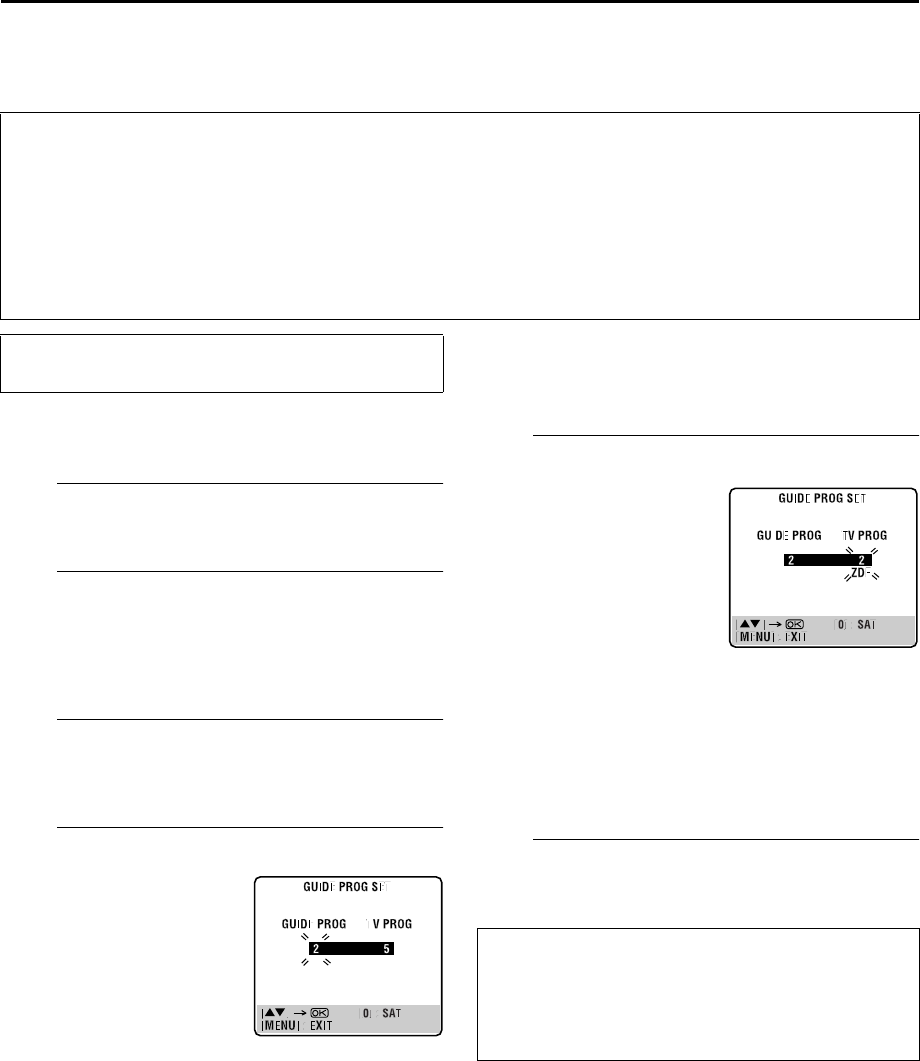
Masterpage:Right-NoTitle0
EN 85
Filename [HM-HDS4EX_07Sub.fm]
Page 85 April 2, 2003 3:11 pm
SHOWVIEW® System Setup
Guide Program Number Set
AAccess the Main Menu screen.
Press MENU.
BAccess the Initial Set screen.
APress w e to move the arrow to “INITIAL SET UP”,
then press t.
BPress w e to move the arrow to “INITIAL SET”, then
press OK.
CAccess the Guide Program Set screen.
Press rt to move the highlight bar (pointer) to “GUIDE
PROG SET”, then press OK or e.
DEnter the Guide Program number.
Press rt to enter the Guide
Program number for the desired
station as shown in the TV
listings. Then press OK or e.
EEnter the receiving channel position number.
FReturn to the normal screen.
Press MENU.
IMPORTANT
Normally, Auto Set Up (墌pg. 14), Preset Download (墌pg. 16) or Auto Channel Set (墌pg. 88) sets the Guide Program numbers
automatically. You need to set the Guide Program numbers manually only in the following cases.
●When timer-programming with the SHOWVIEW system, the channel position, where the station you wish to record is received on
your recorder, is not selected,
OR
when you add a channel after Auto Set Up, Preset Download or Auto Channel Set has taken place,
—Set the Guide Program number for that station manually.
●When you wish to timer-record a satellite programme with the SHOWVIEW system,
—Set the Guide Program numbers for all satellite broadcasts received on your satellite receiver.
●Turn on the TV and select the AV mode.
●Slide TV/CABLE/SAT switch to the right.
(Example) When inputting the
Guide Program
number 2 for ZDF.
Press the number key “0” to
select “TV PROG” or “SAT”.
Then press rt to input the
number of the recorder’s
channel position on which the
Guide Program number’s
broadcast is received by the
recorder or the satellite
receiver. Then press OK or e.
●To timer-record a satellite
programme with the SHOWVIEW
system, you need to install the
provided Satellite Controller and
perform the procedure described
in “Satellite Receiver Control
Setting” (墌pg. 19).
●Repeat steps D and E as
necessary.
(Example) If ZDF is received on
channel position 2.
Guide Program Number
“Guide Program (GUIDE PROG) number” refers to the
assigned TV station numbers, according to broadcast area,
for the SHOWVIEW timer recording. The Guide Program
numbers can be found in most TV listings.
HM-HDS4EX.book Page 85 Wednesday, April 2, 2003 3:55 PM
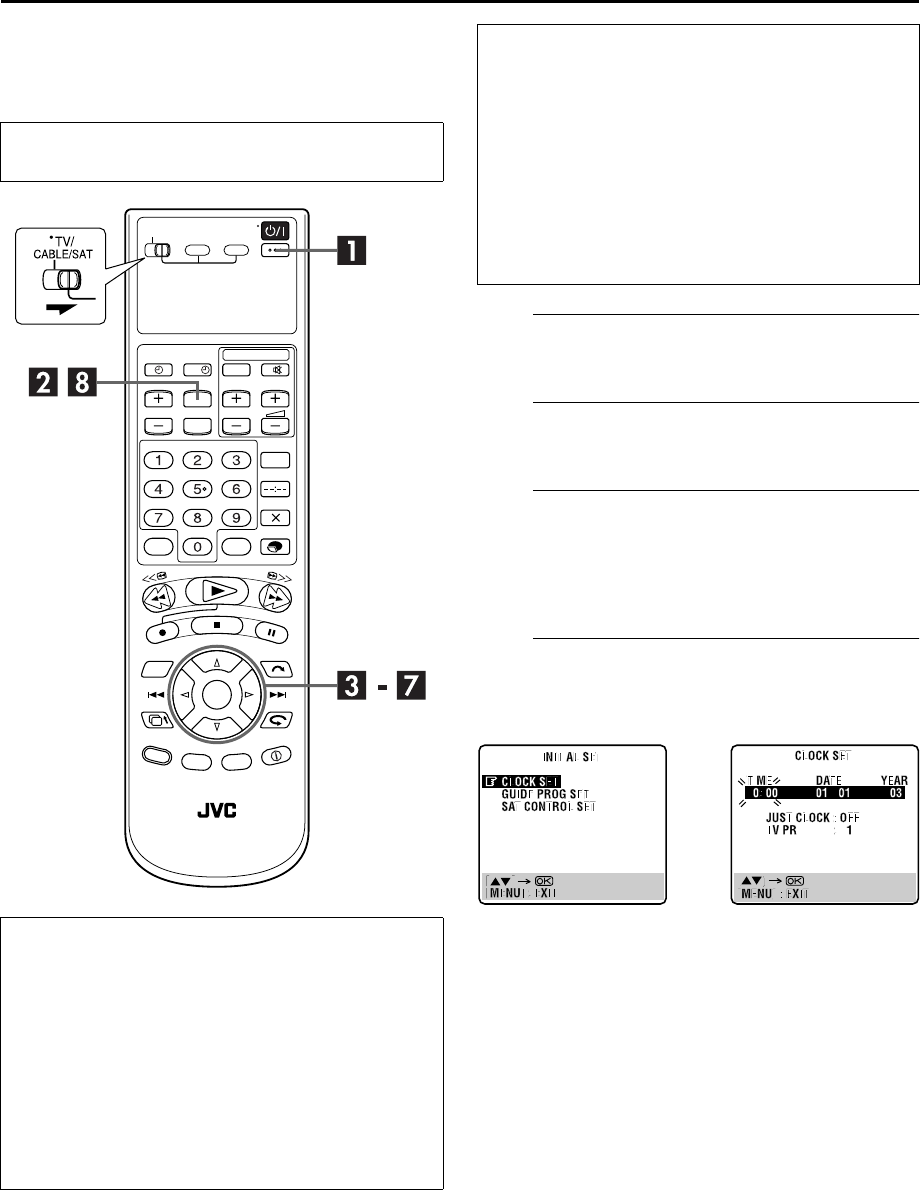
Filename [HM-HDS4EX_07Sub.fm]
Masterpage:Left
86 EN
Page 86 April 2, 2003 3:11 pm
SUBSIDIARY SETTINGS (cont.)
Clock Set
ATurn on the recorder.
Press 1.
BAccess the Main Menu screen.
Press MENU.
CAccess the Initial Set screen.
APress w e to move the arrow to “INITIAL SET UP”,
then press t.
BPress w e to move the arrow to “INITIAL SET”, then
press OK.
DAccess the Clock Set screen.
Press rt to move the highlight bar (pointer) to “CLOCK
SET”, then press OK or e. The Clock Set screen appears.
NOTE:
When you have selected MAGYARORSZÁG,
C
ESKÁ
REPUBLIKA, POLSKA, or OTHER EASTERN EUROPE for the
country setting (墌pg. 14, 18), you cannot use Just Clock
function. Skip steps F and G on page 87.
●Turn on the TV and select the AV mode.
●Slide TV/CABLE/SAT switch to the right.
Just Clock
The Just Clock function provides accurate time keeping
through automatic adjustments at regular intervals, by
reading data from a PDC signal.
The Just Clock option can be set “ON” or “OFF” at the Clock
Set screen (the default setting is “OFF”). Press OK until the
Just Clock setting begins blinking, then press rt to change
the setting.
IMPORTANT: If you turn off Just Clock, the accuracy of your
recorder’s built-in clock may be reduced, which could
adversely effect timer recording. We recommend you to keep
Just Clock on. In cases where the clock setting data from a
PDC signal is incorrect, however, you are advised to keep
Just Clock set to “OFF”.
?
IMPORTANT
If you performed Auto Set Up (墌pg. 14) or Preset
Download (墌pg. 16), without ever having set the clock
previously, the recorder’s built-in clock is also set
automatically.
Perform the following steps only if —
—Auto Clock Set has not been performed correctly by Auto
Set Up, Preset Download or Auto Channel Set.
OR
—the recorder’s memory backup has expired.
OR
—you want to change Just Clock setting (墌“Just Clock” in
the left column).
HM-HDS4EX.book Page 86 Wednesday, April 2, 2003 3:55 PM

Masterpage:Right-NoTitle0
EN 87
Filename [HM-HDS4EX_07Sub.fm]
Page 87 April 2, 2003 3:11 pm
ESet the date and time.
Press rt to set the time, then press OK or e. The
“DATE” display begins blinking. Repeat the same
procedure to set the date and year.
●When you set the time, press and hold rt to change the time
by 30 minutes.
●When you set the date, press and hold rt to change the date
by 15 days.
FSet Just Clock.
The default setting is “OFF”. Set as desired by pressing
rt, then press OK or e.
●For the Just clock function, refer to “Just Clock” on page 86.
●If you set to “OFF”, you can disregard the next step as you
won’t be able to receive regular clock adjustments.
GSet the source channel position for clock
data.
The recorder is preset to receive clock setting and
adjustment data from channel position 1.
Press rt to set the channel position to the number
representing the station transmitting clock setting data,
then press OK or e.
HStart the clock operation.
Press MENU.
NOTES:
●Just Clock (when set to “ON”) adjusts the recorder’s built-in
clock every hour, except for 23:00, 0:00, 1:00 and 2:00.
●Just Clock is not effective when ...
... the recorder’s power is on.
... the recorder is in the Timer mode.
... a difference of more than 3 minutes exists between the
built-in clock’s time and the actual time.
... the recorder is in the Automatic Satellite Programme
Recording mode (墌pg. 51).
... “L-2 SELECT” is set to “SAT” (墌pg. 69).
●If Just Clock is set to “ON”, the recorder’s clock is
automatically adjusted at the start/end of Summer Time.
●Just Clock may not function properly depending on the
reception condition.
HM-HDS4EX.book Page 87 Wednesday, April 2, 2003 3:55 PM
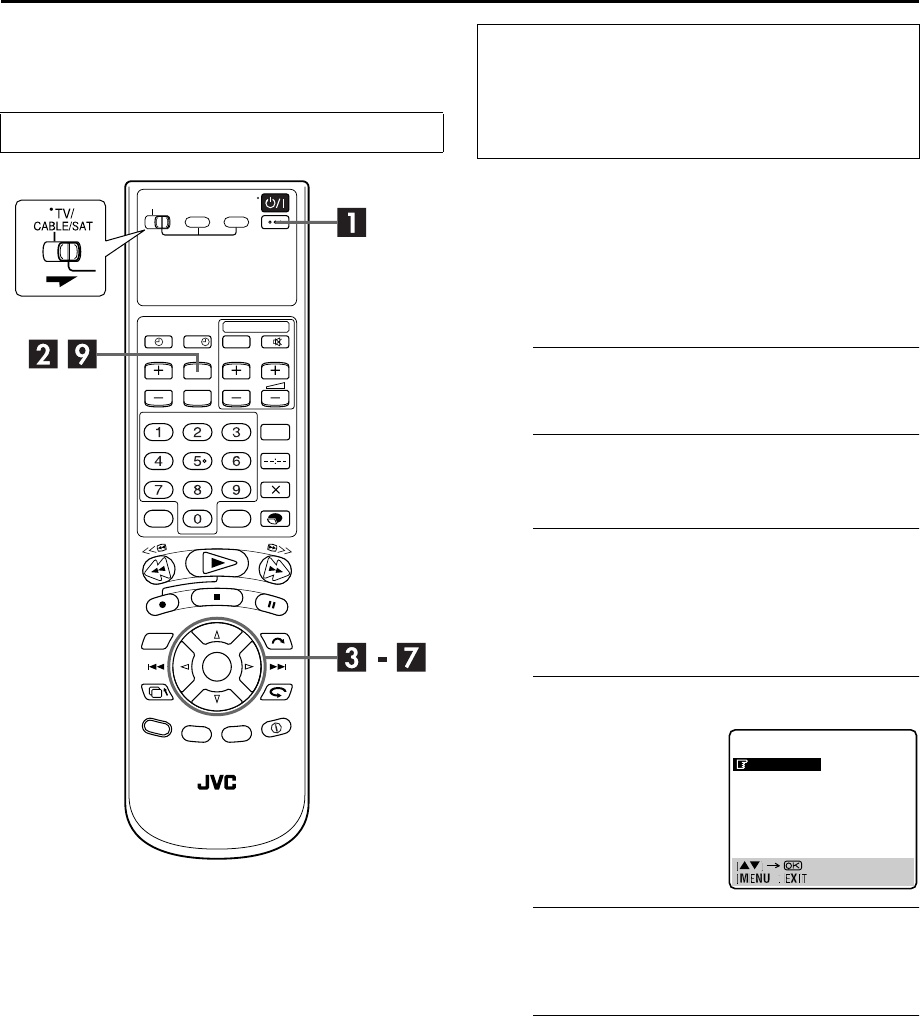
Filename [HM-HDS4EX_07Sub.fm]
Masterpage:Left
88 EN
Page 88 April 2, 2003 3:11 pm
SUBSIDIARY SETTINGS (cont.)
Tuner Set
Your recorder needs to memorize all necessary stations in
channel positions in order to record TV programmes. Auto
Channel Set automatically assigns all receivable stations in your
area to call them up by using the VCR PR buttons without going
through any vacant channels.
Auto Channel Set
ATurn on the recorder.
Press 1.
BAccess the Main Menu screen.
Press MENU.
CAccess the Tuner Set screen.
APress w e to move the arrow to “INITIAL SET UP”,
then press t.
BPress w e to move the arrow to “TUNER SET”, then
press OK.
DAccess the Auto Channel Set screen.
ESelect your country.
Press rt to move the highlight bar (pointer) to your
country’s name, then press OK or e.
FSelect the language.
Press rt to move the highlight bar (pointer) to the
language of your choice.
Turn on the TV and select the AV mode.
?
IMPORTANT
Perform the following steps only if —
— Auto Channel Set has not been set correctly by Auto Set
Up or by Preset Download (墌pg. 14, 16).
— you have moved to a different area or if a new station
starts broadcasting in your area.
Press rt to move the
highlight bar (pointer) to
“AUTO CH SET”, then press
OK or e.
TUNER SET
AUTO CH SET
MANUAL CH SET
HM-HDS4EX.book Page 88 Wednesday, April 2, 2003 3:55 PM
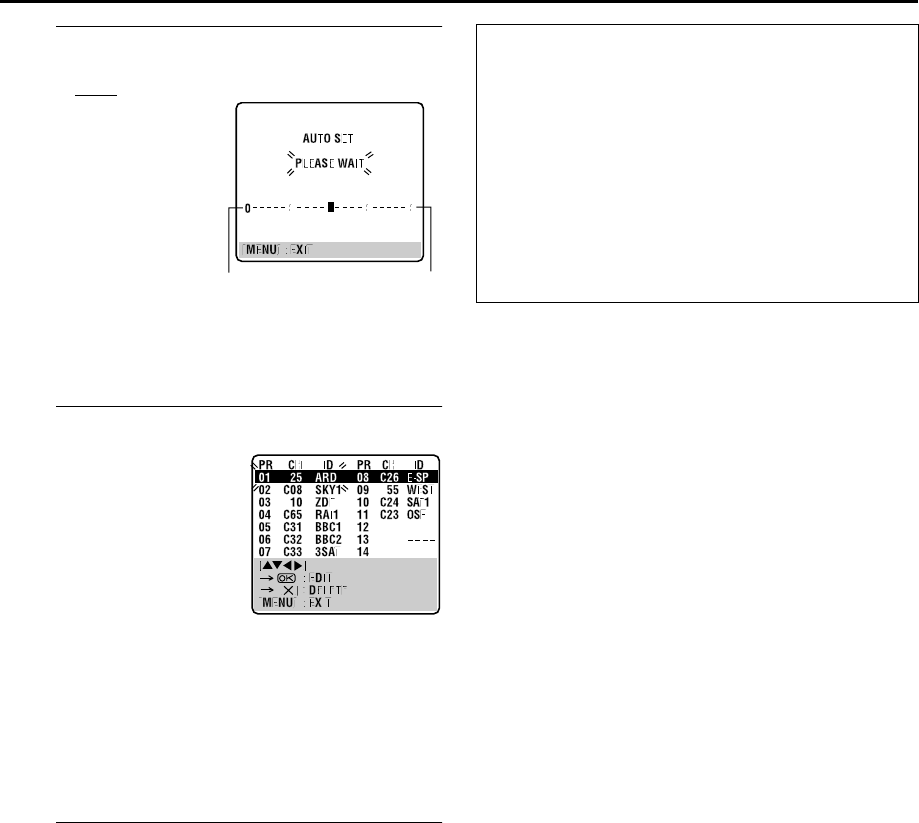
Masterpage:Right-NoTitle0
EN 89
Filename [HM-HDS4EX_07Sub.fm]
Page 89 April 2, 2003 3:11 pm
GPerform Auto Channel Set.
Press OK twice.
●When you have connected
the video recorder to a TV
offering T-V Link via a fully-
wired 21-pin SCART cable
(墌pg. 12), the recorder
automatically performs the
Preset Download and the
T-V LINK screen will appear
(墌pg. 16).
●The Auto Set screen appears,
and remains on screen while
the recorder searches for
receivable stations. As Auto
Channel Set progresses, the “q” mark on the TV screen moves
from left to right. Wait until the TV screen as shown in step H
appears.
HView the Confirmation screen.
After “SCAN COMPLETED” is
displayed on the TV screen for
about 5 seconds, the
Confirmation screen looking
like the one to the right
appears. The stations your
recorder located appear on a
Confirmation screen —
channel positions (PR),
channels (CH) and station names (ID – 墌pg. 94). The
blueback screen and the programme currently being
broadcast by the blinking station appear alternately for 8
seconds each. To view the next page, use the wret
button on the remote control.
●The stations located in the selected country appear at the top
of the list.
●The Guide Program numbers will also be set automatically
during Auto Channel Set.
IReturn to the normal screen.
Press MENU.
●Using the Confirmation screen, you can skip or add channel
positions, enter station names and perform other operations.
Refer to pages 90 – 93 for the procedures.
●Depending on reception conditions, the stations may not be
stored in order, and the station names may not be stored
correctly.
●For information on scrambled broadcasts, refer to page 93.
NOTES:
●Fine tuning is performed automatically during Auto Channel
Set. If you want to perform tuning manually, refer to page 93.
●If you perform Auto Channel Set when the aerial cable is not
connected properly, “SCAN COMPLETED –NO SIGNAL–”
appears on the TV screen in step H. When this happens, make
sure of the aerial connection and press OK; Auto Channel Set
will take place again.
●If no sound accompanies the picture or the audio sounds
unnatural on some channels that have been stored by Auto Set
Up, the TV system setting for those channels may be incorrect.
Select the appropriate TV system for those channels
(墌pg. 93, “INFORMATION”).
Beginning End
IMPORTANT
●In certain reception conditions, station names may not be
stored correctly, and Auto Guide Program Number Set may
not work properly. If the Guide Program numbers are not
set properly when you timer-record a TV programme using
the SHOWVIEW system, the recorder will record a TV
programme of a different station. When programming the
timer using the SHOWVIEW system, be sure to check the
desired channel is selected correctly (墌pg. 46,
“SHOWVIEW® Timer Programming”).
●Your video recorder memorizes all detected stations even if
reception of some of them is poor. You can delete those
stations with an unacceptable picture (墌pg. 91, “Delete
A Channel”).
HM-HDS4EX.book Page 89 Wednesday, April 2, 2003 3:55 PM
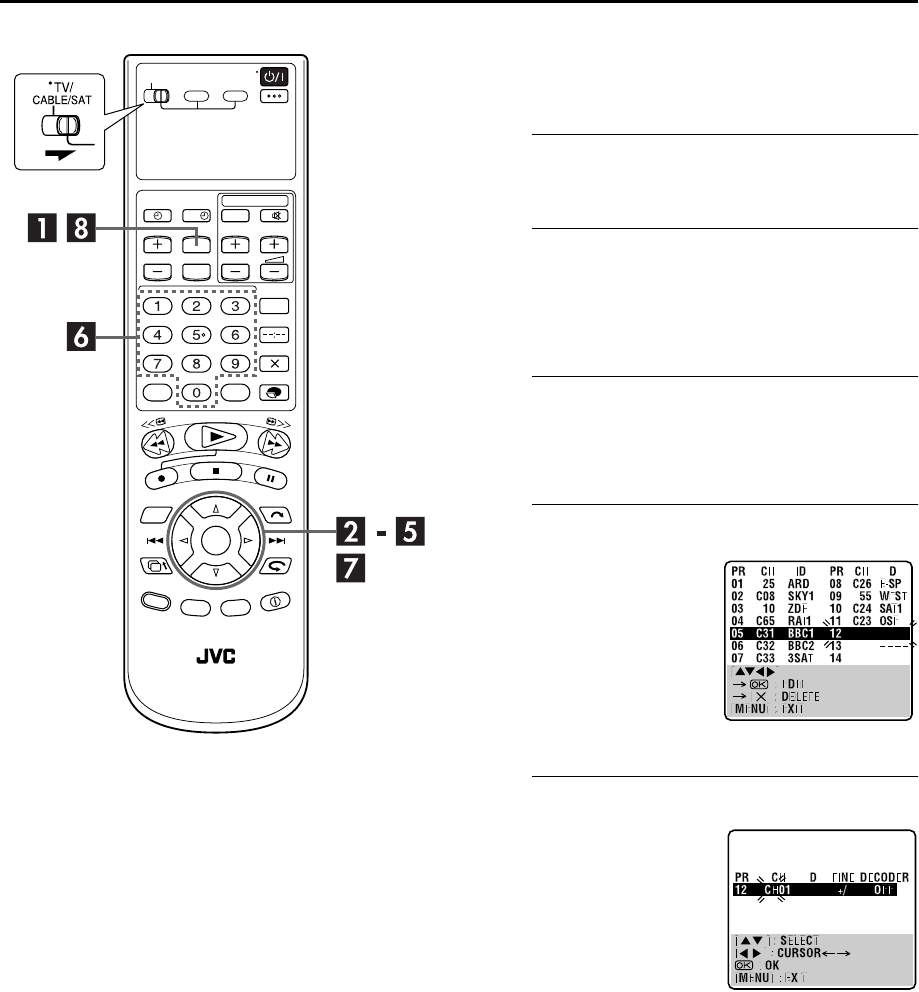
Filename [HM-HDS4EX_07Sub.fm]
Masterpage:Left
90 EN
Page 90 April 2, 2003 3:11 pm
SUBSIDIARY SETTINGS (cont.)
Manual Channel Set
Store channels that were not stored during Auto Set Up
(墌pg. 14), Preset Download (墌pg. 16) or Auto Channel Set
(墌pg. 88).
AAccess the Main Menu screen.
Press MENU.
BAccess the Tuner Set screen.
APress w e to move the arrow to “INITIAL SET UP”,
then press t.
BPress w e to move the arrow to “TUNER SET”, then
press OK.
CAccess the Confirmation screen.
Press rt to move the highlight bar (pointer) to
“MANUAL CH SET”, then press OK or e. The
Confirmation screen appears.
DSelect the channel position.
ESelect the band.
?
Press w r e t until an open
position in which you want
to store a channel begins
blinking, then press OK. The
Manual Channel Set screen
appears.
●The blueback screen and the
programme currently being
broadcast by the selected
channel appear alternately for
8 seconds each.
(Example) To store in position 12.
Press rt to change the band
between CH (regular) and CC
(cable), then press e.
HM-HDS4EX.book Page 90 Wednesday, April 2, 2003 3:55 PM
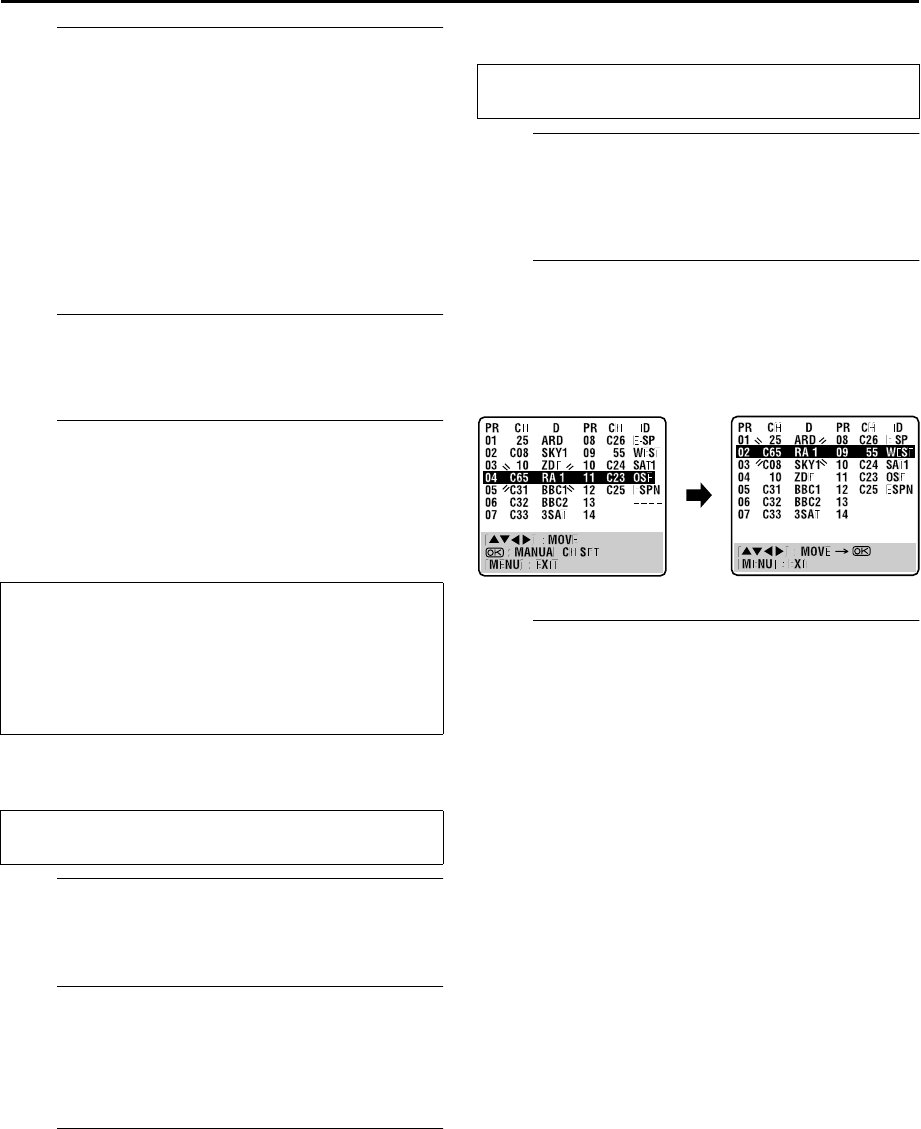
Masterpage:Right-NoTitle0
EN 91
Filename [HM-HDS4EX_07Sub.fm]
Page 91 April 7, 2003 2:55 pm
FInput the channel.
Press the number keys to input the channel number you
want to store.
●Input “0” before any single number entries.
●To input the registered station name (ID – 墌pg. 94), press e
until “– – – –” (ID setting) begins blinking, then press rt.
●For fine tuning adjustment, press e until “+/–” begins blinking,
then press rt. While tuning, “+” or “–” appears.
●When storing a channel that sends scrambled broadcasts,
press e until “OFF” (Decoder setting) blinks, then press rt
to set “DECODER” to “ON” (“OFF” is the default setting).
●When “L-2 SELECT” is set to “A/V” or “SAT”, the “DECODER”
setting cannot be changed (墌pg. 69).
GEnter new channel information.
Press OK and the Confirmation screen appears.
●Repeat steps D – G as necessary.
HClose the Confirmation screen.
Press MENU.
●To change positions, see “Change Station Channel Position”
(墌pg. 91).
●If you wish to set station names other than the ones registered
in your recorder, see “Set Stations (B)” (墌pg. 92).
Delete A Channel
ASelect the item.
Press w r e t until the item you want to delete begins
blinking.
BDelete a channel.
Press &.
●The item directly beneath the cancelled one moves up one
line.
●Repeat steps A and B as necessary.
CClose the Confirmation screen.
Press MENU.
Change Station Channel Position
ASelect the item.
Press w r e t until the item you want to move begins
blinking. Then press OK and the station name (ID) and its
channel (CH) number begin blinking.
BSelect the new position.
Press w r e t to move the station to the new channel
position, then press OK.
Example: If you moved the station in position 4 to position 2, the
stations originally in positions 2 and 3 each move
down one space.
●Repeat steps A and B as necessary.
CClose the Confirmation screen.
Press MENU.
ATTENTION
Guide Program numbers are not set when channels are
stored manually. If an attempt is made at timer programming
with the SHOWVIEW system in this state, “GUIDE PROGRAM
IS NOT SET SET GUIDE PROG THEN RETRY” appears on the
TV screen; set the Guide Program Numbers (墌pg. 85)
manually.
Perform steps A and C of “Manual Channel Set” on page 90
to access the Confirmation screen before continuing.
Perform steps A and C of “Manual Channel Set” on page 90
to access the Confirmation screen before continuing.
HM-HDS4EX_07Sub.fm Page 91 Monday, April 7, 2003 2:55 PM
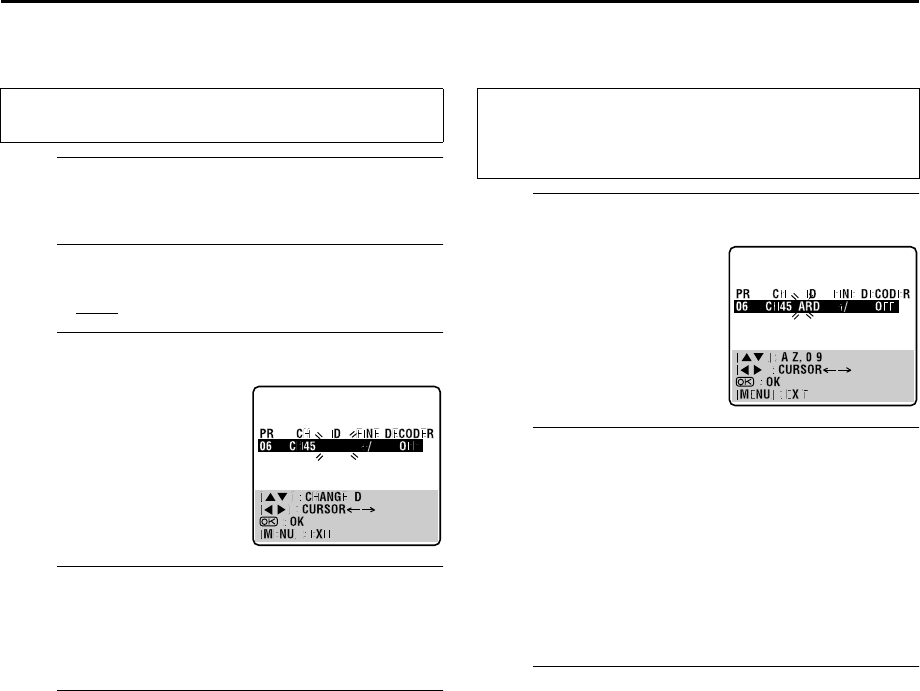
Filename [HM-HDS4EX_07Sub.fm]
Masterpage:Left
92 EN
Page 92 April 2, 2003 3:11 pm
SUBSIDIARY SETTINGS (cont.)
Set Stations (A)
Set station names that are registered in your recorder.
ASelect the item.
Press w r e t until the item you want begins blinking.
BAccess the Manual Channel Set screen.
Press OK twice.
CSelect the new station.
DSwitch the stations.
Press OK.
●The Confirmation screen appears.
●Repeat steps A – D as necessary.
EClose the Confirmation screen.
Press MENU.
Set Stations (B)
Set station names other than the ones registered in your recorder.
ASelect the character for station name.
BEnter the new character.
Press rt to cycle through the characters (A–Z, 0–9, –, f,
+, I (space) ) and stop when the desired character is
indicated, then press e to enter. Enter the remaining
characters the same way (maximum of 4). After entering
all characters, press OK.
●The Confirmation screen appears.
●If you make a mistake, press w until the incorrect character
begins blinking. Then enter the correct character by pressing
rt.
CClose the Confirmation screen.
Press MENU.
NOTE:
The characters available for the station name (ID) are A–Z, 0–9,
–, f, +, I (space) (maximum of 4).
Perform steps A and C of “Manual Channel Set” on page 90
to access the Confirmation screen before continuing.
Press e until the station
name (ID) begins blinking,
then press rt until the new
station’s name (ID) you want
to store begins blinking.
Registered station names
(墌pg. 94) appear as you
press rt.
Perform steps A and C of “Manual Channel Set” on page 90
to access the Confirmation screen and then perform steps A
and B of “Set Stations (A)” in the left column before
continuing.
Press e until the first letter of
the station name begins
blinking.
HM-HDS4EX.book Page 92 Wednesday, April 2, 2003 3:55 PM

Masterpage:Right-NoTitle0
EN 93
Filename [HM-HDS4EX_07Sub.fm]
Page 93 April 2, 2003 3:11 pm
Fine-Tuning Channels Already Stored
ASelect the channel to fine-tune.
Press w r e t until the channel you want to tune begins
blinking.
BAccess the Manual Channel Set screen.
Press OK twice. The Manual Channel Set screen appears.
CPerform tuning.
Press e until “+/–” begins blinking, then press rt until
the picture is its clearest. Then press OK.
●The Confirmation screen appears.
●Repeat steps A – C as necessary.
DClose the Confirmation screen.
Press MENU.
When Receiving A Scrambled
Broadcast
ASelect the decoder mode.
Set “L-2 SELECT” to “DECODER” (墌pg. 69).
BAccess the Confirmation screen.
Perform steps A and C of “Manual Channel Set” on
page 90.
CSelect the position.
Press w r e t to select the channel position
broadcasting scrambled programmes, then press OK
twice.
DChange the decoder setting.
Press e until “OFF” (decoder setting) begins blinking,
and set it to “ON” by pressing rt.
EReturn to the Confirmation screen.
Press OK.
●Repeat steps C – E as necessary.
FClose the Confirmation screen.
Press MENU.
Perform steps A and C of “Manual Channel Set” on page 90
to access the Confirmation screen before continuing.
INFORMATION
If you live in Eastern Europe, “TV SYSTEM” setting appears
instead of “DECODER” setting on the Manual Channel Set
screen. When you can see the picture but can hear no audio,
select appropriate TV system (D/K or B/G). Normally, TV
programmes are broadcasted as follows.
For Eastern Europe : D/K
For Western Europe : B/G
ASelect a country in Eastern Europe in step E on page 88.
BPress e until the TV system (D/K or B/G) blinking on the
Manual Channel Set screen in step E on page 90.
CPress rt to select appropriate TV System (D/K or B/G).
HM-HDS4EX.book Page 93 Wednesday, April 2, 2003 3:55 PM

Filename [HM-HDS4EX_07Sub.fm]
Masterpage:Left
94 EN
Page 94 April 2, 2003 3:11 pm
SUBSIDIARY SETTINGS (cont.)
TV Station And ID List
* The “ID” abbreviation is what is shown on-screen in lieu of the
station name. The “ID” abbreviation is listed in the
Confirmation screen and is displayed on the TV screen when
the recorder is tuned to a different station.
ID* STATION NAME
1000
3SAT
9LIV
ADLT
ANT3
ARD
ARTE
B1
BBC
BBC1
BBC2
BR3
C+
C1
CAN5
CANV
CH4
CH5
CHLD
CINE
CLUB
CMT
CNN
CSUR
DISC
DR
DR2
DRS
DSF
ETB1
ETB2
EURO
EUSP
FEMM
FILM
FNET
FR2
FR3
GALA
HR3
INFO
ITA1
ITA7
ITV
JSTV
KA2
KAB1
KAN2
LOCA
M6
MBC
MCM
MDR
MOVE
MTV
MTV3
N3
N-TV
NBC
NDR3
NED1
NED2
NED3
NEWS
NICK
NRK
NRK2
ODE
ORF1
TV1000
3SAT
9LIVE
ADULT
ANTENA3
ARD
ARTE
BERLIN1
BBC GROUP
BBC1
BBC2
BAYERN3
CANAL PLUS
PORTUGUSES
CANALE5
KETNET CANVAS
CHANNEL4
CHANNEL5
CHILD
CINEMA
TELECLUB
CMT
CNN
ANDALUCIA
DISCOVERY
DR TV
DR2
DRS
DSF
ETB1
ETB2
EURONEWS
EUROSPORTS
FEMMAN
FILM
FILMNET
France2
France3
GALAVISION
HESSEN3
INFO-KANAL
ITALIA1
ITALIA7
ITV1
JSTV
KA2
KABEL1
KANAL2
LOCAL
M6
MBR
MCM
MDR
MOVIE
MTV
MTV3
NORD3
N-TV
NBC SUPER
NDR3
NED1
NED2
NED3
NICKELODEON
NRK
NRK2
ODEON
ORF1
ID* STATION NAME
ORF2
ORF3
OWL3
PREM
PRO7
RAI1
RAI2
RAI3
RET4
21
RTBF
RTL
RTL2
RTL4
RTL5
RTP
S4
SAT1
SBS
SF1
SF2
SHOW
SIC
SKY
SKYN
SPRT
SRTL
STAR
SVT1
SVT2
SWR
TCC
TELE
TEL5
TF1
TMC
TNT
TRT
TSI
TSR
TV1
TV2
TV3
TV4
TV5
TV6
TVE1
TVE2
TVG
TVI
TVN
VCR
VERO
VH-1
VIVA
VIV2
VMTV
VOX
VT4
VTM
WDR1
WDR3
YLE1
YLE2
ZDF
ZTV
ORF2
ORF3
OWL3
PREMIERE
PRO7
RAI1
RAI2
RAI3
RETE4
TELE21
RTBF1 or 2
RTL
RTL2
RTL4
RTL5
RTP
SCHWEIZ4
SAT1
SBS
SF1
SF2
SHOW
SOCIEDADE
SKY CHANNEL
SKY NEWS
SPORT
SUPER RTL
STAR-TV
SVT1
SVT2
SUEDWEST3
TCC
TELE
TELE5
TF1
TELEMONTECARLO
TNT INT
TRT INT
TSI
TSR
BRTN TV1
TV2
TV3
TV4
TV5
TV6
TVE1
TVE2
TV GALICIA
TV INDEPENDENT
TV NORGE
VIDEO
VERONICA
VH-1
VIVA
VIVA2
VIDEO MUSIC
VOX
VT4
VTM
West1
West3
YLE1
YLE2
ZDF
ZTV
HM-HDS4EX.book Page 94 Wednesday, April 2, 2003 3:55 PM
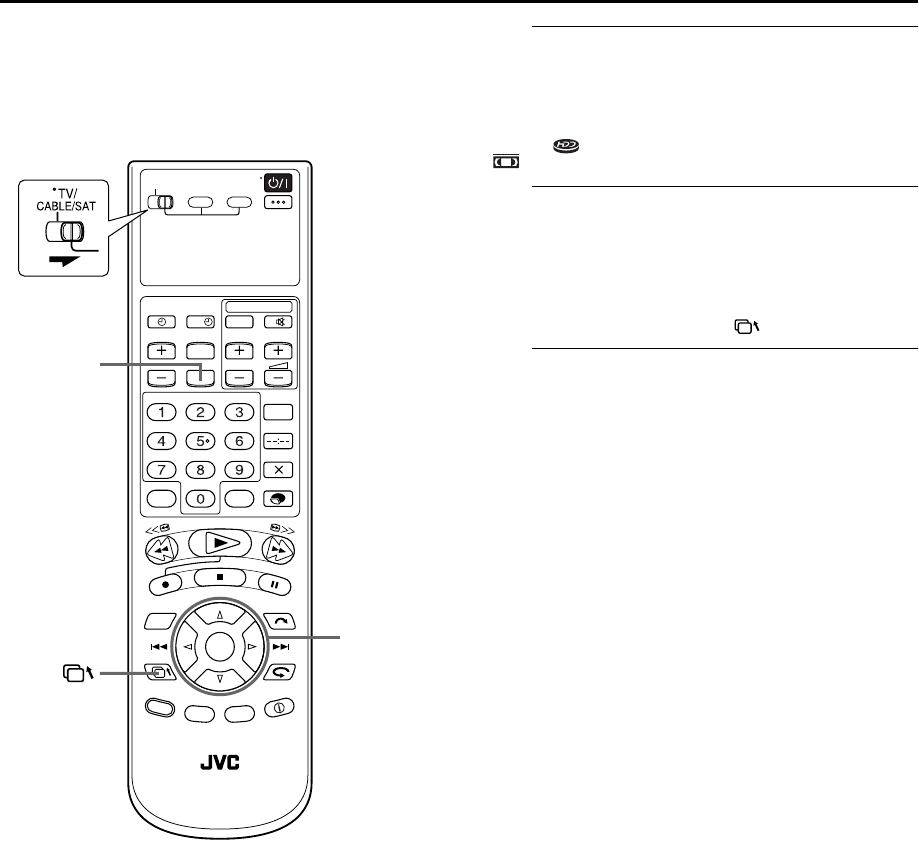
Masterpage:Right
EN 95
Filename [HM-HDS4EX_07Sub.fm]
Page 95 April 2, 2003 3:11 pm
HELP
Help Function
Use this function if you encounter problems while operating this
recorder.
AAccess the Help screen.
Press ?.
●An INDEX screen that contains the most common needed
topics (headings) relating to the current status appears. Topics
with the icon refer to HDD deck operations and with the
icon refer to those for the VHS deck.
BBrowse the INDEX and read the help page.
Press r t to search for the item that describes the
solution to your problem, then press OK.
●The selected help page appears.
●You can also browse help pages by pressing r t.
●To return to a previous page, press .
CReturn to the normal screen.
Press ?.
NOTE:
You cannot perform playback, recording, timer recording, or
other normal operations while accessing the help screen.
?
1 3
2
HM-HDS4EX.book Page 95 Wednesday, April 2, 2003 3:55 PM

Filename [HM-HDS4EX_07Sub.fm]
Masterpage:Left
96 EN
Page 96 April 2, 2003 3:11 pm
TROUBLESHOOTING
Before requesting service for a problem, use this chart and see if you can repair the trouble yourself. Small problems are
often easily corrected, and this can save you the trouble of sending your video recorder off for repair.
POWER
TAPE TRANSPORT
PLAYBACK
RECORDING
SYMPTOM POSSIBLE CAUSE CORRECTIVE ACTION
1. No power is supplied to the
recorder.
●The mains power cord is
disconnected. Connect the mains power cord.
2. The clock is functioning properly,
but the recorder cannot be
powered.
●“#” is displayed on the front
display panel with “AUTO TIMER”
set to “OFF”.
Press the # button to turn the “#”
indicator off.
3. The remote control won’t function. ●The batteries are discharged. Replace the dead batteries with new
ones.
SYMPTOM POSSIBLE CAUSE CORRECTIVE ACTION
1. During recording, the tape does
not run. “䡬” lights up and the
channel display blinks on the front
display panel.
●The recorder is in the Record Pause
mode. Press 4 to resume recording.
2. The tape will not rewind or
fast-forward.
●The tape is already fully rewound or
fast-forwarded. Check the cassette.
SYMPTOM POSSIBLE CAUSE CORRECTIVE ACTION
1. The playback picture does not
appear while the tape is running.
●The TV receiver is not set to the AV
mode. Set the TV to its AV mode.
2. Noise appears during visual
search.
●This is normal.
3. Noise appears during normal
playback.
●The automatic tracking mode is
engaged. Try manual tracking. (墌pg. 41)
4. The playback picture is blurred or
interrupted while TV broadcasts
are clear or “USE CLEANING
CASSETTE” message appears on
the screen.
●The video heads may be dirty. Use a dry cleaning cassette ECL-3F or
consult your JVC dealer.
5. Breaks are noticeable in Hi-Fi
soundtrack.
●The automatic tracking mode is
engaged. Try manual tracking. (墌pg. 41)
SYMPTOM POSSIBLE CAUSE CORRECTIVE ACTION
1. Recording cannot be started. ●There is no cassette loaded, or the
cassette loaded has had its record
safety tab removed.
Insert a cassette, or using adhesive
tape, cover the hole where the tab
was removed.
2. TV broadcasts cannot be
recorded.
●“L-1”, “L-2”, “F-1”, “D-1”, “DUB“
or “SAT” has been selected as the
input mode.
Set to the desired channel.
HM-HDS4EX.book Page 96 Wednesday, April 2, 2003 3:55 PM

Masterpage:Right-NoTitle0
EN 97
Filename [HM-HDS4EX_07Sub.fm]
Page 97 April 7, 2003 2:57 pm
TIMER RECORDING
3. Tape-to-tape editing is not
possible.
●The source (another video recorder,
camcorder) has not been properly
connected.
Confirm that the source is properly
connected.
●All necessary power switches have
not been turned on.
Confirm that all units’ power switches
are turned on.
●The input mode is not correct. Set the input mode to “L-1”, “L-2” or
“F-1”.
4. Camcorder recording is not
possible.
●The camcorder has not been
properly connected.
Confirm that the camcorder is
properly connected.
●The input mode is not correct. Set the input mode to “L-1”, “L-2” or
“F-1”.
5. “䡬” and “$” on the front display
panel won’t stop blinking.
●The end of the tape was reached
during recording.
●The programme may not have been
recorded in its entirety. Next time
make sure you have enough time
on the tape to record the entire
programme.
SYMPTOM POSSIBLE CAUSE CORRECTIVE ACTION
SYMPTOM POSSIBLE CAUSE CORRECTIVE ACTION
1. Timer recording won’t work. ●The clock and/or the timer have
been set incorrectly.
Re-perform the clock and/or timer
settings.
●The timer is not engaged. Press # and confirm that “#” is
displayed on the front display panel.
2. Timer programming is not
possible.
●Timer recording is in progress. Timer programming can’t be
performed while a timer recording is
in progress. Wait until it finishes.
3. “#” on the front display panel or
S-VHS indicator won’t stop
blinking.
●The timer is engaged but there’s no
cassette loaded.
●The cassette is ejected, then the
recorder is powered off
automatically after the end of the
tape is reached during timer
recording.
Load a cassette with the record safety
tab intact.
4. “#”, “䡬” and “$” on the front
display panel won’t stop blinking.
●The loaded cassette has had its
record safety tab removed.
Remove the cassette and cover the
hole with adhesive tape, or insert a
cassette with the record safety tab
intact.
●The end of the tape was reached
during timer recording.
The programme may not have been
recorded in its entirety. Next time
make sure you have enough time on
the tape to record the entire
programme.
HM-HDS4EX_07Sub.fm Page 97 Monday, April 7, 2003 2:58 PM

Filename [HM-HDS4EX_07Sub.fm]
Masterpage:Left
98 EN
Page 98 April 7, 2003 2:57 pm
TROUBLESHOOTING (cont.)
TIMER RECORDING (cont.)
OTHER PROBLEMS
SYMPTOM POSSIBLE CAUSE CORRECTIVE ACTION
5. “#” blinks for 10 seconds and the
Timer mode is disengaged.
●# has been pressed when there are
no programs in memory.
Check the programmed data and re-
program as necessary, then press #
again.
6. The SHOWVIEW system does not
timer-record properly.
●The recorder’s channel positions
have been set incorrectly.
Refer to “Guide Program Number
Set” (墌pg. 85) and re-perform the
procedure.
7. “䡬” and “$” on the front display
panel won’t stop blinking.
●The end of the tape was reached
during Instant Timer Recording.
The programme may not have been
recorded in its entirety. Next time
make sure you have enough time on
the tape to record the entire
programme.
8. “N”, “䡬” and “$” on the front
display panel won’t stop blinking.
●The loaded cassette has had its
record safety tab removed.
Remove the cassette and cover the
hole with adhesive tape, or insert a
cassette with the record safety tab
intact.
●The end of the tape was reached
during Automatic Satellite
Programme Recording.
The programme may not have been
recorded in its entirety. Next time
make sure you have enough time on
the tape to record the entire
programme.
SYMPTOM POSSIBLE CAUSE CORRECTIVE ACTION
1. Whistling or howling is heard from
the TV during camcorder
recording.
●The camcorder’s microphone is too
close to the TV.
Position the camcorder so its
microphone is away from the TV.
●The TV’s volume is too high. Turn the TV’s volume down.
2. When scanning channels, some of
them are skipped over.
●Those channels have been
designated to be skipped.
If you need the skipped channels,
restore them (墌pg. 90).
3. The channel cannot be changed. ●Recording is in progress. Press 9 to pause the recording,
change channels, then press 4 to
resume recording.
4. Channel settings that were made
manually seem to have changed or
disappeared.
●After the manual settings were
made, Auto Channel Set was
performed.
Perform manual setting again.
5. No channels are stored in the
recorder’s memory.
●The TV aerial cable was not
connected to the recorder when
Auto Set Up was performed.
Turn off the recorder once and
connect the TV aerial cable to the
recorder properly, then turn on the
recorder again. Then perform Auto
Set Up again. (墌pg. 14)
●The fully-wired 21-pin SCART cable
was not connected between TV and
the recorder when Preset
Download was performed.
Turn off the recorder once and
connect the fully-wired 21-pin
SCART cable to the recorder properly,
then turn on the recorder again. Then
perform Preset Download again.
(墌pg. 16)
6. The remote control won’t operate
the TV or satellite receiver.
●The remote control brand setting is
incorrect.
Re-set the remote control to the
correct brand. (墌pg. 53, 54)
7. A programme that has a title
“Found 001” is recorded
unexpectedly on the HDD deck.
●The power was cut off because of a
power failure, etc. while the
recorder was working.
Delete the “Found 001” programme.
(墌pg. 58)
HM-HDS4EX_07Sub.fm Page 98 Monday, April 7, 2003 2:58 PM

Masterpage:Right-Full-NoTitle0
EN 99
Filename [HM-HDS4EX_07Sub.fm]
Page 99 April 2, 2003 3:11 pm
ON-SCREEN MESSAGES
MESSAGE DESCRIPTION
CAN NOT MODIFY LIVE MEMORY TIME, MORE
CAPACITY NEEDED
DELETE UNWANTED PROGRAMME THEN RETRY
There is not enough memory on the hard disk drive for
Live Memory Playback. To increase the free space, dub
some programmes to cassettes or delete the unwanted
programmmes. (墌pg. 63, 58)
DO YOU WANT TO DELETE SELECTED PROGRAMME? Appears when you tried to delete the selected programme
from the hard disk drive. Make sure you really want to
delete the programme. (墌pg. 58)
DO YOU WANT TO DELETE SELECTED PROGRAMME
INFORMATION? Appears when you tried to delete the selected programme
information from the hard disk drive. Make sure you
really want to delete the programme information.
(墌pg. 58)
DO YOU WANT TO DELETE SELECTED CASSETTE
INFORMATION? Appears when you tried to delete the selected cassette’s
all information from the hard disk drive. Make sure you
really want to delete the cassette’s information.
(墌pg. 58)
INSERT CASSETTE Appears when you tried to modify the information for
VCR Navigation, but the cassette is not loaded. To modify
the information for VCR Navigation, the cassette must be
loaded. (墌pg. 56)
CAN NOT MODIFY INDEX It is not possible to modify the index of a programme
while the hard disk drive is in recording. Wait until the
recording finishes or stop recording to modify the index.
(墌pg. 56)
NO CASSETTE For VCR Navigation, load a cassette before pressing
NAVIGATION. (墌pg. 37)
“NAVIGATION” IS SET TO “OFF”For VCR Navigation, set “NAVIGATION” to “ON” on the
“VCR SET UP 1” screen, then press NAVIGATION.
(墌pg. 37, 81)
UNABLE TO SET TIMER PROGRAMME
DUE TO SHORTAGE OF CAPACITY
DELETE UNWANTED PROGRAMME FROM HDD
There is not enough memory on the hard disk drive for
recording. To increase the free space, dub some
programmes to cassettes or delete the unwanted
programmmes. (墌pg. 58)
PROGRAMME FULL
DELETE UNWANTED TIMER PROGRAMME You can programme this recorder to timer-record as many
as 16 programmes. To programme more, you need to
cancel a timer programme already set. (墌pg. 50)
PLEASE ADJUST CLOCK BEFORE TIMER
PROGRAMMING To set the timer programme, the clock must be set in
advance. (墌pg. 86)
GUIDE PROGRAM IS NOT SET
SET GUIDE PROGRAM THEN RETRY To set the timer programme using the SHOWVIEW system,
the Guide Program number must be set in advance.
(墌pg. 85)
SHOWVIEW NO. ERROR
CONFIRM SHOWVIEW NO. THEN RETRY An invalid SHOWVIEW number is input. (墌pg. 46)
HM-HDS4EX.book Page 99 Wednesday, April 2, 2003 3:55 PM

Filename [HM-HDS4EX_07Sub.fm]
Masterpage:Left
100 EN
Page 100 April 2, 2003 3:11 pm
TROUBLESHOOTING (cont.)
ON-SCREEN MESSAGES (cont.)
MESSAGE DESCRIPTION
PROGRAMME NOT COMPLETED
PROGRAMME OVERLAPPED
PLEASE CONFIRM AND MODIFY
The timer programme you set is overlapping with another
timer programme. (墌pg. 50)
TIMER PROGRAMMING STOPPED Appears when you stop setting timer programme.
PROGRAMME COMPLETED
PRESS “OK” THEN [#] TO ENTER TIMER STANDBY
MODE
Timer programming is completed properly.
TIMER RECORDING WILL START WITHIN 5 MIN
INSERT CASSETTE AND PRESS [#]The recorder is not in the timer-standby mode. The timer
recording will start in about 5 minutes.
REMAINING CAPACITY IS SMALL
DELETE UNWANTED PROGRAMME FROM HDD The remaining capacity of the hard disk drive is in short
for the current recording. (墌pg. 58)
CAPACITY IS FULL, RECORDING STOPPED The recording stopped due to the shortage of the free
space on the hard disk drive.
CAPACITY IS FULL, UNABLE TO RECORD
DELETE UNWANTED PROGRAMME FROM HDD The recording cannot be started due to the shortage of the
free space on the hard disk drive. (墌pg. 58)
TITLE MEMORY IS FULL, UNABLE TO RECORD
DELETE UNWANTED PROGRAMME FROM HDD The remaining capacity is full for registration for the
Navigation system. The recording cannot be started even
though the capacity for the recording is enough.
(墌pg. 58)
COPY PROHIBITED, UNABLE TO RECORD ON HDD It is not possible to record a copy-protected programme.
NO PROGRAMME TO PLAYBACK There is no recorded programme on the hard disk drive.
UNABLE TO GO BACK ANYMORE It is not possible to go back beyond the start point of the
recording for Live Memory Playback. (墌pg. 29)
DUBBING COMPLETED Appears when Easy Dubbing is completed. (墌pg. 63)
DUBBING STOPPED Appears when Easy Dubbing is stopped. (墌pg. 63)
TAPE ENDED, DUBBING STOPPED Appears when the tape ends during Easy Dubbing.
(墌pg. 63)
COPY PROHIBITED It is not possible to dub a copy-protected programme.
IMPOSSIBLE DURING DV DUBBING OR RECORDING
IN DV MODE When input mode is set to “D-1” or during recording in
the recording speed of DV, other operations such as
playback of another programme, etc. are not possible.
CAN NOT SELECT PROGRAMME RECORDED IN DV
MODE During recording, you cannot playback another
programme recorded in the recording speed of DV.
CAN NOT SELECT PROGRAMME RECORDED OTHER
THAN IN DV MODE When you create a play list, you cannot include scenes
recorded in the recording speed of DV and scenes
recorded in another mode in the same play list.
HM-HDS4EX.book Page 100 Wednesday, April 2, 2003 3:55 PM

Masterpage:Right
EN 101
Filename [HM-HDS4EX_07Sub.fm]
Page 101 April 2, 2003 3:11 pm
QUESTIONS AND ANSWERS
PLAYBACK
Q. What happens if the end of the tape is reached
during playback or search?
A. The tape is automatically rewound to the
beginning.
Q. During search, slow, still and frame-by-frame
playback, I can’t hear any audio. What’s the
problem?
A. This is normal.
Q. Can the video recorder indefinitely remain in
the still mode?
A. No. It stops automatically after 5 minutes to
protect the heads.
Q. When returning from variable-speed search to
normal playback, the picture is disturbed.
Should I be concerned about this?
A. No, it is normal.
Q. Sometimes, during Index Search, the video
recorder can’t find the programme I want to
see. Why not?
A. There may be index codes too close together.
RECORDING
Q. When I pause and then resume a recording, the
end of the recording before the pause is
overlapped by the beginning of the
continuation of recording. Why does this
happen?
A. This is normal. It reduces distortion at the pause
and resume points.
Q. Can the video recorder indefinitely remain in
the Record-Pause mode?
A. No. The video recorder goes to its Stop mode
automatically after 5 minutes to protect the
heads.
Q. What happens if the tape runs out during
recording?
A. The video recorder stops recording, and “䡬”
and “$“ on the front display panel won’t stop
blinking.
TIMER RECORDING
Q. “䡬“ and “#” remain lit on the front display
panel. Is there a problem?
A. No. This is a normal condition for a timer
recording in progress.
Q. Can I programme the timer while I’m watching
a tape or a TV broadcast?
A. Yo u w on ’t see the picture as it is replaced by the
on-screen menu, but the audio from the
programme or tape you’re viewing can be
heard.
HM-HDS4EX.book Page 101 Wednesday, April 2, 2003 3:55 PM

Filename [HM-HDS4EX_07Sub.fm]
Masterpage:Left
102 EN
Page 102 April 2, 2003 3:11 pm
SPECIFICATIONS
GENERAL
Power requirement : AC 220 V – 240 Vd, 50 Hz/60 Hz
Power consumption
Power on : 42 W
Power off : 12 W
Temperature
Operating : 5°C to 40°C
Storage : –20°C to 60°C
Operating position : Horizontal only
Dimensions (WxHxD)
: 435 mm x 98 mm x 357 mm
Weight : 5.3 kg
Input/Output : 21-pin SCART connectors:
IN/OUT x 1, IN/DECODER x 1
RCA connectors:
VIDEO IN x 1, AUDIO IN x 1,
AUDIO OUT x 1
S-Video connectors:
IN x 1, OUT x 1
DV connector:
IN/OUT x 1 (4-pin.IEEE1394
conformity, digital input/output)
HDD DECK VIDEO/AUDIO
Video format : MPEG2 (VBR)
Audio format : MPEG1 Layer2
Maximum recording time (approx.)
(DV) : 6 hours
(SP) : 20 hours
(LP) : 28 hours
(EP) : 56 hours
(SEP) : 80 hours
VHS DECK VIDEO/AUDIO
Signal system : PAL-type colour signal and CCIR
monochrome signal, 625 lines
50 fields
Recording system : DA4 (Double Azimuth) head helical
scan system
Format : S-VHS/VHS PAL standard
Signal-to-noise ratio: 45 dB
Horizontal resolution
: 250 lines (VHS)
400 lines (S-VHS)
Frequency range : 70 Hz to 10,000 Hz (Normal audio)
20 Hz to 20,000 Hz (Hi-Fi audio)
Maximum recording time
(SP) : 240 min. with E-240 video cassette
(LP) : 480 min. with E-240 video cassette
TUNER/TIMER
TV channel storage capacity
: 99 positions (+AUX position)
Tuning system : Frequency synthesized tuner
Channel coverage : VHF 47 MHz – 89 MHz/
104 MHz – 300 MHz/
302 MHz – 470 MHz
UHF 470 MHz – 862 MHz
Memory backup time
: Approx. 10 min.
ACCESSORIES
Provided accessories
: RF cable,
21-pin SCART cable,
Satellite Controller,
Infrared remote control unit,
“R6” battery x 2
Specifications shown are for SP mode (VHS) unless otherwise
specified.
E.& O.E. Design and specifications subject to change without
notice.
ATTENTION
This recorder contains microcomputers. External electronic
noise or interference could cause malfunctioning. In such
cases, switch the recorder off and unplug the mains power
cord. Then plug it in again and turn the recorder on. Take out
the cassette. After checking the cassette, operate the unit as
usual.
HM-HDS4EX.book Page 102 Wednesday, April 2, 2003 3:55 PM

Masterpage:Right
EN 103
Filename [HM-HDS4EX_08IX.fm]
Page 103 April 7, 2003 3:47 pm
LIST OF TERMS
A
Audio Dubbing ...................................................... 74
Auto Channel Set .................................................... 88
Auto Set Up .......................................................... 14
AUTO SP]LP TIMER .............................................. 83
AUTO TIMER ........................................................ 84
Automatic Satellite Programme Recording ..................... 51
B
B.E.S.T. Picture System ....................................... 45, 83
C
Change Station Channel Position ................................. 91
Check, cancel and change programmes ........................ 50
Clock Set .............................................................. 86
COLOUR SYSTEM .................................................. 84
Connecting To A Satellite Receiver .............................. 76
D
Delete A Channel ................................................... 91
DIRECT REC .................................................... 21, 84
Dubbing .............................................................. 63
DV Dubbing ......................................................... 72
E
EDITING .............................................................. 55
Elapsed Recording Time Indication .............................. 43
Express Timer Programming ....................................... 48
F
F-1 INPUT ............................................................ 69
Fine-Tuning Channels Already Stored ........................... 93
G
Guide Program Number Set ....................................... 85
I
Index Search ......................................................... 40
Instant Timer Recording (ITR) ............................... 33, 42
J
Jump search .......................................................... 31
Just Clock ............................................................. 86
L
L-1 INPUT ............................................................ 68
L-1 OUTPUT ......................................................... 68
L-2 INPUT ............................................................ 69
L-2 SELECT ........................................................... 69
Language ............................................................. 18
Live Memory Playback ............................................. 28
Live Memory Recording ............................................ 29
M
Manual Channel Set ................................................ 90
Manual Tracking .................................................... 41
Mode Set .............................................................. 80
Modify Information ................................................. 56
N
Next Function Memory ............................................. 40
Normal Dubbing (from HDD to VHS) ........................... 65
Normal Dubbing (from VHS to HDD) ........................... 66
O
O.S.D. ................................................................. 84
ON-SCREEN DISPLAY .......................................... 8, 10
Output/Input Set ..................................................... 68
P
PICTURE CONTROL ................................................ 83
Play List Features .................................................... 60
Playback with HDD Navigation .................................. 24
Playback with VHS Navigation ................................... 36
POWER SAVE ........................................................ 84
Preset Download .................................................... 16
R
Record One Programme While Watching Another ...... 33, 42
Recording Resume Function ....................................... 42
RECORDING/PLAYBACK ON HDD DECK ..................... 22
RECORDING/PLAYBACK ON VHS DECK ...................... 34
Repeat Playback ............................................... 32, 40
S
Satellite Controller ................................................... 19
Satellite Receiver Control Setting ................................. 19
Set Stations (A) ....................................................... 92
Set Stations (B) ....................................................... 92
SHOWVIEW® System Setup .......................................... 85
SHOWVIEW® Timer Programming .................................. 46
Slow Motion .................................................... 30, 39
Soundtrack Selection .......................................... 32, 41
Still Picture/Frame-By-Frame Playback .................... 30, 39
Super VHS ET (S-VHS ET) .................................... 43, 82
S-VHS ............................................................ 70, 82
T
Tape Position Indicator ............................................. 10
Tape Remaining Time .............................................. 43
TIMER RECORDING ................................................ 46
Tuner Set .............................................................. 88
T-V LINK .............................................................. 21
TV Station And ID List .............................................. 94
V
Variable Speed Search ........................................ 30, 39
VIDEO STABILIZER ................................................. 83
VPS/PDC Recording ................................................. 49
W
When Receiving A Scrambled Broadcast ........................ 93
HM-HDS4EX_08IX.fm Page 103 Monday, April 7, 2003 3:47 PM

Filename [HM-HDS4EX_09Cov4.fm]
EN
Page 104 April 17, 2003 12:44 pm
HM-HDS4E
Printed in Germany
0503-AH-ID-JVE
HM-HDS4EX_09Cov4.fm Page 104 Thursday, April 17, 2003 12:44 PM
