Jvc Kd A315 Users Manual CoverRear_KD A315[J]f
JVC Radio KD-R310 kdr310
GET0626-001A 46ccaeb9-2a77-42b3-aa57-0e960fc20daf
KD-R310 to the manual 46ccaeb9-2a77-42b3-aa57-0e960fc20daf
2015-01-26
: Jvc Jvc-Kd-A315-Users-Manual-320327 jvc-kd-a315-users-manual-320327 jvc pdf
Open the PDF directly: View PDF  .
.
Page Count: 40
- INSTRUCTIONS
- INFORMATION (For U.S.A.)
- IMPORTANT FOR LASER PRODUCTS
- CONTENTS
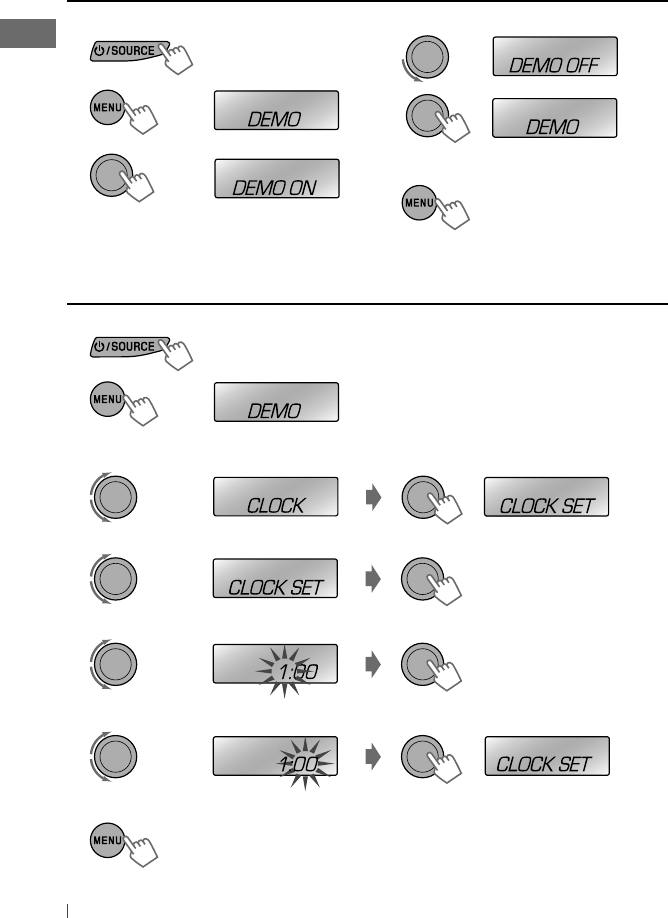
- Canceling the display demonstration
- Setting the clock
- Preparing the remote controller
- Basic operations
- Listening to the radio
- Listening to a disc
- Using Bluetooth devices
- Listening to the HD Radio Broadcast
- Listening to the satellite radio
- Listening to the other external components
- Selecting a preset sound mode
- Menu operations
- Title assignment
- More about this unit
- Maintenance
- Troubleshooting
- Specifications
- Installation/Connection Manual
ESPAÑOL
FRANÇAIS
ENGLISH
Instructions CD RECEIVER KD-A315/KD-R310
GET0626-001A
[J]
Having TROUBLE with operation?
Please reset your unit
Refer to page of How to reset your unit
Still having trouble??
USA ONLY
Call 1-800-252-5722
http://www.jvc.com
We can help you!
EN, SP, FR
0909DTSMDTJEIN© 2009 Victor Company of Japan, Limited
For canceling the display demonstration, see page 4. / Para cancelar la demostración en pantalla,
consulte la página 4. / Pour annuler la démonstration des affichages, référez-vous à la page 4.
CD RECEIVER / RECEPTOR CON CD /
RÉCEPTEUR CD
For customer Use:
Enter below the Model
No. and Serial No. which
are located on the top or
bottom of the cabinet.
Retain this information
for future reference.
Model No.
Serial No.
KD-A315 / KD-R310
INSTRUCTIONS
MANUAL DE INSTRUCCIONES
MANUEL D’INSTRUCTIONS
For installation and connections, refer to the separate manual.
Para la instalación y las conexiones, refiérase al manual separado.
Pour l’installation et les raccordements, se référer au manuel séparé.
CoverRear_KD-A315[J]f.indd 1CoverRear_KD-A315[J]f.indd 1 9/29/09 5:19:14 PM9/29/09 5:19:14 PM
2ENGLISH
INFORMATION (For U.S.A.)
This equipment has been tested and found to comply with the limits for a Class B digital device,
pursuant to Part 15 of the FCC Rules. These limits are designed to provide reasonable protection
against harmful interference in a residential installation. This equipment generates, uses, and can
radiate radio frequency energy and, if not installed and used in accordance with the instructions,
may cause harmful interference to radio communications. However, there is no guarantee that
interference will not occur in a particular installation. If this equipment does cause harmful
interference to radio or television reception, which can be determined by turning the equipment
off and on, the user is encouraged to try to correct the interference by one or more of the
following measures:
– Reorient or relocate the receiving antenna.
– Increase the separation between the equipment and receiver.
– Connect the equipment into an outlet on a circuit different from that to which the receiver is
connected.
– Consult the dealer or an experienced radio/TV technician for help.
Caution:
Changes or modifications not approved by JVC could void the user’s authority to operate the
equipment.
IMPORTANT FOR LASER PRODUCTS
1. CLASS 1 LASER PRODUCT
2. CAUTION: Do not open the top cover. There are no user serviceable parts inside the unit; leave
all servicing to qualified service personnel.
3. CAUTION: (For U.S.A.) Visible and/or invisible class II laser radiation when open. Do not stare
into beam.
(For Canada) Visible and/or invisible class 1M laser radiation when open. Do not
view directly with optical instruments.
4. REPRODUCTION OF LABEL: CAUTION LABEL, PLACED OUTSIDE THE UNIT.
[European Union only]
Warning:
If you need to operate the unit while driving,
be sure to look around carefully or you may be
involved in a traffic accident.
For safety...
• Do not raise the volume level too much, as
this will block outside sounds, making driving
dangerous.
• Stop the car before performing any
complicated operations.
Temperature inside the car...
If you have parked the car for a long time in
hot or cold weather, wait until the temperature
in the car becomes normal before operating
the unit.
EN02-09_KD-A315_R310[J]4.indd 2EN02-09_KD-A315_R310[J]4.indd 2 9/15/09 3:40:47 PM9/15/09 3:40:47 PM
3ENGLISH
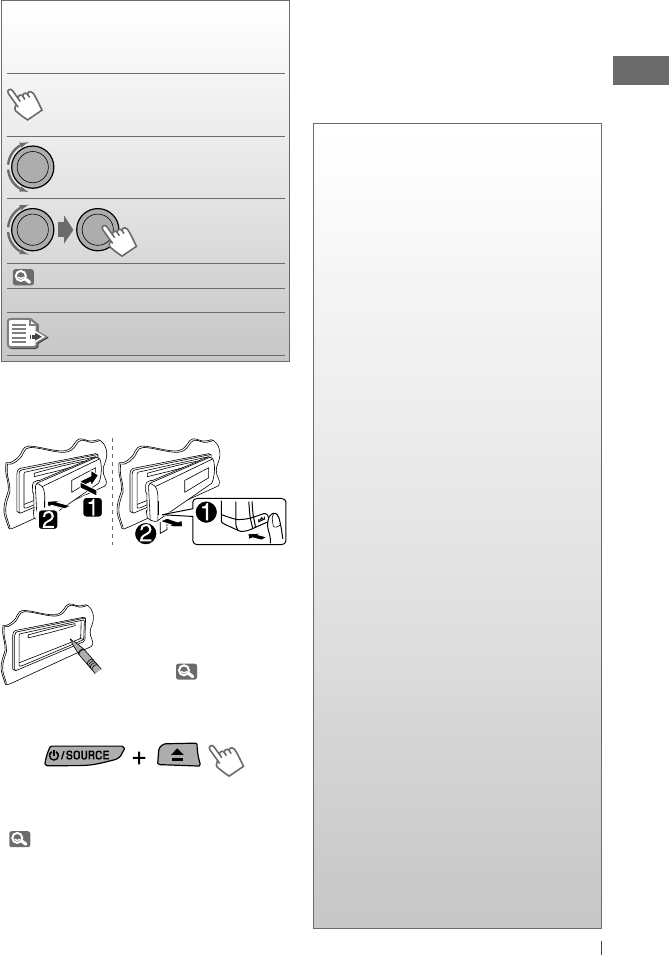
How to read this manual
The following icons/symbols are used to
indicate:
Press and hold the button(s)
until the desired operation
begins.
Turn the control dial.
Turn the control dial
to make a selection,
then press to confirm.
( XX) Reference page number
<XXXX> Menu setting item
Continued on the next page
How to attach/detach the control
panel
How to reset your unit
Your preset adjustments
will also be erased (except
the registered Bluetooth
device). ( 10)
How to forcibly eject a disc
• You can forcibly eject the loaded disc even
if the disc is locked. To lock/unlock the disc,
8.
• Be careful not to drop the disc when it ejects.
• If this does not work, reset your unit.
CONTENTS
3 How to read this manual
3 How to attach/detach the control
panel
3 How to reset your unit
3 How to forcibly eject a disc
4 Canceling the display
demonstration
4 Setting the clock
5 Preparing the remote controller
6 Basic operations
7 Listening to the radio
8 Listening to a disc
10 Using Bluetooth ® devices
11 Using a Bluetooth mobile phone
13 Using a Bluetooth audio player
15 Listening to the HD Radio ™
Broadcast
16 Listening to the satellite radio
18 Listening to the other external
components
19 Selecting a preset sound mode
20 Menu operations
25 Title assignment
26 More about this unit
29 Maintenance
30 Troubleshooting
34 Specifications
Thank you for purchasing a JVC product.
Please read all instructions carefully before
operation, to ensure your complete
understanding and to obtain the best possible
performance from the unit.
[Hold]
[Hold]
EN02-09_KD-A315_R310[J]4.indd 3EN02-09_KD-A315_R310[J]4.indd 3 9/15/09 3:40:47 PM9/15/09 3:40:47 PM
4ENGLISH
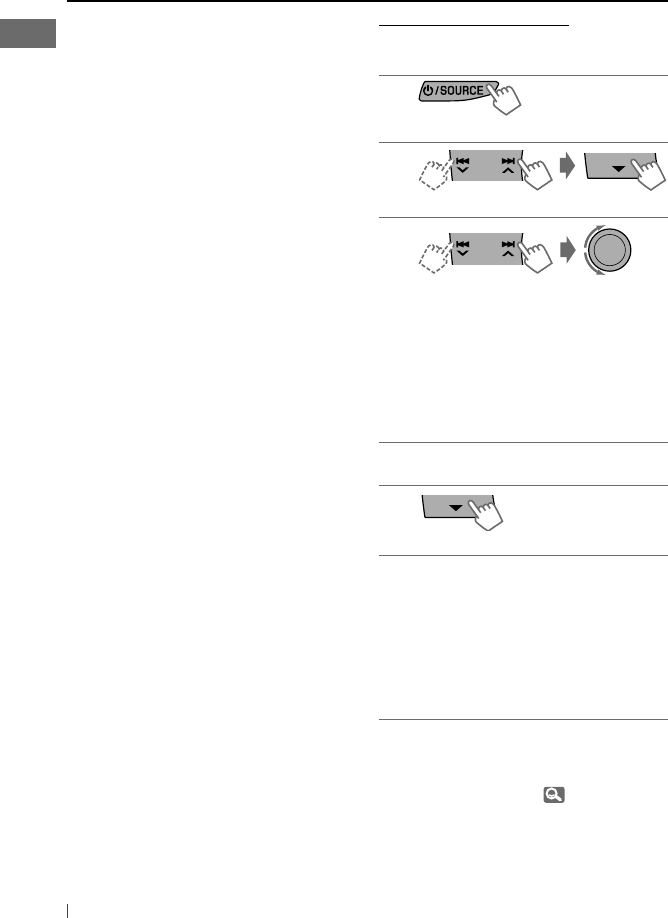
1 Turn on the power.
2
3
Setting the clock
1 Turn on the power.
2
3 Select <CLOCK>.
4 Select <CLOCK SET>.
5 Adjust the hour.
6 Adjust the minute.
7 Finish the procedure.
4 Select <DEMO OFF>.
5
6 Finish the procedure.
Canceling the display demonstration
(Initial setting)
[Hold]
(Initial setting)
[Hold]
EN02-09_KD-A315_R310[J]4.indd 4EN02-09_KD-A315_R310[J]4.indd 4 9/15/09 3:40:47 PM9/15/09 3:40:47 PM
5ENGLISH
Warning (to prevent accidents and
damage):
• Do not install any battery other than CR2025
or its equivalent.
• Do not leave the remote controller in a place
(such as dashboards) exposed to direct
sunlight for a long time.
• Store the battery in a place where children
cannot reach.
• Do not recharge, short, disassemble, heat the
battery, or dispose of it in a fire.
• Do not leave the battery with other metallic
materials.
• Do not poke the battery with tweezers or
similar tools.
• Wrap the battery with tape and insulate when
throwing away or saving it.
KD-A315 is equipped with the steering wheel
remote control function.
Before operating, connect an exclusive remote
adapter (not supplied) which matches your car
to the steering wheel remote input terminal on
the rear of the unit.
• For details, refer also to the instructions
supplied with the remote adapter.
Preparing the remote controller
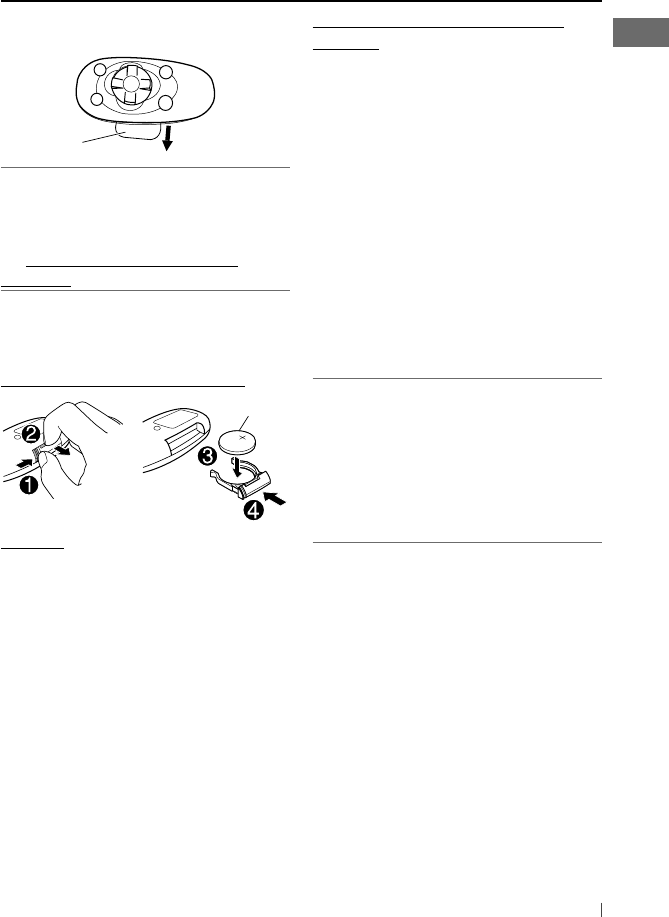
When you use the remote controller for the first
time, pull out the insulation sheet.
For USA-California Only:
This product contains a CR Coin Cell Lithium
Battery which contains Perchlorate Material—
special handling may apply.
See www.dtsc.ca.gov/hazardouswaste/
perchlorate
If the effectiveness of the remote controller
decreases, replace the battery.
Replacing the lithium coin battery
CR2025
Caution:
• Danger of explosion if battery is incorrectly
replaced. Replace only with the same or
equivalent type.
• Battery shall not be exposed to excessive heat
such as sunshine, fire, or the like.
Insulation sheet
EN02-09_KD-A315_R310[J]4.indd 5EN02-09_KD-A315_R310[J]4.indd 5 9/15/09 3:40:48 PM9/15/09 3:40:48 PM
6ENGLISH
Basic operations
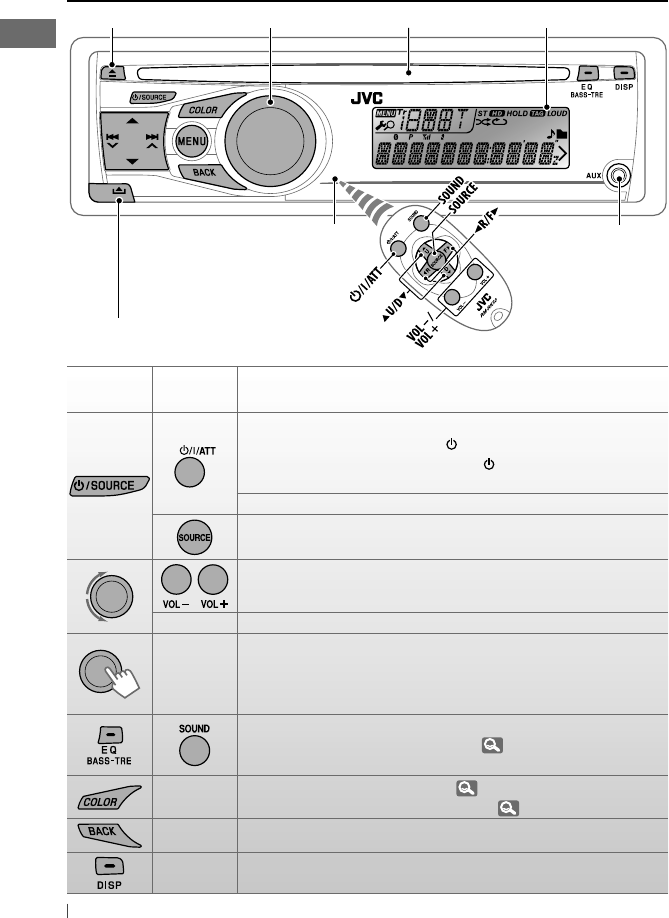
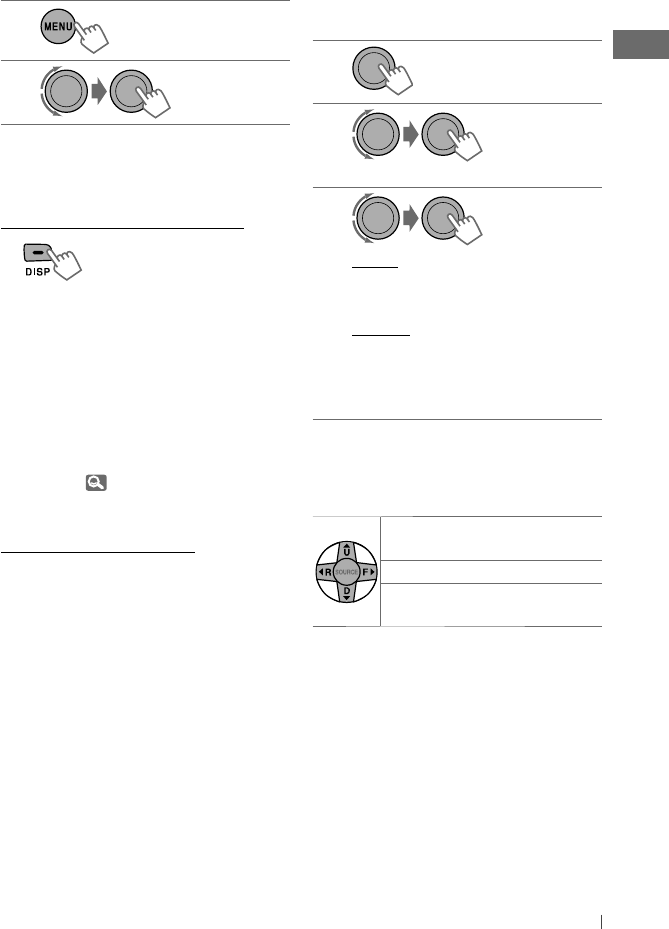
Control dialEjects the disc Loading slot
Remote sensor
• DO NOT expose to bright sunlight.
Display window
Auxiliary input jack
Detaches the panel
When you press or hold the following button(s)...
Main unit Remote
controller General operation
Turns on.
• When the power is on, pressing /I/ATT on the remote controller
also mutes the sound or pauses. Press /I/ATT again to cancel
muting or resume playback.
Turns off if pressed and held.
Selects the available sources (if the power is turned on).
• If the source is ready, playback also starts.
Adjusts the volume level.
— Selects items.
—
• Mutes the sound during playback. If the source is “CD,” playback
pauses. Press the control dial again to cancel muting or resume
playback.
• Confirms selection.
Selects the sound mode.
• Enters tone level adjustment directly ( 19) if pressed and held
EQ BASS-TRE
on the main unit.
—• Enters <COLOR> setting directly ( 22).
• Enters <COLOR SETUP> setting directly ( 22) if pressed and held.
— Returns to the previous menu.
—Power off : Checks the current clock time.
Power on : Changes the display information.
EN02-09_KD-A315_R310[J]f.indd 6EN02-09_KD-A315_R310[J]f.indd 6 9/29/09 5:30:54 PM9/29/09 5:30:54 PM
7ENGLISH
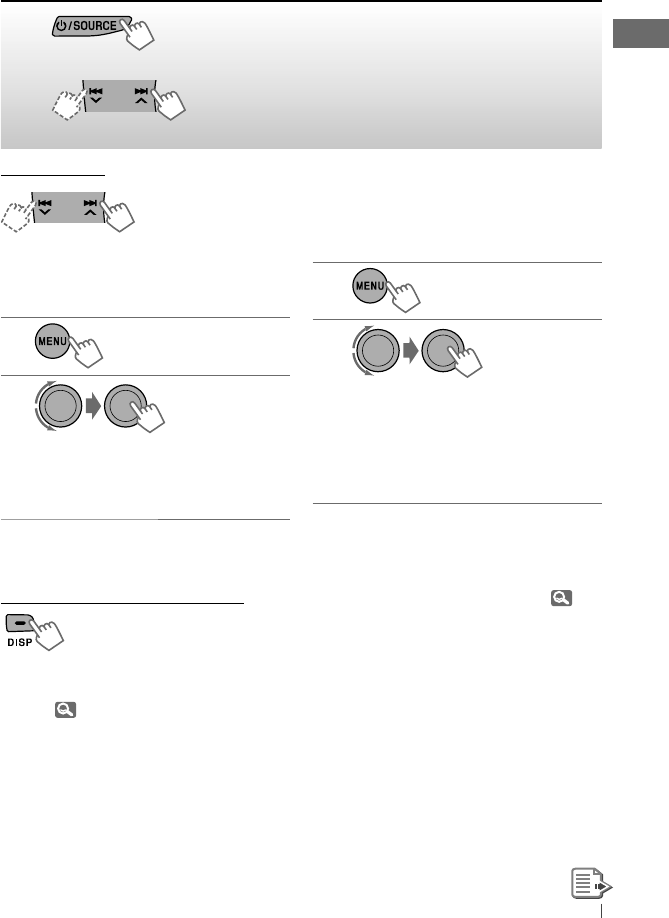
Manual search
“M” flashes, then press
the button repeatedly.
When an FM stereo broadcast is
hard to receive
1
2
]
<TUNER>
]
<MONO>
]
<MONO ON>
Reception improves, but stereo effect
will be lost.
To restore the stereo effect, repeat the same
procedure to select <MONO OFF>.
Changing the display information
Station name *
=
Frequency
=
Clock
=
(back to the beginning)
* If no title is assigned to a station, “NO NAME”
appears for a few seconds. To assign a title to a
station, 25.
Automatic presetting (FM)—
SSM (Strong-station Sequential Memory)
You can preset up to 18 stations for FM.
While listening to a station...
1
2
]
<TUNER>
]
<SSM>
]
<SSM 01 – 06> / <SSM 07 – 12> /
<SSM 13 – 18>
“SSM” flashes and local stations with
the strongest signal are searched and
stored automatically.
To preset another 6 stations, repeat the
above procedure by selecting one of the other
6 SSM setting ranges.
If an HD Radio tuner box is connected ( 15),
you can also search and store 6 stations for AM
by following the above operations.
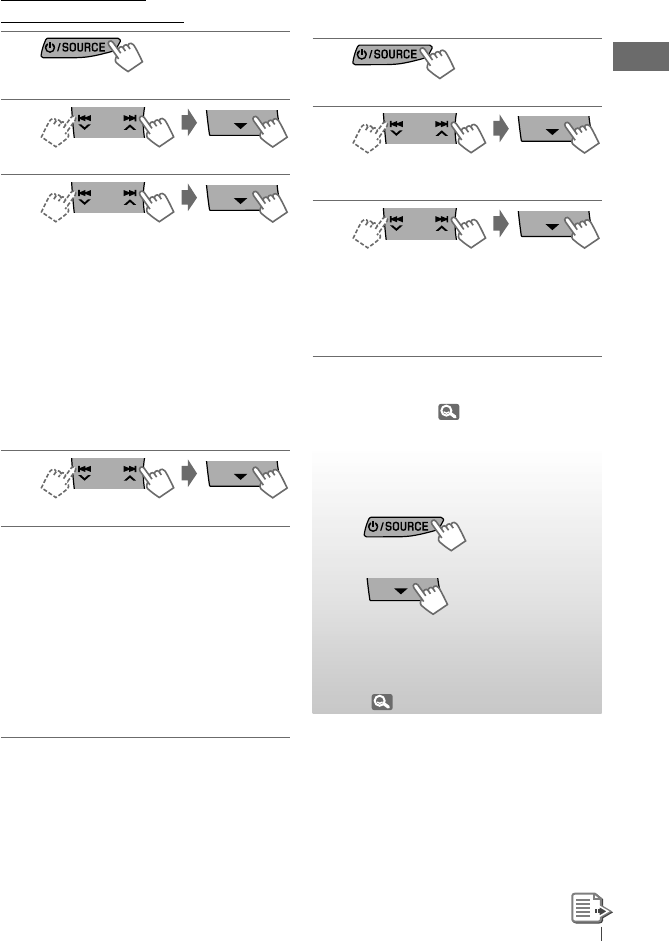
Listening to the radio
~
]
“FM” or “AM”
Ÿ
“ST” lights up when receiving an FM stereo broadcast with sufficient signal strength.
[Hold]
[Hold]
[Hold]
EN02-09_KD-A315_R310[J]f.indd 7EN02-09_KD-A315_R310[J]f.indd 7 9/29/09 5:30:54 PM9/29/09 5:30:54 PM
8ENGLISH
Manual presetting (FM/AM)
You can preset up to 18 stations for FM and 6
stations for AM.
Ex.: Storing FM station of 92.50 MHz into preset
number “04.”
1
]
“92.50MHz”
2[Hold]
“PRESET MODE” flashes.
3
]
Selects preset number “04.”
“P04” flashes and “MEMORY” appears.
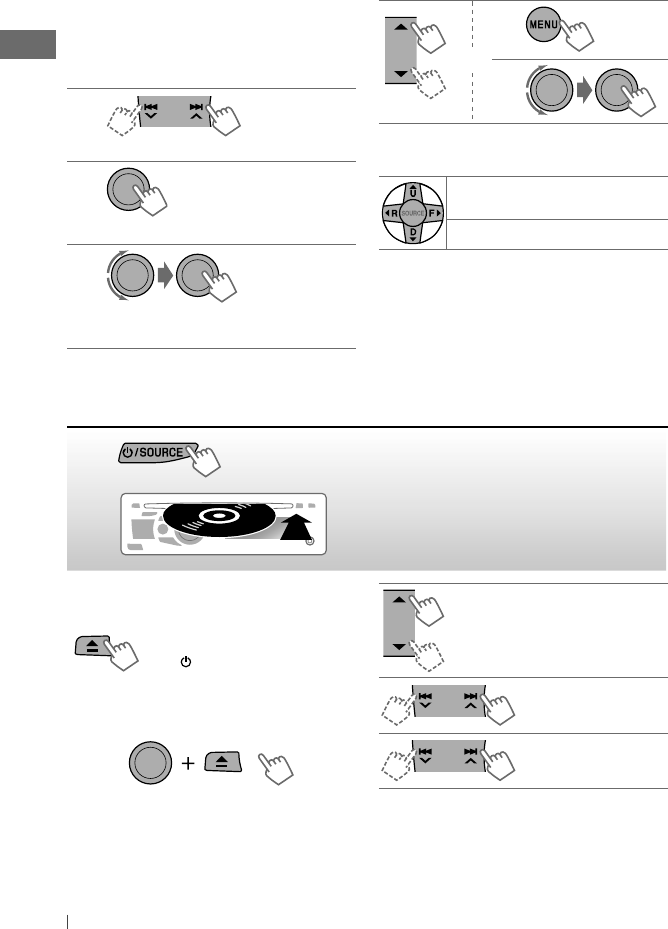
Selecting a preset station
or
1
2
Using the remote controller
5
U
/
D
∞
: Changes the preset
stations
2
R
/
F
3
: Searches for stations
Stopping playback and ejecting
the disc
“NO DISC” appears.
Press /
SOURCE
to listen to
another playback source.
Prohibiting disc ejection
To cancel the prohibition, repeat the same
procedure.
Selects folder of the MP3/WMA
Selects track
Fast-forwards or
reverses the track
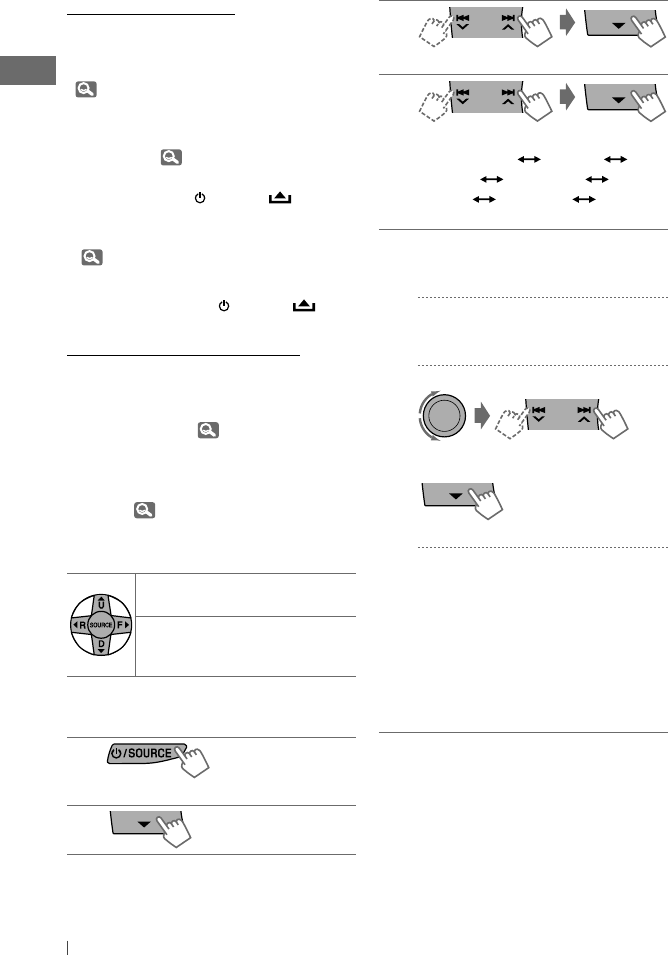
Listening to a disc
~
Ÿ All tracks will be played repeatedly until you
change the source or eject the disc.
[Hold] [Hold]
EN02-09_KD-A315_R310[J]f.indd 8EN02-09_KD-A315_R310[J]f.indd 8 9/25/09 5:39:48 PM9/25/09 5:39:48 PM
9ENGLISH
Selecting a track/folder
1
2
For MP3/WMA discs, select the desired folder,
then the desired track by repeating step 2.
• To return to the previous menu, press
BACK
.
Changing the display information
Disc title/Album name/performer (folder
name)*
=
Track title (file name)*
=
Current
track number with the elapsed playing time
=
Current track number with the clock
time
=
(back to the beginning)
* If the current disc is an audio CD, “NO NAME”
appears.
If an MP3/WMA file does not have Tag
information or <TAG DISPLAY> is set to
<TAG OFF> ( 21), folder name and file name
appear.
Caution on volume setting:
Discs produce very little noise compared
with other sources. Lower the volume before
playing a disc to avoid damaging the speakers
by the sudden increase of the output level.
Selecting the playback modes
You can use only one of the following playback
modes at a time.
1
2
]
“REPEAT”
j
“RANDOM”
3
REPEAT
TRACK RPT : Repeats current track
FOLDER RPT : Repeats current folder
RANDOM
FOLDER RND : Randomly plays all tracks
of current folder, then
tracks of next folders
ALL RND : Randomly plays all tracks
To cancel repeat play or random play, select
“RPT OFF” or “RND OFF.”
Using the remote controller
5
U
/
D
∞
: Selects folder of the
MP3/WMA
2
R
/
F
3
: Selects track
2
R
/
F
3
[Hold]
: Fast-forwards or
reverses the track
[Hold]
EN02-09_KD-A315_R310[J]f.indd 9EN02-09_KD-A315_R310[J]f.indd 9 9/25/09 5:39:49 PM9/25/09 5:39:49 PM
10 ENGLISH
Using Bluetooth ® devices
For Bluetooth operations, it is required to
connect the Bluetooth adapter, KS-BTA200 (not
supplied) to the expansion port on the rear of
this unit.
• Refer to pages i and ii at the end of the
manual to check the countries where you
may use the Bluetooth ® function.
• For details, refer also to the instructions
supplied with the Bluetooth adapter and the
Bluetooth device.
To use a Bluetooth device through the unit
(“BT-PHONE” and “BT-AUDIO”) for the first time,
you need to establish a Bluetooth wireless
connection between the unit and the device.
• Once the connection is established, it is
registered on the unit even if you reset your
unit. Up to five devices can be registered in
total.
• Only one device can be connected at a time
for each source (“BT-PHONE” and “BT-AUDIO”).
Registration (Pairing) methods
Use either of the following items (“OPEN” or
“SEARCH” ) in the Bluetooth menu to register
and make the unit ready to establish a new
Bluetooth connection with a device.
“OPEN” : Connection is established by
operating the Bluetooth device.
“SEARCH” : Connection is established by
operating the unit.
Registering using “OPEN”
Preparation: Operate the device to turn on its
Bluetooth function.
1
]
“BT-PHONE” or “BT-AUDIO”
2
]
“NEW DEVICE”
]
“OPEN”
3
]
Enter a PIN (Personal Identification
Number) code in to the unit.
You can enter any number you like
(1-digit to 16-digit number).
[Initial: 0000]
• Some devices have their own PIN
code. Enter the specified PIN code in
to the unit.
4Repeat step 3 until you have finished
entering the PIN code.
5
“OPEN..” flashes.
6Use the Bluetooth device to search and
connect.
On the device to be connected, enter
the same PIN code you have just
entered for this unit. “CONNECTED”
appears.
Now connection is established and you
can use the device through the unit.
The device remains registered even after you
disconnect the device. Use “CONNECT“ (or
activate “AUTO CNNCT”) to connect the same
device from next time on. ( 11, 14)
EN10-19_KD-A315_R310[J]5.indd 10EN10-19_KD-A315_R310[J]5.indd 10 9/17/09 9:23:47 AM9/17/09 9:23:47 AM
11ENGLISH
Registering a device
(“SEARCH”/“SPECIAL”)
1
]
“BT-PHONE” or “BT-AUDIO”
2
]
“NEW DEVICE”
3
]
“SEARCH” : To search for available
devices
The unit searches and displays the list
of the available devices. “UNFOUND”
appears if no available device is
detected.
– – – – – or – – – – –
]
“SPECIAL” : To connect a special
device
The unit displays the list of the preset
devices.
4
]
Select a device you want to connect.
5For available devices...
]
Enter the specific PIN code of the
device to the unit.
• Refer to the instructions supplied with
the device to check the PIN code.
Use the Bluetooth device to connect.
Now connection is established and you
can use the device through the unit.
For special device...
Use “OPEN” or “SEARCH” to connect.
Connecting/disconnecting/
deleting a registered device
1
]
“BT-PHONE” or “BT-AUDIO”
2
]
Select a device you want to
connect/disconnect/delete.
3
]
“CONNECT” or “DISCONNECT” : To
connect/disconnect the selected device
– – – – – or – – – – –
]
“DELETE”
]
“YES” : To delete the
selected device
You can set the unit to connect the Bluetooth
device automatically when the unit is turned
on. ( “AUTO CNNCT,” 14)
Using a Bluetooth
mobile phone
~
]
“BT-PHONE”
Ÿ
]
Bluetooth menu
! Make a call or setting using
the Bluetooth setting menu.
( 13)
EN10-19_KD-A315_R310[J]f.indd 11EN10-19_KD-A315_R310[J]f.indd 11 9/30/09 3:22:45 PM9/30/09 3:22:45 PM
12 ENGLISH
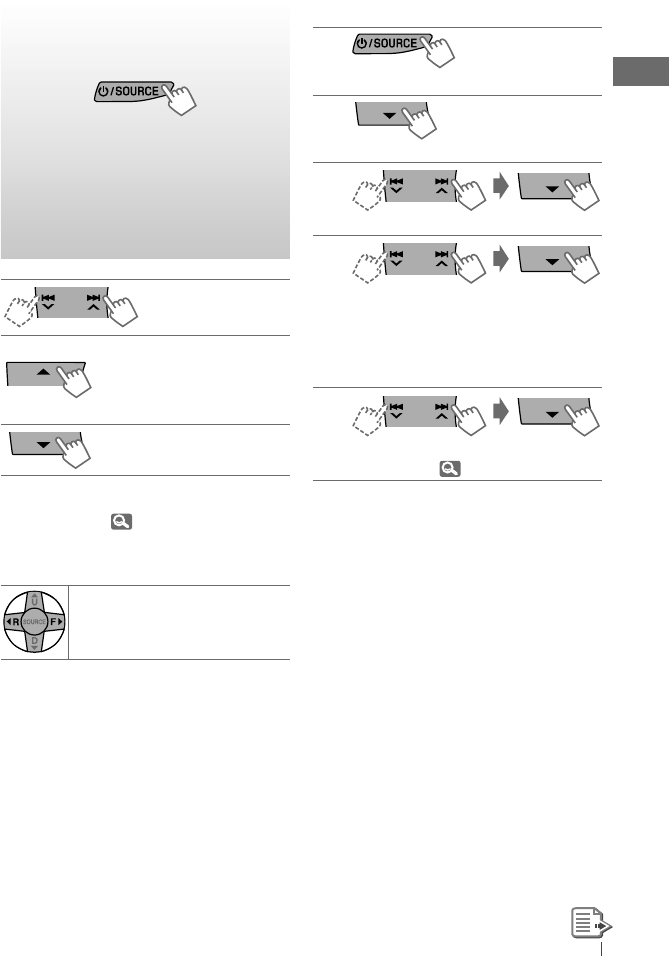
3
]
Select “DIAL” menu.
4
]
Select a calling method.
PHONE BOOK* MISSED*
NUMBER VOICE DIAL
REDIAL* RECEIVED* (back to
the beginning)
5For REDIAL, RECEIVED, MISSED
]
Repeat step 4 to select a name (if it is
acquired) or a phone number.
For PHONE BOOK
]
Repeat step 4 to select a name or a
phone number.
For NUMBER
]
Enter a phone number.
]
Confirm.
For VOICE DIAL
]
Speak the name you want to call
when “SAY NAME” appears.
• If your mobile phone does not support
the voice recognition system, “ERROR”
appears.
• Using voice tags may be difficult in
a noisy environment or during an
emergency.
• To return to the previous menu, press
5
.
* Displays only when your mobile phone is
equipped with these functions and is compatible
with this unit.
When a call comes in....
The source is automatically changed to
“BT-PHONE.”
• The display will flash in blue. (<RING COLOR>,
22)
When “AUTO ANSWER” is activated....
The unit answers the incoming calls
automatically. ( 14)
• When “AUTO ANSWER” is deactivated, press
any button (except
/ SOURCE
/ /
0
) to
answer the incoming call.
• You can adjust the microphone volume level.
( 14)
To end the call
Hold any button (except
/ SOURCE
/ /
0
).
When a text message comes in....
If the mobile phone is compatible with text
message (notified through JVC Bluetooth
adapter) and “MSG INFO” (message info) is
set to “AUTOMATIC” ( 14), the unit rings to
inform you of the message arrival.
• “RCV MESSAGE” (receiving message) appears
and the display illuminate in blue. (<RING
COLOR>, 22)
Using the remote controller
5
U
/
D
∞
/
2
R
/
F
3
/
SOURCE
: Answers calls
5
U
/
D
∞
/
2
R
/
F
3
/
SOURCE
[Hold]
: Rejects calls
Making a call
1
]
“BT-PHONE”
2
EN10-19_KD-A315_R310[J]f.indd 12EN10-19_KD-A315_R310[J]f.indd 12 9/30/09 3:22:45 PM9/30/09 3:22:45 PM
13ENGLISH
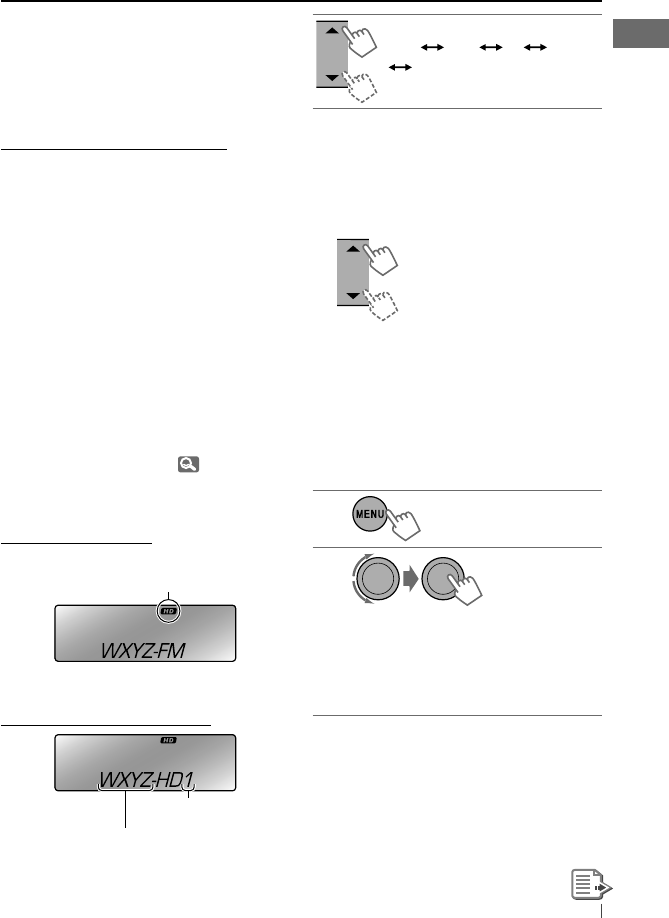
Using a Bluetooth audio
player
]
“BT-AUDIO”
If playback does not start, operate the
Bluetooth audio player to start playback.
Operate the Bluetooth audio player to
pause (if playback does not pause when you
change the source).
Reverse skips/forward
skips
Pauses/starts playback*
* Operation may be different
according to the connected
Bluetooth audio player.
Enter setting menu (Device
list)
For connecting/disconnecting/deleting a
registered device, 11.
Using the remote controller
2
R
/
F
3
: Reverse skips/forward
skips
Changing the Bluetooth settings
1
]
“BT-PHONE” or “BT-AUDIO”
2
]
Bluetooth menu
3
]
“SETTINGS”
4
]
Select a setting item.
AUTO CNNCT
Ô
AUTO ANSWER * 1
Ô
MSG INFO * 2
Ô
MIC SETTING * 1
Ô
VERSION * 3
Ô
(back to the
beginning)
5
]
Change the setting accordingly. For
setting menu, 14.
*1 Appears only when a Bluetooth phone is
connected.
*2 Appears only when a Bluetooth phone is
connected and it is compatible with text
message (notified through JVC Bluetooth
adapter).
*3 Bluetooth Audio: Shows only “Version.”
EN10-19_KD-A315_R310[J]4.indd 13EN10-19_KD-A315_R310[J]4.indd 13 9/15/09 3:39:02 PM9/15/09 3:39:02 PM

14 ENGLISH
Warning messages
ERROR CNNCT (Error Connection)
The device is registered but the connection
has failed. Use “CONNECT” to connect the
device again. ( 11)
ERROR
Try the operation again. If “ERROR” appears
again, check if the device supports the
function you have tried.
UNFOUND
No available Bluetooth device is detected
by “SEARCH.”
LOADING *
The unit is updating the phone book.
PLEASE WAIT
The unit is preparing to use the Bluetooth
function. If the message does not disappear,
turn off and turn on the unit, then connect
the device again (or reset the unit).
RESET 8
Check the connection between the adapter
and this unit.
* Displays only when your mobile phone
is equipped with these functions and is
compatible with this unit.
Bluetooth Information:
If you wish to receive more information
about Bluetooth, visit the following JVC web
site: <http://www.jvc.co.jp/english/car/>
(English website only)
Setting menu ( : Initial)
AUTO CNNCT (connect)
When the unit is turned on, the connection is
established automatically with...
OFF: No Bluetooth device.
LAST: The last connected Bluetooth device.
ORDER: The available registered Bluetooth
device found at first.
AUTO ANSWER
Only for the device being connected for
“BT PHONE.”
ON: The unit answers the incoming calls
automatically.
OFF: The unit does not answer the calls
automatically. Answer the calls
manually.
REJECT: The unit rejects all incoming calls.
MSG INFO (message info)
Only for the device being connected for
“BT-PHONE.”
AUTOMATIC: The unit informs you of the
arrival of a message by ringing
and displaying “RCV MESSAGE”
(receiving message).
• The display illuminate in blue.
(<RING COLOR>, 22)
MANUAL: The unit does not inform you of
the arrival of a message.
MIC SETTING (microphone setting)
Only for the device being connected for
“BT-PHONE.” Adjust microphone volume
connected to the Bluetooth adapter,
[LEVEL 01/02/03].
VERSION
The Bluetooth software and hardware versions
are shown.
EN10-19_KD-A315_R310[J]4.indd 14EN10-19_KD-A315_R310[J]4.indd 14 9/15/09 3:39:03 PM9/15/09 3:39:03 PM
15ENGLISH
Listening to the HD Radio ™ Broadcast
Before operating, connect HD Radio tuner box,
KT-HD300 (not supplied) to the expansion port
on the rear of the unit.
• For details, refer also to the instructions
supplied with the HD Radio tuner box.
What is HD Radio Technology?
HD Radio Technology can deliver high-quality
digital sound—AM digital will have FM-like
quality (in stereo) and FM digital will have
CD-like quality—with static-free and clear
reception. Furthermore, stations can offer text
and data, such as artist names and song titles.
• When the HD Radio tuner box is connected,
it can also receive conventional analog
broadcasts.
• Many HD Radio stations also offer more than
one channel of programming. This service is
called multicasting.
• To find HD Radio stations in your area, visit
<http://www.hdradio.com/>.
For basic radio operations, 7, 8.
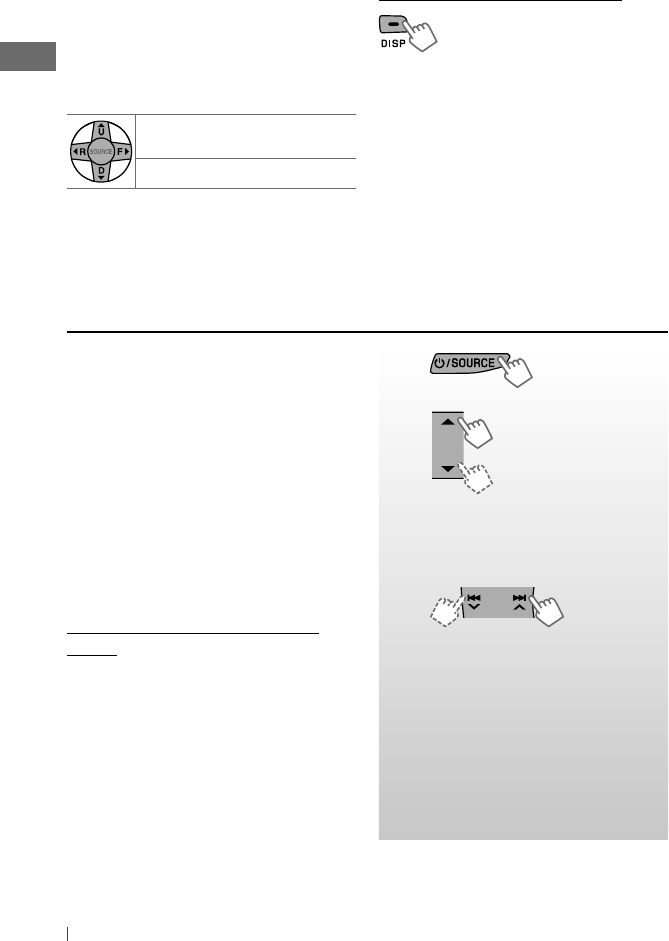
When receiving...
An HD Radio station
Station Call Sign appears.
HD Radio multicast channels
Select your desired channel.
HD1 HD2 .... HD8
(back to the beginning)
“LINKING” appears while linking to a multicast
channel.
Searching for HD Radio stations
only
“HD” flashes.
Changing HD Radio reception
mode
While receiving an HD Radio broadcast, the unit
receives digital or analog audio automatically
due to the receiving condition.
While listening to an HD Radio station...
1
2
]
<TUNER>
]
<BLEND HOLD>
]
<AUTO> / <DIGITAL> / <ANALOG>
“HD” lights up when holding the digital
reception or flashes when holding the
analog reception.
• If no sound can be heard with <AUTO>,
change the setting to <ANALOG> or
<DIGITAL>.
• The setting automatically changes to <AUTO>
if you tune in to or change to another station,
or if you turn off the power.
Lights up when digital audio is broadcast
Flashes when analog audio is broadcast
Channel number
First four letters of Call Sign
[Hold]
[Hold]
EN10-19_KD-A315_R310[J]4.indd 15EN10-19_KD-A315_R310[J]4.indd 15 9/15/09 3:39:03 PM9/15/09 3:39:03 PM
16 ENGLISH
Listening to the satellite radio
Before operating, connect either one of
the following systems (not supplied) to the
expansion port on the rear of this unit.
For listening to a SIRIUS Satellite radio:
• SC-C1 and KS-SRA100
• PnP, SC-VDOC1 and KS-SRA100
For listening to an XM Satellite radio:
• JVC Smart Digital Adapter (XMDJVC100)
• CNP2000UC and CNPJVC1
• For details, refer also to the instructions
supplied with the other components.
GCI (Global Control Information)
update
• If channels are updated after subscription,
updating starts automatically. “UPDATING”
flashes and no sound can be heard.
• Update takes a few minutes to complete.
• During update, you cannot operate your
satellite radio.
Changing the display information
Call Sign * 1
=
Frequency
=
Title/artist/album name of the
current segment * 2
=
Clock
=
(back to the beginning)
*1 “ **** -FM” or “ **** ” appears when no Call Sign
is received.
*2 “NO TEXT” appears when no text is received.
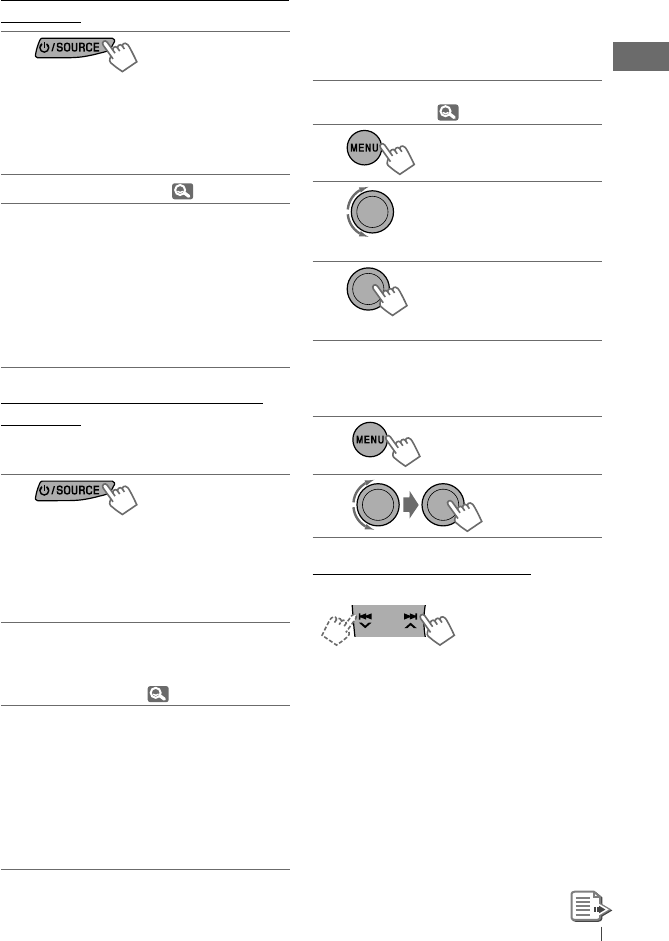
~
]
“SIRIUS” or “XM”
Ÿ
]
Select a category.
SIRIUS: If you select “ALL,” you can
tune in to all the channels of all
categories.
!
]
Select a channel to listen.
Holding the button changes the
channels rapidly.
While searching, invalid and
unsubscribed channels are skipped.
XM: If you do not select a channel
within 15 seconds, category selected
in step
Ÿ
is canceled. You can select
all channels of all categories now
(including non-categorised channels).
• This setting cannot take effect for the
conventional FM/AM stations.
• If the radio station forces the reception mode
to digital, the HOLD indicator flashes.
Using the remote controller
5
U
/
D
∞
: Changes the preset
stations
2
R
/
F
3
: Searches for stations
EN10-19_KD-A315_R310[J]4.indd 16EN10-19_KD-A315_R310[J]4.indd 16 9/15/09 3:39:03 PM9/15/09 3:39:03 PM
17ENGLISH
Activate your SIRIUS subscription after
connection
1
]
“SIRIUS”
SIRIUS Satellite radio starts updating all
the SIRIUS channels. Once completed,
SIRIUS Satellite radio tunes in to the
preset channel, CH184.
2Check your SIRIUS ID. ( 21)
3Contact SIRIUS on the internet at
<http://activate.siriusradio.com/> to
activate your subscription, or you can
call SIRIUS toll-free at 1-888-539-SIRIUS
(7474).
• “SUB UPDT PRESS ANY KEY” scrolls on
the display once subscription has been
completed.
Activate your XM subscription after
connection
• Only Channel 0, 1, and 247 are available
before activation.
1
]
“XM”
XMDirect ™ Tuner Box or XMDirect2
Tuner System starts updating all the
XM channels. “Channel 1” is tuned in
automatically.
2Check your XM Satellite radio ID labelled
on the casing of the XMDirect™ Tuner
Box or XMDirect2 Tuner System, or tune
in to “Channel 0”. ( right column)
3Contact XM Satellite radio on
the internet at <http://xmradio.
com/activation/> to activate your
subscription, or you can call 1-800-XM-
RADIO (1-800-967-2346).
• Once completed, the unit tunes in to
one of the available channels (Channel
4 or higher).
Storing channels in memory
You can preset up to 18 channels for both
SIRIUS and XM.
Ex.: Storing channel into preset number “04.”
1Tune in to a channel you want to store.
(Steps
~
–
!
, 16.)
2
3
]
Select preset number “04.”
4
“P04” flashes.
Selecting SIRIUS/XM preset
station
1
2
Checking the satellite radio ID
While selecting “SIRIUS” or “XM”...
]
Select “Channel 0.”
SIRIUS: SIRIUS identification number is
displayed after “Channel 0” is selected.
XM: The display alternately shows “RADIO ID”
and the 8-digit (alphanumeric) ID number.
To cancel the ID number display, select any
channel other than “Channel 0.”
[Hold]
EN10-19_KD-A315_R310[J]4.indd 17EN10-19_KD-A315_R310[J]4.indd 17 9/15/09 3:39:03 PM9/15/09 3:39:03 PM
18 ENGLISH
Listening to the other external
components
You can connect an external component to:
• EXT INPUT: Expansion port on the rear of
this unit using the following adapters (not
supplied):
– KS-U57, Line Input Adapter
– KS-U58, AUX Input Adapter
Preparation: Make sure <EXT ON> is selected
for the <SRC SELECT>
=
<EXT IN> setting.
( 24)
• AUX IN: AUX (auxiliary) input jack on the
control panel.
Preparation: Make sure <AUX ON> is
selected for the <SRC SELECT>
=
<AUX IN>
setting. ( 24)
• For details, refer also to the instructions
supplied with the adapter or external
components.
~
]
“EXT INPUT” or “AUX IN”
Ÿ Turn on the connected component
and start playing the source.
!
]
Adjust the volume.
⁄ Adjust the sound as you
want. ( 19)
Changing the display information
Category name
=
Channel name
=
Artist name
=
Composer
name *
=
Song/program name/
title
=
Clock
=
(back to the
beginning)
* Only for SIRIUS Satellite radio.
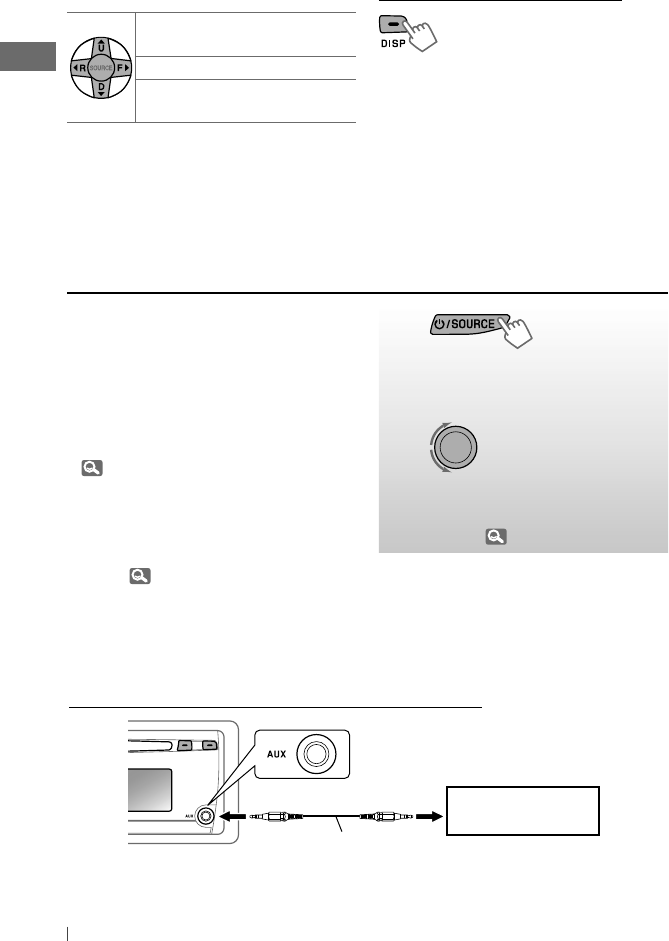
Connecting an external component to the AUX input jack
3.5 mm (3/16”) stereo mini
plug (not supplied)
Portable audio player,
etc.
Using the remote controller
5
U
/
D
∞
: Changes the
categories
2
R
/
F
3
: Changes the channels
2
R
/
F
3
[Hold]
: Changes the channels
rapidly
EN10-19_KD-A315_R310[J]f.indd 18EN10-19_KD-A315_R310[J]f.indd 18 9/25/09 5:41:05 PM9/25/09 5:41:05 PM
19ENGLISH
Selecting a preset sound mode
You can select a preset sound mode suitable
for the music genre.
FLAT
=
NATURAL
=
DYNAMIC
=
VOCAL
BOOST
=
BASS BOOST
=
USER
=
(back to
the beginning)
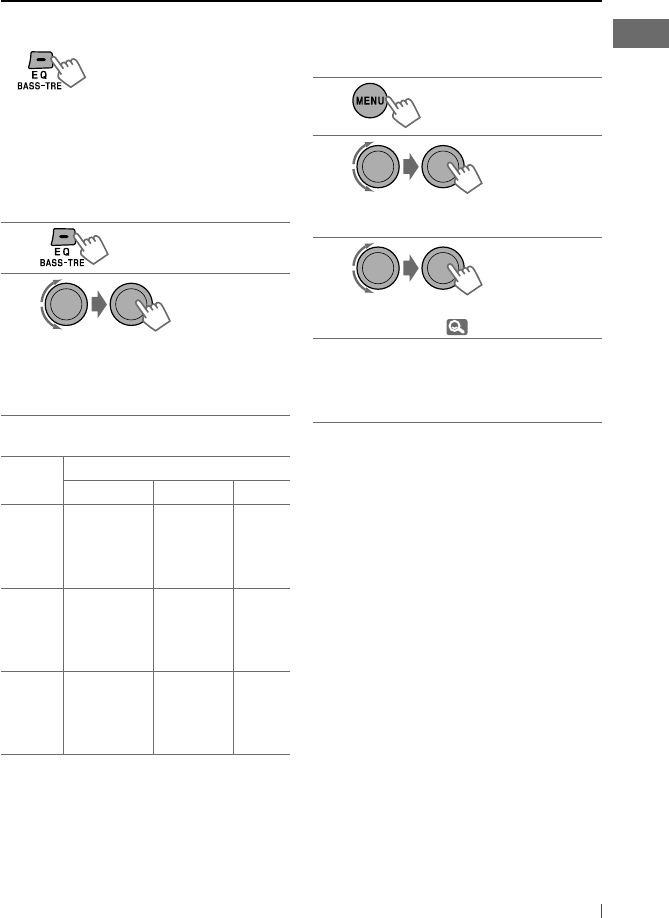
While listening, you can adjust the tone level of
the selected sound mode.
1
2
Adjust the level (–06 to +06) of the
selected tone (BASS / MIDDLE / TREBLE).
The sound mode is automatically stored
and changed to “USER.”
Tone Sound element
Frequency Level Q
BASS 60 Hz
80 Hz
100 Hz
200 Hz
–06 to +06 Q1.0
Q1.25
Q1.5
Q2.0
MIDDLE 0.5 kHz
1.0 kHz
1.5 kHz
2.5 kHz
–06 to +06 Q0.75
Q1.0
Q1.25
TREBLE 10.0 kHz
12.5 kHz
15.0 kHz
17.5 kHz
–06 to +06 Q FIX
Storing your own sound mode
You can store your own adjustments in
memory.
1
2
]
<PRO EQ>
]
<BASS> / <MIDDLE> /
<TREBLE>
3
Adjust the sound elements of the
selected tone. ( table on the left)
4Repeat steps 2 and 3 to adjust other
tones.
The adjustments made will be stored
automatically in “USER.”
The current sound mode changes to “USER”
automatically.
[Hold]
[Hold]
EN10-19_KD-A315_R310[J]4.indd 19EN10-19_KD-A315_R310[J]4.indd 19 9/15/09 3:39:04 PM9/15/09 3:39:04 PM
20 ENGLISH
Menu operations
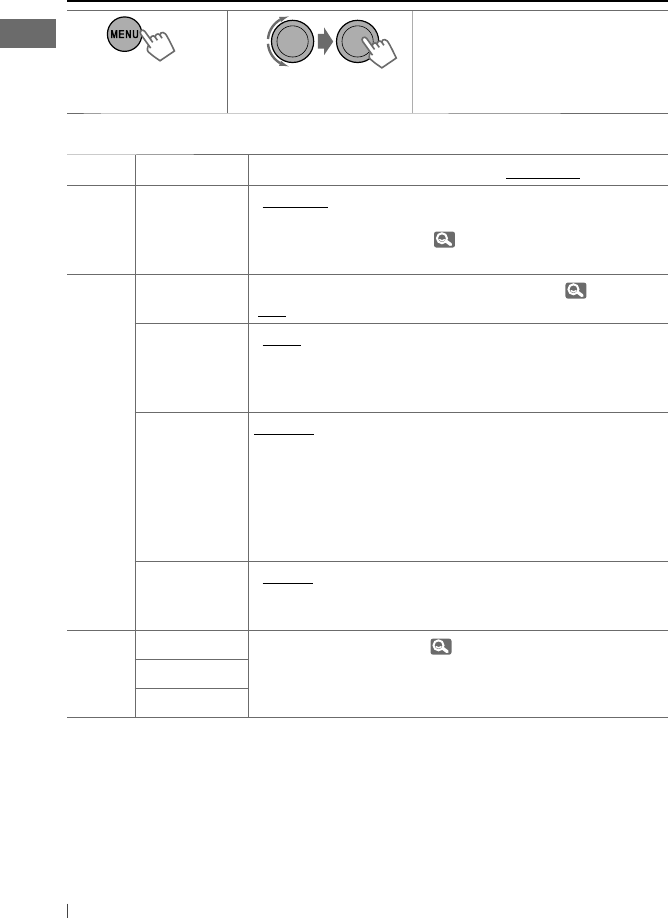
1 2 3 Repeat step 2 if necessary.
• To return to the previous menu,
press
BACK
.
• To exit from the menu, press
DISP
or
MENU
.
Category
Menu item Selectable setting, [Initial: Underlined]
DEMO
DEMO
Display
demonstration
• DEMO ON
• DEMO OFF
: Display demonstration will be activated
automatically if no operation is done for about
20 seconds. ( 4)
: Cancels.
CLOCK
CLOCK SET
Clock setting
—
[1:00]
: Adjust the hour, then the minute. ( 4)
CLOCK ADJ * 1
Clock
adjustment
• AUTO
• OFF
: The built-in clock is automatically adjusted using
the clock data provided via the satellite radio
channel.
: Cancels.
TIME ZONE * 1, *2EASTERN,
ATLANTIC,
NEWFOUND,
ALASKA,
PACIFIC,
MOUNTAIN,
CENTRAL
: Select your residential area from one of the time
zones for clock adjustment.
DST * 1, *2
Daylight savings
time
• DST ON
• DST OFF
: Activates daylight savings time if your residential
area is subject to DST.
: Cancels.
PRO EQ
BASS —: For settings, 19.
MIDDLE
TREBLE
*1 Displayed only when SIRIUS Satellite radio or XM Satellite radio is connected.
*2 Displayed only when <CLOCK ADJ> is set to <AUTO>.
[Hold]
EN20-27_KD-A315_R310[J]4.indd 20EN20-27_KD-A315_R310[J]4.indd 20 9/15/09 3:38:32 PM9/15/09 3:38:32 PM
21ENGLISH
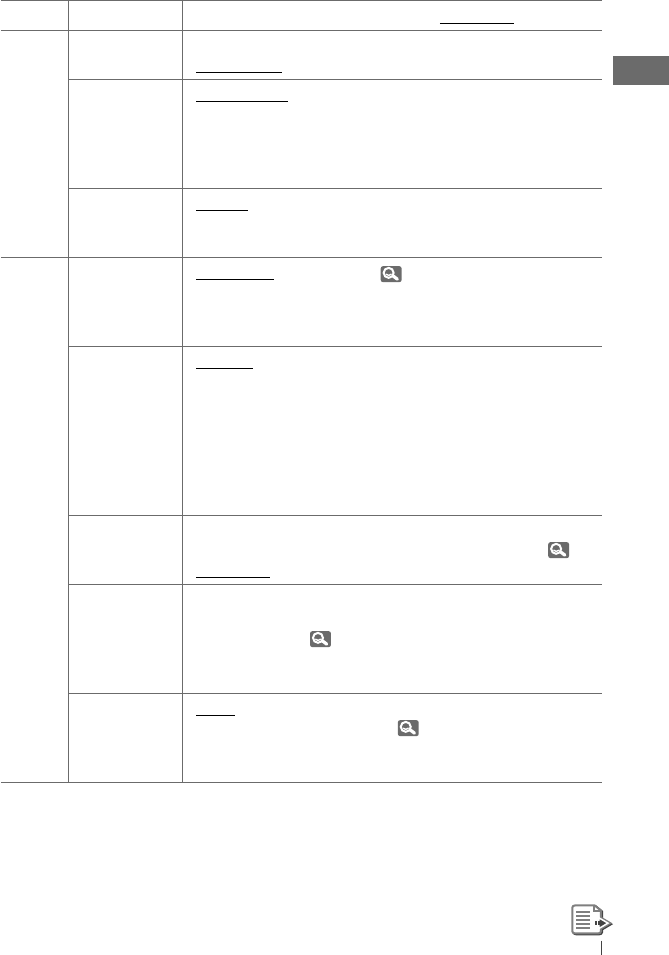
Category
Menu item Selectable setting, [Initial: Underlined]
DISPLAY
DIMMER • DIMMER ON
• DIMMER OFF
: Dims the display and button illumination.
: Cancels.
SCROLL * 3• SCROLL ONCE
• SCROLL AUTO
• SCROLL OFF
: Scrolls the displayed information once.
: Repeats scrolling (at 5-second intervals).
: Cancels.
Pressing
DISP
for more than one second can scroll the display
regardless of the setting.
TAG DISPLAY • TAG ON
• TAG OFF
: Shows the Tag information while playing MP3/
WMA tracks.
: Cancels.
TUNER
SSM
Strong-station
Sequential
Memory
• SSM 01 – 06 * 4
• SSM 07 – 12
• SSM 13 – 18
: For settings, 7.
AREA
Tuner channel
interval
• AREA US
• AREA EU
• AREA SA
: When using in North/Central/South America.
AM/FM intervals are set to 10 kHz/200 kHz.
: When using in any other areas. AM/FM intervals
are set to 9 kHz/50 kHz (100 kHz during auto
search).
: When using in South American countries where
FM interval is 100 kHz. AM interval is set to
10 kHz.
MONO * 5
Monaural mode
• MONO ON
• MONO OFF
: Activate monaural mode to improve FM
reception, but stereo effect will be lost. ( 7)
: Restore the stereo effect.
SID *6
SIRIUS ID
— : Your SIRIUS identification number scrolls on the
display 5 seconds after “SID” is selected.
( 17)
If no operation is done for about 60 seconds,
the unit returns to playback mode.
BLEND HOLD * 7
HD Radio
reception mode
• AUTO
• DIGITAL
• ANALOG
: Switch between digital and analog audio
automatically. ( 15)
: Tune in to digital audio only.
: Tune in to analog audio only.
*3 Some characters or symbols will not be shown correctly (or will be blanked) on the display.
*4 If an HD Radio tuner box is connected, you can also search and store the AM stations to
<SSM 01 – 06>.
*5 Displayed only when the source is “FM” or “HD Radio.”
*6 Displayed only when SIRIUS Satellite radio is connected.
*7 Displayed only when HD Radio tuner box is connected.
EN20-27_KD-A315_R310[J]4.indd 21EN20-27_KD-A315_R310[J]4.indd 21 9/15/09 3:38:32 PM9/15/09 3:38:32 PM
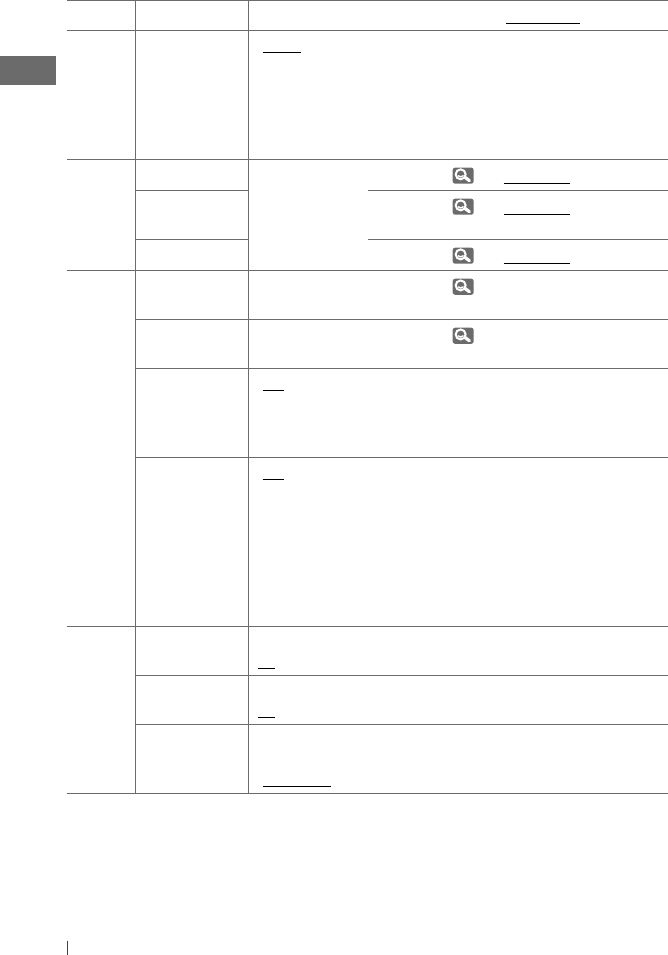
22 ENGLISH
Category
Menu item Selectable setting, [Initial: Underlined]
TUNER
IF BAND
Intermediate
frequency band
• AUTO
• WIDE
: Increases the tuner selectivity to reduce
interference noises between adjacent stations.
(Stereo effect may be lost.)
: Subject to interference noises from adjacent
stations, but sound quality will not be
degraded and the stereo effect will remain.
COLOR
BUTTON ZONE COLOR 01 —
COLOR 29, USER
: For settings, 24. [ COLOR 06 ]
DISP ZONE
Display zone
: For settings, 24. [ COLOR 01 ]
ALL ZONE : For settings, 24. [ COLOR 06 ]
COLOR SETUP
DAY COLOR • BUTTON ZONE
• DISP ZONE
: For settings, 24, 25.
NIGHT COLOR • BUTTON ZONE
• DISP ZONE
: For settings, 24, 25.
MENU COLOR • ON
• OFF
: Changes the display and buttons (except for
0
/
EQ BASS-TRE
/
DISP
) illumination during menu,
list search and playback mode operations.
: Cancels.
RING COLOR *8• ON
• OFF
: When a call comes in, the display will flash in
blue.
• The display will change to the original color
when the call is answered or the incoming
call stops.
When the unit receives a text message, the
display only illuminate in blue.
: Cancels.
AUDIO
FADER * 9R06 – F06
[00]
: Adjust the front and rear speaker output
balance.
BALANCE * 10 L06 – R06
[00]
: Adjust the left and right speaker output
balance.
LOUD
Loudness
• LOUD ON
• LOUD OFF
: Boost low and high frequencies to produce a
well-balanced sound at a low volume level.
: Cancels.
*8 Displayed only when Bluetooth adapter, KS-BTA200 is connected.
*9 If you are using a two-speaker system, set the fader level to “00.”
*10 This adjustment will not affect the subwoofer output.
EN20-27_KD-A315_R310[J]5.indd 22EN20-27_KD-A315_R310[J]5.indd 22 9/17/09 9:25:26 AM9/17/09 9:25:26 AM
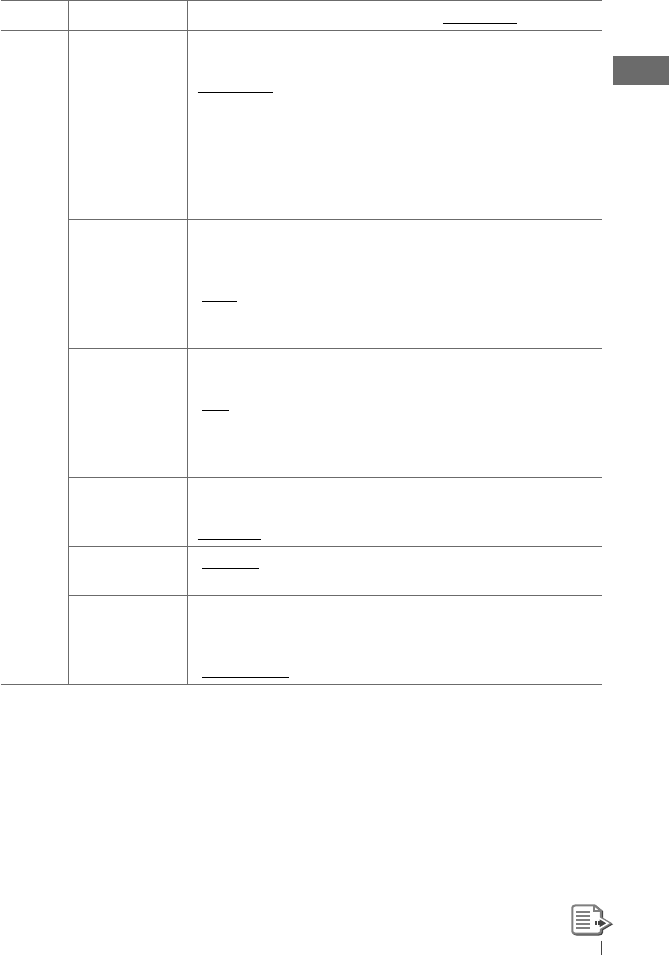
23ENGLISH
Category
Menu item Selectable setting, [Initial: Underlined]
AUDIO
VOL ADJUST
Volume adjust
VOL ADJ –05 —
VOL ADJ +05
[VOL ADJ 00]
: Preset the volume adjustment level of
each source (except FM), compared to the
FM volume level. The volume level will
automatically increase or decrease when you
change the source.
• Before making an adjustment, select the
source you want to adjust.
• “VOL ADJ FIX” appears on the display if “FM”
is selected as the source.
L/O MODE
Line output
mode
• SUB.W
• REAR
: Select if the REAR LINE OUT terminals are
used for connecting a subwoofer (through
an external amplifier).
: Select if the REAR LINE OUT terminals are
used for connecting the speakers (through
an external amplifier).
SUB.W FREQ *11
Subwoofer cutoff
frequency
• LOW
• MID
• HIGH
: Frequencies lower than 72 Hz are sent to the
subwoofer.
: Frequencies lower than 111 Hz are sent to
the subwoofer.
: Frequencies lower than 157 Hz are sent to
the subwoofer.
SUB.W LEVEL *11
Subwoofer level
SUB.W 00 —
SUB.W 08
[SUB.W 04]
: Adjust the subwoofer output level.
BEEP
Keytouch tone
• BEEP ON
• BEEP OFF
: Activates the keypress tone.
: Deactivates the keypress tone.
AMP GAIN *12
Amplifier gain
control
• LOW POWER
• HIGH POWER
: VOLUME 00 – VOLUME 30 (Select if the
maximum power of each speaker is less than
50 W to prevent damaging the speakers.)
: VOLUME 00 – VOLUME 50
*11 Displayed only when <L/O MODE> is set to <SUB.W>.
*12 The volume level automatically changes to “VOLUME 30” if you change to <LOW POWER> with the
volume level set higher than “VOLUME 30.”
EN20-27_KD-A315_R310[J]4.indd 23EN20-27_KD-A315_R310[J]4.indd 23 9/15/09 3:38:32 PM9/15/09 3:38:32 PM
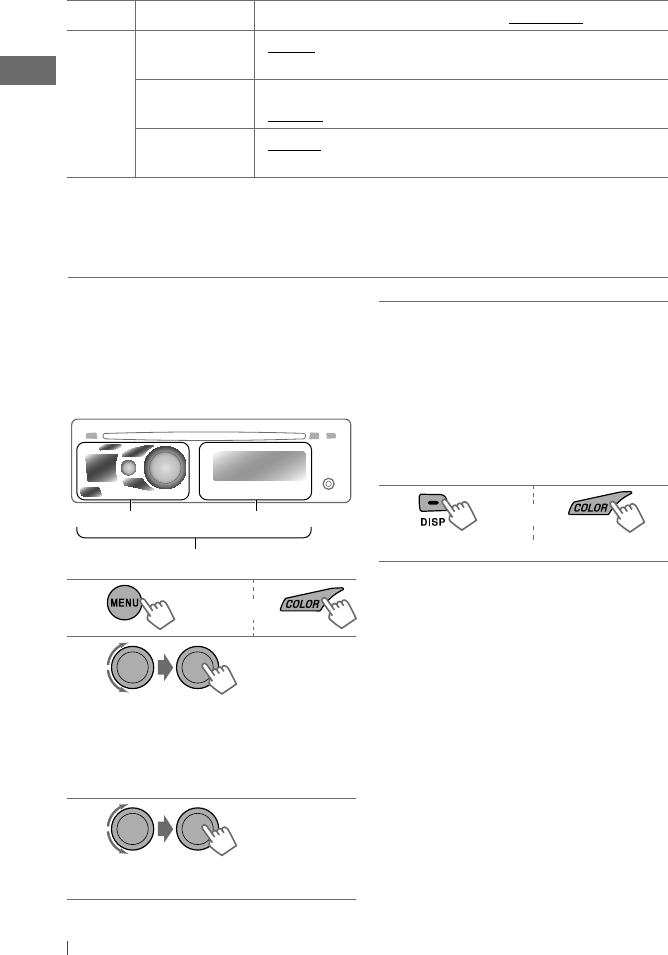
24 ENGLISH
Category
Menu item Selectable setting, [Initial: Underlined]
SRC SELECT
AM *13
AM station
• AM ON
• AM OFF
: Enable “AM” in source selection.
: Disable “AM” in source selection.
EXT IN *14
External input
• EXT ON
• EXT OFF
: Enable “EXT IN” in source selection.
: Disable “EXT IN” in source selection.
AUX IN *15
Auxiliary input
• AUX ON
• AUX OFF
: Enable “AUX IN” in source selection.
: Disable “AUX IN” in source selection.
*13 Displayed only when any source other than “AM” is selected.
*14 Displayed only when any source other than “EXT INPUT“ is selected.
*15 Displayed only when any source other than “AUX IN“ is selected.
4Repeat steps 2 and 3 to select a
different zone and your preferred color.
• If <ALL ZONE> is selected in step 2,
the buttons and display illumination
changed to the current/selected
<BUTTON ZONE> color.
You can also change the <ALL ZONE>
color to one of your preferred color by
performing step 3.
5or
]
Exit from the setting.
Creating your own day and night
colors—USER
You can create your own colors for
<DAY COLOR> and <NIGHT COLOR> to apply
to button zone and display zone.
• <DAY COLOR> Displayed when <DIMMER>
is set to <DIMMER OFF>.
• <NIGHT COLOR> Displayed when <DIMMER>
is set to <DIMMER ON>.
Selecting the variable buttons
and display color illumination
You can select your preferred color for buttons
illumination (except for
0
/
EQ BASS-TRE
/
DISP
)
and display color seperately.
1or
2
]
<COLOR>
]
<BUTTON ZONE> /
<DISP ZONE> / <ALL ZONE>
• Pressing
COLOR
in step 1 will enter
zone selection menu (BUTTON ZONE /
DISP ZONE / ALL ZONE) directly.
3
]
Select your preferred color from one
of the 29 preset colors or <USER> color.
Button zone
All zone
Display zone
[Hold]
EN20-27_KD-A315_R310[J]4.indd 24EN20-27_KD-A315_R310[J]4.indd 24 9/15/09 3:38:32 PM9/15/09 3:38:32 PM
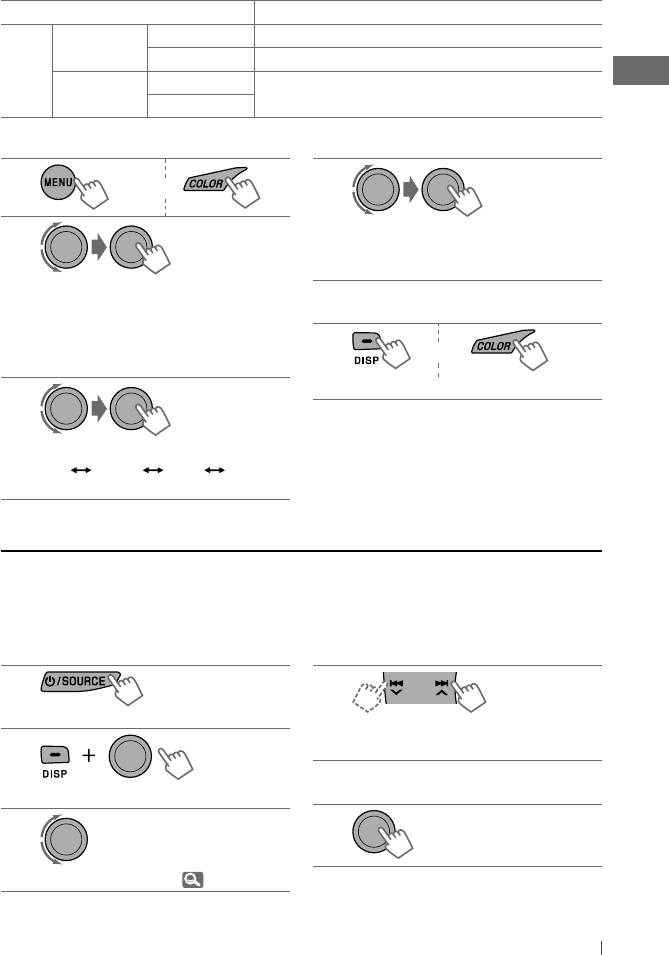
25ENGLISH
1or
2
]
<COLOR SETUP>
]
<DAY COLOR>
]
<BUTTON ZONE>
• Holding
COLOR
in step 1 will enter zone
selection menu (BUTTON ZONE / DISP
ZONE) directly.
3
]
Select a primary color.
RED GREEN BLUE (back to
the beginning)
4
]
Adjust the level of the selected
primary color.
00 to 31
5Repeat steps 3 and 4 to adjust other
primary colors.
6or
]
Exit from the setting.
1
]
“FM” or “AM”
2
]
Show the title entry screen.
3
]
Select a character. ( 28)
4
]
Move to the next (or previous)
character position.
5Repeat steps 3 and 4 until you have
finished entering the title.
6
To erase the entire title, press and hold DISP
is step 2, then press the control dial to confirm.
[Hold]
Menu hierarchy Operation
COLOR
SETUP
DAY COLOR • BUTTON ZONE Follow example below.
• DISP ZONE Press
BACK
after step 5, then select DISP ZONE in step 2.
NIGHT COLOR • BUTTON ZONE Press
BACK
after step 5, then select NIGHT COLOR in
step 2.
• DISP ZONE
Ex.: Creating <USER> color for <BUTTON ZONE> in <DAY COLOR>.
[Hold] [Hold]
Title assignment
You can assign titles to 30 station frequencies (FM and AM) using 8 characters (maximum) for each
title.
• If you try to assign titles to more than 30 station frequencies, “NAME FULL” appears. Delete
unwanted titles before assignment.
• When HD Radio tuner box is connected, this feature will be disabled.
EN20-27_KD-A315_R310[J]4.indd 25EN20-27_KD-A315_R310[J]4.indd 25 9/15/09 3:38:33 PM9/15/09 3:38:33 PM
26 ENGLISH
More about this unit
Basic operations
Turning off the power
• If you turn off the power while listening to
a track, playback will start from where it had
been stopped previously next time you turn
on the power.
General
• If you change the source while listening to a
disc, playback stops. Next time you select “CD”
as the playback source, playback will start
from where it had been stopped previously.
• After ejecting a disc, “NO DISC” appears and
you cannot operate some of the buttons.
Insert another disc or press
/ SOURCE
to
select another playback source.
• If no operation is done for about 60 seconds
after pressing
MENU
button, the operation will
be canceled.
Tuner operations
Storing stations in memory
• During SSM search...
– All previously stored stations are erased and
the stations are stored anew.
– When SSM is over, the station stored in the
lowest preset number will be automatically
tuned in.
• When storing a station manually, the
previously preset station is erased when
a new station is stored in the same preset
number.
Disc operations
Caution for DualDisc playback
• The Non-DVD side of a “DualDisc” does not
comply with the “Compact Disc Digital Audio”
standard. Therefore, the use of Non-DVD side
of a DualDisc on this product may not be
recommended.
General
• This unit has been designed to reproduce
CDs/CD Texts, and CD-Rs (Recordable)/CD-
RWs (Rewritable) in audio CD (CD-DA), MP3
and WMA formats.
• When a disc is inserted upside down, “PLEASE”
and “EJECT” appear alternately on the display.
Press
0
to eject the disc.
• MP3 and WMA “tracks” (words “file” and “track”
are used interchangeably) are recorded in
“folders.”
• While fast-forwarding or reversing on an MP3
or WMA disc, you can only hear intermittent
sounds.
Playing a CD-R or CD-RW
• Use only “finalized” CD-Rs or CD-RWs.
• This unit can only play back files of the same
type as those detected first if a disc includes
both audio CD (CD-DA) files and MP3/WMA
files.
• This unit can play back multi-session discs;
however, unclosed sessions will be skipped
while playing.
EN20-27_KD-A315_R310[J]4.indd 26EN20-27_KD-A315_R310[J]4.indd 26 9/15/09 3:38:33 PM9/15/09 3:38:33 PM
27ENGLISH
• Some CD-Rs or CD-RWs may not play back on
this unit because of their disc characteristics,
or for the following reasons:
– Discs are dirty or scratched.
– Moisture condensation has occurred on the
lens inside the unit.
– The pickup lens inside the unit is dirty.
– The files on the CD-R/CD-RW are written
using the “Packet Write” method.
– There are improper recording conditions
(missing data, etc.) or media conditions
(stained, scratched, warped, etc.).
• CD-RWs may require a longer readout time
since the reflectance of CD-RWs is lower than
that of regular CDs.
• Do not use the following CD-Rs or CD-RWs:
– Discs with stickers, labels, or a protective seal
stuck to the surface.
– Discs on which labels can be directly printed
by an ink jet printer.
Using these discs under high temperature
or high humidity may cause malfunctions or
damage to the unit.
Playing an MP3/WMA disc
• This unit can play back MP3/WMA files with
the extension code <.mp3> or <.wma>
(regardless of the letter case—upper/lower).
• This unit can show the names of albums,
artists (performer), and Tag (Version 1.0, 1.1,
2.2, 2.3, or 2.4) for MP3 files and for WMA files.
• This unit can display only one-byte characters.
No other characters can be correctly
displayed.
• This unit can play back MP3/WMA files
meeting the conditions below:
– Bit rate: 8 kbps — 320 kbps
– Sampling frequency:
48 kHz, 44.1 kHz, 32 kHz (for MPEG-1)
24 kHz, 22.05 kHz, 16 kHz (for MPEG-2)
– Disc format: ISO 9660 Level 1/Level 2,
Romeo, Joliet, Windows long file name
• The maximum number of characters for
file/folder names vary depending on the
disc format used (includes 4 extension
characters—<.mp3> or <.wma>).
– ISO 9660 Level 1: up to 12 characters
– ISO 9660 Level 2: up to 31 characters
– Romeo: up to 128 characters
– Joliet: up to 64 characters
– Windows long file name: up to 128
characters
• This unit can recognize a total of 512 files, 255
folders, and 8 hierarchical levels.
• This unit can play back files recorded in VBR
(variable bit rate).
Files recorded in VBR have a discrepancy
in the elapsed time display, and do not
show the actual elapsed time. In particular,
this difference becomes noticeable after
performing the search function.
• This unit cannot play back the following files:
– MP3 files encoded in MP3i and MP3 PRO
format.
– MP3 files encoded in an inappropriate
format.
– MP3 files encoded with Layer 1/2.
– WMA files encoded in lossless, professional,
and voice format.
– WMA files which are not based upon
Windows Media ® Audio.
– WMA files copy-protected with DRM.
– Files which have data such as AIFF, ATRAC3,
etc.
• The search function works but search speed is
not constant.
EN20-27_KD-A315_R310[J]4.indd 27EN20-27_KD-A315_R310[J]4.indd 27 9/15/09 3:38:33 PM9/15/09 3:38:33 PM
28 ENGLISH
Ejecting a disc
• If the ejected disc is not removed within
15 seconds, it is automatically inserted into
the loading slot again to protect it from dust.
Playback starts automatically.
Bluetooth operations
• While driving, do not perform complicated
operation such as dialing the numbers, using
phone book, etc. When you perform these
operations, stop your car in a safe place.
• Some Bluetooth devices may not be
connected to this unit depending on the
Bluetooth version of the device.
• This unit may not work for some Bluetooth
devices.
• Connecting condition may vary depending
on the circumstances around you.
• When the unit is turned off, the device is
disconnected.
HD Radio reception
• HD Radio broadcasting can normally
be received in the USA, and it may also
be received in countries where limited
broadcasting has already begun.
• During SSM search...
– All stations including conventional FM/AM
stations are searched and stored for the
selected band.
Satellite radio
• To know more about SIRIUS Satellite radio or
to sign up, visit <http://www.sirius.com>.
• For the latest channel listings and
programming information, or to sign up for
XM Satellite radio, visit <http://www.xmradio.
com>.
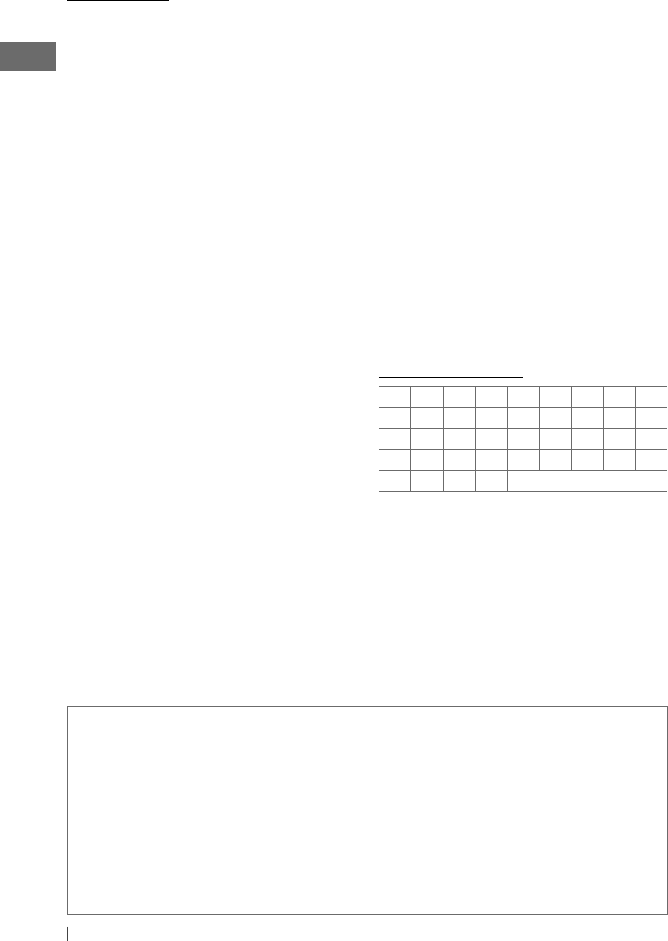
Available characters
ABCDEFGH I
JKLMNOPQR
STUVWXYZ0
123456789
—/ <> Space
• Microsoft and Windows Media are either registered trademarks or trademarks of Microsoft
Corporation in the United States and/or other countries.
• The Bluetooth word mark and logos are owned by the Bluetooth SIG, Inc. and any use of such
marks by Victor Company of Japan, Limited (JVC) is under license. Other trademarks and trade
names are those of their respective owners.
• HD Radio ™ and the HD Radio Ready logo are proprietary trademarks of iBiquity Digital Corp.
• “SIRIUS” and the SIRIUS dog logo are registered trademarks of SIRIUS Satellite Radio Inc.
• XM and its corresponding logos are registered trademarks of XM Satellite Radio Inc.
• “SAT Radio,” the SAT Radio logo and all related marks are trademarks of SIRIUS Satellite Radio
Inc., and XM Satellite Radio, Inc.
EN28-35_KD-A315_R310[J]4.indd 28EN28-35_KD-A315_R310[J]4.indd 28 9/15/09 3:39:42 PM9/15/09 3:39:42 PM
29ENGLISH
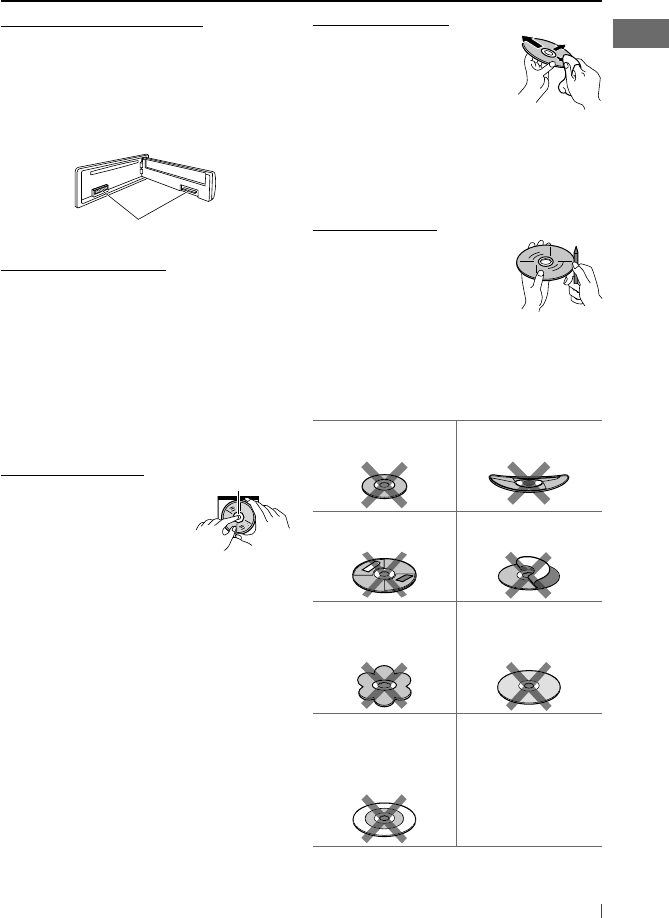
To keep discs clean
A dirty disc may not play
correctly. If a disc does become
dirty, wipe it with a soft cloth
in a straight line from center to
edge.
• Do not use any solvents (for example,
conventional record cleaner, spray, thinner,
benzine, etc.) to clean discs.
To play new discs
New discs may have some
rough spots around the inner
and outer edges. If such a disc
is used, this unit may reject the
disc.
To remove these rough spots, rub the edges
with a pencil or ball-point pen, etc.
Do not use the following discs:
Single CD—8 cm
(3-3/16”) disc Warped disc
Sticker and sticker
residue Stick-on label
Unusual shape
C-thru Disc
(semitransparent
disc)
Transparent or
semitransparent
parts on its recording
area
Maintenance
How to clean the connectors
Frequent detachment will deteriorate the
connectors.
To minimize this possibility, periodically wipe
the connectors with a cotton swab or cloth
moistened with alcohol, being careful not to
damage the connectors.
Moisture condensation
Moisture may condense on the lens inside the
unit in the following cases:
• After starting the heater in the car.
• If it becomes very humid inside the car.
Should this occur, the unit may malfunction.
In this case, eject the disc and leave the unit
turned on for a few hours until the moisture
has evaporated.
How to handle discs
When removing a disc
from its case, press down
the center holder of the case
and lift the disc out, holding
it by the edges.
• Always hold the disc by the edges. Do not
touch its recording surface.
When storing a disc in its case, gently insert
the disc around the center holder (with the
printed surface facing up).
• Make sure to store discs in cases after use.
Connectors
Center holder
EN28-35_KD-A315_R310[J]4.indd 29EN28-35_KD-A315_R310[J]4.indd 29 9/15/09 3:39:42 PM9/15/09 3:39:42 PM
30 ENGLISH
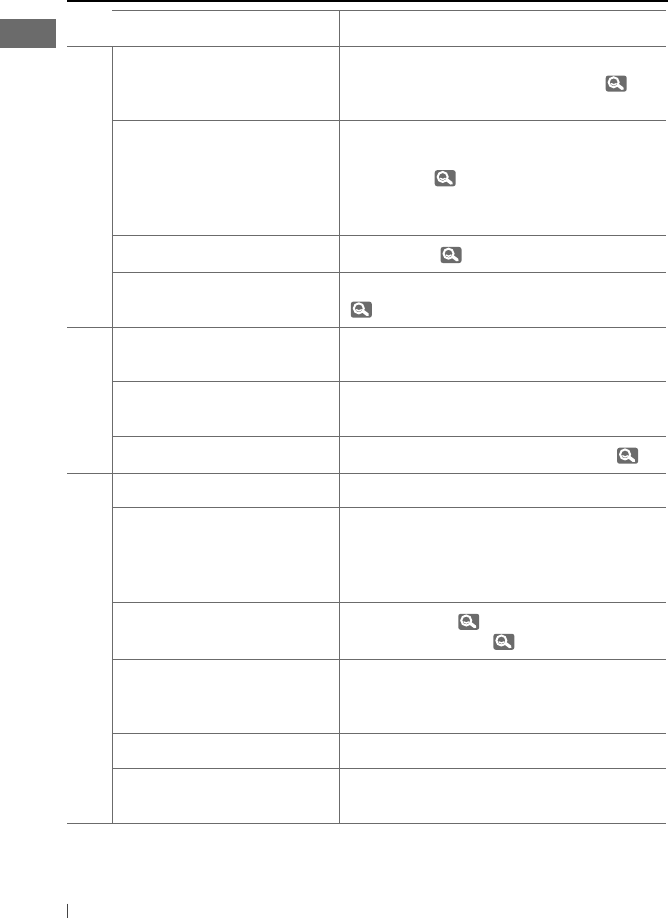
Troubleshooting
Symptom Remedy/Cause
General
Sound cannot be heard from the
speakers.
• Adjust the volume to the optimum level.
• Make sure the unit is not muted/paused ( 6).
• Check the cords and connections.
“PROTECT” appears on the display
and no operations can be done.
Check to be sure the terminals of the speaker leads
are covered with insulating tape properly, then
reset the unit ( 3).
If “PROTECT” does not disappear, consult your JVC
car audio dealer or a company supplying kits.
The unit does not work at all. Reset the unit. ( 3)
“AUX” cannot be selected. Check the <SRC SELECT>
=
<AUX IN> setting.
( 24)
FM/AM
SSM automatic presetting does
not work.
Store stations manually.
Static noise while listening to the
radio.
Connect the antenna firmly.
“AM” cannot be selected. Check the <SRC SELECT>
=
<AM> setting. ( 24)
Disc playback
Disc cannot be played back. Insert the disc correctly.
• CD-R/CD-RW cannot be played
back.
• Tracks on the CD-R/CD-RW
cannot be skipped.
• Insert a finalized CD-R/CD-RW.
• Finalize the CD-R/CD-RW with the component
which you used for recording.
Disc can neither be played back
nor ejected.
• Unlock the disc. ( 8)
• Eject the disc forcibly. ( 3)
Disc sound is sometimes
interrupted.
• Stop playback while driving on rough roads.
• Change the disc.
• Check the cords and connections.
“NO DISC” appears on the display. Insert a playable disc into the loading slot.
“PLEASE” and “EJECT“ appear
alternately on the display.
Press
0
, then insert a disc correctly.
EN28-35_KD-A315_R310[J]4.indd 30EN28-35_KD-A315_R310[J]4.indd 30 9/15/09 3:39:42 PM9/15/09 3:39:42 PM
31ENGLISH
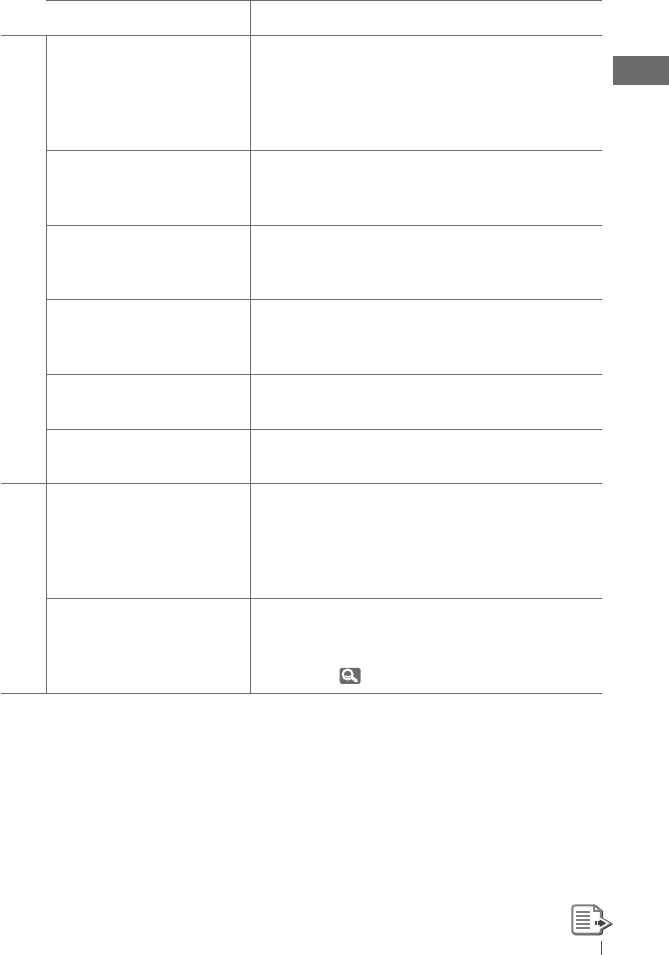
Symptom Remedy/Cause
MP3/WMA playback
Disc cannot be played back. • Use a disc with MP3/WMA tracks recorded in a format
compliant with ISO 9660 Level 1, Level 2, Romeo,
orJoliet.
• Add the extension code <.mp3> or <.wma> to the file
names.
Noise is generated. Skip to another track or change the disc. (Do not add
the extension code <.mp3> or <.wma> to non-MP3 or
WMA tracks.)
A longer readout time is
required (“READING” keeps
flashing on the display).
Do not use too many hierarchical levels and folders.
Tracks do not play back in the
order you have intended them
to play.
The playback order is determined when the files are
recorded.
The elapsed playing time is not
correct.
This sometimes occurs during playback. This is caused
by how the tracks are recorded on the disc.
The correct characters are not
displayed(e.g. album name).
This unit can only display letters (upper case), numbers,
and a limited number of symbols.
Bluetooth *
Bluetooth device does not
detect the unit.
The unit can be connected with one Bluetooth mobile
phone and one Bluetooth audio device at a time.
While connecting a device, this unit cannot be detected
from another device. Disconnect currently connected
device and search again.
The unit does not detect the
Bluetooth device.
• Check the Bluetooth setting of the device.
• Search from the Bluetooth device. After the device
detects the unit, select “OPEN” on the unit to connect
the device. ( 10)
* For Bluetooth operations, refer also to the instructions supplied with the Bluetooth Adapter.
EN28-35_KD-A315_R310[J]f.indd 31EN28-35_KD-A315_R310[J]f.indd 31 9/29/09 5:35:47 PM9/29/09 5:35:47 PM
32 ENGLISH
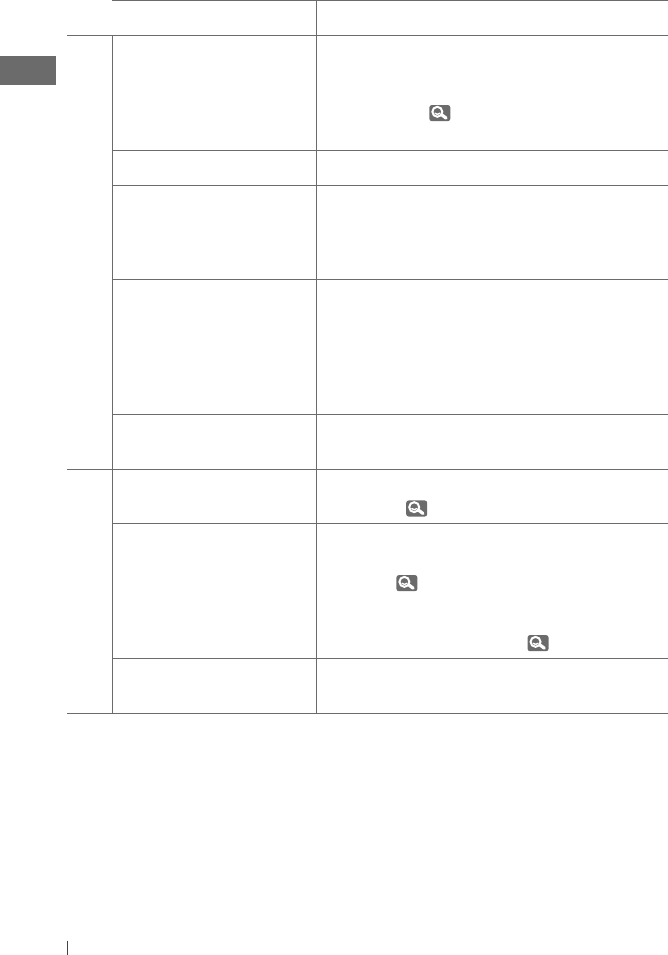
Symptom Remedy/Cause
Bluetooth
The unit does not make pairing
with the Bluetooth device.
• Enter the same PIN code for both the unit and target
device.
• Select the device name from “SPECIAL,” then try to
connect again. ( 11)
• Try to pair/connect from the Bluetooth device.
Echo or noise occurs. Adjust the microphone unit position.
Phone sound quality is poor. • Reduce the distance between the unit and the
Bluetooth mobile phone.
• Move the car to a place where you can get a better
signal reception.
The sound is interrupted or
skipped during playback of a
Bluetooth audio device.
• Reduce the distance between the unit and the
Bluetooth audio device.
• Disconnect the device connected for “BT-PHONE.”
• Turn off, then turn on the unit.
• (When the sound is not yet restored,) connect the
device again.
The connected audio device
cannot be controlled.
Check whether the connected audio device supports
AVRCP (Audio/Video Remote Control Profile).
HD Radio reception
Sound quality changes when
receiving HD Radio stations.
Fix the reception mode either to <DIGITAL> or
<ANALOG>. ( 15, 21)
No sound can be heard. • <ANALOG> is selected when receiving all digital
broadcast of HD Radio station. Select <DIGITAL> or
<AUTO>. ( 15, 21)
• <DIGITAL> is selected when receiving weak digital
signals or receiving conventional radio broadcast.
Select <ANALOG> or <AUTO>. ( 15, 21)
“RESET 8” appears on the
display.
Reconnect this unit and the HD Radio tuner box
correctly, then reset the unit.
EN28-35_KD-A315_R310[J]4.indd 32EN28-35_KD-A315_R310[J]4.indd 32 9/15/09 3:39:43 PM9/15/09 3:39:43 PM
33ENGLISH
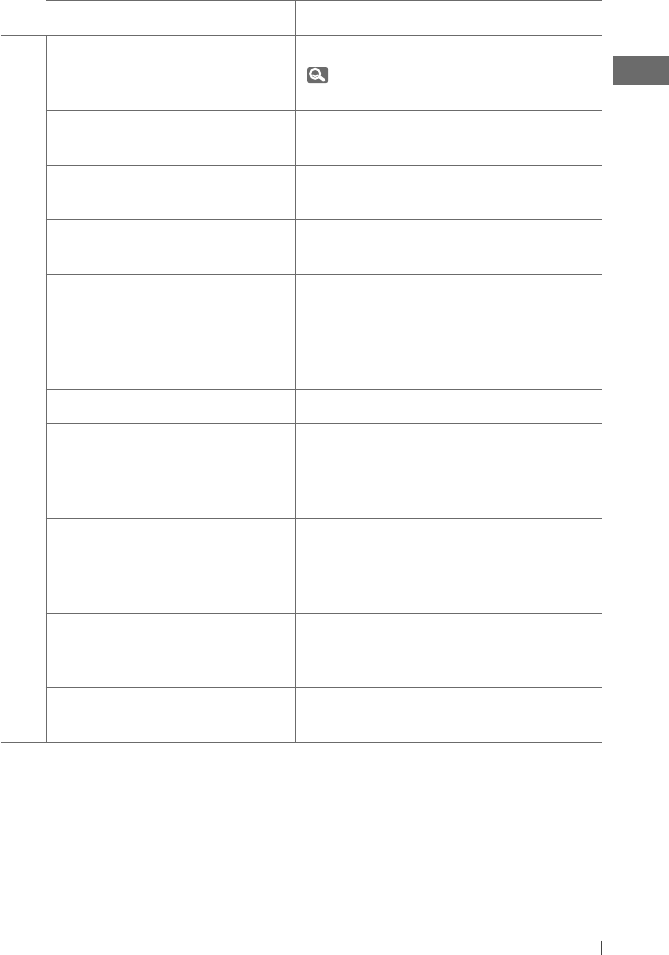
Symptom Remedy/Cause
Satellite Radio
“CALL 1-888-539-SIRIUS TO SUBSCRIBE”
scrolls on the display while listening to
the SIRIUS Satellite radio.
Starts subscribing to SIRIUS Satellite radio.
( 17)
No sound can be heard. “UPDATING”
appears on the display.
The unit is updating the channel information
and it takes a few minutes to complete.
“ACQUIRING” or “NO SIGNAL” appears
on the display.
Move to an area where signals are stronger.
“NO ANTENNA” or “ANTENNA”appears
on the display.
Connect the antenna firmly.
“NO CHANNEL” appears on the display
for about 5 seconds, then returns
to the previous channel or default
channel while listening to the SIRIUS
Satellite radio.
No broadcast on the selected channel.
Select another channel or continue listening to
the previous channel or default channel.
Blank display appears. No text information for the selected channel.
“CH---” or “CH UNAVAIL” appears on
the display for about 2 seconds, then
returns to the previous channel while
listening to the XM Satellite radio.
Selected channel is no longer available or is
unauthorized.
Select another channel or continue listening to
the previous channel.
“OFF AIR” appears on the display while
listening to the XM Satellite radio.
Selected channel is not broadcasting at this
time.
Select another channel or continue listening to
the previous channel.
“LOADING” appears on the display
while listening to the XM Satellite
radio.
The unit is loading the channel information and
audio.
Text information are temporarily unavailable.
• “RESET 8” appears on the display.
• Satellite radio does not work at all.
Reconnect this unit and the satellite radio
correctly and reset this unit.
EN28-35_KD-A315_R310[J]4.indd 33EN28-35_KD-A315_R310[J]4.indd 33 9/15/09 3:39:43 PM9/15/09 3:39:43 PM
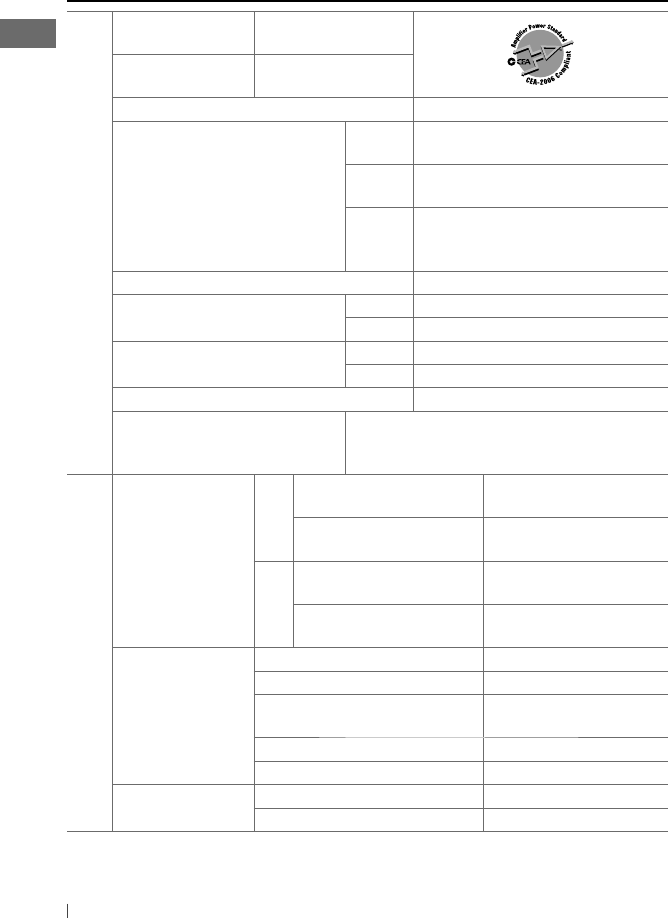
34 ENGLISH
Specifications
AUDIO AMPLIFIER SECTION
Power Output: 20 W RMS × 4 Channels
at 4 Ω and ≤ 1% THD+N
Signal-to-Noise Ratio: 80 dBA (reference: 1 W
into 4 Ω)
Load Impedance: 4 Ω (4 Ω to 8 Ω allowance)
Tone Control Range: Bass: ±12 dB (60 Hz, 80 Hz, 100 Hz, 200 Hz)
Q1.0, Q1.25, Q1.5, Q2.0
Middle: ±12 dB (0.5 kHz, 1.0 kHz, 1.5 kHz, 2.5 kHz)
Q0.75, Q1.0, Q1.25
Treble: ±12 dB (10.0 kHz, 12.5 kHz, 15.0 kHz,
17.5 kHz)
Q (Fixed)
Frequency Response: 40 Hz to 20 000 Hz
Line-Out Level/Impedance: KD-A315: 5.0 V/20 kΩ load (full scale)
KD-R310: 2.5 V/20 kΩ load (full scale)
Subwoofer-Out Level/Impedance: KD-A315: 5.0 V/20 kΩ load (full scale)
KD-R310: 2.5 V/20 kΩ load (full scale)
Output Impedance: 1 kΩ
Other Terminal: AUX (auxiliary) input jack, Expansion port, Steering
wheel remote input (only for KD-A315), Antenna
input
TUNER SECTION
Frequency Range: FM: with channel interval set to
100 kHz or 200 kHz
87.5 MHz to 107.9 MHz
with channel interval set to
50 kHz
87.5 MHz to 108.0 MHz
AM: with channel interval set to
10 kHz
530 kHz to 1 710 kHz
with channel interval set to
9 kHz
531 kHz to 1 602 kHz
FM Tuner: Usable Sensitivity: 9.3 dBf (0.8 μV/75 Ω)
50 dB Quieting Sensitivity: 16.3 dBf (1.8 μV/75 Ω)
Alternate Channel Selectivity
(400 kHz):
65 dB
Frequency Response: 40 Hz to 15 000 Hz
Stereo Separation: 40 dB
AM Tuner: Sensitivity: 20 μV
Selectivity: 40 dB
EN28-35_KD-A315_R310[J]f.indd 34EN28-35_KD-A315_R310[J]f.indd 34 10/6/09 4:38:49 PM10/6/09 4:38:49 PM
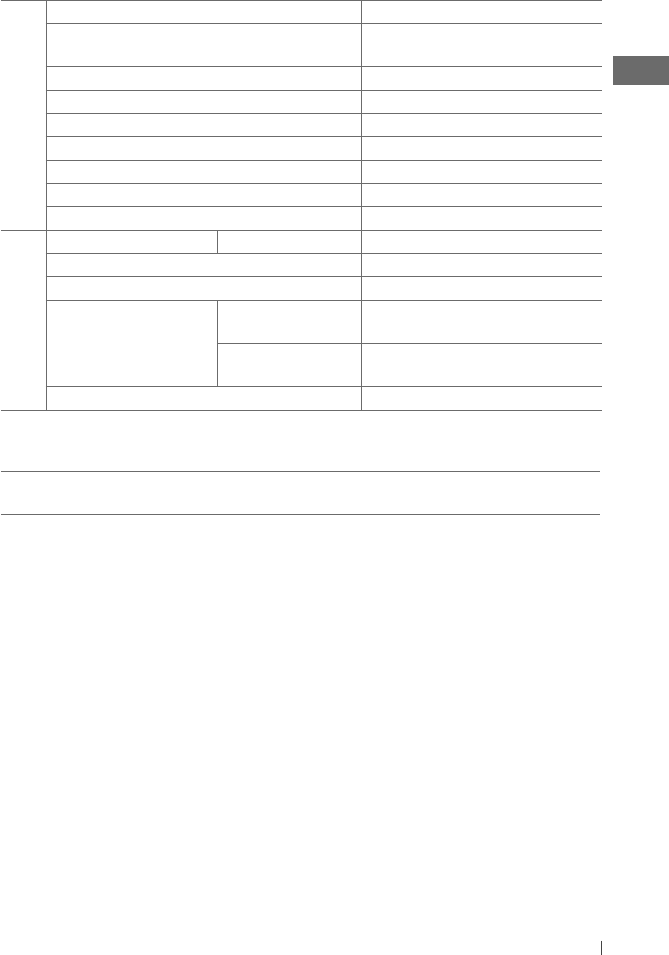
35ENGLISH
CD PLAYER SECTION
Type: Compact disc player
Signal Detection System: Non-contact optical pickup
(semiconductor laser)
Number of Channels: 2 channels (stereo)
Frequency Response: 5 Hz to 20 000 Hz
Dynamic Range: 93 dB
Signal-to-Noise Ratio: 98 dB
Wow and Flutter: Less than measurable limit
MP3 Decoding Format: (MPEG1/2 Audio Layer 3) Max. Bit Rate: 320 kbps
WMA (Windows Media® Audio) Decoding Format: Max. Bit Rate: 192 kbps
GENERAL
Power Requirement: Operating Voltage: DC 14.4 V (11 V to 16 V allowance)
Grounding System: Negative ground
Allowable Operating Temperature: 0°C to +40°C (32°F to 104°F)
Dimensions (W × H × D):
(approx.)
Installation Size: 182 mm × 52 mm × 160 mm
(7-3/16” × 2-1/16” × 6-5/16”)
Panel Size: 188 mm × 58 mm × 6 mm
(7-7/16” × 2-5/16” × 1/4”)
Mass: 1.3 kg (2.9 lbs) (excluding accessories)
Design and specifications are subject to change without notice.
If a kit is necessary for your car, consult your telephone directory for the nearest car audio speciality
shop.
EN28-35_KD-A315_R310[J]f.indd 35EN28-35_KD-A315_R310[J]f.indd 35 9/29/09 5:45:56 PM9/29/09 5:45:56 PM

i
7 The countries where you may use the
Bluetooth® function
7 Die Länder, in denen Sie die Bluetooth® Funktion verwenden können
7 Pays où vous pouvez utiliser la fonction Bluetooth®
7 De landen waar u de Bluetooth®-functie mag gebruiken
7 Países en los que se puede utilizar la función Bluetooth®
7 Paesi nei quali è possibile utilizzare la funzione Bluetooth®
7 Länder där du kan använda Bluetooth®-funktionen
7 Lande, hvor du kan bruge Bluetooth®-funktionen
7 Land hvor du kan bruke Bluetooth®-funksjonen
7 Maat, joissa voi käyttää Bluetooth®-toimintoa
7 Países onde pode usar a função Bluetooth®
7 Οι χώρες όπου μπορείτε να χρησιμοποιήσετε τη λειτουργία Bluetooth®
7 Страны, где можно воспользоваться функцией Bluetooth®
7 Země, ve kterých můžete využívat funkci Bluetooth®
7 Azok az országok, amelyekben használhatjuk a Bluetooth®-funkciót
7 Kraje, w których można używać funkcji Bluetooth®
7 Države, kjer lahko uporabljate funkcijo Bluetooth®
7 Krajiny, v ktorých môžete využívať funkciu Bluetooth®
7 Valstis, kur jūs varat izmantot Bluetooth® funkciju
7 Šalys, kuriose galite naudotis „Bluetooth®“ funkcija
7 Il-pajjiżi fejn tista’ tuża l-funzjoni Bluetooth®
7 Lönd þar sem hægt er að nota Bluetooth®
7 Riigid, kus on võimalik kasutada Bluetooth® funktsiooni
7 Bluetooth® fonksiyonunu kullanabileceğiniz ülkeler
7 Na tíortha inar féidir leat feidhmiú Bluetooth® a úsáid
7 Länner an denen der d’Bluetooth® Funktioun benotze kënnt.
7 ͪ nhͻng qu͝c gia mà b̭n có th͏ s dͱng ch͵c nćng Bluetooth®
7 Els països on podrà fer servir la funció Bluetooth®
7 Zemlje u kojima je dozvoljena upotreba Bluetooth® funkcije.
7 Zemlje u kojima možete koristiti Bluetooth® funkciju
7 Zemlje u kojima je dopušteno koristiti Bluetooth®.
7 Земји каде можете да ја користите функцијата Bluetooth®
7 Страните, в които можете да ползвате функцията Bluetooth®
7 Ţările în care puteţi utiliza funcţia Bluetooth®
7 Die lande waar u die Bluetooth®-funksie kan gebruik
7 Amazwe lapho ungasebenzisa khona uhlelo lwe-Bluetooth®
7 Negara-negara yang memperbolehkan penggunaan fungsi Bluetooth®
7 Negara-negara yang anda boleh menggunakan fungsi Bluetooth®
7 您能够使用 Bluetooth® 功能的国家
7 您能夠使用 Bluetooth® 功能的國家
7
7
BluetoothNote_KD-A315_R310[J]5.indd 28BluetoothNote_KD-A315_R310[J]5.indd 28 9/17/09 5:13:45 PM9/17/09 5:13:45 PM
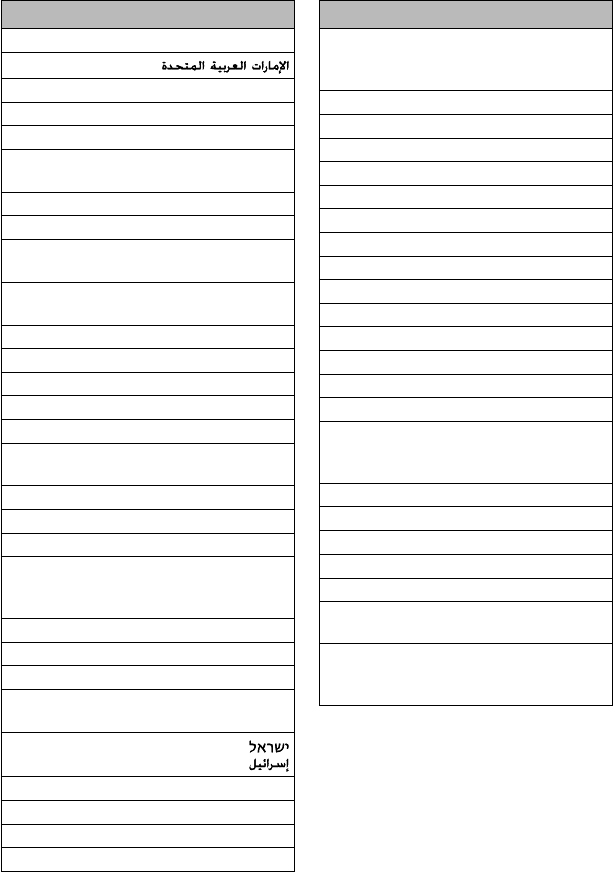
ii
09-1672-002
Country
Andorra
Australia
Österreich
Bosna i Hercegovina
Belgien
Belgique
България
Canada
Schweiz
Suisse
Κύπρος
Kıbrıs
Česká republika
Deutschland
Danmark
Eesti
España
Suomi
Finland
France
United Kingdom
Ελλάδα
Hong Kong
香港
香港
Hrvatska
Magyarország
Indonesia
Ireland
Éire
Ísland
Italia
Lichtenstein
Lietuva
Country
Luxemburg
Luxembourg
Lëtzebuerg
Latvija
Monaco
Crna Gora
Македонија
Malta
Nederland
Norge
New Zealand
Polska
Portugal
România
Srbija
Россия
Sverige
Singapore
新加坡
Singapura
Slovenija
Slovensko
Türkiye
台湾
United States of America
Vietnam
Vi͓t Nam
South Africa
ENingizimu Afrika
Suid-Afrika
BluetoothNote_KD-A315_R310[J]5.indd 29BluetoothNote_KD-A315_R310[J]5.indd 29 9/17/09 5:13:45 PM9/17/09 5:13:45 PM

ESPAÑOL
FRANÇAIS
ENGLISH
Instructions CD RECEIVER KD-A315/KD-R310
GET0626-001A
[J]
Having TROUBLE with operation?
Please reset your unit
Refer to page of How to reset your unit
Still having trouble??
USA ONLY
Call 1-800-252-5722
http://www.jvc.com
We can help you!
EN, SP, FR
0909DTSMDTJEIN© 2009 Victor Company of Japan, Limited
For canceling the display demonstration, see page 4. / Para cancelar la demostración en pantalla,
consulte la página 4. / Pour annuler la démonstration des affichages, référez-vous à la page 4.
CD RECEIVER / RECEPTOR CON CD /
RÉCEPTEUR CD
For customer Use:
Enter below the Model
No. and Serial No. which
are located on the top or
bottom of the cabinet.
Retain this information
for future reference.
Model No.
Serial No.
KD-A315 / KD-R310
INSTRUCTIONS
MANUAL DE INSTRUCCIONES
MANUEL D’INSTRUCTIONS
For installation and connections, refer to the separate manual.
Para la instalación y las conexiones, refiérase al manual separado.
Pour l’installation et les raccordements, se référer au manuel séparé.
CoverRear_KD-A315[J]f.indd 1CoverRear_KD-A315[J]f.indd 1 9/29/09 5:19:14 PM9/29/09 5:19:14 PM
1
KD-A315/KD-R310
Installation/Connection Manual
Manual de instalación/conexión
Manuel d’installation/raccordement
ENGLISH / ESPAÑOL / FRANÇAIS
0909DTSMDTJEIN
EN, SP, FR
© 2009 Victor Company of Japan, Limited
GET0626-002A
[J]
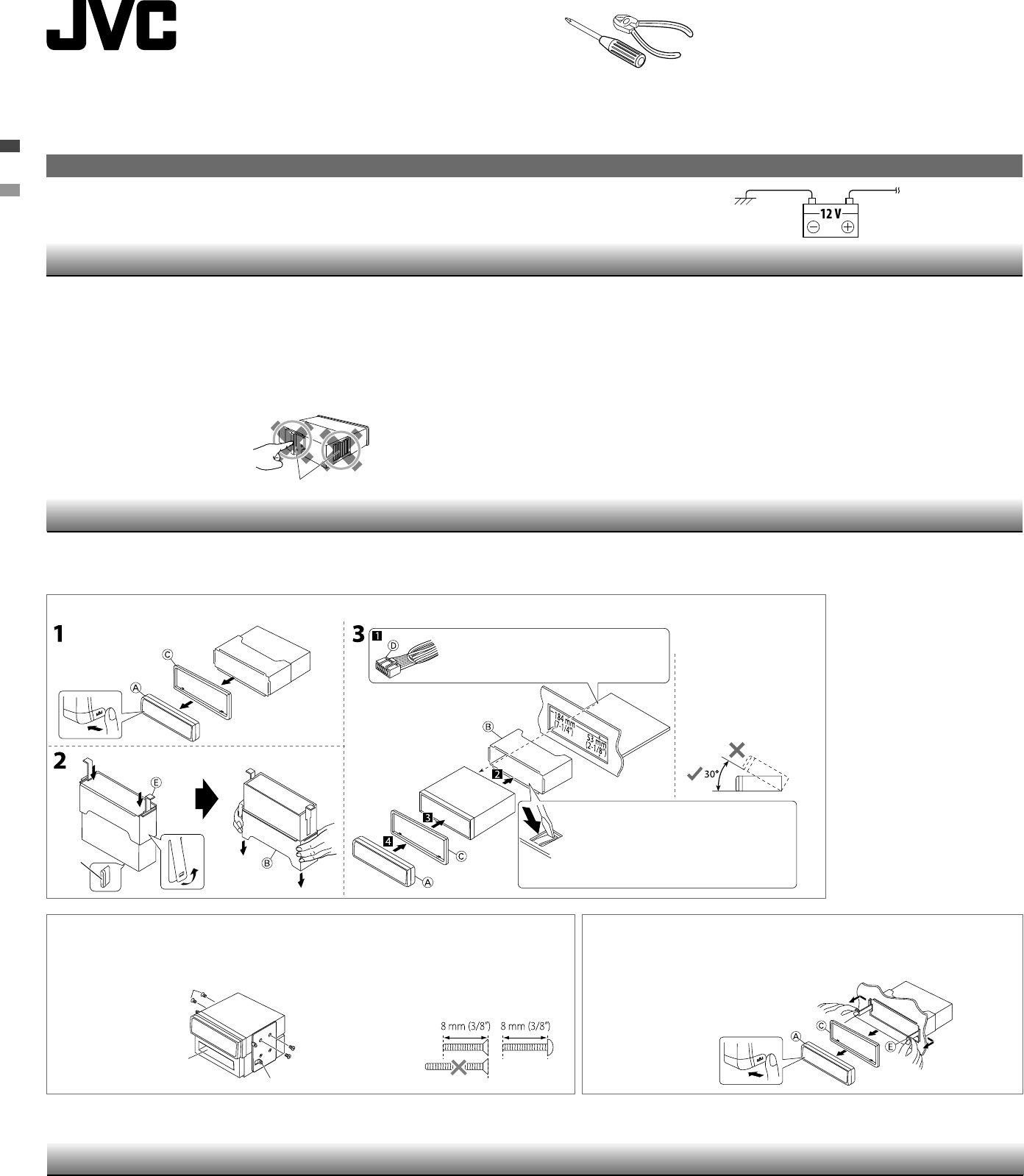
Bracket / Ménsula / Support *2
Pocket / Compartimiento /
Poche
Flat head screws—M5 × 8 mm (M5 × 3/8") / Tornillos de cabeza plana—M5 × 8 mm
(M5 × 3/8 pulgada) / Vis à tête plate—M5 × 8 mm (M5 × 3/8 pouces) *2
INSTALLATION / INSTALACION / INSTALLATION
When installing the unit without using the sleeve / Instalación de la unidad sin
utilizar la cubierta / Lors de l’installation de l’appareil scans utiliser de manchon
In-dash mounting / Montaje en el tablero / Montage encastré
• To prevent short circuits:
– Disconnect the battery’s negative terminal and make all electrical
connections before installing the unit.
– Cover the terminals of the UNUSED leads with insulating tape.
• Be sure to ground this unit to the car’s chassis again after installation.
• Replace the fuse with one of the specified rating.
• Connect speakers with a maximum power of more than 50 W
(impedance of 4 Ω to 8 Ω). Otherwise, change the <AMP GAIN>
setting. (See page 23 of the INSTRUCTIONS.)
• The heat sink becomes very hot after use. Be
careful not to touch it when removing this
unit.
• Para evitar cortocircuitos:
– Desconecte el terminal negativo de la batería y realice todas las
conexiones eléctricas antes de instalar la unidad.
– Cubra los terminales de los conductores NO UTILIZADOS con
cinta aislante.
• Asegúrese de volver a conectar a masa esta unidad al chasis del
automóvil después de la instalación.
• Reemplace el fusible por uno con la corriente especificada.
• Conecte los altavoces con una potencia máxima de más de
50 W (impedancia de 4 Ω a 8 Ω). De lo contrario, cambie el
ajuste <AMP GAIN>. (Véase la página 23 del MANUAL DE
INSTRUCCIONES).
• El sumidero térmico estará muy caliente después del uso. Asegúrese
de no tocarlo al desmontar esta unidad.
• Pour éviter les courts-circuits:
– Déconnectez la borne négative de la batterie et réaliser toutes les
connexions avant d’installer l’appareil.
– Recouvrez les prises des fils NON UTILISÉS avec du ruban isolant.
• Assurez-vous de raccorder de nouveau la mise à la masse de cet appareil
au châssis de la voiture après l’installation.
• Remplacer le fusible par un de la valeur précisée.
• Connectez des enceintes avec une puissance maximum de 50 W
(impédance de 4 Ω à 8 Ω). Sinon, changez le réglage <AMP GAIN>. (Voir
la page 23 du MANUEL D’INSTRUCTIONS.)
• Le dissipateur de chaleur devient très chaud après usage. Faire attention
de ne pas le toucher en retirant cet appareil.
12 V DC, NEGATIVE ground / 12 V CC, NEGATIVO a masa / 12 V CC, masse NÉGATIVE
To the car system /
Al sistema de automóvil /
Au système autoradio
You need the installation kits which corresponds to your car. /
Necesitará los kits de instalación que corresponden con su vehículo. /
Vous avez besoin des kits d’installation correspondants à votre voiture.
Check the battery system in your car / Verifique el sistema de batería
de su vehículo / Vérifiez le système de batterie de votre voiture.
WARNINGS / ADVERTENCIAS / AVERTISSEMENTS
Removing the unit / Extracción de la unidad / Retrait de l’appareil
Release the rear section first... / Primero libere la sección trasera... / Ouvrez la section arrière en
premier...
The following illustration shows a typical installation. If you have any
questions or require information regarding installation kits, consult
your JVC car audio dealer or a company supplying kits.
Heat sink / Sumidero térmico / Dissipateur de chaleur
L’illustration suivante est un exemple d’installation typique. Si vous avez des
questions ou avez besoin d’information sur des kits d’installation, consulter
votre revendeur d’autoradios JVC ou une compagnie d’approvisionnement.
La siguiente ilustración muestra una instalación típica. Si tiene alguna
pregunta o necesita información acerca de las herramientas para
instalación, consulte con su concesionario de JVC de equipos de audio
para automóviles o a una compañía que suministra tales herramientas.
Do the required electrical connections.
Realice las conexiones eléctricas requeridas.
Réalisez les connexions électriques.
Bend the appropriate tabs to hold the sleeve
firmly in place.
Doble las lengüetas apropiadas para retener
firmemente la manga en su lugar.
Tordez les languettes appropriées pour maintenir le
manchon en place.
Install the unit at an angle of
less than 30˚.
Instale la unidad a un ángulo
de menos de 30˚.
Installez l’appareil avec un angle
de moins de 30˚.
*1
*1 When you stand the unit, be careful not to damage the fuse on the
rear.
*2 Not supplied for this unit.
*1 Al poner la unidad vertical, tenga cuidado de no dañar el fusible
provisto en la parte posterior.
*2 No suministrado con esta unidad.
*1 Lorsque vous mettez l’appareil à la verticale, faire attention de ne pas
endommager le fusible situé sur l’arrière.
*2 Non fourni avec cet appareil.
• The fuse blows.
]
Are the red and black leads connected correctly?
• Power cannot be turned on.
]
Is the yellow lead connected?
• No sound from the speakers.
]
Is the speaker output lead short-
circuited?
• “PROTECT” appears on the display and no operation can be
done.
]
Is the speaker output lead short-circuited or touches the
chassis of the car/head unit? ; Have you reset your unit?
• Sound is distorted.
]
Is the speaker output lead grounded? ; Are
the “–” terminals of L and R speakers grounded in common?
• Noise interfere with sounds.
]
Is the rear ground terminal
connected to the car’s chassis using shorter and thicker cords?
• This unit becomes hot.
]
Is the speaker output lead grounded? ;
Are the “–” terminals of L and R speakers grounded in common?
• This unit does not work at all.
]
Have you reset your unit?
• El fusible se quema.
]
¿Están los conductores rojo y negro
correctamente conectados?
• No es posible conectar la alimentación.
]
¿Está el cable amarillo
conectado?
• No sale sonido de los altavoces.
]
¿Está el cable de salida del
altavoz cortocircuitado?
• Aparece “PROTECT” en la pantalla y no se puede realizar
ninguna operación.
]
¿El conductor de salida de altavoz está en
cortocircuito o en contacto con el chasis del automóvil/auriculares? ;
¿Reinicializó la unidad?
• El sonido presenta distorsión.
]
¿Está el cable de salida del altavoz
conectado a masa? ; ¿Están los terminales “–” de los altavoces L y R
conectados a una masa común?
• Perturbación de ruido.
]
¿El terminal de tierra trasero está
conectado al chasis del automóvil utilizando los cordones más corto y
más grueso?
• Esta unidad se calienta.
]
¿Está el cable de salida del altavoz
conectado a masa? ; ¿Están los terminales “–” de los altavoces L y R
conectados a una masa común?
• Esta unidad no funciona en absoluto.
]
¿Reinicializó la unidad?
• Le fusible saute.
]
Les fils rouge et noir sont-ils racordés correctement?
• L’appareil ne peut pas être mise sous tension.
]
Le fil jaune est-
elle raccordée?
• Pas de son des enceintes.
]
Le fil de sortie d’enceinte est-il court-
circuité?
• “PROTECT” apparaît sur l’affichage et aucune opération ne peut
être réalisée.
]
Est-ce qu’un fil de sortie d’enceinte est court-circuité ou
touche le châssis de la voiture/appareil principal? ; Avez-vous réinitialisé
votre appareil?
• Le son est déformé.
]
Le fil de sortie d’enceinte est-il à la masse? ; Les
bornes “–” des enceintes gauche et droit sont-elles mises ensemble à la
masse?
• Interférence avec les sons.
]
La prise arrière de mise à la terre est-elle
connectée au châssis de la voiture avec un cordon court et épais?
• Cet appareil devient chaud.
]
Le fil de sortie d’enceinte est-il à la
masse? ; Les bornes “–” des enceintes gauche et droit sont-elles mises
ensemble à la masse?
• Cet appareil ne fonctionne pas du tout.
]
Avez-vous réinitialisé
votre appareil?
TROUBLESHOOTING / LOCALIZACION DE AVERIAS / EN CAS DE DIFFICULTES
Part list / Lista de componentes / Liste
de pièces
A Control panel / Panel de control /
Panneau de commande (×1)
B Sleeve / Cubierta / Manchon (×1)
C Trim plate / Placa de guarnición /
Plaque d’assemblage (×1)
D Power cord / Cordón de
alimentación / Cordon d’alimentation
(×1)
E Handles / Manijas / Poignées (×2)
Install_KD-A315[J]f.indd 1Install_KD-A315[J]f.indd 1 10/6/09 4:37:40 PM10/6/09 4:37:40 PM
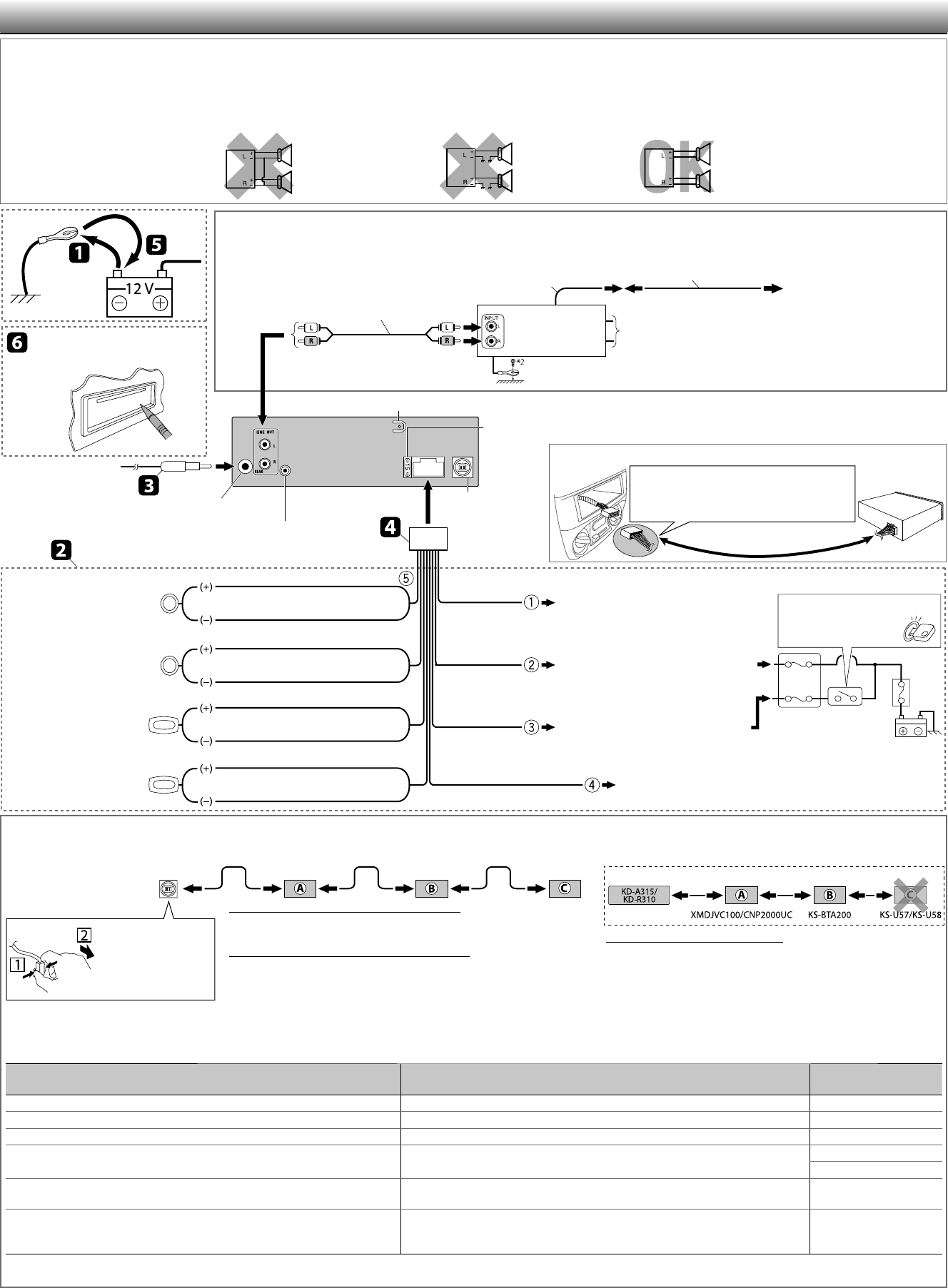
2
Black / Negro /
Noir
Fuse block /
Bloque de fusibles /
Porte-fusible
Ignition switch /
Interruptor de encendido /
Interrupteur d’allumage
Blue (white stripe) / Azul (rayas
blancas) / Bleu (bande blanche)
Red / Rojo /
Rouge
Yellow / Amarillo /
Jaune * 3
To the metallic body or chassis of the car / A
un cuerpo metálico o chasis del automóvil /
Vers corps métallique ou châssis de la voiture
To an accessory terminal / A un terminal
para accesorios / À une prise accessoire
To a live terminal (constant 12 V) / A un
terminal activo (12 V constantes) / À une
borne sous tension (12 V constant)
To the remote lead of other equipment or automatic antenna if any
(200 mA max.) / Al conductor remoto de otro equipo o de la antena
automática, si hubiere (máx. 200 mA) / Au fil de télécommande de l’autre
appareil ou à l’antenne automatique s’il y en a une (200 mA max.)
White / Blanco / Blanc
White (black stripe) / Blanco (rayas
negras) / Blanc (bande noire)
Gray / Gris / Gris
Gray (black stripe) / Gris (rayas negras) /
Gris (bande noire)
Green / Verde / Vert
Green (black stripe) / Verde (rayas
negras) / Vert (bande noire)
Purple / Púrpura / Violet
Purple (black stripe) / Púrpura (rayas
negras) / Violet (bande noire)
Signal cord / Cable de señal /
Cordon de signal * 1
Y-connector / Conector en Y /
Connecteur Y * 1
Remote lead / Cable remoto /
Fil d’alimentation à distance
To the blue (white stripe) lead of
the unit / Al conductor azul (rayas
blancas) de la unidad / Au fil bleu
(bande blanche) de l’appareil
Rear speakers or subwoofer (Make the <L/O MODE> setting accordingly,
see page 23 of the INSTRUCTIONS.) / Altavoces traseros o subwoofer
(Realice el ajuste <L/O MODE> de conformidad, consulte la página 23
del MANUAL DE INSTRUCCIONES). / Enceintes arrière ou le caisson de
grave (Faite le réglage <L/O MODE> en fonction, voir page 23 du MANUEL
D’INSTRUCTIONS.)
Rear ground terminal / Terminal de tierra posterior / Borne arrière de masse
15 A fuse / Fusible de 15 A / Fusible 15 A
Expansion port /
Puerto de expansión /
Port d’extension
Steering wheel remote input (for KD-A315) / Entrada del
control remoto del volante de dirección (para KD-A315) /
Entrée de la télécommande de volant (pour le KD-A315)
Antenna terminal / Terminal de la antena / Borne de l’antenne
*1 Not supplied for this unit.
*2 Firmly attach the ground wire to the metallic body or to the chassis
of the car—to the place uncoated with paint.
*3
Before checking the operation of this unit prior to installation, this
lead must be connected; otherwise, the power cannot be turned on.
*4 Connect the power cord supplied for the component separately for
power supply.
*5 This model is a component of SIRIUS satellite radio System.
*6 This model is a component of XM satellite radio System.
*1 No suministrado con esta unidad.
*2 Fije firmemente el cable de tierra a la carrocería metálica o al
chasis—a un lugar no cubierto con pintura.
*3 Antes de comprobar el funcionamiento de esta unidad previa a de
la instalación, es necesario conectar este cable, de lo contrario no se
podrá conectar la alimentación.
*4 Conecte el cable de alimentación suministrado separadamente para
el componente.
*5
Este modelo es un componente del sistema de radio satelital SIRIUS.
*6 Este modelo es un componente del sistema de radio XM Satellite.
*1 Non fourni avec cet appareil.
*2 Attachez solidement le fil de mise à la masse au châssis métallique de la
voiture—à un endroit qui n’est pas recouvert de peinture.
*3 Pour vérifier le fonctionnement de cet appareil avant installation, ce fil
doit être raccordé, sinon l’appareil ne peut pas être mis sous tension.
*4 Connectez le cordon d’alimentation fourni avec les appareils
séparément à l’alimentation.
*5 Ce modèle est un composant du système radio satellite SIRIUS.
*6 Ce modèle est un composant du système radio satellite XM.
Front speaker (left) / Altavoz
delantero (izquierdo) /
Enceintes avant (gauche)
Front speaker (right) /
Altavoz delantero (derecho) /
Enceintes avant (droit)
Rear speaker (left) / Altavoz
trasero (izquierdo) / Enceintes
arrière (gauche)
Rear speaker (right) / Altavoz
trasero (derecho) / Enceintes
arrière (droit)
ELECTRICAL CONNECTIONS / CONEXIONES ELECTRICAS / RACCORDEMENTS ELECTRIQUES
Reset the unit. / Reinicialice el
receptor. / Réinitialisez l’autoradio.
RECOMMENDED CONNECTION / CONEXIÓN
RECOMENDADA / CONNEXION RECOMMANDÉE
Custom wiring harness / Mazo de cables
personalizado / Faisceau de fils personnalisé *1
IMPORTANT / IMPORTANTE / IMPORTANT
JVC Amplifier /
Amplificador de JVC /
JVC Amplificateur
Connecting the external amplifier or subwoofer / Conexión de los amplificadores o subwoofer externos /
Connexion d’amplificateurs extérieurs ou d’un caisson de grave
PRECAUTIONS on power supply and speaker
connections
• DO NOT connect the speaker leads of the power cord to the car
battery; otherwise, the unit will be seriously damaged.
• BEFORE connecting the speaker leads of the power cord to the
speakers, check the speaker wiring in your car.
PRECAUTIONS sur l’alimentation et la
connexion des enceintes
• NE CONNECTEZ PAS les fils d’enceintes du cordon d’alimentation à la
batterie; sinon, l’appareil serait sérieusement endommagé.
• AVANT de connecter les fils d’enceintes du cordon d’alimentation aux
enceintes, vérifiez le câblage des enceintes de votre voiture.
PRECAUCIONES sobre las conexiones de la
fuente de alimentación y de los altavoces
•
NO conecte los conductores de altavoz del cable de alimentación a la
batería de automóvil, pues podrían producirse graves daños en la unidad.
•
ANTES de conectar a los altavoces los conductores de altavoz del cable
de alimentación, verifique el conexionado de altavoz de su automóvil.
Connecting the external components in series / Conexión de componentes externos en serie / Connexion d’appareils extérieurs en série
When connecting the external components, refer also to the manuals supplied for the components and adapter. / Cuando conecte componentes externos, consulte, también, los manuales suministrados con los
componentes y el adaptador. / Lors de la connexion des appareils extérieurs, référez-vous aussi aux manuels fournis avec les appareils et les adaptateurs.
You can connect the HD Radio
TM tuner box (KT-HD300) or the following components through the various JVC adapters or system to the expansion port. / Puede conectar el sintonizador HD Radio
TM (KT-HD300)
o los siguientes componentes al puerto de expansión, a través de los diversos adaptadores o sistema JVC. / Vous pouvez connecter le tuner HD Radio
TM (KT-HD300) ou les appareils suivants à l’aide de divers adaptateur JVC ou
système au port d’extension.
•
Connection cords may need to be purchased separately. / Puede ser necesario comprar los cables de conexión por separado. / Vous pouvez avoir besoin d’acheter certains cordons de connexion séparément.
Component / Componente / Appareil Adapter/System / Adaptador/Sistema / Adaptateur/Système Model name / Nombre del
modelo / Nom du modèle
Bluetooth device / Dispositivo Bluetooth / Périphérique Bluetooth Bluetooth adapter / Adaptador Bluetooth / Adaptateur Bluetooth KS-BTA200
XMDirect ™ Tuner Box / XMDirect ™ Tuner Box / XMDirect ™ Tuner Box Smart Digital Adapter / Adaptador digital inteligente / Adaptateur numérique intelligent XMDJVC100
XMDirect2 Tuner System / Sistema de sintonizador XMDirect2 / XMDirect2 Tuner System XM satellite radio System / Sistema de radio XM Satellite / Système radio satellite XM CNP2000UC, CNPJVC1
SIRIUS satellite radio / Radio por satélite SIRIUS / Radio satellite SIRIUS SIRIUS satellite radio System / Sistema de radio satelital SIRIUS / Système radio satellite SIRIUS SC-C1, KS-SRA100
PnP, SC-VDOC1, KS-SRA100
Portable audio player with line output jacks / Reproductor de audio portátil con jacks de
salida de línea / Lecteur audio portable avec prises de sortie de ligne Line input adapter / Adaptador de entrada por línea / Adaptateur d’entrée de ligne KS-U57
Portable audio player with 3.5 mm (3/16") stereo mini jack / Reproductor de audio portátil
con jack mini estéreo de 3,5 mm (3/16 pulgada) / Lecteur audio portable avec mini fiche
stéréo de 3,5 mm (3/16 pouces)
AUX input adapter / Adaptador de entrada AUX / Adaptateur d’entrée auxiliaire KS-U58
XM Radio and SIRIUS satellite radio cannot be used together. / No puede utilizar juntas la radio XM y la radio satelital SIRIUS. / La radio XM et SIRIUS ne peuvent pas être utilisées en même temps.
• HD Radio ™ is a proprietary trademark of iBiquity Digital Corp. / HD Radio ™ es una marca comercial de iBiquity Digital Corp. / HD Radio ™ est une marque de commerce d’iBiquity Digital Corp.
Two components / Dos componentes / Deux appareil:
A KT-HD300 *4 / KS-SRA100 *4, *5 / KS-BTA200 / XMDJVC100 / CNP2000UC *6
B KS-U57 / KS-U58
Three components / Tres componentes / Trois appareils:
A KT-HD300 *4 / KS-SRA100 *4, *5 / XMDJVC100 / CNP2000UC *6
B KS-BTA200
C KS-U57 / KS-U58
To disconnect... /
Para desconectar... /
Pour déconnecter...
Not recommended... / No recomendado... / Non recommandé...
Expansion port of the unit / Puerto
de expansión de la unidad / Port
d’extension de l’appareil
Caution / Precaucion / Precaution:
Before connecting the external components, make sure that the unit is turned
off. / Antes de conectar los componentes externos, asegúrese de que la unidad
esté apagada. / Avant de connecter les appareils extérieurs, assurez-vous que
l’appareil est hors tension.
Install_KD-A315[J]f.indd 2Install_KD-A315[J]f.indd 2 9/28/09 10:27:27 AM9/28/09 10:27:27 AM
