K Mark MP400 Mantis Pro400 Game Caller Base with Bluetooth User Manual PowerPoint Presentation

K-Mark Industrial Limited. Mantis Pro400 Game Caller Base with Bluetooth PowerPoint Presentation

user manual

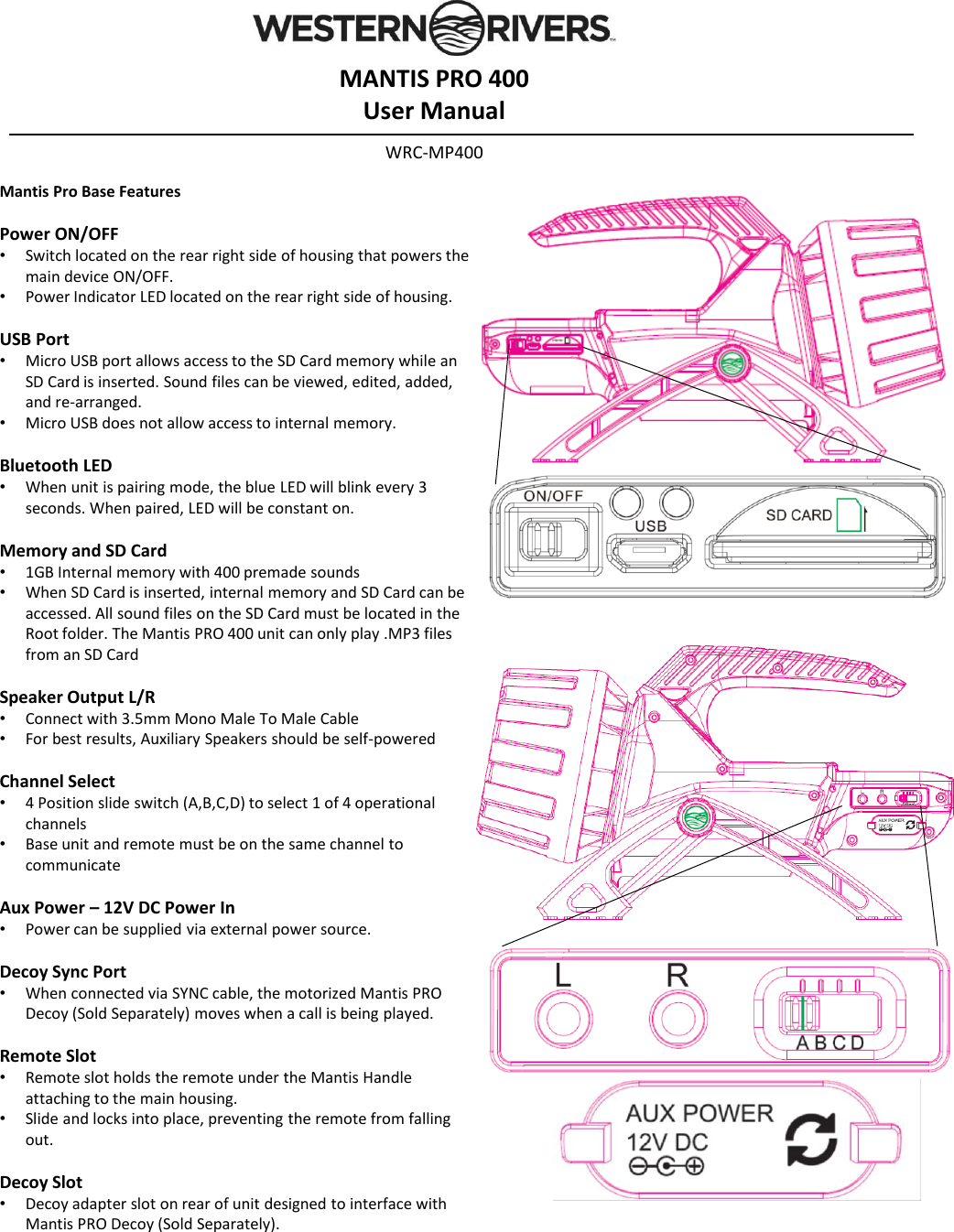
Mantis Pro Base FeaturesPower ON/OFF •Switch located on the rear right side of housing that powers the main device ON/OFF. •Power Indicator LED located on the rear right side of housing.USB Port•Micro USB port allows access to the SD Card memory while an SD Card is inserted. Sound files can be viewed, edited, added, and re-arranged.•Micro USB does not allow access to internal memory.Bluetooth LED•When unit is pairing mode, the blue LED will blink every 3 seconds. When paired, LED will be constant on.Memory and SD Card•1GB Internal memory with 400 premade sounds•When SD Card is inserted, internal memory and SD Card can be accessed. All sound files on the SD Card must be located in the Root folder. The Mantis PRO 400 unit can only play .MP3 files from an SD CardSpeaker Output L/R•Connect with 3.5mm Mono Male To Male Cable•For best results, Auxiliary Speakers should be self-poweredChannel Select•4 Position slide switch (A,B,C,D) to select 1 of 4 operational channels•Base unit and remote must be on the same channel to communicateAux Power –12V DC Power In•Power can be supplied via external power source. Decoy Sync Port•When connected via SYNC cable, the motorized Mantis PRO Decoy (Sold Separately) moves when a call is being played.Remote Slot •Remote slot holds the remote under the Mantis Handle attaching to the main housing.•Slide and locks into place, preventing the remote from falling out.Decoy Slot •Decoy adapter slot on rear of unit designed to interface with Mantis PRO Decoy (Sold Separately).MANTIS PRO 400User ManualWRC-MP400
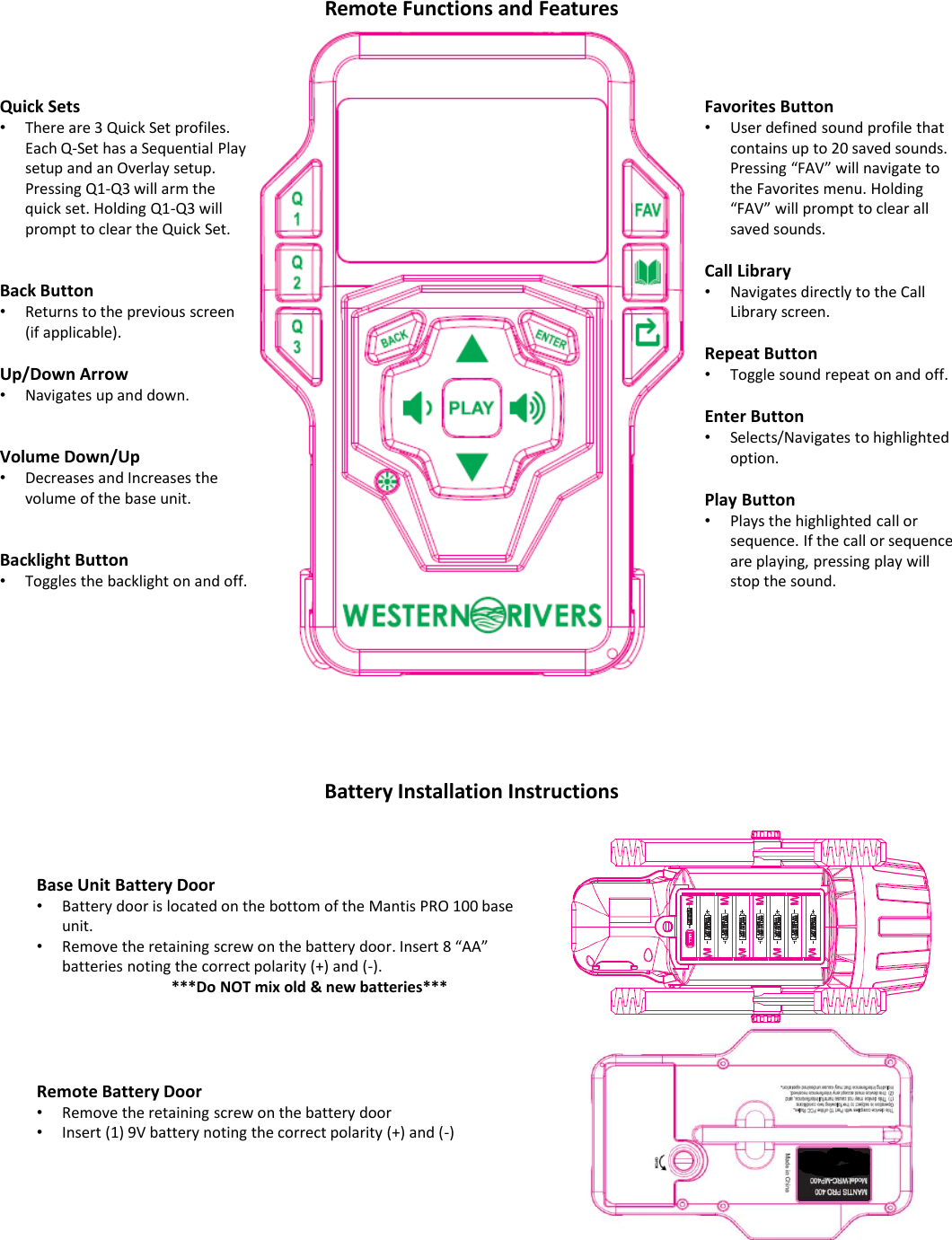
Base Unit Battery Door•Battery door is located on the bottom of the Mantis PRO 100 base unit.•Remove the retaining screw on the battery door. Insert 8 “AA” batteries noting the correct polarity (+) and (-).***Do NOT mix old & new batteries***Remote Battery Door •Remove the retaining screw on the battery door •Insert (1) 9V battery noting the correct polarity (+) and (-)Quick Sets•There are 3 Quick Set profiles. Each Q-Set has a Sequential Play setup and an Overlay setup. Pressing Q1-Q3 will arm the quick set. Holding Q1-Q3 will prompt to clear the Quick Set.Back Button•Returns to the previous screen (if applicable).Up/Down Arrow•Navigates up and down.Volume Down/Up•Decreases and Increases the volume of the base unit.Backlight Button•Toggles the backlight on and off.Favorites Button•User defined sound profile that contains up to 20 saved sounds. Pressing “FAV” will navigate to the Favorites menu. Holding “FAV” will prompt to clear all saved sounds.Call Library•Navigates directly to the Call Library screen.Repeat Button•Toggle sound repeat on and off. Enter Button•Selects/Navigates to highlighted option.Play Button•Plays the highlighted call or sequence. If the call or sequence are playing, pressing play will stop the sound.Battery Installation InstructionsRemote Functions and Features
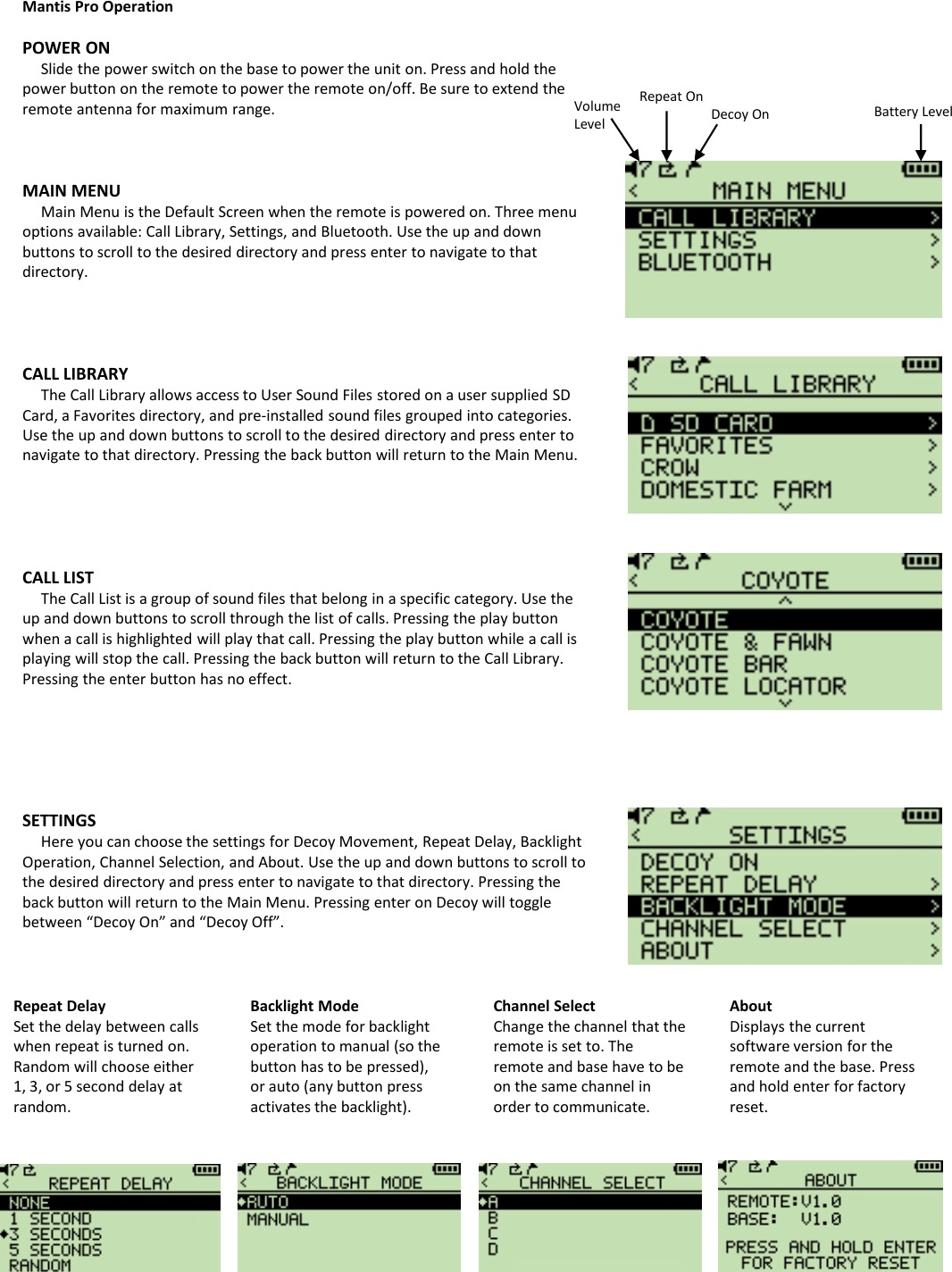
Mantis Pro OperationPOWER ON Slide the power switch on the base to power the unit on. Press and hold the power button on the remote to power the remote on/off. Be sure to extend the remote antenna for maximum range.MAIN MENUMain Menu is the Default Screen when the remote is powered on. Three menu options available: Call Library, Settings, and Bluetooth. Use the up and down buttons to scroll to the desired directory and press enter to navigate to that directory. CALL LIBRARYThe Call Library allows access to User Sound Files stored on a user supplied SD Card, a Favorites directory, and pre-installed sound files grouped into categories.  Use the up and down buttons to scroll to the desired directory and press enter to navigate to that directory. Pressing the back button will return to the Main Menu.CALL LISTThe Call List is a group of sound files that belong in a specific category. Use the up and down buttons to scroll through the list of calls. Pressing the play button when a call is highlighted will play that call. Pressing the play button while a call is playing will stop the call. Pressing the back button will return to the Call Library. Pressing the enter button has no effect.SETTINGSHere you can choose the settings for Decoy Movement, Repeat Delay, Backlight Operation, Channel Selection, and About. Use the up and down buttons to scroll to the desired directory and press enter to navigate to that directory. Pressing the back button will return to the Main Menu. Pressing enter on Decoy will toggle between “Decoy On” and “Decoy Off”. Volume LevelRepeat OnDecoy On Battery LevelRepeat DelaySet the delay between calls when repeat is turned on. Random will choose either 1, 3, or 5 second delay at random.Backlight ModeSet the mode for backlight operation to manual (so the button has to be pressed), or auto (any button press activates the backlight). Channel SelectChange the channel that the remote is set to. The remote and base have to be on the same channel in order to communicate.AboutDisplays the current software version for the remote and the base. Press and hold enter for factory reset.
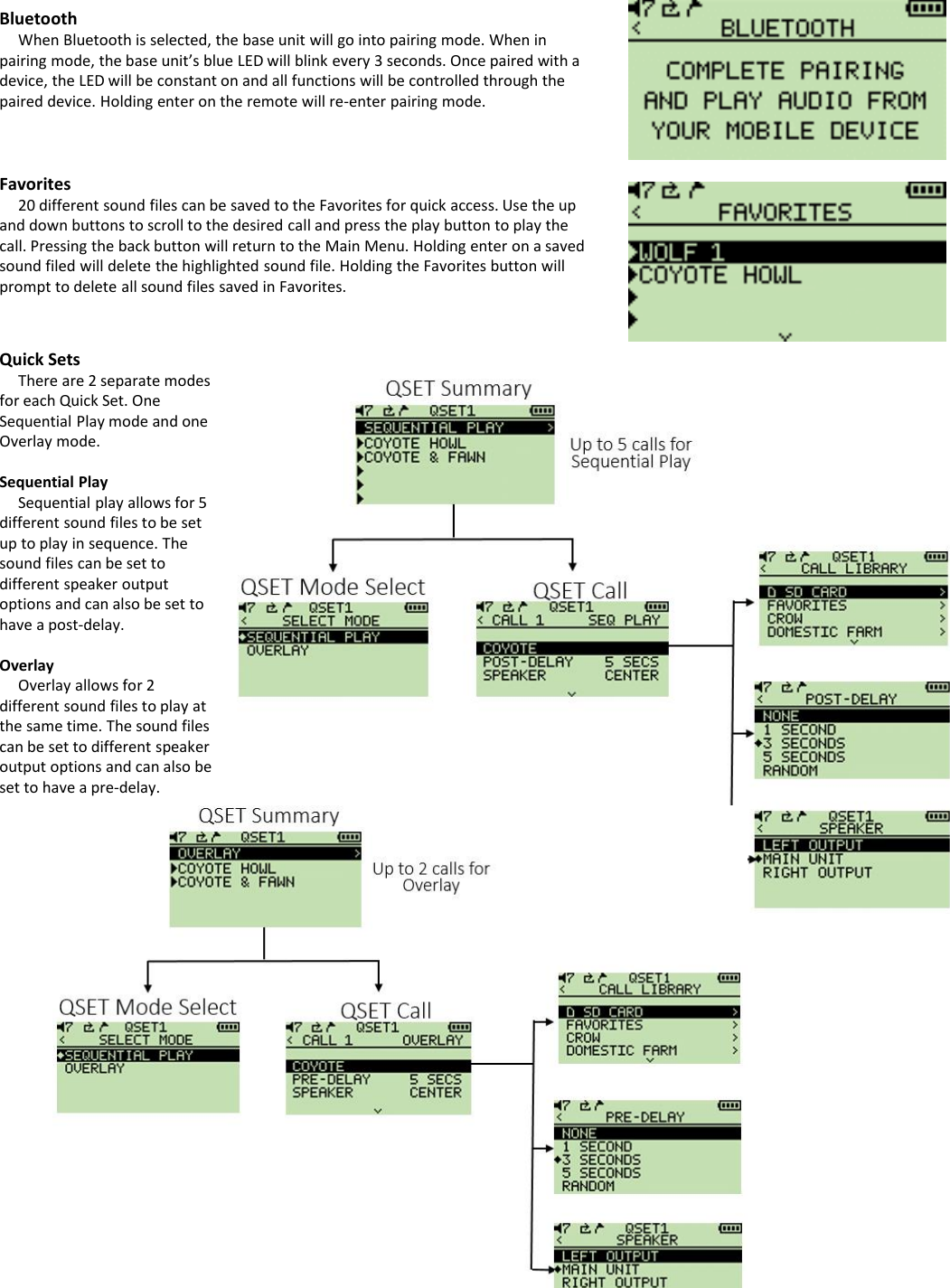
BluetoothWhen Bluetooth is selected, the base unit will go into pairing mode. When in pairing mode, the base unit’s blue LED will blink every 3 seconds. Once paired with a device, the LED will be constant on and all functions will be controlled through the paired device. Holding enter on the remote will re-enter pairing mode.Favorites20 different sound files can be saved to the Favorites for quick access. Use the up and down buttons to scroll to the desired call and press the play button to play the call. Pressing the back button will return to the Main Menu. Holding enter on a saved sound filed will delete the highlighted sound file. Holding the Favorites button will prompt to delete all sound files saved in Favorites. Quick SetsThere are 2 separate modes for each Quick Set. One Sequential Play mode and one Overlay mode. Sequential PlaySequential play allows for 5 different sound files to be set up to play in sequence. The sound files can be set to different speaker output options and can also be set to have a post-delay.OverlayOverlay allows for 2 different sound files to play at the same time. The sound files can be set to different speaker output options and can also be set to have a pre-delay.
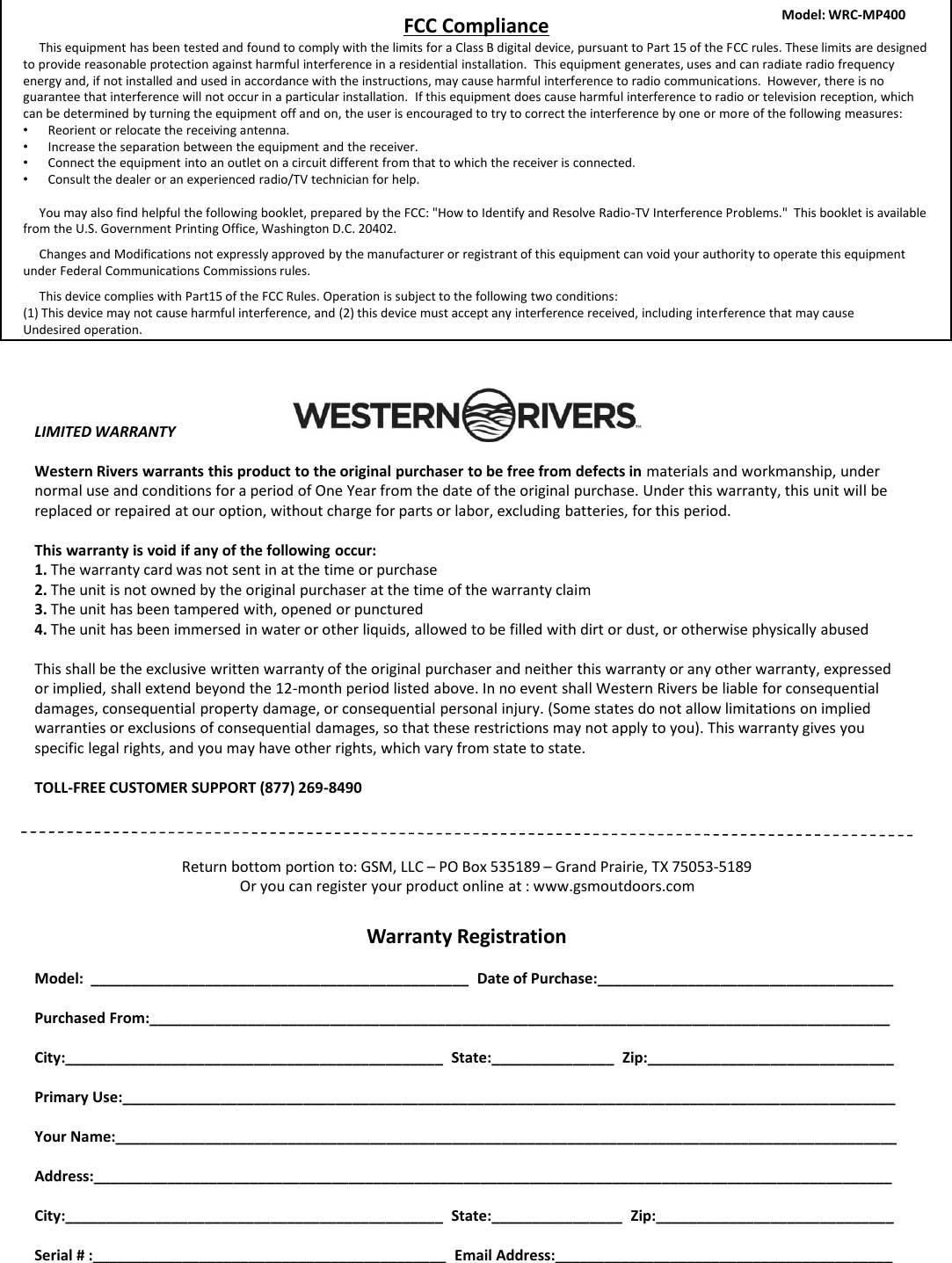
LIMITED WARRANTYWestern Rivers warrants this product to the original purchaser to be free from defects in materials and workmanship, under normal use and conditions for a period of One Year from the date of the original purchase. Under this warranty, this unit will be replaced or repaired at our option, without charge for parts or labor, excluding batteries, for this period.This warranty is void if any of the following occur:1. The warranty card was not sent in at the time or purchase2. The unit is not owned by the original purchaser at the time of the warranty claim3. The unit has been tampered with, opened or punctured4. The unit has been immersed in water or other liquids, allowed to be filled with dirt or dust, or otherwise physically abusedThis shall be the exclusive written warranty of the original purchaser and neither this warranty or any other warranty, expressed or implied, shall extend beyond the 12-month period listed above. In no event shall Western Rivers be liable for consequential damages, consequential property damage, or consequential personal injury. (Some states do not allow limitations on implied warranties or exclusions of consequential damages, so that these restrictions may not apply to you). This warranty gives you specific legal rights, and you may have other rights, which vary from state to state.TOLL-FREE CUSTOMER SUPPORT (877) 269-8490Return bottom portion to: GSM, LLC –PO Box 535189 –Grand Prairie, TX 75053-5189Or you can register your product online at : www.gsmoutdoors.comWarranty RegistrationModel:  ______________________________________________  Date of Purchase:____________________________________Purchased From:__________________________________________________________________________________________ City:______________________________________________  State:_______________  Zip:______________________________Primary Use:______________________________________________________________________________________________Your Name:_______________________________________________________________________________________________Address:_________________________________________________________________________________________________City:______________________________________________  State:________________  Zip:_____________________________Serial # :___________________________________________  Email Address:_________________________________________FCC ComplianceThis equipment has been tested and found to comply with the limits for a Class B digital device, pursuant to Part 15 of the FCC rules. These limits are designed to provide reasonable protection against harmful interference in a residential installation.  This equipment generates, uses and can radiate radio frequency energy and, if not installed and used in accordance with the instructions, may cause harmful interference to radio communications.  However, there is no guarantee that interference will not occur in a particular installation.  If this equipment does cause harmful interference to radio or television reception, which can be determined by turning the equipment off and on, the user is encouraged to try to correct the interference by one or more of the following measures:•Reorient or relocate the receiving antenna.•Increase the separation between the equipment and the receiver.•Connect the equipment into an outlet on a circuit different from that to which the receiver is connected.•Consult the dealer or an experienced radio/TV technician for help.You may also find helpful the following booklet, prepared by the FCC: "How to Identify and Resolve Radio-TV Interference Problems."  This booklet is available from the U.S. Government Printing Office, Washington D.C. 20402.     Changes and Modifications not expressly approved by the manufacturer or registrant of this equipment can void your authority to operate this equipment under Federal Communications Commissions rules.This device complies with Part15 of the FCC Rules. Operation is subject to the following two conditions:(1) This device may not cause harmful interference, and (2) this device must accept any interference received, including interference that may cause Undesired operation.Model: WRC-MP400

Navigation menu