KAIJET TECHNOLOGY JUE304 Wireless AC1200 Dual Band USB 3.0 Adapter User Manual V2 JUE303 304 QIG A

KaiJet Technology International Limited Wireless AC1200 Dual Band USB 3.0 Adapter V2 JUE303 304 QIG A

User Manual

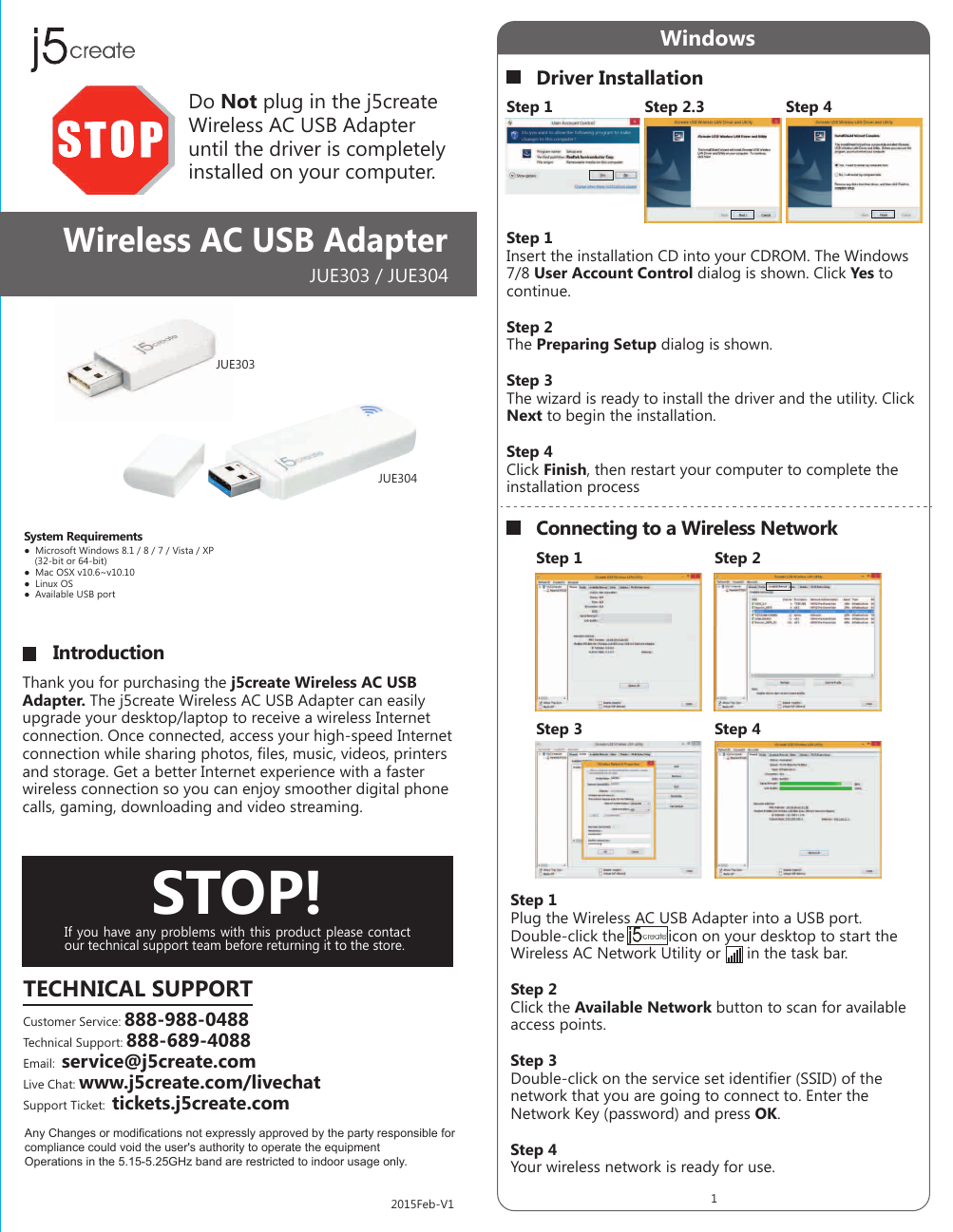
WindowsDriver InstallationConnecting to a Wireless NetworkStep 1 Step 2.3 Step 4Thank you for purchasing the j5create Wireless AC USB Adapter. The j5create Wireless AC USB Adapter can easily upgrade your desktop/laptop to receive a wireless Internet connection. Once connected, access your high-speed Internet connection while sharing photos, files, music, videos, printers and storage. Get a better Internet experience with a faster wireless connection so you can enjoy smoother digital phone calls, gaming, downloading and video streaming.●  Microsoft Windows 8.1 / 8 / 7 / Vista / XP     (32-bit or 64-bit)●  Mac OSX v10.6~v10.10●  Linux OS●  Available USB portDo Not plug in the j5create Wireless AC USB Adapter until the driver is completely installed on your computer.JUE303 / JUE304JUE303JUE304Wireless AC USB AdapterStep 1 Step 2Step 3 Step 4STOP!If you have any problems with this product please contact our technical support team before returning it to the store.TECHNICAL SUPPORTCustomer Service: 888-988-0488Technical Support: 888-689-4088Email:  service@j5create.comLive Chat: www.j5create.com/livechatSupport Ticket:  tickets.j5create.comIntroductionSystem Requirements12015Feb-V1Step 1Insert the installation CD into your CDROM. The Windows 7/8 User Account Control dialog is shown. Click Yes to continue.Step 2The Preparing Setup dialog is shown.Step 3The wizard is ready to install the driver and the utility. Click Next to begin the installation.Step 4Click Finish, then restart your computer to complete the installation processStep 1Plug the Wireless AC USB Adapter into a USB port. Double-click the          icon on your desktop to start the Wireless AC Network Utility or      in the task bar.Step 2Click the Available Network button to scan for available access points.Step 3Double-click on the service set identifier (SSID) of the network that you are going to connect to. Enter the Network Key (password) and press OK.Step 4Your wireless network is ready for use.Any Changes or modifications not expressly approved by the party responsible for compliance could void the user's authority to operate the equipmentOperations in the 5.15-5.25GHz band are restricted to indoor usage only.
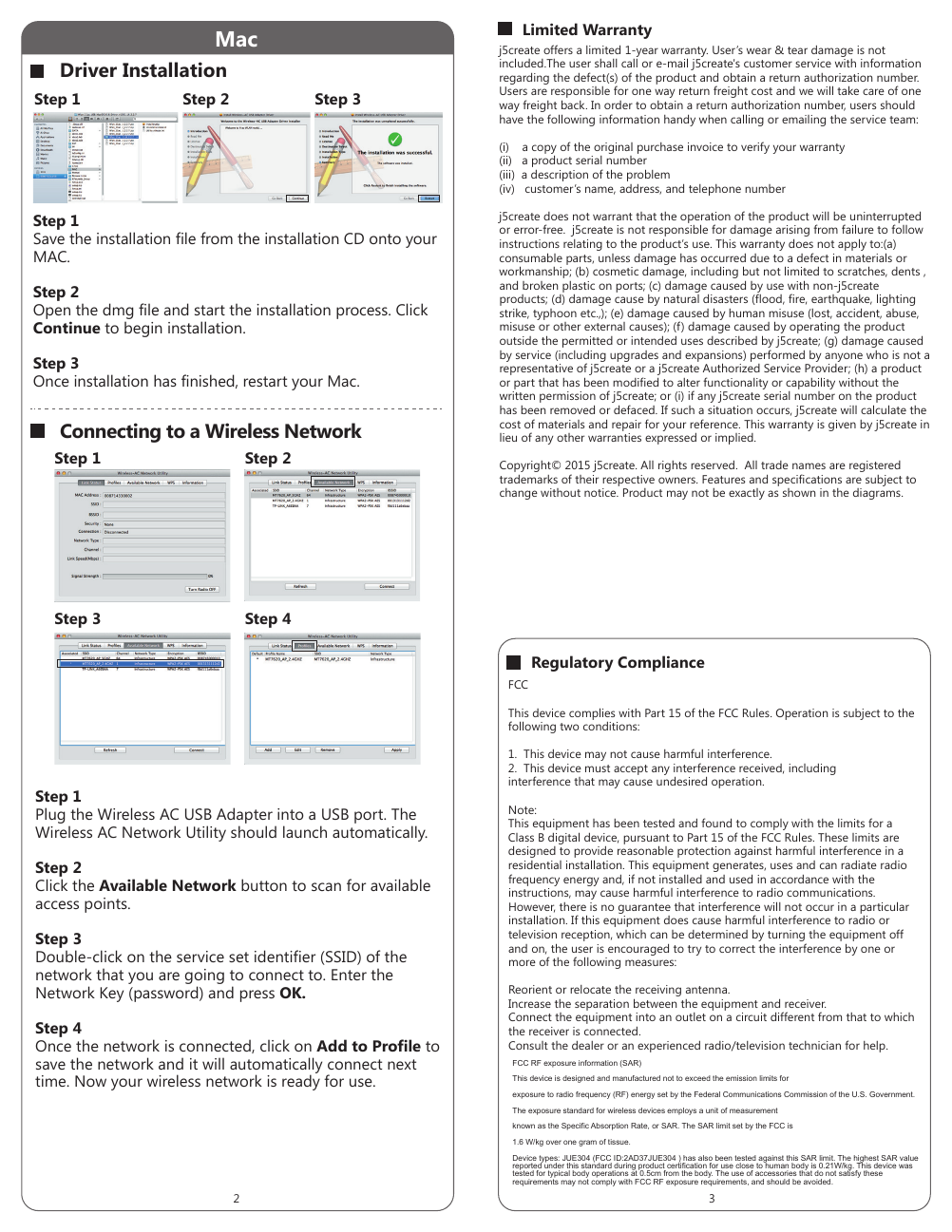
Mac j5create offers a limited 1-year warranty. User’s wear & tear damage is not included.The user shall call or e-mail j5create's customer service with information regarding the defect(s) of the product and obtain a return authorization number. Users are responsible for one way return freight cost and we will take care of one way freight back. In order to obtain a return authorization number, users should have the following information handy when calling or emailing the service team:(i)    a copy of the original purchase invoice to verify your warranty (ii)   a product serial number (iii)  a description of the problem(iv)   customer’s name, address, and telephone numberj5create does not warrant that the operation of the product will be uninterrupted or error-free.  j5create is not responsible for damage arising from failure to follow instructions relating to the product’s use. This warranty does not apply to:(a) consumable parts, unless damage has occurred due to a defect in materials or workmanship; (b) cosmetic damage, including but not limited to scratches, dents , and broken plastic on ports; (c) damage caused by use with non-j5create products; (d) damage cause by natural disasters (flood, fire, earthquake, lighting strike, typhoon etc.,); (e) damage caused by human misuse (lost, accident, abuse, misuse or other external causes); (f) damage caused by operating the product outside the permitted or intended uses described by j5create; (g) damage caused by service (including upgrades and expansions) performed by anyone who is not a representative of j5create or a j5create Authorized Service Provider; (h) a product or part that has been modified to alter functionality or capability without the written permission of j5create; or (i) if any j5create serial number on the product has been removed or defaced. If such a situation occurs, j5create will calculate the cost of materials and repair for your reference. This warranty is given by j5create in lieu of any other warranties expressed or implied.Copyright© 2015 j5create. All rights reserved.  All trade names are registered trademarks of their respective owners. Features and specifications are subject to change without notice. Product may not be exactly as shown in the diagrams.Connecting to a Wireless NetworkDriver InstallationStep 1Plug the Wireless AC USB Adapter into a USB port. The Wireless AC Network Utility should launch automatically.Step 2Click the Available Network button to scan for available access points.Step 3Double-click on the service set identifier (SSID) of the network that you are going to connect to. Enter the Network Key (password) and press OK.Step 4Once the network is connected, click on Add to Profile to save the network and it will automatically connect next time. Now your wireless network is ready for use.Step 1Save the installation file from the installation CD onto your MAC.Step 2Open the dmg file and start the installation process. Click Continue to begin installation.Step 3Once installation has finished, restart your Mac.Step 2Step 1 Step 3Limited WarrantyFCCThis device complies with Part 15 of the FCC Rules. Operation is subject to the following two conditions:1.  This device may not cause harmful interference.2.  This device must accept any interference received, including interference that may cause undesired operation.Note: This equipment has been tested and found to comply with the limits for a Class B digital device, pursuant to Part 15 of the FCC Rules. These limits are designed to provide reasonable protection against harmful interference in a residential installation. This equipment generates, uses and can radiate radio frequency energy and, if not installed and used in accordance with the instructions, may cause harmful interference to radio communications. However, there is no guarantee that interference will not occur in a particular installation. If this equipment does cause harmful interference to radio or television reception, which can be determined by turning the equipment off and on, the user is encouraged to try to correct the interference by one or more of the following measures:Reorient or relocate the receiving antenna.Increase the separation between the equipment and receiver.Connect the equipment into an outlet on a circuit different from that to which the receiver is connected.Consult the dealer or an experienced radio/television technician for help.Regulatory ComplianceStep 1 Step 2Step 3 Step 42 3FCC RF exposure information (SAR)This device is designed and manufactured not to exceed the emission limits forexposure to radio frequency (RF) energy set by the Federal Communications Commission of the U.S. Government.The exposure standard for wireless devices employs a unit of measurementknown as the Specific Absorption Rate, or SAR. The SAR limit set by the FCC is1.6 W/kg over one gram of tissue.Device types: JUE304 (FCC ID:2AD37JUE304 ) has also been tested against this SAR limit. The highest SAR value reported under this standard during product certification for use close to human body is 0.21W/kg. This device was tested for typical body operations at 0.5cm from the body. The use of accessories that do not satisfy these requirements may not comply with FCC RF exposure requirements, and should be avoided.
/JUE304 monochromatic printSizeSizeOriginal

Navigation menu