KCMobile N120 QUAD-BAND MULTIMEDIA GSM PHONE User Manual 8 N120 KCM

KCMobile Co., Ltd. QUAD-BAND MULTIMEDIA GSM PHONE 8 N120 KCM

USERS MANUAL

        Tri-band GSM/GPRS handset N120 User Guide
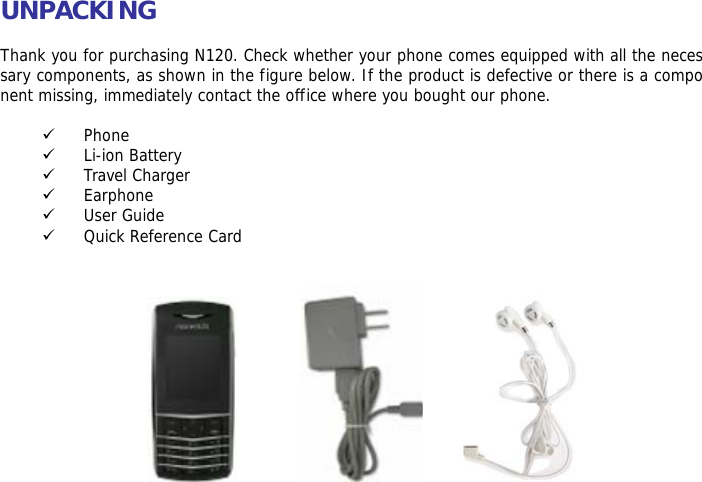
UNPACKING  Thank you for purchasing N120. Check whether your phone comes equipped with all the necessary components, as shown in the figure below. If the product is defective or there is a component missing, immediately contact the office where you bought our phone.  9 Phone 9 Li-ion Battery 9 Travel Charger 9 Earphone 9 User Guide 9 Quick Reference Card
   CONTENTS  0…SAFETY INFORMATION  0…BEFORE YOU START  0…PHONE ICONS 0…DESCRIPTION OF KEYS 0…BACKLIGHT 0…BATTERY 0…NETWORK LINKING 0…INSERT & REMOVE THE T-FLASH CARD 0…THE IDLE PROFILE 0…CALL FUNCTIONS 0…DISPLAY SCREEN 0…KEY OPERATION 0…SILENT MODE 0…CALL LOG 0…CALL MENU  0…FUNCTION MENU  0…PHONEBOOK 0…Quick Search 0…Search Entry 0…Add New Entry  0…Copy All 0…Delete 0…Caller Group 0…Extra Number 0…Settings 0…Caller Picture  0…Caller Ring Tone 0…Caller Video  0…MESSAGE 0…Message 0…Chat 0…Voice Mail Server 0…Broadcast Message
0…CALL HISTORY 0…Missed Calls  0…Dialed Calls 0…Received Calls 0…Delete Call Log 0…Call Time 0…Call cost 0…SMS Counter 0…GPRS Counter  0…SETTINGS 0…Phone Setup 0…Call Setup 0…Network Setup 0…Security Setup 0…Sound Effect 0…Restore Factory Settings 0…S/W Version  0…MULTIMEDIA  0…Camera 0…ImageViewer 0…Video Recorder  0…Video Player 0…Webcam 0…Photo Editor 0…Audio Player 0…AB Repeater 0…Sound Recorder 0…Melody Compose  0…FILE  MANAGER  0…FUN & GAME  0…Games 0…Theme 0…Stopwatch  0…USER PROFILE  0…ORGANIZER 0…Calendar 0…To Do List 0…Alarm 0…World Clock 0…Voice ExactTime  0…SERVICES 0…WAP 0…Data Account
0…EXTRA FUNCTIONS 0…Calculator 0…Unit Converter 0…Currency Converter 0…Health 0…E-Book Reader   0…SHORTCUTS  0…TEXT INPUT MODE  0…SPANISH/ENGLISH IUPUT MODE  0…SYMBOLS  0…MP3 AND MP4 INSTRUCTION  0…TROUBLESHOOTING  0…GLOSSARY  0…LIMITED WARRANTY STATEMENT 0…Multitap ES/ABC Input Mode 0…Multitap es/abc Input Mode 0…Smart ES/ABC Input Mode 0…Smart es/abc Input Mode 0…Numeric Mode
   SAFETY INFORMATION  PERSONAL USE  Operation of any radio equipment including mobile phones may interfere with the function of inadequately shielded medical devices such as hearing aids and pacemakers. You must consult the manufacturer of these devices or your physician before use.   In oil depots and chemical factories where explosive gas or other products are stored, the user should pay close attention to the restriction on the use of mobile phone. Even if your phone is in the idle mode, it will still transmit radio frequency signals. Therefore, you must switch off when requested to do so.   Do not move the antenna close to or touch any exposed part of the body when making a call. Otherwise, it will cause minor burn to your body.  Note traffic safety. When you are driving, please do no use your mobile phone. Stop on the side of the road when you do need to use it. Avoid making calls with your cellular phone in stormy weather.  Safety Information related with children:  9 Be cautious of children swallowing the small parts such as the SIM card
9 Prevent children from playing with your cell phone as toys. For example, behaviors like throwing, biting the phone, or immersing it into water should be avoided. 9 Do not let children less than 14 years old hang the phone around the neck. MOBILE PHONE USE  Please use only the accessories or parts offered by the manufacturer or those authorized by the manufacturer. Use of unauthorized accessories might influence the performance of the phone. What’s worse, your phone might get damaged and harm will be caused to your body. It might even violate the national regulations on the telecommunication terminal products.  Do not use chemical products like cleaning solvents or detergents to clean your phone. It is recommended that you use slightly damp and static electricity proof cloth instead of cloth that is dry and easy to catch static electricity. Before cleaning, you should switch off your phone.  Your mobile phone produces magnetic fields. Do not place it next to magnetic storage media such as computer diskettes. Operating your mobile phone close to other electrical equipment such as televisions, phones, radios and personal computers may cause interference and therefore influence the performance of your phone.  Do not expose your mobile phone to strong sunlight, direct heat or any liquids in case of any damage.   Harsh handling behaviors such as throwing; beating which might damage the internal integrated circuit of the phone should be avoided.
Please do not link it to other unnecessary equipments.   Note! Non-professionals must not try to dissemble the phone.  Phone Precautions! 9 Use your phone battery only for its intended purpose, and never use any battery charger which is damaged or worn out. 9 When you unplug your phone from its charger, grasp and pull the plug, not the power cord. 9 Do not use harsh chemicals, cleaning solvents, or strong detergents to clean your phone. Wipe it with a soft cloth slightly dampened in a mild soap-and-water solution. 9 Do not attempt to open the casing on your phone or its battery. 9 Always keep SIM card out of children’s reach.  BATTERY USE  Do not short-circuit the battery terminals. This is dangerous and will damage the battery, produce heat and may cause a fire.   Never dispose of batteries in a fire as it can cause explosion. Return waste batteries to your supplier or an approved recycling center.  Do Not dispose along with household wastes.    Warning! If the battery case is broken, avoid contact with the contents. Wash contaminated skin with lots of water and seek medical attention.
Battery Precautions! 9 Avoid dropping the cell phone. Dropping it, especially on a hard surface, can potentially cause damage to the phone and battery. If you suspect damage to the phone or battery, take it to a service center for inspection. 9 Never use any charger or battery that is damaged in any way. 9 Use the battery only for its intended purpose. 9 If you use the phone near the network’s base station, it uses less power; talk and standby time are greatly affected by the signal strength on the cellular network and the parameters set by the network operator. 9 Battery charging time depends on the remaining battery charge and the type of battery and charger used. The battery can be charged and discharged hundreds of times, but it will gradually wear out. When the operation time (talk time and standby time) is noticeably shorter than normal, consider purchasing a new battery. 9 If left unused, a fully charged battery will fully discharge itself over time.  9 Extreme temperatures will affect the charging capacity of your battery : it may require cooling or warming first. 9 Do not leave the battery in hot or cold places, such as in a car in summer or winter conditions, as it will reduce the capacity and life of the battery. Always try to keep the battery at room temperature. A phone with a hot or cold battery may temporarily not work, even when the battery is fully charged. Batteries are particularly affected by temperatures below 32°F. 9 Do not place the phone in areas that may get very hot, such as on or near a cooking surface, cooking appliance, iron, or radiator. 9 Prevent your phone or battery from getting wet. Even though they will dry and appear to operate normally, the circuitry could slowly corrode and pose a safety hazard. 9 Avoid a battery out of the phone in coming contact with metal objects, such as coin
s, keys or jewelry.  ON THE ROAD  Before making or receiving calls acquaint yourself thoroughly with the applicable local laws and guidelines regarding the use of mobile radio telephones and always abide by these laws.  Air bags, anti-lock brakes, cruise control and fuel injection systems are normally immune to radio transmissions but if you come across problems, please consult you vehicle dealer.   Turn off your mobile phone when refueling or where there are signs restricting the use of two-way radio equipment. Do not store or carry flammable or explosive materials in the same compartment as your mobile phone because internal sparks could cause ignition.   Safety comes first, and is the ultimate responsibility of the driver. Please: 9 Give full attention to driving – driving safely is your first responsibility. 9 Use a Hands-free Kit, if available. 9 If you have a Hands-free Kit make sure to pre-program numbers when possible, and keep calls brief and to a minimum. 9 If you don’t have a handsfree kit, pull off the road and park your vehicle before making or answering a call in driving conditions so require.  ON AN AIRCRAFT  Switch off your mobile phone before boarding an aircraft. Use of mobile phone is strictly forbid
den on an aircraft because of the potential interference with the telecommunication system. If the plane has not taken off yet, you should ask the flight crew for permission before you use your phone.   Note! If you have set your phone to Auto Switch ON, please check the Alarm Clock setting status and the Schedule menu to see the reminding time setting so that your phone will not power on automatically during the flight.  EXPLOSIVE  ATMOSPHERES AND MATERIALS  Turn your phone off and do not remove the battery when in any area with a potential explosive  atmosphere and obey all signs and instructions. You must observe restrictions on the use of radio equipment in fuel depots; below deck on boats; fuel or chemical transfer or storage facilities; areas where the air contains chemicals or particles, such as grain, dust, or metal powders; areas with signs about explosive atmospheres or where blasting operations are in progress; any other areas where you would normally be advised to turn off your vehicle engines.
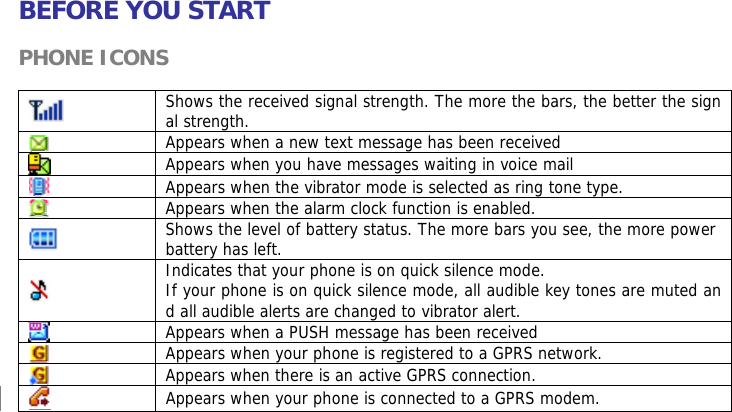
BEFORE YOU START  PHONE ICONS   Shows the received signal strength. The more the bars, the better the signal strength.  Appears when a new text message has been received  Appears when you have messages waiting in voice mail  Appears when the vibrator mode is selected as ring tone type.  Appears when the alarm clock function is enabled.  Shows the level of battery status. The more bars you see, the more power battery has left.  Indicates that your phone is on quick silence mode. If your phone is on quick silence mode, all audible key tones are muted and all audible alerts are changed to vibrator alert.  Appears when a PUSH message has been received  Appears when your phone is registered to a GPRS network.  Appears when there is an active GPRS connection.  Appears when your phone is connected to a GPRS modem.
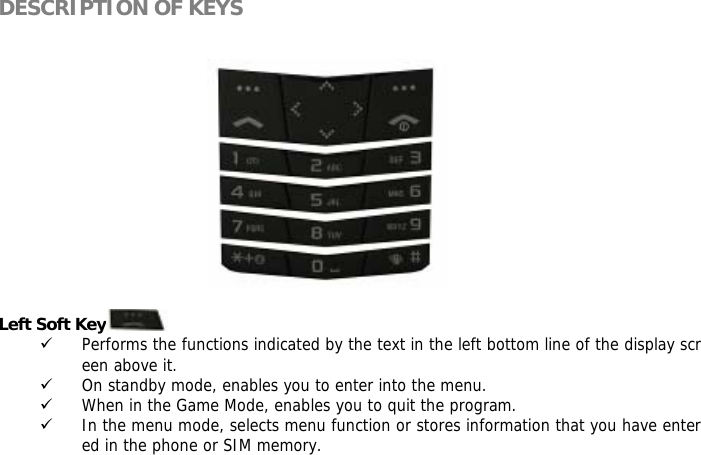
DESCRIPTION OF KEYS     Left Soft Key  9 Performs the functions indicated by the text in the left bottom line of the display screen above it. 9 On standby mode, enables you to enter into the menu. 9 When in the Game Mode, enables you to quit the program. 9 In the menu mode, selects menu function or stores information that you have entered in the phone or SIM memory.
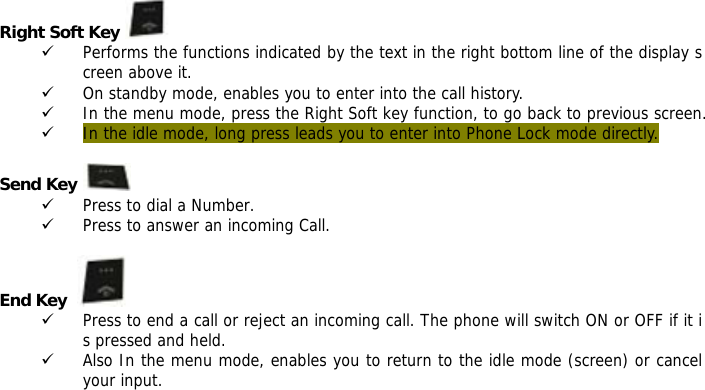
Right Soft Key   9 Performs the functions indicated by the text in the right bottom line of the display screen above it. 9 On standby mode, enables you to enter into the call history. 9 In the menu mode, press the Right Soft key function, to go back to previous screen. 9 In the idle mode, long press leads you to enter into Phone Lock mode directly.  Send Key   9 Press to dial a Number. 9 Press to answer an incoming Call.  End Key    9 Press to end a call or reject an incoming call. The phone will switch ON or OFF if it is pressed and held. 9 Also In the menu mode, enables you to return to the idle mode (screen) or cancel your input.
Navigation Key   9 In the editing mode, moves the cursor. 9 In the menu mode, moves the menu cursor. 9 In the idle mode, each key has the following function. - Up-Navigation key : Enter into the Message Center.  - Down- Navigation key  Short Press : Enter into the “SIM Tool Kit” Long Press : Set Ring/Key Tone Volume. - Left- Navigation key : Enter into the “Quick Search” of the “Phonebook”. - Right- Navigation key : Enter into the Multimedia Menu.  0~9 Numeric Keys   ~    By pressing the keys, you can enter numbers and characters. If your phone is in the idle mode, you can make use of the Speed Dial function by long pressing the number keys([2]~[8] key) select options of menus quickly. 9 In the idle mode, Enter into the “SIM Tool Kit” by long pressing the [0] key.  (This function should be supported by SIM card). 9 In the idle mode, Enter into the “Voice Mail Server” by long pressing the [1] key.  9 In the idle mode, user can make emergency call 060 by long pressing the [9] key.
[* ] Key and [#] Key   9 Depending on the different screens or different menus, the two keys work in different functions : 9 In the idle mode, switch between the Mute Mode and the Normal Mode by long pressing the [#] key. 9 In the idle mode, Enter into the “Internet Services” by long pressing the [*] key.  (This function should be supported by SIM card). 9 [#]key: Switch between the Text Input Modes in the Editing screen. 9 [*]key: Switch to the Symbols Input Mode in the Editing screen. 9 In number dialing screen, you can enter characters such as “P” , “+” and “W” , of which “P” shows it’s a extension call and “+” indicates it’s an international call.  Side Volume Key  9 When the phone slides up and is in the idle mode, you can adjust the volume of the keys. Also in the same mode, you can switch to adjust the volume of the ring tone by pressing Right- Navigation key. 9 During a call, when the MP3 player is working, you can regulate the volume of the voice or music. 9 When there is an incoming call, you can stop the alert ring by short pressing the Down-side key. You can also end the incoming call by long pressing the Up-/Down side key.
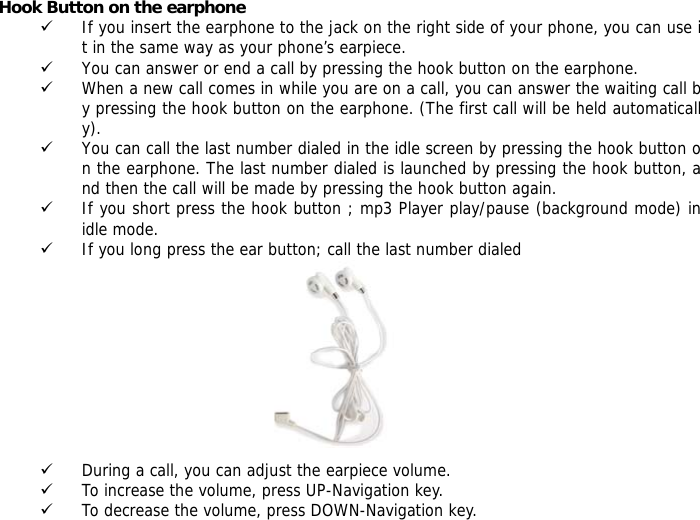
Hook Button on the earphone 9 If you insert the earphone to the jack on the right side of your phone, you can use it in the same way as your phone’s earpiece. 9 You can answer or end a call by pressing the hook button on the earphone. 9 When a new call comes in while you are on a call, you can answer the waiting call by pressing the hook button on the earphone. (The first call will be held automatically). 9 You can call the last number dialed in the idle screen by pressing the hook button on the earphone. The last number dialed is launched by pressing the hook button, and then the call will be made by pressing the hook button again.  9 If you short press the hook button ; mp3 Player play/pause (background mode) in idle mode.  9 If you long press the ear button; call the last number dialed           9 During a call, you can adjust the earpiece volume. 9 To increase the volume, press UP-Navigation key. 9 To decrease the volume, press DOWN-Navigation key.
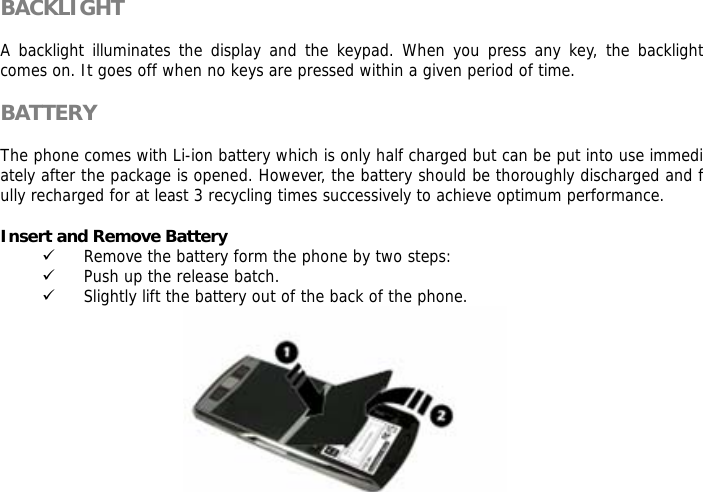
BACKLIGHT  A backlight illuminates the display and the keypad. When you press any key, the backlight comes on. It goes off when no keys are pressed within a given period of time.  BATTERY  The phone comes with Li-ion battery which is only half charged but can be put into use immediately after the package is opened. However, the battery should be thoroughly discharged and fully recharged for at least 3 recycling times successively to achieve optimum performance.  Insert and Remove Battery 9 Remove the battery form the phone by two steps: 9 Push up the release batch.  9 Slightly lift the battery out of the back of the phone.
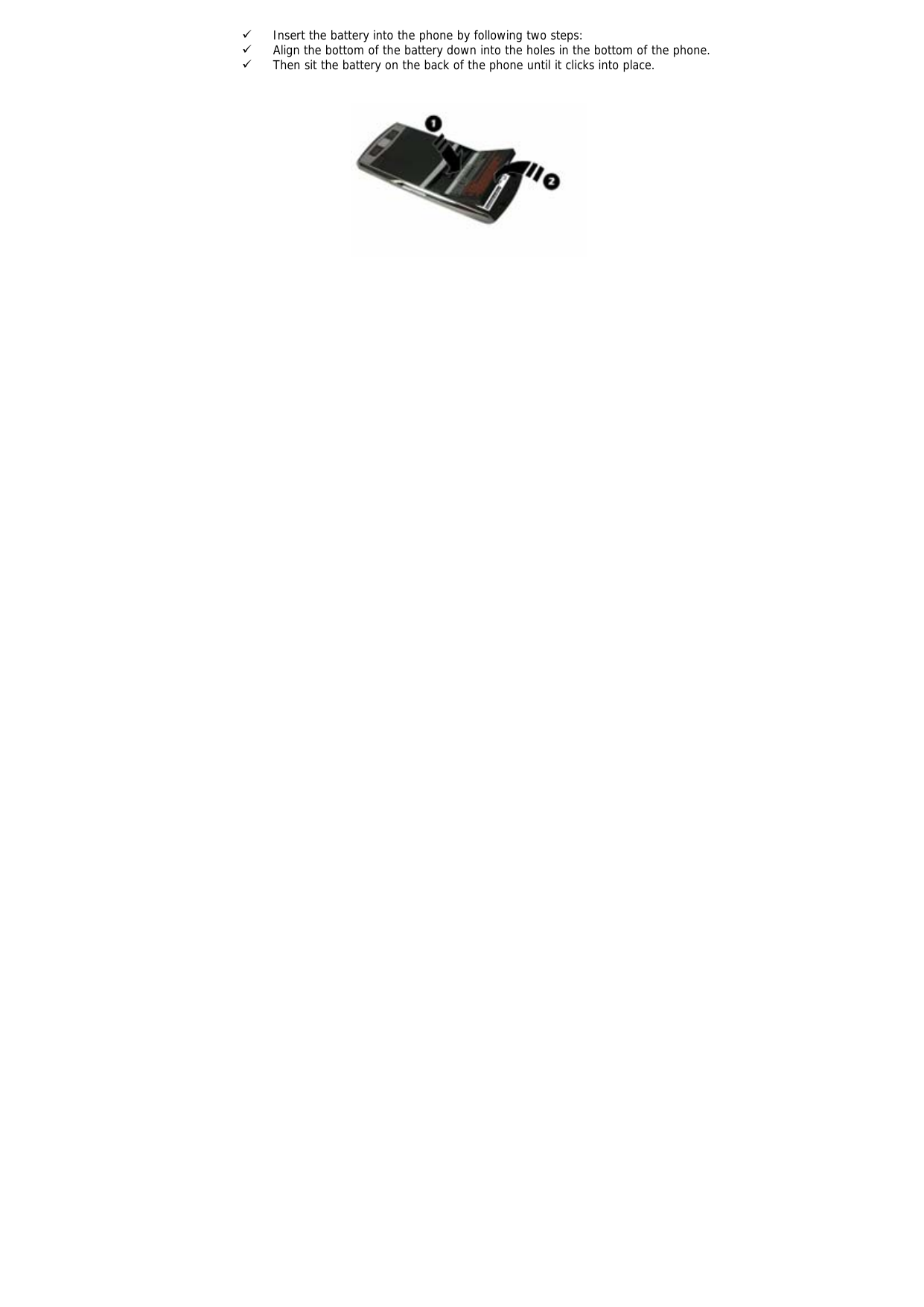
9 Insert the battery into the phone by following two steps: 9 Align the bottom of the battery down into the holes in the bottom of the phone. 9 Then sit the battery on the back of the phone until it clicks into place.
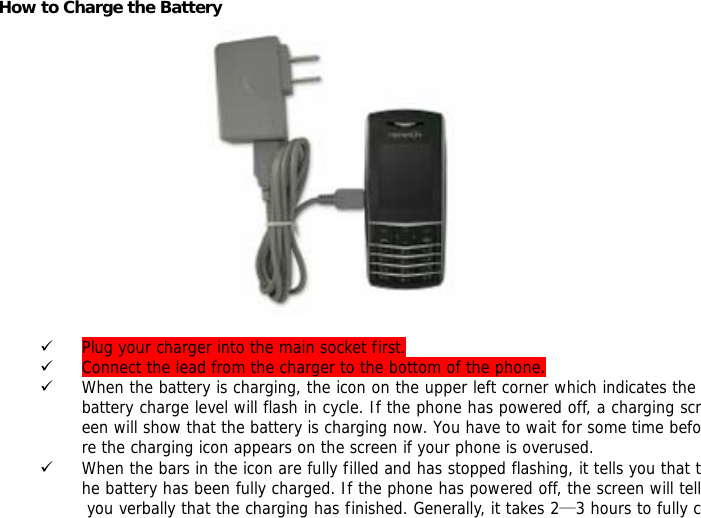
How to Charge the Battery          9 Plug your charger into the main socket first. 9 Connect the lead from the charger to the bottom of the phone. 9 When the battery is charging, the icon on the upper left corner which indicates the battery charge level will flash in cycle. If the phone has powered off, a charging screen will show that the battery is charging now. You have to wait for some time before the charging icon appears on the screen if your phone is overused. 9 When the bars in the icon are fully filled and has stopped flashing, it tells you that the battery has been fully charged. If the phone has powered off, the screen will tell you verbally that the charging has finished. Generally, it takes 2—3 hours to fully c
harge the battery. Normally, the battery, the phone and the charger might get heated in the process.  9 Release the charger from the power socket and the phone. 9 Warning! Charge the battery in a well-ventilated area between -40℃ ~ +55℃. You must only use the supplied charger. Unauthorized charger might result in danger and any malfunction or damage caused by the use of unapproved charger will void the product warranty and it will not be acknowledged by the manufacturer.   Battery Use 9 It is highly recommended that you recharge your battery when your phone powers off automatically or when the screen says “Inadequate Battery”. If you recharge the battery before it is fully discharged, the phone will make some adjustment automatically and complete the charging in less time.  9 The talk time and standby time suggested by the supplier is measured in an ideal operating environment. Practically, the time may vary with the state of the network, operating environment and the way it is used. NETWORK LINKING  SIM Card 9 Your network service provider will offer you a SIM (subscriber identity module) card, which is inserted into your phone. It is the key to the digital GSM network. You should install a valid SIM card in place before you start to use your phone. Information about network linking and your call record together with your phonebook and SMS is all saved in SIM card. It can be applicable to all GSM linking phones. A new phone will read the data stored automatically.
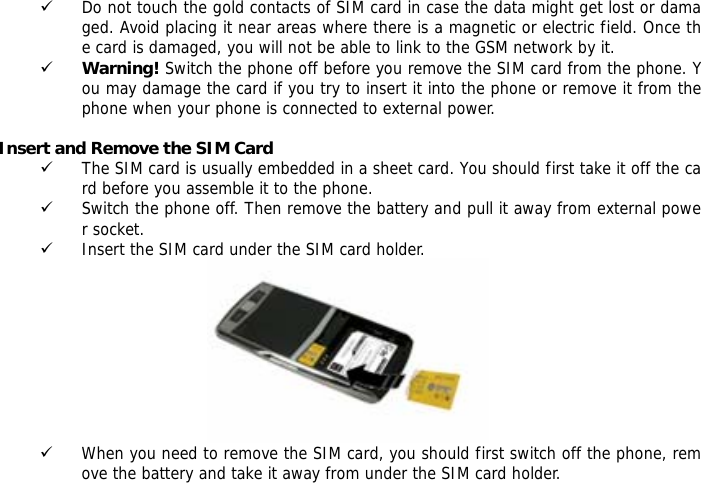
9 Do not touch the gold contacts of SIM card in case the data might get lost or damaged. Avoid placing it near areas where there is a magnetic or electric field. Once the card is damaged, you will not be able to link to the GSM network by it.  9 Warning! Switch the phone off before you remove the SIM card from the phone. You may damage the card if you try to insert it into the phone or remove it from the phone when your phone is connected to external power.   Insert and Remove the SIM Card 9 The SIM card is usually embedded in a sheet card. You should first take it off the card before you assemble it to the phone. 9 Switch the phone off. Then remove the battery and pull it away from external power socket. 9 Insert the SIM card under the SIM card holder.  9 When you need to remove the SIM card, you should first switch off the phone, remove the battery and take it away from under the SIM card holder.
   9 ! Note: About the SIM card The SIM card is a computer chip containing information about your subscription, security, phonebook etc. When you register as a subscriber with GSM or GPRS network operator, you are provided with the SIM card. Always handle the SIM card with care and insert with the gold contacts facing down.  Power ON/OFF    9 Make sure that the battery is attached. You can switch your phone On/Off by long pressing the [end] key. 9 If you switch the phone on without a SIM card : The phone will promote “Insert SIM” ―― In this case, you can make emergency
call 060. The phone will promote“Network Emergency”―― which means it is searching for network but has failed to link. 9 When the SIM card is in the due place, the phone will check the validity of the card automatically. Then the screen will promote in sequence: “Enter PIN”-- prerequisite:  SIM card security code is enabled.  “Enter Lock Code ”-- Prerequisite: Phone Lock Code is enabled. “No Service”-- Network registration failure. In this case, you can not make a call. “Emergency Call Only”-- You phone has registered the other network and only 060 emergency call is allowed.  “Searching for Network”-- The phone will search for proper network to log on. “Telcel GSM  or Telcel ” -- Successful network registration. You may make a call and send or receive SMS.  PIN Code 9 A PIN code is adopted to prevent your SIM card from any illegal use. If a PIN code is activated, you are requested to input the PIN code to unlock the SIM card every time your phone is switched on. Only in this way can you make or receive a call. The user can also disable the PIN code. In this case, your phone will be open to illegal use. 9 When the PIN code is enabled, you can erase the wrong input by pressing the Right soft key and confirm the code by pressing [#] or [OK] key.  9 For example: If the PIN code is set to be 1234, you can enter the code as follow : 1234#. 9 If the PIN code is entered incorrectly more than 3 times in succession, PIN will be b
locked and your SIM card will automatically lock-up. Once your SIM card is blocked, you will be asked for the PUK1 password. 9 Note! A regular PIN code consisting of 4~8 digits will be offered to you by your network service provider. You are advised to change it into your private code set by yourself as soon as possible.  Phone Lock 9 A Phone lock code can be set to prevent your SIM card from any illegal use. If a PIN code is activated, you are requested to input the phone lock code to unlock the phone every time your phone is switched on. Only in this way can you make or receive a call. The user can also disable the phone lock code. In this case, your phone will be open to illegal use.  9 When you enter a wrong phone lock code, you can clear it by pressing [END] key. Confirm your operation by pressing [#] key or [OK] key. 9 For example : If the phone lock code is set to be 0000, you can enter the code as follow : 0000#. 9 Provided that you forget the phone lock code, you must contact your dealer or the local authorized maintenance center.    Link the Network 9 If the SIM lock code is acknowledged, your phone will search for the registration network automatically or log on to other applicable networks. “Searching …” appears on the screen. In the end, you will find the name of the network service provider, appearing in the middle of the screen, to show successful connection and your phone
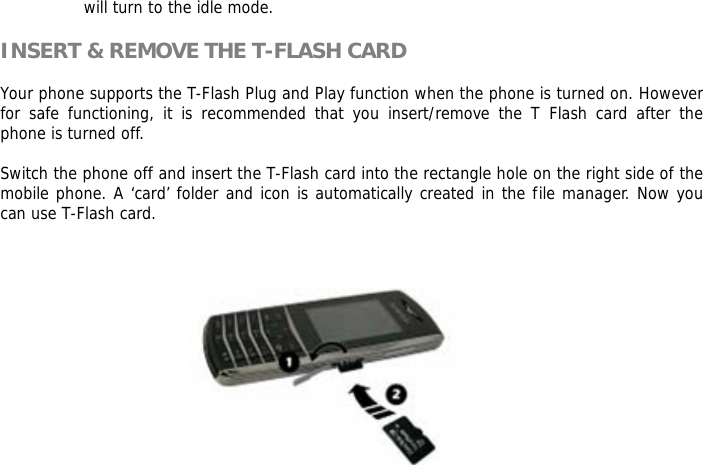
will turn to the idle mode.  INSERT & REMOVE THE T-FLASH CARD  Your phone supports the T-Flash Plug and Play function when the phone is turned on. However for safe functioning, it is recommended that you insert/remove the T Flash card after the phone is turned off.   Switch the phone off and insert the T-Flash card into the rectangle hole on the right side of the mobile phone. A ‘card’ folder and icon is automatically created in the file manager. Now you can use T-Flash card.
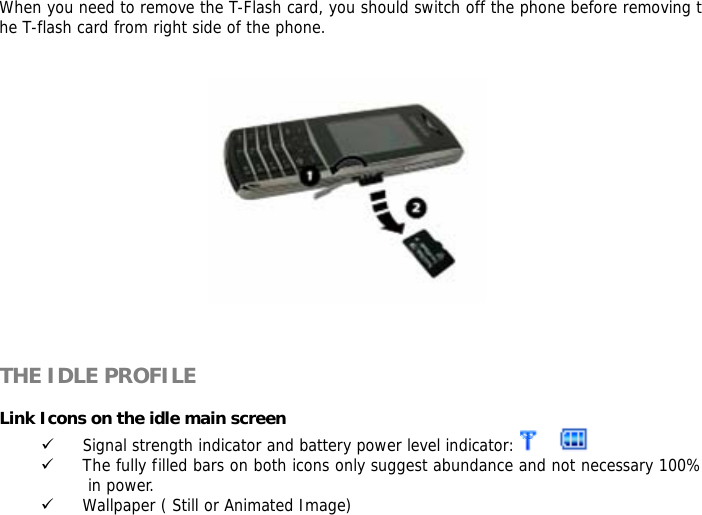
When you need to remove the T-Flash card, you should switch off the phone before removing the T-flash card from right side of the phone.        THE IDLE PROFILE  Link Icons on the idle main screen 9 Signal strength indicator and battery power level indicator:    9 The fully filled bars on both icons only suggest abundance and not necessary 100% in power. 9 Wallpaper ( Still or Animated Image)
9 There are built-in still or animated wallpapers for your choice. You can also download pictures from the PC by connecting your phone to the computer. 9 When your phone is in the idle mode, you can also see the following icons: Alarm Setting has been enabled.    New text message and full inbox indicator:   Mute Setting has been enabled.   9 The sub-screen displays the receiving signal, the battery power level, Alarm, SMS, Vibration and the current time.   CALL FUNCTIONS  Making a call 9 You can receive or make a call when the sign of the network service provider appears on the display screen. The number of the bars on the upper left corner indicates the network signal strength. 9 Since barriers could greatly influence the talk quality on the telephone line, it is advisable to move within a limited area to receive stronger signal.  Dialing mode 9 Whenever you press and input a numeric key, your phone will go to the dialing mode. The Signal indicator icon and the Battery level indicator and other icons remain on the screen.  9 Usable key operations in dialing mode:
9 Function keys: Save a number to Phonebook by pressing Left soft key. Return to the idle mode by pressing right soft key or the [END] key. Dial the number entered by pressing [SEND] key. Erase the digit before the cursor by short pressing the Right soft key. Clear all the digits entered by long pressing the Right soft key. 9 Navigation Key: Use to move the cursor.  Connecting a Number 9 In the idle mode, you will enter the dialing mode by pressing any numeric key. By pressing the [SEND] key, your phone will try to connect to the entered number. The connecting animation, signal indicator, and the battery level icon will display on the screen. If the number you are dialing is stored in your phonebook in advance, the name will be displayed on the screen. Otherwise, the called number appears on the screen.  9 Key operation : You can end a call by pressing Right soft key, [END] key, the hook button on the earphone.   Adjusting the Call Volume 9 During a call, if you want to adjust the earpiece volume, use the Volume keys on the left side of the phone. Press the   key to increase or decrease the volume level.   Domestic Call 9 The most convenient way to make a domestic call is to enter telephone numbers by
pressing the numeric keys. (Please add area code before the number.) Press [SEND] key to connect the called number. You can change the entered number by pressing the Right soft key to clear the digit before the cursor. A connecting animation appears on the screen. When the other part ends the call, you can check the call related information. 9 Press [END] to end a call.  9 The input sequence is:  Area code + number + [SEND].  Call an Extension of fixed Phone sets 9 Extensions of fixed phone sets cannot be connected directly to your phone. You need to first connect to the telephone exchange and then dial the extension number. However, this can also be achieved by inserting a pause character “P” to indicate the extension number. Your phone will finish the entire dialing automatically.  9 You can enter “P” by short pressing [*] three times successively, the symbol “P” will appear on the screen.  9 The steps to dial an extension number: 9 Area code  + main number + “P” + extension number + [SEND] key  9 For example: 9 If you want to dial 1234567 to call the tele-banking system with the balance inquiry number 7777 and password 0000, the dialing sequence will be: 1234567 + P +7777+ P + 0000 9 The first part is to call the banking system. When the call is answered, the phone will transmit 7777 to enquire the balance.
International Call 9 You should press [*] key for a couple of times until the symbol “+” appear on the screen. By doing so, you can make an international call in whatever country without having to input the country code. (e.g. in China it is 00.) After the prefix symbol is entered, you should input the country code and the telephone number. Country code is customarily fixed. For instance, in Germany, it is 49. In UK, it is 44. In Sweden, it is 46, etc. When you are dialing an international call, you should omit the digit “0” before the city code. 9 To dial a fixed number: +”Country code + complete number + [SEND] key   Call from the List 9 Your phone automatically stores each number dialed or answered in its memory. In the call list, you can view recently called and answered numbers. The latest call will be listed in the very beginning. All the records are categorized into Missed Calls, Dialed Calls, and Received Calls. The list may be updated continually as new numbers are added to the beginning of the list and the oldest entries are removed from the bottom of the list. You can view the Dialed Call numbers by pressing [Send] key. You can also dial the numbers in the list by pressing [SEND] key. 9 You can launch the call options mode by pressing left soft key so that you can save the number into the Phonebook by pressing “Save to Phonebook”.  Emergency Call 9 In whichever countries covered by the digital GSM network, you can make an emergency call if you are within the coverage of the network. The network signal strength indictor will tell you whether you can make it or not.) If no service is available, th
e screen will say “EMERGENCY CALLS ONLY”. Therefore, you can make an emergency call even without the SIM card in place.  1) Enter 060 to call the emergency services. 2) Press [SEND]. 9 ! Note : Some network may not allow the emergency call(060) and may request to insert SIM card.  Answer a call 9 When there is an incoming call, the phone icon on the display screen will be displayed, and the melody will sound or the vibrator will work according to the setting. 9 If the caller is identified, the caller photograph, phone number/name (if stored in the Phonebook), and caller group name is displayed on the screen. 9 ! Note : If the earphone is inserted, or if the call is data call the phone will not enable you to answer or reject a call.     DISPLAY SCREEN  Incoming call animation    9 Signal Strength and Battery Power Level indicator. The number of the caller will be displayed on the screen if it is not saved in the Phonebook. Otherwise, caller’s name will be displayed.
 KEY OPERATION  Function Key  9 You can answer or divert an incoming call by pressing the left soft key and reject it by pressing right soft key. 9 You can answer a call by pressing [SEND] key and reject it by [End] key.  9 Note!  If the earphone is plugged into the jack on the phone, you can answer a call by pressing the hook button. If you have set “Auto Answer” ON with the earphone plugged, the call will be connected automatically in 5 seconds.  SILENT MODE  Silent mode is convenient, for example in a theater, when you wish to stop the phone from making noise.  In the Idle mode, press and hole the      key until the “Silent Activated” message and the Silent mode icon   display. In Silent mode, your phone will vibrate instead of ringing. CALL LOG  Your phone saves the recent call record and all the call times. In “Call Time” sub-menu, you have the following options:  Last Call Time : You can see the last call time of your call. Total Sent : You can see the total sent call time of your call.
Total Received : You can see the total received call time of your call. Reset All Time : When you want to reset call time, selects the Reset All Time.  CALL MENU  During a Call 9 When the call is confirmed by the caller and connected, the main-screen displays the following information when the conversation begins: “Number or Name”, “Call Time”, “Status (Hand-free On/Off)”.  Key Function 9 Function Key:Right soft key for switching between Hand and Hand-free mode;  [END] key for hanging up the phone.  9 Hook Button to end a call. 9 Side Key:Adjust the volume by pressing the Up/Down side key. 9 Numeric Keys:You can input numbers to transmit DTMF (Dual Tone Multi Frequency).  Call Options 9 These options are visible only when you are during the process of a call. The multi-part call function should get support by the network. Please contact you network service provider for further information. 9 The following options are available: “Hold”, “End”, “New Call”, “Phonebook”, “SMS”, “Sound Record”, “Mute (Local voice will not be transmitted to the other part)”, “DTMF (You can set it ON or OFF)”.
9 Note! Some options appear only in some particular situations. Or they may need the support from the network. For example: “New Call” should be supported by the network. Auto DTMF 9 In cases when the “P” symbol is placed in between numbers, the phone will first attempt to connect the call and then automatically send out the numbers after the “p”.  Auto Answer 9 If the earphone has been plugged into the jack on the phone and the Auto Answer function is set ON, the incoming call will be answered automatically in 5 seconds.  To set the Auto Answer function, follow the steps ‘User Profile menu – Headset – Customize – Answer Mode’.  Auto Redial 9 If the Auto Redial mode is set ON, the call will be redialed automatically following a failed attempt. Auto Redial is in Settings menu – Call Setup.  Sound Management 9 Generally, the key sound and the sound of the ring are heard from the earpiece of the phone during a call. If the preset time of the alarm comes during a call, the alarm will be delayed from ringing until after the call has ended. With the earphone plugged in the jack of the phone, the sound will be from the headphone and the alert ring will still work.
   FUNCTION MENU  PHONEBOOK   ! Note: If the SIM card is changed, you may lose the information of the phonebook data in the previous SIM card. If you do so, the type of the number, text memo and group type may be lost. Only the name and telephone number will remain in previous SIM card.  The SIM card memory and phone memory is physically separated but they are searched as a single entity.  You can protect your phonebook information against other persons.  Phonebook of name-card style is designed in your phone. Each item stored in it consists of 3 numbers (mobile , home, office), company , E-mail address, Fax, Image, Ring type, caller group ( None, Family, Friend, VIP, Business and others). You can also save names and numbers in the SIM memory. Your phone is capable of storing and retrieving up to 300 numbers. Speed Dial is also supported and you can make a call by pressing the numeric key directly in the idle mode.  Quick Search
9 In “Phonebook” menu, you can find a number conveniently and quickly in the “Quick Search” sub-menu. 9 Input the initial letter of the Name in the place where the cursor is located, and the phone will begin to search for the most possible record. For example, In the case of searching for “James”, input the letter J in the es Input Mode. Then the number corresponding to the surname “James” will show.   Search Entry  9 You can find phonebook lists conveniently and quickly.  Add New Entry  9 You can store the phone number in your phone. Select the storage location (To SIM/To Phone). Enter the name, number and caller group. Storage location : To SIM : stores 200 entries, to Phone : stores 300 entries. 9 If you want to store the number at the idle screen. Enter the number at the idle screen and press “save”(left soft key). Select the storage location (To SIM/To Phone). Enter the name of the person and caller group.  Copy All  9 Copy all the records stored in the memory of SIM card and the phone memory respectively.  9 From SIM : copy all of the entries from SIM to Phone.
9 From Phone : copy all of the entries from Phone to SIM.   Delete   9 Delete the records stored in SIM card and Phone memory respectively. The records can be deleted instantly or one at a time. 9 From SIM   : You can delete all of the entries from SIM. 9 From Phone : You can delete all of the entries from Phone. 9 One By One : You can delete an entry.  Caller Group  9 You can set different alert ring types, images, members to each of the five groups. Each of the five groups is Friends, Family, VIP, Business, Others. Navigation key is for you to choose specific objects.  Extra Number  9 In this category, you can set Owner Number, Service Dial Number and SOS Number.  Settings   9 Shows the current setting status of the phonebook. You can select the Memory status, Preferred storage, Fields, My vCard, Human Voice Prompt. 9 Memory status : You can see the memory status of the phonebook list.  9 Preferred storage : You can select the priority of the phonebook list.
9 Fields : You can select the field On/Off. 9 My vCard : You can select the vCard.  Caller Picture   9 If you set a specified picture for a phone number in Phonebook, when you received a call from that phone number, the specified picture is displayed.  Caller Ring Tone   9 If you set a specified ring tone for a phone number in Phonebook, when you received a call from that phone number, the specified ring tone rings.  Caller Video   9 If you set a specified video clip for a phone number in Phonebook, when you received a call from that phone number, the specified video clip is activated.  Search by Location   9 In the idle mode, you can enter “Location number + # ” to search for a number directly. For example, input “1#” to retrieve the first number in SIM memory. If there is no such number, “No Record” or “Un-identifiable Location” appears on the screen. 9 Choose the option of “Search” in the menu + Input the name + Go through the record for the one matched your target the most.  Options 9 If you press option soft key after locating the menu cursor to the name you wish to
do an action, the following options are available.  IP dial:The IP number is automatically attached to the number dialed.  Send SMS:Send SMS to a number selected from the phonebook.  View:You can go through the list of telephone numbers stored in the phonebook. Edit:Edit names and numbers etc. Delete:Delete the selected information/record. Copy:You can copy the selected information either from Phone memory to SIM card memory or vice versa. Move:You can move the selected information either from Phone memory to SIM card memory or vice versa.  Duplicate:Duplicate the selected information either from Phone memory to SIM card memory or vice versa.  Send vCard:You can send name cards out or save them to archives by means  of SMS and MMS.   MESSAGE      Messages                                               Write Message
Text Message   Your phone has 10 preset messages. You can also create your own text messages. You can add the message module to the new message you are editing.  You can input the number to which you wish to send your message by either pressing the numeric keys or retrieve it from the phonebook. The finished message can be sent immediately or saved for later editing. During the process of sending, you can see animation on the screen. If the message is successfully delivered, the screen will display “Successful Delivery”. Otherwise, “Failure!” will appear instead. The user should make a confirmation. The message could be saved automatically. That is, after the message is sent and return to the editing screen, the message will still be there. You can activate this function by setting “Auto Memory” ON in the Message Setting menu.  “Send & save” option enables you to send the message successfully and save it in the Outbox. The capacity of out-box is 50. Users can delete the messages one by one manually or Delete All.  When there is new message, your phone will remind you with both animation   and alert ring. ( Ring Setting— Message)  If the inbox is full, corresponding icon will appear on the top of the screen. You can return to the idle screen by pressing Right soft key / [END] key.   9 Following options are available in the “Write Message” menu: Use Template, Insert Object, Format Text. Each message may be composed of up to 612 characters. But
in some cities or areas, messages should not be longer than 160 English characters. In the editing mode, you can select the text input mode by pressing [#] key. Press the [*] key to input symbols. Short press Right soft key to erase the character before the cursor. If you long press the Right soft key, all the characters on the screen will be erased. You can go back to the idle mode by pressing the [END] key. Select characters by right and left soft key. Quit the Text Input Mode by pressing Right soft key key and continue your operation according to the text above the left soft key.  9 Note! Please refer to the Text Input Mode part for further information.  Multimedia Message    A multimedia message can contain text, images, and/or sound clips. The phone has 5 preset MMS, which serve as samples when you want to create new MMS.  When a message is readily finished, you can choose to send it at once or save it for later use. During the process of sending, you can see animation on the screen. If the message is successfully delivered, the screen will display “Successful Delivery”. Otherwise, “Failure!” will appear instead. The user should make a confirmation. The message could be saved automatically. That is, after the message is sent and return to the editing screen, the message will still be there.  “Send and save”  option enables you to send the message successfully and save it in the Outbox. The capacity of out-box is 50. Users can delete the messages one by one manually or Delete All.
When there is a new message, your phone will remind you with both animation   and alert ring. (User profile – Customize - Tone Setup— Message Tone) If the inbox is full, corresponding icon will appear on the top of the screen.  You can return to the idle screen by pressing Right soft key / [END] key.  9 Edit Name : You can edit ‘To’, ‘CC’, and ‘Bcc’ by pressing Up/Down Navigation key. In the editing mode, you can select from the phonebook or edit it. Choose Text Input Mode by pressing [#] key. Press [*] key to input symbols. Short press Right soft key to erase the character before the cursor. If you long press the Right soft key, all the characters on the screen will be cleared. You can go back to the idle mode by pressing the [END] key. Press [Ok] key to confirm your input and you can continue number operation or quit.  9 Edit Subject : The same as the editing of SMS. 9 Edit Content : Press Down-Navigation key to choose the item to be edited. Press the right soft key to the edit screen. You may insert images, sounds etc. When you have finished editing, press left soft key to continue or quit.   9 Note! Refer to the Text Input Mode, introduced below, for further information about the input of characters. Limitation on the number of characters appears on the right upper corner of the screen.   Inbox   9 With this menu, you can view the new text messages or the read messages. Sender
numbers or names(if stored in the Phonebook) are displayed on the list. 9 In the inbox, the scrolling cursor indicates the date when the new message arrives. Read the message by pressing the left soft key. You can preview the message by pressing Up/Down Navigation key. You can also Reply, Forward, Edit the received message. Delete All is also allowed. Reply to the message sender through “Message List — Use Number”. Press the right soft key to the previous menu and press the [END] to the Idle screen.  Outbox   9 If you choose “Save and Send”, the message will be saved to the outbox after the message is successfully sent. The unsent messages are also saved to the outbox and “ No Number” is displayed, which indicates that there is no destination.  9 You can edit the stored message in the outbox. 9 In delivering a stored message, you can send to a person, many people or group. 9 If you want to delete the message, you can choose from the delete/delete all.  Sent   9 With this menu, you can view a list of the sent message.   Draft   9 With this menu, you can view a list of any draft messages that have been created in the ‘create message mode’ and you can save the draft messages here.
Delete Folder   9 Delete the records stored in the Inbox/Outbox/Send/Drafts folder.   Template  9 Users can insert a preset phrase into a text message which is being composed. 9 When you are sending a message, you can quickly use a preset phrase.  Message Settings      Text Message 9 Profile Setting : Profile Name, SMS Center Address, Valid Period, Message Type. 9 Common Setting: Delivery Report : Option that allows you to check if the message has been successfully delivered through the network to the other person. Reply Path : Transmit the reply path to the network terminals. The support of the SMS center is needed for this function. 9 Memory Status : To examine the status of the SIM card and Phone memory. (The storage can be Up to 50)  9 Preferred Bearer: Prefer GPRS, Prefer GSM, GPRS only, GSM only.    Multimedia Message 9 Compose : You can make your own signature. Creation Mode : You can set it to “Free”, “Restricted”. Image Resizing : You can set it to “Off”, “160x120”, 320x240”, “640x480”
Auto Signature : You can set it to “ON”, “OFF”. 9 Send Validity Period : The period of time the MMS kept in the SMS center. Delivery Report : You can set it to ON/OFF. Read Report : Requests notification from the service provider whether the receiver has read the MMS. You can set it ON/OFF. Priority : You can set to priority. Slide Timing : You can set the MMS slide timing. Delivery Time : You can set the MMS delivery Time. The following options are available ; Immediate, in one hour, in 12 hour, in 24 hour. 9 Retrieve Home Network : You can set the Home Network. The following options are available ; immediate, restricted, delayed. Roaming : You can set the Roaming Network. The following options are available ; as home, delayed, restricted. Read Report : Requests notification from the service provider whether the receiver has read the MMS. Options : “Send”, “Never Send”, “On request”. Delivery Report : Whether the delivery report is allowed or not.                                     9 Filter Anonymous : You can set to allow or reject the anonymous MMS. Max Size : You can set to max size of MMS. Advertisement : You can set to read or reject advertising messages. 9 Server Profile : Edit the network service provider of MMS. 9 Memory Status: Indicate the used memory size for MMS.
Chat    9 The phone support up to 2 “Chat Room”. 9 Select chat room and enter into “Chat Room Info”. 9 Type your nickname and destination phone number.  Voice Mail   9 To use this menu, you have to ask to your service provider to activate this function. 9 The phone support up to 2 phone numbers of voice message center. 9 Select a phone number of voice message center, then you can have 2 options ; Edit : You can edit the phone number of voice message center. Connect to Voice : You can call to the current voice message center. 9 You can call to the voice message center that is saved in 1st directory simply by holding down [1] more than 2 seconds on idle mode.  Broadcast Message     9 Receive Mode : You can set activation “ON” or “OFF”. 9 Read Message : You can read the message. 9 Languages ; You can set the language type you want. 9 Channel Settings Select : You can select the channel you want. Add : You can add the channel you want. Type “Channel Title” and “Channel ID”. Edit : You can edit the existing channel. Delete : You can delete the channel you want.
9 ! Note : The voicemail service may not be available on all networks. For more detail, please contact your network service provider.   CALL HISTORY    In the call history menu screen, you can see the number of Missed Calls, Dialed Calls, and Received Calls.  Missed Calls   9 This menu lets you view the latest missed calls. In the missed calls list, you can view the details of the record by pressing the option soft key. Then select view option. In the view screen you can make a call to the number by pressing SEND key.  Dialed Calls   9 This menu lets you view the last some dialed calls.  9 In the dialed calls list, you can view the details of the record by pressing the option soft key. Then select view option. In the view screen you can make a call to the number by pressing SEND key.  Received Calls   9 This menu lets you view the received calls. In the received calls list, you can view the details of the record by pressing the option soft key then select view option. In
the view screen you can make a call to the number by pressing SEND key.  Delete Call Log   9 You can delete the records of missed calls, dialed calls and received calls respectively without clearing the call time record. In order to avoid unnecessary deleting operation, the user should confirm his action before the record is deleted.  9 The following options are available. Missed Calls : You can see the missed calls information and missed call lists. Dialed Calls : You can see the dialed calls information and dialed call lists.  Received Calls : You can see the received calls information and lists. Delete All : If you want to delete all calls, selects the Delete All.  Call Time   9 In this menu, you can view the last call time, total sent and total received. You can clear the all call time. 9 The following options are available. Last Call Time : You can see the last call time of your call. Total Sent : You can see the total sent call time of your call. Total Received : You can see the total received call time of your call. Reset All Time : When you want to reset call time, select the Reset All Time.  Call cost   9 Last Call Cost : Used to show the cost of the last call.
9 Total Calls Cost : Used to show the cost of total call. 9 Reset Cost : Used to reset all the cost items. 9 Max Cost : Used to show and set the credit of cost. 9 Price per Unit : Used to show and set the price per unit of cost of a call. SMS Counter   9 In this menu, you can view the sent messages and the number of the recorded messages. It can be reset.   GPRS Counter   9 This menu is used to view the data call counter through GPRS network. 9 It has following options ; Last Sent : Used to show the last sent GPRS data call. Last Received : Used to show the last received GPRS data call. All Sent : Used to show the all sent GPRS data calls.. All Received : Used to show the all received GPRS data calls. Clear Counter : Used to reset all counter items. 9 Note!  You can only store 10 records of the Missed calls, Dialed Calls or Received Calls respectively. You make a call directly from the record list.   Following options are available in the sub-menu of Call History:  Delete : Delete the selected record. Save to Phone book : Save the selected number to the Phonebook. Dial : Call back the caller.
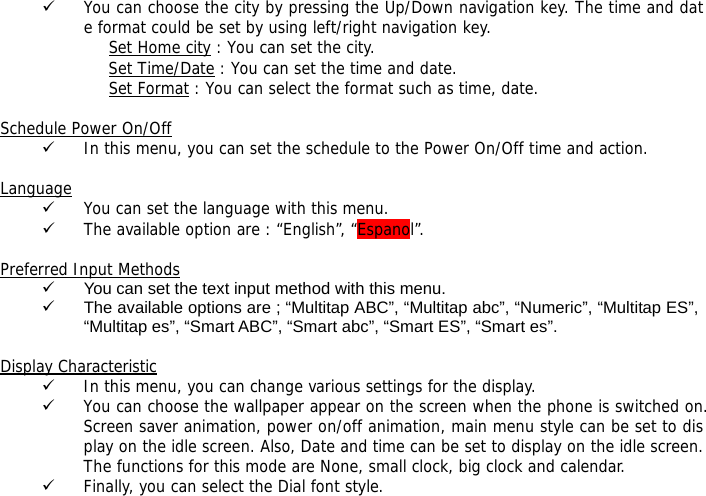
Edit : Edit the number so that it can be saved to the phonebook together with the city code.   SETTINGS     Many different features of your phone can be customized to suit your preferences. All of these features are accessed via the Setting menu.   Display Setup   9 In this menu, you can change various settings for the display. 9 You can choose the wallpaper appear on the screen when the phone is switched on. Screen saver animation, power on/off animation, main menu style can be set to display on the idle screen. Also, Date and time can be set to display on the idle screen. The functions for this mode are None, small clock, big clock and calendar. 9 Finally, you can select the Dial font style.   Phone Setup   Time and Date 9 This menu allows you to change the current time and date displayed.
9 You can choose the city by pressing the Up/Down navigation key. The time and date format could be set by using left/right navigation key. Set Home city : You can set the city. Set Time/Date : You can set the time and date. Set Format : You can select the format such as time, date.  Schedule Power On/Off 9 In this menu, you can set the schedule to the Power On/Off time and action.  Language 9 You can set the language with this menu. 9 The available option are : “English”, “Espanol”.  Preferred Input Methods 9  You can set the text input method with this menu. 9  The available options are ; “Multitap ABC”, “Multitap abc”, “Numeric”, “Multitap ES”, “Multitap es”, “Smart ABC”, “Smart abc”, “Smart ES”, “Smart es”.  Display Characteristic 9 In this menu, you can change various settings for the display. 9 You can choose the wallpaper appear on the screen when the phone is switched on. Screen saver animation, power on/off animation, main menu style can be set to display on the idle screen. Also, Date and time can be set to display on the idle screen. The functions for this mode are None, small clock, big clock and calendar. 9 Finally, you can select the Dial font style.
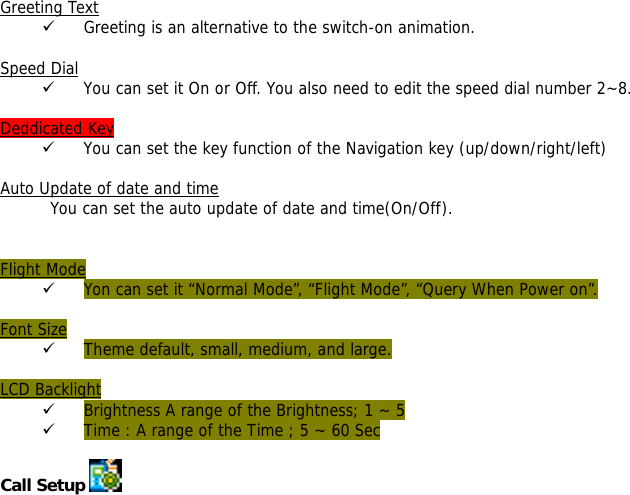
Greeting Text 9 Greeting is an alternative to the switch-on animation.  Speed Dial 9 You can set it On or Off. You also need to edit the speed dial number 2~8.  Deddicated Key 9 You can set the key function of the Navigation key (up/down/right/left)   Auto Update of date and time You can set the auto update of date and time(On/Off).   Flight Mode 9 Yon can set it “Normal Mode”, “Flight Mode”, “Query When Power on”.  Font Size 9 Theme default, small, medium, and large.  LCD Backlight 9 Brightness A range of the Brightness; 1 ~ 5  9 Time : A range of the Time ; 5 ~ 60 Sec  Call Setup
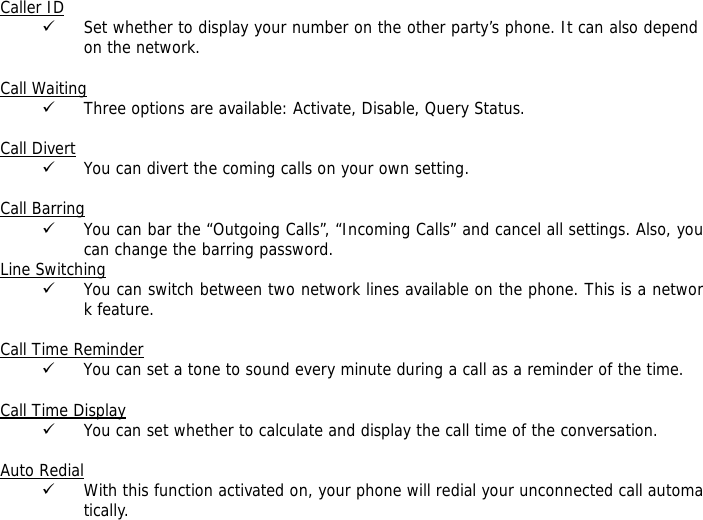
Caller ID 9 Set whether to display your number on the other party’s phone. It can also depend on the network.  Call Waiting 9 Three options are available: Activate, Disable, Query Status.  Call Divert 9 You can divert the coming calls on your own setting.  Call Barring 9 You can bar the “Outgoing Calls”, “Incoming Calls” and cancel all settings. Also, you can change the barring password. Line Switching 9 You can switch between two network lines available on the phone. This is a network feature.   Call Time Reminder 9 You can set a tone to sound every minute during a call as a reminder of the time.  Call Time Display 9 You can set whether to calculate and display the call time of the conversation.  Auto Redial 9 With this function activated on, your phone will redial your unconnected call automatically.
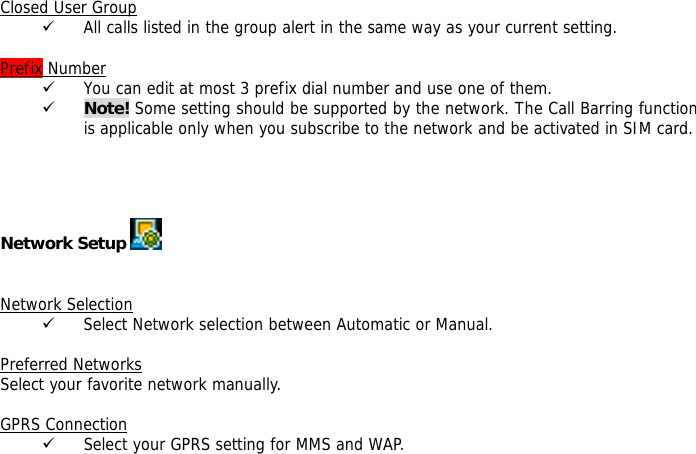
 Closed User Group 9 All calls listed in the group alert in the same way as your current setting.  Prefix Number 9 You can edit at most 3 prefix dial number and use one of them. 9 Note! Some setting should be supported by the network. The Call Barring function is applicable only when you subscribe to the network and be activated in SIM card.     Network Setup      Network Selection 9 Select Network selection between Automatic or Manual.  Preferred Networks Select your favorite network manually.  GPRS Connection 9 Select your GPRS setting for MMS and WAP.
Security Setup   9 You can set security pattern with this menu so that your phone and SIM card will be guarded against any illegal use.  PIN code 9 When you want to activate the PIN code function, enter your Personal Identification Number. 9 Personal Identification Number is needed to establish authorization for access to certain functions or information in your SIM card. The PIN code comes with your subscription. It may be a four to eight digit number and can be change as required.    Phone Lock 9 When the Phone lock feature is enabled, the phone is locked and you must enter the 4 to 8 digit phone password each time the phone is switched on. 9 The password is preset to “0000”. Once the correct password has been entered, you can use the phone until you switch it off.  Auto Keypad Lock 9 Without any key touch for a set period, the keypad will be locked. There are 6 values (None, 5 secs, 30 secs, 1 minute, 5 minutes, LCD Light off). 9 Default value is LCD Light Off. If you don’t want use this keypad lock option, you have to set to “None” value.  Fixed Dial 9 You can set the mode and fixed dial list.
 Barred Dial 9 !NOTE : The Barred Dial service may not be available on all cellular phones.  Change Password 9 You can change the password such as PIN, PIN2, Phone Lock Password. 9 Note! The default Phone Lock code is 0000. It is highly recommended for you to change it.  User Profiles    You can use the sound setting features to customize various settings such as ring type, vibrator, volume depending on environments: General  、Meeting  、Outdoor  、Indoor  、Headset    You do not have to change every setting every time you arrive at a new setting. Instead, you just switch to the readily set mode that fits the setting.   In each profile, you can set the following items:  9 Tone Setup : Yon can set alert ring to the following operation: Incoming Call, Alarm, Power On, Power Off, Message Tone and Keypad Tone. 9 Volume : Set the volume of ring tone and key tone.
9 Alert Type : Ring, Vibration Only, Vibration and Ring and Vibration then Ring, Light Only 9 Ring Type : Single, Repeat and Ascending. 9 Extra Tone : Warning, Error, Camp On and Connect. 9 Answer Mode : Any Key (On/Off). Note! Switch back to silent mode by long pressing [#] key. Press and hold again, it will go back to the previous mode.  Shortcuts   9 Edit the order of numbers dedicated to some shortcut function. Procedure: In the idle mode, you can enter the Shortcut menu by pressing the Navigation Down key. Then you can edit relevant functions to set shortcuts by pressing corresponding numbers.    Sound Effect   9 You can choose from Normal, Base, Dance, Classical, Treble, Party, Pop, Rock.  Restore Factory Settings    9 To use this option, first enter your phone password. All the settings will be restored to the factory setting. Please operate carefully. If you want, you have to input Phone lock code.
    MULTIMEDIA    Camera   9 In the camera main screen, you can take photos, set camera options or view the saved pictures. 9 If there is not enough memory to save a new photo, you need to create free space by deleting old pictures or other files in the menu. 9 Option (Press left key) : You can set the corresponding options and enter the album to see saved photos. Album   9 You can see the saved pictures in the album. 9 The following options are available. View : To see the saved photos. Browse style : Select the list type of saved photos. The following options are available.  List Mode : You can see the list type. Matrix Mode : You can see the matrix type. Forward : Send the picture to the target place. The following options are available.
To Wallpaper : Send the picture to wallpaper. To Screen Saver : Send the picture to screen saver. To Power On Display : Send the picture to power on display. To Power Off Display : Send the picture to power off display. To PhoneBook : Send the picture to phonebook. To MMS : Send the picture to MMS Rename : Change the name of the selected photo. Delete : Delete the selected photo. Delete All Files : Delete all the saved photos. Sort : Rearrange the saved photos by selected means. The following options are available. By Name : The saved photos are sorted by name. By Type : The saved photos are sorted by type. By Time : The saved photos are sorted by time. By Size : The saved photos are sorted by size. None : The saved photos are not sorted. Storage : Select where the photo will be stored. The following options are available.  Phone : The saved photos are stored to phone. Memory Card : The saved photos are stored to memory card.  Camera Setting   9 You can select the following camera setting value. All the shortcut keys are valid only in the camera preview mode.
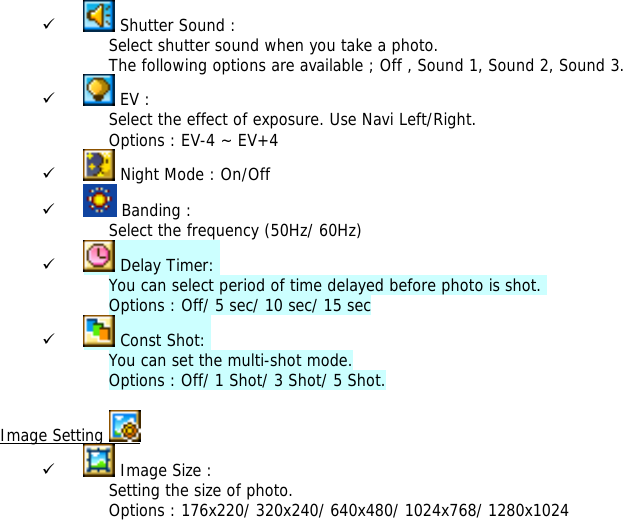
9  Shutter Sound : Select shutter sound when you take a photo. The following options are available ; Off , Sound 1, Sound 2, Sound 3. 9  EV :  Select the effect of exposure. Use Navi Left/Right. Options : EV-4 ~ EV+4 9  Night Mode : On/Off 9  Banding :  Select the frequency (50Hz/ 60Hz) 9  Delay Timer:  You can select period of time delayed before photo is shot.  Options : Off/ 5 sec/ 10 sec/ 15 sec 9  Const Shot:  You can set the multi-shot mode. Options : Off/ 1 Shot/ 3 Shot/ 5 Shot.  Image Setting   9  Image Size : Setting the size of photo. Options : 176x220/ 320x240/ 640x480/ 1024x768/ 1280x1024
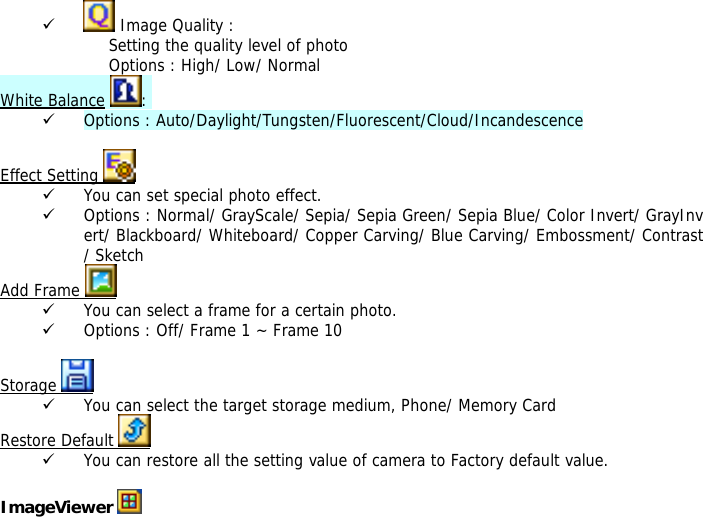
9  Image Quality : Setting the quality level of photo Options : High/ Low/ Normal White Balance :  9 Options : Auto/Daylight/Tungsten/Fluorescent/Cloud/Incandescence  Effect Setting   9 You can set special photo effect. 9 Options : Normal/ GrayScale/ Sepia/ Sepia Green/ Sepia Blue/ Color Invert/ GrayInvert/ Blackboard/ Whiteboard/ Copper Carving/ Blue Carving/ Embossment/ Contrast/ Sketch Add Frame   9 You can select a frame for a certain photo. 9 Options : Off/ Frame 1 ~ Frame 10  Storage   9 You can select the target storage medium, Phone/ Memory Card Restore Default   9 You can restore all the setting value of camera to Factory default value.  ImageViewer
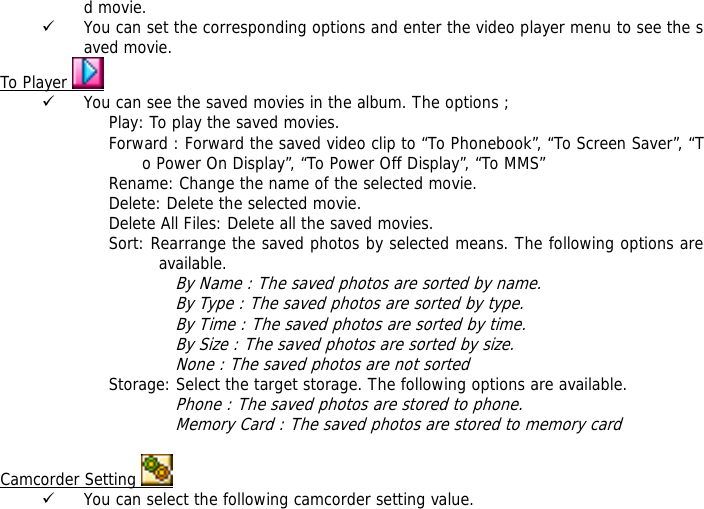
9 You can view the saved photos in the album menu. View : To see the saved photos.           [#] key : Zoom in , [*] key : Zoom out, [0] key : Rotate  Browse Style : Select the list type of saved photos ; List Style/ Matrix Style. Forward : Forward the saved photos to the following options ; to wallpaper, to screen saver, to power on display, to power off display, to phonebook, to MMS, to EMS Rename : Change the name of the selected photo. Delete : Delete the selected photo. Delete All Files : Delete all the saved photos. Sort 9 Rearrange the saved photos by selected means. 9 The following options are available.  By Name : The saved photos are sorted by name. By Type : The saved photos are sorted by type. By Time : The saved photos are sorted by time. By Size : The saved photos are sorted by size. None : The saved photos are not sorted  Storage  9 Select the target storage medium. 9 The following options are available.  Phone : The saved photos are stored to phone. Memory Card : The saved photos are stored to memory card.  Video Recorder   9 In the video recorder main screen, you can make a movie(MPEG4) or play the save
d movie. 9 You can set the corresponding options and enter the video player menu to see the saved movie. To Player   9 You can see the saved movies in the album. The options ; Play: To play the saved movies. Forward : Forward the saved video clip to “To Phonebook”, “To Screen Saver”, “To Power On Display”, “To Power Off Display”, “To MMS” Rename: Change the name of the selected movie. Delete: Delete the selected movie. Delete All Files: Delete all the saved movies. Sort: Rearrange the saved photos by selected means. The following options are available.  By Name : The saved photos are sorted by name. By Type : The saved photos are sorted by type. By Time : The saved photos are sorted by time. By Size : The saved photos are sorted by size. None : The saved photos are not sorted  Storage: Select the target storage. The following options are available. Phone : The saved photos are stored to phone. Memory Card : The saved photos are stored to memory card  Camcorder Setting   9 You can select the following camcorder setting value.
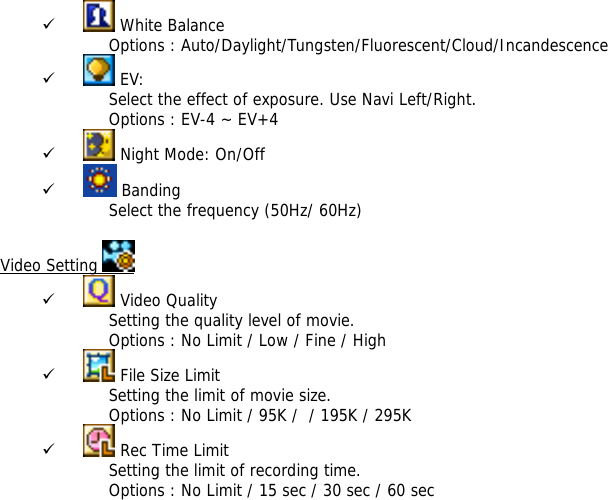
9  White Balance Options : Auto/Daylight/Tungsten/Fluorescent/Cloud/Incandescence 9  EV:  Select the effect of exposure. Use Navi Left/Right. Options : EV-4 ~ EV+4 9  Night Mode: On/Off 9  Banding Select the frequency (50Hz/ 60Hz)  Video Setting   9  Video Quality Setting the quality level of movie.  Options : No Limit / Low / Fine / High 9  File Size Limit Setting the limit of movie size.  Options : No Limit / 95K /  / 195K / 295K  9  Rec Time Limit Setting the limit of recording time. Options : No Limit / 15 sec / 30 sec / 60 sec
9  Record Audio : On/Off 9  Encode Format Setting the encoding format. Options : H.263 / Mpeg4 Effect Setting   9 You can set special photo effect. 9 Options : Normal/ Gray Scale/ Sepia/ Sepia Green/ Sepia Blue/ Color Invert/ Gray Invert/ Blackboard/ Whiteboard/ Copper Carving/ Blue Carving/ Embossment/ Contrast/ Sketch  Storage   9 You can select the target storage. 9 Options : Phone / Memory Card  Restore Default   9 You can restore all setting value of camcoder to Factory default value.   Video Player   9 You can see the saved movies in the album. The options : Play: To play the saved movies. Forward : Forward the saved video clip “To PhoneBook”, “To Screen Saver”, “To
Power On Display”, “To Power Off Display”, “To MMS” Rename: Change the name of the selected movie. Delete: Delete the selected movie. Delete All Files: Delete all the saved movies. Sort: Rearrange the saved photos by selected means. The following options are available.  By Name : The saved photos are sorted by name. By Type : The saved photos are sorted by type. By Time : The saved photos are sorted by time. By Size : The saved photos are sorted by size. None : The saved photos are not sorted  Storage: Select the target storage. The following options are available. Phone : The saved photos are stored to phone.    Audio Player   9 Move the cursor to the option of “Audio Player” and press the left soft key to view the file list.  9 Each audio has the following options ; Play : Play the selected file. Detail : Check the details of the selected music. Add to Ring : Add the selected music to the ring list. Refresh List : Update intentionally the list of Audio. Settings : The following options are available ; Play List, List Auto Gen, Skin, Rep
eat, Shuffle, Background Play, Backlight Mode and Equalizer. 9 You can also press the hook button on the earphone to Play or Pause the music. 9 Note! It is suggested that the volume be turned down before the earphone is plugged in to the jack on the phone for loud sound can do harm to your ears.  AB Repeater   9 AB repeater is designed for the user to instantly repeat sentences without the need to continually rewind or search. 9 Move the cursor to the option of “AB Repeater” and press the left soft key to view the file list. Default folder is “Audio” 9 AB repeater main screen can have 2 modes. ( Default screen is the Setting Screen.) AB section could be set or deleted in Setting Screen only. User can switch in between Setting and Play screen with two ways. - User can press # key to switch in between the screens. - Options Left Soft Key has the menu option to switch to other screen. 9 Setting of AB Section:  - Once audio file play is started on the setting screen, user can set the AB section by pressing the 0~9 AB key.  - For the first press, start poing of the AB section is set and then with press of the same key again end of AB section is also set. 9 Deletion of AB section : - Deletion of AB section is only allowed in AB repeater main setting screen.  - User can delete the AB section by Long Pressing the 0~9 AB key. 9 Playing of AB section: - Playing of set AB section is a feature of AB Repeater play screen.
- Every AB section which is already set in setting screen could be played by pressing the corresponding 0~9 key. - With [*] key, Once and Replay Modee could be decided. 9 You can also press the hook button on the earphone to Play or Pause the music. 9 Note! It is suggested that the volume be turned down before the earphone is plugged in to the jack on the phone for loud sound can do harm to your ears.  Sound Recorder   9 You can record a sound and play the saved sound.  New Record 9 Start recording the sound. 9 To save the current recording sound, press the left soft key. 9 To pause the current recording sound, press the right soft key. 9 To continue the recording, press the right soft key again.  List 9 Showing the list of saved sound. 9 Each saved sound has the following options ; Play : Play the recorded sound file. Append : Add extra sound to the previous selected sound file. Rename : You can change the file name. Delete : You can delete the sound file. Delete All : You can delete all of the sound files. Settings :
Pref. Storage: Select the target storage ; Phone / Memory card File Format: Set the format of the sound files ; AMR / WAV Forward : Forward the selected sound file to ; “To User Profile”, “To MMS”  Melody compose   9  You can compose ring tone with this menu. 9  On “Melody Composer” screen, you can find the list of composed melody. 9  Press [L/SOFT-KEY] for “Add” to compose a new ring tone – 1st time of composition only. 9  Key map is as follows ; [1] ~ [7] : Do ~ Si. [8] : Vibration. [9] : Lightening LED. [0] : Rest. [*] : Change the length of note/rest. [#] : Shift to “#”. 9  Press [L/SOFT-KEY] for “Option” to bring the following more options ; Play : Play the selected record. Play Speed : Set the play speed. Select Instrument : Select the instrument with 10 options. Save : Save the composed ring tone. 9  On the list of composed ring tone, press [L/SOFT-KEY] for “Option” to bring the follow menus; Play : Play the selected composed ring tone. Edit : Edit the selected composed ring tone. Add : Compose a new ring tone. Refer to #3 above in this menu.
Rename : Change the file name of composed ring tone. Delete : Delete the selected composed ring tone. Delete All : Delete all composed ring tone in “Melody Composer” list. Forward : Forward the selected composed ring tone by MMS, EMS, or to ring tone.    FILE  MANAGER    The total memory of your phone is 64MB. You can realize the management of images, sounds,MP3, folder, etc. through this function menu. It is to manage your files of audio, images, photos, video clips, MP3, received data. It works as “My Document” in Window O/S.  Select drive between phone and memory card (only in case that you are using T-Flash). You can have the following options ; 9 Open : You can have the following folders initially ; “Audio”, “Images”, “Photos”, “Video”, “MP3”, “Received”. If you create a folder, it will be generated in here. 9 Create Folder : Create a folder as you want. 9 Format : Format all folders and its properties in “Gallery”.  ORGANIZER
 Calendar   9 With this menu, you can use the calendar function.  9 If you enter this menu, the date cursor will be on today’s date. If the date on the cursor has schedule list, you can selected by pressing option soft key. And then you may write your schedule. 9 The scheduler function helps you keep track of reminders, calls, meetings, birthdays, travels or weddings that you need to remember. Your phone sounds an adequate melody alarm when the set date/time for the schedule is reached. 9 This calendar helps to keep track of memos by alarming clock.  9 Press left soft key “Option” and the following are available: View Tasks : You can view the current schedule. In the menu, you can edit Time,           Task, Alarm and the Due Time. You can choose the due date by pressing            left/right navigation key. You can Delete the Schedule and Add a New Schedule.  Jump to Date : View the designated date.  To Do List    9 You can check the schedule arranged on the current date. To edit Schedule, please refer to the above “Schedule”.   Alarm   9 This menu allows you to set the alarm to ring at a specific time. Three options are a
vailable. The default mode is OFF. You may set one or all ON if necessary. The time and due date of each alarm can be set separately.  World Clock   9 You can view the current time for GMT and the other cities around the world by pressing the navigation key.  Hourly Ararm   9 With this menu, your phone  informs you of every hour with short tone. You can set the options such as Voice ExactTime ON/OFF, Tone, Start Time, End Time.     SERVICES    SIM Tool Kit 9 This menu is activated only by service provider.  WAP   9 WAP is a standard application protocol specially created for mobile communications
devices and gives fast and easy access to Internet information and service. You can obtain rich information by the WAP browser instead of a PC. Multi-services are available such as Reservation, News, Sports and Weather Broadcast.  9 Home Page : Once the connection is built, you will link to the home page defined by yourself. 9 Bookmarks : Once you choose the menu Bookmarks, you can connect to your favorite site much more conveniently. 9 Recent Pages : The phone keeps track of the recent pages you log in. When you choose ‘Recent Pages’, your WAP browser will open the latest page at any time. 9 Enter Address : If you know the URL of a website, you can go to the site directly by inputting the URL. 9 Service Inbox : You can view the push messages sent from the WAP browser. 9 Settings : You can utilize the various WAP settings with the following options.  Edit Profile : Choose from the network setting options. Browser Option : Choose the time span you wait while opening the pages and  set whether display the pictures. Service Message Settings : You can set whether to receive the server push  messages or not. Clear Cache : Clear the pages saved in the cache to make more room for  new ones. Clear Cookie : Clear personal information such as User ID, password stored  in the cache of the phone. Trusted Certificates: View or delete Certificate.
 Data Account   9 This menu allows you to change and edit the settings for the GSM and GPRS network services. For further details, contact your service provider. 9 GSM Data : This menu allows you to manage and edit the settings required by the CSD connection. 9 GPRS Data : This menu allows you to manage and edit the settings required by the GPRS connection.    EXTRA    Games   9 This phone has three games for your enjoyment : Copter, Puzzle and Panda. 9 Each game has the Game Level, Best Grades and Game Help function.  9 During a game, you can pause the game by pressing left or right soft keys. 9 Continue the game by pressing left soft key. 9 Quit the game and go back to the idle screen by pressing [END] key.  9 You can configure of game setting with “Game Setting” menu (  BGM, Sound Effect, Game Vibration )
  Calculator   9 Enter numbers by pressing [0]—[9]. Press [#] for a decimal point. Press the right soft key to clear your input. 9 You can press the Up, Down, Left, Right navigation keys to enter the symbols of addition , subtraction, multiplication and division. 9 Clear the latest input digit or result by pressing Right soft key. Long press the Right soft key to clear all the input or the result. 9 Press [WAP] key to calculate and the result will appear on the screen. 9 Note! The precision of the calculator is limited for the round off error. Unit Converter   9 You can convert one type of unit to another by this function. Such as weight , length, volume, temperature, velocity, and surface. Currency Converter   9 You can convert the currency at a given exchange rate.  Health   9 You can make a note of your current health such as BMI and Menstrual cycles. 9 BMI(Body Mass Index) BMI, also known as the Body Mass Index, indirectly shows the amount of body fatin the body.
Select BMI in the menu and input your weight and height. Then the phone will automatically calculate your BMI. 9 Menstrual cycles. Female users can predict pregnancy from sex by calculating your menstrual cycles.  E-Book Reader   9 You can read E-Book with this menu. 9 Select drive between phone and card memory. You can have the following options ; - Open  E-Book - Cleanup Bookshelf - Clobal Settings - Book Info - Delete All Files - Sort - Apply Global Settings Theme   9 You can set the color theme of the game screen and define your own favorite phone profile. 9 The color theme of the game screen offers three options : Orange/Blue/Gray.  Stopwatch   9 Your phone can be used as a typical stopwatch or multi-direction stopwatch. There are Split Timing and Lap Timing stopwatch functions in this typical stopwatch menu. Y
ou can view the record in this menu.      TEXT INPUT MODE  SPANISH/ENGLISH IUPUT MODE  Multitap ES/ABC Input Mode 9 Press the key where the target input letter(Upper case) is located to input the letter. Then press and hold the letter.  Multitap es/abc Input Mode 9 Press the key where the target input letter(Lower case) is located to input the letter. Then press and hold the letter..  Smart ES/ABC Input Mode 9 Press the numeric key where the target letter is located successively until the cursor is on the target letter both in upper and lower case. Then, press the left soft key to confirm your input. Give up the input by pressing the [END] key.   Smart es/abc Input Mode 9 The same as the above Smart ES/ABC Input Mode.
 Numeric Mode 9 In the screen of number inputting, enter the number by pressing the relevant numeric keys.   SYMBOLS  The screen will  promote a table of 4×6 size. You can choose one from the 36 symbols including punctuation marks, arithmetic marks and currency symbols etc. After the symbol is entered, the screen will return the previous input mode.   MP3 AND MP4 INSTRUCTION  Connect your phone to the computer using the USB cable.   If the phone is connected while turned off, the computer will show a sign that an external memory device is connected. If the phone is connected while turned on, both the Mass storage and COM port USB Config selections will appear on the screen. In this situation, press the OK button at the Mass storage selection and the phone will turn off and the computer monitor will show that an external memory device is connected to the computer. In this state, you will not be able to call or receive a call.  Select an mp3 file of your choice from the computer and copy it to the My Music folder in the
USB memory. For mp4 files, you can copy it to the Video Folder.  After canceling the connection of the external memory device through the computer, disconnect the USB Cable from the computer.   Turn on your phone and use the Navigation up key or follow the sequence ‘Menu----Multimedia---Audio Player’ to activate the music player. Press the play button or short press the Earbutton connected to the earphone to play the mp3 file copied from the computer. If you long press the Ear button, the phone will dial the last call made.  If you want to see the mp3 file copied from the computer, long press the  “0” key or follow the sequence ‘Menu --- Multimedia----Video Player’.  Press the Play button in the Video player mode to play a video and press the “*” Key to rotate the screen.    TROUBLESHOOTING  If you meet a trouble on your phone operation, please check the followings. These checks enable you to save time and expense due to unnecessary after-service.  When Enter PIN appears at the power-up…  ☞The PIN check is currently enabled. You must enter the PIN supplied together with your SIM
card. You can disable the PIN check if you want, please see Security Setting menu.  When Enter PUK appears at the power-up… ☞ PUK(Personal Unblocking Key) is used to unblock the blocked SIM card due to incorrectly entered PIN. PUK code is composed of 8 digits, and usually provided with your SIM card. If the PUK code is entered incorrectly several times in succession, PUK will be blocked and your SIM card will be automatically lock-up and the SIM Blocked message will be displayed. Once you see the message, you need to contact your network service provider for a new SIM card.  When Insert SIM screen appears at the power-up… ☞ Please check that your SIM card is inserted properly.  When Enter Lock Code appears at the power-up… ☞ Your phone is phone locked. You must enter the Lock Code supplied together with your phone.  When No Service appears… ☞ You probably are in the area out of the coverage of a GSM/ GPRS network.  When Emergency Only appears even though a number of the signal bar are indicated… ☞ You probably are in the area out of the coverage of your home GSM/ GPRS network. You probably are in the coverage of another GSM/ GPRS network but you are not allowed to be registered to the network.  If any tone is not generated when you press a keypad…
☞ You need to check the quick silence mode setting. If you can find   icon on the top of the main display screen it is the quick silence mode. By pressing and holding [VOL-UP] on the idle screen, you can switch it off. You need to check the Key Tone Type of Sound Setting menu. You need to check Key Tone Volume of the profile option that you have set on Profiles menu.  If an audible alert is not made when a call is received… ☞ You need to check the quick silence mode setting. If you can find   icon on top of the main display screen it is the quick silence mode. By pressing and holding [VOL-UP] on the idle screen, you can switch it off. You need to check Ring Type and Ring Volume of the profile option that you have set on Profiles menu.  If an audible alert is not made when an alarm is expired… ☞ You need to check the quick silence mode setting. If you can find   icon on top of the main display screen it is quick silence mode. By pressing and holding [VOL-UP] on the idle screen, you can switch it off.  If an outgoing call is not made… ☞ You have probably set an outgoing calls barring option. You need to check Call Barring menu. Otherwise, you have probably set to Hide Number in Caller Number menu of Call Setting menu. In some network, when you make a call with hiding the telephone number, the network does not allow to make the call.  If an incoming call is not made… ☞ You have probably set an incoming calls barring option. You need to check Call Barring menu.
 If an outgoing SMS message is not sent… ☞ You need to check the Message Center option in SMS Setting menu.  If all audible key tones are muted and all audible alerts are changed to vibrator alert… ☞ You need to check the quick silence mode setting. If you can find   icon on top of the main display screen it is the quick silence mode. By pressing and holding [VOL-UP] on the idle screen, you can switch it off.  If some audible action is not prompted on a menu of Sound Setting menu… ☞ You need to check the quick silence mode setting. If you can find   icon on top of the main display screen it is the quick silence mode. By pressing and holding [VOL-UP] on the idle screen, you can switch it off.  If the image on the screen is blurred when you try to take a picture… ☞ You need to check that the protection film is detached or the lens is clean. To remove fingerprints or other stains, wipe the lens with soft cloth.  GLOSSARY  Cell Broadcast This network service allows you to receive the broadcasted text messages on various topics such as weather, traffic, local district code, local hospitals, taxis or pharmacy in the area where you are.
 CUG (Closed User Group) This network service allows the restriction of calls to and from a selected user group.  DTMF (Dial Tone Multi Frequency) Codes sent as tone signals. Used for telephone banking, for accessing an answering machine, etc. GPRS (General Packet Radio Service) New packet service that allows information to be sent and received across a mobile network. The GPRS promises data rates from 56 up to 114 Kbps and continuous packet connection to the Internet for mobile phone and computer users. It is based on existing GSM such as circuit-switched cellular phone connections and complements that.  Network Service Operator To be able to use your phone, you need a subscription to a network. You get this subscription from a network operator, together with a SIM card that you need to use with your phone.  PIN (Personal Identification Number) The code is to establish authorization for access to certain functions or information in your SIM card. The PIN code comes with your subscription. It may be a four to eight digit number and can be changed as required.  PIN2 (Personal Identification Number 2) The code is an authorization code to access certain special field in your SIM card. The PIN2 code does not come with your subscription in some country.
PUK (Personal Unblocking Key Code) Used to unlock a blocked SIM card. This comes with your subscription  Roaming Use of your phone when you are outside your subscription network area.  SIM (Subscriber Identity Module) It contains subscriber details, security information and memory for a personal directory of numbers.   SMS (Short Message Service) Messages to be sent and received between the network service operator’s message center to your mobile phone. To use this service, it must be supported by your network.  WAP (Wireless Application Protocol) A standard specifically created for mobile communication devices which give fast and easy access to Internet information and services.
LIMITED WARRANTY STATEMENT  1. WHAT THIS WARRANTY COVERS : KCM offers you a limited warranty that the enclosed subscriber unit will be free from defects in material and workmanship, according to the following terms and conditions: The limited warranty for the product extends for ONE (1) year beginning on the date of purchasing of the product. The limited warranty extends only to the original purchaser of the product and is not assignable or transferable to any subsequent purchaser/end user. This warranty is good only to the original purchaser of the product during the warranty period as long as it is in the purchased local area. The external housing and cosmetic parts shall be free of defects at the same time of shipment and, therefore, shall not be covered under these limited warranty terms. Upon request from KCM, the customer must provide information reasonably prove the date of purchasing. The customer shall bear the cost of shipping the product to the Customer Service Center of KCM. KCM shall bear the cost of shipping the product back to the customer after the completion of service under this limited warranty.  2. WHAT THIS WARRANTY DOES NOT COVER : Defects or damages resulting from use of the product in other than its normal and customary manner. Defects or damages from abnormal use, abnormal conditions, improper storage, exposure to moisture or dampness, unauthorized modifications, unauthorized connections, unauthorized repair, misuse, neglect, abuse, accident, alteration, improper installation, or other acts which are no
t the fault of KCM, including damage caused by shipping, blown fuses, spills of food or liquid. Breakage or damage to antennas unless caused directly by defects in material or workmanship. That the Customer Service Department at KCM was not notified by consumer of the alleged defect or malfunction of the product during the applicable limited warranty period. Products which have had the serial no. removed or made illegible. This limited warranty is in lieu of all other warranties, express or implied either in fact or by operations of law, statutory or fitness for a particular use. Damage resulting from use of non-KCM approved accessories. All plastic surfaces and all other externally exposed parts that are scratched or damaged due to normal customer use. Products operated outside published maximum ratings. Products used or obtained in a rental program. Consumables (such as fuses).  3. STATE LAW RIGHT : No other express warranty is applicable to this product. THE DURATION OF ANY IMPLIED WARRANTIES, INCLUDING THE IMPLIED WARRANTY OF MARKETABILITY, IS LIMITED TO THE DURATION OF THE EXPRESS WARRANTY HEREIN. KCM SHALL NOT BE LIABLE FOR THE LOSS OF THE USE OF THE PRODUCT, INCONVENIENCE, LOSS OR ANY OTHER DAMAGES, DIRECT OR CONSEQUENTIAL, ARISING OUT OF THE USE OF, OR INABILITY TO USE, THIS PRODUCT OR FOR ANY BREACH OF ANY EXPRESS OR IMPLIED WARRANTY, INCLUDING THE IMPLIED WARRANTY OF MARKETABILITY APPLICABLE TO THIS PRODUCT. Some states do not allow the exclusive of limitation of incidental or consequential damages or limitations on how long an implied warranty lasts; so these limitations or exclusives may not apply to you. This warranty gives you specific legal rights and you may also have other rights which vary from state to state.
 4. HOW TO GET WARRANTY SERVICE : To obtain warranty service, please call the following telephone number.
RF Exposure Information and Statement   The SAR limit of USA (FCC) is 1.6 W/kg averaged over one gram of tissue. Device types N120 (FCC ID: T6QN120) has also been tested against this SAR limit. The highest SAR value reported under this standard during product certification for use at the ear is 1.117 W/kg and when properly worn on the body is 0.251 W/kg. This device was tested for typical body-worn operations with the back of the handset kept 1.5cm from the body. To maintain compliance with FCC RF exposure requirements, use accessories that maintain a 1.5cm separation distance between the user's body and the back of the handset. The use of belt clips, holsters and similar accessories should not contain metallic components in its assembly. The use of accessories that do not satisfy these requirements may not comply with FCC RF exposure requirements, and should be avoided.  This device complies with part 15 of the FCC rules. Operation is subject to the following two conditions: (1) this device may not cause harmful interference, and (2) this device must accept any interference received, including interference that may cause undesired operation.  NOTE: The manufacturer is not responsible for any radio or TV interference caused by unauthorized modifications to this equipment. Such modifications could void the user’s authority to operate the equipment.  NOTE: This equipment has been tested and found to comply with the limits for a Class B digital device, pursuant to part 15 of the FCC Rules.  These limits are designed to provide reasonable protection against harmful interference in a residential installation.  This equipment generates uses and can radiate radio frequency energy and, if not installed and used in accordance with t
he instructions, may cause harmful interference to radio communications.  However, there is no guarantee that interference will not occur in a particular installation.  If this equipment does cause harmful interference to radio or television reception, which can be determined by turning the equipment off and on, the user is encouraged to try to correct the interference by one or more of the following measures: - Reorient or relocate the receiving antenna. - Increase the separation between the equipment and receiver. -Connect the equipment into an outlet on a circuit different from that to which the receiver is connected. -Consult the dealer or an experienced radio/TV technician for help  NOTE: Please do not use the third party accessories.

Navigation menu