KCS DIGITAL lnc DIGIZON-PRO DIGIZON User Manual ENG

KCS DIGITAL lnc. DIGIZON User Manual ENG

Users Manual

  www.KCSDigital.com        User Manual     Models:DIGIZON-101A DIGIZON-102A DIGIZON-103A Version:1.0.100ENG Published:March 2007
    www.KCSDigital.com 1 TABLE OF CONTENT  Chapter 1  Introduction  ……………  Page 02 Chapter 2  Hardware Connection  ……………  Page 05 Chapter 3    Software Installation  ……………  Page 06 Chapter 4    Player & Control Panel  ……………  Page 14 Chapter 5    Surveillance and Video Conference  ……………  Page 18 Chapter 6  Recording  ……………  Page 19 Chapter 7    Video Manager  ……………  Page 21 Chapter 8    Advanced Setup  ……………  Page 24 Chapter 9    Trouble Shooting  ……………  Page 28
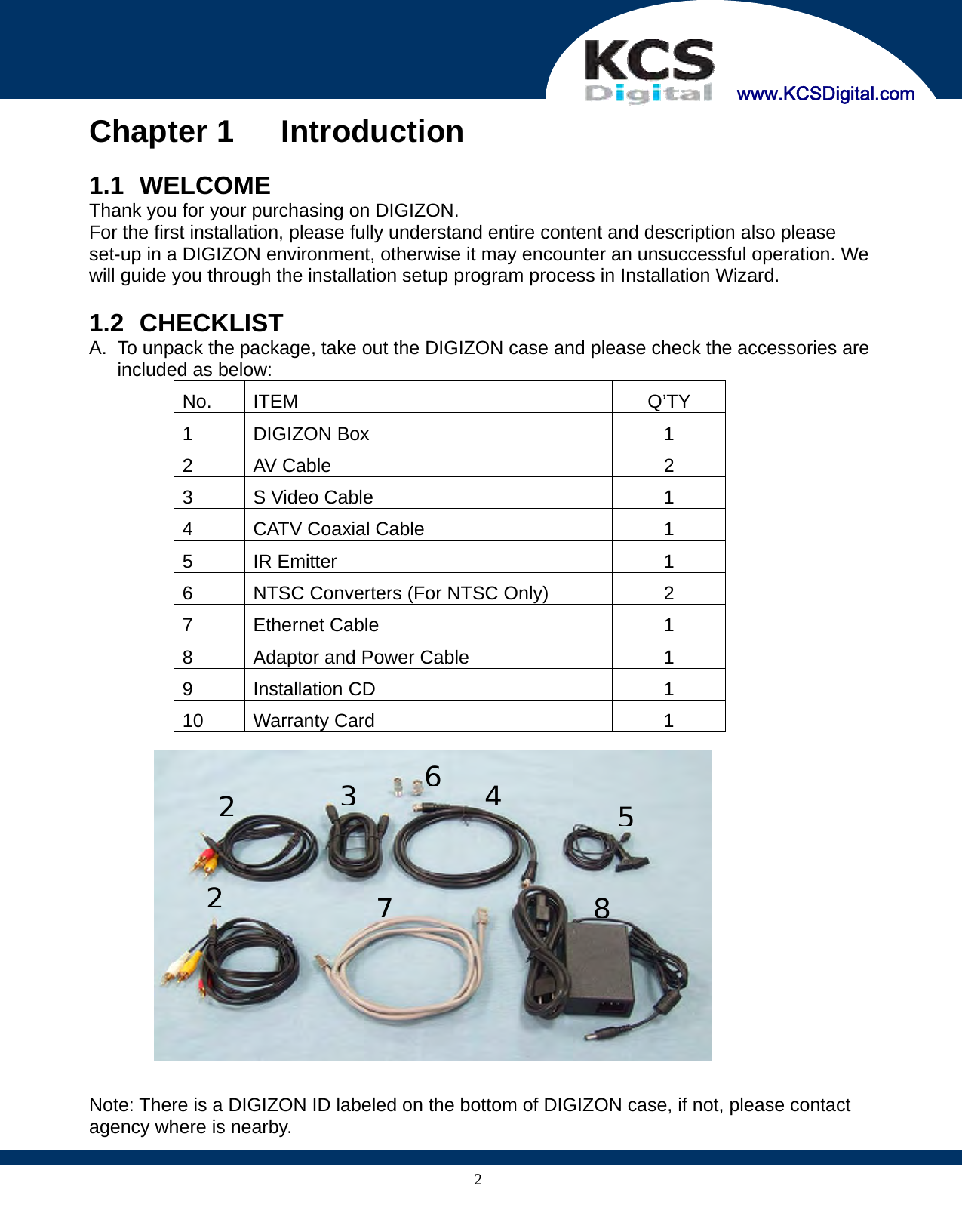
    www.KCSDigital.com 2Chapter 1   Introduction  1.1   WELCOME Thank you for your purchasing on DIGIZON. For the first installation, please fully understand entire content and description also please set-up in a DIGIZON environment, otherwise it may encounter an unsuccessful operation. We will guide you through the installation setup program process in Installation Wizard.    1.2   CHECKLIST A.  To unpack the package, take out the DIGIZON case and please check the accessories are included as below: No. ITEM  Q’TY 1 DIGIZON Box  1 2 AV Cable  2 3  S Video Cable  1 4  CATV Coaxial Cable  1 5 IR Emitter  1 6  NTSC Converters (For NTSC Only)  2 7 Ethernet Cable  1 8  Adaptor and Power Cable  1 9 Installation CD  1 10 Warranty Card  1            Note: There is a DIGIZON ID labeled on the bottom of DIGIZON case, if not, please contact agency where is nearby. 2 3 6 4 5 7 8 2
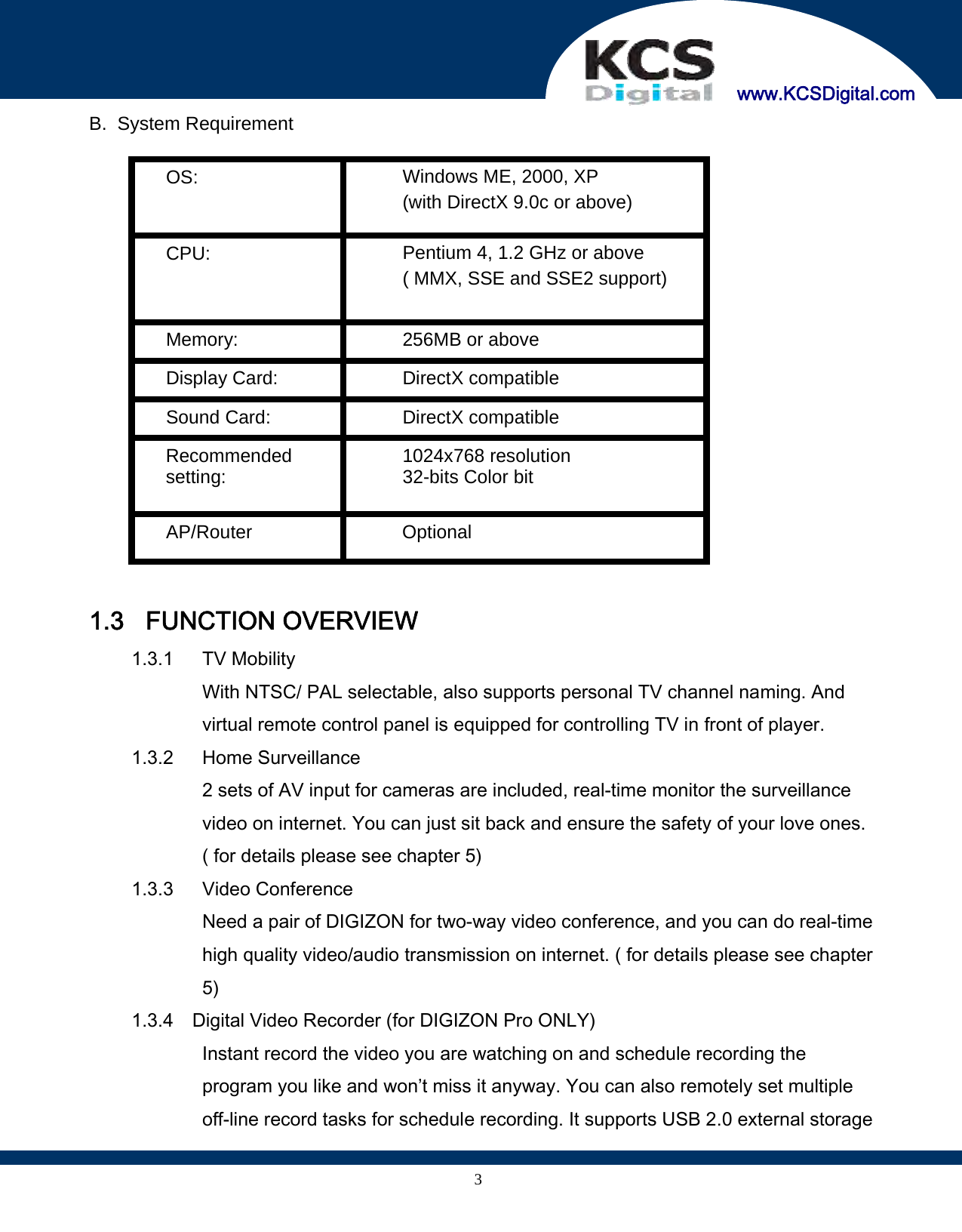
    www.KCSDigital.com 3B. System Requirement  OS: Windows ME, 2000, XP (with DirectX 9.0c or above) CPU: Pentium 4, 1.2 GHz or above ( MMX, SSE and SSE2 support) Memory: 256MB or above Display Card: DirectX compatible Sound Card: DirectX compatible Recommended setting: 1024x768 resolution 32-bits Color bit  AP/Router Optional   1.3 FUNCTION OVERVIEW   1.3.1 TV Mobility With NTSC/ PAL selectable, also supports personal TV channel naming. And virtual remote control panel is equipped for controlling TV in front of player. 1.3.2 Home Surveillance 2 sets of AV input for cameras are included, real-time monitor the surveillance video on internet. You can just sit back and ensure the safety of your love ones. ( for details please see chapter 5) 1.3.3 Video Conference Need a pair of DIGIZON for two-way video conference, and you can do real-time high quality video/audio transmission on internet. ( for details please see chapter 5) 1.3.4    Digital Video Recorder (for DIGIZON Pro ONLY) Instant record the video you are watching on and schedule recording the program you like and won’t miss it anyway. You can also remotely set multiple off-line record tasks for schedule recording. It supports USB 2.0 external storage
    www.KCSDigital.com 4devices. Only 900MB storage required for one hour DVD quality video. ( for details please see chapter 6) 1.3.5    Network HD (for DIGIZON Pro ONLY) You can simply access personal USB 2.0 external HD on internet, remotely download, upload, search and manage files from outside. ( for details please see chapter 7)
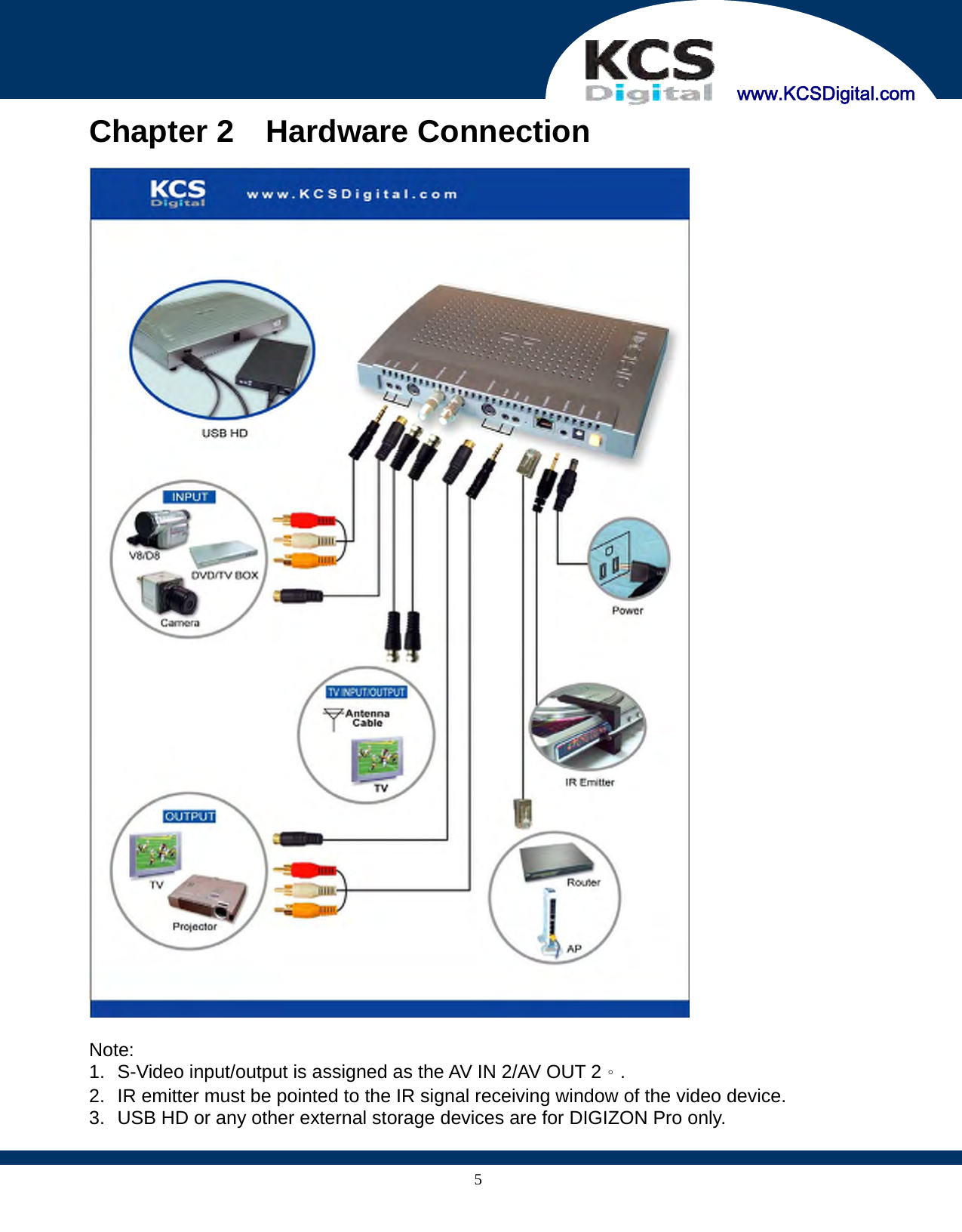
    www.KCSDigital.com 5Chapter 2  Hardware Connection    Note:  1.  S-Video input/output is assigned as the AV IN 2/AV OUT 2。. 2.  IR emitter must be pointed to the IR signal receiving window of the video device. 3.  USB HD or any other external storage devices are for DIGIZON Pro only.
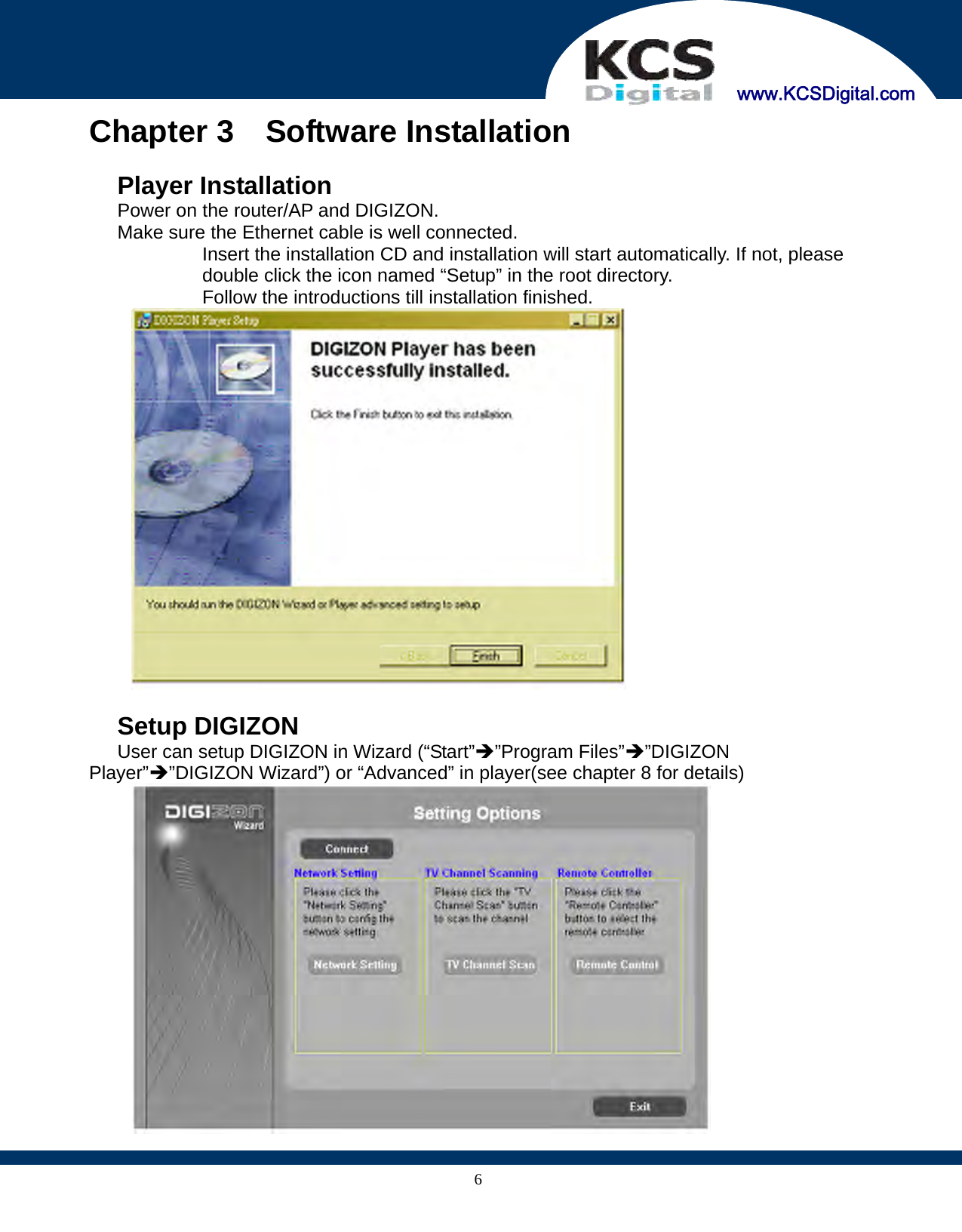
    www.KCSDigital.com 6Chapter 3  Software Installation   Player Installation   Power on the router/AP and DIGIZON.   Make sure the Ethernet cable is well connected.   Insert the installation CD and installation will start automatically. If not, please double click the icon named “Setup” in the root directory.   Follow the introductions till installation finished.    Setup DIGIZON   User can setup DIGIZON in Wizard (“Start”ΔProgram Files”ΔDIGIZON Player”ΔDIGIZON Wizard”) or “Advanced” in player(see chapter 8 for details)
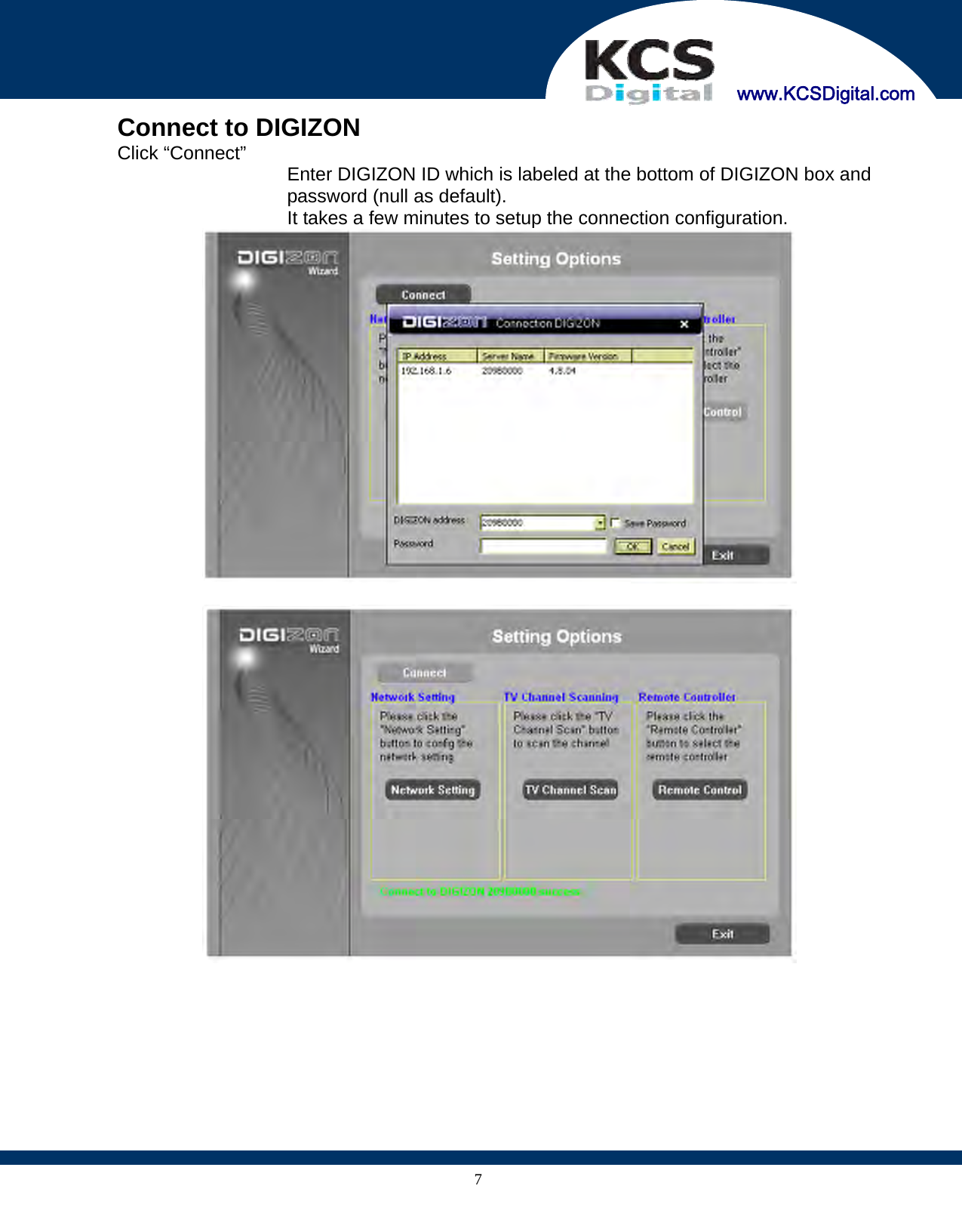
    www.KCSDigital.com 7  Connect to DIGIZON Click “Connect”  Enter DIGIZON ID which is labeled at the bottom of DIGIZON box and password (null as default). It takes a few minutes to setup the connection configuration.
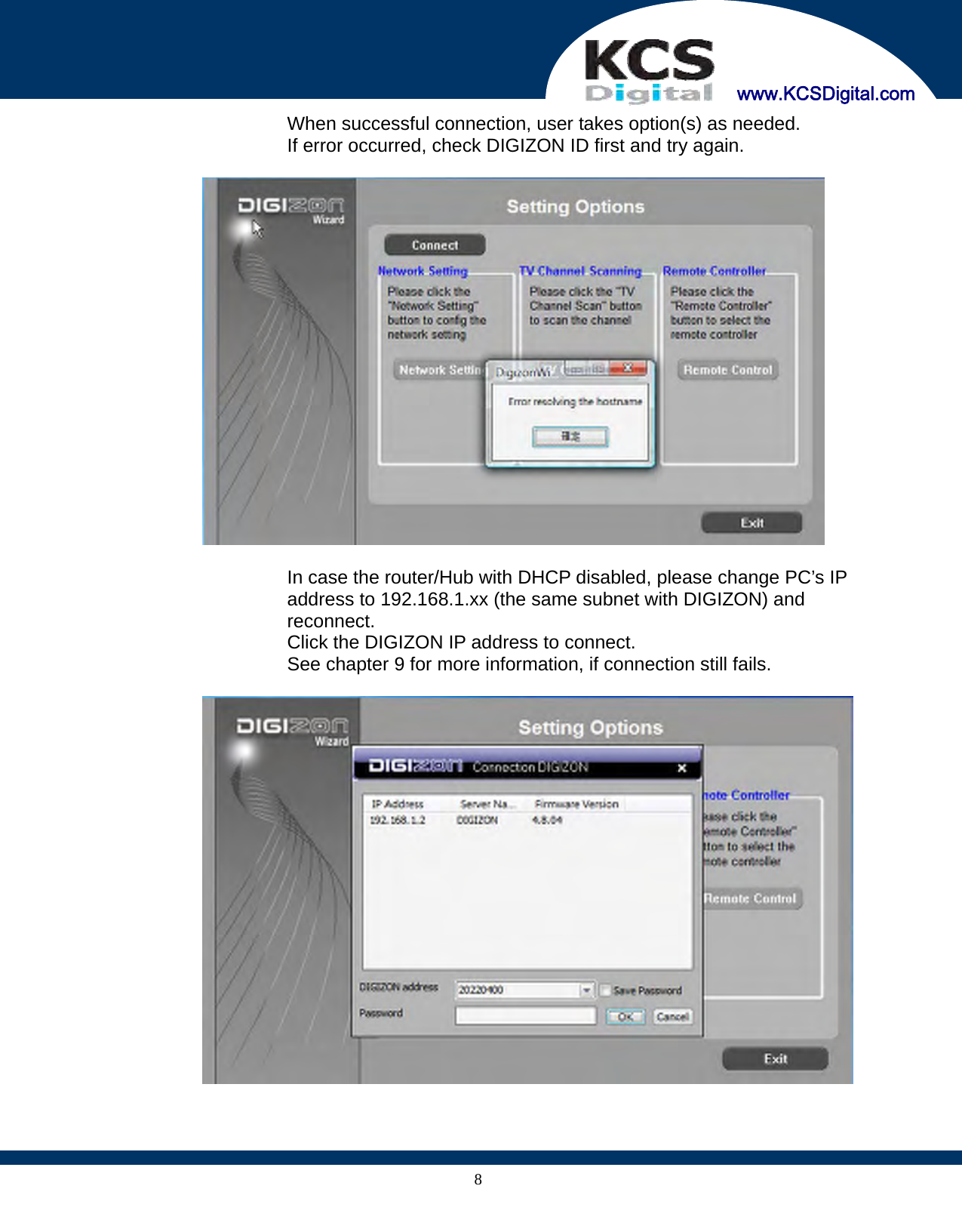
    www.KCSDigital.com 8When successful connection, user takes option(s) as needed. If error occurred, check DIGIZON ID first and try again.    In case the router/Hub with DHCP disabled, please change PC’s IP address to 192.168.1.xx (the same subnet with DIGIZON) and reconnect. Click the DIGIZON IP address to connect. See chapter 9 for more information, if connection still fails.
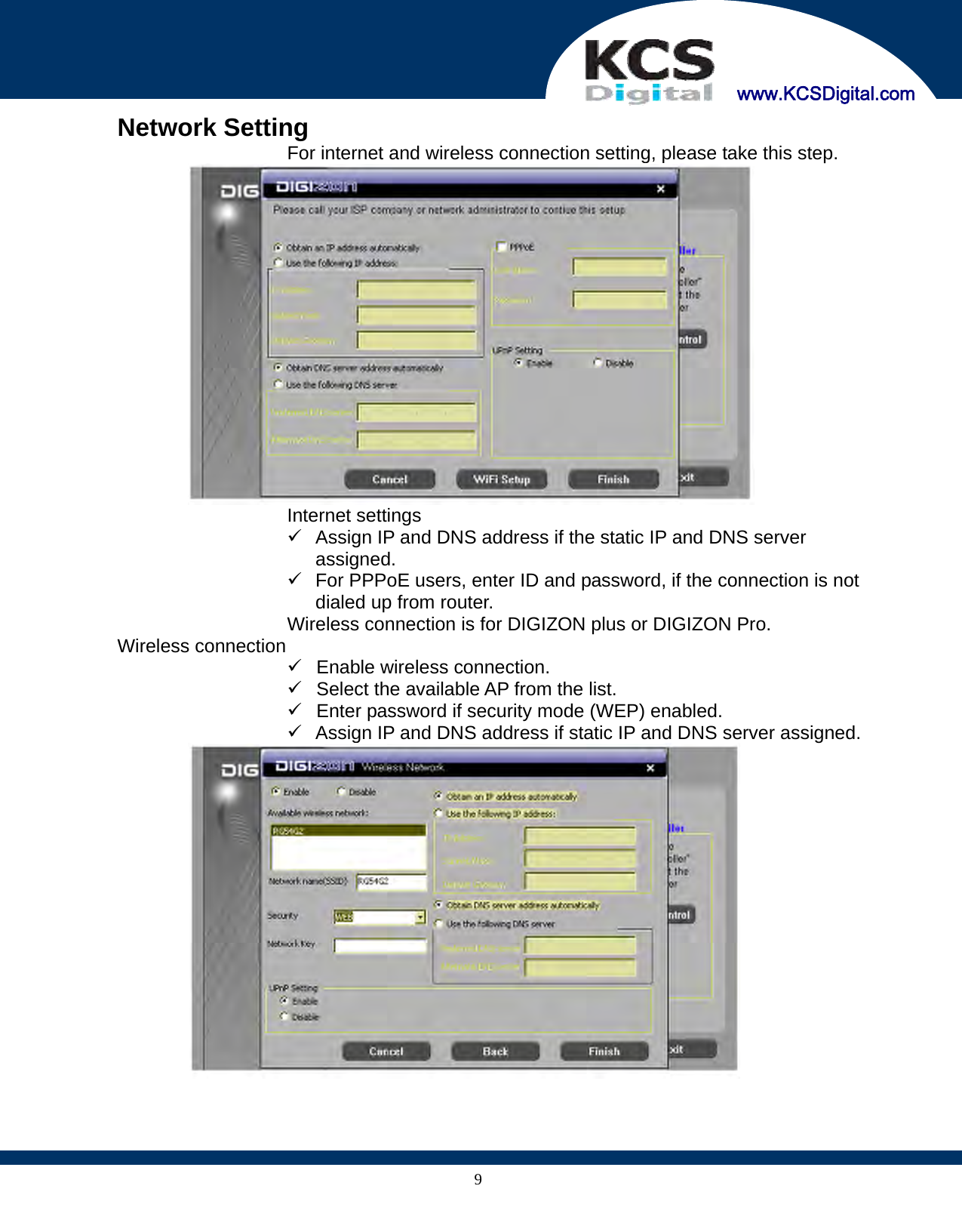
    www.KCSDigital.com 9 Network Setting   For internet and wireless connection setting, please take this step.   Internet settings 9  Assign IP and DNS address if the static IP and DNS server assigned. 9  For PPPoE users, enter ID and password, if the connection is not dialed up from router.   Wireless connection is for DIGIZON plus or DIGIZON Pro.  Wireless connection 9  Enable wireless connection. 9  Select the available AP from the list. 9  Enter password if security mode (WEP) enabled. 9  Assign IP and DNS address if static IP and DNS server assigned.
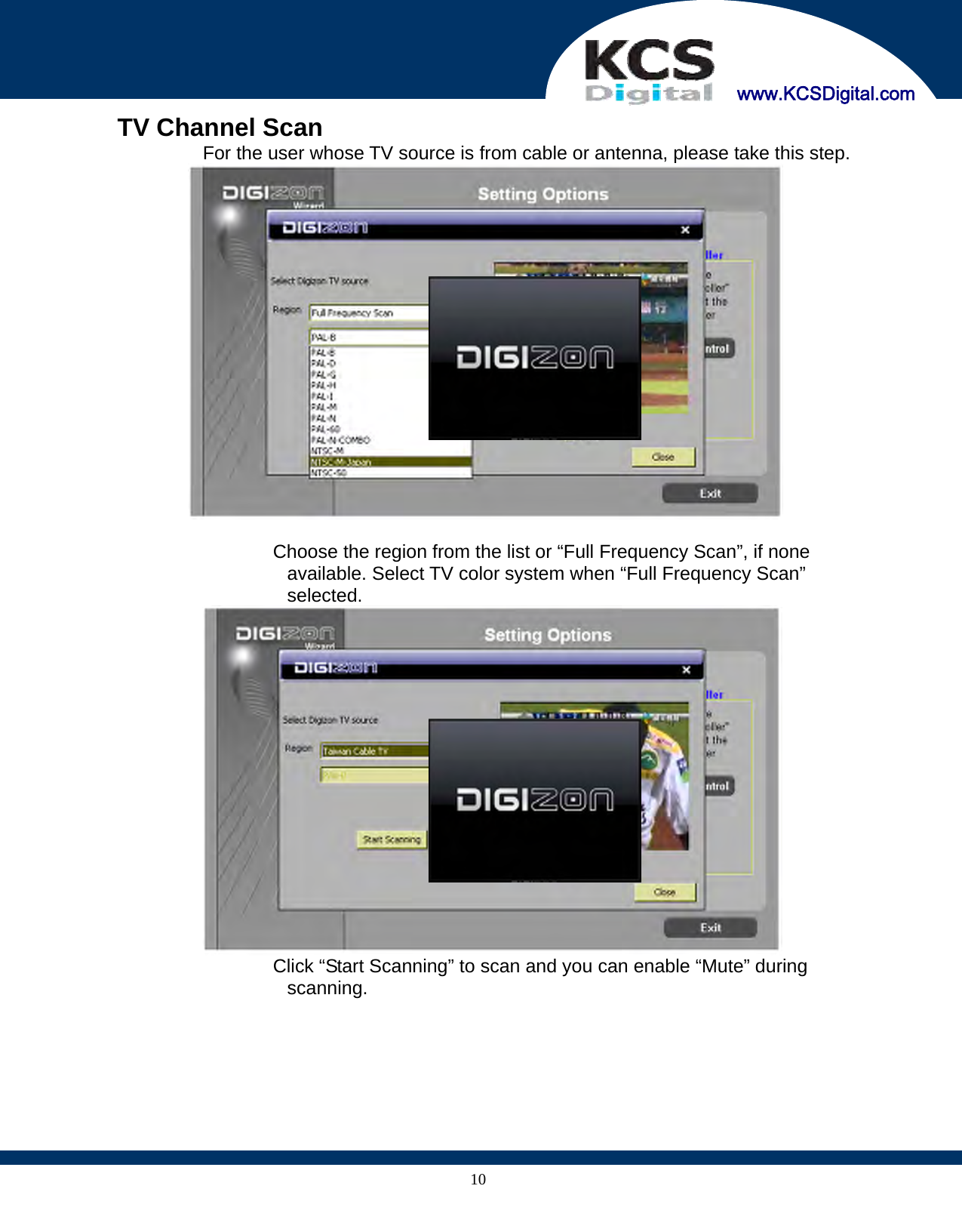
    www.KCSDigital.com 10  TV Channel Scan   For the user whose TV source is from cable or antenna, please take this step.     Choose the region from the list or “Full Frequency Scan”, if none available. Select TV color system when “Full Frequency Scan” selected.    Click “Start Scanning” to scan and you can enable “Mute” during scanning.
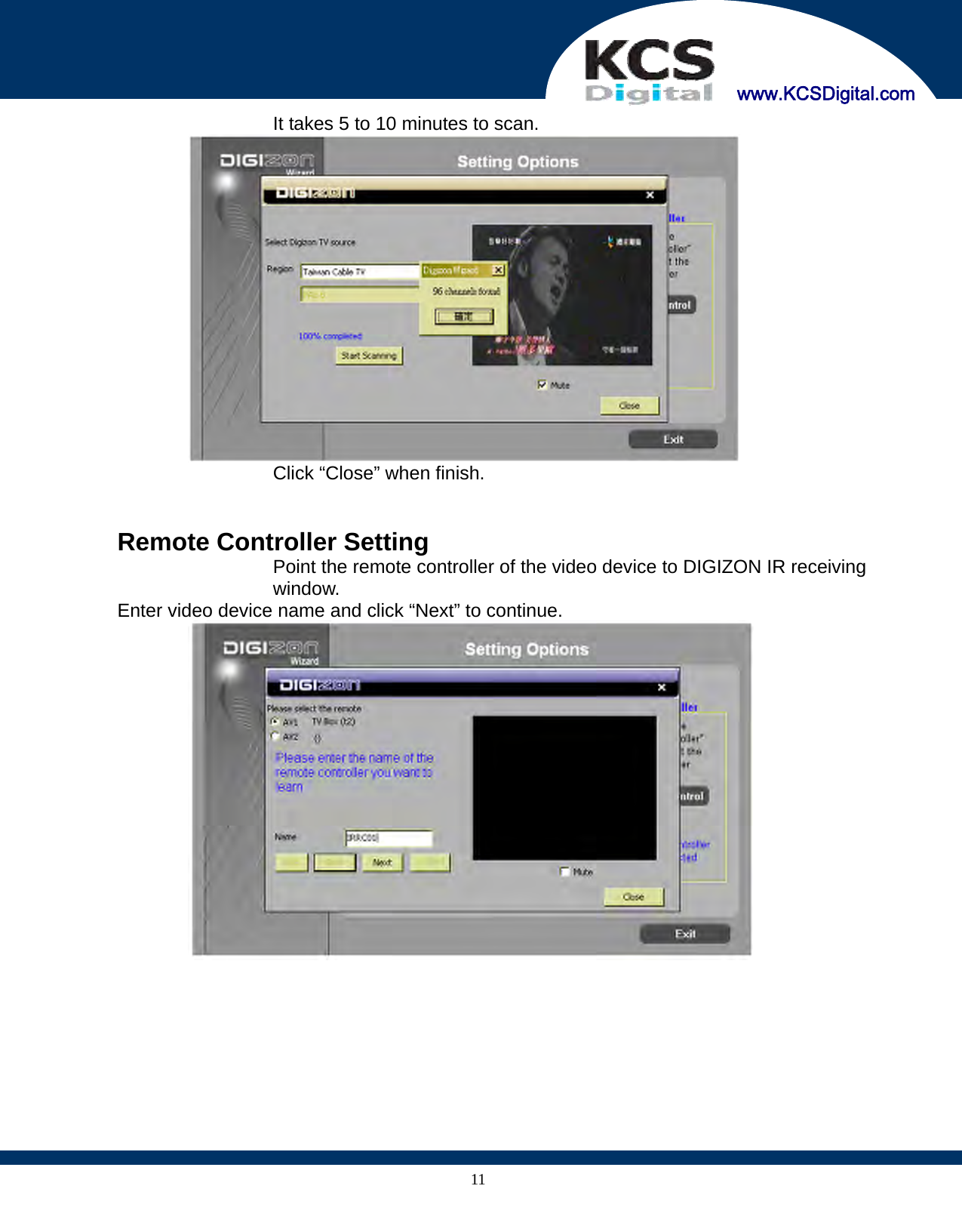
    www.KCSDigital.com 11  It takes 5 to 10 minutes to scan.    Click “Close” when finish.     Remote Controller Setting Point the remote controller of the video device to DIGIZON IR receiving window.   Enter video device name and click “Next” to continue.
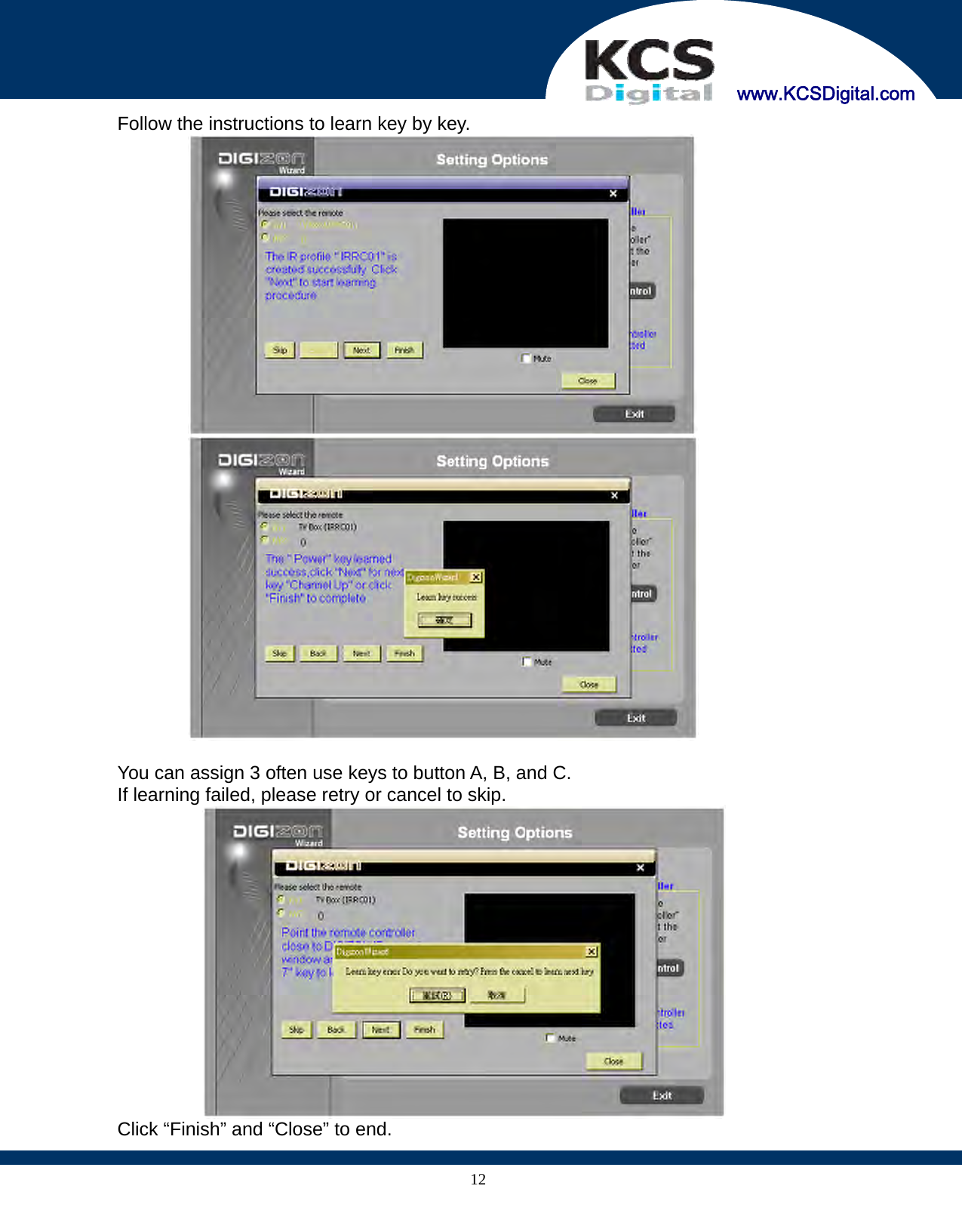
    www.KCSDigital.com 12  Follow the instructions to learn key by key.      You can assign 3 often use keys to button A, B, and C.   If learning failed, please retry or cancel to skip.    Click “Finish” and “Close” to end.
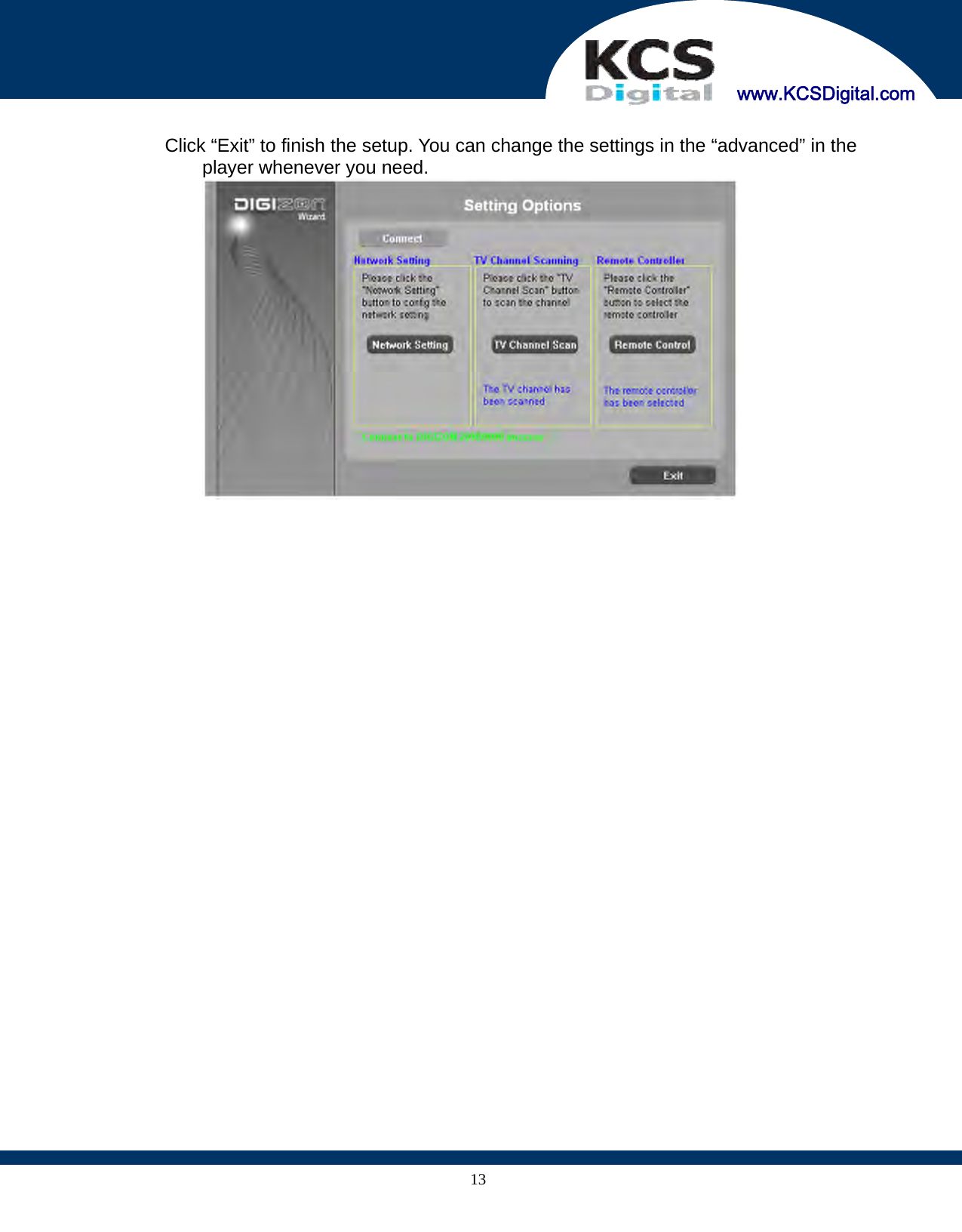
    www.KCSDigital.com 13   Click “Exit” to finish the setup. You can change the settings in the “advanced” in the player whenever you need.
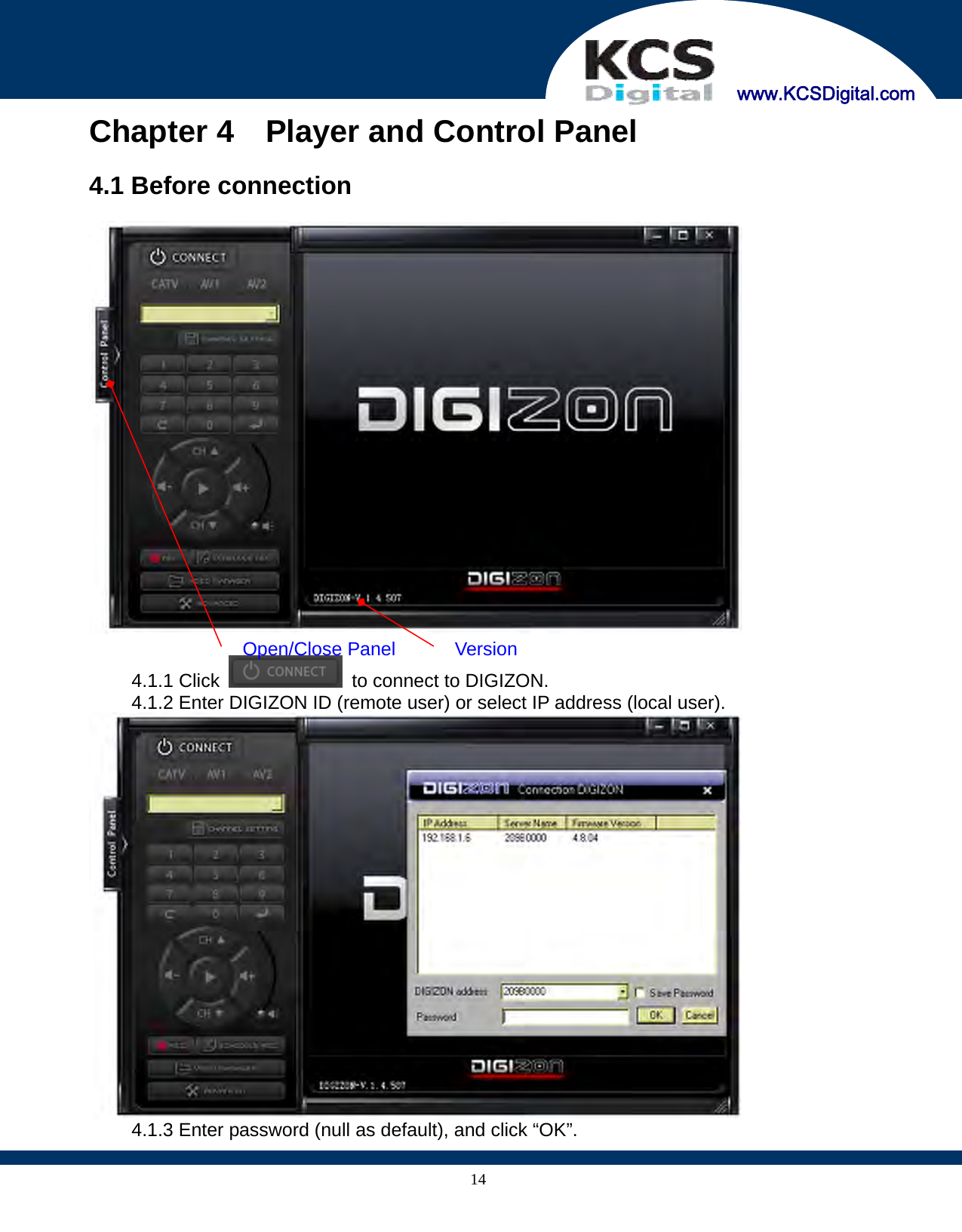
    www.KCSDigital.com 14Chapter 4    Player and Control Panel  4.1 Before connection    4.1.1 Click    to connect to DIGIZON. 4.1.2 Enter DIGIZON ID (remote user) or select IP address (local user).  4.1.3 Enter password (null as default), and click “OK”. Version Open/Close Panel
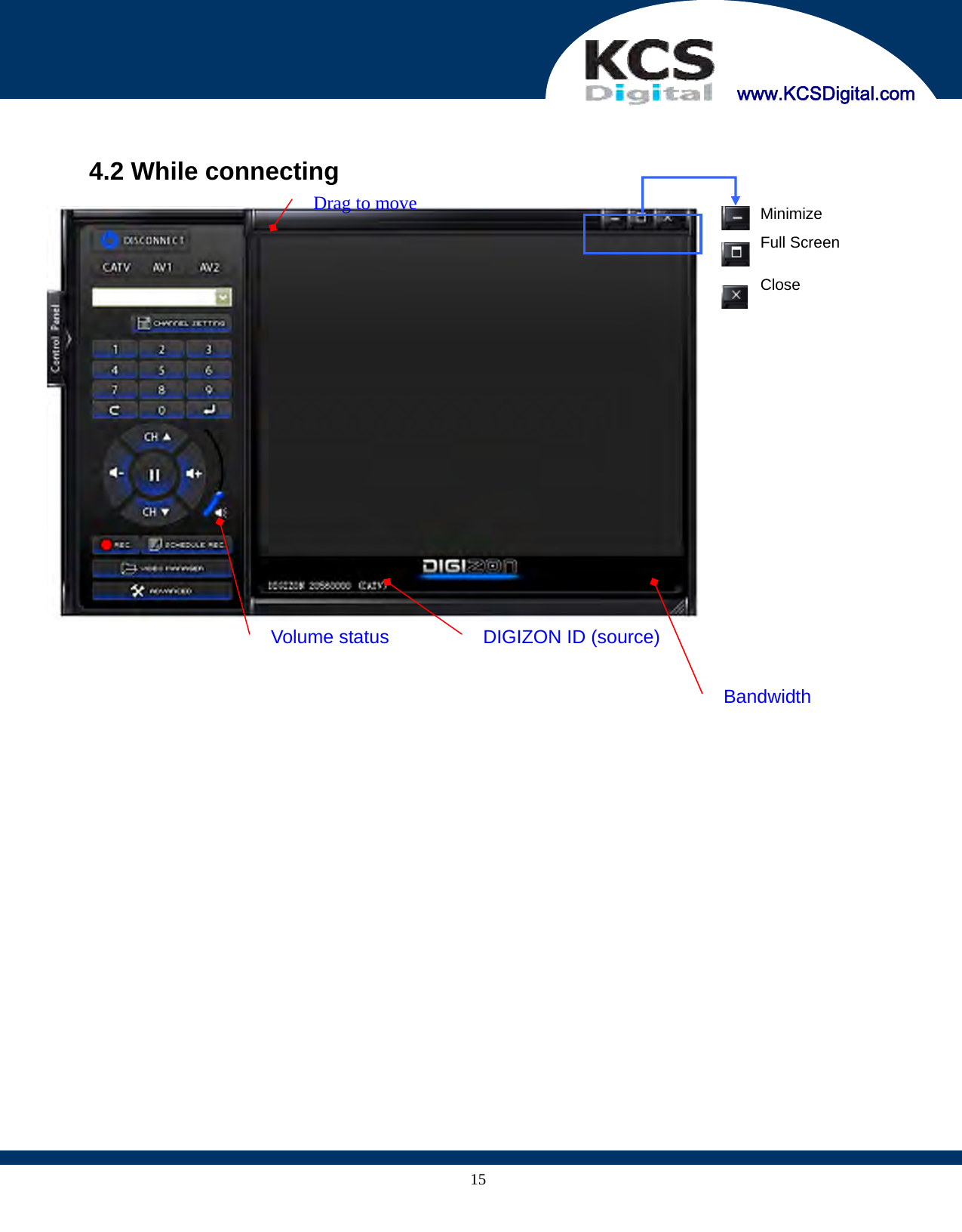
    www.KCSDigital.com 15  4.2 While connecting     DIGIZON ID (source) Bandwidth MinimizeFull ScreenCloseVolume status Drag to move
    www.KCSDigital.com 164.3 Buttons     Connect to DIGIZON    Disconnect from DIGIZON    Select the video source    TV channel setting, see 4.4    Numeric pad (   last choice;    enter)   Volume control   Channel control    Pause, while playing    Mute  Instant recording* (see chapter 6)  Schedule recording*(see chapter 6)  Video file management*(see chapter 7)  Advanced Setup (see chapter 8)  For external AV devices use, button A, B, and C are user-defined hot keys.   *DIGIZON Pro only
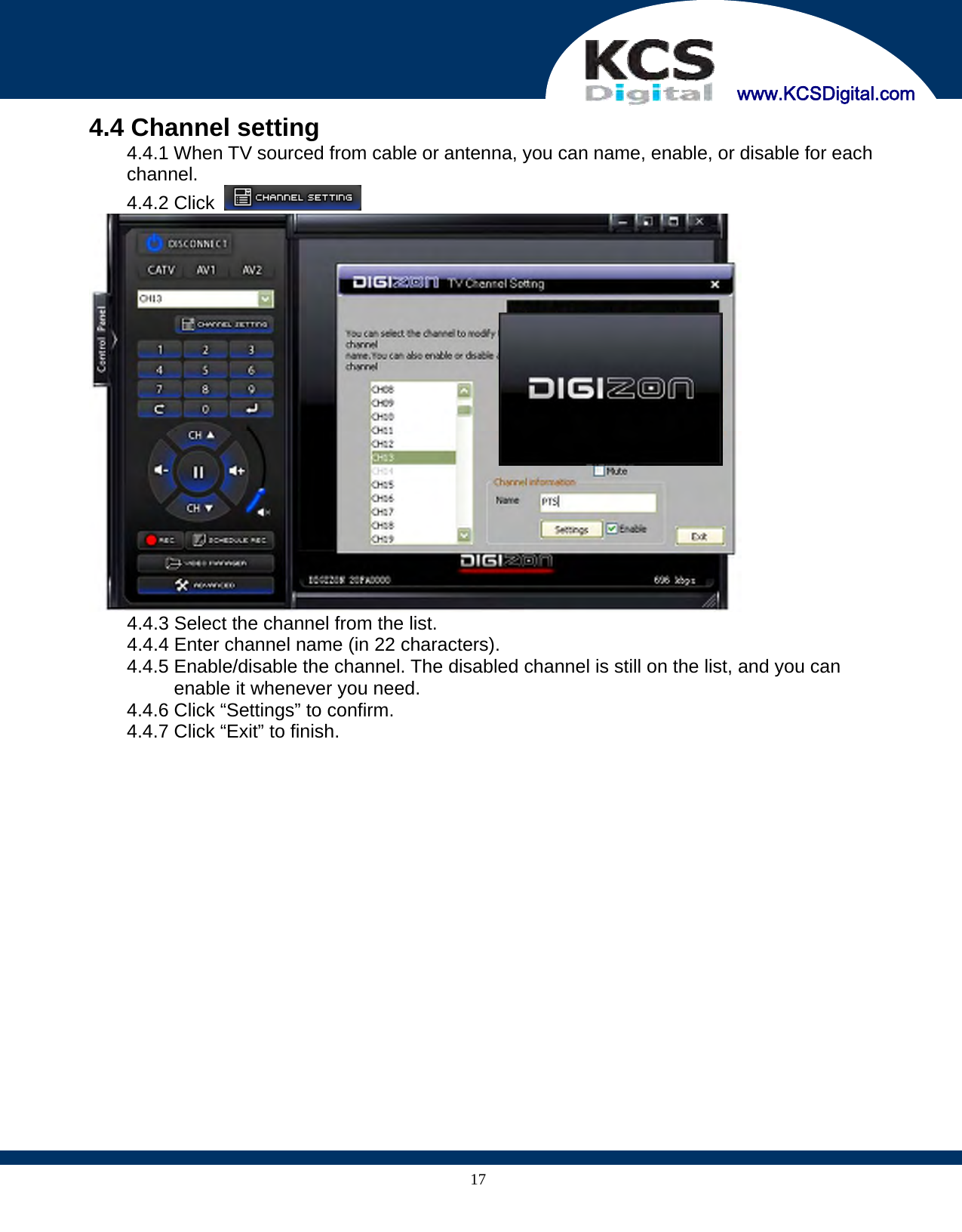
    www.KCSDigital.com 174.4 Channel setting 4.4.1 When TV sourced from cable or antenna, you can name, enable, or disable for each channel. 4.4.2 Click      4.4.3 Select the channel from the list.   4.4.4 Enter channel name (in 22 characters). 4.4.5 Enable/disable the channel. The disabled channel is still on the list, and you can enable it whenever you need. 4.4.6 Click “Settings” to confirm. 4.4.7 Click “Exit” to finish.
    www.KCSDigital.com 18Chapter 5  Live Video Applications     5.1 Surveillance 5.1.1 Connect camera (analog) to AV IN 1 (or AV IN 2) 5.1.2 Start the player and choose video source AV1 (or AV2). 5.1.3 Control volume if there is an audio input. 5.1.4.Properly select NTSC/PAL in “Advanced” setup to match camera color system.  5.2 Video conference   5.2.1 For video conference, you need a pair of DIGIZON. 5.2.2 Connect the camera (analog) to AV IN 1 (or AV IN 2)       5.2.3 Both sides have to log in DIGIZON of opposite side.       5.2.5 Choose the opposite side camera signal source AV1(or AV2)       5.2.6 Both sides have to ensure opposite side DIGIZON ID, password, and conference camera signal source has to be AV1 (or AV2)
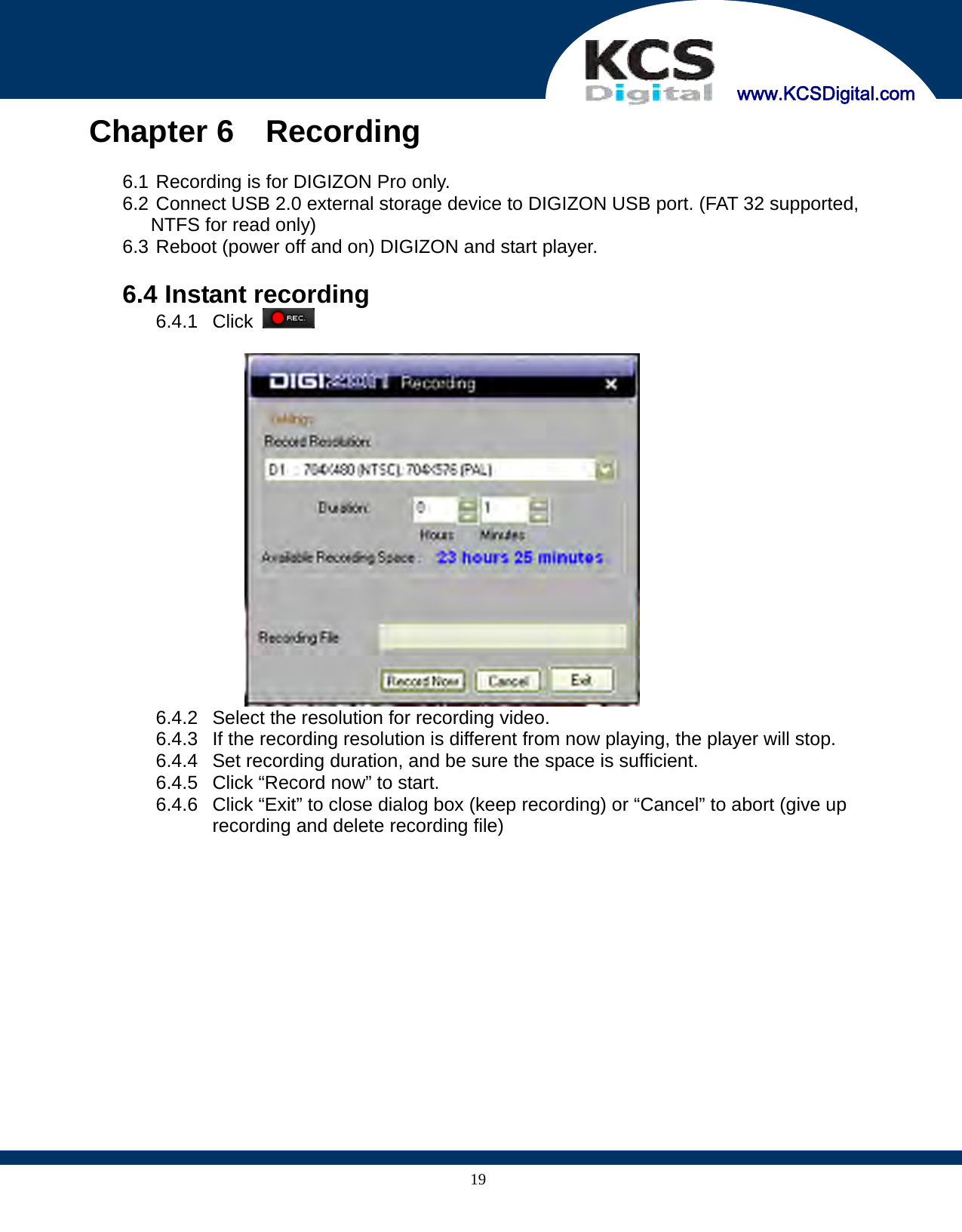
    www.KCSDigital.com 19Chapter 6  Recording  6.1 Recording is for DIGIZON Pro only. 6.2 Connect USB 2.0 external storage device to DIGIZON USB port. (FAT 32 supported, NTFS for read only) 6.3 Reboot (power off and on) DIGIZON and start player.  6.4 Instant recording 6.4.1 Click      6.4.2  Select the resolution for recording video. 6.4.3  If the recording resolution is different from now playing, the player will stop. 6.4.4  Set recording duration, and be sure the space is sufficient. 6.4.5  Click “Record now” to start. 6.4.6  Click “Exit” to close dialog box (keep recording) or “Cancel” to abort (give up recording and delete recording file)
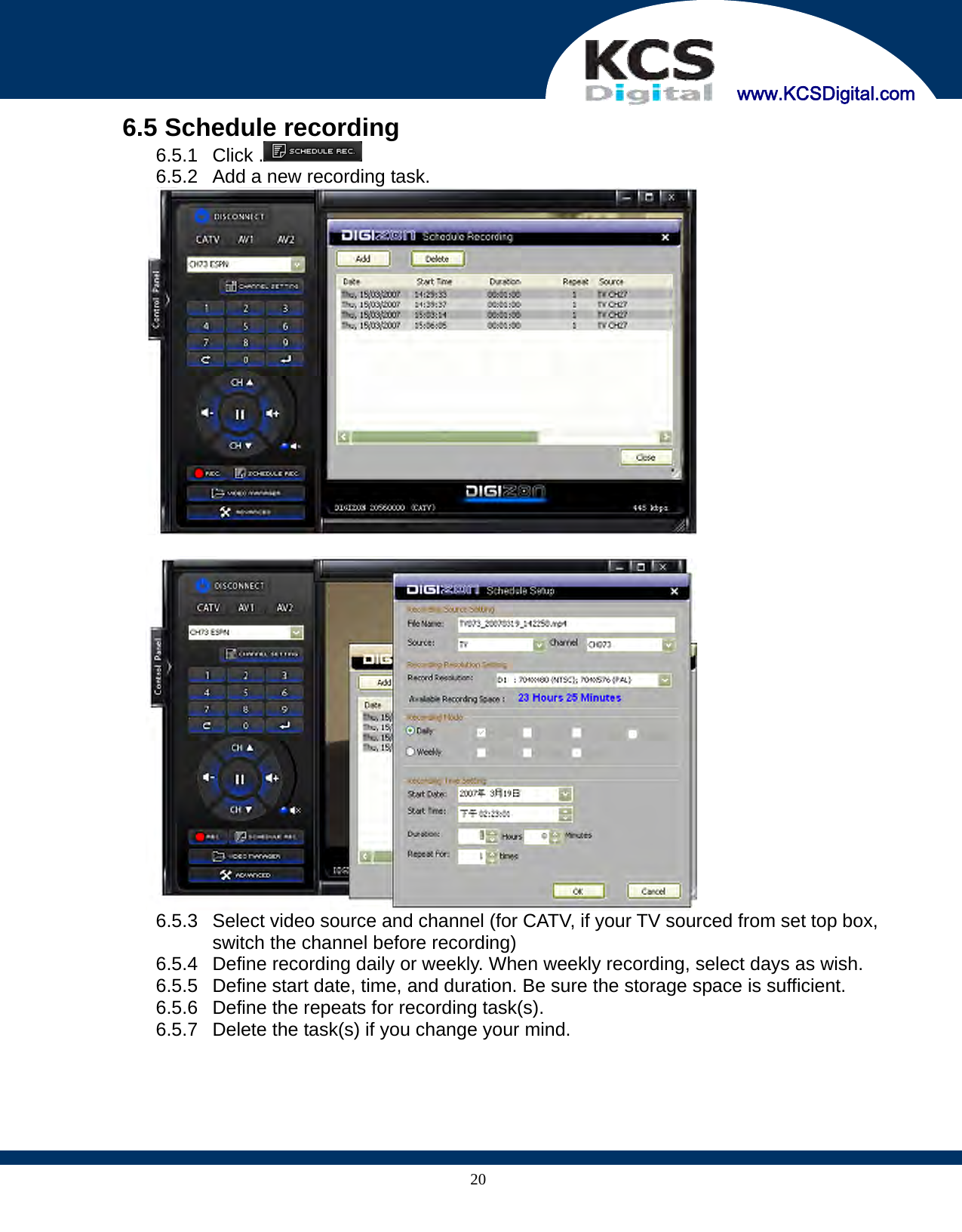
    www.KCSDigital.com 206.5 Schedule recording 6.5.1 Click .  6.5.2  Add a new recording task.    6.5.3  Select video source and channel (for CATV, if your TV sourced from set top box, switch the channel before recording) 6.5.4  Define recording daily or weekly. When weekly recording, select days as wish. 6.5.5  Define start date, time, and duration. Be sure the storage space is sufficient. 6.5.6  Define the repeats for recording task(s). 6.5.7  Delete the task(s) if you change your mind.
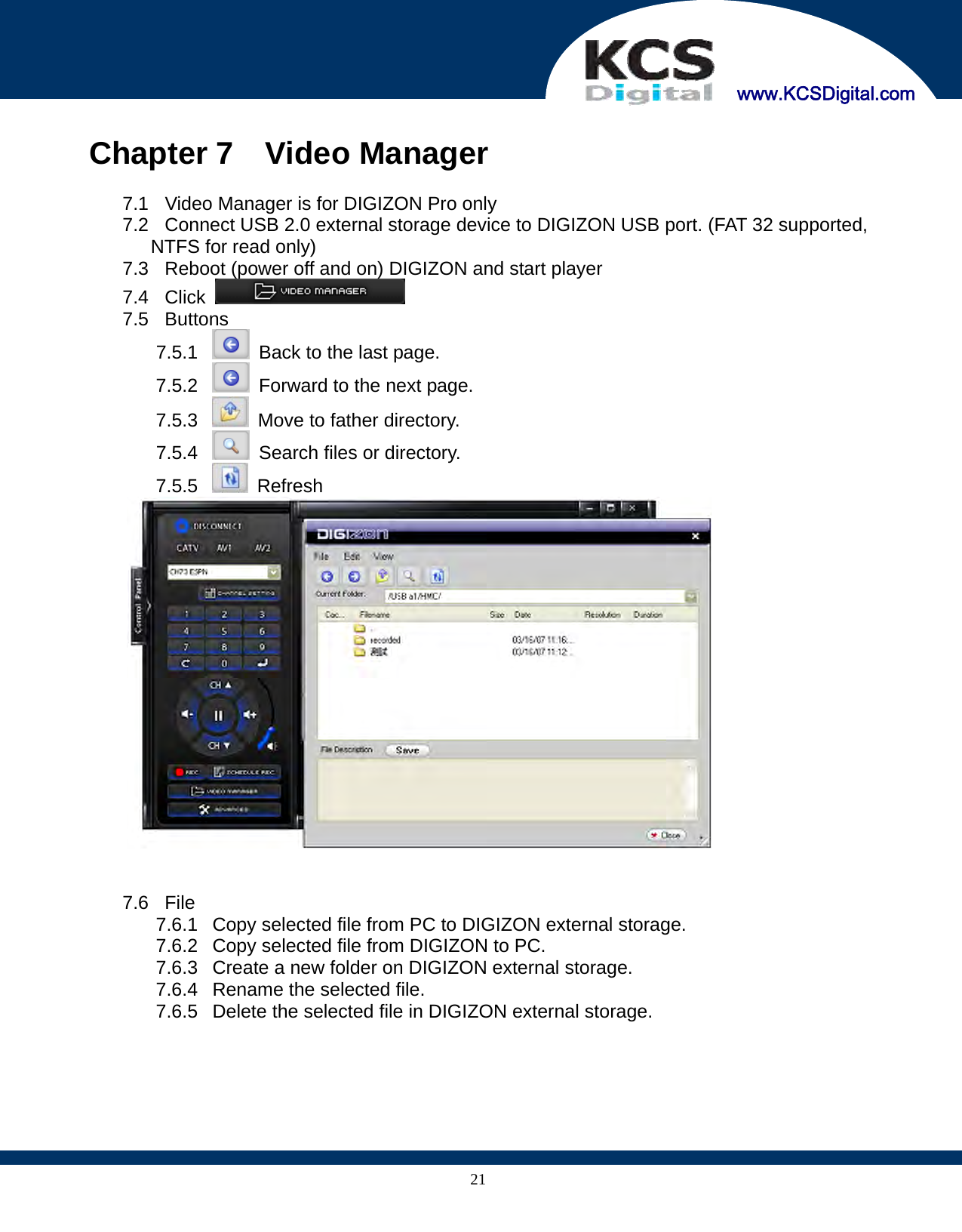
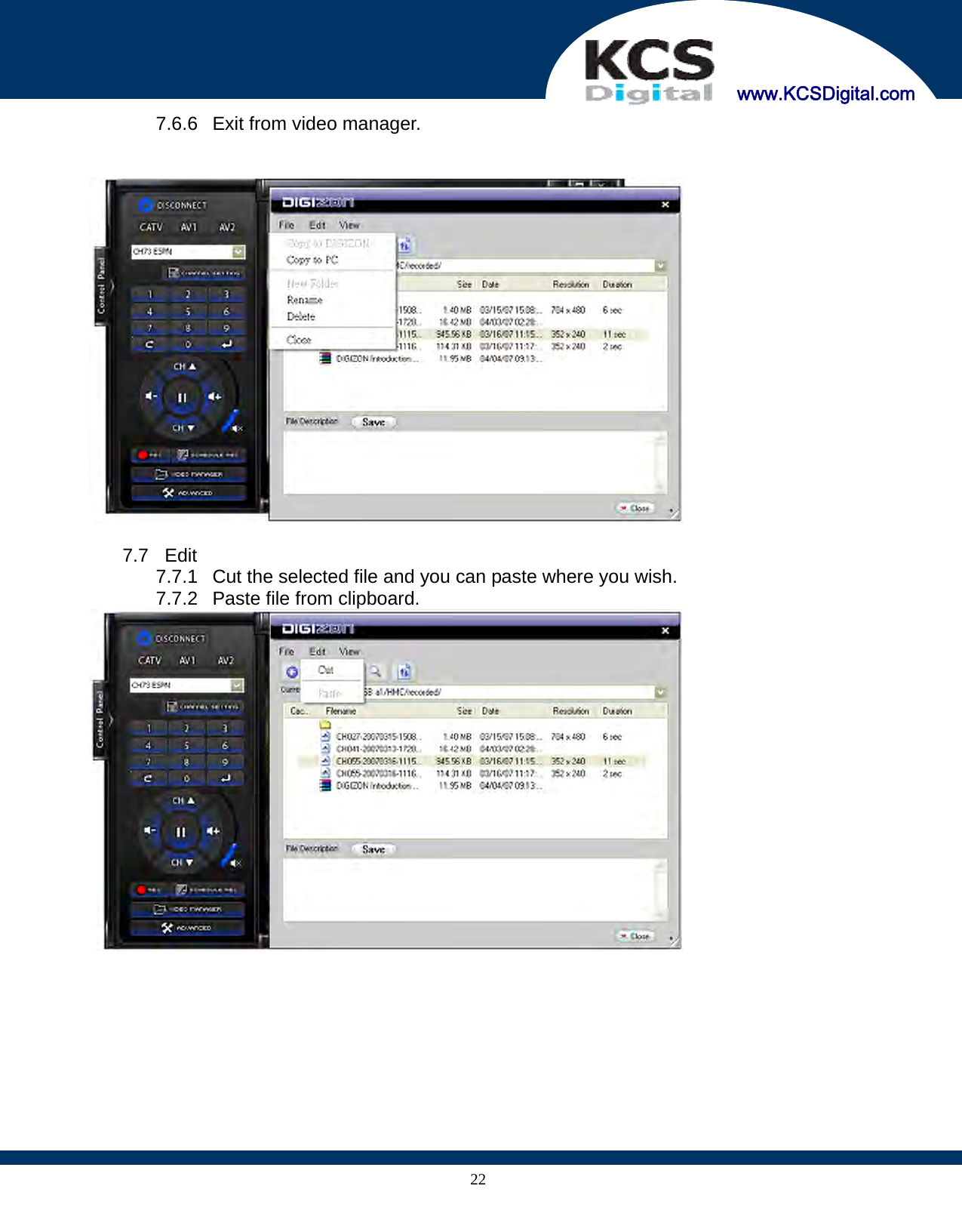
    www.KCSDigital.com 21 Chapter 7  Video Manager  7.1  Video Manager is for DIGIZON Pro only 7.2  Connect USB 2.0 external storage device to DIGIZON USB port. (FAT 32 supported, NTFS for read only) 7.3  Reboot (power off and on) DIGIZON and start player 7.4 Click   7.5 Buttons 7.5.1    Back to the last page. 7.5.2    Forward to the next page. 7.5.3    Move to father directory. 7.5.4    Search files or directory. 7.5.5   Refresh    7.6 File 7.6.1  Copy selected file from PC to DIGIZON external storage. 7.6.2  Copy selected file from DIGIZON to PC. 7.6.3  Create a new folder on DIGIZON external storage. 7.6.4  Rename the selected file. 7.6.5  Delete the selected file in DIGIZON external storage.
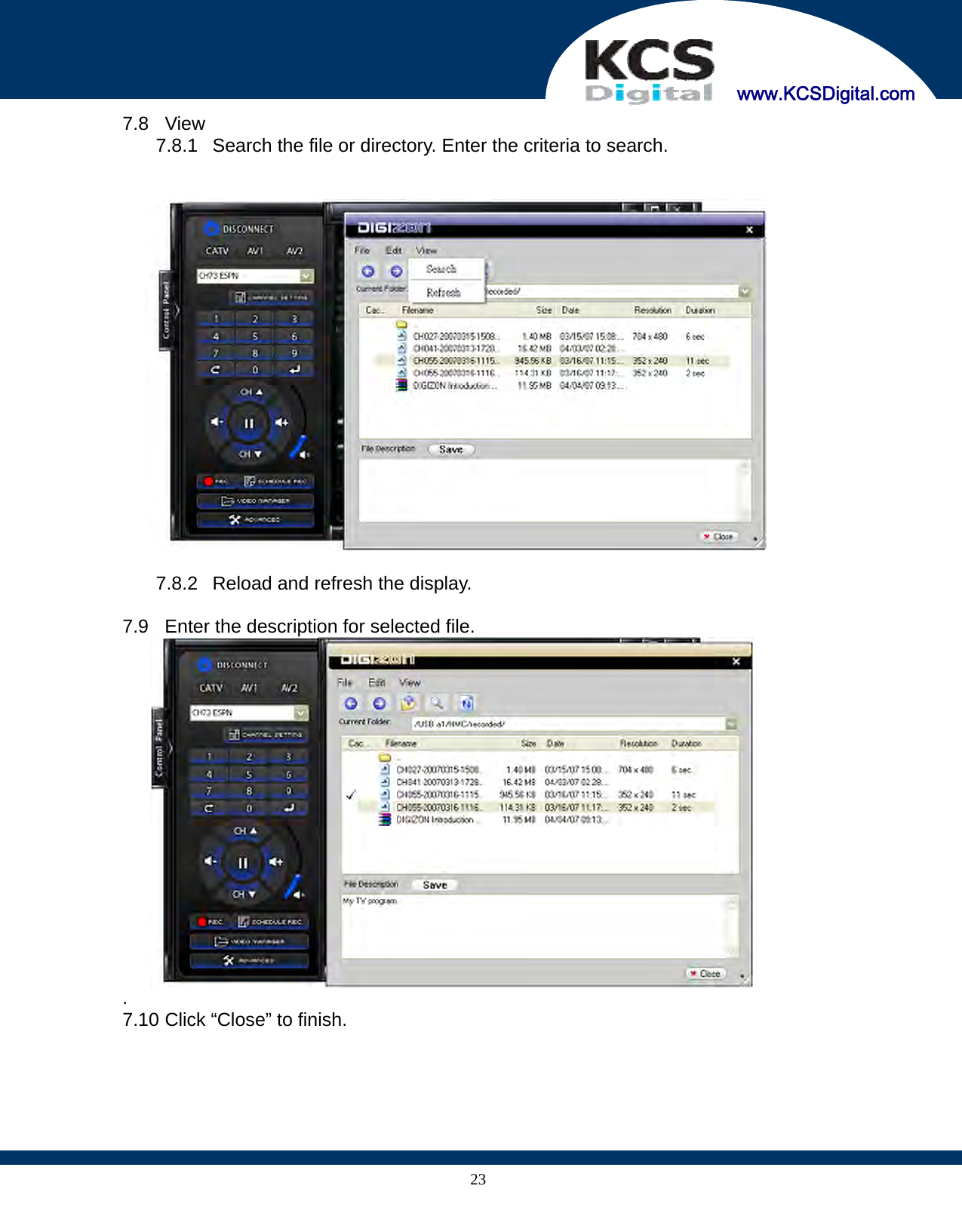
    www.KCSDigital.com 227.6.6  Exit from video manager.     7.7 Edit 7.7.1  Cut the selected file and you can paste where you wish. 7.7.2  Paste file from clipboard.
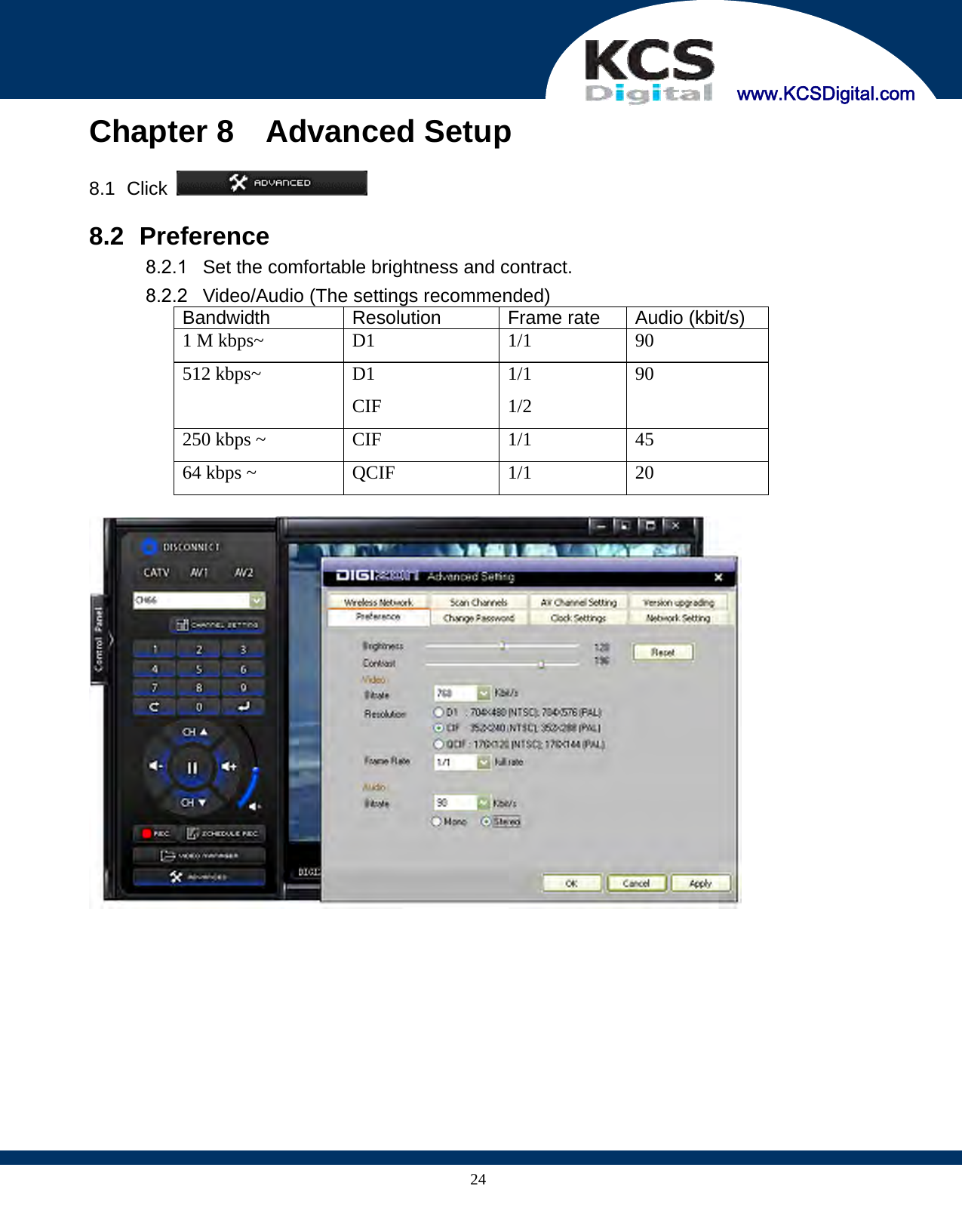
    www.KCSDigital.com 237.8 View 7.8.1  Search the file or directory. Enter the criteria to search.     7.8.2  Reload and refresh the display.  7.9  Enter the description for selected file.  . 7.10 Click “Close” to finish.
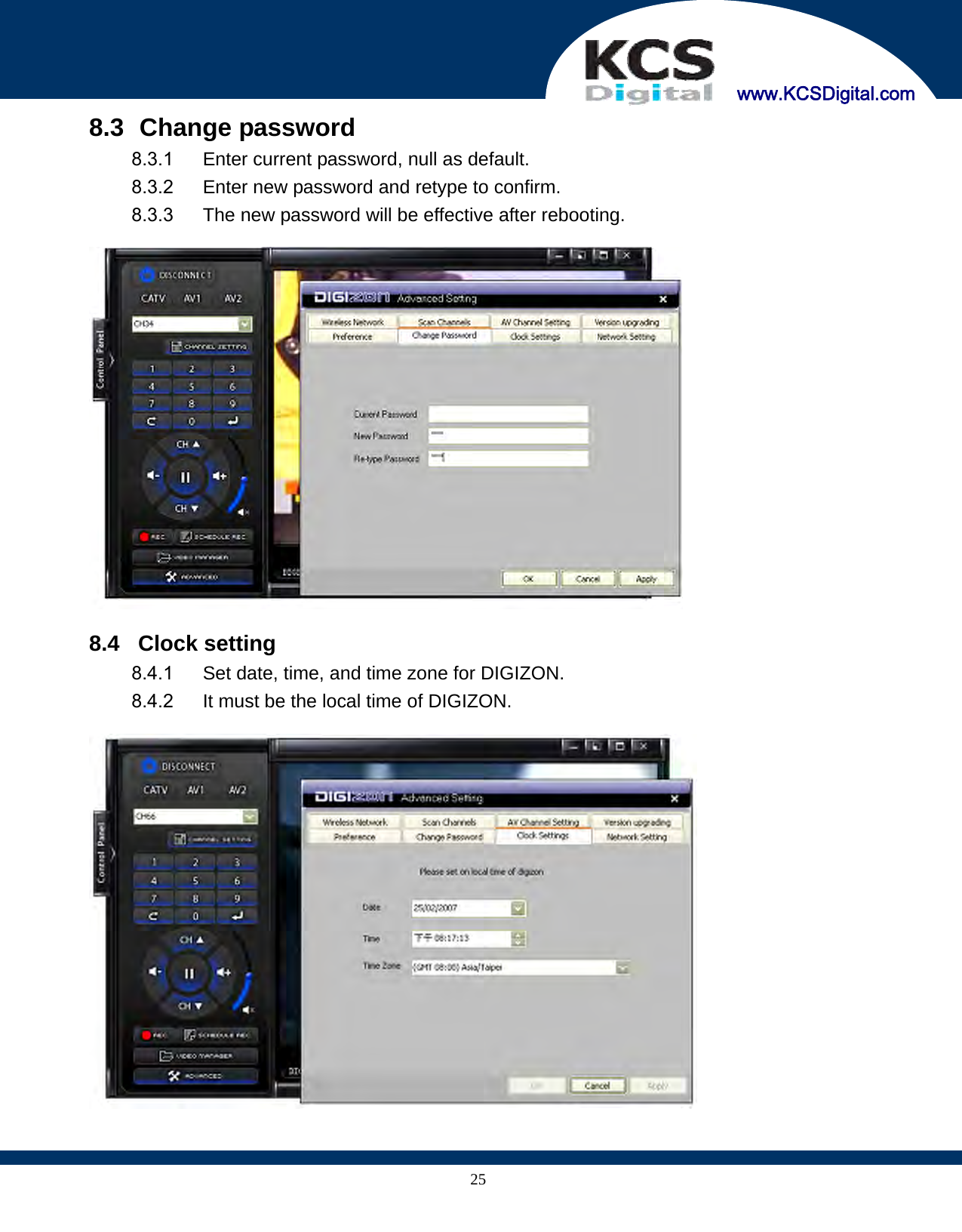
    www.KCSDigital.com 24Chapter 8  Advanced Setup  8.1   Click    8.2   Preference 8.2.1  Set the comfortable brightness and contract. 8.2.2  Video/Audio (The settings recommended) Bandwidth Resolution Frame rate  Audio (kbit/s) 1 M kbps~  D1  1/1  90 512 kbps~  D1 CIF 1/1 1/2 90 250 kbps ~  CIF  1/1  45 64 kbps ~  QCIF  1/1  20
    www.KCSDigital.com 258.3   Change password 8.3.1  Enter current password, null as default. 8.3.2  Enter new password and retype to confirm. 8.3.3  The new password will be effective after rebooting.    8.4   Clock setting 8.4.1  Set date, time, and time zone for DIGIZON. 8.4.2  It must be the local time of DIGIZON.
    www.KCSDigital.com 268.5   Network setting 8.5.1  The settings are for remote use through internet. 8.5.2  Assign the IP and DNS address for DIGIZON, if necessary.    8.6   Wireless network 8.6.1  Wireless connection is available for DIGIZON plus and DIGIZON Pro. 8.6.2  Check “Activation” on. 8.6.3  Select the AP (Access Point) from the list. 8.6.4  Select the security type of AP, and enter password if necessary. 8.6.5  Assign IP and DNS address, if necessary.
    www.KCSDigital.com 27 8.7   Scan channels 8.7.1  Select the region where DIGIZON locates. If none available, please select “Full Frequency Scan”.    8.7.2  Click “Start Scanning” to start. 8.7.3  It takes 5~10 minutes. When scanning, please stop any operation. 8.7.4  This function is for cable TV only.
    www.KCSDigital.com 28Chapter  9  Trouble Shooting  9.1 How to setup the IP of PC/Laptop installed DIGIZON player? 9.1.1 Click “Start Up” and click “Network Neighbor” 9.1.2 Click “View Network Connections” 9.1.3 Click “Local Area Connection” 9.1.4 Click “General” and click Internet Protocol (TCP/IP) 9.1.5 Change the IP address to 192.168.1.4 and click “Confirm”.     9.2   How did DIGIZON go to internet without UPnP?  9.2.1 Virtual Server Configuration: This is example of SMCWBR14T-G   9.2.1.1 Access the Router Portal 9.2.1.2 Advanced Settings => NAT => Virtual Server 9.2.1.3 Set up the LAN IP Address as DIGIZON IP and LAN Port: 40001, 41000 and 41002 to map Public Port  9.2.2   DMZ  Configuration: This is example of SMCWBR14T-G   9.2.2.1 Access the Router Portal 9.2.2.2 Security => Firewall => DMZ 9.2.2.3 Set up Pubic IP Address (Check WAN IP) and Client PC IP Address (DIGIZON’s IP)
    www.KCSDigital.com 299.3   How to connect DIGIZON with HUB not AP/Router? 9.3.1 Please prepare with a public IP for DIGIZON network setting 9.3.2 Access DIGIZON Player => Advanced => Network Setting 9.3.3    9.4   Video lags or audio sounds not smooth? The video and audio quality depends on the bandwidth, refer to 8.2.2  9.5   Only audio, but no video? 9.5.1  Install DirectX 9C or above version, 9.5.2 Download address www.microsoft.com/windows/directx/default.mspx  9.6   Can’t play the recorded files? 9.6.1  Recommend player on PC is Quick Time 7. 9.6.2 Download address www.apple.com/quicktime/download/win.html  9.7   Files split if recording for a long time? 9.7.1  For FAT 32, 2.0 GB file size is allowed. 9.7.2  The recording files splits into 1.9 GB for each.  9.8   The IR learning program responses OK but doesn’t work? Point IR remote controller to DIGIZON IR receiver closely to avoid any possible interference.
    www.KCSDigital.com 309.9   Login successfully but can not switch channels? 9.9.1  DIGIZON allows only the first login user to control the player. 9.9.2  The second client shares the video but control.  9.10   While wired and wireless connection enabled, which one is effective? 9.10.1  DIGIZON prioritizes wired connection than the wireless. 9.10.2  Remove RJ45 from DIGIZON and reboot to make the wireless connection effective. 9.11   Some USB storage devices can not work? DIGIZON supports USB 2.0 only.  9.12   Login  successfully,  but there is no audio/video? 9.12.1  Some anti-virus program may block DIGIZON streaming flow, add DIGIZON Player to the allowed list. 9.12.2  Refer to anti-virus manual for details.  9.13   Player works abnormally in company, but well at home? 9.13.1  The firewall may block the streaming, call MIS staff to get the permission. 9.13.2  Keep the port 40001, 41000, 41002 opened.  9.14   The picture is out-of-sync? 9.14.1  The color system (NTSC/PAL) of the video source must be correctly defined in DIGIZON. 9.14.2  Refer to chapter 5 to set the color system.
    www.KCSDigital.com 31Contact Information    KCS Digital 8F, No.69-8, Sec.2, Chung Cheng E. Rd., Tamshui Town, Taipei County, Taiwan TEL:+886-2-77030980 FAX:+886-2-77030981 http://www.KCSDigital.com       Note to CATV System Installer— This reminder is provided to call the CATV systems installer’s attention to Section 820-93 of the National Electric Code which provide guidelines for proper grounding and, in particular, specify that the Coaxial cable shield shall be connected to the grounding system of the building, as close to the point of cable entry as practical.  This device complies with Part 15 of the FCC Rules.   Operation is    subject to the following two conditions:   (1) this device may not cause    harmful interference, and (2) this device must accept any interference    received, including interference that may cause undesired operation.    © Copyright 2007 by KCS Digital. All rights reserved
    www.KCSDigital.com 32 Federal Communication Commission Interference Statement  This equipment has been tested and found to comply with the limits for a Class B digital device, pursuant to Part 15 of the FCC Rules.  These limits are designed to provide reasonable protection against harmful interference in a residential installation.    This equipment generates, uses and can radiate radio frequency energy and, if not installed and used in accordance with the instructions, may cause harmful interference to radio communications.    However, there is no guarantee that interference will not occur in a particular installation.    If this equipment does cause harmful interference to radio or television reception, which can be determined by turning the equipment off and on, the user is encouraged to try to correct the interference by one of the following measures: z Reorient or relocate the receiving antenna. z Increase the separation between the equipment and receiver. z Connect the equipment into an outlet on a circuit different from that to which the receiver is connected. z Consult the dealer or an experienced radio/TV technician for help.  FCC Caution: Any changes or modifications not expressly approved by the party responsible for compliance could void the user's authority to operate this equipment.  This device complies with Part 15 of the FCC Rules. Operation is subject to the following two conditions: (1) This device may not cause harmful interference, and (2) this device must accept any interference received, including interference that may cause undesired operation.  This device and its antenna(s) must not be co-located or operating in conjunction with any other antenna or transmitter  IMPORTANT NOTE: FCC Radiation Exposure Statement: This equipment complies with FCC radiation exposure limits set forth for an uncontrolled environment. This equipment should be installed and operated with minimum distance 20cm between the radiator & your body.

Navigation menu