KCS DIGITAL lnc GLEECUBE-MBA Glee Cube User Manual full eng mba 1008 indd
KCS DIGITAL lnc. Glee Cube full eng mba 1008 indd
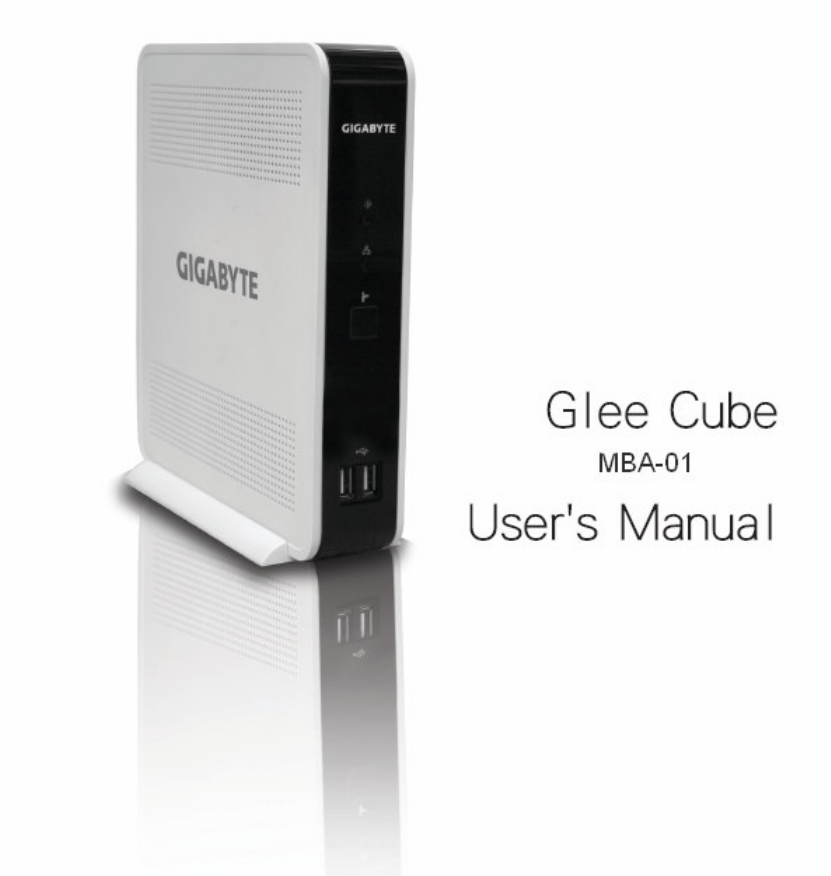
Users Manual

2
Table of Content
Chapter1 Introduction 3
Chapter2 Hardware Connection 5
Chapter3 Software Installation 6
Chapter4 Player and Control Panel 7
Chapter5 Live Video Applications 13
Chapter6 Recording 14
Chapter7 Video Manager 17
Trouble Shooting 19
Installation and Setup 19
Watch TV 21
Recording 22
Video conference 23
Surveillance 24
full_eng_mba_1008.indd 2 2007/10/8 下午 06:37:58

3
Chapter 1 Introduction
1-1 CHECKLIST
DIGIZON Box x 1
AV Cable x 2
S-Video Cable x 1
CATV Coaxial Cablex 1
IR Emitter x 1
NTSC Converters (For NTSC Only)x 2
Ethernet Cable x 1
Adaptor and Power Cable x 1
Installation CD x 1
Quick Installation Guide x 1
Warranty Card x 1
OS :Windows ME、2000、XP
(with DirectX 9.0c or above)
CPU :Pentium 4 1.2 GHz or above
(MMX、SSE and SSE2 support)
Memory :256 MB or above
Display Card :DirectX compatible
Sound Card :DirectX compatible
Recommended setting :
1024x768 resolution 32-bits Color bit
APRouter :Optional
1-2 System
There is a Glee Cube ID labeled on the bottom of
Glee Cube case, if not, please contact agency where is
nearby.
full_eng_mba_1008.indd 3 2007/10/8 下午 06:37:58

4
1-3 FUNCTION OVERVIEW
1-3-1 TV Mobility
With NTSC/ PAL selectable, also supports personal TV
channel naming. And virtual remote control panel is equipped
for controlling TV in front of player.
1-3-2 Home Surveillance
2 sets of AV input for cameras are included, real-time monitor
the surveillance video on internet. You can just sit back and
ensure the safety of your love ones.
( for details please see chapter 5)
1-3-3 Video Conference
Need a pair of DIGIZON for two-way video conference, and
you can do real-time high quality video/audio transmission on
internet. ( for details please see chapter 5)
1-3-4 Digital Video Recorder
Instant record the video you are watching on and schedule
recording the program you like and won’t miss it anyway.
You can also remotely set multiple off-line record tasks
for schedule recording. It supports USB 2.0 external storage
devices. Only 900MB storage required for one hour DVD
quality video. ( for details please see chapter 6)
1-3-5 Network HD
You can simply access personal USB 2.0 external HD on
internet, remotely download, upload, search and manage files
from outside. ( for details please see chapter 7)
full_eng_mba_1008.indd 4 2007/10/8 下午 06:37:59
5
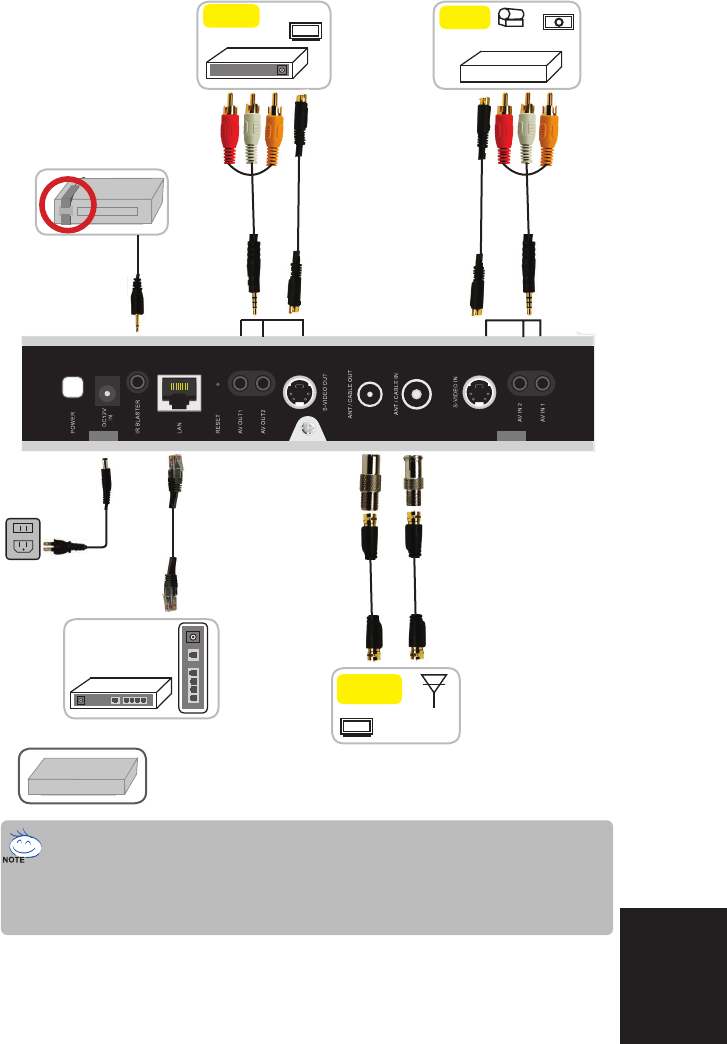
Chapter 2 Hardware Connection
DVD
AP
Router
TV
Projector
Output
TV
Input/Ouput
TV Antenna
cable
DVD/TV BOX
Input
Camera
V8/D8
USB HD
1. S-Video input/output is assigned as the AV IN 2/AV
OUT 2。
2. IR emitter must be pointed to the IR signal receiving
window of the video device.
full_eng_mba_1008.indd 5 2007/10/8 下午 06:38:00

6
Chapter 3 Software Installation
3-1 Player Installation
3-1-1
Power on the router/AP and Glee Cube.
3-1-2
Make sure the Ethernet cable is well connected.
3-1-3
Insert the installation CD and installation will start
automatically. If not, please double click the icon named
“Setup” in the root directory.
3-1-4
Follow the introductions till installation finished.
full_eng_mba_1008.indd 6 2007/10/8 下午 06:38:09
7
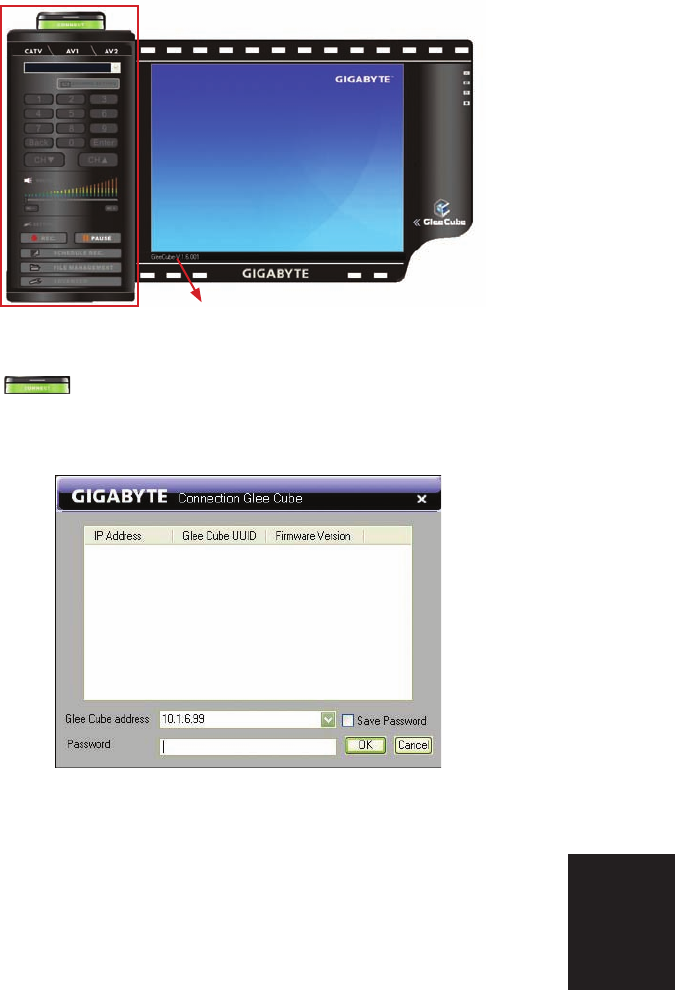
4-1 Before connection
Vision
Chapter 4 Player and Control Panel
control panel
4-1-1
Click to connect to Glee Cube。
4-1-2
Enter Glee Cube ID (remote user) or select IP address (local
user)
4-1-3
Enter password (null as default), and click “OK”.
full_eng_mba_1008.indd 7 2007/10/8 下午 06:38:10
8
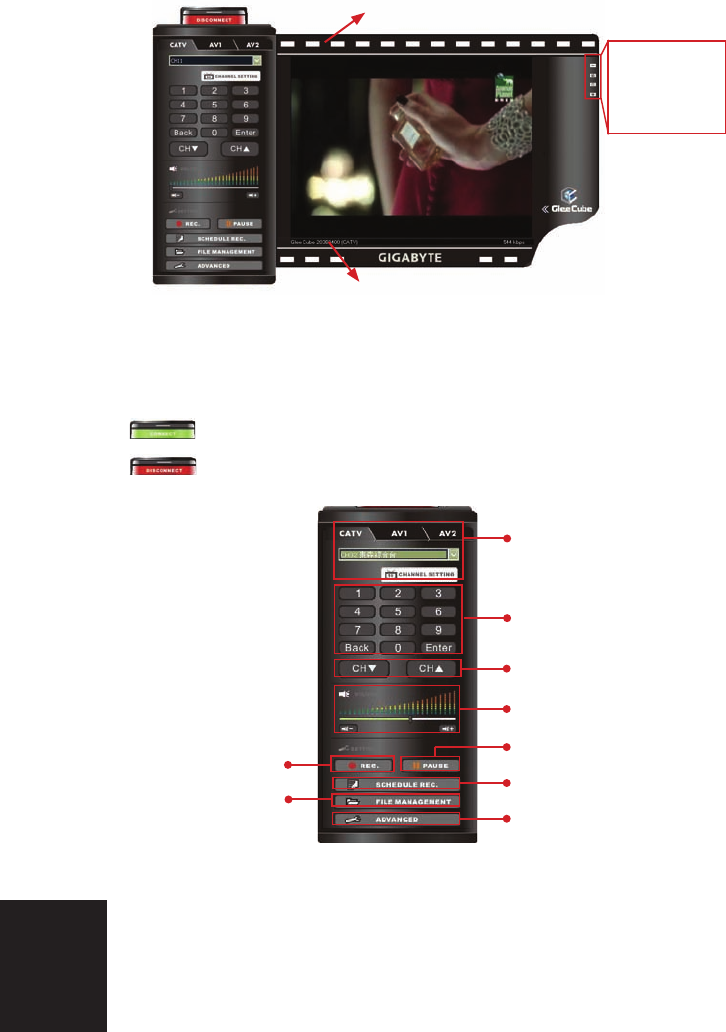
4-2 While connecting
Drag to move
source
4-3 Control Panel Introduction
connect to Glee Cube
Disconnect from Glee Cube
Select the video source
Numeric pad
Volume display/control
Pause, while playing
Instant recording
Video file
management
Schedule recording
Channel control
Minimize
Double Screen
Full Screen
Close
Advanced setup
full_eng_mba_1008.indd 8 2007/10/8 下午 06:38:11
9
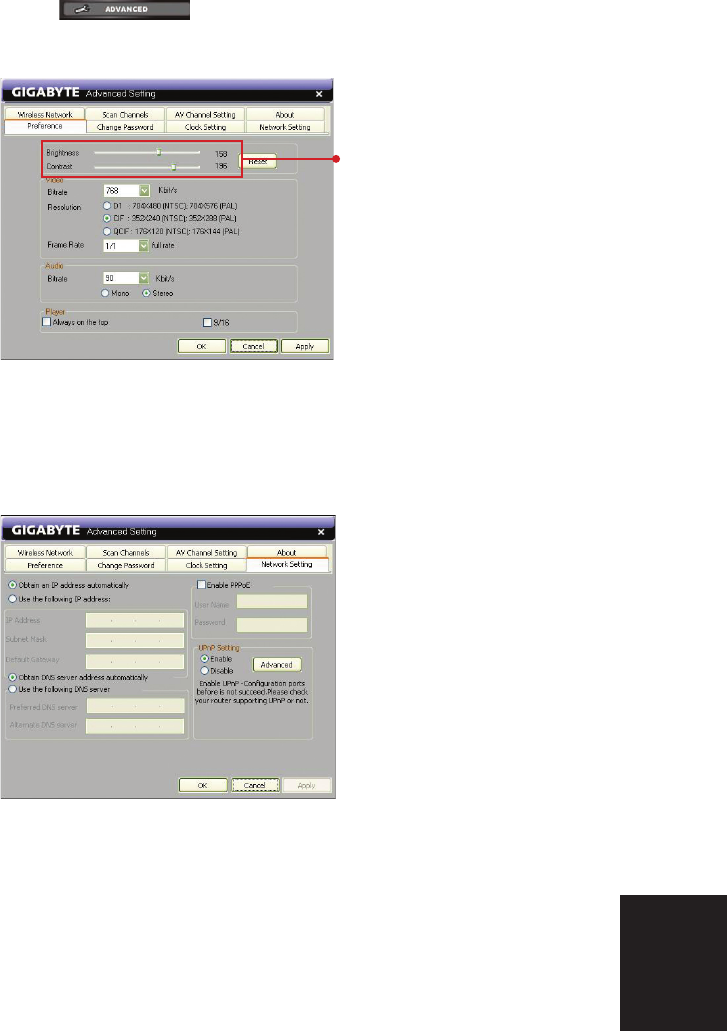
4-3-1 Advanced Setup (ADVANCED)
Click
Performance :
Set the comfortable
brightness and contract.
The settings are for remote use through internet.
Network setting:
● Assign the IP and DNS
address for Glee Cube,
if necessary.
full_eng_mba_1008.indd 9 2007/10/8 下午 06:38:13
10
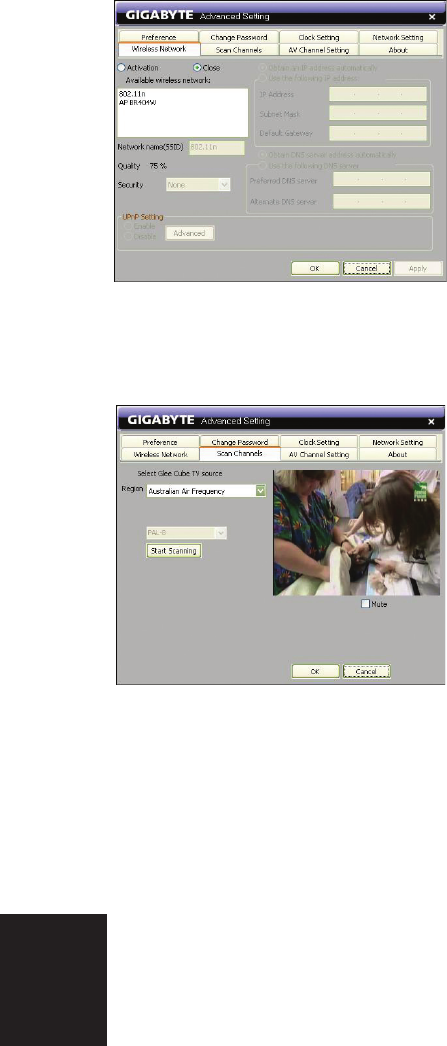
Wireless network:
● Wireless connection is
available for Glee Cube.
● Select the AP (Access
Point) from the list.
● Check “Activation”
on.
● Select the security type
of AP, and enter
password if necessary.
● Assign IP and DNS
address, if necessary.
Scan channels:
● Select the region where
Glee Cube locates. If
none available, please
select “Full Frequency
Scan”.
● Click “Start
Scanning” to start.
● It takes 5~10 minutes.
When scanning, please
stop any operation.
full_eng_mba_1008.indd 10 2007/10/8 下午 06:38:14
11
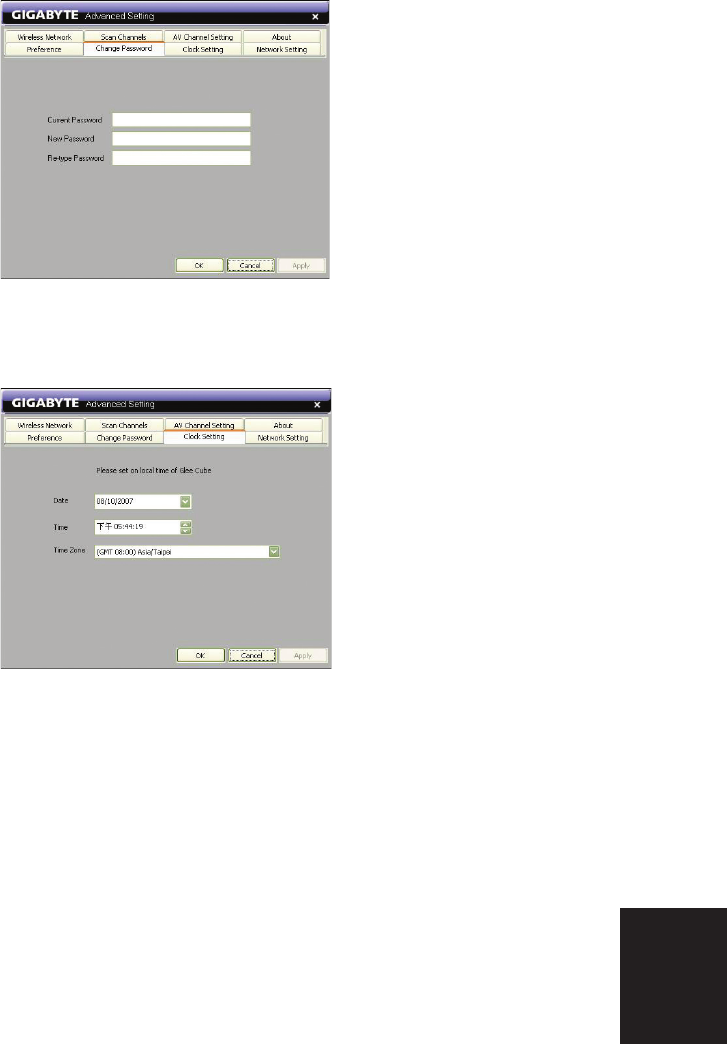
Change password:
● Enter current password,
null as default.
● Enter new password and
retype to confirm.
● The new password
will be effective after
rebooting.
Clock setting:
● Set date, time, and time
zone for Glee Cube.
● It must be the local
time of Glee Cube.
full_eng_mba_1008.indd 11 2007/10/8 下午 06:38:15
12
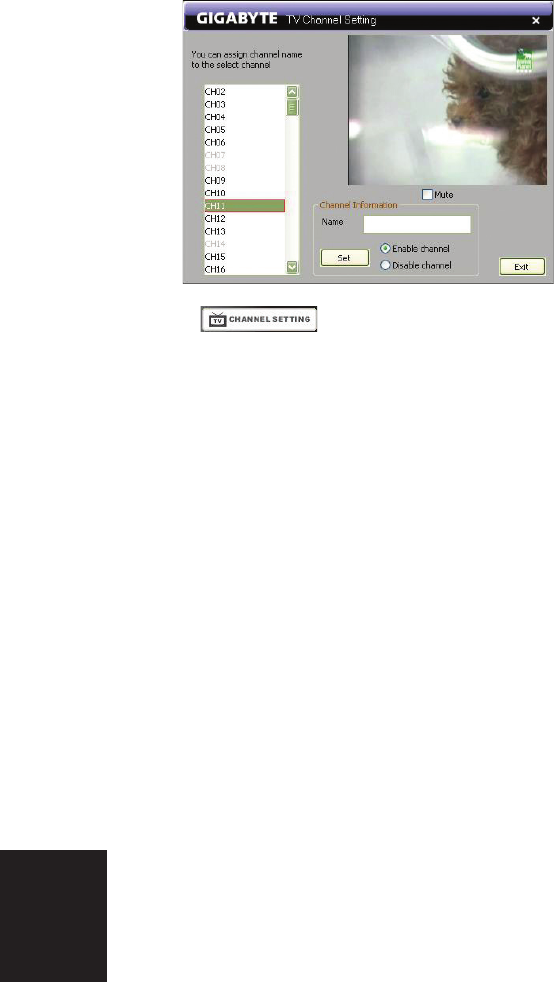
4-3-2 CHANNEL SETTING
When TV sourced from cable or antenna, you can name, enable,
or disable for each channel.
● Click
● Select the channel from the list.
● Enter channel name (in 22 characters).
● Enable/disable the channel. The disabled channel is still on
the list, and you can enable it whenever you need.
● Click “Settings” to confirm.
● Click “Exit” to finish.
full_eng_mba_1008.indd 12 2007/10/8 下午 06:38:16

13
5-1 Surveillance
Chapter 5 Live Video Applications
5-1-1
Connect camera (analog) to AV IN 1 (or AV IN 2).
5-1-2
Start the player and choose video source AV1 (or AV2).
5-1-3
Control volume if there is an audio input.
5-1-4
Properly select NTSC/PAL in “Advanced” setup to match
camera color system.
5-2 Video conference
5-2-1
For video conference, you need a pair of Glee Cube.
5-2-2
Connect the camera (analog) to AV IN 1 (or AV IN 2).
5-2-3
Both sides have to log in Glee Cube of opposite side.
5-2-4
Choose the opposite side camera signal source AV1(or AV2).
5-2-5
Both sides have to ensure opposite side Glee Cube ID,
password, and conference camera signal source has to be AV1
(or AV2).
full_eng_mba_1008.indd 13 2007/10/8 下午 06:38:17
14
Chapter 6 Recording
6-1
Connect USB 2.0 external storage device to Glee Cube USB
port. (FAT 32 supported, NTFS for read only)
6-2
Reboot (power off and on) DIGIZON and start player.
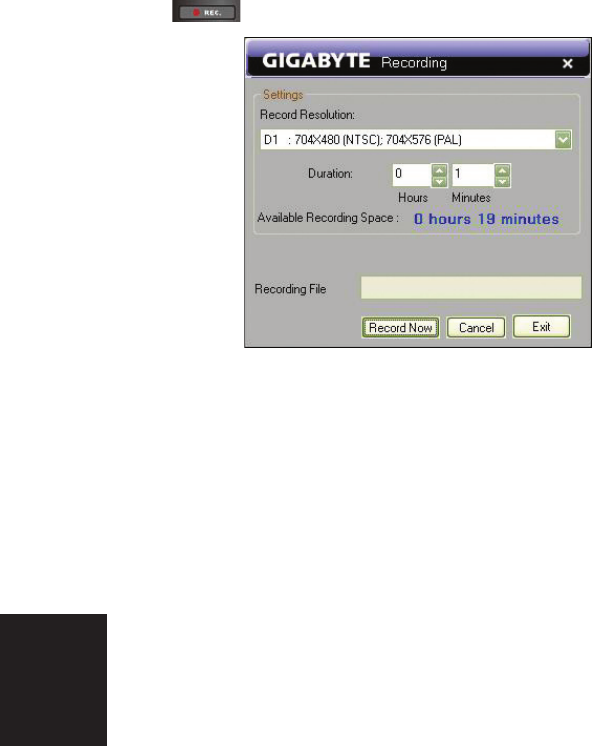
6-3 Instant recording
6-3-1
Click
6-3-2
Select the resolution for recording video.
6-3-3
If the recording resolution is different from now playing, the
player will stop.
full_eng_mba_1008.indd 14 2007/10/8 下午 06:38:18
15
6-3-4
Set recording duration, and be sure the space is sufficient.
6-3-5
Click “Record now” to start.
6-3-6
Click “Exit” to close dialog box (keep recording) or
“Cancel” to abort (give up recording and delete recording
file).
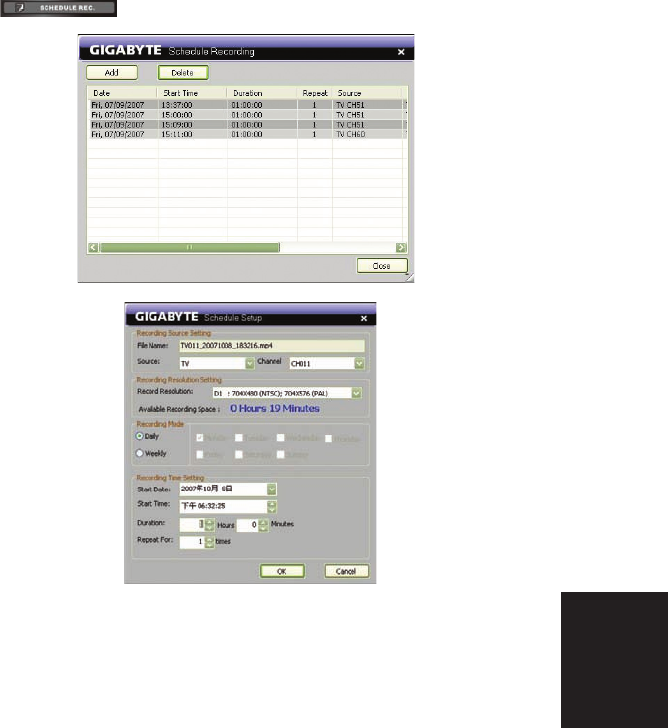
6-4 Schedule recording
6-4-1
Click
full_eng_mba_1008.indd 15 2007/10/8 下午 06:38:18

16
6-4-2
Select video source and channel (for CATV, if your TV sourced
from set top box, switch the channel before recording)
6-4-3
Define recording daily or weekly. When weekly recording,
select days as wish.
6-4-4
Define start date, time, and duration. Be sure the storage
space is sufficient.
6-4-5
Define the repeats for recording task(s).
6-4-6
Delete the task(s) if you change your mind.
full_eng_mba_1008.indd 16 2007/10/8 下午 06:38:20
17
Chapter 7 Video Manager
7-1
Connect USB 2.0 external storage device to Glee Cube USB
port. (FAT 32 supported, NTFS for read only)
7-2
Reboot (power off and on) Glee Cube and start player
7-3
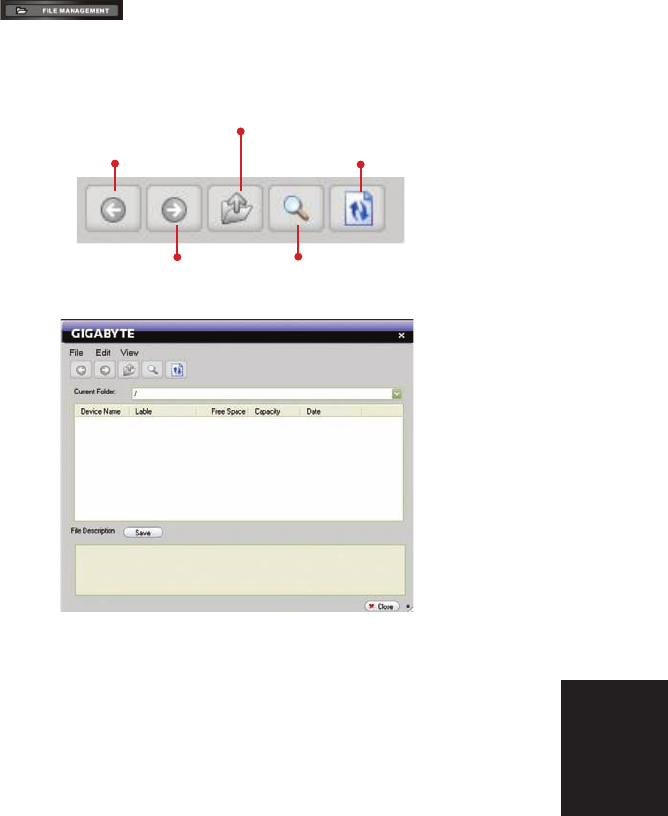
Click
7-4
Buttons:
Back to the last page.
Forward to the next page.
Move to father directory.
Search files or directory.
Refresh
full_eng_mba_1008.indd 17 2007/10/8 下午 06:38:20

18
7-5:File
7-5-1
Copy selected file from PC to Glee Cube external storage.
7-5-2
Copy selected file from Glee Cube to PC.
7-5-3
Create a new folder on Glee Cube external storage.
7-5-4
Rename the selected file.
7-5-5
Delete the selected file in Glee Cube external storage.
7-5-6
Exit from video manager.
7-6 :Edit
7-6-1
Cut the selected file and you can paste where you wish.
7-6-2
Paste file from clipboard.
full_eng_mba_1008.indd 18 2007/10/8 下午 06:38:21

19
Q : Is that difficult to install Glee Cube?
A : Not at all. As long as you connect TV cable, Network
LAN to Glee Cube, Glee Cube driver will lead you to
finish the installation step by step.
Q : How should I do if there’s no Network LAN close to
my TV?
A : Glee Cube has internal Wi-Fi function (802.11b/g)
which can connect to wireless modem without Network
LAN.
Q : What is the limitation number of computer that can be
installed Glee Cube player?
A : There’s no limitation number, you can install Glee
Cube player to computers as much as you like. However,
there’s only two computers can link to Glee Cube at
the same time.
Q : Can Glee Cube deal with TV signal: NTSC, PAL and
SECAM?
A : Glee Cube can deal with NTSC and PAL in this stage,
but SECAM is under testing now.
Q : Except Personal computer and Laptop, can Glee Cube
player be install in PDA phone?
A : Yes, as long as your PDA has Intel CPU and Windows
Mobile 5.0(and above), you can install Glee Cube player
into it.
Trouble Shooting
--Installation and Setup--
full_eng_mba_1008.indd 19 2007/10/8 下午 06:38:22

20
Q : What bandwidth do I need to install Glee Cube?
A : Upload speed is 256Kbps and above, you can enjoy
streaming service from Glee Cube.
Q : Does Glee Cube support ADSL and Cable Modem? Only
support Static IP?
A : Glee Cube can support PPPoE, DHCP, Static IP, Dynamic
IP and other different Internet environment.
Q : Is that difficult to set up Glee Cube and Internet
environment?
A : Glee Cube has internal UPnP (plug-and-play) and DDNS
(Dynamic DNS) functions, end-users do not have to do
the extra set-up.
Q : How can I upgrade the firmware and player?
A : Glee Cube system can auto detect upgrade version when
you get connected with Glee Cube. The only thing you
have to do is clicking the upgrade button and Glee Cube
will upgrade automatically for you.
full_eng_mba_1008.indd 20 2007/10/8 下午 06:38:22

21
Q : Do I have to take Glee Cube machine with me when I
want to watch TV?
A : No, only thing you have to do is installing Glee Cube
at home. You can connect to Glee Cube and enjoy TV
program no matter you’re home, office, overseas or
anywhere in the world, as long as you have Internet
connected.
Q : What is the minimum requirement of equipment?
A : Personal computer and Laptop with Windows 2000, XP,
MCE, Vista. PDA phone with Intel CPU and Windows
Mobile 5.0.
Q : How can I connect to my Glee Cube?
A : There are two ways you can choose:
(1) 1. Insert S/N of Glee Cube, you can find it on the
label in the button side of Glee Cube.
(2) 2. If you assign Glee Cube a Static IP, you can insert
the Static IP and connect to Glee Cube as well.
Q : Can I watch DVD player or other video equipments
which are connected to Glee Cube at home?
A : Yes. Glee Cube can be connected with up to two
external video equipments, for example, DVD player,
VCD player and etc. You can enjoy your home theater
anywhere in the world as long as you connect to Glee
Cube.
Trouble Shooting
--Watch TV--
full_eng_mba_1008.indd 21 2007/10/8 下午 06:38:23

22
Q : How can I record my favorite TV program?
A : As long as you have USB 2.0 external storage equipment
(support FAT32 and Exit 3), for example, Hard Disk,
iPod, USB flash and etc, and connect to Glee Cube USB
2.0 ports, you can record your favorite TV programs and
mange them remotely.
Note : Glee Cube only supports USB 2.0 not USB1.1.
Storage equipment with external power supply is
strongly recommended to keep the stability of long-
time recording.
Q : How much storage room is needed for recording TV
program?
A : Only 925 MB for 1 hour DVD resolution recording
because Glee Cube uses the most advanced H.264
compression technology which can compress smaller and
have much better quality.
Q : Can I choose different resolution for recording?
A : Yes, you can choose D1 for DVD resolution, CIF for VCD
resolution and QCIF for normal resolution.
Q : How can I play back the recording program?
A : There are three ways to play back the recording
program:
1. Play back by Glee Cube player.
2. Play in Quick Time Player 7.0 or iPod.
3. Download H.264 codec from Gigabyte website and
play in Windows Media Plyer.
Trouble Shooting
--Recording--
full_eng_mba_1008.indd 22 2007/10/8 下午 06:38:24

23
Q : Why can Glee have Video conference?
A : Glee Cube uses H.264 compression technology which
can allow high resolution transmission in real time and
no lag issue.
Q : How can I set up Video conference environment?
A : Both of you can connect Audio-Video Camera with Glee
Cube by AV lines and log in to each other’s Glee Cube
to have a Video conference.
Q : How can I start a video conference?
A : Turn on Glee Cube player, log in to the other’s Glee
Cube and choose AV screen.
Trouble Shooting
--Video conference--
full_eng_mba_1008.indd 23 2007/10/8 下午 06:38:24

24
Q : How can I set up Home surveillance function?
A : You can connect analog camera into Glee Cube AV
in or S-video in, then you can have real-time Home
surveillance from Glee Cube player.
Q : How many cameras can be connected with Glee Cube?
A : Two. (AV in x2 or AV in x1 + S-video x1)
Q : What equipment can connect to Glee Cube and have real
time home surveillance?
A : Internet connected personal computer, laptop or PDA
phone with Glee Cube player.
Q : Can I record home surveillance?
A : Yes, you can record it into external USB 2.0 storage
equipment.
Q : Why does video lag?
A : Bandwidth is not enough, choosing lower resolution
(CIF or QCIF) is recommended.
Q : I can hear the voice but cannot see the video from Glee
Cube player. Why is that?
A : Please install DirectX 9C or above from the following
website:
http://www.microsoft.com/windows/directx/default.mspx
Q : My PC cannot find the program to play the recorded
files from Glee Cube. What can I do?
A : Please install Quick Time 7 from the following
website:
http://www.apple.com.tw/quicktime/download/win.html
Trouble Shooting
--Surveillance --
full_eng_mba_1008.indd 24 2007/10/8 下午 06:38:25

25
Q : The system will separate the file while I record the
long time program. Why is that?
A : If the USB system is FAT32, it will limit every single
file under 2GB, as a result, Glee Cube will separate the
recording file under 1.98 GB accordingly.
Q : I cannot remote control the DVD player in Glee Cube
player even IR learning function is appeal successful.
Why is that?
A : IR learning may be interfered by Light, please close
remote controller with Glee Cube IR receiver.
Q : Why can’t I change channel after I log in to Glee
Cube?
A : There are two people can log in to Glee Cube at the
same time. The first one can change channel and setting
freely, but the second one only can follow the first
one’s setting.
Q : If there are wired and wireless settings at the same
time, which one will Glee Cube follow?
A : Glee Cube will follow wired setting when Network
LAN is connecting with Glee Cube. Only when Network
LAN is unplugged and reboot Glee Cube machine, Wi-Fi
setting will be triggered.
Q : Some USB cannot be connected to Glee Cube, is that
right?
A : Yes, USB 1.1 cannot be connected to Glee Cube. Glee
Cube only supports USB2.0.
full_eng_mba_1008.indd 25 2007/10/8 下午 06:38:26

26
Q : I can log in Glee Cube but cannot see the video
successfully. Why is that?
A : It may against by PC anti-virus program, please add
Glee Cube into anti-virus safe list.
Q : I can log in Glee Cube successfully in normal Internet
environment but cannot do this in my office. Why is
that?
A : There is Firewall setting in corporate internal network,
please ask MIS to release port 40001, 40002 and
41000.
Q : Why the video is separated or rolling while I watch
DVD?
A : It will appeal separated or rolling screen when the DVD
output setting is different from Glee Cube, please refer
to User manual and modify the Color System.
full_eng_mba_1008.indd 26 2007/10/8 下午 06:38:27
Federal Communication Commission Interference Statement
This equipment has been tested and found to comply with the limits for a Class B digital device, pursuant
to Part 15 of the FCC Rules. These limits are designed to provide reasonable protection against harmful
interference in a residential installation. This equipment generates, uses and can radiate radio
frequency energy and, if not installed and used in accordance with the instructions, may cause harmful
interference to radio communications. However, there is no guarantee that interference will not occur in
a particular installation. If this equipment does cause harmful interference to radio or television reception,
which can be determined by turning the equipment off and on, the user is encouraged to try to correct the
interference by one of the following measures:
Reorient or relocate the receiving antenna.
Increase the separation between the equipment and receiver.
Connect the equipment into an outlet on a circuit different from that to which the receiver is
connected.
Consult the dealer or an experienced radio/TV technician for help.
FCC Caution: Any changes or modifications not expressly approved by the party responsible for
compliance could void the user's authority to operate this equipment.
This device complies with Part 15 of the FCC Rules. Operation is subject to the following two conditions:
(1) This device may not cause harmful interference, and (2) this device must accept any interference
received, including interference that may cause undesired operation.
This device and its antenna(s) must not be co-located or operating in conjunction with any other antenna
or transmitter.
IMPORTANT NOTE:
FCC Radiation Exposure Statement:
This equipment complies with FCC radiation exposure limits set forth for an uncontrolled environment. This
equipment should be installed and operated with minimum distance 20cm between the radiator & your
body.