KCodes KCODES-502G Multi Function Router User Manual part 1
KCodes Corporation Multi Function Router part 1
KCodes >
Contents
- 1. User manual part 1
- 2. User manual part 2
User manual part 1

KCodes 502g
2 USB 2.0 Hi-Speed-Port
Wireless Multifunction Router
User’s Manual
Version 1.0
Table of Contents
CHAPTER 1 INTRODUCTION.....................................................................................................3
1.1 HARDWARE SPECIFICATION..........................................................................................................3
1.2 FEATURES .....................................................................................................................................3
CHAPTER 2 PRODUCT OVERVIEW.........................................................................................4
2.1 PACKAGE CONTENTS....................................................................................................................4
2.2 HARDWARE DESCRIPTION ............................................................................................................4
2.2.1 Rear Panel..........................................................................................................................4
2.2.2 Front Panel.........................................................................................................................4
2.2.3 LED Indicators ..................................................................................................................4
2.3 TYPICAL USAGE............................................................................................................................5
CHAPTER 3 INSTALLATION.......................................................................................................6
3.1 HARDWARE CONNECTIONS ..........................................................................................................6
3.2 IP SETTING ON WINDOWS ............................................................................................................6
CHAPTER 4 SETTINGS .............................................................................................................15
4.1 QUICK SETUP..............................................................................................................................15
4.1.1 ADSL Dialup (PPPoE)....................................................................................................15
4.1.2 Static IP.............................................................................................................................16
4.1.3 Automatic IP ....................................................................................................................17
4.1.4 Cable Modem (DHCP)....................................................................................................18
4.2 IP CONFIGURATION.....................................................................................................................19
4.2.1 IP Setup.............................................................................................................................19
4.2.2 DHCP Server....................................................................................................................23
4.2.3 Routing Table..................................................................................................................24
4.3 NAT SETUP.................................................................................................................................26
4.3.1 Port Trigger......................................................................................................................27
4.3.2 Virtual Server...................................................................................................................28
4.3.3 Virtual DMZ ......................................................................................................................30
4.4 FIREWALL SETUP ........................................................................................................................30
4.4.1 IP Filter..............................................................................................................................31
4.4.2 MAC Filter.........................................................................................................................32
4.5 USB APPLICATION......................................................................................................................34
4.5.1 FTP Server........................................................................................................................34
4.5.2 Print Server......................................................................................................................37
4.6 SYSTEM SETUP ...........................................................................................................................46
4.6.1 User Setting.....................................................................................................................46
4.6.2 Time Setup.......................................................................................................................47
4.6.3 Firmware Upgrade..........................................................................................................48
4.6.4 Setting Backup ...............................................................................................................49
4.6.5 Restore Default...............................................................................................................50
4.6.6 Wake on LAN...................................................................................................................50
4.7 STATUS & LOG............................................................................................................................51
4.7.1 Status ................................................................................................................................51
4.7.2 DHCP Leases...................................................................................................................53
4.7.3 System Log......................................................................................................................54
4.8 LOGOUT.......................................................................................................................................56
APPENDIX FACTORY DEFAULT VALUES...........................................................................57
2
Chapter 1 Introduction
1.1 Hardware Specification
KCodes 502g is a wireless multifunction router. Besides the basic
functions of router, KCodes 502g has two additional USB host ports
to support FTP file server and print server. The following list shows
the hardware specification for KCodes 502g.
z WAN Port x 1
z LAN Port x 4
z 802.11 b/g Wireless Module
z USB 2.0 Host Port x 2
z LED x 9
z Init Button (factory default and firmware upgrade)
z Power Adaptor Connector (DC 12V/1A)
1.2 Features
KCodes 502g supports the following features:
z IP sharing
z WAN type : static ADSL, PPPoE, automatic IP, cable modem
z Print server (LPR)
z File server (FTP)
z Supports USB storage (USB hard drives, flash disks, memory
sticks)
z FAT 16/32 file systems
z DDNS
z NAT (Network Address Translation): port trigger, virtual server,
virtual DMZ
z Firewall: IP filter, MAC address filter, URL filter
z Easy to upgrade new version of firmware by using Web UI
z Web-based interface configuration and management: OS
independent, easy-to-use
3

Chapter 2 Product Overview
2.1 Package Contents
z KCodes 502g
z Power adaptor
z CD
z Quick Installation Guide
2.2 Hardware Description
2.2.1 Rear Panel
The rear panel includes a Power Inlet, a Init Button, four LAN Ports
and one WAN Port.
Power Inlet: use DC IN 12V/1A adaptor.
Init Button: reset the parameters to the factory default values.
LAN Port: for twisted pair category 5 cable. The 4 LAN ports are for
the connection to internal PCs.
WAN Port: for twisted pair category 5 cable. The WAN port is for
the connection to ADSL modem.
2.2.2 Front Panel
The front panel includes two USB Host Ports and nine LED
Indicators.
USB Host Port: USB 1.1/2.0 low, full, and Hi-Speed compliant
2.2.3 LED Indicators
Indicators
Behavior Description
On Power On Power Off Power off/System error
On Network (WAN) connected Link Off No physical connection to network
(WAN)
Blinking Activity on network (WAN) Status Off No activity on network (WAN)
LAN1 On Network Connected (LAN1)
4

Off No physical connection to network
(LAN1)
On Network Connected (LAN2) LAN2 Off No physical connection to network
(LAN2)
On Network Connected (LAN3) LAN3 Off No physical connection to network
(LAN3)
On Network Connected (LAN4) LAN4 Off No physical connection to network
(LAN4)
On USB device connected (USB1)
Blinking Connected USB device not
supported (USB1)
USB1
Off No physical connection to USB
device (USB1)
On USB device connected (USB2)
Blinking Connected USB device not
supported (USB2)
USB2
Off No physical connection to USB
device (USB2)
2.3 Typical Usage
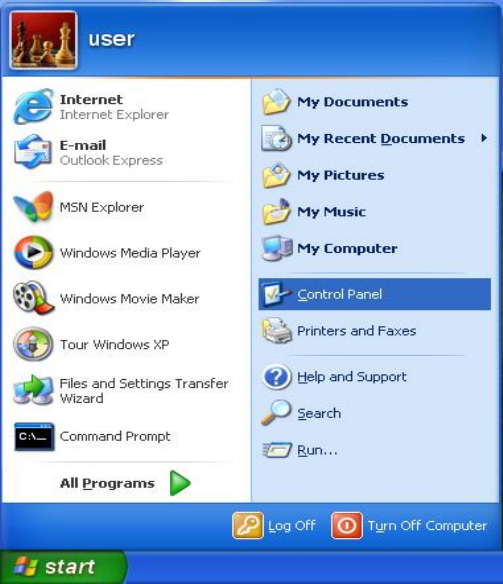
The following diagram shows a typical usage and connection of the
Router and computers. All PCs connected to LAN ports can access
the Internet via ISP’s ADSL or cable modem connected to WAN
port.
WAN
LAN1
LAN2
LAN3
LAN4
Router
ISP’s ADSL or Cable Modem
PC5
PC4
PC3
Switch/HUB
PC1
PC2
5
Chapter 3 Installation
3.1 Hardware Connections
Make sure that your USB devices are powered off and that the
Router’s Power Adapter is disconnected.
Connect your PC to one of the Router’s LAN port with a twisted-pair
category 5 cable, 10baseT or 100baseTX.
Connect the Router’s WAN port to an ADSL modem with a
twisted-pair category 5 cable, 10baseT or 100baseTX.
Connect the Power Adapter to the Router. The power indicator will
light up and USB1 and USB2 indicators will flash in turn. When
USB1 and USB2 indicators stop flashing, the Router starts to work
normally. At this time, the Link indicator must light up.
3.2 IP Setting on Windows
Go to desktop and click Start Æ Control Panel.
6
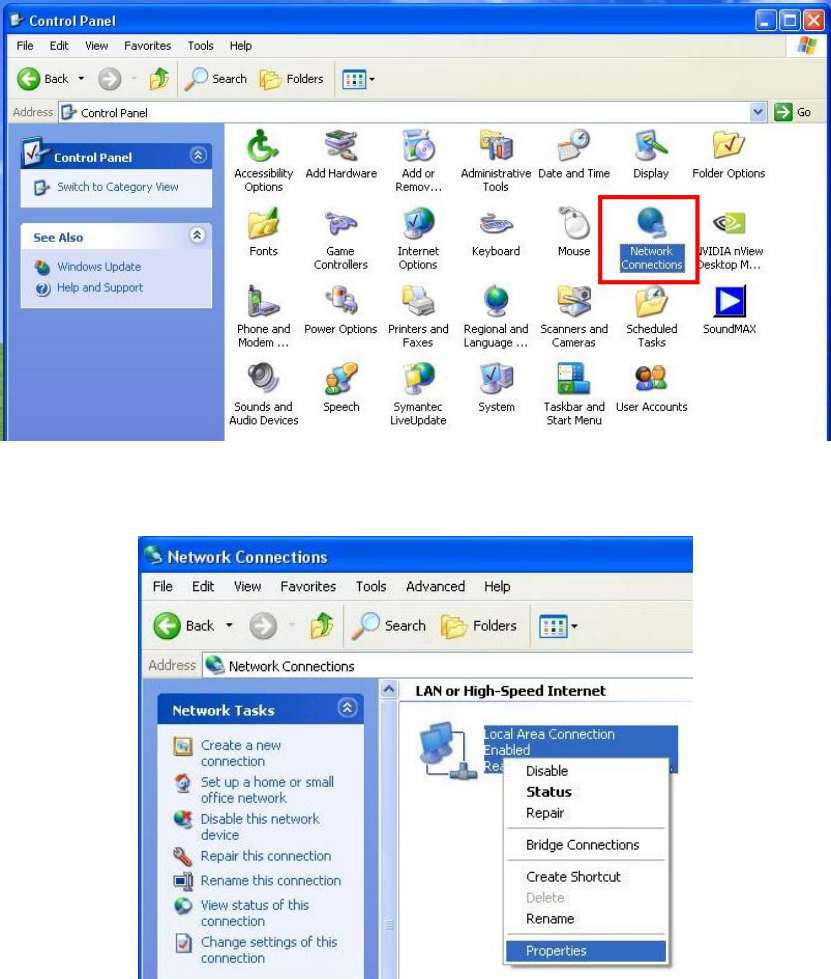
At control panel, double click Network Connections.
All your connections will be displayed on the window. Go to Local
Area Connection and click mouse right button. A menu will appear,
select Properties.
7
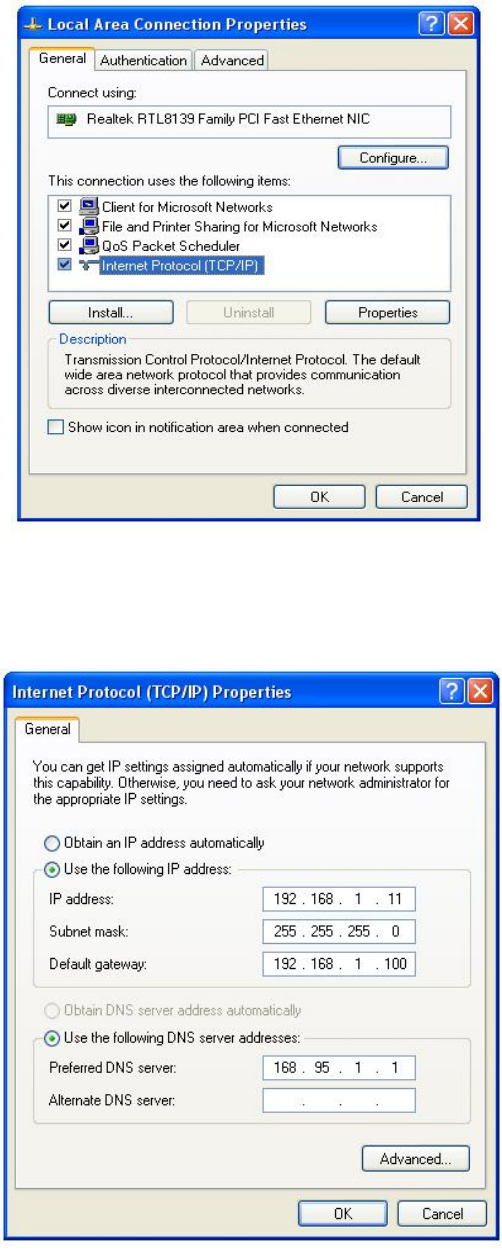
At Local Area Connection Properties window, select the General
tab. Select Internet Protocol (TCP/IP) and then click Properties.
If you use DHCP to get IP automatically, select Obtain an IP
address automatically and then click OK to finish the setting. The
router supports DHCP, therefore any PC connected to LAN port of
8
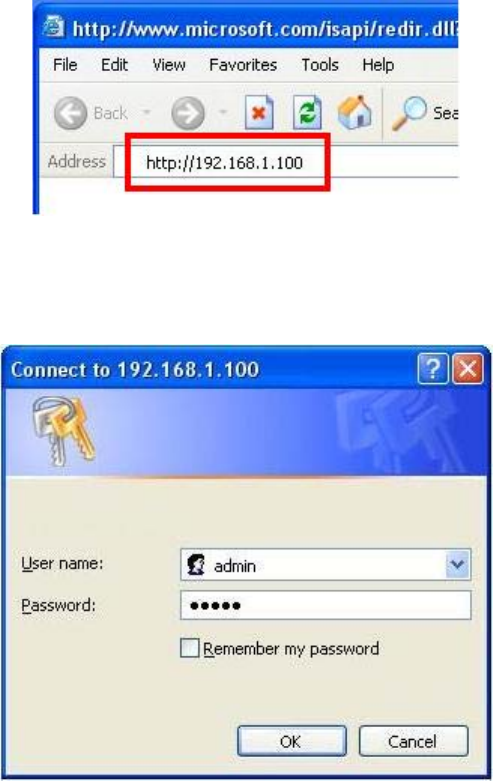
the router can automatically get IP address.
If you get IP manually, select Use the following IP address. The
factory default router LAN IP address is 192.168.1.100. Therefore,
we use an IP address located in 192.168.1.x block to get connect to
the router. Here we use 192.168.1.11 as an example. Click OK to
finish the setting.
3.3 Access Router Home Page from Web Browser
This router can be configured through its web pages. Follow the
steps below to access the router web pages.
Start your Internet browser, enter http://192.168.1.100 and press
Enter.
A dialogue box will pop up to ask you for user name and password.
The factory default User name is admin, password is admin. Enter
the user name and password and then click OK to login.
9
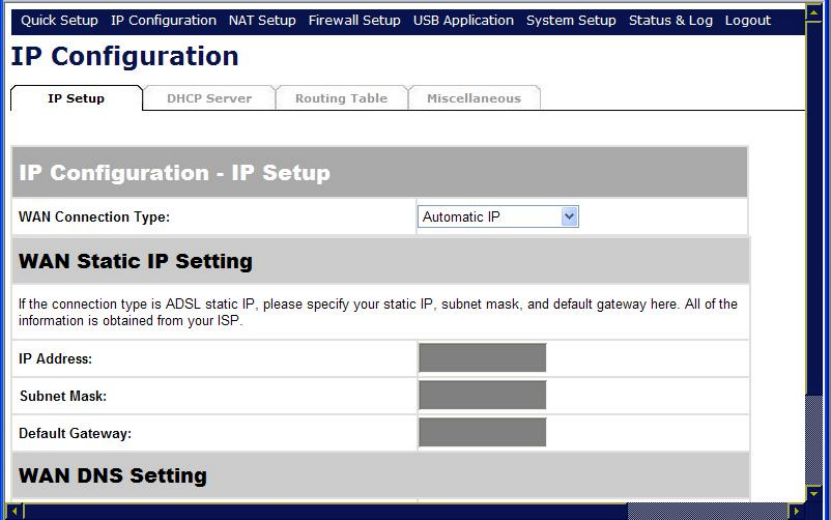
If you login successfully, the router main web page will appear and
you can start to configure the router from web pages.
3.4 Enable UPnP on Windows
The UPnP (Universal Plug and Play) enables communication
between any two devices under the command of any control device
on the local network.
PCs that have enabled UPnP function are informed when a device,
this Router, for example, is connected to the local network.
10
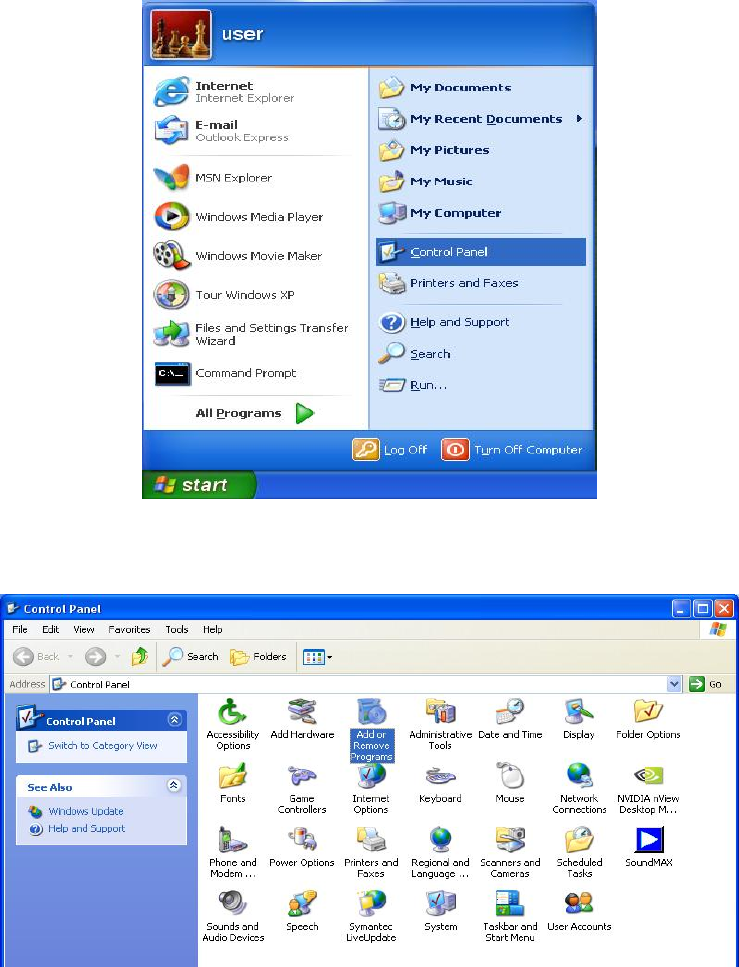
Go to desktop and click Start Æ Control Panel.
At Control Panel window, double click Add or Remove Programs.
11
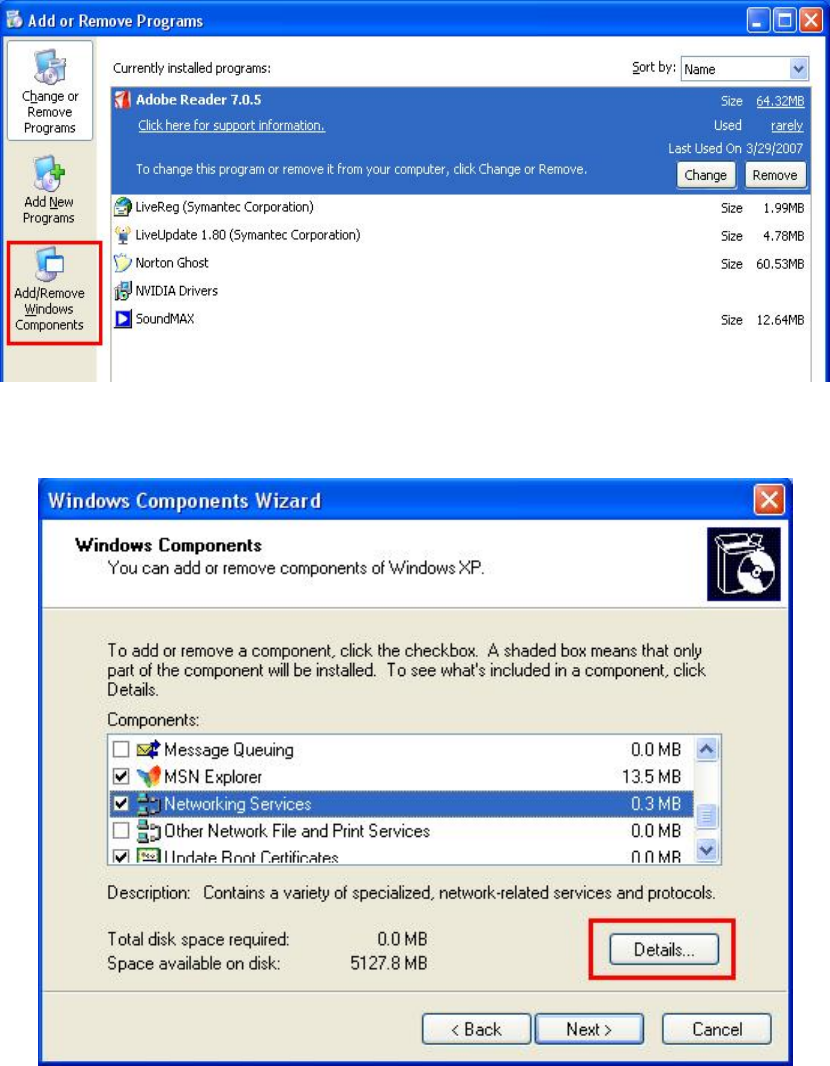
Click Add/Remove Windows Components.
Select Network Services and then click Details.
12
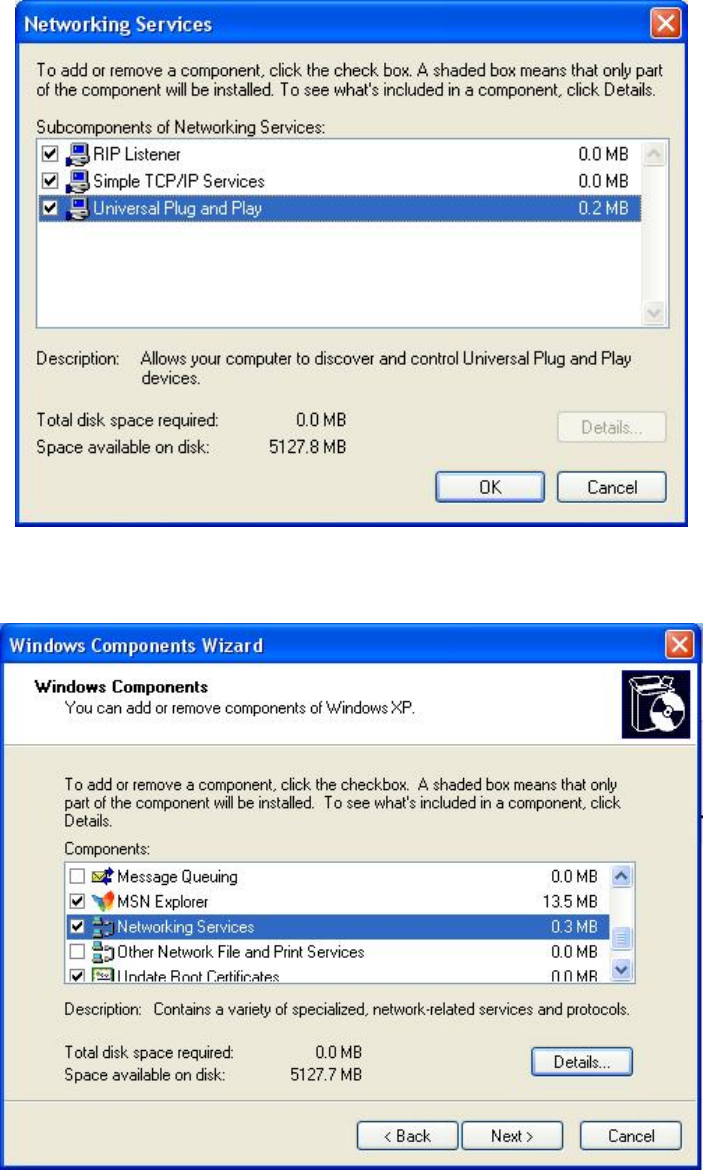
Tick Universal Plug and Play and then click OK.
Back to this window, click Next. Windows will install the component
automatically.
z Depends on the version of your OS, the original Windows CD
might be required after this step. If so, please insert your original
Windows CD.
13
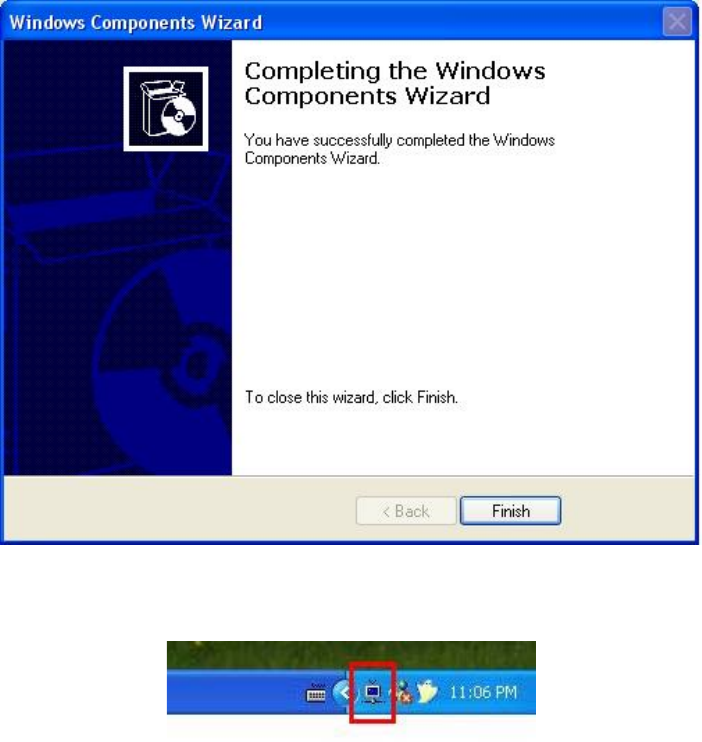
Click Finish.
Once the UPnP is enabled, the computer will be informed by this
icon when a new device is connected to the local network. You can
click this icon to get the UPnP-supported device list.
14
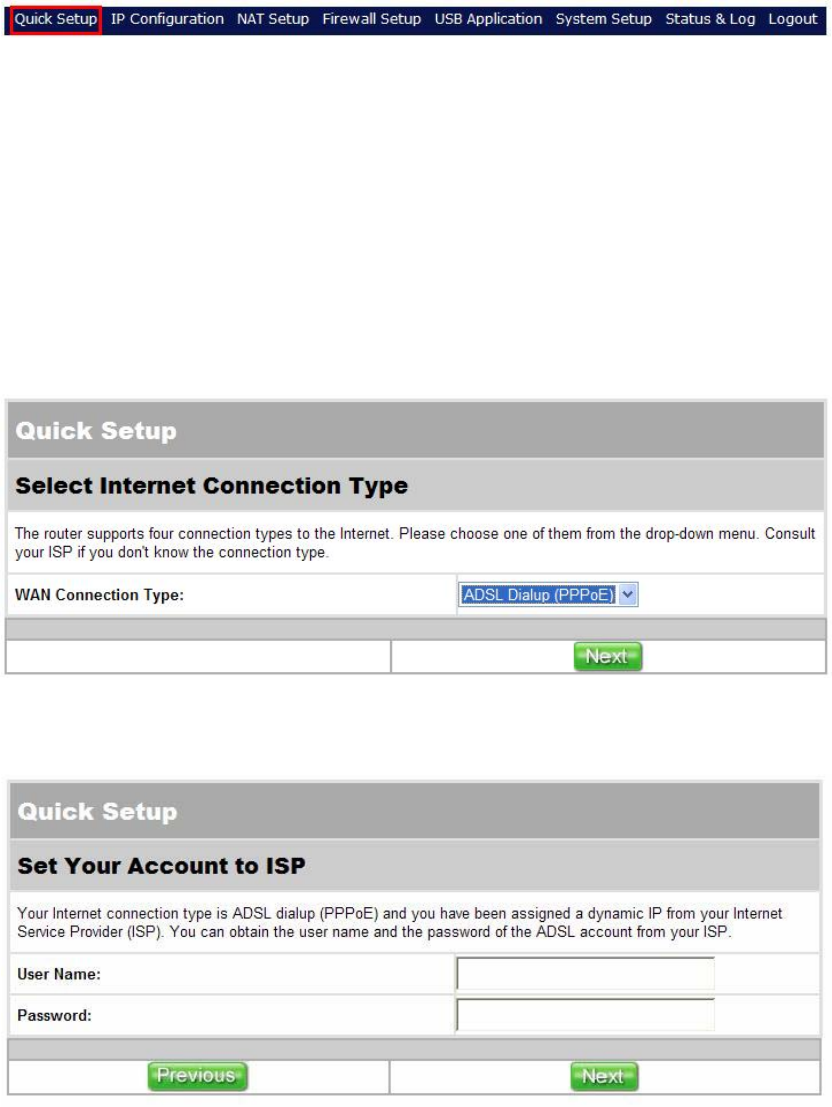
Chapter 4 Settings
4.1 Quick Setup
Quick Setup supports 4 WAN Connection Types - ADSL Dialup
(PPPoE), ADSL Static IP, Automatic IP and Cable Modem (DHCP).
If you do not know your WAN type, consult your ISP. Start quick
setup by selecting your WAN Connection Type from the drop-down
list.
4.1.1 ADSL Dialup (PPPoE)
If your ISP provides you the ADSL Dialup, please follow the
following steps to setup your WAN connection.
[Page 1] Select ADSL Dialup from the drop-down list.
[Page 2] Input the User Name and Password provided by your ISP.
Click Next.
15
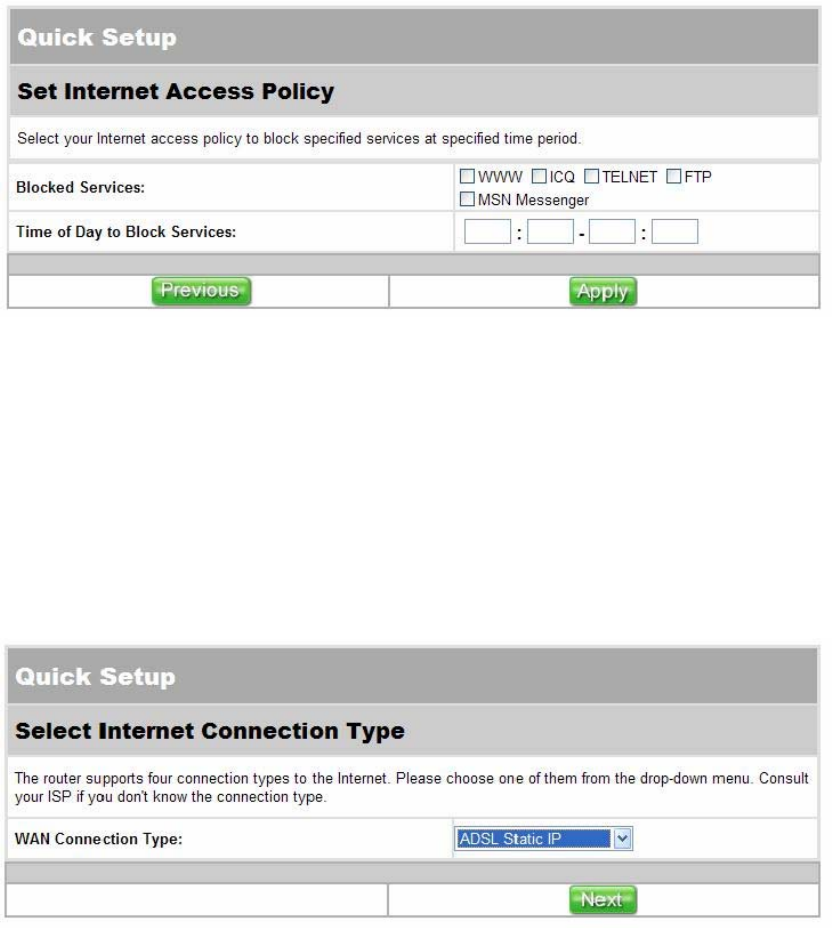
[Page 3] Click the services that you want to block and input the
time period that you want the selected services to be blocked. If you
don’t want to block any services, leave all options empty.
4.1.2 Static IP
If your ISP provides you the static IP, please follow the following
steps to setup your WAN connection.
[Page 1] Select ADSL Static IP from the drop-down list.
16
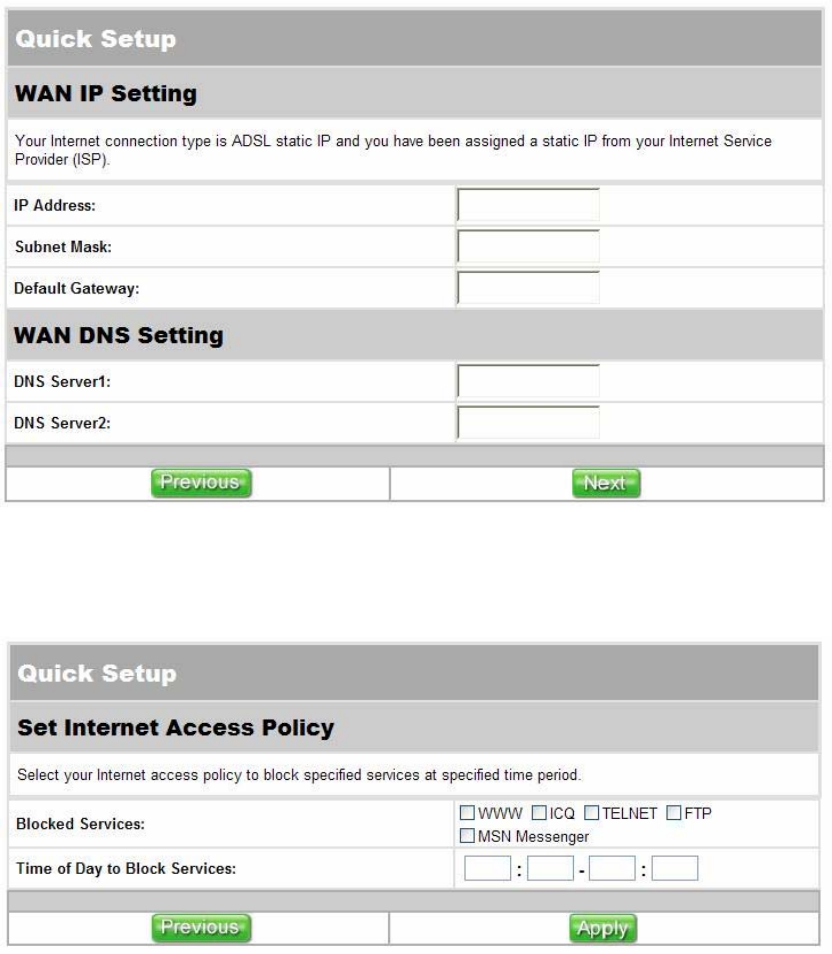
[Page 2] Input the IP Address, Subnet Mask, Default Gateway, and
DNS Server provided by your ISP.
[Page 3] Click the services that you want to block and input the
time period that you want the selected services to be blocked. If you
don’t want to block any services, leave all options empty.
4.1.3 Automatic IP
If your ISP provides you the automatic IP, please follow the
following steps to setup your WAN connection.
17
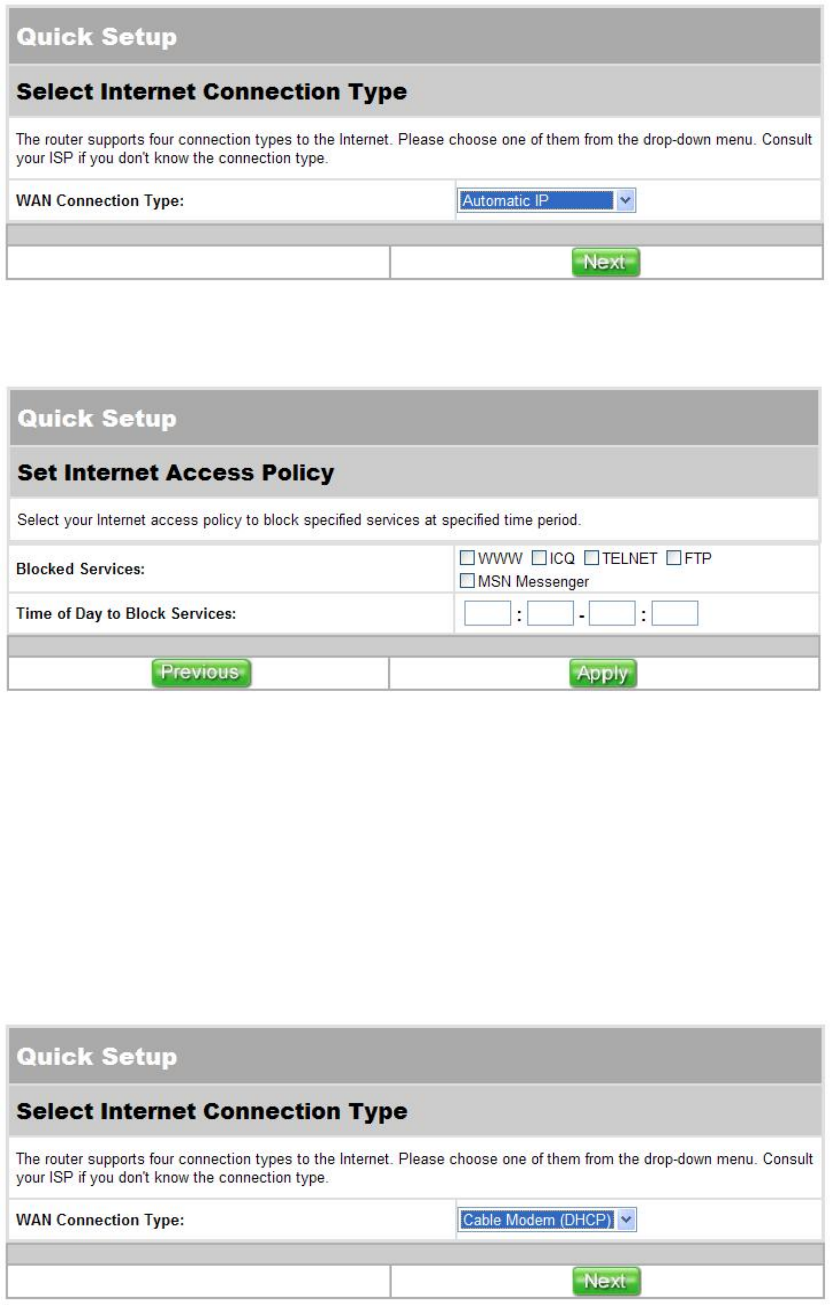
[Page 1] Select Automatic IP from the drop-down list.
[Page 2] Click the services that you want to block and input the
time period that you want the selected services to be blocked. If you
don’t want to block any services, leave all options empty.
4.1.4 Cable Modem (DHCP)
If your ISP provides you the Cable Modem (DHCP), please follow
the following steps to setup your WAN connection.
[Page 1] Select Cable Modem (DHCP) from the drop-down list.
18
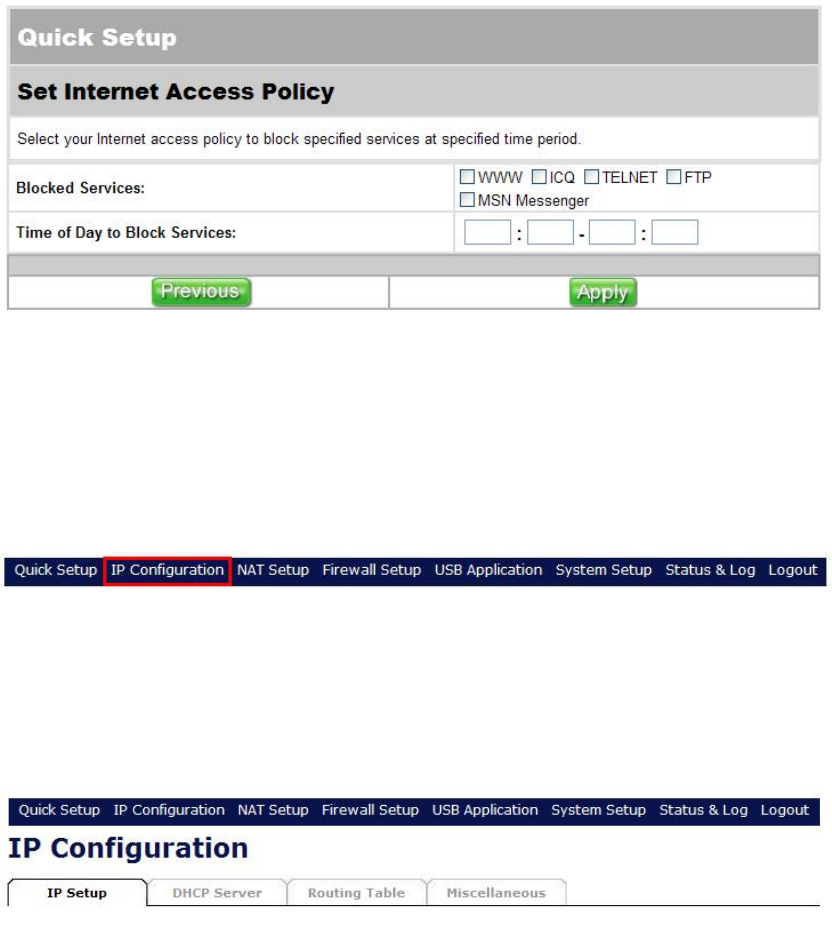
[Page 2] Click the services that you want to block and input the
time period that you want the selected services to be blocked. If you
don’t want to block any services, leave all options empty.
4.2 IP Configuration
IP Configuration allows you to configure some basic functions
including IP Setup, DHCP Server, Routing Table and
Miscellaneous.
4.2.1 IP Setup
You can use IP Setup section to configure your WAN connection
and LAN IP. WAN connections are divided into four types, each
type require different settings. Please check your WAN connection
type and follow the corresponding instruction to complete the
setting.
ADSL Dialup (PPPoE)
19
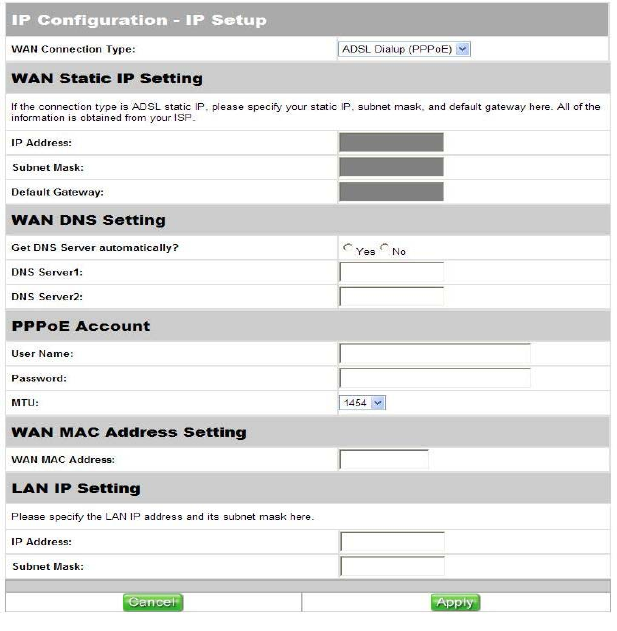
WAN Connection Type:
Select ADSL Dialup (PPPoE) from the drop-down list.
WAN DNS Setting:
Select Yes to get DNS Server automatically.
PPPoE Account:
Input the user name and password provided by your ISP.
The MTU value can be changed if required.
WAN MAC Address Setting:
This has a default value given by the manufacturer and you are
recommended not to change this value.
LAN IP Setting:
There is a default LAN IP given by the manufacturer. You can
change this as required. Please note that you should use the new
IP address to login to this router.
Apply/Cancel:
Click Apply to save the settings or click Cancel to aboard.
ADSL Static IP
20
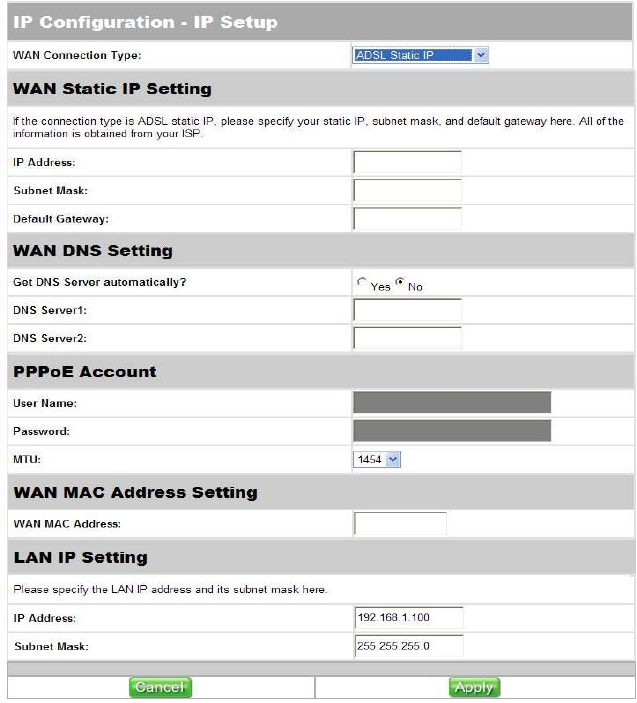
WAN Connection Type:
Select ADSL Dialup (PPPoE) from the drop-down list.
WAN IP Setting:
Input the IP Address, Subnet Mask and Default Gateway provided
to you by your ISP.
WAN DNS Setting:
Select No to set the DNS manually and input the DNS Server IP. If
you don’t know, please check with your ISP.
The MTU value can be changed if required.
WAN MAC Address Setting:
This has a default value given by the manufacturer and you are
recommended not to change this value.
LAN IP Setting:
There is a default LAN IP given by the manufacturer. You can
change this as required. Please note that you should use the new
IP address to login to this router.
Apply/Cancel:
Click Apply to save the settings or click Cancel to aboard.
Automatic IP
21
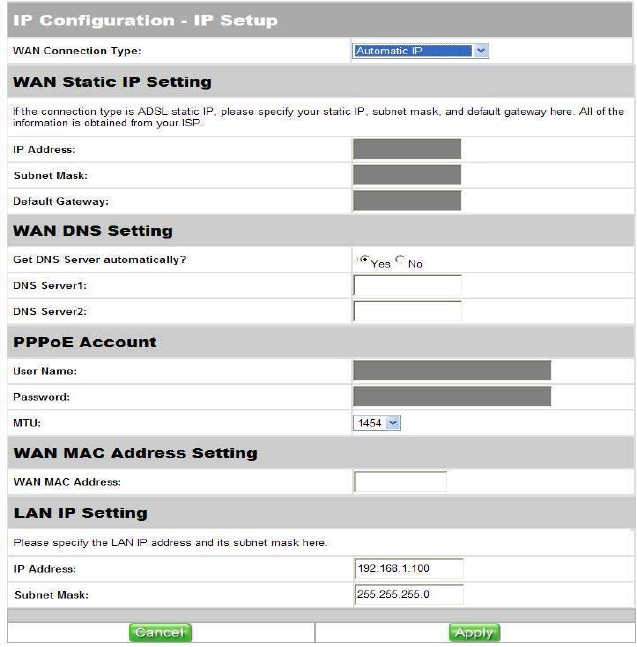
WAN Connection Type:
Select Automatic IP from the drop-down list.
WAN DNS Setting:
Select Yes to get DNS Server automatically.
WAN MAC Address Setting:
This has a default value given by the manufacturer and you are
recommended not to change this value.
LAN IP Setting:
There is a default LAN IP given by the manufacturer. You can
change this as required. Please note that you should use the new
IP address to login to this router.
Apply/Cancel:
Click Apply to save the settings or click Cancel to aboard.
Cable Modem (DHCP)
22
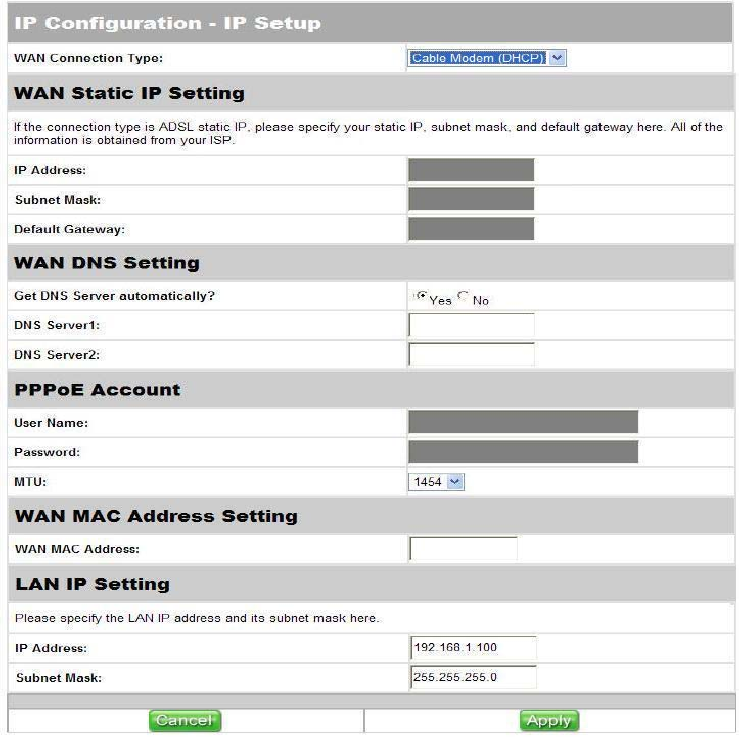
WAN Connection Type:
Select Automatic IP from the drop-down list.
WAN DNS Setting:
Select Yes to get DNS Server automatically.
WAN MAC Address Setting:
This has a default value given by the manufacturer and you are
recommended not to change this value.
LAN IP Setting:
There is a default LAN IP given by the manufacturer. You can
change this as required. Please note that you should use the new
IP address to login to this router.
Apply/Cancel:
Click Apply to save the settings or click Cancel to aboard.
4.2.2 DHCP Server
23
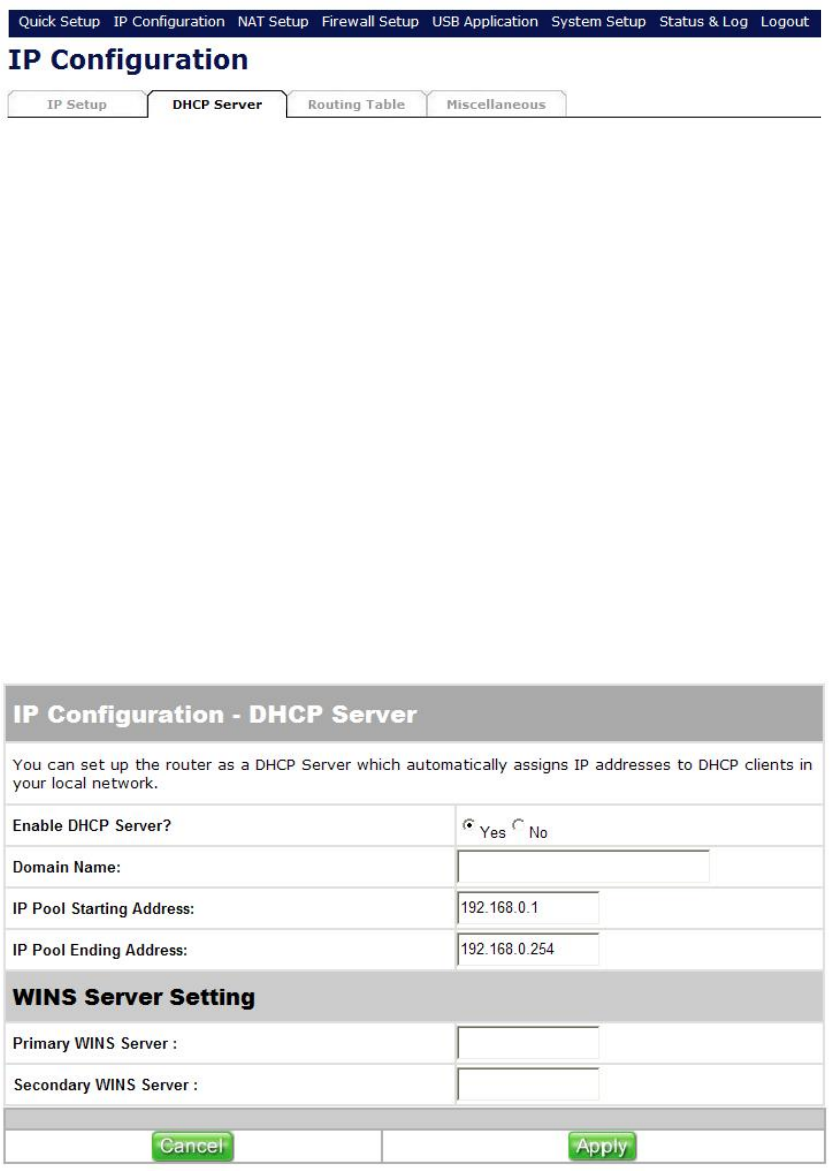
DHCP Server supports up to 253 IP addresses for you local
network. Follow the instructions to configure DHCP Server.
Enable DHCP Server:
Select Yes to enable or No to disable DHCP Server.
Domain Name:
Domain Name is the name which you had registered from NIC
(Network Information Center). Ignore this part if managers don’t
apply for a domain name.
IP Pool Starting/Ending Address:
You can use this to set the IP range that the DHCP server can offer.
WINS (Windows Internet Naming Service) Server:
Input a WINS server IP if there is a WINS Server in the local
network.
Apply/Cancel:
Click Apply to save the settings or click Cancel to aboard.
4.2.3 Routing Table
24
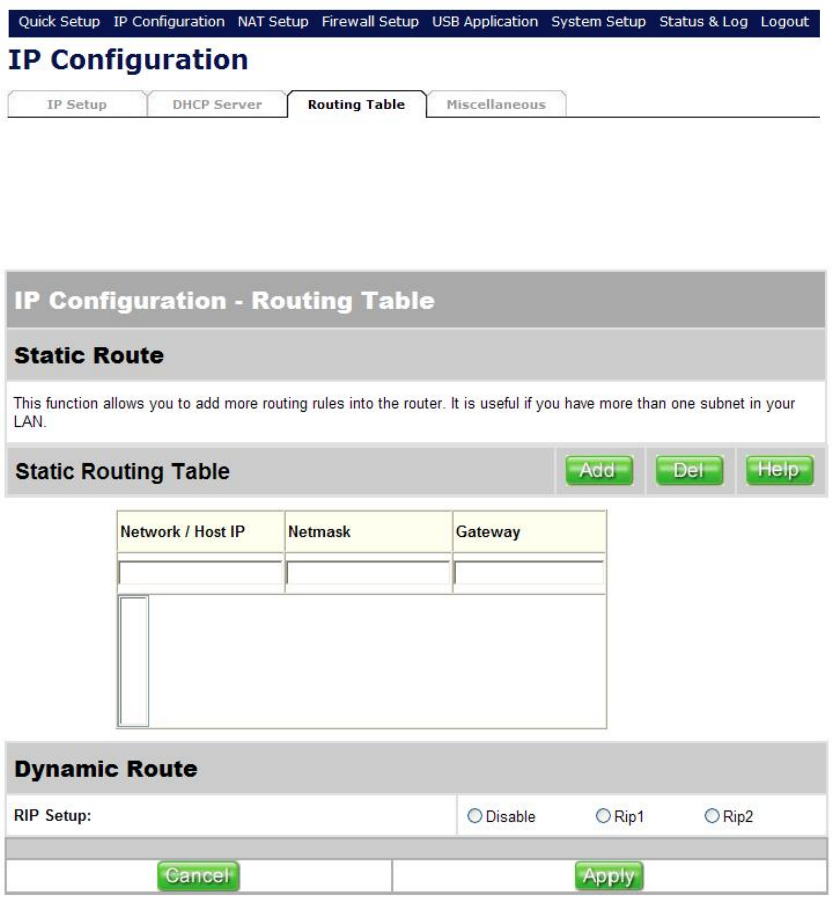
Routing Table page allows you to set routing rules to this router.
This includes static routing and dynamic routing.
Static Route:
Input the IP address of a destination network or a host of the
routing rule. It could be a host address like 192.168.123.100 or a
network address, such as 192.168.0.0. Click Add to add the rule to
the routing table or select a rule from the table and then click Del to
delete the rule.
Dynamic Route:
If you don’t want to set any dynamic routing rule, select Disable.
The default value is Rip2 and the router will build a routing table
and get a path to the destination automatically.
4.2.4 Miscellaneous
25