KCodes KCODES-601N KCodes 1-port Wireless USB Device Server User Manual UDS KCodes600s UM

KCodes Corporation KCodes 1-port Wireless USB Device Server UDS KCodes600s UM

User Manual

    1    KCodes 601/601n/604/604n  USB 2.0 Hi-Speed-Port Device Server User’s Manual            Version 1.0
    2Table of Contents CHAPTER1  INTRODUCTION .........................................................................................................4 1.1 About 4 Models Described in this Manual .....................................................4 1.2 Customer Support...........................................................................................4 CHAPTER2  PRODUCT OVERVIEW..............................................................................................5 2.1 Package Contents ...........................................................................................5 2.2 Product CD.....................................................................................................5 2.2.1 Start-up Procedures ........................................................................................5 2.3 Physical Description.......................................................................................5 2.4 Supported USB Devices..................................................................................6 CHAPTER3  BASIC INSTALLATION..............................................................................................7 3.1 Connecting the Hardware...............................................................................7 3.2 Wireless connection ........................................................................................7 3.2.1 Preliminary.....................................................................................................7 3.2.2 Set Wireless Configuration Using Control Center..........................................7 3.3 Assigning an IP Address to the Server.......................................................... 11 3.3.1 Preliminary................................................................................................... 11 3.3.2 IP Address..................................................................................................... 11 3.3.3 Methods for Setting the IP Address...............................................................12 3.3.4 Server Names and Server Name Rules .........................................................12 3.3.5 Setting the IP Address Using DHCP.............................................................12 3.3.6 Setting the IP Address Using the Control Center .........................................12 CHAPTER4   USING THE USB DEVICE SERVER.......................................................................15 4.1 Introduction ..................................................................................................15 4.2 Connect & Disconnect..................................................................................15 4.3 Subnet Issue ..................................................................................................15 4.4 Installation of USB Device Driver................................................................16 4.5 Using the USB Device Server.......................................................................17 4.6 Auto-Connect Printer....................................................................................18 4.7 Network Scanner...........................................................................................21 4.8 USB Storage..................................................................................................23 4.9 Request to Connect .......................................................................................23 4.10 Quitting the Control Center..........................................................................24 4.11 Limitations....................................................................................................24 CHAPTER5   THE SERVER’S WEB PAGES..................................................................................25 5.1 Introduction ..................................................................................................25 5.2 Using the Server’s Web Pages ......................................................................25 5.2.1 Displaying Server Status...............................................................................25 5.2.2 Setting up Server Configuration...................................................................27 CHAPTER6  TROUBLESHOOTING..............................................................................................31 6.1 LED Indicators .............................................................................................31 6.2 Firewall.........................................................................................................31 CHAPTER7   RESTORE FACTORY DEFAULTS ..........................................................................32 7.1 Using the Server’s Web Pages ......................................................................32 7.2 Using Init Button...........................................................................................32
    37.3 Default Parameters List................................................................................32 CHAPTER8  UPGRADE FIRMWARE............................................................................................34 CHAPTER9   THE INIT BUTTON ...................................................................................................36 CHAPTER10  FCC STATEMENT......................................................................................................37
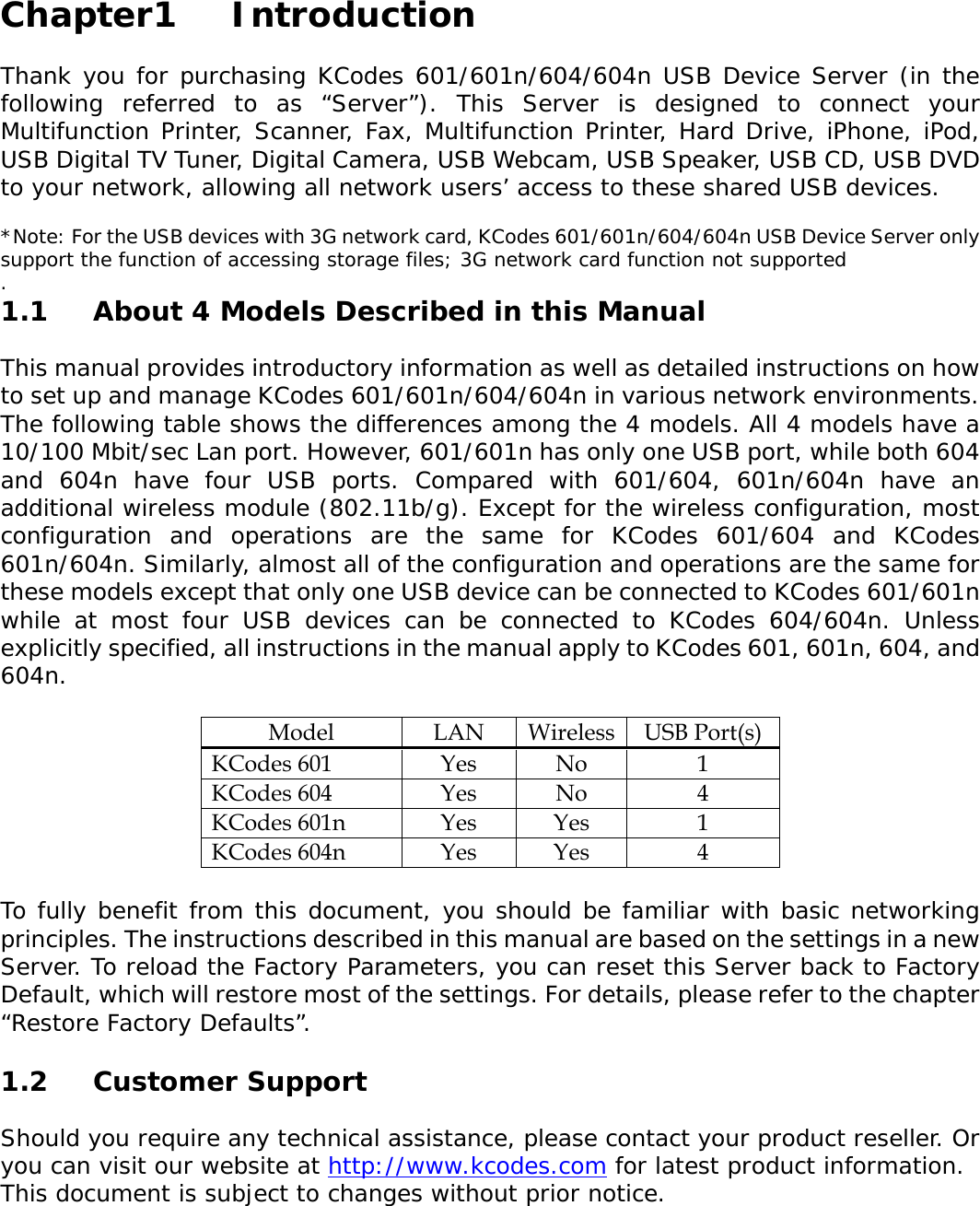
Chapter1   Introduction  Thank you for purchasing KCodes 601/601n/604/604n USB Device Server (in the following referred to as “Server”). This Server is designed to connect your Multifunction Printer, Scanner, Fax, Multifunction Printer, Hard Drive, iPhone, iPod, USB Digital TV Tuner, Digital Camera, USB Webcam, USB Speaker, USB CD, USB DVD to your network, allowing all network users’ access to these shared USB devices.  *Note: For the USB devices with 3G network card, KCodes 601/601n/604/604n USB Device Server only support the function of accessing storage files; 3G network card function not supported . 1.1  About 4 Models Described in this Manual  This manual provides introductory information as well as detailed instructions on how to set up and manage KCodes 601/601n/604/604n in various network environments. The following table shows the differences among the 4 models. All 4 models have a 10/100 Mbit/sec Lan port. However, 601/601n has only one USB port, while both 604 and 604n have four USB ports. Compared with 601/604, 601n/604n have an additional wireless module (802.11b/g). Except for the wireless configuration, most configuration and operations are the same for KCodes 601/604 and KCodes 601n/604n. Similarly, almost all of the configuration and operations are the same for these models except that only one USB device can be connected to KCodes 601/601n while at most four USB devices can be connected to KCodes 604/604n. Unless explicitly specified, all instructions in the manual apply to KCodes 601, 601n, 604, and 604n.  Model LAN Wireless USB Port(s) KCodes 601  Yes  No  1 KCodes 604  Yes  No  4 KCodes 601n  Yes  Yes  1 KCodes 604n  Yes  Yes  4  To fully benefit from this document, you should be familiar with basic networking principles. The instructions described in this manual are based on the settings in a new Server. To reload the Factory Parameters, you can reset this Server back to Factory Default, which will restore most of the settings. For details, please refer to the chapter “Restore Factory Defaults”.   1.2 Customer Support  Should you require any technical assistance, please contact your product reseller. Or you can visit our website at http://www.kcodes.com for latest product information.  This document is subject to changes without prior notice.
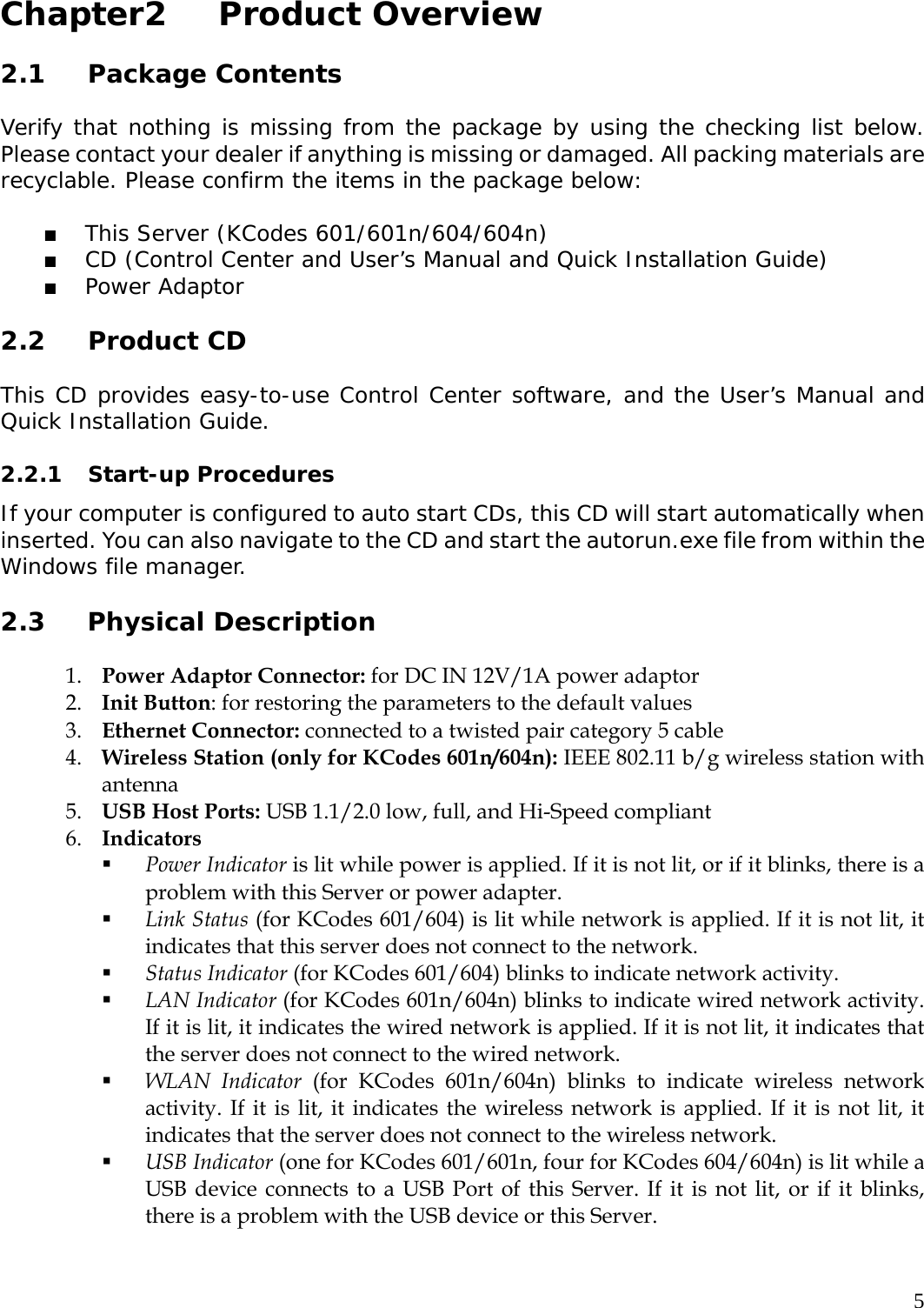
    5 Chapter2   Product Overview  2.1 Package Contents  Verify that nothing is missing from the package by using the checking list below. Please contact your dealer if anything is missing or damaged. All packing materials are recyclable. Please confirm the items in the package below:   This Server (KCodes 601/601n/604/604n)  CD (Control Center and User’s Manual and Quick Installation Guide)  Power Adaptor  2.2 Product CD  This CD provides easy-to-use Control Center software, and the User’s Manual and Quick Installation Guide.   2.2.1 Start-up Procedures  If your computer is configured to auto start CDs, this CD will start automatically when inserted. You can also navigate to the CD and start the autorun.exe file from within the Windows file manager.   2.3 Physical Description  1. Power Adaptor Connector: for DC IN 12V/1A power adaptor 2. Init Button: for restoring the parameters to the default values     3. Ethernet Connector: connected to a twisted pair category 5 cable 4. Wireless Station (only for KCodes 601n/604n): IEEE 802.11 b/g wireless station with antenna 5. USB Host Ports: USB 1.1/2.0 low, full, and Hi-Speed compliant 6. Indicators  Power Indicator is lit while power is applied. If it is not lit, or if it blinks, there is a problem with this Server or power adapter.    Link Status (for KCodes 601/604) is lit while network is applied. If it is not lit, it indicates that this server does not connect to the network.    Status Indicator (for KCodes 601/604) blinks to indicate network activity.  LAN Indicator (for KCodes 601n/604n) blinks to indicate wired network activity. If it is lit, it indicates the wired network is applied. If it is not lit, it indicates that the server does not connect to the wired network.    WLAN Indicator (for KCodes 601n/604n) blinks to indicate wireless network activity. If it is lit, it indicates the wireless network is applied. If it is not lit, it indicates that the server does not connect to the wireless network.    USB Indicator (one for KCodes 601/601n, four for KCodes 604/604n) is lit while a USB device connects to a USB Port of this Server. If it is not lit, or if it blinks, there is a problem with the USB device or this Server.
    62.4 Supported USB Devices  The KCodes USB device server supports the following types of USB devices.   USB Printer  USB multifunction printer (MFP/AIO)  USB scanner  USB storage (like USB external HD, flash disk, and digital camera)  USB speaker  USB camera  USB digital TV tuner  USB webcam  USB CD  USB DVD  iPod  iPhone
    7 Chapter3   Basic Installation  3.1 Connecting the Hardware   1. Make sure that your USB devices are switched off and that the Server’s Power Adapter is disconnected.  2. Connect the USB devices to the USB ports with the USB cables.   3. Connect the Server to the network with a twisted-pair category 5 cable, 10baseT or 100baseTX.   4. Turn on the USB devices and make sure it is ready for use.   5. Connect the Power Adapter to the Server. The power indicator will light up and USB1 and USB2 indicators will flash in turn. (For KCodes 601/601n, only USB1 indicator will flash.) When the Link indicator lights up, the Server is correctly connected to the network. When USB1 and USB2 indicators stop flashing, the Server starts to work normally.   3.2 Wireless connection  This section only applies to KCodes 601n/604n.  3.2.1 Preliminary  Before you can access wireless network, wireless parameters should be set correctly.  You have to setup the first wireless parameter set through LAN (wired) connection.  Wireless access can be set as infrastructure (station) mode, which need an access point to route network messages with the same SSID.  Wireless access can be secured by WEP (64/128), WPA-PSA (TKIP/AES), and WPA2-PSK (AES).  In infrastructure mode, if network administrator wants to change any security related parameters, KCodes 601n/604n should be changed first, and then access point.   If parameters mismatch causes wireless access is not allowed, you have to modify those parameters through LAN connection.  In infrastructure mode, the maximal transfer rate is 54 MBits depending on access point’s capability.   3.2.2  Set Wireless Configuration Using Control Center 1. Install USB Device Server Control Center. It is available in the KCodes 601n/604n USB Device Server Product CD. 2. Start USB Device Server Control Center and Auto-searching USB device server window will appear.
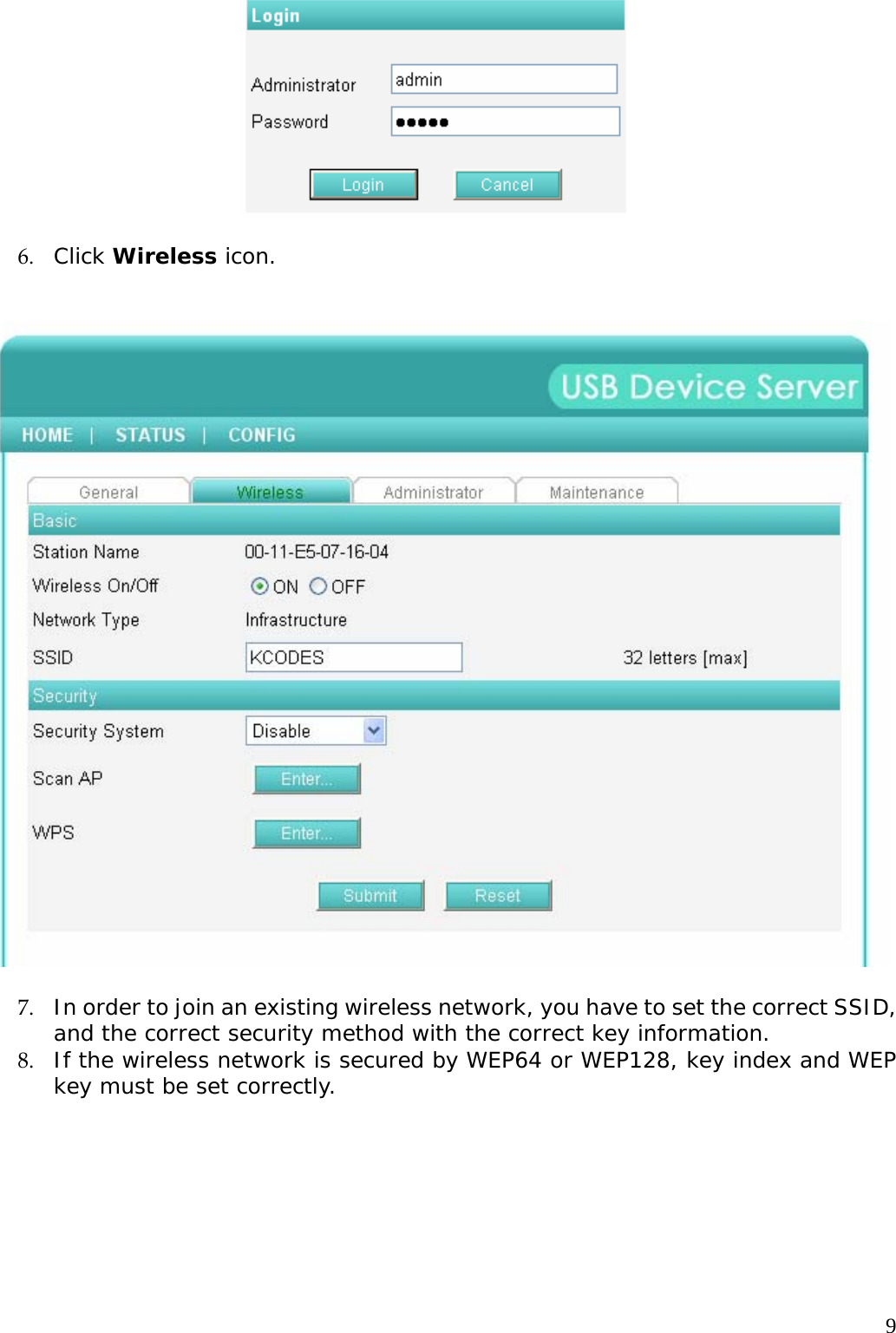
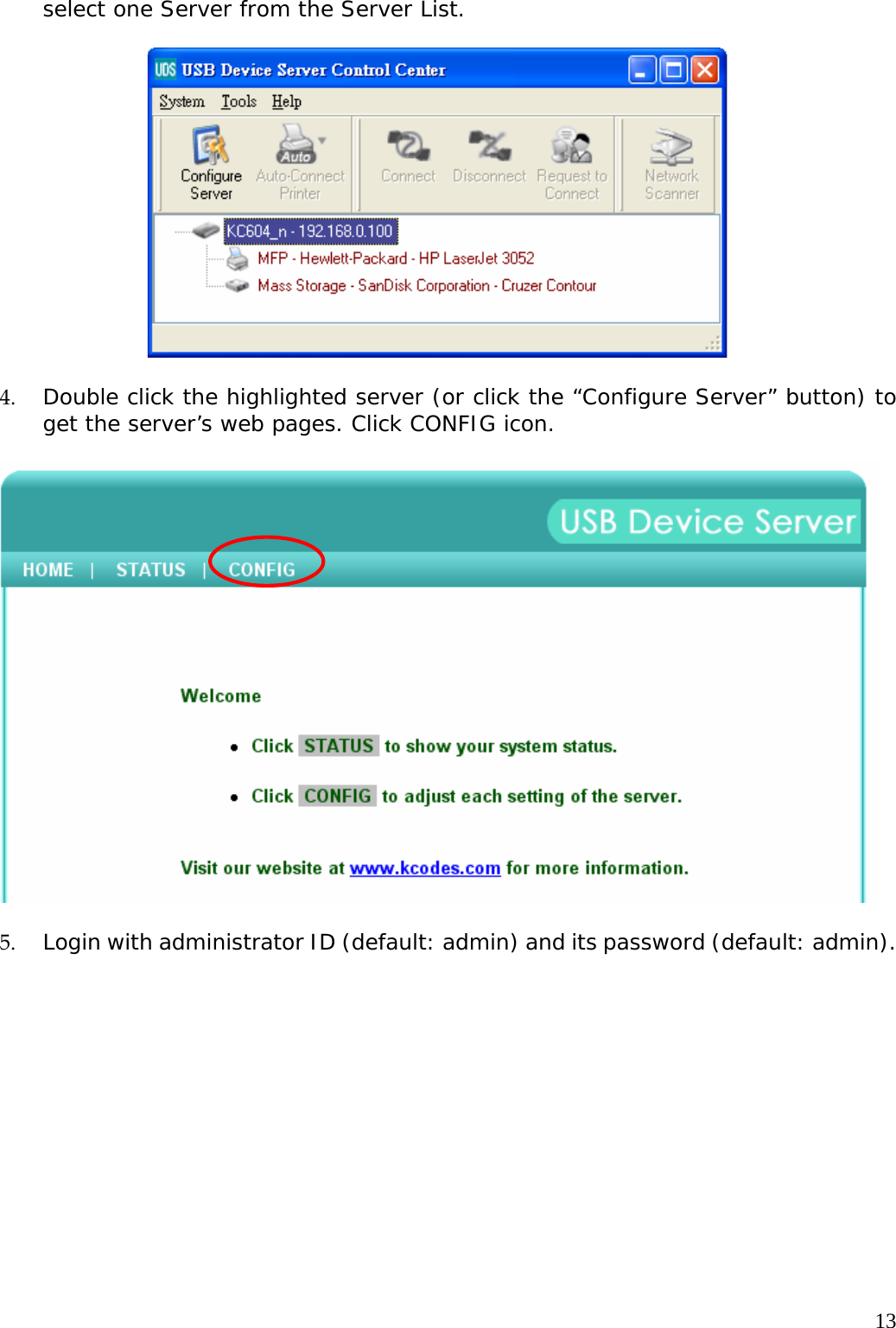
    8  #  If the wireless parameters are not correct or not set yet, you have to use LAN to access USB Device Server Control Center. 3. If the tool finds USB device servers in your local area network, then you have to select a server from the server list.    4. Double click the highlighted server (or click the “Configure Server” button) to get the server’s web pages. Click CONFIG icon.    5. Login with administrator ID (default: admin) and its password (default: admin).
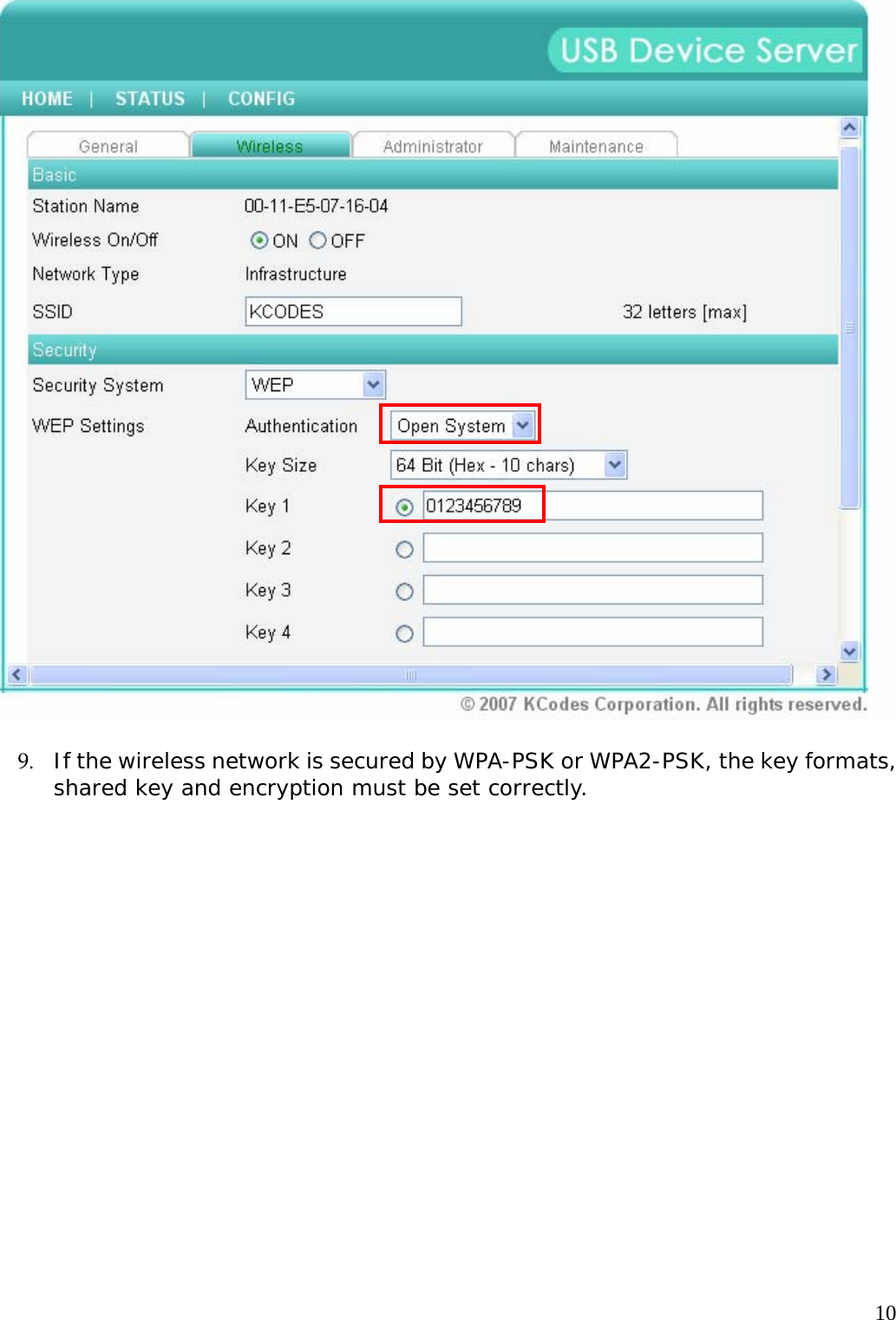
    9  6. Click Wireless icon.      7. In order to join an existing wireless network, you have to set the correct SSID, and the correct security method with the correct key information. 8. If the wireless network is secured by WEP64 or WEP128, key index and WEP key must be set correctly.
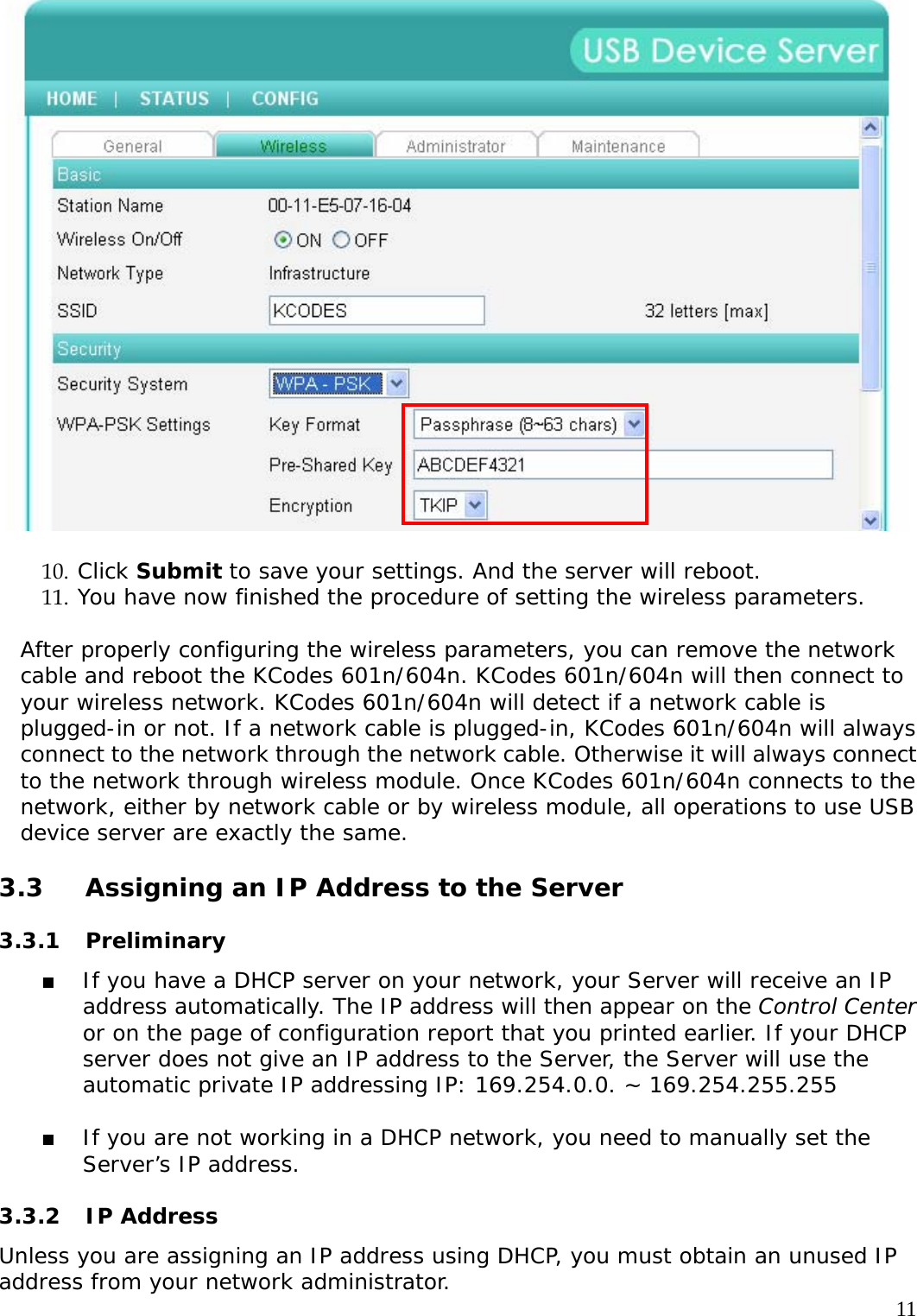
    10  9. If the wireless network is secured by WPA-PSK or WPA2-PSK, the key formats, shared key and encryption must be set correctly.
    11  10. Click Submit to save your settings. And the server will reboot. 11. You have now finished the procedure of setting the wireless parameters.  After properly configuring the wireless parameters, you can remove the network cable and reboot the KCodes 601n/604n. KCodes 601n/604n will then connect to your wireless network. KCodes 601n/604n will detect if a network cable is plugged-in or not. If a network cable is plugged-in, KCodes 601n/604n will always connect to the network through the network cable. Otherwise it will always connect to the network through wireless module. Once KCodes 601n/604n connects to the network, either by network cable or by wireless module, all operations to use USB device server are exactly the same.  3.3  Assigning an IP Address to the Server   3.3.1 Preliminary  If you have a DHCP server on your network, your Server will receive an IP address automatically. The IP address will then appear on the Control Center or on the page of configuration report that you printed earlier. If your DHCP server does not give an IP address to the Server, the Server will use the automatic private IP addressing IP: 169.254.0.0. ~ 169.254.255.255    If you are not working in a DHCP network, you need to manually set the Server’s IP address.   3.3.2 IP Address  Unless you are assigning an IP address using DHCP, you must obtain an unused IP address from your network administrator.
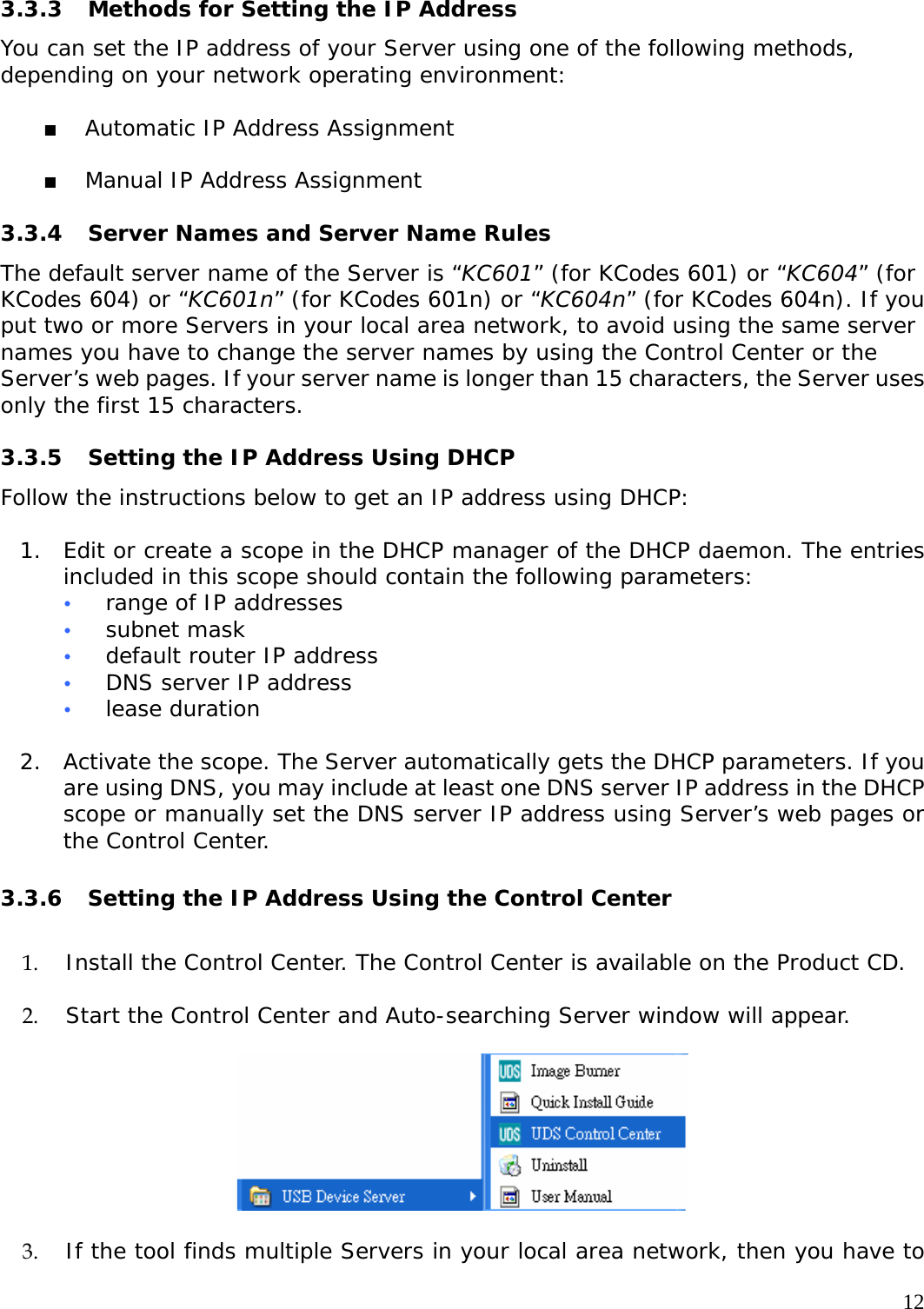
    12 3.3.3  Methods for Setting the IP Address  You can set the IP address of your Server using one of the following methods, depending on your network operating environment:    Automatic IP Address Assignment    Manual IP Address Assignment   3.3.4  Server Names and Server Name Rules The default server name of the Server is “KC601” (for KCodes 601) or “KC604” (for KCodes 604) or “KC601n” (for KCodes 601n) or “KC604n” (for KCodes 604n). If you put two or more Servers in your local area network, to avoid using the same server names you have to change the server names by using the Control Center or the Server’s web pages. If your server name is longer than 15 characters, the Server uses only the first 15 characters.    3.3.5  Setting the IP Address Using DHCP Follow the instructions below to get an IP address using DHCP:   1. Edit or create a scope in the DHCP manager of the DHCP daemon. The entries included in this scope should contain the following parameters:  y range of IP addresses  y subnet mask  y default router IP address  y DNS server IP address  y lease duration   2. Activate the scope. The Server automatically gets the DHCP parameters. If you are using DNS, you may include at least one DNS server IP address in the DHCP scope or manually set the DNS server IP address using Server’s web pages or the Control Center.   3.3.6  Setting the IP Address Using the Control Center  1. Install the Control Center. The Control Center is available on the Product CD.  2. Start the Control Center and Auto-searching Server window will appear.    3. If the tool finds multiple Servers in your local area network, then you have to
    13select one Server from the Server List.     4. Double click the highlighted server (or click the “Configure Server” button) to get the server’s web pages. Click CONFIG icon.    5. Login with administrator ID (default: admin) and its password (default: admin).
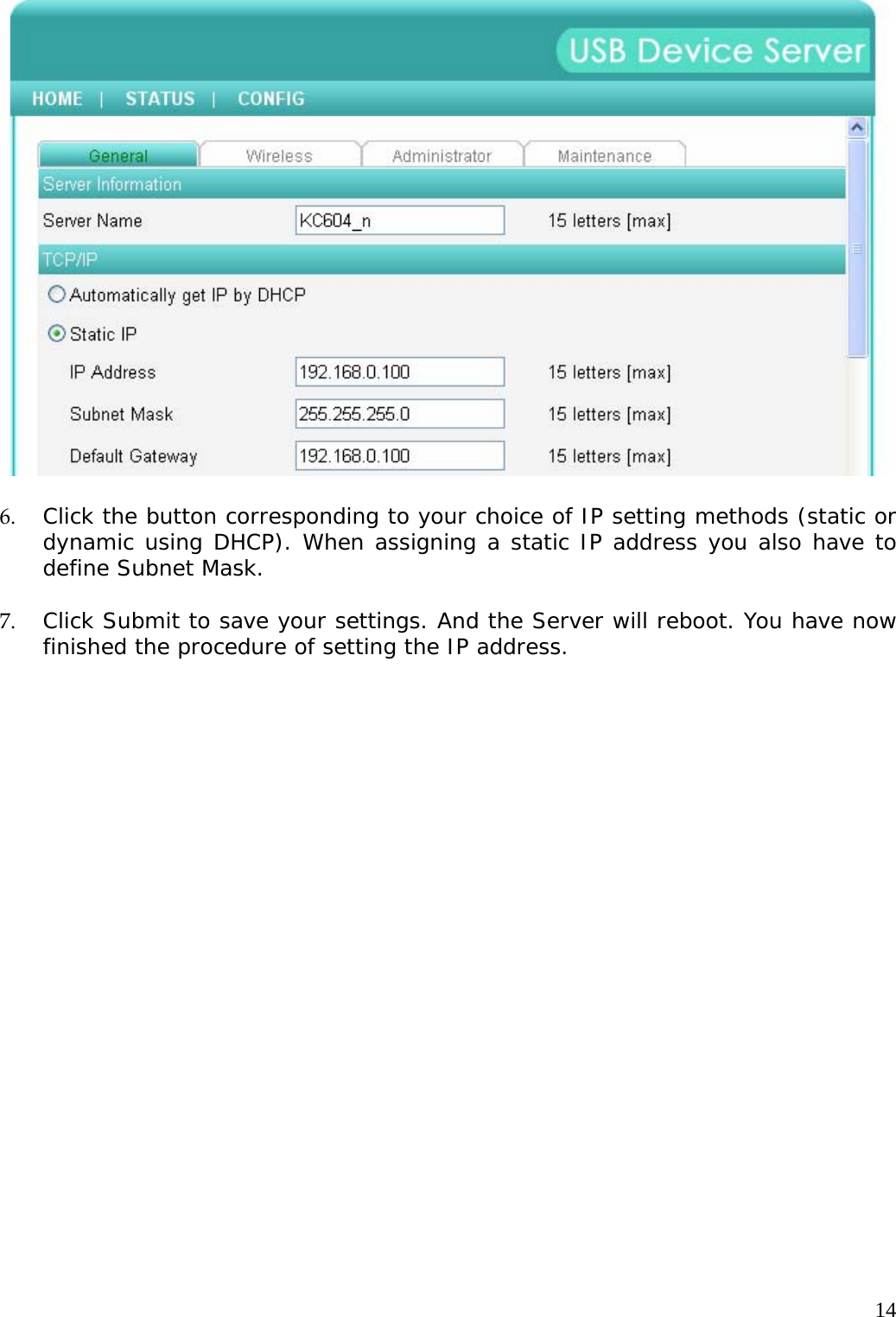
    14  6. Click the button corresponding to your choice of IP setting methods (static or dynamic using DHCP). When assigning a static IP address you also have to define Subnet Mask.  7. Click Submit to save your settings. And the Server will reboot. You have now finished the procedure of setting the IP address.
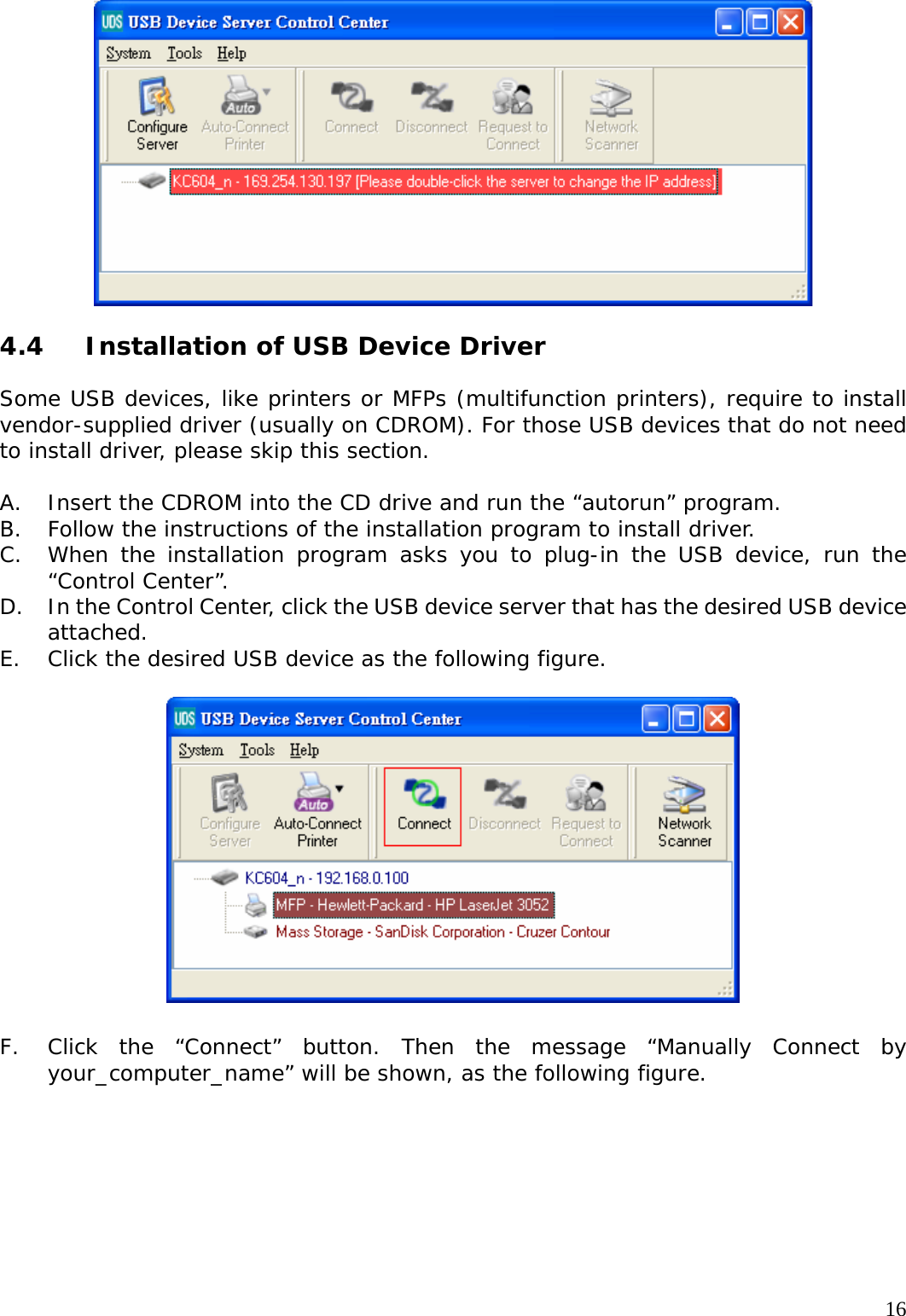
    15 Chapter4    Using the USB Device Server  4.1 Introduction  The goal of this produce is to provide the USB device server in a single product. We developed a new technology called “NetUSB” to achieve this goal. Basically, the “NetUSB” is a “USB over IP” technology that transparently redirects all USB packets to TCP/IP network channel. “NetUSB” allows you to use USB devices as if they were connected directly to your PC although they are actually remotely connected to the KCodes 601/601n/604/604n USB device server.  4.2 Connect & Disconnect  “NetUSB” allows you to use USB devices as if they were connected directly to your PC although they are actually remotely connected to the KCodes 601/601n/604/604n USB device server. The “connect” operation is a software operation that simulates an actual USB device plug-in. That is to say, when you do a “connect” operation in the Control Center, PC can then detect a USB device’s plug-in, although actually you do not plug in any USB device. Similarly, the “disconnect” operation is a software operation that simulates the disconnection of the USB device. Once the connect operation is successful, the operations to use that USB device are just the same as if the USB device is directly connected to the PC.  If a USB device is “connected” by a PC, we say that PC has the ownership of the USB device. Only one PC can get the ownership of a USB device at the same time. Therefore, if a USB device is connected by one PC, no other PC can connect this USB device until this USB device is disconnected.  4.3 Subnet Issue  Before using the NetUSB technology, you must first make sure that your PC can access KCodes USB device server via TCP/IP. The simplest way to do this is using “Control Center” to search for the KCodes USB device server on the network and change its IP address to be the same subnet as your PC. If the server and your PC are not in the same TCP/IP subnet, Control Center will show the server in red, as the following figure. You must change the IP address (or using    DHCP) of the server so that the server and your PC are in the same subnet. Control Center will show these servers in blue, meaning you can access these servers by the NetUSB technology.
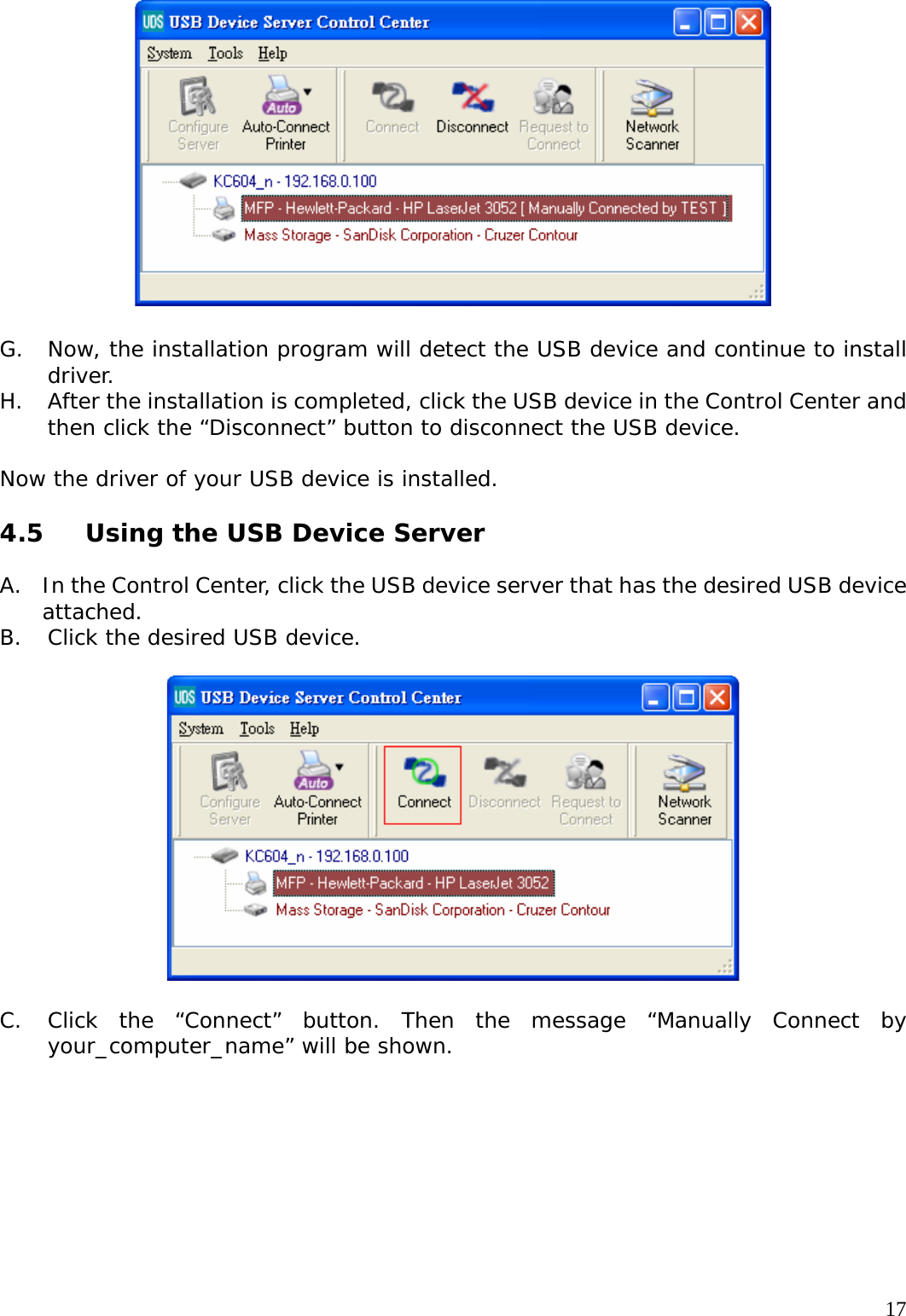
    16  4.4  Installation of USB Device Driver  Some USB devices, like printers or MFPs (multifunction printers), require to install vendor-supplied driver (usually on CDROM). For those USB devices that do not need to install driver, please skip this section.  A. Insert the CDROM into the CD drive and run the “autorun” program. B. Follow the instructions of the installation program to install driver. C. When the installation program asks you to plug-in the USB device, run the “Control Center”. D. In the Control Center, click the USB device server that has the desired USB device attached. E. Click the desired USB device as the following figure.    F. Click the “Connect” button. Then the message “Manually Connect by your_computer_name” will be shown, as the following figure.
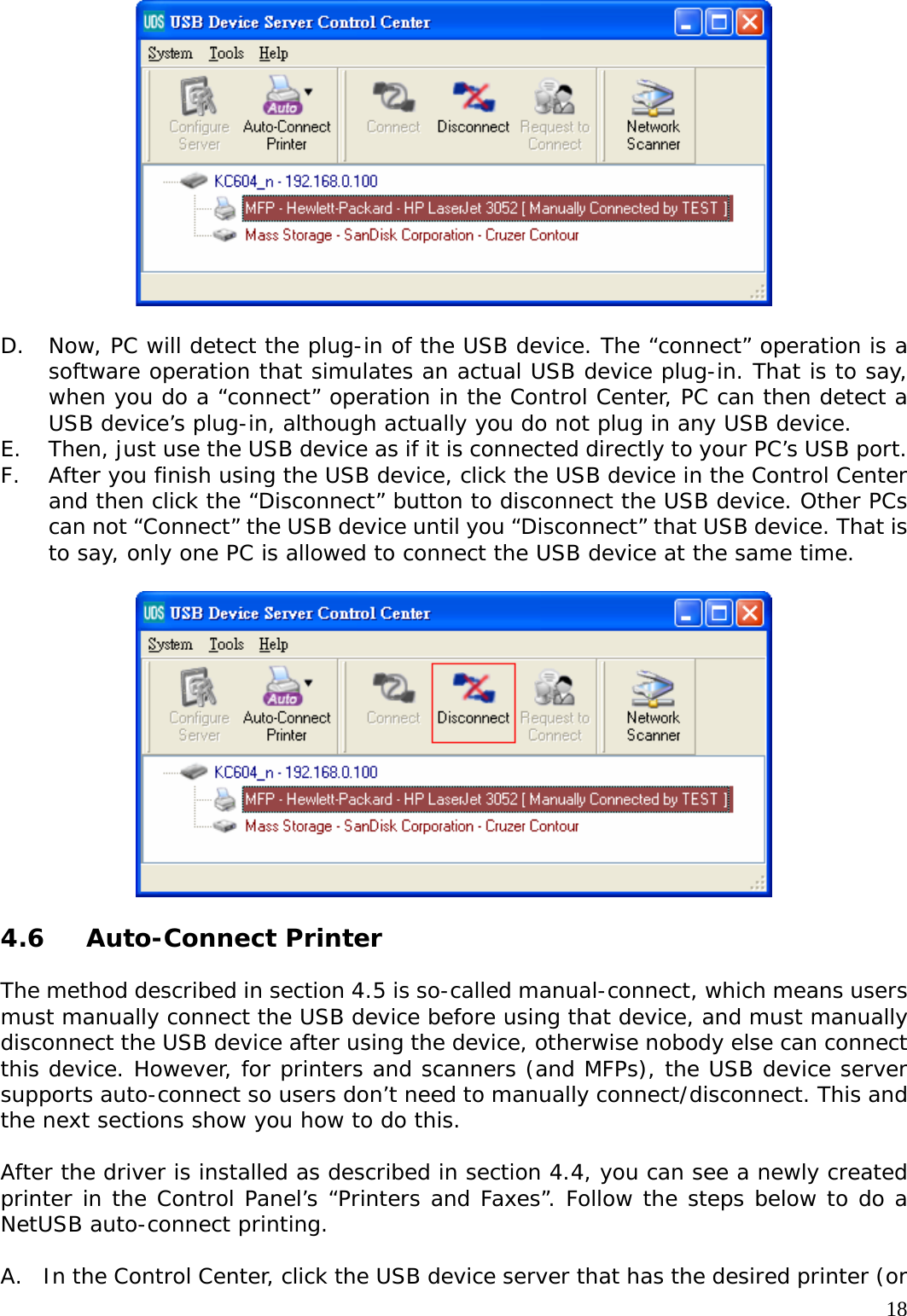
    17  G. Now, the installation program will detect the USB device and continue to install driver. H. After the installation is completed, click the USB device in the Control Center and then click the “Disconnect” button to disconnect the USB device.  Now the driver of your USB device is installed.  4.5  Using the USB Device Server  A. In the Control Center, click the USB device server that has the desired USB device attached. B. Click the desired USB device.    C. Click the “Connect” button. Then the message “Manually Connect by your_computer_name” will be shown.
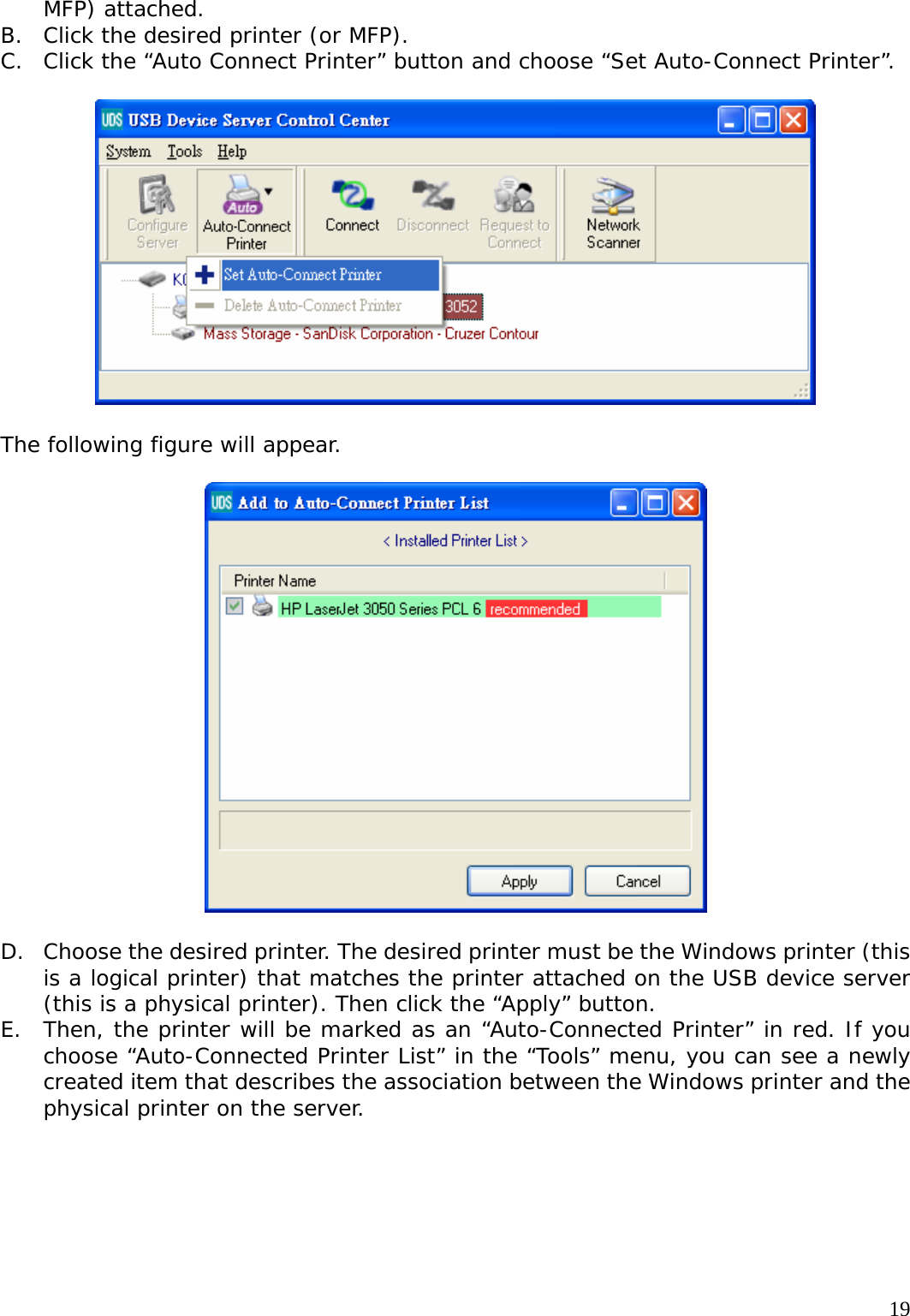
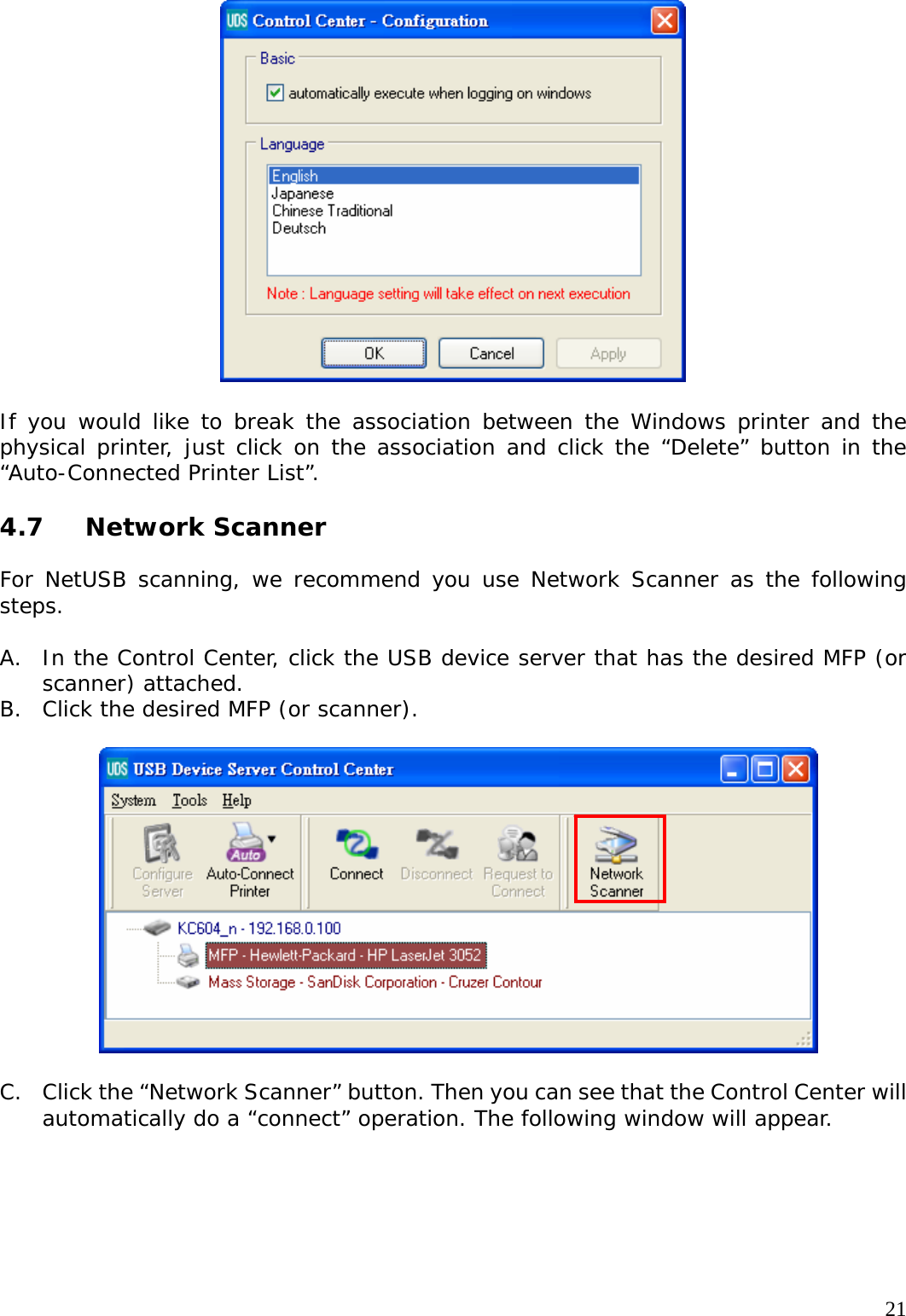
    18  D. Now, PC will detect the plug-in of the USB device. The “connect” operation is a software operation that simulates an actual USB device plug-in. That is to say, when you do a “connect” operation in the Control Center, PC can then detect a USB device’s plug-in, although actually you do not plug in any USB device. E. Then, just use the USB device as if it is connected directly to your PC’s USB port. F. After you finish using the USB device, click the USB device in the Control Center and then click the “Disconnect” button to disconnect the USB device. Other PCs can not “Connect” the USB device until you “Disconnect” that USB device. That is to say, only one PC is allowed to connect the USB device at the same time.    4.6 Auto-Connect Printer  The method described in section 4.5 is so-called manual-connect, which means users must manually connect the USB device before using that device, and must manually disconnect the USB device after using the device, otherwise nobody else can connect this device. However, for printers and scanners (and MFPs), the USB device server supports auto-connect so users don’t need to manually connect/disconnect. This and the next sections show you how to do this.  After the driver is installed as described in section 4.4, you can see a newly created printer in the Control Panel’s “Printers and Faxes”. Follow the steps below to do a NetUSB auto-connect printing.  A. In the Control Center, click the USB device server that has the desired printer (or
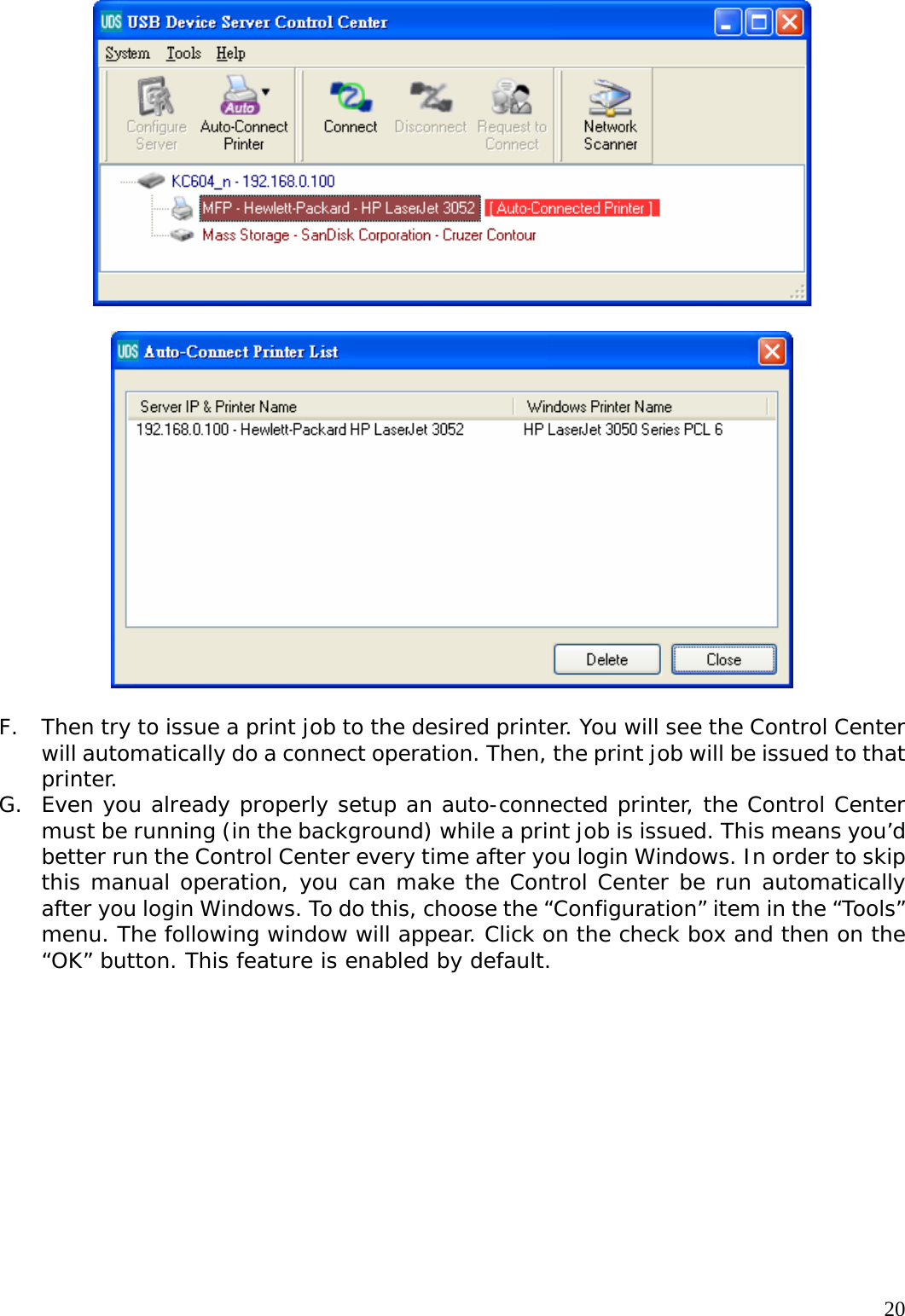
    19MFP) attached. B. Click the desired printer (or MFP). C. Click the “Auto Connect Printer” button and choose “Set Auto-Connect Printer”.    The following figure will appear.    D. Choose the desired printer. The desired printer must be the Windows printer (this is a logical printer) that matches the printer attached on the USB device server (this is a physical printer). Then click the “Apply” button. E. Then, the printer will be marked as an “Auto-Connected Printer” in red. If you choose “Auto-Connected Printer List” in the “Tools” menu, you can see a newly created item that describes the association between the Windows printer and the physical printer on the server.
    20    F. Then try to issue a print job to the desired printer. You will see the Control Center will automatically do a connect operation. Then, the print job will be issued to that printer. G. Even you already properly setup an auto-connected printer, the Control Center must be running (in the background) while a print job is issued. This means you’d better run the Control Center every time after you login Windows. In order to skip this manual operation, you can make the Control Center be run automatically after you login Windows. To do this, choose the “Configuration” item in the “Tools” menu. The following window will appear. Click on the check box and then on the “OK” button. This feature is enabled by default.
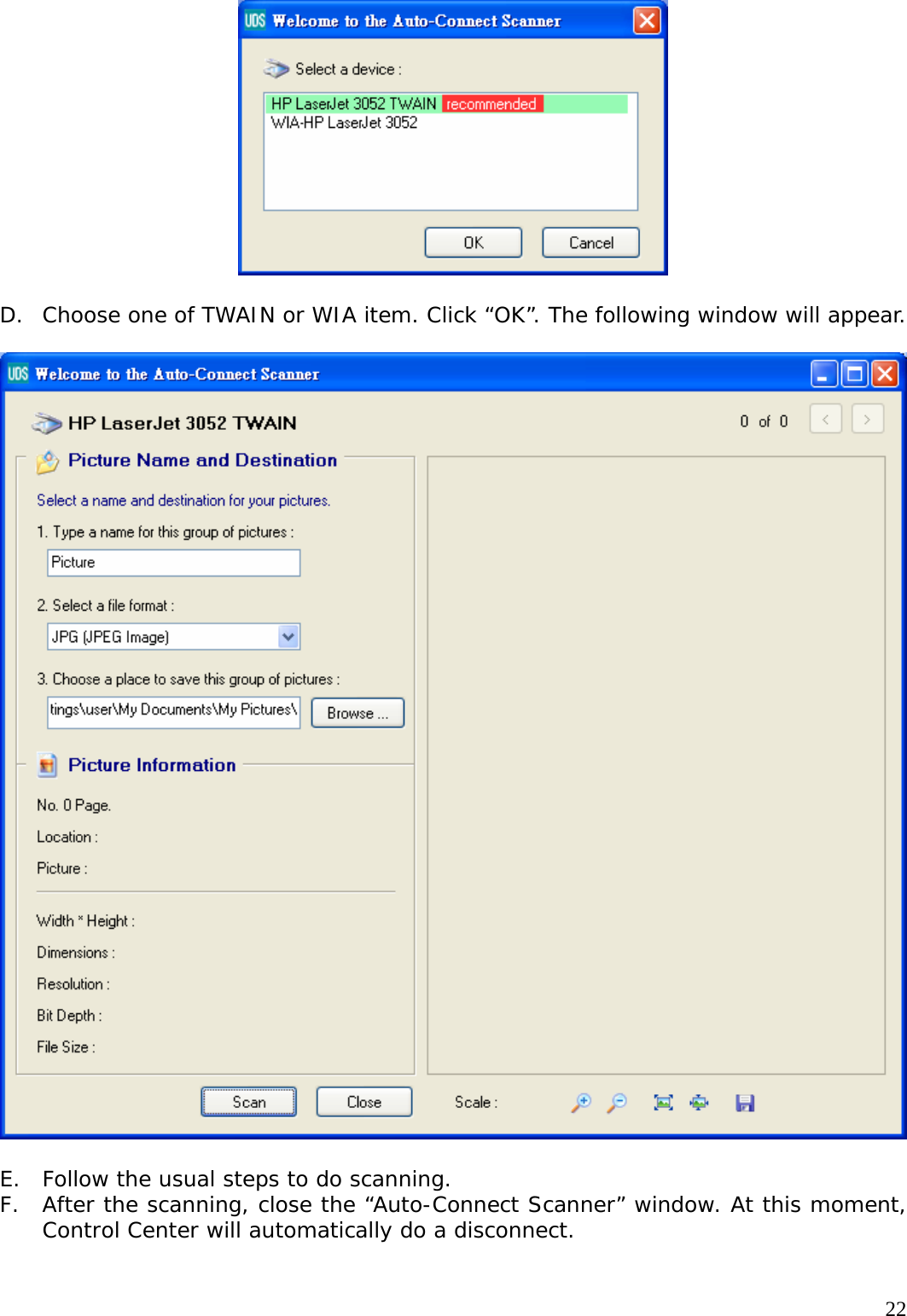
    21  If you would like to break the association between the Windows printer and the physical printer, just click on the association and click the “Delete” button in the “Auto-Connected Printer List”.  4.7 Network Scanner  For NetUSB scanning, we recommend you use Network Scanner as the following steps.  A. In the Control Center, click the USB device server that has the desired MFP (or scanner) attached. B. Click the desired MFP (or scanner).      C. Click the “Network Scanner” button. Then you can see that the Control Center will automatically do a “connect” operation. The following window will appear.
    22  D. Choose one of TWAIN or WIA item. Click “OK”. The following window will appear.    E. Follow the usual steps to do scanning. F. After the scanning, close the “Auto-Connect Scanner” window. At this moment, Control Center will automatically do a disconnect.
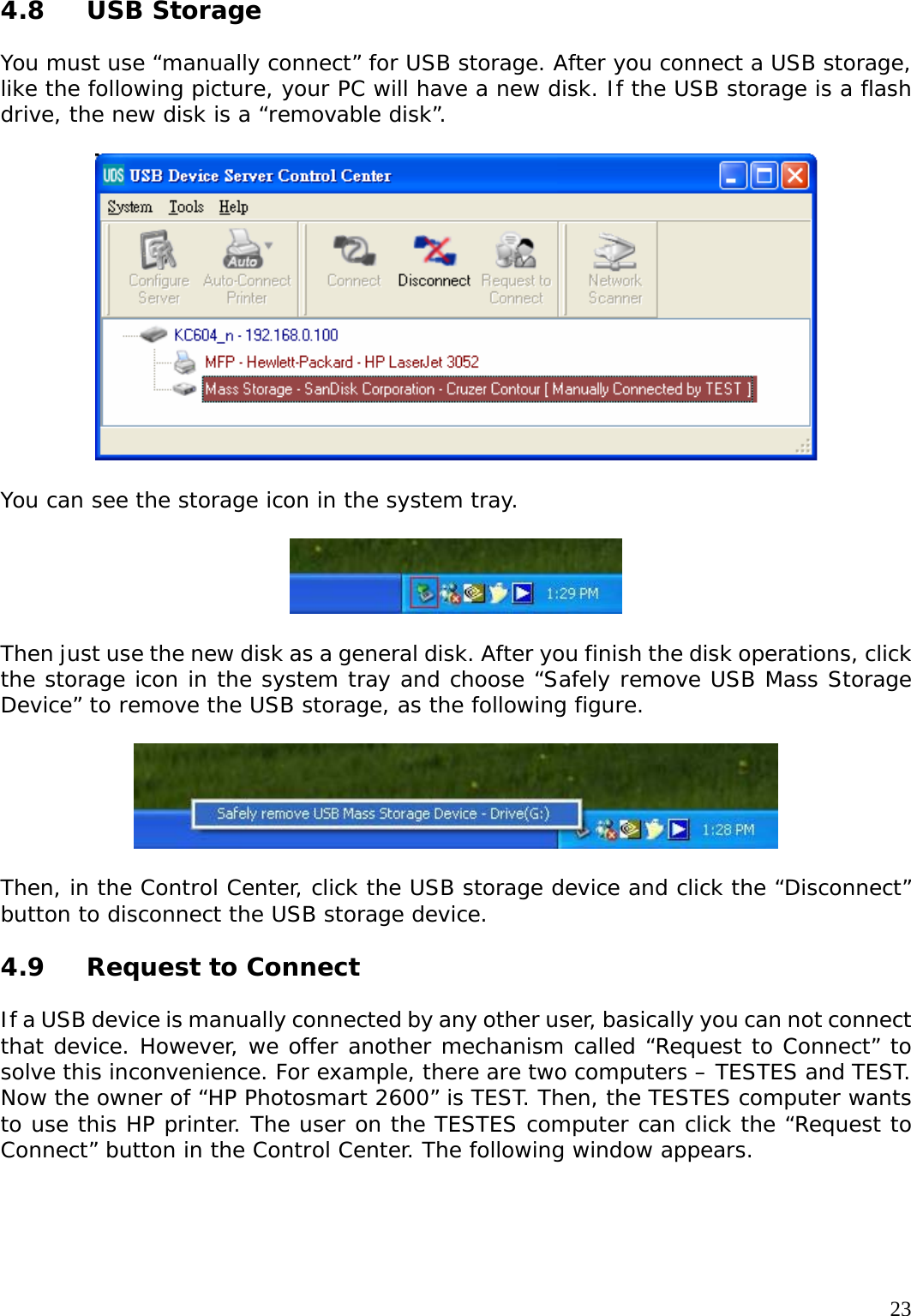
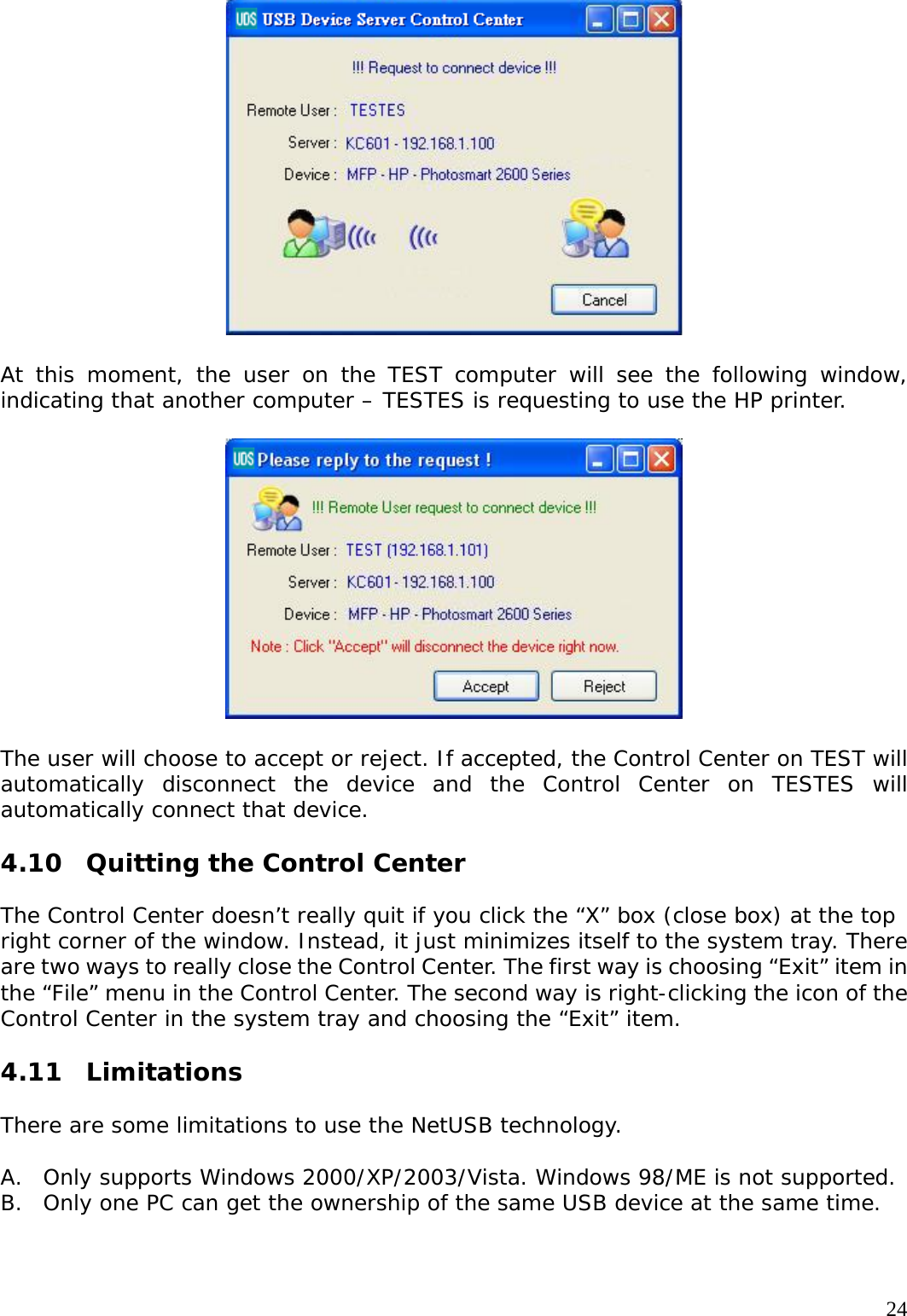
    234.8 USB Storage  You must use “manually connect” for USB storage. After you connect a USB storage, like the following picture, your PC will have a new disk. If the USB storage is a flash drive, the new disk is a “removable disk”.    You can see the storage icon in the system tray.    Then just use the new disk as a general disk. After you finish the disk operations, click the storage icon in the system tray and choose “Safely remove USB Mass Storage Device” to remove the USB storage, as the following figure.    Then, in the Control Center, click the USB storage device and click the “Disconnect” button to disconnect the USB storage device.  4.9 Request to Connect  If a USB device is manually connected by any other user, basically you can not connect that device. However, we offer another mechanism called “Request to Connect” to solve this inconvenience. For example, there are two computers – TESTES and TEST. Now the owner of “HP Photosmart 2600” is TEST. Then, the TESTES computer wants to use this HP printer. The user on the TESTES computer can click the “Request to Connect” button in the Control Center. The following window appears.
    24  At this moment, the user on the TEST computer will see the following window, indicating that another computer – TESTES is requesting to use the HP printer.    The user will choose to accept or reject. If accepted, the Control Center on TEST will automatically disconnect the device and the Control Center on TESTES will automatically connect that device.  4.10  Quitting the Control Center  The Control Center doesn’t really quit if you click the “X” box (close box) at the top right corner of the window. Instead, it just minimizes itself to the system tray. There are two ways to really close the Control Center. The first way is choosing “Exit” item in the “File” menu in the Control Center. The second way is right-clicking the icon of the Control Center in the system tray and choosing the “Exit” item.  4.11 Limitations  There are some limitations to use the NetUSB technology.  A. Only supports Windows 2000/XP/2003/Vista. Windows 98/ME is not supported. B. Only one PC can get the ownership of the same USB device at the same time.
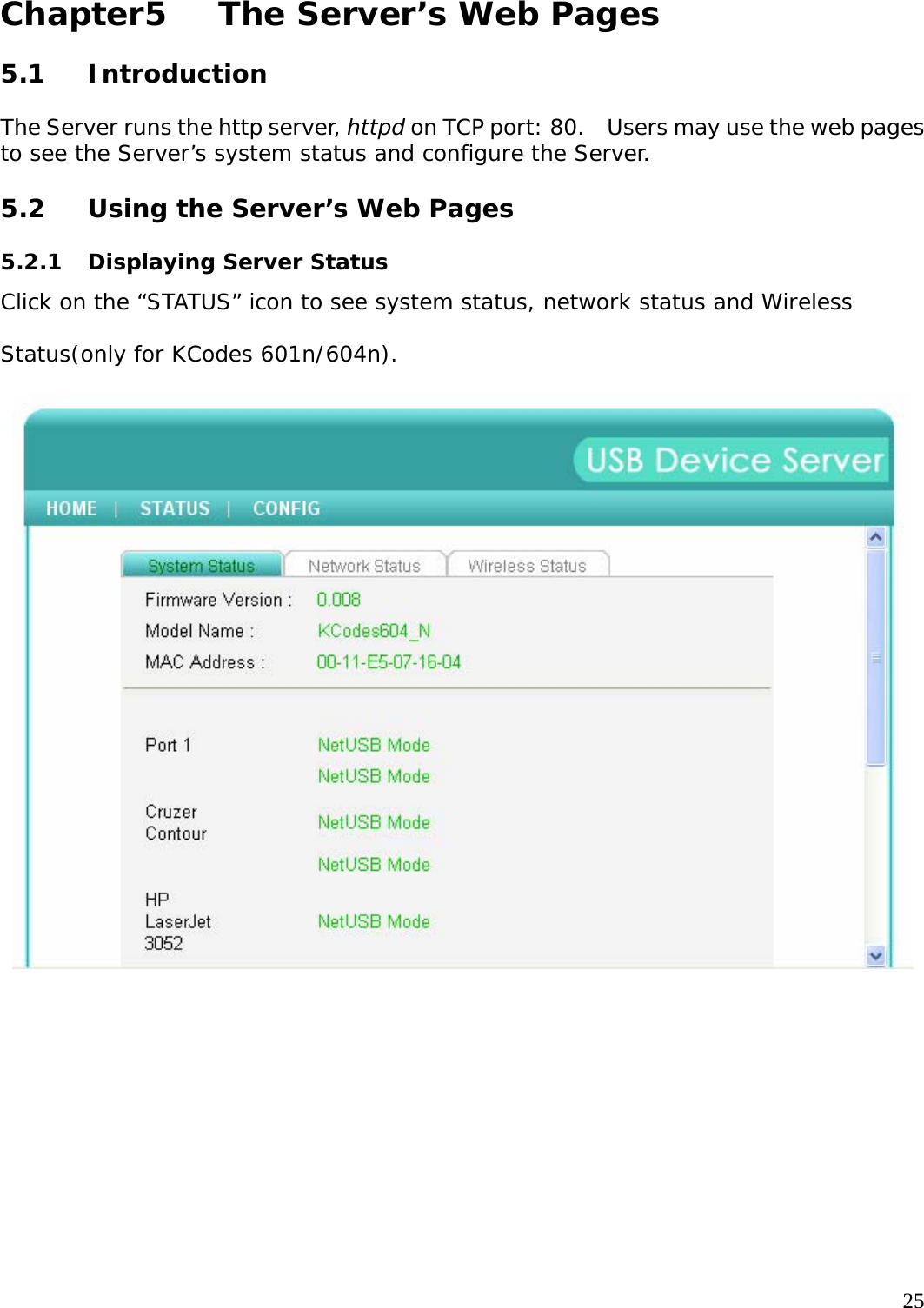
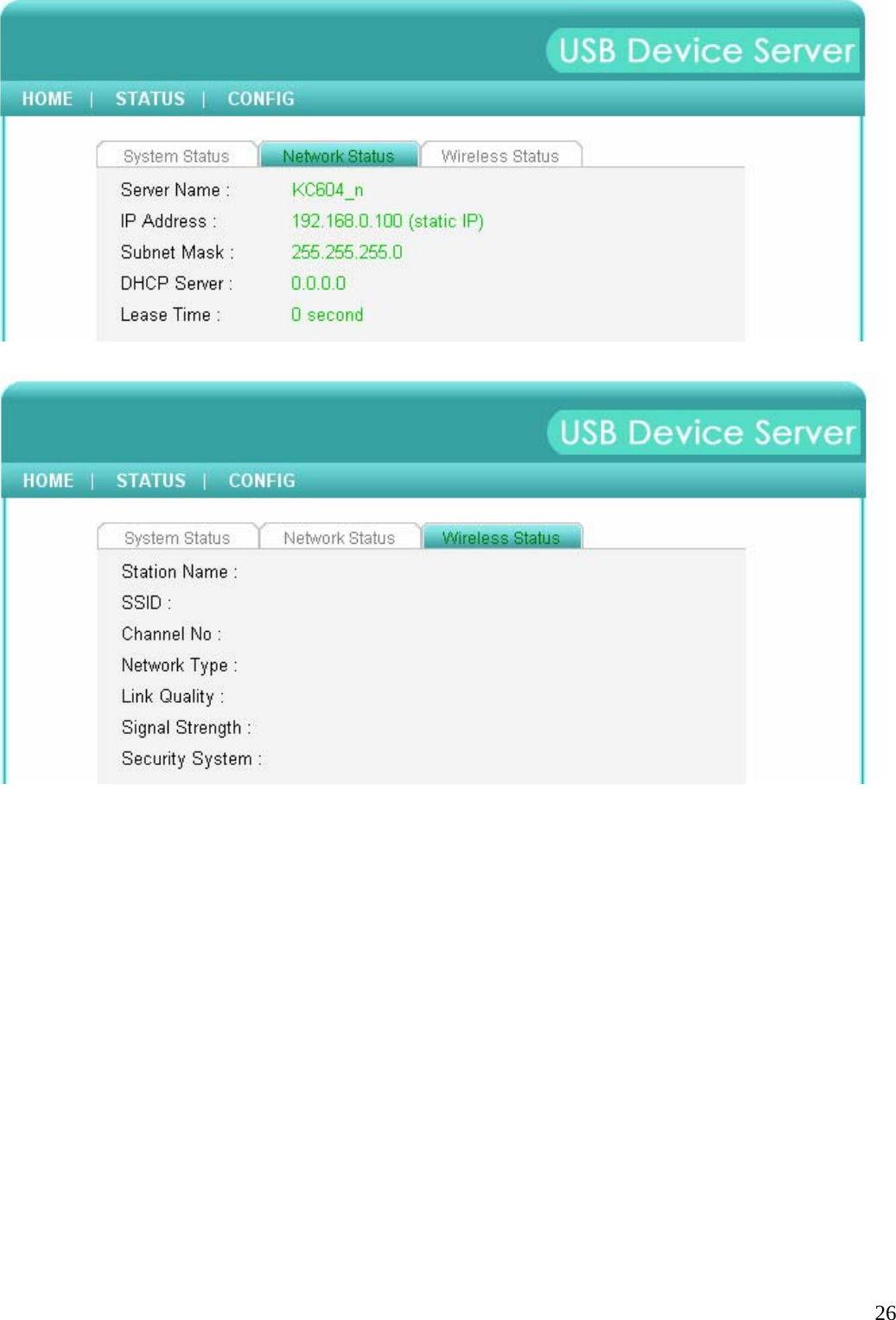
    25 Chapter5   The Server’s Web Pages   5.1 Introduction  The Server runs the http server, httpd on TCP port: 80.    Users may use the web pages to see the Server’s system status and configure the Server.  5.2  Using the Server’s Web Pages  5.2.1  Displaying Server Status Click on the “STATUS” icon to see system status, network status and Wireless Status(only for KCodes 601n/604n).
    26
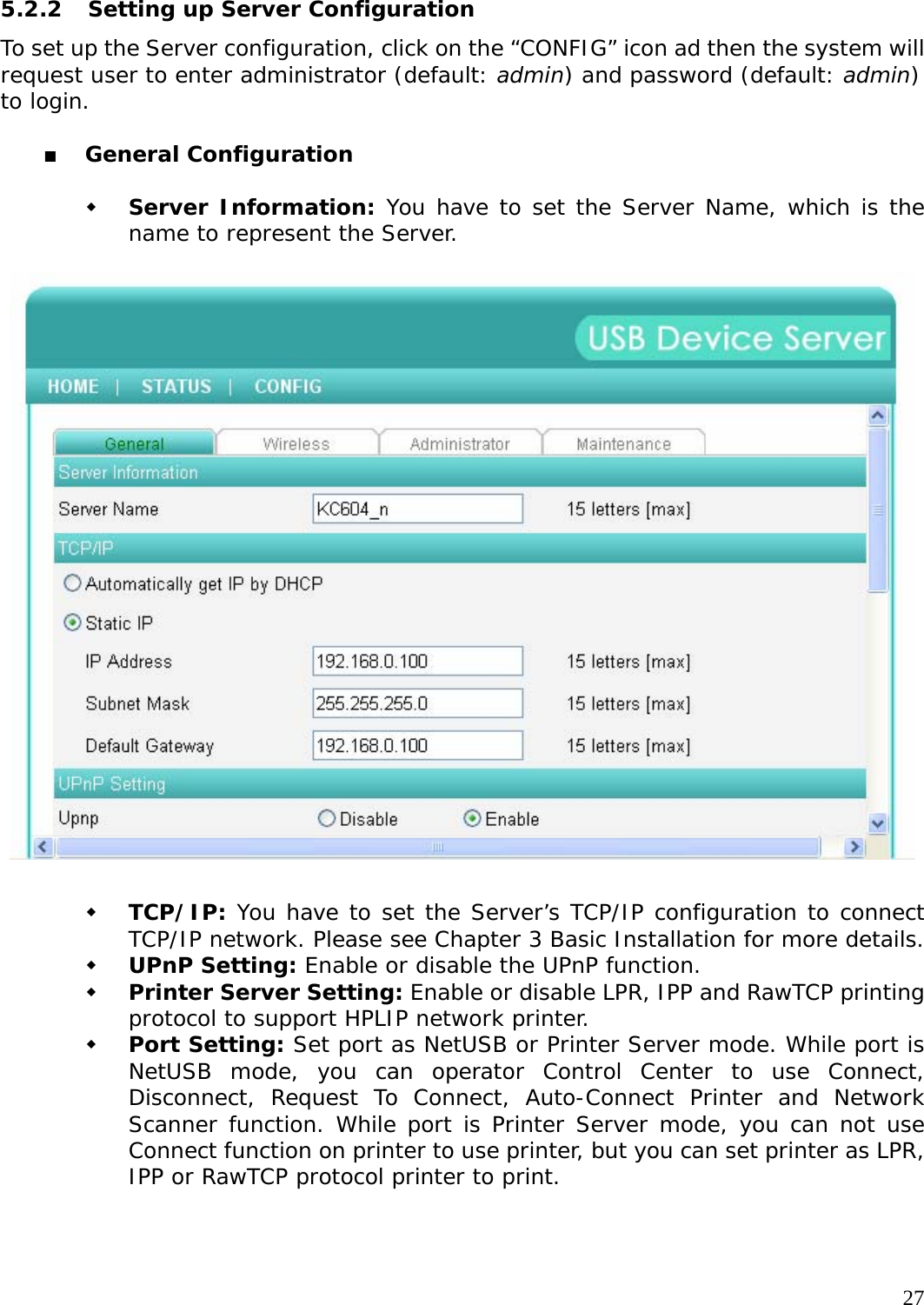
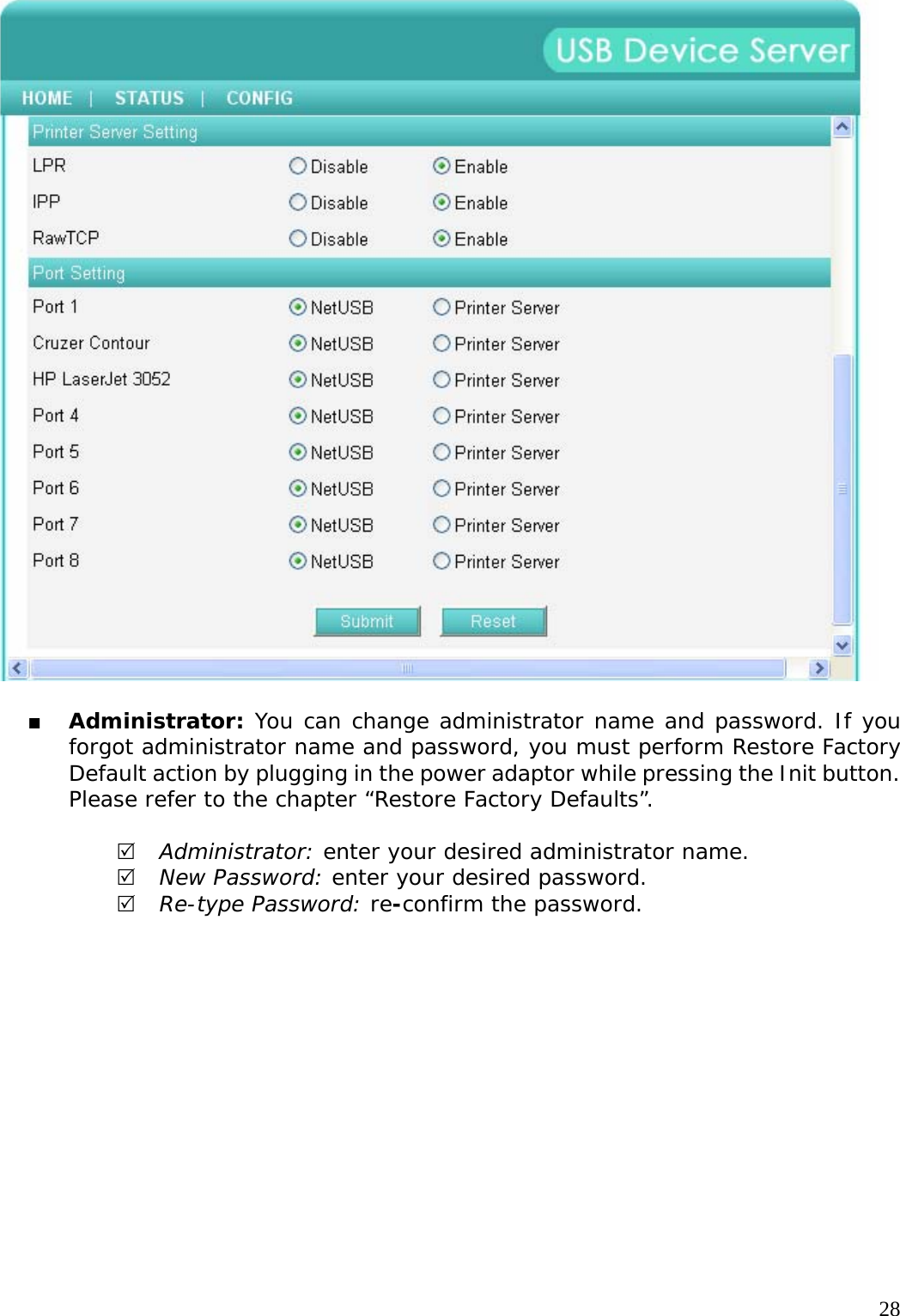
    27 5.2.2  Setting up Server Configuration To set up the Server configuration, click on the “CONFIG” icon ad then the system will request user to enter administrator (default: admin) and password (default: admin) to login.     General Configuration   Server Information: You have to set the Server Name, which is the name to represent the Server.     TCP/IP: You have to set the Server’s TCP/IP configuration to connect TCP/IP network. Please see Chapter 3 Basic Installation for more details.  UPnP Setting: Enable or disable the UPnP function.  Printer Server Setting: Enable or disable LPR, IPP and RawTCP printing protocol to support HPLIP network printer.  Port Setting: Set port as NetUSB or Printer Server mode. While port is NetUSB mode, you can operator Control Center to use Connect, Disconnect, Request To Connect, Auto-Connect Printer and Network Scanner function. While port is Printer Server mode, you can not use Connect function on printer to use printer, but you can set printer as LPR, IPP or RawTCP protocol printer to print.
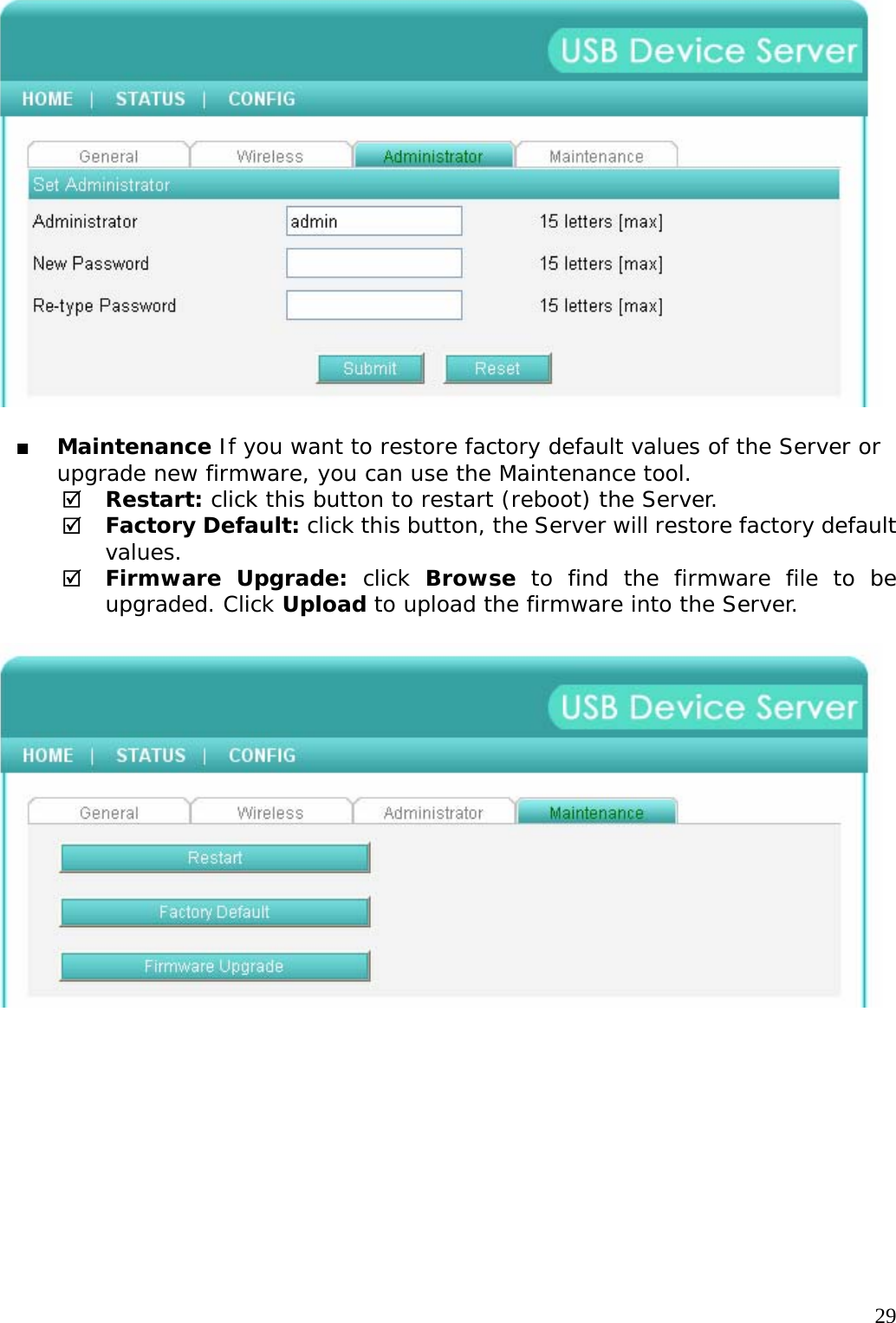
    28   Administrator: You can change administrator name and password. If you forgot administrator name and password, you must perform Restore Factory Default action by plugging in the power adaptor while pressing the Init button. Please refer to the chapter “Restore Factory Defaults”.  5 Administrator: enter your desired administrator name. 5 New Password: enter your desired password. 5 Re-type Password: re-confirm the password.
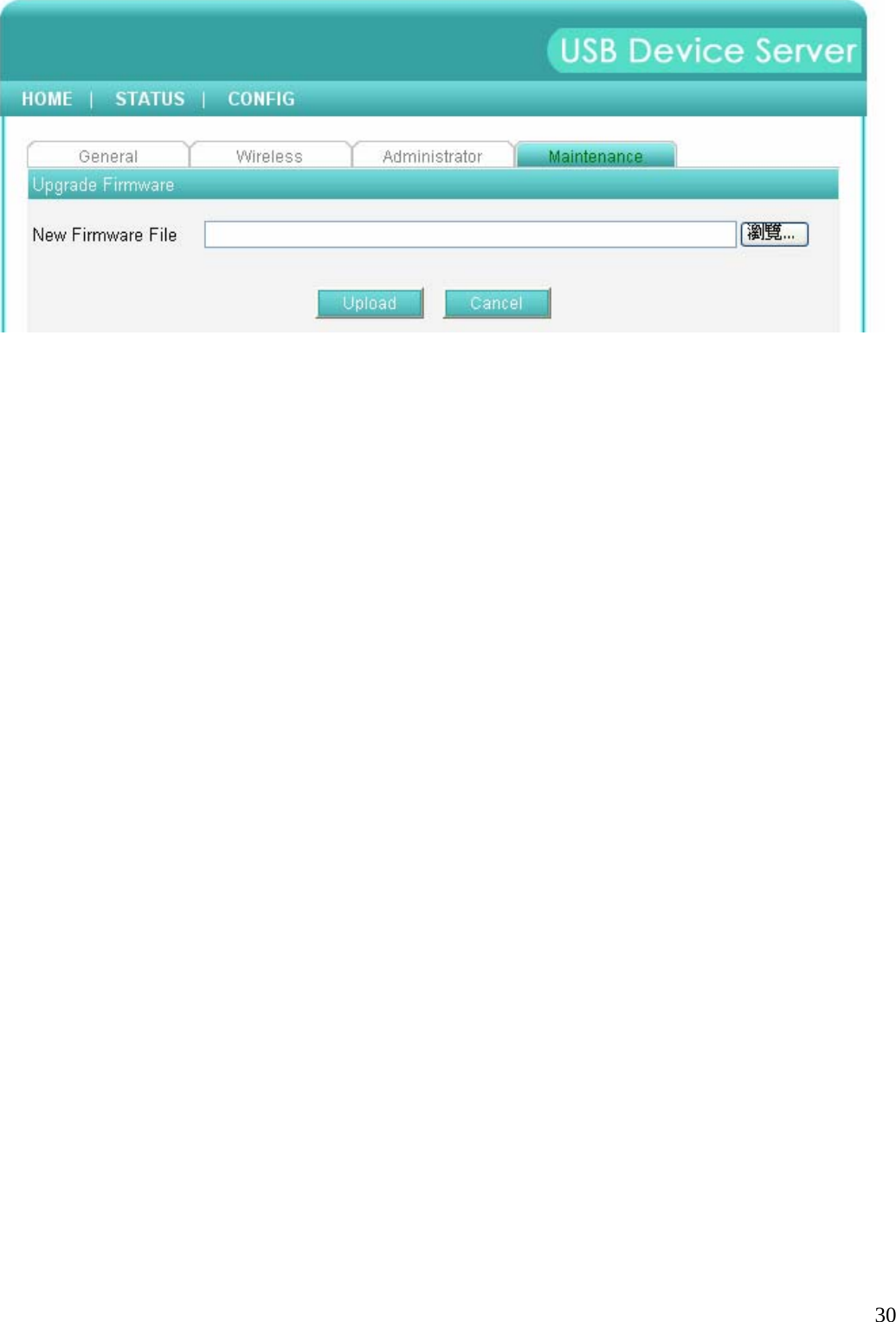
    29   Maintenance If you want to restore factory default values of the Server or upgrade new firmware, you can use the Maintenance tool. 5 Restart: click this button to restart (reboot) the Server. 5 Factory Default: click this button, the Server will restore factory default values. 5 Firmware Upgrade: click Browse to find the firmware file to be upgraded. Click Upload to upload the firmware into the Server.
    30
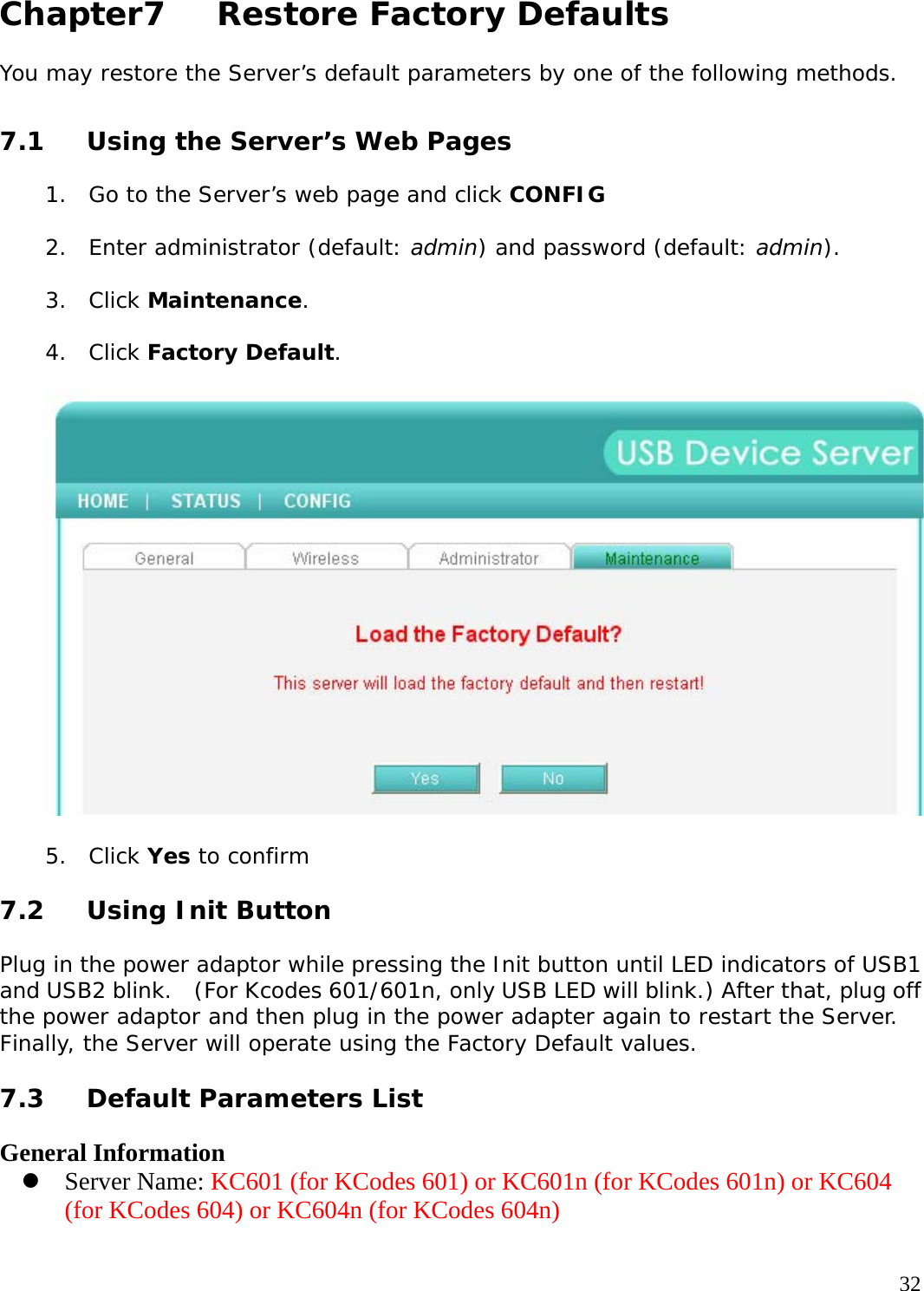
    31 Chapter6   Troubleshooting  This chapter provides useful information to help you resolve difficulties that you may experience with your Server. Fault symptoms, possible causes, and remedial actions are provided within a quick reference table. This Server’s USB ports only support MFPs, printers, scanners, mass storage, and USB cameras.   6.1 LED Indicators   Indicators Behavior  Description On Power On Power  Off  Power off/System error On Network connected Link  Off  No physical connection to network Blinking  Activity on network Status  Off  No activity on network On  USB device connected Blinking  Connected USB device error  USB Off  No physical connection to USB device  6.2 Firewall  If a firewall software has been installed on your PC, it may block the communication between the PC and the USB device server so that the USB device server can not work properly. To solve this problem, either disable the firewall or configure the firewall to allow the following TCP and UDP ports:  7303, 7305, 20005, 30201, 30202, 30203
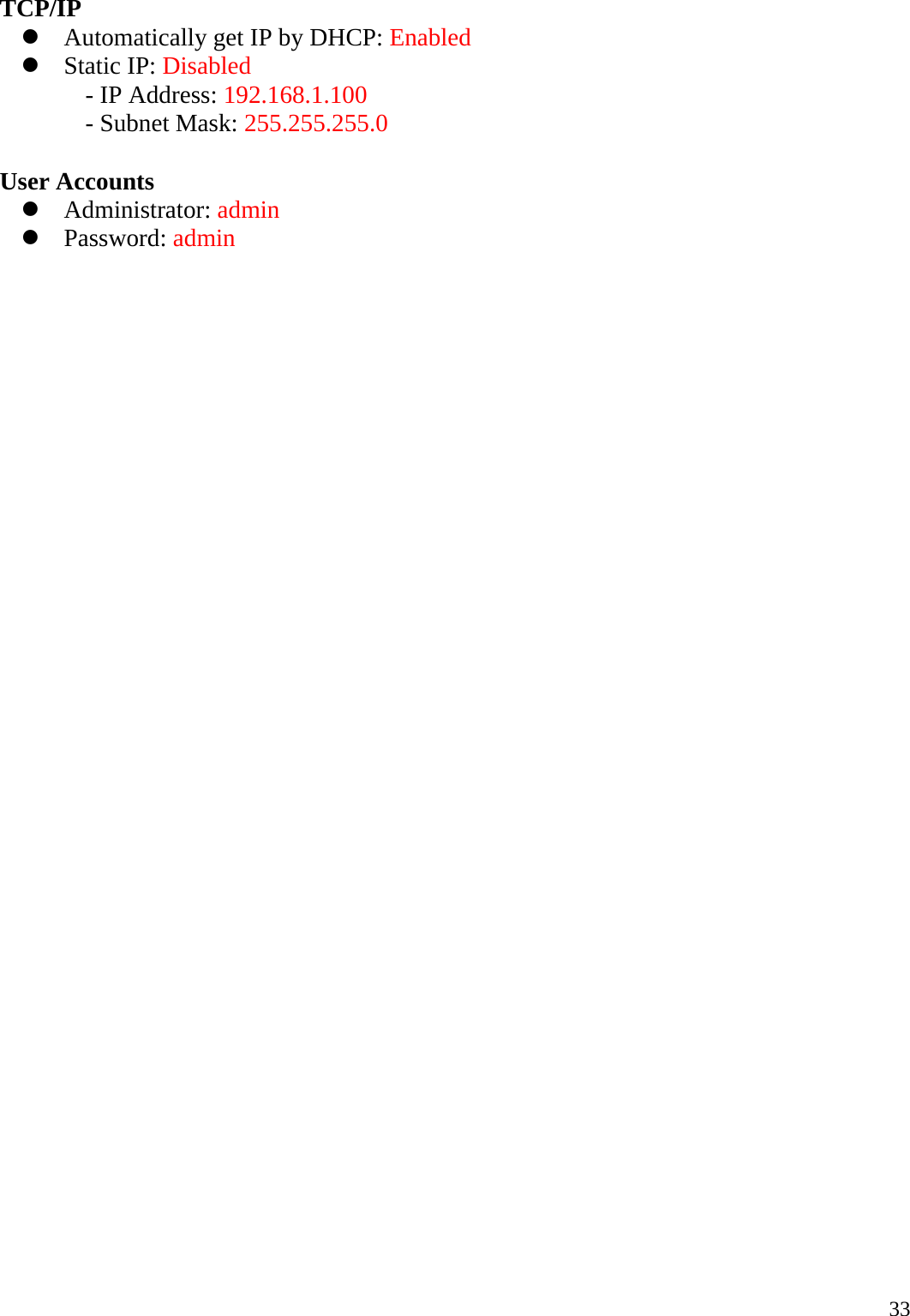
    32 Chapter7   Restore Factory Defaults  You may restore the Server’s default parameters by one of the following methods.  7.1  Using the Server’s Web Pages  1. Go to the Server’s web page and click CONFIG   2. Enter administrator (default: admin) and password (default: admin).  3. Click Maintenance.  4. Click Factory Default.     5. Click Yes to confirm  7.2 Using Init Button  Plug in the power adaptor while pressing the Init button until LED indicators of USB1 and USB2 blink.  (For Kcodes 601/601n, only USB LED will blink.) After that, plug off the power adaptor and then plug in the power adapter again to restart the Server. Finally, the Server will operate using the Factory Default values.   7.3  Default Parameters List  General Information z Server Name: KC601 (for KCodes 601) or KC601n (for KCodes 601n) or KC604 (for KCodes 604) or KC604n (for KCodes 604n)
    33TCP/IP z Automatically get IP by DHCP: Enabled z Static IP: Disabled - IP Address: 192.168.1.100 - Subnet Mask: 255.255.255.0  User Accounts z Administrator: admin z Password: admin
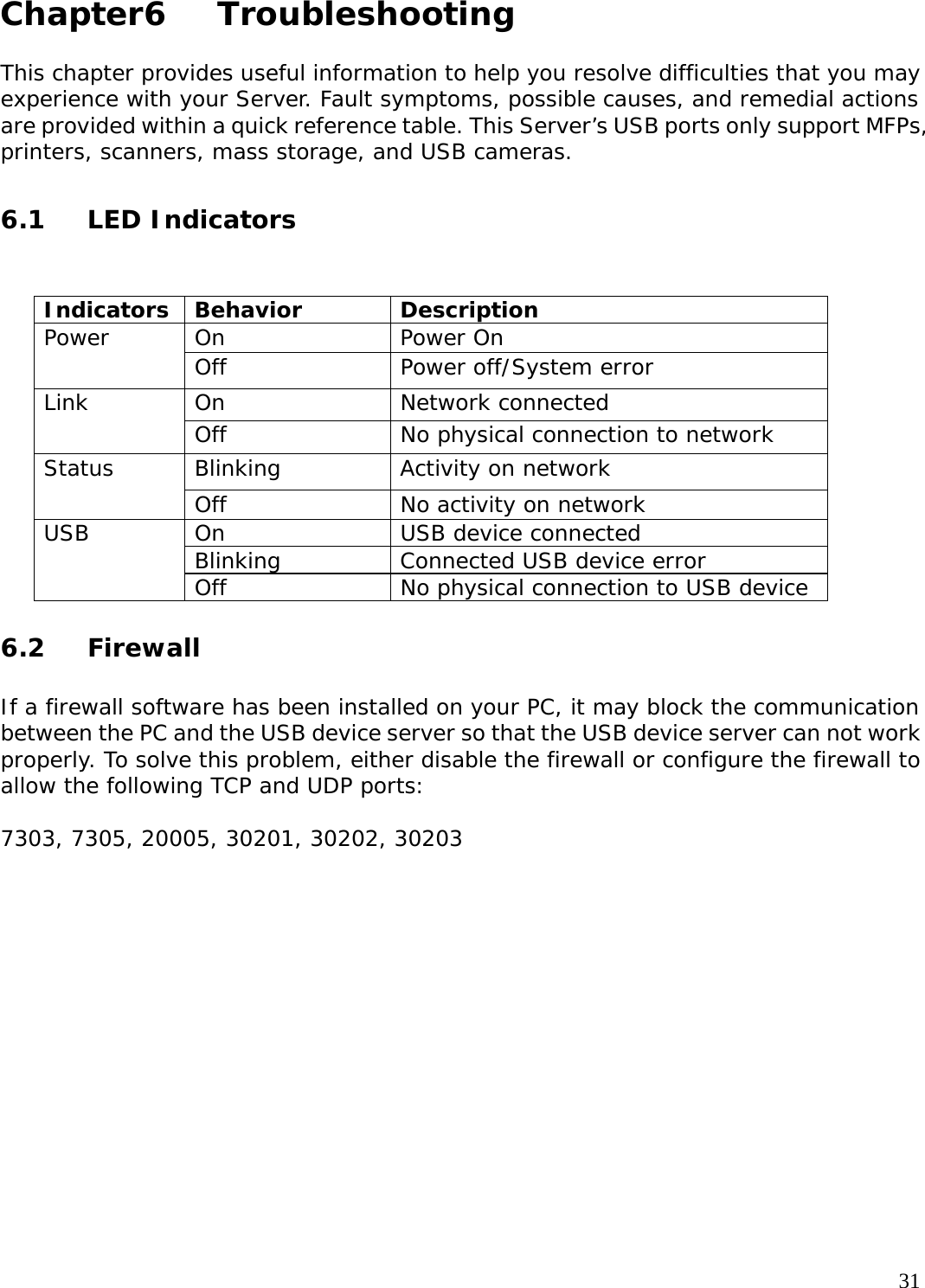
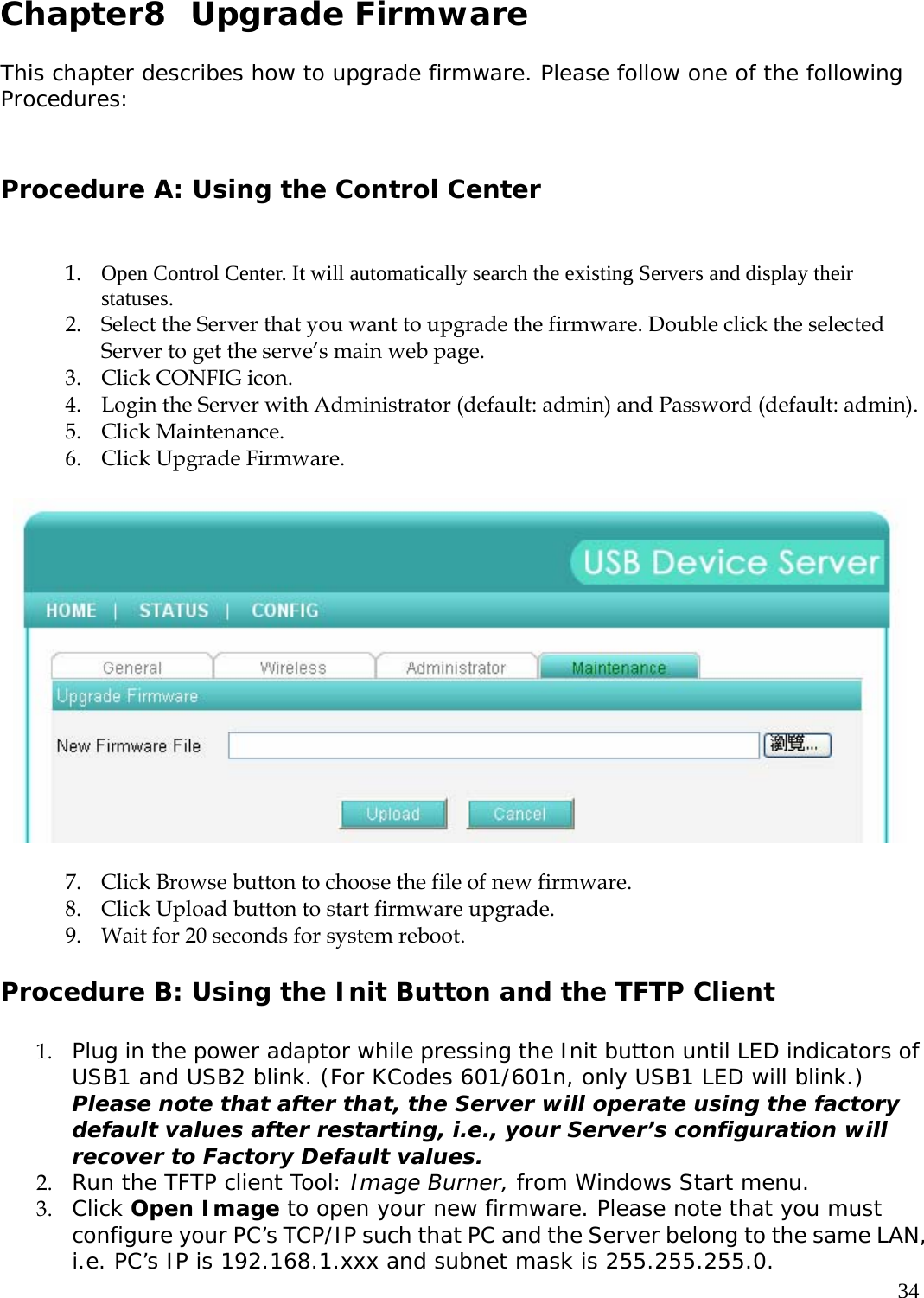
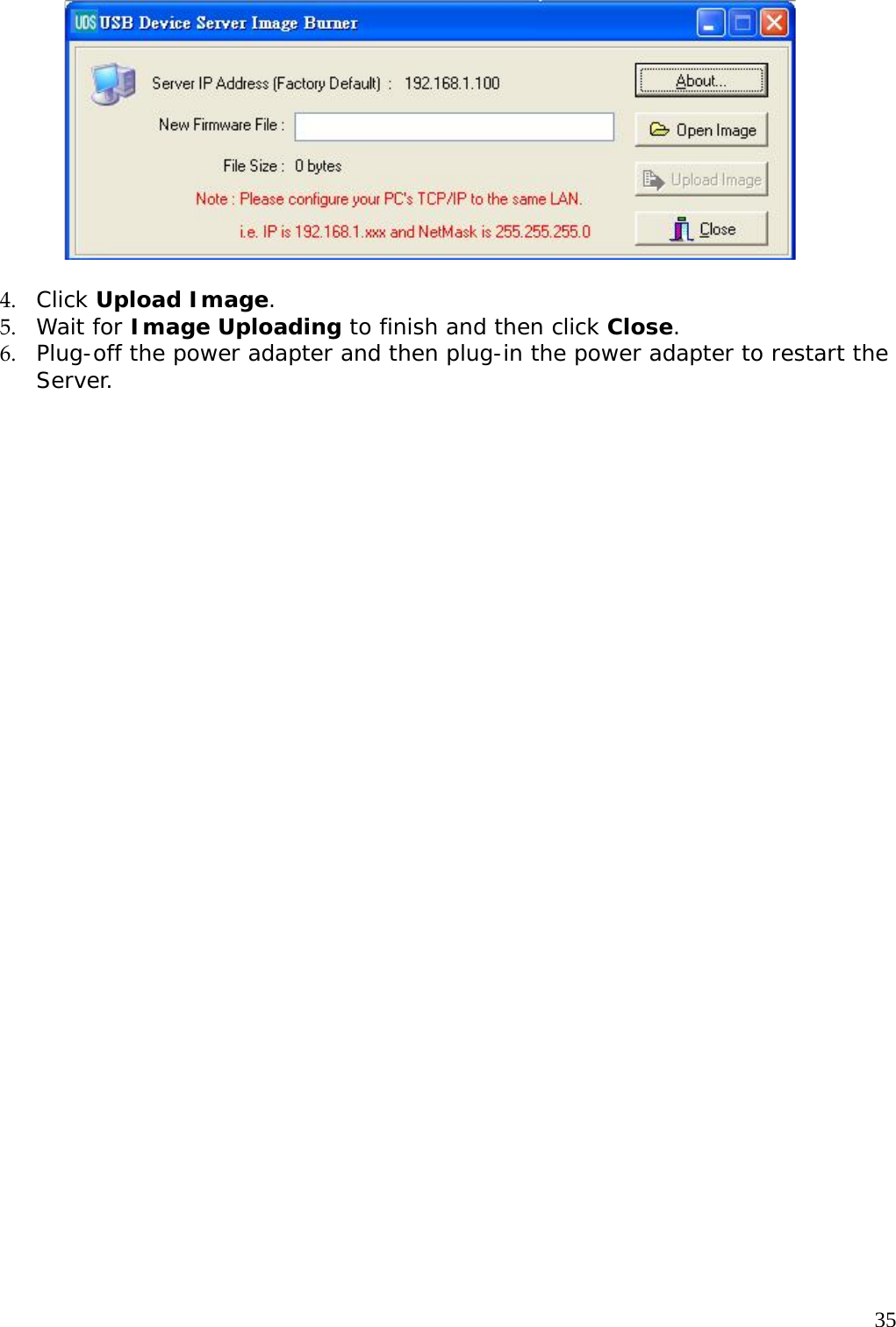
    34 Chapter8   Upgrade Firmware  This chapter describes how to upgrade firmware. Please follow one of the following Procedures:    Procedure A: Using the Control Center  1. Open Control Center. It will automatically search the existing Servers and display their statuses.   2. Select the Server that you want to upgrade the firmware. Double click the selected Server to get the serve’s main web page. 3. Click CONFIG icon. 4. Login the Server with Administrator (default: admin) and Password (default: admin). 5. Click Maintenance. 6. Click Upgrade Firmware.    7. Click Browse button to choose the file of new firmware. 8. Click Upload button to start firmware upgrade. 9. Wait for 20 seconds for system reboot.  Procedure B: Using the Init Button and the TFTP Client  1. Plug in the power adaptor while pressing the Init button until LED indicators of USB1 and USB2 blink. (For KCodes 601/601n, only USB1 LED will blink.) Please note that after that, the Server will operate using the factory default values after restarting, i.e., your Server’s configuration will recover to Factory Default values. 2. Run the TFTP client Tool: Image Burner, from Windows Start menu. 3. Click Open Image to open your new firmware. Please note that you must configure your PC’s TCP/IP such that PC and the Server belong to the same LAN, i.e. PC’s IP is 192.168.1.xxx and subnet mask is 255.255.255.0.
    35   4. Click Upload Image. 5. Wait for Image Uploading to finish and then click Close. 6. Plug-off the power adapter and then plug-in the power adapter to restart the Server.
    36 Chapter9   The Init Button  The Init button is used for maintenance:  Simultaneously press Init button and turn on (by plugging in the power adaptor) the Server until USB1 and USB2 LED indicators simultaneously blink. (For KCodes 601/601n, only USB LED indicator will blink.) After that, the Server will do the following tasks: A. Perform a Factory Default restoration of the server, which will restore most of the parameters and settings to factory default values. B. Perform a TFTP server. You can upgrade new firmware using any TFTP client tool.  Note:  After performing the tasks mentioned above, you have to plug off the power adaptor and then plug in the power adaptor to restart the Server.
Chapter10 Federal Communication Commission Interference Statement  This equipment has been tested and found to comply with the limits for a Class B digital device, pursuant to Part 15 of the FCC Rules.  These limits are designed to provide reasonable protection against harmful interference in a residential installation. This equipment generates, uses and can radiate radio frequency energy and, if not installed and used in accordance with the instructions, may cause harmful interference to radio communications.  However, there is no guarantee that interference will not occur in a particular installation.  If this equipment does cause harmful interference to radio or television reception, which can be determined by turning the equipment off and on, the user is encouraged to try to correct the interference by one of the following measures:  -  Reorient or relocate the receiving antenna. -  Increase the separation between the equipment and receiver. -  Connect the equipment into an outlet on a circuit different from that to which the receiver is connected. -  Consult the dealer or an experienced radio/TV technician for help.  FCC Caution: Any changes or modifications not expressly approved by the party responsible for compliance could void the user's authority to operate this equipment.  This device complies with Part 15 of the FCC Rules. Operation is subject to the following two conditions: (1) This device may not cause harmful interference, and (2) this device must accept any interference received, including interference that may cause undesired operation.  IMPORTANT NOTE: FCC Radiation Exposure Statement: This equipment complies with FCC radiation exposure limits set forth for an uncontrolled environment. This equipment should be installed and operated with minimum distance 20cm between the radiator & your body.  This transmitter must not be co-located or operating in conjunction with any other antenna or transmitter.  The availability of some specific channels and/or operational frequency bands are country dependent and are firmware programmed at the factory to match the intended destination.
The firmware setting is not accessible by the end user.

Navigation menu