KEEN HIGH HOLDING WR762 Mobile Internet Device User Manual WR762 Manual V1 0 20111017
KEEN HIGH HOLDING(HK) LIMITED Mobile Internet Device WR762 Manual V1 0 20111017
User Manual
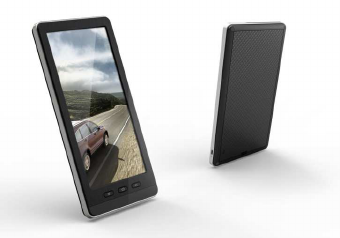
Tablet
WR762
User’s Manual

i
TABLE OF CONTENTS
Introduction.............................................................................................................................................................................................1
FCC WARNING........................................................................................................................................................................................2
FCC STATEMENT....................................................................................................................................................................................2
Important Safety Precaution..................................................................................................................................................................3
Main Features .........................................................................................................................................................................................4
Controls and Connections.....................................................................................................................................................................5
Getting Started........................................................................................................................................................................................6
Charging...............................................................................................................................................................................................6
Inserting Media.....................................................................................................................................................................................7
Connecting to the PC ...........................................................................................................................................................................7
Turn on/off ............................................................................................................................................................................................8
Lock and Unlock...................................................................................................................................................................................8
Home........................................................................................................................................................................................................9
Extended Home Screen .....................................................................................................................................................................10
Customizing the Home Screen...........................................................................................................................................................10
Applications Menu..............................................................................................................................................................................12
Using the On-screen Keyboard...........................................................................................................................................................13
Calibrate the Touch Screen.................................................................................................................................................................14
Sleep/Wake button .............................................................................................................................................................................14
Making a Wireless Connection ...........................................................................................................................................................14
Browser .................................................................................................................................................................................................15
Open Browser.....................................................................................................................................................................................15
Setting your home page .....................................................................................................................................................................15
Open a Web Page..............................................................................................................................................................................16
Refresh a Web Page ..........................................................................................................................................................................16

ii
Zoom in and Out of a Webpage .........................................................................................................................................................16
Open a New Browser Window ...........................................................................................................................................................16
Finding Text within a Webpage...........................................................................................................................................................16
Select Links within Web pages...........................................................................................................................................................17
Downloading unknown application from the Web ..............................................................................................................................17
Manage Bookmarks ...........................................................................................................................................................................18
Customize Browser Options...............................................................................................................................................................18
Email......................................................................................................................................................................................................20
Open Email.........................................................................................................................................................................................20
Account Settings ................................................................................................................................................................................21
Reading Emails ..................................................................................................................................................................................21
Gallery ...................................................................................................................................................................................................22
Music .....................................................................................................................................................................................................23
Video Player..........................................................................................................................................................................................24
eBook Reader .......................................................................................................................................................................................25
Reading a book ..................................................................................................................................................................................25
Downloading a book...........................................................................................................................................................................26
Alarm Clock...........................................................................................................................................................................................26
Sound Recorder....................................................................................................................................................................................27
Calculator..............................................................................................................................................................................................28
Apk Installer..........................................................................................................................................................................................28
Explorer.................................................................................................................................................................................................29
Settings .................................................................................................................................................................................................30
Set Date&Time ...................................................................................................................................................................................32
Frequently Asked Questions...............................................................................................................................................................33
Specification .........................................................................................................................................................................................33

1
Introduction
Thank you for purchasing this tablet.
This tablet enables you to surf the internet via wireless connection with multimedia playback.
This manual contains important safety information and operation instructions, so please read all the instructions carefully before using the tablet
and keeps it for future reference.
We have done our best to produce a complete and accurate manual; however, we cannot ensure there are no errors
or omissions. We also have no responsibility for damages or loss of data caused by improper operation.
The instruction manual is subject to change for improvement without notice.
Trademarks and trade names used in this user’s manual are owned by their respective companies or organizations.

2
FCC WARNING
Warning
: Changes or modifications to this unit not expressly approved by the party responsible for compliance could void the user’s authority to
operate the equipment.
FCC STATEMENT
Note
: This equipment has been tested and found to comply with the limits for a Class B digital device, pursuant to part 15 of the FCC Rules.
These limits are designed to provide reasonable protection against harmful interference in a residential installation.
This equipment generates, uses and can radiate radio frequency energy and, if not installed and used in accordance with the instructions, may
cause harmful interference to radio communications. However, there is no guarantee that interference will not occur in a particular installation. If
this equipment does cause harmful interference to radio or television reception, which can be determined by turning the equipment off and on, the
user is encouraged to try to correct the interference by one or more of the following measures:
Reorient or relocate the receiving antenna.
Increase the separation between the equipment and receiver.
Connect the equipment into an outlet on a circuit different from that to which the receiver is connected.
Consult the dealer or an experienced radio/TV technician for help.
WARNING: THE MANUFACTURER IS NOT RESPONSIBLE FOR ANY RADIO OR TV INTERFERENCE CAUSED BY UNAUTHORIZED
MODIFICATIONS TO THE DEVICE. ANY SUCH MODIFICATIONS COULD VOID THE USER'S AUTHORITY TO OPERATE THE EQUIPMENT.
Note: The AC Adapter with one ferrite core and shielding USB cable with one ferrite core are designed for exclusive use with this product. Don't
use others for this product.
Contact:
Roy Rayn
Shaghal Ltd.,2231 Colby Ave. L.A., C.A., 90064 U.S.A.
Tel: (310) 966-1133
Fax: (310) 966-1134
www.Ematic.us E-mail: ematicr@gmail.com

3
Important Safety Precaution
Always follow these basic safety precautions when using your tablet. This will reduce the risk of fire, electric shock, product damage and personal
injury.
Warning:
Do not remove the cover or back to reduce the risk of electric shock. There are no user-serviceable parts inside. Refer
servicing to qualified personnel.
Warning:
Do not expose the tablet to rain or moisture to prevent fire or electric shock hazard.
Do not expose the tablet to water (dripping or splashing) and no objects filled with liquids, such as vases, should be placed on the unit.
Keep the tablet away from direct sunlight and heat source such as radiators or stoves.
Do not block the ventilation openings. Slots and openings on the unit are provided for ventilation. The openings should never be blocked
by placing your tablet on a cushion, sofa or other similar surface.
Do not place the tablet on unstable cart, stand, tripod, bracket or table. The unit may fall, resulting in possible damage or injury.
Never place heavy or sharp objects on the LCD panel or frame.
Only use the AC adapter included with tablet. Using any other adapter will void your warranty.
Protect the power cord from being walked on or pinched particularly at plugs, receptacles and the point where the cord attached to the
tablet.
Unplug the power from the outlet when the unit is not in use.
Cleaning
Before cleaning the tablet make sure it is turned off.
Never spray or pour liquid directly onto the screen or plastic casing.
To clean the LCD screen, wipe the screen with a clean, soft, lint-free cloth. This removes dust and other particles. If it is still not clean,
apply a small amount of non-ammonia, non-alcohol based glass cleaner on a clean, soft, lint-free cloth to clean the screen.
To clean the plastic casing, use a soft, dry cloth. If it is still not clean, apply a small amount of non-ammonia, non-alcohol based, mildly
non-abrasive detergent on a clean, soft, lint-free cloth to clean the surface.

4
To clean the frame, use a soft, dry cloth.
The socket-outlet shall be installed near the equipment and shall be easily accessible.
Warning that excessive sound pressure from earphones and headphones can cause hearing loss.
CAUTION: RISK OF EXPLOSION IF BATTERY IS REPLACED BY AN INCORRECT TYPE.
DISPOSE OF USED BATTERIES ACCORDING TO THE INSTRUCTIONS
THIS EQUIPMENT SHOULD BE INSTALLED AND OPERATED WITH MINIMUM DISTANCE 20CM BETWEEN THE RADIATOR &
YOUR BODY.
Disclaimer:
Authorized Dealer does not recommend the use of any ammonia or alcohol-based cleaners on the LCD screen or plastic casing.
Some chemical cleaners have been reported to damage the screen and/or display case. Authorized Dealer will not be liable for damage resulting
from the use of any ammonia or alcohol-based cleaners.
Main Features
7 inch TFT LCD resistive touch screen,800*480 16:9
Decorative appearance, good quality
Surf the web via wireless connections
Send and receive Emails
Listen to music, view pictures and videos
Read and download eBooks
Download, install and play games.
Download, install and use Android Applications.
5
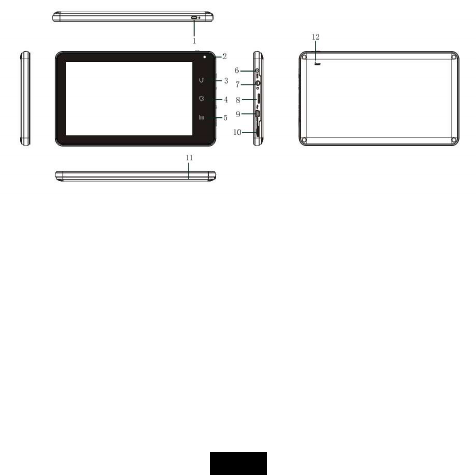
Controls and Connections
1. Power/lock button
2. Charging indicator
3. Back button, press to return to previous screen
4. Home button, press to go to Home screen
5. Menu button, press to open menu option
6. DC input socket
7. Earphone jack socket
8. Louder speaker
9. Mini USB connector
10. Micro SD card socket
11. Microphone
12. Reset hole

6
Getting Started
Charging
Your device comes with a
Lithium polymer
integrated rechargeable battery.
New batteries are not charged when shipped. Before you start using your device, you need to charge the battery.
Follow the steps below to connect your device to the power outlet and charge the battery.
Plug one end of the AC power adaptor into the power jack on your device.
Plug the other end into a power outlet. The charge LED turns red to indicate charging.
Note:
The red charging LED will light up when the battery is charging. Once the battery is fully charged, the charging LED will turn green
If your device is totally out of battery, it may take a while before you can power up your device. Only plug the charger/adapter into DC port that the
device will be in the charging state.
Battery performance depends on your usage patterns.
Tips to improve battery performance
As the device has a large screen, it will consume a lot of power. To extend battery life, you can consider the following:
Reduce display brightness.
Reduce web search.
Turn off Wi-Fi.
NOTE
If not use this machine for a long time, in order to avoid damage caused by battery excessive consumption, please be sure to make a
battery charge and discharge once within one month to prevent battery from running down.
With built in Lithium polymer batteries, it has to be charged regularly. The battery damage caused by excessive consumption of polymer
battery will not be covered by guarantee. If use the charger which is not exclusively equipped for this machine, the problem caused by it
also not be covered by guarantee.

7
If the device has no quantity of electric charge, you can not connect to the PC to copy files, you should charge first.
Inserting Media
The device supports micro SD card.
You can operate music, pictures, files and applications on the device through a memory card.
When no micro SD card inserted, your device will read the internal memory.
Note
: Do not use any force while inserting a memory card.
Connecting to the PC
Files can be transferred directly into the device by using the USB data cable.
Make sure that your computer has been started before you start.
Connect the mini plug of the USB cable to the mini USB port on your device and plug the other end into a free USB port to your PC.
The computer system detects “New hardware” and starts to install the driver automatically. Wait for the system to finish the installation.
When it has finished, a new “
Removable Disk
” will be created in “
My Computer
”.
Drag and drop the files on your computer to the “
Removable Disk
”.
To disconnect the USB cable from the computer, double click the
Safely Remove Hardware
icon on the task bar. Click the
USB Mass
Storage Device
, and then click
OK
. Then you can unplug the player safely.
Note: Before connecting to the PC, make sure that you have turned on your tablet.
If the battery runs down, it needs recharging before connecting to PC.
Please do not disconnect the USB cable during loading. It may cause malfunction of the player and the files.
8
Turn on/off
To turn on the device, press and hold the power button.
To turn off the device, press and hold the power button.
Lock and Unlock
Locking the device manually
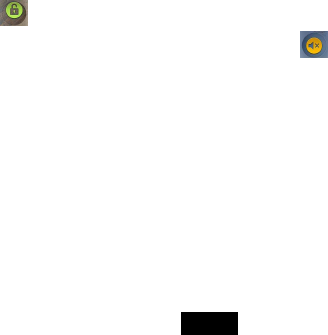
Press the
Power/Lock key
Unlock the device
Press the
Power/Lock key
Touch and drag
Unlock
from bottom to up
You can also set the master volume level from the lock screen. Touch and drag
Sound
from top to bottom to toggle sound between ON
and OFF modes.
9
Home
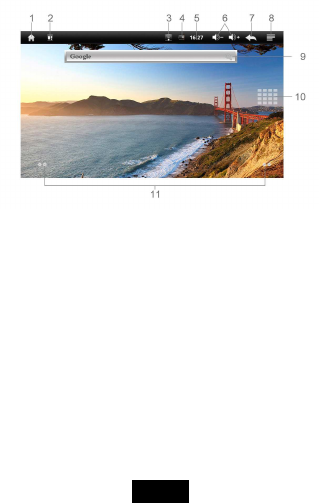
The Home screen is the starting point for using your device.
1. Tap to enter Home screen
2. The notification panel, shows information about connections, messages and other items. Slide your finger downward from then top of the
screen.
3. Wifi net connection
4. Battery status
5. Time display
6. Adjust volume, V+/V-
7. Tap to exit and return to previous screen
8. Tap to open menu options
9. Tap to enter and browse internet
10. Application icon, tap to open application menu

10
11. Slide to move to the extended home screen
Extended Home Screen
The Home screen consists of the Home screen, plus 4 screens that extend beyond the display width to provide more space for adding shortcuts,
widgets and folders.
Slide your finger horizontally across the screen to scroll to the left or right side screens, As you scroll, the indicator at the left display shows your
current position.
Customizing the Home Screen
Customize the Home screen to suit your preferences.
Add Shortcuts
Use Shortcuts for quick access to applications.
-- Navigate to a Home screen, then touch and hold on the screen to display the add to Home screen menu. Or press Menu key/tap on the
home screen, then tap
Add
to pop up the Add window.
-- Tap
Shortcuts
, then tap a selection, then follow the prompts to add it to the Home screen:
Applications
,
Bookmark
,
Music playlist
,
Settings
Adding Shortcuts from Applications
-- Navigate to a Home screen
-- Tap Applications
-- Touch and hold an application icon. The shortcut icon is automatically placed on the selected Home screen.
Removing Shortcuts
-- Touch and hold the Shortcut icon until Application changes into the trash bin , then drag the icon into the trash bin, while both the icon and
the trash bin turns into red , after that you can release to remove the widget from the home screen.
Add Widgets

11
Widgets are self-contained application that you can place on the Home screen to enter your favorite features.
Adding Widgets to Home screen
-- Navigate to the desired Home screen, then touch and hold the on the screen to display the
Add to the Home Screen
menu. Or press Menu
key/tap on the home screen, then tap
Add
to pop up the Add window.
-- Tap
Widgets
, then tap a widget to add it to a home screen.
Removing Widgets
-- Touch and hold the Widget icon until the Application changes into trash bin , then drag the icon into the trash bin, while both the icon and
the trash bin turns into red , after that you can release to remove the widget from the home screen.
Add Folders
Place Folders on the Home screen to organize items together on the Home screen. Or press Menu key/tap on the home screen, then tap
Add
to pop up the Add window.
-- Navigate to the desired Home screen, then touch and hold on the screen to display the
Add to Home screen
menu.
-- Tap
Folders
, and then tap a selection:
New folder
.
Removing Folders
-- Touch and hold the Folder icon until the Application changes into trash bin , then drag the icon into the trash bin, while both the icon and the
trash bin turns into red , after that you can release to remove the widget from the home screen.
Change the Wallpaper
Choose a picture to display in the background of the Home screen. You can choose from pre-load wallpaper images.
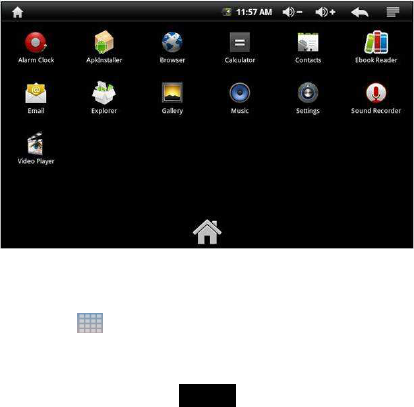
-- From a Home screen, touch and hold on the screen to display the Add to Home Screen menu, then tap Wallpapers. Or press Menu key/ tap
on the home screen, then tap
Add
to pop up the Add window.
12
-- Choose a source dot image:
-Pictures: Choose a picture from an installed memory card. Tap a picture to select it, then use the crop tool to resize the picture, if desired, tap
Save
to save the pictures as wallpaper.
- Live wallpapers: Choose from pre-loaded interactive animated wallpapers. Tap a wallpaper to see an example, then tap
Set wallpaper
.
- Wallpapers: Choose from pre-loaded wallpaper images. Tap a wallpaper, then tap
Set wallpaper
.
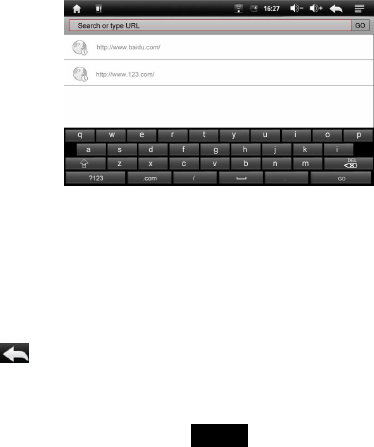
Applications Menu
The Applications menu screen holds all the applications on the device. Applications that you download and install from the web are also added to
the applications screen.
You can place shortcuts to applications on the Home screen, for quick access to the application.
From a Home screen, tap
Applications
13
Slide your finger top or bottom to scroll the Application screens.
Tap an icon to launch the desired application.
Using the On-screen Keyboard
The onscreen keyboard lets you enter text, such as passwords, filenames, email messages, etc. It appears automatically when you launch
certain applications or when you tap on a text or number field.
Tap on a text or number field to bring up the keyboard.
When entering texts or numbers, each letter or number appear above the key you have pressed.
Tap
ABC
(character),
⇑
(Capitalized or not),
?123
(number), or
ALT
(symbols) on the onscreen keyboard to switch between different
input modes.
Long press on the on screen keyboard to show the accented characters.
Tap and hold the word you have typed to activate the following edit text options:
Select all
,
Select text
,
Cut all
,
Copy all
,
Input method.
Press Back key or tap
to exit.

14
Calibrate the Touch Screen
While touching is not accurate on the freely use, it is suggested that you should calibrate the touch screen for the device.
From a Home screen or Application menu, tap
Settings
to enter setting interface .Or on the home screen, press Menu key or tap
,then select
Settings
on the menu bar.
Select and tap
Touch panel calibration
.
Press and hold the finger on the center of the target as accurately as possible in the four corners of the screen.
Then touch the center of the screen to exit.
Sleep/Wake button
When you are not actively using tablet
,
you can short press [ ] button to turn off the display and save the battery.
When you turn off the display, nothing happens if you touch the screen. You just need to short press [ ] button to turn on the display.
Making a Wireless Connection
Before you can surf the Internet, send and receive emails, download content and applications etc, you must join a Wi-Fi network that
is connected to the Internet.
For Wi-Fi networks that are not secured with a PIN code, you can easily connect to them and access the Internet freely. However, for Wi-Fi
networks that are secured with password, you need to have the password to access the Internet.
From the home screen or Application menu, tap
Settings
to enter setting interface. Or on the home screen, press Menu key or
tap ,then select
Settings
on the menu bar.
Tap
Settings
>
Wireless & networks
.
Tap
Wi-Fi
to turn on wireless connection. appears in the Wi-Fi checkbox.

15
Tap
Wi-Fi settings
. Your device will start to scan for the networks within range and display a list of available Wi-Fi networks.
Tap the Wi-Fi network that you want your device to be connected with. If the network is not secured with a password, your device will start
to establish a link with it.
If it is a secured network, you will be prompted to select the security option (for networks secured with WEP) and enter the wireless
password.
Tap on the password field to launch the onscreen keyboard. Enter the password and tap
Connect
.
Your device will start to establish a link to the network. Once a connection established,
—Connected
will appear below the name of the
Wi-Fi network.
Press Home key to return to the home screen, will appear on the status bar of your home screen
.
Browser
The device is equipped with a full HTML Browser, which allows you to enter the internet.
Note:
You must join a Wi-Fi network that is connected to the internet before you can surf the web via the browser application.
Open Browser
From a Home screen or Application menu, tap
Browser
.
Setting your home page
By default, By default, the home page is www.google.com
To set another home page, press Menu key or tap and tap
More
.
Tap
Settings
, then
Set home page
.
In the
Set home page
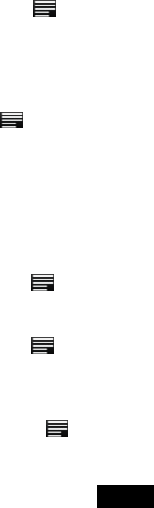
dialog box, tap on the URL input field to launch the onscreen keyboard.
Enter the web address of the home page and tap
Done
.
Tap
OK
to confirm.
16
Open a Web Page
In the
Browser
window, press Menu key or tap and tap
Go
.
Enter the web address in the URL field using the onscreen keyboard and tap
Go
.
Note:
As you enter the address, matching web page addresses will appear on the screen. Tap an address to go directly to that web page or
continue to enter the web page address.
Refresh a Web Page
On the web page, press Menu key or tap
Tap
Refresh.
Zoom in and Out of a Webpage
Launch the zoom control by sliding across the screen in one direction.
Tap the zoom control icon to zoom in and zoom out.
Open a New Browser Window
You can open multiple browser windows and switch between different web pages.
In the Browser window, press Menu key or
tap
and tap
New Window
.
A new browser window opens and enters the home page.
Switch between browser window
s
In the Browser window, press Menu key or
tap
and tap
Windows
.
Tap to select the browser window you wish to display.
Finding Text within a Webpage
When viewing a webpage, press Menu key or tap and then tap
More
>
Find on page
.

17
Tap on the input field to launch the on screen keyboard.
Enter the text using the onscreen keyboard and tap
Done
.
The matching texts are highlighted on the screen.
Tap
<
or
>
to go to the previous or next matching text.
Select Links within Web pages
Web page links
Tap and hold the link
A pop-up menu opens
Tap to select
Open
,
Open in new window
,
Bookmark link
,
Save link
,
Share link
or
Copy link URL
.
Email links
Tap and hold the link
A pop-up menu opens
Tap to select
Send email
or
Copy
.
If you select
Send email
, the Email application will launch automatically.
Enter the recipient and subject using the onscreen keyboard and tap
Next
.
Enter the message and then tap
Send
to send the email,
Save as draft
or
Discard
.
Tip:
If you exit the email application without saving the message you have composed, the message will be automatically saved as draft in
the Draft folder of your default email account.
Downloading unknown application from the Web
Before you can download web applications, you must first enable downloading from the
Settings
menu.
Press Menu key or tap and then tap
Settings
> Applications
.
Tap
Unknown sources
to enable or disable the downloading of unknown applications.
18
When enabled,
⇑
appears next to the option.
Note:
Applications downloaded from the web can be from unknown sources. To protect your device and personal data, download
applications only from trusted sources.
View your downloads
In the Browser window, press Menu key or tap and then tap
More
>
Downloads
.
Manage Bookmarks
You can store as many bookmarks as you want on your device.
Bookmark a webpage
In the Browser window, go to the web page you want to bookmark.
Press Menu key or tap and then tap Bookmarks.
The bookmark option opens.
Tap
Add bookmark
and enter the bookmark name.
Edit the location if needed.
Tap
OK
.
Open a bookmark
In the Browser window, press Menu key or tap and then tap
Bookmarks
.
The bookmark option opens.
Tap to select the bookmark to open it.
Customize Browser Options
You can customize the Browser to suit your browsing preferences by setting the display, privacy, and security options. In the Browser window,
press Menu key or tap and then tap
More
>
Settings
to modify the following browser settings according to your preference.
Page content settings
Text size

19
Default zoom
Open pages in overview
Text encoding
Block pop-up windows
Load images
Auto-fit pages
Landscape-only display
Enable JavaScript
Enable plug-ins
Open in background
Set home page
Privacy settings
Clear cache
Clear history
Accept cookies
Clear all cookie data
Remember form data
Clear form data
Enable location
Clear location access
Security settings
Remember password
Clear passwords
Show security warnings
20
Advanced settings
Website settings
Reset to default
When
⇑
appears next to the option, the setting is enabled. To disable, tap the option again.
Email
Use Email to view and manage all your email accounts in one application.
Note:
You must join a Wi-Fi network that is connected to the internet before you can surf the web via the browser application.
Open Email
From a Home screen or Application menu, tap
Email
.
Input your Email address and password and tap
Next
.
Tap to select your account type: POP3, IMAP or Exchange.
Tap
Next
.
Enter the
Account name
(optional) and
Your name
(optional) to be displayed on outgoing messages, and then tap
Done
.
The email application will start to load your messages. It might take a few minutes for the messages to load completely.
Note:
When you have set up an email account, the account will open by default when you open Email.
If you have set up more than one email account, the email accounts will appear in
Your accounts
list. Tap to select the account you wish to
access.
Enter Emailbox interface, press Menu key or tap ,then you can
Refresh: Check for new messages.
Compose: Compose and send email messages.
Folders: View you email folders.
Accounts: View all accounts. To ad a new account, press Menu key or tap to select
Add account
. To delete an email account,

21
tap and hold the email account that you want to delete, then tap
Remove account
to delete.
Account settings: Make account settings.
Account Settings
On emailbox interface, press Menu key or tap to show the menu bar.
Tap
Account settings
, then you can
Account name: Edit your account name
Your name: Edit your name
Email check frequency: Never, Every 5 minutes, Every 10 minutes, Every 15minutes, Every 30 minutes, Every hour.
Default account: Set your emails will be sent from this account by default.
Email notifications: Set notification on the status bar when a new email arrives.
Select ringtone: Set ringtone from the list for the arrival of new emails.
Incoming settings: Modify incoming server settings.
Outgoing settings: Modify outcoming server settings.
Reading Emails
On emailbox, select a mail and tap to open.
Reply to email messages, tap
Reply
or
Reply all
.
Delete an email message, tap
Delete
.
Press Menu key or tap to show the menu bar, then you can
Delete an email message
Forward an email message
Reply email message
Mark email message as unread
22
Gallery
The
Gallery
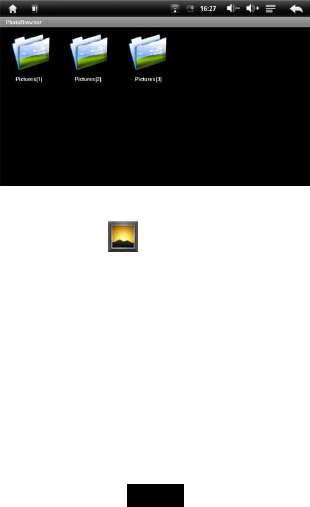
application lets you view photos and images stored in the internal memory or memory card.
From a Home screen or Application menu, tap
Gallery
to enter photo mode.
Select a folder and tap to enter ,the photos are displayed in thumbnails.
Select a photo an tap to view in browsing mode.
On the music library, press menu key to select
Play all
,
Party shuffle
,
Shuffle all
.
On photo thumbnail list, select a photo and hold to pop up a window, then you can
Delete the photo
See photo details
Set the current photo as wallpaper
While viewing a photo, tap the touch screen to pop up a tool bar.
Tap to view the previous or next photo
23
Tap repeatedly to zoom in a photo.
Tap repeatedly to zoom out a photo.
Tap repeatedly to rotate a photo clockwise.
Tap repeatedly to rotate a photo counterclockwise.
Tap to toggle between the browsing and slideshow mode.
Tap to exit, and return to previous screen.
Music
The
Music
application lets you play digital audio files stored in the internal memory or memory card.
From a Home screen or Application menu, tap
Music
to enter music library.
The music is displayed into different categories such as
Albums
,
Artists
,
Songs
and
Playlists
.
Tap to select a category and tap a song in the category to start playback.
Press Back key or tap to return to previous screen.
On music library interface, select a song and hold to pop up a window, then you can
Play the selected song
Add to playlist
Delete the song
Search song from music library or internet.
While listening to music,
Tap to select songs from the list.
Tap to turn shuffle on or off.(Shuffle is off when the icon is gray)
Tap to cycle through the repeat modes:
Repeat all songs, Repeat current song, Repeat is off.
Tap to pause or resume the song playback.

24
Tap to go to previous or next song.
Drag the progressive bar to the desired playing point.
On the playing interface, press Menu key or tap ,then there will pop up a menu bar.
Tap
Library
to go to music library
Tap
Party shuffle
to make Part shuffle on or Party shuffle off.
Tap
Add to playlist
to add a playlist.
Tap
Delete
to delete the song.
Video Player
The
Video Player
application lets you play video files stored in the internal memory or memory card.
From a Home screen or Application menu, tap
Video Player
to enter video list.
Select and tap a video to start playback.
Press Back key or tap to return to previous screen.
On video list, select a video and hold to pop up a window, then tap
Delete
to delete the video file.
While viewing a video, tap the touch screen to pop up a tool bar.
Drag the progressive bar to the desired playing point.
Tap to
set bookmark,then the next time video playing will start from the bookmark.
Tap to adjust video brightness.
Tap to go to previous or next video.
Tap to pause or resume the video playback.
Tap repeatedly to change display mode :full screen, original, 16:9, 4:3
Tap to return to previous screen.
Tap to pop up a selection window, then you can
25
Delete Bookmark and play from beginning
Delete bookmark
Change play mode: Single, Repeat one, Repeat all, Return
Get a help
Return to previous screen
eBook Reader
You can view and download books through this eBook Reader application.
Reading a book
From a Home screen or Application menu, tap
eBook Reader
to enter book interface.
Tap
Bookshelf
to enter book list.
Select a book and tap to enter.
Tap the screen to navigate to the next page. Or slide you finger right or left to navigate to the previous or next page.
Tap to zoom in or zoom out the font size.
Press Menu key or tap to open menu bar, then you can
Tap
Font Size
to change font size for your desired reading preference: S, M, L, XL, XXL.
Tap
Go To
to jump to the desired page.
Tap
Bookmarks
to use bookmarks in the book: Show Bookmarks, Add Bookmarks, Delete Bookmarks.
Tap
TOC
to open table of contents of the book, and you can tap the desired one to enter directly.
Tap
BookInfo
to view book details.
Tap
Auto Flip
to set the page turning automatically at a certain time: Manual, 15s, 30s, 60s, 90s,120s.
On book list interface, select a book and hold to pop up a window, then you can tap
View
to read or tap
Delete
to delete book.
26
Downloading a book
From a Home screen or Application menu, tap
eBook Reader
to enter book interface.
Tap
Download Books
to download book.
Select a catalog and tap to enter
Select the desired book, which displays in thumbnails of the covers, and tap to enter
Tap
Download
Your device begins to download the book in the background. Once the download is complete, you will get a notification, and the book will
appears on the bookshelf.
Alarm Clock
From a Home screen or Application menu, tap
Alarm Clock
to enter.
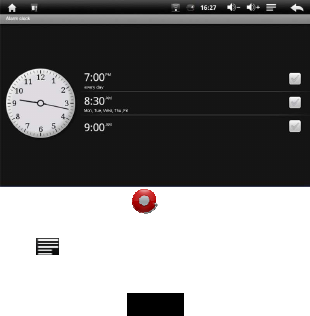
Tap the clock to select a clock mode to be displayed on the screen. There are 5 modes, and tap the desired one for your choice.
Press Menu key or press Menu key or tap to pop up the menu bar, then you can,
27
Tap Add alarm to add a alarm clock, then to set Time, Ringtone, Vibrate, Repeat and Label.
Tap Hide clock or Show clock.
Settings. You can set: Alarm in silent mode, Alarm volume, Snooze duration, Side button behavior.
To delete an alarm clock, hold the selected alarm, then there will pop up a window, you can tap
Delete alarm
.
Press Back key or tap to exit and return to previous screen.
Note
:
⇑
indicates that the option is activated.
When the alarm rings, tap
Snooze
or
Dismiss
to snooze or dismiss the alarm.
Sound Recorder
From a Home screen or Application menu, touch
Sound Recorder
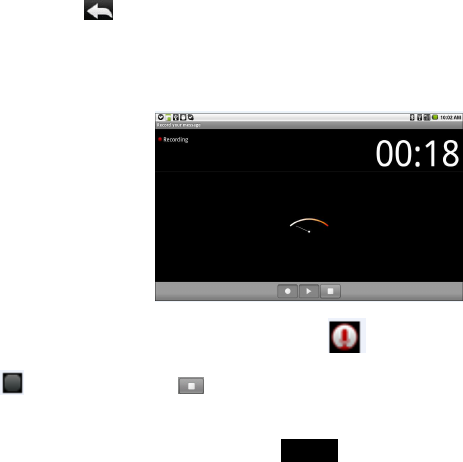
to enter voice recording interface.
Touch to start recording, and touch to stop recording
28
Then touch
Use this recording
to save or
Discard
to exit without saving.
Note
: All the recordings can be played through
Music
application.
Calculator
You can use the Calculator to perform simply and advanced arithmetical calculations.
From a Home screen or Application menu, tap
Calculator
to enter.
Tap on the numbers and mathematical operators to perform simple calculations.
Press Menu key or tap to pop up a menu bar, tap
Advanced panel
to access operators such as sin, cos, tan, log etc.
To clear calculation histories, tap
=
.
Press Menu key or tap to exit and return to previous screen.
Apk Installer
From a Home screen or Application menu, tap
Apk Installer
to enter applications management.
Tap
Install
to install the desired application. Find the right path, and tap the application to install.
Tap
Manage
to manage all the applications. Tap the selected application, a pop up window appears, then you can
Launch into the application
Export the application
Uninstall the application
Cancel the window
Tap
Exit
to exit from the application management.
Note
: Applications downloaded from the web can be from unknown sources. To protect your device and personal data, download applications
only from trusted sources. Also download and install the application matches to your device with Android 2.1 operating system.

29
Explorer
The Explorer application is a free file manager for your device. It allows you to browse files and folders stored on your device and SD card.
From a Home screen or Application menu, tap
Explorer
to enter files management.
Select memory source first: SD card or Internal Memory.
Related function of icons:
Home: Go to the Home interface of the files management.
Level Up: Go to the upper directory.
Multi: Multi choose the folders or files.
Editor: Edit the folder or file.
Back: Backward operation.
Next: Forward operation.
Then select and tap to enter the desired files at the right path.
Select a folder or file and hold to pop up a window, then you can:
Copy: Tap
Copy
, then select the desired path, tap Editor >
Paste
Delete: Tap
Delete
, then to delete the selected folder or file.
Move: Tap
Move
, then select the desired path, tap Editor >
Paste
Rename: Tap
Rename
, then input a new name.
To edit multi folders or files at a time,
Tap Multi
Selet the folders or files
Tap Editor, and then edit the folders or files.
30
Settings
The system settings let you customize and configure your device.
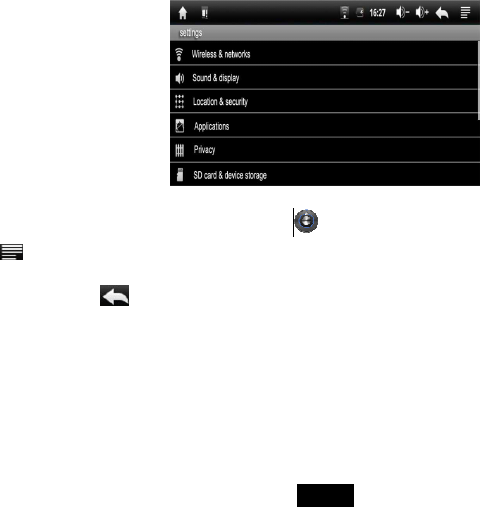
From a Home screen or Application menu, tap
Settings
to enter setting interface. Or on the home screen, press Menu key or
tap , then select
Settings
on the menu bar.
Tap the settings items to make the desired configuration.
⇑
indicates that the option is activated
Press Back key or tap to exit and return to previous screen.
Wireless & networks
Configure your device wireless connections, such as Wi-Fi.
Wi-Fi
Wi-Fi settings
Sound & display
Set the device and notification ring tones, or set screen brightness and screen timeout.
Sound settings
Media volume
Notification ringtone

31
Audible selection
SD card notifications
Display settings
Orientation
Animation
Brightness
Screen timeout
Location & security
Set location and security.
Use wireless networks
Visible passwords
Applications
Manage applications.
Unknown sources: Allow install of non-Market application.
Manage applications: Manage and remove installed applications.
Running services: View and control currently running services.
Development: Set options for application development.
Privacy
Restore all settings to the factory default.
SD card & device storage
Show the available storage card memory (when Micro SD card is inserted) or the device internal memory(when no
Micro SD card is inserted).
SD card
Total space
Available space
Unmount SD card
Format SD card
Internal flash storage

32
Available space
Internal device storage
Available space
Language & keyboard
Set the language and keyboard.
Select locale
Android keyboard
User dictionary
Date & time
Set date and time.
Touch panel calibration
Calibrate the touch screen.
Update Media Library
Update the media library.
Online Help
Get an online help.
About device
View information about your device.
Set Date&Time
From a Home screen or Application menu, tap
Settings
to enter setting interface. Or on the home screen, press Menu key or
tap ,then select
Settings
on the menu bar.
Select
Date&Time
and tap to enter, then you can
Automatic: Use network-provided values
Set date: Tap
+
or
–
on each date field to change the Month, Day and Year, then tap
Set
to confirm the date setting.
Select time zone
Set time: Tap
+
or
–
on each time field to change the Hour and Minute, then tap
Set
to confirm the time setting.
Use 24-hour format or not
Select date format

33
Frequently Asked Questions
1. My tablet does not turn on.
Make sure that the power adapter is securely connected
Make sure that you are using the power adapter that was included with your tablet.
Make sure that the tablet is turned on.
2. My tablet does not recognize the memory card.
Make sure that you have inserted a certified memory card.
Make sure that you have inserted the memory card correctly.
With your memory card inserted, power off and reset the device.
3. My tablet shows a low-battery warning
The tablet is low on power and needs to be charged before you can use it.
4. I cannot access the web
Check the wireless signal indicator in the status bar at the top of the screen. If there is no signal, you are not connected.
5. The display freezes or does not respond
Press and hold the power button to turn tablet off and turn it on again.
6. There is no sound coming from the tablet
Unplug and reconnect the headset. Make sure that the connector is pushed in all the way.
The volume may be deactivated or set too low.
Specification
Display
Digital LCD, TFT, Resistive Touch screen
Panel size: 7 inches
Screen aspect ratio: 16:9
34
Resolution: 800*480 pixels
I/O DC in
Power Supply KSAS0101200100HE AC Adapter Input:100~240V~50/60Hz;Output:5V/2A
Battery 3.7V 2800 mAh
Operating system Android 2.1
USB port Mini USB 2.0(high speed) device
Wireless 802.11g
Supported card Micro SD card
Supported photo format JPEG, BMP, PNG, GIF
Supported audio format WAV,APE, FLAC, OGG
Supported video format XVID, MPEG4
(
ASP
)
25fps@720P , FLV 25fps@720P
Supported eBook format Support PDF, FB2
,
e-PUB,TXT,HTML
Storage condition Humidity <90%,-20~60°C
Working condition Humidity <80%,0~40°C
Size L*W*H : (mm) 196*112*12MM
Weight (g) 274g