KEEPWAY HK650H GHOST CAM( User Manual GHOST Camera Instruction Manual Ver1f
KEEPWAY INDUSTRIAL(ASIA)CO.,LTD GHOST CAM( GHOST Camera Instruction Manual Ver1f
KEEPWAY >
Contents
- 1. User Manual Part 1
- 2. User Manual Part 2
User Manual Part 1

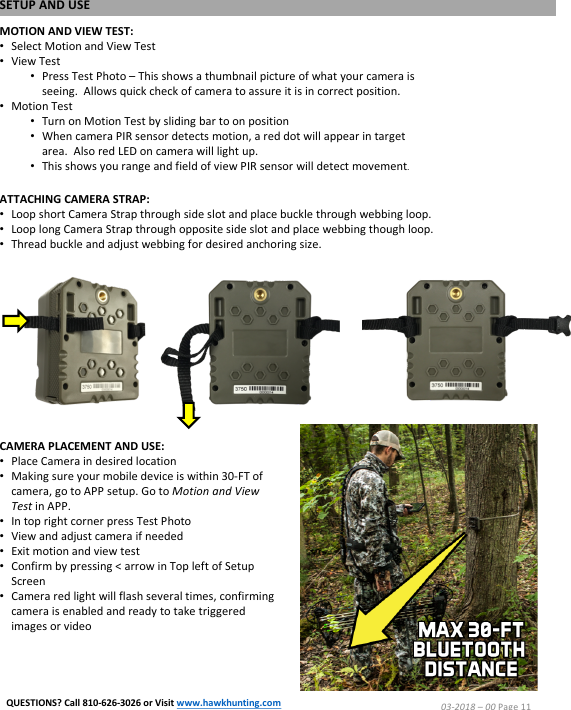
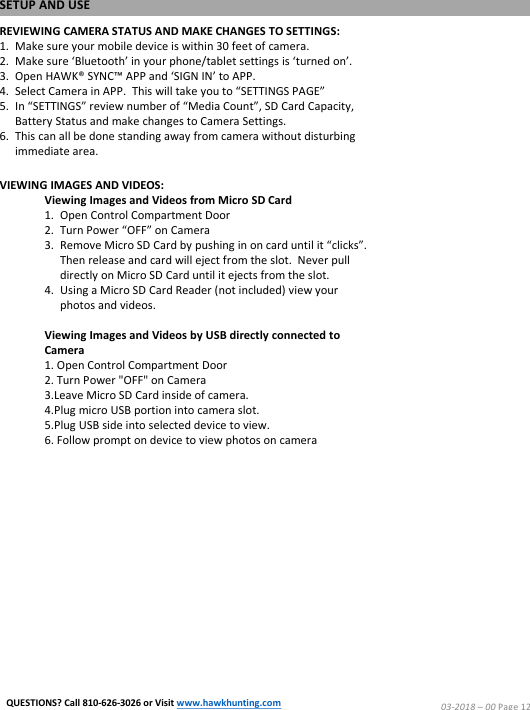
![CUSTOMIZE SETTINGS AND REGISTERING CAMERA:•Owner Name –Add custom name to help distinguish thecamera owner. [10 digits, letters or numbers only –no specialcharacters]•Location Name -Add custom name to help distinguish thelocation of camera surveillance.The name you use will show upyour SYNC™ APP ‘My Camera’ list.This name will show up onthe ‘time stamp’ on the bottom of each camera and will also helpwith sorting your list of sync’d cameras. [10 digits, letters ornumbers only –no special characters]•Battery Status –Shows power level of installed batteries•Media Count –Shows number of photos and/or videos saved onthe installed Micro SD Card•SD Card Capacity –Top number shows GB capacity of installedMicro SD Card and percentage capacity full.Bottom number is anestimate of how many total photos/videos can be saved oninstalled Micro SD Card under current photo or video setting.•Password Activated –Camera ships default ‘Off’.If you desireextra security, turn ‘On’ and set custom password.CAUTION:REMEMBER AND/OR SAVE YOUR PASSWORD IN SAFE PLACE.ThisPassword option is designed to deter thieves and the only way torecover your password will be to ship camera back to Hawk®Customer Service.CAUTION:AFTER SETTING PASSWORD, NOUSER WILL BE ABLE TO CONNECT CAMERA TO HAWK® SYNC™ APPTO CONTROL SETTINGS WITHOUT THE CORRECT PASSWORD.•Date & Time –Automatically sync’s from your smart device(phone/tablet) settings each time connected via SYNC™ APP;nomanual user entry needed.•Clear SD Card –Use this option to format and wipe clean yourMicro SD Card.CAUTION:DATA ON MICRO SD CARD CANNOT BERECOVERED OR RESTORED ONCE CLEARED•Camera Registration –The bottom of camera settings page willshow your registration status.If ‘NOT REGISTERED’ is displayed,please click settings and complete your camera registration topreserve your camera WARRANTY and also could help track downcamera in any unfortunate theft situation.SETUP AND USE03-2018 –00 Page 8QUESTIONS? Call 810-626-3026 or Visit www.hawkhunting.com](https://usermanual.wiki/KEEPWAY/HK650H.User-Manual-Part-1/User-Guide-3821973-Page-9.png)
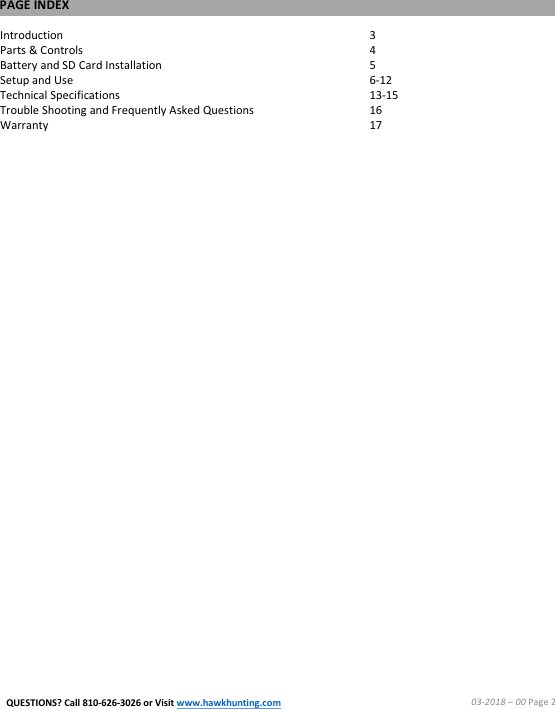
![CAMERA MODE SETTINGS:•Image Size –Choose from native [lower] resolution or digitally enhanced [higher] resolution.The lower native resolution willsave space on Micro SD Card, allow the camera to process faster and in many cases photo detail will be more than sufficient forviewing on most computer screens and smaller devices.The higher digitally enhanced resolution is better for viewing photos onlarger screens (TV’s) or for printing large scale.•Capture Number –Number of images camera takes consecutively with each trigger event.•Delay Interval –Time allowed between each camera trigger event. A higher delay interval is used to limit excessive photos ofsame animals in each event in motion detection range;especially, for example, in stationary feeding locations. A lower delayinterval is used to gather as many photos as possible in each event in motion detection range;especially, for example, in quickactivity situations like on animal trails or during fast pace rut activity.•Time Stamp –Default ‘On’.This is the information bar that appears on the bottom of every photo.•Sync Coordinate –Default ‘Off’.Turn ‘On’ to store GPS location information to be saved in photo properties and will allow youto see where your camera is positioned or photo is taken via Geotag photos online (www.geoimgr.com)•Field Scan –Default ‘Off’.Allows camera to take Picture every so many minutes between two different times•Select Scan Interval –Amount of time in between each Picture•Select Start Time for Scan A•Select End Time for Scan A•Select Start Time for Scan B•Select End Time for Scan B•Select Save**MAKE SURE TO SELECT ‘SAVE’ AFTER CHANGING FIELD SCAN SETTINGS•Default Set –Resets All Camera Settings back to Original Manufacturer Default Settings.•NV Image –Options include:Max Distance –Longer shutter for illumination (could result in more blurry images with motion)Fast Motion –Shorter shutter to limit blur with motion (could result in darker images)Close Distance –Optimized shutter for close range operation•Camera Mode –Default operation ‘24HRS’.Can also choose between ‘Day Only’ or ‘Night Only’ camera operation.•Sensor Level –Default ‘Auto’.Selecting ‘High’ will result in more sensitivity in motion detection and could result in more triggerevents.Selecting ‘Low’ will reduce sensitivity to motion detection and could result in less trigger events.Auto is most common –‘High’ or ‘Low’ use in extreme temperature or motion environments –reference troubleshooting for examples.SETUP AND USE03-2018 –00 Page 9QUESTIONS? Call 810-626-3026 or Visit www.hawkhunting.comADVANCED CAMERA SETTINGS FOR MODELS 3750, 3571:ADVANCED CAMERA SETTINGS FOR MODEL 3755:](https://usermanual.wiki/KEEPWAY/HK650H.User-Manual-Part-1/User-Guide-3821973-Page-10.png)
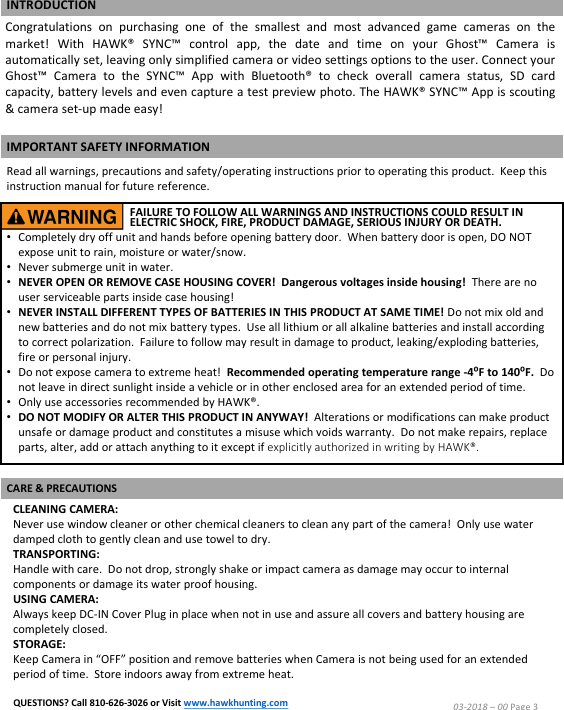
![VIDEO MODE SETTINGS:• Video Size –Choose from 640x480 [lower] resolution or 1280x720 [higher] resolution. • Video Length –Length of video recorded with each trigger event. Dynamic Video - Default ‘Off’. Dynamic Video setting will override manual ‘Video Length’ setting and will continue recording video for entire period motion is detected in video range. If you desire Dynamic Video, turn ‘On’. CAUTION: DYNAMIC VIDEO CAN GREATLY REDUCE BATTERY POWER DURING SITUATIONS WITH A LOT OF ACTIVITY RECORDING. • Delay Interval –Time allowed between each camera trigger event. A higher delay interval is used to limit excessive videos of same animals in each event in motion detection range; especially, for example, in stationary feeding locations. A lower delay interval is used to gather as many videos as possible in each event in motion detection range; especially, for example, in quickactivity situations like on animal trails or during fast pace rut activity. TIP: WHEN IN VIDEO MODE FOR QUICK ACTIVITY SITUATIONS, IT MAY BE BETTER TO USE A LONGER VIDEO LENGTH INSTEAD OF SHORT INTERVALS, AS STORING VIDEOS LEADS TO LONGER ‘CAMERA RECOVERY TIME’ THAN STORING PHOTOS.• Time Stamp –Default ‘On’. This is the information bar that appears on the bottom of every video.• Sync Coordinate –Default ‘Off’. Turn ‘On’ to store GPS location information to be saved in video properties and will allow you to see where your camera is positioned or photo is taken via Geotag photos online (www.geoimgr.com) advanced searching and sorting options.•Field Scan –Default ‘Off’.Allows camera to take Video every so many minutes between two different times•Select Scan Interval –Amount of time in between each Video•Select Start Time for Scan A•Select End Time for Scan A•Select Start Time for Scan B•Select End Time for Scan B•Select Save**MAKE SURE TO SELECT ‘SAVE’ AFTER CHANGING FIELD SCAN SETTINGS• Default Set –Resets All Camera Settings back to Original Manufacturer Default Settings•Camera Mode –Default operation ‘24HRS’.Can also choose between ‘Day Only’ or ‘Night Only’ camera operation.• Sensor Level – Default ‘Auto’. Selecting ‘High’ will result in more sensitivity in motion detection and could result in more trigger events. Selecting ‘Low’ will reduce sensitivity to motion detection and could result in less trigger events. Auto is most common –‘High’ or ‘Low’ use in extreme temperature or motion environments – reference troubleshooting for examples.SETUP AND USE03-2018 –00 Page 10QUESTIONS? Call 810-626-3026 or Visit www.hawkhunting.comADVANCED VIDEO SETTINGS FOR MODELS 3750, 3571:ADVANCED VIDEO SETTINGS FOR MODEL 3755:](https://usermanual.wiki/KEEPWAY/HK650H.User-Manual-Part-1/User-Guide-3821973-Page-11.png)