KENWIN KENWIN00002 Multi Media Micro System User Manual manual

KENWIN INDUSTRIAL (H.K.) LTD. Multi Media Micro System manual

User Manual

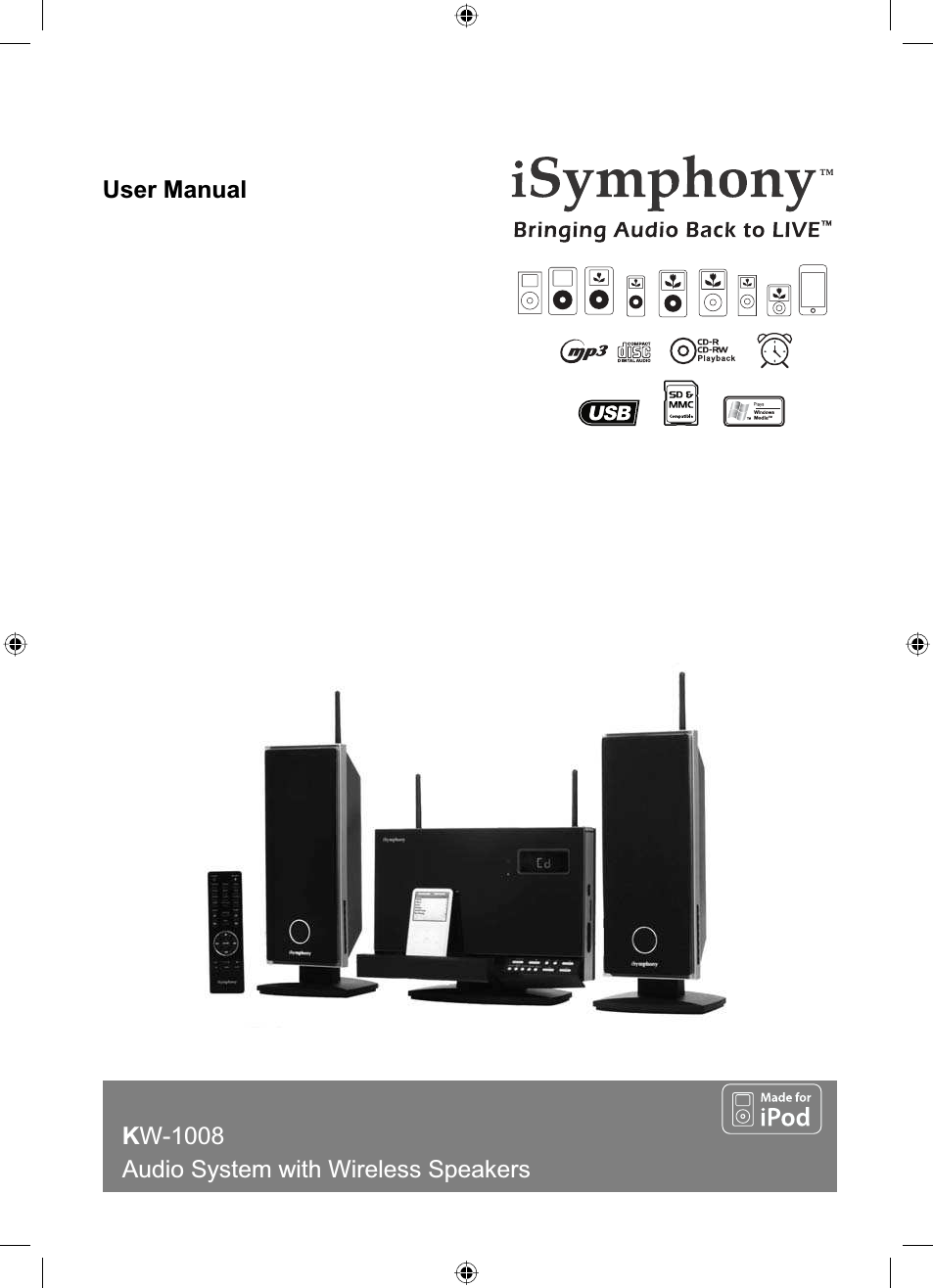
1User ManualKW-1008Audio System with Wireless Speakers
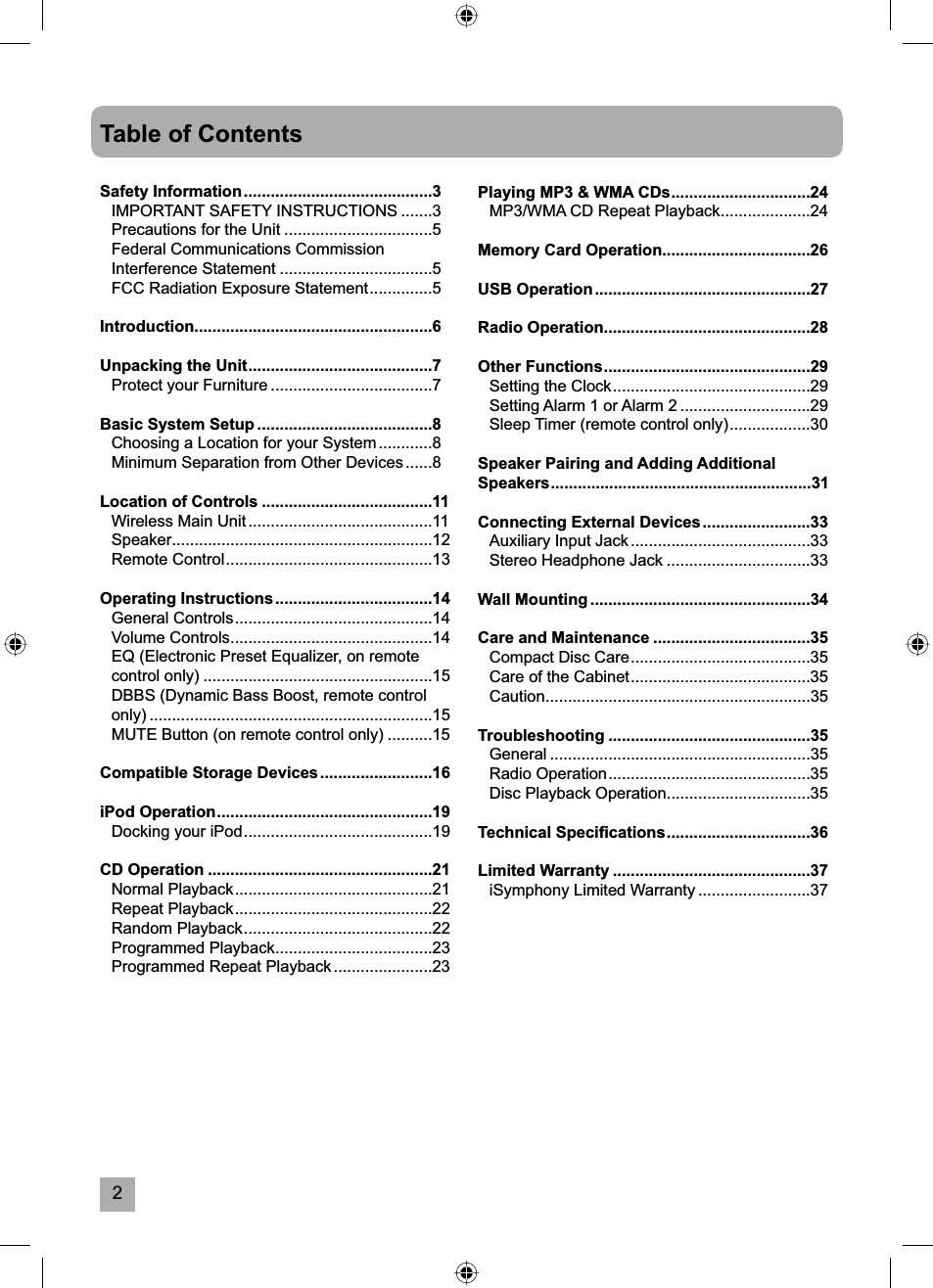
2Table of ContentsSafety Information ..........................................3IMPORTANT SAFETY INSTRUCTIONS .......3Precautions for the Unit .................................5Federal Communications Commission Interference Statement ..................................5FCC Radiation Exposure Statement ..............5Introduction.....................................................6Unpacking the Unit .........................................7Protect your Furniture ....................................7Basic System Setup .......................................8Choosing a Location for your System ............8Minimum Separation from Other Devices ......8Location of Controls ......................................11Wireless Main Unit .........................................11Speaker..........................................................12Remote Control ..............................................13Operating Instructions ...................................14General Controls ............................................14Volume Controls .............................................14EQ (Electronic Preset Equalizer, on remote control only) ...................................................15DBBS (Dynamic Bass Boost, remote control only) ...............................................................15MUTE Button (on remote control only) ..........15Compatible Storage Devices .........................16iPod Operation ................................................19Docking your iPod ..........................................19CD Operation ..................................................21Normal Playback ............................................21Repeat Playback ............................................22Random Playback ..........................................22Programmed Playback ...................................23Programmed Repeat Playback ......................23Playing MP3 & WMA CDs ...............................24MP3/WMA CD Repeat Playback ....................24Memory Card Operation.................................26USB Operation ................................................27Radio Operation ..............................................28Other Functions ..............................................29Setting the Clock ............................................29Setting Alarm 1 or Alarm 2 .............................29Sleep Timer (remote control only) ..................30Speaker Pairing and Adding Additional Speakers ..........................................................31Connecting External Devices ........................33Auxiliary Input Jack ........................................33Stereo Headphone Jack ................................33Wall Mounting .................................................34Care and Maintenance ...................................35Compact Disc Care ........................................35Care of the Cabinet ........................................35Caution...........................................................35Troubleshooting .............................................35General ..........................................................35Radio Operation .............................................35Disc Playback Operation ................................35Technical Specifi cations ................................36Limited Warranty ............................................37iSymphony Limited Warranty .........................37
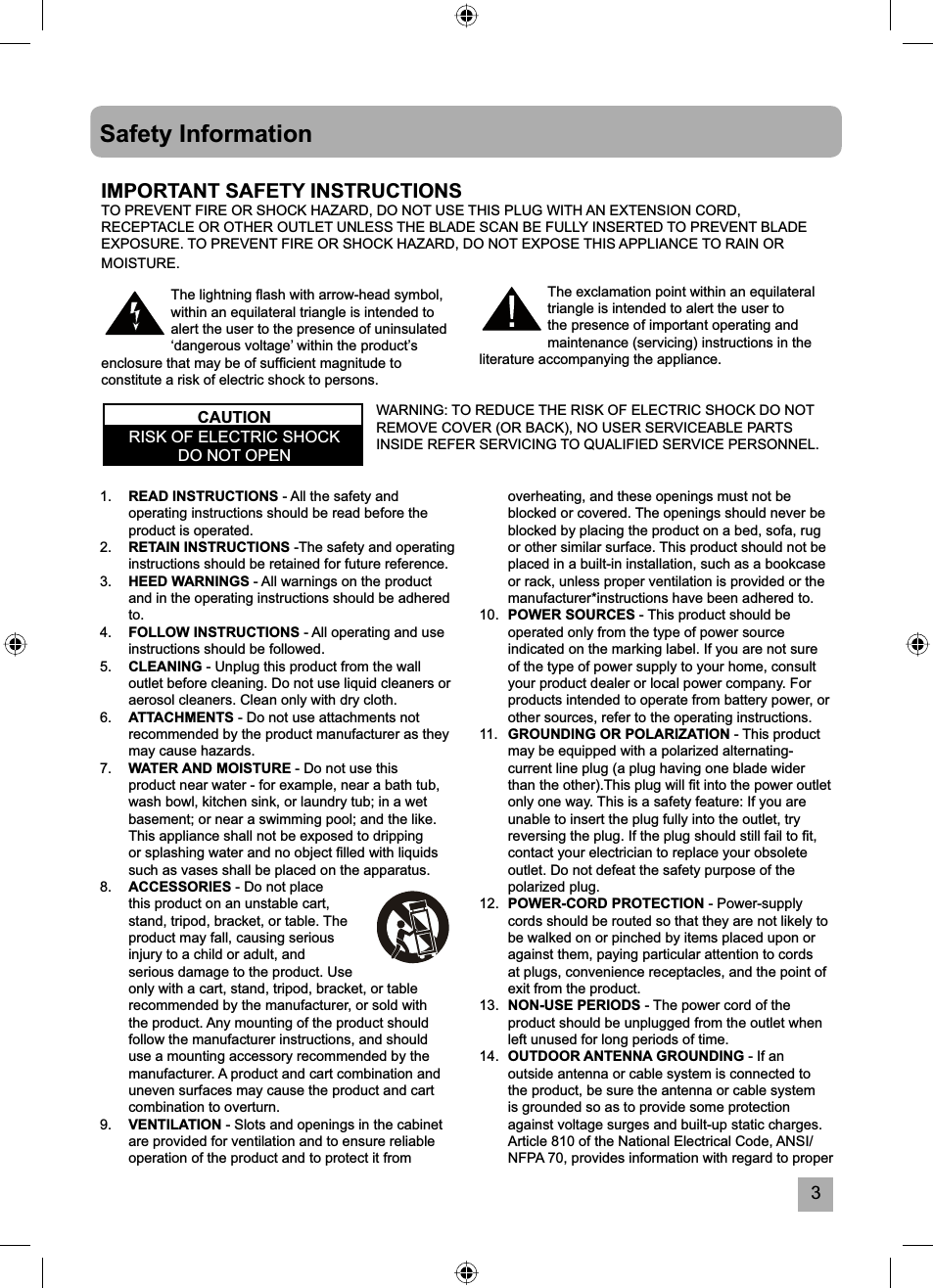
3overheating, and these openings must not be blocked or covered. The openings should never be blocked by placing the product on a bed, sofa, rug or other similar surface. This product should not be placed in a built-in installation, such as a bookcase or rack, unless proper ventilation is provided or the manufacturer*instructions have been adhered to.10. POWER SOURCES - This product should be operated only from the type of power source indicated on the marking label. If you are not sure of the type of power supply to your home, consult your product dealer or local power company. For products intended to operate from battery power, or other sources, refer to the operating instructions.11.   GROUNDING OR POLARIZATION - This product may be equipped with a polarized alternating-current line plug (a plug having one blade wider than the other).This plug will fi t into the power outlet only one way. This is a safety feature: If you are unable to insert the plug fully into the outlet, try reversing the plug. If the plug should still fail to fi t, contact your electrician to replace your obsolete outlet. Do not defeat the safety purpose of the polarized plug.12. POWER-CORD PROTECTION - Power-supply cords should be routed so that they are not likely to be walked on or pinched by items placed upon or against them, paying particular attention to cords at plugs, convenience receptacles, and the point of exit from the product.13. NON-USE PERIODS - The power cord of the product should be unplugged from the outlet when left unused for long periods of time.14.  OUTDOOR ANTENNA GROUNDING - If an outside antenna or cable system is connected to the product, be sure the antenna or cable system is grounded so as to provide some protection against voltage surges and built-up static charges. Article 810 of the National Electrical Code, ANSI/NFPA 70, provides information with regard to proper 1. READ INSTRUCTIONS - All the safety and operating instructions should be read before the product is operated.2. RETAIN INSTRUCTIONS -The safety and operating instructions should be retained for future reference.3. HEED WARNINGS - All warnings on the product and in the operating instructions should be adhered to.4. FOLLOW INSTRUCTIONS - All operating and use instructions should be followed.5. CLEANING - Unplug this product from the wall outlet before cleaning. Do not use liquid cleaners or aerosol cleaners. Clean only with dry cloth.6. ATTACHMENTS - Do not use attachments not recommended by the product manufacturer as they may cause hazards.7. WATER AND MOISTURE - Do not use this product near water - for example, near a bath tub, wash bowl, kitchen sink, or laundry tub; in a wet basement; or near a swimming pool; and the like. This appliance shall not be exposed to dripping or splashing water and no object fi lled with liquids such as vases shall be placed on the apparatus.8. ACCESSORIES - Do not place this product on an unstable cart, stand, tripod, bracket, or table. The product may fall, causing serious injury to a child or adult, and serious damage to the product. Use only with a cart, stand, tripod, bracket, or table recommended by the manufacturer, or sold with the product. Any mounting of the product should follow the manufacturer instructions, and should use a mounting accessory recommended by the manufacturer. A product and cart combination and uneven surfaces may cause the product and cart combination to overturn.9.  VENTILATION - Slots and openings in the cabinet are provided for ventilation and to ensure reliable operation of the product and to protect it from Safety InformationThe exclamation point within an equilateral triangle is intended to alert the user to the presence of important operating and maintenance (servicing) instructions in the literature accompanying the appliance.The lightning fl ash with arrow-head symbol, within an equilateral triangle is intended to alert the user to the presence of uninsulated ‘dangerous voltage’ within the product’s enclosure that may be of suffi cient magnitude to constitute a risk of electric shock to persons.IMPORTANT SAFETY INSTRUCTIONSTO PREVENT FIRE OR SHOCK HAZARD, DO NOT USE THIS PLUG WITH AN EXTENSION CORD, RECEPTACLE OR OTHER OUTLET UNLESS THE BLADE SCAN BE FULLY INSERTED TO PREVENT BLADE EXPOSURE. TO PREVENT FIRE OR SHOCK HAZARD, DO NOT EXPOSE THIS APPLIANCE TO RAIN OR MOISTURE.WARNING: TO REDUCE THE RISK OF ELECTRIC SHOCK DO NOT REMOVE COVER (OR BACK), NO USER SERVICEABLE PARTS INSIDE REFER SERVICING TO QUALIFIED SERVICE PERSONNEL.CAUTIONRISK OF ELECTRIC SHOCK DO NOT OPEN
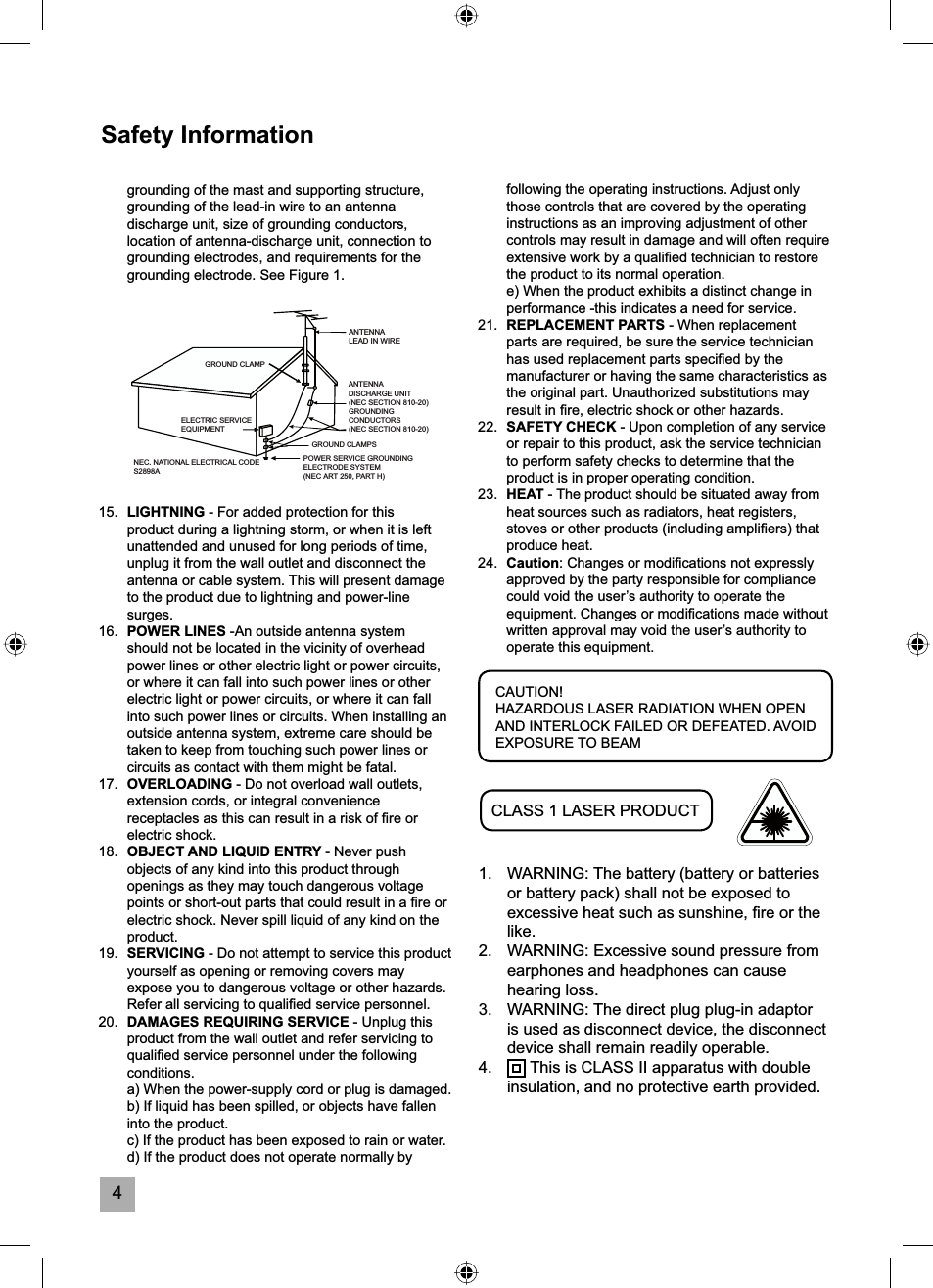
4following the operating instructions. Adjust only those controls that are covered by the operating instructions as an improving adjustment of other controls may result in damage and will often require extensive work by a qualifi ed technician to restore the product to its normal operation.  e) When the product exhibits a distinct change in performance -this indicates a need for service.21. REPLACEMENT PARTS - When replacement parts are required, be sure the service technician has used replacement parts specifi ed by the manufacturer or having the same characteristics as the original part. Unauthorized substitutions may result in fi re, electric shock or other hazards.22. SAFETY CHECK - Upon completion of any service or repair to this product, ask the service technician to perform safety checks to determine that the product is in proper operating condition.23. HEAT - The product should be situated away from heat sources such as radiators, heat registers, stoves or other products (including amplifi ers) that produce heat.24. Caution: Changes or modifi cations not expressly approved by the party responsible for compliance could void the user’s authority to operate the equipment. Changes or modifi cations made without written approval may void the user’s authority to operate this equipment.Safety Informationgrounding of the mast and supporting structure, grounding of the lead-in wire to an antenna discharge unit, size of grounding conductors, location of antenna-discharge unit, connection to grounding electrodes, and requirements for the grounding electrode. See Figure 1.15. LIGHTNING - For added protection for this product during a lightning storm, or when it is left unattended and unused for long periods of time, unplug it from the wall outlet and disconnect the antenna or cable system. This will present damage to the product due to lightning and power-line surges.16. POWER LINES -An outside antenna system should not be located in the vicinity of overhead power lines or other electric light or power circuits, or where it can fall into such power lines or other electric light or power circuits, or where it can fall into such power lines or circuits. When installing an outside antenna system, extreme care should be taken to keep from touching such power lines or circuits as contact with them might be fatal.17. OVERLOADING - Do not overload wall outlets, extension cords, or integral convenience receptacles as this can result in a risk of fi re or electric shock.18. OBJECT AND LIQUID ENTRY - Never push objects of any kind into this product through openings as they may touch dangerous voltage points or short-out parts that could result in a fi re or electric shock. Never spill liquid of any kind on the product.19. SERVICING - Do not attempt to service this product yourself as opening or removing covers may expose you to dangerous voltage or other hazards. Refer all servicing to qualifi ed service personnel.20. DAMAGES REQUIRING SERVICE - Unplug this product from the wall outlet and refer servicing to qualifi ed service personnel under the following conditions.  a) When the power-supply cord or plug is damaged.  b) If liquid has been spilled, or objects have fallen into the product.  c) If the product has been exposed to rain or water.  d) If the product does not operate normally by CAUTION!HAZARDOUS LASER RADIATION WHEN OPEN AND INTERLOCK FAILED OR DEFEATED. AVOID EXPOSURE TO BEAMCLASS 1 LASER PRODUCT1.  WARNING: The battery (battery or batteries or battery pack) shall not be exposed to excessive heat such as sunshine, fi re or the like.2.  WARNING: Excessive sound pressure from earphones and headphones can cause hearing loss.3.  WARNING: The direct plug plug-in adaptor is used as disconnect device, the disconnect device shall remain readily operable.4.  This is CLASS II apparatus with double insulation, and no protective earth provided.ANTENNA LEAD IN WIREANTENNA DISCHARGE UNIT(NEC SECTION 810-20)GROUNDINGCONDUCTORS(NEC SECTION 810-20)GROUND CLAMPSPOWER SERVICE GROUNDINGELECTRODE SYSTEM(NEC ART 250, PART H)GROUND CLAMPNEC. NATIONAL ELECTRICAL CODES2898AELECTRIC SERVICEEQUIPMENT
5Safety InformationPrecautions for the UnitSECURITY•  Before operation, check if the voltage of the unit is in line with the local voltage.•  Hold the plug to disconnect it from the mains outlet. Do not pull the power cord.•  When the plug of the unit is connected to the mains outlet, the unit will be still connected to DC even of the power is turned off.•  Disconnect the plug as soon as liquid or objects enter the unit. The unit cannot be used until being checked by experts.•  Do not open the cabinet. Laser rays employed by the unit may damage eyes. Any servicing should be done by qualifi ed service personnel.PLACEMENT•  Put the unit where ventilation is good enough to prevent overheating.•  Never put the unit in direct sunlight or near heat sources.•  To protect the pickup, do not put the unit where there is a lot of dust. If there is dust on the pickup, use a cleaning disc to clean it. Refer to the operation instructions of the cleaning disc you bought.CONDENSATION•  The unit is suddenly moved from a cold place to a warm place.•  Use of the unit in a humid place.•  In these cases, the unit will not work. Unloading the disc and leaving the unit on for about one hour will evaporate the water, allowing the unit to function normally again.CLEANING•  Use a soft cloth with a little neutral detergent to wipe the cabinet, panel and controls. Never use abrasive paper, polishing powder or any solvent such as alcohol or gasoline.Federal Communications Commission Interference StatementThis equipment has been tested and found to comply with the limits for a Class B digital device, pursuant to Part 15 of the FCC Rules. These limits are designed to provide reasonable protection against harmful interference in a residential installation.This equipment generates, uses and can radiate radio frequency energy and, if not installed and used in accordance with the instructions, may cause harmful interference to radio communications. However, there is no guarantee that interference will not occur in a particular installation. If this equipment does cause harmful interference to radio or television reception, which can be determined by turning the equipment off and on, the user is encouraged to try to correct the interference by one of the following measures:•  Reorient or relocate the receiving antenna.•  Increase the separation between the equipment and receiver.•  Connect the equipment into an outlet on a circuit different from that to which the receiver is connected.•  Consult the dealer or an experienced radio/TV technician for help.FCC Caution: To assure continued compliance, any changes or modifi cations not expressly approved by the party responsible for compliance could void the user’s authority to operate this equipment. (Example – use only shielded interface cables when connecting to computer or peripheral devices.)FCC Radiation Exposure StatementThis equipment complies with FCC RF radiation exposure limits set forth for an uncontrolled environment. This equipment should be installed and operated with a minimum distance of 20 centimeters between the radiator and your body.This device complies with Part 15 of the FCC Rules. Operation is subject to the following two conditions: (1) This device may not cause harmful interference, and (2) This device must accept any interference received, including interference that may cause undesired operation.
6IntroductionThank you for purchasing the iSymphony KW-1008 Audio System with Wireless Speakers. Please be sure to read this manual carefully and completely to make sure you understand all of the exciting features and functions included in your new system.iSymphony has taken great care to make sure that this system was in perfect working order when it left the factory. If you experience any problem with the set-up or operation of this system please refer to the back of this manual for instructions on obtaining customer service.The serial number of your system is located on the back panel. Please take a moment now to locate the serial number and to write it in the space provided below for future reference. You may be asked to provide this number if you call for customer service.Serial Number: Please also take a moment to register your product online at:www.myisymphony.com/register
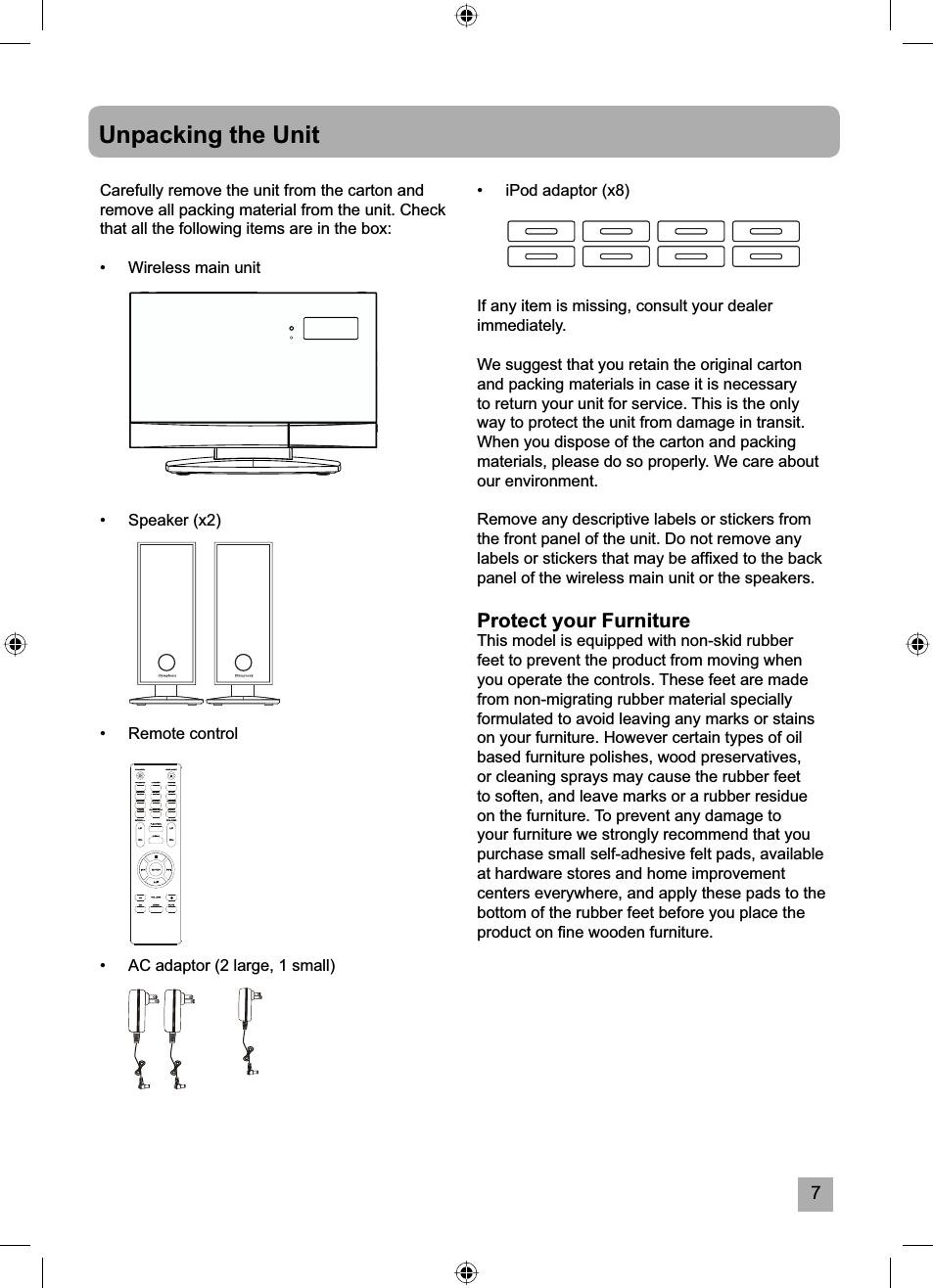
7Unpacking the UnitCarefully remove the unit from the carton and remove all packing material from the unit. Check that all the following items are in the box:•  Wireless main unit • Speaker (x2)• Remote control•  AC adaptor (2 large, 1 small)•  iPod adaptor (x8)If any item is missing, consult your dealer immediately.We suggest that you retain the original carton and packing materials in case it is necessary to return your unit for service. This is the only way to protect the unit from damage in transit. When you dispose of the carton and packing materials, please do so properly. We care about our environment.Remove any descriptive labels or stickers from the front panel of the unit. Do not remove any labels or stickers that may be affi xed to the back panel of the wireless main unit or the speakers.Protect your FurnitureThis model is equipped with non-skid rubber feet to prevent the product from moving when you operate the controls. These feet are made from non-migrating rubber material specially formulated to avoid leaving any marks or stains on your furniture. However certain types of oil based furniture polishes, wood preservatives, or cleaning sprays may cause the rubber feet to soften, and leave marks or a rubber residue on the furniture. To prevent any damage to your furniture we strongly recommend that you purchase small self-adhesive felt pads, available at hardware stores and home improvement centers everywhere, and apply these pads to the bottom of the rubber feet before you place the product on fi ne wooden furniture.
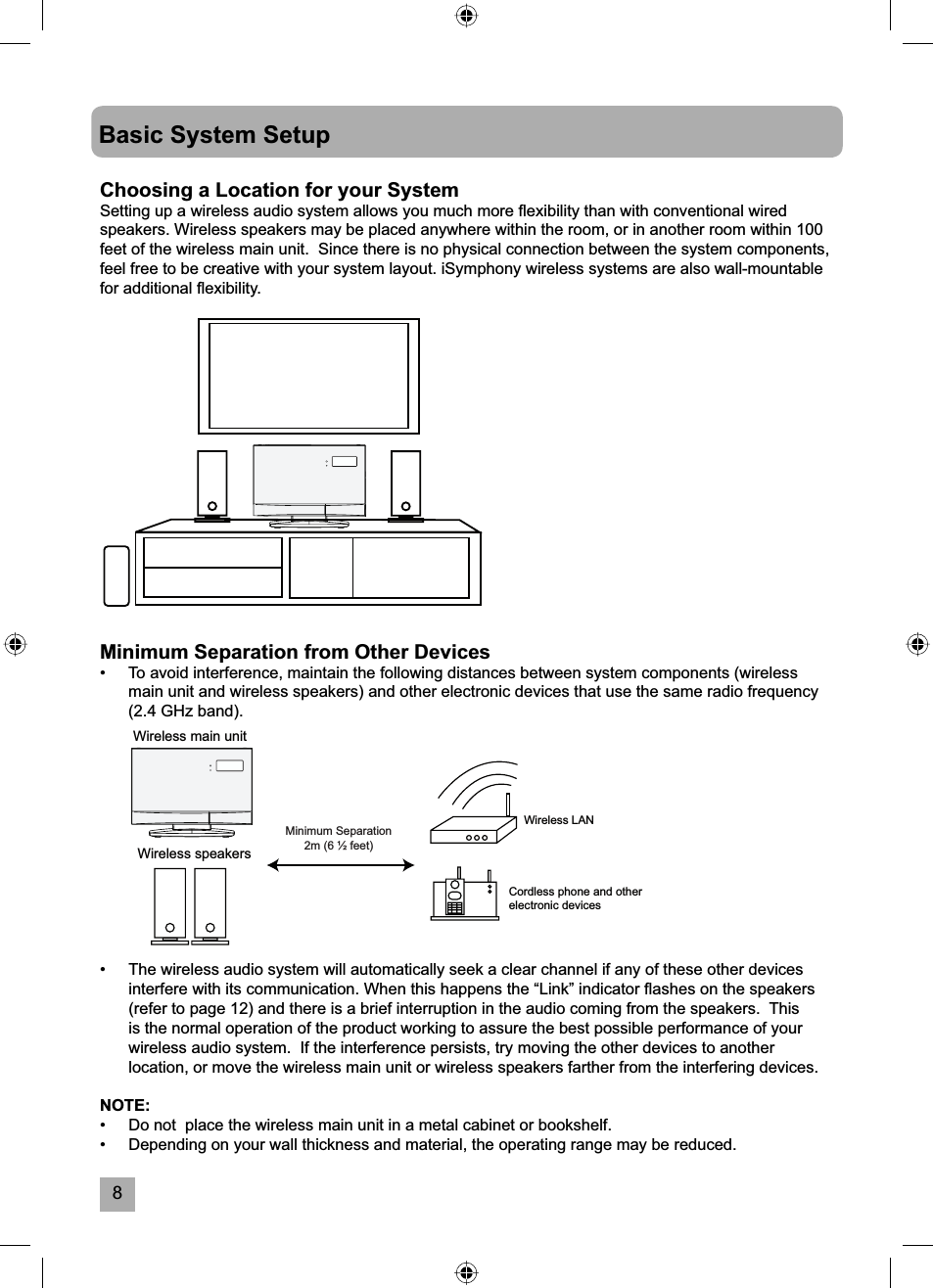
8Basic System SetupChoosing a Location for your SystemSetting up a wireless audio system allows you much more fl exibility than with conventional wired speakers. Wireless speakers may be placed anywhere within the room, or in another room within 100 feet of the wireless main unit.  Since there is no physical connection between the system components, feel free to be creative with your system layout. iSymphony wireless systems are also wall-mountable for additional fl exibility.•  The wireless audio system will automatically seek a clear channel if any of these other devices interfere with its communication. When this happens the “Link” indicator fl ashes on the speakers (refer to page 12) and there is a brief interruption in the audio coming from the speakers.  This is the normal operation of the product working to assure the best possible performance of your wireless audio system.  If the interference persists, try moving the other devices to another location, or move the wireless main unit or wireless speakers farther from the interfering devices.NOTE:•   Do not  place the wireless main unit in a metal cabinet or bookshelf.•   Depending on your wall thickness and material, the operating range may be reduced.Wireless main unitWireless LANCordless phone and otherelectronic devicesWireless speakersMinimum Separation 2m (6 ½ feet)Minimum Separation from Other Devices•  To avoid interference, maintain the following distances between system components (wireless main unit and wireless speakers) and other electronic devices that use the same radio frequency (2.4 GHz band).
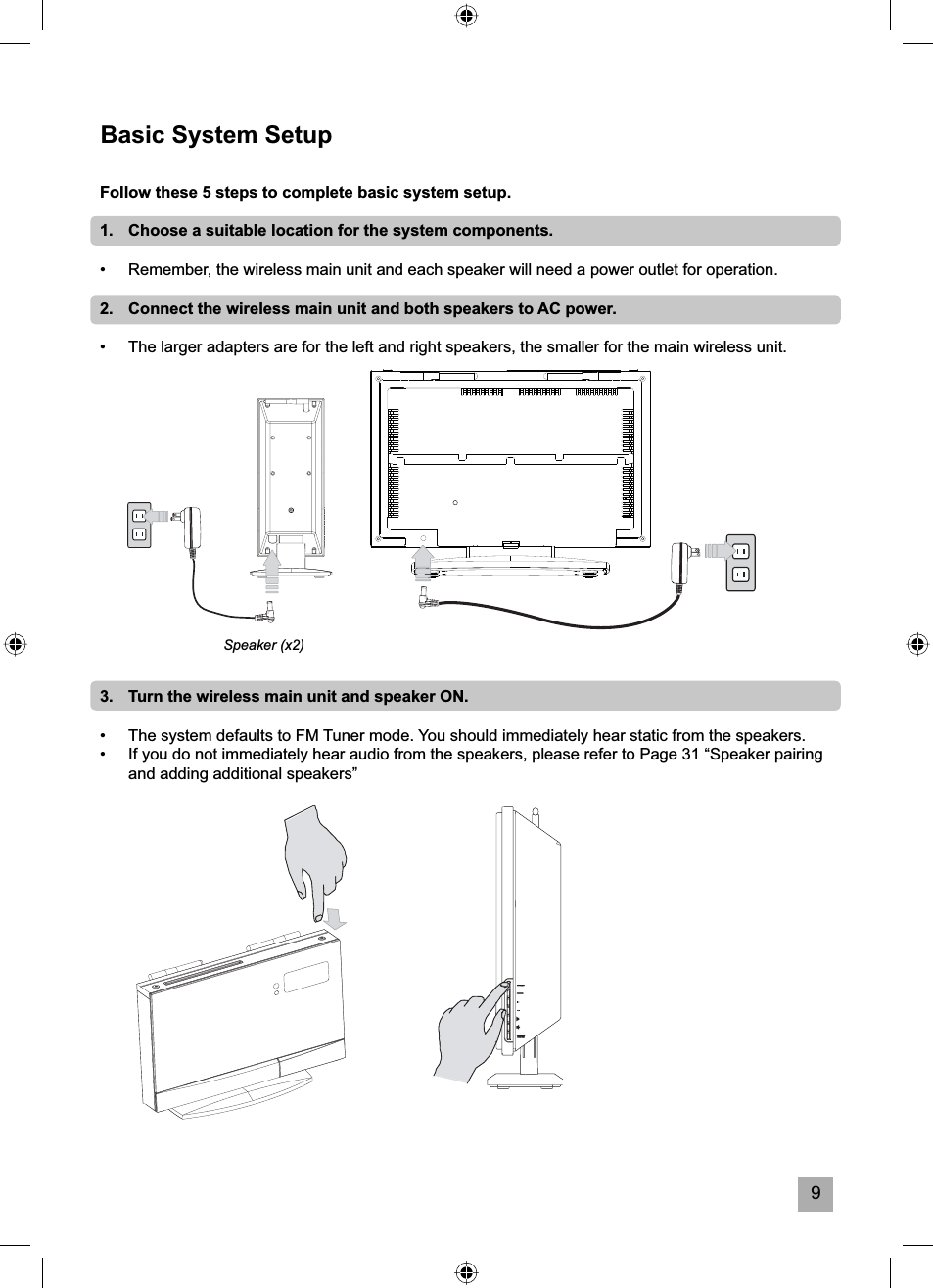
9Basic System SetupFollow these 5 steps to complete basic system setup.1.   Choose a suitable location for the system components.•  Remember, the wireless main unit and each speaker will need a power outlet for operation.2.   Connect the wireless main unit and both speakers to AC power.•  The larger adapters are for the left and right speakers, the smaller for the main wireless unit.3.   Turn the wireless main unit and speaker ON.•  The system defaults to FM Tuner mode. You should immediately hear static from the speakers.•   If you do not immediately hear audio from the speakers, please refer to Page 31 “Speaker pairing and adding additional speakers”Speaker (x2)
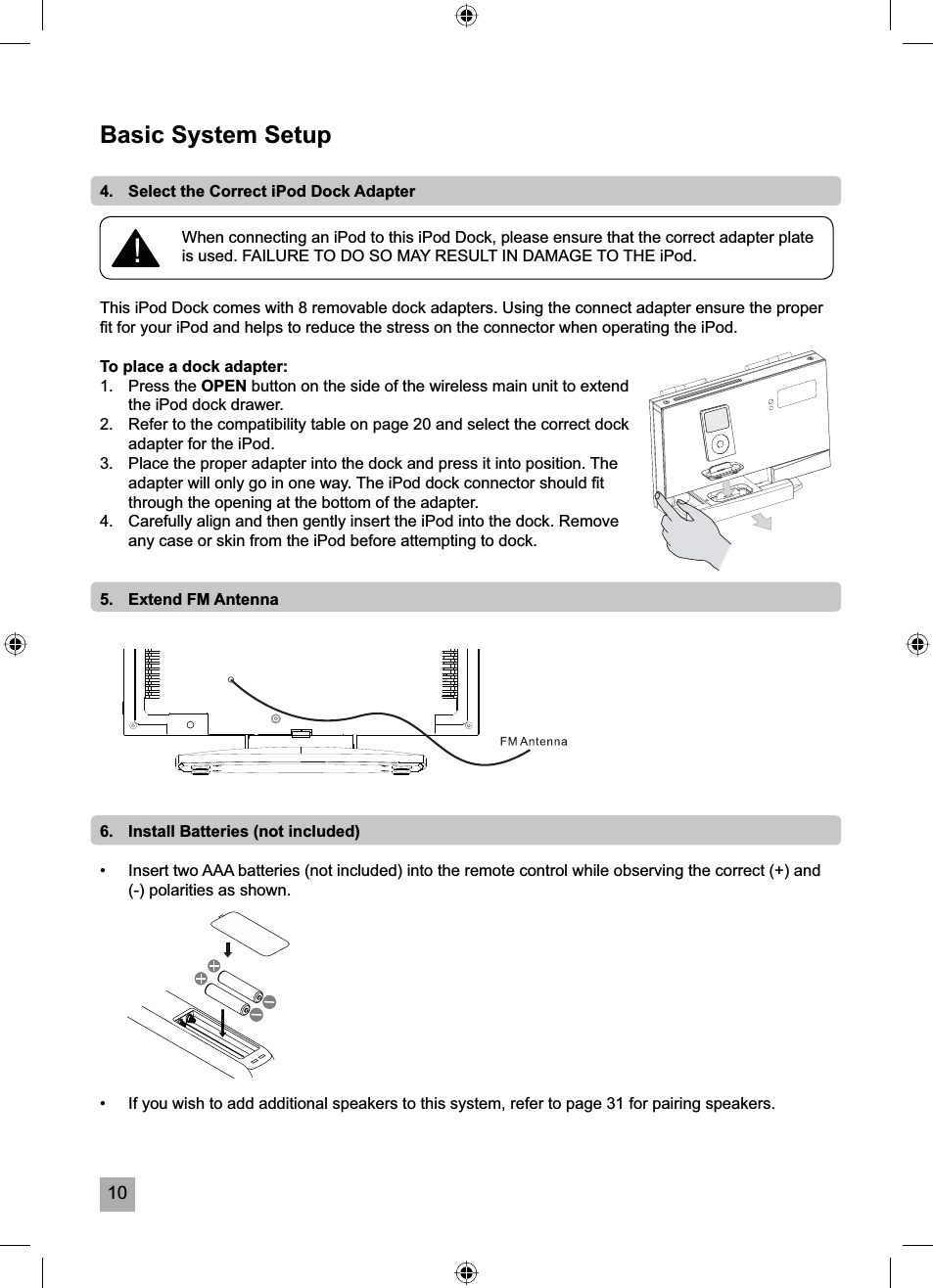
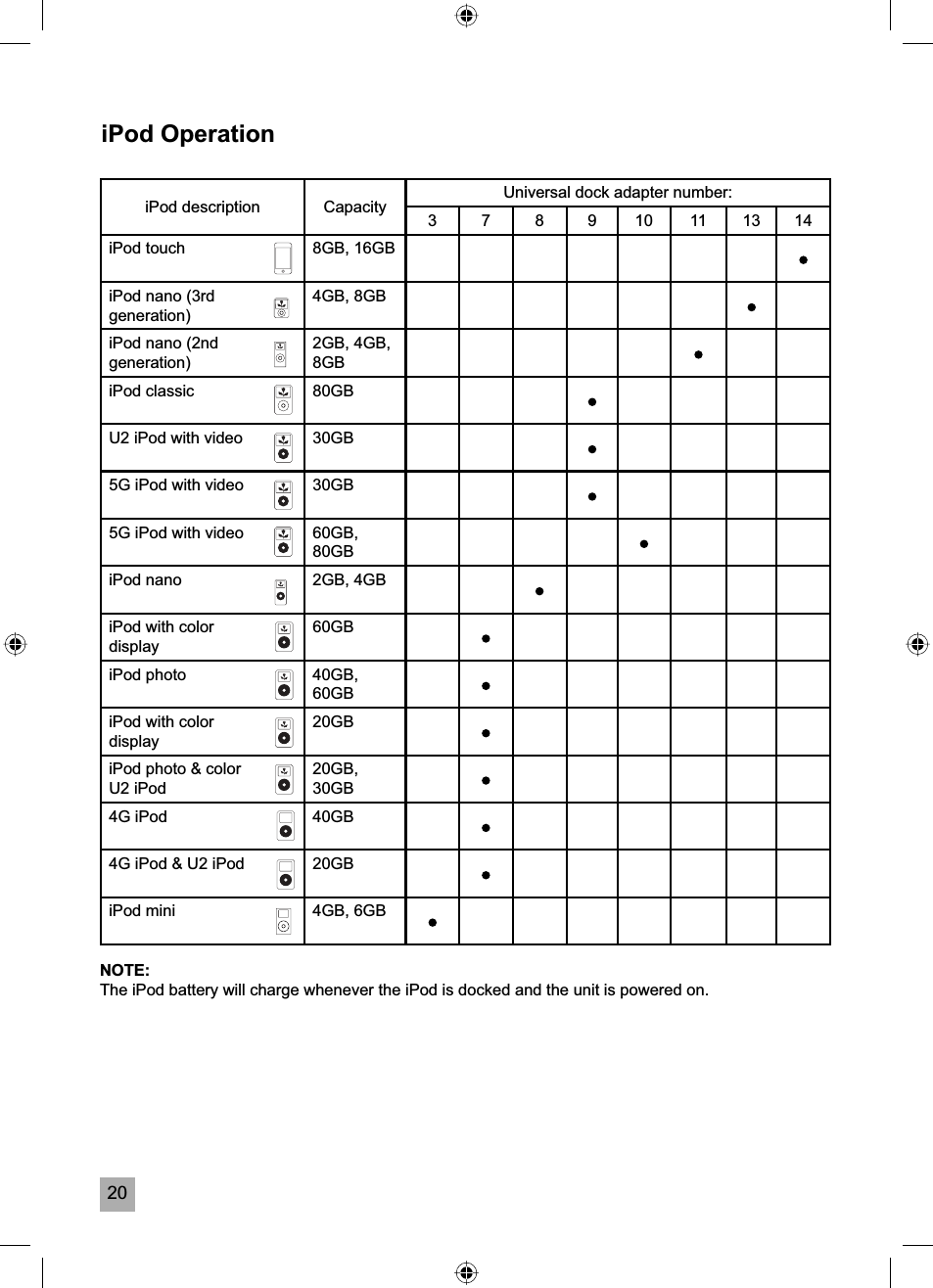
10Basic System Setup4.   Select the Correct iPod Dock AdapterThis iPod Dock comes with 8 removable dock adapters. Using the connect adapter ensure the proper fi t for your iPod and helps to reduce the stress on the connector when operating the iPod.To place a dock adapter:1.   Press the OPEN button on the side of the wireless main unit to extend the iPod dock drawer.2.   Refer to the compatibility table on page 20 and select the correct dock adapter for the iPod.3.   Place the proper adapter into the dock and press it into position. The adapter will only go in one way. The iPod dock connector should fi t through the opening at the bottom of the adapter.4.   Carefully align and then gently insert the iPod into the dock. Remove any case or skin from the iPod before attempting to dock.5.   Extend FM Antenna6.   Install Batteries (not included)•  Insert two AAA batteries (not included) into the remote control while observing the correct (+) and (-) polarities as shown.•   If you wish to add additional speakers to this system, refer to page 31 for pairing speakers.When connecting an iPod to this iPod Dock, please ensure that the correct adapter plate is used. FAILURE TO DO SO MAY RESULT IN DAMAGE TO THE iPod.!
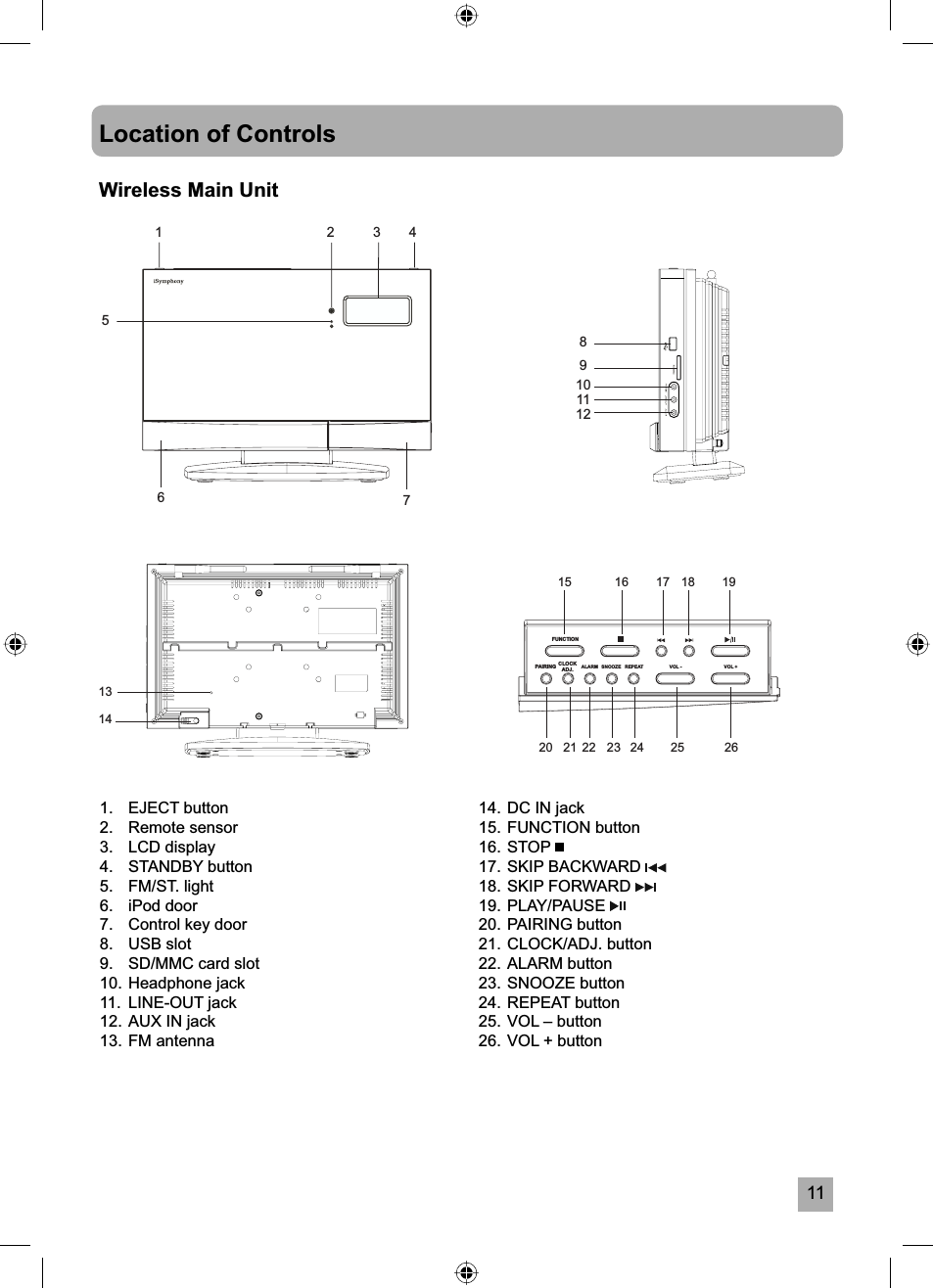
11Location of Controls123456789101112FUNCTIONCLOCKADJ.PAIRING SNOOZEALARM REPEAT131415 16 17 182524232221201926VOL +VOL - 1.   EJECT button2. Remote sensor3. LCD display4. STANDBY button5. FM/ST. light6. iPod door7.  Control key door8. USB slot9.  SD/MMC card slot10. Headphone jack11. LINE-OUT jack12. AUX IN jack13. FM antenna14. DC IN jack15. FUNCTION button16. STOP 17. SKIP BACKWARD 18. SKIP FORWARD 19. PLAY/PAUSE 20. PAIRING button21. CLOCK/ADJ. button22. ALARM button23. SNOOZE button24. REPEAT button25. VOL – button26. VOL + buttonWireless Main Unit
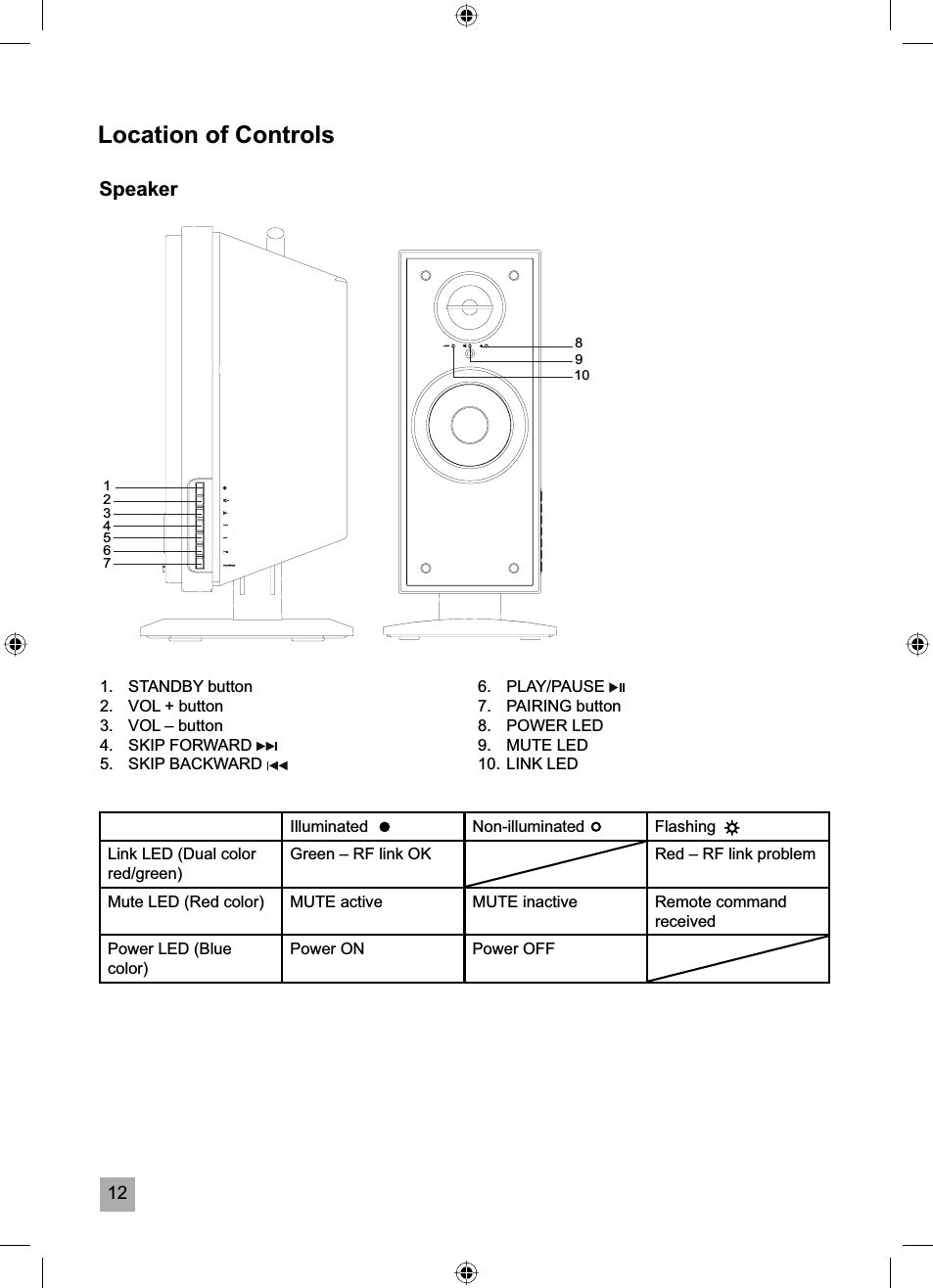
12Location of Controls89101234567Speaker1. STANDBY button2.  VOL + button3.  VOL – button4. SKIP FORWARD 5. SKIP BACKWARD 6. PLAY/PAUSE 7. PAIRING button8. POWER LED9. MUTE LED10. LINK LEDIlluminated Non-illuminated FlashingLink LED (Dual color red/green)Green – RF link OK Red – RF link problemMute LED (Red color) MUTE active MUTE inactive Remote command receivedPower LED (Blue color)Power ON Power OFF
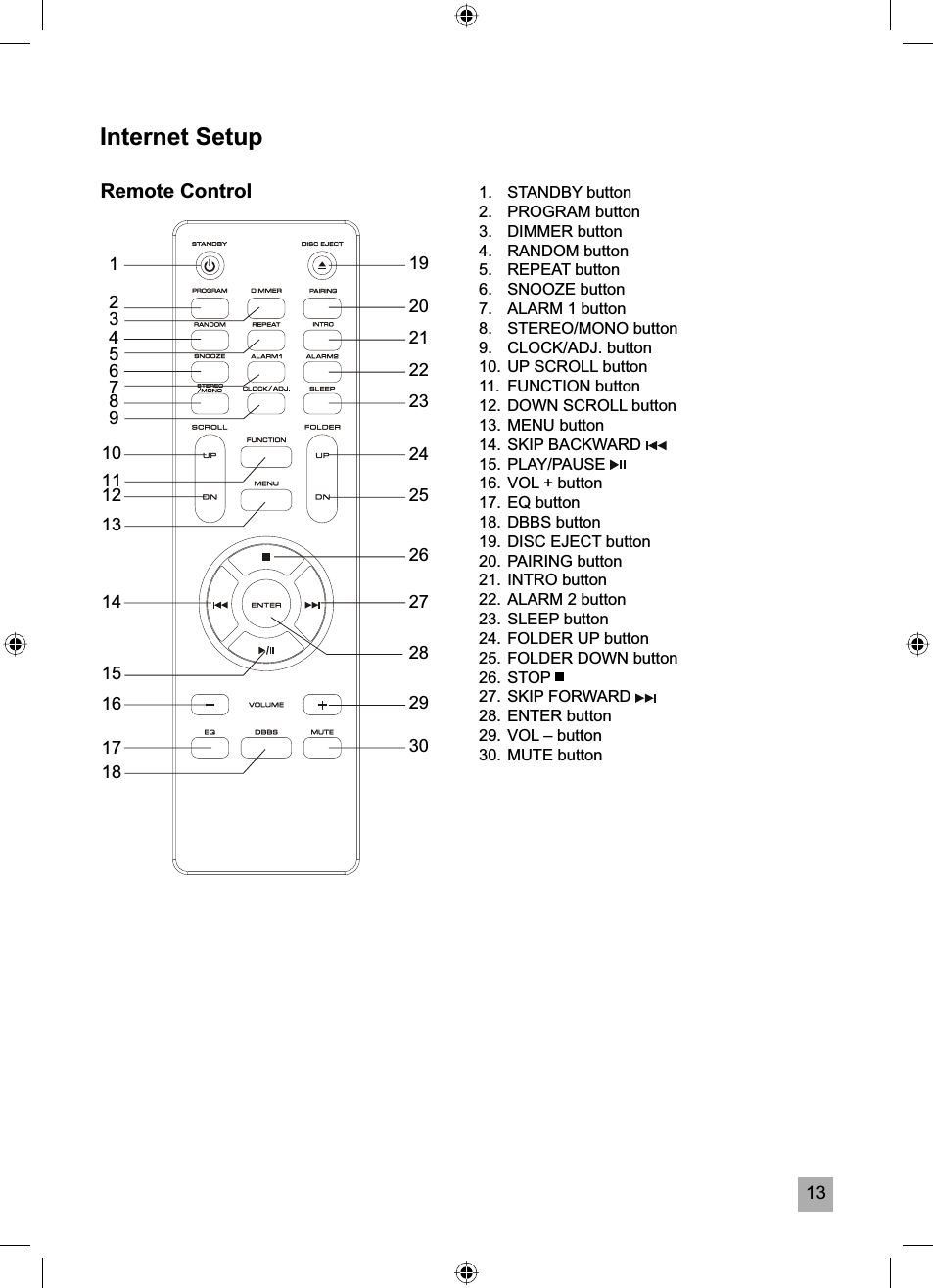
13Internet SetupRemote Control1234567891019202122232425262728293011121314151617181.   STANDBY button2. PROGRAM button3. DIMMER button4. RANDOM button5. REPEAT button6. SNOOZE button7.  ALARM 1 button8. STEREO/MONO button9. CLOCK/ADJ. button10. UP SCROLL button11. FUNCTION button12. DOWN SCROLL button13. MENU button14. SKIP BACKWARD 15. PLAY/PAUSE 16. VOL + button17. EQ button18. DBBS button19. DISC EJECT button20. PAIRING button21. INTRO button22. ALARM 2 button23. SLEEP button24. FOLDER UP button25. FOLDER DOWN button26. STOP 27. SKIP FORWARD 28. ENTER button29. VOL – button30. MUTE button
14Operating Instructions•  Make sure that you have fully extended the FM antenna wire and connected the AM antenna.•  Make sure that you have installed batteries (not included) in the remote control handset.•  Make sure that the system is connected to an AC outlet that is always powered.•  Do not connect the system to an AC outlet controlled by a wall switch. General ControlsMost of the main functions of this system can be operated by the controls on the front panel of the wireless main unit, or by the buttons on the remote control handset. If a specifi c function can only be operated by the remote headset, or by the front panel controls, this will clearly indicated in the instructions.  In addition, basic playback and volume controls are provided on the side control panel of each speaker.When operating this system with the remote control handset make sure that IR (Infrared) transmitter on the front of the remote handset is pointed at the remote sensor on the front panel of the main unit. The effective operating range of the remote control is approximately 15 feet. Please note that bright sunlight or room lighting may interfere with the remote control operation. If the remote is not operating properly try reducing the brightness of the room or moving closer to the main unit. If this does not solve the problem, it may be time to change the remote control batteries.Volume ControlsTo increase or decrease the system volume press the VOL + or VOL – keys located on:•   Remote control•   Wireless main unit control panel•   Left or right speaker control panelThe volume indicator will appear on the display when you change the volume level. Indication ranges from 00 to 32 (max).•  The system remembers the volume level when the power is switched off and automatically returns to the same level when the power is switched on again.•  This system supports two groups of volume control for multi-room systems. Please refer to page 31 (section Speaker Pairing and Adding Additional Speakers) for more detail.
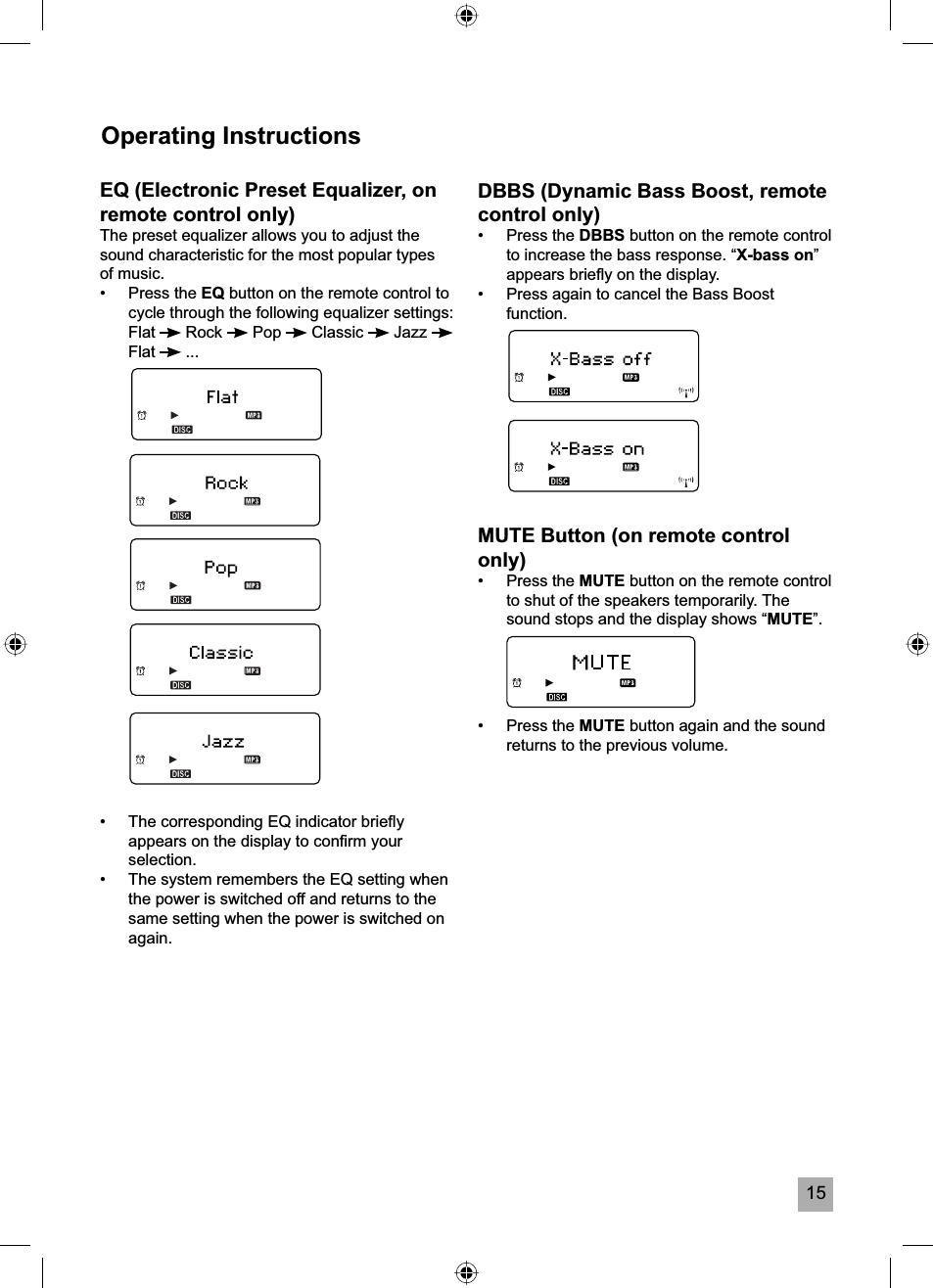
15Operating InstructionsEQ (Electronic Preset Equalizer, on remote control only)The preset equalizer allows you to adjust the sound characteristic for the most popular types of music.• Press the EQ button on the remote control to cycle through the following equalizer settings: Flat  Rock   Pop   Classic   Jazz Flat  ...•  The corresponding EQ indicator briefl y appears on the display to confi rm your selection.•  The system remembers the EQ setting when the power is switched off and returns to the same setting when the power is switched on again.DBBS (Dynamic Bass Boost, remote control only)• Press the DBBS button on the remote control to increase the bass response. “X-bass on”appears briefl y on the display.•  Press again to cancel the Bass Boost function.MUTE Button (on remote control only)• Press the MUTE button on the remote control to shut of the speakers temporarily. The sound stops and the display shows “MUTE”.• Press the MUTE button again and the sound returns to the previous volume.
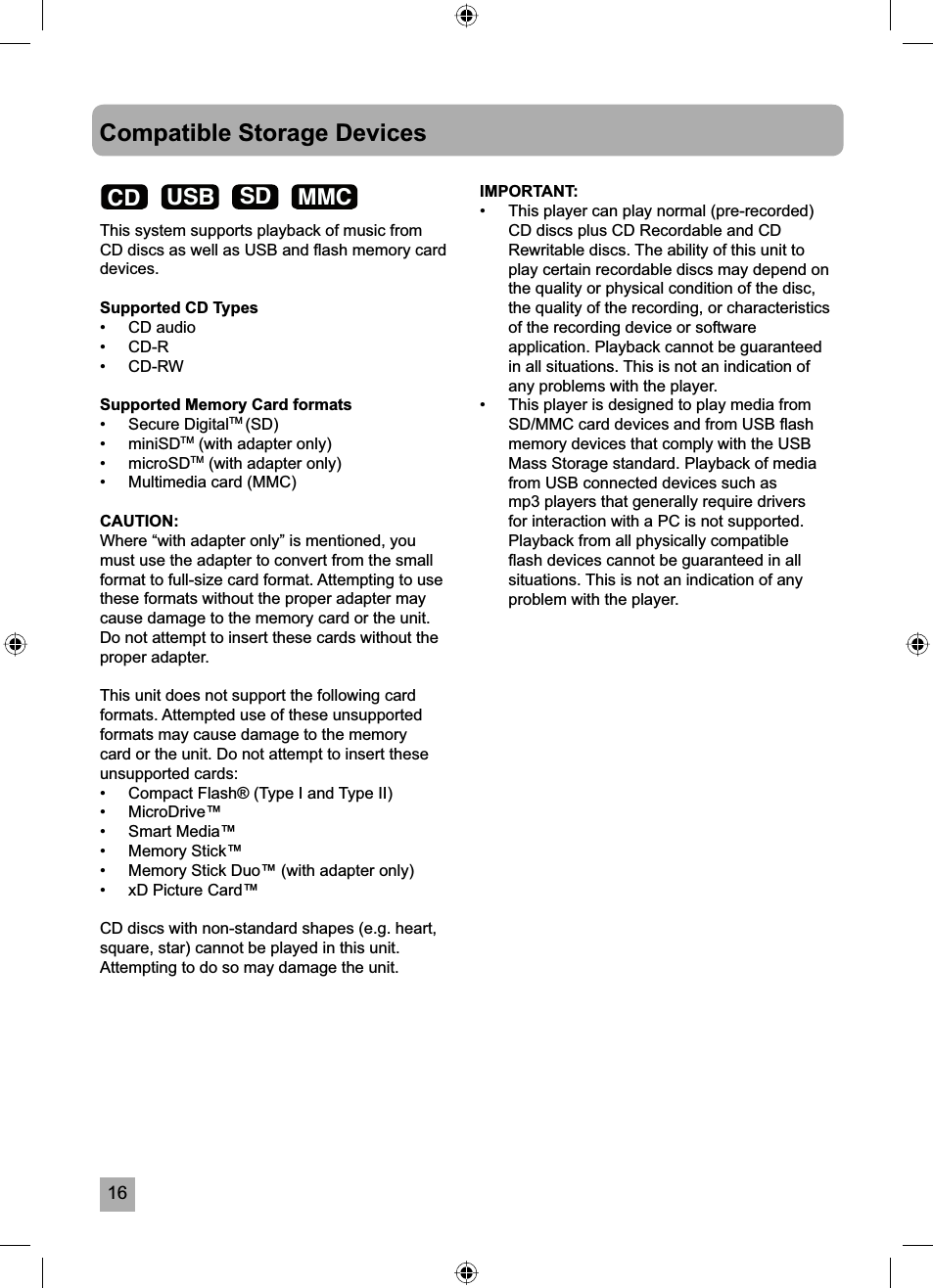
16Compatible Storage DevicesThis system supports playback of music from CD discs as well as USB and fl ash memory card devices.Supported CD Types• CD audio• CD-R• CD-RWSupported Memory Card formats• Secure DigitalTM (SD)• miniSDTM (with adapter only)• microSDTM (with adapter only)•  Multimedia card (MMC)CAUTION:Where “with adapter only” is mentioned, you must use the adapter to convert from the small format to full-size card format. Attempting to use these formats without the proper adapter may cause damage to the memory card or the unit. Do not attempt to insert these cards without the proper adapter.This unit does not support the following card formats. Attempted use of these unsupported formats may cause damage to the memory card or the unit. Do not attempt to insert these unsupported cards:•   Compact Flash® (Type I and Type II)•   MicroDrive™•   Smart Media™•   Memory Stick™•   Memory Stick Duo™ (with adapter only)•   xD Picture Card™CD discs with non-standard shapes (e.g. heart, square, star) cannot be played in this unit. Attempting to do so may damage the unit.IMPORTANT: •  This player can play normal (pre-recorded) CD discs plus CD Recordable and CD Rewritable discs. The ability of this unit to play certain recordable discs may depend on the quality or physical condition of the disc, the quality of the recording, or characteristics of the recording device or software application. Playback cannot be guaranteed in all situations. This is not an indication of any problems with the player.•  This player is designed to play media from SD/MMC card devices and from USB fl ash memory devices that comply with the USB Mass Storage standard. Playback of media from USB connected devices such as mp3 players that generally require drivers for interaction with a PC is not supported. Playback from all physically compatible fl ash devices cannot be guaranteed in all situations. This is not an indication of any problem with the player. CD USB SD MMC
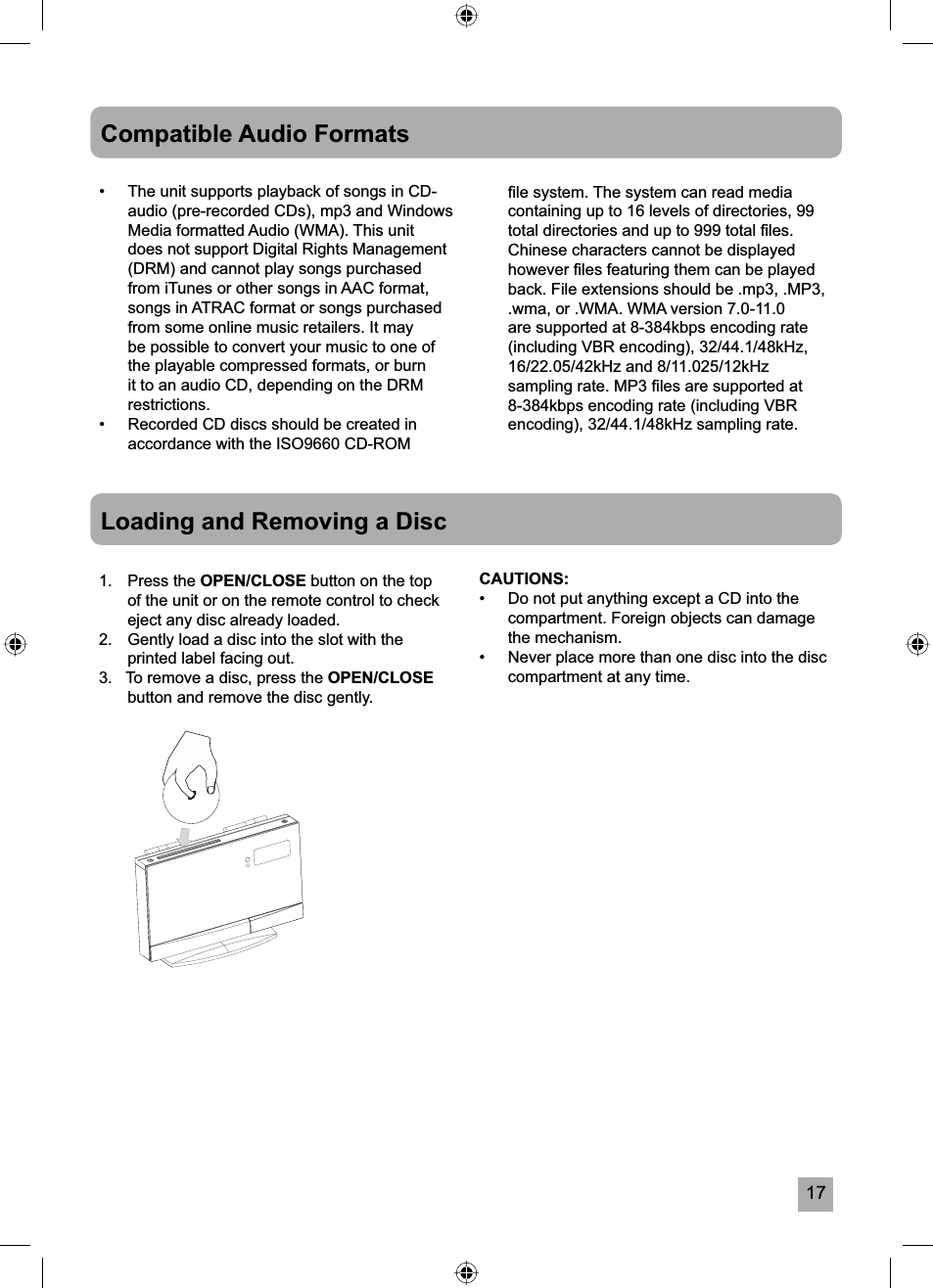
17Compatible Audio Formats•  The unit supports playback of songs in CD-audio (pre-recorded CDs), mp3 and Windows Media formatted Audio (WMA). This unit does not support Digital Rights Management (DRM) and cannot play songs purchased from iTunes or other songs in AAC format, songs in ATRAC format or songs purchased from some online music retailers. It may be possible to convert your music to one of the playable compressed formats, or burn it to an audio CD, depending on the DRM restrictions.•  Recorded CD discs should be created in accordance with the ISO9660 CD-ROM Loading and Removing a Disc1. Press the OPEN/CLOSE button on the top of the unit or on the remote control to check eject any disc already loaded.2.   Gently load a disc into the slot with the printed label facing out.3.   To remove a disc, press the OPEN/CLOSEbutton and remove the disc gently.CAUTIONS:•  Do not put anything except a CD into the compartment. Foreign objects can damage the mechanism.•  Never place more than one disc into the disc compartment at any time.fi le system. The system can read media containing up to 16 levels of directories, 99 total directories and up to 999 total fi les. Chinese characters cannot be displayed however fi les featuring them can be played back. File extensions should be .mp3, .MP3, .wma, or .WMA. WMA version 7.0-11.0 are supported at 8-384kbps encoding rate (including VBR encoding), 32/44.1/48kHz, 16/22.05/42kHz and 8/11.025/12kHz sampling rate. MP3 fi les are supported at 8-384kbps encoding rate (including VBR encoding), 32/44.1/48kHz sampling rate.
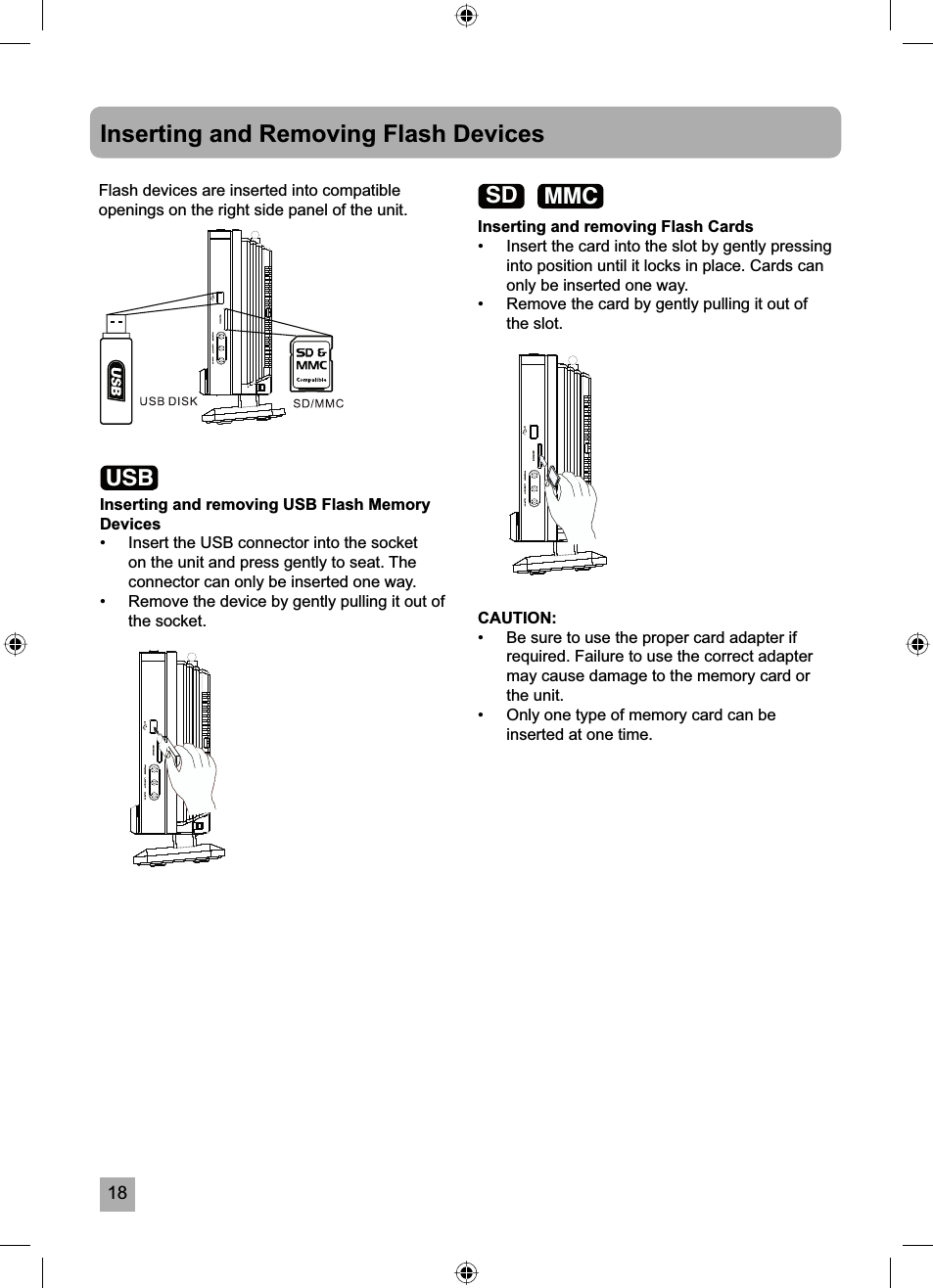
18Inserting and Removing Flash DevicesFlash devices are inserted into compatible openings on the right side panel of the unit.Inserting and removing USB Flash Memory Devices•  Insert the USB connector into the socket on the unit and press gently to seat. The connector can only be inserted one way.•  Remove the device by gently pulling it out of the socket. CAUTION:•  Be sure to use the proper card adapter if required. Failure to use the correct adapter may cause damage to the memory card or the unit.•  Only one type of memory card can be inserted at one time.Inserting and removing Flash Cards•  Insert the card into the slot by gently pressing into position until it locks in place. Cards can only be inserted one way.•  Remove the card by gently pulling it out of the slot.USBSD MMC
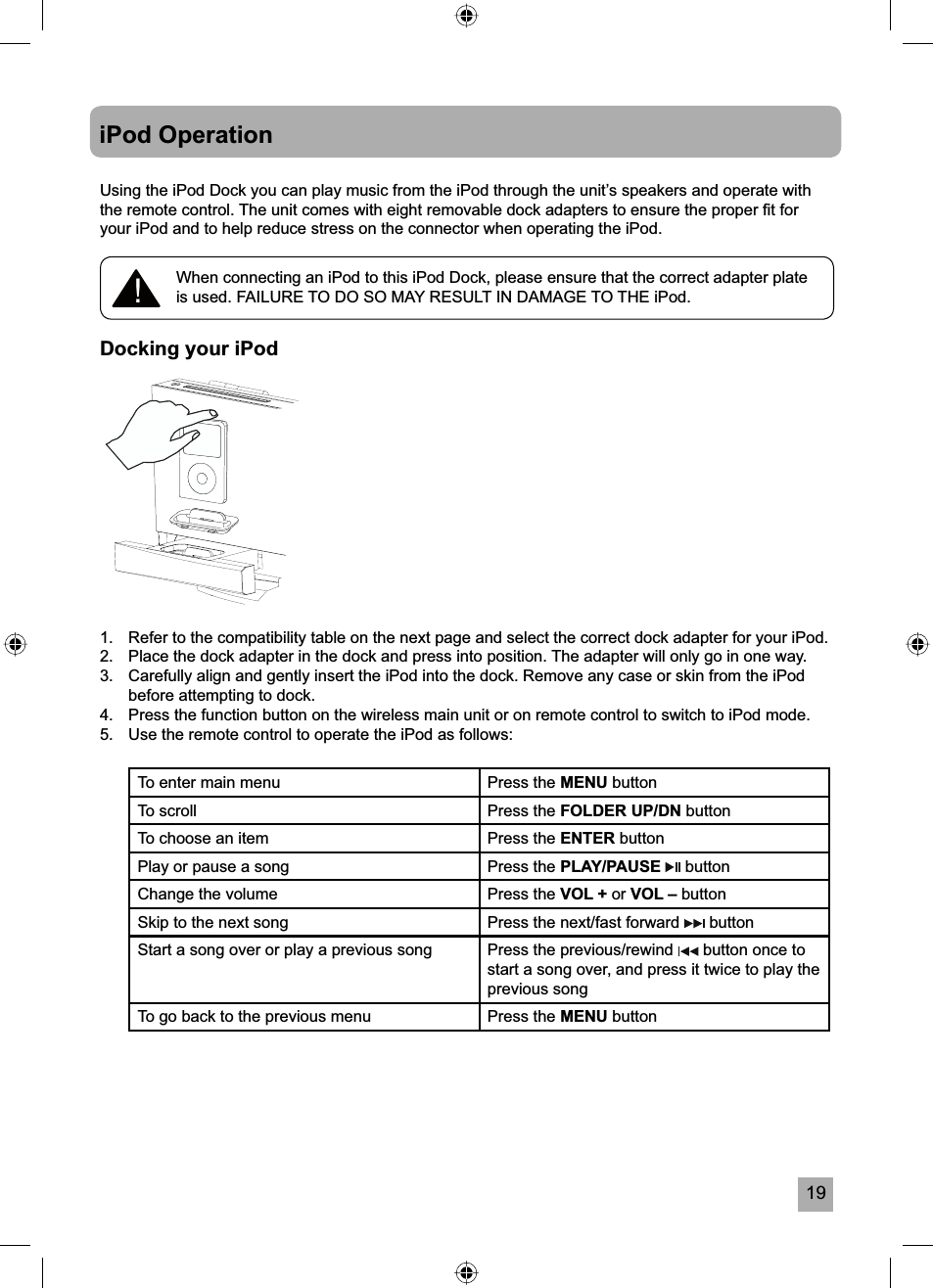
19iPod OperationUsing the iPod Dock you can play music from the iPod through the unit’s speakers and operate with the remote control. The unit comes with eight removable dock adapters to ensure the proper fi t for your iPod and to help reduce stress on the connector when operating the iPod.Docking your iPod1.   Refer to the compatibility table on the next page and select the correct dock adapter for your iPod.2.   Place the dock adapter in the dock and press into position. The adapter will only go in one way.3.  Carefully align and gently insert the iPod into the dock. Remove any case or skin from the iPod before attempting to dock.4.  Press the function button on the wireless main unit or on remote control to switch to iPod mode.5.  Use the remote control to operate the iPod as follows:To enter main menu Press the MENU buttonTo scroll Press the FOLDER UP/DN buttonTo choose an item Press the ENTER buttonPlay or pause a song Press the PLAY/PAUSE  buttonChange the volume Press the VOL + or VOL – buttonSkip to the next song Press the next/fast forward   buttonStart a song over or play a previous song Press the previous/rewind   button once to start a song over, and press it twice to play the previous songTo go back to the previous menu  Press the MENU button!When connecting an iPod to this iPod Dock, please ensure that the correct adapter plate is used. FAILURE TO DO SO MAY RESULT IN DAMAGE TO THE iPod.
20iPod OperationiPod description Capacity Universal dock adapter number:3 7 8 9 10 11 13 14iPod touch 8GB, 16GBiPod nano (3rd generation)4GB, 8GBiPod nano (2nd generation)2GB, 4GB, 8GBiPod classic 80GBU2 iPod with video 30GB5G iPod with video 30GB5G iPod with video 60GB, 80GBiPod nano 2GB, 4GBiPod with color display60GBiPod photo 40GB, 60GBiPod with color display20GBiPod photo & color U2 iPod20GB,30GB4G iPod 40GB4G iPod & U2 iPod 20GBiPod mini 4GB, 6GBNOTE:The iPod battery will charge whenever the iPod is docked and the unit is powered on.
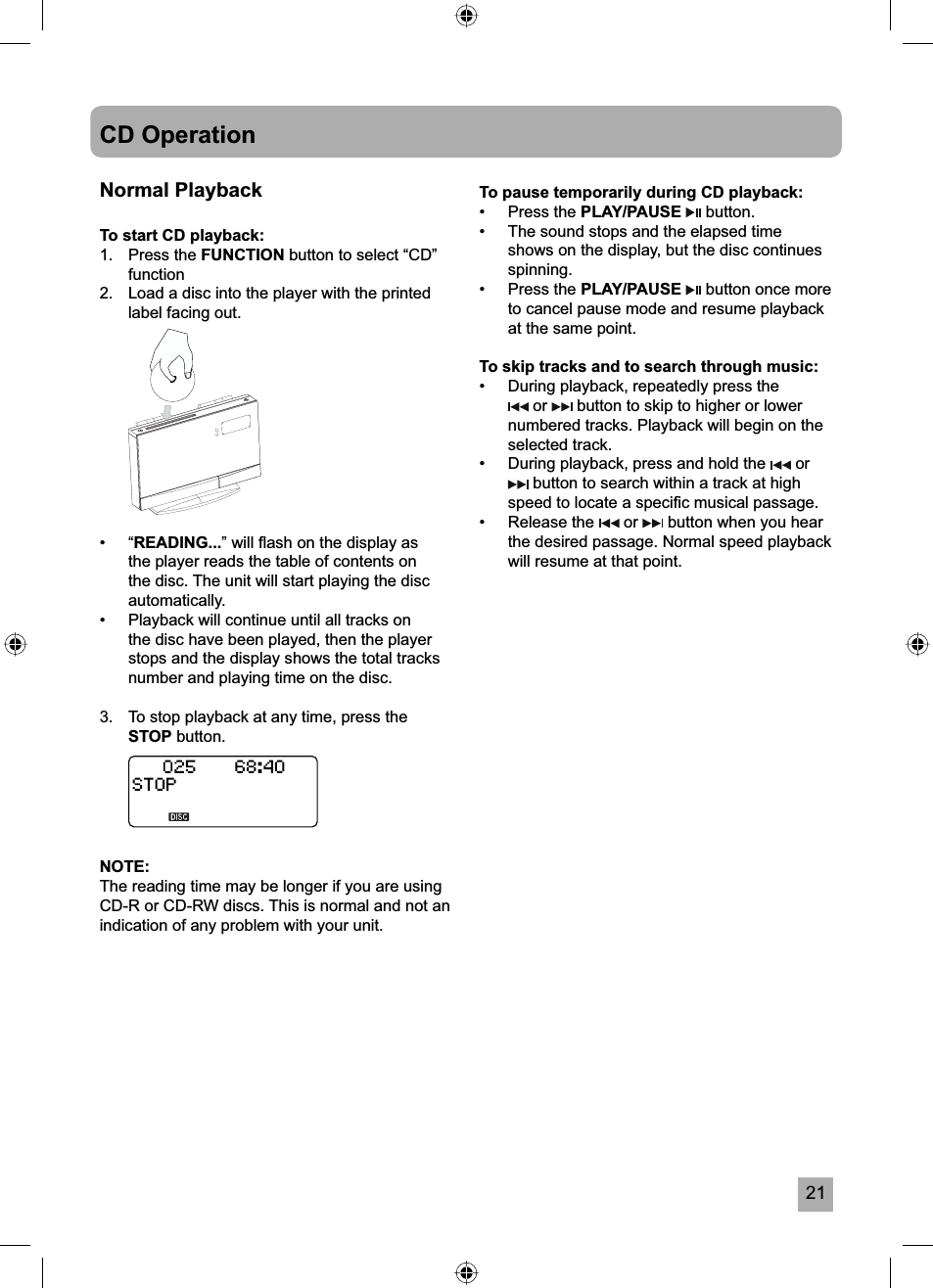
21CD OperationNormal PlaybackTo start CD playback:1. Press the FUNCTION button to select “CD” function2.  Load a disc into the player with the printed label facing out. • “READING...” will fl ash on the display as the player reads the table of contents on the disc. The unit will start playing the disc automatically.•  Playback will continue until all tracks on the disc have been played, then the player stops and the display shows the total tracks number and playing time on the disc.3.  To stop playback at any time, press the STOP button.NOTE:The reading time may be longer if you are using CD-R or CD-RW discs. This is normal and not an indication of any problem with your unit.To pause temporarily during CD playback:• Press the PLAY/PAUSE  button.•  The sound stops and the elapsed time shows on the display, but the disc continues spinning.• Press the PLAY/PAUSE  button once more to cancel pause mode and resume playback at the same point.To skip tracks and to search through music:•  During playback, repeatedly press the  or   button to skip to higher or lower numbered tracks. Playback will begin on the selected track.•  During playback, press and hold the   or  button to search within a track at high speed to locate a specifi c musical passage.• Release the   or   button when you hear the desired passage. Normal speed playback will resume at that point.
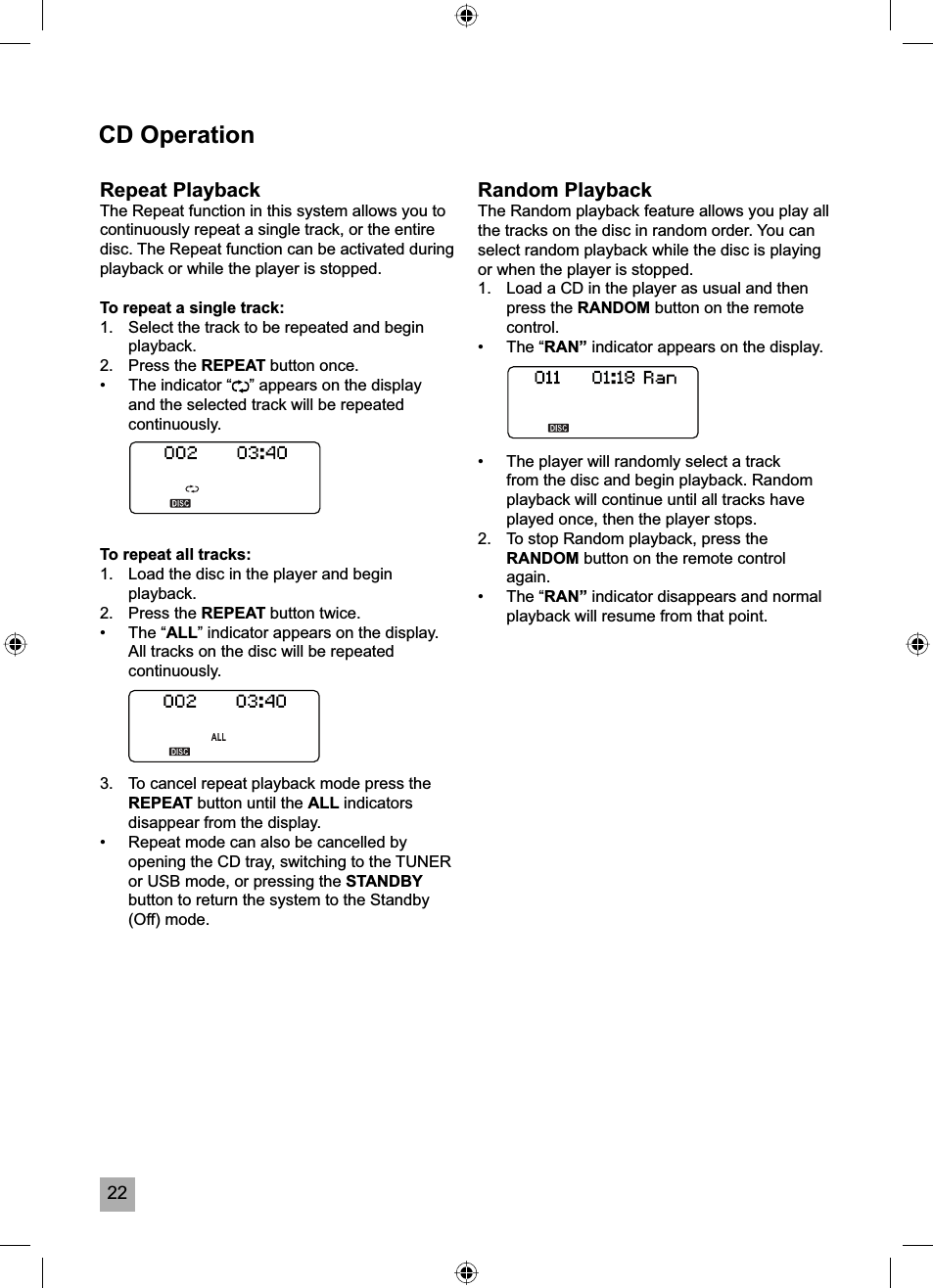
22CD OperationRepeat PlaybackThe Repeat function in this system allows you to continuously repeat a single track, or the entire disc. The Repeat function can be activated during playback or while the player is stopped.To repeat a single track:1.  Select the track to be repeated and begin playback.2. Press the REPEAT button once.•  The indicator “ ” appears on the display and the selected track will be repeated continuously.To repeat all tracks:1.  Load the disc in the player and begin playback.2. Press the REPEAT button twice.• The “ALL” indicator appears on the display. All tracks on the disc will be repeated continuously.3.  To cancel repeat playback mode press the REPEAT button until the ALL indicators disappear from the display.•  Repeat mode can also be cancelled by opening the CD tray, switching to the TUNER or USB mode, or pressing the STANDBYbutton to return the system to the Standby (Off) mode. Random PlaybackThe Random playback feature allows you play all the tracks on the disc in random order. You can select random playback while the disc is playing or when the player is stopped.1.  Load a CD in the player as usual and then press the RANDOM button on the remote control.• The “RAN” indicator appears on the display.•  The player will randomly select a track from the disc and begin playback. Random playback will continue until all tracks have played once, then the player stops.2.  To stop Random playback, press the RANDOM button on the remote control again.• The “RAN” indicator disappears and normal playback will resume from that point.
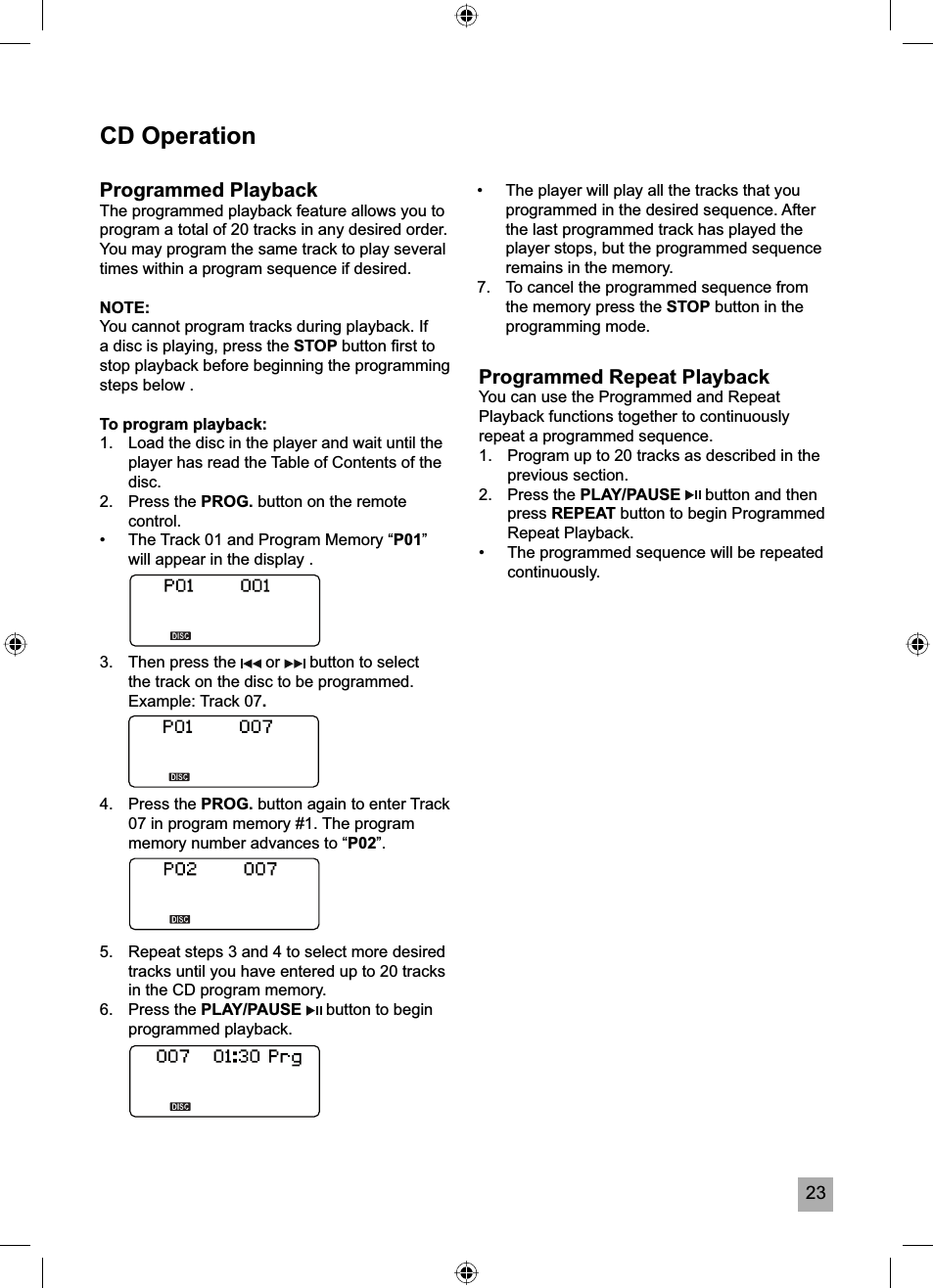
23CD OperationProgrammed PlaybackThe programmed playback feature allows you to program a total of 20 tracks in any desired order. You may program the same track to play several times within a program sequence if desired.NOTE:You cannot program tracks during playback. If a disc is playing, press the STOP button fi rst to stop playback before beginning the programming steps below .To program playback:1.   Load the disc in the player and wait until the player has read the Table of Contents of the disc.2.   Press the PROG. button on the remote control.•  The Track 01 and Program Memory “P01”will appear in the display .3.   Then press the   or   button to select the track on the disc to be programmed. Example: Track 07.4.   Press the PROG. button again to enter Track 07 in program memory #1. The program memory number advances to “P02”.5.  Repeat steps 3 and 4 to select more desired tracks until you have entered up to 20 tracks in the CD program memory.6.   Press the PLAY/PAUSE   button to begin programmed playback.Programmed Repeat PlaybackYou can use the Programmed and Repeat Playback functions together to continuously repeat a programmed sequence.1.  Program up to 20 tracks as described in the previous section.2. Press the PLAY/PAUSE  button and then press REPEAT button to begin Programmed Repeat Playback. •  The programmed sequence will be repeated continuously.•  The player will play all the tracks that you programmed in the desired sequence. After the last programmed track has played the player stops, but the programmed sequence remains in the memory.7.  To cancel the programmed sequence from the memory press the STOP button in the programming mode.
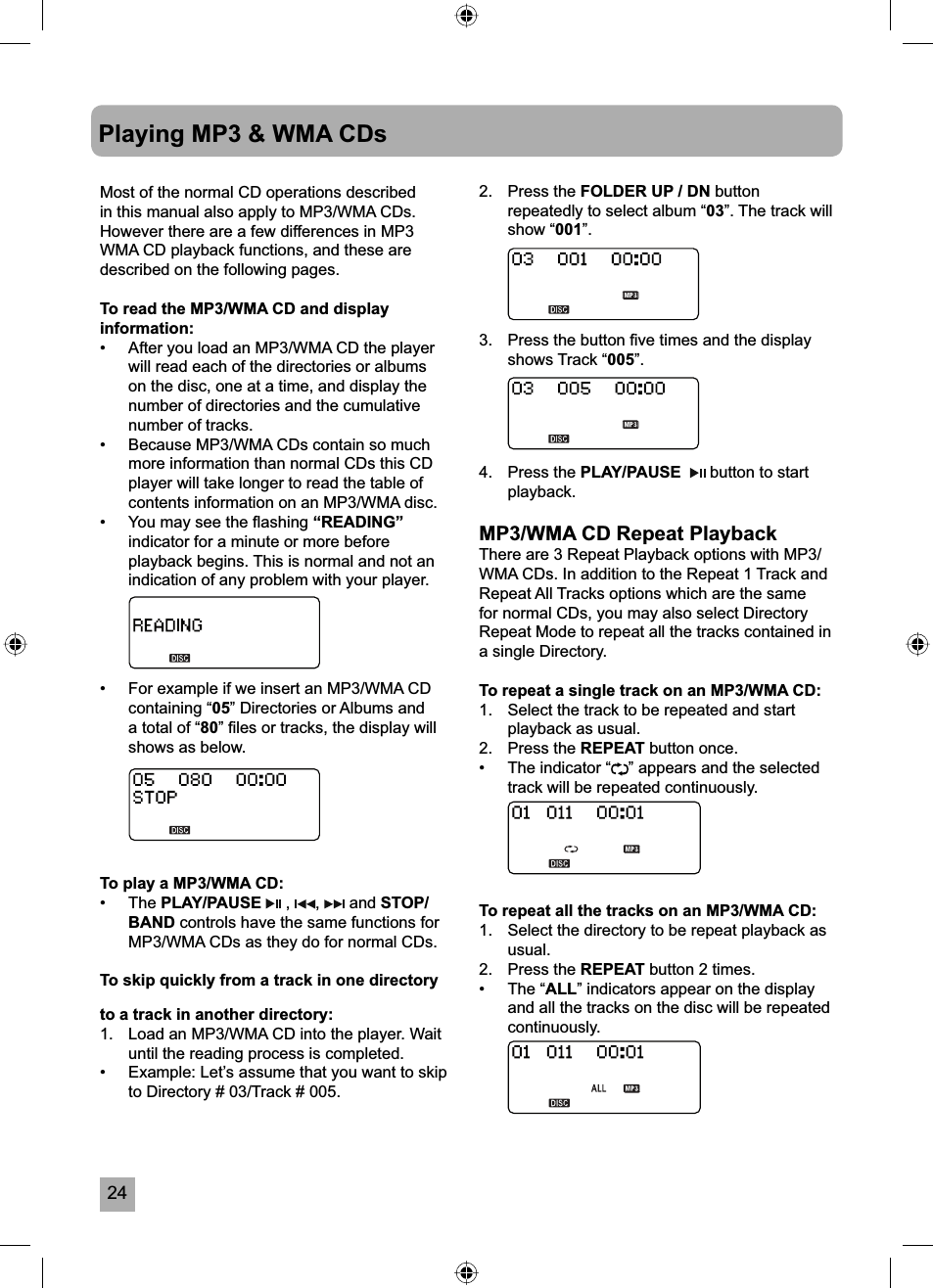
24Playing MP3 & WMA CDsMost of the normal CD operations described in this manual also apply to MP3/WMA CDs. However there are a few differences in MP3 WMA CD playback functions, and these are described on the following pages.To read the MP3/WMA CD and display information:•  After you load an MP3/WMA CD the player will read each of the directories or albums on the disc, one at a time, and display the number of directories and the cumulative number of tracks.•  Because MP3/WMA CDs contain so much more information than normal CDs this CD player will take longer to read the table of contents information on an MP3/WMA disc.•  You may see the fl ashing “READING”indicator for a minute or more before playback begins. This is normal and not an indication of any problem with your player.•  For example if we insert an MP3/WMA CD containing “05” Directories or Albums and a total of “80” fi les or tracks, the display will shows as below.To play a MP3/WMA CD:• The PLAY/PAUSE  ,  ,  and STOP/BAND controls have the same functions for MP3/WMA CDs as they do for normal CDs.To skip quickly from a track in one directory to a track in another directory:1.  Load an MP3/WMA CD into the player. Wait until the reading process is completed.•  Example: Let’s assume that you want to skip to Directory # 03/Track # 005.2. Press the FOLDER UP / DN buttonrepeatedly to select album “03”. The track will show “001”.3.  Press the button fi ve times and the display shows Track “005”.4. Press the PLAY/PAUSE  button to start playback.MP3/WMA CD Repeat PlaybackThere are 3 Repeat Playback options with MP3/WMA CDs. In addition to the Repeat 1 Track and Repeat All Tracks options which are the same for normal CDs, you may also select Directory Repeat Mode to repeat all the tracks contained in a single Directory.To repeat a single track on an MP3/WMA CD:1.  Select the track to be repeated and start playback as usual.2. Press the REPEAT button once.•  The indicator “ ” appears and the selected track will be repeated continuously.To repeat all the tracks on an MP3/WMA CD:1.  Select the directory to be repeat playback as usual.2. Press the REPEAT button 2 times.• The “ALL” indicators appear on the display and all the tracks on the disc will be repeated continuously.
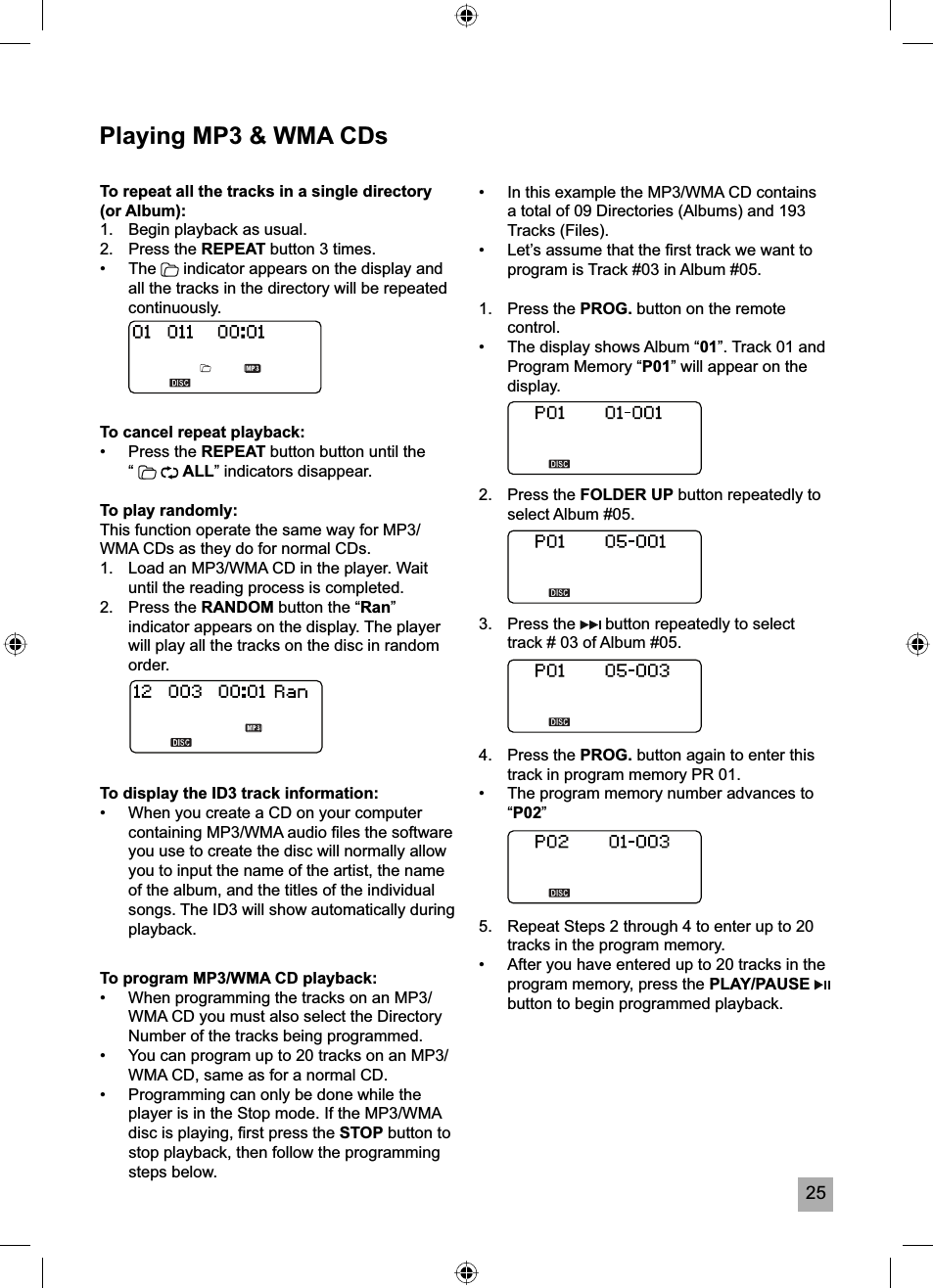
25Playing MP3 & WMA CDsTo program MP3/WMA CD playback:•  When programming the tracks on an MP3/WMA CD you must also select the Directory Number of the tracks being programmed. •  You can program up to 20 tracks on an MP3/WMA CD, same as for a normal CD.•  Programming can only be done while the player is in the Stop mode. If the MP3/WMA disc is playing, fi rst press the STOP button to stop playback, then follow the programming steps below.To repeat all the tracks in a single directory (or Album):1.  Begin playback as usual.2. Press the REPEAT button 3 times. • The  indicator appears on the display and all the tracks in the directory will be repeated continuously.To cancel repeat playback:• Press the REPEAT button button until the  “  ALL” indicators disappear.To play randomly:This function operate the same way for MP3/WMA CDs as they do for normal CDs.1.  Load an MP3/WMA CD in the player. Wait until the reading process is completed.2. Press the RANDOM button the “Ran”indicator appears on the display. The player will play all the tracks on the disc in random order.To display the ID3 track information:•  When you create a CD on your computer containing MP3/WMA audio fi les the software you use to create the disc will normally allow you to input the name of the artist, the name of the album, and the titles of the individual songs. The ID3 will show automatically during playback.•  In this example the MP3/WMA CD contains a total of 09 Directories (Albums) and 193 Tracks (Files).•  Let’s assume that the fi rst track we want to program is Track #03 in Album #05.1. Press the PROG. button on the remote control.•  The display shows Album “01”. Track 01 and Program Memory “P01” will appear on the display.2.   Press the FOLDER UP button repeatedly to select Album #05.3.   Press the   button repeatedly to select track # 03 of Album #05.4.   Press the PROG. button again to enter this track in program memory PR 01.•  The program memory number advances to “P02”5.  Repeat Steps 2 through 4 to enter up to 20 tracks in the program memory.•  After you have entered up to 20 tracks in the program memory, press the PLAY/PAUSEbutton to begin programmed playback.
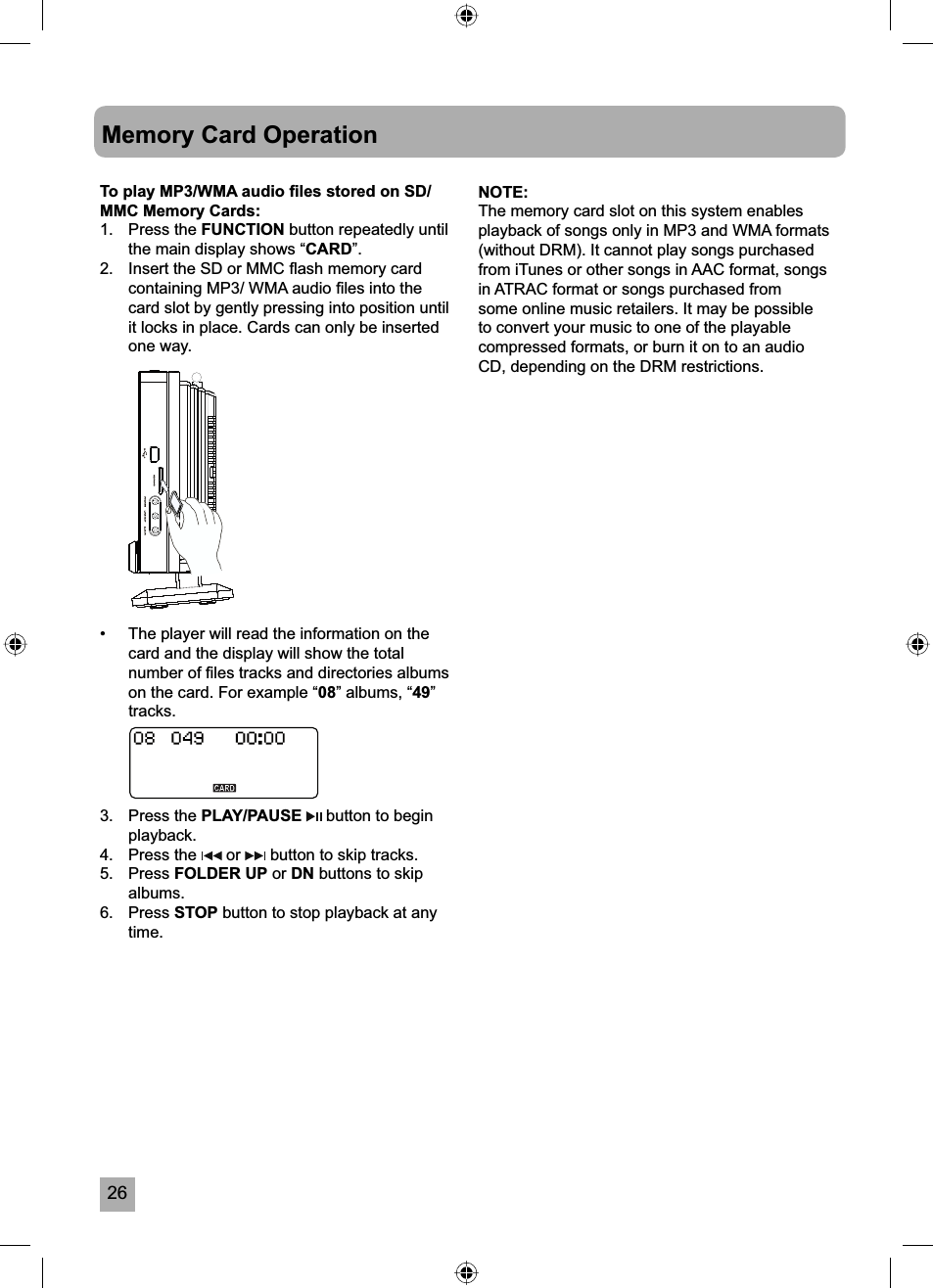
26Memory Card OperationTo play MP3/WMA audio fi les stored on SD/MMC Memory Cards:1. Press the FUNCTION button repeatedly until the main display shows “CARD”.2.  Insert the SD or MMC fl ash memory card containing MP3/ WMA audio fi les into the card slot by gently pressing into position until it locks in place. Cards can only be inserted one way.•  The player will read the information on the card and the display will show the total number of fi les tracks and directories albums on the card. For example “08” albums, “49”tracks.3. Press the PLAY/PAUSE  button to begin playback.4. Press the   or   button to skip tracks.5. Press FOLDER UP or DN buttons to skip albums.6. Press STOP button to stop playback at any time.NOTE:The memory card slot on this system enables playback of songs only in MP3 and WMA formats (without DRM). It cannot play songs purchased from iTunes or other songs in AAC format, songs in ATRAC format or songs purchased from some online music retailers. It may be possible to convert your music to one of the playable compressed formats, or burn it on to an audio CD, depending on the DRM restrictions.
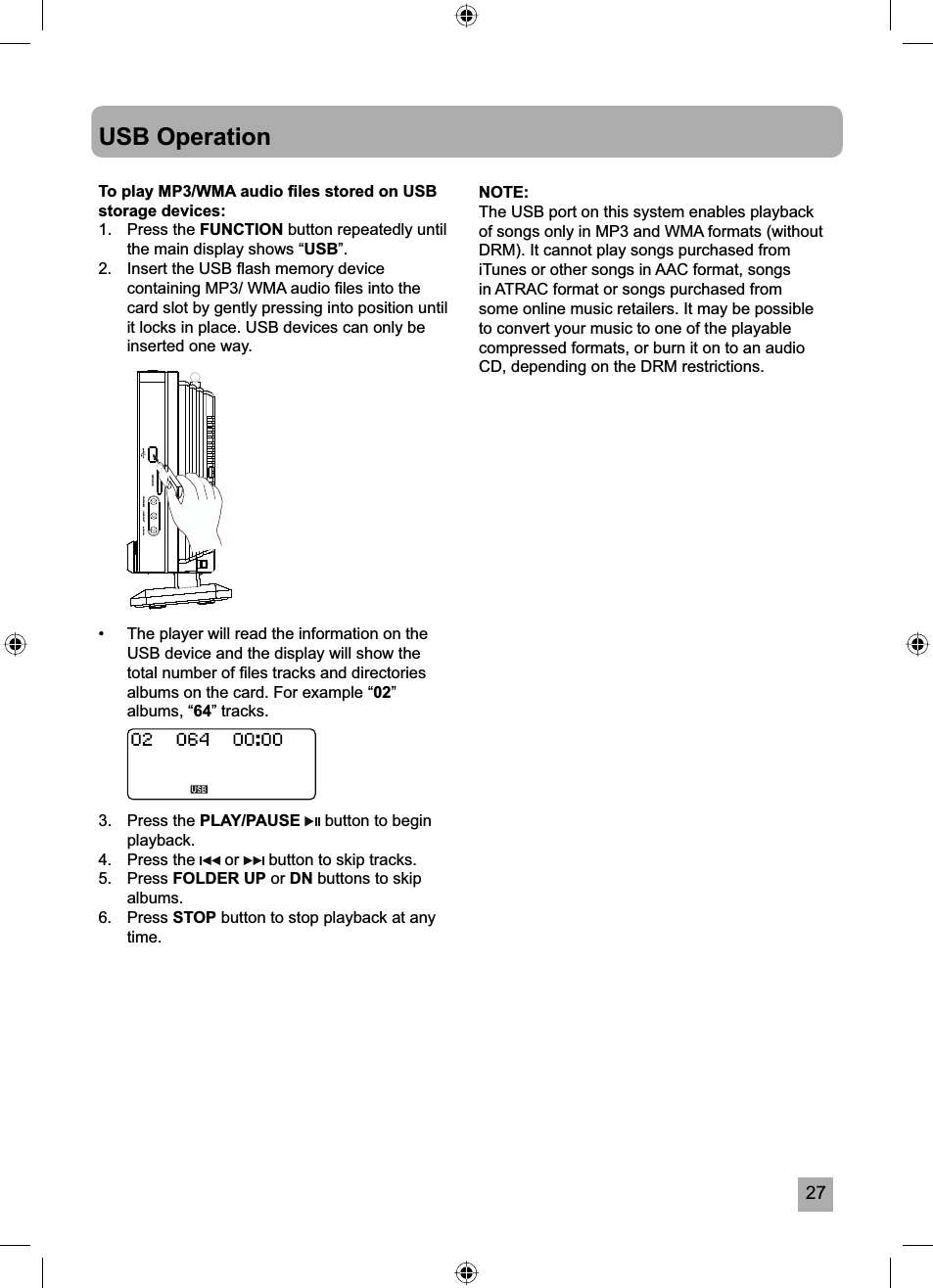
27USB OperationTo play MP3/WMA audio fi les stored on USB storage devices:1. Press the FUNCTION button repeatedly until the main display shows “USB”.2.  Insert the USB fl ash memory device containing MP3/ WMA audio fi les into the card slot by gently pressing into position until it locks in place. USB devices can only be inserted one way.•  The player will read the information on the USB device and the display will show the total number of fi les tracks and directories albums on the card. For example “02”albums, “64” tracks.3. Press the PLAY/PAUSE  button to begin playback.4. Press the   or   button to skip tracks.5. Press FOLDER UP or DN buttons to skip albums.6. Press STOP button to stop playback at any time.NOTE:The USB port on this system enables playback of songs only in MP3 and WMA formats (without DRM). It cannot play songs purchased from iTunes or other songs in AAC format, songs in ATRAC format or songs purchased from some online music retailers. It may be possible to convert your music to one of the playable compressed formats, or burn it on to an audio CD, depending on the DRM restrictions.
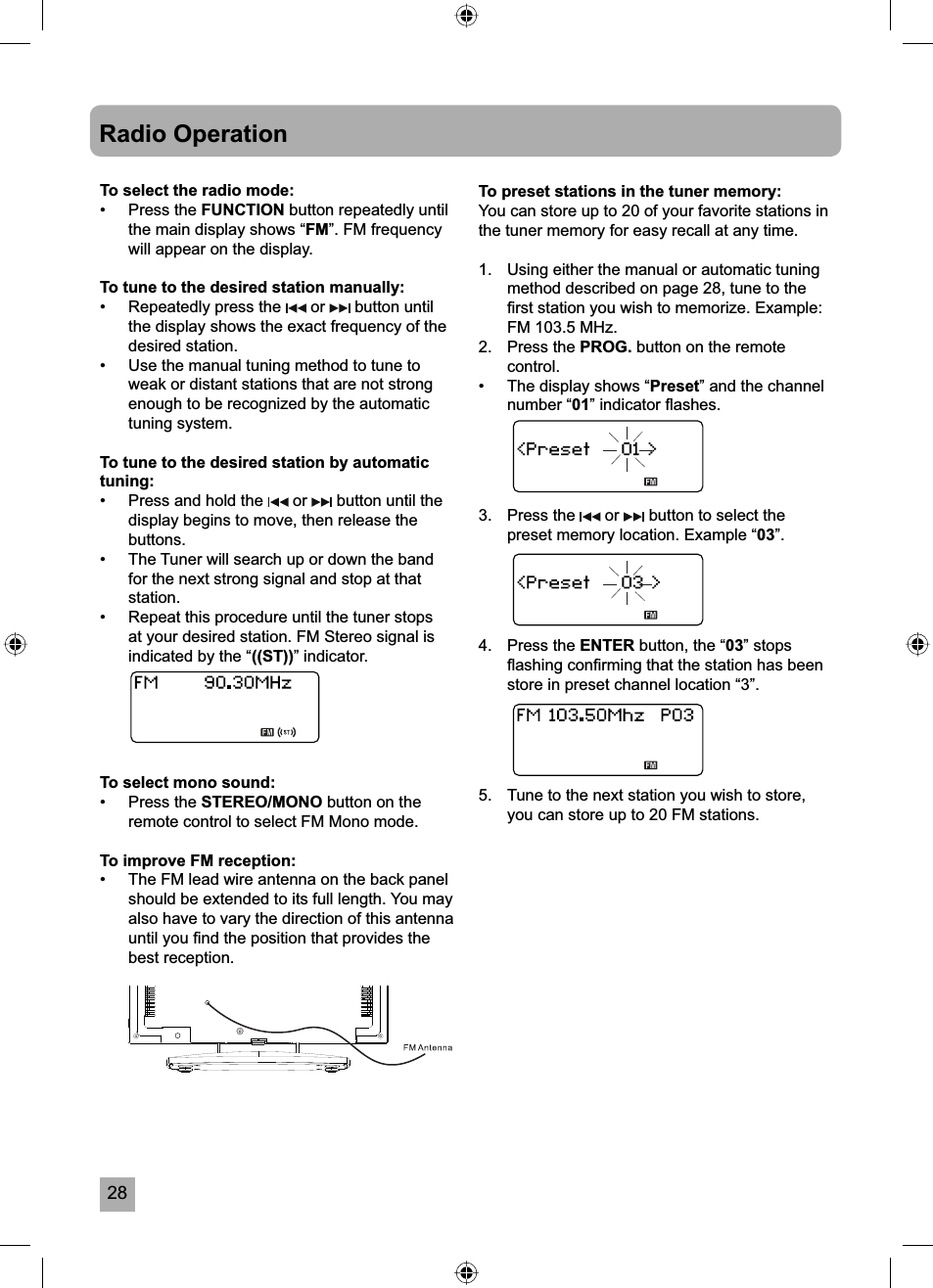
28Radio OperationTo select the radio mode:• Press the FUNCTION button repeatedly until the main display shows “FM”. FM frequency will appear on the display.To tune to the desired station manually:•  Repeatedly press the   or   button until the display shows the exact frequency of the desired station. •  Use the manual tuning method to tune to weak or distant stations that are not strong enough to be recognized by the automatic tuning system.To tune to the desired station by automatic tuning:•  Press and hold the   or   button until the display begins to move, then release the buttons.•  The Tuner will search up or down the band for the next strong signal and stop at that station.•  Repeat this procedure until the tuner stops at your desired station. FM Stereo signal is indicated by the “((ST))” indicator.To select mono sound:• Press the STEREO/MONO button on the remote control to select FM Mono mode.To improve FM reception:•  The FM lead wire antenna on the back panel should be extended to its full length. You may also have to vary the direction of this antenna until you fi nd the position that provides the best reception.To preset stations in the tuner memory:You can store up to 20 of your favorite stations in the tuner memory for easy recall at any time.1.  Using either the manual or automatic tuning method described on page 28, tune to the fi rst station you wish to memorize. Example: FM 103.5 MHz.2. Press the PROG. button on the remote control.•  The display shows “Preset” and the channel number “01” indicator fl ashes.3.   Press the   or   button to select the preset memory location. Example “03”.4.   Press the ENTER button, the “03” stops fl ashing confi rming that the station has been store in preset channel location “3”.5.   Tune to the next station you wish to store, you can store up to 20 FM stations.
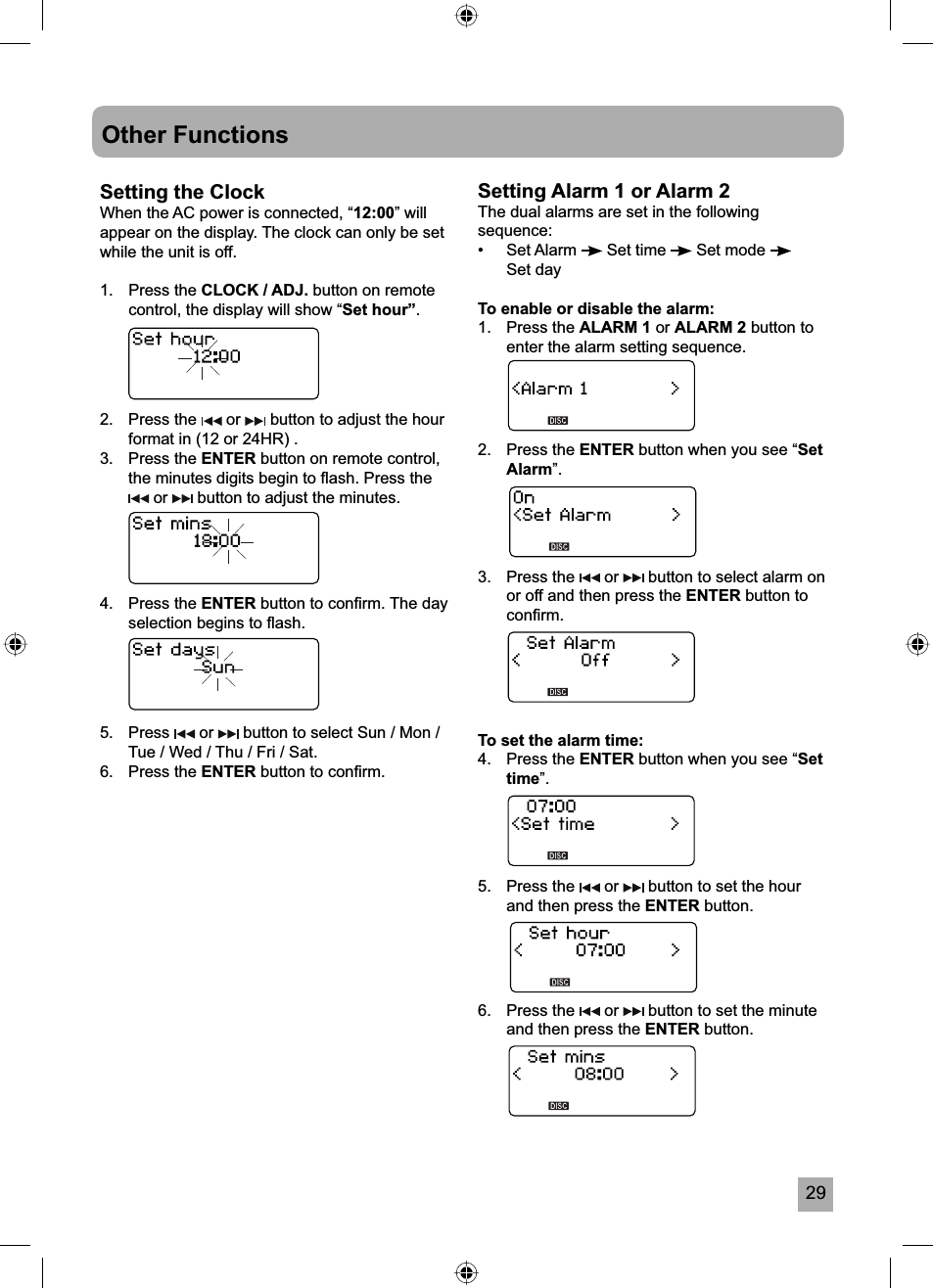
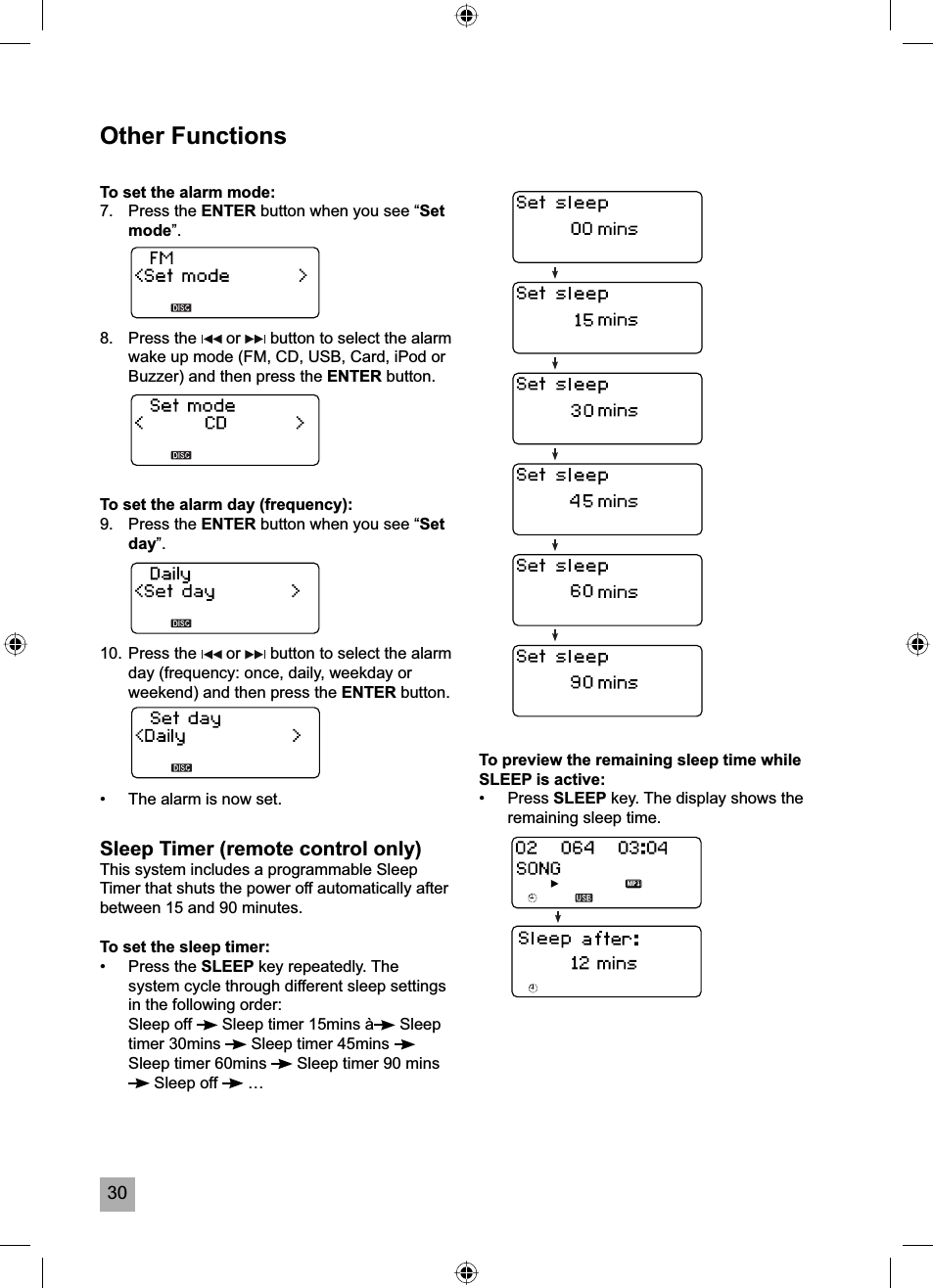
29Other FunctionsSetting the ClockWhen the AC power is connected, “12:00” will appear on the display. The clock can only be set while the unit is off.1. Press the CLOCK / ADJ. button on remote control, the display will show “Set hour”.2. Press the   or   button to adjust the hour format in (12 or 24HR) .3. Press the ENTER button on remote control, the minutes digits begin to fl ash. Press the  or   button to adjust the minutes.4. Press the ENTER button to confi rm. The day selection begins to fl ash.5. Press   or   button to select Sun / Mon / Tue / Wed / Thu / Fri / Sat.6. Press the ENTER button to confi rm.Setting Alarm 1 or Alarm 2The dual alarms are set in the following sequence:•   Set Alarm   Set time   Set mode Set dayTo enable or disable the alarm:1. Press the ALARM 1 or ALARM 2 button to enter the alarm setting sequence.2. Press the ENTER button when you see “SetAlarm”.3. Press the   or   button to select alarm on or off and then press the ENTER button to confi rm.To set the alarm time:4. Press the ENTER button when you see “Settime”.5. Press the   or   button to set the hour and then press the ENTER button.6. Press the   or   button to set the minute and then press the ENTER button.
30Other FunctionsTo set the alarm mode:7. Press the ENTER button when you see “Setmode”.8. Press the   or   button to select the alarm wake up mode (FM, CD, USB, Card, iPod or Buzzer) and then press the ENTER button. To set the alarm day (frequency):9. Press the ENTER button when you see “Setday”.10. Press the   or   button to select the alarm day (frequency: once, daily, weekday or weekend) and then press the ENTER button.•  The alarm is now set.Sleep Timer (remote control only)This system includes a programmable Sleep Timer that shuts the power off automatically after between 15 and 90 minutes.To set the sleep timer:• Press the SLEEP key repeatedly. The system cycle through different sleep settings in the following order: Sleep off  Sleep timer 15mins à  Sleep timer 30mins   Sleep timer 45mins Sleep timer 60mins   Sleep timer 90 mins  Sleep off   …To preview the remaining sleep time while SLEEP is active:• Press SLEEP key. The display shows the remaining sleep time.
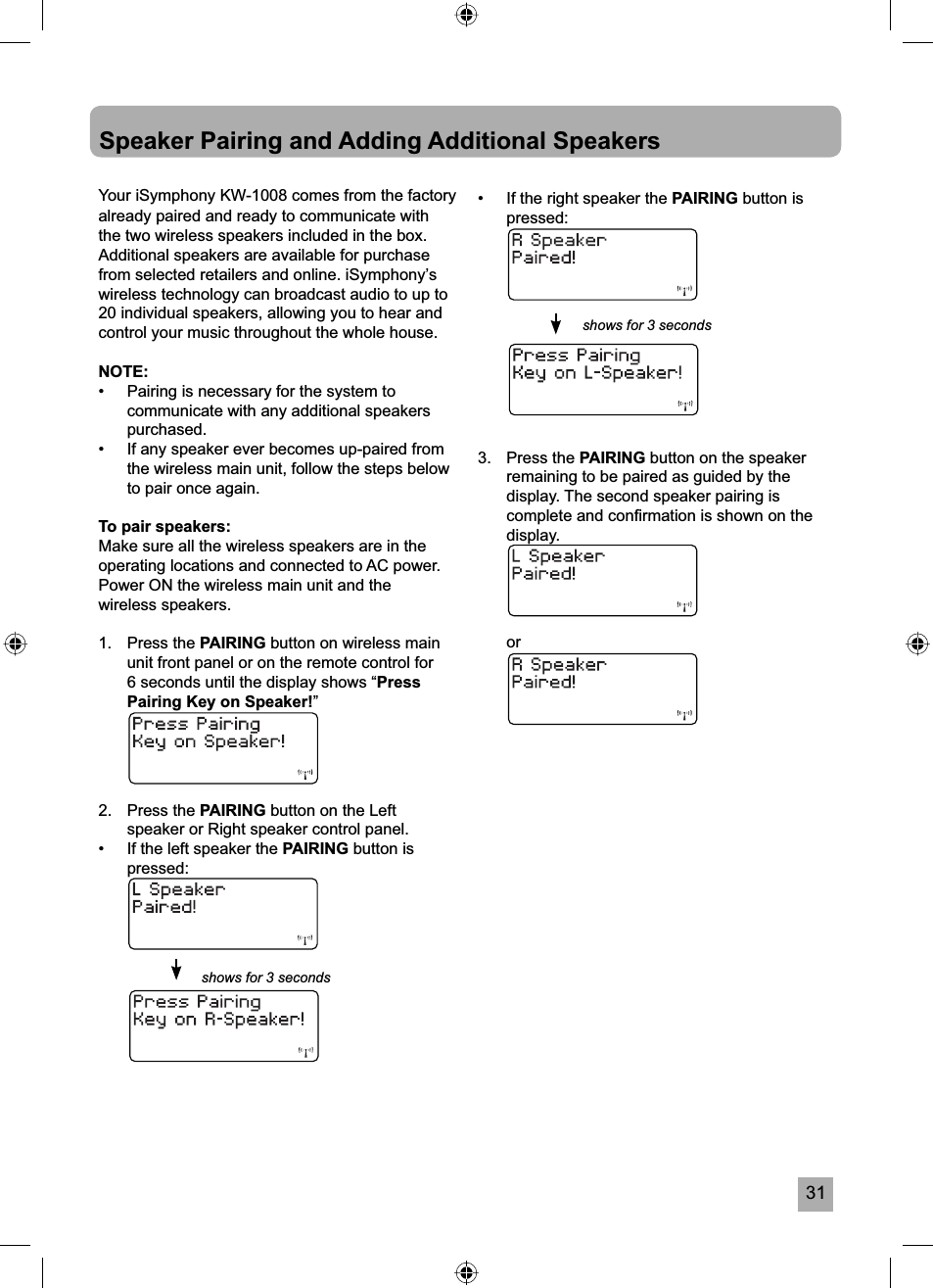
31Your iSymphony KW-1008 comes from the factory already paired and ready to communicate with the two wireless speakers included in the box. Additional speakers are available for purchase from selected retailers and online. iSymphony’s wireless technology can broadcast audio to up to 20 individual speakers, allowing you to hear and control your music throughout the whole house.NOTE:•  Pairing is necessary for the system to communicate with any additional speakers purchased.•  If any speaker ever becomes up-paired from the wireless main unit, follow the steps below to pair once again.To pair speakers:Make sure all the wireless speakers are in the operating locations and connected to AC power.Power ON the wireless main unit and the wireless speakers.1.   Press the PAIRING button on wireless main unit front panel or on the remote control for 6 seconds until the display shows “PressPairing Key on Speaker!”2. Press the PAIRING button on the Left speaker or Right speaker control panel. •  If the left speaker the PAIRING button ispressed:Speaker Pairing and Adding Additional Speakers•  If the right speaker the PAIRING button is pressed:3. Press the PAIRING button on the speaker remaining to be paired as guided by the display. The second speaker pairing is complete and confi rmation is shown on the display. orshows for 3 secondsshows for 3 seconds
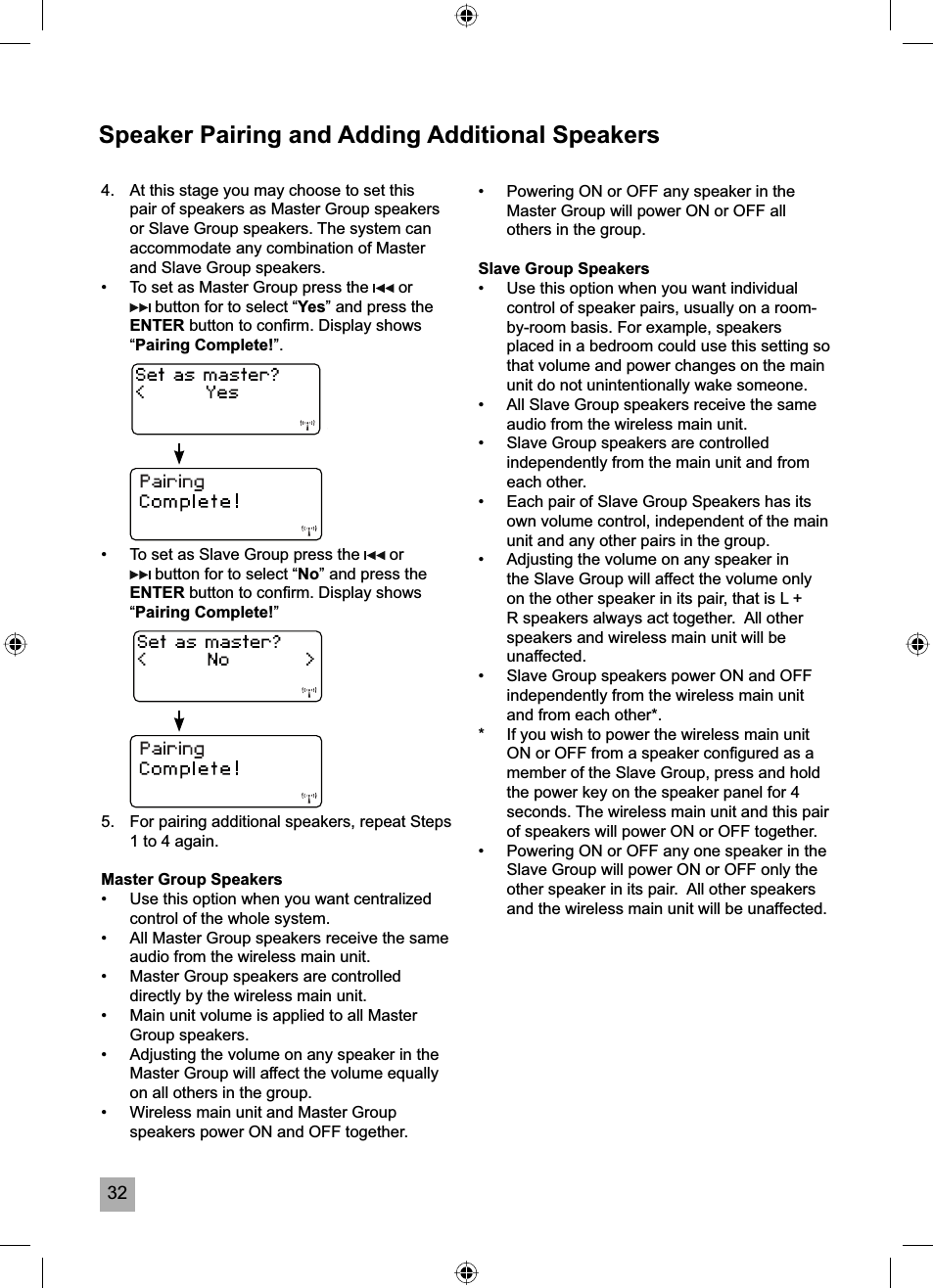
32Speaker Pairing and Adding Additional Speakers4.  At this stage you may choose to set this pair of speakers as Master Group speakers or Slave Group speakers. The system can accommodate any combination of Master and Slave Group speakers.•  To set as Master Group press the   or  button for to select “Yes” and press the ENTER button to confi rm. Display shows “Pairing Complete!”.•  To set as Slave Group press the   or  button for to select “No” and press the ENTER button to confi rm. Display shows “Pairing Complete!”5.  For pairing additional speakers, repeat Steps 1 to 4 again.Master Group Speakers•  Use this option when you want centralized control of the whole system. •  All Master Group speakers receive the same audio from the wireless main unit.•  Master Group speakers are controlled directly by the wireless main unit.•  Main unit volume is applied to all Master Group speakers.•  Adjusting the volume on any speaker in the Master Group will affect the volume equally on all others in the group.•  Wireless main unit and Master Group speakers power ON and OFF together.  •  Powering ON or OFF any speaker in the Master Group will power ON or OFF all others in the group.Slave Group Speakers•  Use this option when you want individual control of speaker pairs, usually on a room-by-room basis. For example, speakers placed in a bedroom could use this setting so that volume and power changes on the main unit do not unintentionally wake someone. •  All Slave Group speakers receive the same audio from the wireless main unit.•  Slave Group speakers are controlled independently from the main unit and from each other.•  Each pair of Slave Group Speakers has its own volume control, independent of the main unit and any other pairs in the group.•  Adjusting the volume on any speaker in the Slave Group will affect the volume only on the other speaker in its pair, that is L + R speakers always act together.  All other speakers and wireless main unit will be unaffected.•  Slave Group speakers power ON and OFF independently from the wireless main unit and from each other*.*  If you wish to power the wireless main unit ON or OFF from a speaker confi gured as a member of the Slave Group, press and hold the power key on the speaker panel for 4 seconds. The wireless main unit and this pair of speakers will power ON or OFF together.•  Powering ON or OFF any one speaker in the Slave Group will power ON or OFF only the other speaker in its pair.  All other speakers and the wireless main unit will be unaffected.
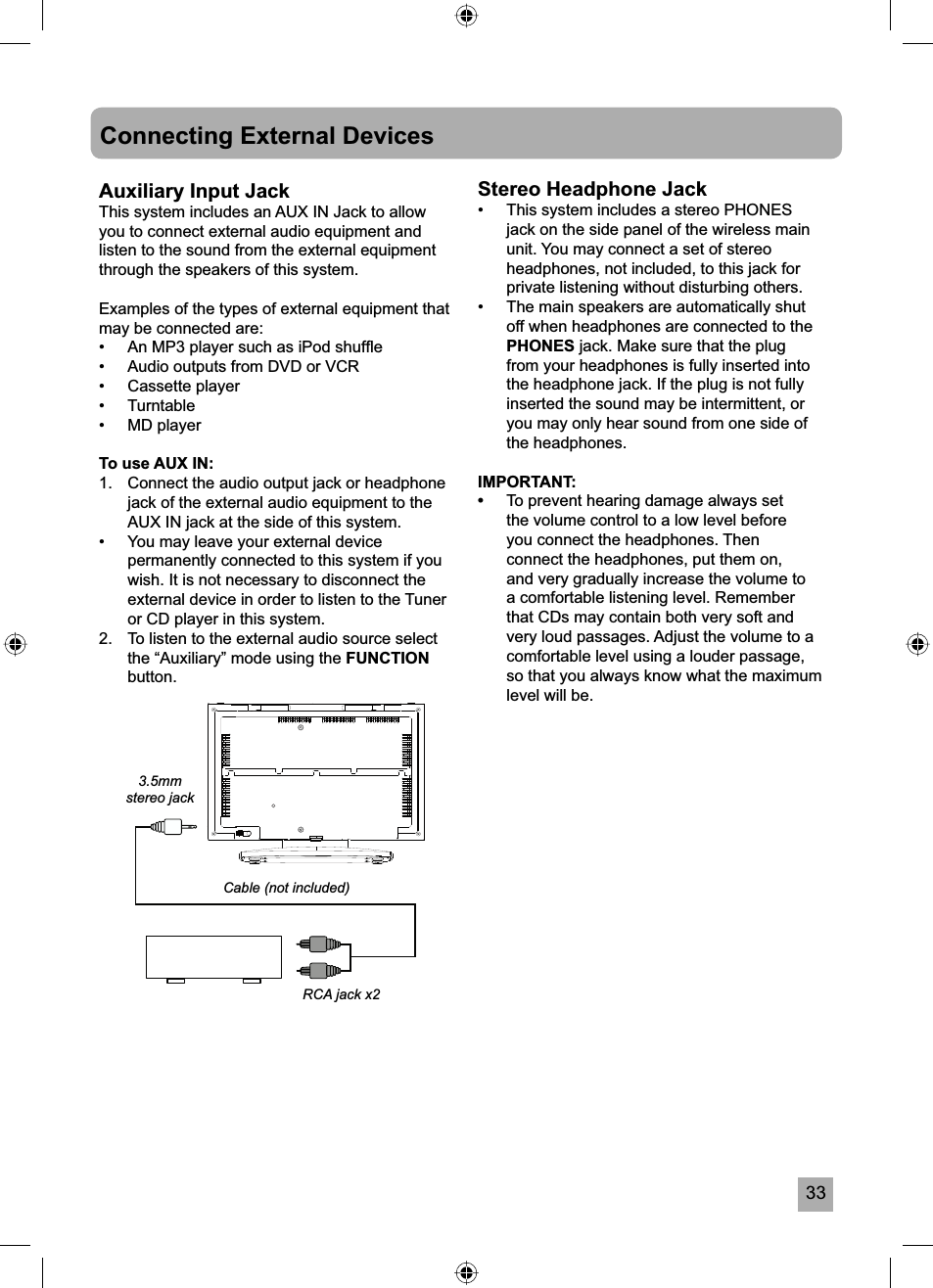
33Connecting External DevicesAuxiliary Input JackThis system includes an AUX IN Jack to allow you to connect external audio equipment and listen to the sound from the external equipment through the speakers of this system.Examples of the types of external equipment that may be connected are:•  An MP3 player such as iPod shuffl e•  Audio outputs from DVD or VCR• Cassette player• Turntable• MD playerTo use AUX IN:1.  Connect the audio output jack or headphone jack of the external audio equipment to the AUX IN jack at the side of this system.•  You may leave your external device permanently connected to this system if you wish. It is not necessary to disconnect the external device in order to listen to the Tuner or CD player in this system.2.  To listen to the external audio source select the “Auxiliary” mode using the FUNCTIONbutton.Stereo Headphone Jack•  This system includes a stereo PHONES jack on the side panel of the wireless main unit. You may connect a set of stereo headphones, not included, to this jack for private listening without disturbing others.•  The main speakers are automatically shut off when headphones are connected to the PHONES jack. Make sure that the plug from your headphones is fully inserted into the headphone jack. If the plug is not fully inserted the sound may be intermittent, or you may only hear sound from one side of the headphones.IMPORTANT: •To prevent hearing damage always set the volume control to a low level before you connect the headphones. Then connect the headphones, put them on, and very gradually increase the volume to a comfortable listening level. Remember that CDs may contain both very soft and very loud passages. Adjust the volume to a comfortable level using a louder passage, so that you always know what the maximum level will be.Cable (not included)RCA jack x23.5mmstereo jack
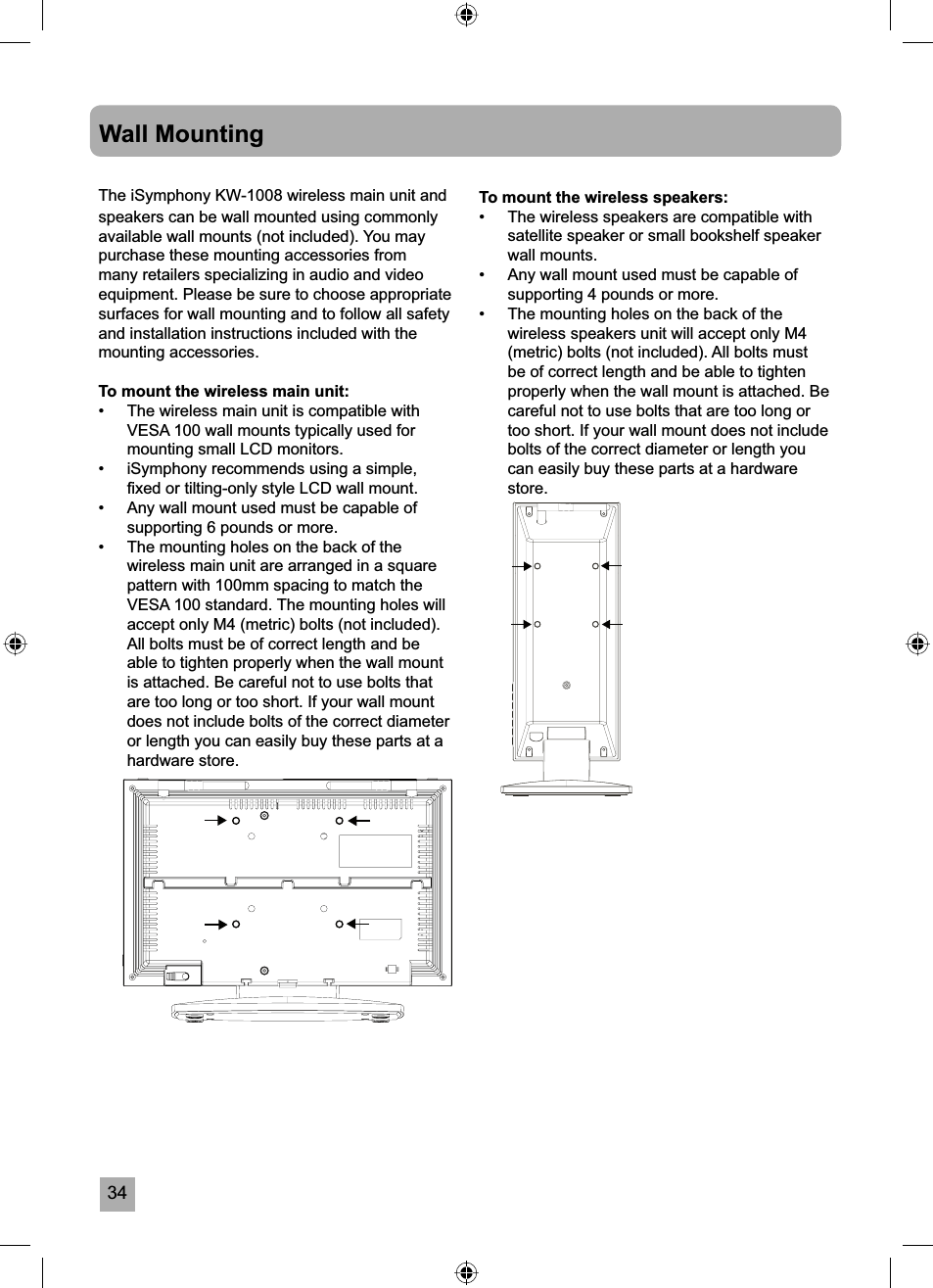
34Wall MountingThe iSymphony KW-1008 wireless main unit and speakers can be wall mounted using commonly available wall mounts (not included). You may purchase these mounting accessories from many retailers specializing in audio and video equipment. Please be sure to choose appropriate surfaces for wall mounting and to follow all safety and installation instructions included with the mounting accessories.To mount the wireless main unit:•  The wireless main unit is compatible with VESA 100 wall mounts typically used for mounting small LCD monitors.•  iSymphony recommends using a simple, fi xed or tilting-only style LCD wall mount. •  Any wall mount used must be capable of supporting 6 pounds or more.•  The mounting holes on the back of the wireless main unit are arranged in a square pattern with 100mm spacing to match the VESA 100 standard. The mounting holes will accept only M4 (metric) bolts (not included).All bolts must be of correct length and be able to tighten properly when the wall mount is attached. Be careful not to use bolts that are too long or too short. If your wall mount does not include bolts of the correct diameter or length you can easily buy these parts at a hardware store. To mount the wireless speakers:•  The wireless speakers are compatible with satellite speaker or small bookshelf speaker wall mounts.•  Any wall mount used must be capable of supporting 4 pounds or more.•  The mounting holes on the back of the wireless speakers unit will accept only M4 (metric) bolts (not included). All bolts must be of correct length and be able to tighten properly when the wall mount is attached. Be careful not to use bolts that are too long or too short. If your wall mount does not include bolts of the correct diameter or length you can easily buy these parts at a hardware store.
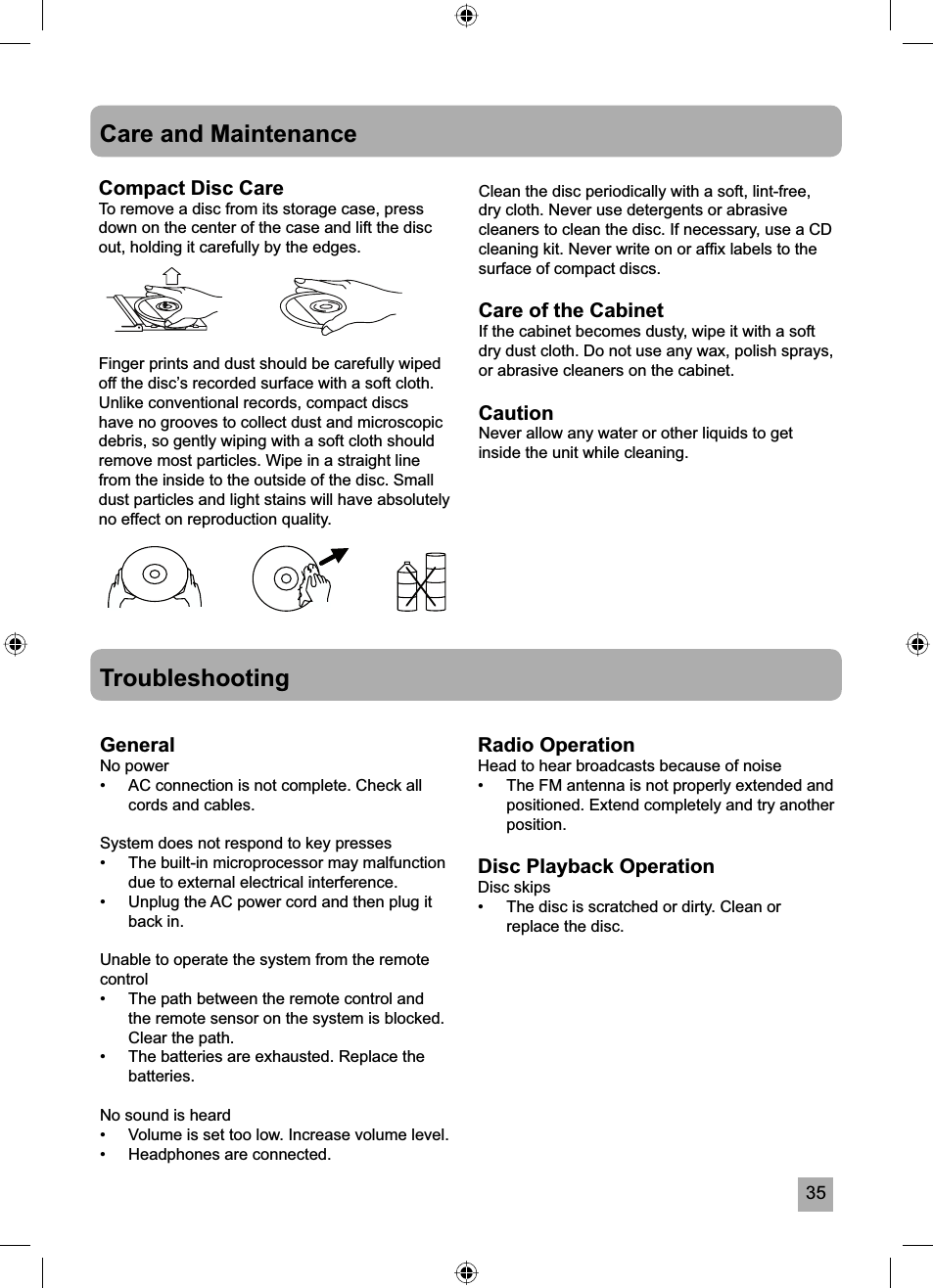
35Care and MaintenanceCompact Disc CareTo remove a disc from its storage case, press down on the center of the case and lift the disc out, holding it carefully by the edges.Finger prints and dust should be carefully wiped off the disc’s recorded surface with a soft cloth. Unlike conventional records, compact discs have no grooves to collect dust and microscopic debris, so gently wiping with a soft cloth should remove most particles. Wipe in a straight line from the inside to the outside of the disc. Small dust particles and light stains will have absolutely no effect on reproduction quality.TroubleshootingGeneralNo power•  AC connection is not complete. Check all cords and cables.System does not respond to key presses•  The built-in microprocessor may malfunction due to external electrical interference. •  Unplug the AC power cord and then plug it back in.Unable to operate the system from the remote control•  The path between the remote control and the remote sensor on the system is blocked. Clear the path.•  The batteries are exhausted. Replace the batteries.No sound is heard•  Volume is set too low. Increase volume level.•  Headphones are connected.Radio OperationHead to hear broadcasts because of noise•  The FM antenna is not properly extended and positioned. Extend completely and try another position.Disc Playback OperationDisc skips•  The disc is scratched or dirty. Clean or replace the disc.Clean the disc periodically with a soft, lint-free, dry cloth. Never use detergents or abrasive cleaners to clean the disc. If necessary, use a CD cleaning kit. Never write on or affi x labels to the surface of compact discs.Care of the CabinetIf the cabinet becomes dusty, wipe it with a soft dry dust cloth. Do not use any wax, polish sprays, or abrasive cleaners on the cabinet.CautionNever allow any water or other liquids to get inside the unit while cleaning.
36Technical Specifi cations1. GeneralPower requirementsPower consumption    Dimensions of wireless main unitWeight of wireless main unit2. TunerFM Tuning rangeAM Tuning rangePreset memory stations4. CD player sectionPlayback systemDACFrequency response5. Card/USB SectionFlash memory card supportUSB Support6. Speaker systemSpeakersImpedance120V AC, 50 Hz80W (operation)445 (W) x 285 (H) x 222 (D) mm6.55 Kg87.5 MHz to 108 MHz540 KHz to 1600 KHzFM 30/AM 10Compact Disc Digital Audio8 times over sampling,1 bit D/A converter.100 - 20,000 HzSD/MMC up to 2GBFlash Storage Device up to 2GB2 x 4”4 ohms
37Limited WarrantyiSymphony Limited WarrantyThis product is warranted by iSymphony to the original purchaser against manufacturing defects in materials and workmanship encountered in the normal noncommercial use of this product for a limited warranty period of:Ninety (90) Days Labor, One (1) year PartsThis limited warranty begins on the original date of purchase, and is valid only on products purchased and used in the United States.1. LABOR: During the ninety days labor limited warranty period, iSymphony will, at its option, repair the defective product at no cost to you, or replace the defective product with a new or remanufactured functionally equivalent product of equal value.2. PARTS: During the ninety days parts limited warranty period, iSymphony will supply new or rebuilt replacements for defective parts as may be deemed necessary by iSymphony.3.  This Warranty DOES NOT APPLY to products that have been damaged due to abuse, misuse, accident, alternation, modifi cation, negligence, and tampering or products that have been serviced by any unauthorized service center or third party. This Warranty DOE NOT APPLY to batteries, connecting cables, AC adaptors, or other accessories packaged with the unit.What you must do for warranty service:Unit must be shipped, freight prepaid and properly packaged with the original dated bill of sale as proof of purchase to iSymphony Service Center. Please call 1-800-710-7740 to obtain the shipping instructions.iSymphony Customer Service1-800-710-7740Please register your product online at www.isymphony.com/register/iSymphony will pay for the return shipping charges for products that are under warranty and received in this manner.EXCEPT TO THE EXTENT PROHIBITED BY APPLICABLE LAW, ALL IMPLIED WARRANTIES MADE BY iSYMPHONY IN CONNECTION WITH PRODUCT, INCLUDING WARRANTY OR MERCHANTABILITY, ARE LIMITED TO THE DURATION OF THE EXPRESS WARRANTY HEREIN, AND NO WARRANTIES, EXPRESS OR IMPLIED INCLUDING SAID WARRANTY OF MERCHANTABILITY, SHALL APPLY TO THIS PRODUCT AFTER SAID PERIOD. SHOULD THIS PRODUCT PROVE TO BE DEFECTIVE IN WORKMANSHIP OR MATERIAL, THE CONSUMER’S SOLE REMEDY SHALL BE SUCH REPAIR OR REPLACEMENT AS IN HEREIN ABOVE EXPRESSLY PROVIDED, AND UNDER NO CIRCUMSTANCES SHALL iSYMPHONY BE LIABLE FOR ANY LOSS OR DAMAGE, DIRECT OR CONSEQUENTIAL, ARISING OUT OF THE USE, MISUSE, OR INABILITY TO USE THIS PRODUCT. THIS WARRANTY IS NONTRANSFERABLE.Some states do not allow the exclusion and limitation of incidental or consequential damage, or allow limitations on how long an implied warranty lasts, so the above limitations or exclusions or inclusions may not apply to you. This warranty gives you specifi c legal right and you may also have other rights, which vary from state to state.

Navigation menu