KRIPTO MOBILE K500A Mobile Phone User Manual 5 user manual x

KRIPTO MOBILE CORPORATION Mobile Phone 5 user manual x

Contents

User Manual

 -1-   INTRODUCTION Thanks for choosing K5, Single cardAndroid, 3G smart phone based on 1.3GHz Quad-coreProcessor.This smartphone is running on Android 7.0 OS.If you’d like your phone to live a long and fruitful life, please read this guide carefully and keep it for future reference. You never know when you might need it.   And don’t worry if the pictures we use to demonstrate your phone’s functions look a little different from what you see on its screen. It’s the functions that matter.
 1.1  SafetPleaswith t SAR Value 0.28 W/kg Use cell phoneheadset or seadolescents an  If you are usiemitter.  ROHS DeclaratioDeclaration of Con(adopted by Notific  The Product isThe content ofSCHEDULE II a. Lead b. Cadmc. Mercd. Hexae. Polybf. Polyb1.2  UsingOn The RUsing a phone whsafely at all times.Near SenDon’t use your phsuch as pacemakeoperation of fire deFor more informa Sty Precautions se read through the follothese rules, so as to prevg@1g(Head)    1.37 W/kge when the signal strengtend a text message. nd pregnant women. ing a Bluetooth headseton nformity with the requiremcation S.O.1035 (E) of Ms in conformity with the rf hazardous substance wof the e-waste Rules: (Pb) – not over 0.1% bymium (Cd) – not over 0.0ury (Hg) – not over 0.1%avalent chromium (Cr6+) brominated biphenyls (PBbrominateddiphenyl etherg your phone safely Road hile driving is illegal in ma nsitive Electronics   hone near sensitive electers – as it could cause thetectors and other automation about how your p-2- Safety owing briefings carefullyvent causing anydanger g@1g(Body)  th is good. Keep your caThis advice applies edevice, please make suments of the e-waste MaMinistry of Environment anrequirements of Rule 13with the exemption of thy weight; 1% by weight; % by weight; – not over 0.1% by weigBBs) – not over 0.1% by rs (PBDEs) – not over 0.any countries. Please folltronic equipment – partichem to malfunction. It canmatic-control equipment. phone affects pacemakeand act in accordance or violating any law. alls short or instead use especially to children, ure it has a low power anagement Rules, 2011 nd Forests) 3 of the e-waste Rules. he applications listed in ht; weight; 1% by weight. ow local laws and drive cularly medical devices n also interfere with the  ers or other electronic
 -3- equipment, please contact the manufacturer or your local distributor. Your phone may cause interference when used near TVs, radios or automated office equipment. While Flying Your phone can cause interference with aircraft equipment. So it’s essential you follow airline regulations. And if airline personnel ask you to switch off your phone, or disable its wireless functions, please do as they say. In Hospital Your phone may interfere with the normal operation of medical equipment. Follow all hospital regulations and turn it off when you’re asked to by posted warnings or medical staff.  At a Petrol Station Don’t use your phone at petrol stations. In fact, it’s always best to switch off whenever you’re near fuels, chemicals or explosives. Around Water Keep your phone away from water (or any other liquid). It’s not a waterproof model.     Making Repairs Never take your phone apart. Please leave that to the professionals. Unauthorised repairs could break the terms of your warranty. Broken Antenna Don’t use your phone if the antenna is damaged, as it could cause injury.   Around Children Keep your mobile out of children’s reach. It should never be used as a toy and it might not be good for their health.
 Original AOnly use the origmanufacturer. Usivoid, break nationNear ExpTurn off your pholocal laws and turnEmergenTo make an emernetwork coveragewhere you are andWorkingThe working tempPlease don’t use ttemperature might AyAccessories ginal accessories supplieng unapproved accessoral regulations on the useplosives   ne in or near areas when off your phone when rency Calls rgency call your phone m. Dial the national emergd don’t hang up until help Temperature perature for the phone ithe phone outside the rat cause problems. At very high volume, proloour hearing. -4- ed with your phone or tries may affect performane of mobile phones, or evere explosive materials aequested. must be turned on and ingency number and pressp has arrived. is between 0 Degree annge. Using the phone unonged listening to a mobthose approved by the nce, make the warranty ven cause injury. are used. Always obey n an area where there’s  ‘send’. Explain exactly nd 40 Degree Celcius. nder too high or too low bile phone can damage
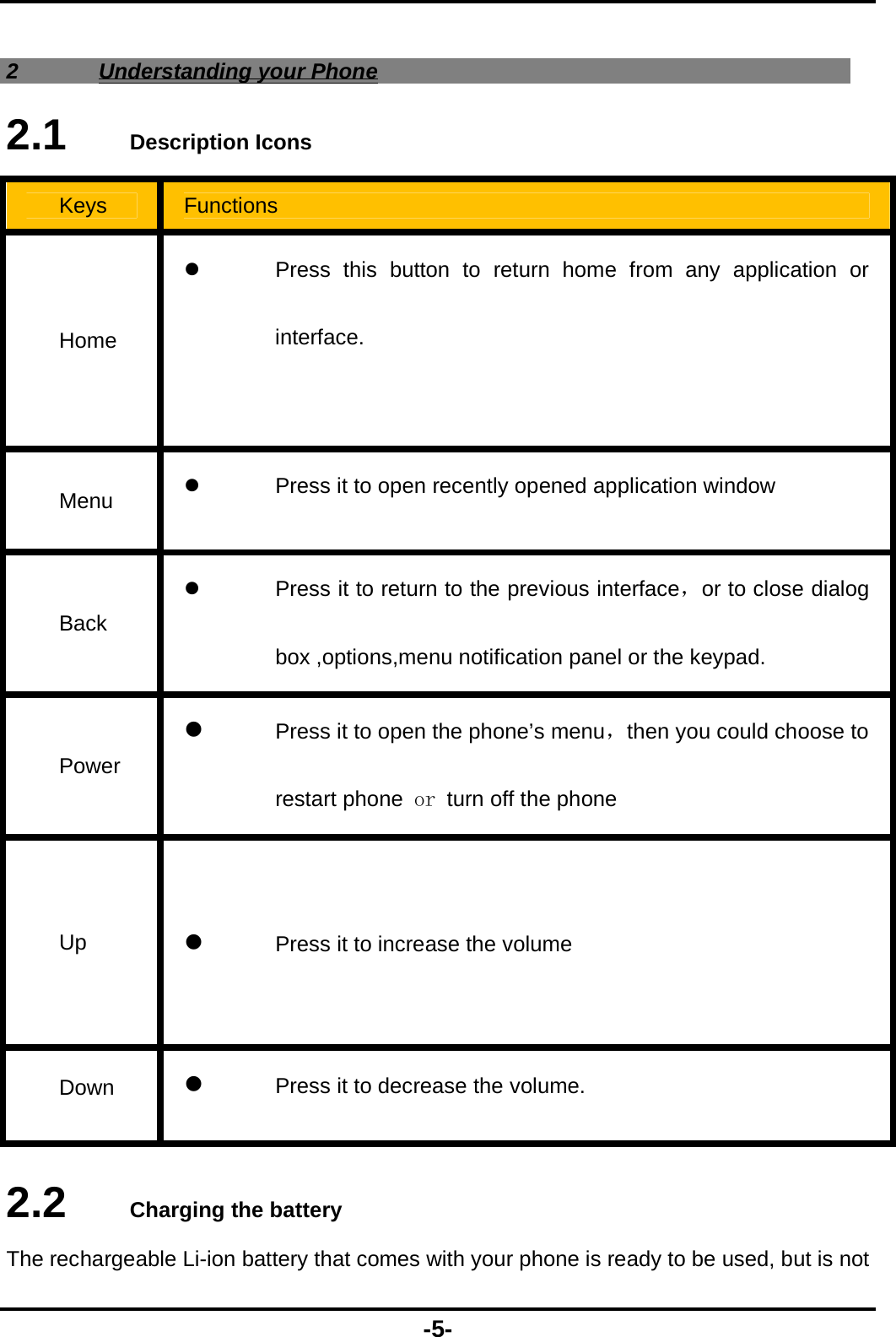
 -5- 2 Understanding your Phone 2.1   Description Icons Keys  Functions Home   Press this button to return home from any application or interface.  Menu    Press it to open recently opened application window Back   Press it to return to the previous interface,or to close dialog box ,options,menu notification panel or the keypad. Power  Press it to open the phone’s menu,then you could choose to restart phone or turn off the phone Up   Press it to increase the volume   Down   Press it to decrease the volume.  2.2   Charging the battery The rechargeable Li-ion battery that comes with your phone is ready to be used, but is not
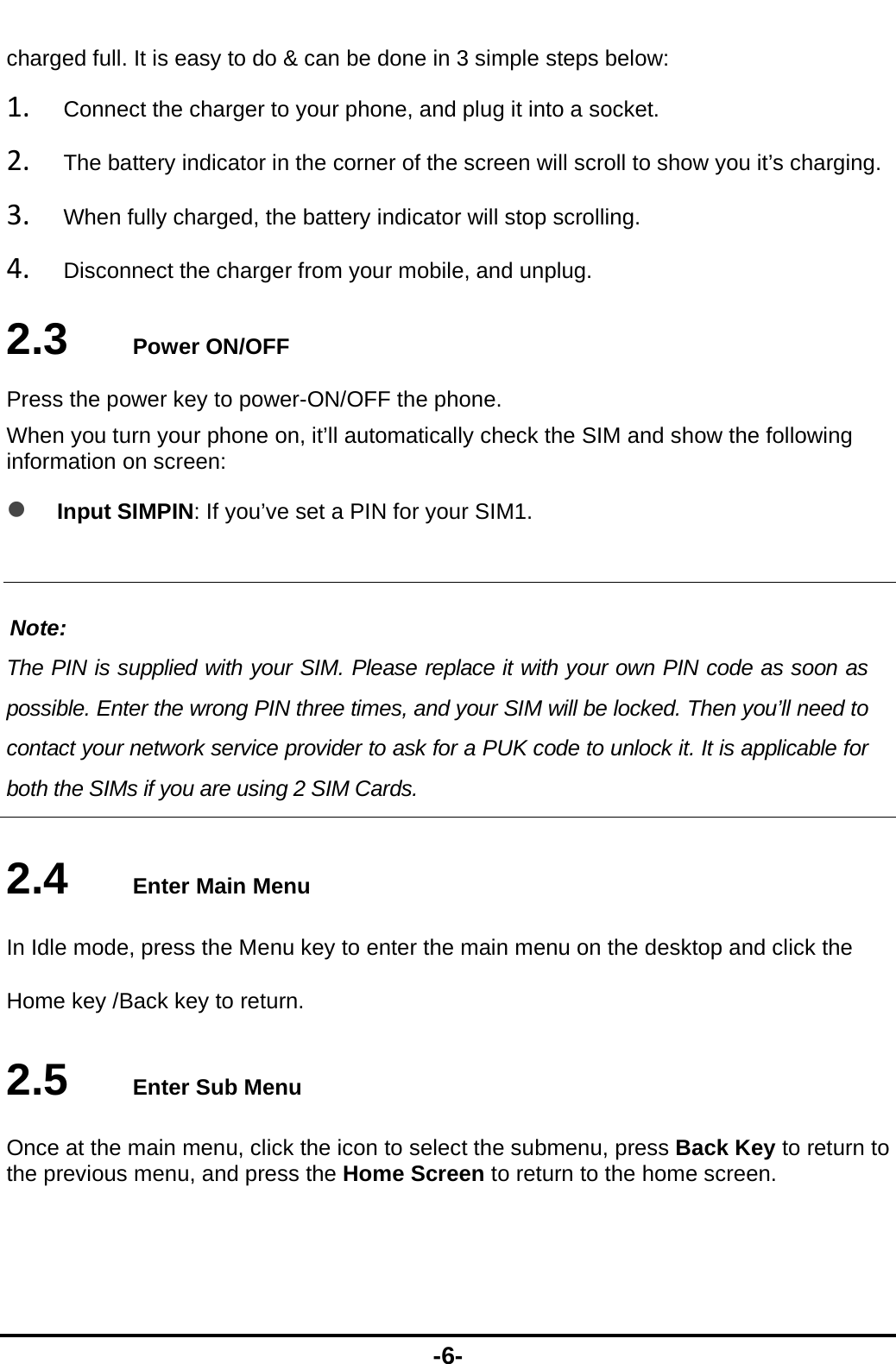
 -6- charged full. It is easy to do & can be done in 3 simple steps below: 1. Connect the charger to your phone, and plug it into a socket.   2. The battery indicator in the corner of the screen will scroll to show you it’s charging.   3. When fully charged, the battery indicator will stop scrolling.   4. Disconnect the charger from your mobile, and unplug.   2.3   Power ON/OFF Press the power key to power-ON/OFF the phone. When you turn your phone on, it’ll automatically check the SIM and show the following information on screen:  Input SIMPIN: If you’ve set a PIN for your SIM1.  Note: The PIN is supplied with your SIM. Please replace it with your own PIN code as soon as possible. Enter the wrong PIN three times, and your SIM will be locked. Then you’ll need to contact your network service provider to ask for a PUK code to unlock it. It is applicable for both the SIMs if you are using 2 SIM Cards.    2.4   Enter Main Menu In Idle mode, press the Menu key to enter the main menu on the desktop and click the Home key /Back key to return. 2.5   Enter Sub Menu Once at the main menu, click the icon to select the submenu, press Back Key to return to the previous menu, and press the Home Screen to return to the home screen.
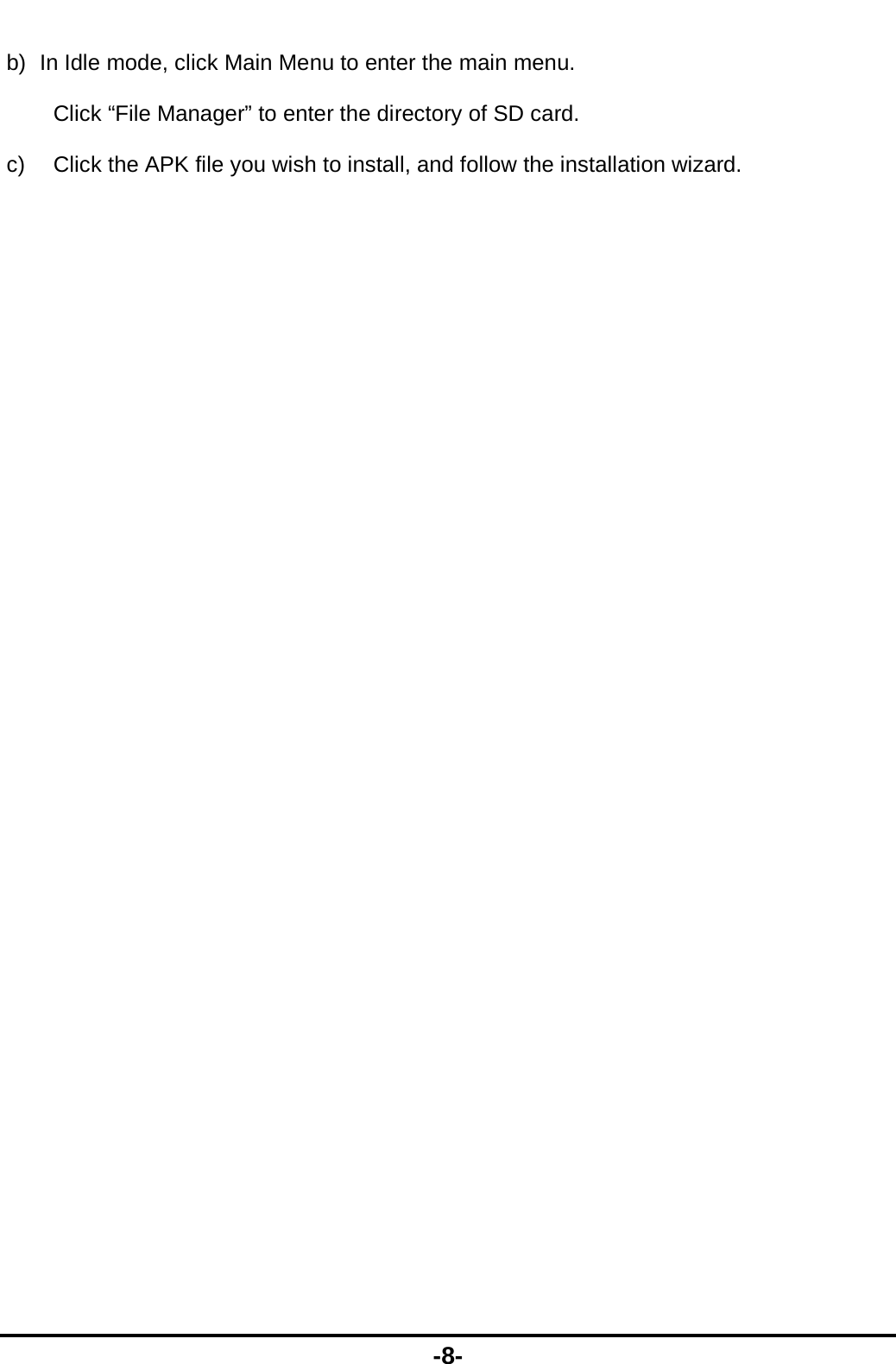
 -7- 2.6   Use Notification Panel As a new notification appears in the notification area, slide down in the area to view the contents of the notification. And slide down again,there is shortcut of some functions,about brightness level、Bluetooth、Airplane mode、Auto-rotate、Flashlight、Location、Do not disturb、Wi-Fiand many more 2.7   Move icons on the main interface 1. Long press the icon on the main interface until it’s enlarged and the mobile. 2. Drag the icon to the desired position and then release it.   2.8   Delete icons on the main interface 1. Long press the icon on the main interface until it’s enlarged and the mobile . 2. Drag the icon to “Remove” to delete it.   2.9   Change wallpapers 1. Long press the desktop pop-up menu. 2. Choose WALLPAPERS to change wallpapers 2.10   Recent tasks On any interface, press [menu]to access to the recent tasksinterface, view all the recent tasks &touch one of them to enter this App. 2.11   Install APK through File Manager APK is a supported file format for the Android mobile operating system. a)  Please copy the downloaded APK file into the SD card, and then insert the SD card into the phone.
 -8- b)  In Idle mode, click Main Menu to enter the main menu. Click “File Manager” to enter the directory of SD card. c)  Click the APK file you wish to install, and follow the installation wizard.
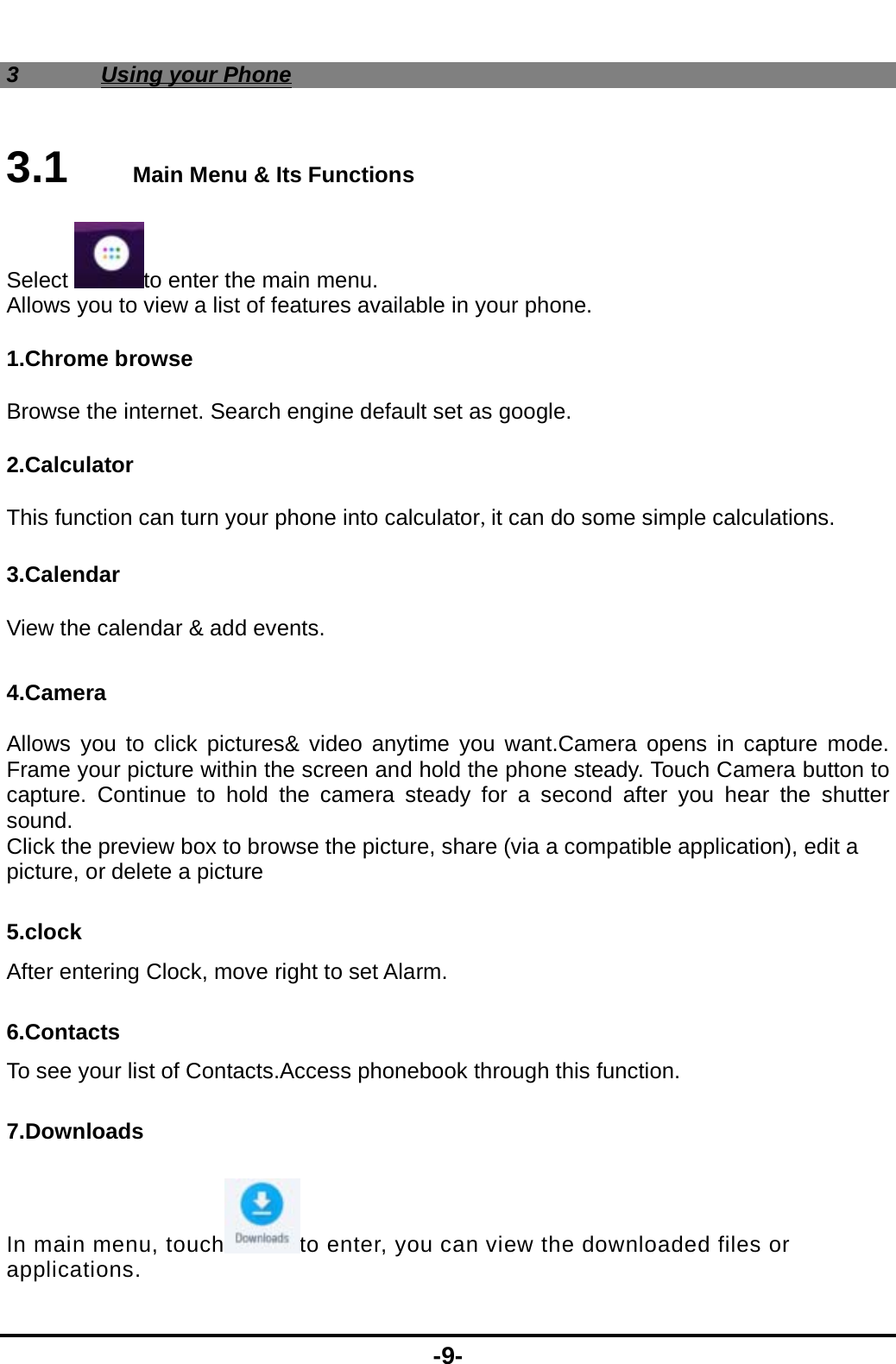
 -9- 3 Using your Phone 3.1   Main Menu & Its Functions Select to enter the main menu. Allows you to view a list of features available in your phone. 1.Chrome browse Browse the internet. Search engine default set as google. 2.Calculator This function can turn your phone into calculator,it can do some simple calculations. 3.Calendar View the calendar & add events.  4.Camera  Allows you to click pictures& video anytime you want.Camera opens in capture mode. Frame your picture within the screen and hold the phone steady. Touch Camera button to capture. Continue to hold the camera steady for a second after you hear the shutter sound. Click the preview box to browse the picture, share (via a compatible application), edit a picture, or delete a picture 5.clock After entering Clock, move right to set Alarm. 6.Contacts To see your list of Contacts.Access phonebook through this function. 7.Downloads In main menu, touch to enter, you can view the downloaded files or applications.
 -10- 8.Email Set up a common email, manage your email 9.Total Commander You could install the files in APK format & also view your files. 10.FM Radio In main menu, touch  to enter FM Radio interface,Through this program, you may listen to FM radio on the device, FM radio use the wired headset as an antenna to receive signals, before opening this program ,you can install    the original equipment-headphones, when listening, you can switch it manually    to speakers or the mode with wired headphones. 11.Gallery Allows you to view photos & videos in folders.    12.Gmail Allows you set up your Gmail accounts. Gmail on your phone is automatically synchronized with your google account on the web.  13.Messaging Allow you to view messages sent & received as a thread. 14.Music View the list of songs available in your phone. Your music files are classified according to the following four categories:Artists, albums, songs and play lists. Touch one of these categories; you can view the list inside.  15.Phone  Allow you to make quick outgoing calls. 16.Play Store Log in to your Gmail account to view all the applications & download from thousands of applications available under the Google Market called Play Store.  To use this app please connect to an internet connection.
 -11-  17.Google In main menu, touch to access Google Search, enter key words, touch , you can search a target in All or Web or Apps or Contacts, the matched result will display below. You also can do voice search here. 18.Settings Modify settings under the following:  Wi-Fi  Bluetooth  Data Usage  More  Display  Sound & notification  Apps  Storage& USB  Battery  Memory  Location  Security   Accounts  Google  Language & input  Backup&reset  Date &time  Schedule power on/off  Accessibility  Printing  About phone
 -12- 19.SIM Toolkit This service is provided by the operator. It provides many types of personalized message services. 20.Sound Recorder Allows you to record sounds. 3.2   Wi-Fi K5supports Wi-Fi which allows you to connect with a Wireless connection.This is useful for surfing internet on phone.  Enter "Settings" interface & search WIRELESS & NETWORKS. Select the network you want to connect.
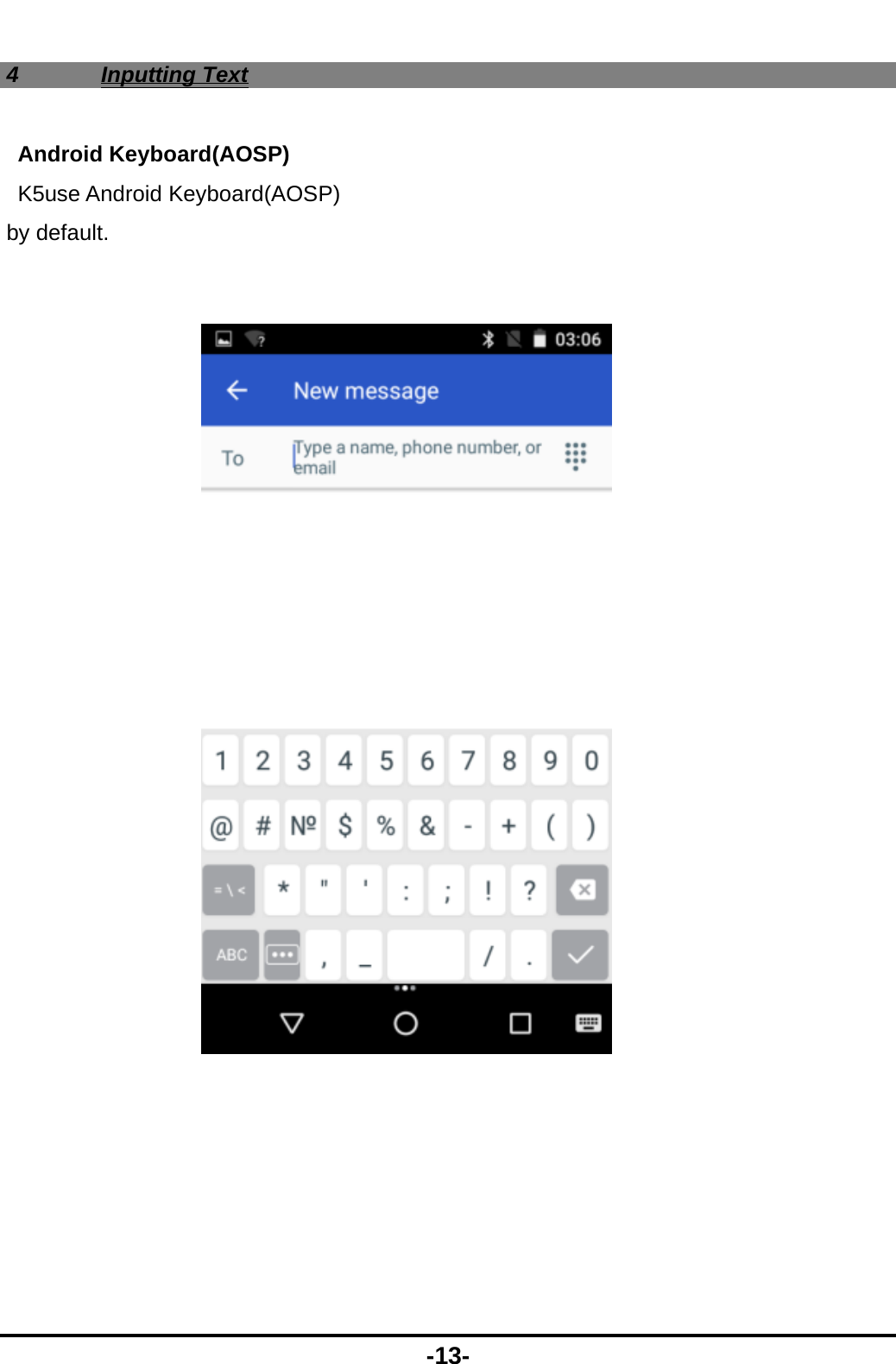
 -13- 4 Inputting Text Android Keyboard(AOSP) K5use Android Keyboard(AOSP) by default.
 -14- 5 Maintenance Use a dry soft cloth to wipe general dirt.   Do not use a hard cloth, benzene or thinner to wipe the phone, otherwise, the surface of the phone will be scratched or could even result in the fading of colour.  6  Taking Care of your Device Your device is a product of superior design and craftsmanship and should be handled with care: The following suggestions will help you protect your phone:    Always keep the small parts of the phone away from children.    Keep the device dry. Precipitation, humidity, and all types of liquids or moisture can contain minerals that will rust electronic circuits. If your device does get wet, remove the battery, and allow the device to dry completely before replacing it.    Do not use or store the device in dusty, dirty areas. Its moving parts and electronic components can be damaged.  Do not store the device in high or cold temperature. High temperatures can shorten the life of electronic devices and damage batteries.  Do not attempt to open the device other than as instructed in this guide.  Do not drop, knock, or shake the device. Rough handling can break internal circuit boards and fine mechanics.    Do not use harsh chemicals, cleaning solvents, or strong detergents to clean the device. Only use a soft, clean, dry cloth to clean the surface of the device.  Do not paint the device. Paint can clog the moving parts and prevent proper operation.   Use indoor chargers.   FCC Caution: Any Changes or modifications not expressly approved by the party responsible for compliance could void the user's    authority to operate the equipment.     This device complies with part 15 of the FCC Rules. Operation is subject to the following two conditions: (1) This device may not cause harmful interference, and (2) this device must accept any interference received, including  interference that may cause undesired operation.
 -15-  Note: This equipment has been tested and found to comply with the limits for a Class B digital device, pursuant to   part 15 of the FCC Rules. These limits are designed to provide reasonable protection against harmful interference in  a residential installation. This equipment generates, uses and can radiate radio frequency energy and, if not installed  and used in accordance with the instructions, may cause harmful interference to radio communications. However,   there is no guarantee that interference will not occur in a particular installation. If this equipment does cause harmful    interference to radio or television reception, which can be determined by turning the equipment off and on, the user is  encouraged to try to correct the interference by one or more of the following measures:    —Reorient or relocate the receiving antenna.      —Increase the separation between the equipment and receiver.      —Connect the equipment into an outlet on a circuit different from that to which the receiver is connected.      —Consult the dealer or an experienced radio/TV technician for help.  Specific Absorption Rate (SAR) information SAR tests are conducted using standard operating positions accepted by the FCC with the Before a new model phone is a available for sale to the public, it must be tested and certified to phone transmiting at its highest certified power level in all tested frequency bands, although the SAR is determined at the highest certified power level,the actual SAR level of the phone while operating can be well below the maximum value, in general, the closer you are to a wireless base station antenna, the lower thepower output.the FCC that it does not exceed the exposure limit established by theFCC, Tests for each phone are performed in positions and locations (e.g. at the earand worn on the body) as required by the FCC.For body worn operation, this model phone has been tested and meets the FCCRF exposure guidelines when used with an accessory designated for this product orwhen used with an accessory that contains no metal and that positions the handseta minimum of 1.0 cm from the body. Non-compliance with the above restrictions may result in violation of RF exposure guidelines.

Navigation menu