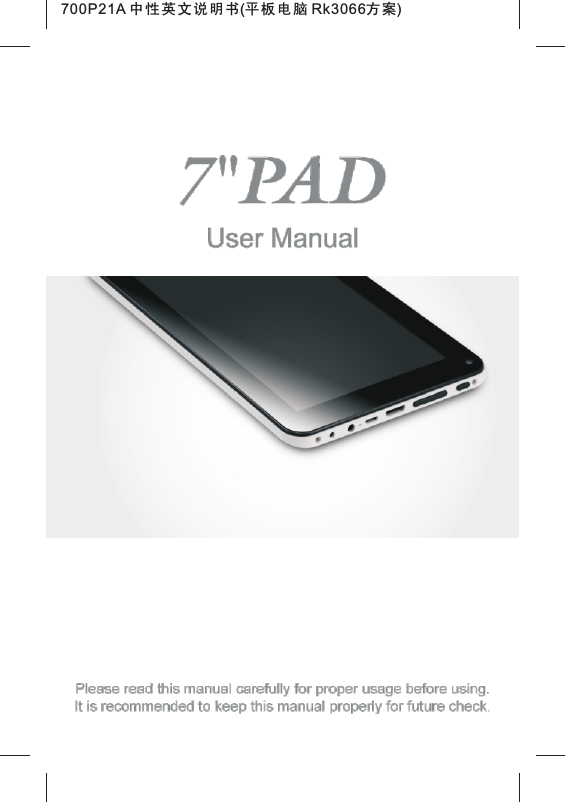
KTC Technology 00004 7 inch PAD with Wi-Fi function User Manual Exhibit 08 Users manual
Shenzhen KTC Technology Co., Ltd. 7 inch PAD with Wi-Fi function Exhibit 08 Users manual
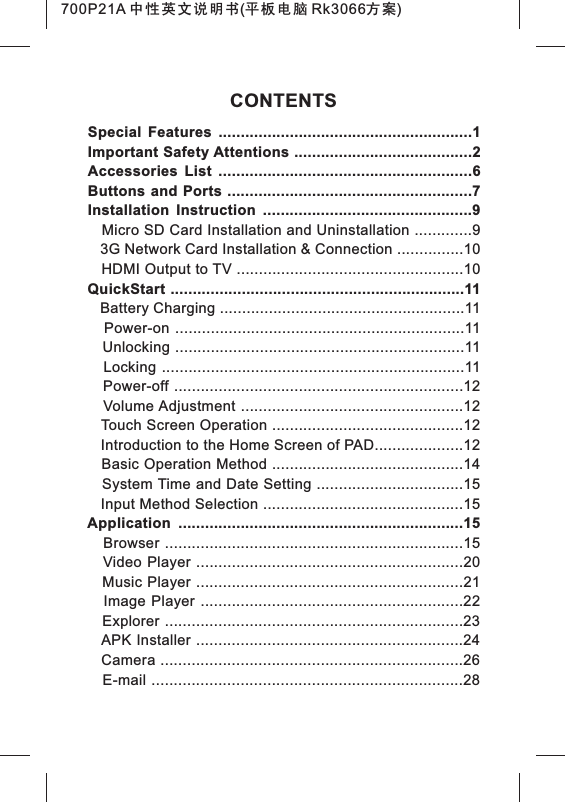
Contents
- 1. Exhibit 08 User manual
- 2. Exhibit 08 Users manual
Exhibit 08 Users manual
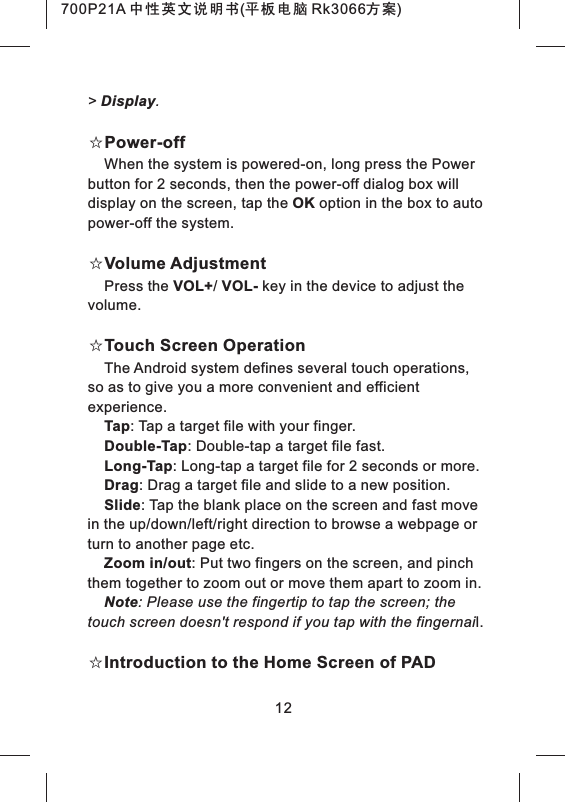
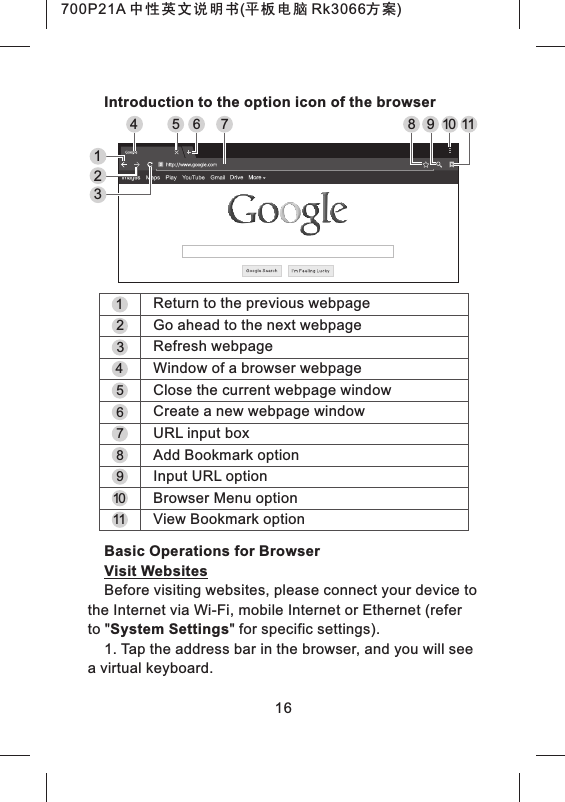
![2. Tap the virtual keyboard to input the correct address and then tap the [Enter] key at the virtual keyboard to visit the relevant website.Touch Screen Operations for Webpage Browsing1. Zoom in the webpage: put two fingers closely together on the target part of the webpage and separate them quickly, or double tap the target part of the webpage.2. Drag the webpage: put a finger on the screen and slide it upwards, downwards, leftwards or rightwards quickly to drag the webpage upwards, downwards, leftwards or rightwards.3. Long-tap Text/Link/Image to display and edit the editable items.Use of BookmarkYou can use the bookmark to save your favorite 17700P21A 中性英文说明书(平板电脑 Rk3066方案)](https://usermanual.wiki/KTC-Technology/00004.Exhibit-08-Users-manual/User-Guide-2025323-Page-20.png)
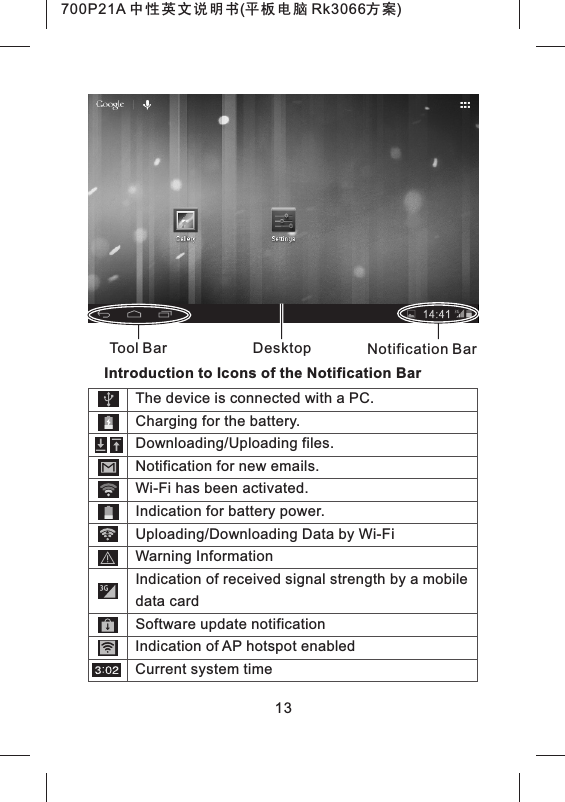
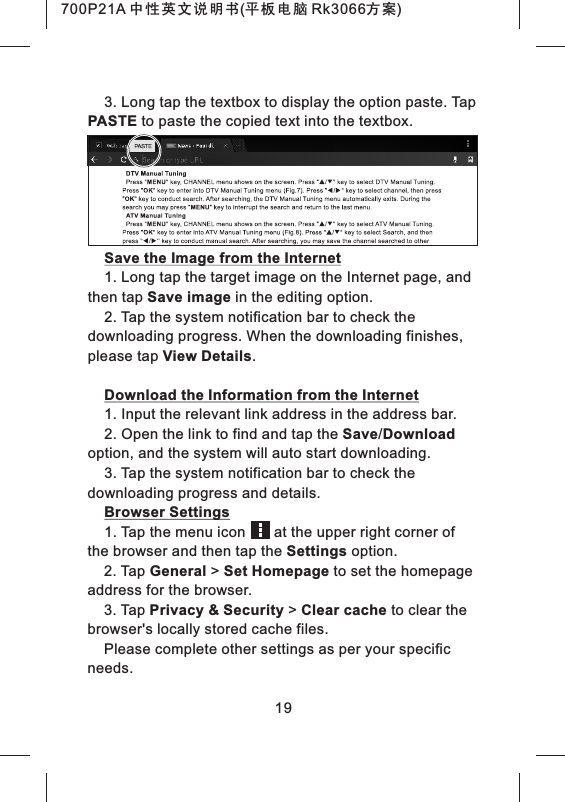
![18webpages so that you can find and open them easily next time.■ Save a Webpage as a Bookmark1. Tap the add bookmark icon in the browser.2. Tap the virtual keyboard to input the browser tabs, and then tap the [Enter] key.3. Make sure the address displayed in the address bar is correct and then tap the [Enter] key at the virtual keyboard.4. Tap Account and Add to to display the relevant drop-down lists, tap account and target storage location, and then tap OK.■ View a Bookmark1. Tap the view bookmark icon in the browser.2. Tap the target bookmark to open it.■ Delete or Edit a Bookmark1. Tap the view bookmark icon in the browser.2. Long-tap the target bookmark.3. Edit the relevant editable items.Copy and Paste the Text from the Internet1. Long-tap the target text on the Internet page, and you will see the editing options on the upper part of the screen. Drag the cursor select the text that you want to copy.2. Tap the COPY option on the browser toolbar.700P21A 中性英文说明书(平板电脑 Rk3066方案)](https://usermanual.wiki/KTC-Technology/00004.Exhibit-08-Users-manual/User-Guide-2025323-Page-21.png)
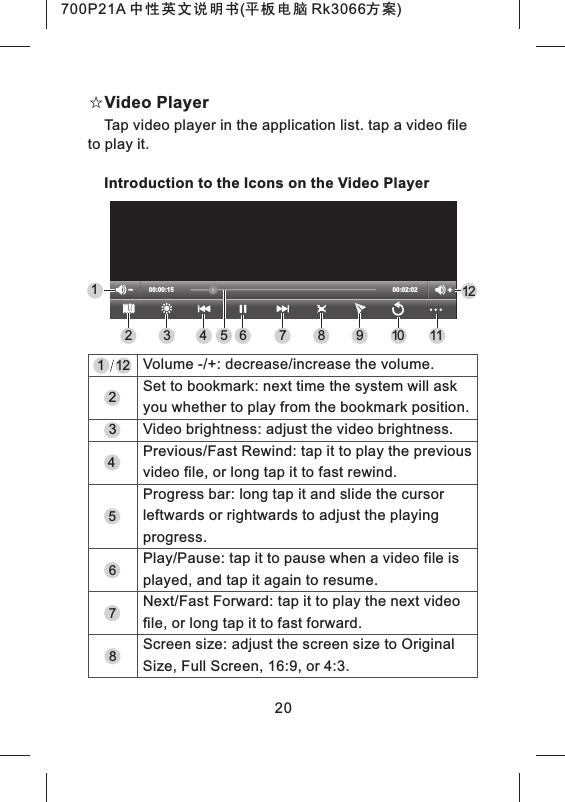
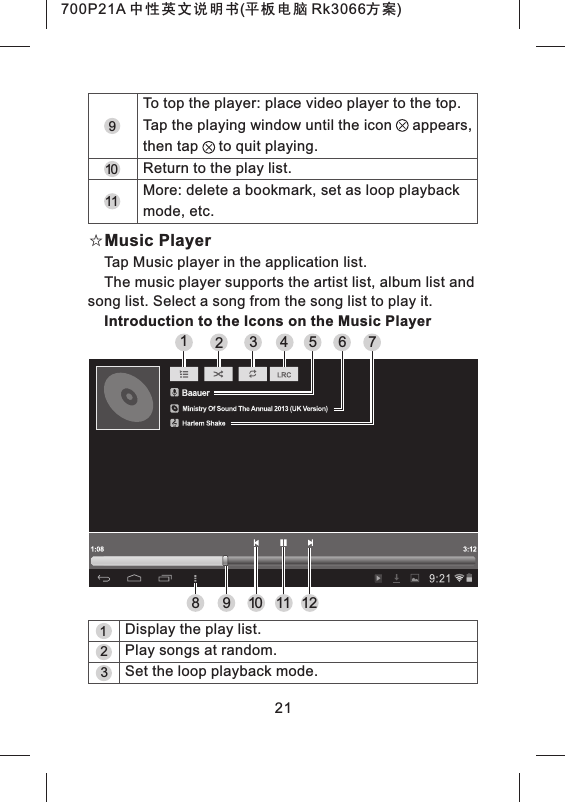
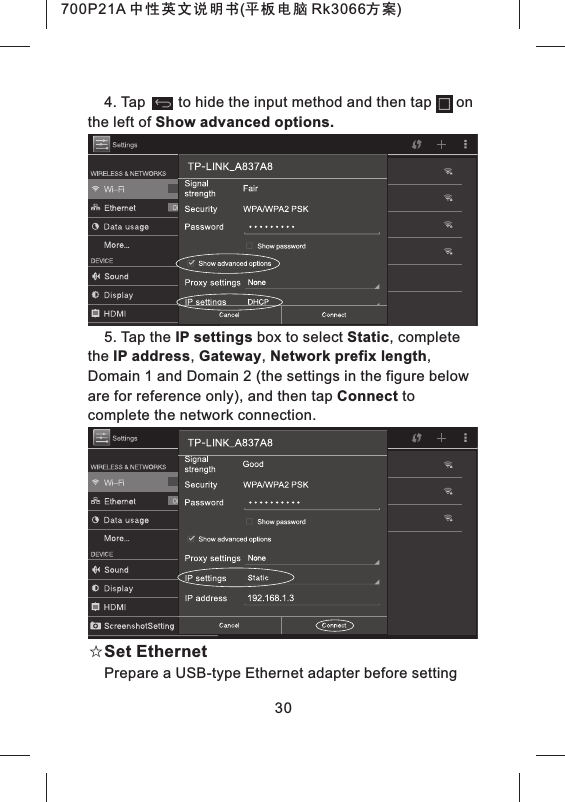
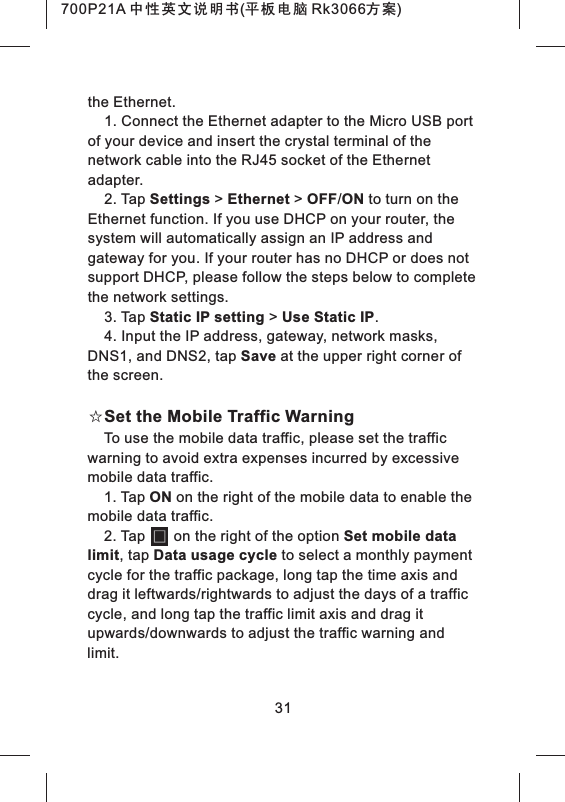
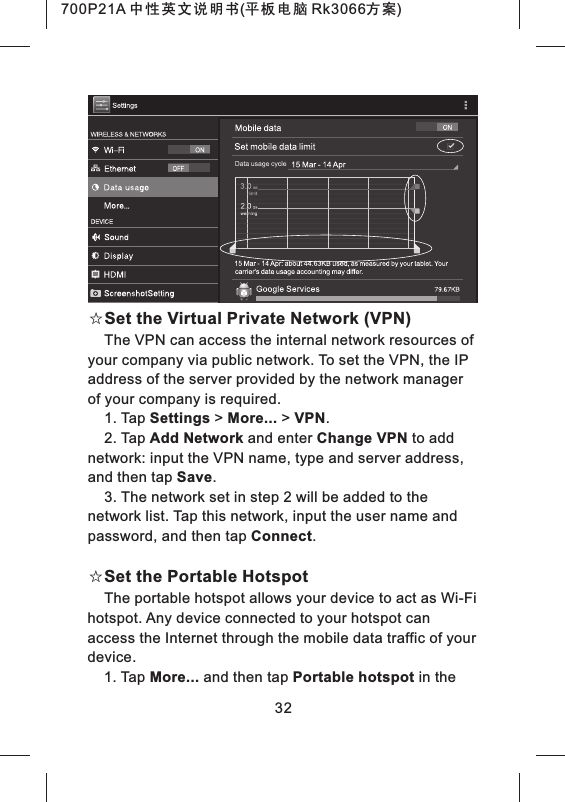
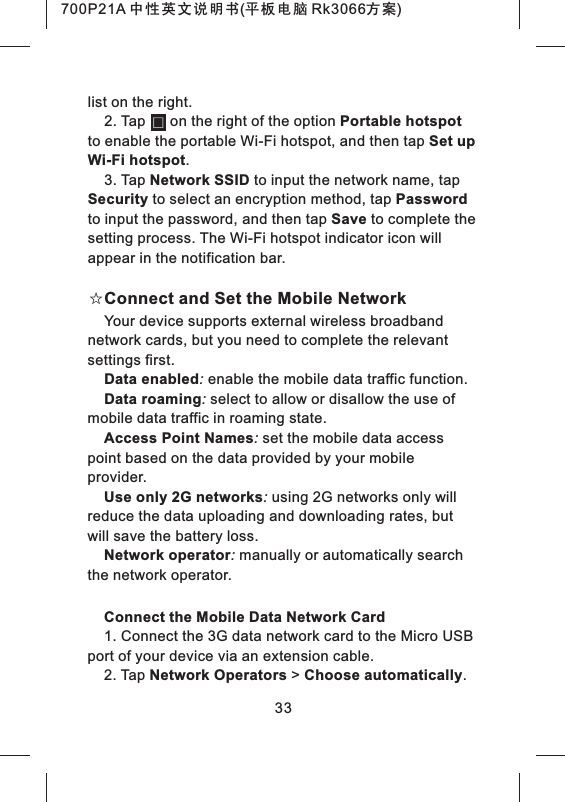
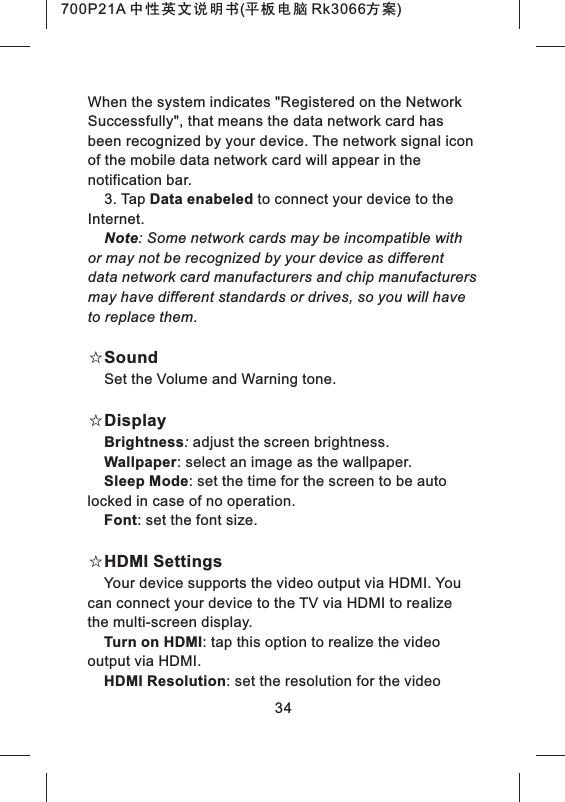
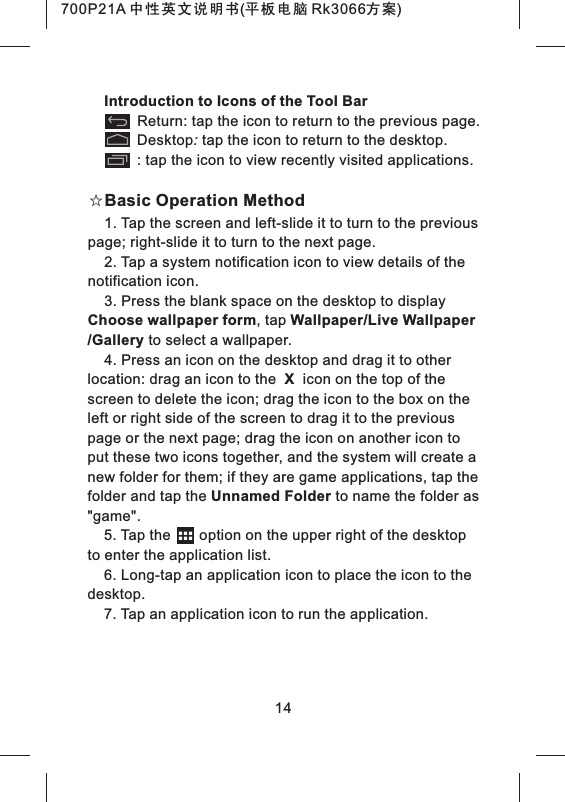
![35output via HDMI.Screen Zooming: zoom in/out the output video image.☆Screenshotsettingselect delay time to capture the screen: none, 15S, 30S, 1min, 2min, 3min, 4min, 5minset the location of screenshot storage: Nand flash ,SD card, Usb storage.show the screenshot in the statusbar: Tap on the left to show the screenshot in the toolbarShortcut key of screen shot:[ ]+[VOL+], press this key combination at the same time can capture current image on screen.☆StorageCheck the details of the internal storage space, NAND Flash, SD card or USB memory, or uninstall/format the memory.Note: Please backup your important personal files before formatting the memory.☆BatteryCheck the battery state.☆AppsEnter the Apps option, and you can check downloaded applications, applications stored in the SD card, running applications, storage space, etc. You can also tap an application to stop it running or uninstall it.700P21A 中性英文说明书(平板电脑 Rk3066方案)](https://usermanual.wiki/KTC-Technology/00004.Exhibit-08-Users-manual/User-Guide-2025323-Page-38.png)
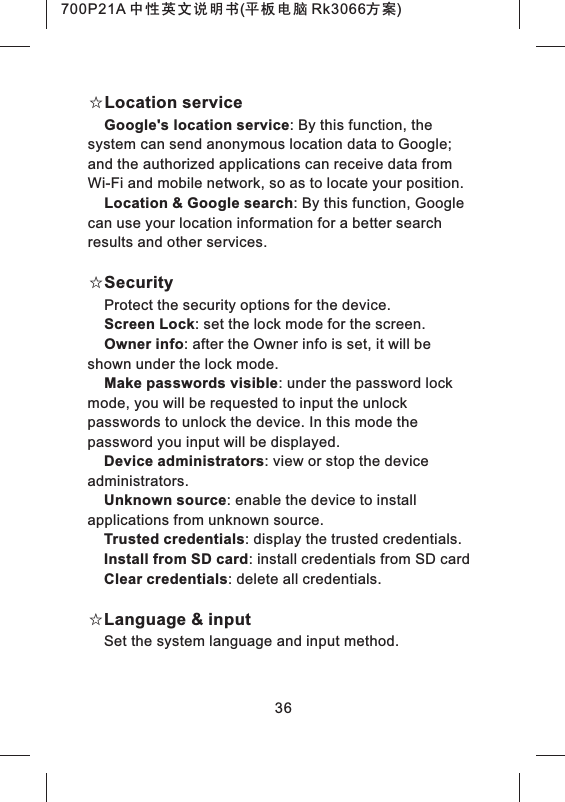
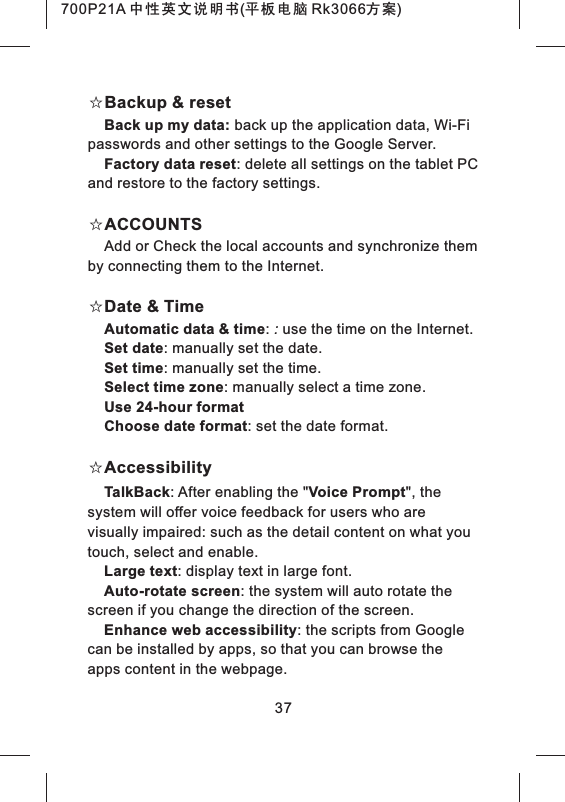
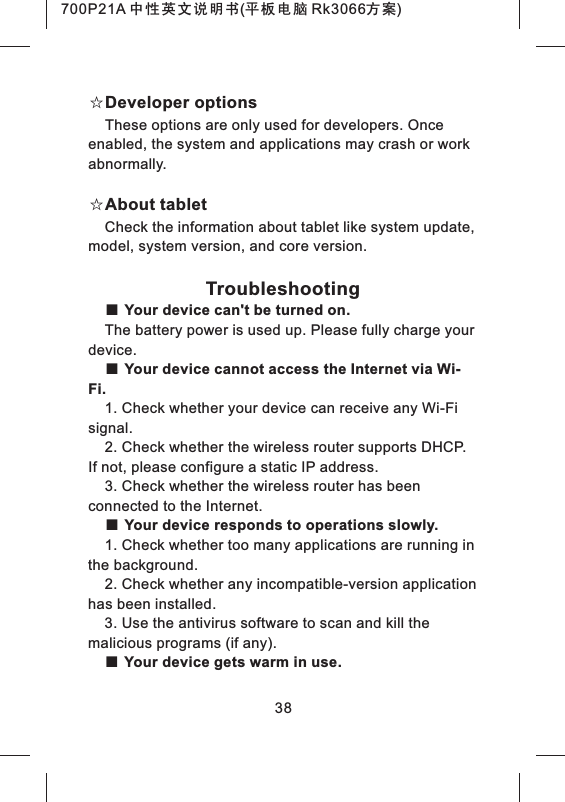
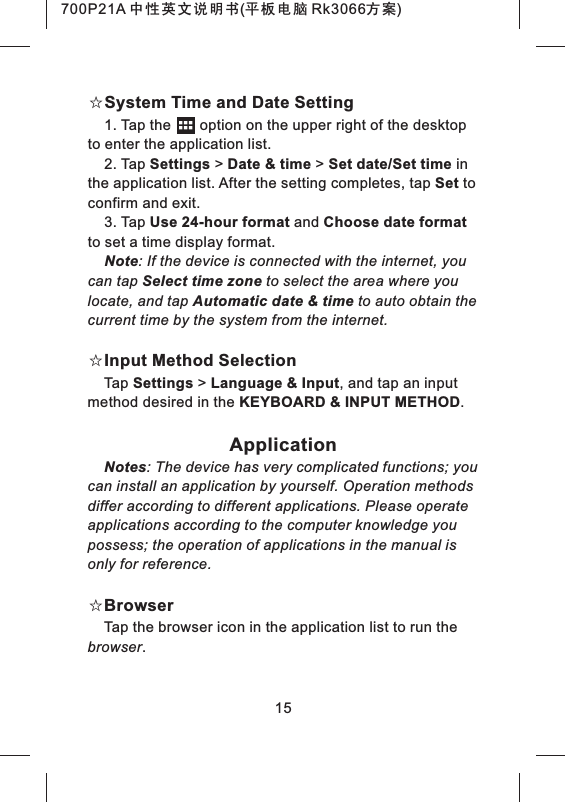
![700P11A 中性英文说明书(平板电脑 RK2906 方案) Hereby, [Shenzhen KTC Technology Co., Ltd.], declares that this [7”PAD] is in compliance with the essential requirements and other relevant provisions of Directive 1999/5/EC. 36](https://usermanual.wiki/KTC-Technology/00004.Exhibit-08-Users-manual/User-Guide-2025323-Page-48.png)