KTV Global LTD85AA 8.5" LCD TV w/ FM Transmitter User Manual LTD85AA3KU KUS 6950

KTV Global Corporation 8.5" LCD TV w/ FM Transmitter LTD85AA3KU KUS 6950

Users Manual

THIS PRODUCT HAS BEEN DESIGNED, MANUFACTURED ANDINSPECTED IN COMPLIANCE WITH THE ISO9001 QUALITY ASSURANCE SYSTEM.Part  No.  11906950
8.5” LCD INTEGRATED DVD MONITOR RECEIVER SYSTEMINSTALLATION INFORMATION& OPERATING INSTRUCTIONSIMPORTANT NOTE :WHEN USED IN A VEHICLE, THIS SYSTEM IS INTENDED PRIMARILY AS A MONITOR FOR THE BUILT-INDVD PLAYER OR FOR AN EXTERNAL DVD PLAYER, VIDEOCASSETTE PLAYER, VIDEO GAME, ORCAMERA. TELEVISION BROADCAST RECEPTION WILL BE ADVERSELY AFFECTED BY CONDITIONS SUCHAS MOTION, CHANGE OF DIRECTION, ATMOSPHERIC ACTIVITY, AND LOCAL SURROUNDINGS.IT IS THEREFORE LIKELY THAT BROADCAST PICTURE QUALITY WILL BE MARGINAL WHEN THIS SYSTEM IS USED IN A MOBILE ENVIRONMENT.INSERT DISCS WITH THE LABEL FACING DOWNMOBILEAPPLICATIONSMODEL: LSMD-85THIS PRODUCT IS INTENDED FOR PROFESSIONAL INSTALLATION ONLYFOR MOBILE-SPECIFIC 12 VOLT DC-ONLY OPERATIONPLEASE READ ALL INSTRUCTIONS BEFORE USING THIS PRODUCT
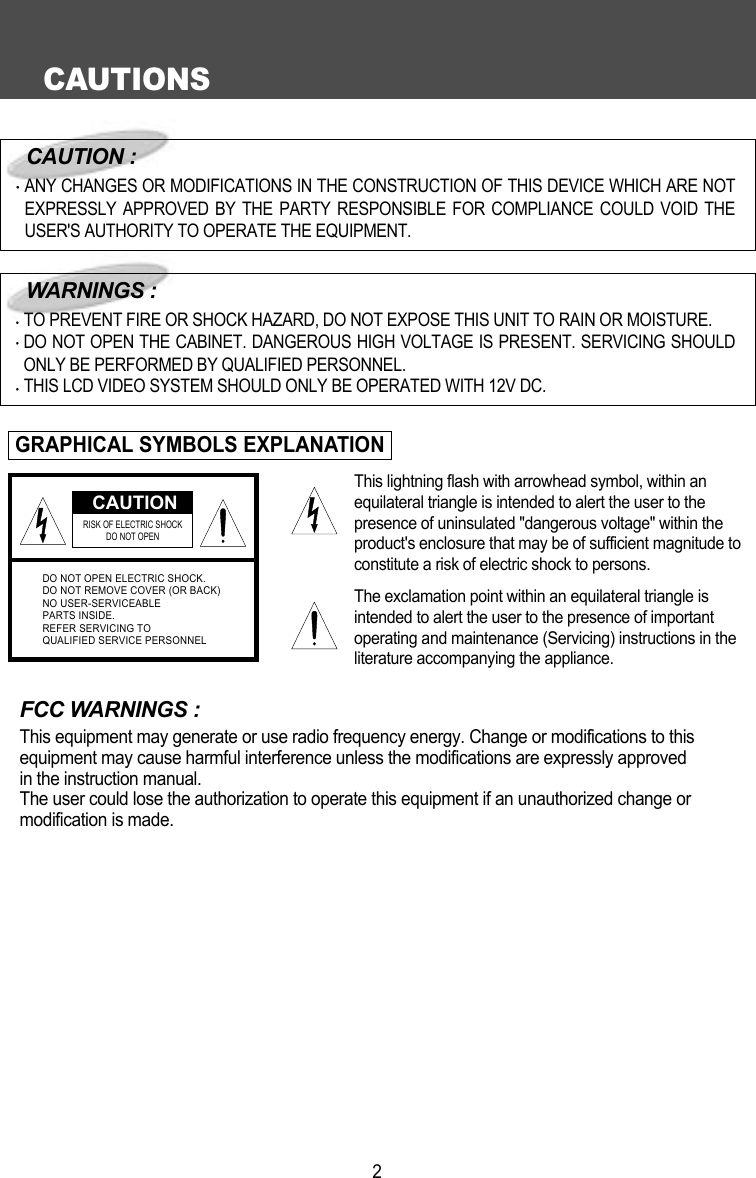
CAUTIONS2FCC WARNINGS :This equipment may generate or use radio frequency energy. Change or modifications to this equipment may cause harmful interference unless the modifications are expressly approved in the instruction manual.The user could lose the authorization to operate this equipment if an unauthorized change or modification is made.CAUTIONRISK OF ELECTRIC SHOCK DO NOT OPENDO NOT OPEN ELECTRIC SHOCK.DO NOT REMOVE COVER (OR BACK)NO USER-SERVICEABLEPARTS INSIDE.REFER SERVICING TOQUALIFIED SERVICE PERSONNELCAUTION :ANY CHANGES OR MODIFICATIONS IN THE CONSTRUCTION OF THIS DEVICE WHICH ARE NOTEXPRESSLY APPROVED BY THE PARTY RESPONSIBLE FOR COMPLIANCE COULD VOID THEUSER'S AUTHORITY TO OPERATE THE EQUIPMENT.WARNINGS :TO PREVENT FIRE OR SHOCK HAZARD, DO NOT EXPOSE THIS UNIT TO RAIN OR MOISTURE.DO NOT OPEN THE CABINET. DANGEROUS HIGH VOLTAGE IS PRESENT. SERVICING SHOULDONLY BE PERFORMED BY QUALIFIED PERSONNEL.THIS LCD VIDEO SYSTEM SHOULD ONLY BE OPERATED WITH 12V DC.GRAPHICAL SYMBOLS EXPLANATIONThis lightning flash with arrowhead symbol, within anequilateral triangle is intended to alert the user to thepresence of uninsulated "dangerous voltage" within theproduct's enclosure that may be of sufficient magnitude toconstitute a risk of electric shock to persons.The exclamation point within an equilateral triangle isintended to alert the user to the presence of importantoperating and maintenance (Servicing) instructions in theliterature accompanying the appliance.
IMPORTANT SAFEGUARDS31. Read Instructions All safety & operating instructions should be read before operating the appliance.2. Retain Instructions The safety and operating instructions should be retained for future reference.3. Heed Warnings Adhere to ALL warnings on the product and in the operating instructions.4. Follow Instructions All operating and use instructions should be followed.5. Cleaning Unplug this product from power cable connector before cleaning. Do not use liquid cleaners oraerosol cleaners. Use a damp cloth for cleaning. 6. Attachments Do not use attachments not recommended by the product manufacturer as they may causehazards. 7.  Water and Moisture Do not install this product near water - for example, near a bath tub, washbowl,kitchen sink or laundry tub; in a wet basement; or near a swimming pool and the like. 8. Accessories Do not place this product on an unstable cart, stand, tripod, bracket, or table. The productmay fall, causing serious injury to a child or adult, and serious damage to the equipment. Use only with a cart, stand, tripod, bracket, or table recommended by the manufacturer, or sold with theproduct. Any mounting of the product should follow the manufacturer's instructions, and should use amounting approved by the manufacturer. 9. A product and cart combination should be moved with care. Quick stops, excessive force, and uneven sur-faces may cause the product and cart combination to overturn. 10. Ventilation Slots and opening in the cabinet are provided for ventilation and toensure reliable operation of the product and to protect it from overheating and theseshould never be blocked by placing the product on a bed, sofa, rug, or other similarsurface. This product should not be placed in a built-in installation such as a book-case or rack unless proper ventilation such as a bookcase or rack unless properventilation is provided or the manufacturer's instructions have been adhered to. 11. Power Sources This product should be operated only from the type of power source indicated on themarking label. lf you are not sure of the type of power supply to your car, consult your product dealer. Forproducts intended  to operate from battery power, or other source, refer to the operating instructions.12. Servicing Do not attempt to service this product yourself as opening or removing covers may expose youto dangerous voltage or other hazards. Refer all servicing to qualified service personnel.13. Damage requiring Service Unplug this product the wall outlet and refer servicing to qualified service per-sonnel under the following conditions :a. When the power-supply cord or plug is damaged.b. lf liquid has been supplied, or objects have fallen into the product.c. lf the product has been exposed to rain or water.d. If the product does not operate normally by following the operating instructions. Adjust only thosecontrols that are covered by the operating instructions as an improper adjustment of other controls mayresult in damage and will often require extensive work by a qualified technician to restore the product toits normal operation.e. lf the product has been dropped, or the cabinet has been damaged.f. When the product exhibits a distinct change in performance-this indicates a need for service.14. Replacement Parts When replacement parts are required, be sure the service technician has usedreplacement parts specified by the manufacturer or that have the same characteristics as the originalpart.Unauthorized substitutions may result in fire, electric shock or other hazards.15. Safety Check Upon completion of any service or repairs to this video product, ask the service technicianto perform safety checks to determine that the video product is in proper operating condition.16. Wall or Ceiling Mounting The product should be mounted to a wall or ceiling only safety recommendedby the manufacturer.17. Heat The product should be situated away from heat sources such as radiators, heat registers, stoves, orother products (including amplifiers) that produce heat.
TABLE OF CONTENTS4We urge you to carefully read all of the descriptions and operating procedures contained in thisOwner's Manual before operating your new LSMD-85.CAUTIONS  2IMPORTANT SAFEGUARDS  3TABLE OF CONTENTS (THIS PAGE)   4FEATURES   5ACCESSORIES  6IDENTIFICATION OF LSMD-85 CONTROLS & CONNECTORS  7REMOTE CONTROL USE  9SIGNAL CONNECTION   12POWER CONNECTION 14DOME LIGHT CONNECTION  15INSTALLATION FOR VEHICLE USE   16LSMD-85 OPERATION 17MENU BUTTON - GENERAL INFORMATION  18MENU BUTTON - OPERATIONS  19PICTURE BUTTON   22STATUS  BUTTON  23OTHER USEFUL FUNCTIONS  24DVD FUNCTION OPERATION  25INTRODUCTION 26DISC REQUIREMENTS/COPYRIGHT INFORMATION 28BASIC PLAYBACK 29SEARCHING FOR A SPECIFIC SCREEN OR SONG DURING PLAYBACK 30SETTING A CUSTOM VIEW 31CHANGING THE SIZE AND ANGLE OF THE SCREEN 32USING THE MENU, TITLE & SUBTITLE BUTTONS 33USING THE SETUP MENU 34SETTING A MENU 35USING THE LANGUAGE 36SETTING THE DISPLAY OPTIONS 37PARENTAL LOCK SETTINGS 38SETTING RATING LEVEL AND PASSWORD 39RECEPTION DISTURBANCE 40SPECIFICATIONS  41
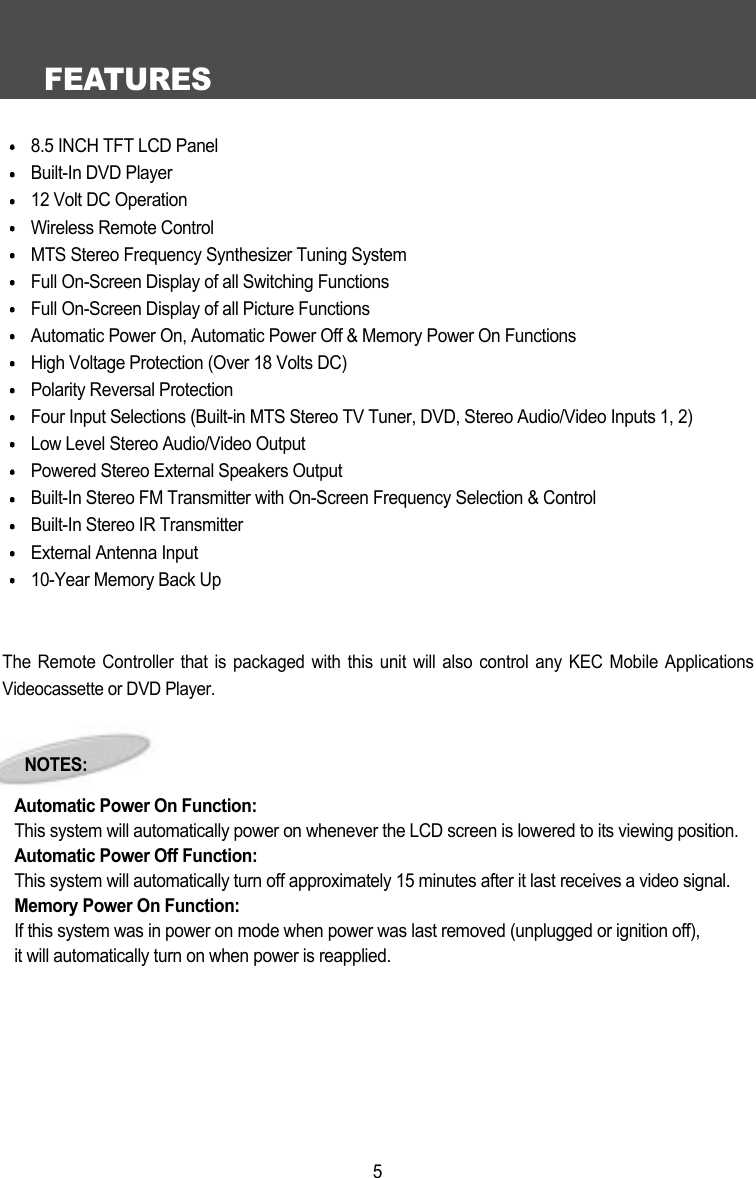
FEATURES58.5 INCH TFT LCD PanelBuilt-In DVD Player12 Volt DC OperationWireless Remote ControlMTS Stereo Frequency Synthesizer Tuning SystemFull On-Screen Display of all Switching FunctionsFull On-Screen Display of all Picture FunctionsAutomatic Power On, Automatic Power Off & Memory Power On FunctionsHigh Voltage Protection (Over 18 Volts DC)Polarity Reversal ProtectionFour Input Selections (Built-in MTS Stereo TV Tuner, DVD, Stereo Audio/Video Inputs 1, 2) Low Level Stereo Audio/Video OutputPowered Stereo External Speakers OutputBuilt-In Stereo FM Transmitter with On-Screen Frequency Selection & ControlBuilt-In Stereo IR TransmitterExternal Antenna Input10-Year Memory Back UpThe Remote Controller that is packaged with this unit will also control any KEC Mobile ApplicationsVideocassette or DVD Player.NOTES:Automatic Power On Function:This system will automatically power on whenever the LCD screen is lowered to its viewing position.Automatic Power Off Function:This system will automatically turn off approximately 15 minutes after it last receives a video signal.Memory Power On Function:If this system was in power on mode when power was last removed (unplugged or ignition off),it will automatically turn on when power is reapplied.
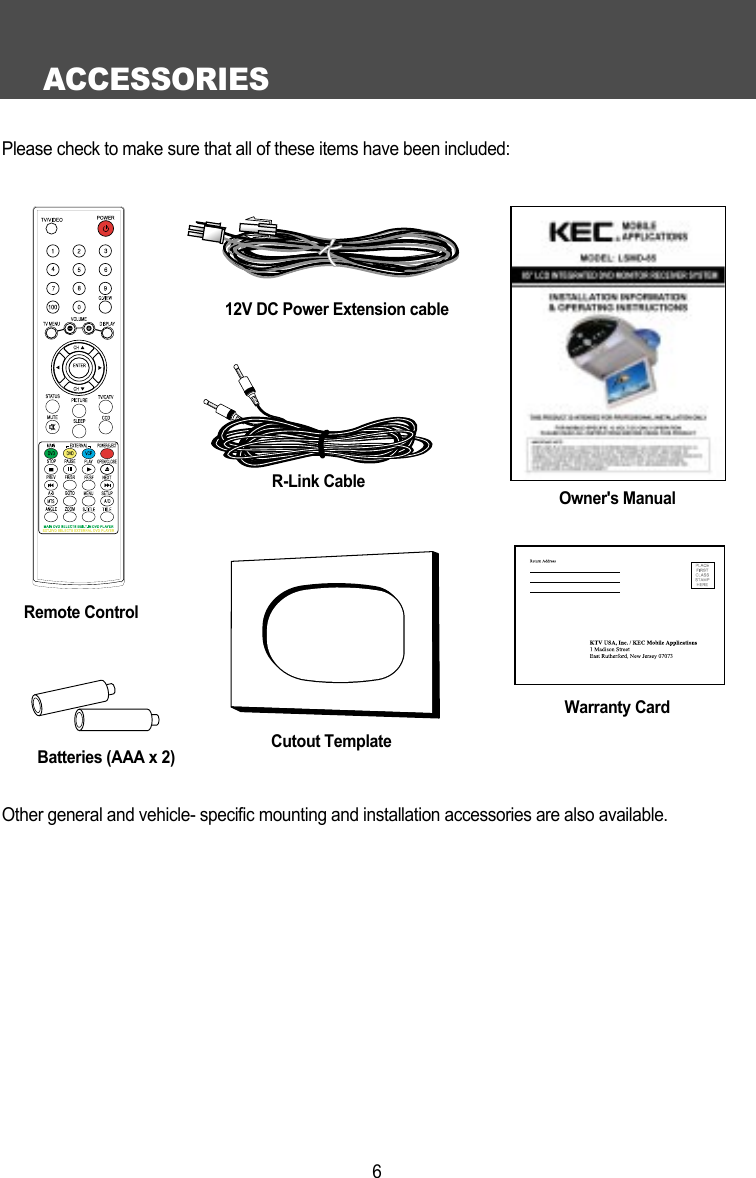
ACCESSORIES6Please check to make sure that all of these items have been included:Remote ControlR-Link CableBatteries (AAA x 2)Warranty CardOwner's ManualCutout TemplateOther general and vehicle- specific mounting and installation accessories are also available.12V DC Power Extension cable
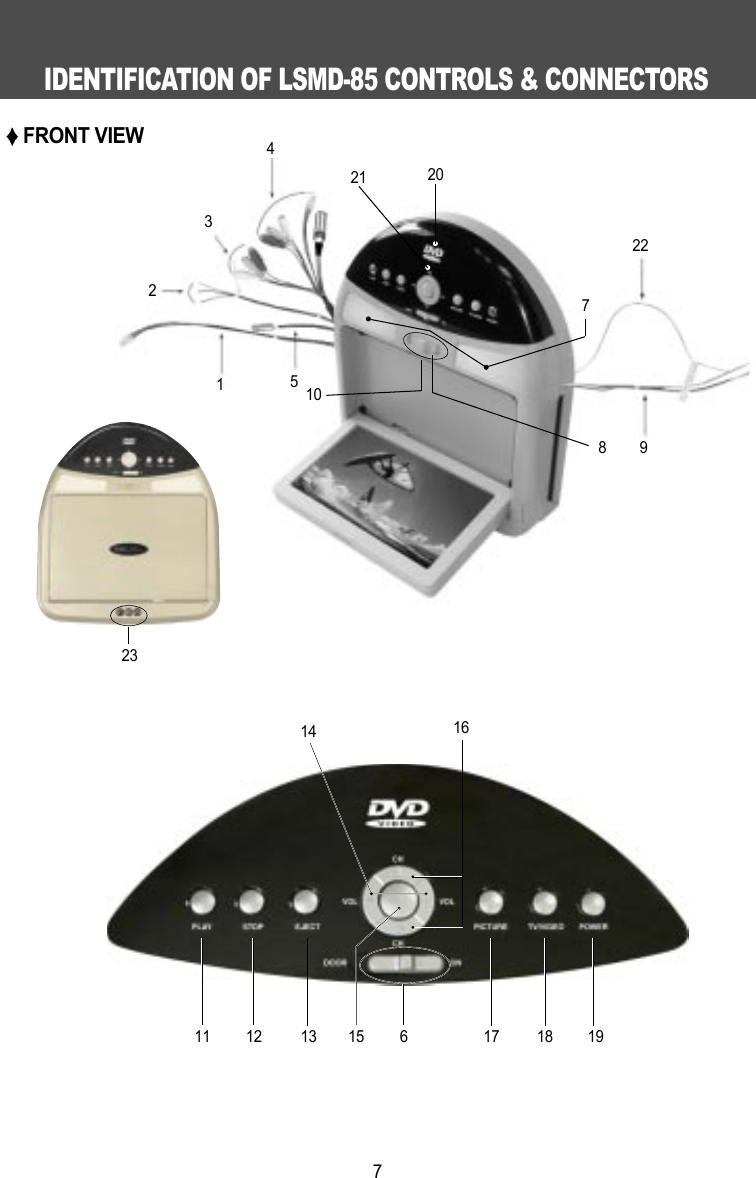
IDENTIFICATION OF LSMD-85 CONTROLS & CONNECTORS7FRONT VIEW4321521 20722981014 1611 12 13 15 6 17 18 1923
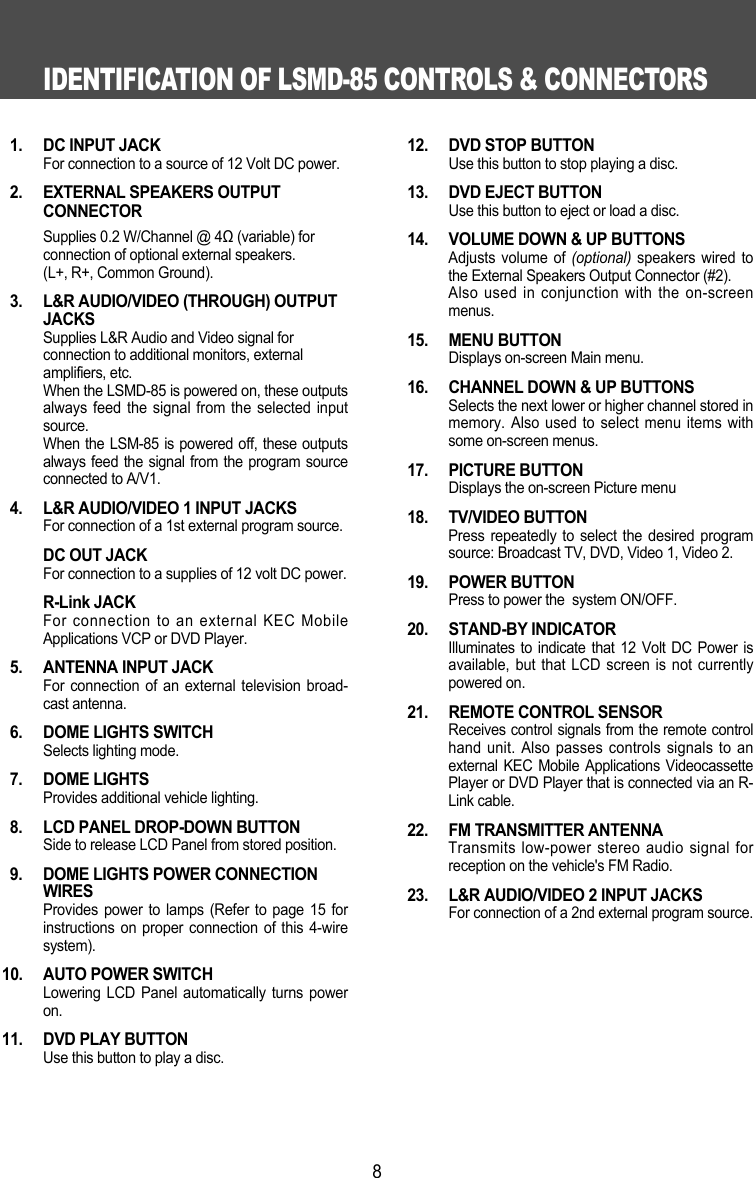
IDENTIFICATION OF LSMD-85 CONTROLS & CONNECTORS81.  DC INPUT JACKFor connection to a source of 12 Volt DC power.2.  EXTERNAL SPEAKERS OUTPUT CONNECTORSupplies 0.2 W/Channel @ 4Ω(variable) for connection of optional external speakers. (L+, R+, Common Ground).3.  L&R AUDIO/VIDEO (THROUGH) OUTPUTJACKSSupplies L&R Audio and Video signal for connection to additional monitors, external amplifiers, etc.When the LSMD-85 is powered on, these outputsalways feed the signal from the selected inputsource.When the LSM-85 is powered off, these outputsalways feed the signal from the program sourceconnected to A/V1.4.  L&R AUDIO/VIDEO 1 INPUT JACKSFor connection of a 1st external program source.DC OUT JACKFor connection to a supplies of 12 volt DC power.R-Link JACKFor connection to an external KEC MobileApplications VCP or DVD Player.5.  ANTENNA INPUT JACKFor connection of an external television broad-cast antenna.6.  DOME LIGHTS SWITCHSelects lighting mode.7. DOME LIGHTSProvides additional vehicle lighting.8.  LCD PANEL DROP-DOWN BUTTONSide to release LCD Panel from stored position.9.  DOME LIGHTS POWER CONNECTIONWIRESProvides power to lamps (Refer to page 15 forinstructions on proper connection of this 4-wiresystem).10.  AUTO POWER SWITCHLowering LCD Panel automatically turns poweron.11.  DVD PLAY BUTTONUse this button to play a disc.12.  DVD STOP BUTTONUse this button to stop playing a disc.13.  DVD EJECT BUTTONUse this button to eject or load a disc. 14.  VOLUME DOWN & UP BUTTONSAdjusts volume of (optional) speakers wired tothe External Speakers Output Connector (#2). Also used in conjunction with the on-screenmenus.15. MENU BUTTONDisplays on-screen Main menu.16.  CHANNEL DOWN & UP BUTTONSSelects the next lower or higher channel stored inmemory. Also used to select menu items withsome on-screen menus.17. PICTURE BUTTONDisplays the on-screen Picture menu18. TV/VIDEO BUTTONPress repeatedly to select the desired programsource: Broadcast TV, DVD, Video 1, Video 2.19. POWER BUTTONPress to power the  system ON/OFF.20. STAND-BY INDICATORIlluminates to indicate that 12 Volt DC Power isavailable, but that LCD screen is not currentlypowered on.21.  REMOTE CONTROL SENSORReceives control signals from the remote controlhand unit. Also passes controls signals to anexternal KEC Mobile Applications VideocassettePlayer or DVD Player that is connected via an R-Link cable.22.  FM TRANSMITTER ANTENNATransmits low-power stereo audio signal forreception on the vehicle's FM Radio. 23.  L&R AUDIO/VIDEO 2 INPUT JACKSFor connection of a 2nd external program source.
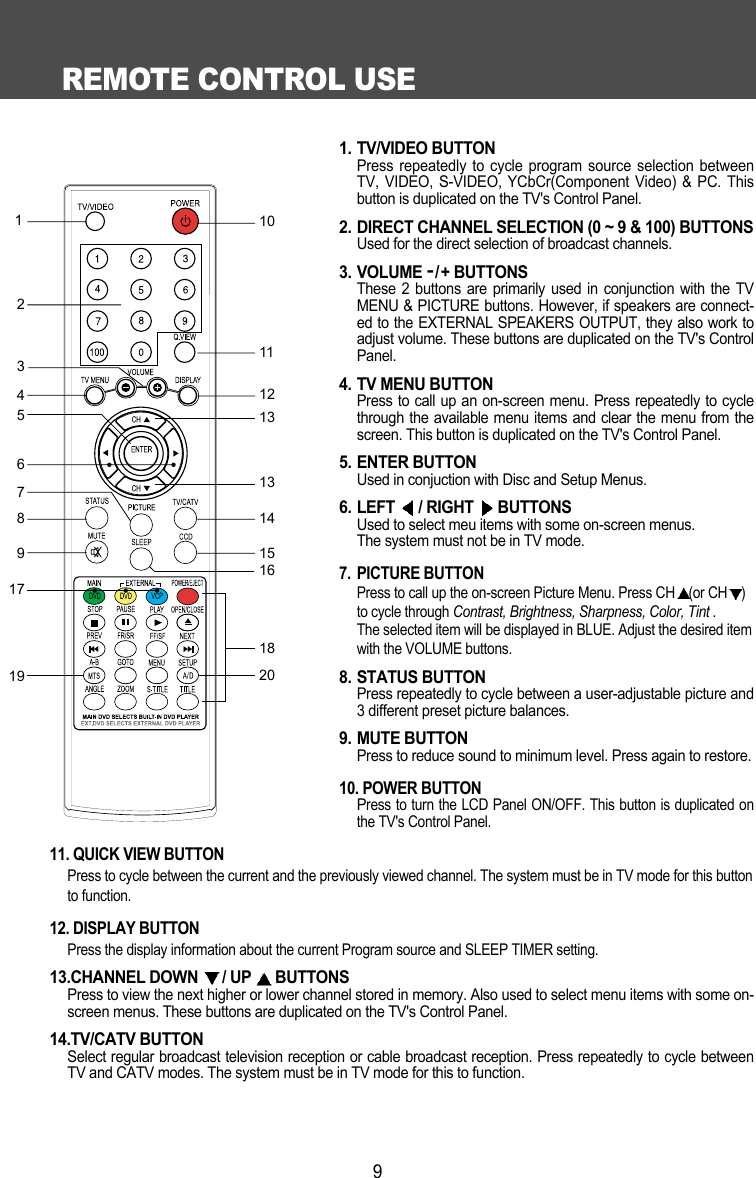
REMOTE CONTROL USE92436875919171101112131314152018161. TV/VIDEO BUTTONPress repeatedly to cycle program source selection betweenTV, VIDEO, S-VIDEO, YCbCr(Component Video) & PC. Thisbutton is duplicated on the TV's Control Panel.2. DIRECT CHANNEL SELECTION (0 ~ 9 & 100) BUTTONSUsed for the direct selection of broadcast channels.3. VOLUME -/+ BUTTONSThese 2 buttons are primarily used in conjunction with the TVMENU & PICTURE buttons. However, if speakers are connect-ed to the EXTERNAL SPEAKERS OUTPUT, they also work toadjust volume. These buttons are duplicated on the TV's ControlPanel.4. TV MENU BUTTONPress to call up an on-screen menu. Press repeatedly to cyclethrough the available menu items and clear the menu from thescreen. This button is duplicated on the TV's Control Panel.5. ENTER BUTTONUsed in conjuction with Disc and Setup Menus.6. LEFT  / RIGHT  BUTTONSUsed to select meu items with some on-screen menus.The system must not be in TV mode.7. PICTURE BUTTON Press to call up the on-screen Picture Menu. Press CH (or CH )to cycle through Contrast, Brightness, Sharpness, Color, Tint .The selected item will be displayed in BLUE. Adjust the desired itemwith the VOLUME buttons.  8. STATUS BUTTONPress repeatedly to cycle between a user-adjustable picture and3 different preset picture balances.9. MUTE BUTTONPress to reduce sound to minimum level. Press again to restore. 10. POWER BUTTON Press to turn the LCD Panel ON/OFF. This button is duplicated onthe TV's Control Panel.11. QUICK VIEW BUTTON Press to cycle between the current and the previously viewed channel. The system must be in TV mode for this buttonto function.12. DISPLAY BUTTON Press the display information about the current Program source and SLEEP TIMER setting.13.CHANNEL DOWN  / UP  BUTTONSPress to view the next higher or lower channel stored in memory. Also used to select menu items with some on-screen menus. These buttons are duplicated on the TV's Control Panel.14.TV/CATV BUTTONSelect regular broadcast television reception or cable broadcast reception. Press repeatedly to cycle betweenTV and CATV modes. The system must be in TV mode for this to function.
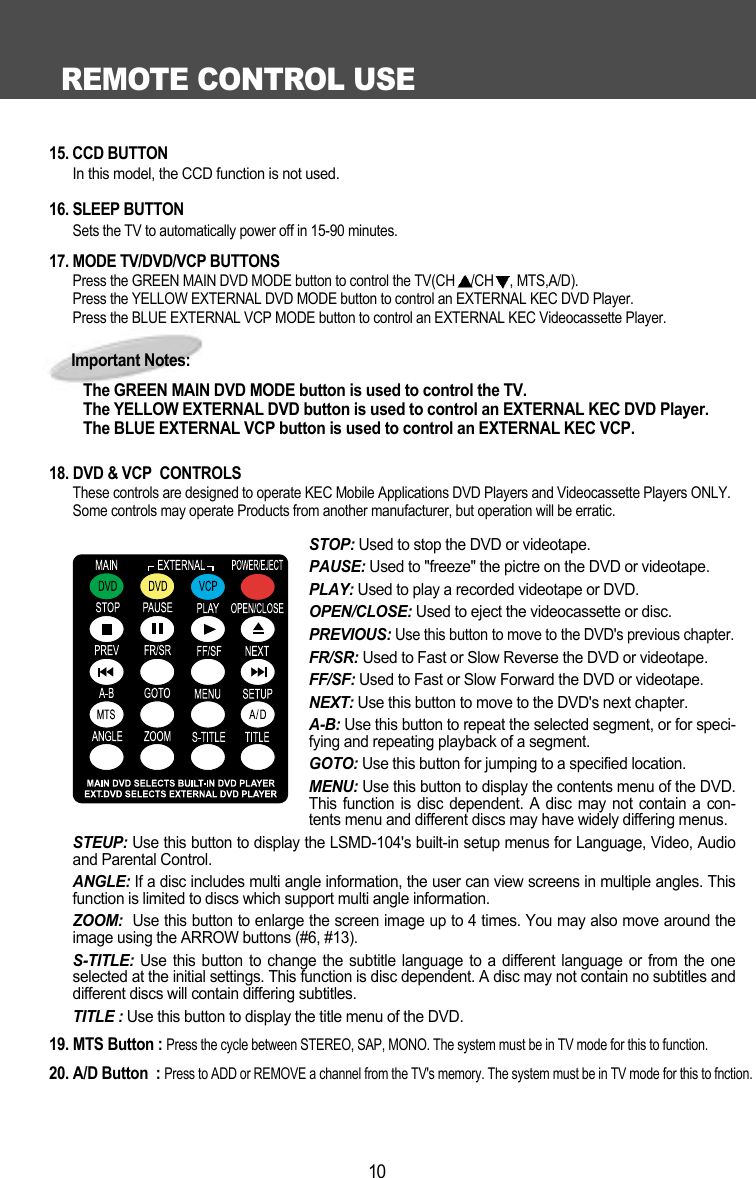
15. CCD BUTTONIn this model, the CCD function is not used. 16. SLEEP BUTTON Sets the TV to automatically power off in 15-90 minutes.17. MODE TV/DVD/VCP BUTTONS Press the GREEN MAIN DVD MODE button to control the TV(CH /CH , MTS,A/D).Press the YELLOW EXTERNAL DVD MODE button to control an EXTERNAL KEC DVD Player.Press the BLUE EXTERNAL VCP MODE button to control an EXTERNAL KEC Videocassette Player. 18. DVD & VCP  CONTROLSThese controls are designed to operate KEC Mobile Applications DVD Players and Videocassette Players ONLY.Some controls may operate Products from another manufacturer, but operation will be erratic.STOP: Used to stop the DVD or videotape.PAUSE: Used to "freeze" the pictre on the DVD or videotape.PLAY: Used to play a recorded videotape or DVD.OPEN/CLOSE: Used to eject the videocassette or disc. PREVIOUS: Use this button to move to the DVD's previous chapter.FR/SR: Used to Fast or Slow Reverse the DVD or videotape.FF/SF: Used to Fast or Slow Forward the DVD or videotape.NEXT: Use this button to move to the DVD's next chapter.A-B: Use this button to repeat the selected segment, or for speci-fying and repeating playback of a segment. GOTO: Use this button for jumping to a specified location.MENU: Use this button to display the contents menu of the DVD.This function is disc dependent. A disc may not contain a con-tents menu and different discs may have widely differing menus.STEUP: Use this button to display the LSMD-104's built-in setup menus for Language, Video, Audioand Parental Control.ANGLE: If a disc includes multi angle information, the user can view screens in multiple angles. Thisfunction is limited to discs which support multi angle information. ZOOM:  Use this button to enlarge the screen image up to 4 times. You may also move around theimage using the ARROW buttons (#6, #13).S-TITLE:  Use this button to change the subtitle language to a different language or from the oneselected at the initial settings. This function is disc dependent. A disc may not contain no subtitles anddifferent discs will contain differing subtitles.TITLE : Use this button to display the title menu of the DVD.19. MTS Button : Press the cycle between STEREO, SAP, MONO. The system must be in TV mode for this to function.20. A/D Button  : Press to ADD or REMOVE a channel from the TV's memory. The system must be in TV mode for this to fnction.REMOTE CONTROL USE10Important Notes:The GREEN MAIN DVD MODE button is used to control the TV.The YELLOW EXTERNAL DVD button is used to control an EXTERNAL KEC DVD Player.The BLUE EXTERNAL VCP button is used to control an EXTERNAL KEC VCP.
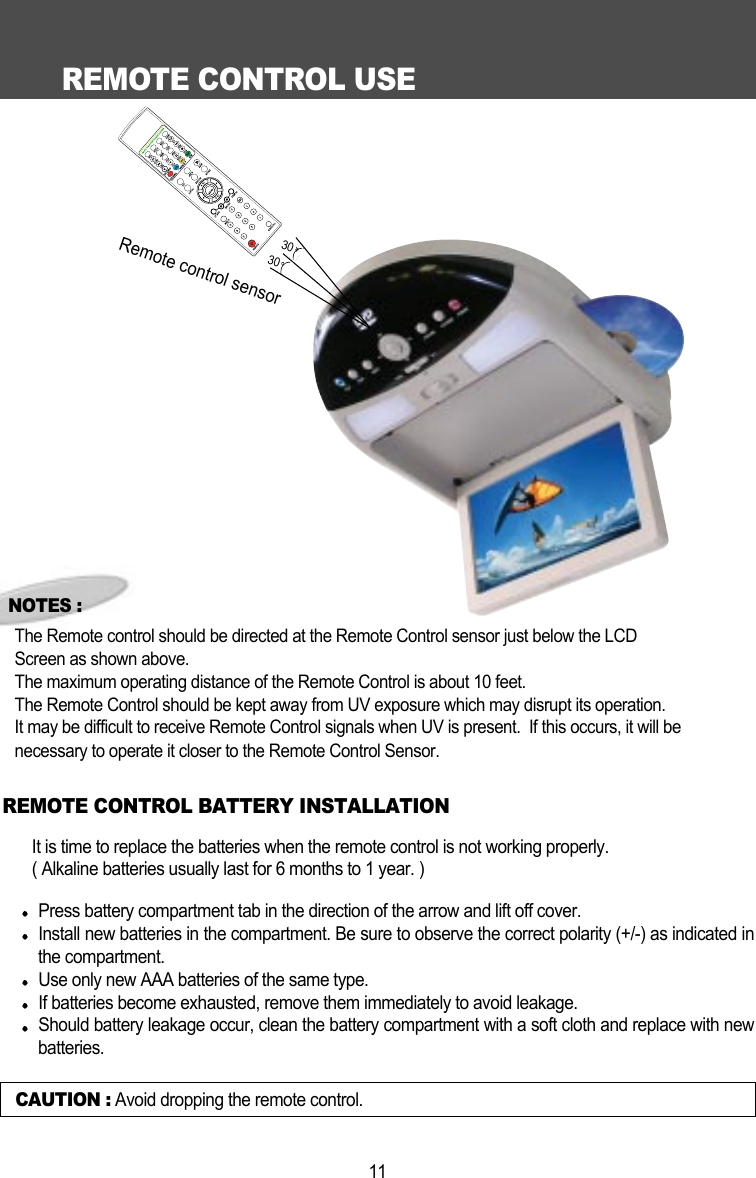
REMOTE CONTROL USE11CAUTION : Avoid dropping the remote control.NOTES :The Remote control should be directed at the Remote Control sensor just below the LCD Screen as shown above. The maximum operating distance of the Remote Control is about 10 feet.The Remote Control should be kept away from UV exposure which may disrupt its operation.It may be difficult to receive Remote Control signals when UV is present.  If this occurs, it will be necessary to operate it closer to the Remote Control Sensor.It is time to replace the batteries when the remote control is not working properly.( Alkaline batteries usually last for 6 months to 1 year. )Press battery compartment tab in the direction of the arrow and lift off cover.Install new batteries in the compartment. Be sure to observe the correct polarity (+/-) as indicated inthe compartment. Use only new AAA batteries of the same type. If batteries become exhausted, remove them immediately to avoid leakage. Should battery leakage occur, clean the battery compartment with a soft cloth and replace with newbatteries.  REMOTE CONTROL BATTERY INSTALLATIONRemote control sensor3030
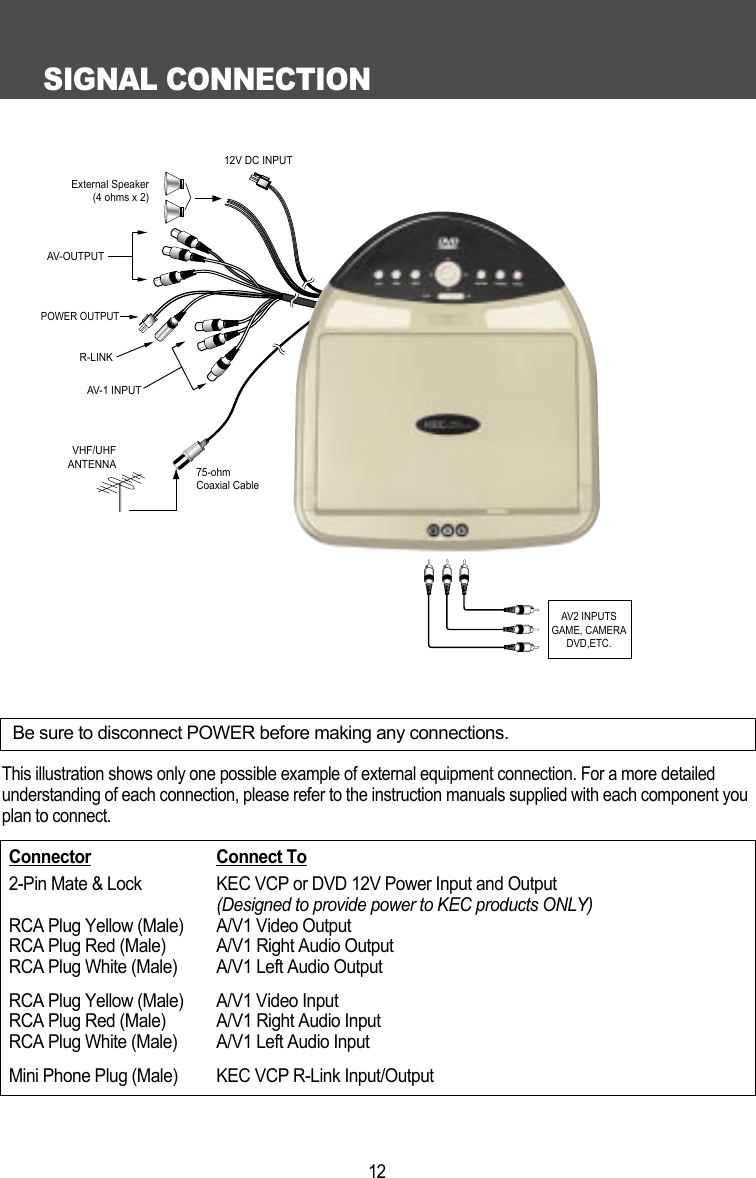
SIGNAL CONNECTION12This illustration shows only one possible example of external equipment connection. For a more detailedunderstanding of each connection, please refer to the instruction manuals supplied with each component youplan to connect.R-LINKAV-1 INPUTVHF/UHFANTENNA 75-ohmCoaxial CablePOWER OUTPUT12V DC INPUTAV-OUTPUTExternal Speaker(4 ohms x 2)AV2 INPUTSGAME, CAMERADVD,ETC.Be sure to disconnect POWER before making any connections.Connector Connect To2-Pin Mate & Lock  KEC VCP or DVD 12V Power Input and Output(Designed to provide power to KEC products ONLY)RCA Plug Yellow (Male) A/V1 Video OutputRCA Plug Red (Male) A/V1 Right Audio OutputRCA Plug White (Male) A/V1 Left Audio OutputRCA Plug Yellow (Male) A/V1 Video InputRCA Plug Red (Male) A/V1 Right Audio InputRCA Plug White (Male) A/V1 Left Audio InputMini Phone Plug (Male) KEC VCP R-Link Input/Output
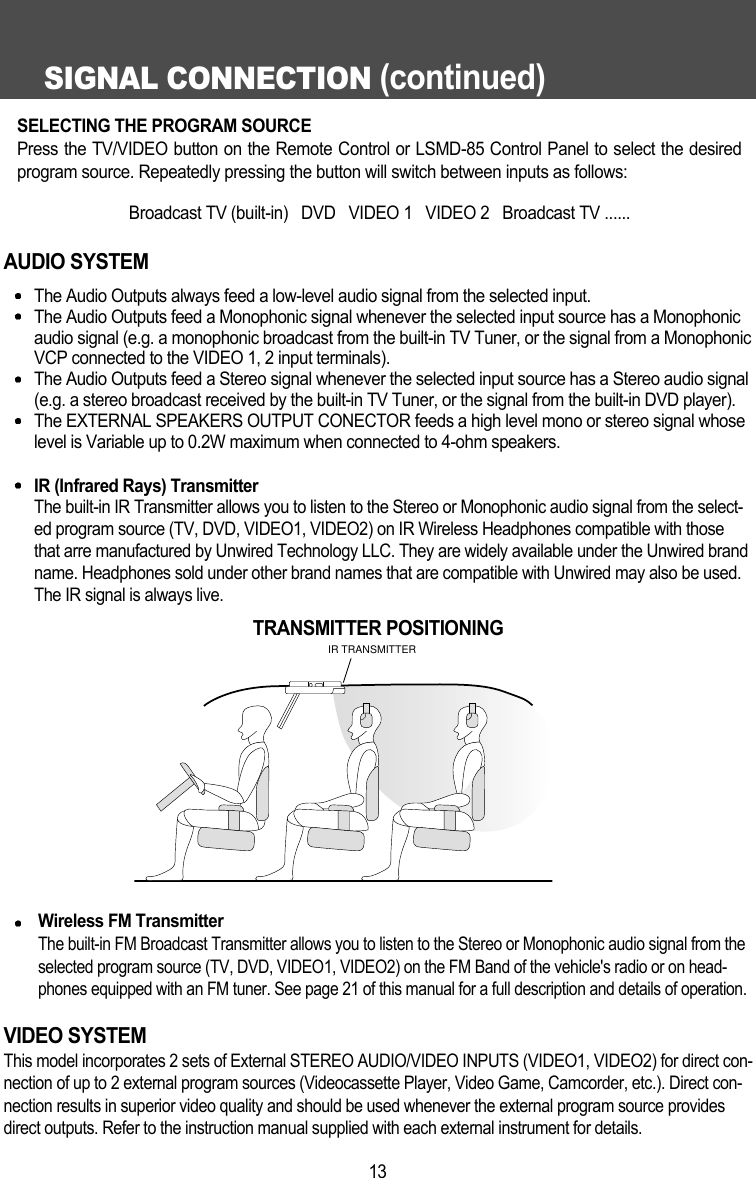
SIGNAL CONNECTION (continued)13AUDIO SYSTEMThe Audio Outputs always feed a low-level audio signal from the selected input.The Audio Outputs feed a Monophonic signal whenever the selected input source has a Monophonicaudio signal (e.g. a monophonic broadcast from the built-in TV Tuner, or the signal from a MonophonicVCP connected to the VIDEO 1, 2 input terminals).The Audio Outputs feed a Stereo signal whenever the selected input source has a Stereo audio signal(e.g. a stereo broadcast received by the built-in TV Tuner, or the signal from the built-in DVD player).The EXTERNAL SPEAKERS OUTPUT CONECTOR feeds a high level mono or stereo signal whoselevel is Variable up to 0.2W maximum when connected to 4-ohm speakers.IR (Infrared Rays) TransmitterThe built-in IR Transmitter allows you to listen to the Stereo or Monophonic audio signal from the select-ed program source (TV, DVD, VIDEO1, VIDEO2) on IR Wireless Headphones compatible with thosethat arre manufactured by Unwired Technology LLC. They are widely available under the Unwired brandname. Headphones sold under other brand names that are compatible with Unwired may also be used.The IR signal is always live. Wireless FM TransmitterThe built-in FM Broadcast Transmitter allows you to listen to the Stereo or Monophonic audio signal from theselected program source (TV, DVD, VIDEO1, VIDEO2) on the FM Band of the vehicle's radio or on head-phones equipped with an FM tuner. See page 21 of this manual for a full description and details of operation.VIDEO SYSTEMThis model incorporates 2 sets of External STEREO AUDIO/VIDEO INPUTS (VIDEO1, VIDEO2) for direct con-nection of up to 2 external program sources (Videocassette Player, Video Game, Camcorder, etc.). Direct con-nection results in superior video quality and should be used whenever the external program source providesdirect outputs. Refer to the instruction manual supplied with each external instrument for details.IR TRANSMITTERTRANSMITTER POSITIONINGSELECTING THE PROGRAM SOURCEPress the TV/VIDEO button on the Remote Control or LSMD-85 Control Panel to select the desiredprogram source. Repeatedly pressing the button will switch between inputs as follows:Broadcast TV (built-in)   DVD   VIDEO 1   VIDEO 2   Broadcast TV ......
POWER CONNECTION14NOTE The cable assembly used to connect the LSMD-85 to the 12Volt power supply may varydepending on product packaging.MANUFACTURER : TEASUNG ELECTRIC CO.,LTD. TYPE# : AWM STYLE 1015From Vehicle Battery:RED: DC12VBLACK: GROUNDPowerExtension Cable(15foot)CONNECTING TO VEHICLE POWERWARNINGThe DC Battery Cord is ONLY for use with this model. Do not use it to power any other product.
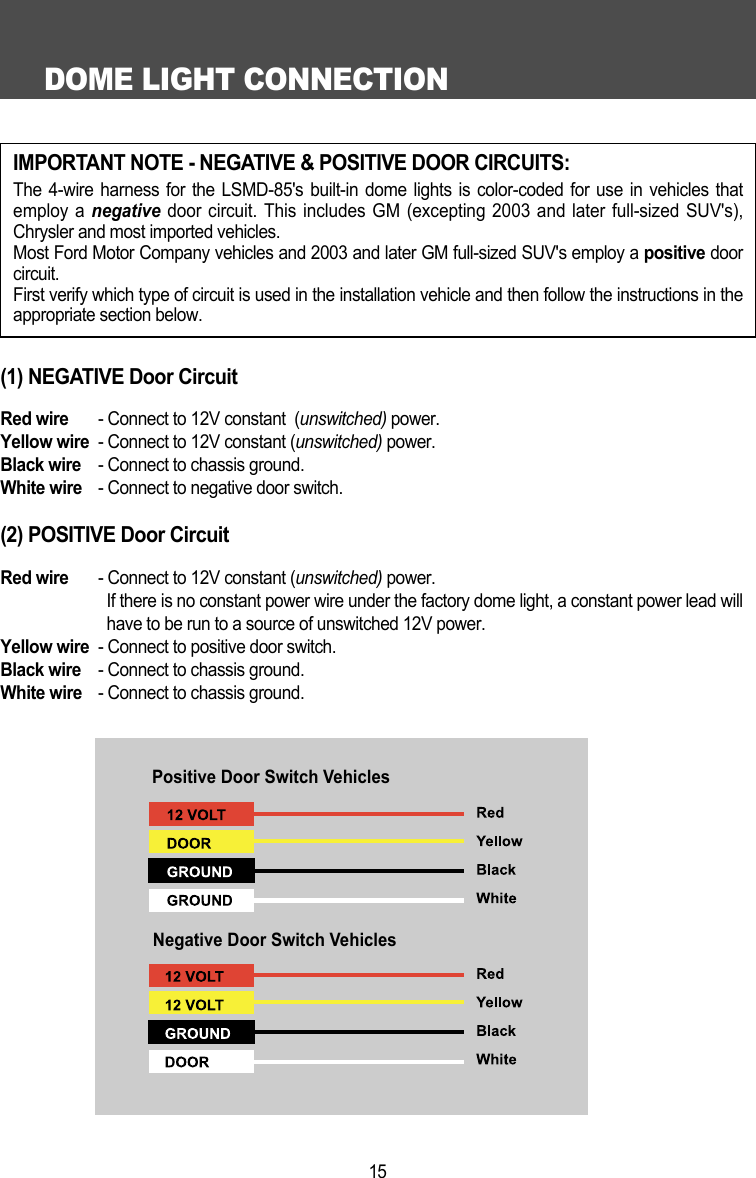
DOME LIGHT CONNECTION15(1) NEGATIVE Door CircuitRed wire - Connect to 12V constant  (unswitched) power.Yellow wire - Connect to 12V constant (unswitched) power.Black wire - Connect to chassis ground.White wire - Connect to negative door switch.(2) POSITIVE Door CircuitRed wire - Connect to 12V constant (unswitched) power.If there is no constant power wire under the factory dome light, a constant power lead willhave to be run to a source of unswitched 12V power.Yellow wire - Connect to positive door switch.Black wire - Connect to chassis ground.White wire - Connect to chassis ground.IMPORTANT NOTE - NEGATIVE & POSITIVE DOOR CIRCUITS:The 4-wire harness for the LSMD-85's built-in dome lights is color-coded for use in vehicles thatemploy a negative door circuit. This includes GM (excepting 2003 and later full-sized SUV's),Chrysler and most imported vehicles.Most Ford Motor Company vehicles and 2003 and later GM full-sized SUV's employ a positive doorcircuit.First verify which type of circuit is used in the installation vehicle and then follow the instructions in theappropriate section below. Positive Door Switch VehiclesNegative Door Switch Vehicles
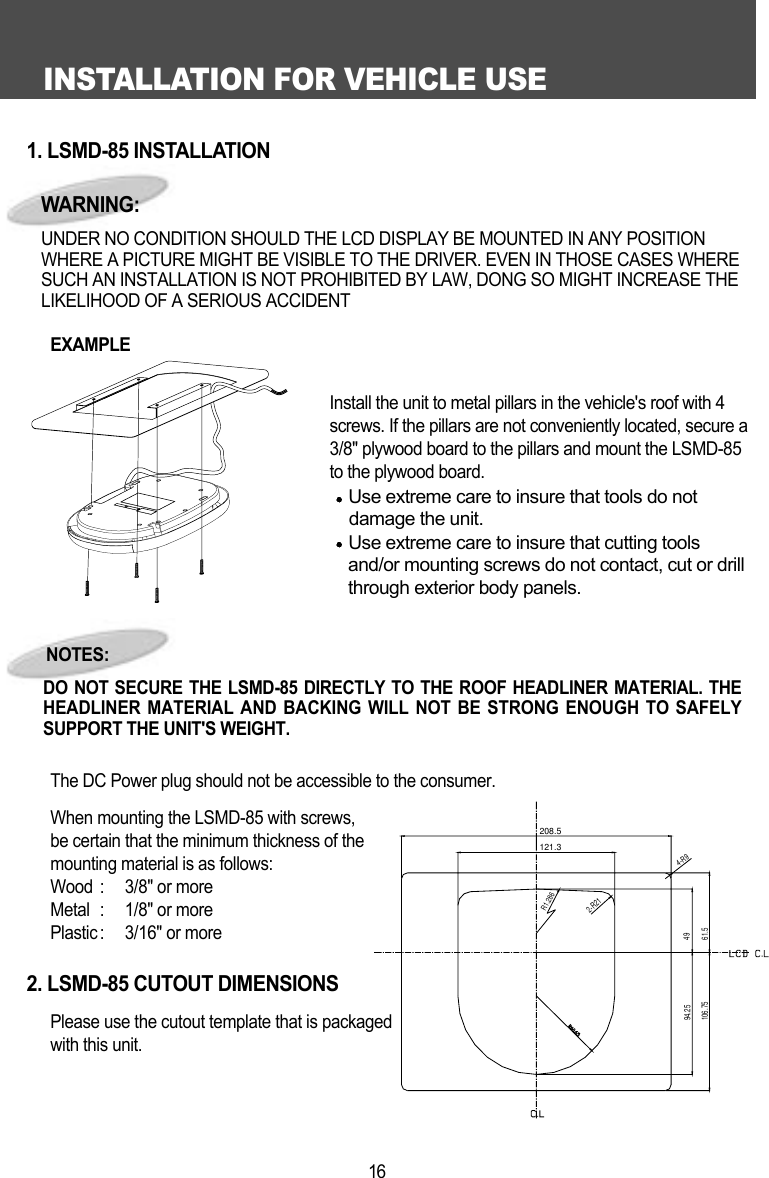
INSTALLATION FOR VEHICLE USE161. LSMD-85 INSTALLATIONEXAMPLE              Install the unit to metal pillars in the vehicle's roof with 4screws. If the pillars are not conveniently located, secure a3/8" plywood board to the pillars and mount the LSMD-85to the plywood board. Use extreme care to insure that tools do not   damage the unit.Use extreme care to insure that cutting toolsand/or mounting screws do not contact, cut or drillthrough exterior body panels.The DC Power plug should not be accessible to the consumer. When mounting the LSMD-85 with screws, be certain that the minimum thickness of the mounting material is as follows:Wood :  3/8" or moreMetal :  1/8" or morePlastic :  3/16" or more2. LSMD-85 CUTOUT DIMENSIONSPlease use the cutout template that is packaged with this unit.NOTES:DO NOT SECURE THE LSMD-85 DIRECTLY TO THE ROOF HEADLINER MATERIAL. THEHEADLINER MATERIAL AND BACKING WILL NOT BE STRONG ENOUGH TO SAFELYSUPPORT THE UNIT'S WEIGHT. WARNING:UNDER NO CONDITION SHOULD THE LCD DISPLAY BE MOUNTED IN ANY POSITIONWHERE A PICTURE MIGHT BE VISIBLE TO THE DRIVER. EVEN IN THOSE CASES WHERESUCH AN INSTALLATION IS NOT PROHIBITED BY LAW, DONG SO MIGHT INCREASE THELIKELIHOOD OF A SERIOUS ACCIDENT208.5121.3R1.2862-R214-R94961.594.25106.75
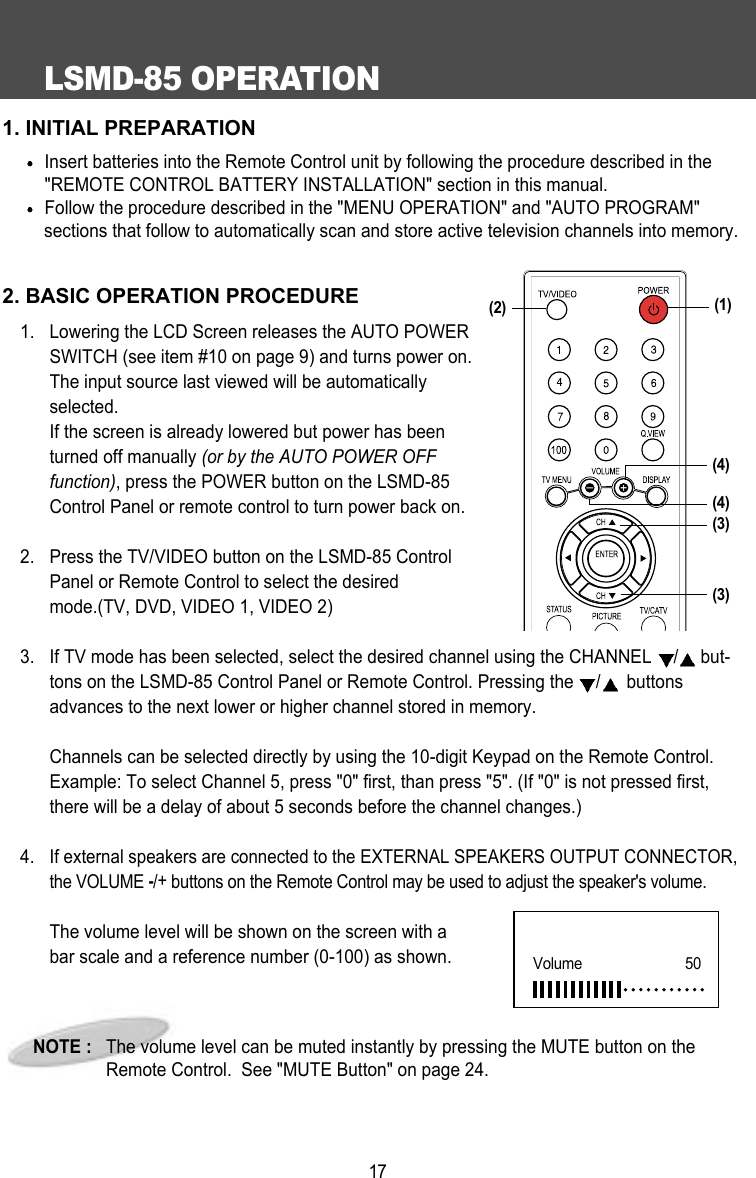
LSMD-85 OPERATION171. INITIAL PREPARATIONInsert batteries into the Remote Control unit by following the procedure described in the"REMOTE CONTROL BATTERY INSTALLATION" section in this manual.Follow the procedure described in the "MENU OPERATION" and "AUTO PROGRAM" sections that follow to automatically scan and store active television channels into memory.2. BASIC OPERATION PROCEDURE1. Lowering the LCD Screen releases the AUTO POWERSWITCH (see item #10 on page 9) and turns power on.The input source last viewed will be automaticallyselected. If the screen is already lowered but power has beenturned off manually (or by the AUTO POWER OFFfunction), press the POWER button on the LSMD-85Control Panel or remote control to turn power back on.2.  Press the TV/VIDEO button on the LSMD-85 ControlPanel or Remote Control to select the desiredmode.(TV, DVD, VIDEO 1, VIDEO 2)3.  If TV mode has been selected, select the desired channel using the CHANNEL  /but-tons on the LSMD-85 Control Panel or Remote Control. Pressing the  /buttonsadvances to the next lower or higher channel stored in memory.Channels can be selected directly by using the 10-digit Keypad on the Remote Control.Example: To select Channel 5, press "0" first, than press "5". (If "0" is not pressed first,there will be a delay of about 5 seconds before the channel changes.)4. If external speakers are connected to the EXTERNAL SPEAKERS OUTPUT CONNECTOR,the VOLUME -/+buttons on the Remote Control may be used to adjust the speaker's volume.The volume level will be shown on the screen with abar scale and a reference number (0-100) as shown. NOTE :   The volume level can be muted instantly by pressing the MUTE button on theRemote Control.  See "MUTE Button" on page 24.Volume      50(4)(3)(3)(2) (1)(4)
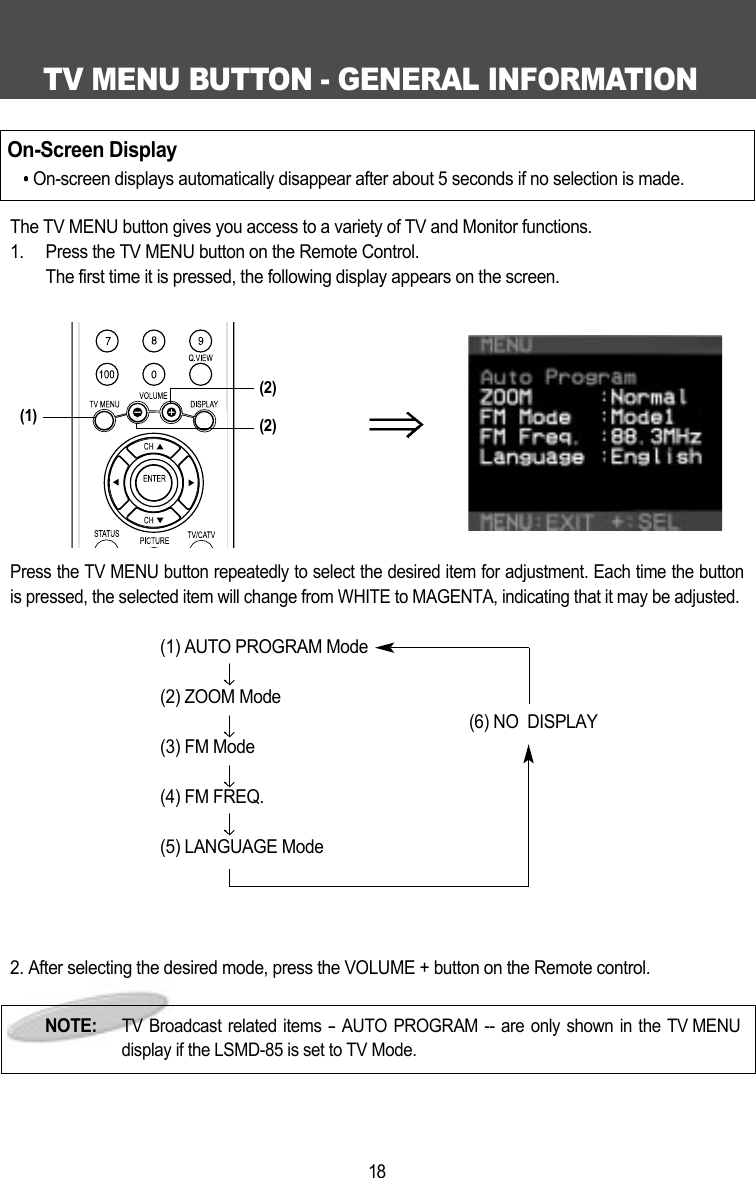
TV MENU BUTTON - GENERAL INFORMATION18The TV MENU button gives you access to a variety of TV and Monitor functions.1.  Press the TV MENU button on the Remote Control. The first time it is pressed, the following display appears on the screen.Press the TV MENU button repeatedly to select the desired item for adjustment. Each time the buttonis pressed, the selected item will change from WHITE to MAGENTA, indicating that it may be adjusted.(1) AUTO PROGRAM Mode(2) ZOOM Mode(6) NO  DISPLAY(3) FM Mode(4) FM FREQ.(5) LANGUAGE Mode2. After selecting the desired mode, press the VOLUME + button on the Remote control.  On-Screen DisplayOn-screen displays automatically disappear after about 5 seconds if no selection is made.NOTE:  TV Broadcast related items -AUTO PROGRAM -- are only shown in the TV MENUdisplay if the LSMD-85 is set to TV Mode.(2)(2)(1)
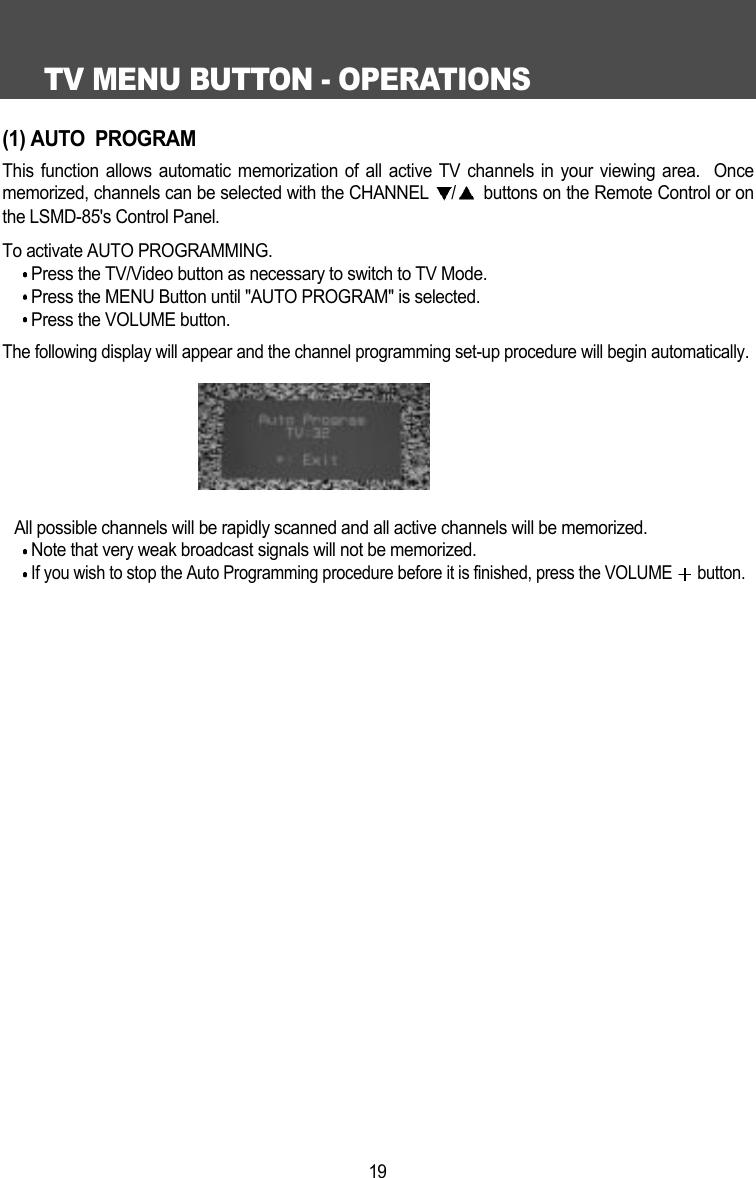
TV MENU BUTTON - OPERATIONS19(1) AUTO  PROGRAMThis function allows automatic memorization of all active TV channels in your viewing area.  Oncememorized, channels can be selected with the CHANNEL  /buttons on the Remote Control or onthe LSMD-85's Control Panel. To activate AUTO PROGRAMMING. Press the TV/Video button as necessary to switch to TV Mode.Press the MENU Button until "AUTO PROGRAM" is selected.Press the VOLUME button.The following display will appear and the channel programming set-up procedure will begin automatically.All possible channels will be rapidly scanned and all active channels will be memorized.Note that very weak broadcast signals will not be memorized.If you wish to stop the Auto Programming procedure before it is finished, press the VOLUME  button.
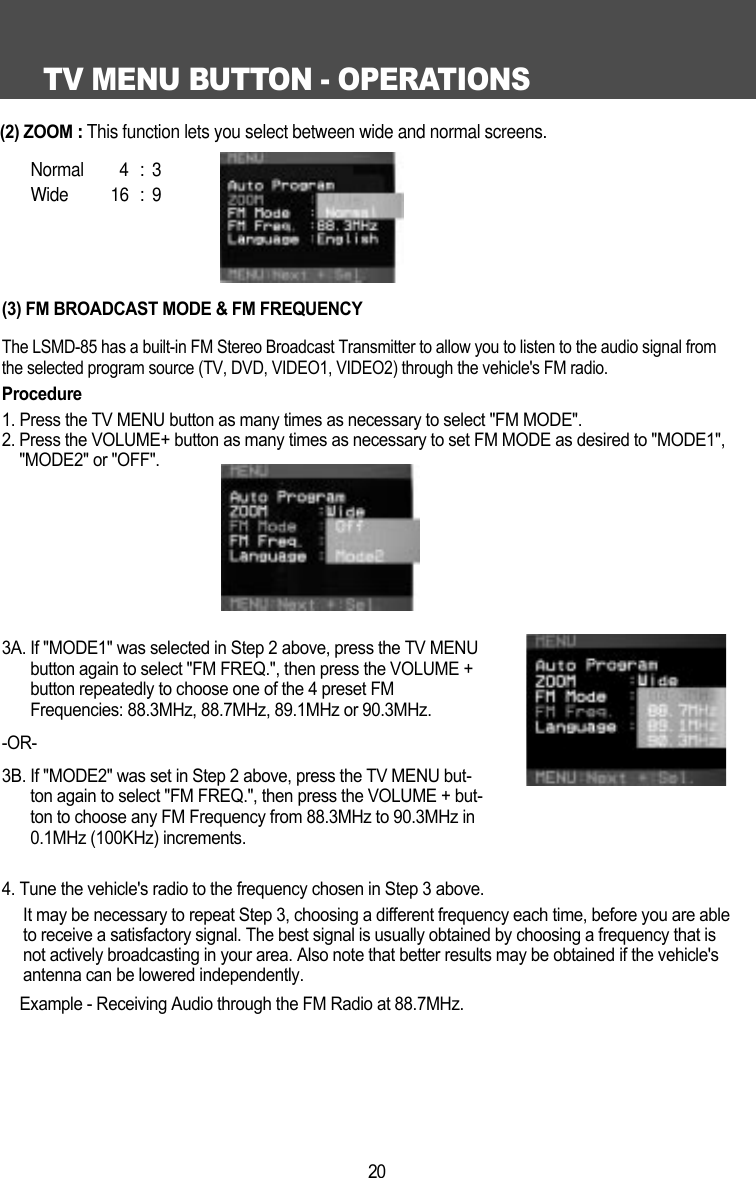
TV MENU BUTTON - OPERATIONS20(3) FM BROADCAST MODE & FM FREQUENCYThe LSMD-85 has a built-in FM Stereo Broadcast Transmitter to allow you to listen to the audio signal fromthe selected program source (TV, DVD, VIDEO1, VIDEO2) through the vehicle's FM radio. Procedure1. Press the TV MENU button as many times as necessary to select "FM MODE".2. Press the VOLUME+ button as many times as necessary to set FM MODE as desired to "MODE1","MODE2" or "OFF".3A. If "MODE1" was selected in Step 2 above, press the TV MENUbutton again to select "FM FREQ.", then press the VOLUME +button repeatedly to choose one of the 4 preset FMFrequencies: 88.3MHz, 88.7MHz, 89.1MHz or 90.3MHz.-OR-3B. If "MODE2" was set in Step 2 above, press the TV MENU but-ton again to select "FM FREQ.", then press the VOLUME + but-ton to choose any FM Frequency from 88.3MHz to 90.3MHz in0.1MHz (100KHz) increments.4. Tune the vehicle's radio to the frequency chosen in Step 3 above.It may be necessary to repeat Step 3, choosing a different frequency each time, before you are ableto receive a satisfactory signal. The best signal is usually obtained by choosing a frequency that isnot actively broadcasting in your area. Also note that better results may be obtained if the vehicle'santenna can be lowered independently.Example - Receiving Audio through the FM Radio at 88.7MHz. (2) ZOOM: This function lets you select between wide and normal screens.  Normal 4 : 3Wide 16 : 9
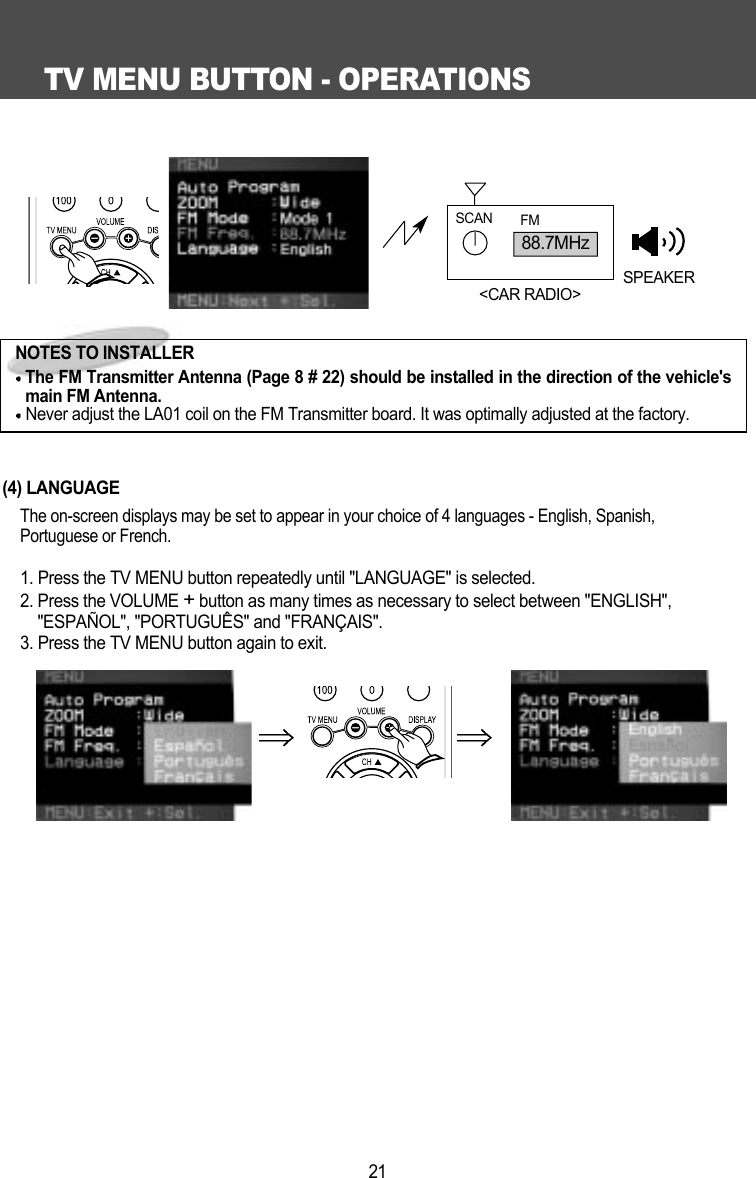
TV MENU BUTTON - OPERATIONS21(4) LANGUAGEThe on-screen displays may be set to appear in your choice of 4 languages - English, Spanish,Portuguese or French.1. Press the TV MENU button repeatedly until "LANGUAGE" is selected.2. Press the VOLUME +button as many times as necessary to select between "ENGLISH","ESPAÑOL", "PORTUGUÊS" and "FRANÇAIS".3. Press the TV MENU button again to exit. 88.7MHzSCAN FMSPEAKER<CAR RADIO>NOTES TO INSTALLERThe FM Transmitter Antenna (Page 8 # 22) should be installed in the direction of the vehicle'smain FM Antenna.Never adjust the LA01 coil on the FM Transmitter board. It was optimally adjusted at the factory.
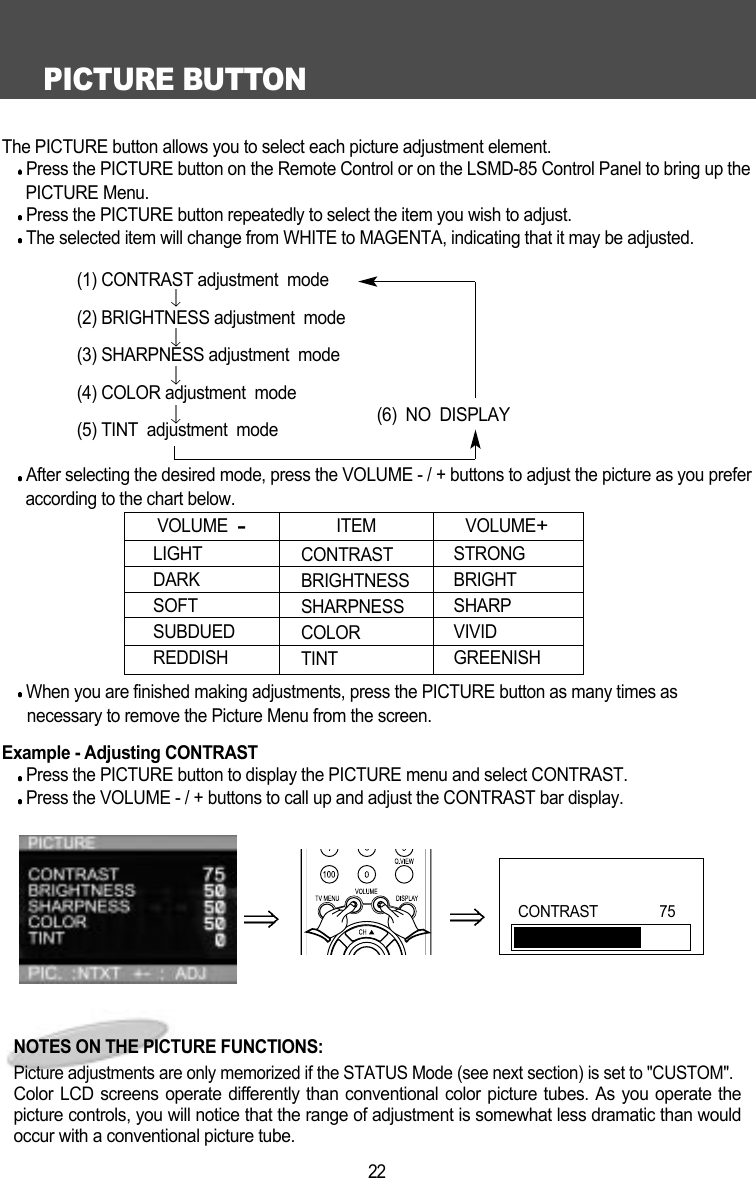
PICTURE BUTTON22The PICTURE button allows you to select each picture adjustment element.Press the PICTURE button on the Remote Control or on the LSMD-85 Control Panel to bring up thePICTURE Menu.Press the PICTURE button repeatedly to select the item you wish to adjust.The selected item will change from WHITE to MAGENTA, indicating that it may be adjusted.(1) CONTRAST adjustment  mode(2) BRIGHTNESS adjustment  mode(3) SHARPNESS adjustment  mode(4) COLOR adjustment  mode(6)  NO  DISPLAY(5) TINT  adjustment  modeAfter selecting the desired mode, press the VOLUME - / + buttons to adjust the picture as you preferaccording to the chart below.When you are finished making adjustments, press the PICTURE button as many times as          necessary to remove the Picture Menu from the screen.Example - Adjusting CONTRAST  Press the PICTURE button to display the PICTURE menu and select CONTRAST.Press the VOLUME - / + buttons to call up and adjust the CONTRAST bar display.LIGHTDARKSOFTSUBDUEDREDDISHVOLUME  -CONTRASTBRIGHTNESSSHARPNESS COLORTINTSTRONGBRIGHTSHARPVIVIDGREENISHITEM VOLUME+NOTES ON THE PICTURE FUNCTIONS:Picture adjustments are only memorized if the STATUS Mode (see next section) is set to "CUSTOM".Color LCD screens operate differently than conventional color picture tubes. As you operate thepicture controls, you will notice that the range of adjustment is somewhat less dramatic than wouldoccur with a conventional picture tube.CONTRAST                75
STATUS BUTTON23The STATUS button on the Remote Control lets you select between a CUSTOM adjustable picturesetting mode or any one of 3 factory preset picture modes.Pressing the STATUS button repeatedly changes the mode as follows:(1) CUSTOM mode(2) STANDARD mode(3) DYNAMIC mode(4) MILD modePICTUREMODESelect this mode to view a picture that may be adjusted to your ownpersonal taste.Note: While picture adjustments may also be made in the other 3modes, adjustments will only be stored in memory in CUSTOM mode.Select this mode to restore picture adjustments to the normal factory-preset mode.Select this mode to view a strong and bright picture.This mode is intended especially for viewing in brighter (daylight) environments.Select this mode to view a milder picture.This mode is intended especially for viewing in darker (nighttime)environments or to lessen eye fatigue.STANDARDCUSTOMDYNAMICMILD
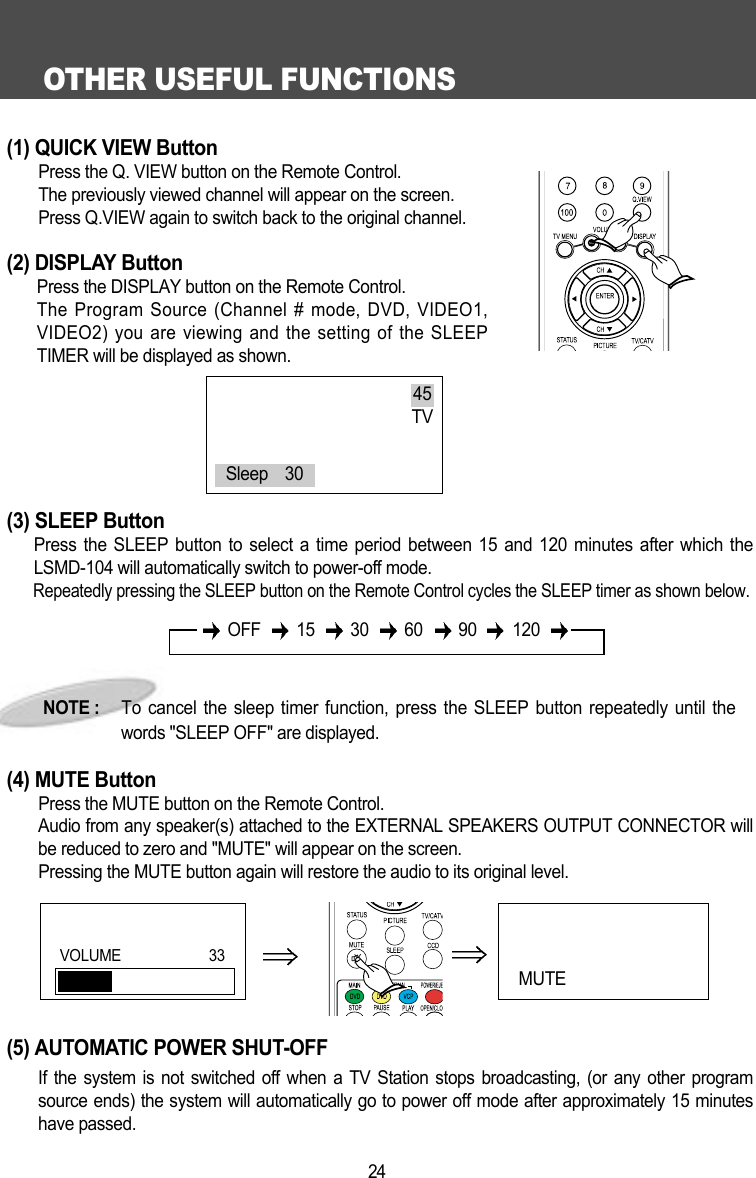
OTHER USEFUL FUNCTIONS24(1) QUICK VIEW ButtonPress the Q. VIEW button on the Remote Control.The previously viewed channel will appear on the screen.Press Q.VIEW again to switch back to the original channel.(2) DISPLAY ButtonPress the DISPLAY button on the Remote Control.The Program Source (Channel # mode, DVD, VIDEO1,VIDEO2) you are viewing and the setting of the SLEEPTIMER will be displayed as shown. (3) SLEEP ButtonPress the SLEEP button to select a time period between 15 and 120 minutes after which theLSMD-104 will automatically switch to power-off mode.Repeatedly pressing the SLEEP button on the Remote Control cycles the SLEEP timer as shown below.(4) MUTE ButtonPress the MUTE button on the Remote Control.Audio from any speaker(s) attached to the EXTERNAL SPEAKERS OUTPUT CONNECTOR willbe reduced to zero and "MUTE" will appear on the screen.Pressing the MUTE button again will restore the audio to its original level.(5) AUTOMATIC POWER SHUT-OFFIf the system is not switched off when a TV Station stops broadcasting, (or any other programsource ends) the system will automatically go to power off mode after approximately 15 minuteshave passed.NOTE :     To cancel the sleep timer function, press the SLEEP button repeatedly until thewords "SLEEP OFF" are displayed.45TVSleep    30OFF 15 30 60 90 120MUTE VOLUME 33
DVD FUNCTION & OPERATION25
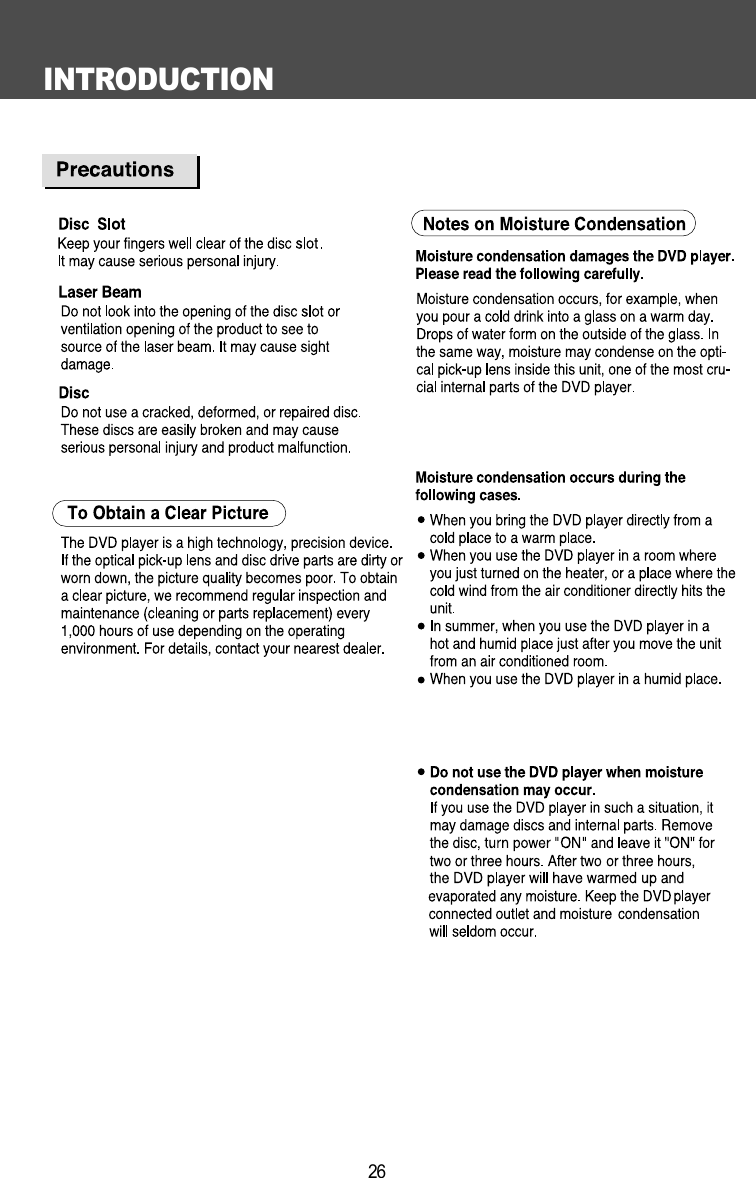
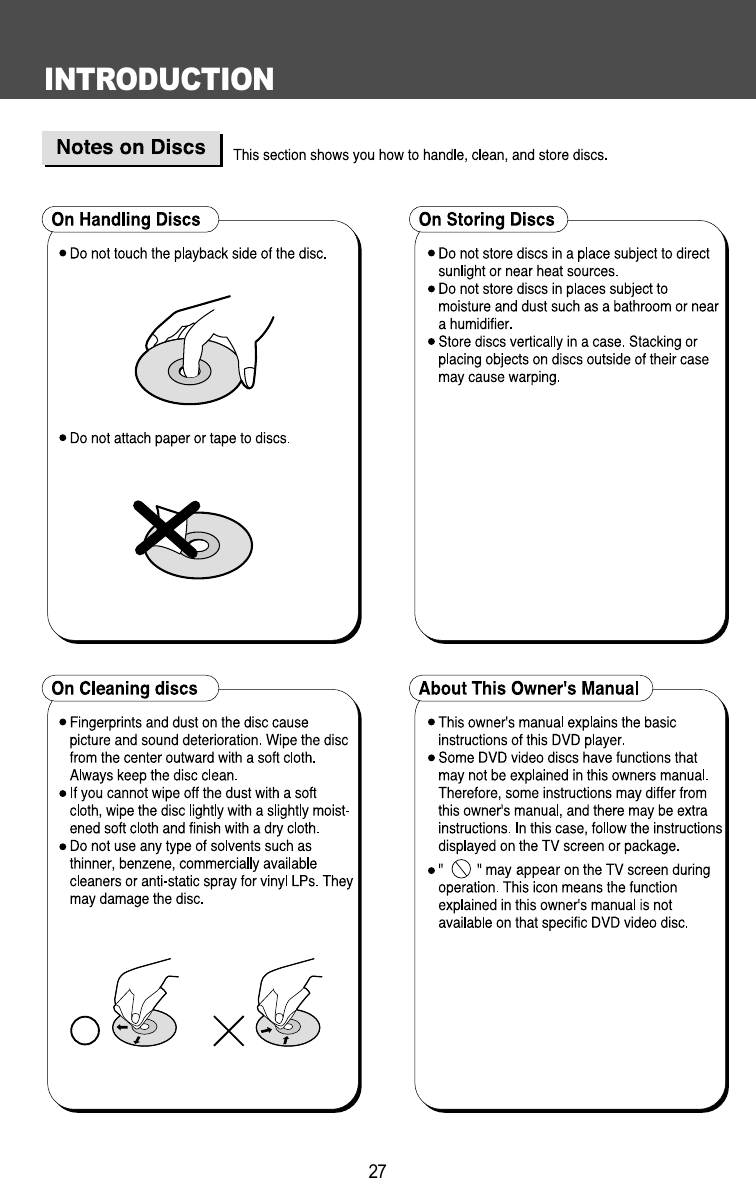
INTRODUCTION26
INTRODUCTION27
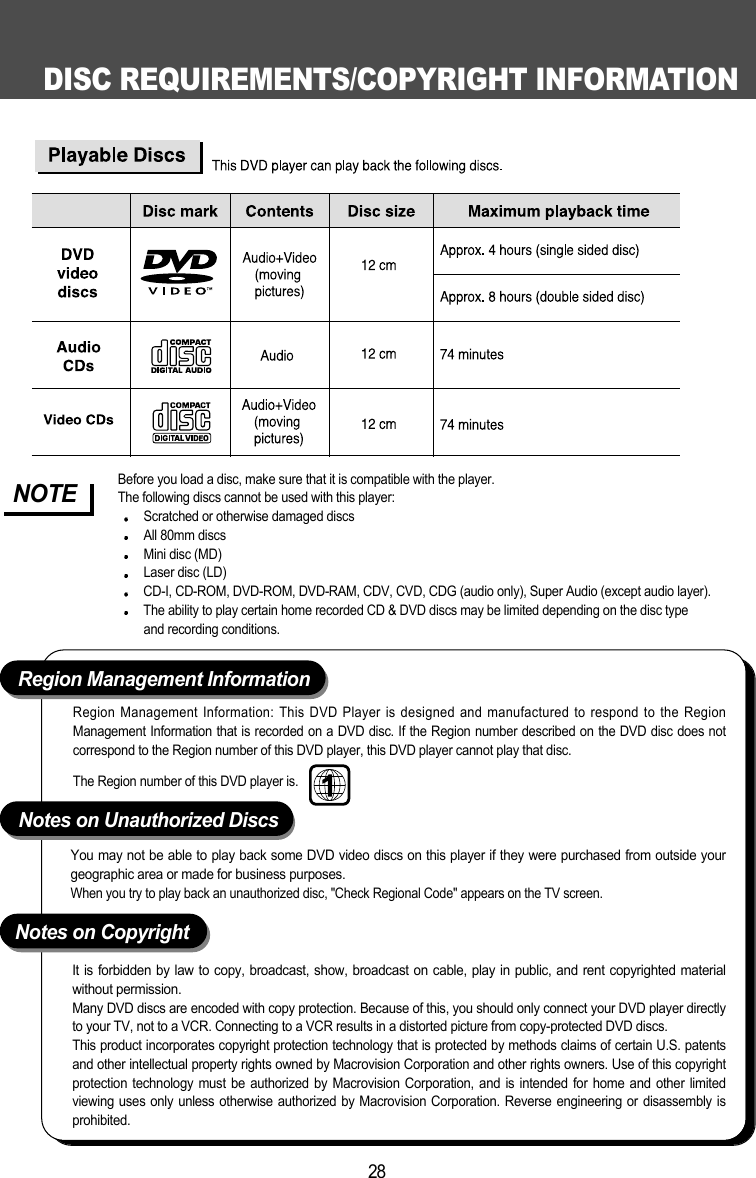
DISC REQUIREMENTS/COPYRIGHT INFORMATION28It is forbidden by law to copy, broadcast, show, broadcast on cable, play in public, and rent copyrighted materialwithout permission.  Many DVD discs are encoded with copy protection. Because of this, you should only connect your DVD player directlyto your TV, not to a VCR. Connecting to a VCR results in a distorted picture from copy-protected DVD discs.This product incorporates copyright protection technology that is protected by methods claims of certain U.S. patentsand other intellectual property rights owned by Macrovision Corporation and other rights owners. Use of this copyrightprotection technology must be authorized by Macrovision Corporation, and is intended for home and other limitedviewing uses only unless otherwise authorized by Macrovision Corporation. Reverse engineering or disassembly isprohibited.Notes on CopyrightRegion Management InformationNotes on Unauthorized DiscsRegion Management Information: This DVD Player is designed and manufactured to respond to the RegionManagement Information that is recorded on a DVD disc. If the Region number described on the DVD disc does notcorrespond to the Region number of this DVD player, this DVD player cannot play that disc. The Region number of this DVD player is.You may not be able to play back some DVD video discs on this player if they were purchased from outside yourgeographic area or made for business purposes. When you try to play back an unauthorized disc, "Check Regional Code" appears on the TV screen.Before you load a disc, make sure that it is compatible with the player.The following discs cannot be used with this player:Scratched or otherwise damaged discsAll 80mm discsMini disc (MD)Laser disc (LD)CD-I, CD-ROM, DVD-ROM, DVD-RAM, CDV, CVD, CDG (audio only), Super Audio (except audio layer).The ability to play certain home recorded CD & DVD discs may be limited depending on the disc type and recording conditions.NOTE
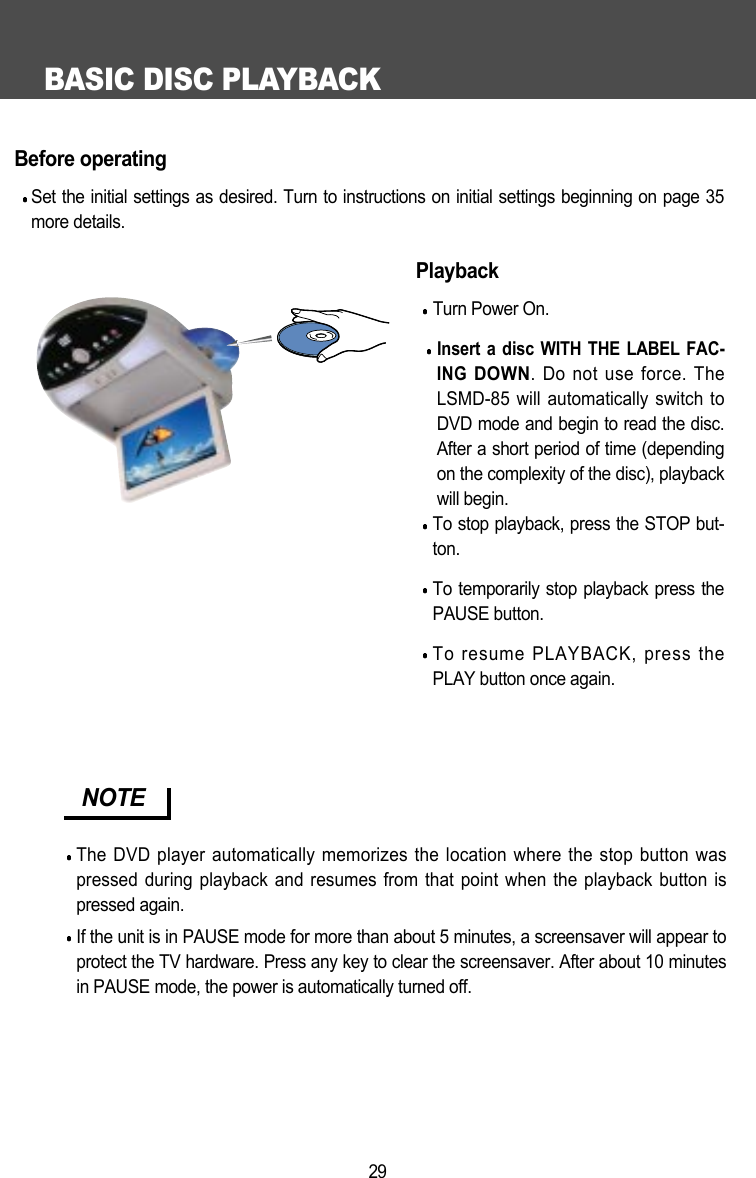
BASIC DISC PLAYBACK29Before operatingSet the initial settings as desired. Turn to instructions on initial settings beginning on page 35more details.PlaybackTurn Power On.Insert a disc WITH THE LABEL FAC-INGDOWN. Do not use force. TheLSMD-85 will automatically switch toDVD mode and begin to read the disc.After a short period of time (dependingon the complexity of the disc), playbackwill begin. To stop playback, press the STOP but-ton.To temporarily stop playback press thePAUSE button.To resume PLAYBACK, press thePLAY button once again.NOTEThe DVD player automatically memorizes the location where the stop button waspressed during playback and resumes from that point when the playback button ispressed again.If the unit is in PAUSE mode for more than about 5 minutes, a screensaver will appear toprotect the TV hardware. Press any key to clear the screensaver. After about 10 minutesin PAUSE mode, the power is automatically turned off.
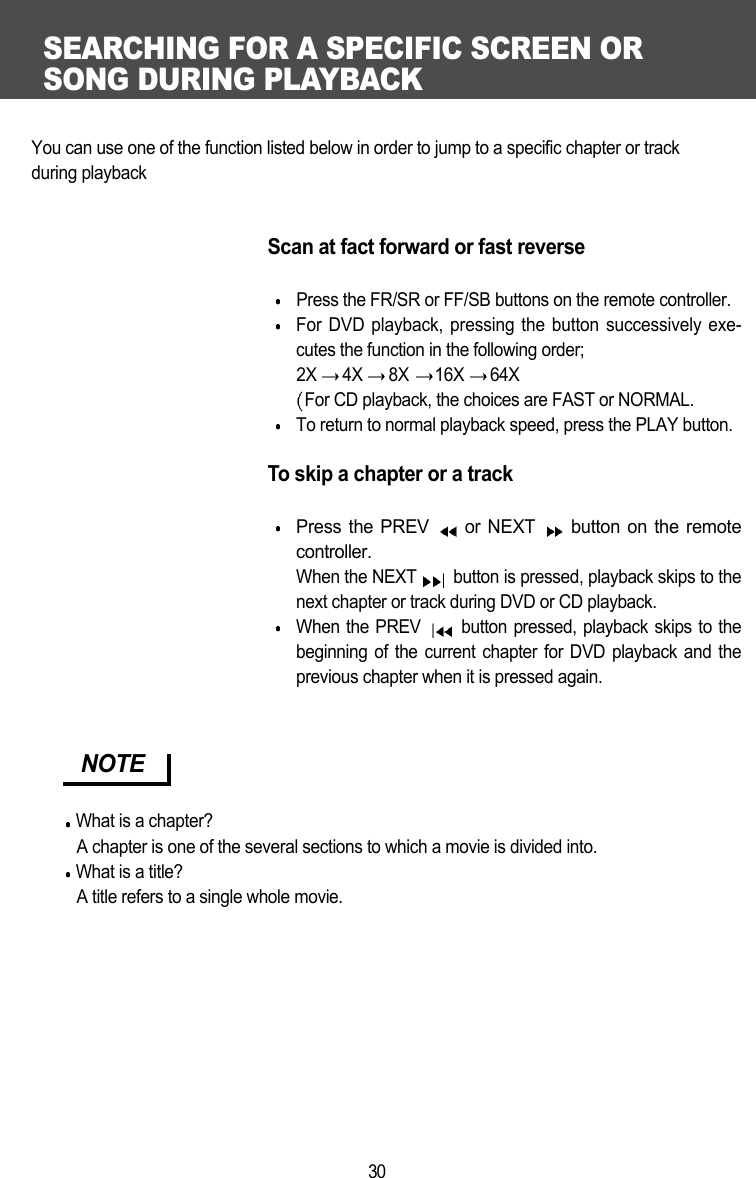
SEARCHING FOR A SPECIFIC SCREEN OR SONG DURING PLAYBACK30You can use one of the function listed below in order to jump to a specific chapter or track during playbackScan at fact forward or fast reversePress the FR/SR or FF/SB buttons on the remote controller.For DVD playback, pressing the button successively exe-cutes the function in the following order;2X  4X  8X  16X  64X For CD playback, the choices are FAST or NORMAL.To return to normal playback speed, press the PLAY button.To skip a chapter or a trackPress the PREV  or NEXT  button on the remotecontroller.When the NEXT  button is pressed, playback skips to thenext chapter or track during DVD or CD playback.When the PREV  button pressed, playback skips to thebeginning of the current chapter for DVD playback and theprevious chapter when it is pressed again.  NOTEWhat is a chapter?A chapter is one of the several sections to which a movie is divided into.What is a title?A title refers to a single whole movie.
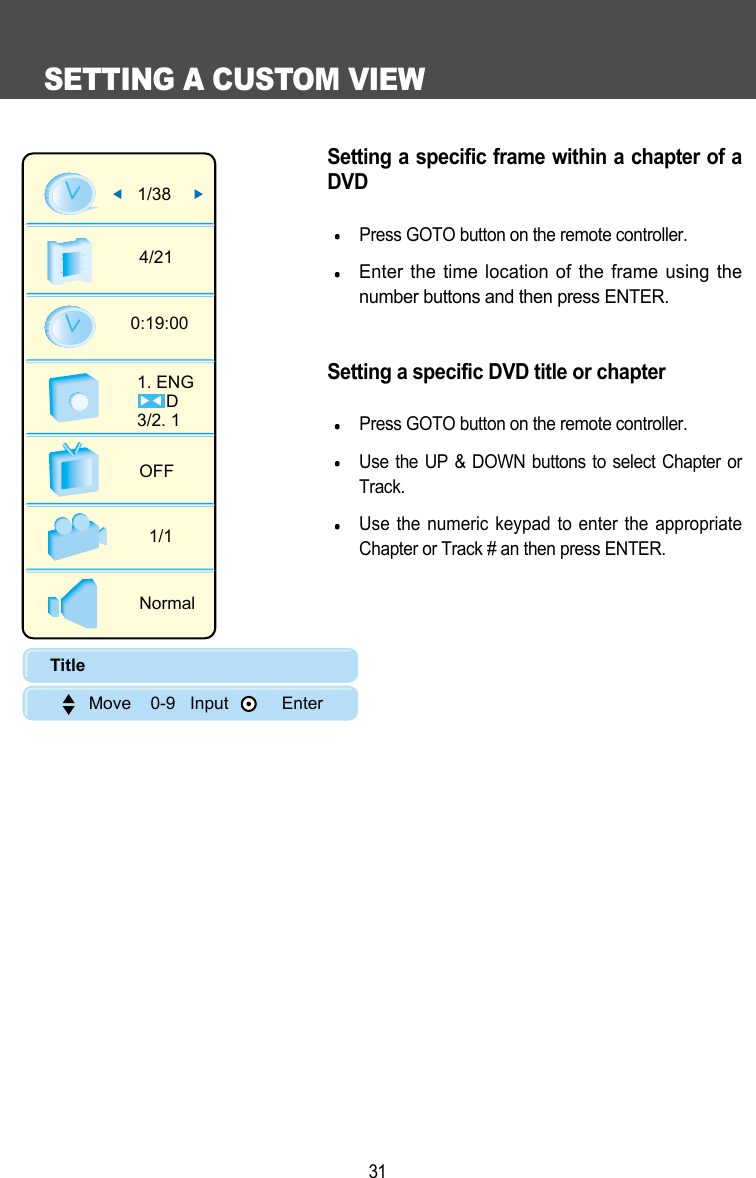
SETTING A CUSTOM VIEW31Setting a specific frame within a chapter of aDVDPress GOTO button on the remote controller.Enter the time location of the frame using thenumber buttons and then press ENTER.Setting a specific DVD title or chapterPress GOTO button on the remote controller.Use the UP & DOWN buttons to select Chapter orTrack. Use the numeric keypad to enter the appropriateChapter or Track # an then press ENTER. 1/384/210:19:001. ENG      D3/2. 1 OFF1/1NormalTitle        Move    0-9   Input           Enter
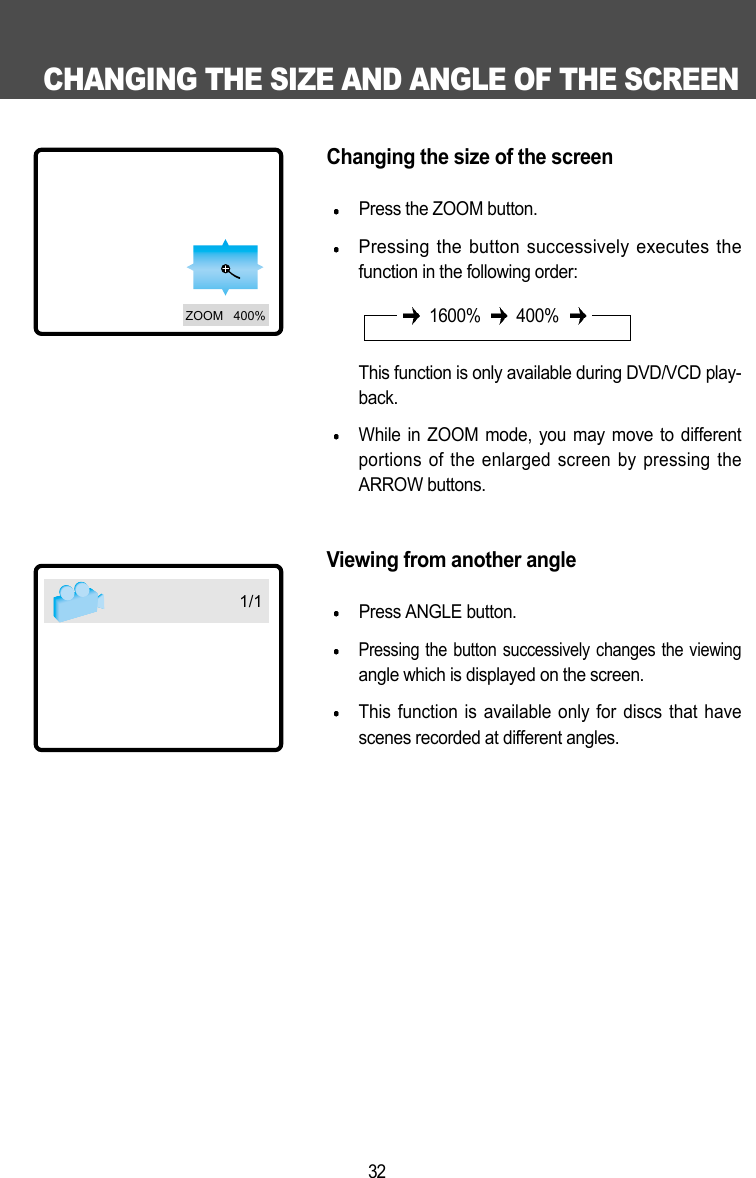
CHANGING THE SIZE AND ANGLE OF THE SCREEN32Changing the size of the screenPress the ZOOM button.Pressing the button successively executes thefunctionin the following order: This function is only available during DVD/VCD play-back.While in ZOOM mode, you may move to differentportions of the enlarged screen by pressing theARROW buttons. Viewing from another anglePress ANGLE button.Pressing the button successively changes the viewingangle which is displayed on the screen.This function is available only for discs that havescenes recorded at different angles. 1600% 400%1/1ZOOM   400%
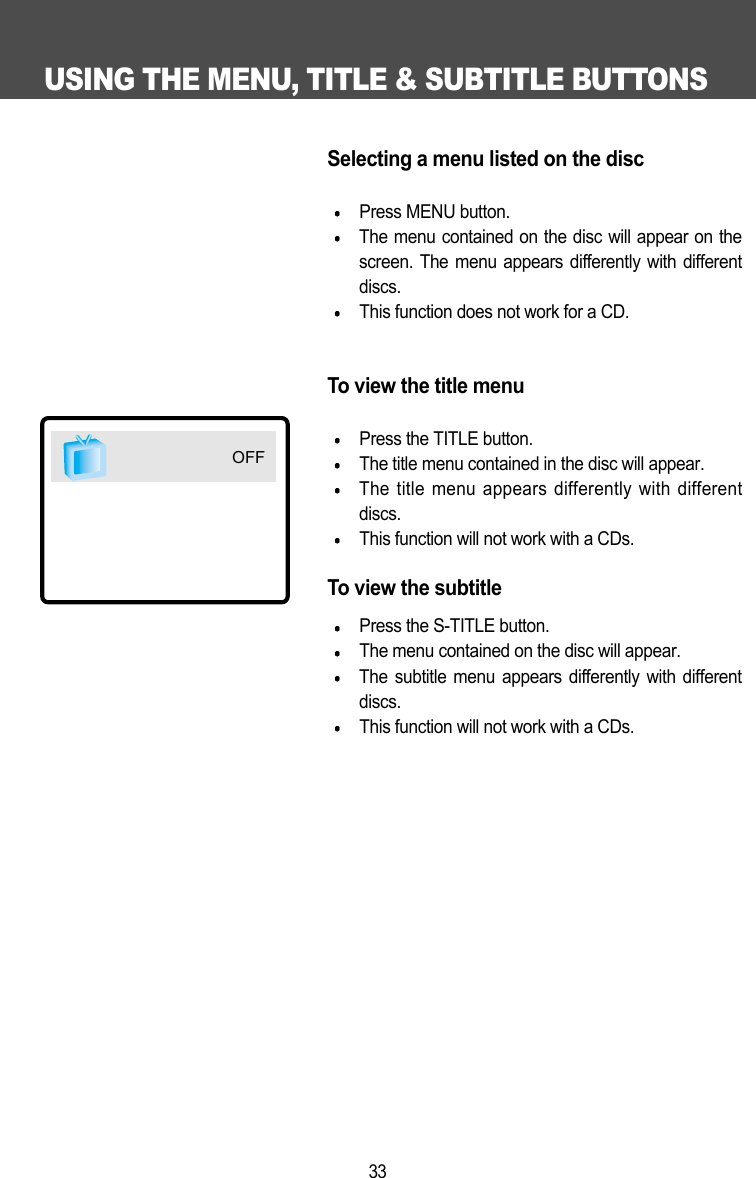
USING THE MENU, TITLE & SUBTITLE BUTTONS33Selecting a menu listed on the discPress MENU button.The menu contained on the disc will appear on thescreen. The menu appears differently with differentdiscs. This function does not work for a CD.To view the title menuPress the TITLE button.The title menu contained in the disc will appear.The title menu appears differently with differentdiscs.This function will not work with a CDs.To view the subtitle Press the S-TITLE button.The menu contained on the disc will appear. The subtitle menu appears differently with differentdiscs.This function will not work with a CDs.OFF
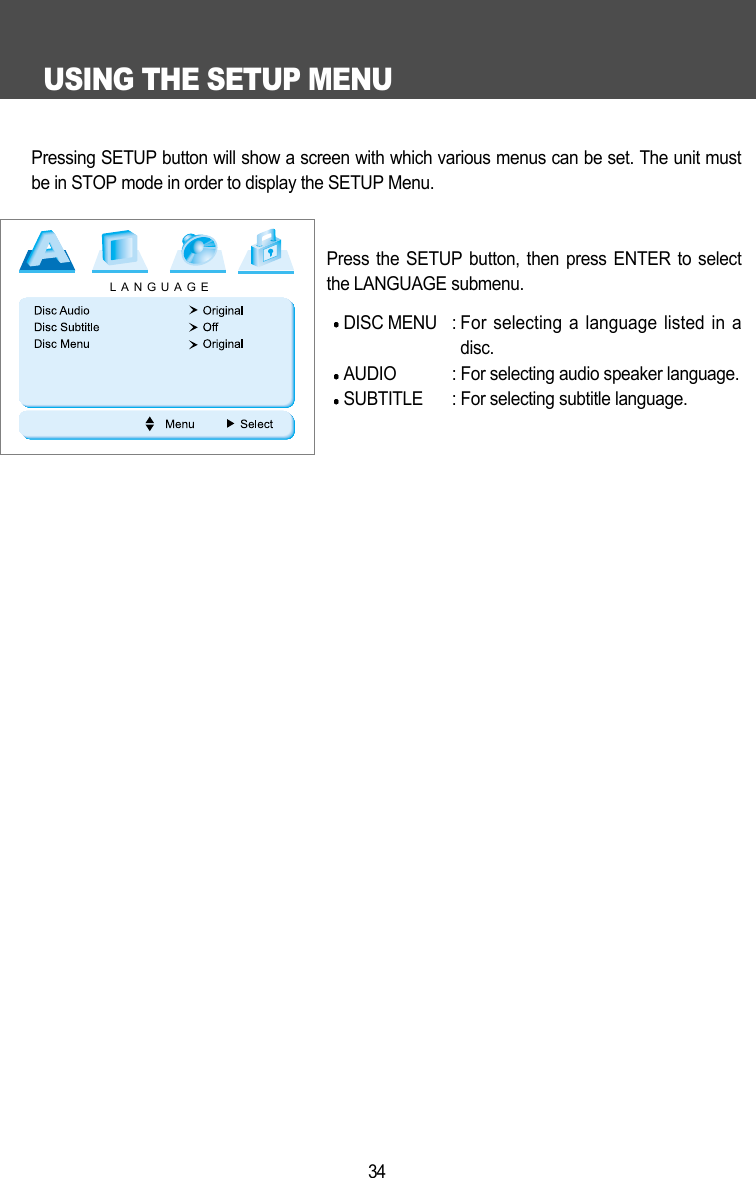
USING THE SETUP MENU34Pressing SETUP button will show a screen with which various menus can be set. The unit mustbe in STOP mode in order to display the SETUP Menu. Press the SETUP button, then press ENTER to selectthe LANGUAGE submenu. DISC MENU : For selecting a language listed in adisc.AUDIO : For selecting audio speaker language.SUBTITLE : For selecting subtitle language.LANGUAGE
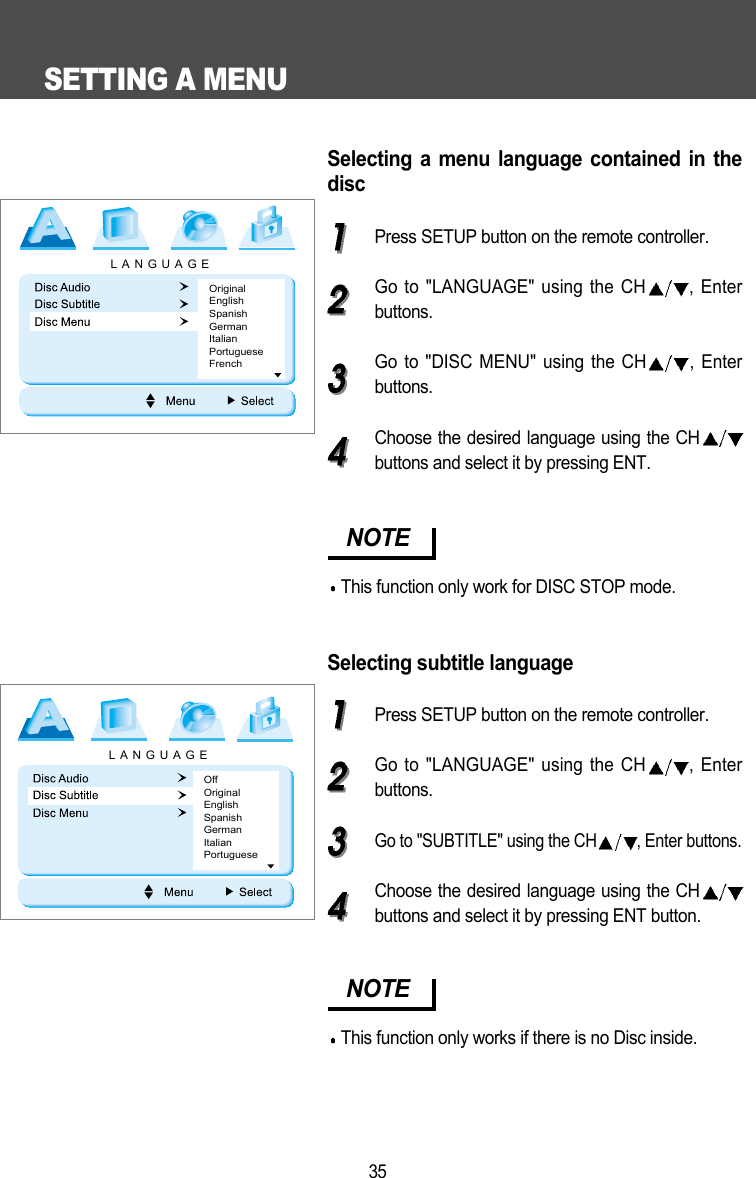
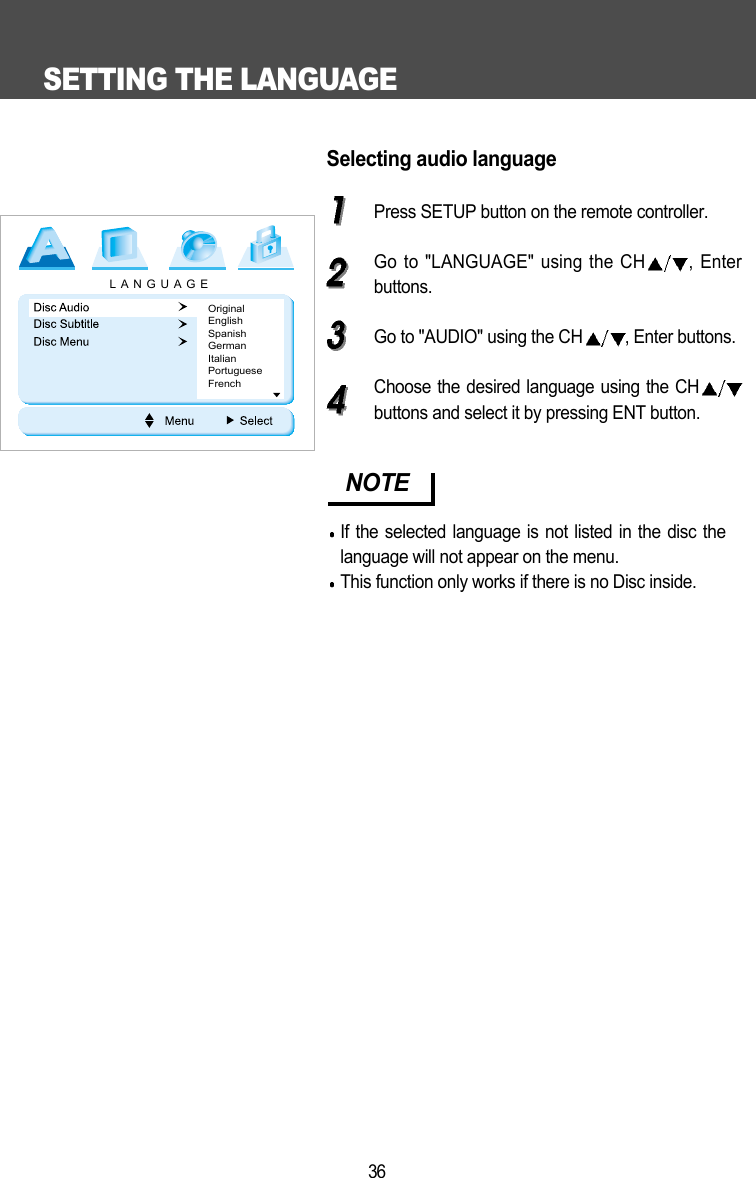
SETTING A MENU35Selecting a menu language contained in thediscPress SETUP button on the remote controller.Go to "LANGUAGE" using the CH , Enterbuttons.Go to "DISC MENU" using the CH , Enterbuttons.Choose the desired language using the CHbuttons and select it by pressing ENT.Selecting subtitle languagePress SETUP button on the remote controller.Go to "LANGUAGE" using the CH , Enterbuttons.Go to "SUBTITLE" using the CH , Enter buttons.Choose the desired language using the CHbuttons and select it by pressing ENT button.NOTEThis function only work for DISC STOP mode.NOTEThis function only works if there is no Disc inside.LANGUAGEOriginalEnglishSpanishGermanItalianPortugueseFrenchLANGUAGEOffOriginalEnglishSpanishGermanItalianPortuguese
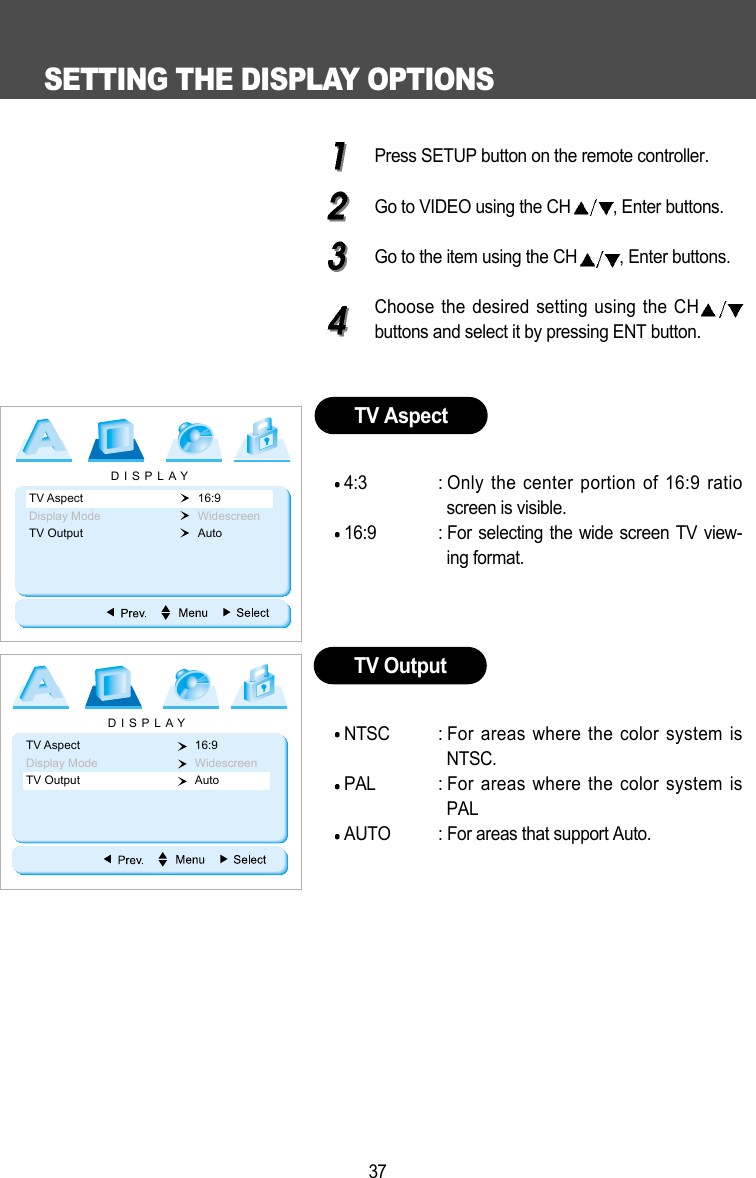
SETTING THE LANGUAGE36Selecting audio languagePress SETUP button on the remote controller.Go to "LANGUAGE" using the CH , Enterbuttons.Go to "AUDIO" using the CH , Enter buttons.Choose the desired language using the CHbuttons and select it by pressing ENT button.NOTEIf the selected language is not listed in the disc thelanguage will not appear on the menu.This function only works if there is no Disc inside. LANGUAGEOriginalEnglishSpanishGermanItalianPortugueseFrench
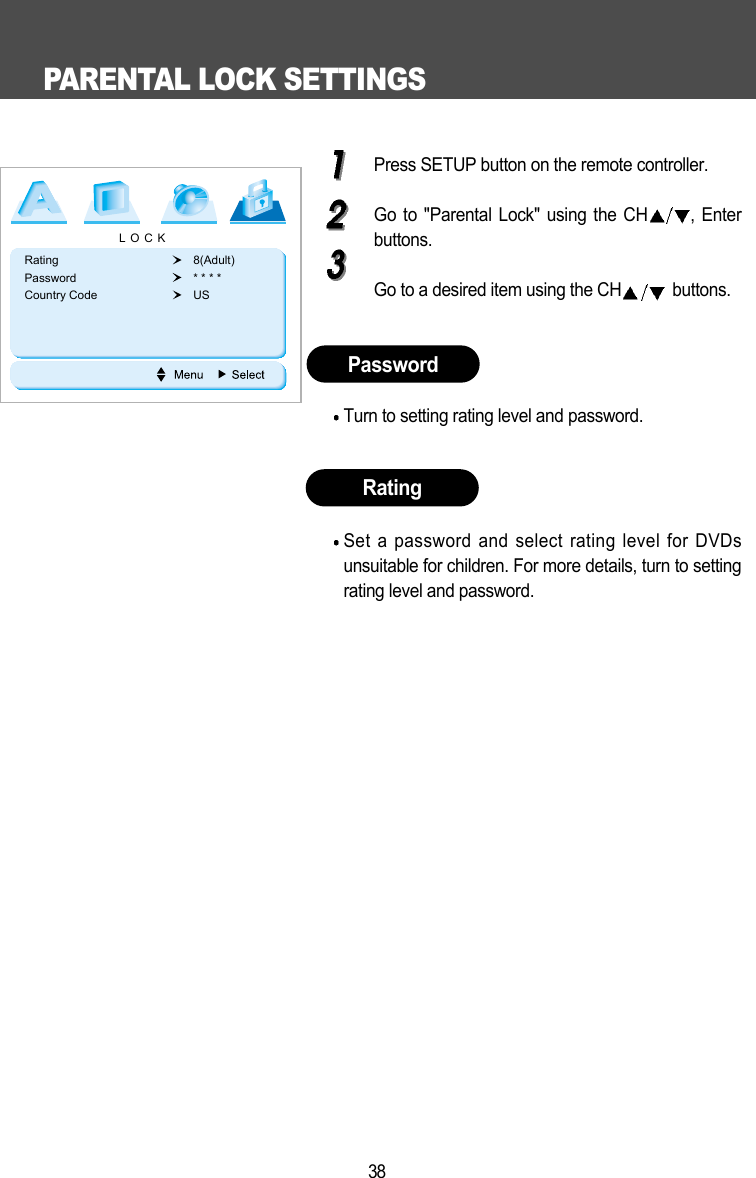
SETTING THE DISPLAY OPTIONS37Press SETUP button on the remote controller.Go to VIDEO using the CH , Enter buttons.Go to the item using the CH , Enter buttons.Choose the desired setting using the CHbuttons and select it by pressing ENT button.4:3 : Only the center portion of 16:9 ratioscreen is visible.16:9 : For selecting the wide screen TV view-ing format. NTSC : For areas where the color system isNTSC.PAL : For areas where the color system isPALAUTO : For areas that support Auto.TV AspectTV OutputDISPLAYTV Aspect 16:9Display Mode WidescreenTV Output Auto DISPLAYTV Aspect 16:9Display Mode WidescreenTV Output Auto
PARENTAL LOCK SETTINGS38Press SETUP button on the remote controller.Go to "Parental Lock" using the CH , Enterbuttons.Go to a desired item using the CH buttons.Turn to setting rating level and password.Set a password and select rating level for DVDsunsuitable for children. For more details, turn to settingrating level and password.PasswordRatingLOCKRating 8(Adult)Password * * * *Country Code US
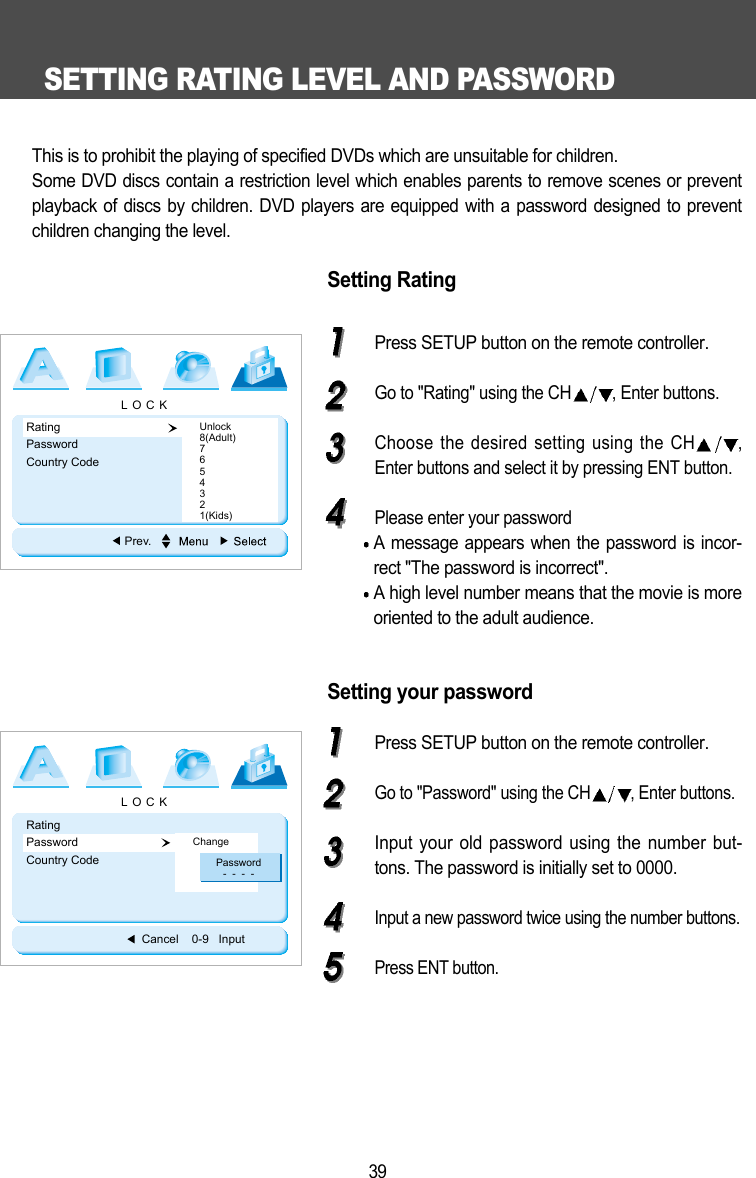
SETTING RATING LEVEL AND PASSWORD39This is to prohibit the playing of specified DVDs which are unsuitable for children.Some DVD discs contain a restriction level which enables parents to remove scenes or preventplayback of discs by children. DVD players are equipped with a password designed to preventchildren changing the level.Setting RatingPress SETUP button on the remote controller.Go to "Rating" using the CH , Enter buttons.Choose the desired setting using the CH ,Enter buttons and select it by pressing ENT button.Please enter your passwordA message appears when the password is incor-rect "The password is incorrect".A high level number means that the movie is moreoriented to the adult audience. Setting your passwordPress SETUP button on the remote controller.Go to "Password" using the CH , Enter buttons. Input your old password using the number but-tons. The password is initially set to 0000.Input a new password twice using the number buttons. Press ENT button.LOCKRating  Password  Country Code   Unlock8(Adult)7654321(Kids)Prev.LOCKRating  Password  Country Code   ChangeCancel    0-9   InputPassword-  -  -  -
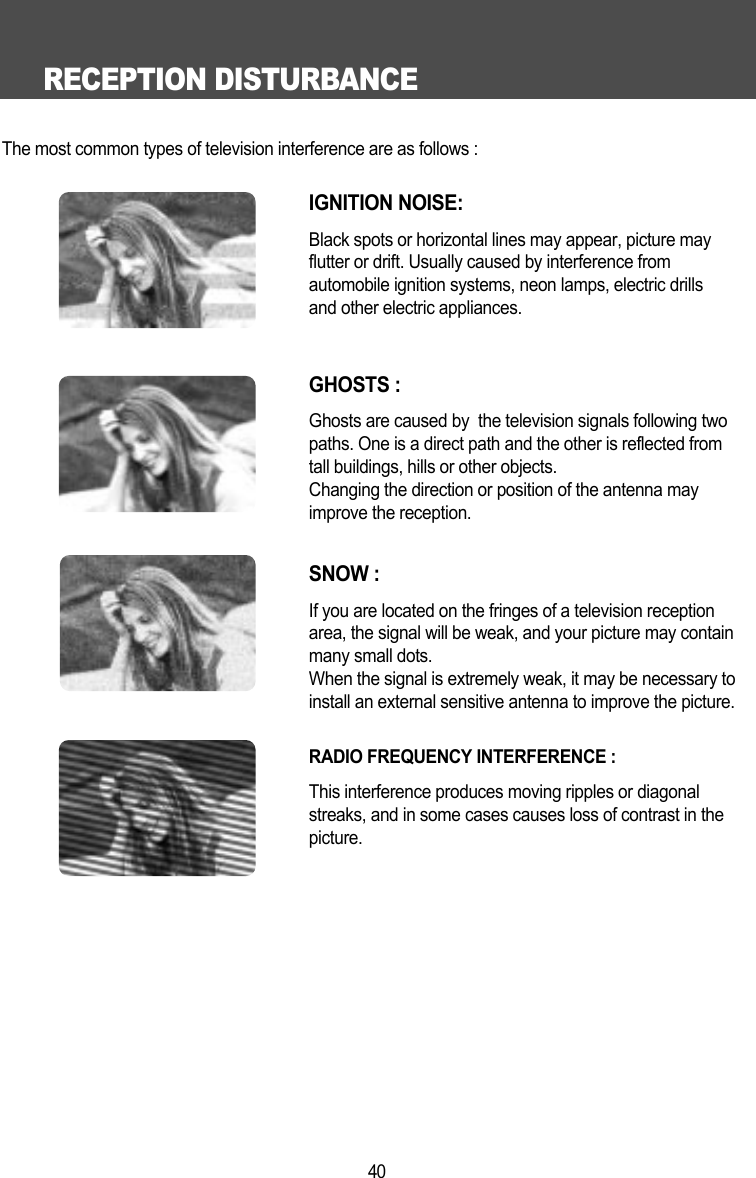
RECEPTION DISTURBANCE40The most common types of television interference are as follows :IGNITION NOISE:Black spots or horizontal lines may appear, picture may flutter or drift. Usually caused by interference from automobile ignition systems, neon lamps, electric drillsand other electric appliances.GHOSTS :Ghosts are caused by  the television signals following two paths. One is a direct path and the other is reflected fromtall buildings, hills or other objects. Changing the direction or position of the antenna mayimprove the reception.SNOW : If you are located on the fringes of a television reception area, the signal will be weak, and your picture may containmany small dots. When the signal is extremely weak, it may be necessary to install an external sensitive antenna to improve the picture.RADIO FREQUENCY INTERFERENCE : This interference produces moving ripples or diagonal streaks, and in some cases causes loss of contrast in thepicture.
SPECIFICATIONS41Unified Remote Controller (LSMD-85 + KEC Mobile Applications VCP's)AAA Cells X 2R-Link CableSupplied 12V DC Input Power Extension CableInstallation & Operating ManualInstallation Cutout TemplateWarranty CardOptional Universal Trim RingMolded Consoles for a variety of specific vehiclesACCESSORIESITEM SPECIFICATIONDisplay Panel 8.5 Inch TFT LCDTelevision System NTSC-MGENERAL Tuning System Frequency SynthesizerReceiving Channels VHF 2~13/UHF 14~69/+113 CATVAntenna Impedance UHF/VHF 75 OhmPower Source DC 12Volt(Car Battery)Power Consumption 18W (DC 12V)High Resolution Picture 1440(W) 234(V) Contrast Ratio 300:1 TypicalPixel Pitch 0.130 0.450(mm)Pixel Configuration RGB Stripe ArrangementDISPLAYLCD Panel Dimension  199.0mm(W) 119.0mm(H) 5.8mm(D)SCREEN Active Screen Area 187.2mm 105.3mmOff Axis Viewing Range Horizontal: 65 / Vertical:50 Up, 65 DownOperating Temperature -30 C~75 C  Operating Humidity 35% ~ 80%VIDEO Input Level 1.0 0.1 Vp-p(75 Load)Output Level 1.0 0.1 Vp-p(75 Load)Input Level 400 50mVrms(RCA Jacks)Output Level 400 50mVrms(RCA Jacks)AUDIO External Speakers Outputs 0.5W 2@4 , <10% THD(Variable)(ALL Hum< 3mVrms / Buzz <200mVp-pSTEREO) Wireless IR TransmitterCompatible with Unwired brand IR Headphones (Unwired Technology LLC) and other brands compatible with Unwired .Wireless FM Broadcast Modulator Off + 4 Preset Frequencies + Any Frequency Between 88.3 MHz~90.3 MHz In 100 kHz Steps

Navigation menu