Kaba Property Administrator Rez Shield Software User Guide Rezshield
User Manual: Kaba RezShield Software User Guide RezShield Software & 79 Lock Series - Kaba Access & Data Systems
Open the PDF directly: View PDF  .
.
Page Count: 39
M3550 ©Kaba Ilco Inc., all rights reserved. Rev. 9/14 Pg. 0

M3550 ©Kaba Ilco Inc., all rights reserved. Rev. 9/14 Pg. 1
Property Administrator
User Guide
_________________________
Table of Contents
RezShield™ System Requirements …………………..…………………………….… 2
Features of the RezShield™ System ………………………………………………… 3
RezShield™ System Overview ……………………………………………………….. 4
Logging on to the Application …………………………………………………………. 5
RezShield™ Main Screen ……………………………………………………………… 6
Accounts ………………………………………………………………………………. 7 - 9
Resident Access ………………………………………………………………….. 10 - 12
Staff Access ………………………………………………………………………… 13 - 16
Key Readback …………………………………………………………………………. 17
Key Cancellation …………………………………………………………………… 18 - 19
Lock Actions ……………………………………………………………………….. 20 - 21
Lock Administration ………………………………………………………………. 22 – 23
Reports …………………………………………………………………………….. 24 - 28
RezShield™ Operator Levels …………………………………………………… 29 - 33
Keycard Types …………………………………………………………………… 34 - 36
Glossary …..………………………………………………………………………….…. 37
Notes ……………………………………………………………………………………. 38
M3550 ©Kaba Ilco Inc., all rights reserved. Rev. 9/14 Pg. 2
Minimum Requirements
1. SERVER: (Must be a dedicated machine)
OS: Vista Business, Windows 7 & 8 Pro, Windows Server 2008 & 2012 (32/64 bits)
Windows: Features: Pre-installed
NET Framework 2/4
Web Server - IIS (Internet Information Services)
MSMQ (Microsoft Message Queuing)
Backup Media: USB Memory stick
CD Writer
Hardware: CPU – Dual Core or above
RAM – 8GB (Recommended)
HARD DISK – 250 GB (Recommended)
CD ROM
Serial Port (For Serial PMS Only)
USB Ports
NETWORK ADAPTER
STANDARD MONITOR
The server must be on the hotel network with a static IP address or server name recognized by DNS.
N.B For more than 5 workstations, Windows Server 2008 or 2012 OS is required.
2. WORKSTATIONS (minimum)
OS: Vista Business, Windows 7 Pro, Windows 8
Software: IE 6.0 or above
NET Framework 2.0
Hardware: CPU – dual core or above (recommended)
RAM - 4GB (recommended)
HARD DISK – 160 GB (recommended)
CD ROM
USB Ports
NETWORK ADAPTER
STANDARD MONITOR
IMPORTANT NOTICE:
‘Home Edition’ OS is not suited for Atlas.
For further information
lodging-tech@kaba.com or call 1-877-468-3555 and select Technical Support

M3550 ©Kaba Ilco Inc., all rights reserved. Rev. 9/14 Pg. 3
Features of the RezShield™ System
The Kaba RezShield™ System (also called the system in this booklet) uses electronic locks that work with
electronic credentials instead of mechanical keys. Credentials are available in three different forms:
keycards, fobs, or wristbands. RezShield software is the tool that is used to enter and encode information
on residents and staff credential when their unit is assigned. These credentials work just like keys, giving
residents secure access to their rooms when positioned in front of the reader on the lock. They can be
customized when made to also provide r access to other amenities such as exercise room, parking, etc.
The flexibility of the system enables residents to carry just one keycard for gaining access to all of these
property features in addition to their own unit.
For the Property Administrator (or User), when using this system - instead of handing the residents
a metal key - they simply program a new credential for each resident with the additional options
and property features that they are entitled to use.
The new credential contains a unique, encrypted code that opens only the locks that the
resident is entitled to use.
As soon as this new credential is used in the lock by the resident, all previous resident-level
credentials for that lock are cancelled.
This leads to a high level of security, equivalent to re-keying the lock for every resident.
Every use of the RezShield PC or access to a lock is audited.
Each employee must enter a valid password to allow them to make or read a keycard and
this information goes into the audit trail. The audit trail reveals the date and time, the
identity of the user, and the operations performed.
Property Administrators should NEVER give their password to anyone and never make inappropriate use
of any PC, lock, or keycard. They must always log off the RezShield system after they finish using it, so no
one else is able to make keycards with their password.
Screen Size – If the RezShield Web application fills the whole screen it is in Kiosk mode. This mode can
be activated or de-activated in the system set-up application.
Screen Toggle – When using several applications at the same time (For example: RezShield web
application, Monitoring Manager, and System Setup) you can cycle through all the open screens by using
the “Alt + Tab” when you get to the icon of the application screen you want to see.
M3550 ©Kaba Ilco Inc., all rights reserved. Rev. 9/14 Pg. 4
System Overview
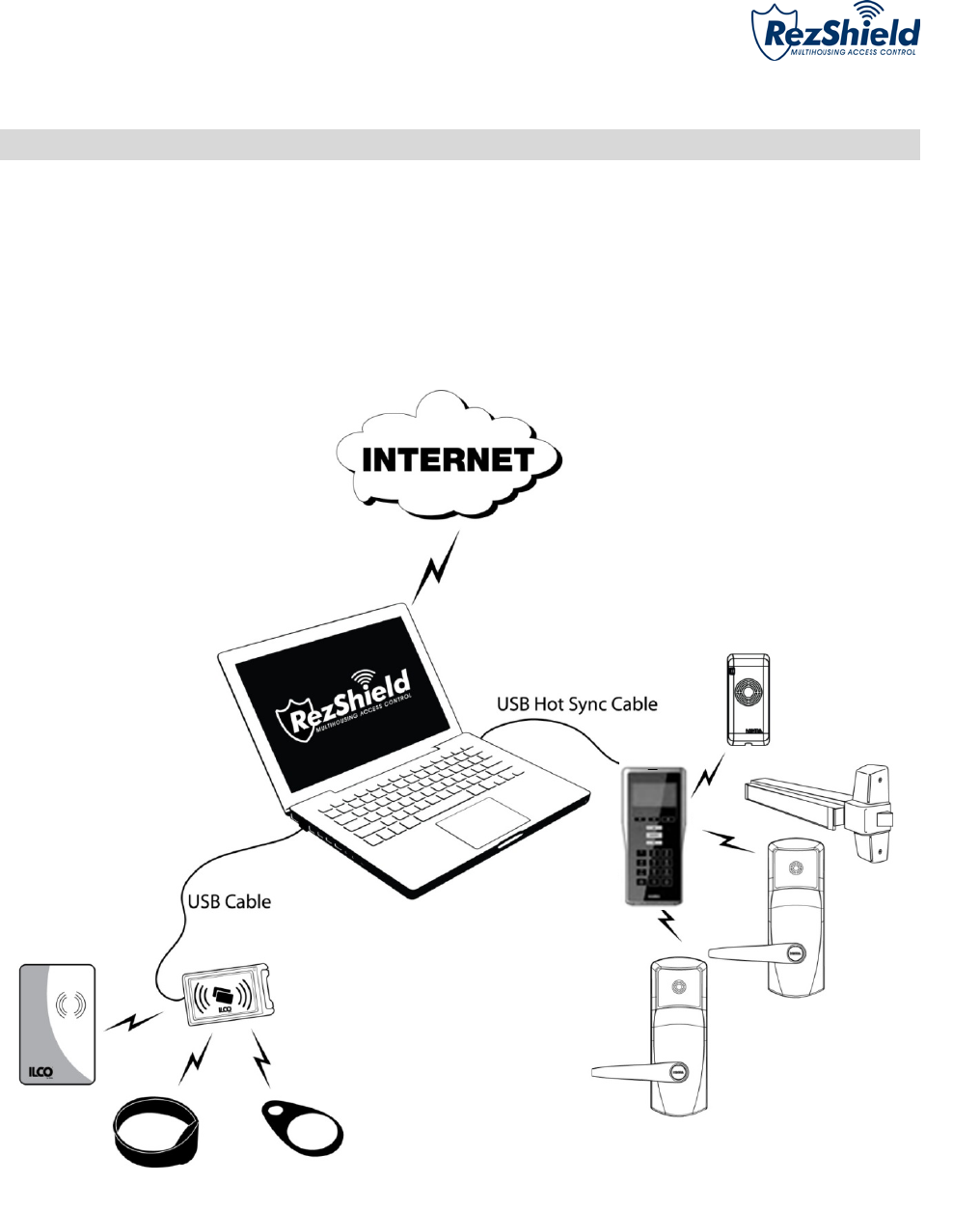
• RezShield™ can be installed on a PC anywhere on the property (in a security or management office).
• Credentials can be made using the encoder with a USB connection.
• Remote diagnostics and maintenance on the RezShield™ server is possible via the Internet connection.
• Locks and remote access controllers are programmed and audited using a Maintenance Unit.
Encoder
Fob
Wristband
CardKey
M-Unit
79 Locks
Remote Access Controller (RAC)
Exit Device
Reader
Reader
M3550 ©Kaba Ilco Inc., all rights reserved. Rev. 9/14 Pg. 5
Logging on to the Application
Important: Ensure that your name has been entered into the system at the Administrator level by your
management and that there is an activated encoder for your PC.
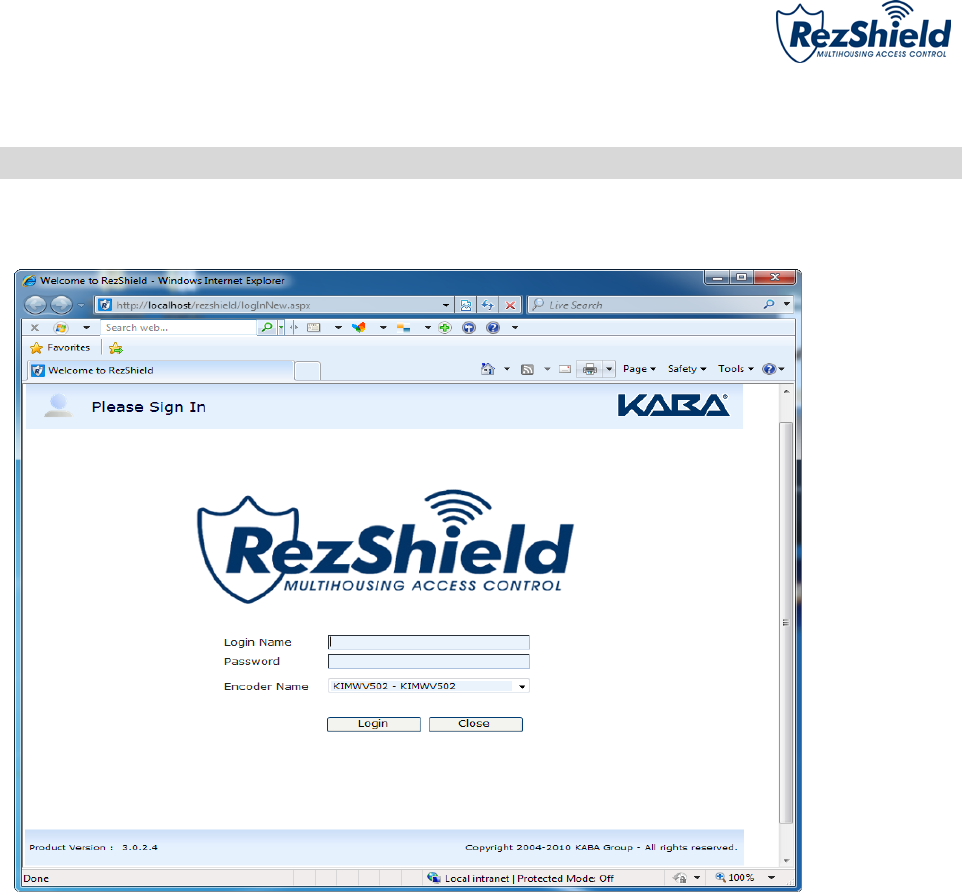
1. Enter Login Name and Password.
2. Encoder name is already configured when the RezShield software is loaded onto your PC.
3. Click on Login.
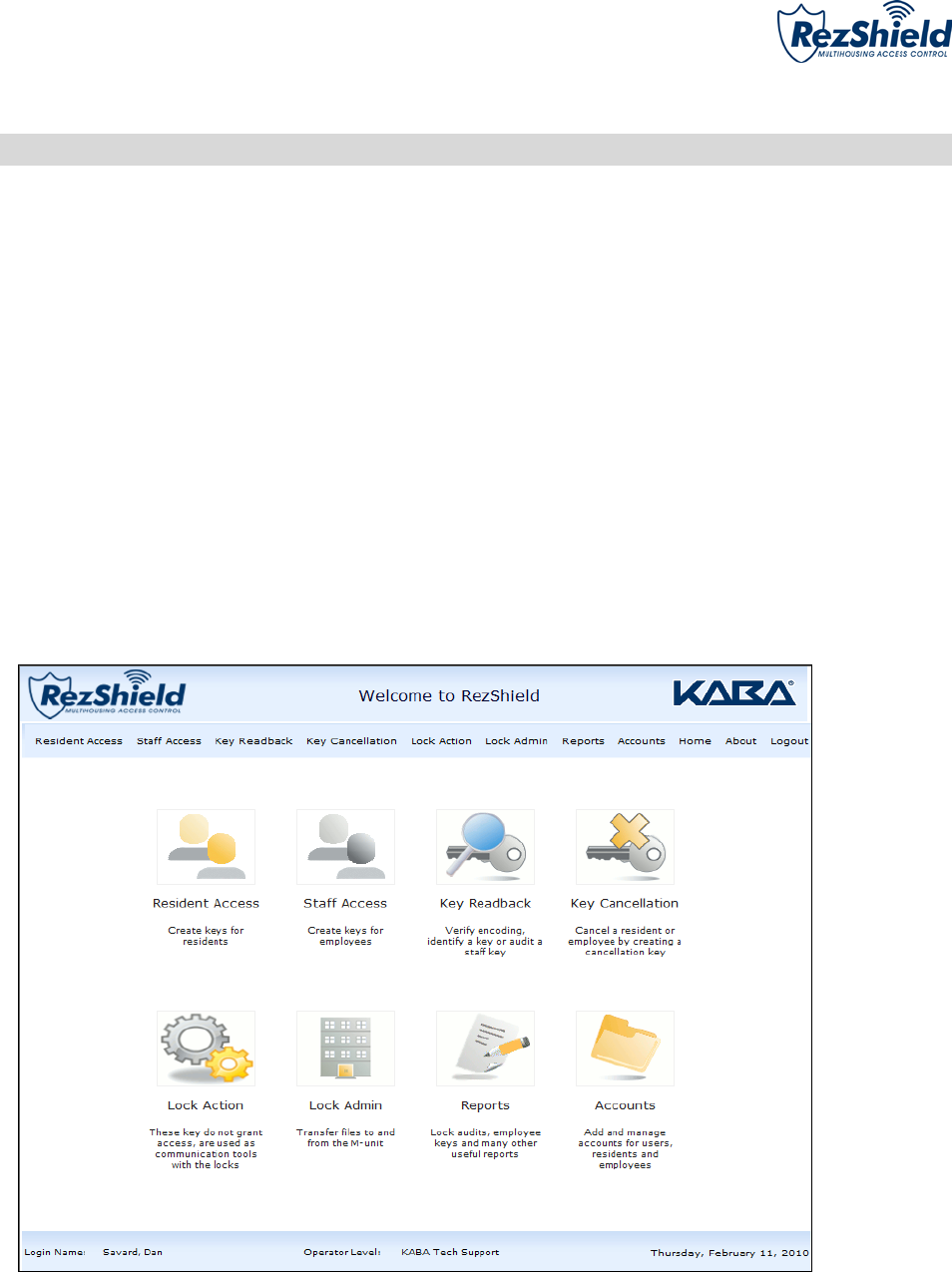
4. The Welcome to RezShield screen will appear.
M3550 ©Kaba Ilco Inc., all rights reserved. Rev. 9/14 Pg. 6
Welcome to RezShield
The Welcome to RezShield screen lists all of the functions that can be selected and used by the Property
Administrator. It features a step-by-step process for each function with graphic prompts and “Tips” to guide
you through the following operations:
Accounts
Resident Access
Staff Access
Key Readback
Key Cancellation
Lock Action
Lock Administration
Reports
M3550 ©Kaba Ilco Inc., all rights reserved. Rev. 9/14 Pg. 7
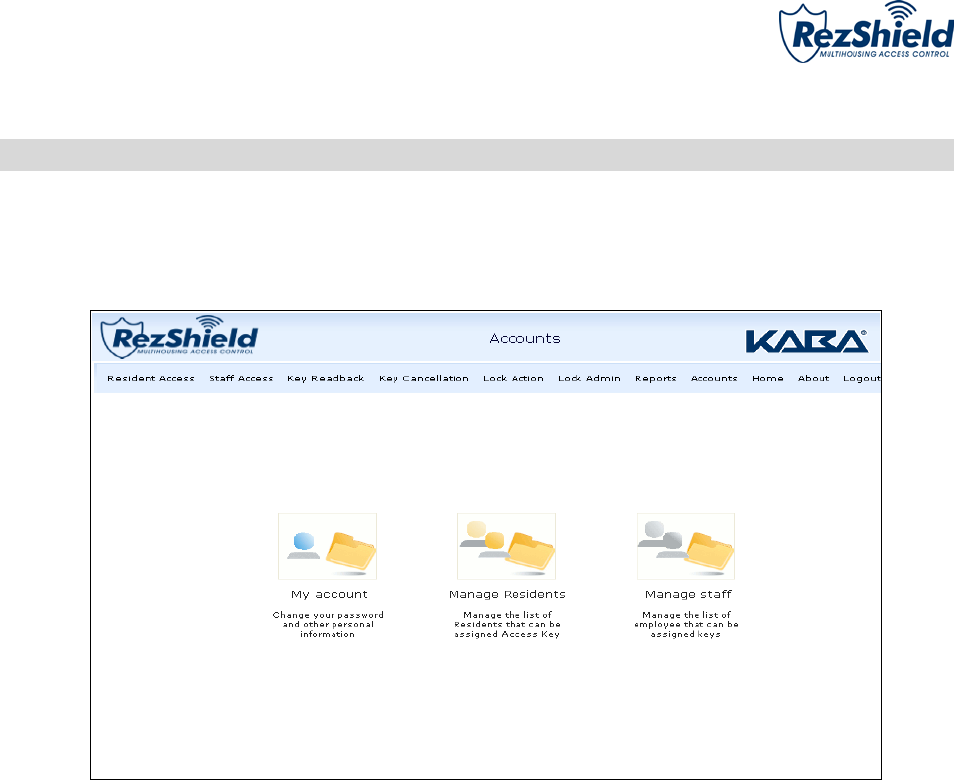
1. Accounts
Before you can begin programming key access or using the other features of this software, you will need to
set up accounts and complete the necessary information for My Account, Manage Residents, and/or
Manage Staff.
This is the section where you register and maintain the database listings of all residents and staff that
have been issued key access to units and amenities on the property.
M3550 ©Kaba Ilco Inc., all rights reserved. Rev. 9/14 Pg. 8
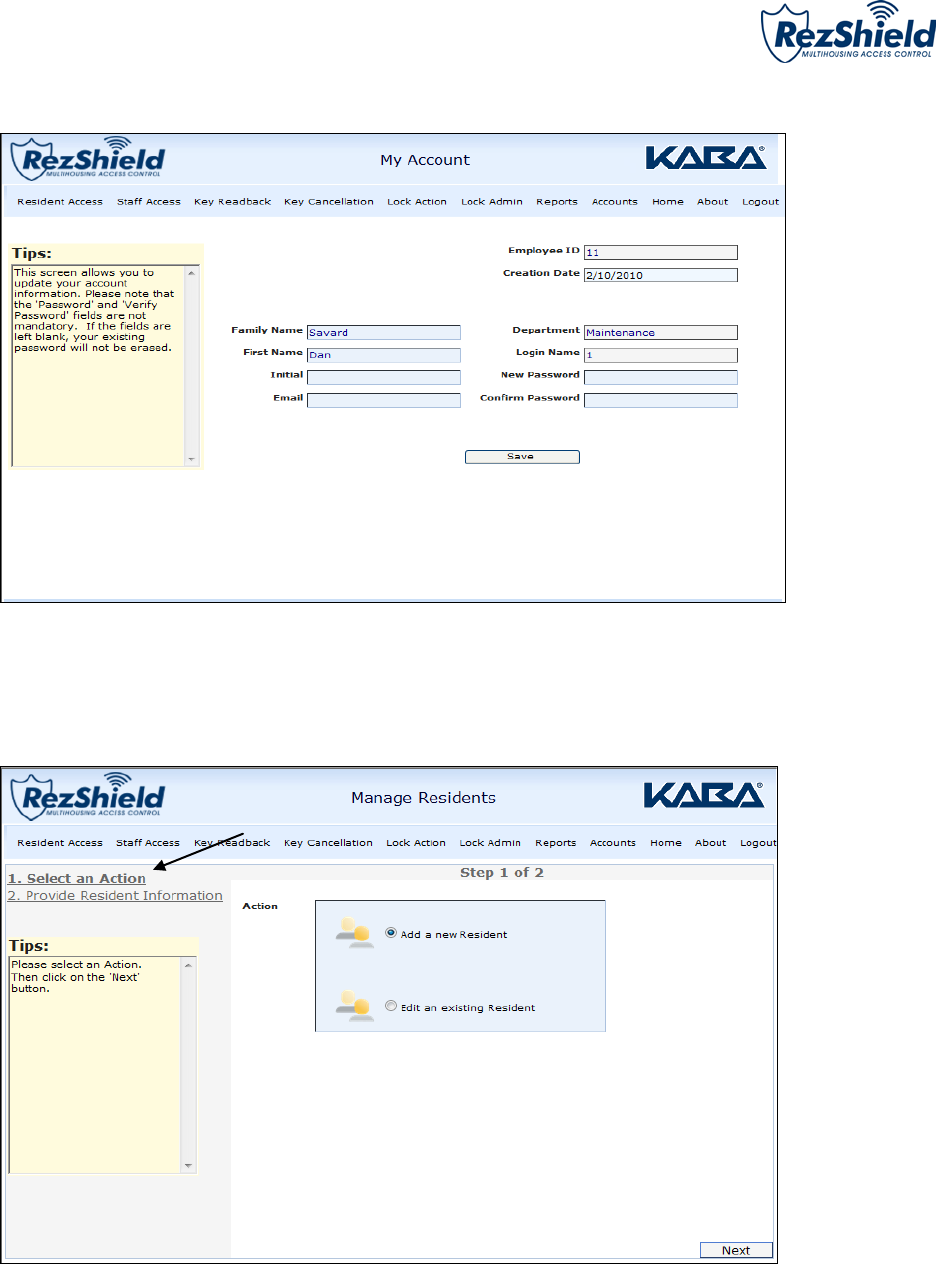
My Account
This allows you to set up your login name and password. Complete the necessary fields and click Save.
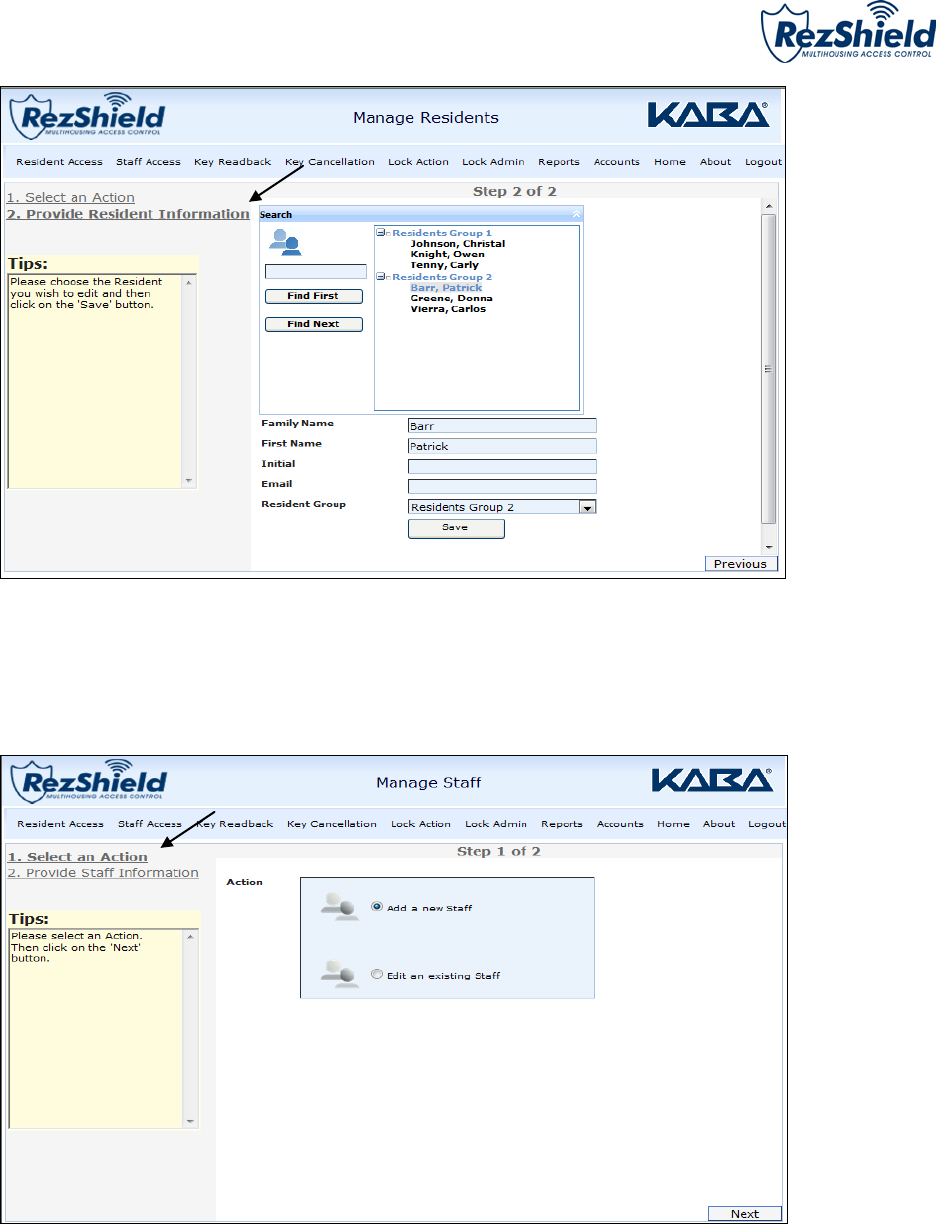
Manage Residents
1. The Manage Residents option enables you to add new residents or edit information on an existing
resident. Select from the Add a new Resident or Edit an existing Resident button and click Next.
M3550 ©Kaba Ilco Inc., all rights reserved. Rev. 9/14 Pg. 9
2. Complete the necessary fields and click Save.
Manage Staff
1. The Manage Staff option enables you to manage your staff information the same way you manage
your resident information. The same steps apply.
M3550 ©Kaba Ilco Inc., all rights reserved. Rev. 9/14 Pg. 10
2. Resident Access
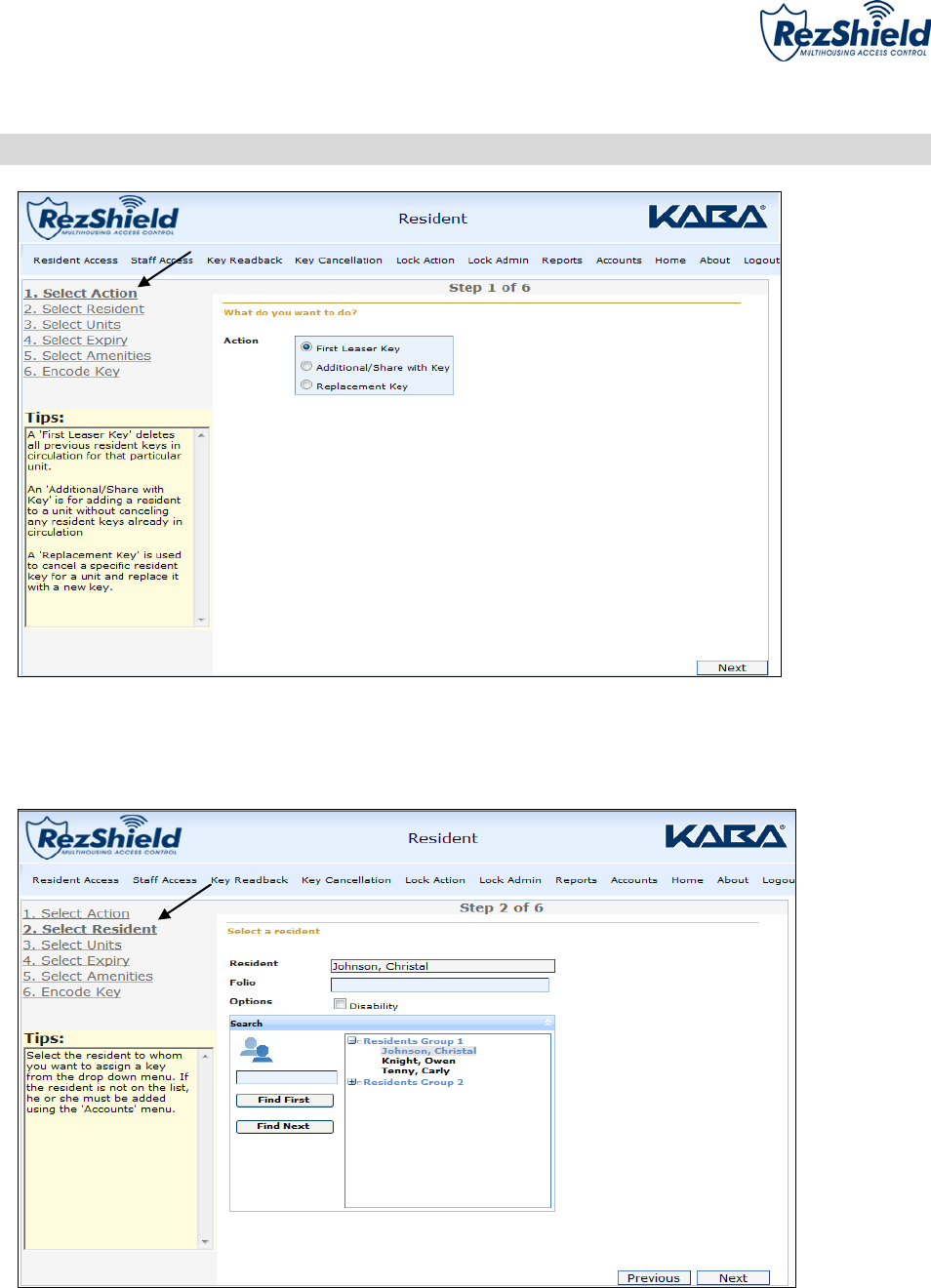
1. At the Select Action screen, choose the key type you are going to create then click Next.
Note: The “Tips” provide an explanation of the different key types/access options that can be created.
2. At the Select Resident screen, select the resident to whom you want to assign the key and click Next.
M3550 ©Kaba Ilco Inc., all rights reserved. Rev. 9/14 Pg. 11
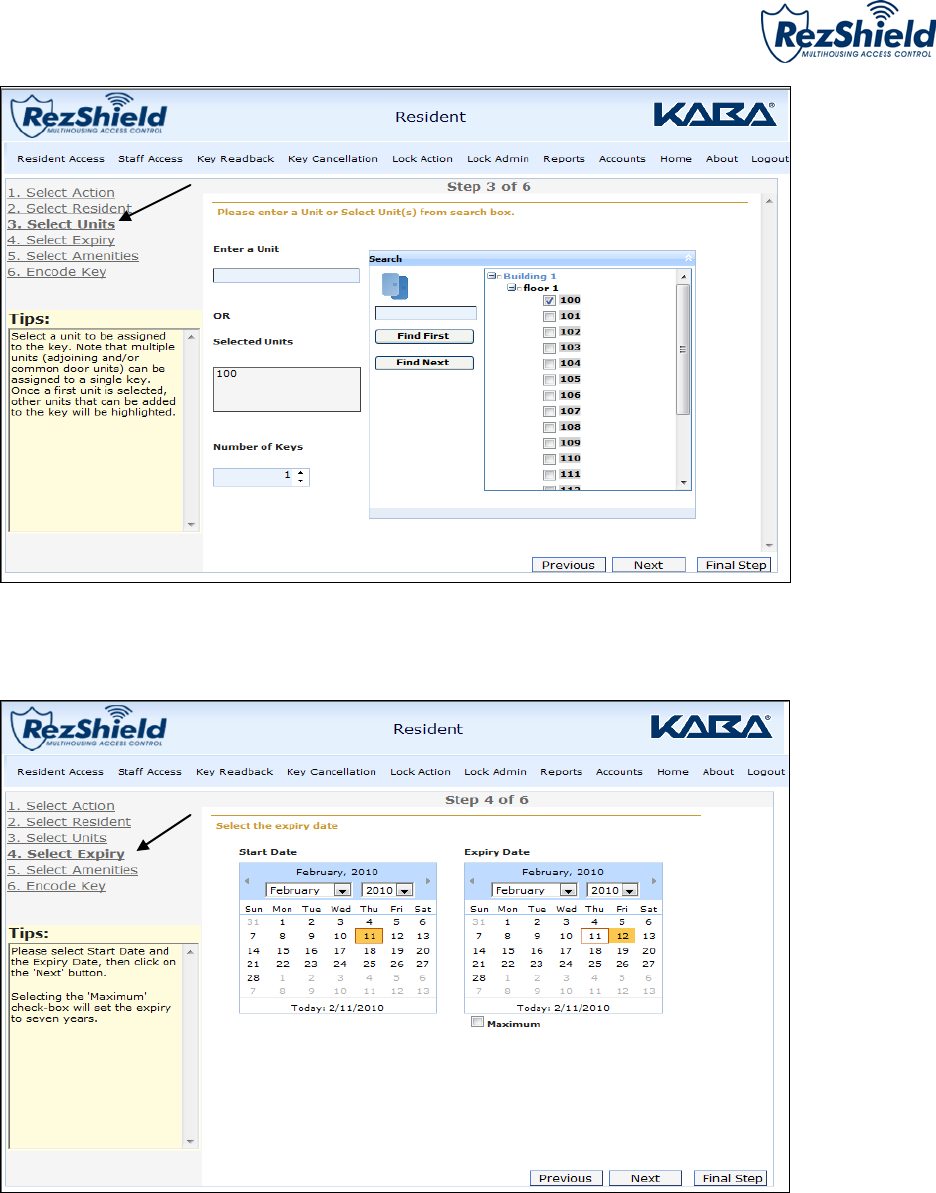
3. At the Select Units screen, select the Unit Number to which the key will be assigned.
4. Next use the calendars to assign a Start Date and Expiry Date for the key. Click Next.
Note: Assigning a Start Date and Expiry Date helps you control the period for which a key is valid. A key will not
work outside its Expiry Date.
M3550 ©Kaba Ilco Inc., all rights reserved. Rev. 9/14 Pg. 12
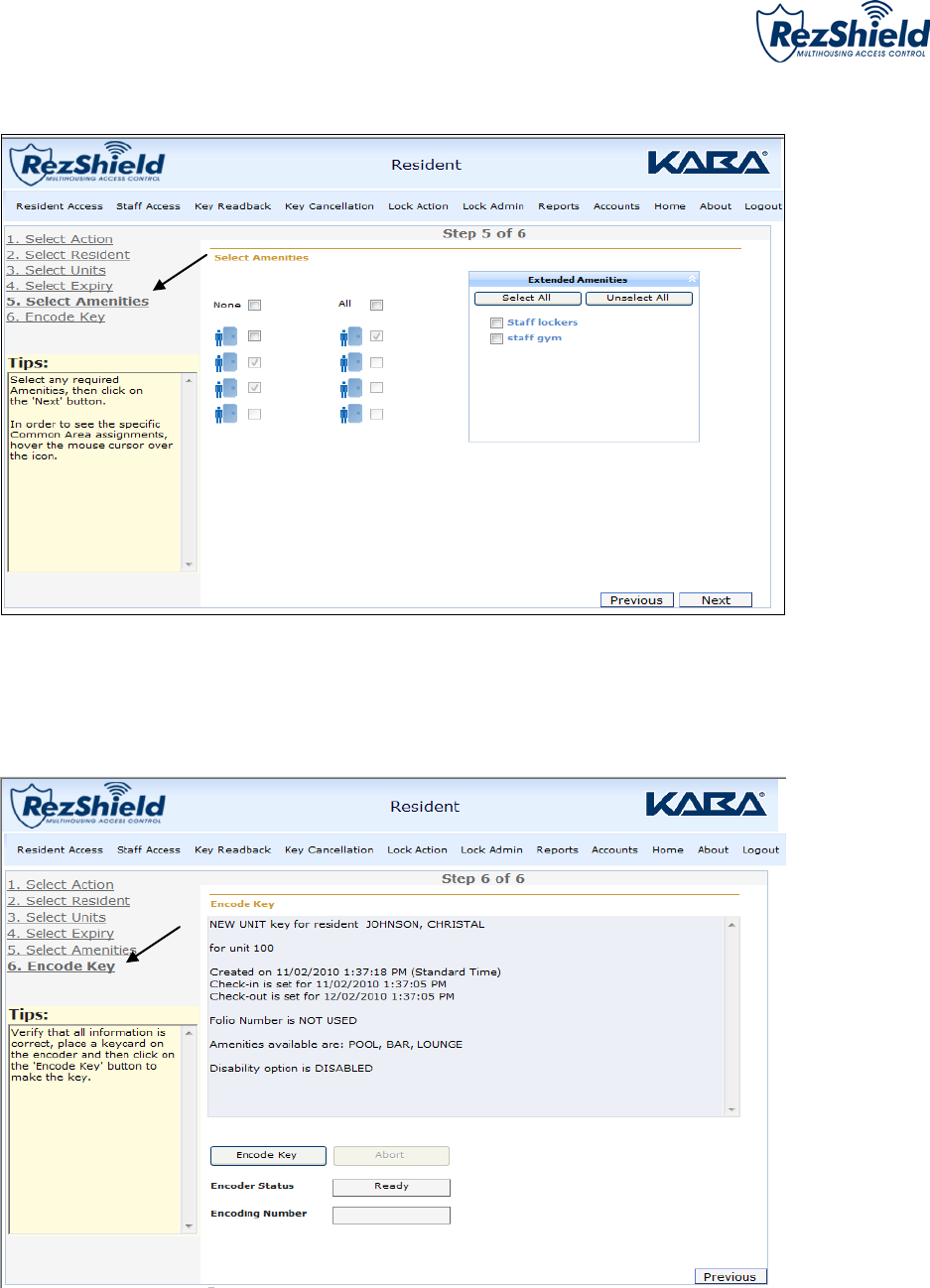
5. At the Select Amenities screen you may assign additional access points to the key. For example: dining
hall, exercise room, parking or other extended amenities access.
6. Now place the key onto the encoder and click Encode Key to program it.
M3550 ©Kaba Ilco Inc., all rights reserved. Rev. 9/14 Pg. 13
3. Staff Access
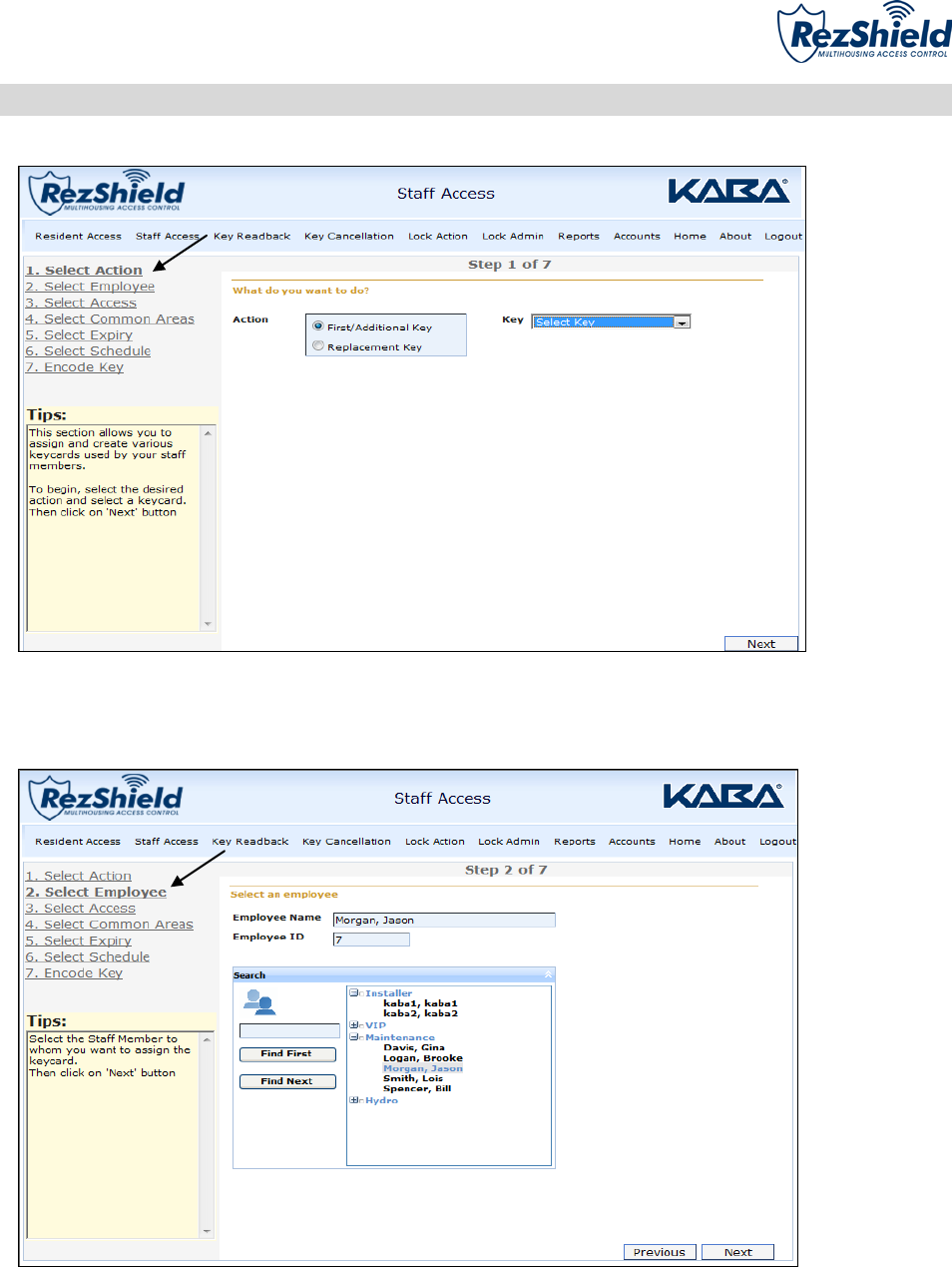
1. At the Select Action screen, click on the type of key you want to create. Next choose Select Key from
the dropdown menu and then click Next.
2. At the Select Employee screen, choose the employee or supplier for whom to create the key.
M3550 ©Kaba Ilco Inc., all rights reserved. Rev. 9/14 Pg. 14
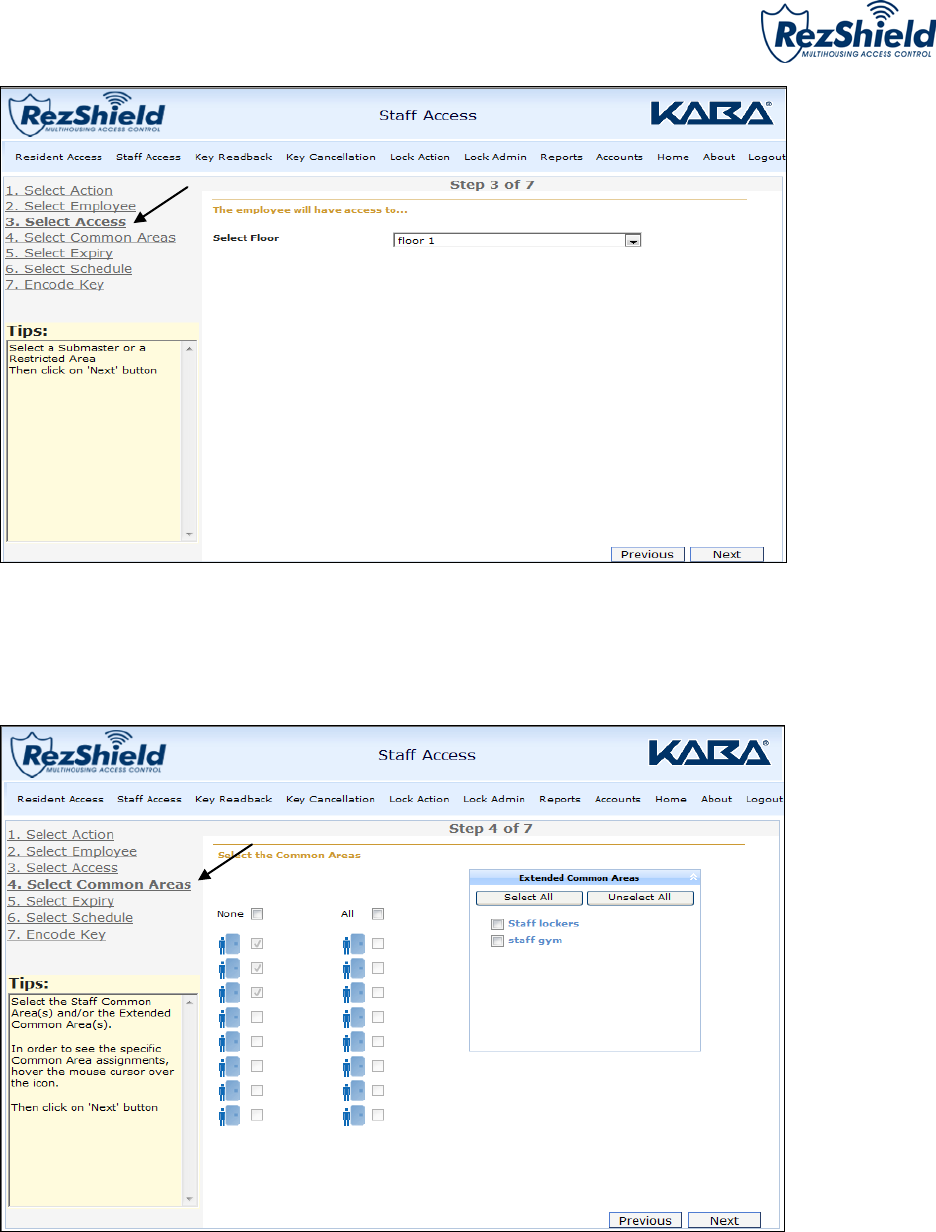
3. The Select Floor dropdown allows you to choose the floor(s) to which the employee will have access.
4. At the Select Amenities screen you may assign additional access points to the key. For example: dining
hall, exercise room, parking or other extended amenities access.
M3550 ©Kaba Ilco Inc., all rights reserved. Rev. 9/14 Pg. 15
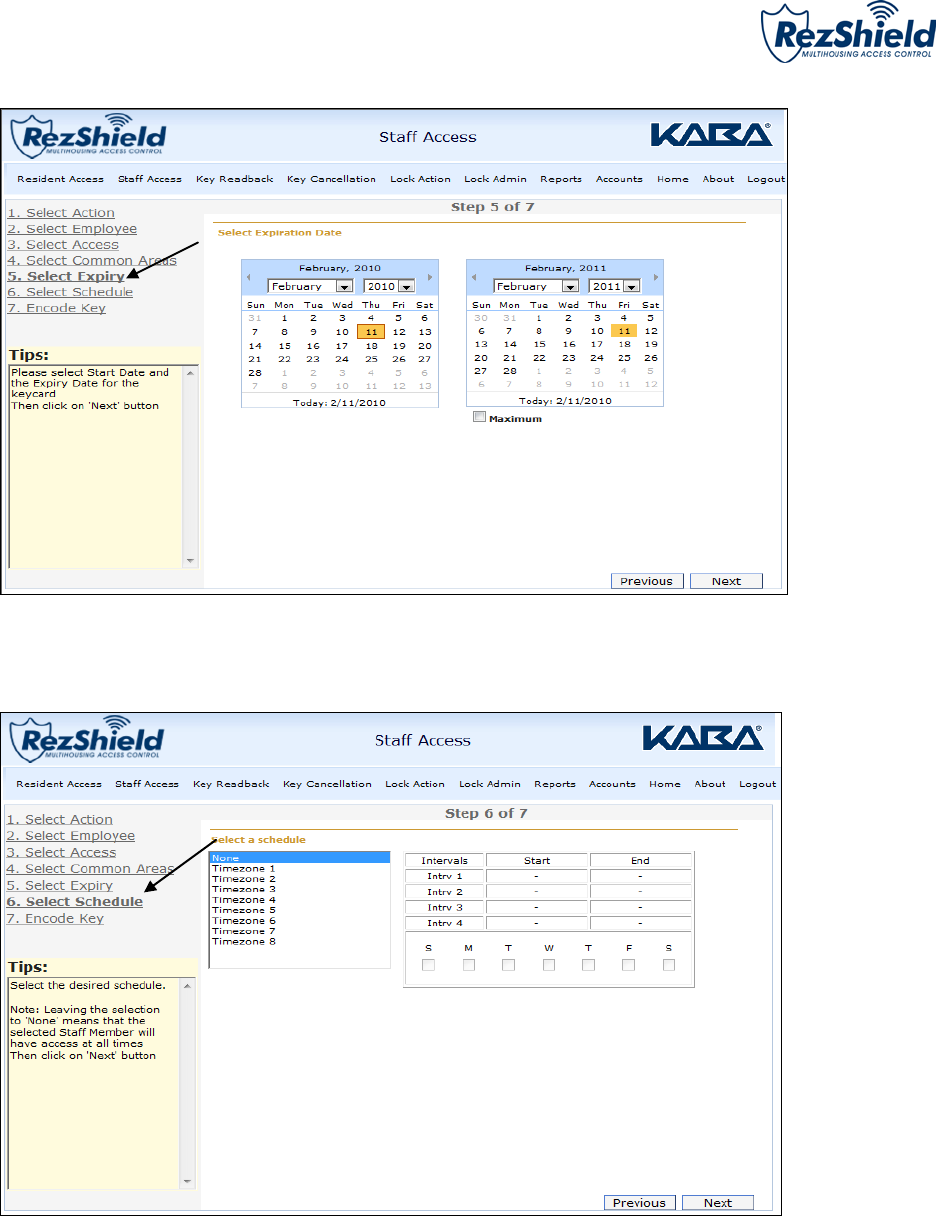
5. Use the calendars to indicate the Start Date and Expiry Date for the key, then click Next.
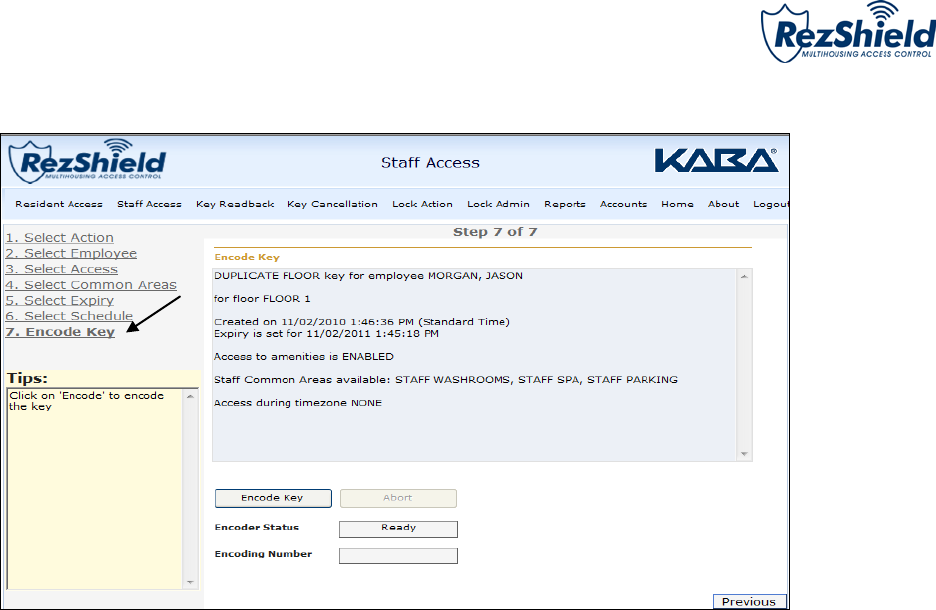
6. When programming staff keys the Select Schedule option allows you to selective program specified
time periods when staff keys are operational. For example, staff keys may be programmed to work
only from 8 a.m. to 5 a.m. daily.
Note: The Timezone option can be customized to your requirements.
M3550 ©Kaba Ilco Inc., all rights reserved. Rev. 9/14 Pg. 16
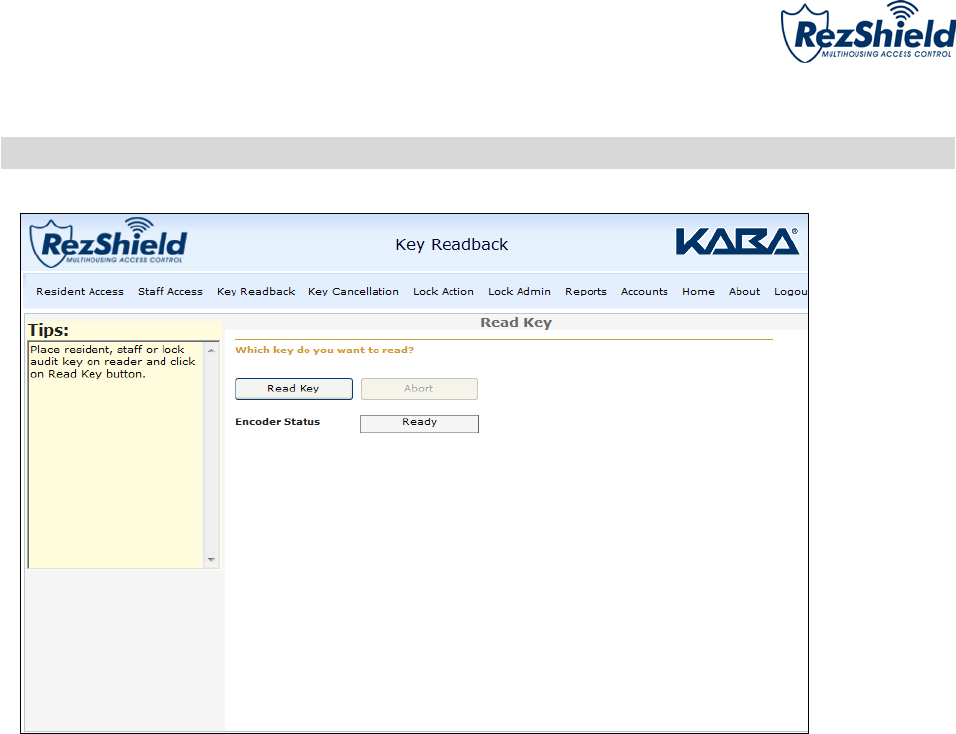
7. Finally, place the key onto the encoder and click Encode Key to program it.
M3550 ©Kaba Ilco Inc., all rights reserved. Rev. 9/14 Pg. 17
4. Key Readback
The Key Readback feature will help identify a particular key and how it was programmed. When reading a
Resident key, certain Staff keys, or an Audit key an audit trail will be displayed.
M3550 ©Kaba Ilco Inc., all rights reserved. Rev. 9/14 Pg. 18
5. Key Cancellation
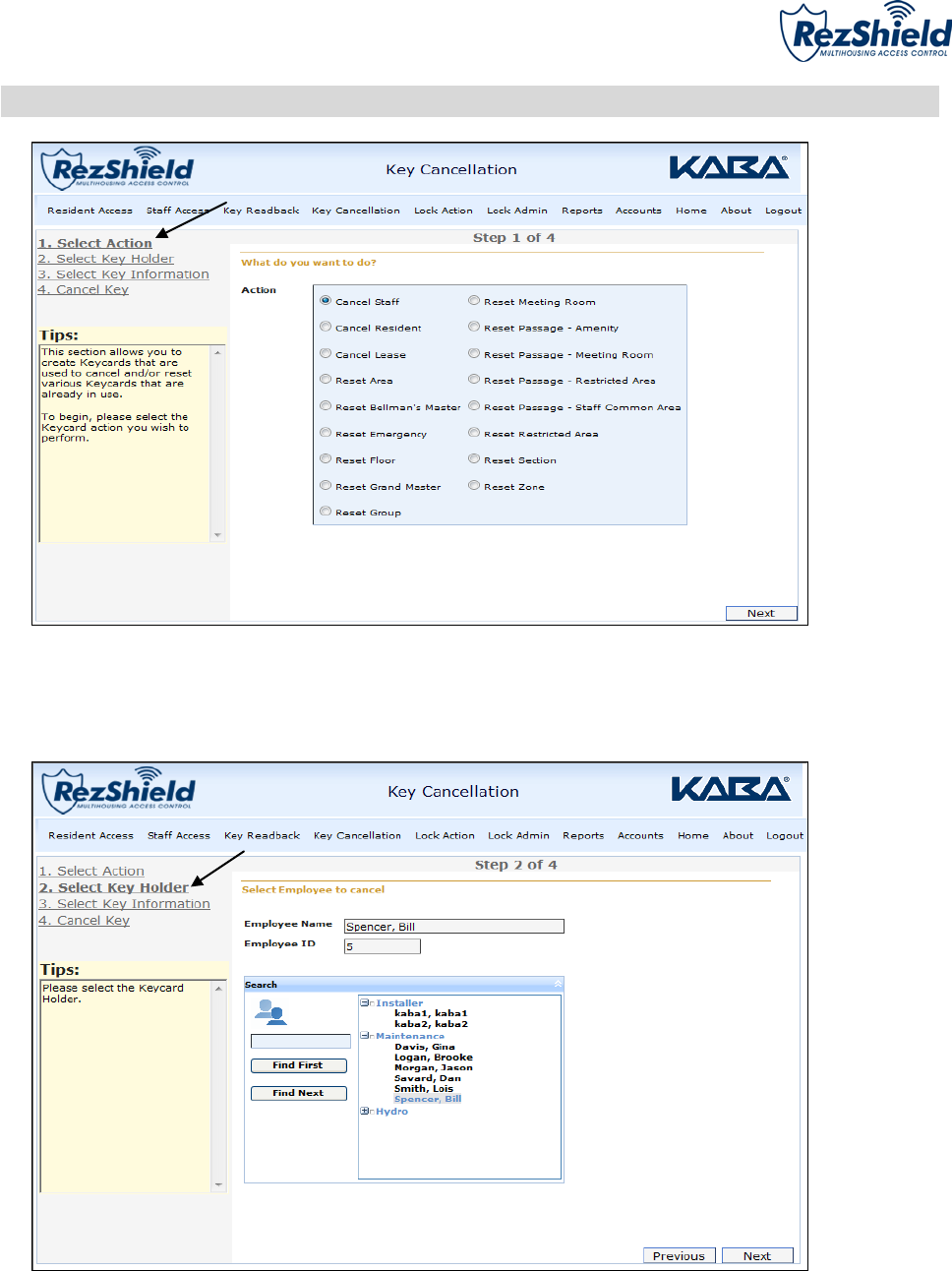
1. To cancel a key, first click on Select Action to select the key you want to cancel. Click Next.
2. At the Select Key Holder screen, identify the individual to for whom the key has been programmed.
M3550 ©Kaba Ilco Inc., all rights reserved. Rev. 9/14 Pg. 19
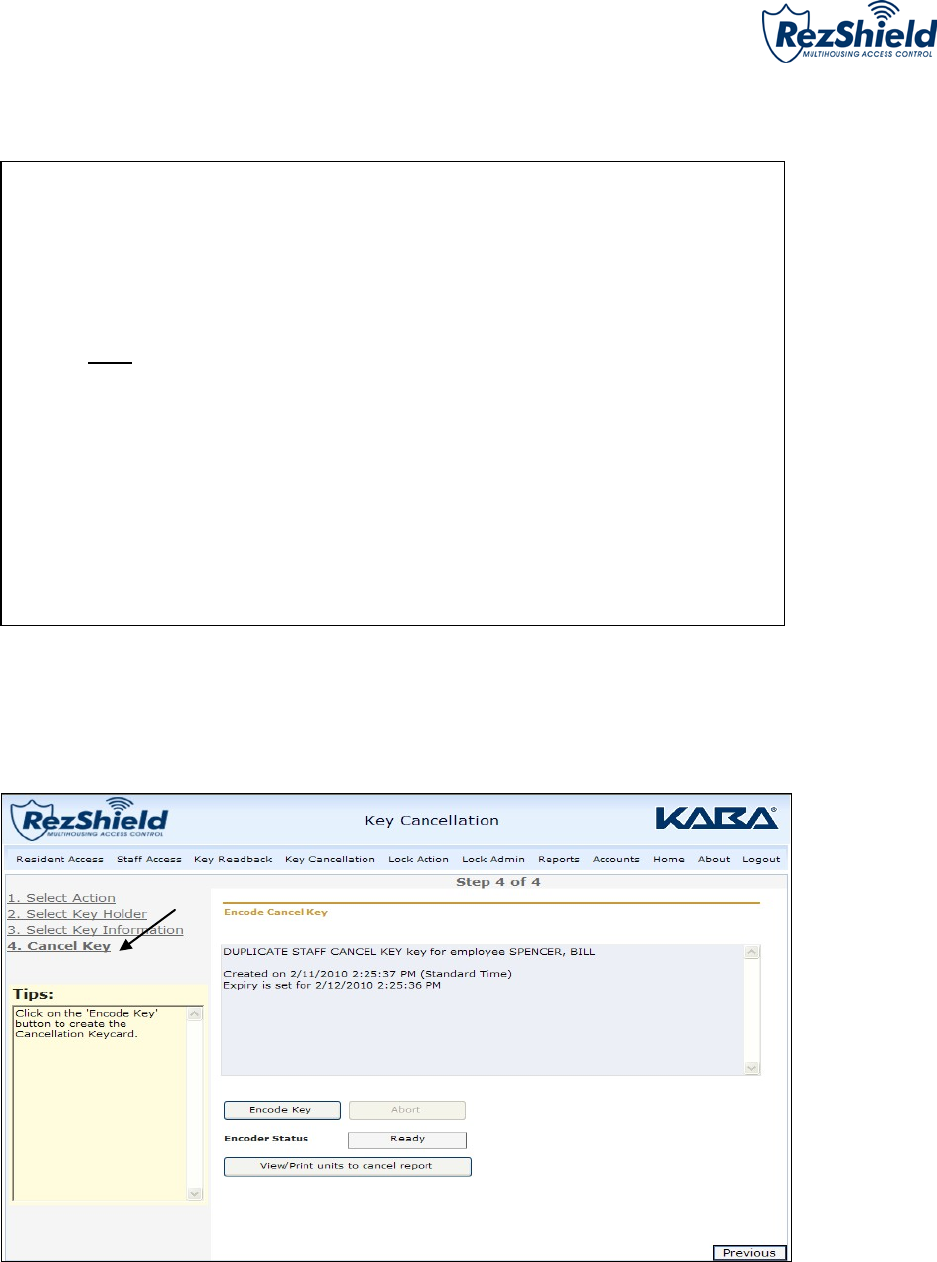
3. Select Key Information.
4. Place the key on the encoder and click Encode Key to cancel the key.
NOTE: Depending on the Key chosen, all steps may not be required.
M3550 ©Kaba Ilco Inc., all rights reserved. Rev. 9/14 Pg. 20
6. Lock Actions
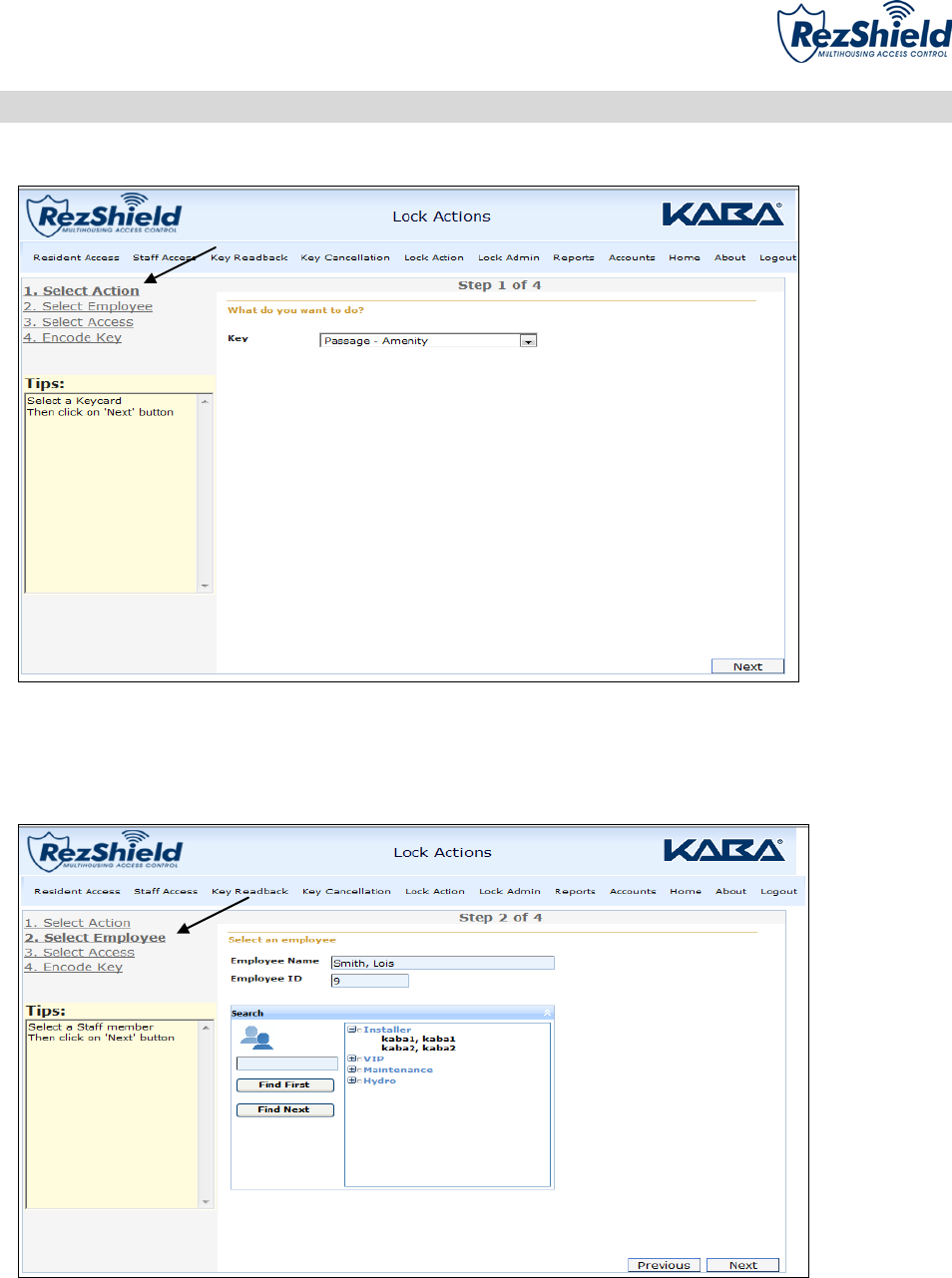
1. At the Select Action screen, select the type of key you want to create. Click Next.
2. Then Select Employee and click Next.
M3550 ©Kaba Ilco Inc., all rights reserved. Rev. 9/14 Pg. 21
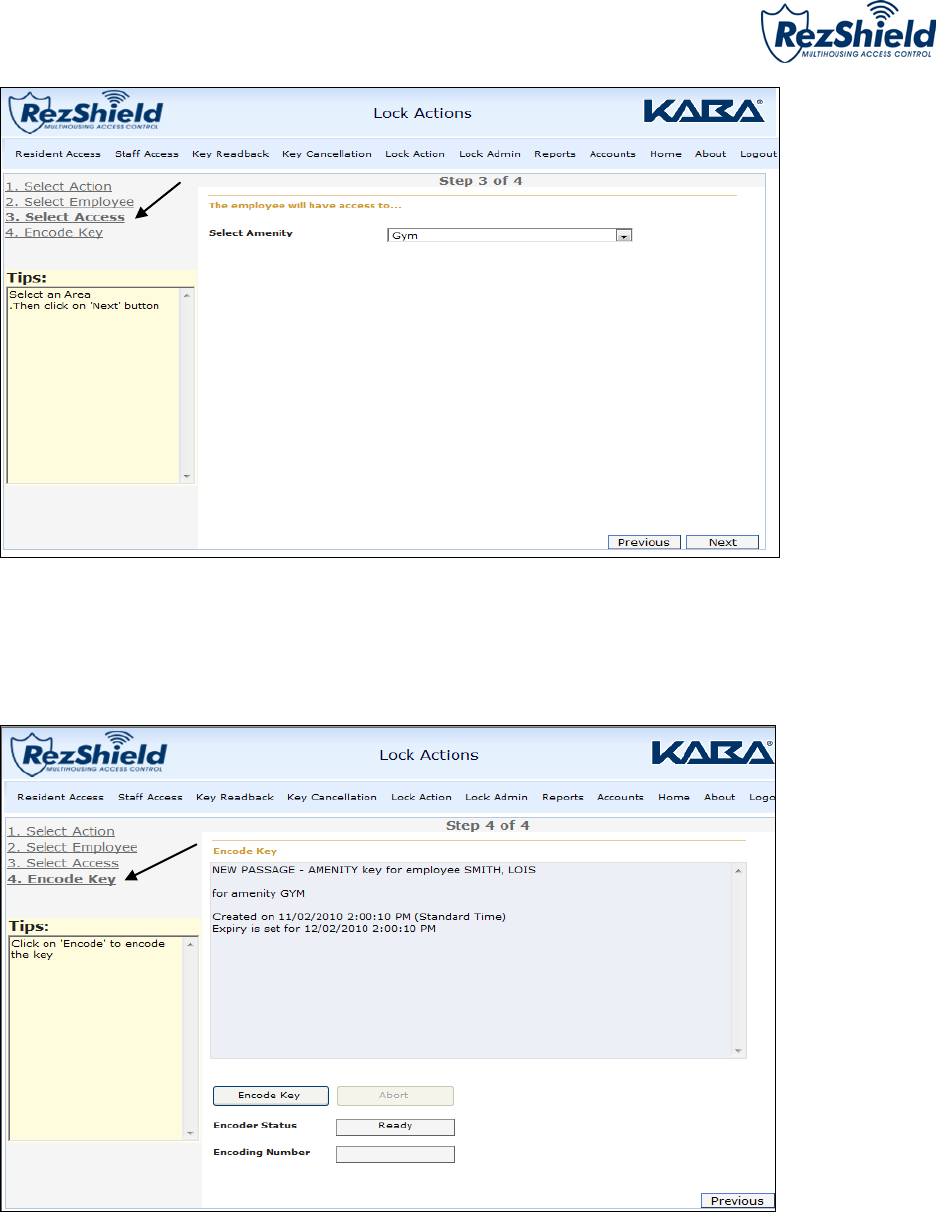
3. Select the access type for the key and click Next.
4. Place the key on the encoder and click Encode Key to cancel the key.
M3550 ©Kaba Ilco Inc., all rights reserved. Rev. 9/14 Pg. 22
7. Lock Administration
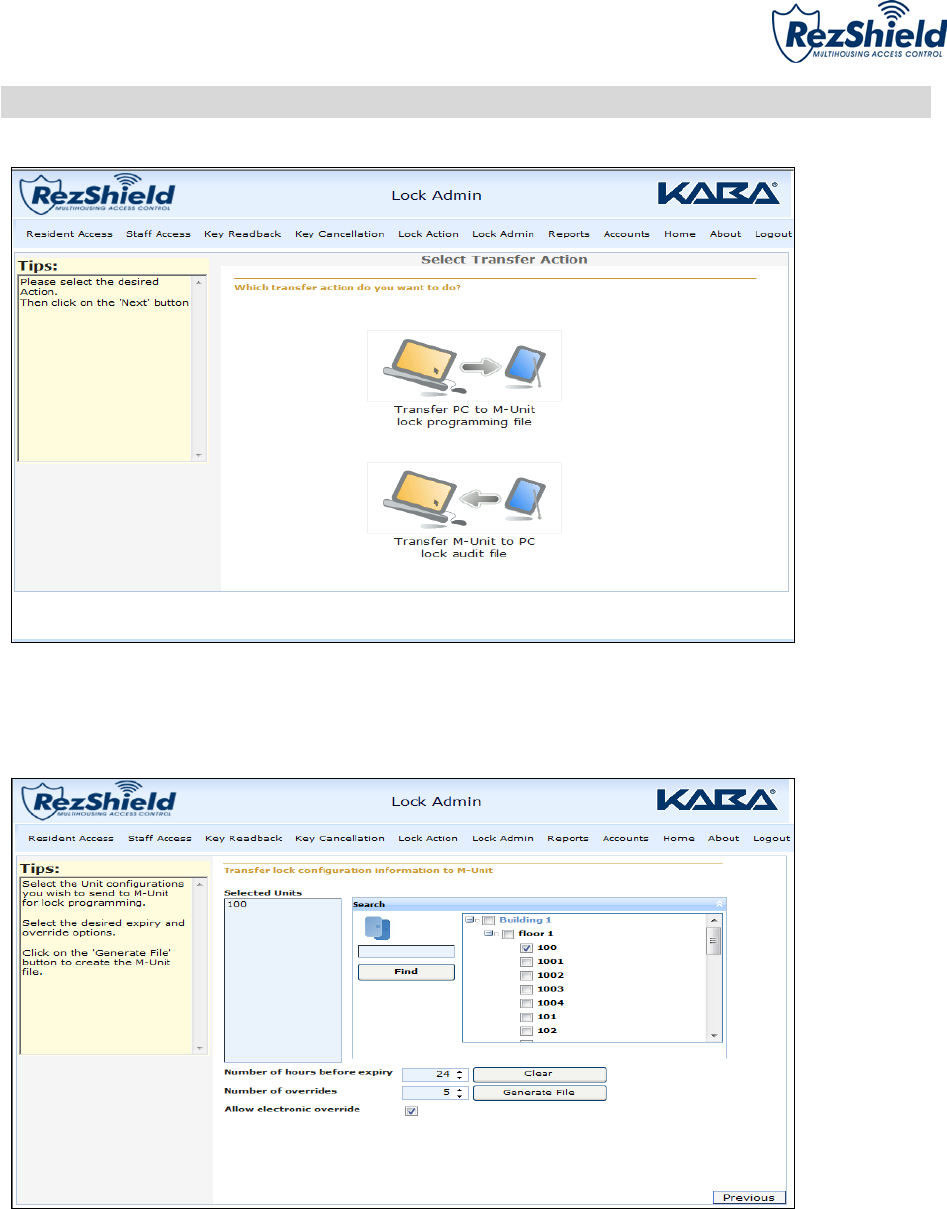
1. Select Transfer Action by clicking on the appropriate icon for the action you wish to perform.
Transferring Lock Configuration to the M-Unit
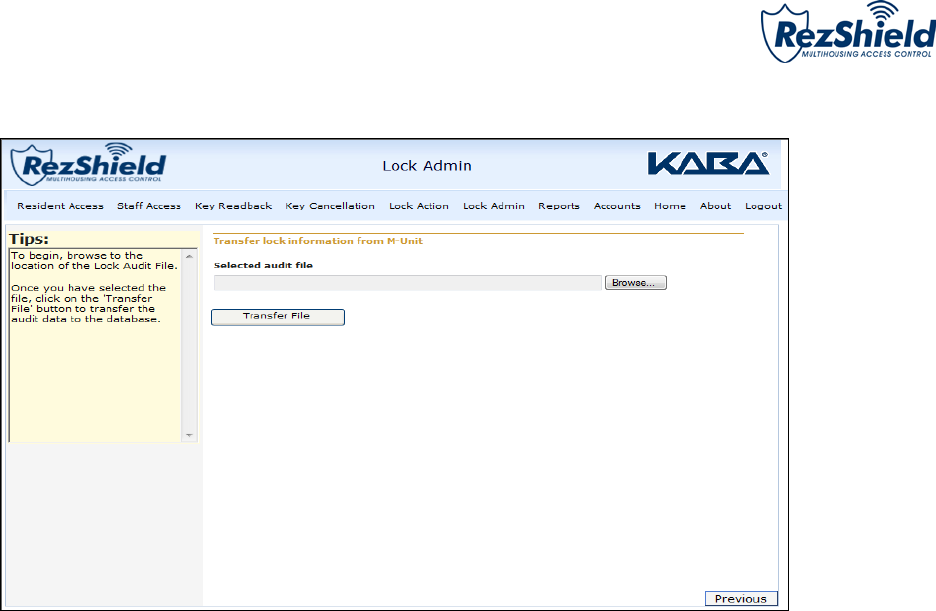
1. In the right hand box under the Search option, select the floor and unit to be transferred to the lock
configuration.
2. The selected information will be displayed on the left side of the search box. Click Generate File.
M3550 ©Kaba Ilco Inc., all rights reserved. Rev. 9/14 Pg. 23
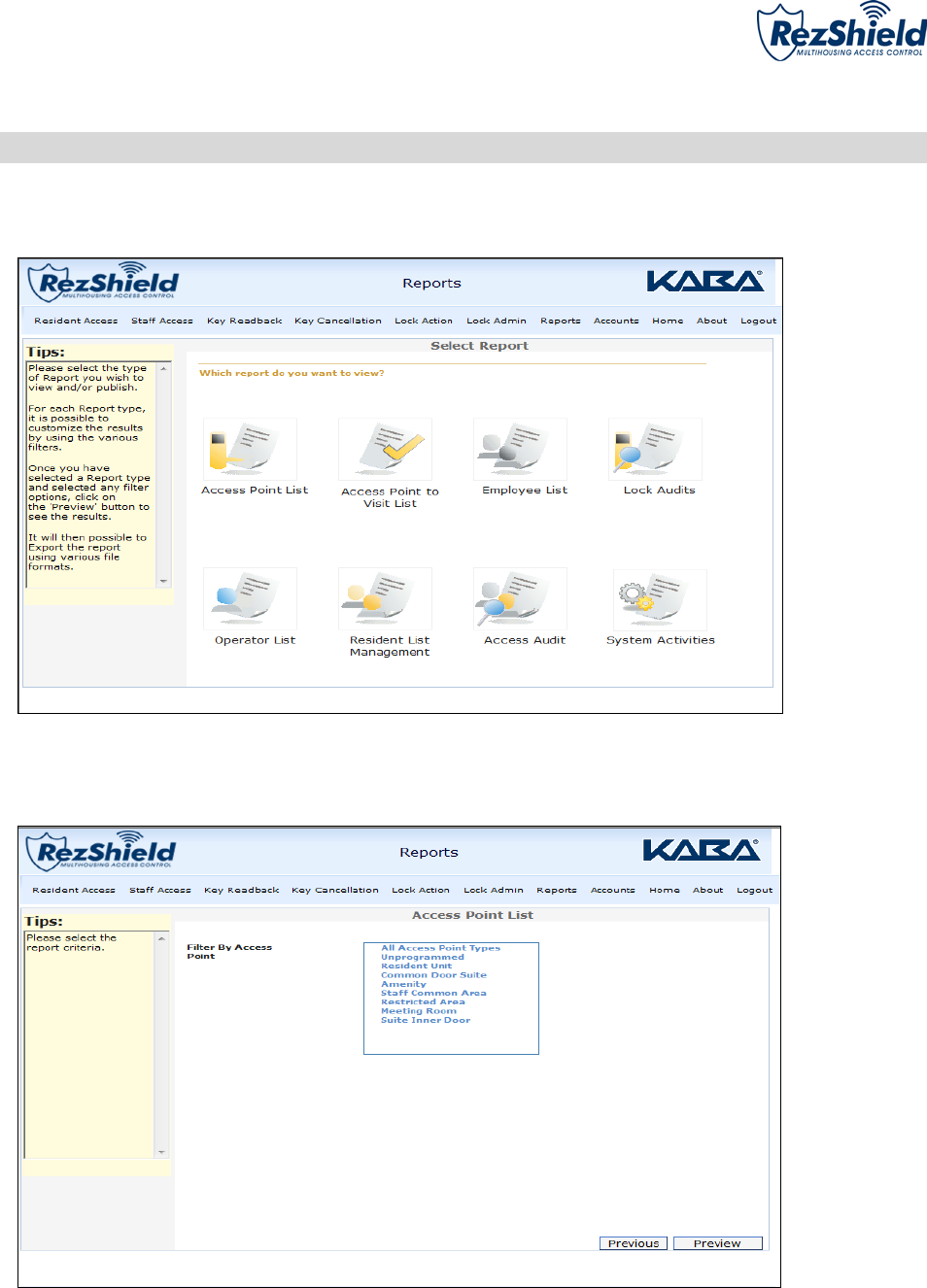
3. Click Transfer to save the file to the M-Unit folder. Perform a Hotsync* to send the file to the M-Unit.
4. Lock configuration information has been successfully transferred to the M-Unit.
*Refer to Glossary for definition.
M3550 ©Kaba Ilco Inc., all rights reserved. Rev. 9/14 Pg. 24
8. Reports
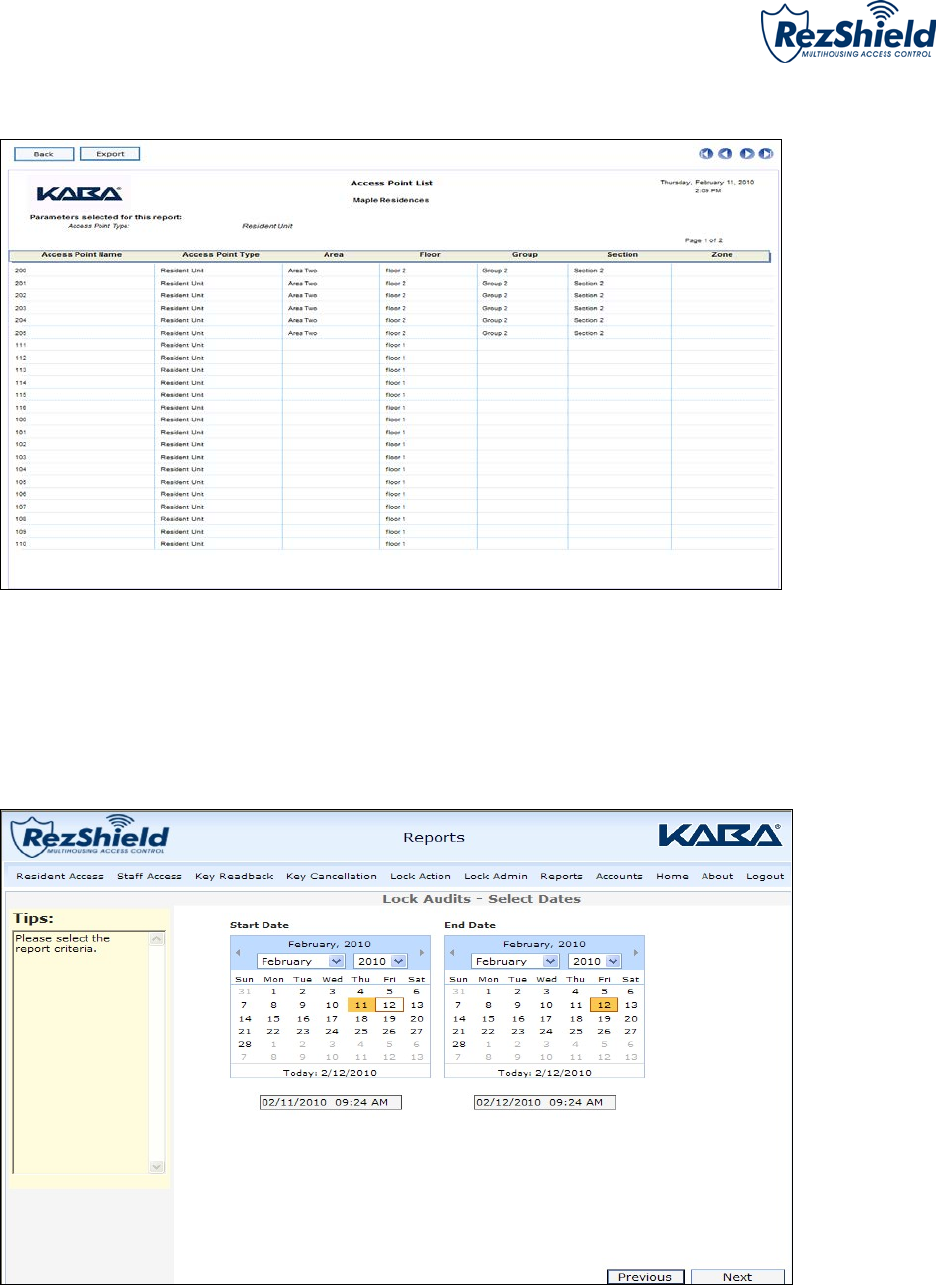
RezShield provides a variety of reports for reference and audit purposes. Three of the most common
reports are: Access Point, Lock Audits, and Operator List.
Access Point
1. Determine the criteria for the report. Click to select it and press Preview.
M3550 ©Kaba Ilco Inc., all rights reserved. Rev. 9/14 Pg. 25
2. The Access Point list preview information displays a report which can also be exported and printed.
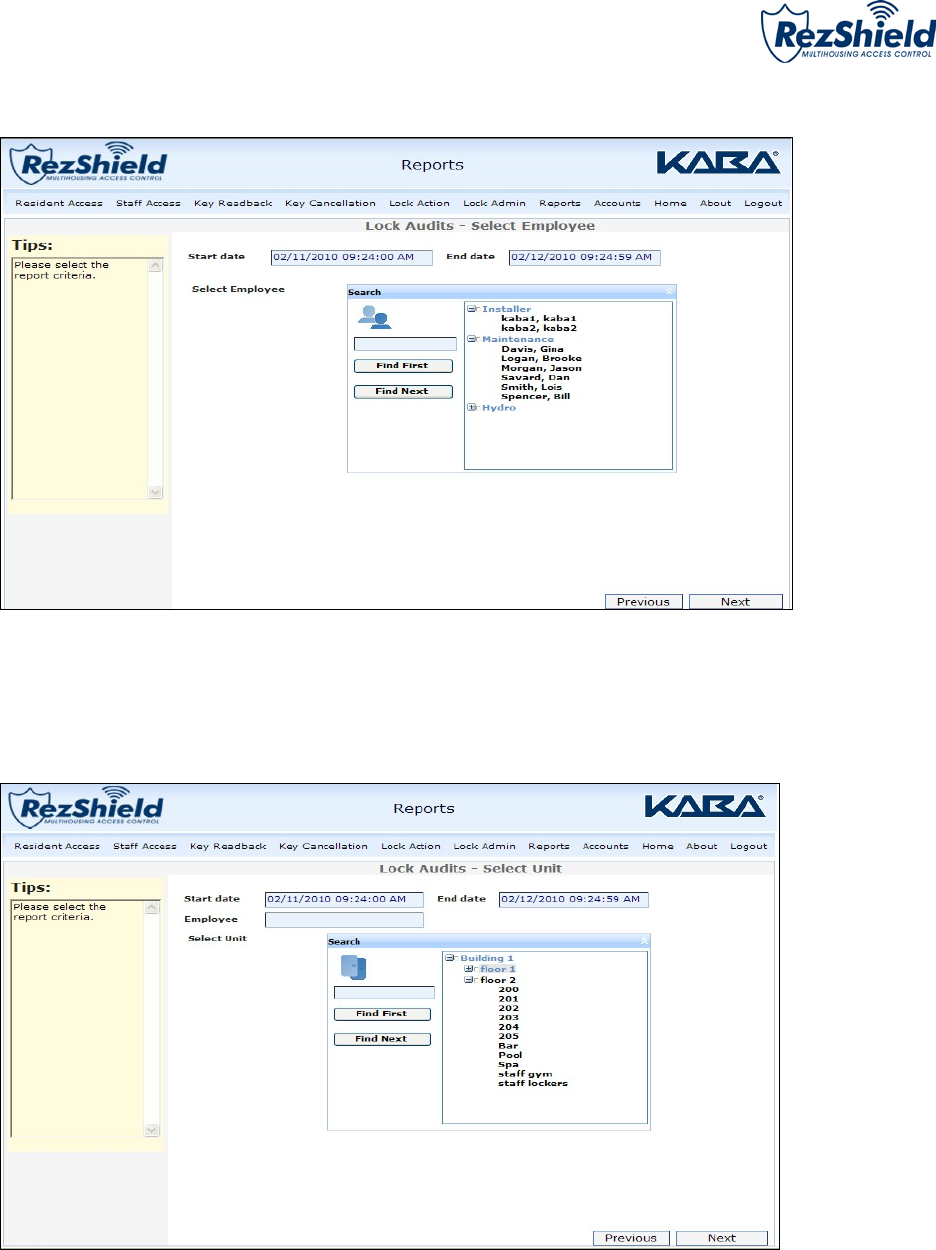
Lock Audits
1. Select the Start Date and End Date for the criteria.
M3550 ©Kaba Ilco Inc., all rights reserved. Rev. 9/14 Pg. 26
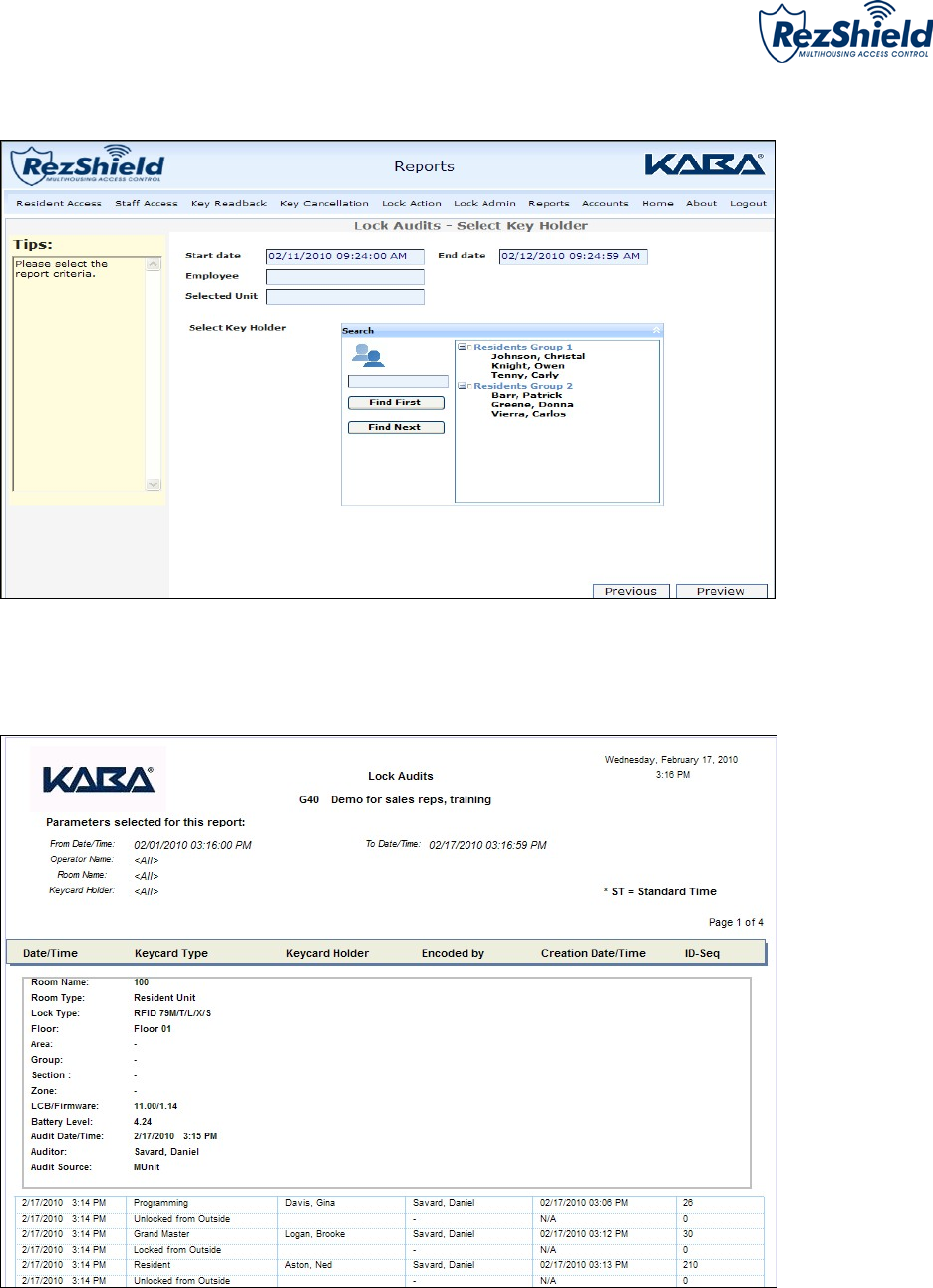
2. Find and select the employee key for your report criteria.
3. Select the Floor and Unit.
M3550 ©Kaba Ilco Inc., all rights reserved. Rev. 9/14 Pg. 27
.
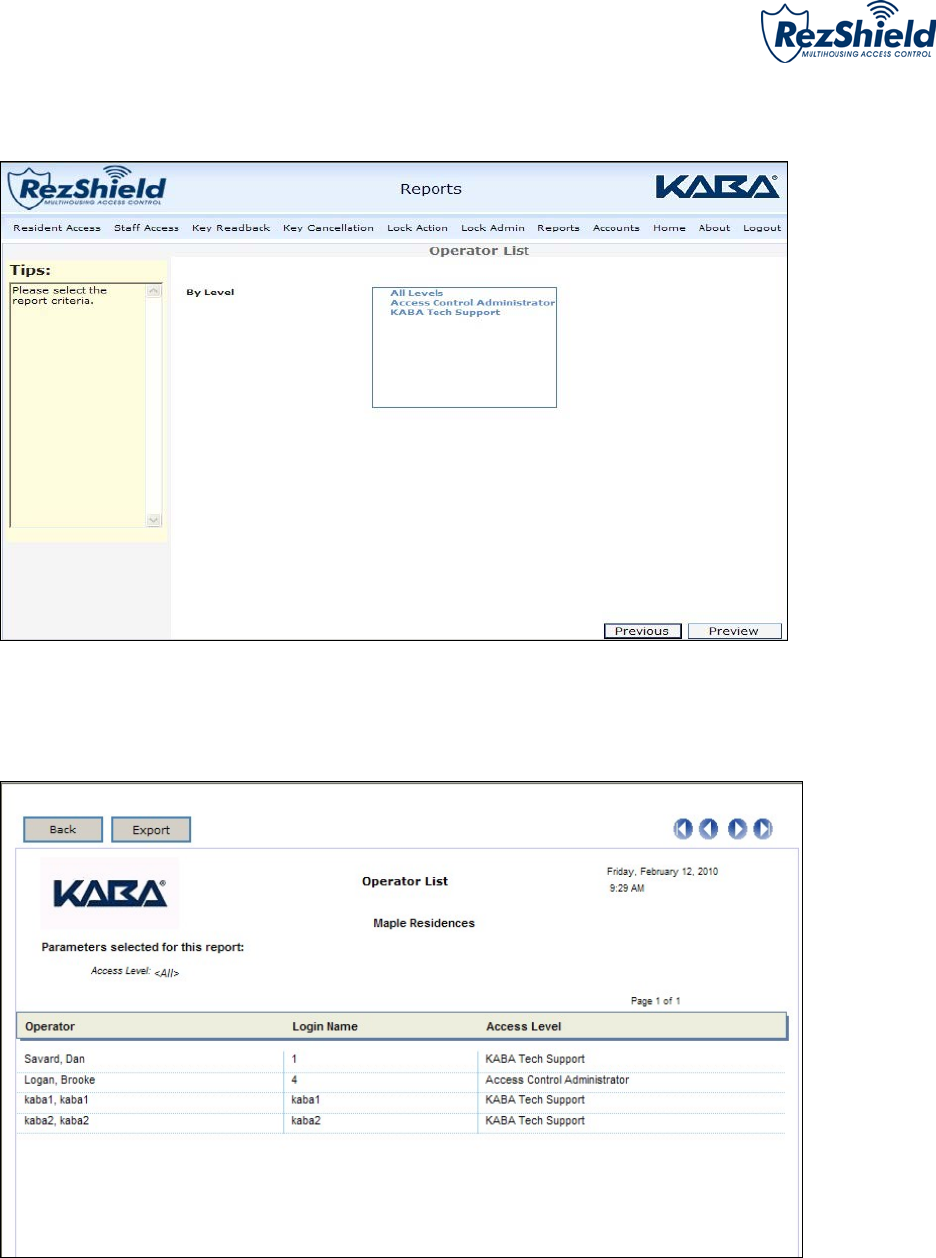
4. Select the person who is assigned the key in question, then click Preview.
5. The Preview shows the report information, which can be exported and printed.
M3550 ©Kaba Ilco Inc., all rights reserved. Rev. 9/14 Pg. 28
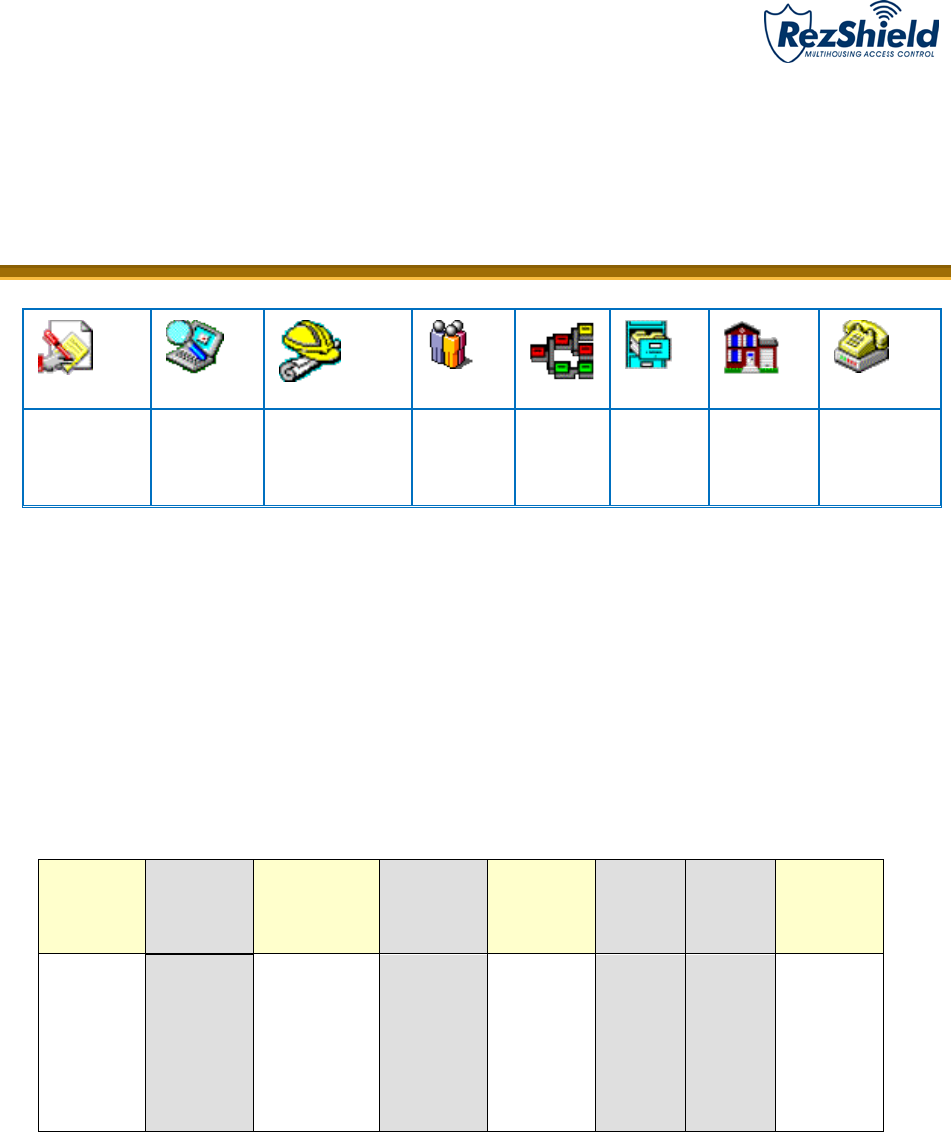
Operator List
1. Determine what level of operators are to be listed, then click Preview.
3. The Preview shows the report information, which can be exported and printed.
M3550 ©Kaba Ilco Inc., all rights reserved. Rev. 9/14 Pg. 29
RezShield™ Operator Levels
RESIDENT
SERVICE
ATTENDANT
RESIDENT
SERVICES
MANAGER
MAINTENANCE
ENGINEERING
SERVICE IT
ADMIN
MASTER ACCESS
CONTROL
ADMIN
KABA
TECHNICAL
SUPPORT
Resident Services Attendant
The RSA works at the front desk and deals primarily with registering and making Resident keys and
reading back resident keys. Grants access to screens of the RSA level tasks.
RSA Functions Available
Resident
Access
Staff Access
Key Readback
Cancel Key
Lock Action
Lock
Admin
Reports
Accounts
Make all types
of
Resident
keys
No
Readback all
types of Resident
keys
No
Make Battery
Test key
No
No
Able to change
their own
password and
other
information
M3550 ©Kaba Ilco Inc., all rights reserved. Rev. 9/14 Pg. 30
Resident Services Manager
The RSM supervises the Front Desk activities. Grants access to all the same functions as the RSA.
Additionally, under Lock Action, this level grants rights to Make Passage and Reset Passage keycards
for Meeting Rooms and amenities as well as Battery Test Keycards. In addition, staff access to
meeting rooms is also available by using the Meeting Room and Reset Meeting keycards which do not
provide access to amenities and do not activate Passage. Under Reports, accesses System activities
Report for Keycard Encoding and Keycard Verification operation types.
RSA Functions Available
Resident
Access
Staff
A
ccess
Key
Readback
Cancel Key
Lock Action
Lock Admin
Reports
Accounts
Make all
types of
Resident
key
s
No
Readback all
types of
Resident keys
Cancel all
types of
Resident
keys
Make Battery
Test Key,
make
Passage and
Reset
Passage keys
for
Amenties,Staff
common area,
Restricted
area, Meeting
room
No
System
Activities
report for
Key
Encoding
and Key
Verification
Able to
change
their own
password
and other
information
and also
Add
Residents
M3550 ©Kaba Ilco Inc., all rights reserved. Rev. 9/14 Pg. 31
Maintenance / Engineering
The Maintenance person for the property is responsible mainly for programming and auditing locks.
This Operator level grants access to all the functions related to programming/auditing locks, including
the creation of Initialization and Programming keycards.
Maintenance Functions Available
Resident
Access
Staff
Access
Key
Readback
Cancel Key
Lock Action
Lock Admin
Reports
Accounts
No
No
Only
readback
cancel keys
Make all
types of
Cancel and
Rest Key
s
Make all types
of Lock action
keys
Create and Transfer
Lock files and Audit
Files
All reports
Able to
change their
own
password and
other
information
Services
The Service level allows only the creation of the Services access key. This key permits Service access
to all rooms (except Restricted Areas, Common Areas and Locked Out rooms) on a particular time
shift. Under the Staff menu, it grants access only to Make and Verify keycard menu.
Service Functions Available
Resident
Access
Staff
Access
Key
Readback
Cancel Key
Lock
Action
Lock Admin
Reports
A
ccounts
No
Make Only
Services key
Readback
Services key
and Cancel
Service Key
Can Only
make Reset
Service Key
No
No
No
Able to change
their own
password and
ot
her
information
M3550 ©Kaba Ilco Inc., all rights reserved. Rev. 9/14 Pg. 32
IT Administrator
Refer to Network & Hardware Setup, PK3065 02/06.
IT Administrator can only access Network and Hardware Setup. They can add and remove Encoders
and IPM’s.
Master
Grants access to all functions of RezShield™.. Intended for the highest level of user System
Administrator/Property Configuration.
Master Functions Available
Resident
Access
Staff
Access
Key Readback
Cancel Key
Lock Action
Lock
Admin
Reports
Accounts
Make all types
of
Resident
keys
Ma
ke all
types of
Staff keys
Readback all
types of
Resident and
Staff Access
Keys
Make all types of
Cancel and Rest
Keys
Make all types of
Lock action keys
Create and
Transfer Lock
files and Audit
Files
All reports
Able to
change their
information,
add/edit
residents
and staff
M3550 ©Kaba Ilco Inc., all rights reserved. Rev. 9/14 Pg. 33
Access Control Administrator
Grants access to all functions of RezShield™. This level grants you COMPLETE SYSTEM RIGHTS.
Intended for the highest level of user System Administrator/Property Configuration.
Access Control Administrator Functions Available
Resident
Access
Staff
Access
Key Readback
Cancel Key
Lock Action
Lock
Admin
Reports
Accounts
Make all types
of
Resident
keys
Make all
types of
Staff keys
Readback all
types of
Resident and
Staff Access
Key
s
Make all types of
Cancel and Rest
Keys
Make all types of
Lock action keys
.
Create and
Transfer Lock
files and Audit
Files
All reports
Able to
change their
information,
add/edit
residents
and staff
KABA Technical Support
This level is only available to KABA technical support personnel for troubleshooting advanced
configuration and application issues.

M3550 ©Kaba Ilco Inc., all rights reserved. Rev. 9/14 Pg. 34
List of Keycard Types & Functions
Adjoining Suite
Keycards for a combination of up to 15 individual units or rooms, within a 15 room number range. All the
encoded keycards work in all the locks of the suite.
Area
A submaster level keycard. The Submaster levels (Section, Floor, Group, Zone and Area) are used for
access by staff (e.g. management, maintenance workers, laundry, etc.)
Battery Test
Prompts a low battery indicator in locks where the battery is below acceptable voltage. Battery Test
keycard does not give access to the door.
Common Door Suite
Suites with a common door where the rooms inside (up to eight inner doors) can be rented separately or
together. Each keycard opens the common door and at least one and up to eight inner doors.
Emergency
The Emergency keycard can open ANY door in ANY situation, if the lock is working properly; overrides
deadbolt or privacy lock, as well as Unit, Property and Salesman’s Lockouts.
Floor
A submaster level keycard granting access to the units on a floor or floors. The Submaster levels (Section,
Floor, Group, Zone and Area) are used for access by staff (e.g. management, maintenance workers,
laundry, etc.)
Grand Master
Opens every unit and room on the property, except Restricted Areas or rooms that have been locked out
using the deadbolt or privacy lock, the Salesman’s Lockout, Unit Lockout or Property Lockout. The Grand
Master keycard opens all Common Area/Amenity doors.
Group
A submaster level keycard. The Submaster levels (Section, Floor, Group, Zone and Area) are used for
access by staff (e.g. management, maintenance workers, laundry, etc.)
Group Lockout
Locks out a group of units according to the Group submaster address in the lock. Group addresses are
usually assigned according to the duties of each building supervisor. Group lockout is used after
inspecting a unit after a resident has moved out and after the unit has been cleaned, so that the previous
resident cannot enter.
1

M3550 ©Kaba Ilco Inc., all rights reserved. Rev. 9/14 Pg. 35
Initialization
Initializes the lock during a first-time installation, or after an interruption of battery power (e.g. during a
battery replacement, or whenever the battery power is temporarily disconnected).
Meeting Room
Provides access to meeting room with passage mode not available. The keycard does not provide access
to Amenities and is valid for a period of 24 hours by default. This keycard is used for access by staff.
Meeting Room Reset
Used to invalidate any circulating Meeting Room keycard for a specific meeting room door. Keycards
encoded before the Reset keycard was encoded will not work in the locks.
One-Shot
Opens a specific room only once, for use by maintenance or an external vendor, contractor, etc.
Passage
Puts the lock in Passage mode, in which a keycard is no longer required to open the door. Passage mode
is removed by re-inserting the Passage keycard. Typically, rooms such as Staff Common Areas/Amenities
and Meeting rooms are appropriate for the use of Passage mode. Temporary or rented units should not
be put in Passage mode.
Passage Mode Reset
Used to invalidate any circulating Passage keycards for a specific door. Does not cause the lock to revert
to normal mode from Passage mode. Keycards encoded before the Reset keycard was encoded will not
work in the locks.
Programming
Prepares the lock for communication with the M-Unit.
Property Lockout
Locks out all but the Emergency keycard. The locks remain locked-out until unlocked by a Property
Unlock keycard.
Property Restart
Used to set or change the Property Code when installing the RezShield™ system, or if a severe security
problem has occurred.
Property Unlock
Unlocks any unit locked by the Property Lockout or Unit Lockout keycard.
Resident
Gives residents access to specified room/s with specified options for defined time period.

M3550 ©Kaba Ilco Inc., all rights reserved. Rev. 9/14 Pg. 36
Resident Reset
Invalidates the corresponding Unit entry keycard. The Reset keycard must be inserted in all locks leading
to the specified resident unit. Entry keycards encoded before the Reset keycard was encoded will not
work in the lock. Keycards encoded before the Reset keycard was encoded will not work in the locks.
Restricted Area
This keycard is intended for rooms that do not fit into the normal master-keyed structure e.g. GM office,
computer room, liquor storage areas. Locks programmed as Restricted Area doors accept only two types
of entry keycards: Restricted Area and Emergency.
Section
A Submaster level (Section, Floor, Group, Zone and Area) are used for access by staff (e.g. housekeepers
and housekeeper managers, maintenance workers, laundry, room service, etc.)
Service Master
Opens any guest room on the property, except for rooms that have been locked out using the deadbolt
or Salesman’s Lockout as many times as required
Test Lock
Used by the lock installers to access Units and rooms during the installation of the locks. Test Lock
keycards do not work after a lock has been programmed.
Unit Lockout
Locks out all but the Emergency keycard. The Room Lockout keycard is valid for a specified room. The
lock remains locked-out until unlocked by a Unit or Property Unlock keycard.
Unit Unlock
Unlocks a specified unit locked-out by a Unit Lockout keycard.
Zone
A Submaster levels (Section, Floor, Group, Zone and Area) are used for access by staff (e.g. management,
maintenance workers, laundry, etc.)
Lock Audit Emergency Reset
Passage – Amenity
Passage – Meeting Room
Passage – Staff Common Area

M3550 ©Kaba Ilco Inc., all rights reserved. Rev. 9/14 Pg. 37
Glossary
Access Point
Points of entry and exit such as Resident Room, Gym, Garage, Door etc.
Audit Trail
Audit trail determines which keycard was used, when an access occurred, who owned
the keycard at the time of access and what action was performed. Use-history stored in
the lock’s non-volatile memory. Displayed in the RezShield software in order of most
recent event.
Credential
Keycard, fob, or wristband programmed to store access information and grant entry for a
designated period of time.
Disability
Option
Changes the time delay during which the door is unlocked after a valid resident level
keycard is presented to the lock. The time delay changes from 4 seconds to 15 seconds,
to assist residents who may have difficulty turning the handle.
Encoder
The device used to write information on the keycard (encode) or to read information from
the keycard (audit).
Encryption
All the data that is written on the keycards is encrypted and can only be read by the
RezShield software. Also each Resident property will have its own encrypted code to
prohibit keycards of working from one property to another.
Hotsync
A transfer or back-up of data between a hand-held unit and a desktop computer through
a serial port or USB connection.
IPM
The Infrared Programming Module sits over the reader on the door lock to receive data
transmitted from the M-Unit. The infrared receiver and transmitter on the M-Unit are
aligned with the IrDA window (the small red glass window) on the IPM and data is
transmitted from the M-Unit to the lock via the IPM or from the lock to the M-Unit via the
IPM – in the case of an audit.
MIFARE
Type of technology used for contactless smart card systems. MIFARE is compliant with
the international ISO 14443 Type A standard.
M-Unit
A handheld computer containing the RezShield M-Unit software downloaded from the
CD. The M-Unit is used to program and audit locks and card readers.
RAC
Remote access controller is the device to secure common access and perimeter doors
such as access to elevators, parking, and other electrically- operated doors –as well as
doors requiring an electric strike or electromagnetic lock.
RFID
Radio frequency identification - RezShield uses wireless RFID technology to encode
keycards via a contactless encoder. The 79 lock uses RFID keycards and credentials.

M3550 ©Kaba Ilco Inc., all rights reserved. Rev. 9/14 Pg. 38
Notes
