KatchAll Technology Group TT04 Temperature Data Transceiver User Manual guide

KatchAll Technology Group Temperature Data Transceiver guide

Contents

TempTrak Users Guide

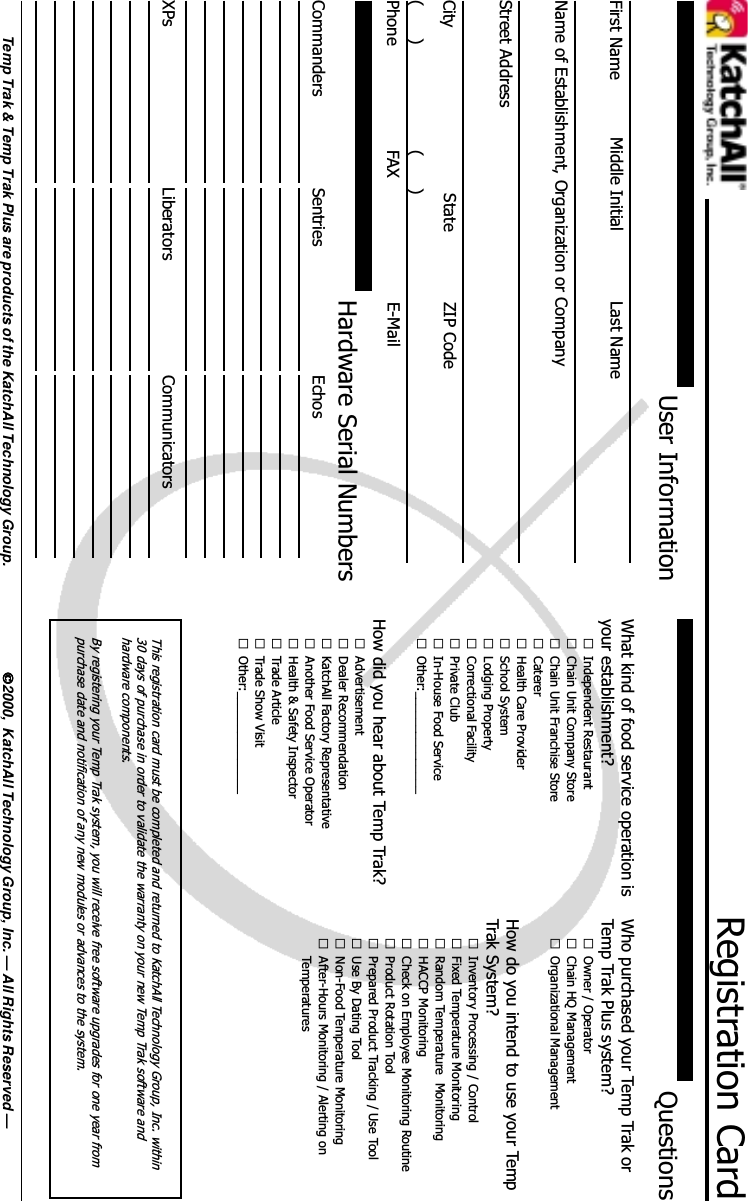
Registration CardUser InformationHardware Serial NumbersCommanders Sentries EchosXPs Liberators Communicators2000,  KatchAll Technology Group, Inc. — All Rights Reserved —Temp Trak & Temp Trak Plus are products of the KatchAll Technology Group.QuestionsFirst Name Middle Initial Last NameName of Establishment, Organization or CompanyStreet AddressCity State ZIP CodePhone E-Mail(      ) (      )FAXWhat kind of food service operation isyour establishment?£Independent Restaurant£Chain Unit Company Store£Chain Unit Franchise Store£Caterer£Health Care Provider£School System£Lodging Property£Correctional Facility£Private Club£In-House Food Service£Other:_______________How did you hear about Temp Trak?£Advertisement£Dealer Recommendation£KatchAll Factory Representative£Another Food Service Operator£Health & Safety Inspector£Trade Article£Trade Show Visit£Other:_______________Who purchased your Temp Trak orTemp Trak Plus system?£Owner / Operator£Chain HQ Management£Organizational ManagementHow do you intend to use your TempTrak System?£Inventory Processing / Control£Fixed Temperature Monitoring£Random Temperature  Monitoring£HACCP Monitoring£Check on Employee Monitoring Routine£Product Rotation Tool£Prepared Product Tracking / Use Tool£Use By Dating Tool£Non-Food Temperature Monitoring£After-Hours Monitoring / Alerting onTemperaturesThis registration card must be completed and returned to KatchAll Technology Group, Inc. within30 days of purchase in order to validate the warranty on your new Temp Trak software andhardware components.By registering your Temp Trak system, you will receive free software upgrades for one year frompurchase date and notification of any new modules or advances to the system.
5800 Creek RoadCincinnati, OH 45242PLACESTAMPHERE
KatchAllTechnology Group, Inc.A wholly owned subsidiary ofKatchAll Industries International, Inc.5800 Creek RoadCincinnati, OH 45242FAX 513-793-4895www.katchall.com 2000, KatchAll Technology Group, Inc.Patents Pending, All Rights Reserved, Printed in USAVersion 1.0.1
"INTRODUCTION
#Congratulations!Temp Trak is a quantum leap into the future of food servicemanagement, and you have its benefits today.With Temp Trak, you possess the most advanced total qualitymanagement and time-on-task breakthrough in the history of ourindustry. It is easy to learn and user friendly to operate.Temp Trak is a unique, innovative system that gives you thecapability to read and record temperatures, and with Temp TrakPlus —  track inventory, all automatically! Both Temp Trak andTemp Trak Plus are wireless, accurate and global, allowing man-agement to obtain precise operating information anytime, any-where.Welcome to the world of Temp Trak, the new standard in foodservice management from KatchAll Technology Group — Bring-ing you the Future in Food Safety!Need Help?!Temp Trak and Temp Trak Plus include a wide range of on-linehelp files that assist with many common problems. For instance,if you’re having trouble setting up a new printer, on-line help willguide you through the process — just click on the Help button,it’s that easy!If you would like to visit our web site, direct your browser to:http://www.katchall.comThere you will find answers to commonly asked questions, soft-ware upgrades and new products.Warranty & FCC LicensingTemp Trak and Temp Trak Plus both come with a standard 90day warranty on parts and labor.The Temp Trak units have been tested and found to comply withthe limits for a Class A digital device, pursuant to Part 15 of theFCC rules. Operation is subject to the following two conditions:1. This device may not cause harmful interference, and 2. Thisdevice must accept any interference that may cause undesiredoperation.INTRODUCTION
$END-USER LICENSE AGREEMENT FOR TEMP TRAK SOFT-WAREIMPORTANT – READ CAREFULLY:  This End-User license Agreement (“EULA”) is a legal agreement between you (either anindividual or a single entity) and KatchAll Technology Group, Inc.  (“KatchAll”) for the Temp-Trak software product identifiedabove, which includes computer software and may include associated media, printed materials, and “online” or electronicdocumentation (“SOFTWARE PRODUCT”).  The SOFTWARE PRODUCT also includes any updates and supplements to theoriginal SOFTWARE PRODUCT provided to you by KatchAll.  Any software provided along with the SOFTWARE PRODUCT thatis associated with a separate end-user license agreement is licensed to you under the terms of that license agreement.  Byinstalling, copying, downloading, accessing or otherwise using the SOFTWARE PRODUCT, you agree to be bound by the termsof this EULA.  If you do not agree to the terms of this EULA, do not install or use the SOFTWARE PRODUCT; you may, however,return it to your place of purchase for a full refund.SOFTWARE PRODUCT LICENSEThe SOFTWARE PRODUCT is protected by copyright laws and international copyright treaties, as well as other intellectualproperty laws and treaties.  The SOFTWARE PRODUCT is licensed, not sold.1. GRANT OF LICENSE.  This EULA grants you the following rights:•Systems Software.  You may install and use one copy of the SOFTWARE PRODUCT on a singlecomputer, including a workstation, terminal or other digital electronic device (“COMPUTER”).•Storage/Network Use.  You may also store or install a copy of the SOFTWARE PRODUCT on a storagedevice, such as a network server, used only to install or run the SOFTWARE PRODUCT on your otherCOMPUTERS over an internal network; however, you must acquire and dedicate a license for eachseparate COMPUTER on or from which the SOFTWARE PRODUCT is installed, used, accessed,displayed or run.  A license for the SOFTWARE PRODUCT may not be shared or used concurrently ondifferent COMPUTERS.2. DESCRIPTION OF OTHER RIGHTS AND LIMITATIONS.•Academic Edition Software.  If the SOFTWARE PRODUCT is identified as “Academic Edition” or “AE,”you must be a “Qualified Educational User” to use the SOFTWARE PRODUCT.  If you are not aQualified Educational User, you have no rights under this EULA.  To determine if you are a QualifiedEducational User, please contact KatchAll or the KatchAll distributor serving your area of the country.•Not for Resale Software.  The SOFTWARE PRODUCT is “Not For Sale” or “NFR,” and, notwithstandingother sections of this EULA, your use of the SOFTWARE PRODUCT is limited to your own use includingdemonstration, test, or evaluation purposes and you may not resell, or otherwise transfer for value, theSOFTWARE PRODUCT.•Limitations on Reverse Engineering, Decompilation, and Disassembly.  You may not reverseengineer, decompile, or disassemble the SOFTWARE PRODUCT, except and only to the extent thatsuch activity is expressly permitted by applicable law notwithstanding this limitation.•Separation of Components.  The SOFTWARE PRODUCT is licensed as a single product.  Itscomponent parts may not be separated for use on more than one computer.•Rental. You may not rent, lease or lend the SOFTWARE PRODUCT.•Trademarks.  This EULA does not grant you any rights in connection with any trademarks or servicemarks of KatchAll.•Support Services.  KatchAll may provide you with support services related to the SOFTWAREPRODUCT (“Support Services”).  Use of Support Services is governed by the KatchAll policies andprograms described in the user manual, in “online” documentation and/or other KatchAll providedmaterials.  Any supplemental software code provided to you as part of the Support Services shall beconsidered part of the SOFTWARE PRODUCT and subject to the terms and conditions of this EULA.With respect to technical information you provide to KatchAll as part of the Support Services, KatchAllmay use such information for its business purposes, including for product support and development.KatchAll will not utilize such technical information in a form that personally identifies you.•Software Transfer.  The initial user of the SOFTWARE PRODUCT may make a onetime permanenttransfer of this EULA and SOFTWARE PRODUCT only directly to an end user.  This transfer mustinclude all of the SOFTWARE PRODUCT (including all component parts, the media and printedmaterials, any upgrades, this EULA, and, if applicable, the Certificate of Authenticity).  Such transfer maynot be by way of consignment or any other indirect transfer.  The transferee of such onetime transfermust agree to comply with the terms of this EULA, including the obligation not to further transfer thisEULA and SOFTWARE PRODUCT.•Termination.  Without prejudice to any other rights, KatchAll may terminate this EULA if you fail tocomply with the terms and conditions of this EULA.  In such event, you must destroy all copies of theSOFTWARE PRODUCT and all of its component parts.3. UPGRADES.  If the SOFTWARE PRODUCT is labeled as an upgrade, you must be properly licensed to use aproduct identified by KatchAll as being eligible for the upgrade in order to use the SOFTWARE PRODUCT.  A SOFTWAREPRODUCT labeled as an upgrade replaces an/or supplements the product that formed the basis for your eligibility for theupgrade.  You may use the resulting upgraded product only in accordance with the terms of this EULA.  If the SOFTWAREPRODUCT is an upgrade of a component of a package of software programs that you licensed as a single product, theSOFTWARE PRODUCT may be used and transferred only as part of that single product package and may not be separated foruse on more than one computer.4. COPYRIGHT.  All title and intellectual property rights in and to the SOFTWARE PRODUCT (including but notlimited to any images, photographs, animations, video, audio, music, and text, incorporated into the SOFTWARE PRODUCT areowned by KatchAll or its suppliers.  All title and intellectual property rights in and to the content which may be accessed throughuse of the SOFTWARE PRODUCT is the property of the respective content owner and may be protected by applicable copyrightor other intellectual property laws and treaties.  This EULA grants you no rights to use such content.  All rights not expresslygranted are reserved by KatchAll.INTRODUCTION
%5. DUAL-MEDIA SOFTWARE.  You may receive the SOFTWARE PRODUCT in more than one medium.Regardless of the type or size of medium you receive, you may use only one medium that is appropriate for your single computer.You may not use or install any other medium on another computer.  You may not loan, rent, lease, lend or otherwise transfer anyother medium to another use, except as part of the permanent transfer (as provided above) of the SOFTWARE PRODUCT.6. BACKUP COPY.  After installation of one copy of the SOFTWARE PRODUCT pursuant to this EULA, you maykeep the original media on which the SOFTWARE PRODUCT was provided by KatchAll solely for backup or archival purposes.  Ifthe original media is required to use the SOFTWARE PRODUCT on the computer, you may make one copy of the SOFTWAREPRODUCT solely for backup or archival purposes.  Except as expressly provided in this EULA, you may not otherwise makecopies of the SOFTWARE PRODUCT or the printed material accompanying the SOFTWARE PRODUCT.7. U.S. GOVERNMENT RESTRICTED RIGHTS.  The SOFTWARE PRODUCT and documentation are providedwith RESTRICTED RIGHTS.  Use, duplication, or disclosure by the Government is subject to restrictions as set forth insubparagraph (c)(1)(ii) of the Rights in Technical Data and Computer Software clause at DFARS 252.227-7031 or subparagraphs(c)(1) and (2) of the Commercial Computer Software Restricted Rights at 48 DFR 52.227-19, as applicable.  Manufacturer isKatchAll Technology Group, Inc. 5800 Creek Road, Cincinnati, Ohio 45242.8. EXPORT RESTRICTIONS.  You agree that you will not export or reexport the SOFTWARE PRODUCT to anycountry, person, entity or end user subject to U.S. export restrictions.  You specifically agree not to export or reexport theSOFTWARE PRODUCT:  (i) to any country to which the U.S. has embargoed or restricted the export of goods or services, whichcurrently include, but are not necessarily limited to Cuba, Iran, Iraq, Libya, North Korea, Sudan and Syria, or to any national ofany such country, wherever located, who intends to transmit or transport the products back to such country; (ii) to any end-userwho you know or have reason to know will utilize the SOFTWARE PRODUCT or portion thereof in the design, development orproduction of nuclear, chemical or biological weapons; or (iii) to any end-user who has been prohibited from participating in U.S.export transactions by any federal agency of the U.S. government.MISCELLANEOUSIf you acquire this product in the United States, this EULA is governed by the laws of the State of Ohio.If this product was acquired outside the United States, then local law may apply.Should you have any questions concerning this EULA, or if you desire to contact KatchAll for any reason, please write:KatchAll Industries International, Inc.5800 Creek RoadCincinnati, Ohio 45242LIMITED WARRANTYLIMITED WARRANTY. KatchAll warrants that (a) the SOFTWARE PRODUCT will perform substantially in accordance with theaccompanying written materials for a period of ninety (90) days from the date of receipt, and (b)any Support Services provided byKatchAll shall be substantially as described in applicable written materials provided to you by KatchAll, and KatchAll supportengineers will make commercially reasonable efforts to solve any problem. To the extent allowed be applicable law, impliedwarranties in the SOFTWARE PRODUCT, if any, are limited to ninety (90) days. Some states/jurisdictions do not allow limitationson duration of an implied warranty, so the above limitation may not apply to you.CUSTOMER REMEDIES. KatchAll’s and its suppliers’ entire liability and your exclusive remedy shall be, at KatchAll’s option,either (a) return of the price paid, if any, or (b) repair or replacement of the SOFTWARE PRODUCT that does not meet KatchAll’sLimited Warranty and that is returned to KatchAll with a copy of your receipt. This Limited Warranty is void if failure of theSOFTWARE PRODUCT has resulted from accident, abuse, or misapplication. Any replacement SOFTWARE PRODUCT will bewarranted for the remainder of the original warranty period or thirty (30) days, whichever is longer. Outside the United States,neither these remedies nor any product support services offered by KatchAll are available without proof of purchase from anauthorized international source.NO OTHER WARRANTIES. TO THE MAXIMUM EXTENT PERMITTED BY APPLICABLE LAW, KATCHALL AND ITSSUPPLIERS DISCLAIM ALL OTHER WARRANTIES AND CONDITIONS, EITHER EXPRESS OR IMPLIED, INCLUDING, BUTNOT LIMITED TO, IMPLIED WARRANTIES OR CONDITIONS, OF MERCHANTABILITY, FITNESS FOR A PARTICULARPURPOSE, TITLE AND NON-INFRINGEMENT, WITH REGARD TO THE SOFTWARE PRODUCT, AND THE PROVISION OFOR FAILURE TO PROVIDE SUPPORT SERVICES. THIS LIMITED WARRANTY GIVES YOU SPECIFIC LEGAL RIGHTS. YOUMAY HAVE OTHERS, WHICH VARY FROM STATE/JURISDICTION.LIMITATION OF LIABILITY. TO THE MAXIMUM EXTENT PERMITTED BY APPLICABLE LAW, IN NO EVENT SHALLKATCHALL OR ITS SUPPLIERS BE LIABLE FOR ANY SPECIAL, INCIDENTAL, INDIRECT, OR CONSEQUENTIAL DAMAGESWHATSOEVER (INCLUDING, WITHOUT LIMITATION, DAMAGES FOR LOSS OF BUSINESS PROFITS, BUSINESSINTERRUPTION, LOSS OF BUSINESS INFORMATION, OR ANY OTHER PECUNIARY LOSS) ARISING OUT OF THE USEOF OR INABILITY TO USE THE SOFTWARE PRODUCT OR THE FAILURE TO PROVIDE SUPPORT SERVICES, EVEN IFKATCHALL HAS BEEN ADVISED OF THE POSSIBILITY OF SUCH DAMAGES. IN ANY CASE, KATCHALL’S ENTIRELIABILITY UNDER ANY PROVISION OF THIS EULA SHALL BE LIMITED TO THE GREATER OF THE AMOUNT ACTUALLYPAID BY YOU FOR THE SOFTWARE PRODUCT OR U.S. $5.00; PROVIDED, HOWEVER, IF YOU HAVE ENTERED INTO AKATCHALL SUPPORT SERVICES AGREEMENT, KATCHALL’S ENTIRE LIABILITY REGARDING SUPPORT SERVICESSHALL BE GOVERNED BY THE TERMS OF THAT AGREEMENT. BECAUSE SOME STATES/JURISDICTIONS DO NOTALLOW THE EXCLUSION OR LIMITATION OF LIABILITY, THE ABOVE LIMITATION MAY NOT APPLY TO YOU.INTRODUCTION
&INSTALLATION
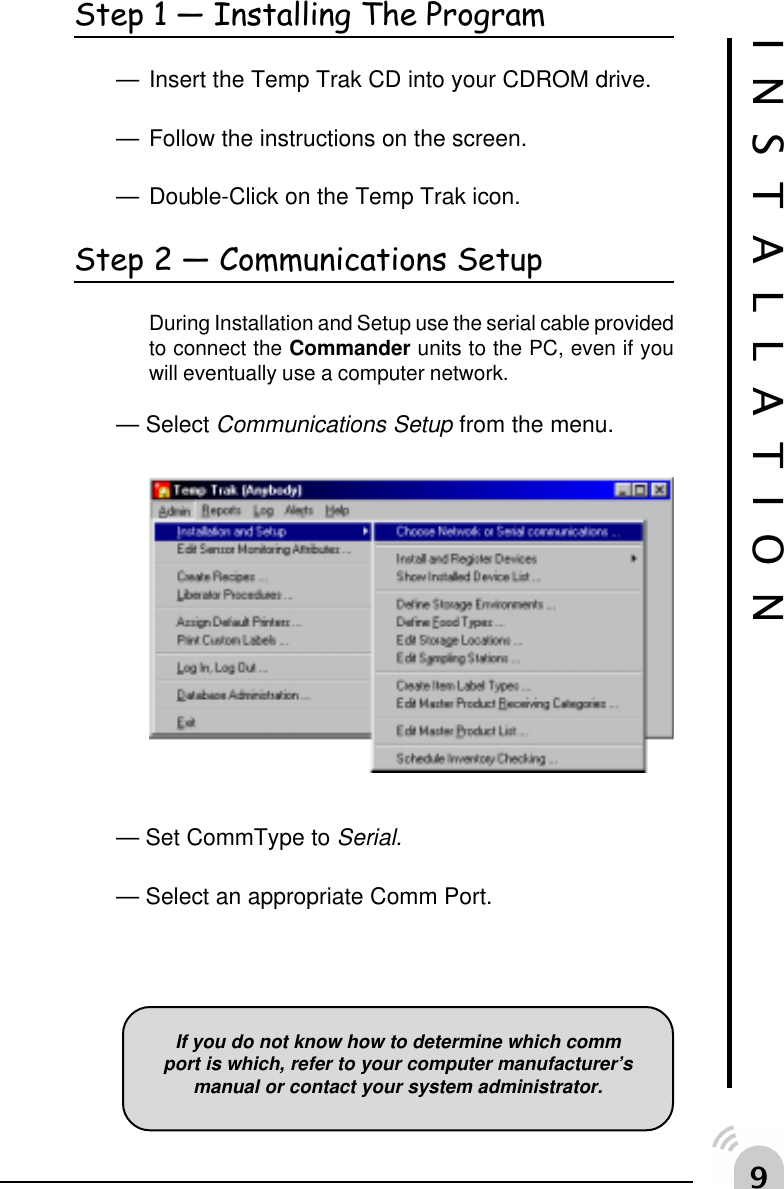
'Step 1  Installing The Program— Insert the Temp Trak CD into your CDROM drive.— Follow the instructions on the screen.— Double-Click on the Temp Trak icon.Step 2  Communications SetupDuring Installation and Setup use the serial cable providedto connect the Commander units to the PC, even if youwill eventually use a computer network.— Select Communications Setup from the menu.— Set CommType to Serial.— Select an appropriate Comm Port.INSTALLATIONIf you do not know how to determine which commport is which, refer to your computer manufacturer’smanual or contact your system administrator.
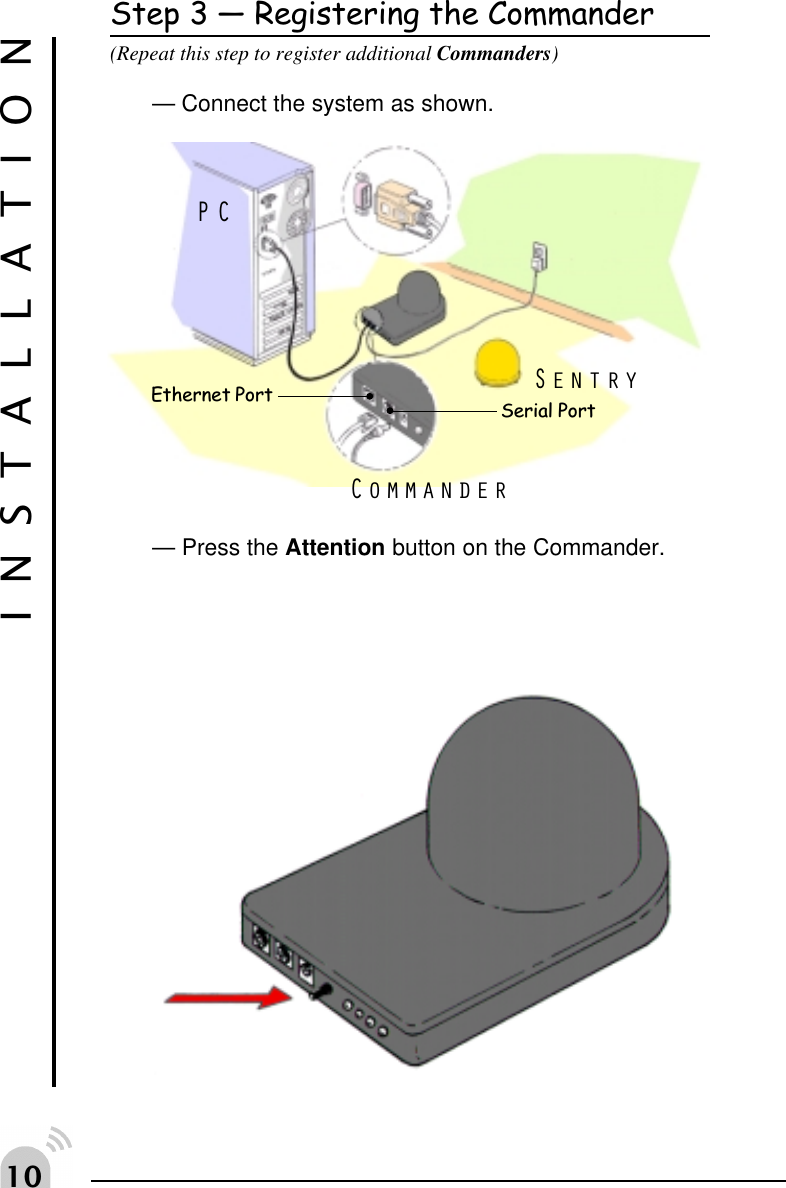
Step 3  Registering the Commander(Repeat this step to register additional Commanders)— Connect the system as shown.— Press the Attention button on the Commander.INSTALLATIONSentryPCCommanderEthernet Port Serial Port
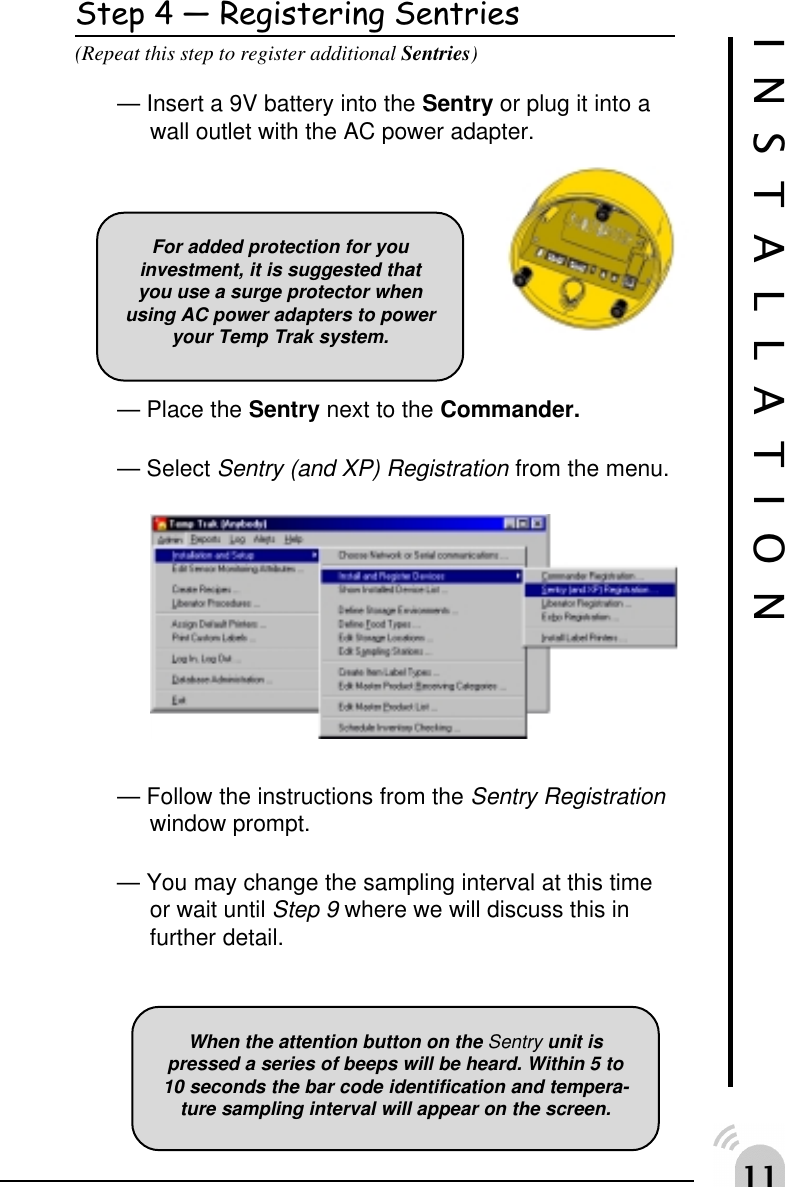
Step 4  Registering Sentries(Repeat this step to register additional Sentries)— Insert a 9V battery into the Sentry or plug it into awall outlet with the AC power adapter.— Place the Sentry next to the Commander.— Select Sentry (and XP) Registration from the menu.— Follow the instructions from the Sentry Registrationwindow prompt.— You may change the sampling interval at this timeor wait until Step 9 where we will discuss this infurther detail.INSTALLATIONWhen the attention button on the Sentry unit ispressed a series of beeps will be heard. Within 5 to10 seconds the bar code identification and tempera-ture sampling interval will appear on the screen.For added protection for youinvestment, it is suggested thatyou use a surge protector whenusing AC power adapters to poweryour Temp Trak system.
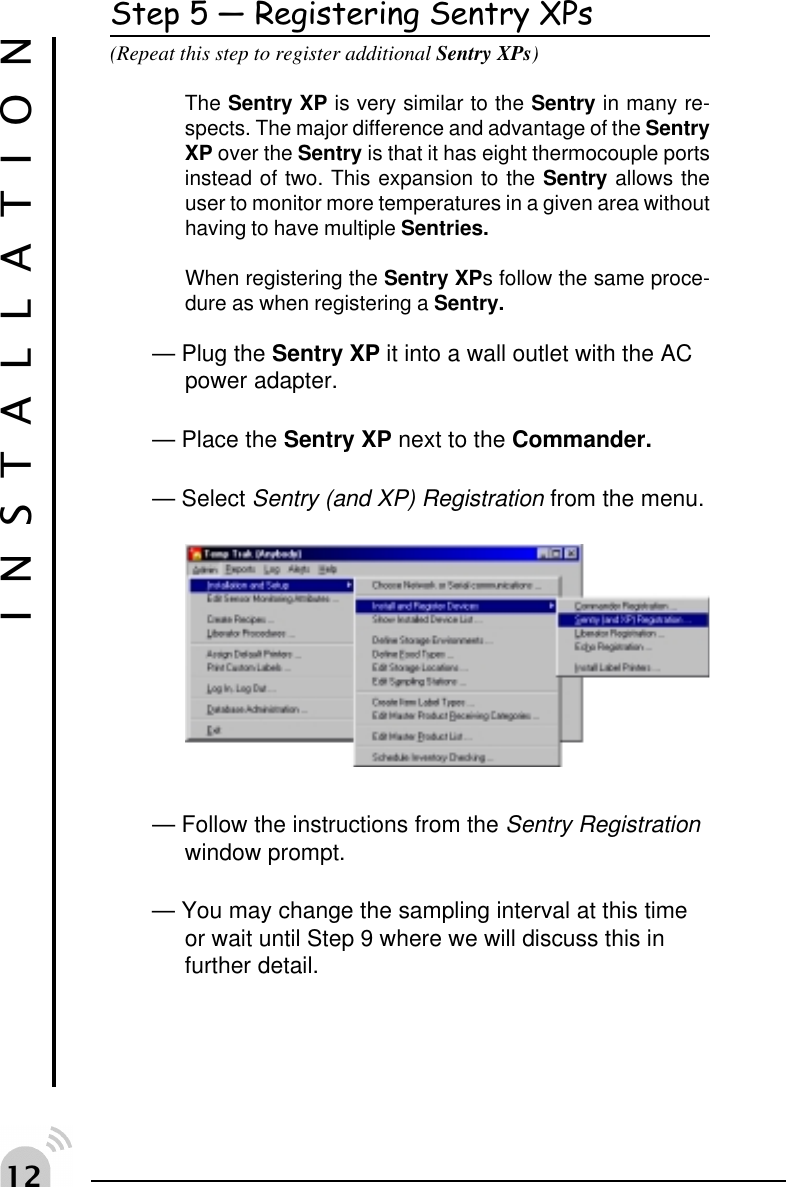
 Step 5  Registering Sentry XPs(Repeat this step to register additional Sentry XPs)The Sentry XP is very similar to the Sentry in many re-spects. The major difference and advantage of the SentryXP over the Sentry is that it has eight thermocouple portsinstead of two. This expansion to the Sentry allows theuser to monitor more temperatures in a given area withouthaving to have multiple Sentries.When registering the Sentry XPs follow the same proce-dure as when registering a Sentry.— Plug the Sentry XP it into a wall outlet with the ACpower adapter.— Place the Sentry XP next to the Commander.— Select Sentry (and XP) Registration from the menu.— Follow the instructions from the Sentry Registrationwindow prompt.— You may change the sampling interval at this timeor wait until Step 9 where we will discuss this infurther detail.INSTALLATION
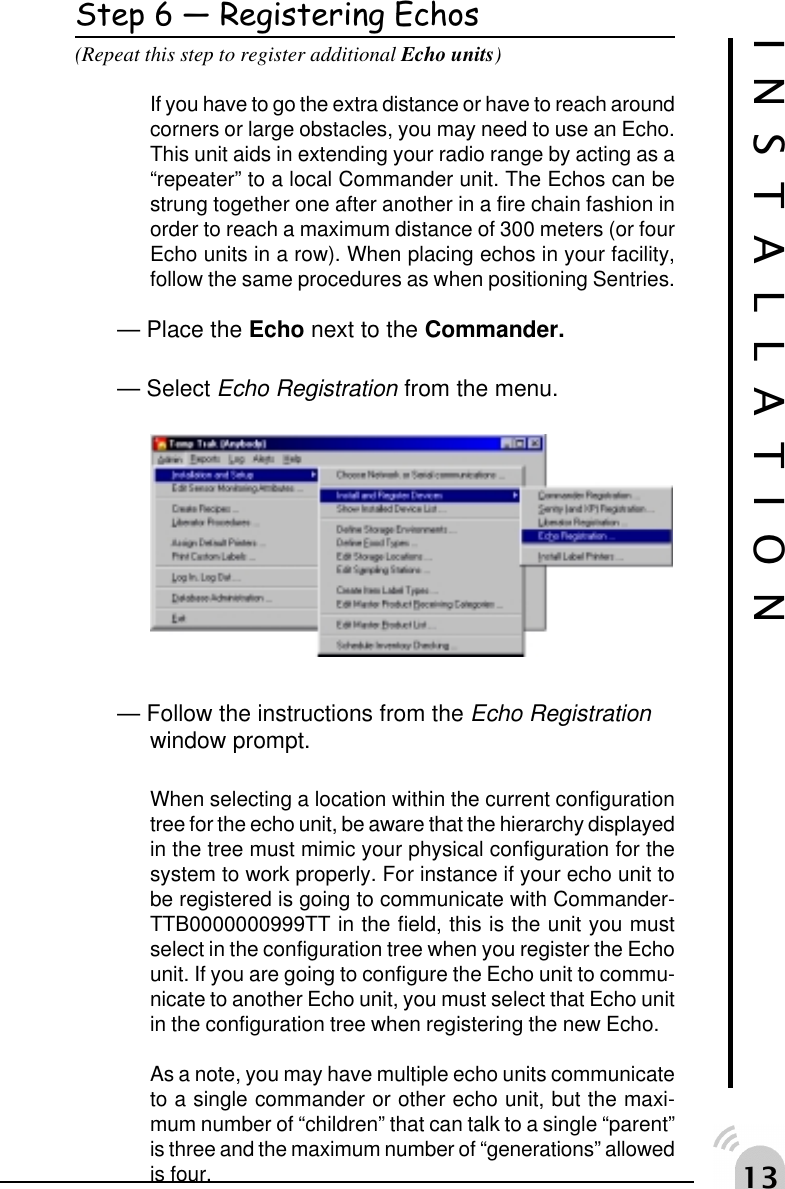
!Step 6  Registering Echos(Repeat this step to register additional Echo units)If you have to go the extra distance or have to reach aroundcorners or large obstacles, you may need to use an Echo.This unit aids in extending your radio range by acting as a“repeater” to a local Commander unit. The Echos can bestrung together one after another in a fire chain fashion inorder to reach a maximum distance of 300 meters (or fourEcho units in a row). When placing echos in your facility,follow the same procedures as when positioning Sentries.— Place the Echo next to the Commander.— Select Echo Registration from the menu.— Follow the instructions from the Echo Registrationwindow prompt.When selecting a location within the current configurationtree for the echo unit, be aware that the hierarchy displayedin the tree must mimic your physical configuration for thesystem to work properly. For instance if your echo unit tobe registered is going to communicate with Commander-TTB0000000999TT in the field, this is the unit you mustselect in the configuration tree when you register the Echounit. If you are going to configure the Echo unit to commu-nicate to another Echo unit, you must select that Echo unitin the configuration tree when registering the new Echo.As a note, you may have multiple echo units communicateto a single commander or other echo unit, but the maxi-mum number of “children” that can talk to a single “parent”is three and the maximum number of “generations” allowedis four.INSTALLATION
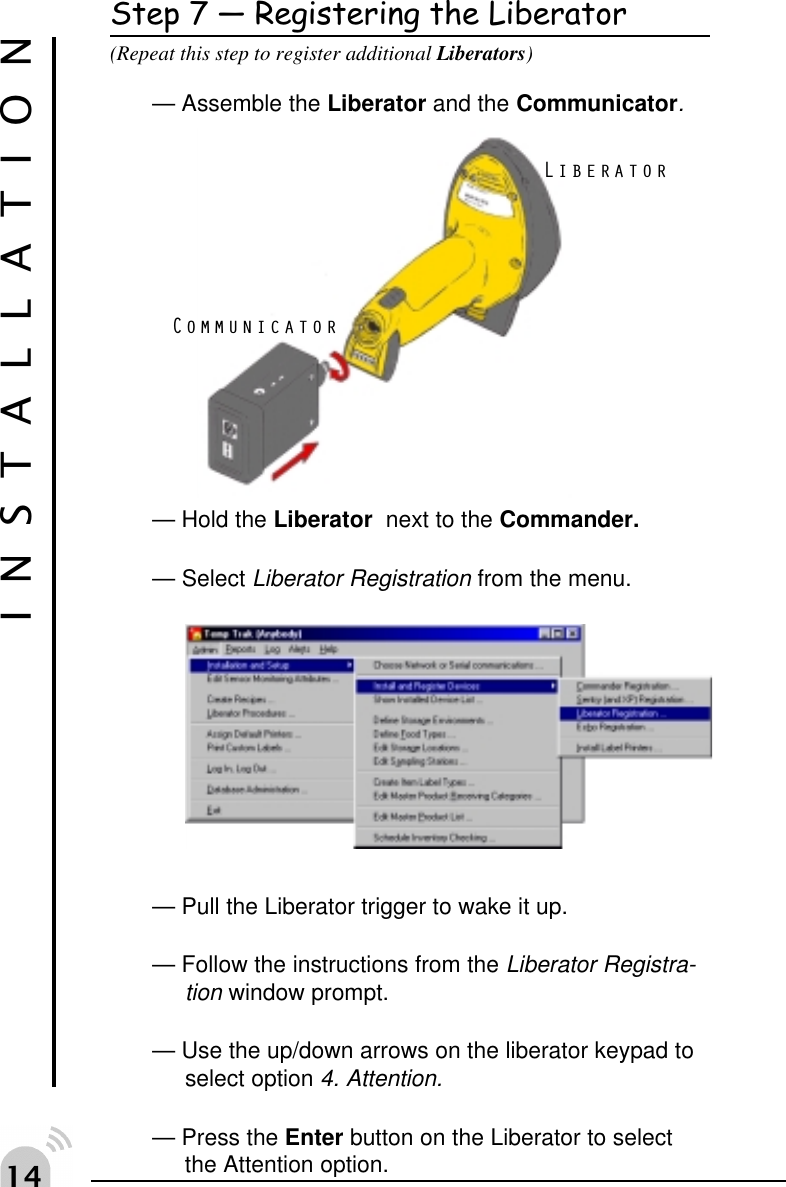
"Step 7  Registering the Liberator(Repeat this step to register additional Liberators)— Assemble the Liberator and the Communicator.— Hold the Liberator  next to the Commander.— Select Liberator Registration from the menu.— Pull the Liberator trigger to wake it up.— Follow the instructions from the Liberator Registra-tion window prompt.— Use the up/down arrows on the liberator keypad toselect option 4. Attention.— Press the Enter button on the Liberator to selectthe Attention option.INSTALLATIONLiberatorCommunicator
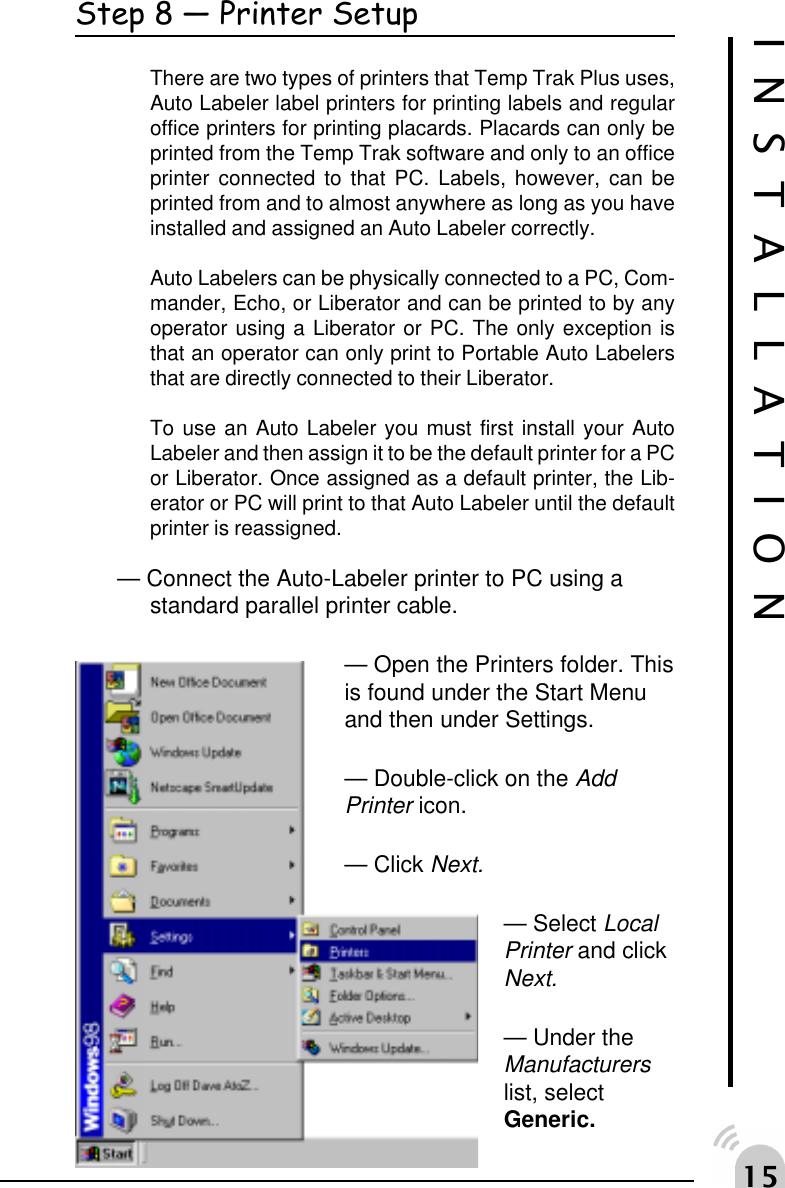
#Step 8  Printer SetupThere are two types of printers that Temp Trak Plus uses,Auto Labeler label printers for printing labels and regularoffice printers for printing placards. Placards can only beprinted from the Temp Trak software and only to an officeprinter connected to that PC. Labels, however, can beprinted from and to almost anywhere as long as you haveinstalled and assigned an Auto Labeler correctly.Auto Labelers can be physically connected to a PC, Com-mander, Echo, or Liberator and can be printed to by anyoperator using a Liberator or PC. The only exception isthat an operator can only print to Portable Auto Labelersthat are directly connected to their Liberator.To use an Auto Labeler you must first install your AutoLabeler and then assign it to be the default printer for a PCor Liberator. Once assigned as a default printer, the Lib-erator or PC will print to that Auto Labeler until the defaultprinter is reassigned.— Connect the Auto-Labeler printer to PC using astandard parallel printer cable.— Open the Printers folder. Thisis found under the Start Menuand then under Settings.— Double-click on the AddPrinter icon.— Click Next.— Select LocalPrinter and clickNext.— Under theManufacturerslist, selectGeneric.INSTALLATION
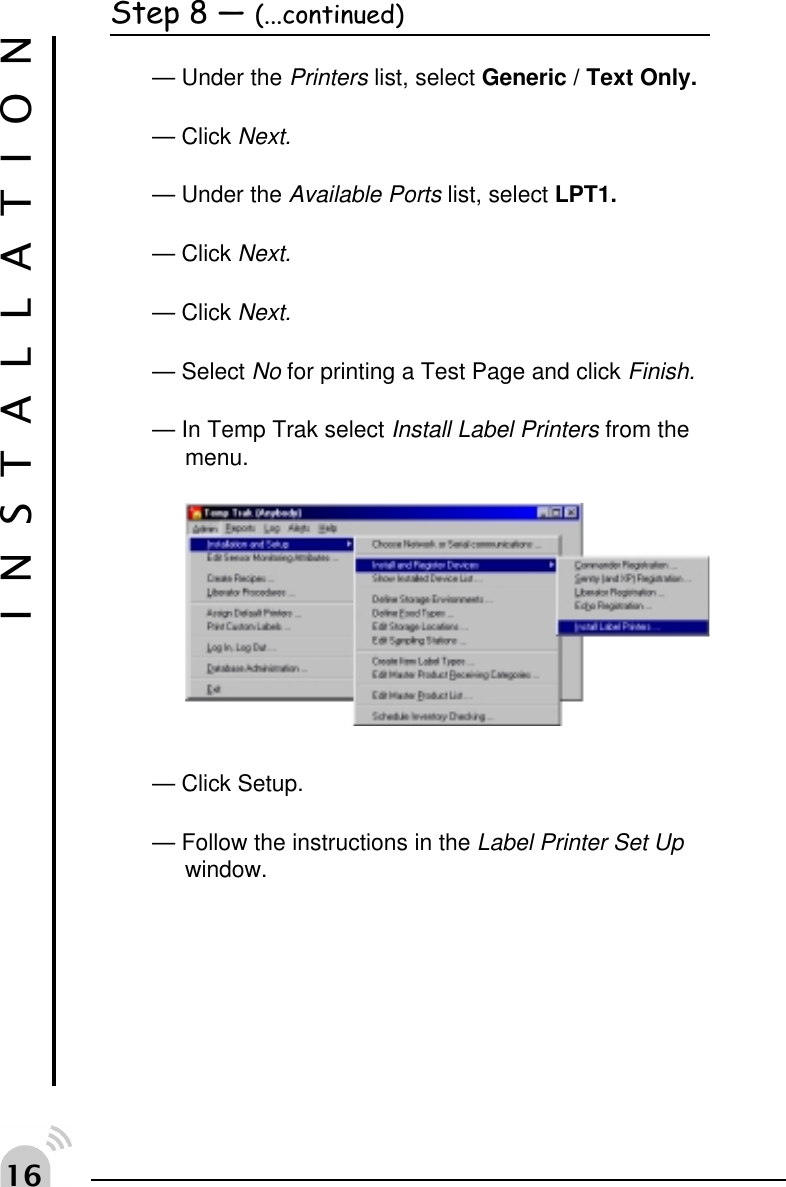
$Step 8  (...continued)— Under the Printers list, select Generic / Text Only.— Click Next.— Under the Available Ports list, select LPT1.— Click Next.— Click Next.— Select No for printing a Test Page and click Finish.— In Temp Trak select Install Label Printers from themenu.— Click Setup.— Follow the instructions in the Label Printer Set Upwindow.INSTALLATION
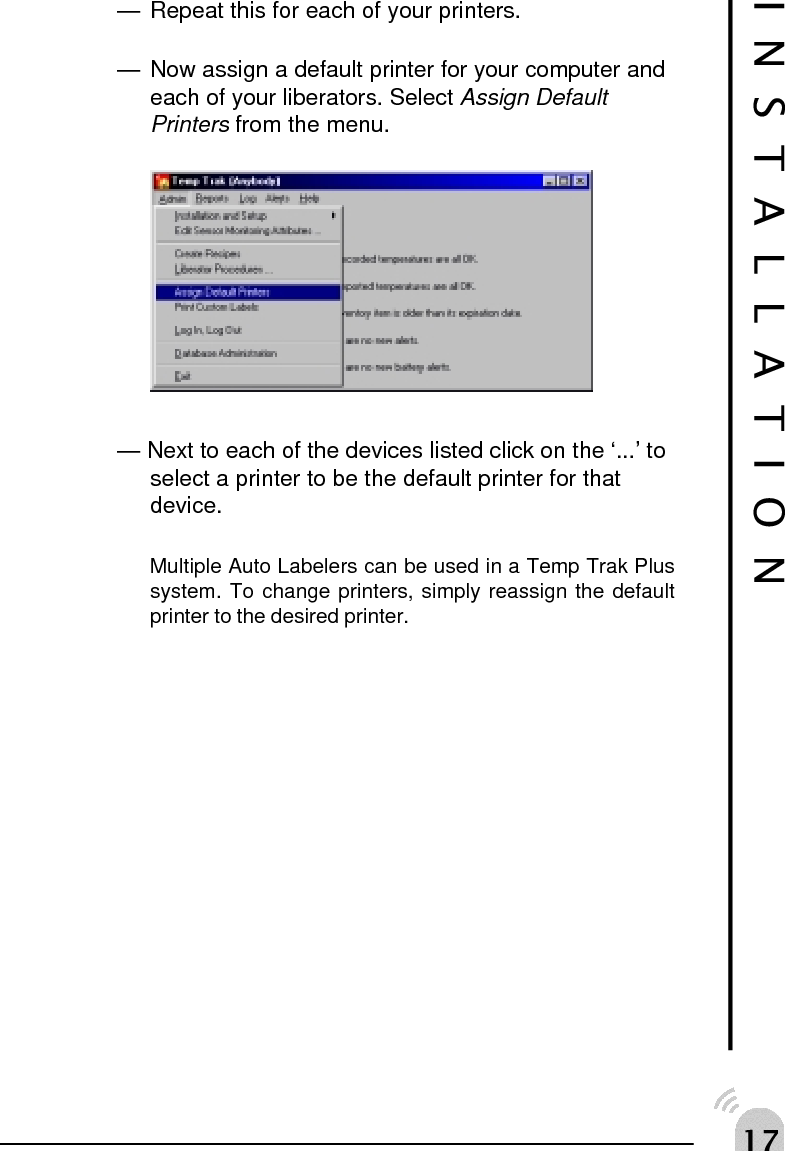
%INSTALLATION— Repeat this for each of your printers.— Now assign a default printer for your computer andeach of your liberators. Select Assign DefaultPrinters from the menu.— Next to each of the devices listed click on the ‘...’ toselect a printer to be the default printer for thatdevice.Multiple Auto Labelers can be used in a Temp Trak Plussystem. To change printers, simply reassign the defaultprinter to the desired printer.
&SYSTEM SETUP
'Step 9  Configuring Sentries— Make sure a Commander unit is connected to thePC with the serial cable (Step 3).Even if you are eventually going to use an existing com-puter network to communicate to your Commander unit(s),connect just one Commander to your PC using the serialcable provided.— Place all of yourSentries near theCommander.— Repeat Step 4 andset the Sampling Interval for each Sentry.Sampling Interval is the time that the Sentry unit will waitbefore it “wakes up” and takes a temperature reading, or asample. Between each sample, the Sentry sleeps and useslittle or no power, which means that the longer the Sentrysleeps the longer its battery will last. Conversely, the moreoften the Sentry takes samples (or the shorter the Sam-pling Interval), the more power will be used, therefore short-ening the battery life.To the left is a table with esti-mated battery lifetimes andSampling Intervals. These num-bers are only a rough estimateand will vary depending on thetype of battery used and theconditions your system is run-ning in. Note that any Sentryoperating with a Sampling Inter-val of 1 minute or less will useup batteries in a matter ofweeks! In situations where aninterval of 5 minutes or less isnecessary, it is strongly sug-gested that a power cable is used to supply the Sentrywith power.When choosing an appropriate Sampling Interval make sureto take into consideration what the sentry will be monitor-ing.SYSTEM SETUPBy default the Sam-pling Interval is set to30 minutes.gnilpmaSlavretnIyrettaBemitefiLetuniM5shtnoM3etuniM01shtnoM6etuniM03sraeY5.1ruoH1sraeY2sruoH2sraeY2
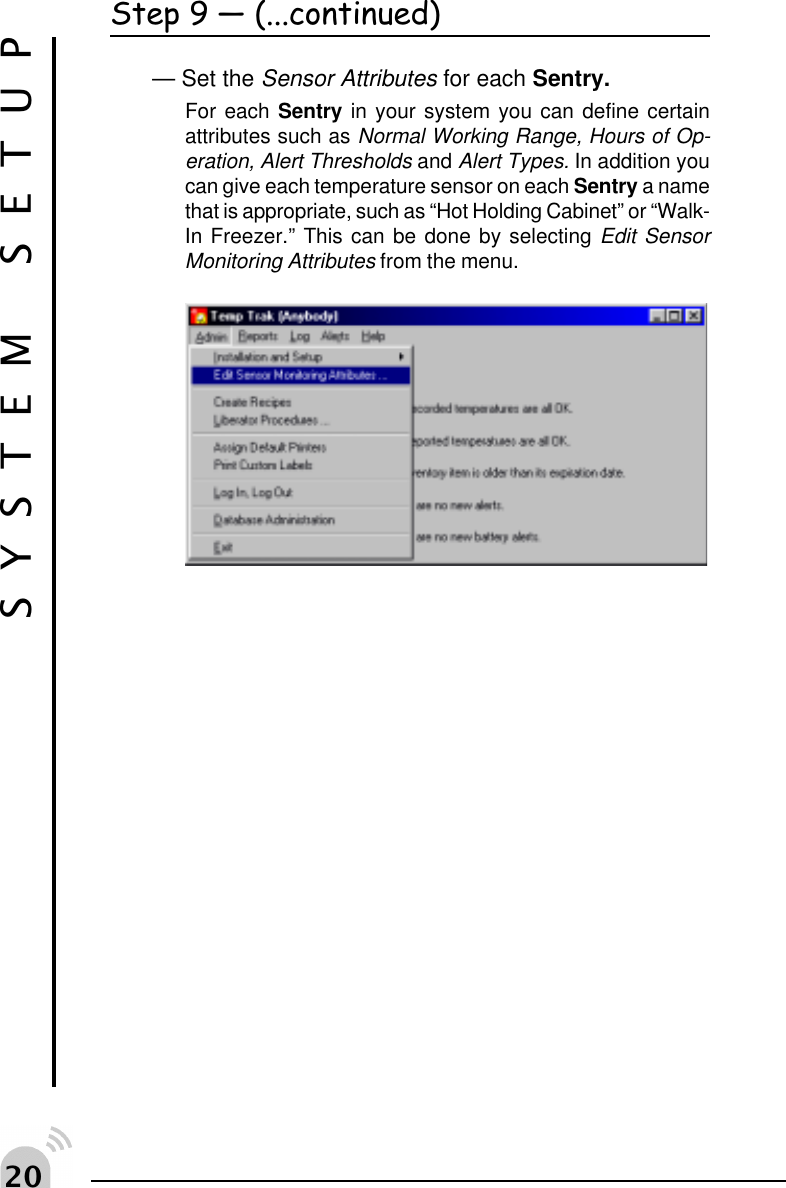
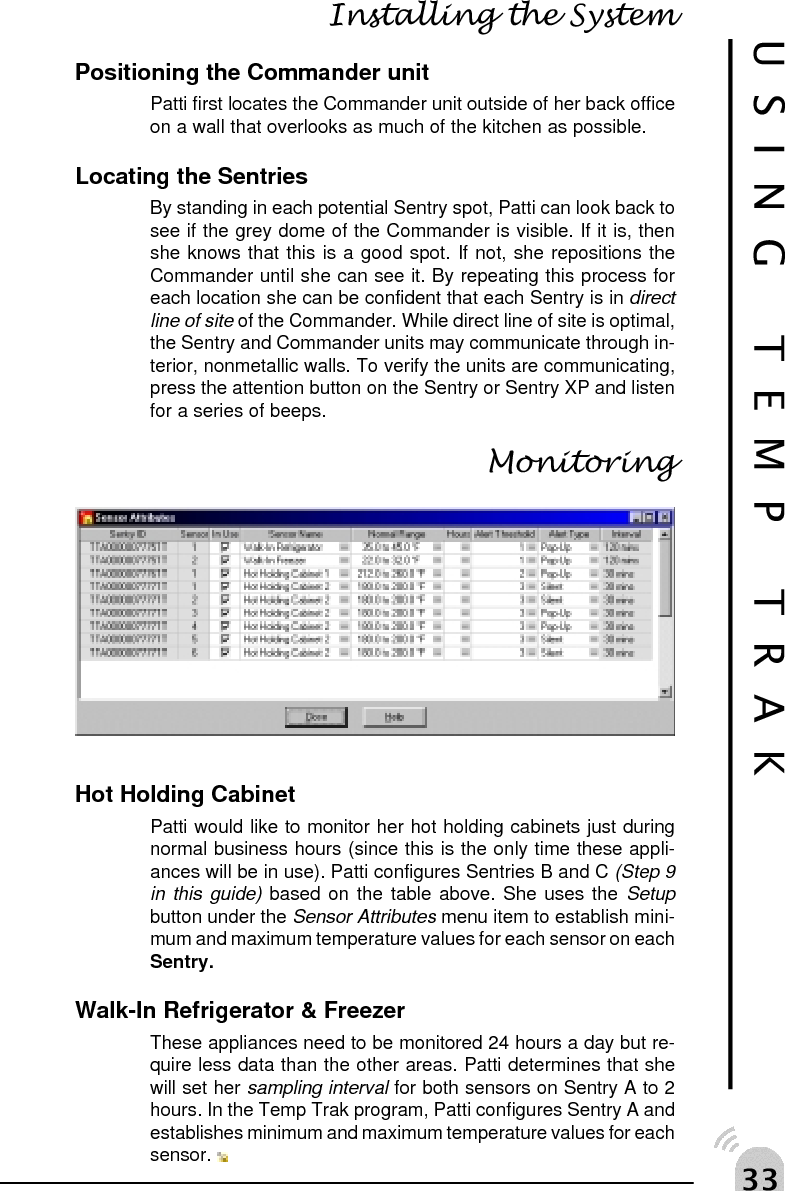
 SYSTEM SETUPStep 9  (...continued)— Set the Sensor Attributes for each Sentry.For each Sentry in your system you can define certainattributes such as Normal Working Range, Hours of Op-eration, Alert Thresholds and Alert Types. In addition youcan give each temperature sensor on each Sentry a namethat is appropriate, such as “Hot Holding Cabinet” or “Walk-In Freezer.” This can be done by selecting Edit SensorMonitoring Attributes from the menu.
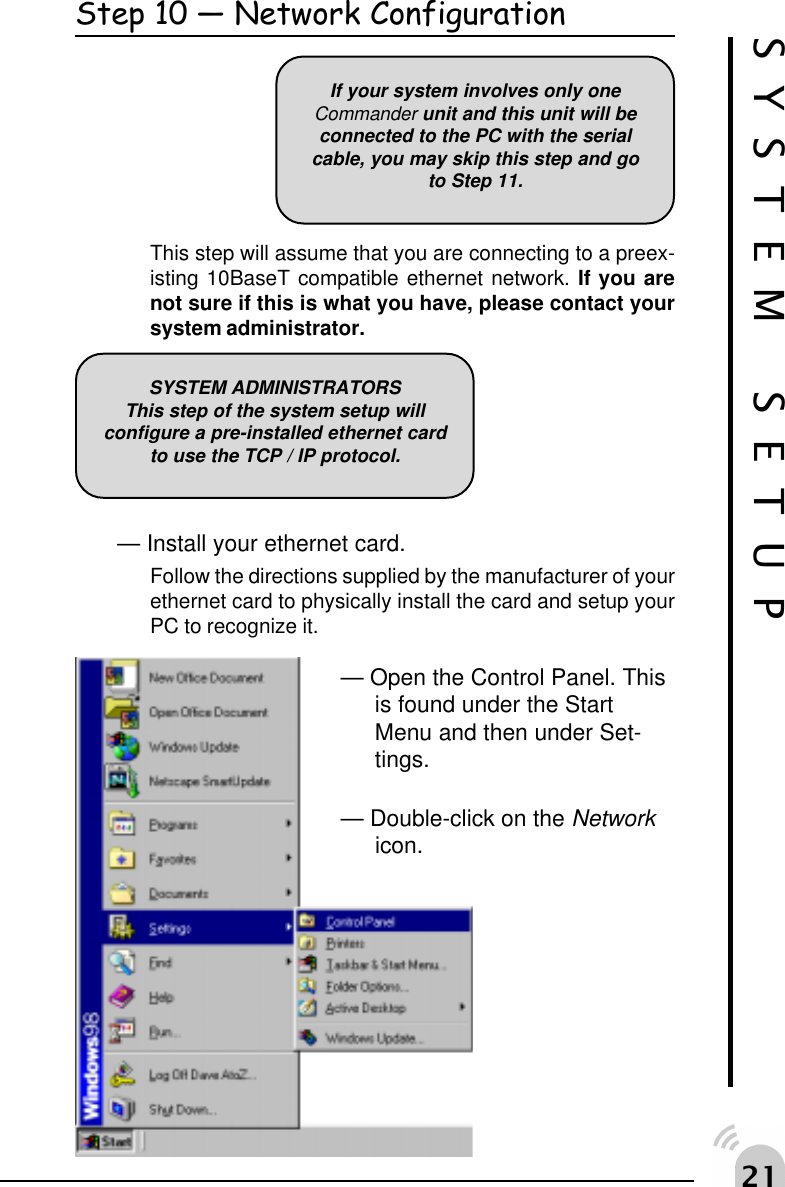
 Step 10  Network ConfigurationThis step will assume that you are connecting to a preex-isting 10BaseT compatible ethernet network. If you arenot sure if this is what you have, please contact yoursystem administrator.— Install your ethernet card.Follow the directions supplied by the manufacturer of yourethernet card to physically install the card and setup yourPC to recognize it.— Open the Control Panel. Thisis found under the StartMenu and then under Set-tings.— Double-click on the Networkicon.If your system involves only oneCommander unit and this unit will beconnected to the PC with the serialcable, you may skip this step and goto Step 11.SYSTEM SETUPSYSTEM ADMINISTRATORSThis step of the system setup willconfigure a pre-installed ethernet cardto use the TCP / IP protocol.
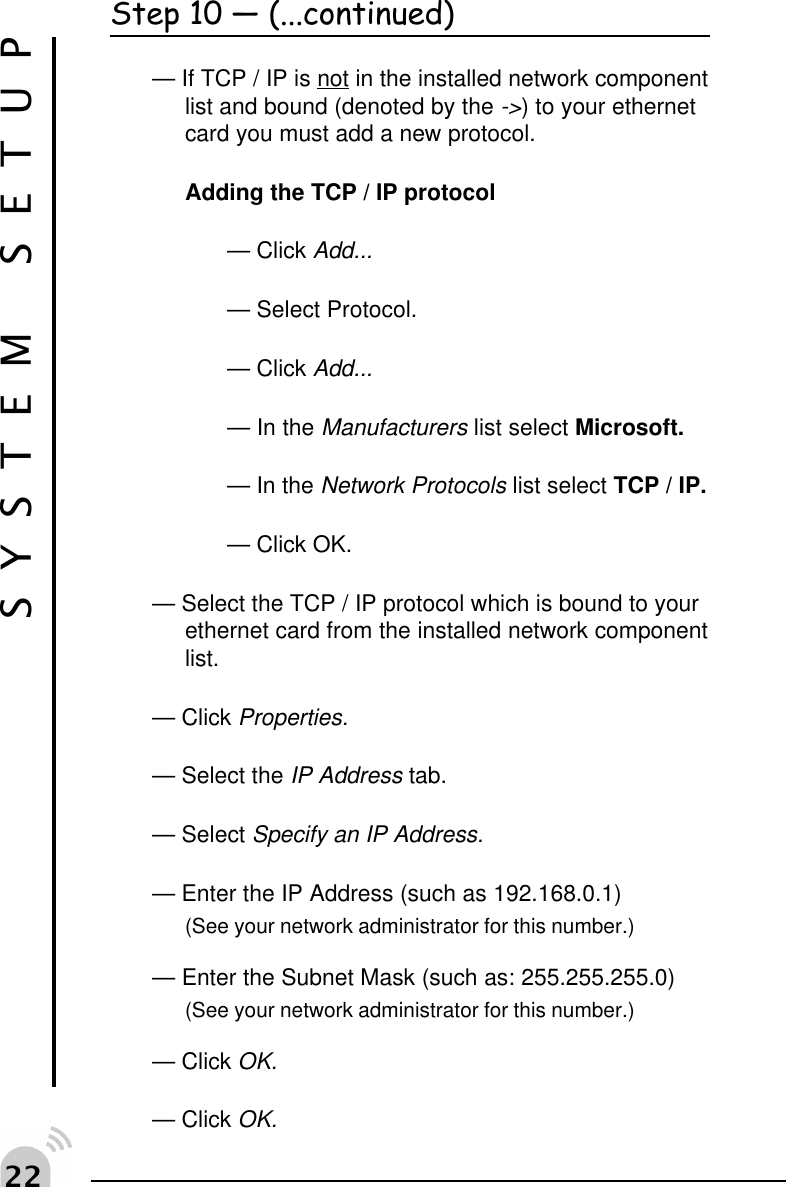
  SYSTEM SETUPStep 10  (...continued)— If TCP / IP is not in the installed network componentlist and bound (denoted by the ->) to your ethernetcard you must add a new protocol.Adding the TCP / IP protocol— Click Add...— Select Protocol.— Click Add...— In the Manufacturers list select Microsoft.— In the Network Protocols list select TCP / IP.— Click OK.— Select the TCP / IP protocol which is bound to yourethernet card from the installed network componentlist.— Click Properties.— Select the IP Address tab.— Select Specify an IP Address.— Enter the IP Address (such as 192.168.0.1)(See your network administrator for this number.)— Enter the Subnet Mask (such as: 255.255.255.0)(See your network administrator for this number.)— Click OK.— Click OK.
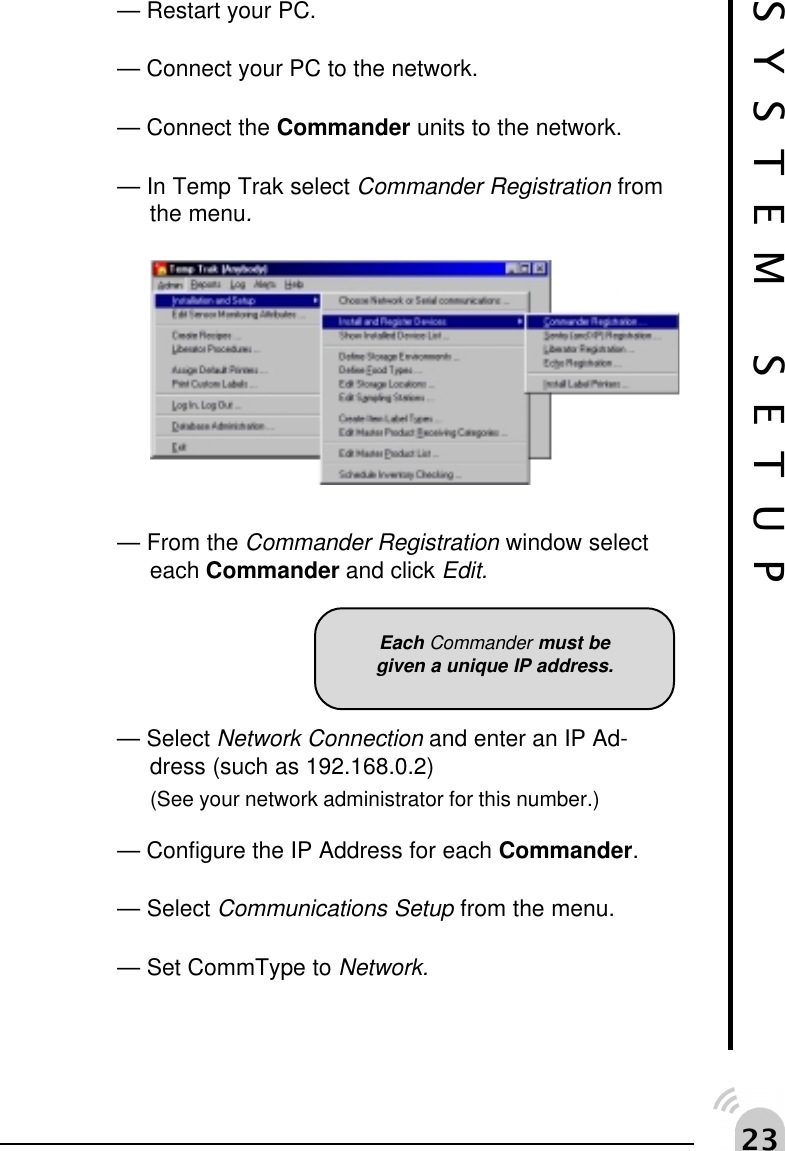
 !SYSTEM SETUP— Restart your PC.— Connect your PC to the network.— Connect the Commander units to the network.— In Temp Trak select Commander Registration fromthe menu.— From the Commander Registration window selecteach Commander and click Edit.— Select Network Connection and enter an IP Ad-dress (such as 192.168.0.2)(See your network administrator for this number.)— Configure the IP Address for each Commander.— Select Communications Setup from the menu.— Set CommType to Network.Each Commander must begiven a unique IP address.
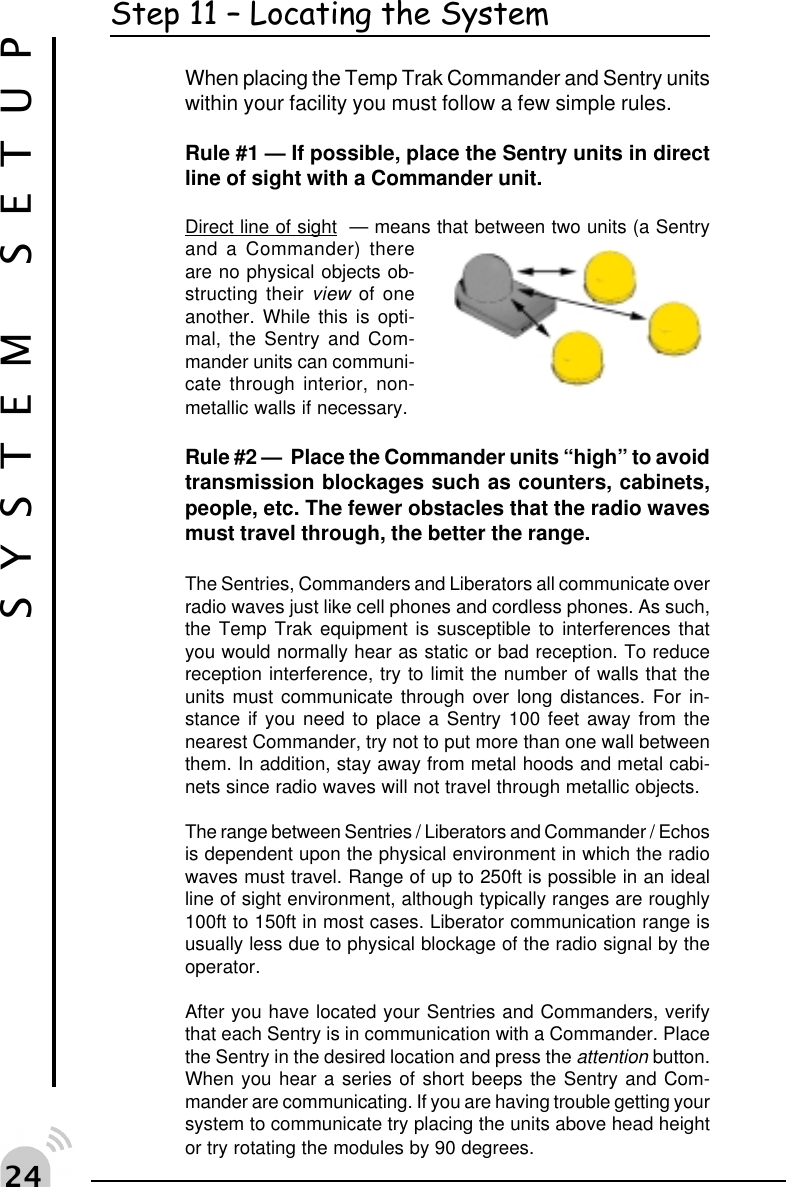
 "Step 11  Locating the SystemWhen placing the Temp Trak Commander and Sentry unitswithin your facility you must follow a few simple rules.Rule #1 — If possible, place the Sentry units in directline of sight with a Commander unit.Direct line of sight  — means that between two units (a Sentryand a Commander) thereare no physical objects ob-structing their view of oneanother. While this is opti-mal, the Sentry and Com-mander units can communi-cate through interior, non-metallic walls if necessary.Rule #2 —  Place the Commander units “high” to avoidtransmission blockages such as counters, cabinets,people, etc. The fewer obstacles that the radio wavesmust travel through, the better the range.The Sentries, Commanders and Liberators all communicate overradio waves just like cell phones and cordless phones. As such,the Temp Trak equipment is susceptible to interferences thatyou would normally hear as static or bad reception. To reducereception interference, try to limit the number of walls that theunits must communicate through over long distances. For in-stance if you need to place a Sentry 100 feet away from thenearest Commander, try not to put more than one wall betweenthem. In addition, stay away from metal hoods and metal cabi-nets since radio waves will not travel through metallic objects.The range between Sentries / Liberators and Commander / Echosis dependent upon the physical environment in which the radiowaves must travel. Range of up to 250ft is possible in an idealline of sight environment, although typically ranges are roughly100ft to 150ft in most cases. Liberator communication range isusually less due to physical blockage of the radio signal by theoperator.After you have located your Sentries and Commanders, verifythat each Sentry is in communication with a Commander. Placethe Sentry in the desired location and press the attention button.When you hear a series of short beeps the Sentry and Com-mander are communicating. If you are having trouble getting yoursystem to communicate try placing the units above head heightor try rotating the modules by 90 degrees.SYSTEM SETUP
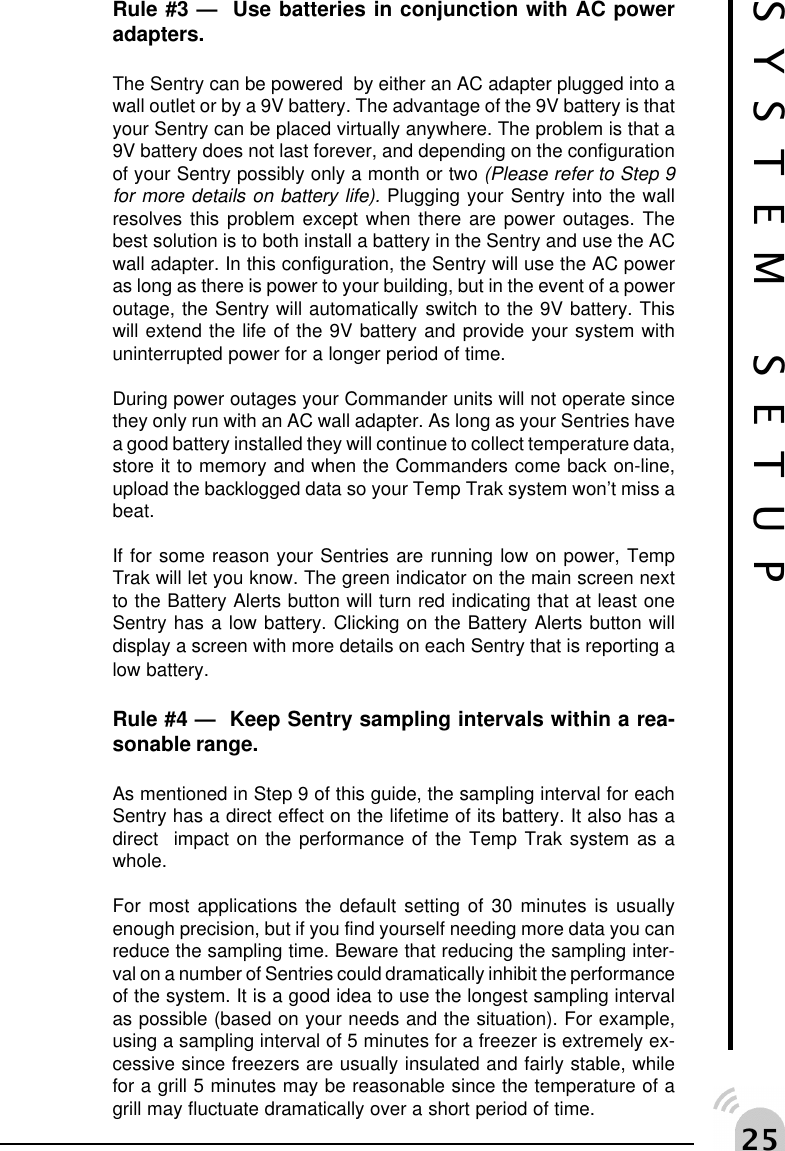
 #SYSTEM SETUPRule #3 —  Use batteries in conjunction with AC poweradapters.The Sentry can be powered  by either an AC adapter plugged into awall outlet or by a 9V battery. The advantage of the 9V battery is thatyour Sentry can be placed virtually anywhere. The problem is that a9V battery does not last forever, and depending on the configurationof your Sentry possibly only a month or two (Please refer to Step 9for more details on battery life). Plugging your Sentry into the wallresolves this problem except when there are power outages. Thebest solution is to both install a battery in the Sentry and use the ACwall adapter. In this configuration, the Sentry will use the AC poweras long as there is power to your building, but in the event of a poweroutage, the Sentry will automatically switch to the 9V battery. Thiswill extend the life of the 9V battery and provide your system withuninterrupted power for a longer period of time.During power outages your Commander units will not operate sincethey only run with an AC wall adapter. As long as your Sentries havea good battery installed they will continue to collect temperature data,store it to memory and when the Commanders come back on-line,upload the backlogged data so your Temp Trak system won’t miss abeat.If for some reason your Sentries are running low on power, TempTrak will let you know. The green indicator on the main screen nextto the Battery Alerts button will turn red indicating that at least oneSentry has a low battery. Clicking on the Battery Alerts button willdisplay a screen with more details on each Sentry that is reporting alow battery.Rule #4 —  Keep Sentry sampling intervals within a rea-sonable range.As mentioned in Step 9 of this guide, the sampling interval for eachSentry has a direct effect on the lifetime of its battery. It also has adirect  impact on the performance of the Temp Trak system as awhole.For most applications the default setting of 30 minutes is usuallyenough precision, but if you find yourself needing more data you canreduce the sampling time. Beware that reducing the sampling inter-val on a number of Sentries could dramatically inhibit the performanceof the system. It is a good idea to use the longest sampling intervalas possible (based on your needs and the situation). For example,using a sampling interval of 5 minutes for a freezer is extremely ex-cessive since freezers are usually insulated and fairly stable, whilefor a grill 5 minutes may be reasonable since the temperature of agrill may fluctuate dramatically over a short period of time.
 $USINGTEMP TRAK
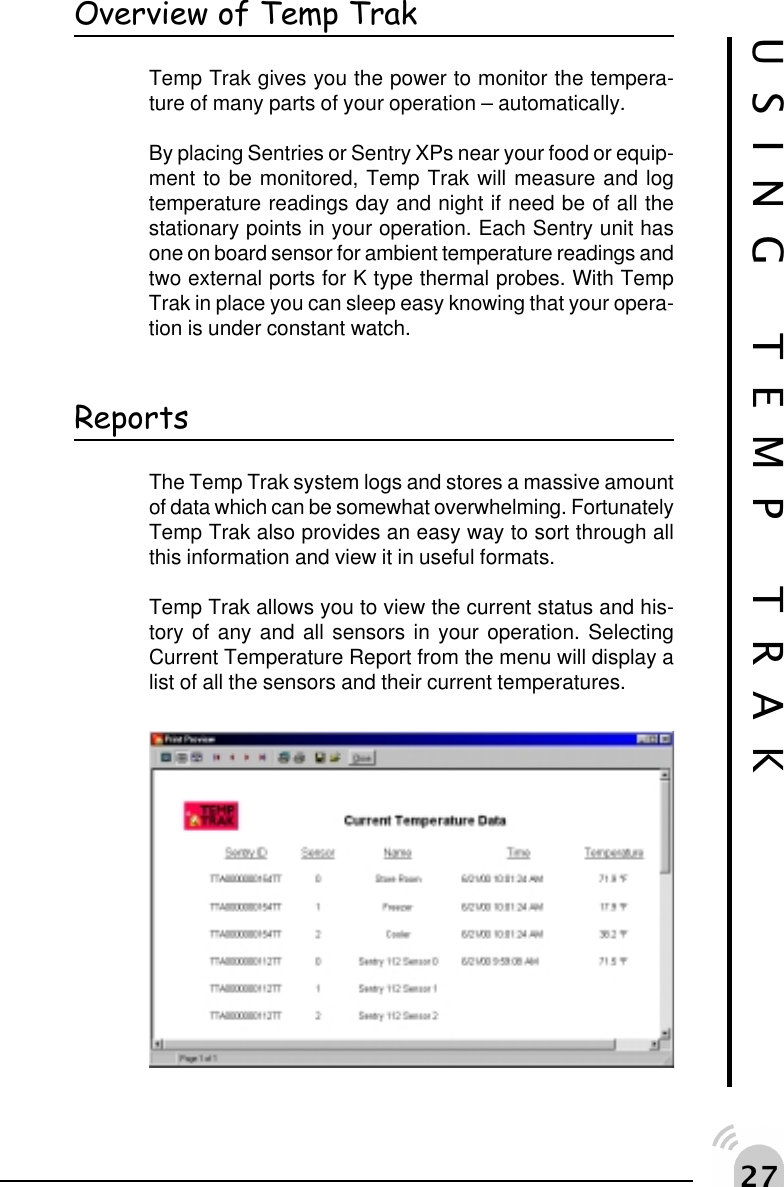
 %Overview of Temp TrakTemp Trak gives you the power to monitor the tempera-ture of many parts of your operation – automatically.By placing Sentries or Sentry XPs near your food or equip-ment to be monitored, Temp Trak will measure and logtemperature readings day and night if need be of all thestationary points in your operation. Each Sentry unit hasone on board sensor for ambient temperature readings andtwo external ports for K type thermal probes. With TempTrak in place you can sleep easy knowing that your opera-tion is under constant watch.USING TEMP TRAKReportsThe Temp Trak system logs and stores a massive amountof data which can be somewhat overwhelming. FortunatelyTemp Trak also provides an easy way to sort through allthis information and view it in useful formats.Temp Trak allows you to view the current status and his-tory of any and all sensors in your operation. SelectingCurrent Temperature Report from the menu will display alist of all the sensors and their current temperatures.
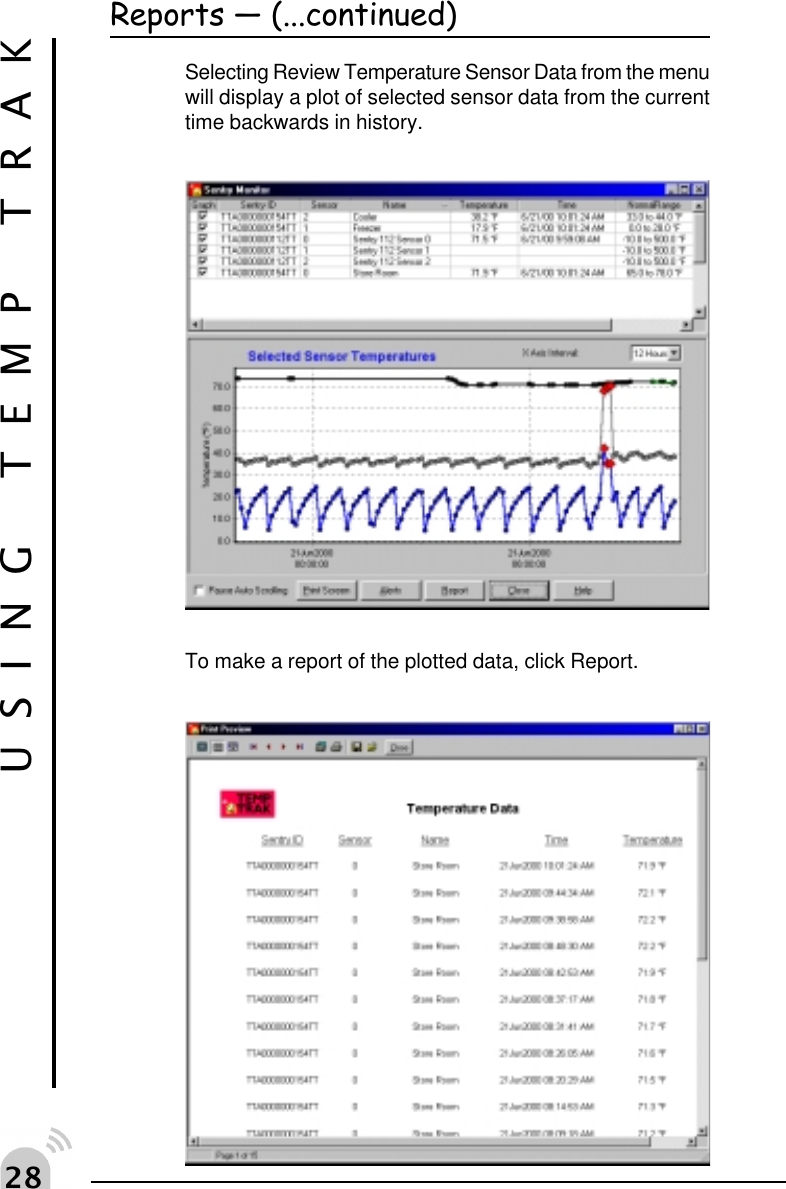
 &USING TEMP TRAKReports  (...continued)Selecting Review Temperature Sensor Data from the menuwill display a plot of selected sensor data from the currenttime backwards in history.To make a report of the plotted data, click Report.
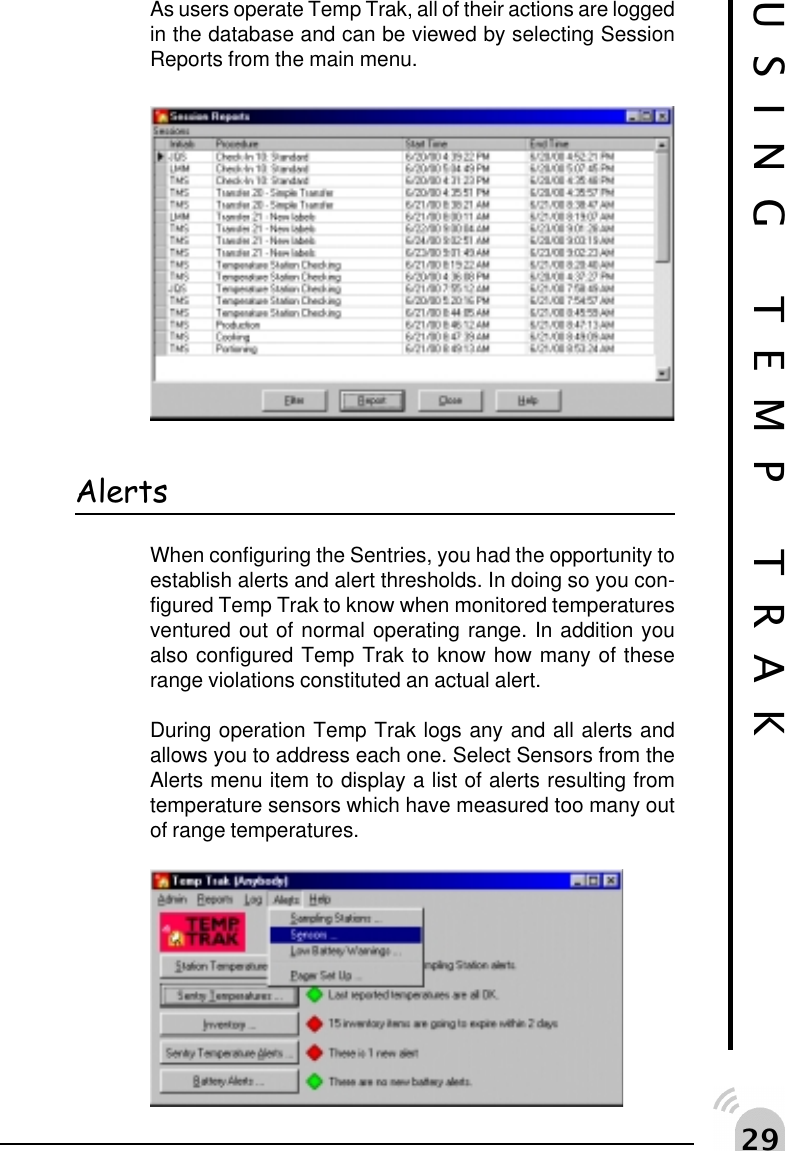
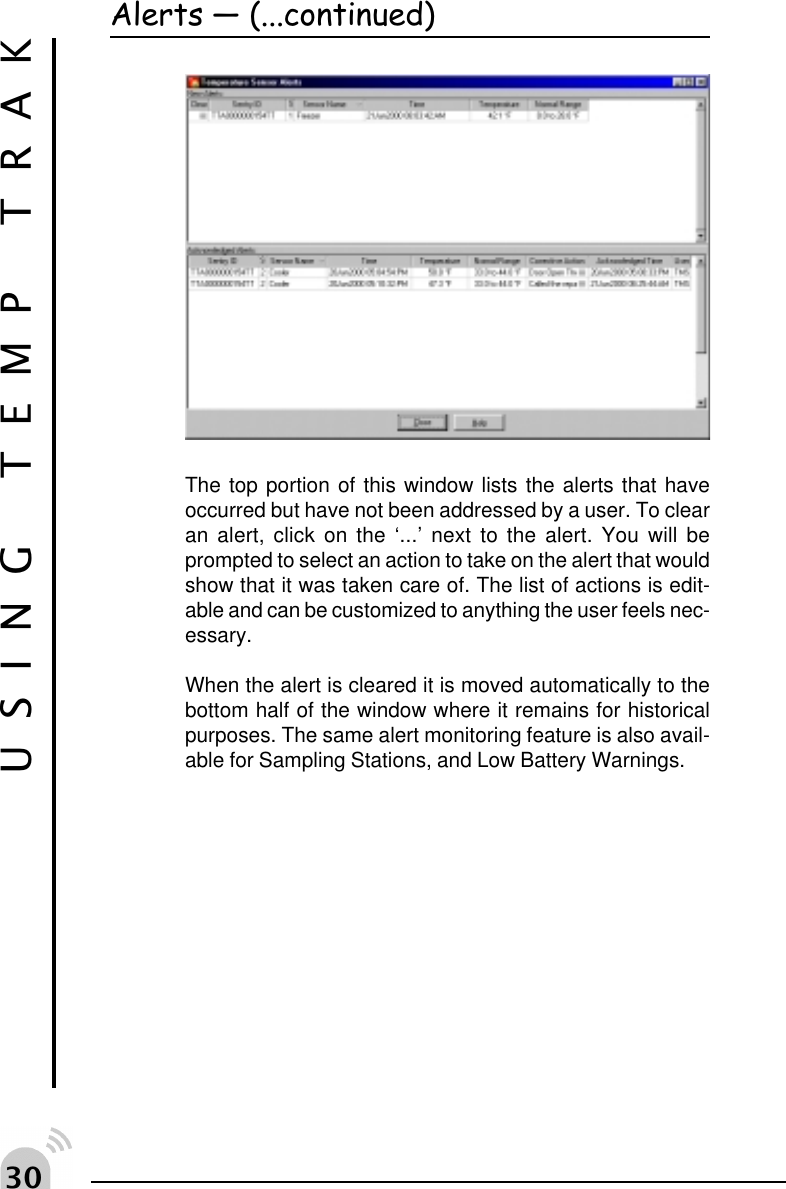
 'USING TEMP TRAKAs users operate Temp Trak, all of their actions are loggedin the database and can be viewed by selecting SessionReports from the main menu.AlertsWhen configuring the Sentries, you had the opportunity toestablish alerts and alert thresholds. In doing so you con-figured Temp Trak to know when monitored temperaturesventured out of normal operating range. In addition youalso configured Temp Trak to know how many of theserange violations constituted an actual alert.During operation Temp Trak logs any and all alerts andallows you to address each one. Select Sensors from theAlerts menu item to display a list of alerts resulting fromtemperature sensors which have measured too many outof range temperatures.
!The top portion of this window lists the alerts that haveoccurred but have not been addressed by a user. To clearan alert, click on the ‘...’ next to the alert. You will beprompted to select an action to take on the alert that wouldshow that it was taken care of. The list of actions is edit-able and can be customized to anything the user feels nec-essary.When the alert is cleared it is moved automatically to thebottom half of the window where it remains for historicalpurposes. The same alert monitoring feature is also avail-able for Sampling Stations, and Low Battery Warnings.USING TEMP TRAKAlerts  (...continued)
!USING TEMP TRAK
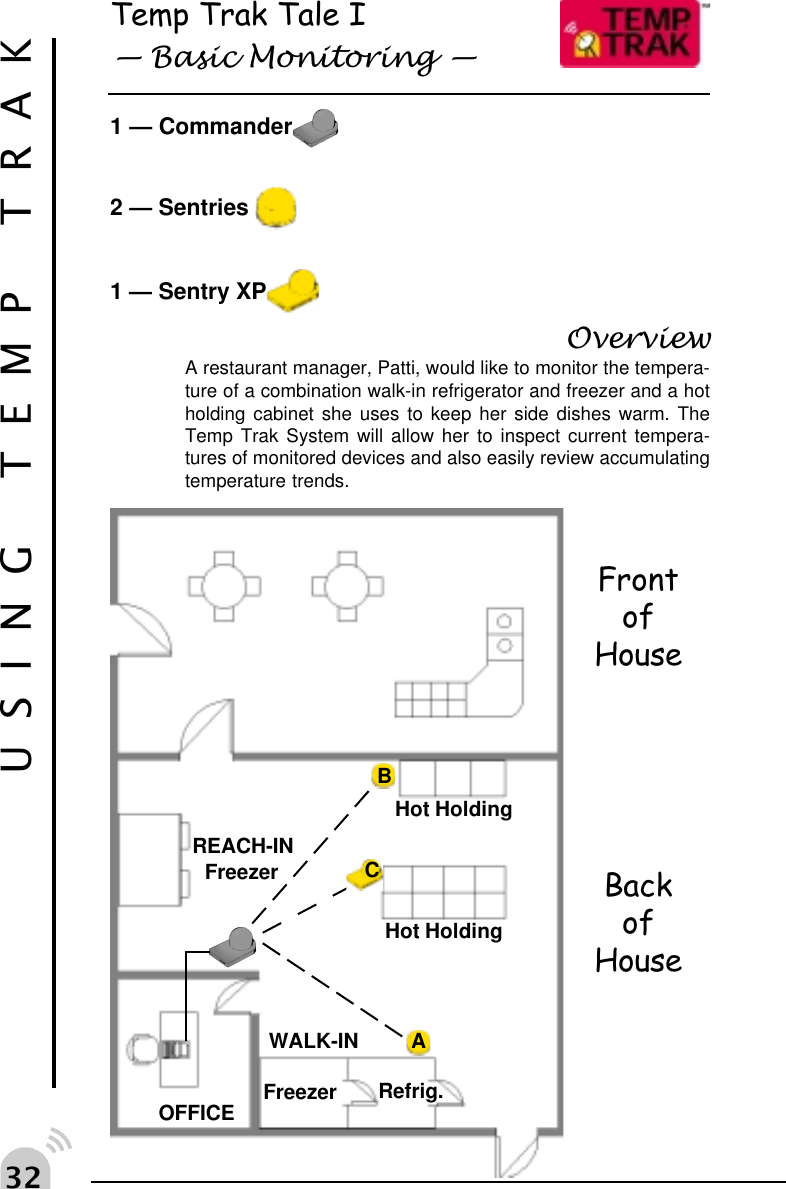
! Temp Trak Tale I Basic Monitoring 1 — Commander2 — Sentries 1 — Sentry XPOverviewA restaurant manager, Patti, would like to monitor the tempera-ture of a combination walk-in refrigerator and freezer and a hotholding cabinet she uses to keep her side dishes warm. TheTemp Trak System will allow her to inspect current tempera-tures of monitored devices and also easily review accumulatingtemperature trends.USING TEMP TRAKFrontofHouseBackofHouseABOFFICEWALK-INRefrig.REACH-INFreezerHot HoldingHot HoldingFreezerC
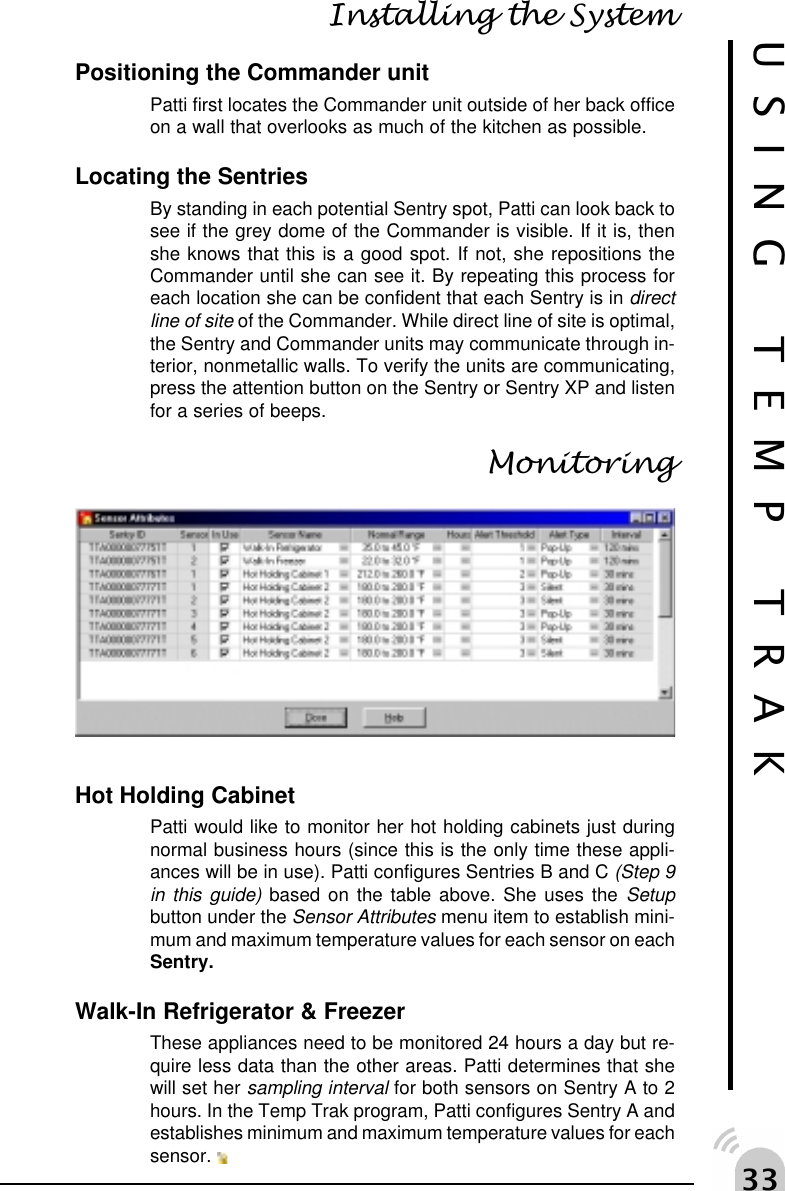
!!USING TEMP TRAKInstalling the SystemPositioning the Commander unitPatti first locates the Commander unit outside of her back officeon a wall that overlooks as much of the kitchen as possible.Locating the SentriesBy standing in each potential Sentry spot, Patti can look back tosee if the grey dome of the Commander is visible. If it is, thenshe knows that this is a good spot. If not, she repositions theCommander until she can see it. By repeating this process foreach location she can be confident that each Sentry is in directline of site of the Commander. While direct line of site is optimal,the Sentry and Commander units may communicate through in-terior, nonmetallic walls. To verify the units are communicating,press the attention button on the Sentry or Sentry XP and listenfor a series of beeps.MonitoringHot Holding CabinetPatti would like to monitor her hot holding cabinets just duringnormal business hours (since this is the only time these appli-ances will be in use). Patti configures Sentries B and C (Step 9in this guide) based on the table above. She uses the Setupbutton under the Sensor Attributes menu item to establish mini-mum and maximum temperature values for each sensor on eachSentry.Walk-In Refrigerator & FreezerThese appliances need to be monitored 24 hours a day but re-quire less data than the other areas. Patti determines that shewill set her sampling interval for both sensors on Sentry A to 2hours. In the Temp Trak program, Patti configures Sentry A andestablishes minimum and maximum temperature values for eachsensor.
!"USINGTEMP TRAK PLUS
!#Overview of Temp Trak PlusTemp Trak Plus gives you the power to track inventoryitems throughout their entire life-span. By scanning itemsas they are moved from one location to another, Temp TrakPlus can monitor each item and determine whether it hasbeen out of its normal temperature range for too long.With the Liberator Temp Trak Plus can expand your moni-toring world to include mobile points in your operation. Gooff line with the Liberator and log temperature after tem-perature without having to be in constant communicationwith a Commander. When you return from your mission,the Liberator will upload all the data you took to the nearestCommander.Operators log in to the system via the program or a Libera-tor using a user ID or PIN number. If you are setting up thesystem, assign a four digit number to each person who willbe using your system. During operation all actions andevents are logged and associated with the ID or PIN num-ber of the user currently logged into the system. Be sureeach user logs out of the system when they are done withtheir operation, otherwise actions and events will be asso-ciated with the wrong person. If you are a user and thesystem has already been setup, refer to your system ad-ministrator or manager to be assigned an ID or PIN num-ber.Tracking of the inventory usually starts when the items arereceived from shipping. Each item is entered into the sys-tem by scanning the manufacturer’s bar code with the Lib-erator. On entering the system, Temp Trak Plus will print anew bar code label to be placed on the new item. From thispoint forward, the normal manufacturer’s bar code is nolonger utilized.Once your inventory has been received and entered intothe Temp Trak Plus, use the Liberator to let the systemknow when inventory moves from one storage location toanother.USING TEMP TRAK PLUS
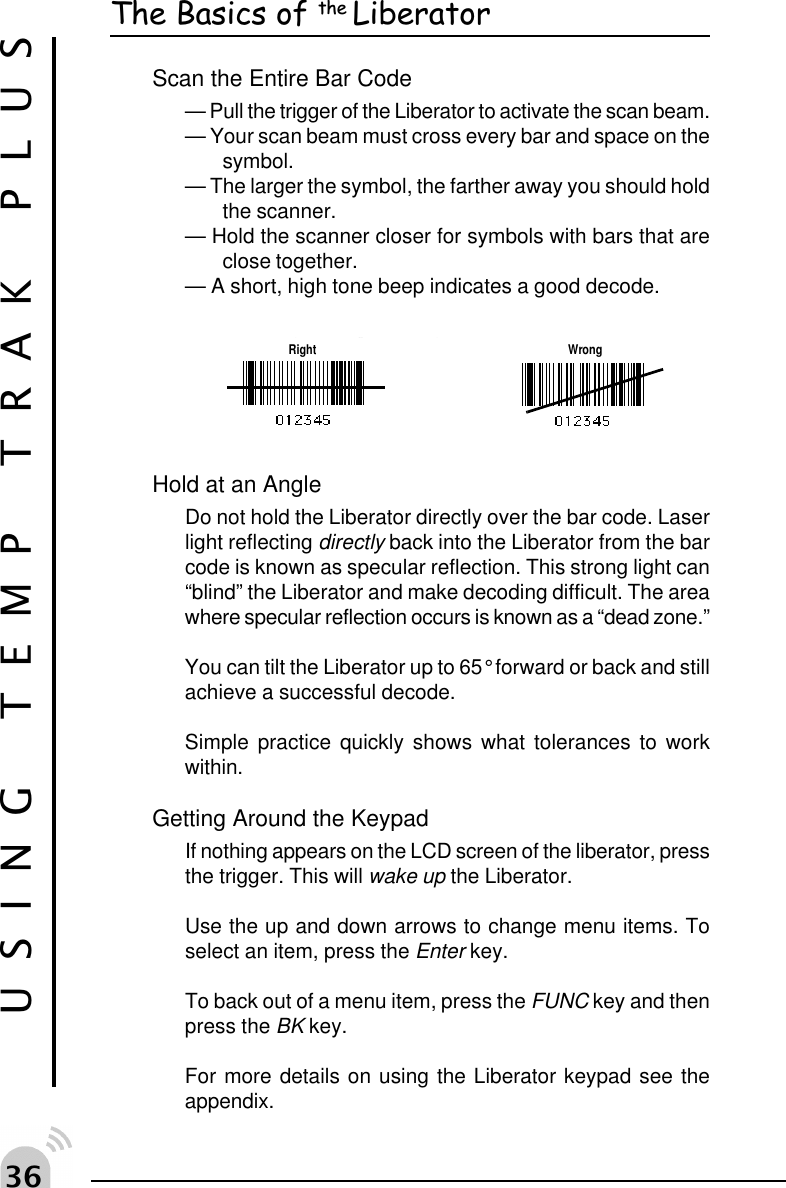
!$USING TEMP TRAK PLUSThe Basics of the LiberatorScan the Entire Bar Code— Pull the trigger of the Liberator to activate the scan beam.— Your scan beam must cross every bar and space on thesymbol.— The larger the symbol, the farther away you should holdthe scanner.— Hold the scanner closer for symbols with bars that areclose together.— A short, high tone beep indicates a good decode.gp gRight WrongHold at an AngleDo not hold the Liberator directly over the bar code. Laserlight reflecting directly back into the Liberator from the barcode is known as specular reflection. This strong light can“blind” the Liberator and make decoding difficult. The areawhere specular reflection occurs is known as a “dead zone.”You can tilt the Liberator up to 65° forward or back and stillachieve a successful decode.Simple practice quickly shows what tolerances to workwithin.Getting Around the KeypadIf nothing appears on the LCD screen of the liberator, pressthe trigger. This will wake up the Liberator.Use the up and down arrows to change menu items. Toselect an item, press the Enter key.To back out of a menu item, press the FUNC key and thenpress the BK key.For more details on using the Liberator keypad see theappendix.
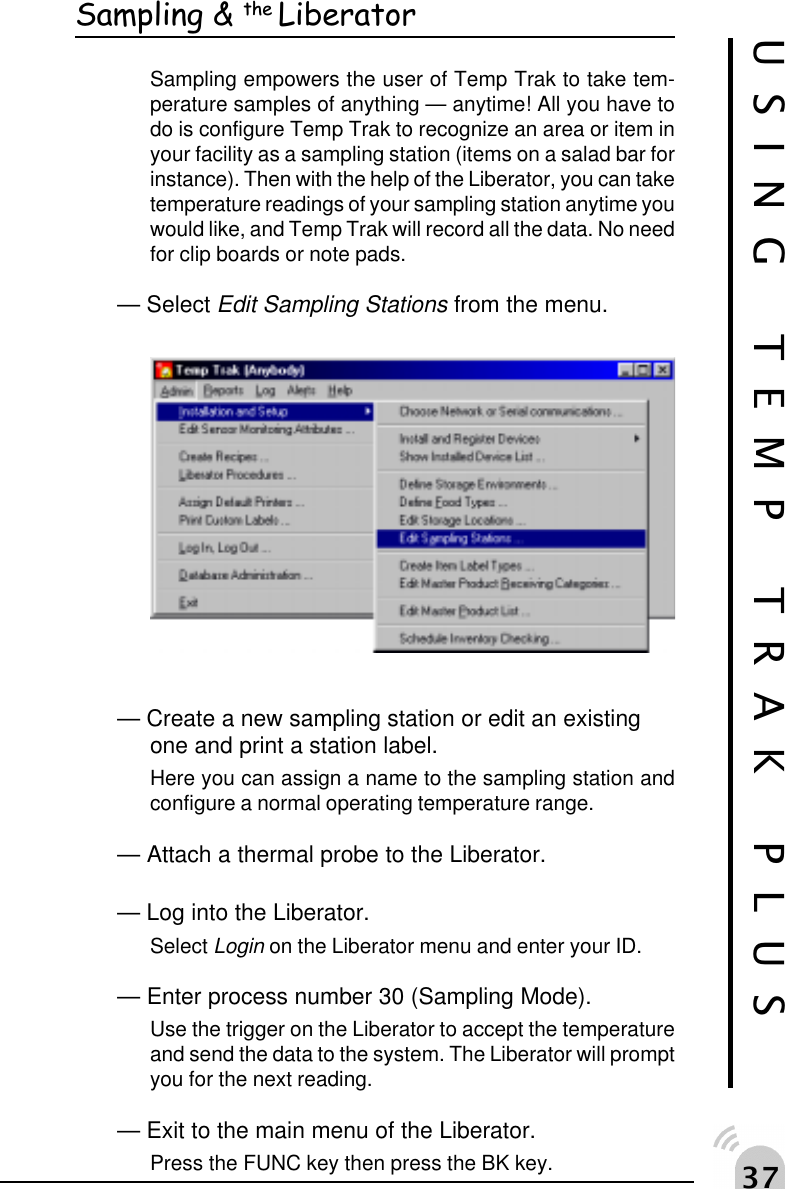
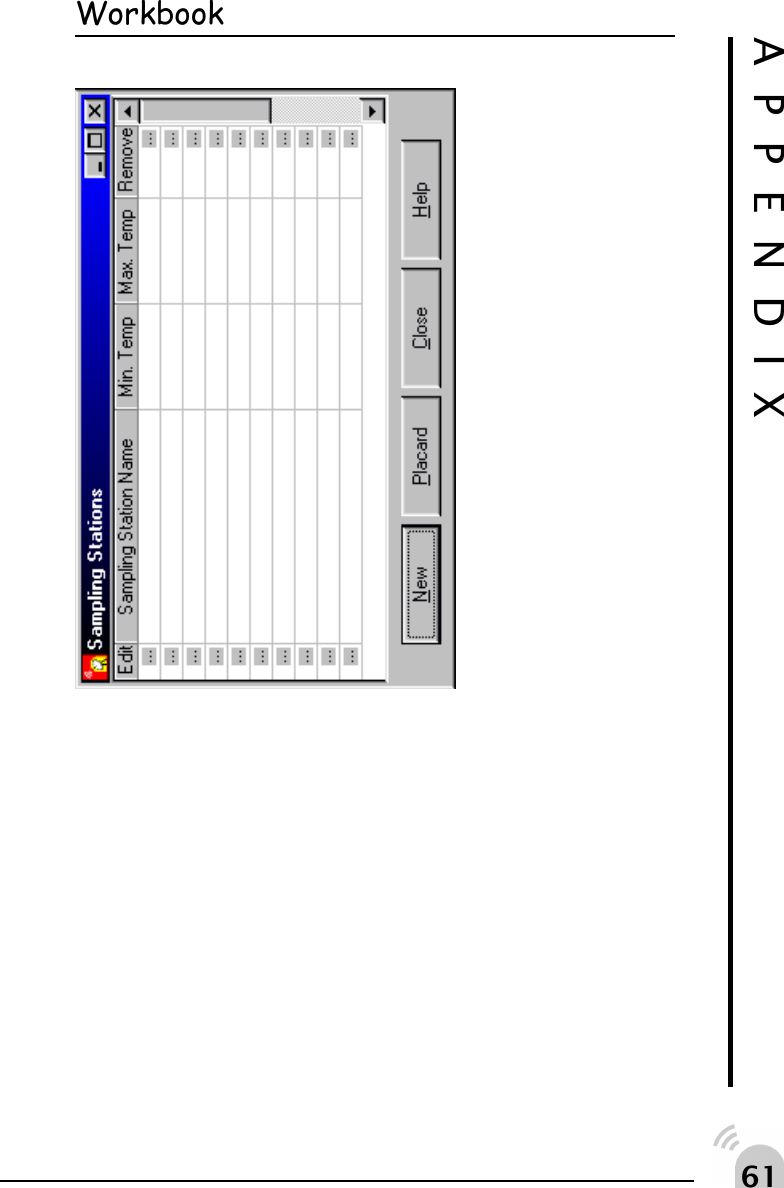
!%Sampling & the LiberatorSampling empowers the user of Temp Trak to take tem-perature samples of anything — anytime! All you have todo is configure Temp Trak to recognize an area or item inyour facility as a sampling station (items on a salad bar forinstance). Then with the help of the Liberator, you can taketemperature readings of your sampling station anytime youwould like, and Temp Trak will record all the data. No needfor clip boards or note pads.— Select Edit Sampling Stations from the menu.— Create a new sampling station or edit an existingone and print a station label.Here you can assign a name to the sampling station andconfigure a normal operating temperature range.— Attach a thermal probe to the Liberator.— Log into the Liberator.Select Login on the Liberator menu and enter your ID.— Enter process number 30 (Sampling Mode).Use the trigger on the Liberator to accept the temperatureand send the data to the system. The Liberator will promptyou for the next reading.— Exit to the main menu of the Liberator.Press the FUNC key then press the BK key.USING TEMP TRAK PLUS
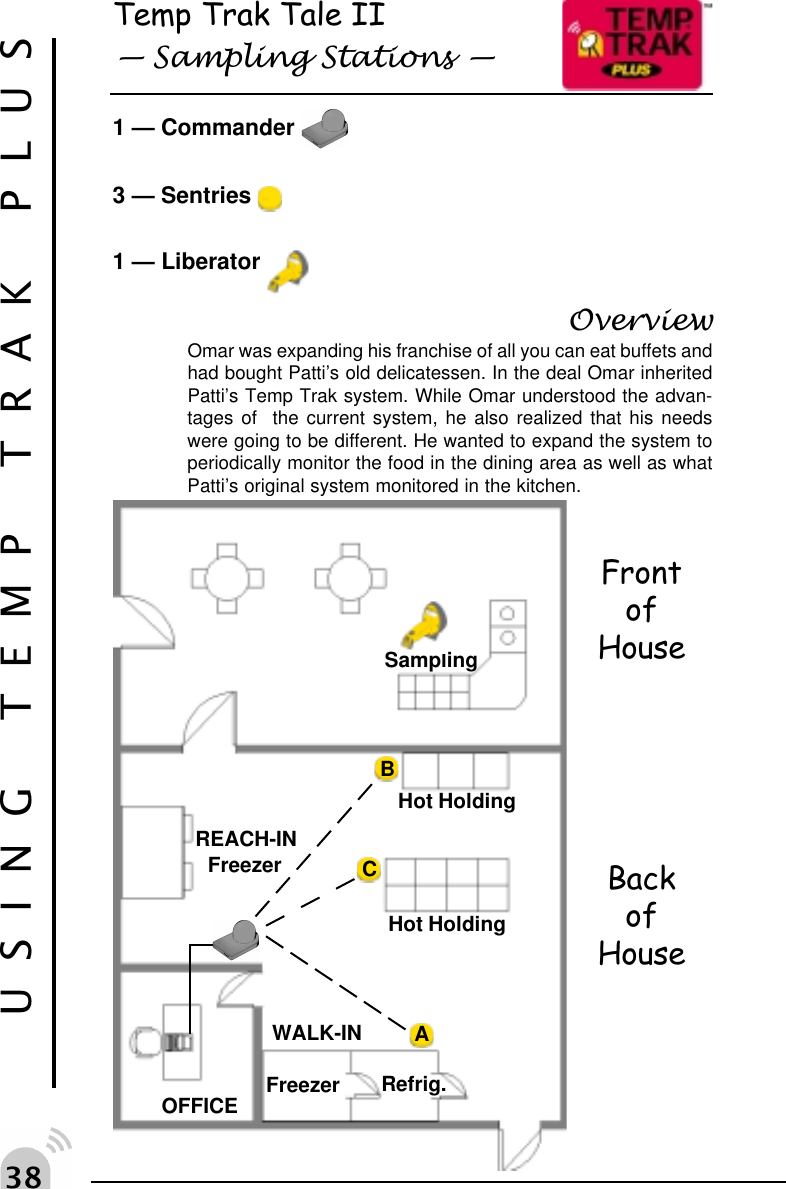
!&USING TEMP TRAK PLUSTemp Trak Tale II Sampling Stations 1 — Commander 3 — Sentries 1 — Liberator OverviewOmar was expanding his franchise of all you can eat buffets andhad bought Patti’s old delicatessen. In the deal Omar inheritedPatti’s Temp Trak system. While Omar understood the advan-tages of  the current system, he also realized that his needswere going to be different. He wanted to expand the system toperiodically monitor the food in the dining area as well as whatPatti’s original system monitored in the kitchen.FrontofHouseBackofHouseACBOFFICEWALK-INRefrig.REACH-INFreezerHot HoldingHot HoldingSamplingFreezer
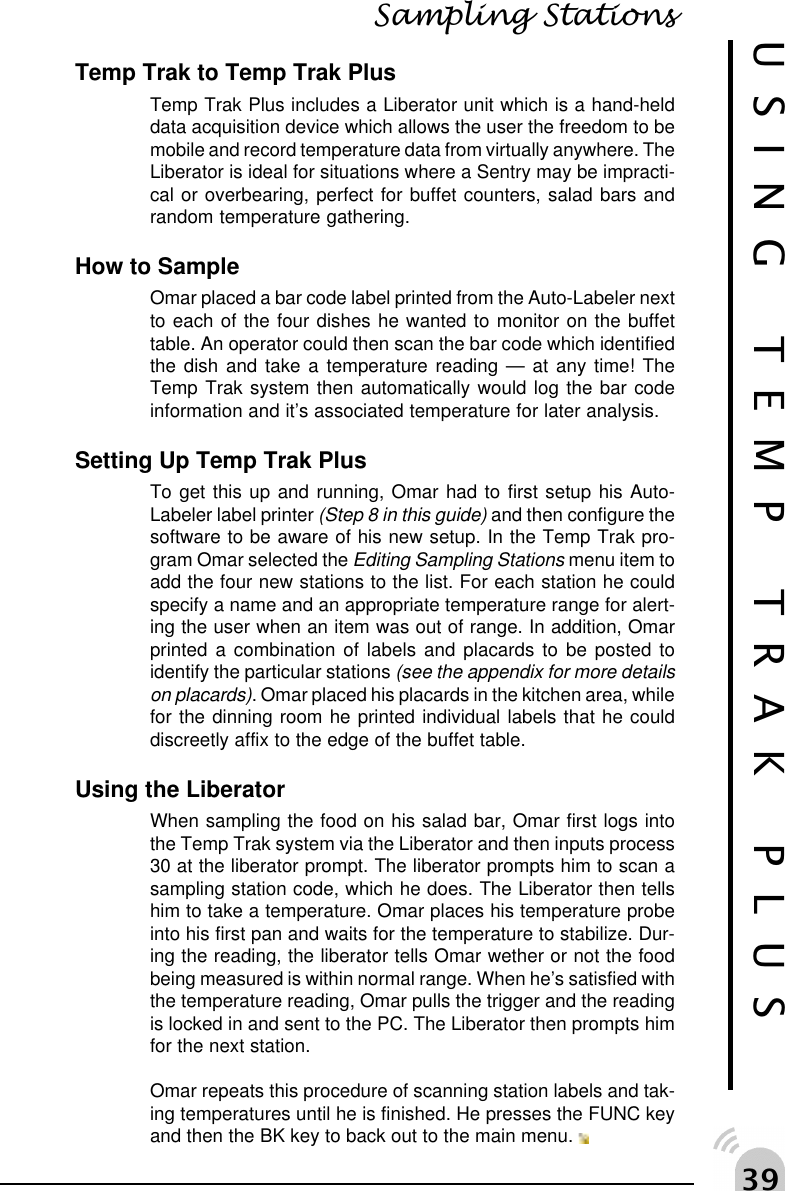
!'USING TEMP TRAK PLUSSampling StationsTemp Trak to Temp Trak PlusTemp Trak Plus includes a Liberator unit which is a hand-helddata acquisition device which allows the user the freedom to bemobile and record temperature data from virtually anywhere. TheLiberator is ideal for situations where a Sentry may be impracti-cal or overbearing, perfect for buffet counters, salad bars andrandom temperature gathering.How to SampleOmar placed a bar code label printed from the Auto-Labeler nextto each of the four dishes he wanted to monitor on the buffettable. An operator could then scan the bar code which identifiedthe dish and take a temperature reading — at any time! TheTemp Trak system then automatically would log the bar codeinformation and it’s associated temperature for later analysis.Setting Up Temp Trak PlusTo get this up and running, Omar had to first setup his Auto-Labeler label printer (Step 8 in this guide) and then configure thesoftware to be aware of his new setup. In the Temp Trak pro-gram Omar selected the Editing Sampling Stations menu item toadd the four new stations to the list. For each station he couldspecify a name and an appropriate temperature range for alert-ing the user when an item was out of range. In addition, Omarprinted a combination of labels and placards to be posted toidentify the particular stations (see the appendix for more detailson placards). Omar placed his placards in the kitchen area, whilefor the dinning room he printed individual labels that he coulddiscreetly affix to the edge of the buffet table.Using the LiberatorWhen sampling the food on his salad bar, Omar first logs intothe Temp Trak system via the Liberator and then inputs process30 at the liberator prompt. The liberator prompts him to scan asampling station code, which he does. The Liberator then tellshim to take a temperature. Omar places his temperature probeinto his first pan and waits for the temperature to stabilize. Dur-ing the reading, the liberator tells Omar wether or not the foodbeing measured is within normal range. When he’s satisfied withthe temperature reading, Omar pulls the trigger and the readingis locked in and sent to the PC. The Liberator then prompts himfor the next station.Omar repeats this procedure of scanning station labels and tak-ing temperatures until he is finished. He presses the FUNC keyand then the BK key to back out to the main menu.
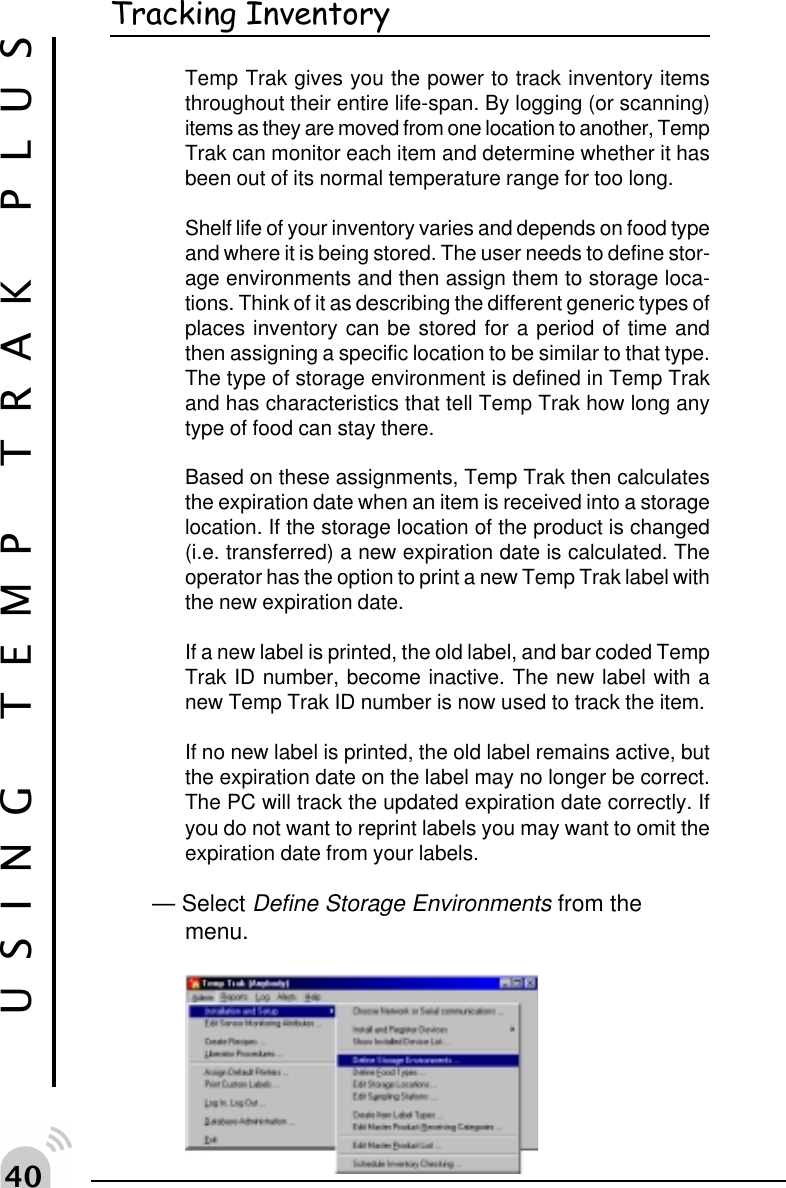
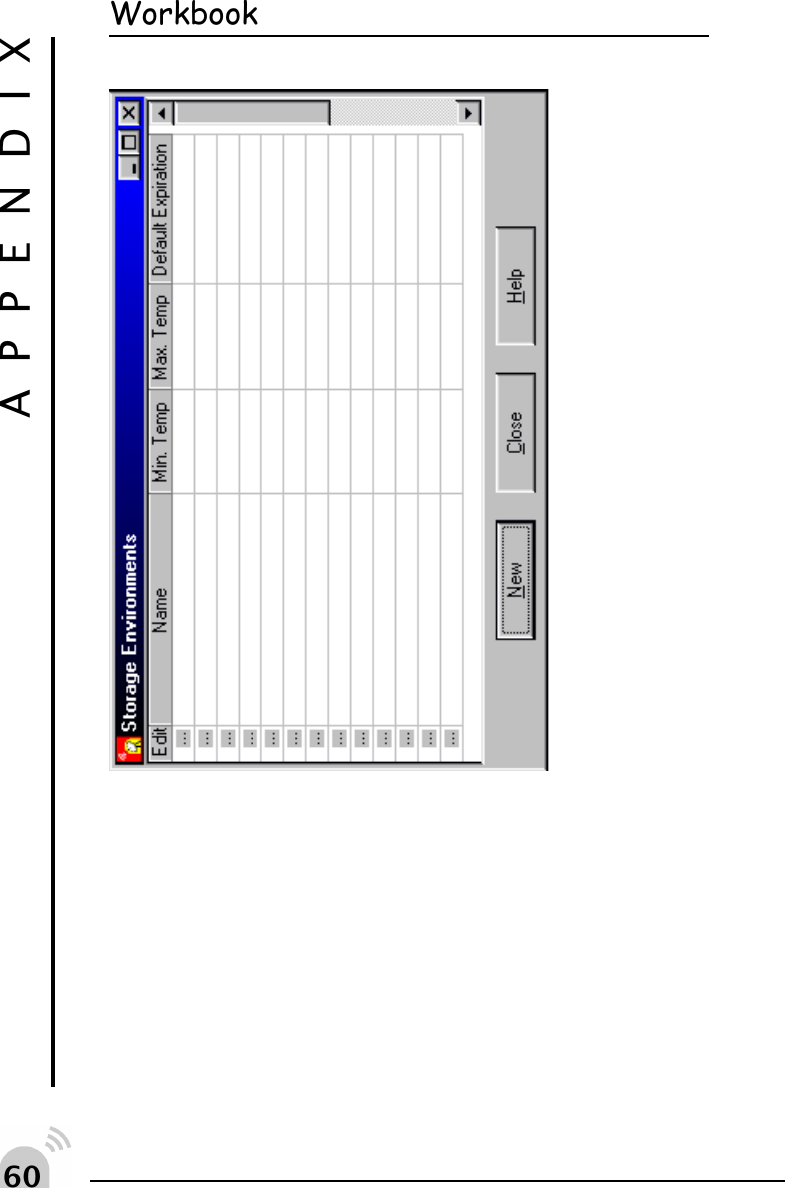
"USING TEMP TRAK PLUSTracking InventoryTemp Trak gives you the power to track inventory itemsthroughout their entire life-span. By logging (or scanning)items as they are moved from one location to another, TempTrak can monitor each item and determine whether it hasbeen out of its normal temperature range for too long.Shelf life of your inventory varies and depends on food typeand where it is being stored. The user needs to define stor-age environments and then assign them to storage loca-tions. Think of it as describing the different generic types ofplaces inventory can be stored for a period of time andthen assigning a specific location to be similar to that type.The type of storage environment is defined in Temp Trakand has characteristics that tell Temp Trak how long anytype of food can stay there.Based on these assignments, Temp Trak then calculatesthe expiration date when an item is received into a storagelocation. If the storage location of the product is changed(i.e. transferred) a new expiration date is calculated. Theoperator has the option to print a new Temp Trak label withthe new expiration date.If a new label is printed, the old label, and bar coded TempTrak ID number, become inactive. The new label with anew Temp Trak ID number is now used to track the item.If no new label is printed, the old label remains active, butthe expiration date on the label may no longer be correct.The PC will track the updated expiration date correctly. Ifyou do not want to reprint labels you may want to omit theexpiration date from your labels.— Select Define Storage Environments from themenu.
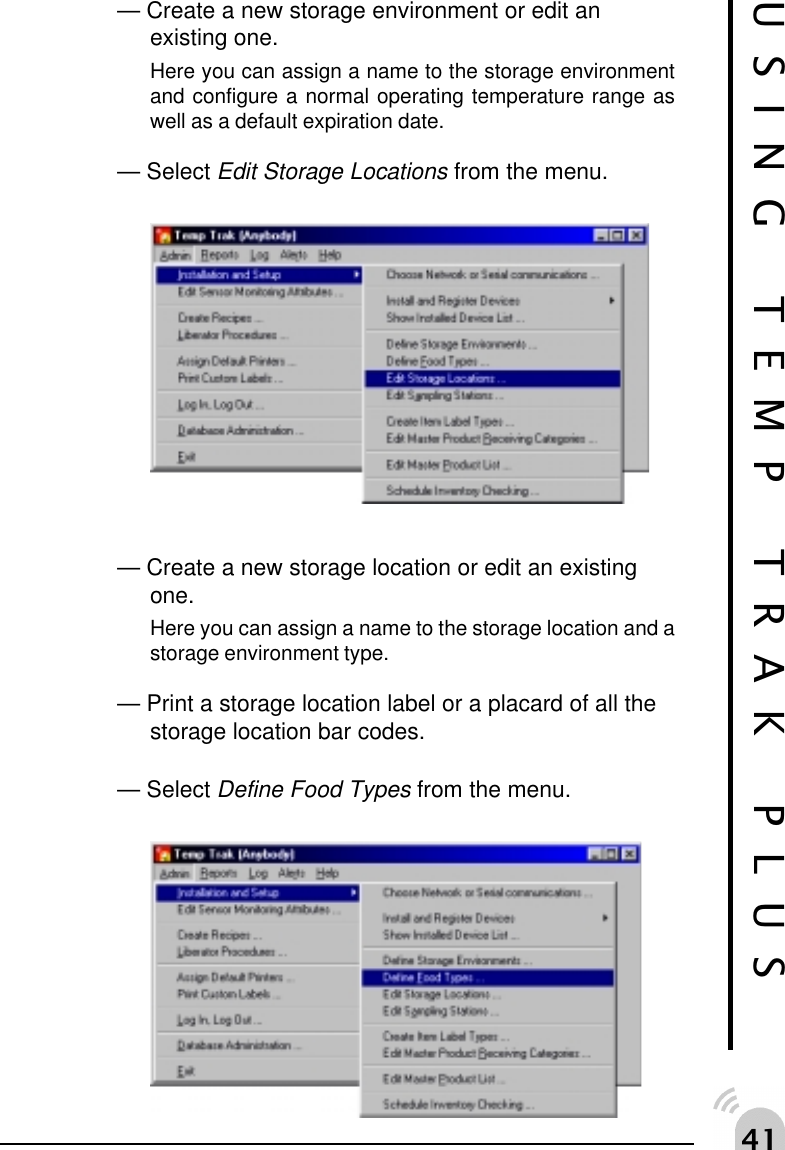
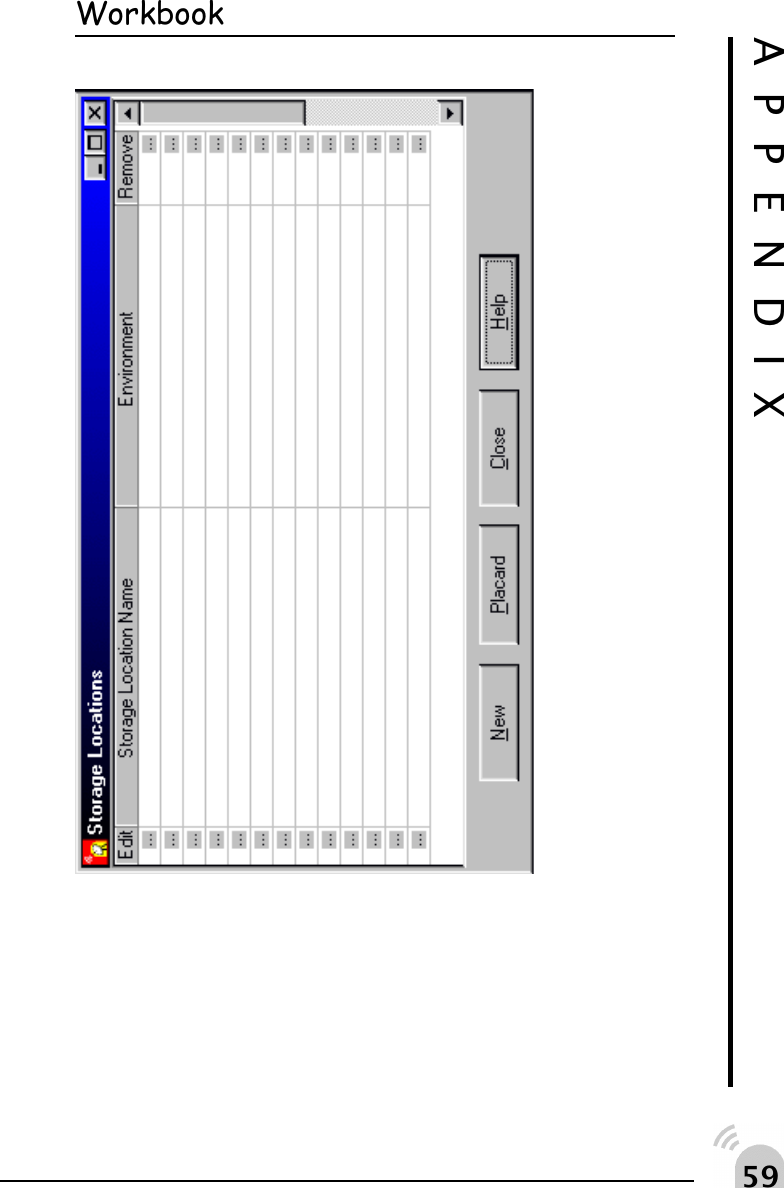
"USING TEMP TRAK PLUS— Create a new storage environment or edit anexisting one.Here you can assign a name to the storage environmentand configure a normal operating temperature range aswell as a default expiration date.— Select Edit Storage Locations from the menu.— Create a new storage location or edit an existingone.Here you can assign a name to the storage location and astorage environment type.— Print a storage location label or a placard of all thestorage location bar codes.— Select Define Food Types from the menu.
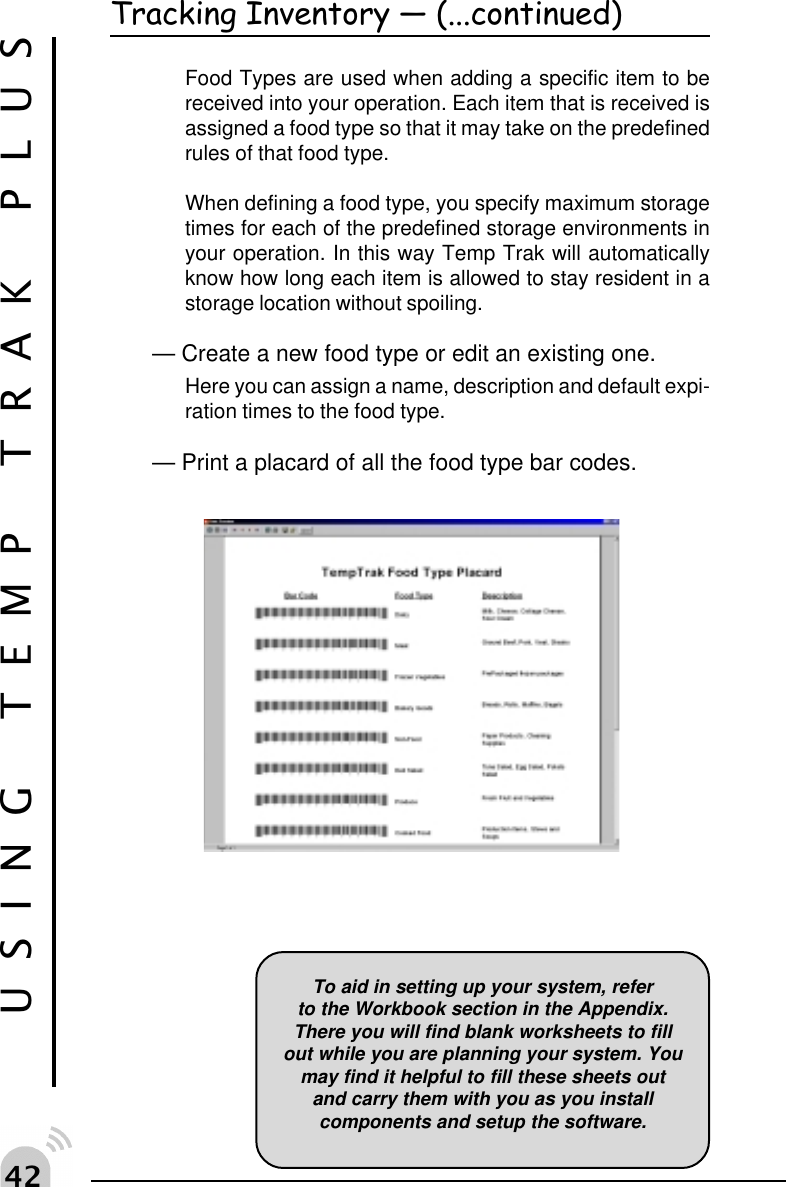
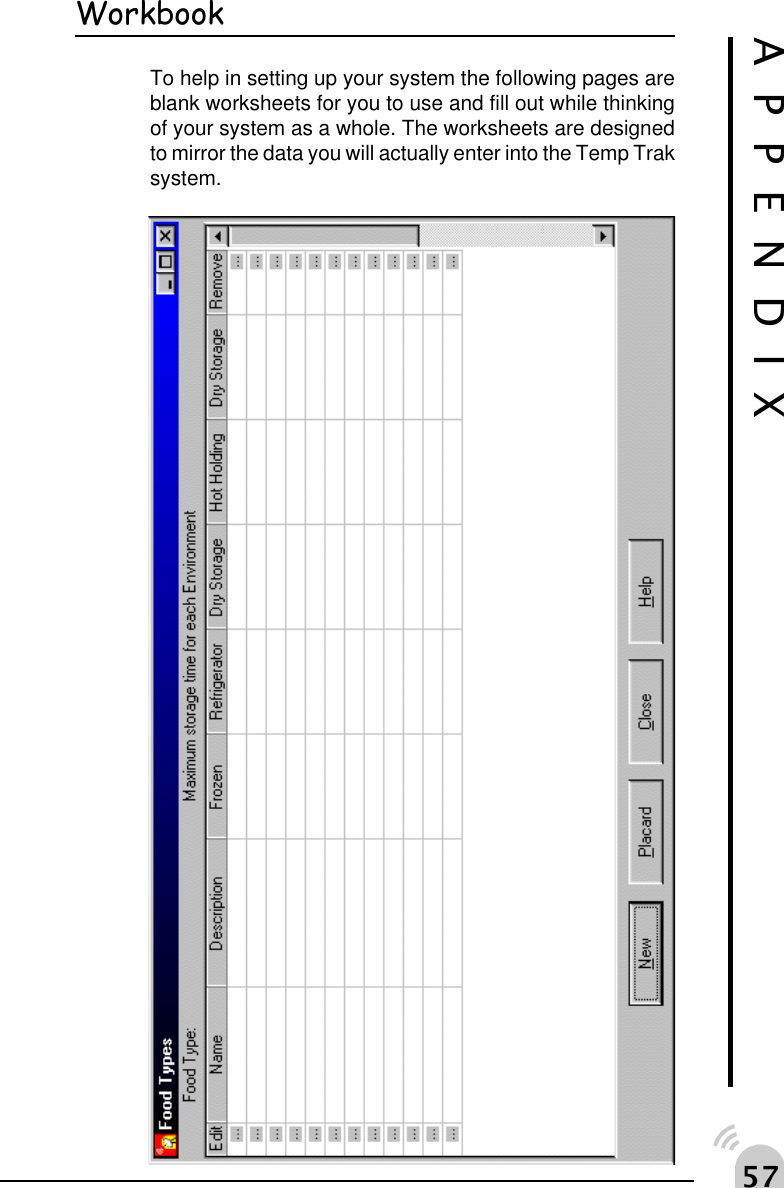
" USING TEMP TRAK PLUSTracking Inventory  (...continued)Food Types are used when adding a specific item to bereceived into your operation. Each item that is received isassigned a food type so that it may take on the predefinedrules of that food type.When defining a food type, you specify maximum storagetimes for each of the predefined storage environments inyour operation. In this way Temp Trak will automaticallyknow how long each item is allowed to stay resident in astorage location without spoiling.— Create a new food type or edit an existing one.Here you can assign a name, description and default expi-ration times to the food type.— Print a placard of all the food type bar codes.To aid in setting up your system, referto the Workbook section in the Appendix.There you will find blank worksheets to fillout while you are planning your system. Youmay find it helpful to fill these sheets outand carry them with you as you installcomponents and setup the software.
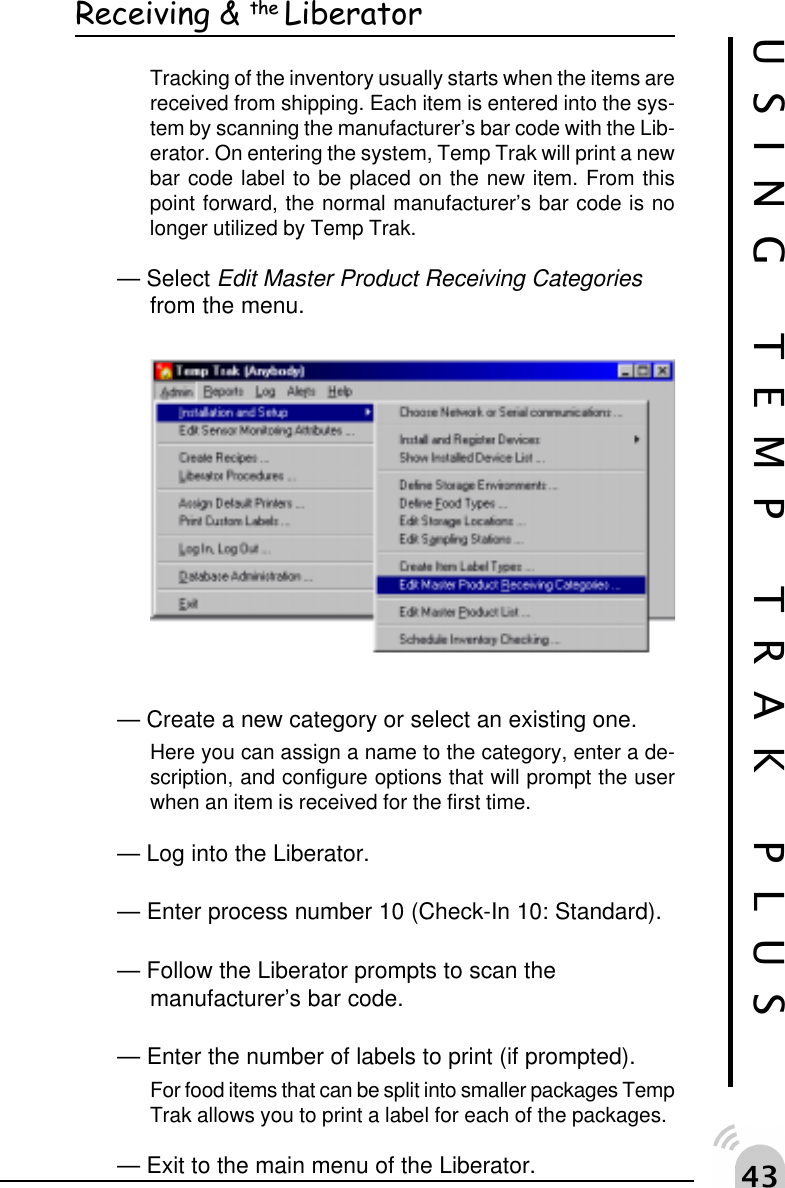
"!Receiving & the LiberatorTracking of the inventory usually starts when the items arereceived from shipping. Each item is entered into the sys-tem by scanning the manufacturer’s bar code with the Lib-erator. On entering the system, Temp Trak will print a newbar code label to be placed on the new item. From thispoint forward, the normal manufacturer’s bar code is nolonger utilized by Temp Trak.— Select Edit Master Product Receiving Categoriesfrom the menu.— Create a new category or select an existing one.Here you can assign a name to the category, enter a de-scription, and configure options that will prompt the userwhen an item is received for the first time.— Log into the Liberator.— Enter process number 10 (Check-In 10: Standard).— Follow the Liberator prompts to scan themanufacturer’s bar code.— Enter the number of labels to print (if prompted).For food items that can be split into smaller packages TempTrak allows you to print a label for each of the packages.— Exit to the main menu of the Liberator.USING TEMP TRAK PLUS
""USING TEMP TRAK PLUSTransferring & the LiberatorOnce your inventory has been received and entered intothe Temp Trak system, use the Liberator to let Temp Trakknow when inventory moves from one storage location toanother.— Log into the Liberator.— Enter process number 20 (Transfer 20 - SimpleTransfer).— Follow the Liberator prompts to the scan the newstorage location from the storage location placard.— Scan the Temp Trak labels of all the item beingtransferred to the new storage location.— Exit to the main menu of the Liberator.Process #20 is a predefined procedure which does notspecify that a new label is to be printed each time a prod-uct is moved from one storage location to another. If youwould like to have a new label printed each time use pre-defined procedure #21 (Transfer 21 - New Labels).Liberator  Stand Alone ModeDuring normal operation the Liberator is in constant com-munication with the Temp Trak system. This requires theoperator to be range of a Commander or Echo Unit. If thisis not possible you can switch the Liberator into stand alonemode. In this mode of operation the Liberator will promptthe user to scan a Temp Trak bar code and take a tem-perature reading. This will repeat as long as desired. Whenthe operator returns to within communication range of theTemp Trak system, the user can select “Upload” to uploadall of the Liberator’s archived data.
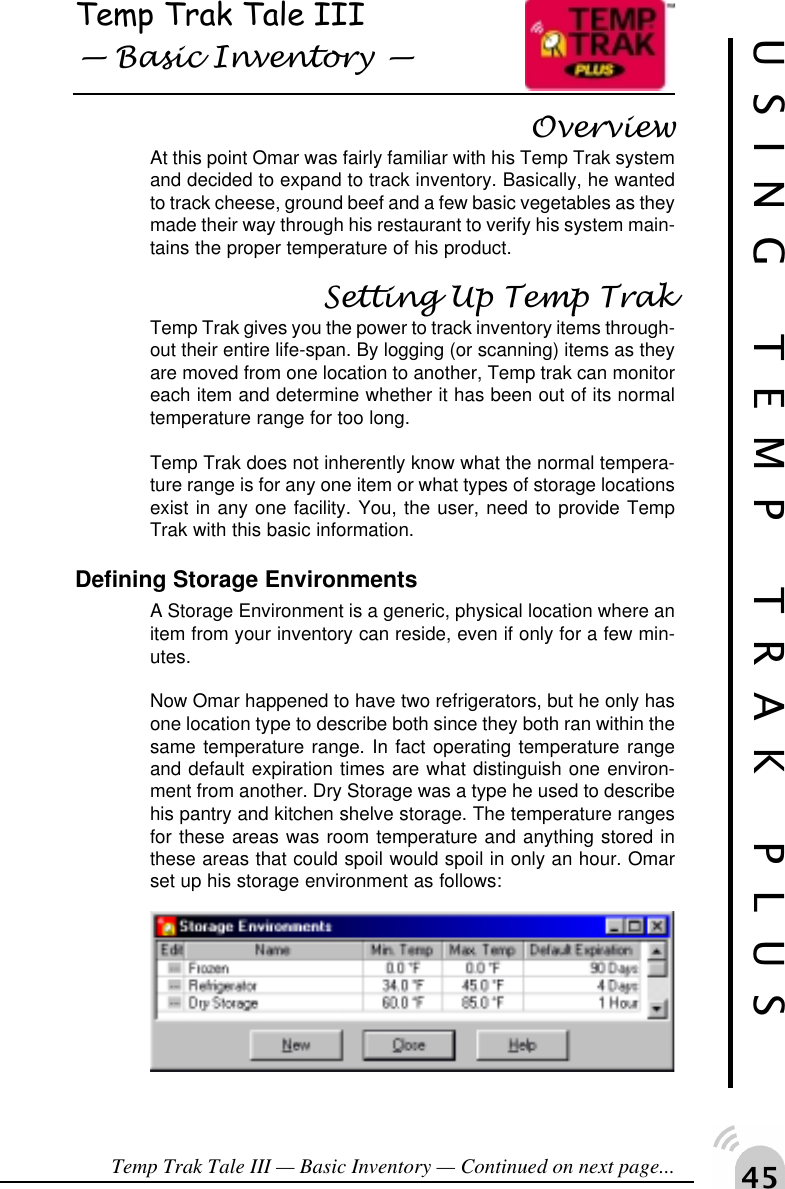
"#Temp Trak Tale III Basic Inventory OverviewAt this point Omar was fairly familiar with his Temp Trak systemand decided to expand to track inventory. Basically, he wantedto track cheese, ground beef and a few basic vegetables as theymade their way through his restaurant to verify his system main-tains the proper temperature of his product.Setting Up Temp TrakTemp Trak gives you the power to track inventory items through-out their entire life-span. By logging (or scanning) items as theyare moved from one location to another, Temp trak can monitoreach item and determine whether it has been out of its normaltemperature range for too long.Temp Trak does not inherently know what the normal tempera-ture range is for any one item or what types of storage locationsexist in any one facility. You, the user, need to provide TempTrak with this basic information.Defining Storage EnvironmentsA Storage Environment is a generic, physical location where anitem from your inventory can reside, even if only for a few min-utes.Now Omar happened to have two refrigerators, but he only hasone location type to describe both since they both ran within thesame temperature range. In fact operating temperature rangeand default expiration times are what distinguish one environ-ment from another. Dry Storage was a type he used to describehis pantry and kitchen shelve storage. The temperature rangesfor these areas was room temperature and anything stored inthese areas that could spoil would spoil in only an hour. Omarset up his storage environment as follows:Temp Trak Tale III — Basic Inventory — Continued on next page...USING TEMP TRAK PLUS
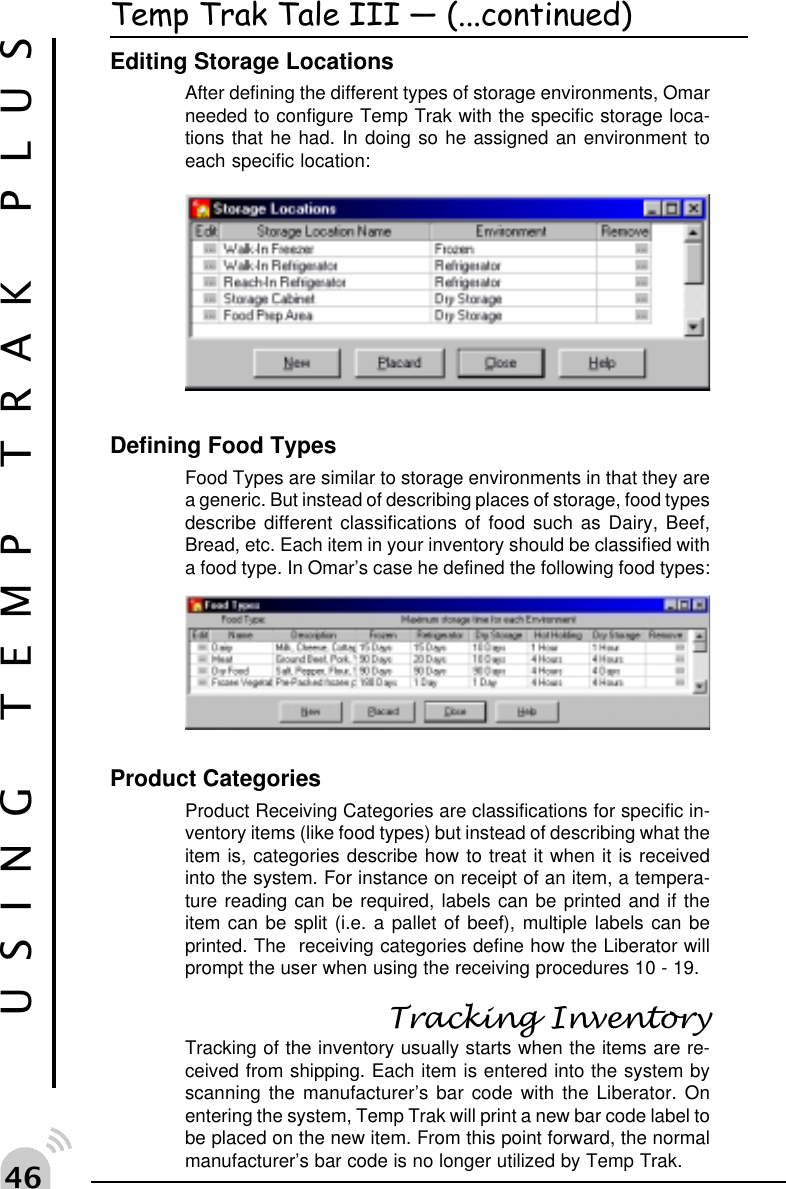
"$USING TEMP TRAK PLUSTemp Trak Tale III  (...continued)Editing Storage LocationsAfter defining the different types of storage environments, Omarneeded to configure Temp Trak with the specific storage loca-tions that he had. In doing so he assigned an environment toeach specific location:Defining Food TypesFood Types are similar to storage environments in that they area generic. But instead of describing places of storage, food typesdescribe different classifications of food such as Dairy, Beef,Bread, etc. Each item in your inventory should be classified witha food type. In Omar’s case he defined the following food types:Product CategoriesProduct Receiving Categories are classifications for specific in-ventory items (like food types) but instead of describing what theitem is, categories describe how to treat it when it is receivedinto the system. For instance on receipt of an item, a tempera-ture reading can be required, labels can be printed and if theitem can be split (i.e. a pallet of beef), multiple labels can beprinted. The  receiving categories define how the Liberator willprompt the user when using the receiving procedures 10 - 19.Tracking InventoryTracking of the inventory usually starts when the items are re-ceived from shipping. Each item is entered into the system byscanning the manufacturer’s bar code with the Liberator. Onentering the system, Temp Trak will print a new bar code label tobe placed on the new item. From this point forward, the normalmanufacturer’s bar code is no longer utilized by Temp Trak.
"%USING TEMP TRAK PLUSReceiving InventoryAt the receiving dock, Omar’s number one employee, Mary standsamong the new shipment of boxes. With her Liberator in hand,she logs into the Temp Trak system and begins her receivingprocedure #10.She scans the bar code on her placard that reads Walk-InFreezer. Looking around, Mary finds all the boxes destined forthe freezer and starts to scan. For each box she scans a label isprinted on her Auto—Labeler printer. Mary affixes this new TempTrak label on the box she has just scanned and places the boxon her cart.When she scans the box labeled frozen peas, the Liberatorprompts her to enter a number of labels to be printed.  She real-izes that in this box there is a dozen bags of frozen peas. Eachone of these bags is to be tracked individually, so she enters 12and the Auto–Labeler hums away. She affixes one label  on eachbag and replaces them in their original box for easy storage.Scanning the box of hamburger patties initiates a required tem-perature reading. Mary uses the temperature probe on the Lib-erator and takes 3 readings, since this is what Omar had config-ured Temp Trak to require for all boxes containing hamburgermeat. Once Mary completes the receiving procedure for all newboxes of food, she logs out of Temp Trak and stores everythingin their appropriate areas.Transferring InventoryMary’s friend, Evan works as a cook at Omar’s all you can eatbuffet. In the morning Evan’s job is to prepare the kitchen for theafternoon lunch.One of his first duties is to move some of the hamburger meatfrom the walk-in freezer to the walk-in refrigerator to thaw. Evanpicks up the Liberator and logs in using the ID code that wasassigned to him. He enters item transfer procedure #20 into theLiberator to enter the transfer mode. The predefined transferprocedure will guide Evan through moving the meat from onestorage location to another.Evan is prompted to scan the new location from the placard Omarhas posted next to the walk-in freezer and walk-in refrigerator.Evan scans the bar code next to Walk-In Refrigerator, since thisis where the meat is destined. The Liberator then prompts him toscan the Temp Trak label of each item he is going to transfer tothe refrigerator.When Evan is finished, he logs out of the system and returns theLiberator secure in the knowledge that Temp Trak is on the job.
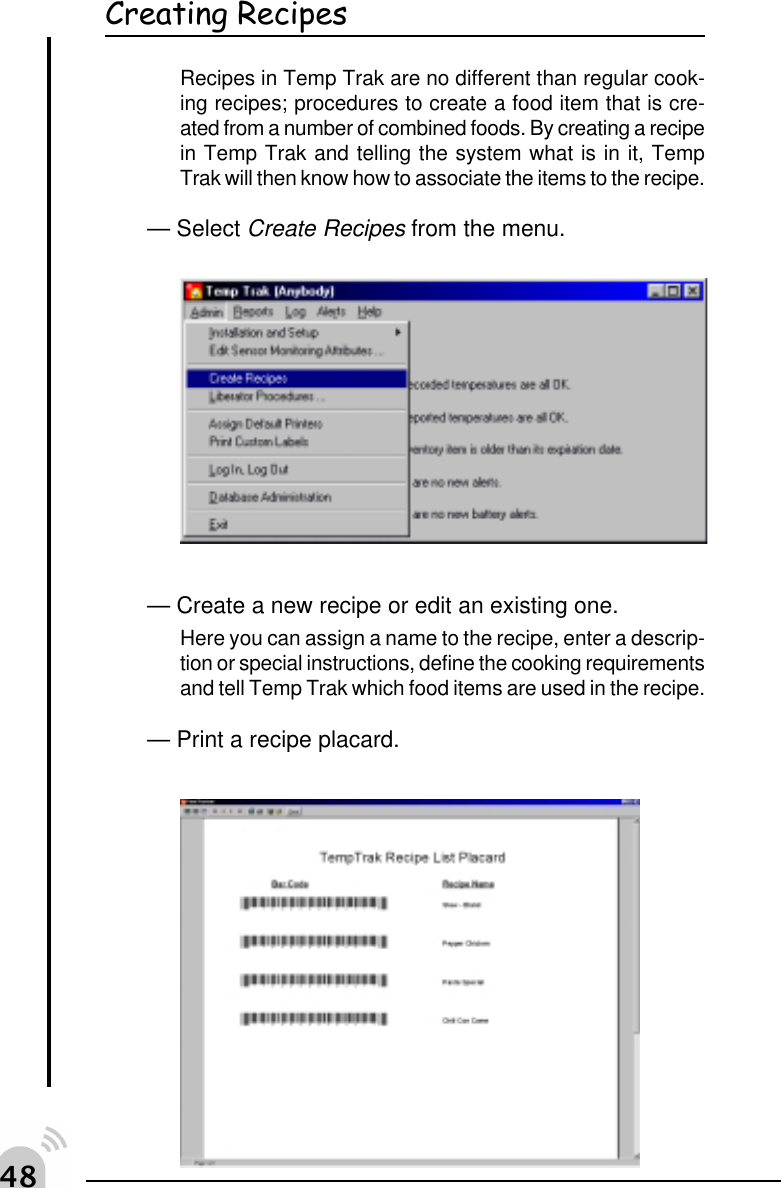
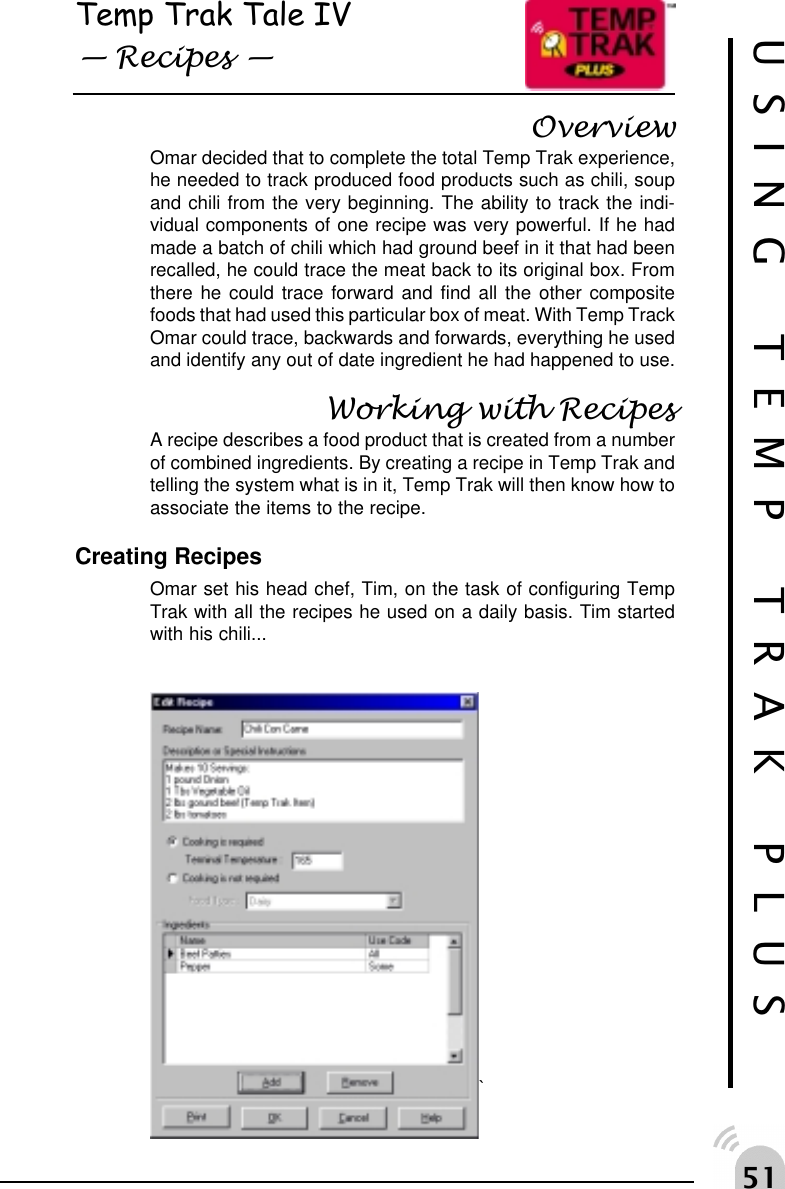
"&Creating RecipesRecipes in Temp Trak are no different than regular cook-ing recipes; procedures to create a food item that is cre-ated from a number of combined foods. By creating a recipein Temp Trak and telling the system what is in it, TempTrak will then know how to associate the items to the recipe.— Select Create Recipes from the menu.— Create a new recipe or edit an existing one.Here you can assign a name to the recipe, enter a descrip-tion or special instructions, define the cooking requirementsand tell Temp Trak which food items are used in the recipe.— Print a recipe placard.
"'Producing A Recipe— Log into the Liberator.— Enter process number 40 (Production Procedure).— Follow the Liberator prompts to scan the recipe barcode and all the ingredients from the recipe plac-ard.— Scan the Last Ingredient bar code after scanningthe last ingredient’s bar code.— Print the production label.— Exit to the main menu of the Liberator.Cooking A Recipe— Log into the Liberator.— Enter process number 50 (Cooking Procedure).— Follow the Liberator prompts to scan the productionbar code and take a temperature reading.— Validate the terminal temperature reading.If the temperature has reached the terminal temperature ofthe recipe the Liberator will display OK, otherwise it willdisplay REJ. Each time a temperature reading is made, itis logged into the system and recorded.— Exit to the main menu of the Liberator.
#USING TEMP TRAK PLUSPortioning A RecipeAfter producing and cooking a recipe (chili for example)you may want to divide the initial batch into smaller por-tions and store away in a refrigerator for later use. TempTrak Plus allows you to do this and continue tracking eachof the portions separately.— Log into the Liberator.— Enter process number 60 (Portioning Procedure).— Follow the Liberator prompts to scan the productionbar code and the bar code of the storage locationwhere each of the smaller portions will be stored.— Enter number of labels to print (one per container).— Exit to the main menu of the Liberator.Spoilage & Consume ProceduresTo declare an item spoiled or consumed and ultimately re-move it from the Temp Trak system, use procedures 90and 91.— Log into the Liberator.— Enter process number 90 (Spoilage Procedure) orEnter process number 91 (Consume Procedure).— Scan the production bar code of the item to bedeclared spoiled or consumed.— Exit to the main menu of the Liberator.
#USING TEMP TRAK PLUSTemp Trak Tale IV Recipes OverviewOmar decided that to complete the total Temp Trak experience,he needed to track produced food products such as chili, soupand chili from the very beginning. The ability to track the indi-vidual components of one recipe was very powerful. If he hadmade a batch of chili which had ground beef in it that had beenrecalled, he could trace the meat back to its original box. Fromthere he could trace forward and find all the other compositefoods that had used this particular box of meat. With Temp TrackOmar could trace, backwards and forwards, everything he usedand identify any out of date ingredient he had happened to use.Working with RecipesA recipe describes a food product that is created from a numberof combined ingredients. By creating a recipe in Temp Trak andtelling the system what is in it, Temp Trak will then know how toassociate the items to the recipe.Creating RecipesOmar set his head chef, Tim, on the task of configuring TempTrak with all the recipes he used on a daily basis. Tim startedwith his chili...`
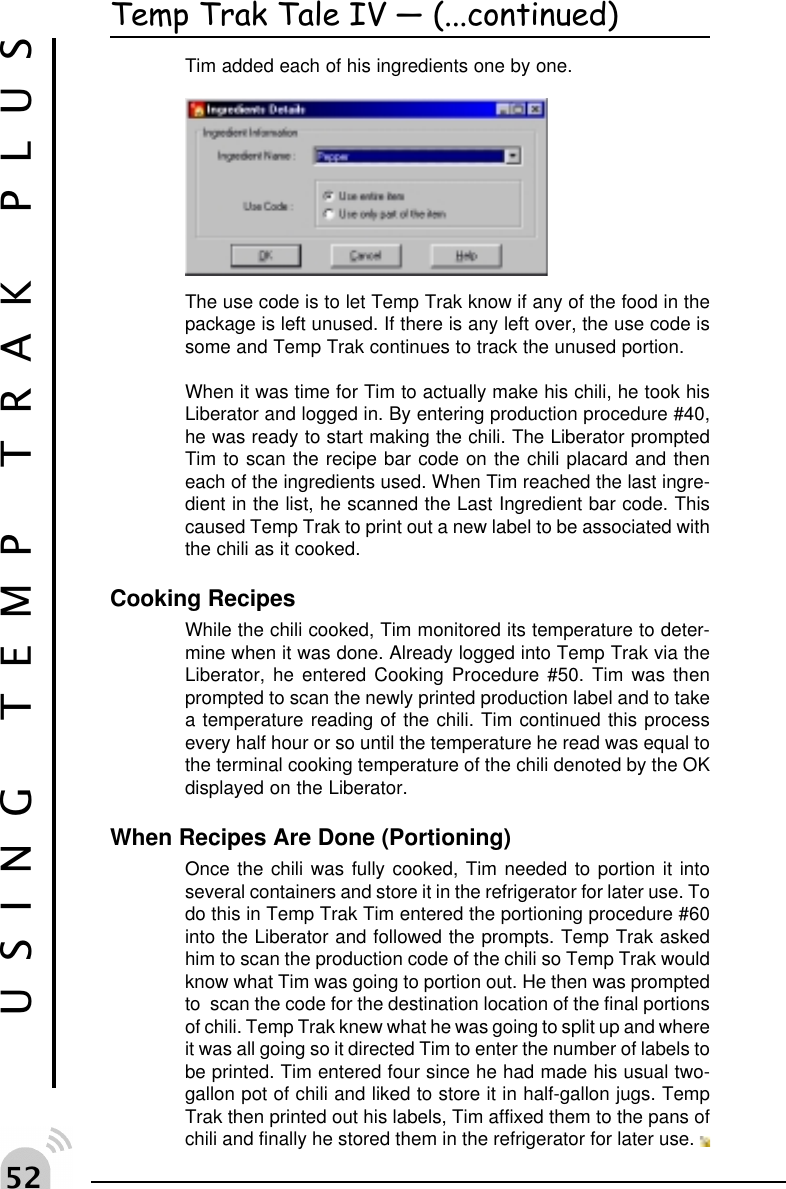
# USING TEMP TRAK PLUSTemp Trak Tale IV  (...continued)Tim added each of his ingredients one by one.The use code is to let Temp Trak know if any of the food in thepackage is left unused. If there is any left over, the use code issome and Temp Trak continues to track the unused portion.When it was time for Tim to actually make his chili, he took hisLiberator and logged in. By entering production procedure #40,he was ready to start making the chili. The Liberator promptedTim to scan the recipe bar code on the chili placard and theneach of the ingredients used. When Tim reached the last ingre-dient in the list, he scanned the Last Ingredient bar code. Thiscaused Temp Trak to print out a new label to be associated withthe chili as it cooked.Cooking RecipesWhile the chili cooked, Tim monitored its temperature to deter-mine when it was done. Already logged into Temp Trak via theLiberator, he entered Cooking Procedure #50. Tim was thenprompted to scan the newly printed production label and to takea temperature reading of the chili. Tim continued this processevery half hour or so until the temperature he read was equal tothe terminal cooking temperature of the chili denoted by the OKdisplayed on the Liberator.When Recipes Are Done (Portioning)Once the chili was fully cooked, Tim needed to portion it intoseveral containers and store it in the refrigerator for later use. Todo this in Temp Trak Tim entered the portioning procedure #60into the Liberator and followed the prompts. Temp Trak askedhim to scan the production code of the chili so Temp Trak wouldknow what Tim was going to portion out. He then was promptedto  scan the code for the destination location of the final portionsof chili. Temp Trak knew what he was going to split up and whereit was all going so it directed Tim to enter the number of labels tobe printed. Tim entered four since he had made his usual two-gallon pot of chili and liked to store it in half-gallon jugs. TempTrak then printed out his labels, Tim affixed them to the pans ofchili and finally he stored them in the refrigerator for later use.
#!APPENDIX
#"Liberator  Keypad OperationTo enter numeric characters, press the number key on thekeypad. A high-pitched click lets you know that the entrywas accepted.To enter alpha characters, press the Mode key once to putthe Liberator in Alpha Mode. Press the numeric key withthe letter you want above it - once for the first letter, quicklytwice for the second letter, or quickly three times for thethird letter. Every time you press the key, you hear a low-pitched click to let you know that the entry was registeredbut not accepted yet, and a high-pitched key click after asecond or so to let you know that the entry was accepted.You can go from one key to another before hearing thehigh key click (i.e., from the “a” to the “d”), but you mustfirst hear the high click to go to a different letter on thesame key (i.e., the “a” to the “c”).To return to numeric mode, press the Mode key again.To put a decimal point into numeric data, type in the num-bers before the decimal point. Then press the mode key,press the decimal, and press the mode key again. Nowresume typing in the numeric entry.Menu Options1. Login —Log into the Temp Trak System. All operations will beassociated with the Login ID entered.2. Stand Alone —Allow the user to roam and collect data without having tocommunicate to a commander unit.3. Upload Data —Upload all data to the Commander collected during StandAlone operations.4. Attention —Used during Liberator Registration5. Clear Data —Erases all the data collected during Stand Alone operation.6. Version —Displays the version number of the Temp Trak System7. Reset —Resets the Liberator software but does not affect data storedon the PC.APPENDIX
##APPENDIXLiberator  TroubleshootingNothing happens when you follow the operating in-structions?You Should— Check for loose cable connections at the scanner,  ACpower supply, or host device.— Check the Liberator’s battery.— Check the symbol to make sure it is not defaced.— Try scanning similar symbols of the same code type.— Be sure you’re within the proper scanning range.The Liberator emits transmit errors (error beeps afterdecode)?You Should— Check that the Liberator is powered up and that its cableconnections are secure.— Be sure the cable connection to the host is secure.Liberator  Maintenance— Do not allow any abrasive material to touch the Libera-tor window.— Remove any dirt particles with a damp cloth.— Wipe the Liberator window using a damp cloth, and ifnecessary, a non-ammonia based detergent.— Do not spray water or other cleaning liquids directly intothe Liberator window.— Change the battery when it no longer provides 8 hoursof scanning in typical usage. This should occur after 2years or more, depending on your daily use.Liberator  Changing the BatteryRemoving the Battery1. Slide the battery compartment release switch down.2. Remove the battery compartment cover.3. Slide the battery towards the bottom of the Liberator.4. Pull the bottom of the battery out and away from theLiberator.
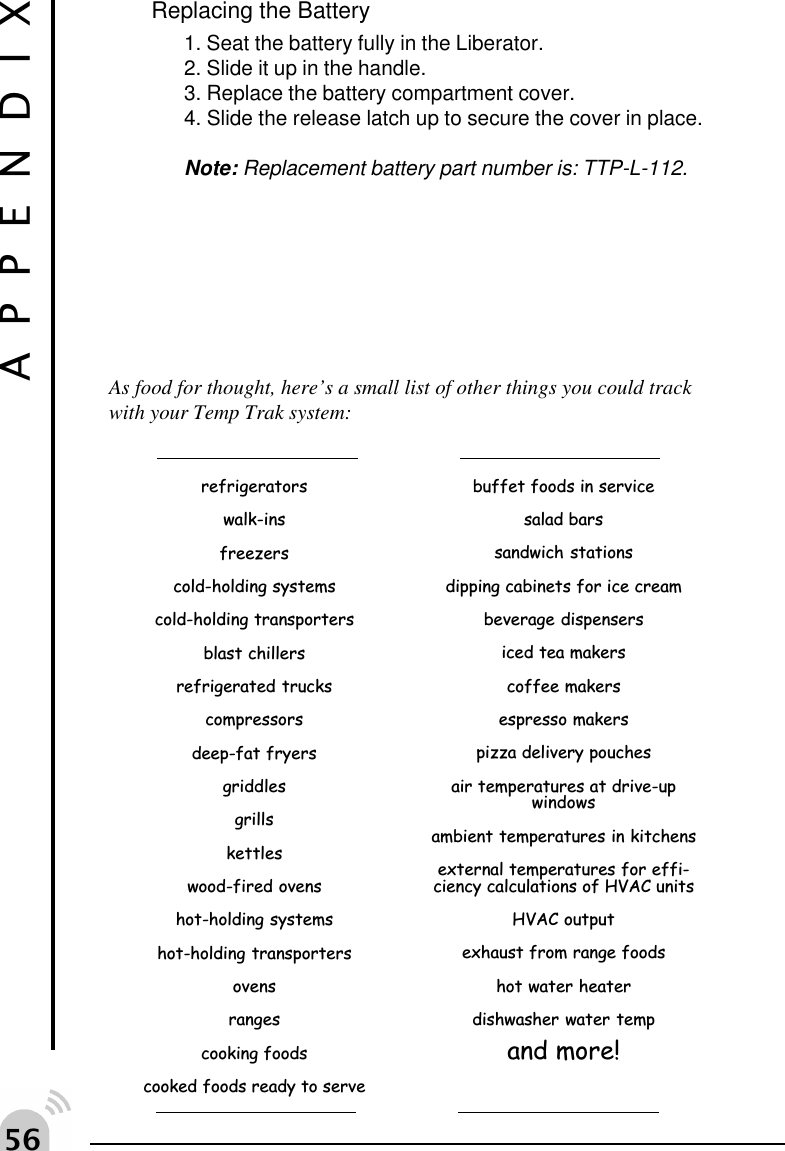
#$Replacing the Battery1. Seat the battery fully in the Liberator.2. Slide it up in the handle.3. Replace the battery compartment cover.4. Slide the release latch up to secure the cover in place.Note: Replacement battery part number is: TTP-L-112.APPENDIXAs food for thought, here’s a small list of other things you could trackwith your Temp Trak system:refrigeratorswalk-insfreezerscold-holding systemscold-holding transportersblast chillersrefrigerated truckscompressorsdeep-fat fryersgriddlesgrillskettleswood-fired ovenshot-holding systemshot-holding transportersovensrangescooking foodscooked foods ready to servebuffet foods in servicesalad barssandwich stationsdipping cabinets for ice creambeverage dispensersiced tea makerscoffee makersespresso makerspizza delivery pouchesair temperatures at drive-upwindowsambient temperatures in kitchensexternal temperatures for effi-ciency calculations of HVAC unitsHVAC outputexhaust from range foodshot water heaterdishwasher water tempand more!
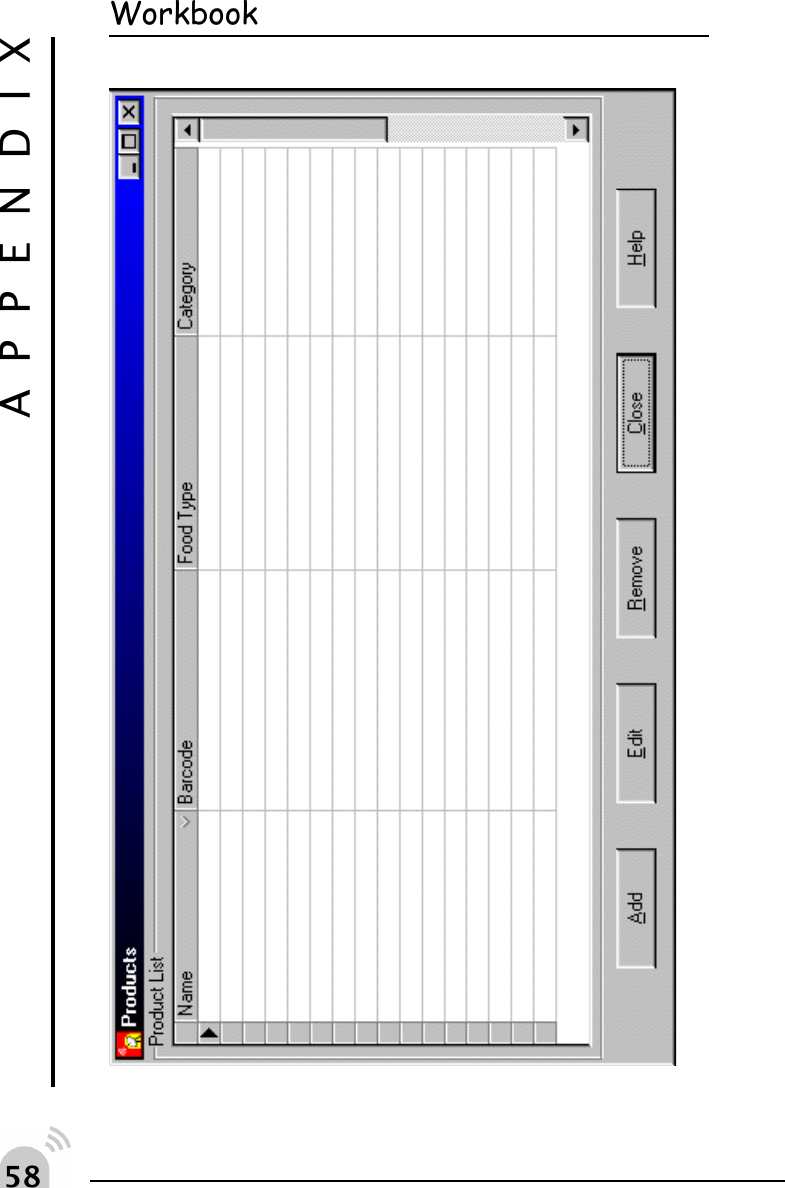
#%APPENDIXWorkbookTo help in setting up your system the following pages areblank worksheets for you to use and fill out while thinkingof your system as a whole. The worksheets are designedto mirror the data you will actually enter into the Temp Traksystem.
#&APPENDIXWorkbook
#'APPENDIXWorkbook
$APPENDIXWorkbook
$APPENDIXWorkbook

Navigation menu