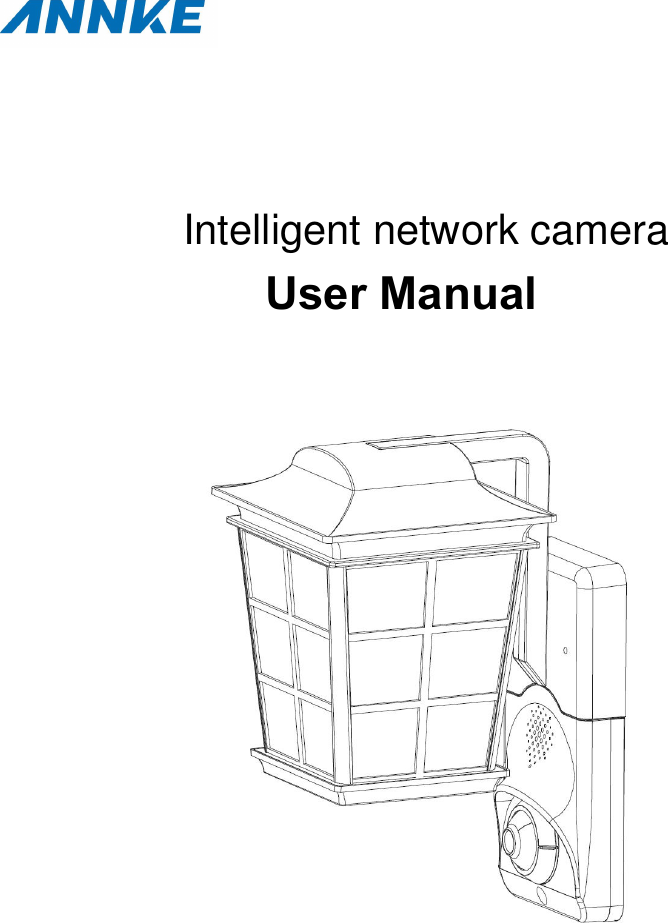
Kean Digital I41CL Intelligent network camera User Manual

Shenzhen Kean Digital Co., Ltd. Intelligent network camera

User Manual

SUser ManualIntelligent network camera
NOTE: This equipment has been tested and found to comply with the limits for a Class B digital device, pursuant to part 15 of the FCC Rules. These limits are designed to provide reasonable protection against harmful interference in a residential installation. This equipment generates uses and can radiate radio frequency energy and, if not installed and used in accordance with the instructions, may cause harmful interference to radio communications. However, there is no guarantee that interference will not occur in a particular installation. If this equipment does cause harmful interference to radio or television reception, which can be determined by turning the equipment off and on, the user is encouraged to try to correct the interference by one or more of the following measures:   - Reorient or relocate the receiving antenna. - Increase the separation between the equipment and receiver. -Connect the equipment into an outlet on a circuit different from that to which the receiver is connected. -Consult the dealer or an experienced radio/TV technician for help  Changes or modifications not expressly approved by the party responsible for compliance  could void the user's authority to operate the equipment.   This device complies with Part 15 of the FCC Rules.  Operation is subject to the following two conditions:  (1) this device may not cause harmful interference, and  (2) this device must accept any interference received,  including interference that may cause undesired operation.    RF Exposure Warning Statements: This equipment complies with FCC radiation exposure limits set forth for an uncontrolled environment. This equipment shall be installed and operated with minimum distance 20cm  between the radiator & body.   Safety RegulationFCC Requirement
The product and attached accessory should meet the safety regulations of CE and have“CE” sign. In addition, it should comply with the listed applicable Uniform European Standard inEMC Directive 2014/30/eu, which is 2014/35/eu, RoHS Directive 2011/65/eu.2012/19/eu (WEEE Directive): In European Union, the product with this symbol cannot behandled as unclassified municipal waste. In order to be recycled, the used product should bereturned to local vendor or recycled at assigned recycled spot while you are buying newequivalent equipment. For more information, please refer to www.recyclethis.info2006/66/ec (Battery Directive): This product concludes a type of battery that cannot behandled as unclassified municipal waste in European Union. Please refer to related material forspecified battery requirement. Batter with this symbol might contain the letters that indicatesCadmium, lead and mercury. In order to recycle properly, please return the batteries to vendor orassigned gathering spot. For more information, please refer to www.recyclethis.infoSafety InstructionThis statement is to ensure users’ proper operation of products in case of danger orproperty loss.Please be aware of fire danger and shock hazard. The working voltage of this smart safetylight is 120V. While install, please be aware of the electric system of this light. Pleasecontact qualified electrician to install without knowing it.Please cut off power fuse or breaker before install or maintain.To avoid electric shock, don’t disassemble the product.To avoid circuit damage or abrasion, don’t expose wire on metal board or edges of othersharp objects.This product only applies 120V/60Hz alternating current bulb. The max power of bulb is75W.EU Request Statement
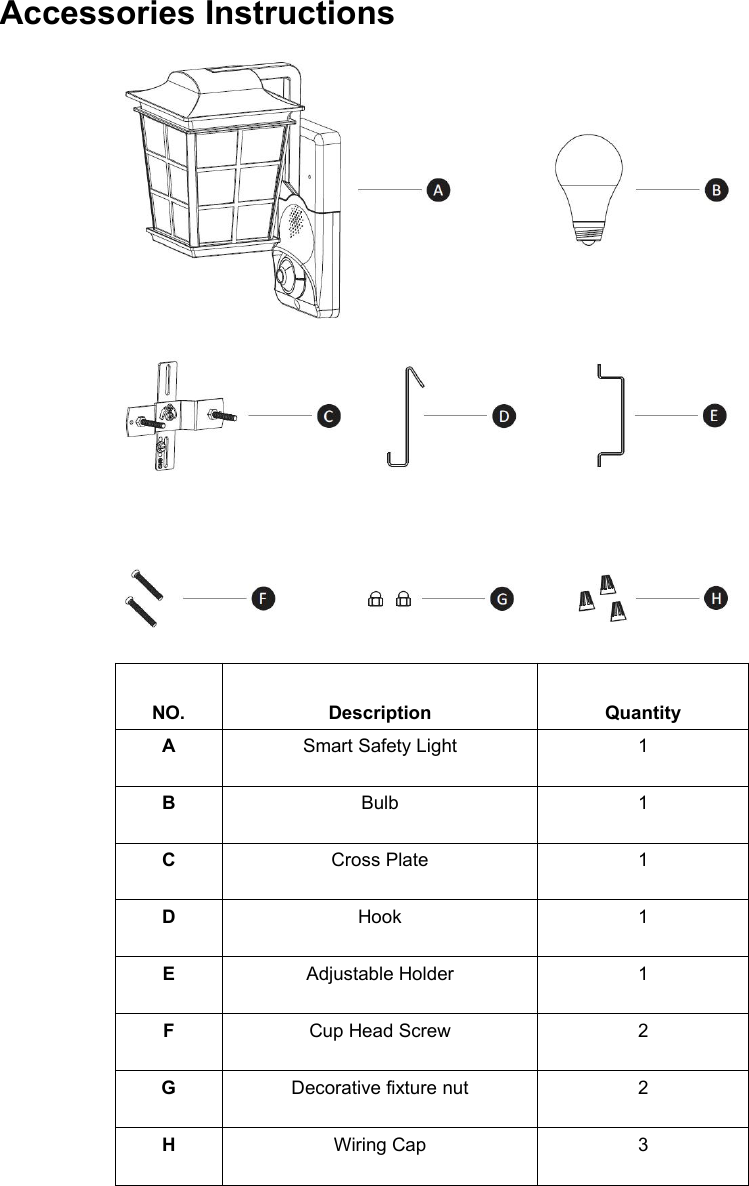
Accessories InstructionsNO.DescriptionQuantityASmart Safety Light1BBulb1CCross Plate1DHook1EAdjustable Holder1FCup Head Screw2GDecorative fixture nut2HWiring Cap3
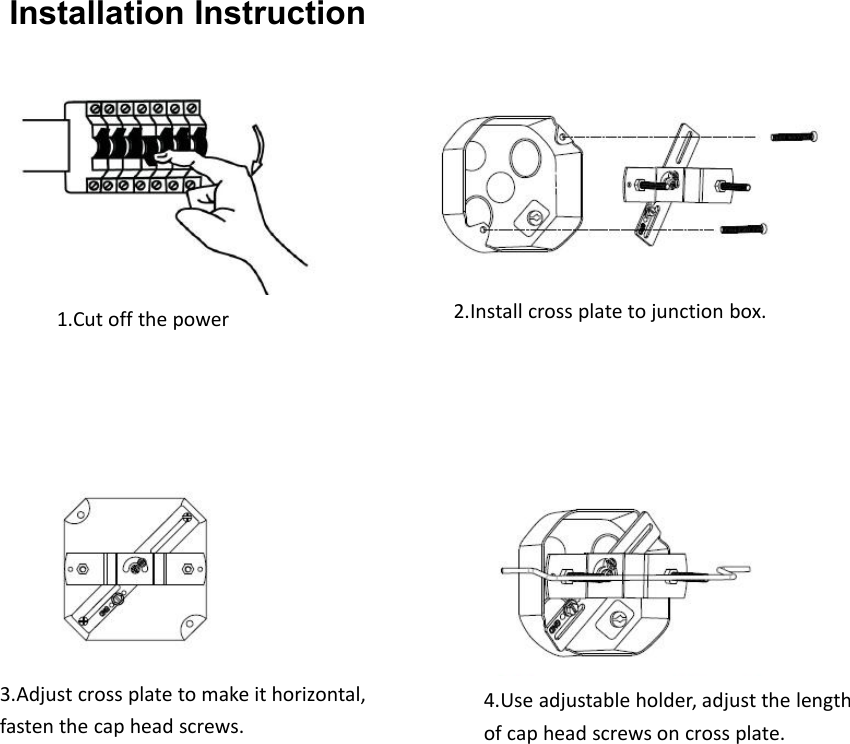
Installation Instruction1.Cut off the power2.Install cross plate to junction box.3.Adjust cross plate to make it horizontal,fasten the cap head screws.4.Use adjustable holder, adjust the lengthof cap head screws on cross plate.
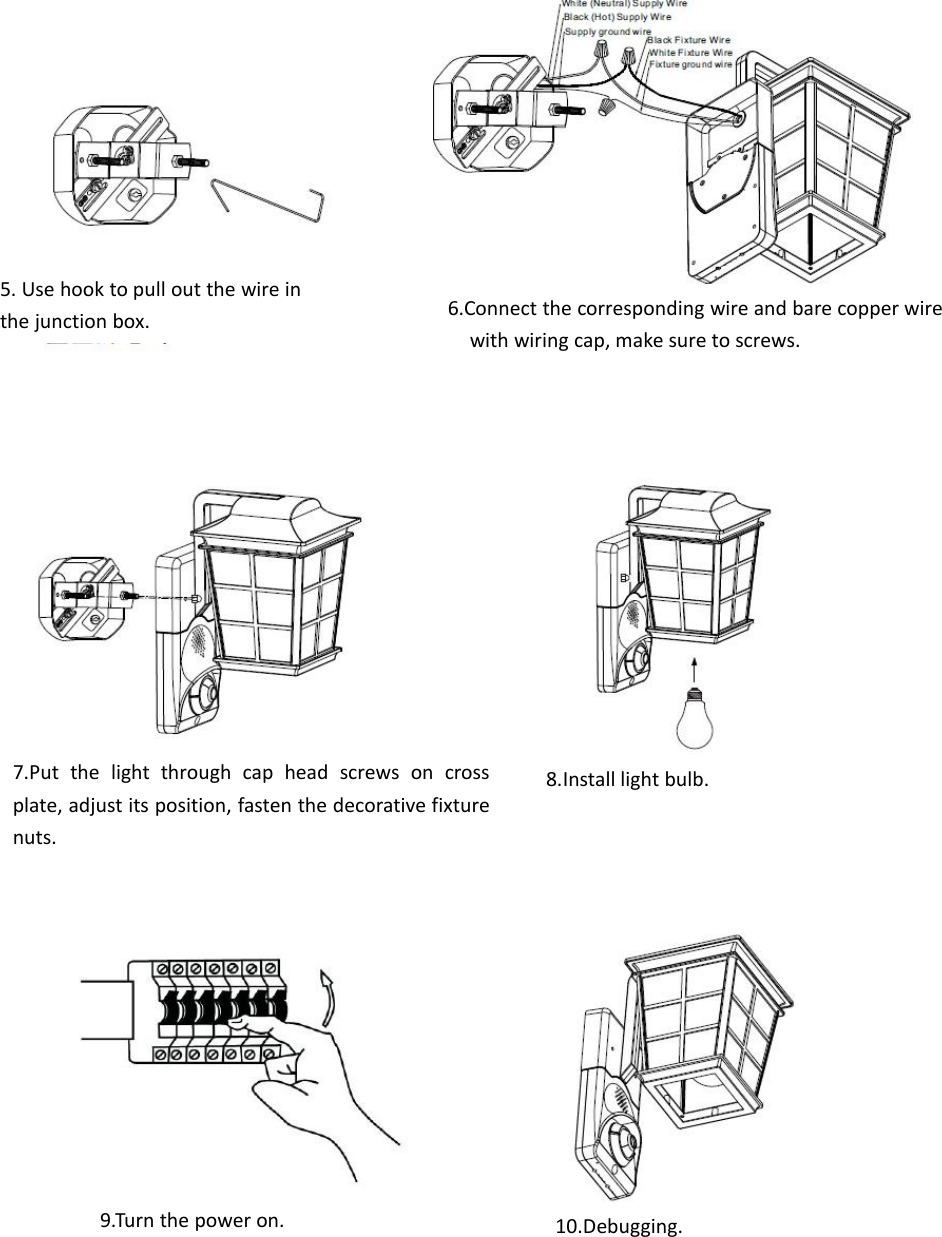
5. Use hook to pull out the wire inthe junction box.6.Connect the corresponding wire and bare copper wirewith wiring cap, make sure to screws.7.Put the light through cap head screws on crossplate, adjust its position, fasten the decorative fixturenuts.8.Install light bulb.9.Turn the power on.10.Debugging.
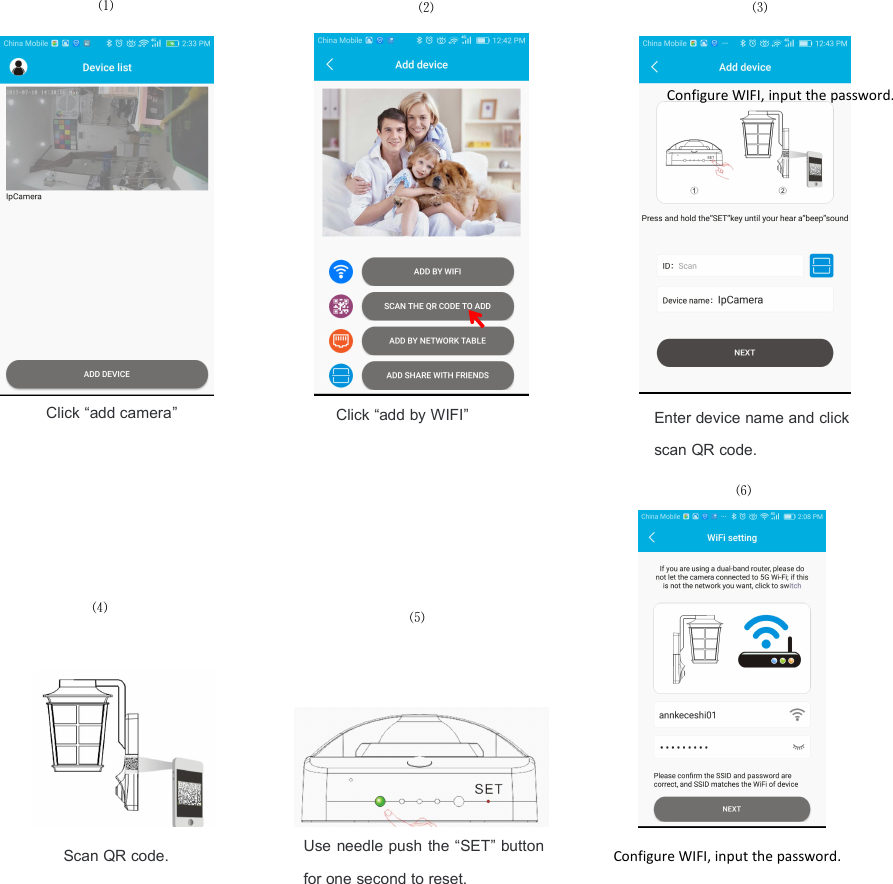
APP InstallationStep 1: Download and install 'Annke Light' APP from APP Store or Google Play.Step 2: Click “Annke Light” open.Step 3: Sign up with e-mail address.Step 4: Log in with e-mail address and password.WiFi Connection:Step 1: Click “add camera”Step2: Click “add by WIFI”Step 3: Enter device name and click scan QR code.Step 4: Scan QR code.Step 5: Use needle push the “SET” button for one second to reset.Step 6: Configure WIFI, input the password.Step 7: Click “NEXT”, APP will search device automatically until connection,Step 8: After connection, the monitor view is live.③②①APP user loginAPP User registrationClick “add by WIFI”Click “add camera”⑶⑵⑴Enter device name and click scan QR code.
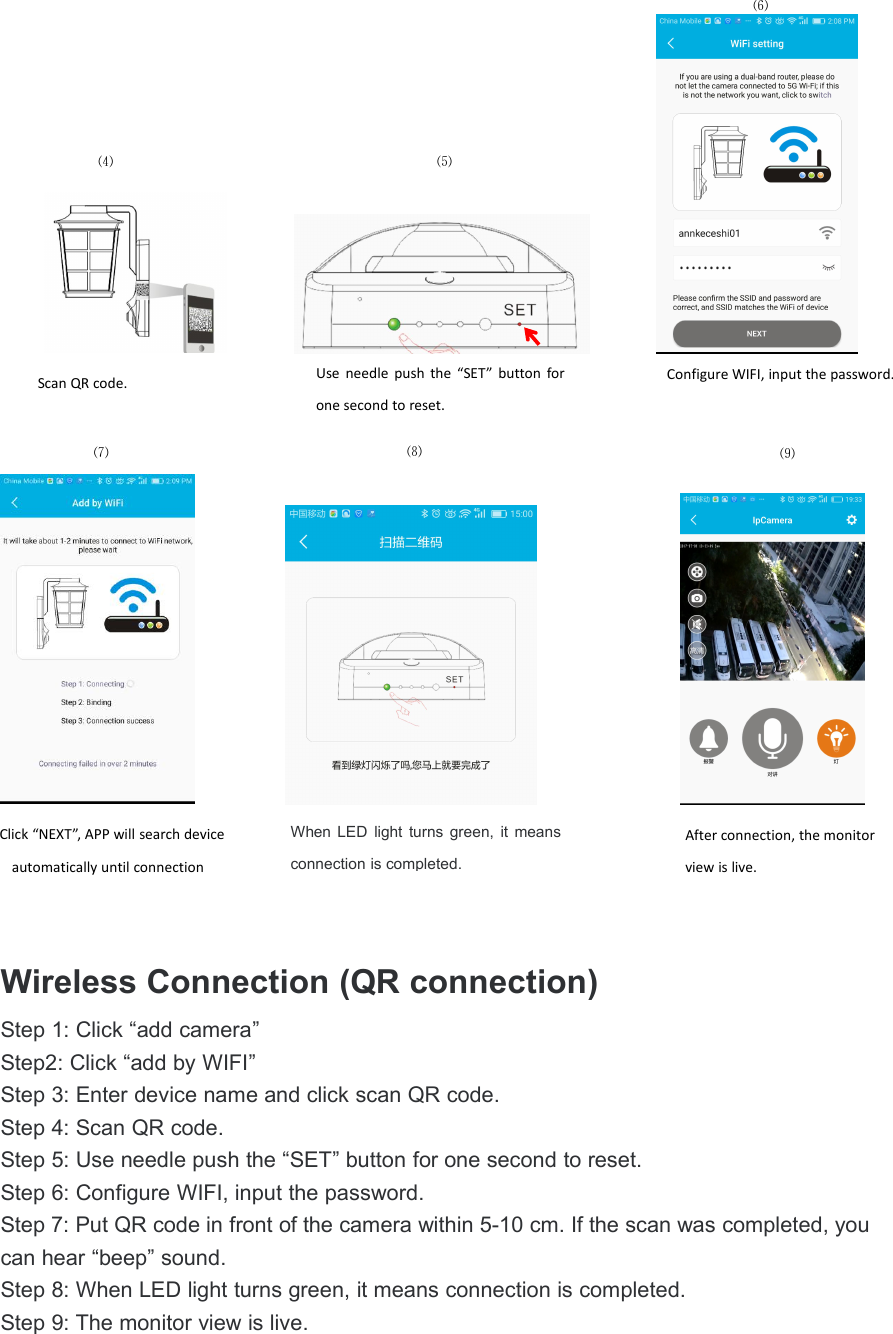
Wireless Connection (QR connection)Step 1: Click “add camera”Step2: Click “add by WIFI”Step 3: Enter device name and click scan QR code.Step 4: Scan QR code.Step 5: Use needle push the “SET” button for one second to reset.Step 6: Configure WIFI, input the password.Step 7: Put QR code in front of the camera within 5-10 cm. If the scan was completed, youcan hear “beep” sound.Step 8: When LED light turns green, it means connection is completed.Step 9: The monitor view is live.⑷Use needle push the “SET” button forone second to reset.⑸Configure WIFI, input the password.Scan QR code.⑹⑻⑼⑺When LED light turns green, it meansconnection is completed.Click “NEXT”, APP will search deviceautomatically until connectionAfter connection, the monitorview is live.
Click “add by WIFI”Click “add camera”⑶⑵⑴Enter device name and clickscan QR code.⑸⑷⑹Scan QR code.Use needle push the “SET” buttonfor one second to reset.Configure WIFI, input the password.Configure WIFI, input the password.
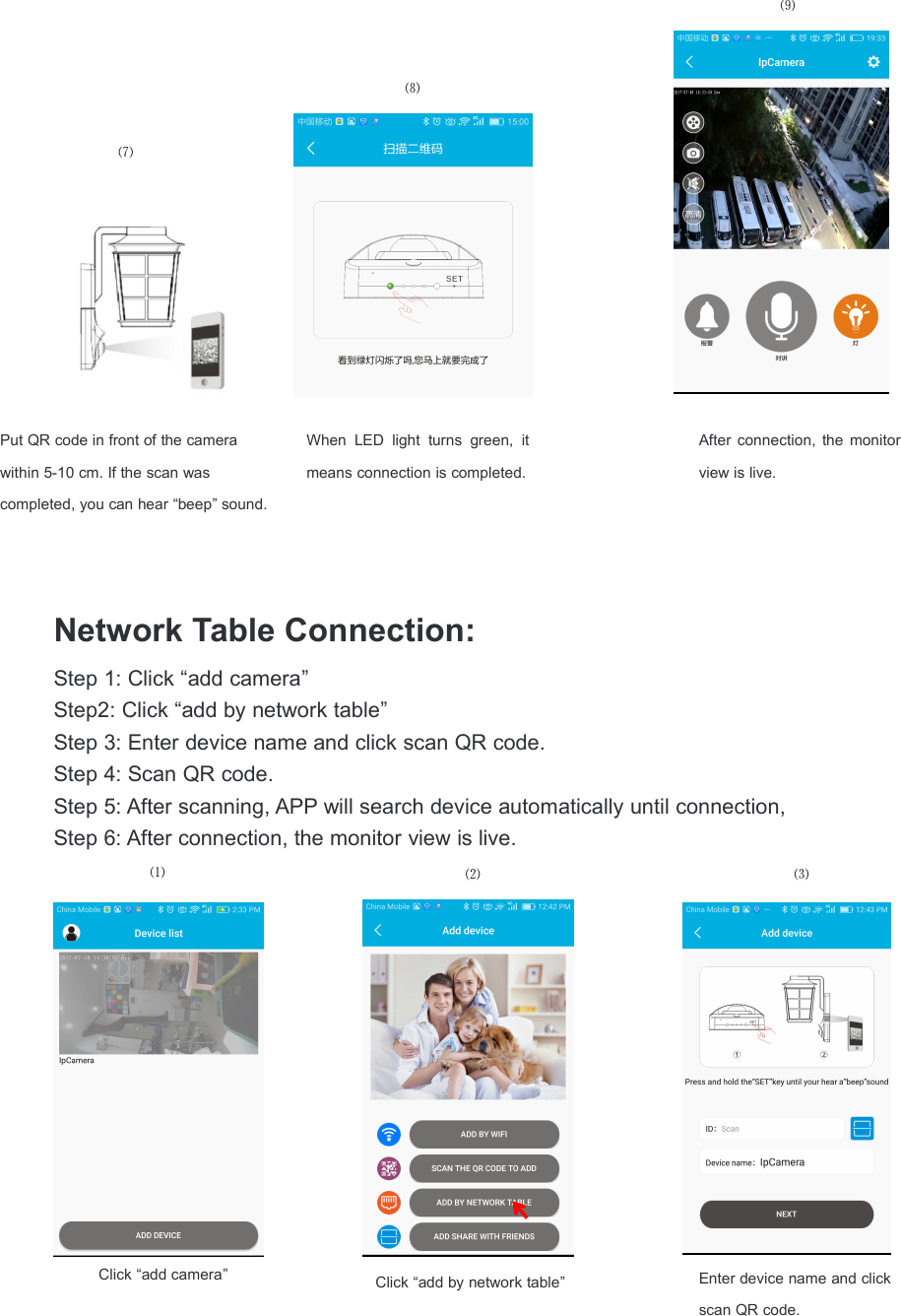
Network Table Connection:Step 1: Click “add camera”Step2: Click “add by network table”Step 3: Enter device name and click scan QR code.Step 4: Scan QR code.Step 5: After scanning, APP will search device automatically until connection,Step 6: After connection, the monitor view is live.Put QR code in front of the camerawithin 5-10 cm. If the scan wascompleted, you can hear “beep” sound.⑻⑼After connection, the monitorview is live.When LED light turns green, itmeans connection is completed.Click “add by network table”Click “add camera”⑶⑵⑴Enter device name and clickscan QR code.⑺
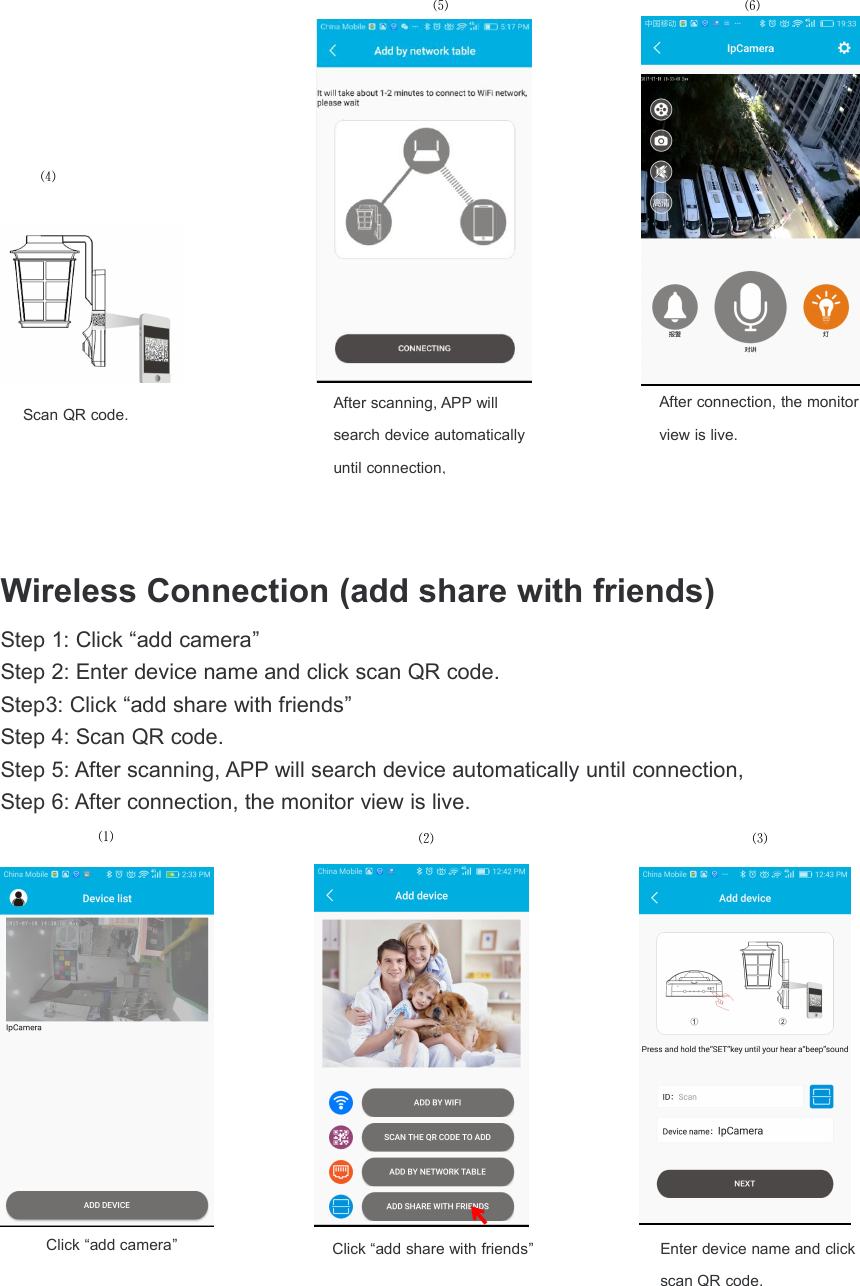
Wireless Connection (add share with friends)Step 1: Click “add camera”Step 2: Enter device name and click scan QR code.Step3: Click “add share with friends”Step 4: Scan QR code.Step 5: After scanning, APP will search device automatically until connection,Step 6: After connection, the monitor view is live.After connection, the monitorview is live.After scanning, APP willsearch device automaticallyuntil connection,⑷⑸⑹Scan QR code.Click “add share with friends”Click “add camera”⑶⑵⑴Enter device name and clickscan QR code.
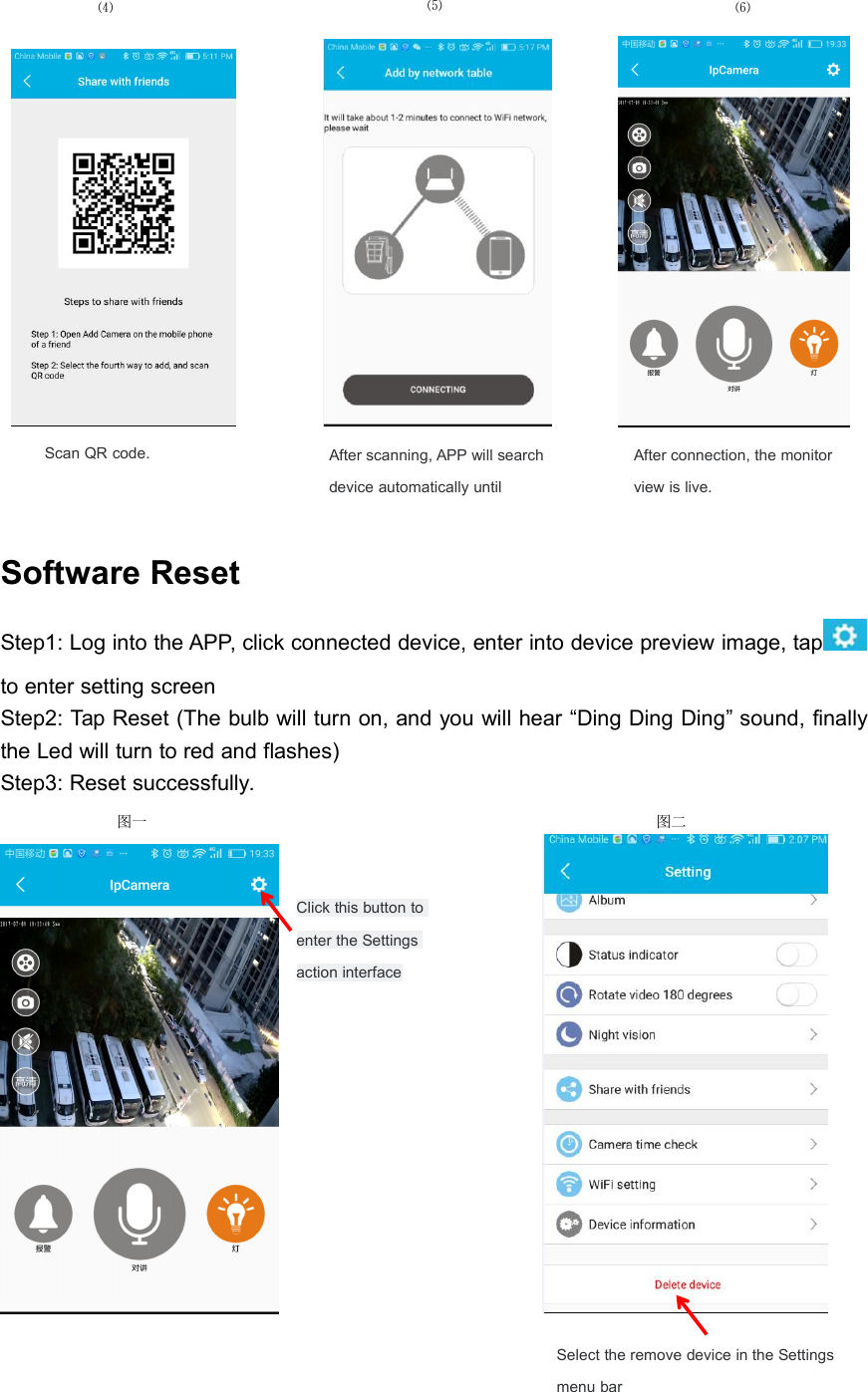
Software ResetStep1: Log into the APP, click connected device, enter into device preview image, tapto enter setting screenStep2: Tap Reset (The bulb will turn on, and you will hear “Ding Ding Ding” sound, finallythe Led will turn to red and flashes)Step3: Reset successfully.Click this button toenter the Settingsaction interface⑸After connection, the monitorview is live.Scan QR code.⑷图一图二Select the remove device in the Settingsmenu bar⑹After scanning, APP will searchdevice automatically until
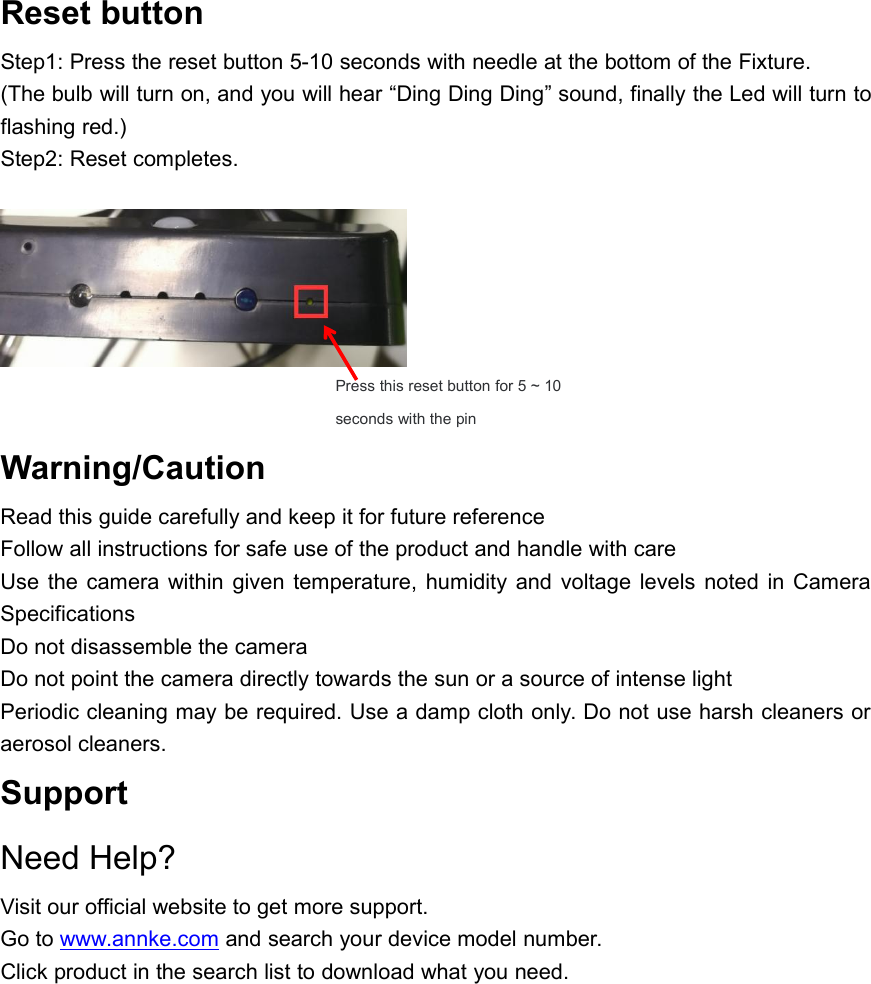
Reset buttonStep1: Press the reset button 5-10 seconds with needle at the bottom of the Fixture.(The bulb will turn on, and you will hear “Ding Ding Ding” sound, finally the Led will turn toflashing red.)Step2: Reset completes.Warning/CautionRead this guide carefully and keep it for future referenceFollow all instructions for safe use of the product and handle with careUse the camera within given temperature, humidity and voltage levels noted in CameraSpecificationsDo not disassemble the cameraDo not point the camera directly towards the sun or a source of intense lightPeriodic cleaning may be required. Use a damp cloth only. Do not use harsh cleaners oraerosol cleaners.SupportNeed Help?Visit our official website to get more support.Go to www.annke.com and search your device model number.Click product in the search list to download what you need.Press this reset button for 5 ~ 10seconds with the pin

Navigation menu