Kenwood KDC X717 User Manual To The 0a97b47c 281b 00a4 1d1c 6f42550c5524
User Manual: Kenwood KDC-X717 to the manual
Open the PDF directly: View PDF  .
.
Page Count: 57
Take the time to read through this instruction manual.
Familiarity with installation and operation procedures will help you obtain the
best performance from your new CD-receiver.
For your records
Record the serial number, found on the back of the unit, in the spaces designated on
the warranty card, and in the space provided below. Refer to the model and serial
numbers whenever you call upon your KENWOOD dealer for information or service on
the product.
Model KDC-X917, KDC-X817, KDC-9017, KDC-X717 Serial number
KDC-X917
KDC-X817
KDC-9017
KDC-X717
© B64-1891-00 (KW)
COMPACT
DIGITAL AUDIO
INSTRUCTION MANUAL
CD-RECEIVER
KDC-X917(K)Cover 00.12.29 3:26 PM Page 1
— 2 —
English
Contents
Safety precautions ...................4
Handling Compact discs...........6
General features
Power .....................................................8
Volume....................................................9
Attenuator...............................................9
Switching Modes....................................9
Loudness ..............................................10
System Q..............................................10
Speaker & Woofer setting ....................10
Faceplate Angle Adjustment ................11
Switching Full-Screen Display ..............11
Switching the Upper Part Display.........12
Switching the Lower Part Display ........12
Forced Closing ......................................14
Removing the Faceplate.......................14
Non-Fading Output ...............................15
Audio control features
Audio Control Setting ...........................16
Bass Center Frequency ........................16
Bass Level ............................................16
Bass Quality Factor...............................16
Bass Extend..........................................16
Middle Center Frequency .....................17
Middle Level .........................................17
Middle Quality Factor ...........................17
Treble Center Frequency ......................17
Treble Level ..........................................17
Balance Level........................................17
Fader Level ...........................................17
Non-Fading Level..................................17
High-pass Filter Frequency
for Front Output....................................18
High-pass Filter Frequency
for Rear Output.....................................18
Low-pass Filter Frequency
for Non-Fading Output..........................18
Phase for Non-Fading Output ...............18
Volume Offset ......................................18
Tuner features
Tuning ...................................................20
Station Preset Memory ........................20
Auto Memory Entry ..............................20
Direct Access Tuning ...........................21
Station Name Preset (SNPS) ................22
Station Name Preset Play (SNPP) .......23
RDS features
RDS (Radio Data System).....................24
Alarm ....................................................24
Radio Text Scroll...................................24
Program Type (PTY) Function ...............24
Registration of a station as a PTY ........25
CD/External disc control features
Playing CDs...........................................26
Playing Other Disc mode......................27
Fast Forwarding and Reversing Disc Play
..............................................................27
Track Search .........................................27
Disc Search...........................................28
Track / Disc Repeat...............................28
Track Scan ............................................28
Random Play.........................................28
Text Scroll .............................................29
Presetting Disc Names (DNPS) ............30
Magazine Random Play ........................31
Direct Track Search ..............................31
Direct Disc Search ................................32
Disc Name Preset Play (DNPP) ...........32
Menu settings
Menu System .......................................33
Security Code .......................................34
Touch Sensor Tone...............................35
Manual Time Adjustment .....................35
Calendar Adjustment ............................35
Calendar Mode .....................................35
Memo Mode.........................................36
Automatic Time Adjustment.................36
Selectable Illumination..........................37
Switching Display Mode.......................37
Icon/Spectrum analyzer Select .............37
Font Select............................................37
Brightness level adjustment .................37
Dimmer.................................................38
Time setting for removing
the faceplate .........................................38
System Q..............................................38
Built-in Amp Mute Control....................38
Dual Zone System ................................38
External Amp Control ...........................39
Traffic Information Function .................39
Clean Reception System Circuit
(CRSC) .................................................39
Text Scroll .............................................39
Basic Operations of remote....40
Installation
Accessories ..........................................43
Installation Procedure ...........................43
Connecting Wires to Terminals ............44
Installation (non-Japanese cars)............45
Locking the faceplate to the unit..........45
Removing the Unit................................46
Installation (Japanese-cars)...................47
Troubleshooting Guide ...........48
Specifications.........................52
KDC-X917(K)_U.S_r3 00.12.26 1:12 PM Page 2
— 3 —
2Warning
Use of controls or adjustments or
performance of procedures other than those
specified herein may result in hazardous
radiation exposure.
In compliance with Federal Regulations,
following are reproductions of labels on, or
inside the product relating to laser product
safety.
Location : Bottom Panel
FCC WARNING
This equipment may generate or use radio
frequency energy. Changes or modifications
to this equipment may cause harmful
interference unless the modifications are
expressly approved in the instruction manual.
The user could lose the authority to operate
this equipment if an unauthorized change or
modification is made.
2CAUTION
This equipment has been tested and found
to comply with the limits for a Class B digital
device, pursuant to Part 15 of the FCC Rules.
These limits are designed to provide
reasonable protection against harmful
interference in a residential installation. This
equipment may cause harmful interference
to radio communications, if it is not installed
and used in accordance with the instructions.
However, there is no guarantee that
interference will not occur in a particular
installation. If this equipment does cause
harmful interference to radio or television
reception, which can be determined by
turning the equipment off and on, the user is
encouraged to try to correct the interference
by one or more of the following measures:
• Reorient or relocate the receiving antenna.
• Increase the separation between the
equipment and receiver.
• Connect the equipment into an outlet on a
circuit different from that to which the
receiver is connected.
• Consult the dealer or an experienced
radio/TV technician for help.
This Class B digital apparatus complies with
Canadian ICES-003.
NOTE
NOTE
KENWOOD CORPORATION
2967-3, ISHIKAWA-CHO,
HACHIOJI-SHI
TOKYO, JAPAN
KENWOOD CORP. CERTIFIES THIS EQUIPMENT
CONFORMS TO DHHS REGULATIONS N0.21 CFR
1040. 10, CHAPTER 1, SUBCHAPTER J.
KDC-X917(K)_U.S_r3 00.12.26 1:12 PM Page 3
— 4 —
English
Safety precautions
To prevent injury or fire, take the
following precautions:
• Insert the unit all the way in until it is fully
locked in place. Otherwise it may fall out of
place when jolted.
• When extending the ignition, battery, or
ground wires, make sure to use
automotive-grade wires or other wires with
a 0.75mm2 (AWG18) or more to prevent
wire deterioration and damage to the wire
coating.
• To prevent a short circuit, never put or
leave any metallic objects (such as coins or
metal tools) inside the unit.
• If the unit starts to emit smoke or strange
smells, turn off the power immediately and
consult your Kenwood dealer.
• Make sure not to get your fingers caught
between the faceplate and the unit.
• Be careful not to drop the unit or subject it
to strong shock.
The unit may break or crack because it
contains glass parts.
2WARNING
To prevent damage to the machine,
take the following precautions:
• Make sure to ground the unit to a negative
12V DC power supply.
• Do not open the top or bottom covers of
the unit.
• Do not install the unit in a spot exposed to
direct sunlight or excessive heat or
humidity. Also avoid places with too much
dust or the possibility of water splashing.
• Do not subject the faceplate to excessive
shock, as it is a piece of precision
equipment.
• When replacing a fuse, only use a new one
with the prescribed rating. Using a fuse
with the wrong rating may cause your unit
to malfunction.
• To prevent a short circuit when replacing a
fuse, first disconnect the wiring harness.
• Do not place any object between the
faceplate and the unit.
• Do not use your own screws. Use only the
screws provided. If you use the wrong
screws, you could damage the unit.
• Do not apply excessive force to the moving
faceplate. Doing so will cause damage or
malfunction.
• Do not apply excessive force to the open
faceplate or place objects on it. Doing so
will cause damage or breakdown.
2CAUTION IMPORTANT INFORMATION
About the disc changer to be
connected:
To connect a disc changer having the "O-N"
switch to this unit, set the "O-N" switch to
"N".
When you connect a model with no "O-N"
switch, the converter cord CA-DS100
available as an option may be required. For
details, consult your Kenwood dealer.
If a model with no "O-N" switch is
connected, some unavailable functions and
information that cannot be displayed are
generated, such as the DNPS, DNPP,
Magazine random play, and CD Text display.
Note that none of the KDC-C100, KDC-C302,
C205, C705, and non-Kenwood CD changers
can be connected.
You can damage both your unit and
the CD changer if you connect them
incorrectly.
Do Not Load 3-in. CDs in the CD slot
If you try to load a 3 in. CD with its adapter
into the unit, the adapter might separate
from the CD and damage the unit.
2CAUTION
KDC-X917(K)_U.S_r3 00.12.26 1:12 PM Page 4
— 5 —
• If you experience problems during
installation, consult your Kenwood dealer.
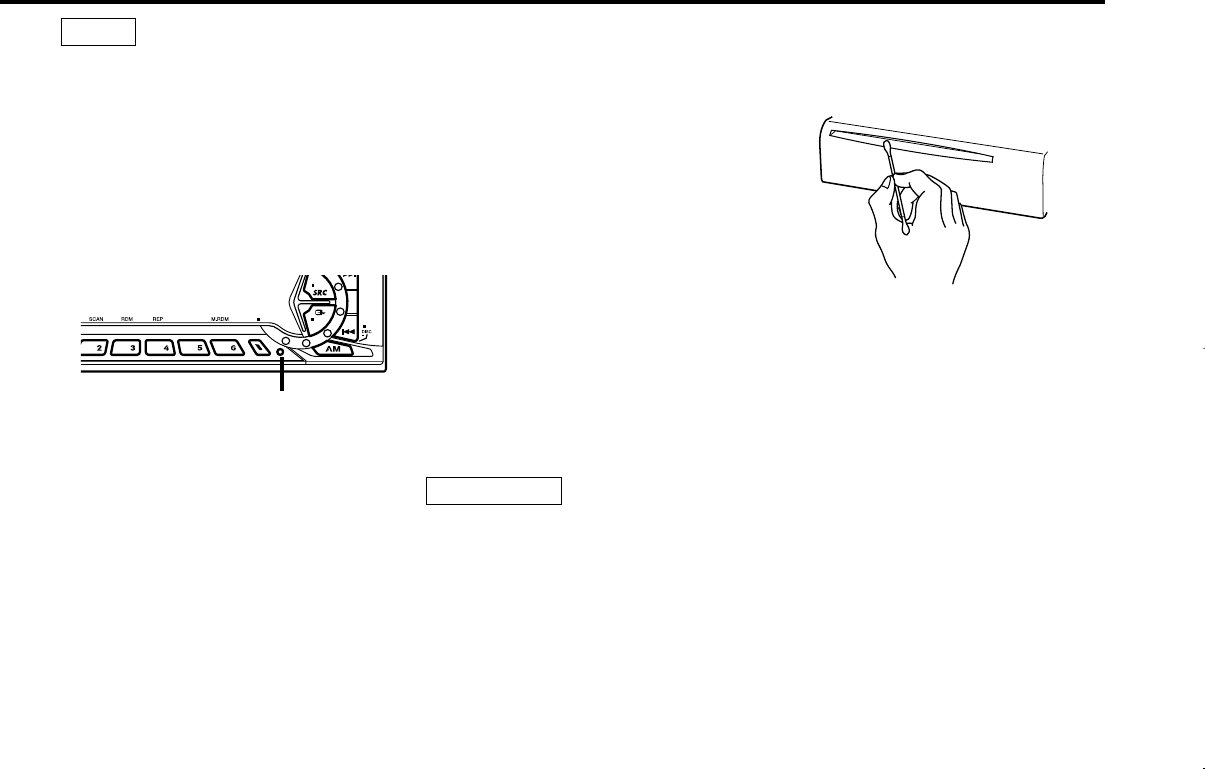
• If the unit fails to operate properly, press
the RESET button. The unit returns to
factory settings when the RESET button is
pressed. If the unit still fails to operate
properly after the RESET button has been
pressed, contact your local KENWOOD
dealer for assistance.
• Press the reset button if the disc auto
changer is first controlled and operates
incorrectly. The original operating condition
will return.
• We recommend the use of the Security
Code function (see p. 34) to prevent theft.
NOTE • The illustrations of the display and the
panel appearing in this manual are
examples used to explain more clearly how
the controls are used. Therefore, what
appears on the display in the illustrations
may differ from what appears on the
display on the actual equipment, and some
of the illustrations on the display may
represent something impossible in actual
operation.
• The functions that can be used and the
information that can be displayed will differ
depending on the external disc players
being connected.
Cleaning the Faceplate Terminals
If the terminals on the unit or faceplate get
dirty, wipe them with a dry, soft cloth.
Cleaning the Unit
If the faceplate of this unit is stained, wipe it
with a dry soft cloth such as a silicon cloth.
If the faceplate is stained badly, wipe the
stain off with a cloth moistened with neutral
cleaner, then wipe neutral detergent off.
Applying spray cleaner directly to the unit
may affect its mechanical parts. Wiping the
faceplate with a hard cloth or using a volatile
liquid such as thinner or alcohol may scratch
the surface or erases characters.
2CAUTION
Cleaning the CD Slot
As dust tends to accumulate in the CD slot,
clean it every once in a while. Your CDs can
get scratched if you put them in a dusty CD
slot.
Lens Fogging
Right after you turn on the car heater in cold
weather, dew or condensation may form on
the lens in the CD player of the unit. Called
lens fogging, CDs may be impossible to play.
In such a situation, remove the disc and wait
for the condensation to evaporate. If the unit
still does not operate normally after a while,
consult your Kenwood dealer.
OFF
NF
DAB
AUD
AME
AUTO
Reset button
KDC-X917(K)_U.S_r3 00.12.26 1:12 PM Page 5
— 6 —
English
Handling Compact discs
Playing a CD that is dirty, scratched
or warped can cause the sound to
skip and the unit to operate
incorrectly, resulting in worsened
sound quality. Take the following
precautions to prevent your CDs from
getting scratched or damaged.
Handling CDs
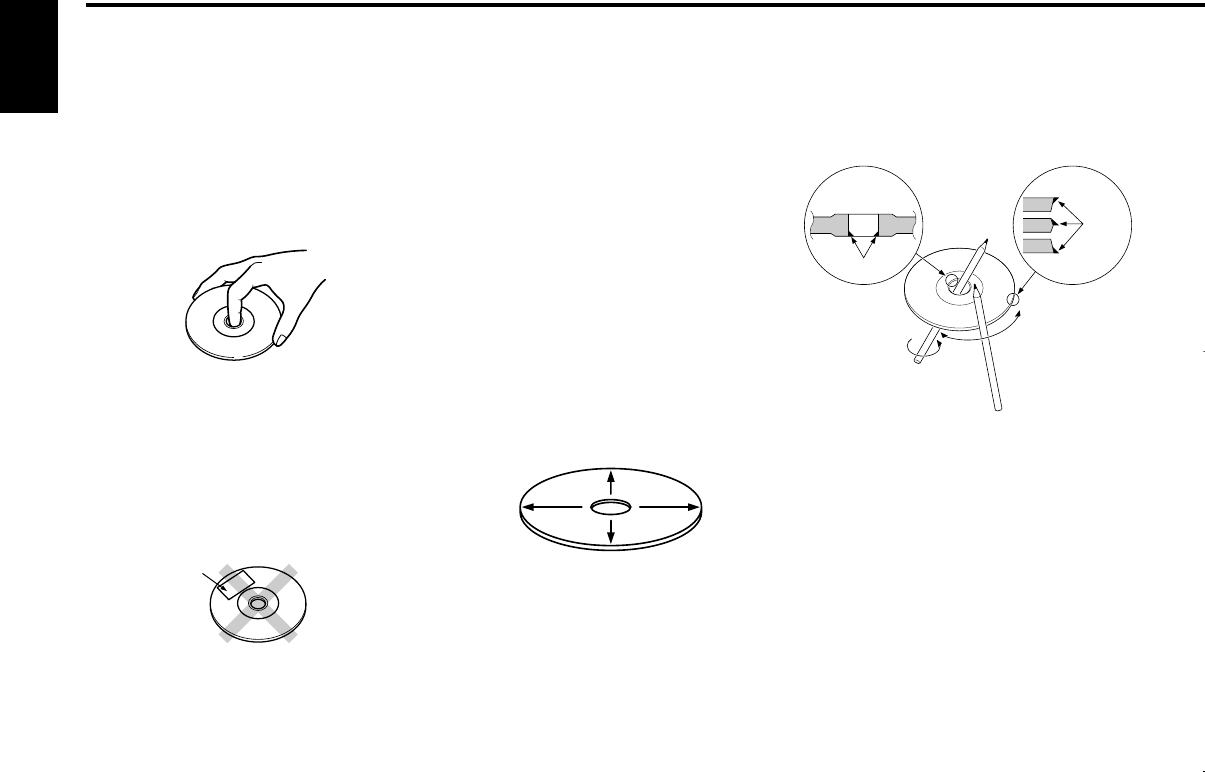
• Do not touch the recorded side of the CD
(the side opposite the label) when holding
it.
•The reflective film on a CD-R or a CD-RW is
more fragile than that on an ordinary music
CD, and may peel off if scratched. Fingerprints
on a CD-R or CD-RW are also more likely to
cause skipping when the disc is played. For
these reasons, handle the disc very carefully.
Detailed handling instructions will appear on
the CD-R or CD-RW package: read this
information carefully before using the disc.
• Do not stick tape on either side of the CD.
Storing CDs
• Do not store CDs in areas exposed to
direct sunlight (such as a car seat or the
dashboard) or other hot places. A CD-R or
CD-RW is more susceptible than a music
CD to damage from high temperatures and
humidity, and in some cases, may become
unusable if left in the car for long periods
of time.
• Remove CDs from the unit when not
listening to them for a while, and put them
back in their cases. Do not pile up CDs
that are removed from their cases or prop
them against something.
Cleaning CDs
If a CD has gotten dirty, wipe it off gently
using a commercially available cleaning cloth
or a soft cotton cloth, starting from the
center of the disc and moving outward. Do
not clean CDs with conventional record
cleaners, anti-static formulas, or chemicals
such as paint thinner or benzene.
Checking New CDs for Burrs
When playing a new CD for the first time,
check that there are not any burrs stuck to
the perimeter of the disc or in the central
hole. CDs with burrs stuck on them may not
load properly or may skip while playing.
Remove burrs using a ballpoint pen or a
similar utensil.
Tape
Burrs
Burrs
KDC-X917(K)_U.S_r3 00.12.26 1:12 PM Page 6
— 7 —
Do Not Load CD Accessories
Do not use commercially available CD
accessories that can be loaded into the CD
slot, such as stabilizers, protective sheets,
or CD cleaning discs, since they can cause
the unit to malfunction.
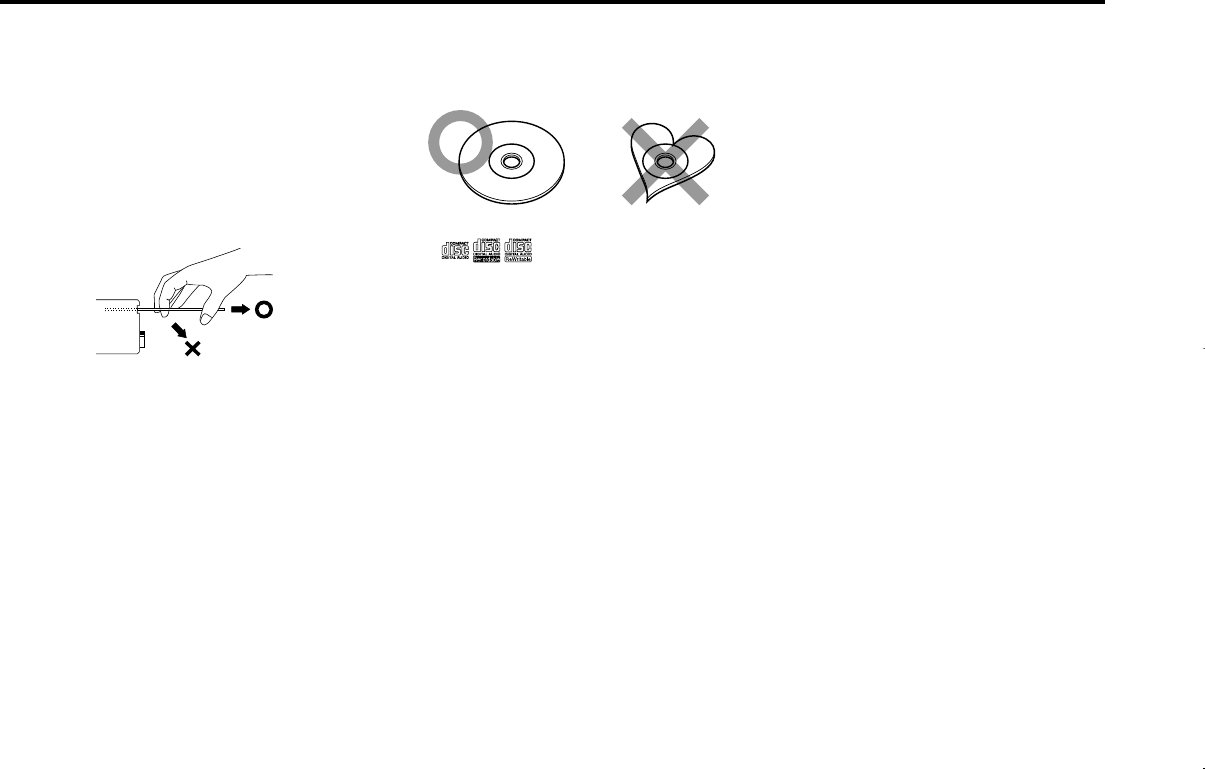
Removing the CD
Only remove the CD from the machine in a
horizontal direction, holding it flat. You may
damage the surface of the CD if you try
pulling it down as it ejects.
Do Not Use Special Shape CDs
• Be sure to use round shape CDs only for
this unit and do not use any special shape
CDs. Use of special shape CDs may cause
the unit to malfunction.
• Be sure to use CDs with disc mark
only for this unit.
•CD-Rs and CD-RWs which have not
undergone finalization processing cannot
be played. (For more information on
finalization processing, refer to the manual
for your CD-R/CD-RW writing software or
CD-R/CD-RW recorder.) Additionally,
depending on the recording status, it may
prove impossible to play certain CDs
recorded on CD-R or CD-RW.
Do Not Use CDs with Sticker on the
Labeled Side
Do not use the CD with the label sticker
stuck on it.
Using such a CD may cause the CD to be
deformed and the sticker to peel off,
resulting in malfunction of the unit.
KDC-X917(K)_U.S_r3 00.12.26 1:12 PM Page 7
You can help prevent theft of the unit by reversing the
faceplate so that the control panel cannot be seen, hiding the
unit, and shutting off the audio.
Power ON/OFF:
When you turn your vehicle's ignition on, the unit's power will
also turn on, with the faceplate reversing to show the control
panel.
When you turn your vehicle's ignition off, the faceplate will
reverse to hide the control panel after a period of time which
you have set in the "Time setting for removing the faceplate" in
the menu. The unit's power will turn off.
Alternatively, you can remove the faceplate during that period.
For details, refer to the "Removing the faceplate" (page 14).
• When the moving faceplate is hit by an object, it will stop and
return to its original state. Remove the object and repeat the
action.
• The status of the security code function (page 34) is display
whenever the power is switched on.
"CODE ON" : Security code has been registered
"CODE OFF" : Security code has not been registered
Using the Unit in Vehicles with Covered Consoles
• Make sure the console is uncovered while the faceplate is
reversed.
• Do not exert any excess force on the movable parts of the unit,
including the faceplate, as it can cause failure in the unit’s
mechanism.
2CAUTION
NOTE
Power
General features
— 8 —
English
PTY
LOUD
OFF
NF
DAB
AUD
AME
MENU
ANG
NAME
DISP
AUTO
¢
5
DISP
ANG
ATT/
LOUD
Q
SRC/
OFF
CLK
5
FM
4
AM/
NF
KDC-X917/X817/9017
KDC-X717
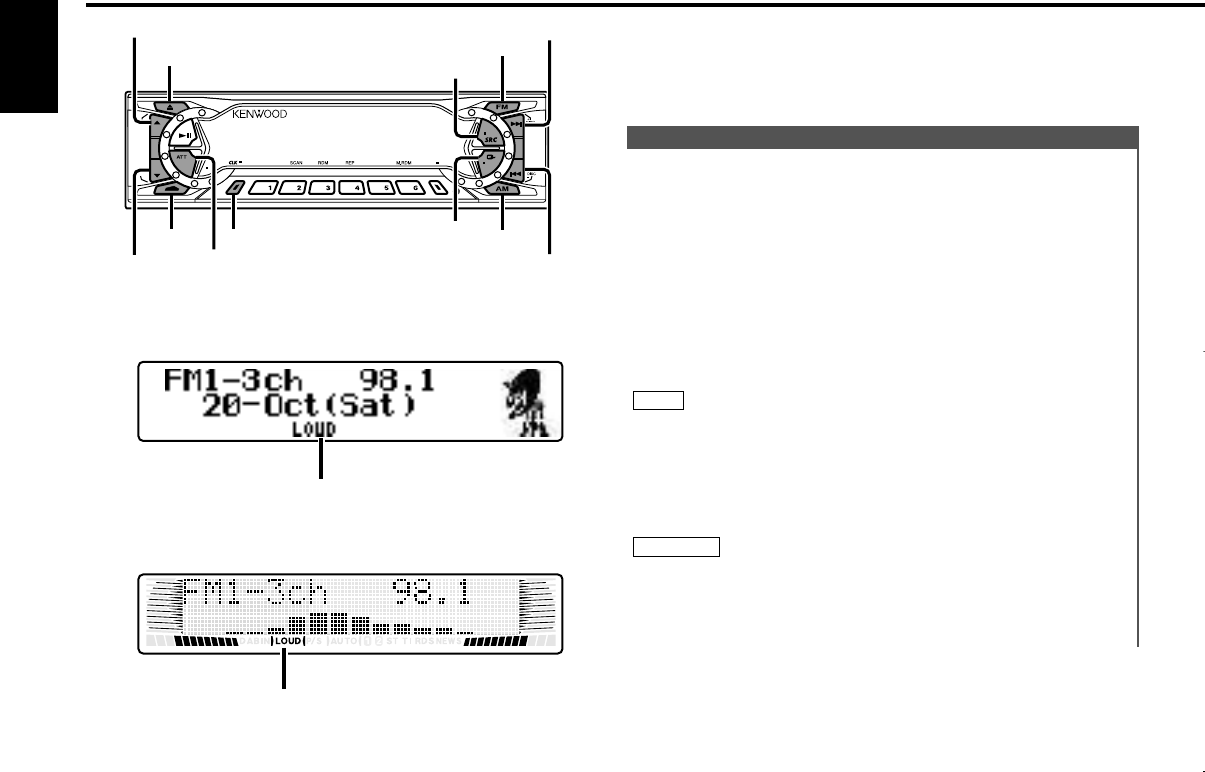
LOUD indicator
LOUD indicator
(KDC-X917/X817/9017)
Description about this indicator for these features can be displayed
by setting the Lower Part Display (page 12) to "... + Function
indicator."
KDC-X917(K)_U.S_r3 00.12.26 1:12 PM Page 8
Selecting standby mode:
Press the SRC button repeatedly and switch to "ALL OFF" .
When "ALL OFF" is displayed, the standby mode is activated.
The standby mode turns all functions off while leaving the
power to the unit on. Use this mode when you want to have
the display illuminated but don't want to listen to anything.
• The mode switches to the next mode from any mode which
cannot be used.
• The external disc control mode will differ depending on the unit
that is connected.
• To enable the selection of External disc control mode 2/AUX
mode, you should connect optional switching adapter KCA-
S210A (which allows you to select both External disc control
mode 2 and AUX mode) or CD changer (KDC-CPS87, KDC-
CX87, KDC-CPS85, KDC-CX85, KDC-CPS82 or KDC-CX82) or
switching adapter CA-C1AX (which allows you to select AUX
mode only).
During the AUX mode, "AUX" (or AUX-name display) will show
in the display. When the CA-C1AX is being used, the AUX
Mode will replace the External Disc Control Mode.
Selecting AUX-name display
Pressing the DISP button for at least two seconds during the
AUX mode, AUX-name display is blinked for AUX-name selection
mode.
Pressing 4or ¢button during this mode allows you to select
"AUX" , "TV" , "VCP" , "GAME" or "PORTABLE" in the AUX mode.
The AUX-name selection mode can be exited by pressing the
DISP button or doing nothing for 10 seconds.
NOTE
NOTE
Switching Modes:
Each time you press the SRC (source) button, the mode
switches as follows:
▼
Tuner mode
▼
CD mode
▼
External disc control mode 1
▼
External disc control mode 2 / AUX mode
▼
Standby mode
Switching Modes
This function allows you to turn down the volume quickly.
Turning Attenuator On/Off:
Press the ATT button to switch the attenuator on and off.
When the attenuator is off, the volume returns to the original
level.
Turning the volume up, or turning it all the way down deactivates
the attenuator function.
NOTE
Attenuator
— 9 —
Increasing Volume:
Press the ▲button to turn up the volume.
Decreasing Volume:
Press the ▼button to turn down the volume.
Volume
KDC-X917(K)_U.S_r3 00.12.26 1:12 PM Page 9
Speaker setting allows the System Q settings to be fine-tuned
according to the type of speakers.
Woofer setting allows for Network configuration according to
the type of subwoofers.
Press the SRC button repeatedly to select the standby mode.
"ALL OFF" is displayed when the standby mode is selected.
Press the Q button to enter the speaker setting mode.
Each time you press the FM/AM button, the mode switches as
follows:
•In speaker setting mode
Press either the 4or ¢button to select the type of
speaker. The setting switches as follows.
Off ("Speaker Setting OFF") /
For 6/6x9 in. speaker (Speaker Setting 6*9/6 inch") /
For 5/4 in. speaker ("Speaker Setting 5/4 inch")/
For the OEM speaker ("Speaker Setting O.E.M.")
•In woofer setting mode (KDC-X917/X817/X717 only)
Press either the 4or ¢button to select the type of Sub
woofer. The setting switches as follows.
"Woofer OFF" / "12in type A" / "10in type A" / "12in type B" /
"10in type B" / "12in type C" / "10in type C" / "8inch" / "12in
type D" / "10in type D"
4
Speaker setting mode
Woofer setting mode (KDC-X917/X817/X717 only)
3
2
1
Speaker & Woofer setting
Note that some of these parameters cannot be controlled by the
audio control setting feature. (KDC-9017)
Their setting values are different depending on the setting of the
speaker and woofer setting mode.
This function amplifies low and high tones when the volume is
turned down.
The LOUD indicator lights up when the loudness function is
on.
Turning Loudness On/Off:
Press the LOUD button for at least one second to switch the
loudness on and off.
The loudness function does not affect non-fading pre-out.
NOTE
Loudness
General features
— 10 —
English
You can recall the best audio setting preset for different types
of the music.
Switching the Preset Sound Setting:
Each time you press the Q button, the preset sound setting
switches as follows:
The System Q function changes the values of the following
sound quality parameters:
Bass center frequency, bass level, bass quality factor, bass
extend, middle center frequency, middle level, middle quality
factor, treble center frequency, treble level, non-fading level,
high-pass filter frequency for front output, high-pass filter
frequency for rear output, and low-pass filter frequency for non-
fading output.
NOTE
Flat
Easy
Rock
Jazz
Pops
Top 40
Scan of Flat – Easy
(Default setting)
User memory*
*User memory:
The unit returns to the state
adjusted the last time with
the audio control setting feature.
System Q
KDC-X917(K)_U.S_r3 00.12.26 1:12 PM Page 10
In Source mode:
In Stand by mode:
Please see the menu settings about selecting the display mode.
For details refer to the Switching Display Mode page for the
menu settings. (page 33)
NOTE
"ALL OFF"
Demonstration
Date + Clock + Function indicator
Demonstration
Spectrum Analyzer 1
Spectrum Analyzer 2
Spectrum Analyzer 3
Spectrum Analyzer 4 (KDC-X917/X817/9017)/
Each source display+ Graphic (KDC-X717)
This function switches the type of information on the display
in the full screen display mode.
Each time you press the CLK button, the full screen display
changes as follows:
Switching Full-Screen Display
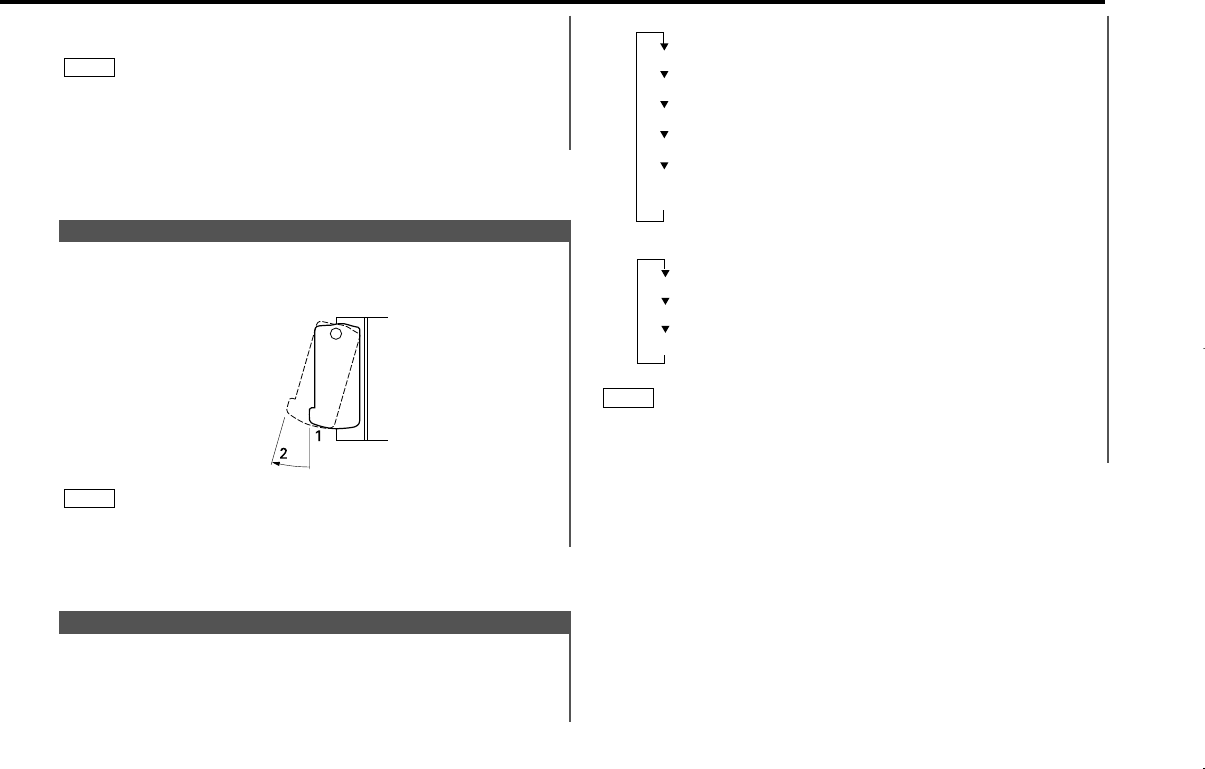
You can adjust the faceplate angle for easy viewing.
Sliding the faceplate:
Press the ANG button for at least one second.
Do not apply excessive force to the faceplate under setting 2.
NOTE
Faceplate Angle Adjustment
Press the Q button to end the speaker setting mode and
woofer setting mode.
•Speaker setting function allows for tuning of bass, middle and
treble.
•Woofer setting allows for tuing of high-pass filter frequency,
low-pass filter frequency and non-fading level.
NOTE
5
— 11 —
KDC-X917(K)_U.S_r3 00.12.26 1:12 PM Page 11
This function switches the type of information on the lower
part display when the display mode is vertical division display.
Each time you press the CLK button, the lower part display
changes as follows:
In Tuner mode:
Spectrum Analyzer1
Radio text + Function indicator
(only during RDS station reception) (KDC-X917/X817 only)
Spectrum Analyzer2 + Clock
Spectrum Analyzer2 + Graphic (KDC-X717 only)
Graphic + Clock (KDC-X717 only)
Date + Function indicator (KDC-X917/X817/9017)/
Date (KDC-X717)
Switching the Lower Part Display
•If you try to display the name of a disc that doesn't have one,
"NO NAME" is displayed instead.
•When there is an attempt to display the title of a disc for
which the disc title/track title has not been recorded, "NO
TEXT" is displayed for CD and "NO TITLE/NO NAME" is
displayed for MD.
•If you attempt to display disc title/track title when connecting
the CD changer not supported for CD text feature, caution
messages such as "NO TEXT" or "Reading" may be displayed.
•Depending on the type of characters of the CD Text, some
characters may not be displayable.
•Please see the menu settings about selecting the display mode.
For details refer to the Switching Display Mode page for the
menu settings. (page 33)
•The same items cannot be selected for both the upper part and
the lower part.
NOTE
This function switches the type of information on the upper
part display when the display mode is vertical division display.
Each time you press the DISP button, the upper part display
changes as follows:
In Tuner mode:
If the RDS station currently tuned to is transmitting no text
while the Radio Text Display mode is turned on, "NO TEXT"
will appear in the display. While awaiting reception, "Waiting"
will be displayed.
To prevent accidents, drivers should not look at the display
while on the road.
In CD/External disc control mode:
•You can give names to discs through the presetting disc
name function (page 30).
Note that depending on the unit, display may not be possible.
NOTE
Disc name (DNPS)(only when being preset)
Track Time
Disc Title (Units featuring CD text/MD only)
Track Title (Units featuring CD text/MD only)
2WARNING
NOTE
Station frequency
SNPS name (only when being preset) /
Program Service name
(only during RDS station reception) (KDC-X917/X817 only)
Radio text
(only during RDS station reception) (KDC-X917/X817 only)
Switching the Upper Part Display
General features
— 12 —
English
KDC-X917(K)_U.S_r3 00.12.26 1:12 PM Page 12
•You can give names to discs through the presetting disc
name function (page 30).
Note that depending on the unit, display may not be
possible.
•If you try to display the name of a disc that doesn't have
one, "NO NAME" is displayed instead.
•When there is an attempt to display the title of a disc for
which the disc title/track title has not been recorded, "NO
TEXT" is displayed for CD and "NO TITLE/NO NAME" is
displayed for MD.
•If you attempt to display disc title/track title when
connecting the CD changer not supported for CD text
feature, caution messages such as "NO TEXT" or "Reading"
may be displayed.
•Depending on the type of characters of the CD Text, some
characters may not be displayable.
•Please see the menu settings about selecting the display mode.
For details refer to the Switching Display Mode page for the
menu settings. (page 33)
•The same items cannot be selected for both the upper part and
the lower part.
NOTE
NOTE
If the RDS station currently tuned to is transmitting no text
while the Radio Text Display mode is turned on, "NO TEXT"
will appear in the display. While awaiting reception, "Waiting"
will be displayed.
To prevent accidents, drivers should not look at the display
while on the road.
In CD/External disc control mode:
Spectrum Analyzer1
Spectrum Analyzer2 + Clock
Graphic + Clock (KDC-X717 only)
Date + Function indicator (KDC-X917/X817/9017)/
Date (KDC-X717)
Disc name (DNPS)* + Function indicator (KDC-X917/X817/9017)/
Disc name (DNPS)* (KDC-X717)
Disc Title** + Function indicator (KDC-X917/X817/9017)/
Disc Title** (KDC-X717)
Track Title** + Function indicator (KDC-X917/X817/9017)/
Track Title** (KDC-X717)
* (only when being preset)
** (Units featuring CD text/MD only)
Spectrum Analyzer2 + Graphic (KDC-X717 only)
2WARNING
NOTE
— 13 —
KDC-X917(K)_U.S_r3 00.12.26 1:12 PM Page 13
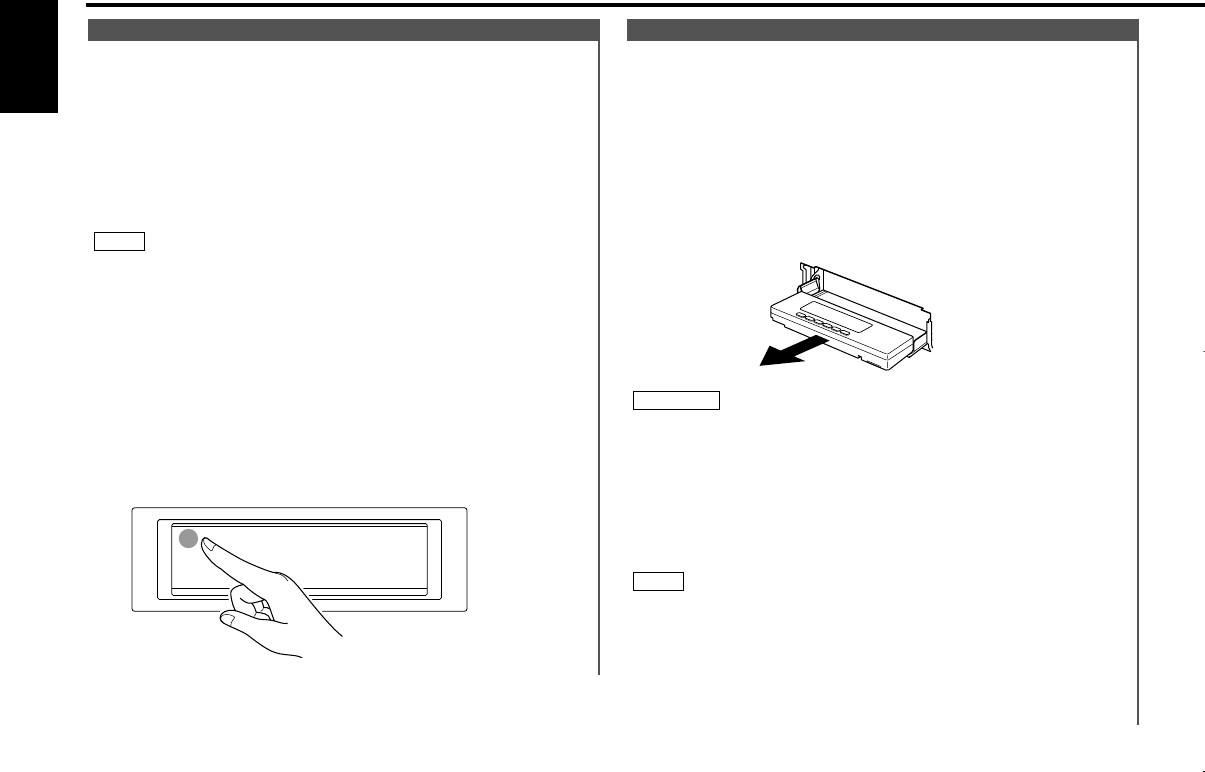
The faceplate can be detached from the unit, helping to deter
theft.
Removing the faceplate:
Choose the way from among the following and open the
faceplate.
Turn the ignition off, press the SRC button for at least one
second when the control panel has been hidden.
Holding the center part of the faceplate, pull it out during the
period which you have set in the "Time setting for removing
the faceplate" (page 38) in the menu.
The faceplate bracket will automatically close.
•When removing the faceplate, pull it out only when it is fully
open. The detachment of the faceplate while it is moving might
result in damage to the unit.
•Do not apply excessive force to the faceplate bracket without
attaching the faceplate. Doing so will cause the faceplate
bracket to be deformed.
•Do not touch the connector on the faceplate bracket after
removing the faceplate. Touching the connector may cause
damage to the unit.
•The faceplate is a precision piece of equipment and can be
damaged by shocks or jolts. For that reason, keep the faceplate
in its special storage case while detached.
•Do not expose the faceplate or its storage case to direct
sunlight or excessive heat or humidity. Also avoid places with
too much dust or the possibility of water splashing.
NOTE
2CAUTION
2
1
Removing the Faceplate
This function prevents tampering with the unit your car is
being serviced etc.
Hiding the unit with the ignition turned on (forced closing):
Press the SRC button for at least one second.
The faceplate will slide open. When the period of time which
you have set in the "Time setting for removing the faceplate" in
the menu has passed, the faceplate automatically reverses to
hide the control panel. However, you can remove the faceplate
during that period. For details, refer to the "Removing the
faceplate" (page 14).
•When the closing faceplate is hit by an object, the unit will turn
off without the faceplate closing all the way. Remove the object
and press the SRC button to turn the unit back on, then turn it
off again to have it close properly.
•Do not try to press the buttons on the control panel as the
faceplate is moving, as excessive force may damage the unit.
•During the forced closing of the unit (i.e., having the unit left
closed while ignition is turned on), the faceplate will not open
no matter how often the ignition is turned on or off.
You can prevent tampering of the unit when letting someone
else drive your car by keeping it closed this way.
To cancel the forced closing of unit and open control panel:
Press the left part at the upper side of the faceplate.
The faceplate will open and show the control panel.
NOTE
Forced Closing
General features
— 14 —
English
KDC-X917(K)_U.S_r3 00.12.26 1:12 PM Page 14
Audio control features
Function of the KDC-X917/KDC-X817/KDC-X717
You can turn the non-fading output on and off.
Turning non-fading output On/Off :
Press the NF button for at least one second to set the function
ON or OFF.
"NF ON" is displayed when the non-fading output is set ON.
Non-Fading Output
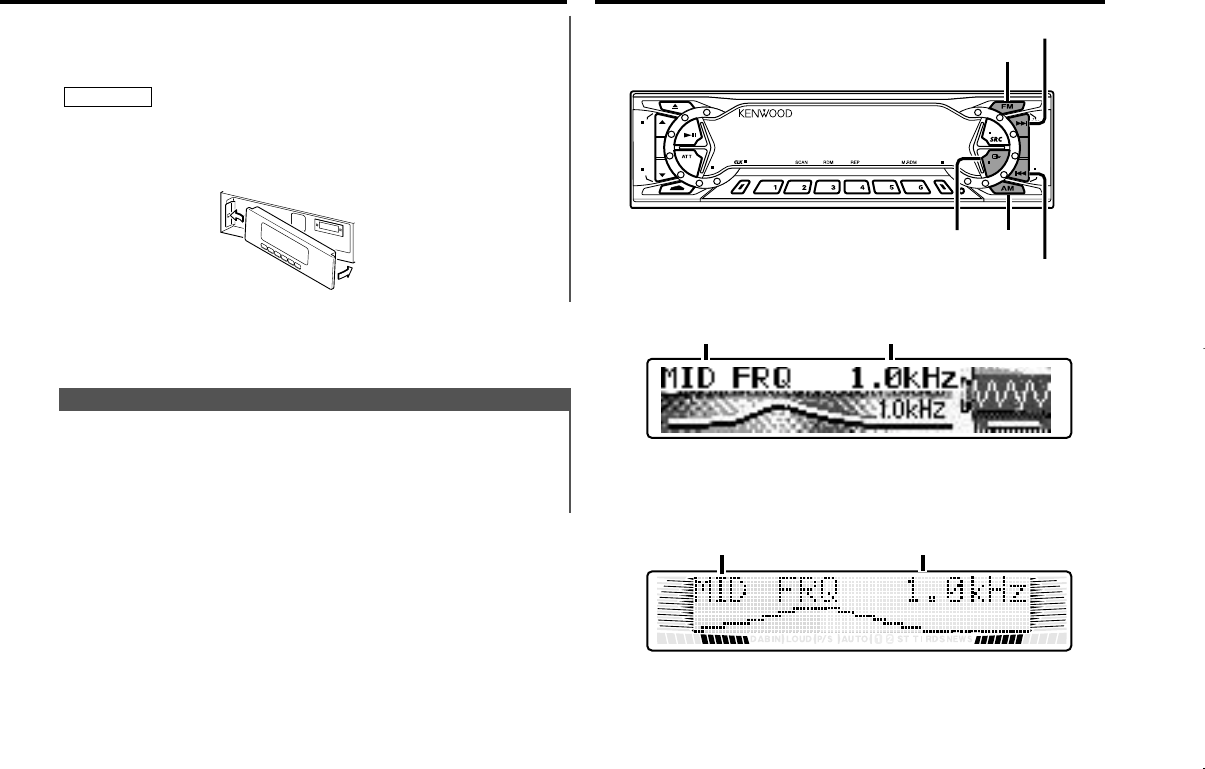
Reattaching the Faceplate:
Hold the faceplate so that the control panel faces the front
toward you and set the left side of the faceplate in the
faceplate bracket.
Do not set the right side of the faceplate in the faceplate bracket
first, when reattaching the faceplate. Doing so may cause the
connector on the faceplate bracket to malfunction.
Press the right side of the faceplate until it locks.2
2CAUTION
1
— 15 —
PTY
LOUD
OFF
NF
DAB
AUD
AME
MENU
ANG
NAME
DISP
AUTO
¢
4
AM
AUD
FM
KDC-X917/X817/9017
KDC-X717
Setting value
Selecting mode
Setting value
Selecting mode
KDC-X917(K)_U.S_r3 00.12.26 1:12 PM Page 15
Function of the KDC-X917/KDC-X817/KDC-X717
Switch the Bass Extend mode on/off.
Display and setting:
"Bass EXT" : ON / OFF (When the bass extend mode is set to
on, low frequency response is extended by 20%.)
Bass Extend
Function of the KDC-X917/KDC-X817/KDC-X717
Adjust the Bass quality factor.
Display and setting:
"Bass Q" : 1.00 / 1.25 / 1.50 / 2.00
Bass Quality Factor
Adjust the bass level.
Display and setting:
"Bass" : - 8 – + 8
Bass Level
Function of the KDC-X917/KDC-X817/KDC-X717
Adjust the center frequency of the bass.
Display and setting:
"Bass FRQ" : 60 / 70 / 80 / 100 (Only when the bass quality
factor is set to 1.00, 1.25 or 1.50) / 150 (Only
when the bass quality factor is set to 2.00) Hz.
Bass Center Frequency
Adjust various parameters of sound quality.
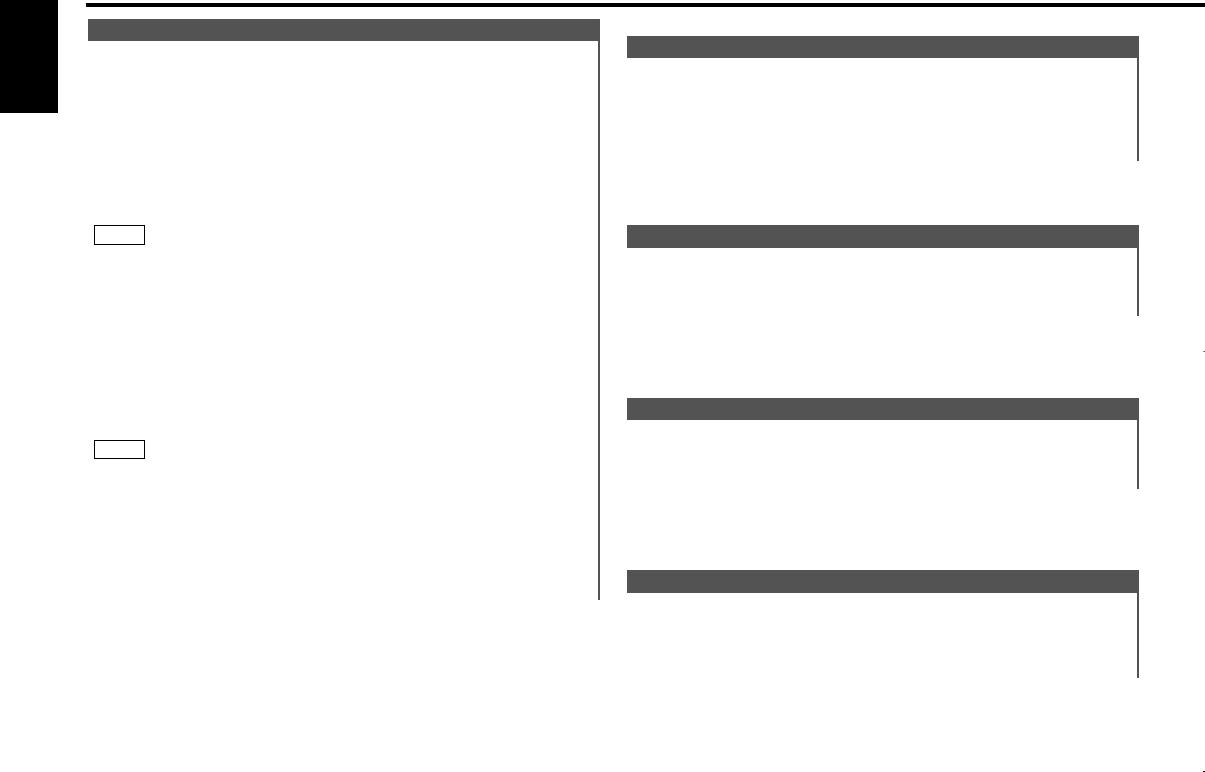
Press the AUD button for at least one second to enter the
control mode.
Selecting mode
Press either the FM or AM button.
Each time the button is pressed, the adjustment mode will
change.
Please refer to the following for the contents of the
adjustment modes.
Source tone memory
Each source ( tape, CD, MD, FM, AM and disc changer ) has its
own memory in which to store the bass, middle, treble and N-F
level settings. (N-F level : KDC-X917/X817/X717 only)
The settings made for a particular source are recalled
automatically whenever you use that source ( for example, FM
mode uses the tone settings made for FM, AM for AM, etc.).
Adjust each mode
Press the 4/¢button.
Please refer to the following for the adjusting values.
Press the AUD button to end the control mode.
•Determining the parameters in the audio control setting would
clear all the adjustments made in the System Q and they are
replaced with the values in the audio control setting.
•The following parameters can be set when the System Q
function on the menu settings is ON.
Bass center frequency, bass quality factor, bass extend, middle
center frequency, middle quality factor, and treble center
frequency.
NOTE
4
3
NOTE
2
1
Audio Control Setting
Audio control features
— 16 —
English
KDC-X917(K)_U.S_r3 00.12.26 1:12 PM Page 16
Function of the KDC-X917/KDC-X817/KDC-X717
Adjust the Non-fading output level.
Display and setting:
"NF Level" : - 15 – + 15
•This mode is available only when the non-fading output function
is set to on.
•Not available during the Dual zone system is on.
NOTE
Non-Fading Level
Adjust the fader level.
Display and setting:
"Fader" : Rear 15 – Front 15
Fader Level
Adjust the balance level.
Display and setting:
"Balance" : Left 15 – Right 15
Balance Level
Adjust the treble level.
Display and setting:
"TRE" : - 8 – + 8
Treble Level
Function of the KDC-X917/KDC-X817/KDC-X717
Adjust the center frequency of the treble.
Display and setting:
"TRE FRQ" : 10.0 / 12.5 / 15.0 / 17.5 kHz
Treble Center Frequency
Function of the KDC-X917/KDC-X817/KDC-X717
Adjust the middle quality factor.
Display and setting:
"Middle Q" : 1.0 / 2.0
Middle Quality Factor
Adjust the middle level.
Display and setting:
"MID" : - 8 – + 8
Middle Level
Function of the KDC-X917/KDC-X817/KDC-X717
Adjust the center frequency of the middle.
Display and setting:
"MID FRQ" : 0.5 / 1.0 / 1.5 / 2.0 kHz.
Middle Center Frequency
— 17 —
KDC-X917(K)_U.S_r3 00.12.26 1:12 PM Page 17
Set the sound level of the each source selected by adjusting
the level difference between the basic sound level and the
required level.
Display and setting:
"Volume Offset"/"VOL Offset" : - 8 – ±0
Volume Offset
Function of the KDC-X917/KDC-X817/KDC-X717
Adjust the phase for Non-Fading output.
Display and setting:
"NF Phase" : Normal (0°) / Reverse (180°)
•This mode is available only when the non-fading output function
is set to on.
•Not available during the Dual zone system is on.
NOTE
Phase for Non-Fading Output
•This mode is available only when the non-fading output function
is set to on.
•Not available during the Dual zone system is on.
NOTE
Function of the KDC-X917/KDC-X817/KDC-X717
Adjust the frequency of the Low-pass filter for Non-Fading
output.
Display and setting:
"LPF NF" : 50 Hz / 80 Hz / 120 Hz / Through
Low-pass Filter Frequency for Non-Fading Output
Function of the KDC-X917/KDC-X817/KDC-X717
Adjust the frequency of the High-pass filter for rear output.
Display and setting:
"HPF Rear" : Through / 40Hz / 60Hz / 80Hz / 100Hz / 120Hz /
150Hz / 180Hz / 220Hz
You can separately set the high-pass filter for front and rear
output, including preouts. The high-pass filter does not affect the
non-fading preout.
NOTE
High-pass Filter Frequency for Rear Output
Function of the KDC-X917/KDC-X817/KDC-X717
Adjust the frequency of the High-pass filter for front output.
Display and setting:
"HPF Front" : Through / 40Hz / 60Hz / 80Hz / 100Hz / 120Hz /
150Hz / 180Hz / 220Hz
You can separately set the high-pass filter for front and rear
output, including preouts. The high-pass filter does not affect the
non-fading preout.
NOTE
High-pass Filter Frequency for Front Output
Audio control features
— 18 —
English
KDC-X917(K)_U.S_r3 00.12.26 1:12 PM Page 18
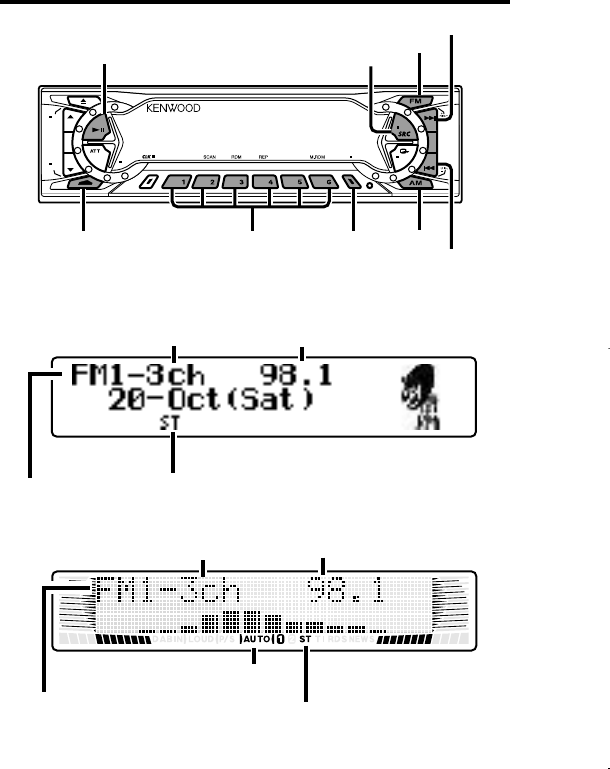
Tuner features
— 19 —
PTY
LOUD
OFF
NF
DAB
AUD
AME
MENU
ANG
NAME
DISP
AUTO
38
SRC
#1-6 AM
AUTO/
AME
FM
NAME
¢
4
ST indicator
Preset station number
Band display
KDC-X717
ST indicator
Preset station number Frequency
Band display
AUTO indicator
KDC-X917/X817/9017
Frequency
KDC-X917(K)_U.S_r3 00.12.26 1:12 PM Page 19
You can automatically store all the receivable frequencies in
the band currently being listened to, and then recall them with
the touch of a button later. This function is especially useful
when you are travelling and do not know what stations are
available. Up to six frequencies can be stored this way.
Auto Memory Entry
Store the frequency of a station. You can then recall that
station with a single touch of a button.
Select the band/station that you want to have stored.
Press the button (#1-6) that you want to use for the station, for
at least two seconds.
The button number blinks once in the display to indicate that
the data has been stored.
Recalling a Preset Station:
Press the preset station button (#1-6) for the desired station.
The number of the recalled station is displayed.
You can store six stations in each of the FM1, FM2, FM3, and
AM bands.
NOTE
2
1
Station Preset Memory
•Preset station seek tuning
Press the ¢button to move to the next preset station (i.e.,
the one with the next highest number), and the 4button to
move to the last preset station (i.e., the one with the next
lowest number).
•Manual Tuning
Press the ¢button to increase the frequency by one step.
Press the 4button to decrease the frequency by one step.
The ST indicator lights up when stereo broadcasts are being
received.
NOTE
You can choose from three tuning modes: auto seek, preset
station seek, and manual.
The AUTO 1 indicator lights up when auto seek tuning is
selected, and the AUTO 2 indicator lights when preset station
seek tuning is selected. (KDC-X717 only)
Selecting Tuning Mode:
Press the AUTO button.
Each time you press the AUTO button, the mode switches as
follows.
Tuning:
Press the SRC (source) button repeatedly to select the tuner
mode. "TUNER" is displayed when the tuner mode has been
selected.
Press either the FM or AM button to select the band.
Each time you press the FM button, the band switches
between the FM1, FM2 and FM3 (which are used for groups
of preset stations).
Press the AM button to select the AM band.
•Auto Seek Tuning
Press the ¢button to seek higher frequencies.
Press the 4 button to seek lower frequencies.
3
2
1
▼
Auto 1 (Auto Seek Tuning)
▼
Auto 2 (Preset Station Seek Tuning)
▼
Manual (Manual Tuning)
Tuning
Tuner features
— 20 —
English
(KDC-X917/X817/9017)
Description about this indicator for these features can be displayed
by setting the Lower Part Display (page 12) to "... + Function
indicator."
KDC-X917(K)_U.S_r3 00.12.26 1:12 PM Page 20
Function of the KDC-X917/KDC-X817/KDC-X717
When you know the frequency of the station that you want to
listen to, you can input it directly for quick access.
Select the band by pressing the FM or AM button.
Press the DIRECT button.
"----" is displayed for 10 seconds.
If you make no input in the 10-second period, direct access
tuning is automatically canceled.
Enter the frequency of the desired station.
If you want to listen to an FM station at 92.1 MHz, for
example, press 0, 9, 2, and 1.
If you want to listen to an AM station at 810 kHz, for example,
press 0, 8, 1, and 0.
•You cannot enter frequencies above or below what a band can
receive.
•FM frequencies can only be input in 0.1 MHz steps, and not
0.01 MHz steps.
Canceling Direct Access Tuning:
Press the DIRECT button again.
NOTE
3
2
1
Direct Access Tuning (Function of remote)
Select the band for auto memory entry.
Press the AME button for at least two seconds to start auto
memory entry.
The numbers of the preset station buttons are shown in order.
When all the stations in a certain band are stored in the preset
memory, the auto memory entry stops. The tuner then plays
the last station received.
Recalling a Preset Station:
Press the preset station button (#1-6) for the desired station.
The number of the recalled station is displayed.
2
1
— 21 —
KDC-X917(K)_U.S_r3 00.12.26 1:12 PM Page 21
Continue steps 3 and 4 until all the characters are chosen for
the name.
You can enter up to eight characters for each name.
Assigning Names
Press the NAME button on the unit or the OK button on the
remote.
The name of the station is stored in memory, and the Station
Name Preset mode ends.
Also, if you make no input for 10 seconds, the name will be
stored up to the point that you have entered, and the mode
ends.
•You can assign names to up to 32 FM stations and 16 AM
stations.
•All the station names will be erased if you press the Reset
button.
•If you want to change the name of a station, first display the
name of the station (following steps 1 and 2 above), then
change the letter(s) that you want by following steps 3 and 4.
NOTE
6
NOTE
5
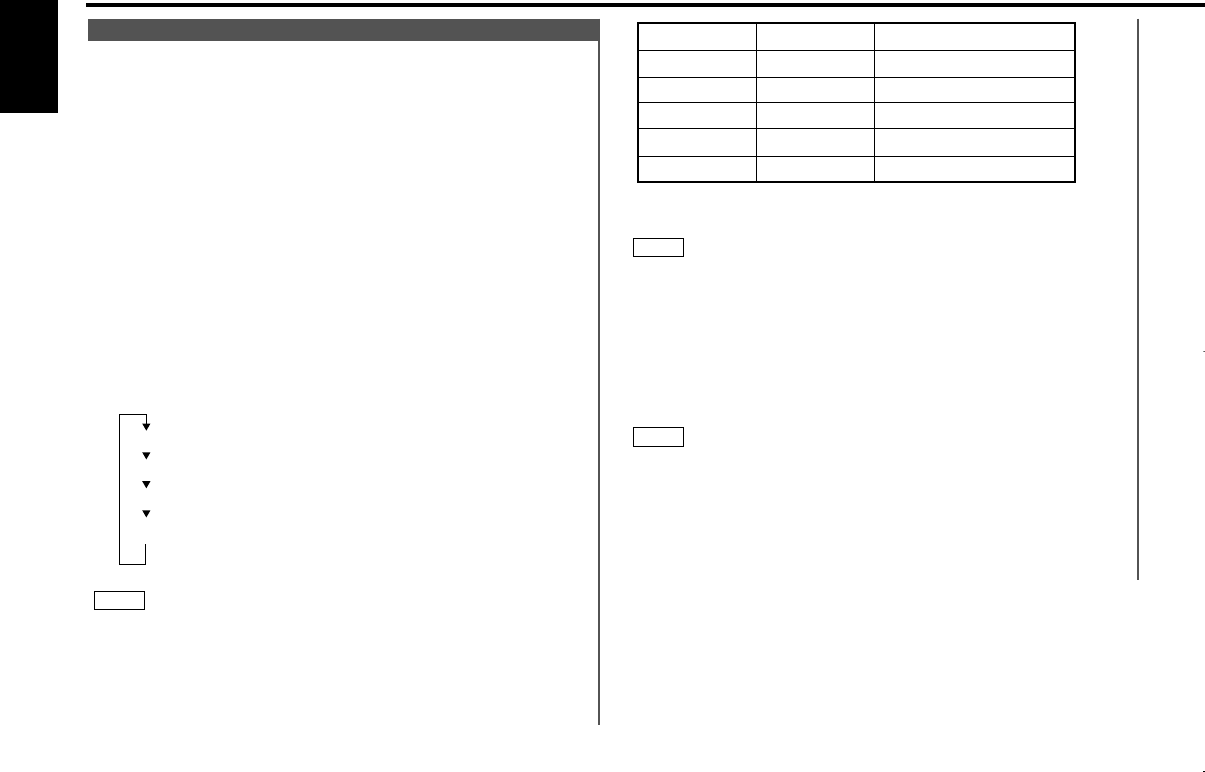
Button to press # Times pressed
Character
#3 1
1#2
#6 2
#2 3
#3 2
“D”
“A”
“N”
“C”
“E”
You can assign names to radio stations with the Station Preset
Memory. Up to 32 FM stations and 16 AM stations can be
assigned names.
Adjust the frequency to the station whose name you want to
enter.
Press the NAME button for at least two seconds.
"NAME SET" is displayed once the station name preset mode
is entered.
The cursor will blink in the position where letters are entered.
Press either the 4or ¢button to move the cursor to the
desired position.
The 4button moves the cursor to the left, and the ¢
button to the right.
You can also move the cursor left or right by pressing the 4
or ¢buttons, respectively, on the remote.
Each time the 38 button is pressed, the characters to be
entered change as listed below.
Press the FM or AM button to display the desired character.
Characters that can be displayed are as follows.
Direct Alphabet Input
(Function of remote with number/letter entry buttons :
KDC-X917/X817/X717 only)
Direct input can be made of letters (alphabetical) with the letter
entry buttons on the remote.
Example: Use the following table to enter the name "DANCE”.
NOTE
Alphabet (upper case): A ~ Z
Alphabet (lower case): a ~ z
Numerals and symbols: 0~9 @ ” ‘ ` % & * + - = , . / \ < > [ ]
Special characters: áàéèíìóòúùÑǮߋfl
âäêëîïôöûüñç©Æ›fi
4
3
2
1
Station Name Preset (SNPS)
Tuner features
— 22 —
English
KDC-X917(K)_U.S_r3 00.12.26 1:12 PM Page 22
Function of the KDC-X917/KDC-X817
RDS features
You can search for the station for any station if its name has
been preset using Station Name Preset.
Press the DNPP button on the remote.
"SNPP" will be displayed once the station name preset play
mode is entered.
The names of the stations stored in the band currently listened
to are displayed in the following order for five seconds each:
Each time you press the ¢button, the station display
switches in the forward direction.
Each time you press the 4button, the station display
switches in the reverse direction.
Stations whose names have not been stored will be displayed
as frequencies.
The program service name will appear for RDS stations. (KDC-
X917/X817 only)
Changing the Displayed Band
Pressing the FM button switches between the FM1, FM2, FM3
and AM displays, in that order.
Pressing the AM button switches between the displays in the
reverse direction.
Once the name is displayed for the station you want to
listen to
Press the OK button.
Reception starts of the displayed station, and the station name
preset play mode ends.
Canceling mode during input:
Press the DNPP button.
The station name preset play mode is canceled.
2
NOTE
=FM1 ÔFM2 ÔFM3 ÔAM +
1
Station Name Preset Play (SNPP)
(Function of Remote)
— 23 —
PTY
LOUD
OFF
NF
DAB
AUD
AME
MENU
ANG
NAME
DISP
AUTO
CLK
PTY
DISP/
NAME
FM
AM
#1-6
¢
4
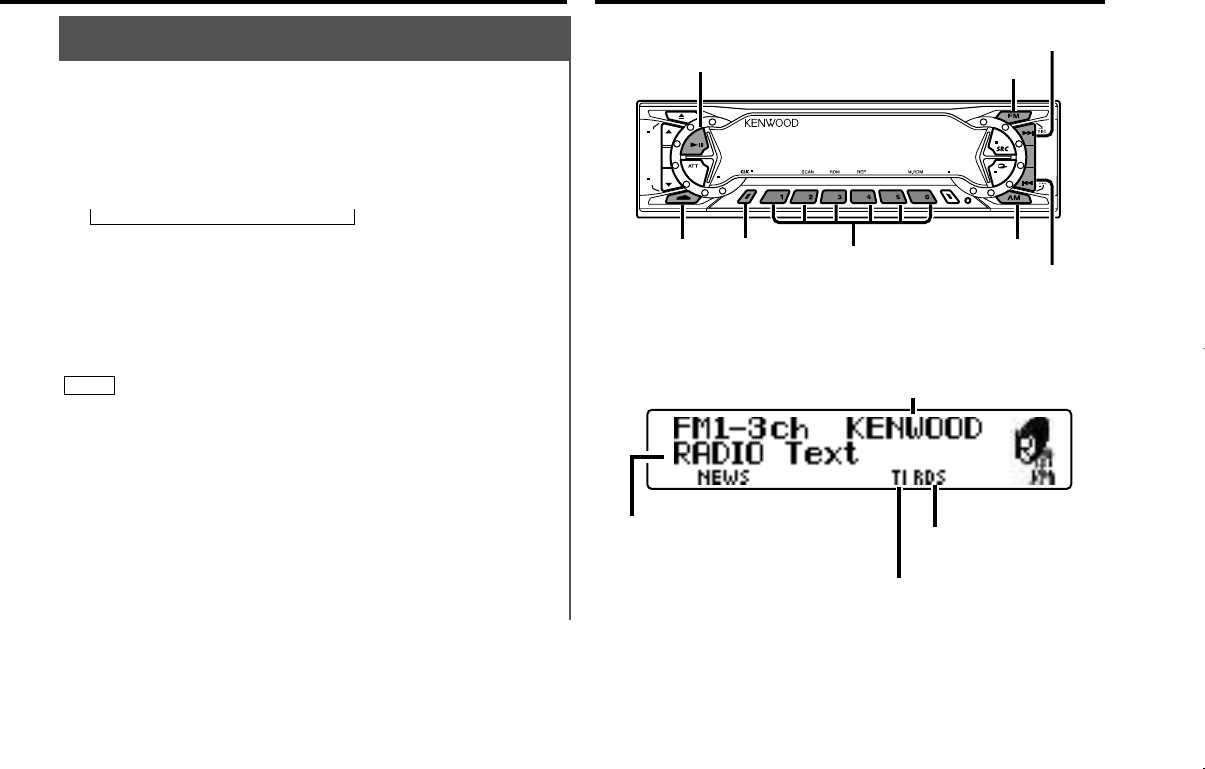
TI indicator
Program Service name
Radio text
RDS indicator
KDC-X917(K)_U.S_r3 00.12.26 1:12 PM Page 23
Conduct auto seek tuning only on those stations with selected
kinds of programs.
Press the PTY button.
"PTY Select" is displayed once the program type selection
mode is entered.
You cannot use this function while the traffic bulletin is received.
Select the type of program to be received
•Press either the FM or AM buttons repeatedly to select the
type of program you want to listen to.
The selection includes:
Speech (All Speech)
Music (All Music)
1. News (News)
2. Information (Information)
3. Sports (Sports)
4. Talk (Talk)
5. Rock (Rock)
6. Classic Rock (Classic Rock)
7. Adult Hits (Adult Hits)
2
NOTE
1
Program Type (PTY) Function
To scroll manually:
Press the DISP button to display radio text on the upper part
display.
Pressing the DISP button for at least one second results in one
scrolling display of the text.
•Please see the menu settings (page 33) about switching
between manual scrolling and automatic scrolling.
•You can scroll text when the vertical division display mode has
been selected by the switching display mode function.
For details refer to the Switching Display Mode page for the
menu settings. (page 33)
NOTE
2
1
This function permits the text to be scrolled and the entire text
to be displayed. The scrolling method differs depending on the
setting of scrolling in the menu.
To scroll automatically:
Press the DISP or CLK button to display radio text on the
upper or lower part display.
The display of the text will be scrolled repeatedly.
Radio Text Scroll
When an emergency transmission (announcing disasters, etc.)
is made, the current function will be interrupted to allow the
warning to be received under the following conditions:
during tuner reception, or when the Traffic Information
function is turned on.
Alarm
RDS is a service used by radio stations to transmit data
outside normal radio broadcast signals.
When an RDS station is received, you can immediately find
out what kind of data is being transmitted by looking at the
program service name, which appears in the display after the
frequency.
The RDS indicator turns on when an RDS station is being
received.
RDS (Radio Data System)
Function of the KDC-X917/KDC-X817
RDS features
— 24 —
English
Description about this indicator for these features can be displayed
by setting the Lower Part Display (page 12) to "... + Function
indicator."
KDC-X917(K)_U.S_r3 00.12.26 1:12 PM Page 24
You can register a station as a program type.
To register a non-RDS station as a program type:
Tune your radio to the non-RDS station that you want to
register as the program type.
Press the PTY button to enter the program type selection
mode.
Press the FM/AM button to select the program type you want
to register. Follow the instructions in 2 to enter the program
type selection mode.
Press the NAME button for at least two seconds.
The station will be registered as a program type, allowing it to
be the target of frequency seeks just as RDS stations are.
Press the PTY button to end the program type selection mode.
5
4
3
2
1
Registration of a station as a PTY
If no program can be found, "NO PTY" is displayed.
If you want to select another type of program, repeat steps 2 and
3 above.
Switching to Other Stations with the Same Type of Program:
When "PTY Found" is displayed, perform auto seek tuning.
The tuner scans for another station with the same type of
program.
Canceling Program Type Function During Its Operation:
Press the PTY button.
Confirming Program Type:
Press the DISP button.
The program type of the station currently tuned to will be
displayed for five seconds. During that time, "Entry" will blink in
the display.
If you tune to frequencies for which no program type has been
stored, "No Entry" will be displayed.
NOTE
NOTE
8. Soft Rock (Soft Rock)
9. Top 40 (Top 40)
10. Country (Country)
11. Oldies (Oldies)
12. Soft (Soft)
13. Nostalgia (Nostalgia)
14. Jazz (Jazz)
15. Classical (Classical)
16. R&B (Rhythm and Blues)
17. Soft R&B (Soft R & B)
18. Language (Foreign Language)
19. Religious Music (Religious Music)
20. Religious Talk (Religious Talk)
21. Personality (Personality)
22. Public (Public)
23. College (College)
24. Weather (Weather)
(Speech.....1~4, 18, 20~24, Music.....5~17, 19)
•You can select the type of program directly by pressing a
preset button. The buttons are factory-set to the following
type of programs:
1. Music 2. Speech 3. News
4. Sports 5. Classical 6. Jazz
Changing the Preset Button Settings for Program Type
After selecting the type of program to be stored in a certain
preset button, press that button for at least two seconds.
The previously stored data for that button are erased and the
new program type is stored.
Seeking the Selected Program Type
Press the 4or ¢button to make a seek of frequencies
with your selected type of program.
The display blinks and the seek starts.
If your selected type of program is found, the name or the
frequency of the station is displayed and the station is tuned
into.
"PTY Found" is displayed for about 30 seconds.
If you make no key input in 30 seconds, the PTY selection
mode will turn off automatically.
3
NOTE
— 25 —
KDC-X917(K)_U.S_r3 00.12.26 1:12 PM Page 25
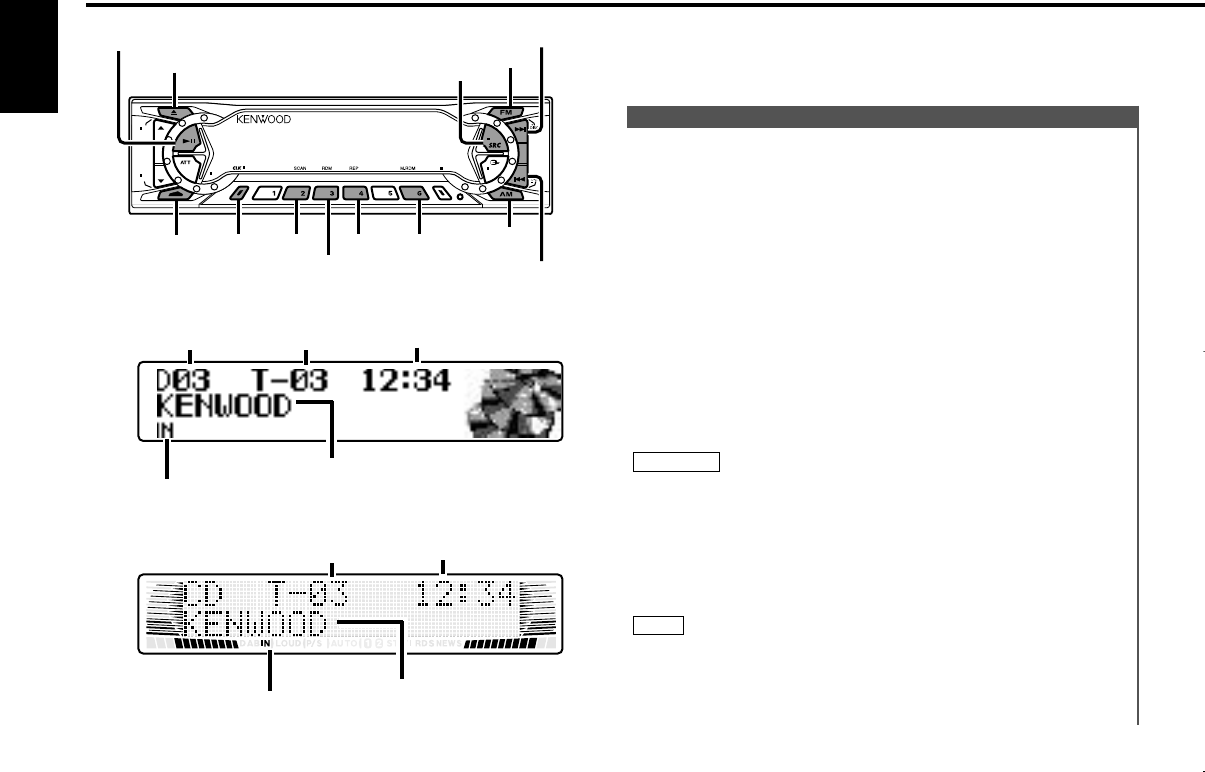
Playing CDs:
Press the 0(EJECT) button to slide open the faceplate,
showing the CD (insertion) slot. Holding the CD with the
labeled side facing up, insert it in the slot. The faceplate will
close, and the CD will start playing.
The IN indicator will light when a CD has been inserted.
Playing CDs Already Inserted:
Press the SRC button repeatedly to select the CD mode.
"CD" is displayed when the CD mode has been selected.
The CD will start playing.
Pausing and Restarting CD Play:
Press the 38 button to make the disc pause.
Press the same button again to start play again.
Eject:
Press the 0(EJECT) button. The faceplate will slide to eject the
CD.
Press the 0(EJECT) button to close the faceplate.
•Do not attempt to insert a CD into the slot if another one is
already there.
•The unit can only play 5 in. CDs. If you insert a 3 in. CD, it will
get stuck inside and can cause the unit to malfunction.
•When the faceplate has been slid open, it might interfere with
the shift lever or something else. If this happens, pay attention
to safety and move the shift lever or take an appropriate action,
then operate the unit.
•The sound will be temporarily muted while the faceplate is
moving.
•When you load a CD and eject it right away, the next time you
try to insert the CD may not load. In such a situation, take the
CD out for a moment and then reinsert it.
NOTE
2CAUTION
Playing CDs
CD/External disc control features
— 26 —
English
PTY
LOUD
OFF
NF
DAB
AUD
AME
MENU
ANG
NAME
DISP
AUTO
DISP/
NAME
SRC
CLK SCAN
RDM
REP M.RDM DISC-
0
38
DISC+
¢
4
KDC-X917/X817/9017
KDC-X717
Track number Track time
Disc title/Track title/DNPS
IN indicator
Disc number
Track number Track time
Disc title/Track title/DNPS
IN indicator
(KDC-X917/X817/9017)
Description about this indicator for these features can be displayed
by setting the Lower Part Display (page 12) to "... + Function
indicator."
KDC-X917(K)_U.S_r3 00.12.26 1:12 PM Page 26
Search forward or backward through the tracks on the disc
until you reach the one that you want to listen to.
Making a Reverse Track Search:
Press the 4button to display the desired track number.
Press once to search back to the beginning of the current
track, twice to search back to the beginning of the previous
track, and so forth.
Play starts at the beginning of the displayed track number.
(For disc changers)
Pressing the 4button while listening to track 1 will only search
back to the beginning of that track. The reverse search is not
"recycled" to the last track on the disc.
Making a Forward Track Search:
Press the ¢button to display the desired track number.
Press once to fast forward to the next track, twice to fast
forward to the track after that, and so forth.
Play starts at the beginning of the displayed track number.
(For disc changers)
You cannot make a forward track search when listening to the
last track on a disc.
NOTE
NOTE
Track Search
You cannot use reverse play between tracks depending on the
model being connected. Instead, the reverse play function is
canceled when it reaches the beginning of a track, at which point
normal play will automatically resume.
NOTE
Fast Forwarding Disc Play:
Hold down on the ¢button.
Release your finger to play the disc at that point.
Reversing Disc Play:
Hold down on the 4button.
Release your finger to play the disc at the point.
Fast Forwarding and Reversing Disc Play
This function permits the connection of optional players and
the playing of discs other than the loaded CD (in the current
unit).
Playing Discs:
Press the SRC button repeatedly to select the external disc
control mode.
The disc will start playing.
The external disc control mode will differ, depending on the unit
that is connected.
Mode Display Examples
•"CD2" ...when a CD player is connected
•"CD-CH"/"MD-CH"/"DISC" ...when a disc changer is connected
•"CD-CH1"/"MD-CH1"/"DISC1" , "CD-CH2"/"MD-CH2"/"DISC2"
...when two disc changers are connected
Pausing and Restarting Disc Play:
Press the 38 button to make the disc pause.
Press the same button again to start play again.
When one disc has finished playing its last track, the next disc in
the changer will start playing. When the last disc in the changer
has finished, the player will return to the first disc and start
playing it.
NOTE
NOTE
Playing Other Disc mode
— 27 —
KDC-X917(K)_U.S_r3 00.12.26 1:12 PM Page 27
Play all the tracks on the current disc in random order.
Press the RDM button to switch random play on and off.
"Random ON" is displayed when random play is turned on.
The track number will change over and over in the display as
the next track is being selected.
When the track has been selected, play will begin.
The selected track number blinks in the display as it is being
played.
(For disc changers)
When all the tracks on a certain disc have been played using
random play, the next disc on the changer will start playing using
the same function.
To change the track being heard, press the ¢button.
Another track will be selected and played.
2
NOTE
1
Random Play
Successively play the beginning of each track on a disc until
you find the track that you want to listen to.
Starting the Track Scan:
Press the SCAN button. "Scan ON" is displayed and the first 10
seconds of each track will be played, in order.
The track number currently being heard blinks in the display.
Stopping to Listen to the Track Being Scanned:
Press the 38 or SCAN button again to stop the scan and keep
on listening to a track normally.
•The track scan function is canceled when you eject the disc.
•The track scan function only scans each track on a disc once.
NOTE
Track Scan
Repeat play is canceled when you eject the disc.
NOTE
Repeat playing the track or the disc currently being listened to.
Turning Repeat Play On/Off:
Press the REP button to switch repeat track/disc play on and
off as follows:
"Track Repeat ON"/"Repeat ON" is displayed and the track
number blinks in the display when track repeat is on.
"Disc Repeat ON" is displayed and the disc number blinks in
the display when disc repeat is on.
▼
Track Repeat ON
▼
Disc Repeat ON (Function of disc changers)
▼
Repeat OFF
Track / Disc Repeat
Search forward or backward through the discs in a disc
changer.
Making a Reverse Disc Search:
Press the DISC–button to display the desired disc number.
Each time the button is pressed, the displayed disc number
decreases by one.
Play starts at the beginning of the displayed disc.
Making a Forward Disc Search:
Press the DISC+button to display the desired disc number.
Each time the button is pressed, the displayed disc number
increases by one.
Play starts at the beginning of the displayed disc.
"Load" is displayed when discs are being exchanged on the disc
changer.
NOTE
Disc Search (Function of disc changers)
CD/External disc control features
— 28 —
English
KDC-X917(K)_U.S_r3 00.12.26 1:12 PM Page 28
This function permits the text to be scrolled and the entire text
to be displayed. The scrolling method differs depending on the
setting of scrolling in the menu.
To scroll automatically:
Press the DISP or CLK button to display the disc or track title
on the upper or lower part display.
The display of the text will be scrolled repeatedly.
To scroll manually:
Press the DISP button to display the disc or track title on the
upper part display.
Pressing the DISP button for at least one second results in one
scrolling display of the titles.
•Please see the menu settings (page 33) about switching
between manual scrolling and automatic scrolling.
•You can scroll text when the vertical division display mode has
been selected by the switching display mode function.
For details refer to the Switching Display Mode page for the
menu settings. (page 33)
NOTE
2
1
Text Scroll
Random play is canceled when you eject the disc.
NOTE
— 29 —
KDC-X917(K)_U.S_r3 00.12.26 1:12 PM Page 29
Direct Alphabet Input
(Function of remote with number/letter entry buttons :
KDC-X917/X817/X717 only)
If the disc changers that were manufactured and sold after 1997
(except for KDC-C560) are connected, you can directly input
letters using the number/letter entry buttons on the remote.
Example: Use the following table to enter the name "DANCE".
Continue steps 3 and 4 until all the characters are chosen for
the name.
You can enter up to 12 characters for each name.
Press either the NAME button on the main unit or the OK
button on the remote.
The disc name is stored and the disc name preset mode is
canceled.
If you make no entry in a 10-second period, the name will be
stored with the characters input so far.
•The number of discs whose names can be stored will differ
depending on the disc changer that is connected. Please see
your disc changer manual for details.
Up to 30 CDs can be registered with this unit.
•Discs are identified by their total length and number of tracks. If
another disc happens to have the same specifications as one
that you have already stored a name for, the name will be
displayed for it, too.
NOTE
6
NOTE
5
Button to press # Times pressed
Character
#3 1
1#2
#6 2
#2 3
#3 2
“D”
“A”
“N”
“C”
“E”
NOTE
Store the names of discs to be displayed when played.
Play the disc whose name you want to preset.
•This function is not available for disc changers that do not
feature the Disc Name Preset function.
•The Disc Name Preset function cannot be used during the
Magazine random play as well as while a disc title or track title
is displayed.
Press the NAME button for at least two seconds.
"NAME SET" is displayed and the disc name preset mode is
entered.
The cursor blinks in the position where character input can be
made.
Press either the 4or ¢button to move the cursor to the
desired position.
The 4button moves the cursor to the left, and the ¢
button to the right.
You can also move the cursor left or right by pressing the 4
or ¢buttons, respectively, on the remote.
Each press of the 38 button results in the type of characters
that are to be entered changing between alphabet and
numerals/symbols.
Press the DISC+or DISC–button to display the desired
character.
Characters that can be displayed are as follows.
Alphabet (upper case): A ~ Z
Alphabet (lower case): a ~ z
Numerals and symbols: 0~9 @ ” ‘ ` % & * + - = , . / \ < > [ ]
Special characters: áàéèíìóòúùÑǮߋfl
âäêëîïôöûüñç©Æ›fi
4
3
2
NOTE
1
Presetting Disc Names (DNPS)
CD/External disc control features
— 30 —
English
KDC-X917(K)_U.S_r3 00.12.26 1:12 PM Page 30
Function of the KDC-X917/KDC-X817/KDC-X717
Using the remote, directly input the track number that you
want to listen to.
Using the number buttons on the remote, input the number of
the track that you want to listen to.
The selected track number will blink in the display for 10
seconds.
If you make no further input in the 10-second period, the
number entry mode will automatically be canceled.
Press either the 4or ¢button while the track number is
blinking.
The track starts playing.
Canceling Direct Track Search While It Is Operating:
Press the 38 button.
You cannot use the direct track search function during random or
magazine-random play.
NOTE
2
1
Direct Track Search (Function of Remote)
Play the tracks on all the discs in the disc changer in random
order.
Press the M.RDM button to switch magazine random play on
and off.
"M.Random ON" is displayed when magazine random play is
turned on.
The disc and track numbers will change over and over in the
display as the next track is being selected.
When the disc/track has been selected, play will begin.
The selected disc/track number blinks in the display as it is
being played.
To change the track being heard, press the ¢button.
Another disc/track will be selected and played.
•Magazine random play is canceled when you eject the disc.
•The time needed for random selection depends on the number
of discs loaded in the disc magazine.
NOTE
2
1
Magazine Random Play (Function of disc changers)
•If you want to change the name of a disc, repeat steps 1 and 2
to display the name, and then repeat steps 3 and 4 to input the
changes.
•Pressing the reset button erases the disc names stored in this
unit, but does not erase the names stored in a disc changer.
— 31 —
KDC-X917(K)_U.S_r3 00.12.26 1:12 PM Page 31
•This function can only be used in disc changers that were
manufactured or sold as of 1997. Also note that some units
cannot provide a display unless the disc name preset has been
made by the unit that is playing.
•Discs in the disc changer that have never been played before
will appear as "NO ACCESS" when the disc names are
displayed. When you cannot identify a disc because of the "NO
ACCESS" display after inserting a disc magazine, try playing it to
display the disc name. Also note that "NO DISC" will be
displayed when a disc has not been loaded.
Rapid display (forward / reverse):
Press the DISC+or DISC–button.
Pressing the DISC+button will rapidly display the preset
names/disc titles in order.
Pressing the DISC–button will rapidly display the preset
names/disc titles in reverse order.
When the name appears for the disc you want to play
Press the OK button.
The disc whose name is displayed will be recalled, and the disc
name preset play (DNPP) mode will end.
To cancel DNPP mode:
Press the DNPP button.
The disc name preset play (DNPP) mode will be canceled.
2
NOTE
If you have preset the name of a disc that you want to listen to
in the disc changer, you can look for it by name and start
playing it.
Press the DNPP button on the remote.
"DNPP" will appear in the display, and the disc name preset
play mode is entered.
The names of all the discs in the disc changer will appear
successively in the display for five seconds each.
Discs whose names have not been preset will appear as "NO
NAME" in the display.
1
Disc Name Preset Play (DNPP)
(Function of Remote)
Function of the KDC-X917/KDC-X817/KDC-X717
Using the remote, directly input the disc number that you
want to listen to.
Using the number buttons on the remote, input the number of
the disc that you want to listen to.
The selected disc number will blink in the display for 10
seconds.
If you make no further input in the 10-second period, the
number entry mode will automatically be canceled.
•Input "0" to select disc 10.
•If you input more than two numbers all at once, a search will be
made only of the last number input.
•You cannot use the direct disc search function during random
play or magazine random play.
Press either the DISC+or DISC–button while the number
inputted is blinking.
The disc starts playing.
Canceling Direct Disc Search While It Is Operating:
Press the 38 button.
2
NOTE
1
Direct Disc Search (Function of disc changers with remote)
CD/External disc control features
— 32 —
English
KDC-X917(K)_U.S_r3 00.12.26 1:12 PM Page 32
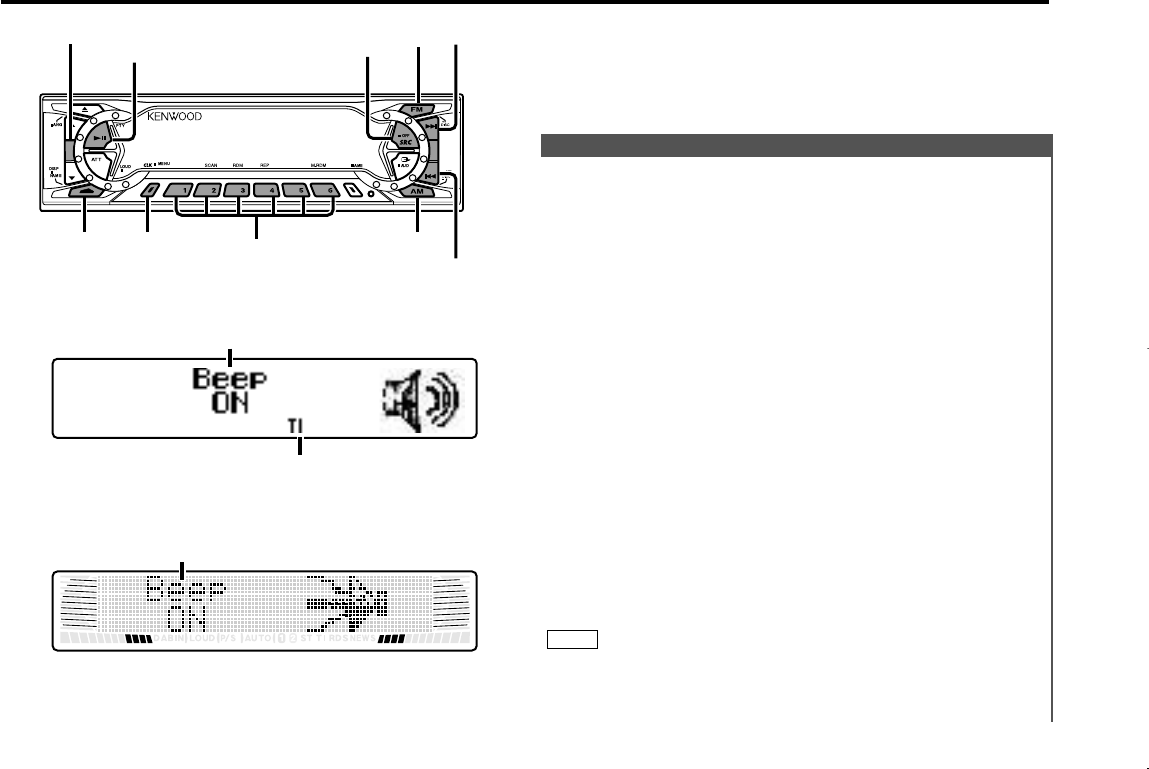
You can set the defaults for additional functions in the menu
mode. Make a setting for each function, referring to the
following operations.
Enter the menu mode
Press the MENU button for at least one second.
"MENU" is displayed when the menu mode is entered.
The function that you can adjust is indicated with the current
settings displayed.
Selecting function to set
Press the FM button to search through the functions until you
see the one you want to adjust in the display.
Press the AM button to search through the functions
backward.
Function items change in the order of features that follow in
the menu system.
Example: If you want to switch the setting of the touch sensor
tone function from on to off, first search through the
functions until you see "Beep ON" in the display.
Changing setting for currently displayed function
Press either the 4or ¢button.
The setting will change for each function.
Example: The setting of the touch sensor tone will switch from
on to off, and "Beep OFF" is displayed.
Ending the menu mode
Press the MENU button.
Make sure to end the menu mode when finished.
If you fail to end the menu mode, several functions may not
operate properly, including the Traffic Information function and
the Alarm function.
NOTE
4
3
2
1
Menu System
Menu settings
— 33 —
AUTO
DISP MENU AM
38
FM
SRC
#1-6
¢
4
KDC-X917/X817/9017
KDC-X717
Menu display
Menu display
TI indicator
(KDC-X917/X817/9017)
Description about this indicator for these features can be displayed
by setting the Lower Part Display (page 12) to "... + Function
indicator."
KDC-X917(K)_U.S_r3 00.12.26 1:12 PM Page 33
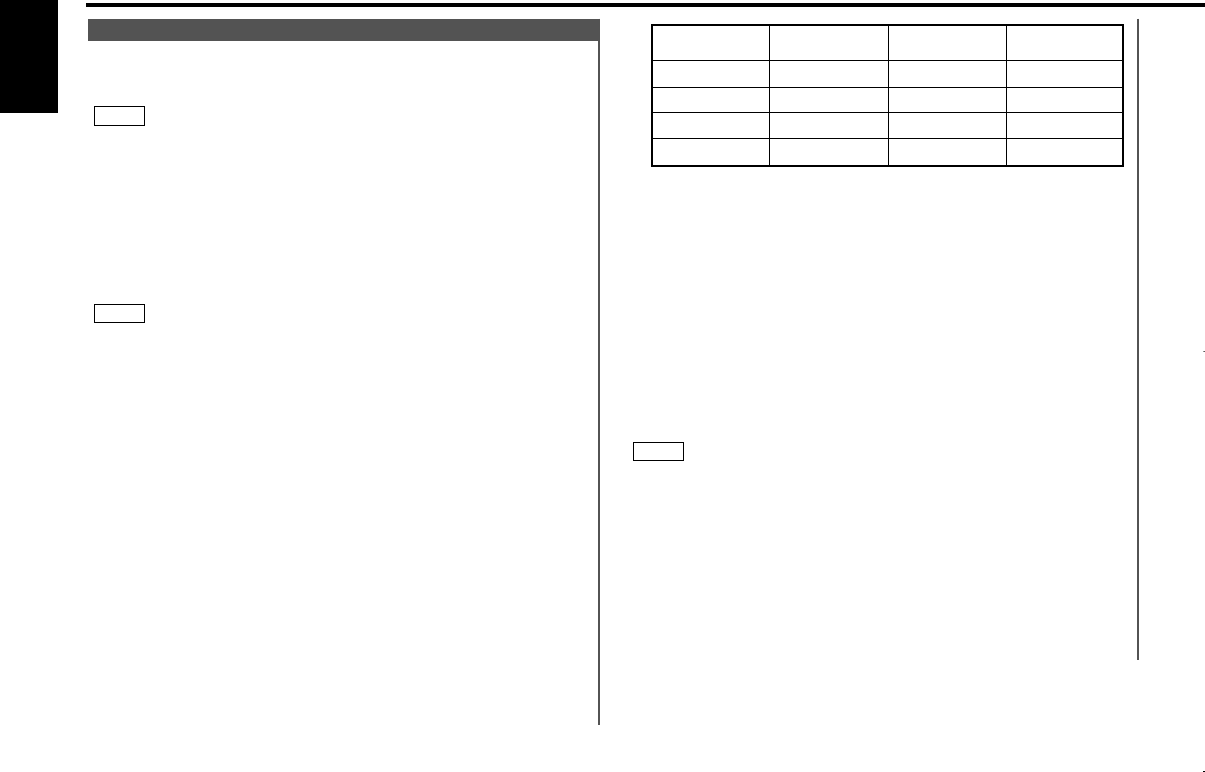
Press the DISP button for at least three seconds.
The security code will be set.
"RE-ENTER" will appear in the display for one second, asking
you to enter the code once again for confirmation. When
"CODE" appears in the display, you can start inputting the
code.
Press the Preset button and input the security code again.
Press the DISP button again for at least three seconds.
"APPROVED" will appear in the display, with the security code
function turning on. From this point on, if the unit is
disconnected from the battery, the security code must be
entered the first time that the unit's power is turned on.
"ENTER" and "CODE" will appear in the display, asking you to
input the code.
If you input an incorrect security code, the code setting mode
will be canceled automatically. Follow the steps from 4 to 8
above again.
If you press the RESET button or remove the battery:
The first time you turn the unit on again, "CODE" will appear in
the display, asking you to input the security code.
Repeat steps 7 and 8 above, and input the security code.
You can start operating the unit again when "APPROVED"
appears in the display.
If you enter the incorrect code, the power will turn off. Enter
the correct code to turn the unit on.
NOTE
8
7
6
Step Button to press # Times
pressed Display
1#1 4
3
6#2
2
#3 2
4#4 1
“3”
“5”
“1”
“0”
When the battery is removed from the unit's power switch,
you cannot turn on the unit again unless the preset security
code is input. This function helps prevent theft.
You must follow steps 1 to 8 to be able to use the Security Code
function. Turning off the power during the procedure will
deactivate the security code setting.
Once the security code function has been activated, "Security"
disappears from the MENU system. Note that it will no longer be
possible to cancel this function afterwards.
Press the SRC button repeatedly to select the standby mode.
"ALL OFF" is displayed when the standby mode is selected.
Select the four digits to use in your security code.
The four-digit security code is very important, as you will need it
to turn the unit on again when the code security function is on.
Choose the number carefully and do not forget it (write it down
and keep it separately in a safe place).
Press the MENU button for at least one second.
"MENU" is displayed first and then "Security" is displayed.
Press either the 4or ¢button for at least one second.
"ENTER" will appear in the display for one second, indicating
the code setting mode has been entered. When "CODE"
appears in the display, you can start inputting the code.
Press the preset button and enter the security code that you
have selected in step 2.
Example: Use "3510" as the security code.
5
4
3
NOTE
2
1
NOTE
Security Code <In Stand by mode>
Menu settings
— 34 —
English
KDC-X917(K)_U.S_r3 00.12.26 1:12 PM Page 34
You can set the date formats of the calendar function.
Display and setting:
Select the display "Date Mode" during the selecting function in
the menu system.
Press the 4and ¢button to select the date format you
want to show in the display.
The sample of the date format for today is displayed.
2
1
Calendar Mode
Adjust the date for the unit so that you can use the calendar
function.
Display and setting:
Select the display "Date Adjust" during the selecting function in
the menu system.
Press either the 4or ¢button for at least one second to
enter the Calendar adjustment mode.
The date display will blink.
Selecting the item (day, month, or year) to adjust
Press the 4or ¢button.
The item blinking in the display can be adjusted.
Adjusting the date
Press the FM or AM button.
The item of the date blinking in the display will change.
Press the MENU button to end the Calendar Adjustment
mode.
5
4
3
2
1
Calendar Adjustment
Adjust the time manually.
(KDC-X917/X817 only)
This adjustment is available only when the automatic time
adjustment is set to off. (page 36)
Display and setting:
Select the display "Clock Adjust" during the selecting function
in the menu system.
Press either the 4or ¢button for at least one second to
enter the Manual time adjustment mode.
The time display will blink.
•Adjusting the hours
Press the FM button to advance the hours, or press the AM
button to make the hours go back.
•Adjusting the minutes
Press the ¢button to advance the minutes, or press the
4button to make the minutes go back.
Press the MENU button to end the Manual Time Adjustment
mode.
Exiting the Manual Time Adjustment mode would start the
clock counting.
4
3
2
1
NOTE
Manual Time Adjustment
This function produces a beep sound that accompanies button
operation. It can be switched on or off.
Display and setting:
"Beep ON" : Beep setting is on. (Default setting)
"Beep OFF" : Beep setting is off.
The beep sound is not output from the preout jacks.
NOTE
Touch Sensor Tone
— 35 —
KDC-X917(K)_U.S_r3 00.12.26 1:12 PM Page 35
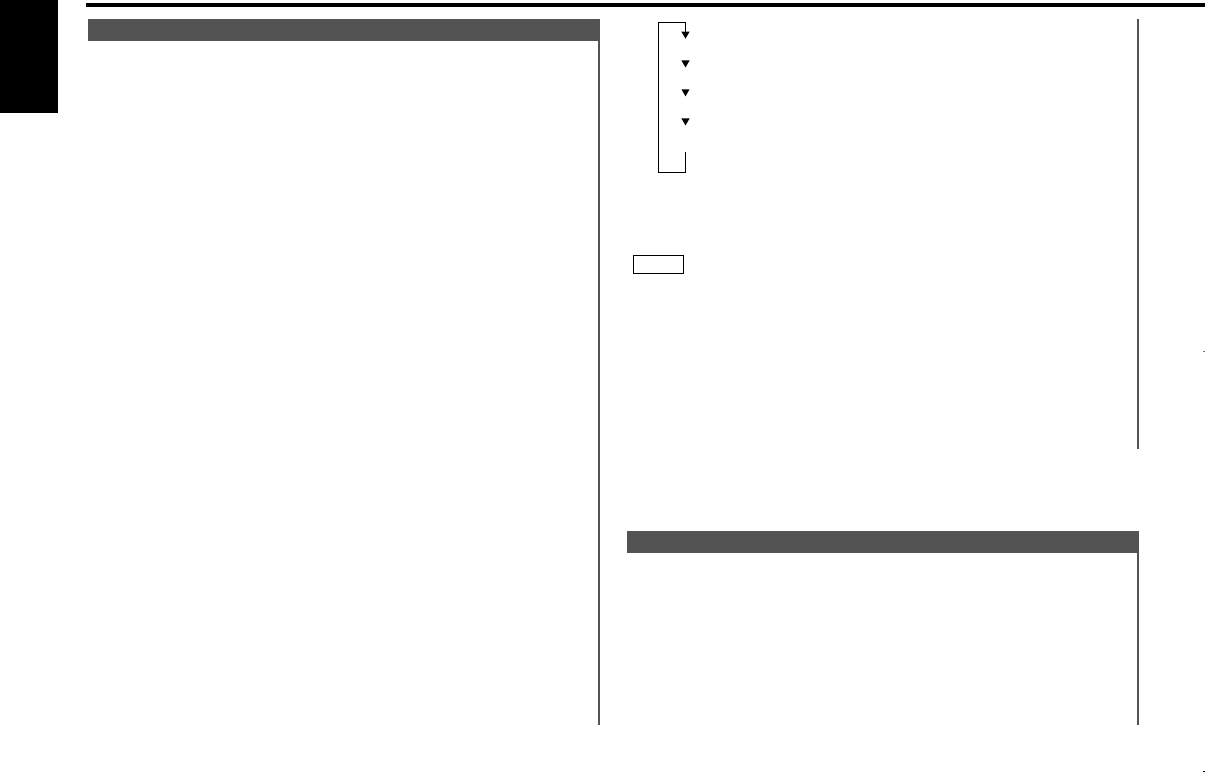
Function of the KDC-X917/KDC-X817
With automatic time adjustment, you can set the clock time
automatically according to time data sent from RDS stations
(after receiving RDS signals for several minutes). You can also
set the time manually if the automatic time adjustment
function is turned off.
Display and setting:
"SYNC ON" : Automatic time adjustment
"SYNC OFF" : Manual time adjustment (Default setting)
Automatic Time Adjustment
•Selecting the character
Press the FM and AM button.
Press the MENU button to end the Memo Mode.
•The text you selected automatically appears on the date you set
when the unit’s power is first turned on. (Calendar function)
The DISP button for at least one second scrolls the display
once, regardless of the text scroll setting.
Pressing a button other than the DISP button will cause the text
to disappear from the display.
•You can enter up to 32 characters for each text.
•The calendar function can be set up to 30 cases.
•To delete the date and text setting, set both the month and day
of the date to "00" or set all of the text to blanks.
NOTE
8
Alphabet (upper case): A ~ Z
Alphabet (lower case): a ~ z
Numerals and symbols: 0~9 @ ” ‘ ` % & * + - = , . / \ < > [ ]
Special characters: áàéèíìóòúùÑǮߋfl
âäêëîïôöûüñç©Æ›fi
You can input the text to be displayed and set the date when
that text will appear in the display with the calendar function.
Display and setting:
Select the display "Memo Mode" during the selecting function
in the menu mode.
Press either the 4or ¢button for at least one second to
enter the Memo mode.
The date display will blink.
Selecting the set of the date and text to be displayed
Press the FM and AM button.
If you want to input a new text, select the blank display.
Entering the month or day setting mode
Press the 4and ¢button to enter the month or day
setting mode.
The month display blinks when in month mode, the day display
blinks when in day setting mode.
Changing the month or day
Press the FM and AM button.
Entering the text input mode
Press the ¢button to enter the text input mode.
The cursor blinks in the position where character input can be
made.
Inputting / Changing the text
•Moving the cursor
Press the 4and ¢button.
•Changing the type of characters
Press the 38 button.
Each time the button is pressed, the type of characters
switches as follows.
7
6
5
4
3
2
1
Memo Mode
Menu settings
— 36 —
English
KDC-X917(K)_U.S_r3 00.12.26 1:12 PM Page 36
Function of the KDC-X717
You can adjust the brightness level of the unit separately
when your car's light switch has been turned on or off.
Display and setting:
"Bright 0" – "Bright 10"
The initial setting value while your car's light switch is turned on
is "5" , and while the light is turned off is "10".
NOTE
Brightness level adjustment
Function of the KDC-X917/KDC-X817/KDC-9017
You can change the font used on the display.
Display and setting:
Select the display "Font Select" during the selecting function in
the menu system.
Pressing the 4or ¢button switches the font on the
display.
2
1
Font Select
Function of the KDC-X917/KDC-X817/KDC-9017
This function permits switching of the spectrum analyzer
display.
Display and setting:
Select the display "Icon/Speana Select" during the selecting
function in the menu system.
Pressing the 4or ¢button switches the Icon/Spectrum
analyzer.
2
1
Icon/Spectrum analyzer Select
You can select the display mode of this unit.
Display and setting:
"Display Type A" : Divide the display into the upper and lower
parts to separately provide different
information. (Vertical division display) (page
12) (Default setting)
"Display Type B" : The display will turn on by using only the
upper part of the display and clock.
"Display Type C" : Use the entire display to provide a single
type of information. (Full screen display)
(page 11)
Switching Display Mode
You can switch the color of the button illumination between
green and red.
Display and setting:
"Button Color Green"/"Button Green" :
The color of the illumination is green.
"Button Color Red"/"Button Red" :
The color of the illumination is red.
Selectable Illumination
Adjusting Time Automatically:
Tune to a RDS station and receive the signal for several
minutes.
The clock will adjust automatically to the local time.
The clock will not adjust automatically if the RDS station tuned to
is not transmitting time data. In such a case, try another RDS
station.
NOTE
— 37 —
KDC-X917(K)_U.S_r3 00.12.26 1:12 PM Page 37
Function of the KDC-X917/KDC-X817/KDC-X717
When this system is set to on, the System Q factors (Bass
center frequency, Bass quality factor, Bass extend, Middle
center frequency, Middle quality factor, and Treble center
frequency) appear during the audio control mode.
Display and setting:
"System Q ON" : The System Q factors appear and can be
adjusted. (Default setting)
"System Q OFF" : The System Q factors are not appeared.
System Q
The following operation allows separate sound sources to
control the output of the front and rear speakers. The Dual
zone system can only be switched on or off when the source is
set to the AUX mode.
Display and setting:
"Zone 2 ON" : The dual zone system function is on.
"Zone 2 OFF" : The dual zone system function is off. (Default
setting)
•You must purchase the optional KCA-S210A/CA-C1AX/KDC-
CPS82/KDC-CX82/KDC-CPS85/KDC-CX85/KDC-CPS87/KDC-
CX87 device before you can use this function.
•You can choose to send the AUX input through the rear
channel, and the unit’s tuner or audio source through the front
channel.
•The Bass, Middle, Treble and Loudness adjustments do not
affect the rear channel.
•When the Dual zone system is turned on, the External disc
control features cannot be used.
•When you set the Dual zone system to on while the non-fading
preout is switched on, the sound of the non-fading preout does
not be outputted.
NOTE
Dual Zone System <In AUX mode>
Function of the KDC-X917
Toggles on or off the mute control on the built-in amplifier.
Turning on this control enhances the preout quality.
Display and setting:
"Builtin AMP Mute ON" : Built-in Amp Mute is ON.
"Builtin AMP Mute OFF" : Built-in Amp Mute is OFF. (Default
setting)
Built-in Amp Mute Control <In Stand by mode>
You can set the interval during which the open control panel
cannot reverse to be hidden. During the period you have set,
the faceplate can be removed from the faceplate bracket.
Display and setting:
"Off Wait" : 0sec / 3sec (Default setting) / 5sec / 10sec / 15sec
/ 20sec / 25sec (sec=seconds)
Time setting for removing the faceplate
You can dim the display.
The dimmer function is not available for units if the dimmer wire
is not connected.
Display and setting:
"Dimmer ON" : The dimmer setting is on. (Default setting)
"Dimmer OFF" : The dimmer setting is off.
NOTE
Dimmer
Menu settings
— 38 —
English
KDC-X917(K)_U.S_r3 00.12.26 1:12 PM Page 38
This function permits the CD text, MD title, Radio text, and
Calender function to be scrolled and the entire text to be
displayed. Switching between manual scrolling and automatic
scrolling is permitted.
Display and setting:
"Scroll Auto" : Automatic scrolling (Default setting)
"Scroll Manual" : Manual scrolling
Text Scroll
Temporarily have reception switched from stereo to mono to
reduce multi-path noise when listening to the FM station.
Display and setting:
"CRSC ON" : The CRSC is on. (Default setting)
"CRSC OFF" : The CRSC is off.
Strong electrical fields (such as from power lines) may cause
unstable sound quality when CRSC is turned on. In such a
situation, turn it off.
NOTE
Clean Reception System Circuit (CRSC)
<In FM reception of Tuner mode>
•When you are listening to the audio source, you cannot change
to another TI station.
•When you turn on the TI function, the motorized antenna will
extend automatically.
NOTE
Function of the KDC-X917/KDC-X817
You can listen to traffic information. If you are listening to
tapes or discs, they will continue playing until a traffic bulletin
is broadcast.
Display and setting:
"TI ON" : The Traffic Information function is on.
When the function is on, the TI indicator is turned on.
When none is being received, the TI indicator will
blink on and off. When a traffic information station is
being received, the TI indicator will turn on.
When a traffic bulletin begins to be broadcast, "Traffic
Info" will be displayed.
If you are listening to a tape or disc when a traffic
bulletin begins, they will automatically be turned off.
When the bulletin ends or poor reception is
experienced, the tape or disc will begin playing again.
"TI OFF" : The Traffic Information function is off. (Default
setting)
Switching to a Different Traffic Information Station:
Use the 4/ ¢buttons to make an auto seek of the TI
stations in a certain band.
Traffic Information Function
Function of the KDC-X917/KDC-X817/KDC-X717
Adjust the bass boost level of the external amplifier using the
main unit.
Display and setting:
"AMP Bass Flat"/"AMP Bass FLT" :
Bass boost level is flat. (Default setting)
"AMP Bass +6" : Bass boost level is low (+6dB).
"AMP Bass +12" : Bass boost level is high (+12dB).
As of December 2000, the power amplifiers controllable by the
main unit are as follows:
KAC-X501F/PS501F/X401M/PS401M/X301T/PS301T/X201T/PS201T
NOTE
External Amp Control
— 39 —
KDC-X917(K)_U.S_r3 00.12.26 1:12 PM Page 39
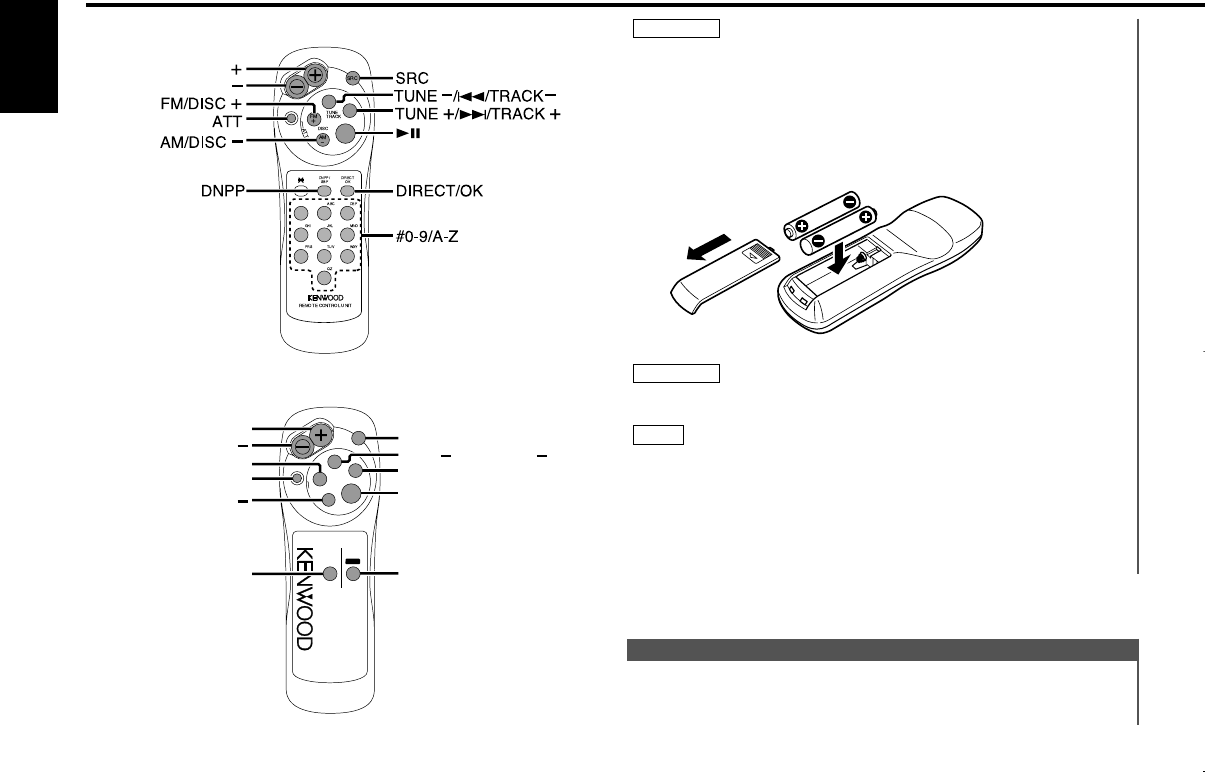
•VOLUME buttons
Press the +button to turn the volume up.
Press the –button to turn the volume down.
Basic operations
Do not set the remote on hot places such as above the
dashboard.
Loading and Replacing the Batteries:
Use two "AAA"-size batteries.
Slide the cover while pressing downwards to remove it as
illustrated.
Insert the batteries with the +and –poles aligned properly,
following the illustration inside the case.
Store unused batteries out of the reach of children. Contact a
doctor immediately if the battery is accidentally swallowed.
•The provided batteries are intended for use in operation
checking, and their service life may be short.
•When the remote controllable distance becomes short, replace
both of the batteries with new ones.
•A portion of the operations may not be possible, depending on
the unit that is connected.
NOTE
2WARNING
2CAUTION
Basic Operations of remote
— 40 —
English
4
¢
38
123
456
789
0
OK
A
T
T
TUNE
TRACK
DNPP/
SBF
DSIC
REMOTE CONTROL UNIT
FM/DISC +
ATT
AM/DISC
+
38
TUNE +/¢/TRACK +
OK
DNPP
TUNE /4/TRACK
SRC
4
¢
38
FM
+
AM
—
SRC
KDC-X917/X817/X717
KDC-9017
KDC-X917(K)_U.S_r3 00.12.26 1:12 PM Page 40
•4/¢(TUNE) buttons
Press the 4button to make decreasing seeks (using the
preset tuning mode).
Press the ¢button to make increasing seeks (using the preset
tuning mode).
Use to move the cursor left or right during station name input.
•AM/FM buttons
Press the AM button to select the AM band.
Press the FM button to select and switch between FM1, FM2,
and FM3 bands.
During station name input, selects digits and symbols.
•DIRECT/OK button
During station name input, stores the already input data in
memory and ends the input mode.
During Station name preset play mode, selects station.
Enters and cancels the Direct access tuning mode. (KDC-
X917/X817/X717 only)
•DNPP button
Enters and cancels the Station Name Preset Play mode.
•38 button
Enters and cancels the Program Type Selection (PTY) mode.
(KDC-X917/X817 only)
Selects the type of characters at the time of entering the station
name.
•Number/letter entry buttons (KDC-X917/X817/X717 only)
Press buttons #1-6 to recall preset stations.
Use to enter letters (alphabetical) during station name preset.
Use to enter frequency of the desired station during Direct
access tuning mode.
Tuner features
•SRC button
Each time you press the SRC button, the mode switches as
follows:
•The mode switches to the next mode from any mode which
cannot be used.
•The external disc control mode will differ depending on the unit
that is connected.
•To enable the selection of External disc control mode 2/AUX
mode, you should connect optional switching adapter KCA-
S210A (which allows you to select both External disc control
mode 2 and AUX mode) or CD changer (KDC-CPS87, KDC-
CX87, KDC-CPS85, KDC-CX85, KDC-CPS82 or KDC-CX82) or
switching adapter CA-C1AX (which allows you to select AUX
mode only).
During the AUX mode, "AUX" (or AUX-name display) will show
in the display.
When the CA-C1AX is being used, the AUX Mode will replace
the External Disc Control Mode.
•ATT button
Turns down the volume quickly. To return the volume to its
original level, press the button again. Turning the volume up, or
turning it all the way down deactivates the attenuator function.
NOTE
▼
Tuner mode
▼
CD mode
▼
External disc control mode 1
▼
External disc control mode 2 / AUX mode
▼
Standby mode
— 41 —
KDC-X917(K)_U.S_r3 00.12.26 1:12 PM Page 41

•4/¢buttons
Press the 4button to search through the tracks backward.
Press the ¢button to search through the tracks forward.
Use to move the cursor while entering disc name.
•DISC buttons (for disc changers)
Press the DISC–button to search through the discs backward.
Press the DISC+button to search through the discs forward.
Select numbers and symbols while entering disc name.
•38 button
When a disc is playing, this button pauses the play.
Press the same button again to start play again.
Selects the type of characters at the time of entering the disc
name.
•OK button
During disc name input, stores the already input data in memory
and ends the input mode.
Selects disc during the disc name preset play mode.
•DNPP button (for disc changers)
Enters and cancels the Disc Name Preset Play mode.
•Number/letter entry buttons (KDC-X917/X817/X717 only)
Used to specify the track (disc) number used in direct track
(disc) searches.
Use to enter letters during disc name preset.
CD/External disc control features
Basic Operations of remote
— 42 —
English
KDC-X917(K)_U.S_r3 00.12.26 1:12 PM Page 42
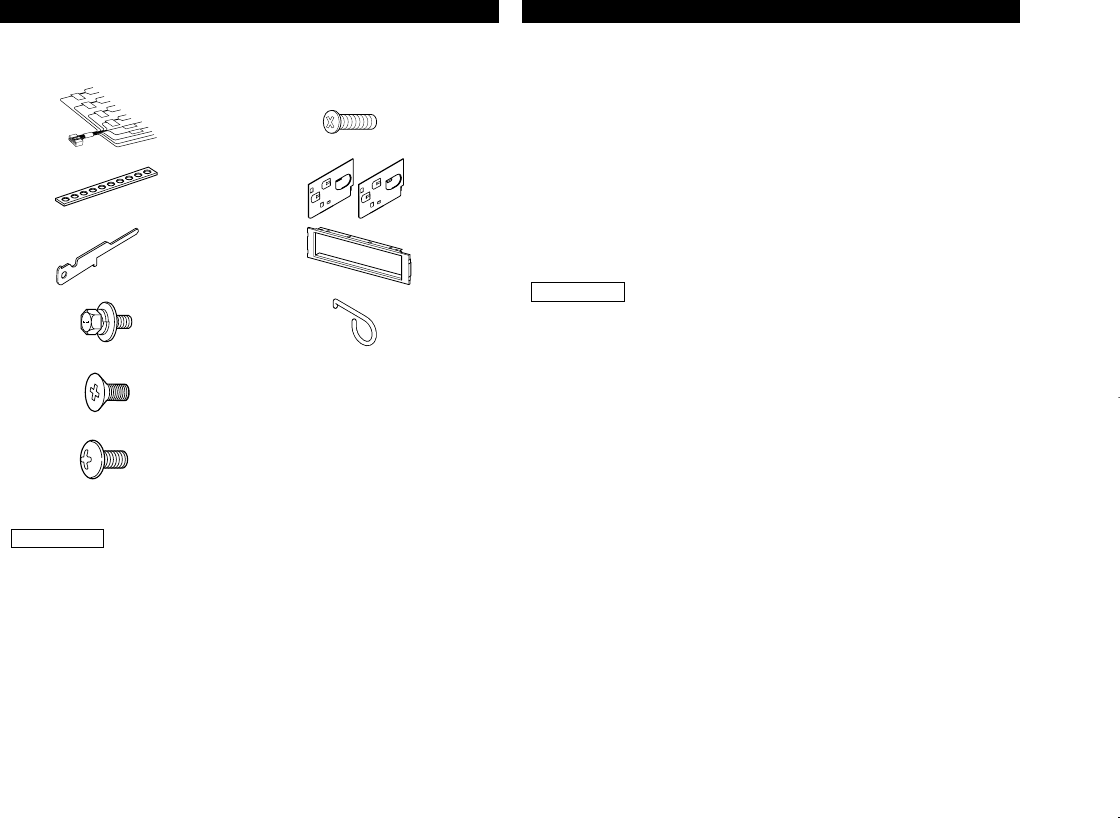
— 43 —
Do not use any accessories other than those provided with
your unit. If you use other accessories, you may damage the
2CAUTION
Accessories
1. To prevent a short circuit, remove the key from the ignition and
disconnect the -battery.
2. Make the proper input and output wire connections for each unit.
3. Connect the speaker wires of the wiring harness.
4. Connect the wiring harness wires in the following order: ground,
battery, ignition.
5. Connect the wiring harness connector to the unit.
6. Install the unit in your car.
7. Reconnect the -battery.
8. Press the left part at the upper side of the faceplate once to
make the faceplate control panel appear.
•If your car's ignition does not have an ACC position, connect
the ignition wires to a power source that can be turned on
and off with the ignition key. If you connect the ignition wire
to a power source with a constant voltage supply, as with
battery wires, the battery may die.
•If the console has a lid, make sure to install the unit so that
the faceplate will not hit the lid when closing and opening.
•If the fuse blows, first make sure the wires aren’t touching
to cause a short circuit, then replace the old fuse with one
with the same rating.
•Do not let unconnected wires or terminals touch metal on
the car or anything else conducting electricity. To prevent a
short circuit, do not remove the caps on the ends of the
unconnected wires or the terminals.
•Connect the speaker wires correctly to the terminals to
which they correspond. The unit may be damaged or fail to
work if you share the -wires or ground them to any metal
part in the car.
•After the unit is installed, check whether the brake lamps,
blinkers, wipers, etc. on the car are working properly.
•Insulate unconnected wires with vinyl tape or other similar
material.
•Some disc changers need conversion cords for connection.
See the section on "Safety Precautions" for details.
2CAUTION
Installation Procedure
•Mount the unit so that the mounting angle is 30°or less.
.........1
1
.........1
2
.........1
4
.........2
5
.........2
6
.........1
8
.........1
9
External view
......... Number of items
.........1
0
External view
......... Number of items
.........1
7
.........2
3
KDC-X917(K)_U.S_r3 00.12.26 1:13 PM Page 43
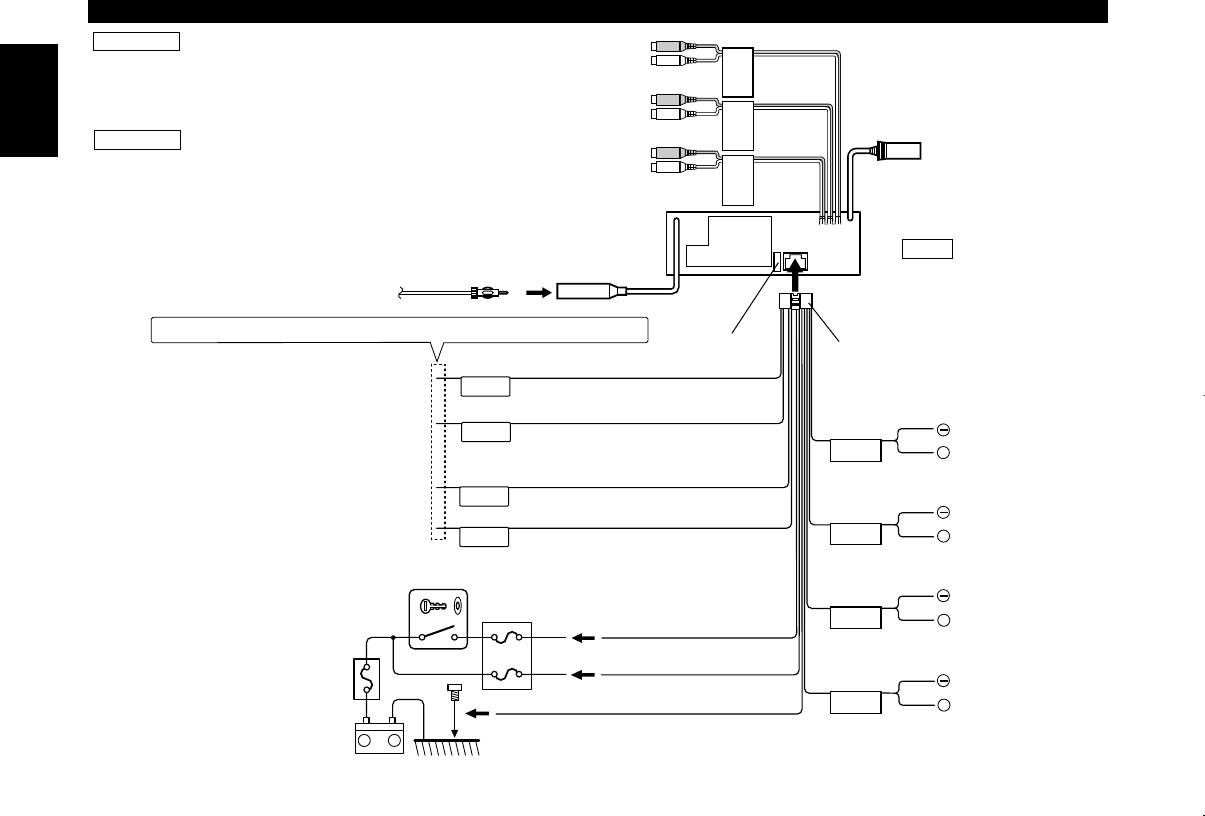
English
— 44 —
ANT
CONT
ILLUMI
EXT.
CONT.
P.CONT
+
+
+
+
FRONT • L
FRONT • R
REAR • L
REAR • R
–
+
FRONT
NON
FADING
REAR
Connecting Wires to Terminals
When only two speakers are being connected to the
system, connect the connectors either to both the
front output terminals or to both the rear output
terminals (do not mix front and rear). For example, if
you connect the +connector of the left speaker to a
front output terminal, do not connect the - connector
to a rear output terminal.
2CAUTION
If you connect the ignition wire (red) and the battery
wire (yellow) to the car chassis (ground), you may
cause a short circuit, that in turn may start a fire.
Always connect those wires to the power source
running through the fuse box.
2WARNING
FM/AM antenna input
Rear left output (White)
Rear right output (Red)
Fuse (10A) Wiring harness
(Accessory1)
White/Black
Gray/Black
Green/Black
Purple/Black
White
Gray
Green
Purple
To front left
speaker
To front right
speaker
To rear right
speaker
To rear left
speaker
Ignition wire (Red)
Battery wire (Yellow)
Ground wire (Black) - (To car chassis)
Ignition key
switch
Car fuse
box
(Main fuse)
ACC
Car fuse box
Battery
If no connections are made, do not let the wire come out from the tab.
Front left output (White)
Front right output (Red)
Non-fading right output (Red)
(KDC-X917/X817/X717 only)
Power control wire (Blue/White)
Motor antenna control wire (Blue)
Dimmer control wire (Orange / White)
When using the optional power amplifier, connect
to its power control terminal.
To car light control switch
Depending on what antenna you are using, connect
either to the control terminal of the motor antenna, or
to the power terminal for the booster amplifier of the
film-type antenna.
External amplifier control wire
(Pink / Black) (KDC-X917/X817/X717 only)
To "EXT.AMP.CONT." terminal of the amplifier
having the external amp control function.
Non-fading left output (White)
(KDC-X917/X817/X717 only)
To KENWOOD disc changer/
DAB control input/
KPA-SD100/KPA-HD100/KPA-
SS100
To connect these leads, refer to the
relevant instruction manuals.
NOTE
KDC-X917(K)_U.S_r3 00.12.26 1:13 PM Page 44
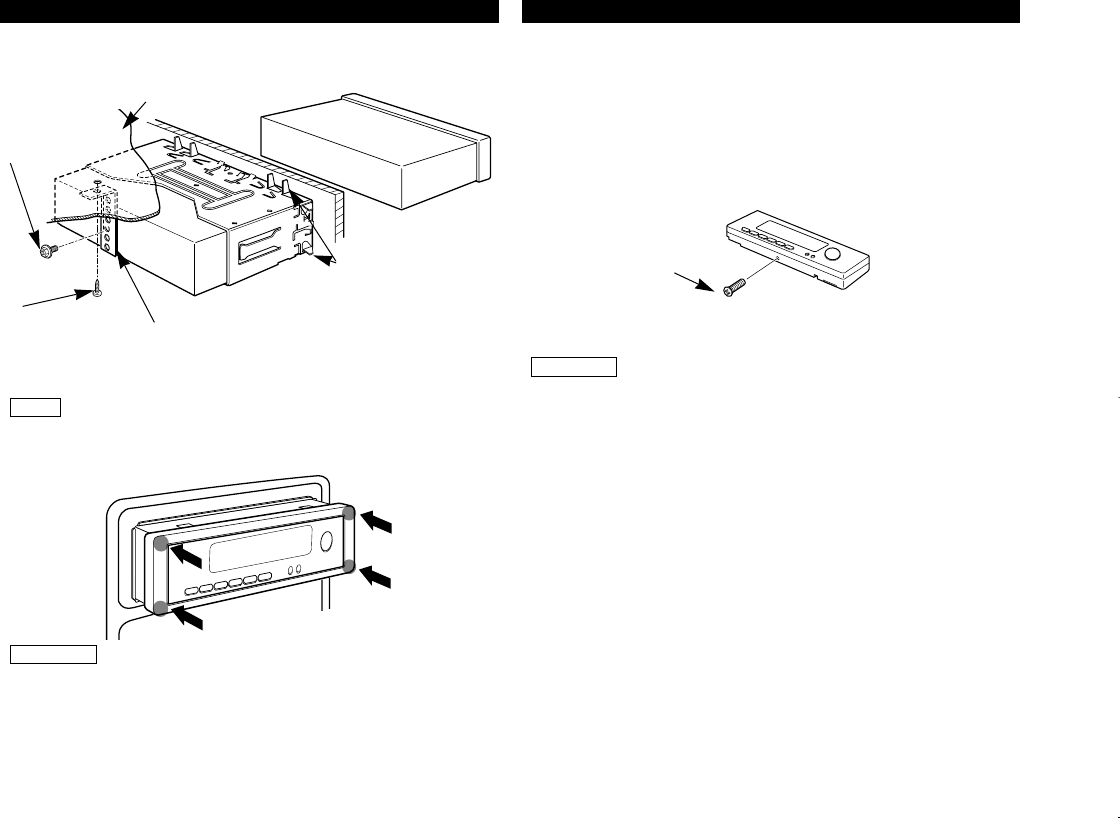
— 45 —
Make sure that the unit is installed securely in place. If the
unit is unstable, it may malfunction (for example, the sound
may skip).
NOTE
Bend the tabs of the
mounting sleeve with
a screwdriver or similar
utensil and attach it in
place.
Accessory2
Metal mounting
strap
Phillips truss
head sheet
metal screw
(commercially
available)
Firewall or metal support
Accessory4
Installation (non-Japanese cars)
■
Installation (non-Japanese cars)
To attach this unit, make sure the front of the control panel faces
you and fit it into the mounting sleeve by pressing the four
corners of the hard rubber frame at the same time.
Do not apply strong pressure to other sections than the corners;
otherwise troubles such as the impossibility of opening or closing
the panel may result.
2CAUTION
Refer to the section "Removing the faceplate (page 14)" and
then reattaching the faceplate.
Never insert the taptite screws (ø2 ×4 mm) in any other
screw holes than the one specified. If you insert it in another
hole, it will contract and may cause damage to the mechanical
parts inside the unit.
2CAUTION
3
Locking the faceplate to the unit
If you want to lock the faceplate to the unit so that it does not
fall off, follow the directions below.
Refer to the function "Removing the faceplate (page 14)" and
remove the faceplate.
Insert the provided screw into the hole at the center of the
bottom side of the faceplate which you have removed from
the unit.
2
1
Accessory7
Locking the faceplate to the unit
■
KDC-X917(K)_U.S_r3 00.12.26 1:13 PM Page 45
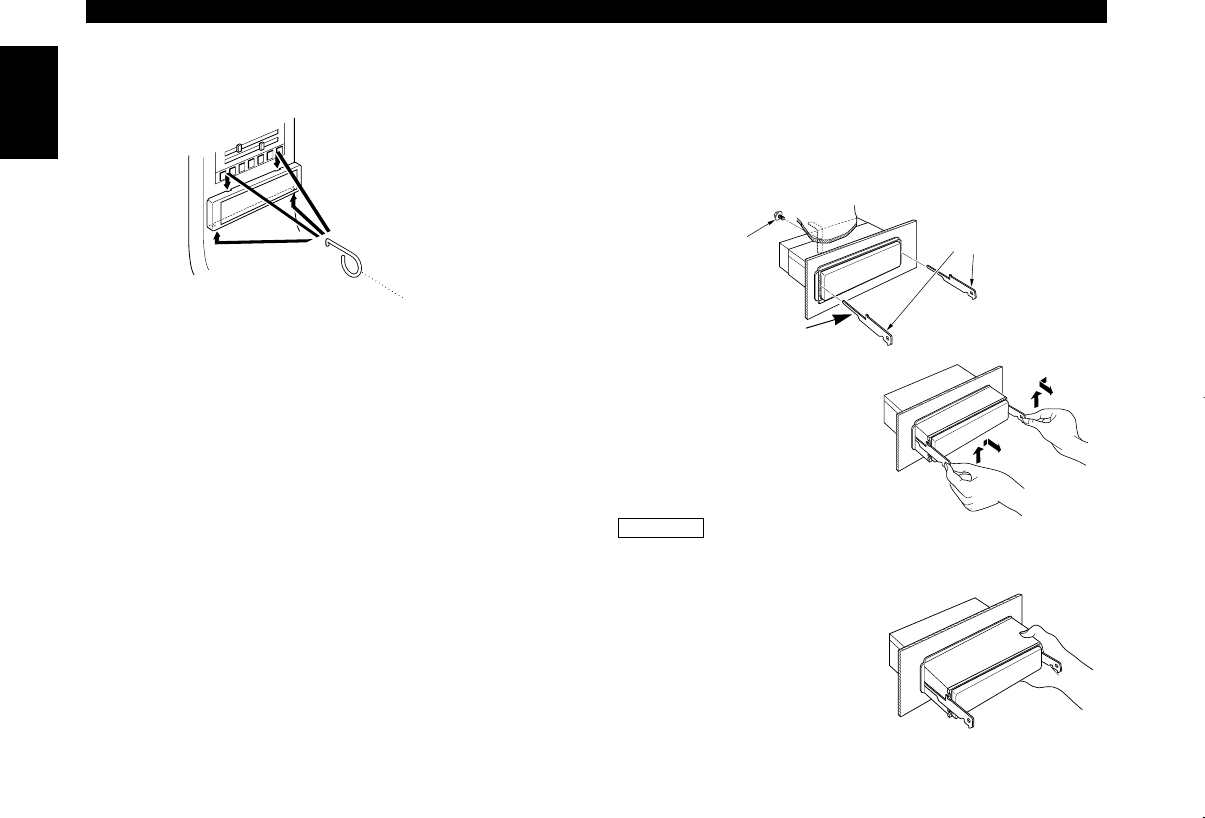
English
— 46 —
Removing the Unit
Removing the hard rubber frame
■
Insert the removal tool into the indentations in the hard rubber
frame, and pull it gently until the lock is released.
Accessory0
Removal tool
Accessory4
Removing the Unit
■
Push upward the removal
tool toward the top, and
pull out the unit halfway
whilst pressing towards the
inside.
4
Pull the unit all the way out
with your hands, being
careful not to drop it.
5
Be careful to avoid injury from the catch pins on the removal
tool.
2CAUTION
Catch facing up
Refer to the section “Removing the hard rubber frame” and
then remove the hard rubber frame.
Remove the Hex-head screw with integral washer (M4×8) on
the back panel.
Insert the two removal tools deeply into the slots on each
side, as shown.
3
2
1
Accessory3
Removal tool
KDC-X917(K)_U.S_r3 00.12.26 1:13 PM Page 46
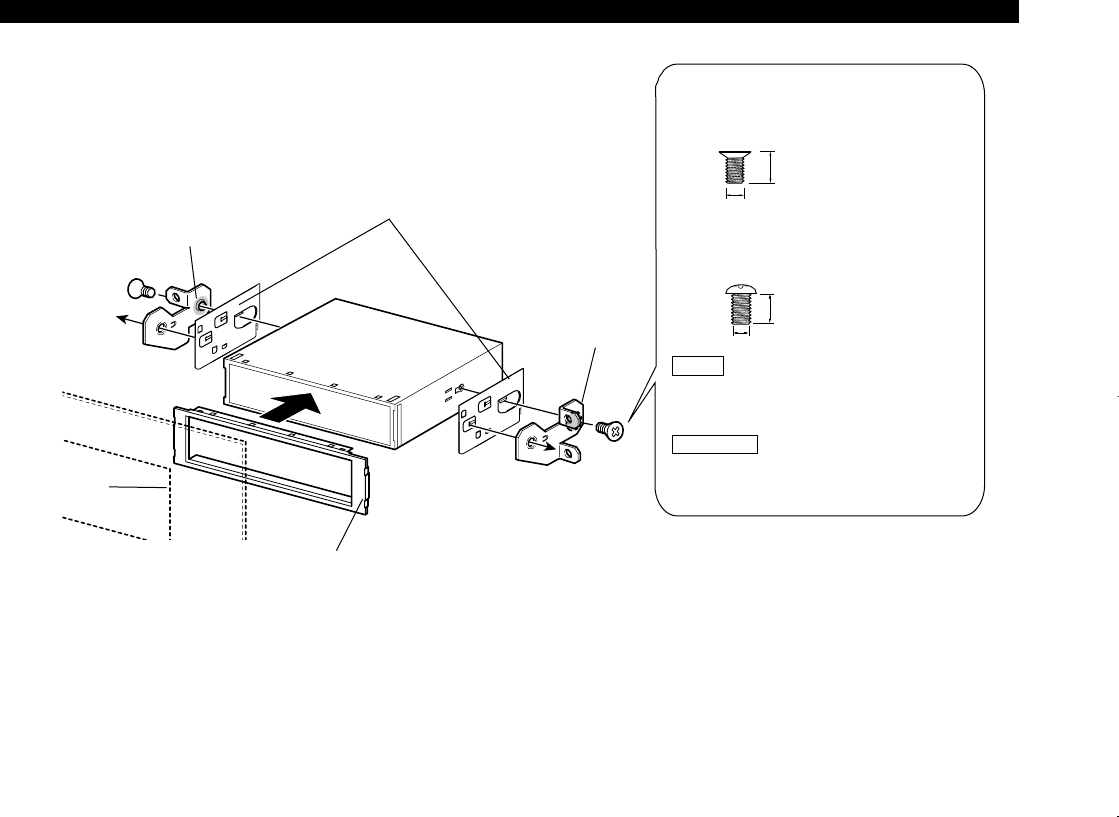
— 47 —
R
L
Installing Radio Bracket in Japanese-made Cars (J-Cars)
■
8mm
5mm
5mm
8mm
(For Nissan Car)
After aligning the J-Car bracket with
the factory-installed radio bracket,
tighten the screws.
Accessory6
for Toyota car
Accessory5
for Nissan car
Factory trim bezel
Accessory8
J-Car Bracket
(follow indications for L/R)
Accessory9
J-Car Trim Plate
(place thick part on
bottom)
Factory-installed
Radio Bracket
Factory-installed
Radio Bracket
Installation (Japanese-cars)
(For Toyota Car)
After aligning the factory-installed
radio bracket, tighten the screws.
A pair of J-Car Brackets (Accessory 8)
are not used when fitting in a Toyota
car.
Damage to the unit will result from
using screws other than those
provided.
2CAUTION
NOTE
KDC-X917(K)_U.S_r3 00.12.26 1:13 PM Page 47
English
— 48 —
Free switching of the sound
quality.
The system Q function is set on Scan mode. Refer to the “System Q” page and switch it to a
function other than Scan mode.(see p. 10)
Audio control setting cannot be
achieved.
The system Q function is set on Scan mode. Refer to the “System Q” page and switch it to a
function other than Scan mode.(see p. 10).
What might seem to be a malfunction in your unit may just be the result of slight misoperation or miswiring.
Before calling service, first check the following table for possible problems.
Troubleshooting Guide
SOLUTIONPOSSIBLE CAUSEPROBLEM
Nothing happens when the
buttons are pressed.
The computer chip in the unit is not functioning normally. Press the reset button on the unit (see p. 5).
The antenna control wire is not connected. Connect the wire correctly, referring to the section on
"Connecting Wires to Terminals".
Radio reception is poor. The car antenna is not extended. Pull the antenna out all the way.
The power does not turn on. The fuse has blown. After checking for short circuits in the wires, replace the
fuse with one with the same rating.
The memory is erased when
the ignition is turned off.
The battery wire has not been connected to the proper
terminal.
The ignition and battery wire are incorrectly connected.
Connect the wire correctly, referring to the section on
"Connecting Wires to Terminals".
Connect the wire correctly, referring to the section on
"Connecting Wires to Terminals".
The faceplate does not open or
close.
The faceplate is incorrectly attached. Reattach the faceplate correctly, See the section on
"Removing the Faceplate".(page.14)
KDC-X917(K)_U.S_r3 00.12.26 1:13 PM Page 48
— 49 —
SOLUTIONPOSSIBLE CAUSEPROBLEM
Can’t remove disc. The cause is that more than 10 minutes has elapsed
since the vehicle ACC switch was turned OFF.
The disc can only be removed within 10 minutes of the
ACC switch being turned OFF. If more than 10 minutes
has elapsed, turn the ACC switch ON again and press
the Eject button.
One of the speaker wires is being pinched by a screw in
the car.
Check the speaker wiring.
No sound can be heard, or the
volume is low. The fader or balance settings are set all the way to one
side.
Reset the fader or balance settings.
The input/output wires or wiring harness are connected
incorrectly.
Reconnect the input/output wires or the wiring harness
correctly. See the section on "Connecting Wires to
Terminals".
The sound quality is poor or
distorted.
The speakers are not wired correctly. Reconnect the speaker wires so that each output
terminal is connected to a different speaker.
Attenuator is turned on. Turn off Attenuator.
A CD ejects as soon as it is
loaded.
The CD is upside-down. Load the CD with the labeled side up.
The CD is quite dirty. Clean the CD, referring to the section on "Cleaning CDs"
(see p. 6).
The sound skips on a CD. The CD is scratched or dirty. Clean the CD, referring to the section on "Cleaning CDs"
(see p. 6).
A track will not play. Random play has been selected. Turn off random play.
The values of Volume offset are low. Increase the values of Volume offset. (see p. 18)
KDC-X917(K)_U.S_r3 00.12.26 1:13 PM Page 49
English
— 50 —
CD/External disc control mode
The computer chip in the unit is not functioning normally. Press the reset button on the unit (see p. 4).
The disc control mode cannot
be selected.
No wire has been connected to the disc changer input
terminal on the unit.
Connect the wire to the disc changer input terminal on
the unit.
The specified disc does not
play, but another one plays
instead.
The specified CD is quite dirty. Clean the CD.
The CD is upside-down. Load the CD with the labeled side up.
The disc is loaded in a different slot from that specified. Eject the disc magazine and check the number for the
specified disc.
The disc is severely scratched. Try another disc instead.
The sound skips. Something is touching the disc changer. Remove whatever is touching it.
The CD is scratched or dirty. If skipping happens at the same place when the car is
stopped, something with the CD is wrong. Clean the CD.
The display shows that the
changer is being played, but no
sound can be heard.
The specified track will not
play.
Random play or magazine random play has been
selected.
Turn off random play or magazine random play.
SOLUTIONPOSSIBLE CAUSEPROBLEM
Track repeat, disc repeat, track
scan, random play, and
magazine random play start by
themselves.
The setting is not canceled. The settings for these functions remain on until the
setting to off or the disc ejected, even if the power is
turned off or the source changed.
Troubleshooting Guide
If the following situations, consult your nearest service center:
•Even though the disc changer is connected, the Disc Changer Mode is not on, with "AUX" showing in the display during the Changer Mode.
•Even though no device (KCA-S210A, CA-C1AX, KDC-CPS87, KDC-CX87, KDC-CPS85, KDC-CX-85, KDC-CPS82 or KDC-CX82) is connected, the AUX Mode is
entered when switching modes.
Cannot play CD-R or CD-RW. Finalization processing is not being conducted for CD-
R/CD-RW.
Conduct finalization processing with CD recorder.
A non-compatible CD changer is being used to play the
CD-R/CD-RW.
Use a CD changer compatible with CD-R/CD-RW to play.
KDC-X917(K)_U.S_r3 00.12.26 1:13 PM Page 50

— 51 —
The following messages are displayed when certain problems are occurring in your system. Take the
recommended actions.
Nothing has been recorded on the MD.
Blank DISC
No disc magazine has been loaded in the changer. The disc magazine is not completely loaded.
]Load the disc magazine properly.
No CD in the unit.
]Insert the CD.
Eject
No disc has been loaded in the disc magazine.
]Load a disc into the disc magazine.
The CD is quite dirty. The CD is upside-down. The CD is scratched a lot.
]Clean the CD and load it correctly.
TOC Error
No tracks are recorded on the MD, although it has a title.
No Tr DISC
The unit is malfunctioning for some reason.
]Press the reset button on the unit. If the "E- 77" code does not disappear, consult your nearest service center.
E-77
The protective circuit in the unit activates when the temperature inside the automatic disc changer exceeds 60°C (140°F),
stopping all operation.
]Cool down the unit by opening the windows or turning on the air conditioner. As the temperature falls below 60°C (140°F),
the disc will start playing again.
Hold Error
No disc has been loaded in the disc magazine.
]Load a disc into the disc magazine.
No Disc
Something is wrong with the disc magazine. Or the unit is malfunctioning for some reason.
]Check the disc magazine. And then press the reset button on the unit. If the "Mecha Error" code does not disappear,
consult your nearest service center.
Mecha Error
If this indicator blinks, the CD player is malfunctioning.
]Eject the CD and try inseting it again.
If the CD cannot be ejected, press the eject button and hold it in until the CD is ejected.
IN
The faceplate of the slave unit being connected to this unit has been removed.
]Replace it.
NO PANEL
KDC-X917(K)_U.S_r3 00.12.26 1:13 PM Page 51

English
— 52 —
FM tuner section
Frequency range (200 kHz space) ............87.9 MHz – 107.9 MHz
Usable sensitivity (S/N = 30dB) ....................9.3dBf (0.8 µV/75 Ω)
Quieting Sensitivity (S/N = 50dB) ...............15.2dBf (1.6 µV/75 Ω)
Frequency response (±3.0 dB) ..............................30 Hz – 15 kHz
Signal to Noise ratio (MONO)..............................................70 dB
Selectivity (±400 kHz).......................................................≥80 dB
Stereo separation (1 kHz) ....................................................40 dB
AM tuner section
Frequency range (10 kHz space) ...................530 kHz – 1700 kHz
Usable sensitivity (S/N = 20dB) .............................28 dBµ (25 µV)
CD player section
Laser diode ....................................................GaAlAs (λ=780 nm)
Digital filter (D/A) .....................................8 Times Over Sampling
D/A Converter .......................................................................1 Bit
Spindle speed ..............................................500 – 200 rpm (CLV)
Wow & Flutter........................................Below Measurable Limit
Frequency response (±1 dB).................................10 Hz – 20 kHz
Total harmonic distortion (1 kHz) ......................................0.01 %
Signal to Noise ratio (1 kHz) ..............................................105 dB
Dynamic range ....................................................................93 dB
Channel separation..............................................................96 dB
Audio section
Maximum output power.................................................50 W ×4
Full Bandwidth Power (at less than 1% THD) ................22 W ×4
Tone action
Bass : ..........................................................100 Hz ±10 dB
Middle : .........................................................1 kHz ±10 dB
Treble : ........................................................10 kHz ±10 dB
Preout level / Load (during disc play)....................4500 mV/10 kΩ
Preout impedance.................................................................80 Ω
General
Operating voltage (11 – 16V allowable) ..............................14.4 V
Current consumption.............................................................10 A
Installation Size (W x H x D) ..........................182 ×53 ×162 mm
7-3/16 ×2-1/16 ×6-3/8 in.
Weight ..................................................................4.2 lbs (1.9 kg)
Specifications subject to change without notice.
Specifications
KDC-X917(K)_U.S_r3 00.12.26 1:13 PM Page 52
1 NOTE 1
You cannot presetrng disc names on a CD where CD text IS contarned
while this unrt IS controlling a CD changer “KDC-C665”. “KDCC465”.
“KDC-C662”, or “KDC-C462”
( REMARQUE 1
II n’est pas possible d’attribuer une etrquette a un CD ou un texte de CD
est present lorsque cette unrte sert a dinger un changeur de CDs
“KDCC665”. “KDC-C465”, “KDC-C662”, ou “KDCC462”
ANMERKUNG
Wahrend dieses Gerat ernen CD-Wechsler steuert “KDC-C665”,
“KDC-C465”, ,,KDC-C662”. oder “KDCC462” konnen Sie kerne Disc-
Namen fur erne CD, die CD-Text bernhaltet, vorernstellen.
1 OPMERKING 1
U kunt geen disknaam voorkrezen voor CD’s met CD text terwijl dit
toestel een CD-wrsselaar bestuurt “KDC-C665”. “KDC-C465”. “KDC-C662”,
of “KDC-C462”
Non e oossibile orermoostare nom1 di dischr oer un CD contenente testo
CD mentre questa un/ta sta controllando un multlettore CD “KDC-C665”,
“KDC-C465”, “KDC-C662”, o “KDC-C462”
j NOTA I
Mientras esta unrdad este controlando un cambrador de CD
“KDC-C665”, “KDC-C465”, “KDC-C662”. o “KDC-C462”, no se pueden
preajustar nombres de discos para un CD que contenga texto CD
1 NOTA 1
Nao e possrvel predefinrr nomes de discos para urn CD em que exrsta
texto CD enquanto esta unrdade estrver a controlar urn carregador de CD
“KDCC665”. “KDC-C465”, “KDC-C662”, ou “KDC-C462”
1 I-IPMME~AHME ]
Bbi He MomeTe aapatiee 3anporparmwposaTb Ha3BaHm AHCKOB Ann
al4CKa
CD,
conepxaqero TeKCT
CD,
B TO BpeMR, Korea annapaT
ynpaemeT qeth+flmepoM
CD “KDC-C665”, “KDC-C465”, “KDC-C662”,
MJ-IH “KDC-C462”
1 UWAGA 1
Nie mozesz zaprogramowac nazw piyt kompaktowych zawrerajacych
tekst CD podczas, gdy to urzadzenre steruje zmrentaczem piyt
“KDC-C665”, “KDC-C465”, “KDCX662” lub “KDC-C462”
MEGJEGYZES
A lemeznev beallitasa nem lehetseges olyan CD-nel, amely tartalmaz CD
szbveget, ha a kesziilek eppen a CD valtot vezerli “KDC-C665”,
“KDC-C465”, “KDC-(3662” vagy “KDC-C462”
POZNAMKA ]
Jestliie tato jednotka ovlada mBniC CD “KDC-C665”, “KDC-C465”,
“KDC-C662” nebo “KDC-C462”, nelze uloiit jmena diskPl pro ty CD disky,
ktere obsahuji CD text.
1 NAPOMENA 1
I I
Ne moiete unaprijed podesiti naziv CD-a gdje je sadrian CD tekst dok
uredaj upravlja CD m]enjaEem “KDC-C665”, “KDC-C465”, “KDC-C662”, or
“KDC-C462”
1 OPOMBA 1
Med upravljanjem naprave s CD rzmenjevalnikom r-r mogoCe prednas-
taviti rmena CD ploSEe, kr vsebuje CD tekst. “KDC-C665”, “KDC-C465”,
“KDC-C662”, ali “KDC-C462”
1 OBSERVERA 1
Du kan rnte fdrrnstalla skrvnamn for en CD med CD-text da denna apparat
styr en CD-vaxlare “KDC-C665”, “KDC-C465”, “KDC-C662” eller
“KD’X462”
1 HUOM 1
CD-levyjen nrmia er
VOI
esrasettaa taman la&teen ohjatessa CD
levynvaihtajaa “KDCC665”. “KDC-C465”, “KDC-C662”, tar “KDC-C462”
856-1376-04
A~en~o~~
This card is necessary to boy the panel again because of
theft of damage.
Attention:
Gene carte est n&cessaire pour se procurer un nouveau
panneau dans le cas de perte ou d’endommagement de
celui que vous possbdez.
Attentie:
Deze kaart is nodig als u een nieuw paneel with
ar Audio
aanschaffen in geval van diefstal of beschadiging.
Attenzione:
Questa scheda B neeessaria per acquistare un nuovo
paonello frontale dopo un furto n danni.
Atencih:
Esta tarjeta es necesaria para comprar el panel en el case
de que le haya side robado o se haya estropeado.
:t
Table of Contents
USA
Australia
Canada
Military
Selgique et Grand-duche de Luxembourg
Danmark
Deutschland
Nederland
Portugal
U K & Ireland
Gsterreich
Ell&s
EspaAa
France
ltalia
Suomi
Andorra
Iceland
Malta
Norge
Schweiz
Svizzera
Suisse
Sverige
Page
2
3
495
397
8
9
9
10
10
11
11
12
12
13
13
14
14
14
14
15
15
15
15
15
Dear Customer,
Thank you for purchasing this kenwood product As mentioned in the pages of this
booklet, our warranty is only valid in the countries listed If your country is not listed
please contact your retailer for information on warranty procedure, or write to
KENWOOD Corporation Customer Information Center
3-l 7-9 Aobadai
Meguro-ku Tokyo 153-0042 JAPAN
A
m
Z
< 4
0
0
u
Warranty Card
G&de-Typ und Seriennummer
Identification du produit
Produkt navn og serie nummer
Modelo y Ntimero de serie
Malli ja sarjanumero
Movtaa KciI ap1eps< oelp&<
Modello e numero di matricola
Model1 og serienummer
Modelo e numero de s&ie
Apparat typ & serienummer
ldentificatie van het produkt
M6del heiti og raanlimer
II-Mudell u s-serial number
Model number & serial number
Stempel und Unterschrift des Handlers
Revendeur & cachet
Forhandler
Distribuidor y sello
J&lleenmyyj~ & leima
.z.\ypavi&x Emlpiu<
Timbro del rivenditore
Forhandlerens navn og stempel
Agente e carimbo
AterfijrsWire & stimpel
Dealer & &empel
Undirritun OCI stimoill sdluaaila
Timbru tal-b&iegi
Dealer & stamp
Kaufdatum
Date d’achtat
Kobsdato
Fecha de compra
OstopeivB
Hp~pop?jvia a-(~@5
Data di acquisto
Kjapt data
Data de compra
lnkdpsdatum
Aankoopdatum
Sijludagur
Id-data ta’ meta nxtara
Purchase date
Name und Anschrift des KIufers
Nom & adresse du client
Kerbers navn og adresse
Nombre y direcci6n del cliente
Asiakkaan nimi & osoite
Ovo~a ra~6lEiJeuva~ ayopaoTiJ
Nome e indirizzo del cliente
Kundensnavnogadresse
Nome e morada do comprador
Kundens namn & adress
Naam & adres van de klant
Nafn og heimilisfang kaupanda
L-isem u I-indirizz tax-xerrej
Name & address of customer
See back cover for table of contents
0 B46-0100-50 (010)
KENWOOD’S LIABILITY FOR ANY DEFECTIVE PRODUCT IS LIMITED TO THE REPAIR OR REPLACEMENT OF THE PRODUCT
AT OUR OPTION KENWOOD SHALL NOT BE LIABLE FOR:
1 INSTALLATION OR REMOVAL CHARGES, DAMAGE TO OTHER PROPERTY CAUSED BY ANY DEFECTS IN KENWOOD
CAR STEREO COMPONENTS, DAMAGES BASED UPON ,NCON”ENlENCE LOSS OF USE OF THE PRODUCT; OR
2 ANY OTHER DAMAGES WHETHER INCIDENTAL CONSEQUENTIAL OR OTHERWISE
SOME STATES DO NOTALLOW LIMITATIONS ON HOW LONG AN IMPLIED WARRANTY LASTS AND/OR DO NOT ALLOW
THE EXCLUSION OR LIMITATION OF INCIDENTAL OR CONSEQUENTIAL DAMAGES SO THE ABOVE LIMITATIONS AND
EXCLUSIONS MAY NOT APPLY TO YOU
This warranty gives you specific legal rights, and you may also have other rights which vary from state to state
If a problem develops during or after the Limited Warranty Period or if you have any questions regarding the operation
of the product, you should contact your KENWOOD Authorized Dealer or Authorized Service Center If the problem or your
question is not handled to your satisfaction, please contact our Customer Relations Department at the address listed
below:
This warranty will be honored only in the U S A
KENWOOD LIMITED WARRANTY FOR CAR STEREO COMPONENTS
HOW LONG IS THE WARRANTY
Kenwood U S A Corporation (“Kenwood’) warrants this product for a period of one (1) year from the date of original
purchase
WHAT IS COVERED AND WHAT IS NOT COVERED
Except as specified below, this warranty covers all defects in material and workmanship in Kenwood car stereo
components The following are not covered by the warranty:
1 Any product which is not distributed in the U S A by Kenwood or which is not purchased in the U S A from an
authorized Kenwood car stereo dealer or an automobile dealer, unless the product is purchased through the U S A
Military Exchange Service
2 Any product on which the serial number has been defaced, modified or removed
3 Damage, deterioration or malfunction resulting from:
a Any shipment of the product (claims must be presented to the carrier)
b Installation or removal of the product
c Accident acts of nature misuse, abuse neglect unauthorized product modification or failure to follow
instructions supplied with the product
d Repair or attempted repair by anyone not authorized by Kenwood
e Any other cause which does not relate to a product defect
WHO IS PROTECTED
This warranty is enforceable only by the original purchaser
WHAT WE WILL PAY FOR
We will pay for all labor and material expenses for covered items Payment of shipping charges is discussed in the next
section of this warranty
HOW TO OBTAIN WARRANTY SERVICE
If your KENWOOD product ever needs service:
1 Take or ship it to any KENWOOD Authorized Service Center in the U S A along with &complete description of the
problem (if you are uncertain as to whether a Service Center is authorized please call 1 SOO-KENWOOD for the nearest
Service Center 1-800-536-96831
2 Although you must pay any shipping charges if it is necessary to ship the product for warranty service we will pay
the return shipping charges if the repairs are covered by the warranty within the United States
3 Whenever your units are taken or sent for warranty service, you must include a copy of the original dated sales receipt
as proof of warranty coverage
LIMITATION OF IMPLIED WARRANTIES
ALL IMPLIED WARRANTIES INCLUDING WARRANTIES OF MERCHANTABILITY AND FITNESS FOR A PARTICULAR
PURPOSE, ARE LIMITED IN DURATION TO THE LENGTH OF THIS WARRANTY
EXCLUSION OF DAMAGES
