Kenwood Kdv Mp6433 Owner S Manual 412_K_trslted_ENG R9
Kenwood-Kdv-412-Owner-S-Manual kenwood-kdv-412-owner-s-manual
Kenwood-Kdv-Mp6333-Owner-S-Manual kenwood-kdv-mp6333-owner-s-manual
Kenwood-Kdv-5234-Owner-S-Manual kenwood-kdv-5234-owner-s-manual
Kenwood-Kdv-5234Y-Owner-S-Manual kenwood-kdv-5234y-owner-s-manual
If not then manuals%5CKDV412 Manual: ://inform3.kenwoodusa.com/manuals%5CKDV412
2014-07-06
: Kenwood Kenwood-Kdv-Mp6433-Owner-S-Manual kenwood-kdv-mp6433-owner-s-manual kenwood pdf
Open the PDF directly: View PDF  .
.
Page Count: 80
DVD-RECEIVER
KDV-412
INSTRUCTION MANUAL
© B64-3435-00/02 (KW)
Take the time to read through this instruction manual.
Familiarity with installation and operation procedures will help you obtain the best
performance from your new DVD-receiver.
For your records
Record the serial number, found on the back of the unit, in the spaces designated on the
warranty card, and in the space provided below. Refer to the model and serial numbers
whenever you call upon your Kenwood dealer for information or service on the product.
Model KDV-412 Serial number
US Residence Only
Register Online
Register your Kenwood product at
www.Kenwoodusa.com
2 KDV-412
Contents
Basic Operations 12
Common operations 12
Watching DVD/VCD (video CD)/
Video (MPEG) files 14
Listening to CDs and audio files 16
Viewing picture (JPEG) files 18
Listening to radio 19
Listening to Radio 36
Auto memory 36
Manual memory 36
Tuning mode 37
Watching picture files 34
Repeat play 34
Scan play 34
Random play 35
Stop display 35
Rotate/flip a picture 35
Audio Control 40
Detailed audio control 40
Audio setup 40
Speaker setup 41
System Q 42
Subwoofer output control 42
Display Control 44
Selecting display information 44
Monitor information display &
file selection 46
Removing operation panel 47
Installing operation panel 47
How to read this manual 4
Safety precautions 7
Notes 8
Handling media 11
Watching DVD/VCD/Video files 20
Frame-by-frame playback 20
Repeat play 20
Changing audio channel (Only for VCD) 21
Changing sound track language
(Only for DVD) 21
Changing subtitle language
(Only for DVD) 21
Changing viewing angle (Only for DVD) 21
Zoom 22
DVD menu (Only for DVD) 22
PBC setup (Only for VCD) 23
DVD setup 24
Monitor display setup 24
Audio setup 25
CD player setup 26
DVD player setup 26
Language setup 28
Parental level setup/change 29
Select Mode 32
Select mode 32
File select 32
Folder select 1 33
Folder select 2 33
Listening to Music Discs &
Audio Files 30
Disc/Folder search
(Only for audio files and disc changers) 30
Repeat play 30
Scan play 30
Random play 31
Magazine random play
(Only for disc changer) 31
Title/Text scroll 31
RDS Control 38
PTY (Program Type) 38
Registration of a station as a PTY 39
Program Type Preset 39
Radio Text Scroll 39
TEL Mute Control 43
TEL Mute 43
HD Radio Control 57
About HD Radio 57
Tuning 57
English 3
Menu 48
Menu setup 48
Setting security code 50
Clearing security code 50
Security code entry 51
Adjusting the clock 52
HD Radio Receive mode setting 52
AUX name select 53
Demonstration setup 54
Audio preset 54
Recalling audio preset values 55
T.I (Traffic Information) 56
DVD language codes 72
Accessories/ Installation Procedure 73
Connections 74
Installation 76
Specifications 78
Help? Playing files 62
Audio files 62
Video files 64
Picture files 64
Help? Troubleshooting 65
General 65
Playing discs 66
Audio files 67
HD Radio source 67
Menu 67
Help? Term 68
General 68
Audio control 68
Menu 69
Help? Error 71
Basic Operation
Watching DVD/VCD/Video files
DVD setup
Listening to Music Discs & Audio Files
Watching picture files
Listening to Radio
Help?
DVD language codes
Accessories
Connections
Installation
RDS Control
Audio Control
Display Control
Remote Controller
Select Mode
Remote Controller 58
Battery installation 58
Remote Controller mode switch 58
Common operations (AUD mode) 59
DVD/VCD/CD/Audio files (DVD mode) 60
Radio (AUD mode) 61
Menu
HD Radio Control
TEL Mute Control
How to read this manual
Safety precautions
Notes
Handling media
4 KDV-412
How to read this manual
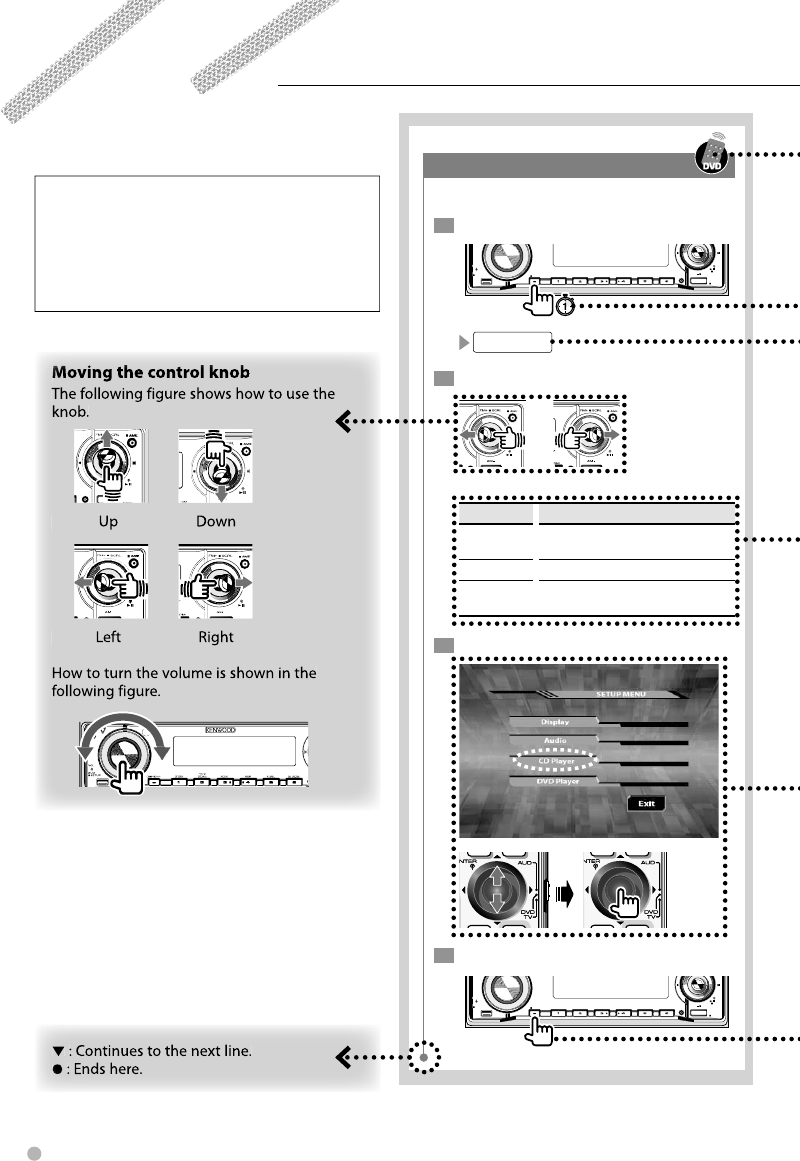
This manual uses illustrations to explain its
operations.
The displays and panels shown in this manual
are examples used to provide clear explanations
of the operations.
For this reason, they may be different from the
actual displays or panels used, or some display
patterns may be different.
The above operation example with the mark
differs from the actual operation.
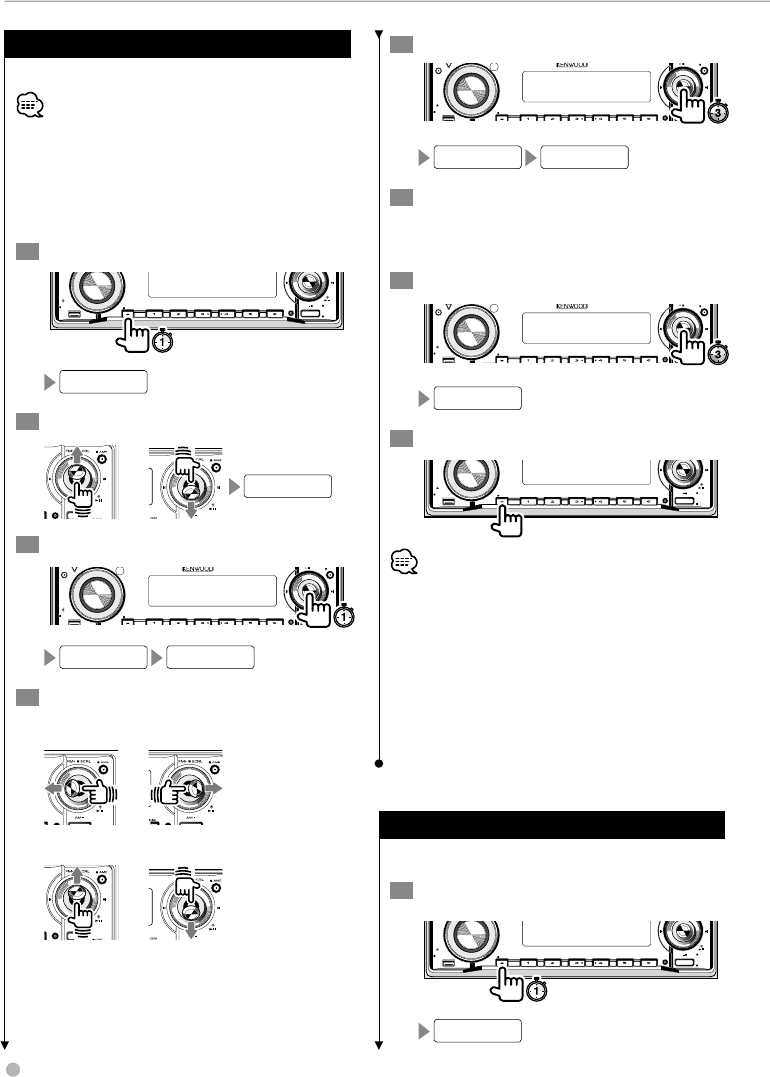
Tuning mode
Sets a tuning mode for selecting stations.
1 Set to the menu mode
Q
AM
SETUP
AUD
VOL
MENU SCANSTOP
M/S
RDM REP F.S E L M.RDM
OFF
DISP
/PTY
SW
SRC
MENU
2 Select a tuning mode
There are three types in the tuning mode.
Display Setting
AUTO1 Receives stations with the best reception.
(Auto 1)
AUTO2 Receives the stations memorized. (Auto 2)
MANUAL Switches the receiving frequencies up and
down at a step at a time. (Manual)
3 Display the CD player menu
4 Exit the menu mode
Q
AM
SETUP
AUD
VOL
MENU SCANSTOP
M/S
RDM REP F.S E L M.RDM
OFF
DISP
/PTY
SW
SRC
English 5
How to read this manual
is a trademark of DVD Format/Logo Licensing
Corporation registered in the U.S., Japan and other
countries.
This product incorporates copyright protection
technology that is protected by U.S. patents and other
intellectual property rights. Use of this copyright
protection technology must be authorized by
Macrovision, and is intended for home and other
limited viewing uses only unless otherwise authorized
by Macrovision. Reverse engineering or disassembly is
prohibited.
"DTS" and "DTS 2.0 + Digital Out" are trademarks of
Digital Theater Systems, Inc.
Manufactured under license from Dolby Laboratories.
"Dolby" and the double-D symbol are trademarks of
Dolby Laboratories.
6 KDV-412
2CAUTION
Use of controls or adjustments or performance of
procedures other than those specified herein may
result in hazardous radiation exposure.
In compliance with Federal Regulations, following
are reproductions of labels on, or inside the product
relating to laser product safety.
KENWOOD CORPORATION
2967-3, ISHIKAWA-MACHI,
HACHIOJI-SHI
TOKYO, JAPAN
KENWOOD CORP. CERTIFIES THIS EQUIPMENT
CONFORMS TO DHHS REGULATIONS N0.21 CFR
1040. 10, CHAPTER 1, SUBCHAPTER J.
Location : Bottom Panel
FCC WARNING
This equipment may generate or use radio
frequency energy. Changes or modifications to this
equipment may cause harmful interference unless
the modifications are expressly approved in the
instruction manual. The user could lose the authority
to operate this equipment if an unauthorized change
or modification is made.
NOTE
This equipment has been tested and found to
comply with the limits for a Class B digital device,
pursuant to Part 15 of the FCC Rules. These limits are
designed to provide reasonable protection against
harmful interference in a residential installation. This
equipment may cause harmful interference to radio
communications, if it is not installed and used in
accordance with the instructions. However, there
is no guarantee that interference will not occur in a
particular installation. If this equipment does cause
harmful interference to radio or television reception,
which can be determined by turning the equipment
off and on, the user is encouraged to try to correct
the interference by one or more of the following
measures:
• Reorient or relocate the receiving antenna.
• Increase the separation between the equipment
and receiver.
• Connect the equipment into an outlet on a
circuit different from that to which the receiver is
connected.
• Consult the dealer or an experienced radio/TV
technician for help.
NOTE
This Class B digital apparatus complies with
Canadian ICES-003.
English 7
Safety precautions
Safety precautions
2WARNING
To prevent injury or fire, take the following
precautions:
• To prevent a short circuit, never put or leave any
metallic objects (such as coins or metal tools) inside
the unit.
• Mounting and wiring this product requires skills and
experience. For safety’s sake, leave the mounting
and wiring work to professionals.
Attach the panel while you are on the
vehicle
The panel lock arm appears when the panel is
removed. Therefore, the panel must be attached
while the electrical system of the car is operating.
2CAUTION
To prevent damage to the machine, take
the following precautions:
• Make sure to ground the unit to a negative 12V DC
power supply.
• Do not install the unit in a spot exposed to direct
sunlight or excessive heat or humidity. Also avoid
places with too much dust or the possibility of
water splashing.
• Do not place the faceplate (and the faceplate case)
in areas exposed to direct sunlight, excessive heat
or humidity. Also avoid places with too much dust
or the possibility of water splashing.
• To prevent deterioration, do not touch the terminals
of the unit or faceplate with your fingers.
• Do not subject the faceplate to excessive shock, as
it is a piece of precision equipment.
• When replacing a fuse, only use a new fuse with
the prescribed rating. Using a fuse with the wrong
rating may cause your unit to malfunction.
• Do not apply excessive force to the open faceplate
or place objects on it. Doing so will cause damage
or breakdown.
• Do not use your own screws. Use only the screws
provided. If you use the wrong screws, you could
damage the unit.
About CD players/disc changers connected
to this unit
Kenwood disc changers/CD players released in 1998
or later can be connected to this unit.
Refer to the catalog or consult your Kenwood dealer
for connectable models of disc changers/CD players.
Note that any Kenwood disc changers/CD players
released in 1997 or earlier and disc changers made by
other makers cannot be connected to this unit.
Connecting unsupported disc changers/CD players to
this unit may result in damage.
Set the "O-N" Switch to the "N" position for the
applicable Kenwood disc changers/CD players.
The functions you can use and the information
that can be displayed may differ depending on the
models being connected.
• You can damage both your unit and the CD changer if you
connect them incorrectly.
Lens Fogging
When you turn on the car heater in cold weather,
dew or condensation may form on the lens in the
unit. Called lens fogging, this condensation on the
lens may not allow DISC to play. In such a situation,
remove the disc and wait for the condensation to
evaporate. If the unit still does not operate normally
after a while, consult your Kenwood dealer.
8 KDV-412
• If you experience problems during installation,
consult your Kenwood dealer.
• When you purchase optional accessories, check
with your Kenwood dealer to make sure that they
work with your model and in your area.
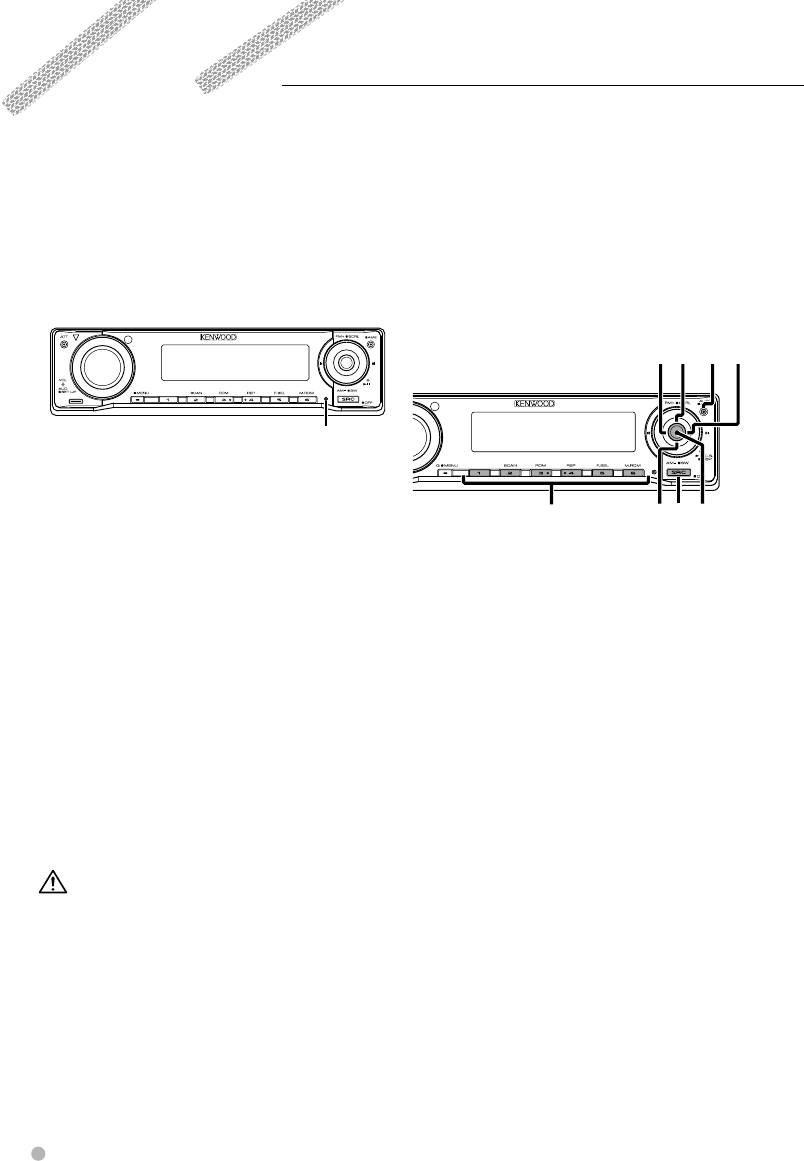
• If the unit fails to operate properly, press the Reset
button. The unit returns to factory settings when
the Reset button is pressed.
• Press the Reset button if the disc auto changer fails
to operate correctly. Normal operation should be
restored.
STOP
M/S
Reset button
• We recommend the use of <Setting security code>
(page 50) to prevent theft.
• The characters which can be displayed by this unit
are A-Z 0-9 @ " ‘ ` % & * + – = , . / \ < > [ ] ( ) : ; ^ - { }
| ~ .
• The RDS feature won’t work where the service is not
supported by any broadcasting station.
• The illustrations of the display and the panel
appearing in this manual are examples used to
explain more clearly how the controls are used.
Therefore, what appears on the display in the
illustrations may differ from what appears on the
display of the actual equipment, and some of the
illustrations on the display may be inapplicable.
Cleaning the Unit
If the faceplate of this unit is stained, wipe it with a
dry soft cloth such as a silicon cloth.
If the faceplate is stained badly, wipe the stain off
with a cloth moistened with neutral cleaner, then
wipe it again with a clean soft dry cloth.
• Applying spray cleaner directly to the unit may affect its
mechanical parts. Wiping the faceplate with a hard cloth
or using a volatile liquid such as thinner or alcohol may
scratch the surface or erases characters.
Cleaning the Faceplate Terminals
If the terminals on the unit or faceplate get dirty,
wipe them with a clean soft dry cloth.
Before using this unit for the first time
This unit is initially set on the Demonstration mode.
When using this unit for the first time, cancel the
<Demonstration setup> (page 54).
About SIRIUS Satellite radio tuner
Refer to the instruction manual of SIRIUS Satellite
radio tuner KTC-SR901/SR902/SR903 (optional
accessory), when connected, for the operation
method.
• Refer to the sections of A models for operations.
STOP
M/S
SRC
1-6
4
FM/
SCRL
AM
DISP/C.S.
¢
AUTO
About DAB Tuner control
Refer to A group on the Instruction manual of DAB
Tuner KTC-9090DAB (optional accessory) for the
control method of DAB Tuner function.
However, the following control methods of the
function for this unit may be different from the
descriptions given in the Instruction manual;
therefore, refer to the following supplemental
instruction.
<Auto Ensemble Memory Entry>
1. Select the preset band for Auto Ensemble
Memory Entry.
2. Press the [AME] button for at least 2 seconds.
Open Auto Ensemble Memory Entry.
After storing in the memory is completed, the
number of the pre-set buttons and the ensemble
label are displayed.
<Searching by programme type and language>
At the operation to press [DISP] button, use [AUTO]
button instead.
Notes
English 9
Notes
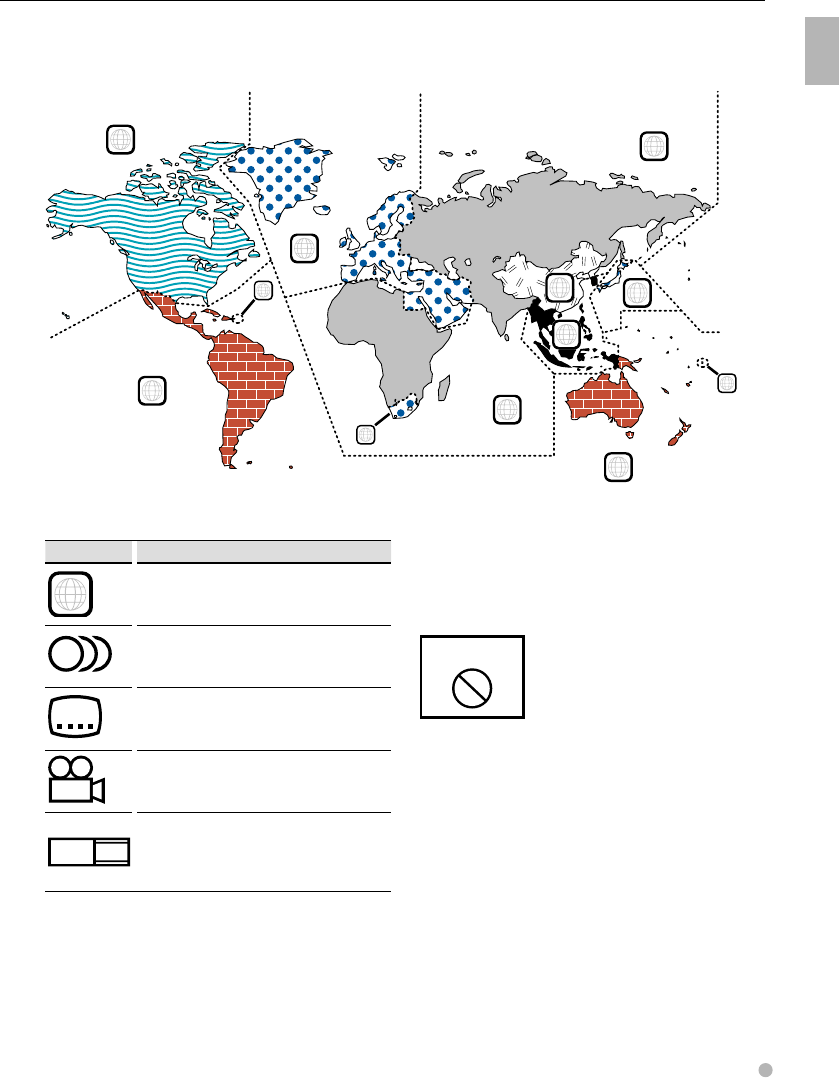
Region codes in the world
The DVD players are given a region code according to the country or area it is marketed, as shown in the
following map.
Operation regulatory marks
With this DVD, some functions of this unit such as the
play function may be restricted depending on the
location where the DVD is playing. In this case, the
following marks will appear on the screen. For more
information, refer to the disc manual.
禁止マーク
Prohibition Mark
Discs with limited period of use
Do not leave discs with a limited period of use in this
unit. If you load an already expired disc, you may not
be able to remove it from this unit.
1
2
4
1
5
4
5
2
1
2
6
3
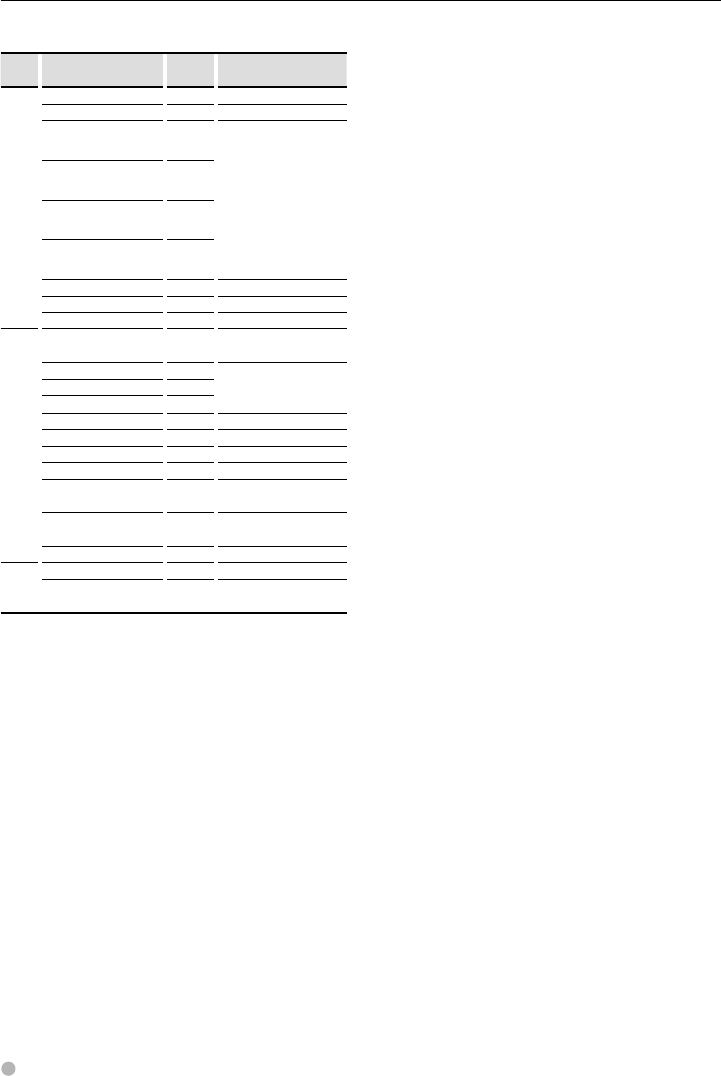
DVD disc marks
Symbol Description
ALL
Indicates a region number. The discs with this mark can
be played with any DVD player.
8
Indicates the number of audio languages recorded. Up
to 8 languages can be recorded in a movie. You can
select a favorite language.
32
Indicates the number of subtitled languages recorded.
Up to 32 languages can be recorded.
9
If a DVD disc has scenes shot from multiple angles, you
can select a favorite angle.
16:9 LB
Indicates the type of screen for the image. The left mark
indicates that a wide image picture (16:9) is displayed
on a standard TV set screen (4:3) with a black band at
both the top and bottom of the screen (letter box).
10 KDV-412
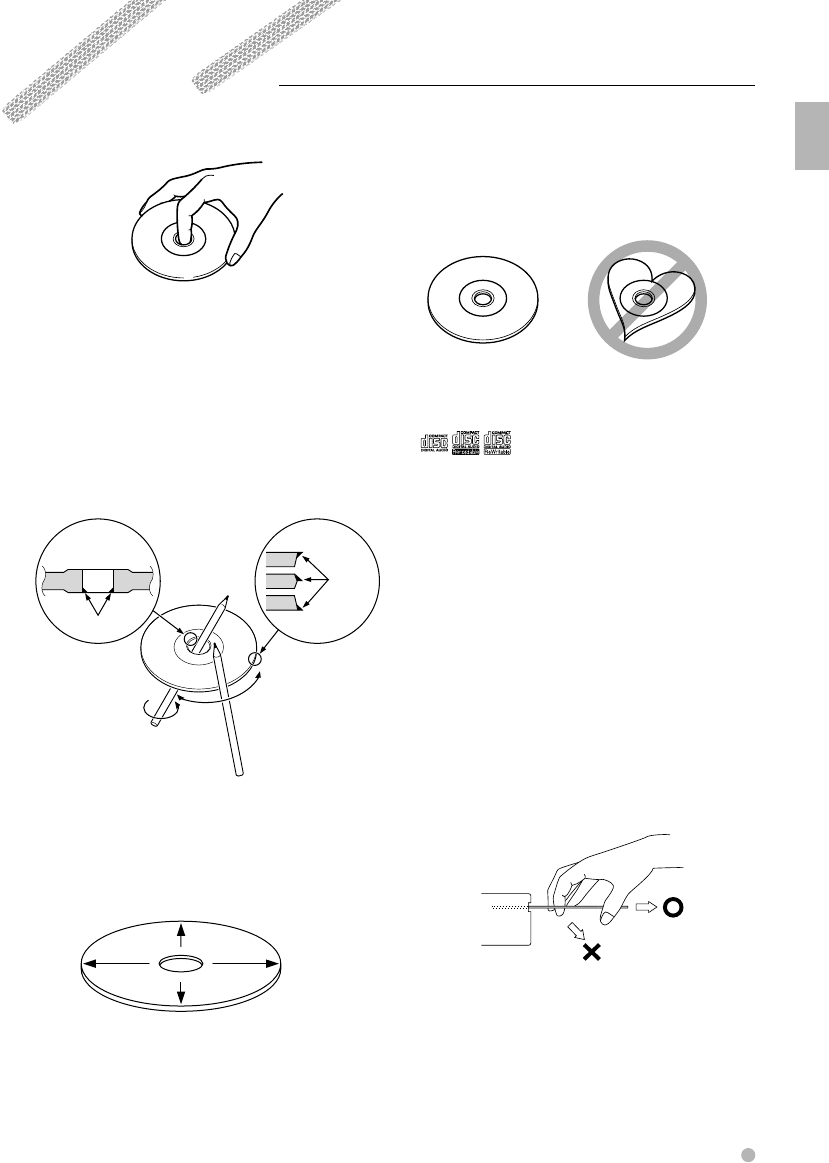
List of playable discs
Disc
types
Standard Support Remark
DVD DVD Video ‡
DVD Audio ×
DVD-R ‡MP3/WMA/JPEG/MPEG
Playback
VR mode/Multi-border/
Multisession/CPRM not
supported
(Playback depends on
authoring conditions)
Compatible with 8-cm (3
inch) discs
DVD-RW ‡
DVD+R ‡
DVD+RW ‡
DVD-R DL (Double layer) ×
DVD+R DL (Double layer) ×
DVD-RAM ×
CD Music CD ‡CD-TEXT/8-cm (3 inch)
discs supported.
CD-ROM ‡MP3/WMA/JPEG playback
Multisession supported
Packet write not supported.
CD-R ‡
CD-RW ‡
DTS-CD ‡
Video CD (VCD) ‡
Super video CD ×
Photo CD ×
CD-EXTRA %Only music CD session can
be played.
HDCD %Sound quality of normal
CD music
CCCD ×
Others Dualdisc ×
Super audio CD %Only CD layer can be
played.
‡ : Playback is possible.
% : Playback is partly possible.
× : Playback is impossible.
Use of "DualDisc"
When playing a "DualDisc" on this unit, the surface
of the disc that is not played may be scratched
while the disc is inserted or ejected. Since the music
CD surface does not conform to the CD standard,
playback may be impossible.
(A "DualDisc" is a disc with one surface containing
DVD standard signals and the other surface
containing music CD signals.)
Notes
English 11
Handling media
Handling media
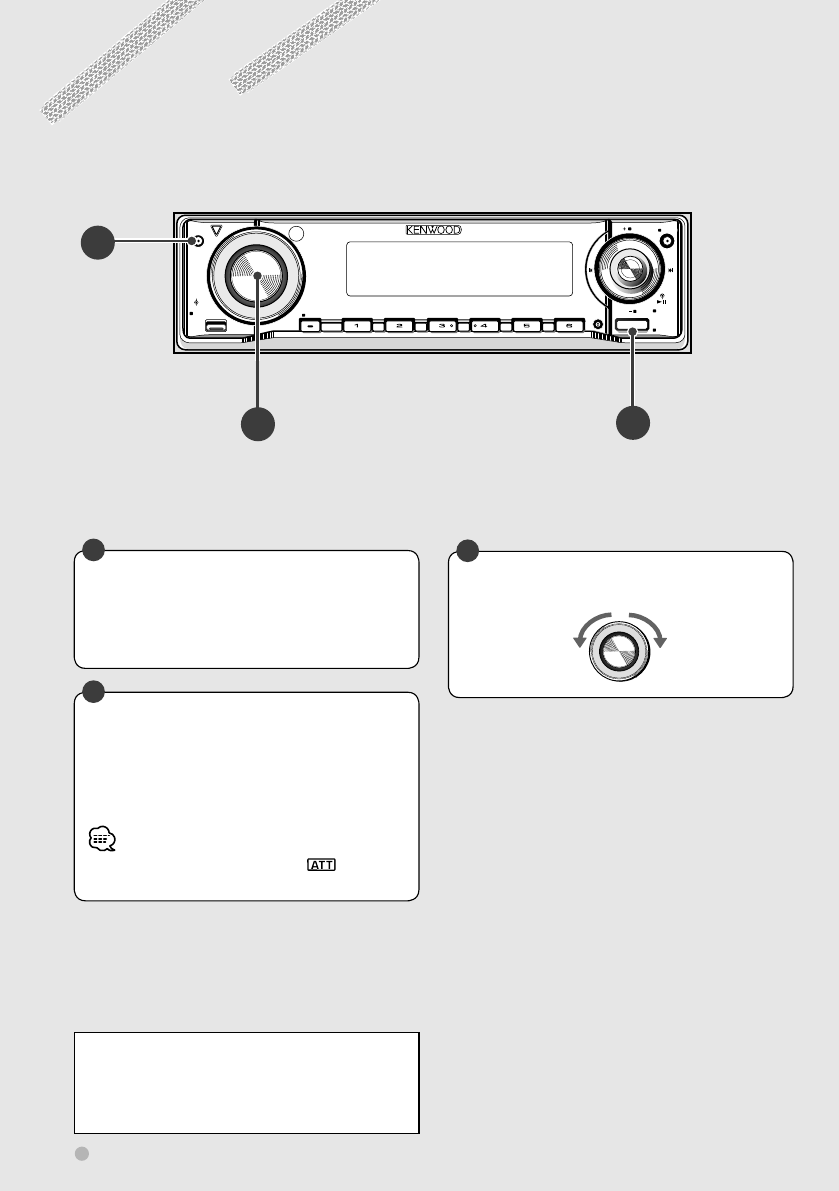
Handling discs
• Do not touch the recording surface of the disc.
• CD-R/RW, DVD-R/RW, and DVD+R/RW discs are
easier to be damaged than a ordinary music CD.
Use a CD-R/RW, DVD-R/RW, or DVD+R/RW disc after
reading the cautions on the package.
• Do not stick a tape, sticker, etc., on the disc.
Also, do not use a disc with those materials pasted
on it.
When using a new disc
If the disc center hole or outside rim has burrs, use it
after removing them with a ballpoint pen etc.
Burrs
Burrs
Disc shaped accessory
Do not insert a disc shape accessory into the unit.
Disc cleaning
Wipe from the center of the disc to outward.
Removing discs
When removing discs from this unit pull them out
horizontally.
Discs that can not be used
• Discs that are not round cannot be used.
• Discs with coloring on the recording surface or that
are dirty cannot be used.
• This unit can only play the CDs with one of
labels.
Discs without the label may not be played on the
unit.
• A CD-R or CD-RW that hasn’t been finalized cannot
be played. (For the finalization process refer to your
CD-R/CD-RW writing software, and your CD-R/CD-
RW recorder instruction manual.)
Disc storage
• Do not leave discs place them in direct sunlight
(On the seat or dashboard etc.) and where the
temperature is high.
• Put discs in their cases and store them in such a
storage as disc cabinet.
How to eject a disc
When ejecting a disc from this unit, pull it out
horizontally.
If pulled out with a strong downward force, the
recording surface of the disc may be scratched.
Q
AM
SETUP
AUD
VOL
ATT
MENU SCANSTOP
M/S
RDM REP F. S E L M.RDM
OFF
DISP
PTY/C.S.
SW
AME
AUTO
FM SCRL
SRC
BC
A
12 KDV-412
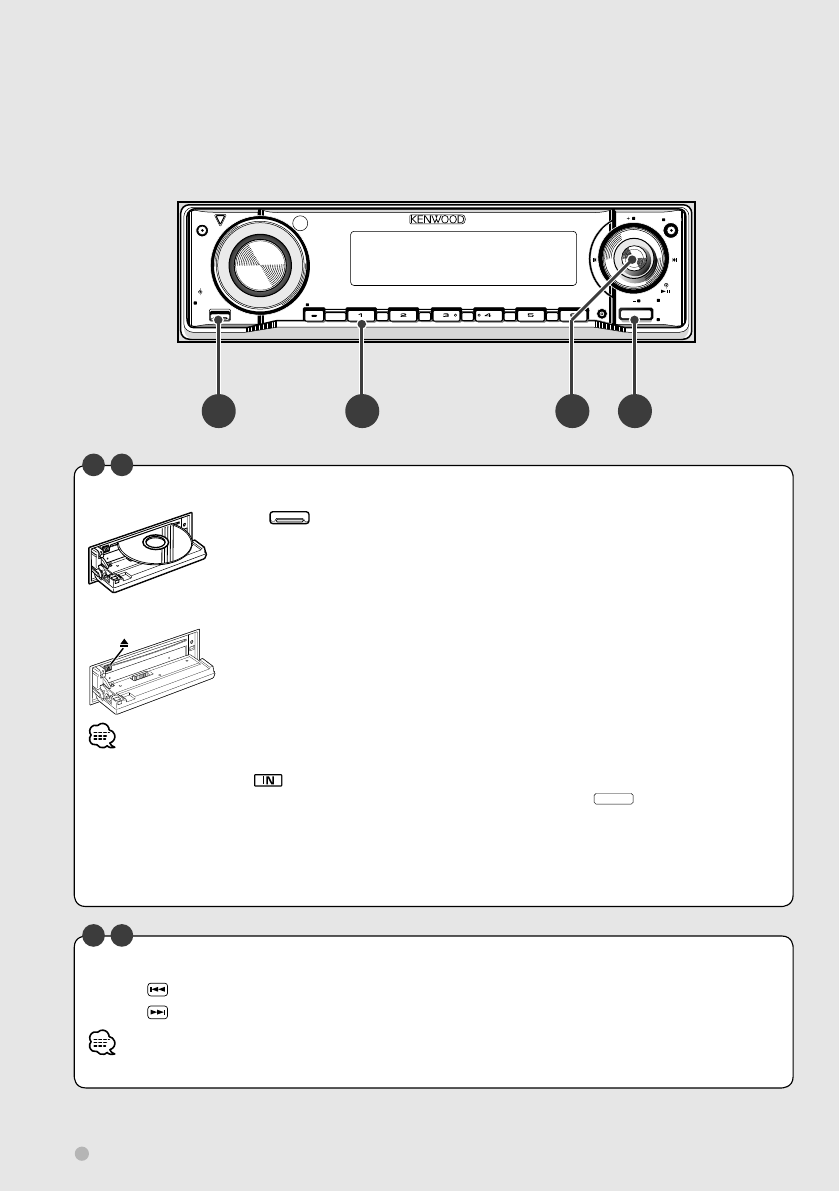
Adjusts audio output level
Turns down Turns up
B
Turns down the volume quickly
Press the button to turn down the volume
(Attenuator).
Press the button again to restore the previous
volume.
• While the attenuator is activated, the indicator
blinks.
A
Common operations
Turns power ON/OFF
Press the button to turn on the power.
When the button is pressed and held down for
1 second or more, the power is turned off.
C
Canceling demonstration mode
The demonstration mode should be canceled
before use. For further information, refer to
<Demonstration setup> (page 54).
Basic Operations
English 13
Changes a source
A playable source is selected in the following order each time the button is pressed.
TUNER
DVD
CD CH/MD CH
AUX EXT
STANDBY
Receives FM/AM broadcast. (page 36)
Plays back the disc (DVD/VCD/CD etc) inserted. (page 20/34)
Plays back the disc inserted in an external player, such as a CD changer (optional accessory). (page
30)
Outputs a sound signal input to the external AUX terminal (optional accessory).
Although nothing is played back, the clock etc are displayed.
• If no CD/MD changer is connected, the changer source is not selected.
• When a disc is inserted, the disc is played.
• You can play audio files, video files and picture files with DVD source. For details of these media types, formatting or
writing methods, refer to <Help? Playing files> (page 62).
• "AUX EXT" display using KCA-S220A can be switched with <AUX name select> (page 53).
C
Adjusts sound quality and others
Push the knob to select the feature to be adjusted, and turn the knob clockwise/counterclockwise to
adjust the feature.
Features are selected in the following order.
BASL
MID L
TRE L
BAL
FAD
通常の表示
Adjusts the bass volume. (Adjustable range : –8 – +8)
Adjusts the middle volume. (Adjustable range : –8 – +8)
Adjusts the treble volume. (Adjustable range : –8 – +8)
Adjusts the volume balance between the left and the right.
(Adjustable range : Left 15 – Right 15)
Adjusts the volume balance between the front and the rear.
(Adjustable range : Rear 15 – Front 15)
Normal display
• The features displayed for sound quality adjustment may differ depending on the settings. Detailed setup is also possible.
For further information, refer to <Detailed audio control> (page 40).
• You can easily adjust the sound quality to suit the type of music you are playing. For further information, refer to <System
Q> (page 42).
• Pressing
Å button, ı button, or any button other than Ç will immediately return to normal display.
Basic Operations
B
14 KDV-412
Q
AM
SETUP
AUD
VOL
ATT
MENU SCANSTOP
M/S
RDM REP F. S E L M.RDM
OFF
DISP
PTY/C.S.
SW
AME
AUTO
FM SCRL
SRC
Watching DVD/VCD (video CD)/Video (MPEG) files
Basic Operations
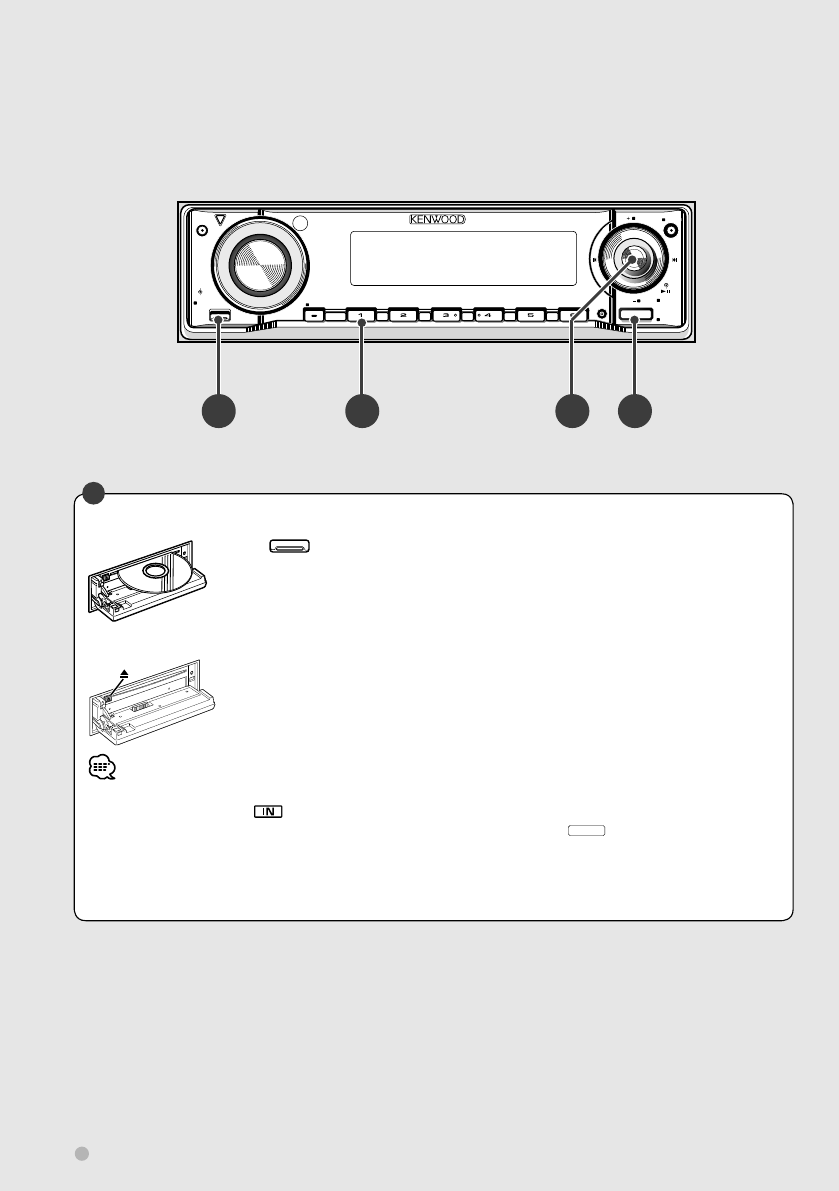
Playing a DVD/VCD/Video file
Press button Å to open the operation panel.
When you load a disc into the disc loading slot, the disc starts playing.
If a menu appears, move the cursor on a feature using the cursor key È, and
select it by pressing the ENTER key È.
Remove a disc
Press [0] (Eject) button.
• Insert the disc horizontally.
• When a disc is inserted, the indicator lamp turns on.
• When a disc is already loaded in this unit, you can play it by switching to "DVD" with the
SRC
button Î.
• In addition to the DVD videos available on the market, you can view video (MPEG) files recorded on DVDs. For further
information on the types of video files that can be played, disc formats etc, refer to <Video files> (page 64).
• For other playback methods, refer to <Watching DVD/VCD/Video files> (page 20).
• The position of the remote controller switch must be changed according to the source used. For further information,
refer to <Remote Controller mode switch> (page 58).
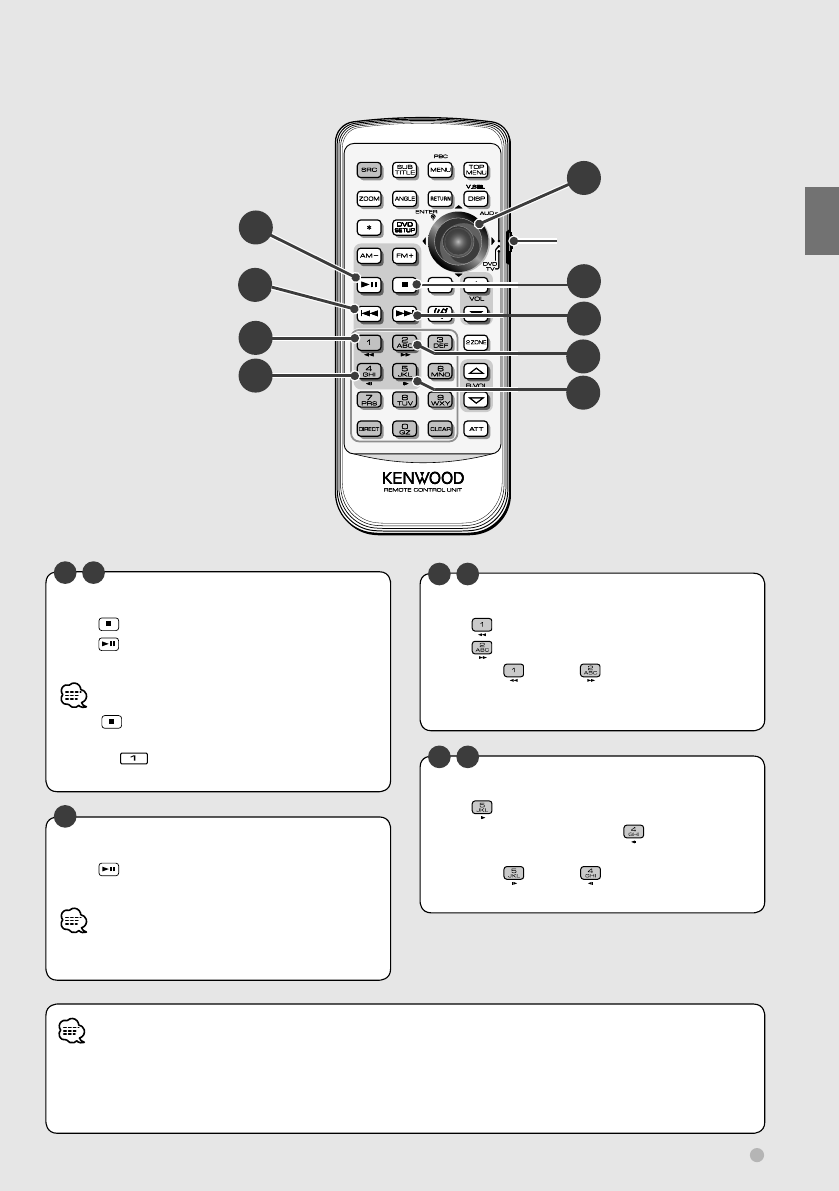
A
Select a chapter/scene/track
Pressing key Ï to play back the previous chapter/scene/track.
Pressing key to play the next chapter/scene/track.
• The same operation is possible by sliding control knob Ç to the left or right.
F K
A DC
I
B
English 15
Basic Operations
Stop play
Press key Ô to stop playing.
Press key ‰ to resume playing from the
position where play was previously interrupted.
• Press key Ô twice to start playback of a DVD from
the beginning when it is played next.
• Pressing button ı can also stop playing.
• Pressing control knob Ç can also resume playing.
E
Fast scan forward/backward
Press key Ì for fast backward scanning.
Press key Ò for fast forward scanning.
Each time key Ì/ key Ò is pressed,
the forward/backward scan speed changes in
3 steps.
G
Play/Pause
Press key ‰ once to pause.
Press again to resume playing.
• The same operation is possible by pressing control
knob Ç.
Slow play
Press key ˜ for slow forward play.
During DVD playback, press key Ó for slow
backward play.
Each time key ˜/ key Ó is pressed, the
slow play speed changes in 3 steps.
H
F
K
H
J
GL
L
M
M
"DVD" is selected.
(page 58)
E
J
• During driving, the image from the DVD/VCD/video files will not be displayed for safety reasons. The image is displayed
after the vehicle stops and the parking brake is applied.
• When on-screen display is shown on the monitor, use the cursor key È operating menus. If you want to perform other
operations, turn off the on-screen display.
E
I
16 KDV-412
Listening to CDs and audio files
Basic Operations
Q
AM
SETUP
AUD
VOL
ATT
MENU SCANSTOP
M/S
RDM REP F. S E L M.RDM
OFF
DISP
PTY/C.S.
SW
AME
AUTO
FM SCRL
SRC
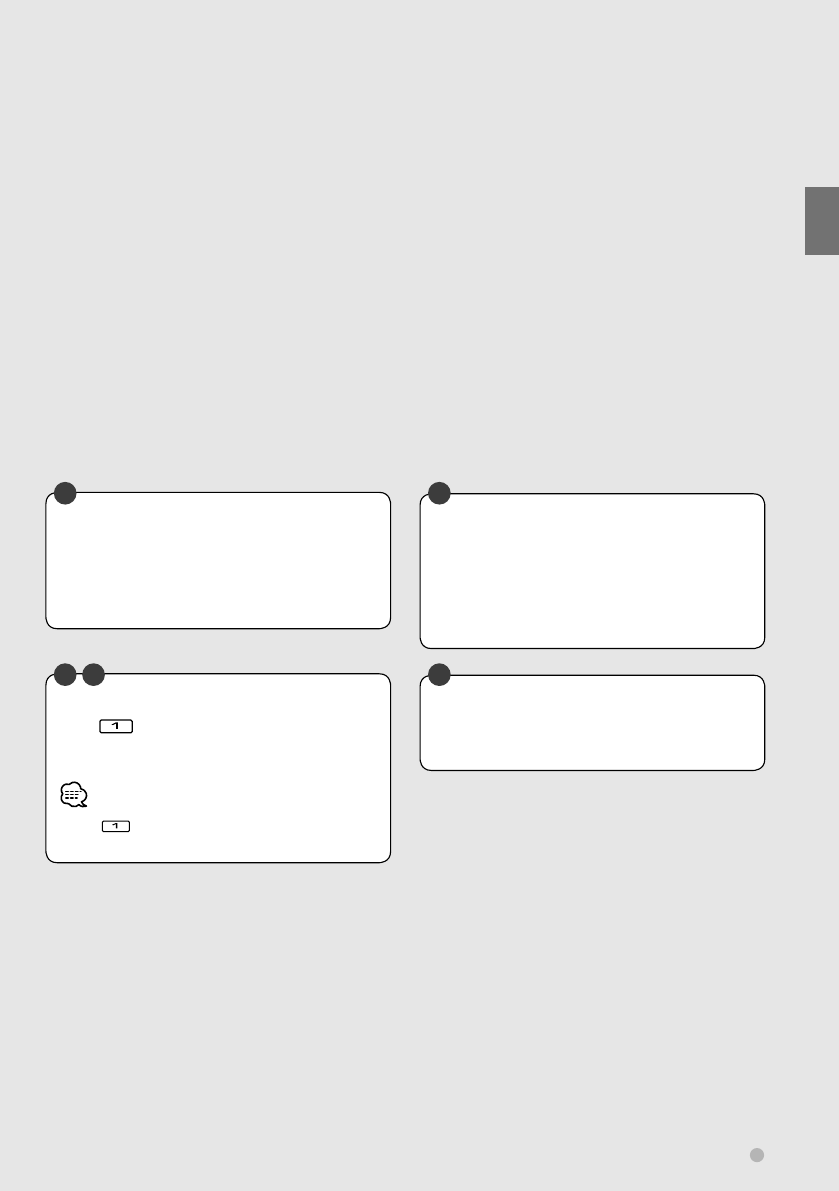
Playing CD/audio files
Press button Å to open the operation panel.
When you load a disc into the disc loading slot, it starts playing.
Remove a disc
Press [0] (Eject) button. The disc is ejected.
• Insert the disc horizontally.
• When a disc is inserted, the indicator lamp turns on.
• If a disc is already loaded in this unit, you can play it by switching to "DVD" with the
SRC
button Î.
• Apart from normal CDs, you can also play CD-Rs (etc.) with audio files.
For further information on the types, formats, and writing methods of playable audio files, refer to <Audio files> (page
62).
• For further information on playing methods, refer to <Listening to Music Discs & Audio Files> (page 30).
A
A B C D
English 17
Basic Operations
Play/Pause
Press control knob Ç once to pause.
Press again to resume playing.
C
Fast scan forward/backward
Push control knob Ç to the right and hold it
for fast scanning forward through the track.
Push control knob Ç to the left and hold it for
fast scanning backward through the track.
C
Select a track to play
Move control knob Ç to the right to play the
next track.
Move control knob Ç to the left to return
to the start of the current track or play the
previous track.
C
Stop play
Press button ı to stop playing.
Press control knob Ç to resume playing from
the previous interrupted position.
• Press button ı twice to start the disc from the
beginning when it is played next.
B C
Q
AM
SETUP
AUD
VOL
ATT
MENU SCANSTOP
M/S
RDM REP F. S E L M.RDM
OFF
DISP
PTY/C.S.
SW
AME
AUTO
FM SCRL
SRC
18 KDV-412
Basic Operations
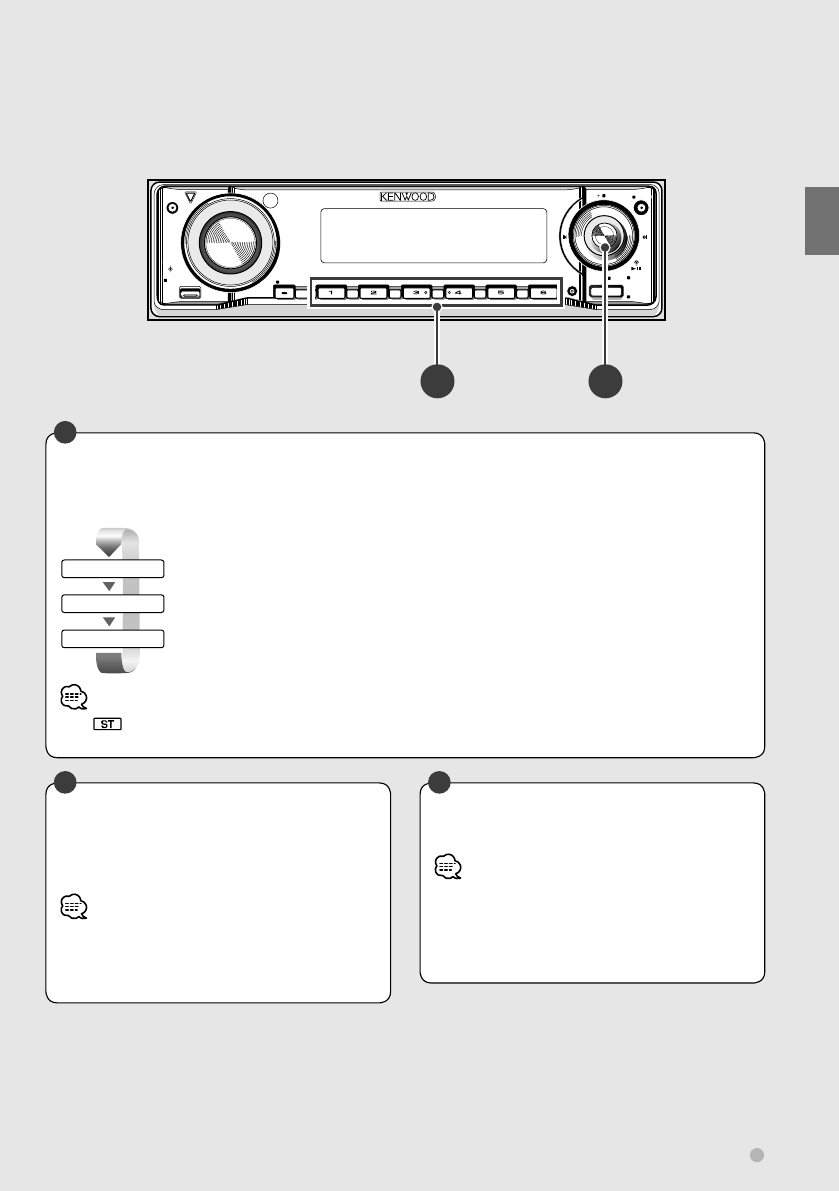
Display picture files
Press button Å to open the operation panel.
Insert a disc containing picture files into the loading slot to display the files.
The picture file is displayed for 20 seconds before moving to another picture file.
Remove a disc
Press [0] (Eject) button.
• The length of time the picture file is displayed can be changed. For details on how to set the time, refer to <Monitor
display setup> (page 24).
• Insert the disc horizontally.
• When a disc is inserted, the indicator lamp turns on.
• When a disc is already loaded in this unit, you can play it by switching to "DVD" with the
SRC
button Ç.
• For further information on the types of displayable picture files, disc formats etc., refer to <Picture files> (page 64).
A
Select a picture file to display
Move control knob ı to the left to display the
previous picture file.
Move control knob ı to the right to display
the next picture file.
B
Viewing picture (JPEG) files
A CB
• During driving, the image from the picture files will not be displayed for safety. The image is displayed after the vehicle
stops and the parking brake is applied.
Pausing display
Pressing control knob ı once freezes the
display. When it is pressed again, the picture
file starts changing again, the picture file starts
changing again.
B
Q
AM
SETUP
AUD
VOL
ATT
MENU SCANSTOP
M/S
RDM REP F. S E L M.RDM
OFF
DISP
PTY/C.S.
SW
AME
AUTO
FM SCRL
SRC
English 19
Listening to radio
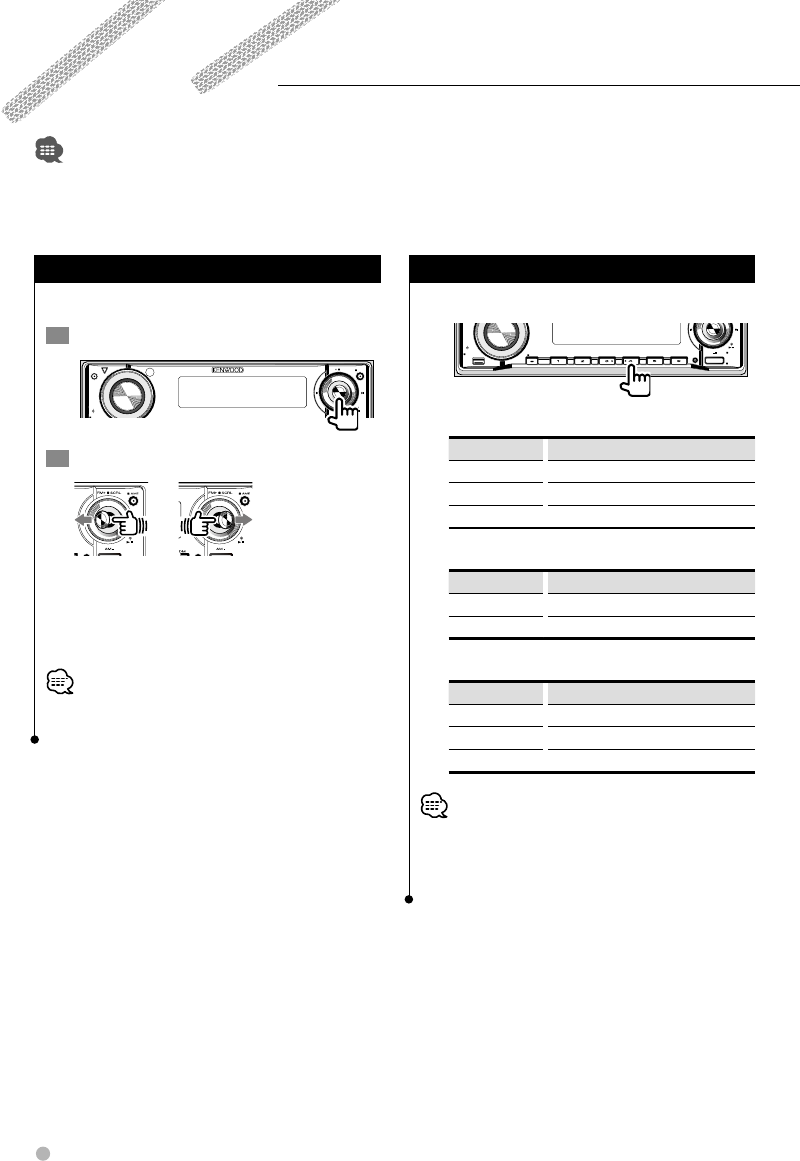
Changing the radio band
FM 1
FM 2
FM 3
FM band 1
FM band 2
Move control knob ı up to change the radio
bands as follows:
Move control knob ı downwards to change
the radio band to AM.
FM band 3
• The indicator turns on during stereo reception.
• For various other tuning methods, refer to <Listening to Radio> (page 36).
B
Selecting a radio station
Move control knob ı left or right to
automatically search for the best reception of a
radio station.
• Depending on the tuning mode, you can change the
frequency step by step, or receive each memorized
radio station sequentially. For further information, refer
to <Tuning mode> (page 37).
B
Receive a preset radio station
Press a button to select the station memorized.
• To use the preset tuning function with Å, you need
to preset a radio station for each button in advance.
For detail on how to memorize stations, refer to <Auto
memory> (page 36) or <Manual memory> (page 36).
A
Basic Operations
BA
20 KDV-412
You can play DVD/VCD/Video files using various functions.
• For the basic method of how to watch DVD/VCD/Video files, refer to <Watching DVD/VCD (video CD)/Video (MPEG) files>
(page 14).
• Set the remote controller mode switch to "DVD" mode before starting operation, refer to <Remote Controller mode switch>
(page 58).
Frame-by-frame playback
Plays back by moving frame by frame.
1 Pause playback
AM
SETUP
AUD
VOL
ATT
M/S DISP
PTY/C.S.
SW
AME
AUTO
FM SCRL
2 Play back frame by frame
Move control knob to the right to move
forward frame by frame.
Move control knob to the left to move
backward frame by frame.
• When playing back a video file, playing frame-by-frame
backward is disabled.
Repeat play
Repeats the chapter or track being played.
Q
AM
SETUP
AUD
VOL
MENU SCANSTOP
M/S
RDM REP F.S E L M.RDM
OFF
DISP
PTY/C.S.
SW
SRC
While playing DVDs
Display Status
"TITL REP" Title repeat ON
"CHAP REP" Chapter repeat ON
"REP OFF" Repeat play OFF
While playing VCDs
Display Status
"TRAC REP" Track repeat ON
"REP OFF" Repeat play OFF
While playing video files
Display Status
"FILE REP" File repeat ON
"FOLD REP" Folder repeat ON
"REP OFF" Repeat play OFF
• The VCD repeat play function is enabled when the PBC is
set to OFF.
For further information on PBC setting, refer to <PBC
setup> (page 23).
Watching DVD/VCD/Video files
English 21
Watching DVD/VCD/Video files
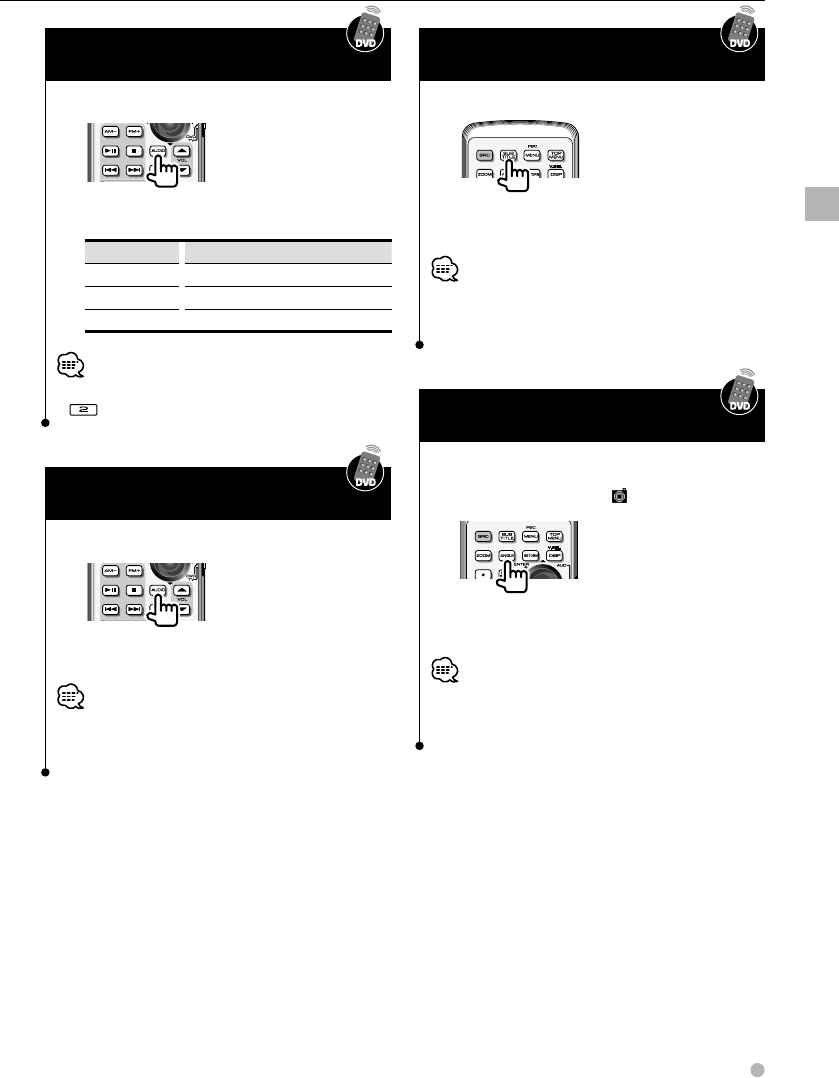
Changing audio channel
(Only for VCD)
Sets up the audio channel.
The setting changes as follows each time the
key is pressed.
Display Setting
"LL" Only left audio channel is output.
"RR" Only right audio channel is output.
"ST" Stereo sound is output.
• The audio channel can also be changed by pressing
on the main unit.
Changing sound track language
(Only for DVD)
Changes the sound track language.
The language changes each time the button
is pressed.
• On some discs you cannot change the language using
this button. In this case, change it from the DVD menu or
the DVD setup.
Changing subtitle language
(Only for DVD)
Changes the subtitle language.
The language changes each time the key is
pressed.
• On some discs you cannot change the subtitle language
using this button. In this case, change it from the DVD
menu or the DVD setup.
Changing viewing angle
(Only for DVD)
Selects a viewing angle.
When the angle mark ...
The angle changes each time the key is
pressed.
• On some discs you cannot change the angle using this
button. In this case, change it from the DVD menu or the
DVD setup.
22 KDV-412
Watching DVD/VCD/Video files
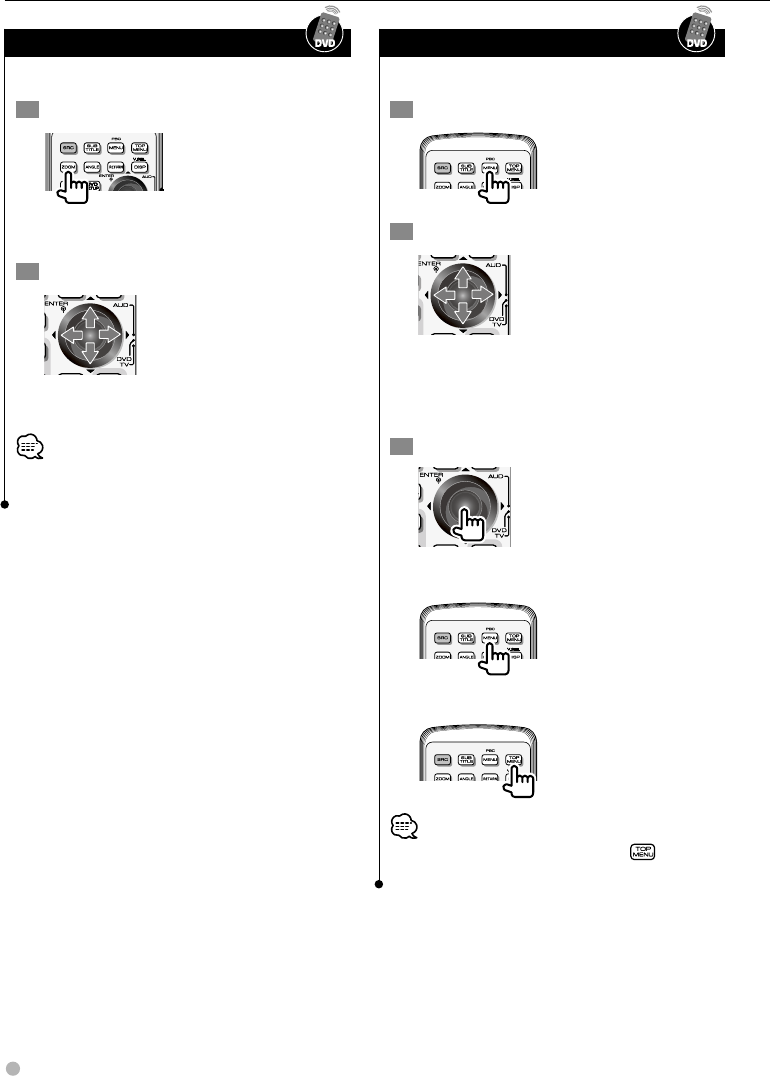
Zoom
Enlarges and displays the screen image.
1 Set the zoom ratio
The magnification ratio changes in 3 steps each
time the key is pressed.
2 Select a display position
The display position moves in the direction of
the arrow pressed.
• Zooming may not be possible with some discs, or zoom
may be canceled in some scenes.
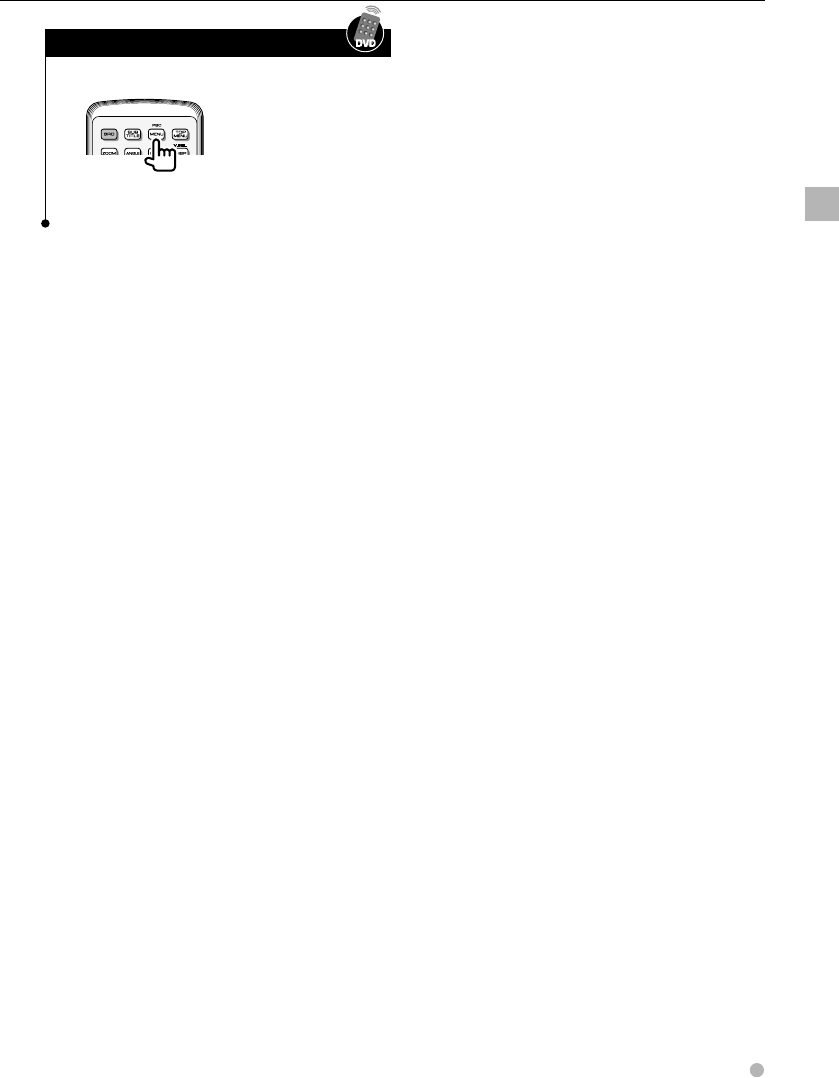
DVD menu (Only for DVD)
Sets the DVD menu.
1 Display a DVD menu
2 Select a feature
The cursor moves in the direction of the arrow
pressed. Move the cursor to the desired feature.
For the DVD menu, also refer to the DVD
operation manual.
3 Determine the feature
To cancel the menu …
To return to the first menu feature …
• Switching to the first menu feature with may not be
possible with some discs.
English 23
PBC setup (Only for VCD)
Sets up PBC (Play Back Control).
Each time the key is pressed, the PBC function
turns ON/OFF.
Watching DVD/VCD/Video files
24 KDV-412
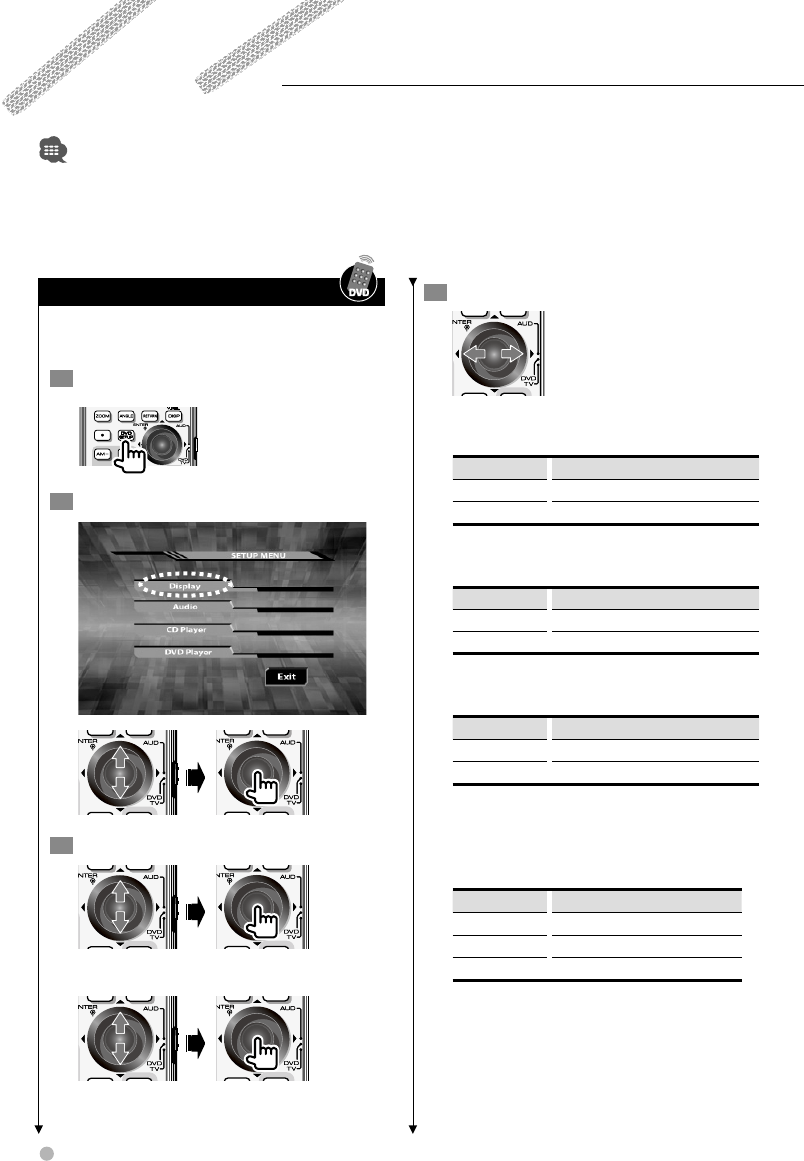
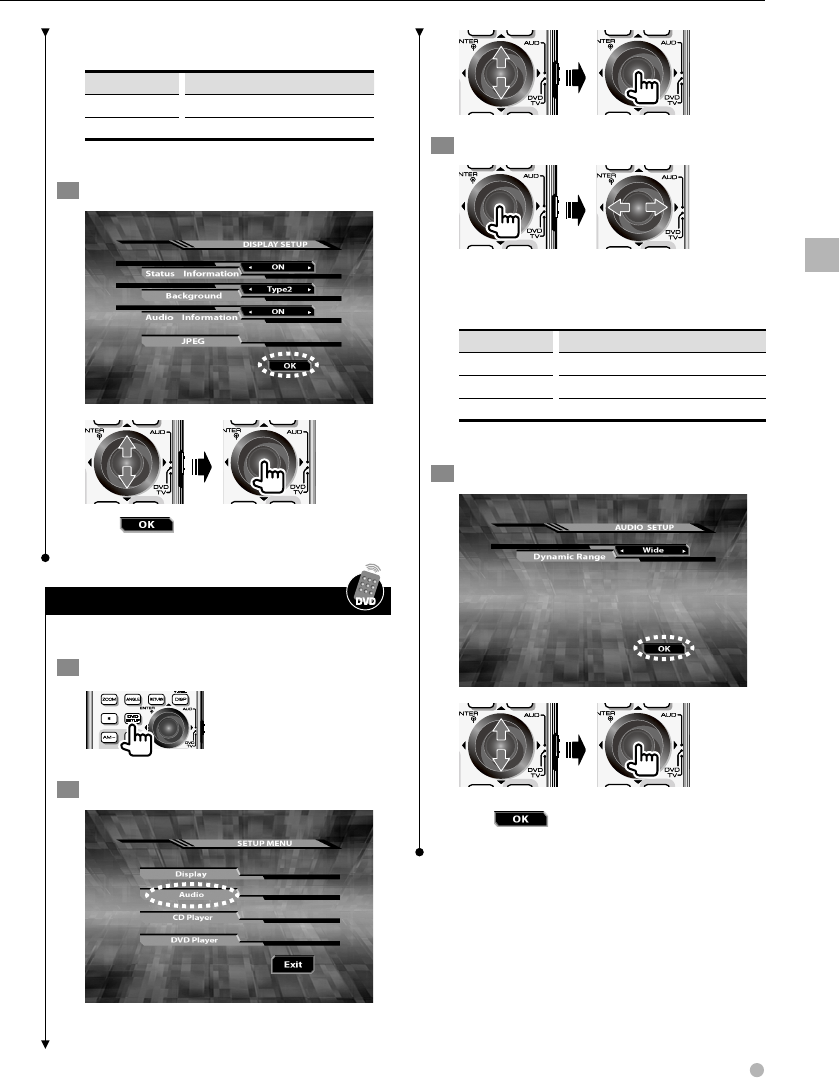
Monitor display setup
Specifies the information etc to be displayed on
the monitor.
1 Set to Setup mode
2 Open the display menu
3 Select features to set
Select additional features for JPEG setup.
4 Set up the features
Status Information
Turns the status and icon display ON/OFF.
Display Setting
"ON"* Displayed
"OFF" Not displayed
Background
Selects one of 2 types of wallpapers.
Display Setting
"Type1"* Type 1
"Type2" Type 2
Audio Information
Turns text information display ON/OFF.
Display Setting
"ON"* Displayed
"OFF" Not displayed
JPEG SETUP MENU
Display Time
Specifies the length of time for which JPEG
images are displayed.
Display Setting
"Short" Displayed for 10 seconds
"Middle"* Displayed for 20 seconds
"Long" Displayed for 30 seconds
Sets up display (etc.)-related functions.
• For the basic method of how to watch DVD/VCD/Video files, refer to <Watching DVD/VCD (video CD)/Video (MPEG) files>
(page 14).
• Set the remote controller mode switch to "DVD" mode before starting operation, refer to <Remote Controller mode switch>
(page 58).
• Perform this setting without a disc being loaded in this unit.
DVD setup
English 25
Display Effect
Turns visual effects ON/OFF.
Display Setting
"ON"* Visual effects are added.
"OFF" Visual effects are not added.
* Indicates default configuration status after purchase.
5 Exit the setup
After is selected on each screen the
previous screen appears.
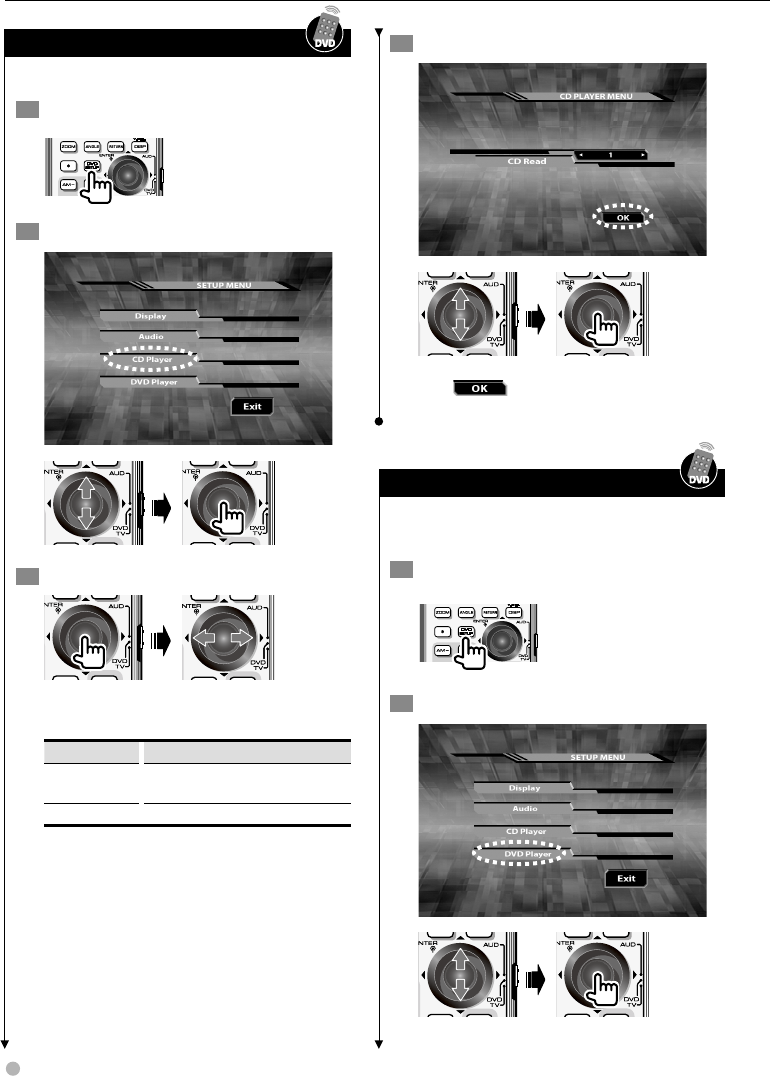
Audio setup
Sets up the DVD audio functions.
1 Set to Setup mode
2 Open the audio menu
3 Set up the features
Dynamic Range
Specifies the audio dynamic range when a title
supporting Dolby digital is playing.
Display Setting
"Wide"* Sets to wide range
"Normal"
…
"Midnight" Sets to narrow range
* Indicates default configuration status after purchase.
4 Exit the setup
After is selected on each screen the
previous screen appears.
DVD setup
26 KDV-412
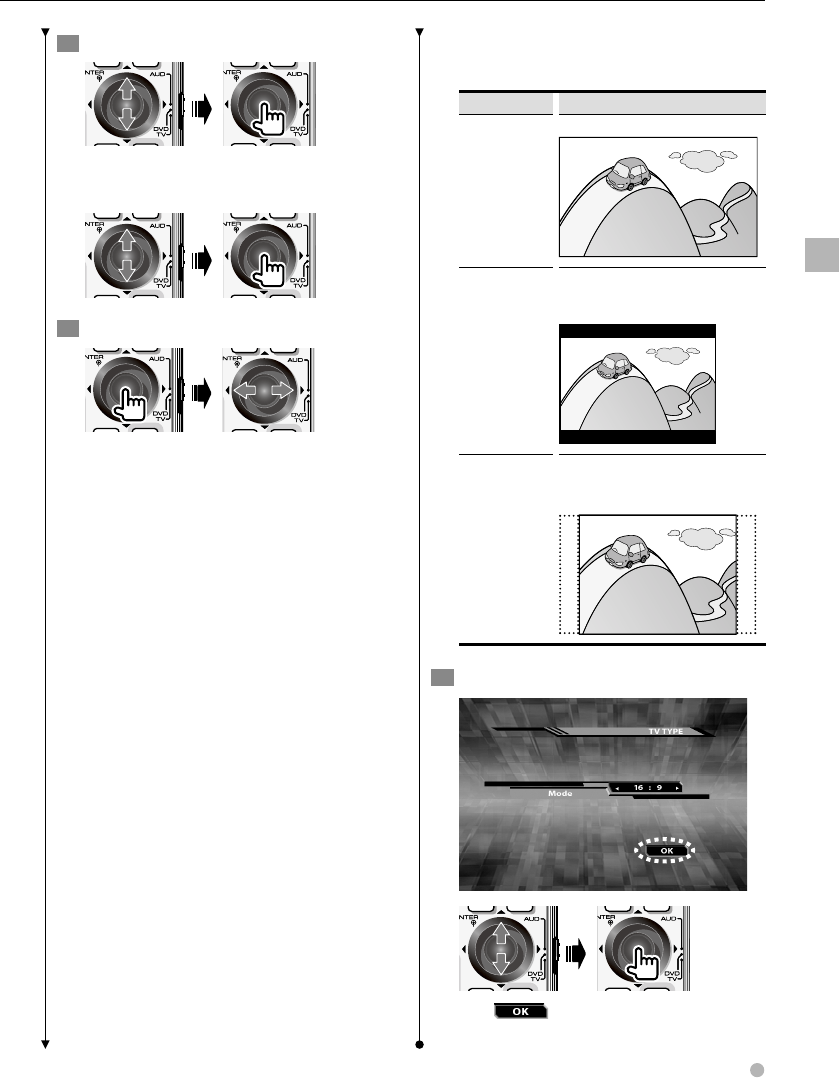
CD player setup
Sets up the CD player for playback.
1 Set to Setup mode
2 Display the CD player menu
3 Set up the features
CD Read
Specifies the method for reading a CD.
Display Setting
1* Audio file discs and music CDs are identified
automatically.
2 It overrides to play the disc as a CD.
* Indicates default configuration status after purchase.
4 Exit the setup
After is selected on each screen the
previous screen appears.
DVD player setup
Sets up the languages, display, etc. for DVD
playback.
1 Set to Setup mode
2 Open the DVD player menu
DVD setup
English 27
DVD setup
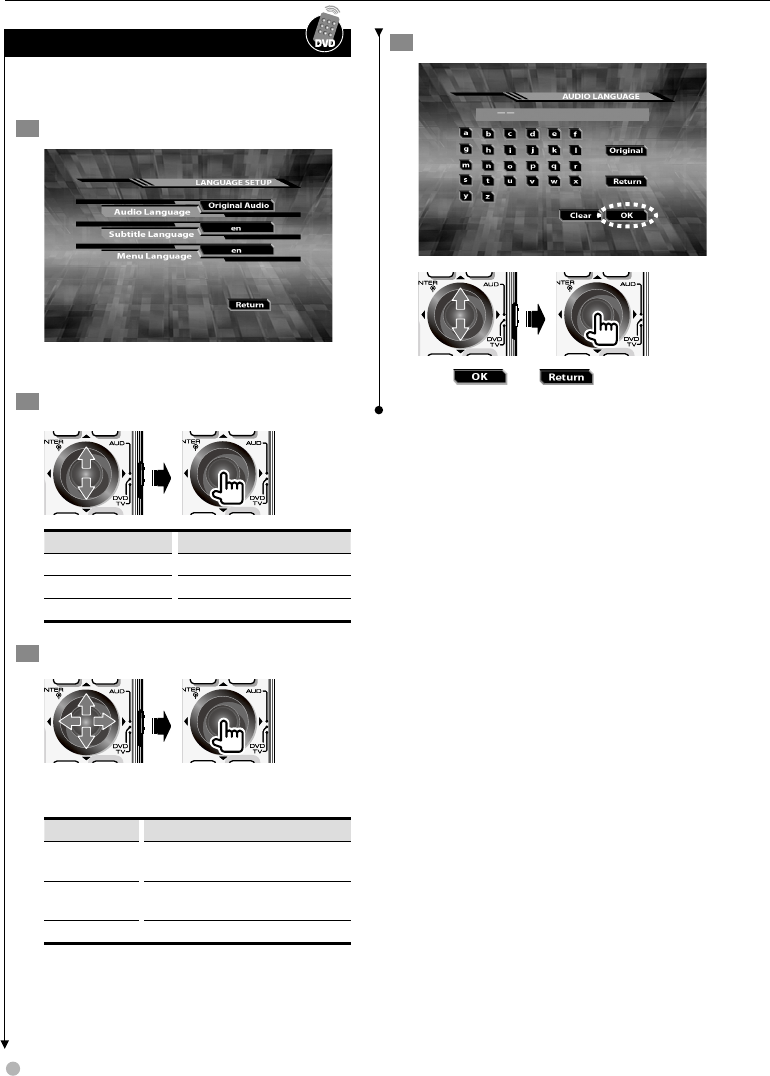
3 Select features to set
Select additional features for language
setup.
4 Set up the features
Language
Sets up the subtitles displayed, audio, etc. for
DVD playback.
For further information on the setting method,
refer to <Language setup> (page 28) .
Parental
Sets up a parental level.
For the setup method, refer to <Parental level
setup/change> (page 29).
TV Type
Sets the picture aspect ratio 16:9 according to
the TV type.
Display Setting
16:9 A 16:9 monitor displays a 16:9 picture.
Letter Box A 4:3 monitor displays the picture in letter
box style (A black band appears at the top
and bottom of the screen).
Pan Scan A 4:3 monitor displays the picture in Pan
Scan style (The left and right edges of the
picture will be cut off).
5 Exit the setup
After is selected on each screen the
previous screen appears.
28 KDV-412
Language setup
Sets up the DVD subtitle and audio menu
languages.
1 Display the language menu screen
Refer to <DVD player setup> (page 26).
2 Select language features to set
Display Setting
"Audio Language" Sets the audio language.
"Subtitle Language" Sets the subtitle language.
"Menu Language" Sets the menu language.
3 Enter a language code
For the language code, refer to <DVD language
codes> (page 72).
Display Setting
"Original" Sets the DVD's original language (only when
setting an audio language).
"Return" Cancels the setup and returns to the previous
screen.
"Clear" Clears the code entered.
4 Exit the setup
After and are selected on
each screen the previous screen appears.
DVD setup
English 29
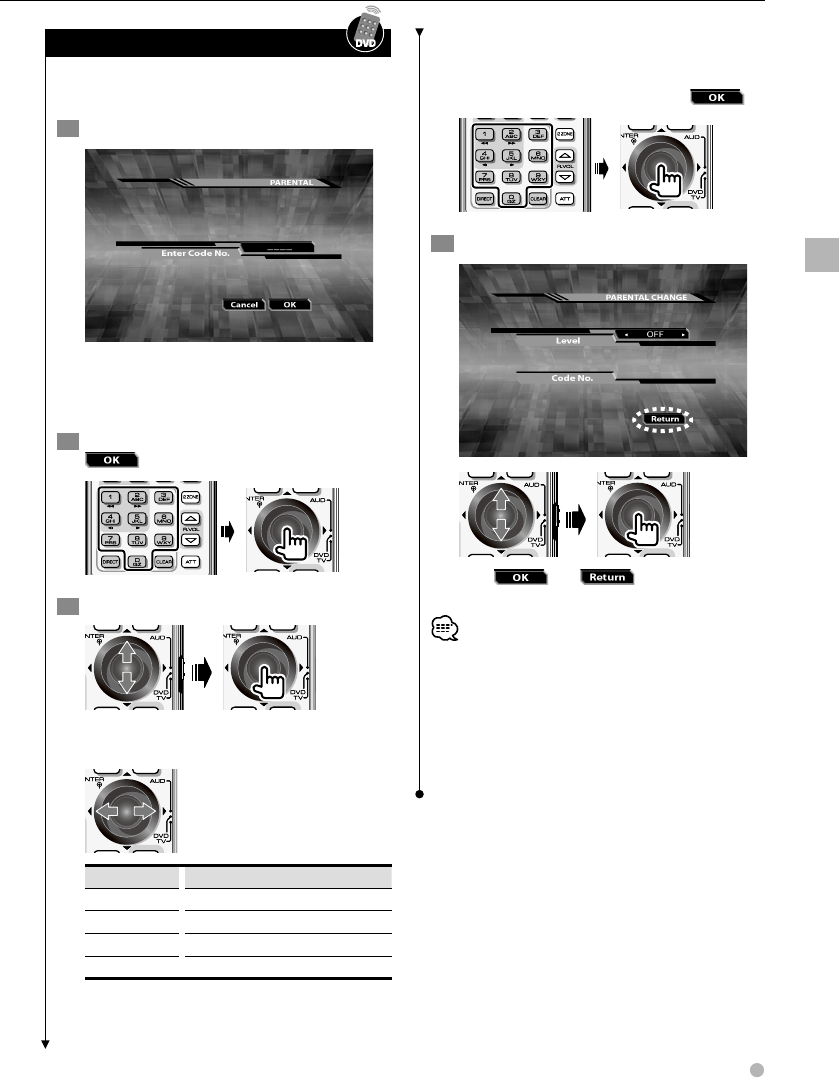
Parental level setup/change
Changes the parental level and password for discs
and scenes.
1 Display the Parental screen
Refer to <DVD player setup> (page 26).
When setting it for the second time and after,
the message "Input Code No." will be displayed.
2 Enter a 4-digit password, and select
3 Select features to set
Level
Set the parental level.
Display Setting
"OFF" Parental level is not set.
"1" Parental level High
…
…
"8" Parental level Low
Code No.
This needs to be entered when changing the
password for the parental level.
Enter a 4-digit password, and select .
4 Exit the setup
After and are selected on
each screen the previous screen appears.
• Resetting this unit will clear the parental level and
password.
• Some discs may require you to enter a password before
a scene appears that has a parental level higher than
specified. In this case, the playback resumes when you
enter the password.
• If the disc being played has no parental level, playback is
not restricted.
DVD setup
30 KDV-412
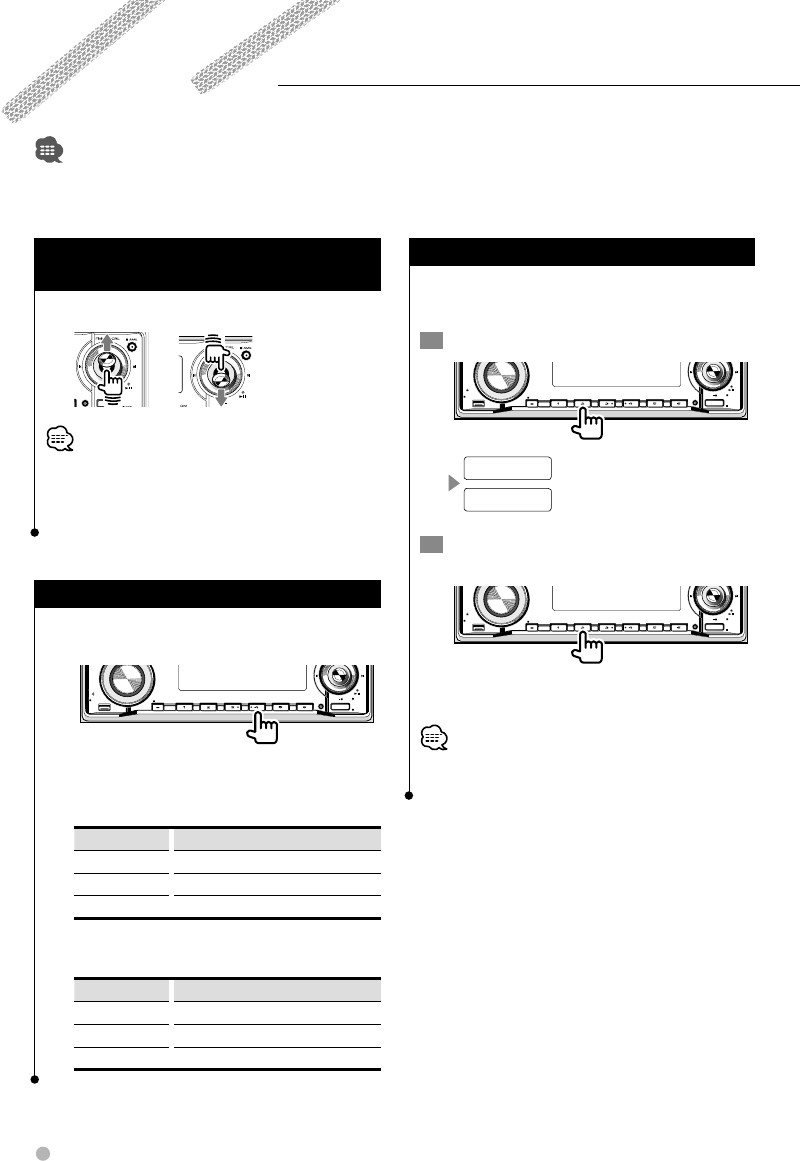
You can play CDs and audio files using various functions of this unit and the optional disc changer.
• For the basic operation of how to listen to CDs and audio files, refer to <Listening to CDs and audio files> (page 16).
Disc/Folder search
(Only for audio files and disc changers)
Selects a disc or folder to play.
• The disc search is enabled when the disc changer
(optional accessory) is used.
• For further information on folder search, refer to <Audio
files> (page 62).
Repeat play
Repeatedly plays back the track being played or
the tracks/music files in a disc/folder.
Q
AM
SETUP
AUD
VOL
MENU SCANSTOP
M/S
RDM REP F.S E L M.RDM
OFF
DISP
PTY/C.S.
SW
SRC
Pressing the button turns the following
functions ON/OFF in the following order.
While playing CDs
Display Status
"TRAC REP" Track repeat ON
"DISC REP"* Disc repeat ON
"REP OFF" Repeat play OFF
* Only for disc changer
While playing audio files
Display Status
"FILE REP" File repeat ON
"FOLD REP" Folder repeat ON
"REP OFF" Repeat play OFF
Scan play
Searches for a track/file by scanning the first 10
seconds of each track/file in a disc/folder.
1 Start scan play
Q
AM
SETUP
AUD
VOL
MENU SCANSTOP
M/S
RDM REP F.S E L M.RDM
OFF
DISP
PTY/C.S.
SW
SRC
(while playing a CD)
TRAC SCN
FILE SCN
(while playing an audio file)
2 When you get to a track/file you want to
hear ...
Q
AM
SETUP
AUD
VOL
MENU SCANSTOP
M/S
RDM REP F.S E L M.RDM
OFF
DISP
PTY/C.S.
SW
SRC
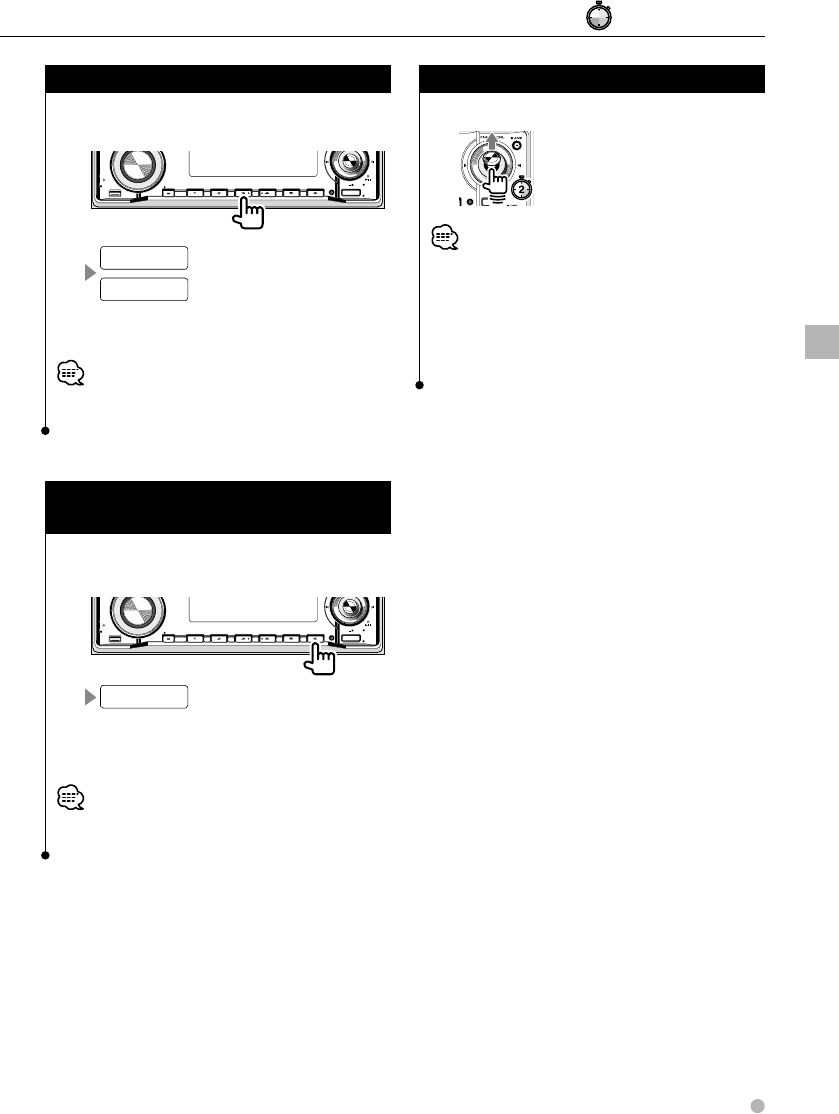
Scanning ends and playback of the track/file
starts.
• After all tracks/files are scanned and played, the scan play
ends automatically.
Listening to Music Discs & Audio Files
English 31
Random play
Performs random playback of the tracks/files in a
CD/folder.
Q
AM
SETUP
AUD
VOL
MENU SCANSTOP
M/S
RDM REP F.S E L M.RDM
OFF
DISP
PTY/C.S.
SW
SRC
(while playing a CD)
DISC RDM
FOLD RDM
(while playing an audio file)
Each time the button is pressed, the random
play mode is alternately turned ON/OFF.
• Move control knob to the right to randomly select the
next track/file.
Magazine random play
(Only for disc changer)
Randomly plays the tracks in the discs inside the
disc changer.
Q
AM
SETUP
AUD
VOL
MENU SCANSTOP
M/S
RDM REP F.S E L M.RDM
OFF
DISP
PTY/C.S.
SW
SRC
MGZN RDM
Each time the button is pressed, the magazine
random play mode is alternately turned ON/
OFF.
• Move control knob to the right to randomly select the
next track/file.
Title/Text scroll
Scrolls titles/text.
• The following title/text can be scrolled.
- Disc titles/Track titles
- Song titles/Album titles/Folder names/File names
• Titles/text displayed on the monitor will not scroll with
this operation.
• If "DISP" is set to "OFF" in the <Menu setup> (page 48),
the display may be turned off during scrolling.
#: Press for # seconds.
Listening to Music Discs & Audio Files
32 KDV-412
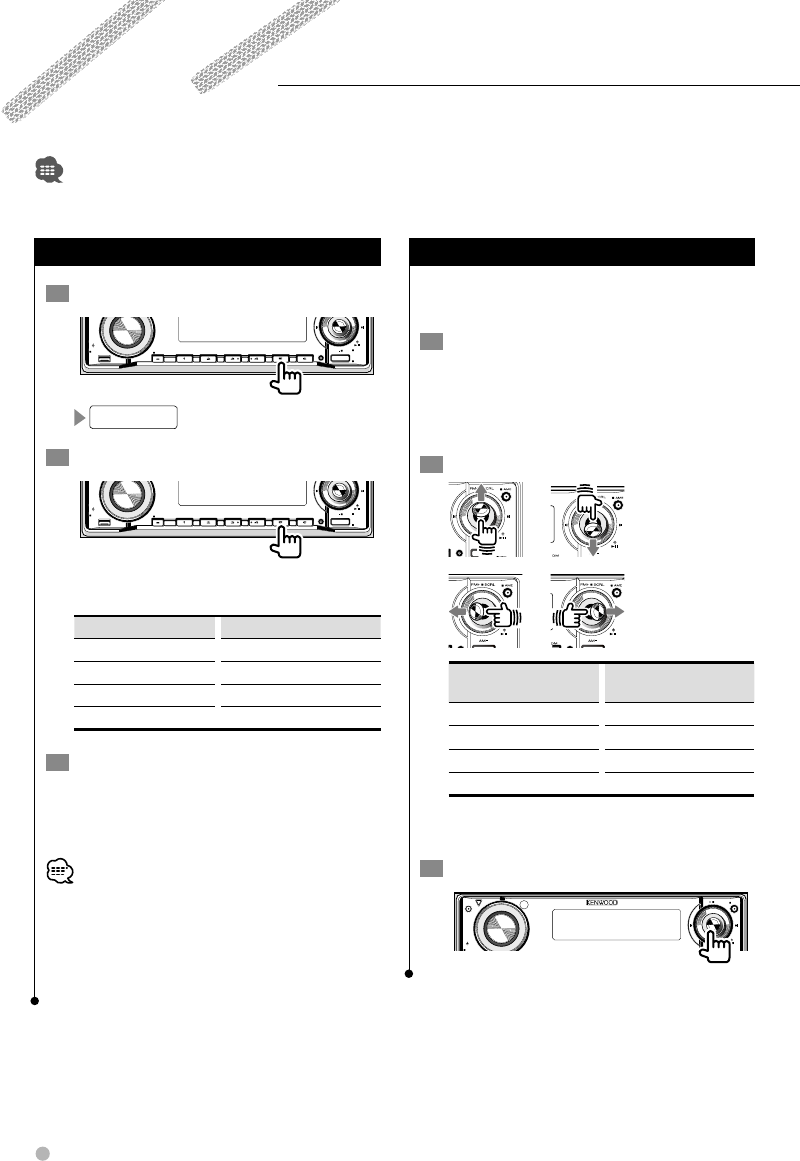
Select mode
1 Set to Select mode
Q
AM
SETUP
AUD
VOL
MENU SCANSTOP
M/S
RDM REP F.S E L M.RDM
OFF
DISP
PTY/C.S.
SW
SRC
FILE SEL
2 Select the Select mode
Q
AM
SETUP
AUD
VOL
MENU SCANSTOP
M/S
RDM REP F.S E L M.RDM
OFF
DISP
PTY/C.S.
SW
SRC
The select mode changes in the following
order each time the button is pressed.
Display Setting
"FILE SEL" File select mode
"FLD SEL1" Folder select 1 mode
"FLD SEL2" Folder select 2 mode
Normally Select mode OFF
3 Select a file or folder
For detailed operation methods, refer to <File
select> (page 32), <Folder select 1> (page 33),
and <Folder select 2> (page 33).
• During <Scan play> (page 30) or <Random play> (page
31), you cannot select the file select mode.
• For details on how to use the select mode, refer to
<Audio files> (page 62).
• Titles can be scrolled even in the select mode. For further
information, refer to <Title/Text scroll> (page 31).
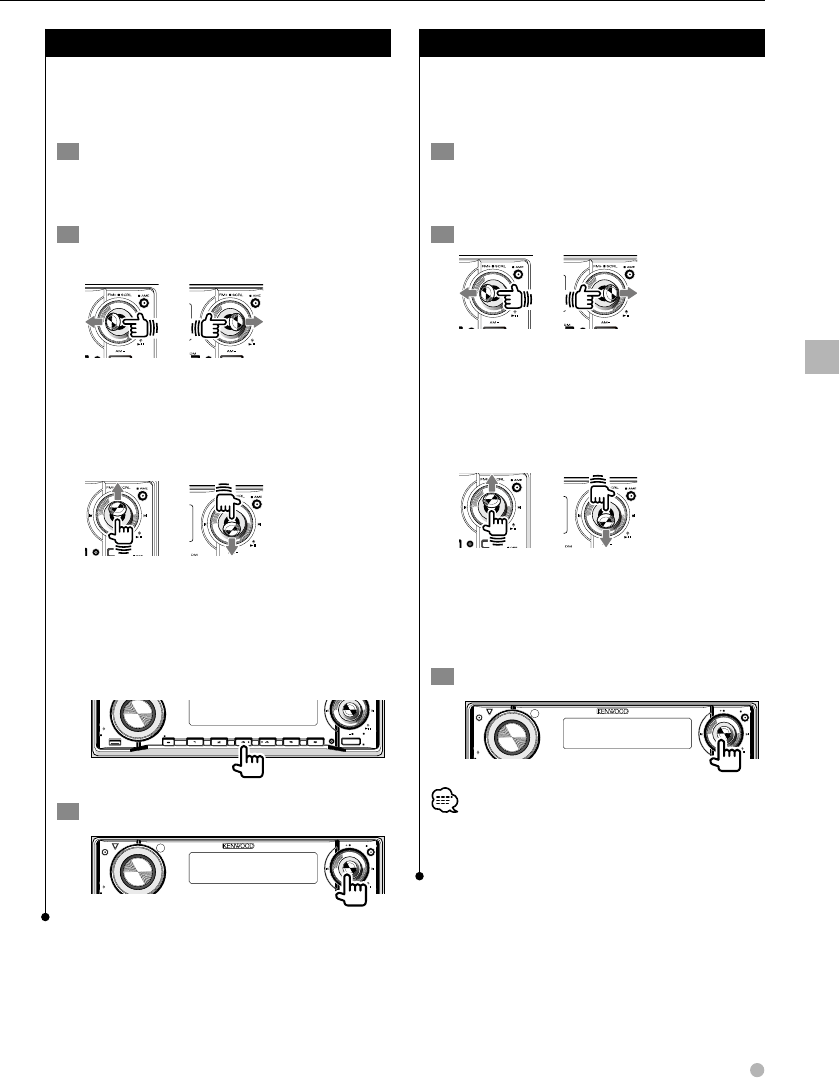
File select
Selects a file from a folder being played according
to a specified file number.
1 Set to the file select mode
The name of the first file in the folder is
displayed.
For details on how to select the mode, refer to
<Select mode> (page 32).
2 Enter a file number
Control knob operation Increment/decrement file
number
Up +10
Down –10
Right +1
Left –1
The name of the file whose file number you
entered is displayed.
3 Play the file displayed
AM
SETUP
AUD
VOL
ATT
M/S DISP
PTY/C.S.
SW
AME
AUTO
FM SCRL
You can select a desired audio file or video file/picture by specifying a file number or folder name. Unlike
the disc search and folder search, the file to be played will not change until the file/the folder is confirmed.
• In select mode, audio files, video files, and picture files can only be operated during playback.
Select Mode
English 33
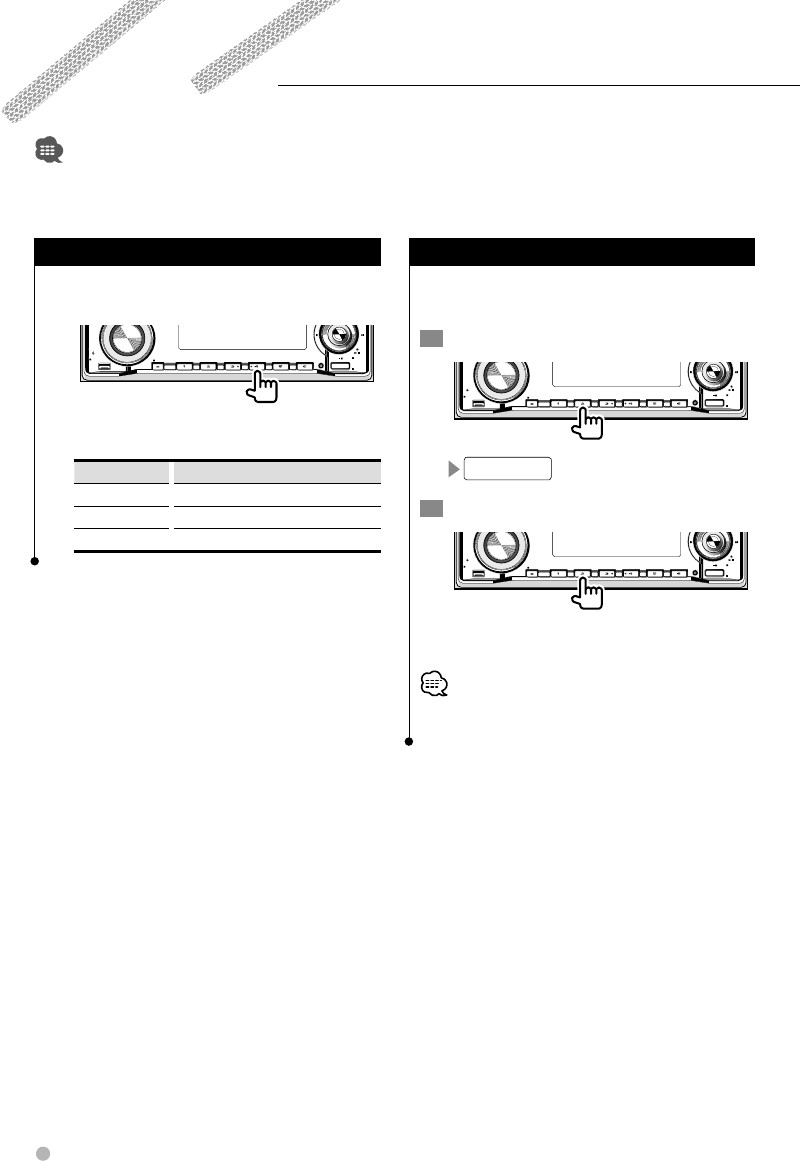
Folder select 1
Searches for a folder in the order of the media
directory. This method is useful if audio files are
sorted in folders by category and artist.
1 Set to the folder select 1 mode
For details on how to select the mode, refer to
<Select mode> (page 32).
2 Select a folder
To select a folder in the same directory ...
Each time you move the knob to the left moves
you to the previous folders and moving the
knob to the right moves you can move to the
following folders.
To move to another directory ...
Each time you move the knob up moves you
to the next lower folder level and moving the
knob down moving to the next higher folder
level.
To move back to the 1st level ...
Q
AM
SETUP
AUD
VOL
MENU SCANSTOP
M/S
RDM REP F.S E L M.RDM
OFF
DISP
PTY/C.S.
SW
SRC
3 Plays the folder displayed
AM
SETUP
AUD
VOL
ATT
M/S DISP
PTY/C.S.
SW
AME
AUTO
FM SCRL
Folder select 2
Selects folders in their order.
Only folders containing playable audio files are
displayed.
1 Set to the folder select 2 mode
For details on how to select the mode, refer to
<Select mode> (page 32).
2 Select a folder
Each time you move the knob to the left moves
you to the previous folders and moving the
knob to the right moves you can move to the
following folders.
To display the name of files contained in the
folder shown ...
Each time the knob is moved up, the next
higher level folder names are displayed. While
higher level folders are displayed, "*" appears.
If the knob is moved down, the next lower-
level folder names are displayed.
3 Play the folders displayed
AM
SETUP
AUD
VOL
ATT
M/S DISP
PTY/C.S.
SW
AME
AUTO
FM SCRL
• Even when the next higher level folder name is displayed,
the folder playing is the folder currently selected (not
marked "*"). The folder currently selected will not change.
Select Mode
34 KDV-412
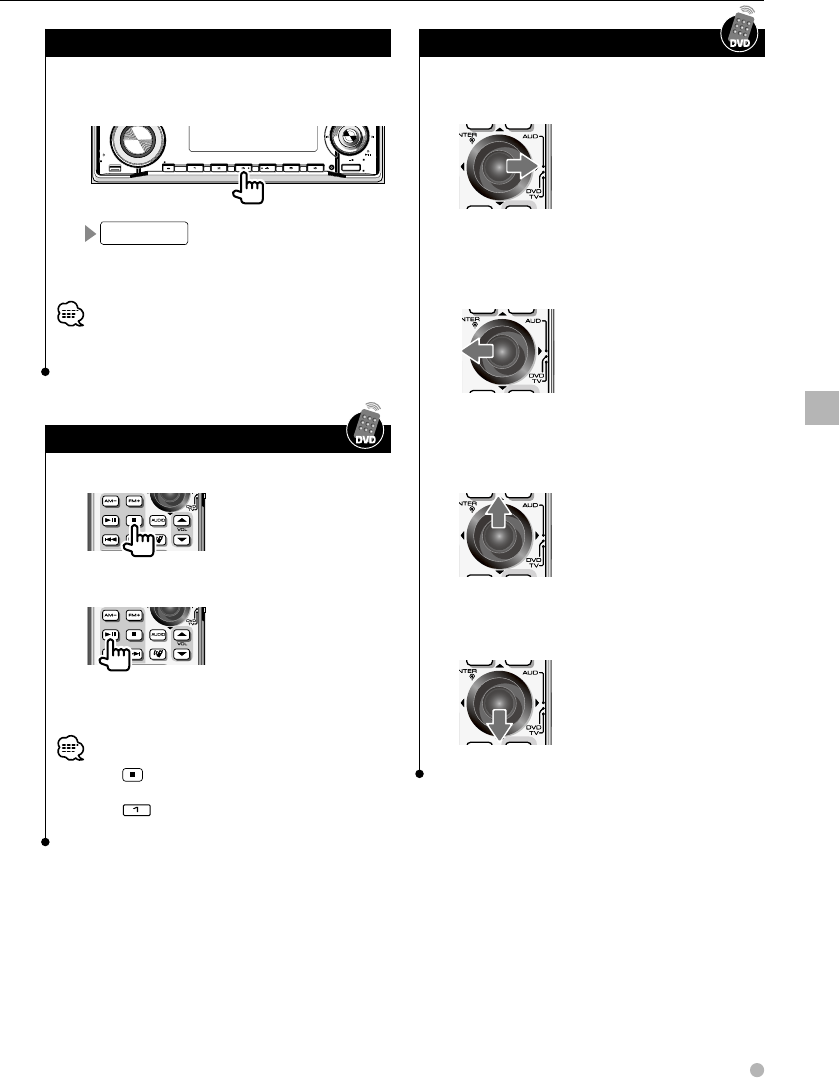
You can display picture files using various functions.
• For the basic method of how to view picture files, refer to <Viewing picture (JPEG) files> (page 18).
Repeat play
Repeatedly displays the picture file being
watched or the files in a folder.
Q
AM
SETUP
AUD
VOL
MENU SCANSTOP
M/S
RDM REP F.S E L M.RDM
OFF
DISP
PTY/C.S.
SW
SRC
Pressing the button turns the following
functions ON/OFF in the order given below.
Display Status
"FILE REP" File repeat ON
"FOLD REP" Folder repeat ON
"REP OFF" Repeat play OFF
Scan play
Displays and scans pictures in a folder for 10
seconds one at a time.
1 Start scan play
Q
AM
SETUP
AUD
VOL
MENU SCANSTOP
M/S
RDM REP F.S E L M.RDM
OFF
DISP
PTY/C.S.
SW
SRC
FILE SCN
2 From a desired file ...
Q
AM
SETUP
AUD
VOL
MENU SCANSTOP
M/S
RDM REP F.S E L M.RDM
OFF
DISP
PTY/C.S.
SW
SRC
The scan play ends and playback starts from
the file.
• After all files are scanned and played, the scan play ends
automatically.
Watching picture files
English 35
Watching picture files
Random play
Performs random display of the picture files in the
displayed folder.
Q
AM
SETUP
AUD
VOL
MENU SCANSTOP
M/S
RDM REP F.S E L M.RDM
OFF
DISP
PTY/C.S.
SW
SRC
FOLD RDM
The random play mode is turned ON/OFF
alternately each time the button is pressed.
• Move control knob to the right to randomly select the
next file.
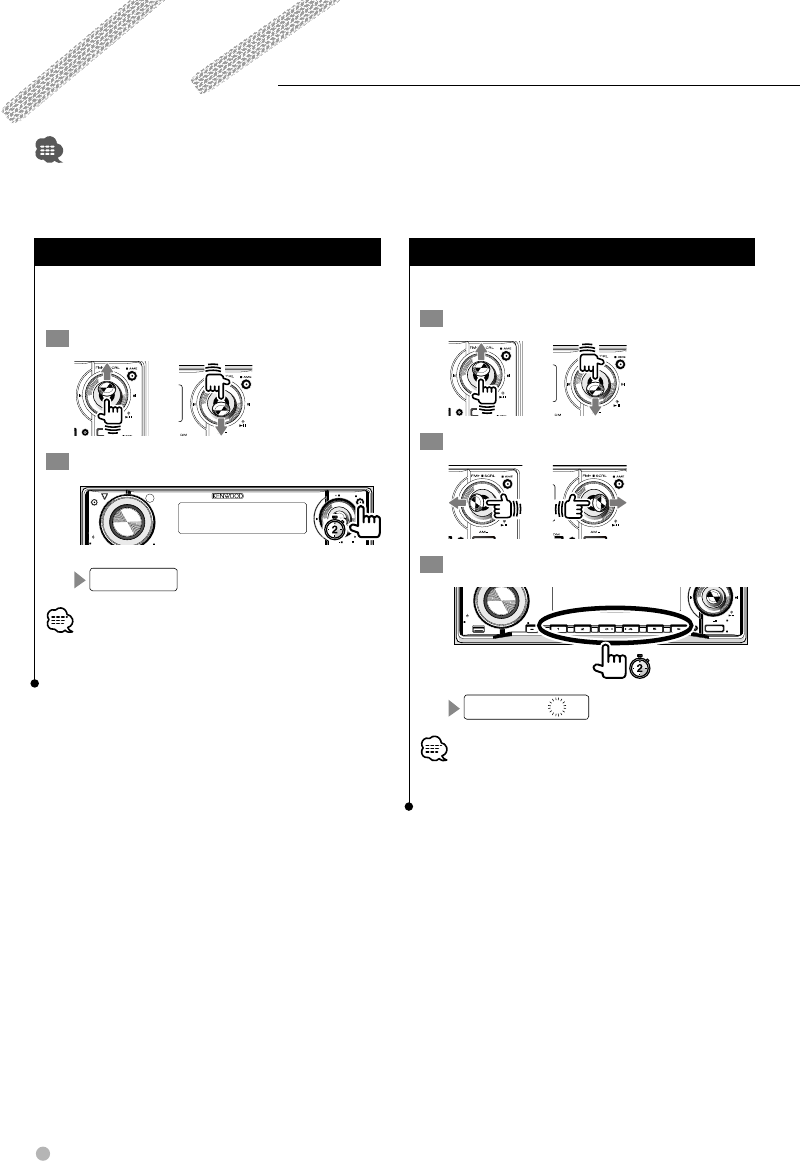
Stop display
Stop displaying picture files.
Resume display
Resumes display from the position where
display was stopped.
• Press the key twice to display the pictures from the
beginning of the disc.
• Press the button of the unit can also stop display.
Press control knob to resume display.
Rotate/flip a picture
Rotates or flips a picture.
Rotate to the right
Each time the button is pressed, the picture
rotates 90 degrees clockwise.
Rotate to the left
Each time the button is pressed, the picture
rotates 90 degrees counterclockwise.
Flip horizontally
Press again to restore to the previous picture.
Flip vertically
Press again to restore to the previous picture.
36 KDV-412
Receives FM/AM broadcasts. You can memorize up to 6 stations in each radio band.
• For the basic method of how to listen to FM/AM broadcasts, refer to <Listening to radio> (page 19).
Auto memory
Scans to automatically memorize stations with
the best reception.
1 Select a radio band
2 Start auto memory
Q
AM
SETUP
AUD
VOL
ATT
MENU SCANSTOP
M/S
RDM REP FSEL MRDM
DISP
PTY/C.S.
SW
AME
AUTO
FM SCRL
A-MEMORY
• The auto memory ends after 6 stations have been
memorized or the whole frequency has been scanned.
Manual memory
Memorizes the stations received.
1 Select a radio band
2 Select a radio station
3 Select a button (1–6) to preset
Q
AM
SETUP
AUD
VOL
MENU SCANSTOP
M/S
RDM REP F.S E L M.RDM
OFF
DISP
PTY/C.S.
SW
SRC
FM1-92.1 3ch
• This function is useful to memorize a station that cannot
be memorized with the auto memory function.
Listening to Radio
English 37
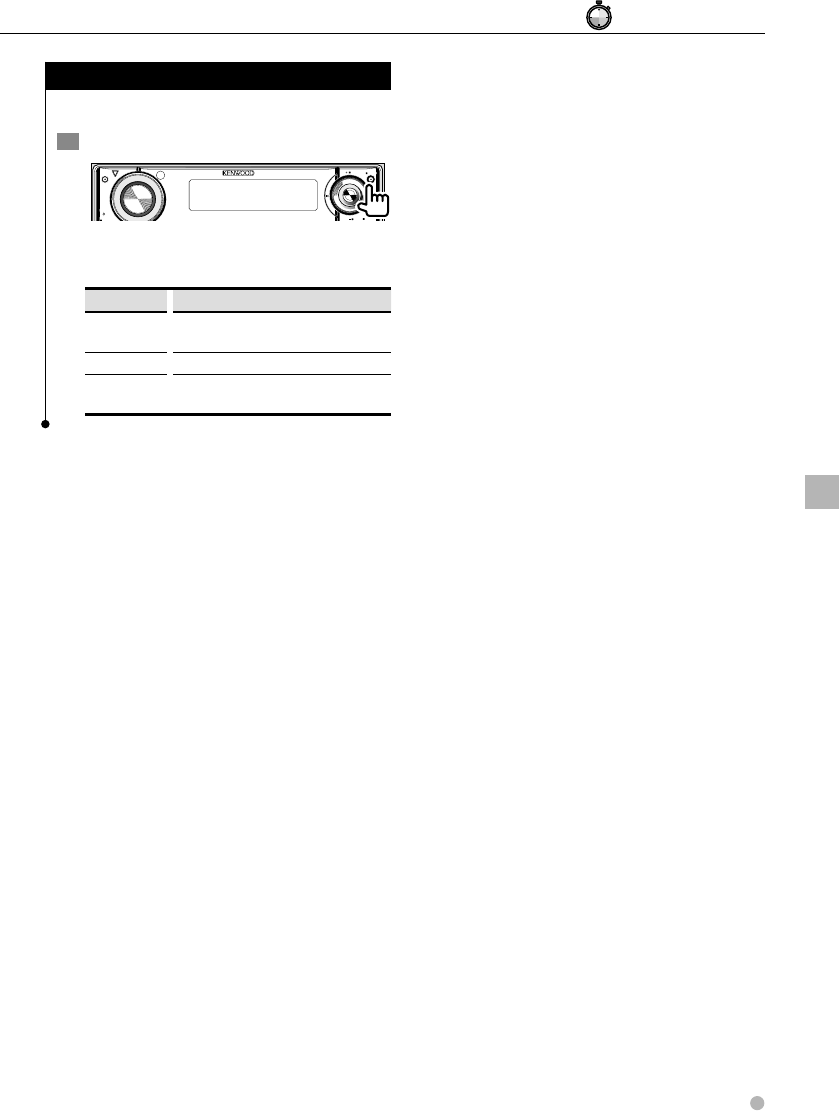
Tuning mode
Sets a tuning mode for selecting stations.
1 Select a tuning mode
AM
SETUP
AUD
VOL
ATT
M/S DISP
PTY/C.S.
SW
AME
AUTO
FM SCRL
The mode changes in the following order each
time the button is pressed.
Display Setting
"AUTO 1" Receives stations with the best reception.
(Auto 1)
"AUTO 2" Receives the stations memorized. (Auto 2)
"MANUAL" Switches the receiving frequencies up and
down a step at a time. (Manual)
Listening to Radio
#: Press for # seconds.
38 KDV-412
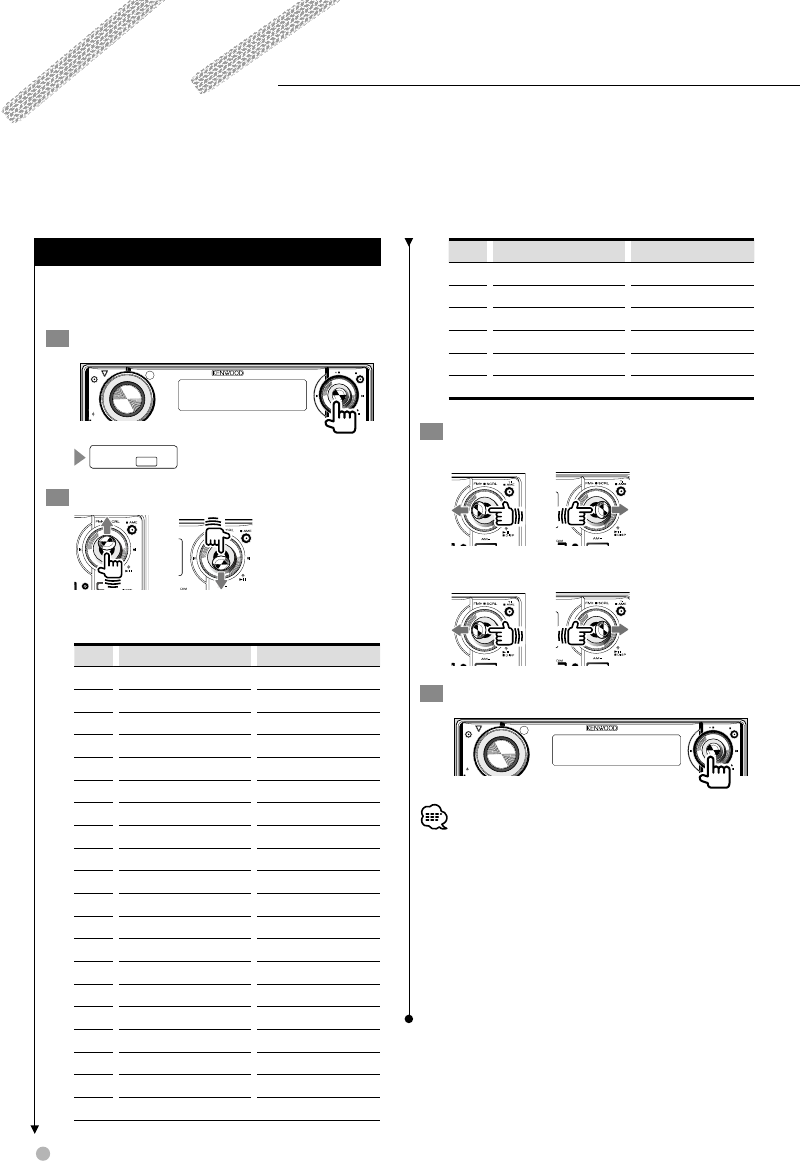
RDS Control
Controls the reception RDS broadcast station programs.
PTY (Program Type)
Selects the Program Type and searches for a
station.
1 Enter PTY mode
AM
SETUP
AUD
VOL
ATT
M/S DISP
PTY/C.S.
SW
AME
AUTO
FM SCRL
SPEECH PTY
2 Select the Program Type
Each time the button is pressed, the type
changes in the following order.
No Program Type Display
1. Speech "SPEECH"
2. Music "MUSIC"
3. News "NEWS"
4. Information "INFORM"
5. Sports "SPORTS"
6. Talk "TALK"
7. Rock "ROCK"
8. Classic Rock "CLS ROCK"
9. Adult Hits "ADLT HIT"
10. Soft Rock "SOFT RCK"
11. Top 40 "TOP 40"
12. Country "COUNTRY"
13. Oldies "OLDIES"
14. Soft "SOFT"
15. Nostalgia "NOSTALGA"
16. Jazz "JAZZ"
17. Classical "CLASSICL"
18. R & B "R & B"
19. Soft R & B "SOFT R&B"
20. Language "LANGUAGE"
No Program Type Display
21. Religious Music "REL MUSC"
22. Religious Talk "REL TALK"
23. Personality "PERSNLTY"
24. Public "PUBLIC"
25. College "COLLEGE"
26. Weather "WEATHER"
3 Search for a station with the selected
Program Type
When you want to search for other stations
4 Exit PTY mode
AM
SETUP
AUD
VOL
ATT
M/S DISP
PTY/C.S.
SW
AME
AUTO
FM SCRL
• The PTY function cannot be used during a traffic bulletin
or AM reception.
• Speech and Music include the Program type below.
Music: No.7 — 19, 21
Speech: No.3 — 6, 20, 22 — 26
• The Program Type can be stored in the [1] — [6] button
memory and recalled quickly. Refer to the <Program Type
Preset> (page 39).
• When the selected Program Type is not found, "NO PTY"
is displayed. Select another Program Type.
English 39
RDS Control
#: Press for # seconds.
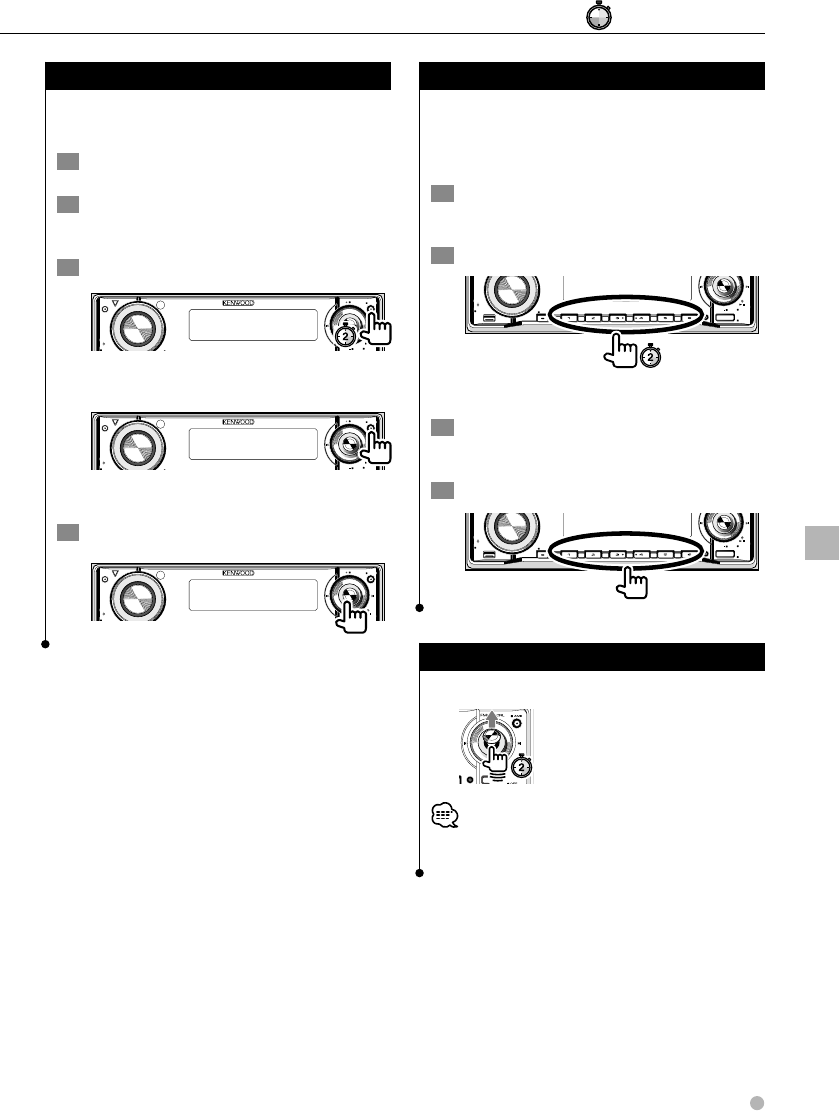
Registration of a station as a PTY
Registers a Program Type for stations without PTY
data.
1 Receive the station you want to register
2 Select the Program Type to register
Refer to <PTY (Program Type)> (page 38).
3 Register the Program Type
Q
AM
SETUP
AUD
VOL
ATT
MENU SCANSTOP
M/S
RDM REP FSEL MRDM
DISP
PTY/C.S.
SW
AME
AUTO
FM SCRL
Confirming the Program Type
Q
AM
SETUP
AUD
VOL
ATT
MENU SCANSTOP
M/S
RDM REP FSEL MRDM
DISP
PTY/C.S.
SW
AME
AUTO
FM SCRL
The Program Type is displayed for 5 seconds.
4 Exit PTY mode
AM
SETUP
AUD
VOL
ATT
M/S DISP
PTY/C.S.
SW
AME
AUTO
FM SCRL
Program Type Preset
Putting the Program Type in the Preset button
memory and quick recall.
Presetting the Program Type
1 Select the Program Type to preset
Refer to <PTY (Program Type)> (page 38).
2 Preset the Program Type
Q
AM
SETUP
AUD
VOL
MENU SCANSTOP
M/S
RDM REP F.S E L M.RDM
OFF
DISP
PTY/C.S.
SW
SRC
Recalling a preset Program Type
1 Enter PTY mode
Refer to <PTY (Program Type)> (page 38).
2 Recall the Program Type
Q
AM
SETUP
AUD
VOL
MENU SCANSTOP
M/S
RDM REP F.S E L M.RDM
OFF
DISP
PTY/C.S.
SW
SRC
Radio Text Scroll
Scrolling the displayed radio text.
• If "DISP" is set to "OFF" in the <Menu setup> (page 48) ,
the display may be turned off during scrolling.
40 KDV-412
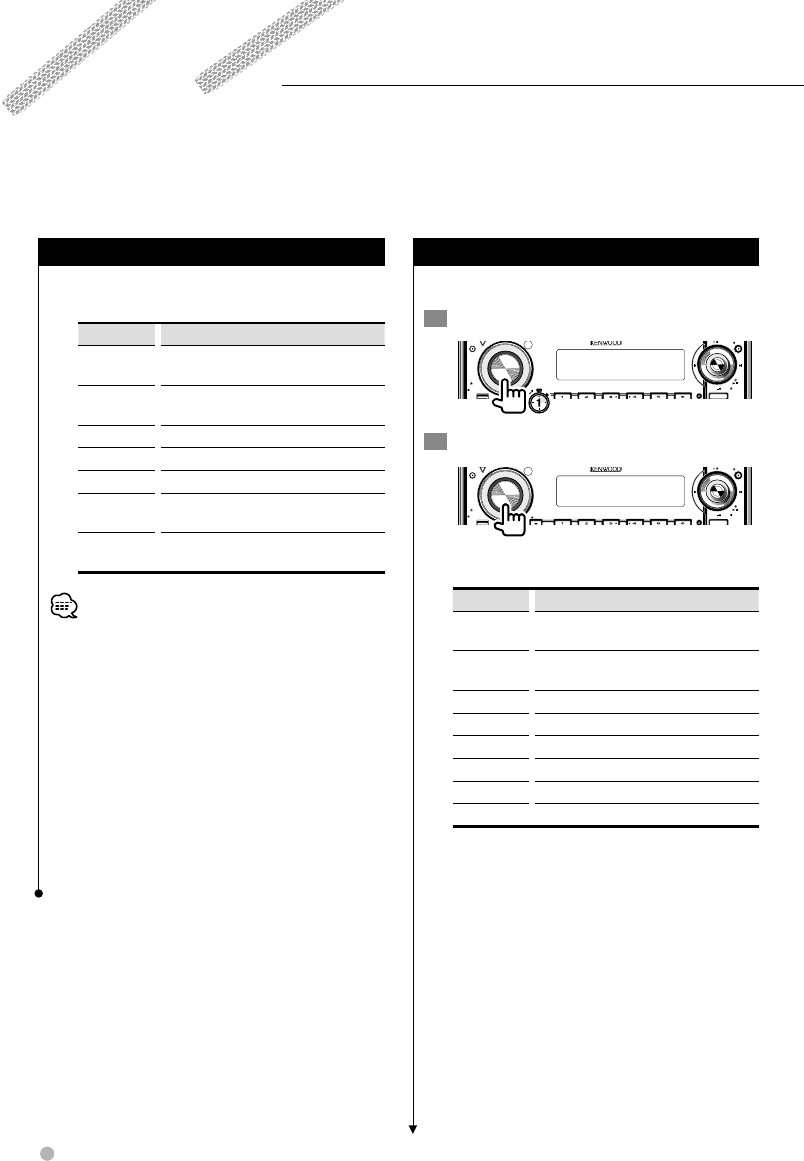
Audio setup
Sets up volume offset, dual zone function, etc.
1 Start audio setup
Q
AM
SETUP
AUD
VOL
ATT
MENU SCANSTOP
M/S
RDM REP F.S E L M.RDM
DISP
PTY/C.S.
SW
AME
AUTO
FM SCRL
SRC
2 Select features to set
Q
AM
SETUP
AUD
VOL
ATT
MENU SCANSTOP
M/S
RDM REP F.S E L M.RDM
DISP
PTY/C.S.
SW
AME
AUTO
FM SCRL
SRC
Each time the knob is pressed, the type
changes in the following order.
Feature Setting range
HPF Specifies the front high-pass filter cutoff
frequency.
HPR Specifies the rear high-pass filter cutoff
frequency.
LPF Specifies the low-pass filter cutoff frequency.
PHAS Specifies the subwoofer phase.
V-OFF Adjusts the volume difference between sources.
LOUD Corrects treble and bass when the volume is low.
AVOUT Specifies the output level of the AV OUT terminal.
2ZON Turns the dual zone function ON/OFF.
Sets up sound effects, such as equalizer and speaker settings.
Detailed audio control
The following features can be set up under audio
control.
Display Setting
"R-VOL" Adjusts the volume of the rear speakers.
(Adjustable range: 0 – 35)
"SW L" Adjusts the volume of the subwoofers.
(Adjustable range: -15 – +15)
"BAS L" Adjusts the bass volume.
"MID L" Adjusts the middle volume.
"TRE L" Adjusts the treble volume.
"BAL" Adjusts the volume balance between the left
and the right.
"FAD" Adjusts the volume balance between the front
and the rear.
• For the setup method, refer to <Adjusts sound quality
and others> (page 13).
• Bass, Middle, and Treble can be set up for each source.
• "R-VOL" can be adjusted when the dual zone function is
set to ON.
"SW L" and "FAD" cannot be adjusted if the dual zone
function is set to ON.
For further information on the dual zone function, refer
to <Audio setup> (page 40).
• "SW L" can be adjusted if "SWPRE" is set to "SW" in the
menu setup while the subwoofer output is set to ON.
For details on how to set up "SWPRE", refer to <Menu
setup> (page 48), and for subwoofer output, refer to
<Subwoofer output control> (page 42).
• "SW L" cannot be adjusted if "SWPRE" is set to "AV".
Audio Control
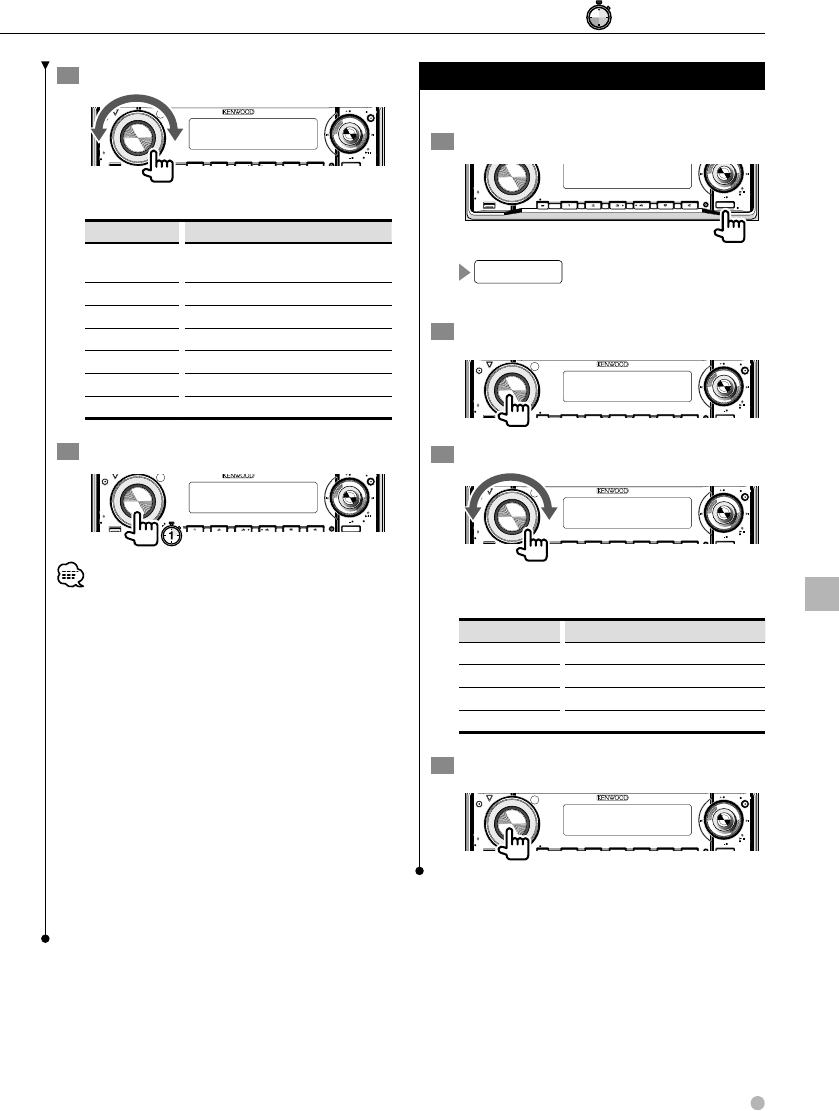
English 41
Audio Control
3 Set up each feature
Q
AM
SETUP
AUD
VOL
ATT
MENU SCANSTOP
M/S
RDM REP F.S E L M.RDM
DISP
PTY/C.S.
SW
AME
AUTO
FM SCRL
SRC
The setting range of each item is as follows:
Feature Setting range
HPF/HPR THRU (Filter Off)/40/60/80/100/120/150/
180/220 (Hz)
LPF 50/60/80/100/120 (Hz)/THRU (Filter Off)
PHAS REV (180˚)/NML (0˚)
V-OFF -8 – 0
LOUD OFF/ON
AVOUT -15 – 0
2ZON OFF/DVD/AUX
4 Exit audio setup
Q
AM
SETUP
AUD
VOL
ATT
MENU SCANSTOP
M/S
RDM REP F.S E L M.RDM
DISP
PTY/C.S.
SW
AME
AUTO
FM SCRL
SRC
• If a volume offset is set for each source with "V-OFF", the
volume will be nearly the same for all sources when the
source is changed.
• You can select "AUX" for "2ZON" when CA-C1AX/CA-
C2AX (optional accessory) is connected.
• When "2ZON" is ON ("DVD"/"AUX"), you can only set "V-
OFF" and "LOUD".
• When using the dual zone function, different sources can
be output from the front speakers (source of this unit)
and rear speakers (disc source sound of this unit).
• For "LPF" and "PHAS", the feature "SWPRE" needs to be
set to "SW" (subwoofer) in advance in the menu setup,
and the subwoofer output to ON. For details on how to
set up "SWPRE", refer to <Menu setup> (page 48), and for
subwoofer output, refer to <Subwoofer output control>
(page 42).
• "PHAS" cannot be set up when "LPF" is set to "THRU".
• "AVOUT" can be set when the feature "SWPRE" in <Menu
setup> (page 48) is set to "AV".
Speaker setup
Fine adjust the System Q value to the speakers.
1 Set to STANDBY mode
EQ
AM
SETUP
AUD
VOL
MENU SCANSTOP
M/S
RDM REP F.S E L M.RDM
OFF
DISP
SW
SRC
STANDBY
Select "STANDBY".
2 Set to the speaker matching mode
EQ
AM
SETUP
AUD
VOL
ATT
MENU SCANSTOP
M/S
RDM REP F.S E L M.RDM
DISP
SW
AME
TI
FM SCRL
SRC
3 Select a speaker
EQ
AM
SETUP
AUD
VOL
ATT
MENU SCANSTOP
M/S
RDM REP F.S E L M.RDM
DISP
SW
AME
TI
FM SCRL
SRC
Each time the knob is rotated, the indication
changes in the following order.
Display Speaker type
"SP OFF" OFF
"SP 5/4" For 5 & 4 in. speakers
"SP 6*9/6" For 6 & 6x9 in. speakers
"SP OEM" For OEM speakers
4 Exit the speaker matching mode
EQ
AM
SETUP
AUD
VOL
ATT
MENU SCANSTOP
M/S
RDM REP F.S E L M.RDM
DISP
SW
AME
TI
FM SCRL
SRC
#: Press for # seconds.
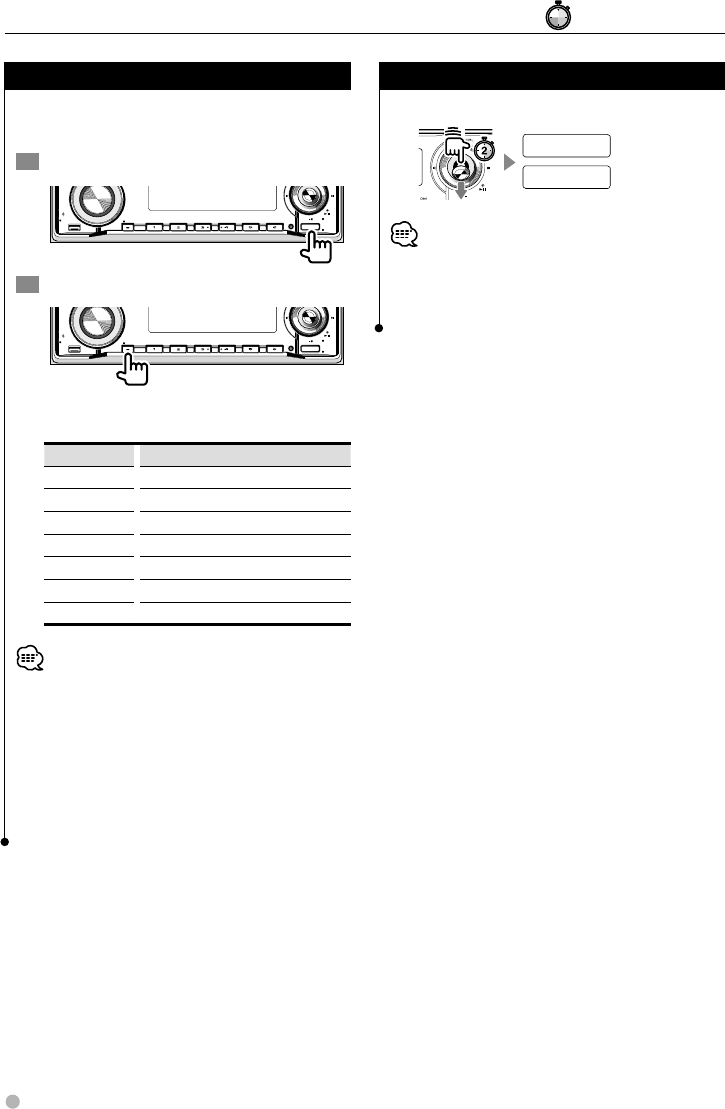
42 KDV-412
Subwoofer output control
Turns the subwoofer output ON/OFF.
(Subwoofer ON)
SW ON
SW OFF (Subwoofer OFF)
• Cannot be set when the dual zone function is activated.
• The subwoofer can be turned ON/OFF when the feature
"SWPRE" in <Menu setup> (page 48) is set to "SW"
(subwoofer).
System Q
Shows the equalizer curve for the song being
played.
1 Select the desired source
Q
AM
SETUP
AUD
VOL
MENU SCANSTOP
M/S
RDM REP F.S E L M.RDM
OFF
DISP
PTY/C.S.
SW
SRC
2 Recall the System Q
Q
AM
SETUP
AUD
VOL
MENU SCANSTOP
M/S
RDM REP F.S E L M.RDM
OFF
DISP
PTY/C.S.
SW
SRC
Each time the button is pressed, the type
changes in the following order.
Display Setting
"USER" User
"ROCK" Rock
"POPS" Pops
"EASY" Easy
"TOP40" Top 40
"JAZZ" Jazz
"NATURAL" Natural
• The System Q can be set for each source.
• The System Q value varies depending on the settings
made in the <Speaker setup> (page 41). Perform the
<Speaker setup> in advance.
• "USER" is the value that was set the <Adjusts sound
quality and others> (page 13).
• If the System Q setting is changed, the values ("BAS L",
"MID L", and "TRE L") set in the <Adjusts sound quality and
others> are replaced with the System Q value.
Audio Control #: Press for # seconds.
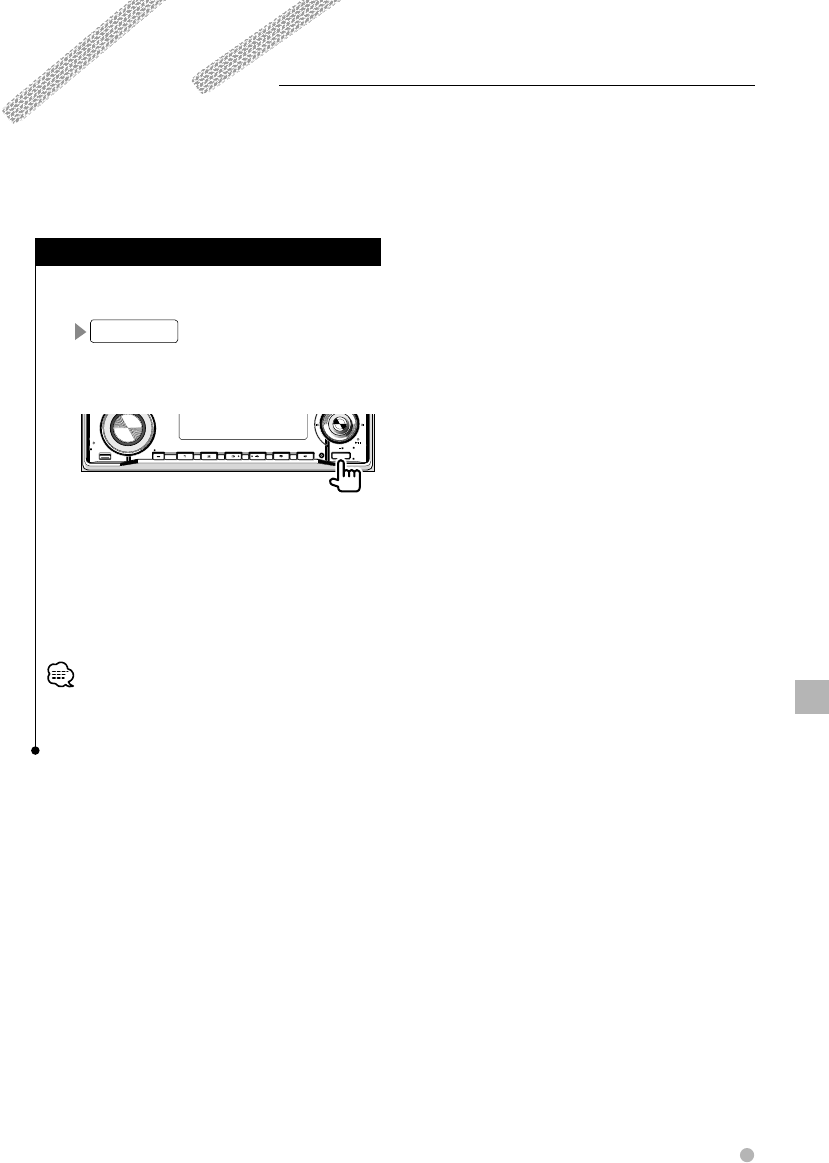
English 43
TEL Mute Control
TEL Mute Control
The audio system automatically mutes when a call comes in.
TEL Mute
When a call comes in
CALL
The audio system pauses.
Listening to the audio during a call
Q
AM
SETUP
AUD
VOL
MENU SCANSTOP
M/S
RDM REP F.S E L M.RDM
OFF
DISP
PTY/C.S.
SW
SRC
The "CALL" display disappears and the audio
system comes back ON.
When the call ends
Hang up the phone.
The "CALL" display disappears and the audio
system sound comes back ON.
• To use the TEL Mute feature, you need to hook up
the MUTE wire to your telephone using a commercial
telephone accessory. Refer to <Connections> (page 74).
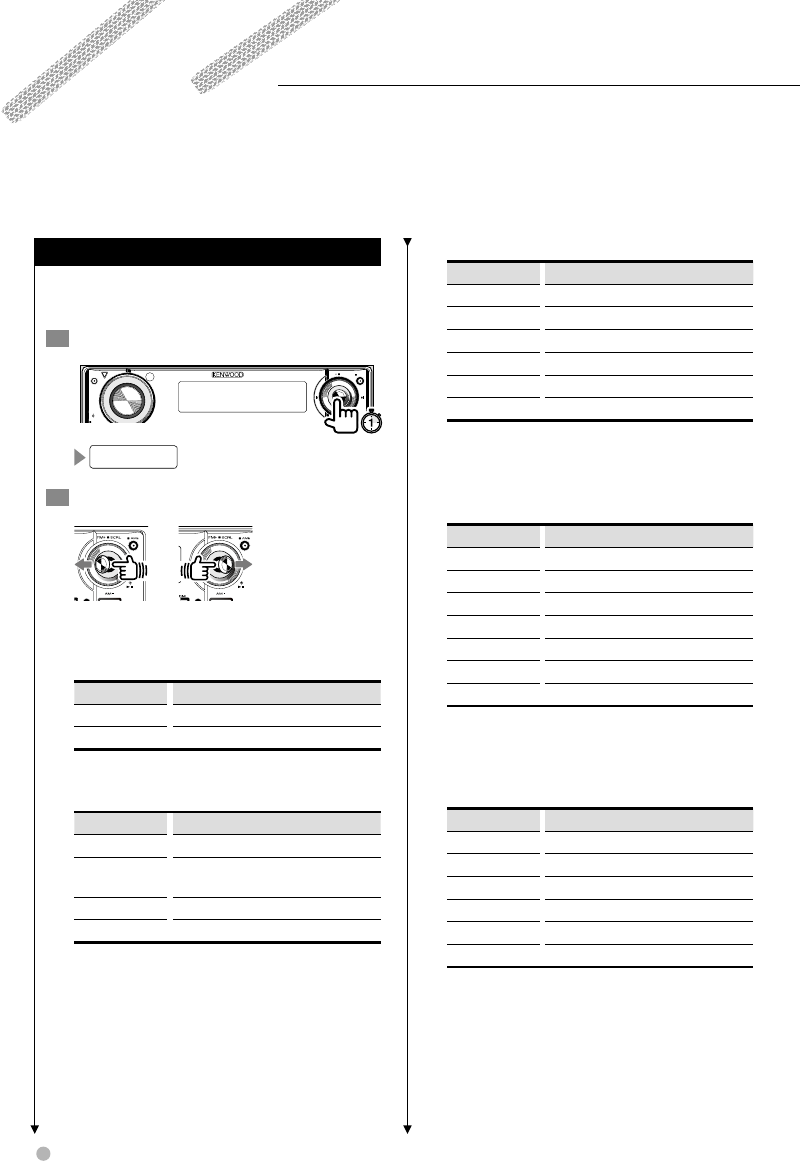
44 KDV-412
Display Control
Set information to be shown on the display, select a file to play while watching the monitor, and detach/
attach the panel.
Selecting display information
Changes the information to be shown on the
display.
1 Start display selection
AM
SETUP
AUD
VOL
ATT
M/S DISP
PTY/C.S.
SW
AME
AUTO
FM SCRL
DISP SEL
2 Select display information
Each time the button is pressed, the type
changes in the following order.
In STANDBY/AUX
Display Setting
"SRC NAME" "STANDBY"/AUX name
"CLOCK" Clock
While receiving FM/AM and traffic
information
Display Setting
"FREQ/PS" Program Service name or Frequency (FM)
"R-TEXT" Radio text, Program Service name or
Frequency (FM)
"FREQ" Frequency indication (AM)
"CLOCK" Clock
While playing CDs
Display Setting
"D-TITLE"* Disc title
"T-TITLE"* Track title
"P-TIME" Track number & Play time
"A-TIME"* Disc play time
"R-TIME"* Remaining disc time
"CLOCK" Clock
* If not registered, play time is displayed instead.
* Not displayed with CD changer.
While playing audio files/video files/picture
files
Display Setting
"TITLE"** Song title & Artist name
"ALBUM"*** Album title & Artist name
"FOLDER" Folder name
"FILE" File names
"P-TIME" Track number & Play time
"V-LAVEL"* Volume label
"CLOCK" Clock
* Video files or picture files cannot be displayed.
* If not registered, play time is displayed instead.
* The play time is displayed while playing WMA files.
While playing DVDs
Display Setting
"C-TIME" Chapter play time
"T-TIME" Title play time
"R-TIME" Remaining disc time
"TNO:CNO" Title/Chapter number
"V-LABEL" Volume label
"CLOCK" Clock
English 45
#: Press for # seconds.
While playing VCDs
Display Setting description
"P-TIME"* Scene/Track play time
"S-TIME"* Scene play time
"A-TIME"* Disc play time
"R-TIME"* Remaining disc time
"V-LABEL" Volume label
"CLOCK" Clock
* Can be displayed when the PBC function is OFF.
* Can be displayed when the PBC function is ON.
3 Exit display selection
AM
SETUP
AUD
VOL
ATT
M/S DISP
PTY/C.S.
SW
AME
AUTO
FM SCRL
Display Control
46 KDV-412
Monitor information display &
file selection
Displays information on the disc source being
played, and selects a file to be played.
1 Display source information
Information on the source is displayed on the
monitor.
This information remains displayed until an
image is displayed on the monitor.
!
"
#
"
! Media information
Play time and text information is displayed.
" Status information
Play function setting status is displayed.
# Source information display
Receiving frequency, band, number of
channels, etc. are displayed during radio
reception.
Play time, title/track/chapter number, setting
status of each function, etc. are displayed
while playing DVDs, etc.
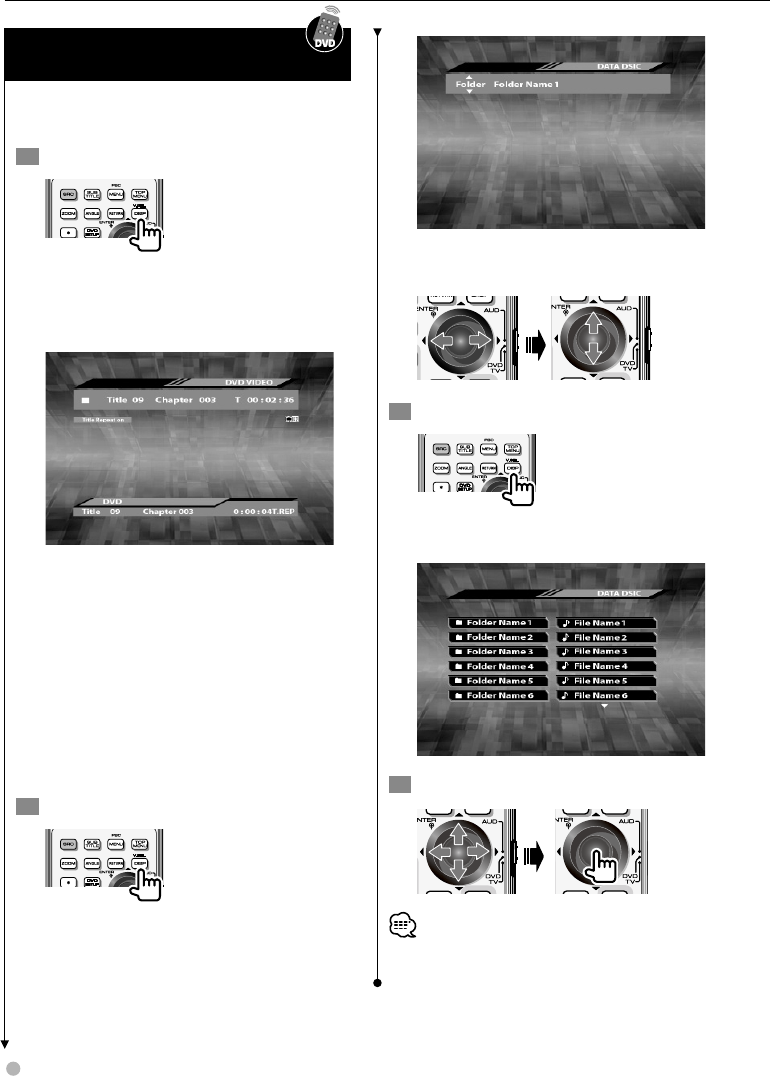
2 Display disc and file information
Information on the disc and the file is displayed.
Depending on discs, you can switch the
displayed information as you press this button.
You can select the information to show
when "∞" and "5" are displayed.
3 Display the file list
Audio file, movie file, or picture file list is
displayed.
4 Select a file to play from the list
• The file list is not displayed if the disc being played does
not have an audio file, movie file, or picture file.
Display Control
English 47
Removing operation panel
Removes the operation panel.
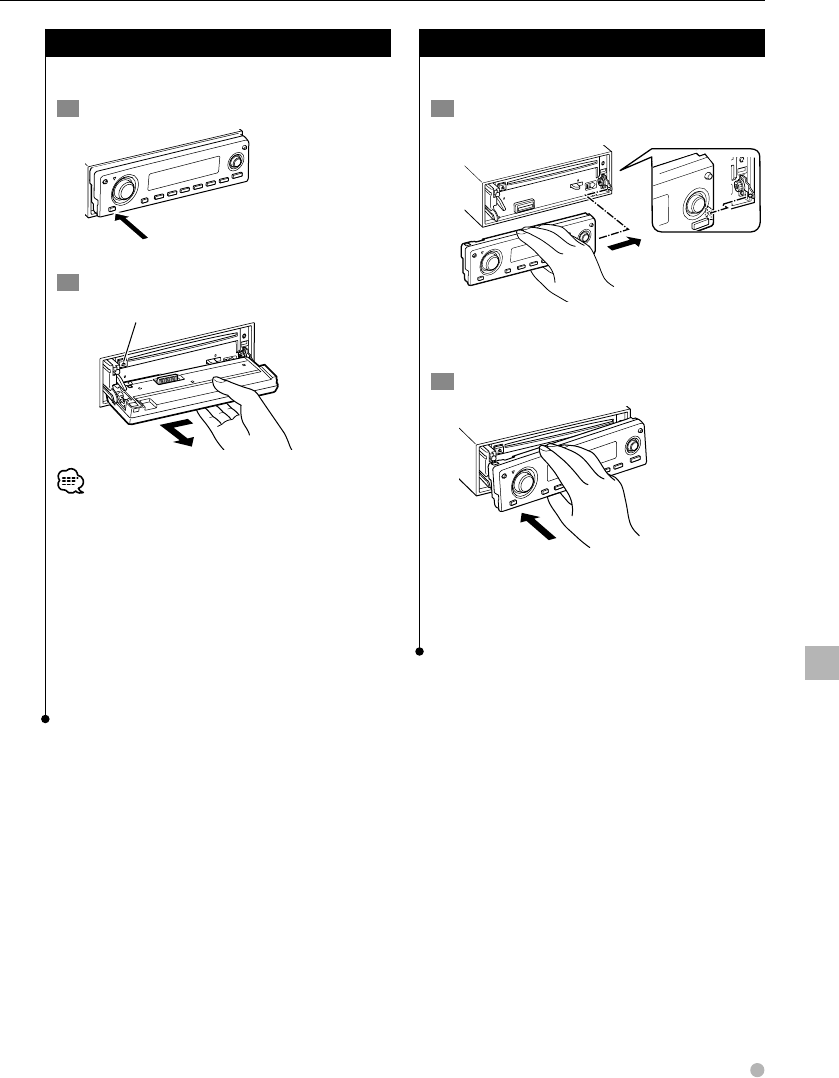
1 Open the operation panel
2 Remove the operation panel
Antitheft warning lamp
• Removing the panel turns off the power.
• Since the panel is a precision component, it may be
damaged by shock when exposed to vibration or
dropped. Store the panel with care after removing it.
• Do not store the removed panel in the following places.
- Places exposed to direct sun light
- Places with high humidity
- Dusty places
• This unit is provided with a DSI (Security indicator)
function. If the "DSI" feature is set to "ON" in the <Menu
setup> (page 48), a warning lamp blinks when the panel
is removed for antitheft purposes.
Installing operation panel
Installs the operation panel.
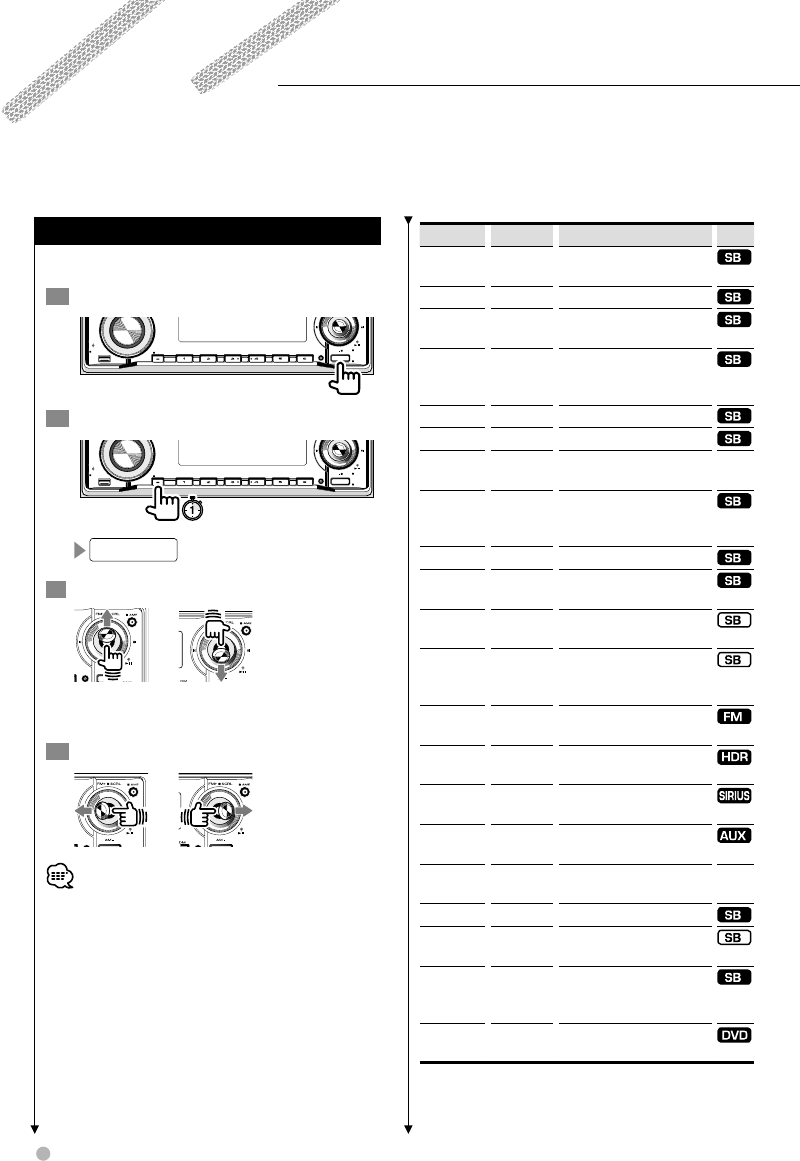
1 Align the operation panel with the main
unit
Push in the panel aligning the hole in the panel
with the shaft at the right of the main unit.
2 Install the operation panel
Push the left side of the panel into the main
unit until it locks.
The panel is now installed and the unit is ready
for use.
Display Control
48 KDV-412
Setting up various functions.
Menu setup
Sets up various functions for each source.
1 Select a source
Q
AM
SETUP
AUD
VOL
MENU SCANSTOP
M/S
RDM REP F.S E L M.RDM
OFF
DISP
PTY/C.S.
SW
SRC
2 Set to the menu mode
Q
AM
SETUP
AUD
VOL
MENU SCANSTOP
M/S
RDM REP F.S E L M.RDM
OFF
DISP
PTY/C.S.
SW
SRC
MENU
3 Select features to set
The features displayed vary depending on the
source.
4 Set up each feature
• For details on how to set features followed by a page
number, refer to the page shown.
Display Setting Setting overview
Source
"CODE SET"/
"CODE CLR"
Refer to
page 50
Sets/Resets security code
"BEEP" ON*/OFF Sets beep tone ON/OFF.
"CLK ADJ" Refer to
page 52
Sets the clock.
"SYNC" ON/OFF* Specifies whether to synchronize
the RDS station time data with
the clock of this unit.
"DSI" ON*/OFF Sets the antitheft warning LED.
"KEY" GRN/RED* Sets the button illumination color.
"DISP" ON*/OFF Turns off the display when not
in use.
"DIM" ON*/OFF Adjusts the brightness of
the display according to the
surrounding illumination.
"SWPRE" SW*/AV Sets PREOUT output signal.
"AMP" ON*/OFF Specifies whether the built-in
amplifier is turned ON/OFF.
"ZONE2" R*/F Sets the output destination of the
dual zone function sub source.
"T.I" ON/OFF*
Refer to
page 56
Specifies whether the traffic
bulletin is switched to automatic
start.
"CRSC" OFF/ON* Switches to Monaural to decrease
noise when reception is poor.
"HDR MODE" Refer to
page 52
Sets the stations to be received
with HD Radio.
"ESN" No setting is
available
Displays SIRIUS ID (Electronic
serial number).
"NAME SET" Refer to
page 53
Names the AUX source.
"SCL" AUTO*/
MANU
Specifies whether the text is
scrolled automatically.
"CD READ" 1*/2 Sets the CD read mode.
"A-
PRESET"
Refer to
page 54
Registers/recalls audio settings.
"DEMO" ON*/OFF
Refer to
page 54
Specifies whether to enable
demonstration.
"M/V" No setting is
available
Displays Macrovision version.
* Indicates the default configuration after purchase.
Menu
English 49
#: Press for # seconds.
Menu
: Can be set in standby state.
: Can be set in other than standby state.
: Can be set while accessing DVD source.
: Can be set during FM reception.
: Can be set while accessing AUX EXT source.
: Can be set while accessing HD Radio source.
(optional)
: Can be set while accessing SIRIUS source. (optional)
5 Exit menu mode
Q
AM
SETUP
AUD
VOL
MENU SCANSTOP
M/S
RDM REP F.S E L M.RDM
OFF
DISP
PTY/C.S.
SW
SRC
• "ZONE2" is displayed while the dual zone function is set
to ON.
• "SWPRE" is displayed when dual zone function is turned
OFF.
• "CD READ" can be set while no disc is inserted in the unit.
• "CLK ADJ" cannot be set if "SYNC" is set to "ON".
• For further information on each feature, refer to <Help?
Term> (page 68).
• If a security code is set, "CODE CLR" (Reset) is displayed
instead of "CODE SET" (Set).
• Changing "SWPRE" setting will change the "AVOUT"
setting value of <Audio setup> (page 40) to "–15".
• "DISP" can be set when "DEMO" is "OFF".
50 KDV-412
Menu
Setting security code
Sets a security code to prevent theft.
• To change/reset a security code, the security code is
required. It is recommended that you write down your
security code.
• Before setting a security code, turn off the demonstration
mode. For further information, refer to <Demonstration
setup> (page 54).
1 Set to the menu mode
Q
AM
SETUP
AUD
VOL
MENU SCANSTOP
M/S
RDM REP F.S E L M.RDM
OFF
DISP
PTY/C.S.
SW
SRC
MENU
2 Select the security code set feature
CODE SET
3 Start security code setting
Q
AM
SETUP
AUD
VOL
ATT
MENU SCANSTOP
M/S
RDM REP F.S E L M.RDM
OFF
DISP
PTY/C.S.
SW
AME
FM SCRL
SRC
ENTER CODE : ––––
4 Enter a security code
Select the digit to enter.
Select a number to enter.
5 Confirm the entry
Q
AM
SETUP
AUD
VOL
ATT
MENU SCANSTOP
M/S
RDM REP F.S E L M.RDM
OFF
DISP
PTY/C.S.
SW
AME
FM SCRL
SRC
RE-ENTER CODE : ––––
6 Repeat the entry
Using the same method as in the step 4, enter
the same security code.
7 Confirm the entry
Q
AM
SETUP
AUD
VOL
ATT
MENU SCANSTOP
M/S
RDM REP F.S E L M.RDM
OFF
DISP
PTY/C.S.
SW
AME
FM SCRL
SRC
APPROVED
8 Exit the security code setting
Q
AM
SETUP
AUD
VOL
MENU SCANSTOP
M/S
RDM REP F.S E L M.RDM
OFF
DISP
PTY/C.S.
SW
SRC
• If the security code entered in step 6 is different from the
code entered in step 4, you must repeat the procedure
from step 4.
• Once the security code has been set, the code needs to
be entered every time the Reset button is pressed or the
battery is disconnected. For further information, refer to
<Security code entry> (page 51).
• The security code can be set in the STANDBY state. For
the basic method of how to operate the menu, refer to
<Menu setup> (page 48).
Clearing security code
Cancels the security code.
1 Set to the menu mode
Q
AM
SETUP
AUD
VOL
MENU SCANSTOP
M/S
RDM REP F.S E L M.RDM
OFF
DISP
PTY/C.S.
SW
SRC
MENU
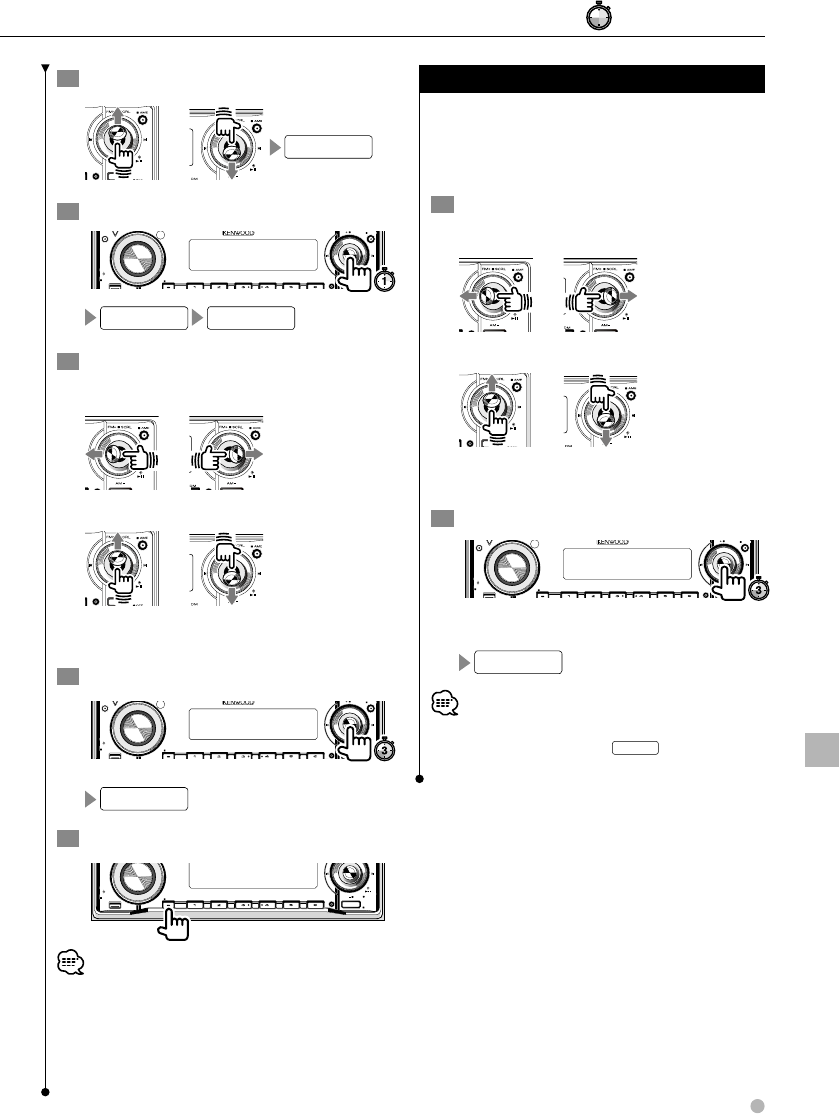
English 51
#: Press for # seconds.
2 Display the security code canceling feature
CODE CLR
3 Select the security code canceling feature
Q
AM
SETUP
AUD
VOL
ATT
MENU SCANSTOP
M/S
RDM REP F.S E L M.RDM
OFF
DISP
PTY/C.S.
SW
AME
FM SCRL
SRC
ENTER CODE : ––––
4 Enter a security code
Select the digit to enter.
Select a number to enter.
Enter the security code set in <Setting security
code> (page 50).
5 Confirm the entry
Q
AM
SETUP
AUD
VOL
ATT
MENU SCANSTOP
M/S
RDM REP F.S E L M.RDM
OFF
DISP
PTY/C.S.
SW
AME
FM SCRL
SRC
CLEAR
6 Exit the security code canceling
Q
AM
SETUP
AUD
VOL
MENU SCANSTOP
M/S
RDM REP F.S E L M.RDM
OFF
DISP
PTY/C.S.
SW
SRC
• The security code can be canceled in the STANDBY state.
For the basic method of how to operate the menu, refer
to <Menu setup> (page 48).
• If an incorrect security code is entered, "ERROR" is
displayed. Repeat the procedure from step 4 to enter a
correct code.
Security code entry
If a security code is set, you must enter the code
the first time you turn the unit on after the Reset
button has been pressed or the unit has been
disconnected to the battery of the car.
1 Enter a security code
Select the digit to enter.
Select a number to enter.
Enter the security code set in <Setting security
code> (page 50).
2 Confirm the entry
Q
AM
SETUP
AUD
VOL
ATT
MENU SCANSTOP
M/S
RDM REP F.S E L M.RDM
OFF
DISP
PTY/C.S.
SW
AME
FM SCRL
SRC
The power turns on.
APPROVED
• If an incorrect security code is entered the power will
turn off. In this case, press the
SRC
button to turn on
the power and enter the security code again.
Menu
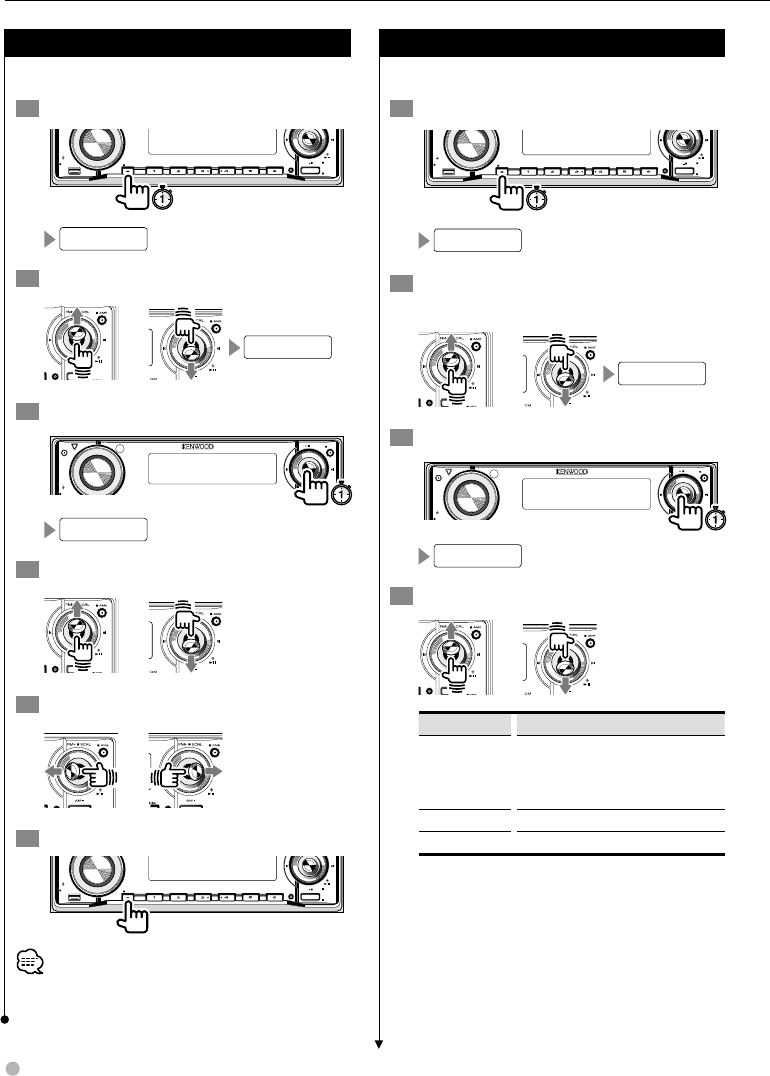
52 KDV-412
Menu
Adjusting the clock
Adjust the clock of this unit.
1 Set to the menu mode
Q
AM
SETUP
AUD
VOL
MENU SCANSTOP
M/S
RDM REP F.S E L M.RDM
OFF
DISP
PTY/C.S.
SW
SRC
MENU
2 Select the clock adjustment feature
CLK ADJ
3 Start clock adjustment
AM
SETUP
AUD
VOL
ATT
M/S DISP
PTY/C.S.
SW
AME
AUTO
FM SCRL
12 : 00
4 Adjust "Hours"
5 Adjust "Minutes"
6 Exit clock adjustment
Q
AM
SETUP
AUD
VOL
MENU SCANSTOP
M/S
RDM REP F.S E L M.RDM
OFF
DISP
PTY/C.S.
SW
SRC
• After "Minutes" is adjusted, the clock starts with 00
seconds.
HD Radio Receive mode setting
Setup for receiving HD Radio stations.
1 Set to the menu mode
Q
AM
SETUP
AUD
VOL
MENU SCANSTOP
M/S
RDM REP F.S E L M.RDM
OFF
DISP
PTY/C.S.
SW
SRC
MENU
2 Select the HD radio receive mode setting
feature
HDR MODE
3 Start Receive mode setting
AM
SETUP
AUD
VOL
ATT
M/S DISP
PTY/C.S.
SW
AME
AUTO
FM SCRL
AUTO
4 Select Receive mode setting
Display Setting
"AUTO" Analog broadcasts and digital broadcasts will
be switched automatically. When both are
being transmitted, the digital broadcast will
have priority.
"DIGITAL" Digital broadcasts only.
"ANALOG" Analog broadcasts only.
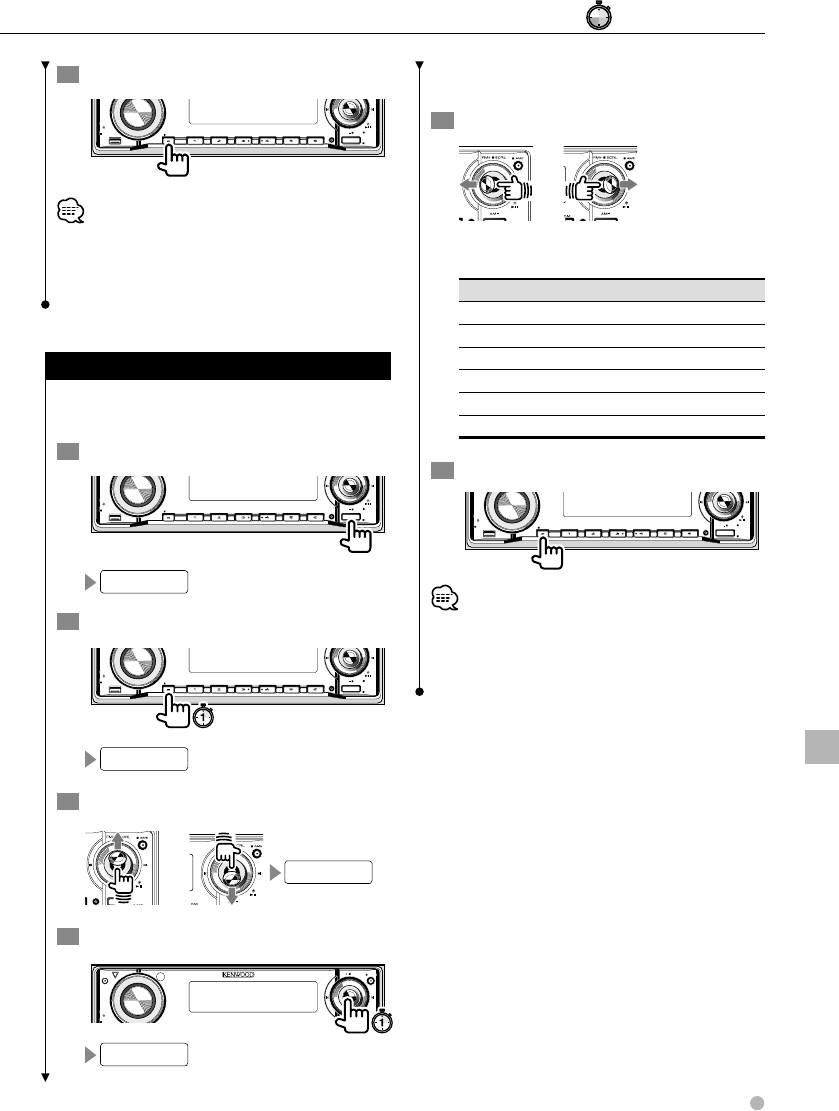
English 53
5 Exit Receive mode Setting.
Q
AM
SETUP
AUD
VOL
MENU SCANSTOP
M/S
RDM REP F.S E L M.RDM
OFF
DISP
PTY/C.S.
SW
SRC
• Even if the Receive mode is set to "AUTO" while a Ball
game mode program (non-delayed broadcast program)
is received, the Receive mode will automatically switch to
Analog broadcast only.
AUX name select
Specifies the display to appear when AUX source
is selected.
1 Select the AUX source
Q
AM
SETUP
AUD
VOL
MENU SCANSTOP
M/S
RDM REP F.S E L M.RDM
OFF
DISP
PTY/C.S.
SW
SRC
AUX EXT
2 Set to the menu mode
Q
AM
SETUP
AUD
VOL
MENU SCANSTOP
M/S
RDM REP F.S E L M.RDM
OFF
DISP
PTY/C.S.
SW
SRC
MENU
3 Select the name setting feature
NAME SET
4 Start name setting
AM
SETUP
AUD
VOL
ATT
M/S DISP
PTY/C.S.
SW
AME
AUTO
FM SCRL
AUX EXT
Press and hold down the knob until the name
of the AUX EXT source being set is displayed.
5 Select the AUX name
As you move the knob to the left or right, the
AUX name changes in the following order.
Display
"AUX EXT"
"DVD"
"PORTABLE"
"GAME"
"VIDEO"
"TV"
6 Exit the name set
Q
AM
SETUP
AUD
VOL
MENU SCANSTOP
M/S
RDM REP F.S E L M.RDM
OFF
DISP
PTY/C.S.
SW
SRC
• If no operation is made for 10 seconds, the name
displayed at that moment is selected.
• <AUX name select> can be set only for AUX input using
KCA-S220A (optional accessory).
#: Press for # seconds.
Menu
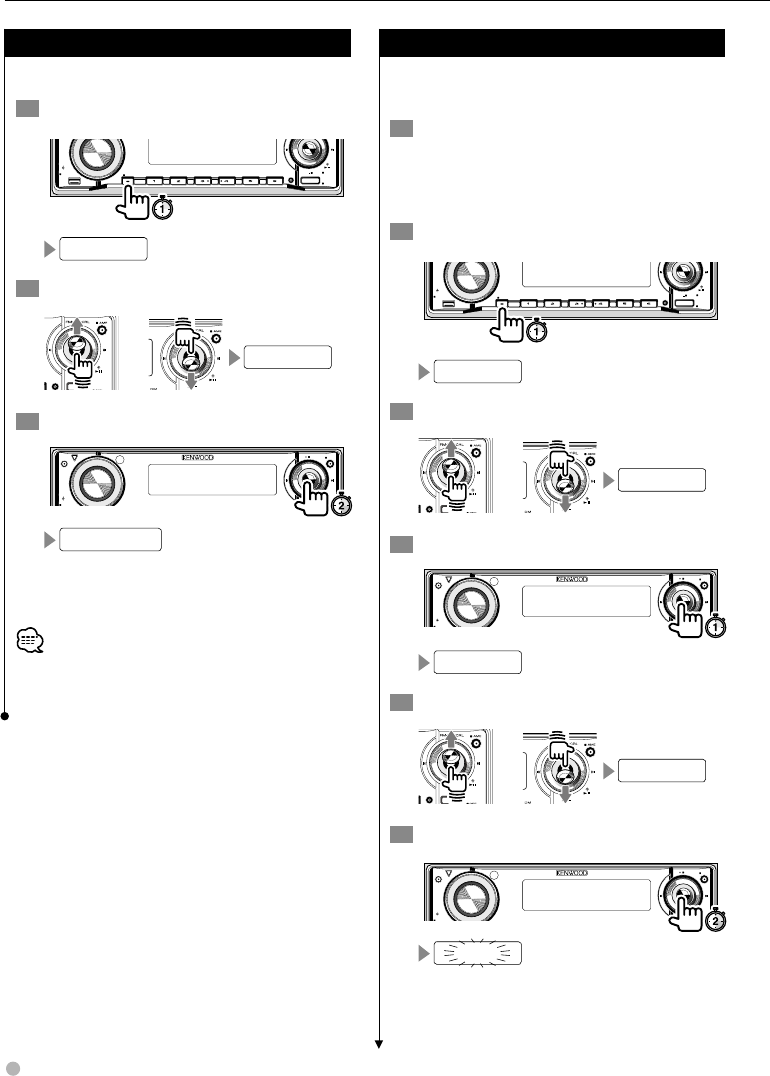
54 KDV-412
Demonstration setup
Demonstrates the functions of this unit.
1 Set to the menu mode
Q
AM
SETUP
AUD
VOL
MENU SCANSTOP
M/S
RDM REP F.S E L M.RDM
OFF
DISP
PTY/C.S.
SW
SRC
MENU
2 Select the demonstration feature
DEMO
3 Set up the demonstration feature
AM
SETUP
AUD
VOL
ATT
M/S DISP
PTY/C.S.
SW
AME
AUTO
FM SCRL
DEMO OFF
The demonstration function turns ON/OFF
each time the button is pressed and held down
for 2 seconds or more.
• This setting can be used in the standby state. For the
basic method to operate the menu, refer to <Menu
setup> (page 48).
Audio preset
Memorizes the audio settings. These will be
retained even when the Reset button is pressed.
1 Set up audio control settings to be
memorized
Refer to <Detailed audio control> (page 40)
and <Audio setup> (page 40).
2 Set to the menu mode
Q
AM
SETUP
AUD
VOL
MENU SCANSTOP
M/S
RDM REP F.S E L M.RDM
OFF
DISP
PTY/C.S.
SW
SRC
MENU
3 Select the Audio preset feature
A-PRESET
4 Set to Audio preset mode
AM
SETUP
AUD
VOL
ATT
M/S DISP
PTY/C.S.
SW
AME
AUTO
FM SCRL
RECALL
5 Show the memory
MEMORY
6 Memorize the audio control settings
AM
SETUP
AUD
VOL
ATT
M/S DISP
PTY/C.S.
SW
AME
AUTO
FM SCRL
MEMORY
Menu
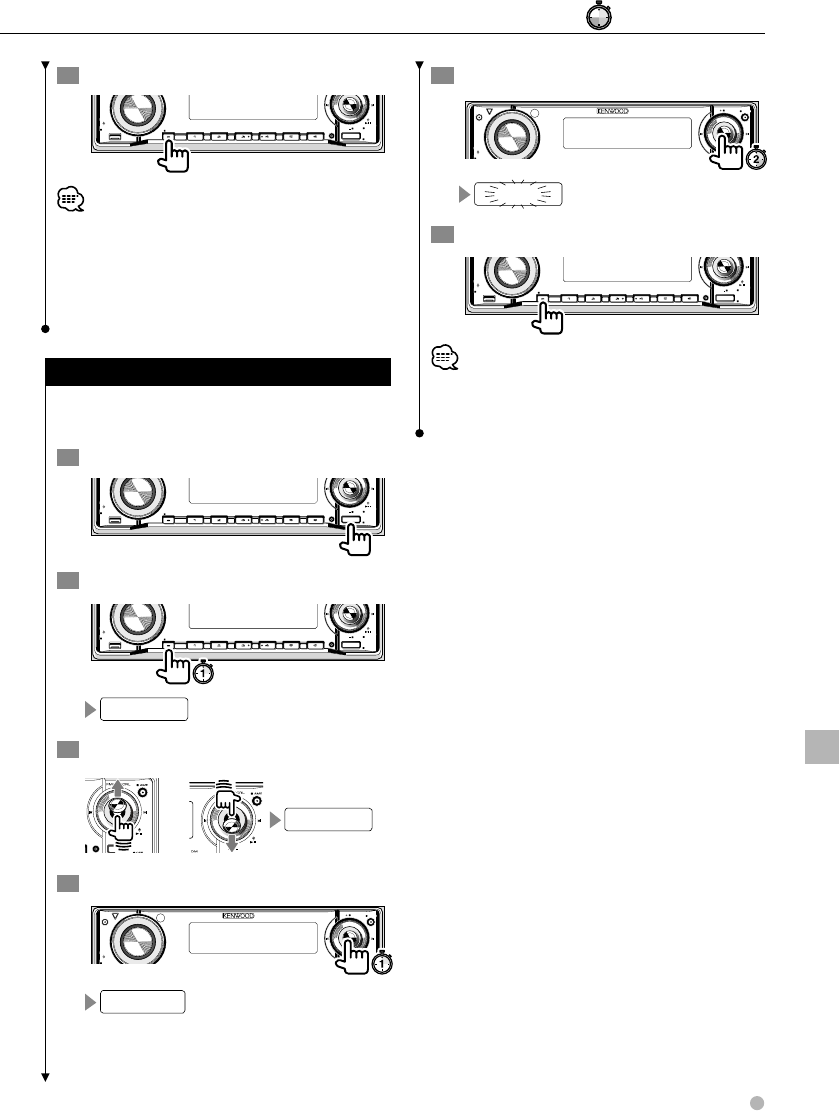
English 55
7 Exit the audio preset mode
Q
AM
SETUP
AUD
VOL
MENU SCANSTOP
M/S
RDM REP F.S E L M.RDM
OFF
DISP
PTY/C.S.
SW
SRC
• The settings cannot be memorized by source.
Only 1 set of audio control settings can be memorized.
• You can memorize the features in <Detailed audio
control> and <Audio setup>. Note, however, that the
values set for "R-VOL", "BAL", "FAD", "AVOUT" and "2ZON"
will not be memorized.
Recalling audio preset values
Call the values memorized in the Audio preset
memory.
1 Select a source
Q
AM
SETUP
AUD
VOL
MENU SCANSTOP
M/S
RDM REP F.S E L M.RDM
OFF
DISP
PTY/C.S.
SW
SRC
2 Set to the menu mode
Q
AM
SETUP
AUD
VOL
MENU SCANSTOP
M/S
RDM REP F.S E L M.RDM
OFF
DISP
PTY/C.S.
SW
SRC
MENU
3 Select the Audio preset feature
A-PRESET
4 Set to Audio preset mode
AM
SETUP
AUD
VOL
ATT
M/S DISP
PTY/C.S.
SW
AME
AUTO
FM SCRL
RECALL
5 Recall the audio control settings
AM
SETUP
AUD
VOL
ATT
M/S DISP
PTY/C.S.
SW
AME
AUTO
FM SCRL
RECALL
6 Exit the audio preset mode
Q
AM
SETUP
AUD
VOL
MENU SCANSTOP
M/S
RDM REP F.S E L M.RDM
OFF
DISP
PTY/C.S.
SW
SRC
• If audio preset is recalled, the values set in <Detailed
audio control> and <Audio setup> will be overwritten by
the memorized values.
Menu
#: Press for # seconds.
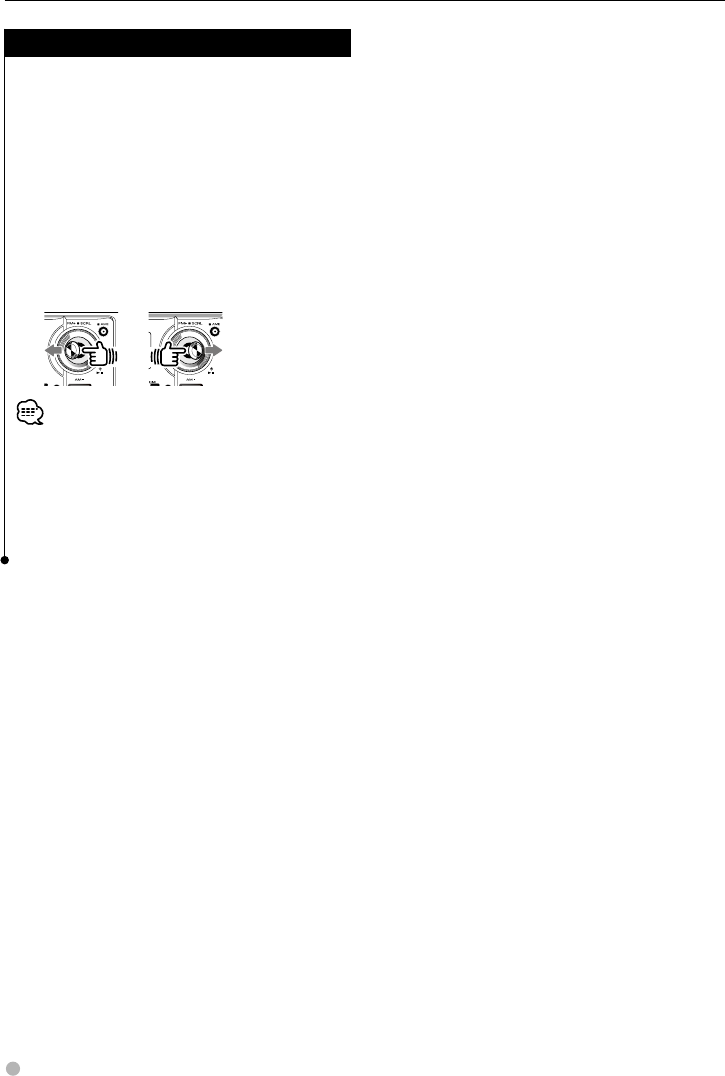
56 KDV-412
Menu
T.I (Traffic Information)
Switches to traffic information automatically
when a traffic bulletin starts even when you are
not listening to the radio.
When T.I is ON, the "TI" indicator is ON.
The "TI" indicator blinks while stations other
than traffic information stations are received.
When a traffic bulletin starts, "TRAFFIC" is
displayed and the mode switches to traffic
information.
Receiving other traffic information
stations
• When receiving an AM station while the Traffic
Information function is turned ON, you will be switched
to an FM station.
• The volume adjusted while receiving traffic information
is automatically memorized and the next time traffic
information is accessed, you will receive it at that set
volume.
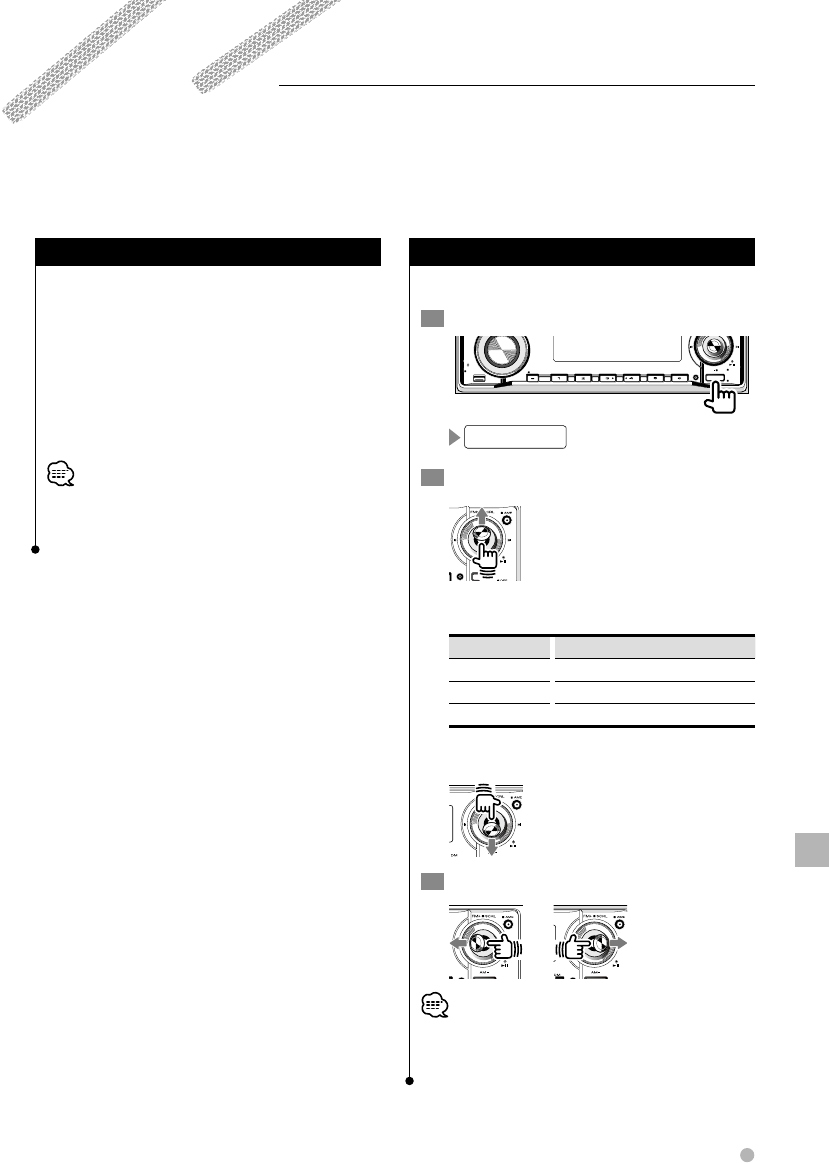
English 57
About HD Radio
• When you connect an HD Radio, the tuner
features of the unit are disabled and those of
the HD Radio tuner are enabled. Some setting
methods including the Tuning Mode will change.
• With the HD Radio tuner, you can access
functions such as <Station Preset Memory>,
<Auto Memory Entry>, and <Preset Tuning>
similar to the Tuner features. Refer to Tuner
features for details on how to use the functions.
• The RDS function will no longer be available. Also note
that the "SYNC" feature in the menu will be displayed,
but will not function.
Tuning
Selects the HD Radio station.
1 Select the HD Radio source
Q
AM
SETUP
AUD
VOL
MENU SCANSTOP
M/S
RDM REP F.S E L M.RDM
OFF
DISP
PTY/C.S.
SW
SRC
HD RADIO
2 Select the HD FM band
Each time the button is pressed, the radio band
switches in the following order.
Display Band
"HF1" HD FM 1
"HF2" HD FM 2
"HF3" HD FM 3
Select the HD AM band
3 Select a station
• Tune the radio to one or more stations (digital and/or
analog) by using the "HDR MODE" (page 48) settings in
<Menu setup> (page 48).
Connecting the optional HD Radio Tuner (KTC-HR100/TR) allows you to listen to HD Radio with this unit.
HD Radio Control
HD Radio Control
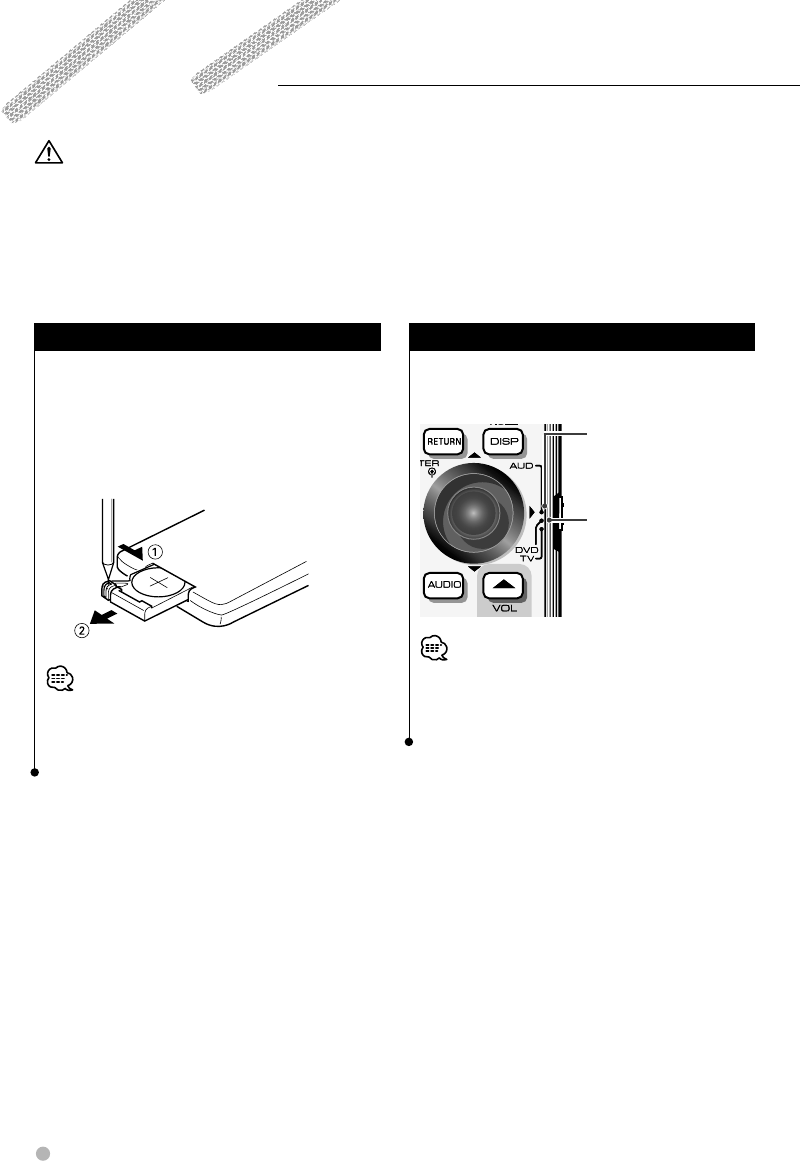
58 KDV-412
Remote Controller
This unit can be operated using the Remote Controller supplied with the unit.
• Put the Remote Controller in a place where it will not move during braking or other operations. A dangerous situation could
result, if the Remote Controller falls down and gets wedged under the pedals while driving.
• Do not place the battery near an open flame or heat source. This may cause the battery to explode.
• Do not recharge, short, break up or heat the battery or place it in an open fire. Such actions may cause the battery to leak
fluid. If spilled fluid comes in contact with your eyes or on clothing, immediately rinse with water and consult a physician.
Place the battery out of reach of children. In the unlikely event that a child swallows the battery, immediately consult a
physician.
Battery installation
Using a pen tip or similar object, open the battery
compartment in Direction 2 (as shown) while
unfastening the lock in Direction 1 (as shown).
Insert the lithium battery (CR2025) supplied,
making sure the polarities are correct. (See the
illustration inside the battery compartment.)
• If the Remote Controller operates only over shorter
distances or does not operate at all, it is possible that the
lithium battery is depleted. In such instances, replace the
battery with a new one.
Remote Controller mode switch
The functions operated from the remote
controller differ depending on the position of the
mode switch.
DVD mode
Switch to this mode when
playing DVDs or CDs etc.
with the player integrated
in this unit.
AUD mode
Switch to this mode when
controlling a selected
source or a CD changer etc.
• The position of the remote control mode switch is
indicated in the title of each mode, e.g., "(AUD mode)".
• When controlling a player that is not integrated in the
unit, select "AUD" mode.
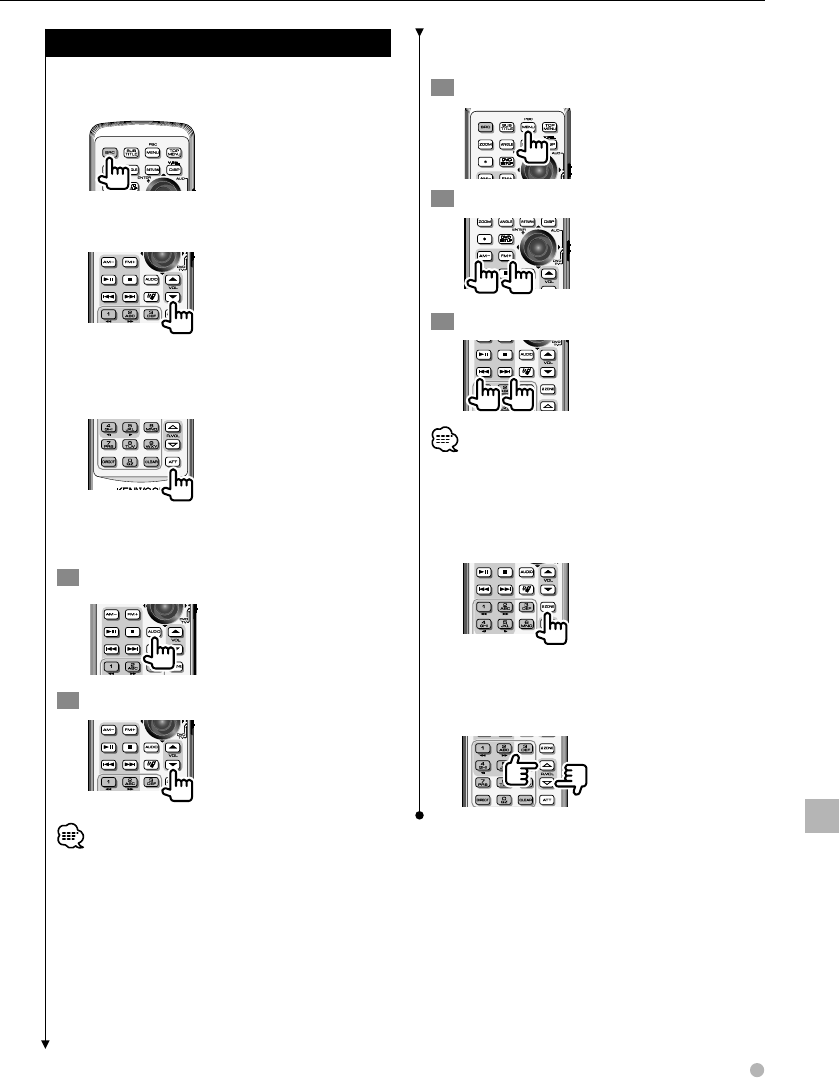
English 59
Remote Controller
Common operations (AUD mode)
Source switching
Switches to the source to be played.
Volume control
Adjusts the volume.
Volume attenuator
Press the key once to lower the volume. Press again
to restore the previous volume.
Audio control
Adjusts the sound quality.
1 Select the feature you want to adjust.
2 Adjust.
• Refer to <Detailed audio control> (page 40) for
information on the features that can be adjusted.
However, you cannot adjust the detailed setting features
such as "BAS F".
Menu settings
Sets the menu.
1 Press the Menu Mode key.
2 Select a feature.
3 Adjust the feature.
• Refer to page 48 for information on the features that can
be adjusted.
Dual Zone
Switches the Dual Zone function ON and OFF.
Rear volume control
Adjusts volume at rear when the Dual Zone
function is ON.
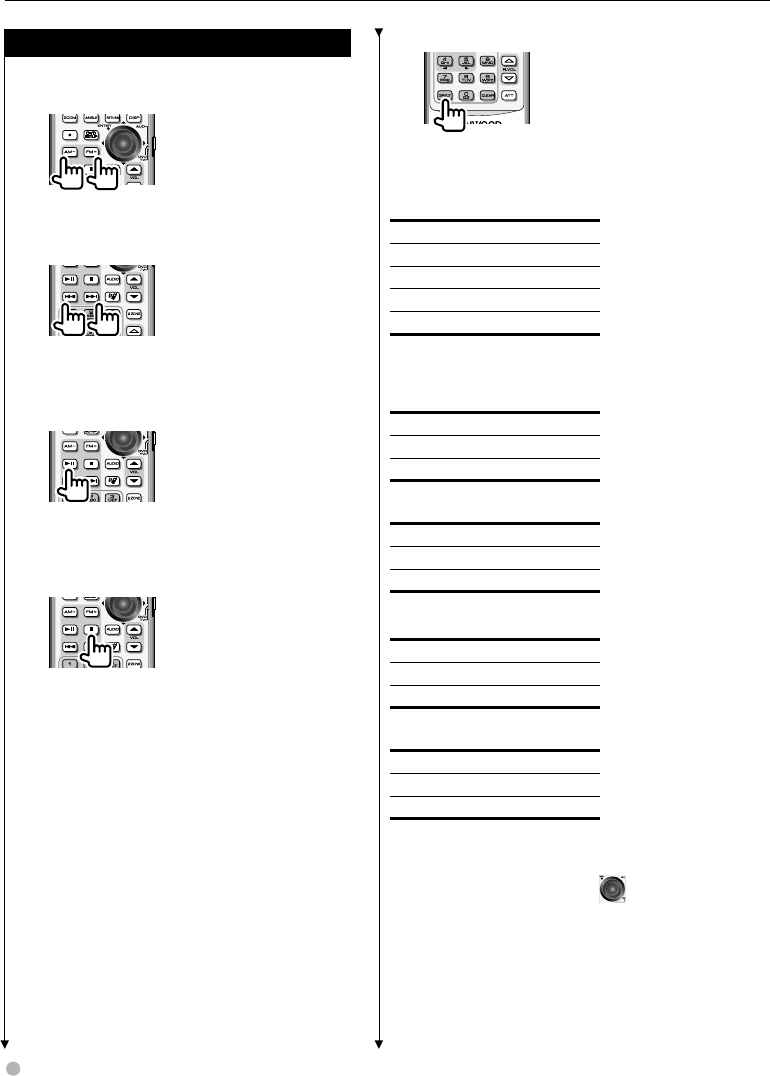
60 KDV-412
Direct search
Pressing this button switches the features that can
be searched directly.
DVD
Title number
Chapter number
Play time
Item number*
Cancel
* You may not be able to use this function with some discs
or scenes.
CD
Track number
Play time
Cancel
Audio files
Folder number
File number
Cancel
VCD1.X, VCD 2.X (PBC OFF)
Track number
Play time
Cancel
VCD 2.X (PBC ON)
Scene number
Number
Cancel
Once you have switched to the direct search
feature, specify the search number from the
numeric keypad, and then press [ENTER] key.
DVD/VCD/CD/Audio files (DVD mode)
Folder search
Selects the folder to be played.
Track search and file search
Selects the track or file to be played.
Play/Pause
Pauses the track.
Press again to resume playing.
Stop
Memorizes the last point where the disc stopped.
When pressed again, the last point is deleted.
Remote Controller
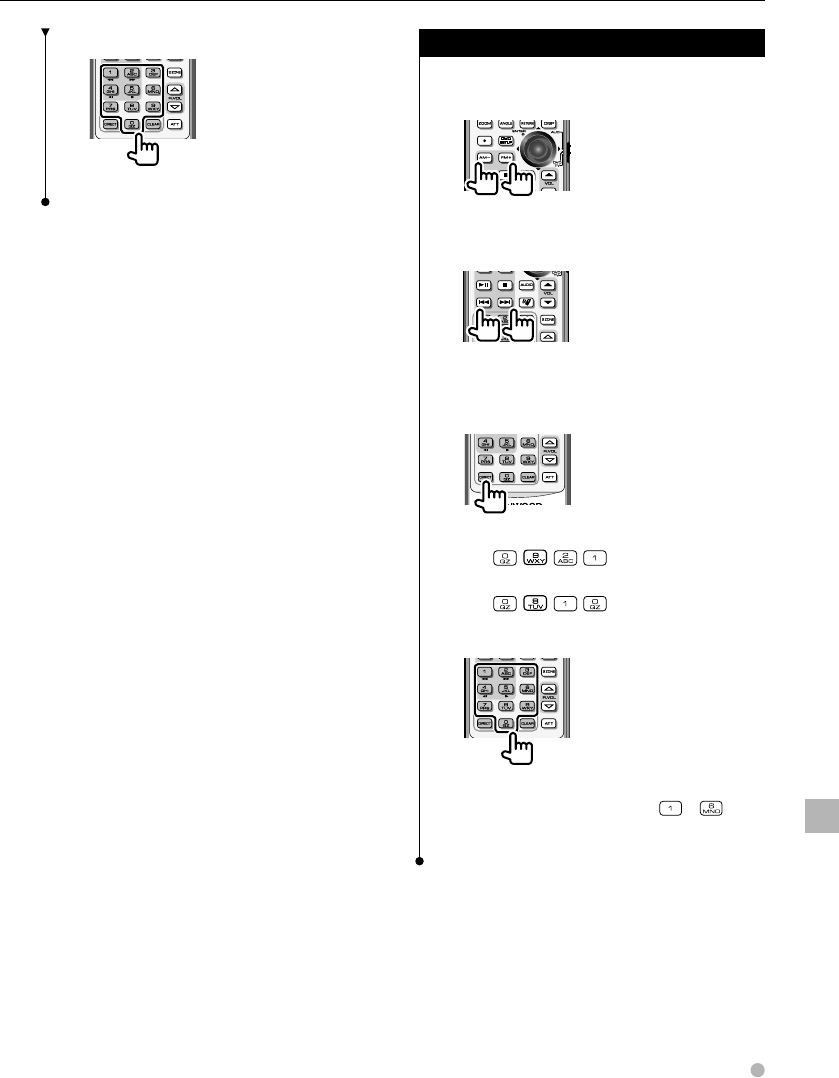
English 61
Numeric keypad
• Specify the number to search in direct search.
Radio (AUD mode)
Band switching
Switches to bands received by the unit.
Station selection
Switches to broadcast stations received by the unit.
Direct tuning
After pressing this key, use the keypad to specify
the broadcast station you wish to receive.
Example: 92.1MHz (FM)
Example: 810kHz (AM)
Numeric keypad
• To use preset tuning, press the number of a
programmed broadcast station. ( – )
• Press the direct tuning key first, then specify the
frequency of the station to receive.
Remote Controller
62 KDV-412
Audio files
This unit plays MP3 and WMA audio files. The
following restrictions apply to the formats and
discs that this unit can play. Please note that in
all cases the values shown for the characters are
those for one-byte characters.
Acceptable audio files
• MP3
• WMA
• Copy protected files cannot be played.
• Playback or display may not be possible owing to
encoded software settings or environments.
• It may not be possible to play files with more recent
versions of compressed formatting or files with added
specifications.
Acceptable MP3 formats
This unit can play the following two MP3 file
formats:
MPEG1 Audio Layer 3 and MPEG 2 Audio LSF Layer
3 standard files.
• Sampling frequencies: 32/ 44.1/ 48 kHz
• Bit rate: 32–320 kbps
Acceptable WMA formats
This unit can play WMA files in the following
formats.
• Windows Media™ Audio
• Sampling frequencies: 32/ 44.1/ 48 kHz
• Bit rate: 48–192 kbps
It is possible that when some functions of Windows
Media™ Player version 9 or higher are used, normal
playback will not be possible.
Acceptable discs
• CD-R/RW/ROM
• DVD±R/RW
Discs made using simple CD-RW formats cannot be
played.
Acceptable CD-R/RW formats
This unit can play discs in the following formats.
• ISO 9660 Level 1
• ISO 9660 Level 2
• Joliet
• Romeo
Please note that file and folder names can be
displayed using a maximum of 128 characters.
(Includes period "." and three-letter file extension.)
For information on characters that can be used,
refer to the writing software manual or to the <File
names> section below.
However, the following restrictions apply to discs
this unit can play.
• Maximum directory hierarchy: 8 levels
• Maximum number of files per folder: 255
• Maximum number of folders: 254
Audio files written in formats other than those
shown above may not play properly or the file and
folder names may not be displayed correctly.
Settings for compression software and writing
software
It is recommended that when compressing an
audio file you select the "constant" size of "128bps"
for the transfer bit rate setting in the compression
software. Select the "Disc at Once" setting when
recording data by filling an empty disc at one time.
File names
Please add the appropriate ".MP3" or ".WMA"
extension to audio files. Files that do not have either
of these extensions cannot be played.
• Do not add the above extensions to files that are not
audio files. Should you add one of these extensions, the
unit will mistakenly recognize the file as an audio file,
thus producing a loud noise that could damage the
speakers.
Display of track information for audio files
This unit can display the following track information:
track name, artist name and album name.
Information is displayed using Roman letters and
Arabic numerals.
• Track information recorded using v1.0, 1.1 or 2.3
standards for the MP3 ID3 Tag is displayed using
a maximum of 30 characters.
• WMA content properties are displayed using a
maximum of 30 characters.
Help? Playing files
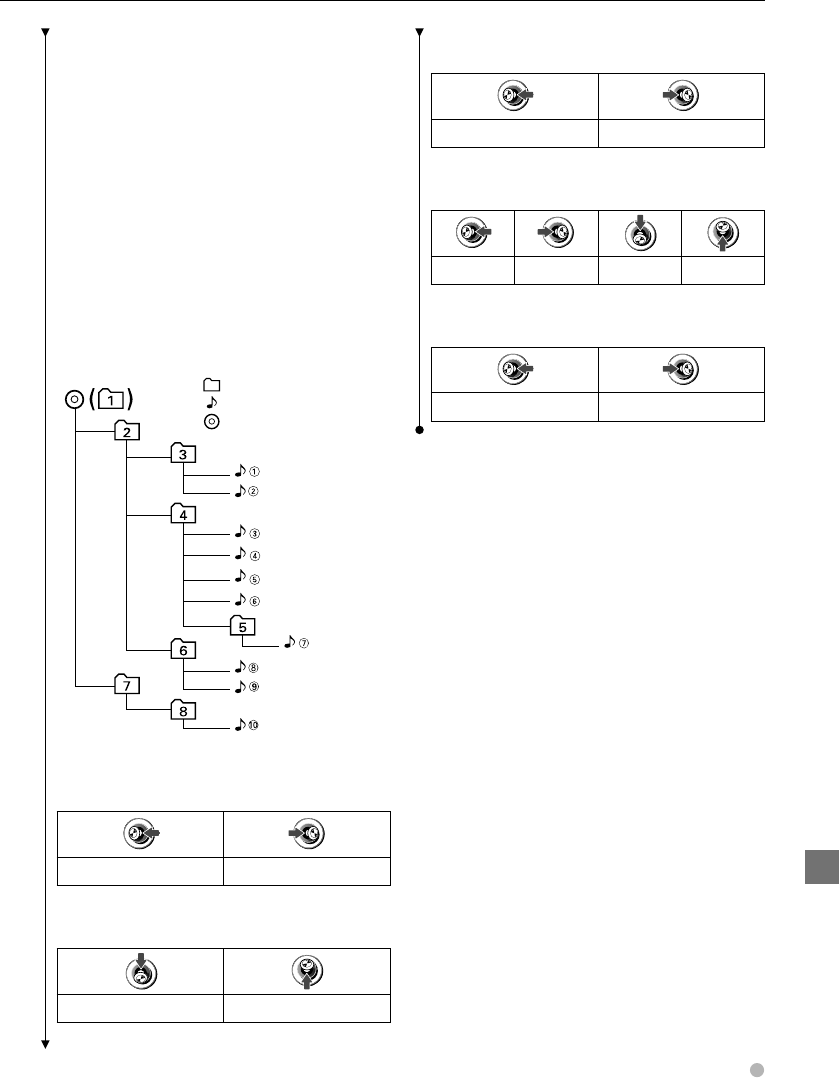
English 63
Order for playing audio files
The order in which files or folders are selected using
Playback, Folder Search, File Search and Folder
Select is the order written into the writing software.
As a result, there may be occasions when the
order in which you expect tracks to play does not
correspond to the actual order in which they play.
Although it depends on your PC environment, it is
possible to set the playing order by specifying using
numbers "01" through "99" at the beginning of file
names and writing them into a CD-R or CD-RW
disc etc.
When using discs with folder and file levels like
that shown below, the following occurs when
conducting a Folder Search or File Search or when
selecting a folder.
フォルダ
2階層1階層
メディアの階層例
3階層 4階層 5階層
オーディオファイル
Root(ルート)
Example Folder
Audio file
Root
Level 1
Level 2
Level 3
Level 4
Level 5
Performing a File Search during ¡$ playback…
Start of ¡$ ➡ ¡# ¡% ➡ ¡&
When performing Folder Search during ¡$
playback…
3 ➡ 8 ➡ 6 ➡ 5 ... 5 ➡ 6 ➡ 8 ➡ 3 ...
When performing File Select during ¡$
playback…
¡# ➡ ¡& ... ¡% ➡ ¡& ➡ ¡# ...
When performing Folder Select 1 during ¡$
playback…
3625
When performing Folder Select 2 during ¡$
playback…
3 ➡ 8 ➡ 6 ➡ 5 ... 5 ➡ 6 ➡ 8 ➡ 3 ...
Help?
64 KDV-412
Help? Playing files
Video files
This unit can play MPEG video files. The following
restrictions apply to the formats and discs that
this unit can play.
Acceptable video files
• Format: MPEG1, MPEG2
• Picture size:
MPEG1: 320 × 240, 352 × 240
MPEG2: 640 × 480, 704 × 480
• Audio format: MPEG Audio Layer 2
• Audio sampling frequencies: 32/ 44.1/ 48 kHz
• Audio bit rate: 32–384 kbps (Only constant bit
rates)
Acceptable discs
• DVD±R/RW
Extensions
Video files must have one of the following
extensions:
mpg, mpeg, mpe, m1v, m2v
Disc formats, file and folder names and playing
order are the same as those for audio files. Refer to
<Audio files> (page 62).
Picture files
This unit can play JPEG files. The following
restrictions apply to the formats and discs that
this unit can play.
Acceptable picture files
• Format: JPEG
• Baseline format:
Up to a maximum of 5120(W) × 3840(H) pixels
• Progressive format:
Up to a maximum of 2048(W) × 1536(H) pixels
• Enlarges and reduces images up to the size shown above
to fit to the screen.
• The picture files with information attached (such as Exif)
may not be displayed or operated (e.g.: rotation display)
properly.
Extensions
Picture files must have one of the following
extensions:
jpg, jpeg, jpe, jfif
Acceptable discs, disc formats, file and folder names
and playing order are the same as those for audio
files. Refer to <Audio files> (page 62).
English 65
General
? The power does not turn ON.
✔ The fuse has blown.
After checking for short circuits in the wires,
replace the fuse with one with the same
rating.
✔ The speaker wire has a short-circuit or
touches the chassis of the vehicle, and then
the protection function is activated.
Wire or insulate the speaker cable properly
and press the Reset button.
✔ A security code has been set.
Enter the set security code (page 51).
? No sound can be heard, or the volume is low.
✔ The fader or balance settings are set all the
way to one side.
Center the fader and balance settings.
✔ The "AMP" feature in Menu setup is "OFF".
Turn the "AMP" feature "ON", referring to
<Menu setup> section (page 48).
✔ The values for Volume offset are too low.
Turn up the Volume offset, referring to the
<Audio setup> section (page 40).
✔ The input/output wires or wiring harness are
connected incorrectly.
Reconnect the input/output wires or
the wiring harness correctly. Refer to the
<Connections> section (page 74).
? The sound quality is poor or distorted.
✔ One of the speaker wires is being pinched
by a screw in the car.
Check the speaker wiring.
✔ The speakers are not wired correctly.
Reconnect the speaker wires so that each
output terminal is connected to a different
speaker.
? The TEL mute function does not work.
✔ The TEL mute wire is not connected
properly.
Connect the wire correctly, referring to the
<Connections> section (page 74).
? The TEL mute function turns ON even
though the TEL mute wire is not connected.
✔ The TEL mute wire is touching a metal part
of the car.
Pull the TEL mute wire away from the metal
part of the car.
? The memory is erased when the ignition is
turned OFF.
✔ The ignition and battery wire are incorrectly
connected.
Connect the wire correctly, referring to the
<Connections> section (page 74).
? There is no loudness effect.
✔ You are using Subwoofer preout.
Loudness has no effect in Subwoofer preout.
? Even if Loudness is turned ON, high-pitched
tone is not compensated for.
✔ Tuner source is selected.
High-pitched tone is not compensated for
when in Tuner source.
? Radio reception is poor.
✔ The car antenna is not extended.
Pull the antenna out all the way.
✔ The antenna control wire is not connected.
Connect the wire correctly, referring to the
<Connections> section (page 74).
? There is a source you cannot switch.
✔ The Disc changer is not connected.
Connect the Disc changer. If the Disc
changer is not connected to it’s input
terminal, you cannot switch to an external
disc source.
? The display blacks out while scrolling.
✔ The "DISP" feature under <Menu setup> is
"OFF".
Turn the "DISP" feature "ON", referring to the
<Menu setup> section (page 48).
Help?
Help? Troubleshooting
66 KDV-412
Help? Troubleshooting
? Even though Synchronize Clock is ON, the
clock cannot be adjusted.
✔ The received RDS station is not sending time
data.
Receive another RDS station.
? The Dimmer function does not work.
✔ The Dimmer wire is not connected correctly.
Check the Dimmer wire connection.
✔ The "DIM" feature in the <Menu setup> is set
to "OFF".
Turn the "DIM" feature "ON", referring to the
<Menu setup> section (page 48).
? Cannot set Dual Zone System of <Audio
Setup> (page 40).
✔ CA-C1AX/ CA-C2AX is connected to KCA-
S220A or other units.
Connect the CA-C1AX/ CA-C2AX directly to
this unit.
Playing discs
? Cannot insert disc.
✔ There is already another disc inserted.
Remove the inserted disc and insert the disc
you want to play.
? A disc ejects as soon as it is loaded.
✔ The disc is quite dirty.
Clean the disc, refer to <Disc cleaning> in
the <Handling media> section (page 11).
? Cannot remove disc.
✔ Disc stops while being ejected.
Continue to push the Eject button until the
disc is ejected completely.
✔ The cause is that more than 10 minutes have
elapsed since the vehicle ACC switch was
turned OFF.
The disc can only be removed within 10
minutes of the ACC switch being turned
OFF. If more than 10 minutes have elapsed,
turn the ACC switch ON again and press the
Eject button.
✔ A disc whose validity date is expired is
loaded.
Turn the power OFF, and wait for 15 seconds
before pressing [0] (Eject) button.
? The specified disc does not play, but another
one plays instead.
✔ The specified disc is quite dirty.
Clean the disc.
✔ The disc is loaded in a different slot from that
specified.
Eject the disc magazine and check the
number for the specified disc.
✔ The disc is severely scratched.
Try another disc instead.
? Direct Search does not work.
✔ Another function is ON.
Turn Random Play or other functions OFF.
English 67
? Cannot select soundtrack language, subtitle
language or angles, or the disc does not play
in the specified language.
✔ Multiple languages or angles have not been
included.
It may be possible to select these using the
Menu. Refer to the disc's instruction leaflet.
? The VCD Menu (Playback Control) is not
displayed
✔ Playback Control has not been included in
the VCD.
Refer to the disc's instruction leaflet.
Audio files
? Cannot play an Audio file.
? The sound skips when an Audio file is being
played.
✔ The recording condition is bad.
Record the media again or use another
media.
✔ The media is scratched or dirty.
Clean the disc, refer to <Disc cleaning> in
the <Handling media> section (page 11).
? The Audio file track time is not displayed
correctly.
✔ --
There are times when it is not displayed
correctly depending on the recording
conditions of the Audio file.
HD Radio source
? No sound can be heard, or the volume is low.
✔ The preset broadcast station is not
transmitting in the mode that was set with
<HD Radio Receive mode Setting> (page
52).
Please set <HD Radio Receive mode
Setting> to "AUTO".
✔ In digital AM broadcasting, receive mode
switches between stereo and monaural too
often.
Receiving condition is bad or unstable.
Stereo is chosen when receiving condition is
good, and it switches to monaural when the
condition becomes bad.
✔ HD Radio tuner is connected to KCA-S220A
or other units.
Connect the HD Radio tuner directly to this
unit.
Menu
? The Security Code feature is not displayed.
✔ The "DEMO" feature in <Menu setup> is
"ON".
Turn the "DEMO" feature "OFF", referring to
the <Demonstration setup> section (page
54).
✔ A security code has already been set.
When the Security Code is initially set, "CODE
SET" changes to "CODE CLR".
? The display's brightness level does not
change.
✔ The car's light switch is OFF.
Turn ON the car's light switch.
✔ The illumination cord has not been
connected.
Connect the cord correctly, referring to the
<Connections> section (page 74).
Help?
68 KDV-412
Help? Term
General
MP3
MP3 is an abbreviation for "MPEG Audio Layer 3". MPEG
Audio is the compression standard for only the audio
portion of image compression methods used for DVDs
and Video CDs.
This manual sometimes specifies audio files that use
this method.
For information on formats and the kinds of MP3
recorded discs that can be used, refer to the <Audio
files> section under Help? (page 62).
WMA (Windows MediaTM Audio)
WMA is the abbreviation for the Windows Media™
Audio system of audio compression encoding
developed by Microsoft Corporation.
This manual sometimes specifies audio files that use
this method.
For information on formats and the kinds of WMA
recorded media that can be used, refer to the <Audio
files> section under Help? (page 62).
Disc changer
These are either externally connected optional CD
changers (KDC-CX87, KDC-C719, KDC-C669, etc) or a
multimedia player (KDV-C810, KDV-C840).
Audio control
R-VOL (Rear volume)
Controls volume at the rear when the Dual Zone
function is in use.
SW L (Subwoofer volume)
Controls the volume of the subwoofer.
HPF/HPR (High Pass Filter)
A high pass filter cuts out frequencies lower than the
cutoff frequency.
When preamp output is used as a subwoofer, this
function is used to cut out low frequencies from
the output and produce only high frequencies. This
function can be disabled by turning on the "THRU"
setting.
This unit is equipped with two high pass filters, one
in the front speaker (HPF) and one in the rear speaker
(HPR).
LPF (Low pass filter)
A low pass filter cuts out frequencies higher than the
cutoff frequency.
When preamp output is used as a subwoofer, this
function is used to cut out high frequencies from the
output and produce only low frequencies. This function
can be disabled by turning on the "THRU" setting.
PHAS (Subwoofer phase)
Sets the phase of the subwoofer (positive phase or
reverse phase).
V-OFF (Volume offset)
Controls the differences in the volumes of each source.
As a result, even when switching to a different source
the volume of the sound you hear will be more or less
the same.
AVOUT (AV out level)
Sets the signal level for audio output from the AV OUT
terminal.
2ZON (Dual zone)
The dual zone function splits the output of the main
source and sub source between the front speaker and
rear speaker.
OFF : Dual zone function is off.
DVD : DVD is set as the sub source.
AUX : Sub source is set to AUX.
• Output destination of sub source is specified using
"ZONE2" in the <Menu setup> section (page 48).
• The main source is specified using <Changes a
source> (page 13).
• Front speaker volume is adjusted using the [VOL]
button.
• Rear speaker volume is adjusted by "R-VOL" in the
<Detailed audio control> section (page 40) or by
using the [R.VOL] key (page 59) on the remote
control.
English 69
Help?
Menu
AMP (Built-in amp output)
Output from the built-in amp is turned ON and OFF.
When there is a system where power amps are
connected to the preamp output terminals of both the
front speaker and the rear speaker, operation of the
built-in amp can be stopped by turning this function
"OFF".
The quality of audio output from the preamp outputs
can be improved by stopping operation of the built-in
amp.
BEEP (Beeping)
This function produces a beeping sound when
pressing a button to confirm that the button has been
pressed.
If you find this beeping sound annoying, you can get
rid of it by turning it "OFF".
Please note that this beeping sound does not come
out of preamp outputs.
CD READ (Reading a CD)
Specifies the method for reading a CD.
When a specially formatted CD does not play properly,
specifying "2" will make the CD play. Please note that
even after selecting "2", it will not be possible to play
some music CDs. Also, if you set it to "2", you cannot
play audio or picture files. Under normal circumstances,
set at "1".
1 : It automatically distinguishes between a disc with
audio files/picture files and a music CD during
playing the disc.
2 : It overrides to play the disc as a CD.
CODE SET/CODE CLR (Setting security code/
Clearing security code)
Sets and cancels the security code
Once a security code has been set, when the
unit is used for the first time after the unit has
been unplugged, the unit's power cord has been
disconnected or the Reset button has been pushed,
the power will not turn on unless you enter the set
security code. In other words, this function helps
prevent theft as the security code must be entered
after the unit has been removed from the vehicle.
CRSC (Clean Reception System Circuit)
Temporarily have reception alternate from stereo to
mono to reduce multi-path noise when listening to an
FM station.
Strong electrical fields (such as from power lines) may
cause unstable sound quality when CRSC is turned ON.
In such a situation, turn it OFF.
DIM (Dimmer)
Display brightness automatically switches on in
conjunction with the vehicle light switch.
DISP
When set at the "OFF" position, the display disappears
if the unit is not operated for a period of five seconds.
This prevents the display from being reflected in the
vehicle's windows.
However, if any of the modes have been set the display
will not disappear even after five seconds.
When the display is off, pressing any buttons will return
the display.
Please note that when the display disappears, the
only operations that can be performed are turning
the power ON and OFF, adjusting volume, selecting a
source and ejecting a disc.
DSI (Disabled system indicator)
Turns the security indicator ON and OFF.
When this function is ON and the panel has been
removed, the LED for the [0] (Eject) button flashes
so that it functions as a theft prevention warning
light.
KEY (Button illumination)
You can choose green or red for illuminating the
buttons.
SCL (Scrolling)
In cases where there are too many characters to display
all the information when selecting disc or track titles,
disc or track text, group titles, folder names, file names,
track names and artist names or album names on the
display, use this function to scroll down so that all the
information is displayed.
When this function is set at "AUTO" the display scrolls
repeatedly. When it is set at "MANU" the display scrolls
once only when the display changes.
70 KDV-412
SWPRE (Switchable preout)
This function sets audio to be output by the preamp
output terminal.
SW : Outputs audio used by the subwoofer.
AV : Outputs audio not affected by audio controls. Is set
when connected to a rear monitor.
SYNC (Synchronize Clock)
Synchronizes time data sent from an RDS station with
the unit's built-in clock.
Synchronization takes 3 to 4 minutes.
M/V (Macrovision Version)
Displays the version of copyright protection technology
used in a DVD.
ZONE2
Sets the output destination (front speakers or rear
speakers) of the sub source when the dual zone
function is ON.
Help? Term
English 71
When the unit fails to operate correctly, the
cause of the failure appears on the display.
TOC ERR/READ ERR :
• Disc is unusually dirty.
• Disc has many scratches.
• Disc is upside down.
• The tray is not in the disc changer.
• There is no disc in the disc changer.
E-05 :
Disc is upside down.
E-15 :
The disc you want to play does not include files that
can be played by this unit.
EJECT :
• Disc magazine has not been set.
• Disc magazine is not completely inserted.
• No disc is loaded in this unit.
Etc
NO DISC :
Disc magazine does not contain even a single disc.
REG ERR :
The disc you wanted to play has a region code that
cannot be played with this unit.
PAR ERR:
The disc you wanted to play has a higher level than the
parental level you set.
The following messages appear to inform you of
the status of the system.
PRK OFF :
Source for displaying video is selected while car is
traveling.
➡ Video will be displayed when the car is stopped
and the parking brake has been engaged.
CODE ---- :
Request to enter security code.
E-07–67/ E-77 :
Is not operating correctly due to some reason or other.
➡ Push the unit's Reset button. If the "E-07−67"/
"E-77" message does not disappear, see your
nearest Kenwood dealer.
HOT ERR :
When the internal temperature of this unit rises to 60°C
or more, the protection circuit is activated and you
may not be able to operate the unit. At such times this
message will appear.
➡ Use the unit again after reducing the
temperature inside the vehicle.
HOLD :
Activation of the protective circuit when the
temperature inside the disc changer is higher than 60
degrees Celsius stops the disc changer from operating.
At such times this message will appear.
➡ Use when the temperature at the site where the
disc changer has been fitted has dropped.
indicator flashes :
DVD player is not operating correctly.
➡ Remove the Disc and insert it again.
E-09/ E-19/ E-99 :
Is not operating correctly due to some reason or other.
➡ Press the [0] (Eject) button. If the message
does not disappear even after pushing the
Eject button, push the unit's Reset button. If the
message still does not disappear, contact your
nearest Kenwood dealer.
LOAD (Flashes) :
Discs are currently being changed inside the disc
changer.
READING (Flashes) :
Data on the disc is currently being checked.
PROTECT (Flashes) :
Protective circuit has been activated because a speaker
cord has shorted or it has come in contact with the car
chassis.
➡ Wire or insulate the speaker cord as appropriate
and then push the Reset button.
DEMO MODE :
The unit is currently in Demonstration mode. This
mode shows the unit's functions on the display. To
cancel turn the Demonstration mode OFF.
Help? Error
Help?

72 KDV-412
DVD language codes
Code Language
aa Afar
ab Abkhazian
af Afrikaans
am Amharic
ar Arabic
as Assamese
ay Aymara
az Azerbaijani
ba Bashkir
be Byelorussian
bg Bulgarian
bh Bihari
bi Bislama
bn Bengali, Bangla
bo Tibetan
br Breton
ca Catalan
co Corsican
cs Czech
cy Welsh
da Danish
de German
dz Bhutani
el Greek
en English
eo Esperanto
es Spanish
et Estonian
eu Basque
fa Persian
fi Finnish
fj Fiji
fo Faroese
fr French
fy Frisian
ga Irish
gd Scots Gaelic
gli Galician
gn Guarani
gu Gujarati
ha Hausa
he Hebrew
hi Hindi
hr Croatian
hu Hungarian
hy Armenian
ia Interlingua
ie Interlingue
ik Inupiak
id Indonesian
Code Language
is Icelandic
it Italian
ja Japanese
jv Javanese
ka Georgian
kk Kazakh
kl Greenlandic
km Cambodian
kn Kannada
ko Korean
ks Kashmiri
ku Kurdish
ky Kirghiz
la Latin
lb Luxembourgish
ln Lingala
lo Laotian
lt Lithuanian
lv Latvian, Lettish
mg Malagasy
mi Maori
mk Macedonian
ml Malayalam
mn Mongolian
mo Moldavian
mr Marathi
ms Malay
mt Maltese
my Burmese
na Nauru
ne Nepali
nl Dutch
no Norwegian
oc Occitan
om (Afan) Oromo
or Oriya
pa Punjabi
pl Polish
ps Pashto, Pushto
pt Portuguese
qu Quechua
rm Rhaeto-Romance
rn Kirundi
ro Romanian
ru Russian
rw Kinyarwanda
sa Sanskrit
sd Sindhi
sg Sangho
sh Serbo-Croatian
Code Language
si Singhalese
sk Slovak
sl Slovenian
sm Samoan
sn Shona
so Somali
sq Albanian
sr Serbian
ss Siswati
st Sesotho
su Sundanese
sv Swedish
sw Swahili
ta Tamil
te Telugu
tg Tajik
th Thai
ti Tigrinya
tk Turkmen
tl Tagalog
tn Setswana
to Tongan
tr Turkish
ts Tsonga
tt Tatar
tw Twi
uk Ukrainian
ur Urdu
uz Uzbek
vi Vietnamese
vo Volapuk
wo Wolof
xh Xhosa
yo Yoruba
zh Chinese
zu Zulu
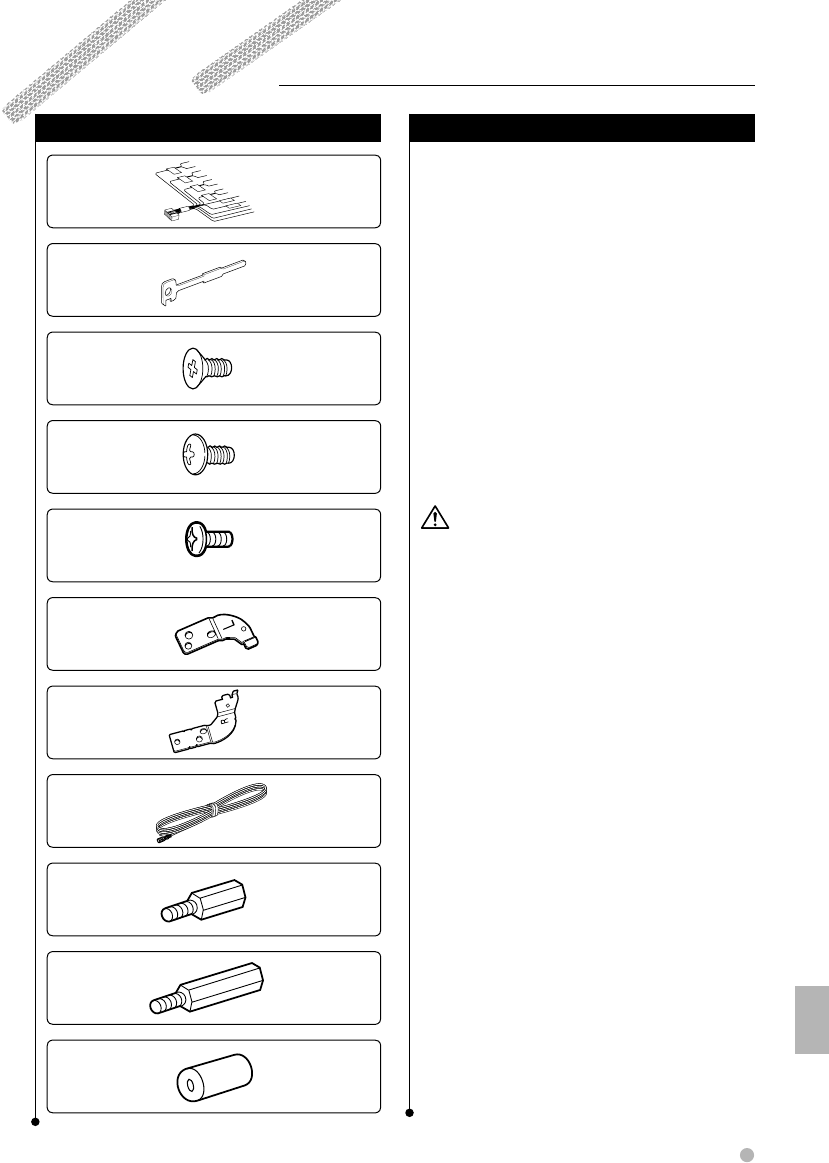
English 73
Accessories
Accessories/ Installation Procedure
Accessories
1
..........1
2
..........2
3
..........4
4
..........4
5
..........2
6
..........1
7
..........1
8
..........1
9
..........1
0
..........1
!
..........1
Installation Procedure
1. To prevent a short circuit, remove the key from
the ignition and disconnect the - battery.
2. Make the proper input and output wire
connections for each unit.
3. Connect the speaker wires of the wiring harness.
4. Connect the wiring harness wires in the
following order: ground, battery, ignition.
5. Connect the wiring harness connector to the
unit.
6. Install the unit in your car.
7. Reconnec t the - battery.
8. Press the Reset button.
2WARNING
If you connect the ignition wire (red) and the battery wire
(yellow) to the car chassis (ground), you may cause a short
circuit, that in turn may start a fire. Always connect those
wires to the power source running through the fuse box.
• If the power is not turned ON (or it is ON, but will be OFF
immediately), the speaker wire may have a short-circuit
or touched the chassis of the vehicle and the protection
function may have been activated. Therefore, the speaker
wire should be checked.
• If your car’s ignition does not have an ACC position,
connect the ignition wires to a power source that can be
turned on and off with the ignition key. If you connect
the ignition wire to a power source with a constant
voltage supply, as with battery wires, the battery may die.
• If the console has a lid, make sure to install the unit so that
the faceplate will not hit the lid when closing and opening.
• If the fuse blows, first make sure the wires aren’t touching
to cause a short circuit, then replace the old fuse with
one with the same rating.
• Insulate unconnected wires with vinyl tape or other similar
material. To prevent a short circuit, do not remove the caps
on the ends of the unconnected wires or the terminals.
• Connect the speaker wires correctly to the terminals to
which they correspond. The unit may be damaged or fail
to work if you share the - wires or ground them to any
metal part in the car.
• When only two speakers are being connected to the
system, connect the connectors either to both the front
output terminals or to both the rear output terminals
(do not mix front and rear). For example, if you connect
the + connector of the left speaker to a front output
terminal, do not connect the - connector to a rear
output terminal.
• After the unit is installed, check whether the brake lamps,
blinkers, wipers, etc. on the car are working properly.
• Mount the unit so that the mounting angle is 30° or less.
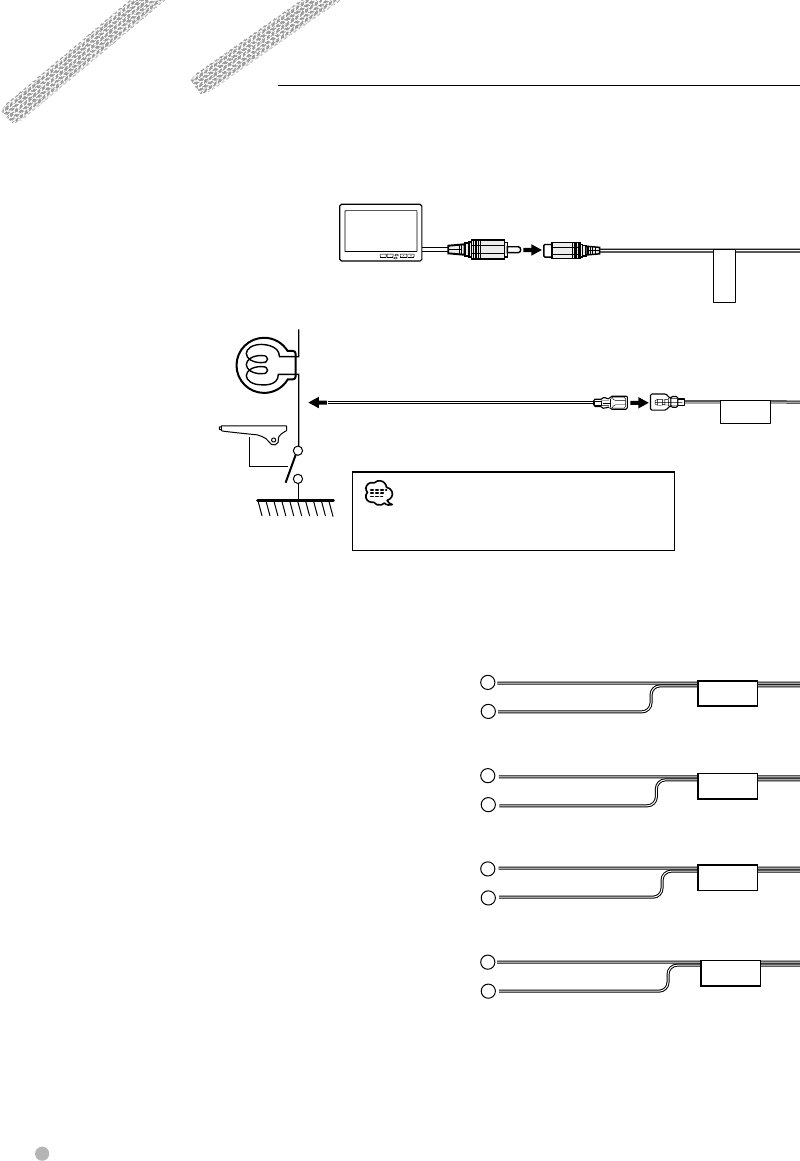
–
+
–
+
–
+
–
+
PRK SW
FRONT L
FRONT R
REAR L
REAR R
VIDEO OUT
74 KDV-412
Connections
To front left
speaker
To front right
speaker
To rear left
speaker
To rear right
speaker
White/Black
White
Gray/Black
Green/Black
Purple/Black
Gray
Green
Purple
Television monitor, etc
(optional accessory)
Parking sensor wire
Junction cable
(Light Green)
(Accessory8)
For the sake of safety,
be sure to connect the
parking sensor.
• Connect to the vehicle's parking brake detection
switch harness using the supplied relay connector.
Visual output
(Yellow)
Parking sensor wire
Detection cable
(Light Green)
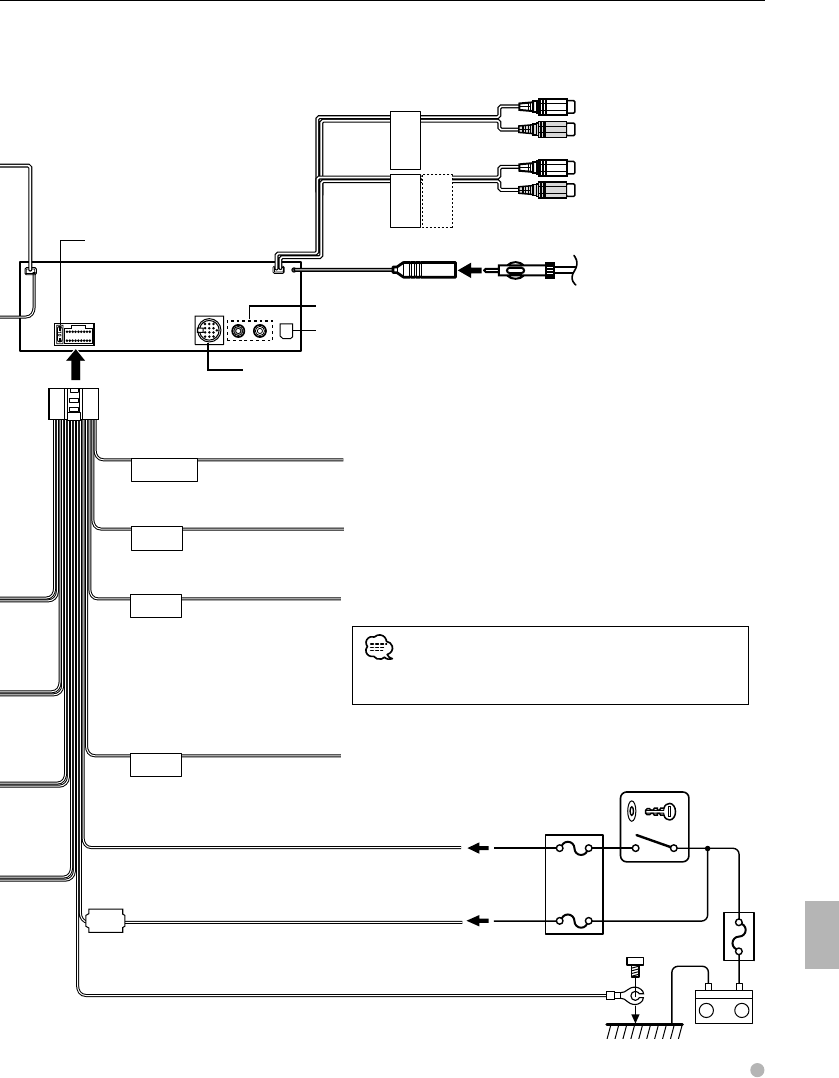
–
+
P.CONT
MUTE
ANT CONT
ILLUMI
SUB
WOOFER REAR
AVOUT
(AUDIO)
English 75
Ground wire (Black) - (To car chassis)
Battery wire (Yellow)
Ignition wire (Red)
Battery
Car fuse box
(Main fuse)
Ignition key
switch
Car fuse box
ACC
Motor antenna control wire (Blue)
Power control wire (Blue/White)
TEL mute wire (Brown)
Dimmer control wire (Orange/White)
Depending on what antenna you are using, connect either to the
control terminal of the motor antenna, or to the power terminal
for the booster amplifier of the film-type antenna.
When using the optional power amplifier, connect to its power
control terminal.
Connect to the terminal that is grounded when either the telephone
rings or during conversation.
To car light control switch
Fuse (10A)
Wiring harness
(Accessory1)
FM/AM antenna input
Connector for external device
Items sold separately such as a disc changer and KCA-iP500 can be
connected here. Refer to the instruction manual of the device being
connected for detailed information on connection methods.
Front output
Subwoofer output/
AV (Audio) Output
Is not used.
Rear output
Connections
• To connect the Kenwood navigation system, consult your
navigation manual.
Antenna cord
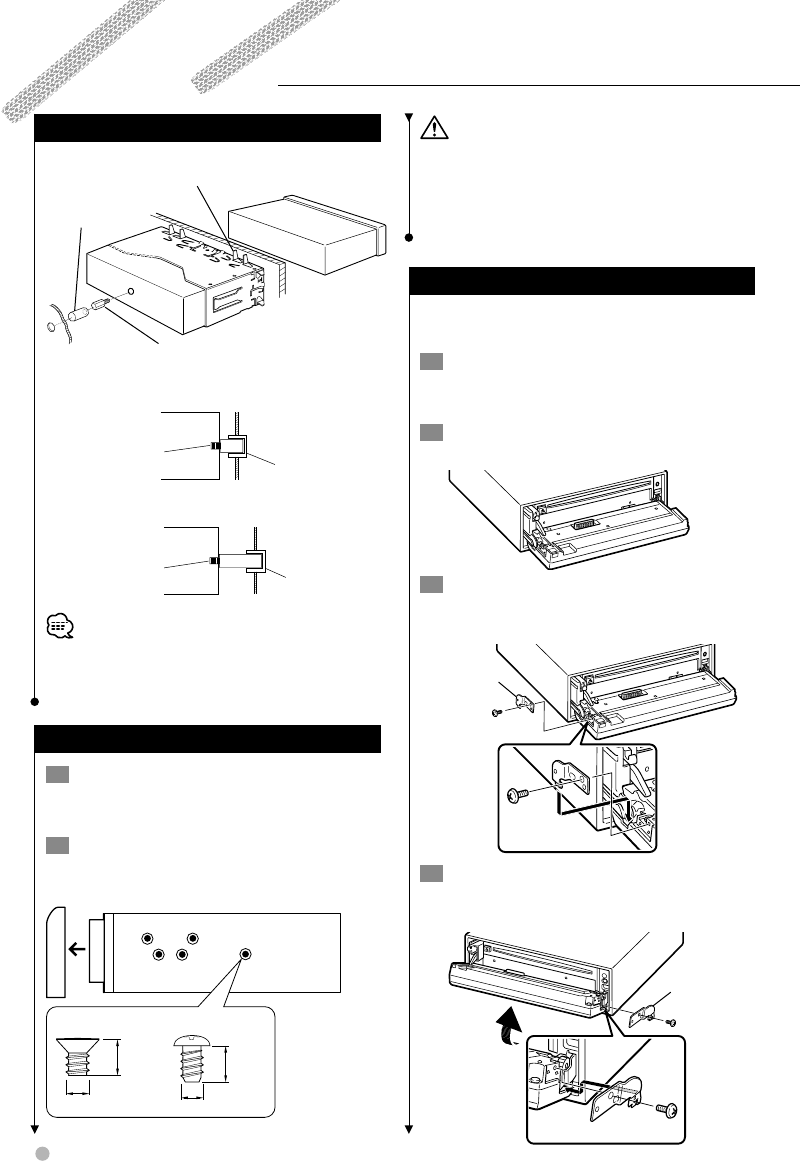
76 KDV-412
Non-Japanese cars
Firewall Accessory90
Attachment screw
Bend the tabs of the mounting sleeve with a screwdriver
or similar utensil and attach it in place.
Accessory!
Rubber Bush
• When the space between the unit and Firewall is
narrow
• When the space between the unit and Firewall is
wide
Unit
Unit
Firewall
Accessory!
Rubber Bush
Accessory9
Attachment screw
Firewall
Accessory!
Rubber Bush
Accessory0
Attachment screw
• Make sure that the unit is installed securely in place. If
the unit is unstable, it may malfunction (for example, the
sound may skip).
Japanese cars
1 Refer to the section <Removing the hard
rubber frame> (page 77) and then remove the
hard rubber frame.
2 Align the holes in the unit (two locations on
each side) with the vehicle mounting bracket
and secure the unit with the accessory screws.
8 mm
MAX.
ø5mm ø5mm
8mm
MAX.
T
NT
N
T/N
T : Toyota cars
N : Nissan cars
34
For Nissan car For Toyota car
Installation
• During installation, do not use any screws except for
those provided. The use of different screws might result
in damage to the main unit.
• Damage may occur if a screwdriver or similar tool is used
with excessive force during the installations.
Screwing the Faceplate on the Unit
If you want to fasten the faceplate to the main
unit so that it does not fall off.
1 Refer to the section <Removing the hard
rubber frame> (page 77) and then remove the
hard rubber frame.
2 Drop open the faceplate by pressing the
Release button.
3 Tighten the screw (ø2 × 5 mm) (Accessory5)
and bracket (Accessory 6) in the hole shown
on the diagram.
Accessory5
Accessory6
4 Tighten the screw (ø2 × 5 mm) (Accessory5)
and bracket (Accessory7) in the hole shown
on the diagram.
Accessory7
Accessory5
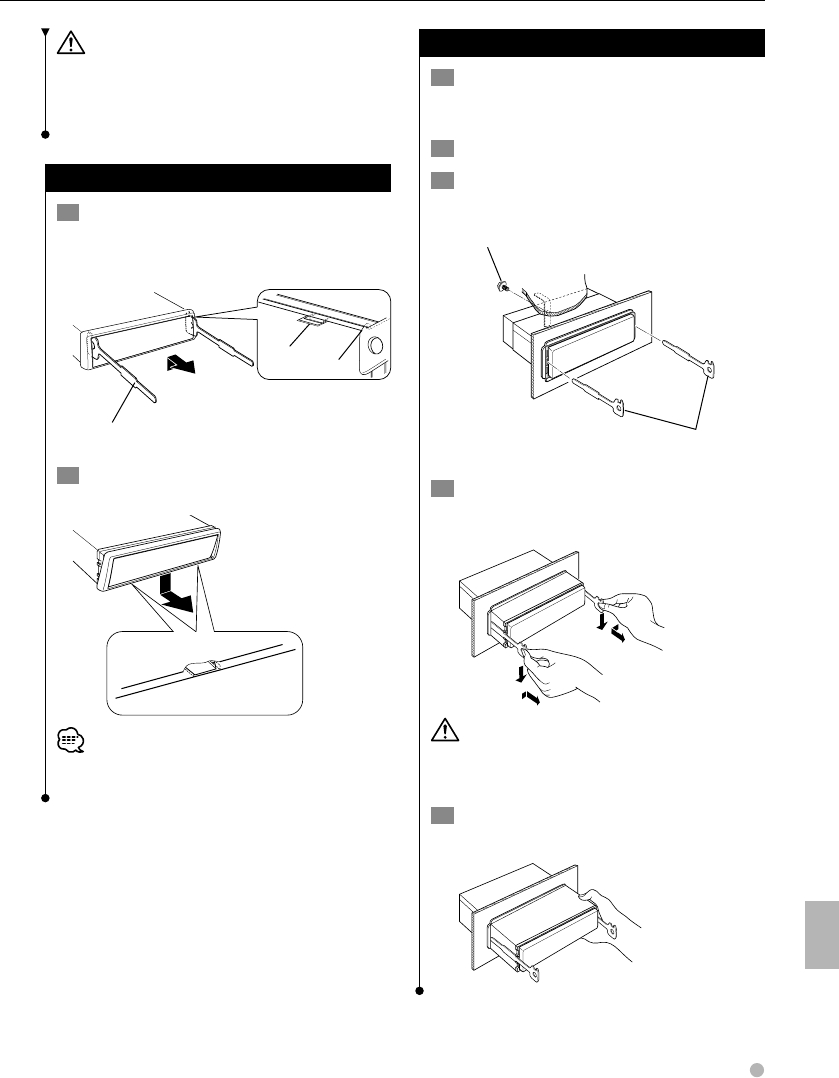
English 77
Installation
• Never insert the screws in any other screw hole than the
one specified. If you screw them in another hole, it will
contact and may cause damage to the mechanical parts
inside the unit.
Removing the hard rubber frame
1 Engage the catch pins on the removal tool and
remove the two locks on the upper level.
Upper the frame and pull it forward as shown
in the figure.
Catch
Lock
Accessory2
Removal tool
2 When the upper level is removed, remove the
lower two locations.
• The frame can be removed from the bottom side in the
same manner.
Removing the Unit
1 Refer to the section <Removing the hard
rubber frame> (page 77) and then remove the
hard rubber frame.
2 Remove the screw (M4 × 8) on the back panel.
3 Insert the two removal tools deeply into the
slots on each side, as shown.
Accessory2
Removal tool
Screw (M4×8)
(commercially available)
4 Lower the removal tool toward the bottom,
and pull out the unit halfway while pressing
towards the inside.
• Be careful to avoid injury from the catch pins on the
removal tool.
5 Pull the unit all the way out with your hands,
being careful not to drop it.
78 KDV-412
Specifications
FM tuner section
Frequency Range (200 kHz)
: 87.9 MHz – 107.9 MHz
Usable Sensitivity (S/N : 30 dB)
: 9.3 dBf (0.8 V/75 )
Quieting Sensitivity (S/N : 50 dB)
: 15.2 dBf (1.6 V/75 )
Frequency Response (± 3.0 dB)
: 30 Hz – 15 kHz
S/N
: 70 dB (MONO)
Selectivity (± 400 kHz)
: ≥ 80 dB
Stereo Separation
: 40 dB (1 kHz)
AM tuner section
Frequency Range (10 kHz)
: 530 kHz – 1700 kHz
Usable Sensitivity (S/N : 20dB)
: 28 dB (25 v)
DVD player section
D/A Converter
: 24 bit
Decoder
: Linear PCM/ Dolby Digital/ dts/ MP3/ WMA
Wow & Flutter
: Below Measurable Limit
Frequency Response
Sampling frequency; 96 kHz : 20 – 44,000 Hz
Sampling frequency; 48 kHz : 20 – 22,000 Hz
Sampling frequency; 44.1 kHz : 20 – 20,000 Hz
Total Harmonic Distortion
: 0.008 % (1 kHz)
S/N Ratio (dB)
: 100 dB (1 kHz)
Dynamic Range
: 96 dB
Sampling frequency
: 32/ 44.1/ 48/ 96 kHz
Quantifying bit number
: 16/ 20/ 24 bit
MP3 Decode
: Compliant with MPEG-1/2 Audio Layer-3
WMA Decode
: Compliant with Windows Media Audio
English 79
Audio section
Preout Level/Load
: 4000 mV/10 k (CD/CD-CH)
Video Out Level/Load
: 1 Vp-p /75
Preout Impedance
: ≤ 600
Speaker Impedance
: 4 – 8
Maximum output power
: 50 W × 4
Full Bandwidth Power (at less than 1% THD)
: 22 W × 4
Tone action
Bass : 100 Hz ± 8 dB
Middle : 1 kHz ± 8 dB
Treble : 10 kHz ± 8 dB
General
Operating voltage
: 14.4 V (11 – 16 V allowable)
Current Consumption
: 10 A
Installation Size (W × H × D)
: 182 × 53 × 155 mm
7-3/16 × 2-1/16 × 6-1/8 inch
Weight
: 1.4 kg (3.1 lbs)

