Kenwood Stereo System Xd 402 Users Manual PART 1
XD-402 to the manual a555614a-51a9-4be0-9aaa-b336fe58bab4
2015-01-23
: Kenwood Kenwood-Kenwood-Stereo-System-Xd-402-Users-Manual-264365 kenwood-kenwood-stereo-system-xd-402-users-manual-264365 kenwood pdf
Open the PDF directly: View PDF  .
.
Page Count: 64
- XD-502_552_572S_402_452
- Contents
- Before applying power
- IMPORTANT SAFEGUARDS
- Special features
- Handling of discs and tapes
- System connection
- Controls and indicators
- Operation of remote control unit
- Operation of jog dials
- Let’s put out some sound
- Let's record
- Playback of CD
- R.D.S. (Radio Data System) (For U.K., Europe and Russia)
- Effective Sound Adjustment
- Clock adjustment
- Timer operation
- Important Items
- In case of difficulty
- Specifications
B60-4202-00 00 MA ␣(K,P,Y,M,X,T,Q,E2)
MC
9809
COMPACT HI-FI SYSTEM
INSTRUCTION MANUAL
KENWOOD CORPORATION
XD-SERIES
DIGITAL AUDIODIGITAL AUDIO
COMPACTCOMPACT
TEXT
XD-502/XD-552/XD-572S
XD-402/XD-452
This instruction manual is used to describe multiple models listed above.
Model availability and features (functions) may differ depending on the country
and sales area. ‰
XD-SERIES (En)
2
Preparation section
Before applying power
Caution : Read this page carefully to ensure safe operation.
For the United Kingdom
Factory fitted moulded mains plug
1.The mains plug contains a fuse. For replacement, use only
a 13-Amp ASTA-approved (BS1362) fuse.
2.The fuse cover must be refitted when replacing the fuse in
the moulded plug.
3.Do not cut off the mains plug from this equipment. If the
plug fitted is not suitable for the power points in your home
or the cable is too short to reach a power point, then obtain
an appropriate safety approved extension lead or adapter,
or consult your dealer.
If nonetheless the mains plug is cut off, remove the fuse
and dispose of the plug immediately, to avoid a possible
shock hazard by inadvertent connection to the mains
supply.
IMPORTANT: The wires in the mains lead are coloured in
accordance with the following code:
Blue : Neutral
Brown : Live
Do not connect those leads to the earth terminal of a three-
pin plug.
Safety precautions
WARNING : TO PREVENT FIRE OR ELECTRIC SHOCK, DO NOT EXPOSE THIS
APPLIANCE TO RAIN OR MOISTURE.
CAUTION: TO REDUCE THE RISK OF ELECTRIC SHOCK, DO NOT
REMOVE COVER (OR BACK). NO USER-SERVICEABLE PARTS
INSIDE. REFER SERVICING TO QUALIFIED SERVICE PERSONNEL.
RISK OF ELECTRIC SHOCK
DO NOT OPEN
THE LIGHTNING FLASH WITH ARROWHEAD SYMBOL, WITHIN AN EQUILATERAL TRIANGLE, IS IN-
TENDED TO ALERT THE USER TO THE PRESENCE OF UNINSULATED “DANGEROUS VOLTAGE” WITHIN
THE PRODUCT’S ENCLOSURE THAT MAY BE OF SUFFICIENT MAGNITUDE TO CONSTITUTE A RISK
OF ELECTRIC SHOCK TO PERSONS.
THE EXCLAMATION POINT WITHIN AN EQUILATERAL TRIANGLE IS INTENDED TO ALERT THE USER
TO THE PRESENCE OF IMPORTANT OPERATING AND MAINTENANCE (SERVICING) INSTRUCTIONS
IN THE LITERATURE ACCOMPANYING THE APPLIANCE.
CAUTION
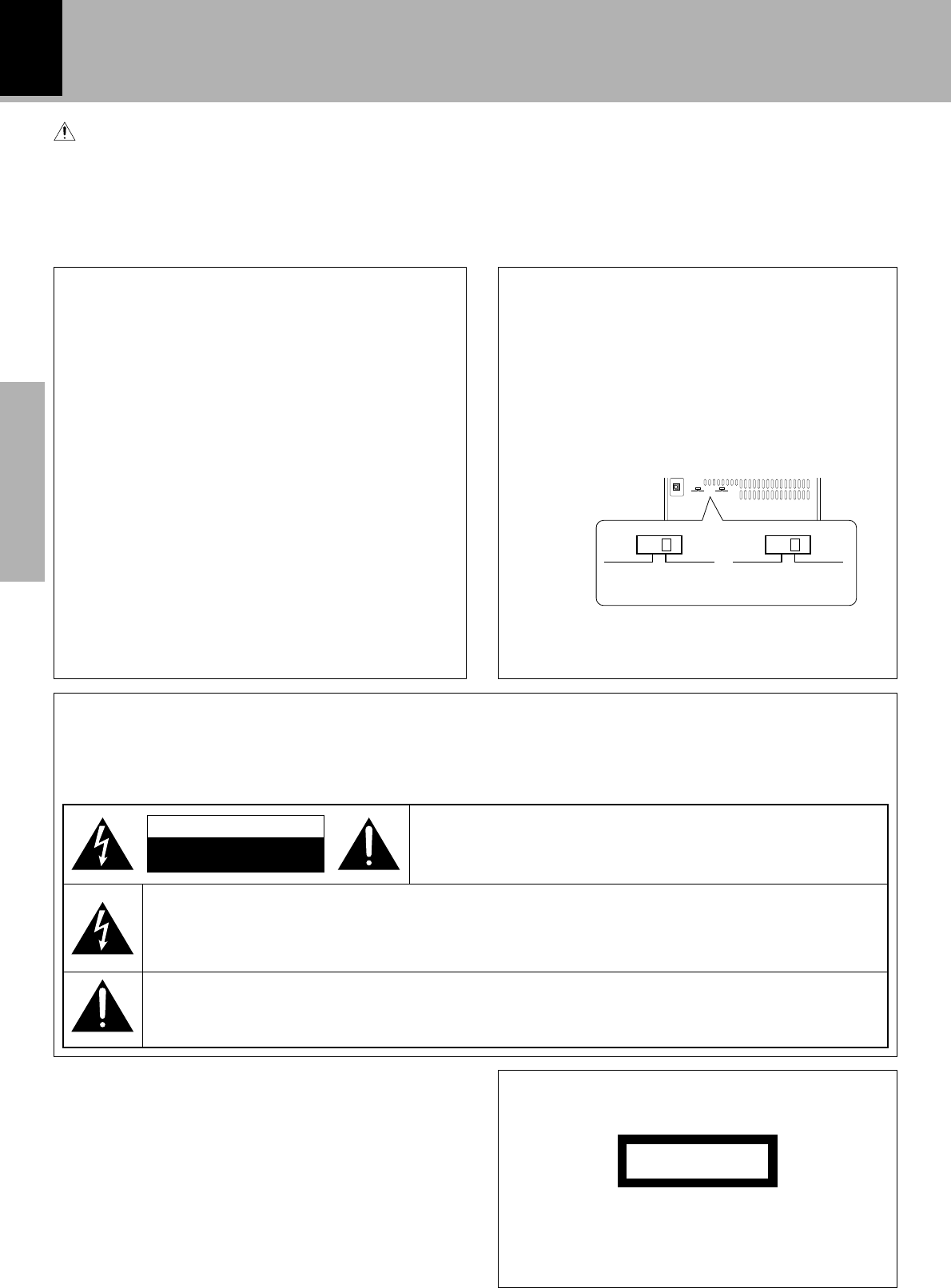
*AC voltage selection
The AC voltage selector switch on the rear panel is set to
the voltage that prevails in the area to which the unit is
shipped. Before connecting the power cord to your AC
outlet, make sure that the setting position of this switch
matches your line voltage. If not, it must be set to your
voltage in accordance with the following direction.
AC voltage selector switch
Move switch lever to match your line voltage with a
small screwdriver or other pointed tool.
Note:
Our warranty does not cover damage caused by exces-
sive line voltage due to improper setting of the AC
voltage selector switch.
MD/DVD
I
NPUT
DIGITAL OUT
OPTICAL
AC 220-
240V~
AC 110-
120V~ AC 220-
240V~
AC 110-
120V~
AC 220-
240V~
AC 110-
120V~ AC 220-
240V~
AC 110-
120V~
The marking is located on the rear panel and says that
the component uses laser beams that have been clas-
sified as Class 1. It means that the unit is utilizing laser
beams that are of a weaker class. There is no danger of
hazardous radiation outside the unit.
CLASS 1
LASER PRODUCT
The marking of products using lasers
(Except for some areas)
Units are designed for operation as follows.
Europe and U.K. ................................................. AC 230 V only
China and Russia .............................................. AC 220 V only
*Other countries...........AC 110-120 / 220-240 V switchable
U.S.A. and Canada ............................................ AC 120 V only
Austraria ............................................................. AC 240 V only
Preparation section
XD-SERIES (En)
3
Contents
Preparation section Application section
Knowledge section
Before applying power .............................. 2
Safety precautions...................................... 2
IMPORTANT SAFEGUARDS........................ 4
Special features ............................................... 6
Handling of discs and tapes ............................ 7
System connection........................................... 8
Accessories ....................................................................... 8
Connection of the System Accessories........................ 8
Connection with other components (optional or com-
mercially-available equipment)................................... 10
Controls and indicators ................................. 12
Main Unit .......................................................................... 12
Display .............................................................................. 14
Remote control Unit........................................................ 15
Operation of remote control unit .................. 16
CHANNEL SPACE setting ................................................16
Operation of jog dials ..................................... 17
Let's put out some sound................................ 18
Basic use method............................................................ 18
Playback of CD ................................................................ 20
Playback of tape.............................................................. 22
Searching for the desired music program (DPSS) ... 25
Receiving broadcast station ..........................................26
Let's record...................................................... 28
Recording on TAPE ......................................................... 28
Copying tape (Tape dubbing) .........................................31
Playback of CD................................................ 32
Listening in the desired sequence
(program playback)................................................... 32
Repeated playback ......................................................... 34
Random playback............................................................ 36
R.D.S. (Radio Data System)
(For U.K., Europe and Russia) .................................. 37
Searching for a desired program type
(PTY search) ................................................................38
To be able to listen to the desired information
at any time (EON)............................................................. 40
Convenient CD recording ............................... 42
Selection of the Recording Type .................................. 42
Recording only desired titles
(CD ONE TRACK RECORDING)................................. 43
Recording of an entire CD
(CD DIRECT RECORDING)..........................................44
Recording the programmed titles
(CD PROGRAM RECORDING)....................................45
Effective Sound Adjustment ......................... 46
Balance adjustment.........................................................46
Input level adjustment ....................................................47
Listening to music with desired tone and sound field/
Switching the display (Equalizer effect and 3D surround
effect) .................................................................................48
Creation and memorizing of an equalizer pattern .....49
Clock adjustment............................................. 50
Timer operation............................................... 51
Sleep timer (SLEEP) .........................................................51
Operate easy To use Timer (O.T.T.) ................................52
Timer programming..........................................................53
Important Items............................................... 56
Maintenance .................................................................... 56
Reference ......................................................................... 56
In case of difficulty ........................................ 57
Specifications................................................. 61
Before applying power
Caution : Read the pages marked carefully to ensure safe operation.
Basic section
Basic section Application section Knowledge section
As an ENERGY STAR® Partner, Kenwood Corporation
has determined that this products meets the ENERGY
STAR® guidelines for energy efficiency.
This product can save energy. Saving energy reduces air
pollution and lowers utility bills.
XD-SERIES (En)
4
Preparation section
IMPORTANT SAFEGUARDS
Please read all of the safety and operating instructions before
operating this appliance. Adhere to all warnings on the appliance
and in the instruction manual. Follow all the safety and operating
instructions. These safety and operating instructions should be
retained for future reference.
1. Power sources – The appliance should be connected to a
power supply only of the type described in the instruction
manual or as marked on the appliance. If you are not sure of
the type of power supply to your home, consult your appliance
dealer or local power company. For appliances intended to
operate from battery power, or other sources, refer to the
instruction manual.
2. Power-cord protection – Power-supply cords should
be routed so that they are not likely to be walked on or
pinched by items placed upon or against them, pay
particular attention to cords at plugs, convenience
receptacles, and the point where they exit from the
appliance.
3. CAUTION – Polarization – This appliance may
be equipped with a polarized alternating-current line plug (a
plug having one blade wider than the other). This plug will fit
into the power outlet only one way. This is a safety feature. If
you are unable to insert the plug fully into the outlet, try
reversing the plug. If the plug should still fail to fit, contact your
electrician to replace your obsolete outlet. Do not defeat the
safety purpose of the polarized plug.
4. Ventilation – Slots and openings in the cabinet are provided
for ventilation and to ensure reliable operation of the appliance
and to protect it from overheating, and these openings must
not be blocked or covered. The appliance should be situated so
that its location or position does not interfere with its proper
ventilation.
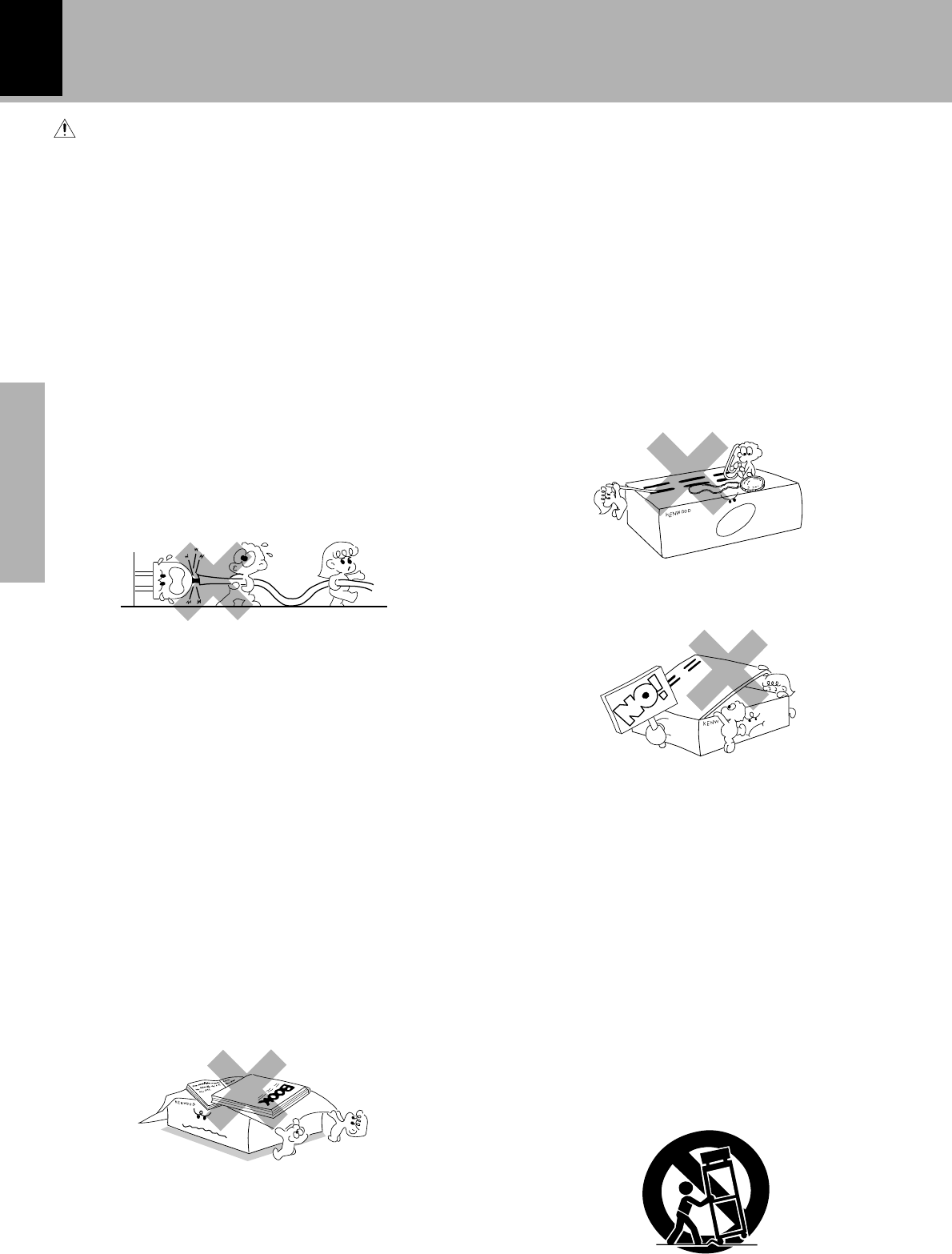
To maintain good ventilation, do not put records or a table-cloth
on the appliance. Place the appliance at least 10 cm away from
the walls.
Do not use the appliance on a bed, sofa, rug or similar surface
that may block the ventilation openings. This appliance should
not be placed in a built-in installation such as a bookcase or rack
unless proper ventilation is provided or the manufacturer’s
instructions have been adhered to.
5. Water and moisture – The appliance should not be
used near water - for example, near a bathtub, washbowl,
kitchen sink, laundry tub, in a wet basement, or near a
swimming pool, etc.
Never pull or stretch the cord.
6. Temperature – The appliance may not function properly
if used at extremely low, or freezing temperatures. The
ideal ambient temperature is above +5°C (41°F).
7. Heat – The appliance should be situated away from heat
sources such as radiators, heat registers, stoves, or
other appliances (including amplifiers) that produce heat.
8. Electric shock – Care should be taken so that objects do
not fall and liquid is not spilled into the enclosure
through openings. If a metal objects, such as a hair pin
or a needle, comes into contact with the inside of this
appliance, a dangerous electric shock may result. For
families with children, never permit children to put
anything, especially metal, inside this appliance.
9. Enclosure removal – Never remove the enclosure. If
the internal parts are touched accidentally, a serious
electric shock might occur.
10.Magnetic fields – Keep the appliance away from sources
of magnetic fields such as TV sets, speaker systems,
radios, motorized toys or magnetized objects.
11.Cleaning – Unplug this appliance from the wall outlet
before cleaning. Do not use volatile solvents such as
alcohol, paint thinner, gasoline, or benzine, etc. to clean
the cabinet. Use a clean dry cloth.
12.Accessories – Do not place this appliance on an unstable cart,
stand, tripod, bracket, or table. The appliance may fall, causing
serious injury to a child or adult, and serious damage to the
appliance. Use only with a cart, stand, tripod, bracket, or table
recommended by the manufacturer, or sold with the appliance.
Any mounting of the appliance should follow the manufacturer’s
instructions, and should use a mounting accessory
recommended by the manufacturer. An appliance and cart
combination should be moved with care. Quick stops, excessive
force, and uneven surfaces may cause the appliance and cart
combination to overturn.
Caution :Read this page carefully to ensure safe operation.
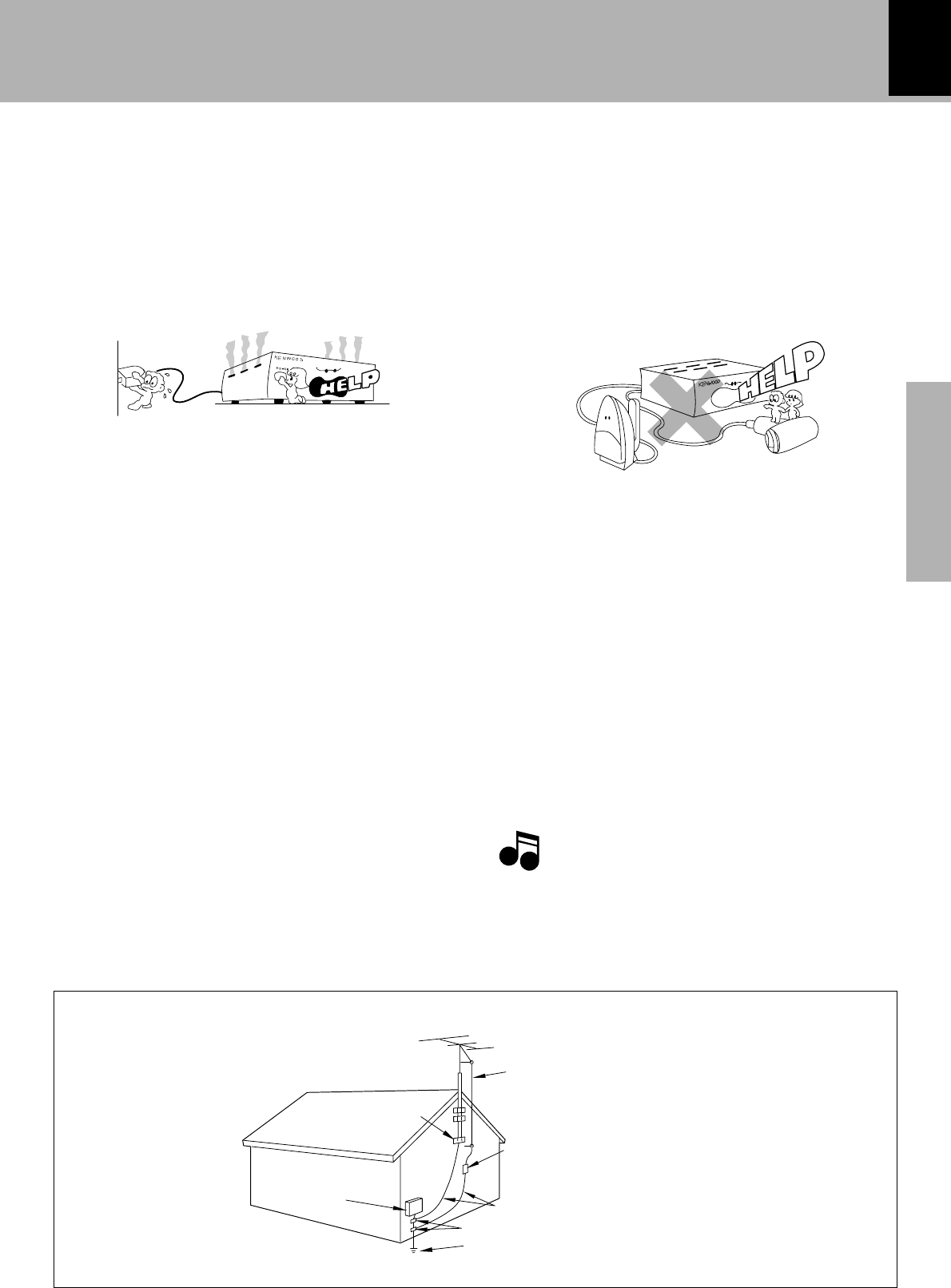
Preparation section
XD-SERIES (En)
5
13.Lightning – For added protection for this appliance during a
lightning storm, or when it is left unattended and unused for
long periods of time, unplug it from the wall outlet and
disconnect the antenna or cable system. This will prevent
damage to the appliance due to lightning and power-line
surges.
14.Abnormal smell – If an abnormal smell or smoke is
detected, immediately turn the power OFF and unplug
the appliance from the wall outlet. Contact your dealer or
nearest service center.
15.Damage requiring service – The appliance should be
serviced by qualified service personnel when:
A. The power-supply cord or the plug has been damaged.
B. Objects have fallen, or liquid has been spilled into the
appliance.
C. The appliance has been exposed to rain or water.
D. The appliance does not appear to operate normally by
following the instruction manual. Adjust only those controls
that are covered by the instruction manual as an improper
adjustment of other controls may result in damage and will
often require extensive work by a qualified technician to
restore the appliance to its normal operation.
E. The appliance has been dropped, or the enclosure
damaged.
F. The appliance exhibits a marked change in performance.
16.Servicing – The user should not attempt to service the
appliance beyond that described in the instruction
manual. All other servicing should be referred to qualified
service personnel.
17.Outdoor antenna grounding – If an outside antenna is
connected to the appliance, be sure the antenna system
is grounded so as to provide some protection against
voltage surges and built up static charges. Article 810 of
the National Electrical Code ANSI/NFPA 70, provides
information with respect to proper grounding of the
mast and supporting structure, grounding of the lead-in
wire to an antenna discharge unit, size of grounding
conductors, location of antenna discharge unit,
connection to grounding electrodes, and requirements
for the grounding electrode. See Figure.
18.Power lines – An outside antenna system should not be
located in the vicinity of overhead power lines or other electric
light or power circuits, or where it can fall into such power lines
or circuits. When installing an outside antenna system, extreme
care should be taken to keep from touching such power lines
or circuits as contact with them might be fatal.
19.AC outlets – Do not connect other audio equipment
with a power consumption larger than that specified to
the AC outlet on the rear panel. Never connect other
electrical appliances, such as an iron or toaster, to it to
prevent fire or electric shock.
20. Overloading – Do not overload wall outlets, extension cords,
or integral convenience receptacles as this can result in a risk
of fire or electric shock.
21. Attachment – Do not use attachments not recommended by
the appliance manufacturer as they may cause hazards.
22. Replacement parts – When replacement parts are required,
be sure the service technician has used replacement parts
specified by the manufacturer or have the same characteristics
as the original parts. Unauthorized substitutions may result in
fire, electric shock, or other hazards.
23. Safety check – Upon completion of any service or repairs to
this appliance, ask the service technician to perform safety
checks to determine that the appliance is in proper operating
condition.
EXAMPLE OF ANTENNA GROUNDING AS PER NATIONAL ELECTRICAL CODE
ANTENNA DISCHARGE UNIT (NEC SECTION 810-20)
POWER SERVICE GROUNDING ELECTRODE SYSTEM
(NEC ART 250, PART H)
GROUND CLAMP
ANTENNA LEAD IN WIRE
GROUND
CLAMPS
NEC – NATIONAL ELECTRICAL CODE
GROUNDING CONDUCTORS (NEC SECTION 810-21)
1.Item 3 is not required except for grounded or polarized
equipment.
2.Item 17 and 18 are not required except for units provided
with antenna terminals.
3.Item 17 complies with UL in the U.S.A.
POWER OFF!
IMPORTANT SAFEGUARDS
ELECTRIC
SERVICE
EQUIPMENT
Notes
Notes
XD-SERIES (En)
6
Preparation section
Special features
Demonstration
When the power supply is restored after a power failure or the power cord is unplugged and plugged in again during
use, this unit automatically starts the demonstration function (display only). During the demonstration, the display
changes in sequence but the audio does not change.
The large sound level meter represents the movement in music with brilliant colors to offer the joy of
viewing the music at the same time as listening.
3D large-sized color display panel
Simplified operations using large-sized, Twin Jog Dials
This dial allows you to set the CD program and timer-related operations while observing the operating
conditions shown by the display and icons.
3-Disc carousel CD player
Three discs can be set. There are various ways for enjoyment at the time of program playback, repeat
playback, random playback, etc.
Multi-control jog dial (Right dial: For use in selecting a function)
This dial allows you to reproduce realistic audio by setting and registering desired equalizer patterns as
well as selecting the preset equalizer patterns.
Sound control jog dial (Left dial: For use in selecting the tone and sound field)
Timer programming : Timer playback, timer recording and AI timer playback can be pro-
grammed.
÷ AI timer playback : When the unit is turned ON by the timer, the sound level
increases gradually.
O.T.T. : Timer with easy setting, which operates only once.
Sleep timer : Useful when you want to go asleep while listening to music.
Convenient timer functions
CD text information display (CD TEXT compatibility)
The text information (disc title and track titles) recorded in CDs can be displayed.
To cancel :
Turn the unit OFF (STANDBY
mode) and press the key.
To switch over the demonstration :
Press the DISPLAY/DEMO key during demonstration
to stop it.
Each press of the key switches the demonstration
as shown below.
1”Demo on“ ...... (Demonstration executed)
2“Demo off” ...... (Demonstration canceled)
DISPLAY
/DEMO
Preparation section
XD-SERIES (En)
7
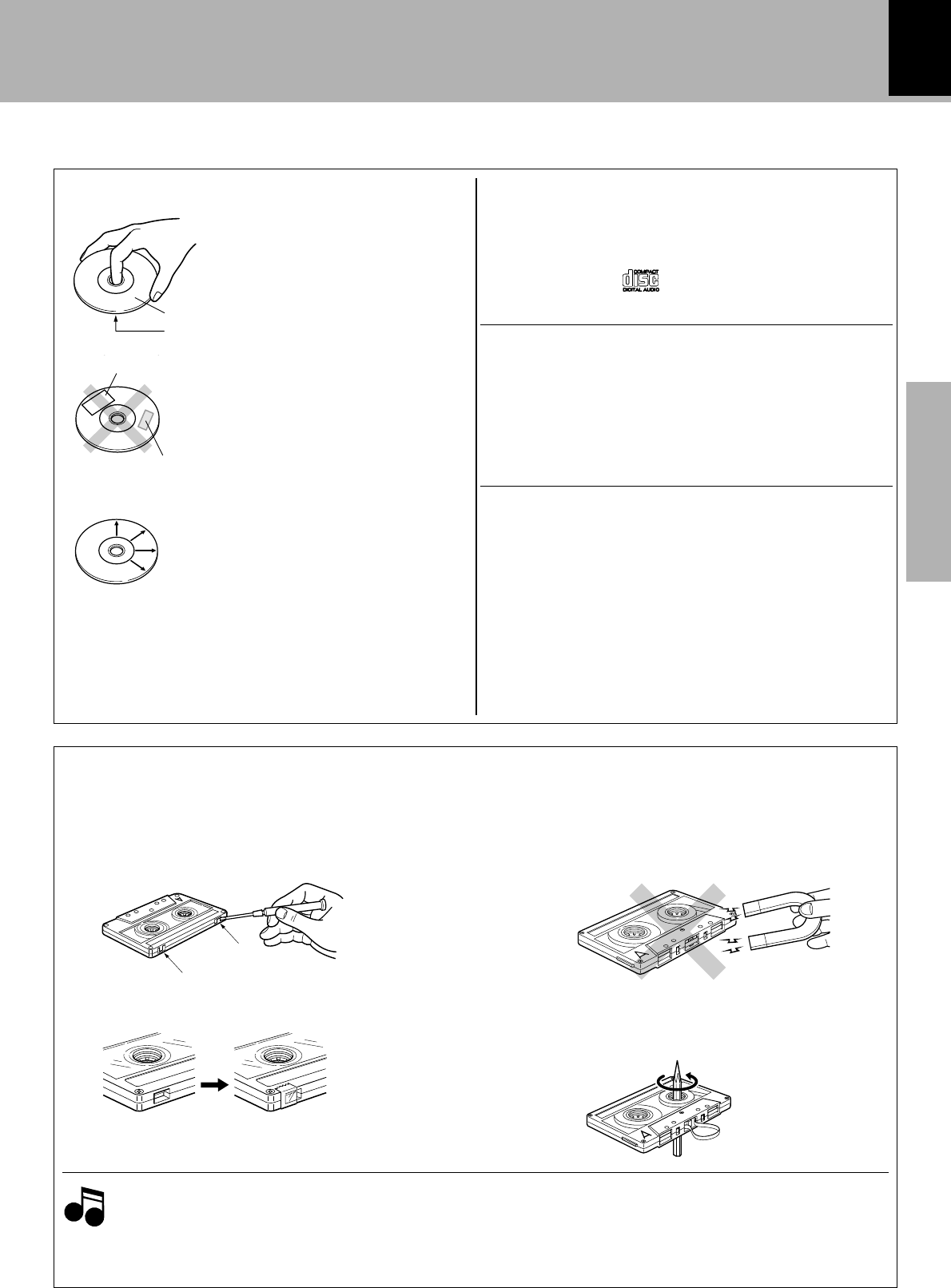
Safety tab (accidental erasure prevention tab)
After an important recording has been finished, break the
safety tab, to prevent the recorded contents from being
erased or recorded on accidentally.
For B side
For A side
To store cassette tapes
Do not store the tapes in a place which is subject to
direct sunlight, or near equipment that generates heat.
Keep the cassette tapes away from any magnetic field.
To re-record Apply tape only to the position where
the tab has been removed.
When there is slack in the tape
In such a case, insert a pencil into the reel hole and wind
the reel hub to remove the slack.
N
S
1.Longer tape than 110 minutes cassette tape
Since longer tape than 110 minutes cassette tape is very thin, the tape could adhere to the pinch roller or be
easily cut. It is recommended that these tapes not be used with this unit to prevent possible damage.
2.Endless tapes
Do not use an endless tape, as this could damage the mechanism of the unit.
Notes
Notes
Notes on cassette tape
Handling of discs and tapes
Label side
Playing side
Cleaning
If fingerprints or foreign matter become
attached to the disc, lightly wipe the disc
with a soft cotton cloth (or similar) from
the center of the disc outwards in a radial
manner.
Storage
When a disc is not to be played for a
long period of time, remove it from the
player and store it in its case.
Handling
Hold the discs so that you do not touch
the playing surface.
Disc handling precautions
Disc accessories
The disc accessories (stabilizer, protection sheet, protection ring,
etc.) which are marketed for improving the sound quality or pro-
tecting discs as well as the disc cleaner should not be used with
this system because they may cause malfunction.
Do not attach paper or tape to either
the playing side or the label side of the
discs.
Sticker
Sticky paste
Never play a cracked or warped disc
During playback, the disc rotates at high speed in the player.
Therefore, to avoid danger, never use a cracked or deformed disc
or a disc repaired with tape or adhesive agent.
Please do not use discs which are not round because they may
cause a malfunction.
Discs which can be played with this unit
CD (12 cm, 8 cm), and the audio part of CDV, CD-G, CD-EG
and CD-EXTRA.
Use discs that comply with the IEC standard, for example
a disc carrying the marking on the label surface.
XD-SERIES (En)
8
Preparation section
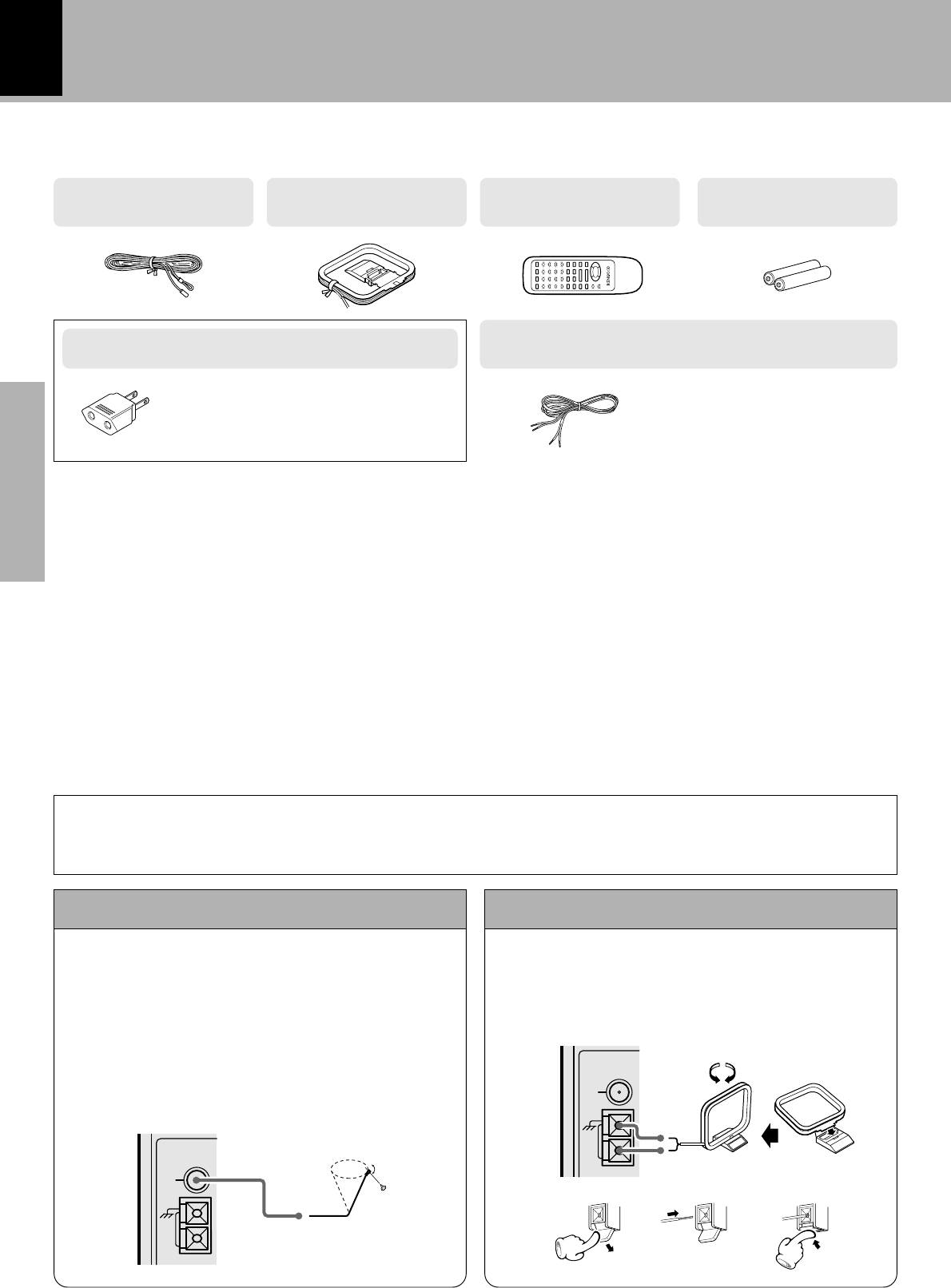
Accessories
FM indoor antenna
(1)
AM loop antenna
(1)
Speaker cords (2)
Remote control unit
(1)
Connection of the System Accessories
System connection
The supplied antenna is for indoor use. Place it as far
as possible from the main system, TV set, speaker
cords and power cord, and set it to a direction which
provides the best reception.
The accessory antenna is for temporary indoor use
only. For stable signal reception we recommend us-
ing an outdoor antenna. Remove the indoor antenna
if you connect one outdoors.
1Connect to the antenna terminal.
2Locate the position providing good recep-
tion condition.
3Fix the antenna.
FM indoor antenna AM loop antenna
Unpacking
Unpack the unit carefully and make sure that all accessories
are put aside so they will not be lost.
Examine the unit for any possibility of shipping damage. If
your unit is damaged or fails to operate, notify your dealer
immediately. If your unit was shipped to you directly, notify
the shipping company without delay. Only the consignee
(the person or company receiving the unit) can file a claim
against the carrier for shipping damage.
We recommend that you retain the original carton and
packing materials for use should you transport or ship the
unit in the future.
Keep this manual handy for future reference.
CAUTION
Note on Connection
Connect the components as shown in the diagram.Only plug the power cord into a power outlet once connections
are completed. The rear panel configuration is variable depending on the models (countries or area).
Use to adapt the plug on the power cord to
the shape of the wall outlet.
(Accessory only for regions where use is
necesary.)
AC plug adaptor (1)
12 3
Assemble.
Provided in the speaker package
GND
FM
75Ω
AM
ANTENNA
GND
FM
75Ω
AM
ANTENNA
Batteries (R6/AA)
(2)
Preparation section
XD-SERIES (En)
9
1.Be sure to insert all connection cords securely. If their connections are imperfect, the sound may
not be produced or noise may interfere.
2.Before plugging or unplugging a connection cord, be sure to unplug the power cord from the wall
AC outlet. If connection cords are plugged or unplugged with the power cord left plugged in,
malfunction or damage may result.
Malfunction of microcomputer
If operation is not possible or erroneous display appears
even though all connections have been made properly,
reset the microcomputer referring to “In case of diffi-
culty”. U
Twist
Speakers
Twist
Speaker Unit
Main Unit
System connection
Notes
Notes
Caution regarding placement
(Except for U.S.A., U.S.-Military and Canada)
Speaker and TV installation
If there is a magnet or other device generating magnetic
force nearby, interaction between the magnet and speaker
may cause color blotching on the TV. If this happens, move
the speaker at least 20 cm away from the TV set.
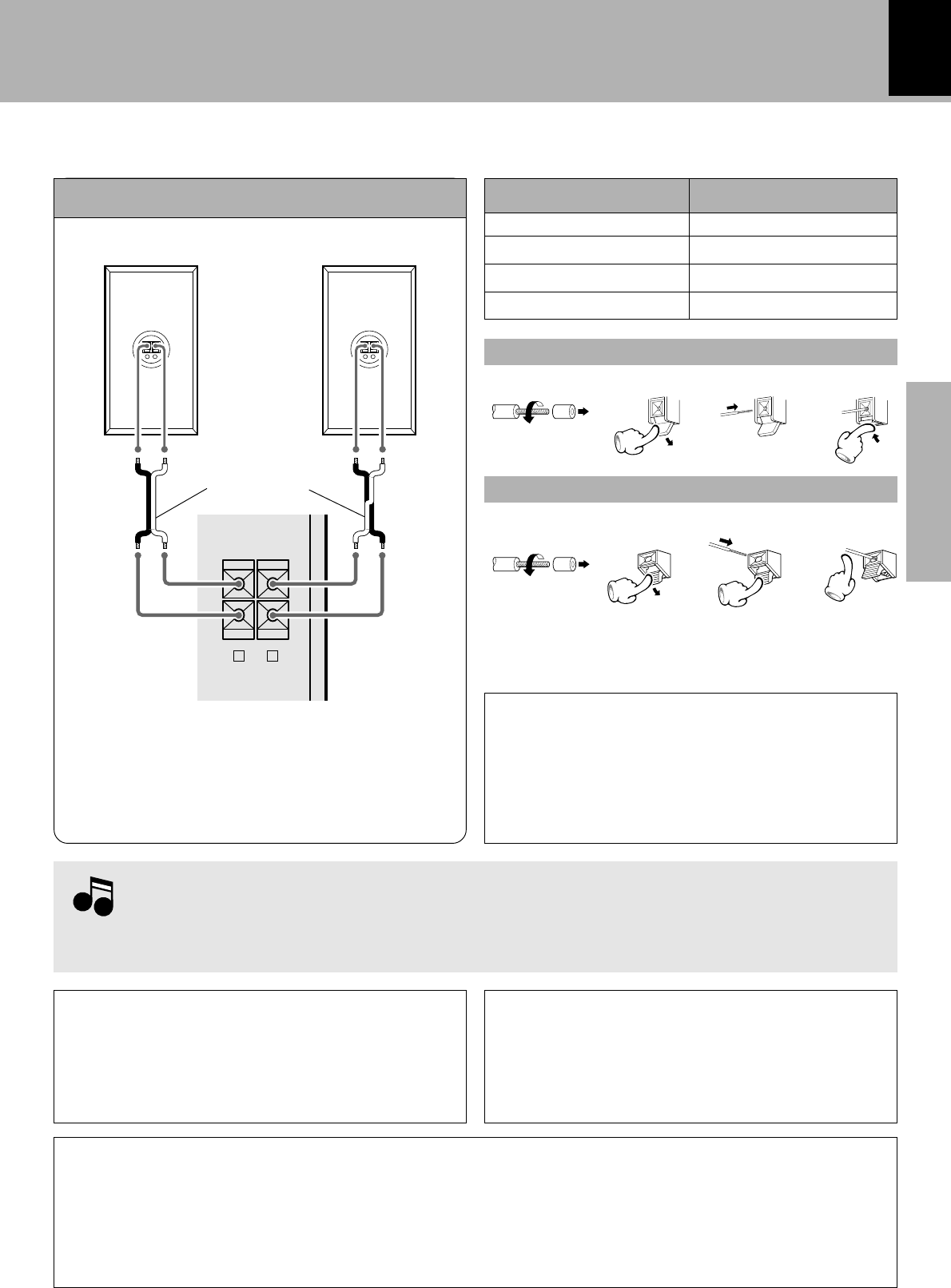
Speaker (left)Speaker (right)
Speaker cord
·ª ·ª
÷Never short-circuit the “+” and “-” speaker cords.
÷If the left and right speaker connections or the “+” and
“-” polarity are inverted, the sound will be unnatural with
unclear positioning of musical instruments, etc. Be sure
to connect them without mistake.
LS-N402
LS-N452
LS-N502
LS-N552
XD-402
XD-452
XD-502
XD-572S/XD-552
Speaker Model NameSystem Name
Be sure to adhere followings. Or proper ventilation will be blocked causing damage or fire hazard.
÷Do not place any objects impairing heat radiation onto the top of unit.
÷Leave a space around the unit (from the largest outside dimension including projection) equal or greater than, shown
below.
Top panel : 50 cm, Side panel : 10 cm, Back panel : 10 cm
+
-
+
-
FRONT
SPEAKERS
(6-16Ω)
RL
−+−+
1234
1234
Caution regarding placement
(For U.S.A., U.S.-Military and Canada)
Be sure to adhere followings. Or proper ventilation will
be blocked causing damage or fire hazard.
÷Do not place any objects impairing heat radiation onto
the top of unit.
XD-SERIES (En)
10
Preparation section
System connection
Connection with other components
(optional or commercially-available equipment)
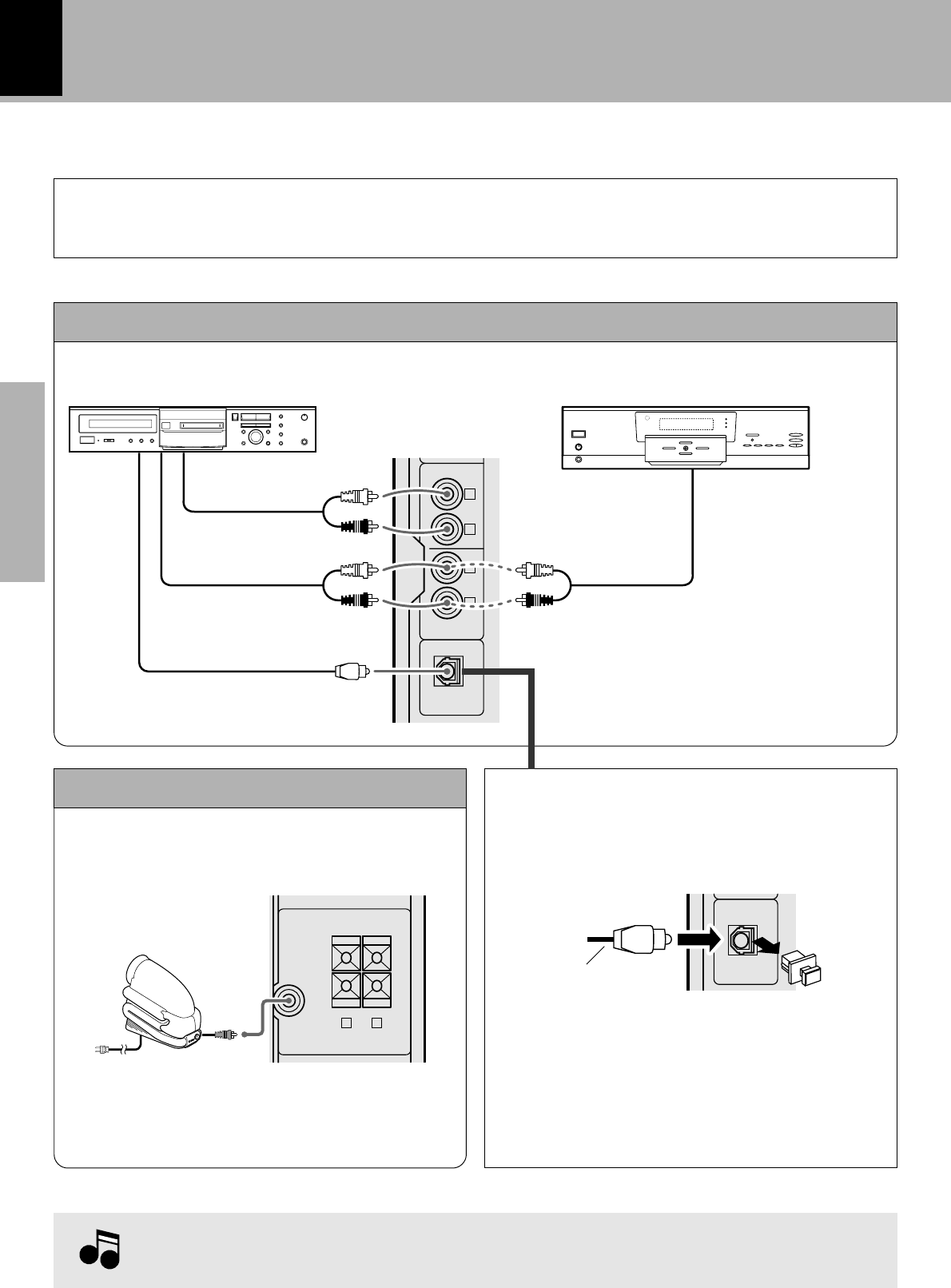
Optical-fiber cable
(Provided with the MD recorder)
MD recorder, DVD player, VCR or analog turntable
DIGITAL OUT jack (OPTICAL)
Cap
Remove the cap and plug the optical-fiber cable.
Optical-fiber cable
÷Insert the optical-fiber cable straight into the connector
until it clicks.
÷Be sure to attach the protection cap when the
connector is not used.
÷Never band or bundle the optical-fiber cable.
Audio input
Audio output
MD recorder/VCR DVD player/analog turntable (P-110/optional)
In case an associated system component is connected, also read the instruction manual of the
component.
L
R
L
R
MD REC OUTPUT
MD/DVD INPUT
DIGITAL OUT
OPTICAL
Audio output
NoteNote
Note
CAUTION
Note on Connection
Connect the components as shown in the diagram.Only plug the power cord into a power outlet once connections
are completed. The rear panel configuration is variable depending on the models (countries or area).
÷If an external component such as a DVD
player is connected to the MD/DVD INPUT
jacks, the MD REC OUTPUT jacks do not
output the audio of the external component.
DIGITAL
OUT
OPTICAL
Extremely low sound is played back powerfully.
Super woofer
Power cord
To wall AC outlet
+
-
+
-
FRONT
SPEAKERS
(6-16Ω)
SUPER
WOOFER
PRE OUT
RL
(Except for U.S.A. and Canada)
(SW-500/optional)
Preparation section
XD-SERIES (En)
11
System connection
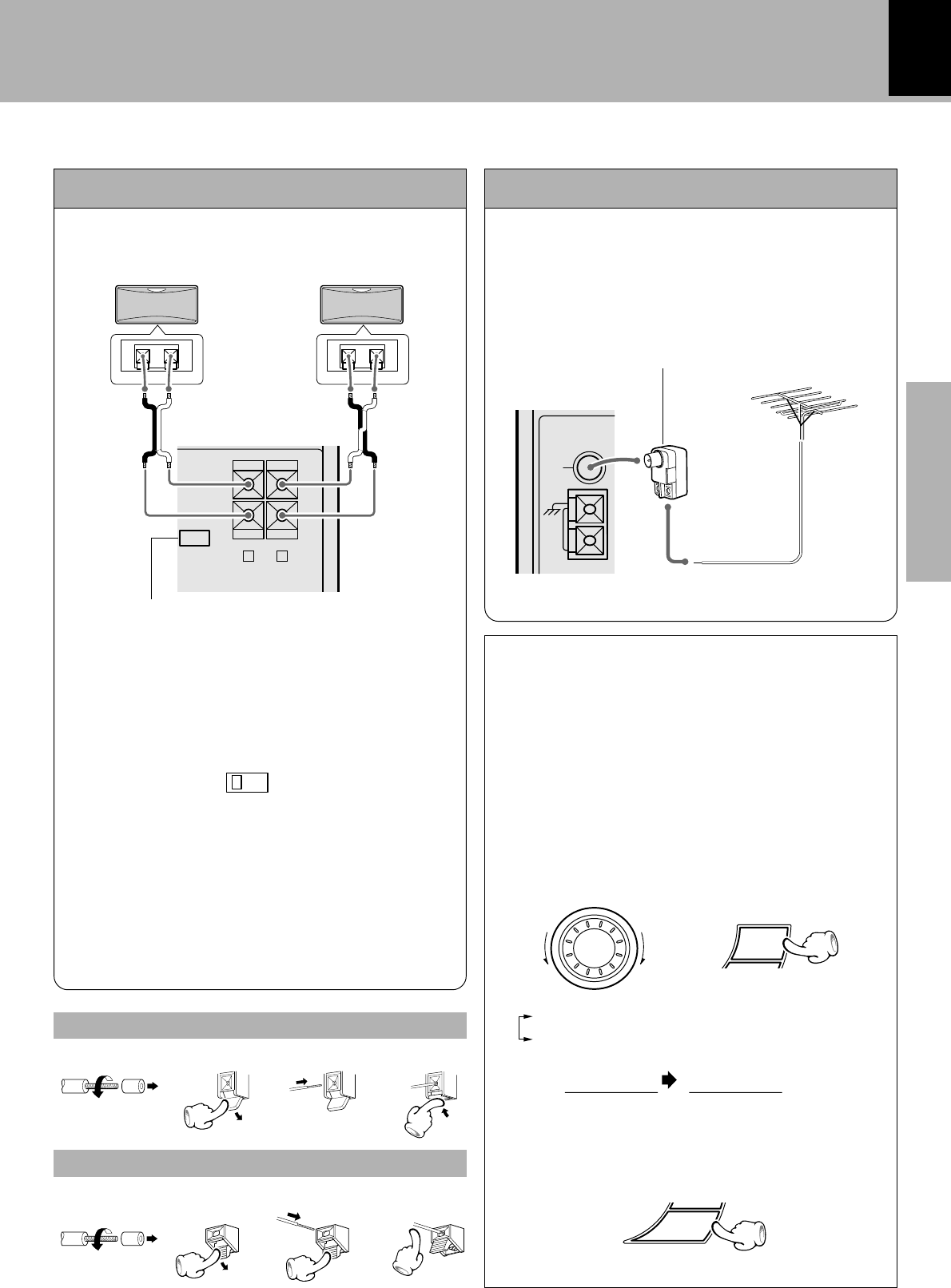
Surround (rear) speakers
This switch can be used only when the separately sold
surround (rear) speakers are connected. When the
switch is set to ON, surround playback can be enjoyed.
When this switch is set to OFF, normal playback is ex-
ecuted.
÷Please operate this switch while the power is switched
off.
÷We recommend to keep this switch set to OFF when no
surround (rear) speakers are connected to obtain a
better sound quality.
÷When the switch is set to OFF, no sound will come from
the surround (rear) speakers.
In regard to the SURROUND switch
123
Twist
4
Twist
Speaker Unit
Main Unit
−+
+
-
+
-
SURROUND
SPEAKERS
(8-16Ω)
RL
@
ON
#
OFF
SURROUND
−+
RL
Surround switch
@
ON
#
OFF
SURROUND
Lead the 75Ω coaxial cable connected to the FM out-
door antenna into the room and connect it to the FM
75Ω termimal.
FM outdoor antenna
Use a commercially-available antenna
adapter (a small-sized model).
XD-5....series : Except for U.S.A. amd Canada
XD-4....series : Except for U.S.A., Canada, U.K.,
Europe and Russia
·ª · ª
GND
FM
75Ω
AM
ANTENNA
1Select the TUNER input.
2While holding the SELECT key depressed, turn
the SOUND CONTROL jog dial to select the
system mode.
SELECT
1POLAR system
2PILOT TONE system
3Establish the selection.
Polar Pilot
Reception mode switching of FM broadcast
(For Russia)
When you want to receive an FM broadcast in PILOT
TONE mode, changing the setting as follows.
ENTER
1234
S
O
U
N
D
C
O
N
T
R
O
L
XD-SERIES (En)
12
Preparation section
3
PHONES
AUTO REVERSE
DIRECT PROGRAM SEARCH SYSTEM
A
PLAY
B
REC/
PLAY
AUTO REVERSE
DIRECT PROGRAM SEARCH SYSTEM
MENU
DISC
SKIP
0
PUSH
OPEN
MINI HI-Fi COMPONENT SYSTEM
XD-552
RDS TP PTY EON TA
EX.BASS
SELECT
ENTER
INPUT DISPLAY
/DEMO
MIC VOL
MIN. MAX.
MIC
BACK
BAND
TUNING MODE
1
@&
¡
#
REV MODE REC/ARMTAPE EQ.
0
PUSH
OPEN
AB
DISC
3
DISC
0
OPEN
NEWS
&^
1
DISC
2
R D S
(
3
∞
1
&
§
!9 07 8
4
)
$
^
¡
™
£
•
%
5
#
¢ ¶
ON/STANDBY
S
O
U
N
D
C
O
N
T
R
O
L
M
U
L
T
I
C
O
N
T
R
O
L
2
6
TAPE EQ.
DOLBY NR
*
MIC VOL.MIC VOL.
@
DOWN
DOWN UP
VOLUME
CONTROL
UP
STANDBY
TIMER
Controls and indicators
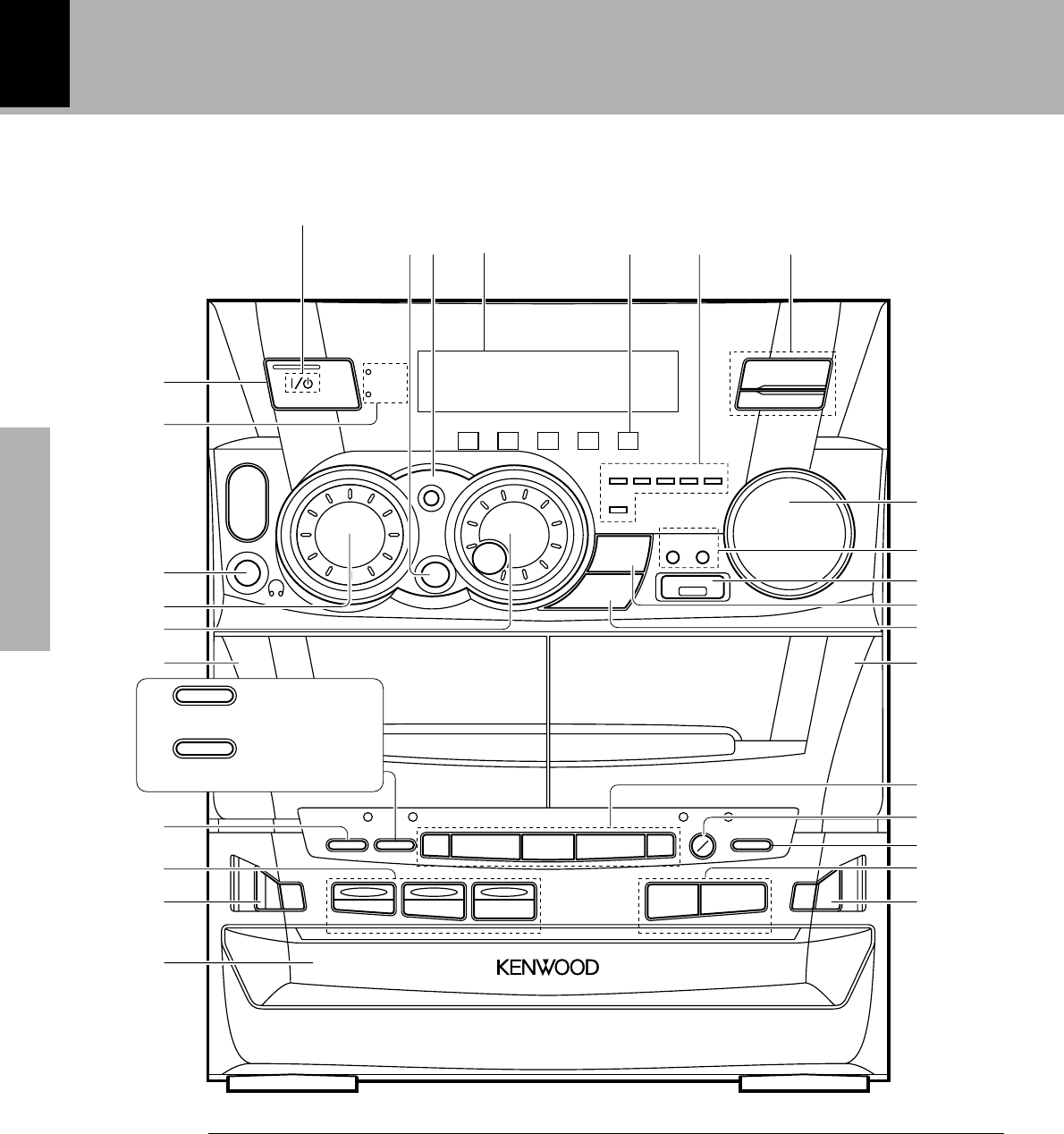
Main Unit
¢DISC SELECTOR key ¡
The disc for playback (or recording) is selected.
DISC SELECTOR indicators (XD-5... series only)
The indicators corresponding to the trays accommodat-
ing discs light up. During playback of a CD, the indicator
corresponding to the CD blinks.
∞DISC SKIP key ¡
The disc for playback (or recording) is selected. This is also
used for insertion of a CD to the inside of the disc tray.
§Disc tray )
Three discs can be stored.
¶CD operation keys )¡
Play/pause (^) key
Stop (&) key
•Tray open/close (0 OPEN) key )
The disc tray is opened and closed.
XD-502/552/572S
XD-402/452
CD player unit
POWER (For U.S.A. amd Canada)

Preparation section
XD-SERIES (En)
13
Controls and indicators
1ON/STANDBY ( ) key *
ON/STANDBY (POWER) key (For U.S.A. Canada)
*
Power ON/OFF switching is executed.
2STANDBY indicator (
The indicator lights up when the power is set to the
STANDBY mode.
TIMER indicator WT
The indicator lights up together with the STANDBY
indicator when the power is set to the STANDBY mode
after having activated a timer program.
3PHONES terminal *
For connection of a headphone (optional).
4SOUND CONTROL jog dial &i
Turn this dial to select or cancel the equalizer and 3D
surround settings.
5MULTI CONTROL jog dial &¡§
Turn this dial to select optimum modes according to the
desired operations.
When the CD input is selected, this dial is used to skip
tracks.
When the TUNER input is selected, this dial is used to
select a station.
6MENU key &
Press to switch the mode set with the MULTI CON-
TROL jog dial ON or OFF. The item selected by this key
is variable depending on the current operation mode.
MENU indicator (XD-5... series only)
The indicator starts to blink when the MENU key is
pressed.
7BACK key &
Press when setting a mode using the MULTI CON-
TROL jog dial to return to the previous step and restart
the operation from there.
8DISPLAY $
9Icon indicators &
(CD PGM, REC. , DUBBING, AUDIO, CLOCK)
When a mode is set using the MULTI CONTROL jog
dial, the icon indicators corresponding to the current
mode light up.
0RDS-related indicators
(For U.K., Europe and Russia) ‡
!Tuner operation keys §
BAND key
Press to switch the receiving band.
TUNING MODE key
Switches the tuning mode.
@VOLUME CONTROL knob *
This is used for volume adjustment.
#INPUT key *
Press to select the input source. When TAPE or CD is
selected, playback starts automatically provided that a
tape or disc has already been loaded.
DISPLAY/DEMO key 6i
Switches the displayed information.
When power is STANDBY:
Switches the demonstration on and off.
$EX. BASS (Extra bass) key (
Switches the extra bass play on and off.
EX.BASS indicator (XD-5... series only) (
The indicator lights up when the Extra Bass is switched on.
%SELECT key &p
Used for setting of various modes or establishing a
selection.
When power is STANDBY:
Used for displaying the time. (When this key is pressed
while the “TIMER” indicator is lit, the “PROG.” or
“O.T.T.” indicator also lights up, the timer reservation
setting mode is displayed, then the display returns to
the previous condition.)
^ENTER key &
Used for entering a selected mode in memory or execut-
ing it.
Cassette deck unit
&A deck cassette holder
Press the area marked 00
00
0 PUSH OPEN to load or eject
a tape.
*DOLBY NR key (XD-5...series only) ª
Dolby noise reduction ON/OFF switching is executed.
TAPE EQ. key (XD-4... series only) £
Press to switch the Tape Equalizer on and off.
(REV. MODE key £
The reverse mode of the deck (both sides, repeated,
one side) is switched.
)B deck cassette holder
Press the area marked 0 0
0 0
0 PUSH OPEN to load or eject
a tape.
¡Cassette deck operation keys ™£
Play (@ #) keys
Stop (&) key
Fast forward and rewind (1 ¡) keys
™A/B key ™
Press to select the deck to be operated.
(For Russia) º
Used as the beat cancel key during recording of LW
broadcasting.
£REC/ARM key ªº
Press to start recording. Pressing the key during record-
ing stops it after leaving a non-recorded space (blank) of
about 4 seconds.
Receiver
XD-SERIES (En)
14
Preparation section
Display
The displays given in this manual are approximations only. They may differ from what
actually appears on the display.
Controls and indicators
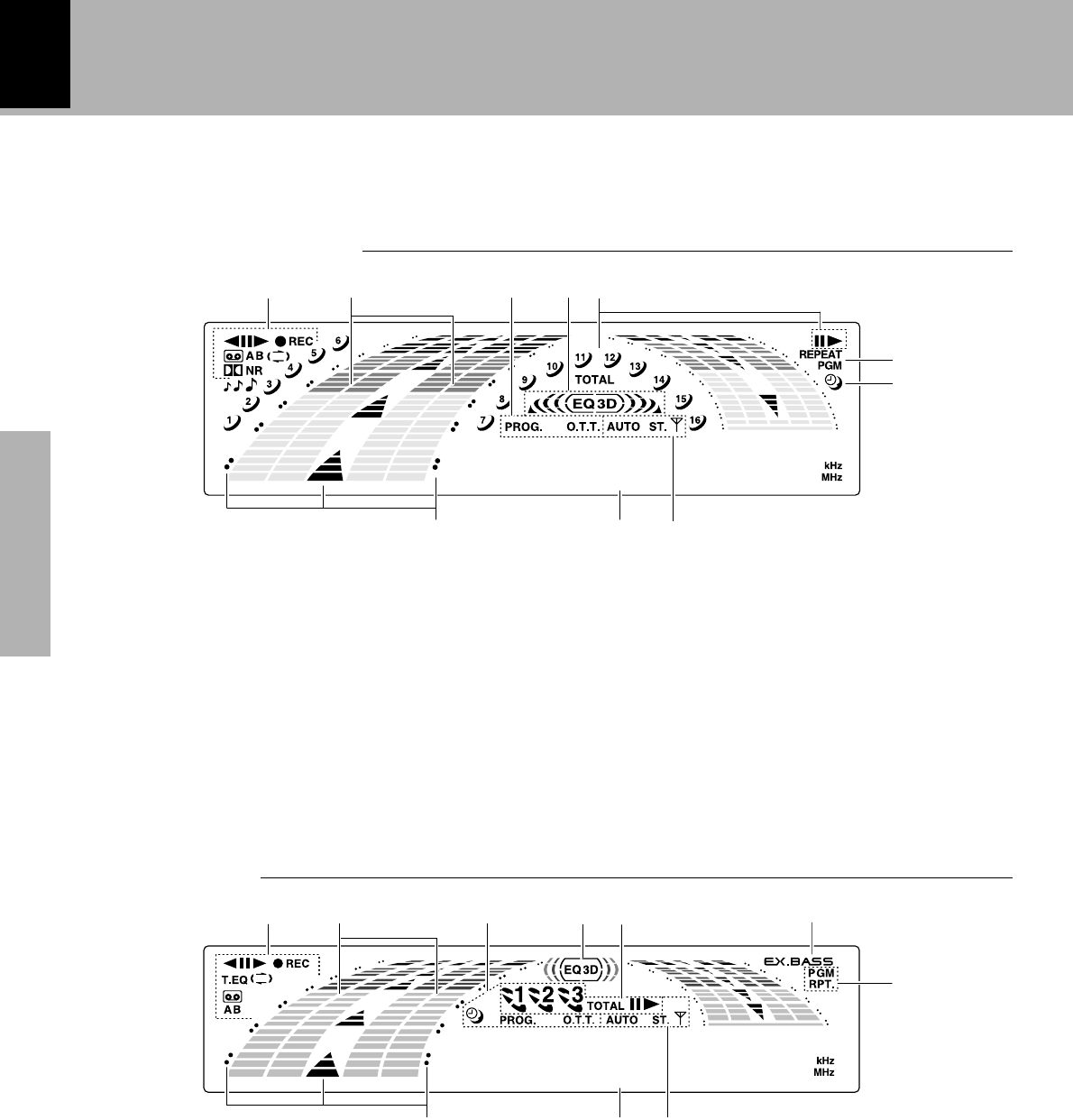
XD-502 / XD-552/ XD-572S
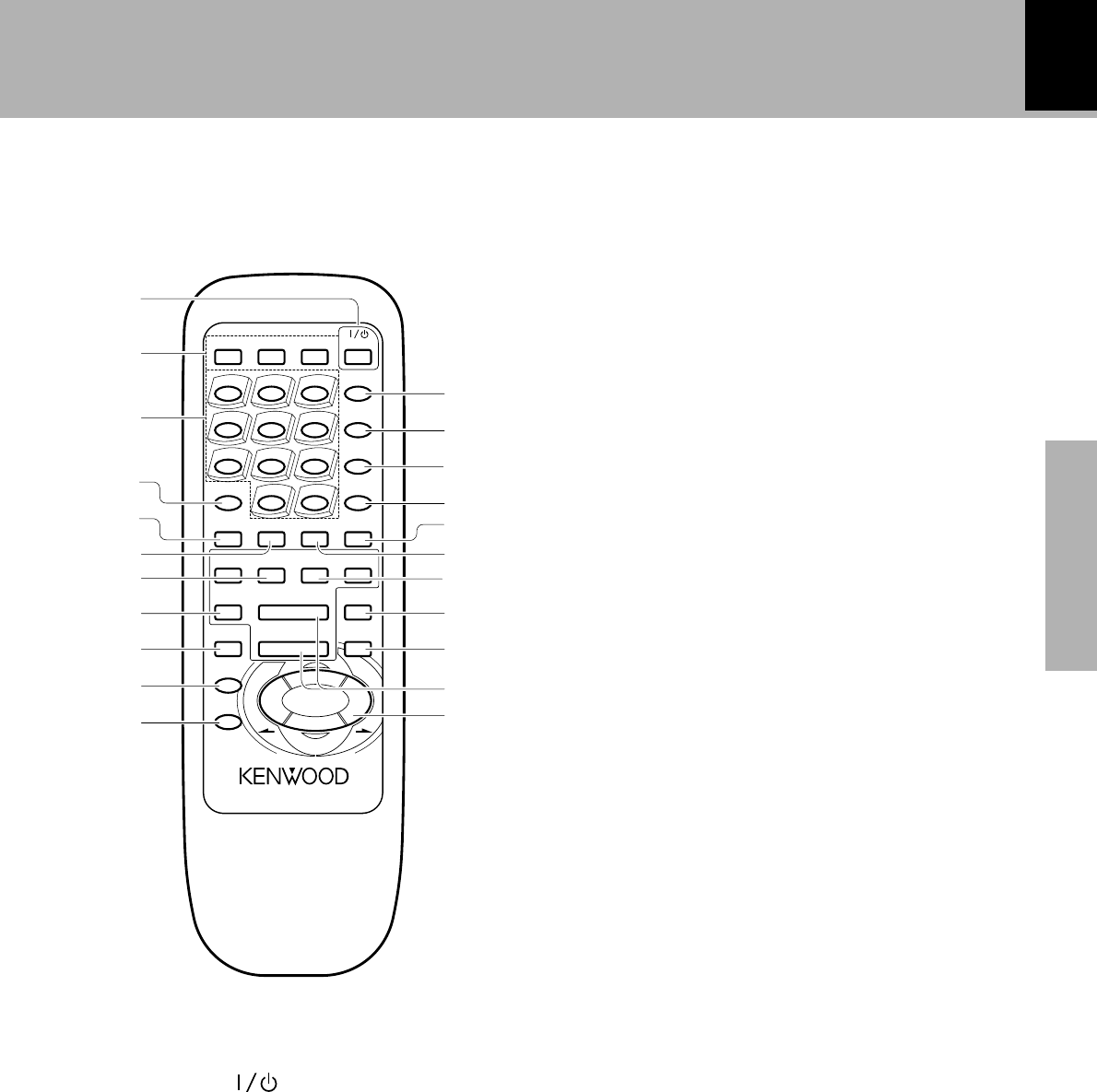
XD-402 / XD-452
1Cassette deck-related indicators
This section contains the cassette deck operation indi-
cators. The indicated information includes the tape
reverse mode and tape transport direction.
2Sound level meter
The display varies according to the music or the opera-
tions of the CD, tape, etc.
During the volume adjustment, this meter displaysthe
current sound level as a reference.
3Timer-related indicators
4Equalizer/3D surround/“S. direct” indicators
5CD player-related indicators
This section contains the CD play and pause mode
indicators. It also shows the disc number being se-
lected.
6EX.BASS indicator
7PGM/RPT. indicators
8Tuner-related indicators
9Character information display
Displays the input selection, frequency, volume level,
etc.
0Guideline
Blinks during the setting of an item using the jog dial.
• •• • • • • • • •
0 9 8
1 42 3 5
7
6
• •• • • • • • • •
0 9
1 52 3 4
6
7
8
1Cassette deck-related indicators
This section contains the cassette deck operation indi-
cators. The indicated information includes the tape
reverse mode and tape transport direction.
2Sound level meter
The display varies according to the music or the opera-
tions of the CD, tape, etc.
During the volume adjustment, this meter displays the
current sound level as a reference.
3Timer-related indicators
4Equalizer/3D surround/“S. direct” indicators
5CD player-related indicators
This section contains the CD play and pause mode
indicators. It also shows the track numbers in the
current disc.
6REPEAT/PGM indicators
7Sleep timer indicator
8Tuner-related indicators
9Character information display
Displays the input selection, frequency, volume level,
etc.
0Guideline
Blinks during the setting of an item using the jog dial.
Preparation section
XD-SERIES (En)
15
Remote control Unit
Controls and indicators
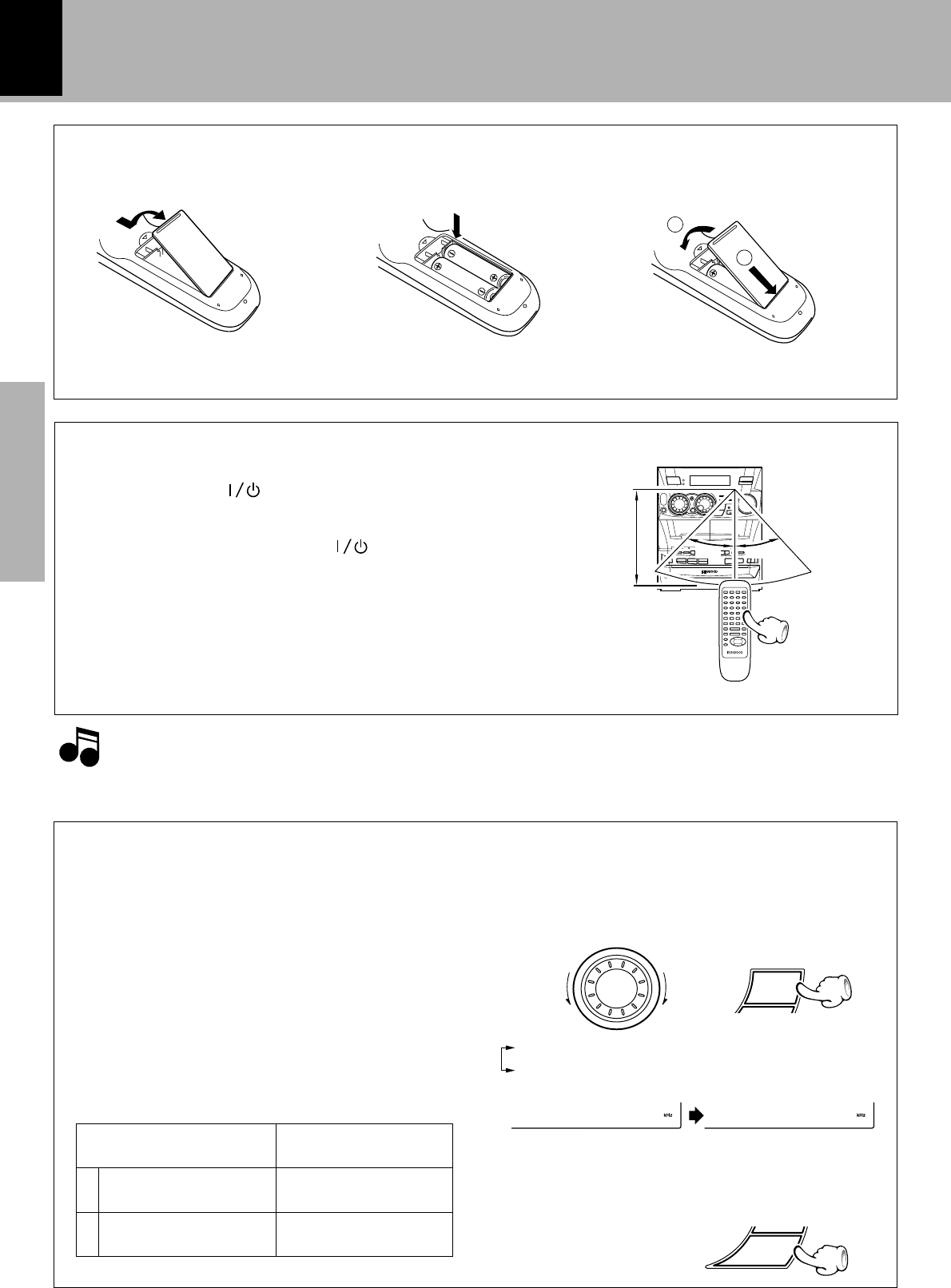
The keys on the remote control unit with the same names as on the main unit have the same function as the keys
on the main unit.
1 ON/STANDBY ( POWER) key *
Power ON/OFF switching is executed.
2RDS-related keys (For U.K., Europe and Russia)
TA/NEWS key ‚
Used for automatic reception of transmissions of a
certain content.
RDS DISP. key ‡
The display contents are switched during reception of
RDS broadcasts.
PTY key °
This is used to specify the program type when search-
ing for a station.
3Numeric keys ¡
Used as number keys when the input is CD or TUNER.
4DISC SKIP key ¡
5TIME key ¡
Press to switch the time information on the CD player
unit.
6RANDOM key fl
For CD playback, switching is executed between ran-
dom playback and normal playback.
7TAPE play (2 32 3
2 32 3
2 3) keys ™
8TAPE A/B key ™º
9BACK key &
0SELECT key &
!ENTER key &
@SOUND CONTROL key &i
Press to select or cancel the equalizer and 3D surround
settings.
#EX. BASS key (
$INPUT key *
%BAND key §
^TEXT DISP. key w
Press to switch the text information recorded in a CD
TEXT disc.
&REPEAT key ›
Used for repeated playback of a CD.
*TUNING (1 ¡) keys (CD/TAPE/TUNER)
¡£§
When the CD or TAPE input is selected, press to fast
forward or backward (rewind) the disc or tape.
When the TUNER input is selected, press to select a
station.
(MUTE key (
This is used to mute the sound temporarily.
)MENU key &
¡CD play/pause (6) key )
Stop (7) key )¶
™MULTI CONTROL/VOLUME keys &*
Skip/preset call (4, ¢) keys (CD/TUNER)
¡¶
The left and right keys have the same functions as the
MULTI CONTROL jog dial on the main unit.
When the CD input is selected, press to skip forward or
backward on the disc.
When the TUNER input is selected, press to select
preset station.
The top and bottom keys are used to adjust the volume.
For U.K., Europe and Russia : RC-552E
Other countries : RC-552
VOLUME
CD
TAPE
MUTE
RC-552E
REMOTE CONTROL UNIT
EX.BASS
TIME
INPUT
BAND
PTY
TA/NEWS RDS DISP.
POWER
TAPE
A/B
RANDOM REPEAT TEXT DISP.
TUNING
6
1 2 3
4 5 6
7 8 9
0+10
32¡1
4
7
M
U
L
T
I
C
O
N
T
R
O
L
¢
DISC SKIP
SOUND
CONTROL
3
2
8
9
0
!
4
5
6
7
(
*
)
&
™
¡
1
MENUBACK
SELECT
ENTER
@
#
%
$
^
XD-SERIES (En)
16
Preparation section
Operation of remote control unit
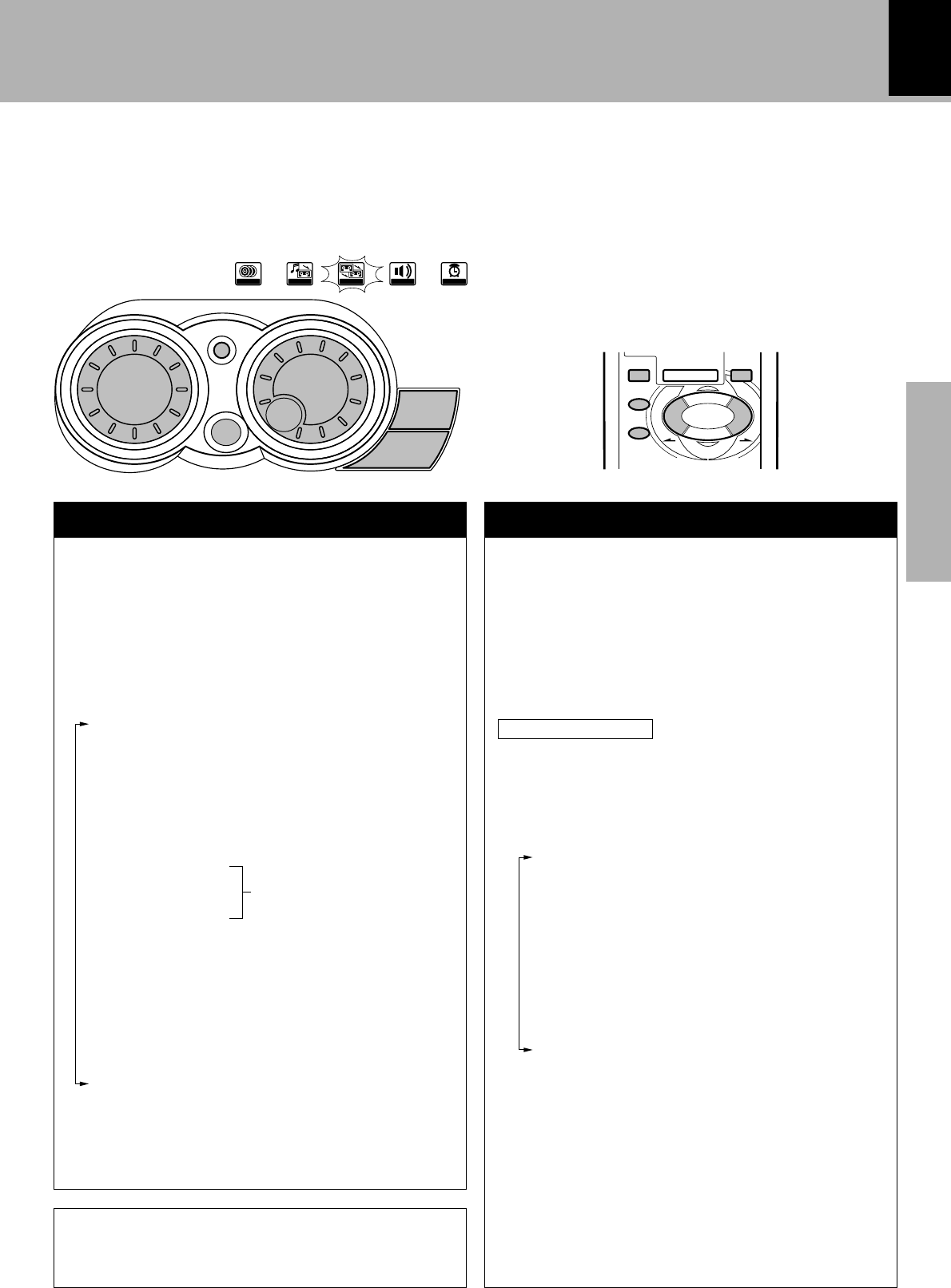
Loading batteries
1 Remove the cover. 3 Close the cover.
÷Insert two R6 (“AA”-size) batteries
following the polarity indications.
2 Insert batteries.
Operation
Plug the power cord into the mains power outlet and
press the on/standby ( POWER) key of the remote
control unit to turn power ON. After the power has been
turned ON, press the desired key.
To turn power off, press the on/standby( POWER) key
again.
The power mode enters the STANDBY mode in which
the “STANDBY” indicator lights up. (The “TIMER” in-
dicator also lights in this mode if a timer program has
been activated.)
÷When pressing more than one remote control keys
successively, press the keys securely by leaving an
interval of 1 second or more between keys.
1.The provided batteries are intended for use in operation checking, and their service life may be short.
2.When the remote controllable distance becomes short, replace both of the batteries with new ones.
3.If direct sunlight or the light of a high- frequency fluorescent lamp (inverter type, etc.) is incident to the remote
sensor, malfunction may occur. In such a case, change the installation position to avoid malfunction.
Operating range
(approx.)
Remote sensor
2
1
Notes
Notes
CHANNEL
SPACE freq.
Area
1
2
USA, Canada and South
American countries
Other countries
FM : 100 kHz
AM : 10 kHz
FM : 50 kHz
AM : 9 kHz
The space between radio channels has been set to the
one that prevails in the area to which the system is
shipped. However, if the current channel space setting
does not match the setting in the area where the sys-
tem is to be used, for instance when you move from
area 1 or area 2 shown in the following table or vice
versa, proper reception of AM/FM (MW/FM) broad-
casts cannot be expected. In this case, change the chan-
nel space setting in accordance with your area by re-
ferring to the following table.
CHANNEL SPACE setting
(Except for the U.S.A., Canada, U.K., Europe, Australia and Russia)
1Select the TUNER input.
2While holding the SELECT key depressed, turn
the SOUND CONTROL jog dial to select the
system mode.
ENTER
F0M100/AM1 F9M 50/AM
SELECT
30
˚
6m
30
˚
÷The “AM” display is variable depending on the model
(country or area), and “MW” may be displayed in
some areas.
1“FM100/AM10 kHz” STEP,
2“FM 50 /AM 9 kHz” STEP,
3Establish the selection.
S
O
U
N
D
C
O
N
T
R
O
L
Preparation section
XD-SERIES (En)
17
Operation of jog dials
This unit has two jog dials named the MULTI CONTROL and SOUND CONTROL jog dials.
The MULTI CONTROL jog dial makes it possible to set (establish) many functions in a simple procedure.
When the MENU key is pressed, the icon indicators light according to the MULTI CONTROL jog dial operation
so you can select the desired mode based on a more intuitive method.
1Press the MENU key to enter the MULTI CON-
TROL setting mode.
2Select an operation mode by turning the MULTI
CONTROL jog dial (or pressing the MULTI
CONTROL keys on the remote control unit).
3Set, establish or execute (determine) items by
pressing the SELECT key and/or ENTER key.
MULTI CONTROL jog dialSOUND CONTROL jog dial
Equalizer patterns and 3D surround levels that
can be recalled
“Rock” .................. Rock music
“Disco” ................. Disco music
“Pop” .................... Pop music
“Movie” ................ Movie music
“Jazz” ................... Jazz music
“Classic”............... Classic music
“Custom EQ 1”
“Custom EQ 2”
“Custom EQ 3”
“3D Level 1” ......... 3D surround level 1
“3D Level 2” ......... 3D surround level 2
“S. direct” ............. Pure sound can be repro-
duced by bypassing the
EX.BASS, equalizer and
3D surround circuitry.
“Effect off” ............ Normal playback ÷To cancel the mode for setting (using) MULTI CONTROL,
read the description of each item in this manual.
÷Press the BACK key to return to the previous step and restart
operation from there. (The BACK key is inoperative once
scrolling message “Press ' ENTER ' to Start” has been
displayed.)
÷With the remote control unit, pressing the MENU key makes
it possible to select the same items as those available on the
main unit using the MULTI CONTROL keys.
VOLUME
MENUBACK
SELECT
ENTER
4
7
M
U
L
T
I
C
O
N
T
R
O
L
¢
÷Pressing the SOUND CONTROL key on the remote
control unit allows selection of same items as the
SOUND CONTROL jog dial.
Icon indication example:
When “Tape Dubbing” is selected with the MULTI CON-
TROL jog dial (or the MULTI CONTROL key on the remote
control unit), the “DUBBING” icon indicator lights up.
The following items can be selected by turning
the MULTI CONTROL jog dial.
The messages inside ( ) may not be displayed
under certain situations.
(“CD Program Play”)
Only when the CD input is selected
(“Recording Options”)
Only when a tape is present in deck B
(“Tape Dubbing”)
Only when the selected input is TAPE and tapes
are present in both decks A and B
“Audio Options”
“Clock Options”
In the MULTI CONTROL setting mode (while the guide-
line is blinking), the BAND and play keys are defeated
and inoperative.
SELECT
ENTER
BACK
S
O
U
N
D
C
O
N
T
R
O
L
M
U
L
T
I
C
O
N
T
R
O
L
MENU
CD PGM REC.
DUBBING
AUDIO CLOCK
S
O
U
N
D
C
O
N
T
R
O
L
M
U
L
T
I
C
O
N
T
R
O
L
Display examples
Equalizer’s manual
memory created by the
user
The SOUND CONTROL jog dial (or the SOUND CON-
TROL key on the remote control unit) makes it possible
to select a tone or sound effect in an easy procedure.
i
XD-SERIES (En)
18
Basic section
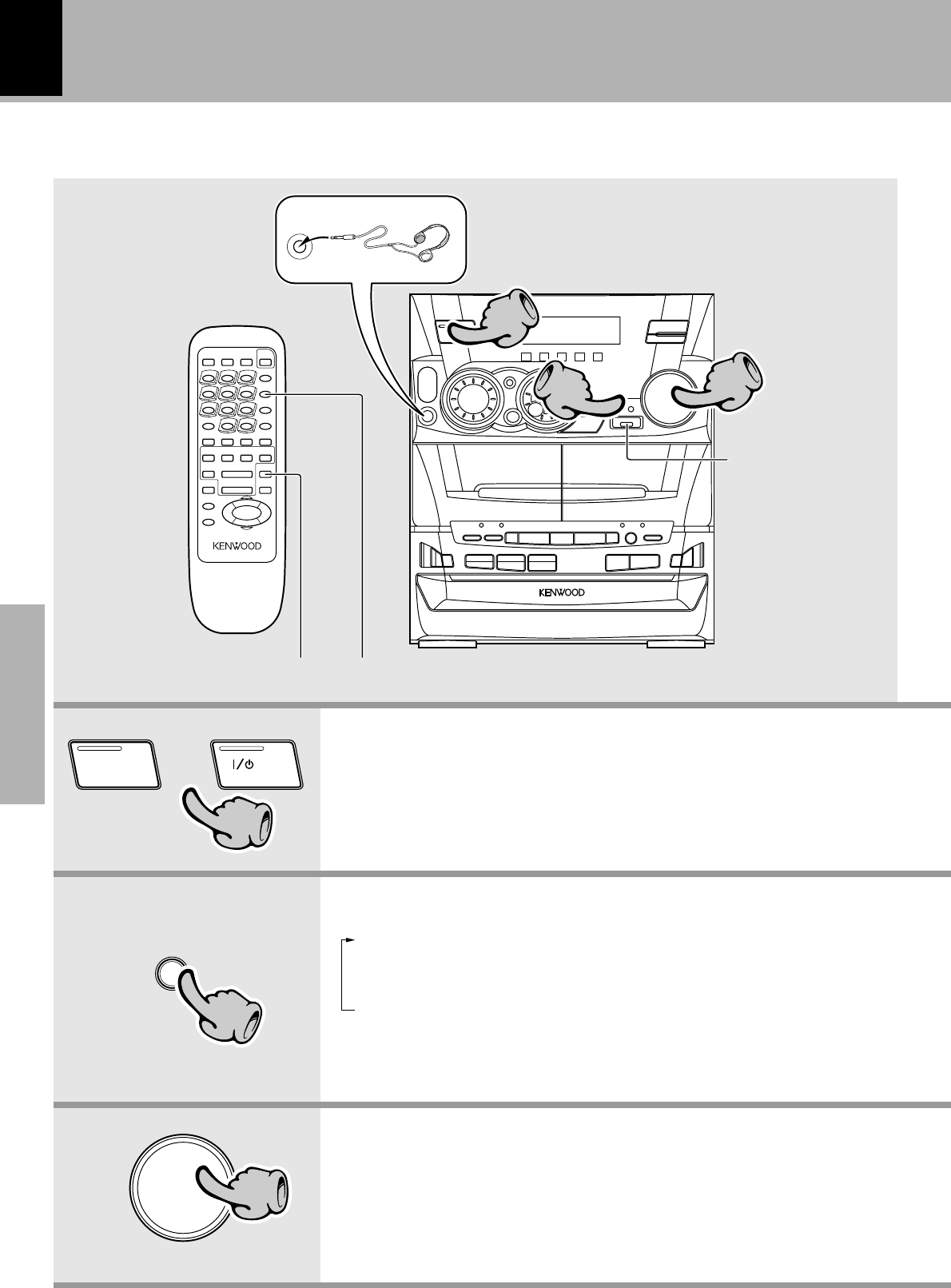
1. Switching the power ON (OFF)
Let’s put out some sound
÷The display shows a reference value.
(The reference value is also shown visu-
ally by the sound level meter.)
2. Selecting the desired output
When the power is ON, pressing the ON/STANDBY key enters the power
STANDBY mode, in which the standby indicator lights up.
1TUNER (Radio) §
2CD )
3TAPE ™
4MD/DVD (External input)
0u
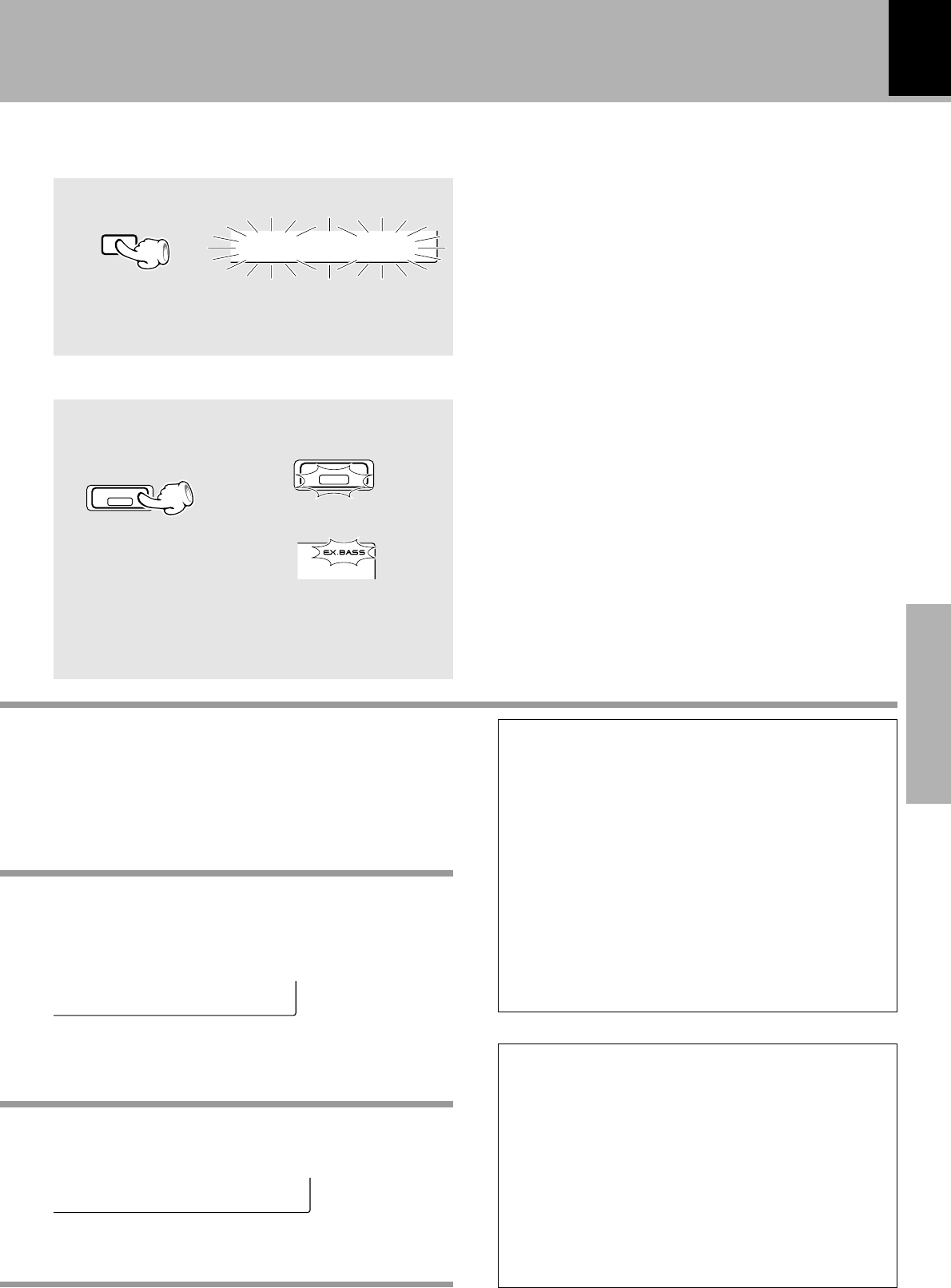
Muting the sound temporarily
Reproducing sound with enhanced bass
3. Volume adjustment
÷If you select the MD/DVD (external
input) mode, also read the instruction
manual of the component connected
to the MD/DVD INPUT jacks.
Listening through headphones
Insert the headphone plug into the PHONES jack.
÷The sounds from all speakers are cut off.
Reproducing sound
with enhanced bass
Basic use method
INPUT
22
DOWN
VOLUME
CONTROL
UP
33
R D S
PHONES
11
2233
11
ON/STANDBY ON/STANDBY
POWER
or
XD-SERIES (En)
19
Basic section
Muting the sound temporarily
(Remote control unit only)
When CD has been selected.
÷Press again to resume the original volume.
÷The sound muting is also canceled when the volume
is controlled.
Let's put out some sound
Blinks
÷Each press switches EX.BASS on and off alternately.
÷The EX.BASS is switched off automatically during
recording or when the SOUND CONTROL jog dial is
turned.
Lights
C2D01 1:1
EX.BASS
MUTE
XD-5....series
XD-4....series
EX.BASS
Volume display
Reproducing sound with enhanced bass
(EX. BASS)
V9olume 1
Standby mode
While the “STANDBY” indicator of the unit is lit, a
small amount of current is flowing into the unit to
back up its internal memory. (The TIMER indicator
also lights if a timer program has been activated be-
fore entering the STANDBY mode.)
This condition is referred to as the standby mode of
the unit. While the unit is in the standby mode, it can
be turned ON from the remote control unit.
This unit has been designed to minimize power con-
sumption.
One-touch operation function
The power can also be turned ON by pressing the play
key of the CD player, the play key of the cassette deck
or the BAND key of the tuner.
It is also possible to turn the power ON by simply
pressing the 0 OPEN key.
÷When the CD or TAPE input is selected and a disc
has been loaded in the disc tray or a tape has been
loaded in the deck for use in playback, playback starts
at the same time.
C0D
@
D1 0:0
XD-SERIES (En)
20
Basic section
Let's put out some sound
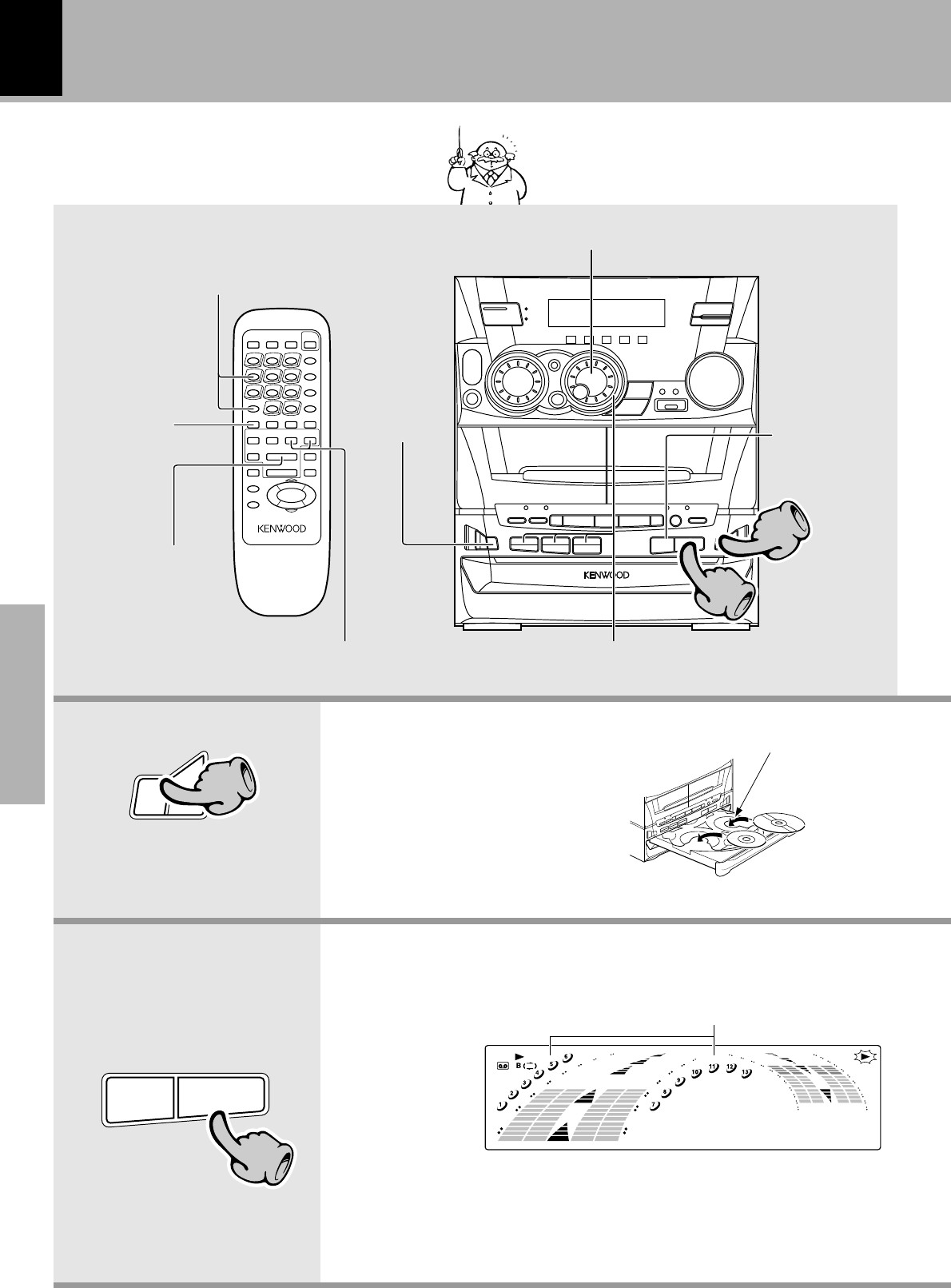
1Open the tray.
2Place a disc.
3Close the tray.
1. Load a disc.
Playback of CD
The tray opens when the key is
pressed and closes when the key is
pressed again.
2. Start playback.
TIME
High-speed search in forward
and reverse directions
To stop
Playback
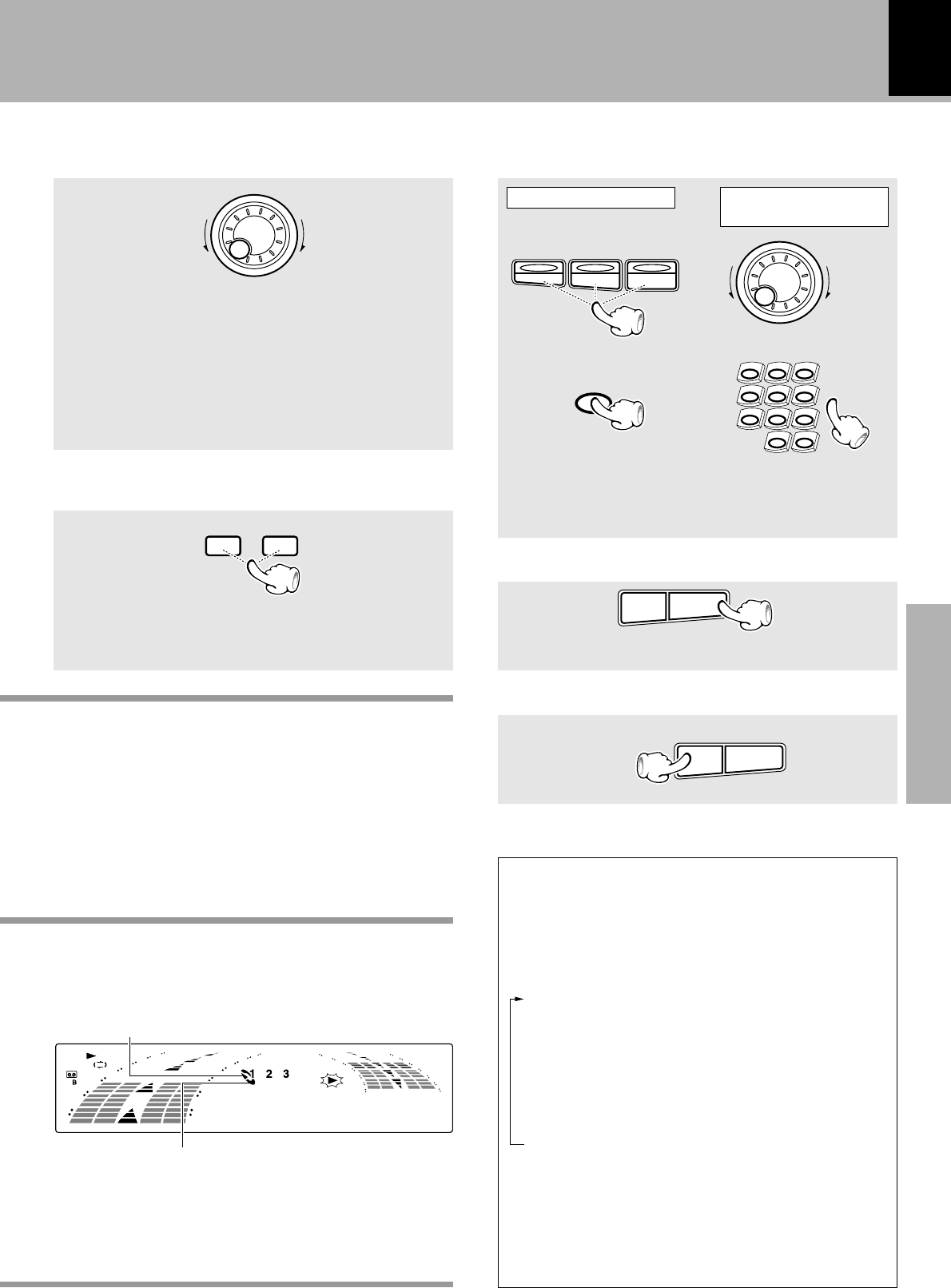
Skipping tracks
If a disc has already been loaded in the CD player
and the power is OFF, simply pressing the CD
play key turns power automatically ON and starts
playback.
Playback from desired track
Playback from desired track
OPEN
0
11
&^
22
Disc played first when the ^ key is
pressed.
The label must be on top.
C0D01 0:0
The recorded track No. are shown.
XD-5....series
÷After a few seconds, play starts from track No.1.
÷Playback stops after having played all discs in the trays. (Relay play)
÷When the 0 OPEN key is pressed during playback, the tray opens but the
playback continues. (The DISC SKIP key is inoperative at this time.)
R D S
11
22
DISC SKIP
Start playback/
To pause playback
XD-SERIES (En)
21
Basic section
Let's put out some sound
The selected disc is indicated.
Time display on the CD player
Each press of the TIME key of the remote control unit
switches the displayed time information.
÷Only the elapsed time of the track being played is
displayed during program playback, random playback
and single-track repeated playback.
1
2
3
4
C0D01 0:0
Lights when a disc is inserted at the time of playback.
21:1
@
84:1-
62:41
÷Do not touch the played side of disc.
÷Rotate the tray with the DISC SKIP key to insert the third
disc.
÷The tray containing the disc to be played should come to the
front right position when the unit is seen from the front.
XD-4....series
÷Playback starts from the position where the key is
released.
High-speed search in forward and reverse directions
(Remote control unit only)
Skipping tracks
Backward search Forward search
÷
The tracks in the direction the dial is rotated are skipped,
and the selected track will be played from the beginning.
÷When the jog dial is rotated a little in the direction of
counterclockwise once during playback, the track
being played will be played from the beginning.
÷The CD tracks can also be skipped using the 4 or ¢
key of the remote control unit.
To skip backward To skip forward
TUNING
¡1
M
U
L
T
I
C
O
N
T
R
O
L
To stop playback
÷Each press pauses and plays the CD alternately.
To pause playback
Playback from desired track
Press the numeric keys as shown below....
To select track No. 23
: 003
To select track No. 40
: 0000)
(Main unit)
(Remote control unit)
&^
DISC SKIP
1
DISC DISC
3
DISC
2
M
U
L
T
I
C
O
N
T
R
O
L
1 2 3
4 5 6
7 8 9
0+10
&^
43:16-
Select the disc Select the desired
track No.
Remaining time of disc
(“TOTAL” lights up)
Elapsed time of disc
(“TOTAL” lights up)
Remaining time of track being played
Elapsed time of track being played
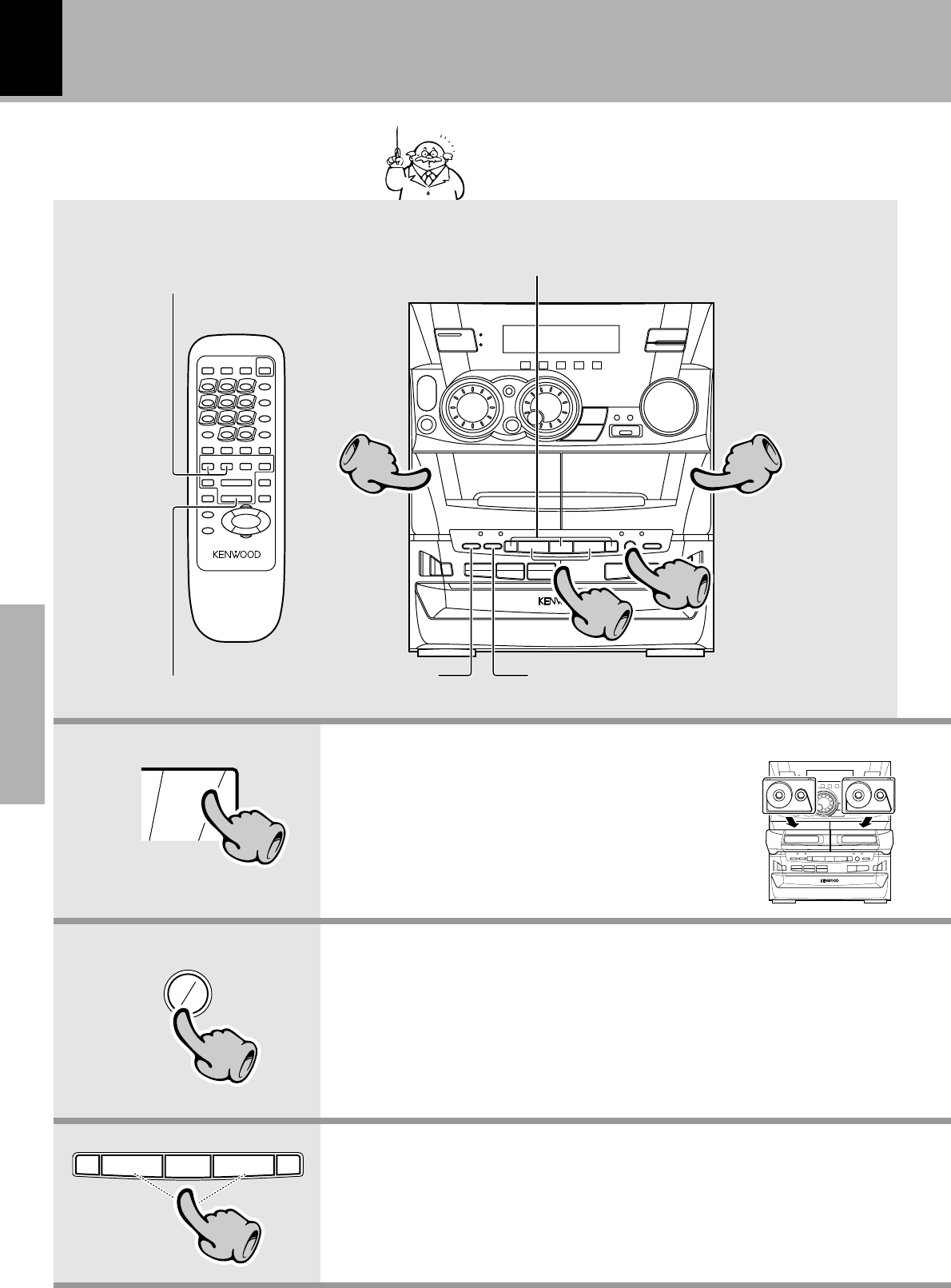
XD-SERIES (En)
22
Basic section
Let's put out some sound
1. Load a cassette tape.
2. Select the deck to be used for playback.
Playback of tape
1Open the door.
2Insert a tape and close the
door.
Press the play key of the desired direction.
3. Start playback.
To wind tape at high speed/To stop playback
To stop playback Selection of Tape Equalizer
Selection of DOLBY NR ª
Selection of reverse mode
Start playback
÷When playing back a source which has been recording using the equalizer or
3D surround effect, select “Effect off” with the SOUND CONTROL jog dial.
i
By loading a tape in the cassette deck to be used in
playback beforehand, simply pressing the play key auto-
matically turns the power ON and starts playback.
0
PUSH
OPEN
11
AB
22
&
¡
#
¡
#
33
AA
R D S
11
22
11
33
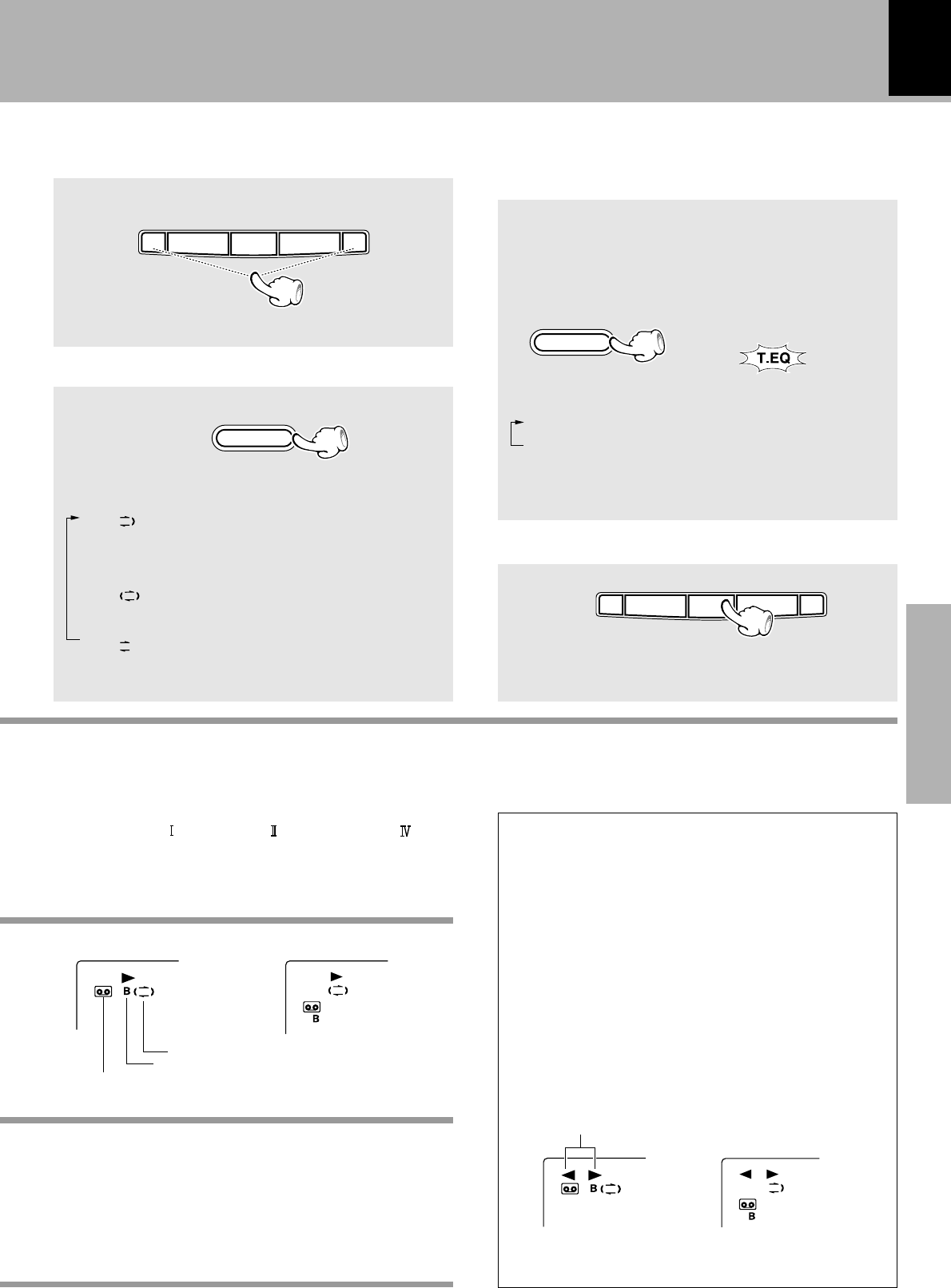
XD-SERIES (En)
23
Basic section
Selection of Tape Equalizer
(Main unit only)
(XD-4....series only)
÷The Tape Equalizer is effective for reduction of
higher-frequency noise.
Select Tape Equalizer only when playing back a tape
recorded with Dolby Noise Reduction. (A tape recorded
without Dolby NR cannot be reproduced in normal au-
dio if Tape Equalizer is selected when playing it.)
Lights up when
Tape Equalizer is on.
Each press switches the modes as follows.
1“T. EQ” ON ..... Tape Equalizer is used
2“T. EQ” OFF ....... Tape Equalizer is not used
÷If the tape transport direction is opposite to the desired
direction, press the play key corresponding to this.
÷Normal (TYPE ), high (TYPE ), or metal (TYPE ) tape
selection is set automatically.
÷Remove tape slack before loading.
÷Close the door securely.
The indicators (2 , 3) indicate the current direction
in which the tape advances when playback or record-
ing is started automatically by the one-touch opera-
tion function, etc. This direction is the direction stored
in memory when the tape was last stopped.
(To switch the tape transport direction, press the play
key corresponding to the desired direction then press
the stop (&) key.)
Transport direction indicators
TAPE EQ.
Tape direction indicators of currently selected deck.
XD-4....series
XD-5....series
XD-4....series
XD-5....series
To wind tape at high speed
÷Press the & key to stop fast winding.
Each press switches the modes as follows.
1“” .... Playback stops after having played
both sides of tape in a deck.
(Relay play : ¢)
2“” ... Endless playback of both sides of
tape.
3“” ...... Playback stops after having played
one side of tape.
Selection of reverse mode
(Main unit only)
To fast wind in
direction \
To fast wind in
direction |
1
@&
¡
#
REV. MODE
To stop playback
÷Do not take out the cassette tape until the tape
transport has stopped completely.
&
¡
#
¡
#
Reverse mode indication.
Lights up when a tape is present in the deck in use.
Displays the selected deck.
Let's put out some sound
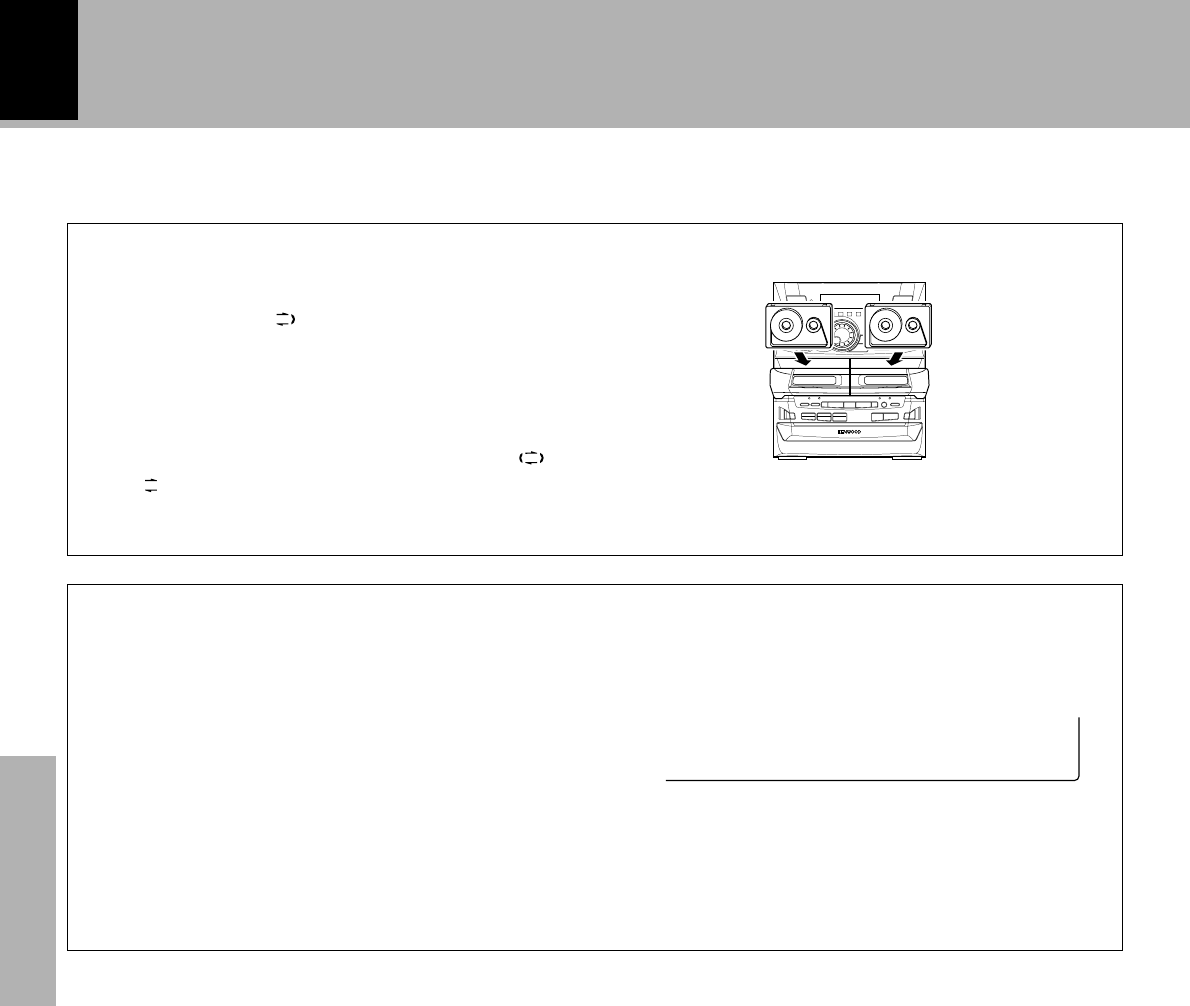
XD-SERIES (En)
24
Basic section
A tip for use of the tape counter
The tape counter is set to “0000” when a cassette tape
is loaded. By writing down the counter reading in case
you want to interrupt recording (playback) in the
middle of the tape, the memo will be helpful as a ref-
erence for locating the same position when continu-
ing the recording (playback) the next time. The tape
counter figure decrements during recording or play-
back of the back side (while the 2 tape transport in-
dicator is lit).
To set the tape counter to “0000”, open the cassette
holder once. Then the counter will be reset.
T0APE 000
Let's put out some sound
Relay play
÷Relay play is not possible in the reverse modes “ ”
and “”.
÷If a tape is loaded only in either deck, playback stops
after having played both sides of the tape.
When tapes are set in the decks A and B and the re-
verse mode is set to “ ” (play of both sides), play of
the second deck will be started automatically after
play of the first deck has been completed. Tape play
will be repeated alternately.
AA
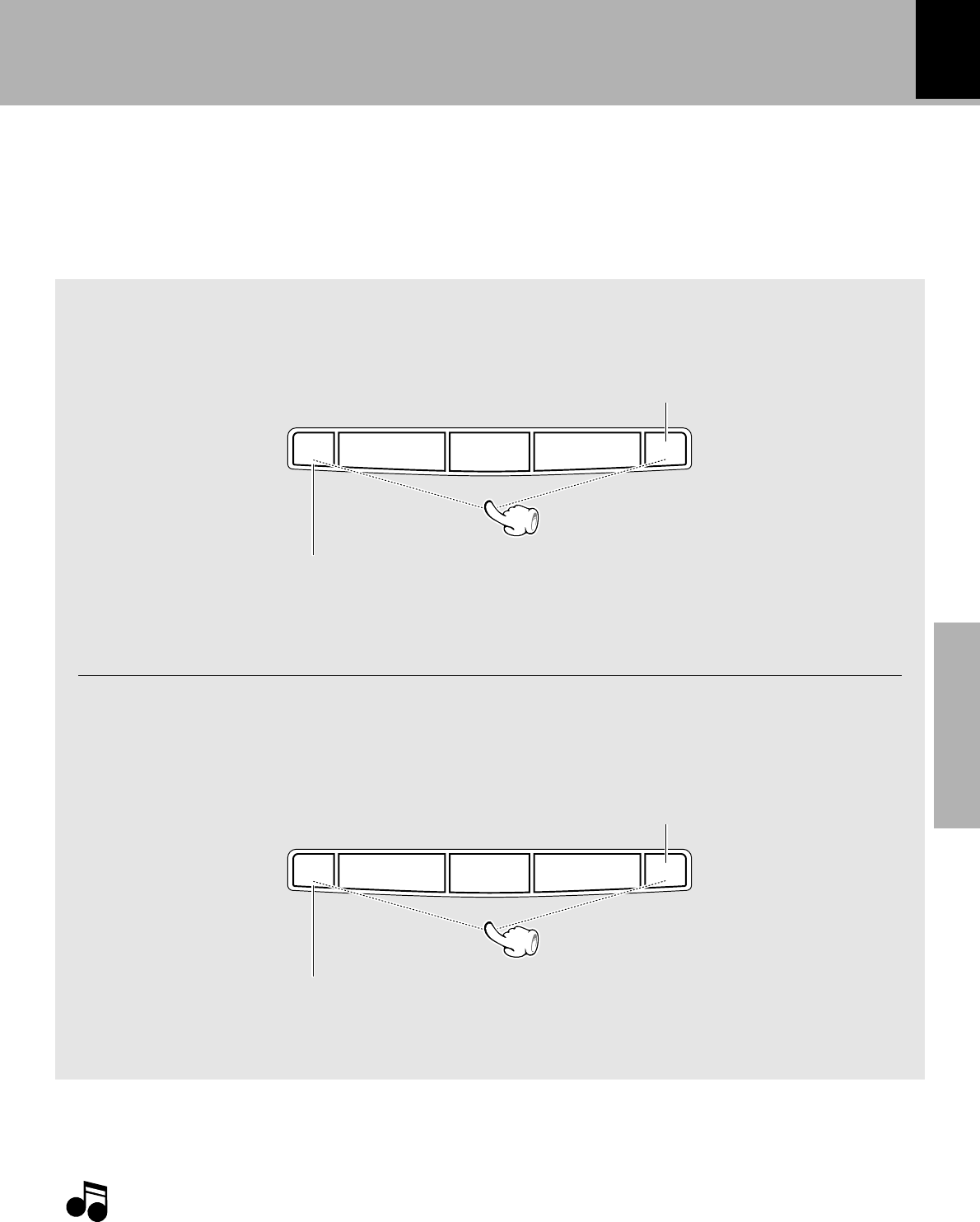
XD-SERIES (En)
25
Basic section
Searching for the desired music program
(DPSS)(XD-5....series only)
The DPSS (Direct Program Search System) is capable of detecting non-recorded spaces of more than 4
seconds as “blanks between programs” and, based on this information, can return to the beginning of
the music program being played or the beginning of a desired program by skipping up to 16 other
programs.
The DPSS may not function normally with the following kinds of tape.
÷Tapes containing several no-sound intervals of more than 4 seconds, such as conversation and talk tapes.
÷Tapes containing pianissimo sections, such as classical music tape.
÷Tapes in which large noise is recorded in blanks between programs.
÷Tapes containing blanks between programs that are shorter than 4 seconds.
÷Tapes recorded at low level.
÷Tapes recorded by cross-fade recording (in which the beginning of next program is overlapped on the end of
previous program).
Notes
Notes
To play the next program : Press once.
To play the 4th program after the current program : Press 4 times.
During play in direction 3
To play the next program : Press once.
To play the 4th program after the current program : Press 4 times.
To return to the beginningof the current program : Press once.
To play the 4th program before the current program : Press 5 times.
During play in direction 2
To return to the beginningof the current program : Press once.
To play the 4th program before the current program : Press 5 times.
Let's put out some sound
1
@&
¡
#
1
@&
¡
#
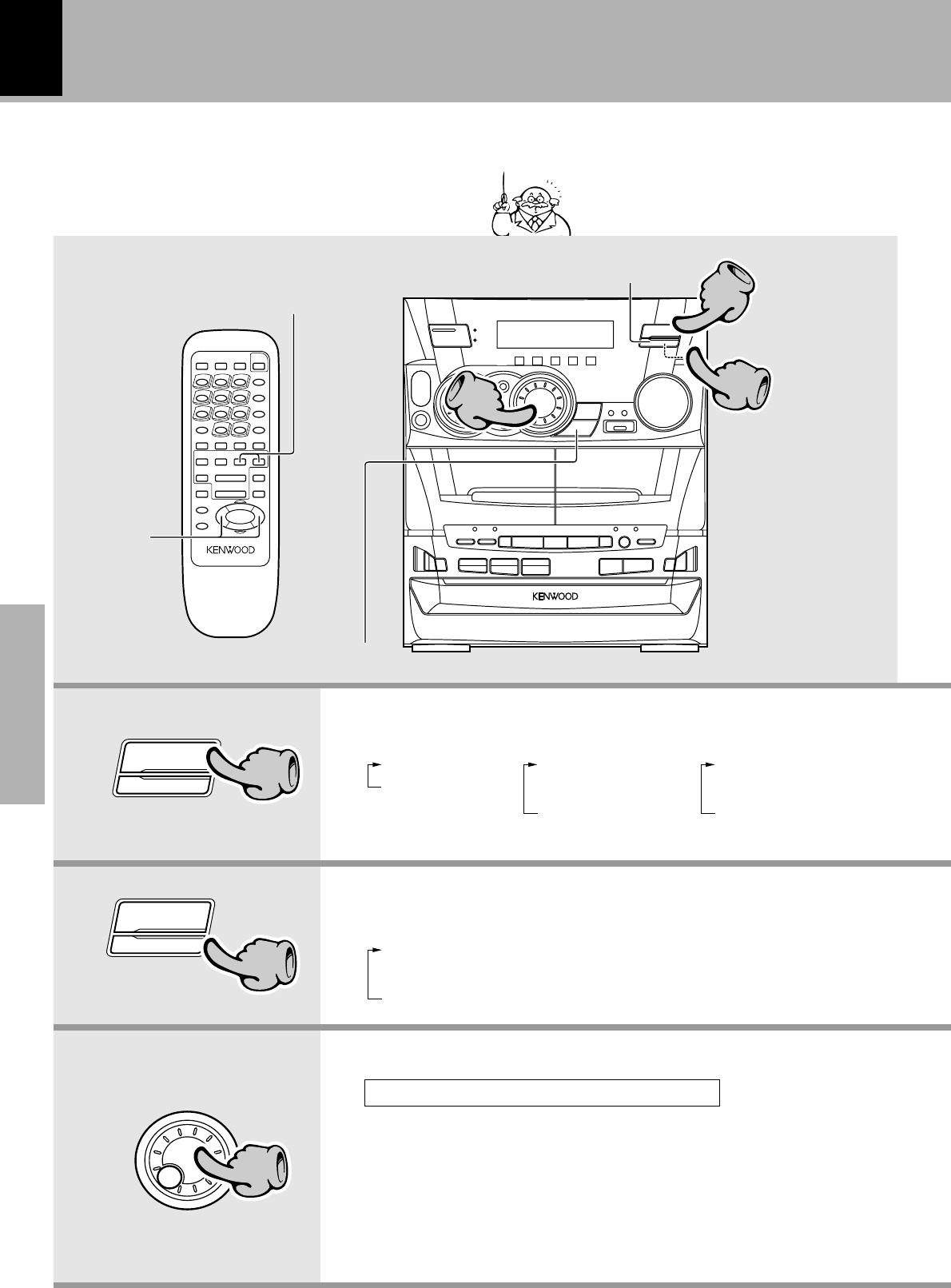
XD-SERIES (En)
26
Basic section
1. Select the broadcast band.
Receiving broadcast station
Collective presetting of stations
One-by-one presetting
Each press changes the band.
It is also possible to receive them by one-touch
operations by storing up to 30 stations in the pre-
set memory.
2. Selecting the tuning mode
When the BAND key is pressed, this unit
will be switched on automatically.
4 ¢
1 TUNING ¡
BAND
TUNING MODE
11
1FM
2AM or 1FM
2MW (AM)
3LW
or 1FM
2MW (AM)
3SW
÷The broadcast bands are variable depending on the model (country or area).
When no stations have been memorized
Auto tuning : Turn the MULTI CONTROL jog dial to receive the next
tuned station automatically.
(On the remote control unit, press the 1 or ¡ key.)
Manual tuning : Turn the MULTI CONTROL jog dial to select a station.
(On the remote control unit, press the 1 or ¡ key.)
Let's put out some sound
R D S
33
11
22
M
U
L
T
I
C
O
N
T
R
O
L
33
BAND
22
TUNING MODE
3. Select a station.
Each press alternates the mode.
“Auto” (Auto tuning)
“P.call” (Preset call)
“Manual” (Manual tuning)
÷When no operation has been
performed for 5 seconds while
“P.call” is displayed, the tuning
mode is set automatically to
“AUTO”.
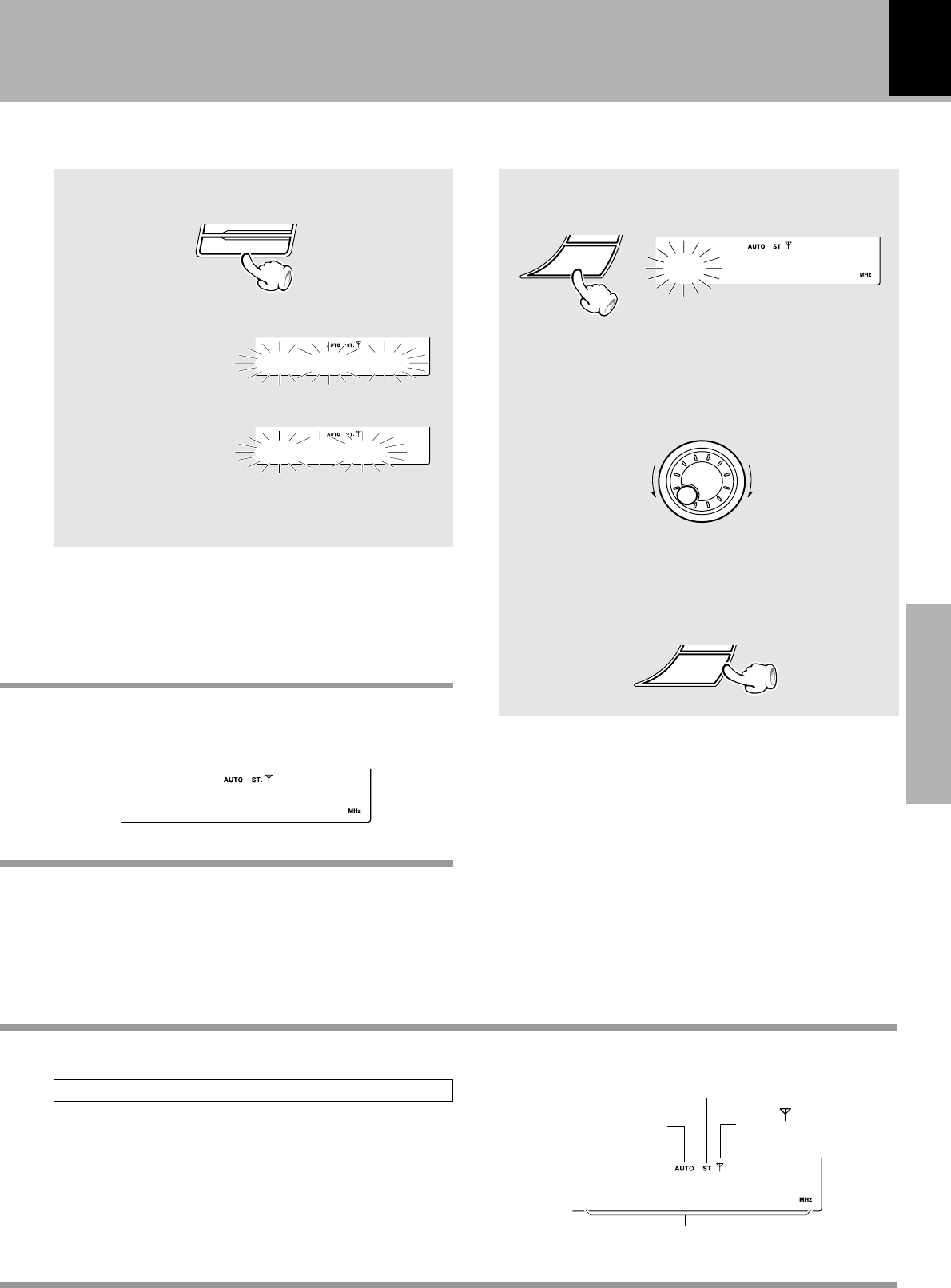
XD-SERIES (En)
27
Basic section
Let's put out some sound
÷When a key is held depressed, preset stations will be
skipped at an interval of about 0.2 second.
÷Preset stations can also be recalled using the numeric
keys of the remote control unit.
BAND
TUNING MODE
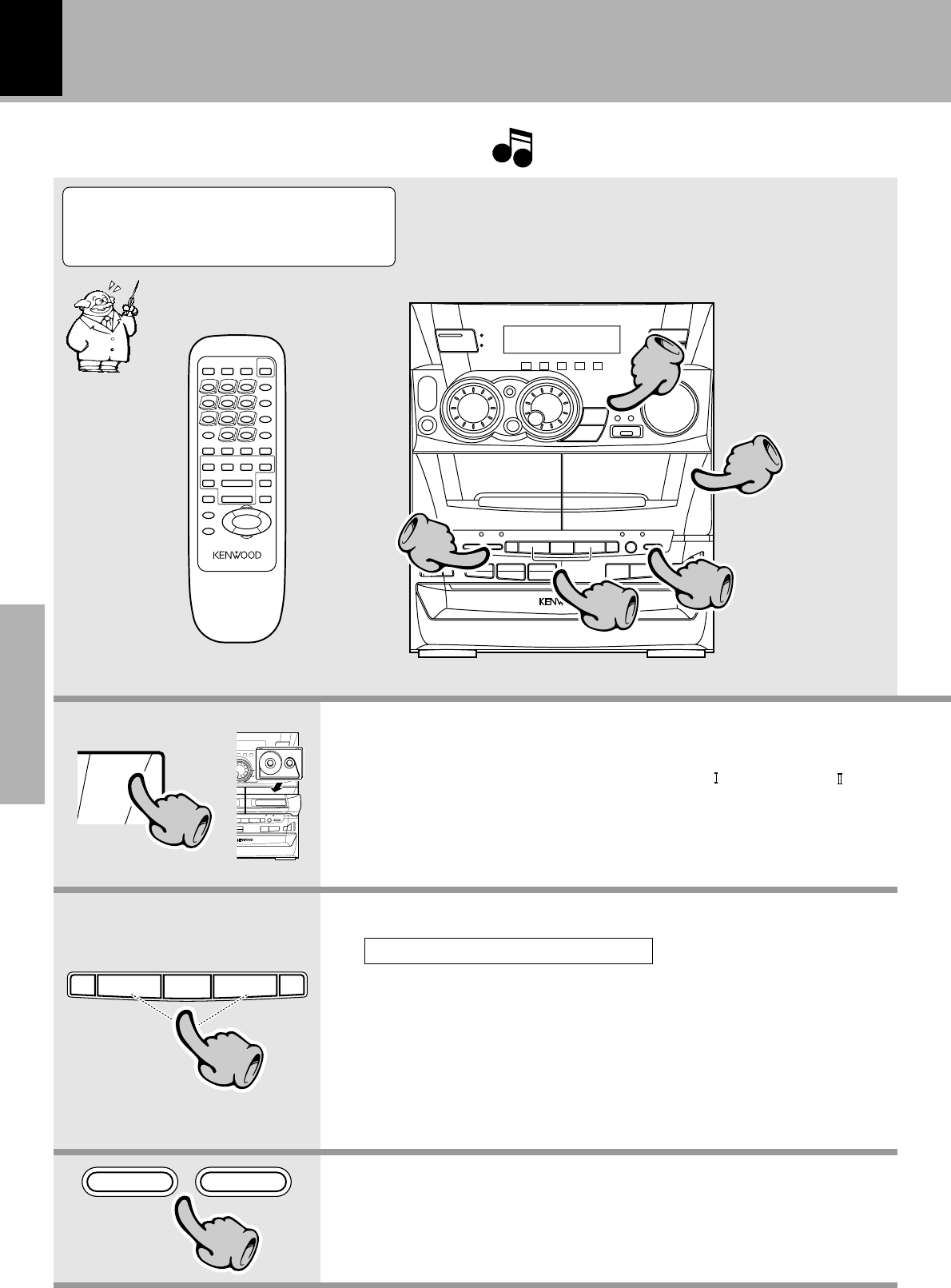
Collective presetting of stations
(auto preset)
Keep the TUNING MODE key depressed
(about 2 seconds).
÷A maximum of 30 stations are preset automatically by
giving the priority to the FM band.
÷When there are many stations and the intended station
has not been preset, please also use “One-by-one
presetting (manual preset)”.
÷The stations which have been preset are overwritten.
For U.K., Europe and Russia
Other countries
÷Repeat steps 123 to preset other stations.
÷If several stations are preset under the same number, the
previous memory is replaced with the latest memory
contents.
One-by-one presetting
(manual preset)
3 Press the ENTER key again.
Presetting is cancelled when no operation is ex-
ecuted for 5 seconds or more.
2 Select one of the preset numbers from 1 to 30.
Presetting is cancelled when no operation is ex-
ecuted for 5 seconds or more.
1 Press the ENTER key during reception.
M
U
L
T
I
C
O
N
T
R
O
L
ENTER
-0-FM 89.0
ENTER
Frequency display
Lights during auto tuning The “” indicator lights
when a station is received
Lights during stereo reception
003FM 89.0
-0-FM 89.0
Example when an FM station is received
÷Some stations may not be able to be preset if their
reception conditions are weak.
÷Use the manual tuning mode when reception is noisy
due to weak reception. (In the manual mode, stereo
broadcasts are received in monaural.)
÷Normally, use the “AUTO” (Auto tuning) mode.
÷If you are operating the remote control unit, the “AUTO”
(Auto tuning) and manual tuning mode can be alternated
by pressing the stop (7) key.
A.uto Memo
When stations have been memorized (Preset call)
Turn the MULTI CONTROL jog dial to select a station.
(On the remote control unit, press the 4 or ¢ key.)
A .Preset
XD-SERIES (En)
28
Basic section
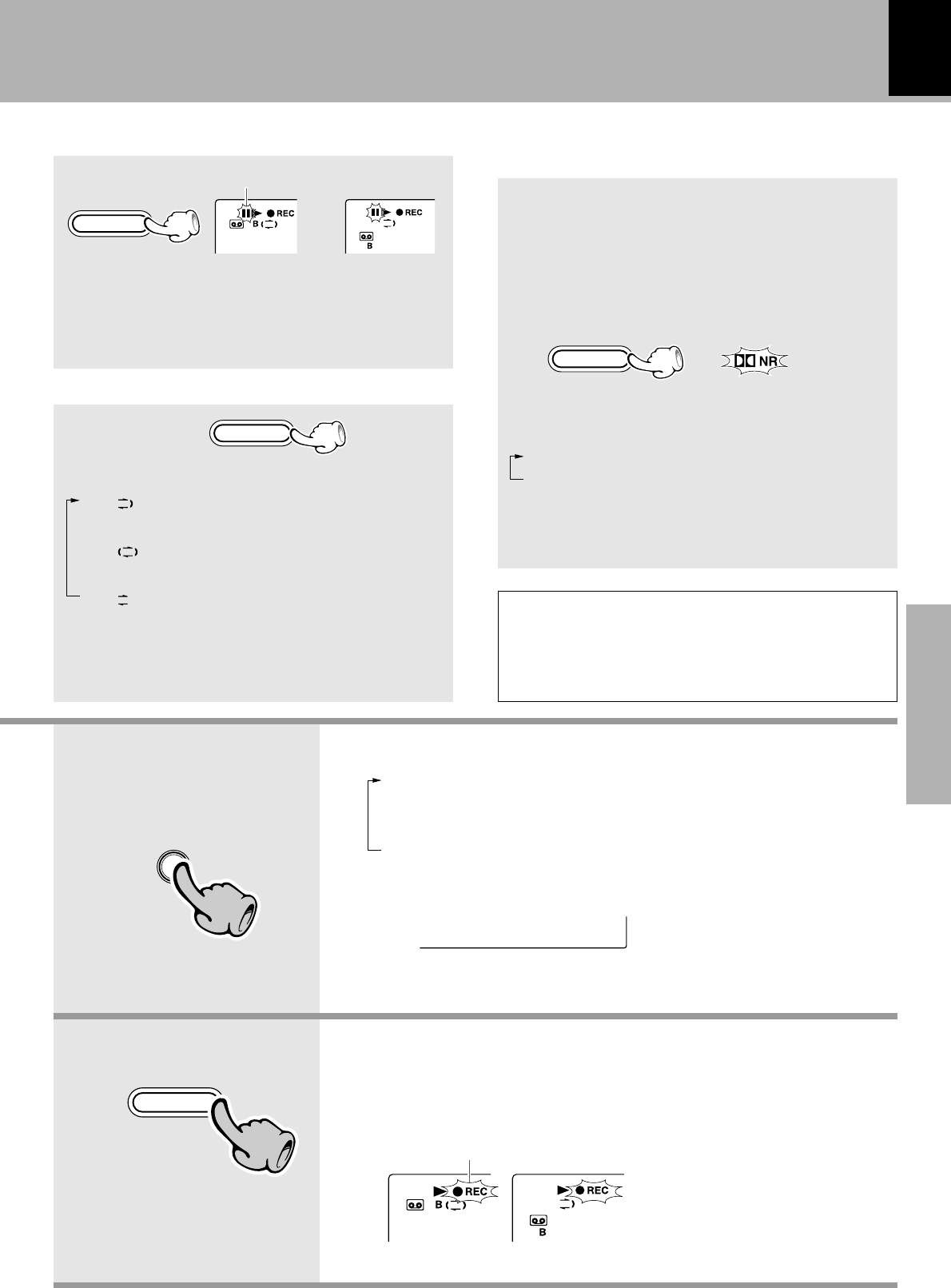
1. Load a cassette tape.
(Recording is available on deck B only.)
2. Select the tape transport direction.
Let's record
Recording on TAPE
1Open the door of deck B.
2Insert a tape.
3Close the door.
1Select deck B by pressing the
A/B key.
2Press the play key correspond-
ing to the desired direction.
3Stop playback (by pressing the
& key).
To reverse the transport direction
÷When recording is started, the
tape is transported in the direction
selected in this step.
÷Wind the tape to the position
where recording is to be started.
Check the tape transport direction indicator. £
3. Set the recording condition.
1Select the reverse mode. ª
2Select the DOLBY NR mode. (XD-5...series only) ª
0
PUSH
OPEN
11
A
&
¡
#
¡
#
22
÷The Tape Equalizer cannot be used in recording. (XD-4...series only)
When equalizer or another effect is applied
to the sound, the sound with the applied
effect can be recorded. i
Note that this cassette deck cannot record onto
Metal tapes.
NoteNote
Note
REV. MODE DOLBY NR
33
÷Differentiation between normal
(TYPE ) and high (TYPE ) tape is
set automatically.
÷Remove tape slack before load-
ing.
R D S
11
55
33
44
22
XD-SERIES (En)
29
Basic section
4. Select the source to be recorded.
1TUNER (Radio)
2CD
3TAPE (This source cannot be recorded.)
4MD/DVD (External input)
(Input level adjustment u)
The input source component to
be recorded should be displayed.
÷If a disc has already been loaded
when the CD input is selected, it
will starts to play automatically. In
this case, press the stop (&) key to
stop it.
Select an input source other
than “TAPE”.
1Start recording.
2Play (or tune) the input source to be recorded.
5. Start recording.
÷Even if deck A is selected, it is
automatically switched to deck B
at the start of recording.
÷Recording stops automatically
when the tape side(s) to be re-
corded have been fully recorded.
÷Press the stop (&) key of the cas-
sette deck unit to stop recording.
C2D01 1:1
Lights
INPUT
44
REC/ARM
55
XD-4....seriesXD-5....series
Let's record
The DOLBY NR system minimizes the hiss noise heard
when playing tape. When playing a tape prerecorded
with DOLBY NR ON, be sure to set the DOLBY NR ON
for playback.
Selection of DOLBY NR
(Noise Reduction)
(Main unit only) (XD-5....series only)
Lit when “DOLBY NR” is ON.
DOLBY NR
To pause recording
(Main unit only)
÷Pressing the key pauses recording after leaving a
non-recorded space of about 4 seconds.
÷If the key is pressed again in less than 4 seconds after it
has been pressed, recording resumes from that instant.
Each press switches the modes as follows.
1“” .... Recording stops after having re-
corded both sides of tape.
2“” ... Recording stops after having re-
corded both sides of tape.
3“” ..... Recording stops after having re-
corded one side of tape.
Selection of the reverse mode
(Main unit only)
REC/ARM
REV. MODE
Lights
÷Select the DOLBY NR mode according to the recording
condition of the tape.
Each press switches the modes as follows.
1“1 NR” ON .... DOLBY NR is used.
2“1 NR” OFF ... DOLBY NR is not used.
Dolby noise reduction manufactured under license from
Dolby Laboratories.
“DOLBY” and the double-D symbol are trademarks of
Dolby Laboratories.
XD-4....seriesXD-5....series
÷When the “2” transport direction indicator is lit,
recording always stops after having recorded one
side of tape.
XD-SERIES (En)
30
Basic section
Points in CD recording
When recording CD tracks onto a tape, if you leave
the cassette deck in record-pause mode beforehand,
the cassette deck recording can be started at the same
time as the CD starts to be played. (Synchro record-
ing function)
1Put the CD player in pause mode.
2Select the track to be recorded with the skip
(4, ¢) keys.
(The CD player pauses at the beginning of
the selected track.)
3Put the cassette deck in Record-pause mode.
(Press the REC/ARM key twice.)
4Start playing the CD.
(Synchro recording starts.)
÷Recording stops when the stop (&) key of the CD player is
pressed.
Let's record
There may be cases in which beat noise interferes
with recording of LW broadcasting.
In such a case, press the A/B key during recording to
reduce or suppress the beat noise.
Beat cancel function
(For Russia)
AB
XD-SERIES (En)
31
Basic section
Copying tape
(Tape dubbing)
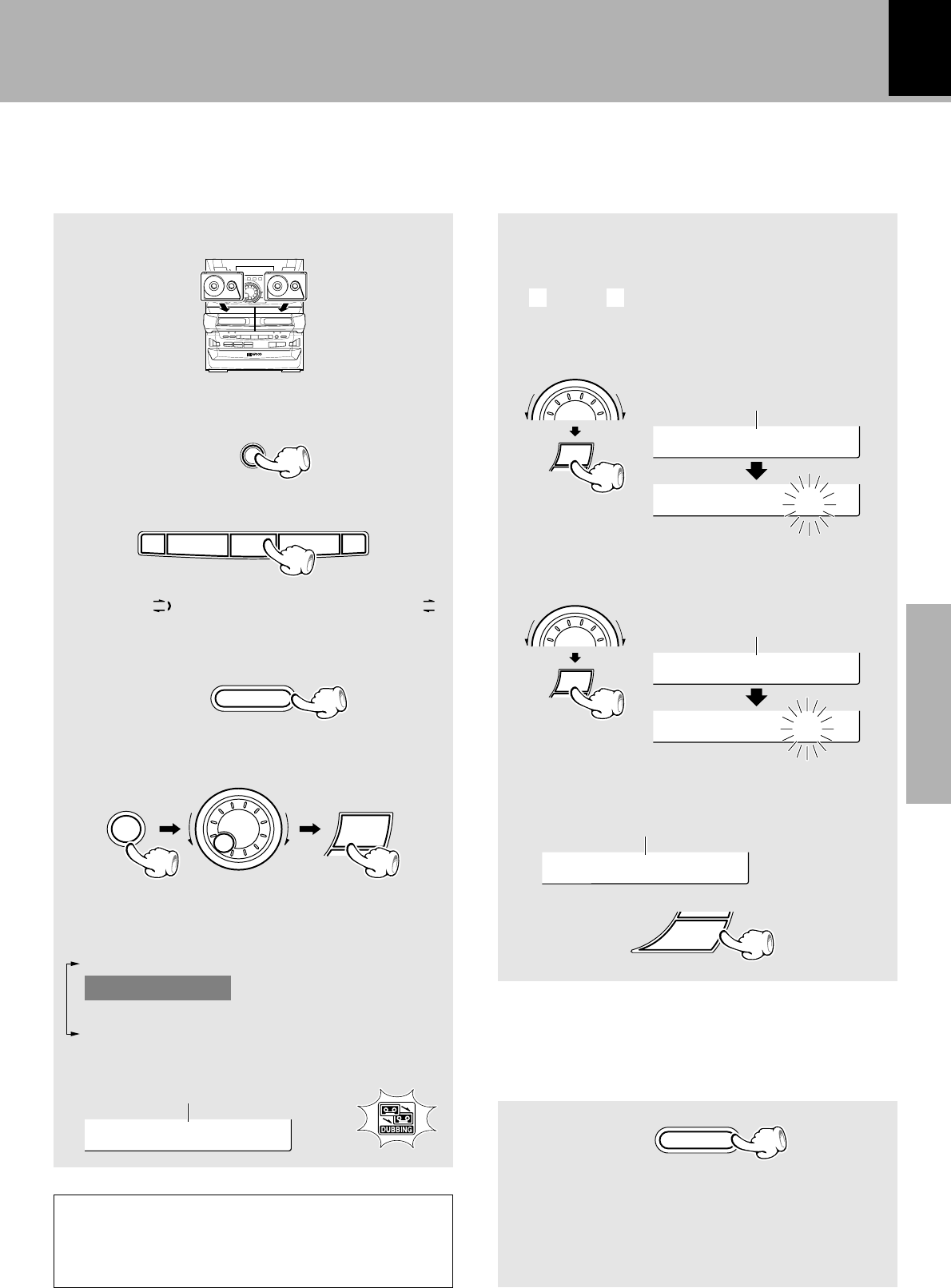
1Select the “TAPE” input.
2Press the stop key.
3Select “ ” (double-side recording) or “ ”
(one-side recording).
4Select “Tape Dubbing”.
The contents of the tape in deck A can be copied onto the tape in deck B.
÷Dubbing ends automatically when the side(s) to be
dubbed has been completed.
Playing tape Recording tape
Load tapes in the decks.
+Scrolled display
(Tape Dubbing)
5Use the same tape transport directions.
6Start dubbing.
(1) Select the transport direction of deck A.
(2) Select the transport direction of deck B.
÷When recording is started, the tape will be transported
in the direction selected in this step.
(
>
:side A,
<
: side B)
+Scrolled display
(Deck A Play Direction)
+Scrolled display
(Deck B Record Direction)
+Scrolled display (Press 'ENTER' to Start)
Tiape Dubb
Lights
PTress 'EN
INPUT
REV. MODE
ENTER
To stop dubbing
÷The deck B will stop after creating a non-recorded
portion of about 4 sec, and then the deck A will stop.
÷Dubbing can also be stopped by pressing the stop (&)
key of the cassette deck unit. Note that the non-
recorded space is not created in this case.
The DOLBY NR or TAPE EQ. key is ineffective
during dubbing.
The tape recorded on deck B assumes the same
Dolby NR condition as the tape played on deck A.
REC/ARM
MENU
SELECT
M
U
L
T
I
C
O
N
T
R
O
L
&
¡
#
¡
#
Let's record
The following items can be selected by turning
the MULTI CONTROL jog dial.
“Recording Options”
“Tape Dubbing”
“Audio Options”
“Clock Options”
SELECT
M
U
L
T
I
C
O
N
T
R
O
L
SELECT
M
U
L
T
I
C
O
N
T
R
O
L
AA
Daeck A Pl
A deck >
Dceck B Re
B deck >
XD-SERIES (En)
32
Application section
Listening in the desired sequence
(program playback)
Playback of CD
Any titles on the discs in the tray can be listened
to in the desired sequence. (Max. 32 titles)
Select the “CD” input.
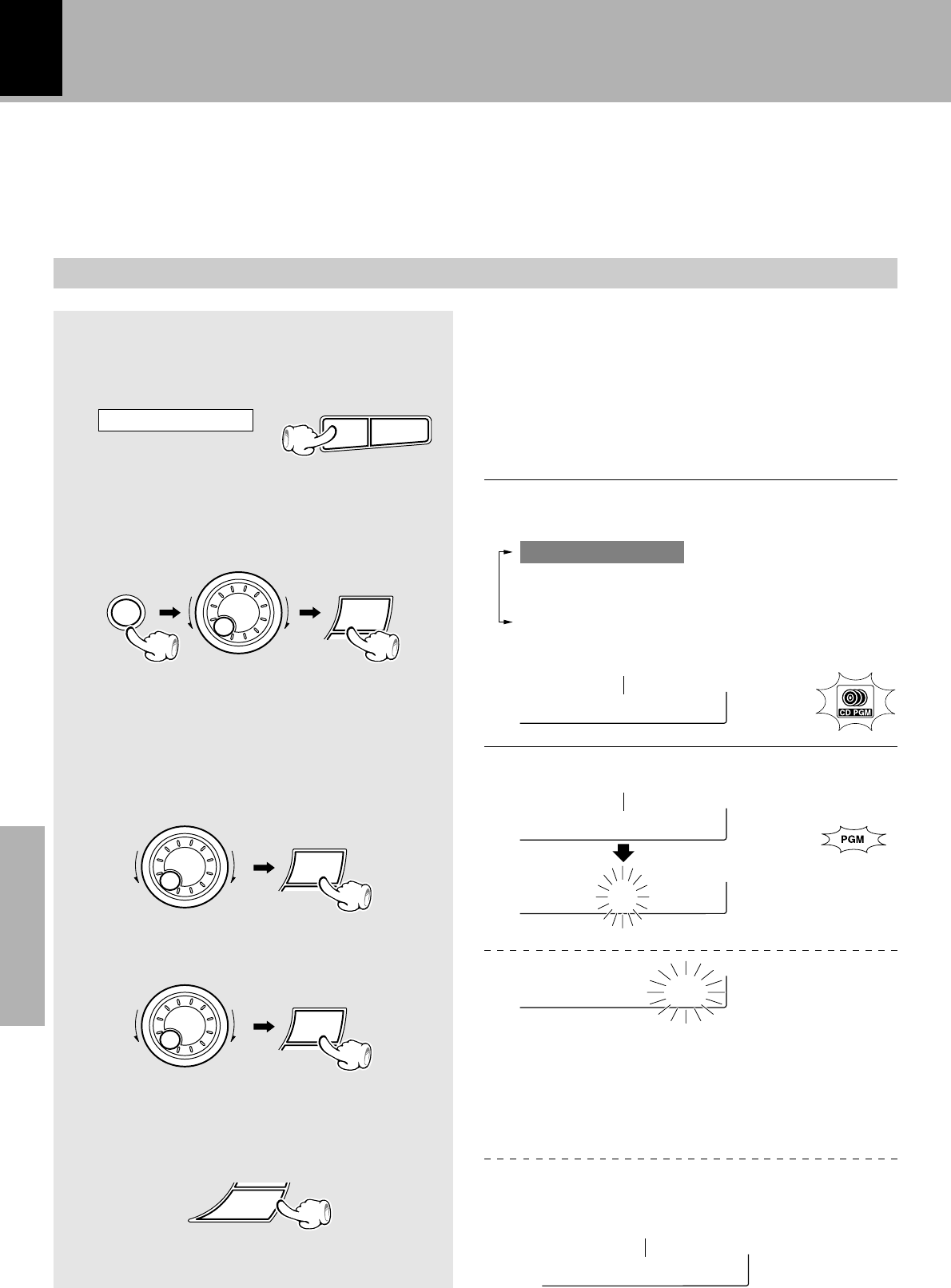
1
Check that the CD player is in the
stop mode.
2
Select “CD Program Play”.
3
Enter track No.s in the order you
want to play them.
1Select the disc.
2Select the track.
3Press the ENTER key.
(To select other tracks, repeat steps 1
and 2 for each of the additional tracks.)
÷If the operation in step 2 is performed during playback of
a track, the current track can be programmed as the first
track in the program.
+Scrolled display (Select Disc/Track No.)
÷Even if you program a disc or track which does not exit in
the tray, it is deleted automatically in playback.
÷Press the BACK key to return to the previous step and
restart operation from there.
÷Up to 32 tracks can be programmed. When “Full” is
displayed, no more tracks can be programmed.
+Scrolled display
(Press 'ENTER' to Start, 'JOG' to Check )
MENU
SELECT
M
U
L
T
I
C
O
N
T
R
O
L
SELECT
M
U
L
T
I
C
O
N
T
R
O
L
&^
SELECT
M
U
L
T
I
C
O
N
T
R
O
L
ENTER
Sselect Di
P?01 D1 T?
P101 D1 T0
PTress 'EN
+Scrolled display (CD Program Play)
CmD Progra
Lights
The following items can be selected by turning the
MULTI CONTROL jog dial.
“CD Program Play”
(“Recording Options”)
“Audio Options”
“Clock Options”
If it is in play mode
Lights
(Go to step 5 if you do not need to check the
program contents.)
XD-SERIES (En)
Application section
33
Playback of CD
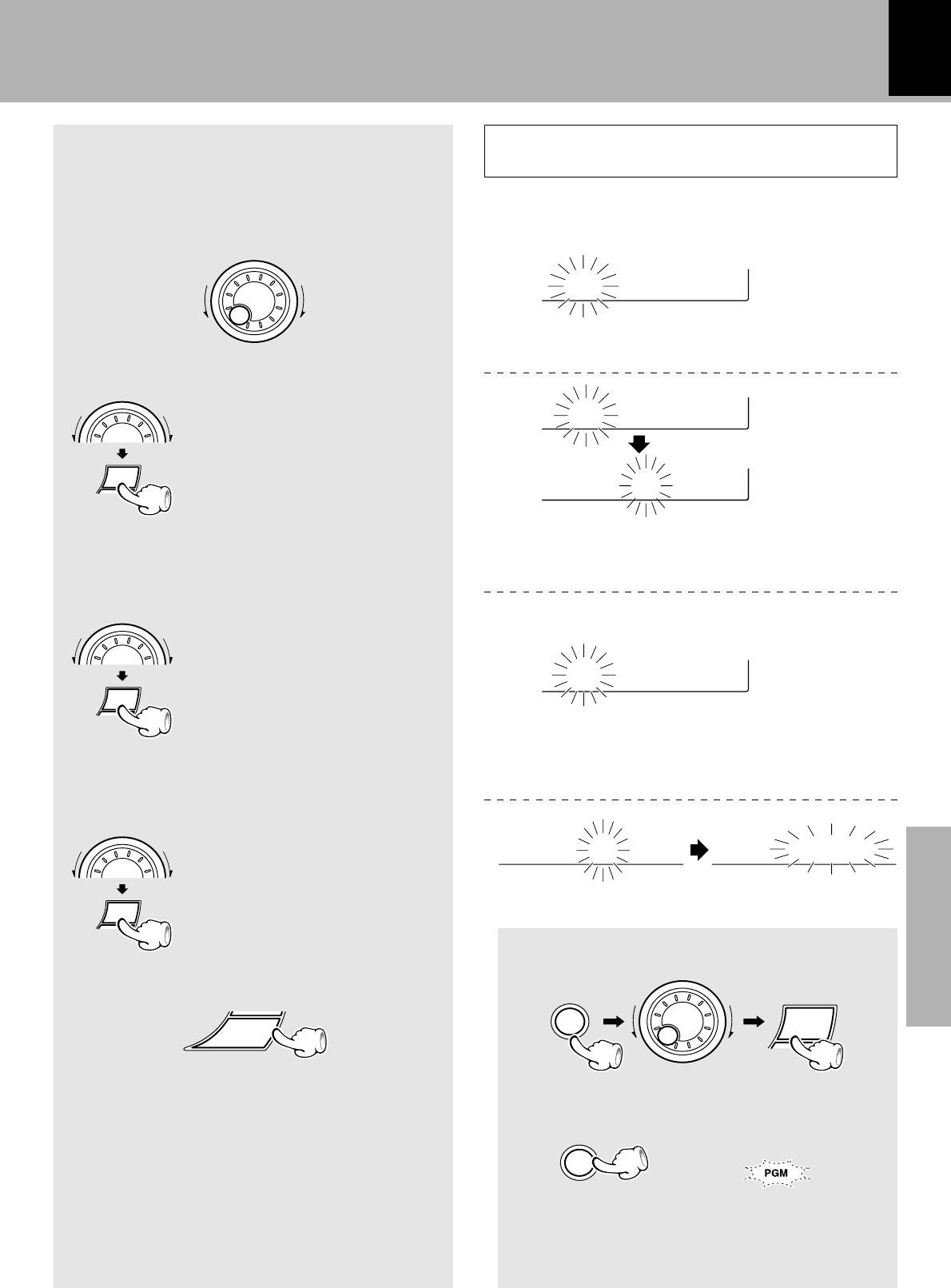
1Select “CD Program Play”.
2Press the MENU key.
4
Check the programmed tracks
(and replace, add or delete tracks as
required).
To check:
÷The blinking item can be replaced.
To replace a track in the program:
÷The added track number is added to the end of the
existing program.
÷The programmed tracks are displayed in sequence.
÷Turn the MULTI CONTROL jog dial during program
playback to stop to the previous or next programmed
track.
÷When the jog dial is rotated a little in the direction of
counterclockwise once during playback, the track
being played will be played from the beginning.
÷To check (modify, add or delete) the programmed
tracks after playback, perform the operations in steps
2 and 4.
5
Enter it.
÷If the key is pressed during playback, normal playback in
order of tracks resumes from the current track.
÷The program mode can also be canceled by pressing
the 0 OPEN key.
1Select the programmed disc
or track to be replaced and
press the SELECT key.
2Select a disc or track to re-
place the disc or track selected
above (step 3-1and 2).
1Select the display as shown
on the right and press the
SELECT key.
2Perform the same operations
as in step 3-1and 2.
To add a track to the program:
To delete a track from the program:
1Select the programmed disc
or track to be cleared and
press the SELECT key.
2Select “clear” and press the
SELECT key.
Goes off
M
U
L
T
I
C
O
N
T
R
O
L
ENTER
SELECT
M
U
L
T
I
C
O
N
T
R
O
L
SELECT
M
U
L
T
I
C
O
N
T
R
O
L
SELECT
M
U
L
T
I
C
O
N
T
R
O
L
To quit the program mode
MENU
P201 D1 T0
P412 D3 T0
P412 D3 T0
P?13 D? T?
P412 D3 T0 P12 clear
Display when 12 tracks have been programmed
MENU
SELECT
M
U
L
T
I
C
O
N
T
R
O
L
Press the TIME key on the remote control unit to switch
the time display.
(Playback starts from the first programmed
track (program No. 1))
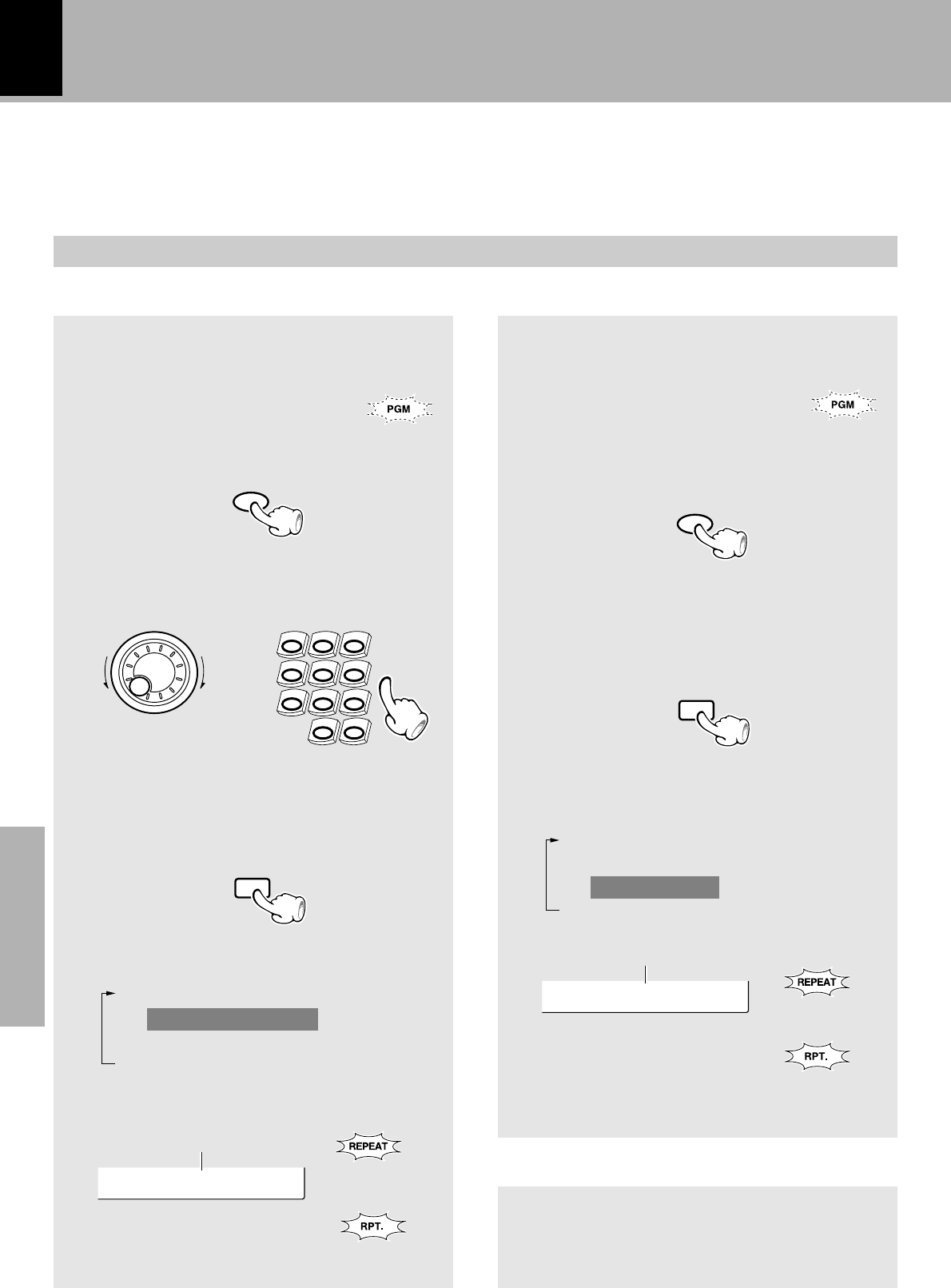
XD-SERIES (En)
34
Application section
Select the “CD” input.
Repeated playback
Desired titles or discs can be played back repeatedly.
Playback of CD
DISC SKIP
1
Cancel “PGM”.
2
Select the disc.
3
Select the track.
4
Select “One Track Repeat”.
To repeat only one track
1 2 3
4 5 6
7 8 9
0+10
REPEAT
If the “PGM” indicator is lit, make
sure to turn it off. ‹
Goes off
Lights
XD-4....series
XD-5....series
(Remote control unit)
(Remote control unit only)
To repeat a disc
1
Cancel “PGM”.
2
Select the disc.
3
Select “Disc Repeat”.
DISC SKIP
REPEAT
If the “PGM” indicator is lit, make
sure to turn it off. ‹
(Remote control unit only)
Press the key repeatedly to switch the
display.
1“Repeat off” (Repeat canceled)
2“One Track Repeat”
3“Disc Repeat”
4“All Repeat”
+Scrolled display
(One Track Repeat)
ackrOne T
Goes off
Lights
Press the key repeatedly to switch the
display.
1“Repeat off” (Repeat canceled)
2“One Track Repeat”
3“Disc Repeat”
4“All Repeat”
XD-4....series
XD-5....series
+Scrolled display(Disc Repeat)
Daisc Repe
To stop repeated playback
Press the REPEAT key repeatedly until the repeat
mode is switched off.
÷The repeat mode can also be canceled by pressing
the 0 OPEN key.
M
U
L
T
I
C
O
N
T
R
O
L
(Main unit)
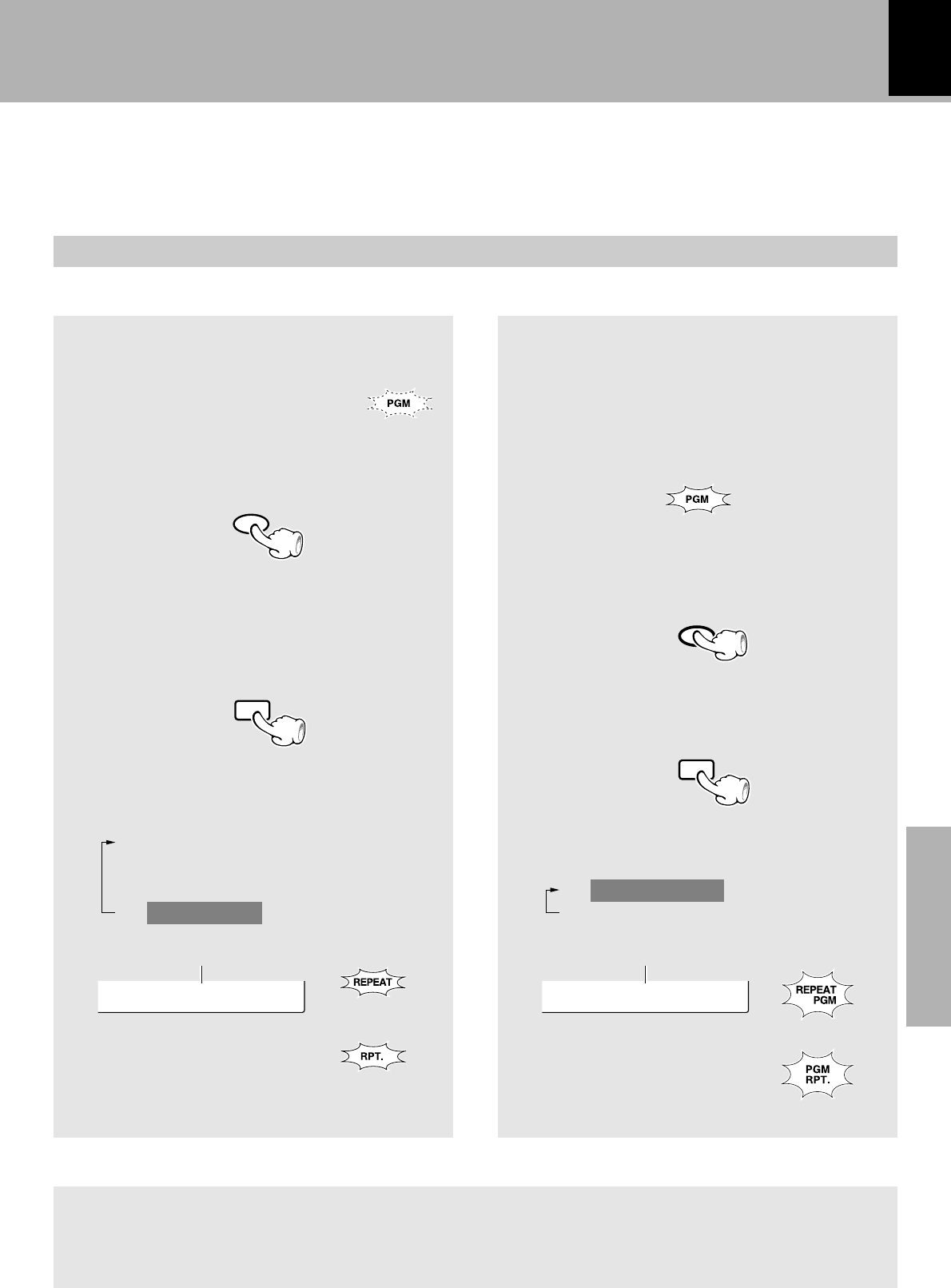
XD-SERIES (En)
Application section
35
Playback of CD
To repeat all discs
1
Cancel “PGM”.
2
Select the disc to be played first.
3
Select “All Repeat”.
DISC SKIP
If the “PGM” indicator is lit, make
sure to turn it off. ‹
Goes off
REPEAT
To stop repeated playback
Press the REPEAT key repeatedly until the repeat mode is switched off.
÷The repeat mode can also be canceled by pressing the 0 OPEN key.
Lights
XD-4....series
XD-5....series
(Remote control unit only)
Press the key repeatedly to switch the
display.
1“Repeat off”(Repeat canceled)
2“One Track Repeat”
3“Disc Repeat”
4“All Repeat”
+Scrolled display (All Repeat)
Atll Repea
REPEAT
To repeat only the programmed tracks
1
Perform the procedure in
“Listening in the desired sequence
(program playback)” till step
3
to
program the desired CD tracks.
¤
2
Start playback.
3
Select “PGM Repeat”
(Remote control unit only)
ENTER
÷All of the programmed tracks will be played
repeatedly.
PtGM Repea
XD-4....series
XD-5....series
Press the key repeatedly to switch the
display.
1“PGM Repeat”
2“Repeat off” (Repeat canceled)
+Scrolled display (PGM Repeat)
Lights
Lights
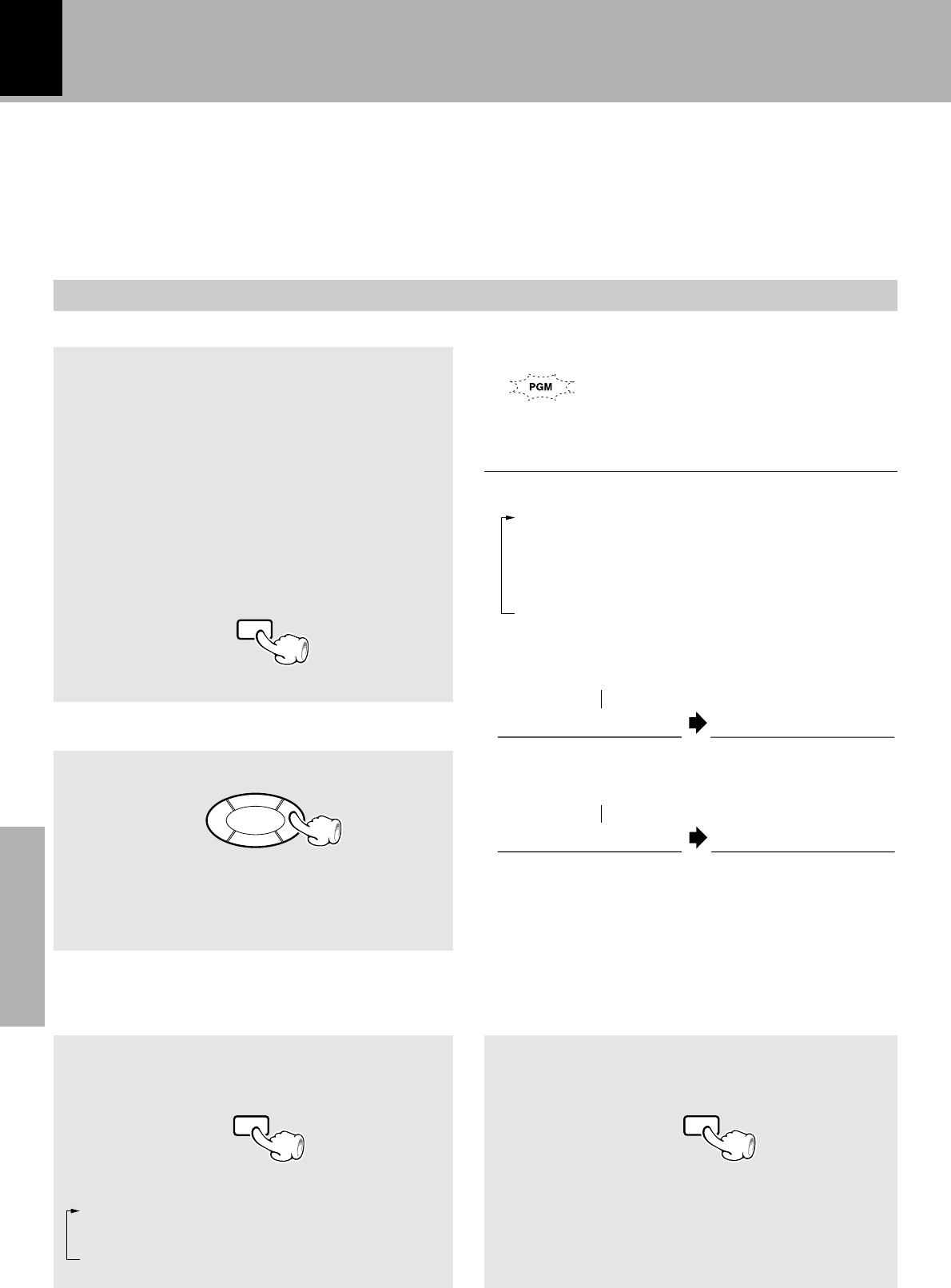
XD-SERIES (En)
36
Application section
Playback of CD
RANDOM
Random playback
Select the “CD” input.
Press the key repeatedly to switch the display.
1“One Disc Random”
Random play of one disc
2“All Disc Random”
Random play of all discs
3“Random off” (Normal playback)
As the titles each time are selected randomly, the music can be enjoyed without getting tired of it.
Random playback can play tracks in one to three discs.
1
Cancel “PGM”.
2
Select the RANDOM mode.
(For “One Disc Random” playback, select the
disc in advance.)
Random play of all discs
Random play of one disc
+Scrolled display (One Disc Random)
÷The displayed character information returned to normal
display and normal playback in order of track numbers
starts from the track being played.
To cancel random playback
Select “Random off”.
RANDOM
To select another track in the middle of playing one
To repeat random playback
Select “Random Repeat”.
REPEAT
÷Pressing the 4 key once returns to the beginning
of the track being played.
÷Playback stops after each title has been played once.
÷When the TIME key of the remote control unit is pressed
during playback, the time display appears but it soon
returns to the original display.
+Scrolled display (All Disc Random)
4¢
D RNDM T15ORne Disc
Each press switches the modes as follows.
1“Random Repeat” .....Random repeat
mode
2“Repeat off” ..............Repeat canceled
If the “PGM” indicator is lit, make sure to
turn it off. ‹
Goes off
(Remote control unit only)
(Remote control unit only) (Remote control unit only)
A RNDM T12ARll Disc
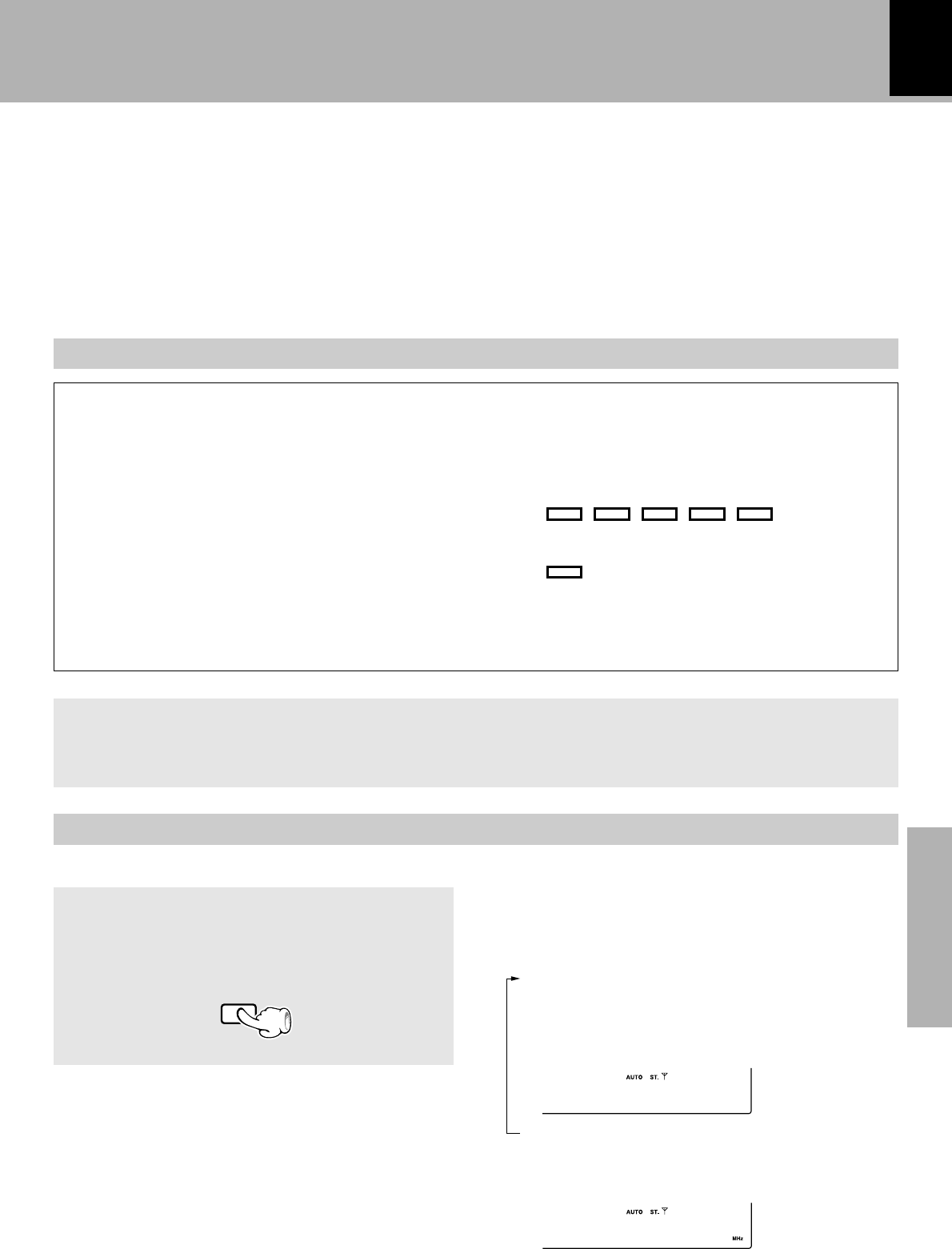
XD-SERIES (En)
Application section
37
RDS is a system which transmits useful informa-
tion (digital data) for FM broadcasts together
with the broadcast signal. Tuners and receivers
designed for RDS reception can extract the in-
formation from the broadcast signal for use with
various functions such as automatic display of
the station name.
R.D.S.
(Radio Data System) (For U.K., Europe and Russia)
This unit is equipped with the following functions utilizing RDS data:
PTY (Program Type Identification) Search :°
The tuner automatically searches for a station which is currently
broadcasting a specified program type (genre).
PS (Program Service Name) Display : (See below.)
When an RDS broadcast is received, the station name is
automatically displayed.
EON (Enhanced Other Network) : ‚
When the information to be received is set in advance and any
RDS station in the same network starts broadcasting of such
information, the reception automatically will be switched to that
station.
The “RDS” indicator lights up when an RDS broadcast
(signal) is received.
÷Some functions may not be provided or be given differ-
ent names depending on countries or areas.
Pressing the RDS DISP. key changes the dis-
play contents.
Display mode priority ranking
When an RDS broadcast is received :
1PS (Program Service Name) Display :
When an RDS broadcast is received, the station
name is automatically displayed.
If no PS data was sent, “NO PS” is displayed.
2Frequency Display :
The frequency of the current station is displayed.
Note before the use of RDS
Set the receiving band to FM and preset RDS stations with the auto preset function.
¶
To switch the display contents
RDS DISP.
RDS TP PTY EON TA
NEWS
B BC
001FM102.5
For reception of RDS stations, the auto presetting function must be used to preset the stations. With the auto
presetting function, RDS stations are preset with priority.
(Remote control unit only)
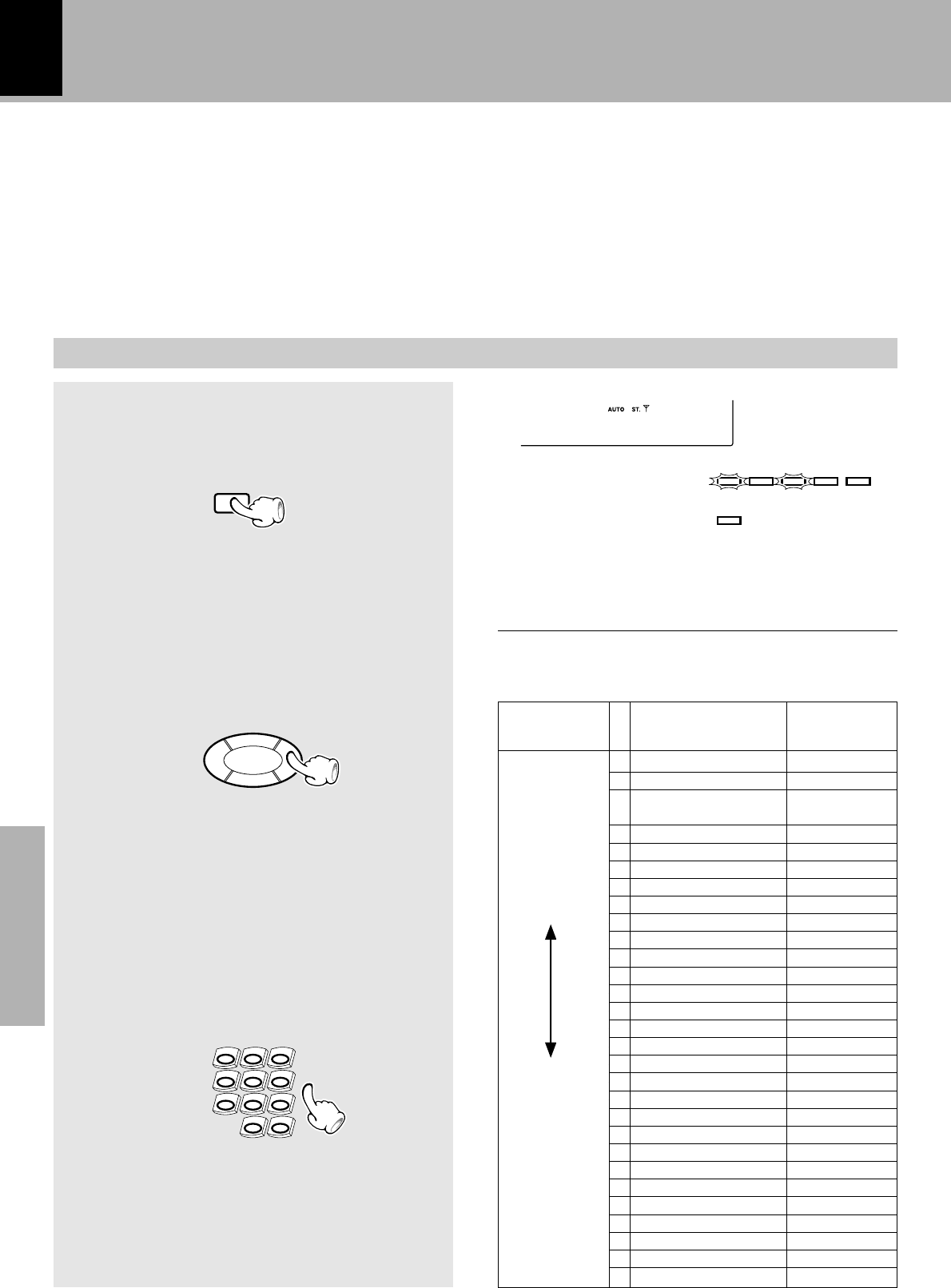
XD-SERIES (En)
38
Application section
ATo select using the 4 ¢ keys
The 4 ¢ keys can be used to select one of
the 29 program types by displaying them in
sequence.
Press and hold the key and release it when the
desired program type appears.
BTo select using the numeric keys
The numeric keys can be used to specify the
desired program type directly by selecting a
number between 01 and 28.
Example:
To select 23: Press 003.
Program Type
Name
R.D.S.
By specifying the type of program (genre) you
want to listen to, the tuner automatically
searches for a station which is currently broad-
casting a program of the specified type.
Searching for a desired program type
(PTY search)
Set the reception band to FM. Preset RDS stations with the auto preset function.
¶
When an RDS broadcast is received, the program type is
shown on the display. If no PTY data is available, or if the
station is not an RDS station, “NONE” is displayed.
Program type table
Select while “PTY” is lit.
4¢
1 2 3
4 5 6
7 8 9
0+10
N0EWS102.5
TP PTY EON TA
NEWS
RDS
POP M
ROCK M
EASY M
LIGHT M
CLASSICS
OTHER M
NEWS
AFFAIRS
INFO
SPORT
EDUCATE
DRAMA
CULTURE
SCIENCE
VARIED
WEATHER
FINANCE
CHILDREN
SOCIAL
RELIGION
PHONE IN
TRAVEL
LEISURE
JAZZ
COUNTRY
NATION M
OLDIES
FOLK M
DOCUMENT
01
02
03
04
05
06
07
08
09
00
10
11
12
13
14
15
16
17
18
19
20
21
22
23
24
25
26
27
28
A
4 ¢ keys BDisplay
4
DOWN
UP
¢
Pop Music
Rock Music
Easy Listening
Music
Light classical
Serious classical
Other Music
News
Current Affairs
Information
Sport
Education
Drama
Culture
Science
Varied
Weather
Finance
Children’s program
Social Affairs
Religion
Phone In
Travel
Leisure
Jazz Music
Conutry Music
National Music
Oldies Music
Folk Music
Documentary
1
Select the PTY search mode.
2
Select the desired program type.
Use program type table on the right for your
convenience.
(Remote control unit only)
(Remote control unit only)
PTY
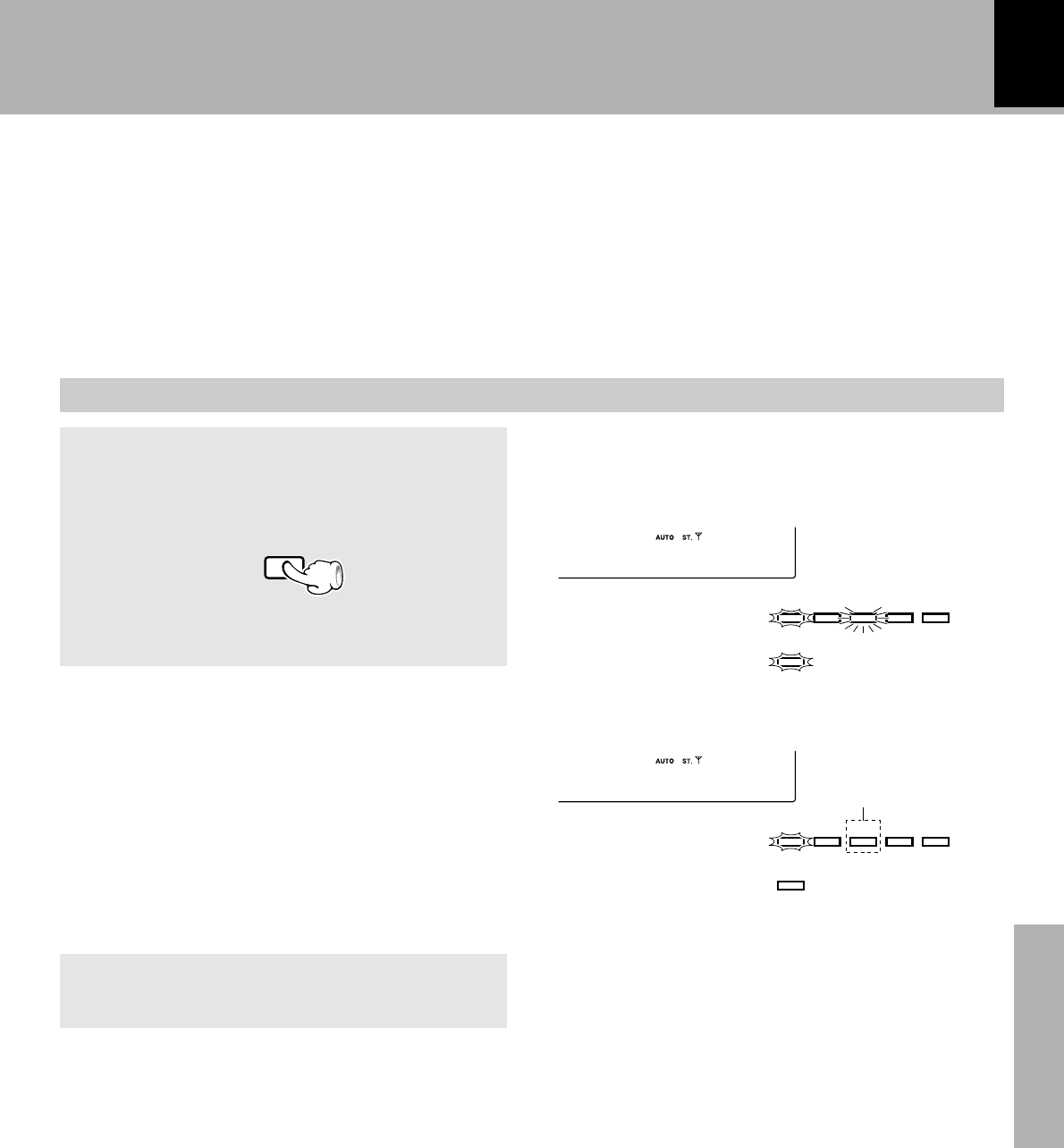
XD-SERIES (En)
Application section
39
Repeat steps 1, 2, 3.
When searching for a Rock Music broadcast
When a station is received.
To change to a different program type :
Display while the tuner is searching.
Blinks
Goes off
÷No sound is heard while “PTY” is blinking.
÷If a program of the desired type cannot be found,
“NO PROG” is displayed, then after several sec-
onds the display returns to the original display.
÷If a program of the desired type is found, that program is
received and the program type name display changes
temporarily to the frequency display, and then to the
station name display.
Station name display.
Program type name display.
(Press the key again during search to cancel it.)
3
Start the search.
PTY
R0OCK1M2.5
TP PTY EON TA
NEWS
RDS
R.D.S.
(Remote control unit only)
B0BC 102.5
TP PTY EON TA
NEWS
RDS
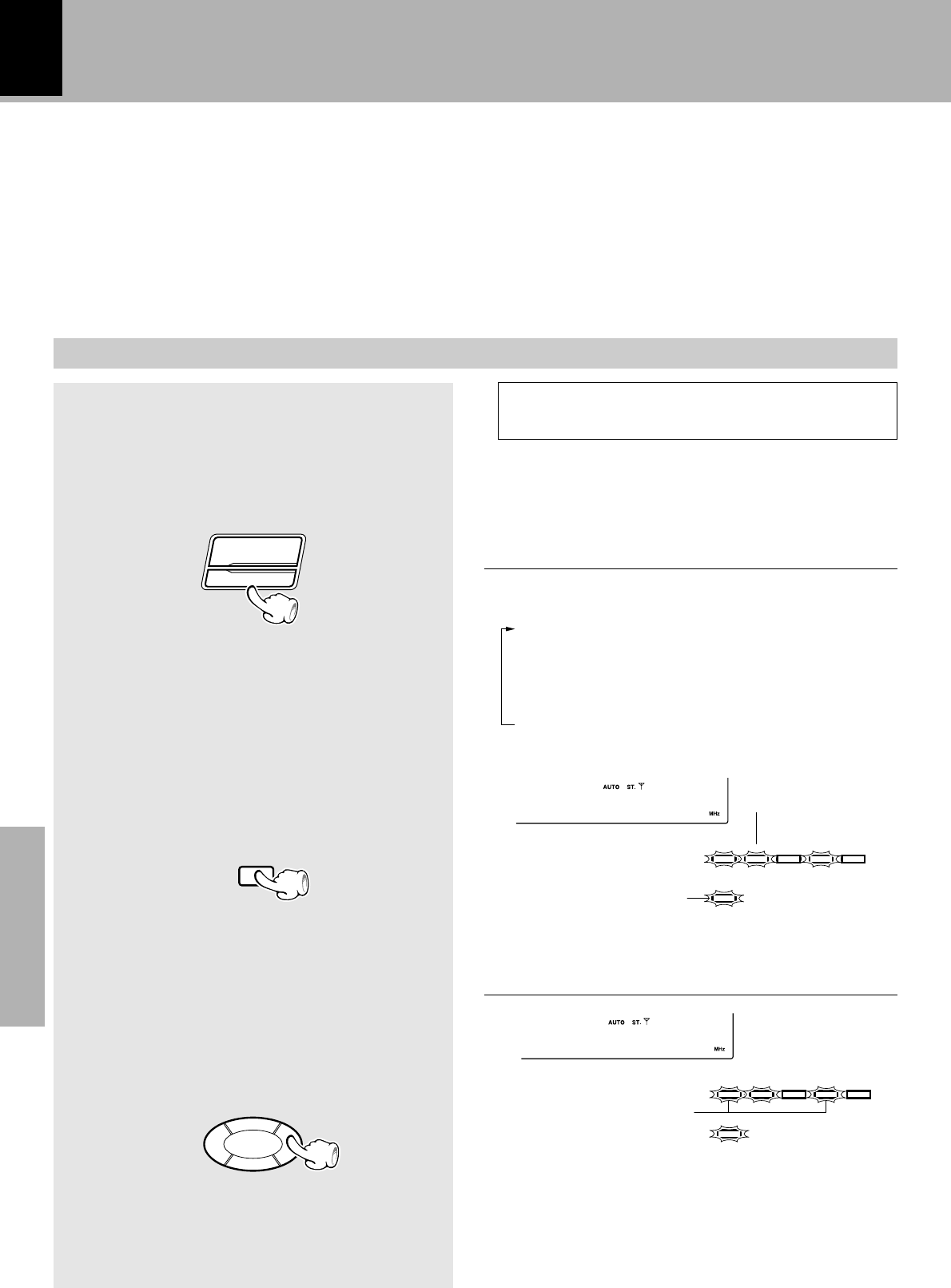
XD-SERIES (En)
40
Application section
R.D.S.
To be able to listen to the desired information at any time
(EON)
By using the EON function, which manages the information of other stations, listening to desired infor-
mation like traffic information or news etc. can be reserved even when it is not being transmitted at the
present. When listening to a station with the “EON”display lit and another station of the same network
starts to broadcast an information program for which a reservation has been made, then that station
will be selected automatically. When the desired information program ends, return is made to the
original program.
Each press switches the modes as follows.
1TA ........................ Traffic Announcement
2NEWS .................. News
3TA/NEWS............ Traffic Announcement/
News
4Display not lit...... EON cancelled
1
Auto preset the stations.
2
Select the desired information.
3
Receive an RDS station.
(The EON data presently being broadcasted
are taken in automatically.)
This is not required when auto presetting has already
been executed. ¶
÷When all 30 stations have already been preset by the
procedure for “One-by-one presetting (manual preset)”,
the EON function will not operate. Auto presetting must
be used.
1Receive a broadcast.
2Keep the TUNING MODE key pressed
(2 sec or longer).
“RDS” and “EON” are lit
Select a station where “RDS” and “EON”
are lit.
÷Please execute automatic presetting when TA and NEWS
can not be selected.
Lights when “NEWS”
is selected
Lights with a station
broadcasting traffic an-
nouncement programs.
÷When “EON” does not light although an RDS station is
received, that station is not transmitting EON data.
Please select a different station.
÷If you want TA programs, select the stations with which
the “TP” indicator lights.
Set the reception band to FM.
§
BAND
TUNING MODE
001FM102.5
TP PTY EON TA
NEWS
RDS
TA/NEWS
4¢
002FM 90.0
TP PTY EON TA
NEWS
RDS
(Remote control unit only)
XD-SERIES (En)
Application section
41
÷When one of the stations of the network of the station
received in 3 starts broadcasting the program contents
selected in 2, that station will be received automatically.
At this time, tape playback will stop and CD playback will
pause. However, external equipment (MD/DVD) will
remain as it is.
÷The EON function does not operate during recording
(including dubbing).
÷ When the transmission of the selected program contents
ends in case of automatic reception with the EON func-
tion, return will be made to the status directly before
operation of the EON function. When tape or CD play-
back has been interrupted, it will be continued from the
point of interruption.
CD or tape playback may also be started.
As long as the unit is ON, the unit is always
ready for the reception.
Waiting for information while a RDS station
without EON function is tuned
If the EON indicator does not light with the RDS station
in steps 3 and 4, the tuner will wait for only the desired
information broadcast from the tuned RDS station pro-
vided that the desired information has been selected in
the previous step.
TP (Traffic Program) indicator
The lighting of the TP indicator indicates that the cur-
rently tuned station or a station in the same network as
it broadcasts traffic announcement programs. If the TP
indicator already lights with the current station, you can
listen to the traffic announcement program through the
station without making reservation with the EON func-
tion.
4
Wait for the desired information.
R.D.S.
XD-SERIES (En)
42
Application section
Selection of the Recording Type
With this unit, the following edit recording is
possible according to the purpose.
Convenient CD recording
Note that this cassette deck cannot record onto
Metal tapes.
Recording only desired titles
e
Perform this operation when a track you want to record
starts during CD playback. This starts recording of the
track from the beginning.
\
CD ONE TRACK RECORDING
If you want to select the track to be recorded while playing a CD
Recording of an entire CD
r
Perform the “CD DIRECT RECORDING” operation while
the CD player is in stop mode to start recording.
\
CD DIRECT RECORDING
If you want to record a CD in order of track numbers
Recording the programmed titles
t
Program the desired tracks from up to 3 CD discs in the
desired order and record the programmed playback onto
tape.
\
CD PROGRAM RECORDING
If you want to record only the desired tracks
NoteNote
Note
With recording onto tape, the track will be interrupted for the part of the guide tape at the tape reversal, where
recording is not possible. Please use single-side recording if this is to be avoided.
NoteNote
Note
In regard to CD-TEXT
(Remote control unit only)
When a CD-TEXT disc is played on this unit, it dis-
plays the text information (disc or track title) re-
corded in the CD.
To switch the displayed text information between
the disc title and track title during playback, press
the TEXT DISP. key.
Scrolls the disc title display.
CD player’s time display.
Scrolls the track title display.
Wiorld Mus
NBew York:
TEXT DISP.
(When pressed during playback)
C2D01 1:1
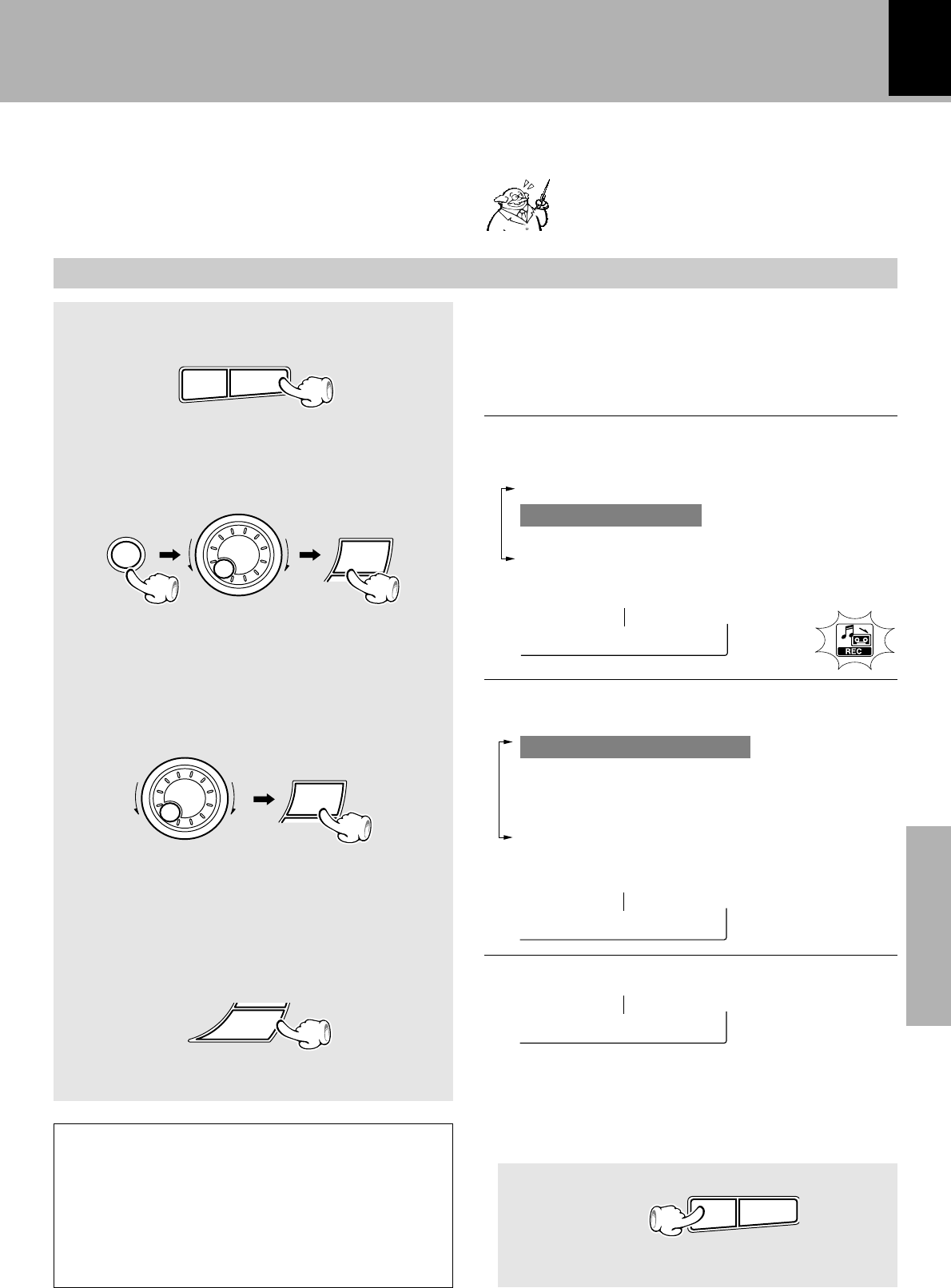
XD-SERIES (En)
Application section
43
Recording preparations are required.
• (Steps 1 to 3)
At the time of CD playback, any desired title can
be selected immediately for recording.
1
Playback of CD.
2
Select “Recording Options”.
3
Select “CD One Track Recording” .
4
Start recording.
To end recording in the middle
Recording only desired titles
(CD ONE TRACK RECORDING)
When equalizer or another effect is applied
to the sound, the sound with the applied
effect can be recorded. i
Convenient CD recording
÷Select a mode other than random play.
÷Playback restarts from the beginning of the track being
played and recording starts at the same time.
+Scrolled display (CD One Track Recording)
The following items can be selected by turning the
MULTI CONTROL jog dial.
“CD One Track Recording”
(Only during CD playback)
“CD Direct Recording”
“CD Program Recording”
“Timer Recording”
÷Both the cassette deck and CD player stop.
+Scrolled display (Press 'ENTER' to Start)
+Scrolled display (Recording Options) Lights
&^
SELECT
M
U
L
T
I
C
O
N
T
R
O
L
ENTER
&^
R ecording
CaD One Tr
PTress 'EN
The following items can be selected by turning the
MULTI CONTROL jog dial.
“CD Program Play”
“Recording Options”
“Audio Options”
“Clock Options”
When recording has been completed, a non-recorded
portion of 4 seconds will be produced and the cassette
deck part will stop. The CD player will enter tempo-
rary stop condition.
To record a different track, repeat the steps 1 to4.
MENU
SELECT
M
U
L
T
I
C
O
N
T
R
O
L
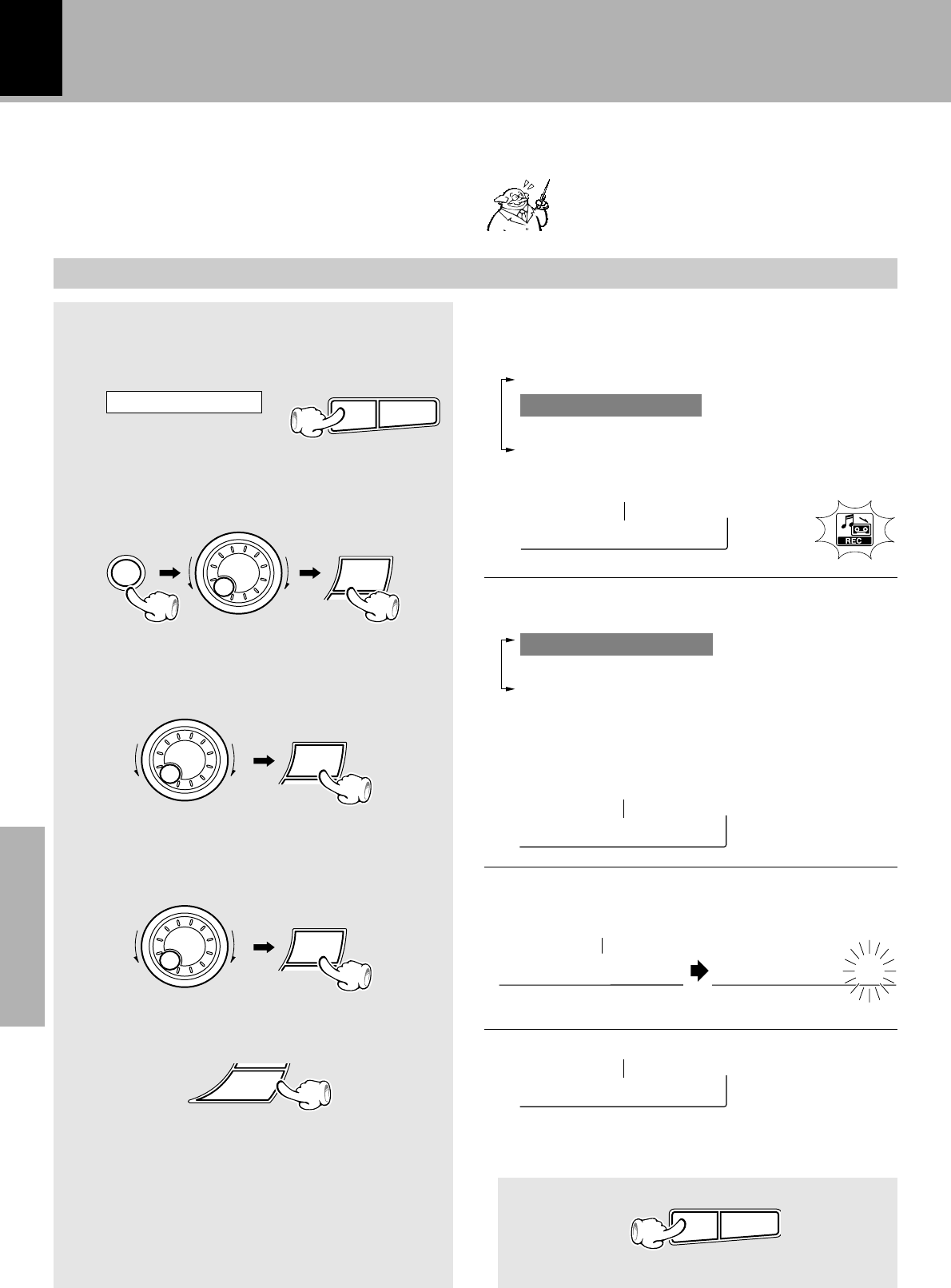
XD-SERIES (En)
44
Application section
Recording preparations are required.
•
(Steps 1 to 4)
1
Check that the CD player is in the
stop mode.
2
Select “Recording Options”.
3
Select “CD Direct Recording”.
4
Select the disc.
5
Start recording.
Recording of an entire CD
(CD DIRECT RECORDING)
Perform the following operation while the CD
player is in stop mode to start recording at the
same time as the start of playback.
When equalizer or another effect is applied
to the sound, the sound with the applied
effect can be recorded. i
Convenient CD recording
÷Recording of CD starts at the same time as playback.
÷At the end of tape, the music is not recorded on the
leader tape portion. If you do not want any music to
be interrupted in the middle, refer to “Recording on
TAPE” and start recording of side B with the
interrupted track. •
To end recording in the middle
÷Both the cassette deck and CD player stop.
+Scrolled display (CD Direct Recording)
+Scrolled display (Select Disc No.)
+Scrolled display (Press 'ENTER' to Start)
SELECT
M
U
L
T
I
C
O
N
T
R
O
L
SELECT
M
U
L
T
I
C
O
N
T
R
O
L
ENTER
&^
C D Direct
D isc No.1Sselect Di
PTress 'EN
+Scrolled display (Recording Options) Lights
R ecording
The following items can be selected by turning the
MULTI CONTROL jog dial.
“CD Program Play”
“Recording Options”
“Audio Options”
“Clock Options”
MENU
SELECT
M
U
L
T
I
C
O
N
T
R
O
L
The following items can be selected by turning the
MULTI CONTROL jog dial.
“CD Direct Recording”
“CD Program Recording”
“Timer Recording”
&^
If it is in play mode
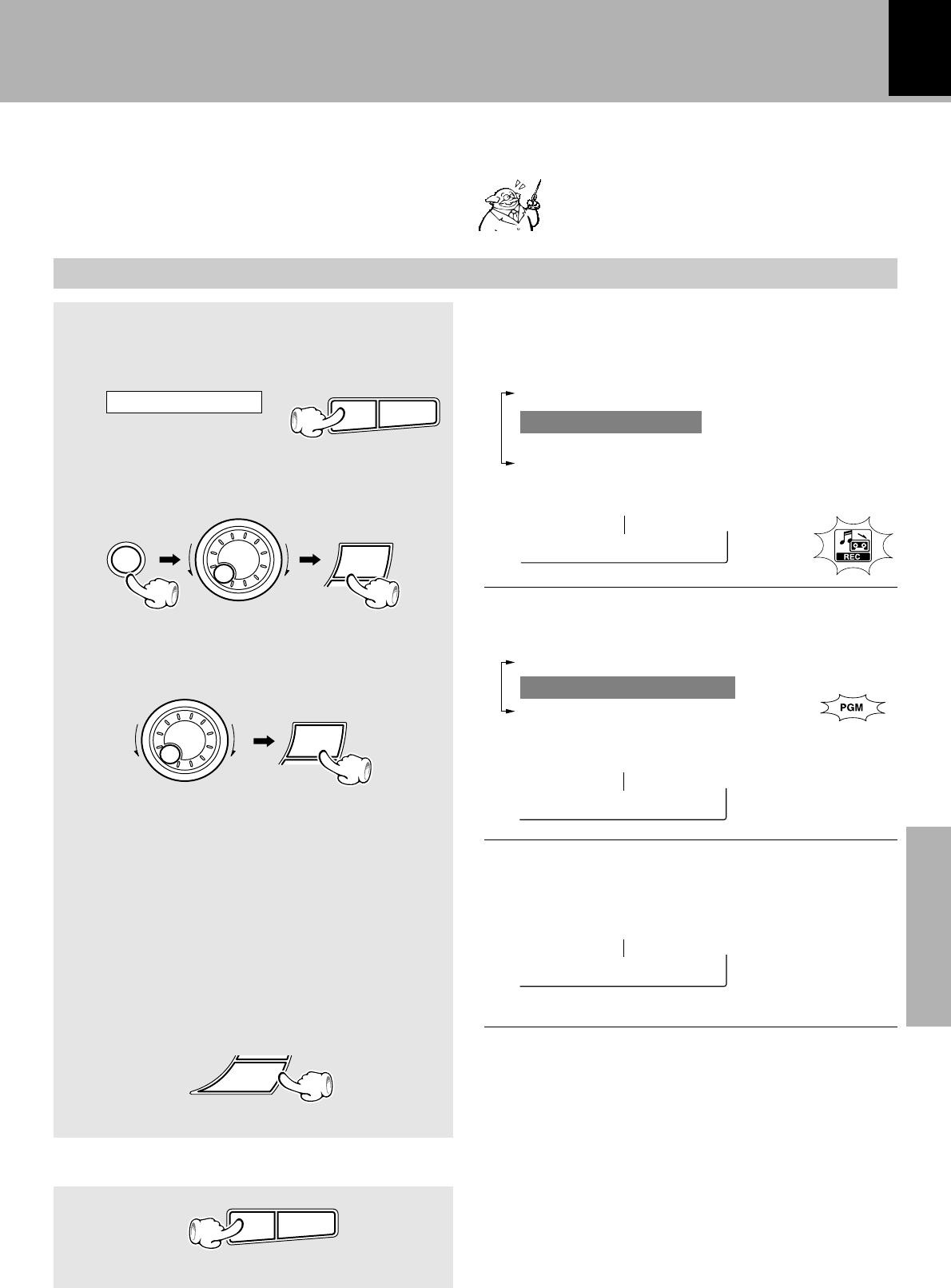
XD-SERIES (En)
Application section
45
Recording preparations are required.
•
(Steps 1 to 4)
Recording the programmed titles
(CD PROGRAM RECORDING)
Program the desired tracks from up to 3 CD discs
in the desired order and record the programmed
playback onto tape.
Convenient CD recording
When equalizer or another effect is applied
to the sound, the sound with the applied
effect can be recorded. i
+Scrolled display (CD Program Recording)
To end recording in the middle
÷Both the cassette deck and CD player stop.
+Scrolled display
(Press 'ENTER' to Start, 'JOG' to Check)
SELECT
M
U
L
T
I
C
O
N
T
R
O
L
ENTER
CmD Progra
&^
PTress 'EN
÷The program mode is maintained even after completion
of recording. To return to the normal mode, it is required
to cancel the program mode. ‹
+Scrolled display (Recording Options) Lights
R ecording
The following items can be selected by turning the
MULTI CONTROL jog dial.
“CD Program Play”
“Recording Options”
“Audio Options”
“Clock Options”
&^
MENU
SELECT
M
U
L
T
I
C
O
N
T
R
O
L
1
Check that the CD player is in the
stop mode.
2
Select “Recording Options” .
3
Select “CD Program Recording”.
4
Program the desired tracks.
5
Start recording.
1Select tracks in the order you want to
play them. (Perform step 3 on page 32.)
2Check, replace, add or delete the pro-
grammed tracks as required.
(Perform step 4 on page 33.)
The following items can be selected by turning the
MULTI CONTROL jog dial.
“CD Direct Recording”
“CD Program Recording”
“Timer Recording”
If it is in play mode
Lights
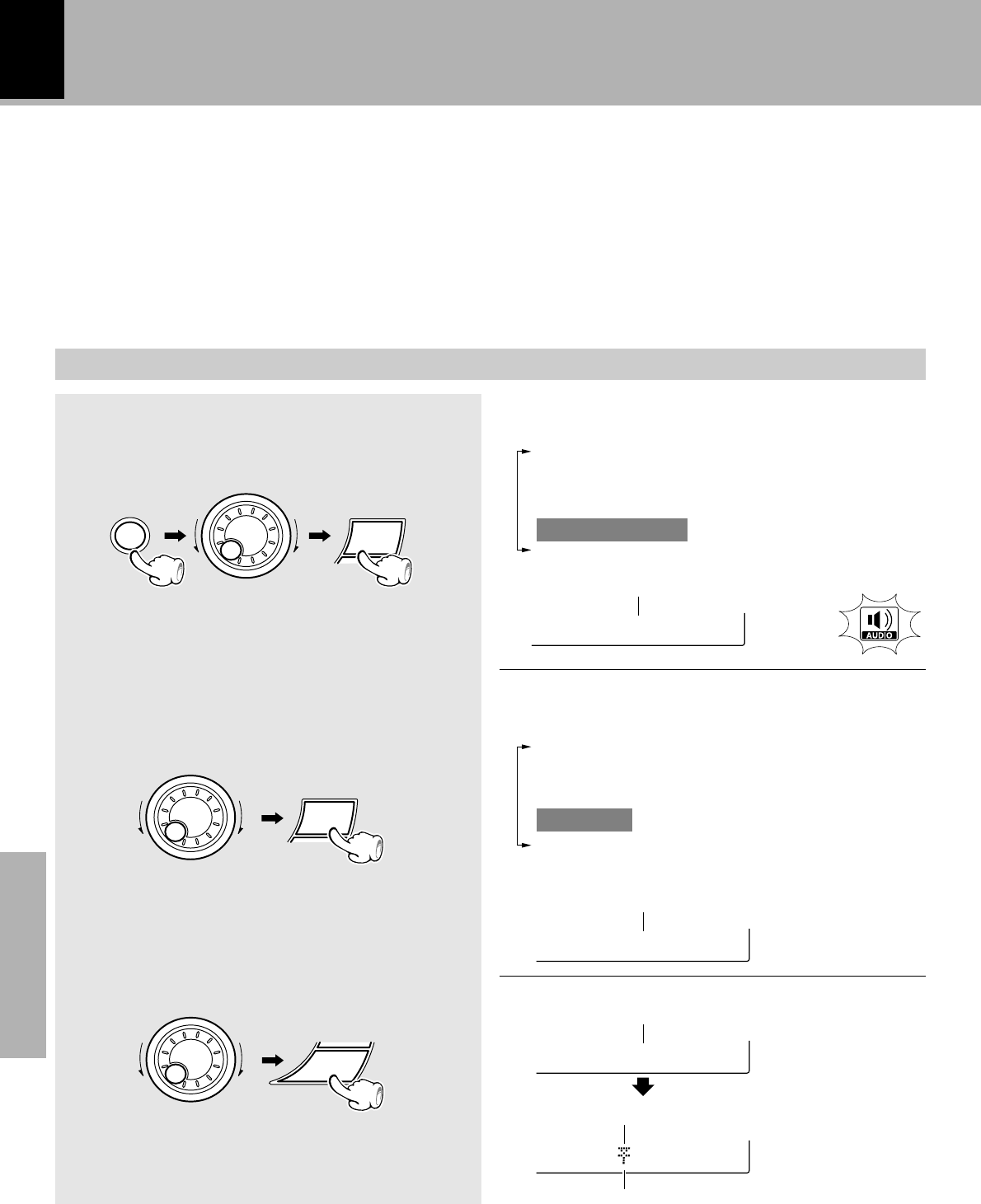
XD-SERIES (En)
46
Application section
This unit permits selection of the levels of the equalizer and sound field reproduction effects.
Please select the equalizer as desired according to the music genre. Select the sound field mode ac-
cording to the desired atmosphere.
Effective Sound Adjustment
1
Select “Audio Options”.
2
Select “Balance”.
3
Adjust.
The left volume
is decreased.
The right volume
is decreased.
The following items can be selected by turning the
MULTI CONTROL jog dial.
“Custom EQ 1”
“Custom EQ 2”
“Custom EQ 3”
“Balance”
“MD/DVD Input Level”
(Only when the MD/DVD input is selected)
Indicates the balance setting
+Scrolled display (Balance)
+Scrolled display (Adjust L/R balance)
Adjusts the balance of left and right volume.
Balance adjustment
SELECT
M
U
L
T
I
C
O
N
T
R
O
L
+Scrolled display (Audio Options)
Aiudio Opt
B alance
ARdjust L/
L --- ---R
Indicates the center
The following items can be selected by turning the
MULTI CONTROL jog dial.
(“CD Program Play”)
(“Recording Options”)
(“Tape Dubbing”)
“Audio Options”
“Clock Options”
ENTER
M
U
L
T
I
C
O
N
T
R
O
L
Lights
MENU
SELECT
M
U
L
T
I
C
O
N
T
R
O
L
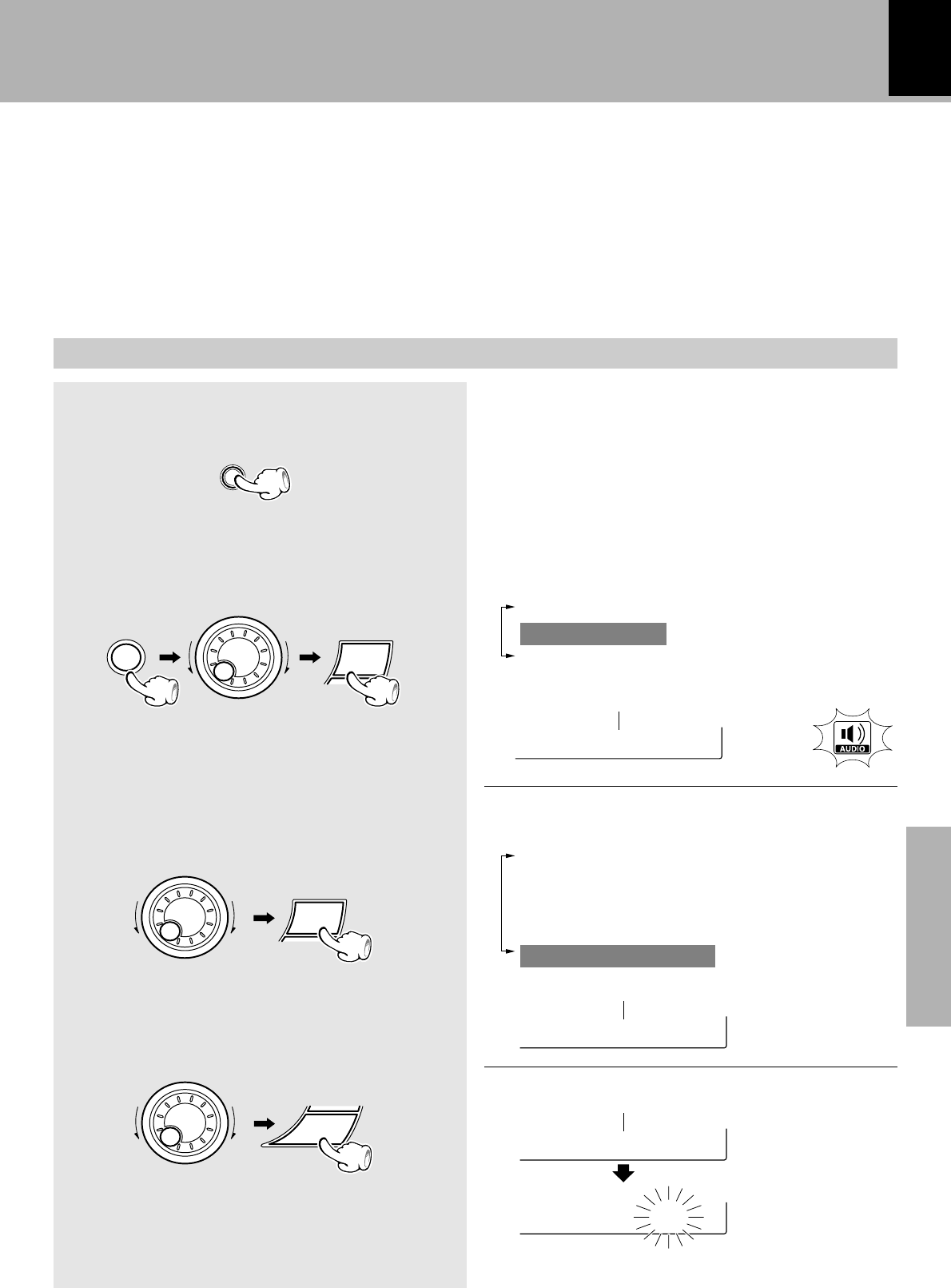
XD-SERIES (En)
Application section
47
The input level from an external component connected to the MD/DVD INPUT jacks, such as a MD recorder,
DVD player, VCR or analog turntable can be adjusted as desired. Adjust so that the volume of the MD/DVD
input source sounds at an equivalent level to the CD .
Input level adjustment
1
Select the “MD/DVD” input.
2
Select “Audio Options”.
3
Select “MD/DVD Input Level” .
4
Adjust
The following items can be selected by turning the
MULTI CONTROL jog dial.
“Custom EQ 1”
“Custom EQ 2”
“Custom EQ 3”
“Balance”
“MD/DVD Input Level”
+Scrolled display (MD/DVD Input Leve)
+Scrolled display (Adjust Level)
÷Adjustment is possible in the range from 0 to -- 7.
INPUT
MpD/DVD In
Avdjust Le
L evel -2
Effective Sound Adjustment
SELECT
M
U
L
T
I
C
O
N
T
R
O
L
ENTER
M
U
L
T
I
C
O
N
T
R
O
L
+Scrolled display (Audio Options)
Aiudio Opt
The following items can be selected by turning the
MULTI CONTROL jog dial.
(“Recording Options”)
“Audio Options”
“Clock Options”
Lights
The level is
increased.
The level is
decreased.
MENU
SELECT
M
U
L
T
I
C
O
N
T
R
O
L
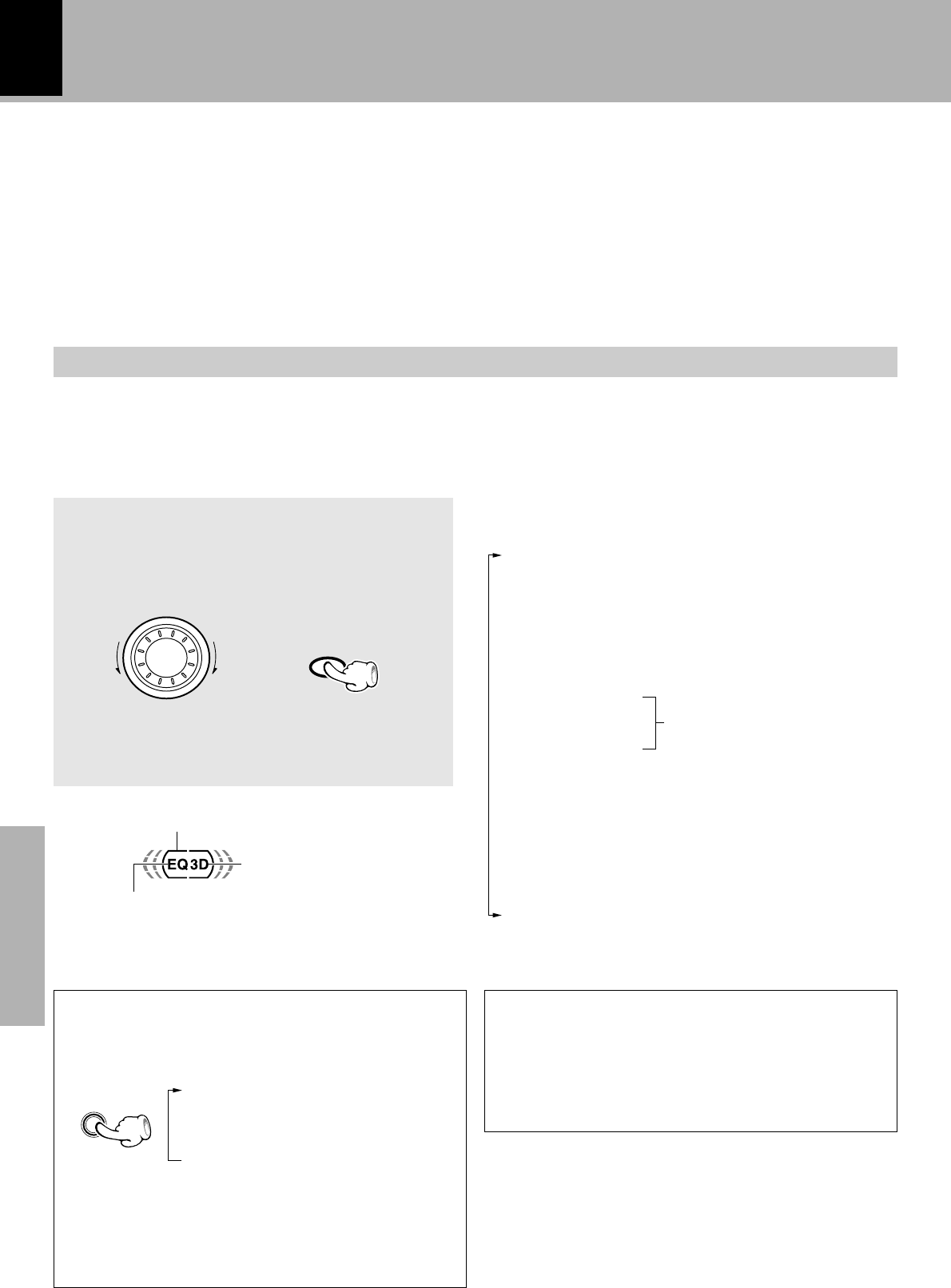
XD-SERIES (En)
48
Application section
Selecting the equalizer pattern and 3D surround level
Select the desired pattern and 3D surround level according to the category of the played music.
The equalizer and 3D surround effects can be recorded together with the music.
Listening to music with desired tone and sound field/ Switching the display
(Equalizer effect and 3D surround effect)
This unit permits selection of six preset equalizer patterns and three user’s equalizer patterns as well
as the 3D surround levels. The “S.direct” (Source Direct) mode allows you to reproduce pure sound by
bypassing the EX.BASS, equalizer and 3D surround circuitry.
1
Play desired music.
2
Select the desired equalizer pattern.
Effective Sound Adjustment
3D surround
This is a system producing a three-dimensional sound
space. The feeling of depth, the width of the sound field,
etc. are improved clearly, and the listening area also is
widened.
÷To cancel the equalizer, 3D surround and “S.direct”,
select “Effect off”.
Switching the sound level meter display mode
Each press switches the modes as
follows.
“Display Auto”
“Display 1”
“Display 2”
“Display 3”
÷When “Display Auto” is selected, the display mode
during CD playback changes to “Display 1”, “Display 2”
and “Display 3” every time the track changes.
÷“Display 3” is displayed regardless of the current
music signal.
Lights when “S.direct” is selected.
Lights when equalizer is selected.
Lights when 3D surround is se-
lected.
S
O
U
N
D
C
O
N
T
R
O
L
÷ The equalizer pattern and 3D surround level cannot
be switched on/off or controlled in the middle of
recording.
SOUND
CONTROL
or
Equalizer patterns and 3D surround levels that can
be recalled
“Rock” .................. Rock music
“Disco” ................. Disco music
“Pop” .................... Pop music
“Movie” ................ Movie music
“Jazz” ................... Jazz music
“Classic”............... Classic music
“Custom EQ 1”
“Custom EQ 2”
“Custom EQ 3”
“3D Level 1” ......... 3D surround level 1
“3D Level 2” ......... 3D surround level 2
“S. direct” ............. Pure sound can be reproduced
by bypassing the EX.BASS,
equalizer and 3D surround cir-
cuitry
“Effect off” ............ Normal playback
Equalizer’s manual
memory created by the
user
DISPLAY
/DEMO
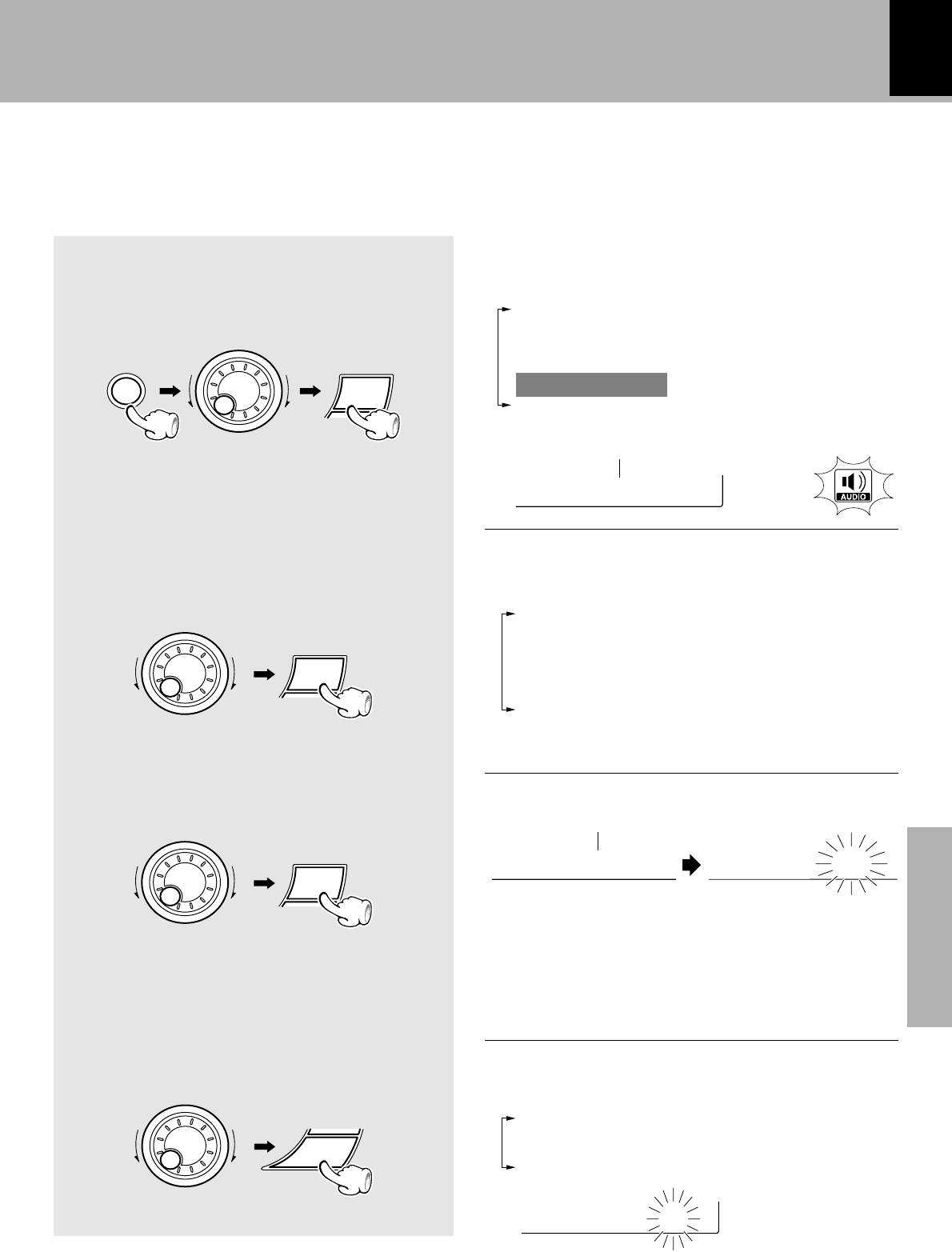
XD-SERIES (En)
Application section
49
Creation and memorizing of an equalizer pattern
You can edit desired patterns manually and store
them in memory.
Effective Sound Adjustment
The following items can be selected by turning the
MULTI CONTROL jog dial.
“Custom EQ 1”
“Custom EQ 2”
“Custom EQ 3”
“Balance”
“MD/DVD Input Level”
(Only when the MD/DVD input is selected)
The following items can be selected by turning the
MULTI CONTROL jog dial.
“3D Lev. off” ....3D surround off
“3D Lev. 1” ...... 3D surround level 1
“3D Lev. 2” ...... 3D surround level 2
1
Select “Audio Options”.
2
Select the number to be used for
storage.
(Custom EQ1 ~ EQ3)
3
Adjust the equalizer pattern.
4
Establish the 3D surround level.
+Scrolled display (Adjust Bass)
÷Each frequency band can be adjusted in the range be-
tween -- 8 and + 8 .
÷The “Bass”, “Mids” and “Highs” frequency bands can
be adjusted independently by repeating step 3 for each
of them.
Asdjust Ba Bass -8
3D Lev. 1
The following items can be selected by turning the
MULTI CONTROL jog dial.
(“CD Program Play”)
(“Recording Options”)
(“Tape Dubbing”)
“Audio Options”
“Clock Options”
To decrease
the level
To increase
the level
+Scrolled display (Audio Options)
Aiudio Opt
Lights
MENU
SELECT
M
U
L
T
I
C
O
N
T
R
O
L
SELECT
M
U
L
T
I
C
O
N
T
R
O
L
SELECT
M
U
L
T
I
C
O
N
T
R
O
L
ENTER
M
U
L
T
I
C
O
N
T
R
O
L
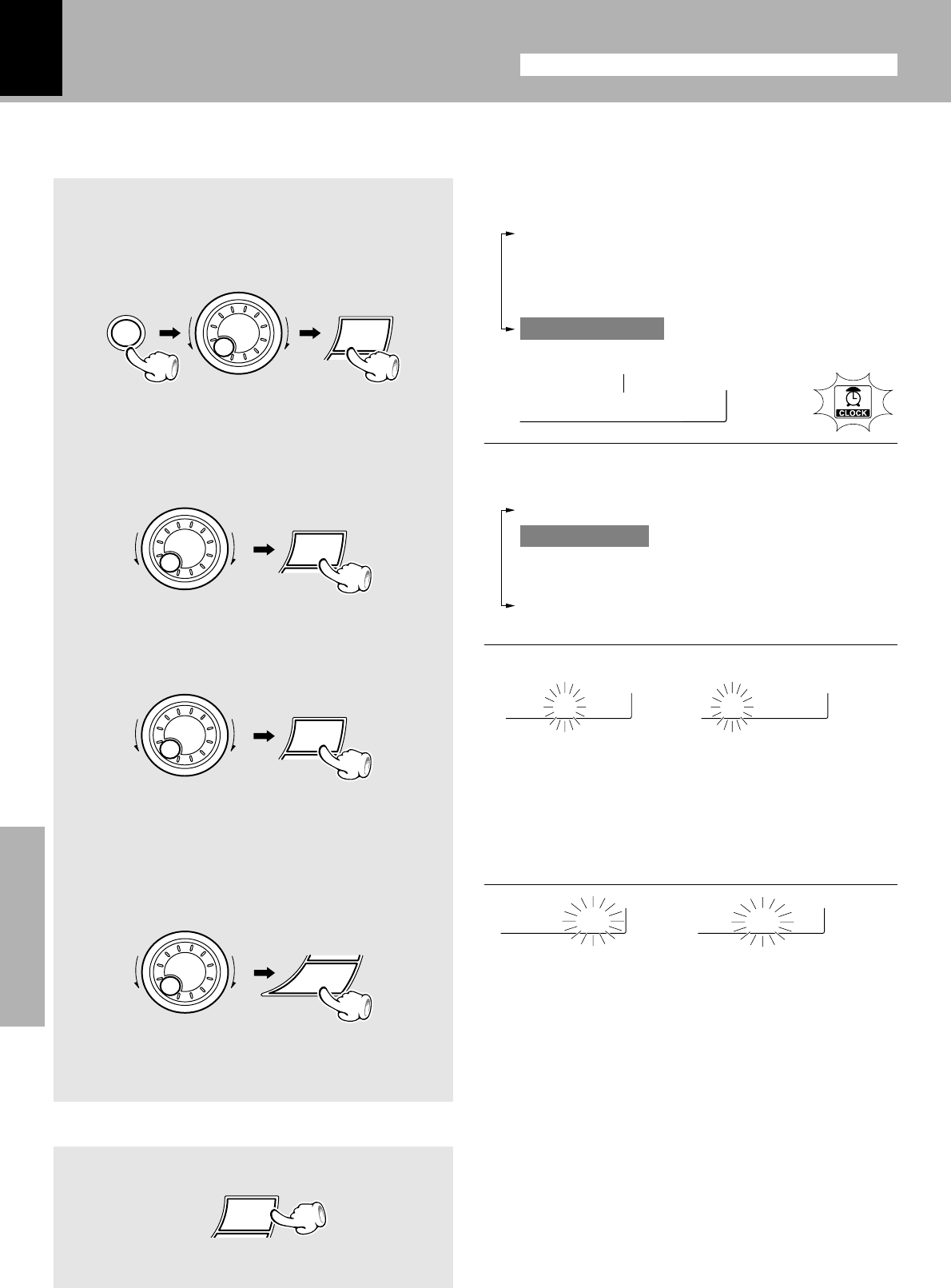
XD-SERIES (En)
50
Application section
This unit incorporates a clock function. Be sure to adjust the correct time before using the timer func-
tion. The time is displayed only while the power is off.
1
Select “Clock Options”.
2
Select “Adjust Time”.
3
Enter the figure of hour.
4
Enter the figure of minute.
Clock adjustment
÷The time display starts to blink.
÷Press the SELECT key. The hour is entered and the
minute display starts to blink.
Example: Adjustment to 8:45
The following items can be selected by turning the
MULTI CONTROL jog dial.
“Sleep Time”
“Adjust Time”
“O.T.T.”
“Timer Play”
“Auto Power Save”
To decrease
the figure To increase
the figure
Other countries
AM12ÔAM1ÔAM2...
PM1ÔPM2...ÔAM12 ...
00Ô01Ô02...59Ô00Ô01...
÷Press the BACK key to return to the previous step and
restart operation from there.
÷To adjust correct time, press the ENTER key at the same
moment as a time announcement.
To decrease
the figure To increase
the figure
+Scrolled display (Clock Options) Lights
(In standby mode) ÷When the key is pressed while the “TIMER” indicator is
lit, the timer setup mode is displayed after the clock
display.
÷The clock display blinks after the power cord has been
unplugged from the AC power outlet and plugged in
again or after a power failure. In this case, set the time of
the day again.
SELECT
(Displayed for approx. 5 sec.)
Cilock Opt
The following items can be selected by turning the
MULTI CONTROL jog dial.
(“CD Program Play”)
(“Recording Options”)
(“Tape Dubbing”)
“Audio Options”
“Clock Options”
Adjust the clock before setting the timer.
m 8:00a
m8:45a
For U.K., Europe and Russia
0Ô1Ô2...13Ô14...Ô0 ...
0 8:0
5 8:4
Other countriesFor U.K., Europe and Russia
To display the time
MENU
SELECT
M
U
L
T
I
C
O
N
T
R
O
L
SELECT
M
U
L
T
I
C
O
N
T
R
O
L
ENTER
M
U
L
T
I
C
O
N
T
R
O
L
SELECT
M
U
L
T
I
C
O
N
T
R
O
L
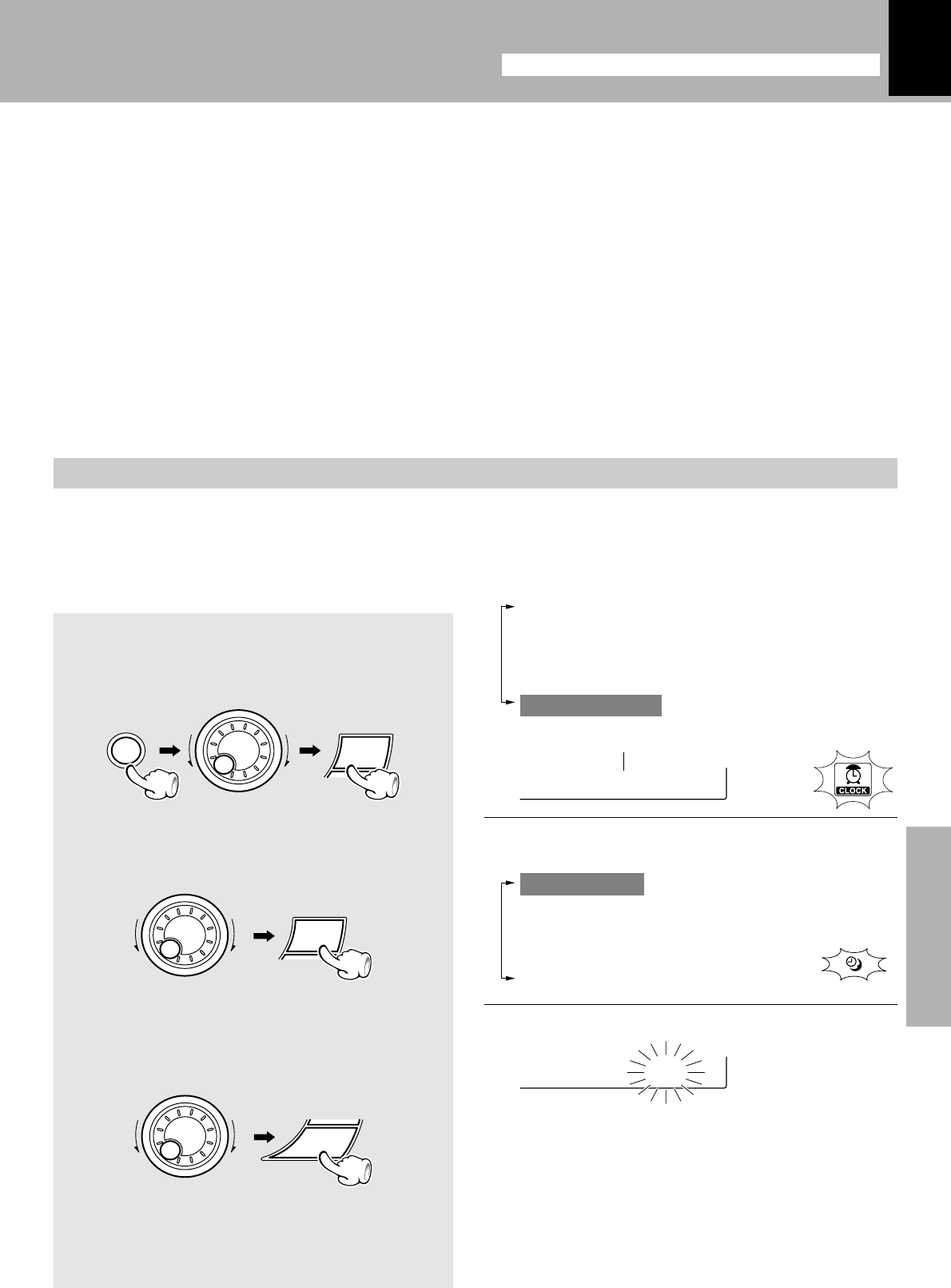
XD-SERIES (En)
Application section
51
Adjust the clock before setting the timer.
p
Timer operation
Sleep timer (SLEEP)
The power is turned OFF automatically after the specified period has elapsed.
Operate easy To use Timer (O.T.T.)
Playback of the selected input source starts at the specified time, and the power is switched off after one
hour. This timer operates only once directly after setting.
Timer programming
Timer playback : Plays (or receives) the selected source in the set time range.
AI timer playback (When timer playback starts, the volume increases gradually.)
Timer recording: Records the selected source in the set time range.
Auto Power Save
When the power is ON and neither recording nor playback is executed for 30 minutes or more, the power
is switched off automatically by this function.
Sleep timer (SLEEP)
Set the number of minutes after which the power is
to be turned OFF.
1
Select “Clock Options”.
2
Select “Sleep Timer”.
3
Set the time
10Ô20Ô30...80Ô90Ô“Sleep off”Ô10 Ô20...
÷The displayed time changes in 10-minute steps. The maxi-
mum time that can be set is 90 minutes.
÷The power is turned OFF automatically after the set
time has elapsed.
÷To cancel the sleep timer, turn the power off or select
“Sleep off”.
÷The sleep timer does not operate until O.T.T. operation or
program timer operation has ended.
Lights
S leep 90
Blinks
The following items can be selected by turning the
MULTI CONTROL jog dial.
“Sleep Time”
“Adjust Time”
“O.T.T.”
“Timer Play”
“Auto Power Save”
Adjust the clock before setting the timer.
+Scrolled display (Clock Options) Lights
Cilock Opt
The following items can be selected by turning the
MULTI CONTROL jog dial.
(“CD Program Play”)
(“Recording Options”)
(“Tape Dubbing”)
“Audio Options”
“Clock Options”
MENU
SELECT
M
U
L
T
I
C
O
N
T
R
O
L
SELECT
M
U
L
T
I
C
O
N
T
R
O
L
ENTER
M
U
L
T
I
C
O
N
T
R
O
L
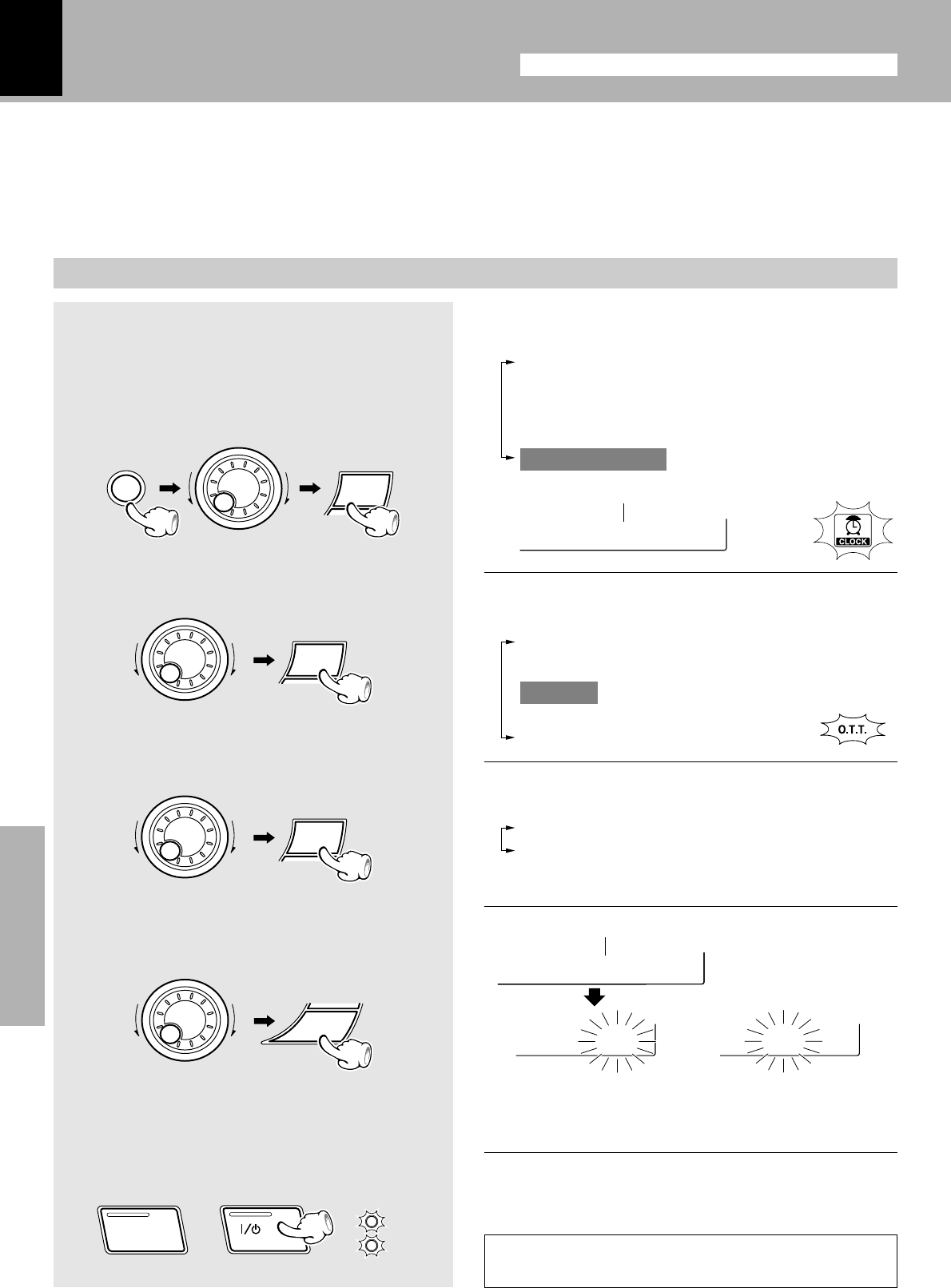
XD-SERIES (En)
52
Application section
÷The ON time can be set in steps of 5 minutes.
1
Select the desired source and adjust
the volume.
2
Select “Clock Options” .
3
Select “O.T.T.”.
4
Select “O.T.T. on”.
5
Enter the ON time
6
Put the unit in standby mode.
The program timer does not operate until “O.T.T.”
operation has ended.
Operate easy To use Timer
(O.T.T.)
Timer playback can be set with a simple operation of just setting the time. With this function, the last
source selected before turning power off can be played by the timer. The power turned ON by the timer
is switched off automatically in an hour after the timer playback starts.
The following items can be selected by turning the
MULTI CONTROL jog dial.
“Sleep Time”
“Adjust Time”
“O.T.T.”
“Timer Play”
“Auto Power Save”
Timer operation
The following items can be selected by turning the
MULTI CONTROL jog dial.
“O.T.T. off” (Canceled)
“O.T.T. on”
÷To cancel the O.T.T. timer, select “O.T.T. off”.
TIMER
STANDBY
Lights
+Scrolled display (Set on time)
+Scrolled display (Clock Options) Lights
Cilock Opt
The following items can be selected by turning the
MULTI CONTROL jog dial.
(“CD Program Play”)
(“Recording Options”)
(“Tape Dubbing”)
“Audio Options”
“Clock Options”
m 7:20a
Smet on ti
7:20
The time
is advanced.
The time
is returned For U.K., Europe and Russia Other countries
Adjust the clock before setting the timer.
Adjust the clock before setting the timer.
p
Lights
÷If the “TIMER” indicator is blinking now, set the time of
the day again. p
MENU
SELECT
M
U
L
T
I
C
O
N
T
R
O
L
SELECT
M
U
L
T
I
C
O
N
T
R
O
L
SELECT
M
U
L
T
I
C
O
N
T
R
O
L
ENTER
M
U
L
T
I
C
O
N
T
R
O
L
ON/STANDBY
ON/STANDBY
POWER
or
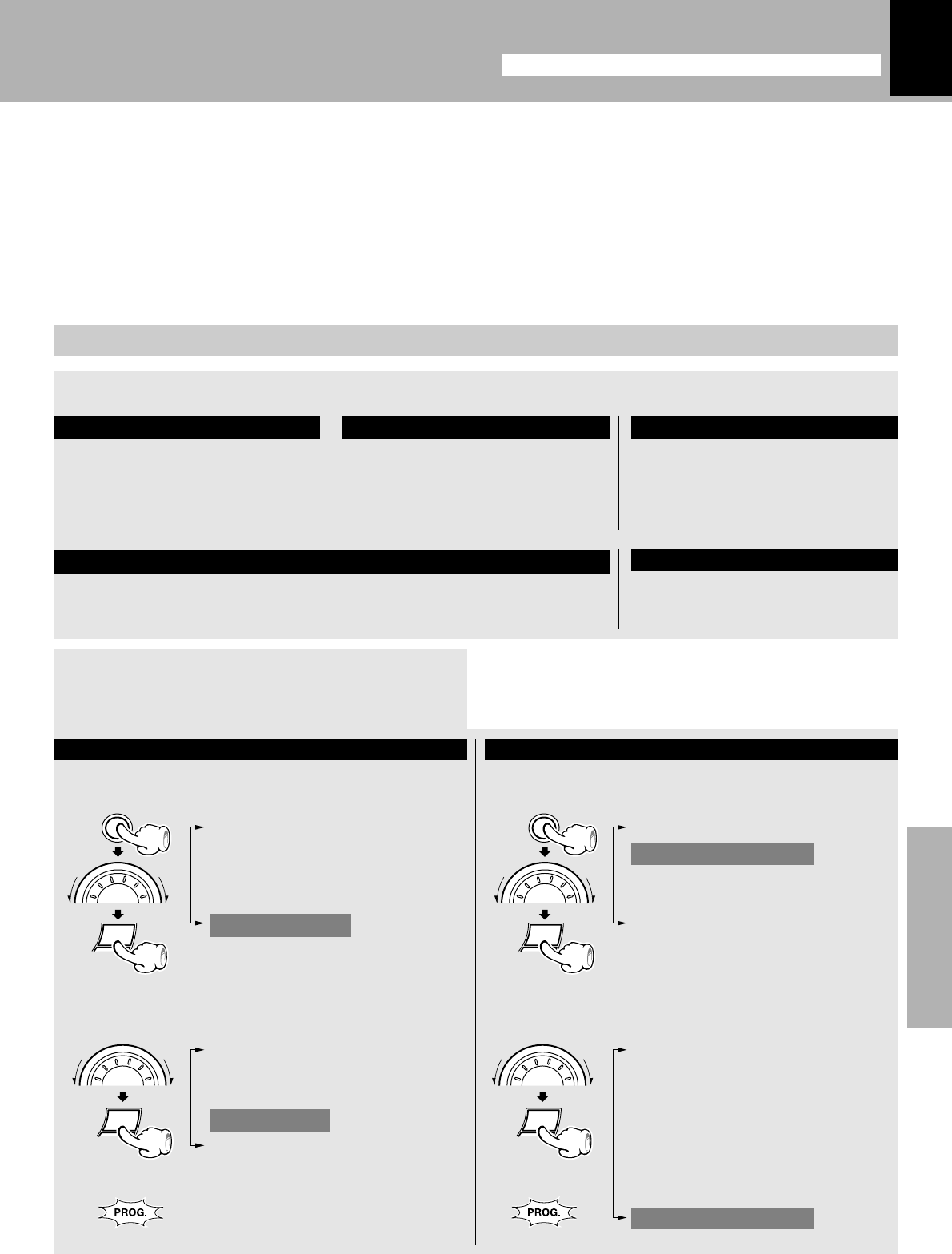
XD-SERIES (En)
Application section
53
Timer programming
1
Make preparations for the play (recording).
÷When the timer function is used for timer recording of
an input source, the speakers do not output the audio
even after the unit is turned on by the timer.
Playing or recording the auxiliary input source
Make preparations for record-
ing. •
Make timer setting of the component connected to the MD/DVD
INPUT jacks.
For timer playback or AI timer playback For timer recording
1Select “Clock Options”. 1Select “Recording Options”.
2Select “Timer Play”. 2Select “Timer Recording”.
3
Select the timer operation.
2
Adjust the listening volume.
Continued on next page...
The station should be preset
prior to the above. ¶
Insert a disc. (Program playback
is not possible.)
Select the disc to be played
(1, 2 or 3). )¡
Set a tape in the deck you want
to play back the tape. ™
To listen to radio To listen to CD To listen to tape
SELECT
M
U
L
T
I
C
O
N
T
R
O
L
For recording
The program timer can set timer playback and timer recording and both of these functions can be
reserved concurrently. Either “Everyday” (executing a timer program once every day) or “One Time”
(executing it only once) can be selected for each timer program. Once the time range and content of a
timer program has been set, it can be activated or deactivated as desired.
÷If you made a mistake during timer setting:
Press the BACK key to return to the previous step and restart operation from there.
Adjust the clock before setting the timer.
Timer operation
Adjust the clock before setting the timer.
p
SELECT
M
U
L
T
I
C
O
N
T
R
O
L
(“CD Program Play”)
(“Recording Options”)
(“Tape Dubbing”)
“Audio Options”
“Clock Options”
(“CD Program Play”)
“Recording Options”
(“Tape Dubbing”)
“Audio Options”
“Clock Options”
“Sleep Timer”
“Adjust Time”
“O.T.T.”
“Timer Play”
“Auto Power Save”
“CD One Track Recording”
(Only when the CD input is selected
and during playback)
“CD Direct Recording”
(Only when the CD input is selected)
“CD Program Recording”
(Only when the CD input is selected)
“Timer Recording”
SELECT
MENU
M
U
L
T
I
C
O
N
T
R
O
L
SELECT
MENU
M
U
L
T
I
C
O
N
T
R
O
L
Lights Lights
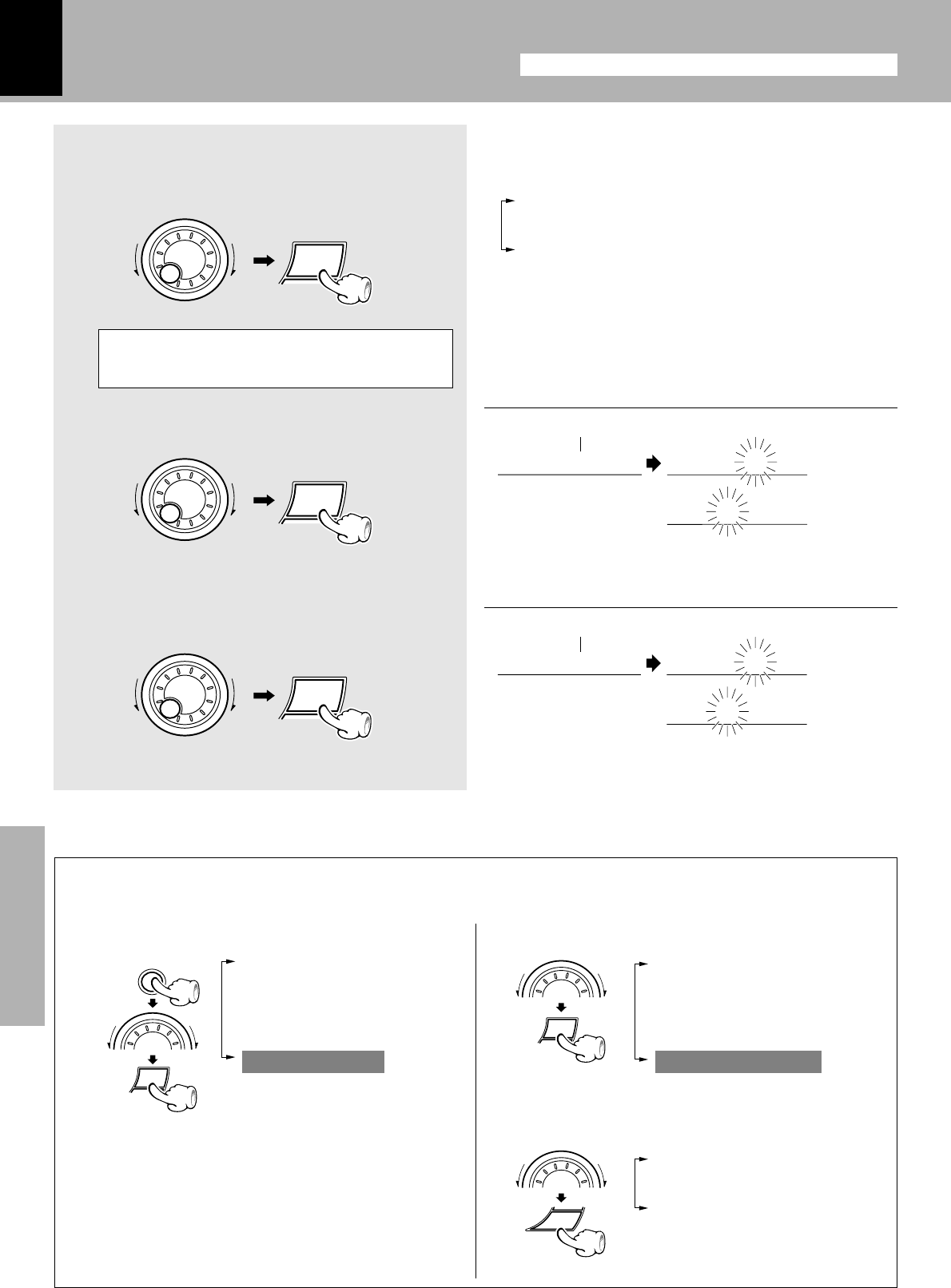
XD-SERIES (En)
54
Application section
4
Select “Everyday” or “One Time”.
÷To cancel a timer operation, select “Timer off” under
“Timer Play” (in case of timer playback) or “Timer
Recording” (in case of timer recording).
The following items can be selected by turning the
MULTI CONTROL jog dial.
“Timer off” (Canceled)
“Everyday”
“One Time”
5
Enter the ON time.
6
Enter the OFF time.
+Scrolled display (Select on time)
+Scrolled display (Select off time)
÷After entering the “hour”, enter the “minute” with the
same procedure.
÷After entering the “hour”, enter the “minute” with the
same procedure.
÷Reserve the timer recording program and timer playback
program by leaving an interval of 1 minute or more so that
their time ranges do not overlap.
The reservation contents cannot be cleared. The
contents are cleared only when they are changed.
onSnelect o
:0 am 0
7: 00
on 7
Sfelect of
off 8:0 am 0
off 8: 00
The time is
advanced.
The time is
returned.
The time is
advanced.
The time is
returned.
Adjust the clock before setting the timer.
Timer operation
AUTO POWER SAVE
When the power is ON and neither recording nor playback is executed for 30 minutes or more, the
power is switched off automatically by this function.
1Select “Clock Options”. 2Select “Auto Power Save”.
3Select “A.P.S. on” or “A.P.S. off”.
÷The auto power save operation does not occur unless
the O.T.T. or program timer operation has completed.
÷When the TUNER or MD/DVD input is selected, this
function operates only when the volume is set to zero.
“A.P.S. off”
Auto power save is not used.
“A.P.S. on”
Auto power save is used.
(“CD Program Play”)
(“Recording Options”)
(“Tape Dubbing”)
“Audio Options”
“Clock Options”
“Sleep Timer”
“Adjust Time”
“O.T.T.”
“Timer Play”
“Auto Power Save”
SELECT
M
U
L
T
I
C
O
N
T
R
O
L
SELECT
M
U
L
T
I
C
O
N
T
R
O
L
SELECT
M
U
L
T
I
C
O
N
T
R
O
L
SELECT
M
U
L
T
I
C
O
N
T
R
O
L
ENTER
M
U
L
T
I
C
O
N
T
R
O
L
SELECT
MENU
M
U
L
T
I
C
O
N
T
R
O
L
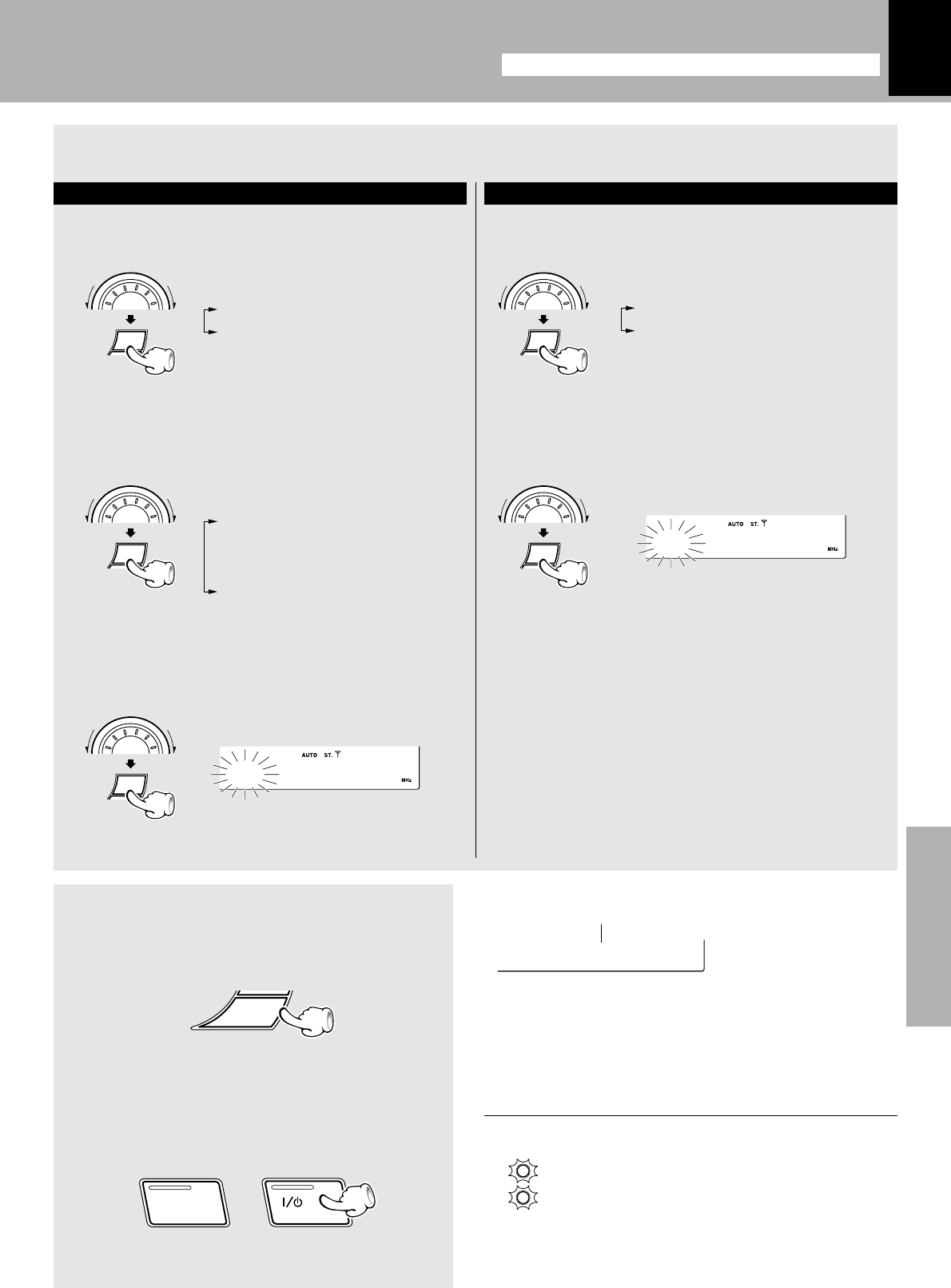
XD-SERIES (En)
Application section
55
For timer recording
1Select the input source.
Select the recorded input source.
2Select the broadcast station (only when TUNER
is selected above).
Select the preset station No.
SELECT
M
U
L
T
I
C
O
N
T
R
O
L
+Scrolled display (Press 'ENTER' to Save)
PTress 'EN
8
Press the ENTER key.
9
Put the unit in standby mode.
÷The set program content items are displayed one after
another.
(“Everyday”or “One Time” = On time = Off time =
Mode = Input source = Preset channel)
Lights
ENTER
TIMER
STANDBY
SELECT
M
U
L
T
I
C
O
N
T
R
O
L
Adjust the clock before setting the timer.
Timer operation
7
Make the desired reservation.
1TUNER ...... Radio
2MD/DVD ... External input
For timer playback or AI timer playback
1Select the mode.
Select “Play” or “AI Play”.
2Select the input source.
Select the source to be played.
3Select the broadcast station (only when TUNER
is selected above).
Select the preset station No.
SELECT
M
U
L
T
I
C
O
N
T
R
O
L
SELECT
M
U
L
T
I
C
O
N
T
R
O
L
SELECT
M
U
L
T
I
C
O
N
T
R
O
L
1 “Play” ..... Timer play
2 “AI Play” .. Timer play with
gradually increas-
ing volume
1 TUNER .......Radio
2 CD
3 TAPE
4 MD/DVD ....External input
÷If the “TIMER” indicator is blinking now, set the time of
the day again. p
003FM 89.0
003FM 89.0
ON/STANDBY
ON/STANDBY
POWER
or
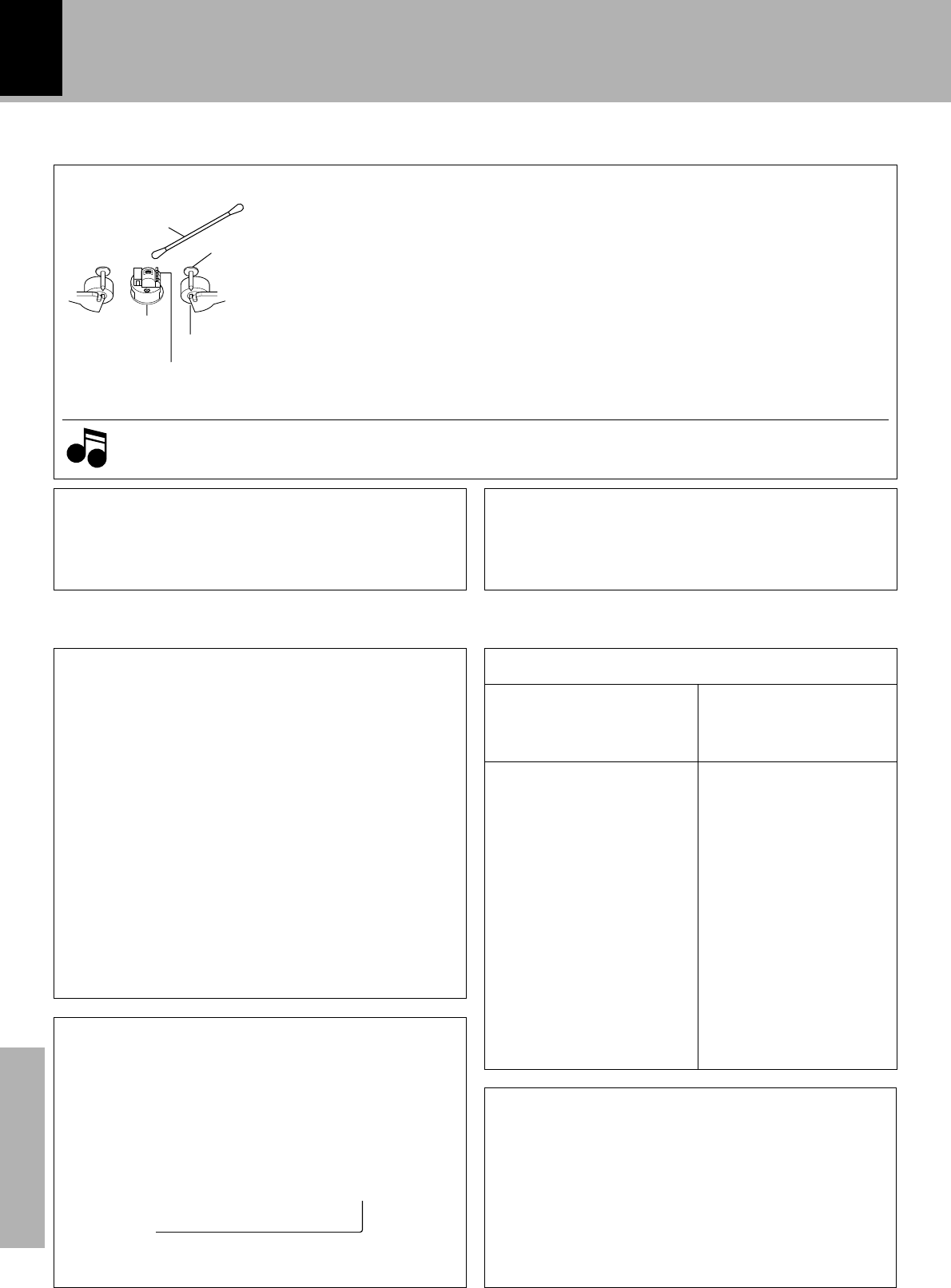
XD-SERIES (En)
56
Knowledge section
Maintenance
Cotton swab
Tape guides
Pinch roller
Head
Capstan
Cleaning the head section
There are precisely aligned parts around the heads, including the tape guides.
When cleaning, pay special attention so as not to apply shock to them.
Cleaning the heads and peripheral components
For maintaining the best condition of the deck and for longer service life, always keep
the heads (recording / playback / erase), capstan and pinch roller clean.
To clean them, perform the following:
1. Open the cassette holder.
2. Using a cotton swab dipped in alcohol, clean the head (recording / playback / erase),
capstan and pinch roller carefully.
Demagnetizing the head
When the recording / playback head is magnetized, the sound quality will deteriorate.
In such a case, demagnetize the head using a commercially available demagnetizer
(head eraser).
Reference
NoteNote
Note
Maintenance of the unit
When the front panel or case becomes dirty, wipe with a
soft, dry cloth. Do not use thinner, benzine, alcohol, etc.
for these agents may cause discoloration.
In regard to contact cleaner
Do not use contact cleaners because it could cause a mal-
function. Be specially careful not to use contact cleaners
containing oil, for they may deform the plastic component.
Stored contents which are
cleared immediately when
power plug is unplugged
from power outlet
Clock display
Stored contents which are
cleared in at least a day after
power plug is unplugged
from power outlet
Amplifier
POWER status (ON or OFF)
Input selection
Volume control value
Balance level
Equalizer’s manual memory
created by the user
3D surround level
Tuner unit
Receiving band
Frequency
Preset stations
Program timer setting con-
tents
Cassette deck unit
Transport direction
DOLBY NR
Tape Equalizer
Reverse mode
Memory backup function
Note related to transportation and movement
Before transporting or moving this unit, carry out the
following operations.
1Turn the power ON but do not load a disc.
2Press the 6 key.
3Wait a few seconds, and ensure that the display is
as shown below.
4Wait for a few seconds then turn power off.
CcDNo Dis
Important Items
Caution on condensation
Condensation (of dew) may occur inside the unit when there
is a great difference in temperature between this unit and
the outside.
This unit may not function properly if condensation oc-
curs. In this case, leave the unit for a few hours with the
power left ON, and restart the operation after the con-
densation has dride up.
Be specially cautious against condensatin in a fol-
lowing circumsatance:
When this unit is carried from a place to another across a
large difference in temperature, when the humidity in the
room where this unit is installed increases, etc.
IN MOST CASES IT IS AN INFRINGEMENT OF COPYRIGHT
TO MAKE COPIES OF TAPES OR DISCS WITHOUT THE
PERMISSION OF THE COPYRIGHT OWNERS. ANYONE
WISHING TO COPY COMMERCIALLY AVAILABLE TAPES
OR DISC SHOULD CONTACT THE MECHANICAL COPY-
RIGHT PROTECTION SOCIETY LIMITED OR THE PER-
FORMING RIGHTS SOCIETY LIMITED.
WARNING NOTICE:
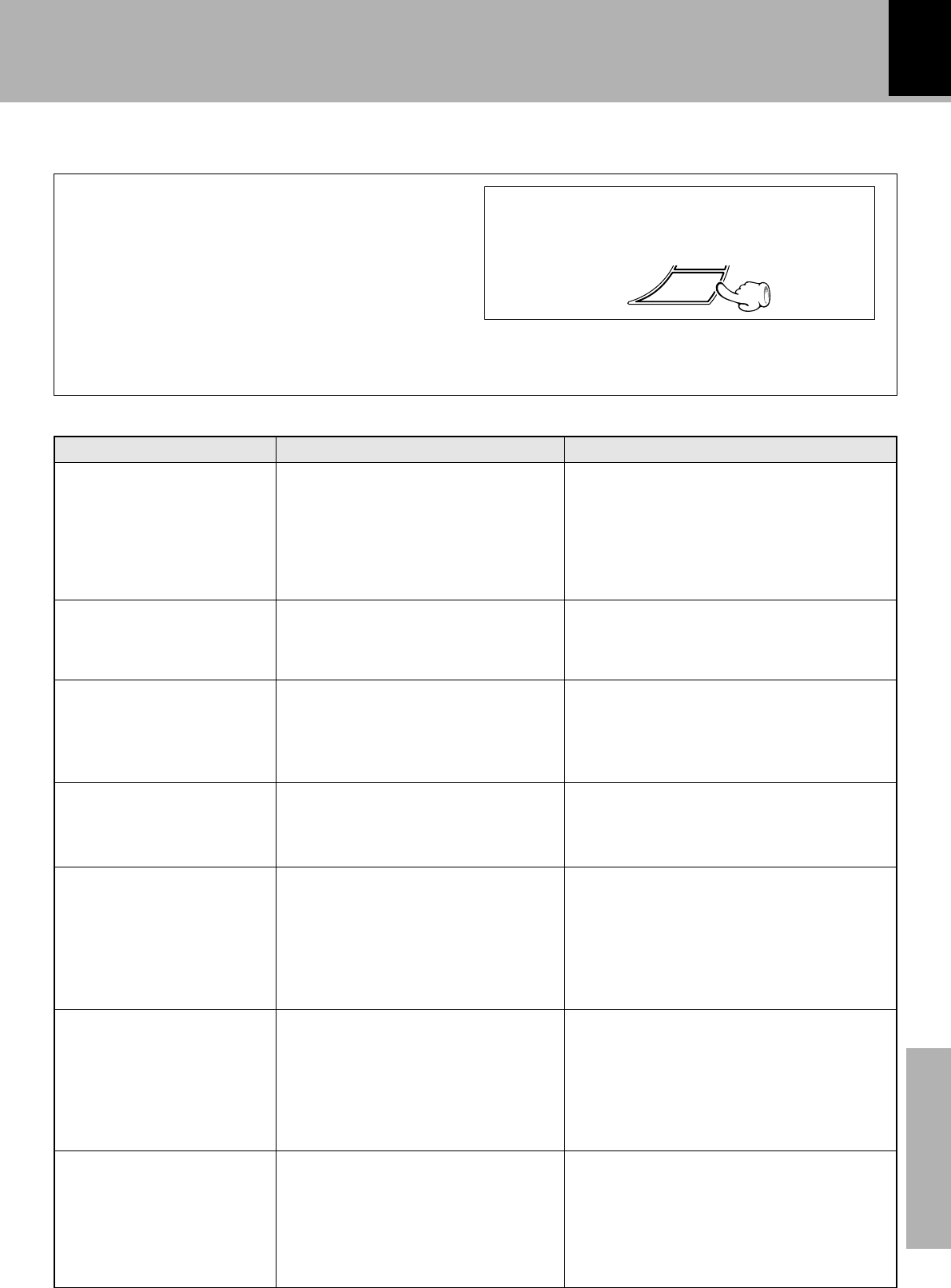
XD-SERIES (En)
57
Knowledge section
In case of difficulty
What seems to be a malfunction is not always so. Before calling for service, check the following table
according to the symptom of your trouble.
Unplug the power cord from the power outlet
then, while holding the ENTER key depressed,
plug the power cord again.
÷Please note that resetting the microcomputer clears
the contents stored in and returns and to condition
when it left the factory.
Operation to reset
The microcomputer may fall into malfunction (impos-
sibility to operate, erroneous display, etc.) when the
power cord is unplugged while power is ON or due to
an external factor. In this case, execute the following
procedure to reset the microcomputer and return it to
normal condition.
Sound is not produced.
“STANDBY” and “TIMER”
indicators blink alternately
and no sound is output.
Sound is not produced from
the left or right speakers.
The clock display blinks.
Timer operation is not pos-
sible.
Radio stations cannot be re-
ceived.
Noise interferes.
÷The speaker cords are disconnected.
÷The MUTE switch of remote control
unit is switched ON.
÷The headphone plug is inserted into
the jack.
÷The speaker cords are short-circuited.
÷The speaker cords are disconnected.
÷The left and right volumes are not
balanced.
÷There was a power failure.
÷The power cord was unplugged from
the outlet.
÷The present time has not been ad-
justed or there was a power failure.
÷The timer program or the timer ON/
OFF time has not been set properly.
÷The antennas have not been con-
nected.
÷A proper broadcasting band has not
been selected.
÷The frequency of the station to be
received is not tuned.
÷Car ignition noise.
÷Influence of an electric appliance.
÷A TV set is installed near the system.
÷Connect properly referring to “Sys-
tem connection”.
÷Switch MUTE OFF.
÷Unplug the headphone plug.
÷Turn the power OFF, remove the short-
circuit and turn the power ON again.
÷Connect properly referring to “Sys-
tem connection”.
÷Adjust the left and right volume bal-
ance.
÷Adjust the present time again.
÷Adjust the present time again.
÷Adjust the present time referring to
“Clock adjustment”.
÷Check the timer program and set its ON/
OFF time properly. Note that “Everyday”
and “One Time” cannot be set simulta-
neously for a single timer program.
÷Connect antennas.
÷Select a band.
÷Tune to the frequency of the desired
station.
÷Install the outdoor antenna in an apart
position from the road.
÷Switch the suspected electric appli-
ance OFF.
÷Install the TV or the system at an
increased distance between them.
ENTER
Remedy
Receiver, speakers
CauseSymptom
9
(
*
9
y
p
•
p
p
E
8
§
§
9
(Main unit only)
XD-SERIES (En)
58
Knowledge section
In case of difficulty
÷The head is dirty.
÷The tape is wound too tight due to
irregular winding.
÷A nonrecorded tape is played.
÷The cassette holder is not closed com-
pletely.
÷The operation key is pressed immedi-
ately after closing the cassette holder.
÷The operation key is pressed in less
than 4 seconds after turning the power
ON.
÷A tape is not inserted in the unit.
÷The tape is wound too tight due to
irregular winding.
÷The tape is fully wound to one of the
reels.
÷The tape used is not suitable for DPSS,
for example the spaces between tunes
may be too short.
÷This is due to the difference in the
tape length or characteristics of the
mechanisms of two cassette decks.
÷The key is pressed during recording or
playback.
÷The microcomputer is malfunctioning
due to external noise.
÷The head is dirty.
÷The tape is stretched or shrunk.
÷Clean the head referring to “Mainte-
nance”.
÷Try another tape.
÷Play a recorded tape.
÷Close the holder completely.
÷Press operations keys in more than a
few seconds after closing the holder.
÷Press operation keys after waiting for
more than 4 seconds.
÷Insert a tape.
÷Try another tape.
÷Change the tape transport direction or
reverse the tape insertion orientation.
÷Refer to “Searching for the desired
music program (DPSS)”.
÷Small time difference does not mean
a malfunction.
÷Press in stop mode.
÷Reset the microcomputer.
÷Clean the head referring to “Mainte-
nance”.
÷Try another tape.
RemedySymptom Cause
Sound cannot be produced
by pressing the play key.
No operation occurs even
when an operation key is
pressed.
The DPSS malfunctions.
(XD-5....series only)
In dubbing, the tape stops
at different moments in
decks A and B.
The cassette holders cannot
be opened by pressing the
0 PUSH OPEN area.
Sound is harsh or high fre-
quencies are not repro-
duced.
Cassette deck
No station can be received
by preset call operation.
Demonstration starts sud-
denly.
Power turns OFF in the
middle of operation.
÷The frequency of the preset station is
not tunable.
÷The preset memory has been cleared
because the power cord has been
unplugged for a long period.
÷The power plug was unplugged from
the outlet while the power switch
was ON, or there was a power failure.
÷“A.P.S. on” is set.
÷Preset stations with tunable frequen-
cies.
÷Preset stations again.
÷This is not malfunction. Press the
DISPLAY/DEMO key to cancel the
demontration.
÷Set the “A.P.S. off”.
1.With some tapes, a squeaky noise is produced when the tape is stopped automatically. This is due to the tape
protection function, and not a malfunction.
2.Do not use longer tape than 110 minutes tapes, for the tape is too thin and gets easily tangled.
Notes
Notes
Y
™
™
™
•
∞
U
Y
¶
¶
6
R
XD-SERIES (En)
59
Knowledge section
In case of difficulty
÷Try another tape.
÷Switch off the equalizer and 3D
surround effects before starting
playback.
÷Decrease the input level.
÷Demagnetize the head referring to
“Maintenance”.
÷Install the system at a distance from
other electric appliances and TV.
÷Switch on the Tape Equalizer or Dolby
NR.
÷Clean the head referring to “Mainte-
nance”.
÷Wind the tape again by fast forward-
ing, rewinding or playing from an end
to the other.
÷Use a cassette with an unbroken re-
cording protect tab or block the hole.
÷Close the holder completely.
÷Select the source to be recorded with
the input selector key.
÷Change the tape transport direction of
deck B or reverse the tape insertion
orientation.
Sound is distorted.
Sound from the MD/DVD
INPUT (external input) is
distorted.
Noise is noticeable.
Sound vibrates.
Recording cannot be started
by pressing the record key.
RemedySymptom Cause
A CD is placed in the player
but it cannot be played.
Sound is not produced.
Sound skips.
÷The disc is placed upside down.
÷The disc position is displaced.
÷The disc is extremely dirty.
÷The disc is scratched.
÷Dew is condensed on the optics lens.
÷The disc has not been placed.
÷The player is not put to the play mode.
÷The disc is extremely dirty.
÷The disc is scratched.
÷The disc is dirty.
÷The disc is scratched.
÷The player is subject to vibration.
÷Place the disc properly, with the label
side facing upward.
÷Place the disc properly.
÷Clean the disc referring to “Handling
of discs and tapes”.
÷Try another disc.
÷Refer to “Caution on condensation”
and remove the condensation by
evaporation.
÷Place a disc in the CD player.
÷Press the play key.
÷Clean the disc referring to “Handling
of discs and tapes”.
÷Try another disc.
÷Clean the disc referring to “Handling
of discs and tapes”.
÷Try another disc.
÷Install the unit in a place not subject to
vibrations.
CD player
÷The tape being played was recorded
with distorted sound.
÷A tape which has been recorded with
the equalizer and/or 3D surround
effects is being played back by
applying the equalizer effect.
÷The input level is too high.
÷The tape head is magnetized.
÷External noise is induced.
÷A tape which has been recorded with
Dolby NR is being played back with-
out switching the Tape Equalizer or
Dolby NR on.
÷The capstans or pinch rollers are dirty.
÷The tape is wound irregularly.
÷The recording protect tab of the cas-
sette has been broken.
÷The cassette holder is not closed com-
pletely.
÷The TAPE input is selected.
÷The tape is fully wound to one of the
reels.
i
u
Y
£
ª
Y
£
7
™
•
ª
•
)
)
7
Y
)
)
7
7
XD-SERIES (En)
60
Knowledge section
RemedySymptom Cause
General
Remote control operation is
not possible.
÷Batteries are exhausted.
÷The remote control is too far away
from the system, the controlling angle
is deviated or there is an obstacle in
between.
÷There is no tape or CD set in the
component to be played.
÷An attempt is made to play the cas-
sette deck which is recording some-
thing.
÷The MULTI CONTROL setting mode
is activated.
÷Replace with new batteries.
÷Operate the unit inside the remote
controllable range.
÷Set a tape or CD in the component to
be played.
÷Wait until the recording ends.
÷Cancel the MULTI CONTROL setting
mode.
Remote control unit
In case of difficulty
RemedySymptom Cause
No operation occurs when
an operation key is pressed. ÷The MULTI CONTROL setting mode
is activated. ÷Cancel the MULTI CONTROL setting
mode.
CAUTION :
Use of controls or adjustments or performance of proce-
dures other than those specified herein may result in
hazardous radiation exposure.
In compliance with Federal Regulations, following are
reproductions of lables on, or inside the product relating to
laser product safety.
For the U.S.A.
Location: Back Panel
FCC WARNING
Note to CATV system installer
KENWOOD CORPORATION
2967-3, ISHIKAWA-CHO,
HACHIOJI-SHI,TOKYO, JAPAN
KENWOOD CORP. CERTIFIES THIS EQUIPMENT
CONFORMS TO DHHS REGULATIONS NO. 21 CFR
1040.10, CHAPTER 1, SUBCHAPTER J.
This reminder is provided to call the CATV system installer's
attention to Article 820-40 of the NEC that provides guide-
lines for proper grounding and, in partiqular, specifies that
the cable ground shall be connected to the grounding sys-
tem of the building, as close to the point of cable entry as
practical
NOTE:
This equipment may generate or use radio frequency energy. Changes or modifications to this equipment may cause harmful
interference unless the modifications are expressly approved in the instruction manual. The user could lose the authority
to operate this equipment if an unauthorized change or modification is made.
This equipment has been tested and found to comply with the limits for a Class B digital device, pursuant to Part 15 of the
FCC Rules. These limits are designed to provide reasonable protection against harmful interference in a residential instal-
lation. This equipment may cause harmful interference to radio communications, if it is not installed and used in accor-
dance with the instructions. However, there is no guarantee that interference will not occur in a particular installation. If
this equipment does cause harmful interference to radio or television reception, which can be determined by turning the
equipment off and on, the user is encouraged to try to correct the interference by one or more of the following measures:
–– Reorient or relocate the receiving antenna.
–– Increase the separation between the equipment and receiver.
–– Connect the equipment into an outlet on a circuit different from that to which the receiver is connected.
–– Consult the dealer or an experienced radio / TV technician for help.
^
^
&
&
XD-SERIES (En)
61
Knowledge section
Specifications
[ Amplifier section ]
(XD-5...Series)
Rated power output (For U.S.A. and Canada)
80 watts per channel minimum RMS, both channels
driven, at 6 Ω form 40 Hz to 15 kHz with no more than
0.9 % total harmonic distortion. (FTC)
Effective output power during STEREO operation
(Except for U.S.A. and Canada)
1 kHz, 10 % T.H.D., 6 Ω............................... 100 W + 100 W
Rated output power during STEREO operation
(For U.K., Europe and Russia)
(DIN) 1 kHz, 0.7 % T.H.D., 6 Ω ........................... 70 W + 70 W
(Other countories)
1 kHz, 1.0 % T.H.D., 6 Ω ...................................... 80 W + 80 W
(XD-4...Series)
Rated power output (For U.S.A. and Canada)
50 watts per channel minimum RMS, both channels
driven, at 6 Ω form 40 Hz to 15 kHz with no more than
0.9 % total harmonic distortion. (FTC)
Effective output power during STEREO operation
(Except for U.S.A. and Canada)
1 kHz, 10 % T.H.D., 6 Ω................................... 70 W + 70 W
Rated output power during STEREO operation
(For U.K., Europe and Russia)
(DIN) 1 kHz, 0.7 % T.H.D., 6 Ω ........................... 50 W + 50 W
(Other countories)
1 kHz, 1.0 % T.H.D., 6 Ω ...................................... 55 W + 55 W
Signal to noise ratio
MD/DVD INPUT .......................................... 90 dB (IHF’ 66)
Input sensitivity / inpedance
MD/DVD INPUT .............. (XD-5...Series) 270 mV / 47 kΩ
(XD-4...Series) 300 mV / 47 kΩ
Output level / impedance
SUPER WOOFER PREOUT..... (XD-5...Series) 1.3 V / 620 Ω
(XD-4...Series) 1.0 V / 620 Ω
[ Tuner section ]
FM tuner section
Tuning frequency range........................ 87.5 MHz ~ 108 MHz
(For Russia).......................................... 65.0 MHz ~ 74.0 MHz
MW (AM) Tuner section
Tuning frequency range
For U.K., Europe and Russia ................ 531 kHz ~ 1,602 kHz
Other countories
9 kHz step ........................................... 531 kHz ~ 1,602 kHz
10 kHz step ......................................... 530 kHz ~ 1,610 kHz
For U.S.A. and Canada ......................... 530 kHz ~ 1,700 kHz
LW Tuner section (For U.K. and Russia)
Tuning frequency range ............................ 153 kHz ~ 279 kHz
SW Tuner section (XD-572S only)
Tuning frequency range......................... 5.9 MHz ~ 17.9 MHz
Notes
Notes
1.KENWOOD follows a policy of continuous advancements in development. For this reason specifications may be
changed without notice.
2.Sufficient performance may not be possible at very low temperatures (0°C or less).
[ Cassette deck section ]
Track ................................................. 4-track, 2-channel stereo
Recording system ........................................... AC bias system
(Frequency: 105 kHz)
Heads
A deckPlayback head........................................................... 1
B deckPlayback / recording head ....................................... 1
Erasing head ..................................................................... 1
Fast winding time ................................. Approx. 115 seconds
(C-60 tape)
[ CD player section ]
Laser ....................................................... Semiconductor laser
Wow & Flutter ....................... Less than unmeasurable Limit
(Except for U.S.A. and Canada)
Digital output (Optical) ........................... - 15 dBm ~ - 21 dBm
(Wave length 660 nm)
[ General ]
Power consumption.............................. (XD-5...Series) 200 W
(XD-4...Series) 150 W
Dimensions ....................................... W : 280 mm (11”)
H : 330 mm (13”)
D : 390 mm (15-3/8”)
Weight (net) ............................. (XD-5...Series) 9.9 kg (21.8 lb)
(XD-4...Series) 9.2 kg (20.2 lb)
Speakers (LS-N552/LS-N502)
XD-5...Series
Enclosure .............. Bass-reflex type (magnetically shielded)
Speaker configuration
Woofer ................................................. 160 mm, cone type
Tweeter ...................................................50 mm, cone type
Super-tweeter ..................................... 25 mm, dome type
Impedance .......................................................................... 6 Ω
Maximum input level ..................................................... 120 W
Dimensions ....................................... W : 220 mm (8-11/16”)
H : 330 mm (13”)
D : 297 mm (11-11/16”)
Weight (net) ............................... 4.2 kg (9.2 lb) (1 piece)
Speakers (LS-N452/LS-N402)
XD-4...Series
Enclosure .............. Bass-reflex type (magnetically shielded)
Speaker configuration
Woofer ................................................. 160 mm, cone type
Tweeter ...................................................50 mm, cone type
Impedance .......................................................................... 6 Ω
Maximum input level ....................................................... 70 W
Dimensions ....................................... W : 220 mm (8-11/16”)
H : 330 mm (13”)
D : 284 mm (11-3/16”)
Weight (net) ........................................ 4.0 kg (8.8 lb) (1 piece)
Main unit

XD-SERIES (En)
62
Knowledge section
MEMO:

XD-SERIES (En)
63
Knowledge section
For your records
Record the serial number, found on the back of the unit, in
the spaces designated on the warranty card, and in the
space provided below. Refer to the model and serial num-
bers whenever you call upon your dealer for information
or service on this product.
Model Serial Number
This instruction manual is used to describe multiple models.
Model availability and features (functions) may differ depending on the country and sales area.
DIGITAL OUT jack (OPTICAL)
0
XD-572S
SURROUND switch/
SPEAKERS terminals !
DPSS
∞
YES
YES
YES
YES
XD-502/XD-552
YES
(Except for U.S.A.
and Canada)
YES
(Except for U.S.A.
and Canada)
XD-402/XD-452
YES
(Except for U.S.A.,
Canada, U.K.,
Europe and Russia)
YES
(Except for U.S.A.
and Canada)
YES
R.D.S. ‡YES
(For U.K., Europe
and Russia)
YES
(For U.K., Europe
and Russia)
Beat cancel function
ºYES
(For Russia)
YES
(For Russia)
Tape Equalizer £YES
DOLBY NR ªYES
YES
