Kenwood Vr 7060 Owner S Manual
VR-6070 to the manual 57da2ef2-90d1-411e-8500-be0e7f428c7b
2014-07-06
: Kenwood Kenwood-Vr-7060-Owner-S-Manual kenwood-vr-7060-owner-s-manual kenwood pdf
Open the PDF directly: View PDF  .
.
Page Count: 44
B60-5346-00 00 MA (K, P) 0209
AUDIO VIDEO SURROUND RECEIVER
VR-7060
INSTRUCTION MANUAL
KENWOOD CORPORATION
About the supplied remote control
Compared to standard remote controls, the remote control supplied with this receiver has several
operation modes. These modes enable the remote control to control other audio/video components. In
order to effectively use the remote control it is important to read the operating instructions and obtain a
proper understanding of the remote control and how to switch its operation modes (etc.).
Using the remote control without completely understanding its design and how to switch the operation
modes may result in incorrect operations.
2 EN
Units are designed for operation as follows.
U.S.A. and Canada ........................................... AC 120 V only
Australia ........................................................... AC 240 V only
Europe and U.K ................................................ AC 230 V only
China and Russia ............................................. AC 220 V only
Other countries .......... AC 110-120 / 220-240 V switchable*
Before applying the power
Caution : Read this page carefully to ensure safe
operation.
CAUTION
RISK OF ELECTRIC SHOCK
DO NOT OPEN
Safety precautions
WARNING :
TO PREVENT FIRE OR ELECTRIC SHOCK,
DO NOT EXPOSE THIS APPLIANCE TO
RAIN OR MOISTURE.
CAUTION: TO REDUCE THE RISK OF ELECTRIC SHOCK, DO NOT
REMOVE COVER (OR BACK). NO USER-SERVICEABLE PARTS
INSIDE. REFER SERVICING TO QUALIFIED SERVICE PERSONNEL.
THE LIGHTNING FLASH WITH ARROWHEAD SYMBOL,
WITHIN AN EQUILATERAL TRIANGLE, IS INTENDED TO
ALERT THE USER TO THE PRESENCE OF UNINSULATED
“DANGEROUS VOLTAGE” WITHIN THE PRODUCT’S EN-
CLOSURE THAT MAY BE OF SUFFICIENT MAGNITUDE TO
CONSTITUTE A RISK OF ELECTRIC SHOCK TO PERSONS.
THE EXCLAMATION POINT WITHIN AN EQUILATERAL TRI-
ANGLE IS INTENDED TO ALERT THE USER TO THE PRES-
ENCE OF IMPORTANT OPERATING AND MAINTENANCE
(SERVICING) INSTRUCTIONS IN THE LITERATURE ACCOM-
PANYING THE APPLIANCE.
How to use this manual
This manual is divided into four sections, Preparations, Operations,
Remote Control, and Additional Information.
Preparations
Shows you how to connect your audio and video components to the
receiver and prepare the surround processor.
Since this receiver works with all your audio and video components, we
will guide you in setting up your system to be as easy as possible.
Operations
Shows you how to operate the various functions available on the
receiver.
Remote Control
Shows you how to operate other components using the remote control,
as well as a detailed explanation of all remote control operations. Once
you have registered your components with the proper setup codes, you’ll
be able to operate both this receiver and your other AV components (TV,
VCR, DVD player, CD player, etc.) using the remote control supplied with
this receiver.
Additional Information
Shows you additional information such as “In case of difficulty” (trouble-
shooting) and “Specifications”.
Memory back up function
Please note that the following items will be deleted from the unit's
memory if the power cord is disconnected from the AC outlet for
approximately 1 day.
• Power mode.
• Input selector settings.
• Picture output.
• Speaker ON/OFF.
• Volume level.
• BASS, TREBLE, INPUT level.
• TONE ON/OFF.
• LOUDNESS ON/OFF.
• Dimmer level.
• MD/TAPE settings.
• Listen mode setting.
• Speaker settings.
• SW RE-MIX ON/OFF.
• Distance setting.
• Input mode setting.
• Midnight mode setting.
• PRO LOGIC II mode setting.
• CS II mode setting.
• Broadcast band.
• Frequency setting.
• Preset stations.
• Tuning mode.
• DSP mode.
• ACTIVE EQ mode.
• SPEAKER EQ mode.
Maintenance of the unit
When the front panel or case becomes dirty, wipe with a soft, dry
cloth. Do not use thinner, benzine, alcohol, etc. for these agents
may cause discoloration.
In regard to contact cleaner
Do not use contact cleaners because it could cause a malfunction.
Be specially careful not to use contact cleaners containing oil, for
they may deform the plastic component.
3 EN
Contents
Caution : Read the pages marked carefully to ensure
safe operation.
Before applying the power
Before applying the power .............................. 2
Safety precautions ............................................. 2
How to use this manual ..................................... 2
Unpacking .......................................................... 3
Preparing the remote control ............................ 4
Special features ................................................. 5
Names and functions of parts ......................... 6
Main Unit ........................................................... 6
Remote control unit ...............................................
7
Setting up the system........................................ 8
Connecting the terminals .................................. 9
Connecting audio components ........................ 10
Connecting video components ........................ 11
Digital connections .......................................... 12
Connecting video components
(COMPONENT VIDEO) .................................... 13
Connecting a DVD player (6-channel input) ..... 14
Connecting the speakers ................................. 15
Connecting to the AV AUX jacks ..................... 16
Connecting the antennas ................................. 16
Connecting the system control ....................... 17
Preparing for surround sound ....................... 18
Speaker settings .............................................. 18
Normal playback.............................................. 20
Preparing for playback ..................................... 20
Listening to a source component .................... 21
Adjusting the sound ......................................... 21
Recording .......................................................... 23
Recording audio (analog sources) ................... 23
Recording video ............................................... 23
Recording audio (digital sources) .................... 23
Listening to radio broadcasts ....................... 24
Tuning radio stations ....................................... 24
Presetting radio stations manually .................. 24
Receiving preset stations ................................ 25
Receiving preset stations in order (P.CALL) ... 25
Ambience effects ............................................. 26
Surround modes .............................................. 26
Surround play ................................................... 29
DVD 6-channel playback .................................. 30
Convenient functions ....................................... 30
Basic remote control operations for other
components ....................................................... 33
Registering setup codes for other
components ..................................................... 33
Searching for your code ................................... 33
Checking the codes ......................................... 34
Re-assigning device keys ................................ 34
Operating other components .......................... 34
Setup code chart .............................................. 35
CASSETTE deck, CD player & MD recorder
operations ........................................................ 39
Other components’ operations ....................... 40
In case of difficulty.......................................... 42
Specifications .................................................. 44
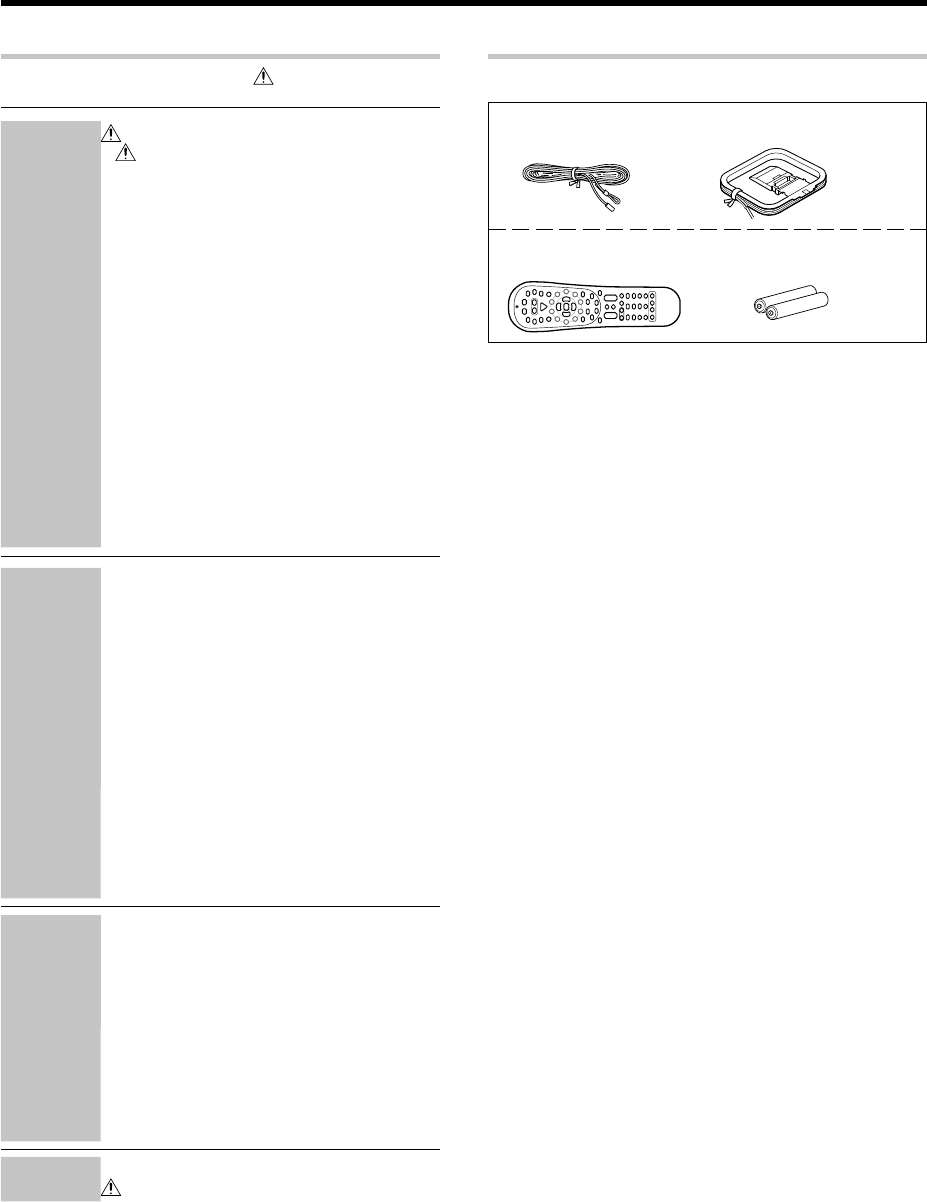
Unpacking
Unpack the unit carefully and make sure that all accessories are present.
FM indoor antenna (1) AM loop antenna (1)
Remote control unit (1) Batteries (R6/AA) (2)
RC-R0822
If any acccessories are missing, or if the unit is damaged or fails to
operate, notify your dealer immediately. If the unit was shipped to you
directly, notify your shipper immediately. Kenwood recommends that
you retain the original carton and packing materials in case you need to
move or ship the unit in the future.
Keep this manual handy for future reference.
Additional
Information
Remote Control
Operations
Preparations
4 EN
Operation
When the STANDBY indicator is lit, the power turns ON when you press
the POWER RCVR key on the remote control. When the power comes
ON, press the key you want to operate.
• When pressing more than one remote control key successively, press the
keys securely by leaving an interval of 1 second or more between keys.
Notes
1. The supplied batteries may have shorter lives than ordinary batteries
due to use during operation checks.
2. When the remote-controllable distance gets shorter than before,
replace both batteries with new ones.
3. Placing the remote sensor in direct sunlight, or in direct light from a
high frequency fluorescent lamp may cause a malfunction.
In such a case, change the location of the system installation to
prevent malfunction.
Before applying the power
FCC WARNING
This equipment may generate or use radio frequency energy.
Changes or modifications to this equipment may cause harmful
interference unless the modifications are expressly approved in
the instruction manual. The user could lose the authority to
operate this equipment if an unauthorized change or modification
is made.
NOTE:
This equipment has been tested and found to comply with the limits
for a Class B digital device, pursuant to Part 15 of the FCC Rules.
These limits are designed to provide reasonable protection against
harmful interference in a residential installation. This equipment
may cause harmful interference to radio communications, if it is not
installed and used in accordance with the instructions. However,
there is no guarantee that interference will not occur in a particular
installation. If this equipment does cause harmful interference to
radio or television reception, which can be determined by turning
the equipment off and on, the user is encouraged to try to correct
the interference by one or more of the following measures:
– – Reorient or relocate the receiving antenna.
– – Increase the separation between the equipment and receiver.
– – Connect the equipment into an outlet on a circuit different
from that to which the receiver is connected.
– – Consult the dealer or an experienced radio / TV technician for
help.
For the U.S.A.
Note to CATV system installer
This reminder is provided to call the CATV system installer's
attention to Article 820-40 of the NEC that provides guidelines for
proper grounding and, in particular, specifies that the cable ground
shall be connected to the grounding system of the building, as
close to the point of cable entry as practical.
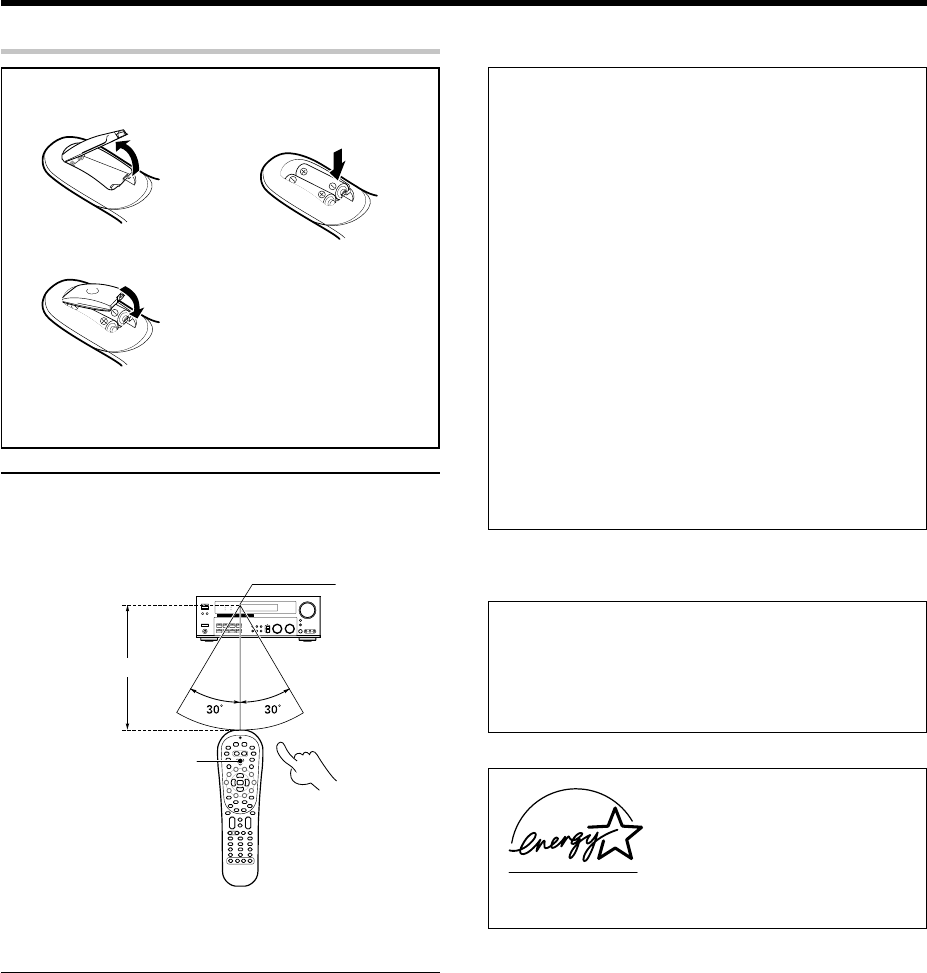
Loading the batteries
1Remove the cover. 2Insert the batteries.
3Close the cover.
• Insert two AA-size (R6) batteries as indicated by the polarity
markings.
Preparing the remote control
As an ENERGY STAR® Partner,
Kenwood Corporation has determined that
this product meets the ENERGY STAR®
guidelines for energy efficiency.This
product can save energy. Saving energy
reduces air pollution and lowers utility bills.
For the U.S.A.
Operating range
(Approx.) Remote sensor
Infrared ray system
POWER RCVR
6 m
5 EN
Before applying the power
Special features
True home theater sound
This receiver incorporates a wide variety of surround modes to bring you
maximum enjoyment from your video software. Select a surround mode
according to your equipment or the software you are going to play and
enjoy! §
Dolby Digital and Dolby Digital EX
The DOLBY DIGITAL mode lets you enjoy full digital surround from
software processed in the Dolby Digital format. Dolby Digital provides
up to 5.1 channels of independent digital audio for better sound quality
and more powerful presence than conventional Dolby Surround.
As for Dolby Digital EX, it creates six full-bandwidth output channels
from the 5.1 channel sources. This is done using a matrix decoder that
derives three surround channels from the two in the original recording.
For best results, Dolby Digital EX should be used with movie sound-
tracks recorded with Dolby Digital Surround EX.
Dolby PRO LOGIC
II
DOLBY PRO LOGIC II, whilst totally compatible with its predecessor
PRO LOGIC, provides greater advantages in surround sound. It allows
the user to enjoy the conventional stereo or Dolby Surround with a
convincing “5.1 like” presentation. PRO LOGIC II offers special features
for controlling the overall spatial, dimensionality and frontal sound field
imaging. PRO LOGIC II produces an impressive surround sound from
video software marked and three-dimensional space
from music CD. When listening to music, you will be able to enjoy the
experience of sheer STEREO surround sound.
DTS and DTS-ES
DTS (Digital Theater System) is a 5.1 channel digital audio format that
provides five full spectrum channels and one low-frequency (subwoofer)
channel for unprecedented clarity, optimum channel seperation and a
(wide) dynamic range.
DTS-ES (Extended Surround) presents 6.1 channels surround system
with additional Surround Back channel which evolved from the
conventional 5.1 channels surround system. DTS-ES format that was
recorded in DVD, CD or LD comprises of two modes. DTS-ES Discrete
6.1 produce the discrete surround back which is completely independent
and DTS-ES Matrix 6.1 produces the surround back which synthesised
within the left and right surround channels using matrix technology.
DTS-ES has perfect compatibility with the conventional 5.1 channels
surround system. 6.1 channels surround with an additional surround
back presents a more natural presence and surround effects by
increasing the impression of the sound image from back.
Important:
When a DTS disc is played on a CD, LD or DVD player, noise may be
output from the analog output. It is recommended that you connect the
digital output of the player to the digital input of this unit.
Neo:6
Neo:6 is a new technology which was developed by DTS. It can produce
high grade 6 channels surround with an astonishing fidelity from 2
channels content. Neo:6 has 2 mode, "CINEMA" mode is for movie
playback and "MUSIC" mode is for music playback.
SRS Circle Surround
II
SRS Circle Surround II™ improves on its predecessor CS-5.1™ resulting
in the CS-6.1™ system, enabling you to listen to realistic, multi-channel,
surround sound playback from a stereo source or conventional surround-
encoded video source. You already enjoy listening to Dolby Digital /DTS
multi-channel sound with your multi-speakers. Now you can listen to
audio CDs, MDs, Broadcast and Home Theater using your multi-
speakers. You will discover a new type of sound through SRS Circle
Surround II.
DSP surround modes
The DSP (Digital Signal Processor) used for this receiver incorporates
a variety of high quality adjustable sound fields, like “ARENA”, “JAZZ
CLUB”, “THEATER”, “STADIUM” and “DISCO”. It is compatible with
almost any kind of program source.
DVD 6-channel input
If you own a DVD player equipped with 6-channel output, this receiver
allows you to obtain the full surround sound impact of DVD source
material featuring multi-channel encoding. Since the source signals are
digital and each channel is input independently, the resulting ambience
is far superior to what can be achieved with conventional surround
sound systems.
ACTIVE EQ
ACTIVE EQ mode will produce a more dynamic sound quality in any
condition. You can enjoy a more impressive sound effect when ACTIVE
EQ is turned on during Dolby Digital and DTS playback.
SPEAKER EQ
SPEAKER EQ function is to adjust the receiver’s audio output
characteristics with the speakers’ characteristics which differs
depending on the size of the speakers. Especially for the music sound
source playback, the reproduced sound becomes more natural when
adjusting the output characteristics. When activating the SPEAKER EQ
function, you will be able to enjoy a more natural and dynamic sound
experience even with small size speakers.
Universal IR (InfraRed) remote control
In addition to the basic receiver, the remote control supplied with this
receiver can also operate almost all of your remote controllable audio
and video components. Just follow the simple setup procedure to
register the components you have connected.
6 EN
Names and functions of parts
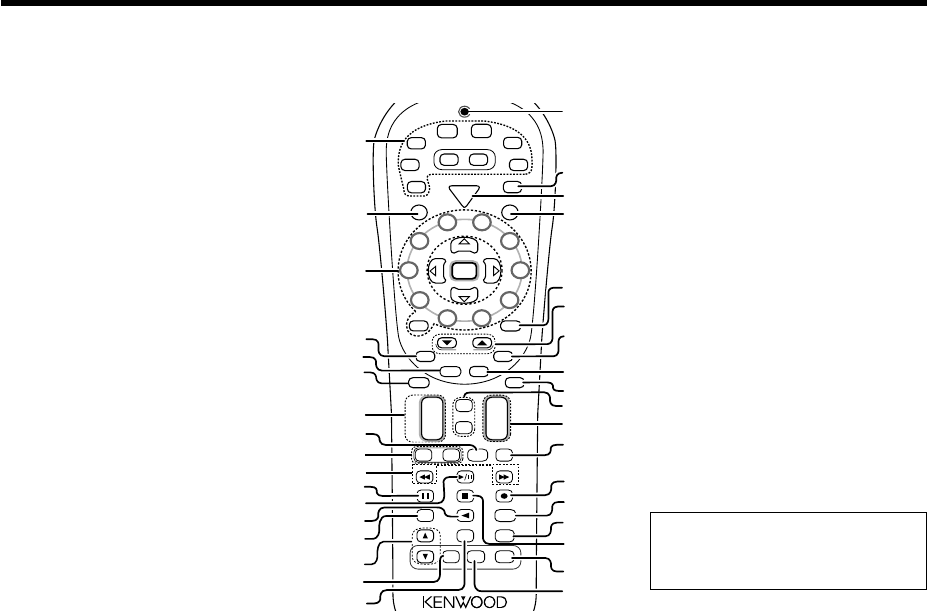
1POWER ON/STANDBY key *
Use to turn the power ON/STANDBY.
STANDBY indicator
2A SPEAKERS B keys )
Use to turn the A/B speakers on or off.
3LOUDNESS key ¡
Use to switch the status of LOUDNESS.
4SPEAKER EQ key ¡
Use to select SPEAKER EQ’s setting.
5Surround LED (lighting-emitting diode)
indicators
DSP mode LED indicator ª
Lights when the receiver is in the DSP mode.
SPEAKER EQ mode LED indicator ™
Lights when the receiver is in the SPEAKER
EQ mode.
ACTIVE EQ mode LED indicator ™
Lights when the receiver is in the ACTIVE EQ
mode.
DOLBY DIGITAL mode LED indicator
ª
Lights when the receiver is in the Dolby
Digital mode.
DTS mode LED indicator ª
Lights when the receiver is in the DTS mode.
CS
II mode LED indicator ª
Lights when the receiver is in the CIRCLE
SURROUND II mode.
Main unit
&AUTO key ¢
Use to select the auto or manual tuning
mode.
*TONE key ¡
Use to switch the status of TONE control.
(MEMORY key ¢
Use to store radio stations in the preset
memory.
)SETUP key *
Use to select the speakers' settings etc.
¡ keys *
Use for selection adjustments during sound,
set up and preset channel functions.
™MULTI CONTROL knob *
Use to control a variety of settings.
£LISTEN MODE knob ª
Use to select the listening mode.
¢AV AUX (S VIDEO, VIDEO, L-AUDIO-R)
jacks ^
∞AV AUX key ^
Use to switch the input to AV AUX.
6ACTIVE EQ key ¡
Use to select ACTIVE EQ’s setting.
7DSP key ª
Use to select any of the DSP mode.
8STEREO key º
Use to switch the listen mode to STEREO.
9INPUT MODE key 8
Use to switch between the full auto, digital
and analog inputs.
0DIMMER key
Use to select the REC MODE. £
Use to adjust the brightness of the display.
¤
!VOLUME CONTROL knob *
@MUTE key ¡
Use to temporarily mute the sound.
#PHONES jack ¡
Use for headphone listening.
$Input Selector keys ¡
(DVD/6CH, CD/DVD, PHONO, TUNER,
VIDEO 1, VIDEO 2, VIDEO 3, MD/TAPE)
Use to select input sources.
%SOUND key º
Use to adjust the sound quality and the
ambience effects.
^BAND key ¢
Use to select the broadcast band.
Standby mode
While the standby indicator is lit, a small amount of power is supplied to the system to back up the memory. This is called standby mode. Under the
condition, the system can be turned ON by remote control unit.
L
SL S SB SR
CR
SP MUTE
OPTICAL 6CH INPUT
COAXIAL ANALOG 96kHzfs DSP MODE
DTS
MATRIX
DISCRETE
DOLBY DIGITAL
PRO LOGIC
STEREO
LOUDNESS
NEO:6
CS II
AB CLIP
AUTO DETECT
AUTO
MEMORY
STEREO
TUNED
SW
LFE
LOUDNESS SPEAKER EQ
ACTIVE EQ
DSP
STEREO
INPUT MODE
DIMMER
SOUND
TONE
SETUP
BAND AUTO
MEMORY
MULTI CONTROL LISTEN MODE
TUNER
MD/TAPE
VIDEO 3VIDEO 2VIDEO 1
PHONOCD/DVD
DSP
DTS
CS II
DOLBY DIGITAL
SPEAKER EQ
ACTIVE EQ
A SPEAKERS B
PHONES
DOWN
MUTE
AV AUX
S VIDEO
VIDEO
L-AUDIO-R
UP
VOLUME CONTROL
STANDBY
POWER
ON/STANDBY
DVD/6CH
F
ULL DIGITA
L
D
ECODIN
G
Display
Speaker selection indicators
Input channel indicators
Output channel indicators
AUTO indicator
MEMORY indicator
STEREO indicator
TUNED indicator
Frequency display
Input display
Preset channel display
Surround mode display
Speaker
indicators
MUTE
indicator
CLIP
indicator
Input mode
indicators
Listen mode
indicators
7 EN
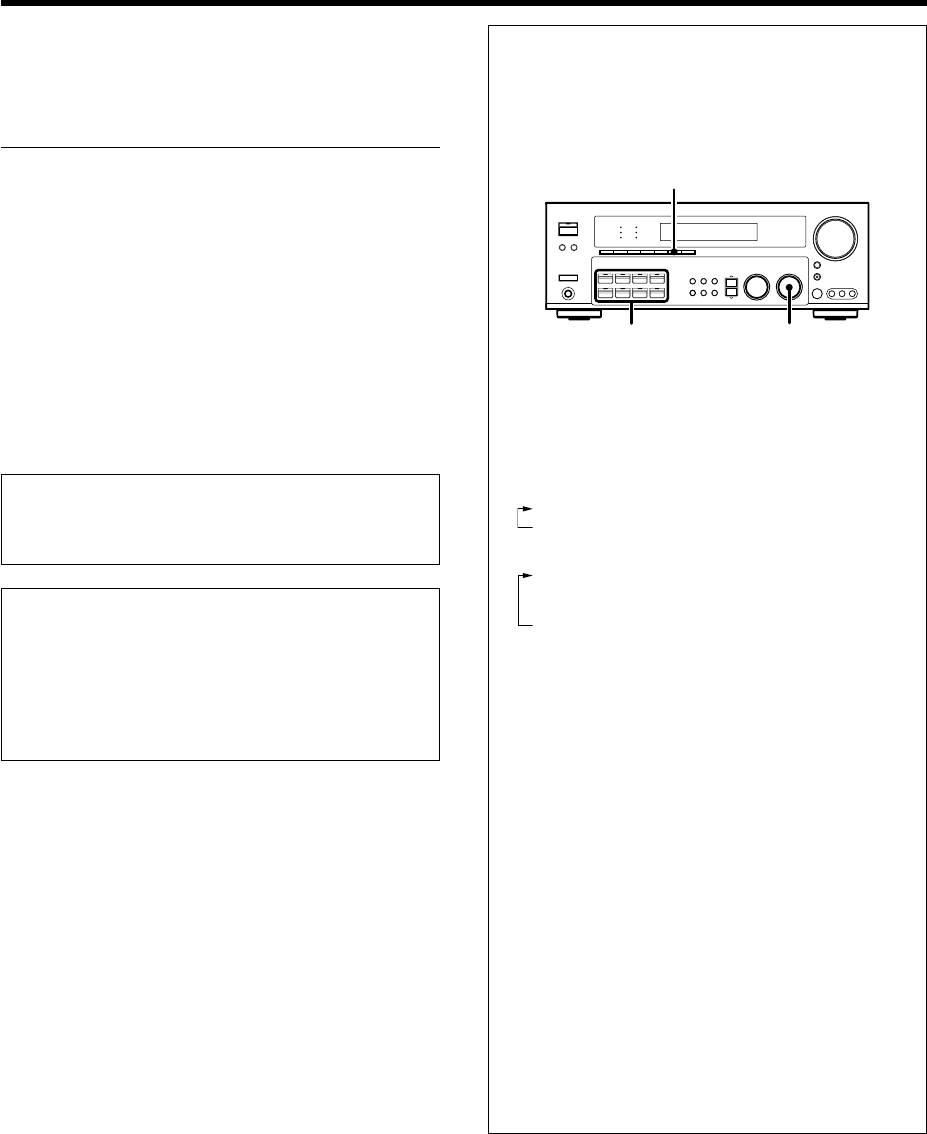
9TV VOL +/– keys
Use to adjust the TV’s volume.
01/¡ keys
If CD, MD or Tape is selected as the input
source, this key functions as search keys.
Tune –/+ key
Use to operate the tuner mode.
!8 key
Use to operate other components.
Dimmer key ¤
Use to adjust the brightness of the display.
@3/8 key
If CD is selected as the input source, this key
functions as the play/pause key.
If MD or TAPE key is selected as input source,
this key functions as the play key.
Band key ¢
Use to select the broadcast band.
#2 key
If Tape is selected, this key functions as
reverse play key.
Info/Flip key
Use to operate other components.
$Input Mode key 8
Use to switch between the full auto, digital
and analog inputs.
%Listen Mode 5/∞ keys ª
Use to select the listening mode.
^DSP Mode key ª
Use to select any of the DSP mode.
&Active EQ key ¡
Use to select ACTIVE EQ’s setting.
*LED (lighting-emitting diode) indicator
Blinks to show that signals are being transmitted.
(TV key
Use to select the TV equipment.
)POWER RCVR ( receiver) key *
Use to turn the receiver on or off.
¡TV Power key
Use to turn the TV on or off.
™+100 key
Use to select the disc number with the multi-
CD player.
TV mute key
Use to temporarily mute the TV sound.
£Page 5/∞ key
Use to operate other components.
¢OSD (on screen display) key
Use to operate the DVD component.
Guide key
Use to operate other components.
∞Menu key
Use to operate other components.
§Mute key ¡
Use to temporarily mute the sound.
¶Tone key ¡
Use to switch the status of TONE control.
Sound key º
Use to adjust the sound quality and the
ambience effects.
•VOL +/– keys ¡
Use to adjust the receiver’s volume.
ªBass Boost key ¡
Use to select the maximum adjustment
setting for the low frequency range.
º÷ key
If VCR is selected, this key functions as
record key when it pressed twice sequentially.
When in MD or Tape is selected, this key
functions as record key.
Top Menu key
Use to operate the DVD component.
Setup key *
Use to select the speakers’ settings etc.
⁄Loudness key ¡
Use to switch the status of LOUDNESS.
¤Remote Setup key
Use to register other components.
‹7 key
If CD, MD, or TAPE is selected as the input
source, this key functions as the stop key.
Auto key ¢
Use to select the auto or manual tuning
mode.
›Speaker EQ key ¡
Use to select SPEAKER EQ’s setting.
fiStereo key º
Use to switch the listen mode to STEREO.
1Source keys (MD/TAPE, CD/DVD, DVD/6CH,
TUNER,
VID1, VID2, VID3, AV AUX
, PHONO)
When press and hold for more than 3 seconds,
they are used to select the registered components.
¡
Input Selector keys (MD/TAPE, CD/DVD, DVD/
6CH, TUNER, VID1, VID2, VID3, AV AUX, PHONO)
When press and release in less than 3 seconds,
they are used to select the input sources. ‹
2SRC ( source) Power key
Use to turn the other source components on or off.
3Numeric keys ‹
Provide functions identical to those of the
original remote control supplied with the
component you are controlling.
Multi (multi control) %/fi keys *
Use to control a variety of settings.
Use to operate other components.
P.Call @/# keys ∞
Use for selection adjustments during sound,
set up and preset channel functions.
Enter key
Use to operate other components.
4Return key
Use to operate the DVD component.
Exit key
Use to operate other components.
5Disc Skip key
If CD is selected as the input source, this key
functions as the multi-CD player disc skip key.
LAST/A/B key
If TAPE is selected as the input source, this is
A and B deck of a double cassette deck.
Use to operate other components.
6Disc Sel. key
Use to operate other components.
Input Sel. key
Use to operate other components.
7CH +/– keys
Use to select the channels.
¢ / 4 keys
If CD, MD and DVD is selected as the input
source, these keys function as skip keys.
8TV Input key
Use when in TV operation.
Names and functions of parts
Remote control unit
This remote control unit can be use not only for Kenwood products but also for other non-Kenwood products by setting the appropriate manufacturer’s
setup codes. fi
If the name of a function is different on
the receiver and on the remote control,
the name of the remote control key in
this manual is indicated in parentheses.
S
R
C
P
o
w
e
r
T
V
P
o
w
e
r
5
6
8
9
4
3
2
1
0
7
Tune – Tune +
Dimmer
Band
Setup
Top MenuAuto
Info
/
Flip
Input
Mode
Loudness
Active
EQ
Remote
Setup
Sound
Tone
TV Input Bass
Boost
TV
VOL
4
¢
CH
+
–
VOL
+
–
Disc Skip
Menu
Input Sel.
OSD
Guide
Return
Exit
Page
TV Mute
LAST
/
A/B
+ 10
+ 100
Multi
Multi
P. Call
P. Call
Enter
TV
PHONO
POWER
RCVR
VID2
VID1
DVD
6CH
CD
DVD
MD
TAPE
+–
TUNER
AV AUX
VID3
Stereo
Listen Mode
DSP
Mode
Speaker
EQ
Mute
1
2
3
#
$
@
)
§
4
5
7
8
(
¡
™
∞
6
0
%
º
⁄
¢
&
¶
¤
‹
^
9
›
ª
fi
*
!
£
•
Disc Sel.
8 EN
Make connections as shown in the following pages.
When connecting the related system components, be sure
to refer to the instruction manuals supplied with the
components you are connecting.
Do not connect the power cord to a wall outlet until all
connections are completed.
Notes
1.
Be sure to insert all connection cords securely. If their connections are
imperfect, sound may not be produced or there will be noise inference.
2. Be sure to remove the power cord from the AC outlet before plugging
or unplugging any connection cords. Plugging/unplugging connection
cords without disconnecting the power cord can cause malfunctions
and may damage the unit.
3. Do not connect power cords from components whose power
consumption is larger than what is indicated on the AC outlet at the
rear of this unit.
Analog connections
Audio connections are made using RCA pin cords. These cables transfer
stereo audio signal in an “analog” form. This means the audio signal
corresponds to the actual audio of two channels. These cables usually
have 2 plugs on each end, one red for the right channel and one white for
the left channel. These cables are usually packed together with the
source unit, or are available at your local electronics retailer.
Microcomputer malfunction
If operation is not possible or an erroneous display appears, even
though all connections have been made properly, reset the
microcomputer referring to “In case of difficulty”. w
CAUTION
Be sure to adhere to the following, or proper ventilation will be
blocked causing damage or fire hazard.
• Do not place any objects impairing heat radiation onto the top of the
unit.
• Leave some space around the unit (from the largest outside
dimension including projection) equal to or greater than, shown
below.
Top panel : 50 cm Side panel : 10 cm Back panel : 10 cm
Setting up the system
Input mode settings
CD/DVD, VIDEO 2, VIDEO 3 and DVD/6CH inputs each include jacks
for digital audio input and analog audio input.
The initial factory settings for audio signal playback for CD/DVD,
DVD/6CH, VIDEO 2 and VIDEO 3 are full auto.
After completing connections and turning on the receiver, follow the
steps below.
INPUT MODE
Input Selector LISTEN MODE
1Use the Input Selector keys to select CD/DVD, VIDEO 2, VIDEO 3
or DVD/6CH.
2Press the INPUT MODE key.
Each press switches the setting as follows:
In DTS play mode
1FULL AUTO (digital input, analog input)
2DIGITAL MANUAL (digital input)
In CD/DVD, VIDEO 2, VIDEO 3 or DVD/6CH play mode
1FULL AUTO (digital input, analog input)
2DIGITAL MANUAL (digital input)
36CH INPUT (DVD/6CH input)
4ANALOG (analog input)
Digital input:
Select this setting to play digital signals from a DVD, CD, or LD
player.
Analog input:
Select this setting to play analog signals from a cassette deck, VCR,
or record player.
Auto detect:
In “FULL AUTO” mode (AUTO DETECT indicator light up), the
receiver detects the digital or analog input signals automatically.
Priority is given to digital signal during input mode selection. The
receiver will select the input mode and listening mode automatically
during playback to match the type of input signal (Dolby Digital,
PCM, DTS) and the speaker setting. The OPTICAL and COAXIAL
indicator on the display will light up when digital signal is detected.
If the input signal is analog, the ANALOG indicator will light up.
To keep the receiver set to the currently selected listening mode,
use the INPUT MODE key to select “DIGITAL MANUAL” (manual
sound). However, even when this setting is selected, there may be
cases in which the listening mode is selected automatically to
match a Dolby Digital source signal depending on the combination
of listening mode and source signal.
At DIGITAL MANUAL, if the audio reproduction stops in the middle
due to change in the input signals, etc. press the LISTEN MODE
Knob.
If the INPUT MODE key is pressed quickly, sound may not be
produced. Press the INPUT MODE key again.
9 EN
Setting up the system
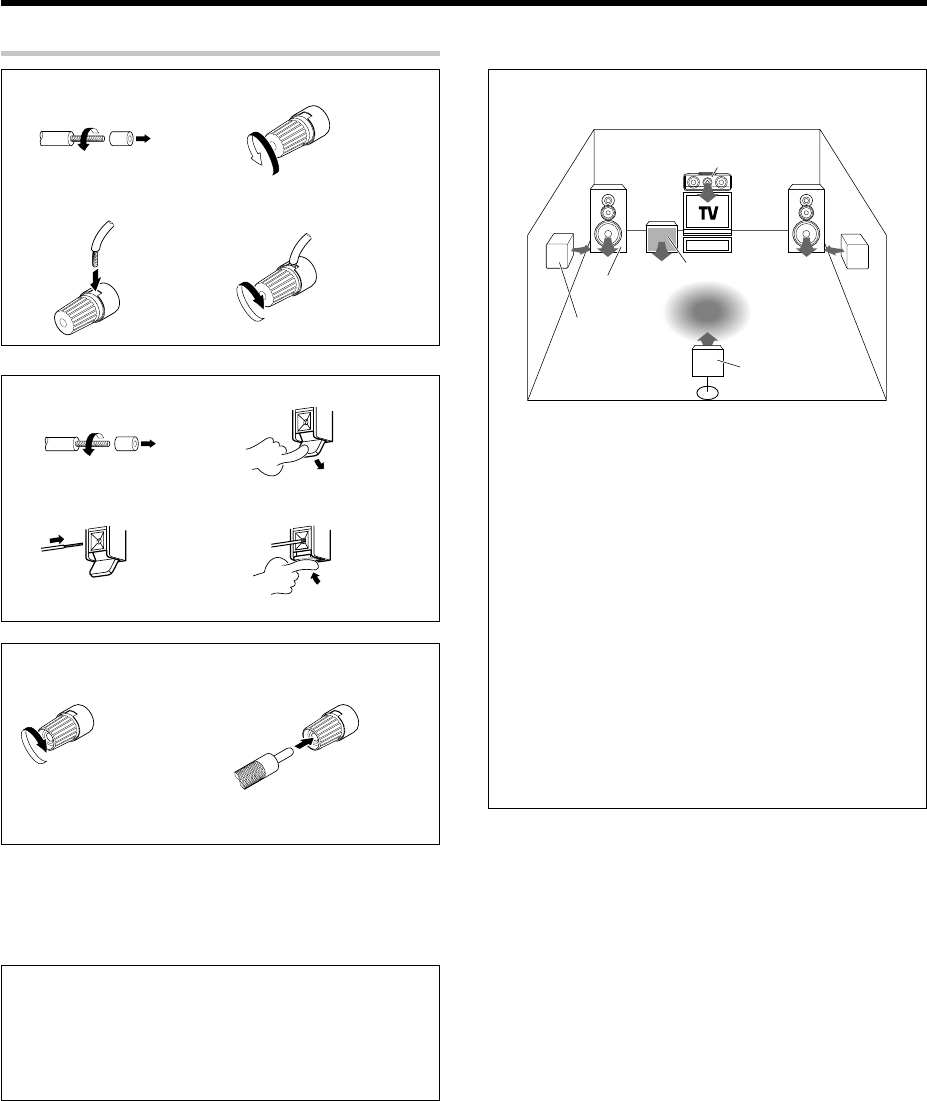
Connecting the terminals
1Strip coating. 2Loosen.
3Insert. 4Secure.
1Strip coating. 2Push the lever.
3Insert the cord. 4Return the lever.
Connection of banana plugs
1Secure. 2Insert.
• Sound will not be heard if the speaker terminal is not fully secured.
• Never short circuit the + and – speaker cords.
• If the left and right speakers are connected inversely or the speaker
cords are connected with reversed polarity, the sound will be unnatu-
ral with ambiguous acoustic imaging. Be sure to connect the speakers
correctly.
Speaker impedance
After confirming the speaker impedance indications printed on the
rear panel of the receiver, connect speakers with matching
impedance ratings. Using speakers with a rated impedance other
than that indicated on the rear panel of the receiver could result in
malfunctions or damage to the speakers or receiver.
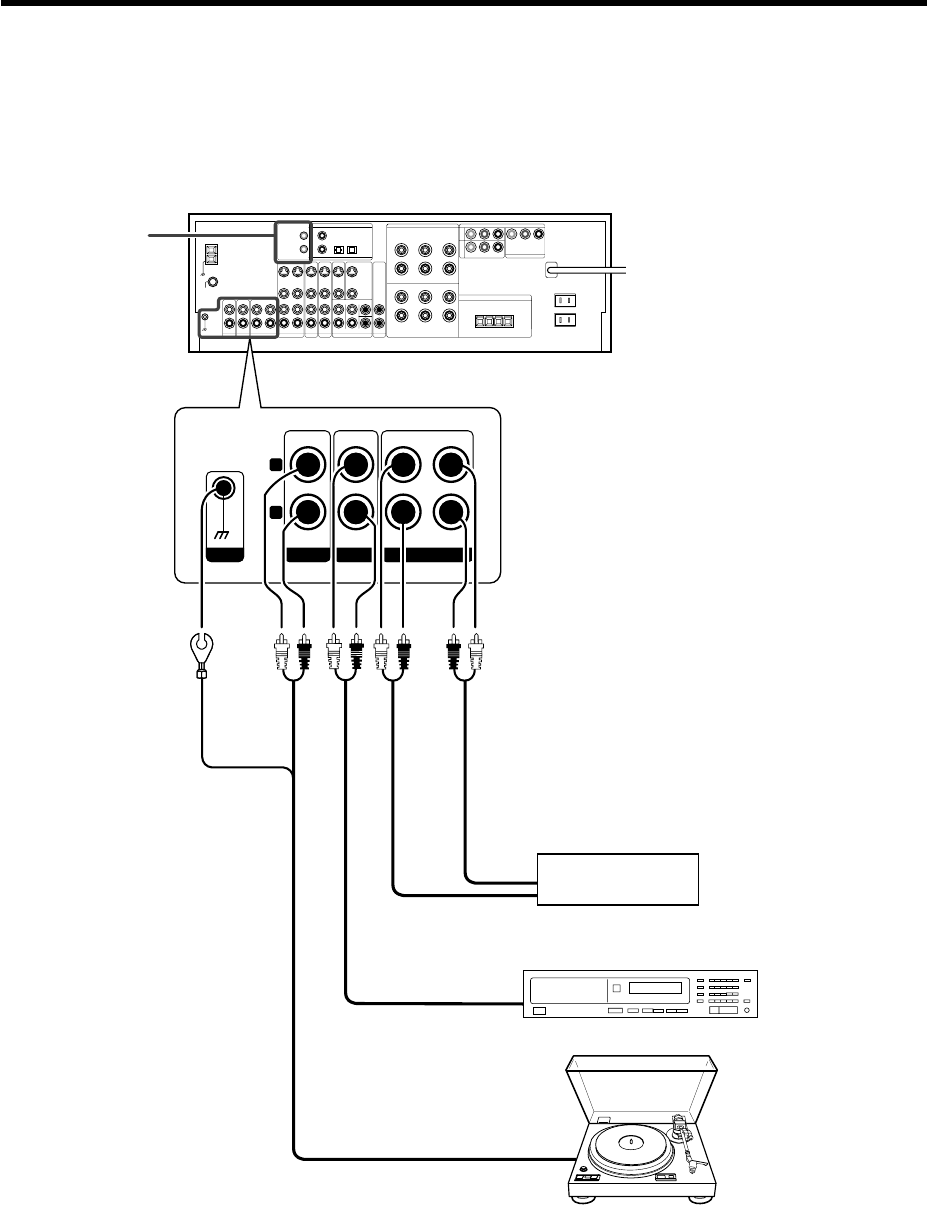
Speaker placement
Front (left and right) speakers
Place at the front left and right of the listening position. Front speakers
are required for all surround modes.
Center speaker
Place front and center. This speaker stabilizes the sound image and
helps recreate sound motion. Required for surround playback.
Surround (left and right) speakers
Place at the direct left and right, or slightly behind, the listening
position at even heights, approximately 1 meter above the ears of the
listeners. These speakers recreate sound motion and atmosphere.
Required for surround playback.
Subwoofer
Reproduces powerful deep bass sounds.
Surround back speaker
Place the speaker directly at the rear of the listening position. The
optimum position depends mainly on the room condition.
• Although the ideal surround system consists of all the speakers
listed above, if you don't have a center speaker or a subwoofer, you
can divide those signals between the available speakers in the
speaker settings steps to obtain the best possible surround
reproduction from the speakers you have available. *
Center speaker
Subwoofer
Front speakers
(L,R)
Surround
speakers
(L,R)
Listening
position
Surround
back speaker
10 EN
IN IN
REC OUT PLAY IN
GND
CD/DVD MD/TAPE
R
L
PHONO
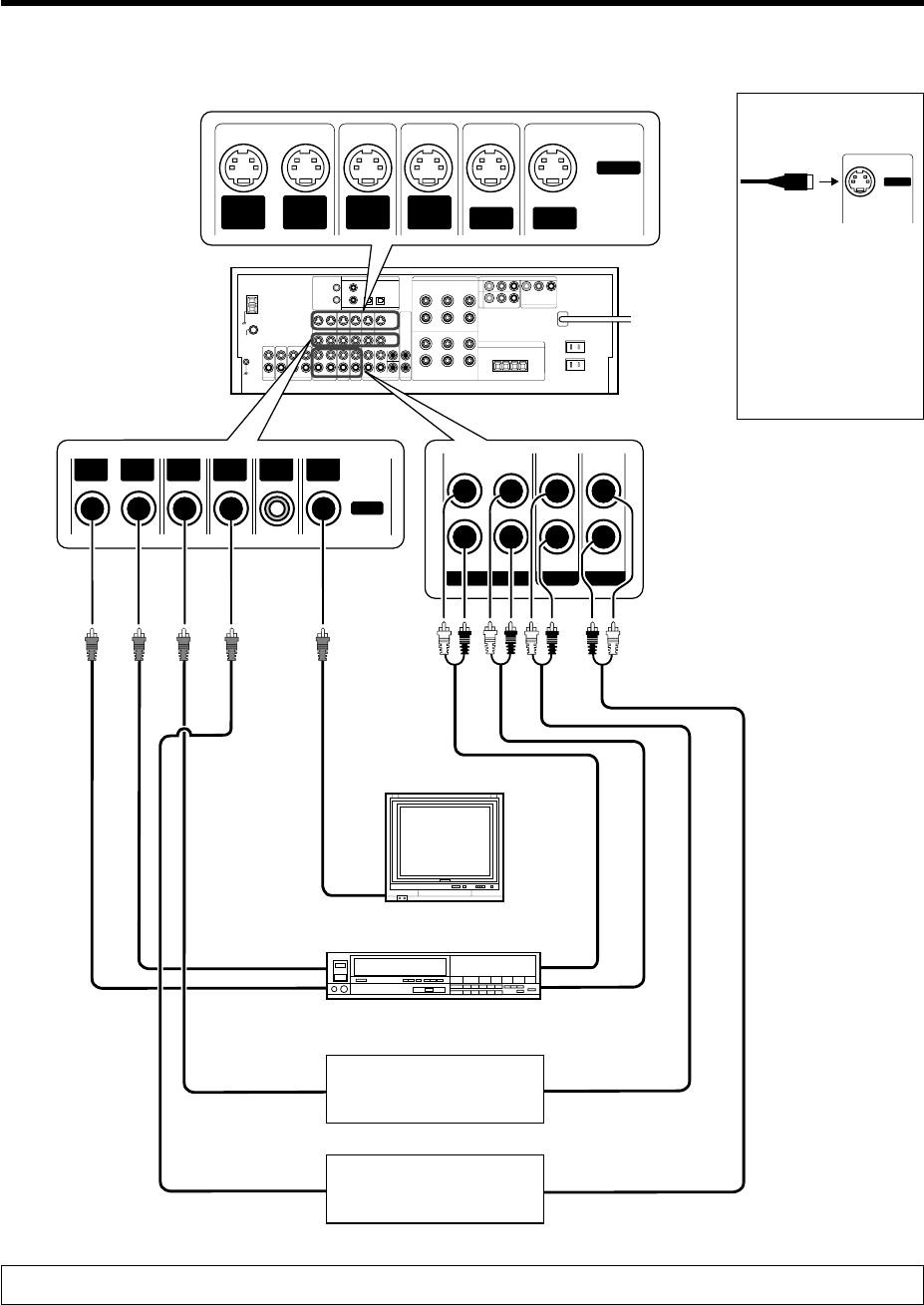
Connecting audio components
Record player
Setting up the system
To AC wall outlet
Cassette deck or
MD recorder
CD or DVD player
SYSTEM CONTROL
jacks
&
IN
OUT
OUT
OUT
Moving coil (MC) cartridge record
player cannot be used directly
from the receiver unit. It can only
be used when another equalizer
amplifier is connected.
11 EN
VIDEO 1 VIDEO 2 VIDEO 3
PLAY INPLAY INPLAY INREC OUT
S VIDEO
S VIDEO
OUT
VIDEO
S VIDEO
IN
VIDEO
S VIDEO
IN
VIDEO
S VIDEO
IN
VIDEO DVD
IN
MONITOR
OUT
OUT
VIDEO
IN
VIDEO
IN
VIDEO
DVD
IN
IN
VIDEO
MONITOR
OUT
VIDEO
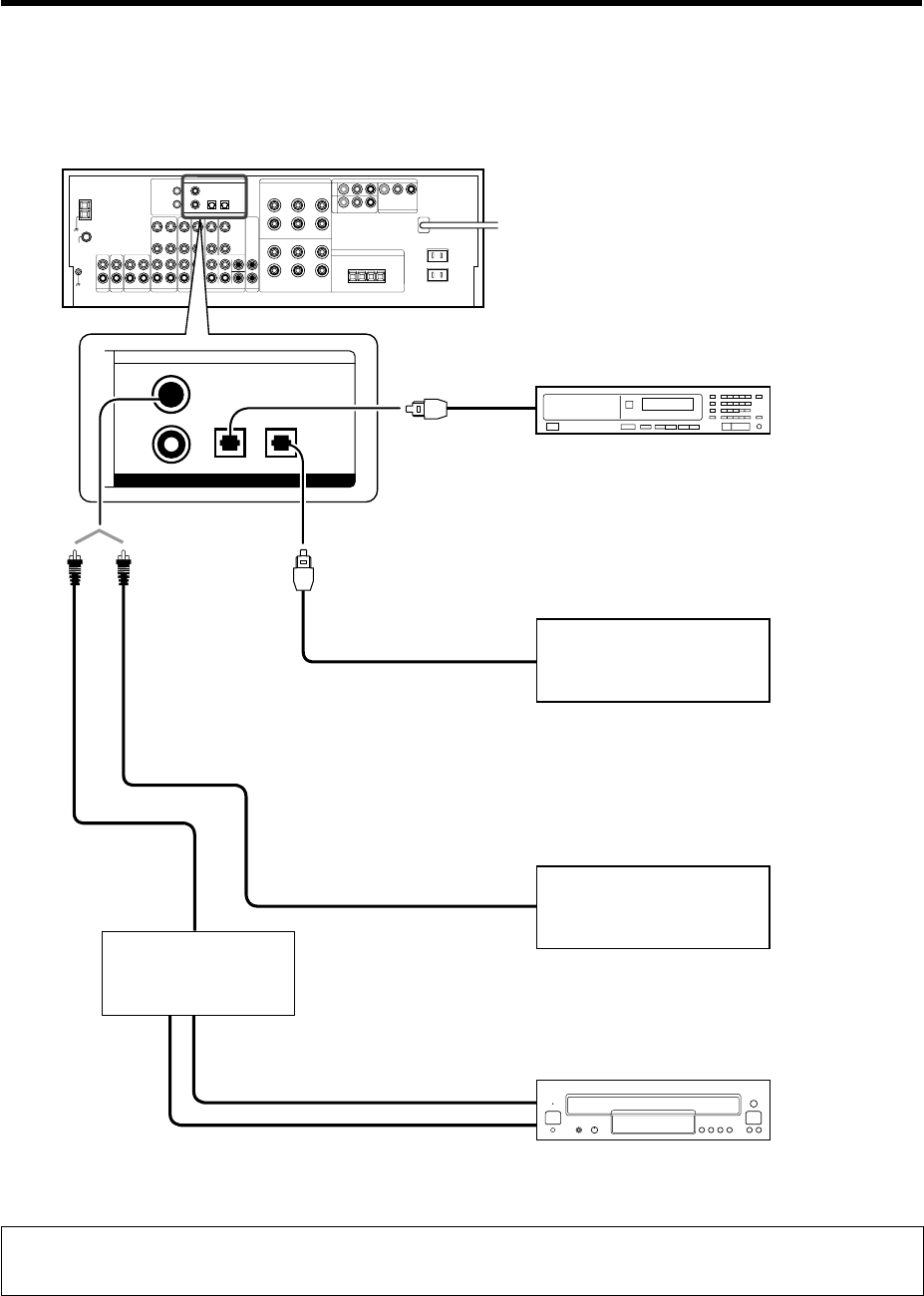
Connecting video components
IN
Video deck
Monitor TV
Video
IN/OUT
IN
Video inputs and outputs
(Yellow RCA pin cords)
OUT
OUT
Audio inputs
and outputs
S Video jacks
Video inputs
(Yellow RCA pin cords)
About the S VIDEO
jacks
S VIDEO
Use the S VIDEO jacks to
make connections to
video components with
S VIDEO IN/OUT jacks.
•
If you use the S VIDEO
jacks to connect your video
playback components, be
sure to use the S VIDEO
jacks when connecting
your monitor and video
recording components.
VIDEO
IN
OUT OUT
Audio
IN/OUT
Setting up the system
OUT OUT
DVD player or LD player
DVD player or LD player
A video component with digital audio outputs should be connected to the VIDEO 2 or VIDEO 3 jacks.
12 EN
COAXIAL OPTICAL OPTICAL
VIDEO 3CD/DVD
DIGITAL IN
DVD/
6CH
VIDEO
2
Digital connections
The digital in jacks can accept DTS, Dolby Digital, or PCM signals. Connect components capable of outputting DTS, Dolby Digital, or standard PCM (CD)
format digital signals.
If you have connected any digital components to the receiver, be sure to read the “Input mode settings” section carefully. 8
COAXIAL
DIGITAL
OUT
(AUDIO)
Connect the video signal and digital
audio signals to the VIDEO 3 jacks.
(See “Connecting video components”.)
!
DOLBY DIGITAL RF
OUT (AUDIO)
OPTICAL DIGITAL OUT (AUDIO)
LD player
PCM OUT
Component with DTS,
Dolby Digital, or PCM
OPTICAL DIGITAL OUT
Setting up the system
RF digital
demodulator
(DEM-9991D)
(sold separately)
CD or DVD player
OPTICAL DIGITAL OUT (AUDIO)
Optical fiber cable
Component with DTS,
Dolby Digital, or PCM
COAXIAL DIGITAL OUT
Optical
fiber cable
COAXIAL DIGITAL OUT (AUDIO)
Connect the video signal and analog
audio signals to the VIDEO 2 jacks.
(See “Connecting video components”.)
!
To connect an LD player with a DIGITAL RF OUT, connect the LD player to the KENWOOD RF digital demodulator (DEM-9991D).
Next, connect the DIGITAL OUT jacks of the demodulator to the DIGITAL IN jacks of the receiver.
Connect the video signal and analog audio signals to the VIDEO 2 or VIDEO 3 jacks. (See “Connecting video components”.)
13 EN
DVD
IN
VIDEO
3
IN
MONITOR OUT
CRCB
Y
CR
CB
Y
CR IN
CB IN
Y IN
CR OUT
CB OUT
Y OUT
CR OUT
CB OUT
Y OUT
COMPONENT VIDEO
Setting up the system
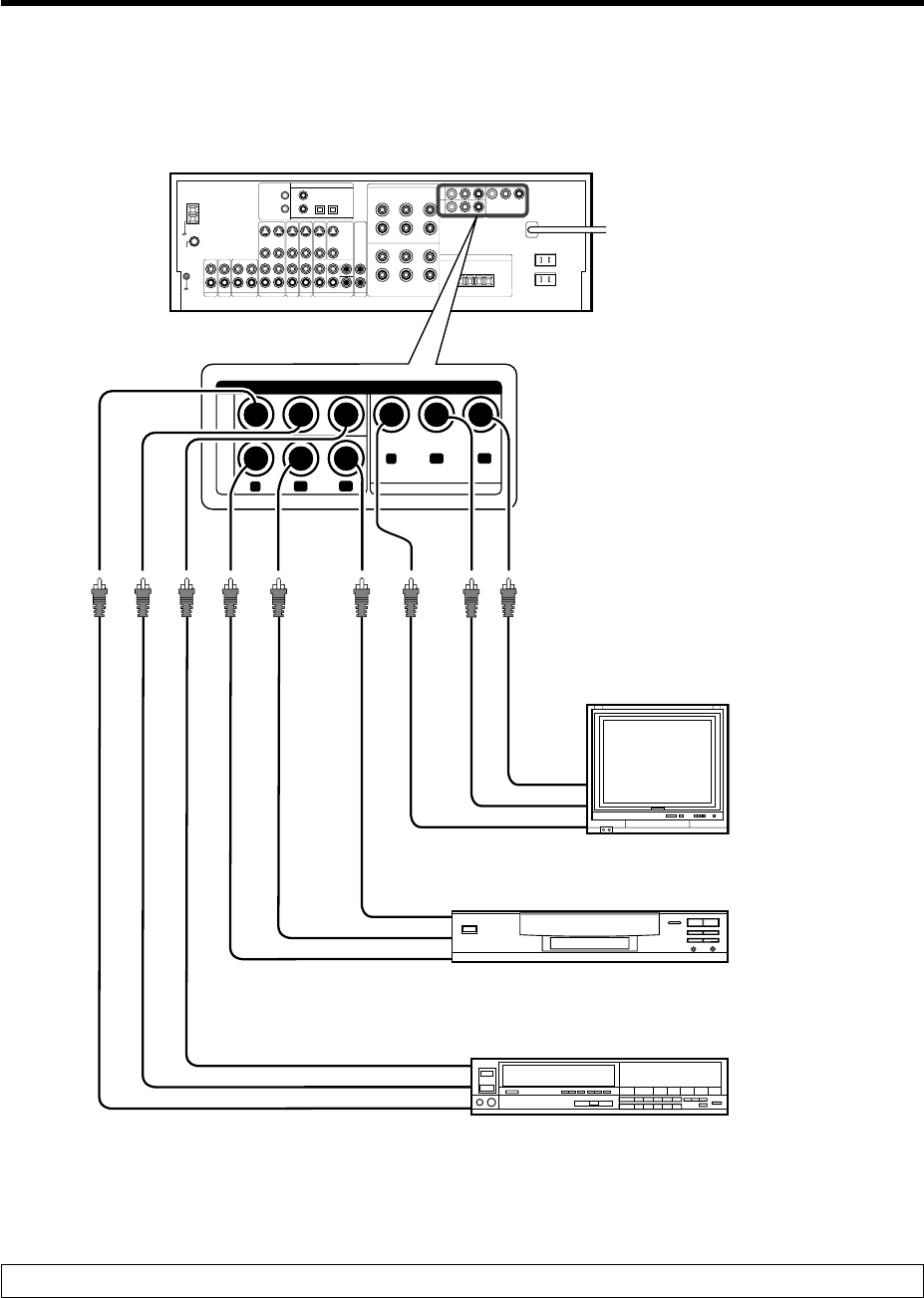
Connecting video components (COMPONENT VIDEO)
If you have connected the receiver to a video component with COMPONENT jacks, you can get a better picture quality than by connecting to the S-VIDEO
jacks.
When connecting the TV to the COMPONENT jacks, be sure to connect all the other components to the COMPONENT jacks.
Monitor TV
(with component jacks)
Video Recorder, DVD Recorder,
Satellite Cable Tuner & Game
Player (with component jacks)
DVD player (with component jacks)
• Connect to the VIDEO cord.
14 EN
DVD/6CH INPUT
FRONT
SURROUND
SUB WOOFER
CENTER
PLAY INPLAY IN
VIDEO 2 VIDEO 3
COAXIAL OPTICAL OPTICAL
VIDEO 3CD/DVD
DVD/
6CH
VIDEO
2
DIGITAL IN
OUT
VIDEO
IN
VIDEO
IN
VIDEO
DVD
IN
IN
VIDEO
MONITOR
OUT
VIDEO
S VIDEO
IN
VIDEO
S VIDEO
IN
VIDEO DVD
IN
MONITOR
OUT
S VIDEO
VIDEO
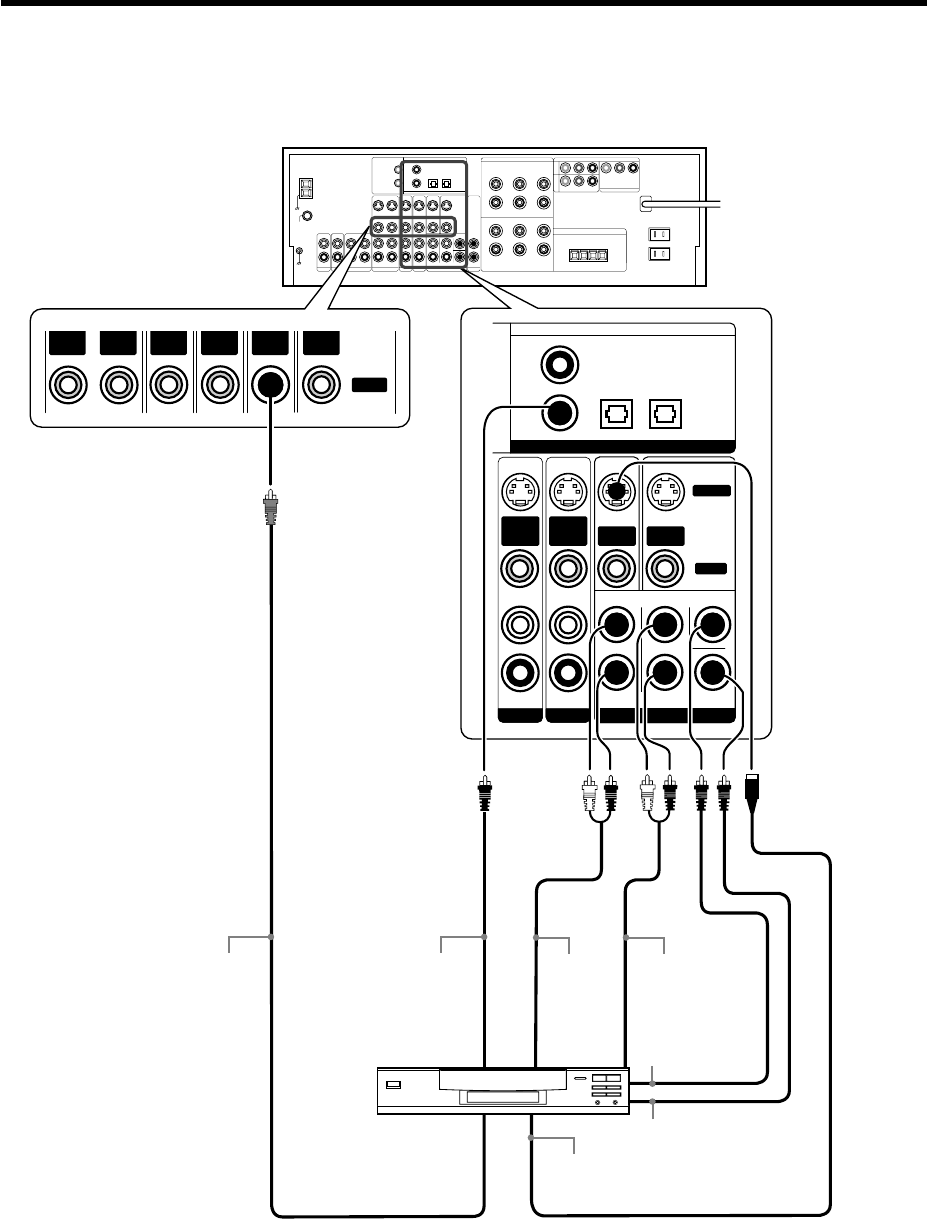
Connecting a DVD player (6-channel input)
If you have connected a DVD player to the receiver with digital connection, be sure to read the “Input mode settings” section carefully. 8
FRONT
OUT L/R
S VIDEO
OUT
COAXIAL
DIGITAL OUT
(AUDIO)
DVD player
S VIDEO cord
SURROUND
OUT L/R
VIDEO OUT
(Yellow RCA
pin cord)
CENTER
OUT
SUBWOOFER
OUT
Setting up the system
15 EN
GREENWHITERED
RLCENTERFRONT A
-
+
++
--
FRONT B
RL
GRAY
SURROUND
RL
-
+
BLUE PURPLE
SURROUND BACK/
SUBWOOFER
SURROUND BACK
SUBWOOFER
PRE OUT
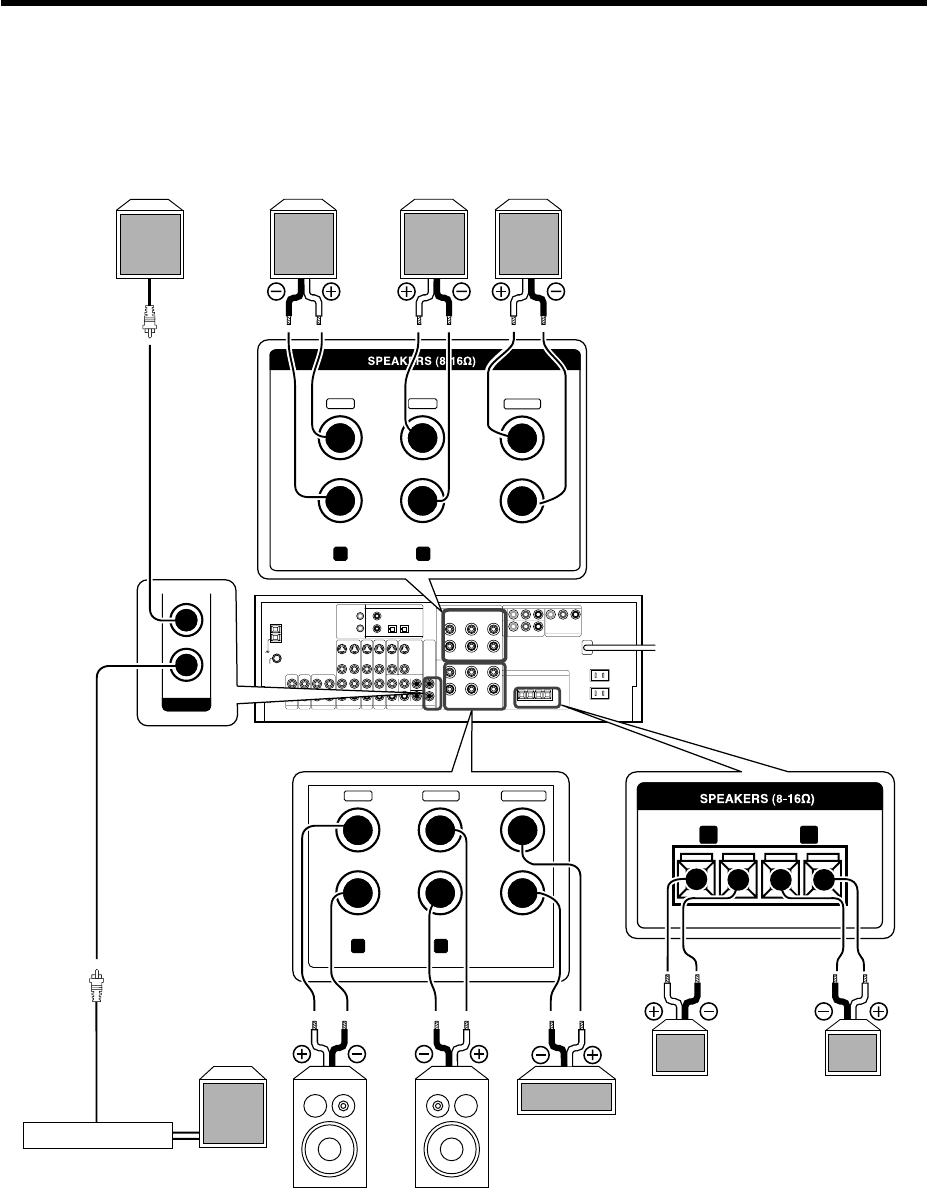
Right
Front Speakers A
Right
Center
Speaker
Surround Speakers
(Be sure to connect both
surround speakers)
Power amplifier
Left Surround Back/Subwoofer
Use this terminal if you wish to
connect to a Surround Back
speaker with the SETUP of
“6ch AMP SB” or to connect
to a subwoofer speaker with
the SETUP of “6ch AMP SW”.
Connecting the speakers
Setting up the system
Right
Front Speakers B
Surround
Back
Powered
subwoofer
Left
Left
16 EN
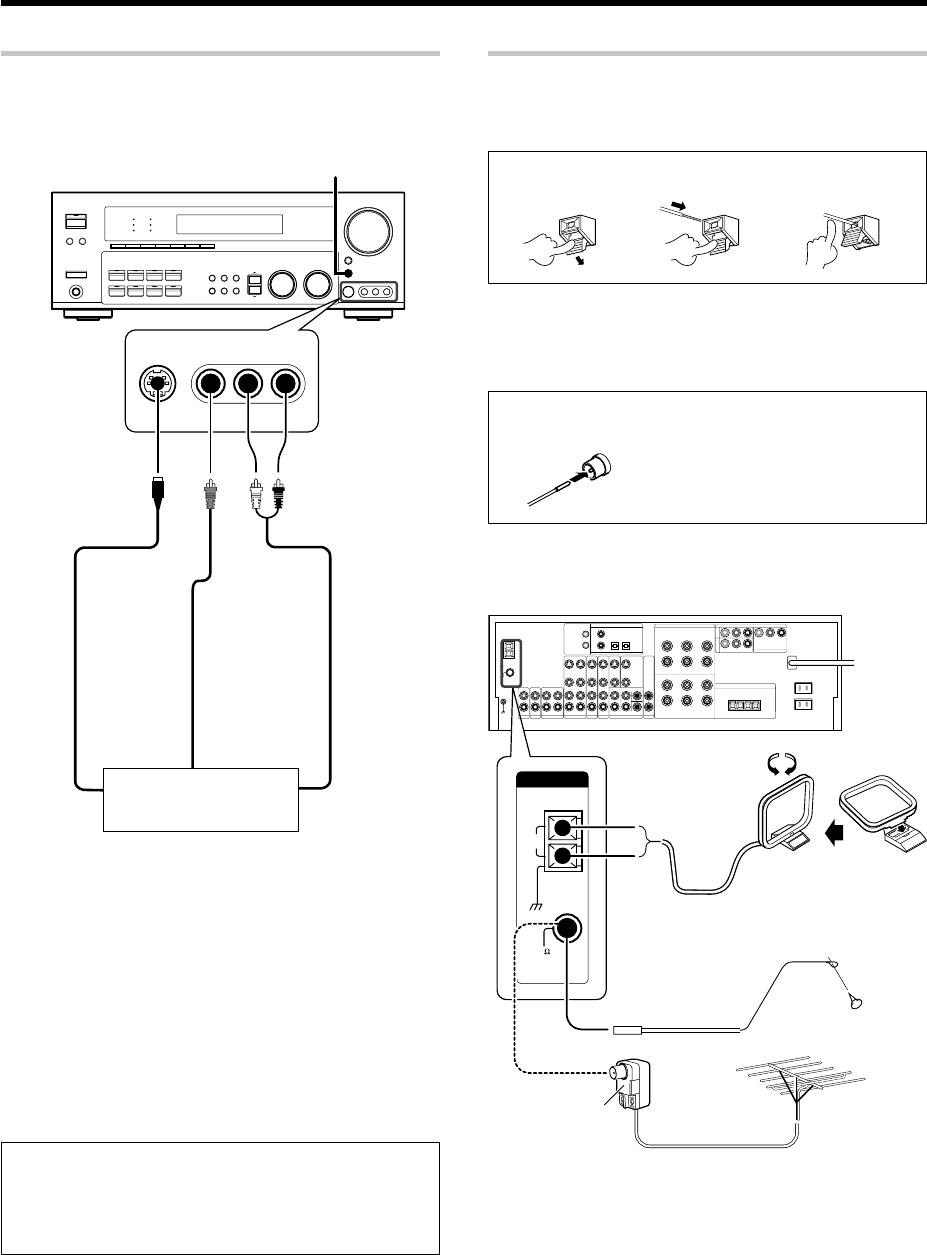
Connecting the antennas
AM loop antenna
The supplied loop antenna is for use indoors. Place it as far as possible
from the receiver, TV set, speaker cords and power cord, and adjust the
direction for best reception.
AM antenna terminal connections
1Push lever. 2Insert cord. 3Release lever.
FM indoor antenna
The supplied indoor antenna is for temporary use only. For stable signal
reception we recommend using an outdoor antenna. Disconnect the
indoor antenna when you connect one outdoors.
FM antenna terminal connections
Insert cord.
FM outdoor antenna
Lead the 75Ω coaxial cable connected to the FM outdoor antenna into the
room and connect it to the FM 75Ω terminal.
S VIDEO VIDEO L-AUDIO-R
AV AUX
S VIDEO OUT
S VIDEO cord
VIDEO OUT
AUDIO OUT
AM loop antenna
FM indoor antenna
Use an antenna
adaptor
(Commercially
available)
Attach to the stand
Setting up the system
Connecting to the AV AUX jacks
The AV AUX jacks are convenient for connection of video components
such as a camcorder or a video game.
•To select the source connected to the AV AUX jacks press AV
AUX key. ¡
•When you connect the audio source such as the MD player, you
do not need to connect the video cable.
•When you connect the unit and the component with the S
VIDEO cord, you can get better picture quality.
Camcorder, other
VCR, video game or
portable MD player
FM outdoor antenna
FM
75
GND
AM
ANTENNA
17 EN
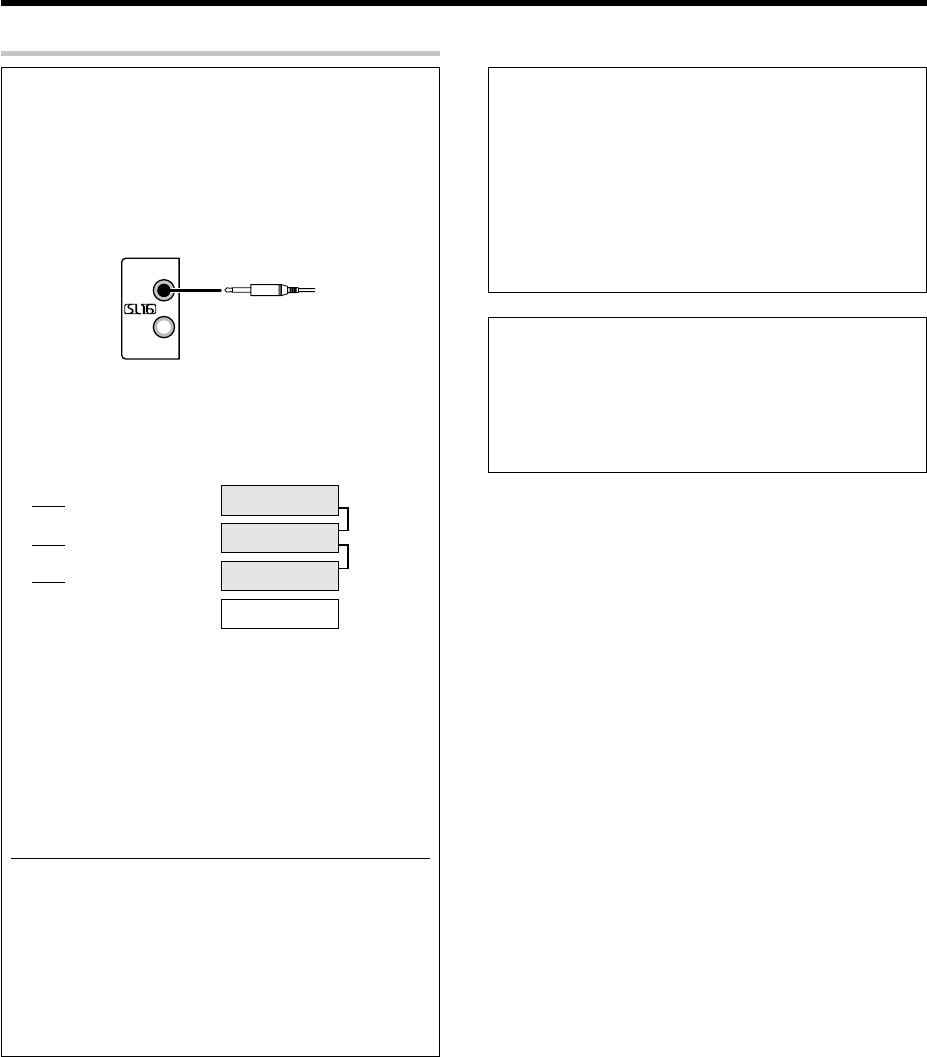
Connecting the system control
Connecting system control cords after connecting a KENWOOD
audio component system lets you take advantage of convenient
system control operations.
This unit is compatible only with the [SL-16] mode. The system
control operation is not available if the unit is connected in the
[XS8], [XS], or [XR] connection mode.
If your component has the mode select switch, set the connected
components to the [SL16] mode.
•You may connect the system control cord to either the up or down
jack.
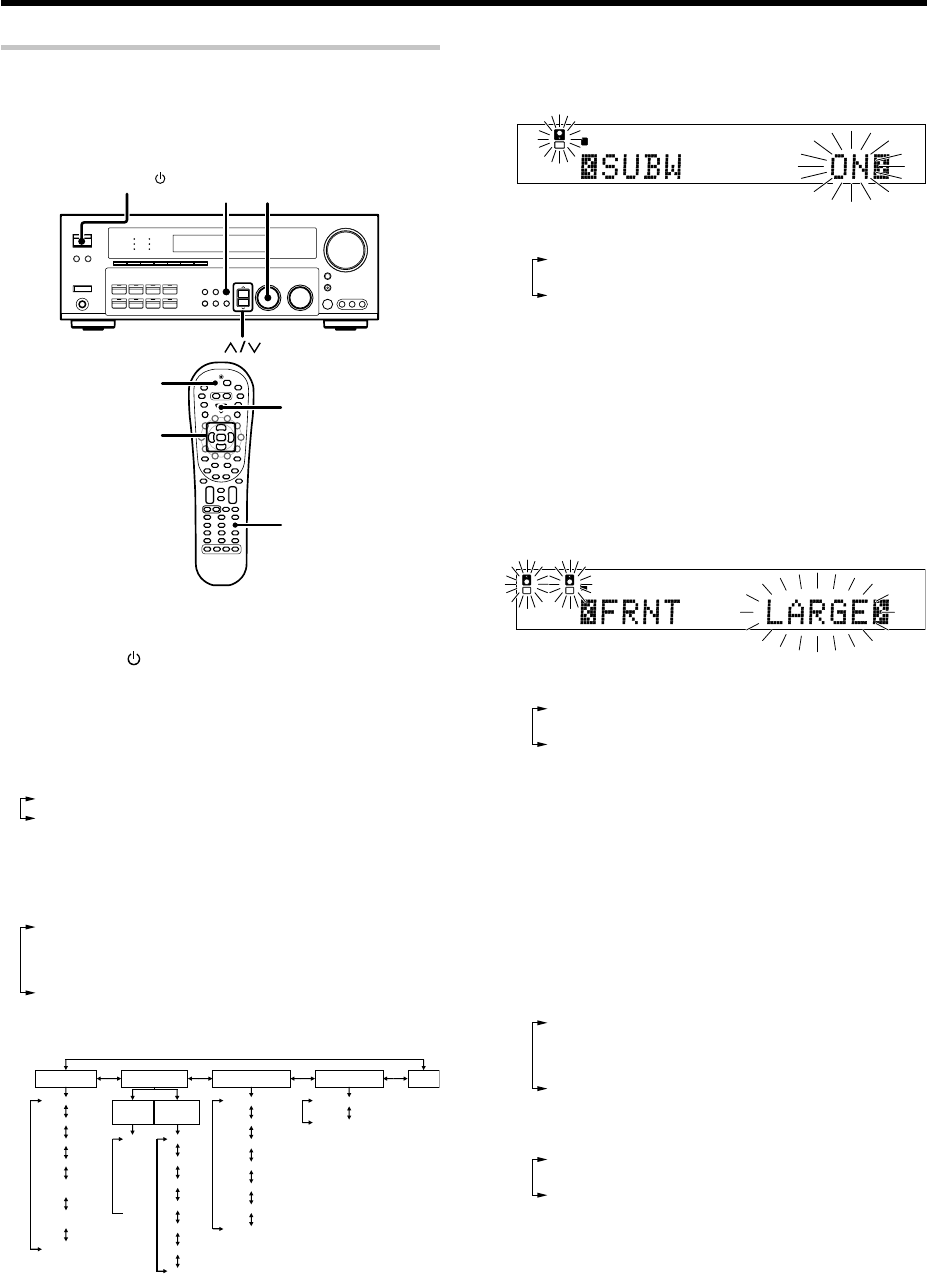
EXAMPLE: [SL16] mode connections
The underlined portion represents the setting of the system control
mode.
[SL16] Receiver
[SL16] [XS] [XS8] [XR] Cassette deck
or MD recorder
[SL16] [XS] [XS8] CD player
[XS] Record player
•In order to take advantage of the system control operations, the
components must be connected to the correct jacks. To use a CD
player it must be connected to the CD jacks. To use a cassette deck
(or MD recorder) it must be connected to the MD/TAPE jacks. When
using more than one CD player (etc.) only the one connected to the
specified jacks may be connected for system control.
•Some CD players and cassette decks are not compatible with the
[SL16] system control mode. Do not make system connections with
equipment that is not [SL16] compatible.
•Some MD players are not system control compatible. You cannot
make system control connections to this kind of equipment.
Notes
1. [SL16] equipment cannot be combined with [XR], [XS], and [XS8]
equipment for system operations. If your equipment consists of
this kind of combination, please do not connect any system con-
trol cords. Even without system control cords, normal operations
can be carried out without effecting performance.
2. Do not connect system control cords to any components other
than those specified by KENWOOD. It may cause a malfunction
and damage your equipment.
3. Be sure the system control plugs are inserted all the way in to the
system control terminals.
SYSTEM
CONTROL
cord
SYSTEM CONTROL OPERATIONS
Remote Control
Lets you operate this unit with the system remote supplied with the
receiver.
Automatic Operation
When you start playback from a source component, the input selector
on this unit switches to that component automatically.
Synchronized Recording
Lets you synchronize recording with the start of playback when
recording from CD, MD or analog discs.
Registering setup codes for KENWOOD audio components
If you own remote controllable KENWOOD audio components that
are not compatible with system control, registering the setup code
enables you to control those components using the remote control
supplied with this unit (without connecting system control cords). To
register setup codes for your remote controllable KENWOOD audio
components, see “Registering setup codes for other components”.
‹
Setting up the system
SYSTEM CONTROL
cord
SYSTEM CONTROL
18 EN
Preparing for surround sound
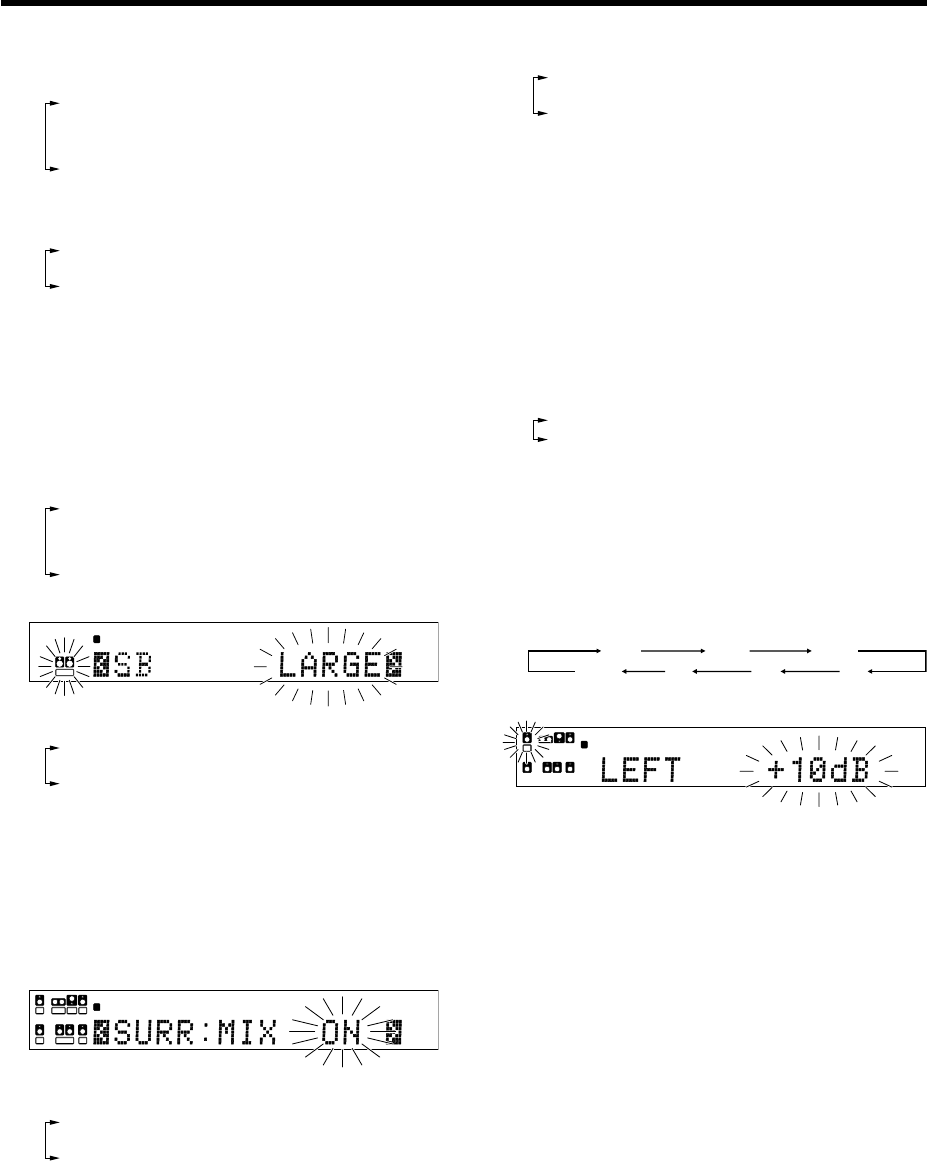
Speaker settings
To enable you to obtain optimum enjoyment from the receiver’s listening
modes, make sure to complete the speaker settings (subwoofer, front,
center, and surround speakers) as described below.
SETUP MULTI CONTROL
POWER RCVR
Setup
(Multi %/fi,
@/#)
POWER
ON/STANDBY
TUNER
1
Turn on the power to this receiver by pressing the POWER
ON/STANDBY key or POWER RCVR key.
2
For the remote control, press and hold the TUNER key for
more than 3 seconds to switch to receiver mode.
3
Press the SETUP key to enter the SETUP mode.
The Surround Back and Subwoofer speaker output selections are
displayed as follows:
16ch AMP SB
26ch AMP SW
Use the MULTI CONTROL knob or Multi (%/fi) keys to select the
speakers.
Press the SETUP key to proceed to the next SET UP selection.
Use
∧/∨
keys or
@
/
# keys
for the following displays.
1SP SETUP
2TEST TONE
3SP DISTANCE
4DISP MODE
5EXIT
The flow of the SET UP is as follows:
SP SETUP TEST TONE SP DISTANCE EXITDISP MODE
Front Left
Center
Front Right
Surround Right
Surround Back
Surround Left
Subwoofer
Display Selector
Display Listen
Subwoofer
Front
Center
Surround
Surround
Back
Surround
Mix
Subwoofer
Re-mix
T. TONE
MANUAL
T. TONE
AUTO
L
C
R
SR
SL
SB
SW
L
C
R
SR
SL
SW
SB
4
Select a speaker system.
1Select the SP SETUP and press the SETUP key again so that
the subwoofer setting indication “SUBW ON” appears.
L
SL S SB SR
CR
SP MUTE
OPTICAL 6CH INPUT
COAXIAL ANALOG 96kHzfs
CINEMA EQ.
ACTIVE EQ.
DSP MODE
DTS.
MATRIX
DISCRETE
DOLBY DIGITAL
PRO LOGIC
STEREO
LOUDNESS
NEO:6
CSII
A B CLIP
AUTO DETECT THX
AUTO
RDS
RTY
MEMO
STEREO
TUNED
Surround EX
SW
LFE
2Use the MULTI CONTROL knob or Multi (%/fi) keys to select
the appropriate subwoofer setting.
1SUBW ON : Subwoofer setting mode to the receiver is
ON.
2SUBW OFF : Subwoofer setting mode to the receiver is
OFF.
•The initial setting is “SUBW ON”.
•When the setting “SUBW OFF” is selected, the front speakers
are automatically set to “FRNT LARGE” and the procedure skips
to step 6.
Before step 6, press the SETUP key to accept the setting.
•When subwoofer output sound is required, select “FRNT
NORMAL”, or select both “FRNT LARGE” and “SW RE-MIX ON”.
•After setting SW (subwoofer) from OFF to ON, 6ch AMP setup
display will appear to enable you to re-select either SW or SB from
the surround back or subwoofer speaker terminal.
3Press the ∧ key or # key to accept the setting.
•The front speakers setting indication “FRNT” appears.
L
SL S SB SR
CR
SP MUTE
OPTICAL 6CH INPUT
COAXIAL ANALOG 96kHzfs
CINEMA EQ.
ACTIVE EQ.
DSP MODE
DTS.
MATRIX
DISCRETE
DOLBY DIGITAL
PRO LOGIC
STEREO
LOUDNESS
NEO:6
CSII
A B CLIP
AUTO DETECT THX
AUTO
RDS
RTY
MEMO
STEREO
TUNED
Surround EX
SW
LFE
4Use the MULTI CONTROL knob or Multi (%/fi) keys to select
the appropriate front speakers setting.
1FRNT LARGE : Large front speakers are connected
to the receiver.
2FRNT NORMAL : Average size front speakers are
connected to the receiver.
•For “FRNT LARGE” selection, no sound will be heard from
subwoofer speaker even when it is set to on. However, if you
select “SW RE-MIX ON” when subwoofer is selected, you will
be able to hear sound from the subwoofer.
When in STEREO mode, the sound goes directly to front
speaker.
5Press the ∧ key or # key to accept the setting.
•The center speaker setting indication “CNTR” appears.
6Use the MULTI CONTROL knob or Multi (%/fi) keys to select
the appropriate center speaker setting.
If you selected “LARGE” as the front speakers setting,
1CNTR LARGE : A large center speaker is connected
to the receiver.
2CNTR NORMAL : An average size center speaker is
connected to the receiver.
3CNTR OFF : Center speaker setting mode to the
receiver is OFF.
If you selected “NORMAL” as the front speakers setting,
1CNTR ON : Center speaker setting mode to the receiver
is ON.
2CNTR OFF : Center speaker setting mode to the receiver
is OFF.
7Press the ∧ key or # key again to accept the setting.
•The surround speaker setting indication “SURR” appears.
19 EN
$Use the MULTI CONTROL knob or Multi (%/fi) keys to select
the appropriate subwoofer re-mix setting.
1SW RE-MIX ON : Subwoofer re-mix setting mode to
the receiver is ON.
2SW RE-MIX OFF : Subwoofer re-mix setting mode to
the receiver is OFF.
•If subwoofer is turned off, subwoofer re-mix setting is not visible.
%Press the SETUP key again to return to the main setup
displays.
•The receiver enters the speaker volume level adjustment mode.
•In steps 4 and 5, indications appear only for the selected
channels of the speakers that require adjusting.
5
Adjust the speaker volume level.
From your usual listening position, adjust the volume levels. The
volume levels from each speaker should be the same.
1Press the ∧/∨ keys or @/#keys to select TEST TONE.
2Press the SETUP key for the following displays:
1T.TONE AUTO
2T.TONE MANUAL
3The selection of AUTO/MANUAL TEST TONE is done by the
MULTI CONTROL knob or Multi (%/fi) keys.
Press the SETUP key again to begin TEST TONE.
Use the MULTI CONTROL knob or Multi (%/fi) keys to adjust
the volume level of the test tone output from the speaker
channel to be adjusted.
For AUTO selection, the first test tone is heard from the front left
speaker for 2.5 seconds. The next test tone is heard from the
speakers in the following sequence for 2 seconds each.
LEFT CNTR RIGHT
SRSBSL
SUBW
The channel indication blinks while the test tone is being output.
L
SL S SB SR
CR
SP MUTE
OPTICAL 6CH INPUT
COAXIAL ANALOG 96kHzfs
CINEMA EQ.
ACTIVE EQ.
DSP MODE
DTS.
MATRIX
DISCRETE
DOLBY DIGITAL
PRO LOGIC
STEREO
LOUDNESS
NEO:6
CSII
A B CLIP
AUTO DETECT THX
AUTO
RDS
RTY
MEMO
STEREO
TUNED
Surround EX
SW
LFE
•If you change the volume level settings for the speakers while
listening to music, the settings referred to on this page are also
changed. º
•If the speaker setting selects are OFF, the speaker level settings
are reset.
For MANUAL selection, press the ∧/∨ keys or @/# keys each
time to select the speaker channel.
4Press the SETUP key again.
•The test tone is turned off and return to the main setup displays.
6
Input the distance to the speakers.
1Press the ∧/∨ keys or @/# keys to select the SP DISTANCE on
setup displays and press the SETUP key again.
2Measure the distance from the listening position to each of
the speakers.
Jot down the distance to each of the speakers.
Distance to Front left speaker (L) : ____ feet (meters)
Distance to Center speaker (C) : ____ feet (meters)
Distance to Front right speaker (R) : ____ feet (meters)
Distance to Surround right (SR) : ____ feet (meters)
Distance to Surround back (SB) : ____ feet (meters)
Distance to Surround left (SL) : ____ feet (meters)
Distance to Subwoofer (SW) : ____ feet (meters)
Preparing for surround sound
8Use the MULTI CONTROL knob or Multi (%/fi) to select the
appropriate surround speaker setting.
If you selected “LARGE” as the center speaker setting,
1SURR LARGE : Large surround speakers are
connected to the receiver.
2SURR NORMAL : Average size surround speakers are
connected to the receiver.
3SURR OFF : Surround speaker setting mode to
the receiver is OFF.
If you selected other than “LARGE” as the center speaker setting,
1SURR ON : Surround speaker setting mode to the
receiver is ON.
2SURR OFF : Surround speaker setting mode to the
receiver is OFF.
•When the setting “SURR OFF” is selected, the procedure skips
to step #.
9Press the ∧ key or # keys again to accept the setting.
•The surround speaker setting indication “SB” appears.
0Use the MULTI CONTROL knob or Multi (%/fi) keys to
select appropriate surround back speaker setting.
If you selected “LARGE” as the surround speaker setting,
1SB NORMAL : Average size surround back speaker is
connected to the receiver.
2SB LARGE : Large surround back speaker is
connected to the receiver.
3SB OFF : Surround back speaker setting mode to
the receiver is OFF.
L
SL S SB SR
CR
SP MUTE
OPTICAL 6CH INPUT
COAXIAL ANALOG 96kHzfs
CINEMA EQ.
ACTIVE EQ.
DSP MODE
DTS.
MATRIX
DISCRETE
DOLBY DIGITAL
PRO LOGIC
STEREO
LOUDNESS
NEO:6
CSII
A B CLIP
AUTO DETECT THX
AUTO
RDS
RTY
MEMO
STEREO
TUNED
Surround EX
SW
LFE
If you selected “NORMAL” as the surround speaker setting,
1SB ON : Surround back speaker setting mode to the
receiver is ON.
2SB OFF : Surround back speaker setting mode to the
receiver is OFF.
•After setting SB (surround back) from OFF to ON, 6ch AMP setup
display will appear to enable you to re-select either SW or SB from
the surround back or subwoofer speaker terminal.
!Press the ∧ key or # key again to accept the setting and
“SURR:MIX” appears.
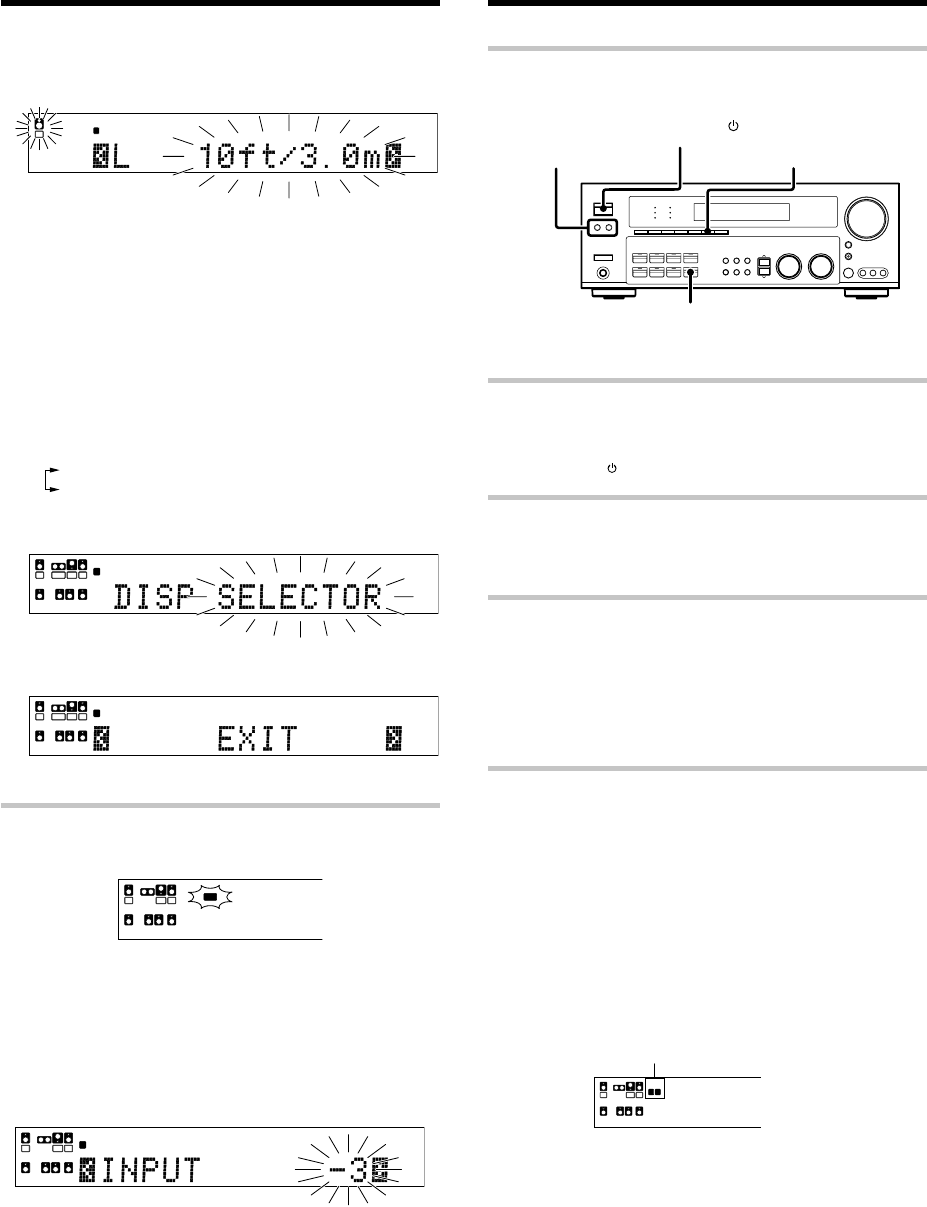
•Surr:mix is when the SL and SR speakers signals are mixed to
produce sound from the surround back speaker which would
enable the listener to enjoy sound coming from the back.
L
SL SSB SR
CR
SP MUTE
OPTICAL 6CH INPUT
COAXIAL ANALOG 96kHzfs
CINEMA EQ.
ACTIVE EQ.
DSP MODE
DTS.
MATRIX
DISCRETE
DOLBY DIGITAL
PRO LOGIC
STEREO
LOUDNESS
NEO:6
CSII
A B CLIP
AUTO DETECT THX
AUTO
RDS
RTY
MEMO
STEREO
TUNED
Surround EX
SW
LFE
@Use the MULTI CONTROL knob or Multi (%/fi) keys to select
the following.
1SURR:MIX ON : Surround mix setting mode to the
receiver is ON.
2SURR:MIX OFF : Surround mix setting mode to the
receiver is OFF.
•If surround back speaker is turned off, SURR:MIX setting is not
visible and the procedure skips to step #.
#Press the ∧ key or # key again to accept the setting.
•The subwoofer remix setting indication “SW RE-MIX” appears.
Continued to next page.
20 EN
3Use the ∧/∨ keys or @/# keys to select the speakers and the
MULTI CONTROL knob or Multi (%/fi) keys to adjust the
distance to the front speakers.
The speaker indicator to be adjusted blinks.
L
SL S SB SR
CR
SP MUTE
OPTICAL 6CH INPUT
COAXIAL ANALOG 96kHzfs
CINEMA EQ.
ACTIVE EQ.
DSP MODE
DTS.
MATRIX
DISCRETE
DOLBY DIGITAL
PRO LOGIC
STEREO
LOUDNESS
NEO:6
CSII
A B CLIP
AUTO DETECT THX
AUTO
RDS
RTY
MEMO
STEREO
TUNED
Surround EX
SW
LFE
•The allowable setting range is 1 to 30 feet (0.3 to 9.0 m),
adjustable in 1 foot (0.3 m) increments.
4Repeat steps 3 to input the distance for each of the speakers.
5Press the SETUP key again to return to main setup displays.
•The speakers you have selected should appear on the display.
Confirm that all the speakers have been correctly selected.
7
Select the display mode.
1Press the ∧/∨ key
or
@/# keys to select the DISP MODE.
2Press the SETUP key for the following displays:
1DISP SELECTOR : Displays the current input selector.
2DISP LISTEN : Displays the current listen mode.
3Use the MULTI CONTROL knob or Multi (%/fi) keys to select
the display mode.
SL S SB SR
SP MUTE
OPTICAL 6CH INPUT
COAXIAL ANALOG 96kHzfs
CINEMA EQ.
ACTIVE EQ.
DSP MODE
DTS.
MATRIX
DISCRETE
DOLBY DIGITAL
PRO LOGIC
STEREO
LOUDNESS
NEO:6
CSII
A B CLIP
AUTO DETECT THX
AUTO
RDS
RTY
MEMO
STEREO
TUNED
Surround EX
LFE
LC RSW
4Press the SETUP key again to accept the setting.
5Use the ∧ key or # key to select EXIT.
LC R
SP MUTE
OPTICAL 6CH INPUT
COAXIAL ANALOG 96kHzfs
CINEMA EQ.
ACTIVE EQ.
DSP MODE
DTS.
MATRIX
DISCRETE
DOLBY DIGITAL
PRO LOGIC
STEREO
LOUDNESS
NEO:6
CSII
A B CLIP
AUTO DETECT THX
AUTO
RDS
RTY
MEMO
STEREO
TUNED
Surround EX
SW
LFE
SL S SB SR
6Press the SETUP key to exit the SET UP mode.
Input level adjustment (analog sources only)
If the input level of an analog source signal is too high, the CLIP indicator
will blink to indicate the source signal. Adjust the input level.
L
SL S SB SR
CR
SP MUTE
OPTICAL 6CH INPUT
COAXIAL ANALOG 96kHzfs
CINE
M
ACTI
V
DSP
M
A B CLIP
AUTO DETECT
SW
LFE
CLIP
CLIP
1Use the Input Selector keys to select the source of which the
input level you want to adjust.
•You can store a separate input level for each input source.
2Press the SOUND and ∧/∨ keys
or
@/# keys repeatedly until
the “INPUT” indication appears.
3
Use the MULTI CONTROL knob or Multi
(%/fi) keys
to adjust the
input level.
L
SL S SB SR
CR
SP MUTE
OPTICAL 6CH INPUT
COAXIAL ANALOG 96kHzfs
CINEMA EQ.
ACTIVE EQ.
DSP MODE
DTS.
MATRIX
DISCRETE
DOLBY DIGITAL
PRO LOGIC
STEREO
LOUDNESS
NEO:6
CSII
A B CLIP
AUTO DETECT THX
AUTO
RDS
RTY
MEMO
STEREO
TUNED
Surround EX
SW
LFE
•The adjustment mode is displayed for approximately 8 seconds.
•The input level may be adjusted to any one of three settings:
0dB, -3dB, and -6dB. (The initial setting is 0dB.)
4Press the SOUND key again to return to the input indication.
Preparing for surround sound
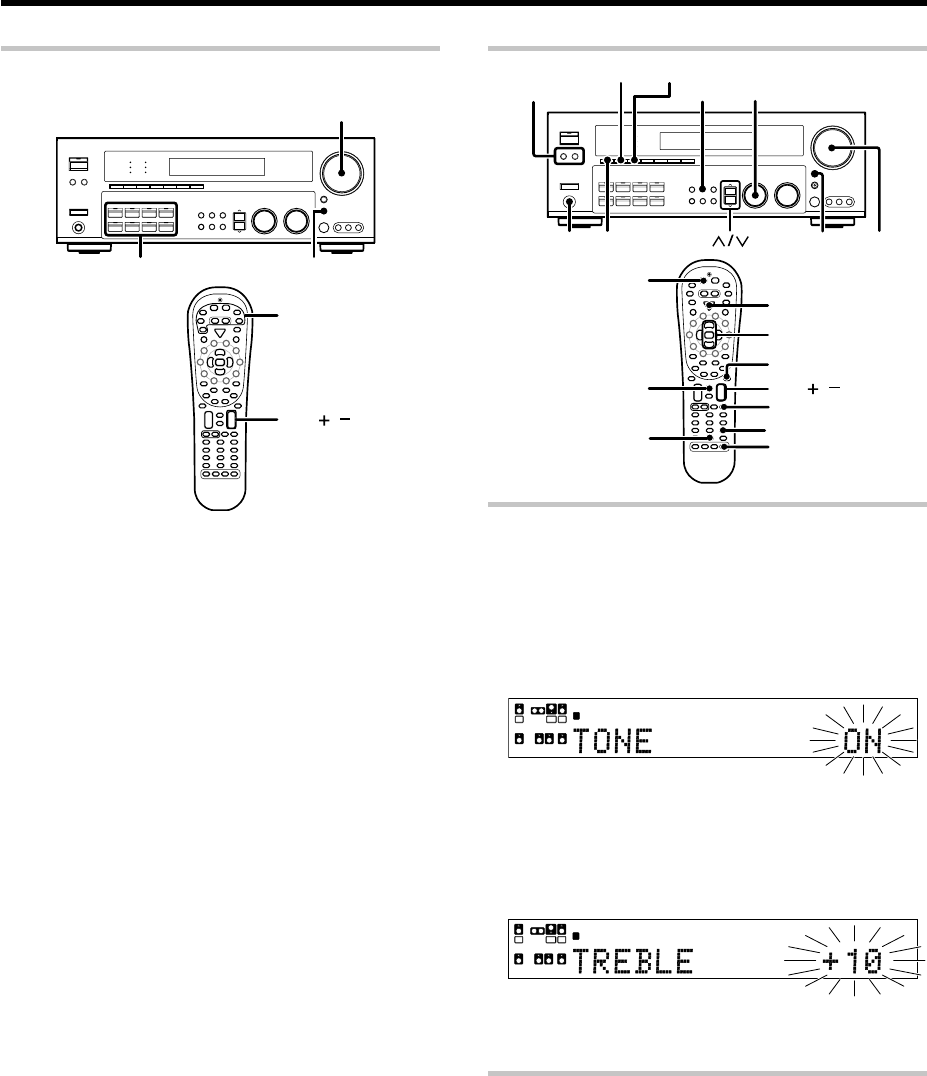
Preparing for playback
Some preparatory steps are needed before starting playback.
Turning on the receiver
1Turn on the power to the related components.
2Turn on the power to this receiver by pressing the POWER
ON/STANDBY key.
Selecting the input mode
If you have selected a component connected to the CD/DVD, VIDEO 2,
VIDEO 3 or DVD/6CH jacks, make sure that the input mode setting is
correct for the type of audio signal to be used. 8
Selecting MD/TAPE
Select the source name corresponding to the component connected
to the MD/TAPE jacks. The initial factory setting is “TAPE”. To
change the source to “MD”, follow the steps below:
Hold down the MD/TAPE key for more than 2 seconds.
•The source indication changes to “MD”.
•To return to the original indication, repeat the above procedure.
Selecting the speaker system
Press the A SPEAKERS B key to select the speaker system to be
used.
A ON :
Sound from the speakers connected to the SPEAKERS A
terminals on the rear panel.
B ON : Sound from the speakers connected to the SPEAKERS B
terminals on the rear panel. No sound will be heard from
the subwoofer.
A+B ON : Sound from both the speakers connected to the
SPEAKERS A and B terminals on the rear panel.
A+B OFF : No sound from the speakers. Use this setting when
listening with headphones for stereo sound in all playback
modes. The display segments are different depending on
the type of input signal.
The indicator for the speakers
you want to use should be lit.
•Selecting “6CH INPUT” by pressing the INPUT MODE key, whereby
“DVD/6CH” is the input source will cause SPEAKERS A to be selected
automatically.
Normal playback
INPUT MODE
MD/TAPE
A SPEAKERS B
POWER
ON/STANDBY
L
SL S SB SR
CR
SP MUTE
OPTICAL 6CH INPUT
COAXIAL ANALOG 96kHzfs
CI
N
AC
T
DS
A B CLIP
AUTO DETECT
SW
LFE
Indication in feet Indication in meters
21 EN
Listening to a source component
VOLUME CONTROL
VOL /
Input Selector
Input Selector AV AUX
1
Use the Input Selector and AV AUX keys to select the
source you want to listen to.
Selecting a source using each key.
1“DVD/6CH”
2“CD/DVD”
3“PHONO”
4“TUNER”
5“VIDEO 1”
6“VIDEO 2”
7“VIDEO 3”
8“MD/TAPE”
9“AV AUX”
2
Start playback from the selected source.
3
Use the VOLUME CONTROL knob or VOL +/
–
keys to adjust
the volume.
Normal playback
Adjusting the sound
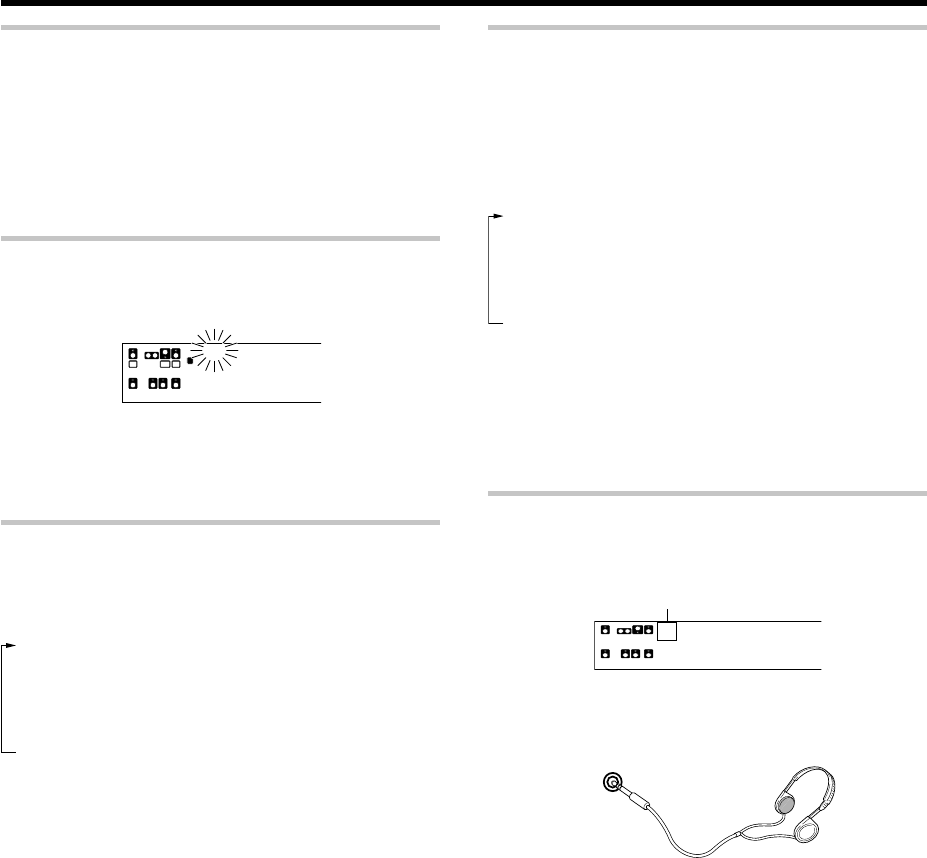
Adjusting the TONE
You can adjust the sound quality when the receiver is in the PCM stereo
and analog stereo mode.
1For the remote control, press and hold the TUNER key for
more than 3 seconds to switch to receiver mode.
2Press the TONE key to select the TONE mode.
3Use the MULTI CONTROL knob or Multi (%/fi) keys to select
TONE ON/OFF.
L
SL S SB SR
CR
SP MUTE
OPTICAL 6CH INPUT
COAXIAL ANALOG 96kHzfs
CINEMA EQ.
ACTIVE EQ.
DSP MODE
DTS.
MATRIX
DISCRETE
DOLBY DIGITAL
PRO LOGIC
STEREO
LOUDNESS
NEO:6
CSII
A B CLIP
AUTO DETECT THX
AUTO
RDS
RTY
MEMO
STEREO
TUNED
Surround EX
SW
LFE
4When in TONE ON selection, press the TONE key for the
following displays.
BASS : Select this to adjust the low frequency range.
TREBLE : Select this to adjust the high frequency range.
5Use the MULTI CONTROL knob or Multi (%/fi) keys to adjust the
sound quality.
L
SL S SB SR
CR
SP MUTE
OPTICAL 6CH INPUT
COAXIAL ANALOG 96kHzfs
CINEMA EQ.
ACTIVE EQ.
DSP MODE
DTS.
MATRIX
DISCRETE
DOLBY DIGITAL
PRO LOGIC
STEREO
LOUDNESS
NEO:6
CSII
A B CLIP
AUTO DETECT THX
AUTO
RDS
RTY
MEMO
STEREO
TUNED
Surround EX
SW
LFE
•The bass and treble levels are adjustable from -10 to +10 in 2 step
increments.
•The adjustment item is displayed for approximately 8 seconds.
Once-touch low frequency emphasis (BASS BOOST)
(remote control only)
You can adjust the sound quality when the receiver is in the PCM stereo
and analog stereo modes.
Press the Bass Boost key.
•Press the key once to select the maximum (+10) low frequency
emphasis setting.
•This key does not function when the receiver is in the sound quality
or ambience effects adjustment mode.
Switching back to the previous setting
Press the Bass Boost key again.
Loudness
Tone
Bass Boost
TONE
VOLUME
CONTROL
MUTE
A SPEAKERS B
SPEAKER EQ ACTIVE EQ
PHONES LOUDNESS
MULTI CONTROL
VOL /
POWER RCVR
Speaker EQ
Active EQ
Mute
(Multi %/fi)
TUNER
22 EN
Adjusting the LOUDNESS mode
You can adjust the Loudness function which controls the low volume
settings to maintain the music's richness. The adjustment can be made
when the receiver is in the PCM stereo and analog stereo mode.
Press the LOUDNESS key to turn the LOUDNESS setting ON.
To cancel
Press the LOUDNESS key again so that the “LOUDNESS”
indicator goes off.
Muting the sound
The MUTE key lets you mute the sound of the speakers.
Press the MUTE key.
Blinks
To cancel
Press the MUTE key again so that the “MUTE” indicator goes off.
•MUTE ON can also be deactivated by turning the VOLUME
CONTROL knob or pressing VOL +/– keys.
ACTIVE EQ mode
You can enjoy a more impressive sound effect when ACTIVE EQ is
turned ON during Dolby Digital and DTS playback and, when in PCM and
analog stereo mode.
Press the ACTIVE EQ key for the following selections;
1ACTIVE EQ MUSIC : Effective when listening to music.
(The ACTIVE EQ indicator lights up.)
2ACTIVE EQ CINEMA : Effective when watching a movie.
(The ACTIVE EQ indicator lights up.)
3ACTIVE EQ TV : Effective when watching TV.
(The ACTIVE EQ indicator lights up.)
4ACTIVE EQ OFF : The ACTIVE EQ function is turned OFF.
(The ACTIVE EQ indicator goes off.)
•
“ACTIVE EQ”
will scroll from right to left.
•When ACTIVE EQ and SPEAKER EQ are OFF and ACTIVE EQ
(MUSIC) is turned ON, SPEAKER EQ (SMALL) will turn ON
automatically.
•ACTIVE EQ function will not be available when REC MODE, AUTO
TUNING, PRESET MEMORY or DTS-ES MATRIX is ON, and during
96kHz LPCM playback.
Normal playback
THX
AUTO
RDS
RTY
MEMO
STEREO
TUNED
L
SL S SB SR
CR
MUTE
OPTICAL 6CH INPUT
COAXIAL ANALOG 96kHzfs
CI
N
A
C
D
S
A B CLIP
AUTO DETECT
SW
LFE
SP
SPEAKER EQ mode
SPEAKER EQ function is to adjust the receiver’s audio output
characteristics with the speakers’ characteristics which differs depending
on the size of the speakers. Especially for the music sound source
playback, the reproduced sound becomes more natural when adjusting
the output characteristics. When activating the SPEAKER EQ function,
you will be able to enjoy a more natural and dynamic sound experience
even with small size speakers.
Press the SPEAKER EQ key to switch the following setting;
1SPEAKER EQ SMALL : To select a small size speaker.
(The SPEAKER EQ indicator lights up.)
2SPEAKER EQ NORMAL : To select an average size speaker.
(The SPEAKER EQ indicator lights up.)
3SPEAKER EQ LARGE : To select a large size speaker.
(The SPEAKER EQ indicator lights up.)
4SPEAKER EQ OFF : The SPEAKER EQ function is turned
OFF.
(The SPEAKER EQ indicator goes off.)
•
“SPEAKER EQ”
will scroll from right to left.
•
SPEAKER
EQ cannot be turned OFF when ACTIVE EQ is turned ON.
•
SPEAKER EQ
function will not be available when REC MODE, AUTO
TUNING, PRESET MEMORY or DTS-ES MATRIX is ON, and during
96kHz LPCM playback.
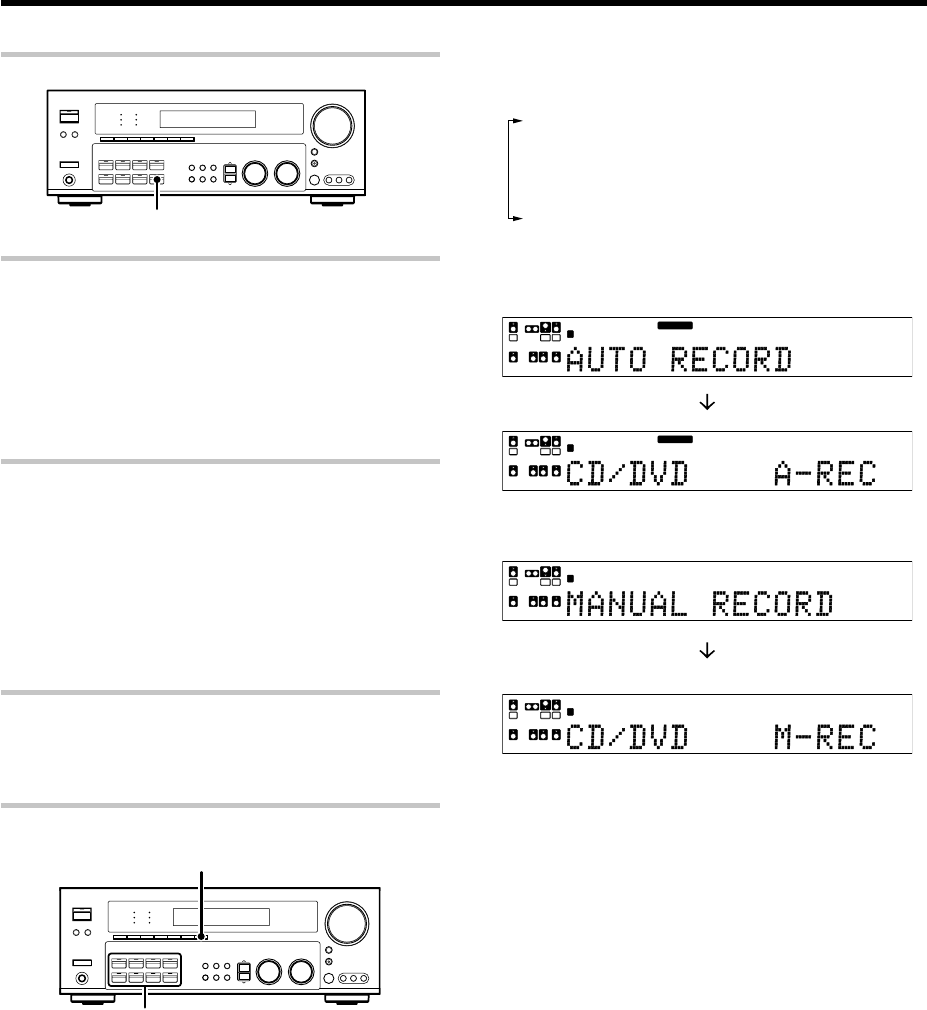
Listening with headphones
1
Press the A and B Speaker keys so that the speaker indicator
goes off.
SL S SB SR
SP MUTE
OPTICAL 6CH INPUT
COAXIAL ANALOG 96kHzfs
CINEMA EQ.
ACTIVE EQ.
DSP MODE
D
A B CLIP
AUTO DETECT
LFE
•If you turn off all of the speakers when in surround mode, the surround
mode will be canceled as well, resulting in stereo playback.
2Connect headphones to the PHONES jack.
PHONES
3Use the VOLUME CONTROL knob or VOL +/
–
keys to adjust
the volume.
Make sure the SPEAKERS
indicators are turned off.
23 EN
Recording audio (analog sources)
Recording a music source
1Use the Input Selector keys to select the source (other than “MD/
TAPE”) you want to record.
2Set the MD or TAPE recorder to record.
3Start playback, then start recording.
Recording video
1Use the Input selector keys to select the video source (other than
“VIDEO 1”) you want to record.
2Set the video deck connected to VIDEO 1 to record.
•Select the REC MODE to record a digital input source.
3Start playback, then start recording.
•Recording may not be normal for some video software. This is due
to the copy guard condition. w
Recording audio (digital sources)
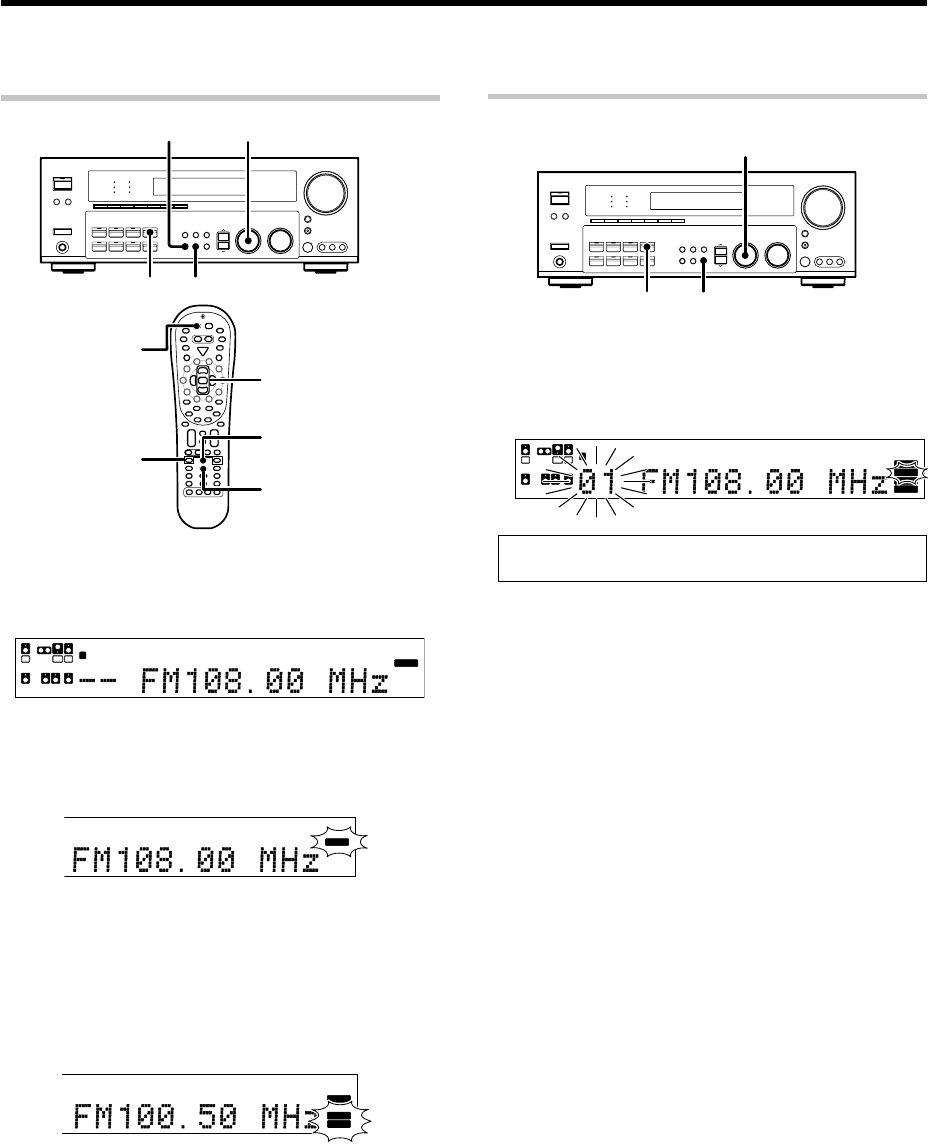
Switch on the REC MODE to record a digital input source.
Usually use the AUTO REC MODE to record audio input sources. When
the digital mode changes during recording in the AUTO REC MODE, the
audio input source may be interrupted momentarily.
Recording music in AUTO REC or MANUAL REC mode
Input Selector
DIMMER
1Use the Input Selector keys to select the source (CD/DVD,
DVD/6CH, VIDEO 2, VIDEO 3) you want to record.
2Set the MD or TAPE recorder to record.
Recording
3Press and hold the DIMMER key for more than 2 seconds to
select the AUTO REC or MANUAL REC mode.
1REC MODE off : The digital input record mode is
switched off.
2AUTO REC mode : The digital input signals (DTS, Dolby
Digital, or PCM) are identified auto-
matically and converted into stereo
signals that are ready for recording.
3MANUAL REC mode : The input signal type at the moment
this mode is selected is held through-
out this mode.
For AUTO REC mode :
L
SSB
SL SR
CR
SP MUTE
OPTICAL 6CH INPUT
COAXIAL ANALOG 96kHzfs
CINEMA EQ.
ACTIVE EQ.
DSP MODE
DTS.
MATRIX
DISCRETE
DOLBY DIGITAL
PRO LOGIC
STEREO
LOUDNESS
NEO:6
CSII
A B CLIP
AUTO DETECT THX
AUTO
RDS
RTY
MEMO
STEREO
TUNED
Surround EX
SW
LFE
L
SSB
CR
SP MUTE
OPTICAL 6CH INPUT
COAXIAL ANALOG 96kHzfs
CINEMA EQ.
ACTIVE EQ.
DSP MODE
DTS.
MATRIX
DISCRETE
DOLBY DIGITAL
PRO LOGIC
STEREO
LOUDNESS
NEO:6
CSII
A B CLIP
AUTO DETECT THX
AUTO
RDS
RTY
MEMO
STEREO
TUNED
Surround EX
SW
LFE
SL SR
For MANUAL REC mode :
L
SL S SB SR
CRSW
LFE
SP MUTE
OPTICAL 6CH INPUT
COAXIAL ANALOG 96kHzfs
CINEMA EQ.
ACTIVE EQ.
DSP MODE
DTS.
MATRIX
DISCRETE
DOLBY DIGITAL
PRO LOGIC
STEREO
LOUDNESS
NEO:6
CSII
A B CLIP
AUTO DETECT THX
AUTO
RDS
RTY
MEMO
STEREO
TUNED
Surround EX
L
SL S SB SR
CRSW
LFE
SP MUTE
OPTICAL 6CH INPUT
COAXIAL ANALOG 96kHzfs
CINEMA EQ.
ACTIVE EQ.
DSP MODE
DTS.
MATRIX
DISCRETE
DOLBY DIGITAL
PRO LOGIC
STEREO
LOUDNESS
NEO:6
CSII
A B CLIP
AUTO DETECT THX
AUTO
RDS
RTY
MEMO
STEREO
TUNED
Surround EX
4Start playback, then start recording.
•If the audio reproduction stops in the middle due to change in the
input signals, etc., press the DIMMER key.
MD/TAPE
24 EN
Presetting radio stations manually
1
Tune to the station you want to store.
2
Press the MEMORY key while receiving the station.
Blinks for 5 seconds Lights for 5 seconds
Proceed to step 3 within 5 seconds.
(If more than 5 seconds elapse, press the MEMORY key again).
3
Use the MULTI CONTROL knob or Multi (
%
/
fi
) keys to
select one of the station presets (1 – 40).
4
Press the MEMORY key again to confirm the setting.
•Repeat steps 1, 2, 3, and 4 to store as many stations as
necessary.
•If you store a station at a previously used preset, the old station will
be replaced by the new one.
Listening to radio broadcasts
The receiver can store up to 40 stations in the memory and recall them
by one-touch operation.
Tuning radio stations
1
Use the TUNER key to select the tuner.
2
Use the BAND key to select the desired broadcast band.
Each press switches the band.
L
SL S SB SR
CRSW
LFE
SP MUTE
OPTICAL 6CH INPUT
COAXIAL ANALOG 96kHzfs
CINEMA EQ.
ACTIVE EQ.
DSP MODE
DTS.
MATRIX
DISCRETE
DOLBY DIGITAL
PRO LOGIC
STEREO
LOUDNESS
NEO:6
CSII
A B CLIP
AUTO DETECT THX
AUTO
RDS
RTY
MEMO
STEREO
TUNED
Surround EX
3
Use the AUTO key to select the desired tuning method.
Each press switches the tuning method to either auto or manual
tuning.
“AUTO” indicator lights up in the display.
C
AL 6CH INPUT
X
IAL ANALOG 96kHzfs
CINEMA EQ.
ACTIVE EQ.
DSP MODE
DTS.
MATRIX
DISCRETE
DOLBY DIGITAL
PRO LOGIC
STEREO
LOUDNESS
NEO:6
CSII
AUTO DETECT THX RDS
RTY
MEMO
STEREO
TUNED
Surround EX
AUTO
•Normally, set to “AUTO” (auto tuning). If the radio waves are weak
and there is a lot of interference, switch to manual tuning. (With
manual tuning, stereo broadcasts will be received in monaural.)
4
Use the MULTI CONTROL knob or Multi (
%
/
fi
) keys, or
Tune –
1
/ +
¡
keys to select the station.
“STEREO” lights when a broadcast is being received in stereo.
T
ICAL 6CH INPUT
A
XIAL ANALOG 96kHzfs
CINEMA EQ.
ACTIVE EQ.
DSP MODE
DTS.
MATRIX
DISCRETE
DOLBY DIGITAL
PRO LOGIC
STEREO
LOUDNESS
NEO:6
CSII
AUTO DETECT THX
AUTO
RDS
RTY
MEMO
Surround EX
STEREO
TUNED
“TUNED” is displayed when a station is received.
Auto tuning : The next station is tuned automatically.
Manual tuning : Turn the knob or use the Multi (%/fi) keys to
select the desired station.
MULTI CONTROL
MEMORYTUNER
L
SL S SB SR
CRSW
LFE
SP MUTE
OPTICAL 6CH INPUT
COAXIAL ANALOG 96kHzfs
CINEMA EQ.
ACTIVE EQ.
DSP MODE
DTS.
MATRIX
DISCRETE
DOLBY DIGITAL
PRO LOGIC
STEREO
LOUDNESS
NEO:6
CSII
A B CLIP
AUTO DETECT THX
AUTO
RDS
RTY
STEREO
TUNED
Surround EX
MEMORY
BAND MULTI CONTROL
TUNER AUTO
(Multi %/fi)
Auto
Tune – 1
Tune + ¡
TUNER
Band
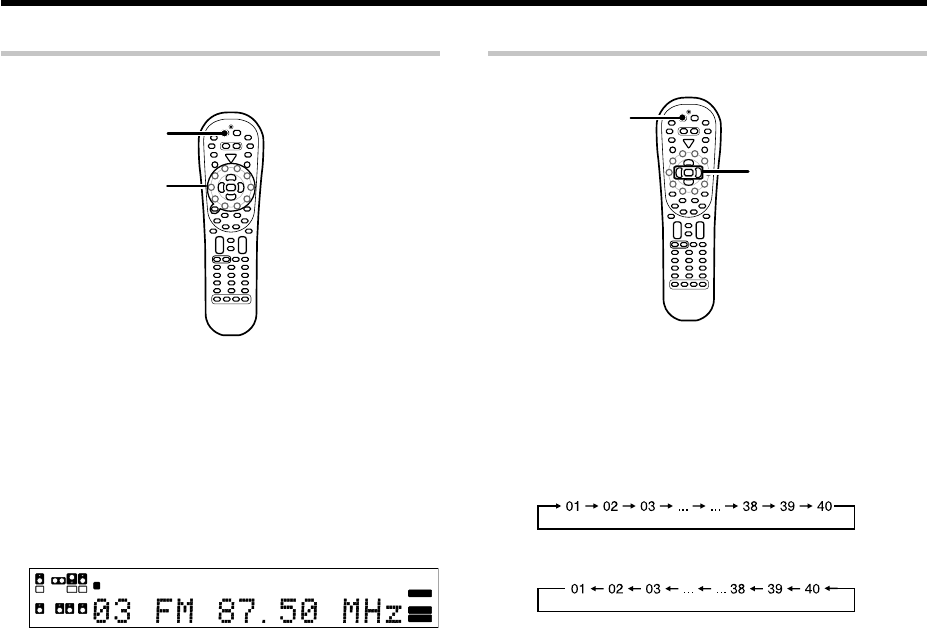
25 EN
Listening to radio broadcasts
Receiving preset stations
TUNER
Numeric keys
1
Press the TUNER key to select tuner as the source.
2
Enter the number of the preset station you want to receive
(up to “40”).
Press the numeric keys in the following order:
For “15”, press 0,5
For “20”, press 0,0,)
•If you make a mistake entering a two digit number, press the +10
key repeatedly to return to the original display and start again.
Receiving preset stations in order (P.CALL)
(P.Call @/#)
TUNER
1
Press the TUNER key to select the tuner as the source.
2
Use the P.Call
@
/
#
keys to select the desired station.
•Each time you press the key, another preset station is received in
order.
Pressing the P.Call # does the following:
Pressing the P.Call @ does the following:
Holding down the # or @ keys, lets you skip through the
presets, receiving each preset station at 0.5 second intervals.
L
SL S SB SR
CRSW
LFE
SP MUTE
OPTICAL 6CH INPUT
COAXIAL ANALOG 96kHzfs
CINEMA EQ.
ACTIVE EQ.
DSP MODE
DTS.
MATRIX
DISCRETE
DOLBY DIGITAL
PRO LOGIC
STEREO
LOUDNESS
NEO:6
CSII
A B CLIP
AUTO DETECT THX
AUTO
RDS
RTY
MEMO
STEREO
TUNED
Surround EX
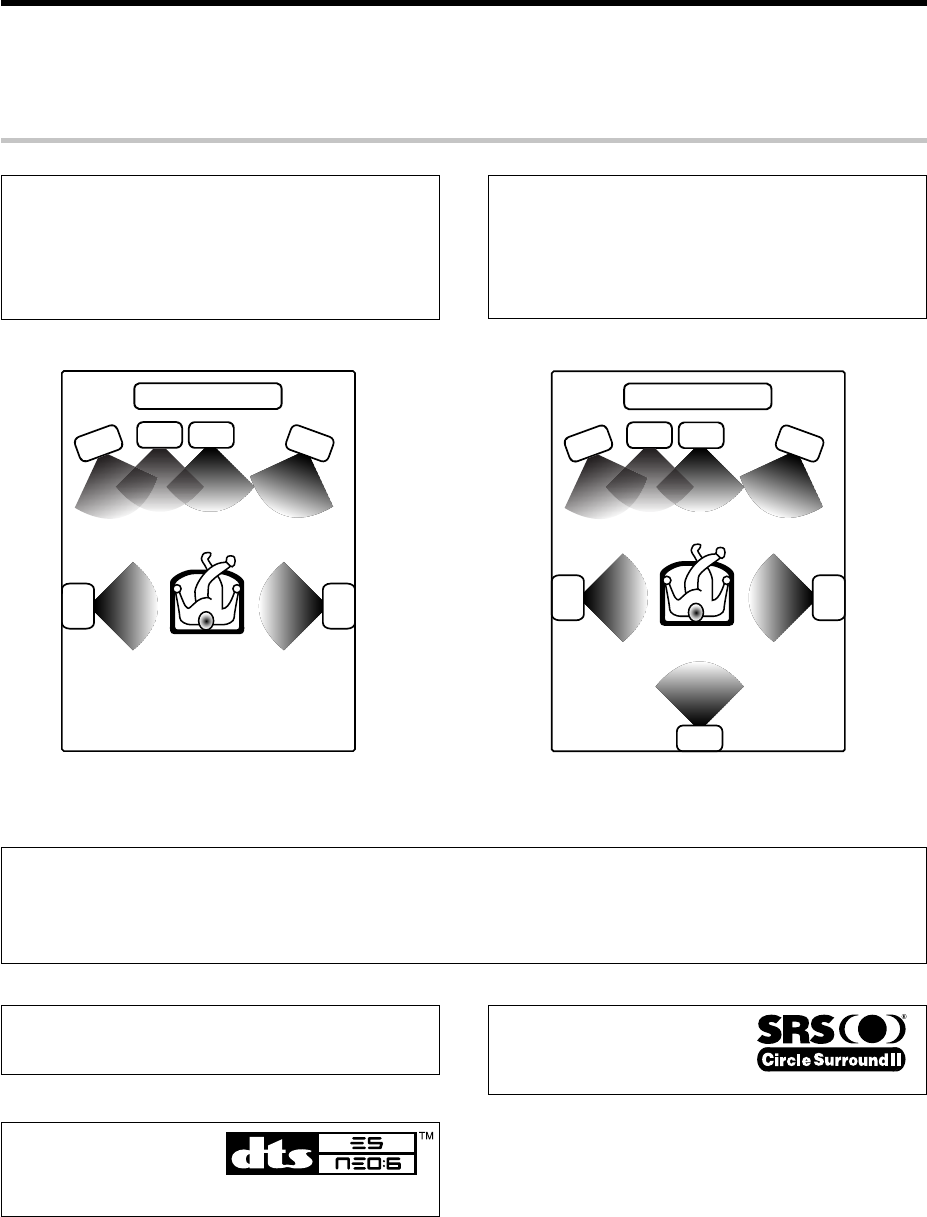
26 EN
Ambience effects
This receiver is equipped with listening modes that allow you to enjoy an enhanced sonic ambience with a variety of video
sources.
In order to obtain the optimum effect from the surround modes, make sure to input the proper speaker settings beforehand.
*
Surround modes
The below speaker placements are for 5.1 channel surround sound
system which are;
•Dolby Digital
•Dolby Pro Logic II
•DSP
•DVD 6-channel
•DTS
The below speaker placements are for 6.1 channel surround sound
system which are;
•Dolby Digital EX
•SRS Circle Surround II
•DTS-ES
•Neo:6
•Dolby Digital, Dolby Pro logic II and DSP if "SURR MIX ON" (
No Surround Back speaker Surround Back speaker
L Front left speaker SL Surround left speaker
SW Subwoofer SR Surround right speaker
C Center speaker SB Surround back speaker
R Front right speaker
SRSL
C
L
R
SW
TV / SCREEN
SB
SRSL
C
L
R
SW
TV / SCREEN
Manufactured under license from Dolby Laboratories. “Dolby”,
“Pro Logic” and the double-D symbol are trademarks of Dolby
Laboratories.
“Circle Surround II, SRS and (O)
symbol
are trademarks of SRS Labs, Inc. Circle
Surround II technology is incorporated
under license from SRS Labs, Inc”.
“DTS”, “DTS-ES Extended
Surround” and “Neo:6” are
registered trademarks of Digital
Theater Systems, Inc.
27 EN
Ambience effects
Dolby Digital
The Dolby Digital surround format lets you enjoy up to 5.1 channels
of digital surround sound from Dolby Digital program sources (such
as Laserdisc or DVD software marked ). Compared with
previous Dolby surround, Dolby Digital provides even better sound
quality, greater spatial accuracy, and improved dynamic range.
Although a full set of speakers (front left, right, and center, surround
left and right, and a subwoofer) is required for true 5.1 channel Dolby
Digital surround sound, this receiver lets you enjoy Dolby Digital (and
Dolby Surround) program sources, even if you connect only the front
speakers.
Dolby Digital EX
Dolby Digital EX is an extension of Dolby Digital technology, Dolby
Digital EX creates six full-bandwidth output channels from 6.1-
channel sources. This is done using a matrix decoder that derives
three surround channels from the two in the original recording. This
is achieved by using three different surround signals, Left Surround,
Right Surround, and Back Surround, each driving its own array of
speakers. Think of it as adding a center channel for the rear speakers,
which give more diffuse and natural surround effect, even if you
wanted the ability to completely encircle the audience with sound,
positioning sound effects exactly where they would be heard in real
life. For best results, Dolby Digital EX should be used with movie
soundtracks recorded with Dolby Digital Surround EX which contain
a digital flag that will automatically activate this feature. However, for
titles released prior to late 2001, this feature has to be activated
manually.
Although a full set of speakers (front left, right, and center, surround
left and right, surround back and a subwoofer) is required for true 6.1
channel Dolby Digital Surround EX sound, this receiver lets you enjoy
Dolby Digital (and Dolby Surround) program sources, even if you
connect only the front speakers.
Although only Dolby Digital soundtracks incorporate a separate low
frequency channel, connecting a subwoofer will also improve deep
bass performance in the other surround modes.
The indication “LFE” appears in the display when a signal is being
input for this channel.
Dolby PRO LOGIC II
Dolby Pro Logic II was designed specifically to provide a new sense
of spatiality, directionality and articulation of sounds from Dolby
Surround encoded sources (such as video and Laserdisc software
marked ). This is achieved with an intelligent, built-in
feedback logic design, a matrix surround decoding and the decoding
of stereo, full bandwidth surround outputs. The PRO LOGIC II modes
programmed into this receiver are “MOVIE”, “MUSIC” and “PRO
LOGIC”. The “MOVIE” mode of the PRO LOGIC II has preset
characteristics to produce a calibrated, high-level surround sound
playback while the “MUSIC” mode has user-adjustable characteris-
tics to offer the three optional controls, like “Dimension”, “Center
Width” and “Panorama” modes to allow optimization of the
soundfields as desired. The “Dimension” control allows the user to
gradually adjust the soundfield either towards the front or towards
the rear; the “Center Width” control allows various adjustment of the
left-center-right speakers’ balance; the “Panorama” mode extends
the front stereo image to include the surround speakers for an
exciting “wrap-around” effect with side wall imaging.
DTS
DTS (Digital Theater System) is a 5.1 channel digital audio format that
provides five full spectrum channels and one low-frequency
(subwoofer) channel for unprecedented clarity, optimum channel
seperation and a (wide) dynamic range.
In the DTS mode, the 5.1 channel digital input from a DTS CD, LD or
DVD disc (carrying the "DTS" marking) can be played in Digital
Surround.
DTS-ES
DTS-ES (Digital Theater System-Extended Surround) presents 6.1
channels surround system with additional Surround Back channel
which evolved from the conventional 5.1 channels surround system.
DTS-ES format that was recorded in DVD, CD or LD comprises of two
modes. DTS-ES Discrete 6.1 produce the discrete surround back
which is completely independent and DTS-ES Matrix 6.1 produces
the surround back which synthesised within the left and right surround
channels using matrix technology. DTS-ES has perfect compatibility
with the conventional 5.1 channels surround system. 6.1 channels
surround with an additional surround back presents a more natural
presence and surround effects by increasing the impression of the
sound image from back. Programs which are recorded using DTS-ES
technology consist of information flags which will be able to control
the Discrete and Matrix mode. Thus, it can automatically select the
best matched mode.
Neo:6
Neo:6 is a new technology which was developed by DTS. It can
produce high grade 6 channels surround with an astonishing fidelity
from 2 channels content. Neo:6 has 2 mode, "CINEMA" mode is for
movie playback and "MUSIC" mode is for music playback.
DTS has a .1 or LFE channel.
The indication “LFE” appears in the display when a signal is being
input for this channel.
Note
LFE = Low Frequency Effects. This channel delivers separate non-
directional bass signals to the subwoofer for more dynamic deep
bass sound effects.
DVD 6-channel mode
Using a DVD player or the like equipped with six (5.1) output channels
and the receiver, you can enjoy multi-channel encoded DVD source
material in all its splendor. Since the source signals are digital and
each channel is input independently, the resulting sound quality,
sense of spaciousness, and dynamic range are superb.
The indication “LFE” appears in the display during DVD 6-channel
mode selection.
28 EN
DSP mode
The DSP mode lets you add the atmosphere of a live concert or hall
to almost any type of program source. These modes are particularly
effective when used with stereo program sources, like CD, television,
and FM radio. You might enjoy trying the ARENA, JAZZ CLUB,
THEATER, STADIUM or DISCO mode the next time you watch a
concert or sporting event!
What's DSP?
DSP stands for Digital Signal Processor.
The way a sound is heard in an actual environment depends on a
variety of different factors. One of the most important is reverberation
(the act of decaying elements of sound echoing in various places).
The DSP modes produce the feeling of presence by using the DSP to
create reverberation, without spoiling the sound quality of the original
signal.
Ambience effects
SRS Circle Surround
II
SRS Circle Surround II™ improves on its predecessor CS-5.1™
resulting in the CS-6.1™ system, enabling you to listen to realistic,
multi-channel, surround sound playback from a stereo source or
conventional surround-encoded video source. You already enjoy
listening to Dolby Digital/DTS multi-channel sound with your multi-
speakers. Now you can listen to audio CDs, MDs, Broadcast and
Home Theater using your multi-speakers. You will discover a new
type of sound through SRS Circle Surround II.
The CS system dramatically reduces storage space requirements for
multi-channel content. It creates a listening environment that places
the listener “inside” music performances, and dramatically improves
both hi-fi audio and conventional surround-encoded video material.
The CS decoder also includes the SRS technologies Focus™ and
TruBass™. Focus electronically raises the sound stage from the
speaker location to an optimal position. TruBass creates deep, rich
bass in small speaker systems without the need for a subwoofer.
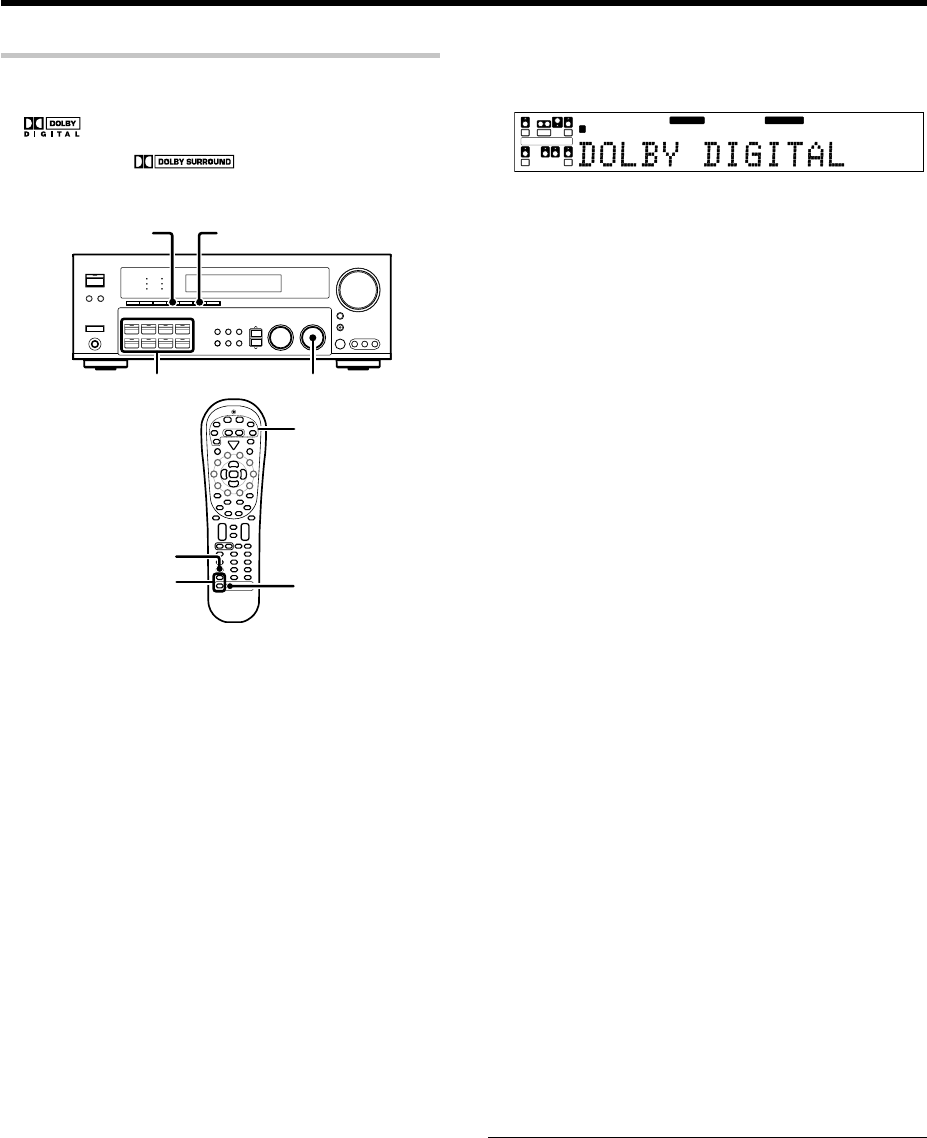
29 EN
Surround play
The DTS compatible models can reproduce a CD, DVD, or LD carrying the
DTS mark.
DOLBY DIGITAL can be used when playing DVD or LD software bearing
the mark and DOLBY DIGITAL format digital broadcasts (etc.).
DOLBY PRO LOGIC can be used when playing video, DVD, or LD
software bearing the mark.
SRS Circle Surround II enables you to listen to multi channel sound from
the stereo source.
Preparations
•Turn ON related components.
•Complete “Preparing for surround sound” (speaker settings). *
•Use the Input Selector keys to select the component you wish to play
back with surround sound.
•Use the INPUT MODE key to select the input mode (analog or digital)
for the source you wish to play back. 8
•Noise will be produced when a DTS source is played by selecting the
analog input.
1
Start playing the video software.
2
Use the LISTEN MODE knob or Listen Mode
5
/
∞
keys to
select the listening mode.
The listening mode settings are stored separately for each input. If
the input mode is set to full auto (“AUTO DETECT” lights), the
receiver selects the optimal listening mode automatically based on
the type of input signal and the speaker settings.
Each turn of the LISTEN MODE knob or press of the Listen Mode
5
/
∞ keys switches the setting as listed below.
The listening mode settings are different depending on the type
of input signal.
When the DOLBY DIGITAL or DOLBY DIGITAL EX signal is
input :
(The DOLBY DIGITAL or PRO LOGIC, indicator lights up.)
1 DOLBY DIGITAL : DOLBY DIGITAL surround.
2 DOLBY D EX : DOLBY DIGITAL EX surround.
3 PLII MOVIE : PRO LOGIC II surround MOVIE mode.
(The PRO LOGIC indicator lights up.)
4 PLII MUSIC : PRO LOGIC II surround MUSIC mode.
(The PRO LOGIC indicator lights up.)
5 PRO LOGIC : PRO LOGIC II surround PRO LOGIC mode.
(The PRO LOGIC indicator lights up.)
6 STEREO : Normal stereo playback.
Ambience effects
When you select DOLBY DIGITAL
“DOLBY DIGITAL” will be displayed.
SB
SW
DOLBY DIGITAL
PRO LOGIC
L
SL SR
CR
SP MUTE
OPTICAL 6CH INPUT
COAXIAL ANALOG 96kHzfs
CINEMA EQ.
ACTIVE EQ.
DSP MODE
DTS.
MATRIX
DISCRETE
STEREO
LOUDNESS
NEO:6
CSII
AB CLIP
AUTO DETECT THX
AUTO
RDS
RTY
MEMO
STEREO
TUNED
Surround EX
LFE
When the DTS or DTS-ES (matrix or discrete) signal is input :
1DTS : (DTS indicator lights up.)
2DTS-ES MATRIX : (DTS and MATRIX indicators light up.)
3DTS-ES DISCRETE : (DTS and DISCRETE indicators light up.)
4STEREO : Normal stereo playback.
When the analog signal or the digital signal (except for
DOLBY DIGITAL or DTS signal) is input :
1 PLII MOVIE : PRO LOGIC II surround MOVIE mode.
(The PRO LOGIC indicator lights up.)
2 PLII MUSIC : PRO LOGIC II surround MUSIC mode.
(The PRO LOGIC indicator lights up.)
3 PRO LOGIC : PRO LOGIC II surround PRO LOGIC mode.
(The PRO LOGIC indicator lights up.)
4 NEO:CINEMA : NEO:6 surround.
(The NEO:6 indicator lights up.)
5 NEO:MUSIC : NEO:6 surround.
(The NEO:6 indicator lights up.)
6 CSII CINEMA : CS 6.1 surround.
(The CS II indicator lights up.)
7 CSII MUSIC : CS 6.1 surround.
(The CS II indicator lights up.)
8 CSII MONO : CS 6.1 surround.
(The CS II indicator lights up.)
9 STEREO :
Normal stereo playback.
(The STEREO indicator lights up.)
• Dolby Digital or DTS signal having more channels than the maximum
number of playback channels available using the receiver’s current
settings is input, downmixing is performed to match the number of
available channels.
3
DSP mode (Digital Signal Processor).
DSP can produce these effects without spoiling the sound quality of
the original music or video source.
1Pressing the DSP key or DSP Mode key will display the
current DSP MODE status.
2Each press of the key will switch to the next status as shown
bellow:
1 ARENA : DSP surround ARENA mode.
2 JAZZ CLUB : DSP surround JAZZ CLUB mode.
3 THEATER : DSP surround THEATER mode.
4 STADIUM : DSP surround STADIUM mode.
5 DISCO : DSP surround DISCO mode.
•The DSP mode selection is displayed for approximately 3 seconds.
4
Adjust the volume.
Notes
•Depending on the type of the signal or speaker setting, some listening
modes cannot be selected.
•When playback is started, the sound may be cut or interrupted before
the input source is confirmed as Dolby Digital.
•To enjoy Dolby Digital surround (as well as all the other listening modes)
from a single component, be sure to use a Dolby Digital compatible
source component.
Input
Selector
Input Mode
DSP INPUT MODE
LISTEN MODE
Input Selector
DSP Mode
Listen Mode 5/∞
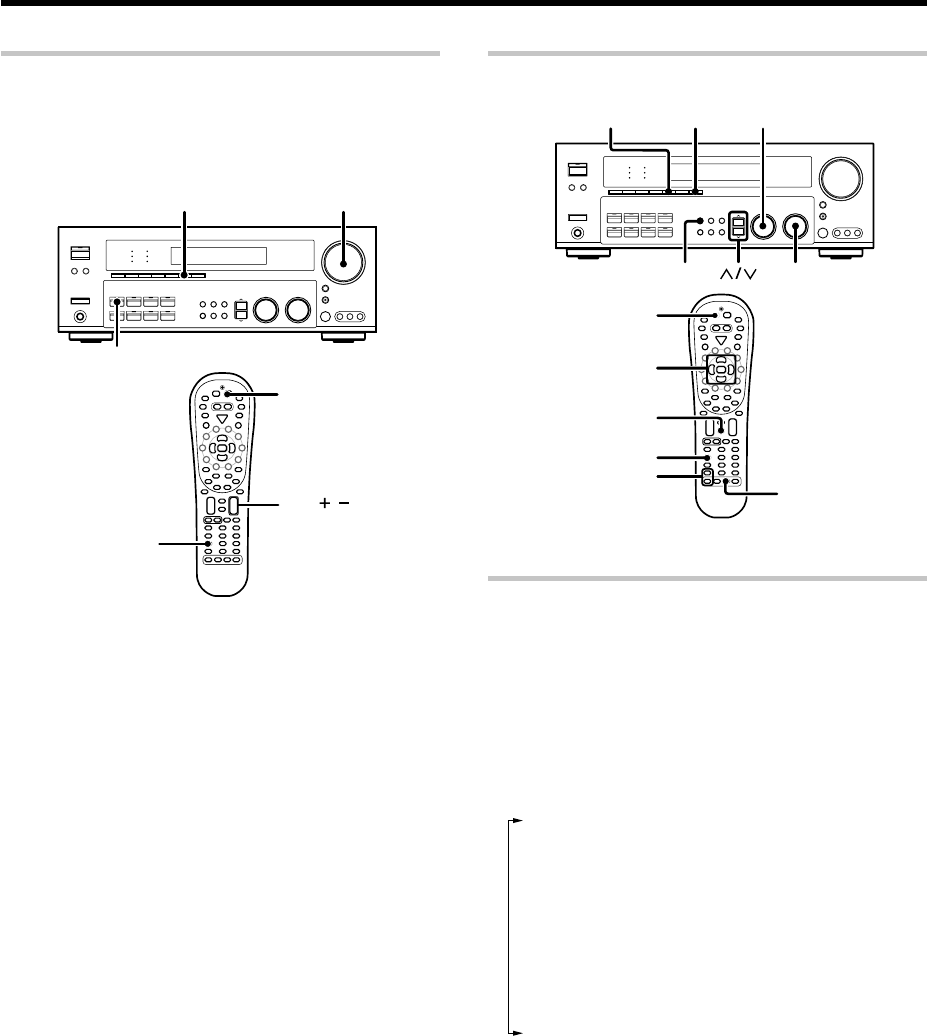
30 EN
Ambience effects
DVD 6-channel playback
Using a DVD player or the like equipped with six (5.1) output channels and
the receiver, you can enjoy surround sound playback.
Connecting a DVD player which can decode the surround signal itself is
also acceptable.
INPUT MODE
DVD/6CH
Input Mode
VOLUME
CONTROL
DVD/6CH
VOL /
Preparations
•Connect your DVD player to the DVD/6CH jacks of the receiver.
•Turn on all other components that will be used.
•Complete “Preparing for surround sound”.*
1
Press “DVD/6CH” as the input source.
•If speaker system B is on when “DVD/6CH” is selected as the input
source, it switches off and speaker system A turns on automatically.
2
Select "6CH INPUT" by pressing the INPUT MODE key.
3
Start playback of the DVD software.
4
Adjust the volume.
•It is not possible to adjust the volume level or sound quality (SET
UP, SOUND, LISTEN MODE, ACTIVE EQ and TONE key will not
be functional) of the channels separately when the receiver is in
the 6CH INPUT mode. Adjust the volume with the controls of the
DVD player.
For the powered subwoofer, you can adjust the volume of the
subwoofer using the subwoofer’s own volume control.
Convenient functions
MULTI CONTROL
DIMMERSTEREO
SOUND LISTEN MODE
Sound
Listen Mode5/∞
Stereo
(Multi %/fi,
@ / #)
Dimmer
TUNER
Adjusting the sound
You can make further adjustments to the sound while listening to
playback in the surround mode.
1For the remote control, press and hold the TUNER key for
more than 3 seconds to switch to receiver mode.
2Press the SOUND key and then use the ∧/∨ keys or @ /# keys until
the desired item appears in the display.
Each time you press the ∧/∨ keys or @/# keys, the menu changes
as follows:
Note that some items are not displayed in certain modes.
1CNTR (Center speaker level adjustment)*
2SR (Right surround speaker level adjustment)*
3SB (Surround back speaker level adjustment)*
4SL (Left surround speaker level adjustment)*
5SUBW (Subwoofer level adjustment)*
6INPUT (Input level adjustment - analog mode only) (
7MIDNIGHT
(Midnight mode ON/OFF - Dolby Digital mode only)
8PANORAMA (Panorama mode
ON/OFF
)**
9DIMENSION (Dimension adjustment)**
0CENTER WIDTH (Center width adjustment)**
-CENTER FOCUS (Center focus adjustment)***
=CSII DLY (Rear speaker delay adjustment)***
~CSII GAIN (Input gain adjustment)***
!TruBass (TruBass adjustment)***
* The adjustment is only temporary for the current input selection.
The value will return automatically to the original setup value when
the power is turned on/off or when the input selection is changed.
** Pro Logic II Music mode only.
*** CS II mode only.
3Use the MULTI CONTROL knob or Multi (%/fi) keys to adjust the
setting as desired.
•The adjustment item is displayed for approximately 8 seconds.
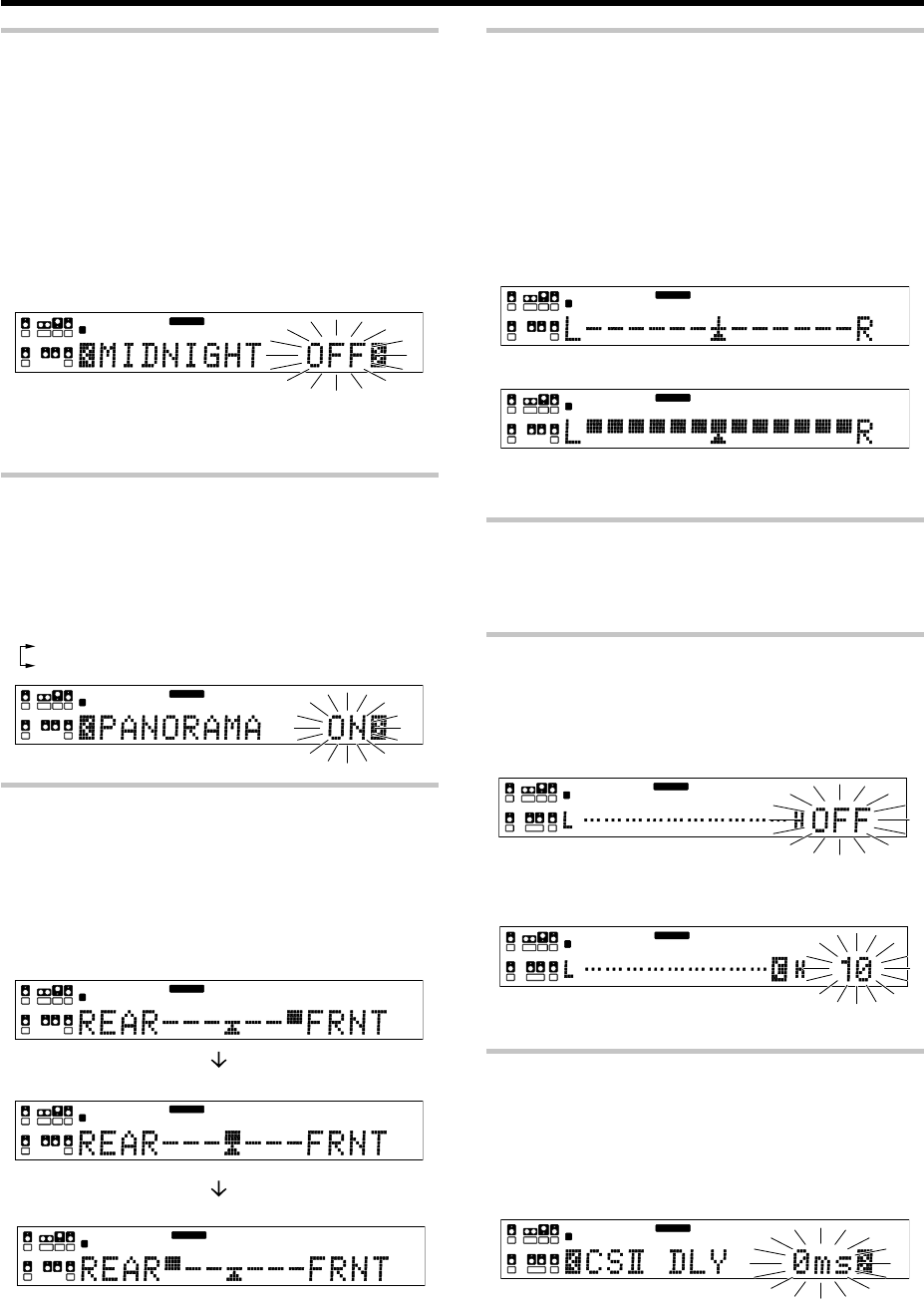
31 EN
Ambience effects
Midnight mode (Dolby Digital mode only)
When watching movies at night , you might not be able to raise the volume as
loud as normal. Midnight mode compresses the dynamic range of previously
specified heavy sound passage of the Dolby Digital sound track (like scenes with
sudden increases in volume) to minimize the difference in volume between the
scenes with heavy sound passage and scenes with normlal sound passage. This
makes it easy to hear all of the sound track, even when listening at low volumes.
1Press the SOUND key, then press the ∧/∨ keys or @/# keys until
“MIDNIGHT” appears on the display.
•This can be selected only if CD/DVD, DVD/6CH, VIDEO 2 or VIDEO 3
is selected as the source and the listen mode is set to “DOLBY
DIGITAL.”
2Use the MULTI CONTROL knob or Multi (%/fi) keys to select
the ON or OFF setting.
PRO LOGIC
L
SL SSB SR
CRSW
LFE
SP MUTE
OPTICAL 6CH INPUT
COAXIAL ANALOG 96kHzfs
CINEMA EQ.
ACTIVE EQ.
DSP MODE
DTS.
MATRIX
DISCRETE
STEREO
LOUDNESS
NEO:6
CSII
A B CLIP
AUTO DETECT THX
AUTO
RDS
RTY
MEMO
STEREO
TUNED
Surround EX
DOLBY DIGITAL
•The adjustment item is displayed for approximately 8 seconds.
•Some Dolby Digital software may not be compatible with the
Midnight mode.
Panorama mode (Pro Logic
II
Music mode only)
When listening to music, you will be able to enjoy the “wrap-around”
sound effect when you adjust the panorama mode.
1Press the SOUND key, then press the ∧/∨ keys or @/# keys until
“PANORAMA” appears on the display.
2Use the MULTI CONTROL knob or Multi (%/fi) keys to
select PANORAMA ON or OFF.
1PANORAMA ON : PANORAMA mode is ON.
2PANORAMA OFF : PANORAMA mode is OFF.
L
SL SSB SR
CRSW
LFE
SP MUTE
OPTICAL 6CH INPUT
COAXIAL ANALOG 96kHzfs
CINEMA EQ.
ACTIVE EQ.
DSP MODE
DTS.
MATRIX
DISCRETE
STEREO
LOUDNESS
NEO:6
CSII
A B CLIP
AUTO DETECT THX
AUTO
RDS
RTY
MEMO
STEREO
TUNED
Surround EX
PRO LOGIC
DOLBY DIGITAL
Dimension mode (Pro Logic
II
Music mode only)
When listening to music with certain recordings, you will also be able to achieve
a suitable balance from all the speakers by adjusting the dimension mode.
1Press the SOUND key, then press the ∧/∨ keys or @/# keys until
“DIMENSION” appears on the display.
2Use the MULTI CONTROL knob or Multi (%/fi) keys to adjust
the soundfield towards the rear or the front.
Soundfield is adjusted towards the front.
L
SL SSB SR
CRSW
LFE
SP MUTE
OPTICAL 6CH INPUT
COAXIAL ANALOG 96kHzfs
CINEMA EQ.
ACTIVE EQ.
DSP MODE
DTS.
MATRIX
DISCRETE
STEREO
LOUDNESS
NEO:6
CSII
A B CLIP
AUTO DETECT THX
AUTO
RDS
RTY
MEMO
STEREO
TUNED
Surround EX
PRO LOGIC
DOLBY DIGITAL
Soundfield is in neutral position.
L
SL SSB SR
CRSW
LFE
SP MUTE
OPTICAL 6CH INPUT
COAXIAL ANALOG 96kHzfs
CINEMA EQ.
ACTIVE EQ.
DSP MODE
DTS.
MATRIX
DISCRETE
STEREO
LOUDNESS
NEO:6
CSII
A B CLIP
AUTO DETECT THX
AUTO
RDS
RTY
MEMO
STEREO
TUNED
Surround EX
PRO LOGIC
DOLBY DIGITAL
Soundfield is adjusted towards the rear.
L
SL SSB SR
CRSW
LFE
SP MUTE
OPTICAL 6CH INPUT
COAXIAL ANALOG 96kHzfs
CINEMA EQ.
ACTIVE EQ.
DSP MODE
DTS.
MATRIX
DISCRETE
STEREO
LOUDNESS
NEO:6
CSII
A B CLIP
AUTO DETECT THX
AUTO
RDS
RTY
MEMO
STEREO
TUNED
Surround EX
PRO LOGIC
DOLBY DIGITAL
Center Width mode (Pro Logic
II
Music mode only)
Center width adjustment allows you to enjoy an enchanced sound when
listening to music through center image from only center speaker, or left
and right speakers or various combinations adjustments.
1Press the SOUND key, then press the ∧/∨ keys or @/# keys until
“CENTER WIDTH” appears on the display.
•The CENTER WIDTH indication scrolls across the display.
•When the center speaker is switched OFF, this mode will not be
effective.
2Use the MULTI CONTROL knob or Multi (%/fi) keys to adjust
the left-center-right output.
Center image will be heard from center speaker only.
L
SL SSB SR
CRSW
LFE
SP MUTE
OPTICAL 6CH INPUT
COAXIAL ANALOG 96kHzfs
CINEMA EQ.
ACTIVE EQ.
DSP MODE
DTS.
MATRIX
DISCRETE
STEREO
LOUDNESS
NEO:6
CSII
A B CLIP
AUTO DETECT THX
AUTO
RDS
RTY
MEMO
STEREO
TUNED
Surround EX
PRO LOGIC
DOLBY DIGITAL
Center image will be heard from left and right speakers only.
L
SL SSB SR
CRSW
LFE
SP MUTE
OPTICAL 6CH INPUT
COAXIAL ANALOG 96kHzfs
CINEMA EQ.
ACTIVE EQ.
DSP MODE
DTS.
MATRIX
DISCRETE
STEREO
LOUDNESS
NEO:6
CSII
A B CLIP
AUTO DETECT THX
AUTO
RDS
RTY
MEMO
STEREO
TUNED
Surround EX
PRO LOGIC
DOLBY DIGITAL
•When in other position, center image from center speaker, left and
right speakers can be heard simultaneously with various combinations.
Circle Surround
II
mode
When you select the circle surround II mode, you will be able to enjoy the
multi surround sound from the stereo source.
Use the LISTEN MODE knob or Listen Mode 5/∞ keys for CS II selection.
Center Focus mode (CS
II
mode only)
Center focus elevate level adjustment allows you to enjoy an enchanced
sound when you select CS II CINEMA/MUSIC/MONO. It repositions the
sound image to an optimal position more natural to the listener through
the center image.
1Press the SOUND key, then press the ∧/∨ keys or @/# keys until
“CENTER FOCUS” appears on the display.
L
SL SB SR
CR
SP MUTE
OPTICAL 6CH INPUT
COAXIAL ANALOG 96kHzfs
CINEMA EQ.
ACTIVE EQ.
DSP MODE
DTS.
MATRIX
DISCRETE
DOLBY DIGITAL
PRO LOGIC
STEREO
LOUDNESS
NEO:6
CSII
A B CLIP
AUTO DETECT THX
AUTO
RDS
RTY
MEMO
STEREO
TUNED
Surround EX
SW
LFE
2Use the MULTI CONTROL knob or Multi (%/fi) keys to adjust
the center elevation level.
•The adjustment range is from 0 to 10.
L
SL SB SR
CR
SP MUTE
OPTICAL 6CH INPUT
COAXIAL ANALOG 96kHzfs
CINEMA EQ.
ACTIVE EQ.
DSP MODE
DTS.
MATRIX
DISCRETE
DOLBY DIGITAL
PRO LOGIC
STEREO
LOUDNESS
NEO:6
CSII
A B CLIP
AUTO DETECT THX
AUTO
RDS
RTY
MEMO
STEREO
TUNED
Surround EX
SW
LFE
•CENTER FOCUS will not be available when the center speaker is OFF.
CS
II
Rear Delay adjustment mode (CS
II
mode only)
CS II Rear Delay adjustment provides a better sound effect from the rear
speakers.
1Press the SOUND key, then press the ∧/∨ keys or @/# keys until
“CSII DLY” appears on the display.
2Use the MULTI CONTROL knob or Multi (%/fi) keys to adjust
the rear speaker.
•The adjustment range is from 0 ms to 25 ms.
L
SL SB SR
CR
SP MUTE
OPTICAL 6CH INPUT
COAXIAL ANALOG 96kHzfs
CINEMA EQ.
ACTIVE EQ.
DSP MODE
DTS.
MATRIX
DISCRETE
DOLBY DIGITAL
PRO LOGIC
STEREO
LOUDNESS
NEO:6
CSII
A B CLIP
AUTO DETECT THX
AUTO
RDS
RTY
MEMO
STEREO
TUNED
Surround EX
SW
LFE
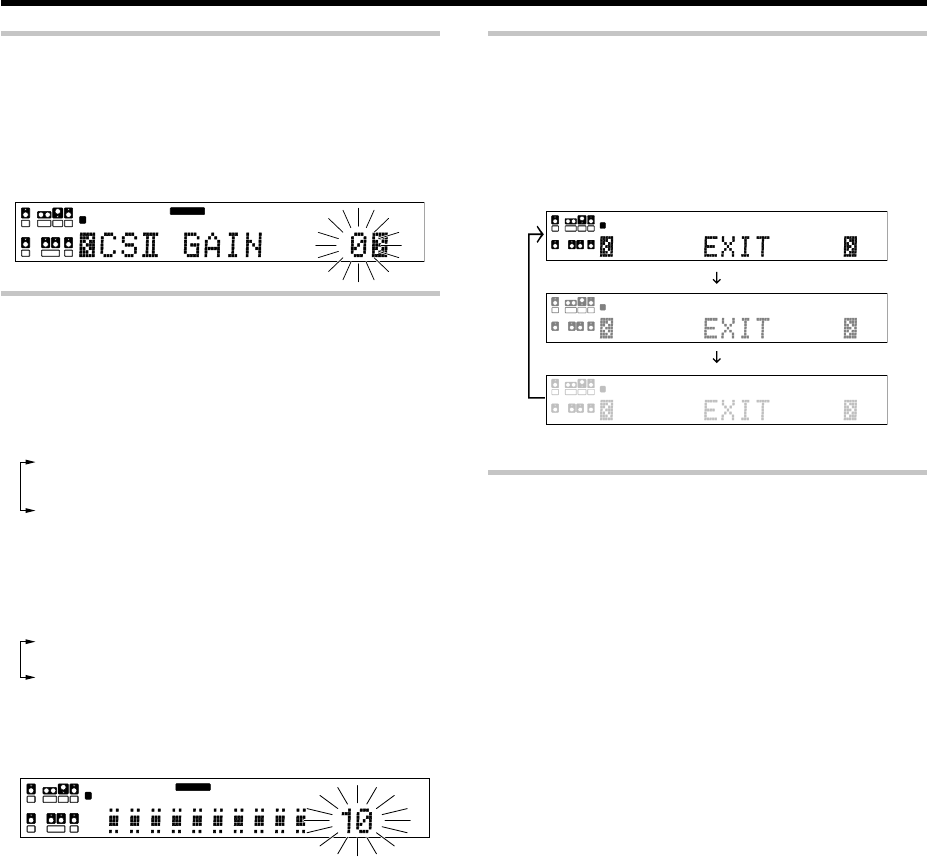
32 EN
Ambience effects
CS
II
Gain adjustment mode (CS
II
mode only)
CS II GAIN allows user to adjust the input gain for the Circle Surround II
processing.
1Press the SOUND key, then press the ∧/∨ keys or @/# keys until
“CSII GAIN” appears on the display.
2Use the MULTI CONTROL knob or Multi (%/fi) keys to adjust
the input gain.
•The adjustment range is from 0 to -18.
L
SL SB SR
CR
SP MUTE
OPTICAL 6CH INPUT
COAXIAL ANALOG 96kHzfs
CINEMA EQ.
ACTIVE EQ.
DSP MODE
DTS.
MATRIX
DISCRETE
DOLBY DIGITAL
PRO LOGIC
STEREO
LOUDNESS
NEO:6
CSII
A B CLIP
AUTO DETECT THX
AUTO
RDS
RTY
MEMO
STEREO
TUNED
Surround EX
SW
LFE
TruBass adjustment mode (CS
II
mode only)
TruBass adjustment provides deep, rich bass sound to various speakers.
1Press the SOUND key, then press the ∧/∨ keys or @/# keys until
“TruBass” appears.
2Use the MULTI CONTROL knob or Multi (%/fi) keys to select
the following;
1TruBass OFF
2TruBass SW
3TruBass LR
4TruBass SW + LR
•After selecting 2, 3 or 4, TruBass speaker size and level adjustment
selection will be available.
3For TruBass speaker selection, use the MULTI CONTROL knob
or Multi (5/∞) keys to select any of the following display;
1TruBass LARGE
2TruBass MID
3TruBass SMALL
4Use the MULTI CONTROL knob or Multi (%/fi) keys to adjust
the TruBass Level.
•The adjustment range is from 0 (Trubass OFF) to 10.
L
SL SB SR
CR
SP MUTE
OPTICAL 6CH INPUT
COAXIAL ANALOG 96kHzfs
CINEMA EQ.
ACTIVE EQ.
DSP MODE
DTS.
MATRIX
DISCRETE
DOLBY DIGITAL
PRO LOGIC
STEREO
LOUDNESS
NEO:6
CSII
A B CLIP
AUTO DETECT THX
AUTO
RDS
RTY
MEMO
STEREO
TUNED
Surround EX
SW
LFE
Display dimmer adjustment
The dimmer function lets you select the brightness of the receiver's
display. You might find this useful if you darken your room to watch
movies or listen to music.
Each time you press the DIMMER key, the display brightness
changes among the three available settings.
Select the brightness level you find most pleasing.
LC R
SP MUTE
OPTICAL 6CH INPUT
COAXIAL ANALOG 96kHzfs
CINEMA EQ.
ACTIVE EQ.
DSP MODE
DTS.
MATRIX
DISCRETE
DOLBY DIGITAL
PRO LOGIC
STEREO
LOUDNESS
NEO:6
CSII
A B CLIP
AUTO DETECT THX
AUTO
RDS
RTY
MEMO
STEREO
TUNED
Surround EX
SW
LFE
LC R
SP
STEREO
A
SW
LC R
SP
STEREO
A
SW
96kHz LPCM playback
The receiver is compatible with the 96kHz LPCM playback. To play a
96kHz DVD, set the listen mode to “STEREO”.
•In FULL AUTO input mode the listen mode will automatically be
STEREO.
•When in DIGITAL MANUAL input mode (listen mode is not STEREO),
“96kHz LPCM” will appear in the display and no sound can be heard
from the speakers.
Press the Listen Mode or Stereo key (the listen mode changes to the
STEREO mode) to output sound from the speakers.
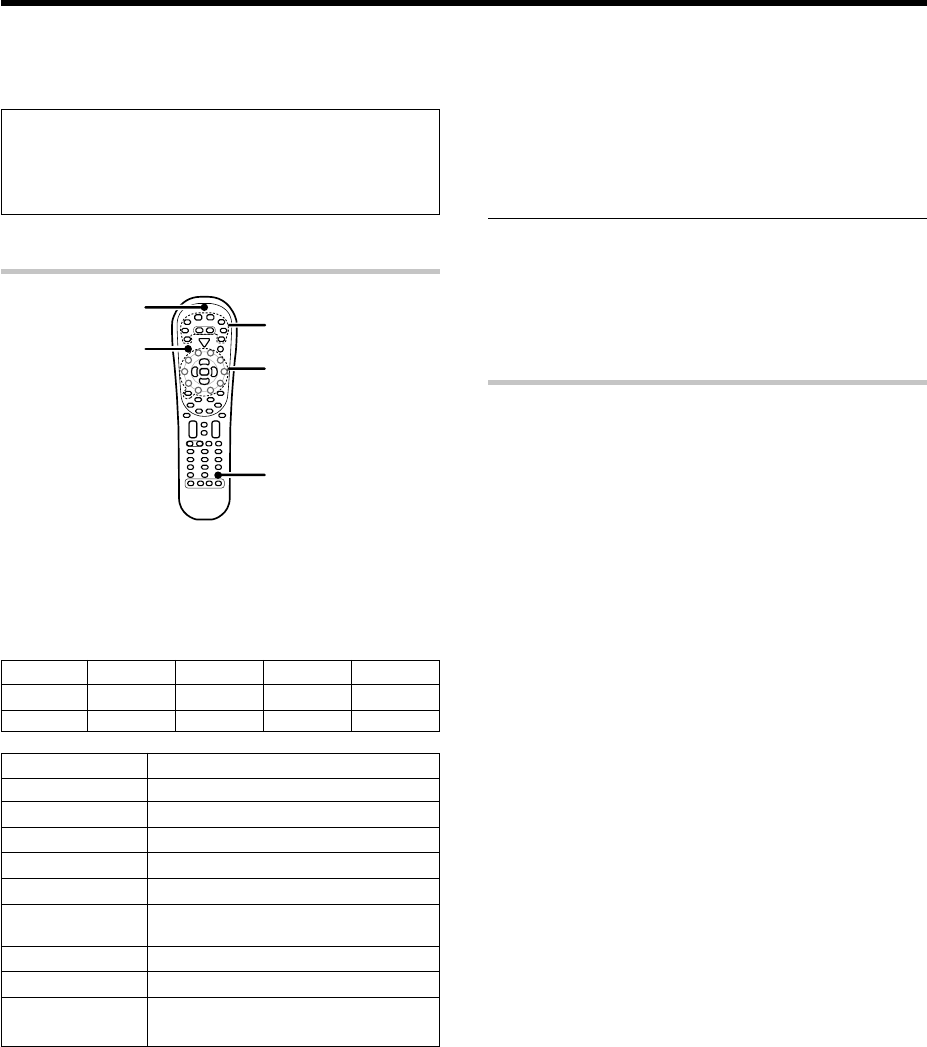
33 EN
The remote control supplied with this receiver is also capable
of controlling components from a variety of manufacturers
once you register the appropriate setup codes into the
remote control unit.
Registering setup codes for other components
1
Find the setup code of the component to be registered.
•Refer to the setup code lists to find the setup code for the
component to be registered. fi
Example: To register a DVD made by KENWOOD, you would enter
“0534”.
Input Component Maker Code Key
(DVD) DVD player KENWOOD 0534 DVD
Source key Other components
TUNER Receiver (Kenwood)
DVD/6CH DVD (other manufacturers')
CD/DVD CD and MD (Kenwood)
MD/Tape Cassette deck (Kenwood)
VID1 / AV AUX VCR and PVR (other manufacturers')
VID2 Cable and DTV decoder (other
manufacturers')
VID3 DSS (other manufacturers')
PHONO Additional key for re-assigning
TV TV/VCR combo, TV/DVD combo, TV
(other manufacturers')
2
Press the source keys (DVD/6CH, CD/DVD, VID1, VID2, VID3,
TV, MD/TAPE, AV AUX, PHONO).
7
•PHONO key has to re-assigned to another key before a setup
code can be registered. ›
•While in Tuner mode, setup code function will not be available.
3
Press and hold the Remote Setup key until the LED blinks
twice, then release the Remote Setup key.
4
Press the numeric key to enter the four-digit code for the
component to be registered.
•If performed correctly, the LED will blink twice.
•Point the remote control at the component and press SRC Power
key once. It should turn on/off but if it does not, repeat step 2 to 4
•If the component still does not work, try searching for the code.
5
Repeat steps
2
to
3
to register additional components until
all components have been registered.
Note
Although each setup code is designed to work with a number of
different models, certain codes may not work with some models.
(Also, certain codes may only operate some of the functions available
on a given model.)
Searching for your codes
If you component does not respond after trying all the codes listed for
your component, or if your component is not listed at all, try searching
for your code.
For example, to search for code for your TV:
1
Press the TV key once. Next, press and hold the Remote Setup
key until the LED blinks twice, then release the Remote Setup
key.
2
Press the numeric key to enter "9 - 9 - 1".
•The LED will blink twice.
3
Point the remote control at the TV and slowly alternate
between pressing the SRC Power and TV keys.
•Stop when the TV turns on or off.
•In the search mode, the remote control will send IR codes from its
library to the selected device, starting with the most popular code
first.
4
Press the Remote Setup key once to lock in the code.
5
To search for the codes of your other components, repeat
steps
1
through
4
, but substitute the appropriate key (i.e.,
DVD/6CH, CD/DVD, VID1, VID2, VID3, TV, MD/TAPE, AV AUX,
PHONO).
•PHONO key has to be re-assigned to another key before a setup
code can be programmed.
Basic remote control operations for other components
Low battery warning
Replace all two batteries with new ones when you notice a shortening
of the distance from which the remote control will operate.The
remote control is designed to retain setup codes in memory while
you change batteries.
SRC Power
Numeric keys
Source
keys
LED
Remote
Setup
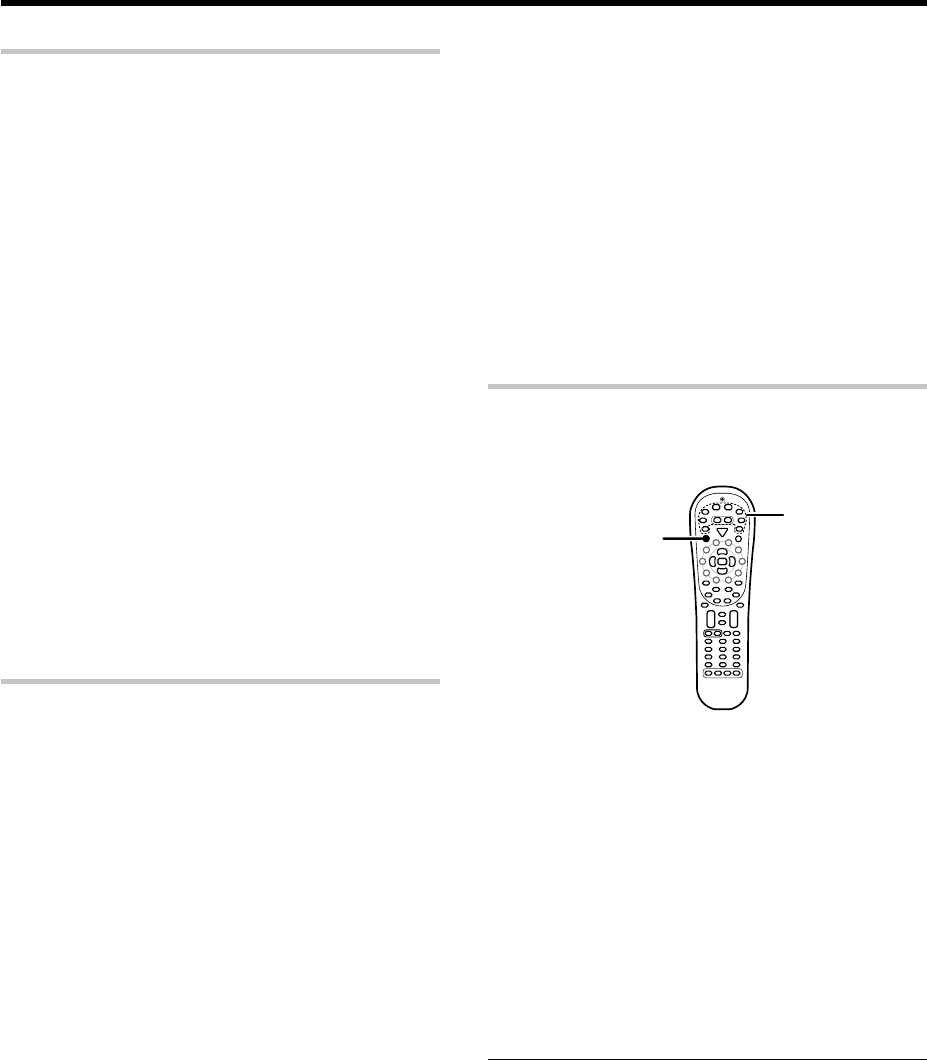
34 EN
Basic remote control operations for other components
Checking the codes
If you have setup the remote control using the procedures described in
“Searching for your codes”, you may need to find out which four-digit
code is operating your equipment:
For example, to find out which code is operating your TV:
1
Press the TV key once. Next, press and hold the Remote Setup
key until the LED blinks twice, then release the Remote Setup
key.
2
Press the numeric key to enter "9 - 9 - 0".
•The LED will blink twice.
3
To view the code for the first digit, press “1” once. Wait for 3
seconds, counts the number of times the LED blinks (e.g.,
blinks=3) and write down that number.
•If a code digit is “0”, the LED will not blink.
4
Repeat step
3
three more times for the remaining digits. Use
“2” for the second digit, “3” for the third digit, and “4” for the
fourth digit.
5
To check the codes of your other components, repeat steps
1
through
4
, but substitute the appropriate key (i.e.,
DVD/6CH, CD/DVD, VID1, VID2, VID3, TV, MD/TAPE, AV AUX,
PHONO) for the component you are checking.
•As suggested earlier on, write down each of the four-digit code.
•PHONO key has to be re-assigned to another key before a setup
code can be programmed.
Re-assigning device keys
The remote control can be setup to control second TV or VCR, or any
combination of eight home entertainment components.
For example, to control the operation of two different VCR using the
remote control, the user need to re-assign the unused VID2 key to
operate the second VCR(VID1) as follows:
1
Press and hold the Remote Setup key until the LED blinks
twice, then release the Remote Setup key.
2
Press the numeric key to enter "9 - 9 - 2".
•The LED will blink twice.
3
Press VID1 key once, then press the VID2 key once.
•The user now can operate VID2 as a second VCR along with VID1.
•Refer to the table in the previous page for the combination of
source keys and the other components assignment. ‹
4
To re-assign other device keys, repeat steps
1
through
3
by
substituting the key sequence from the below chart for the
most popular components:
5
To clear the re-assignment and reset the remote control to its
original operation mode:
1Press and hold the Remote Setup key until the LED blinks
twice, then release the remote setup key.
2Press the numeric key to enter "9 - 9 - 2".
3Press VID2 key twice.
•When a re-assignment is done, the LED will blink twice to confirm
your choice. At that time, you will need to program the remote
control in order to control the new component.
•If an invalid key sequence is entered, the LED blink once and return
to normal operation.
•When in Tuner mode, re-assignment is not available.
Operating other components
This operation lets you operate the registered components.
KENWOOD audio components with system control turn on and off
automatically with the receiver via the system control connections.
SRC Power
Source
keys
1
Use the source keys to select the component you desire.
•Pressing the source keys also changes the input selector on the
receiver.
•When you operate your registered cassette, CD or DVD player,
Cable, DSS, DTV Decoder, VCR or TV, go to step 2.
•When you operate the CD player, Cassette deck, MD player, or
Tuner with system control connection, go to step 3.
2
Press the SRC Power key.
•To return to the receiver operation mode, press the TUNER key for
more than 3 seconds.
3
Press the operation keys you desire.
·
The remote control mode remains at the selected input. If you
wish to operate another component, repeat step 2 or 3.
Note
•Be sure to point the remote control at the remote sensor on the
receiver when you want to operate KENWOOD components
connected by system control cords. Otherwise, point the remote
control at the component you want to operate.
•To initilize the remote control, press the Remote Setup key until the
LED blinks twice. Then press the numeric key to enter “9-8-1”. The
LED will blink twice.
To re-assign key
Sequence Perform
TV as 2nd VID1 key Remote Setup - 9- 9 - 2 VID1 - TV
TV as 2nd VID2 key Remote Setup - 9 - 9 - 2 VID2 - TV
TV as 2nd CD/DVD key Remote Setup - 9 - 9 - 2 CD/DVD - TV
TV as 2nd TV key Remote Setup - 9 - 9 - 2 TV - TV
VID1 as 2nd TV key Remote Setup - 9 - 9 - 2 TV - VID1
VID1 as 2nd VID2 key Remote Setup - 9 - 9 - 2 VID2 - VID1
VID1 as 2nd CD/DVD key Remote Setup - 9 - 9 - 2
CD/DVD
- VID1
VID1 as 2nd VID1 key Remote Setup - 9 - 9 - 2 VID1 - VID1
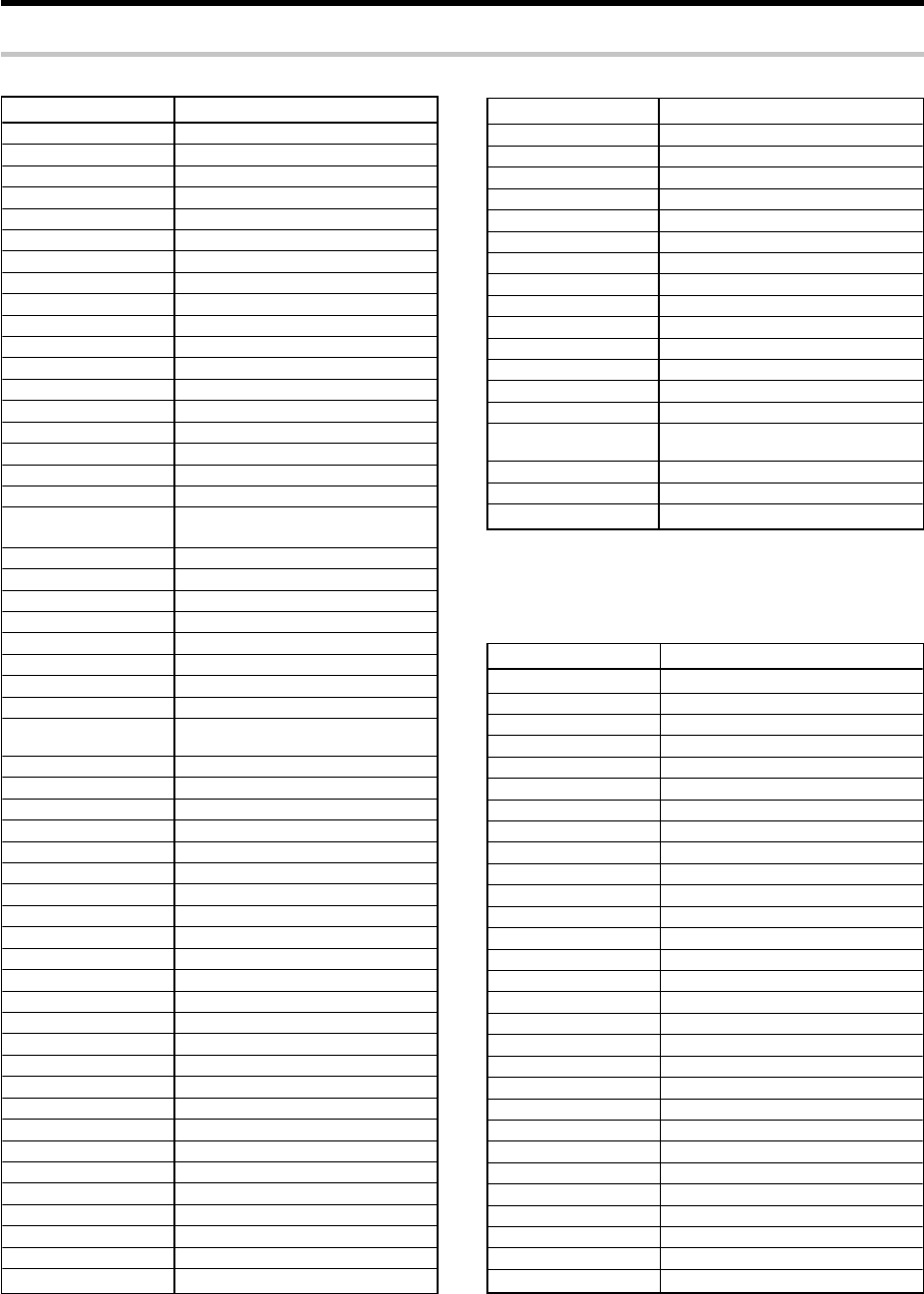
35 EN
Maker Setup Codes
Admiral 0048, 0209
American High 0035
Bell & Howell 0104
Broksonic 0121, 0184, 0209
Canon 0035
Carver 0081
Craig 0047
Curtis Mathes 0035, 0060, 0162, 0760
Daewoo 0045
Denon 0042
Emerex 0032
Emerson 0043, 0121, 0184, 0209
Fisher 0047, 0104
Fuji 0033, 0035
GE 0035, 0060, 0760
HI-Q 0047
Harman/Kardon 0081
Hitachi 0042
Hughes Network 0042
Systems
JVC 0067
Kenwood 0067
Kodak 0035
MEI 0035
MGA 0043
Magnavox 0035, 0039, 0081, 0563
Marantz 0035, 0081
Matsushita 0035, 0162
Memorex 0035, 0039, 0047, 0048, 0104, 0162,
0209
Minolta 0042
Mitsubishi 0043, 0067
Motorola 0035, 0048
NEC 0067, 0104
Olympus 0035
Optimus 0048, 0104, 0162,1048, 1062
Orion 0184, 0209
Panasonic 0035, 0162, 0225, 0616, 1062
Penney 0035, 0042
Pentax 0042
Philco 0035, 0209
Philips 0035, 0081, 0618, 1081, 1181
Pioneer 0067
Polk Audio 0081
Proscan 0060, 0760
Pulsar 0039
Quasar 0035, 0162
RCA 0042, 0060, 0760
Realistic 0035, 0047, 0048, 0104
ReplayTV 0614, 0616
Runco 0039
STS 0042
Samsung 0045
Sanky 0039, 0048
Sansui 0067, 0209
Basic remote control operations for other components
Setup code chart
VCR setup codes
Maker Setup Codes
Sanyo 0047, 0104
Scott 0043, 0045, 0121, 0184
Sears 0035, 0042, 0047, 0104
Semp 0045
Sharp 0048
Sonic Blue 0614, 0616
Sony 0032, 0033, 0035, 0636, 1032
Sylvania 0035, 0043, 0081
Technics 0035, 0162
Teknika 0035
Tivo 0618, 0636
Toshiba 0043, 0045
Vector 0045
Video Concepts 0045
Wards 0035, 0042, 0047, 0048, 0060, 0081,
0760
White Westinghouse 0209
XR-1000 0035
Zenith 0033, 0039, 0209
Cable setup codes
Maker Setup Codes
ABC 0003, 0008, 0014, 0017
Americast 0899
Bell & Howell 0014
Bell South 0899
Director 0476
General Instrument 0003, 0276, 0476, 0810
GoldStar 0144
Hamlin 0009, 0273
Jerrold 0003, 0012, 0014, 0276, 0476, 0810
Memorex 0000
Motorola 0276, 0476, 0810, 1106
Pace 0237
Panasonic 0000, 0107
Paragon 0000
Philips 0305, 0317
Pioneer 0144, 0533, 0877, 1877
Pulsar 0000
Quasar 0000
Regal 0273, 0279
Runco 0000
Samsung 0144
Scientific Atlanta 0008, 0017, 0477, 0877, 1877
Sony 1006
Starcom 0003
Supercable 0276
Tocom 0012
Torx 0003
Toshiba 0000
Zenith 0000, 0525, 0899

36 EN
Maker Setup Codes
GE 0021, 0047, 0051, 0178, 0251, 0451,
0747, 0804, 0807, 0809, 0811, 1147,
1347
Gibralter 0017, 0019, 0030
GoldStar 0019, 0030, 0178, 0802, 0814
Gradiente 0053, 0056, 0800
Grunpy 0179, 0180
Hallmark 0178
Harley Davidson 0179, 0800
Harman/Kardon 0054
Harvard 0180
Havermy 0093
Hitachi 0016, 0056, 0145, 0800
Infinity 0054
Inteq 0017
JBL 0054
JCB 0000
JVC 0053
KEC 0180, 0802
KTV 0030, 0180
Kenwood 0019, 0030
Kodak 0802
Konka 0632, 0628, 0638, 0703, 0707
LG 0056
LXI 0047, 0054, 0154, 0156, 0178, 0747,
0802
Logik 0016
Luxman 0056
Lloyd’s 0800
MGA 0019, 0030, 0150, 0178, 0804
MTC 0019, 0030, 0056, 0060, 0800, 0804
Magnavox 0030, 0054, 0179, 0800, 0818, 1254,
1454
Magnasonic 0816
Magnin 0804
Majestic 0016
Marantz 0030, 0054
Marta 0802
Matsushita 0250
Megatron 0145, 0178
Memorex 0016, 0150, 0154, 0178, 0179, 0250,
0463, 0800, 0802, 0804, 0810, 0812,
0814, 0815
MGN Technology 0804
Midland 0017, 0047, 0051, 0747
Minutz 0021
Mitsubishi 0019, 0093, 0150, 0178, 0807
Motorola 0093
Multitech 0180, 0800
NAD 0156, 0166, 0178
NEC 0019, 0030, 0056, 0497
NTC 0092
Nikko 0030, 0092, 0178, 0802
Noblex 0804
Onwa 0180
Optimus 0154, 0166, 0250, 0802, 0812, 0815
Optonica 0093
Maker Setup Codes
AOC 0019, 0030
Admiral 0093, 0463
Adventura 0800
Aiko 0092
Aiwa 0701, 0800, 0802
Akai 0030
Alaron 0179
America Action 0180
Ampro 0751
Anam 0180
Apex Digital 0748, 0765, 0767
Asha 0804
Audiovox 0092, 0180, 0451, 0623, 0802
Baysonic 0180
Belcor 0019
Bell & Howell 0016, 0154
Beaumark 0804
Bradford 0180
Brockwood 0019
Broksonic 0236, 0463, 0817, 0901
CXC 0180
Calix 0802
Candle 0030, 0056
Carnivale 0030
Carver 0054
Celebrity 0000
Changhong 0765
Cineral 0092, 0451
Citizen 0030, 0056, 0060, 0092, 0802, 0816
Concerto 0056
Contec 0180
Craig 0180, 0802, 0804
Crosley 0054
Crown 0180
Curtis Mathes 0016, 0030, 0047, 0054, 0056, 0060,
0093, 0145, 0154, 0166, 0451, 0466,
0747, 0809, 1147, 1347
Cybernex 0804
Daewoo 0019, 0092, 0451, 0623, 0816
Daytron 0019
Denon 0145
Dumont 0017, 0019
Dynatech 0800
Dwin 0720, 0774
Electroband 0000
Electrohome 0802
Electrophonic 0802
Emerson 0019, 0154, 0178, 0179, 0180, 0236,
0463, 0623, 0800, 0802, 0816, 0817
Envision 0030
Fisher 0154
Fujitsu 0179, 0683
Funai 0171, 0179, 0180, 0800
Futuretech 0180
Garrard 0800
Basic remote control operations for other components
Setup code chart
TV setup codes
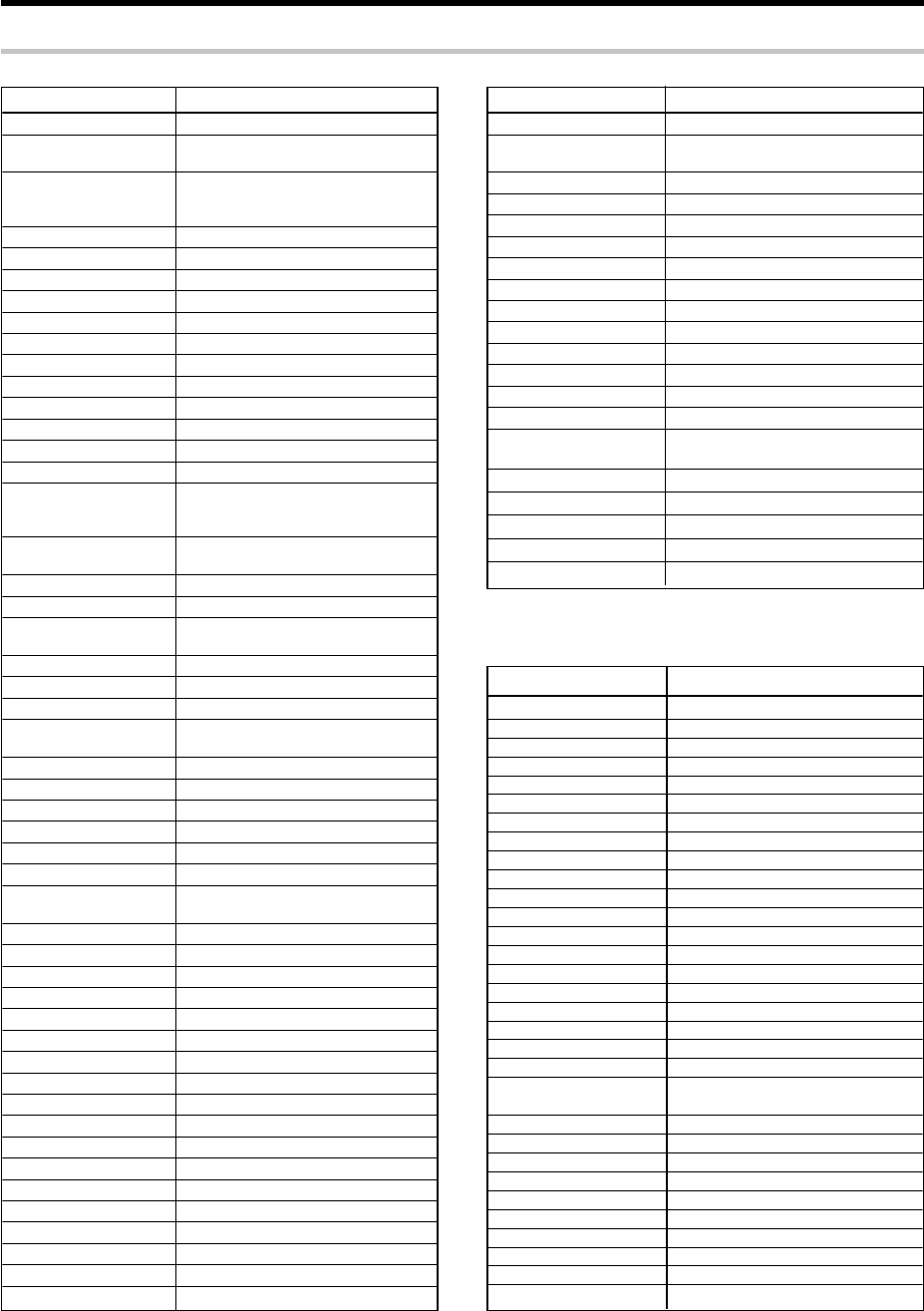
37 EN
Maker Setup Codes
Techwood 0051, 0056
Teknika 0016, 0019, 0054, 0056, 0060, 0092,
0150, 0179, 0180, 0800, 0802
Telefunken 0056
Thomas 0800
Toshiba 0060, 0154, 0156, 0901, 0906, 1256
Totevision 0802, 0804
Unitech 0804
Vector Research 0030
Victor 0053
Videomagic 0802
Vidikron 0054, 0242
Vidtech 0019, 0178
Videosonic 0804
Villian 0800
Wards 0016, 0019, 0021, 0030, 0054, 0056,
0178, 0179, 0800, 0804
Waycon 0156
White Westinghouse 0463, 0623, 0816
XR-1000 0800
Yamaha 0019, 0030, 0769
Zenith 0016, 0017, 0092, 0463, 0800, 0817
Maker Setup Codes
Orion 0179, 0236, 0463, 0817
Panasonic 0051, 0250, 0809, 0812, 0815, 0907,
0908
Penney 0019, 0021, 0030, 0047, 0051, 0060,
0156, 0178, 0747, 0802, 0804, 0809,
0814, 1347
Philco 0019, 0030, 0054, 0145, 0463
Philips 0054, 0904, 1454
Pilot 0019, 0030, 0802
Pioneer 0166, 0679
Portland 0019, 0092
Princeton 0717
Prism 0051
Proscan 0047, 0747, 0811
Profitronic 0804
Proton 0178, 0466
Pulsar 0017, 0019
Quasar 0051, 0250, 0809, 0812
RCA 0019, 0047, 0090, 0679, 0747, 0804,
0807, 0809, 0811, 0905, 1047, 1147,
1247, 1347, 1447, 1547
RadioShack 0019, 0030, 0047, 0056, 0154, 0178,
0180, 0747, 0800, 0810
Radix 0802
Randex 0802
Realistic 0019, 0030, 0056, 0154, 0178, 0180,
0800, 0802
Runco 0017, 0030, 0251, 0497, 0603
SSS 0019, 0180
Sampo 0030
Samsung 0019, 0030, 0056, 0060, 0178, 0766,
0804
Sansei 0451
Sansui 0463, 0800 0817, 0901
Sanyo 0154, 0804
Scimitsu 0019
Scotch 0178
Scott 0019, 0178, 0179, 0180, 0236
Sears 0047, 0054, 0056, 0154, 0156, 0171,
0178, 0179, 0747, 0800, 0802, 0814
Semivox 0180
Semp 0156
Sharp 0093, 0688, 0689, 0807, 0900
Shogun 0019, 0804
Signature 0016
Sony 0000, 0800, 0813
Soundesign 0178, 0179, 0180
Squareview 0171
Starlite 0180
Supreme 0000
Sylvania 0030, 0054, 0171, 0800, 0818, 0903
Symphonic 0171, 0180, 0800
TMK 0056, 0178, 0804
TNCi 0017
Tandy 0093
Teac 0800
Technics 0051, 0250
Technol Ace 0179
Basic remote control operations for other components
Setup code chart
Maker Setup codes
Alpha Star 0772
Chaparral 0216
Crossdigital 1109
Dishpro 0775, 1005
Echostar 1005, 0775
Expressvu 0775
GE 0566
GOI 0775
General Instrument 0869
HTS 0775
Hitachi 0819
Hughes Network System
0749, 1749, 1142
JVC 0775
Magnavox 0722, 0724
Memorex 0724
Mitsubishi 0749
Motorola 0869
Next Level 0869
Panasonic 0247, 0701
Paysat 0724
Philips 1076, 1142, 0722, 0724, 0749,
1749
Proscan 0392
RCA 0566, 0392, 0143, 0855
RadioShack 0869
SKY 0856
Samsung 1109
Sony 0639
Star Choice 0869
Toshiba 0749, 0790, 1749
Uniden 0724, 0722
Zenith 0856, 1856
DSS setup codes
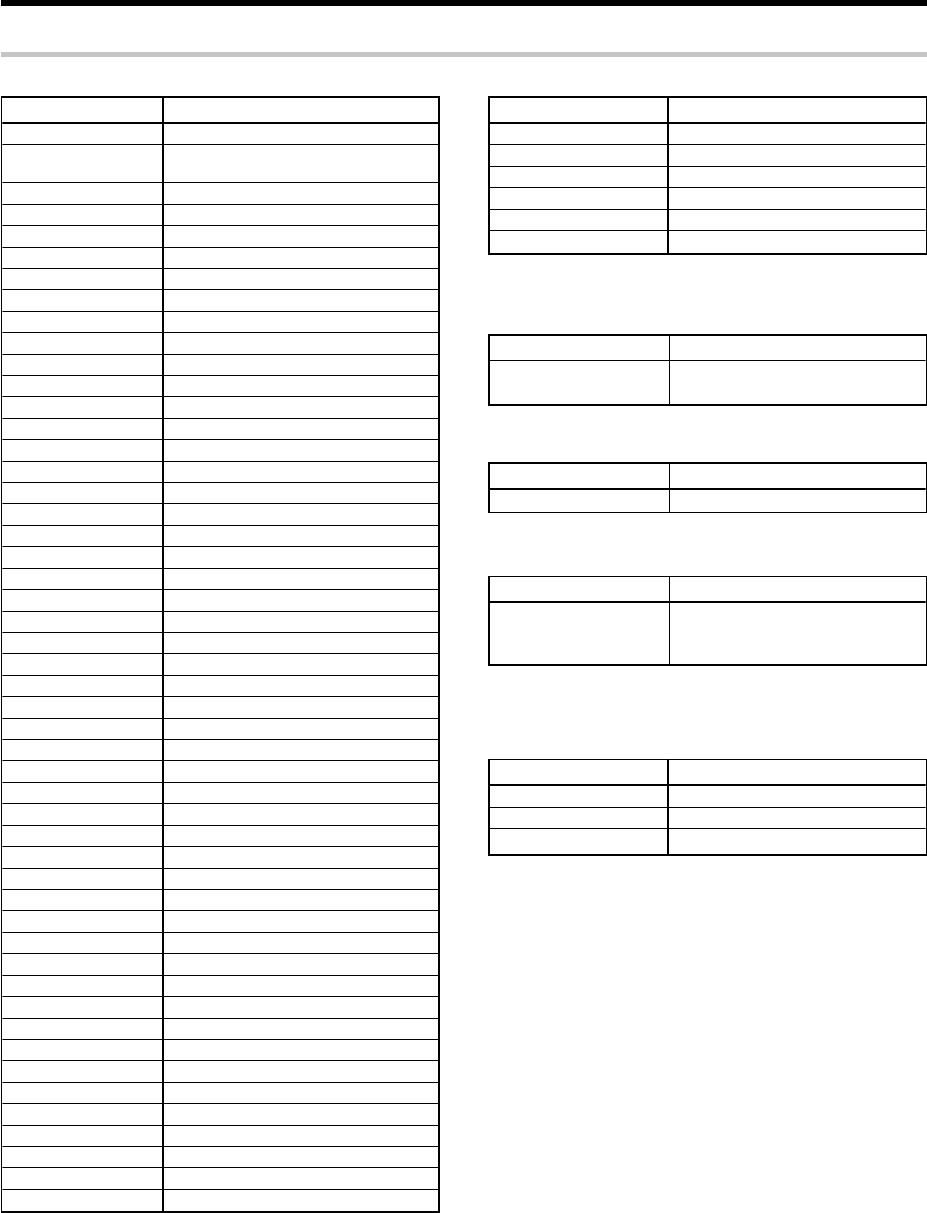
38 EN
Maker Setup Codes
Aiwa 0641
Apex Digital 0672, 0717, 0755, 0794, 0795, 0796,
0797, 0830
Blue Parade 0571
DVD2000 0521
Daewoo 0784
Denon 0490, 0634
Emerson 0591
Enterprise 0591
Fisher 0670
GE 0522, 0717, 0815
GPX 0769
Go Video 0715
Gradiente 0651
Greenhill 0717
Harman/Kardon 0582, 0702
Hitachi 0573, 0664
Hiteker 0672
JBL 0702
JVC 0558, 0623
KLH 0717
Kenwood 0490, 0534, 0682
Konka 0711
Koss 0651
Magnavox 0503, 0675
Marantz 0539
Microsoft 0522
Mintek 0717
Mitsubishi 0521
Nesa 0717
Onkyo 0503
Oritron 0651
Panasonic 0490, 1490
Philips 0503, 0539, 0646
Pioneer 0525, 0571
Polk Audio 0539
Proscan 0522
RCA 0522, 0571, 0717
Rowa 0823
Sampo 0698
Samsung 0573
Sanyo 0670
Shinsonic 0533
Sony 0533
Sylvania 0675
Technics 0490
Theta Digital 0571
Toshiba 0503
Urban Concepts 0503
Yamaha 0490, 0539, 0545
Zenith 0503, 0591
Basic remote control operations for other components
Maker Setup Codes
Kenwood 0070, 0071, 0092, 0183, 0205, 0233,
0234, 0251, 0386
Setup code chart
DTV decoders setup codes
Receiver setup codes
Cassette deck Setup codes
Maker Setup Codes
Kenwood 1570
Maker Setup Codes
Panasonic 1120
Pioneer 1010
Princeton 0113, 0295
Samsung 1190
Sensory Science 1126
Sharp 1010
DVD player Setup codes
Setup codes for Kenwood components with System Control
connection
Component Setup Codes
CD 1338
MD 1339
Cassette deck 1340
CD and MD players setup codes
Maker Setup Codes
Kenwood 0028, 0037, 0190, 0338, 0339, 0340,
0523, 0626, 0677, 0681, 0826, 0858,
0859, 1490
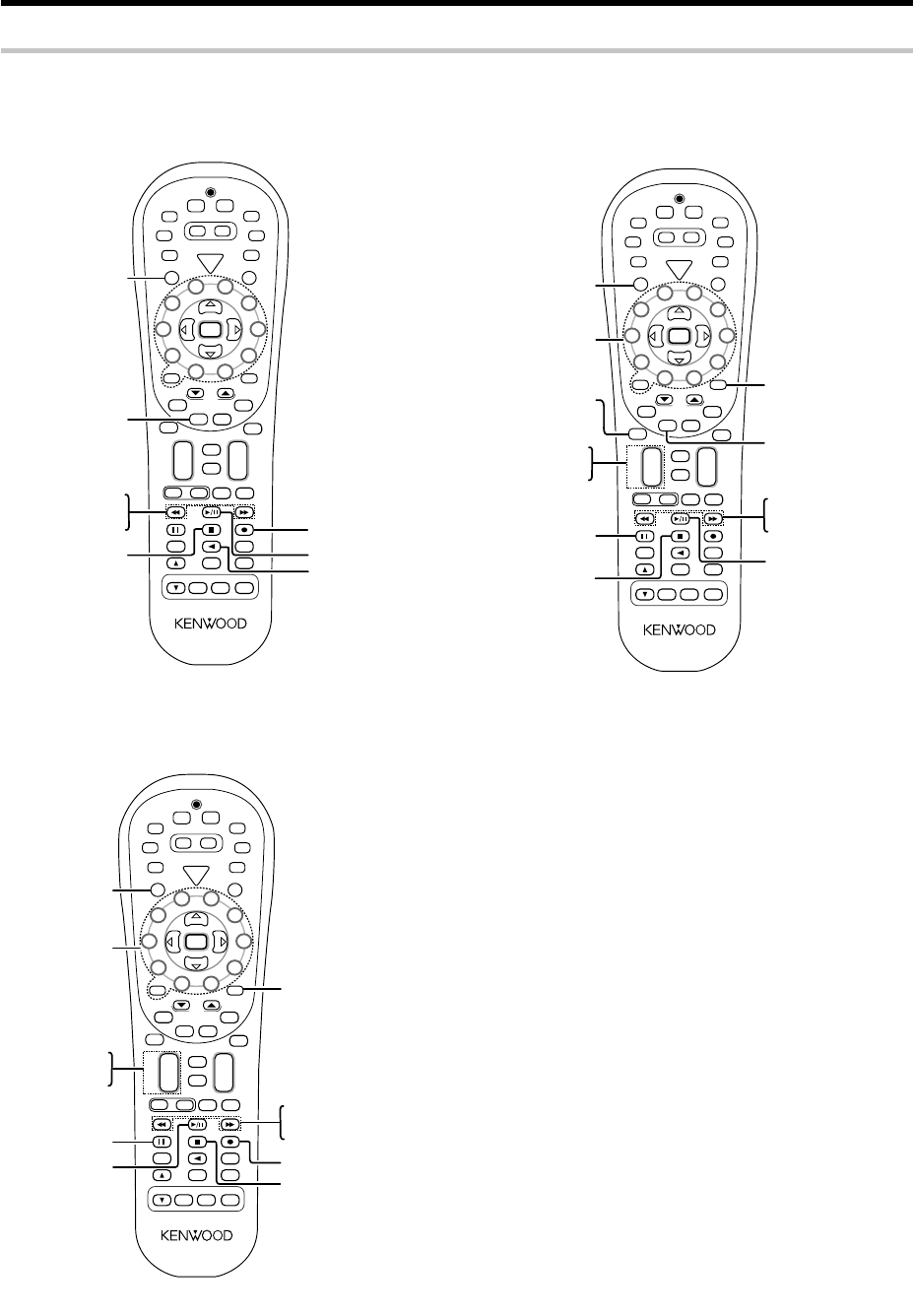
39 EN
Basic remote control operations for other components
CASSETTE deck, CD player & MD recorder operations
You can perform these basic operations using the keys described below when connected to KENWOOD cassette deck, CD player or MD recorder
equipped with system control operations. &
Cassette deck operations keys CD player operation keys
MD recorder operation keys
S
R
C
P
o
w
e
r
T
V
P
o
w
e
r
5
6
8
9
4
3
2
1
0
7
Tune –Tune +
Dimmer
Band
Setup
Top Menu
Auto
Info
/
Flip
Input
Mode
Loudness
Active
EQ
Remote
Setup
Sound
Tone
TV Input
Bass
Boost
TV
VOL
Mute
4
¢
CH
+
–
VOL
+
–
Disc Skip
Menu
Disc Sel.
OSD
Guide
Return
Exit
Page
TV Mute
Last
/
A/B
+ 10 +
100
Multi
Multi
P. Call
P. Call
Enter
TV
PHONO
POWER
RCVR
VID2
VID1
DVD
6CH
CD
DVD
MD
TAPE
+
–
TUNER
AV AUX
VID3
Stereo
Listen Mode
DSP
Mode
Speaker
EQ
Input Sel.
REMOTE CONTROL UNIT RC-R0823
1 (Rewind)
¡ (Fast Forward)
7 (Stop)
3
/
8
(3 Play)
A/B
(Cassette Deck
selection)
2 (Reverse play)
SRC Power
(Source power)
¶
(Record)
S
R
C
P
o
w
e
r
T
V
P
o
w
e
r
5
6
8
9
4
3
2
1
0
7
Tune –Tune +
Dimmer
Band
Setup
Top Menu
Auto
Info
/
Flip
Input
Mode
Loudness
Active
EQ
Remote
Setup
Sound
Tone
TV Input
Bass
Boost
TV
VOL
Mute
4
¢
CH
+
–
VOL
+
–
Disc Skip
Menu
Disc Sel.
OSD
Guide
Return
Exit
Page
TV Mute
Last
/
A/B
+ 10 +
100
Multi
Multi
P. Call
P. Call
Enter
TV
PHONO
POWER
RCVR
VID2
VID1
DVD
6CH
CD
DVD
MD
TAPE
+
–
TUNER
AV AUX
VID3
Stereo
Listen Mode
DSP
Mode
Speaker
EQ
Input Sel.
REMOTE CONTROL UNIT RC-R0823
Numeric keys
(Select tracks)
1 (Search)
¡ (Search)
7 (Stop)
3/
8
(Play/pause)
¢ (Skip up)
4 (Skip down)
Disc sel.
(Disc selection)
SRC Power
(Source power)
8 (Pause)
+100
(Select tracks)
Disc skip
S
R
C
P
o
w
e
r
T
V
P
o
w
e
r
5
6
8
9
4
3
2
1
0
7
Tune –Tune +
Dimmer
Band
Setup
Top Menu
Auto
Info
/
Flip
Input
Mode
Loudness
Active
EQ
Remote
Setup
Sound
Tone
TV Input
Bass
Boost
TV
VOL
Mute
4
¢
CH
+
–
VOL
+
–
Disc Skip
Menu
Disc Sel.
OSD
Guide
Return
Exit
Page
TV Mute
Last
/
A/B
+ 10 +
100
Multi
Multi
P. Call
P. Call
Enter
TV
PHONO
POWER
RCVR
VID2
VID1
DVD
6CH
CD
DVD
MD
TAPE
+
–
TUNER
AV AUX
VID3
Stereo
Listen Mode
DSP
Mode
Speaker
EQ
Input Sel.
REMOTE CONTROL UNIT RC-R0823
Numeric keys
(Select tracks)
3
/
8
(3 Play)
+100
(Select tracks)
1 (Search)
¡ (Search)
¢ (Skip up)
4 (Skip down)
SRC Power
(Source power)
¶ (Record)
7 (Stop)
8
(Pause)
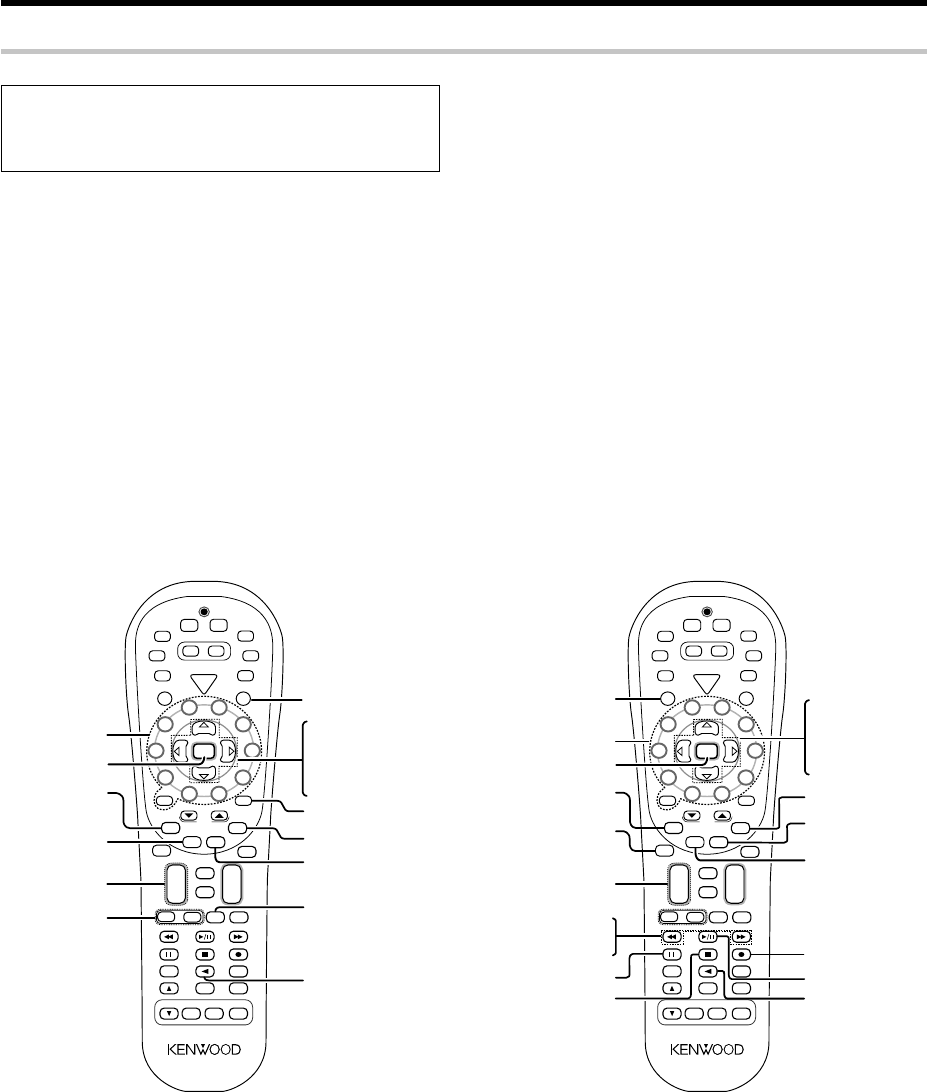
40 EN
Basic remote control operations for other components
Other components’ operations
Refer to the following for the type of remote control operations available for each component.
•When pressing keys in succession, press each key firmly and be sure
to wait at least 1 second before pressing the next key.
•Numeric keys function the same as the numeric keys on the original
remote.
These keys can be used to perform the basic operations of KENWOOD and other manufacturers’ components which the setup code for each
component had been entered beforehand. fi
TV operation keys VCR operation keys
1Select the input source.
2Press the keys corresponding to the operations you desire.
Refer to the following sections for details.
S
R
C
P
o
w
e
r
T
V
P
o
w
e
r
5
6
8
9
4
3
2
1
0
7
Tune –Tune +
Dimmer
Band
Setup
Top Menu
Auto
Info
/
Flip
Input
Mode
Loudness
Active
EQ
Remote
Setup
Sound
Tone
TV Input
Bass
Boost
TV
VOL
Mute
4
¢
CH
+
–
VOL
+
–
Disc Skip
Menu
Disc Sel.
OSD
Guide
Return
Exit
Page
TV Mute
Last
/
AB
+ 10 +
100
Multi
Multi
P. Call
P. Call
Enter
TV
PHONO
POWER
RCVR
VID2
VID1
DVD
6CH
CD
DVD
MD
TAPE
+
–
TUNER
AV AUX
VID3
Stereo
Listen Mode
DSP
Mode
Speaker
EQ
Input Sel.
REMOTE CONTROL UNIT RC-R0823
TV Power
TV mute
TV Input
Enter
Guide
CH + / –
(Channel + / –)
Numeric keys %(Cursor up)
fi(Cursor down)
@(Cursor left)
#(Cursor right)
Menu
Exit
TV VOL
2(Display)
LAST
(Last channel)
S
R
C
P
o
w
e
r
T
V
P
o
w
e
r
5
6
8
9
4
3
2
1
0
7
Tune –Tune +
Dimmer
Band
Setup
Top Menu
Auto
Info
/
Flip
Input
Mode
Loudness
Active
EQ
Remote
Setup
Sound
Tone
TV Input
Bass
Boost
TV
VOL
Mute
4
¢
CH
+
–
VOL
+
–
Disc Skip
Menu
Disc Sel.
OSD
Guide
Return
Exit
Page
TV Mute
Last
/
AB
+ 10 +
100
Multi
Multi
P. Call
P. Call
Enter
TV
PHONO
POWER
RCVR
VID2
VID1
DVD
6CH
CD
DVD
MD
TAPE
+
–
TUNER
AV AUX
VID3
Stereo
Listen Mode
DSP
Mode
Speaker
EQ
Input Sel.
REMOTE CONTROL UNIT RC-R0823
SRC Power
(Source power)
Numeric keys
1
(Rewind)
¡
(Fast Forward)
8 (Pause)
3
/
8
(3 Play)
7 (Stop)
¶
(Record)
Enter
Exit
Input Sel.
(Input selection)
CH + / –
(Channel + / –)
2
(Display)
Guide
Last
(Last channel)
Menu
%(Cursor up)
fi(Cursor down)
@(Cursor left)
#(Cursor right)
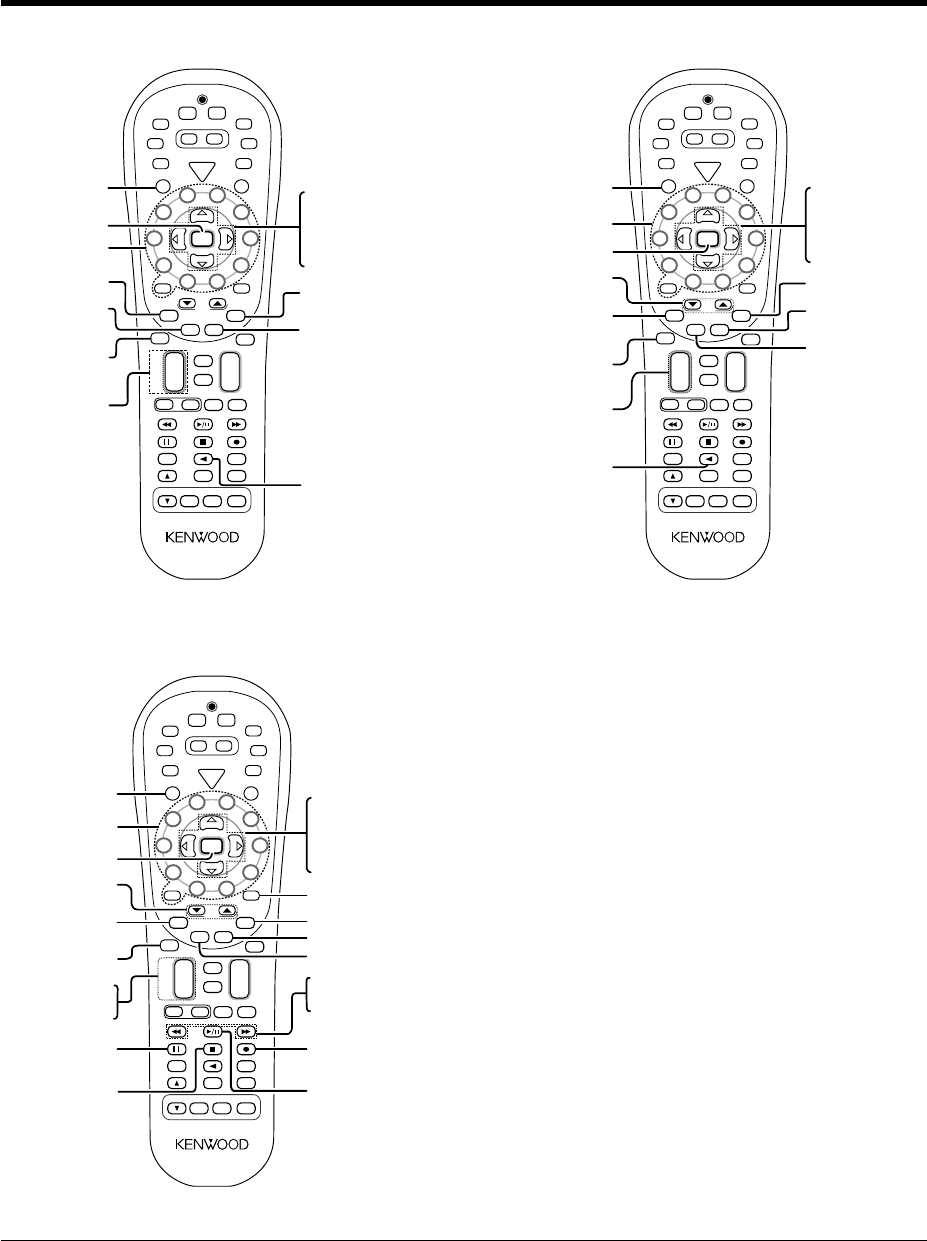
41 EN
Basic remote control operations for other components
DSS operation keys Cable operation keys
DVD player operation keys
S
R
C
P
o
w
e
r
T
V
P
o
w
e
r
5
6
8
9
4
3
2
1
0
7
Tune –Tune +
Dimmer
Band
Setup
Top Menu
Auto
Info
/
Flip
Input
Mode
Loudness
Active
EQ
Remote
Setup
Sound
Tone
TV Input
Bass
Boost
TV
VOL
Mute
4
¢
CH
+
–
VOL
+
–
Disc Skip
Menu
Disc Sel.
OSD
Guide
Return
Exit
Page
TV Mute
Last
/
AB
+ 10 +
100
Multi
Multi
P. Call
P. Call
Enter
TV
PHONO
POWER
RCVR
VID2
VID1
DVD
6CH
CD
DVD
MD
TAPE
+
–
TUNER
AV AUX
VID3
Stereo
Listen Mode
DSP
Mode
Speaker
EQ
Input Sel.
REMOTE CONTROL UNIT RC-R0823
SRC Power
(Source power)
Numeric keys
%(Cursor up)
fi(Cursor down)
@(Cursor left)
#(Cursor right)
Enter
Menu
CH + / –
(Channel + / –)
Last
(Last channel)
Exit
Info
(Information)
Guide
Input Sel.
(Input selection)
S
R
C
P
o
w
e
r
T
V
P
o
w
e
r
5
6
8
9
4
3
2
1
0
7
Tune –Tune +
Dimmer
Band
Setup
Top Menu
Auto
Info
/
Flip
Input
Mode
Loudness
Active
EQ
Remote
Setup
Sound
Tone
TV Input
Bass
Boost
TV
VOL
Mute
4
¢
CH
+
–
VOL
+
–
Disc Skip
Menu
Disc Sel.
OSD
Guide
Return
Exit
Page
TV Mute
Last
/
AB
+ 10 +
100
Multi
Multi
P. Call
P. Call
Enter
TV
PHONO
POWER
RCVR
VID2
VID1
DVD
6CH
CD
DVD
MD
TAPE
+
–
TUNER
AV AUX
VID3
Stereo
Listen Mode
DSP
Mode
Speaker
EQ
Input Sel.
REMOTE CONTROL UNIT RC-R0823
SRC Power
(Source power)
CH + / –
(Channel + / –)
Numeric Keys
Enter
Exit
Input Sel.
(Input selection)
Page ∞/5
(Page down or up)
Info
(Information)
Guide
Last
(Last channel)
Menu
%(Cursor up)
fi(Cursor down)
@(Cursor left)
#(Cursor right)
S
R
C
P
o
w
e
r
T
V
P
o
w
e
r
5
6
8
9
4
3
2
1
0
7
Tune –Tune +
Dimmer
Band
Setup
Top Menu
Auto
Info
/
Flip
Input
Mode
Loudness
Active
EQ
Remote
Setup
Sound
Tone
TV Input
Bass
Boost
TV
VOL
Mute
4
¢
CH
+
–
VOL
+
–
Disc Skip
Menu
Disc Sel.
OSD
Guide
Return
Exit
Page
TV Mute
Last
/
AB
+ 10 +
100
Multi
Multi
P. Call
P. Call
Enter
TV
PHONO
POWER
RCVR
VID2
VID1
DVD
6CH
CD
DVD
MD
TAPE
+
–
TUNER
AV AUX
VID3
Stereo
Listen Mode
DSP
Mode
Speaker
EQ
Input Sel.
REMOTE CONTROL UNIT RC-R0823
SRC Power
(Source power)
Numeric keys
(Select tracks)
¢ Skip up
4 Skip down
Top Menu
(Title)
Return OSD
(On Screen Display)
1 (Search)
¡ (Search)
8 (Pause)
7 (Stop)
3
/
8
(3 Play)
Enter
%(Cursor up)
fi(Cursor down)
@(Cursor left)
#(Cursor right)
Disc Sel.
(Disc selection)
Page ∞/5
(Page down or up)
+ 100
Menu
Disc Skip
Notes
1. Certain codes may only operate some of the function available on a given model.
2. The above show the typical type functions available for each component. Some manufacturers use different key combinations to perform similar
functions. For that reason, we have programmed extra functions on some of the unused number keys to help you control your equipment.
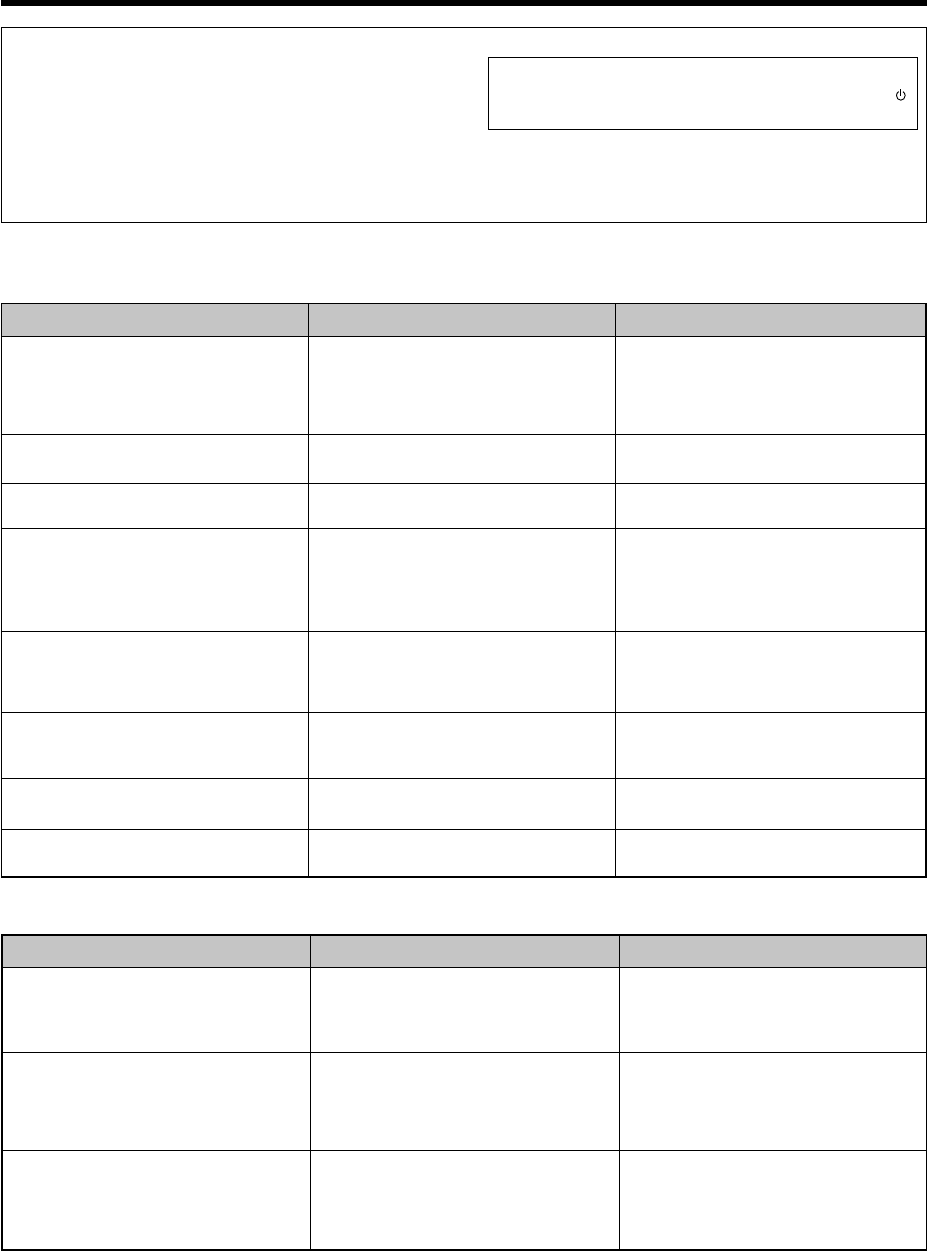
42 EN
In case of difficulty
Tuner
Cause
•No antenna is connected.
•The broadcast band is not set properly.
•The frequency of the desired station is not
tuned.
•Noise due to ignition noise from an automobile.
•Noise due to interference from an electric
appliance.
•Noise due to a nearby TV set.
•The preset station belongs to a frequency that
cannot be received.
•The preset memory was cleared because the
power cord had been unplugged for a long
period of time.
Remedy
•Connect an antenna. ^
•Set the broadcast band properly.
•Tune the frequency of the desired station.
¢
•Install the outdoor antenna away from the
road.
•Turn off the power to the appliance.
•Install the receiver farther away from the TV.
•Preset a station with a receivable frequency.
•Preset the station again.
Symptom
Radio stations cannot be received.
Interference.
A station which was preset cannot be
received by pressing the corresponding
numeric key.
Amplifier
Cause
•The speaker cords are disconnected.
•VOLUME is set to the minimum position.
•MUTE is ON.
•The SPEAKERS switches are set to OFF.
•Speaker cords are short-circuited.
•The speaker cord is disconnected.
•The surround speaker cords and/or the center
speaker cord is disconnected.
•A surround mode has not been engaged.
•The surround and/or center volume controls
are set to the minimum level.
•The audio cord from the record player is not
connected to the PHONO jacks.
•The record player is not grounded.
•There are many possible causes for this
problem, depending on the type of DVD player
used.
• The input mode is set to digital manual.
• The software is copy-guarded.
Remedy
•Connect them properly referring to
“Connecting the speakers”%
•Adjust the volume to a proper level.
•Turn OFF the MUTE. ™
•Set the SPEAKERS switches to ON. )
•Turn the power off, eliminate the short-
circuiting, then turn on the power again.
•Connect it properly referring to “Connecting
the speakers”.%
•Connect it properly referring to “Connecting
the speakers”.%
•Select a surround mode.
•Adjust the speaker levels using the test tone.
¡
•Insert the audio cord plugs securely into the
PHONO jacks.
•Connect the grounding wire to the GND
terminal on the rear panel.
• Set the input mode to digital manual before
starting playback of the Dolby Digital source.
8
• Press the INPUT MODE key to select to full
auto mode. 8
•Copy-guarded video software cannot be
recorded.
Symptom
No sound from the speakers.
The standby indicator blinks and sound is
not output.
Sound is not output from one of the speakers.
Sound is not output from the surround
speakers and / or the center speaker, or their
sound is very small.
A humming noise is generated when the
PHONO input selector is selected.
When playing a Dolby Digital source signal
using a DVD player, the sound is cut off soon
after it starts.
No sound is produced during playback from
a DVD player.
A video source cannot be recorded
normally.
Resetting the Microcomputer
The microcomputer may malfunction (unit cannot be operated, or
shows an erroneous display) if the power cord is unplugged while
the power is ON, or due to some other external factor. If this
happens, execute the following procedure to reset the
microcomputer and return the unit to its normal operating
condition.
Unplug the power cord from the wall outlet, then plug it
back in while holding down the POWER ON/STANDBY
key.
•Please note that resetting the microcomputer will clear the contents
of the memory and returns the unit to the state it was in when it left
the factory.
43 EN
Remote control unit
Cause
•No setup codes registered for the respective
input(s).
•The remote control is set to a different operation
mode.
•Batteries are exhausted.
•The remote control unit is too far away from
the main system, controlling angle is too large,
or there is an obstacle between the receiver
and the remote.
•The audio cords and system control cords are
not connected properly.
•No tape or CD is placed in the source
component.
•An attempt is made to play a tape which is
being recorded in the cassette deck.
•The remote control has not been set to the
operation mode for the component you wish
to control.
Remedy
•Register a setup code at the respective input(s).
fi
•Press any of the Input Selector keys to select
the appropriate operation mode.
•Replace with new batteries.
•Operate the remote control unit within the
controllable range.
•Connect properly referring to “Setting up the
system”.
•Place the tape or CD in the source component
which you want to play.
•Wait until recording has completed.
•Press any of the source keys or SRC Power
key to activate the operation mode for the
component you want to control before
operation. ›
Symptom
Certain inputs cannot be selected using the
remote control.
Remote control operation is not possible.
In case of difficulty
44 EN
For your records
Record the serial number, found on the back of the unit, in the spaces
designated on the warranty card, and in the space provided below. Refer
to the model and serial numbers whenever you call upon your dealer for
information or service on this product.
Model__________________ Serial Number ________________________
Notes
1. KENWOOD follows a policy of continuous advancements in development. For this reason specifications may be changed without notice.
2. The full performance may not be exhibited in an extremely cold location (under a water-freezing temperature).
Specifications
AUDIO section
Rated power output during STEREO operation
Effective power output during SURROUND operation
FRONT (20 ~ 20 kHz, 0.09 % T.H.D. at 8 Ω one channel driven)
............................................................................... 100 W + 100 W
CENTER (20 ~ 20 kHz, 0.09 % T.H.D. at 8 Ω one channel
driven) .................................................................................. 100 W
SURROUND (20 ~ 20 kHz, 0.7 % T.H.D. at 8 Ω one channel
driven) ................................................................... 100 W + 100 W
SURROUND BACK/SUBWOOFER (20 ~ 20 kHz, 0.09 % T.H.D.
at 8 Ω one channel driven) ................................................. 100 W
Total harmonic distortion .......................0.009 % (1 kHz, 50 W, 8 Ω)
Frequency response
(CD/DVD, TAPE, VIDEO 1, VIDEO 2, VIDEO 3, DVD/6CH) ........
................................................. 10 Hz ~ 100 kHz, +0 dB ~ –3.0 dB
PHONO ‘RIAA’ response ..............40 Hz ~ 20 kHz, +1.5 dB ~ –3.0 dB
Maximum input level
PHONO (MM) .................................... 45 mV, 1 % T.H.D. at 1 kHz
Signal to noise ratio (IHF’66)
PHONO (MM) ........................................................................ 75 dB
(CD/DVD, TAPE, VIDEO 1, VIDEO 2, VIDEO 3, DVD/6CH) .........
............................................................................................... 95 dB
Loudness control
VOLUME at –30 dB level ...................................... +6 dB (100 Hz)
Input sensitivity / impedance
PHONO (MM) ........................................................ 6.0 mV / 47 kΩ
(CD/DVD, TAPE, VIDEO 1, VIDEO 2, VIDEO 3, DVD/6CH) .........
.............................................................................. 500 mV / 47 kΩ
Output level / impedance
TAPE REC ............................................................... 500 mV / 1 kΩ
PRE OUT (SURROUND BACK CHANNEL) .................. 1 V / 1 kΩ
PRE OUT (SUBWOOFER) .............................................1 V / 1 kΩ
Tone control
BASS ................................................................ ±10 dB (at 100 Hz)
TREBLE ............................................................ ±10 dB (at 10 kHz)
DIGITAL AUDIO section
Sampling frequency ...................... 32 kHz, 44.1 kHz, 48 kHz, 96 kHz
Input level / impedance / wave length
Optical ........................... (–15 dBm ~ –24 dBm), 660 nm ±30 nm
Coaxial ................................................................... 0.5 Vp-p / 75 Ω
100 watts per channel minimum RMS, both channels driven,
at 8 Ω from 20 Hz to 20 kHz with no more than 0.09% total
harmonic distortion. (FTC)
VIDEO section
VIDEO inputs / outputs
VIDEO (composite) .................................................. 1 Vp-p / 75 Ω
S VIDEO inputs /outputs
S VIDEO (luminance signal) ................................... 1 Vp-p / 75 Ω
S VIDEO (chrominance signal) ....................... 0.286 Vp-p / 75 Ω
COMPONENT VIDEO inputs /outputs
COMPONENT VIDEO (luminance signal) .............. 1 Vp-p / 75 Ω
COMPONENT VIDEO (CB/CR-signal) ............ ±0.32 Vp-p / 75 Ω
FM tuner section
Tuning frequency range ................................. 87.5 MHz ~ 108.0 MHz
Usable sensitivity (MONO) ..................................................................
......................... 1.3 µV (75 Ω)/ 13.2 dBf (75 kHz dev, SINAD 30 dB)
50 dB quieting sensitivity
STEREO ..................................................... 28 µV (75 Ω)/ 40.2 dBf
Total harmonic distortion
MONO (1 kHz, 75 kHz dev) .......................... 0.5% (65 dBf input)
STEREO (1 kHz, 67.5 + 6.75 kHz dev) ......... 0.7% (65 dBf input)
Signal to noise ratio
MONO (1 kHz, 75 kHz dev) ........................ 75 dB (65 dBf input)
STEREO (1 kHz, 67.5 + 6.75 kHz dev) ....... 68 dB (65 dBf input)
Stereo separation (1 kHz) ........................................................... 40 dB
Selectivity (±400 kHz) ................................................................. 70 dB
Frequency response (30 Hz ~ 15 kHz) .................... +0.5 dB, –3.0 dB
AM tuner section
Tuning frequency range
10 kHz step .................................................. 530 kHz ~ 1,700 kHz
Usable sensitivity (30% mod, S/N 20 dB) ..........................................
................................................................................ 16 µV / (600 µV/m)
Signal to noise ratio (30% mod, 400 Hz) ............................................
.................................................................. 50 dB (60 dBµV EMF input)
GENERAL
Power consumption ...................................................................... 3 A
AC outlet
SWITCHED ......................................... (total 150 W, 1.25 A max.)
Dimensions ..................................................... W : 440 mm (17-5/16")
H : 159 mm (6-1/4")
D : 392 mm (15-7/16")
Weight (Net) .............................................................. 9.4 kg (20.7 lb)
Caution : Read this page carefully to ensure safe
operation.
