Keurig KAEFUHRVI1G200 Coffee Brewer User Manual Manual

Keurig Inc Coffee Brewer Manual

Manual

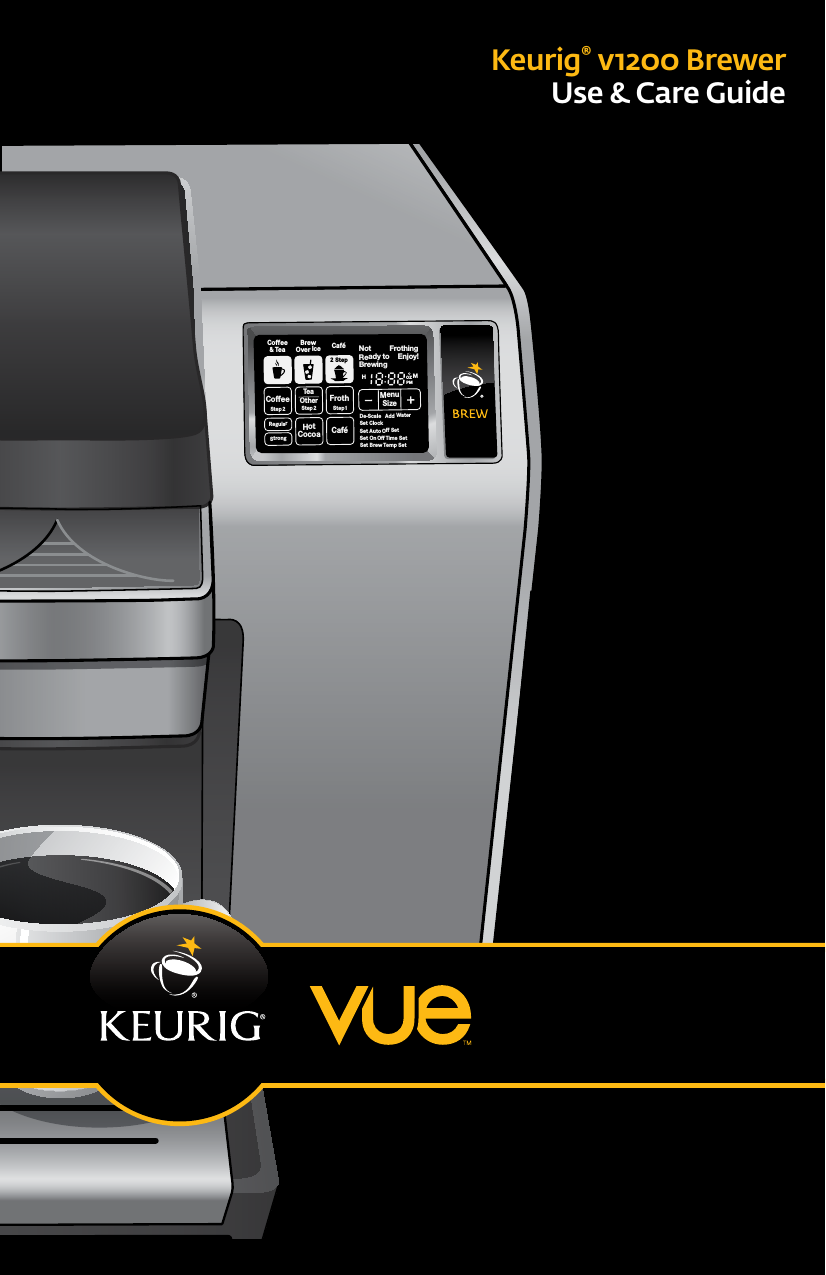
Keurig® v1200 BrewerUse & Care GuideCoffeeStep2 Step2RegularCaféStrongHotCocoaTeaOtherFrothStep1Ready toNot BrewingPMOZMHSizeFrothingEnjoy!De-ScaleSet ClockSet Auto Off SetSet On Off Time SetSet Brew Temp SetMenuAdd WaterCoffee& TeaBrewOver Ice Café2 Step
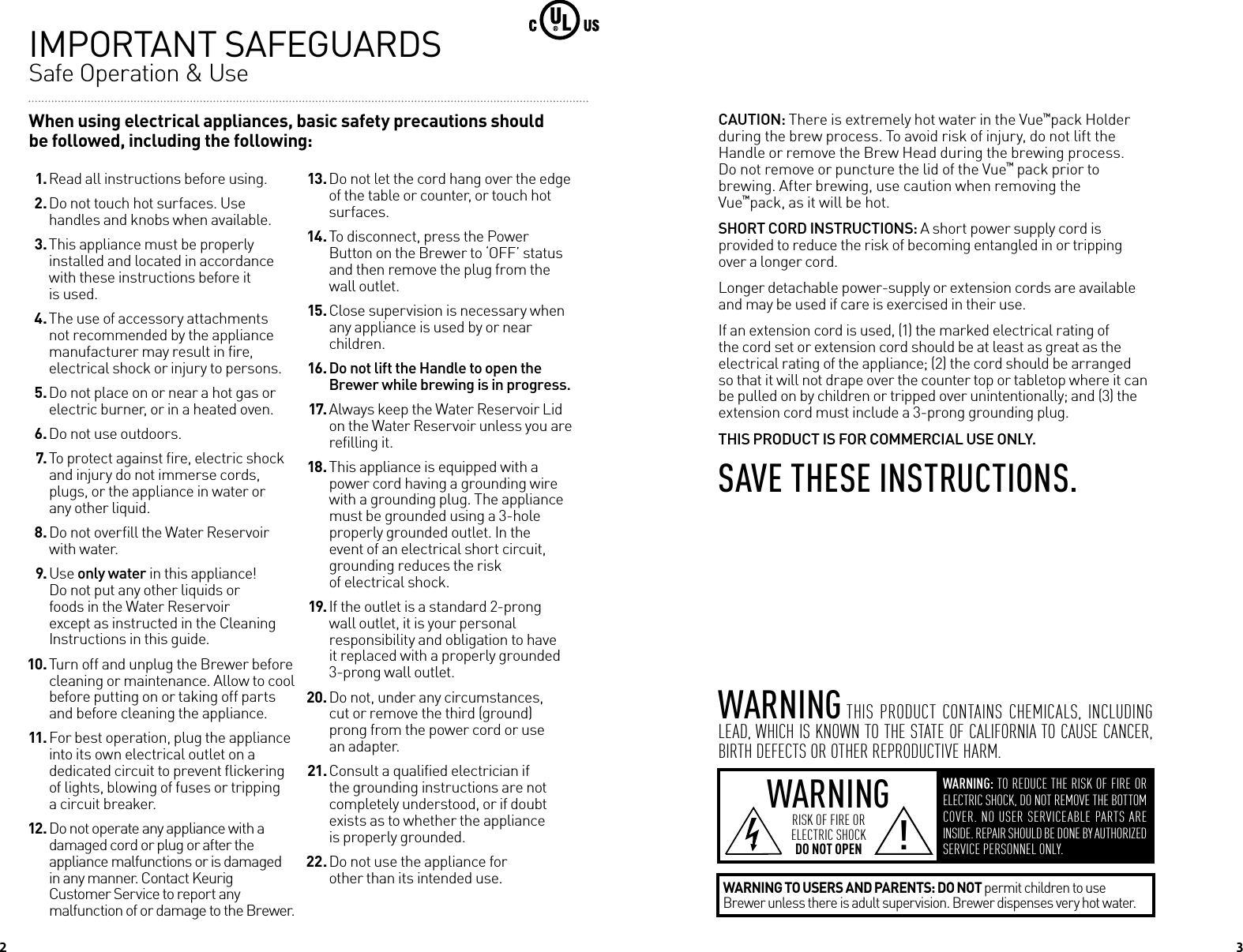
2When using electrical appliances, basic safety precautions should be followed, including the following:IMPORTANT SAFEGUARDS  Safe Operation & Use 1. Read all instructions before using. 2. Do not touch hot surfaces. Use handles and knobs when available. 3. This appliance must be properly installed and located in accordance with these instructions before it  is used. 4. The use of accessory attachments not recommended by the appliance manufacturer may result in fire,  electrical shock or injury to persons. 5. Do not place on or near a hot gas or electric burner, or in a heated oven. 6. Do not use outdoors. 7. To protect against fire, electric shock and injury do not immerse cords, plugs, or the appliance in water or  any other liquid. 8. Do not overfill the Water Reservoir with water. 9. Use only water in this appliance! Do not put any other liquids or  foods in the Water Reservoir  except as instructed in the Cleaning  Instructions in this guide. 10. Turn off and unplug the Brewer before cleaning or maintenance. Allow to cool before putting on or taking off parts and before cleaning the appliance. 11. For best operation, plug the appliance into its own electrical outlet on a dedicated circuit to prevent flickering of lights, blowing of fuses or tripping  a circuit breaker. 12. Do not operate any appliance with a damaged cord or plug or after the  appliance malfunctions or is damaged in any manner. Contact Keurig  Customer Service to report any malfunction of or damage to the Brewer. 13. Do not let the cord hang over the edge of the table or counter, or touch hot surfaces. 14. To disconnect, press the Power Button on the Brewer to ‘OFF’ status and then remove the plug from the wall outlet. 15. Close supervision is necessary when any appliance is used by or near children. 16. Do not lift the Handle to open the Brewer while brewing is in progress. 17. Always keep the Water Reservoir Lid on the Water Reservoir unless you are refilling it. 18. This appliance is equipped with a power cord having a grounding wire with a grounding plug. The appliance must be grounded using a 3-hole properly grounded outlet. In the event of an electrical short circuit, grounding reduces the risk  of electrical shock. 19. If the outlet is a standard 2-prong wall outlet, it is your personal responsibility and obligation to have it replaced with a properly grounded 3-prong wall outlet. 20. Do not, under any circumstances, cut or remove the third (ground)  prong from the power cord or use  an adapter. 21. Consult a qualified electrician if the grounding instructions are not completely understood, or if doubt exists as to whether the appliance  is properly grounded. 22. Do not use the appliance for other than its intended use.WARNING WARNING: TO REDUCE THE RISK OF FIRE OR ELECTRIC SHOCK, DO NOT REMOVE THE BOTTOM COVER. NO USER SERVICEABLE PARTS ARE INSIDE. REPAIR SHOULD BE DONE BY AUTHORIZED SERVICE PERSONNEL ONLY.RISK OF FIRE OR  ELECTRIC SHOCK  DO NOT OPEN !WARNING TO USERS AND PARENTS: DO NOT permit children to use Brewer unless there is adult supervision. Brewer dispenses very hot water.WARNING THIS  PRODUCT  CONTAINS  CHEMICALS,  INCLUDING LEAD, WHICH IS KNOWN TO THE STATE OF CALIFORNIA TO CAUSE CANCER, BIRTH DEFECTS OR OTHER REPRODUCTIVE HARM.CAUTION: There is extremely hot water in the Vue™pack Holder during the brew process. To avoid risk of injury, do not lift the Handle or remove the Brew Head during the brewing process. Do not remove or puncture the lid of the Vue™ pack prior to brewing. After brewing, use caution when removing the  Vue™pack, as it will be hot.SHORT CORD INSTRUCTIONS: A short power supply cord is provided to reduce the risk of becoming entangled in or tripping over a longer cord.Longer detachable power-supply or extension cords are available and may be used if care is exercised in their use. If an extension cord is used, (1) the marked electrical rating of the cord set or extension cord should be at least as great as the electrical rating of the appliance; (2) the cord should be arranged so that it will not drape over the counter top or tabletop where it can be pulled on by children or tripped over unintentionally; and (3) the extension cord must include a 3-prong grounding plug.THIS PRODUCT IS FOR COMMERCIAL USE ONLY.SAve TheSe INSTRucTIoNS.    3
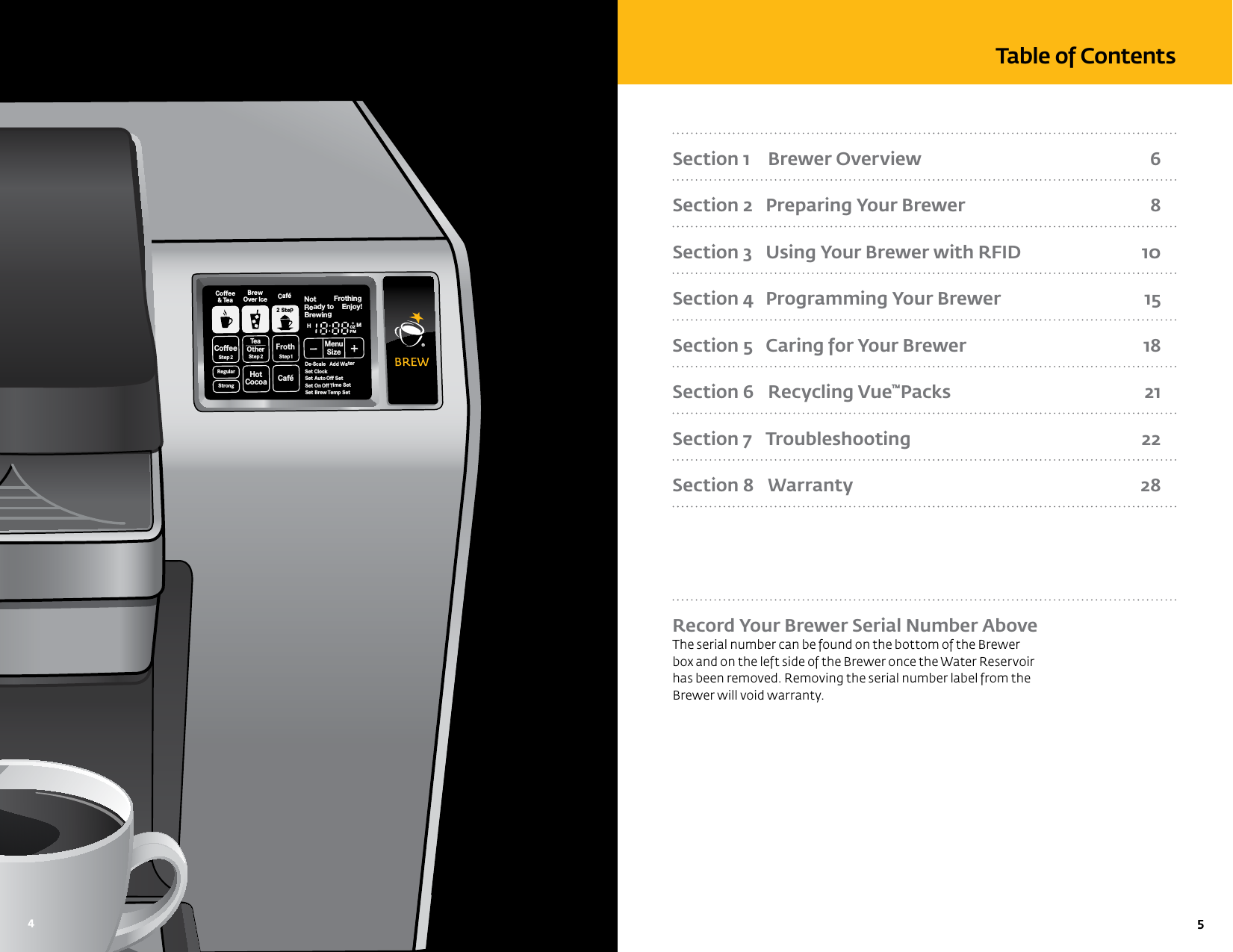
  5 Section 1    Brewer Overview  6Section 2   Preparing Your Brewer  8Section 3   Using Your Brewer with RFID  10Section 4   Programming Your Brewer  15Section 5   Caring for Your Brewer  18Section 6    Recycling Vue™Packs  21Section 7    Troubleshooting  22Section 8   Warranty  28 Record Your Brewer Serial Number Above The serial number can be found on the bottom of the Brewer box and on the left side of the Brewer once the Water Reservoir has been removed. Removing the serial number label from the Brewer will void warranty.Table of ContentsCoffeeStep2 Step2RegularCaféStrongHotCocoaTeaOtherFrothStep1Ready toNot BrewingPMOZMHSizeFrothingEnjoy!De-ScaleSet ClockSet Auto Off SetSet OnOff Time SetSet Brew Temp SetMenuAdd WaterCoffee& TeaBrewOver Ice Café2 Step4
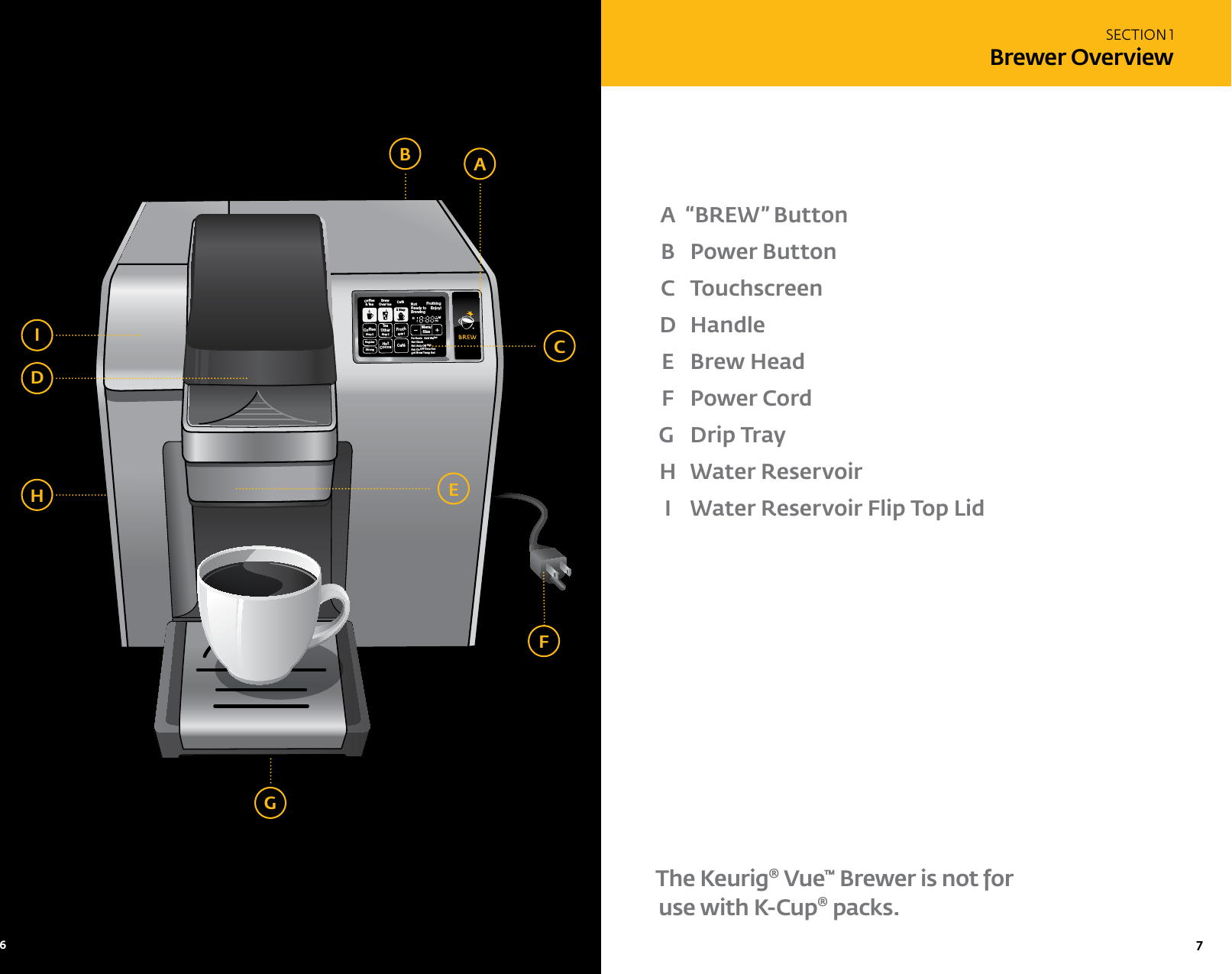
  7 CoffeeStep2 Step2RegularCaféStrongHotCocoaTeaOtherFrothStep1Ready toNot BrewingPMOZMHSizeFrothingEnjoy!De-ScaleSet ClockSet Auto Off SetSet OnOff Time SetSet Brew Temp SetMenuAdd WaterCoffee& TeaBrewOver Ice Café2 StepFHAIDCB A  “BREW” Button B  Power Button  C  Touchscreen D  Handle E  Brew Head F  Power CordG  Drip Tray H  Water Reservoir I  Water Reservoir Flip Top LidThe Keurig® Vue™ Brewer is not for use with K-Cup® packs.SECTION 1Brewer OverviewEG6
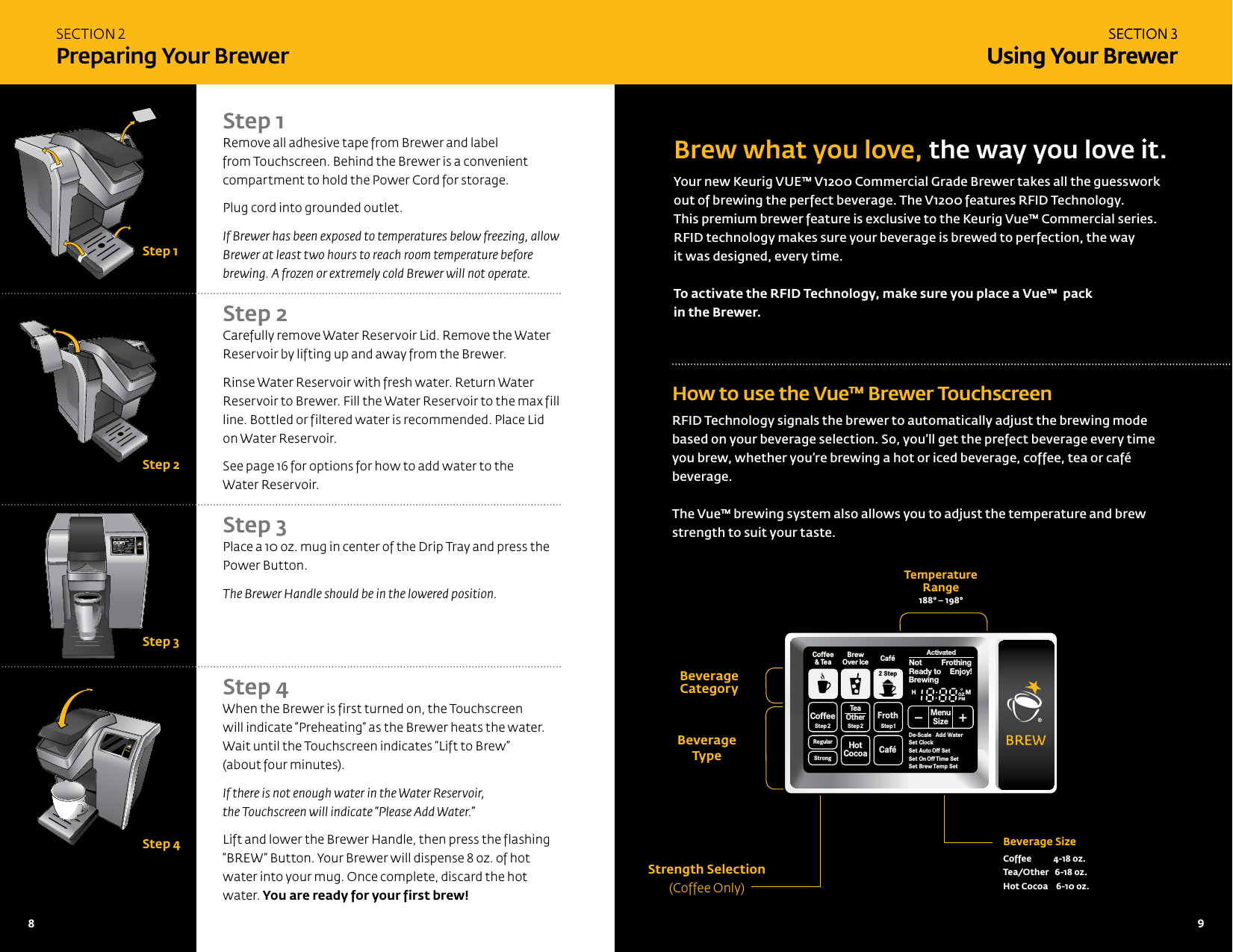
Brew what you love, the way you love it.Your new Keurig VUE™ V1200 Commercial Grade Brewer takes all the guesswork out of brewing the perfect beverage. The V1200 features RFID Technology.  This premium brewer feature is exclusive to the Keurig Vue™ Commercial series.  RFID technology makes sure your beverage is brewed to perfection, the way it was designed, every time. To activate the RFID Technology, make sure you place a Vue™  pack  in the Brewer. How to use the Vue™ Brewer TouchscreenRFID Technology signals the brewer to automatically adjust the brewing mode based on your beverage selection. So, you’ll get the prefect beverage every time you brew, whether you’re brewing a hot or iced beverage, coffee, tea or café beverage.The Vue™ brewing system also allows you to adjust the temperature and brew strength to suit your taste.Strength Selection (Coffee Only)Beverage  Type  Beverage SizeCoffee           4-18 oz.Tea/Other   6-18 oz.Hot Cocoa    6-10 oz.Temperature  Range188° – 198°Beverage   CategoryStep 1Remove all adhesive tape from Brewer and label from Touchscreen. Behind the Brewer is a convenient compartment to hold the Power Cord for storage.Plug cord into grounded outlet.If Brewer has been exposed to temperatures below freezing, allow Brewer at least two hours to reach room temperature before brewing. A frozen or extremely cold Brewer will not operate. Step 2 Carefully remove Water Reservoir Lid. Remove the Water Reservoir by lifting up and away from the Brewer.Rinse Water Reservoir with fresh water. Return Water Reservoir to Brewer. Fill the Water Reservoir to the max fill line. Bottled or filtered water is recommended. Place Lid on Water Reservoir.See page 16 for options for how to add water to the  Water Reservoir.   Step 3 Place a 10 oz. mug in center of the Drip Tray and press the Power Button. The Brewer Handle should be in the lowered position.     Step 4 When the Brewer is first turned on, the Touchscreen  will indicate “Preheating” as the Brewer heats the water. Wait until the Touchscreen indicates “Lift to Brew”  (about four minutes). If there is not enough water in the Water Reservoir,  the Touchscreen will indicate “Please Add Water.”Lift and lower the Brewer Handle, then press the flashing “BREW” Button. Your Brewer will dispense 8 oz. of hot water into your mug. Once complete, discard the hot water. You are ready for your first brew!SECTION 3 Using Your BrewerSECTION 2 Preparing Your BrewerSECTION 3 Using Your BrewerCoffeeStep2 Step2RegularCaféStrongHotCocoaTeaOtherFrothStep1Ready toNot BrewingPMOZMHSizeFrothingEnjoy!De-ScaleSet ClockSet Auto Off SetSet OnOff Time SetSet Brew Temp SetMenuAdd WaterCoffee& TeaBrewOver Ice Café2 StepStep 1Step 2Step 3Step 4CoffeeStep2 Step2RegularCaféStrongHotCocoaTeaOtherFrothStep1Ready toNot BrewingPMOZMHSizeFrothingEnjoy!De-ScaleSet ClockSet Auto Off SetSet OnOff Time SetSet Brew Temp SetMenuAdd WaterCoffee& TeaBrewOver Ice Café2 StepActivated8   9
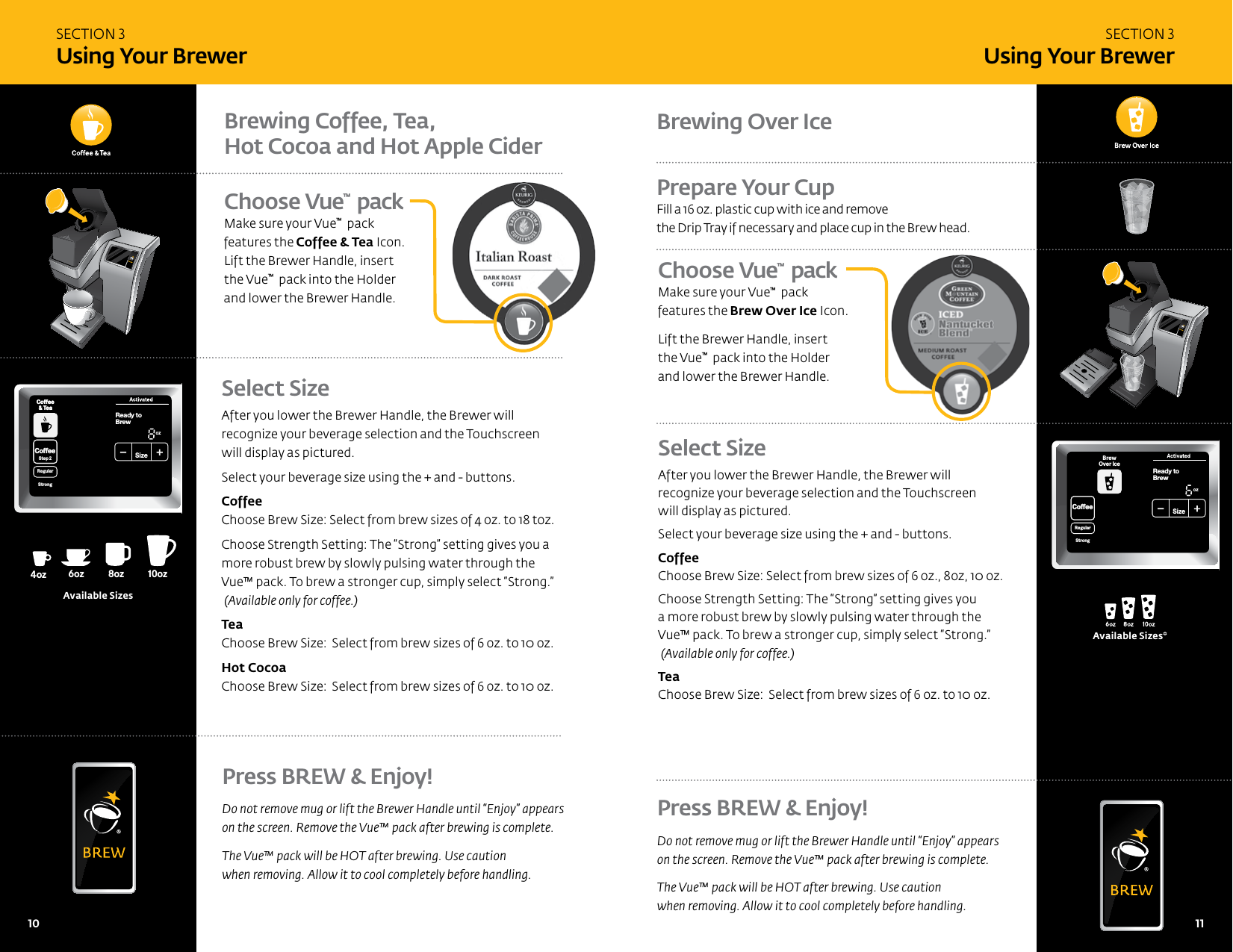
Choose Vue™  pack  Make sure your Vue™  pack features the Brew Over Ice Icon. Lift the Brewer Handle, insert  the Vue™  pack into the Holder and lower the Brewer Handle.Select SizeAfter you lower the Brewer Handle, the Brewer will  recognize your beverage selection and the Touchscreen  will display as pictured. Select your beverage size using the + and - buttons.   Coffee  Choose Brew Size: Select from brew sizes of 4 oz. to 18 toz.Choose Strength Setting: The “Strong” setting gives you a more robust brew by slowly pulsing water through the  Vue™ pack. To brew a stronger cup, simply select “Strong.”  (Available only for coffee.) Tea  Choose Brew Size:  Select from brew sizes of 6 oz. to 10 oz.Hot Cocoa  Choose Brew Size:  Select from brew sizes of 6 oz. to 10 oz. CoffeeHotCocoaTeaOtherReady toNot BrewCoffee& TeaCoffeeStep2 Step2RegularCaféStrongHotCocoaTeaOther FrothStep1PMOZ MHSizeFrothingEnjoy!MenuCoffee& TeaBrewOver Ice Café2 StepCoffeeHotCocoaTeaOtherReady toNot BrewCoffee& TeaCoffeeStep2 Step2RegularCaféStrongHotCocoaTeaOther FrothStep1PMOZ MHSizeFrothingEnjoy!MenuCoffee& TeaBrewOver Ice Café2 Step8oz6oz 10oz 12oz 6oz4oz12oz14oz14oz16oz16oz18oz18oz8oz6oz 10oz12oz 8oz4ozoz14ozoz16ozoz18ozoz8oz6ozAvailable SizesPress BREW & Enjoy!Do not remove mug or lift the Brewer Handle until “Enjoy” appears  on the screen. Remove the Vue™ pack after brewing is complete. The Vue™ pack will be HOT after brewing. Use caution  when removing. Allow it to cool completely before handling. Press BREW & Enjoy!Do not remove mug or lift the Brewer Handle until “Enjoy” appears  on the screen. Remove the Vue™ pack after brewing is complete. The Vue™ pack will be HOT after brewing. Use caution  when removing. Allow it to cool completely before handling. Brewing Coffee, Tea,  Hot Cocoa and Hot Apple CiderSECTION 3 Using Your BrewerSECTION 3 Using Your BrewerChoose Vue™  pack Make sure your Vue™  pack features the Coffee & Tea Icon. Lift the Brewer Handle, insert  the Vue™  pack into the Holder and lower the Brewer Handle.Brewing Over IcePrepare Your CupFill a 16 oz. plastic cup with ice and remove  the Drip Tray if necessary and place cup in the Brew head.Select SizeAfter you lower the Brewer Handle, the Brewer will recognize your beverage selection and the Touchscreen  will display as pictured. Select your beverage size using the + and - buttons. Coffee  Choose Brew Size: Select from brew sizes of 6 oz., 8oz, 10 oz.Choose Strength Setting: The “Strong” setting gives you a more robust brew by slowly pulsing water through the Vue™ pack. To brew a stronger cup, simply select “Strong.”  (Available only for coffee.) Tea  Choose Brew Size:  Select from brew sizes of 6 oz. to 10 oz.Available Sizes*10   11
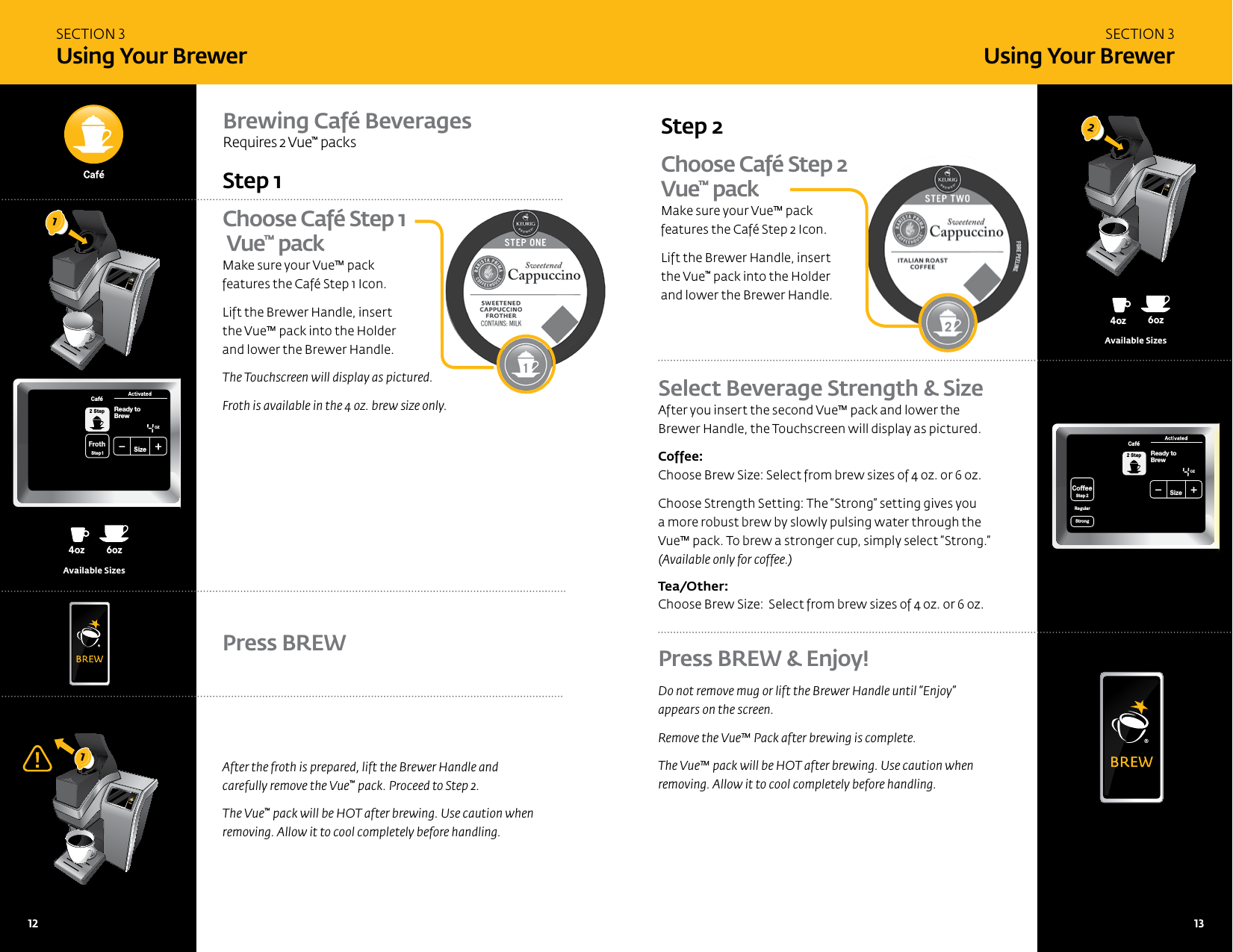
SECTION 3 Using Your BrewerSECTION 3 Using Your BrewerChoose Café Step 1  Vue™ packMake sure your Vue™ pack  features the Café Step 1 Icon. Lift the Brewer Handle, insert  the Vue™ pack into the Holder  and lower the Brewer Handle. The Touchscreen will display as pictured. Froth is available in the 4 oz. brew size only.Step 1Brewing Café Beverages Requires 2 Vue™ packsAfter the froth is prepared, lift the Brewer Handle and  carefully remove the Vue™ pack. Proceed to Step 2. The Vue™ pack will be HOT after brewing. Use caution when removing. Allow it to cool completely before handling. Press BREW Choose Café Step 2 Vue™ packMake sure your Vue™ pack  features the Café Step 2 Icon.Lift the Brewer Handle, insert  the Vue™ pack into the Holder and lower the Brewer Handle.Step 2 Select Beverage Strength & SizeAfter you insert the second Vue™ pack and lower the Brewer Handle, the Touchscreen will display as pictured.  Coffee: Choose Brew Size: Select from brew sizes of 4 oz. or 6 oz.Choose Strength Setting: The “Strong” setting gives you a more robust brew by slowly pulsing water through the Vue™ pack. To brew a stronger cup, simply select “Strong.”  (Available only for coffee.) Tea/Other:   Choose Brew Size:  Select from brew sizes of 4 oz. or 6 oz.8oz6oz 10oz 12oz 6oz4oz12oz14oz14oz16oz16oz18oz18oz8oz6oz10oz 12oz 8oz4ozoz14ozoz16ozoz18ozoz8oz6ozAvailable Sizes8oz6oz 10oz 12oz 6oz4oz12oz14oz14oz16oz16oz18oz18oz8oz6oz10oz 12oz 8oz4ozoz14ozoz16ozoz18ozoz8oz6ozAvailable SizesPress BREW & Enjoy!Do not remove mug or lift the Brewer Handle until “Enjoy” appears on the screen.Remove the Vue™ Pack after brewing is complete. The Vue™ pack will be HOT after brewing. Use caution when removing. Allow it to cool completely before handling.121CoffeeHotCocoaTeaOtherReady toNot BrewCoffee& TeaCoffeeStep2 Step2RegularCaféStrongHotCocoaTeaOther FrothStep1PMOZ MHSizeFrothingEnjoy!MenuCoffee& TeaBrewOver Ice Café2 StepCoffeeStep2 Step2RegularCaféStrongHotCocoaTeaOtherFrothStep1Ready toNot BrewingPMOZ MHSizeFrothingEnjoy!De-ScaleSet ClockSet Auto Off SetSet OnOff Time SetSet Brew Temp SetMenuAdd WaterCoffee& TeaBrewOver Ice Café2 StepActivatedNot Add WaterCoffeeStep2RegularStrongReady toBrewOZSizeCafé2 Step12   13
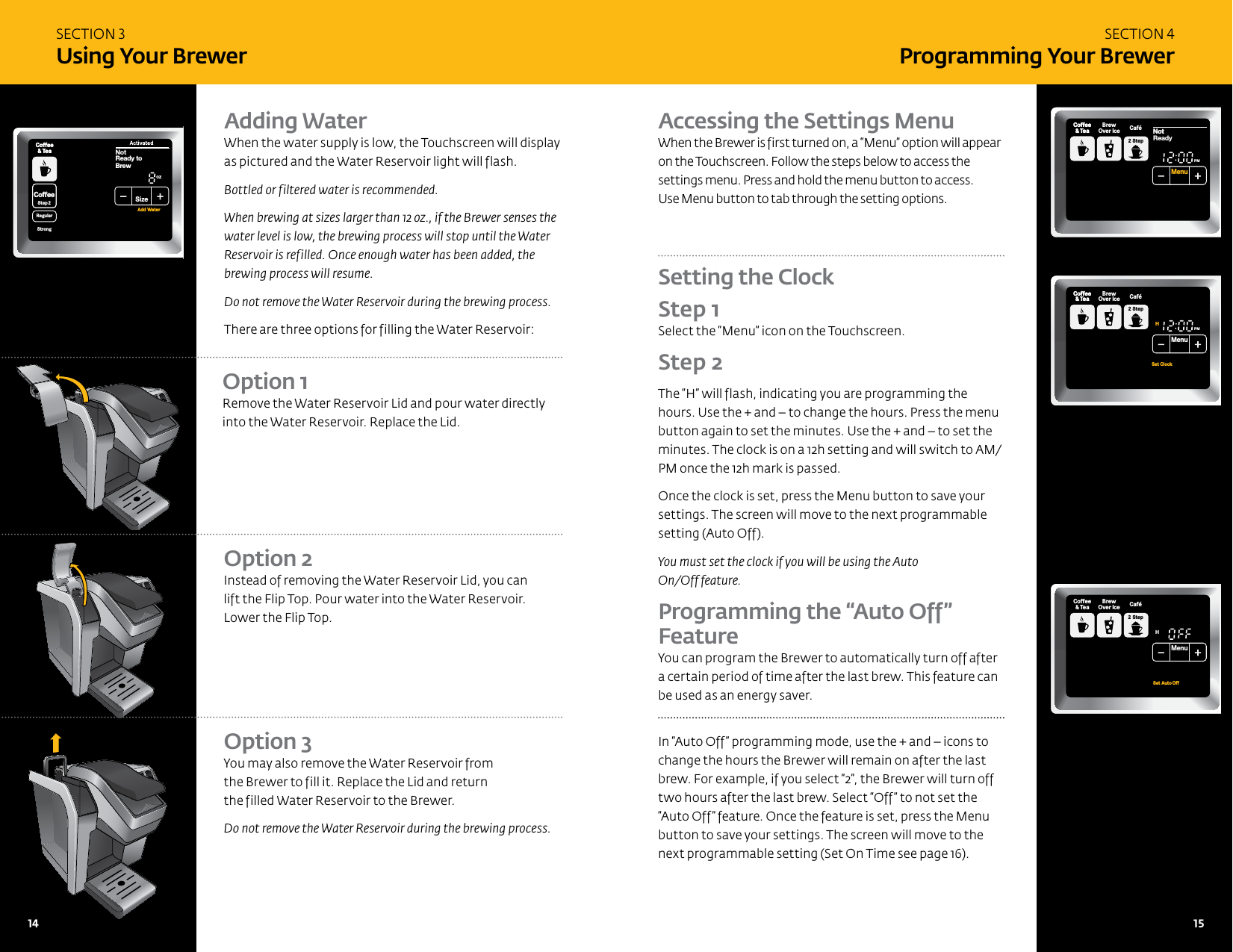
SECTION 3 Using Your BrewerSECTION 4Programming Your BrewerAdding WaterWhen the water supply is low, the Touchscreen will display as pictured and the Water Reservoir light will flash. Bottled or filtered water is recommended.When brewing at sizes larger than 12 oz., if the Brewer senses the water level is low, the brewing process will stop until the Water Reservoir is refilled. Once enough water has been added, the brewing process will resume.Do not remove the Water Reservoir during the brewing process.There are three options for filling the Water Reservoir:Option 3 You may also remove the Water Reservoir from  the Brewer to fill it. Replace the Lid and return  the filled Water Reservoir to the Brewer.Do not remove the Water Reservoir during the brewing process. Accessing the Settings Menu When the Brewer is first turned on, a “Menu” option will appear on the Touchscreen. Follow the steps below to access the settings menu. Press and hold the menu button to access.  Use Menu button to tab through the setting options.Setting the Clock  Step 1 Select the “Menu” icon on the Touchscreen. Step 2 The “H” will flash, indicating you are programming the hours. Use the + and – to change the hours. Press the menu button again to set the minutes. Use the + and – to set the minutes. The clock is on a 12h setting and will switch to AM/PM once the 12h mark is passed.Once the clock is set, press the Menu button to save your settings. The screen will move to the next programmable setting (Auto Off). You must set the clock if you will be using the Auto  On/Off feature.Programming the “Auto Off”  FeatureYou can program the Brewer to automatically turn off after a certain period of time after the last brew. This feature can be used as an energy saver. In “Auto Off” programming mode, use the + and – icons to change the hours the Brewer will remain on after the last brew. For example, if you select “2”, the Brewer will turn off two hours after the last brew. Select “Off” to not set the “Auto Off” feature. Once the feature is set, press the Menu button to save your settings. The screen will move to the next programmable setting (Set On Time see page 16).Option 1 Remove the Water Reservoir Lid and pour water directly into the Water Reservoir. Replace the Lid.Option 2 Instead of removing the Water Reservoir Lid, you can  lift the Flip Top. Pour water into the Water Reservoir. Lower the Flip Top.CoffeeHotCocoaTeaOtherBrewCoffee& TeaCoffeeStep2 Step2RegularCaféHotCocoaTeaOther FrothStep1PMOZ MHSizeFrothingEnjoy!MenuCoffee& TeaBrewOver Ice Café2 StepSet ClockHSet Auto OffMenuCoffee& TeaBrewOver Ice Café2 StepCoffeeHotCocoaTeaOtherReady toNot BrewCoffee& TeaCoffeeStep2 Step2RegularCaféHotCocoaTeaOther FrothStep1Not PMOZ MHSizeFrothingEnjoy!MenuCoffee& TeaBrewOver Ice Café2 StepCoffeeHotCocoaTeaOtherReady toNot BrewCoffee& TeaCoffeeStep2 Step2RegularCaféStrongHotCocoaTeaOther FrothStep1PMOZ MHSizeFrothingEnjoy!MenuCoffee& TeaBrewOver Ice Café2 StepNot Add Water14   15
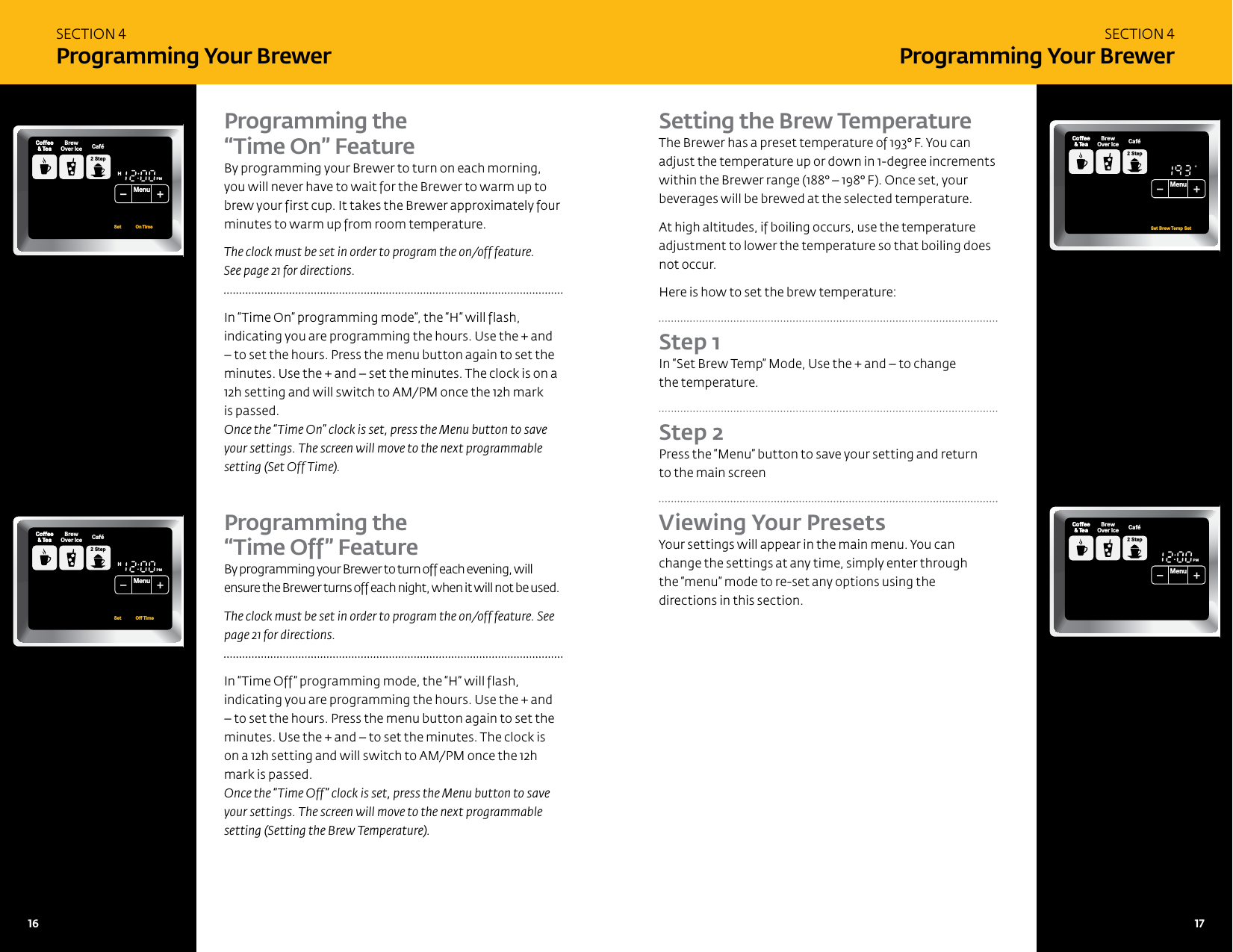
SECTION 4Programming Your BrewerSECTION 4Programming Your BrewerProgramming the  “Time On” Feature By programming your Brewer to turn on each morning, you will never have to wait for the Brewer to warm up to brew your first cup. It takes the Brewer approximately four minutes to warm up from room temperature. The clock must be set in order to program the on/off feature.  See page 21 for directions. In “Time On” programming mode”, the “H” will flash, indicating you are programming the hours. Use the + and – to set the hours. Press the menu button again to set the minutes. Use the + and – set the minutes. The clock is on a 12h setting and will switch to AM/PM once the 12h mark  is passed.Once the “Time On” clock is set, press the Menu button to save your settings. The screen will move to the next programmable setting (Set Off Time). Programming the  “Time Off” Feature By programming your Brewer to turn off each evening, will ensure the Brewer turns off each night, when it will not be used. The clock must be set in order to program the on/off feature. See page 21 for directions.In “Time Off” programming mode, the “H” will flash, indicating you are programming the hours. Use the + and – to set the hours. Press the menu button again to set the minutes. Use the + and – to set the minutes. The clock is on a 12h setting and will switch to AM/PM once the 12h mark is passed.Once the “Time Off” clock is set, press the Menu button to save your settings. The screen will move to the next programmable setting (Setting the Brew Temperature).Setting the Brew TemperatureThe Brewer has a preset temperature of 193° F. You can adjust the temperature up or down in 1-degree increments within the Brewer range (188° – 198° F). Once set, your beverages will be brewed at the selected temperature. At high altitudes, if boiling occurs, use the temperature adjustment to lower the temperature so that boiling does not occur. Here is how to set the brew temperature: Step 1 In “Set Brew Temp” Mode, Use the + and – to change  the temperature.Step 2 Press the “Menu” button to save your setting and return  to the main screen Viewing Your Presets Your settings will appear in the main menu. You can change the settings at any time, simply enter through  the “menu” mode to re-set any options using the  directions in this section. FPOCoffeeHotCocoaTeaOtherBrewCoffee& TeaCoffeeStep2 Step2RegularCaféHotCocoaTeaOther FrothStep1PMOZ MHSizeFrothingEnjoy!MenuCoffee& TeaBrewOver Ice Café2 StepSet           OnTime CoffeeHotCocoaTeaOtherBrewCoffee& TeaCoffeeStep2 Step2RegularCaféHotCocoaTeaOther FrothStep1PMOZ MHSizeFrothingEnjoy!MenuCoffee& TeaBrewOver Ice Café2 StepSet           Off Time CoffeeHotCocoaTeaOtherBrewCoffee& TeaCoffeeStep2 Step2RegularCaféHotCocoaTeaOther FrothStep1OZ MHSizeFrothingEnjoy!MenuCoffee& TeaBrewOver Ice Café2 StepSet Brew Temp SetCoffeeHotCocoaTeaOtherBrewCoffee& TeaCoffeeStep2 Step2RegularCaféHotCocoaTeaOther FrothStep1PMOZ MHSizeFrothingEnjoy!MenuCoffee& TeaBrewOver Ice Café2 Step16   17
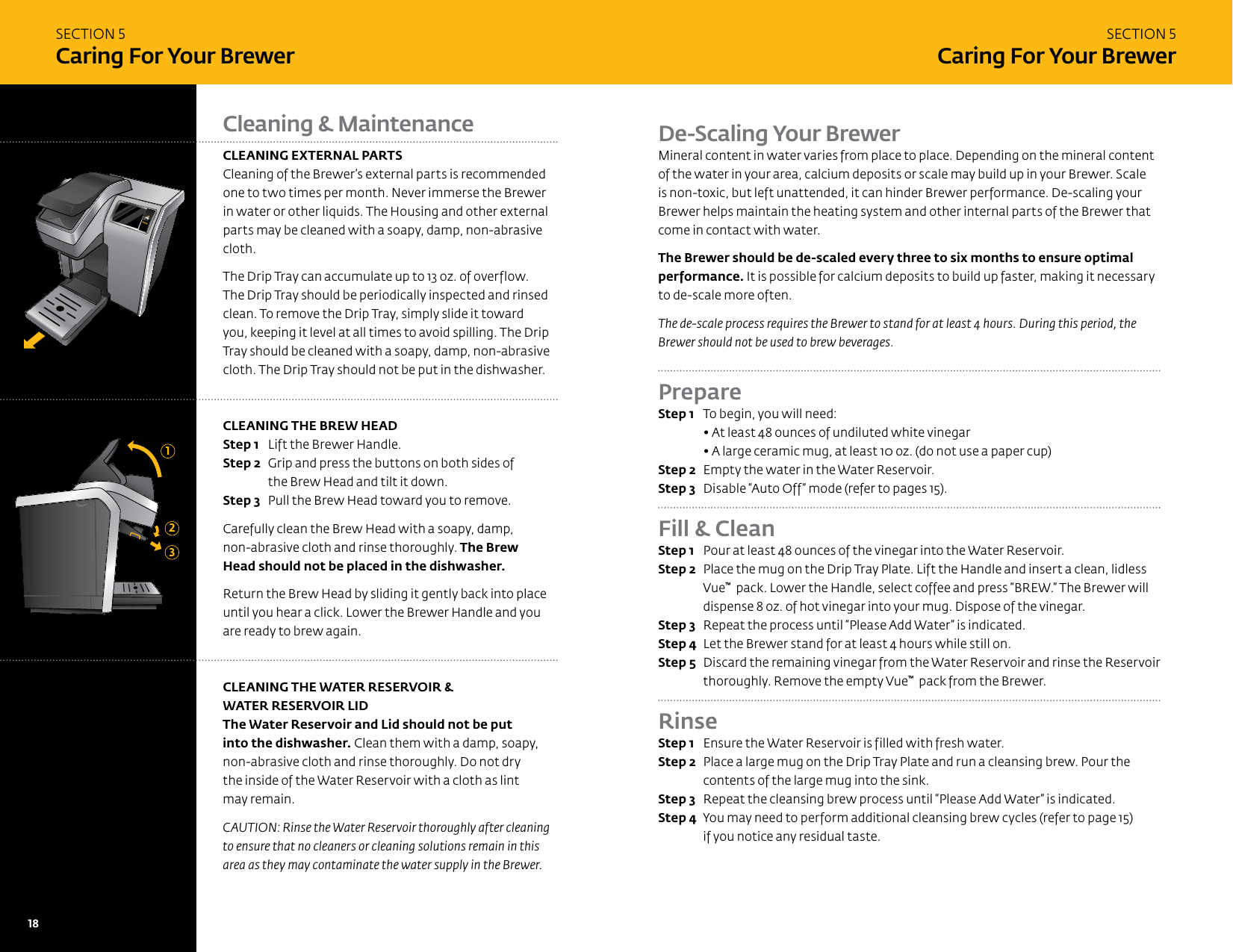
SECTION 5Caring For Your BrewerSECTION 5Caring For Your BrewerCleaning & MaintenanceCLEANING EXTERNAL PARTSCleaning of the Brewer’s external parts is recommended one to two times per month. Never immerse the Brewer in water or other liquids. The Housing and other external parts may be cleaned with a soapy, damp, non-abrasive cloth. The Drip Tray can accumulate up to 13 oz. of overflow. The Drip Tray should be periodically inspected and rinsed clean. To remove the Drip Tray, simply slide it toward you, keeping it level at all times to avoid spilling. The Drip Tray should be cleaned with a soapy, damp, non-abrasive cloth. The Drip Tray should not be put in the dishwasher.  CLEANING THE BREW HEADStep 1  Lift the Brewer Handle. Step 2  Grip and press the buttons on both sides of the Brew Head and tilt it down.Step 3  Pull the Brew Head toward you to remove.Carefully clean the Brew Head with a soapy, damp,  non-abrasive cloth and rinse thoroughly. The Brew Head should not be placed in the dishwasher.Return the Brew Head by sliding it gently back into place until you hear a click. Lower the Brewer Handle and you are ready to brew again. CLEANING THE WATER RESERVOIR &  WATER RESERVOIR LIDThe Water Reservoir and Lid should not be put  into the dishwasher. Clean them with a damp, soapy, non-abrasive cloth and rinse thoroughly. Do not dry  the inside of the Water Reservoir with a cloth as lint  may remain. CAUTION: Rinse the Water Reservoir thoroughly after cleaning to ensure that no cleaners or cleaning solutions remain in this area as they may contaminate the water supply in the Brewer.123De-Scaling Your BrewerMineral content in water varies from place to place. Depending on the mineral content of the water in your area, calcium deposits or scale may build up in your Brewer. Scale is non-toxic, but left unattended, it can hinder Brewer performance. De-scaling your Brewer helps maintain the heating system and other internal parts of the Brewer that come in contact with water. The Brewer should be de-scaled every three to six months to ensure optimal performance. It is possible for calcium deposits to build up faster, making it necessary to de-scale more often. The de-scale process requires the Brewer to stand for at least 4 hours. During this period, the Brewer should not be used to brew beverages. Prepare Step 1  To begin, you will need: • At least 48 ounces of undiluted white vinegar • A large ceramic mug, at least 10 oz. (do not use a paper cup)Step 2  Empty the water in the Water Reservoir.Step 3  Disable “Auto Off” mode (refer to pages 15). Fill & Clean Step 1  Pour at least 48 ounces of the vinegar into the Water Reservoir.Step 2  Place the mug on the Drip Tray Plate. Lift the Handle and insert a clean, lidless Vue™  pack. Lower the Handle, select coffee and press “BREW.” The Brewer will dispense 8 oz. of hot vinegar into your mug. Dispose of the vinegar.Step 3  Repeat the process until “Please Add Water” is indicated.Step 4  Let the Brewer stand for at least 4 hours while still on.Step 5  Discard the remaining vinegar from the Water Reservoir and rinse the Reservoir thoroughly. Remove the empty Vue™  pack from the Brewer.RinseStep 1  Ensure the Water Reservoir is filled with fresh water.Step 2  Place a large mug on the Drip Tray Plate and run a cleansing brew. Pour the contents of the large mug into the sink.Step 3  Repeat the cleansing brew process until “Please Add Water” is indicated. Step 4  You may need to perform additional cleansing brew cycles (refer to page 15) if you notice any residual taste.18   19
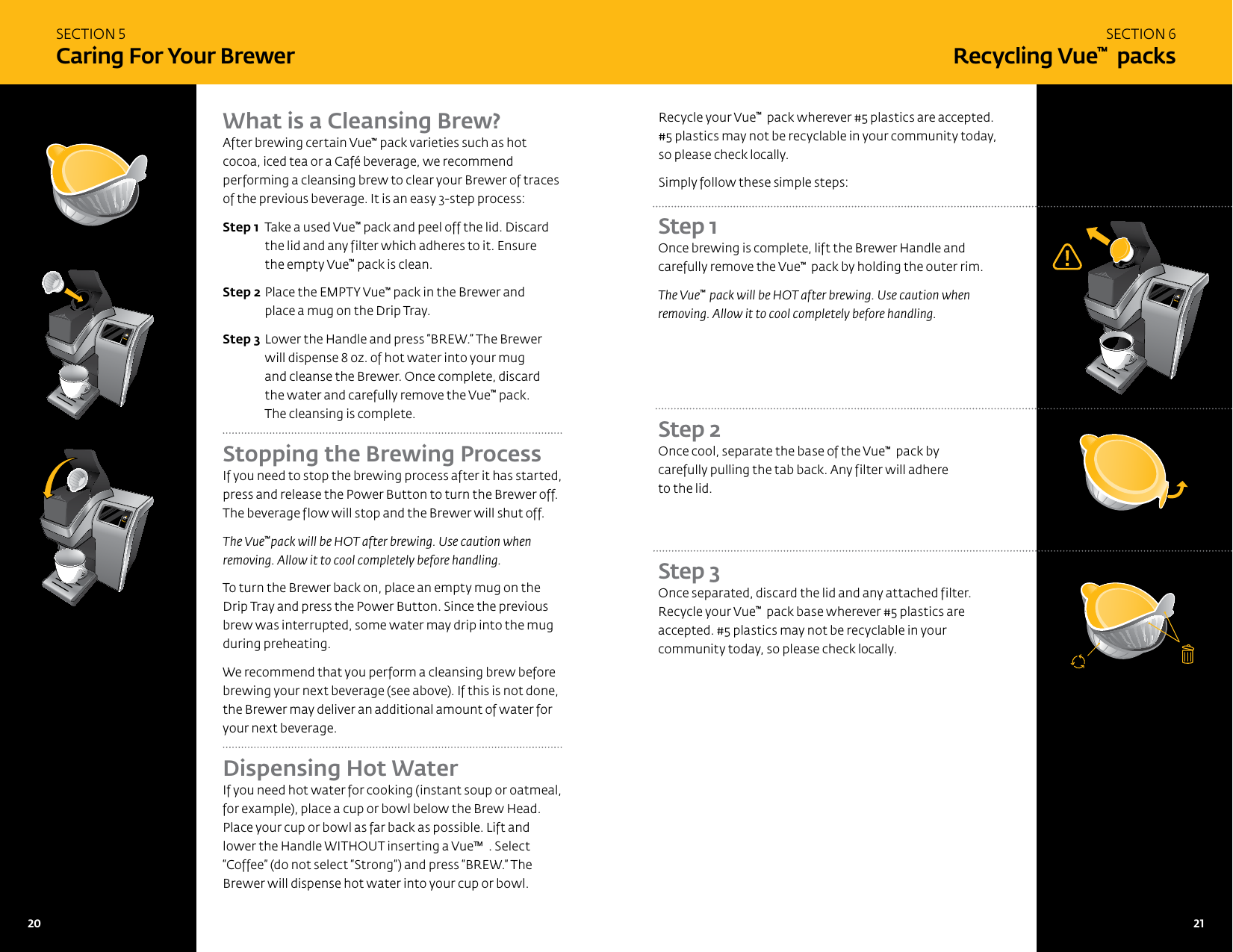
SECTION 5Caring For Your BrewerWhat is a Cleansing Brew?After brewing certain Vue™ pack varieties such as hot cocoa, iced tea or a Café beverage, we recommend performing a cleansing brew to clear your Brewer of traces of the previous beverage. It is an easy 3-step process:Step 1  Take a used Vue™ pack and peel off the lid. Discard the lid and any filter which adheres to it. Ensure  the empty Vue™ pack is clean.Step 2 Place the EMPTY Vue™ pack in the Brewer and place a mug on the Drip Tray. Step 3 Lower the Handle and press “BREW.” The Brewer will dispense 8 oz. of hot water into your mug  and cleanse the Brewer. Once complete, discard the water and carefully remove the Vue™ pack. The cleansing is complete.Stopping the Brewing Process If you need to stop the brewing process after it has started, press and release the Power Button to turn the Brewer off. The beverage flow will stop and the Brewer will shut off.The Vue™pack will be HOT after brewing. Use caution when removing. Allow it to cool completely before handling.To turn the Brewer back on, place an empty mug on the Drip Tray and press the Power Button. Since the previous brew was interrupted, some water may drip into the mug during preheating.We recommend that you perform a cleansing brew before brewing your next beverage (see above). If this is not done, the Brewer may deliver an additional amount of water for your next beverage.Dispensing Hot Water If you need hot water for cooking (instant soup or oatmeal, for example), place a cup or bowl below the Brew Head. Place your cup or bowl as far back as possible. Lift and lower the Handle WITHOUT inserting a Vue™  . Select “Coffee” (do not select “Strong”) and press “BREW.” The Brewer will dispense hot water into your cup or bowl.SECTION 6Recycling Vue™  packsRecycle your Vue™  pack wherever #5 plastics are accepted. #5 plastics may not be recyclable in your community today, so please check locally.Simply follow these simple steps:Step 1 Once brewing is complete, lift the Brewer Handle and carefully remove the Vue™  pack by holding the outer rim.The Vue™  pack will be HOT after brewing. Use caution when removing. Allow it to cool completely before handling.Step 3 Once separated, discard the lid and any attached filter.  Recycle your Vue™  pack base wherever #5 plastics are accepted. #5 plastics may not be recyclable in your community today, so please check locally.Step 2 Once cool, separate the base of the Vue™  pack by carefully pulling the tab back. Any filter will adhere  to the lid.20   21 21
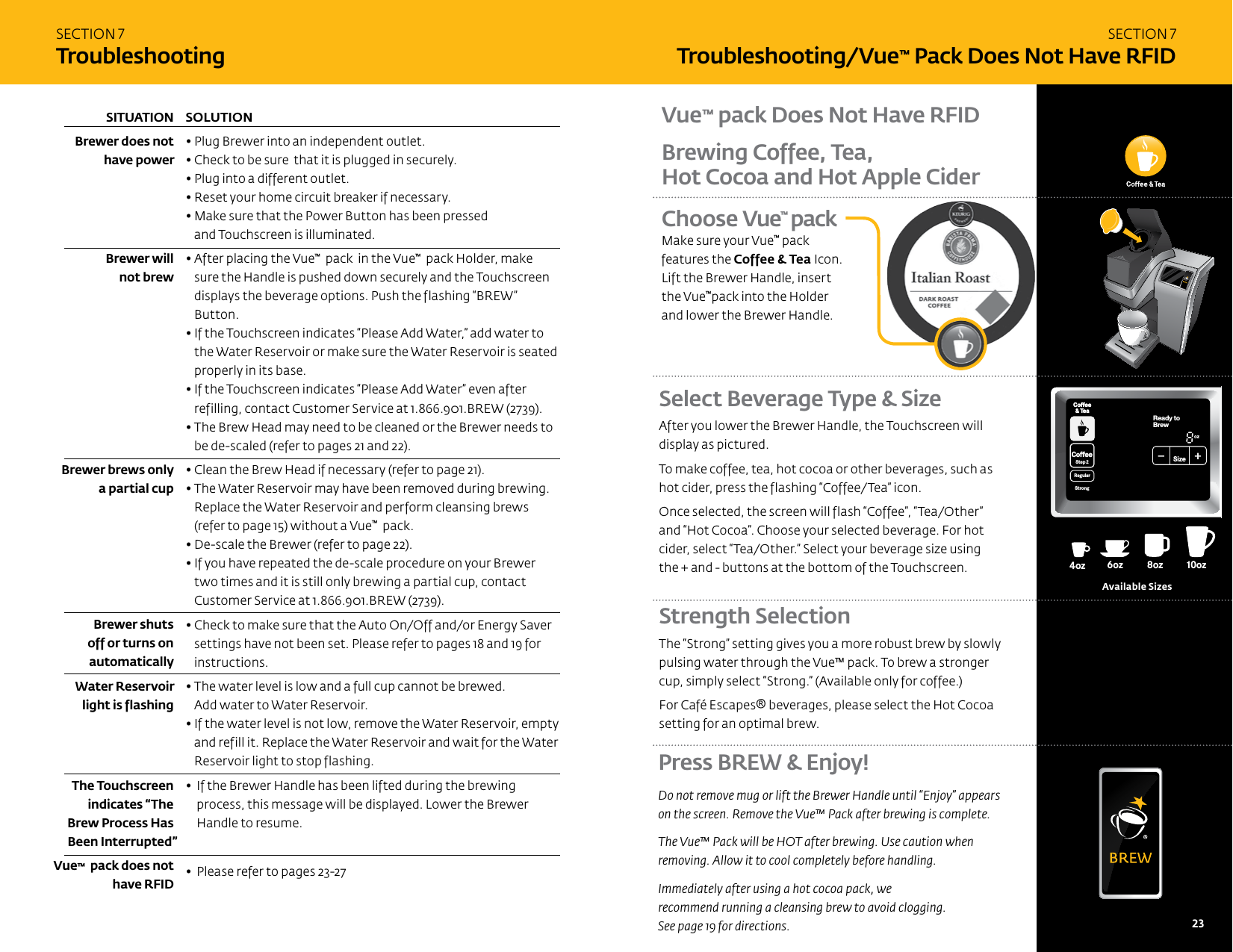
SECTION 7TroubleshootingSOLUTION • Plug Brewer into an independent outlet. • Check to be sure  that it is plugged in securely.  • Plug into a different outlet.  • Reset your home circuit breaker if necessary.•  Make sure that the Power Button has been pressed  and Touchscreen is illuminated.•  After placing the Vue™  pack  in the Vue™  pack Holder, make sure the Handle is pushed down securely and the Touchscreen displays the beverage options. Push the flashing “BREW” Button.•  If the Touchscreen indicates “Please Add Water,” add water to the Water Reservoir or make sure the Water Reservoir is seated properly in its base.•  If the Touchscreen indicates “Please Add Water” even after refilling, contact Customer Service at 1.866.901.BREW (2739).•  The Brew Head may need to be cleaned or the Brewer needs to be de-scaled (refer to pages 21 and 22).•  Clean the Brew Head if necessary (refer to page 21).•  The Water Reservoir may have been removed during brewing.  Replace the Water Reservoir and perform cleansing brews  (refer to page 15) without a Vue™  pack.•  De-scale the Brewer (refer to page 22).•  If you have repeated the de-scale procedure on your Brewer two times and it is still only brewing a partial cup, contact Customer Service at 1.866.901.BREW (2739).•  Check to make sure that the Auto On/Off and/or Energy Saver settings have not been set. Please refer to pages 18 and 19 for instructions.•  The water level is low and a full cup cannot be brewed.  Add water to Water Reservoir.•  If the water level is not low, remove the Water Reservoir, empty and refill it. Replace the Water Reservoir and wait for the Water Reservoir light to stop flashing. •   If the Brewer Handle has been lifted during the brewing process, this message will be displayed. Lower the Brewer Handle to resume.  •  Please  refer to pages 23-27 SITUATION Brewer does not have power    Brewer will  not brew         Brewer brews only a partial cup      Brewer shuts  off or turns on  automaticallyWater Reservoir light is flashing The Touchscreen indicates “The  Brew Process Has Been Interrupted”Vue™  pack does not have RFIDSECTION 7 Troubleshooting/Vue™ Pack Does Not Have RFIDSelect Beverage Type & Size After you lower the Brewer Handle, the Touchscreen will display as pictured. To make coffee, tea, hot cocoa or other beverages, such as hot cider, press the flashing “Coffee/Tea” icon. Once selected, the screen will flash “Coffee”, “Tea/Other”  and “Hot Cocoa”. Choose your selected beverage. For hot cider, select “Tea/Other.” Select your beverage size using  the + and - buttons at the bottom of the Touchscreen. Strength Selection The “Strong” setting gives you a more robust brew by slowly pulsing water through the Vue™ pack. To brew a stronger cup, simply select “Strong.” (Available only for coffee.) For Café Escapes® beverages, please select the Hot Cocoa setting for an optimal brew. 8oz6oz 10oz 12oz 6oz4oz12oz14oz14oz16oz16oz18oz18oz8oz6oz 10oz12oz 8oz4ozoz14ozoz16ozoz18ozoz8oz6ozAvailable SizesBrewing Coffee, Tea,  Hot Cocoa and Hot Apple CiderVue™ pack Does Not Have RFIDChoose Vue™ pack Make sure your Vue™ pack features the Coffee & Tea Icon. Lift the Brewer Handle, insert  the Vue™pack into the Holder and lower the Brewer Handle.CoffeeHotCocoaTeaOtherReady toNot BrewCoffee& TeaCoffeeStep2 Step2RegularCaféStrongHotCocoaTeaOther FrothStep1PMOZ MHSizeFrothingEnjoy!MenuCoffee& TeaBrewOver Ice Café2 StepPress BREW & Enjoy!Do not remove mug or lift the Brewer Handle until “Enjoy” appears  on the screen. Remove the Vue™ Pack after brewing is complete. The Vue™ Pack will be HOT after brewing. Use caution when  removing. Allow it to cool completely before handling. Immediately after using a hot cocoa pack, we  recommend running a cleansing brew to avoid clogging.  See page 19 for directions. 22   23
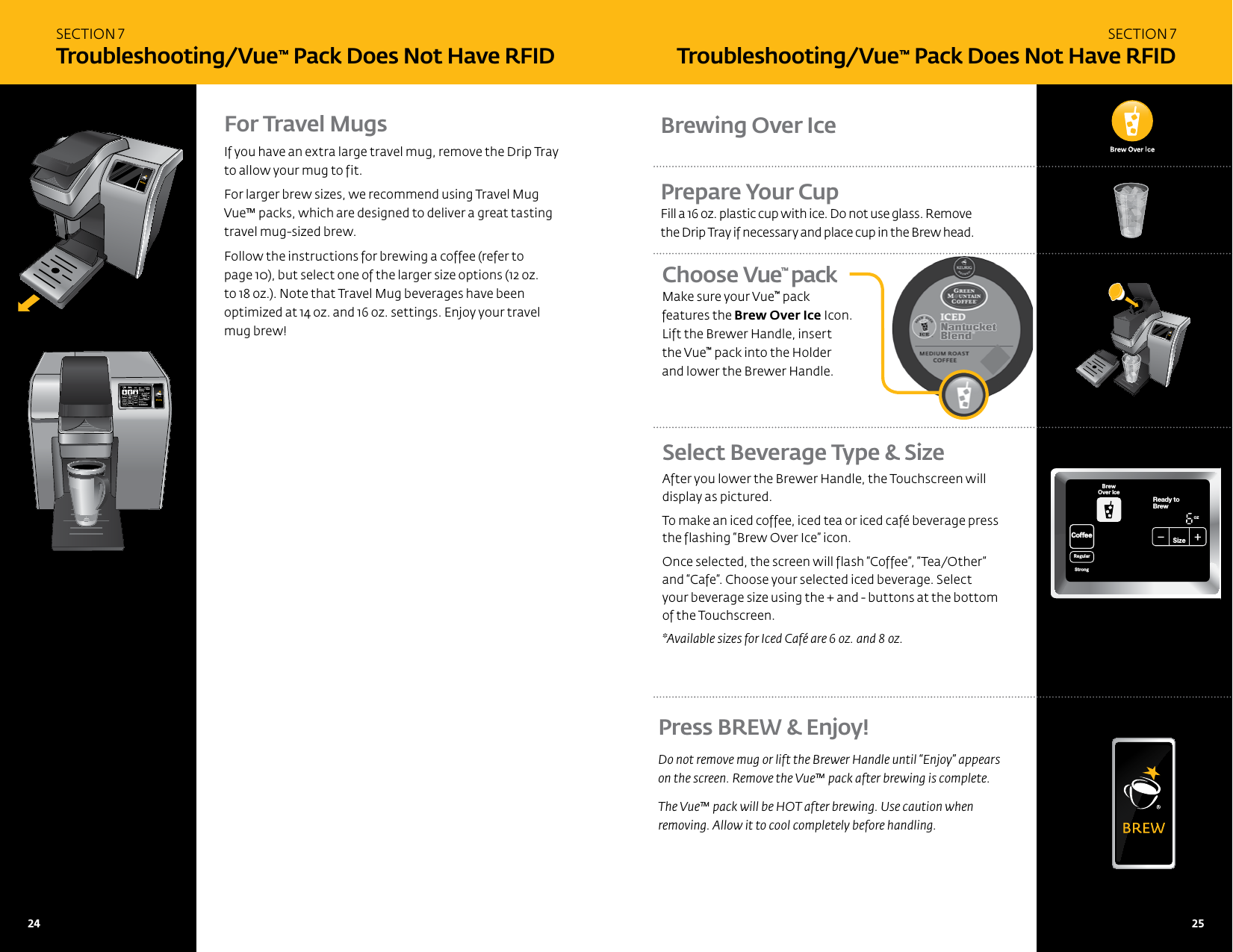
SECTION 7 Troubleshooting/Vue™ Pack Does Not Have RFIDFor Travel MugsIf you have an extra large travel mug, remove the Drip Tray  to allow your mug to fit. For larger brew sizes, we recommend using Travel Mug  Vue™ packs, which are designed to deliver a great tasting travel mug-sized brew. Follow the instructions for brewing a coffee (refer to  page 10), but select one of the larger size options (12 oz.  to 18 oz.). Note that Travel Mug beverages have been optimized at 14 oz. and 16 oz. settings. Enjoy your travel  mug brew!CoffeeStep2 Step2RegularCaféStrongHotCocoaTeaOtherFrothStep1Ready toNot BrewingPMOZMHSizeFrothingEnjoy!De-ScaleSet ClockSet Auto Off SetSet OnOff Time SetSet Brew Temp SetMenuAdd WaterCoffee& TeaBrewOver Ice Café2 StepSECTION 7 Troubleshooting/Vue™ Pack Does Not Have RFIDChoose Vue™ pack Make sure your Vue™ pack features the Brew Over Ice Icon. Lift the Brewer Handle, insert  the Vue™ pack into the Holder and lower the Brewer Handle.Press BREW & Enjoy!Do not remove mug or lift the Brewer Handle until “Enjoy” appears  on the screen. Remove the Vue™ pack after brewing is complete. The Vue™ pack will be HOT after brewing. Use caution when  removing. Allow it to cool completely before handling. Brewing Over IcePrepare Your CupFill a 16 oz. plastic cup with ice. Do not use glass. Remove  the Drip Tray if necessary and place cup in the Brew head.Select Beverage Type & Size After you lower the Brewer Handle, the Touchscreen will display as pictured. To make an iced coffee, iced tea or iced café beverage press the flashing “Brew Over Ice” icon. Once selected, the screen will flash “Coffee”, “Tea/Other” and “Cafe”. Choose your selected iced beverage. Select your beverage size using the + and - buttons at the bottom of the Touchscreen. *Available sizes for Iced Café are 6 oz. and 8 oz.CoffeeHotCocoaTeaOtherReady toNot BrewCoffee& TeaCoffeeStep2 Step2RegularCaféStrongHotCocoaTeaOther FrothStep1PMOZ MHSizeFrothingEnjoy!MenuCoffee& TeaBrewOver Ice Café2 Step24   25
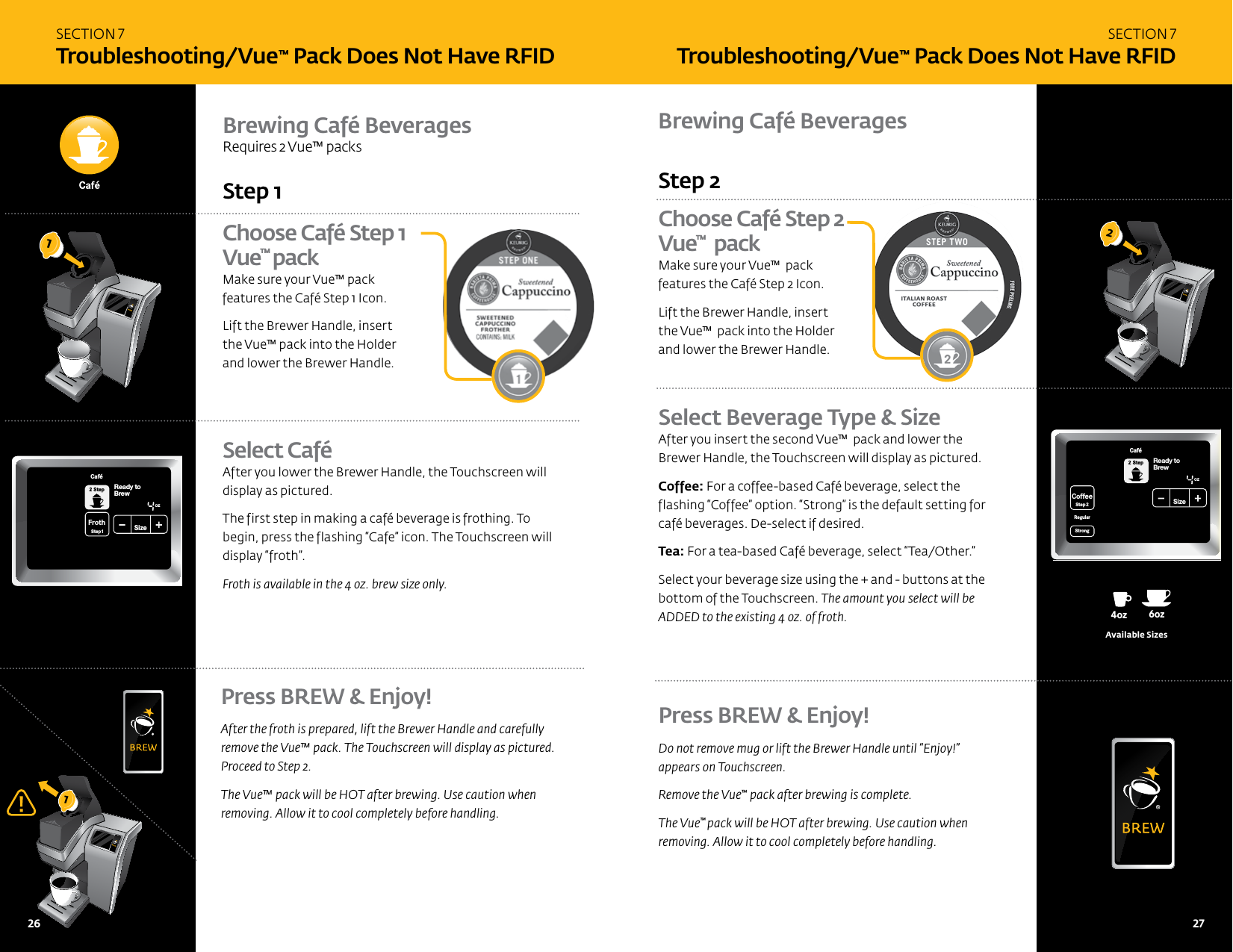
SECTION 7 Troubleshooting/Vue™ Pack Does Not Have RFIDBrewing Café Beverages 8oz6oz 10oz 12oz 6oz4oz12oz14oz14oz16oz16oz18oz18oz8oz6oz10oz 12oz 8oz4ozoz14ozoz16ozoz18ozoz8oz6ozAvailable SizesChoose Café Step 2 Vue™  packMake sure your Vue™  pack  features the Café Step 2 Icon. Lift the Brewer Handle, insert  the Vue™  pack into the Holder  and lower the Brewer Handle.Step 2 Select Beverage Type & SizeAfter you insert the second Vue™  pack and lower the Brewer Handle, the Touchscreen will display as pictured.Coffee: For a coffee-based Café beverage, select the flashing “Coffee” option. “Strong” is the default setting for café beverages. De-select if desired. Tea: For a tea-based Café beverage, select “Tea/Other.” Select your beverage size using the + and - buttons at the bottom of the Touchscreen. The amount you select will be ADDED to the existing 4 oz. of froth. Press BREW & Enjoy!Do not remove mug or lift the Brewer Handle until “Enjoy!”  appears on Touchscreen.Remove the Vue™ pack after brewing is complete.The Vue™ pack will be HOT after brewing. Use caution when removing. Allow it to cool completely before handling.2SECTION 7 Troubleshooting/Vue™ Pack Does Not Have RFIDPress BREW & Enjoy!After the froth is prepared, lift the Brewer Handle and carefully  remove the Vue™ pack. The Touchscreen will display as pictured.  Proceed to Step 2. The Vue™ pack will be HOT after brewing. Use caution when  removing. Allow it to cool completely before handling. Choose Café Step 1 Vue™ packMake sure your Vue™ pack  features the Café Step 1 Icon. Lift the Brewer Handle, insert  the Vue™ pack into the Holder  and lower the Brewer Handle. Select Café After you lower the Brewer Handle, the Touchscreen will display as pictured. The first step in making a café beverage is frothing. To begin, press the flashing “Cafe” icon. The Touchscreen will display “froth”. Froth is available in the 4 oz. brew size only.Step 1Brewing Café Beverages Requires 2 Vue™ packs11CoffeeStep2 Step2RegularCaféStrongHotCocoaTeaOther FrothStep1Ready toNot BrewingPMOZ MHSizeFrothingEnjoy!De-ScaleSet ClockSet Auto Off SetSet OnOff Time SetSet Brew Temp SetMenuAdd WaterCoffee& TeaBrewOver Ice Café2 StepActivatedNot Add WaterCoffeeStep2RegularStrongReady toBrewOZSizeCafé2 StepCoffeeHotCocoaTeaOtherReady toNot BrewCoffee& TeaCoffeeStep2 Step2RegularCaféStrongHotCocoaTeaOtherFrothStep1PMOZ MHSizeFrothingEnjoy!MenuCoffee& TeaBrewOver Ice Café2 Step26   27
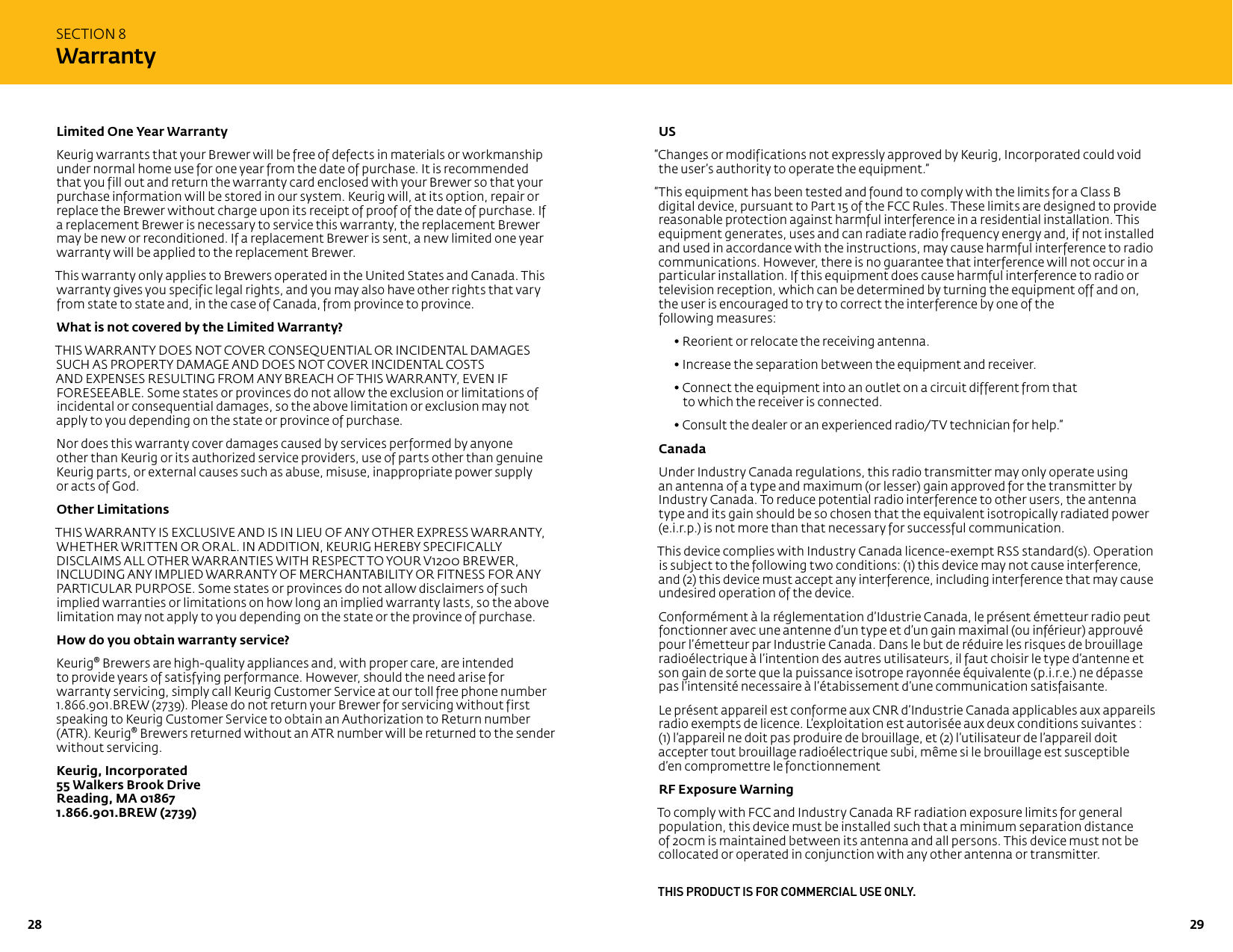
US “Changes or modifications not expressly approved by Keurig, Incorporated could void the user’s authority to operate the equipment.”“This equipment has been tested and found to comply with the limits for a Class B digital device, pursuant to Part 15 of the FCC Rules. These limits are designed to provide reasonable protection against harmful interference in a residential installation. This equipment generates, uses and can radiate radio frequency energy and, if not installed and used in accordance with the instructions, may cause harmful interference to radio communications. However, there is no guarantee that interference will not occur in a particular installation. If this equipment does cause harmful interference to radio or television reception, which can be determined by turning the equipment off and on, the user is encouraged to try to correct the interference by one of the  following measures:  • Reorient or relocate the receiving antenna.  • Increase the separation between the equipment and receiver.   •  Connect the equipment into an outlet on a circuit different from that  to which the receiver is connected.  • Consult the dealer or an experienced radio/TV technician for help.”CanadaUnder Industry Canada regulations, this radio transmitter may only operate using an antenna of a type and maximum (or lesser) gain approved for the transmitter by Industry Canada. To reduce potential radio interference to other users, the antenna type and its gain should be so chosen that the equivalent isotropically radiated power (e.i.r.p.) is not more than that necessary for successful communication.This device complies with Industry Canada licence-exempt RSS standard(s). Operation is subject to the following two conditions: (1) this device may not cause interference, and (2) this device must accept any interference, including interference that may cause undesired operation of the device.Conformément à la réglementation d’Idustrie Canada, le présent émetteur radio peut fonctionner avec une antenne d’un type et d’un gain maximal (ou inférieur) approuvé pour l’émetteur par Industrie Canada. Dans le but de réduire les risques de brouillage radioélectrique à l’intention des autres utilisateurs, il faut choisir le type d’antenne et son gain de sorte que la puissance isotrope rayonnée équivalente (p.i.r.e.) ne dépasse pas l’intensité necessaire à l’étabissement d’une communication satisfaisante.Le présent appareil est conforme aux CNR d’Industrie Canada applicables aux appareils radio exempts de licence. L’exploitation est autorisée aux deux conditions suivantes :  (1) l’appareil ne doit pas produire de brouillage, et (2) l’utilisateur de l’appareil doit accepter tout brouillage radioélectrique subi, même si le brouillage est susceptible  d’en compromettre le fonctionnement RF Exposure WarningTo comply with FCC and Industry Canada RF radiation exposure limits for general population, this device must be installed such that a minimum separation distance of 20cm is maintained between its antenna and all persons. This device must not be collocated or operated in conjunction with any other antenna or transmitter. THIS PRODUCT IS FOR COMMERCIAL USE ONLY.SECTION 8WarrantyLimited One Year Warranty Keurig warrants that your Brewer will be free of defects in materials or workmanship under normal home use for one year from the date of purchase. It is recommended that you fill out and return the warranty card enclosed with your Brewer so that your purchase information will be stored in our system. Keurig will, at its option, repair or replace the Brewer without charge upon its receipt of proof of the date of purchase. If a replacement Brewer is necessary to service this warranty, the replacement Brewer may be new or reconditioned. If a replacement Brewer is sent, a new limited one year warranty will be applied to the replacement Brewer.This warranty only applies to Brewers operated in the United States and Canada. This warranty gives you specific legal rights, and you may also have other rights that vary from state to state and, in the case of Canada, from province to province.What is not covered by the Limited Warranty?THIS WARRANTY DOES NOT COVER CONSEQUENTIAL OR INCIDENTAL DAMAGES SUCH AS PROPERTY DAMAGE AND DOES NOT COVER INCIDENTAL COSTS AND EXPENSES RESULTING FROM ANY BREACH OF THIS WARRANTY, EVEN IF FORESEEABLE. Some states or provinces do not allow the exclusion or limitations of incidental or consequential damages, so the above limitation or exclusion may not apply to you depending on the state or province of purchase. Nor does this warranty cover damages caused by services performed by anyone  other than Keurig or its authorized service providers, use of parts other than genuine Keurig parts, or external causes such as abuse, misuse, inappropriate power supply  or acts of God.Other LimitationsTHIS WARRANTY IS EXCLUSIVE AND IS IN LIEU OF ANY OTHER EXPRESS WARRANTY, WHETHER WRITTEN OR ORAL. IN ADDITION, KEURIG HEREBY SPECIFICALLY DISCLAIMS ALL OTHER WARRANTIES WITH RESPECT TO YOUR V1200 BREWER, INCLUDING ANY IMPLIED WARRANTY OF MERCHANTABILITY OR FITNESS FOR ANY PARTICULAR PURPOSE. Some states or provinces do not allow disclaimers of such implied warranties or limitations on how long an implied warranty lasts, so the above limitation may not apply to you depending on the state or the province of purchase. How do you obtain warranty service?Keurig® Brewers are high-quality appliances and, with proper care, are intended to provide years of satisfying performance. However, should the need arise for warranty servicing, simply call Keurig Customer Service at our toll free phone number 1.866.901.BREW (2739). Please do not return your Brewer for servicing without first speaking to Keurig Customer Service to obtain an Authorization to Return number (ATR). Keurig® Brewers returned without an ATR number will be returned to the sender without servicing.Keurig, Incorporated 55 Walkers Brook Drive Reading, MA 01867 1.866.901.BREW (2739)2928
 Notes  31 30
Keurig, Incorporated 55 Walkers Brook Drive Reading, MA 01867Keurig, Incorporated is a  wholly-owned subsidiary  of Green Mountain  Coffee Roasters, Inc.For Household Use Only Made and printed in China © 2011 Keurig, Incorporated All rights reserved P/N 60-201374-000 Rev AFPOCoffeeStep2 Step2RegularCaféStrongHotCocoaTeaOtherFrothStep1Ready toNot BrewingPMOZMHSizeFrothingEnjoy!De-ScaleSet ClockSet Auto Off SetSet On Off Time SetSet Brew Temp SetMenuAdd WaterCoffee& TeaBrewOver Ice Café2 Stepwww.keurig.com  |  1.866.901.BREW

Navigation menu