KiMark XSCAN440II SCANNING RECEIVER User Manual 42 1 xscan440 II

KiMark International, Inc. SCANNING RECEIVER 42 1 xscan440 II

USERS MANUAL

 1
 2FCC IMPORTANT NOTICE   It is a federal crime to intentionally intercept cellular or cordless telephonetransmissions. This scanner has been manufacture to lockout thosefrequencies assigned by the FCC for cellular telephone usage.   Laws in your state may restrict or prohibit the use of scanning radios.  Use ofthis radio in a motor vehicle may be prohibited, regulated, or require a permit.Check with state, city, and/or local jurisdictions prior to use.    DECLARATION BY MANUFACTURER The Scanner receiver is not a digital scanner and is incapable of beingconverted or modified to a digital scanner receiver by any user.
 3FCC IMPORTANT NOTICE    1. Changes or modifications to this device not expressly approved by Kimark International,Inc. could void the user’s authorization to operate this device.  2. This device complies with part 15 of the FCC Rules. Operation is subject to thefollowing two conditions: (1) This device may not cause harmful interference, and(2) this device must accept any interference including received, interference thatmay cause undesired operation.  3. The scanning receiver in this equipment is incapable of tuning, or readily beingaltered, by the User to operate within the frequency bands allocated to theDomestic public Cellular Telecommunications Service in Part 22.   WARNING: MODIFICATION OF THIS DEVICE TO RECEIVE CELLULARRADIOTELEPHONE SERVICE SIGNALS IS PROHIBITED UNDER FCCRULES AND FEDERAL LAW.
 4WELCOME   The Track Scan is a new state-of-the-art compact radio frequency scanner.  This scanner is designed to scan more than 400 channels over a broad frequency range that includes discrete channels for racetrack drivers and pit crews.      Track Scan brings the action of the track direct to you in a sleek and compact receiver.  With a programmed Track Scan simply select the race series and the car number to experience the excitement of race crews as they strategically manage the race.  Track Scan gives you a behind the scenes pass to the driver, crews and spotters thoughts, frustrations and excitement asthe compete head-to-head with the rest of the field.    Track Scan is also capable of scanning public police, fire, rescue, air and military frequencies for those times when you are not listening to the race.  We are pleased that you have chosen Track Scan!
 5TABLE OF CONTENTS  Production Notes: TOC will completed when graphics are finalized.     ………………..                                                                                        ……………
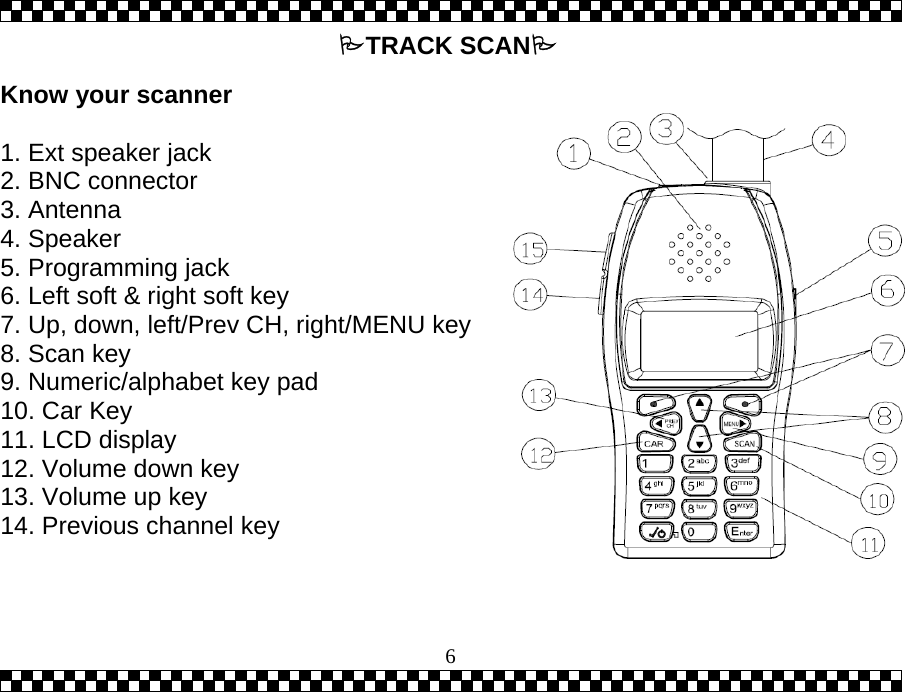
 6   Know your scanner   1. Ext speaker jack 2. BNC connector 3. Antenna 4. Speaker 5. Programming jack 6. Left soft & right soft key 7. Up, down, left/Prev CH, right/MENU key 8. Scan key 9. Numeric/alphabet key pad 10. Car Key 11. LCD display 12. Volume down key 13. Volume up key 14. Previous channel key  TRACK SCAN
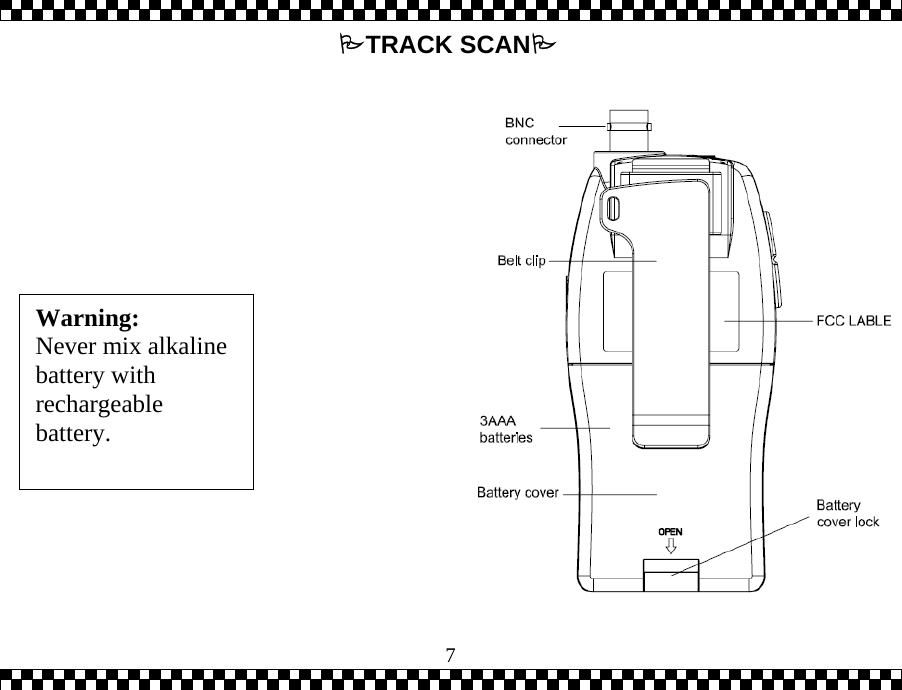
 7TRACK SCAN Warning: Never mix alkaline battery with rechargeable battery.
 8FEATURED HIGHLIGHTS   Programmable Channels: 440 channels (4 banks of 110 channels each). Frequency Range: 450MHz – 470 MHz. Priority Channels: Assign multiple Priority Channels in each series.  Broadcasts activity on most important channel(s) while monitoring others. Scan Lists: Customize scan lists.  Over-the-Air Programming: Loads channel frequencies through remote track broadcasts.  Race Series Channels: 440 channels split into four different series:  1.  CUP Series – Channels 0, 00-09, 1-99 2.  Bush Series – Channels 0, 00-09, 1-99 3.  Truck Series – Channels 0, 00-09, 1-99 4.  Open Series – Operator customizable channels 0, 00-09, 1-99 Memory Back-Up: Stores channels in nonvolatile memory. Lighted Display: Lighted Display. 4-Ways key: Allows for one hand operation.  NOTE Specifications are subject to change
 9ACCESSORIES  Headset  Antenna: short removable antennas  Belt Clip  Case   Production Note Line Diagram of Accessories and Optional Accessories. Need to photograph accessories to convert to line art.
 10GETTING STARTED  Your Track Scan is designed for easy set-up and use.  With a few simple steps you can quickly scan race channels. However, for maximum enjoyment you should familiarize yourself with the information located in this guide.    SET-UP  1. Battery: a.  Track Scan uses 3 AAA Batteries b.  Do not mix brands, new and old or different types of batteries c. Battery Installation  Open the cover  Insert batteries  Replace cover  2. Antenna: a.  Install the Flexible Antenna to the BNC connector on the top of the Track Scan.  The short antenna should be used at the track.  The long antenna works best for distant stations.   NOTE The scanner can be used with out the antenna
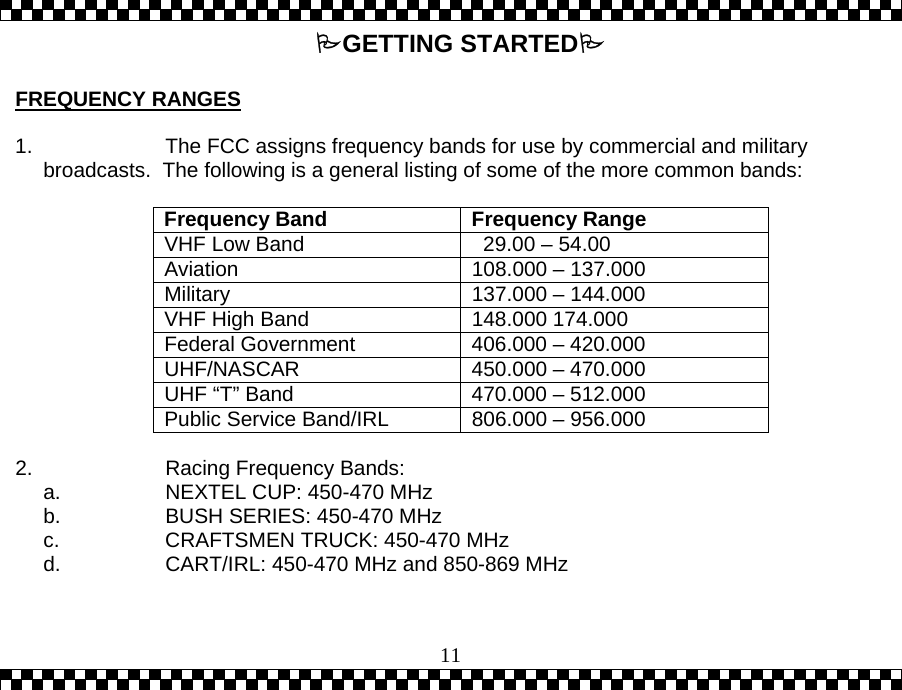
 11GETTING STARTED  FREQUENCY RANGES  1.  The FCC assigns frequency bands for use by commercial and military broadcasts.  The following is a general listing of some of the more common bands:  Frequency Band  Frequency Range VHF Low Band    29.00 – 54.00 Aviation  108.000 – 137.000 Military  137.000 – 144.000 VHF High Band  148.000 174.000 Federal Government  406.000 – 420.000 UHF/NASCAR  450.000 – 470.000 UHF “T” Band  470.000 – 512.000 Public Service Band/IRL  806.000 – 956.000  2.  Racing Frequency Bands: a.  NEXTEL CUP: 450-470 MHz b.  BUSH SERIES: 450-470 MHz c.  CRAFTSMEN TRUCK: 450-470 MHz d.  CART/IRL: 450-470 MHz and 850-869 MHz
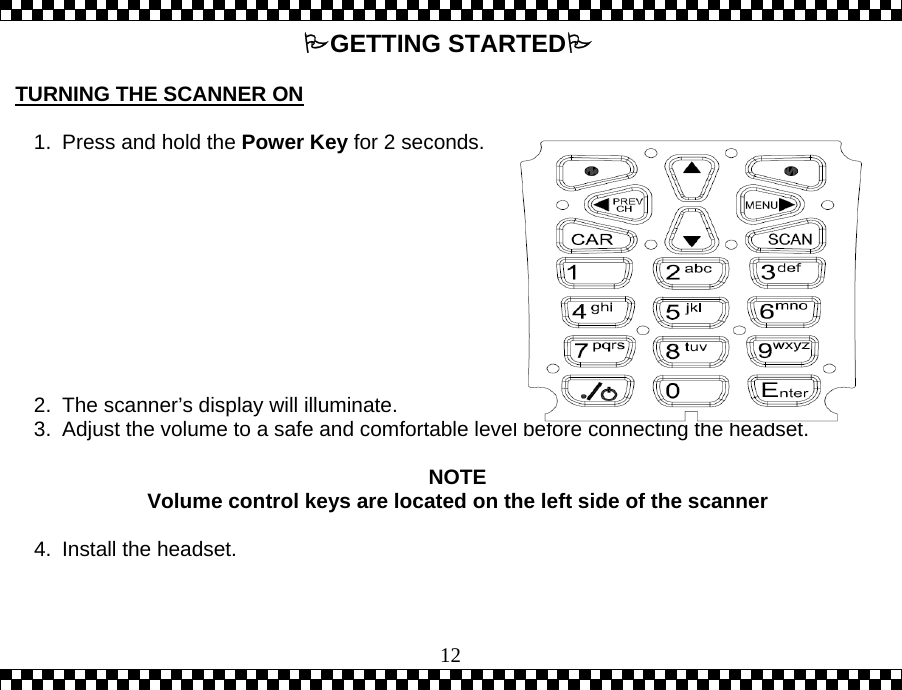
 12GETTING STARTED  TURNING THE SCANNER ON  1.  Press and hold the Power Key for 2 seconds.           2.  The scanner’s display will illuminate. 3.  Adjust the volume to a safe and comfortable level before connecting the headset.   NOTE Volume control keys are located on the left side of the scanner  4.  Install the headset.
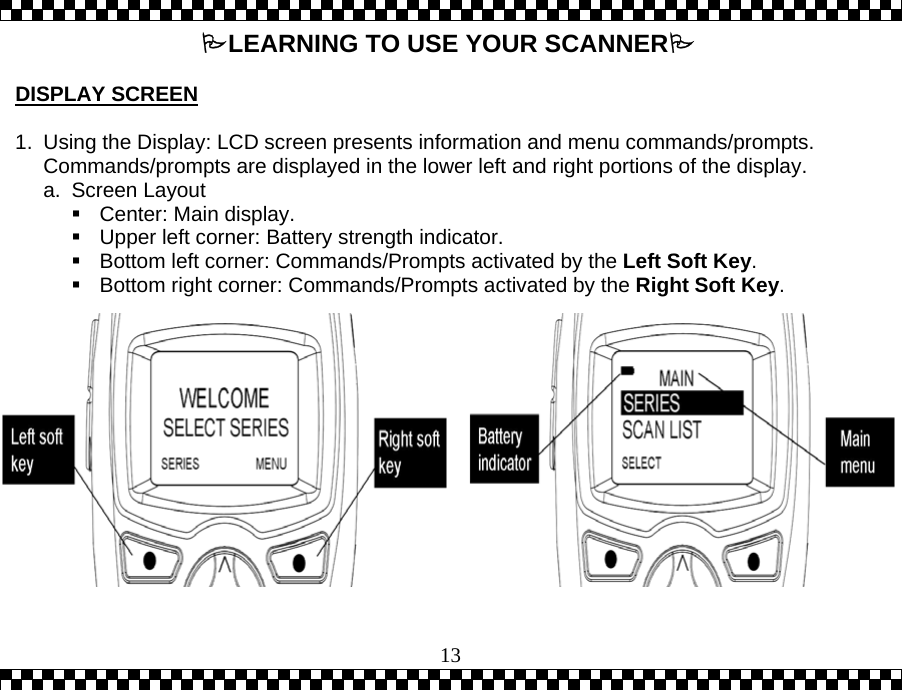
 13LEARNING TO USE YOUR SCANNER  DISPLAY SCREEN  1.  Using the Display: LCD screen presents information and menu commands/prompts.  Commands/prompts are displayed in the lower left and right portions of the display. a. Screen Layout  Center: Main display.  Upper left corner: Battery strength indicator.  Bottom left corner: Commands/Prompts activated by the Left Soft Key.  Bottom right corner: Commands/Prompts activated by the Right Soft Key.
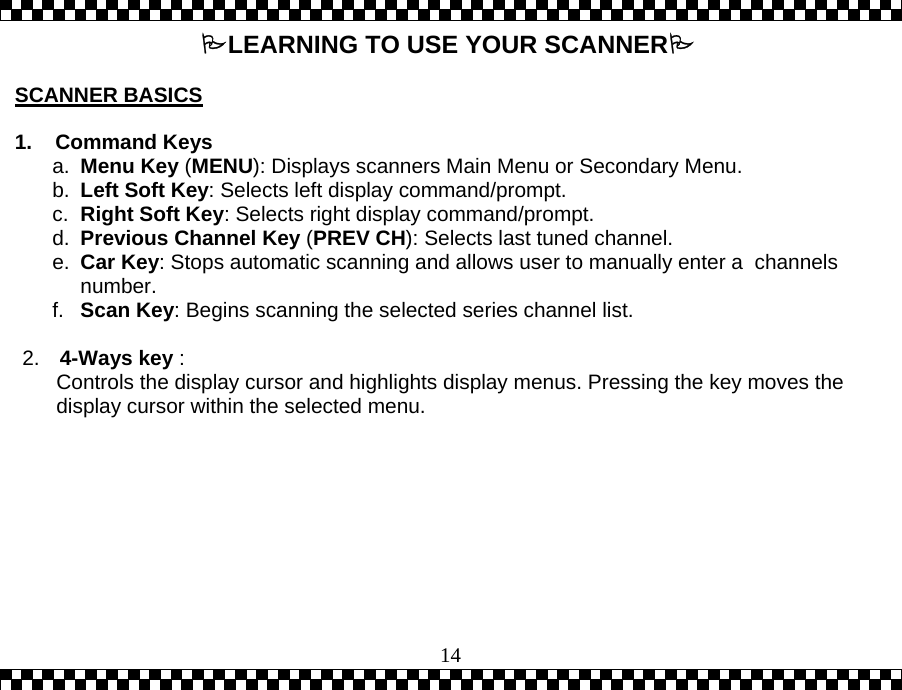
 14LEARNING TO USE YOUR SCANNER  SCANNER BASICS   1.    Command Keys a.  Menu Key (MENU): Displays scanners Main Menu or Secondary Menu. b.  Left Soft Key: Selects left display command/prompt.  c.  Right Soft Key: Selects right display command/prompt.  d.  Previous Channel Key (PREV CH): Selects last tuned channel.  e.  Car Key: Stops automatic scanning and allows user to manually enter a  channels number. f.  Scan Key: Begins scanning the selected series channel list.   2.  4-Ways key :  Controls the display cursor and highlights display menus. Pressing the key moves the display cursor within the selected menu.
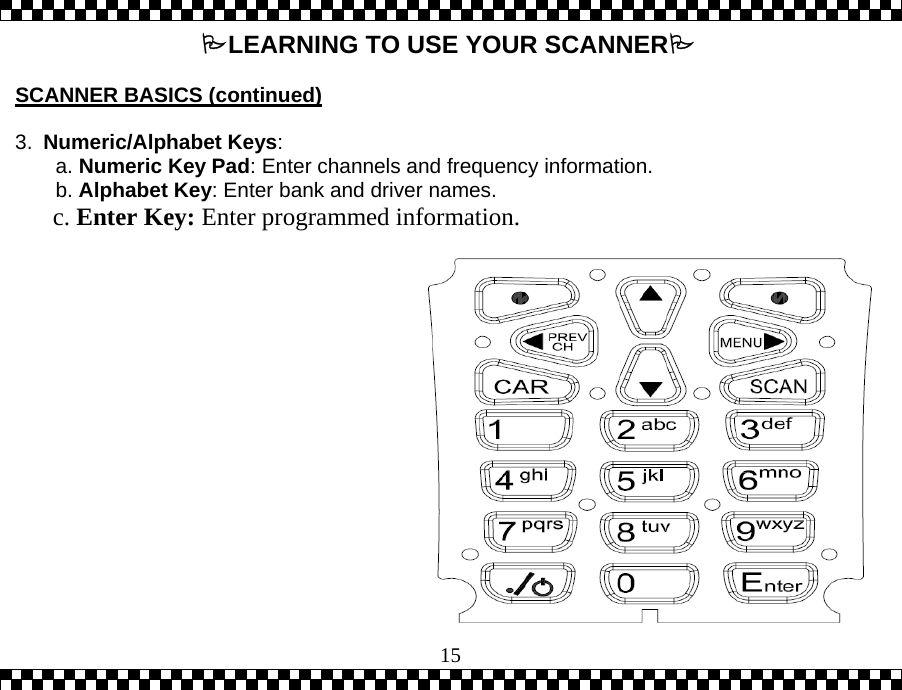
 15LEARNING TO USE YOUR SCANNER  SCANNER BASICS (continued)  3.  Numeric/Alphabet Keys:        a. Numeric Key Pad: Enter channels and frequency information.        b. Alphabet Key: Enter bank and driver names.        c. Enter Key: Enter programmed information.
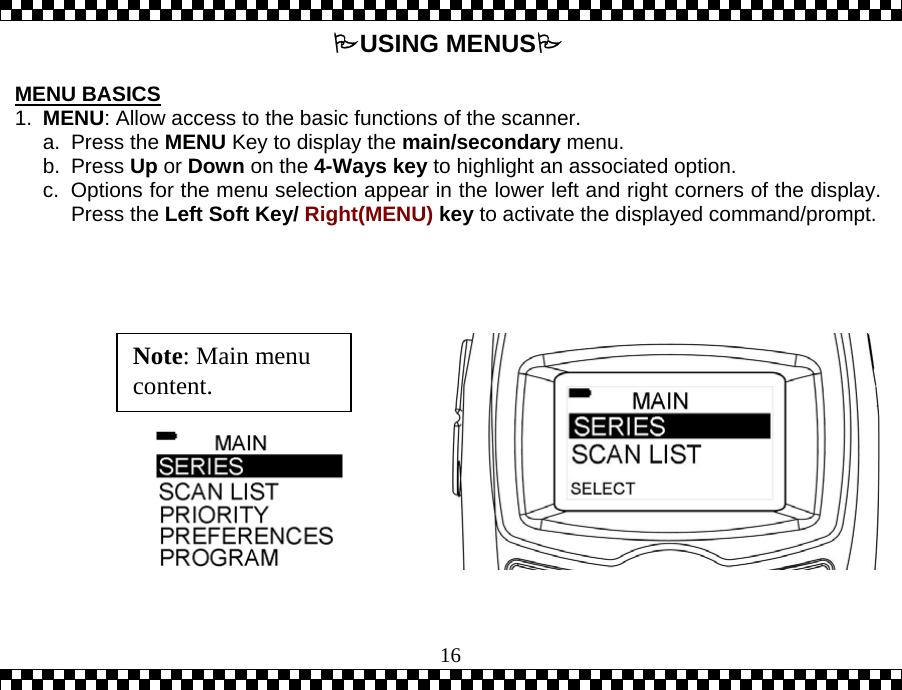
 16 USING MENUS  MENU BASICS 1.  MENU: Allow access to the basic functions of the scanner. a. Press the MENU Key to display the main/secondary menu.  b. Press Up or Down on the 4-Ways key to highlight an associated option. c.  Options for the menu selection appear in the lower left and right corners of the display.Press the Left Soft Key/ Right(MENU) key to activate the displayed command/prompt.                Note: Main menu content.
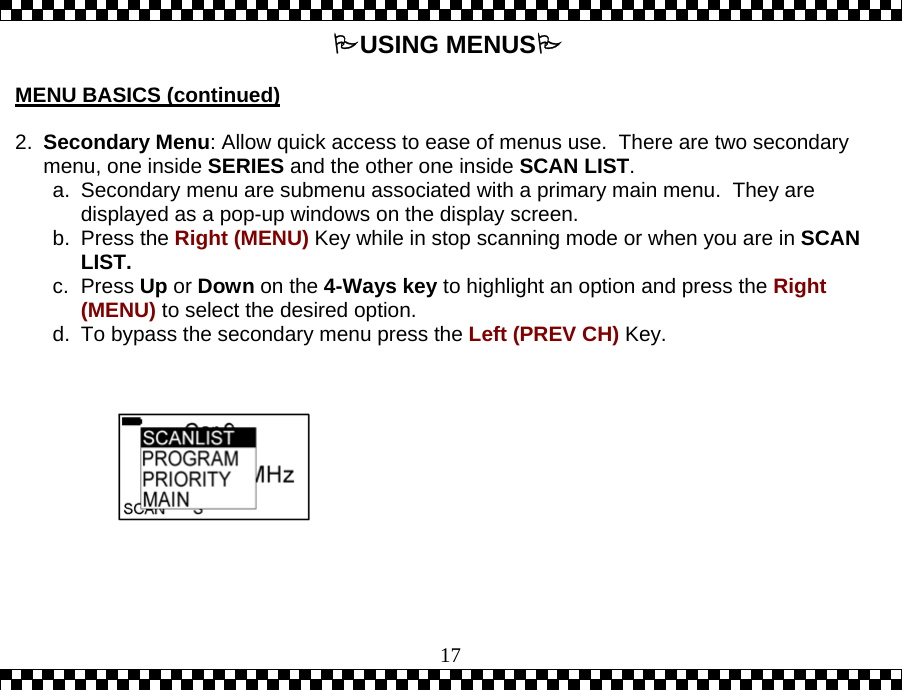
 17USING MENUS  MENU BASICS (continued)   2.  Secondary Menu: Allow quick access to ease of menus use.  There are two secondary menu, one inside SERIES and the other one inside SCAN LIST. a.  Secondary menu are submenu associated with a primary main menu.  They are displayed as a pop-up windows on the display screen.  b. Press the Right (MENU) Key while in stop scanning mode or when you are in SCAN LIST.  c. Press Up or Down on the 4-Ways key to highlight an option and press the Right (MENU) to select the desired option. d.  To bypass the secondary menu press the Left (PREV CH) Key.
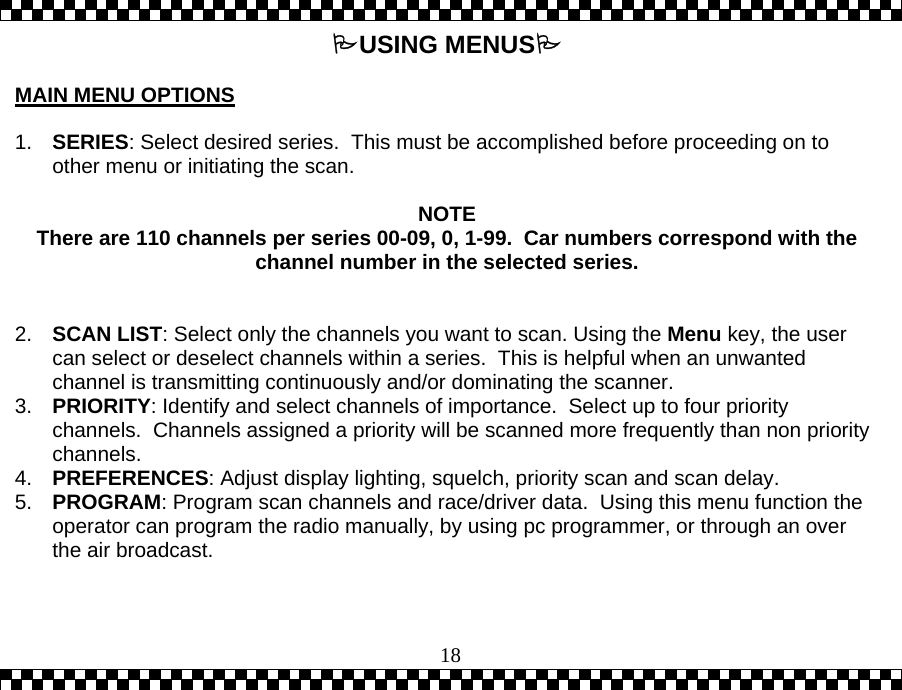
 18USING MENUS  MAIN MENU OPTIONS  1.  SERIES: Select desired series.  This must be accomplished before proceeding on to other menu or initiating the scan.   NOTE There are 110 channels per series 00-09, 0, 1-99.  Car numbers correspond with the channel number in the selected series.   2.  SCAN LIST: Select only the channels you want to scan. Using the Menu key, the user can select or deselect channels within a series.  This is helpful when an unwanted channel is transmitting continuously and/or dominating the scanner.  3.  PRIORITY: Identify and select channels of importance.  Select up to four priority channels.  Channels assigned a priority will be scanned more frequently than non priority channels. 4.  PREFERENCES: Adjust display lighting, squelch, priority scan and scan delay. 5.  PROGRAM: Program scan channels and race/driver data.  Using this menu function the operator can program the radio manually, by using pc programmer, or through an over the air broadcast.
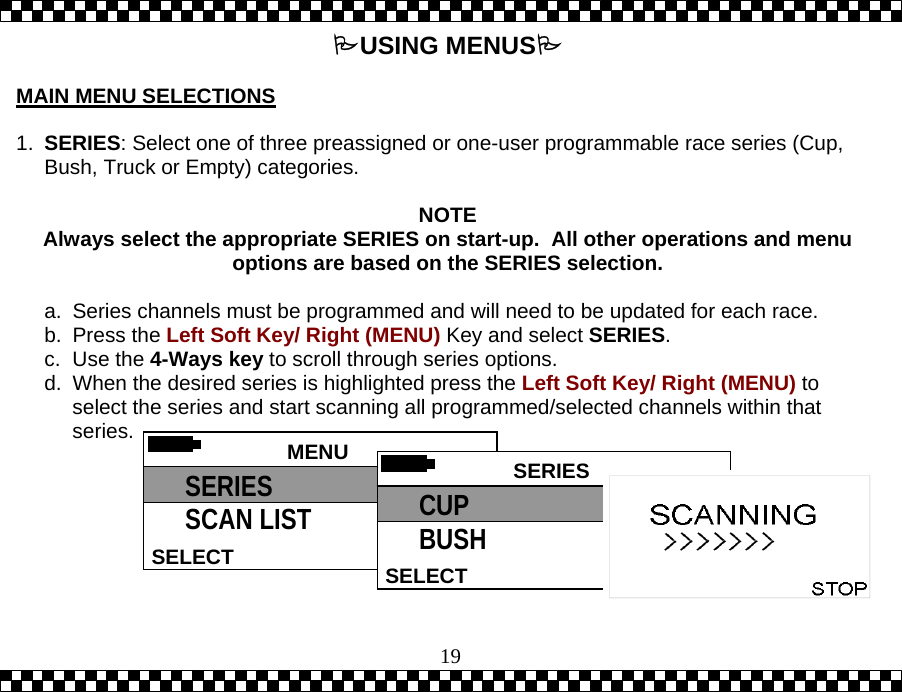
 19USING MENUS  MAIN MENU SELECTIONS  1.  SERIES: Select one of three preassigned or one-user programmable race series (Cup, Bush, Truck or Empty) categories.  NOTE Always select the appropriate SERIES on start-up.  All other operations and menu options are based on the SERIES selection.  a.  Series channels must be programmed and will need to be updated for each race. b. Press the Left Soft Key/ Right (MENU) Key and select SERIES. c. Use the 4-Ways key to scroll through series options. d.  When the desired series is highlighted press the Left Soft Key/ Right (MENU) to select the series and start scanning all programmed/selected channels within that series.   MENU HELPSELECT SERIES SCAN LIST  SERIES SELECTCUP BUSH
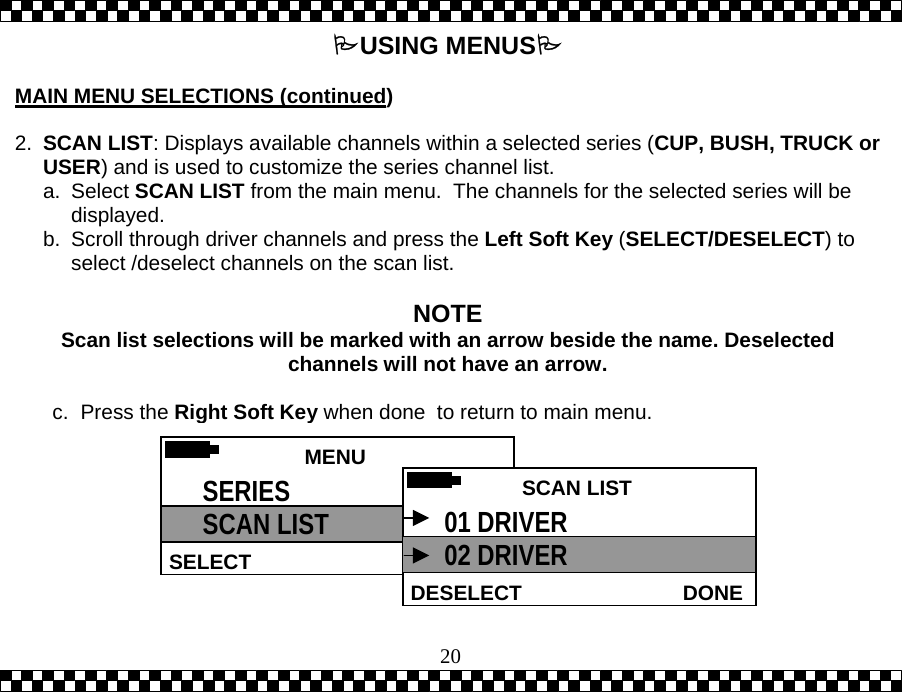
 20USING MENUS  MAIN MENU SELECTIONS (continued)  2.  SCAN LIST: Displays available channels within a selected series (CUP, BUSH, TRUCK or USER) and is used to customize the series channel list.   a. Select SCAN LIST from the main menu.  The channels for the selected series will be displayed. b.  Scroll through driver channels and press the Left Soft Key (SELECT/DESELECT) to select /deselect channels on the scan list.  NOTE Scan list selections will be marked with an arrow beside the name. Deselected channels will not have an arrow.  c. Press the Right Soft Key when done  to return to main menu.  MENU HELPSELECT SERIES SCAN LIST   SCAN LISTDONEDESELECT01 DRIVER 02 DRIVER
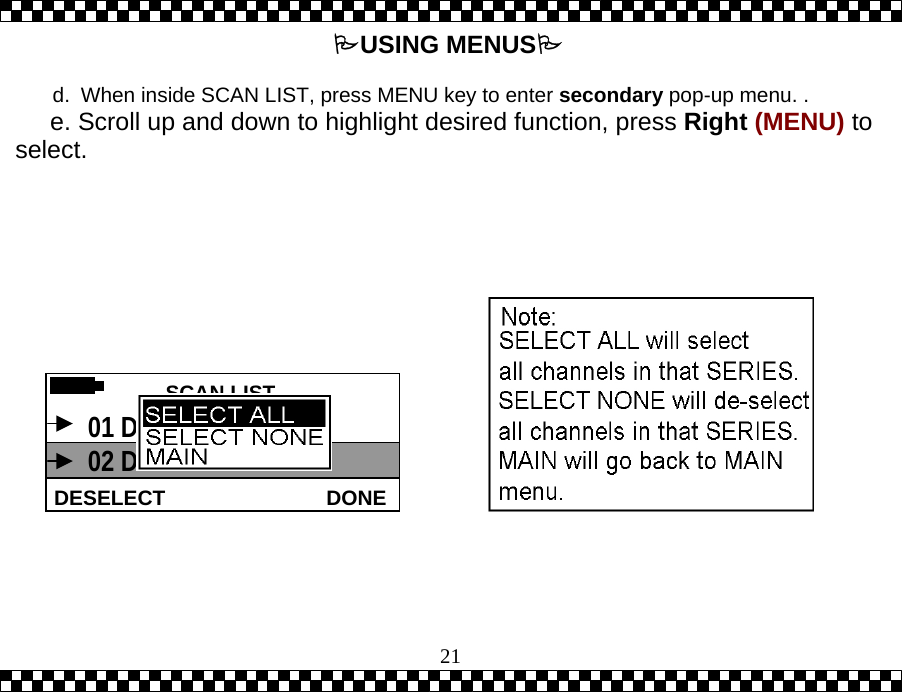
 21 USING MENUS  d.  When inside SCAN LIST, press MENU key to enter secondary pop-up menu. .      e. Scroll up and down to highlight desired function, press Right (MENU) to select.         SCAN LIST DONEDESELECT 01 DRIVER 02 DRIVER
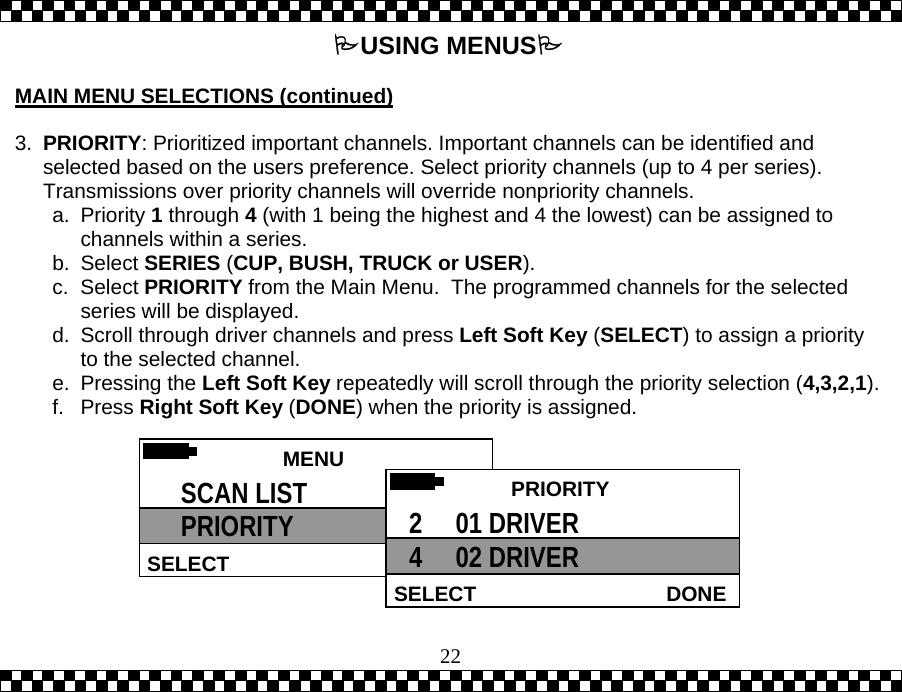
 22USING MENUS  MAIN MENU SELECTIONS (continued)  3.  PRIORITY: Prioritized important channels. Important channels can be identified and selected based on the users preference. Select priority channels (up to 4 per series).  Transmissions over priority channels will override nonpriority channels. a. Priority 1 through 4 (with 1 being the highest and 4 the lowest) can be assigned to channels within a series. b. Select SERIES (CUP, BUSH, TRUCK or USER). c. Select PRIORITY from the Main Menu.  The programmed channels for the selected series will be displayed. d.  Scroll through driver channels and press Left Soft Key (SELECT) to assign a priority to the selected channel.  e. Pressing the Left Soft Key repeatedly will scroll through the priority selection (4,3,2,1).f. Press Right Soft Key (DONE) when the priority is assigned.  MENU HELPSELECT SCAN LIST PRIORITY   PRIORITY DONESELECT2     01 DRIVER 4     02 DRIVER
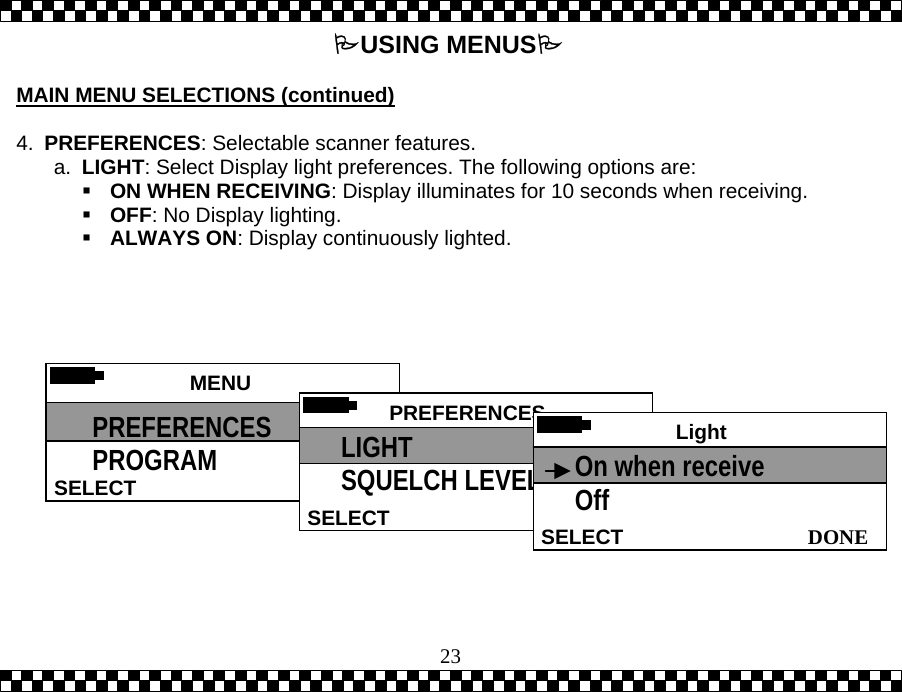
 23 USING MENUS  MAIN MENU SELECTIONS (continued)  4.  PREFERENCES: Selectable scanner features. a.  LIGHT: Select Display light preferences. The following options are:  ON WHEN RECEIVING: Display illuminates for 10 seconds when receiving.  OFF: No Display lighting.  ALWAYS ON: Display continuously lighted.    MENU SELECT PREFERENCES PROGRAM  PREFERENCESSELECTLIGHT SQUELCH LEVEL  Light  DONESELECTOn when receive Off
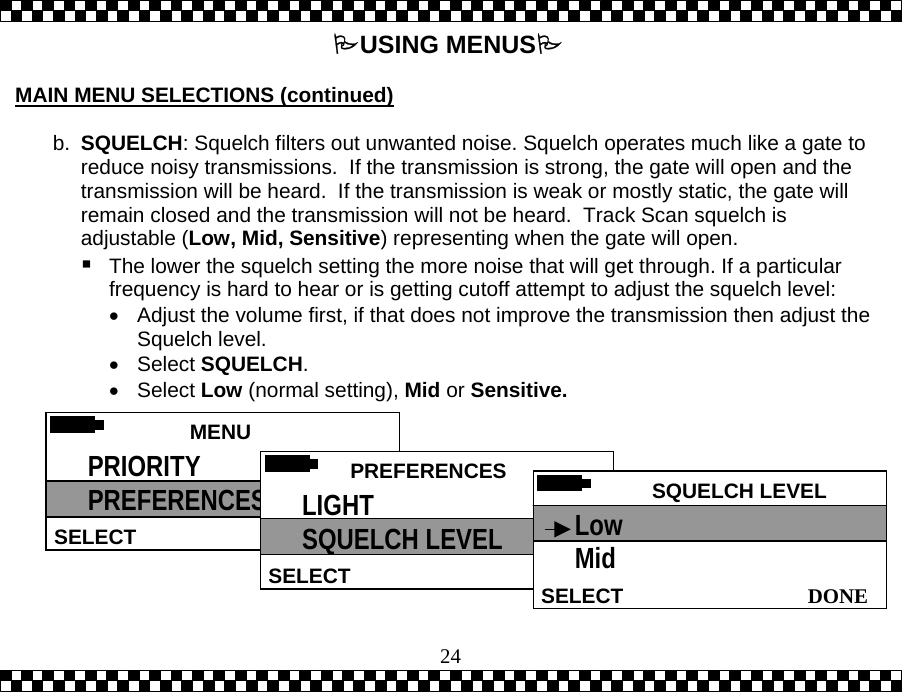
 24USING MENUS  MAIN MENU SELECTIONS (continued)  b.  SQUELCH: Squelch filters out unwanted noise. Squelch operates much like a gate to reduce noisy transmissions.  If the transmission is strong, the gate will open and the transmission will be heard.  If the transmission is weak or mostly static, the gate will remain closed and the transmission will not be heard.  Track Scan squelch is adjustable (Low, Mid, Sensitive) representing when the gate will open.    The lower the squelch setting the more noise that will get through. If a particular frequency is hard to hear or is getting cutoff attempt to adjust the squelch level: •  Adjust the volume first, if that does not improve the transmission then adjust the Squelch level. •  Select SQUELCH. •  Select Low (normal setting), Mid or Sensitive.  MENU HELPSELECT PRIORITY PREFERENCES  PREFERENCESSELECTLIGHT SQUELCH LEVEL  SQUELCH LEVEL DONESELECTLow Mid
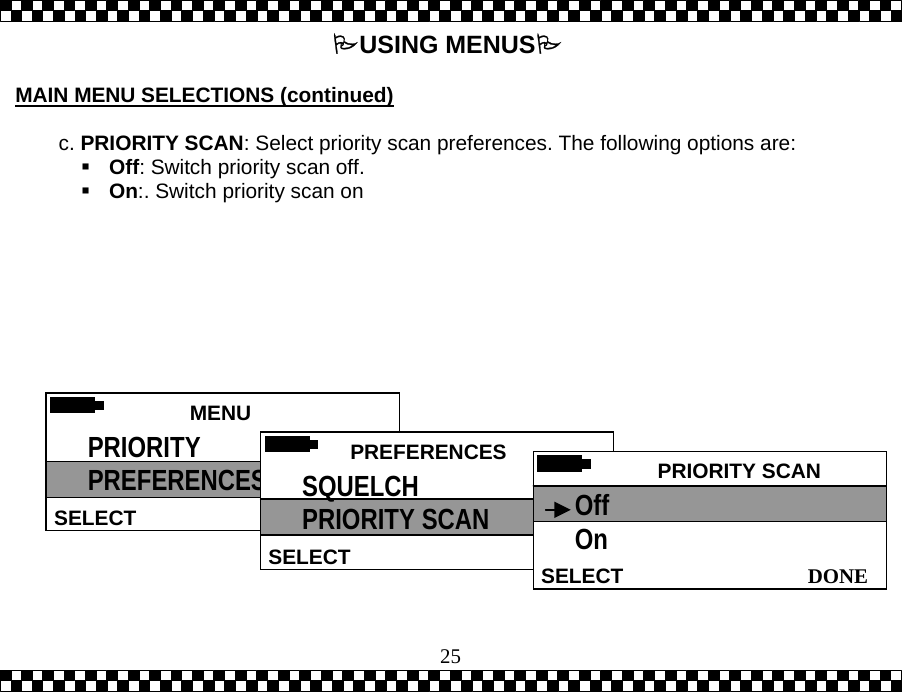
 25USING MENUS  MAIN MENU SELECTIONS (continued)   c. PRIORITY SCAN: Select priority scan preferences. The following options are:  Off: Switch priority scan off.  On:. Switch priority scan on     MENU HELPSELECT PRIORITY PREFERENCES  PREFERENCESSELECTSQUELCH PRIORITY SCAN  PRIORITY SCAN DONESELECTOff On
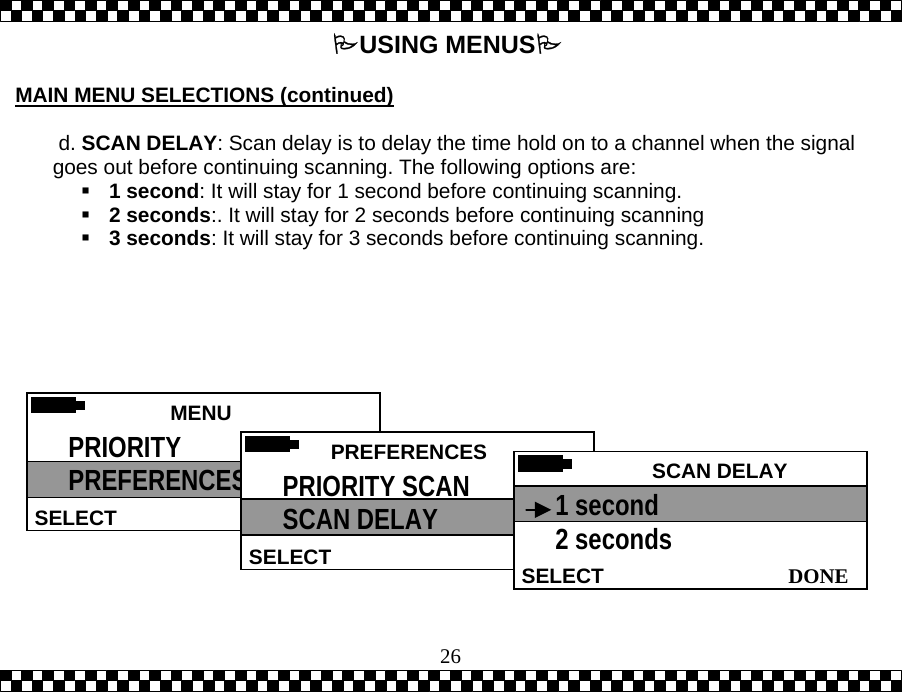
 26USING MENUS  MAIN MENU SELECTIONS (continued)   d. SCAN DELAY: Scan delay is to delay the time hold on to a channel when the signal goes out before continuing scanning. The following options are:  1 second: It will stay for 1 second before continuing scanning.  2 seconds:. It will stay for 2 seconds before continuing scanning  3 seconds: It will stay for 3 seconds before continuing scanning.    MENU HELPSELECT PRIORITY PREFERENCES  PREFERENCESSELECTPRIORITY SCAN  SCAN DELAY  SCAN DELAY DONESELECT1 second 2 seconds
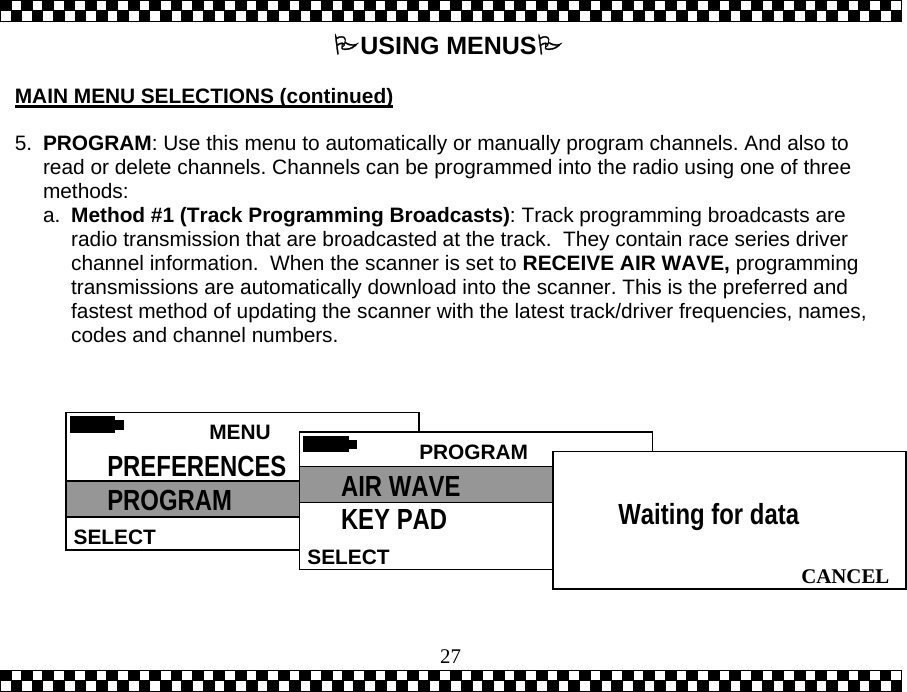
 27USING MENUS  MAIN MENU SELECTIONS (continued)  5.  PROGRAM: Use this menu to automatically or manually program channels. And also to read or delete channels. Channels can be programmed into the radio using one of three methods:  a.  Method #1 (Track Programming Broadcasts): Track programming broadcasts are radio transmission that are broadcasted at the track.  They contain race series driver channel information.  When the scanner is set to RECEIVE AIR WAVE, programming transmissions are automatically download into the scanner. This is the preferred and fastest method of updating the scanner with the latest track/driver frequencies, names, codes and channel numbers.    MENU HELPSELECT PREFERENCES PROGRAM  PROGRAMSELECTAIR WAVE KEY PAD   CANCELWaiting for data
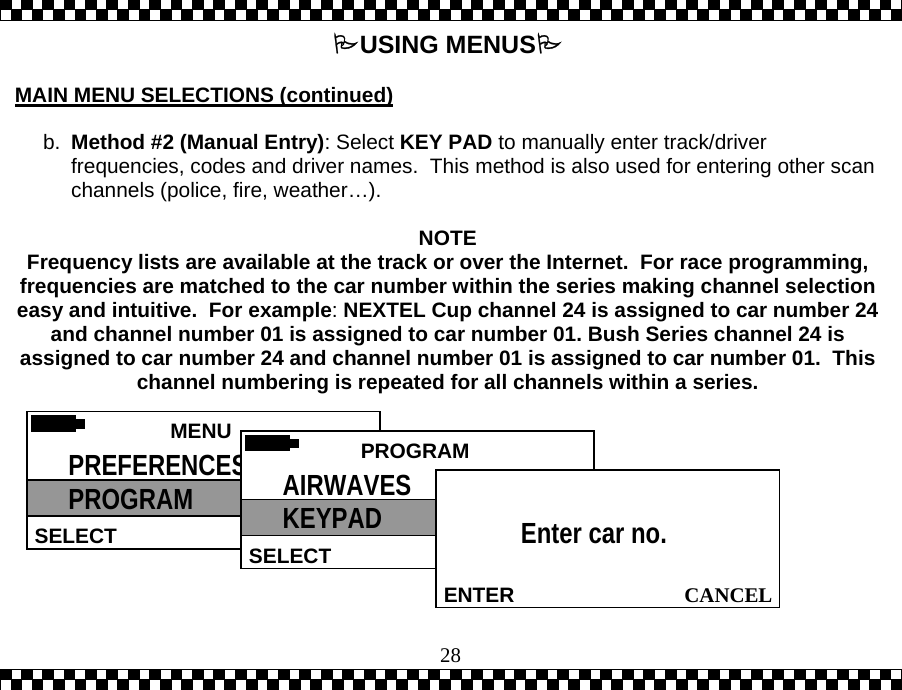
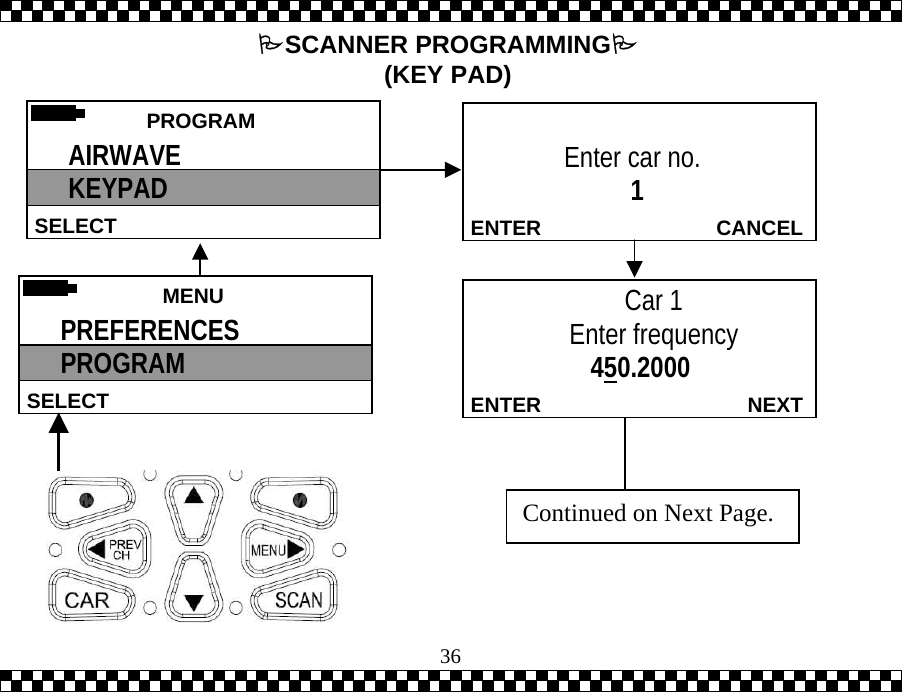
 28USING MENUS  MAIN MENU SELECTIONS (continued)  b.  Method #2 (Manual Entry): Select KEY PAD to manually enter track/driver frequencies, codes and driver names.  This method is also used for entering other scan channels (police, fire, weather…).   NOTE Frequency lists are available at the track or over the Internet.  For race programming, frequencies are matched to the car number within the series making channel selection easy and intuitive.  For example:NEXTEL Cup channel 24 is assigned to car number 24 and channel number 01 is assigned to car number 01. Bush Series channel 24 is assigned to car number 24 and channel number 01 is assigned to car number 01.  This channel numbering is repeated for all channels within a series.   MENU  SELECT PREFERENCES PROGRAM  PROGRAMSELECTAIRWAVES KEYPAD   CANCELENTEREnter car no.
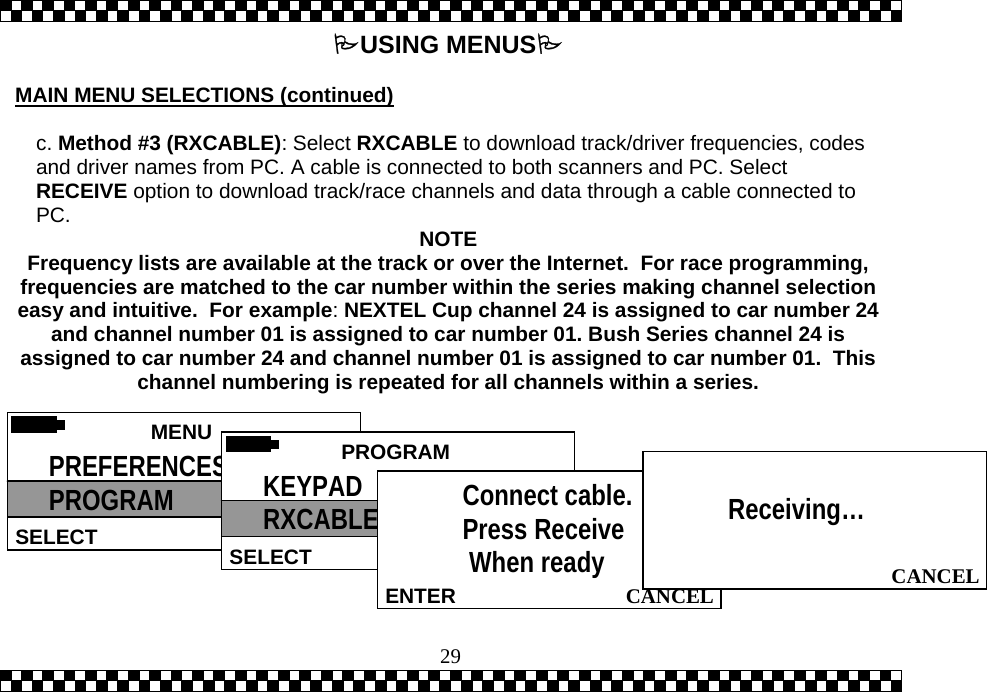
 29USING MENUS  MAIN MENU SELECTIONS (continued)  c. Method #3 (RXCABLE): Select RXCABLE to download track/driver frequencies, codes and driver names from PC. A cable is connected to both scanners and PC. Select RECEIVE option to download track/race channels and data through a cable connected to PC.  NOTE Frequency lists are available at the track or over the Internet.  For race programming, frequencies are matched to the car number within the series making channel selection easy and intuitive.  For example:NEXTEL Cup channel 24 is assigned to car number 24 and channel number 01 is assigned to car number 01. Bush Series channel 24 is assigned to car number 24 and channel number 01 is assigned to car number 01.  This channel numbering is repeated for all channels within a series.   MENU  SELECT PREFERENCES PROGRAM  PROGRAMSELECT KEYPAD RXCABLE   CANCELENTERConnect cable. Press Receive  When ready  CANCEL Receiving…
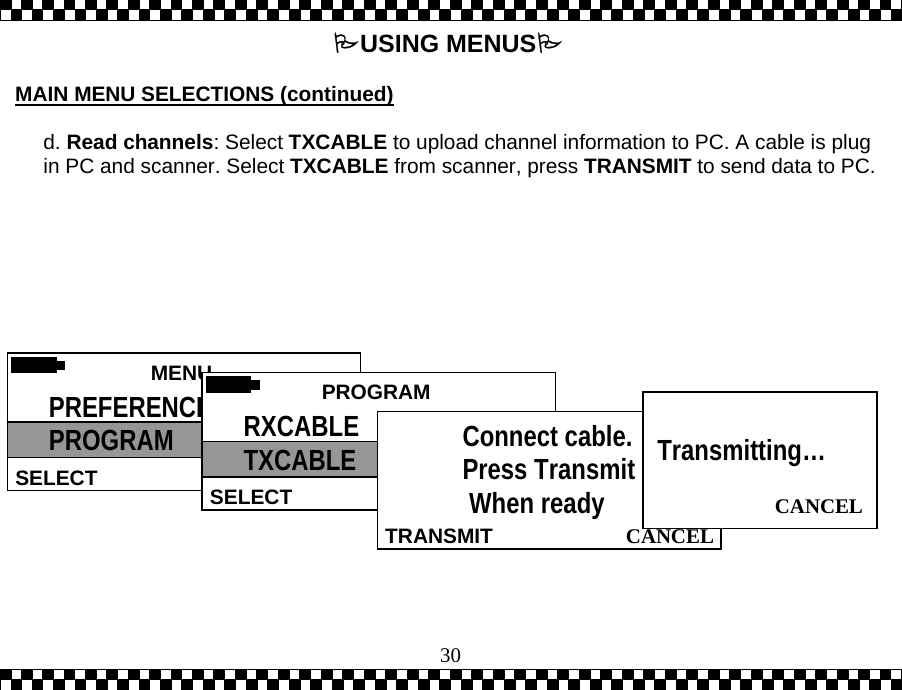
 30USING MENUS  MAIN MENU SELECTIONS (continued)  d. Read channels: Select TXCABLE to upload channel information to PC. A cable is plug in PC and scanner. Select TXCABLE from scanner, press TRANSMIT to send data to PC.  MENU  SELECT PREFERENCES PROGRAM  PROGRAMSELECT RXCABLE TXCABLE   CANCEL TRANSMITConnect cable. Press Transmit  When ready  CANCEL  Transmitting…
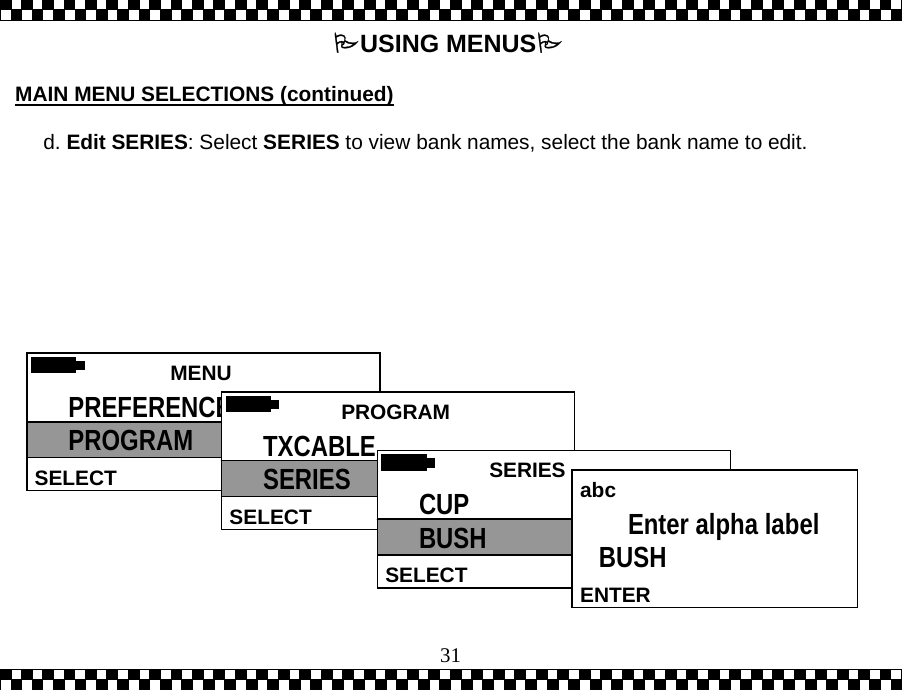
 31USING MENUS  MAIN MENU SELECTIONS (continued)  d. Edit SERIES: Select SERIES to view bank names, select the bank name to edit.    MENU  SELECT PREFERENCES PROGRAM   PROGRAMSELECT TXCABLE SERIES   SERIES SELECTCUP BUSH  abc ENTEREnter alpha label BUSH
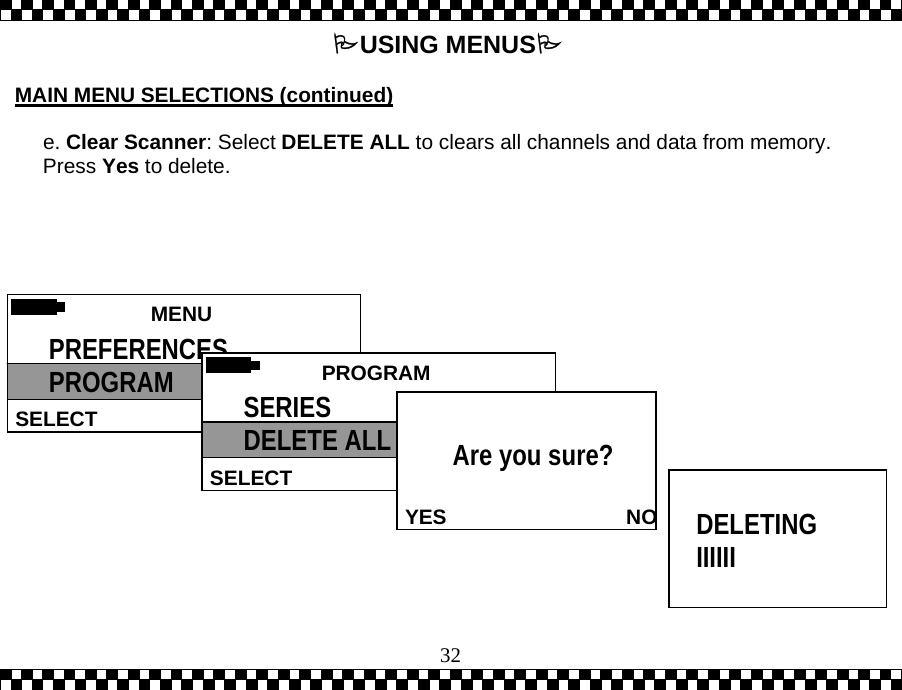
 32USING MENUS  MAIN MENU SELECTIONS (continued)  e. Clear Scanner: Select DELETE ALL to clears all channels and data from memory. Press Yes to delete.    MENU  SELECT PREFERENCES PROGRAM   PROGRAMSELECT SERIES DELETE ALL   YES                               NOAre you sure?    DELETING IIIIII
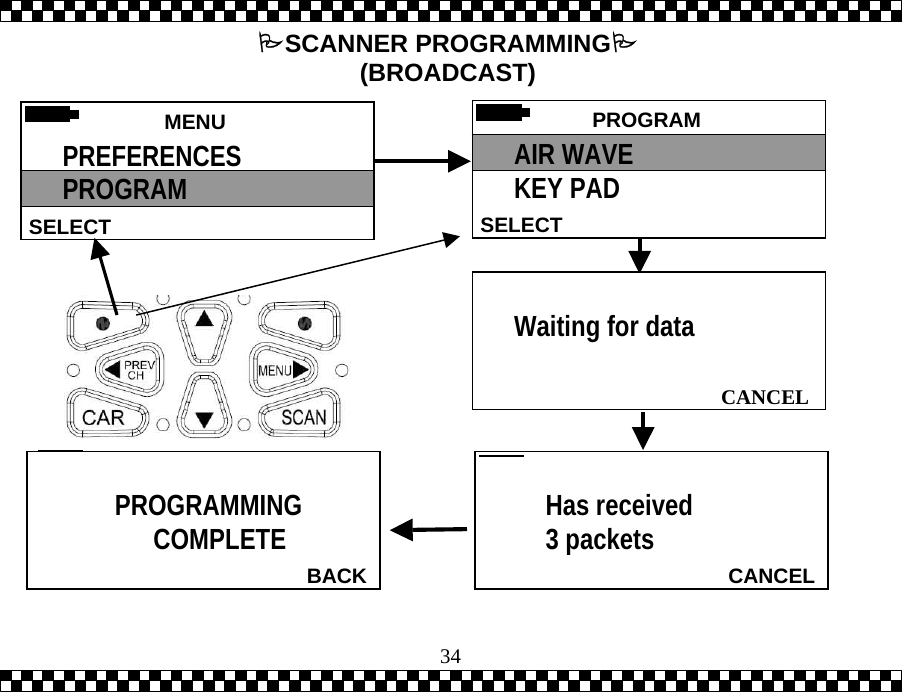
 33SCANNER PROGRAMMING  PROGRAMMING PROCEDURES   Programming the scanner is accomplished by selecting one of the programming methods (air, PC or manual).  1.  RECEIVE AIRWAVE:  a.  For Receive Air Wave method be sure to position the scanner frequency same as the transmission. b.  Select and follow menu prompts. c.  The display will show the progress of information as it is programmed into the scanner. d. Select DONE when the display shows COMPLETE.  NOTE To receive air wave Decoder unit is plug in to the TrackScan.
 34 PROGRAM SELECTAIR WAVE KEY PAD   CANCELHas received 3 packets   BACK        PROGRAMMING     COMPLETE   CANCELWaiting for data  MENU  SELECT PREFERENCES PROGRAM SCANNER PROGRAMMING (BROADCAST)
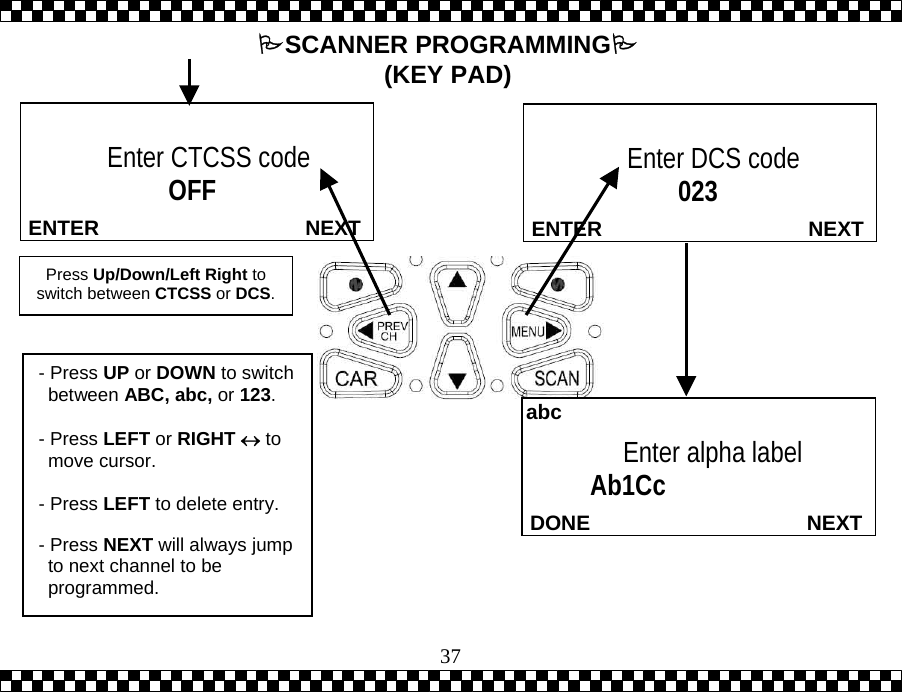
 35SCANNER PROGRAMMING  PROGRAMMING PROCEDURES (continued)  2.  KEY PAD: Use the Numeric Key Pad to enter the following information: a.  Channel Number: Enter cal number. b.  Frequency: Enter a valid frequency by using Up or Down Navigation Pad. (450-469.9875) c.  CTCSS/DCS Code   This code is essential for monitoring track/driver channels.  CTCSS and DCS Codes are sub-audio signaling formats designed to prevent interference from other broadcasting stations sharing the same frequency.  When using CTCSS or DCS codes the scanner will only respond to transmissions carrying the tone.  Therefore you only hear the race team’s transmissions.  Use Up/Down/ Left (PREV CH) / Right (MENU) 4-Ways key to adjust CTCSS/DCS code.   Press Left (PREV CH) to turn CTCSS Code off.   Press Right (MENU) to set DCS Code to first one. d.  Alpha Label: Used to name the channel. This field can key letter or number.   Use the Numeric Key Pad to enter letter/number in the display.    Press the Navigation Pad •  Up or Down to select upper/lower case letter or number. •  Left(PREV CH) or Right(MENU) to move the cursor left or right. •  Left to delete a letter.
 36 CANCELENTER         Enter car no.                    1  MENU SELECT PREFERENCES PROGRAM  NEXTENTERCar 1 Enter frequency              450.2000  Continued on Next Page. SCANNER PROGRAMMING (KEY PAD)  PROGRAM  SELECT AIRWAVE KEYPAD
 37 NEXTENTEREnter DCS code                  023   NEXTENTER Enter CTCSS code                 OFF  Press Up/Down/Left Right to switch between CTCSS or DCS.  NEXTDONEEnter alpha label     Ab1Cc abc- Press UP or DOWN to switch between ABC, abc, or 123.  - Press LEFT or RIGHT ↔ to move cursor.  - Press LEFT to delete entry.  - Press NEXT will always jump to next channel to be programmed.  SCANNER PROGRAMMING (KEY PAD)
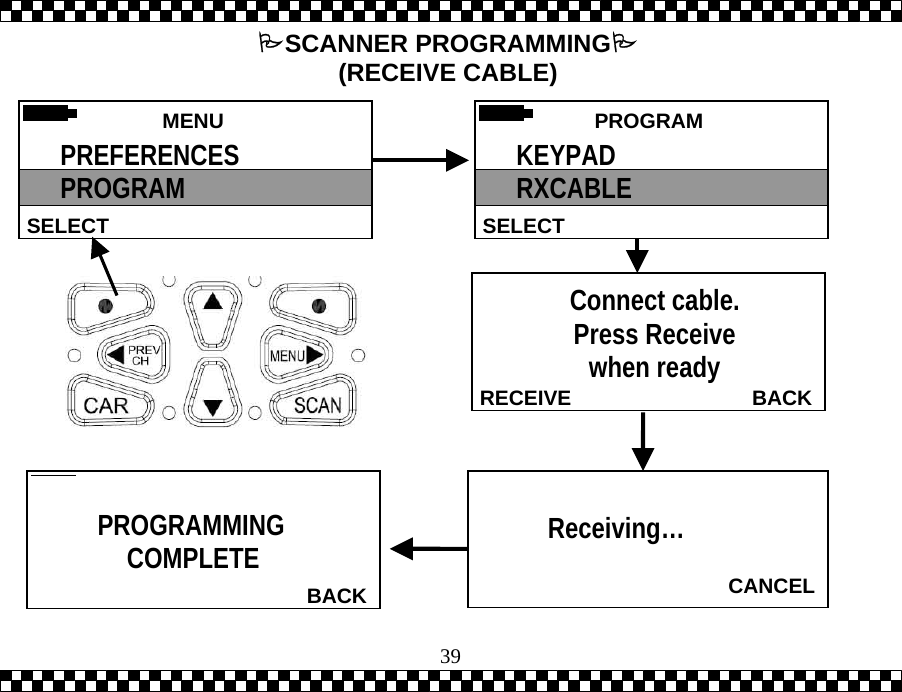
 38SCANNER PROGRAMMING  PROGRAMMING PROCEDURES (continued)  3.  Receive Cable: a.  Connect the cable to the scanner.  b. Select PROGRAM and Receive Cable on the scanner that needs to be programmed. c.  Observe the display during the transfer and follow menu prompts.  d. Select DONE when complete.
 39  BACKRECEIVEConnect cable.  Press Receive  when ready   BACK PROGRAMMING COMPLETE  CANCEL       Receiving…  MENU  SELECT PREFERENCES PROGRAM SCANNER PROGRAMMING (RECEIVE CABLE)  PROGRAM SELECTKEYPAD RXCABLE
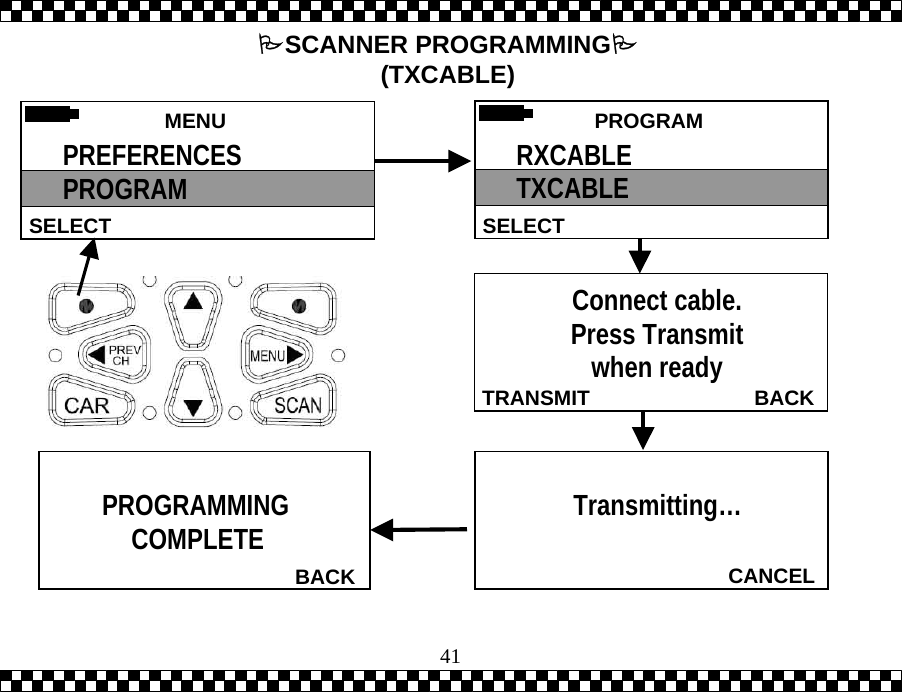
 40SCANNER PROGRAMMING  PROGRAMMING PROCEDURES (continued)  4.  TRANSMIT CABLE:  a.  Connect the cable. b. Select PROGRAM and TXCABLE on the scanner that has the programmed information.   NOTE Care should be taken to ensure that the transmit scanner and the PC are properly connected.  Otherwise the data in the good scanner will be lost.  c.  Observe the display during the transfer and follow menu prompts.
 41  BACK PROGRAMMING COMPLETE  MENU SELECT PREFERENCES PROGRAM   CANCELTransmitting…   BACKTRANSMITConnect cable.  Press Transmit  when ready SCANNER PROGRAMMING (TXCABLE)  PROGRAMSELECTRXCABLE TXCABLE
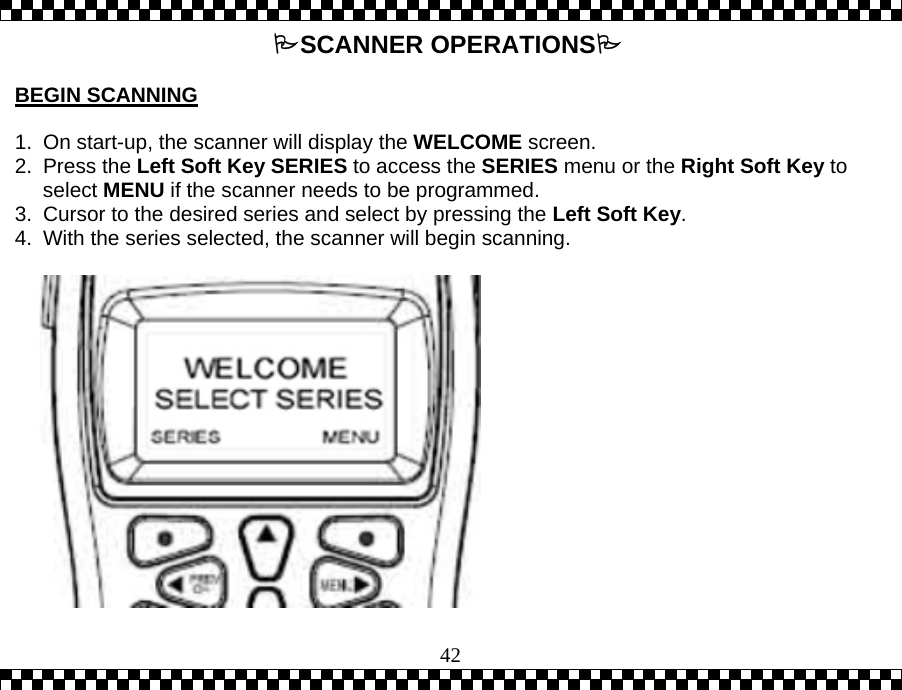
 42SCANNER OPERATIONS  BEGIN SCANNING   1.  On start-up, the scanner will display the WELCOME screen.   2. Press the Left Soft Key SERIES to access the SERIES menu or the Right Soft Key to select MENU if the scanner needs to be programmed.  3.  Cursor to the desired series and select by pressing the Left Soft Key. 4.  With the series selected, the scanner will begin scanning.
 43OPERATING THE SCANNER  MONITORING THE SCANNER  1.  When the scanner is scanning channels, the scanner will lock on to active channels and stay locked on that channel until there is a pause in the transmission. When the transmission stops for more than 2 seconds the scanner will resume scanning for the next active channel.  2.  While scanning, the display will show a scanning moving symbol (>>>>).  When an active channel is found the display will show the preset number, channel number and frequency.
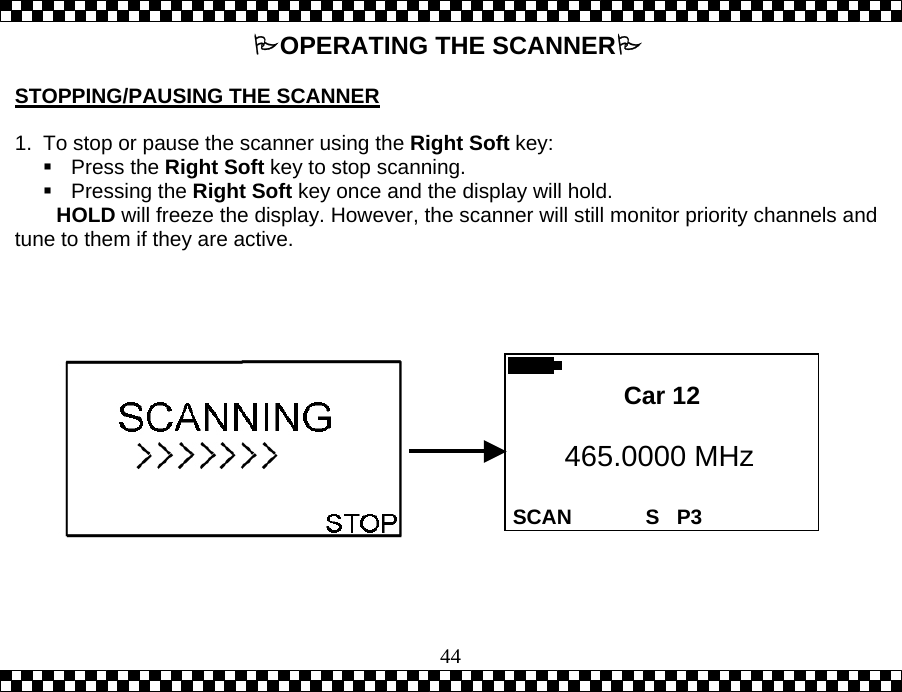
 44OPERATING THE SCANNER  STOPPING/PAUSING THE SCANNER   1.  To stop or pause the scanner using the Right Soft key:  Press the Right Soft key to stop scanning.  Pressing the Right Soft key once and the display will hold. HOLD will freeze the display. However, the scanner will still monitor priority channels and tune to them if they are active.      SCAN 465.0000 MHz S   P3 Car 12
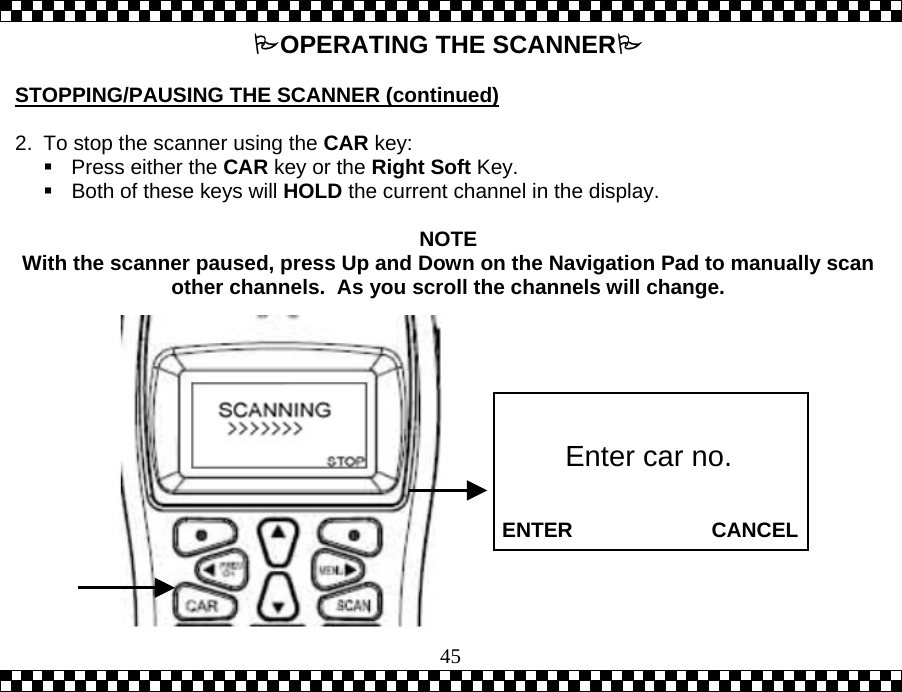
 45OPERATING THE SCANNER  STOPPING/PAUSING THE SCANNER (continued)   2.  To stop the scanner using the CAR key:    Press either the CAR key or the Right Soft Key.   Both of these keys will HOLD the current channel in the display.   NOTE With the scanner paused, press Up and Down on the Navigation Pad to manually scan other channels.  As you scroll the channels will change.              ENTER                        CANCEL Enter car no.
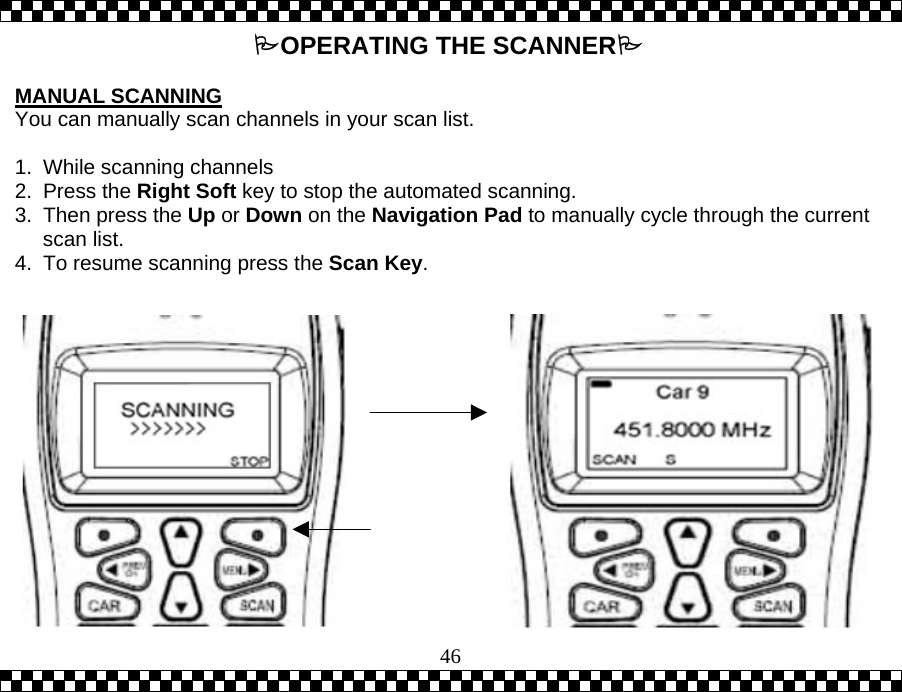
 46OPERATING THE SCANNER  MANUAL SCANNING You can manually scan channels in your scan list.  1. While scanning channels 2. Press the Right Soft key to stop the automated scanning.   3.  Then press the Up or Down on the Navigation Pad to manually cycle through the current scan list.  4.  To resume scanning press the Scan Key.
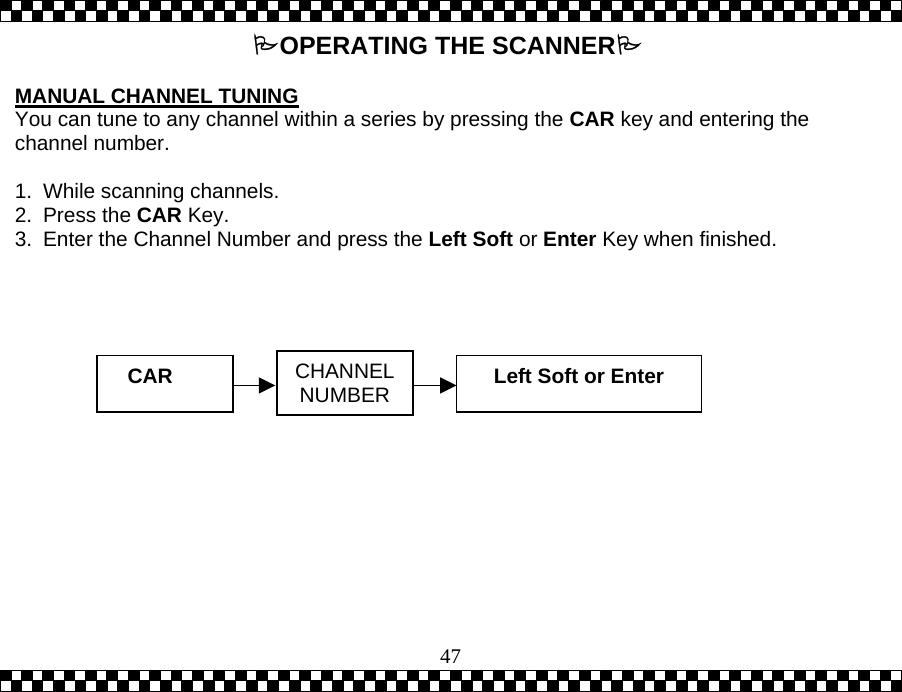
 47OPERATING THE SCANNER  MANUAL CHANNEL TUNING You can tune to any channel within a series by pressing the CAR key and entering the channel number.  1. While scanning channels. 2. Press the CAR Key. 3.  Enter the Channel Number and press the Left Soft or Enter Key when finished.  CAR   CHANNEL NUMBER Left Soft or Enter
 48OPERATING THE SCANNER  PREVIOUS CHANNEL Use the PREV CH Key to select the last tuned frequency. This key is only active when the scanner is stopped on a frequency.   1. While scanning channels. 2. Press the Car Key.   3.  Manually enter the two desired channel numbers using the Numeric Key Pad. 4. Press the PREV CH Key to switch between the two channels.  5.  To resume scanning press the Scan Key.
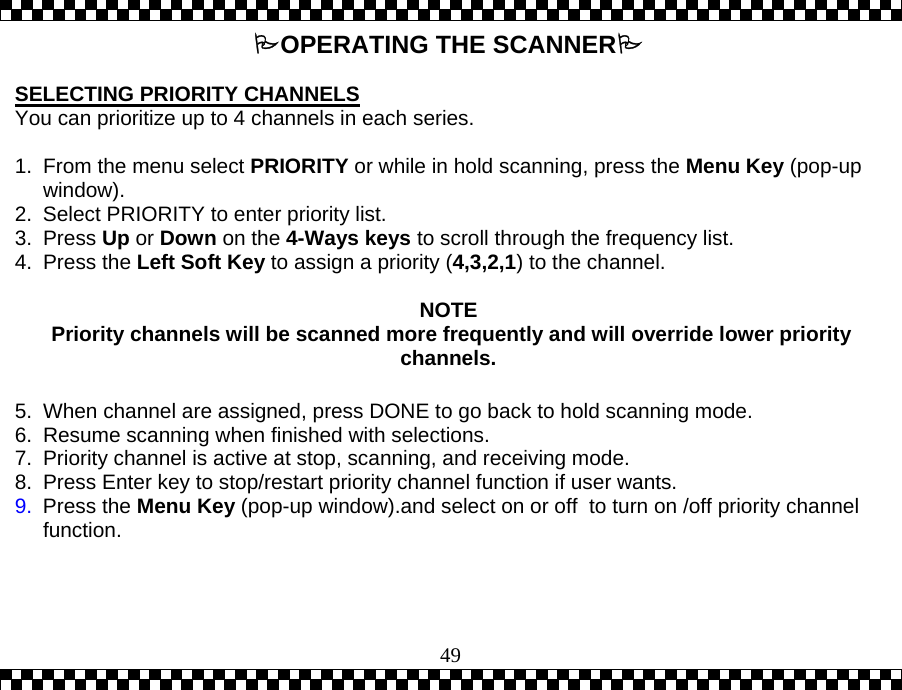
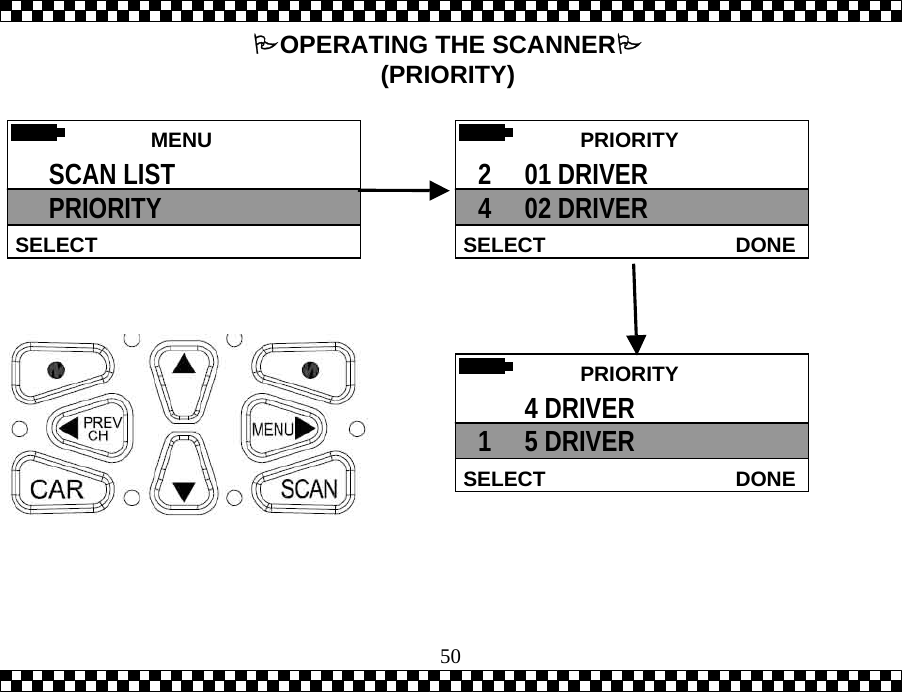
 49OPERATING THE SCANNER  SELECTING PRIORITY CHANNELS You can prioritize up to 4 channels in each series.  1.  From the menu select PRIORITY or while in hold scanning, press the Menu Key (pop-up window).   2.  Select PRIORITY to enter priority list.  3. Press Up or Down on the 4-Ways keys to scroll through the frequency list. 4. Press the Left Soft Key to assign a priority (4,3,2,1) to the channel.    NOTE  Priority channels will be scanned more frequently and will override lower priority channels.  5.  When channel are assigned, press DONE to go back to hold scanning mode.  6.  Resume scanning when finished with selections. 7.  Priority channel is active at stop, scanning, and receiving mode. 8.  Press Enter key to stop/restart priority channel function if user wants. 9.  Press the Menu Key (pop-up window).and select on or off  to turn on /off priority channel function.
 50 MENU  SELECT SCAN LIST PRIORITY  PRIORITY DONESELECT2     01 DRIVER 4     02 DRIVER  PRIORITY DONESELECT       4 DRIVER 1     5 DRIVER OPERATING THE SCANNER (PRIORITY)
 51OPERATING THE SCANNER  SELECTING AND DESELECTING SCAN CHANNELS The scan list can be modified to select or deselect channels as desired.    1.  From the menu select SCAN LIST.  2. Press Up or Down on the 4-Ways keys to scroll through the frequency list. 3. Press the Left Soft Key to SELECT or DESELECT the highlighted channel.    NOTE When modifying a large scan list, it may be simpler to DESELECT ALL (press the Menu Key when you are on the scan list) and then reselect only the channels you want to scan.  4.  SCAN LIST Secondary Menu: While on a SCAN LIST a secondary menu will pop-up when the Menu Key is pressed.  The secondary list allows the operator to globally select all or none of the channels for scanning.
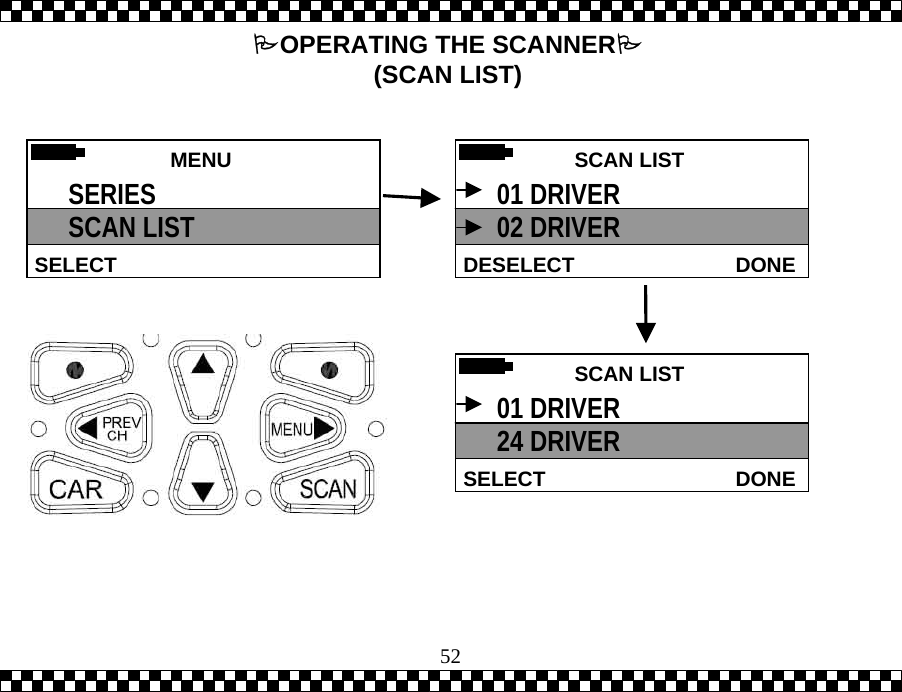
 52 SCAN LISTDONEDESELECT01 DRIVER 02 DRIVER  SCAN LISTDONESELECT01 DRIVER 24 DRIVER  MENU  SELECT SERIES SCAN LIST OPERATING THE SCANNER (SCAN LIST)
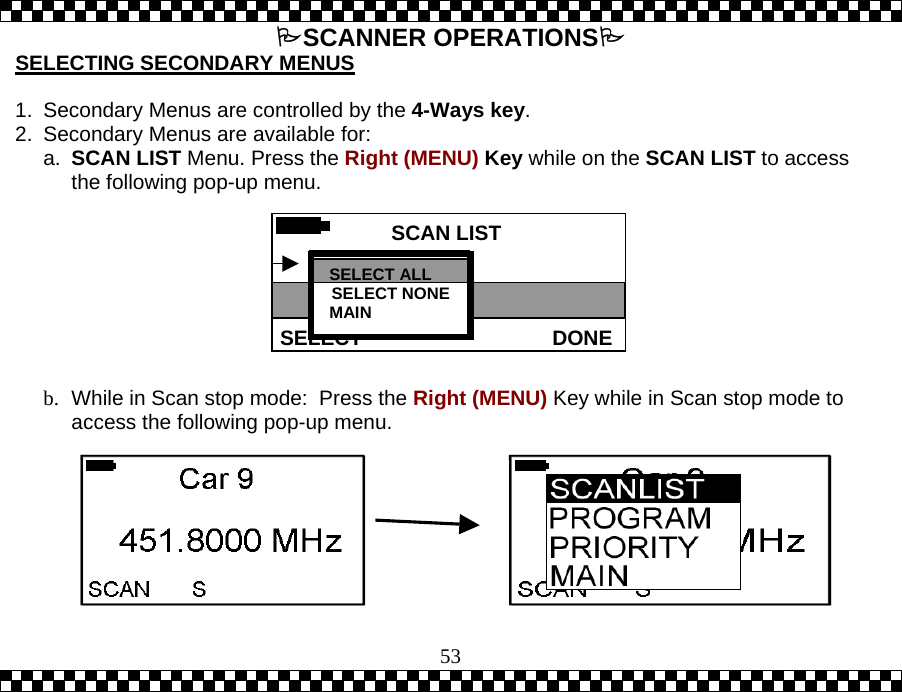
 53SCANNER OPERATIONS SCAN LISTDONESELECT01 DRIVER 24 DRIVER SELECTING SECONDARY MENUS  1.  Secondary Menus are controlled by the 4-Ways key. 2.  Secondary Menus are available for: a.  SCAN LIST Menu. Press the Right (MENU) Key while on the SCAN LIST to access the following pop-up menu.         b.  While in Scan stop mode:  Press the Right (MENU) Key while in Scan stop mode to access the following pop-up menu. SELECT ALL SELECT NONEMAIN
 54MANUAL MODE   In addition to automated channel programming the scanner can be programmed manually.  Manual programming enables you to enter and scan track channels as well as police, fire and other civil channels and frequencies. Using the manual programming features of the scanner you can enter or modify all scanner channels.  BASICS a. Select a SERIES (USER). b. Use the PROGRAMMING menu and the KEY PAD selection to enter channels manually. c.  Enter a channel numbers between 0, 00-09, 1-99. d.  Enter a channel frequency between 450MHz and 456.9875MHz:   The frequency field consists of 7 digits.   Use the number zero to fill in open spaces.  Press the 4-Ways key to the left or right to move the cursor.   Press the 4-Ways key up down to delete mistakes within the field. e.  Enter CTCSS or DCS Codes:  Press Up Down Left Right on the 4-Ways key to switch between CTCSS and DCS codes.  Note: Please refer to page    for manual KEYPAD programming.
 55CARE AND MAINTENANCE  CARE  1.  Avoid using the scanner in high moisture environments.   2.  Do not submerge the unit or expose to excessive amounts of water. 3.  Avoid placing the scanner in direct sunlight or exposing to high heat 4.  Turn the scanner off and remove the batteries before cleaning.   5.  Clean the outside of the scanner with a damp cloth.   6.  Do not use detergent, solvents or cleaners.   7.  Use a soft lens cloth to clean the display. Be careful not to scratch the display window. 8.  Only use authorized attachments and accessories.  MAINTENANCE  1.  Under normal use the scanner should last ## hrs with fresh alkaline batteries installed. Turn the scanner off prior to replacing the batteries  2.  Do not attempt to repair the scanner. The scanner is only repairable by an authorized dealer.
 56TROUBLESHOOTING  Troubleshooting begins with verifying scanner settings.  If after checking all settings the scanner is still not performing properly, try the following:  NO POWER  1. Check/replace batteries 2.  Remove and reinstall the batteries  DOES NOT RECEIVE  1.  There are no channels programmed: a.  Reload program scanner b.  Manually enter channels  2. No reception: a.  Check antenna connection. b.  Adjust location of the scanner and antenna position.  c.  Verify channel list; scan list/priority channels may not be broadcasting
 57DOES NOT RECEIVE (continued)  3.  All channels are deselected: a.  Verify channel selections using the SCAN LIST menu. b. Select ALL from the scan list  4. Check reception:  SCANNER IS LOCKED ON ONE CHANNEL  1.  Cycle series select 2.  Verify more than one channel is selected in the scan list  TRANSMISSION IS DISTORTED/UNINTELLIGENT  1. Adjust volume 2. Adjust squelch 3.  Change or remove antenna
 58 TECHNICAL SPECIFICATIONS  OPTIONAL ACCESSORIES AND REPLACEMENT PARTS 1 YEAR LIMITED WARRANTY  Product Registration

Navigation menu