Kieback and Peter and KG RBW322MES RBW322-FTL-902 User Manual RBW322 FTL 902 Room Control Module

Kieback & Peter GmbH & Co. KG RBW322-FTL-902 RBW322 FTL 902 Room Control Module

Contents

15_RBW322-FTL-902_UserMan
Issue 2015-01-09Operating InstructionsRBW322-FTL-902 Room Control Module
2Issue 2015-01-09Content Page1 General Information. . . . . . . . . . . . . . . . . . . . . . . . . . . . . . . . . . . . . . . . . . . . . . . . . . . . .  41.1 Information on the operating instructions  . . . . . . . . . . . . . . . . . . . . . . . . . . . . . . . . . . . .  41.1.1 Validity and storage of the operating instructions . . . . . . . . . . . . . . . . . . . . . . . . . . . . . .  41.1.2 Copyright . . . . . . . . . . . . . . . . . . . . . . . . . . . . . . . . . . . . . . . . . . . . . . . . . . . . . . . . . . . . .  41.1.3 As an operator, what can you do?. . . . . . . . . . . . . . . . . . . . . . . . . . . . . . . . . . . . . . . . . .  41.1.4 Customer service. . . . . . . . . . . . . . . . . . . . . . . . . . . . . . . . . . . . . . . . . . . . . . . . . . . . . . .  51.1.5 Notes on presentation in these instructions. . . . . . . . . . . . . . . . . . . . . . . . . . . . . . . . . . .  51.2 Scope of Delivery  . . . . . . . . . . . . . . . . . . . . . . . . . . . . . . . . . . . . . . . . . . . . . . . . . . . . . . 52 Safety  . . . . . . . . . . . . . . . . . . . . . . . . . . . . . . . . . . . . . . . . . . . . . . . . . . . . . . . . . . . . . . .  52.1 Presentation and structure of warnings . . . . . . . . . . . . . . . . . . . . . . . . . . . . . . . . . . . . . .  52.2 Classification of warnings  . . . . . . . . . . . . . . . . . . . . . . . . . . . . . . . . . . . . . . . . . . . . . . . .  62.3 Intended use . . . . . . . . . . . . . . . . . . . . . . . . . . . . . . . . . . . . . . . . . . . . . . . . . . . . . . . . . .  62.4 Responsibilites of the Operator . . . . . . . . . . . . . . . . . . . . . . . . . . . . . . . . . . . . . . . . . . . .  73 Equipment Description  . . . . . . . . . . . . . . . . . . . . . . . . . . . . . . . . . . . . . . . . . . . . . . . . . .  73.1 Components  . . . . . . . . . . . . . . . . . . . . . . . . . . . . . . . . . . . . . . . . . . . . . . . . . . . . . . . . . .  84 Packaging, transportation and storage . . . . . . . . . . . . . . . . . . . . . . . . . . . . . . . . . . . . . .  84.1 Packaging . . . . . . . . . . . . . . . . . . . . . . . . . . . . . . . . . . . . . . . . . . . . . . . . . . . . . . . . . . . .  84.2 Transportation . . . . . . . . . . . . . . . . . . . . . . . . . . . . . . . . . . . . . . . . . . . . . . . . . . . . . . . . .  94.3 Storage  . . . . . . . . . . . . . . . . . . . . . . . . . . . . . . . . . . . . . . . . . . . . . . . . . . . . . . . . . . . . . .  95 Operating Modes . . . . . . . . . . . . . . . . . . . . . . . . . . . . . . . . . . . . . . . . . . . . . . . . . . . . . . .  96 Controls and Display . . . . . . . . . . . . . . . . . . . . . . . . . . . . . . . . . . . . . . . . . . . . . . . . . . . .  96.1 Controls . . . . . . . . . . . . . . . . . . . . . . . . . . . . . . . . . . . . . . . . . . . . . . . . . . . . . . . . . . . . .  106.2 Indicators on the display . . . . . . . . . . . . . . . . . . . . . . . . . . . . . . . . . . . . . . . . . . . . . . . .  117 Operations and Settings  . . . . . . . . . . . . . . . . . . . . . . . . . . . . . . . . . . . . . . . . . . . . . . . .  127.1 Summer mode . . . . . . . . . . . . . . . . . . . . . . . . . . . . . . . . . . . . . . . . . . . . . . . . . . . . . . . .  127.2 Operating Menu. . . . . . . . . . . . . . . . . . . . . . . . . . . . . . . . . . . . . . . . . . . . . . . . . . . . . . .  127.2.1 Selecting the operating menu . . . . . . . . . . . . . . . . . . . . . . . . . . . . . . . . . . . . . . . . . . . .  127.2.2 Setting the setpoint . . . . . . . . . . . . . . . . . . . . . . . . . . . . . . . . . . . . . . . . . . . . . . . . . . . .  127.3 Configuration Menu . . . . . . . . . . . . . . . . . . . . . . . . . . . . . . . . . . . . . . . . . . . . . . . . . . . .  137.3.1 Selecting the configuration menu  . . . . . . . . . . . . . . . . . . . . . . . . . . . . . . . . . . . . . . . . .  137.3.2 Setting party mode (usage time extension) . . . . . . . . . . . . . . . . . . . . . . . . . . . . . . . . . .  137.3.3 Setting vacation mode . . . . . . . . . . . . . . . . . . . . . . . . . . . . . . . . . . . . . . . . . . . . . . . . . .  14Setting the vacation start . . . . . . . . . . . . . . . . . . . . . . . . . . . . . . . . . . . . . . . . . . . . . . . .  14
3Issue 2015-01-09Setting the vacation end. . . . . . . . . . . . . . . . . . . . . . . . . . . . . . . . . . . . . . . . . . . . . . . . . 14Setting the setpoint  . . . . . . . . . . . . . . . . . . . . . . . . . . . . . . . . . . . . . . . . . . . . . . . . . . . . 15Ending an active vacation mode early . . . . . . . . . . . . . . . . . . . . . . . . . . . . . . . . . . . . . . 15Deleting an inactive vacation mode . . . . . . . . . . . . . . . . . . . . . . . . . . . . . . . . . . . . . . . . 157.3.4 Setting the weekly schedule. . . . . . . . . . . . . . . . . . . . . . . . . . . . . . . . . . . . . . . . . . . . . . 15Deleting a usage time  . . . . . . . . . . . . . . . . . . . . . . . . . . . . . . . . . . . . . . . . . . . . . . . . . . 167.3.5 Setting the setpoints for comfort mode and economy mode . . . . . . . . . . . . . . . . . . . . . 177.3.6 Setting the time and date . . . . . . . . . . . . . . . . . . . . . . . . . . . . . . . . . . . . . . . . . . . . . . . . 177.3.7 Setting the time, temperature or setpoint as the initial display. . . . . . . . . . . . . . . . . . . . 18Setting the 12/24 hour mode . . . . . . . . . . . . . . . . . . . . . . . . . . . . . . . . . . . . . . . . . . . . . 18Switching the temperature units between °F/°C. . . . . . . . . . . . . . . . . . . . . . . . . . . . . . . 198 Maintenance and Cleaning  . . . . . . . . . . . . . . . . . . . . . . . . . . . . . . . . . . . . . . . . . . . . . . 198.1 Maintenance. . . . . . . . . . . . . . . . . . . . . . . . . . . . . . . . . . . . . . . . . . . . . . . . . . . . . . . . . .198.2 Cleaning . . . . . . . . . . . . . . . . . . . . . . . . . . . . . . . . . . . . . . . . . . . . . . . . . . . . . . . . . . . . . 199 Malfunctions . . . . . . . . . . . . . . . . . . . . . . . . . . . . . . . . . . . . . . . . . . . . . . . . . . . . . . . . . .1910 Decommissioning, Removal and Disposal. . . . . . . . . . . . . . . . . . . . . . . . . . . . . . . . . . . 2110.1 Decommissioning. . . . . . . . . . . . . . . . . . . . . . . . . . . . . . . . . . . . . . . . . . . . . . . . . . . . . . 2110.1.1 Selecting the service menu  . . . . . . . . . . . . . . . . . . . . . . . . . . . . . . . . . . . . . . . . . . . . . . 2110.1.2 Restoring factory settings. . . . . . . . . . . . . . . . . . . . . . . . . . . . . . . . . . . . . . . . . . . . . . . . 2110.2 Removal . . . . . . . . . . . . . . . . . . . . . . . . . . . . . . . . . . . . . . . . . . . . . . . . . . . . . . . . . . . . . 2210.2.1 Screw mounting . . . . . . . . . . . . . . . . . . . . . . . . . . . . . . . . . . . . . . . . . . . . . . . . . . . . . . .2210.2.2 Adhesive mounting. . . . . . . . . . . . . . . . . . . . . . . . . . . . . . . . . . . . . . . . . . . . . . . . . . . . .2210.3 Disposal . . . . . . . . . . . . . . . . . . . . . . . . . . . . . . . . . . . . . . . . . . . . . . . . . . . . . . . . . . . . . 2311 Technical Specifications. . . . . . . . . . . . . . . . . . . . . . . . . . . . . . . . . . . . . . . . . . . . . . . . . 2411.1 Technical data . . . . . . . . . . . . . . . . . . . . . . . . . . . . . . . . . . . . . . . . . . . . . . . . . . . . . . . . 2411.2 Dimensions  . . . . . . . . . . . . . . . . . . . . . . . . . . . . . . . . . . . . . . . . . . . . . . . . . . . . . . . . . . 2511.3 Wireless interface. . . . . . . . . . . . . . . . . . . . . . . . . . . . . . . . . . . . . . . . . . . . . . . . . . . . . .2511.4 Type plate  . . . . . . . . . . . . . . . . . . . . . . . . . . . . . . . . . . . . . . . . . . . . . . . . . . . . . . . . . . . 2612 Appendix  . . . . . . . . . . . . . . . . . . . . . . . . . . . . . . . . . . . . . . . . . . . . . . . . . . . . . . . . . . . . 2713 Contact data. . . . . . . . . . . . . . . . . . . . . . . . . . . . . . . . . . . . . . . . . . . . . . . . . . . . . . . . . .28
4 General InformationIssue 2015-01-091 General Information1.1 Information on the operating instructionsThese operating instructions contain information on the RBW322-FTL-902 and informa-tion on the safe installation, commissioning, handling and correct operation of the device.The operating instructions are intended for all persons who operate the RBW322-FTL-902 for the purpose of increasing the reliability and the service life of the device; it should also help prevent hazards, downtime and possible exclusion of warranty claims.Each person who carries out work on the RBW322-FTL-902 must have read and under-stood these operating instructions.►If you have any questions that are not resolved by these operating instructions, you can obtain further information from the supplier or manufacturer.1.1.1 Validity and storage of the operating instructionsThese operating instructions are an integral part of the RBW322-FTL-902 and apply exclusively to this device. ►Keep the operating instructions in the immediate vicinity of the device throughout the entire service life of the RBW322-FTL-902.►The operating instructions must be passed on to any subsequent owners or users.1.1.2 CopyrightThe duplication (even extracts thereof), removal or transfer of content is not allowed without the manufacturer’s written permission.1.1.3 As an operator, what can you do?You may only perform the following actions on the device:■Setting the setpoint■Setting party mode (usage time extension)■Setting vacation mode■Setting the weekly schedule■Deleting a usage time■Setting the setpoints for comfort mode and economy mode■Setting the time and date■Setting the 12/24 hour mode■Switching the temperature units between °F/°C■Maintenance and Cleaning■Contacting customer service in case of Malfunctions■Decommissioning, Removal and Disposal
Safety 5Issue 2015-01-09NOTEMounting, installation, commissioning and troubleshooting may only be performed by a service technician. Improper changes by the operator can lead to malfunctions and reduce the service life of the device.1.1.4 Customer serviceIf problems occur, if you have questions or if you require technical information, please contact your service technician. 1.1.5 Notes on presentation in these instructionsNotes contain supplementary information:NOTEIndicates additional information and important details that can simplify use of the device.List symbolsAdditional icons are presented in the text to help you follow the operating instructions:■Indicates a list item.►Indicates a step that must be performed.1.2 Scope of DeliveryThe standard scope of delivery includes:■RBW322-FTL-902 room control module (incl. batteries)■Holding plate ■Adhesive pad■Installation note: RBW322-FTL-902 2 SafetyAlways observe the following in order to operate the RBW322-FTL-902 room control module correctly and safely:►Read all warnings in these operating instructions in order to prevent injuries and damage to the device or any equipment connected to it.►To avoid potential hazards, use the device only as described in the operating instruc-tions.►Observe the described actions and warnings in these operating instructions.►Observe the instructions and warnings in the applicable documents.2.1 Presentation and structure of warningsHazardous situations are displayed with warnings and safety instructions in these oper-ating instructions. Hazard symbols and signal words convey the severity of the hazard.
6 SafetyIssue 2015-01-09The warnings are action-related and are structured as follows.2.2 Classification of warningsWarnings are classified according to the severity of the hazard. Hazard levels with their corresponding signal words and warning symbols are described in the following: 2.3 Intended useObserve the following to operate the device correctly:►Do not operate the device in wet or moist environments. ►Do not operate the device in a potentially explosive environment.►Do not open the device.►Only operate the RBW322-FTL-902 when it is in original condition. Modifications to the device could result in unforeseeable dangers and are thus prohib-ited.CAUTIONType/source of danger!Possible consequences.►Preventative measures.CAUTIONThe “CAUTION” signal word is used for situations that could result in moderate or minor injuries.NOTICEThe “NOTICE” signal word is used for situations that could result in damage to the device.
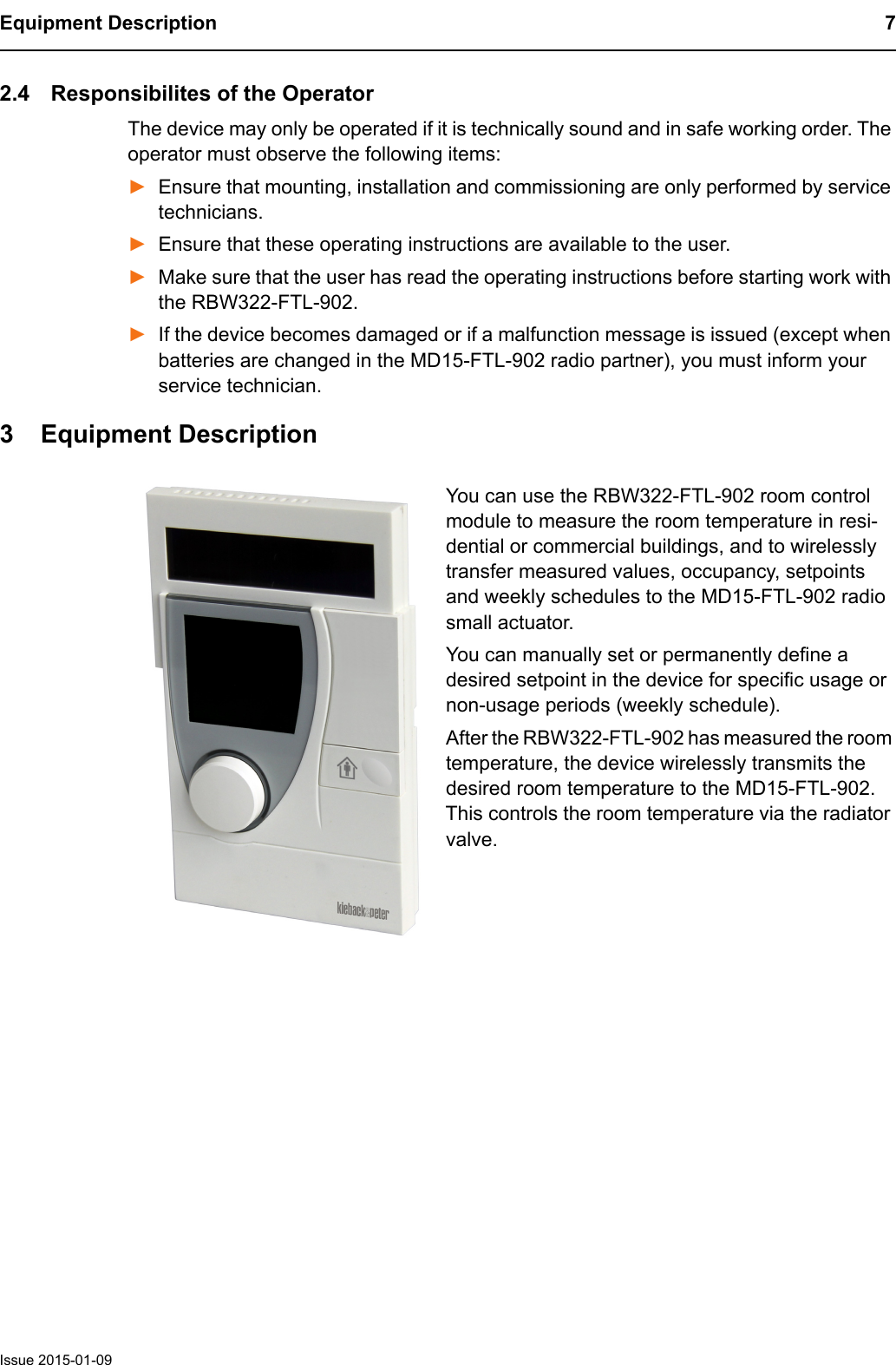
Equipment Description 7Issue 2015-01-092.4 Responsibilites of the OperatorThe device may only be operated if it is technically sound and in safe working order. The operator must observe the following items:►Ensure that mounting, installation and commissioning are only performed by service technicians.►Ensure that these operating instructions are available to the user.►Make sure that the user has read the operating instructions before starting work with the RBW322-FTL-902.►If the device becomes damaged or if a malfunction message is issued (except when batteries are changed in the MD15-FTL-902 radio partner), you must inform your service technician.3 Equipment DescriptionYou can use the RBW322-FTL-902 room control module to measure the room temperature in resi-dential or commercial buildings, and to wirelessly transfer measured values, occupancy, setpoints and weekly schedules to the MD15-FTL-902 radio small actuator. You can manually set or permanently define a desired setpoint in the device for specific usage or non-usage periods (weekly schedule).After the RBW322-FTL-902 has measured the room temperature, the device wirelessly transmits the desired room temperature to the MD15-FTL-902. This controls the room temperature via the radiator valve.
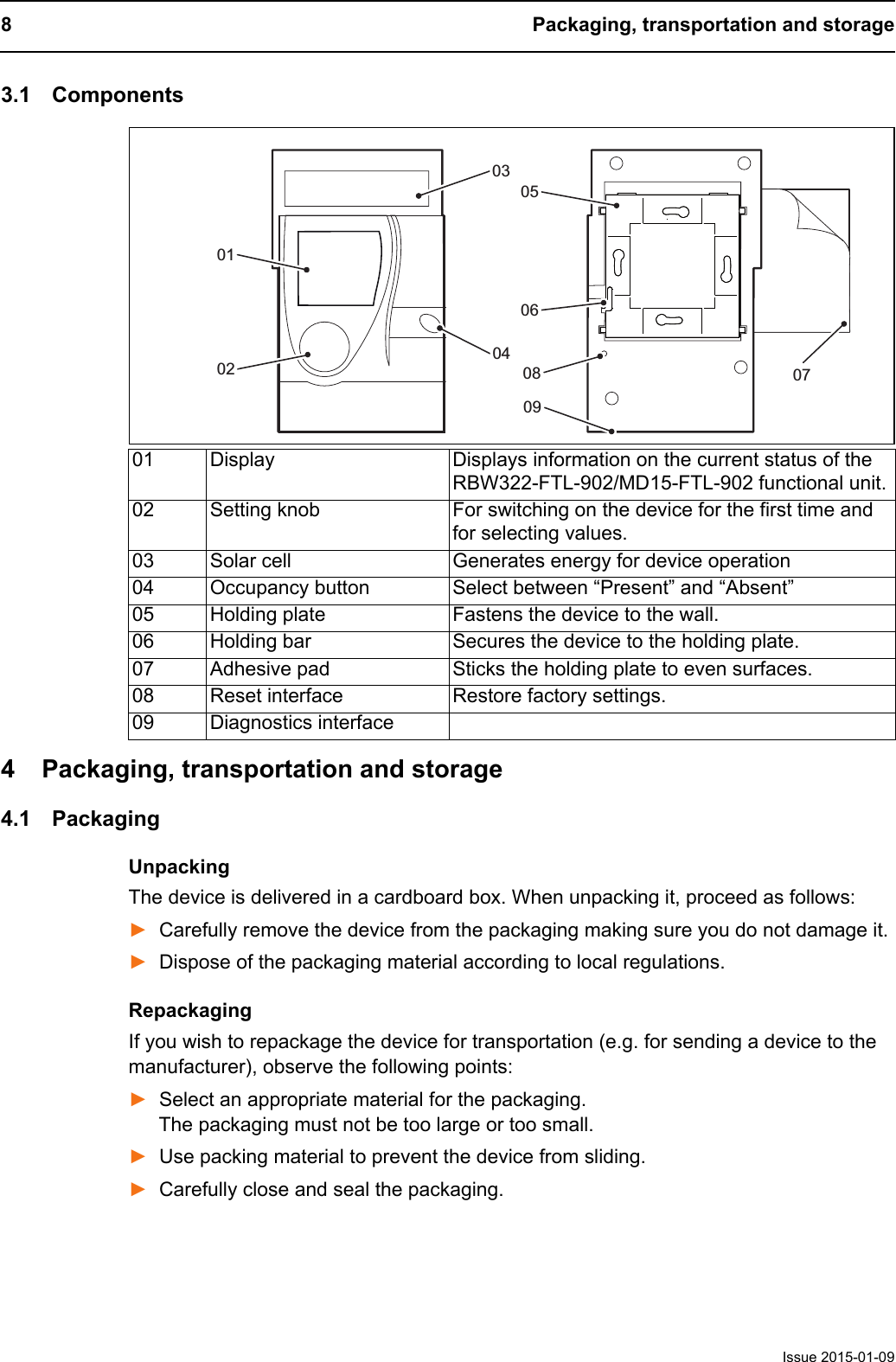
8 Packaging, transportation and storageIssue 2015-01-093.1 Components4 Packaging, transportation and storage4.1 PackagingUnpackingThe device is delivered in a cardboard box. When unpacking it, proceed as follows:►Carefully remove the device from the packaging making sure you do not damage it.►Dispose of the packaging material according to local regulations.RepackagingIf you wish to repackage the device for transportation (e.g. for sending a device to the manufacturer), observe the following points:►Select an appropriate material for the packaging. The packaging must not be too large or too small.►Use packing material to prevent the device from sliding.►Carefully close and seal the packaging.01 Display Displays information on the current status of the RBW322-FTL-902/MD15-FTL-902 functional unit.02 Setting knob For switching on the device for the first time and for selecting values.03 Solar cell Generates energy for device operation04 Occupancy button Select between “Present” and “Absent”05 Holding plate Fastens the device to the wall.06 Holding bar Secures the device to the holding plate.07 Adhesive pad Sticks the holding plate to even surfaces.08 Reset interface Restore factory settings.09 Diagnostics interface030407010205060809
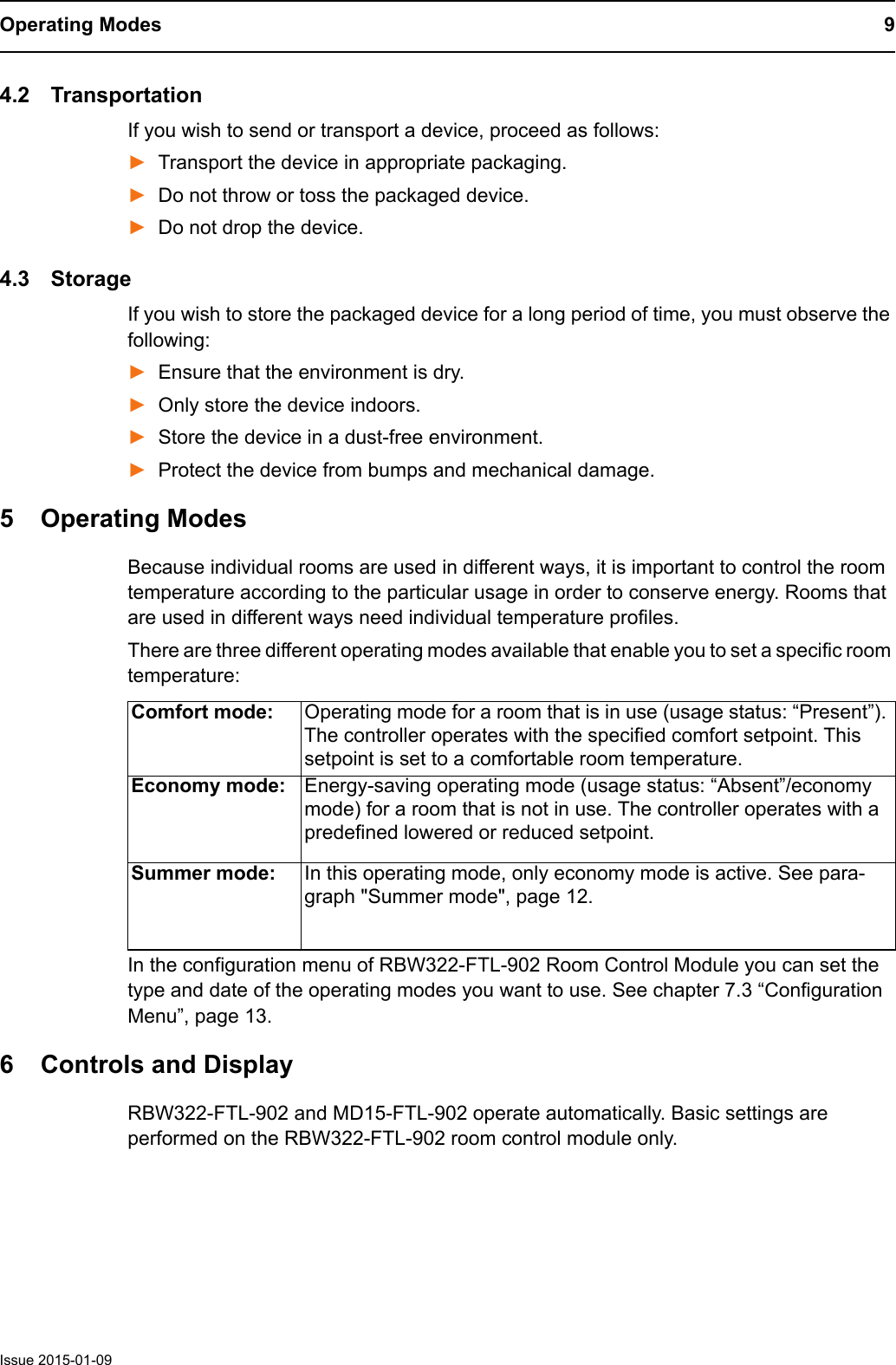
Operating Modes 9Issue 2015-01-094.2 TransportationIf you wish to send or transport a device, proceed as follows:►Transport the device in appropriate packaging.►Do not throw or toss the packaged device.►Do not drop the device.4.3 StorageIf you wish to store the packaged device for a long period of time, you must observe the following:►Ensure that the environment is dry.►Only store the device indoors.►Store the device in a dust-free environment.►Protect the device from bumps and mechanical damage.5 Operating ModesBecause individual rooms are used in different ways, it is important to control the room temperature according to the particular usage in order to conserve energy. Rooms that are used in different ways need individual temperature profiles.There are three different operating modes available that enable you to set a specific room temperature: In the configuration menu of RBW322-FTL-902 Room Control Module you can set the type and date of the operating modes you want to use. See chapter 7.3 “Configuration Menu”, page 13.6 Controls and DisplayRBW322-FTL-902 and MD15-FTL-902 operate automatically. Basic settings are performed on the RBW322-FTL-902 room control module only.Comfort mode: Operating mode for a room that is in use (usage status: “Present”). The controller operates with the specified comfort setpoint. This setpoint is set to a comfortable room temperature.Economy mode: Energy-saving operating mode (usage status: “Absent”/economy mode) for a room that is not in use. The controller operates with a predefined lowered or reduced setpoint. Summer mode: In this operating mode, only economy mode is active. See para-graph "Summer mode", page 12.
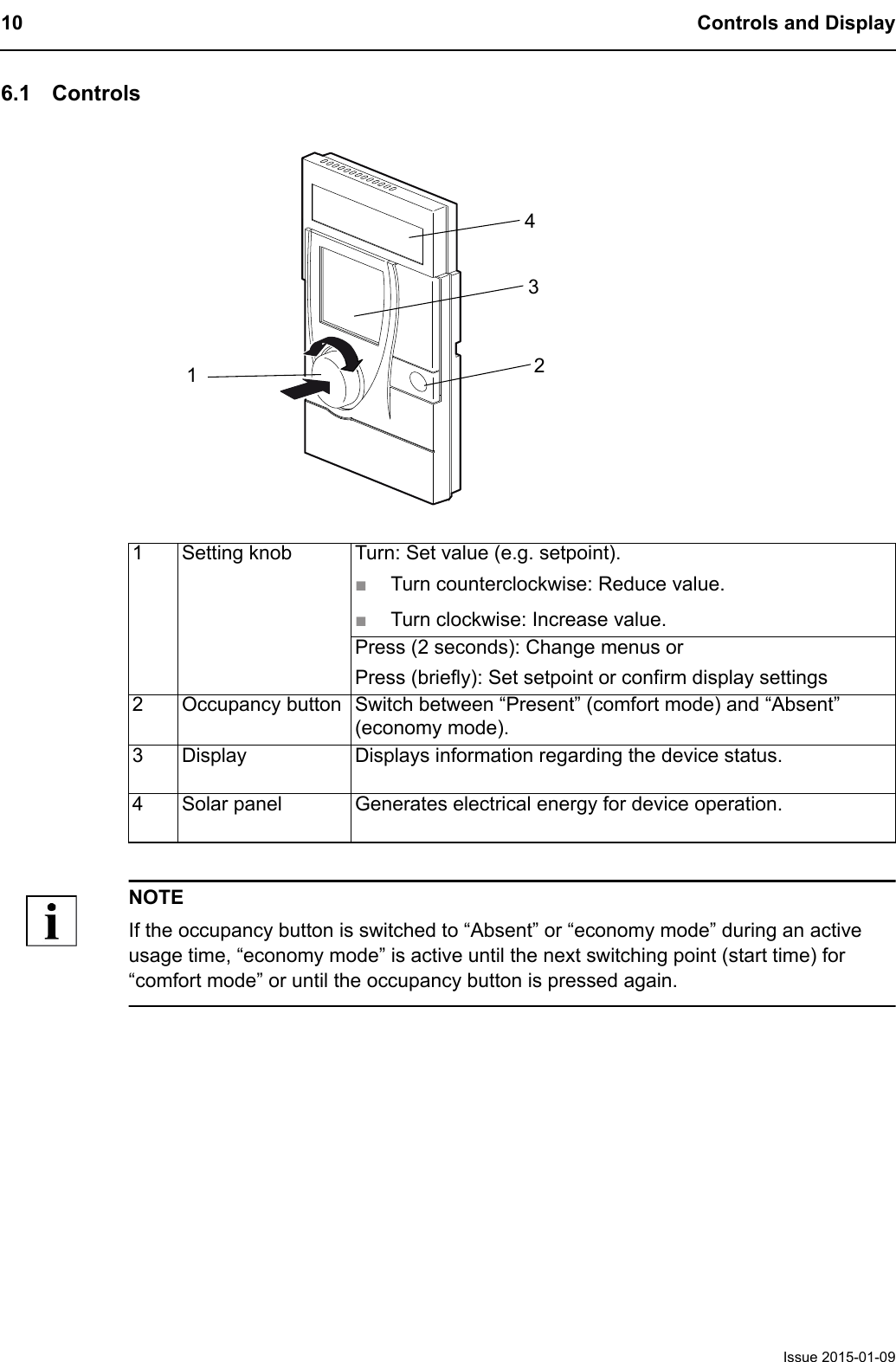
10 Controls and DisplayIssue 2015-01-096.1 ControlsNOTEIf the occupancy button is switched to “Absent” or “economy mode” during an active usage time, “economy mode” is active until the next switching point (start time) for “comfort mode” or until the occupancy button is pressed again.1 Setting knob Turn: Set value (e.g. setpoint). ■Turn counterclockwise: Reduce value.■Turn clockwise: Increase value.Press (2 seconds): Change menus or Press (briefly): Set setpoint or confirm display settings2 Occupancy button Switch between “Present” (comfort mode) and “Absent” (economy mode).3 Display Displays information regarding the device status.4 Solar panel Generates electrical energy for device operation.1234
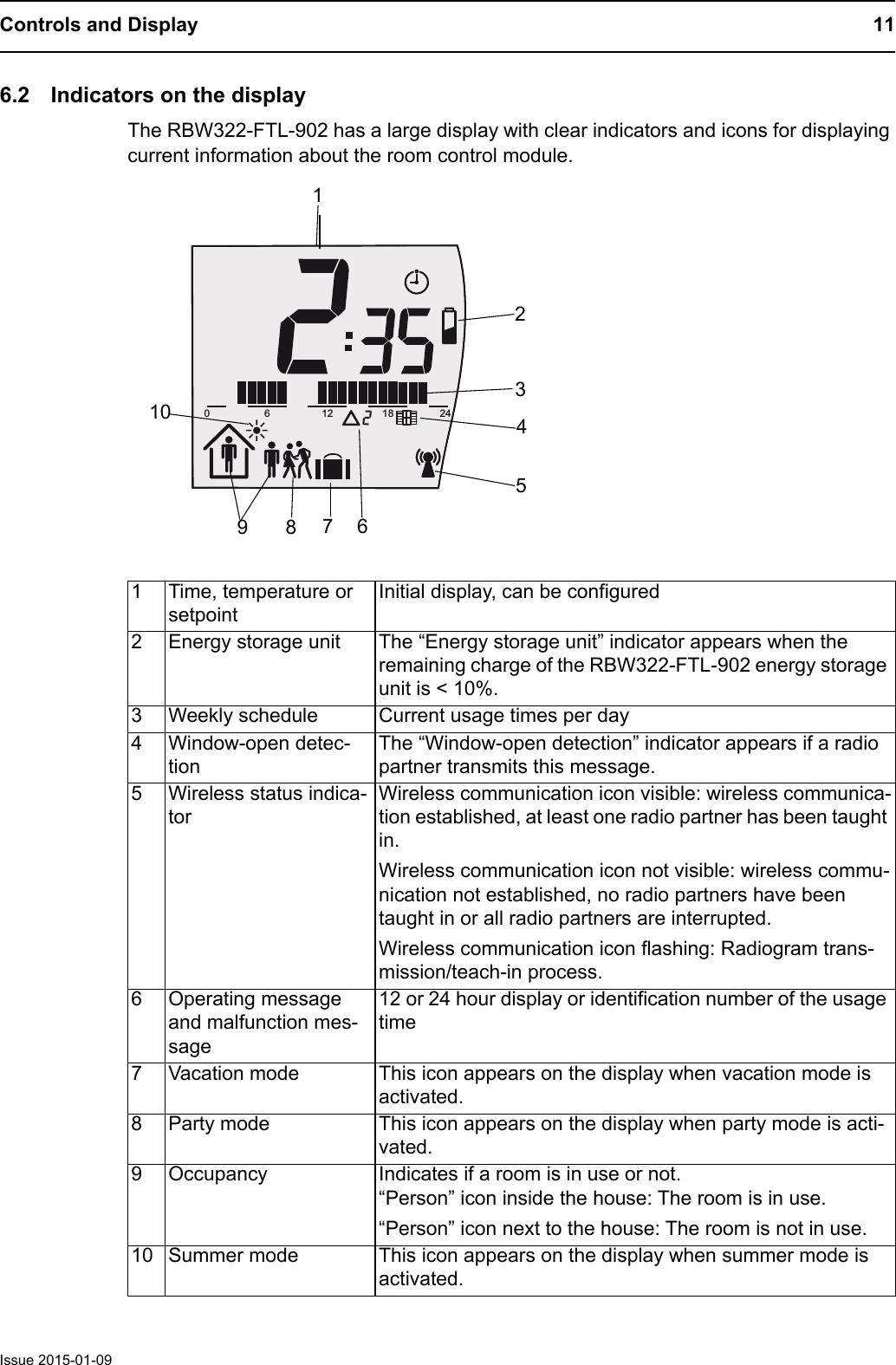
Controls and Display 11Issue 2015-01-096.2 Indicators on the displayThe RBW322-FTL-902 has a large display with clear indicators and icons for displaying current information about the room control module. 1 Time, temperature or setpointInitial display, can be configured2 Energy storage unit The “Energy storage unit” indicator appears when the remaining charge of the RBW322-FTL-902 energy storage unit is < 10%.3 Weekly schedule Current usage times per day4 Window-open detec-tionThe “Window-open detection” indicator appears if a radio partner transmits this message.5 Wireless status indica-torWireless communication icon visible: wireless communica-tion established, at least one radio partner has been taught in.Wireless communication icon not visible: wireless commu-nication not established, no radio partners have been taught in or all radio partners are interrupted.Wireless communication icon flashing: Radiogram trans-mission/teach-in process.6 Operating message and malfunction mes-sage12 or 24 hour display or identification number of the usage time7 Vacation mode This icon appears on the display when vacation mode is activated.8 Party mode This icon appears on the display when party mode is acti-vated.9 Occupancy Indicates if a room is in use or not.“Person” icon inside the house: The room is in use.“Person” icon next to the house: The room is not in use.10 Summer mode This icon appears on the display when summer mode is activated.6121824017892345106
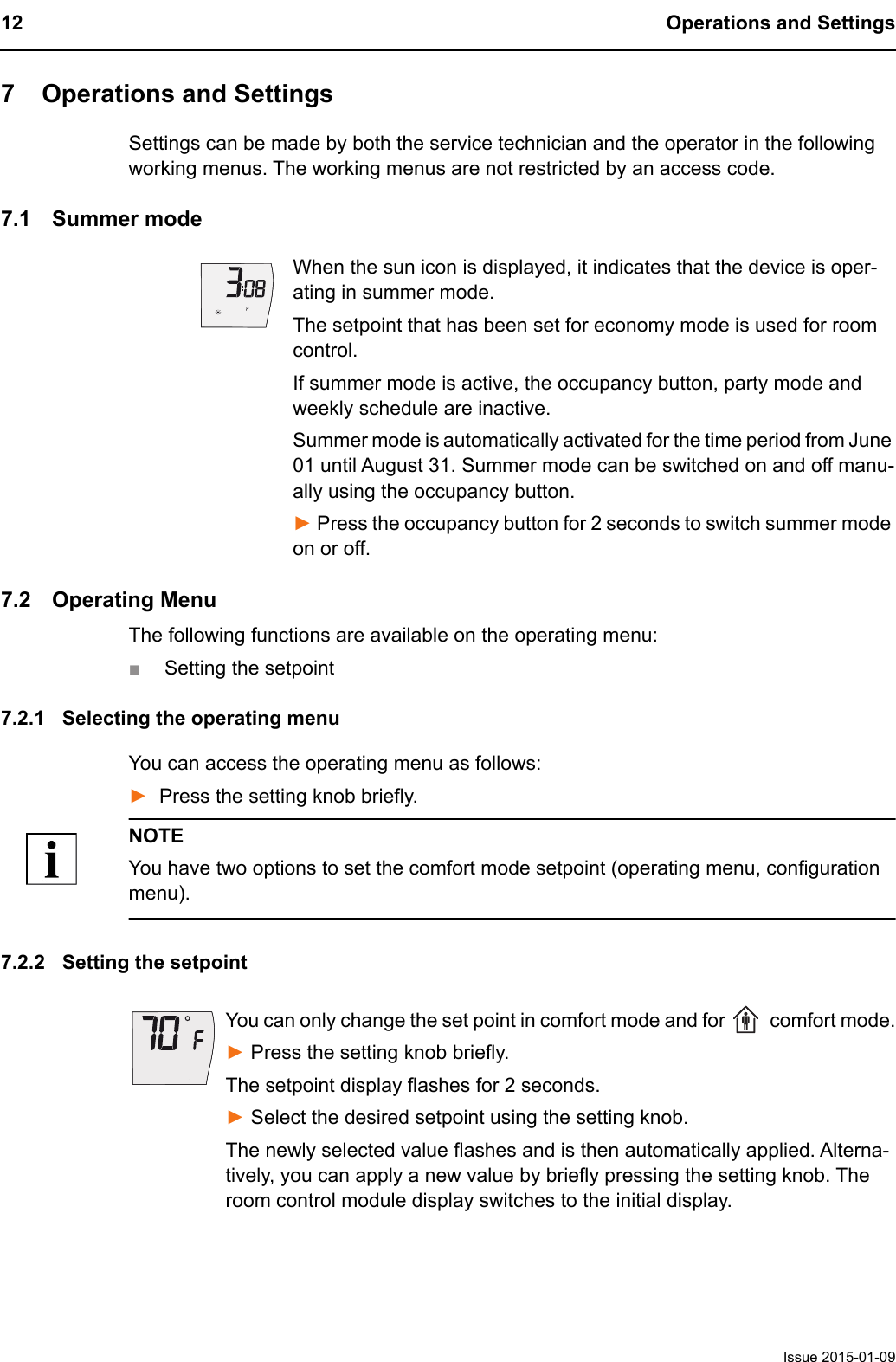
12 Operations and SettingsIssue 2015-01-097 Operations and SettingsSettings can be made by both the service technician and the operator in the following working menus. The working menus are not restricted by an access code.7.1 Summer modeWhen the sun icon is displayed, it indicates that the device is oper-ating in summer mode.The setpoint that has been set for economy mode is used for room control.If summer mode is active, the occupancy button, party mode and weekly schedule are inactive.Summer mode is automatically activated for the time period from June 01 until August 31. Summer mode can be switched on and off manu-ally using the occupancy button.► Press the occupancy button for 2 seconds to switch summer mode on or off.7.2 Operating MenuThe following functions are available on the operating menu:■Setting the setpoint7.2.1 Selecting the operating menuYou can access the operating menu as follows:►Press the setting knob briefly.NOTEYou have two options to set the comfort mode setpoint (operating menu, configuration menu).7.2.2 Setting the setpointYou can only change the set point in comfort mode and for   comfort mode.► Press the setting knob briefly.The setpoint display flashes for 2 seconds.► Select the desired setpoint using the setting knob.The newly selected value flashes and is then automatically applied. Alterna-tively, you can apply a new value by briefly pressing the setting knob. The room control module display switches to the initial display.
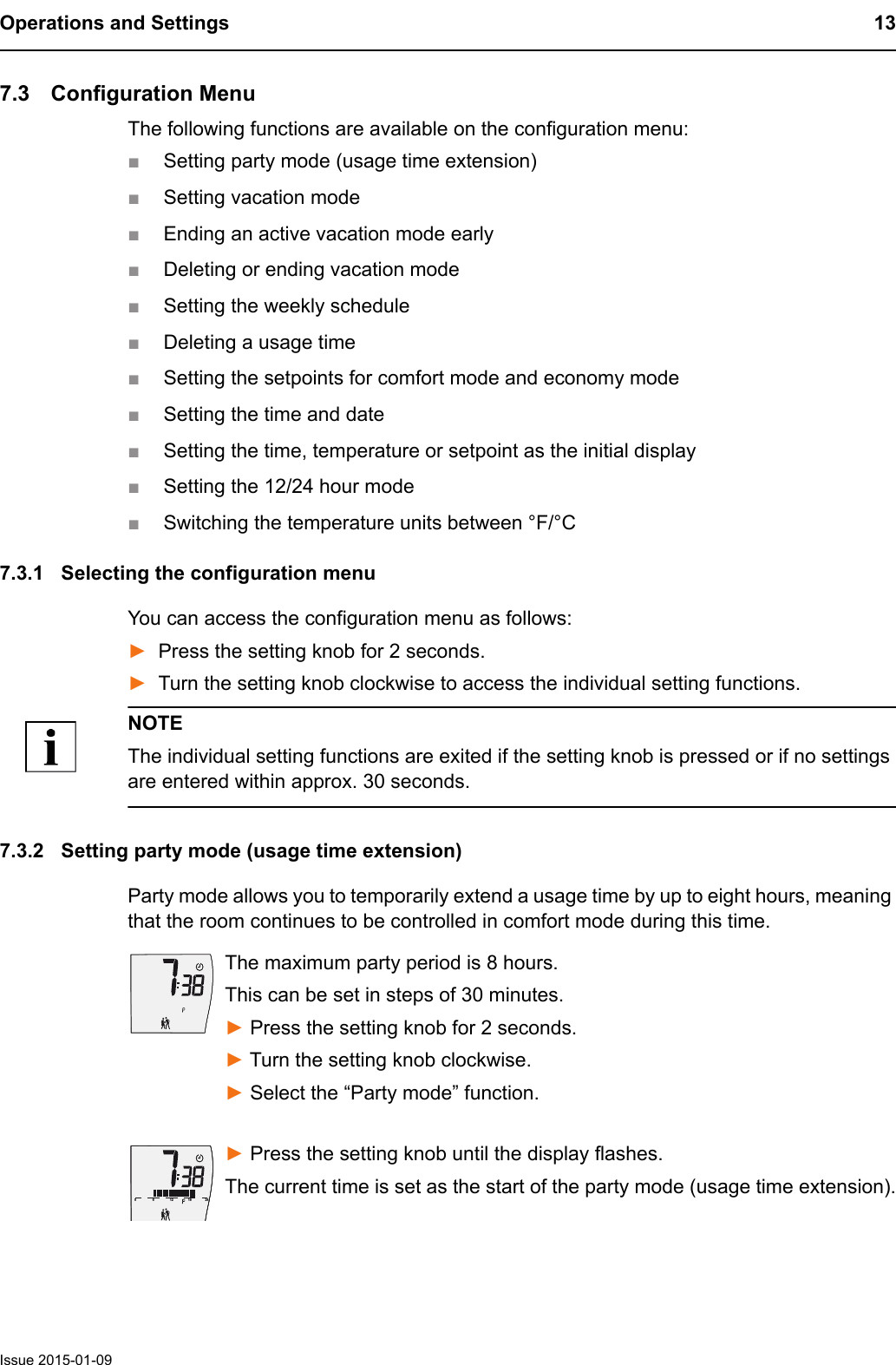
Operations and Settings 13Issue 2015-01-097.3 Configuration MenuThe following functions are available on the configuration menu:■Setting party mode (usage time extension)■Setting vacation mode■Ending an active vacation mode early■Deleting or ending vacation mode■Setting the weekly schedule■Deleting a usage time■Setting the setpoints for comfort mode and economy mode■Setting the time and date■Setting the time, temperature or setpoint as the initial display■Setting the 12/24 hour mode■Switching the temperature units between °F/°C7.3.1 Selecting the configuration menuYou can access the configuration menu as follows:►Press the setting knob for 2 seconds.►Turn the setting knob clockwise to access the individual setting functions.NOTEThe individual setting functions are exited if the setting knob is pressed or if no settings are entered within approx. 30 seconds.7.3.2 Setting party mode (usage time extension)Party mode allows you to temporarily extend a usage time by up to eight hours, meaning that the room continues to be controlled in comfort mode during this time.The maximum party period is 8 hours.This can be set in steps of 30 minutes.► Press the setting knob for 2 seconds.► Turn the setting knob clockwise. ► Select the “Party mode” function.► Press the setting knob until the display flashes.The current time is set as the start of the party mode (usage time extension).61218240
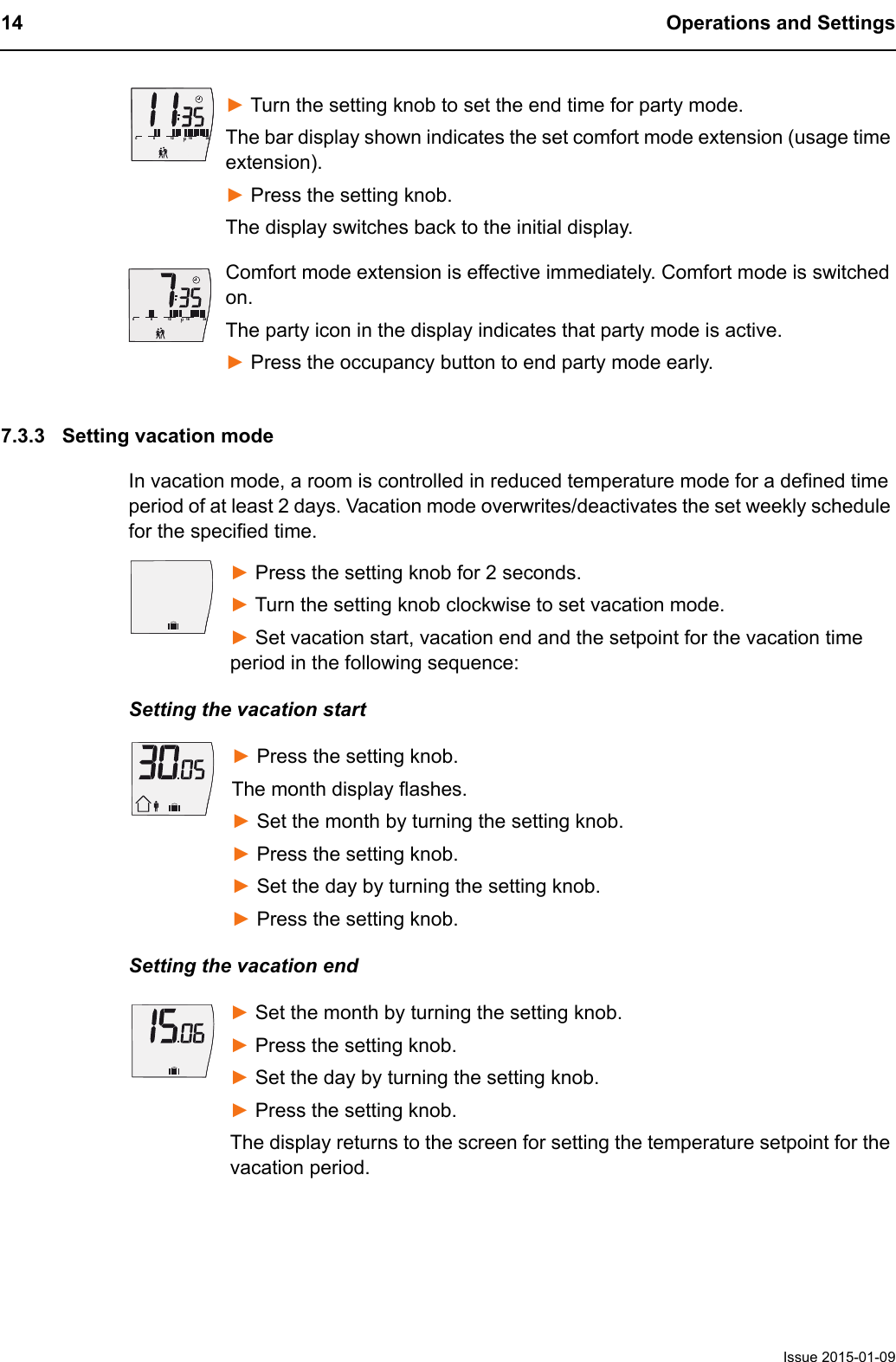
14 Operations and SettingsIssue 2015-01-09► Turn the setting knob to set the end time for party mode. The bar display shown indicates the set comfort mode extension (usage time extension).► Press the setting knob.The display switches back to the initial display.Comfort mode extension is effective immediately. Comfort mode is switched on.The party icon in the display indicates that party mode is active.► Press the occupancy button to end party mode early.7.3.3 Setting vacation modeIn vacation mode, a room is controlled in reduced temperature mode for a defined time period of at least 2 days. Vacation mode overwrites/deactivates the set weekly schedule for the specified time.► Press the setting knob for 2 seconds.► Turn the setting knob clockwise to set vacation mode.► Set vacation start, vacation end and the setpoint for the vacation time period in the following sequence:Setting the vacation start► Press the setting knob.The month display flashes.► Set the month by turning the setting knob.► Press the setting knob. ► Set the day by turning the setting knob.► Press the setting knob. Setting the vacation end► Set the month by turning the setting knob.► Press the setting knob. ► Set the day by turning the setting knob.► Press the setting knob. The display returns to the screen for setting the temperature setpoint for the vacation period.6121824061218240
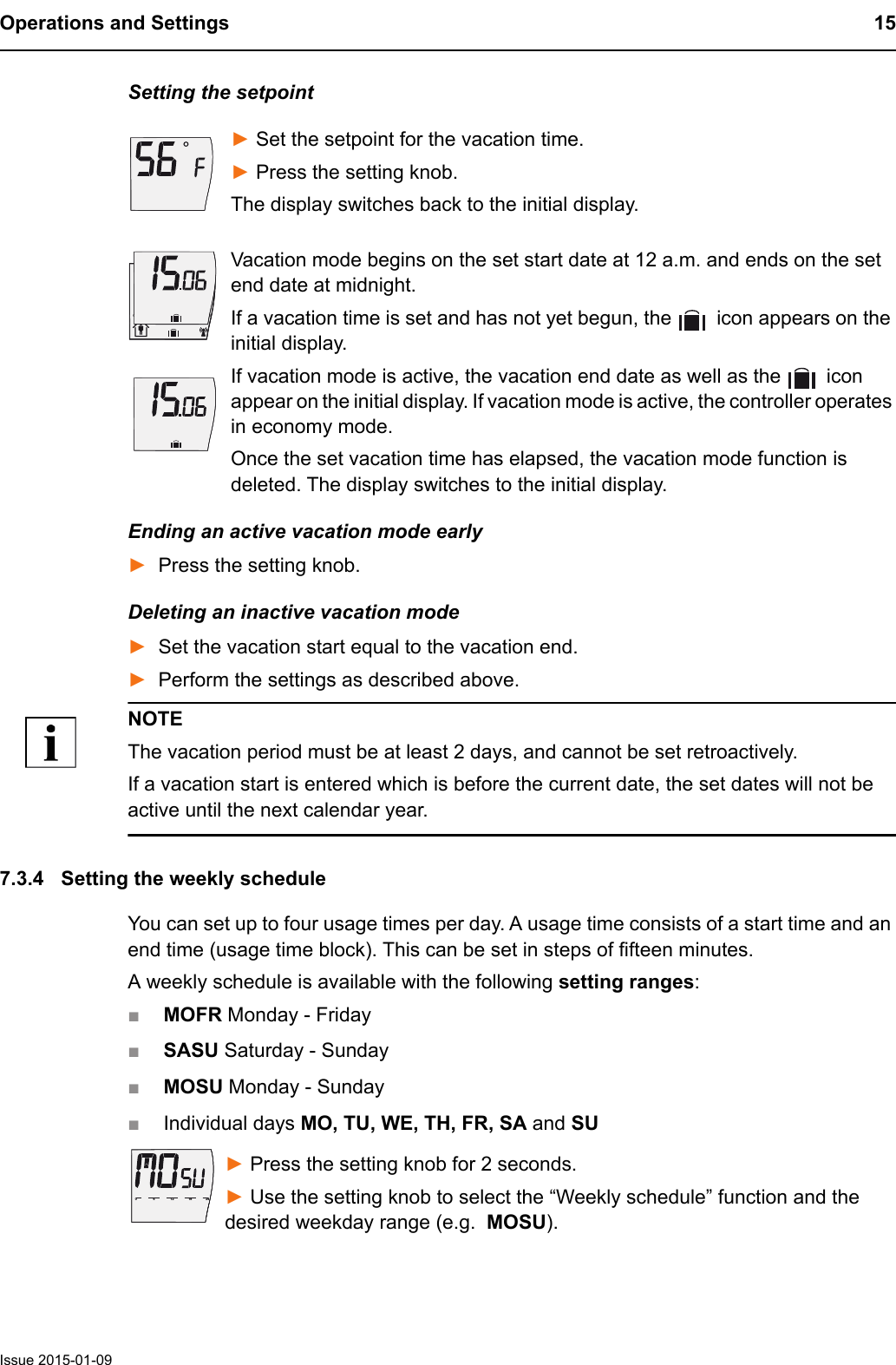
Operations and Settings 15Issue 2015-01-09Setting the setpoint► Set the setpoint for the vacation time.► Press the setting knob.The display switches back to the initial display.Vacation mode begins on the set start date at 12 a.m. and ends on the set end date at midnight.If a vacation time is set and has not yet begun, the   icon appears on the initial display. If vacation mode is active, the vacation end date as well as the   icon appear on the initial display. If vacation mode is active, the controller operates in economy mode.Once the set vacation time has elapsed, the vacation mode function is deleted. The display switches to the initial display.Ending an active vacation mode early►Press the setting knob.Deleting an inactive vacation mode►Set the vacation start equal to the vacation end.►Perform the settings as described above.NOTEThe vacation period must be at least 2 days, and cannot be set retroactively.If a vacation start is entered which is before the current date, the set dates will not be active until the next calendar year.7.3.4 Setting the weekly scheduleYou can set up to four usage times per day. A usage time consists of a start time and an end time (usage time block). This can be set in steps of fifteen minutes.A weekly schedule is available with the following setting ranges: ■MOFR Monday - Friday■SASU Saturday - Sunday■MOSU Monday - Sunday■Individual days MO, TU, WE, TH, FR, SA and SU► Press the setting knob for 2 seconds. ► Use the setting knob to select the “Weekly schedule” function and the desired weekday range (e.g.  MOSU).6121824061218240
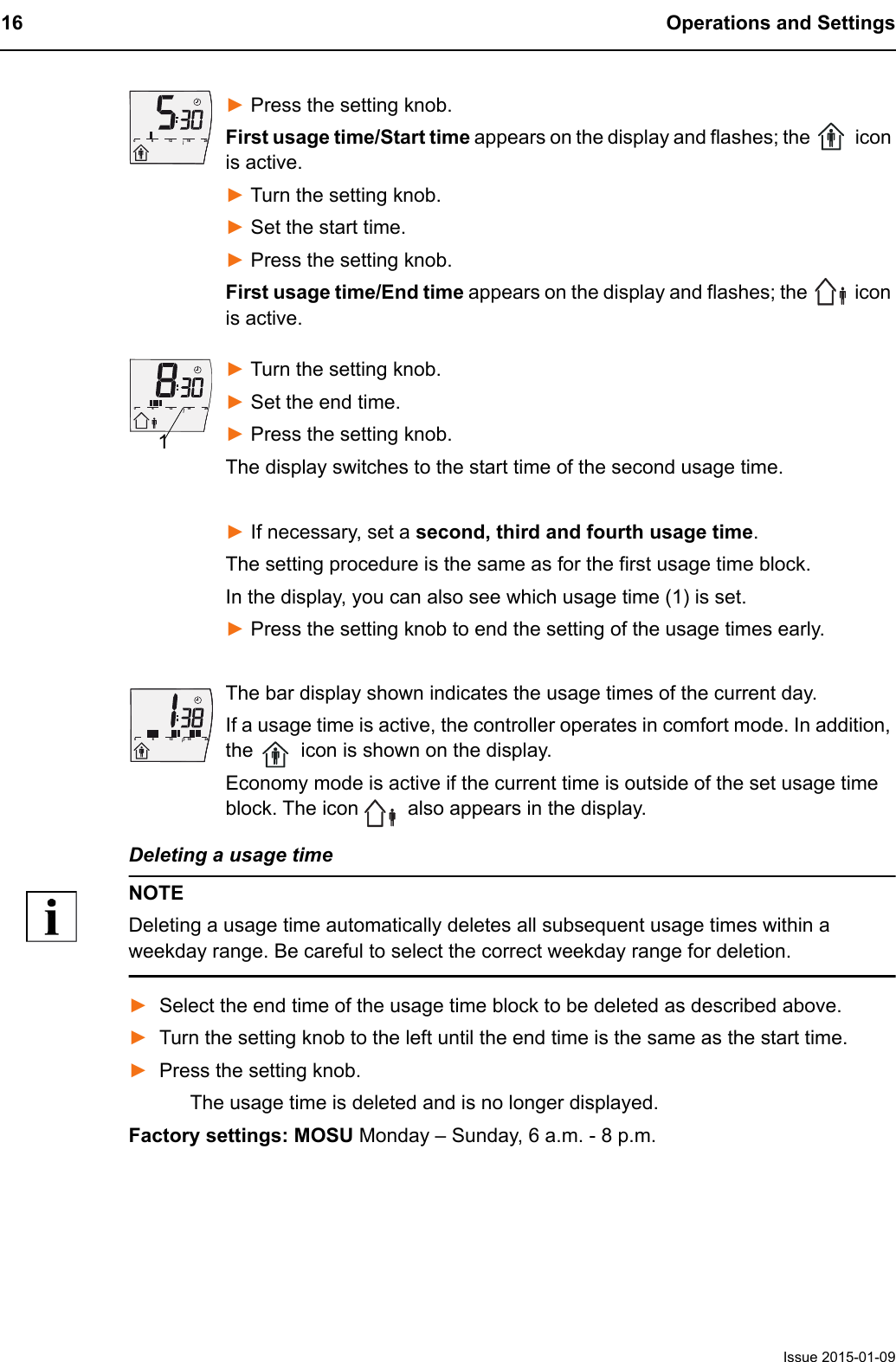
16 Operations and SettingsIssue 2015-01-09► Press the setting knob.First usage time/Start time appears on the display and flashes; the   icon is active.► Turn the setting knob.► Set the start time.► Press the setting knob. First usage time/End time appears on the display and flashes; the   icon is active.► Turn the setting knob. ► Set the end time.► Press the setting knob. The display switches to the start time of the second usage time.► If necessary, set a second, third and fourth usage time.The setting procedure is the same as for the first usage time block.In the display, you can also see which usage time (1) is set.► Press the setting knob to end the setting of the usage times early.The bar display shown indicates the usage times of the current day.If a usage time is active, the controller operates in comfort mode. In addition, the   icon is shown on the display.Economy mode is active if the current time is outside of the set usage time block. The icon   also appears in the display.Deleting a usage timeNOTEDeleting a usage time automatically deletes all subsequent usage times within a weekday range. Be careful to select the correct weekday range for deletion.►Select the end time of the usage time block to be deleted as described above.►Turn the setting knob to the left until the end time is the same as the start time.►Press the setting knob.The usage time is deleted and is no longer displayed.Factory settings: MOSU Monday – Sunday, 6 a.m. - 8 p.m.6121824061218240161218240
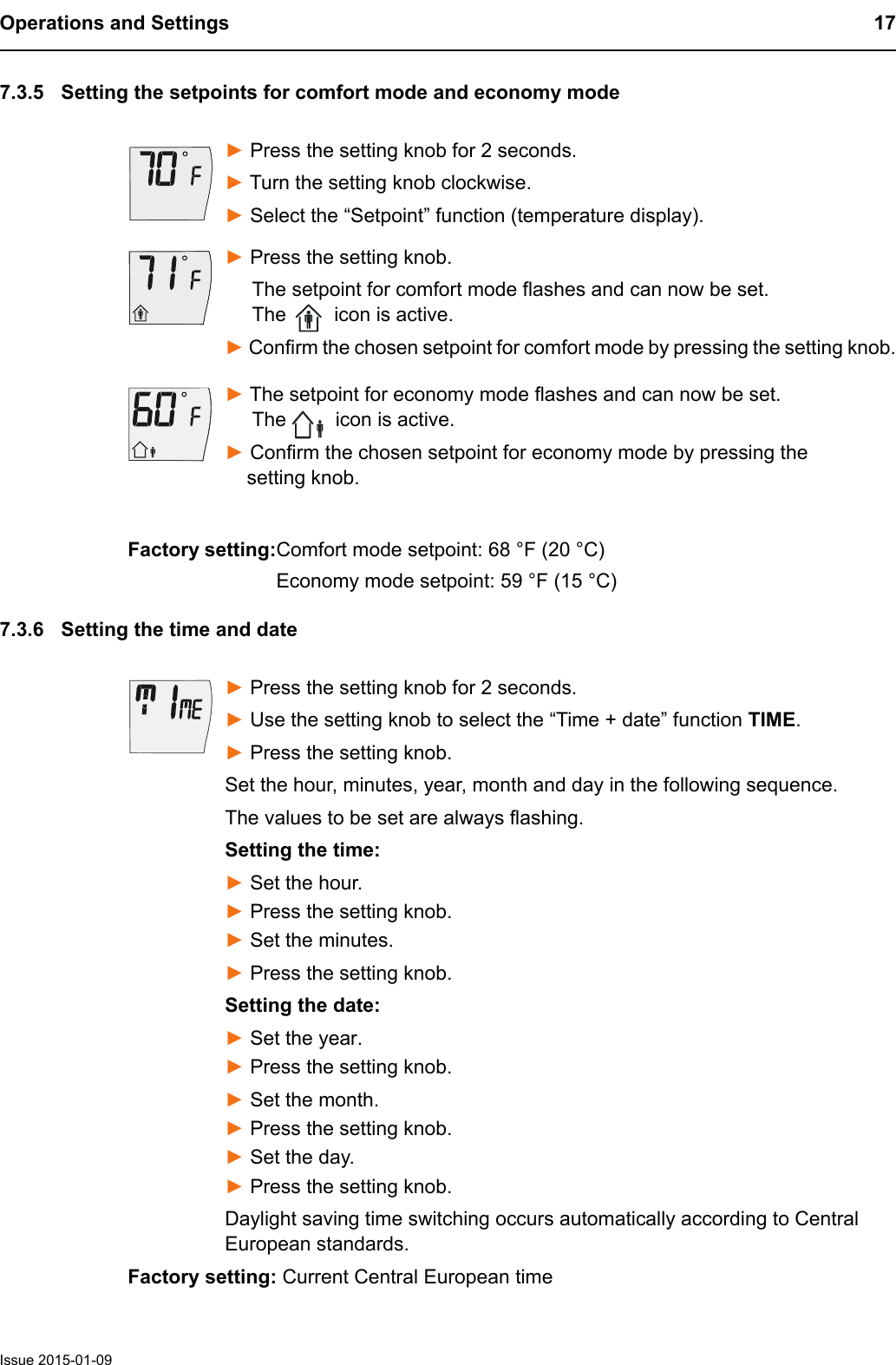
Operations and Settings 17Issue 2015-01-097.3.5 Setting the setpoints for comfort mode and economy mode► Press the setting knob for 2 seconds. ► Turn the setting knob clockwise. ► Select the “Setpoint” function (temperature display).► Press the setting knob.     The setpoint for comfort mode flashes and can now be set.       The   icon is active.► Confirm the chosen setpoint for comfort mode by pressing the setting knob.► The setpoint for economy mode flashes and can now be set.      The   icon is active.► Confirm the chosen setpoint for economy mode by pressing the     setting knob.7.3.6 Setting the time and date► Press the setting knob for 2 seconds. ► Use the setting knob to select the “Time + date” function TIME.► Press the setting knob.Set the hour, minutes, year, month and day in the following sequence.The values to be set are always flashing.Setting the time:► Set the hour.► Press the setting knob.► Set the minutes.► Press the setting knob.Setting the date:► Set the year.► Press the setting knob.► Set the month.► Press the setting knob.► Set the day. ► Press the setting knob.Daylight saving time switching occurs automatically according to Central European standards.Factory setting: Current Central European timeFactory setting:Comfort mode setpoint: 68 °F (20 °C)Economy mode setpoint: 59 °F (15 °C)
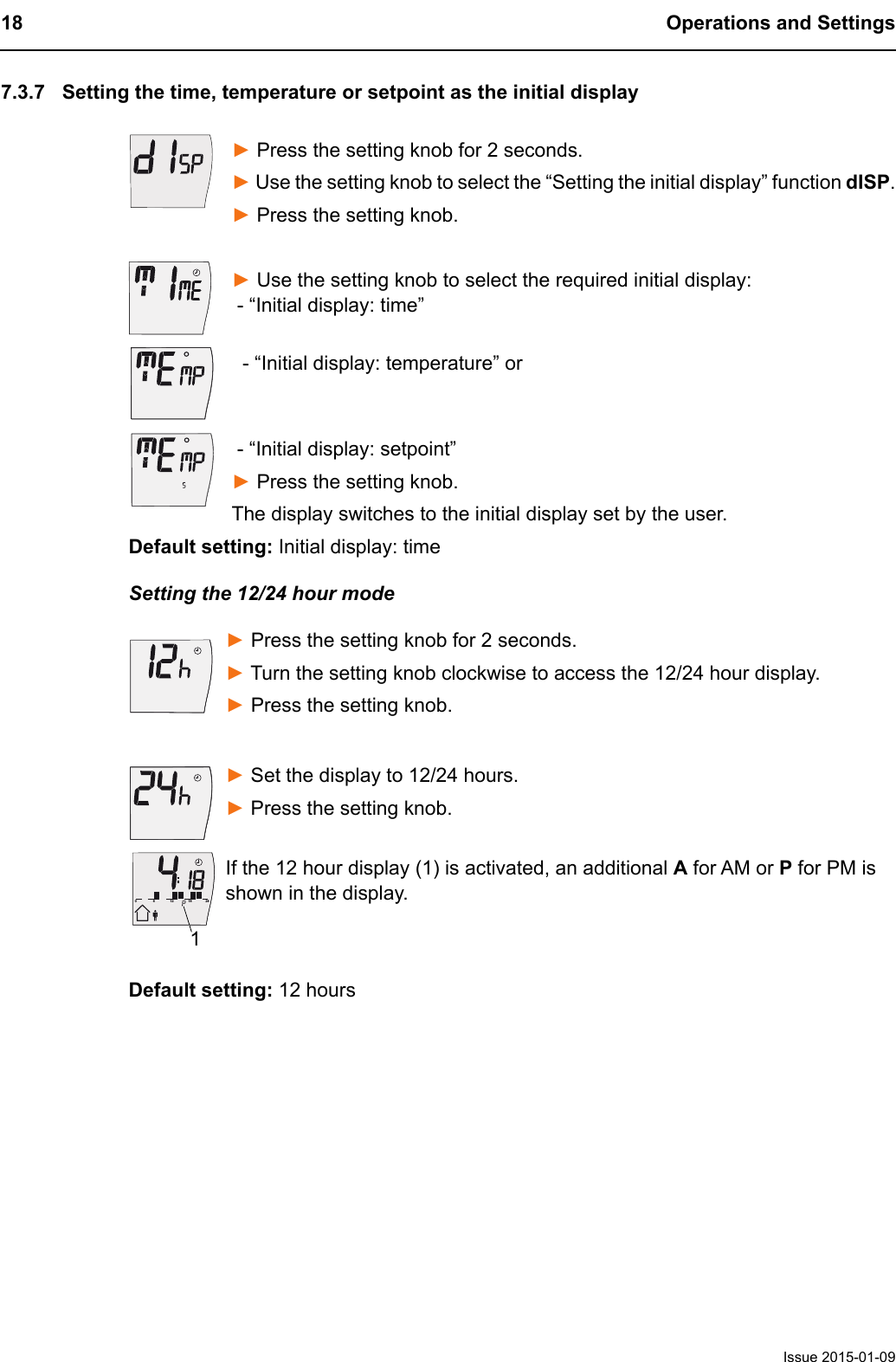
18 Operations and SettingsIssue 2015-01-097.3.7 Setting the time, temperature or setpoint as the initial display► Press the setting knob for 2 seconds. ► Use the setting knob to select the “Setting the initial display” function dISP.► Press the setting knob.► Use the setting knob to select the required initial display:  - “Initial display: time”  - “Initial display: temperature” or - “Initial display: setpoint”► Press the setting knob.The display switches to the initial display set by the user.Default setting: Initial display: timeSetting the 12/24 hour mode► Press the setting knob for 2 seconds. ► Turn the setting knob clockwise to access the 12/24 hour display.► Press the setting knob.► Set the display to 12/24 hours.► Press the setting knob. If the 12 hour display (1) is activated, an additional A for AM or P for PM is shown in the display.Default setting: 12 hours612182401
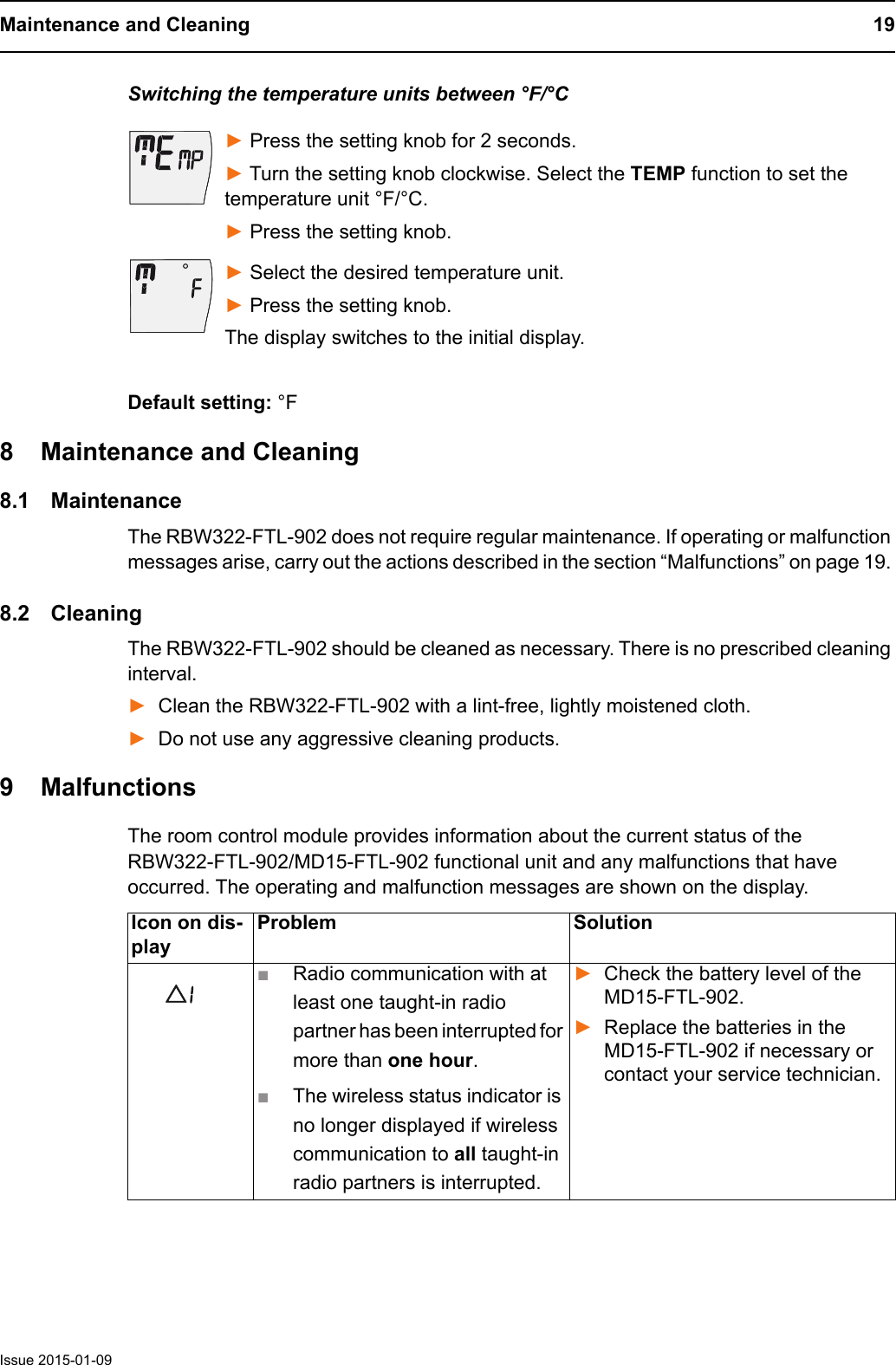
Maintenance and Cleaning 19Issue 2015-01-09Switching the temperature units between °F/°C► Press the setting knob for 2 seconds. ► Turn the setting knob clockwise. Select the TEMP function to set the temperature unit °F/°C.► Press the setting knob.► Select the desired temperature unit.► Press the setting knob.The display switches to the initial display.Default setting: °F8 Maintenance and Cleaning8.1 MaintenanceThe RBW322-FTL-902 does not require regular maintenance. If operating or malfunction messages arise, carry out the actions described in the section “Malfunctions” on page 19. 8.2 CleaningThe RBW322-FTL-902 should be cleaned as necessary. There is no prescribed cleaning interval.►Clean the RBW322-FTL-902 with a lint-free, lightly moistened cloth.►Do not use any aggressive cleaning products.9 MalfunctionsThe room control module provides information about the current status of the RBW322-FTL-902/MD15-FTL-902 functional unit and any malfunctions that have occurred. The operating and malfunction messages are shown on the display.Icon on dis-playProblem Solution■Radio communication with at least one taught-in radio partner has been interrupted for more than one hour.■The wireless status indicator is no longer displayed if wireless communication to all taught-in radio partners is interrupted.►Check the battery level of the MD15-FTL-902.►Replace the batteries in the MD15-FTL-902 if necessary or contact your service technician.
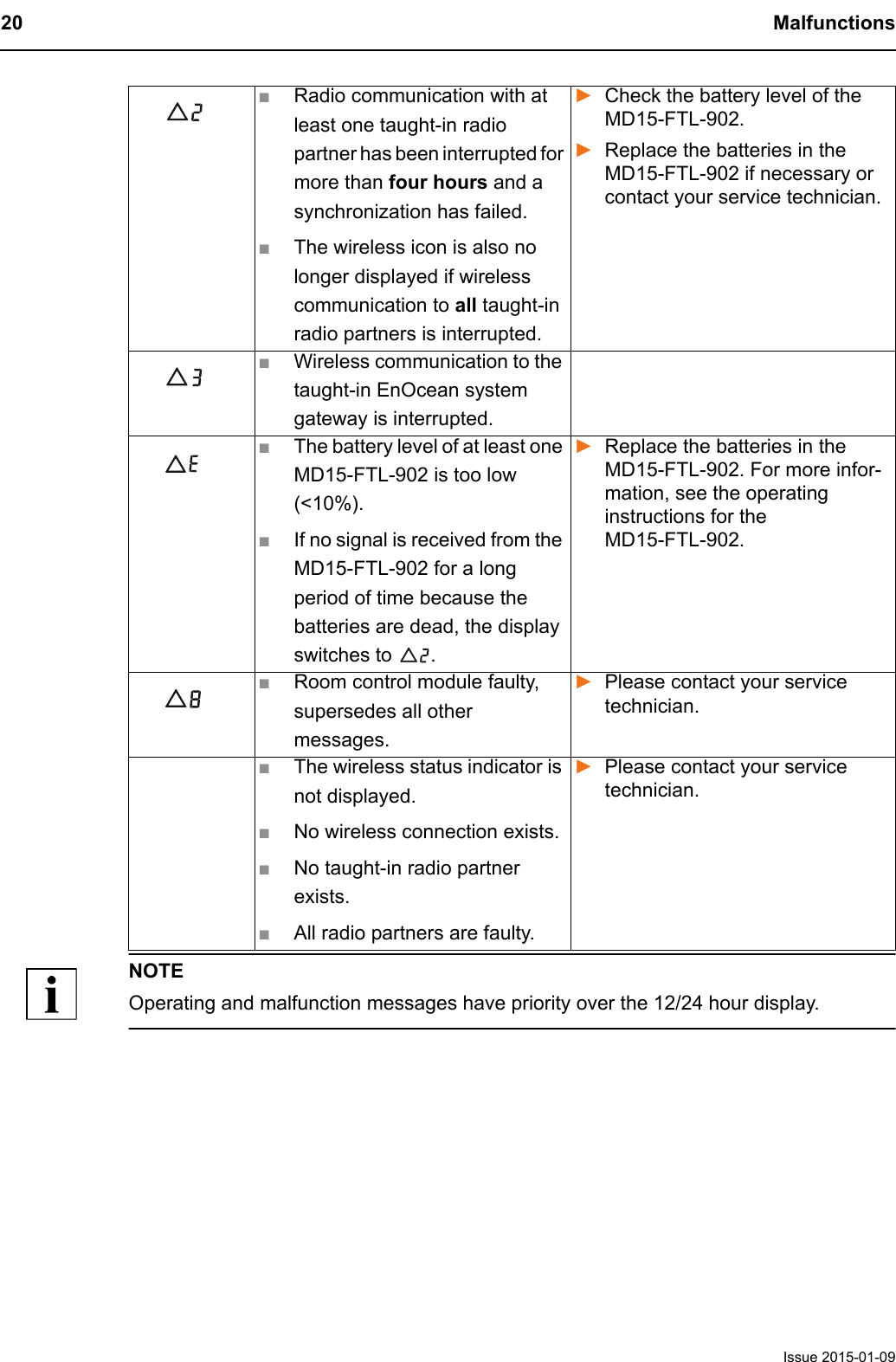
20 MalfunctionsIssue 2015-01-09NOTEOperating and malfunction messages have priority over the 12/24 hour display.■Radio communication with at least one taught-in radio partner has been interrupted for more than four hours and a synchronization has failed.■The wireless icon is also no longer displayed if wireless communication to all taught-in radio partners is interrupted.►Check the battery level of the MD15-FTL-902.►Replace the batteries in the MD15-FTL-902 if necessary or contact your service technician.■Wireless communication to the taught-in EnOcean system gateway is interrupted.■The battery level of at least one MD15-FTL-902 is too low (<10%).■If no signal is received from the MD15-FTL-902 for a long period of time because the batteries are dead, the display switches to  .►Replace the batteries in the MD15-FTL-902. For more infor-mation, see the operating instructions for the MD15-FTL-902.■Room control module faulty, supersedes all other messages.►Please contact your service technician.■The wireless status indicator is not displayed.■No wireless connection exists.■No taught-in radio partner exists.■All radio partners are faulty.►Please contact your service technician.
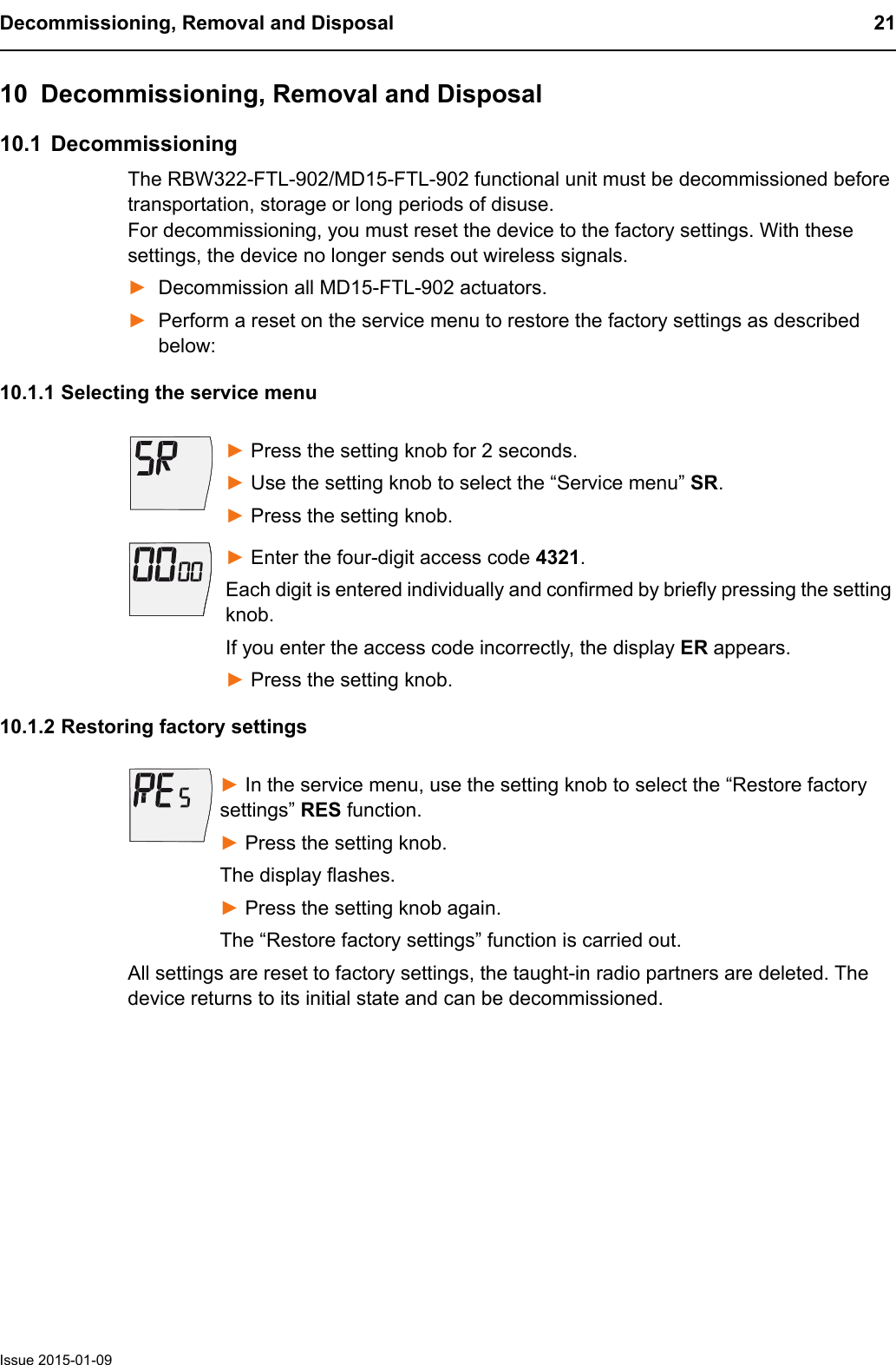
Decommissioning, Removal and Disposal 21Issue 2015-01-0910 Decommissioning, Removal and Disposal10.1 DecommissioningThe RBW322-FTL-902/MD15-FTL-902 functional unit must be decommissioned before transportation, storage or long periods of disuse. For decommissioning, you must reset the device to the factory settings. With these settings, the device no longer sends out wireless signals. ►Decommission all MD15-FTL-902 actuators. ►Perform a reset on the service menu to restore the factory settings as described below:10.1.1 Selecting the service menu► Press the setting knob for 2 seconds. ► Use the setting knob to select the “Service menu” SR.► Press the setting knob.► Enter the four-digit access code 4321.Each digit is entered individually and confirmed by briefly pressing the setting knob.If you enter the access code incorrectly, the display ER appears.► Press the setting knob.10.1.2 Restoring factory settings► In the service menu, use the setting knob to select the “Restore factory settings” RES function.► Press the setting knob. The display flashes.► Press the setting knob again. The “Restore factory settings” function is carried out.All settings are reset to factory settings, the taught-in radio partners are deleted. The device returns to its initial state and can be decommissioned.
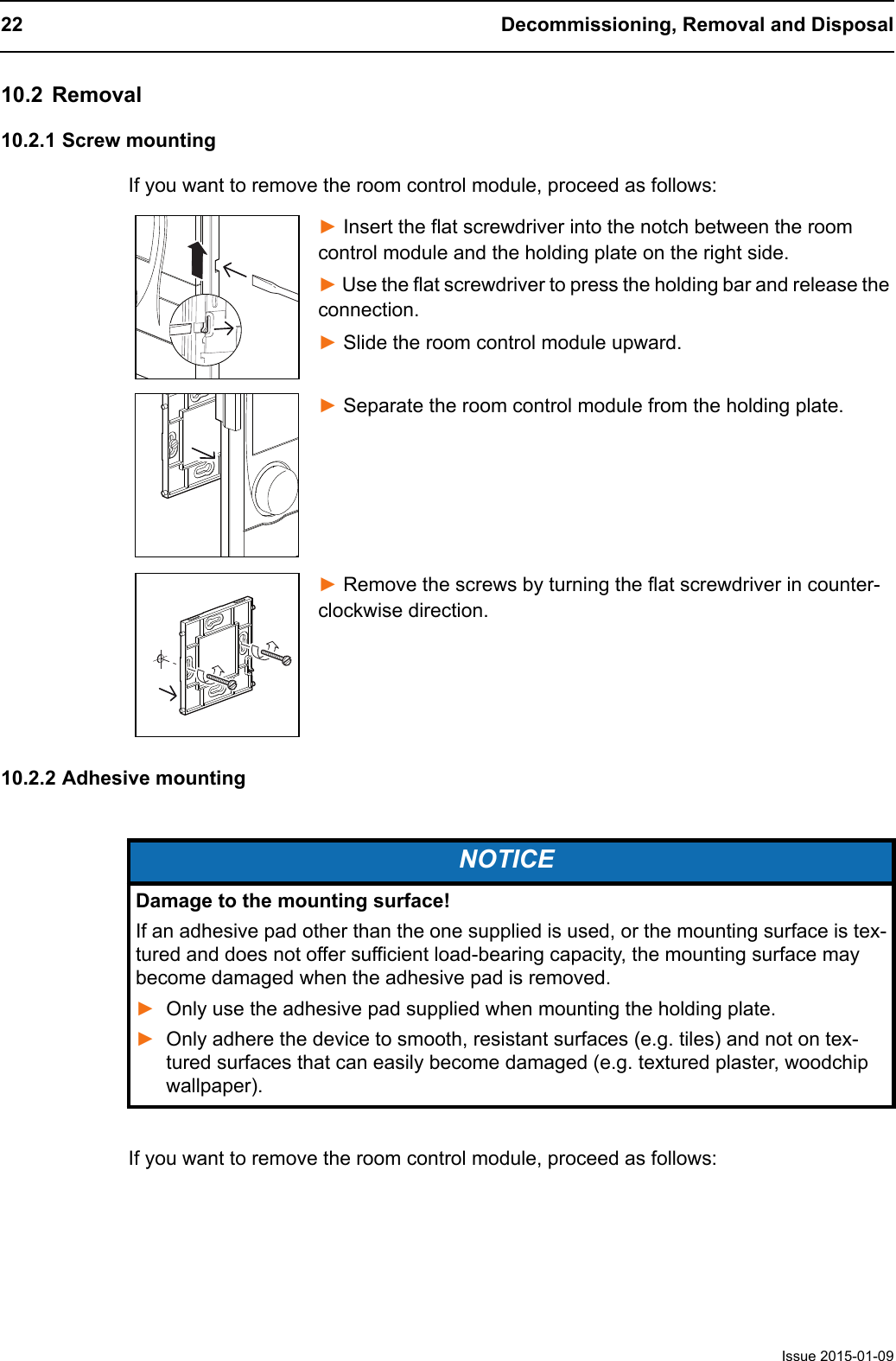
22 Decommissioning, Removal and DisposalIssue 2015-01-0910.2 Removal10.2.1 Screw mountingIf you want to remove the room control module, proceed as follows:► Insert the flat screwdriver into the notch between the room control module and the holding plate on the right side.► Use the flat screwdriver to press the holding bar and release the connection.► Slide the room control module upward.► Separate the room control module from the holding plate.► Remove the screws by turning the flat screwdriver in counter-clockwise direction.10.2.2 Adhesive mountingIf you want to remove the room control module, proceed as follows:NOTICEDamage to the mounting surface!If an adhesive pad other than the one supplied is used, or the mounting surface is tex-tured and does not offer sufficient load-bearing capacity, the mounting surface may become damaged when the adhesive pad is removed. ►Only use the adhesive pad supplied when mounting the holding plate.►Only adhere the device to smooth, resistant surfaces (e.g. tiles) and not on tex-tured surfaces that can easily become damaged (e.g. textured plaster, woodchip wallpaper).
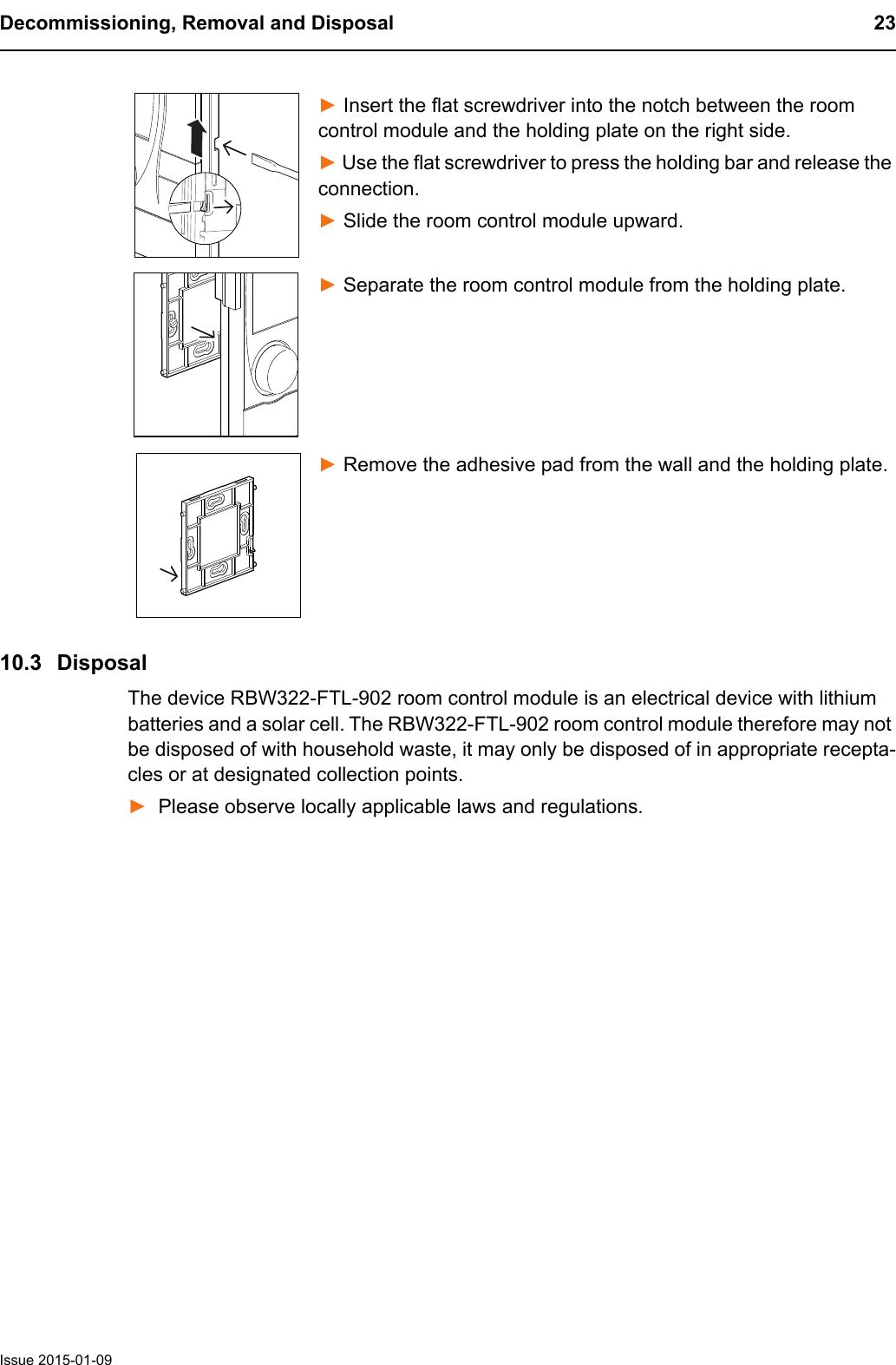
Decommissioning, Removal and Disposal 23Issue 2015-01-09► Insert the flat screwdriver into the notch between the room control module and the holding plate on the right side.► Use the flat screwdriver to press the holding bar and release the connection.► Slide the room control module upward.► Separate the room control module from the holding plate.► Remove the adhesive pad from the wall and the holding plate.10.3  DisposalThe device RBW322-FTL-902 room control module is an electrical device with lithium batteries and a solar cell. The RBW322-FTL-902 room control module therefore may not be disposed of with household waste, it may only be disposed of in appropriate recepta-cles or at designated collection points. ►Please observe locally applicable laws and regulations.
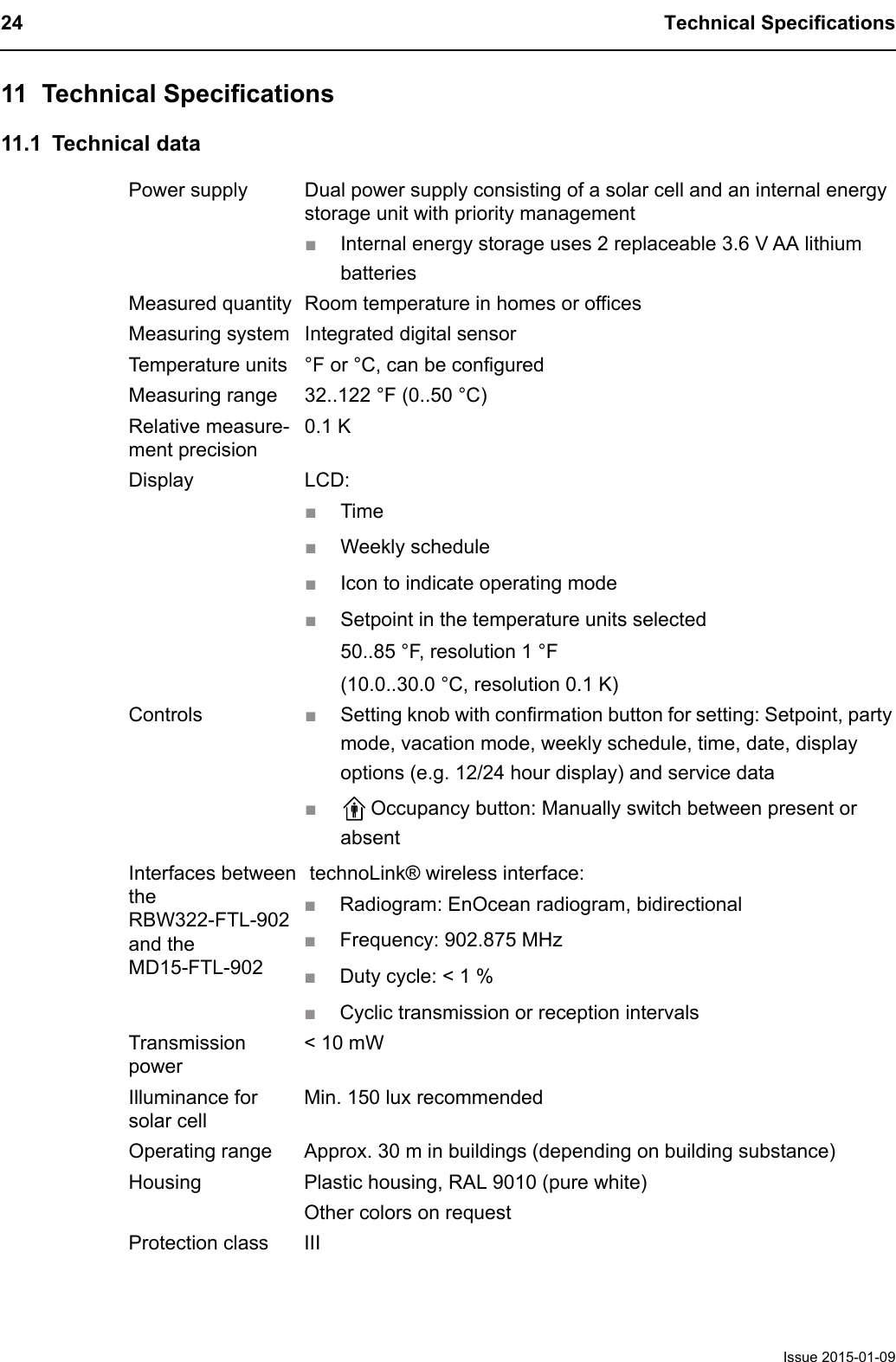
24 Technical SpecificationsIssue 2015-01-0911 Technical Specifications11.1 Technical dataPower supply Dual power supply consisting of a solar cell and an internal energystorage unit with priority management■Internal energy storage uses 2 replaceable 3.6 V AA lithium batteriesMeasured quantity Room temperature in homes or officesMeasuring system Integrated digital sensorTemperature units °F or °C, can be configuredMeasuring range 32..122 °F (0..50 °C)Relative measure-ment precision0.1 KDisplay LCD:■Time■Weekly schedule■Icon to indicate operating mode■Setpoint in the temperature units selected50..85 °F, resolution 1 °F(10.0..30.0 °C, resolution 0.1 K)Controls ■Setting knob with confirmation button for setting: Setpoint, party mode, vacation mode, weekly schedule, time, date, display options (e.g. 12/24 hour display) and service data■Occupancy button: Manually switch between present or absentInterfaces between the RBW322-FTL-902 and the MD15-FTL-902 technoLink® wireless interface:■Radiogram: EnOcean radiogram, bidirectional■Frequency: 902.875 MHz■Duty cycle: < 1 %■Cyclic transmission or reception intervalsTransmission power< 10 mWIlluminance for solar cellMin. 150 lux recommendedOperating range Approx. 30 m in buildings (depending on building substance)Housing Plastic housing, RAL 9010 (pure white)Other colors on requestProtection class III
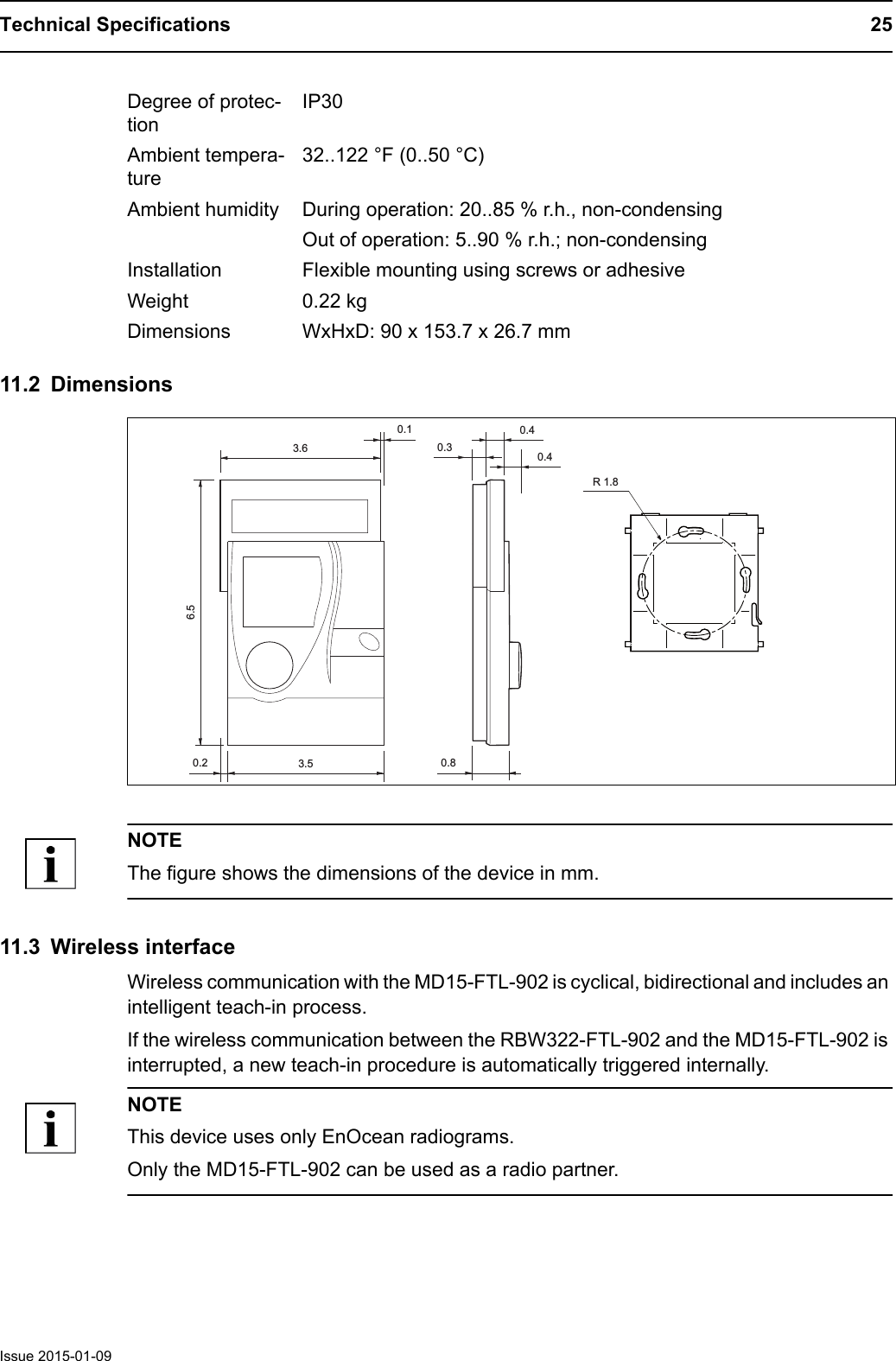
Technical Specifications 25Issue 2015-01-0911.2 DimensionsNOTEThe figure shows the dimensions of the device in mm.11.3 Wireless interfaceWireless communication with the MD15-FTL-902 is cyclical, bidirectional and includes an intelligent teach-in process.If the wireless communication between the RBW322-FTL-902 and the MD15-FTL-902 is interrupted, a new teach-in procedure is automatically triggered internally.NOTEThis device uses only EnOcean radiograms. Only the MD15-FTL-902 can be used as a radio partner.Degree of protec-tionIP30Ambient tempera-ture32..122 °F (0..50 °C)Ambient humidity During operation: 20..85 % r.h., non-condensingOut of operation: 5..90 % r.h.; non-condensingInstallation Flexible mounting using screws or adhesiveWeight 0.22 kgDimensions WxHxD: 90 x 153.7 x 26.7 mm3.63.50.40.40.80.26.50.3R 1.80.1
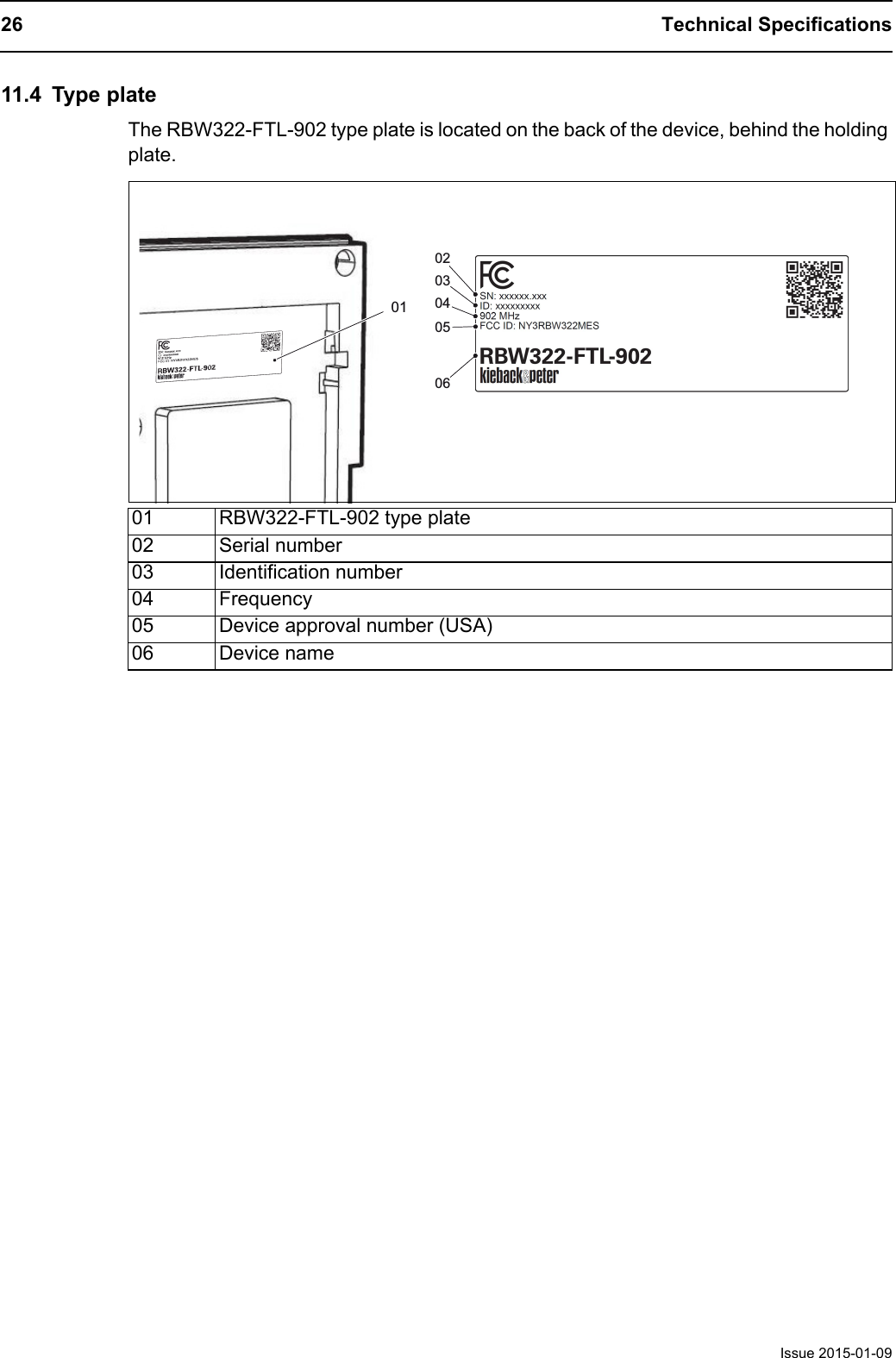
26 Technical SpecificationsIssue 2015-01-0911.4 Type plateThe RBW322-FTL-902 type plate is located on the back of the device, behind the holding plate.01 RBW322-FTL-902 type plate02 Serial number03 Identification number04 Frequency05 Device approval number (USA)06 Device name010302040605
Appendix 27Issue 2015-01-0912 AppendixCompliance statementThis device complies with section 15 of the FCC Rules. Operation is subject to the following two conditions: (1) This device may not cause harmful interference, and (2) this device must accept any interference that may cause undesired operation.Modifications not expressly approved by this company could void the user’s authority to operate the equipment.Radio Frequency (RF) SignalThe radio device is a radio transmitter and receiver. It is designed and manufactured not to exceed the emission limit for exposure to radio frequency (RF) energy set by the OET Bulletin 56 Supplement  C in the USA and by the Ministry of Health (Canada), Safety Code 6 in Canada. These limits are part of comprehensive guidelines and established permitted levels of RF energy population. These guidelines are based on the safety stan-dards previously set by international standard bodies. These standards include a substantial safety margin designed to assure the safety of all persons, regardless of their ages and health.This device and its antenna may not be located too close to or operated in conjunction with any other antenna or transmitter.This device is capable of compliance with localized specific absorption rate (SAR) for uncontrolled environment/general public exposure limits specific in ANSI/IEEE C95.1-1992 and has been tested in accordance with the measurement procedures spec-ified in IEEE Std. 1528-2003 December 2003. Class A digital device or peripheralThe RBW322-FTL-902 is a digital device that is marketed for use in a commercial, indus-trial or business environment, exclusive of a device which is marketed for use by the general public or intended to be used in the home.The equipment has been tested and found to comply with the limits for a class A digital device, pursuant to section 15 of the FCC Rules. These limits are designed to provide reasonable protection against harmful interference when the equipment is operated in a commercial environment. This equipment generates, uses, and can radiate radio frequency energy and, if not installed and used in accordance with the function manual, may cause harmful interference with radio communications. Operation of this equipment in a residential area is likely to cause harmful interference in which case the user will be required to correct the interference at his or her own expense. Declaration Concerning Antenna SpecificationsThe device confirms to the FCC recommendations for internal antenna type described below:Model No. of antenna: N/A
28 Contact dataIssue 2015-01-0913 Contact dataUSAMagnum Energy Solutions LLC43 Village Way #209Hudson, OH 44236(+1) (330) 656 9365 (telephone)(+1) (866) 271 3961 (toll free)(330) 656 9368 (fax)Type of antenna: integrated/onboard PCB-antenna, permanently attachedGain of the antenna: ≤ -10 dBiFrequency range: 902 MHz
Contact data 29Issue 2015-01-09
30 Contact dataIssue 2015-01-09

Navigation menu