Kingwear Intelligent Technology GV68 Bluetooth Smart Watch User Manual
Shenzhen Kingwear Intelligent Technology Co.,Ltd Bluetooth Smart Watch
user manual

1
Smart Watch
User Manual
Please refer to this manual before using the product
V1.0

2
Contents
3 Chapter 1 Cautions
3 Chapter 2 Get Started
3 Charging the watch
3 Power On/Off
4 Set up and pair with phone
6Chapter 3 Main Functions
6 Phone
6 Health
8 Remote
8 Tool
8 Notifier
9 Bluetooth
9 App
9 Settings
10 Chapter 4 Common Troubleshooting
3
1. Cautions
1.1. The information in this document is subject to change without notice, every
effort has been made in the preparation of this document to ensure accuracy
of the contents, but all statements, information, and recommendation in this
document do not constitute a warranty of any kind, express or implied. It is
normal that some functions may vary in certain version of software.
1.2. Please charge the watch for no less than 2 hours before using it.
1.3. When under water, please do not press the power button,and the
capacitancevalue of the touch screen will change, so it is normal that the
touch screen does not respond to your touch-based gesture.
1.4. With IP68 water & dust protection, your watch may be used for
shallow-water activities like swimming in a pool. However, it should not be
used for diving, water skiing or other activities involving high-velocity water
or hot bath, submersion in tea or any other corrosive liquid. Diving under
more than 3 meters water or pressing the button when under water may cause
water coming into your watch, these are destructive use and you will not be
able to enjoy the warranty and free maintenance.
2. Get Started
Supported smartphone Operating System: Android OS 4.4.4 or later, IOS 7.0 or later
(requires iPhone 5 or later).
2.1. Charging the watch
2.1.1. Connect the USB port on a 5V 1A power adapter, then plug it into a
power outlet.
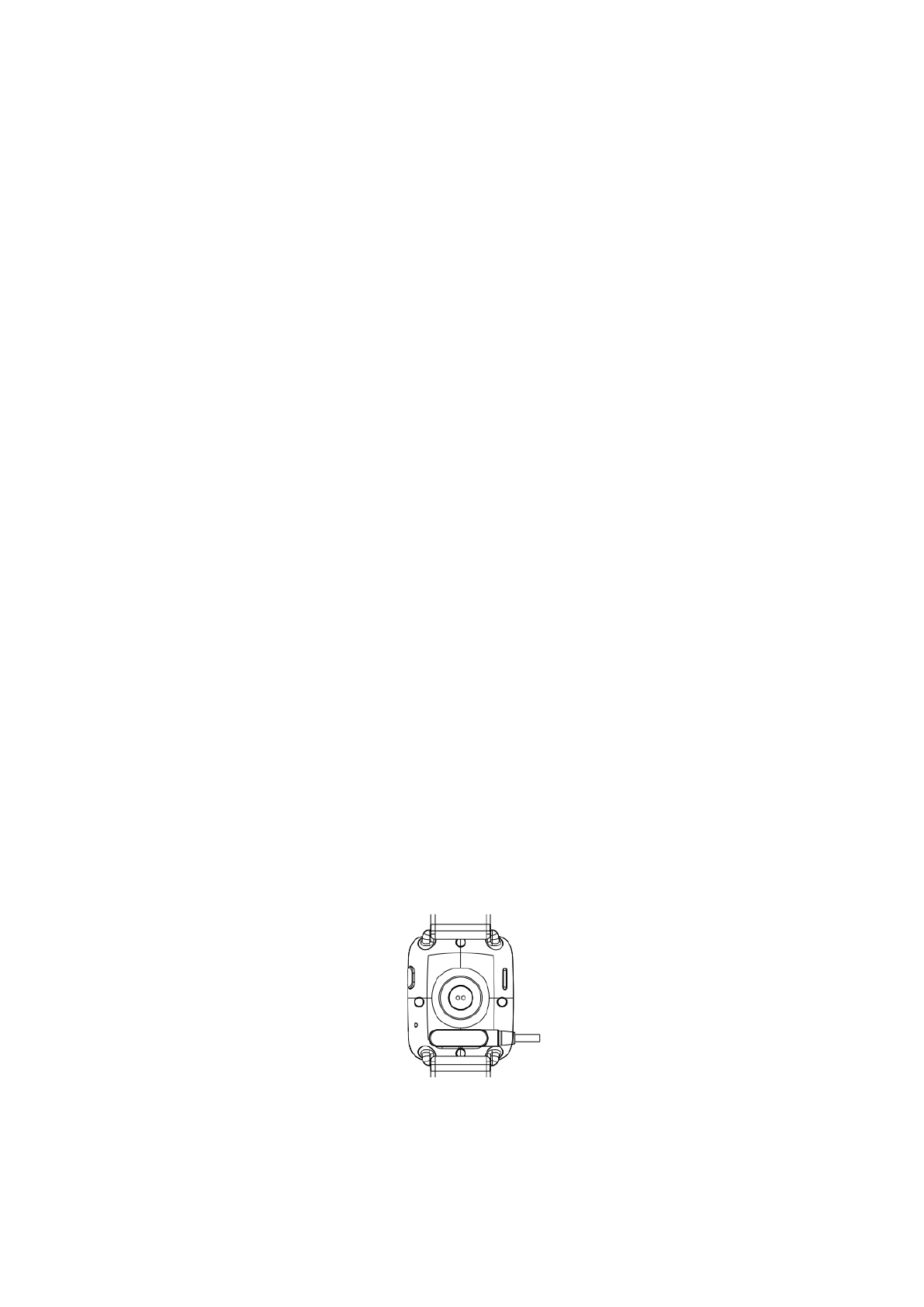
2.1.2. Connect the 4-pin magnetic connector to the back of your watch,
ensuring that the contacts on your watch and connector are aligned,
you’ll hear a chime (unless the watch is muted) and see a charging
icon on the watch face.
2.1.3. When you watch is fully charged, a fully charged battery icon will
display on the watch screen. At this time, your watch will
automatically detect the charging status and stop charging. Please
remove the charger once the watch is fully charged.
4
Note: Fully charging your GV68 smart watch may take about 2 hours.
2.2. Power On/Off
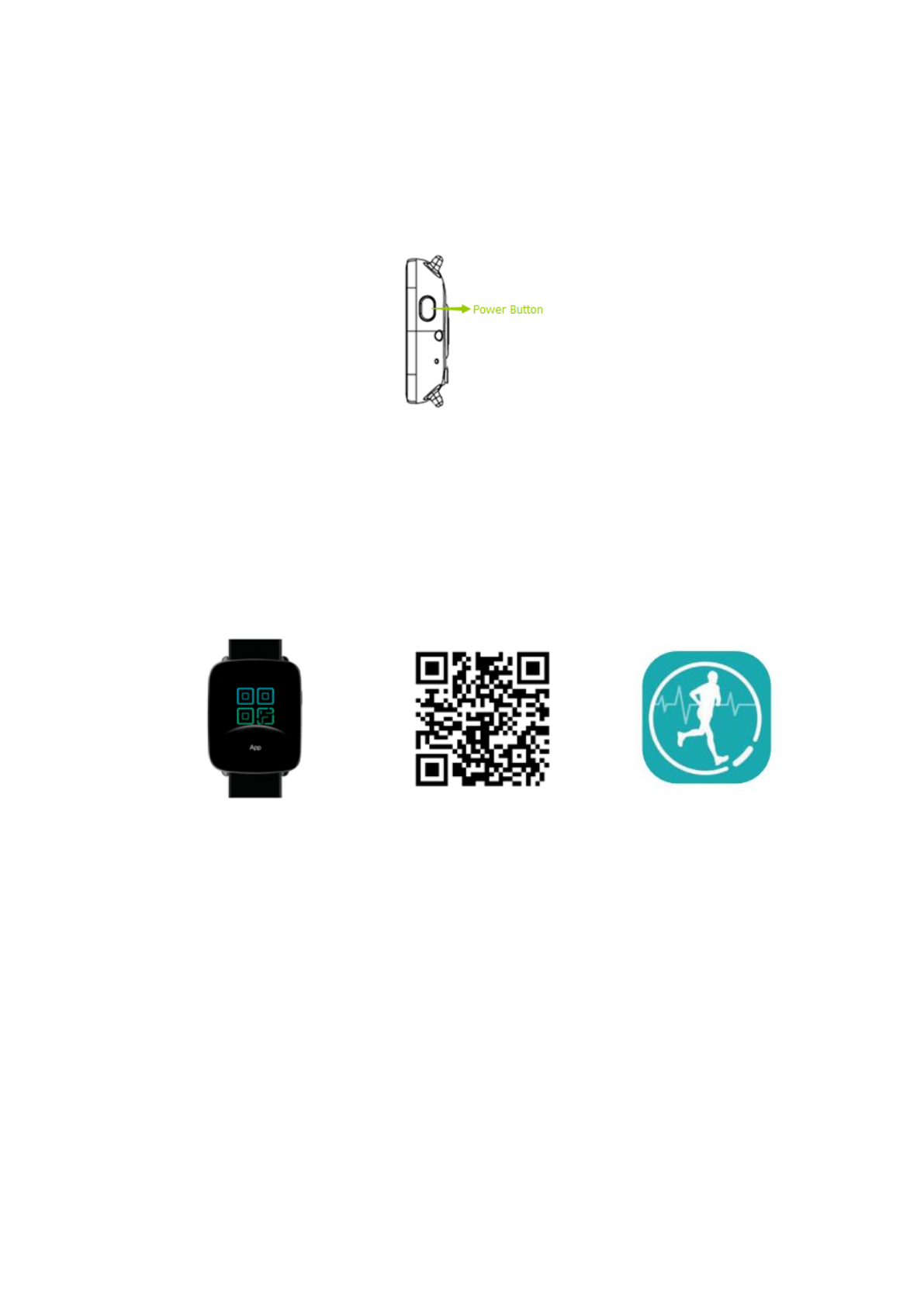
2.2.1. Power On: Press and hold the power button until the screen displays
SMART WATCH
2.2.2. Power Off: Press and hold the power button until the screen displays
“Power off?”, then select Yes to power off your watch.
2.3. Set up and pair with phone
Before using your watch, please download and install the Fundo Wear App to
your smartphone.
For an easy and safe installation, please scan the built-in QR code in the watch
with your smartphone, or open the Google PlayTM or Apple App Store and search
for FUNDO WEAR.
AllowFundoWear to accesscontacts, calllogs,messages,notifications and
location in your smartphone.Register/Login with your mailbox (or log in with a
third-party App) and keep the App running in the background.
2.3.1. Pairing with Android smartphone
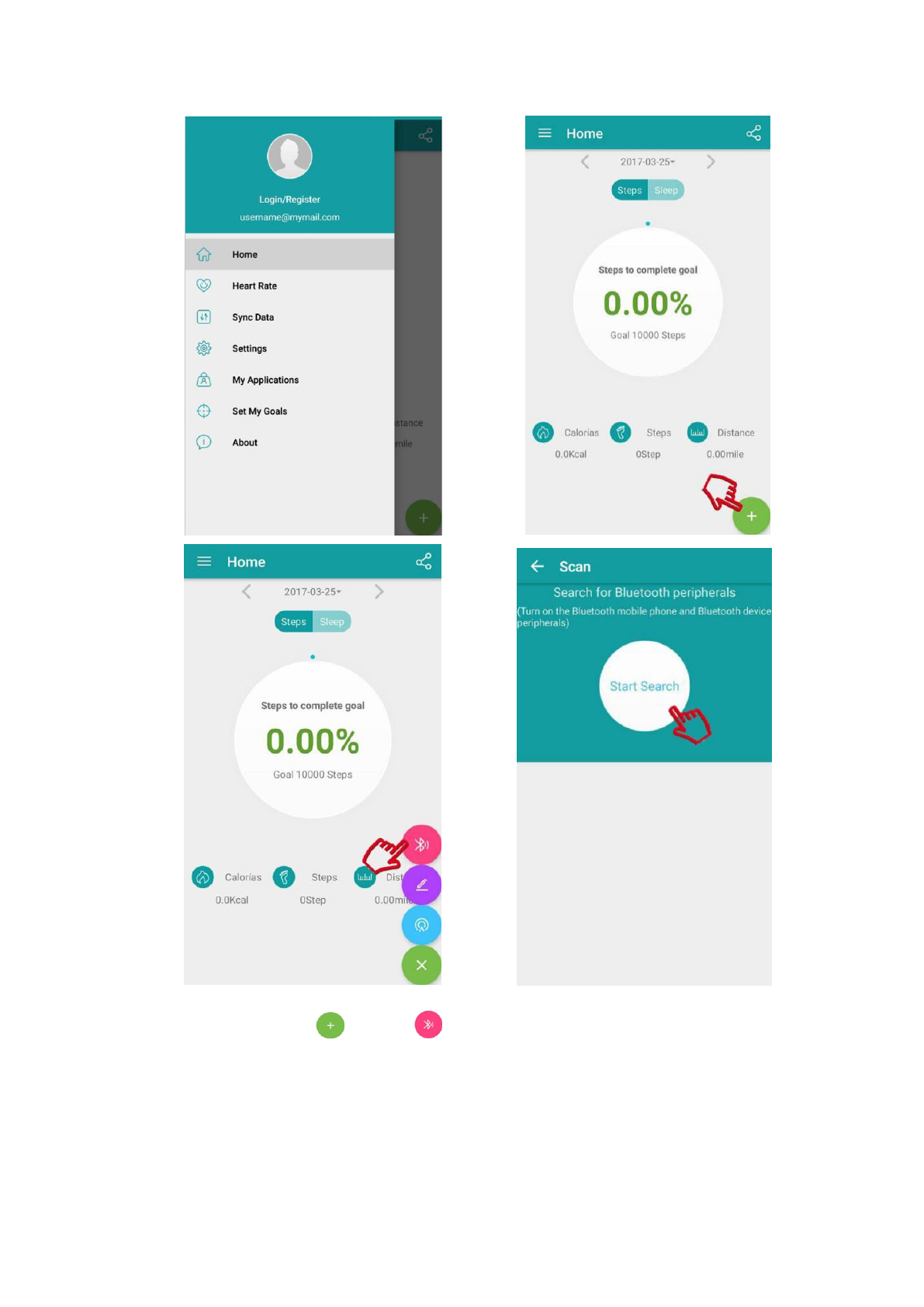
a. Enable Bluetooth on your smartphone and watch, launch the Fundo
Wear App, and pair your phone with your watch according to the
onscreen instructions.
5
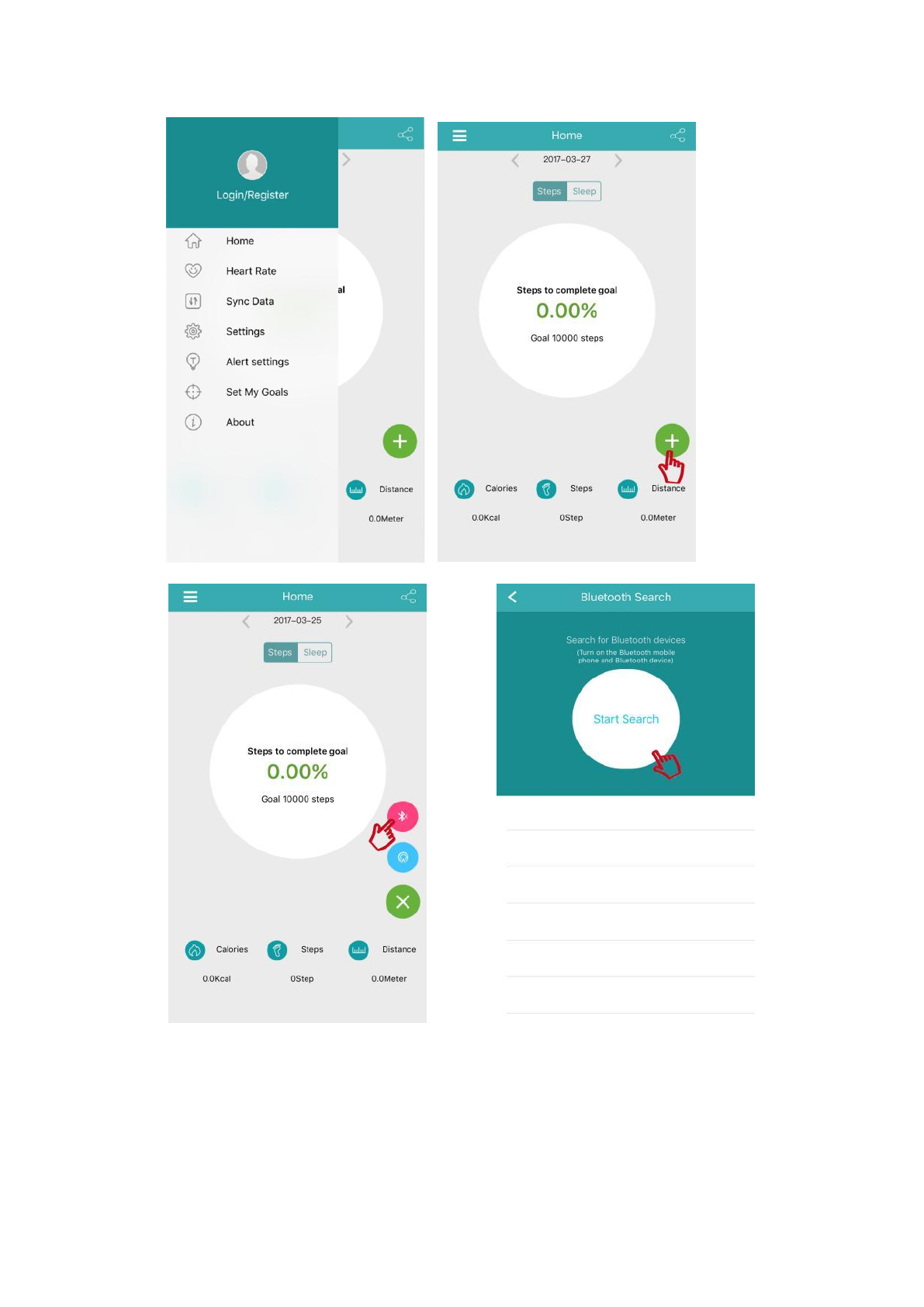
Touch > Touch > Start Search
The phone automatically lists the devices found, find and touch your
watch name. The Bluetooth pairing request dialog box appears,
touch Pair to start the pairing. The Bluetooth icon in your watch
displays as green when pairedsuccessfully.
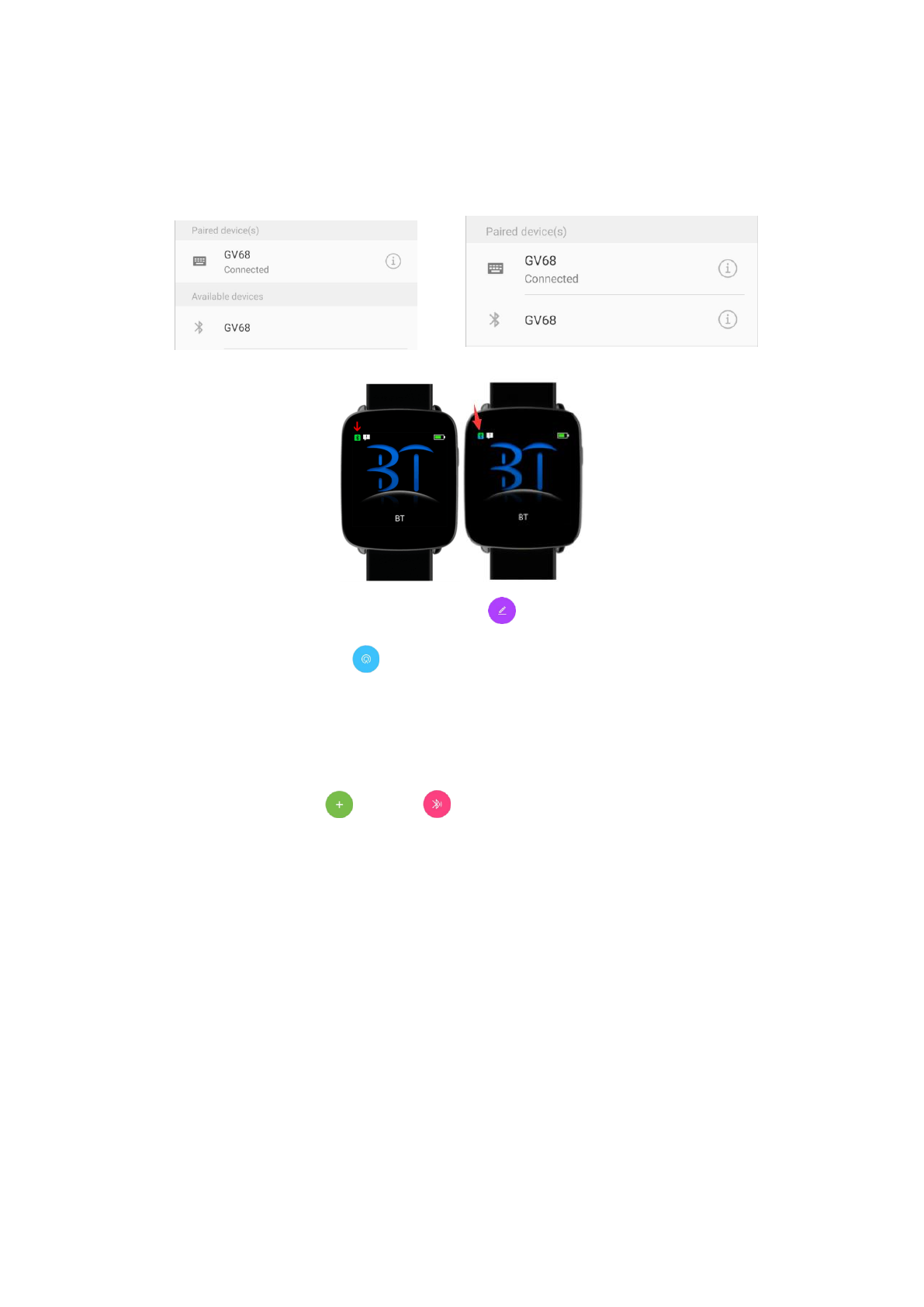
b. Go to Settings > Bluetooth on your phone, there is a connected
device onPAIRED DEVICES. Find your watch name on
6
AVAILABLE DEVICES and touch to pair. When bi-directional
pairing is completed, two connected devices will display on
PAIRED DEVICES and the Bluetooth icon in your watch will
display as half green and half blue.
Note: On the Android Fundo Wear app, touch icon to rename the Bluetooth
name of your watch. Touch icon, your watch will get an anti-lost alert.
2.3.2. Pairing with iPhone
a. Enable Bluetooth on your iPhone and watch, launch the Fundo Wear
App, and pair your iPhone with the watch according to the onscreen
instructions.
Touch > Touch > Start Search
The phone automatically lists the devices found, find and touch your
watchname, the Bluetooth pairing request dialog box appears, touch
Pair to start the pairing. The Bluetooth icon in your watch displays
as green when pairedsuccessfully.
7
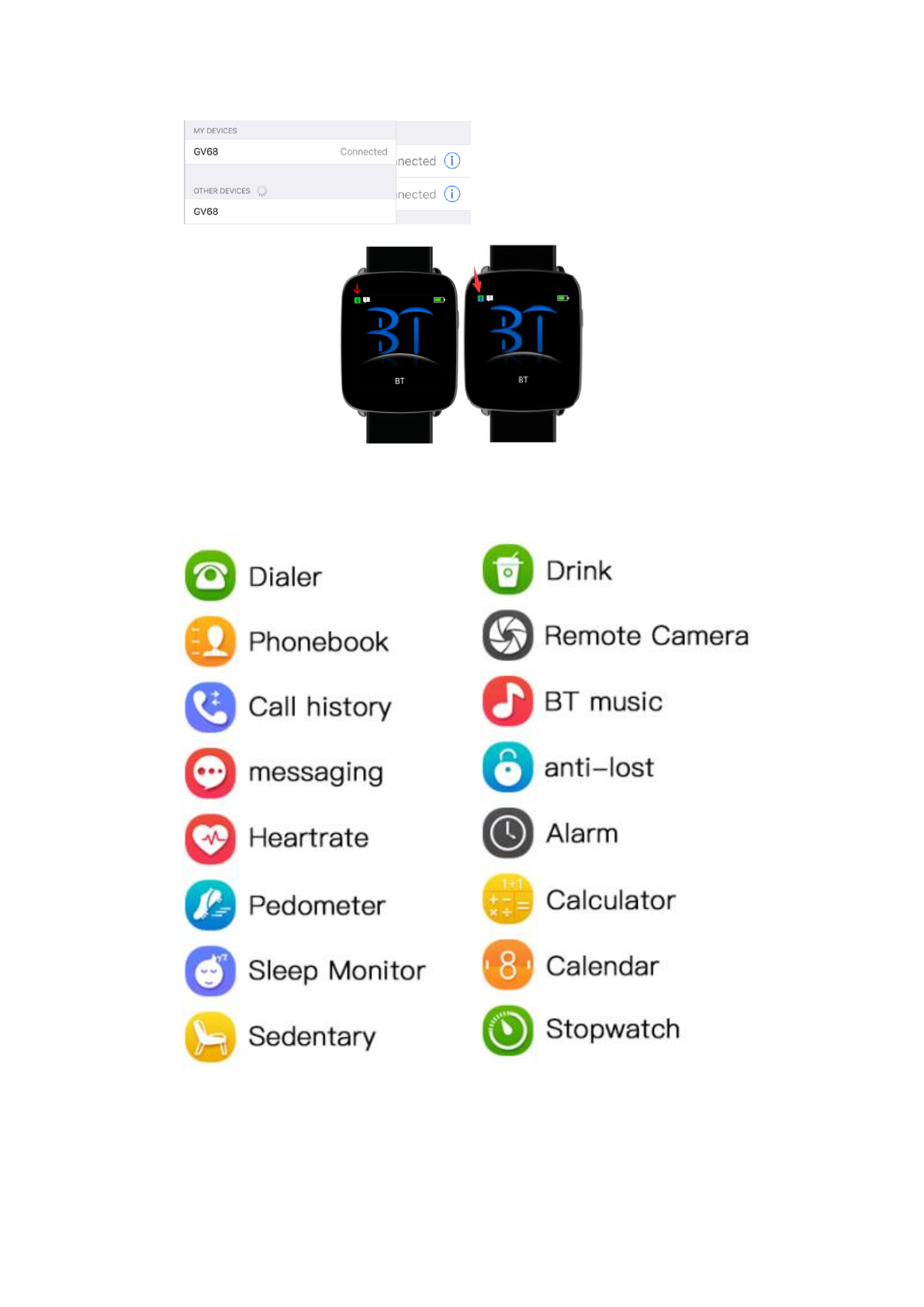
b. Go to Settings > Bluetooth on your iPhone, there is a connected
device on MY DEVICES. Find your watch name on OTHER
DEVICES and touch to pair. When bi-directional pairing is
completed, two connected devices willdisplay on MY DEVICES
and the Bluetooth icon in your watch will display as half green and
halfblue.
8
3. Main Functions

9
3.1. Phone
3.1.1. Dialer: When your watch is paired with your phone, make Bluetooth
calls from your watch.
3.1.2. Phonebook: When your watch is paired with your phone, contacts on
your phone will be automatically synced to your watch.
3.1.3. Call history: When your watch is paired with your phone, call history
on your phone will be automatically synced to your watch.
3.1.4. Messaging: When your watch is paired with your Android phone,
messages on your phone will be automatically synced to your
watch(Only for Android OS smartphone).
3.1.5. Answering/Rejecting calls: Swipe vertically to adjust the call volume.
3.2. Health
The goal of the Health feature is to sit less, move more and get a healthy life
style.
3.2.1. Heart rate
On the Health menu, select Heart rate. Touch the heart iconto start
measuring your heart rate.
On the heart rate measuring screen, swipe down from the top to open
Options. You can set Mode, view History and Help here.
While measuring your heart rate, ensure that the watch is level and
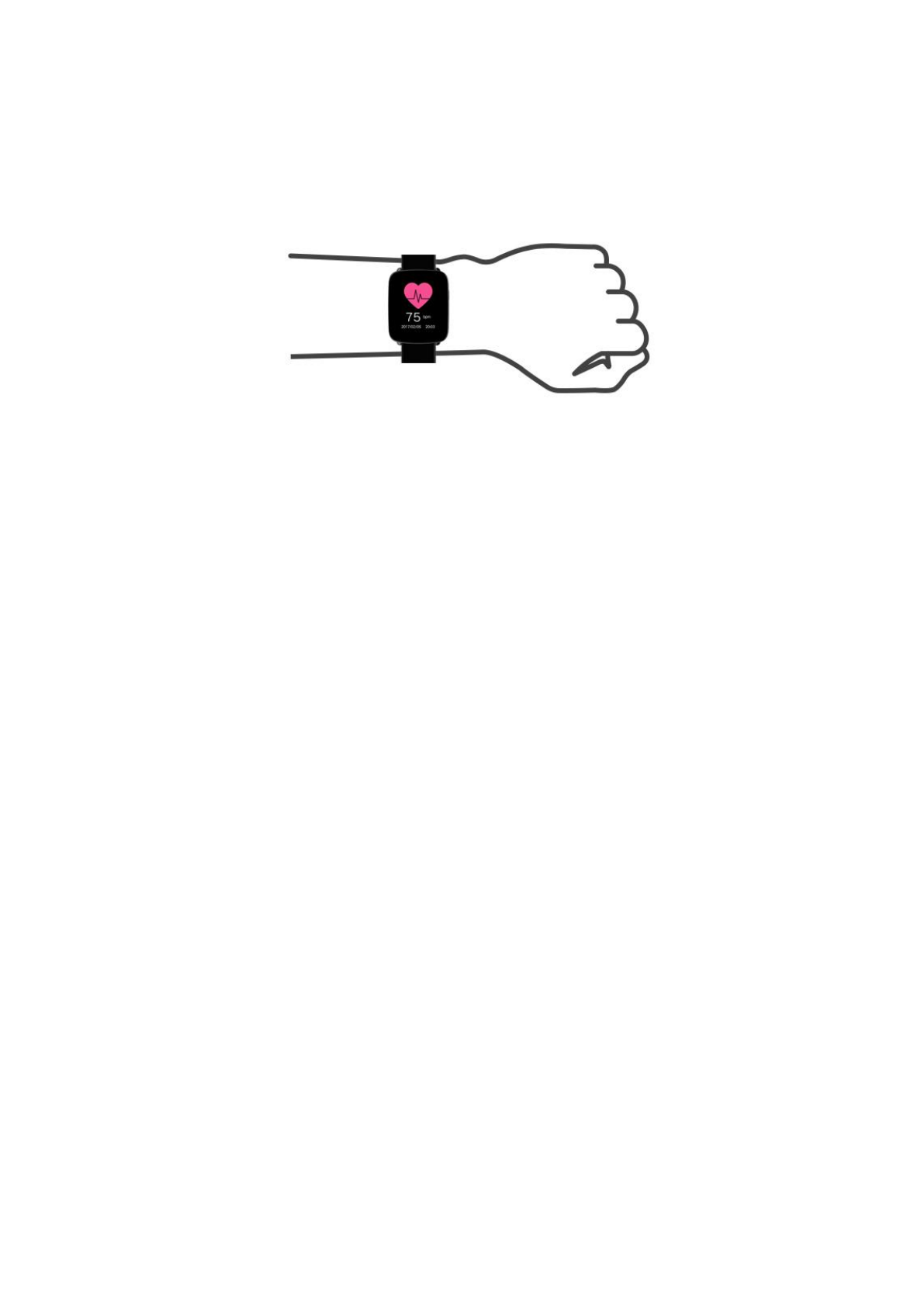
10
that the heart rate sensor is in contact with your wrist. You might need
to press down on the watch slightly to ensure a good contact. To
achieve a reliable reading, make sure that you keep your wrist level.
Note: Heart rate reading should not be used for medical purposes.
3.2.2. Pedometer
Power on and wear your watch, it will automatically record your steps
and calculate distance and calories burned. Your intraday fitness data
will be cleared at 00:00.
On the fitness data display screen, swipe up from the bottom to open
Options, you can set the Status, Goal, Gender, Height, Weight and
view History here.
When your watch is paired with your phone, your fitness data will
real-time sync to the Fundo Wear app in your phone, or click Sync
Data on Fundo Wear app to sync fitness data from your watch to your
phone.
Reset your watch: Settings > Reset
3.2.3. Sleep Monitor
From 22:00PM to 08:00AM, sleep monitor will automatically run and
monitor your sleep quality and hours.
On the sleep data display screen, swipe up from the bottom to open
Options. You can set Status, view History and Help here.
When your watch is paired with your phone, click Sync Data on
Fundo Wear app to sync sleep data from your watch to your phone.
3.2.4. Sedentary
Set a sedentary duration (at intervals of 30 minutes, 0min--300mins
for options), your watch will vibrate and ring to remind you when you
have been seated for a sedentary duration.
3.2.5. Drink
Turn on the drink feature, everyday from 09:00AM to 21:00PM, your
watch will remind you to drink water every 1 hour until you drink a
total of 2.5L water.
11
3.3. Remote
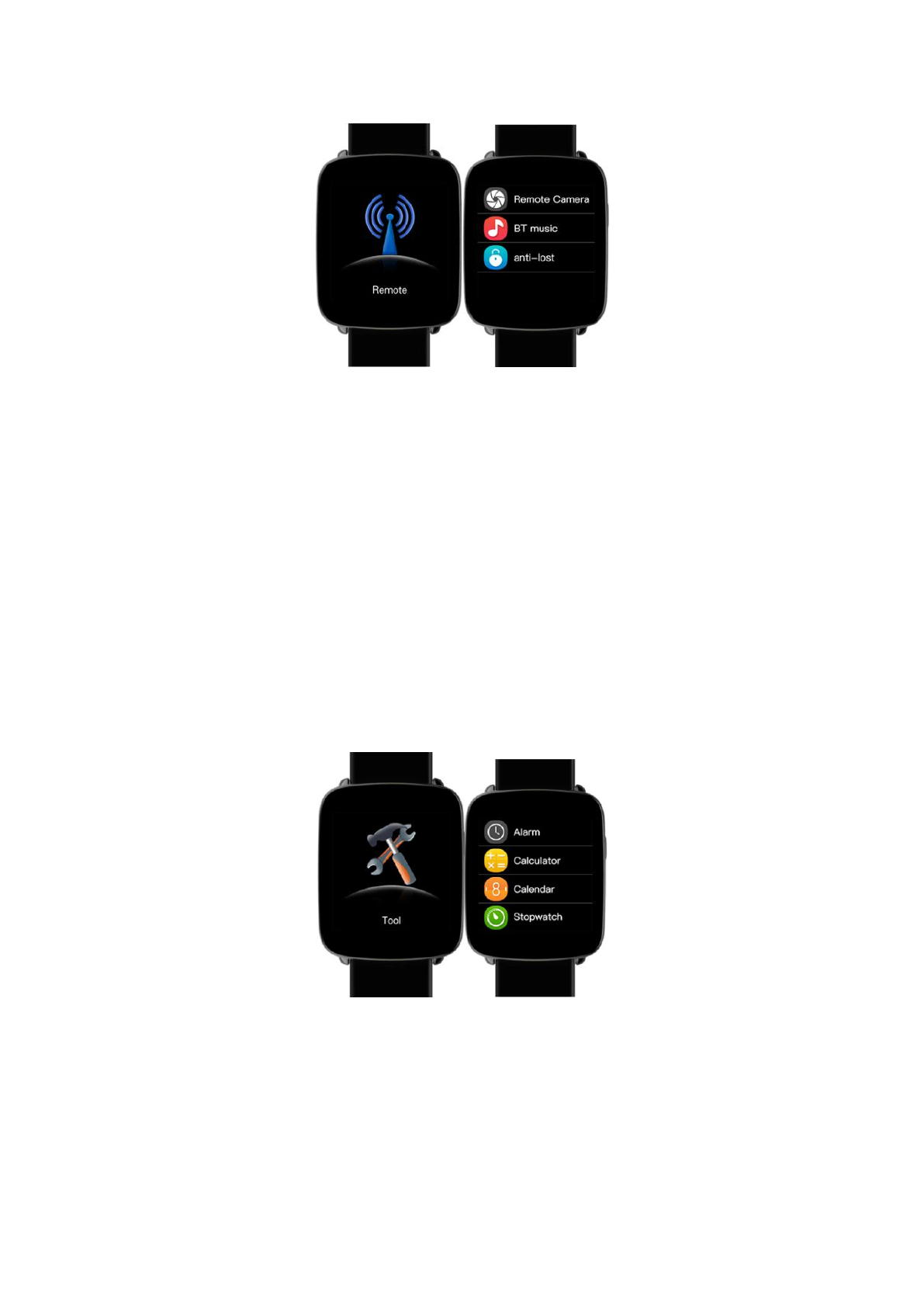
3.3.1. Remote Camera
When your watch is paired with your phone, open the camera of your
phone, tap Capture on your watch to remote control taking photo.
Photo saved in your phone.
To function as a camera remote, your watch needs to be within
normal Bluetooth range of your phone(about 33 feet or 10 meters).
3.3.2. BT Music
You can use your watch to control music playback if it is connected to
your phone. This includes changing songs and adjusting playback
volume. Music only plays on your phone.
3.3.3. Anti-lost
When your watch is paired with your phone, touch anti-lost on your
watch, your phone will get an alert.
3.4. Tool
3.4.1. Alarm
Turn on the alarm feature, set alarm time, repeat time, alarm tone and
alert type.On the last alarm display screen, swipe up from the bottom,
tap+to add new alarm. In an alarm that you have set, firmly press to
delete it.
12
3.4.2. Calculator
Enter data on the keypad to calculate.
3.4.3. Calendar
View the date, week, month and year.
3.4.4. Stopwatch
Time events with accuracy and ease.
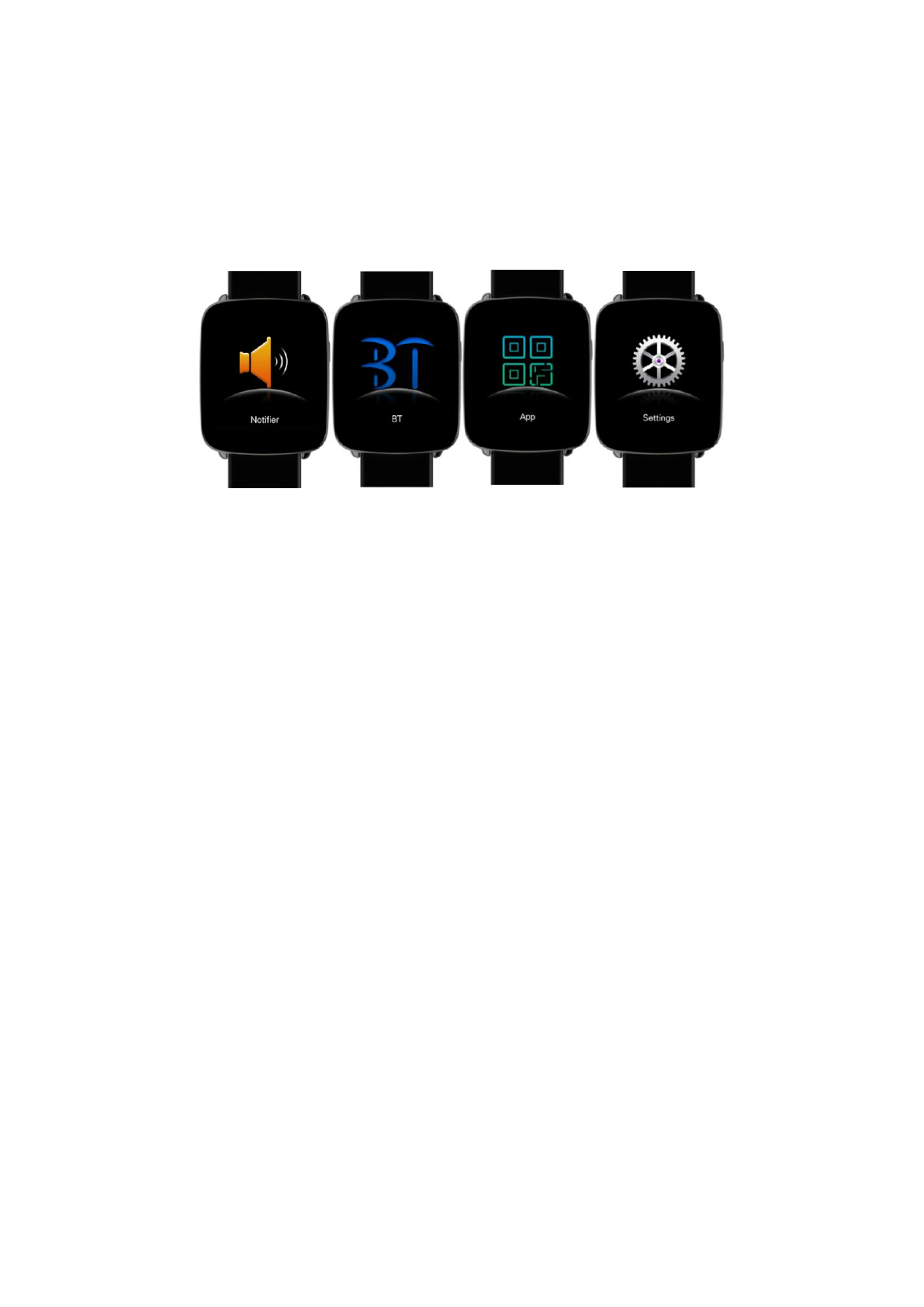
3.5. Notifier
Pair your watch with you phone and get notifications from the apps of your
phone. Notifications are displayed on your watch as soon as they arrive, you
will not miss what you matter.
Note: On your phone, go to settings > Notifications to specify which apps and
events generate notifications.
3.6. Bluetooth
Search and pair your watch with other mobile devices.
3.7. App
Scan the QR code to install Fundo Wear App.
3.8. Settings
3.8.1. Bluetooth Settings
On unpaired status, tap BT settings to turn on/off Bluetooth and set
visibility.On paired status, release the connection first to turn off
Bluetooth.
3.8.2. Clock
Set the clock type, the clock type that you have selected will be
displayed as your watch face.
Turn on the Time sync, when your watch is paired with your phone,
time and date will be real-time synced from your phone to your
watch.Turn off the Time sync, you can manually set the time and
timeformat.
3.8.3. Sound
Set alert type: Ring, Vibrate, Ring and Vibrate, Ring then Vibrate and
Mute. Select ringtone and select notification tone here.
3.8.4. Volume
Set the volume of Multimedia, Ring, Notification tone.

13
3.8.5. Display
Set the Mainmenu style, Brightness and Screen time out.
3.8.6. International
Turn off Auto Sync, you can select a language which different from
your paired phone.Turn on Auto Sync, the language of your watch
will sync with your phone(the premise is that your watch has the
language of your phone).
3.8.7. Motion
Turn on/off flip to mute incoming call.
Turn on/off flip to mute alarm.
Turn on/off wake-up gesture.
Turn on/off shake to answer the call.
3.8.8. Apps
When your watch is paired with an Android smartphone, tap My
Applications in Fundo Wear App, you can install the Apps to your
watch(only for Android operating system).
Go to Settings > Apps in your watch, tap Uninstall all to uninstall all
applications.
3.8.9. Reset
Go to settings > Reset in your watch, your watch will erase all data
and restart.
3.8.10. About
View the Device address, LE address, Connected service, LE
connected status, Version and Release time here.
Notes:
Solutions of the problem that the data of pedometer/sleeping/heart rate cannot be
synced to Fundo Wear:
1. You phone can only install one Fundo Wear App.
2. Register and log in your Fundo Wear first before using it.
3. Ensure that your watch and your phone have been bi-directionalpaired
successfully.
4. Sleep monitor and Pedometer cannot be working at the same time.
5. If the data still cannot be synced to the Fundo Wear, please restart your watch
and your phone, and try the steps above again.
4. Common troubleshooting
In case there is a problem during the using of your watch, please solve it
accordingly by the following ways. If the problem persists, please contact the
local dealer or the designated service representative.
4.1. Cannot power the watch on
a. Please firmly press the power button for at least 3 seconds.

14
b. The battery power may be too low to power on, please recharge your
watch and start again.
4.2. Auto power off
The battery power is too low, please recharge your watch.
4.3. Short battery life
The battery is not full charged, please ensure an enough time to charge your
battery up (No less than 2 hours).
4.4. Cannot be charged normally
a. Check whether the battery still can be used. The performance of battery
will degenerate after several years use.
b. Check whether the charger is workable, you can replace a new charger and
try again.
c. Check whether the watch charge interfaces and charge cable are normally
connected.
4.5. Do not display caller’s name
When your watch is paired with your phone, please check whether the
contacts on your phone are synced to your watch, if not, release the
connection. please allow the contacts synchronization while you are pairing
your watch and phone again.
4.6. Bad call quality
a. our watch may not in the normal Bluetooth range of your phone(about 33
feet or 10 meters), please keep a stable Bluetooth connection to ensure a good call
quality.
b. Your phone is in a weak signal, please make calls in areas with good
signal.
c. The microphone of your watch may be covered by your wrist, please adjust
your wrist posture when making phone call.
4.7. Cannot sync the data to Fundo Wear
a. Check if you have log in your Fundo Wear, if do not, please log in first
before use.
b. Check If your watch and phone are bi-directional paired successfully, if so,
the Bluetooth icon on your watch will display as half green and half blue.
15
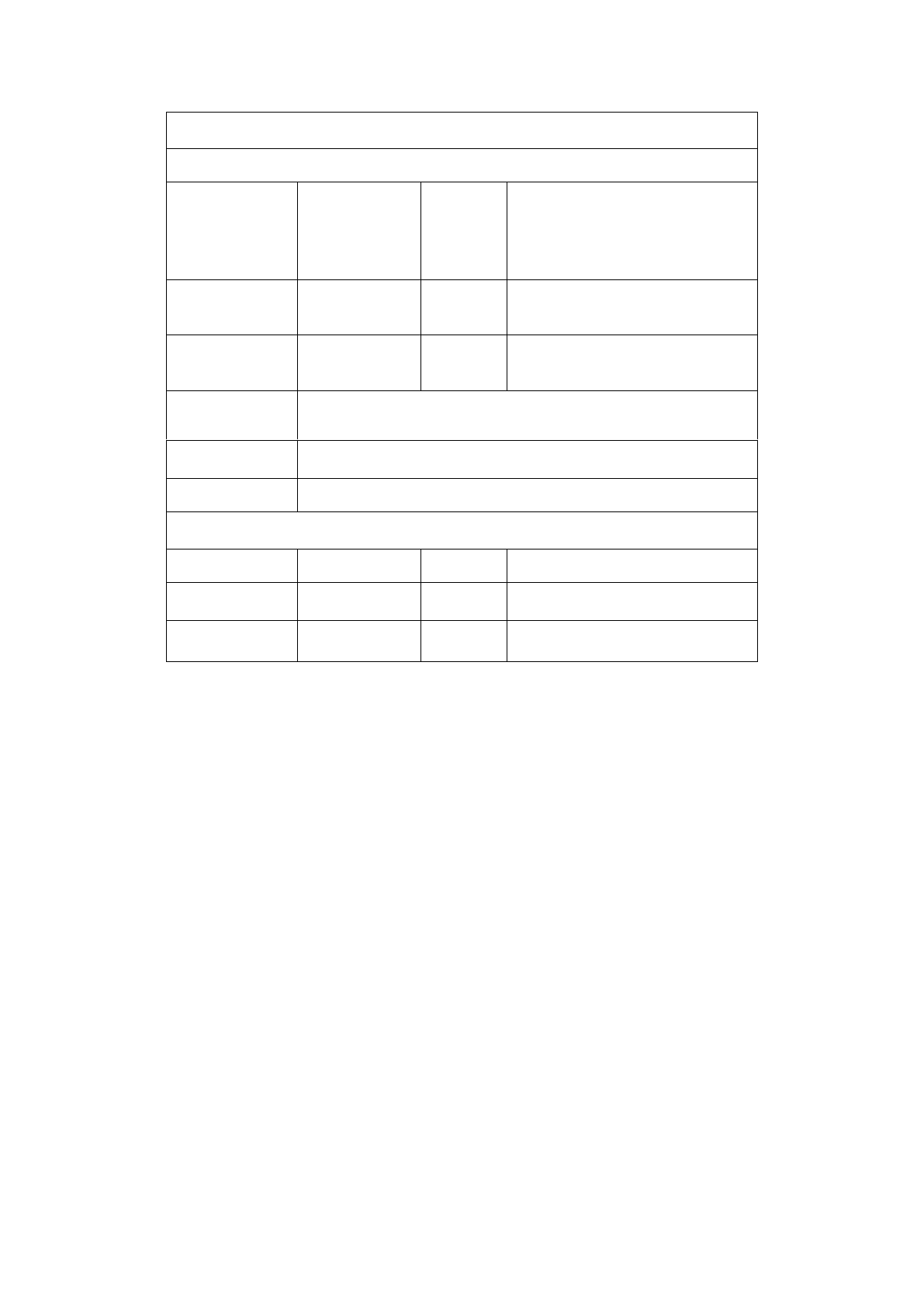
Warranty card
Client information
Model no.
Seller
(signature)
Client name
Contact
number
Sales Tel.
Purchase
Date
Product
IMEI code
Client add.
Sales add.
Description
Date
Problems
Repair
Remarks
NOTE: This equipment has been tested and found to comply with the limits for a
Class B digital device, pursuant to part 15 of the FCC Rules. These limits are
designed to provide reasonable protection against harmful interference in a
residential installation. This equipment generates uses and can radiate radio
frequency energy and, if not installed and used in accordance with the instructions,
may cause harmful interference to radio communications. However, there is no
guarantee that interference will not occur in a particular installation. If this
equipment does cause harmful interference to radio or television reception, which
can be determined by turning the equipment off and on, the user is encouraged to
try to correct the interference by one or more of the following measures:
- Reorient or relocate the receiving antenna.
- Increase the separation between the equipment and receiver.
-Connect the equipment into an outlet on a circuit different from that to which the
receiver is connected.
-Consult the dealer or an experienced radio/TV technician for help
Changes or modifications not expressly approved by the party responsible for compliance
could void the user's authority to operate the equipment. This device complies with Part
15 of the FCC Rules. Operation is subject to the following two conditions:
(1) this device may not cause harmful interference, and
(2) this device must accept any interference received, including interference that may
cause undesired operation.