Kodak Easyshare Md41 Users Manual Urg_01065
Kodak-Easyshare-Md41-Users-Guide-787956 kodak-easyshare-md41-users-guide-787956
MD41 to the manual 5fa76ea2-4c1b-4544-b54c-8328ede1b3a6
EasyShare MD41 - User Guide MD41_UG_GLB_en Free User Guide for Kodak Camera, Manual - page3
2015-02-04
: Kodak Kodak-Easyshare-Md41-Users-Manual-370546 kodak-easyshare-md41-users-manual-370546 kodak pdf
Open the PDF directly: View PDF  .
.
Page Count: 23
www.kodak.com/go/md41support 1
ENGLISH
IMPORTANT:
Before connecting any cables, install the software that was included with
your camera. Then return to this user guide.
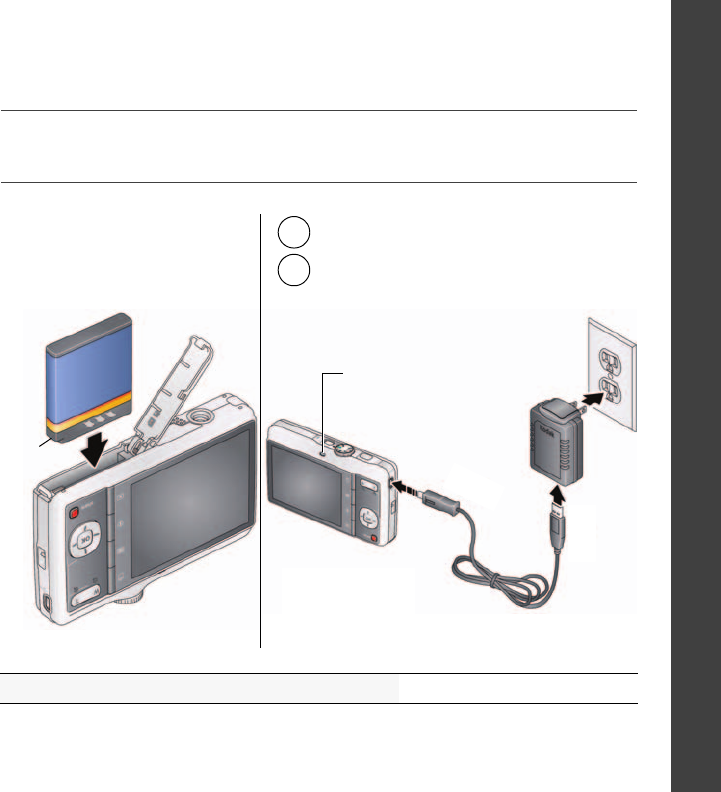
Loading and charging the battery
More charging options in the Extended user guide www.kodak.com/go/md41support
Notched
corner
Battery Charging light:
• Blinking: charging
• Steady: finished charging
(approx. 3 hours)
Turn off the camera.
1
Connect KODAK USB Cable,
Model U-8 and adapter.
2
Charge Li-Ion batteries frequently, even if power remains.
urg_01065.book Page 1 Monday, June 8, 2009 8:28 AM
2www.kodak.com/go/easysharecenter
ENGLISH
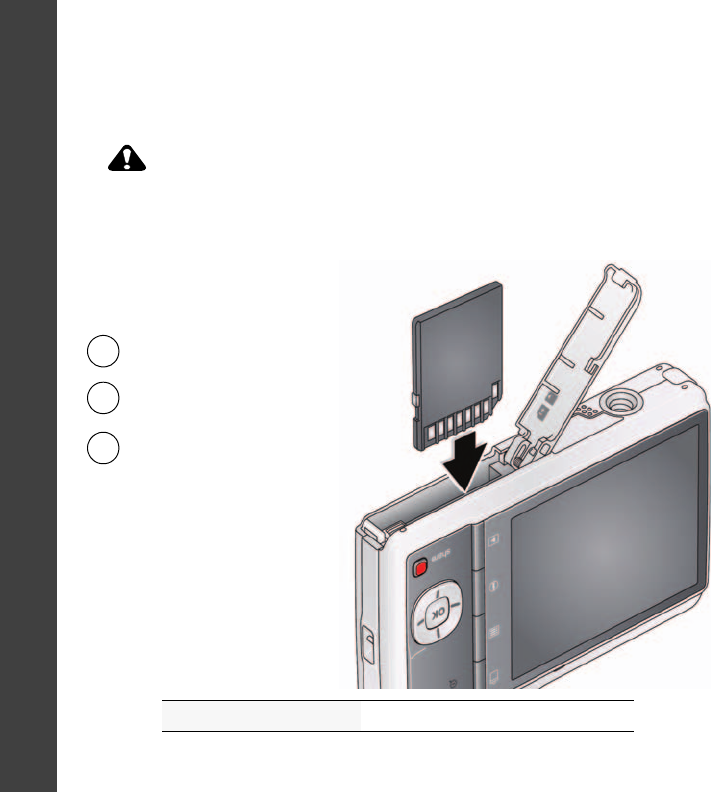
Using an (accessory) SD or SDHC Card
Your camera has internal memory. You can purchase an SD or SDHC Card to store
more pictures and videos. (Maximum supported card size is 32 GB.)
CAUTION:
A card can only be inserted one way; forcing it may cause damage.
Inserting or removing a card when the camera is on may damage
the pictures, the card, or the camera.
Purchase accessories www.kodak.com/go/md41accessories
1Turn off the camera.
2Insert or remove the
optional card.
3Turn on the camera.
urg_01065.book Page 2 Monday, June 8, 2009 8:28 AM
www.kodak.com/go/md41support 3
ENGLISH
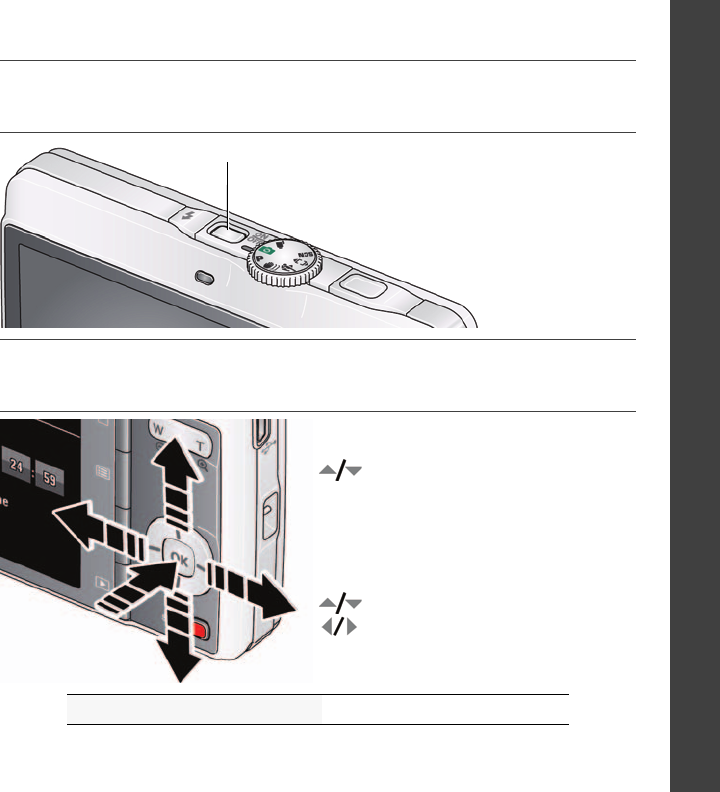
Turning on the camera
Setting the language and date/time
See the Extended user guide www.kodak.com/go/md41support
Press the Power button.
to change current field.
for previous/next field.
OK to accept.
At the prompt, press OK.
to change.
OK to accept.
Language:
Date/Time:
OK (press)
urg_01065.book Page 3 Monday, June 8, 2009 8:28 AM
4www.kodak.com/go/easysharecenter
ENGLISH
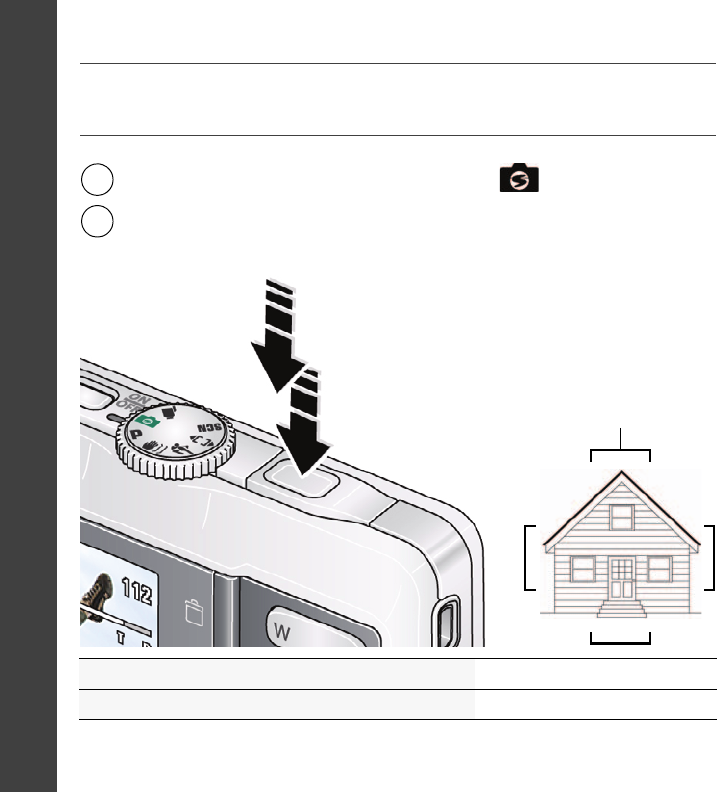
Taking a picture
See the Extended user guide www.kodak.com/go/md41support
Learn more about Smart Capture and other modes see page 11
Press the Shutter button halfway to lock the focus.
When the framing marks turn green, press the Shutter
button completely down.
1
2
Turn the Mode dial to Smart Capture .
Framing marks
urg_01065.book Page 4 Monday, June 8, 2009 8:28 AM
6www.kodak.com/go/easysharecenter
ENGLISH
Transferring pictures/videos
See the Extended user guide www.kodak.com/go/md41support
Purchase accessories www.kodak.com/go/md41accessories
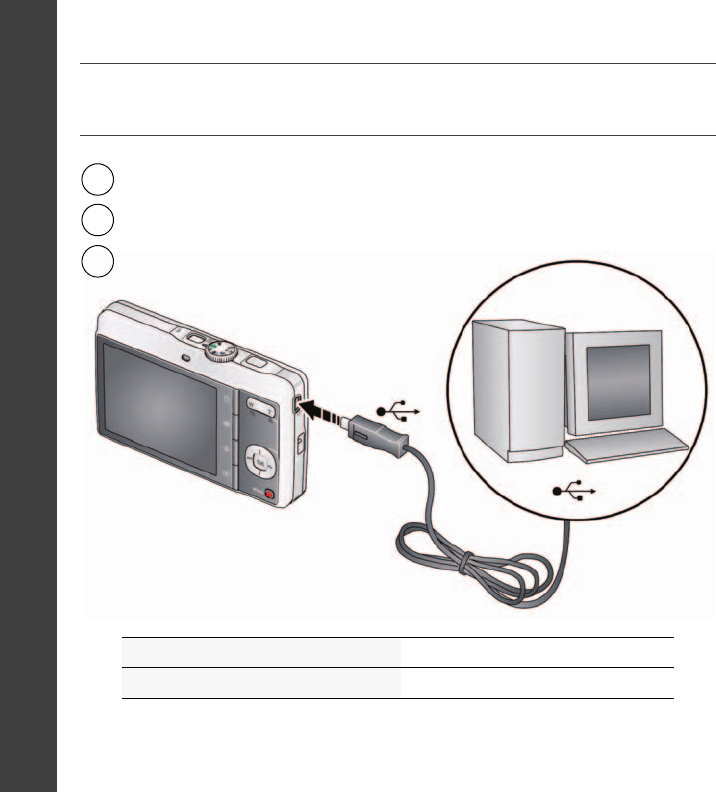
Turn off the camera.
3
1
2Connect a KODAK USB Cable, Model U-8.
Turn on the camera.
urg_01065.book Page 6 Monday, June 8, 2009 8:28 AM
www.kodak.com/go/md41support 7
ENGLISH
Getting help from your camera
Your camera offers a built-in Help system. It describes every setting for every menu
choice. If you learn nothing else about your camera, learn how to use on-camera Help.
Because the more you know your camera, the more confident you become.
See the Extended user guide www.kodak.com/go/md41support
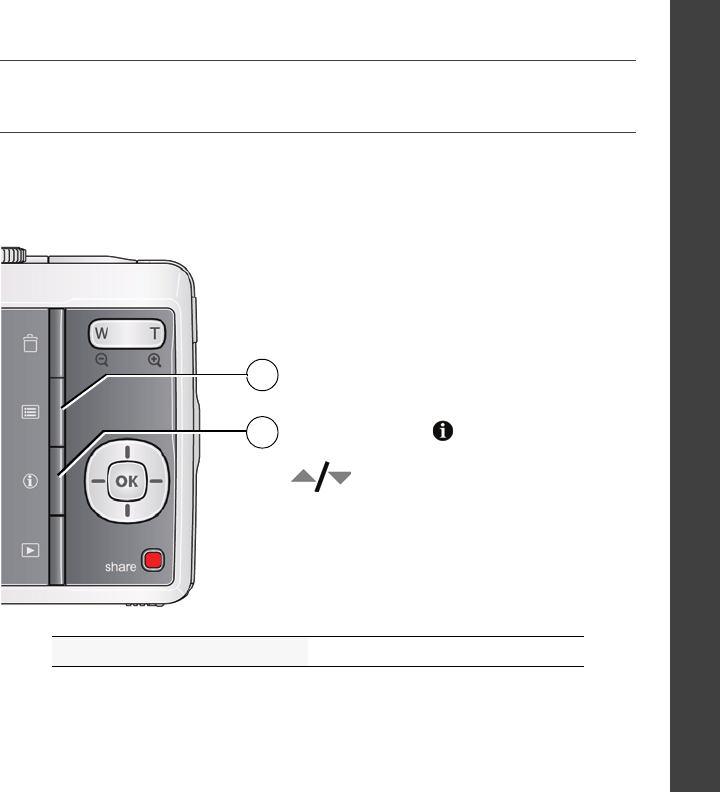
Scroll through a Help topic
Press the Menu button, then
highlight a menu choice.
Press the Info
1
2button.
urg_01065.book Page 7 Monday, June 8, 2009 8:28 AM
8www.kodak.com/go/easysharecenter
ENGLISH
Keep learning about your camera!
Visit www.kodak.com/go/md41support:
• the extended user guide
• interactive troubleshooting and repairs
• interactive tutorials
• FAQs
• downloads
• accessories
• printing information
• product registration
Congratulations!
You have:
• set up your camera
• taken pictures
• transferred pictures to your computer
Keep learning!
Finish reading this book, so you can take and share your best pictures!
urg_01065.book Page 8 Monday, June 8, 2009 8:28 AM
www.kodak.com/go/md41support 9
ENGLISH
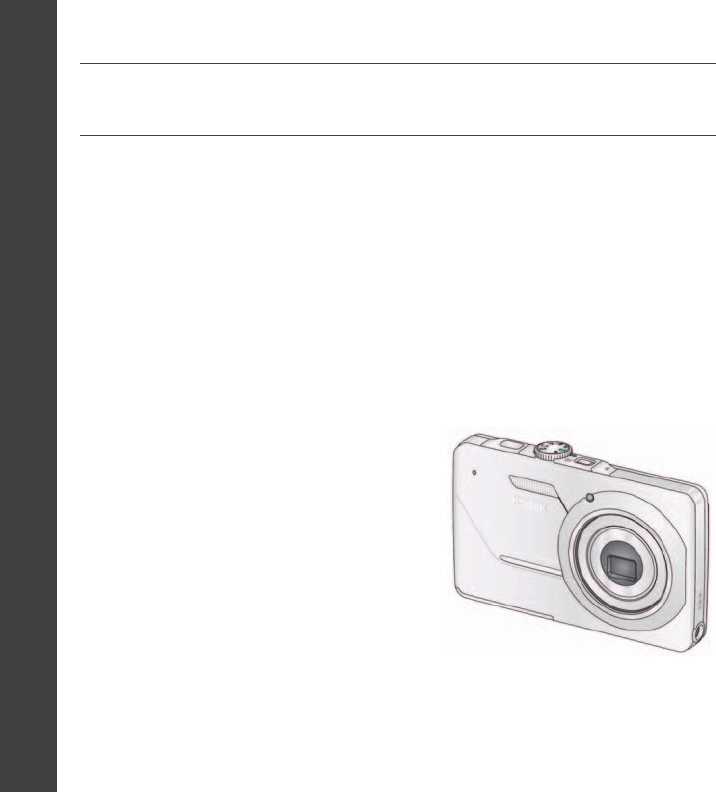
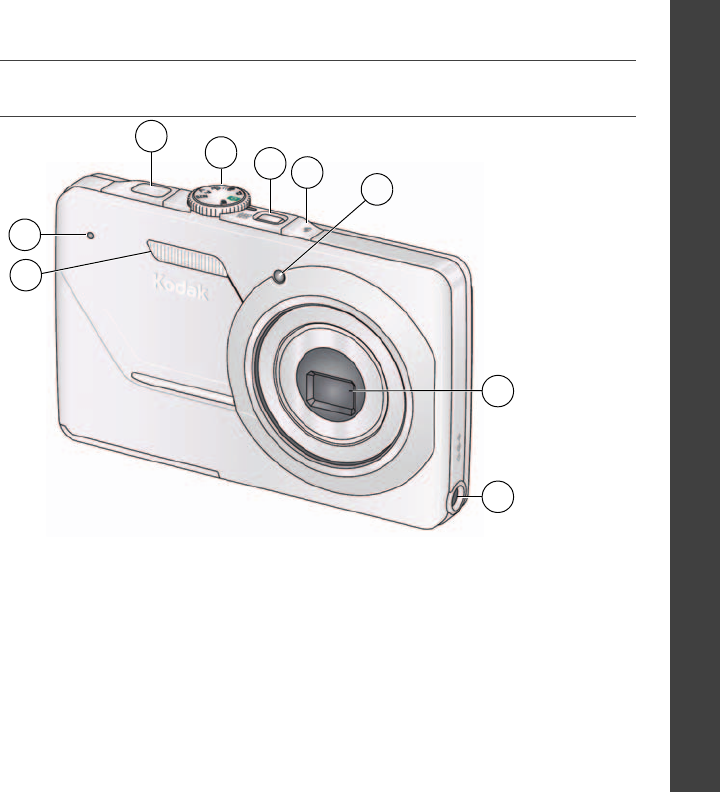
Front view
1Shutter button 6Lens/Lens cover
2Mode dial 7DC-In (5V)
3Power button 8Flash
4Flash button 9Microphone
5Self-timer light
8
5
9
6
3
1
4
2
7
urg_01065.book Page 9 Monday, June 8, 2009 8:28 AM
10 www.kodak.com/go/easysharecenter
ENGLISH
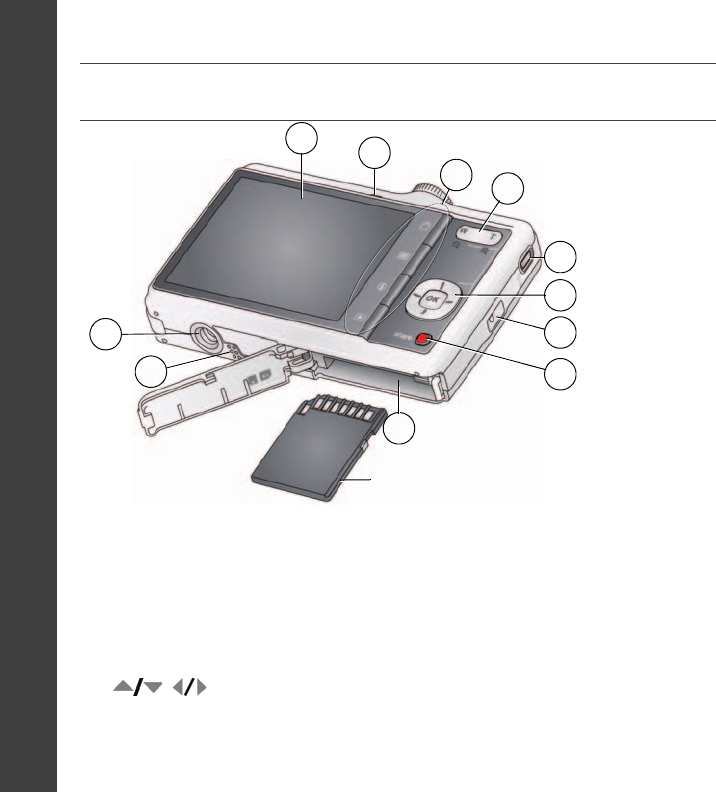
Back view
1LCD 7Strap post
2Ready/Battery Charging light 8Share button
3Delete, Menu, Info, Review buttons 9Battery, SD/SDHC Card compartment
4Zoom (Telephoto/Wide Angle) button 10 Speaker
5USB/AV Out 11 Tripod socket
6
OK button
4
1
6
8
7
11
9
5
3
optional
2
10
urg_01065.book Page 10 Monday, June 8, 2009 8:28 AM
www.kodak.com/go/md41support 11
1Doing more with your camera
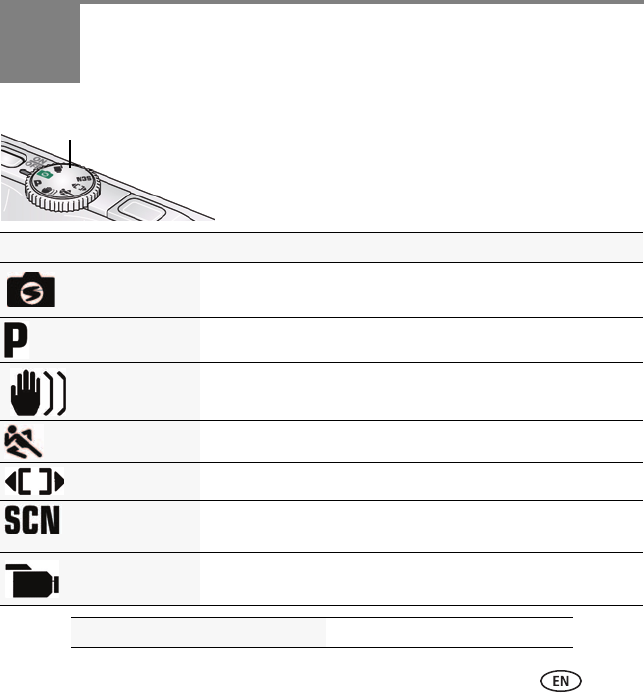
Turn the Mode dial to the mode that best suits your
subjects and surroundings.
Mode dial
Use this mode For
Smart Capture General picture taking—it offers excellent image quality and ease
of use.
Program Advanced picture taking—allows access to manual settings.
Blur Reduction Reducing blur caused by camera shake or subject motion.
Sport Action pictures.
Panorama “Stitching” up to 3 pictures into a panoramic scene.
Scene Point-and-shoot simplicity when taking pictures in practically any
situation.
Video Capturing video with sound.
See the Extended user guide www.kodak.com/go/md41support
urg_01065.book Page 11 Monday, June 8, 2009 8:28 AM
Doing more with your camera
12 www.kodak.com/go/easysharecenter
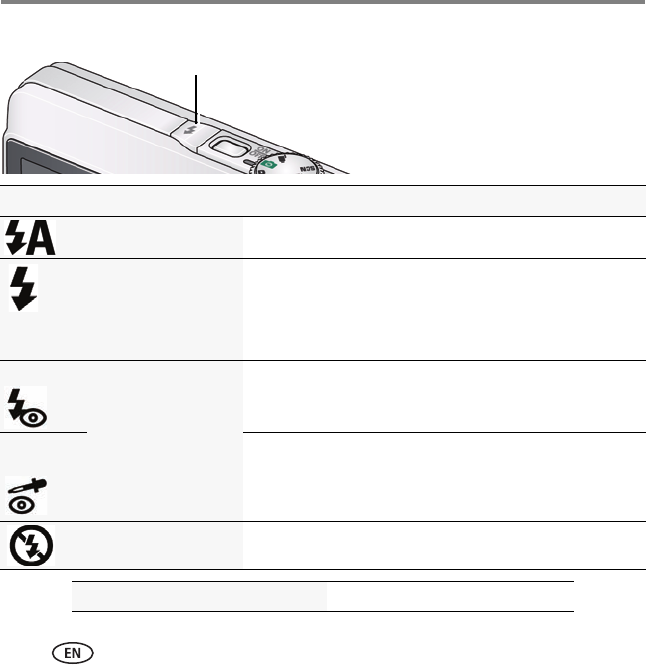
Using the flash
Flash modes Flash fires
Auto When the lighting conditions require it.
Fill (Flash On) Every time you take a picture, regardless of the lighting
conditions. Use when the subject is in shadow or is
“backlit” (when the light is behind the subject).
NOTE: (Not available in Smart Capture mode.)
Preflash Red Eye
Your camera can
correct red-eye using
2 methods. To choose
a red eye setting, see
the Setup menu.
A preflash fires, shrinking the eye pupil, before the picture is
taken.
Digital
Correction
A preflash does not fire; the camera corrects red eye.
Off Never
See the Extended user guide www.kodak.com/go/md41support
Press the flash button repeatedly to scroll through flash modes.
The current flash mode is shown in the LCD status area.
urg_01065.book Page 12 Monday, June 8, 2009 8:28 AM
Doing more with your camera
www.kodak.com/go/md41support 13
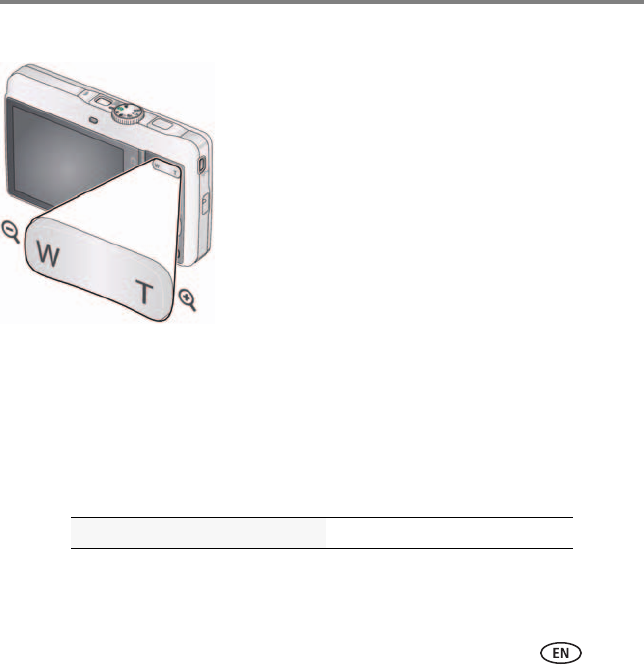
Using the optical zoom
1Use the LCD to frame your subject.
2To zoom in, press Telephoto (T).
To zoom out, press Wide Angle (W).
3Take the picture.
Using digital zoom
Use digital zoom to get up to 5X magnification beyond optical zoom. (Digital zoom is
not available in Smart Capture mode.) Press Telephoto (T) until the slider is at the end
of the optical zoom range. Release Telephoto (T), then press it again.
NOTE: You may notice decreased image quality when using digital zoom. The slider pauses and turns red
when the picture quality reaches the limit for an acceptable 4 x 6 in. (10 x 15 cm) print.
See the Extended user guide www.kodak.com/go/md41support
urg_01065.book Page 13 Monday, June 8, 2009 8:28 AM
Doing more with your camera
14 www.kodak.com/go/easysharecenter
Using the menu button to change settings
You can change settings to get the best results from your camera.
NOTE: Some modes offer limited settings. Some settings remain until you change them; others, until you
change modes or turn off the camera.
1Press the Menu button.
2Press to highlight the Capture/Video or Setup tab.
3Press to highlight a setting, then press OK.
4Highlight an option, then press OK.
IMPORTANT:
Your camera offers a built-in Help system. To get the most from your camera,
see page 7.
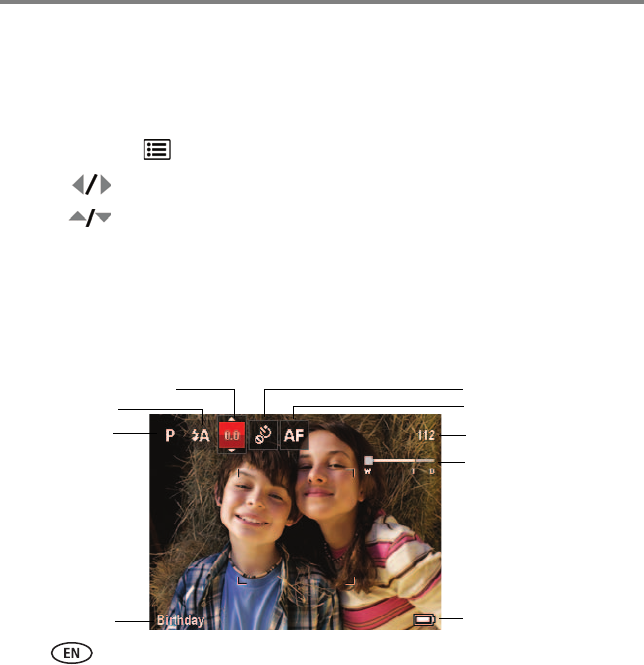
Understanding the picture-taking icons
Battery level
Capture mode Pictures/video recording
time remaining
Zoom indicator
Tag name
Self timer/Burst
Flash mode Focus mode
Exposure compensation
urg_01065.book Page 14 Monday, June 8, 2009 8:28 AM
www.kodak.com/go/md41support 15
2Working with pictures/videos
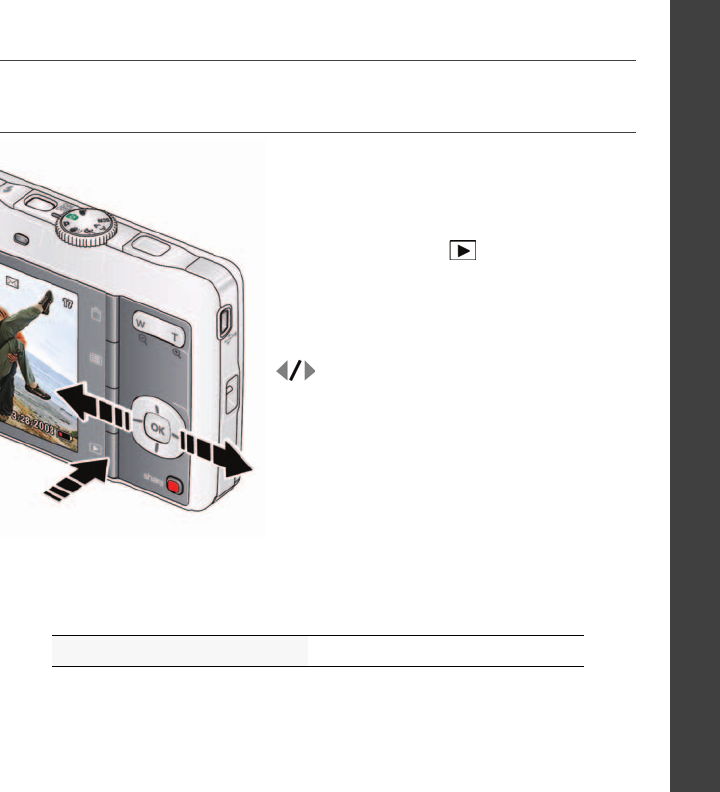
Deleting pictures/videos
1Press the Review button.
2Press for previous/next picture/video.
3Press the Delete button, then follow the prompts.
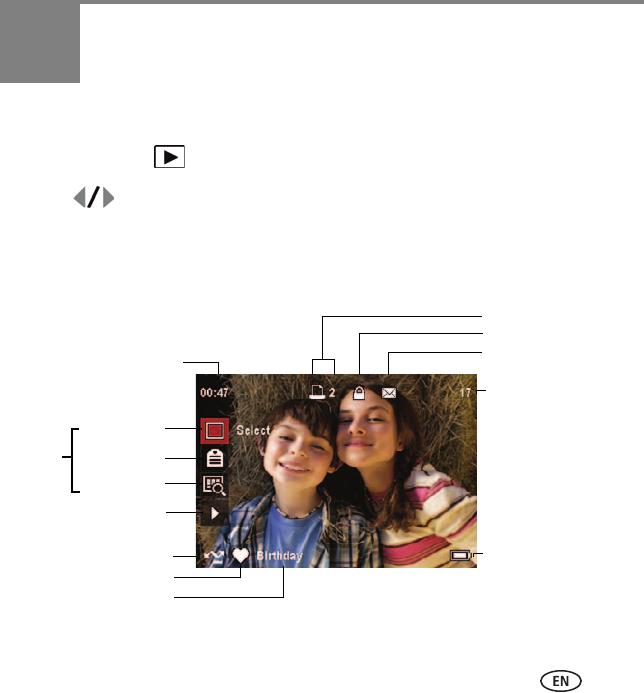
Understanding the review icons
Email mark
Favorite mark
Print mark/quantity
Protected
Picture/Video number
Upload mark
Video duration
Select picture
Battery level
Text tag name
Add text tag
View multi-up
Play video
Shortcuts
urg_01065.book Page 15 Monday, June 8, 2009 8:28 AM
16 www.kodak.com/go/easysharecenter
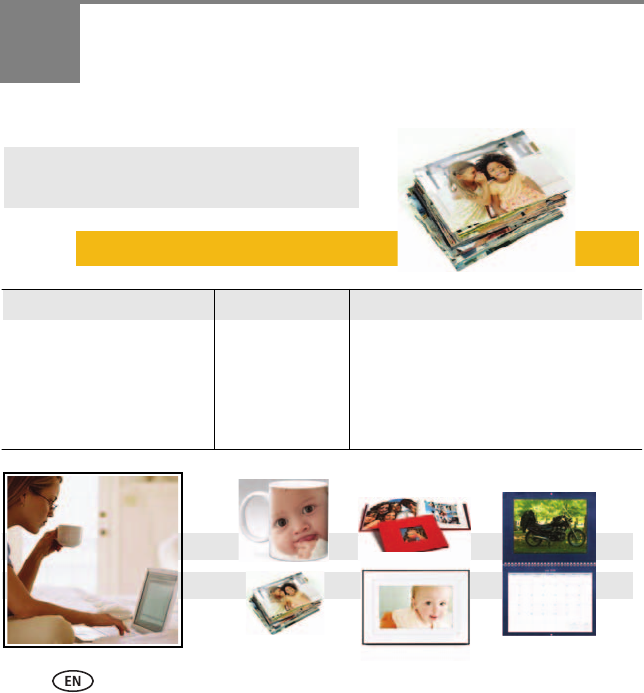
3Share your stories!
Prints Photo gifts Digitally
• 4 x 6 pictures
• Enlargements, posters
• Collages
• Photo books
• Cards
• Calendars
• Mugs
• Ties
• Shirts
• EASYSHARE Digital Picture Frame
• HDTV devices
• Email
...and much more!
How do you tell yours?
A thousand ways to tell a story...
and each begins with a picture.
urg_01065.book Page 16 Monday, June 8, 2009 8:28 AM
Share your stories!
www.kodak.com/go/md41support 17
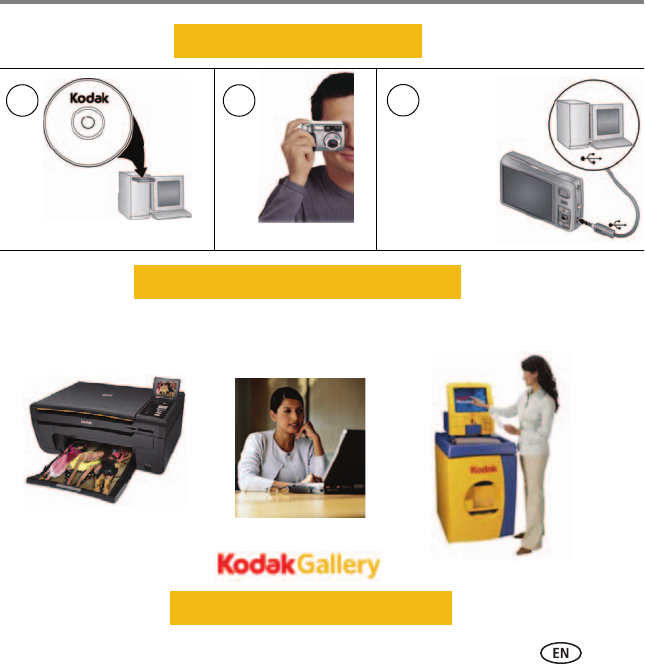
Transfer
pictures
to your
computer.
Pictures start here!
1 2 3
Load software. Take pictures.
Pictures become stories here!
KODAK All-in-One
Printers
At home Online At a local photo retailer
KODAK Picture Kiosk
www.kodak.com/go/tips
urg_01065.book Page 17 Monday, June 8, 2009 8:28 AM

18 www.kodak.com/go/easysharecenter
4Solving camera problems
Status Solution
Camera does not
turn on, off
■Make sure the battery is charged and installed correctly (see
page 1).
Camera buttons and
controls do not function
In Review, a blue or
black screen is
displayed instead of
a picture
■Transfer
all
pictures to the computer (see page 6).
■Take another picture.
Pictures remaining
number does not
decrease after taking a
picture
■Continue taking pictures. The camera is operating normally.
(The camera estimates the number of pictures remaining after each
picture is taken, based on picture size and content.)
Flash does not fire ■Check the flash setting, and change as needed (see page 12).
NOTE: The flash does not fire in all modes.
Memory card is almost
or entirely full
■Transfer the pictures to the computer (see page 6).
■Delete pictures from the card (see page 15) or insert a new card.
Battery life is short ■Make sure the correct battery type is installed.
■Wipe the contacts with a clean, dry cloth before inserting a battery
in the camera.
■Insert a new or charged battery (see page 1).
urg_01065.book Page 18 Monday, June 8, 2009 8:28 AM

www.kodak.com/go/md41support 19
5Appendix
CAUTION:
Do not disassemble this product; there are no user-serviceable parts inside. Refer servicing to
qualified service personnel. KODAK AC Adapters and Battery Chargers are intended for indoor
use only. The use of controls, adjustments, or procedures other than those specified herein may
result in exposure to shock and/or electrical or mechanical hazards. If the LCD breaks, do not
touch the glass or liquid. Contact Kodak customer support.
■The use of an accessory that is not recommended by Kodak may cause fire, electric shock, or injury. For
approved accessories, visit www.kodak.com/go/accessories.
■Use only a USB-certified computer equipped with a current-limiting motherboard. Contact your computer
manufacturer if you have questions.
■If using this product in an airplane, observe all instructions of the airline.
■When removing the battery, allow it to cool; it may be hot.
■Follow all warnings and instructions supplied by the battery manufacturer.
■Use only batteries approved for this product to avoid risk of explosion.
■Keep batteries out of the reach of children.
■Do not allow batteries to touch metal objects, including coins. Otherwise, a battery may short circuit,
discharge energy, become hot, or leak.
■Do not disassemble, install backward, or expose batteries to liquid, moisture, fire, or extreme temperature.
■Remove the battery when the product is stored for an extended period of time. In the unlikely event that
battery fluid leaks inside the product, contact Kodak customer support.
■In the unlikely event that battery fluid leaks onto your skin, wash immediately with water and contact your
local health provider. For additional health-related information, contact your local Kodak customer support.
■Dispose of batteries according to local and national regulations. Visit www.kodak.com/go/kes.
■Do not charge non-rechargeable batteries. For more information, see www.kodak.com/go/batteries.
urg_01065.book Page 19 Monday, June 8, 2009 8:28 AM

Appendix
20 www.kodak.com/go/easysharecenter
Limited warranty
Kodak warrants its digital cameras and accessories (excluding batteries) to be free from malfunctions and
defects in both materials and workmanship for the warranty period specified on your Kodak Product packaging.
Retain the original dated sales receipt. Proof of purchase date is required with any request for warranty repair.
Limited warranty coverage
Warranty service is only available from within the country where the Products were originally purchased. You
may be required to ship Products, at your expense, to the authorized service facility for the country where the
Products were purchased. Kodak will repair or replace Products if they fail to function properly during the
warranty period, subject to any conditions and/or limitations stated herein. Warranty service will include all
labor as well as any necessary adjustments and/or replacement parts. If Kodak is unable to repair or replace a
Product, Kodak will, at its option, refund the purchase price paid for the Product provided the Product has been
returned to Kodak along with proof of the purchase price paid. Repair, replacement, or refund of the purchase
price are the sole remedies under the warranty. If replacement parts are used in making repairs, those parts may
be remanufactured, or may contain remanufactured materials. If it is necessary to replace the entire Product, it
may be replaced with a remanufactured Product. Remanufactured Products, parts and materials are warranted
for the remaining warranty term of the original Product, or 90 days after the date of repair or replacement,
whichever is longer.
Limitations
This warranty does not cover circumstances beyond Kodak's control. This warranty does not apply when failure
is due to shipping damage, accident, alteration, modification, unauthorized service, misuse, abuse, use with
incompatible accessories or attachments (such as third party ink or ink tanks), failure to follow Kodak's
operation, maintenance or repacking instructions, failure to use items supplied by Kodak (such as adapters and
cables), or claims made after the duration of this warranty. Kodak makes no other express or implied warranty
for this product. In the event that the exclusion of any implied warranty is ineffective under the law, the duration
of the implied warranty will be the length of the express warranty period specified on your Kodak product
packaging. The option of repair, replacement, or refund is Kodak's only obligation. Kodak will not be
responsible for any special, consequential or incidental damages resulting from the sale, purchase, or use of this
product regardless of the cause. Liability for any special, consequential or incidental damages (including but not
limited to loss of revenue or profit, downtime costs, loss of the use of the equipment, cost of substitute
equipment, facilities or services, or claims of your customers for such damages resulting from the purchase, use,
or failure of the Product), regardless of cause or for breach of any written or implied warranty is expressly
disclaimed.
urg_01065.book Page 20 Monday, June 8, 2009 8:28 AM

Appendix
www.kodak.com/go/md41support 21
Your rights
Some states or jurisdictions do not allow exclusion or limitation of incidental or consequential damages, so the
above limitation or exclusion may not apply to you. Some states or jurisdictions do not allow limitations on how
long an implied warranty lasts, so the above limitation may not apply to you. This warranty gives you specific
rights, and you may have other rights which vary from state to state or by jurisdiction.
Outside the United States and Canada
In countries other than the United States and Canada, the terms and conditions of this warranty may be
different. Unless a specific Kodak warranty is communicated to the purchaser in writing by a Kodak company,
no warranty or liability exists beyond any minimum requirements imposed by law, even though defect, damage,
or loss may be by negligence or other act.
FCC compliance and advisory
This equipment has been tested and found to comply with the limits for a Class B digital device, pursuant to
Part 15 of the FCC Rules. These limits are designed to provide reasonable protection against harmful
interference in a residential installation. This equipment generates, uses, and can radiate radio frequency energy
and, if not installed or used in accordance with the instructions, may cause harmful interference to radio
communications. However, there is no guarantee that interference will not occur in a particular installation. If
this equipment does cause harmful interference to radio or television reception, which can be determined by
turning the equipment off and on, the user is encouraged to try to correct the interference by one or more of the
following measures: 1) reorient or relocate the receiving antenna; 2) increase the separation between the
equipment and the receiver; 3) connect the equipment to an outlet on a circuit different from that to which the
receiver is connected; 4) consult the dealer or an experienced radio/TV technician for additional suggestions.
Any changes or modifications not expressly approved by the party responsible for compliance could void the
user’s authority to operate the equipment. Where shielded interface cables have been provided with the
product or specified additional components or accessories elsewhere defined to be used with the installation of
the product, they must be used in order to ensure compliance with FCC regulation.
CE
Hereby, Eastman Kodak Company declares that this KODAK Product is in compliance with the essential
requirements and other relevant provisions of Directive 1999/5/E.
urg_01065.book Page 21 Monday, June 8, 2009 8:28 AM
Appendix
22 www.kodak.com/go/easysharecenter
Canadian DOC statement
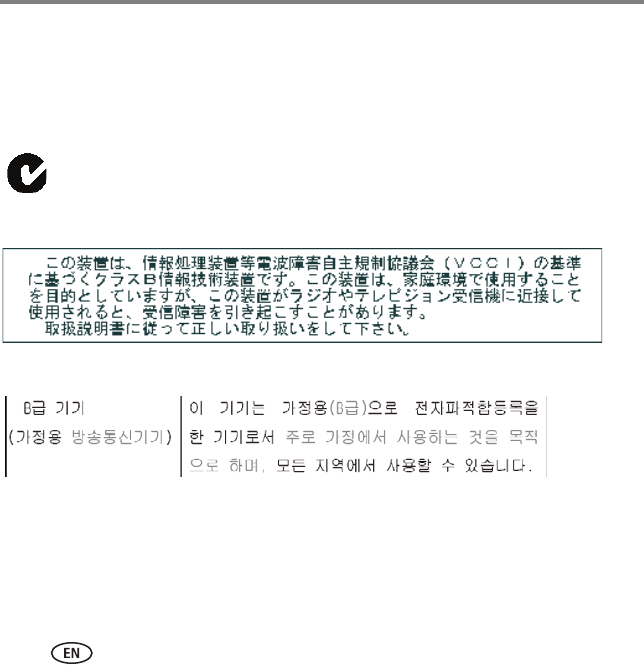
DOC Class B Compliance—This Class B digital apparatus complies with Canadian ICES-003.
Observation des normes Classe B—Cet appareil numérique de la classe B est conforme à la norme NMB-003
du Canada.
Australian C-Tick
VCCI Class B ITE
Korean Class B ITE
N137
urg_01065.book Page 22 Monday, June 8, 2009 8:28 AM
Appendix
www.kodak.com/go/md41support 23
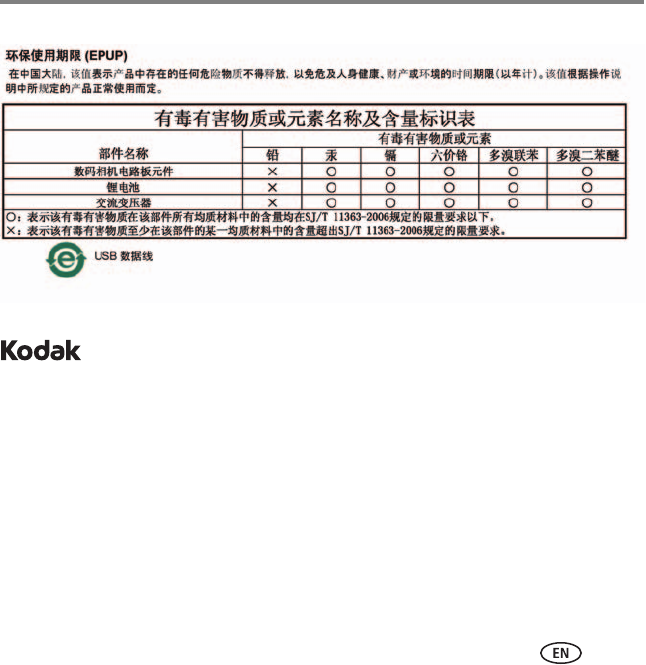
China RoHS
Eastman Kodak Company
Rochester, New York 14650
© Kodak, 2009
Kodak and EasyShare are trademarks of Eastman Kodak Company.
4H6643_en
urg_01065.book Page 23 Monday, June 8, 2009 8:28 AM
